The SiteGround academy provides a wide variety of tips, tools, and resources related to WordPress, web performance, website optimization and site security.
Choosing a skincare website builder is a bigger decision than it seems: get it wrong, and the cost shows up months later, not on launch day. Skincare has needs most generic “how to sell online” advice skips: ingredient transparency and allergen disclosure aren’t optional, and the photography this category relies on can quietly slow a site down if the platform isn’t built for it. Here’s how to choose one that actually keeps up.
Key takeaways:
Ecommerce now accounts for 37% of global skincare sales in 2026, the highest share of any beauty category.
A skincare website builder needs to do more than take payments. Ingredient lists, allergen disclosures, and credibility signals aren’t optional extras for this category.
MoCRA registration and product listing aren’t optional for most skincare brands selling in the U.S.; confirm your status (or your small-business exemption) before you launch, not after.
High-resolution product photography, the kind skincare shoppers expect for texture and ingredient close-ups, can quietly slow your site down if your platform wasn’t built to handle it.
A side hustle, a growing brand, and an established line need genuinely different things from a skincare website builder, not just different budget levels.
Why the platform you pick now matters later
Skincare is the fastest-growing beauty category online: ecommerce made up 37% of global skincare sales in 2026, the highest of any beauty category, and Euromonitor projects that reaching 40% by 2030. Ingredient transparency and high search intent are driving that shift. Ingredient transparency and high search intent are driving that shift. Launch a skincare brand today, and most of your future customers already expect to find you online.
“Outgrowing” a website builder rarely looks dramatic. It’s page speed quietly slipping under new product photography, or a catalog and cost structure that no longer fits, not a crash: most platforms handle traffic spikes fine now. Those problems rarely show up on day one. They show up six months to a year in, right when you can least afford to rebuild.
Scale matters more here than raw power on day one. The right platform lets you grow without forcing a migration, a replatform, or three bolted-on tools just to keep functioning. That’s a different question than which platform looks best in a demo, and it’s the one this guide actually answers.
What a skincare website actually needs to sell
A skincare site has to do everything a general ecommerce site does, plus a handful of things that are specific to this category and that most generic “how to sell online” guides skip entirely.
Room for ecommerce design that supports before/after comparisons and ingredient callouts, not a two-line description
Appointment booking, if you offer skin consultations or other in-person services alongside your products
And ideally all of this without unnecessary complexity that makes handling your store a pain.
2. Speed and image handling for product photography
Skincare product photography runs heavier than almost any other ecommerce niche. Texture close-ups, ingredient macro shots, and before/after pairs are often shot at full resolution, and a single unoptimized image can run 4 to 8 MB. Put six of those on one product page without automatic compression, and that page is slow before a single customer even scrolls. Look for a platform that handles image compression and delivery automatically, rather than one that expects you to manually resize every photo before uploading it.
3. Ingredient and allergen transparency
Skincare shoppers read ingredient lists before they read marketing copy, especially anyone managing sensitive skin, a fragrance allergy, or a specific skin condition. The real gap isn’t whether your platform has room for this: every product page has a description field. It’s whether that field gives you enough space and formatting control to keep a full ingredient list scannable instead of crammed at the bottom, and whether you have writing help to keep that wording consistent across every SKU instead of rewriting it from scratch each time.
4. MoCRA requirements met on your labels and product pages
The Modernization of Cosmetics Regulation Act of 2022 (MoCRA) is the biggest expansion of FDA authority over cosmetics since 1938, and most of its core requirements were already in effect by the end of 2024. Here’s what applies:
Facility registration and product listing: Required annually with the FDA if you manufacture or process cosmetics sold in the U.S.
Adverse-event reporting: Serious adverse events must be reported to the FDA within 15 business days.
Small-business exemption: Brands averaging under $1 million in U.S. cosmetic sales over the prior three years can skip facility registration, product listing, and Good Manufacturing Practice requirements.
Exceptions to the exemption: It doesn’t apply if your products touch the eye area’s mucous membrane, are injected, are intended for internal use, or alter appearance for more than 24 hours without the consumer removing them.
Fragrance allergen disclosure: Still being finalized federally as of 2026 and not yet enforced, though California already requires disclosure of specific allergens, which is why many brands label consistently across every state.
None of this is legal advice, and the thresholds and deadlines above have already shifted more than once since MoCRA passed. Confirm your current obligations directly with the FDA or a cosmetics-focused attorney or regulatory consultant before you launch or make label claims, since your specific product type and sales volume can change what applies to you.
5. Trust signals that make shoppers comfortable buying skincare online
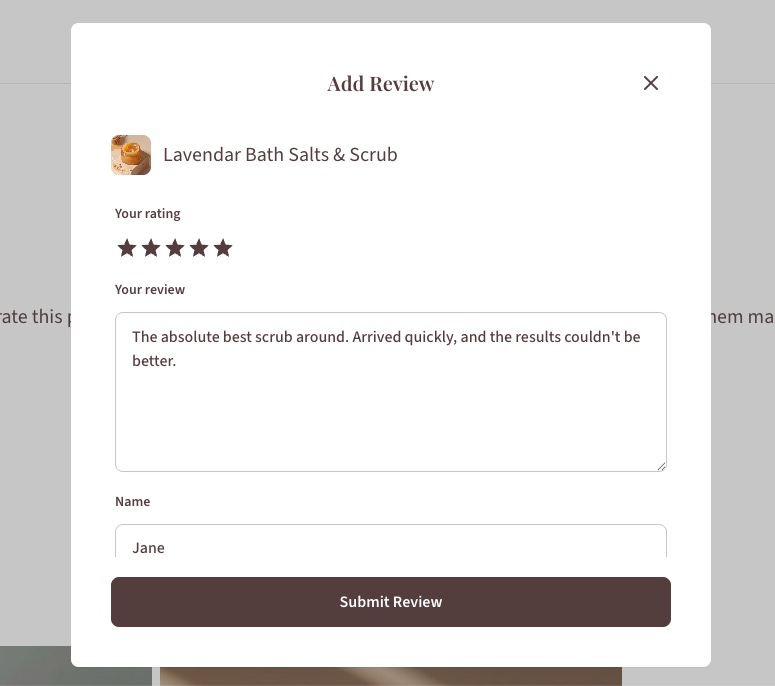
Skincare is a higher-trust purchase than most consumer goods, since customers are putting the product on their skin. Genuine social proof, such as customer reviews, dermatologist or esthetician input on formulations, and any relevant certifications all help close that trust gap. A short “why we formulated this” note from a real person on your team does more work than a polished mission statement.
How to choose the right setup for your stage and budget
You’re selling a handful of SKUs and still testing demand, probably alongside a full-time job or another business. At this stage, speed and low overhead beat any feature you’re not using yet. That cost shows up as apps: platforms like Shopify don’t include reviews, email, or SEO tools out of the box, and those add-ons commonly run $50 to $150 a month on top of the subscription. If you’re already paying for two or three of those, that’s your signal to consolidate into one platform now instead of waiting until you feel like you need to.
Your brand is growing
You’ve got repeat clients, a widening product line, and enough traffic that a rebuild would actually hurt. What matters most here is room to add SKUs and content without starting over. If a plugin conflict or a payment gateway issue has already eaten an afternoon this year, your current setup is already costing you more time than it’s saving.
You’re running an established line
You’re juggling wholesale accounts, multiple SKUs, and steady traffic that a smaller setup was never built to handle. At this point, the platform needs to manage real catalog complexity, even if that costs more than a simpler builder. If your catalog is already outpacing what your current platform can do, that’s not a future problem, it’s a current one.
Here’s the same breakdown at a glance:
Stage
Watch for
Prioritize
Side hustle
You’re already paying for two or three separate apps, like reviews, email, or SEO, on top of your platform subscription
A plugin conflict or payment gateway issue has already eaten an afternoon this year
Managed, built-in tools over DIY flexibility
Established line
Your catalog is outpacing what your current platform can handle
A platform built for that complexity, even at a higher cost
Whichever stage you’re in, match the platform to where your business actually is today, not where you hope it’ll be in a year.
How to build your skincare website step by step
Once you’ve picked a platform for your stage and budget, the build itself follows a fairly consistent order.
Choose and connect your domain. Pick a domain that matches your brand name and point it at your platform. On an all-in-one platform, hosting comes bundled in, so there’s no separate server or hosting decision to make here.
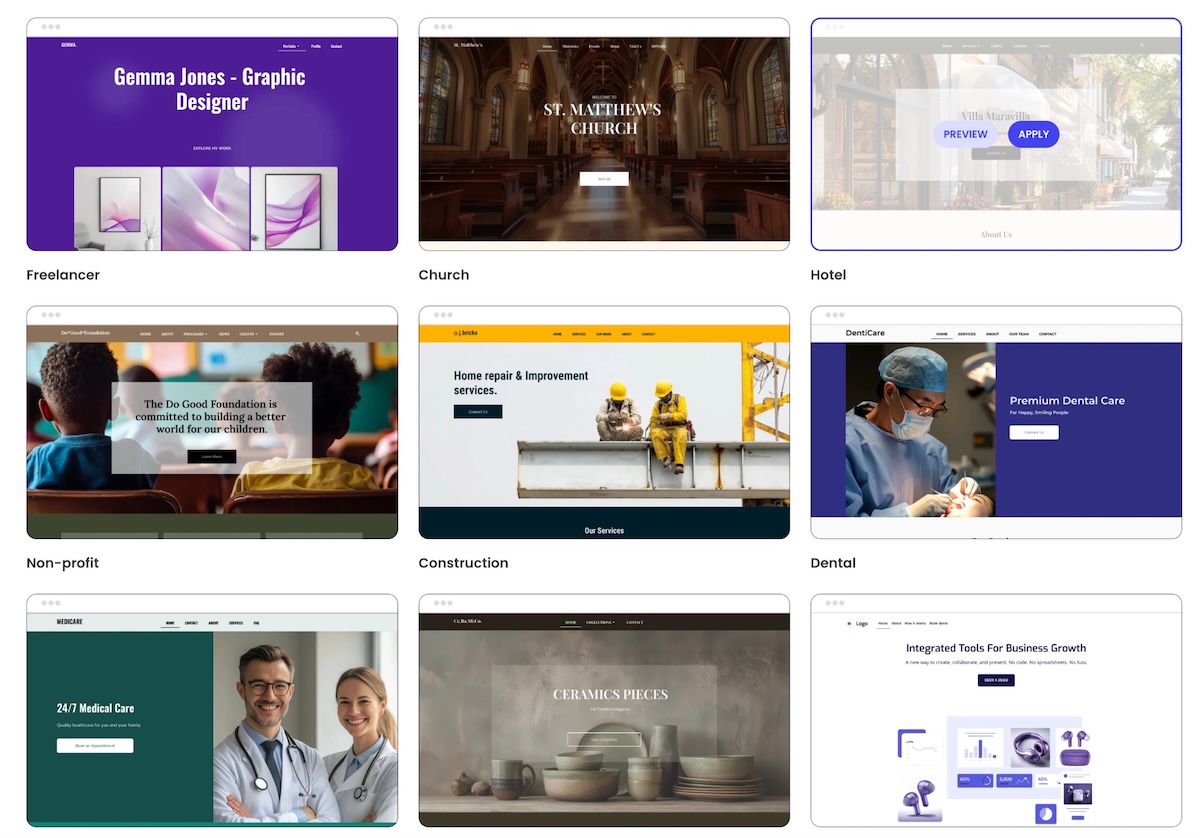
Pick a template and customize your skincare website design. Start from a template built for product-heavy layouts rather than a generic blog theme, then adjust colors, fonts, and layout to match your brand.
Set up products, payments, shipping, and ecommerce sales taxes. Load your product catalog with full ingredient lists, connect a payment processor, and configure shipping rates and tax settings for the regions you actually sell into.
Set your basic ecommerce SEO. Write a real title and description for each product page, add alt text to your images, and submit your sitemap so search engines can find your catalog before you start driving traffic to it.
Test, launch, and promote. Check every product page on mobile, run a test order end-to-end, and confirm your checkout, tax, and shipping settings all work before you send traffic to the site.
Skincare website launch checklist
Run through this before you flip your site live:
Domain connected and SSL certificate active
Product pages include full ingredient lists and allergen notes
MoCRA registration or exemption status confirmed for your business
Product photography compressed and loading quickly on mobile
Payment processor connected and tested with a real transaction
Shipping rates and tax settings configured for every region you sell into
At least one trust signal live: reviews, expert input, or certifications
Legal pages published: returns policy, privacy policy, and terms of service
The bottom line: choose a platform that grows with your brand
Skincare’s real requirements, ingredient transparency, heavy photography, ongoing compliance, make the “which platform” decision matter. The brands that avoid a mid-growth scramble picked infrastructure built for where they’re headed, not just where they’re starting.
SiteGround Ecommerce bundles hosting, security, and store tools into one platform, so you’re not managing a host, a page builder, and a stack of apps separately as you grow. It’s quick to set up without a developer, it handles image-heavy product pages without a separate speed fix, and it skips the app-by-app cost creep of covering gaps the base platform left out, including booking appointments (via Calendly) for brands offering consultations or other in-person services. Add 24/7 expert support when something needs a real answer, and that combination, speed, simplicity, and help when you need it, matters more to a side hustle or growing skincare line than any single feature.
[103]
Frequently asked questions
How to create a skincare website?
Choose a platform that supports full ecommerce, ingredient and allergen disclosure, and fast image loading, then set up your domain, product pages, payments, and shipping methods before testing and launching. The full step-by-step process is covered above, and most platforms with built-in store tools compress this into a single setup flow rather than several separate purchases.
Is selling beauty products online profitable?
It can be, and skincare specifically is outperforming most beauty industry categories online: ecommerce made up 37% of global skincare sales in 2026, according to Euromonitor International. Profitability still depends on your margins, customer acquisition costs, and how efficiently your site converts visitors, not just the size of the online market.
Do you need FDA approval to sell skincare?
Cosmetics don’t require FDA pre-market approval the way drugs do, but under MoCRA you likely need to register your facility and list your products with the FDA unless you qualify for the small-business exemption. Verify your specific obligations with the FDA or a regulatory consultant, since exemption thresholds and product-type exclusions can affect whether that applies to you.
How much does it cost to build a skincare website?
Costs vary widely based on whether you’re stacking separate tools or using an all-in-one platform, with hosting, a page builder, ecommerce plugins, and security add-ons each carrying their own price tag if purchased separately. Bundled platforms that combine hosting, security, and store tools typically cost less in total than assembling the same stack piece by piece.
What happens if I outgrow my website builder later?
Outgrowing a platform usually means slow load times under traffic spikes, inventory tools that can’t keep up with a growing SKU count, or a plugin stack that starts conflicting with itself. Choosing a platform built to scale with your business stage from the start is generally cheaper and less disruptive than migrating everything mid-growth.
You’ve got a product, maybe even a few sales to friends and family, and no idea where to actually sell it. That’s normal. There are really only two paths: list it on an online marketplace, or build your own ecommerce store. One hands you an audience and takes a cut for it. The other keeps more of the money, once you’ve built the audience yourself.
Key takeaways:
The ecommerce platform vs marketplace decision comes down to three tradeoffs: setup cost, control over your brand, and where your buyers come from.
A marketplace works as a ready-made sales channel: you get access to shoppers already browsing, but you don’t own the storefront or the customer data. You’re a tenant, not a landlord.
Your own ecommerce platform costs more time and setup work upfront, but you keep full control over pricing, branding, and have direct access to every customer’s contact information.
You don’t have to pick one lane. Plenty of sellers list on a marketplace and run their own ecommerce site as two sales channels at once, keeping stock and pricing in sync by hand.
What is an ecommerce platform?
An ecommerce platform is software you use to build and run your own online store on your own domain, where you control the pricing, the checkout, and every piece of customer data that comes through it. Nobody else’s logo is on the page, and nobody else sets the rules for how you sell. For most people selling online for the first time, that control is the whole appeal.
Most first-time sellers build one using a website builder, a tool that turns product photos, descriptions, and a page layout into a live storefront without touching code. You pick a template, add your products, connect a way to accept payments, and the platform handles the technical side: hosting, checkout, security, and usually taxes and shipping calculations too. Et voila.
The tradeoff is visibility. A brand-new ecommerce platform starts with no traffic. Every visitor has to come from somewhere: search, social media, paid ads, or word of mouth. Owning the whole experience means owning the empty parking lot, too…at least for a while.
What is an online marketplace?
A marketplace platform is a third-party website where multiple sellers list products under one shared brand and one shared audience. You don’t own the storefront, you’re working inside someone else’s.
Common examples include:
Etsy – handmade goods, vintage items, and craft supplies
Amazon – general merchandise at massive scale
eBay – auctions, used goods, and general merchandise
Facebook Marketplace – local, peer-to-peer sales with minimal setup
Every marketplace runs on the same basic exchange: it brings the buyers, you bring the product, and it takes a cut of every sale for the introduction. Etsy alone reported roughly 86.5 million active buyers at the end of 2025. The target audience is there, but so is the competition.
Ecommerce platform vs. marketplace: cost, control, and traffic compared
The real difference between an ecommerce platform and a marketplace comes down to three things: what it costs you, who’s actually in control, and where your buyers come from. Here’s how they stack up, numbers included, so nobody has to take our word for it.
Setup cost, monthly cost, and fees
Etsy (example marketplace)
Your own ecommerce platform (SiteGround Ecommerce, Grow plan)
Setup cost
$0 to open a shop, plus a one-time $15 shop verification fee
$0 to build and preview your store (14-day free trial, no credit card required)
Monthly cost
$0 (Etsy Plus is optional, $10/month)
$24/month (billed annually)
Listing fee
$0.20 per item, renews every 4 months until it sells
Offsite Ads: 15% if you’ve made under $10,000 in the past year, 12% mandatory above that
Optional, and entirely your choice
Time to launch
Same day: list a product into an existing marketplace with built-in checkout
A few hours to a few days, depending on your catalog size
Prices shown above are as of July 10, 2026. Consult product pages for current prices.
Add it up and a typical Etsy sale runs close to 10% in combined fees before any advertising even shows up to the party. Your own platform trades that per-sale cut for a flat monthly cost, so the more you sell, the more the math tips in your favor. Fixed costs love volume. Percentage cuts do not.
Control over branding and customer data
On a marketplace, you’re working inside someone else’s template. You can pick a shop banner and write a bio, but the layout, the checkout, and the overall look are Etsy’s, Amazon’s, or eBay’s to control, not yours.
Play it forward a couple of years, and the marketplace path looks like this:
400 sales, but no list of 400 customers, just transactions that passed through someone else’s platform
No way to email past buyers about a new product or restock
If the marketplace changes its fees, its algorithm, or suspends your account, that customer base goes with it
Your own ecommerce platform flips that. You control the brand, the design, the checkout flow, and the customer list.
Same two years, different outcome:
400 sales become a real email list you own outright, no platform in between
You can send a welcome email, announce new products, run a loyalty program, or ask for reviews for free
Nobody handed you those customers. You found every one yourself, but once you have them, they’re yours to keep
Where SiteGround Ecommerce fits in
If this sounds like your situation, SiteGround Ecommerce is built for exactly this: a real store on your own domain, with templates designed for retail and everything (hosting, payments, checkout, email marketing) already connected. You can build the whole thing during the free trial before paying anything, so there’s no cost to see if it’s the right fit.
This is where marketplaces earn their fees, and it’s the one thing they’re genuinely good at. Etsy, Amazon, and eBay all have shoppers actively searching inside their platforms, which means a new listing can get discovered without a single dollar spent on marketing. Your own site starts at zero. You’re responsible for every visitor, whether that’s through SEO, social media marketing, or paid traffic, and none of it shows up just because you launched.
Neither approach is free. A marketplace charges you in fees for its traffic. Your own site charges you in time and marketing spend to build traffic from scratch. There’s no free option here, only a choice of which cost you’d rather carry.
How to choose based on your situation
The right choice depends less on the product and more on where you are right now and where you plan to go: how much budget you have, how long you plan to sell, and what kind of product you’re selling. Here are a few scenarios to map against your own situation:
Testing a product idea with little budget
If you’re not sure people will buy what you’re making, a marketplace is a fast and cheap way to find out. Listing fees are pennies, there’s no monthly cost to test with, and you’re in front of buyers immediately instead of waiting on traffic.
Building a long-term brand
If you already know you’re in this for the long haul (and branding is an important part of your online business plan), building on a custom ecommerce platform pays off sooner than you might expect. You own the customer relationships from sale one, which matters more with every repeat purchase, and you’re not paying a percentage of your growth back to a marketplace forever. Renting gets old.
Selling handmade or niche goods
Handmade and niche products get real discovery benefits from a marketplace: buyers who are already searching for exactly that kind of item are hard to reach cold on a brand-new website. That’s a genuine advantage.
It comes with a real cost, too. Handmade goods usually run on thin margins to begin with, and a marketplace’s fees eat into that margin on every single sale. You’re also sitting next to hundreds of other sellers making similar things, which makes it harder to stand out or charge what your work is actually worth. Some sellers use a marketplace to get discovered, then move buyers toward their own site over time specifically to protect their margins and their brand.
There’s no single right answer for handmade sellers. It depends on whether you value the built-in audience more than the fees and competition cost you.
The hybrid approach: selling on both
You don’t have to choose one and abandon the other. Plenty of sellers list the same products on a marketplace and their own site at the same time, using the marketplace for discovery and their own site for the sales they want to keep full control and full margin on.
Others use it as a sequence rather than a split: start on a marketplace to prove the product sells with real buyers, then build a site once there’s demand worth owning. The marketplace does the early legwork of finding an audience. The site is where you keep them.
For a solo seller with a manageable product count, running both at once is simpler than it sounds:
Keep a single spreadsheet or notebook with current stock counts, and update it by hand after each sale on either channel
Use the same product photos and descriptions across both, tightened to each platform’s format
Decide on a pricing strategy across channels and stick to it. Some sellers keep prices identical everywhere to avoid undercutting themselves. Others price slightly lower on their own site, since skipping the marketplace fee leaves room to do that and still keep more margin than the marketplace sale would. Either works. What doesn’t is customers noticing a price gap with no clear reason behind it.
Check both dashboards on a set schedule, like once a day, instead of trying to watch them constantly and losing the rest of your afternoon to it
This gets harder past a handful of SKUs or a sales volume where manual updates start slipping through the cracks. At that point, it’s worth rethinking how much you’re tracking by hand. Until then, a simple habit of checking both channels on a schedule works fine for most new sellers.
How to launch your own ecommerce platform
Creating your ecommerce website doesn’t require a developer, an agency, or a big budget. The basic setup is the same regardless of platform: pick a template, add your products, and connect a payment method.
A few things are worth getting right before you go live:
Start with a template instead of custom design work. Most store builders include templates built specifically for retail, so you get a professional layout without designing one from scratch
Look for a platform that offers a free trial, and build your whole store during it. You can set up your store, add products, and preview it live before you’re ever charged
Decide your shipping approachbefore you list anything, not after your first order comes in. Flat rate, calculated by weight or destination, or built into the price all work, but pick one before a customer is waiting on an answer
Take product photos from multiple angles, not just one hero shot, and make sure they’re actually in focus and well-lit. This matters more for a brand-new store with no reviews yet than almost anything else on the page. If your original photos are a little rough, an AI image tool can clean up lighting and background without needing a reshoot
Add basic trust signals before you launch: a way to contact you, a shipping and return policy, and a privacy policy. A brand-new store has no reviews yet, so this is what tells a stranger you’re legitimate
Setup is the easy part. Developing an ecommerce marketing plan and getting people to actually visit is the harder one. Here’s what you need to know:
Post on social media where your buyers already are, not everywhere at once
Start building your email list from day one, even just a signup box on your homepage. A small list you can email directly is worth more long-term than a big spike of one-time visitors
Use AI to draft a first pass at product titles and descriptions, then edit them the way a buyer would actually search, not the way you’d describe it to a friend. This is a very important part of your ecommerce SEO at this stage
Ask happy customers to share what they bought. A tagged photo or a mention does more for a new store than most paid ads would at this stage
The first month or two on your own platform will feel slower than a marketplace, because you’re building traffic instead of borrowing it. That’s expected, not a sign you picked wrong.
Common mistakes when choosing where to sell
Picking a marketplace only because it’s free to start. The listing and transaction fees add up fast once you’re selling consistently, and “free to start” isn’t the same as “cheap to run.”
Underestimating how long it takes to build traffic on your own site. A new store doesn’t show up in search results overnight, or in week one, or usually in week three either. Budget weeks, not days, before expecting steady visitors.
Assuming you have to choose one and stick with it forever. Sellers move between models constantly. Etsy sellers add a website once they have proof a product sells; website owners add a marketplace listing to reach a new audience. Nobody signs a lifetime contract here.
Ignoring who owns the customer relationship. If you’re building a brand you want people to remember, a marketplace-only strategy makes every sale a one-off instead of a repeat customer.
Copying a competitor’s setup without checking your own numbers. What’s cheap or affordable for someone selling $200 candles isn’t the same math as someone selling $8 stickers. Run your own fee comparison before committing, not after.
The bottom line: ecommerce platform or marketplace?
There’s no universal right answer here, only the right answer for where you are. If you’re still testing whether the product sells, a marketplace gets you in front of buyers with less money on the line. If you already know you’re building something long-term, your own platform starts paying you back instead of a marketplace, and sooner than most people expect.
SiteGround Ecommerce makes the ownership side of that genuinely easy, not just possible. You can go from a blank page to a live, working store in a matter of hours, no developer and no code required. Every plan comes with fast, reliable hosting built in, so your store loads quickly and stays up when it matters. And if something trips you up along the way, real support is available 24/7, not a chatbot loop or a three-day ticket queue.
[103]
Frequently asked questions
What’s the difference between an ecommerce platform and a marketplace?
An ecommerce platform is software for building your own standalone online store, where you control the branding, pricing, and customer data. A marketplace is a shared website where multiple sellers list products under one brand, like Etsy or Amazon, in exchange for a cut of every sale.
Should I sell on Etsy or build my own website?
That depends on what stage you’re at and what you’re trying to solve for. Etsy trades a cut of every sale for speed and an existing audience. Your own website trades more setup time for control and margin. Neither is the “right” starting point, they fit different situations.
Is Etsy a marketplace or an ecommerce platform?
Etsy is a marketplace, not an ecommerce platform. It hosts millions of individual sellers under one shared brand and takes a percentage of each sale, rather than giving you a standalone ecommerce store on your own domain.
Is it cheaper to sell on a marketplace or build your own store?
It depends on your sales volume. At low volume, a marketplace can be cheaper because there’s no monthly cost. Once you’re selling consistently, the roughly 10% in combined marketplace fees per sale often costs more than a flat monthly plan for your own platform.
Can I use both a marketplace and my own online store?
Yes. Many sellers list the same products on a marketplace and their own ecommerce site at once, using each as a separate sales channel. At low product counts, this works fine with manual inventory updates and no extra software.
What are examples of ecommerce platforms vs. marketplaces?
Ecommerce platforms include website builders you use to create a standalone store on your own domain. Marketplaces include Etsy, Amazon, eBay, and Facebook Marketplace, where you sell inside someone else’s shared platform.
Starting a business used to mean a degree, funding, or a warehouse full of stock that may or may not move. Selling a digital product changes that though: you just need to pick one that matches what you already know, how much time you actually have, and who you can actually reach.
This guide gives you a framework for figuring that out, then walks through pricing, where to sell (calculator included, so you can see exactly what you keep on each platform), and how to land your first sale in ecommerce, all backed by real insights from someone who’s been there and done that.
Key takeaways:
Digital products to sell often split into nine broad formats, but figuring out which one fits comes down to three things: your skills, your available time, and who you can actually reach, not whatever’s trending.
The easiest digital products to sell as a beginner are usually the ones with the shortest gap between “I made this” and “I can sell it,” like templates and printables.
An audience you already have, even a small one, beats a bigger cold one you’d have to build from scratch.
Selling on your own website instead of a marketplace means keeping 11 to 12 percentage points more of every sale, since there’s no platform commission stacked on top of standard payment processing, and that gap compounds fast as sales add up.
Why selling digital products is worth it in 2026
A digital product costs about the same to sell to one person as it does to 100,000. That’s because once the file exists, one more digital download costs you basically nothing, making it a super compelling case for building one before producing something tangible.
Physical products rack up costs and stress at every step:
Manufacturing
Storage
Shipping
A digital ebook, template, or course on the other hand? It just sits on a server and delivers itself. A $19 sale nets you closer to $17 or $18 after payment processing, instead of the 30 to 60 percent margins typical in physical retail. Margins that wide forgive a lot of early mistakes: an underpriced first batch, a slow month, or that cover design you’ll redo in three weeks.
Digital products also knock out the two things that stop most people from starting a business at all: money and time.
Money: if your starting budget is closer to $50 than $5,000, this is one of the few categories where that’s totally workable. (Meanwhile, our tips for starting an online store on a budget cover what a lean setup actually costs before you commit to anything.)
Time: there’s no lead time between finishing the thing and selling it. No manufacturing run, no supplier lead times, no stock sitting in a warehouse waiting for a first order. Finish the file today, and you can list it before dinner.
The most profitable types of digital products to sell
Nine product types make up most of the profitable digital product market. Each trades off differently on production time, price ceiling, and how much upkeep it needs after launch. AI tools have also made some of these easier to copy for free than others, worth weighing before you commit to one.
1. Ebooks and guides
A written, downloadable resource, typically PDF or e-reader format, that walks a reader through a specific process or topic.
A narrow, specific promise is the way to go here. That is, “How to negotiate freelance rates” will consistently outsell a generic “Freelancing 101,” because the tighter promise is easier to judge before buying.
No reprint costs: update the file next year and it’s still the same product, but better!
Editing eats more time than writing does. Budget for a second pass before you hit publish.
2. Online courses and workshops
Structured video lessons, often paired with worksheets or quizzes, sold as a single self-paced purchase or a live cohort-based workshop.
The highest price ceiling on this list, but also the longest production time: sometimes 40-plus hours once you count scripting, filming, and editing.
Niche topics generally sell better than broad ones.
Online courses can generate passive income with no student limits.
Want a lower-risk test? Build a tight, two-hour workshop that solves one problem before you commit to a full multi-week curriculum.
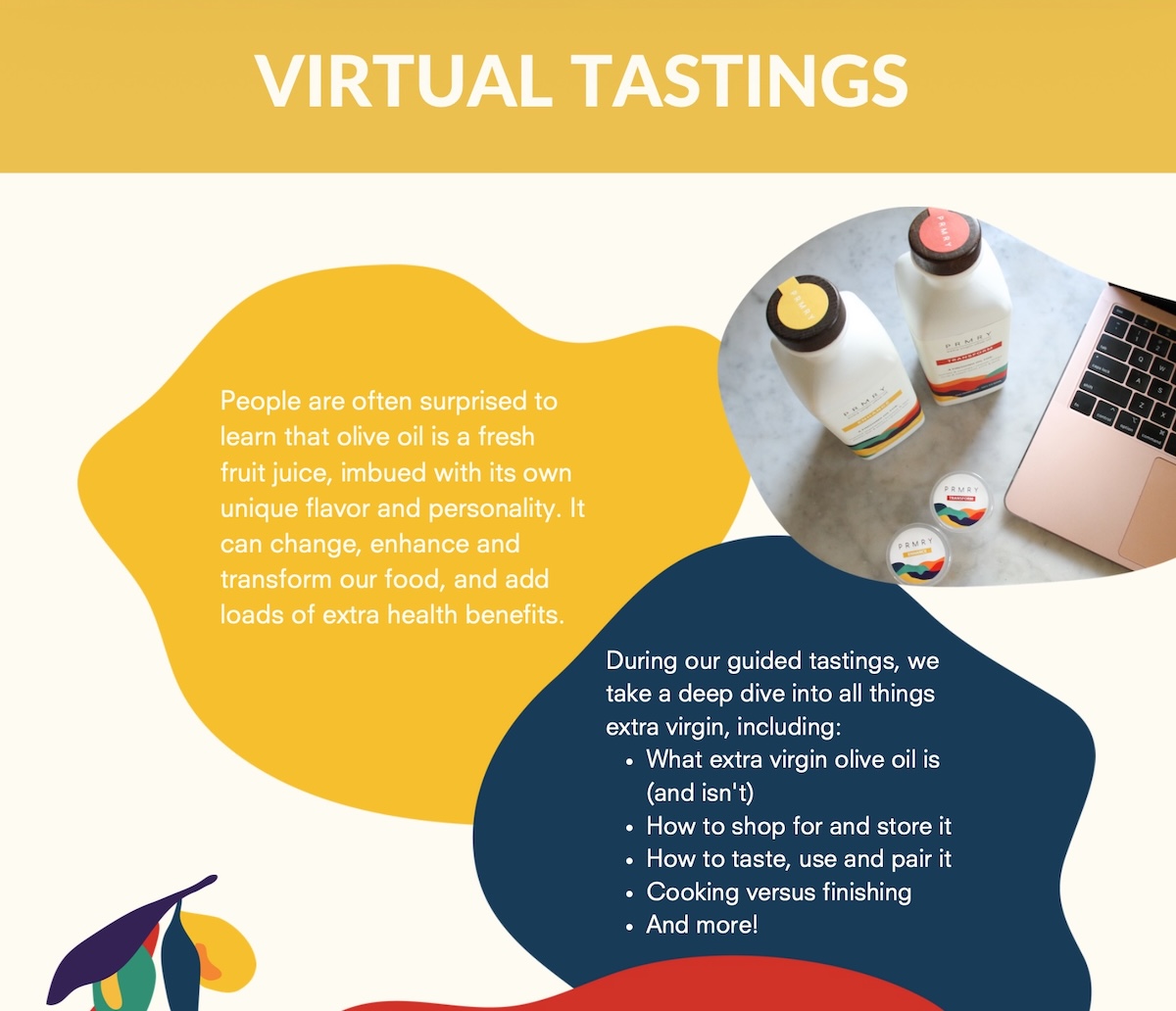
A real example: I used to run an olive oil company, and at one point we started offering live, online virtual tasting workshops built around our physical product, mostly booked by companies for remote team events. We still shipped a tasting kit to every participant, but we bundled a workshop fee on top of the product cost and sold it all in one bulk order per company, sometimes up to 100 people in a single booking. That combination, product margin plus an online service fee, sold at volume, is what made the return massive: within a couple of years, those virtual workshops made up a large share of total revenue.
3. Templates
A pre-built file, spreadsheet, document, or design file that a buyer customizes for their own use instead of building from scratch.
One of the best margin-per-hour formats here, since you’re usually just packaging work you’ve already done once for yourself or a client.
Buyers pay for the time saved, not the file itself. A short setup guide makes that time-saving obvious.
AI can generate a generic version of this in seconds now, so the ones worth selling encode real judgment or trial-and-error, not just structure.
4. Printables
A designed file meant to be downloaded and printed at home: planners, wall art, checklists, and worksheets.
The lowest price and the lowest production barrier on this list. Design one in an afternoon with free tools and see if the idea sells before you build anything bigger.
The classic first product for total beginners, and for good reason.
5. Digital art and graphics
Illustrations, icon packs, brush sets, and other design assets sold as individual files or as themed bundles.
Bundle three to ten related digital assets together to lift average order value without much extra production work.
Keep the visual style consistent across a bundle: buyers judge the whole set by its weakest piece.
A distinct style is worth more than ever, since AI-generated digital art already covers a lot of the generic middle ground.
6. Music, sound effects, and audio files
Royalty-free background tracks, sound effect packs, and audio samples licensed for use in someone else’s project.
Licensing confusion is the number one support complaint in this niche. Spell out exactly where and how a buyer can use the file before you list it, not after the first angry email.
Video creators, podcasters, and game developers are your core buyers here.
7. Photography and stock images
Original photos licensed for buyers to use in their own marketing, content, or design work, sold individually or in themed sets.
Themed bundles of 20 to 100 photos beat single-image sales on return per hour of shooting and editing.
Go niche. “Cozy home office setups” has far less competition than a generic “business photos” search.
Generic stock-style shots are increasingly free to generate. Specific, human photography holds its value better.
8. Software, plugins, tools, and apps
A small piece of software, a browser extension, a plugin, or a standalone app that adds a specific feature to a platform someone already uses, or solves a problem on its own.
The most defensible format on this list: solve a real problem and the tool keeps selling with almost no ongoing marketing.
Also the most demanding. Expect to keep supporting and updating it as the platforms it runs on change.
Think building your own app is out of reach without a technical background? Think again. AI-powered vibe coding tools like Coderick AI let you describe what you want in plain language and get a working app back, no code required.
9. Memberships and exclusive content communities
Paid, recurring access to a private community, a content library, or ongoing coaching, billed monthly or annually.
The only format here with predictable recurring revenue.
Also the slowest to build real momentum. Keeping someone subscribed means delivering fresh value every single month, not just once.
How to choose the best digital product to sell
Figuring out digital product ideas to sell comes down to three questions: what you’re good at, who you can actually reach, and how much time you realistically have. Skip any one of them and that’s usually why a first product goes nowhere.
Start with what you already know
The fastest path to a first sale is a skill you already have, not a topic you find interesting. A spreadsheet you built for your own budget, a workflow you use at your job, a craft you’ve practiced for years: all of these convert into a product faster than research on an unfamiliar niche, because you skip the learning curve and go straight to packaging what you already do well.
Think about who you are selling to
An audience you already have access to is worth more than a bigger one you’d have to build from scratch. Before you decide what to make, take stock of what you’ve actually got:
A social following, even a small one, in a specific niche
An email list of people who’ve bought from you before
An existing customer base for something else you sell, physical or otherwise
Any one of these changes the math. A tight, engaged audience of 200 will surprisingly outsell a cold audience of 20,000, because that small list already trusts you enough to buy.
A real example: The olive oil tasting workshops mentioned earlier didn’t start with a new audience. They started by selling something new to people who already trusted the brand enough to buy olive oil from it in the first place.
Match your product to your available time
Be realistic about hours per week, not the hours you wish you had. A printable can go from idea to published in an afternoon. A full course realistically needs several weeks of evening and weekend work before it’s ready to sell, and underestimating that gap is how half-finished courses end up gathering digital dust.
Here’s how skills, time, and audience typically map onto product type. Treat it as a starting point, not a rule. Plenty of successful sellers land outside their own row.
Your background
Low time (under 5 hrs/week)
Medium time (5 to 15 hrs/week)
High time (15+ hrs/week)
Writer or subject expert
Printables, checklists
Ebooks, guides
Full online courses
Visual artist or designer
Digital art, stock graphics
Templates, illustrated printables
Premium graphic bundles, brand kits
Developer or technical builder
Simple scripts, small plugins
Standalone software tools
Multi-feature plugin suites
Teacher or coach
Worksheets, single printables
Mini-courses, one-off workshops
Full courses, membership communities
How to price your digital products
Price a digital product on perceived transformation, not production time. A one-hour template that saves a buyer ten hours of spreadsheet work is worth more than a one-hour template that saves them ten minutes, even though both took you the same afternoon to build.
Typical ranges by format give you a starting anchor:
Product type
Typical price range
Ebooks and guides
$9 to $39
Online courses and workshops
$49 to $499
Templates
$9 to $49
Printables
$3 to $15
Digital art and graphics
$5 to $50
Music, sound effects, and audio files
$5 to $30
Photography and stock images
$3 to $25 per image, or $19 to $99 per bundle
Software, plugins, tools, and apps
$19 to $199
Memberships and exclusive content communities
$9 to $49 per month
Below the low end of a range, fixed transaction fees eat a disproportionate share of every sale, so cheap products only work at real volume. Above the high end, buyers expect more social proof: testimonials, a preview, a results guarantee.
Treat your first price like a hypothesis:
Launch at the middle of your range.
Watch how the first 10 to 20 sales go.
Adjust from there.
Raising a price after early proof is easy. Cutting one to fix a launch that undersold your effort is a much harder story to tell returning buyers. How you display that price affects whether it converts, too. SiteGround’s guide to ecommerce website design ideas that convert covers price anchoring and layout choices that make a number feel fair instead of arbitrary.
A real example: We priced those tasting workshops too low at first, then adjusted as bookings and feedback came in. Watching what companies were actually willing to pay taught us more about the right number than any amount of pre-launch guesswork could have.
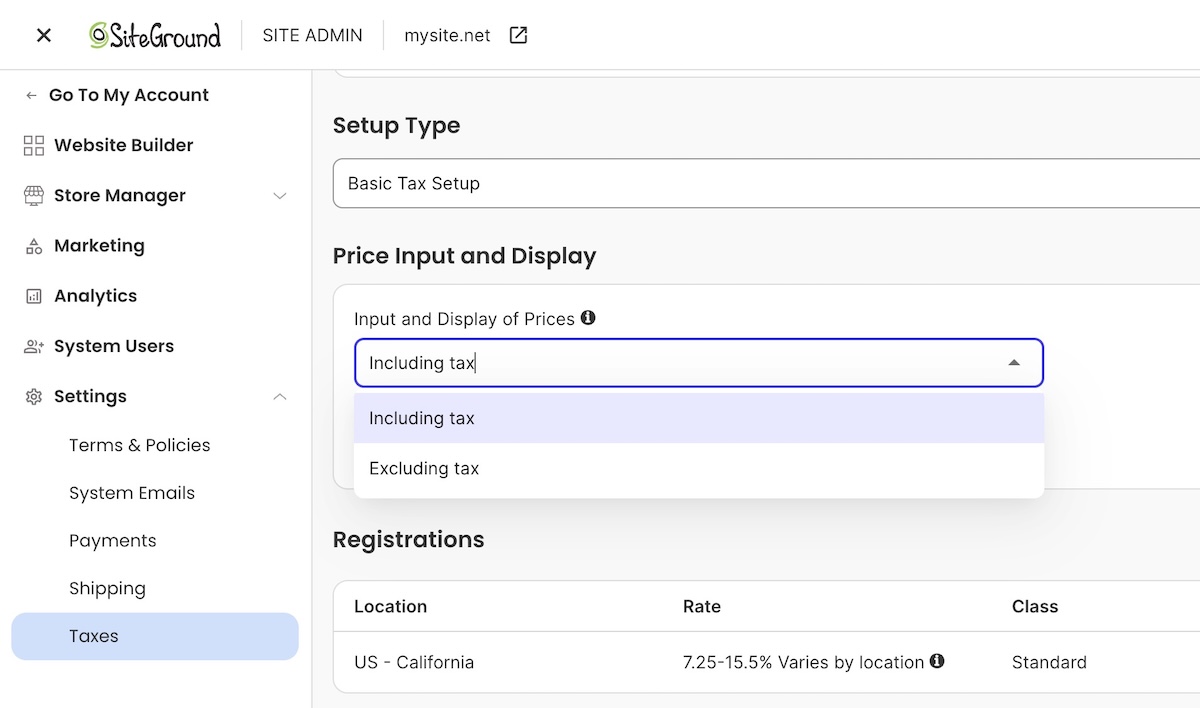
Worth mentioning: whether your price includes tax or adds it at checkout depends on your buyer’s region, EU shoppers expect tax-inclusive pricing, US shoppers expect it added on top, and most platforms, including SiteGround Ecommerce, let you set this per region automatically.
Where to sell digital products: own website vs. third-party marketplaces
Your two real options: a marketplace with built-in traffic and higher fees, or creating your ecommerce own website with lower fees and little traffic handed to you. Here’s how they stack up.
Selling on third-party marketplaces
Etsy and Gumroad hand you an existing audience that’s actively searching for products like yours, which matters most in your first few weeks before you’ve built any traffic of your own.
Traffic: built in, no work required to get in front of buyers.
Fees: a platform commission stacked on top of standard payment processing.
Control: the marketplace owns the checkout and the customer data, not you.
Taxes: most marketplaces collect and remit sales tax on your behalf as part of that fee.
Plenty of sellers treat a marketplace as a discovery channel for the first few months, then shift toward their own site once they’ve got enough reviews and repeat buyers to make that traffic worth capturing directly.
Selling on your own website
This is the shift marketplace sellers eventually make.
Traffic: yours to build. Nobody hands it to you.
Fees: typically just payment processing, around 2.9% plus $0.30 per card transaction, though some platforms tack on a small transaction fee too, still well below what a marketplace charges. SiteGround Ecommerce, for example, drops that extra fee entirely on its Grow and Scale plans, leaving just processing.
Control: you own the customer relationship completely: their email, their purchase history, any repeat business that follows. That means accepting payments online directly through your store and setting up your own email marketing, both far easier to pull off than they might seem.
Ecommerce sales tax: your job too, but less work than it sounds. Most platforms calculate the right rate automatically at checkout once you’ve entered your business details, the same way a marketplace does behind the scenes.
Marketplaces are a fine place to start. They’re a worse place to stay once your product has actually proven itself.
How to set up a store to sell digital products
Whether you’re using a dedicated ecommerce platform, a marketplace, or a store builder, digital delivery is largely automated at this point: mark a product as downloadable, and the platform takes care of getting the file to the buyer.
Here’s what that typically looks like, once it’s set up:
Delivery: the platform generates a working digital download link for each purchase, drops it into the buyer’s order confirmation email, and usually adds a backup download button to their order summary page too.
Payment: connect a processor once in your settings, and every sale after that routes through it automatically.
Tax: set your product’s tax classification once, and the rate calculates automatically at checkout based on the buyer’s location.
Platforms vary in how much of this is built in natively versus bolted on. Some require a separate plugin or third-party file host to handle digital delivery; others, like SiteGround Ecommerce, build it in from the start, which is one less integration to set up and maintain before launch.
How to get your first digital product sale
A little reality check: your first sale will almost certainly not come from a stranger finding your digital product business through search. It will come from your existing network, such as peers who already know you have expertise, maybe existing customers…probably your mom.
Start close to home:
Tell 5 to 10 people directly, by name, that the product exists. Ask for feedback, not just a purchase.
Offer a small early-bird discount to remove the last bit of hesitation for buyer number one.
Turn their review into your first piece of social proof for everyone after them.
Build an email list before launch day, even just an email signup on a coming-soon page, so you’re not launching into silence.
From there, distribution takes over. Posting consistently on one platform where your audience already hangs is the way to go as opposed to scattershot posting literally everywhere. Building a structured 90-day ecommerce marketing plan will give that consistency a shape, instead of posting on a whim with no real plan.
A real example: Our first workshop sale came from a sales page built for that one product, advertised straight to our existing olive oil customers. They weren’t our exact target audience for a corporate team event, but a few of them were, and because they were loyal, they became our biggest advocates, referring us to exactly the kind of company we were trying to reach.
Common mistakes new digital product sellers make
Most of these aren’t visible until the first batch of customers hits them, which is exactly why they’re worth checking before launch instead of after your first refund request.
Pricing too low out of fear. A $5 price tag signals low value about as often as it signals accessibility, and it locks in thin margins you’ll regret at scale.
Skipping a delivery test. Buy your own product before launch. A broken download link on day one turns your first customer into your first refund.
Skipping feedback from a trusted audience. Send the draft to a handful of people who actually fit your target buyer before you launch publicly. A confused beta reader today is a refund request, or worse, a quiet non-referral, next week.
No differentiation from free alternatives. If a free YouTube tutorial covers 90 percent of what your product teaches, be specific about the 10 percent that justifies a price tag.
Launching without any marketing plan. A great product with zero distribution plan sells to nobody. A marketing mix built for first-time sellers forces the channel and message decisions before launch day instead of after it stalls.
Ignoring licensing terms. Sellers of audio, fonts, and templates who skip clear usage terms field the most refund and support requests of any category.
A real example: Our own biggest workshop mistake was skipping test runs. We hit technology and flow issues live, in front of paying customers, that a single dry run would have caught in ten minutes. Instead we spent an awkward hour of scrambling during our first virtual session.
Next steps: from idea to first sale
You’ve done it — you’ve really done it: figured out which digital product to sell, what to charge, and where to sell it. The only piece missing is somewhere to actually put it.
SiteGround Ecommerce handles that without a separate plugin, file host, or delivery workaround: digital products deliver themselves, payments and tax calculate automatically at checkout, and built-in marketing tools mean you’re not stitching together five different apps just to launch. The gap between “I have a product” and “I have a store” is an afternoon, not a month.
[103]
Frequently asked questions
What are the easiest digital products to sell?
Printables and templates are the easiest digital products to sell as a first product, since they need no video or audio production and can go from idea to published listing in a single day. Both formats also let you test an idea with minimal upfront investment before committing to something bigger, like a full course.
What digital products sell the most?
Templates, printables, and short ebooks sell in the highest volume because they solve narrow, specific problems at an impulse-buy price point, while online courses generate less volume but a higher price per sale. Volume and price per sale usually trade off against each other, so the “most sold” format isn’t always the most profitable one overall.
How do I start selling digital products with no money?
Start with a product type that needs no paid tools, like a printable made in free design software, and use a store platform’s free trial to list it before committing to a paid plan. Marketplaces like Etsy also let you list without any upfront store cost, though their per-sale fees run higher than running your own site.
Do I need a website to sell digital products?
No. Marketplaces like Etsy and Gumroad let you sell without a website, but you’ll pay higher combined fees and you won’t own the customer data that a website checkout gives you. A website becomes more valuable as your sales grow, since the fee savings compound with every additional order.
Are digital products profitable?
Yes. Digital products are typically more profitable than physical goods because there’s no manufacturing, storage, or shipping cost on each unit sold, which pushes margins well above 80 percent after payment processing. That profitability still depends on choosing a price that reflects the value delivered, not just what feels comfortable to charge as a beginner.
What is the most profitable digital product?
Online courses carry the highest price ceiling and the best margin per sale, but they also demand the most upfront production time of any digital product type. Want the profitability without the time investment? A well-priced template or toolkit sold at volume can get you close on total margin.
If you’ve used an AI design tool and ended up with something that looks like a finished website, only to realize you have no idea how to actually put it online, you’re not alone. The gap between a solid AI prototype and an actual published website is where most AI-assisted projects come to a grinding halt. And while tools like Claude Artifacts, Google Stitch, and Claude Design have made the design stage faster than ever, they haven’t made the often-tedious production stage disappear.
An AI prototype becomes a published website only after that production layer is handled: we’re talking hosting, custom domains, SSL, responsive QA, metadata, backend needs, updates, and maintenance. So while AI design tools help validate the idea, a tool like Coderick AI can help move the validated concept into a managed publishing environment.
Key takeaways:
AI design tools help validate ideas, not finish the production layer. The two jobs are genuinely different.
The missing step is almost always the prototype-to-website handoff: hosting, SSL, domain, and maintenance all need to be solved before anything goes live.
Coderick AI fits as the practical publishing path after the AI prototype, handling hosting, SSL, custom domains, version control, and updates in one managed environment.
The source of the prototype determines the production path: a Claude Artifact, a Google Stitch export, and a Claude Design project each hand off differently.
A prototype-to-website handoff should include the page list, copy, user flow, form requirements, backend needs, domain details, and maintenance expectations. Screenshots alone aren’t enough for production.
Why aren’t AI design tools enough to publish a website?
A prototype shows the idea without handling production
AI design tools are built for speed. You describe what you want, the tool generates it, and, like magic, you have something that truly looks like a complete website — layouts, copy, navigation, interactive states. That’s the point. It lets you test the idea before committing to the beasty infrastructure behind it.
But the output is just a visual representation, and, alas, not the finished product. There’s simply no server behind it. No domain attached. No SSL certificate. None of it. That’s because the prototype lives inside the tool’s environment. So if you close that tab and nothing is publicly accessible, then nobody can find it, navigate to it, or use it the way a real visitor would.
A visual design is different from a hosted website
A visual design is a set of decisions: what the pages look like, how they’re laid out, what the typography and color are, where the buttons go. A hosted website is infrastructure: a server, a domain, an SSL certificate, a deployment process, a database if anything dynamic is involved. One answers “what should this look like?” The other answers “how does this actually run?” They’re different problems, solved by different tools, and finishing the first one doesn’t start the second.
Publishing adds hosting, domains, SSL, QA, and maintenance
Getting from AI prototype to published website means handling at least six things the design tool didn’t: choosing a host, connecting a domain, provisioning SSL, testing responsive behavior across devices, setting up metadata and analytics, and deciding how updates will be handled going forward. That’s a laundry list of possibly dizzying extras, each adding another round of decisions.
What’s the difference between an AI prototype and a published website?
An AI prototype validates layout, flow, and functionality
An AI prototype is a working representation of an idea. It shows what the pages look like, how navigation connects them, and (if the tool supports it) how interactive elements behave. A Claude Artifact can be a fully interactive React component. A Google Stitch output is high-fidelity UI screens and front-end code. A Claude Design project offers a structured handoff package with layout, copy, and requirements.
All super valuable outputs. But, disclaimer: all built to answer design and validation questions, not production ones.
A published website needs infrastructure and ownership
A published website has an address anyone can type into a browser. It loads over a secure connection. It stays up when you’re not logged into the tool that made it. It has an owner (you) who controls the domain, the hosting account, and what happens when something needs to change. There’s a massive infrastructure gap between the prototype and a published website.
A production website must be tested, secured, and maintained
Going live opens a whole different kind of work. A proper production website needs responsive QA across real devices, accessibility checks, page speed testing, form submission testing, SSL verification, and analytics setup before the first real visitor arrives.
Then, after launch, it needs updates, security monitoring, and a process for making changes without breaking anything. The website checklist for launch day is indeed longer than most prototyping workflows account for.
Stage
What it proves
What it still needs
AI prototype
Idea, layout, interaction, visual direction, user flow
Hosting, domain, SSL, QA, maintenance
Design handoff
Screens, copy, user flow, requirements, source files
Build path, backend decisions, publishing
Published website
Live public experience on a controlled domain
Monitoring, updates, SEO, security, maintenance ownership
Which AI design tools help before publishing?
Claude Artifacts help test interactive ideas
A Claude Artifact is a standalone output that Claude generates in a side panel: a web page, React component, form, calculator, chart, or interactive prototype. Artifacts run in the browser and can be shared via a claude.ai URL, embedded in another page, or downloaded as source files. They’re great for testing a specific interaction, validating a layout, or building a component that can be handed off to production.
Google Stitch helps create UI direction
Google Stitch is a free AI-powered UI design tool from Google Labs that turns text prompts, uploaded images, sketches, and wireframes into high-fidelity interface designs and front-end code. Stitch generates several complete UI directions from a single prompt, then lets you refine and export.
Claude Design helps create design projects and handoff bundles
Claude Design is Anthropic’s design tool, still in early access. Describe what you want, refine it through chat, tweak layouts with sliders, and leave inline comments. It’s a pretty great way to nail down a visual direction. When you’re ready to hand it off, you can export to a zip folder, standalone HTML, Canva, PDF, or PPTX.
Other AI design tools may still need a production path
These processes often apply to other AI design tools. Screens, code, interactive mockups — they usually stop at the design layer. The production path is often a separate decision, and the source of the prototype determines which handoff workflow fits.
What does a prototype need before it becomes a published website?
Clear page structure and navigation
Before any prototype goes into production, you’ll want to tackle work though an AI website builder checklist, which includes outlining your page structure. That means a defined list of pages, a navigation model that covers how users move between them, and a clear decision about which pages are static, which pull from a database, and which require authentication. A prototype often implies this structure visually without making it explicit. But production needs it in writing.
Final copy, calls to action, and content blocks
A prototype almost always contains placeholder copy. Production calls for final text: headlines, body copy, calls to action, button labels, form field labels, and error messages. Copy decisions that seem trivial when you’re spitballing the prototype, like the exact text on a call-to-action button, ultimately affect conversion rates on a live site. So that final copy really belongs in the handoff brief, not in the production sprint.
Responsive layouts for mobile, tablet, and desktop
Most AI design tools generate desktop layouts by default, which is great, but a published website needs to also work correctly on mobiles and tablets. So, sure, you can review these elements after the production build, but the prototype should at least include mobile-specific decisions. That is, navigation behavior at small screen widths, form layout on touch devices, and any components that need to restructure below a certain viewport size.
Forms, backend, database, or login requirements
Let’s say you want to include a contact form, booking system, user account, CRM, dashboard, or really any feature that stores or retrieves data on your website. All of these requirements need to be specified before production starts. That’s because while the prototype can show that a form exists, it doesn’t automatically articulate where the submissions go, how they’re stored, or who can access them. And when those kinds of backend decisions get made during production rather than before, during prototyping, they tend to get sloppy, adding both time and cost.
SEO metadata, analytics, and indexability
A prototype has no SEO metadata, no proper page titles, no meta descriptions, no sitemap configuration, no robots.txt rules, no canonical URLs, and no analytics. And hey, that’s fine, because it’s a prototype. The production build is where all of this gets set up for the first time, and it’s worth doing before the first visitor arrives rather than cleaning it up afterward. Run through an SEO checklist, and get those analytics set up before launch to make sure the basics are covered.
How do you move from AI prototype to published website?
The path from AI prototype to published website follows these same five steps regardless of which AI design tool produced the prototype.
Step 1: Validate the prototype Confirm that the prototype solves the problem it was designed to solve. This means reviewing the layout, user flow, and key interactions against the original goal. Get sign-off from any stakeholders who need to approve the design before production starts. Changes made after production starts cost more time and credits.
Step 2: Create a production handoff brief Document everything the production build needs that isn’t visible in the prototype: the page list, final copy, user flow, form behavior, backend requirements, domain details, launch requirements, and maintenance expectations. The handoff brief is what prevents the production tool or developer getting lost in making decisions that should have been made during the design stage. A clear brief means the first production build is close to the approved design.
Step 3: Choose a publishing path The right path depends on how much you want to manage. If you want hosting, SSL, publishing, and updates handled in one place without touching code, Coderick AI is the direct route. If you need source-code ownership, a custom deployment pipeline, or a developer-controlled environment, you’ll be looking at a separate build process using something like Claude Code (not your jam? Consider Claude Code alternatives). The decision table later in this article maps the most common starting points to the right next step.
Step 4: Build or recreate the production version In a managed publishing environment, the supported prototype files, screenshots, and the handoff brief go in together as production inputs. The production tool reads the source files, applies the design intent, and builds on top of it: adding pages, wiring up functionality, and extending the layout. In a developer-controlled path, the prototype becomes a specification that the developer builds from. Either way, the prototype is the brief, not the deliverable.
Step 5: Test, publish, and maintain the live website Before publishing, confirm that the live build matches the approved prototype, forms work correctly, responsive behavior holds across devices, SSL is active, metadata is set, and analytics are tracking. After publishing, the live website then needs a maintenance workflow: a process for content updates, a monitoring setup that catches errors, and a path for adding new features without taking the site down.
Where does Coderick AI fit after an AI prototype?
Coderick AI acts as the managed publishing path
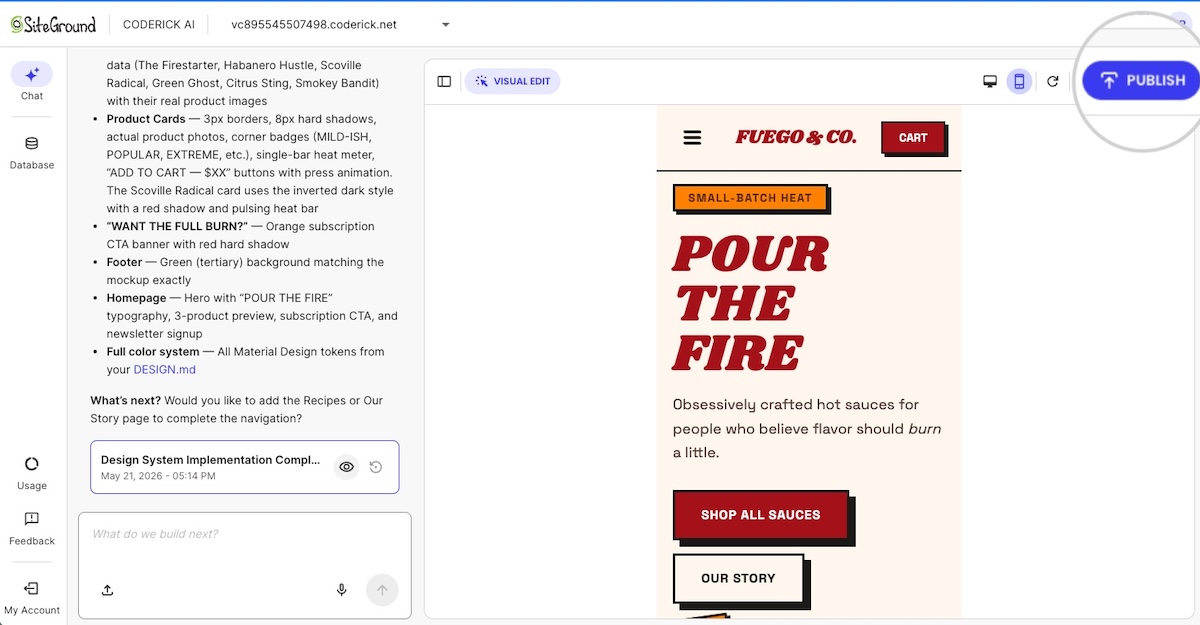
Coderick AI is SiteGround’s AI website and web app builder. Describe what you want to build, and Coderick AI generates it. Hosting, SSL, custom domain, database, version control, and deployment are all included. Hit Publish and the site is live, backed by SiteGround’s infrastructure across more than 3 million domains. There’s no separate server setup, no hosting account to manage on the side , which is also why users who want a managed website outcome can build a website without OpenAI Codex.
The prototype becomes the production brief
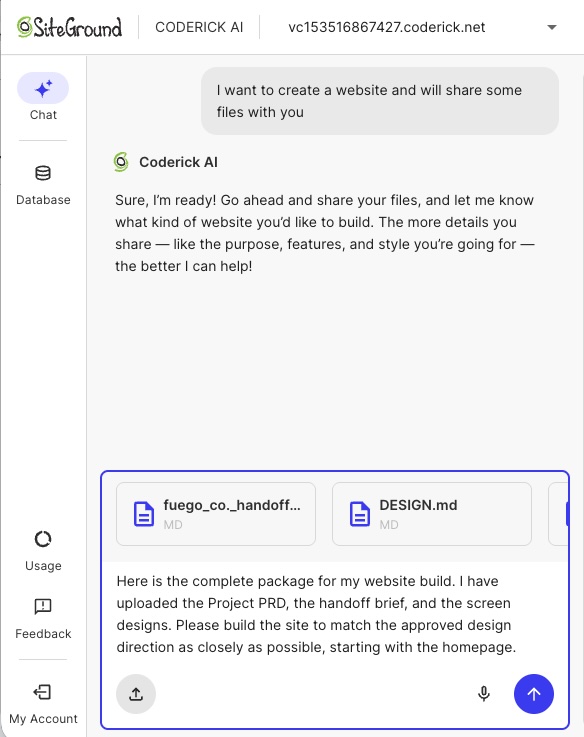
Coderick AI accepts both text prompts and file uploads, which means the prototype output can go directly into the build. That means a Claude Artifact’s exported source files, a Google Stitch HTML export, or a set of screenshots from a Claude Design project can all serve as starting points.
Coderick AI simply reads the uploaded files and builds on top of them rather than starting from scratch so that the design decisions made during prototyping are preserved in the production build.
Hosting, SSL, publishing, and updates move into one environment
After the initial build, all updates happen through the same Coderick AI chat interface. Describe the change (a new content block, a revised form, a layout adjustment, a new page) and Coderick AI applies it and deploys automatically. Plus, there’s no separate hosting control panel, no FTP client, no deployment pipeline to manage.
For those of you who don’t want to own or manage infrastructure, this is the difference between creating a pretty prototype that goes nowhere fast, and one that becomes a fully maintained, production website.
Version control is built in so if an update breaks something you can roll back without a crisis. Projects that need user authentication support that too. Plus everything runs on the same infrastructure behind managed hosting at SiteGround, so it’s convenient, fast, and reliable.
Coderick AI is useful when users don’t want to manage the production stack
The decision between Coderick AI and a developer-controlled path comes down to one question: does the project need source-code ownership? If it does, because of any number of reasons (custom architecture, complex integrations, Git workflows, or a development team that will maintain the codebase) the project belongs in a developer environment.
If none of that sounds remotely of interest to you, and all you need is a finished business site, landing page, booking system, membership area, CRM, or dashboard, then you can build a website without Claude Code and use Coderick AI as the faster publishing path.
And, worth considering: for those of you who might already be paying for Claude Code and then separately solving hosting, SSL, deployment, and maintenance, Coderick AI may also be the more predictable budget.
What should a prototype-to-website handoff include?
Prototype link, screenshots, or exported files
The handoff starts with the design output itself:
The prototype URL or shareable link
Screenshots of key states: default, hover, error, empty, and mobile views
Exported source files the design tool supports
For Coderick AI, exported source files are more useful than screenshots alone. The tool reads .html, .css, .scss, .js, .jsx, .ts, .tsx, and .md files directly, so the website structure built in the prototype can carry over to the production build without being re-described from scratch.
Page list, navigation, and user flow
Don’t just hand over the prototype and assume the page structure is obvious. Document every page the production site needs, how website navigation connects them, and the two or three user journeys that matter most. Those decisions are easy to lose between the design tool and the build.
Copy, CTA placement, and content requirements
Final copy for every page means:
Headlines, body text, and button labels
Form field labels, confirmation messages, and error states
CTA placement confirmed before production starts, not defaulted by the build tool
Any content that needs regular updates — testimonials, pricing tables, event listings — so the production build can account for how it’ll be managed
Forms, backend, database, and login needs
Backend decisions are the hardest to change once the build is done. Before production starts, document every form the site needs, where submissions go, how data is stored, and what authentication looks like if the site has user accounts. Getting this wrong mid-build costs more than getting it right in the brief.
Domain, hosting, SSL, and maintenance requirements
If you have a domain, note it in the brief. If you don’t, add “buy domain” to the launch checklist. Then, in Coderick AI, SSL can be handled automatically once the domain points to SiteGround nameservers. Also define the maintenance workflow before you launch: who’s keeping the site updated, how new pages get added, and whether you want a staging environment to check changes before they go live.
Handoff checklist
Before you move into production, use this checklist to confirm everything the build needs is documented and ready. Anything left blank is a decision that will get made during the build instead of before it.
Prototype source: link, supported exported files, screenshots, or visual references
Website goal: what the site needs to achieve
Target audience: who it’s for
Pages needed: full production page list, including pages not shown in the prototype
Navigation: how pages connect and what’s in the main menu
Final copy: headlines, body text, button labels, error messages
Calls to action: exact wording and destination for each
User flow: the two or three journeys that matter most
Forms: fields, validation rules, success/error states, and where submissions go
Backend/database needs: any dynamic content, data storage, or integrations
Authentication needs: user accounts, login requirements, access levels
SEO title, meta description, canonical URL, and indexability notes: for every page
Custom domain: registered or still to buy
Launch requirements: anything that needs to be true before go-live
Maintenance expectations: who updates the site, how often, and through which workflow
Which publishing path should you choose after an AI prototype?
The production path is broadly the same regardless of which tool you used, but the source asset determines where you start. The table below maps the most common starting points to the right next step.
Starting point
What you’re working with
Where to go next
Claude Artifact
An interactive artifact with exportable source files
If you have a prototype, the handoff brief from the previous section is what you’ll use to turn a validated prototype into a live website in Coderick AI. If you’re starting from scratch, you can skip straight to Coderick AI and vibe code from the idea directly.
What should you test before the website goes live?
Visual match to the approved prototype
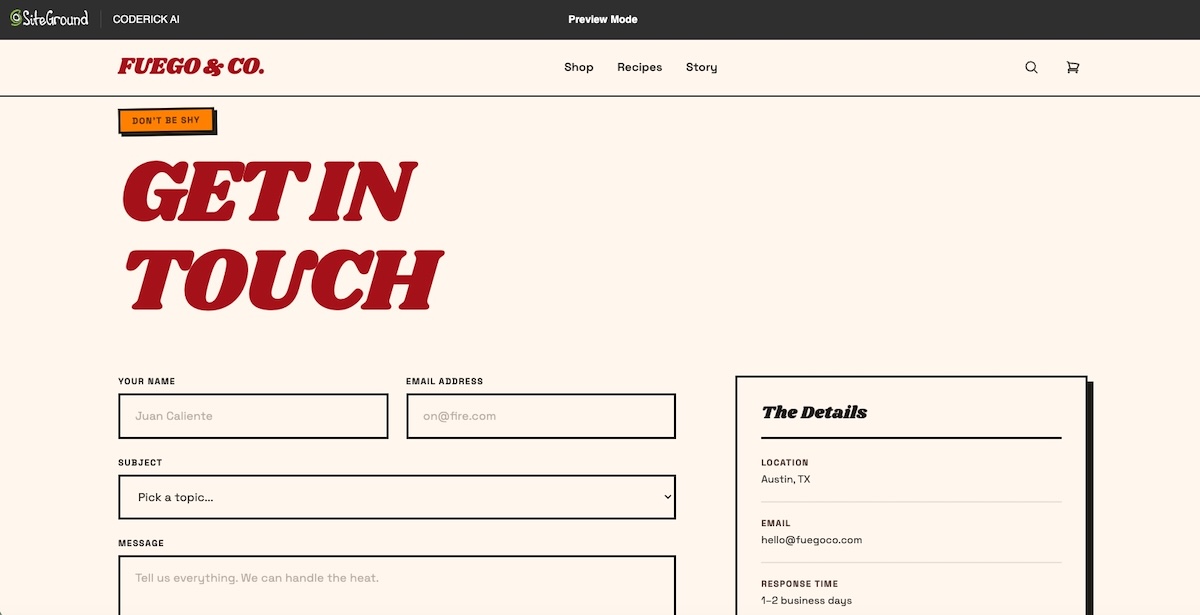
Before anything else, compare the production build to the approved prototype screen by screen. Typography, spacing, color, and layout should match. So should the states that are easy to miss — empty, loading, error, hover. The earlier a visual mismatch is caught, the cheaper it is to fix.
Responsive behavior on mobile and desktop
Though it’s tempting, don’t just resize the browser window. Open the live site on an actual phone and check that navigation works, forms are usable, images scale correctly, and text is readable without zooming. Better yet, watch someone else do it to see how they interact with your site.
Forms, buttons, navigation, and interactive states
Submit every form with both valid and invalid data. Check that validation messages appear, confirmations show after a successful submission, and nothing silently fails. Click every button, every link, every dropdown. If it’s interactive, test it.
Accessibility, contrast, and readable typography
Accessible web design is a legal requirement in many jurisdictions, so it’s worth having on your radar. Before launch, check that text color contrast meets WCAG 2.1 AA standards (4.5:1 minimum for body text at 16px or above), that images have descriptive alt text, that keyboard navigation works without a mouse, and that form fields have proper labels.
Page speed, metadata, indexability, and analytics
Before launch, run a Core Web Vitals check, keeping in mind that unoptimized images and layout shifts during load are the two most common failures on AI-generated sites. Also confirm every page has a unique title tag and meta description, the sitemap is accessible, and analytics are firing. These checks take less than an hour and prevent weeks of SEO cleanup after launch.
Custom domain, SSL, and maintenance workflow
Check that the domain loads the right site and the connection is secure (the URL should show HTTPS, not HTTP). Then, before you call it live, confirm who updates the site after launch, how new pages get added, and what happens if something breaks.
The AI prototype is done. Now let’s publish.
It’s clear by now that moving from an AI prototype to a published website requires a lot more than a design tool. But it doesn’t have to be a complicated process. Validating the idea is the first step. The production layer (hosting, domain, SSL, backend, and ongoing maintenance) is what turns that idea into something people can actually visit.
For people like you who want to turn a validated prototype into a live website without managing all the tedious extras, Coderick AI handles the production layer in one managed environment, from first build to ongoing updates.
[96]
Frequently asked questions
Are AI design tools enough to publish a website?
No. AI design tools help create prototypes, screens, mockups, or interactive concepts, but a published website still needs hosting, a custom domain, SSL, responsive QA, metadata, backend planning, updates, and maintenance. The prototype proves the idea; production makes it live and maintainable.
What is the difference between an AI prototype and a published website?
An AI prototype validates the concept, layout, user flow, or interface. A published website is a live public experience with hosting, domain setup, SSL, responsive behavior, SEO metadata, analytics, and maintenance. A prototype may look finished before the production layer is ready.
Which AI design tools help before publishing?
Claude Artifacts, Google Stitch, and Claude Design are examples of tools that help before publishing. Claude Artifacts can be viewed, downloaded, published, or embedded; Google Stitch creates UI for mobile and web apps; Claude Design supports design projects and handoff to production tools including Coderick AI.
Where does Coderick AI fit after an AI prototype?
Coderick AI fits after the prototype has validated the idea and you need a practical publishing path. The prototype, screenshots, copy, page structure, user flow, and functionality notes become the production brief. Coderick AI can then move the project into a managed website or web app environment with hosting, SSL, custom domain support, version control, and updates all included.
Is Coderick AI a replacement for AI design tools?
No. AI design tools help shape the visual idea, while Coderick AI helps turn that idea into something usable online. Coderick AI can create websites and web apps from prompts, but in this workflow its role is production: taking a validated prototype and turning it into a published site with hosting, SSL, domains, backend needs, and updates handled.
Can Coderick AI publish a website after a prototype?
Yes, Coderick AI can be used as the managed publishing path after a prototype. It accepts file uploads of .html, .css, .scss, .js, .jsx, .ts, .tsx, and .md files directly, so exported prototype files can become the starting point for the production build. Publishing from Coderick AI puts the site live on SiteGround’s infrastructure immediately, with SSL and automatic deployment included.
What should I prepare before turning a prototype into a website?
Prepare the prototype link or screenshots, page list, navigation, final copy, calls to action, user flow, form requirements, backend or database needs, SEO metadata, custom domain, launch requirements, and maintenance expectations. This gives the production path a clear brief and reduces the number of decisions made during the build.
Do I need a developer after using an AI design tool?
No. A developer is useful when the project needs custom architecture, source-code ownership, complex integrations, or advanced backend work. If the project is a business site, landing page, booking page, dashboard, or simple web app, a managed publishing path such as Coderick AI may be enough without a development team.
Why do prototypes fail at launch?
Prototypes often fail at launch because they look complete but lack the production layer: hosting, domain setup, SSL, responsive QA, accessibility checks, forms, backend logic, SEO metadata, analytics, maintenance, and update workflows. The failure happens when the path from AI prototype to production website doesn’t get planned.
What is the easiest path from an AI prototype to a published website?
The easiest path depends on the prototype source. Claude Artifacts, Google Stitch, and Claude Design each have their own handoff workflow. For users without a technical team, Coderick AI can act as the managed publishing path after the prototype is validated, handling hosting, SSL, domain, updates, and version control in a single environment.
Shipping is one of those things that looks simple until you’re actually doing it. Costs you didn’t account for, customers asking where their order is, checkout drop-offs you can’t explain — a lot of it traces back to shipping decisions made early that seemed fine at the time. I ran my own online store and made most of these mistakes myself. This guide covers what I wish I’d known before my first sale.
Key takeaways:
How you present shipping matters as much as what it actually costs. Unexpected fees at checkout are the single biggest driver of abandoned carts.
There are two separate decisions to make: how the order gets to the customer (delivery method) and how you charge for it (rate strategy).
Free shipping doesn’t mean absorbing the cost. It means deciding where to hide it — in your product price, your margin, or behind a minimum order threshold.
Carrier integration and carrier-calculated rates are not the same thing. You can connect to a carrier for discounted labels and tracking without showing live rates at checkout.
Your shipping setup should match your volume and stage. What works at five orders a week breaks down at 50 (and breaks down again at 500).
What is ecommerce shipping and why does it matter
Ecommerce shipping covers every decision between “order confirmed” and “package delivered”: who carries it, how fast it gets there, what it costs, and who pays. For a first-time seller it can feel like a technical afterthought. But once you start scratching the surface, it becomes obvious that it’s one of the primary drivers of whether a customer completes a purchase — and whether they come back.
How ecommerce shipping affects conversion rates and customer satisfaction
Shipping has a direct, measurable effect on whether customers complete a purchase. According to Baymard Institute, 48% of US shoppers abandon their cart because of extra costs at checkout (shipping, taxes, and fees) making it the leading addressable cause of abandonment.
Two things drive this more than the cost itself:
Visibility: A $6 fee stated on the product page feels different from a $6 fee appearing for the first time at checkout. Surfacing shipping costs early (in a banner, on the product page, or via a shipping calculator) reduces drop-offs.
Predictability: Free shipping outperforms paid shipping on conversion not because customers are irrational, but because it removes a moment of calculation. A customer who sees “free shipping” never has to decide whether the total still feels fair.
Ecommerce delivery methods explained
When it comes to ecommerce, the delivery method is how an order physically gets from your inventory to the customer. This is a separate decision from how you price shipping. You need to decide both, and they don’t have to match one-to-one. Let’s break it down.
Self-fulfilled carrier shipping
Self-fulfillment means you store the inventory, pack the orders, and hand them off to a carrier for delivery. It’s where most first-time sellers start: no minimum volume, no contracts, no upfront infrastructure. The tradeoff is time: most sellers hit a natural ceiling around 20 to 50 orders per week before the packing workload outweighs the cost savings of doing it yourself.
For example, I ran self-fulfillment for up to about 50 orders and it worked fine. Until, of course, it didn’t. The breaking point wasn’t just the packing. It was the storage taking over my space, plus the constant juggle of either driving packages to the post office or coordinating carrier pickups. It gets messy fast.
Pro tip: if you’re doing self fulfillment, do yourself a favor and invest in a good thermal shipping label printer (no ink needed!), and make sure you always have extra labels on hand. It makes label creation, printing, and application so, so much easier (and the Pavlovian pleasure of that printing sound is genuinely one of the small joys of running a store).
Local pickup
Local pickup lets customers place an order online and collect it in person, with no shipping involved. It suits stores with a physical location (a studio, a workshop, or a retail space) and customers who are local or prefer to avoid ecommerce shipping costs. This only works of course if you don’t also offer free shipping, otherwise there’s no real incentive for customers to make the pick up effort.
From a configuration standpoint, it’s one of the simplest options to offer. Most ecommerce platforms let you add local pickup as a checkout option alongside standard shipping, so customers who prefer it can self-select.
Local delivery
Local delivery is a step between shipping and pickup: you or a team member delivers orders directly to customers within a certain radius, rather than using a carrier. It’s common for food, flowers, furniture, and other categories where a carrier is impractical or where same-day service is a selling point.
For my ecommerce business this was a smart move. We offered free shipping over a certain price, so being able to handle local orders ourselves meant we weren’t eating carrier costs on nearby customers. Plus it removed the shipping process hassle entirely for that segment. And the bonus is that you can say hello to your customers face to face, which builds customer loyalty. Long story short: if you have a meaningful local customer base and the bandwidth, local delivery is worth the setup.
Dropshipping
Dropshipping is a fulfillment model where you sell products you don’t physically hold in inventory. When an order comes in, it’s forwarded to a supplier who packs and ships it directly to the customer under your brand or in a neutral box. You never touch the product.
The appeal is obvious: no inventory costs, no warehouse, no packing. The tradeoffs are real: lower margins, less control over quality and packaging, and dependency on a supplier’s stock levels and fulfillment speed. Dropshipping also requires a platform and supplier setup that supports it — not all ecommerce tools do.
Third-party fulfillment (3PL)
A third-party logistics provider, or 3PL, stores your inventory in their warehouse and handles picking, packing, and shipping on your behalf. You send them stock in bulk (often along with shipping materials), and they fulfill individual orders as they come in.
3PL made sense for me once volume was high enough — and that qualifier matters. That’s because most 3PLs require a monthly minimum spend or a minimum order volume, so if you aren’t selling enough, the numbers simply don’t pencil out.
I’d treat it as a growth-stage decision, not a launch-day one. Once you hit that threshold though, the per-order cost can actually come out lower than self-fulfillment once you account for your own time, packaging materials, and the deeper discounted carrier rates most 3PLs pass on.
Freight and international shipping
Freight applies when orders are too large or heavy for standard parcel carriers, typically above 150 lbs or for pallet-sized shipments. It’s most relevant for stores selling furniture, industrial equipment, or large quantities of a product to a single buyer. Freight requires a separate carrier relationship and is usually quoted per shipment rather than at a fixed rate.
International shipping of course means delivering orders to customers outside your home country. It introduces additional and sometimes frustrating complexity: customs declarations, import duties, variable carrier availability by destination, and longer delivery windows.
For stores just starting out, international shipping is worth supporting if demand exists, but it requires clearly communicated delivery estimates and a shipping policy that addresses duties and returns for cross-border orders. I offered international shipping as a one-off, but not as a main shipping option, simply because it was too complicated to set proper expectations and pricing.
Working with shipping carriers
Regardless of which delivery method you choose, most stores that ship physical orders will work with at least one parcel carrier. It’s worth understanding how carrier integrations work before you decide how to price shipping, because the two are related but not the same thing.
The main carriers and when to use them
USPS — most cost-effective for small, lightweight domestic parcels; strong last-mile coverage including rural addresses
UPS / FedEx — better for heavier packages, time-sensitive delivery, and reliable tracking at scale
DHL — strong for international shipments, particularly to Europe and Asia
Canada Post, Royal Mail, Australia Post — worth knowing if you have meaningful customer bases in Canada, the UK, or Australia respectively
Most stores use more than one carrier depending on package size, destination, and speed. At higher volumes, multi-carrier rate shopping (where your platform automatically compares rates across carriers per order) can meaningfully reduce shipping costs.
Carrier integrations vs. carrier-calculated rates
This is a distinction worth understanding clearly, because the two are often conflated.
Carrier integration means connecting your ecommerce platform to one or more carriers to access discounted label rates, generate labels in a few clicks, and automate tracking updates to customers — all from your store’s dashboard. It’s a back-end operational tool. You can be fully integrated with USPS or UPS while still charging customers a flat rate or free shipping at checkout. How you charge customers is a separate decision.
Carrier-calculated rates is a specific pricing strategy where real-time carrier quotes are displayed to customers at checkout based on their order’s weight, dimensions, and destination. It requires a carrier integration to work, but having a carrier integration doesn’t mean you have to use calculated shipping rates.
In short: integrate with a carrier to streamline label creation, automate tracking, and access better shipping rates. Use carrier-calculated rates at checkout only if that pricing model fits your store — more on that in the next section.
Delivery speed tiers
Most carriers offer standard (3–7 business days domestically), expedited (2–3 days), and overnight. Standard is the default for most stores. Expedited shipping is worth offering if your product has a time-sensitive use case — gifts, event items, or anything customers might need by a specific date. Overnight shipping is rarely worth the complexity at small volumes unless speed is a genuine differentiator in your category.
Pro tip: Make this easy by using a shipping integration platform that connects you to multiple carriers at once, and with discounted rates. That way you can always choose the absolute best shipping price for every package you send.
SiteGround Ecommerce comes with a built-in carrier integration powered by Shippo, giving you access to 16 carriers and over 150 shipping services from one place. Generate labels in a few clicks, display live carrier rates at checkout, and automate tracking updates — all from your store dashboard.
The rate strategy is how you charge customers for shipping at checkout, independent of which delivery method you use. There are four main approaches, each with different implications for your margins and customer experience.
Flat rate shipping
Flat rate shipping charges every customer the same amount regardless of what they ordered or where they live. A common example is “$5.99 shipping on all orders.”
It’s simple to set up and easy for customers to understand. The risk is that you will undercharge on heavy or bulky orders and overcharge on lightweight ones, which can either erode your margins or make small orders feel expensive. Flat rate works best when your product catalog has consistent weight and dimensions, or when the variance in your actual shipping costs is small enough that a single rate covers it without frustrating customers.
Scenario
Flat rate works well
Flat rate works poorly
Product weight
Consistent across catalog
Wide variation (such as small accessories + heavy equipment)
Order geography
Mostly local or regional
Wide national or international spread
Catalog size
Small, focused
Large, varied
Free shipping
Free shipping means the customer pays nothing at checkout…but the cost doesn’t actually disappear. It’s either absorbed into your product pricing, covered by your margin, or activated only above a minimum order threshold.
The minimum threshold approach is the most common for small stores because it serves two purposes: it covers shipping costs on orders where the margin supports it, and it increases average order value. As a general rule of thumb, a free shipping threshold set around 30% above your average order value motivates customers to spend more while helping cover your actual shipping costs. At the same time, it doesn’t set the bar so high that customers give up and abandon instead.
Unconditional free shipping (no minimum) only makes sense when your product margins are wide enough to absorb it or when your average order value is consistently high. Offering free shipping on a $15 item with a $7 shipping cost and a 40% margin is a fast way to lose money.
With my own online business, I took the minimum-threshold approach. I had my main products, and set the price threshold such that if people bought one product, they had to pay about $8 for shipping. If they bought a set (two products), the shipping was free. As a result, the vast majority of orders were for the set, and very few people bought only a single item (you can see how this worked out in reality in the shipping image above: almost all the boxes were two-product boxes, save for one box, which is smaller than all the others).
Carrier-calculated rates
Carrier-calculated rates pull real-time quotes from carriers (USPS, UPS, FedEx, DHL) at checkout based on the order’s weight, dimensions, and destination. The customer sees the actual cost of shipping their specific order.
This is the most precise approach, and it removes the risk of systematically undercharging or overcharging. It requires your products to have correct weights and dimensions set in your store (because without that data, the rate calculations will be wrong). It also produces less predictable checkout totals for customers, which can increase friction compared to a simple flat rate or free shipping offer.
Carrier-calculated rates are most useful for stores with varied product sizes and weights, stores shipping nationally or internationally, or sellers who want to offer multiple speed options (standard vs. expedited shipping) at transparent shipping prices.
The downside here is that it can get complicated when it comes to packaging sizes and product combinations. For my business, and many small businesses with a limited product offering, it may make more sense to simply base it on general weight ranges…which brings us to the next point.
Table or weight-based rates
Table rates let you define custom shipping costs based on order weight, total price, item count, or destination. For example: orders under 1 lb ship for $4.99, orders between 1 and 5 lbs ship for $7.99, orders over 5 lbs ship for $12.99.
This gives more granular control than flat rate without the real-time complexity of carrier-calculated rates. It requires a little bit of setup work and needs to be updated if your carrier costs change, but it’s practical for stores with a predictable range of order sizes.
For my small business, this was the perfect middle ground. It ensured I charged roughly the right amount for shipping on my orders without logistics getting unnecessarily complicated.
How to build your shipping strategy
Choosing a delivery method and a rate structure is only half the job. The other half is making sure those choices hold up as your ecommerce business changes. A shipping strategy that works at launch can become a source of margin leakage or operational strain within months if it wasn’t built with growth in mind. Here the key questions to address as you build your strategy:
What are you selling, and how heavy is it?
Your product characteristics set the outer boundary of what is practical. A store selling greeting cards has a different calculus than one selling hand-thrown ceramics.
Lightweight and/or consistent products: flat rate or free shipping is manageable
Heavy or fragile items: carrier-calculated rates protect your margins and set accurate expectations
Products requiring custom packaging: factor that cost into your flat rate or product pricing — this is part of your shipping cost whether you account for it or not
Where are your customers?
Mostly local or regional: a flat rate based on your average regional carrier cost is usually sufficient
National or international: carrier cost variance by destination makes flat rate riskier — you will either overcharge customers near you or undercharge on distant orders
What do your margins allow?
Free shipping is an ecommerce marketing decision as much as a logistics one. Customers respond better to a $29 product with free shipping than a $23 product with a $6 shipping fee, even though the total is identical. Oftentimes, as was the case with my business, people will happily buy and spend more just to hit the free shipping threshold.
That said, before offering it, confirm your margin covers the actual shipping cost per order. If your margins are tight, a minimum order threshold protects profitability while still giving customers the incentive they respond to.
Setting clear delivery expectations matters more than matching the fastest available option. That said, free shipping has become a baseline in many categories — if your competitors offer it and you do not, that gap shows up at checkout. Research the norm in your product category before assuming customers will accept a shipping fee.
In my case, apart from examining our own business expenses, I looked at competitors to see what they were doing. When I saw that several offered the free shipping threshold, it was the nudge I needed to do the same.
Pro tip: Don’t underestimate the packaging experience. At minimum, customers expect their order to arrive well-packaged and undamaged. But depending on your product type, price point, or simply how much you want to make an impression, it’s worth going further. Branded packaging, a handwritten note, a discount card, stickers — these are small touches that are disproportionately memorable. With my own store, I used branded tape on every box and included product usage cards and a discount inside every order. Sometimes stickers too. It cost very little and customers noticed. For a small business, that kind of detail is one of the few places you can genuinely out-experience a larger competitor.
Common shipping mistakes first-time sellers make
Most early shipping problems are not carrier problems or platform problems. They’re setup decisions that seemed reasonable (or at least manageable) at launch and became expensive as order volume grew.
1. Setting a flat rate without checking actual carrier costs. A flat rate set below your average shipping cost is a silent margin leak. Before publishing a rate, run sample orders through your carrier’s rate calculator using realistic weights, dimensions, and destination zip codes. Build in a small buffer for packaging materials.
2. Offering free shipping without adjusting product prices. Free shipping absorbs cost. It does not eliminate it. If you activate free shipping without either raising prices or confirming your margins can cover it, you are discounting your own margin on every order.
3. Ignoring dimensional weight pricing. Most major carriers calculate shipping cost based on dimensional weight (the space a package occupies) rather than actual weight, if dimensional weight is higher. A light but bulky item can cost significantly more to ship than its weight alone suggests. Stores that do not account for this undercharge on those products.
4. No tracking or confirmation emails. Customers who do not receive a shipping confirmation with tracking information contact customer support to ask where their order is. This is avoidable. Automated shipping notifications are a standard feature on most ecommerce platforms and take minutes to configure.
5. Writing no shipping policy — or writing one nobody can find. A shipping policy answers the questions customers have before they contact you: how long does fulfillment take, when does the order ship, what happens if something arrives damaged, how do returns work. I would also add key questions to your FAQ page, as this is often where people will go first to resolve doubts.
6. Setting international shipping to “same as domestic.” International orders involve customs fees, variable transit times, and carrier restrictions that domestic settings do not account for. Applying a domestic flat rate to international orders almost always results in undercharging. Set dedicated international rates or use carrier-calculated rates for non-domestic orders.
How to set up shipping on your online store
Once you’ve decided on your delivery method and rate strategy, setting up shipping in most ecommerce platforms follows the same basic pattern.
What to look for in your platform’s shipping settings:
Shipping zones — define which regions or countries you ship to and assign different rates to each. Most platforms let you create zones by country, region, or postal code range.
Flat rate configuration — set a fixed shipping cost per order or per item, with the option to apply it globally or by zone.
Free shipping triggers — activate free shipping unconditionally, or set a minimum order value threshold that customers need to hit.
Local pickup — add an in-person collection option at checkout so local customers can opt out of shipping entirely.
Carrier integration — connect to one or more carriers to generate labels, pull live rates, and automate tracking notifications from your dashboard.
Shipping is generally pretty configurable without any technical knowledge — you just need to know what you want before you go looking for the setting. The decisions covered earlier in this guide should give you that clarity.
SiteGround Ecommerce makes shipping setup straightforward. Flat rate, free shipping with or without a minimum threshold, local pickup, carrier integration, and shipping zones by country or region are all configurable from one place — no technical knowledge needed.
A shipping policy is a short document (typically just a page on your website) that sets customer expectations about fulfillment times, delivery windows, costs, and how problems are handled. It’s a standard step in creating your ecommerce website, and should link from your store’s footer.
A functional shipping policy covers six things:
Processing time: How long between order placement and the order shipping. “Orders ship within 1–2 business days” is more useful than “orders ship quickly.”
Estimated delivery time: Typical transit times by region or shipping method. Include a note that these are estimates, not guarantees.
Shipping costs: How you calculate shipping fees, including when free shipping applies and any surcharges for remote locations or oversized items.
International orders: Whether you ship internationally, which countries you serve, and who is responsible for customs duties and import taxes (typically the customer, but this must be stated clearly).
Damaged or lost orders: What the customer should do if an order arrives damaged or does not arrive at all, and what resolution they can expect.
Returns and exchanges: Whether you accept returns, how long the return window is, who pays return shipping, and how refunds are processed. This can link to a separate returns policy if you have one.
Keep the language plain. A customer reading your shipping policy has a specific question: answer it directly without legalese. The goal is to reduce uncertainty, not to protect yourself with disclaimers.
For stores using SiteGround Ecommerce, you can easily add a shipping policy page directly from your dashboard and link it in the footer and checkout flow without any custom code.
Choosing the right ecommerce shipping strategy for your business
There’s no single correct shipping setup. The right combination depends on your product, your margins, your customers, and where you are in your business. What’s important is to get clear about which combination works best for you, and choose an ecommerce solution that supports it.
SiteGround Ecommerce makes it easy to get your shipping set up and running. Flat rate, free shipping thresholds, local pickup, carrier integration, and shipping zones all come out of the box, configurable without any technical knowledge, and backed by expert 24/7 support. And as your business grows, the platform grows with you.
[103]
Frequently asked questions
What shipping options should I offer at checkout?
Most stores offer a combination of two or three options rather than a single one — typically a paid shipping rate (flat rate or carrier-calculated), a free shipping threshold, and local pickup if relevant. The right mix depends on your product type, customer location, and margin structure. The goal is to give customers enough choice without overwhelming them at the final step of purchase.
What are the different shipping methods for online stores?
Shipping methods can be categorized in two ways: by delivery route (self-fulfilled carrier shipping, local pickup, local delivery, dropshipping, 3PL, or freight) and by rate structure (flat rate, free shipping, carrier-calculated rates, or table-based rates). These are separate decisions: how you get the product to the customer and how you charge for it do not have to follow the same logic.
What are the three main shipping methods for online stores?
Most stores move through three fulfillment stages as they grow. Starting out, selling online typically means self-fulfillment — you pack and ship orders yourself. As volume increases, a third-party logistics provider (3PL) takes over storage, packing, and shipping on your behalf. At the largest scale, freight handles bulk or pallet-sized shipments that exceed standard parcel carrier limits. Each stage suits a different order volume and level of operational complexity, and as businesses scale it’s likely they’ll move through at least the first two.
How do businesses ship products?
Most small online stores follow a straightforward process: the customer places an order, the seller packs the item, prints a shipping label through their ecommerce platform or directly through a carrier, and hands the package off for delivery. At low volumes this is done in-house. As order volume grows, many sellers move to a 3PL that handles storage, packing, and carrier handoff on their behalf.
OpenAI Codex is a coding agent built for software-engineering workflows: existing codebases, coding tasks, pull requests, code review, and developer-managed changes. Powerful stuff, if that’s your world. But maybe none of that is what you’re after. You just want a website, a real one, live and working. That’s where Coderick AI comes in. SiteGround’s AI website and app builder takes you from plain-language description to published site, with hosting, security, and your domain handled along the way.
Key takeaways:
OpenAI Codex is built for coding-agent workflows: writing features, fixing bugs, and reviewing code changes inside an existing software project. That’s a developer tool, not a website builder.
Most non-technical users don’t need Codex to launch a website. If you don’t have an existing codebase or a developer workflow, Codex adds complexity you’ll never use.
Coderick AI gives non-technical users a managed path from idea to live website. Describe what you want, and it handles the building, hosting, security, and publishing.
Codex is still the better choice when code control matters: source code history, automated testing, pull request reviews, and custom engineering work are where it genuinely earns its place.
When does OpenAI Codex make sense for a website?
When OpenAI Codex helps
Codex earns its keep when you already have a software project, codebase, or development workflow. It can write new features, fix bugs, and propose changes for a developer to review, all while running in a private cloud environment loaded with your existing code. Teams use it to run multiple development tasks in the background at once, with each result coming back as a tidy package ready for review. If that sentence made sense to you, Codex might be for you.
When OpenAI Codex is unnecessary
If your goal is a live website rather than a software-engineering project, Codex brings a lot of equipment you just won’t use. Before you’ve written a word of copy or picked a font, you’d be creating a code repository, installing a code editor, and wiring it all up to a GitHub account. After all that, you’d still need to separately sort out hosting, security certificates, and your domain. That’s a developer’s setup path, and if a website is what you came for, there’s a shorter, easier way, and if Codex feels too technical for the website you want to launch, OpenAI Codex alternatives for beginners can help you choose a simpler starting point.
When a managed website path is simpler
The easier way is a managed AI website builder.Tools like Coderick AI take the infrastructure layer off your plate entirely. All you have to do is describe what you want, the site gets built, and it goes live through a single platform. No code editor, no repository, no technical setup, no headaches.
What does OpenAI Codex add to the website-building workflow?
It adds a developer’s process between your idea and a live site. For actual software projects, that workflow does real work. But for someone who just needs a website, it mostly just gets in the way. Here’s how OpenAI Codex works:
It works on code projects, new or existing
Codex can start a new project from a prompt or work inside an existing codebase, reading files, analyzing structure, and making changes inside a protected test environment. Either way, the tasks it’s built for are developer tasks: restructuring code, adding test coverage, building new features, and generating technical documentation. Whether it’s working with something new or something established, the output is always code. Getting that code to a live website is still a separate step.
It can review code changes and proposed updates
One of Codex’s developer-specific capabilities is code review. OpenAI describes it as checking whether a proposed set of code changes actually matches what the developer said they were trying to do, across the entire codebase, not just the files that were edited. Genuinely useful for developers. That’s genuinely useful for developers. For someone who just wants a homepage and a contact form, it’s completely out of scope and overkill by a long stretch.
It fits the Codex app, Codex CLI, and editor-based workflows
Codex runs in four places: a command-line tool (text-based interface developers use to run commands), code editors like VS Code and Cursor, a desktop app, and a cloud service for background tasks connected to GitHub. Every entry point assumes you’re already inside a development environment and understand what these terms mean.
It still leaves you with hosting and launch decisions
OpenAI recently launched Codex Sites, a plugin that lets Codex build and deploy hosted websites without setting up a separate hosting workflow. On the surface, that sounds like it closes the gap, but the details matter. Codex Sites is currently in preview and only available for ChatGPT Business and Enterprise workspaces, so it’s not accessible to most individuals or small businesses. And even within those tiers, the documentation makes clear it’s built for internal team tools: dashboards, request trackers, and apps shared within a workspace. There’s no custom domain support, and access controls are built around workspace membership rather than the open web.
For a small business owner, freelancer, or founder who wants a public website with their own domain, the hosting problem is still theirs to solve. Codex Sites isn’t built for that use case, at least not yet.
Why would a non-technical person avoid OpenAI Codex?
Codex is built around developer concepts that don’t always map to “I want a website.” It was never designed for non-technical users in the first place. Here are the obstacles that get in the way:
They don’t want to manage a coding-agent workspace
Using Codex means setting up a developer environment, framing your goal as a coding task, and monitoring the output. By June 2026, Codex grew to more than 5 million weekly active users, though developers remain the dominant audience, and the core workflow is still built around code tasks, not website publishing. Non-technical users aren’t avoiding Codex because it’s hard to find. They’re actually avoiding it because what it gives you is a developer workflow (task queues, code environments, change reviews) when what they actually need is simpler: describe a website, and see it live.
They don’t want to review code changes before publishing
When Codex finishes a task, it produces a “diff,” meaning a report showing exactly which lines of code were added, changed, or removed. That’s just one of several technical checkpoints (alongside sandboxes, pull requests, and deployment configs) that make sense to a developer but add unnecessary complexity for someone who just wants a live website. It’s a developer workflow, and it stands between you and the live website you want to launch. Non-technical users don’t need a coding agent; they need a builder where the output is the website, not the code behind it.
They don’t want GitHub, repositories, or editor setup
Before Codex runs on anything, there’s a setup list: a GitHub account, a code repository for your project, a supported code editor or the Codex command-line tool, and enough familiarity with how code projects are structured to point Codex in the right direction. For an experienced developer, that’s already in place. For someone building their first business website, it’s weeks of learning overhead before a single page is live.
They don’t want to configure hosting, domain, or security settings separately
As noted above, Codex Sites can handle deployment for Business and Enterprise workspace users, but for everyone else, making a site accessible on the public internet is still a separate task. It means setting up web hosting, configuring your domain name to point to the right place, and getting an SSL certificate (the security layer that lets your site load over a secure connection). Codex isn’t alone in this. For non-technical users, building a website without Claude Code comes down to the same thing: you want a live site without the technical setup that coding tools leave on your plate. The same decision applies to Anthropic’s coding tool: if Claude Code feels too technical for the website you want to launch, Claude Code alternatives for non-technical users can help you choose a simpler starting point.
They want a live website, not a software-engineering workflow
OpenAI Codex is a tool for engineers building software. If your goal is simpler, however, like a website or web app that’s live and working, an AI builder like Coderick AI is the better fit.
What’s the simpler path if you don’t want Codex (or aren’t a developer)?
It starts with a different question. Not “what coding tasks do I need to set up?” but “what does this website need to do, and how do I get it live?” That’s the real split between the two kinds of tool. Ask a coding agent and it pulls the conversation toward the code. Ask an AI builder like Coderick AI and it pulls the other way, toward the site itself: what it should say, how it should look, when it goes live. That is the same logic behind a managed path from prototype to published website.
Start with the website outcome, not the code task
A business website, a booking page, a portfolio, or a simple web app are goal-level outcomes. The technology that produces them is an implementation detail you shouldn’t have to manage. When you start from what you want the website to do, the right tools are the ones that handle the technical side automatically.
Pick a managed builder that launches your site, not one that just writes code
A managed AI website builder produces a live website from a plain-language description. It handles the code generation, hosting, and publishing as part of one workflow. A coding agent produces code, and then leaves you to sort out the rest. For someone who just wants a site live, the managed path skips the layer where most of the friction is.
Keep publishing, hosting, domains, and updates in one place
Juggling multiple tools adds complexity fast. A site built in one tool, hosted on a separate platform, with your domain managed somewhere else, and your security certificate set up through yet another provider — that’s four tools doing one job, and four things that can break on a Sunday night. A managed environment brings all of it under one roof, and, if chosen right, with around-the-clock expert support should you need it.
How does Coderick AI replace the technical setup around Codex?
Coderick AI is SiteGround’s AI website and web app builder. Instead of a developer workflow, it gives you a chat interface: describe what you want, and Coderick AI builds it. It’s that easy. No code review, no technical setup, no separate hosting to configure.
Describe the website or app instead of opening a coding project
You start by describing your project in plain language (a booking page, a portfolio, an internal tool for your team) and Coderick AI generates a working result. There’s no repository to create and no task queue to manage. The starting point is what you want the site to do, not how the code behind it should be structured.
Build pages, forms, dashboards, or simple app logic through prompts
Coderick AI covers a wide range of projects: business websites, landing pages, portfolio sites, product catalogs, booking pages, client dashboards, simple CRM tools, membership areas, order management pages, task trackers, and invoice generators. The list goes on. You can also ask for animations, scrolling effects, and custom design touches, all through conversation rather than code review.
And if you’ve already got some work to bring in, Coderick AI now supports file uploads. You can drop in existing files (including HTML, CSS, JavaScript, TypeScript, and Markdown) directly into the chat and build from there. No repository, no code editor, no technical transfer process required.
Publish without managing a separate deployment workflow
When your Coderick AI project is ready, publishing is one step inside the same managed environment. There’s no process to configure, no server to set up, and no staging environment to manage. The site goes live on SiteGround’s hosting infrastructure automatically.
Connect the live project to hosting, security, and your own domain
Your Coderick AI project runs on SiteGround’s enterprise-grade hosting, with an SSL security certificate included. You can connect a custom domain name without manually adjusting settings through a separate registrar account. Hosting, security, and domain management all happen inside the same platform where you built the site.
Update the project without reviewing code changes manually
After your site is live, updates work exactly the same way the build did: you just describe the change, and Coderick AI applies it. Et voilà. There’s no code change report to review, and no technical approval step. For anyone managing their own site on an ongoing basis, that’s a significant removal of friction from what is otherwise a recurring, time-consuming, and possibly costly task.
What do you avoid by using Coderick AI instead of OpenAI Codex?
It’s not just that Coderick AI is simpler. It’s that it removes a whole category of tooling that most website owners were never supposed to need in the first place.
No coding-agent task setup
Codex needs the work framed as a developer task: “fix this bug,” “add this feature,” “rewrite this module.” Coderick AI, on the other hand, takes “I need a booking page for a photography studio with a contact form and a gallery” and builds it. That’s not just a nicer interface but rather a different starting point that determines whether you can use the tool at all.
No code change review before publishing a simple site
Every Codex task finishes with a code change report that you’re expected to review before anything updates. For developers, that’s a sensible safety check. For someone building a landing page, it’s a mandatory technical step they have to clear just to hit publish.
No GitHub account required for basic website projects
Codex Cloud connects to GitHub repositories to do its work. Coderick AI doesn’t require a repository at all for new projects. If you’ve got existing files to bring in (HTML, CSS, JavaScript, TypeScript, Markdown), you can upload them directly to the chat. No GitHub account, no branching setup, no commit history to manage, no learning a foreign technical language.
No manual process to get the site live
Codex produces code. Getting that code onto a live website requires a separate deployment process: a build tool, a hosting account, configuration settings, environment variables, and usually a fair amount of Googling. With Coderick AI, building and publishing happen in the same workflow. When you’re done, the site is live.
No separate hosting or security certificate setup
Every Coderick AI project runs on SiteGround’s infrastructure, with an SSL security certificate and CDN included. Hosting isn’t a separate decision after the site is built. It’s part of the platform from the start.
Less to manage after launch
Sites built through a Codex workflow spread across multiple tools: the code lives in one place, the hosting in another, the security certificate in a third. Each one is yours to maintain. Sites built through Coderick AI stay in one platform. For anyone managing a site without a technical team, that consolidation is a major win.
When should you still choose OpenAI Codex?
Codex is the right tool when the work is truly a software engineering task. There are real situations where its depth is exactly what’s needed.
You need full control over your source code
If your project needs to live in a code repository — with a full change history, the ability to branch and test in parallel, and rollback to any previous version — Codex fits that requirement. While Coderick AI includes version control at the project level, it’s built for website and app iterations, not for teams managing a shared codebase across multiple developers.
You already work in the Codex app, the Codex CLI, or a code editor
If your workflow already lives in VS Code, Cursor, Windsurf, or the Codex command-line tool, adding Codex as a coding agent is a natural extension of what you’re already doing. The setup cost is minimal because the environment is already in place.
You need code review, automated tests, and change tracking
Codex can write automated tests, propose changes for review, and check whether proposed updates actually match what was intended. For teams that ship software through a structured review process, those capabilities are hard to replicate with a managed website builder.
You need advanced integrations or custom-built architecture
Custom backend logic, complex connections to third-party services, multi-system architectures, and enterprise-scale engineering require hands-on code control. Codex can work across an entire codebase and make coordinated changes across dozens of files. So even though Coderick AI handles a broad range of business applications well, the serious custom engineering belongs in a software development workflow.
You want a coding agent for software work
OpenAI Codex is a software engineering agent, full stop. It runs tasks in isolated cloud environments, ships proposed changes through a review process, and connects to the tools developers already use. For developers building software rather than just websites, it’s the right tool for the job.
Is Coderick AI the right path if you want to skip OpenAI Codex?
Use this table to match your situation to the right tool.
Your situation
Better path
Why
You want a live site without touching a developer workflow
Coderick AI
The process starts from what you want the site to do, not from a coding task
You don’t want code change reports, GitHub, or repository setup
Coderick AI
The managed path removes the developer layer entirely
You need hosting, security, publishing, and updates in one place
Coderick AI
SiteGround built Coderick AI as an all-in-one hosted AI website and app builder, with infrastructure included
You already have a codebase you want to extend or modify
OpenAI Codex
Codex is built for software engineering work against existing code projects
You need automated tests, code review, and change tracking
OpenAI Codex
Codex can review proposed changes, write tests, and suggest updates across an entire codebase
Ready to build without the developer overhead?
If your goal is a live website and not a software engineering project, the path is clear.Coderick AI skips the repositories, the code review, the deployment process, and the hosting setup, and gets you to a published site instead. Meanwhile, the 14-day free trial gives you enough runway to go from first prompt to published site, no commitment required.
[96]
Frequently asked questions
When should I build a website without OpenAI Codex?
If you don’t have an existing codebase, a GitHub account, or a developer workflow already in place, building a website without Codex is almost always the right call. Codex is designed for software engineering tasks, not website publishing, so if your goal is a business website, a portfolio, a booking page, or a simple web app, you’d be taking on a lot of technical overhead for no real benefit. The simpler path is a managed builder like Coderick AI that starts from what you want the site to do and handles the rest.
Should I use OpenAI Codex for a simple business website?
Probably not. Unless you need direct control over your source code or have custom engineering work to do, Codex adds a developer workflow that a simple business website doesn’t need. A landing page, portfolio, booking page, or simple web app doesn’t require a code repository, a deployment pipeline, or a technical review process. Coderick AI gets you to the same destination without any of that setup.
Why would I avoid OpenAI Codex?
You’d avoid OpenAI Codex if you don’t want to deal with code repositories, technical task setup, code change reviews, GitHub, deployment processes, or separate hosting configuration. Codex is a powerful tool, but it’s built entirely around software development. That’s overhead most people building a business website don’t need.
What is Coderick AI?
Coderick AI is SiteGround’s AI website and web app builder. You describe what you want to build, and Coderick AI creates it, and you can refine and update through follow-up prompts. It’s built for small businesses, freelancers, creators, and founders who want to launch something real without writing code or managing developer tools.
Is Coderick AI a replacement for OpenAI Codex?
Not exactly. They’re built for different people. OpenAI Codex is for developers who want an AI agent working inside their code projects, handling tasks, proposing changes, and integrating with their existing developer setup. Coderick AI is for people who want to go from idea to live website without any of that technical layer. Different tools, different jobs.
What does Coderick AI help me avoid?
Coderick AI removes the technical setup that would otherwise sit between you and a live website: code repositories, developer task queues, code change reviews, deployment processes, separate hosting configuration, security certificate setup, and ongoing infrastructure management. The point isn’t that it replaces every developer tool. You simply don’t need any of them for a straightforward website or web app.
Can Coderick AI build a website from scratch?
Yes. Describe what you want and Coderick AI builds it. Supported projects include business websites, dashboards, simple CRM tools, booking systems, portfolio sites, invoice generators, task planners, and internal team tools — all without coding or server setup. You can also bring in existing files (HTML, CSS, JavaScript, TypeScript, Markdown) to build from something you’ve already started.
Does Coderick AI include hosting and SSL?
Yes. Coderick AI includes hosting, an SSL security certificate, version control, and publishing as part of the platform. Your site runs on SiteGround’s infrastructure with built-in caching and a free CDN. You can connect your own domain name and publish without configuring anything outside of Coderick AI.
When should I still choose OpenAI Codex?
Choose OpenAI Codex when you need direct control over your source code, want automated tests and code review, or are doing serious software engineering work on an existing project. OpenAI describes Codex as a tool for writing new features, answering questions about a codebase, fixing bugs, and proposing changes for developer review, all running in isolated cloud environments connected to your code repository.
Most WordPress admin work doesn’t take long because each task is hard. It takes a long time because there are just so many darn tasks. But AI Agent workflows change that. With SiteGround AI Agent for WordPress, you can move from all that scattered manual admin work to structured AI Agent workflows for publishing, service page updates, WooCommerce product management, maintenance, onboarding, SEO refreshes, and troubleshooting in a fraction of the usual time.
Key takeaways
AI Agent workflows turn repeat WordPress tasks into guided prompt sequences instead of scattered manual admin work.
The most useful WordPress AI workflows combine several types of work, such as content publishing, WooCommerce product management, maintenance, site onboarding, SEO, and troubleshooting.
A strong AI SEO workflow can refresh outdated WordPress content, improve headings, update metadata, and add internal links in one review-first process.
Power Mode, staging, backups, and human review help keep AI Agent for WordPress workflows safer when changes affect live content, WooCommerce products, settings, users, plugins, or site structure.
What are AI Agent workflows?
AI Agent workflows are multi-step task sequences completed through natural language prompts. The AI Agent for WordPress prompt examples provide the individual instructions that can be combined into each sequence. A single workflow can include drafting content, updating metadata, reviewing plugins, cleaning up comments, troubleshooting issues, and saving changes for human review, all without switching between a dozen admin screens. With the SiteGround AI Agent for WordPress, those prompts don’t just generate suggestions. They execute real changes on your live WordPress site.
Why AI Agent workflows matter more than single WordPress tasks
Single-task automation solves one problem, but a workflow completes the job.
For example, ask an AI agent to “write a blog post” and you get a draft. That’s nice. Run an AI Agent workflow, on the other hand, and you get a brainstormed topic, a structured outline, a formatted draft, suggested categories and tags, a meta description, and a saved draft ready for human review. The difference between a single AI task and an AI Agent workflow is the difference between a tool and a full-fledged WordPress process.
Why WordPress work spreads across too many admin screens
The WordPress admin is organized by feature, not by job. Plugin updates live in one place, SEO settings in another, user roles somewhere else, and performance tools somewhere else entirely. A single task that feels straightforward — say, getting a new site ready to launch — can easily touch five or six completely separate admin screens before it’s done.
AI Agent workflows collapse that navigation into one single, glorious conversation thread. The agent moves through the steps; you review and approve. Easy as that.
How SiteGround AI Agent for WordPress turns repeat work into guided prompts
SiteGround AI Agent for WordPress is a capability inside SiteGround AI Studio that connects natural language prompts to live WordPress site-management actions. It can read your site content, draft new content, check plugin status, update settings, suggest SEO improvements, and save drafts for review.
Workflows are the prompt sequences. That is, they are a structured series of instructions that move through a job from start to finish. You can run them in a single session or split them across multiple sessions. The agent keeps the context, and you keep the control. Use the complete AI Agent for WordPress tutorial for the underlying connection, interface, and task-execution process.
Let’s break down each of these possible workflows.
Workflow 1: Publish a blog post from idea to draft
The fastest path from “I should write about this” to a draft ready for review is now about 10 minutes.
Manually, publishing a blog post has meant generating the idea, building the outline, writing the draft, formatting it in the WordPress editor, assigning categories and tags, writing the meta description, and doing a final review. That’s a multi-hour process even for the most experienced of writers.
With an AI content workflow in the SiteGround AI Agent for WordPress, those steps become a prompt sequence within WordPress itself. The agent creates idea options, builds structure, drafts content, and organizes metadata. You review before anything goes live.
The AI workflow: brainstorm, structure, draft, and organize
Step
Prompt example
What the AI Agent does
1
“Suggest five blog post ideas for [topic] based on this site’s content.”
Creates topic options
2
“Turn idea #2 into an outline with H2s and H3s.”
Builds the structure
3
“Draft the post and save it as a WordPress draft.”
Creates the draft
4
“Suggest categories, tags, and a short excerpt.”
Organizes the post
5
“Write an SEO title and meta description.”
Prepares metadata.
6
“Save this for review before publishing.”
Keeps human approval in the workflow
What to review before publishing
Before you hit publish, check the draft for factual accuracy, brand voice consistency, and any claims the agent may have made with false confidence. Review the suggested categories and tags against your existing taxonomy (afterall, the agent suggests based on content, not editorial strategy). Confirm the meta description matches actual search intent, and review any generated featured image for brand visual alignment and alt text accuracy before publishing.
Estimated time: 60+ minutes manually vs. about 10 minutes with an AI-assisted workflow.
Workflow 2: Update a service page for a new offer
Updating a service page is one of the most procrastinated WordPress tasks. The manual process means rewriting copy, adjusting headings, updating CTAs, adding or removing sections, and refreshing the SEO metadata, all without breaking the page layout. It’s enough to make one go crosseyed.
An AI workflow fixes this by handling the content side, while you simply handle the final approval. This workflow is useful for consultants, agencies, freelancers, local businesses, and service providers who update their pages when offers change but rarely have a full writing session blocked in the calendar.
Since the page is already live, start by creating a draft copy. That way, none of the edits in steps 2–6 touch the published version until you’re ready to swap it in.
The AI workflow: revise the page without rebuilding it from scratch
The new step order looks like this before I apply:
Step
Prompt example
What the AI Agent does
1
“Create a duplicate of this service page as a draft for editing.”
Creates a safe copy for review without unpublishing the live page
2
“Review this service page and summarize what needs updating for our new offer.”
Finds outdated or weak sections
3
“Rewrite the hero section for [new offer] with a clearer value proposition.”
Updates core copy
4
“Improve the H2s so they match buyer questions.”
Strengthens structure
5
“Add a short FAQ section for this service.”
Adds supporting content
6
“Write a new meta title and meta description.”
Supports search visibility
7
“Save the draft for final review before swapping it with the live page.”
Keeps human approval in the workflow before the updated page goes live
What to review before setting the page live
Read the revised hero section aloud. Does it reflect your actual service, or did the agent generalize? Check the updated H2s against the questions your real prospects ask, as the agent works from the existing page content and may not know the nuance of your audience. Confirm all CTA text points to the correct destination before setting the page live.
Estimated time: 45+ minutes manually vs. about 10 minutes with an AI-assisted workflow.
Workflow 3: Update and organize a WooCommerce product catalog
WooCommerce product catalog work is slow by default. Missing descriptions, inconsistent categories, and absent images all live in separate screens. While you could use a WordPress AI assistant for pricing, its real power lies in product catalog cleanup and data hygiene. It collapses the distance between your media library and your product list, cleaning up descriptions and structure until your catalog is consistent, professional, and search-ready. One conversation replaces a hundred clicks.”
The AI workflow: clean up product data without running a promotion
Step
Prompt example
What the AI Agent does
1
“Find products with missing or weak descriptions.”
Identifies product content gaps
2
“Rewrite the descriptions for these products using a clear, consistent format.”
Improves product copy
3
“Find products without categories or with inconsistent categories.”
Flags catalog organization issues
4
“Suggest better product categories and tags.”
Improves catalog structure
5
“Check products with missing images or incomplete attributes.”
Finds incomplete product data
6
“Prepare a review list before applying changes.”
Keeps the store owner in control
What needs review before product changes go live
Descriptions: Review rewritten descriptions for accuracy before applying them. The agent drafts from existing information and may miss product-specific details.
Categories: Check suggested categories against your store’s navigation structure before applying them.
Bulk changes: Do not apply bulk changes without reviewing the list the agent prepares in step 6 of the table above.
Product types: This workflow is optimized for Simple Products. Variable products with multiple attributes such as size or color should be managed directly in the WooCommerce dashboard.
Images and attributes: The agent flags missing images and incomplete attributes but cannot update attributes directly. Those need manual resolution in the WooCommerce dashboard.
Estimated time: 90+ minutes manually vs. about 15 minutes with an AI-assisted workflow.
Workflow 4: Run a monthly WordPress maintenance routine
Monthly maintenance on a WordPress site covers plugin updates, theme updates, spam comment cleanup, performance checks, and WordPress security review. Done manually, that’s 90+ minutes across separate admin screens (plus those small lost bits of sanity). Done with a WordPress maintenance AI workflow, it’s about 10 minutes of prompts and a review-first output that tells you exactly what to check, approve, update, or leave for manual review.
The AI workflow: turn maintenance into a repeatable routine
Step
Prompt example
What the AI Agent does
1
“Check which plugins and themes need updates.”
Reviews pending updates
2
“Summarize any risks before updating.”
Adds a review layer
3
“Update low-risk plugins first and leave major updates for approval.”
Helps prioritize updates
4
“Check spam comments and suggest what should be removed.”
Supports cleanup
5
“Review performance or security issues I should investigate.”
Flags maintenance priorities
6
“Create a monthly maintenance summary.”
Produces a report-style output
Which steps need backup or Power Mode
Backup first: Take a backup before running plugin or theme updates.
Use staging: Run updates on staging first if the site has custom development or an active WooCommerce store.
Power Mode: Some update actions require Power Mode, a setting that enables the agent to apply high-impact changes that need elevated permissions. The agent will pause and prompt you to enable it before continuing — it won’t proceed automatically. The Power Mode safety guide explains the wider permission and review model.
Estimated time: 90+ minutes manually vs. about 10 minutes with an AI-assisted workflow.
Workflow 5: Onboard a new WordPress site
If you’re an agency managing multi-site operations, then setting up a new WordPress site from scratch involves a laundry list of tasks. Manually, that’s a half-day of work. With an AI site onboarding workflow in SiteGround AI Agent for WordPress, it’s about 20 minutes of prompts and a structured setup you can repeat across every new project.
The AI workflow: standardize setup without missing steps
Step
Prompt example
What the AI Agent does
1
“Set the site title to [Title], tagline to [Tagline], and timezone to [City]. Check the permalink structure and remind me if I need to update it manually.”
Updates global site settings and flags any items that require a manual step in the dashboard. Note: permalink structure changes require a one-click manual update in WordPress settings and cannot be applied automatically
2
“Create my starter pages as drafts and add a placeholder Hero block to each one.”
Generates a batch of pages with basic Gutenberg block markup so they are ready for your page builder or theme, not just blank screens
3
“Suggest user roles for owner, editor, and contributor access.”
Supports access planning
4
“Add placeholder SEO titles and descriptions for the starter pages.”
Prepares launch basics
5
“Create a pre-launch QA checklist.”
Helps review before go-live
6
“Summarize the setup for the handoff note.”
Creates a client or owner summary
When to use staging before launch
Use staging for any new site that involves custom theme development, paid plugin configurations, or client-specific settings you want to validate before the domain goes live. The agent’s starter page output and settings review can be tested on staging first, then replicated on the live site with confidence.
Onboarding is also a good time to ask the agent to install and activate your standard plugin stack — Speed Optimizer, Security Optimizer, and an SEO plugin, for example. The AI Agent for WordPress can handle installation and activation of multiple plugins in a single batch prompt.
Estimated time: Half a day manually vs. about 20 minutes with an AI-assisted workflow.
Workflow 6: Refresh old WordPress content for SEO
Old WordPress posts lose search visibility for predictable reasons: the information is outdated, the headings don’t match current search intent, internal links point to newer content that has overtaken them, and the metadata was written years ago for a different audience. This AI SEO workflow addresses all of those problems in one review-first pass.
A content refresh done well typically takes 30+ minutes per post. With the SiteGround AI Agent for WordPress, it runs in about five minutes per post.
The AI workflow: update old content with a review-first process
Step
Prompt example
What the AI Agent does
1
“Find older posts that may need a content refresh.”
Identifies refresh candidates
2
“Review this post and list outdated sections.”
Creates an update plan
3
“Rewrite the outdated sections with clearer, current information.”
Refreshes the content
4
“Improve the H2s, title tag, and meta description for search intent.”
Handles metadata and heading work inside the same SEO workflow
5
“Search my site for my three most recent posts about [Topic] and suggest where to link them in this article.”
Searches your content library for relevant posts and identifies anchor text opportunities. Links are provided as a list for your approval, not auto-inserted
6
“Apply these updates to the post while keeping it published, so we don’t lose our current search ranking.”
Updates the live post without taking it offline. Note: changing a published post to draft will unpublish it and return a 404 to visitors and search engines
What to check before republishing
Facts and statistics: Verify anything the agent surfaced in the rewrite. Outdated numbers replaced with new outdated numbers don’t fix the underlying problem.
Title tag and meta description: Check that both match current search intent, not just what the original post was targeting.
Internal links: Review suggestions for relevance. The agent picks from existing content, but editorial judgment still determines what belongs in the flow.
Images: Check whether any images in the post are still accurate. If the agent updated the text but screenshots show an older version of a product or interface, upload a fresh image or ask the agent to generate a placeholder.
Estimated time: 30+ minutes per post manually vs. about five minutes per post with an AI-assisted workflow.
Workflow 7: Troubleshoot a WordPress issue before asking for support
Most WordPress troubleshooting workflows start with “something is slow” or “something broke after an update.” Without a structured process, that turns into 45 minutes of forum searches, deactivated plugins, and support tickets that are hard to write because you don’t have a clear list of what changed.
This AI troubleshooting workflow collects symptoms, checks recent changes, and prepares a support-ready summary so if you do need to escalate, you arrive with a clear picture of the problem.
The AI workflow: collect symptoms and narrow the likely cause
Step
Prompt example
What the AI Agent does
1
“The site is loading slowly after the latest update. Help me investigate.”
Starts diagnosis
2
“List all active plugins and flag any that are resource-heavy or have available updates that might contain a fix.”
Reviews active plugins, checks for available updates, and flags any known to cause performance issues
3
“Review caching, performance, or theme issues I should check.”
Suggests troubleshooting paths
4
“Summarize safe next steps before I change anything.”
Adds a review layer
5
“Create a support summary with symptoms, recent changes, and likely causes.”
Prepares handoff information
When to stop and escalate to support
Stop the AI troubleshooting workflow and contact support directly when:
The site is down.
Customer data may be affected.
There’s evidence of a security incident.
The agent’s suggested steps involve database changes or file edits you’re not comfortable making.
The workflow is for investigation, not remediation of serious issues.
Estimated time: 45+ minutes manually vs. about 10 minutes with an AI-assisted workflow.
How much time can AI Agent workflows save on WordPress tasks?
The table below shows practical time estimates across all seven workflows. These are examples based on typical task scope; actual time savings will vary by site complexity, content volume, and how much review each output requires.
Workflow
Manual time
AI Agent workflow time
Estimated time saved
Publish a blog post
60+ minutes
~10 minutes
~50 minutes
Update a service page
45+ minutes
~10 minutes
~35 minutes
Update WooCommerce product catalog
90+ minutes
~15 minutes
~75 minutes
Monthly WordPress maintenance
90+ minutes
~10 minutes
~80 minutes
Onboard a WordPress site
Half day
~20 minutes
~3.5 hours
Refresh old content for SEO
30+ minutes per post
~5 minutes per post
~25 minutes per post
Troubleshoot a WordPress issue
45+ minutes
~10 minutes
~35 minutes
Which AI Agent workflow steps need review, staging, or Power Mode?
Not every AI workflow step carries the same risk. The review, staging, and Power Mode guidance below applies to all seven workflows.
Use review steps before publishing or applying SEO changes
Every workflow in this article includes at least one “save for review” step before changes go live. That’s intentional. AI-generated content is a strong first draft, not a final publication.
Text: Review for factual accuracy, brand voice, and audience fit.
SEO metadata: Check for search intent match.
Internal links: Review suggestions for editorial relevance.
Use staging for unfamiliar workflows
Run unfamiliar WordPress AI workflows on a staging copy of your site before applying them to a live environment. This applies particularly to:
Site onboarding workflows on a new build.
Maintenance workflows that include plugin or theme updates on a site with custom development.
Any workflow that touches WooCommerce settings or product data at scale.
Use Power Mode for high-impact actions
Some actions inside SiteGround AI Agent for WordPress require Power Mode before the agent proceeds. Power Mode is required for high-impact actions such as deletions, bulk content changes, creating or updating users, modifying core WordPress settings, and managing WooCommerce orders. The agent will pause and prompt you to enable it when an action requires it — it won’t proceed automatically.
Start running AI Agent workflows on your WordPress site
Most WordPress sites are one good workflow away from getting hours back every month. Run them once and save an hour. Run them every month and change how your site gets managed.
Start with the blog post or maintenance workflow. Both are low stakes, high frequency, and will show you exactly how the prompt-and-review pattern works in practice. From there, the other five workflows are ready when you are. All of them run conveniently via the SiteGround AI Agent for WordPress, available through SiteGround AI Studio. For a broader explanation of its capabilities, supported tasks, and safety controls, read the SiteGround AI Agent for WordPress overview.
AI Agent workflows for WordPress are multi-step task sequences completed through natural language prompts. A workflow can include drafting content, updating SEO metadata, checking plugins, reviewing settings, cleaning up comments, troubleshooting issues, and saving changes for review — all within a single conversation thread.
Can SiteGround AI Agent for WordPress handle multi-step workflows?
Yes. The SiteGround AI Agent for WordPress supports multi-step workflows by working with WordPress content, plugins, themes, users, settings, WooCommerce tasks, maintenance, troubleshooting, and SEO-related tasks via chat prompts inside SiteGround AI Studio.
What WordPress tasks can be done faster with an AI Agent?
An AI Agent for WordPress can help speed up tasks such as drafting posts, updating service pages, refreshing old content, writing meta descriptions, suggesting internal links, checking plugin updates, cleaning up spam comments, onboarding a new site, and collecting information before a troubleshooting call.
Can I use an AI Agent for WordPress to publish blog posts?
Yes. The SiteGround AI Agent for WordPress can help brainstorm topics, create outlines, draft posts, suggest categories and tags, write meta descriptions, recommend internal links, and save posts as drafts for review before publishing.
Can an AI Agent for WordPress update service pages?
Yes. An AI Agent for WordPress can review a service page, rewrite outdated sections, improve headings, add FAQ content, prepare SEO metadata, and save changes for review before they go live. Manual review before publishing is still recommended.
Can an AI Agent for WordPress help with SEO workflows?
Yes. The SiteGround AI Agent for WordPress supports AI SEO workflows including improving title tags, writing meta descriptions, refreshing old content, updating headings, and suggesting internal links. SEO changes should still be reviewed by a human before republishing.
Can an AI Agent for WordPress help with maintenance?
Yes. The SiteGround AI Agent for WordPress can help with WordPress maintenance AI workflows such as plugin and theme update reviews, performance checks, security flagging, spam cleanup, troubleshooting, and maintenance summaries. Some actions require Power Mode depending on their impact.
Do AI Agent workflows require Power Mode?
Some AI Agent workflows require Power Mode for actions that delete content, make bulk changes, create or update users, modify core WordPress settings, or manage WooCommerce orders. The agent pauses and asks you to enable it before continuing.
Should I test WordPress AI workflows on staging first?
Yes. Staging is recommended for unfamiliar WordPress AI workflows, site setup, plugin or theme updates, bulk content changes, WooCommerce product changes, settings changes, or any troubleshooting steps that could affect a live site.
How much time can AI Agent workflows save on WordPress tasks?
Time savings vary by site and workflow. Practical examples include reducing a blog post workflow from 60+ minutes to about 10 minutes, a maintenance routine from 90+ minutes to about 10 minutes, and a content refresh from 30+ minutes to about five minutes per post.
There has never been a better time to start selling online. You don’t need a developer, a warehouse, or a big upfront investment to get started. What you do need is a clear sequence of decisions and the right tools to act on them. This guide walks you through every step from product idea to first sale, written for people starting from zero.
Key takeaways
Selling through your own store gives you full control over branding, pricing, and customer data.
Your product type shapes your entire store setup, so knowing this before you build saves significant backtracking.
Validating your product idea before you build anything is the single best way to avoid building a store nobody buys from.
Most first-time sellers can have a working storefront live within a day or two using a hosted ecommerce builder, with no coding required.
Getting your first sale is less about traffic volume and more about a direct, deliberate launch push to the people who already know and trust you.
Your store’s reputation is built as much in the post-purchase experience as before it.
How to sell online: step by step
Before diving in, it helps to understand what ecommerce actually involves, because the term covers everything from a solo seller shipping handmade goods from home to a global retailer processing thousands of orders a day. The steps below are ordered so each one feeds naturally into the next.
1. Decide where to sell — own store, marketplace, or social
The first decision shapes everything that follows, so it’s worth spending ten minutes here to choose an intentional path before you do anything else.
Your three main options are:
Channel
What it is
Best for
Watch out for
Your own store
A website you own and control
Brand building, long-term margins
More setup upfront
Marketplace (Amazon, Etsy, eBay)
Selling inside an existing platform
Quick access to existing traffic
Fees, competition, no customer data
Social commerce (Instagram, TikTok Shop)
Selling directly through social platforms
Audiences you’ve already built
Algorithm dependency, limited storefront control
Most experienced sellers recommend starting with your own store and using marketplaces or social as supplementary channels, not the other way around. That’s because when you sell products online on a marketplace, the platform owns the customer relationship. But when someone buys from your store? You own the email address, the purchase history, and the ability to market to them again. That’s a big difference that compounds over time.
Your own store also lets you set your own prices without a race-to-the-bottom dynamic, display your brand the way you want, and avoid the listing fees and commission cuts that erode margins on third-party platforms.
2. Find your niche and validate your product idea
Most people come to this step with at least a rough idea of what they want to sell, and that’s a perfectly good starting point. But then the idea needs to be sharpened into something specific enough to market and test.
That sharpening process is what “finding your niche” actually means. A niche goes beyond just the product itself, but to a product plus a specific audience. Handmade candles” is a product category with thousands of sellers. “Soy candles with wood wicks and minimalist packaging for home décor buyers” is a niche. It’s still a real market, but with a clear point of difference that helps the right customer pick you over the other 500 random candle shops.
Three ways to validate before you build anything:
Search volume check. Type your product idea into Google and look at the “People also ask” and autocomplete suggestions. If Google is filling in your sentences, there’s search demand. Meanwhile, free tools like Google Keyword Planner can also show you estimated monthly search volumes, which helps you size the opportunity before committing.
Market research. Check online marketplaces for similar products. If dozens of sellers exist with reviews, demand is real. Also look at price ranges and review counts: a category where the top sellers have hundreds of reviews and consistent pricing is a healthy, competitive market. If nothing comes up, that might be a warning sign.
Pre-sell or survey. Post about the product in a relevant Facebook group or Reddit community and gauge genuine interest. Or offer a “founding customer” discount and see if anyone actually claims it. A few real responses are worth more than any spreadsheet model, and a pre-sale tests real willingness to pay.
Define your target audience
Your target market is the specific group of people most likely to buy from you. Get concrete: their age range, their buying habits, where they spend time online, and what problem your product solves for them.
Write one “customer profile” sentence before you move to the next step: “My ideal customer is [describe them], who wants [outcome] and currently solves the problem by [current behavior].” This sentence will shape every product description, social post, and ad you craft later.
Define your unique selling proposition
Once you know your audience, you can define why they should buy from you specifically. Your unique selling proposition is the precise reason a customer picks you over a competitor — and it almost always comes down to something your audience told you they needed that nobody else is delivering clearly.
3. Know your product type before you build
This may sound obvious, but getting clear about your product type can change your entire store setup. Many first-time sellers skip it and end up configuring the wrong tools, then backtracking. Here’s how product types typically break down:
Physical products are tangible items you ship to customers. This includes handmade goods, resold wholesale products, print-on-demand merchandise, and vintage or secondhand items. Physical stores need shipping method setup, inventory management, and packaging. They’re the most common type of ecommerce store.
Digital products are files or access you deliver electronically: ebooks, templates, stock photos, music, software, courses, or printables. No shipping costs, no inventory, and you can sell the same product thousands of times without restocking. The tradeoff is more reliance on perceived value. That is, a digital file has no physical weight to justify its selling price, so positioning and presentation matter more.
Services can also be sold online: coaching, consulting, design work, writing, tutoring, or any skill-based offering. You’re not selling products online at a fixed price; you’re selling time or expertise, often in packages. Services online typically need a booking or inquiry flow rather than a shopping cart.
Each type has implications for your platform choice, your tax treatment, and your fulfillment process, so it’s important to start here. A service business needs a booking or inquiry flow more than a shopping cart. A digital product seller needs to be able to sell and deliver digital files. And a physical product seller needs the full stack (inventory, shipping, and payments). Depending on where your product falls, make sure your platform of choice (addressed in the next step) has the right functionality.
4. Build your online store
With your product validated and your audience defined, you’re ready to build. This is a step you could easily overthink, but thanks to modern ecommerce tools, it ends up being a lot easier than you might expect.
Choose an ecommerce platform
Your ecommerce platform choice affects your costs, your design flexibility, and how much technical work you’ll do long-term. The main platform categories are:
Hosted ecommerce builders: all-in-one tools where hosting, store builder, and ecommerce features are bundled. Fastest to launch, least technical overhead.
WordPress + WooCommerce: more flexible and customizable, but requires more setup, ongoing maintenance, and a much larger learning curve.
Online marketplaces (Amazon, Etsy, eBay): list your products inside an existing ecommerce platform with built-in traffic, but you pay commission on every sale, compete on price with thousands of similar sellers, and never own the customer relationship.
For first-time sellers, a hosted website builder is usually the right starting point. You get a working store faster, without needing to manage servers, updates, or plugin compatibility. Plus, if you choose well, you’ll have around-the-clock expert support should you need it.
Set up your storefront
The setup decisions that matter most at this stage:
Start with a built-in template and customize it — don’t build from scratch; a clean, minimal layout works well for most first stores
Keep website navigation simple — organize by how your potential customers think, not by how your inventory is structured
Create a homepage headline — it should state clearly what you sell and who it’s for, in one sentence
Make your store look credible — a visible return policy, a real email address, a secure website, and genuine product photos do more work than any design choice
Set up payments and shipping before you set your prices — processor transaction fees and shipping costs eat into your margin in ways that are painful to discover after the fact, so deciding how you accept payments online, and what shipping will look like are among the first practical steps once your store is built
Sort out tax and legal basics before your first sale — registration requirements and sales tax rules vary significantly by location and product type
There’s a lot more involved in how to create an ecommerce website, but the above is what determines whether a first-time visitor becomes a buyer.
Why first-time sellers choose SiteGround Ecommerce SiteGround Ecommerce bundles hosting, store builder, and ecommerce tools in one plan — no separate setup or third-party plugins required. Payment and shipping integrations are built in, and if you get stuck at any point, 24/7 expert support is there to help. For a first-time seller, fewer decisions means faster launch.
Product pages do a whole lot more work than one might realize at first blush. Think about it: two stores selling identical items can have dramatically different conversion rates if one has an onpoint product presentation while the other is sloppily pieced together.
To get your product pages right, here’s what matters most:
Descriptions:
Lead with the benefit, not the feature — what the customer gets, not what the product has
Answer the obvious objections — size, fit, material, compatibility, whatever makes someone hesitate before buying your specific product
Photos:
Natural light and a consistent background matter far more than equipment
Show the product in context — at least one lifestyle shot alongside your standard product images. Don’t have professional product photos? SiteGround Ecommerce has built-in AI image generation that can help you turn those “meh” product shots into images that sell.
8. Launch and promote your store
A live store with no visitors is a pretty sad store. Getting those first, ever-important online sales requires a deliberate, if modest, push. Let’s examine how to make your online store promotion happen, even on a modest budget.
SEO basics
Ecommerce SEO (search engine optimization) is the long-term engine for free traffic. But it can start producing results faster than most people think if you do the fundamentals correctly from day one. Here are few tips to get your SEO right so that you show up in search and AI results:
Use your target keywords naturally in product titles, descriptions, and page headings
Write a unique meta title and description for every product
Structure each page with clear headings that reflect how customers search — not just what you want to say about the product
Getting SEO for your product pages right from the start means every product you add builds on a solid foundation rather than needing to be retrofitted later.
Social media
It’s tempting to sign up for every platform in order to be everywhere, but really what matters most for social media marketing is showing up where your specific customers already spend time. Here are a few points to keep in mind:
Choose your platform based on your product type — Instagram and Pinterest for visual products, Facebook groups and Reddit for niche communities, TikTok marketing for physical products with a story to tell. LinkedIn for professional services.
Post consistently for 60–90 days before drawing conclusions about what’s working
Lead with interest, not sales — behind-the-scenes, before/after, and customer stories consistently outperform “buy now” content
Email marketing
Email is the highest-ROI marketing channel available to a new seller — industry benchmarks put the average return at $36–$42 for every $1 spent. Even better: Unlike social followers, you own your list; and unlike paid ads, it compounds without ongoing cost.
Start building your email list from day one — a signup form offering a small discount or early access is enough to get started
Set up automated flows — welcome email, abandoned cart reminder, and lead nurturing sequences
Add value — share useful content, early access to new products, or exclusive offers rather than leading every email with a hard sell
Be consistent — choose a sending cadence and stick to it; irregular emails train your list to ignore you
Track performance and optimize
Set up Google Analytics or your platform’s built-in analytics from day one and check your digital marketing metrics weekly. The three numbers that matter most early on:
Traffic sources — which channels are actually sending visitors to your store
Conversion rate — total purchases divided by total visitors; below 1% usually signals a product presentation or trust problem
Average order value — tells you whether free shipping thresholds or product bundles would meaningfully move your revenue
9. Manage orders and customer service with care
Your store’s reputation is built in the post-purchase customer experience as much as the pre-purchase one. The basics:
Fulfill within your stated processing time — consistency matters more than speed
Send tracking information as soon as it’s available
Contact customers proactively if a delay occurs — most people are understanding if you communicate early
Have a return policy published before your first sale — it’s a trust signal as much as a legal requirement
Respond to support emails within 24 hours — providing excellent customer service means a fast, human response to problems or concerns
Extra tips for selling online successfully
Price for margin, not just competitiveness. Many first-time online sellers underprice because they’re focused on beating competitors rather than sustaining an online business. Your price needs to cover product cost, packaging, shipping, platform fees, your time, and then still leave a margin. Run the numbers before you launch, not after your first 50 orders when changing prices feels risky.
Launch with fewer products, not more. A focused catalog of three to five products is easier to market, easier to manage, and easier to optimize than a sprawling one. Once you see what’s working, you can add products based on demand.
Your network is your first audience. Before you spend a dollar on ads, tell every person you know about your store launch, and gather those emails for your list. Gather their initial customer feedback, then build outward from a base of real existing customers.
Collect reviews from the start.Social proof is the highest-converting element on most product pages, and the gap between zero reviews and ten is bigger than any gap after that. So don’t be shy about asking every buyer for a review. And don’t wait until you feel established; start asking from your very first sale.
Start selling online today
Thankfully, starting an online business no longer requires a technical background, a large budget, or months of preparation. You just need a clear product, a clear audience, and the right platform to bring it all together.
SiteGround Ecommerce is built for exactly this starting point: an all-in-one solution that handles hosting, store setup, and ecommerce features without requiring any code. You can go from blank slate to a fully functional store in a single day, and the tools to grow from there are built in from the start. Explore SiteGround Ecommerce and see how quickly you can get your first store live, and get that first sale.
[103]
FAQs about how to sell online
Can I sell products online for free?
You can test the concept for free using platforms like Facebook Marketplace, Craigslist, or Etsy’s free listing tier, but running a serious online store involves some unavoidable costs. At minimum, you’ll pay for hosting and a domain (typically $50–$150/year combined) and payment processing fees on every sale (typically 2–3% per transaction). And while there’s no free way to own your own storefront, the most cost and time-effective approach is choosing a platform (like SiteGround Ecommerce) that bundles hosting, store builder, and ecommerce tools together, rather than sourcing and paying for each separately.
How long does it take to set up an online store?
With the right platform, a fully functional, polished store can be live in a single day. The real variable is your platform choice. An intuitive, purpose-built ecommerce builder removes most of the technical friction, while a more complex setup can stretch what should be a straightforward process into weeks. Choose a platform that does the heavy lifting, and the only thing standing between you and launch is having your products, copy, and images ready to go.
What products sell best online?
goods, beauty and personal care products, and niche hobby items with passionate communities. Practically speaking, the better question is: what sells well for your specific niche and audience? A product with 1,000 passionate monthly searchers and low competition will outperform a high-volume product where you’re the 500th seller.
How do I get my first sale online?
The most reliable path to kick start your ecommerce marketing, personal outreach to your existing network combined with a small social post. Tell people about your store, send a direct link, and make it easy to buy. Beyond your network, consider a small paid promotion ($20–$50) targeting your specific customer profile on the platform where they spend time. Most first-time sellers get their first sale within two weeks of a genuine, active launch push, not from passive traffic alone.
Ecommerce comes down to the buying and selling of goods and services over the internet. It’s how a bakery in Seattle ships gift boxes to Detroit, how a graphic designer sells fonts without ever speaking to a buyer, and how a one-person shop competes with retailers ten times its size. And it’s more accessible than it’s ever been. If you’re thinking about selling online, this is where to start.
Key takeaways:
Ecommerce refers to any commercial transaction completed online, covering physical goods, digital products, and services.
The main ecommerce business models are B2C (business-to-consumer), B2B (business-to-business), C2C (consumer-to-consumer), DTC (direct-to-consumer), and C2B (consumer-to-business).
Every online business needs a storefront, a way to accept payments, a fulfillment method, and a route to customers — the details of each depend on what you’re selling.
Ecommerce works for businesses of every size and product type, from solo creators selling digital downloads to small retailers shipping physical goods worldwide.
How does ecommerce work?
Ecommerce (or electronic commerce as it was once known) follows the same sequence every time a sale happens, whether the product costs $2 or $2,000:
a customer finds your store through a search engine, a social media post, or a direct link, and lands on your website.
They browse, add something to a cart, and pay through a secure checkout.
That payment is processed in seconds, the order is confirmed, and fulfillment begins: the item ships, the digital file downloads, or the service booking is locked in.
Check, check, and check.
That whole chain can happen at 2am on a Tuesday without you lifting a finger. The store never closes, and the customer pool isn’t limited to whoever can reach your literal front door. That’s because behind the scenes your virtual employees take care of everything; a payment gateway handles the transaction, an SSL certificate keeps the connection secure, and an inventory system tracks stock. And thankfully, most of this infrastructure comes built into modern ecommerce platforms by default.
What are the advantages of ecommerce?
Compared to a physical store, selling online removes several of the biggest barriers to starting and growing a business.
Lower overhead. No retail lease, no shop fit-out, no minimum staffing requirements. Your main costs are your platform, your products, and your marketing.
24/7 sales. Your store takes orders while you sleep, travel, or work on other things. A physical shop is limited by opening hours; an online store isn’t.
Global reach. You’re not limited to customers who can physically reach you. A well-optimized store can attract buyers from truly anywhere — from the next town to the next continent.
Data and insights. Every visit, click, and purchase generates data. You can see exactly which products are popular, where customers drop off, and which marketing channels are driving sales. It’s information a physical shop can rarely match.
Easy to start small and scale. You can launch with a handful of products and grow from there. Adding new products, expanding to new markets, or increasing volume doesn’t require a bigger location or more staff in the way a physical business does.
What are the main types of ecommerce?
Ecommerce isn’t just one type of thing. It describes a range of business models that differ in who’s selling to whom and what’s being sold. Understanding where your business fits shapes everything from how you price to how you market.
The main types of ecommerce models differ in who’s selling to whom:
B2C (Business-to-Consumer) — a business sells directly to individual customers. The most common starting point for first-time sellers, covering everything from independent shops to large online retailers.
B2B (Business-to-Business) — a business sells to other businesses. Usually involves larger order values and more complex pricing, like volume discounts or contract rates.
C2C (Consumer-to-Consumer) — individuals sell to other individuals via a marketplace platform like eBay or Vinted.
DTC (Direct-to-Consumer) — a brand sells directly to customers, cutting out retailers. Grown significantly as brands look to own the customer relationship and keep more margin.
C2B (Consumer-to-Business) — an individual sells a product or service to a business. Think freelancers selling products such as designs or copywriting.
If you’re a small business owner or solo entrepreneur just starting out, you’re almost certainly looking at B2C or DTC.
What you can sell
The business model tells you who you’re selling to. The product type tells you what you’re selling and how fulfilment works:
Physical goods: products that need to be manufactured, stored, and shipped. Think clothing, food, hardware, gifts, books, or home goods. The most logistics-heavy option, but the backbone of most consumer ecommerce.
Digital products: files or access delivered instantly after purchase — ebooks, templates, software, music, photography presets, online courses. No shipping costs, no inventory limits.
Services: bookings, consultations, subscriptions, or ongoing work. No shipping or inventory, but capacity is capped by your time and availability.
What does an ecommerce business actually need?
Strip away the jargon, and every ecommerce business, regardless of size, product type, or industry, needs the same five things. Here’s what each one involves and why it matters.
1. An online storefront
Your storefront is the website where customers browse and buy. It needs to do three things well:
Look legitimate. Buyers decide in seconds whether a site feels trustworthy. A professional design, an SSL certificate (the padlock in the browser bar), clear contact details, visible payment icons, and customer reviews all signal that you’re a real business worth buying from.
Make buying easy. Clear product pages, organized website navigation, a cart, and a checkout that doesn’t ask for more than it needs. A slow-loading or friction-heavy checkout is one of the most common reasons customers abandon a purchase.
Work on mobile. Mobile commerce now accounts for more than half of global ecommerce sales. A poor mobile experience means losing those customers before they ever reach checkout.
You don’t need to build any of this from scratch. Hosted ecommerce platforms provide templates, product management, and checkout without requiring any code, and there’s no shortage of ecommerce website design ideas to draw from.
2. Products (physical, digital, or services)
Before you build anything, you need to know what you’re selling, how it’ll be delivered, and what that means for your pricing.
Product type
Fulfilment
Pricing considerations
Physical goods
Pick, pack, ship yourself or via an outside provider
Must account for cost-of-goods, packaging, and shipping in every price
Digital products
Automated delivery after payment clears
Near-zero marginal cost once created; margins on a $49 download can be very high
Services
Booking confirmation, kickoff call, or project intake
Priced by time, expertise, or outcome; more flexible but harder to scale
Getting this clear early prevents problems later, particularly around setting prices that actually cover your costs.
3. The operational layer
Once your store and products are in place, three things need to work behind the scenes:
Payments — your store needs a way to process transactions securely, whether that’s card payments, digital wallets, or bank transfers. The options vary, and accepting payments online is worth understanding before you commit to a provider.
Fulfillment — getting your product to the buyer, whether that means shipping physical goods, automating digital delivery, or confirming a service booking. How you approach shipping for your online store affects your costs, your delivery speed, and whether customers come back.
Marketing — a store with no visitors makes no sales. Which online store marketing channels you prioritize depends on your product, your budget, and how quickly you need results.
What kinds of businesses sell online?
These days, the short answer is: almost all of them. It used to be reserved for those savvy enough to jump through all the tech hoops, but now it’s accessible to literally everyone. Across every sector, businesses of every size sell online, and the variety is wider than most people assume when they’re starting out.
Some examples:
Independent retailers selling physical products, either alongside a physical shop or purely online. Many traditional retail stores added an online retail store during 2020 and have kept it running as a meaningful second revenue stream.
Freelancers and consultants selling service packages or booking slots through their own site, giving them more control over pricing and client relationships than marketplaces provide.
Content creators selling digital products like guides, templates, presets, or video courses. Once created, these products sell repeatedly with no additional work.
Service businesses like photographers, tutors, and coaches selling session packages, often combining a booking system with digital delivery of materials.
Side hustlers running a second income stream around a full-time job, often starting with digital products precisely because there’s no inventory to manage and no minimum order commitment.
Makers and craftspeople selling handmade goods directly to buyers, cutting out marketplaces and keeping more margin. A ceramicist, a jeweller, or a candle maker running their own ecommerce store keeps far more per sale than they would on Etsy.
The common thread isn’t industry or business size but rather the decision to sell through a channel you own instead of relying entirely on a marketplace or a brick-and-mortar store location. That decision gives you more control over pricing, customer relationships, and the long-term value of your brand. That’s a big deal!
Is ecommerce right for you?
Very possibly! Afterall, the barrier to starting is lower than it’s ever been. Before you commit, though, it’s worth being honest about where you land.
Ecommerce is a good fit if you:
Have a product or service people want to buy
Want a sales channel that isn’t tied to foot traffic or a single platform’s algorithm
Are willing to invest time in marketing strategy and customer experience
Want to start small and scale gradually without relocating or hiring
It’s a harder path if you:
Are expecting revenue without significant marketing effort
Need income quickly (most channels take months to gain traction)
Aren’t willing to iterate on what isn’t working
The starting point for most people isn’t a grand launch. It’s a simple store, a handful of products, and a focus on getting the first ten sales. From there, you learn what works, cut what doesn’t, and build your online store.
Start selling with SiteGround
If you’ve read this far and you’re ready to put the pieces together, the next step is setting up your store. SiteGround Ecommerce gives you everything covered in this article in one place: a professional storefront, a built-in payment system, and fast, reliable hosting on infrastructure trusted by millions of websites worldwide..
You don’t need to be technical. You don’t need a big budget to start. You need a product, a plan, and a platform that doesn’t get in your way. SiteGround Ecommerce is that platform.
An ecommerce website is an online store where customers can browse products or services, add them to a cart, and complete a purchase. Unlike a standard website that provides information, an ecommerce website is built to handle transactions, including product listings, inventory management, secure checkout, and payment processing.
What is an ecommerce CMS?
An ecommerce CMS (content management system) is the software that powers an online store in the digital commerce space. It lets you manage products, pages, orders, and customer data without writing code. Some CMS platforms are general-purpose with ecommerce added on, like WordPress with WooCommerce, while others are built specifically for selling online. The right choice depends on how much flexibility and customization you need versus how quickly you want to get up and running. For most first-time sellers, a purpose-built ecommerce platform is the faster and simpler path.
What’s the difference between ecommerce and a regular website?
A regular website is built to share information: a company profile, a portfolio, a blog. An ecommerce website is built to complete transactions. That means it needs additional functionality, including a product catalogue, an online shopping cart, a secure checkout, and payment processing. Many businesses run both: informational pages about their brand and story alongside a store where customers can buy. The distinction matters because ecommerce websites have different technical requirements around security, speed, and payment compliance.
Can I run an ecommerce business on my own?
Most definitely, and many people do. Solo ecommerce businesses are viable from day one, particularly for digital products and services where there’s no physical inventory to manage. As order volume grows, you may want to bring in help with fulfillment, customer service, or marketing, but none of that is necessary to get started.
Managing 20 client WordPress sites the same way you managed five doesn’t scale. It breaks. The SiteGround AI Agent for WordPress gives agencies a way to run repeatable tasks across multiple client sites through natural language prompts, without logging into each one separately. Available inside SiteGround AI Studio, it covers updates, content changes, user management, and WooCommerce tasks across a connected client portfolio.
Key takeaways
Agencies can manage more client sites without adding headcount by turning repeatable WordPress admin tasks into prompt-based workflows through SiteGround AI Agent for WordPress.
SiteGround AI Agent for WordPress connects to WordPress installations and executes real changes, including plugin updates, content edits, user-role assignments, SEO metadata updates, and WooCommerce product adjustments.
Traditional multi-site WordPress dashboards centralize visibility and reporting. SiteGround AI Agent for WordPress adds a conversational execution layer on top of that visibility.
The AI Agent works best as a supervised operations assistant. Agency teams stay responsible for QA, client strategy, custom development, and risk review.
The multi-site operations problem agencies hit first
More clients usually means more logins, updates, and repeat admin work
The operations math is straightforward: every new client site adds another WordPress dashboard, another update cycle, another set of credentials, and another round of the same tasks you ran last month. Agencies on care plans can easily spend 30–40% of their maintenance hours on tasks that follow the exact same pattern every single time.
WordPress performance depends on consistent maintenance. The problem is that consistent maintenance, at scale, is expensive when done manually.
Repetitive WordPress tasks become unbillable agency overhead
Care plan clients pay for outcomes: a maintained, secure, well-performing WordPress site. They don’t pay line-by-line for every last plugin update or every taxonomy cleanup. That means the time your team spends logging into individual sites, running updates, checking results, and logging back out again is either absorbed into a flat-rate care fee or quietly written off.
At a small portfolio, that’s fine, but at a growing one, it’s very much a margin problem. A senior developer spending two hours per week across 20 sites on routine updates is a senior developer not doing development.
Scaling revenue and scaling workload don’t have to move together
Agencies scale revenue by adding clients. They also scale workload when every new client adds a proportional volume of manual work. The two move together until something breaks the link.
The break point is usually an operations layer that handles repetitive execution so the team can focus on the work that actually needs their judgment. And that’s where the SiteGround AI Agent for WordPress comes in: it’s designed to sit at that layer, handling the execution while agency teams stay on strategy, QA, client communication, and development.
What is a WordPress AI agent for multi-site operations?
How SiteGround’s AI Agent for WordPress differs from a chatbot
A chatbot answers questions. The SiteGround AI Agent for WordPress executes tasks.
The distinction matters for agencies. When you ask the AI Agent to update all plugins across three connected client sites, it doesn’t explain how to do it. It actually does it. When you ask it to update the support email address in footer content across a set of sites, it makes the change.
That’s possible because SiteGround built a direct connection between AI Studio and your WordPress installations. Once the AI Agent by SiteGround plugin is installed on a client site, that site becomes available inside AI Studio and the agent can act on it directly. That’s what separates it from AI writing tools or dashboards that surface information without executing anything. For a broader explanation of the connection, supported tasks, and safety controls, see how the SiteGround AI Agent connects to and manages WordPress sites.
What multi-site operations means for an agency
Multi-site operations, in an agency context, means running the same class of tasks across a portfolio of independent WordPress installations. These are individual client sites that share a common maintenance pattern, and not a WordPress Multisite network.
Examples of multi-site operations tasks agencies run repeatedly:
Plugin, theme, and WordPress core updates across all care-plan sites
Footer and legal content updates when a client changes their business details
User role reviews when a client’s team changes
SEO metadata refreshes on recurring content
WooCommerce product updates for ecommerce clients on retainer
The AI Agent for WordPress handles this class of work by letting you address multiple connected sites in a single prompt session, rather than opening each site’s wp-admin separately. For broader publishing, WooCommerce, maintenance, SEO, and troubleshooting examples, explore these real-world AI Agent workflows.
Why natural language execution matters
Using natural language to get tasks done unlocks speed and accessibility in ways not previously possible. A well-structured prompt can now replace a 15-step manual process spread across multiple wp-admin dashboards and browser tabs. These AI Agent for WordPress prompt examples show how to define the sites, tasks, constraints, and review conditions.
It also means non-developer team members can run standard maintenance tasks without touching wp-admin directly. For example, an account manager can trigger a content update across five client sites via SiteGround AI Studio, with the developer reviewing results afterward instead of doing the work from scratch.
Can SiteGround’s AI Agent manage multiple WordPress sites at once?
Yes, it sure can. The SiteGround AI Agent for WordPress can execute tasks across multiple connected WordPress installations in a single session. You select the sites you want to work on inside SiteGround AI Studio, and the agent applies your prompt to each one.
How connected sites are selected in SiteGround AI Studio
Site selection happens inside SiteGround AI Studio, where, within the AI Agent for WordPress, you choose which WordPress installations you want the agent to work on before starting your prompt session. You don’t need a separate multi-site setup or a network configuration. Each site just needs to be connected to your SiteGround account.
Examples of one-prompt, multi-site actions
Here’s what a single AI Agent prompt can do across multiple connected sites:
Health report: “Generate a health report for each of these sites and summarize any issues.”
Plugin updates: “Update all plugins on these five sites and report what changed.”
Content changes: “Update the footer support email to support@agency.com on all selected sites.”
User management: “Add [name] as an Editor to the following three client sites. Here is their email and password.”
SEO metadata: “Update the meta description for the homepage on each of these sites to [description].”
WooCommerce: “Set the sale price on product ID 847 to $29 on these two client sites.”
All five are bulk operations across multiple sites, which means Power Mode is required for each. Power Mode is SiteGround AI Studio’s confirmation layer that requires you to review and approve the agent’s plan before it executes. The agent drafts a plan first, confirms the details with you, and executes once Power Mode is active.
Where agencies still need review and approval
Not every action should run to completion without a human checkpoint. High-impact changes, WooCommerce order data, custom-code sites, and anything touching client-facing revenue flows should have a review step between the prompt and the final confirmation. For those actions, the agent requires Power Mode safety controls before it will execute. It detects the high-impact action, pauses, and won’t proceed until Power Mode is enabled and the plan is reviewed.
Note that Power Mode is disabled by default. You can enable Power Mode in two ways: through the AI Agent plugin in your WordPress admin, or directly inside a chat session (as shown above) when the agent detects a high-impact action and pauses to prompt you. Once enabled, it stays on until you turn it off via the plugin interface.
How agencies can use SiteGround AI Agent for bulk WordPress updates
Plugin, theme, and WordPress core updates
Bulk plugin and theme updates are the clearest use case for AI-assisted multi-site operations. The task is identical across every site: check for updates, apply them, verify the site still loads, report back. Running that loop manually across 20 sites takes hours. Running it through the AI Agent takes a prompt and a review cycle.
And it’s not a trivial task: WordPress security depends heavily on keeping plugins, themes, and core current, as outdated plugins are one of the most common attack vectors on WordPress sites. For agencies managing care plans, that makes plugin update cadence a direct client risk that goes beyond a simple maintenance chore.
Enter the AI Agent, which can run these kinds of update tasks across selected sites and return a summary of what changed, what succeeded, and what flagged an error. Your team reviews outcomes rather than running the process step by step.
Backup-first update workflows
The correct update sequence is: backup, update, verify, report. Before opening an AI Agent session, confirm that a recent backup exists for each site you’re updating — either through SiteGround’s backup system if the site is hosted with SiteGround, or through whatever backup solution is in place for that client.
Once that’s confirmed, a typical AI Agent prompt sequence looks like this:
Run plugin updates across selected sites
Check that each site’s REST API is responding correctly after updates
Summarize update results and flag any errors
This is the execution work a developer would run manually, handled at portfolio scale.
Update confirmation and post-update checks
After bulk updates run, the AI Agent can check that each site is responding correctly and return a summary. This doesn’t replace a full QA review for complex or custom-code sites, but it does surface obvious failures quickly.
Agencies managing 20+ sites can use this summary as a first-pass filter: sites that pass the post-update check get cleared from the queue, and sites that return errors get escalated to a developer for manual review. That’s a significant time saving even before you account for the update execution itself.
Applying the same changes across WordPress client sites
Update footers, policies, business details, and disclaimers
This is the task that wastes the most agency time per change. A client changes their support email. Their privacy policy updates. Their business address changes. Their cookie disclaimer needs a new line. The change itself takes 30 seconds on one site. Across 20 client sites, that 30 seconds becomes a two-hour afternoon.
The SiteGround AI Agent for WordPress handles these changes in a flash. You write the prompt once: “Update the footer support email address from old@email.com to new@email.com across these sites.” The agent applies it across your selected installations and confirms what changed.
Legal content updates are particularly well-suited to this workflow because they’re genuinely identical across sites: the same text, the same placement, the same change. Prompt, review, done.
Standardize settings across a client portfolio
New clients often come with inconsistent WordPress configurations: different comment settings, different permalink structures, different media sizes, different user role setups. Bringing a new portfolio site into your agency’s standard configuration is a repetitive audit-and-fix task.
The AI Agent can apply a standard configuration checklist across a site through prompts, reducing the setup time for onboarding a new care-plan client. It’s also useful for quarterly configuration audits: checking that sites in your portfolio still match your agency’s baseline settings and flagging anything that’s drifted.
Manage users and roles across multiple sites
User management across a client portfolio is another class of work that compounds with scale. Maybe a client’s team changes, a new account manager needs access, a former employee needs to be removed, or a collaborator needs Editor access on three of your agency’s client sites. All tedious tasks, but by using the AI Agent, user-role management across connected sites becomes a single prompt operation.
Automating repetitive WordPress tasks that don’t justify billable time
SEO metadata, alt text, and internal linking cleanup
SEO cleanup tasks accumulate on every care-plan site. They’re too small to bill for, too important to skip, and too numerous to handle manually across a growing portfolio. The result is WordPress SEO that quietly slips on sites nobody has time to fix.
The AI Agent can run SEO cleanup tasks across content on connected sites, whether that’s updating missing meta descriptions, flagging empty alt text fields, or reviewing title tags for format consistency. The output is a task list and a set of changes, not a finished SEO strategy. But the time-consuming execution layer is tackled.
Taxonomy, category, and tag cleanup
Over time, WordPress sites accumulate taxonomic clutter such as duplicate tags, unused categories, inconsistent naming conventions, and orphaned terms with no posts attached. On a site that’s been running for two or three years, this cleanup is a true pain.
The AI Agent addresses this, running taxonomy audits and cleanup tasks across selected sites, identifying inconsistencies and applying fixes through natural language prompts. This is a good use case for account managers who aren’t developers: the task requires attention and consistency, not technical judgment.
WooCommerce product updates for agency clients
Agencies managing WooCommerce clients on retainer handle the same product updates on repeat: seasonal pricing changes, sale price toggles, inventory flags. Each one is a wp-admin task that requires logging into the store, finding the product, and making the change. Multiply that across a client portfolio and it adds up fast.
For simple products, the AI Agent handles these updates across connected WooCommerce stores through prompts. “Apply a 20% discount to all products in the [category] category” or “Set all out-of-stock items to hidden” are instructions, not afternoon projects.
Every WooCommerce update triggers a plan first. The agent identifies the target products, calculates the changes, and presents a summary for review before anything goes live. That’s the right sequence for live store data: prompt, review, confirm, execute.
Content refresh tasks across care-plan sites
Content maintenance is a core care-plan deliverable: updating outdated statistics, refreshing publication dates, updating author bios, replacing deprecated shortcodes. None of this requires creative judgment, but it does require precision and volume.
The AI Agent handles this class of work through surgical text replacement, finding specific strings across dozens of pages without touching surrounding content or block formatting. In practice that means:
Swapping outdated statistics or dates across every post in a single prompt
Updating author bios or team descriptions across the full site
Replacing deprecated shortcodes with current versions across a multi-site portfolio
These tasks rarely justify senior developer time and don’t justify skipping either, because outdated content creates real SEO and credibility problems for clients. The AI Agent for WordPress handles the execution so the work gets done, and your team stays on the QA and strategy work that actually justifies the care-plan value.
How the AI Agent for WordPress fits into SiteGround’s agency ecosystem
SiteGround Client Area as the control layer
The SiteGround Client Area is where agencies manage hosting accounts, site connections, billing, collaborators, and access. It’s the organizational layer for your client portfolio, where sites live and accounts are structured.
For agencies, the Client Area also manages white-label hosting workflows: connecting client sites to your account, managing collaborator access so your team can work across sites without sharing primary credentials, and keeping your agency’s branding in front of clients throughout the hosting relationship.
SiteGround AI Studio as the prompt and execution layer
The SiteGround AI Studio is where AI Agent sessions happen. It’s separate from the Client Area and designed for prompt-based workflows: selecting sites, writing prompts, reviewing what the agent did, and managing token usage.
In practice that means selecting which client sites the agent works on, writing and refining prompts, reviewing the agent’s plan before it executes, and checking the summary afterward. The session history stays private to your agency account, which matters for keeping your workflows proprietary. Token usage is tracked inside AI Studio so you can monitor capacity across the month without logging into a separate dashboard.
Collaborators, client access, and white-label workflows
SiteGround’s collaborator system lets agencies give clients access to their own sites while keeping the agency in control of the WordPress hosting account. In practice that means:
Clients log in with their own credentials and can access Site Tools for their specific site, but are completely walled off from other clients’ accounts, billing, and configurations
AI Studio sessions, prompts, and chat histories are private to the agency’s account — clients see the outcome, not the execution behind it
On GoGeek and Cloud plans, white-label hosting means clients see your agency’s branding throughout Site Tools, not SiteGround’s
SiteGround AI Agent for WordPress vs traditional multi-site WordPress dashboards
Most agencies already use a dashboard tool like ManageWP or MainWP to monitor their client portfolio. What those tools don’t do is take action on what they surface. That’s the gap the SiteGround AI Agent for WordPress fills.
Dashboards centralize visibility
Traditional multi-site dashboards aggregate information from across a portfolio and surface it in one place. You can see update status, backup status, security scan results, and uptime data without logging into each site. That’s truly useful for monitoring and client reporting.
What dashboards don’t do, by design, is take action based on natural language input. You click buttons, run batch update functions, and schedule tasks through the dashboard UI. The decision-making is yours; the dashboard executes what you tell it to click.
AI agents execute natural-language tasks
The SiteGround AI Agent for WordPress takes the input as a prompt and figures out the execution. “Update all plugins on these three sites, flag any errors, and give me a summary when done” is a complete instruction. The agent interprets it, runs the steps in order, and reports back.
That’s a fundamentally different interaction model. It’s faster for experienced users who know what they want, and it’s accessible to team members who aren’t WordPress developers. And because each connection to an individual WordPress site runs securely through SiteGround’s infrastructure, agencies can extend that access across an entire client portfolio without compromising site integrity.
When agencies may use both together
Many agencies will use a traditional monitoring dashboard alongside the SiteGround AI Agent for WordPress, not instead of it. The dashboard surfaces what needs attention; the AI Agent handles the execution once priorities are set.
A practical workflow: check the dashboard for update flags and security alerts each Monday, then open AI Studio and prompt the AI Agent to run updates, verify results, and prepare a client-ready summary. The dashboard provides the visibility; the agent does the work.
Capability
Traditional dashboard tools
SiteGround AI Agent for WordPress
See multiple sites
Yes
Yes, through SiteGround-connected site selection
Run updates
Yes, through dashboard actions
Yes, via natural language prompts
Apply repeated content changes
Limited or manual
Strong use case for prompt-based execution
Manage users
Often supported
Supported as an AI Agent task category
Natural-language task execution
Not the core model
Core differentiator
Best fit
Monitoring, reporting, visibility
Execution, repeat tasks, agency workflows
Example agency workflows for managing more client sites without hiring
New client onboarding workflow
When a new client site joins a care plan, the onboarding checklist is the same every time: confirm the site is connected, run a configuration audit against your agency baseline, set up the correct user roles, verify backup settings, and run a first-pass update cycle.
Prompt the AI Agent to walk through this checklist across the new site, report any configuration gaps, and apply standard settings. What used to take 45 minutes per new client can run in under 10.
Weekly care-plan maintenance workflow
Before starting, confirm that a recent backup exists for each site you’re updating — through SiteGround’s backup system if the site is hosted with SiteGround, or through whatever backup solution is in place for that client.
Once that’s confirmed, a weekly care-plan workflow through the AI Agent looks like this:
Select all care-plan sites in AI Studio
Run available plugin and theme updates across all sites
Review the agent’s post-update health check, which flags any site that didn’t respond correctly after updating
Generate a maintenance summary for client reporting
A typical summary breaks down like this: sites updated, plugins updated, errors flagged, and post-update health status for each site. The developer doesn’t touch the 18 sites that updated cleanly. They spend their time on the two that flagged an error.
That’s the rebalancing the workflow creates: execution handled by the agent, judgment reserved for the work that actually needs it.
Monthly SEO cleanup workflow
Monthly, select care-plan sites and prompt the AI Agent to audit meta descriptions for empty or duplicate values, check image alt text completion rates, and flag internal links pointing to 404 responses. The agent returns an SEO Health Report and Task List, allowing the team to focus on high-level content strategy while the Agent handles the bulk metadata and media updates.
WooCommerce client update workflow
For WooCommerce clients with recurring update needs, the AI Agent handles the maintenance tasks that keep a store current. Each month, use the agent to:
Apply seasonal discounts or revert sale prices across specific product categories
Flag out-of-stock or low-inventory items for client review
Scan for simple products missing descriptions, images, or SEO metadata
Note that the agent is currently optimized for simple products. Variable products with size or color variants, and shipping class configurations, are outside what the agent can modify through the API at this point.
Because these actions have a direct financial impact, they run through Power Mode. Before anything goes live, the agent presents a detailed plan showing exactly which products will change and by how much. The agency reviews, confirms, and execution runs.
Emergency update workflow
When a critical plugin vulnerability is disclosed, you need to update the affected plugin across every client site the same day. The emergency workflow: confirm which connected sites are running the vulnerable plugin, back up all affected sites, run the update across all of them, verify post-update responses, and report. With the AI Agent, that’s a 20-minute session instead of a half-day of individual site visits.
What agencies should not automate completely
High-impact changes still need human review
The AI Agent is a supervised operations assistant, not an autonomous one. High-impact changes, including anything that touches revenue flows, authentication, client-facing content, or custom-code integrations, should have a human review step before they go live.
This isn’t a limitation of the technology. It’s a risk management position. An agency that lets AI-assisted updates run to completion on WooCommerce stores without review is accepting a risk that’s entirely avoidable with a 10-minute confirmation step.
When to use staging before production changes
For sites with custom plugins, custom themes, or non-standard configurations, run the AI Agent against a staging environment before applying changes to production. SiteGround’s staging tools let you create a copy of a client site, apply the AI-assisted changes there first, and verify results before pushing to live.
This is especially important for securing a website against update-related conflicts: a plugin update that breaks a custom integration is a client emergency on production, but a three-minute fix on staging.
How to keep QA inside the agency workflow
QA is the one thing the AI Agent explicitly doesn’t replace. The agent executes; your team validates.
Build QA into every AI-assisted workflow as a non-optional step:
After bulk updates: human reviews the summary and spot-checks at least two or three sites
After content changes: human confirms the change appears correctly on a live site
After user management changes: human verifies the new user can access what they need and can’t access what they shouldn’t
After WooCommerce changes: human checks the front-end product display before the session closes
Scale the work, not the headcount
SiteGround AI Agent for WordPress doesn’t change what agencies need to do, but rather it changes how long it takes. The update cycles still run. The content still gets refreshed. The user roles still get managed. The difference is that an experienced team member can prompt the agent to handle the execution layer across dozens of client sites, then spend their time reviewing outcomes and doing the work that actually requires their judgment.
For agencies building a practice around WordPress care plans, that’s not a minor efficiency gain. It’s the difference between a portfolio that grows your revenue and one that just grows your workload.
A WordPress AI agent is an AI assistant that can perform WordPress management tasks through natural language prompts. Unlike a chatbot that only answers questions, SiteGround’s AI Agent for WordPress connects to WordPress installations and executes real changes such as content edits, plugin tasks, WooCommerce actions, and user management.
How can agencies use a WordPress AI agent for multi-site operations?
Agencies can use a WordPress AI agent for multi-site operations to run repeatable tasks across client sites, including plugin updates, content edits, SEO metadata changes, user-role updates, and WooCommerce product adjustments. The main value is reducing repetitive admin work while keeping human review for QA and client strategy.
Can SiteGround’s AI Agent manage multiple WordPress sites at once?
Yes. SiteGround’s AI Agent for WordPress can manage several connected WordPress sites at once, including updates, content changes, and user-management tasks across multiple installations. Sites are selected inside SiteGround AI Studio before each session.
Can SiteGround AI Agent for WordPress manage sites hosted outside of SiteGround?
Yes. The AI Agent connects to WordPress installations regardless of where they’re hosted. Agencies managing a mixed portfolio (some sites on SiteGround, others on different hosts) can connect and manage all of them through SiteGround AI Studio.
How does the SiteGround AI Agent for WordPress help agencies manage more client sites without hiring?
SiteGround AI Agent for WordPress helps agencies manage more client sites by turning repeatable WordPress tasks into prompt-based workflows. Instead of logging into each site separately, an agency can select connected sites and ask the agent to perform updates, apply changes, or prepare summaries across the portfolio.
Can agencies bulk update WordPress plugins across multiple sites with AI?
Yes, agencies can use AI-assisted workflows to update plugins across multiple connected WordPress sites. The recommended sequence is backup first, update second, verify third, and summarize last. Human review after high-impact changes is strongly recommended, especially for WooCommerce or custom-code sites.
Is the SiteGround AI Agent for WordPress included with agency hosting plans?
Yes. SiteGround’s AI Studio Essential plan is included for free with all hosting plans. This includes 20,000 monthly tokens, access to leading AI models, and the AI Agent for WordPress. For agencies on our higher-tier plans, we provide a higher monthly token allowance to support multi-site management: GoGeek Plans include 40,000 monthly tokens, and Cloud Plans include 100,000 monthly tokens. For agencies managing large portfolios that require even higher volume, additional tokens can be added via the AI Studio Plus plan in the SiteGround Client Area.
Does an AI agent for WordPress replace a maintenance team?
No. An AI Agent for WordPress is an operations assistant that handles repeatable execution, not a replacement for an agency maintenance team. Human team members stay responsible for QA, client strategy, custom development, design decisions, client communication, and risk review.
Can the SiteGround AI Agent for WordPress apply the same content changes across WordPress sites?
Yes. SiteGround’s multi-site AI Agent workflow supports repeated content or user-management changes across connected WordPress installations. Practical agency examples include updating footer text, privacy policy links, support email addresses, user roles, and recurring maintenance content.