So you’ve probably heard the good news: you no longer need to hire a developer or wrestle with code yourself to build a web app for your small business. A no-code web app builder can help non-technical teams create browser-based business apps, with screens, data, users, workflows, and publishing support, without writing code.
The problem now becomes: which builder should you choose if you don’t want to spend hours digging into technical details? This guide walks you through what to check before you commit: the features that matter, the integration traps, the costs that can show up later, and how all-in-one solutions like Coderick AI fit the bill.
Key takeaways:
- Start by deciding what kind of web app you need. Internal tool, customer portal, dashboard, CRM, booking system, or marketplace? The right builder is the one that fits your app type and launch needs.
- Look past the good-looking screens. A no-code web app builder needs to handle real data, user permissions, and publishing, not just look pretty.
- Treat integrations with suspicion. If you see the phrase “It connects with your tools,” this can mean true two-way sync or a one-time copy that breaks.
- Watch the upgrade triggers. Pricing usually climbs as users, records, workflows, or usage grow, so find the limits before you sign up.
- All-in-one app builders like Coderick AI fit the “just build it for me” case. Describe the app in plain language and get a working, hosted project back, with no manual setup.
What is a no-code web app builder?
A no-code web app builder is a tool that turns your idea into a working browser-based app, without writing any code. You describe what you need, or arrange it with a visual editor, and the tool builds the screens and the rules that tie it all together. When it’s published, your app lives at a web address, and anyone you invite can use it from their phone, tablet or laptop.
Many app builders can give you decent results, but the question you should start with is “can it build my app, for the people who’ll actually use it?”
How a web app differs from a regular website
A website mostly shows information; a web app does something with it. A page that lists your opening hours is a website. A page that takes a booking, saves it, and shows you today’s schedule is a web app. If your idea involves people entering, changing, or looking up information, you’re in web app territory.
What “no code” means in practice
“No code” means you build by simply describing what you want or through a visual interface, instead of writing in a programming language. That doesn’t mean there’s no thinking involved. You still decide what happens when a customer submits a form, a booking changes, or when stock runs low.
That same shift, from writing code to giving plain-language instructions, is what people mean by vibe coding, and it’s why a pastry chef can now build something a developer used to charge thousands for.
What non-technical teams actually build
Most non-technical teams start with one small tool that takes a recurring headache off their plate. A few you’ll recognize:
- A marketing manager builds a campaign tracker or a content calendar.
- An agency owner builds client portals, where each client sees only their own files.
- A product manager builds a feedback board.
- An operations lead builds an approval workflow.
Different jobs, but notice they’re all the same shape underneath: clear users, structured data, and a process that repeats. That pattern is exactly what no-code app builders are good at.
Where no-code stops being enough
You can build many things with the no-code web app builder, but if your app needs unusual custom logic, deep links into old industry-specific systems, heavy regulated paperwork, or has to serve enormous traffic, you’ll eventually want a developer.
But even then, no-code earns its keep: you can build a first version to prove the idea works, then bring in technical help only for the parts that genuinely need it.
What should a no-code web app builder include?
Strip away the marketing, and every no-code web app builder should come down to six basics: a way to build screens, store data, run rules, manage users, publish, and get help when you are stuck. Miss one of those and you’ll feel it fast, usually the first time your app needs to do something real. Here’s what to look for in each.
User interface builder
This is the part where you build the screens, the actual pages people will look at and click on, like a home screen, a sign-up form, or a list of bookings. A good builder lets you add a page and drop in things like text, buttons, and images, then move them around just by clicking and dragging, with no code involved. Before you commit, try changing one small thing yourself, like moving a button or editing a heading. If even that feels hard, the rest of the app-building process will feel hard too.
Data storage
Your app needs a place to keep information: for example, your customers, their orders, your bookings, and so on. Think of it as a smart spreadsheet built into the app. Each kind of information lives in its own table (one table for customers, one for orders), and each table has columns for the details you care about (name, email, date, price).
The important part is that the tables can talk to each other, so when you open a customer, you can see all of their orders in one place. If a builder barely lets you store or organize information, that is a warning sign, because everything else in your app depends on it.
App logic and workflows
Logic is what makes your app actually do things on its own, instead of just sitting there looking nice. It works like a set of simple “if this, then that” rules that you set up by picking options, not by coding. For example, when someone books an appointment, automatically send them a confirmation email. Or: when you mark an order as shipped, move it to a “Done” list. Make sure you can build the one main thing your app needs to do this way.
User roles and access
Most apps are used by different kinds of people, and not everyone should see or do the same things. A “role” is just a label that decides what a person is allowed to see and change. The common ones are:
- an admin (you, who can do everything)
- a team member (who works in the app day to day)
- a customer (who should only ever see their own information, like their own orders)
Check that the builder lets you set this up easily, so one customer can never see another customer’s details.
Publishing and hosting basics
Building the app is only half the job. You also have to put it on the internet so people can actually open it, the way a shop needs an address, not just shelves full of stock. “Publishing” means making your app live, and “hosting” is the service that keeps it online and running (think of it as the land your app sits on).
Check whether the builder publishes the app for you and whether hosting is included, so you end up with a real web link you can share. Some tools let you design a lovely app, but stop right before this step, and this step is the hard part.
Support and documentation
When you are new to this, and something will not work, getting help quickly matters as much as any feature. “Documentation” simply means the help guides and articles that explain how to do things. Look for clear, easy-to-follow guides, plus support you can actually reach, ideally, real people by chat or email, when you get stuck. You will lean on this most in the first few days, more than you would expect.
| Capability | Why it matters | Buyer check |
| UI builder | Creates the screens people use | Can you edit the layout yourself? |
| Data | Stores your records | Can you structure the fields you need? |
| Logic | Runs your rules | Can an action trigger an outcome? |
| Users | Controls who sees what | Can you set roles and access? |
| Hosting / publishing | Gets the app live | Can you publish without separate setup? |
| Support | Helps non-technical teams unblock issues | Can you reach help when stuck? |
| Integrations | Connects to other tools | Is data synced or just copied once? |
How visual should a visual web app builder be?
Editing your app should feel like rearranging a shop window, not defusing a bomb. A good visual web app builder lets you change a layout, add a field, or move a button and see the result straight away. Too little visual control and you’re editing settings you don’t understand and hoping for the best. Too much and a five-second change gets buried four menus deep. You want the middle: direct, obvious, and forgiving of mistakes.
Screen editing
This is just changing how a page looks and how things sit on it: moving a heading up, making an image bigger, putting two things side by side. In a good visual web app builder, you do this by clicking and dragging, the same way you’d rearrange slides in a presentation. Try moving something early on. If it feels natural, you’re in good shape.
Forms and input fields
A form is any screen where people type information in, like a contact form, a booking form, or a “create new order” screen. The boxes they fill in (name, email, date) are called fields. Check that you can add fields easily, label them clearly, and mark the important ones as required so people can’t skip them. Most apps depend on at least one form working properly, so this matters more than it sounds.
Dashboards and tables
A table shows your information in rows and columns, exactly like a spreadsheet: one row per customer, with columns for their name, email, and so on. A dashboard is a screen that gathers important numbers and lists in one place, so you can see what’s going on at a glance, such as today’s bookings or this week’s orders. Look for the ability to sort and filter, so you can quickly answer questions like “show me only this week’s orders.”
Reusable components
A component is a piece you build once and then reuse in many places, like a header with your logo or a standard “card” that shows a product. Instead of rebuilding the same thing on every page, you make it once and drop it in wherever you need it. The real payoff comes later: when you want to change it, you edit it in one place, and it updates everywhere. It saves serious time once your app grows past a few screens.
Mobile responsiveness
This means the app adjusts itself to fit whatever screen it’s on, so it looks right on a phone, a tablet, and a computer without you building three separate versions. Plenty of people, you included, will open the app on a phone first. Always check the phone view before you trust how it looks on a desktop.
The 10-minute test drive: Before you trust any visual web app builder, spend ten minutes in the free trial doing four small things: add a field to a form, rename a button, open your app on your phone, and undo a change you just made. These are the moves you’ll repeat a hundred times once you’re building for real. If any of them fight you during a trial, it will be far worse on a deadline.
What data capabilities matter most?
Data is the part of a no-code web app builder that decides everything else. Get the data model wrong and your screens, workflows, permissions, and reports all inherit the problem. So look past the editor and see how the platform really stores and connects your records.
Tables and fields
A table is one type of information kept together, like all your customers or all your orders, laid out in rows like a spreadsheet. A field is a single detail you store about each one, like a name, an email, a date, or a price. Good builders let you pick the right kind of field for each detail (text, number, date, dropdown, or file upload), which keeps your information tidy and easy to use later.
Relationships between records
Different pieces of information should connect instead of living on separate islands. For example, a customer is linked to their orders, and each order is linked to the items in it. This stops you from typing the same thing over and over. Without it, you might write a customer’s name into a dozen different rows, and the day they change their email, you’ll update some and miss others.
Search, filters, and views
Once you have a lot of information, you need fast ways to find what you want. Search lets you look something up by typing. A filter narrows a long list down to what matters right now, like “only this week’s orders.” A saved view is a filter you keep so you don’t rebuild it every time, like “leads assigned to me.” Without saved views, everyone on your team redoes the same setup every single day.
Imports and exports
Importing means bringing information in, usually by uploading a spreadsheet, so you don’t have to type everything from scratch when you start. Exporting means getting your information back out, usually as a downloadable file. Check that the builder does both, because you’ll almost always want to start from data you already have, and one day you may want a copy of it elsewhere.
Data ownership basics
Data ownership is about who controls your information and whether you can take it with you. Ask any vendor this plainly before you commit: if you stop using the tool, what happens to your records, and in what format can you download them? You want a clear answer up front, not a nasty surprise six months in. Your information is yours, and the right platform treats it that way.
Worth knowing: Almost every no-code tool lets you export your data, usually as a CSV file you can open in a spreadsheet, so your records (customers, orders, bookings) are rarely truly trapped. Far fewer let you export the app itself, the screens, and logic you built, to run somewhere else. Most platforms, including most AI builders, keep the app on their own infrastructure by design. So decide which kind of portability you actually need: if it’s your records, you’re almost always fine; if it’s the whole app, ask that exact question before you build, because the honest answer is usually no.
What user and permission features should you check?
Permissions decide who can access your app and what they’re allowed to do once they’re in. For a non-technical team, this is less about security theory and more about a few plain questions you should be able to answer before you build. Here’s what to look at.
Public vs private apps
First, decide who the app is for. A public app is open to people outside your company, so it usually needs a login, like a customer portal where clients sign in to see their own orders. A private app is just for your own team, like an internal dashboard that never leaves the company. Knowing which one you’re building shapes almost every other choice, so settle it early.
Admin, team, and customer roles
As mentioned above, many small apps need three basic roles. An admin is you, the owner, who can do everything. A team member works in the app day to day but doesn’t control the settings. A customer is an outside user who only ever sees their own corner of it. Good no-code web app builders let you set these up without any technical work.
What each role can view
The golden rule is that people should only see what belongs to them. A customer should see their own bookings, not everyone else’s. A team member might see all of today’s orders, while an admin sees the whole picture. Check that the builder makes it easy to keep one person’s information out of another person’s view.
What each role can edit
Seeing something and being able to change it are two different things, and you want control over both. A new team member might be able to update an order’s status but not delete the order. A customer might update their own contact details, but nothing else. The right setup lets you hand out exactly the right amount of control, no more.
Login and account basics
If people need to sign in, the basics should just work without you babysitting them. Look for simple sign-up and login, and the ability for users to reset their own password when they forget it, which they will. You don’t need anything fancy here. You just need accounts that let the right people in and keep everyone else out.
Don’t skip this: The moment your app stores other people’s details, names, emails, bookings, and payments, you take on responsibilities that have nothing to do with the builder. The basics: collect only what you actually need, add a short privacy policy saying what you store and why, give people a way to request deletion of their data, and check where that data is physically stored if your customers are in strict regions like the EU. It’s far cheaper to set this up on day one than to retrofit it after a complaint.
What integrations do buyers often misunderstand?
Integrations might be the most oversold feature in the whole no-code category, mostly because the word means wildly different things. “Connects with your favorite tools” could be a deep two-way sync, or it could be a one-time copy that breaks the second your data changes. So before you trust a connection, find out which kind it is.
Connector vs true sync
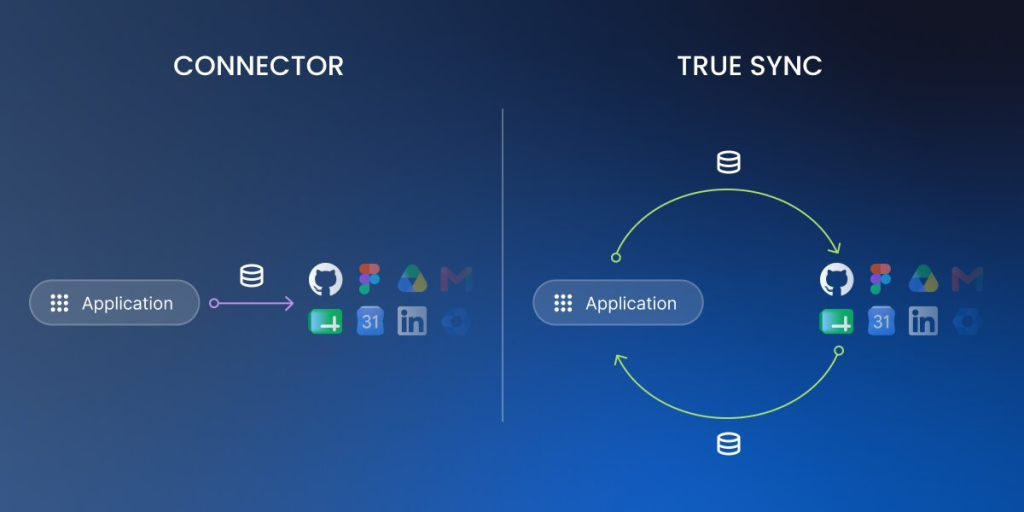
A connector moves information once, or whenever something sets it off, like copying a new sign-up into another tool. A true sync is stronger: it keeps both tools matching all the time, so a change in one instantly shows up in the other. If your app and your other tool always need to agree, a connector on its own isn’t enough. You want a real sync.
One-way vs two-way data flow
One-way means information travels in a single direction, like new form entries dropping into a spreadsheet but never coming back. Two-way means it travels both directions, so a change in either place updates the other. Ask which one you’re getting, because a lot of “integrations” turn out to be one-way, and that can catch you out later.
API access in plain English
An API is just a doorway that lets other software talk to your app automatically. You’ll probably never touch it yourself, but if you think you might connect another tool down the road, or pay someone to do it for you, check that the platform offers one. Having an API means your app can grow and connect later instead of being a walled garden.
External databases and spreadsheets
Sometimes your information already lives somewhere else, like a Google Sheet or a separate database, and you want your app to use it. The key question is whether the app stays in step with that source or just takes a one-time snapshot that goes stale. A live connection updates as the source changes. A snapshot is frozen at the moment you imported it. Know which one you’re relying on.
What to ask before you commit
Before you trust any connection, ask the vendor four questions: what information moves, which direction it moves in, how often it updates, and what happens if the connection breaks. Clear answers are a good sign. Vague ones are a warning. When in doubt, test the connection with real information before you depend on it.
What limits show up as your app grows?
The limits that bite are rarely the ones printed on the pricing page. They show up later, once your app is doing real work and more people lean on it. Knowing the usual pressure points helps you choose a no-code web app builder you won’t outgrow in a single quarter. Six things tend to grow at the same time.
More users
As more people use your app, you add more logins and more roles to manage, and many platforms charge more once you pass a certain number of users. Before you choose, check how many people are included in your plan and what happens to the price when your team or your customer base grows.
More records
A record is a single entry, one customer, one order, one booking. They pile up fast, and some plans cap how many you can store or slow down when there are a lot. Make sure the app will still feel quick to search and load once you have thousands of records, not just the handful you start with.
More workflows
Workflows are the automatic “if this, then that” rules that do work for you in the background. The more of them you add, the more some platforms limit how many can run or how often. If automation is a big reason you’re building the app, check those limits before you depend on them.
More integrations
Every connection to an outside tool is one more thing to keep working. As you add integrations, you add places where something can break or fall out of sync. Check whether your plan limits how many connections you can set up, and remember that more of them means more to keep an eye on.
More permissions
When it’s just you, access is simple. Add staff, clients, and different roles, and you need a more careful setup so each person sees only what they should. Check that the builder can handle more detailed permissions as your team and your customer list grow, without it becoming a headache.
More monthly usage
Some tools charge based on how much your app is used each month, such as the number of times it runs or how much data it moves. That bill can climb right when your app is succeeding. If your plan is usage-based, understand exactly what counts as usage so a busy month doesn’t become an expensive surprise.
How do no-code web app builders usually price apps?
No-code web app builder pricing looks simple on the surface and trips people up underneath. The headline number rarely matches what you’ll pay once the app is live, so read the limits next to the price just as carefully as the price itself. These are the common ways these tools charge.
Free plans and trials
Most builders let you try them at no cost, either with a free plan or a time-limited trial. This is exactly how you should test whether a tool fits before paying anything. Build a small version of your real app during the free period, because that tells you far more than any feature list.
Per-user plans
Some tools charge based on how many people can use the app. That’s fine when it’s just you, but the cost can climb as you add teammates or clients. Check what’s included and what each extra person costs, so a growing team doesn’t push you onto a much pricier plan.
Usage-based pricing
Other tools charge based on how much the app is used, such as how many times it runs or how much information it handles. The catch is that the bill grows right when your app is doing well. If a plan works this way, make sure you understand what counts as usage.
Feature-gated plans
Many builders put the better features behind higher tiers. The thing you specifically need, like detailed permissions or a certain integration, might only appear on a more expensive plan. Before you choose, confirm that the feature you actually care about is included at the price you’re looking at.
Publishing and hosting costs
Sometimes getting your app online costs extra on top of building it. Check whether publishing and hosting are included or billed separately, so you don’t finish your app and then discover there’s another charge just to put it in front of people.
Support and collaboration costs
Extras like priority support or letting more than one person edit the app can sit on higher plans, too. If you’ll need real help or you’re working with a teammate, check what that costs. The smart move overall is to map your real needs to the tier one step above where you start, so an upgrade feels like a choice instead of an ambush.
What “free” usually leaves out: Free plans are great for testing, but read what they hold back. Common catches: your app stays unpublished or shows the builder’s branding, you’re capped to a small number of records, a custom domain is paid-only, and some tools delete inactive projects. None of this makes a free plan bad. It just means “free” is for trying the tool, not for running your business on long term.
How does Coderick AI fit for non-technical teams?
Here’s the part nobody warns you about: the app is usually the easy bit. You describe what you want, and for one glorious afternoon, you feel like a developer. Then the unglamorous half shows up. Where does the app actually live? Where does its information go? How do you keep it safe? And what do people type to find it? That’s hosting, a database setup, security, and domain management, and it’s exactly where most AI web app builders wave goodbye and leave you to wire everything together yourself, extra logins, extra bills, and a vanished weekend included.
Coderick AI was built to skip that entire second act. It’s a full build-and-publish platform rather than just a builder, so building, refining, hosting, and publishing all happen in one place. Every plan comes with premium hosting baked in, a database that sets itself up, the same ultrafast infrastructure that runs millions of SiteGround sites, and a custom domain on paid plans. You build the app, and it’s already home.
Describe the app instead of wiring every screen manually
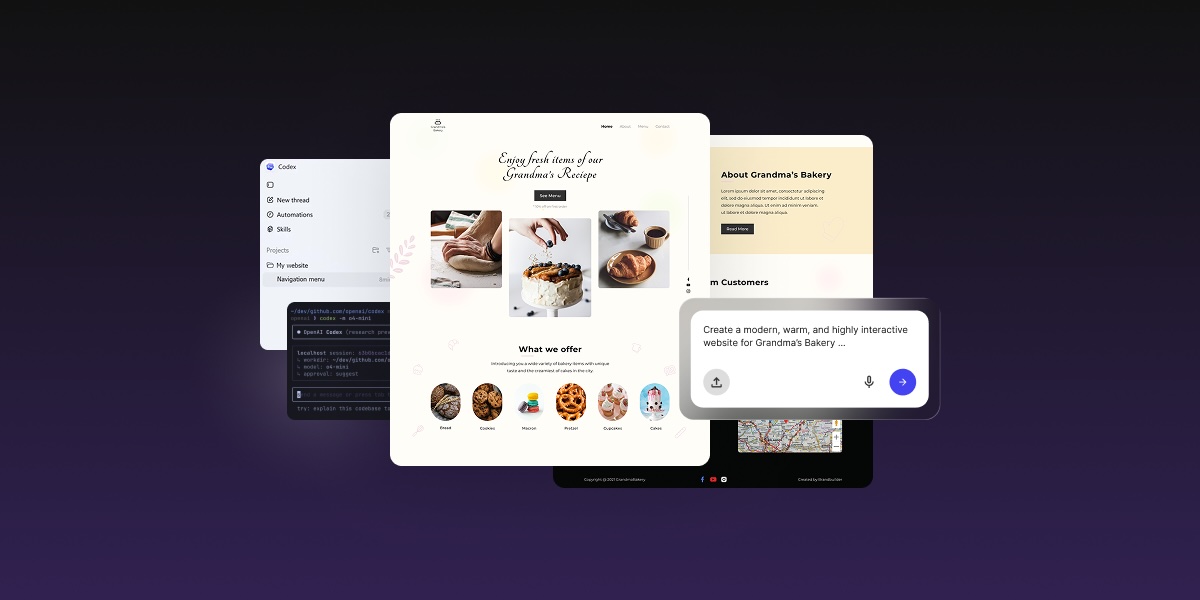
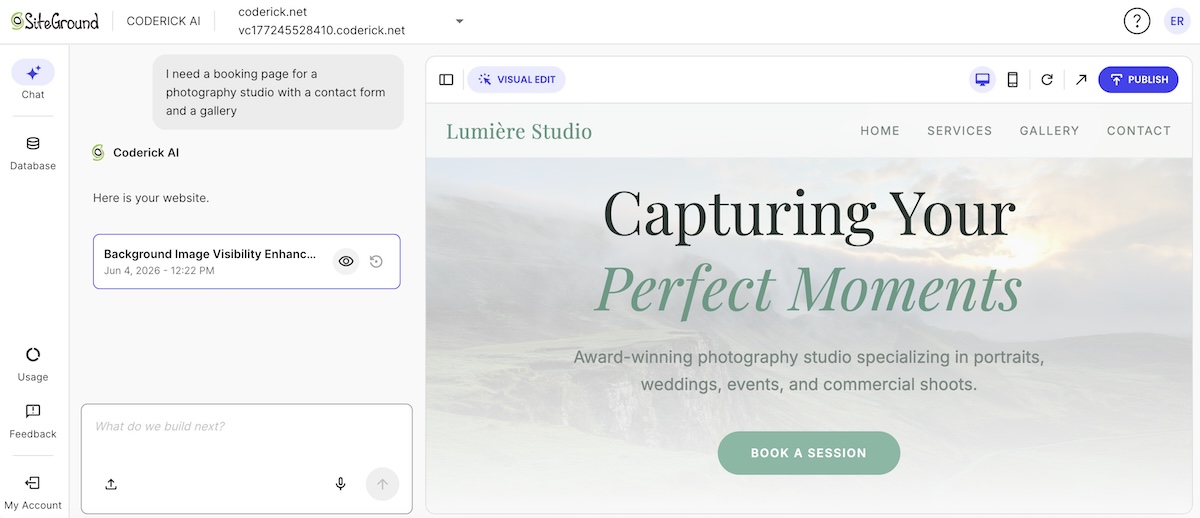
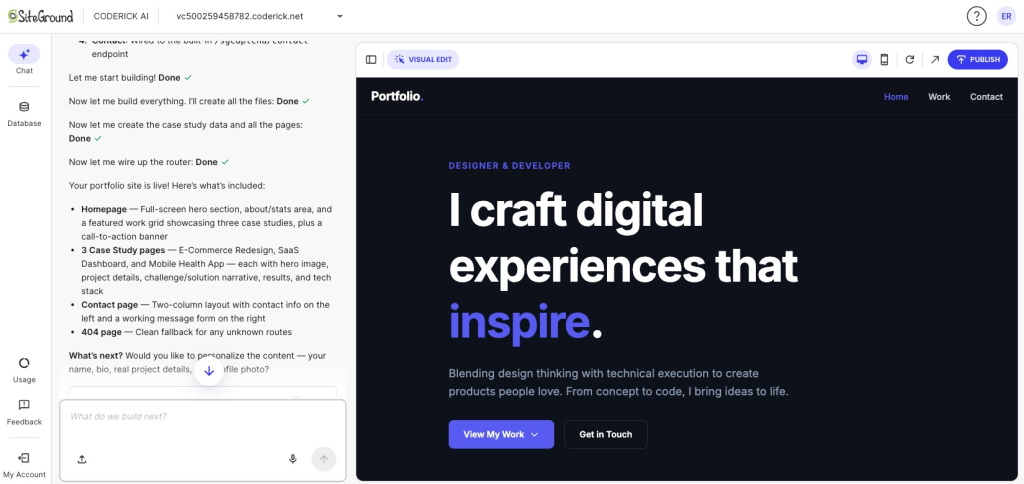
You don’t lay out a single screen by hand. You tell Coderick AI what you want in everyday language, who uses the app and the main thing it should do, and it generates a working first version for you: the screens, the place to store your information, and the logic that ties them together.
Example prompt you can start with:
“Build an internal admin panel for a small online shop. It should list all orders (date, customer, items, total, status) and let me search by customer name or order number. I want to update the order status (pending → packed → shipped → delivered) from a dropdown. Two roles: admin (full access, can delete orders) and team (can view and update status, but cannot delete).”
Start with a working draft
Coderick AI hands you a real, working draft you can click around in straight away, instead of a blank canvas and a blinking cursor. That helps more than it sounds: it’s far easier to react to something real than to picture an app from nothing, and seeing it live makes it obvious what you’d like to change next.
Edit by giving clear instructions
You refine the app by typing plain-language instructions, like “add a status field to each order” or “make the dashboard the first screen,” or you use visual edits to click straight onto something and change it. And if a change doesn’t work out, version restore lets you roll back to an earlier version, so you can experiment without worrying about breaking what you’ve built.
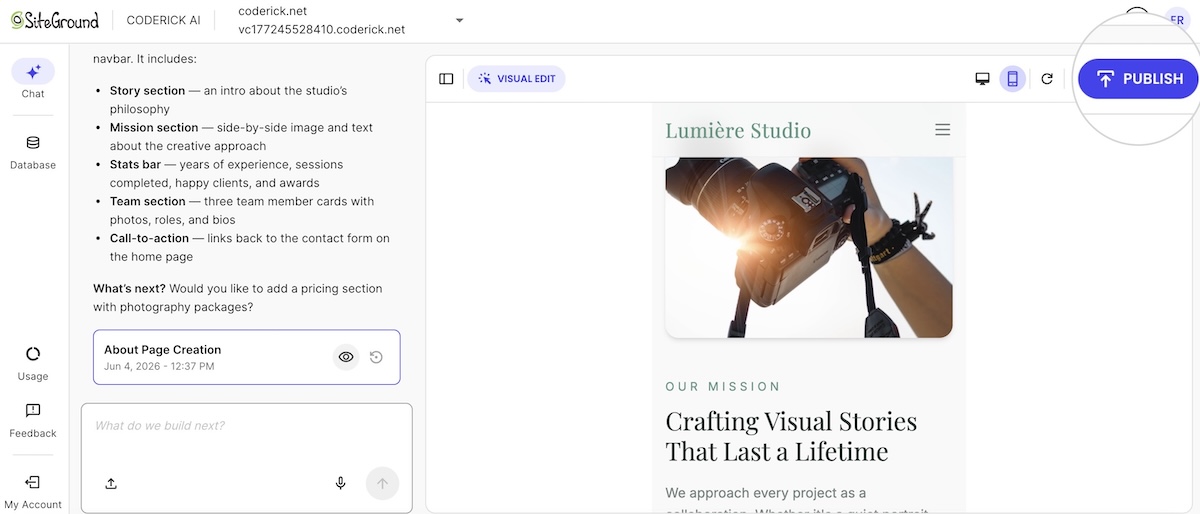
Publish on the included hosting
When you hit publish, your app goes live on SiteGround’s infrastructure automatically, with hosting, the database, and security already in place. That means:
- no separate host to find,
- no database to wire up,
- no SSL certificate to chase,
- and no juggling three different bills.
You go from a working draft to a real, shareable web address without ever leaving the platform.
Best-fit projects for Coderick AI
You can build almost any website and web app with Coderick AI, but most non-technical teams use it for internal tools, client portals, dashboards, booking trackers, and straightforward business apps. As with any app, the ones that succeed start narrow: one group of users, one source of information, one clear task, then grow from there. If your project needs deep custom engineering, or you already know you’ll need to move it onto a completely different host later, treat the build as a fast prototype and plan from there.
15-minute no-code web app builder scorecard
Use this scorecard to compare two or three no-code web app builders quickly before you commit. Score each from 1 to 5, add up the columns, and let the totals, not the longest feature list, make the call. The tool that fits your specific app beats the one with the most checkboxes.
| Criteria | Question to ask | Score (1–5) |
| App type fit | Can it build your specific app? | |
| Data | Can it store the records you need? | |
| Users | Can it manage roles and access? | |
| Workflows | Can it handle your main process? | |
| Integrations | Does data sync the way you need? | |
| Cost | What triggers an upgrade? | |
| Ownership | Can you export what matters? | |
| Support | Can non-technical users get help? | |
| Launch | Can you publish without extra setup? |
Once you have your scores, the choice is usually obvious. The right no-code web app builder is the one that handles your app type, your data, and your launch without forcing you to learn a new skill or wait on someone else. Build the smallest version that solves a real problem, get it in front of real users, and grow from what you learn.
The truth is, you learn the most about a no-code web app builder by building something in it. Pick the one small tool you keep meaning to make, the booking tracker, the client portal, the simple internal dashboard, and give it a real go. Ready to start?
Try Coderick AI and build your first web app
[96]
FAQs
A no-code web app builder is a platform that lets you create browser-based apps without writing code. It usually gives you tools for screens, data, users, logic, and publishing, so a non-technical team can build an internal tool, portal, dashboard, or simple business app.
A no-code app builder can refer to web, mobile, or internal apps. A no-code web app builder is more specific: it creates apps that run in a browser. That distinction matters if your team wants a dashboard, portal, CRM, booking tool, or business app that people access through a URL.
No, but you do need to understand the process you want to build. A visual web app builder can help you create screens and workflows without code, but you still need to define users, data, actions, and the main business rules clearly.
Check data storage, user roles, workflow logic, integrations, hosting, support, pricing limits, and export options. The right tool should match the app you want to build now and still make sense when your users, records, or workflows grow.
Yes. No-code web app builders are often a good fit for internal tools like CRMs, dashboards, task trackers, approval tools, and admin panels. These apps usually have clear users, structured data, and repeatable workflows, which makes them easier to build and test.
Integrations connect your app to outside tools or databases. Some only send data in one direction, while others support two-way sync or API access. Before choosing a platform, ask what data moves, how often it updates, and what happens if the connection fails.
Non-technical teams should compare no-code platforms by app type fit, ease of editing, data structure, workflow logic, user permissions, integrations, pricing limits, support, and publishing. A simple scorecard is better than choosing the tool with the longest feature list.
Coderick AI can help non-technical users create web apps without writing code by describing what they want in plain language. It is different from a traditional manual no-code platform because the AI creates a working draft first, then you refine it through instructions and publish it on SiteGround hosting.
Build the smallest app that solves a real problem. Good first options include a CRM dashboard, booking tracker, customer portal, inventory list, approval workflow, or internal reporting tool. Start with one user group, one data source, and one main workflow.
A no-code web app builder may not be enough if your app needs advanced custom logic, complex external systems, high-scale performance, strict compliance review, or deep engineering control. In those cases, use no-code for a prototype or internal version, then bring in technical help.