
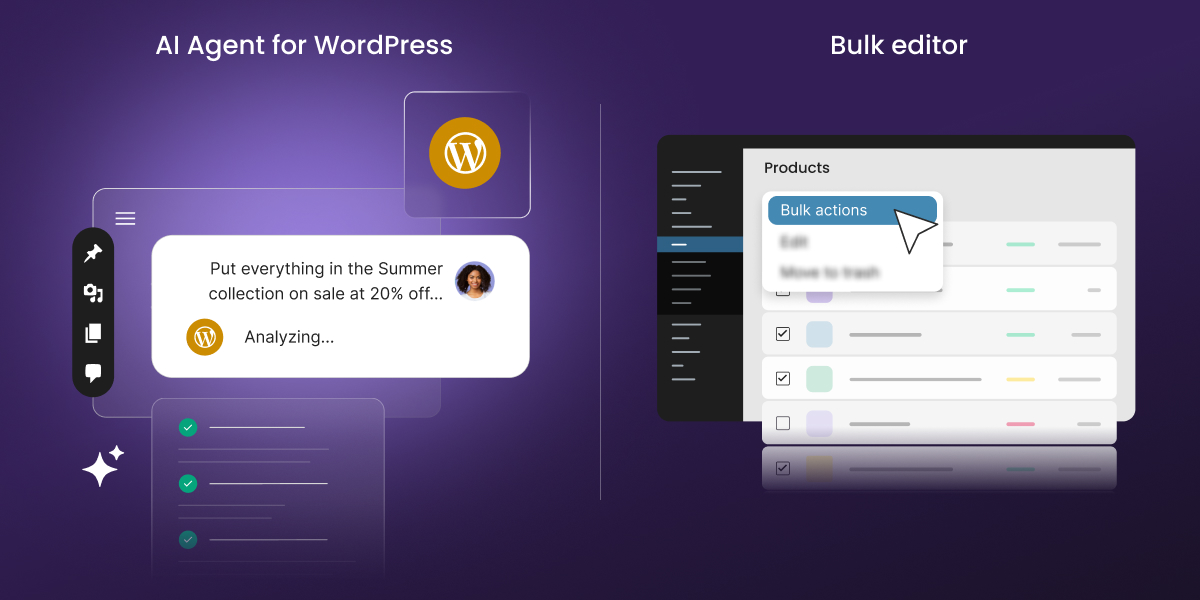
WordPress’s Bulk Edit is great when you know exactly which posts need changing and which field to change. Tick the boxes, type or paste the new values, and click Update. It stops helping when the job also means creating that category, adding it to your menu, and changing how many posts your blog shows. So when is WordPress Bulk Edit not enough, and what should you use instead?
AI Agent for WordPress vs WordPress bulk editors hinges on whether you’re editing fields or handing off a whole admin job. A WordPress bulk editor changes the same fields across many posts, products, or users you select. SiteGround’s AI Agent for WordPress takes instructions in your own words and carries out the task, even when it spans posts, categories, menus, and settings.
Key takeaways:
- AI Agent for WordPress vs WordPress bulk editors is decided by the kind of job, not by how many posts or products you need to change. A bulk editor works through one list of records, while AI Agent for WordPress handles tasks that reach across your admin.
- Bulk editors let you see every new value before you save. That grid view, plus bulk editing of SEO plugin fields and product variations, is where they’re genuinely stronger.
- AI Agent for WordPress works from instructions in your own words. It works out the steps, carries them out across posts, categories, users, menus, and settings, and tells you what it changed.
- Both handle bulk product edits in WooCommerce. If you need to update variations or SEO fields, look at a bulk editor. If your changes reach across your whole site, AI Agent for WordPress is the better tool.
What bulk editors and AI Agent for WordPress are built for
Both tools spare you from editing posts one by one, and they overlap on simple bulk changes. They part ways as soon as a job leaves one list of records.
WordPress bulk editors change details such as status, category, price, or stock on many posts, products, or users in one go. WordPress bulk editing tools come in three forms:
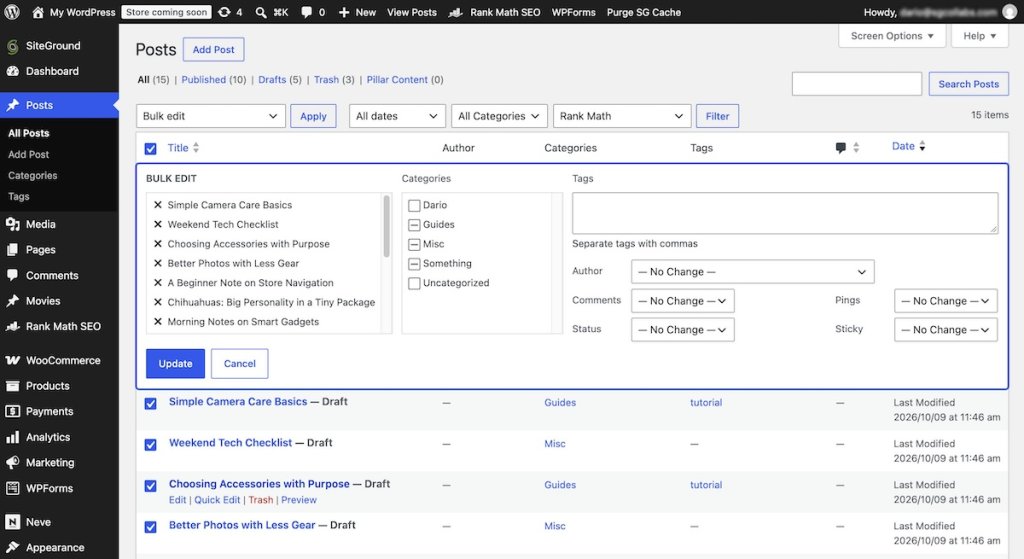
- Bulk Actions in WordPress itself. On the Posts screen, you select posts and choose Edit to change categories, tags, author, status, and a few other fields at once. The Users screen lets you change roles in bulk, and WooCommerce adds price and stock fields for products.
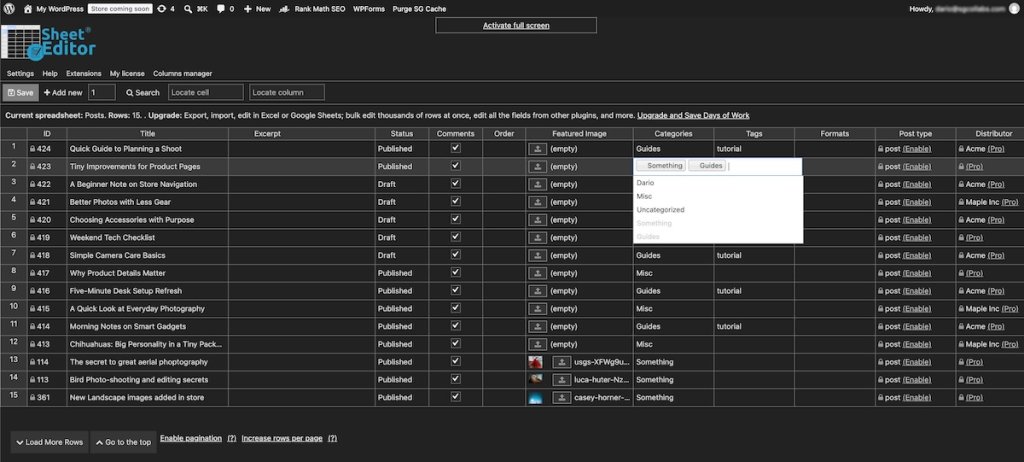
- Spreadsheet-style editors. A WordPress spreadsheet editor such as WP Sheet Editor or WOLF shows your posts as rows and their fields as columns, so you edit them much like a spreadsheet inside the admin.
- Export and import. WP All Import describes a round trip: export your records to a spreadsheet, edit them offline, and import the changes back.
We installed the free version of WP Sheet Editor on a test site. A WordPress bulk edit plugin like this one covers posts, pages, custom post types, and simple WooCommerce products, and free add-ons bring in categories, tags, users, and Yoast SEO fields. Each of these tools does one job, editing records, which is typical of plugins and a big part of how AI plugins and AI agents differ.
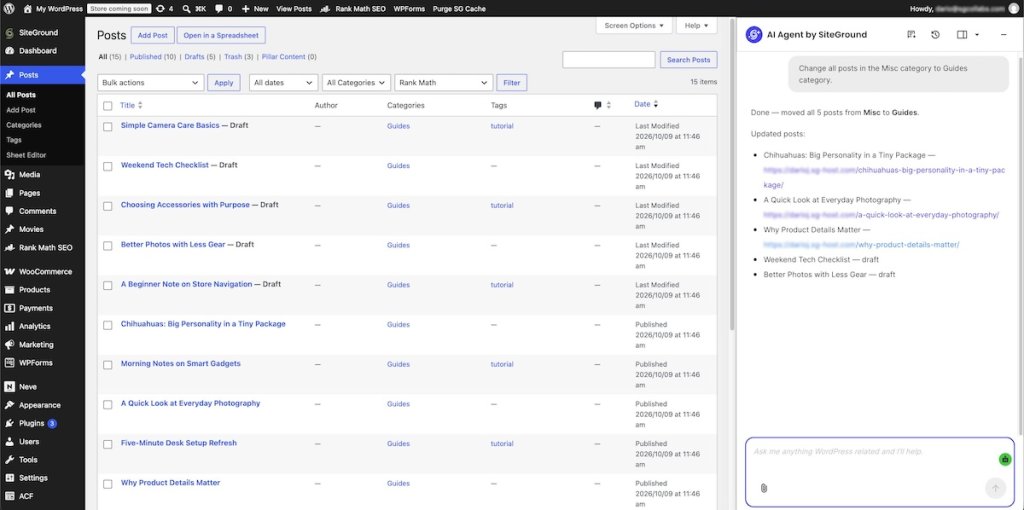
With AI Agent for WordPress, you manage your site from a chat inside your WordPress admin, or from the SiteGround AI Studio dashboard when you work across several sites. You write what you want done, in as much detail as you like, and it works out the steps, carries them out, and tells you what it changed. Instead of picking rows and fields, you describe the outcome, and it reaches everything AI Agent for WordPress handles in the admin, from posts and products to users, menus, and settings.
If you’re still deciding whether you need an agent at all, start with choosing between an AI agent, plugins, and manual admin.
AI Agent for WordPress vs WordPress bulk editors: how they compare
The two approaches line up like this across common WordPress bulk editing tasks:
| Dimension | WordPress bulk editors | AI Agent for WordPress |
|---|---|---|
| Who it helps | Help site owners and editors change the same fields across many records | Helps site owners and agencies run WordPress admin work from chat |
| Where you use it | Work in the Posts, Products, or Users screen, or in a spreadsheet-style grid in the admin | Works in a chat pop-up in the WordPress admin, or in the AI Studio dashboard |
| How you make a change | Select rows, pick a field, and set a new value | Takes instructions in your own words, works out the steps, and carries them out |
| Changes across admin areas | Change one record type at a time | Carries out a task that spans posts, categories, menus, and settings from one set of instructions |
| Checking before saving | Show every new value in the grid before you save | Lists the items it will change when asked, and asks you to confirm impactful actions |
| Undoing changes | Varies by plugin: WOLF keeps a history you can roll back, while WP Sheet Editor’s free version undoes edits only while you stay on the screen | Reverses its last change when you ask, including a bulk change |
| SEO plugin field editing | Edit Yoast SEO titles, descriptions, and keywords in bulk through plugins like WP Sheet Editor | Can’t edit SEO plugin fields |
| WooCommerce product editing | Edit prices, sale prices, stock, and other product data across many products; some, such as PW WooCommerce Bulk Edit, also edit variations | Edits prices, sale prices, stock, and other product data across many products, creates new products, and imports or updates products from a spreadsheet you upload; can’t edit variable products |
| User management | Let you change user roles in bulk, and in some plugins edit user profiles | Changes user roles in bulk and adds users |
| Working from a spreadsheet | Edit records in a spreadsheet-style grid inside the admin, or export them to a CSV file and import it back | Updates posts, users, and products from a spreadsheet you prepare in Excel and upload |
| Site settings | Can’t change site settings | Changes site settings, such as setting the blog to show 12 posts per page |
| Several sites | Work inside the site they’re installed on | Acts on all connected sites from one instruction |
| Cost | WordPress’s built-in Bulk Actions come with every site at no cost; plugins such as WP Sheet Editor and WP All Import have free versions, with paid versions or extensions for more features | Runs on AI Studio tokens; SiteGround hosting customers get 20,000 free monthly tokens, others can start a 14-day free trial with 20,000 tokens |
The differences that decide it
Three differences matter more than the rest: how you describe a change, how you check it before it lands, and how each tool handles a product catalog.
Fields you pick versus an outcome you describe
A bulk editor asks you to think in records, columns, and fields, while AI Agent for WordPress asks only what you want done. That gap is small for one field on a list of posts and larger when a task spans admin areas.
Say you want a new Guides category for your tutorials, with a link in your main menu and 12 posts per page on your blog. With bulk editing tools, that’s four stops, and two of them are manual:
- Create the category under Posts > Categories.
- Filter by the tutorial tag and bulk edit those posts to add the category.
- Add the category to your main menu by hand under Appearance > Menus.
- Change the posts-per-page number by hand under Settings > Reading.
A spreadsheet editor speeds up the second step, but the menu and the reading setting are still yours to change by hand. With AI Agent for WordPress, it’s one request:
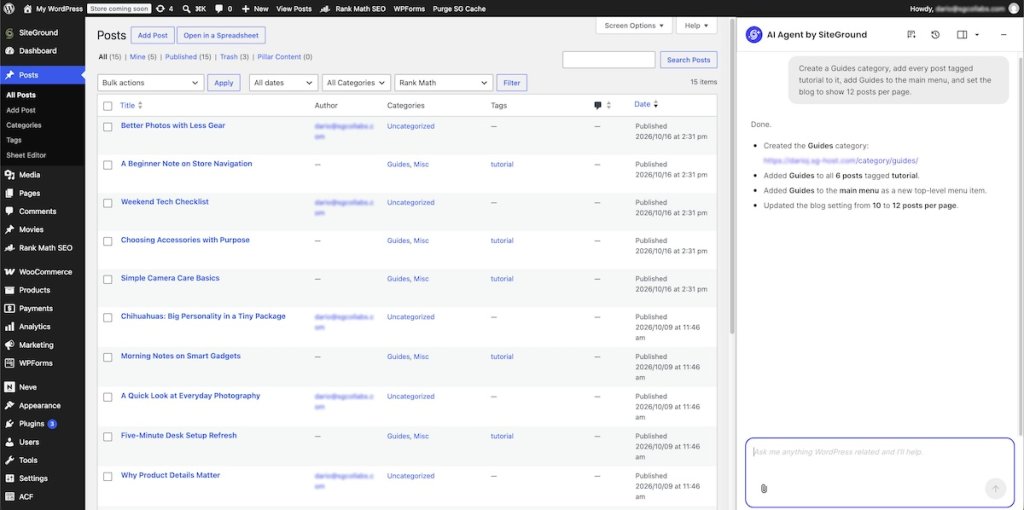
“Create a Guides category, add every post tagged tutorial to it, add Guides to the main menu, and set the blog to show 12 posts per page.”
AI Agent for WordPress does exactly that, all four changes in one go. It then lists each one, down to the old and new posts-per-page values, so you can check the result without opening four screens.
The same goes for jobs that are awkward in a bulk editor, such as replacing a phrase wherever it appears in your posts. AI Agent for WordPress finds every post that contains it, makes the change, and lists what it updated. Our guide has more prompts for everyday WordPress tasks.
Pro tip: Write the job down the way you’d explain it to a colleague. If it names more than one admin screen, such as posts and a menu, hand it to AI Agent for WordPress. If it’s one field across many rows, a bulk editor is just as fast.
Seeing a change before it happens
Bulk editors are stronger here: you see every new value in the grid before you save. In our test of WP Sheet Editor’s free version, edited cells stayed visible until we clicked Save, and the undo shortcut reversed edits as long as we stayed on the screen. PW WooCommerce Bulk Edit states that it previews changes before you save, and WOLF lists a history of bulk operations you can roll back.
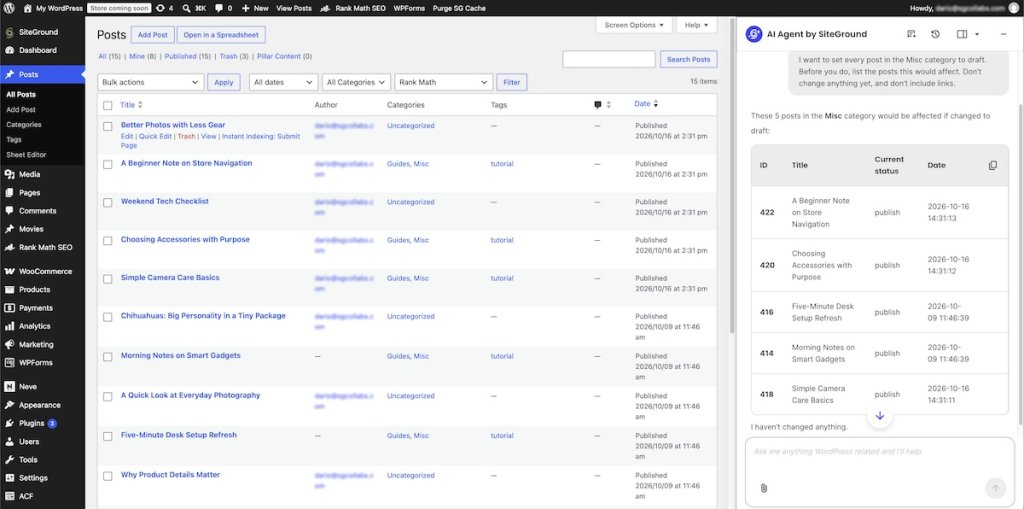
AI Agent for WordPress doesn’t preview final values. Instead, it answers the question “what will this touch?” before it acts. Ask it to list the posts in a category and what it would change, and it returns a table of IDs, titles, and current status without changing anything.
It also asks you to confirm impactful actions. Deletions and product changes need Power Mode turned on, an extra safeguard explained in how Power Mode protects bulk changes. If a result isn’t what you wanted, ask AI Agent for WordPress to undo its last change. It reverses bulk changes too, such as moving a batch of posts back to the category they came from.
Good to know: Neither a grid preview nor an undo replaces a backup. Before any large change, with either tool, check that your host has a recent backup of your site.
Bulk editing WooCommerce product catalogs
Product catalogs are where bulk editors earn their place, because store data fits neatly into rows and columns. WooCommerce itself lets you bulk edit prices, sale prices, stock, shipping class, and visibility from the Products screen. Dedicated editors go further:
- WP Sheet Editor’s paid extension adds variable products and price formulas, such as raising prices by 10%.
- PW WooCommerce Bulk Edit states that its free version edits variations and changes prices by an amount or a percentage.
AI Agent for WordPress handles the same everyday catalog work from chat. It edits prices, sale prices, stock, and other product data across many products, creates new products, and imports or updates products from a spreadsheet you prepare in Excel. It can’t edit variable products, so a catalog built on sizes and colors is still a job for a bulk editor.
The deciding question is whether the job stays inside the product list. A single request to AI Agent for WordPress can create a coupon, add a homepage section announcing it, build a Sale page listing the products on sale, and add that page to the main menu. A bulk editor stops at the products themselves.
Can you use a WordPress bulk editor and AI Agent for WordPress together?
Yes, and on many stores and content sites the split is natural. You don’t have to pick one, since each is strongest where the other stops.
Keep a bulk editor for the jobs that belong in a grid: Yoast SEO titles and descriptions, product variations, and any change you want to check value by value. If bulk SEO updates are a regular task, a spreadsheet editor with SEO columns is the faster route.
Hand AI Agent for WordPress the jobs that cross screens: restructuring categories, updating menus and settings, replacing text across many posts, or applying changes from a spreadsheet of posts, users, or products.
Which should you choose?
Choose by the shape of the job: one field across one list of records, or a task that runs through your admin.
When to choose a bulk editor
A bulk editor makes sense when you know the records and the fields, and you want to see every value before it goes live. Choose one if:
- You want to check every value before you save. A grid shows each new price, title, or status in place, so mistakes are easy to spot.
- You edit SEO plugin fields in bulk. Spreadsheet editors such as WP Sheet Editor put SEO titles, descriptions, and focus keywords in columns.
- Your catalog relies on variable products. Editors that support variations let you change size and color prices side by side.
- Your change stays inside one list of records. Updating one field on many posts or products is exactly what a grid does fastest.
When to choose AI Agent for WordPress
AI Agent for WordPress fits when you’d rather say what needs doing and let it handle the steps. Choose it if:
- Your job crosses posts, categories, users, menus, or settings. One set of instructions covers all of them, and you get a list of what changed.
- You’d rather describe the result than set up columns and filters. Write instructions as detailed as you like, and it works out which records to change.
- You prepare changes in Excel. Upload a spreadsheet of posts, users, or products, and it applies the changes for you.
- You look after multiple sites. One instruction can act on every connected site, which makes managing many client sites from one chat practical.
Pick the tool that fits the job, not the length of the list
AI Agent for WordPress vs WordPress bulk editors isn’t about which tool can change more posts or products. Bulk editors are the right tool when the job is one list of records: you see every value, you edit SEO fields and variations in a grid, and nothing changes until you save.
AI Agent for WordPress is the right tool when your site management work spans multiple admin areas. You write what you want in your own words, and it handles the posts, categories, users, menus, and settings involved, then tells you what it did. If you spend more time moving between screens than editing fields, that’s your sign to try it.
FAQs
Choosing AI Agent for WordPress vs WordPress bulk editors depends on whether you’re changing fields or need to run a complete admin job. A bulk editor is the better pick for changing the same fields across many records you can check in a grid, such as SEO titles or product prices. AI Agent for WordPress is the better pick when you’d rather say what you want done and leave the execution to it: you describe the task in your own words, and it works out which posts, categories, users, menus, or settings to change, carries out every step, and tells you what it did.
Bulk edit in WordPress means changing the same details on many posts, pages, products, or users at once instead of one by one, such as assigning a category to 20 posts in a single step. WordPress includes basic Bulk Actions, and plugins such as WP Sheet Editor add a spreadsheet-style grid with more fields.
You can bulk edit multiple WordPress posts at once from Posts > All Posts: select the posts, choose Edit from Bulk actions, and click Apply. In the panel that appears, you can change categories, tags, author, comments, pings, status, and whether a post is sticky. For other fields, use a bulk editor plugin, or ask AI Agent for WordPress to make the change in plain words.
Yes. AI Agent for WordPress bulk edits multiple posts from one request, such as setting every post in a category to draft, changing their author, or replacing a phrase in every post that contains it. Ask it to list the posts first, and it shows what it will change without changing anything.
WordPress bulk editors can often manage users, such as changing roles or editing profiles in bulk, but they can’t change site settings, like how many posts your blog page shows. AI Agent for WordPress handles both, from instructions you write in your own words.
No, not completely. AI Agent for WordPress handles many bulk changes from chat and adds changes across admin areas. A bulk editor stays the better tool for SEO plugin fields, WooCommerce variations, and checking every value in a grid before you save.
Yes. Several bulk editor plugins, such as WP Sheet Editor and PW WooCommerce Bulk Edit, edit WooCommerce products in bulk, and some also edit variable products. WooCommerce itself lets you bulk edit prices, sale prices, stock, and other product data from the Products screen. AI Agent for WordPress bulk edits products too, from prices and stock to creating or updating products from a spreadsheet you upload, but it can’t edit variable products.
A WordPress spreadsheet editor is better when you want to check every value in a grid before you save. AI Agent for WordPress handles large bulk changes too: you can prepare a spreadsheet of posts, users, or products in Excel and upload it, or write detailed instructions covering as many conditions as you need, and it carries out the whole job, including parts that reach beyond one list of records.
Yes. Ask AI Agent for WordPress to undo its last change and it reverses it, for example moving a batch of posts back to the category they were in. For larger recoveries, rely on backups at the hosting level, since AI Agent for WordPress doesn’t create or restore backups.
Yes. Some WordPress bulk editors offer AI features. WP Sheet Editor offers a paid AI add-on that generates content in the spreadsheet through OpenAI or another OpenAI-compatible provider, using an API key you get and pay for separately. It fills cells in a grid, while AI Agent for WordPress carries out a whole request across the site and needs no API key.