AI Agent for WordPress vs Jetpack AI: Which should manage your WordPress site?

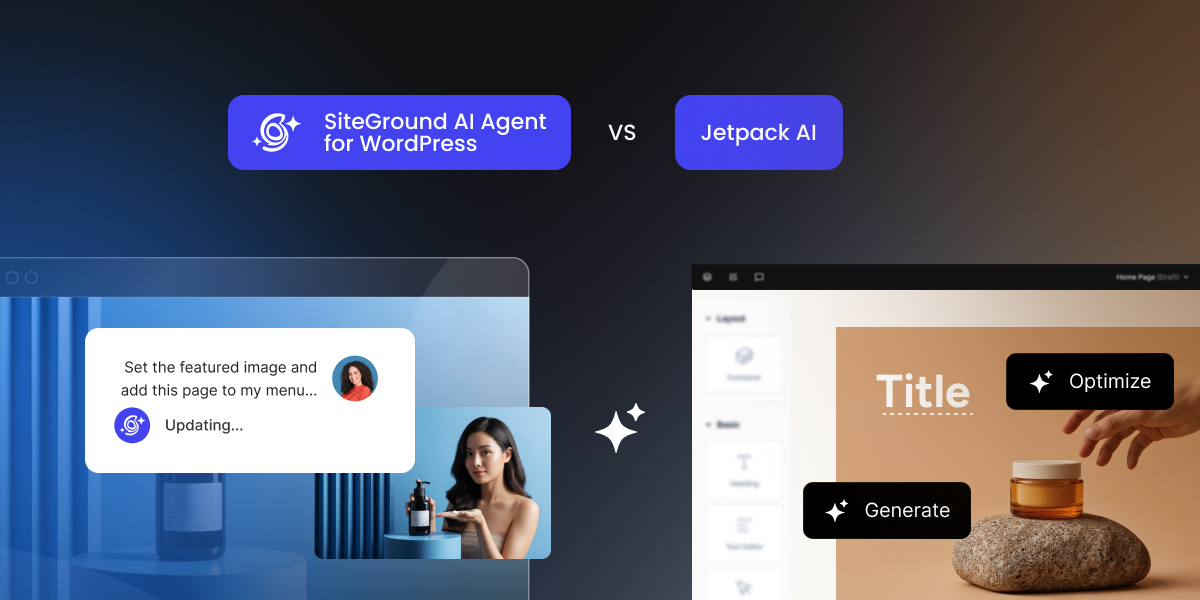
A comparison graphic between SiteGround AI Agent for WordPress and Jetpack AI, displaying interface examples for both tools. JPG

Managing a WordPress site with AI may sound simple, but the experience depends entirely on where that AI lives and how deeply it reaches into your site. Evaluating AI Agent for WordPress vs Jetpack AI comes down to choosing between a dedicated WordPress management agent and Jetpack’s hybrid AI model.

SiteGround’s AI Agent for WordPress provides a ready-to-use WordPress management agent that handles content publishing, plugin maintenance, user roles, and full WooCommerce store operations. Automattic’s Jetpack AI takes a split approach: offering a writing assistant inside the standard block editor alongside an external connection that lets third-party apps like ChatGPT or Claude manage site tasks.

Key takeaways:

  • AI Agent for WordPress vs Jetpack AI comes down to management model and workspace. The AI Agent for WordPress operates inside a native chat in your WordPress dashboard, whereas Jetpack AI manages site operations through connected assistants like ChatGPT or Claude.
  • Both edit WooCommerce product copy, but the AI Agent for WordPress also handles core store operations such as orders, inventory stock, and sales reports.
  • Jetpack AI requires a separate paid plan for every individual site, whereas the AI Agent for WordPress manages multiple connected sites under a single account token pool.
  • Most websites only need one AI assistant, but you can keep core Jetpack security or backup modules running while using the AI Agent for WordPress for site management.

A dedicated WordPress agent vs Jetpack’s hybrid AI model

SiteGround’s AI Agent for WordPress provides a single, unified assistant accessible directly inside your WordPress admin dashboard. You describe what you need in plain language, and the agent executes WordPress management tasks by chat: from publishing posts and updating plugins to managing user roles, configuring site settings, and administering a WooCommerce store.

It comes pre-connected for SiteGround-hosted sites and connects to externally hosted websites via a lightweight plugin. And because the underlying AI models are supplied directly through SiteGround’s managed infrastructure, there are no third-party API keys to set up or pay for separately.
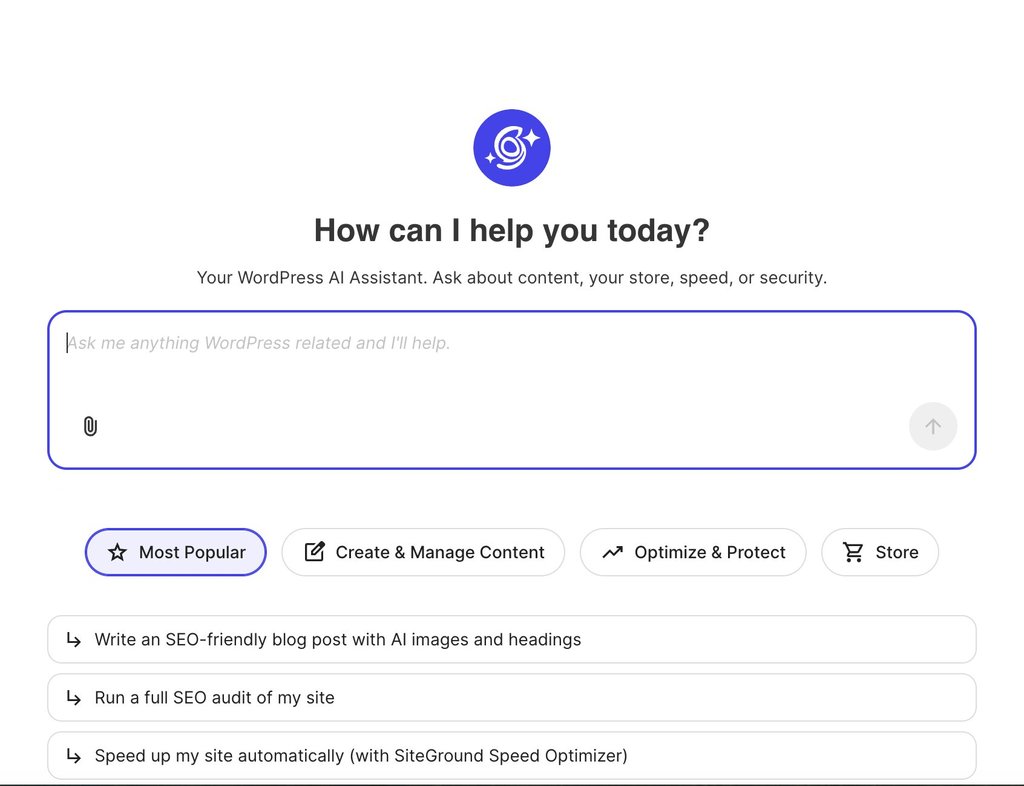
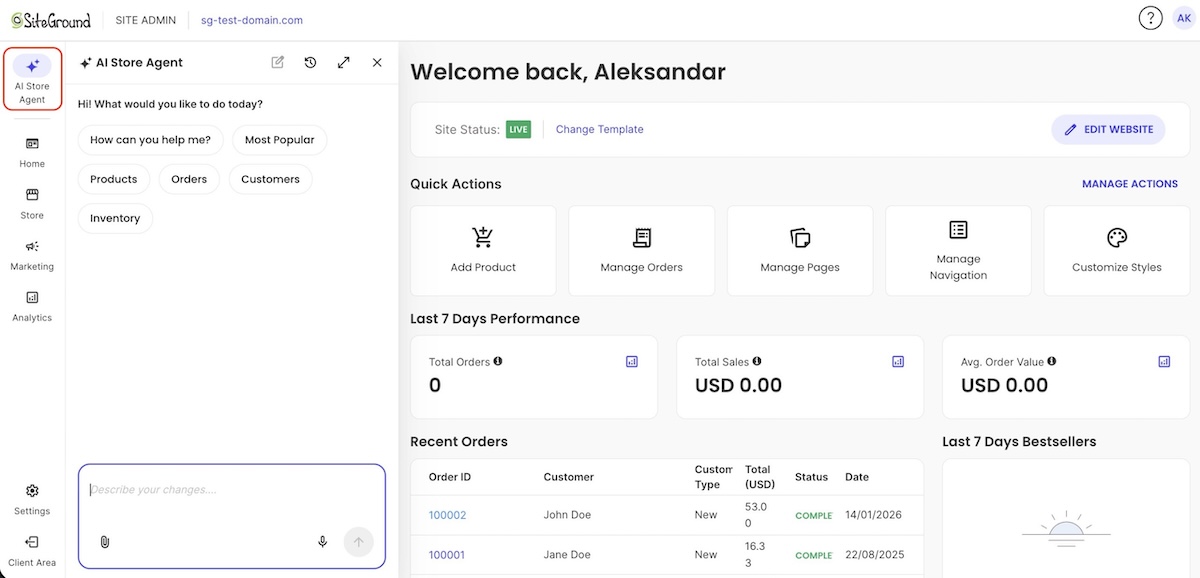
The welcome screen of the AI Agent by SiteGround interface featuring a prompt input box and suggested task categories.

By contrast, Jetpack AI takes a hybrid, split-tool approach. You reach both by installing the Jetpack plugin and opening Jetpack → Jetpack AI in your WordPress dashboard, where you switch features on and connect an outside assistant. Inside the standard block editor, the Jetpack AI Assistant for WordPress drafts, rewrites, and translates text, generates images and alt text, and suggests post titles or excerpts. 

However, for administrative management beyond the editor, Jetpack’s paid plan connects external assistants (such as ChatGPT or Claude) through MCP (Model Context Protocol, an open standard that lets AI assistants act on other software). You then manage the site from inside that assistant’s own app, and each change waits for your confirmation before it runs.
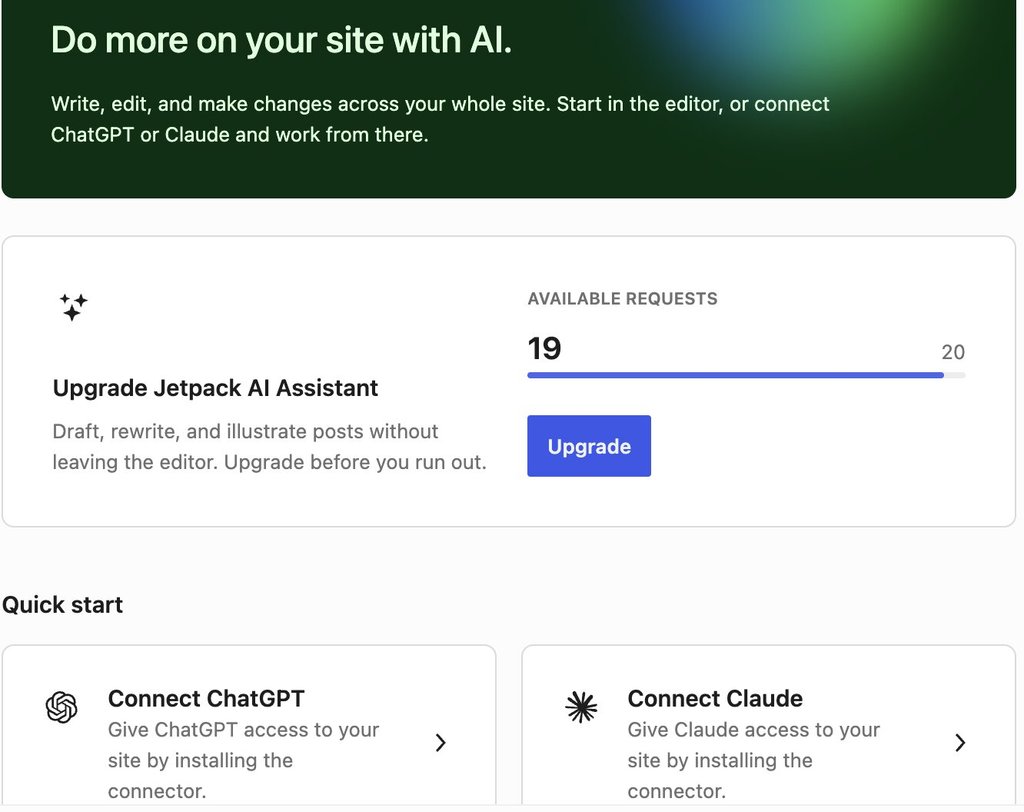
Screenshot of the Jetpack AI dashboard displaying request usage and options to connect ChatGPT or Claude.

That connection runs through WordPress.com (Automattic’s own service for hosting WordPress sites) even when your site is hosted somewhere else. Jetpack AI needs a WordPress.com account, and on a site with several users, each person who uses the AI connects their own. A connected assistant reaches your site through WordPress.com’s own MCP connection and gets the same set of tools as a site hosted on WordPress.com.

Good to know: The assistant you connect is a second account to set up. In Claude, the connection is a WordPress.com connector you sign in to. On a Claude account run by a company, an administrator has to add that connector before anyone on the team can use it. Check too whether your ChatGPT or Claude plan supports connectors at all, since the assistant is billed separately from Jetpack.

AI Agent for WordPress vs Jetpack AI: how they compare

Jetpack AI’s two tools share one column below, and a row names the built-in assistant or the connected assistant where the two differ.

DimensionJetpack AIAI Agent for WordPress
Where you workIn the block editor for writing, and inside ChatGPT, Claude or another assistant for site management.In a chat inside the WordPress admin, or from SiteGround AI Studio.
Who supplies the AIThe built-in assistant for writing. For site management, the assistant you connect, which has its own account.Integrated out of the box via SiteGround’s managed infrastructure, no API keys needed.
Content and mediaPosts, pages, media, comments and categories.Posts, pages, media, comments and categories.
Site structureTemplates (the layouts WordPress uses for each type of page), navigation menus and global styles (site-wide colors and fonts).Manages page hierarchies, navigation menus, and core site configurations.
PluginsSearch, install, update, activate and remove, one plugin per update request.Search, install, update, activate and remove, individually or in bulk.
Users and settingsSettings can be read, and neither users nor settings appear among the areas a connected assistant can be given permission to change.Manages user profiles, roles, and core WordPress settings safely behind Power Mode.
WooCommerceProducts as content: create, edit and describe them, and manage their categories and tags. Orders, customers, stock and sales reports aren’t among the connected assistant’s tools.Executes bulk product/price updates, manages customer orders, updates inventory, and generates sales reports.
Several sitesOne connection reaches every site where you’ve switched access on, with one plan per site.Executes single administrative requests simultaneously across multiple connected sites on any host.
SafetyOff by default, with separate read and write permissions for each area, every change confirmed, new content saved as a draft, and an activity log of each action.Power Mode off by default, gating deletions, bulk changes, user changes and order edits, with every high-impact action confirmed.
Cost20 one-time free requests. Jetpack AI costs $4.95 a month in the first year and $9.95 after, billed yearly, per site. The connected assistant may need its own paid plan.20,000 free AI tokens to start on any website, whoever hosts it, then top up or subscribe monthly. Included with SiteGround hosting plans, which add free monthly AI tokens.

Executing a simple task with AI Agent for WordPress vs Jetpack AI 

To see the differences in the two WordPress management approaches, consider a routine scenario: a café publishing a blog post to announce its new autumn menu and installing a plugin for table booking. The table below follows this workflow from first draft to plugin maintenance:

StepJetpack AI: Built-in AssistantJetpack AI: Connected AssistantAI Agent for WordPress (SiteGround)
Primary WorkspaceInside the Block Editor (one block at a time).External ChatGPT or Claude apps (outside WordPress).In a chat inside the WordPress admin.
Drafting Post & Setting ToneAdd the AI Assistant block and prompt it block-by-block (each prompt uses 1 request).Prompt the assistant in the app; it creates and saves a draft to your site upon confirmation.Describe the post in natural language; the agent creates the structured draft directly on your site.
Featured Image & Alt TextGenerated block-by-block via post settings (uses 1 request each).Writes alt text and attaches media library files (image creation depends on whether the connected LLM supports it, like ChatGPT).Generates the featured image and alt text simultaneously in the same chat thread.
SEO Title & Meta DescriptionSuggested via Jetpack SEO Tools (requires a plan that includes SEO extensions).Writes SEO metadata directly to the post draft upon confirmation.Generates and sets SEO titles and meta descriptions directly within the same chat conversation.
Publishing, Categories & TagsPerformed manually by the user within the editor sidebar.Executed via chat commands with individual user confirmations (publishing is a separate step).Executed entirely within chat, handling category tags and moving from draft to published status.
Updating Booking Form PluginPerformed manually by the user on the WordPress Plugins screen.Executes plugin updates one at a time via chat, requiring separate approval for each plugin.Finds, installs and updates single or multiple repository plugins simultaneously in a single chat request.

For a single blog post, all three approaches reach a published article: the difference lies in how many separate tools and tabs you must navigate. For example, the built-in Jetpack assistant speeds up writing inside the block editor but leaves publishing and plugin maintenance to manual admin clicks. 
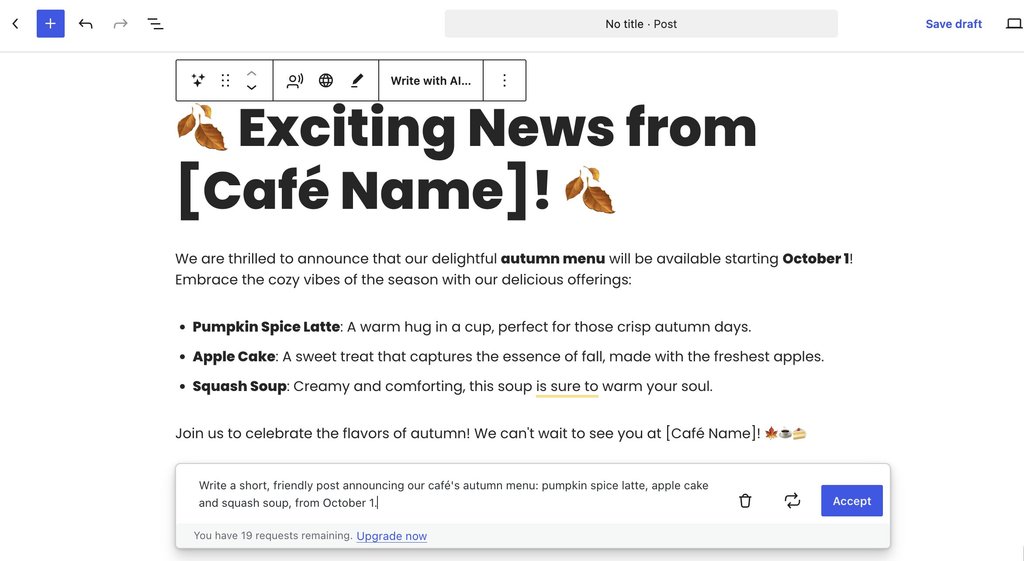
A WordPress block editor interface displaying AI-generated draft content for a café's autumn menu.

In the meantime, the AI Agent for WordPress completes the entire content-to-maintenance lifecycle in one continuous conversation inside WordPress, running full operational workflows from start to finish. For instance, you can give it a single multi-step prompt:

“Publish a short post announcing our café’s autumn menu, from October 1. Add a featured image, alt text, an SEO title and meta description, and file it under News. Install and activate a free, well-reviewed table booking plugin, and tell me which one you chose.”

The AI Agent for WordPress executes the entire workflow in one response. It drafts and publishes the post, automatically creates the missing “News” category, generates a featured image with detailed alt text, and sets the SEO metadata directly on the post. In the same turn, it searches the repository to find, install, and activate the Five Star Restaurant Reservations plugin, explaining its choice so the site owner completes both content publishing and site maintenance without ever leaving the chat.
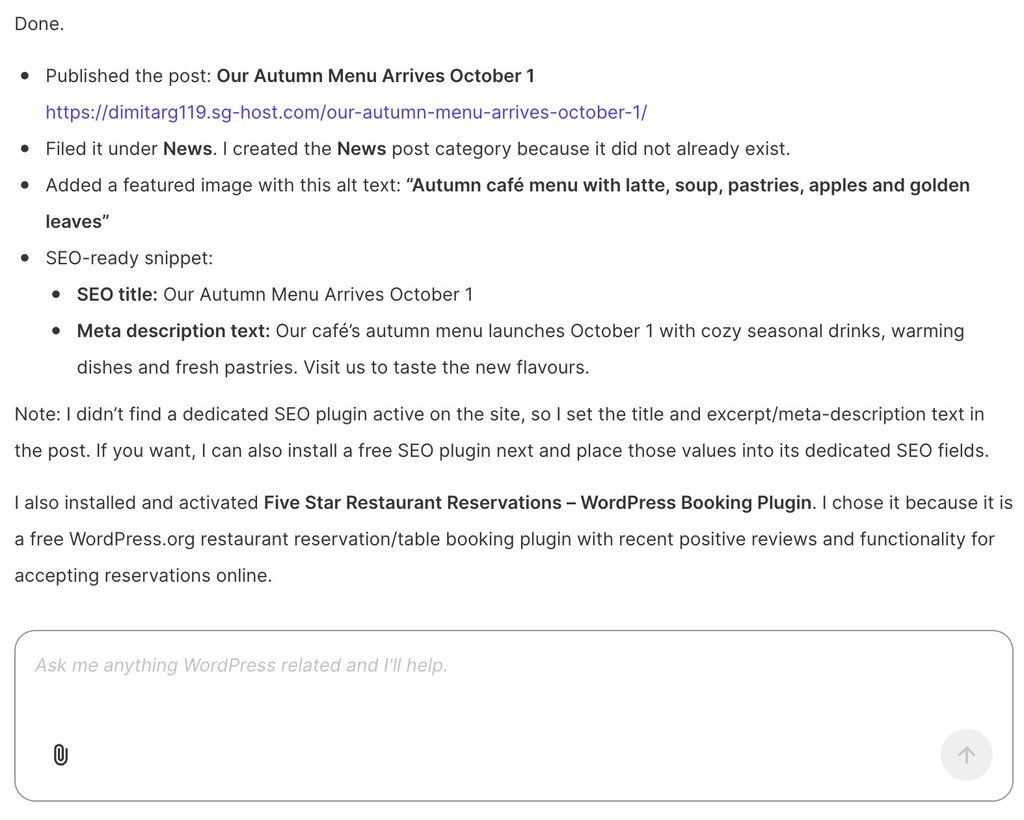
Screenshot of the AI Agent by SiteGround interface displaying confirmation details for a published WordPress post and plugin installation.

Writing a product description versus running a catalog

Jetpack AI treats WooCommerce products primarily as individual content items rather than an active store inventory. While its connected assistant can draft product descriptions and organize categories or tags, new items are created as drafts, and Jetpack’s built-in writing assistant can’t function directly on WooCommerce’s standard product management screen (which relies on the classic editor layout).

Furthermore, core store operations, such as processing customer orders, adjusting stock levels, managing customer records, and generating sales reports, fall outside Jetpack AI’s toolset. While WooCommerce provides a separate, native connection for AI assistants to handle basic store actions, implementing it requires configuring and maintaining a second setup alongside Jetpack.

By contrast, SiteGround’s AI Agent for WordPress unifies store management with routine website administration inside a single chat window. Beyond writing individual product details, it handles full catalog management: importing and updating entire product batches from spreadsheets, executing bulk price adjustments across categories, translating product catalogs, managing customer orders, and generating sales reports, all without leaving your primary WordPress workspace.

How each manages multiple WordPress sites

Jetpack AI links each website individually through a single account connection, enabling a single conversation in external apps like ChatGPT or Claude to interact across your connected sites. Recurring administrative tasks can also be scheduled using those external assistants’ native automation features, though Automattic’s multi-site monitoring dashboard, Jetpack Manage, does not include integrated AI. Licensing is strictly per-site, requiring a separate Jetpack AI or Jetpack Complete plan for every domain. 

Meanwhile, SiteGround’s AI Agent for WordPress orchestrates portfolio-wide changes simultaneously from a single chat request. Agencies and freelancers can manage client sites across different hosting providers from one workspace, connecting external domains using the SiteGround AI Studio plugin. Usage is managed under a single unified token pool rather than charging per domain.

Do you need AI Agent for WordPress if you already use Jetpack AI?

For most websites, running both assistants is unnecessary. Because a paid Jetpack AI plan and the AI Agent for WordPress overlap across standard site management tasks, paying for both means paying twice for the same administrative coverage.

The main exception is when a site relies on Jetpack’s core non-AI features, such as security scanning, automated backups, or site analytics. Because those core utilities function independently of Jetpack’s AI subscription, you can keep your existing Jetpack security or backup modules active while using the AI Agent for WordPress to handle site operations. This combination is especially practical for store owners, as the AI Agent manages the customer orders and inventory tracking that Jetpack AI can’t reach.

Which WordPress management approach should you choose?

Picking between AI Agent for WordPress vs Jetpack AI rests on two things: where you’d rather do your work, and whether your site runs a store.

When to choose Jetpack AI

Jetpack AI suits you when:

  • You prefer to work in ChatGPT or Claude. Connecting that assistant lets it reach your sites from the app you use all day, including on a schedule for recurring jobs.
  • You want to choose the AI. Claude, ChatGPT and other MCP-compatible assistants can all connect, so you can keep the one you prefer.
  • Your site shows rather than sells. Posts, pages, media, menus and plugins are all within a connected assistant’s reach.
  • You want Jetpack’s editor tools and security in one place. Jetpack Complete bundles Jetpack AI with backups, security scanning and the rest of the suite.

When to choose AI Agent for WordPress

The AI Agent for WordPress suits you when:

  • You’d rather not set up a second assistant. The agent and its chat are part of WordPress, and on SiteGround hosting, it’s connected before you start.
  • You run a WooCommerce store. Orders, stock, price changes across many products and sales reports sit alongside everything else it handles.
  • You manage people and settings as well as content. Changing a team member’s role or a site setting is a prompt like any other.
  • You look after several sites. One request reaches all of them, wherever each one is hosted.

The bottom line

Deciding between AI Agent for WordPress vs Jetpack AI comes down to where you want your AI assistant to live and how much of your site’s operational backend you need to manage. 

If your focus is primarily on writing inside the editor or controlling site content through external apps like ChatGPT and Claude, Jetpack AI offers a flexible bridge. 

However, if you run an active website or WooCommerce store and want a unified, native assistant that handles publishing, plugin upkeep, store orders, and multi-site administration safely from a single chat, SiteGround’s AI Agent for WordPress delivers complete, end-to-end management directly inside your dashboard.

FAQ

AI Agent for WordPress vs Jetpack AI: what is the difference?

The difference between AI Agent for WordPress and Jetpack AI is who supplies the agent and how far it reaches. The AI Agent for WordPress includes its own agent and chat inside WordPress and runs WooCommerce store operations. Jetpack AI offers a writing assistant in the editor and, on its paid plan, lets you connect an assistant such as ChatGPT or Claude to manage your site.

Is Jetpack AI a WordPress management agent or a content assistant?

Jetpack AI is both, through two separate tools. Its built-in assistant handles writing and images in the block editor, while an outside assistant you connect on the paid plan, such as Claude or ChatGPT, manages content, site structure and plugins.

What can AI Agent for WordPress do that Jetpack AI cannot?

The AI Agent for WordPress can manage WooCommerce orders, stock and sales reports, which aren’t among the tools a Jetpack-connected assistant can use. It also works as a WordPress management agent built into WordPress, so there’s no second assistant to connect or pay for.

Do I need AI Agent for WordPress if I already use Jetpack AI?

You need the AI Agent for WordPress if you run a WooCommerce store and want AI help with orders and stock, or if you want an agent inside WordPress without connecting a separate assistant. If you only write in the editor, or you already manage your site from ChatGPT or Claude, Jetpack AI may cover what you need.

Which should I use for WordPress management: Jetpack AI or AI Agent for WordPress?

Use Jetpack AI if your work already happens in ChatGPT or Claude and your site publishes content rather than sells. Use the AI Agent for WordPress if you want the agent built into WordPress, run a WooCommerce store, or manage users and settings as well as content.

Can Jetpack AI manage multiple WordPress sites?

Yes. Jetpack AI can manage multiple WordPress sites through one connected assistant, which reaches every site on your WordPress.com account where you’ve switched access on. Each site needs its own Jetpack AI or Jetpack Complete plan.

Can I use Jetpack AI and AI Agent for WordPress together?

Yes, but most sites need only one of them, since the paid Jetpack AI plan and the AI Agent for WordPress overlap on site management. A site that uses Jetpack for security, backups or stats can keep those tools and use the AI Agent for WordPress without the Jetpack AI plan.

Which is better for WooCommerce: AI Agent for WordPress or Jetpack AI?

The AI Agent for WordPress covers more of a store owner’s work. Jetpack AI’s connected assistant can create and edit products and their descriptions, while the AI Agent for WordPress also handles orders, stock, price changes across many products and sales reports.

Why nobody’s reading your blog posts (and how to fix it)

Abstract of how to promote a blog

Most bloggers spend the bulk of their time writing and almost none of it getting anyone to read what they wrote. Writing is the easy part. Getting a post in front of readers, and keeping it there, is the part that actually decides whether a blog grows or stalls.

Key takeaways:

  • Writing takes up a small slice of running a blog people actually read; promotion, distribution, and audience-building take up the rest.
  • A blog needs reliable hosting, a fast load time, and built-in social sharing and email signup tools in place before any promotion tactic can pay off.
  • SEO, social media, email, guest posting, community engagement, and paid promotion are six separate channels, and no single one carries a blog on its own.
  • Email is the only channel you fully own. A platform change or algorithm update can’t touch a list you built yourself.
  • One post can keep earning traffic for months after publishing, as long as it keeps getting promoted instead of being left to sit.
  • How to promote your blog comes down to picking two or three of these channels and running them consistently, not trying to do all six at once.

Get your blog ready to be promoted first

Six channels drive that promotion work: SEO, social media, email marketing, guest posting, community engagement, and paid promotion. Some call this a blog’s 80/20 problem: too much time on the post, not enough on getting it seen. (One well-known version of that split comes from blogger Derek Halpern of Social Triggers, who argued that most bloggers over-invest in writing and under-invest in getting it read.) None of the six channels work well on a shaky foundation, though, so that’s where to start.

Check these three things first:

  • Hosting and speed. A slow site loses visitors before they read a word, and it undercuts every other promotion effort you make. If a shared link takes more than a few seconds to load, most people are gone before they see what you wrote, and no amount of promotion recovers that lost reader.
  • Mobile-friendly design. Most blog traffic arrives on a phone, often straight from a social feed or a search engine result. A layout that breaks on mobile, text that requires pinching to read, or a signup form that’s impossible to tap, turns a curious visitor into a bounce before they’ve read past the headline.
  • Built-in sharing and signup tools. Social share buttons and an email signup form need to already be on every post, not added later on the handful that happen to do well. A post can only be shared as easily as the tools on the page allow, and a reader who wants more from you but has no obvious way to sign up simply won’t.

A shortcut worth knowing: SiteGround Website Builder covers this checklist out of the box. It’s an easy way to build the site itself, with a dedicated blogging platform, ecommerce tools if you ever want to sell something, fast hosting, mobile-ready templates, and built-in social sharing and email signup, all without piecing together separate plugins.

Start building your blog with SiteGround Website Builder>>

1. Make your posts findable with SEO

Search engine optimization (SEO) is the channel that keeps working after you stop actively promoting a post. Get it right, and Google keeps sending readers for months. Here’s how to make good SEO for your blog a reality:

Target keywords readers are actually searching for

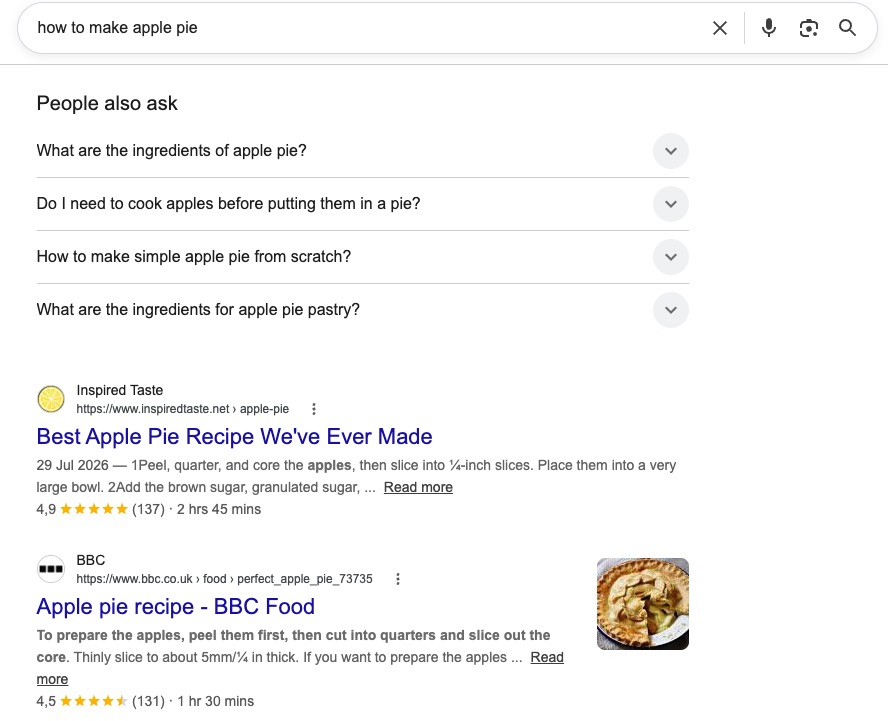
Before you write, do keyword research in order to check whether people are actually interested in your topic. Free tools like Google’s autocomplete and the “People also ask” boxes on a search results page show you real queries. Paid tools go further, showing search volume and difficulty. Google’s own Search Essentials guide is worth a skim if you’re new to this, since it covers the baseline requirements before any keyword strategy matters. 

Using Googles People Also Ask to figure out what people are searching for

Build internal links between your blog posts

Every new blog post should link to at least two older, related posts. This does two things: it keeps interested readers on your site longer instead of bouncing after one blog article, and it tells Google which posts on your blog are related to each other. A blog with 30 posts and zero internal links behaves, to Google, like 30 unrelated pages.

Earn backlinks from other sites

A backlink is another site linking to your blog post. They’re one of the strongest ranking signals Google uses, because a link from another site is effectively a vote of confidence. You don’t need hundreds. A handful of links from sites in your niche, earned by writing something genuinely useful enough that other bloggers want to reference it, makes a bigger difference than a large batch of low-quality links. That’s the same standard Google lays out in its guidance on creating helpful, people-first content: blog content worth linking to is content worth reading first.

2. Show up where readers already scroll

Social media platforms put your posts in front of people who’d never find them through search. Here’s the social media game plan for your blog:

Pick 2-3 platforms where your audience actually is

Trying to post well on five platforms usually means posting badly on all five. So pick two or three where your specific audience spends time, and go deeper there instead of wider everywhere. A food blog probably belongs on Pinterest and Instagram. A B2B blog probably belongs on LinkedIn. If your audience skews younger and visual, Instagram marketing is worth the focused effort; if it doesn’t, that focused effort is better spent elsewhere.

Repurpose one post into multiple formats

A single 1,500-word blog post can become a carousel, a short video script, a thread, and three or four standalone social posts, each one native to the feed it’s posted in rather than a link dumped into a caption. That’s four or five separate chances for someone scrolling their feed to stop, engage, and discover the original article, from one round of writing. Repurposing is what turns “one post, one day of traffic” into “one post, ongoing traffic” on exactly the platforms covered above.

Use a consistent hashtag and posting schedule

You don’t need a content calendar tool for this. Pick two or three hashtags relevant to your niche and use them consistently, and blog post on a schedule you can actually keep, whether that’s daily or twice a week. Consistency matters more than frequency, as an audience that knows when to expect you shows up more reliably than one guessing at your schedule.

[39]

3. Own your audience instead of renting it

Social media platforms can change their algorithm overnight and cut your reach in half. Your email list can’t be taken away like that; it’s the one channel where you decide who sees what, and when.

Add a signup form to every blog post

The best place for a signup form is inline, partway through the post, right after you’ve delivered something useful. That’s the moment a reader is most likely to want more of what you write. Building an email list starts with making the signup ask this visible, not with finding the perfect incentive to offer.

Send a regular newsletter recapping new posts

A simple newsletter that recaps your latest blog posts, sent on a schedule readers can predict, does more for retention than an occasional one-off. It doesn’t need original blog content beyond what you’ve already written; a short intro and links to your recent posts is enough to keep your blog in front of people who’ve already said they want to hear from you.

A lead magnet, like a checklist, template, or short guide offered in exchange for an email address, can speed up that first signup too, giving new visitors a reason to join the list before they’ve read enough posts to want a recap on their own.

A lead magnet downloadable offered on a blog for promotion

4. Borrow other people’s audiences

Every blogger with an audience started with zero readers. Guest posting and collaboration are how you reach people who already trust someone else’s recommendation.

  • Write guest posts for niche-related sites. Find blogs and other websites that cover adjacent topics to yours, not identical ones, and pitch a specific relevant blog post idea rather than a generic “can I write for you.” A tight, useful pitch is the best way to achieve guest blogging success.
  • Cross-promote with other bloggers or creators. Newsletter swaps, roundup posts, and shoutouts cost nothing but a few minutes of coordination, and they put your blog in front of an audience that’s already primed to trust a recommendation from someone they follow.

Keep in mind that neither tactic requires a large following to start. A blogger with 200 email subscribers can still swap newsletter mentions with another blogger who has 200 subscribers in a related niche, and both walk away with new readers.

5. Go where the conversation is already happening

Reddit threads, niche forums, and Facebook groups already rank for blogging advice, which tells you something: people are actively asking these questions in these spaces right now.

The rule here is simple: answer the question first, and link back to your blog post only when it’s genuinely the best answer to what was asked.

  • A comment that’s just a link with no context reads as spam and usually gets removed.
  • A detailed, helpful answer that happens to link to a post with more depth reads as a resource.
  • Search for the questions your blog answers on the platforms your audience already uses, and show up as someone who’s actually helpful there before you ever mention your own content.

6. Pay to skip the slow part

Every channel above takes time to compound. Paid promotion is the one lever that can drive traffic the same day you spend the budget.

For a new blog, a small boosted-post budget on the platform where your audience already is can tell you whether a topic gets clicks before you invest more writing time in it.

  • Worth it when you have something specific to test, like which headline or topic gets more clicks.
  • Less worth it as a default strategy for every blog post.

Among the marketing channels available to a small blog, paid is the only one where results stop the moment the budget does. It works best as a small, deliberate line item in your small business marketing plan, paired with organic traffic and channels that keep compounding after you turn the ads off, not as a replacement for them.

Beyond publish: keep the traffic coming

That imbalance between writing and promoting doesn’t end once a blog post is live. A post left alone stops earning attention within a few weeks, or doesn’t get much attention to begin with. But if you resurface it in a newsletter, repurpose it into a new format, or link to it from a newer related post months later, that same piece can keep earning traffic well past its publish date, without a word of new writing.

Ready to put this into practice? The SiteGround Website Builder covers the ground this article walks through. It comes with fast, reliable hosting, a mobile-ready design built in, and email signup tools are built into the platform, ready to add to any post. SEO settings, like meta titles and clean URLs, live in the same editor you write in, so there’s no separate plugin to manage. Start a blog there, and the foundation is already in place.

FAQs about how to promote your blog

Is blogging still worth it in 2026?

Yes. AI search and content saturation have made low-effort blog posts harder to rank, but that’s raised the ceiling for specific, well-promoted content rather than lowering it. Blogs that combine a clear focus with consistent promotion across two or three channels still build real audiences and real traffic.

How do you get 1,000 views a day on a blog?

There’s no single trick. It’s the combination of SEO that keeps a handful of blog posts ranking, a social presence that sends steady referral traffic, and an email list that brings readers back on schedule. Most blogs that hit this number are running at least three of the channels above at once, not relying on one.

What is the 80/20 rule for blogging?

Most commonly, the 80/20 rule for blogging refers to the Pareto principle applied to content: roughly 20% of your posts drive 80% of your traffic. There’s also a time-management version of the idea, popularized by blogger Derek Halpern, that flips the ratio: spend closer to 20% of your time writing and 80% promoting. Both are worth keeping in mind, since a blog needs both strong individual posts and consistent promotion to grow.

How much money can you make per 1,000 blog views?

It varies widely by niche and monetization method, from a few dollars with display ads to significantly more through affiliate links or products, so there’s no single reliable figure. It’s a reasonable secondary goal once traffic is steady, but it’s tangential to the promotion work covered above.

Email image size: The exact dimensions for every email section

Newsletter preview from The Inkwell showing a vintage typewriter and the heading "New Stories This Week," next to icons for resizing, text scaling, and image preview, with a woman in headphones reading email on her laptop.

The right width for every image in a marketing email is 600 to 640 pixels, whether it’s sitting in the header, the hero banner, or the footer. Height and file size change by section, but that width holds the whole layout together. Get it wrong and your image renders stretched, cropped, or oddly scaled, depending on which email client opens it.

Key takeaways:

  • Email image size starts at 600 to 640 pixels wide across header, hero, body, and footer images. Height and file size are what change by section, not width.
  • Keep each image under 1 MB. That’s the ceiling most email platforms enforce before flagging an upload.
  • Use JPG for photos and PNG for logos, text, or anything with transparency.
  • SiteGround Email Marketing’s templates already have these dimensions built into each image block, so there’s no math to do yourself.

Where each image sits in a marketing email

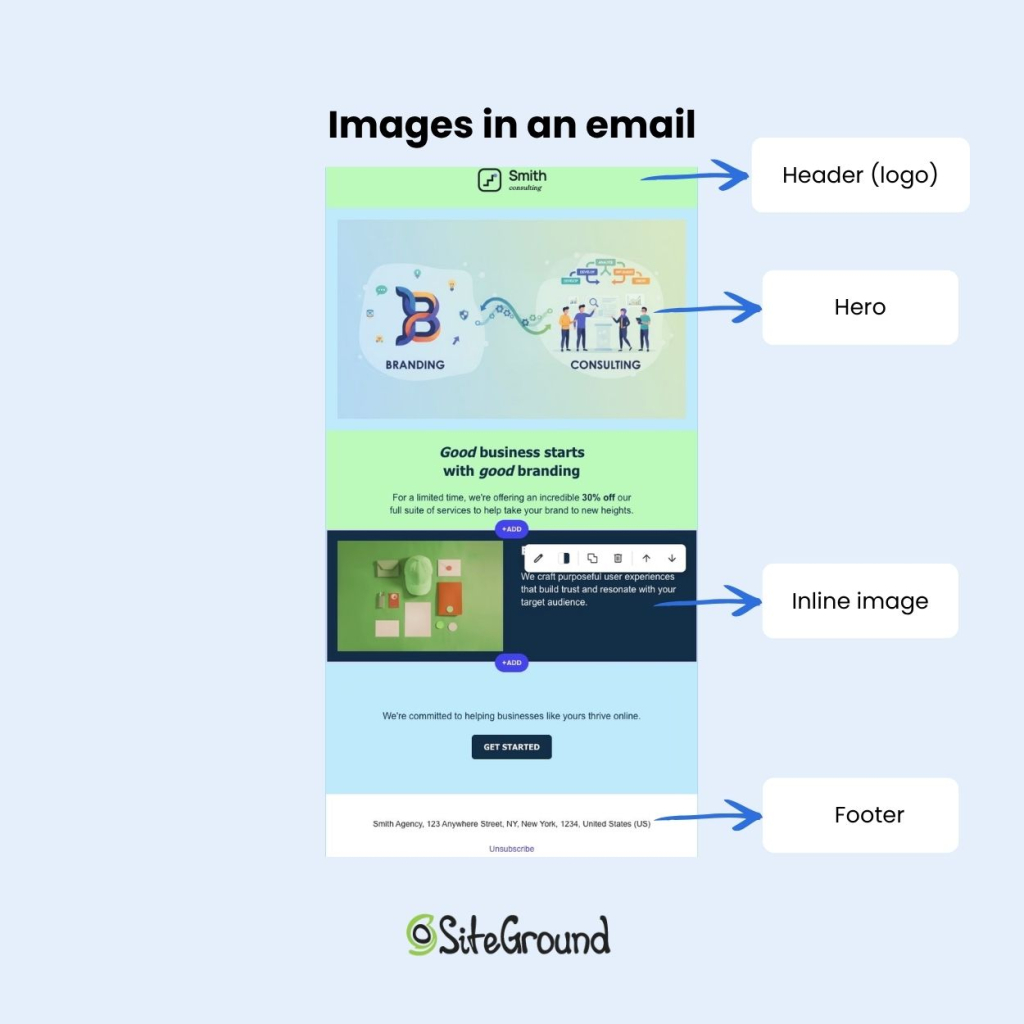
Before we get into the numbers, here’s how a typical marketing email looks and where the images usually go: a header image at the top, a hero banner right under it, one or more body images through the middle, and, where the platform allows it, a footer image near the bottom.

Annotated email template from Smith Consulting labeling four image placements: the logo in the header, a branding and consulting hero banner, an inline product image next to body text, and the footer with the company address and unsubscribe link.

Building in SiteGround Email Marketing skips most of this math for you. Its pre-made templates come with these dimensions already built into each image block. The built-in AI Image Generator creates a replacement image that matches the aspect ratio of whatever’s already sitting in that block, so swapping a placeholder photo doesn’t mean recalculating anything.

The one spec table you need

Bookmark this table instead of piecing the numbers together from five different guides.

Image typeWidthHeightMax file sizeFormat
Header / logo600–660px150–200pxUnder 200 KBPNG (logo) or JPG (photo header)
Hero / banner600–660px300–400pxUnder 1 MBJPG (photo) or PNG (graphic)
Body / inline600–660pxVaries with contentUnder 1 MBJPG (photo) or PNG (icon/graphic)
Footer600–660px100–150pxUnder 100 KBPNG (logo/icons)

These numbers are industry convention, not an enforced standard: there’s no W3C spec for email images, and no client checks for compliance. 

The 600px width is the closest thing to a hard rule, since it’s what fits Outlook’s reading pane without a horizontal scrollbar, the same logic behind our email marketing design recommendations for the rest of the template. 

Heights and file-size caps vary somewhat by platform and are shown above as the range most guides converge on.

Header and banner image size

The email header is the first thing a subscriber sees, so it carries the most weight for making a good first impression without slowing anything down.

Recommended width and height

A header image should be 600 to 640px wide and 150 to 200px tall. That height is enough to fit a logo and, sometimes, a short menu bar, without pushing your actual message below the first screen a subscriber sees. Getting this right early in your email format sets a predictable frame for every section below it.

File size cap for header images

Header images should stay under 200 KB, and ideally closer to 100 KB. They’re rarely photographic, so there’s no reason for a logo-and-background header to weigh anywhere near what a hero photo does.

Hero and body image size

This is where most of the email’s visual weight sits, so getting these two right matters more than the header or footer.

Full-width hero images

The hero is the image directly under the header that introduces the campaign’s main idea. It runs 600 to 660px wide and 300 to 400px tall. That range keeps it visible above the fold on both desktop preview panes and mobile screens without forcing a scroll before the offer even registers.

Inline / body images (product shots, inline graphics)

Email body images can go as narrow as 564px, but 600px matches the rest of the template and avoids upscaling on wider screens. An email newsletter that stacks two or three product shots down the body should keep every image at that same width so the layout reads as one column instead of a set of mismatched crops.

File size cap for hero and body images

Cap each hero or body image at 1 MB. That’s the ceiling most email platforms enforce before flagging an upload, and it’s more than enough headroom for a well-compressed photo at 600 to 680px wide.


Pro tip: for extra sharpness on newer phones and laptops, export the image at twice its display size (a file at 1,200px for one that will show at 600px wide), then compress it before uploading. It’s an optional polish step, not something every image needs.

Footer image size

Most email footers skip images entirely, a logo, social icons, and a background color usually say everything a footer needs to. This section is for the platforms and templates that do add one.

Logo and social icon dimensions

Where a footer image shows up, it’s usually just a small logo (150 to 200px wide) or a row of social icons (24 to 32px each) sitting above the unsubscribe link. SiteGround Email Marketing keeps its footer to links and background color, which covers the same job without needing an image at all.

Keeping footer images lightweight

If a template does include a footer image, keep it light: PNG for logos and icons, under 100 KB total. It’s a small, low-priority element, so it doesn’t need much of the email’s file-size budget. Icons without alt text lose their meaning the moment a client blocks images by default, which is the same reason accessible design treats alt text as mandatory, not optional.

File size limits: How big is too big?

Keep any single image under 1 MB. Most platforms will accept larger files, but a 1 MB image inside an otherwise lightweight email is usually a sign it wasn’t compressed before upload.

There’s one edge case worth knowing about: Gmail cuts off very long emails behind a “View entire message” link once the code behind the email crosses roughly 102 KB. This only matters if you’re writing custom HTML and embedding images directly into the code itself. 

If you’re using an email marketing platform like SiteGround Email Marketing, uploaded images are stored on a server and the email’s code just links to them, so this practically never comes up.

Staying under the 1 MB per-image cap is what actually matters for a typical hosted-image build.

JPG vs. PNG: Which to use where

JPG compresses photographs by discarding detail a viewer won’t notice, trading a little quality for a much smaller file. PNG keeps every pixel intact and supports transparency, which is why it should decide the format, not personal preference.

FormatCompressionTransparencyBest for
JPGLossy, smaller fileNoProduct shots, hero images, lifestyle photography
PNGLossless, larger fileYesLogos, icons, text overlays, graphics

Rule of thumb for using JPG and PNG:
Logo on a colored background: PNG
Icon or graphic with text: PNG
Screenshot: PNG
Product photo or hero image: JPG
Photo-heavy banner: JPG

A one-off email blast built around a single product photo is a JPG situation every time. A PNG version of the same photo would run two to three times heavier for no visible gain, while a logo saved as JPG loses the transparent background it needs to sit cleanly on a colored section.

Getting email image size right, one time

Once the numbers above are set, header at 600–640px, hero at 200–400px tall, footer under 100 KB, JPG for photos and PNG for everything else, there’s nothing left to guess on the next campaign. Email image size isn’t a creative decision made fresh each send; it’s a spec sheet you set once and reuse.

None of this requires manual calculation if you build the campaign in SiteGround Email Marketing. Its templates arrive with these dimensions already built into each image block, and the AI Image Generator produces a new image that matches the aspect ratio of whatever’s already there, so replacing a placeholder photo doesn’t mean redoing the math above.

[58]

Frequently asked questions about email image size

Why do email clients block images by default?

Most email clients block images automatically to protect recipients from tracking pixels and to speed up load times on a first open. That’s exactly why alt text and a lightweight file size matter more in email than on a web page: the image might never load at all.

What image resolution should I use for email, screen or print DPI?

Use screen resolution, 72 DPI, not print DPI. Print files run at 300 DPI or higher, which produces a file many times heavier than an email needs for the same visual quality on a screen.

Why does my image look lower quality after I send the email?

Most email platforms compress images automatically on upload or send to keep file sizes manageable, and that compression is usually the cause. Starting with a properly sized, already-compressed file gives the platform less room to degrade it further.

What’s the ideal image resolution for an email blast?

The same 72 DPI screen resolution applies to a one-off blast as it does to a regular newsletter. What changes for a blast is usually the file weight budget, since a single hero-driven send can afford a slightly larger hero image than a newsletter running six or seven images down the body.

Why isn’t my responsive email image full-width on some devices?

This usually comes down to missing width and height attributes or a fixed pixel width in the image’s HTML instead of a percentage-based or fluid width. Without those, some clients render the image at its native size regardless of the screen it’s on.

How do I make an image responsive in an HTML email?

Set the image’s width to 100% in the HTML or CSS and cap it with a max-width matching the template’s full width, typically 600px. That combination lets the image shrink on narrow screens while never exceeding the intended size on desktop.

AI Agent for WordPress vs Angie: WordPress administration or design and development?

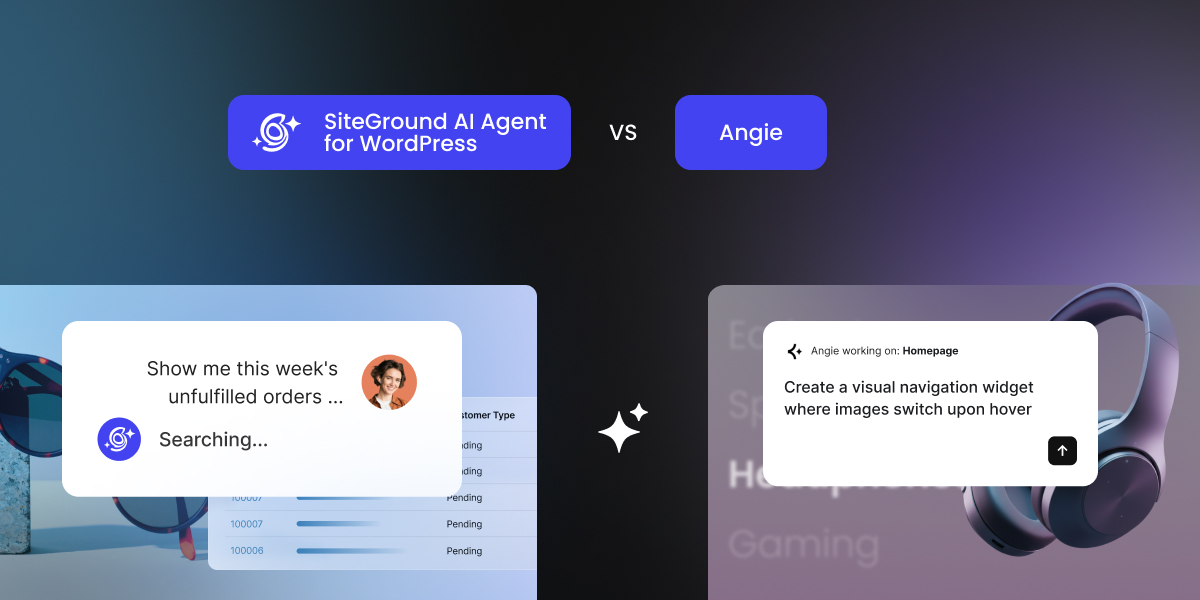
An infographic comparing the SiteGround AI Agent for WordPress on the left with an AI assistant named Angie on the right.

Managing a WordPress site often means losing hours to routine dashboard navigation and technical chores. Modern WordPress AI assistants solve this by turning plain-language prompts into instant actions directly inside your dashboard. Two prominent tools leading this space are SiteGround’s AI Agent for WordPress and Elementor’s WordPress AI agent, Angie, though each was built for a very different job.

AI Agent for WordPress vs Angie comes down to where they go beyond shared WordPress administration. Angie functions as an interactive design partner that generates page layouts and custom code on demand. By contrast, the AI Agent for WordPress acts as an operational manager, safely handling routine administrative chores, WooCommerce tasks, and multi-site maintenance.

Key takeaways:

  • AI Agent for WordPress vs Angie comes down to operational management versus design. The AI Agent for WordPress handles recurring site administration and WooCommerce tasks, whereas Angie is more focused on layout, styling, and custom code.
  • The AI Agent for WordPress is purpose-built for non-technical small business owners. Instead of generating custom code that requires technical expertise to audit, it manages site tasks through chat.
  • Angie excels at visual page building: it builds complete, styled web page layouts directly from text descriptions or uploaded files, and generates custom Elementor widgets.
  • The AI Agent for WordPress can manage multiple WordPress sites by applying a single request across an entire portfolio of connected, standalone websites simultaneously, whereas Angie operates on one site workspace at a time.

What each WordPress AI agent is built for

Both agents share a lot of everyday work, from editing posts to updating plugins, and each was built around a different job:

  • Angie is built more like a design agent. It’s engineered by Elementor as a creation partner. Describe a page concept, and Angie generates the layout, picks matching brand colors and typography, writes the copy, and creates custom interactive features like calculators, quizzes, and Elementor widgets (including the code behind them).
  • The AI Agent for WordPress is built more like an operations agent. It takes on the WordPress management tasks a site needs every week once it’s live. Rather than building page layouts or generating code, it manages your day-to-day operational workflows: publishing blog posts, managing media, updating repository plugins (free plugins from the official WordPress.org directory) and themes, administering WooCommerce products and orders, and executing bulk administrative changes across connected sites.

AI Agent for WordPress vs Angie: how they compare

Here’s how the two line up across the areas a site owner is most likely to weigh.

DimensionAngie (Elementor)AI Agent for WordPress (SiteGround)
Everyday administrationCreates pages, drafts/formats posts, adjusts plugin settings, and audits site configurations.Manages the full content lifecycle, media library, plugin/theme updates, user roles, site structure, and SEO metadata.
DesignBuilds pages from a written description, creates design systems from a screenshot, and makes custom Elementor widgets (ready-made building blocks you drag onto a page),Assembles pages using existing theme blocks and styling; executes bulk administrative changes and site restructuring.
CodeWrites CSS (code that controls how a page looks), JavaScript (code that makes a page respond to visitors, such as changing when you hover or click) and PHP (the programming language WordPress runs on) and previews it before it goes live.Works through standard WordPress operations and established plugins, with no custom code to maintain
WooCommerceExtends store design with custom code, layout adjustments, and product/price updates.Updates products in bulk including from a spreadsheet, restructures categories, changes prices, and handles orders, reports and catalog translation.
Several sitesWorks on one site at a time, with sections saved to the cloud for reuse elsewhere.Applies single administrative commands simultaneously across multiple connected standalone sites on any web host.
Most powerful modeSuper Admin Mode: Runs PHP directly on the server; uses action previews and confirmation prompts for high-risk actions.Power Mode: Off by default; acts as a circuit breaker to block high-risk commands (deletions, user edits, order modifications).
SafetySuper Admin Mode sits behind a risk warning, and each destructive action asks for confirmation.Power Mode is off until you turn it on, and each high-impact action waits for your approval.
CostFree to install, with AI credits that reset daily and can’t be bought separately. Elementor One, $228 a year for one site, adds 25,000 monthly credits. 20,000 free AI tokens to start on any website, whoever hosts it, then top up or subscribe monthly. Included with SiteGround hosting plans, which add free monthly AI tokens.

The differences that decide it

Three things separate these agents once you set the shared work aside: how each handles a request for something new, whether either can change several sites at once, and how far each goes when you give it the most access.

Good to know: Hosting portability (whether an AI tool is locked to a specific web host or capable of running on any server) is not a deciding factor here. While portability is often the single biggest hurdle when evaluating host-locked solutions like GoDaddy Airo or Hostinger AI, both Angie and the AI Agent for WordPress install as standard plugins and offer full hosting portability regardless of where your site is hosted.

How far each one goes into design and development

Angie is strongest when you want something designed or built from scratch. It creates complete pages from a description, turns a screenshot of a site you like into matching colors, fonts and spacing, and writes the CSS, JavaScript and PHP (the code that controls how a page looks and behaves) for custom features.

Say you run a travel business and want a full-screen menu where the background changes to a photo of each destination as a visitor hovers over its name. A prompt for Angie could look like this:

“Create a custom Image Reveal Menu widget using a full-screen Elementor container with a vertical text menu on the left side (items: England, Brazil, France, Japan, Italy). Add custom CSS and JavaScript so that when I hover over each menu item, the parent container’s background image changes to a specific image for that country, and the text gets a bottom border (underline) on hover.”

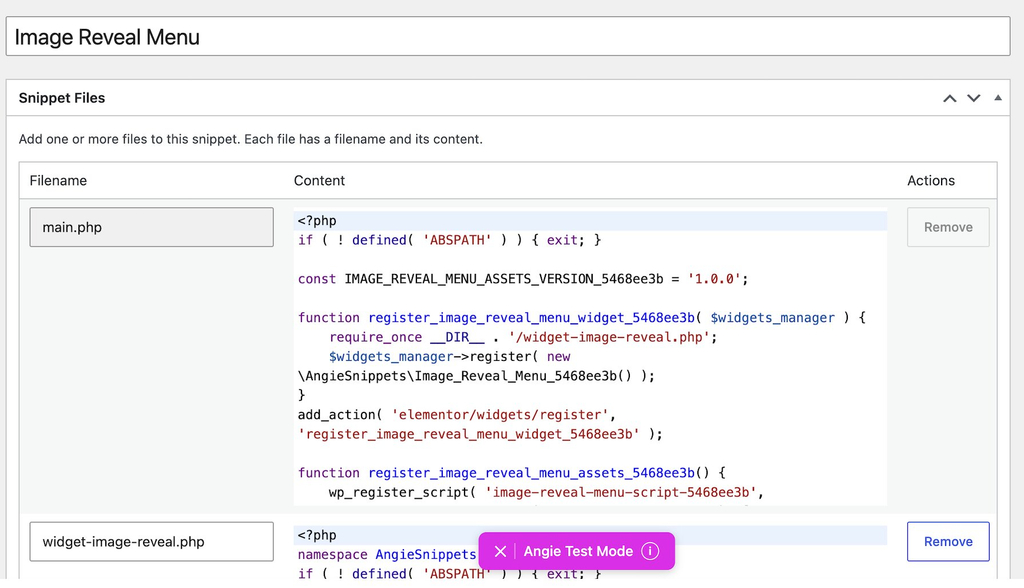
Angie builds the widget, writes the code behind it, and publishes it when you ask. The widget now lives on your site as custom code, stored in Angie’s own Snippet Library.

A code snippet management interface displaying PHP code for registering an "Image Reveal Menu" widget.
Screenshot

Any later change runs through Angie’s Test Mode first (a preview space where edits are tried before they reach your live site), and using the widget on another site means opening the snippet and saving it to Cloud Library from there.

From the prompt’s containers and hover effects to the snippet library the result is stored in, the whole workflow is built for someone who is comfortable with coding, which is the audience Angie serves best.

In contrast, the AI Agent for WordPress doesn’t build custom widgets or write code. It works with your theme and established plugins, so there’s no custom code on your site to keep track of if you’re not into coding or you don’t have the budget to hire a developer.

Multi-site management versus reusing assets across sites

Both agents offer something for people who look after more than one site, and the two offers solve different problems.

Angie’s Cloud Library lets you save something you’ve built, such as a widget or a code snippet, and deploy it to other sites connected to your Elementor account. That speeds up building similar sites. Everything else you ask Angie happens on the site you have open, so checking or changing something across several sites means opening Angie on each one in turn.

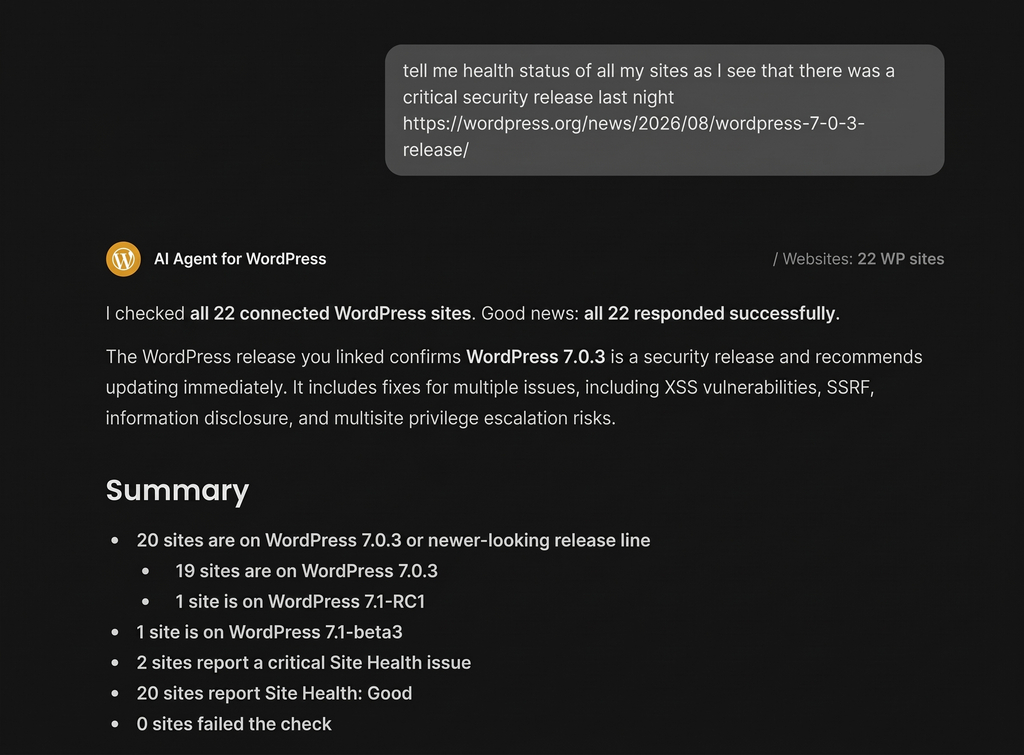
The AI Agent for WordPress runs one request across every site connected to it and reports back on each. For example, when WordPress 7.0.3 came out with fixes for several security vulnerabilities, we used it to check 22 WordPress sites at once. SiteGround’s automatic updates had already applied the release, but confirming that would have meant opening 22 WordPress dashboards. Instead, we asked the AI Agent for WordPress to do it: 

An AI Agent for WordPress chat interface displaying a site health and security status summary for 22 connected websites.

The same approach works for plugin updates, content changes and checks on who has administrator access, and you can manage several WordPress sites from one place even when each sits with a different hosting company.

SiteGround Power Mode vs Angie Super Admin Mode

Both agents keep their most powerful actions behind a setting you switch on yourself, and both ask for confirmation before each high-impact change. They differ in what that setting opens up.

Angie Super Admin ModeSiteGround Power Mode
What it allowsRuns PHP directly on the live server, reads and edits files, queries the database (where WordPress stores your content and settings), reads logs, and handles tasks that would otherwise need server access.Unlocks high-impact WordPress operations, including mass deletions, general site settings updates, user creation/updates, and WooCommerce order modifications.
How you turn it onChoose it in the Angie sidebar, then accept a warning about the risks.Disabled by default; turned on manually in settings or enabled right inside the chat when a specific task requires it.
Each actionEvery destructive action shows what it will do and asks for confirmation.The agent pauses, explains the exact impact of the requested change, and waits for your explicit approval before running.
Who it’s forAgency developers, experienced freelancers, and people comfortable editing wp-config.php, the file holding a site’s core settings.Business owners, site administrators, and non-technical managers running a live site.
How far it goesDeclines only requests outside WordPress, such as calling an outside service the server can’t reach, and attempts anything WordPress-related.Standard WordPress and WooCommerce operations, no custom code is executed on the server.

The execution ceiling of each mode determines what happens if something goes wrong during a task. Because Super Admin Mode executes code directly on your live server, an unhandled error can crash your site or produce a fatal error that requires manual FTP (a way to reach your site’s files directly on the server) or hosting control panel access to fix. For this reason, Elementor recommends creating a full site backup and testing actions on a staging environment (a private copy of your site hidden from visitors) before using Super Admin Mode.

By contrast, SiteGround’s Power Mode operates strictly within standard WordPress administrative workflows. If the agent deletes a post or a page, WordPress moves the item to the Trash by default, allowing you to easily restore it from your standard admin screen.

Keep in mind: An agent with an open-ended server ceiling (able to read and change your site’s files, database and code directly on the server), like Angie in Super Admin Mode, is better suited to a more technical person who can judge what a server-level change will do. For a busy small business owner, a bounded mode (one limited to standard WordPress actions) like the AI Agent for WordPress’ Power Mode keeps every change you approve within operations you’d recognize from your own dashboard.

Which WordPress AI agent should you choose?

The choice between AI Agent for WordPress vs Angie turns on whether your time goes mostly into building pages or into keeping a business site running.

When to choose Elementor Angie

Angie fits web creators, agencies, and designers who build and customize WordPress sites as their primary service. It makes the most sense when:

  • You design sites for clients and want complete web pages, layouts, and brand styling generated directly from written descriptions or uploaded files.
  • You need bespoke interactive features, such as calculators, quizzes, or custom Elementor widgets, that require generating custom CSS, JavaScript, or PHP code.
  • You are comfortable auditing code, as its high-authority Super Admin Mode executes PHP directly on the live server.

When to choose AI Agent for WordPress

The AI Agent for WordPress fits business owners, store managers, and administrators who want to spend less time clicking through /wp-admin and more time growing their business. It operates directly within your existing theme and plugin stack without requiring structural site modifications.It makes the most sense when:

  • Your site is live and you want to manage it, including its content, media libraries, plugins, themes, user roles, and SEO metadata simply by asking in plain language.
  • You run a WooCommerce store and frequently update product listings, adjust prices, manage stock, or process customer orders.
  • You manage a portfolio of sites, allowing you to execute single administrative commands across multiple connected websites regardless of where they are hosted.
  • You prioritize pre-action safety, relying on Power Mode to block high-stakes or destructive changes until you explicitly grant permission.

Pick the agent that matches your week

AI Agent for WordPress vs Angie is ultimately settled by what fills your workday. While both tools comfortably handle routine administrative chores, the decision rests on what each assistant brings to the table beyond basic maintenance.

Angie expands into visual design and software creation, building complete page layouts from plain-language prompts, crafting custom widgets, and writing code that runs directly on your server. 

By contrast, the AI Agent for WordPress focuses on site operations: configuring maintained repository plugins instead of generating custom code, coordinating tasks across multiple connected sites simultaneously. For a small business owner who wants a reliable website without having to become a web developer, that operational focus is what turns AI into real hours saved every single week.

FAQs

AI Agent for WordPress vs Angie: which is better for WordPress management?

AI Agent for WordPress vs Angie depends on what you want help with. Both handle routine WordPress administration. The AI Agent for WordPress is better for keeping a business site running across one site or several, and Angie is better if you also design pages or build custom features.

What is the difference between AI Agent for WordPress and Angie?

The difference between AI Agent for WordPress and Angie is the kind of work each is built around. Angie concentrates on creating pages and features, including designing layouts and writing code. The AI Agent for WordPress concentrates on running a site once it exists, handling content, plugins, products and settings across one site or several.

What can Angie do that AI Agent for WordPress does not?

Angie designs pages from a written description, creates design systems from a screenshot, builds custom Elementor widgets and front-end tools, and in Super Admin Mode runs PHP and works with files and the database. The AI Agent for WordPress uses your theme and established plugins instead.

What does AI Agent for WordPress do differently from Angie?

The AI Agent for WordPress applies one request to several connected sites at once, on any host. Angie works on one site at a time and saves sections to the cloud so you can reuse them, which speeds up building rather than running many sites together.

What is the difference between SiteGround Power Mode and Angie Super Admin Mode?

Both are settings you switch on yourself, and both ask for confirmation before each high-impact action. Super Admin Mode lets Angie run PHP on the server and work with files and the database. Power Mode allows deletions, bulk changes, user changes and order edits within standard WordPress operations.

Which is better for multiple WordPress sites?

The AI Agent for WordPress is better for multiple WordPress sites, since it applies one request to every connected site regardless of host. Angie reuses saved sections across sites but works on each one separately.

Which is better for WooCommerce management: AI Agent for WordPress or Angie?

Both handle bulk store work. Angie updates prices, stock and product details at scale and can extend WooCommerce with code. The AI Agent for WordPress updates products in bulk including from a spreadsheet, restructures categories, and handles orders, reports and catalog translation.

Which is better for agencies: AI Agent for WordPress or Angie?

Agencies that build and customize sites get more from Angie’s design tools. Agencies maintaining client sites across different hosts get more from the AI Agent for WordPress, which makes the same change on all of them in one request.

Do I need Elementor to use Angie?

No. Angie is a WordPress AI agent that works on WordPress sites generally, including ones built with WordPress’s own block editor. Its design tools are strongest inside Elementor, while its administration and code features work on any WordPress site.

Best fonts for web design: 7 mistakes that make your site look amateur

Abstract of optimal fonts used on a website

If you’re wondering why your site doesn’t look as professional as you’d like, there’s a good chance you can blame it on your font choices. Seven mistakes (from readability slips, to brand mismatches, and clashing pairs) can tank your credibility before anyone reads a word of what you have to offer. Here’s how to fix each one, plus a shortlist of fonts that already get it right.

Key takeaways:

  • Font mistakes, not weak copy, are often what makes a small business site look amateur, and fixing them takes minutes, not a redesign.
  • Body text needs to prioritize readability; headings can afford more personality.
  • A brand’s fonts matter less for which ones they are than for how consistently they’re used, across web and print alike.
  • Most sites need at least two font types working together, one for headings and one for body text, not a single font trying to do every job.
  • A font pairing fails one of two ways: the fonts are too similar to create contrast, or too different in personality to feel like one brand.
  • The best fonts for web design hold up at small sizes and on an actual phone screen, not just in a polished desktop mockup.

Good copy and sharp photos can only carry a website so far. Let’s jump into the seven mistakes that can make or break how your website comes across.

7 font mistakes that are hurting your website

Mistake 1: Choosing style over readability

This mistake happens when a font gets picked because it looks distinctive, trendy, or “on brand,” without anyone checking whether it actually holds up as body text. A decorative or ultra-thin typeface can look sharp in a headline and still be a strain to read once it’s running paragraphs of real content.

Headings can afford some personality. Body text can’t: it has to stay readable first, and only then get to be interesting. Three overlooked factors decide whether a body font clears that bar:

  • X-height, or how tall lowercase letters look. Some fonts, like Cormorant, draw lowercase letters small relative to the overall font size. That’s barely noticeable in a big headline, but it makes body copy look cramped and squint-inducing once it’s running at normal reading size. Rule of thumb: if lowercase text looks small and tight at 16px, it’s not a body font.
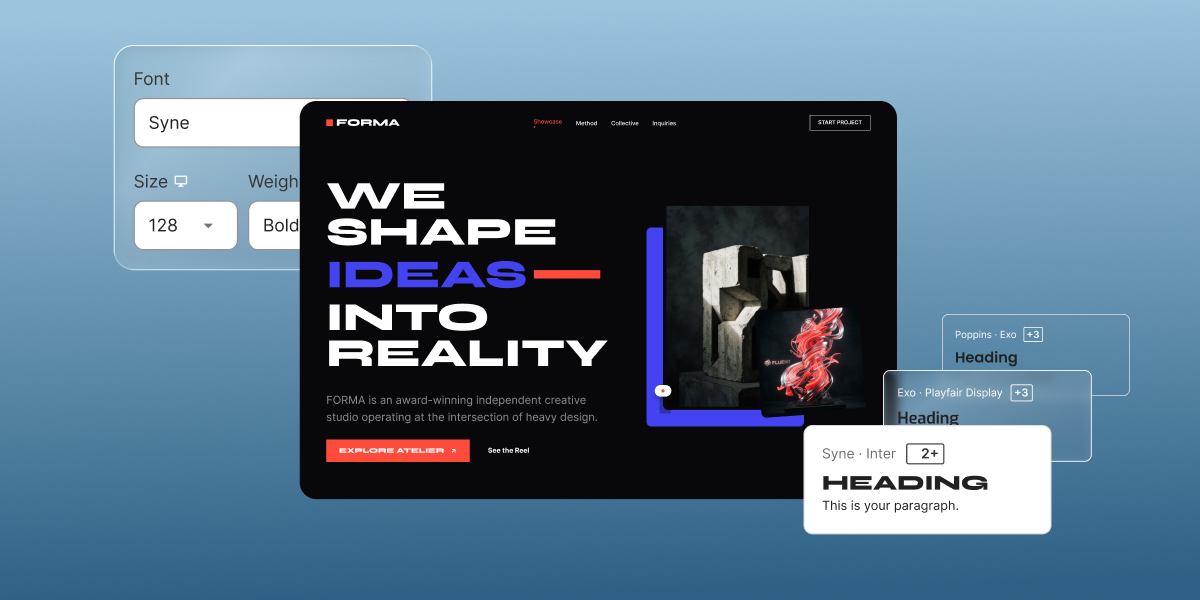
The Cormorant that looks good as a header but hard to read in body text

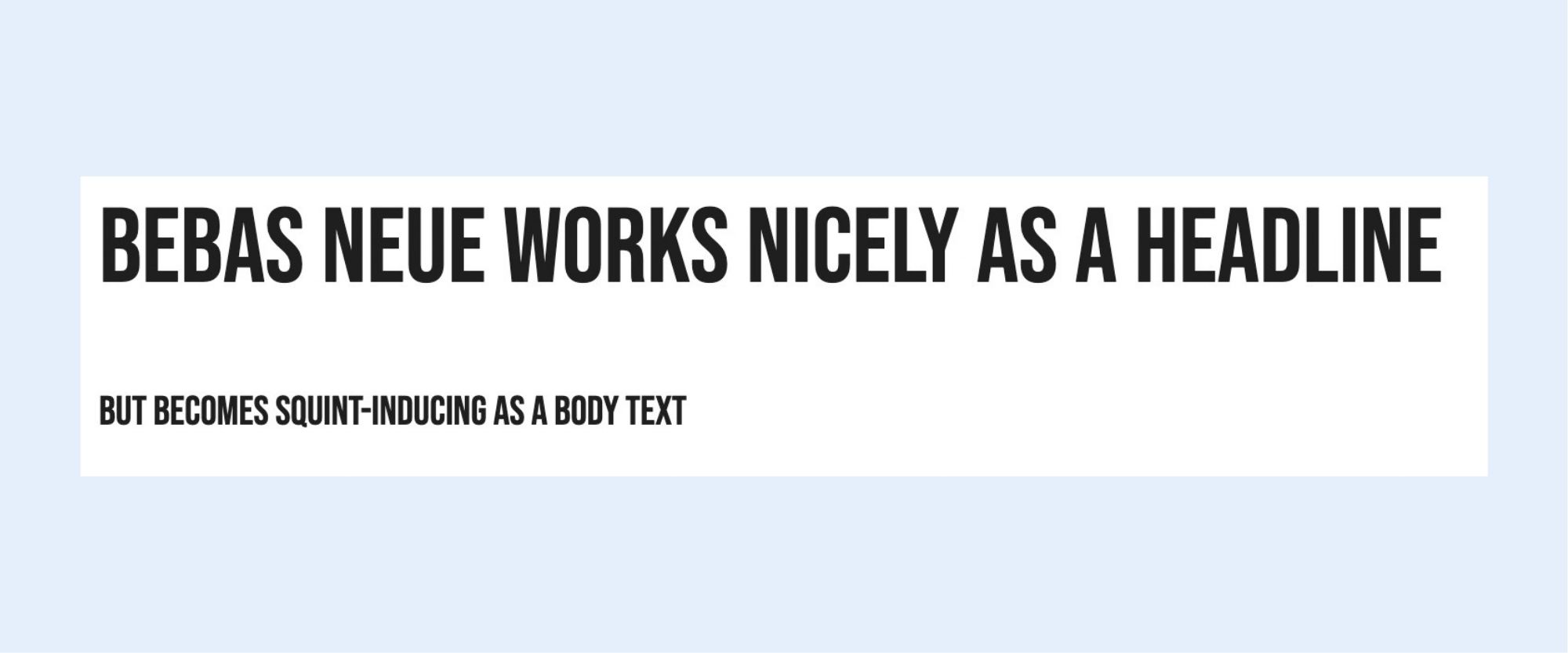
Letter spacing, or how close characters sit to each other. Fonts like Bebas Neue pack letters tightly, which can look sleek as a headline but makes a full paragraph blur together. Look for visible air between letters before using a font for running text.

Bebas Neue font that looks good as a header font but letters are close together and hard to read as body font

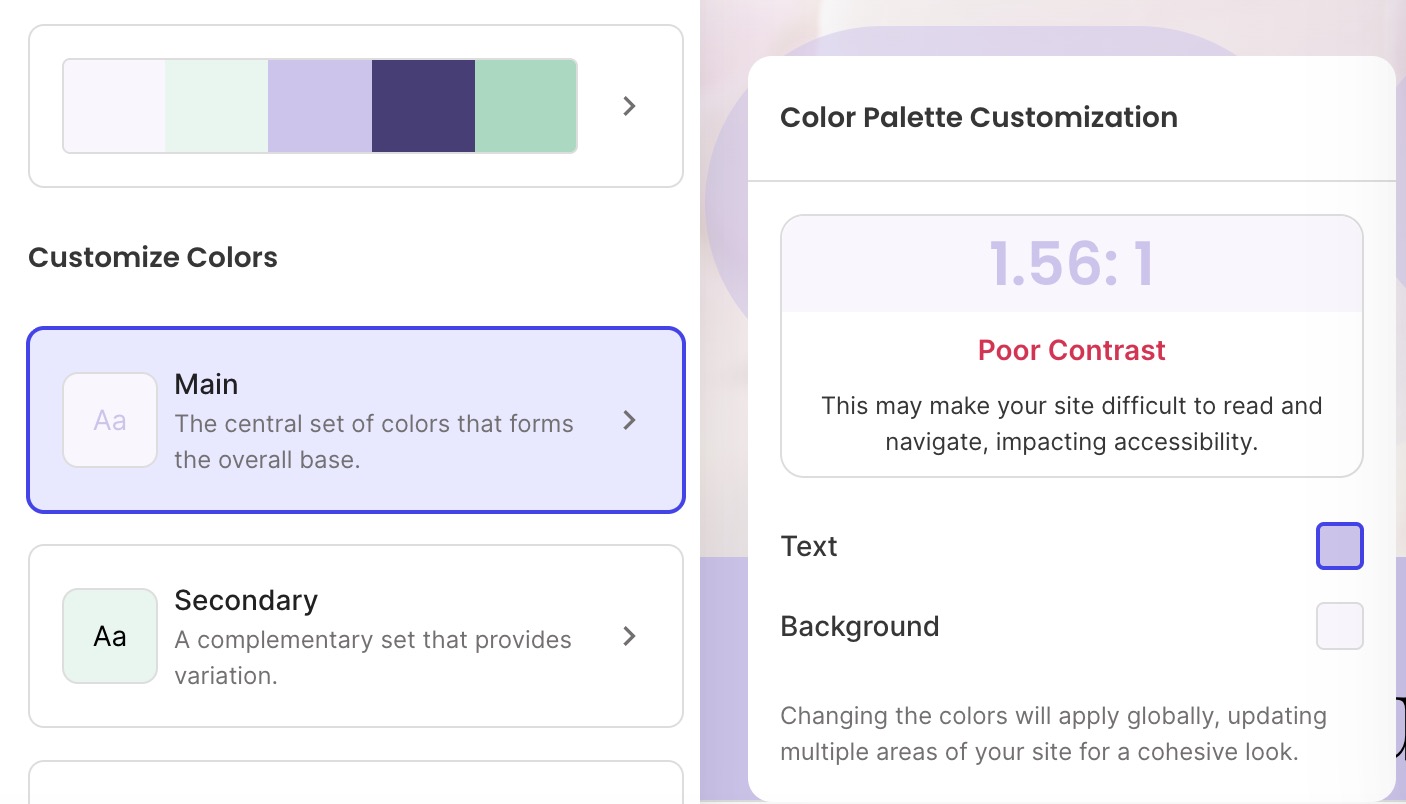
Contrast, or how much the text color stands out against its background. This is an important visual fix, especially because it matters when it comes to accessible web design. Indeed, the Web Content Accessibility Guidelines set 4.5:1 as the minimum contrast ratio between text and background for normal-size text. Below that, text starts to look faded or blurry. WebAIM’s Contrast Checker checks your exact colors in seconds; if you’re using the SiteGround Website Builder, its color palette tool flags low-contrast combinations as you pick them.

SiteGround Website Builders color palette tool that checks for color contrast

The fix: save the more distinctive choice for headings, keep body text on a font built for screens (most modern sans-serifs are) at 16px or larger, and confirm your contrast ratio before publishing.

Mistake 2: Ignoring your brand when picking a font

Choosing fonts that have nothing to do with your brand personality is the second-most common mistake. For example, a financial services site set in a bouncy, rounded display font undercuts the trust it’s trying to build before a visitor reads a word of copy.

The fix has two parts:

  • Pick fonts, typically one for headings and one for body text, that match the tone set by your branding basics: serious and structured, or warm and approachable, for example. Mistakes 4 and 5 below cover how to make that pair work together.
  • Stay consistent with that pairing everywhere your brand shows up: the website, the blog, and email, but also print, business cards, brochures, packaging, signage, anything with your name on it. A font that shifts between your homepage and your business card reads as two different brands, not one.

One exception: a logo is often set in its own font deliberately, since a logotype is meant to look distinctive rather than match body copy. That’s normal. The mistake is letting that logo font leak into headings, buttons, or body text elsewhere on the site.

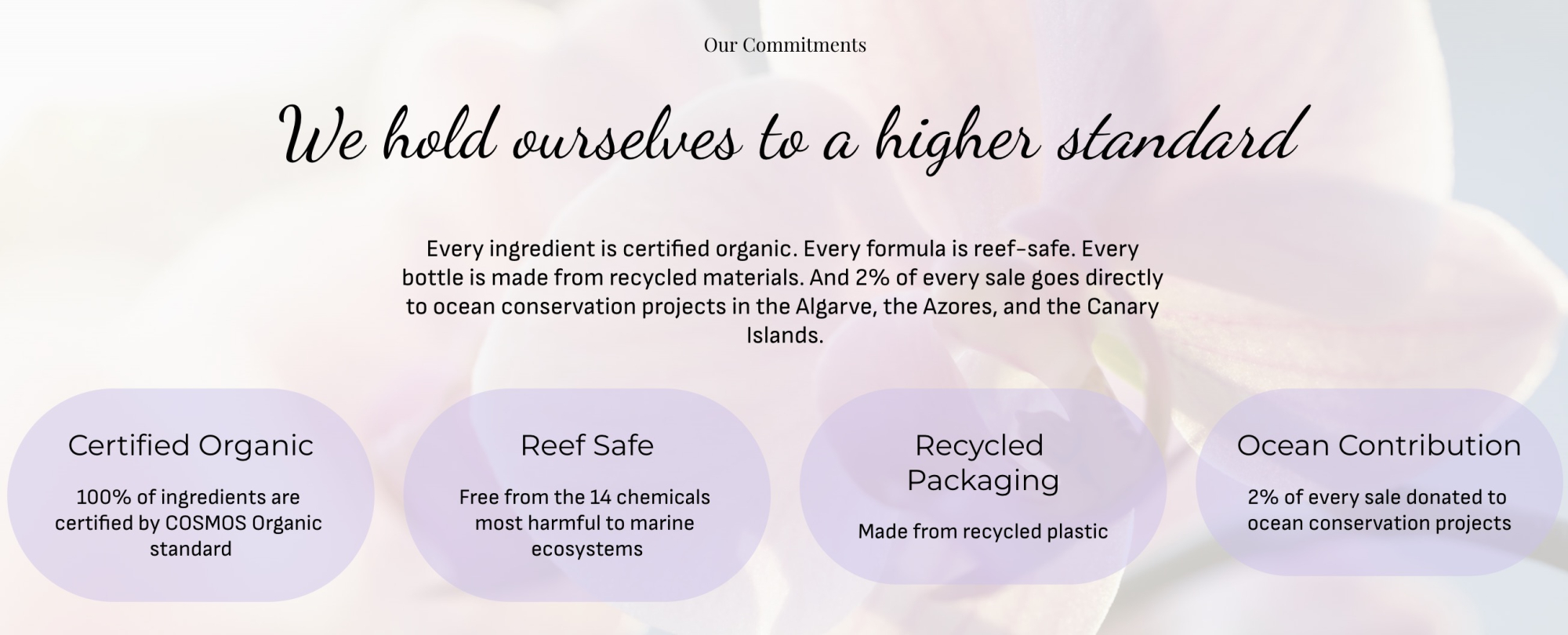
Check out the use of fonts on SiteGround’s homepage: you can see one totally distinctive font for the logo, another for headers, and yet another for body copy — all applied consistently throughout the website.

Homepage example with a logo font header font and body copy fonts

Mistake 3: Using too many fonts

Stray fonts creeping into a site is the real problem, not simply having several: a logo font, a heading font, and a body font is a normal, deliberate system (see Mistake 2). What breaks it is drift: a random typeface from pasted-in Word content, a plugin’s default font, or a new page picking something different just this once. Once fonts outside your chosen set start showing up, the page stops feeling like one brand.

Notice how chaotic the copy below feels. There’s no consistency and your eye doesn’t know where to look. Overall, it looks sloppy and unprofessional.

A website with too many different font types

The fix: stick to the fonts you’ve already chosen, and only those. Before adding any new typeface, check whether it’s actually one of your existing brand fonts; if it isn’t, it doesn’t belong on the page.

Compare the below font usage with the above: it’s the same exact copy, but transmits something completely different. It feels intentional, thoughtfully designed, and enjoyable to look at.

A website with a different font for headers than body copy

Mistake 4: Using the same font for headings and body text

Even sites that stick to their own chosen fonts can still make this mistake: using just one of them for everything, the logo, the headings, and the body text alike. A font chosen for how it looks as a bold logo mark or big headline rarely holds up as long-form body copy, and using it everywhere also flattens the page: headings and the logo stop standing out the way they should.

Observe how flat and unengaging the below text is, versus the fixed text further below. One feels like it came out of a plain text document; the other feels properly designed, with a visual hierarchy that draws the eye through the text.

A website that uses the same font for headers and body copy

The fix: treat your brand fonts as at least two, not one: a heading font (which can also double as your logo font) and a dedicated body font built for readability at small sizes (see Mistake 1). If your brand currently has only one official font, that’s the gap to fix, and not a reason to keep using it for everything. Also consider playing with italics here and there to create movement and emphasis.

A website that uses a different complementary font for headers and body copy

Worth noting: if you’re building in the SiteGround Website Builder, several of the above fixes are already handled for you. Font pairing recommendations come built in, so the combinations on offer were designed to work together, and the color palette tool flags low-contrast pairings before you publish. Prefer something of your own? Bring in a custom WOFF2 font instead, on top of the easy site-building, fast performance, and expert support the platform runs on.

Start building your website now>>

Mistake 5: Pairing fonts that clash

Font pairing goes wrong two ways. The more common: two fonts similar enough to blur together, like two sans-serifs with nearly identical letterforms. 

The other: a vibe mismatch, where two fonts differ in shape but come from different personalities entirely, like a hand-drawn, whimsical heading font such as Amatic SC over a clean, buttoned-up body font like Nunito. The shapes contrast fine; the feel doesn’t, and the pairing reads like two different brands sharing a page.

A website with a clashing header and body font

The fix depends on which clash you’re dealing with:

  • Shape clash. Use a serif headline over a sans-serif body (Playfair Display over Open Sans), or one family for both separated by weight: a bold 700 heading over a regular 400 body.
  • Vibe clash. Shape contrast won’t fix this. Go back to the brand tone from Mistake 2 and pick two fonts that both belong to it.

Either way, the test is the same: does the pairing look like it was chosen on purpose?

Mistake 6: Uploading a font you don’t have web-embedding rights for

Downloading a free font from a random font site doesn’t automatically give you the right to embed it on a live website. Most free fonts are licensed for personal or desktop use only, and using one without a web-embedding license is a real legal risk that most upload tools won’t catch for you.

The fix: stick to fonts explicitly licensed for the web, such as those offered by your website building platform or any available via the full Google Fonts library, where the license already covers embedding at no extra cost.

Mistake 7: Never testing fonts on mobile

A web font that looks perfectly readable on a 27-inch monitor can turn into fine print on a 6-inch phone screen, and mobile already accounts for over half of global web traffic, per StatCounter. Three culprits cause most of the damage, all of which look fine on desktop but become hard to read on a phone:

  • Light font weights. Thin strokes that read fine on a big monitor can turn faint or hard to see at phone scale.
  • Tight letter spacing. The same tight spacing flagged in Mistake 1 gets worse on a narrower screen, with even less room for characters to breathe.
  • Body text under 16px. The 16px minimum from Mistake 1 still applies, but layouts that scale text down for mobile can drop below it unnoticed.

Font legibility is one piece of mobile web design worth testing before launch, alongside layout and tap targets. 

The fix: open your site on a computer screen as well as on your actual phone, not just a browser’s device-simulator view, before calling the font choice final.

The best fonts for web design to use instead

Now that the mistakes above are out of the way, here’s what to use instead. The picks below are screen-tested, load fast, and cover the range from clean sans-serifs to warmer serifs. Most are available free through Google Fonts, which now hosts more than 1,800 open-source font families, so cost is rarely a reason to settle for a generic default.

Best sans-serif fonts

Sans-serif web fonts are the safer default for body text on most small business sites, since their clean letterforms hold up at small sizes and across devices.

FontBest for
MontserratBold, geometric headlines with wide language support; works as heading or body
Open SansHigh legibility body text across devices; works as heading or body
Source Sans 3Clean, neutral text for service and B2B sites; works as heading or body
OswaldCondensed, high-impact headlines; heading use only

Best serif fonts

Serif fonts bring warmth and a more editorial feel, and they pair well as headline fonts even on sites that use a sans-serif body font.

FontBest for
LoraWarm, readable serif headlines for blogs and editorial sites; heading use only
Playfair DisplayHigh-contrast display headlines for fashion and luxury brands; heading use only
PT SerifA traditional serif that reads well as either a heading or body font

Best free Google Fonts

Every font above, and thousands more, is available free through Google Fonts, under licenses that already cover web embedding, so there’s no separate rights check needed.

FontBest for
RobotoA safe, neutral default for almost any small business site; heading or body
NunitoRounded, approachable text for friendly consumer brands; heading or body
Sofia SansClean sans that scales from headline to body without switching families; heading or body
ExoGeometric, techy headline font for startups and SaaS; heading use only

Best font combinations

More pairings worth trying, drawn from the same set:

Heading fontBody fontWhy it works
Playfair DisplayOpen SansClassic serif-over-sans contrast, editorial and trustworthy
OswaldNunitoCondensed, high-impact heading against a rounded, friendly body
MontserratPT SerifGeometric sans heading over a traditional serif body, confident but warm
Sofia Sans CondensedSource Sans 3Condensed heading against a neutral, professional body

Fonts are the easiest design mistake to undo

Compared to fixing broken navigation, rewriting weak copy, or redesigning a slow checkout flow, changing a font is a five-minute job with an outsized payoff. And none of the seven mistakes above require any sort of design training. Just swap a typeface, adjust a weight, or check a contrast ratio — all things a non-designer can do directly inside most website tools.

If you’re building your site in the SiteGround Website Builder, the best fonts for web design are already loaded and paired for you: every template ships with a tested combination, so getting fonts right the first time is the default. Want something more specific to your brand? Upload your own instead. Either way, one of your biggest design hurdles will be solved before you’ve written a single word of copy.

FAQs about the best fonts for web design

What is the 3-font rule for websites?

The 3-font rule says a website should use no more than three fonts total: usually one for headings, one for body text, and one accent font for buttons or callouts. Sticking to three or fewer keeps the visual hierarchy simple enough for most non-designers to maintain without a style guide.

What font is most pleasing to the eye?

There’s no single font that’s universally most pleasing; it’s context-dependent. What reads as elegant on a wedding invitation reads as illegible on a checkout button. For a website, the readability-first picks above are a safe bet.

What are the top 5 font styles for web design?

The five main font styles are serif, sans-serif, slab serif, script, and monospace. Serif and sans-serif cover most body text and headings; slab, script, and monospace are typically used sparingly for accents, logos, or code blocks rather than running text.

What is the best font for a website?

If you want one safe answer, Open Sans or Source Sans 3 are the most versatile picks: free, fast-loading, and legible from a 4K monitor down to a phone screen. Either is a reasonable default until your brand calls for something more specific.

AI Agent for WordPress vs Genwave: WordPress operations or deeper technical control?

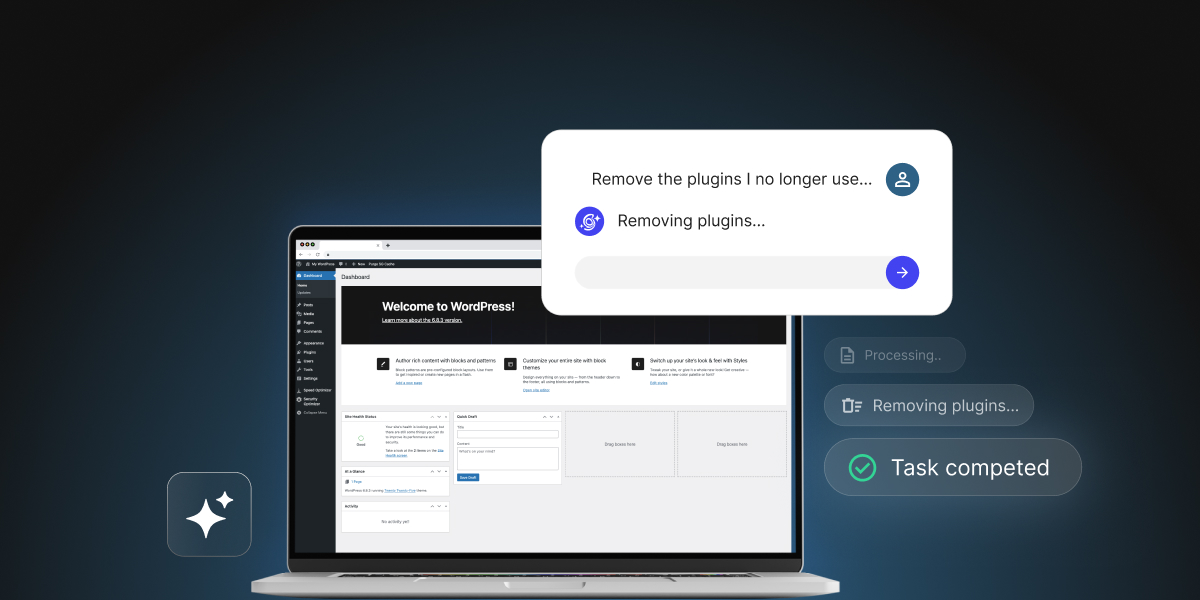
Conceptual graphic of a laptop displaying a WordPress dashboard with an AI chat overlay processing a request to remove unused plugins.

How much power do you want a WordPress AI assistant to have over your site? That is the question if you’re comparing SiteGround’s AI Agent for WordPress vs Genwave Agent, two AI assistants that can make changes to your WordPress site from a chat. 

AI Agent for WordPress vs Genwave Agent is a juxtaposition between an operations agent and a development one. The AI Agent for WordPress is SiteGround’s conversational management agent for content, WooCommerce, media, plugins, themes, users, settings and WordPress site administration. Genwave Agent extends into custom PHP (the programming language WordPress itself is built in), plugin creation, debugging, and broader technical work. 

Key takeaways:

  • AI Agent for WordPress vs Genwave is a scope decision. The AI Agent for WordPress focuses on WordPress and WooCommerce administration, while the Genwave Agent also writes code.
  • The AI Agent for WordPress fits non-technical small business owners better. Its operational boundaries keep the assistant focused on standard administrative tasks you can easily follow.
  • Genwave has the development-depth advantage. Its agent generates custom PHP scripts and constructs plugins, giving technical users conversational control deeper inside the software stack.
  • The two agents differ in their approach to safety. Genwave manages risk primarily after changes occur on your server, while the AI Agent for WordPress focuses on pre-action prevention through its Power Mode.

An operations agent and a development agent

Both the AI Agent for WordPress and Genwave Agent are WordPress AI assistants you talk to, and they belong to two different categories.

  • The AI Agent for WordPress is an operations agent. Operations means the running of the site: the WordPress workflows that come back every week. The full AI Agent for WordPress capabilities include creating and updating content, managing images, installing and updating plugins, adjusting themes, handling users, reorganizing WooCommerce product catalogs, working with orders and coupons, checking reports, and making bulk changes to many items at once.
  • Genwave Agent sits closer to a development agent, focused on building and repairing core software. Rather than just managing existing site features, a development agent aims to write custom code, fix broken PHP, create database tables, and construct custom plugins from scratch through conversation.

AI Agent for WordPress vs Genwave: how they compare

Use this table to compare the work each assistant is designed to handle, the limits each one sets, and the safeguards each one puts between a chat request and a live-site change.

DimensionGenwave AgentAI Agent for WordPress
ScopeHandles WordPress actions across content, plugins, SEO, WooCommerce and site management.Complete WordPress and WooCommerce administration, including posts, pages, media, plugins, themes, user profiles, site architecture, products, orders, coupons, and reports.
Custom codeGenerates shortcodes, code snippets, and custom PHP functions with built-in version control and rollback.Doesn’t write or deploy custom code. Operates through structured REST API endpoints (the standard routes WordPress already provides for changing content and settings) rather than writing or deploying custom PHP code to your site.
Building pluginsBuilds production-ready plugins with database tables, admin settings, frontend forms and security validation.Searches, installs, configures, updates, activates, deactivates, and removes existing repository plugins.
DebuggingScans error logs, identifies root causes, and repairs fatal PHP errors, syntax issues, and plugin conflicts prior to deployment.Focuses on administrative tasks and site management rather than code repair or PHP debugging. If you have code issues, they go to a developer or to support.
Plugin ecosystemWorks with repository plugins, including installation, configuration, schema setup, and conflict resolution.Searches, installs, activates, updates, deactivates and deletes plugins individually or in bulk, checked against the existing stack.
WooCommerceSupports bulk management including product generation, descriptions, categories, prices, featured images, orders, coupons and inventory.Product creation and editing, category restructuring, bulk price changes, inventory updates, orders, coupons, reports and catalog translation.
Several sitesOffers one dashboard across connected sites, with credits shared between them.Manages multiple WordPress sites simultaneously with bulk actions across separately connected sites on any web host.
Safety modelShows a plan before changes, requires confirmation, offers 30-day undo, and uses validation layers, backups, encryption, command signing and audit logging.Preview and confirmation, plus Power Mode disabled by default so high-impact actions need a deliberate permission step first.
Model accessOffers managed access with model switching across providers including OpenAI, Anthropic, Google, xAI, Perplexity, Mistral and Meta, with no personal API keysUses an integrated multi-model engine (Google Vertex AI, Gemini, ChatGPT) routed through the SiteGround connector without requiring site-level API keys, automatically selecting the best model for each specific task.
Host requirementPlugin-based, host-independent deployment model.Manages multiple WordPress sites simultaneously on any host, connecting automatically on SiteGround and via a simple connection key elsewhere

The differences that actually decide it

So at first glance, capabilities like WooCommerce management, content generation, and multi-site support appear very similar between the two tools. Furthermore, hosting portability (whether an AI tool is locked to a specific web hosting provider or capable of running on any server) is not a deciding factor here. While this is often the single biggest issue when comparing host-locked tools like GoDaddy Airo or Hostinger AI, both of these agents offer full hosting portability. 

So what decides the AI Agent for WordPress vs Genwave Agent comparison is how deeply each agent interacts with underlying code, whether it builds custom software, how it handles technical error repairs, and where its default safety boundaries sit.

How far each WordPress AI agent goes into custom code and plugin development.

Genwave focuses on development capabilities, offering to generate custom PHP, create shortcodes, build plugins, and repair code errors through chat. For agencies and developers, this reach can be attractive. A technical team might use such an agent to draft internal plugin scaffolds, create frontend forms, or automate repetitive coding tasks, accepting the need for manual code reviews in exchange for development speed.

For example, say you want a content dashboard widget (a small information box on the main screen of your WordPress admin area that summarizes your site’s posts and pages at a glance). You could ask Genwave to build one from scratch in PHP by adding custom code to your theme’s functions.php file (a theme file that holds extra code WordPress runs on every page load). A prompt for that could look like this:

“Add code to my theme’s functions.php that creates a dashboard widget called ‘Content Overview.’ It should show the number of published posts, draft posts, pending posts, and published pages, each linking to the matching filtered list in wp-admin. It should only be visible to administrators.”

Genwave answers by writing the PHP code for the widget itself:

Screenshot of the Genwave Agent dark-mode interface displaying AI-generated PHP code for a custom WordPress dashboard widget.

Pro tip: Before code like this goes live, someone who reads PHP should check it. A single mistake in functions.php can make the whole site stop loading, and a theme update can overwrite the file and erase the widget unless the code sits in a child theme (a separate theme layer that keeps your customizations safe from updates).

SiteGround’s AI Agent for WordPress takes the opposite WordPress management approach by focusing on site operations. It searches, installs, updates, configures, and removes existing repository plugins rather than generating custom PHP scripts. While this makes it unsuitable for custom software creation, it provides a far safer, more predictable environment for small business owners who don’t have the time or expertise to review AI-generated code.

Given the same goal, you would ask the AI Agent for WordPress something like this:

“Find a free plugin that adds a dashboard widget showing how many published posts, draft posts, pending posts, and published pages my site has. Compare the top options by rating and last update, install and activate the best fit, and if it has a setting that controls who can see the widget, limit it to administrators. Then tell me which plugin you chose and why.”

The agent looks for a ready-made plugin in the official WordPress plugin directory, weighs the options, and installs the one that fits.

Screenshot of the AI Agent by SiteGround interface displaying a WordPress plugin comparison table and an installation confirmation message.

And because the widget comes from a plugin that its developer maintains, it gets updated through the normal WordPress update screen and survives theme changes, with no custom code for you to review.

Which has safer controls for live-site changes?

Both assistants implement safety mechanisms, but they place their strongest controls in fundamentally different areas.

Genwave’s agent previews planned actions, requests user confirmation, offers a 30-day undo feature, and relies on validation layers, automated backups, command signing, encryption, and audit logs.

SiteGround’s AI Agent for WordPress also previews and confirms meaningful changes. Its defining distinction, however, is Power Mode, a built-in safeguard that is disabled by default. Because Power Mode is turned off out of the box, high-impact or destructive actions such as deleting plugins, creating or managing user roles, changing core WordPress settings, or modifying WooCommerce orders cannot execute at all until you explicitly grant permission. The agent begins in a strictly restricted state and only gains elevated authority when you decide a specific task justifies enabling it.

This creates a contrast between being capable by default with confirmation and undo, versus being restricted by default with required permission escalation.

Consider a non-technical site owner requesting a batch price change, a plugin cleanup, a category restructure, or an order-status update. While plan previews and confirmations assist in both products, an off-by-default permission toggle enforces a hard pause before high-stakes operations can even be attempted.

Good to know: Genwave’s 30-day undo feature suits teams seeking broader technical agency from a tool that requires post-action recovery options. By contrast, SiteGround’s permission model suits teams that prefer to keep high-risk mistakes completely out of reach during standard administration tasks.

What each agent will not do, and why that is a choice

A WordPress AI management agent is defined as much by its operational boundaries as by its feature list. While the Genwave Agent accepts a broad technical mandate, SiteGround’s AI Agent for WordPress takes a strictly operational position, managing your site through standard WordPress administration. It deliberately avoids actions like writing custom PHP code for your site, building custom plugins from scratch, editing theme files directly, and repairing PHP errors through chat.

This is because any code deployed to a live WordPress site requires technical review to ensure proper security maintenance, plugin compatibility, and long-term stability. If no one on your team writes code (as it’s the case with many small businesses), an agent that generates custom PHP hands you scripts you can’t independently evaluate. Leaving code authoring to qualified developers keeps your production environment safe and predictable.

Operating strictly at the administrative level also protects your site architecture. Rather than making direct file edits, SiteGround’s agent executes standard administrative tasks, ensuring that every modification creates a clear entry in your local activity log and stays within familiar WordPress dashboard concepts.

Automated error repair follows the same logic. While repairing fatal PHP errors through chat appeals to technical users who can audit the fix, non-technical site owners can’t verify whether an automated script actually solved the underlying problem. 

Which WordPress AI agent should you choose?

Deciding between AI Agent for WordPress vs Genwave Agent ultimately comes down to whether your primary challenge is technical software development or recurring website administration. 

When to choose Genwave

Genwave Agent is designed for technical users who want custom software development central to their AI experience. It suits developers, agencies, and advanced site operators who need an assistant capable of building custom features and modifying underlying server files through code-level tasks like:

  • Custom code and plugin generation: Writing custom PHP functions, shortcodes, and building bespoke plugins from scratch through conversation.
  • Automated debugging and error repair: Scanning server error logs, identifying root causes, and repairing broken PHP code or plugin conflicts to bring sites back online.
  • Direct file and database control: Working directly with theme files, server scripts, and custom database structures to modify site functionality.

However, as mentioned, broader technical capabilities carry a larger operational tradeoff. Generating custom code introduces potential security and stability risks to a live site, which means you must be prepared to inspect generated scripts and test custom plugins in staging environments before trusting them on production.

When to choose AI Agent for WordPress

For site owners looking for a Genwave alternative focused on routine administration, the AI Agent for WordPress is built specifically around WordPress and WooCommerce administration, especially where the stability of your WordPress site matters more than custom coding. It suits business owners, site administrators, and non-technical users who need an assistant capable of offloading day-to-day operational management through safe administrative tasks like:

  • Routine WordPress management: Creating blog posts, organizing media libraries, updating existing plugins and themes, and revising SEO metadata (the titles and descriptions search engines display).
  • WooCommerce management: Managing WooCommerce products, executing bulk price updates, tracking inventory, processing customer orders, managing coupons, and generating sales reports.
  • Multi-host portfolio support: Coordinating separately connected standalone websites across any web host through a single central dashboard. 
  • Safe operational safeguards: Executing commands via structured API requests with Power Mode safeguards turned off by default, returning hours back to your business without risking unverified code on your site.

How much authority do you want an agent to hold?

AI Agent for WordPress vs Genwave comes down to that question rather than to which product sounds more ambitious. 

By generating custom PHP code, constructing database-backed plugins, and attempting automated error repairs, the Genwave Agent functions as an on-demand development partner. If you have technical developers on your team and want an AI coding tool to write custom scripts and troubleshoot server errors, Genwave Agent gives them more code-level tools to work with.  

However, if your website exists to run your business and you want an AI assistant to handle weekly store chores, content updates, and routine site management without risk, SiteGround’s AI Agent for WordPress is the choice that gives you hours back every single week. Ultimately, delegating routine administration to an operations-focused assistant allows you to focus on growing your business rather than spending too much time managing your website.

FAQs

AI Agent for WordPress vs Genwave: which WordPress AI agent is better?

AI Agent for WordPress vs Genwave depends on how much power you want an agent to have. Genwave states that it goes further into custom code, plugin creation and error patching. The AI Agent for WordPress stays within standard WordPress and WooCommerce administration and requires explicit permission before high-impact changes.

Which WordPress AI agent can build custom plugins?

Genwave can build production-ready plugins with database tables, admin settings, frontend forms and security validation. The AI Agent for WordPress installs and manages existing plugins rather than authoring new ones.

Which can edit WordPress files or databases?

Genwave generates custom PHP and builds plugins with database tables, which implies file and database-level access. The AI Agent for WordPress works through standard WordPress operations rather than direct file or database editing, which keeps actions reviewable.

Which has safer controls for live-site changes?

Both have safer controls for live-site changes. Genwave states it previews changes, asks for confirmation, offers 30-day undo across actions, and uses validation layers, backups and audit logging. The AI Agent for WordPress previews and confirms changes too, and adds Power Mode as an off-by-default permission before high-impact actions can run.

Do Genwave and SiteGround require API keys?

No. Neither Genwave nor the AI Agent for WordPress requires you to supply your own OpenAI, Anthropic or Google credentials. Both handle AI access on your behalf, so there’s no separate provider account to create and no model-provider key to manage on the site.

Which WordPress AI agent is better for multiple websites?

Both manage several websites. Genwave states it offers one dashboard across connected sites with shared credits. The AI Agent for WordPress supports operations across separately connected sites on any host. It works with standalone WordPress installations rather than WordPress Multisite networks.


Which is better for a non-technical business owner?

The AI Agent for WordPress generally suits a non-technical business owner better, because its scope covers the administration such an owner usually needs and its permission model makes high-impact changes harder to trigger accidentally. Genwave’s development capabilities are most valuable when someone can judge whether generated code is correct, secure and maintainable.

How do Genwave and AI Agent for WordPress compare for WooCommerce?

Genwave WooCommerce management includes products, descriptions, categories, prices, featured images, orders, coupons, and inventory. The AI Agent for WordPress manages WooCommerce operations including products, bulk price changes, catalog structure, inventory, orders, coupons, reports, and translation.

Can either agent manage sites hosted elsewhere?

Yes. Genwave describes a plugin-based, host-independent approach. The AI Agent for WordPress works on any host, with SiteGround sites pre-connected and externally hosted sites connected through the plugin and a connection key.

Can Genwave replace a developer?

Genwave may be useful as an AI-assisted development tool if its code and plugin-building claims hold up in your environment. Treat it as an assistant rather than a replacement for developer review on production sites. Generated PHP, plugin logic, database changes, payments, forms, and security-sensitive code should be tested and inspected before deployment.

How to add a blog to your website (without starting from scratch)

Abstract of adding a blog to a website

You don’t need to blow up your website and start over just to add a blog to an existing website. Most builders thankfully treat it as simply a feature you add, rather than a whole separate project. It’s really just a matter of deciding where the blog lives, turning it on, publishing a first post, and adding it to your site.

Key takeaways:

  • You can add a blog to a site you already have without switching platforms or hiring a developer; most builders have a native feature for it.
  • Adding it is usually free, since it’s built into whatever plan is already running your site.
  • A niche and a few categories, settled before your first post, keep the blog focused as you publish more.
  • A handful of on-page fields, meta title, alt text, heading structure, a clean URL, do solid SEO work for a first post.
  • A simple content calendar (four to six post ideas, a rough posting cadence) keeps the blog from stalling after post one.
  • Publishing a post matters less than promoting it: sharing it, emailing it, and linking back to it is what actually builds an audience.

Do you need a new platform to add a blog?

No, in almost every case. Adding one is usually a matter of switching on a feature already sitting inside the site you have, so there’s no reason to rebuild or build anything.

Let’s back up, though. This is true because a blog is one section inside your website, usually reached from a “Blog” link in your main navigation.

You’d only need a new blogging platform if:

  • Your site was coded by hand, with no visual editor or dashboard behind it where you could add a page yourself
  • You don’t have a website at all yet and want one with blogging built in from the start. (If that’s you, the SiteGround Website Builder is one option. More about that later.)
  • You want the blog to be the entire site, not a section of a larger one
  • Your current platform truly has no blog feature, which is rare among mainstream builders 

Blog vs. website: what’s the difference?

A website is the container; a blog is one type of content inside it. Every blog lives on a website, but not every website has a blog.

Practically, the difference shows up in the website structure. A blog is organized by publish date and category, with new posts pushed to the top. The rest of a website (an About page, a Service page, a contact form) stays static until you edit it yourself.

So for someone asking whether they need a blog or a website, the honest answer is usually both, just not as two separate things. The blog is the part of your website that changes every week; everything else is the part that doesn’t.

Can you add a blog to your website for free?

Yes, and pretty easily, as adding the blog isn’t a separate purchase. Usually, it’s just a feature you switch on inside the plan you’re already using. So if your website is live and published at your own domain, whatever plan supports that already covers the blog too.

Adding a blog to a website on the SiteGround Website Builder

The “free” question mostly matters for a different reader: that person who hasn’t built a site yet, and for them it plays out differently by platform:

  • Some builders offer a genuine free-forever tier. Wix, WordPress.com, and a few others let you build and publish for free permanently, but your site sits on a builder-branded subdomain (yoursite.wixsite.com, for example) instead of your own domain, with the platform’s own branding on your pages. And there are usually limits to how much you can add, and the flexibility of what you can add, as well as its functionality.
  • Other builders bundle it into paid hosting instead. Rather than a permanent free tier, the “free” option is a time-limited trial for building and previewing, with publishing and custom domains available once you’re on a plan. 

Since this article assumes you already have a website, this distinction probably doesn’t apply to you. That is, the plan that’s already running your site is the plan the blog runs on too. So, good news: in all likelihood, your blogging ambitions are built-in and free at this point. 

How to add a blog to your website in 7 steps

The process below works the same way on most builders; specifics (menu names, button labels) will vary slightly by platform, but this gives you the general idea.

Step 1: Decide where the blog will live

Before turning anything on, decide where the blog will sit in your site’s URL structure: as a subdirectory or a subdomain.

  • Subdirectory (yoursite.com/blog): a folder-like path added onto your existing domain, rather than a separate address. The blog inherits the domain authority your main site has already built, since search engines generally treat it as part of the same site.
  • Subdomain (blog.yoursite.com): a distinct address that sits in front of your domain instead of after it. Technically separate in the eyes of most search engines, closer to hosting a second site. It can make sense for a large, editorially independent blog, but it’s the wrong default for a blog meant to support an existing business site.

Website builders typically default to a subdirectory, and that default is usually the right call. Unless you have a specific reason to split the two, keep the blog there. It’s also the setup that builders create automatically once you turn the feature on.

Step 2: Add a blog to your website

Most builders have some version of a blog feature to enable or add, usually found as its own icon or menu item in the main site editor.

Choosing the layout and design of a blog posting page

You don’t necessarily need this in place before you start writing, either. On the SiteGround Website Builder, for example, you can draft a post first and add the main blog post page when you’re ready to publish it (more on that later). 

And don’t worry, you won’t lose any existing pages when you create your blog; it’s added alongside them, and not instead of them. 

What you get to customize from there varies by platform. For example, on the SiteGround Website Builder, once you’ve created a main blog page (called a Blog Posts Listing page), you choose how it looks: a grid or list layout, with toggles for what shows on each post preview (image, categories, description, read time), plus an optional carousel for featured or recent blog posts.

Choosing the layout and design of a blog posting page

Step 3: Settle on a niche, set up categories, and write your first post

Identify your niche

A blog works best with a niche: a specific enough topic or angle so that your target audience knows what to expect post to post, rather than a grab-bag of whatever’s on your mind that week. If you write about home renovation, for instance, your niche might be small-space renovations on a budget, not renovation in general. Haven’t landed on yours yet? This rundown on choosing a blog niche walks through how.

Define your categories

Categories are really just your niche broken into a handful of sub-topics. For example, if you look above, you can see that this very blog (which we call the Academy) is broken out into several categories, ranging from Web Hosting to Marketing.

Example of a blog with different categories linked across the top

Prepare your first post

Categories sorted, the next job is turning a blank blog post into a published one. This is the checklist you’ll want to tackle for your first post:

  • Pick a topic your audience is actually searching for.
  • Have a keyword or phrase in mind for this specific blog post, ideally one your audience actually searches for, and work it naturally into the title, opening, and a subheading or two. 
  • Write a working title, then the post itself; titles are easier to sharpen once the post exists.
  • Add at least one image. A blog post with none reads as unfinished, even when the writing is fine.
  • Keep the first post short. That is, don’t let the pressure of producing a robust post hold you back from publishing. Less is more if it means getting it done. 

A blog post also doesn’t have to be just text. Embedded video, a sign-up form, or a product you sell can make a post more useful and engaging, even generating leads and sales.

With the SiteGround Website Builder (or Ecommerce, if you sell online), for example, the post editor already includes all of that: images with captions, video, sign-up forms, buttons, galleries, contact forms, icons, and product blocks you can set to show one item, several, or a rotating carousel, all from the same toolkit you used to build the rest of your site. None of it is required for a first post, but it’s there once you’re ready to make one do more than tell a story. If the blank page is the hold-up, the built-in AI writer can also get your text started.

Start building your website and blog now >>

Step 4: Add basic SEO to your post

SEO is what lets someone who’s never visited your site find this post through search, instead of the only readers being people who already follow you. A handful of fields, filled in before you publish, do most of that work:

  • Meta title and meta description, written for the reader, not stuffed with keywords
  • Alt text on every image, describing what’s actually in the picture: it’s an important part of accessible web design, since it’s what a screen reader reads aloud to someone who can’t see the image. It’s also a minor SEO signal.
  • One clear heading structure: an H1 for the post title, H2s for its main sections
  • A URL slug that matches the blog post’s main keyword, not a default date-and-number string
Adding SEO title and description to a blog post in a website builder

This covers a small slice of a full SEO checklist; for a first blog post, these four fields address only the part that matters most. For the fundamentals behind them, Google’s own SEO Starter Guide is worth a read.

Step 5: Publish your first post

Before hitting publish, run through this:

  • Preview the blog post on both desktop and mobile; a layout that looks fine on one can break on the other, and good mobile web design is essential
  • Confirm a featured image is set; it’s what shows up in previews and social shares
  • Double-check the category and any tags are applied
  • Publish
Previewing a blog post on mobile verify it looks good

There’s no separate “go live” step for the blog itself once the feature is turned on. Each post publishes on its own from here. Just don’t expect visitors yet: unless your builder adds new pages to navigation automatically, the post is technically live but effectively invisible until you connect the blog in the next step.

Step 6: Connect the blog to your site navigation

Now you have something worth linking to and, alas, a blog post nobody can find sadly won’t get read. So be sure to add a main blog page to your website navigation the same way you’d add any other page. Where it goes depends on how central the blog is to your site:

  • If the blog matters to your business, driving traffic, building an audience, supporting SEO, put it in the main nav bar, where it’s hardest to miss.
  • If it’s more of a nice-to-have, a footer link is a fine call. It’s less prominent, but still findable for anyone looking.
  • Use a plain label like “Blog,” avoiding clever alternatives that hide what it actually is.
  • If your menu has dropdowns, avoid nesting the blog more than one level deep: the more clicks it takes to find, the fewer people (and search engines!) bother.
Adding your blog to your site navigation in your website builder

Step 7: Plan ahead: build a simple content calendar and share what you publish

One post doesn’t make a blog, and most of the work of running one isn’t the writing. Some bloggers frame it as roughly 20% writing, 80% promoting the blog, spread across channels like SEO, social, email marketing, guest posts, and community threads. You don’t need all of that from day one, but two habits are worth setting up before you move on:

  • A lightweight content calendar. Even a simple list of four to six post ideas and a rough posting cadence, weekly, biweekly, or monthly, keeps the blog from stalling after post one.
  • A plan to actually get each post seen. Pick two or three channels you can keep up with rather than trying all of them: share it on the social platforms your audience already uses, add it to a regular newsletter recap if you have an email list, and once you have a few posts, link each new one back to two or three older, related posts. That last one costs nothing and helps both readers and search engines find more of what you’ve written.

Ready to give your website a blog?

Adding a blog to your website is, thankfully, closer to changing a setting than rebuilding a site. All you really need to do is decide where it lives, add the feature, connect it to your website navigation, and publish a first post. The whole process usually takes less time than writing the post itself.

And if you’re already using the SiteGround Website Builder, the blog feature sits in the same editor you used to build the rest of your site. There’s no separate tool, no export or import, and no second learning curve. Starting from nothing? The same builder works there too, blog included from day one. Turn it on, write, and publish!

Frequently asked questions

What is the 80/20 rule for blogging?

The 80/20 rule for blogging gets used two ways: most commonly, it’s the Pareto principle applied to content, roughly 20% of your posts will drive most of a blog’s traffic and leads. Some bloggers also apply it to time, spending closer to 20% writing and 80% promoting. Either way, for a blog you’ve just added to an existing website: don’t judge the whole effort by your first few posts. Publish consistently for a few months, then look at which posts are actually pulling traffic, and write more like those.

Can I post a blog for free?

Yes. If you already have a published website, the plan running it already covers the blog too; there’s nothing extra to buy. The real free-vs-paid divide is one step earlier, in whether you have a live website at all: some builders offer a permanent free tier with a branded subdomain, while others, including SiteGround’s, bundle the builder into paid hosting plans and offer only a time-limited trial for free. See the breakdown earlier in this article for specifics.

What platform is best for a blog?

If you already have a website, the best platform for your blog is almost always the one you’re already using. Moving the blog to a separate platform adds a login, a separate design system, and a disconnect from the rest of your site, for a feature most builders already include.

Are blogs still a thing in 2026?

Yes. A blog remains one of the few content formats a business fully owns; unlike a social account, it isn’t subject to another platform’s algorithm changes or account suspensions. What’s changed is the bar: thin, generic posts don’t rank or get cited by AI search tools the way they might have a few years ago. A blog still works in 2026; a lazy one doesn’t.

Can I build a blog with WordPress instead?

Yes, WordPress is a common choice, especially for people who want deep customization through themes and plugins. It’s also a heavier lift: you’re managing a full CMS, and not toggling a feature inside a builder you already use, and creating a blog with WordPress involves its own setup process. If your site is already built on the SiteGround Website Builder, its built-in blog feature covers the same core job, posts, categories, an SEO-friendly URL, with a lot less setup.

Is email marketing dead? Separating the myths from the numbers

Woman at a laptop looking thoughtful, with icons for email, analytics, and growth trends beside her, next to a toggle switch labeled "Update."

Marketers keep asking if email marketing is dead. Two things are driving the doubt: attention has drifted to newer platforms, and open rates have looked strange since Apple started auto-loading tracking pixels through Mail Privacy Protection. Email marketing isn’t dead. Email still returns $36 to $42 per dollar spent, ahead of paid search and social ads. The metric that’s broken is open rate, not the channel.

Key takeaways:

  • Email marketing isn’t dead: it returns $36 to $42 per dollar spent, still ahead of paid search and social ads on cost per result.
  • Apple Mail Privacy Protection inflates open rates by roughly 15 to 20 percentage points, so a dropping open rate doesn’t automatically mean a failing campaign.
  • Click-through rate (averaging around 2%) and click-to-open rate (around 7%) resist that inflation and give a clearer read on real engagement.
  • A bloated, unsegmented list can push your bounce rate and spam complaints up while your click-through rate drops, one root cause showing up as three separate symptoms.
  • Tracking opens when your actual goal is revenue or signups means optimizing for a number that doesn’t measure what your business cares about.
  • Checking your click-through rate and click-to-open rate against a simple benchmark table tells you more about your email marketing performance than any amount of open-rate watching.

Two questions worth asking first

Two things are doing most of the work behind “is email marketing dead,” and neither one is about the channel itself.

Has attention moved, or have results actually dropped?

TikTok, short-form video, and newer social platforms get talked about constantly. Attention is not the same measurement as return on investment, though. A channel can go quiet in industry conversation while still converting at the same rate it always did. Email marketing metrics have stayed remarkably stable even as the marketing conversation has moved on to louder platforms.

Does a falling open rate mean your campaigns are failing?

For most senders, no. Apple’s Mail Privacy Protection, introduced for Apple Mail users, pre-fetches images and pixels regardless of whether a person actually opens an email. That inflates recorded open rates for a large share of your list, and when the inflation shifts or a spam filter changes, the number moves in ways that have nothing to do with your subject lines or your content.

Both questions lead to the same conclusion: neither reduced attention nor a falling open rate proves email marketing stopped working, only revenue and engagement can answer that. The next section shows what those numbers actually look like.

What the email marketing statistics actually show

Past the open-rate noise, the numbers are consistent: strong ROI, steady click-through rates, a channel performing the way it always has.

Email marketing’s return on investment still leads

Some published estimates put email marketing ROI at $36–$42 returned per dollar spent, a wider margin than paid search or paid social typically deliver on comparable budgets. That gap alone answers the “is it dead” question at the business level: a channel returning that consistently isn’t dying, it’s just not the one everyone is currently talking about.

ChannelAverage ROI
Email marketing$36 to $42 per dollar spent
Paid search (PPC)About $2 per dollar spent, according to Google Economic Impact Report
Paid social adsAbout $3 to $5 per dollar spent, according to Sprout Social

Click-through rate and click-to-open rate are the metrics to trust

Click-through rate typically runs 2% to 5% depending on list warmth and industry, and click-to-open rate, which measures clicks only among people confirmed to have opened, averages closer to 7%. Neither metric depends on the same pixel-loading behavior that Apple Mail Privacy Protection distorts, which makes them a far more honest read on whether your subject lines, content, and offers are actually landing.

Where open rate still fits

Open rate isn’t useless, it’s just no longer a standalone health check. It can still flag a real problem if it drops sharply across your entire list at once, particularly among non-Apple recipients where the inflation doesn’t apply.

Common mistakes that make email marketing look dead

Each of these mistakes creates a real drop in performance, and each one gets misread as proof that the channel stopped working.

Sending to a bloated, unsegmented list

A list full of stale addresses, disengaged subscribers, and people who never wanted the content in the first place drags down your click-through rate, your deliverability, and your sender reputation all at once. It looks like the channel failed. It’s actually list hygiene, one root cause showing up in three different metrics.

Your fix: No opens or clicks in 90 days is the standard cutoff for an inactive subscriber, not a real one. Pull them into their own group and stop sending, before they tank your sender reputation for everyone else on the list.

For example, a 20,000-contact list with 4,000 people who haven’t opened or clicked in six months will often show a click-through rate under 1%, a bounce rate creeping past 3%, and a slipping sender score as inbox providers pick up on the pattern. If you suppress those 4,000 contacts, the list will often jump to a 2.5%+ click-through rate with bounce rate back under 1%, same content, same audience, just fewer dead names on it. The only thing that changed is who’s still on it.

Tracking the wrong KPI for the goal

If the email marketing goal is revenue or signups but the only number anyone checks is opens, the campaign gets judged against a metric that was never meant to measure that outcome. A campaign can have a mediocre open rate and still hit its revenue target, or a great open rate and convert nobody. Match the metric to the goal, and pick that goal before the campaign goes out, not after.

Quick tip: Decide before you hit send whether the goal is a click, a signup, or a sale, then judge the campaign only by that number. Open rate was never built to measure any of those.

Treating every email like a one-off blast instead of a strategy

A single promotional email sent to the full list, with no sequence, no segmentation, and no follow-up, will underperform almost any campaign built around a plan. Building an email marketing strategy means defining segments, cadence, and goals before you write a single subject line, and it’s usually the difference between a channel that “stopped working” and one that was never set up to work in the first place.

One more tip: Before you send email #1, write down what email #2 and #3 will cover and when they’ll go out. Even a rough three-email plan turns a single blast into an actual sequence.

How to check whether your own email marketing is working

This is the actual gut-check, and it takes less time than most people assume. Start with click-through rate. Then compare your numbers against the table below.

MetricHealthy rangeWhen to investigate
Click-through rateAround 1-3% or higherTrending down across 2-3 sends in a row
Click-to-open rateAround 8-12% or higherDropping while CTR stays flat, or vice versa
Bounce rateUnder 2%Above 5%, sign of list decay
Spam complaint rateUnder 0.1%Above 0.3%, most inbox providers start throttling delivery at this point

A quick example. Say your open rate looks strong at 45%, comfortably above what you’d expect for your industry. But your click-through rate is flat at 1.1%, well below healthy. That gap is the tell: a high recorded open rate with weak clicks usually means Apple Mail Privacy Protection is inflating the open number, not that your subject lines are working. The click-through rate is telling you the real story: the content or offer isn’t landing, even though the open rate looks fine.

What to do with what you find:

  • CTR and CTOR both healthy, only open rate moved: Leave it alone. This is tracking noise, not a content or strategy problem.
  • CTR dropped for two or three sends in a row, CTOR still healthy: The list is fine, the offer or subject lines probably aren’t. Test new subject lines before touching segmentation.
  • CTR and CTOR both dropped together: This points to list decay or fatigue. Check your bounce and spam complaint rates next, if those climbed too, it’s time to prune the list, not rewrite the copy.
  • Bounce rate or spam complaints climbed on their own, clicks stayed flat: A deliverability problem, not an engagement one. Fix authentication and list hygiene before you touch anything else.

Watching email engagement trends over a few sends, rather than reacting to a single campaign, gives a clearer signal than any one number in isolation.

So is email marketing dead? Not even close.

None of this means email marketing runs itself. List hygiene still matters, segmentation still matters, and picking the right KPI for the goal still matters. What’s changed isn’t the channel’s ability to perform, it’s which metric proves that performance. Open rate stopped being a reliable solo indicator the moment pixel pre-fetching became standard on a large share of inboxes, and marketers who kept watching it alone drew the wrong conclusion.

Platforms built for email marketing that surface click-through rate, click-to-open rate, and deliverability signals side by side make this a lot easier to track than digging through raw export data. SiteGround Email Marketing keeps those numbers visible in one place, so the metric doing the misleading isn’t the one you’re staring at by default.

[58]

Frequently asked questions about whether email marketing is dead

Is email marketing still effective, or is it outdated?

It’s still the highest-ROI channel for most businesses, returning $36 to $42 per dollar spent. What’s outdated is judging it by open rate alone.

Why do some people say email marketing is dead?

Mostly because attention has shifted to newer platforms and because open rates look strange since Apple Mail Privacy Protection started inflating them. Neither reason reflects an actual drop in email’s performance.

Is email marketing declining?

Spending and usage have stayed steady or grown across most industries. What’s declining is trust in open rate as a standalone metric, which is a measurement problem, not a channel problem.

Does Gen Z like email marketing?

Younger audiences use email differently, often for receipts, confirmations, and brand updates rather than casual browsing, but they still check it regularly and respond to well-targeted campaigns.

Does email marketing have a future?

Yes. As long as businesses need a channel they own outright, not one controlled by a platform’s algorithm, email keeps that role, and the ROI data backs it up.

AI store manager: How you can hand off daily ecommerce tasks

Abstract of an AI store manager that offers info about your ecommerce website

An AI store manager is a software agent that plugs into your ecommerce dashboard, reads your real store data, and, if you let it, takes action on your behalf. Think of it as a store employee who already knows your sales numbers and can act on them. Here’s what that looks like once you turn one on.

Key takeaways:

  • An AI store manager answers plain-language questions about your store and can take permissioned action inside it.
  • It pulls data from your actual store: orders, products, categories, customers, reviews, coupons, brands, and attributes.
  • Action-taking stays off by default. You decide when to switch it from reporting only to reporting and acting.
  • A single instruction can reprice every product in a collection by a set percentage, replacing a manual, item-by-item edit.
  • Strategy calls, like pricing philosophy or what to sell next, remain yours. The agent handles execution, not direction.

What is an AI store manager?

An AI store manager is an AI agent that runs inside your ecommerce dashboard and works with your store’s actual data. It’s built to answer questions about what’s happening in your store and act on it, not to draw on general web knowledge like a public chatbot.

What that means in practice:

  • It reads your real orders, products, customers, coupons, and reviews, not sample data or guesses.
  • It sits inside the dashboard you already use, with nothing new to log into and nothing to configure first.
  • It’s a different category from AI tools that write product descriptions or ad copy. Those produce content. This one operates on your store’s live data and, with permission, changes it.
Example of an an AI store manager with a field to ask questions and provide prompts

The two jobs a real AI store manager does

Strip away the marketing and an AI store manager does exactly two things: answer questions, and, if you allow it, take action. Everything else people describe, from restock alerts to seasonal repricing, is one of these two jobs applied to a specific situation. Let’s break down what it does.

1. It answers questions about your store

This is the reporting side. Ask something in plain language and it pulls the answer from your real records:

  • “What’s my top performing product this month?”
  • “Which coupon was used most in the last 30 days?”
  • “How many units of the Autumn hoodie sold last week?”

No spreadsheet exports, no filtering through an analytics dashboard first.

2. It takes action on your behalf

This is what separates an agent from a plain AI tool. From the same chat, it can:

  • Create and manage products
  • Create and manage coupons
  • Create and manage customer accounts and brands
  • Handle bulk changes, like reducing every product in a collection by a set percentage in one instruction instead of a hundred individual edits
Example of an AI store agent that can create and update products

How is an AI store manager different from a store builder or a chatbot?

A store builder gets you live, but that’s where its job ends. Once your store is running, it doesn’t answer questions or take action inside it. It’s built for launch, and not for the daily grind that comes after. That’s it.

A generic chatbot can attempt the first job mentioned above, answering questions, but it doesn’t know your store specifically. Ask a generic chatbot how many units of your best-selling hoodie sold last month, and it has no way to tell you (though it may confidently pretend to). 

On the other hand, ask SiteGround’s AI Store Agent the same question, for example, and it pulls the number straight from your own Ecommerce dashboard, reading your actual order history instead of guessing.

ToolAnswers store questionsTakes action in your storeKnows your real data
Store builderNoNoNo
Generic chatbotSometimesNoNo
AI store manager (such as the SiteGround AI Store Agent)YesYes, if permittedYes

Where a human still calls the shots

An AI store manager handles the busywork, but you still get the ever-so-human pleasure of making the judgment calls. Keeping that split clear is part of what an AI-first mindset for a growing store actually looks like: the tool for execution, you for direction. 

The general rule: anything with a single correct read of the numbers is fair game to hand off; anything that depends on context the data doesn’t capture stays with you. Here’s what that looks like in practice:

Strategy and brand decisions

These stay a human call:

  • Positioning and brand voice: premium and minimal, or budget and loud
  • Pricing philosophy: lowest price in the category, or highest quality
  • What to sell next: expand a bestselling line, or cut a slow one

An agent can tell you a product is underperforming. Deciding whether to discontinue it, reposition it, or double down is still yours.

Ambiguous customer situations

A person still needs to weigh in on:

  • Disputes and exceptions: a refund request outside your stated return window
  • Anything that isn’t a clean read of the data: a return spike from a bad batch, or just from one bad review

The control that makes it safe to try

Handing software the ability to edit your live store is worth being cautious about. With SiteGround’s AI Store Agent, that’s governed by a single setting called Power Mode.

  • It’s off by default. Out of the box, the agent can only read your ecommerce data and answer questions.
  • Turning it on is an explicit choice, made either in the chat interface or from the AI Store Agent settings page.
  • It’s an operational safeguard, not a permissions system: it controls which actions the agent will carry out, not what data it can already see.
  • With it on, the agent can create, update, and make bulk changes to most resources. Deleting stays more restricted even with Power Mode on.

Higher-risk actions, like deleting entities, bulk updates, and price changes, all require Power Mode to be on first. That keeps the riskiest changes from happening by accident, since turning it on is a deliberate step you take rather than a default you’d have to remember to switch off.

Turning on Power Mode with SiteGround Ecommerce AI Store Manager

How it improves your daily workflow

A few realistic scenarios make the AI store manager concept concrete, with each one demonstrating the same task done two ways: the manual version most sellers already know, and the one-question or one-instruction version an AI store manager replaces it with.

A morning sales check-in

  • Before: Log into the dashboard, open the orders table, filter by yesterday’s date, then cross-reference SKUs against product names to piece together what actually sold and how it compares to your average order value.
  • After: Ask “what sold yesterday and what was my average order value?” and get a direct answer, in the time it takes to read a text message, with no filtering or cross-referencing required.

Restock and inventory alerts

  • Before: A fast-moving product, say your bestselling tote bag, sells out over a busy weekend. You don’t notice until days later, when you check the storefront and see it listed as out of stock, having already missed a stretch of sales you could have caught with a quick reorder.
  • After: Ask “which products are below 10 units in stock?” as part of your morning routine, or let the agent flag it unprompted the moment stock runs low, so you reorder while it’s still on the shelf instead of after it’s already gone.

Seasonal pricing and coupon cleanup

  • Before: Ahead of a fall sale, cut the price on every product in your swimwear line one at a time to clear summer stock, then scroll through old coupon codes by hand to switch off the ones nobody’s used in months.
  • After: Say “cut prices on swimwear by 20% for the fall sale and deactivate any coupon unused in the last six months,” and both changes apply in one instruction, the same kind of cleanup sellers already do ahead of a Black Friday push, instead of an afternoon of clicking through products and codes.

Ready to let AI handle the busywork in your store?

An AI store manager hands back the hours that used to go into pulling numbers, catching low stock, and cleaning up pricing and coupons. That time goes toward customers and growth instead of routine admin that doesn’t need a founder’s judgment.

SiteGround Ecommerce includes exactly that. The AI Store Agent comes with every plan at no extra cost, nothing separate to buy or set up. Reporting is on from day one, and Power Mode, the setting that lets it act, stays off until you turn it on, so you can start by asking questions and decide later how much to hand off.

[103]

Frequently asked questions

Is an AI store manager the same as a chatbot?

No. A generic chatbot works from general web knowledge and can only answer questions. An AI store manager reads your actual store data, real orders, products, customers, and coupons, and can also act on your store when you allow it, creating and editing products, coupons, and customer records. A chatbot can tell you what a return policy generally looks like. An AI store manager can tell you how many returns your store processed last month, and update a coupon based on the answer.

Do I need technical skills to use one?

No. There’s no setup or configuration involved. It works from your existing store dashboard, using the data that’s already there.

Is it safe to let AI make changes to my store?

Yes, with the right controls. For example, with the SiteGround AI Store Agent, action-taking is off by default. That way, you can review what an agent proposes before it’s committed to your store, then decide whether to allow it going forward.

How much does an AI store manager cost?

It varies. Some standalone AI tools charge a separate subscription, while some ecommerce platforms bundle it into existing plans. Check what’s already included before buying a standalone tool. SiteGround Ecommerce includes its AI Store Agent on every plan at no extra cost.

Product customization for ecommerce: How small add-ons add up to bigger order values

Abstract of product customization for ecommerce

One checkbox on a product page can do more for your bottom line than your last sitewide discount, and it costs you nothing to offer. Gift wrapping, insurance, and engraving are three simple forms of product customization, but the same logic works for almost any optional extra you can attach to a product. This guide covers which ones you can put to work for your online store, how to price and configure them so they actually convert, and how to set them up without touching a line of code.

Key takeaways:

  • Product customization for ecommerce usually means optional extras, like gift wrapping, insurance, or engraving, that a shopper adds before putting a product in their cart, not a full product configurator.
  • Upselling and cross-selling programs lift average order value (AOV) by roughly 20-30%, according to 2025 research from Fairing, and product add-ons are one of the lowest-effort ways to run that play.
  • A $3 gift-wrap add-on with even a 10-15% attach rate protects margin better than an equivalent discount, because there’s no unit cost behind it.
  • Which add-on converts best depends on the product: gift wrap fits gift-occasion items, insurance fits high-ticket or fragile goods, and engraving fits made-to-order pieces, each working through a different reason customers are willing to pay more.
  • Optional vs. mandatory, free vs. paid, and single-select vs. multi-select are the three configuration calls that decide whether an add-on converts or gets ignored.
  • Made-to-order add-ons like engraving carry lead time that needs to fit inside your return policy and shipping promises, and on many platforms, an add-on’s refund is tied to the base product rather than something you can offer separately.

What is product customization in ecommerce?

Ecommerce product customization can be as simple as an optional add-on, like gift wrap, insurance, or engraving, that a shopper selects on the product detail page before adding the product to their cart. Most ecommerce businesses don’t need dedicated online product customization software for this: it’s a setting on a product that already exists, not a new system to install.

Add-ons vs. product configurators

An add-on isn’t the same as a full product configurator, though, which is the kind of tool that lets a shopper design a product before it’s even made.

  • Add-ons attach a service or extra to a product that already exists, with no configurator required.
  • Configurators build the customizable product itself (color, materials, dimensions) and usually need dedicated product customization software or a developer to set up.
Product page with product add on customization

Why should you offer product add-ons?

Product add-ons raise average order value (AOV) because a customer who’s already decided to buy is far more likely to accept a small extra than a stranger is to click a discount banner. Upselling and cross-selling programs lift AOV by roughly 20-30%, according to 2025 research from Fairing, and add-ons are one of the lowest-effort ways to run that play because they need no new inventory.

Here’s what that looks like on a single item: a $3 gift-wrap add-on doesn’t need a high attach rate to matter. Even a modest 10-15% attach rate adds more to margin than a comparable discount, because there’s no unit cost behind it beyond tissue paper and a few extra minutes of packing time. On 1,000 monthly orders, that’s an extra $300 to $450 a month in near-pure margin, without touching the base product’s price.

Add-ons also improve customer satisfaction and experience in ways a discount can’t:

  • They let a shopper solve a real problem (protecting a fragile item, wrapping a gift) at the moment they’re already buying.
  • They add margin instead of eroding it, unlike a sitewide discount.
  • They require no extra product photography or listing work.

If you’re mapping this against a broader ecommerce marketing plan for growing sales, add-ons are one of the few levers that touch checkout directly instead of traffic.

What are examples of common add-ons by product?

Gift wrap, insurance, and engraving are the obvious product customization examples that probably pop into your mind, but their fit for your own products might not always be so obvious. So let’s unpack add-ons by product type, since it might just reveal one you hadn’t yet considered.

Gifts

If a meaningful share of your orders ship to someone other than the buyer, then news flash: you’re selling gifts, and gift wrap could be worth testing. Jewelry, home goods, and kids’ items carry a high gift-to-self-purchase ratio and convert on gift wrap even outside the holiday season; commodity items like phone chargers or office supplies mostly don’t, regardless of the time of year. The AOV mechanic here is simple: the customer is already paying for the occasion, so the wrap reads as part of that spend rather than an extra expense.

Example online gift product with different product add on wrapping options

High-ticket or fragile goods

Insurance and warranties fit anything expensive enough that a customer worries about damage or loss: electronics, furniture, fine jewelry. The AOV mechanic is different from gift wrap. Customers aren’t paying for an occasion here; they’re paying to reduce risk, and their price tolerance scales with the item’s value rather than sitting at a flat few dollars.

Example of an insurance product customization for an online product

Genuine insurance, priced against an item’s actual value, usually comes from a dedicated warranty provider, not from a basic add-on field. If you’re using a generic product add-on for this instead, what you’re really offering is a store-backed guarantee: you’re promising to replace or refund the item yourself if something goes wrong, funded by that flat fee. That’s a legitimate thing to sell, but it isn’t the same as a formal insurance policy, and customers should know which one they’re getting.

Made-to-order goods

Engraving and personalization touches fit products made or finished to order: jewelry, watches, apparel with monograms or custom text. The AOV mechanic here comes from the item’s uniqueness of a personalized product rather than an occasion or a risk: a customer will pay more for a customized product that is made or finished specifically for them than for the off-the-shelf version. 

Example of an online product (rings) with made to order product customization

The operational catch is separate and worth keeping in mind, though: personalizing something takes time, and a three-day turnaround collides with that two-day shipping promise you made or the feasibility of return. So set the expectation on customization options up front, on the product page and in the confirmation email, so a slower fulfillment time or a non-returnable item don’t turn out to be unpleasant surprises for your customer.

Bulky or time-sensitive goods

Furniture, electronics, and fitness equipment are bulky enough to carry an optional assembly or setup service. Meanwhile, time-sensitive orders can carry a rush or expedite fee handled as a product add-on instead of a separate shipping tier. The AOV mechanic is convenience: the customer is paying to skip a hassle, whether that’s assembling something themselves or waiting in the standard queue, rather than paying for an occasion or reducing risk.

Example of assembly as an online product add on (for a bike)

How do you configure product add-ons?

Once you’ve picked your add-ons, three settings decide how they behave on the product page:

DecisionDefaultWhen to flip it
Optional vs. mandatoryOptionalForce a selection when the alternative is a promise you can’t back, like shipping a $2,000 item with no protection option
Free vs. paidPaid if it costs you anythingOffer it free when it’s pure goodwill or a differentiator, like a branded box at no charge
Single-select vs. multi-selectSingle-selectAllow multiple selections when a shopper could reasonably want more than one option from the same add-on, like a gift note plus a ribbon color
Configuring product add ons on SiteGround Ecommerce backend

Optional vs. mandatory

Leave add-ons optional by default: forcing a selection a shopper doesn’t want adds friction at the exact moment they’ve decided to buy, and that friction costs you more carts than the extra revenue is worth. Make one mandatory only when skipping it would mean shipping something you can’t stand behind, like sending a fragile, high-value item with no protection option at all. 

Free vs. paid

An add-on with no price attached reads as free to the customer. That’s fine for goodwill gestures (a thank-you note, a simple ribbon) or as a competitive edge against other brands who charge for the same thing. Charge for anything that costs you real time or material, like engraving or a protection plan.

Single-select vs. multi-select

Most display formats are single-select by nature: a dropdown, a color swatch, a button. Only when you need a shopper to choose more than one option at once, like a gift note plus a ribbon color, does a dedicated multi-select checkbox format make sense. If a shopper might want more than one unit of that same add-on, enable quantity selection alongside it too, so they aren’t stuck adding the option twice.

Getting these decisions right shapes how the options look on your product page, so treat them as part of the product’s design instead of a checkout-settings afterthought.

How do you set up product add-ons in your online store?

Setting up add-ons generally follows a similar order regardless of platform:

  1. Identify your extras. Pick two to four add-ons you’re actually offering before touching any settings.
  2. Decide format and pricing per extra. Free or paid, single-select or multi-select, using the table above as a starting point.
  3. Reuse the same add-on across products where your platform allows it. Many platforms save each add-on as a reusable template automatically once you set it up, so you can attach the same gift-wrap option to other products instead of rebuilding it from scratch each time.
  4. Preview how it looks on the product page before publishing, on mobile as well as desktop.
  5. Confirm your fulfillment side can see which orders include which add-ons before the first order ships.

None of this requires developer time beyond what building an ecommerce website already involves. On SiteGround Ecommerce specifically, you can enable and manage add-ons directly from the product page: pick extras, set pricing and format, reuse them as saved templates, and preview before publishing, all without touching code.

What should you watch for before launch?

Run through this list before turning add-ons on:

  • State your add-on refund policy on the product page or in your returns policy, not just in a support reply after the fact, especially if your platform ties add-ons to the base product with no separate refund option. Setting proper expectations builds customer loyalty.
  • Make sure fulfillment can see, order by order, which add-ons are included.
  • Decide whether any add-on value needs its own SKU or stock tracking, at least a simple in-stock/out-of-stock flag. Gift boxes run out too.
  • Keep add-on pricing consistent across products at different price points. A $5 gift wrap reads differently on a $15 item than on a $150 one.
  • Test the whole flow on your mobile web design, not just desktop, before publishing.

A checklist like this pays for itself: it’s cheaper to catch inconsistencies now than after the first refund request.

Adding stock tracking and skus to prodcut add ons in ecommerce backend

Turn every product page into an upsell opportunity

Everything above, from picking the right add-ons, to pricing them, and deciding optional vs. mandatory, still needs somewhere to live on the product page. That’s usually the part that requires a developer or a paid plugin, which is the whole reason product customization for ecommerce gets treated as way more complicated than it needs to be.

SiteGround Ecommerce’s Grow and Scale plans include a built-in Product Add-Ons feature, so store owners can set up gift wrap, insurance, engraving, or any other extra directly from the product editor, with no plugin and no custom code. It comes with six ready-made templates to start from, and once an order includes an add-on, it’s flagged automatically on the order page so fulfillment never has to guess. Explore SiteGround Ecommerce to see how it fits your store.

[103]

Frequently asked questions

What is product customization in ecommerce?

Product customization in ecommerce usually means an optional add-on, like gift wrap or engraving, that a shopper selects before adding a product to their cart, not a full product configurator.

What’s the difference between product customization and personalization?

Product customization here means optional extras or services added to an existing product. Personalization more often refers to tailored recommendations or account-level experiences, like a homepage that changes based on browsing history.

What products work best with add-ons?

Gift-related items convert on wrapping because the buyer has already decided to pay for the occasion. High-value or fragile goods convert on protection because price tolerance scales with the item’s value. Personal items like jewelry or apparel convert on engraving because a made-to-order version is worth more than the off-the-shelf one.

Can add-ons be refunded separately from the product?

On most platforms, no. Add-ons are typically tied to the base product’s refund rather than refunded separately, and on some platforms, including SiteGround Ecommerce, that’s a fixed behavior rather than a setting you can change. Decide how you’ll communicate this before launch and state it clearly during the purchase process.

Do I need a separate app to sell add-ons like gift wrapping?

No, if your ecommerce platform includes add-ons natively. SiteGround Ecommerce, for example, offers them from the product editor with no plugin. On platforms without native support, a plugin or app is the fallback.

Do you need product customization software?

Not usually. For add-ons like gift wrap, insurance, or engraving, this is a setting on your ecommerce platform, not a separate purchase. Dedicated product customization software is really only necessary for full 3D or AR configurators, a different and far more expensive category of tool.