
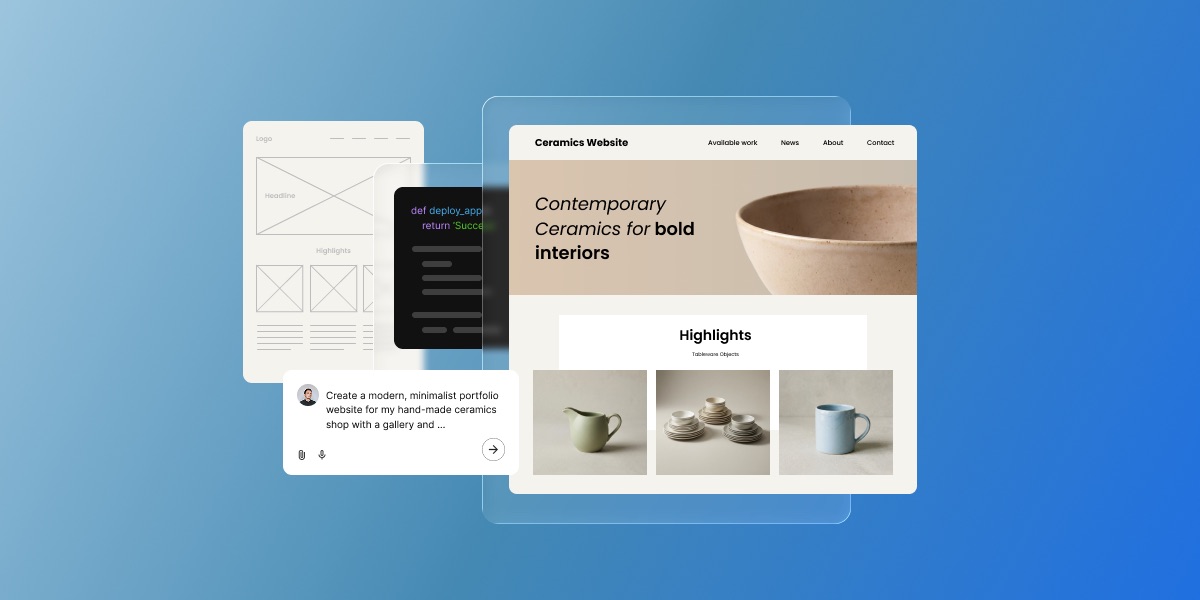
Claude Artifacts live on claude.ai by default. To put one on your own domain, pick a production path: Coderick AI for managed hosting, Claude Code for developer control, or manual deployment.
A Claude Artifact runs on a claude.ai URL with no way to add a custom domain, no control of SEO metadata, no place to store form submissions, and no path for ongoing edits outside Claude. Adding those things is what makes a site production-grade.
You have three practical paths for going live: publish the artifact from Claude for demos and sharing, use Claude Code and a developer deployment workflow, or hand the artifact files and production brief to Coderick AI, which can accept the artifact’s source files directly and rebuild them as a hosted site on SiteGround’s infrastructure.
Key takeaways:
- A Claude Artifact becomes a real website only after you add the production layer: a custom domain, SSL, SEO control, forms or database handling, analytics, and ongoing maintenance.
- Claude’s built-in publishing generates a public link on Free, Pro, and Max plans and supports embedding, which is enough for demos, internal sharing, and feedback but not for a production site.
- Coderick AI accepts file uploads of up to 30 text-based files (.html, .css, .scss, .js, .jsx, .ts, .tsx, .md) totaling 500 KB, plus up to 10 images, so the artifact’s exported code becomes the literal starting point for a live project.
- Coderick AI projects go live on SiteGround’s hosting the moment you publish, and SSL installs automatically once a custom domain points to SiteGround nameservers.
- Claude Code is the developer-control path: it turns artifact logic into an owned, versioned codebase you deploy through platforms such as Vercel, Netlify, or Cloudflare Pages.
- The single most important handoff asset is the artifact’s saved code plus a short brief describing what should happen after the site goes live.
What is a Claude Artifact?
A Claude Artifact is a standalone output that Claude creates in a side panel during a conversation. It can be a small web page, React component, SVG, chart, dashboard, calculator, form, game, or interactive prototype. Artifacts are useful because you build and refine the result visually while you chat, so instead of receiving only code in the conversation, you see how the artifact looks and behaves.
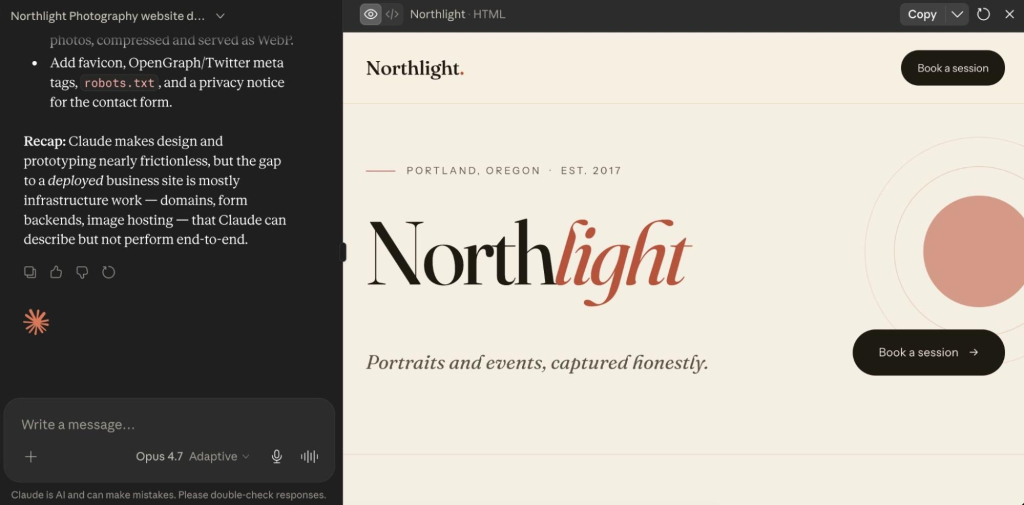
Many artifacts use the same building blocks as websites: HTML, CSS, and JavaScript which live inside Claude’s environment. When you publish an artifact, it is served from Claude’s infrastructure, usually on a claude.ai URL. That is enough for a prototype, but not always enough for a public website.
That distinction is the core of the workflow: Claude helps you validate the idea, while the production path turns that idea into a website people can actually use. This is one version of the broader AI prototype to published website workflow.
Can you publish a Claude Artifact directly?
Yes. Claude includes built-in artifact publishing for sharing and demos. On Free, Pro, and Max plans, you can publish an artifact and share it via a public link. Anyone with the link can open it in a browser. On Team and Enterprise plans, artifact sharing may be limited to your organization, depending on the workspace settings.
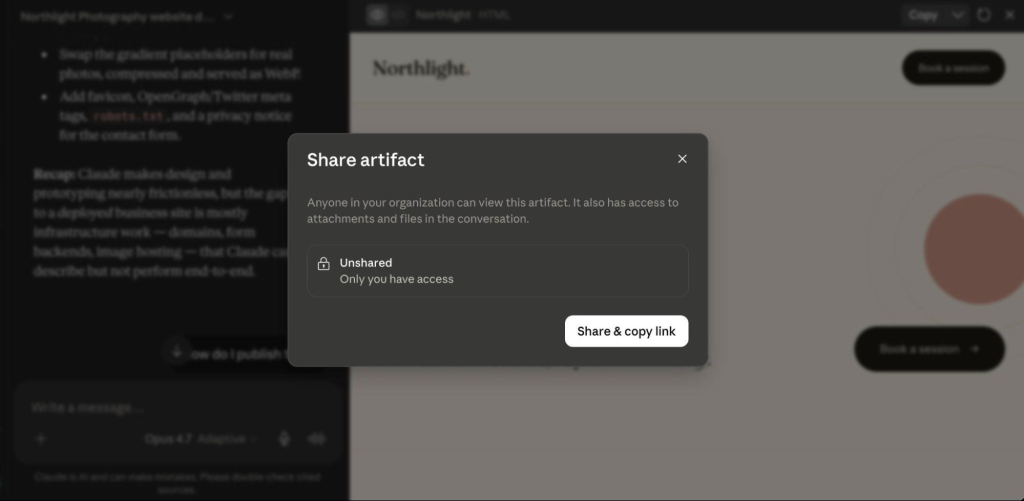
Claude also supports embedding published artifacts into another website. When embedding, you define which domains are allowed to load the artifact. You can also unpublish the artifact later to revoke access.
Claude publishing vs. a real website
Publishing the artifact directly works well when the goal is to share, test, or demo a prototype, not launch a production website. In such cases, the artifact works like a live mockup. It proves the interaction and helps people understand the idea faster than a static screenshot.
A published artifact stops being enough when the project needs to operate as a public business asset. At that point, you are no longer asking how to share a Claude Artifact. You are asking how to turn it into a real website.
| When Claude publishing is enough | When you need a real website |
| Sharing or demoing a prototype | Running a public business asset |
| A claude.ai URL works | Branded custom domain + SSL |
| Stakeholders or a small team | Public visitors and search traffic |
| Form flow just needs to look real | Forms must store or route data |
| You’ll re-edit it in Claude | Someone owns and maintains it long-term |
How to turn a Claude Artifact into a real website
Turning a Claude Artifact into a real website is a five-step process: finalize the artifact, save its code, write a short handoff brief, choose a production path, then build, publish, and test the live site.
1. Finalize the artifact in Claude
Keep iterating until the artifact reflects the site you want to launch. Review the design, functionality, copy, and user flow, and treat the final artifact as the visual and functional source of truth for the production version.
2. Save the code and document the behavior
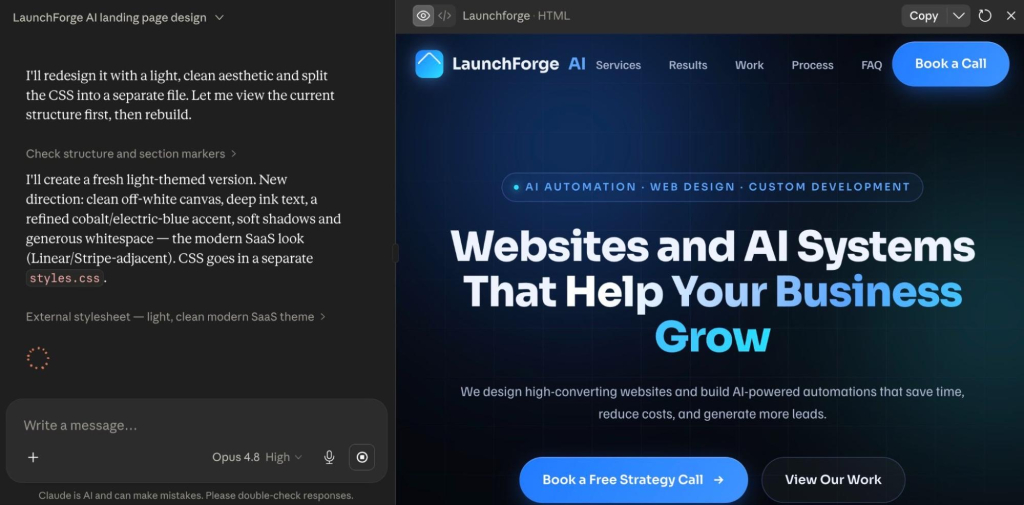
Open the artifact’s code view and download and save the relevant source files before starting the production handoff. Depending on the artifact, this is typically an .html file plus separate .css and .js files, or .jsx and .tsx files for React components.
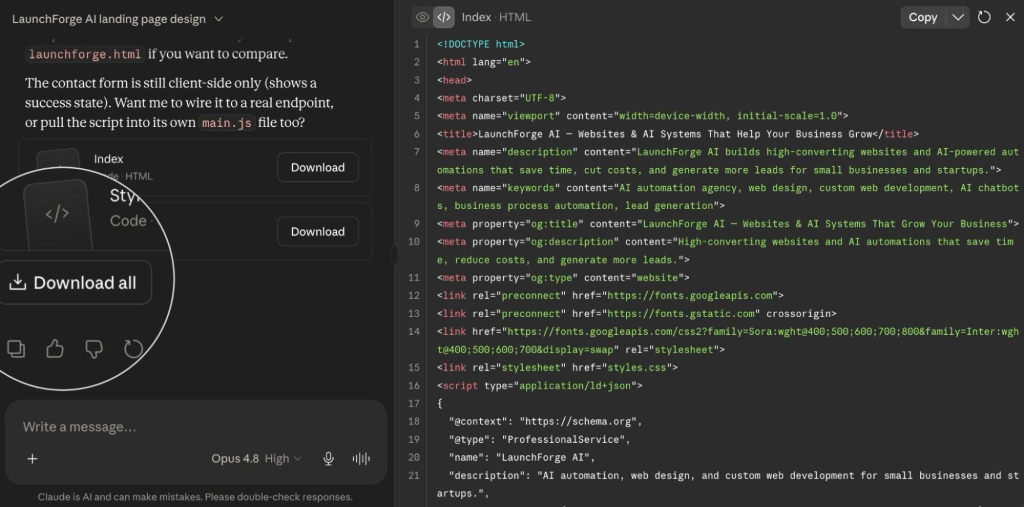
These are exactly the file types the production path can read directly, so save them individually rather than as a single screenshot or PDF.
Also take screenshots of important states, such as:
- Default view
- Mobile view
- Empty state
- Error state
- Success state
- Form validation state
- Any modal, dropdown, or multi-step interaction
Screenshots and short notes help the production tool or developer understand intended behavior that static code does not make obvious.
3. Create a production handoff brief
Write a short brief that explains what the live website needs beyond the Claude Artifact.
Include:
- Artifact purpose and target audience
- Published artifact link
- Screenshots of key screens and states
- Saved artifact code
- Page structure and navigation
- Final copy and calls to action
- Form fields and data-routing requirements
- Domain and SSL requirements
- Analytics or marketing integrations
- Launch deadline
- Ongoing maintenance owner
This step is easy to skip, but it’s what prevents the production build from making decisions that aren’t explained in the artifact. A clear handoff brief keeps production focused on building the site, not rediscovering decisions already made during prototyping.
Tip: You can ask Claude to help you generate the handoff brief, using the above as a prompt base.
4. Choose the right production path
Choose the production path based on who will own, update, and maintain the site after launch.
- Use Coderick AI for a managed production handoff where the site is built, hosted, published, and edited inside one SiteGround workflow, especially if you want to build without a Claude Code workflow.
- Use Claude Code if a developer needs to turn the artifact into a real codebase, manage it in Git, and deploy it through a technical pipeline.
- Keep the published Claude Artifact if the goal is only to share a working prototype.
Our pick: Coderick AI
The hard part isn’t launching. It’s editing the site six months later when the artifact is forgotten and the deployment setup is somebody else’s problem. Coderick AI keeps the build, the domain, and the edits in one place.
5. Build, publish, test, and maintain the live site
Once you choose a path, rebuild or import the artifact into the production environment, connect the domain, enable SSL, test the site, and define how future edits will happen. A website is not finished when it launches: it needs a clear owner, an update process, and a maintenance plan. The specific publishing and domain steps for the managed path are below.
How to hand off a Claude Artifact to Coderick AI
Instead of re-explaining your design in three paragraphs of prose, you give Coderick AI the supported artifact files, screenshots, and a short prompt and tell it where each file belongs. The sequence is:
- In your finalized Claude Artifact, open the code view and save the source files (for example, an .html file and its .css file, or the .jsx and .tsx files for a React component).
- In Coderick AI, drop those files directly into the chat.
- Prompt Coderick AI with the role each file plays: “Apply this HTML as the homepage” works far better than “use this file,” because Coderick AI needs to know where the file goes and what it does.
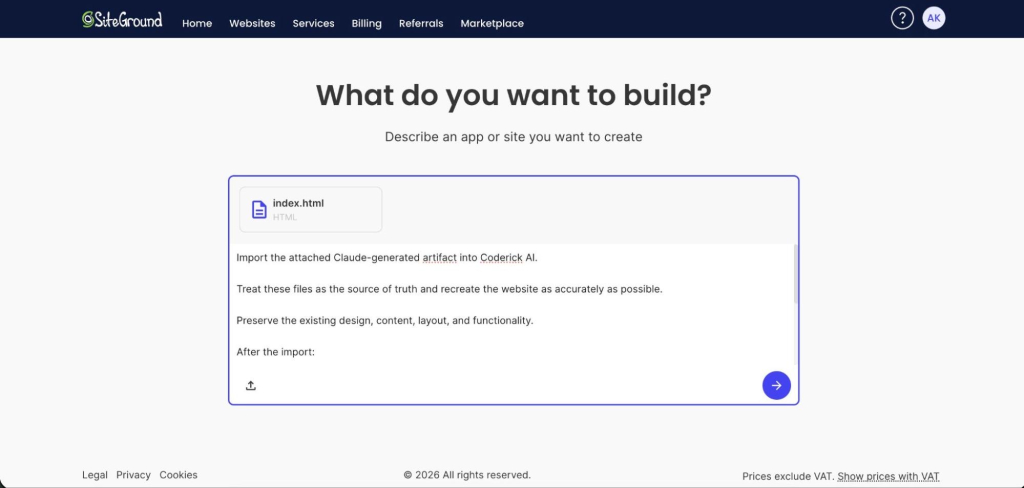
- Coderick AI reads the source and rebuilds it inside your project, keeping your structure, your styles, and the specific elements you uploaded, then builds on top to add pages, wire up functionality, or extend the layout.
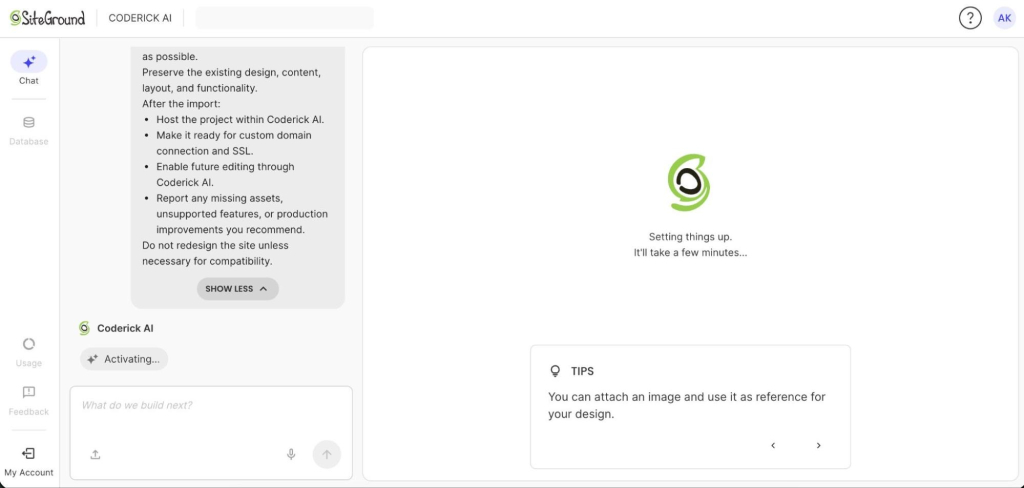
What Coderick AI handles after the handoff
After the handoff, Coderick AI covers the managed production layer: building the website or web app from your files and prompts, applying edits through chat, publishing and hosting on SiteGround’s infrastructure, applying SSL, creating responsive layouts, and supporting backend needs such as databases and user authentication.
It also includes built-in version control, so you can experiment and roll back to an earlier version at any time, and the backend is auto-generated, so you never touch server-side logic unless you want to. For the user, this turns the artifact-to-website process into one guided managed workflow instead of a chain of disconnected tools.
How to publish and connect a custom domain
Publishing in Coderick AI puts your project live on SiteGround’’s hosting immediately; there is no separate hosting setup to arrange.
To put it on a custom domain, go to Client Area > Websites > Coderick Projects, open the chosen project’s Actions menu, and select Change Primary Domain.
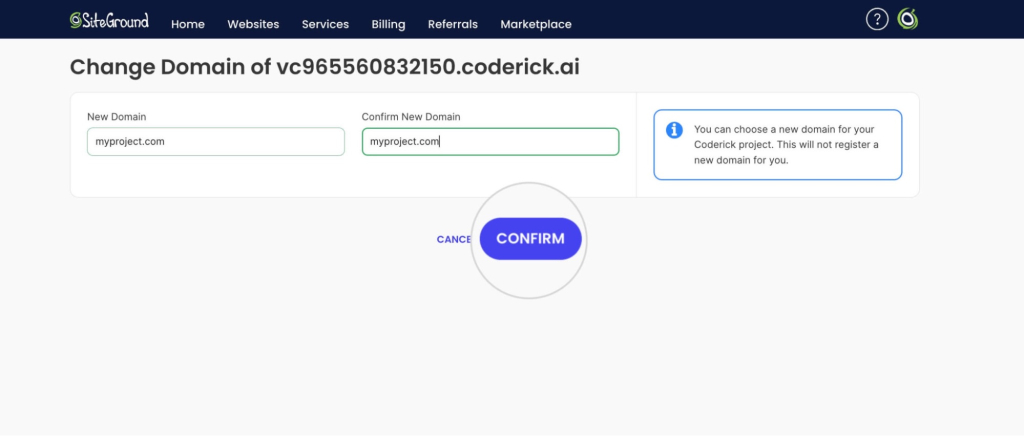
Enter the new domain and confirm.
Please note that using a custom domain for a Coderick project requires a paid Coderick plan.
If the domain is registered with SiteGround, it is pointed automatically. If it is registered elsewhere, point it to the SiteGround DNS records shown on that screen.
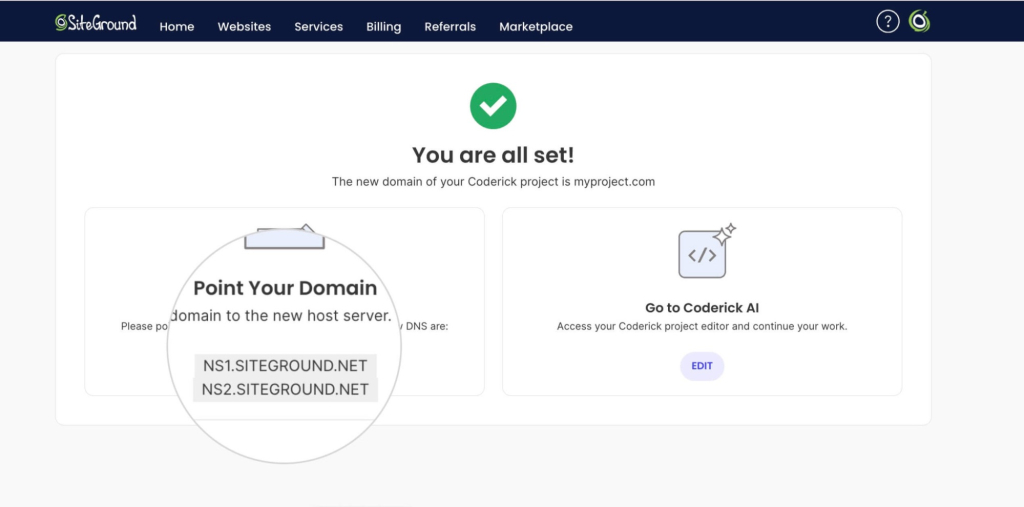
SSL installs automatically once the domain points to SiteGround’s DNS.
When Coderick AI is not the right path
Coderick AI is not the best fit when the project needs full source-code ownership, external infrastructure, Git branches and pull requests, or a custom CI/CD pipeline; in those cases Claude Code with a developer deployment workflow is more appropriate. Before choosing that route, factor in Claude Code pricing and deployment costs.
It may also be the wrong fit for projects that require bespoke API integrations, background jobs, or direct server-level configuration. Coderick AI is strongest when the priority is managed publishing: moving from a validated prototype to a hosted site without handling infrastructure separately.
What to test after the artifact becomes a live website
Once the site is live, run a focused pre-launch check before sending visitors to it.
- Custom domain and SSL – Confirm the site loads on the custom domain over HTTPS, check for mixed-content warnings in the browser console, and make sure redirects are in place if the site replaces an older URL.
- Mobile layout – Open the site on a phone and tablet and check the header, navigation, hero section, forms, buttons, embedded media, and interactive elements. Mobile is where prototype-to-production issues show up first.
- Forms and database actions – Submit every form, confirm the data reaches the correct destination, and confirm the visitor sees a clear success message. If the site includes accounts, test sign-up, login, logout, and password reset.
- Page speed and accessibility – Run a basic performance check and look at Largest Contentful Paint and Cumulative Layout Shift, not only the overall score. Check that images have alt text, headings follow a logical order, links are descriptive, and the site works with a keyboard.
- Ongoing edits and maintenance – Decide who owns the site and how future edits happen. On Coderick AI, updates happen through chat; in a developer workflow, updates happen in the codebase and redeploy through the pipeline. Without an owner and update process, even a successful launch can become outdated quickly.
Related workflows: Google Stitch and Claude Design
This article focuses on Claude Artifacts. If your starting point is a visual UI prototype from Google Stitch, or an Anthropic design project rather than an artifact, the production logic is similar but the handoff details differ. For exact workflow steps, see:
How to turn a Claude Design project into a real website
How to turn a Google Stitch design into a real website
Take the validated artifact into production with Coderick AI
The hardest part of taking an artifact live is not the artifact. It is everything that happens after you close the Claude tab. Coderick AI is the answer to “I’d rather not deal with the rest.”
[96]
FAQs
Yes. A Claude Artifact can become a real website once you move beyond the prototype stage and set up production needs such as hosting, a custom domain, SSL, responsive testing, SEO metadata, and ongoing maintenance. You can publish or embed artifacts from Claude, use Claude Code for a code-based build, or use a managed path such as Coderick AI.
No. Coderick AI is not a replacement for Claude. Claude is useful for creating, testing, and refining the artifact, while Coderick AI can serve as the managed production path to turn a validated idea into a live website. You can also create a website or a web app from scratch in Coderick AI by describing what you want, then refining and publishing it through its managed website-building environment.
Coderick AI is a managed production path rather than a direct Claude Artifact code importer. You can use the finished artifact, screenshots, copy, layout, and functionality notes as a clear blueprint, then recreate and publish the website inside Coderick AI’s managed building environment.
Use Claude Code when you need developer control, repository ownership, raw source-code editing, custom integrations, tests, or a GitHub-based deployment workflow.
Claude’s artifact publishing is mainly for sharing and embedding artifacts. If the goal is a branded production website with a custom domain, users should move the artifact into a website deployment path. Coderick AI supports custom domains.
For non-technical users, the best workflow is: build and refine the artifact in Claude, document the final version, then use Coderick AI as the managed production path. This avoids manual hosting, deployment, domain, SSL, backend, and maintenance tasks while keeping Claude as the creative and validation layer.