Website builder vs. WordPress: cost, upkeep & how to choose

Abstract of a website builder versus WordPress

A website builder gets you online fast and handles most of the upkeep. WordPress lets you build nearly anything, as long as you, or someone you pay, keeps it running. In the website builder vs WordPress debate, neither wins outright. The right pick depends on how much of your site you want to run yourself, and how many weekends you’re willing to give it.

Key takeaways:

  • A website builder is usually one subscription, though which features come standard, and which need a higher plan, varies by builder. WordPress software is free, but hosting, a domain, and yearly renewals for premium themes and plugins add up.
  • A builder can get a simple site live in a few hours. WordPress basics take a weekend, but a polished, customized design takes far longer, or a developer’s help.
  • Builders usually handle updates and security for you. Self-hosted WordPress needs weekly updates and monthly checks, and even managed hosting leaves plugin conflicts and premium plugin compatibility with you.
  • Pick a builder if speed and simplicity matter most. Pick WordPress if you need custom functionality, a large content library, or full control over your site and where it’s hosted.

What’s the difference between a website builder and WordPress?

A website builder is a hosted platform that runs your site for you, while WordPress is a CMS (content management system), software you install and run yourself on hosting you choose. That one difference shapes everything else in this comparison: who pays for what, who fixes what, and ultimately how far the site can stretch.

What is a website builder?

A website builder usually combines a visual editor, ready-made designs and templates, and hosting in one subscription. Most also handle security and updates, and many include support, though what’s covered varies by provider. You pick a design, add your own content, and publish.
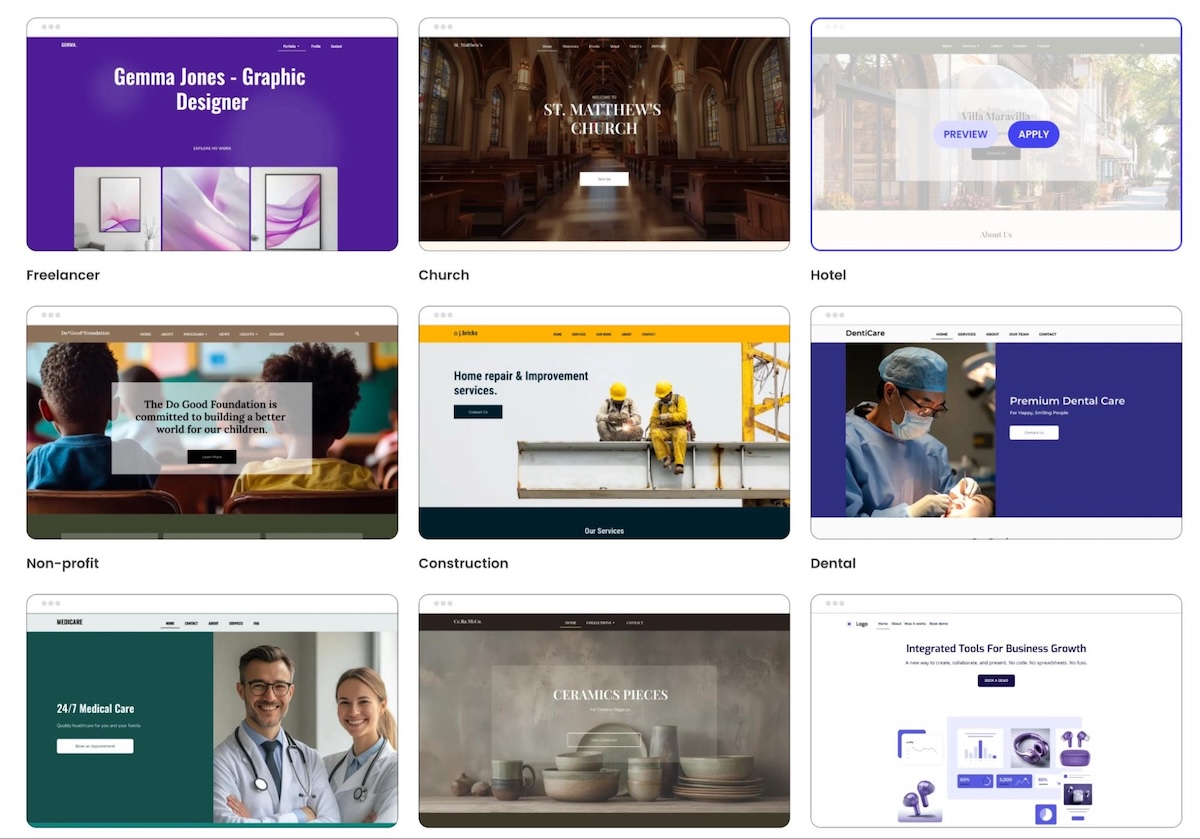
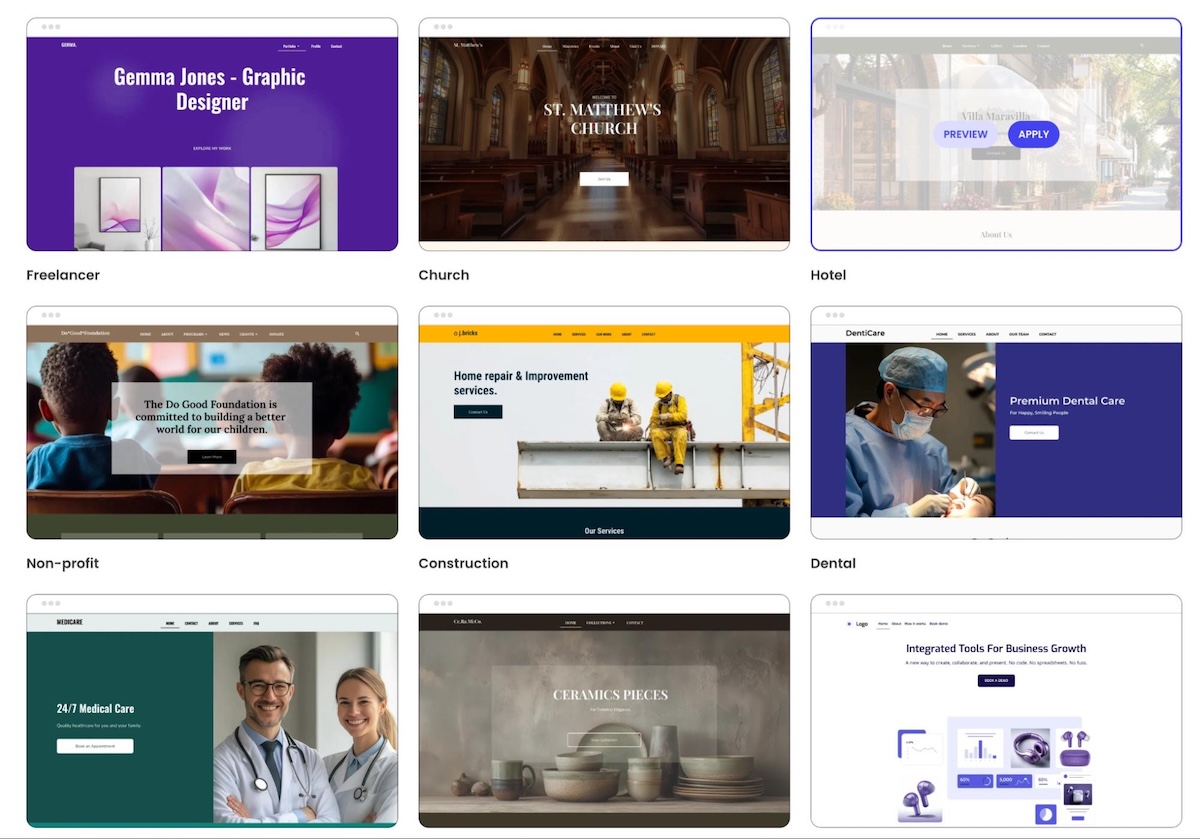
staring a website from a template via SiteGround

Pros

  • Fast setup, with simple and professional sites often live within a few hours.
  • One bill usually covers hosting and updates.
  • Common features like forms, a blog, and basic SEO tools are usually built in.

Cons

  • Design flexibility varies by builder, and some limit how far you can move beyond the built-in layouts.
  • Features come from the platform, so a very niche need may have no built-in answer.
  • Your site usually lives on that platform, so switching later means rebuilding the design.

What is WordPress?

WordPress is free, open-source CMS software. You install it on the hosting provider you choose, shape the design with a ready-made theme or one you code yourself, and add plugins for features like contact forms, SEO settings, or bookings. In exchange for that freedom, hosting and upkeep are on you.

Pros

  • More than 60,000 free plugins in the WordPress.org plugin directory for adding features.
  • Full access to the code, so you can modify your site to your heart’s content, as long as you know how or are happy to pay someone who does.
  • You own your site, files and database included, and can move it to any host that supports WordPress.
  • A huge community means most problems already have a documented fix.

Cons

  • Hosting, a domain, and premium add-ons are separate costs.
  • Updates, backups, and security are your responsibility, or partly your host’s if it’s managed.
  • Troubleshooting is on you. When something breaks, the cause could be a plugin, the theme, a core update, or the server, and there’s no single place to check.

This comparison covers self-hosted WordPress from WordPress.org. WordPress.com is a hosted service built on the same software, and it behaves more like a builder.

Where do AI website builders fit in?

AI website builders vary more than traditional builders do. Most generate a starting site from a prompt or a few questions, then let you refine it in a visual editor or by giving the AI more instructions. Some host and maintain the site for you like a regular builder, while others generate code you host elsewhere, and some produce WordPress sites.
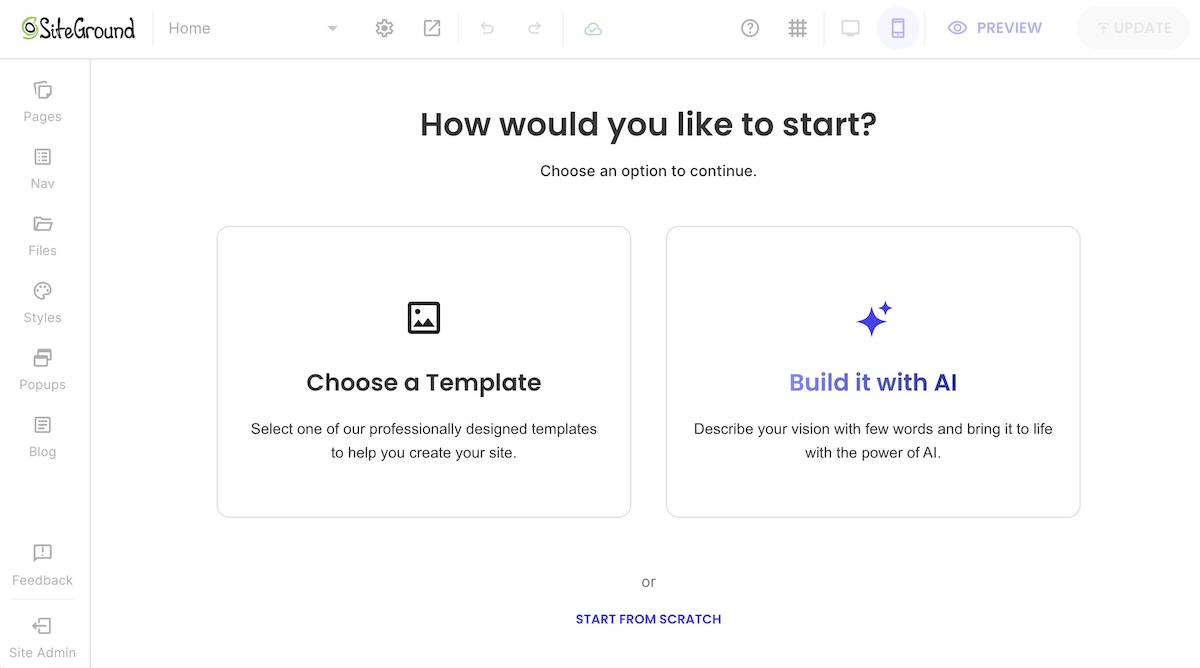
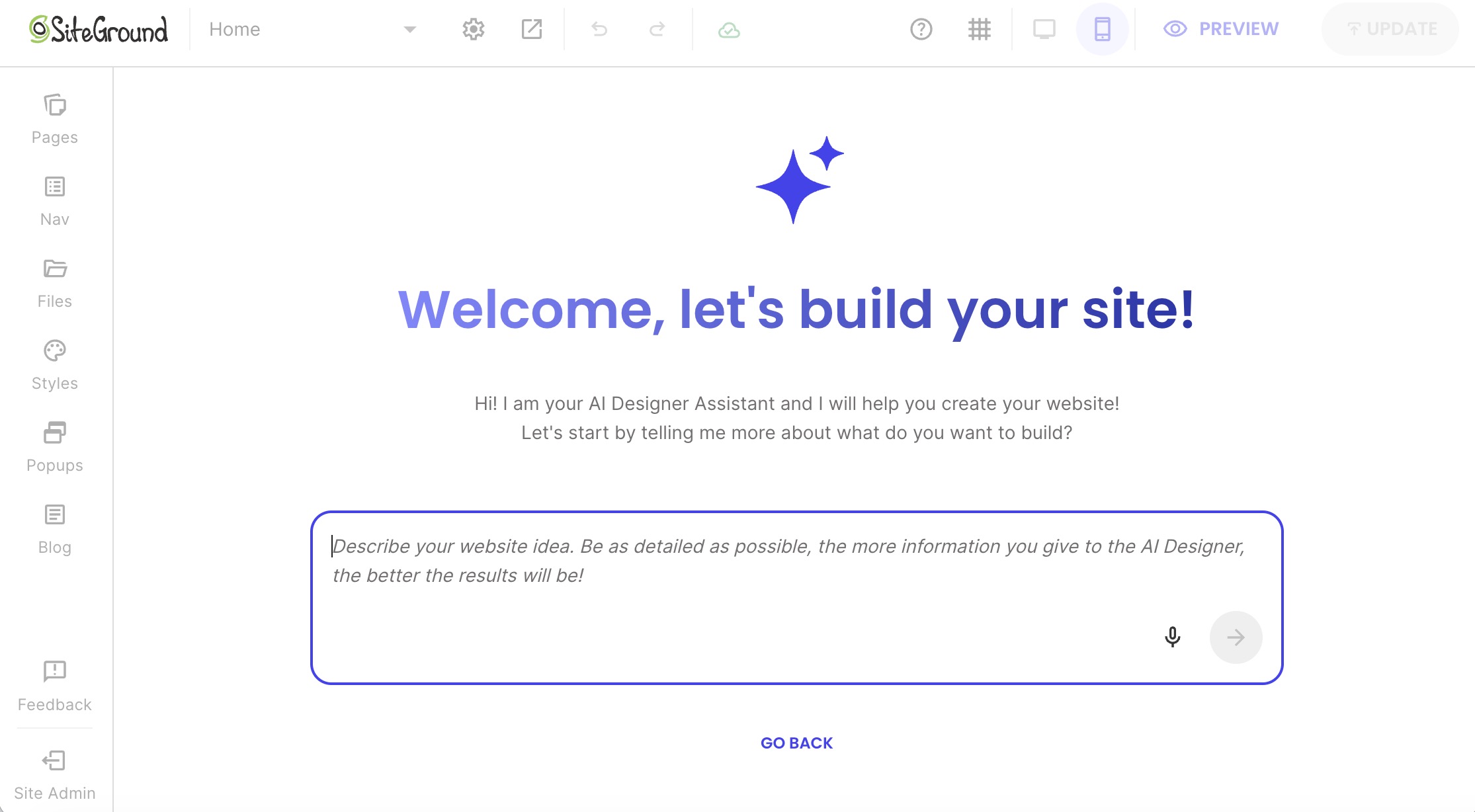
Building a website using AI or a template via the SiteGround Website Builder

WordPress is adding AI features too, both in the core software and through plugins. AI speeds up the first draft on either side, but the basic tradeoff between convenience and control doesn’t change.

How they compare where it counts

FactorWebsite builderWordPress (self-hosted)
Setup timeA few hours for a simple siteA weekend or more, plus learning time
Learning curveLow: visual editing, often drag-and-dropModerate: themes, plugins, and settings
CostUsually one subscriptionHosting and a domain, plus premium themes, plugins, or developer help
Design freedomVaries by builder, from template-based to highly flexibleNear-unlimited with themes and custom code
FeaturesBuilt in, but some may need a higher plan or paid add-onAdded through plugins
MaintenanceUsually handled by the platformHandled by you, or partly by a managed host
SupportVaries by provider, often covering the whole siteSplit up: your host covers hosting, each plugin’s developer or forum covers that plugin, and WordPress itself has community support only
SEO controlEssentials built inGranular, through plugins
PortabilityUsually tied to the platformMoves to any host that supports WordPress (files and database)

Ease of use and setup

Getting a site live and getting it to look right are two different timelines, and they differ more on WordPress.

Website builder

  • A visual editor and pre-designed layouts mean a simple five-page site can often go live in a few hours.
  • Many setup decisions are made for you, so there’s less to learn before you publish.

WordPress

  • Many hosts install it in one click, but you still set up the design, usually by choosing and configuring a theme, then pick plugins for things a builder includes by default, like contact forms or SEO tools.
  • You can learn the basics of the block editor in a weekend.
  • Customizing the design is where the steeper learning curve sits. A polished, on-brand site usually means wrestling with theme settings, plugin options, and sometimes CSS.
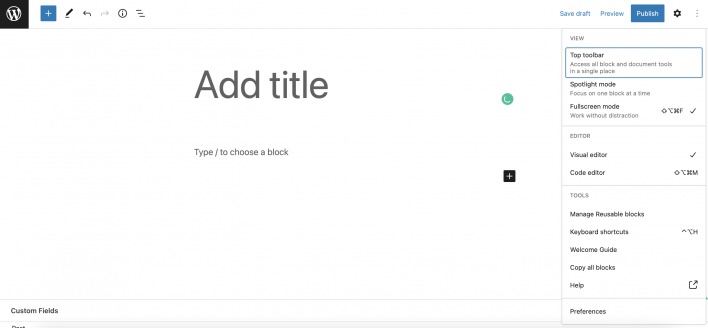
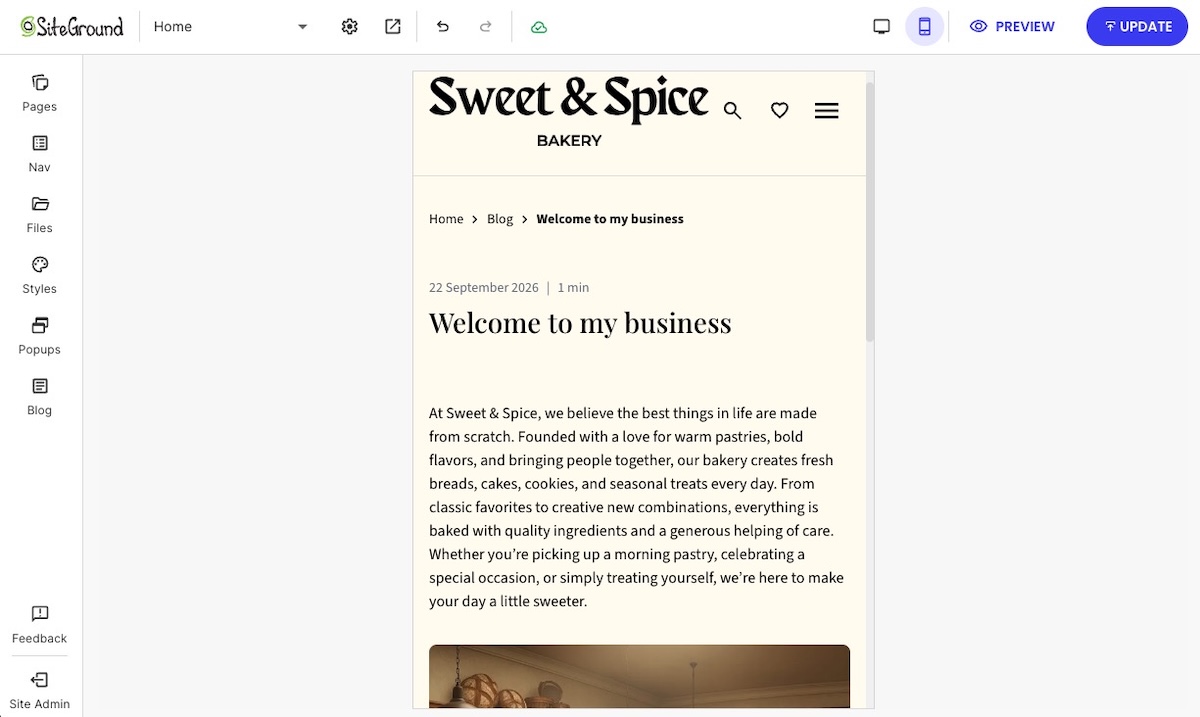
Adding a blog post via WordPress

Is WordPress hard to learn? The basics aren’t. A site that looks and works exactly the way you want is a different project, and it takes far more time than that first weekend suggests.

Cost

The sticker price is misleading in both directions.

Website builder

  • Usually one subscription that covers hosting and maintenance, and often support.
  • Standard features vary by builder. Things like an online store, bookings, or advanced SEO tools may require a higher plan or, where available, a paid add-on, so compare plans against the features you actually need.
  • Upgrades and extras like a custom domain raise the bill, but they usually stay with one provider instead of spreading across several.

WordPress

The software is free, but a working site comes with its own line items:

  • Hosting: prices range from a few dollars a month to much more for high-traffic sites, and many hosts include managed WordPress features even on entry-level plans.
  • Domain: usually $10 to $20 a year for a .com.
  • Premium theme: often $50 to $100. Many are annual subscriptions that tie updates and support to renewal, and skipping it means missing security fixes. Free themes exist too.
  • Premium plugins: single-site licenses for things like advanced forms, backups, or SEO plugins commonly start around $60 to $120 a year each, and higher tiers can top $300. Like themes, updates and support usually stop when the license lapses.
  • Developer help: billed by the hour when something breaks or needs building.

Those line items are why the total cost of a website varies so much. Then there’s your time: every hour spent updating plugins is an hour not spent on the business, and that cost never shows up on an invoice.

Design and customization

Both can produce a good-looking site. The difference is how much of the design you control, and how much work that control takes.

Website builder

  • Flexibility varies a lot. Some builders stick closely to their templates, while others let you rearrange sections and fine-tune styling freely without touching code.
  • Built-in design rules help non-designers keep spacing, fonts, and mobile layouts consistent.
  • Where a builder runs out of room depends on the tool. When it happens, it tends to be with highly custom layouts or interactive elements.
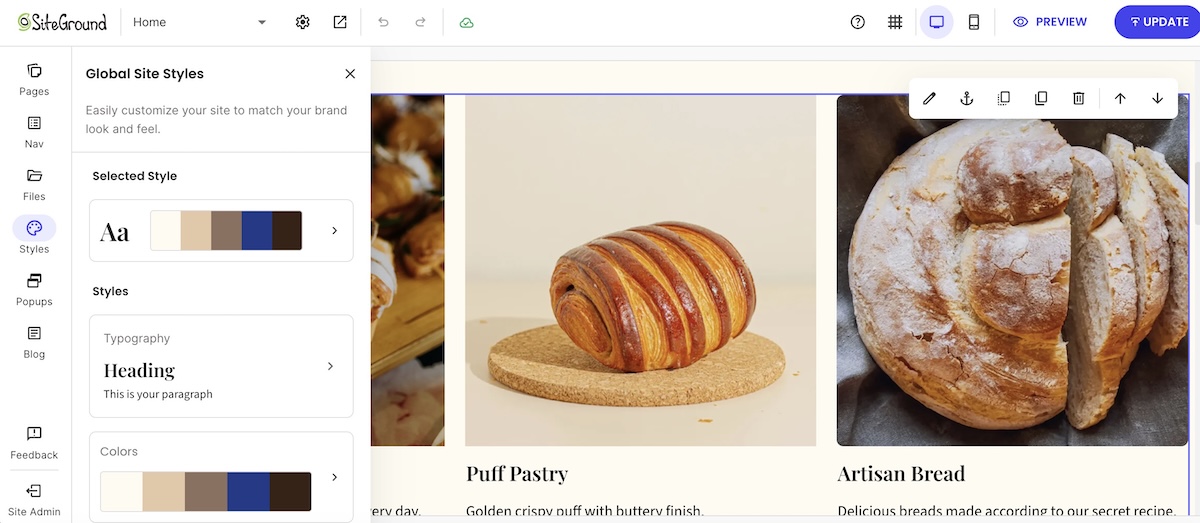
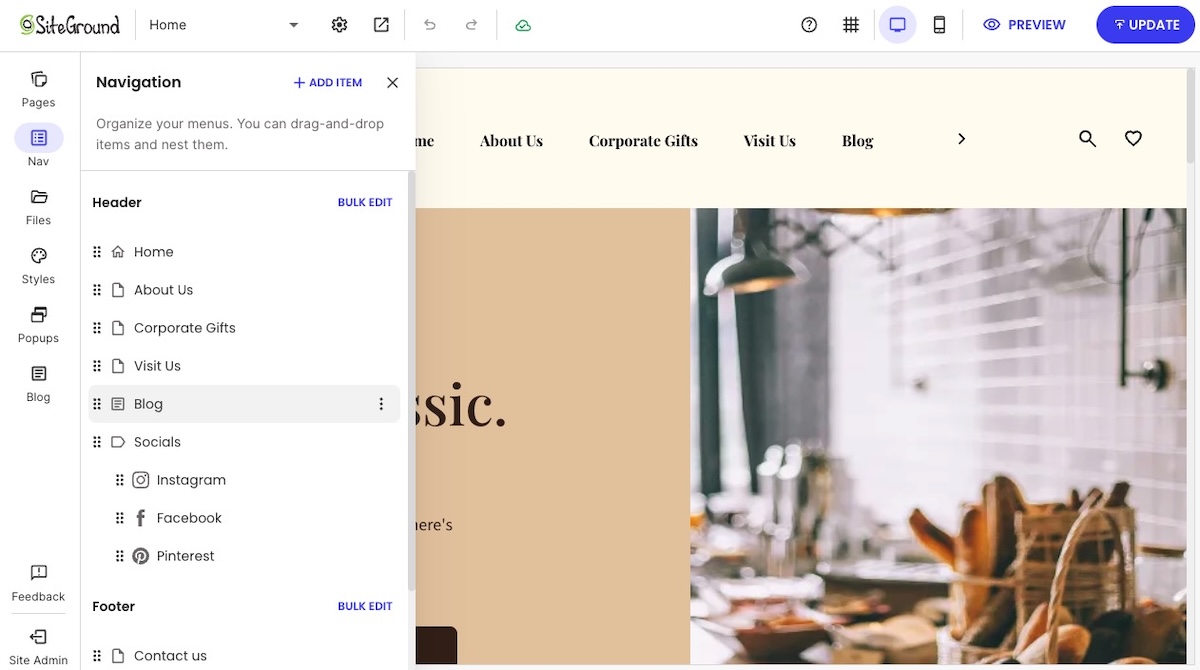
The SiteGround Website Builder with custom design elements

WordPress

  • Thousands of WordPress themes plus custom code mean there’s very little you can’t build.
  • That freedom costs time or money. Fine-tuning a theme to match your brand often means digging into settings or CSS, or hiring someone who can.

Features and add-ons

Builders typically include common features out of the box, while WordPress adds them through plugins.

Website builder

  • Common features such as forms, a blog, galleries, and basic SEO tools are usually built in. You switch them on rather than install them.
  • Built in doesn’t always mean included. Bigger features like a store may only unlock on higher plans.
  • Some builders extend features through an app market or third-party integrations, often at extra cost. Others build more into the platform itself, so key features come included, but you can’t add what the platform doesn’t offer. Either way, check that the features you need are covered before you commit.
  • Built-in ecommerce usually suits stores of many sizes.

WordPress

  • If a feature exists, there’s probably a plugin for it, from must-have plugins like backups and caching to very niche tools.
  • Plugins come from different developers and update on their own schedules. An update to a plugin, theme, or WordPress core can create a conflict that breaks a feature, scrambles a layout, or in the worst case takes the whole site down with a critical error.
  • For selling online, WordPress typically uses WooCommerce, a free ecommerce plugin that turns a WordPress site into a store.

Maintenance, security & support

This is where the two options differ most from day to day.

Website builder

  • With most builders, the platform handles updates, security patches, and backups.
  • Support varies by provider, but when it’s included, it usually covers the whole site, so there’s one place to ask when something breaks.

WordPress

  • WordPress itself has no vendor support, only community forums and documentation, so your host decides how much upkeep you carry.
  • Managed WordPress hosting takes on a large share. SiteGround’s Hosting for WordPress, for example, includes automatic core and free-plugin updates, the SiteGround Speed Optimizer and Security Optimizer plugins, 24/7 support, and staging on higher plans. 
  • Even on managed hosting, some jobs stay with you: keeping premium plugins and themes compatible, choosing plugins, and sorting out conflicts between them.

Here’s what that routine looks like for a typical WordPress site in 2026. Managed hosting can automate part of it, like core and free-plugin updates and daily backups, but checking the results still falls to you.

Every week

  • Update plugins and themes, starting with anything flagged as a security fix.
  • Confirm the latest backup actually ran.
  • Click through key pages and forms after updates to catch anything that broke.
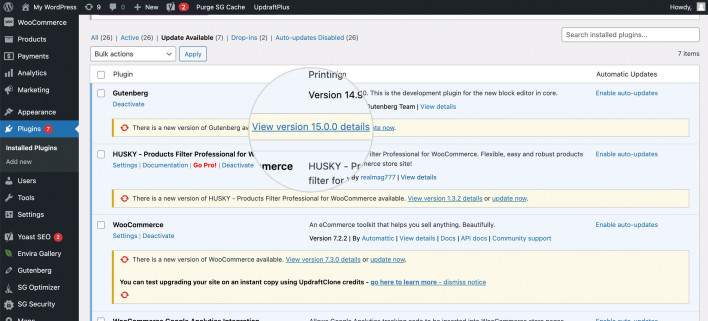
Updating plugins on the WordPress backend

Every month

  • Check plugin and theme compatibility after WordPress core releases, ideally on a staging copy first.
  • Test-restore a backup so you know it works before you need it.
  • Delete plugins and themes you no longer use. Deactivated code still sits on your server, and if it has a known vulnerability, attackers can sometimes exploit it even while it’s switched off.

None of it is hard. It just never stops.

SEO and performance

Both can rank. Search engines look at content quality, speed, and structure, and they don’t reward one platform over another.

Website builder

  • Most builders cover the essentials out of the box, such as sitemaps, SEO-friendly URLs, and meta fields.
  • Speed depends mostly on the platform, so there’s less to tune, but also less you can change.
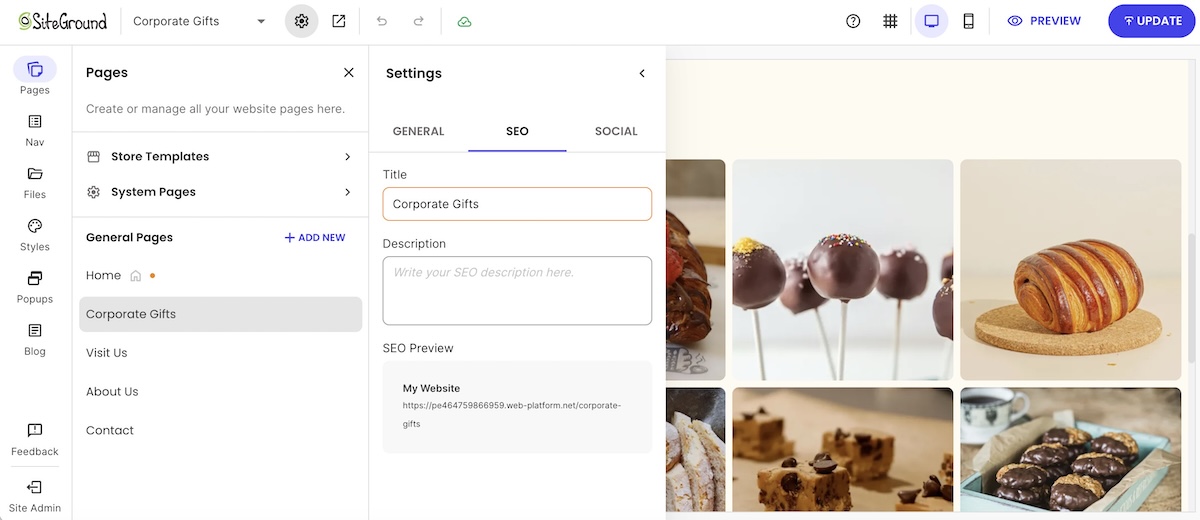
SEO tools on the backend of the SiteGround Website Builder

WordPress

  • Plugins may offer more granular control, which matters most for content-heavy sites or technical work like custom schema markup. If WordPress SEO is where you’re headed, expect to configure more yourself.
  • Speed depends on your hosting, your theme, and how many plugins you stack.

Growing or moving your site later

Both options can grow with a business, in different ways.

Website builder

  • Growing usually means upgrading your plan and switching on built-in features, with no extra upkeep.
  • Most small business sites never outgrow that.

WordPress

  • It can stretch further for sites that need custom functionality, membership areas, or thousands of pages of content.
  • Complexity grows with it: more plugins, more updates, and eventually more developer time.

Switching later is possible. Leaving a builder, on the other hand, is usually the bigger job, since export options are often limited, so expect to copy content over and rebuild the design. WordPress is easier to move, though any switch needs redirects so old URLs keep working.

Where the SiteGround Website Builder fits
If the builder side of this comparison sounds like your speed, the SiteGround Website Builder runs on SiteGround’s own hosting infrastructure, with 24/7 support. You can start from a template or with AI tools, then adjust the design freely without touching code. Built-in SEO tools cover sitemaps, SEO-friendly URLs, and meta fields, and ecommerce is there when you’re ready to sell.
Start building your website now>>

Which one should you choose?

Match your situation to one of the two lists below. Whichever describes you better is your answer. 

Choose a website builder if…

  • You want your site live this week, not this quarter.
  • You’d rather not manage updates, backups, or security.
  • You’re building a brochure site, portfolio, or small store.
  • You prefer one predictable bill over several.
  • You don’t have a developer on call.
  • You want one place to ask for help when something breaks.

Choose WordPress if…

  • You’re running a content-heavy site or a blog with hundreds of posts.
  • You need functionality no builder offers, which is when a custom site starts to make sense.
  • You want full ownership of your site and the freedom to change hosts.
  • You have the time, or a developer, to handle ongoing upkeep.
  • You expect the site to grow into something much bigger, like a membership site or a large store.

[79]

Pick the tool that fits you best

In the end, the website builder vs WordPress choice is a trade between control and upkeep. WordPress gives you the most control, as long as you’re ready for the updates, troubleshooting, and renewals that come with it, and managed hosting can take a good share of that off your plate. A builder hands most of the upkeep to the platform, so your main job is making sure the plan you pick covers the features you need.

If you’d rather spend your time on the business than on the backend, the SiteGround Website Builder lets you start from a template or AI, with built-in SEO tools, ecommerce when you’re ready to sell, and 24/7 support behind the whole site. You can build everything free for 14 days with no credit card and only pay when you’re ready to publish. That way, your weekends stay free for something other than plugin updates.

Frequently asked questions

Is WordPress a website builder?

Technically, WordPress is a CMS (content management system) rather than a website builder. You can build a site with it, but you supply the hosting, theme, and plugins yourself, while a website builder typically bundles most of that into one hosted service.

Is WordPress outdated in 2026?

WordPress isn’t outdated in 2026. It still runs about 42% of all websites, according to W3Techs, and it keeps shipping updates, including built-in AI foundations in WordPress 7.0. The perception comes from simpler tools catching up and from site owners growing tired of maintenance.

Why are people moving away from WordPress?

The most common reasons people move away from WordPress are maintenance load and plugin complexity, especially on small sites that don’t need its flexibility. Simpler builders now cover what a typical business site needs. Traffic goes the other way too, as some sites that outgrow a builder move to WordPress for more control.

Is there a better website builder than WordPress?

It depends on what you’re building, because the two solve different problems. If you want speed and low upkeep, a builder fits better. If you need custom functionality and full control, WordPress does. The two checklists above will tell you which describes you.

Is WordPress hard to learn?

WordPress is easy to start with but harder to master. You can learn to publish pages with the block editor in a weekend, but customizing the design and getting the site exactly how you want it takes much longer, especially without coding experience.

Wix alternatives: 6 website builders that give you more design freedom (2026)

abstract of wix alternatives

Wix is easy to start and awkward to change your mind about. Pick a template in the Wix Editor and you’re committed: swapping it later means starting a new site. The Wix alternatives below take different routes, from builders that let you swap templates after launch, to AI that builds your site from a chat, to tools that hand you full control over your design.

Key takeaways:

  • Only two of the six Wix alternatives here, SiteGround Website Builder and WordPress, let you swap templates after launch. Squarespace, Hostinger, and Webflow share the Wix Editor’s limit, and GoDaddy’s Airo AI Builder has no templates.
  • The classic Wix Editor makes you adjust your phone layout in a separate mobile editor, and edits made there don’t carry back to desktop. Wix’s newer Harmony editor handles phones automatically, but existing sites can’t be moved into it.
  • Wix competitors build in very different ways: SiteGround lets you start with AI, a template, or from scratch, GoDaddy’s Airo works almost entirely by chat, and Webflow lets you design for four screen sizes separately.
  • AI shows up differently on each platform: SiteGround, Hostinger, and GoDaddy’s Airo can build a first draft from a description, Hostinger’s credits are a one-time allowance while GoDaddy’s renew monthly, and WordPress adds AI through plugins.
  • Support differs in what you can actually use: Squarespace has no phone support and live chat on weekdays only, while SiteGround offers 24/7 chat, phone, and tickets, and GoDaddy offers 24/7 phone and chat on paid plans.
  • Moving off Wix means rebuilding your design.

Why people look beyond Wix

Three limits come up when people look beyond Wix, and each one surfaces the moment someone wants to change something they’ve already built.

First, a quick guide to Wix’s editors, since they behave differently. The Wix Editor is its original drag-and-drop builder. Wix Harmony, launched in January 2026, is the newest: it blends drag-and-drop with built-in AI. Here’s what you’ll run into on both:

  • Templates are permanent. In the Wix Editor, the template you pick is the template you keep. Wix’s help center says changing a site’s template isn’t currently possible, even if you haven’t added any content yet. You can restyle everything on it, but a different template means a new site and reassigning your Premium plan and domain. Wix says the same about Harmony sites created with AI.
  • Your editor is a one-way street. A site built in the Wix Editor can’t move to Wix Studio or Wix Harmony, and a Harmony site can’t move to either of the others.
  • Mobile gets its own editor. In the Wix Editor, Wix builds your phone layout automatically, and you fine-tune the mobile design in a separate editor. Desktop changes carry over to mobile, but mobile tweaks don’t carry back. Wix Harmony is automatically responsive, but you can’t move an existing Wix Editor site into it, so it only helps new sites.

Long story short, if you care about design, or like to start with one idea and try another later, these moments of friction can be a real barrier.

What to look for in a Wix alternative

Five questions show whether a website builder gives you more room than Wix does. Pay special attention to the first one, because it’s the hardest to fix later.

  • Design freedom. Can you change templates after launch, and does the editor handle phones, tablets, and desktops without a separate layout to maintain?
  • Ease of use. Do you want to drag elements, chat with an AI, or edit code? Pick the functionalities you’ll still enjoy in six months.
  • What’s built in. Analytics, marketing tools, and a custom domain either come with the plan or cost extra.
  • AI. Build-stage AI drafts your site, and run-stage AI edits it afterward. Check whether credits are monthly, one-time, or unlimited.
  • Support and infrastructure. Check which support channels you get (chat, email, or phone) and when they’re available. Then check the hosting basics: storage limits, security such as SSL, and whether backups are included.

The best Wix alternatives compared

We picked six general-purpose website builders that cover different needs and budgets. Here’s how SiteGround Website Builder, Squarespace, Hostinger, WordPress, Webflow, and GoDaddy compare on price, design freedom, AI, and support.

PlatformPriceFree to tryDesign freedomAISupport
SiteGround Website Builder$10/mo (Build); no online selling, store plans from $18/mo14-day trial, no card; choose a plan to publishGrid editor, template switching after launch, automatic mobile optimizationAI Wizard, AI text and image generation24/7 chat, phone, and tickets on every plan
Squarespace$19/mo (Basic); includes online selling14-day trial; no free planDesigner-made templates; can’t swap templates on new sitesBlueprint AI on every plan; text AI uses no creditsEmail 24/7; live chat weekdays; no phone
Hostinger$3.99/mo on a 12-month term; renews at $10.99Free to try, no card; publishing needs a paid planDrag-and-drop editor, mobile editing; template fixed once chosen5 to 15 one-time AI credits24/7 AI chat
WordPressFree software, plus hosting and a domainSoftware is free; hosting isn’tThemes you can switch anytime, block editor, full code accessPlugins and connectors you addYour host or community forums
Webflow$15/mo (Basic); free Starter planFree plan, no time limit; publishes to a webflow.io addressDetailed visual control, with a separate design for each screen size; templates only start new projectsAI features run on credits; 200 a month on the free workspaceHelp center and community forum
GoDaddy$9.99/mo (Starter); lists online sellingFree plan to build and explore, no card neededChat-based, with small edits section by section; no templates; code download150 credits a month on Starter24/7 phone and chat on paid plans

Pricing, plan names, and features in this comparison reflect what was publicly available as of October 2026. Prices are each platform’s lowest-priced paid plan for a general website, on 12-month billing, in USD, and renewal rates can differ. Plans change often, so confirm current details with each platform before you decide.

SiteGround Website Builder

The SiteGround Website Builder lets you start with AI, start from a template, or start from scratch, and you can change templates after you’ve published.

  • Price: $10 a month on the Build plan, prepaid for 12 months and renewing at the same rate. The 14-day free trial needs no credit card, and if you add a store later, ecommerce plans start at $18 a month.
  • Design freedom: There are three ways to start: describe your site and let the AI Wizard build a first draft, pick a template and add pre-built sections, or build from scratch. Either way, you finish in the same grid editor, where you drag, resize, and layer elements wherever you want. If you change your mind later, Change Template lets you apply just the new style and keep your content; the other options replace your content too. Pages are also optimized for every screen size automatically, so there’s no separate mobile layout to maintain.
starting a website from a template via SiteGround

AI: The AI Wizard handles the build-it-for-me path, and AI text and image generation come with the plan for anything you add afterward, using a free allowance of 20,000 tokens a month. For broader work, SiteGround AI Studio offers a multi-model AI workspace.

Using an AI website builder such as the AI Wizard to build a website via SiteGround
  • Support: Every plan includes 24/7 support by chat, phone, and ticket.
  • Trade-off: There’s no app marketplace, so features such as marketing tools and analytics are built in rather than added from a store. If you need a niche integration, there’s nothing to browse.

Squarespace

Squarespace is the design-forward option, known for designer-made templates and a drag-and-drop editor for customizing them.

  • Price: $19 a month for Basic, billed annually, up to $99 for Advanced. There’s a 14-day trial but no free plan.
  • Design freedom: A drag-and-drop editor called Fluid Engine for customizing any template.
  • AI: Blueprint AI builds a first draft on every plan, and its text AI tools don’t use credits. Credits go to Image Studio and an AI search-visibility tool: 10 one-time on Basic, then 20 to 120 a month on higher plans.
  • Support: Email support runs 24/7, and live chat runs Monday to Friday. There’s no phone support.
  • Trade-off: Like Wix, you can’t swap templates on a new Squarespace site, though you can restyle everything. Every plan also includes online selling, so if you only need a general site, you’re paying for store features you may not use. The extension marketplace is small and curated, covering shipping, inventory, marketing, and finance.

Hostinger

Hostinger is a low-price option, pairing a drag-and-drop editor with an AI builder, with plans from about $4 a month on a 12-month term.

  • Price: Premium costs $3.99 a month on a 12-month term (about $3 on a 48-month term) and renews at $10.99 a month. The first year includes a free domain, and you can try it free without a card, though publishing needs a paid plan. Paid plans also come with a 30-day money-back guarantee.
  • Design freedom: Drag elements around the editor, and use the mobile editing mode to adjust how pages look on a phone. If you start from a template, you can’t switch it once the site is created. A different one means building a new site and moving your domain over.
  • AI: Credits are spent when you create or edit your site by chatting with the AI, and bigger requests use more of them. Premium includes 5 and Unlimited includes 15, as a one-time allowance that doesn’t renew. Editing by hand with drag and drop doesn’t use credits, and you can buy more credits without upgrading your plan.
  • Support: 24/7 AI chat support.
  • Trade-off: Like Wix, a template you choose is fixed once the site is created. There’s no free plan, and the renewal rate is nearly three times the first-term price.

WordPress

WordPress.org is noted for giving you full control over your design and code, but also full responsibility for keeping the site running. It’s free software you install on your own web hosting. (Note that WordPress.com is a separate hosted service that takes care of hosting and updates, but what you can do depends on the plan you pay for.)

  • Price: The software is free. You pay for hosting and a domain.
  • Design freedom: Switch themes whenever you want, build layouts with the block editor, and edit code directly for anything else.
  • AI: AI tools come from plugins and connectors you add yourself.
  • Support: None from WordPress itself. You rely on your host’s support team and community forums.
  • Trade-off: You handle updates, security, and backups.

Webflow

Webflow is built for people who want to control every last detail of how a page looks, from spacing and fonts to layout, and who want to specifically set how it looks on desktop, tablet, and phone separately. You design visually, and Webflow writes the code behind it.

  • Price: The Starter plan is free with no time limit, but your site lives at a free webflow.io address instead of your own domain, and it’s limited to two pages. Basic is $15 a month, billed yearly, and lets you use your own domain, but it can’t run a blog or other content that updates regularly. Premium is $25 a month, billed yearly, and adds the content management system (CMS) a blog needs.
  • Design freedom: A separate design for each screen size: desktop, tablet, and phones held sideways or upright.
  • AI: Webflow’s AI features run on credits, and the free workspace includes 200 a month.
  • Support: A help center and community forum.
  • Trade-off: It’s built for designers, so expect a learning curve. Templates only start new projects, so you can’t apply one to an existing site.

GoDaddy

GoDaddy’s Airo AI Builder works almost entirely by chat: you describe what you want, the AI builds it, and you refine it by chatting, with small edits you can make section by section.

  • Price: Starter costs $9.99 a month billed annually and is aimed at portfolios, personal sites, and content creators. Professional costs $24.99. A free plan includes 50 AI credits a month for exploring ideas.
  • Design freedom: There are no templates and no drag-and-drop editor. You can change text and images section by section without spending credits, and you can download your code anytime.
  • AI: AI credits are what you spend when the AI builds your site or web apps for you, and they renew monthly: 150 on Starter and 300 on Professional. Editing text and images yourself doesn’t use credits.
  • Support: 24/7 support comes with every paid plan, by phone and chat.
  • Trade-off: Bigger changes go through chat and draw on a monthly credit allowance, so heavy use can run out before the month ends.

Which Wix alternative actually fits your project

Start with the row that matches what you’d hate to give up, then look at the platforms next to it.

You value…Consider
Changing your template after launchSiteGround Website Builder, WordPress
Designer-made templatesSquarespace
Per-device design controlWebflow
A low monthly priceHostinger, GoDaddy, SiteGround Website Builder
Editing your site by chatting with AIGoDaddy
Full control of code and hostingWordPress
A free way to build and test before you paySiteGround Website Builder, Squarespace, Hostinger, GoDaddy
A free plan you can publish onWebflow
Built-in AI to draft your site, drag-and-drop editing, and templates you can swap laterSiteGround Website Builder

Design freedom, without template lock-in

Each of these Wix alternatives fixes a different frustration. Webflow and WordPress hand you deep control, GoDaddy’s Airo lets you build by chat, Squarespace leans on designer-made templates, and Hostinger keeps the price low. Where they split is what happens when you change your mind: only SiteGround and WordPress let you swap templates after launch.

The SiteGround Website Builder is built around you. Tell the AI Wizard what you want, or start from a template, then drag elements around the grid to make it yours. If you change your mind later, you can swap templates on a live site, and pages are optimized for every screen size automatically. 24/7 support and premium hosting come with every plan, including the entry-level Build plan. You can try it free for 14 days with no credit card, and you only choose a plan when you’re ready to publish.

[113]

Frequently asked questions about Wix alternatives

Is there anything better than Wix?

It depends on what you want to change about Wix. Among the Wix alternatives above, SiteGround Website Builder and WordPress let you change templates after launch, Webflow lets you design each screen size separately, and Hostinger starts at about $4 a month on a 12-month term.

Which is better, Wix or Squarespace?

Squarespace is the better pick for designer-made templates, and Wix is the better pick if you want a free plan, since Squarespace offers only a 14-day trial. Pricing is close, at $19 a month for Squarespace Basic and $17 for Wix Light, but Squarespace’s plan includes online selling and Wix’s doesn’t.

Is there a free alternative to Wix?

Yes. Webflow’s Starter plan lets you publish a site for free, with no time limit, to a free webflow.io address, limited to two pages. GoDaddy’s free plan lets you build and explore with 50 AI credits a month. SiteGround Website Builder, Squarespace, and Hostinger offer free trials, and you pay to publish. WordPress is free software but needs paid hosting.

Can I switch from Wix without losing my content?

Partly. You can connect or transfer a domain you bought through Wix, and WordPress.com’s importer brings over pages, images, menus, and the site title. Blog posts can’t be exported, though Wix’s RSS feed provides the 20 most recent. Wix sites can only run on Wix’s servers, so you’ll need to rebuild your design on the new platform.

How to use AI to start a business, from first idea to first customer

Abstract of starting a business using AI

AI can help with almost every part of starting a business, from researching an idea to building your website. The hard part is knowing which tools to use, when to use them, and what to decide yourself, and that’s where a lot of first-time founders get stuck. This guide shows how to use AI to start a business in 7 steps, from your first idea to your first customer, with a clear sign at each step that you’re ready to move on.

Key takeaways:

  • Using AI to start a business works best one step at a time: problem, validation, offer, legal setup, website, first customers, and automation.
  • Each step comes down to 3 things: what AI handles, what you decide, and the customer evidence that says you’re ready to move on.
  • Most new businesses can benefit from 3 kinds of AI help as they grow: an AI assistant, an AI website builder, and built-in AI tools that handle routine site, store, and email tasks.
  • You can use AI for every step without coding, from researching problems to building your site and handling routine updates through chat.
  • Add automation when a task becomes repeatable, such as a welcome email for new subscribers, and skip automations for situations you haven’t run into yet.

How to use AI to start a business in 7 steps

The safest way to use AI to start a business is to let it research, draft, and build while you keep the decisions. That’s because AI can certainly summarize a market, write an offer, and generate a website, but it can’t confirm that real customers want what you’re selling. 

Steve Blank, the Stanford lecturer behind the customer development method, made this very point to CNBC in March 2025. He conveyed that AI speeds up a founder’s work, but it doesn’t remove the need to test assumptions about who your customers are and what they want.

With that in mind, here’s how to start a business using AI in 7 steps:

  1. Find a specific problem worth solving
  2. Validate your business idea with real customer evidence
  3. Turn the problem into a clear offer
  4. Set up your business legally
  5. Build the minimum business website you need with AI
  6. Get your first customers
  7. Let AI handle the repetitive business tasks

Step 1: Find a specific problem worth solving

A business starts with a problem that a specific group of people already wants solved (even if they haven’t realized it yet!). This is where AI is particularly good at finding such problems in public conversations. That said, it’s much worse at judging which one of those problems truly deserves the next year of your life. 

When starting a business with AI, either starting point works:

  • You already have an idea. Use AI to look for evidence that the problem exists outside your head, and to see how people deal with it today.
  • You don’t have an idea yet. Start with a group you know well, such as your former industry, a hobby community, or local businesses, and use AI to explore what they struggle with.

Once you start noodling over a specific problem and idea, you need to ask yourself whether that problem is actually worth solving. Usually it is when it shows a few of these signs:

  • It comes up again and again in reviews, forums, and social posts.
  • People already spend money or time on a workaround.
  • You can reach the people who have it.
  • You understand it well enough to solve it better than the current options.

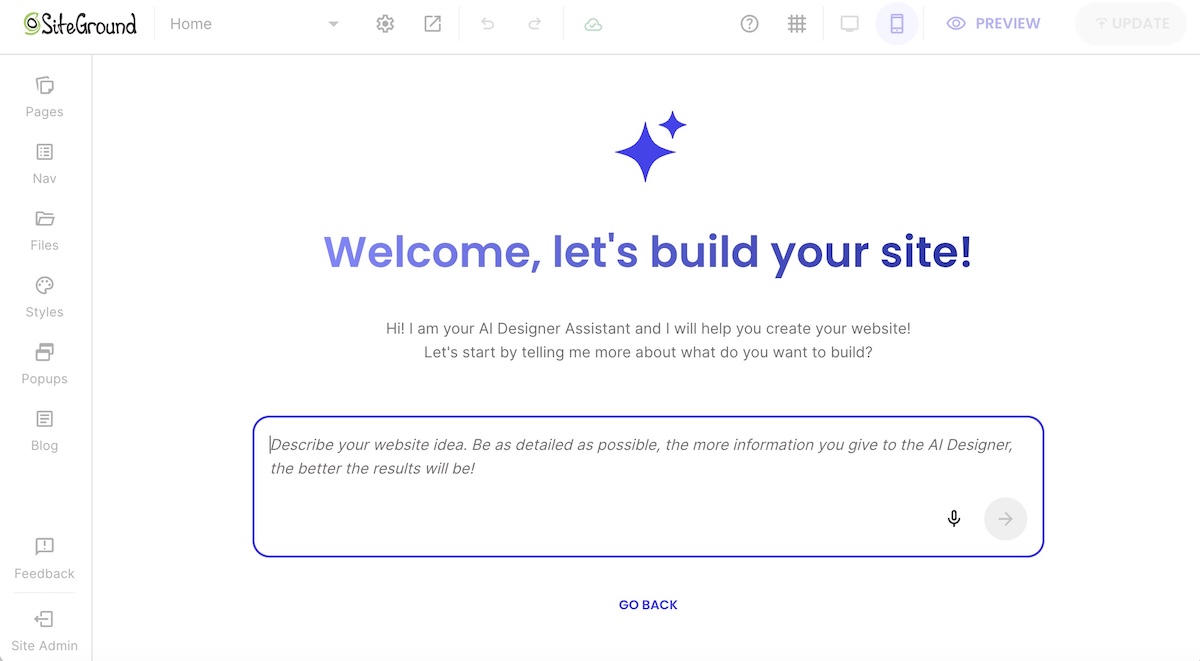
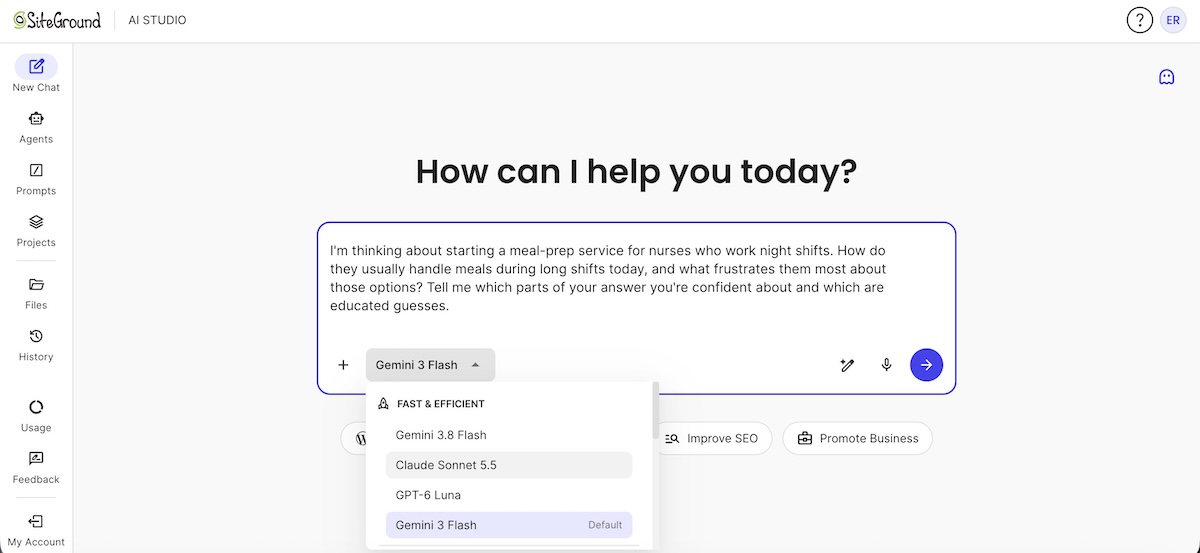
Now, every AI model will give its own spin on what it finds and concludes. So rather than depend on one, SiteGround AI Studio gives you several AI models in one workspace, so you can ask more than one the same question and see where they align. Plus, you can continue to use this as a resource throughout your business creation process, leveraging access to the various models in order to the best output possible. (Note that AI Studio usage is token-based, and a current free monthly allocation comes with qualifying paid SiteGround services.)

SiteGround AI Studio interface with various LLM chat models

Step 1 at a glance

  • AI handles: exploring where a problem shows up and how people deal with it today.
  • You decide: which problem is worth your time, based on the signs above.
  • You’re ready for Step 2 when: you’ve picked one problem, for one customer group you can reach, that shows at least a few of the aforementioned signs.

Step 2: Validate your business idea with real customer evidence

Step 1 showed the problem exists. Step 2 checks, directly with the people who have it, whether they want someone to solve it. In a CB Insights analysis of 431 venture-backed startups that shut down since 2023, 43% cited poor product-market fit, the most common underlying cause after running out of cash. This step is the cheapest place to catch it.

Two methods work well, and you can run them side by side:

  • Conversations. Talk to 10-20 people in your target group and ask about the last time they had the problem. Try to find people beyond just your own circle of family and friends in order to ensure transparent and varied responses. 
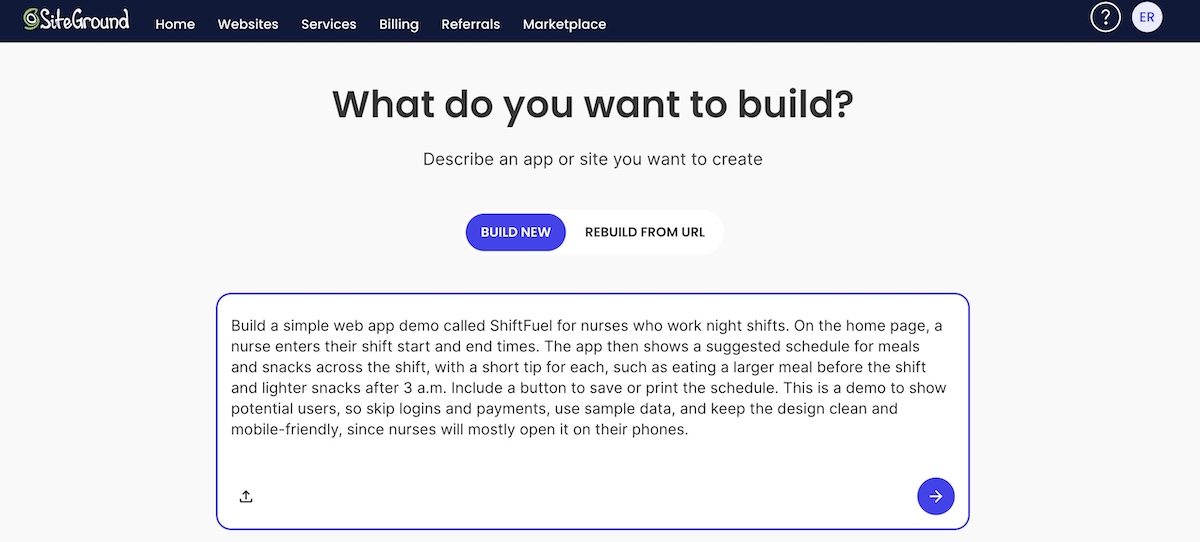
  • Something people can react to. Share a short description of the solution you have in mind, in your conversations or in the communities from Step 1, and ask people whether they’d want to hear when it launches. If your idea is a tool or app, Coderick AI can even build a simple working demo to show instead. Either way, this is a quick test, and your actual business website comes later, in Step 5.
Coderick AI chat field for creating your own web app

AI can then definitely jump in to help you draft interview questions as well as summarize what people tell you, even finding patterns or noteworthy sentiments. 

Step 2 at a glance

  • AI handles: drafting interview questions and summarizing what people told you.
  • You decide: who to contact first, where to dig deeper or pivot, and how much interest counts as enough.
  • You’re ready for Step 3 when: several people you’ve contacted directly confirm the problem and show interest in a solution, such as asking when it’ll be available.

An offer is the specific thing you’ll sell, to whom, for what result, and at what price. This step turns the interest you found in Step 2 into something a customer can more concretely say yes or no to.

Step 3: Turn the problem into a clear offer

An offer is the specific thing you’ll sell, to whom, for what result, and at what price. This step turns the interest you found in Step 2 into something a customer can more concretely say yes or no to.

Write your offer in one sentence

Fill in this template using the words people used in your Step 2 conversations:

For [customer] who [problem], I offer [solution] so they can [outcome], unlike [current alternative], for [price].

For example: “For independent physiotherapists who lose hours each week to appointment reminders, I offer a done-for-you text reminder setup so they can cut no-shows, unlike chasing patients by phone, for $150 plus $30 a month.”

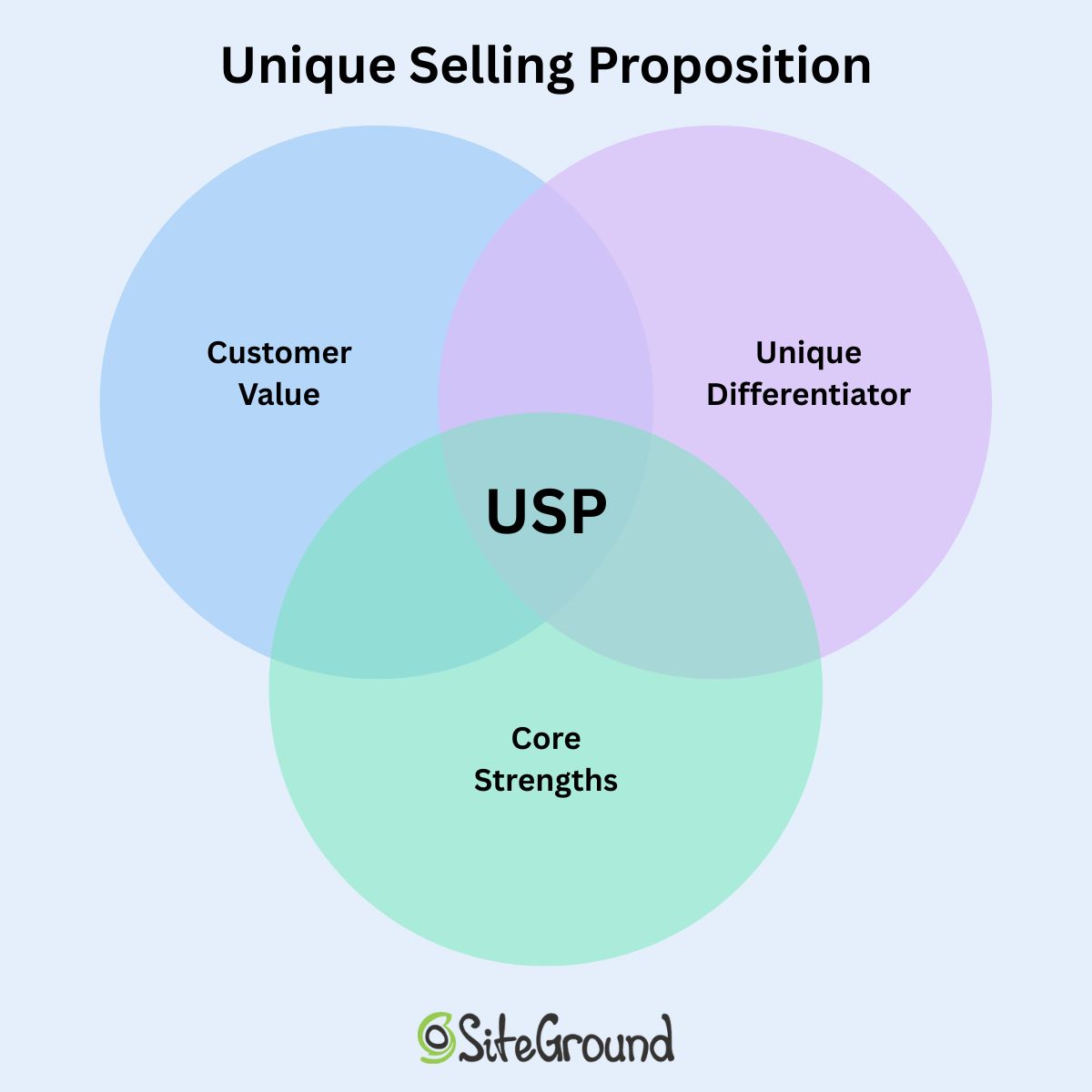
AI is useful here for drafting a few versions and listing the objections a skeptical customer would raise. Its drafts tend to sound generic, so pick the one closest to how your customers talk, and tweak as necessary. At the end of the day, the strongest unique selling proposition usually names one specific result your competitors don’t claim.

unique selling proposition venn diagram combining value unique differentiator and core strengths

Set a starting price

A starting price usually sits between two numbers:

  • Your floor: what it costs you to deliver, including your time, materials, and any software or payment fees. Below this, every sale loses money.
  • Your ceiling: what customers spend on their current workaround, in money or time, and what competitors charge for something similar.

AI can help you gather both, such as summarizing competitor prices or adding up your costs, but check the numbers it gives you. Pick a price in that range you’d be comfortable defending out loud, and expect to adjust it after your first few sales.

Once you’ve got your offer dialed, AI can help expand it into a one-page business plan covering customer, offer, channels, and startup costs.

Test it before you build

Show the offer to the people you spoke with in Step 2, through a message, a one-page document, or a call. If you can, ask for a pre-order, as this is the strongest way to assess true interest. This can be done easily by jumping to Step 5, where will cover this step in more detail. 

Step 3 at a glance

  • AI handles: drafting the offer, generating alternatives, gathering pricing data, and predicting objections.
  • You decide: the final wording, the price, and the format.
  • You’re ready for Step 4 when: people consistently ask how to buy, accept the price without heavy pushback, or commit to a pre-order or booking. If the response is polite interest and nothing more, revise the offer first.

Step 4: Set up your business legally

Legal setup is where AI works best as a translator and worst as an authority (which it of course loves to do). Rules for business structure, registration, taxes, and licenses vary by country, state, and industry, so every answer AI gives you here is a draft to check against an official source or a professional.

US readers can start with the U.S. Small Business Administration’s business guide, which covers structure, registration, tax IDs, and licenses. Elsewhere, your national government’s business portal or a local accountant is the right reference.

Pick a name and register your domain

You need a name before you can register the business, so start here — and AI is a great brainstorming partner for this exercise. Give it your offer, customer, and tone, and ask for 20 options with a one-line reason for each. 

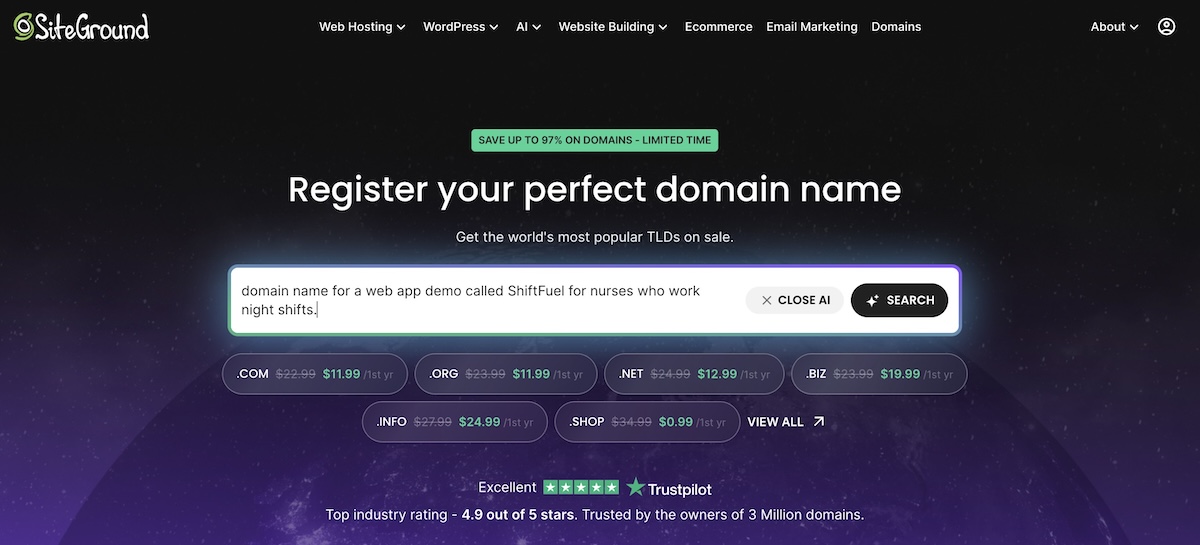
Meanwhile, when it comes to choosing a domain, SiteGround’s AI domain name generator works from your keywords, and every name it suggests is already available, so you can skip checking availability one name at a time.

Using the SiteGround AI domain name generator to find a domain name

Note: Before you settle on a business name or register your domain, search your country’s trademark database for the name. Just because a domain is available doesn’t mean the name is free to use.

Choose a business structure

Your business structure decides two things: whether your personal savings are at risk if the business owes money, and how much paperwork you’ll handle. More protection usually means more paperwork. The names and rules vary by country, but the basic options look similar:

StructurePersonal liabilityPaperworkTypical fit
Sole proprietorshipYou’re personally responsible for business debtsLowestTesting a service business on your own
PartnershipShared among partnersModerateTwo or more founders sharing ownership
LLC or limited companyGenerally limited to the businessModerate, with registration and annual filingsMost small businesses once revenue is steady
CorporationLimited to the businessHighestBusinesses planning to raise outside investment

AI can explain these trade-offs for your situation if you give it your location, expected revenue, and whether you’ll have partners. The final choice, and an accountant’s sign-off, stay with you.

Register, get your tax ID and licenses, and separate your finances

A typical setup checklist covers:

  • Registering your business name with the relevant authority
  • Getting a tax ID, such as an EIN in the US
  • Applying for any licenses and permits your industry or city requires
  • Opening a separate business bank account
  • Getting insurance that matches your risks

A useful prompt: “Create a checklist of registrations, tax IDs, and licenses for a [type of business] in [city, country], and name the government office that handles each one.” Check every item on the official site. Links to government pages are a common place for AI to invent URLs, so always check sources.

Step 4 at a glance

  • AI handles: name ideas, explaining your options, and drafting checklists.
  • You decide: your name, your business structure, and which questions need an accountant or lawyer.
  • You’re ready for Step 5 when: your name and domain are secured, your business is registered, and your finances are separate.

Step 5: Build the minimum business website you need with AI

A minimum website is the smallest version that lets a customer understand your offer and take the next step. Everything else can wait until customers ask for it.

Choose your build path

Pick the path that matches what the business needs to do on day one:

If you needUseKeep in mind
A simple business site with no code, and no selling via the siteSiteGround Website BuilderAI drafts the pages, and you edit the copy and images
Custom functionality, such as a booking flow, calculator, or client portalCoderick AIStripe payments and custom domains depend on your plan, and features like confirmation emails or access rules need to be requested explicitly in your prompt
An online store for productsSiteGround EcommerceIncludes the AI Store Agent for sales questions later
Full control over your site’s design and features, with plugins to add almost anythingSiteGround Hosting for WordPressMore setup than a builder, but managed hosting takes care of much of the admin, including WordPress updates, daily backups, and security. The AI Agent for WordPress, included with every plan, handles day-to-day site tasks through chat.

Not every business aligns with every option. A consultant who books calls rarely needs a store, and a jewelry maker rarely needs a custom web app.

Note that for taking those pre-orders or deposits from Step 3 online, a simple store is the quickest route. With SiteGround Ecommerce, you can start with just your one offer so early buyers can pay you directly, then add more products as orders come in.

Develop your branding

Whichever path you choose, AI can draft branding basics in a flash. Give it your offer, customer, and name, and ask for:

  • 3 or 4 logo concepts
  • A color palette and a pair of fonts
  • A short brand voice guide with a few example sentences

You choose which direction fits, and you keep it consistent across your website, emails, and social profiles.

Add the pages you need

For most new businesses, that’s 4 pages:

  • A home page that states the offer from Step 3
  • A page or form to buy, book, or get in touch
  • An about page that explains who’s behind the business
  • Your policies (typically linked in the website footer)
example of a website homepage with just the essential pages

AI can draft the copy for each page from your Step 3 offer. Edit it until it sounds like you and uses your customers’ words.

As for policies, most business websites need three:

  • A privacy policy explains what personal data you collect, such as names and email addresses, and how you use it. In many places, the law requires one as soon as your site collects that data.
  • Terms of service set the rules for using your site and buying from you.
  • A refund policy tells customers what happens if they want their money back.

AI can draft all 3 from a short description of your business. Have them reviewed before you publish, especially if you sell to customers in regions with strict privacy rules, such as the EU.

Step 5 at a glance

  • AI handles: building the site, drafting page copy and policies, and branding drafts.
  • You decide: which build path fits the business, and the look.
  • You’re ready for Step 6 when: a stranger can land on your site, understand the offer, and take the next step without asking you a question.

Step 6: Get your first customers

Your website is live, but nobody knows it exists yet. Your first customers usually come from the people you talked to in Step 2 and the places you found them in Step 1, so start there.

Use AI to draft outreach, not replace it

A website marketing strategy for a new business usually leans on a few channels:

  • Direct messages to people who have the problem you picked in Step 1
  • Community posts in the forums and groups where your customers spend time
  • Social media on 1 or 2 platforms your customers already use, with posts about the problem you solve as much as the product. For more tactics, see how to go from social media likes to business leads.
  • Local search listings, if you serve a specific area
  • Partnerships with businesses that serve the same customers

AI can help with the writing behind each channel, from personal messages to community and social posts to your local listing. Keep the sending and replying personal, though, since early customers can tell when a message was written for everyone.

Build an audience you own

Most of the channels above run on someone else’s platform. Followers on social media and members of online communities belong to those platforms, which decide who sees your posts and can change the rules anytime. That’s why it’s worth building at least one channel you control, and for most new businesses, that’s an email list.

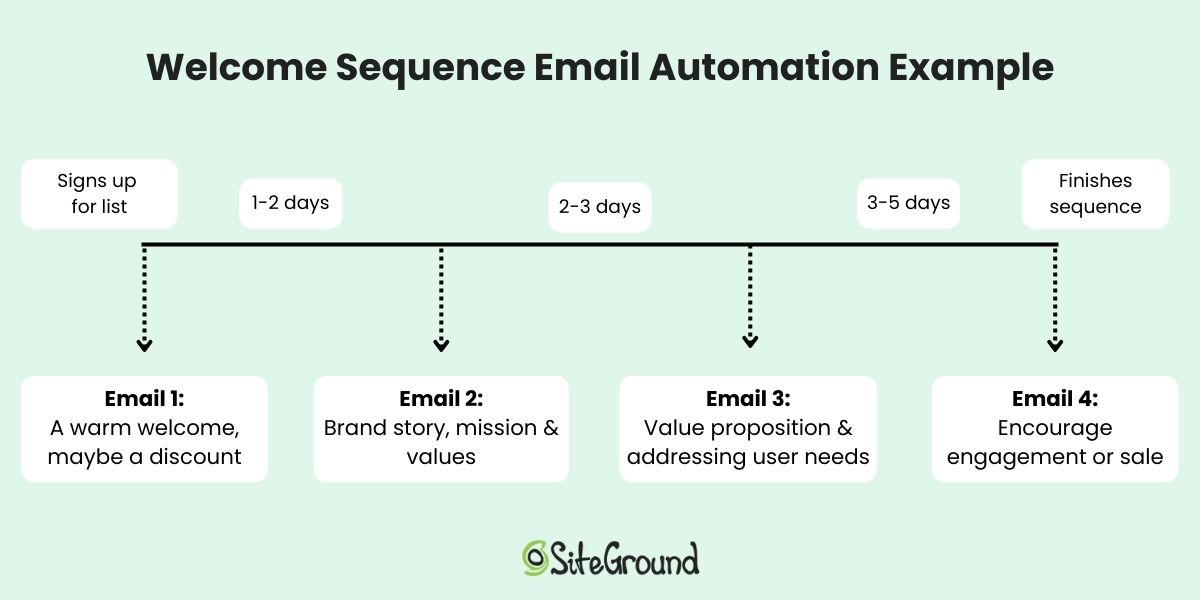
Email marketing means sending updates and offers directly to people who’ve given you their email address. To start a list, add a sign-up form to your site and offer something useful in exchange for an address, such as a checklist built from the questions people asked in your Step 2 conversations. 

Be sure to set up an automated welcome email at the same time as the form, so every new subscriber hears from you right away. SiteGround Email Marketing can draft it with its built-in AI writer and send it automatically once you’ve set everything up.

Welcome sequence email automation sequence example

Measure what actually brings customers in

Track a small set of numbers from the start:

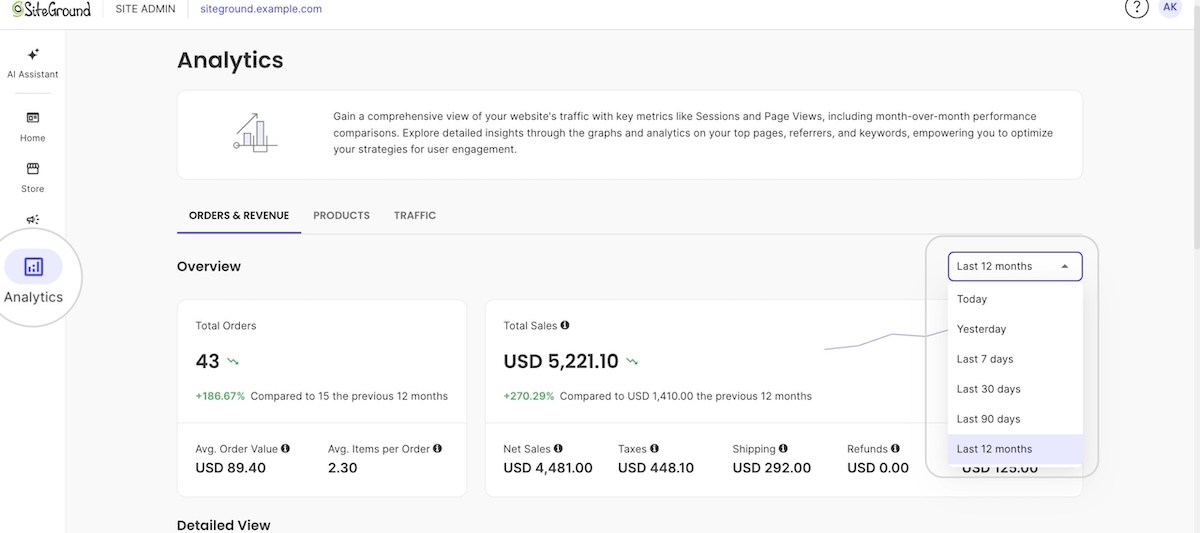
  • Where your customers come from. Website analytics typically show which sites, searches, and posts send you visitors. To connect those visits to actual sales or inquiries, set up conversion tracking in a free tool like Google Analytics, which records the source behind each one.
  • How many visitors become inquiries or sales. Compare your visitor count with the inquiries or orders you got in the same period.
  • What each customer costs you. Add up the time and money you spent on a channel, and divide by the customers it brought in.
  • How many customers come back. Watch how many orders come from returning customers over time.
Analytics orders and revenue dashboard for SiteGround Website Builder

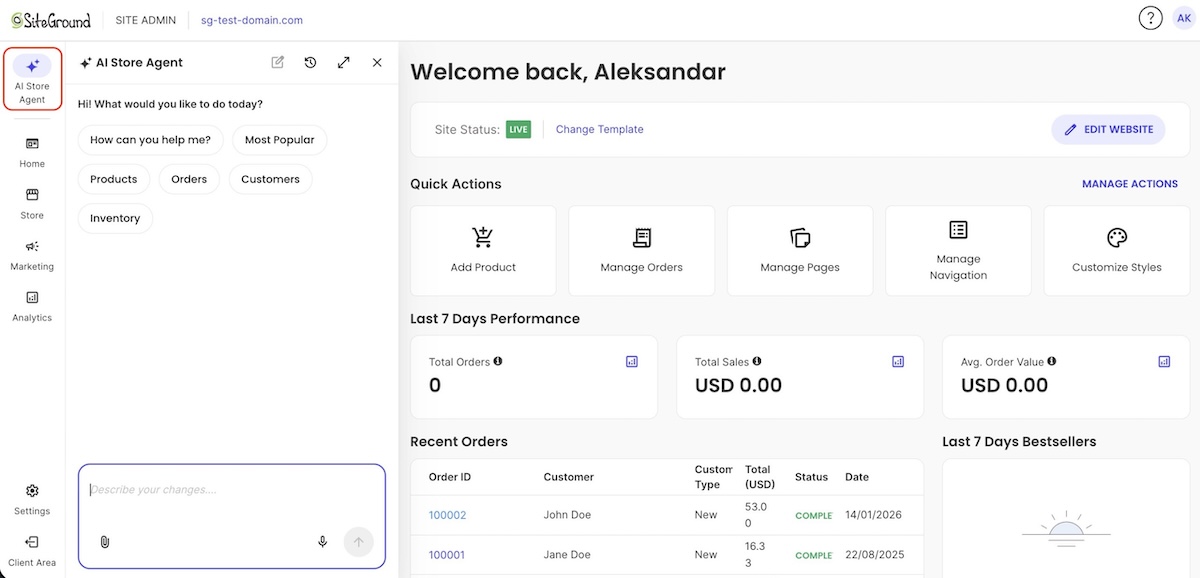
Worth noting: If you build with SiteGround Website Builder or SiteGround Ecommerce, the built-in Analytics section covers most of this. It shows your visits, page views, and top referrers, and stores also get a list of every order showing whether the customer is new or returning, plus your best-selling products. You can also ask the AI Store Agent about your numbers in plain language, such as your average order value. On any platform, AI can turn your numbers into a monthly summary of what’s working.

Step 6 at a glance

  • AI handles: drafting outreach and emails, and summarizing your sales data.
  • You decide: which channels get your time, and what goes out under your name.
  • You’re ready for Step 7 when: at least one channel brings in customers predictably, and you know which one it is.

Step 7: Let AI handle the repetitive business tasks

Running a business comes with a steady stream of tedious tasks: a welcome email for every new subscriber, regular site updates, and the same customer questions over and over. They multiply as you grow, so it pays to hand them to AI once the process works consistently instead of waiting until they pile up. Just be sure to skip automations for situations you haven’t run into yet, like a five-email sales sequence before anyone has bought.

Three kinds of work are usually worth handing over first:

  • Emails. The welcome email from Step 6 already runs on its own. As your list grows, SiteGround Email Marketing’s built-in AI writer can also draft your regular updates and newsletters, as well as allow you to automate other email sequences.
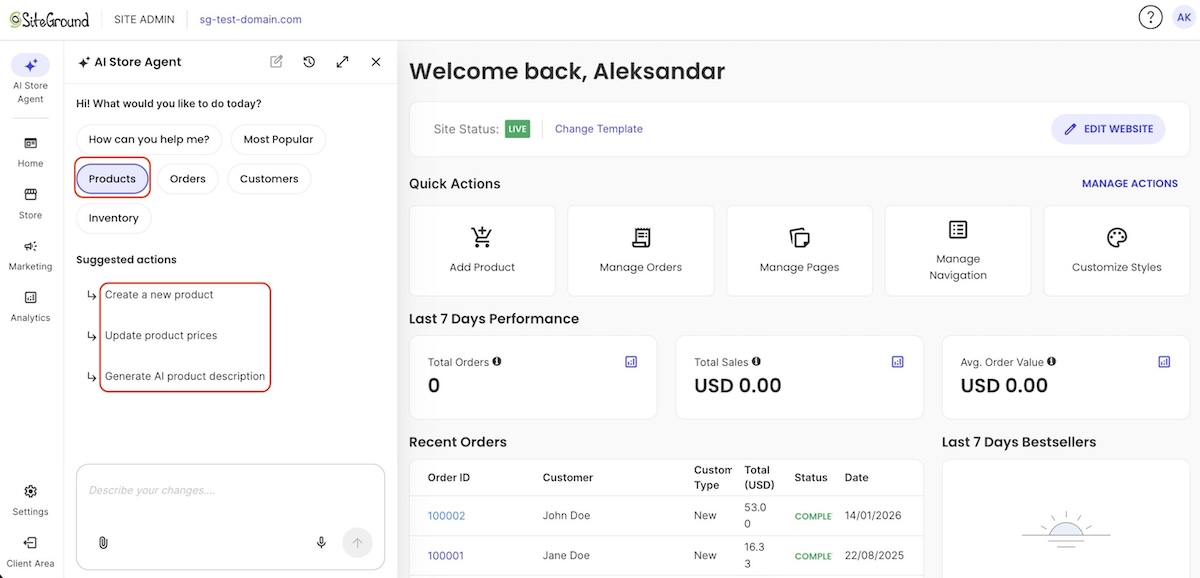
  • Site and store upkeep. On a WordPress site, the AI Agent for WordPress handles plugin updates, content edits, and settings changes through chat. In a SiteGround Ecommerce store, the AI Store Agent can make store changes for you. Both ask for your permission before making bigger changes.
  • Repeat customer questions. AI can turn the questions you keep answering into an FAQ page and a set of reply templates. Review them before they go live.

For anything involving refunds, payments, or customer data, keep a person in the loop.

Step 7 at a glance

  • AI handles: drafting your emails, along with routine site and store updates.
  • You decide: which tasks to hand over, and which changes need your approval.
  • You’re done when: the tedious work runs in the background, and a quick check now and then is all it needs.

Your first customer matters more than your first prompt

Getting stuck on which AI tools to use, and when, is an easy way for a business idea to stall. Weeks go into comparing options instead of talking to customers. The 7 steps above take most of those choices off the table: each stage has one job, a short list of what AI handles, and a clear sign that you’re ready to move on. Knowing how to use AI to start a business mostly comes down to taking it one step at a time, and letting real customers tell you when you’re ready for the next one.

It also helps to have one partner for the whole journey instead of a pile of tools to compare. SiteGround brings core digital tools together as you build and grow your business, from researching your first idea to your domain, website, store, email marketing, and the AI agents that take the tedious work off your plate, with each piece added as you need it.

[111]

Frequently asked questions

Can you start a business using AI?

Yes, you can start a business using AI for research, writing, branding, and building your website. AI can’t confirm demand for you, so pair it with real customer conversations before you invest in building.

What AI tools do I actually need to start a business?

Most new businesses can benefit from 3 AI-enhanced tools at the start: an AI assistant for research and writing (such as ChatGPT, Claude, and Gemini), an AI website builder for your site or store, and built-in AI tools that handle routine site, store, and email tasks.

Can AI validate a business idea?

AI can speed up the research behind validation, such as summarizing competitors and drafting interview questions. It can’t validate a business idea on its own, because validation comes from what real customers do: sign up, book, or pay.

How can I use AI to start a business if I can’t code?

You can use AI for every step of starting a business without writing any code. AI assistants work in plain language, so they can help you research problems, draft your offer, write your marketing, and answer customer questions. No-code tools like SiteGround Website Builder and Coderick AI then build your site or web app from a description, and AI agents can handle routine site and store updates through chat.

Can AI build my business website?

Yes. SiteGround Website Builder can build your business website with AI, and you then fine-tune the copy, images, and layout yourself. If you need a web app or custom functionality, or prefer a less structured, chat-based way of building, Coderick AI creates your site from plain-language prompts. Either way, review the copy, design, and functionality before launch.

When should I automate business tasks with AI?

Start automating business tasks with AI from the beginning, as you set up each part of your business, such as a welcome email when you add a sign-up form. Skip automations for situations you haven’t run into yet, approve bigger changes yourself, and keep a person in the loop for anything involving payments, refunds, or customer data.

The best cPanel alternatives and who each one suits

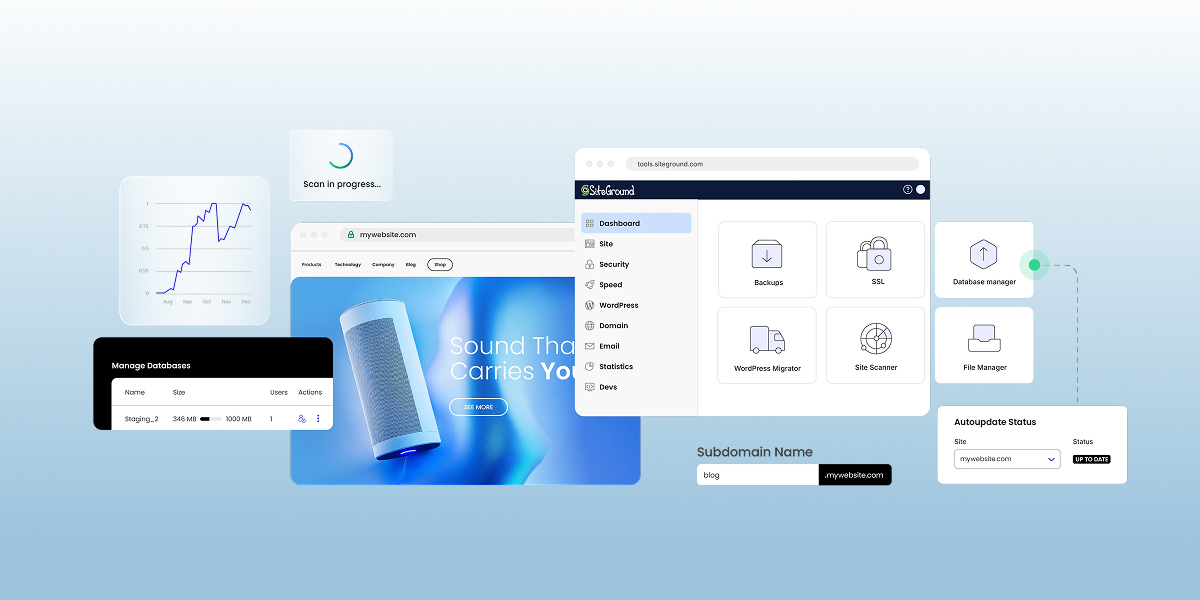
SiteGround Site Tools features as an alternative to cPanel

Every cPanel alternative falls into one of two camps: a self-hosted panel you install and run on your own server, like CloudPanel, Plesk, or DirectAdmin, or a panel your host builds into its plans, like SiteGround’s Site Tools. The right choice comes down less to features than to how much server work you want to take on. This guide walks through both options, how they compare with cPanel, and how to decide which one fits your setup.

Key takeaways:

  • Every cPanel alternative is one of two types: a self-hosted panel you run on your own server, or a panel built into a hosting plan. The right one depends on how much server work you want to take on.
  • Since September 2019, cPanel has charged hosts per account instead of a flat fee per server, so license costs grow with every account. That hits hardest when you run your own server.
  • Self-hosted panels range from free to licensed per server, but all of them leave server security, updates, and backups to you.
  • If speed is one of your reasons for leaving cPanel, compare hosts’ servers and caching, since those are what make a site load faster. Switching panels alone won’t fix a slow site.
  • Built-in panels have a gentler learning curve because the host has already done the setup. In SiteGround’s Site Tools, caching, free SSL, and daily backups are ready from day one, and most tasks take a single click.

Why people move away from cPanel

People leave cPanel for three main reasons: rising license costs, a cluttered interface, and the hope that a new panel will make their site faster. The first two hold up, but that third one needs a closer look. Let’s unpack.

1. Rising license costs

In 2019, cPanel moved from flat server licenses to pricing based on the number of accounts on each server. For hosting companies running thousands of accounts per server, that changed the math overnight, and many passed at least part of the increase on to customers.

Panel licensing is one line item in your overall hosting costs, and it’s built into your plan’s price whether you use the panel or not. On a basic shared plan, that share is usually small. It grows as your site does: once you move up to a plan with your own server resources, cPanel’s per-account pricing can make the licensing cost as much as the server itself. And that cost multiplies if you run multiple servers.

2. A cluttered interface

A standard cPanel dashboard groups dozens of tools into sections like Files, Databases, Domains, Email, Metrics, Security, and Software. That’s useful for power users and server admins. But it’s a lot for non-technical users, like a small business owner who logs in to add an email account or change a PHP version.

For those users, the clutter shows up in three ways:

  • It’s hard to tell what matters: Most of the tools on screen are ones you’ll never need, and it isn’t obvious which ones are safe to ignore.
  • Every host’s cPanel looks different: Hosts add their own branding, plugins, and upsell banners, so tutorials often don’t match what’s on your screen.
  • Everyday tasks are scattered: Caching and staging usually live in separate plugins or third-party add-ons rather than in one place.

3. Performance depends on the host, not the panel

This is the reason that needs some untangling, because a web hosting control panel is simply a management screen. Page speed, on the other hand, comes from what sits underneath it: the web server (Apache, Nginx, LiteSpeed), the PHP setup, and the host’s caching layer.

That cuts both ways. A site on a well-tuned cPanel server can be fast, and a site on a fancy new panel can still crawl on an overloaded server.

Where a built-in panel helps is with convenience. The host’s speed tools are already set up, so caching is on from day one, and extras like Memcached take one click instead of hunting for a plugin that needs to be set up.

The best cPanel alternatives

The best cPanel alternative for you depends largely on one thing: do you run your own server? If you rent a VPS (a virtual private server, meaning your own reserved slice of a physical server) or a dedicated server, you need a self-hosted panel.

If you’d rather not manage a server at all, you’re choosing a hosting plan instead. Many plans still come with cPanel, so if you’re trying to avoid that interface, look for a host that builds its own panel.

Here’s how the options compare at a glance.

PanelTypeCost modelRuns onBest for
PleskSelf-hostedLicensed per server, with editions capped by number of domainsLinux and Windows ServerAgencies that need Windows support or many WordPress sites
DirectAdminSelf-hostedLicensed per server, tiered by number of accountsLinux onlyHosts and resellers leaving cPanel for a lighter panel
CloudPanelSelf-hostedFreeDebian and UbuntuDevelopers running PHP apps on one VPS
WebuzoSelf-hostedLicensed per server, tiered by number of accountsLinux (Ubuntu, AlmaLinux, Rocky Linux, Debian, and others)Small hosts wanting a cPanel-style multi-user setup
OpenPanelSelf-hostedFree Community edition for personal use; paid Enterprise license per server for commercial hostingLinuxPersonal projects, or hosts that want isolated accounts
Managed server platformsManagedMonthly fee per server, plus the cost of the serverA cloud server you rentDevelopers and agencies who want their own server without the maintenance
Site ToolsBuilt-inIncluded with SiteGround hostingSiteGround’s servers onlySite owners who don’t want to manage a server, and who want an easy panel interface

Panel details are as of October 2026. Check each vendor’s website for current pricing, supported systems, and features.

Self-hosted panels: for your own server

These five panels run on a self-managed server. You install them, handle regular updates, and own anything that breaks.

Plesk

Plesk is one of cPanel’s best-known commercial rivals and the only panel here that runs on Windows Server as well as Linux.

  • Cost model: Licensed per server, with higher editions adding more domains and features.
  • Runs on: Linux distributions and Windows Server.
  • Web server stack: Apache with Nginx as a reverse proxy on Linux, IIS on Windows.
  • Best for: Agencies managing many WordPress sites that want a built-in WordPress toolkit.
  • Watch out for: Paid extensions add up, so the real cost is often higher than the base license.

DirectAdmin

DirectAdmin is the panel many smaller hosts moved to after cPanel’s pricing change. It’s lighter on server resources and keeps a familiar account-based structure.

  • Cost model: Licensed per server, tiered by number of accounts.
  • Runs on: Linux only (no Windows support).
  • Web server stack: Apache, Nginx, LiteSpeed, or OpenLiteSpeed, set through its CustomBuild tool.
  • Best for: Hosts and resellers who want cPanel-style accounts for less money.
  • Watch out for: The interface is plainer, with fewer one-click extras out of the box.

CloudPanel

CloudPanel is a free panel built for speed on a single server. It skips email and reseller features to stay lean.

  • Cost model: Free.
  • Runs on: Debian and Ubuntu.
  • Web server stack: Nginx with PHP-FPM.
  • Best for: A developer running PHP apps or WordPress sites on one VPS from a cloud provider.
  • Watch out for: It has no built-in mail server, so you’ll need a separate email service.

Webuzo

Webuzo comes from the team behind the Softaculous app installer, so one-click app installs are built in from day one.

  • Cost model: Licensed per server, tiered by number of accounts, with a 15-day free trial.
  • Runs on: Ubuntu, AlmaLinux, Rocky Linux, Debian, and other Linux distributions.
  • Web server stack: Apache, Nginx, LiteSpeed, or OpenLiteSpeed.
  • Best for: Small hosts that want a multi-user, cPanel-like layout with app installs baked in.
  • Watch out for: Its community and documentation are smaller than cPanel’s or Plesk’s, so troubleshooting takes longer.

OpenPanel

OpenPanel is the newest option here. It gives each user an isolated container, so one client’s runaway site can’t drag down another’s.

  • Cost model: The Community edition is free for personal, non-commercial use (up to 3 user accounts and 50 websites). Commercial hosting needs the paid Enterprise license, priced per server.
  • Runs on: Linux.
  • Web server stack: Each user account gets its own web server: Nginx, Apache, OpenLiteSpeed, or OpenResty.
  • Best for: Personal projects on the free edition, or hosts on Enterprise who need strong separation between client accounts.
  • Watch out for: It’s a young project, so expect fewer integrations and a shorter track record.

Managed server platforms

If you want your own server but not the admin work, a managed server platform sits in between. It connects to a server you rent from a cloud provider and handles the panel, security patches, and server setup for you.

  • Cost model: A monthly fee per server, on top of what you pay for the server itself.
  • Best for: Developers and agencies who want their own cloud server without doing the maintenance.
  • Watch out for: You pay two bills, and choosing and sizing the server is still up to you.

Built-in panels: no server to manage

Every option above still means running a server yourself or paying someone to run it for you. Several hosting companies skip that entirely by building their own panel, with nothing for you to install, license, or patch. These panels differ from host to host, so we’ll use SiteGround’s Site Tools as the example.

Site Tools

SiteGround built Site Tools after years of adding its own features on top of cPanel, and by March 2021 it had moved more than a million live sites over.

  • Cost model: Included with every SiteGround hosting plan, with no separate panel fee. That also applies if you outgrow shared hosting: SiteGround Cloud Hosting gives you dedicated server resources without managing the server, and its plans include unlimited websites, so adding a site doesn’t add a license cost.
  • Runs on: SiteGround’s servers.
  • Best for: Site owners who don’t want to manage a server and want an easy panel interface.
  • Watch out for: It only works with SiteGround, so switching hosts later means learning a new panel.

How to pick the right cPanel alternative for your setup

The right cPanel alternative depends on one question: who do you want maintaining the server? Answer that, and the shortlist shrinks to one or two options.

Use this checklist to match your situation:

  • You run your own server and want a free panel: Start with CloudPanel for a single site or app, or OpenPanel’s Community edition for a few personal projects.
  • You need Windows or manage dozens of WordPress sites: Plesk is the only option here with Windows support and a full WordPress toolkit.
  • You run a small hosting or reseller business: DirectAdmin or Webuzo give you cPanel-style accounts, usually for less than cPanel.
  • You want your own server without the admin work: A managed server platform handles patches and setup on a server you still own.
  • You don’t want to manage a server at all: A hosting plan with a built-in panel, like Site Tools, is the most beginner-friendly option and takes the panel off your to-do list entirely.

If you’re unsure which side you’re on, compare managed vs unmanaged hosting first. Because a self-hosted panel only makes sense if you’re ready to own updates, backups, and security fixes at 2 a.m. when something breaks.

Here’s a quick sanity check before you commit:

  1. Count the sites you’ll host. One site rarely justifies a licensed panel.
  2. Check whether you need email on the same server. If you do, rule out CloudPanel.
  3. Price the full stack (server, panel license, backups, and your own time) before comparing against a hosting plan. 

If you’re on the fence about any of those questions, then your situation is probably better suited for a hosting plan with a built-in panel.

Site Tools vs cPanel: key differences

If the checklist pointed you toward a built-in panel, the next question is how it compares with the cPanel you already know. The biggest difference is who builds the panel. Hosts license cPanel from a third party and add their own tweaks, while Site Tools is built and maintained by SiteGround, the company that runs the servers.

That shows up in how the panel looks, what’s built in, and what happens if you switch hosts. Here’s what changes for you day to day:

cPanelSite Tools
Who builds itLicensed from cPanel, then customized by each hostBuilt by SiteGround for its own servers
LayoutLooks different at every host, often with extra add-onsSame layout on every SiteGround plan
Speed and cachingDepends on the host’s server setup and any caching plugins or add-ons it offers.Built-in caching, on by default 
SecurityDepends on what your host includesFree SSL and daily backups included
WordPressUsually installed through an app installer like SoftaculousInstall and updates in one menu, plus staging on GrowBig and higher plans
CostLicense cost built into your plan priceNo panel fee on any plan
Running several sitesExtra sites are added under one main accountEach site gets its own separate panel
Switching hostsWorks at many hostsOnly works with SiteGround

Two of these differences deserve a closer look:

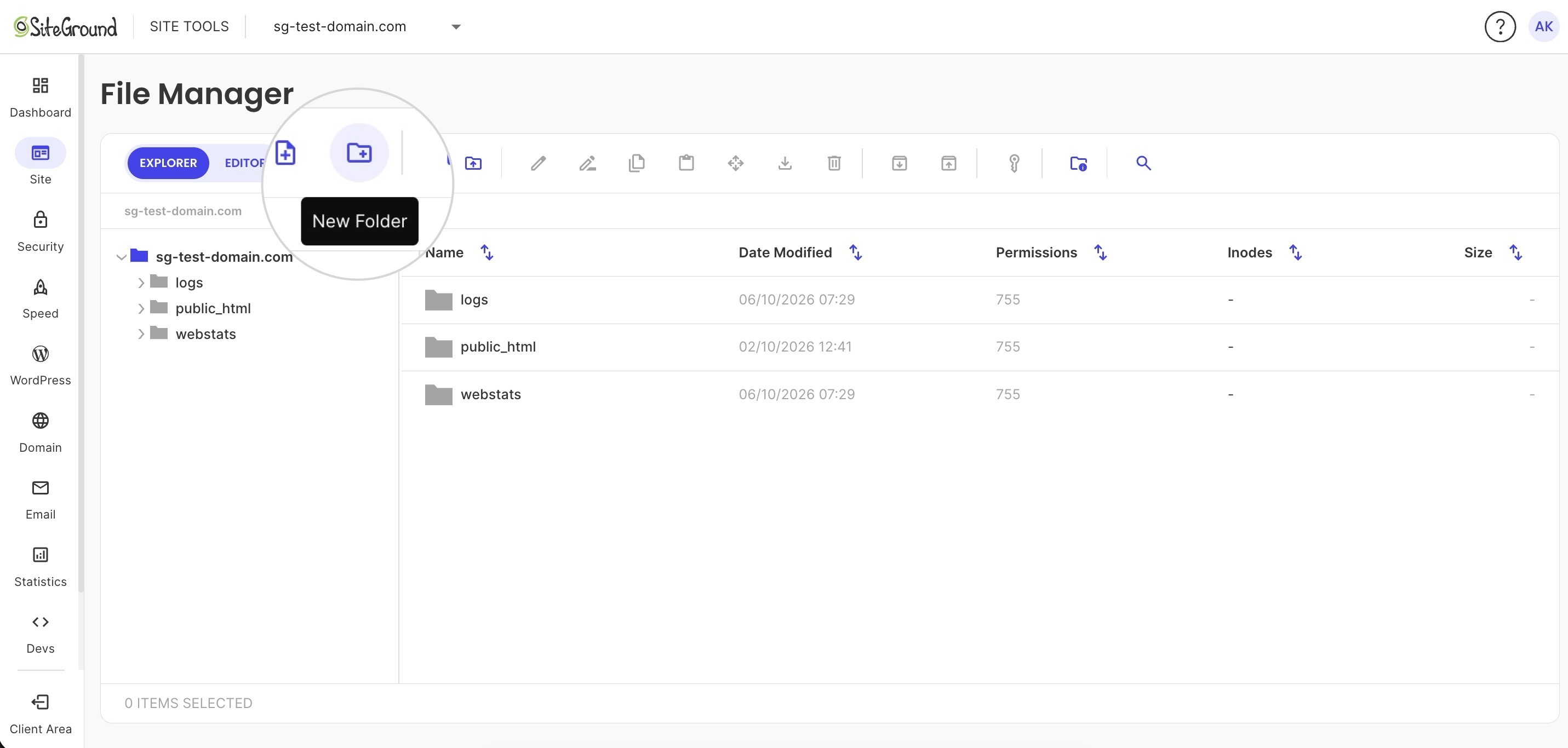
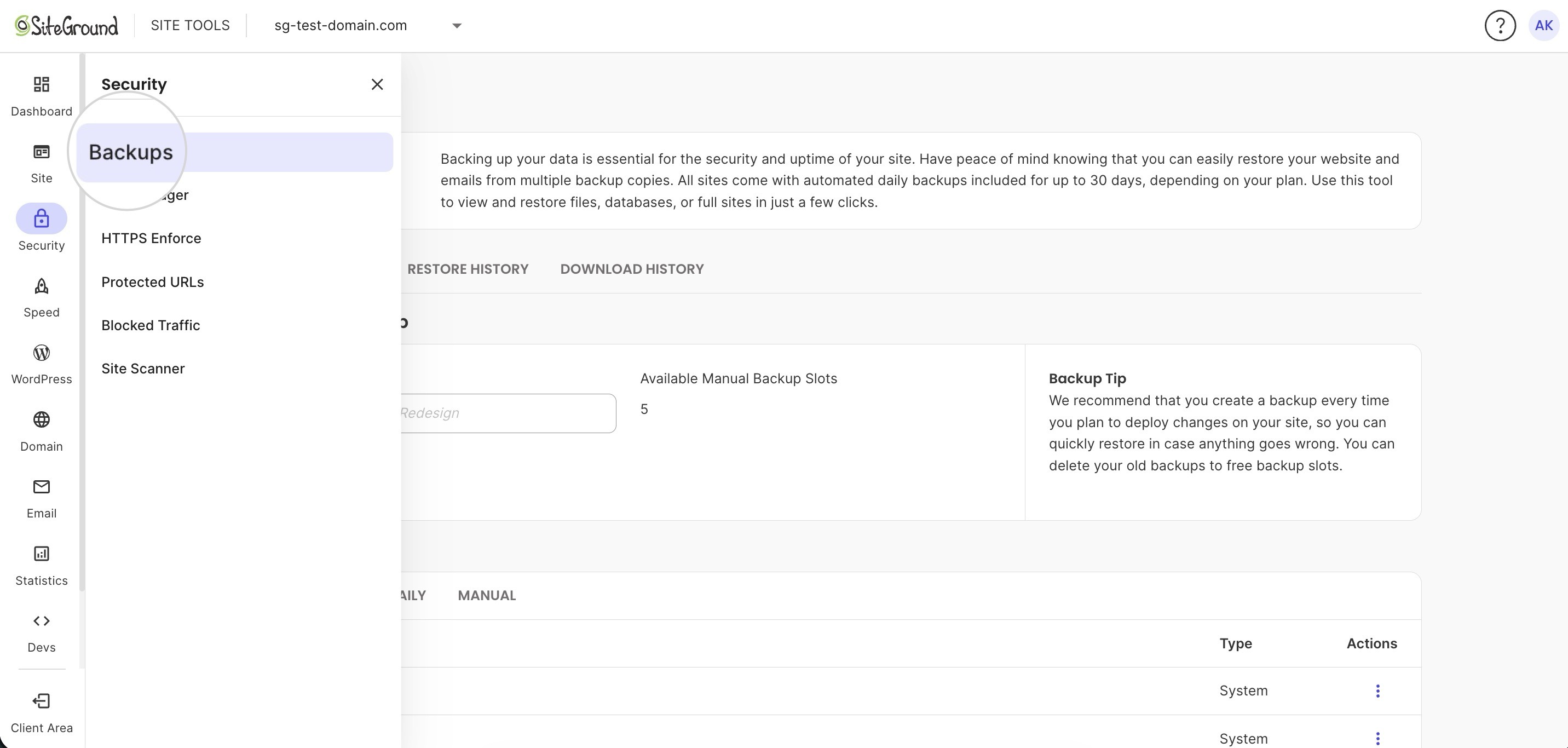
  • Finding things: Familiar cPanel tools still exist in Site Tools under new names. File Manager sits under Site > File Manager, and PHP versions are set in Devs > PHP Manager. You can click through the panel yourself in the free Site Tools demo.
  • Security defaults: Site Tools turns on free SSL and daily backups without extra setup, which covers several of the basic website security habits you’d otherwise configure yourself.

Leaving cPanel doesn’t mean starting over

Whichever kind of cPanel alternative you choose, it comes back to the question you started with: how much server work do you want to own? If you’re comfortable running a server, a self-hosted panel gives you full control and plenty of options, including free ones. If you’d rather not, a built-in panel takes that work off your plate, and moving your site is easier than it sounds.

SiteGround has moved more than a million sites to Site Tools, and its team can migrate yours for you, or you can move a WordPress site with the free SiteGround Migrator plugin. SiteGround Web Hosting includes Site Tools on every plan, with caching, free SSL, and daily backups already set up, so there’s no panel license line in your renewal.

[86]

Frequently asked questions about cPanel alternatives

What is the best free cPanel alternative?

CloudPanel is the best free cPanel alternative for a single VPS, and OpenPanel’s free Community edition works for personal, non-commercial projects. With either one, you take on server updates, security, and backups yourself.

What are the disadvantages of cPanel?

The main disadvantages of cPanel are cost and clutter. Its per-account licensing raises hosting prices as servers grow, and its dense, host-customized interface can overwhelm site owners who need only a few tools.

What is cPanel mainly used for?

cPanel is mainly used to manage a hosting account through a web interface instead of the command line. Site owners use it for file management, databases, domains, email accounts, and SSL certificates, while hosts use its companion tool, WHM, to manage the server itself.

Does SiteGround use cPanel?

No, SiteGround doesn’t use cPanel. It replaced cPanel with its own Site Tools panel, started onboarding new clients in August 2019, and dropped cPanel support entirely by March 2021 after moving more than a million sites.

6 best Shopify alternatives in 2026, compared on real costs & what’s built in

Abstract of someone contemplating Shopify alternatives

Shopify’s sticker price is only part of the bill. Card processing, third-party surcharges, and even collecting product reviews can mean extra costs stacked on top of the subscription itself. Whether you’re just learning how to sell online or migrating an established store, the alternatives compared below vary just as much: on platform fees, on what ships built in versus what needs a separate app, on how their AI actually works, and on the support and infrastructure behind the storefront. Here’s how six real Shopify alternatives compare.

Key takeaways:

  • Shopify’s real cost stacks three charges (subscription, card processing, and a surcharge for skipping Shopify Payments) and reviews now require a separate third-party app, since Shopify dropped its own tool in 2024.
  • Most alternatives on this list ship native product reviews, while Shopify no longer does, a small but concrete reason plenty of sellers are already looking elsewhere.
  • AI is turning into a real differentiator between platforms, but it splits into two separate jobs: some tools only build the store, while others also help run it afterward, and the more advanced tools are often reserved for higher-tier plans.
  • Support is easy to overlook but shouldn’t be: not every platform includes real support beyond self-service help, and phone support isn’t always a direct number to call.
  • Infrastructure matters just as much, even though it’s invisible until something goes wrong: a slow host can quietly cost you sales no matter how good the storefront looks.

Why sellers are looking beyond Shopify in 2026

It’s become increasingly more clear that Shopify’s advertised sticker price is only the start of the bill. The Basic plan costs $29 a month billed annually ($39 a month if you pay monthly), but there’s a lot more to it than that:

  • There’s the subscription itself: $29/month on Basic (billed annually), rising through Grow, Advanced, and Plus as your store grows.
  • Plus card processing: 2.9% + 30¢ per transaction on Basic, with lower rates on higher tiers.
  • Plus a surcharge for skipping Shopify Payments: up to 2% extra if you use a different payment system.
  • Plus apps for ecommerce features ranging from basic to advanced.

About those apps, reviews are the clearest example. Shopify retired its native product reviews tool in 2024, so any store built since then needs a separate third-party app just to collect star ratings on new products. It’s a small line item on its own, but it’s one more subscription stacked on top of a platform fee that already scales with every sale you make.

What to look for in a Shopify alternative

This is the comparison worth running before you commit to a platform: not “which one feels cheaper,” but the actual stack of subscription, processing, and app costs at the order volume you expect to hit. If you’re mapping out how to create an ecommerce website for the first time, that math is worth doing before you pick a platform, and not after you’ve built the store and started migrating products.

Five things actually predict whether a platform will work for your store, and price is only one of them.

  • Fees. Check the platform fee at every tier, not just the entry price. The strongest ecommerce platforms lower or drop that fee entirely as your store grows, so what you pay on day one isn’t what you’re stuck paying once you’re scaling.
  • Setup time. No-code builders can go live in hours. Open-source platforms like WooCommerce take longer, because you’re also setting up hosting and security.
  • What’s actually built in. Reviews, email marketing, abandoned cart recovery, and ecommerce sales tax calculation either ship with the platform or require a separate app subscription. That list of need-to-haves adds up fast.
  • Support. Look for real human support hours and response times, and not just a chatbot buried behind a help center search box.
  • Infrastructure. Uptime and page speed affect conversion rates directly. A cheap plan on a slow host isn’t actually cheap.

The best Shopify alternatives compared

The six alternatives below get judged on that same basis: what they charge, how fast you can launch, what’s built in versus what needs a separate app, and how their AI tools actually hold up. Here’s the breakdown, followed by what each platform is actually built for.

PlatformPriceReviews built inAISupport
Shopify (for reference)$29/mo (Basic, billed annually), plus 2.9% + 30¢ card rate and up to 2% third-party surchargeNo: third-party app required since 2024Build-stage (partial) and run-stageLive chat on every plan (enhanced on Advanced); priority support on Plus
SiteGround Ecommerce$18/mo (Sell, 3% platform fee); $24/mo (Grow) or $36/mo (Scale), both 0% platform feeYesAI Wizard for building, plus run-stage AI Store Agent (store insights and tasks via Power Mode), on AI Studio’s multi-model workspace24/7 chat, phone, and tickets
WooCommerceFree, plus hosting (varies by provider) and standard card processingYes, basic No built-in assistant; early support for connecting outside AI toolsNot included: depends on your host or community forums
BigCommerce$29/mo (Core), $79/mo (Growth), or $299/mo (Scale); 0% platform fee with embedded providers like Stripe and PayPal, otherwise 2% (Core), 1% (Growth), or 0.6% (Scale)YesProduct-description AI; no store-building AI listedCore: 24/7 chat and email; Growth and up: 24/7 live phone and chat
Squarespace$16/mo (Basic) to $99/mo (Advanced); 0% online-store fee from Core ($23/mo) up, though digital content/memberships carry a separate fee scheduleYesBuild-stage and run-stage (run-stage gated to mid-tier+ plans)Email 24/7; live chat weekdays only; no phone support
WixAround $29/mo; 0% platform feeYesBuild-stage, plus run-stage analytics and product edits24/7 chat, ticket, and phone by callback only
GoDaddy$9.99/mo (Starter, billed annually); no separate platform fee, plus 2.7% + 30¢ card processingNot listedBuild-stage, plus run-stage content edits (pages, blog posts, listings), not order or catalog data24/7 phone, chat, and text, plus tickets

Pricing, plan names, and features across every platform in this comparison reflect what was publicly available as of September 2026. Prices are for each platform’s lowest-priced plan that lists selling products online, billed annually, in USD. This space moves fast, with plans renamed and prices changed with little notice, so confirm current details directly with each platform before making a decision.

SiteGround Ecommerce: easy no-code launch, with AI and reviews built in

  • Price: $18/mo on the Sell plan (3% platform fee), or $24/mo on Grow and $36/mo on Scale (0% platform fee) — all prepaid annually, on top of standard card processing. 
  • Setup: fast and no-code.
  • What’s built in: reviews on every plan (five-star scale, approval step before anything goes live), plus basic tax calculation and shipping tools included, with advanced shipping on Grow and up and optional paid Advanced Tax via Stripe Tax. There’s no large third-party app marketplace, but the native feature list covers enough ground that you’re less likely to need one.
  • AI: the AI Wizard builds the store from a description; the AI Store Agent runs it afterward, answering questions about your actual order, product, and customer data, and executing bulk catalog edits. Both run on AI Studio, a broader AI workspace included free with every plan, up to 20,000 tokens a month, with multi-model chat access to Claude, ChatGPT, and Gemini plus 15+ specialized agents for marketing tasks like social posts, ad copy, and SEO.
Example of an AI store manager with a chat to manage your online store
  • Support: 24/7 via chat, phone, and ticket.
  • Infrastructure: premium hosting is included on every plan, run by a company that has been in web hosting for years rather than a design tool with ecommerce added on top.
  • Best for: sellers who want a fast, no-code launch with reviews, AI store management, and solid infrastructure all included, without stacking plugins to get there.

WooCommerce: full ownership, no platform fees

  • Price: a free plugin that turns a WordPress site into a store, not a standalone platform on its own. You need WordPress, and hosting for it, before WooCommerce does anything.
  • Setup: the most hands-on option here — you’re managing hosting, updates, and security yourself, not the platform. Full control means more technical skills are required.
  • What’s built in: basic reviews you turn on in settings. Core WooCommerce supports manual tax rates, but email marketing, abandoned cart recovery, and automated tax calculation come from extensions you add, some of them paid.
  • AI: no built-in AI assistant or store builder. WooCommerce core has early support for connecting outside AI assistants to your store (still in developer preview, and technical to set up); other AI features come from plugins.
  • Support: not included with WooCommerce itself. You’re relying on your hosting provider’s support team or community forums, not a built-in help desk.
  • Best for: sellers who want full ownership of their store’s code and data, and either have technical support in place or want to build that control themselves. For a deeper breakdown against Shopify and AI-built alternatives, see our Shopify vs. WooCommerce vs. AI-built store comparison.

BigCommerce: multi-storefront and B2B options

  • Price: $29/mo (Core), $79/mo (Growth), or $299/mo (Scale), billed annually, each with a revenue cap before the next tier is required. Platform fee is 0% on orders through BigCommerce’s embedded payment providers, including Stripe and PayPal; on other gateways, a surcharge applies that steps down from 2% on Core to 1% on Growth to 0.6% on Scale.
  • Setup: a steeper learning curve than the no-code builders on this list.
  • What’s built in: native reviews, unlimited products and users, and abandoned cart emails and customer groups from Growth up. Multi-storefront support is available as a paid add-on, and B2B capabilities sit on its custom-priced Performance plan.
  • AI: BigCommerce’s AI is about product content, not store building. BigAI Copywriter writes product descriptions now, and you start from a theme. More advanced tools are still rolling out, reserved for its Performance and B2B plans.
  • Support: 24/7 chat and email support on Core; 24/7 live phone and chat on Growth and above.
  • Best for: multi-storefront or B2B businesses that can absorb that learning curve in exchange for the extra power.

Squarespace: best for design-first, boutique catalogs

  • Price: $16/mo (Basic) to $99/mo (Advanced), billed annually. Core ($23/mo) is where most sellers land, since that’s where the online-store fee drops to 0% (Basic still carries 2%). Card processing rates step down by tier too (2.9% + 30¢ on Basic and Core, down to 2.5% + 30¢ on Advanced), and digital content/membership sales run on their own steeper schedule (7% down to 0%).
  • Setup: fast and no-code.
  • What’s built in: native product reviews. Its extension marketplace is small and curated, covering shipping, inventory, marketing, and finance.
  • AI: Blueprint AI builds the store from a few brand questions. Beacon (run-stage AI) and its composer tools for products, FAQs, and discounts are included only on mid-tier plans and up, not the entry tier.
  • Support: email support 24/7; live chat Monday to Friday, with no phone support at any tier.
  • Design: a library of designer-made templates, customizable with a block-based editor.
  • Best for: boutique or brand-first sellers where design carries the store.

Wix: large app marketplace

  • Price: around $29/month for its entry ecommerce plan, with a 0% platform fee on top of standard card processing.
  • Setup: fast and no-code.
  • What’s built in: native abandoned-cart recovery and product reviews, plus the largest app marketplace on this list if you need more. Most of those apps carry their own separate cost, so it’s a paid ecosystem, not a free one.
  • AI: Aria builds the store, then keeps working after launch, monitoring performance, generating analytics, and helping edit products. A separate AI Site Chat tool answers visitors’ questions on your storefront.
  • Support: 24/7 in English via chat, ticket, and phone, though there’s no number to call directly. Phone support works by requesting a callback instead.
  • Best for: sellers who already know they’ll need a specific app or integration, and don’t mind paying for it separately instead of getting it built in.

GoDaddy: budget-friendly entry point

  • Price: $9.99/month on annual billing (Starter, GoDaddy’s entry tier), with no separate platform fee. Standard card processing (2.7% + 30¢) applies on top.
  • Setup: fast and AI-generated. Describe your business and GoDaddy’s AI produces a starter site in minutes, similar to the other no-code builders here.
  • What’s built in: unlimited products and services and multiple payment and delivery options on every paid plan, with tax and shipping settings available in its store setup.
  • AI: generates the site and store from a description, then keeps working afterward through the same chat interface. It can update pages, blog posts, or product listings over time. It also handles AI-driven SEO and automated responses in its web chat tool.
  • Support: 24/7 phone, chat, and text, plus a ticket system for specific product issues.
  • Best for: very small or first-time sellers on a tight budget who want the a simple, chat-based setup.

Which Shopify alternative actually fits your ecommerce store

Different platforms solve different problems, and no single one is perfect for everyone. Here’s a quick way to match what matters most to you with the platform that actually covers it.

You value…Consider
A large ecosystem of paid apps and plugins to build exactly what you needWix, WooCommerce
Extensive support across phone, chat, and ticketsSiteGround Ecommerce, GoDaddy, BigCommerce (phone on Growth and up)
AI assistance for both building and running the storeSiteGround Ecommerce, Wix, Squarespace (mid-tier plans and up), GoDaddy
Reviews, AI, and store tools included standard, without adding extra appsSiteGround Ecommerce
Managing multiple storefronts, or selling B2BBigCommerce
Boutique, design-first brandingSquarespace
A lower monthly subscription priceGoDaddy

Is SiteGround Ecommerce the right Shopify alternative for you?

The right platform here depends on what you’re optimizing for: a wider marketplace over what ships built in, or a lower monthly price over deeper features. None of that makes one platform objectively best, just better suited to a specific kind of seller.

One option shows up across several rows above: support, AI, and what ships built in. SiteGround Ecommerce launches fast without code, includes reviews and store management tools standard rather than behind a paywall or a separate app, and runs on SiteGround’s own hosting infrastructure, not a design tool with ecommerce added on afterward. You can try it free for 14 days, no credit card required.

[103]

FAQs about Shopify alternatives

Is there a free alternative to Shopify?

WooCommerce is free to install, though you’ll still pay for hosting somewhere. Most other Shopify alternatives, including SiteGround Ecommerce, offer a free trial instead of a permanently free tier, typically 14 days.

What is cheaper than Shopify?

It depends on your order volume and plan tier. WooCommerce charges no platform fee, and BigCommerce charges none with embedded payment providers like Stripe and PayPal, while SiteGround Ecommerce and several others only reach 0% platform fees above their entry plan. Compare the plan-by-plan breakdown above rather than the advertised sticker price alone.

Can I switch from Shopify without losing my products?

Sometimes. Product data, images, and customer information typically export as CSV files, though import options vary, so check each platform’s tools before you commit. Expect to manually rebuild theme customizations and app integrations, since those don’t transfer between platforms.

AI ecommerce store builders compared: What they build vs. what they run

Abstract of an AI powered ecommerce website builder

Every major ecommerce platform now says it has AI. What that AI actually does splits into two separate jobs: building the store, and running it once it’s live. This comparison breaks down which job AI ecommerce platform handles, across Shopify, SiteGround, Wix, BigCommerce, and Squarespace, so you know exactly what you’re getting before you commit.

Key takeaways:

  • An AI-powered ecommerce store builder with no code setup splits into two separate jobs: build-stage AI that generates the online store, and run-stage AI that manages it afterward.
  • Most platforms include some form of AI store generation at no extra cost, though not every platform offers build-stage AI at all.
  • The more advanced run-stage AI tools are often locked to higher-cost or business-specific plan tiers, not the standard small-business tier.
  • Some platforms consolidate their AI into a single assistant with multiple modes, while others split it across several separately branded tools.
  • Bundled AI doesn’t always mean free overall: AI access can still sit behind a premium plan, or come with separate transaction fees on top.

What does an AI-powered ecommerce store builder actually do?

It means AI handles one of two jobs, or sometimes both:

  • Build-stage AI: generates the store itself from a description, template choice, or prompt. This is what gets you from nothing to a working site.
  • Run-stage AI: manages an online store that already exists. This writes product copy, answers customer questions, analyzes sales data, or edits pricing.

A platform can be strong at one stage and weak at the other, so knowing which one you’re looking at keeps you from assuming a platform’s flashy AI demo covers everything you’ll actually need after launch. That’s what we’re examining here — what each store builder’s AI does at each stage. 

And worth noting: everything in this comparison is built in, meaning the ecommerce website builder ships with these AI features, requiring no extra signup, and not a third-party app you’d install and pay for separately. 

For a wider view beyond store-building specifically, this list of AI tools for business covers categories like accounting and scheduling that sit outside any of the five platforms above.

The quick answer: how AI store builders compare at build vs. run

Each platform gives its AI product a name. In this case, we’re talking about Sidekick, AI Wizard, Harmony, Aria, BigAI, Blueprint, and Beacon, just to name a few — all AI features of the top website building platforms. 

Here’s a quick breakdown of each one and how it stacks up at the build-stage versus run-stage; we’ll dive into the details farther down.

PlatformBuild-stage AIRun-stage AI
ShopifySidekick’s Designer persona turns a store idea into a working designSidekick’s Writer, Marketer, Photo Editor, and Tech Support personas
SiteGroundAn AI Wizard generates a site or online store from a plain-language descriptionThe AI Store Agent plus a built-in AI writer and product classifier
WixHarmony builds a full site or online store end to end, powered by AriaAria’s analytics, Smart Chat support
BigCommerceNone currently availableBigAI Copywriter (live); Product Recommendations and B2B Quote Assistant (coming soon, Enterprise/B2B only)
SquarespaceBlueprint AI Builder walks through a five-step guided setupBeacon AI assistant, plus AI Product, FAQ, and Discount Composers

This comparison reflects what was publicly available as of September 2026. AI features, pricing, and plan inclusions change often across every platform covered here, so confirm current details directly with each platform before making a decision.

Shopify: Sidekick

Sidekick is Shopify’s AI assistant, accessible from the admin dashboard with no setup or configuration required. It works through five specialized personas rather than one general chat window:

  • Designer: turns a store idea into a working design
  • Photo Editor: upgrades phone photos into product-ready shots
  • Writer: drafts product descriptions and page copy
  • Tech Support: handles domain setup and online store configuration
  • Marketer: generates social posts and campaign copy

Only Designer covers the build stage. The other four personas are run-stage tools for a store that already exists. Sidekick is included with every Shopify plan at no extra charge, though Shopify notes that usage limits vary by tier.

SiteGround Ecommerce: AI Wizard and AI Store Agent

SiteGround splits build and run into two distinct capabilities inside the Website Builder and Ecommerce product.

Build stage: AI Wizard. You describe your business in your own words: what you sell, the tone you want, and color inspiration if you have any. Before a site gets generated, the Wizard shows an editable summary (site name, goal, tone, palette) so you can correct it first. A template-based option is still available if you’d rather skip the description step entirely.

An AI website builder prompt box

Run stage: the AI Store Agent. Once an online store exists, the AI Store Agent answers direct business questions (such as which products deserve more promotion or which customers keep coming back) by analyzing orders, products, and customer accounts. This makes the usual steep learning curve of running an online store a whole lot easier.

Meanwhile, a separate toggle called Power Mode (off by default) lets it make bulk edits with a single instruction. Cut every price in a category by 10% ahead of a sale, or add the same specs across a whole collection at once. Product management becomes a breeze. 

Example of an AI store agent that can create and update products

Both the AI Wizard and AI Store Agent are standard, included key features on the SiteGround Website Builder and Ecommerce plans, not paid add-ons or a separate purchase. The AI Store Agent is available on the Sell, Grow, and Scale plans of SiteGround Ecommerce. It runs on AI Studio, SiteGround’s AI platform that gives access to models like ChatGPT, Claude, and Gemini through specialized agents. Every SiteGround customer gets 20,000 AI tokens a month at no extra cost, which is the usage allowance that powers the Agent’s requests. AI Wizard doesn’t draw from that allowance yet, so there’s no separate cost to using it either.

Wix: Harmony and Aria

Wix runs several named AI systems that split across both stages.

  • Harmony (build stage): Wix’s flagship AI website and store builder, powered by Aria.
  • Aria (build stage): the AI agent underneath Harmony. You describe what you want in plain language, and Aria executes it, everything from a simple color change to a full page redesign or adding online store functionality.
  • Smart Chat (run stage): blends automated and manual chat to answer product questions before handing off to a human.

Wix doesn’t publish separate pricing for each AI feature individually, so confirm what’s included at your specific plan tier before comparing costs directly against a platform that itemizes AI pricing.

BigCommerce: BigAI

BigCommerce is the one platform in this comparison with no build-stage AI store generator today. Everything under its BigAI umbrella addresses running an online store that already exists:

  • BigAI Copywriter (live now): writes SEO-optimized product descriptions at scale, pulling from the product attributes you’ve already entered in your catalog, so you’re not starting each listing from a blank page.
  • BigAI Product Recommendations (coming soon): shows each shopper “you might also like” suggestions on your storefront, picked automatically based on what they’re browsing, with the goal of getting them to add more to their cart. Reserved for BigCommerce’s Enterprise plan, a higher-cost tier built for larger businesses, not the standard small business owner.
  • BigAI Predictive Analytics (coming soon): forecasts customer lifetime value for new shoppers, using BigCommerce’s existing Google BigQuery integration to run the calculations.
  • BigAI B2B Quote Assistant (coming soon): drafts personalized quote proposal emails for sales teams. Reserved for BigCommerce’s B2B Edition, a separate product built for wholesale and business-to-business sellers rather than typical small storefronts.

If you’re comparing no-code AI ecommerce store builders, BigCommerce currently asks you to start from a theme rather than a generated design. This is a quickly changing space, though, so it’s worth confirming directly with BigCommerce current functionality before you commit.

Squarespace: Blueprint AI and Beacon AI

Squarespace covers both stages, with the build stage getting the most attention.

Build stage: Blueprint AI Builder. A five-step guided process that produces a personalized template based on your business type, with fonts, colors, and starter content already chosen.

Run stage: once the site exists, Beacon AI acts as a business partner offering step-by-step guidance, and three composer tools handle specific content jobs: the AI Product Composer writes listings from a description or photo, the AI FAQ Composer drafts support answers, and the AI Discount Composer builds promotional offers.

Most AI features are included starting on Squarespace’s mid-tier premium plans, not the entry-level tier. If you sell digital products (such as downloads, courses, or gated membership content) Squarespace also takes a separate transaction fee on those sales specifically, on top of your plan cost, with the percentage dropping the higher your plan tier. Physical product sales aren’t subject to this fee.

How to choose an AI ecommerce platform for your store

Five platforms, five different mixes of build-stage and run-stage AI. None of them line up feature for feature, which makes a straight side-by-side hard to act on. Instead, match the platform’s AI to what you actually need help with:

If your priority is…Look at
AI that builds the online store for you, not just runs it afterwardShopify, SiteGround, Wix, or Squarespace (BigCommerce has no build-stage AI yet)
Build and run-stage AI bundled into one subscription at no extra costSiteGround or Shopify
A structured, step-by-step setup rather than a single open promptSquarespace’s Blueprint AI Builder or SiteGround’s AI Wizard
Advanced run-stage AI and you’re on a higher-cost or business-specific plan already BigCommerce’s Enterprise-only or B2B-only BigAI tools (Product Recommendations, B2B Quote Assistant), once they’re out of “coming soon”

The best AI store builder is the one that fits your business

No platform here wins on every dimension: some are stronger at getting a full online store built, others at running one once it’s live, and a few gate their best AI behind higher-cost plans. Match the platform to the stage, and the plan tier, where you actually need the help.

If you’re looking for build- and run-stage AI in one no-code ecommerce platform, SiteGround has you covered: a genuine build-stage tool paired with a run-stage agent, inside one subscription, at no extra cost. It’s also built on the same no-code platform already trusted by millions, backed by fast, scalable hosting infrastructure and 24/7 customer support.

[103]

AI store builder FAQ

Can I build an ecommerce store with AI without coding?

Yes. Every platform in this comparison with build-stage AI, Shopify, SiteGround, Wix, and Squarespace, generates a working online store from a plain-language description or a short guided setup, with no coding required. BigCommerce is the exception here: it currently has no build-stage AI store generator, so building on BigCommerce still starts from a theme rather than an AI-generated design.

Is an AI store builder legit?

Yes. AI store builders that generate a working online store from a description, and AI that manages one afterward, are real, shipped capabilities today, not just marketing concepts. That said, this space is moving fast, and what each platform’s AI can do keeps expanding and changing, sometimes from one week to the next. Confirm a specific feature is actually available on your plan before you choose a platform based on it, and before you go live, it’s worth checking that your AI-built store is actually ready to accept real payments.

What’s the difference between SiteGround’s AI Wizard and its AI Store Agent?

The SiteGround AI Wizard builds a website or store from a plain-language description, as part of the standard SiteGround Website Builder and Ecommerce setup. The SiteGround AI Store Agent manages and analyzes an existing online store afterward. Both are part of and included in the same product.

Do AI ecommerce platforms charge extra for AI features?

Most run-stage AI features, like Shopify Sidekick and SiteGround’s AI Store Agent, are bundled into standard plan tiers at no extra charge. Some higher-tier features, such as BigCommerce’s Enterprise-only AI tools, cost more or are still rolling out, while SiteGround’s AI Wizard and AI Store Agent are included in the standard setup rather than sold separately.

What is a web hosting control panel, and how does it work?

abstract of a website hosting control panel

Once you buy hosting, your web hosting control panel is where you’ll run your site day to day, from setting up email and connecting your domain to restoring backups. Not every panel works the same way, though. Some are built for people who manage servers, and others are designed to keep everyday jobs simple. Here’s how control panels work, the main types, and what a good one looks like.

Key takeaways:

  • A web hosting control panel is the dashboard where you manage domains, email, files, backups, and security.
  • Every click in the panel runs a server task for you, so you never have to touch the command line.
  • Panels come in three types: third-party, open-source, and host-built, which can be designed around the host’s own users.
  • Your hosting account, control panel, and WordPress site admin are separate logins with separate jobs.
  • The panel usually comes with your hosting plan, so choosing a panel really means choosing a host.
  • A good panel makes jobs easy to find, runs backups automatically, and includes free SSL, like SiteGround’s Site Tools.

What is a web hosting control panel?

A web hosting control panel is a web-based dashboard for managing your hosting account and the websites on it. So instead of typing commands on a server, you use menus and buttons to handle domains, email accounts, files, databases, backups, and security settings from one place.

Think of it as the settings app for your hosting. For example, your phone runs thousands of processes you’ll never see, and the settings app gives you the handful of switches you actually need. A hosting control panel does the same for the server your site lives on.

Almost every type of web hosting comes with some kind of control panel, from entry-level shared plans to managed cloud servers. The basics look similar, but how much comes included varies from host to host and plan to plan:

  • Everyday site jobs, such as email, domains, and one-click WordPress installs, are standard almost everywhere.
  • Safety features, such as automatic backups and free SSL, vary a lot. Some hosts include them, and others sell them as add-ons.
  • Developer tools, such as SSH access, PHP version control, and staging, are often reserved for higher-tier plans.

The main exception to all of this is an unmanaged server you set up yourself, which is a much more technical endeavor. There, you either install a panel or manage everything from the command line.

How a hosting control panel works

A hosting control panel sits between you and the software that runs your server. When you click a button, the panel translates that click into the commands the server needs, runs them, and shows you the result.

By way of example, here’s what happens when you create a new email address:

  1. You fill in a short form in the panel with the address (hello@yourbusiness.com) and a password.
  2. The panel tells the mail server to create the mailbox and sets up the settings it needs to send and receive messages.
  3. The panel confirms the account is ready and shows you the login details for your email app.

Without a panel, the same job means connecting to the server with developer tools and editing configuration files by hand — and if you don’t know what that means, that’s exactly why you benefit from a control panel). 

The same pattern repeats for everything else in the panel. Restoring a backup, installing an SSL certificate, or adding a subdomain are all server tasks with a friendly form on top. If you’re still getting your head around how to host a website, the control panel is, thankfully, the piece that makes the whole setup manageable day to day.

What you can do in a hosting control panel

Nearly all the routine admin for your site happens in the control panel. Here’s what you’ll use it for, roughly in order of how often you’ll need it.

Manage your domains and DNS

Your control panel is where your domain and your site get connected. From there, you can:

  • Point a domain at your website
  • Add subdomains like shop.yourbusiness.com
  • Edit DNS records, the instructions that tell the internet where your website and email live

If you’ve just registered a name, the next steps after buying a domain usually start here.

Create email accounts

The control panel is where you create email addresses on your own domain, such as hello@yourbusiness.com. You can also set up forwarders, so messages sent to that address land in an inbox you already check.

Install and manage websites

Getting a site into your hosting account starts in the control panel. You can set up WordPress or another app with an installer, or kick off a website migration if your site already lives with another host. Once it’s live, many panels also offer staging: a private copy of your site where you test changes before visitors see them.

Work with files and databases

The control panel gives you direct access to the behind-the-scenes parts of your site, the ones you never see while editing pages:

  • File manager: browse, upload, and edit your site’s files in the browser
  • FTP accounts: connect a desktop app like FileZilla to move files in bulk
  • Database tools: view, export, or repair the data behind your site
Managing files in SiteGround Site Tools

If you manage your site through an app like WordPress, you’ll rarely need any of these. They’re there for the day something breaks and support asks you to rename a folder or check a file.

Back up and restore your site

Backups are your undo button, and the hosting provider control panel is where you find them. Look for automatic daily backups, a way to create your own copy before big changes, and a restore option that doesn’t require a support ticket.

Creating a new backup in SiteGround Site Tools

Keep your site secure

The control panel holds the security settings that sit at the server level:

  • SSL certificates: install and renew the SSL certificate that puts the padlock in the browser bar
  • Blocked IP addresses: stop specific visitors or bots from reaching your site
  • Password-protected folders: lock off parts of your site that shouldn’t be public

Server-side protection only goes so far, so pair it with a few basic website security tips like strong passwords and regular software updates.

Give other people access

If a developer, designer, or teammate works on your site, many hosts let you add them as a collaborator, either from the control panel or your hosting account. They get their own login with access to that site only, so you never share your password, and they can’t see your billing, invoices, or the rest of your account.

Your hosting account vs. control panel vs. WordPress admin

Your hosting account, your control panel, and your WordPress admin are three different areas with three different jobs. Beginners mix them up constantly, which is why “how do I log in?” shows up in search so often.

Here’s what each area handles:

Hosting accountControl panelWordPress admin
What it’s forBilling, plans, and account detailsRunning the hosting behind your siteBuilding and editing the site itself
Typical tasksPay invoices, upgrade your plan, contact supportCreate email, restore backups, manage DNSWrite posts, install plugins, change your theme
ExampleRenewing your plan before it expiresSetting up hello@yourbusiness.comPublishing a new blog post

A quick rule of thumb:

  • If the task is about money or your plan, it’s the hosting account.
  • If it’s about what visitors see on your pages, it’s WordPress.
  • Everything in between lives in the control panel.

Some WordPress hosting plans blur the lines by adding WordPress tools to the panel, such as automatic updates or staging. The three areas still do separate jobs. At SiteGround, for example, the Client Area is your hosting account and Site Tools is your control panel. Your WordPress admin is the dashboard you reach by adding /wp-admin to the end of your site’s address, and it’s where you edit your pages and posts.

The main types of web hosting control panels

Back to the control panel itself. Not every host gives you the same one, and the panel you end up with depends on who hosts your site and how much of the server you manage. Almost every panel falls into one of these categories.

1. Third-party panels

A third-party panel is a ready-made control panel that a host licenses from a software company instead of building its own. It looks and works the same no matter which host you’re with, with the same menus for email, domains, files, and backups. cPanel and Plesk are the best-known examples, and you’ll find them on many shared and reseller hosting plans.

That consistency cuts both ways. What you learn in one account carries over to the next, but if a menu confuses you or a routine task takes too many clicks, it’ll be the same at every host that uses that panel. The host can’t redesign it either, because the software company decides what changes and when.

2. Free and open-source panels

Free, open-source panels such as CyberPanel and aaPanel are ones you install yourself, usually on a VPS or dedicated server. They cost nothing to license, but you’re responsible for setup, updates, and security. They suit developers who are comfortable with unmanaged hosting better than someone launching a first site.

3. Panels built by the hosting company

Some hosts build their own panel for their own platform. Because the host owns the design, it can shape the panel around what its customers actually do, such as keeping backups and SSL a click away, and fix what users find frustrating without waiting on an outside vendor. The tools are also built for the exact servers the host runs, so features like caching and WordPress management fit the platform instead of being generic.

SiteGround’s Site Tools is one example. SiteGround built it for its own hosting platform and organized it around individual websites instead of the hosting account, so each site gets its own panel with its own settings. If you manage more than one site, you can switch between them from a dropdown in the header, including sites in different SiteGround hosting accounts.

Managing multiple sites in SiteGround Site Tools

In Site Tools, you’ll find:

  • More than 35 tools in one panel, from email and domains to caching, CDN, and site statistics
  • One-click WordPress installs, automatic updates, and migrations from other hosts, with staging on the GrowBig plan and higher
  • 30 days of automatic daily backups on shared hosting plans, with free restores
  • A free Let’s Encrypt SSL certificate for new sites that renews automatically

If you’d like to see how it’s laid out, the free Site Tools demo lets you try it before signing up.

Using the SiteGround Website Builder or SiteGround Ecommerce? Your site runs from Site Admin instead of Site Tools. That’s because it’s an all-in-one platform that handles the technical setup, so Site Admin focuses on editing and running your site rather than server tools like FTP and databases. You can access your Site Admin by going to Client Area > Websites.

What to look for in a control panel

Your control panel usually comes with your hosting plan, so judging a panel is part of choosing a web hosting partner. It’s also a quick health check if you already have hosting and something feels harder than it should. A good panel passes these checks:

  • You can find things. Common jobs like creating an email account or restoring a backup take a few clicks, and a search bar covers the rest.
  • Help is a click away. You can reach support from inside the panel, and tools link to guides that explain what they do, so you’re not stuck searching forums when something breaks.
  • Backups run on their own. Daily backups happen without you, and restoring one doesn’t need a ticket or a fee.
  • Security basics are included. Free SSL with automatic renewal comes with the plan, and anything paid is clearly labeled as paid.
  • It’s fast. Pages in the panel load quickly, even when you’re managing several sites.
  • It works on your phone. You can check a backup or fix a DNS record from a mobile browser when you’re away from your desk.
  • It grows with you. Adding a second site, or a tenth, doesn’t turn the panel into a maze.

If your current panel fails two or three of these, that’s a fair question to raise before your plan renews. A panel you dread opening is a panel you’ll avoid, and avoided panels are where expired SSL certificates and missing backups tend to hide.

A good control panel makes the rest of hosting feel easier

A web hosting control panel is where the practical side of running a site happens: email, domains, backups, security, and the occasional emergency restore. It can look intimidating at first, but a well-designed panel keeps those jobs simple enough to handle on your own.

When you’re comparing hosts, take a close look at the panel you’ll be working in every day. SiteGround Web Hosting comes with Site Tools, so daily backups, free SSL, and one-click WordPress installs are ready from your first login.

[86]

Frequently asked questions about website hosting control panels

Is there a free control panel for web hosting?

Yes, free control panels for web hosting exist. Open-source options such as CyberPanel and aaPanel cost nothing to license, but you install and maintain them yourself on a VPS or server. On a regular hosting plan, the panel is typically included in the price.

How do I log in to my web hosting control panel?

You usually log in to your web hosting control panel through your host’s account dashboard, which links to the panel for each site. With SiteGround, for example, you can access your hosting control panel by going to Client Area > Websites. 

Which web hosting panel is the best?

The best web hosting panel is the one that makes your everyday jobs easy. Since the panel usually comes with your hosting plan, the practical question is whether your host’s panel includes automatic backups, free SSL, and simple site management. The checklist in the section on what a good control panel looks like is a quick way to judge it.

Why nobody’s reading your blog posts (and how to fix it)

Abstract of how to promote a blog

Most bloggers spend the bulk of their time writing and almost none of it getting anyone to read what they wrote. Writing is the easy part. Getting a post in front of readers, and keeping it there, is the part that actually decides whether a blog grows or stalls.

Key takeaways:

  • Writing takes up a small slice of running a blog people actually read; promotion, distribution, and audience-building take up the rest.
  • A blog needs reliable hosting, a fast load time, and built-in social sharing and email signup tools in place before any promotion tactic can pay off.
  • SEO, social media, email, guest posting, community engagement, and paid promotion are six separate channels, and no single one carries a blog on its own.
  • Email is the only channel you fully own. A platform change or algorithm update can’t touch a list you built yourself.
  • One post can keep earning traffic for months after publishing, as long as it keeps getting promoted instead of being left to sit.
  • How to promote your blog comes down to picking two or three of these channels and running them consistently, not trying to do all six at once.

Get your blog ready to be promoted first

Six channels drive that promotion work: SEO, social media, email marketing, guest posting, community engagement, and paid promotion. Some call this a blog’s 80/20 problem: too much time on the post, not enough on getting it seen. (One well-known version of that split comes from blogger Derek Halpern of Social Triggers, who argued that most bloggers over-invest in writing and under-invest in getting it read.) None of the six channels work well on a shaky foundation, though, so that’s where to start.

Check these three things first:

  • Hosting and speed. A slow site loses visitors before they read a word, and it undercuts every other promotion effort you make. If a shared link takes more than a few seconds to load, most people are gone before they see what you wrote, and no amount of promotion recovers that lost reader.
  • Mobile-friendly design. Most blog traffic arrives on a phone, often straight from a social feed or a search engine result. A layout that breaks on mobile, text that requires pinching to read, or a signup form that’s impossible to tap, turns a curious visitor into a bounce before they’ve read past the headline.
  • Built-in sharing and signup tools. Social share buttons and an email signup form need to already be on every post, not added later on the handful that happen to do well. A post can only be shared as easily as the tools on the page allow, and a reader who wants more from you but has no obvious way to sign up simply won’t.

A shortcut worth knowing: SiteGround Website Builder covers this checklist out of the box. It’s an easy way to build the site itself, with a dedicated blogging platform, ecommerce tools if you ever want to sell something, fast hosting, mobile-ready templates, and built-in social sharing and email signup, all without piecing together separate plugins.

Start building your blog with SiteGround Website Builder>>

1. Make your posts findable with SEO

Search engine optimization (SEO) is the channel that keeps working after you stop actively promoting a post. Get it right, and Google keeps sending readers for months. Here’s how to make good SEO for your blog a reality:

Target keywords readers are actually searching for

Before you write, do keyword research in order to check whether people are actually interested in your topic. Free tools like Google’s autocomplete and the “People also ask” boxes on a search results page show you real queries. Paid tools go further, showing search volume and difficulty. Google’s own Search Essentials guide is worth a skim if you’re new to this, since it covers the baseline requirements before any keyword strategy matters. 

Using Googles People Also Ask to figure out what people are searching for

Build internal links between your blog posts

Every new blog post should link to at least two older, related posts. This does two things: it keeps interested readers on your site longer instead of bouncing after one blog article, and it tells Google which posts on your blog are related to each other. A blog with 30 posts and zero internal links behaves, to Google, like 30 unrelated pages.

Earn backlinks from other sites

A backlink is another site linking to your blog post. They’re one of the strongest ranking signals Google uses, because a link from another site is effectively a vote of confidence. You don’t need hundreds. A handful of links from sites in your niche, earned by writing something genuinely useful enough that other bloggers want to reference it, makes a bigger difference than a large batch of low-quality links. That’s the same standard Google lays out in its guidance on creating helpful, people-first content: blog content worth linking to is content worth reading first.

2. Show up where readers already scroll

Social media platforms put your posts in front of people who’d never find them through search. Here’s the social media game plan for your blog:

Pick 2-3 platforms where your audience actually is

Trying to post well on five platforms usually means posting badly on all five. So pick two or three where your specific audience spends time, and go deeper there instead of wider everywhere. A food blog probably belongs on Pinterest and Instagram. A B2B blog probably belongs on LinkedIn. If your audience skews younger and visual, Instagram marketing is worth the focused effort; if it doesn’t, that focused effort is better spent elsewhere.

Repurpose one post into multiple formats

A single 1,500-word blog post can become a carousel, a short video script, a thread, and three or four standalone social posts, each one native to the feed it’s posted in rather than a link dumped into a caption. That’s four or five separate chances for someone scrolling their feed to stop, engage, and discover the original article, from one round of writing. Repurposing is what turns “one post, one day of traffic” into “one post, ongoing traffic” on exactly the platforms covered above.

Use a consistent hashtag and posting schedule

You don’t need a content calendar tool for this. Pick two or three hashtags relevant to your niche and use them consistently, and blog post on a schedule you can actually keep, whether that’s daily or twice a week. Consistency matters more than frequency, as an audience that knows when to expect you shows up more reliably than one guessing at your schedule.

[39]

3. Own your audience instead of renting it

Social media platforms can change their algorithm overnight and cut your reach in half. Your email list can’t be taken away like that; it’s the one channel where you decide who sees what, and when.

Add a signup form to every blog post

The best place for a signup form is inline, partway through the post, right after you’ve delivered something useful. That’s the moment a reader is most likely to want more of what you write. Building an email list starts with making the signup ask this visible, not with finding the perfect incentive to offer.

Send a regular newsletter recapping new posts

A simple newsletter that recaps your latest blog posts, sent on a schedule readers can predict, does more for retention than an occasional one-off. It doesn’t need original blog content beyond what you’ve already written; a short intro and links to your recent posts is enough to keep your blog in front of people who’ve already said they want to hear from you.

A lead magnet, like a checklist, template, or short guide offered in exchange for an email address, can speed up that first signup too, giving new visitors a reason to join the list before they’ve read enough posts to want a recap on their own.

A lead magnet downloadable offered on a blog for promotion

4. Borrow other people’s audiences

Every blogger with an audience started with zero readers. Guest posting and collaboration are how you reach people who already trust someone else’s recommendation.

  • Write guest posts for niche-related sites. Find blogs and other websites that cover adjacent topics to yours, not identical ones, and pitch a specific relevant blog post idea rather than a generic “can I write for you.” A tight, useful pitch is the best way to achieve guest blogging success.
  • Cross-promote with other bloggers or creators. Newsletter swaps, roundup posts, and shoutouts cost nothing but a few minutes of coordination, and they put your blog in front of an audience that’s already primed to trust a recommendation from someone they follow.

Keep in mind that neither tactic requires a large following to start. A blogger with 200 email subscribers can still swap newsletter mentions with another blogger who has 200 subscribers in a related niche, and both walk away with new readers.

5. Go where the conversation is already happening

Reddit threads, niche forums, and Facebook groups already rank for blogging advice, which tells you something: people are actively asking these questions in these spaces right now.

The rule here is simple: answer the question first, and link back to your blog post only when it’s genuinely the best answer to what was asked.

  • A comment that’s just a link with no context reads as spam and usually gets removed.
  • A detailed, helpful answer that happens to link to a post with more depth reads as a resource.
  • Search for the questions your blog answers on the platforms your audience already uses, and show up as someone who’s actually helpful there before you ever mention your own content.

6. Pay to skip the slow part

Every channel above takes time to compound. Paid promotion is the one lever that can drive traffic the same day you spend the budget.

For a new blog, a small boosted-post budget on the platform where your audience already is can tell you whether a topic gets clicks before you invest more writing time in it.

  • Worth it when you have something specific to test, like which headline or topic gets more clicks.
  • Less worth it as a default strategy for every blog post.

Among the marketing channels available to a small blog, paid is the only one where results stop the moment the budget does. It works best as a small, deliberate line item in your small business marketing plan, paired with organic traffic and channels that keep compounding after you turn the ads off, not as a replacement for them.

Beyond publish: keep the traffic coming

That imbalance between writing and promoting doesn’t end once a blog post is live. A post left alone stops earning attention within a few weeks, or doesn’t get much attention to begin with. But if you resurface it in a newsletter, repurpose it into a new format, or link to it from a newer related post months later, that same piece can keep earning traffic well past its publish date, without a word of new writing.

Ready to put this into practice? The SiteGround Website Builder covers the ground this article walks through. It comes with fast, reliable hosting, a mobile-ready design built in, and email signup tools are built into the platform, ready to add to any post. SEO settings, like meta titles and clean URLs, live in the same editor you write in, so there’s no separate plugin to manage. Start a blog there, and the foundation is already in place.

FAQs about how to promote your blog

Is blogging still worth it in 2026?

Yes. AI search and content saturation have made low-effort blog posts harder to rank, but that’s raised the ceiling for specific, well-promoted content rather than lowering it. Blogs that combine a clear focus with consistent promotion across two or three channels still build real audiences and real traffic.

How do you get 1,000 views a day on a blog?

There’s no single trick. It’s the combination of SEO that keeps a handful of blog posts ranking, a social presence that sends steady referral traffic, and an email list that brings readers back on schedule. Most blogs that hit this number are running at least three of the channels above at once, not relying on one.

What is the 80/20 rule for blogging?

Most commonly, the 80/20 rule for blogging refers to the Pareto principle applied to content: roughly 20% of your posts drive 80% of your traffic. There’s also a time-management version of the idea, popularized by blogger Derek Halpern, that flips the ratio: spend closer to 20% of your time writing and 80% promoting. Both are worth keeping in mind, since a blog needs both strong individual posts and consistent promotion to grow.

How much money can you make per 1,000 blog views?

It varies widely by niche and monetization method, from a few dollars with display ads to significantly more through affiliate links or products, so there’s no single reliable figure. It’s a reasonable secondary goal once traffic is steady, but it’s tangential to the promotion work covered above.

Best fonts for web design: 7 mistakes that make your site look amateur

Abstract of optimal fonts used on a website

If you’re wondering why your site doesn’t look as professional as you’d like, there’s a good chance you can blame it on your font choices. Seven mistakes (from readability slips, to brand mismatches, and clashing pairs) can tank your credibility before anyone reads a word of what you have to offer. Here’s how to fix each one, plus a shortlist of fonts that already get it right.

Key takeaways:

  • Font mistakes, not weak copy, are often what makes a small business site look amateur, and fixing them takes minutes, not a redesign.
  • Body text needs to prioritize readability; headings can afford more personality.
  • A brand’s fonts matter less for which ones they are than for how consistently they’re used, across web and print alike.
  • Most sites need at least two font types working together, one for headings and one for body text, not a single font trying to do every job.
  • A font pairing fails one of two ways: the fonts are too similar to create contrast, or too different in personality to feel like one brand.
  • The best fonts for web design hold up at small sizes and on an actual phone screen, not just in a polished desktop mockup.

Good copy and sharp photos can only carry a website so far. Let’s jump into the seven mistakes that can make or break how your website comes across.

7 font mistakes that are hurting your website

Mistake 1: Choosing style over readability

This mistake happens when a font gets picked because it looks distinctive, trendy, or “on brand,” without anyone checking whether it actually holds up as body text. A decorative or ultra-thin typeface can look sharp in a headline and still be a strain to read once it’s running paragraphs of real content.

Headings can afford some personality. Body text can’t: it has to stay readable first, and only then get to be interesting. Three overlooked factors decide whether a body font clears that bar:

  • X-height, or how tall lowercase letters look. Some fonts, like Cormorant, draw lowercase letters small relative to the overall font size. That’s barely noticeable in a big headline, but it makes body copy look cramped and squint-inducing once it’s running at normal reading size. Rule of thumb: if lowercase text looks small and tight at 16px, it’s not a body font.
The Cormorant that looks good as a header but hard to read in body text

Letter spacing, or how close characters sit to each other. Fonts like Bebas Neue pack letters tightly, which can look sleek as a headline but makes a full paragraph blur together. Look for visible air between letters before using a font for running text.

Bebas Neue font that looks good as a header font but letters are close together and hard to read as body font

Contrast, or how much the text color stands out against its background. This is an important visual fix, especially because it matters when it comes to accessible web design. Indeed, the Web Content Accessibility Guidelines set 4.5:1 as the minimum contrast ratio between text and background for normal-size text. Below that, text starts to look faded or blurry. WebAIM’s Contrast Checker checks your exact colors in seconds; if you’re using the SiteGround Website Builder, its color palette tool flags low-contrast combinations as you pick them.

SiteGround Website Builders color palette tool that checks for color contrast

The fix: save the more distinctive choice for headings, keep body text on a font built for screens (most modern sans-serifs are) at 16px or larger, and confirm your contrast ratio before publishing.

Mistake 2: Ignoring your brand when picking a font

Choosing fonts that have nothing to do with your brand personality is the second-most common mistake. For example, a financial services site set in a bouncy, rounded display font undercuts the trust it’s trying to build before a visitor reads a word of copy.

The fix has two parts:

  • Pick fonts, typically one for headings and one for body text, that match the tone set by your branding basics: serious and structured, or warm and approachable, for example. Mistakes 4 and 5 below cover how to make that pair work together.
  • Stay consistent with that pairing everywhere your brand shows up: the website, the blog, and email, but also print, business cards, brochures, packaging, signage, anything with your name on it. A font that shifts between your homepage and your business card reads as two different brands, not one.

One exception: a logo is often set in its own font deliberately, since a logotype is meant to look distinctive rather than match body copy. That’s normal. The mistake is letting that logo font leak into headings, buttons, or body text elsewhere on the site.

Check out the use of fonts on SiteGround’s homepage: you can see one totally distinctive font for the logo, another for headers, and yet another for body copy — all applied consistently throughout the website.

Homepage example with a logo font header font and body copy fonts

Mistake 3: Using too many fonts

Stray fonts creeping into a site is the real problem, not simply having several: a logo font, a heading font, and a body font is a normal, deliberate system (see Mistake 2). What breaks it is drift: a random typeface from pasted-in Word content, a plugin’s default font, or a new page picking something different just this once. Once fonts outside your chosen set start showing up, the page stops feeling like one brand.
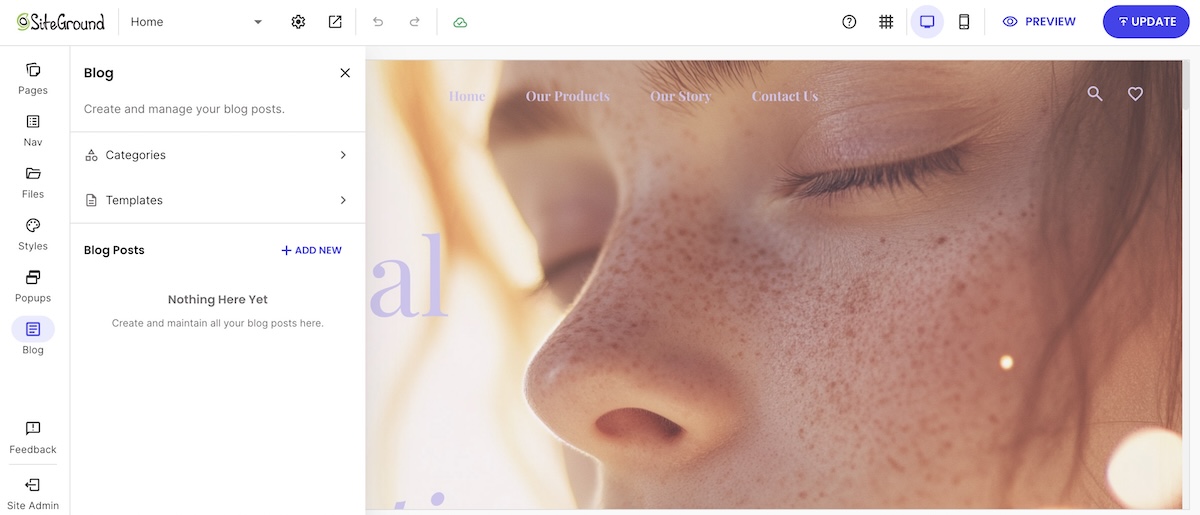
Notice how chaotic the copy below feels. There’s no consistency and your eye doesn’t know where to look. Overall, it looks sloppy and unprofessional.

A website with too many different font types

The fix: stick to the fonts you’ve already chosen, and only those. Before adding any new typeface, check whether it’s actually one of your existing brand fonts; if it isn’t, it doesn’t belong on the page.

Compare the below font usage with the above: it’s the same exact copy, but transmits something completely different. It feels intentional, thoughtfully designed, and enjoyable to look at.

A website with a different font for headers than body copy

Mistake 4: Using the same font for headings and body text

Even sites that stick to their own chosen fonts can still make this mistake: using just one of them for everything, the logo, the headings, and the body text alike. A font chosen for how it looks as a bold logo mark or big headline rarely holds up as long-form body copy, and using it everywhere also flattens the page: headings and the logo stop standing out the way they should.

Observe how flat and unengaging the below text is, versus the fixed text further below. One feels like it came out of a plain text document; the other feels properly designed, with a visual hierarchy that draws the eye through the text.

A website that uses the same font for headers and body copy

The fix: treat your brand fonts as at least two, not one: a heading font (which can also double as your logo font) and a dedicated body font built for readability at small sizes (see Mistake 1). If your brand currently has only one official font, that’s the gap to fix, and not a reason to keep using it for everything. Also consider playing with italics here and there to create movement and emphasis.

A website that uses a different complementary font for headers and body copy

Worth noting: if you’re building in the SiteGround Website Builder, several of the above fixes are already handled for you. Font pairing recommendations come built in, so the combinations on offer were designed to work together, and the color palette tool flags low-contrast pairings before you publish. Prefer something of your own? Bring in a custom WOFF2 font instead, on top of the easy site-building, fast performance, and expert support the platform runs on.

Start building your website now>>

Mistake 5: Pairing fonts that clash

Font pairing goes wrong two ways. The more common: two fonts similar enough to blur together, like two sans-serifs with nearly identical letterforms. 

The other: a vibe mismatch, where two fonts differ in shape but come from different personalities entirely, like a hand-drawn, whimsical heading font such as Amatic SC over a clean, buttoned-up body font like Nunito. The shapes contrast fine; the feel doesn’t, and the pairing reads like two different brands sharing a page.

A website with a clashing header and body font

The fix depends on which clash you’re dealing with:

  • Shape clash. Use a serif headline over a sans-serif body (Playfair Display over Open Sans), or one family for both separated by weight: a bold 700 heading over a regular 400 body.
  • Vibe clash. Shape contrast won’t fix this. Go back to the brand tone from Mistake 2 and pick two fonts that both belong to it.

Either way, the test is the same: does the pairing look like it was chosen on purpose?

Mistake 6: Uploading a font you don’t have web-embedding rights for

Downloading a free font from a random font site doesn’t automatically give you the right to embed it on a live website. Most free fonts are licensed for personal or desktop use only, and using one without a web-embedding license is a real legal risk that most upload tools won’t catch for you.

The fix: stick to fonts explicitly licensed for the web, such as those offered by your website building platform or any available via the full Google Fonts library, where the license already covers embedding at no extra cost.

Mistake 7: Never testing fonts on mobile

A web font that looks perfectly readable on a 27-inch monitor can turn into fine print on a 6-inch phone screen, and mobile already accounts for over half of global web traffic, per StatCounter. Three culprits cause most of the damage, all of which look fine on desktop but become hard to read on a phone:

  • Light font weights. Thin strokes that read fine on a big monitor can turn faint or hard to see at phone scale.
  • Tight letter spacing. The same tight spacing flagged in Mistake 1 gets worse on a narrower screen, with even less room for characters to breathe.
  • Body text under 16px. The 16px minimum from Mistake 1 still applies, but layouts that scale text down for mobile can drop below it unnoticed.

Font legibility is one piece of mobile web design worth testing before launch, alongside layout and tap targets. 

The fix: open your site on a computer screen as well as on your actual phone, not just a browser’s device-simulator view, before calling the font choice final.

The best fonts for web design to use instead

Now that the mistakes above are out of the way, here’s what to use instead. The picks below are screen-tested, load fast, and cover the range from clean sans-serifs to warmer serifs. Most are available free through Google Fonts, which now hosts more than 1,800 open-source font families, so cost is rarely a reason to settle for a generic default.

Best sans-serif fonts

Sans-serif web fonts are the safer default for body text on most small business sites, since their clean letterforms hold up at small sizes and across devices.

FontBest for
MontserratBold, geometric headlines with wide language support; works as heading or body
Open SansHigh legibility body text across devices; works as heading or body
Source Sans 3Clean, neutral text for service and B2B sites; works as heading or body
OswaldCondensed, high-impact headlines; heading use only

Best serif fonts

Serif fonts bring warmth and a more editorial feel, and they pair well as headline fonts even on sites that use a sans-serif body font.

FontBest for
LoraWarm, readable serif headlines for blogs and editorial sites; heading use only
Playfair DisplayHigh-contrast display headlines for fashion and luxury brands; heading use only
PT SerifA traditional serif that reads well as either a heading or body font

Best free Google Fonts

Every font above, and thousands more, is available free through Google Fonts, under licenses that already cover web embedding, so there’s no separate rights check needed.

FontBest for
RobotoA safe, neutral default for almost any small business site; heading or body
NunitoRounded, approachable text for friendly consumer brands; heading or body
Sofia SansClean sans that scales from headline to body without switching families; heading or body
ExoGeometric, techy headline font for startups and SaaS; heading use only

Best font combinations

More pairings worth trying, drawn from the same set:

Heading fontBody fontWhy it works
Playfair DisplayOpen SansClassic serif-over-sans contrast, editorial and trustworthy
OswaldNunitoCondensed, high-impact heading against a rounded, friendly body
MontserratPT SerifGeometric sans heading over a traditional serif body, confident but warm
Sofia Sans CondensedSource Sans 3Condensed heading against a neutral, professional body

Fonts are the easiest design mistake to undo

Compared to fixing broken navigation, rewriting weak copy, or redesigning a slow checkout flow, changing a font is a five-minute job with an outsized payoff. And none of the seven mistakes above require any sort of design training. Just swap a typeface, adjust a weight, or check a contrast ratio — all things a non-designer can do directly inside most website tools.

If you’re building your site in the SiteGround Website Builder, the best fonts for web design are already loaded and paired for you: every template ships with a tested combination, so getting fonts right the first time is the default. Want something more specific to your brand? Upload your own instead. Either way, one of your biggest design hurdles will be solved before you’ve written a single word of copy.

FAQs about the best fonts for web design

What is the 3-font rule for websites?

The 3-font rule says a website should use no more than three fonts total: usually one for headings, one for body text, and one accent font for buttons or callouts. Sticking to three or fewer keeps the visual hierarchy simple enough for most non-designers to maintain without a style guide.

What font is most pleasing to the eye?

There’s no single font that’s universally most pleasing; it’s context-dependent. What reads as elegant on a wedding invitation reads as illegible on a checkout button. For a website, the readability-first picks above are a safe bet.

What are the top 5 font styles for web design?

The five main font styles are serif, sans-serif, slab serif, script, and monospace. Serif and sans-serif cover most body text and headings; slab, script, and monospace are typically used sparingly for accents, logos, or code blocks rather than running text.
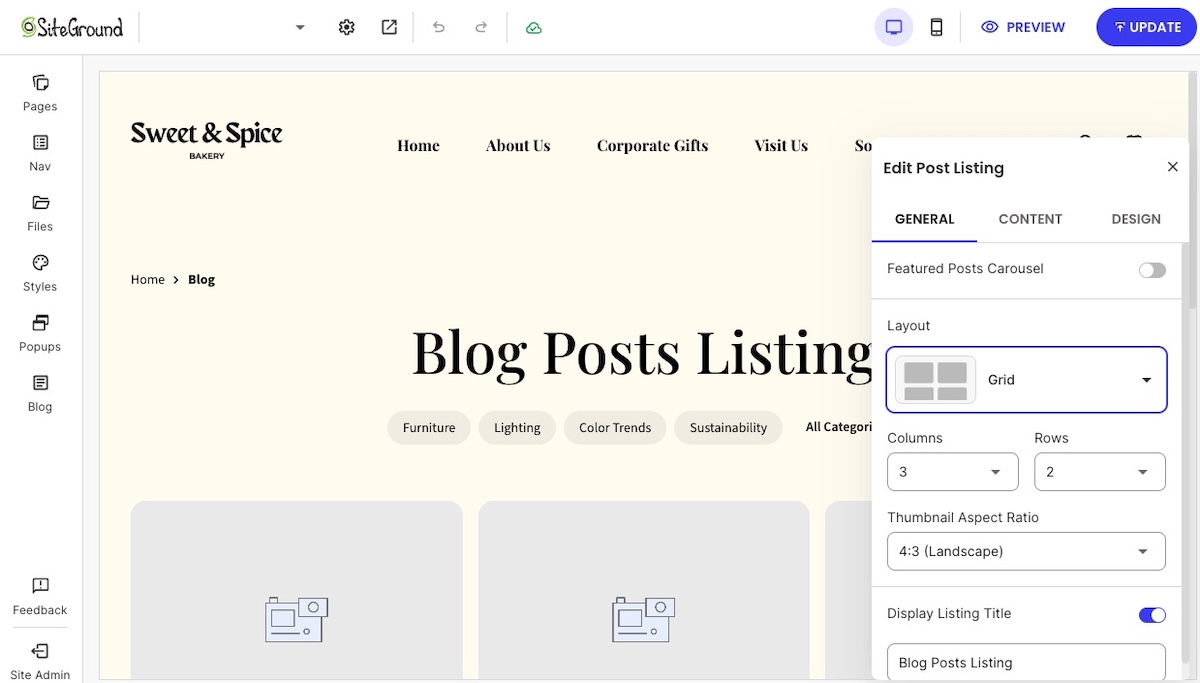
What is the best font for a website?

If you want one safe answer, Open Sans or Source Sans 3 are the most versatile picks: free, fast-loading, and legible from a 4K monitor down to a phone screen. Either is a reasonable default until your brand calls for something more specific.

How to add a blog to your website (without starting from scratch)

Abstract of adding a blog to a website

You don’t need to blow up your website and start over just to add a blog to an existing website. Most builders thankfully treat it as simply a feature you add, rather than a whole separate project. It’s really just a matter of deciding where the blog lives, turning it on, publishing a first post, and adding it to your site.
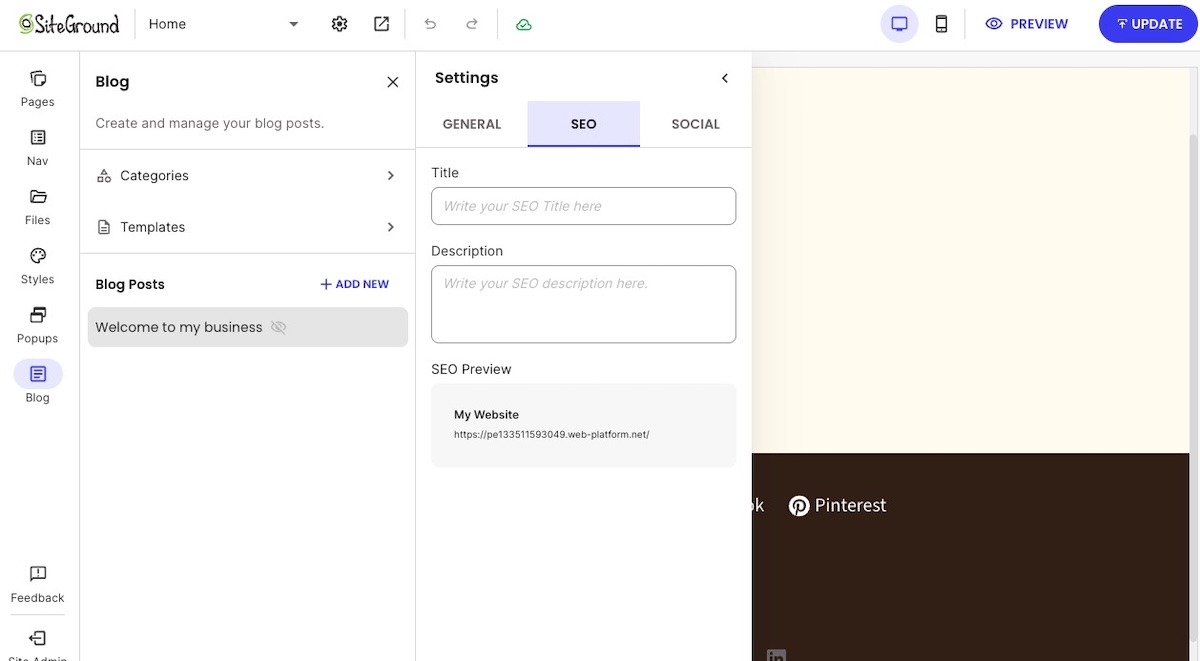
Key takeaways:

  • You can add a blog to a site you already have without switching platforms or hiring a developer; most builders have a native feature for it.
  • Adding it is usually free, since it’s built into whatever plan is already running your site.
  • A niche and a few categories, settled before your first post, keep the blog focused as you publish more.
  • A handful of on-page fields, meta title, alt text, heading structure, a clean URL, do solid SEO work for a first post.
  • A simple content calendar (four to six post ideas, a rough posting cadence) keeps the blog from stalling after post one.
  • Publishing a post matters less than promoting it: sharing it, emailing it, and linking back to it is what actually builds an audience.

Do you need a new platform to add a blog?

No, in almost every case. Adding one is usually a matter of switching on a feature already sitting inside the site you have, so there’s no reason to rebuild or build anything.

Let’s back up, though. This is true because a blog is one section inside your website, usually reached from a “Blog” link in your main navigation.

You’d only need a new blogging platform if:

  • Your site was coded by hand, with no visual editor or dashboard behind it where you could add a page yourself
  • You don’t have a website at all yet and want one with blogging built in from the start. (If that’s you, the SiteGround Website Builder is one option. More about that later.)
  • You want the blog to be the entire site, not a section of a larger one
  • Your current platform truly has no blog feature, which is rare among mainstream builders 

Blog vs. website: what’s the difference?

A website is the container; a blog is one type of content inside it. Every blog lives on a website, but not every website has a blog.

Practically, the difference shows up in the website structure. A blog is organized by publish date and category, with new posts pushed to the top. The rest of a website (an About page, a Service page, a contact form) stays static until you edit it yourself.

So for someone asking whether they need a blog or a website, the honest answer is usually both, just not as two separate things. The blog is the part of your website that changes every week; everything else is the part that doesn’t.

Can you add a blog to your website for free?

Yes, and pretty easily, as adding the blog isn’t a separate purchase. Usually, it’s just a feature you switch on inside the plan you’re already using. So if your website is live and published at your own domain, whatever plan supports that already covers the blog too.

Adding a blog to a website on the SiteGround Website Builder

The “free” question mostly matters for a different reader: that person who hasn’t built a site yet, and for them it plays out differently by platform:

  • Some builders offer a genuine free-forever tier. Wix, WordPress.com, and a few others let you build and publish for free permanently, but your site sits on a builder-branded subdomain (yoursite.wixsite.com, for example) instead of your own domain, with the platform’s own branding on your pages. And there are usually limits to how much you can add, and the flexibility of what you can add, as well as its functionality.
  • Other builders bundle it into paid hosting instead. Rather than a permanent free tier, the “free” option is a time-limited trial for building and previewing, with publishing and custom domains available once you’re on a plan. 

Since this article assumes you already have a website, this distinction probably doesn’t apply to you. That is, the plan that’s already running your site is the plan the blog runs on too. So, good news: in all likelihood, your blogging ambitions are built-in and free at this point. 

How to add a blog to your website in 7 steps

The process below works the same way on most builders; specifics (menu names, button labels) will vary slightly by platform, but this gives you the general idea.

Step 1: Decide where the blog will live

Before turning anything on, decide where the blog will sit in your site’s URL structure: as a subdirectory or a subdomain.

  • Subdirectory (yoursite.com/blog): a folder-like path added onto your existing domain, rather than a separate address. The blog inherits the domain authority your main site has already built, since search engines generally treat it as part of the same site.
  • Subdomain (blog.yoursite.com): a distinct address that sits in front of your domain instead of after it. Technically separate in the eyes of most search engines, closer to hosting a second site. It can make sense for a large, editorially independent blog, but it’s the wrong default for a blog meant to support an existing business site.

Website builders typically default to a subdirectory, and that default is usually the right call. Unless you have a specific reason to split the two, keep the blog there. It’s also the setup that builders create automatically once you turn the feature on.

Step 2: Add a blog to your website

Most builders have some version of a blog feature to enable or add, usually found as its own icon or menu item in the main site editor.

Choosing the layout and design of a blog posting page

You don’t necessarily need this in place before you start writing, either. On the SiteGround Website Builder, for example, you can draft a post first and add the main blog post page when you’re ready to publish it (more on that later). 

And don’t worry, you won’t lose any existing pages when you create your blog; it’s added alongside them, and not instead of them. 

What you get to customize from there varies by platform. For example, on the SiteGround Website Builder, once you’ve created a main blog page (called a Blog Posts Listing page), you choose how it looks: a grid or list layout, with toggles for what shows on each post preview (image, categories, description, read time), plus an optional carousel for featured or recent blog posts.

Choosing the layout and design of a blog posting page

Step 3: Settle on a niche, set up categories, and write your first post

Identify your niche

A blog works best with a niche: a specific enough topic or angle so that your target audience knows what to expect post to post, rather than a grab-bag of whatever’s on your mind that week. If you write about home renovation, for instance, your niche might be small-space renovations on a budget, not renovation in general. Haven’t landed on yours yet? This rundown on choosing a blog niche walks through how.

Define your categories

Categories are really just your niche broken into a handful of sub-topics. For example, if you look above, you can see that this very blog (which we call the Academy) is broken out into several categories, ranging from Web Hosting to Marketing.

Example of a blog with different categories linked across the top

Prepare your first post

Categories sorted, the next job is turning a blank blog post into a published one. This is the checklist you’ll want to tackle for your first post:

  • Pick a topic your audience is actually searching for.
  • Have a keyword or phrase in mind for this specific blog post, ideally one your audience actually searches for, and work it naturally into the title, opening, and a subheading or two. 
  • Write a working title, then the post itself; titles are easier to sharpen once the post exists.
  • Add at least one image. A blog post with none reads as unfinished, even when the writing is fine.
  • Keep the first post short. That is, don’t let the pressure of producing a robust post hold you back from publishing. Less is more if it means getting it done. 

A blog post also doesn’t have to be just text. Embedded video, a sign-up form, or a product you sell can make a post more useful and engaging, even generating leads and sales.

With the SiteGround Website Builder (or Ecommerce, if you sell online), for example, the post editor already includes all of that: images with captions, video, sign-up forms, buttons, galleries, contact forms, icons, and product blocks you can set to show one item, several, or a rotating carousel, all from the same toolkit you used to build the rest of your site. None of it is required for a first post, but it’s there once you’re ready to make one do more than tell a story. If the blank page is the hold-up, the built-in AI writer can also get your text started.

Start building your website and blog now >>

Step 4: Add basic SEO to your post

SEO is what lets someone who’s never visited your site find this post through search, instead of the only readers being people who already follow you. A handful of fields, filled in before you publish, do most of that work:

  • Meta title and meta description, written for the reader, not stuffed with keywords
  • Alt text on every image, describing what’s actually in the picture: it’s an important part of accessible web design, since it’s what a screen reader reads aloud to someone who can’t see the image. It’s also a minor SEO signal.
  • One clear heading structure: an H1 for the post title, H2s for its main sections
  • A URL slug that matches the blog post’s main keyword, not a default date-and-number string
Adding SEO title and description to a blog post in a website builder

This covers a small slice of a full SEO checklist; for a first blog post, these four fields address only the part that matters most. For the fundamentals behind them, Google’s own SEO Starter Guide is worth a read.

Step 5: Publish your first post

Before hitting publish, run through this:

  • Preview the blog post on both desktop and mobile; a layout that looks fine on one can break on the other, and good mobile web design is essential
  • Confirm a featured image is set; it’s what shows up in previews and social shares
  • Double-check the category and any tags are applied
  • Publish
Previewing a blog post on mobile verify it looks good

There’s no separate “go live” step for the blog itself once the feature is turned on. Each post publishes on its own from here. Just don’t expect visitors yet: unless your builder adds new pages to navigation automatically, the post is technically live but effectively invisible until you connect the blog in the next step.

Step 6: Connect the blog to your site navigation

Now you have something worth linking to and, alas, a blog post nobody can find sadly won’t get read. So be sure to add a main blog page to your website navigation the same way you’d add any other page. Where it goes depends on how central the blog is to your site:

  • If the blog matters to your business, driving traffic, building an audience, supporting SEO, put it in the main nav bar, where it’s hardest to miss.
  • If it’s more of a nice-to-have, a footer link is a fine call. It’s less prominent, but still findable for anyone looking.
  • Use a plain label like “Blog,” avoiding clever alternatives that hide what it actually is.
  • If your menu has dropdowns, avoid nesting the blog more than one level deep: the more clicks it takes to find, the fewer people (and search engines!) bother.
Adding your blog to your site navigation in your website builder

Step 7: Plan ahead: build a simple content calendar and share what you publish

One post doesn’t make a blog, and most of the work of running one isn’t the writing. Some bloggers frame it as roughly 20% writing, 80% promoting the blog, spread across channels like SEO, social, email marketing, guest posts, and community threads. You don’t need all of that from day one, but two habits are worth setting up before you move on:

  • A lightweight content calendar. Even a simple list of four to six post ideas and a rough posting cadence, weekly, biweekly, or monthly, keeps the blog from stalling after post one.
  • A plan to actually get each post seen. Pick two or three channels you can keep up with rather than trying all of them: share it on the social platforms your audience already uses, add it to a regular newsletter recap if you have an email list, and once you have a few posts, link each new one back to two or three older, related posts. That last one costs nothing and helps both readers and search engines find more of what you’ve written.

Ready to give your website a blog?

Adding a blog to your website is, thankfully, closer to changing a setting than rebuilding a site. All you really need to do is decide where it lives, add the feature, connect it to your website navigation, and publish a first post. The whole process usually takes less time than writing the post itself.

And if you’re already using the SiteGround Website Builder, the blog feature sits in the same editor you used to build the rest of your site. There’s no separate tool, no export or import, and no second learning curve. Starting from nothing? The same builder works there too, blog included from day one. Turn it on, write, and publish!

Frequently asked questions

What is the 80/20 rule for blogging?

The 80/20 rule for blogging gets used two ways: most commonly, it’s the Pareto principle applied to content, roughly 20% of your posts will drive most of a blog’s traffic and leads. Some bloggers also apply it to time, spending closer to 20% writing and 80% promoting. Either way, for a blog you’ve just added to an existing website: don’t judge the whole effort by your first few posts. Publish consistently for a few months, then look at which posts are actually pulling traffic, and write more like those.

Can I post a blog for free?

Yes. If you already have a published website, the plan running it already covers the blog too; there’s nothing extra to buy. The real free-vs-paid divide is one step earlier, in whether you have a live website at all: some builders offer a permanent free tier with a branded subdomain, while others, including SiteGround’s, bundle the builder into paid hosting plans and offer only a time-limited trial for free. See the breakdown earlier in this article for specifics.

What platform is best for a blog?

If you already have a website, the best platform for your blog is almost always the one you’re already using. Moving the blog to a separate platform adds a login, a separate design system, and a disconnect from the rest of your site, for a feature most builders already include.

Are blogs still a thing in 2026?

Yes. A blog remains one of the few content formats a business fully owns; unlike a social account, it isn’t subject to another platform’s algorithm changes or account suspensions. What’s changed is the bar: thin, generic posts don’t rank or get cited by AI search tools the way they might have a few years ago. A blog still works in 2026; a lazy one doesn’t.

Can I build a blog with WordPress instead?

Yes, WordPress is a common choice, especially for people who want deep customization through themes and plugins. It’s also a heavier lift: you’re managing a full CMS, and not toggling a feature inside a builder you already use, and creating a blog with WordPress involves its own setup process. If your site is already built on the SiteGround Website Builder, its built-in blog feature covers the same core job, posts, categories, an SEO-friendly URL, with a lot less setup.