The SiteGround academy provides a wide variety of tips, tools, and resources related to WordPress, web performance, website optimization and site security.
If you’re using email to connect with your audience, then you’re always seeking ways to improve engagement and reach. Enter the ‘View this email in your browser’ link – a powerful yet often-overlooked tool in your email marketing arsenal. Let’s explore how this simple feature can solve formatting issues, boost accessibility, and even expand your audience.
What is “view this email in your browser”?
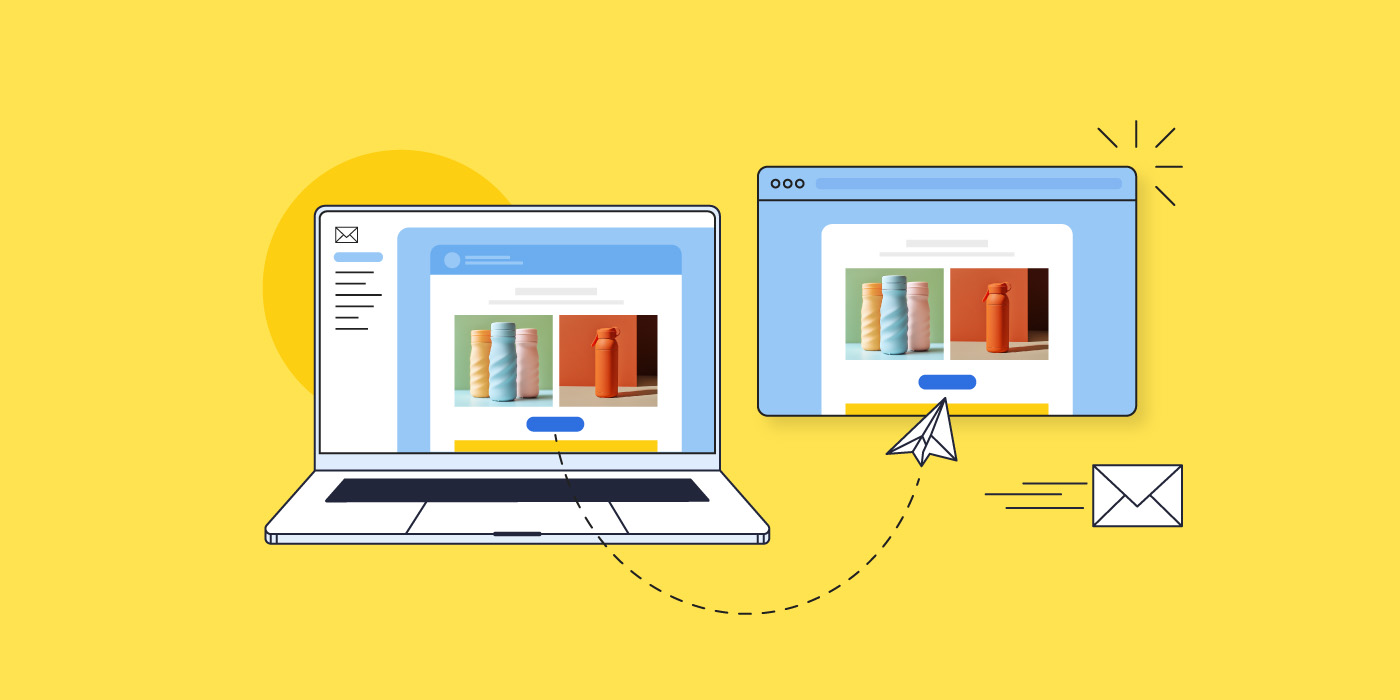
The simple explanation is that the “view this email in your browser” takes you to a browser version of the email you’re reading. That is, it’s hyperlinked text that takes you out of your email inbox, and into a separate website browser, where you can see the email laid out in full. More technically speaking, it is a web-hosted version of your email, rather than just an email message living in someone’s inbox.
What is the purpose of “view this email in your browser”?
Improve accessibility
Accessibility is an important component of email marketing – that is, all content should be made accessible and viewable for all types of viewers (such as people with visual impairment). But not all email service providers can process and transmit your email information optimally for all audiences. With an alternative viewing option for your email campaign, those keen to consume your content in a different way can more easily use assistive technology (such as screen reader tools) regardless of their email client.
Address email formatting issues
You can send yourself and colleagues loads of test emails to double check formatting and image loading, but at the end of the day, it’s impossible to know how your email will appear on every mobile device and via every email client. Some recipients might even have image loading turned off, thus blocking graphics and hyperlinked images. By including a web browser version of your email, you give subscribers the ability to view your email outside their inbox, and therefore have access to the accurate, full version of your email, and with no rendering issues.
Aid in viewing content- or image-heavy emails
Some emails may be particularly image heavy, or perhaps include animations or other visuals that take longer to load via certain email providers or on different devices. This can result in unviewable content, which will not only impact reader experience, but it will negatively impact your message. Some users might even get so annoyed that they end up flagging your content so that your emails go to spam. Clicking on the “view this email in your browser” allows recipients to exit to the web, where your full email content can load more easily.
Enable sharing & reach a broader audience
By having a web browser version of your email, you make it shareable. That is, if a subscriber clicks on the “view this email in your browser” link, they can then copy that link and share it with others, allowing you to reach a broader audience.
How to leverage the “view this email in your browser” link
As we’ve discussed, the beauty of the web browser link is that it makes your emails accessible beyond just a recipient’s inbox. This allows the information to reach more people, and it also means you can refer to and use past content going forward.
This is all fine and well, but you might be wondering how exactly to tap into this apparent potential. Here are a few creative ways to do so:
Take advantage of social sharing
As we discussed above, having a linkable version of your email allows for sharing, and thus gives your business more ways to reach more people. Here are a couple of ideas to leverage sharing:
Share emails via social media and in your social profiles: If you have an email newsletter that contains particularly pertinent information, you might wish to share it via social media and/or include it as a link in your social profiles (for example, as one of your shared links on Instagram). This is also a great way to reach an audience that is already interested in your brand, but maybe hasn’t yet signed up for your emails.
Promote content sharing: Maybe you’re running a contest, or perhaps you’ve published research that is relevant to a wider audience – users may be keen to share your email about this via social media. Consider embedding the link as a call to action in your email in order to motivate social sharing. Examples include: “Click here to share `this information via social” or “Click here for a shareable link.”
Pro tip: Include a subscription sign-up link in the web browser version of your email so that interested readers can easily sign up for your emails, and you can build your email list.
Encourage bookmarking
Let’s say you share recipes via your emails, or maybe how-tos, or just any kind of information that readers might want to refer back to later – by having a web browser version of your email, readers can bookmark the information you’ve sent. And again, not only do they have the ability to do this by clicking on the “view this email in your browser” link, but you can also embed this link in your email as a call to action (such as, “bookmark this recipe now”) so that your subscribers know that they can save it for later.
Make use of past content
Web browser versions of your emails enable easy access to previously sent messages, allowing you to benefit indefinitely from past email content. Here are a couple ways ways to take advantage of this:
Create a searchable content hub: you may wish to include an archive of your old newsletters on your website. In doing so, you can even create a searchable content hub so that users have access to a knowledge base of your earlier emails.
Link to past content: Perhaps you are writing a new blog post, or are selling a product for which an old newsletter’s information might be helpful – you can simply link to it!
Pro tip: Need assistance crafting emails that resonate and are worth linking back to? Worry not. Read up on it in our article about writing marketing emails.
How “view this email in your browser” appears in emails
Header
You may find that in some emails the “view this email in your browser” link shows up in the white space in the email header. Some prefer to use this unused area to make the link readily available from the start, thus avoiding any reader frustration.
Footer
That said, most opt for the footer, as this is where important information unrelated to the email’s content is located. For example, in the footer, you’ll usually find the business’s address, as well as links to unsubscribe, and read terms and policies. The footer is also optimal because placing the link in the header can be distracting, and can negatively impact design and branding.
Within body text
This would likely only be advisable if, as we mentioned above, you want to provide a call to action of sorts – to bookmark the email, or perhaps share it. Either way, the link should also be included in either the header or footer, as this is where people expect to find it – and it will create reader frustration if it’s buried in your email’s body content.
Using “view this email in your browser” with SiteGround Email Marketing
The benefits are built-in
Because we at SiteGround like to make things easy for our email marketing users, we implement best practices, and automate the whole process for you. This includes the following steps:
The “view this email in your browser” link is automatically placed in the email footer, where it’s least distracting, and where users expect to find it.
The link goes to an already-designed web version of your email.
The web version includes a link at the top to “subscribe,” which directs to an already-designed subscription page.
How to implement it
Adding this feature to your emails couldn’t be easier: just enable it, create your emails as usual, and send! Here’s how the process gets set in motion:
Turn it on by navigating to the Email Builder > Design > Footer > “Show browser preview option” > toggle it on.
A web version is generated after sending or scheduling, and the link is accessible via the send/schedule confirmation page, or via the Email Marketing Dashboard.
Edit the subscription page if you wish by visiting Groups > Contacts > Subscribe Page. (Each subscriber added via the subscription form will be added to this Group.)
Pro tip: If you wish to use the “view this email in your browser” link as a call to action within the email itself, just schedule your unfinished email for a later date, and then copy the shareable link from the scheduling confirmation. Then return to editing your email (which, importantly, will disable your scheduled send).
Track its results
You can track each web version’s engagement by visiting the individual campaign in your Analytics. Here you will be able to see the following statistics:
Unique Visitors tells you how many unique visitors arrived at the email campaign’s webpage and viewed it.
Unique Clicks represents the number of unique visitors that clicked on any link in the web version of your email.
New Subscribers reveals the number of contacts that have subscribed to your mailing list via the web version of your email.
This simple feature is super easy to add, and offers loads of unexpected benefits. Not only does it permit an improved user experience, but it provides your business with many ways to leverage past content, reach a larger audience, and continue to build your list. Toggle it on today, and start getting creative with the different ways you can take advantage of its easy-to-add inclusion in your email marketing.
Finding potential customers and turning them into paying customers is the ultimate marketing challenge. But there is, in fact, a solution that solves this problem like no other, and that’s email lead generation. It’s a key component of any business growth strategy, offering a steady stream of strategic, cost-effective growth.
And it doesn’t have to be hard to do! In this guide, we’ll explore all things email lead generation, and provide actionable tips for small business owners looking to harness its power.
What is Email Lead Generation?
Email lead generation entails enticing potential customers to join your email list – these people become your leads. This lead generation process typically involves collecting names and email addresses through an opt-in form, and by offering something of value in return. Once you have their contact information, you can build relationships by sending targeted content that converts leads into paying customers.
(Before we really get started: if you’re new to email marketing and would like to learn more about the basics, please check out our comprehensive guide on what email marketing is and how to get started.)
What Are The Benefits of Email Lead Generation?
While an email lead generation campaign may seem like a pretty straight-forward concept, its benefits are much more far reaching. They include:
Attract Clients Automatically: With just a sign-up form, you can attract a steady stream of potential customers. This automation works around the clock so that you can capture leads without any extra effort.
Save Money on Marketing: Once you’ve set up your opt-in form or lead magnet, the costs primarily involve maintaining your email list and creating content, both of which are minimal compared to traditional advertising expenses.
Reach Interested Customers: Because your target audience includes those who’ve already shown interest in your products or services, your marketing dollars are more likely to result in actual sales, providing an exceptionally high return on investment (ROI).
Increase Your Sales: Guiding leads through your sales funnel with targeted email marketing campaigns allows you to turn prospects into paying customers.
How to Generate Email Leads?
Now that we’re all on the same page about the importance of email lead generation, let’s dive into the different ways you can attract new sales leads.
1. Add a Sign-Up Form to Your Website
Online sign-up forms are the go-to way to start gathering subscriber email addresses for your list. By collecting the emails of those that want to hear more from you – about products, services, promotions and more – you can build a list of potential customers that can be turned into loyal customers over time.
Best practices for creating effective lead generation forms include:
Use an eye-catching design that aligns with your brand’s visual style and personality.
Keep the copy persuasive but straightforward. Clearly communicate the benefits and incentives of signing up.
Make sure the value you offer is relevant to your business and products so that subscribers genuinely want to build and continue a relationship with you.
Consider offering a sign-up incentive, such as a discount.
Embed forms in the footer, as a page-break, in blog posts, or by using slide-in animations after a short delay.
Limit form fields to only the most essential information, ideally just email and perhaps first name. Conversion rates drop with each added field.
A particularly effective method for gathering email addresses is with a lead magnet. This typically comes in the form of a free resource, such as a digital product (ebooks, research reports, mini-courses, etc) that you provide in exchange for an email address. This type of content is ideal because it requires a one-time effort to produce, and can generate leads over time, thus offering a high return on investment.
The primary purpose of a lead magnet is, of course, to collect email addresses, but it’s important not to give away all your valuable information for free. So when creating a lead magnet, aim to provide more value than your free content but less than what you offer in your paid products. Consider what your potential customers are looking for when they first land on your site, identify their pain points, and provide solutions.
By way of example, check out our free email marketing course. This is a SiteGround lead magnet, and follows the principles we’ve discussed above.
3. Use Web Views to Promote Your Emails
A web view is a version of your email that can be seen in a web browser. It’s particularly useful for sharing your content with a broader audience beyond those that are signed up for your email list.
You can implement this feature in the following ways:
Make past newsletters viewable by website visitors by embedding links to them on your site
Via each of these channels, be sure to include a clear call to action to sign up for your emails so that those intrigued by your content can opt in to receive more.
4. Ask Your Subscribers To Share Your Email
Never hesitate to ask for a little help! Reach a wider audience by encouraging current subscribers to share your emails with friends, family, or social networks. In doing so, you’re tapping into a highly effective email marketing strategy, as people tend to trust recommendations from those they know.
You can easily encourage this kind of sharing by embedding a sign-up link in your emails. This link can direct to a landing page with a sign-up form, where you can highlight the benefits of subscribing. You can also incentivize sharing by offering rewards (such as a discount) to those who make referrals.
5. Promote Sign-ups with QR Codes
QR codes are a powerful tool for small businesses to grow their email lists. With just a smartphone, users can scan the QR code and instantly go to a landing page with a sign-up form, and possibly a special offer. Consider using create QR codes for free with Adobe Express to place codes on posters, business cards, promotional materials, and elsewhere.
How to Design Successful Lead Generation Emails
You’ve got the leads, and now we must keep them engaged and moving through your sales funnel. As such, it’s important to write and design your emails for maximum impact. Here’s how you can craft compelling lead generation emails that capture attention and drive conversions.
1. Write Attention-Grabbing Subject Lines
To create captivating subject lines, focus on understanding and addressing your audience’s pain points, needs, and interests. Incorporate actionable language and a sense of urgency to prompt immediate interaction. Keep your subject lines concise, ideally under 50 characters, to ensure visibility on most email clients and mobile devices.
2. Short Writing for Reader Engagement
To maximize reader interest, keep your emails to-the-point and engaging. Short paragraphs, bullet points, and clear, direct language make your emails easily digestible, especially on mobile devices where most emails are opened. Need help crafting your content? Turn to AI. Our blog post on how to write AI email prompts that boost engagement offers valuable tips and examples to help you take advantage of the power of AI.
3. Use Images
Given that images are processed much faster than text, relevant visuals can quickly and effectively convey your message, making your emails more appealing and easier for leads to understand.
4. Offer Valuable Content
By offering your leads useful content that solves problems and provides insights, you nurture them through your sales funnel. This keeps them interested, positions your brand as a trusted authority, and aids in the process of converting leads into loyal customers.
Here’s what to keep in mind to help you provide especially valuable content:
Tailor your content by audience: Use insights from lead segmentation (which we’ll discuss more about shortly) to address your leads’ specific interests. For example, if a lead downloaded an ebook on SEO, follow up with emails that offer advanced SEO tips, industry trends, and related case studies.
Consistent Quality – Maintain a high standard of quality across all your content. Whether it’s a detailed guide, a success story, or a simple tip, ensure it is well-researched, well-written, and provides clear value.
5. Add Strong & Strategic Calls to Action
To effectively convert leads, your emails must include strong, strategically placed calls to action (CTAs). Use action-oriented words like “attend,” “download,” “register,” “read,” and “try now” to guide your leads toward the next step.
Not sure how best to place the CTA or design your email? Email marketing platforms like SiteGround offer ready-made templates that implement design best practices aimed to grasp interest and motivate action. You can learn more about strategic email designs via our guide on easy-to-design templates.
Email Campaign Examples that Turn Leads into Sales
With email creation mastered, the next important step is to strategically move leads through your sales funnel. To do this, you’ll want to create a customer journey, welcoming them first, and then thoughtfully offering valuable and diverse content that nudges them closer and closer to a sale. Here are sample email topics that you may wish to include in your lead-nurturing process.
Welcome Email
Welcome emails are essential in a lead generation campaign, marking the initial interaction between your brand and new subscribers.
Key Elements of a Welcome email:
Introduction: Clearly introduce who you are and what your business does.
Value Proposition: Highlight what makes your brand unique and what value your content will bring to their inbox.
Expectations: Explain what kind of content subscribers can expect, how often they’ll hear from you, and any other relevant details.
CTA: Encourage new subscribers to connect further by linking to your social media, website, or landing page for digital products.
Educational Email
Educational emails offer practical solutions and insights related to your product or service, and play a key role in guiding leads through the sales funnel. In doing so, you position your brand as a trusted authority and resource, building credibility and keeping subscribers engaged.
Key Elements of an Educational Email:
Problem Identification: Start by identifying a common problem your audience faces.
Solution Offering: Offer practical advice, tips, or solutions to address this problem.
Resources: Link to additional resources like blog posts, eBooks, or webinars for more in-depth information.
Product or Service Explainers
These emails provide detailed information about your offerings, highlighting how to solve specific problems or improve the lives of your subscribers. This generates more value for your product or services, fosters trust, drives conversions, and creates loyal customers that come back for more.
Key Elements of a Product or Service Explainer Email:
Feature Highlight: Focus on one or two key features of your product or service.
Benefit Explanation: Explain how these features solve specific problems or improve the user’s life.
Visuals: Use images, videos, or infographics to make the explanation more engaging.
Testimonial: Include a short testimonial from a satisfied customer to add credibility.
Product or Service Updates
Update emails keep your potential clients informed about new features, improvements, or changes to your offerings, ensuring they stay current with the latest developments. By regularly communicating updates, you reinforce the value of your products or services and remind your leads why they should consider becoming customers. You can also re-engage inactive leads by keeping your services top of mind.
Key Elements of Product or Service Update Email:
Update Announcement: Clearly announce the new feature or product.
Benefits Overview: Explain the benefits and how they enhance the user experience.
Usage Tips: Provide tips on how to get the most out of the new feature.
CTA: Encourage users to try out the new feature or learn more about the update.
Social Proof
These emails leverage the experiences and testimonials of existing customers to validate your products or services, making them more appealing to potential customers.
Key Elements of a Social Proof Email:
Testimonials: Include quotes from satisfied customers.
Case Studies: Share detailed stories of how your product or service solved specific problems.
Reviews: Link to third-party reviews or ratings.
Social Media: Embed social media posts where customers talk about your product.
Discounts
Discount emails are highly effective, as they provide an immediate incentive for potential customers to make a purchase. By offering discounts, you create a sense of urgency and exclusivity, encouraging leads to act quickly.
Key Elements of a Discount Email:
Personalization: Address the lead by name and reference their past interactions or interests.
Offer Details: Clearly state the discount or special offer.
Urgency: Create a sense of urgency with limited-time offers.
CTA: Encourage immediate action to take advantage of the deal.
Email Lead Generation Best Practices
Now that we’ve covered how to effectively generate leads and craft compelling email content, let’s explore some essential best practices to maximize your email lead generation success.
1. Leverage Email Automation
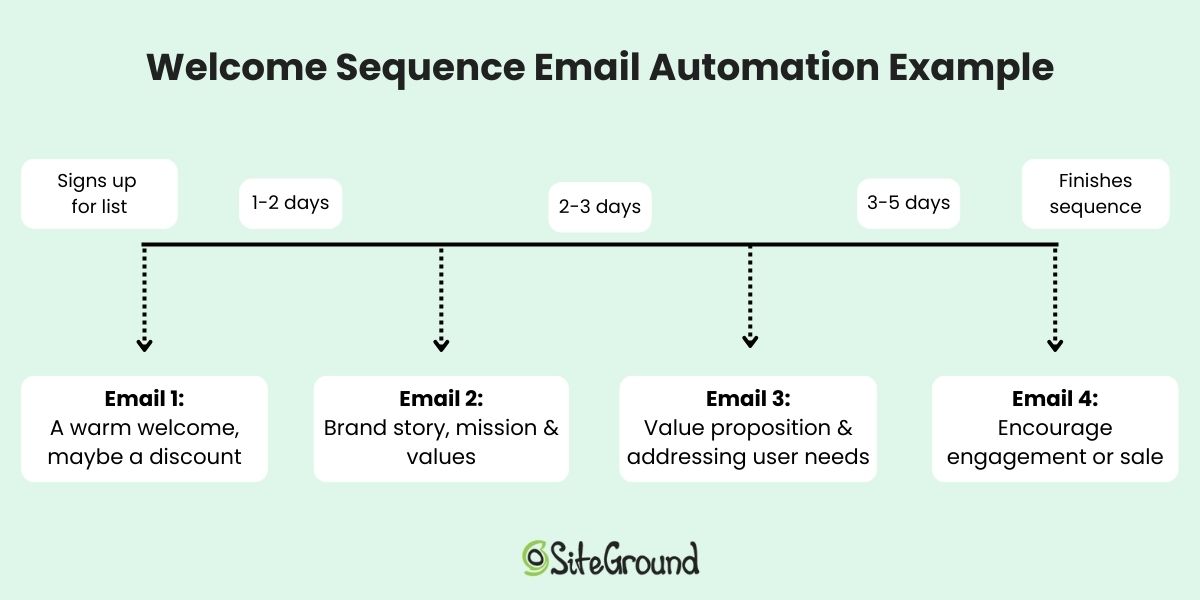
As we’ve just discussed, sending different types of emails can help move your leads through your sales funnel. A great way to put this into place is to automate the process. That is, depending on how your lead was acquired – whether they signed up for a newsletter, downloaded an ebook, or joined a webinar – you can create tailored email journeys, during which a sequential flow of emails is sent to those subscribers. The purpose of an automated email journey is to nurture your leads, build trust and credibility over time, and eventually lead to conversions.
2. Infuse branding
An essential tool in any marketing toolbox is branding, and it’s something you should definitely keep in mind as you craft your content. By transmitting a consistent voice, look and feel, you can build brand loyalty. To put this into action, when you produce emails, consider creating and saving templates that feature your branding, including colors and other brand elements.
3. Segment Your Leads
Lead segmentation entails dividing your list of potential customers into smaller groups based on their activities, actions or characteristics. By segmenting your audience, you can send more personalized and targeted messages, thus speaking to their particular needs and interests, and more effectively moving them through your sales funnel.
Consider segmenting your audience based on sign-up form location, type of lead magnet, level of email engagement, purchase behavior, location, industry and/or job title. Get as creative as you’d like with segmentation criteria, then target your messages accordingly, and test your results.
4. Conduct A/B Tests
To get the most out of your email lead generation strategy and keep improving your approach, it’s important to do A/B testing. This involves sending slightly modified versions of an email to different groups of your subscribers to see which version performs best.
You can test every component of your emails to find the optimal combination that drives engagement and conversions – but do keep in mind: you should only test one variation at a time. Here are some important elements to consider:
Subject Lines: Test different subject lines to see which ones increase open rates. Experiment with length, tone, urgency, and personalization.
Images: Experiment with the size, type, and placement of images to see what enhances interaction.
Design and Layout: Vary the overall design – such as single-column versus multi-column, or even different color schemes – to find out what is most visually appealing and easy to navigate. To learn more about using colors effectively in email marketing, check out our helpful blog post – The Importance & Impact of Colors in Email Marketing.
CTA Buttons: Test different call-to-action buttons, including their text, color, size, and placement.
After a few rounds of A/B tests, you will have a better understanding of which elements perform best. Continuously applying these insights will help you create more effective email marketing campaigns, leading to higher engagement and conversion rates.
5. Don’t Use a No-Reply Address
Using an email other than a no-reply address can benefit your email success. Indeed, the more personalized nature of a proper email address encourages interaction and builds trust. It can also improve deliverability, as emails from no-reply addresses are more likely to be marked as spam by email providers. (You can learn more about landing your emails in inboxes by reading our guide on ensuring high email deliverability.)
6. Maintain Email List Hygiene
Over time, your email list will accumulate leads who are no longer active or engaged. As such, it’s important to regularly clean your list through a process called email scrubbing to remove such leads. This will improve engagement rates, email deliverability, and allow for more accurate performance metrics. That’s because you’re weeding out low-quality leads, and also reducing the chances of your emails landing in spam.
Practical Tips for Email Lead Scrubbing
Set a Regular Schedule: Aim to clean up your email list every three to six months.
Identify Inactive Leads: Look for leads who haven’t opened or clicked on your emails in the last six months to a year.
Send Re-Engagement Campaigns: Before removing inactive leads, send a re-engagement email offering an easy way to confirm their interest.
Remove Unresponsive Leads: If inactive leads don’t respond within two weeks, move them to an inactive list, and eventually remove them from your list altogether.
Monitor Your Metrics: Regularly check your email metrics such as open rates, click-through rates, and unsubscribe rates. If you notice a sudden drop in engagement or increase in unsubscribes, it might be time for another cleanup.
Close the loop on your email lead generation efforts by tracking your success. Here are the key components you’ll want to keep an eye on:
Count Your Email Leads – Track how many potential leads you attract, such as those who sign up for your newsletter, download an ebook, or register for a webinar. Ensure you separate these new leads from existing clients to keep your data accurate.
Track Conversions to Clients – Next, track how many of these email leads actually become paying customers. This shows how effective your email marketing campaigns are at attracting the right people.
Measure Cost Per Lead (CPL) – Look at how much you’re spending to get each email lead. Do this by adding up all related expenses, including email marketing platform costs, content creation, distribution costs, lead magnet production, advertising, and any overheads. Then, divide the total cost of your email campaigns by the number of leads you acquired. Lower costs mean more efficient spending.
What’s Next
Email lead generation stands as a powerful strategy to connect with potential clients and grow your business. By leveraging the direct and personal nature of email marketing, you can build and nurture relationships with new prospects, guiding them through the sales funnel and converting them into loyal customers.
To do this, you will need a powerful email marketing platform, and SiteGround Email Marketing is the perfect partner. Create and send professional campaigns, manage your subscriber lists, and track your results with ease. Our tool includes its own Lead Generation Plugin for WordPress, but also integrates seamlessly with popular WordPress forms like WPForms, Elementor Pro Forms, and Contact Form 7, making it even easier to capture and nurture leads directly from your website. Discover the power of simple, effective email marketing today.
Are you puzzled by low open rates, unexplained spam complaints, or high bounce rates during your email campaigns? The solution might be simpler than you think: the implementation of a double opt-in process.
In this post, we’ll explore how this powerful feature can improve your email list quality, increase engagement, and skyrocket your marketing results.
What is a double opt-in?
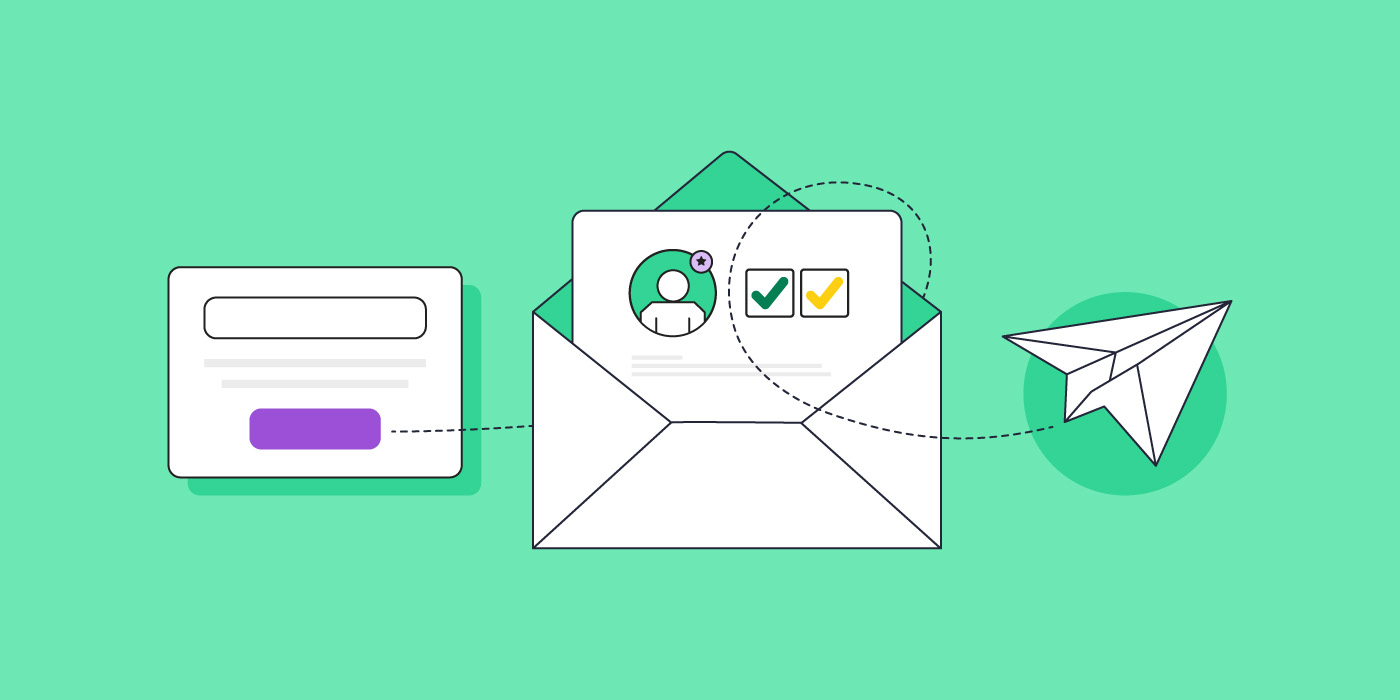
A double opt-in is a two-step process for adding new subscribers to your email list. Here’s how it works:
Step 1: A potential subscriber fills out a sign-up form (single opt-in).
Step 2: They receive a confirmation message via email and must click a link to verify their subscription (double opt-in).
Step 3: The subscriber is sent to a confirmation page, and added to your list.
What’s the difference between a double opt-in & single opt-in?
More precisely, a single opt-in represents a subscription confirmation in its simplest form (literally!): the potential subscriber fills out a form by providing their email, hits submit, and voila, they’re on the email list.
A double opt-in, on the other hand, starts with this same first step, but with an additional step during which the potential subscriber must then validate their subscription via a confirmation email.
The single opt-in is of course simpler and can initially help a list grow more quickly. But, as we’ll discuss, the long-term benefits of a double opt-in may outweigh the initial excitement of quick list growth.
Why you need a double opt-in
You might think: if people sign up to receive my emails, isn’t that enough? Not necessarily. While a single opt-in can grow your list quickly, a double opt-in ensures that list is composed of a high-quality, engaged audience. Additionally, having a double opt-in plays a crucial part in maintaining a good sender reputation and ensuring good email deliverability.
This is because, as we’ll discuss in more detail shortly, by requiring that people confirm subscription via their email address, you reduce the amount of incorrect email addresses, as well as bogus ones (added by bots). Doing so means your emails are more likely to reach those that want to hear from you, and less likely to go to spam.
What are the advantages of a double opt-in?
Promotes a high-quality subscriber list
As we’ve mentioned, while a single opt-in can help you grow your list quickly, it’s not the best way to ensure a high-quality list of subscribers. That’s because, when subscribers have to confirm their subscription for you, they’re actually doing you a big favor: they are letting you know that they are indeed very interested! And you want your list to be composed of people that are legitimately engaged in what you have to say.
Reduces number of emails going to spam
The converse of this is that if people are only sort-of interested, or not interested at all, they are more likely to mark your email as spam. Given their lack of engagement, they may carelessly mark your emails as spam, which can negatively impact your sender reputation, and relegate your emails to the spam folders of even your more-interested subscribers.
Another critical advantage is that it weeds out invalid or fake email addresses. If these kinds of emails get added to your list, it’s likely you’ll have a much larger email bounce rate and, again, your sender reputation drops, and your emails go straight to spam.
Keeps you compliant
While not universally required by law, the double opt-in can help you stay compliant with international regulations such as GDPR and CAN-SPAM. That’s because these laws require clear evidence of subscriber consent, and the double opt-in makes this easy to prove.
Makes list maintenance easier
Along these same lines, by filtering out invalid emails and incorrectly spelled emails (simply made by subscriber error), you save yourself time when it comes to managing your list. Indeed an important part of building your email list is doing regular list housekeeping once every three to six months to remove bounced or inactive email addresses (i.e. those less-interested subscribers).
The good news here is that a solid email marketing platform can do much of this legwork for you by flagging bounced emails, and allowing you to easily track user engagement.
When to use double opt-in
The answer here is simple: if you want to ensure a high-quality email list, then it’s always a good time to implement a double opt-in. But its benefits are especially important in the following scenarios:
If you’ve struggled with hard bounces and spam: Perhaps you have, for one reason or another, had trouble with past emails bouncing or getting marked as spam. By implementing a double opt-in, you can get your email list and email sending back on track by weeding out incoming fake or invalid emails, as well as unengaged users who lightheartedly mark your emails as spam.
When you’re seeking more targeted leads: If you don’t want to waste time with sort-of interest subscribers, then adding the second confirmation will help to capture only those that are genuinely interested. To ensure the most quality leads, it’s essential that your email sign-up form is very clear about the value to be provided upon signing up.
How to set up a double opt-in
Setting up a double opt-in should be straight forward in most email marketing platforms. With SiteGround Email Marketing platform, for example, you simply go to a group you’ve created (or create a new group) and turn on the double opt-in feature.
During this process, would-be subscribers will sign up via your online form (your first opt-in), and then receive a confirmation email. Once they click the email’s confirmation link – your double opt-in – they will be redirected to a “thank you” page, and added to your subscriber list.
When you enable SiteGround’s double opt-in feature, all of the above is automatically done for you so that you don’t have to worry about a thing.
How to ensure people double opt-in
Setting and forgetting about your double opt-in is not the best plan. You’ll want to make sure that hopeful subscribers actually complete that second opt-in. With that in mind, here are several ways to make certain subscribers follow through.
Set expectations
Double opt-in success starts with the initial sign-up. Make sure that, when customers complete the first step of the sign-up process via your online form, you also let them know that they should keep an eye out for a confirmation email to verify their subscription.
Entice potential subscribers to sign up
Sign-up forms are basically a mini sales pitch, so get right to the point by offering hard-to-pass-on value that entices potential subscribers to sign up and follow through with confirmation. Be clear about what they’ll get from their subscription – this could include deals, resources, unique insight, a specific incentive, or any number of other benefits.
Use a subject line that communicates action is needed
Follow the initial heads-up in your sign-up form with an email that has a clear subject line that re-emphasizes that confirmation is needed. SiteGround already does this for you, communicating that action is required for the subscription to be confirmed.
Keep email content simple and focused on action
Just as every other step in this process, make this step as easy as possible. Keep the confirmation email content brief and focused by making sure it’s obvious that confirmation is required, and that there’s an unmissable confirmation button or link. Thankfully, SiteGround automatically implements this so that you don’t have to worry about doing so yourself.
If you’d like insight about crafting future content, though, we’ve put together this guide to help you write marketing emails.
Measure double opt-in success
The true proof of double opt-in success rests in your metrics. Here are the stats you should keep an eye on, and what to look for:
Open rates and click-through rates: Given subscribers’ greater interest, you should notice an increased percentage of people opening your marketing emails, and clicking through on your calls to action.
Unsubscribes and spam complaints: Conversely, since readers were very intentional about signing up, they are less likely to find your content unworthy of their inboxes. Expect these rates to go down.
Bounce rates: Fewer invalid or inactive emails means better inbox delivery. Expect your bounce rates to reduce, and, as such, your sender reputation to improve.
Overall engagement: From email receipt to website purchase, you should find that subscriber engagement goes up across the board.
Invest in quality for long-term success
Implementing a double opt-in process might seem like an extra step, but it’s an investment in long-term success, and an important part of what email marketing is. By ensuring your list is filled with engaged, interested subscribers, you’ll see improved open rates, higher click-throughs, and, ultimately, better results from your email campaigns.
Remember, having a successful email marketing strategyisn’t just about the size of your list – it’s about the quality of your connections. The double opt-in helps you build a list of subscribers who truly want to hear from you, setting the stage for meaningful connection and lasting business relationships.
Double Opt-in FAQ
Won’t I lose potential subscribers?
While you may see a slight decrease in initial sign-ups, the subscribers you do gain will be more engaged and valuable in the long run. Your bounce rates should also go down, increasing the likelihood of successful email delivery.
Is it complicated to set up a double opt-in?
Not at all. Usually it’s as easy as turning on the double opt-in feature. Some platforms (such as SiteGround email marketing) even offer built-in, double opt-in features – like pre-determined emails, email copy and subject lines that implement best practices and make setup easy.
Is a double opt-in required by law?
While regulatory compliance laws vary from country to country, the double opt-in isn’t a standard requirement. That said, it can help you to be more compliant. This is because regulations such as CAN-SPAM and GDPR, which cover the USA and Europe, respectively, require clear consent (opt-in) by subscribers. To accomplish this, you as the sender must be able to provide proof of subscriber opt-in (at least once), and having a double opt-in makes this easier to do.
There are several ways to accept payments online — from payment links and invoicing tools to full checkout integrations — and most take less than ten minutes to set up. This guide breaks down all your options: what they cost, how they work, and which one fits your business, whether you’re selling a product, offering a service, or sending your first invoice.
Key takeaways
Every online payment comes down to one of two things: a card payment or a bank transfer. Everything else is just the channel you use for collecting payments.
You don’t need a website to start getting paid — a payment link or invoice can have you up and running in minutes.
The technical side — gateways, processors, merchant accounts — is handled automatically by most modern platforms. You won’t need to touch any of it.
Fees vary more than most people expect. Always check the full pricing page, not just the headline rate.
A website is more accessible and affordable to set up than most first-time sellers expect — and it’s the only payment method that gives you full control over the customer relationship and your marketing channels.
How do online payments work?
At its core, getting paid online means money moving from your customer’s account to yours. There are two fundamental ways that happens — and understanding the difference makes everything else in this guide click.
Debit and credit card payments
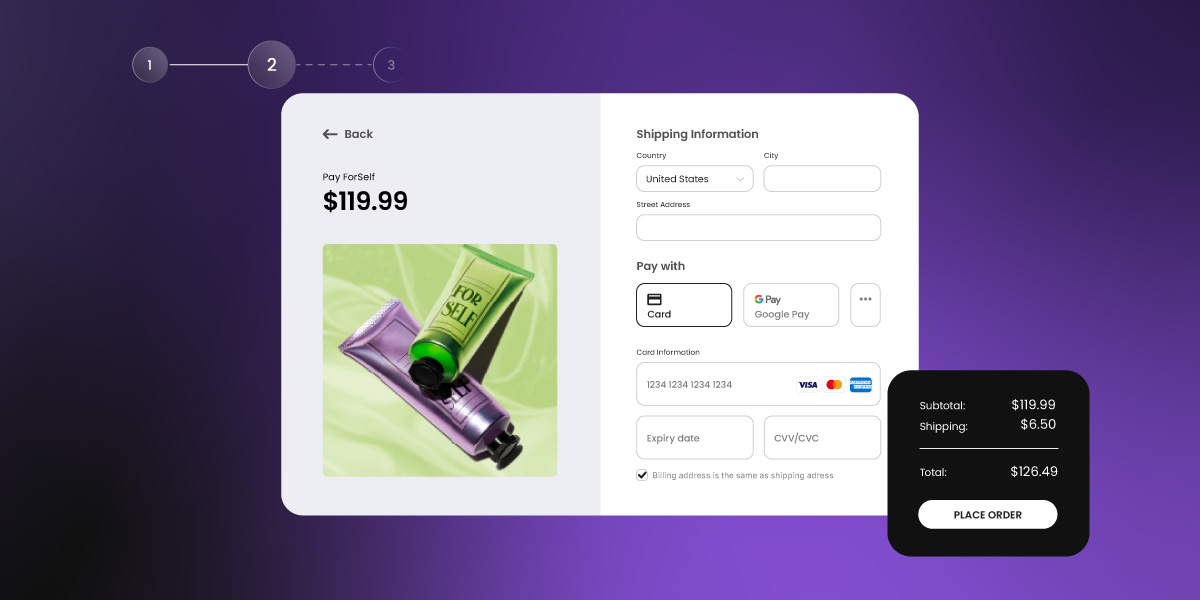
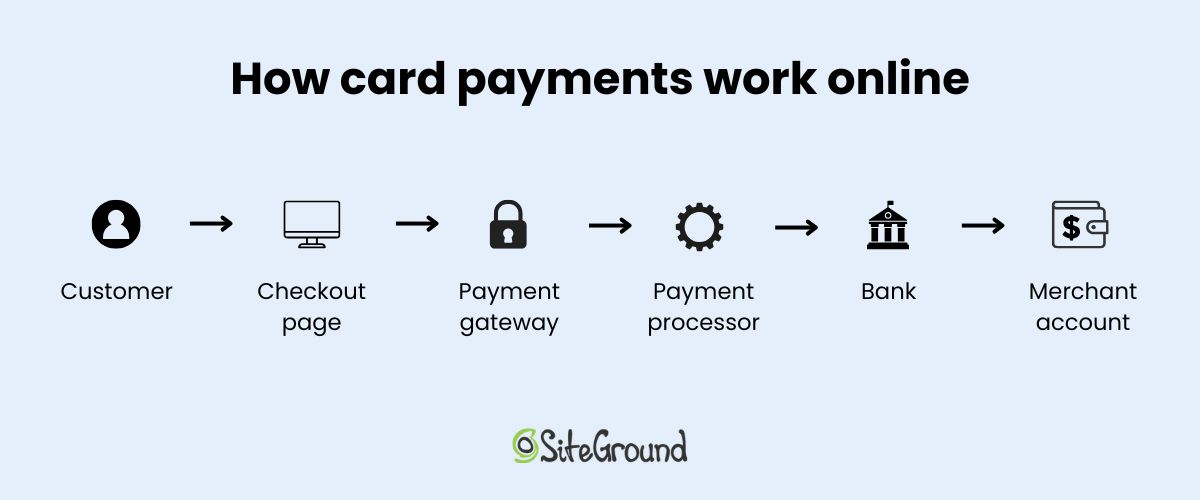
When a customer pays by credit or debit card, the process moves through several steps behind the scenes: the customer enters their card details, a payment gateway captures and encrypts the data securely, a payment processor moves the money through the card network, and the funds land in your merchant account — minus a small fee. For most growing businesses, credit card payments are the fastest, most familiar option for customers, and they settle within one to two business days.
Direct bank transfers
With a bank transfer (sometimes called ACH in the US), the customer’s bank sends funds from the customer’s bank account directly to yours — no card network involved, fewer intermediaries, and usually lower fees as a result.
The trade-off is speed and convenience: transfers typically take one to three business days to settle, and the customer has to initiate the online payment manually rather than entering card details at checkout. Bank transfers work well for large invoices and B2B transactions, but they add friction for one-off or impulse purchases.
Three terms worth knowing:
Payment gateway: the technology that captures and encrypts your customer’s payment details the moment they hit pay, then passes them securely to the payment processor. Most website builders and online payment platforms include one, and you won’t need to set it up separately.
Payment processor: the service that takes those encrypted details from the gateway and does the actual work of moving money, communicating with the customer’s bank, getting authorization, and transferring the funds to your account. Stripe is an example of an online payment processor.
Merchant account: a holding account where your funds land after an online transaction is approved, before they’re transferred to your regular bank account. Platforms like Stripe include one automatically, so you won’t need to open one yourself.
The good news is that wrangling these terms — and the technology behind them — isn’t something you necessarily need to do manually. When you use a modern ecommerce platform or website builder (like SiteGround Ecommerce), the gateway is built in, the processor connects with one click, and the merchant account is included automatically. It just works.
Everything else in this guide — the platforms, the setup steps, the costs — is really just about which channel you use to collect one of those two payment types.
Ways to sell online
There are four main channels to accept online payments. Which one makes sense depends on what you’re selling and where your business is right now.
Payment links
A payment link is a URL that takes the customer straight to a checkout page. You generate it through a payment platform, then share it however makes sense (by email, in a social media DM, on an invoice, or even in a text message). No website required. Payment links are the fastest way to get started: you can be set up and ready to accept payments online in under ten minutes.
The downside is that they’re fairly bare-bones: there’s no storefront, no product listings, and no real presence for customers to browse. They’re ideal for service providers, creators, and anyone testing a new offering, but they’re not a long-term substitute for something more permanent.
Online invoicing
Invoicing tools let you send a professional bill to a client that includes a link for online payment. They’re especially well suited to freelancers, consultants, and service businesses that bill clients on completion or by project. Tools like Wave (free) and FreshBooks make the process straightforward, and some support direct bank transfers alongside cards.
That said, bank transfers come with more friction and slower settlement. Worth checking what payment methods a platform supports before committing to one.
Marketplaces
Platforms like Etsy or Gumroad handle the entire selling experience (think: listings, checkout, and payments) without you needing to build anything. What you give up: fees are typically higher than processing your own online payments, customization is limited, and building a direct relationship with your customers — including building an email list — is much harder when the platform sits between you and the buyer. A reasonable place to start for physical or digital products, but not a long-term substitute for your own setup.
A website with a checkout page
A website with an integrated checkout brings everything together: your storefront, payment gateway, and processor all in one place. It’s the most scalable and professional option — and for sellers thinking about website marketing and long-term growth, it’s the only setup that gives you full control. This is the right choice for product sellers from the start, and the natural next step for service providers who want a permanent presence and a direct marketing channel to their audience.
One thing worth considering as you set up: a checkout page needs to feel trustworthy and load quickly — both have a direct impact on whether customers follow through on a purchase. That means an SSL certificate, a clean design, and fast, reliable web hosting.
Why your website platform choice matters at checkout If you’re going the website route, the platform you choose has a direct impact on how well your checkout performs. A checkout page lives or dies on two things: speed and trust. A slow page loses customers before they pay; an unpolished or unsecured one loses them the moment they arrive. The stakes are higher than you might think — research shows that conversion rates drop by an average of 4.42% for each additional second of load time in the first five seconds.
SiteGround Ecommerce is built with speed and trust in mind — fast loading times out of the box, SSL security included as standard, and a website builder designed to get you from setup to selling without a technical background. The result is a checkout experience that’s built to convert, not just function.
Tools like Venmo, Cash App, and Zelle (known as peer-to-peer (P2P) payment apps) are a common starting point for informal selling, and they work fine for the occasional online transaction between people who know each other. But they come with real limitations for business use: most offer no seller protection, accounts can be flagged or frozen when used regularly for business purposes, and none of them are designed with commerce in mind. If you’re just starting out, they might get the job done in a pinch, but they’re not a reliable foundation to build on.
Apple Pay and Google Pay are a different story. They’re not selling channels — they’re a checkout convenience that sits on top of a regular card payment. Most payment processors support them natively, which means if your processor does, they’ll show up as a checkout payment method for your customers automatically. Worth knowing they’re covered, but not something you need to actively set up.
A note on AI-built websites
If your site was vibe coded with an AI app or website builder, adding payments doesn’t require a rebuild. A portfolio site, a restaurant site, or an event site built this way started as a chat prompt, and connecting a payment processor works the same way. Stripe is the easiest option here: Coderick AI now integrates with Stripe directly in the chat, so you describe what you want to charge for, connect your Stripe account, and Coderick builds the checkout, payment links, and confirmation page for you. No separate gateway to configure and no code to touch. The same logic applies to any AI-built site: Stripe (or a similar processor) plugs into the existing structure instead of asking you to rebuild around a payment feature.
How do online payments get set up — with or without a website?
The setup process is way simpler than most people expect. Before you begin, you’ll need three things:
a bank account to receive funds
a payment processor (or platform that includes one) to handle the transaction
a way to send customers to the payment (so a link, an invoice, or a checkout page)
Chances are, you already have the first one covered.
Accepting online payments without a website
Sign up for an online payment platform and connect your bank account
Run a test transaction before going live
Generate a payment link or create an invoice
Share it with your customer (by email, message, or social media)
Accepting payments on a website
Choose a website builder with built-in ecommerce and payment support (such as SiteGround’s)
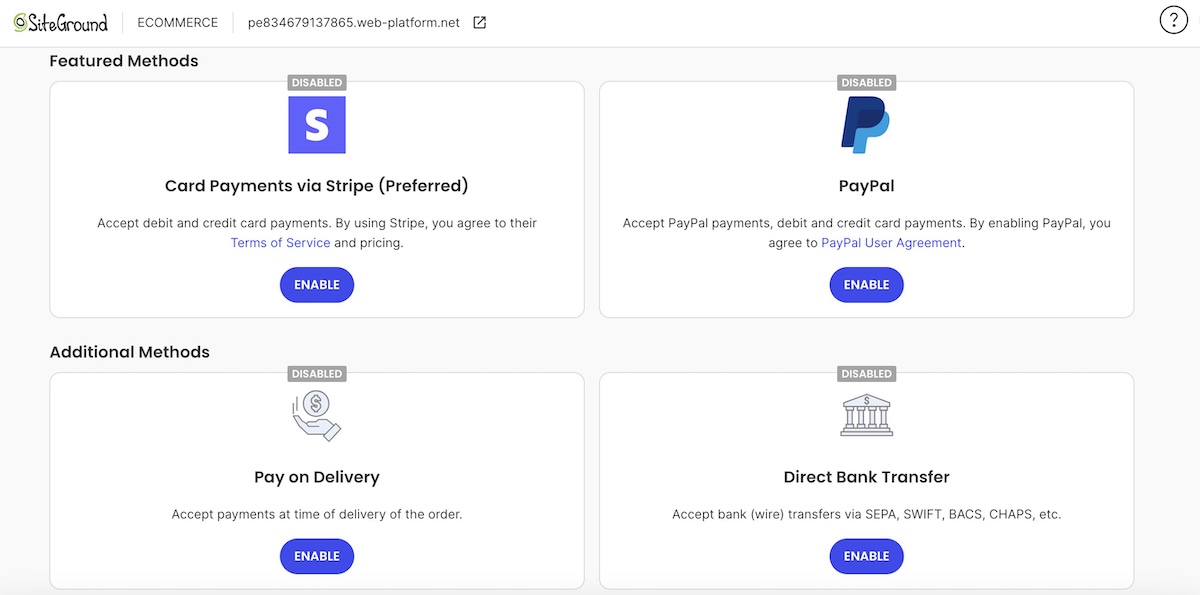
Sign up for a compatible payment processor — Stripe and PayPal are two of the most widely used — and add your bank details. Stripe is typically the better fit for websites and scalable setups, while PayPal is faster to get started with and widely trusted by consumers.
Connect the processor to your website builder (usually one click — the gateway is already built in)
Enable direct bank transfer as an additional online payment option if your platform supports it
Add your product, service, or booking listing
Run a test transaction
Go live
How much does it cost to accept online payments?
The cost depends on how money moves and which platform you use. Here’s a basic breakdown.
Card payments
A commonly cited industry rate is 2.9% + $0.30 per transaction — meaning on a $100 sale, you’d typically keep around $96–$97. If you’re selling internationally or accepting multiple currencies, additional fees can push that total meaningfully higher, so it’s worth checking the full pricing breakdown.
Payment platforms generally offer two pricing models:
Pay-as-you-go: no monthly fee, but a slightly higher per-transaction rate. Better for lower-volume sellers.
Monthly subscription: lower per-transaction processing fees in exchange for a fixed monthly cost. More cost-effective once you’re processing a consistent volume.
One thing to check: some ecommerce platforms charge their own transaction fee on top of the processor’s, unless you use their preferred processor. This can add up, so it’s worth reading the pricing details before committing.
Direct bank transfers
Bank transfers are usually charged as a flat fee rather than a percentage, which makes them meaningfully cheaper on larger transactions. On a $1,000 invoice, the savings over card processing can be significant. Whether those savings are worth the added friction for your customers depends on your setup — for high-value or repeat clients, usually yes. Not all platforms support bank transfers either, so it’s worth confirming before building your setup around it.
What to watch for: processors that bury fees in fine print, charge monthly minimums on low-volume months, or advertise low rates that only apply to specific card types. Always check the full pricing page, not just the headline number.
Which payment setup is right for a small business?
It depends on what you’re selling and where you are in your business. Here’s a quick-reference guide:
Business type
Best starting point
Why it works
When to level up to an ecommerce website
Freelancer / consultant
Payment link or invoicing tool
Fast, low overhead, no website needed
When you want a professional online presence
Service business
Invoicing + payment link
Easy for repeat clients; supports bank transfers
When bookings or quotes go digital
Product seller
Website with checkout
Handles inventory, shipping, and multiple buyers
Already the right choice from day one
Testing an idea
Payment link
Get paid before investing in infrastructure — though setting up a basic website is simpler than it might seem
Once demand is proven
What are the most common mistakes when accepting online payments?
The most common mistakes are easy to avoid once you know what to look for.
Not understanding payout timelines. Card payments and bank transfers settle at very different speeds. If your cash flow depends on quick access to funds, card payments are the safer choice.
Ignoring chargeback policies before they’re needed. A chargeback is when a customer disputes a charge and the card network reverses it. Understand your processor’s policy before your first sale, not after.
Choosing a processor with hidden fees. Monthly minimums, annual fees, and fine-print per-transaction charges can quietly erode your margins. Read the full pricing page.
Missing the platform’s own transaction fee. As we mentioned above, some ecommerce platforms add their own fee on top of the processor’s. Easy to miss, easy to avoid by checking in advance.
Skipping the test transaction. Always run a test purchase before going live. It takes two minutes and prevents embarrassing failures on day one.
Not having a refund policy visible at checkout. Customers are more likely to complete a purchase when they know returns are handled clearly. It also reduces disputes.
Offering only bank transfer when customers expect to pay by card. Bank transfers add friction. If most of your customers are individuals rather than businesses, card payments should be the default.
Start accepting payments online today
No technical skills or big budget are needed to get started. Payment links and invoicing tools make it possible to accept payments in minutes, and these days most setups are far simpler to configure than they appear.
When you’re ready for something more permanent and professional, a website brings everything together: your storefront, payment gateway, processor, and direct transfer support all in one place. SiteGround Ecommerce is an easy way to take that next step — quick to set up, secure out of the box, and with no platform transaction fees on top of your processor’s. Plus built-in online payment processing, a website builder designed for non-developers, and around-the-clock expert support from people who know small business.
FAQs about accepting payments online
What is the safest way to accept payments online?
Using a reputable payment processor with built-in fraud protection and encryption is the safest approach. Established processors handle PCI compliance on your behalf, meaning your customers’ card data is never stored on your own systems. Avoid informal payment methods like bank transfers to strangers or P2P apps, which offer little to no seller protection.
How does accepting an online payment work?
When a customer pays online, their card details are captured by a payment gateway, encrypted, and passed to a payment processor. The processor contacts the customer’s bank, confirms the funds are available, and moves the money to your merchant account. The whole process takes seconds from the customer’s perspective, with funds typically landing in your account within one to two business days.
What is the safest way to accept payment from strangers?
Use a payment platform that includes seller protection (and avoid P2P apps). Card payments through a reputable processor give you the strongest protection: disputes can be handled formally, and most processors have fraud detection built in. For high-value transactions, consider requiring payment before delivering goods or services.
How can payments be accepted without a website?
The easiest way is to use a payment link — a URL that takes the customer directly to a checkout page. You generate the link through a payment platform (most take five minutes to set up), then share it by email, text, or social media. Invoicing tools work the same way for clients who expect a formal bill. No website, no technical setup required. That said, if you’re considering something more permanent, setting up a basic ecommerce website is simpler and more affordable than most people expect.
This article was originally published in May 2022, and then updated in April 2026
Wondering how to create an ecommerce website? It means setting up an online store where customers can browse your products, add them to a cart, and pay securely — and with the right platform, you can do it in a single day. Here’s exactly how.
Key takeaways
Build your ecommerce website with one goal in mind: making your first sale, not perfection.
Choose an all-in-one platform to simplify setup, payments, hosting, and performance.
Set up payments, shipping, and taxes early — modern platforms make it faster than you’d expect.
Pick a clean, professional design and customize the basics without over-tinkering.
Launch fast with essential pages, clear navigation, and content that drives action.
Make your store trustworthy from day one with clear policies, contact info, and social proof.
Use built-in AI tools to create product copy, page content, and images without getting stuck.
Drive early traffic with email, social media, and small ad tests — then improve based on real data.
Most people trip up by spending months obsessing over the perfect logo, debating color schemes, and reading every “ultimate guide” they can find. Meanwhile, their store? Still not launched. Or worse, it’s live, but nobody’s buying because they forgot the actual goal: making sales.
This guide is different. We’re not here to help you build a perfect ecommerce empire (it doesn’t exist anyway). We’re here to help you get your first sale. Because once you’ve proven that people will actually pay you for what you’re selling, everything else gets easier.
Ready? Let’s build an online store that actually makes money.
Step 1: Start with the sale in mind
Every decision you make while building your ecommerce site should serve one goal: getting someone to buy. Before you pick a single template or upload a product photo, clarify what you’re actually trying to accomplish.
Get clear on the problem you’re solving
Think about the last thing you bought online. You didn’t buy it because the ecommerce website had a cool parallax scrolling effect. You ultimately bought it because you had a problem and that product was the solution.
Your potential customers are no different. They’re thinking about their problems, and your ecommerce marketing job is to solve one of them, clearly and specifically.
So when creating your site, it’s essential to first clarify:
What specific problem does my product solve?
Why is it painful enough that someone would pull out their credit card?
How does my solution make their life measurably better?
Write this down. These answers becomes the foundation of everything: your homepage headline, your product descriptions, even which products you launch with.
Define your customer persona
You don’t need to write a novel about a fictional person named “Jennifer” who likes yoga. You just need to answer: Who actually has the problem I’m solving and would pay to fix it?
What you should consider when thinking about your customer persona:
The basics of your target audience: Age range, life stage (college student vs. new parent vs. retiree shop very differently)
The mindset: Budget-conscious or quality-focused? Impulsive or careful researcher?
The context: Where do they hang out online? When do they shop? What makes them trust a new brand? Where will they be at in the customer journey?
Focus on one main action
Your ecommerce site needs to make people do something. And that something should be buying your product.
Here’s what to do to make sure your site is focused:
Pick your one main action (likely: it’s “Add to Cart” or “Buy Now”)
Build everything around making that action easy and appealing
Keep every website page focused on moving people toward that button
Step 2: Choose an ecommerce platform
Choosing your ecommerce platform is the most consequential decision you’ll make. It determines your setup complexity, cost, flexibility, and support options. For first-time sellers, an all-in-one platform removes unnecessary complexity and helps you launch faster, with fewer decisions and fewer things that can go wrong.
Think of your ecommerce platform as the engine under the hood of your online store. Pick a good fit, and you won’t think about it much (which is exactly what you want). Pick a bad fit, and you’ll be fighting with it every time you need to add a product or process a payment.
You don’t need to become a tech wizard or spend weeks researching. But you do need to understand your options and pick the path that makes sense for where you are right now.
All-in-one vs. DIY: pick your path
You’ve essentially got two realistic routes when it comes to creating an online store:
The DIY route: Go with a content management system like WordPress and get WooCommerce Hosting for ecommerce support. From there, you’d need to connect your domain, configure payment gateways, install security plugins (if it’s not done for you), troubleshoot when things break, and so on. It’s doable if you enjoy tinkering with tech, but it eats up time you could spend actually selling.
The all-in-one route: This means that your domain, hosting, and ecommerce are all in one package. Everything’s connected, optimized, and ready to go. Log in, pick a template, add products, start selling.
For first-time sellers, an all-in-one approach (like SiteGround Ecommerce) is the smarter play. You get professional-grade hosting, automatic domain setup, built-in security and speed optimization, and one support team for everything. More importantly, you get to focus on making that first sale instead of troubleshooting plugins at midnight.
Domain and hosting
Depending on which route you choose, you’ll need to get your domain (your web address like yourstore.com) and web hosting (where your site lives on the internet) sorted out. For the sake of this article (which is focused on getting you started simply and efficiently) we’re going to discuss the steps for an all-in-one ecommerce platform.
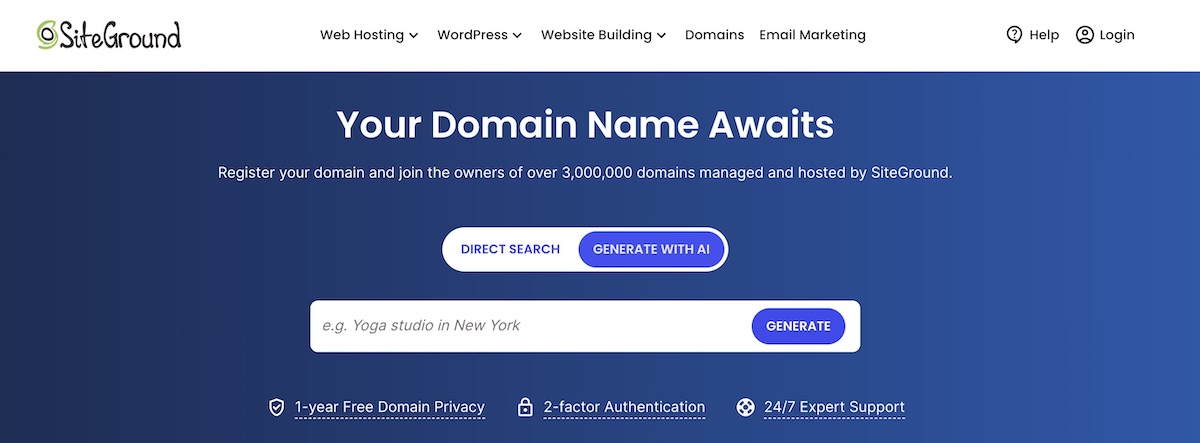
With this type of easy-to-use platform, you simply choose your custom domain name (and if you’re stuck, tools like the SiteGround AI domain generator can help you find something perfect), and then everything, including hosting, is set up for you in one simple process. No connecting separate services. No configuring servers. No hoping everything talks to each other properly.
Why an all-in-one ecommerce platform like SiteGround makes the difference:
With a quality all-in-one platform, everything is handled in one place. SiteGround Ecommerce, for example, automatically connects your domain, provides fast ecommerce-ready hosting, includes built-in performance optimization and a global CDN, and keeps your site reliable and secure. You manage it all from a single dashboard with no technical setup, and no juggling tools.
Accessible web designbuilt in, so that your site is usable by everyone and meets modern accessibility standards
Ease of use
You don’t need to be a tech genius, but you do need basic tools to manage your online store, and help people actually find it.
When choosing an ecommerce platform, look for:
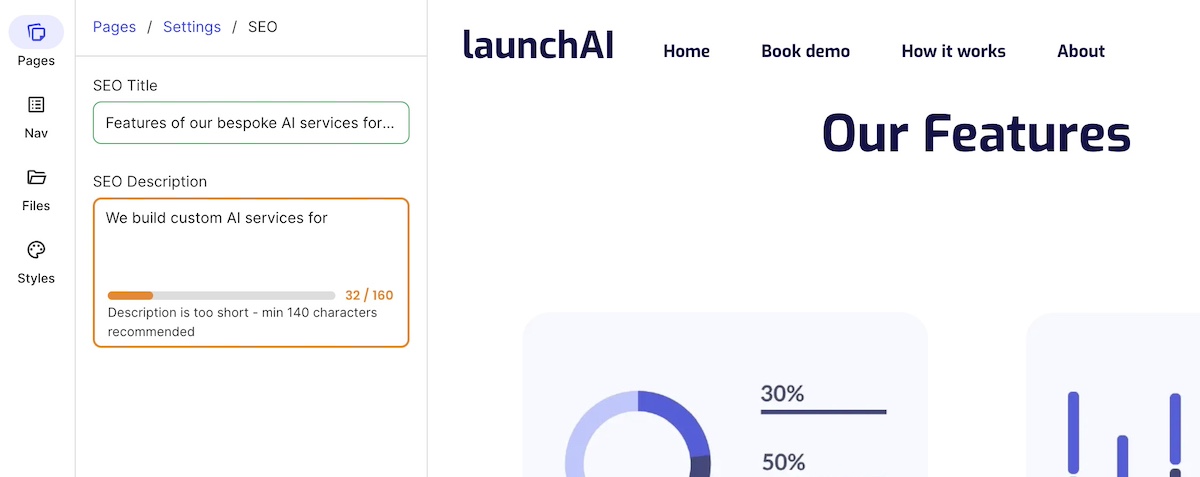
Built-in ecommerce SEO(search engine optimization) features like customizable page titles and meta descriptions (as seen below)
An intuitive dashboard where you can add products, edit pages, and take care of order management and inventory tracking without having to study a manual
The ability to customize your site visually, no coding required
Tools like email marketing and analytics that help you as you grow your online business.
Multiple payment gateways
People have strong opinions about how they pay for stuff online. Some love PayPal. Some refuse to use anything but Apple Pay. Some want to type in their card directly.
With that in mind, your ecommerce platform should support:
Credit and debit cards (the basics, like Visa, Mastercard, etc.)
Digital wallets like PayPal, Apple Pay, Google Pay
Secure checkout that keeps customer data safe (and keeps you compliant with all those annoying-but-necessary regulations)
Transaction fees
Many platforms take a percentage of every sale on top of your payment processor’s fees. It might not seem like much at first, but it adds up quickly — so factor it into your platform decision early.
Step 3: Set up payment and taxes
Payment and tax setup sounds intimidating, but modern platforms have made it surprisingly straightforward. If you’ve chosen an all-in-one ecommerce platform, most of the work is already done for you. You’re mostly just connecting accounts, choosing options from dropdown menus, and letting the system handle the calculations.
Payments
The set-up process is actually surprisingly easy. Usually you just need to connect your accounts (like Stripe or PayPal, which takes all of about five minutes), and toggling on the payment methods you want to offer. That’s it. No coding, no complicated integrations.
Shipping
You don’t need a complicated shipping strategy on day one, but rather just need something that works.
Start with the shipping basics:
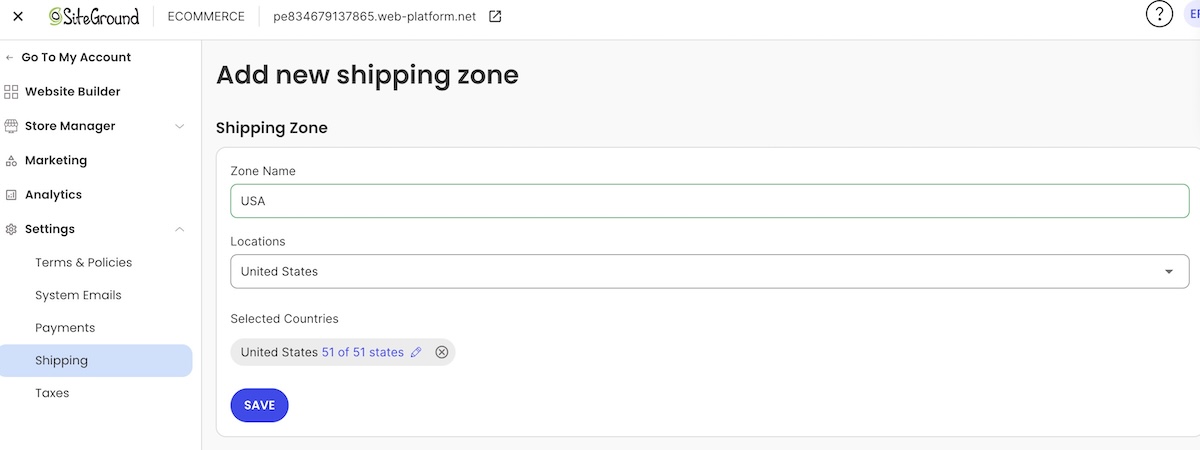
Define your shipping zones: Are you shipping locally? Nationwide? Internationally? Start conservative, as it’s much easier to expand your zones later than to deal with shipping headaches, unexpected costs, or delivery issues in regions you’re not ready to serve. If you’re just starting out, consider limiting to your country first and adding international shipping once you have a few orders under your belt.
Choose your shipping methods:
Flat rate shipping: Charge the same amount regardless of what they order (keeps it simple for you and predictable for customers)
Free shipping: Offer it on orders over a certain amount to up average order value
Local pickup: If you’re local or have a physical location, let people skip shipping entirely
You can always get fancier later with real-time carrier rates and zone-based pricing. But for your first sale? Simple flat rates will do just fine.
Taxes
Ah yes, everyone’s favorite topic. But before you start sweating, remember: your platform can handle most of this automatically.
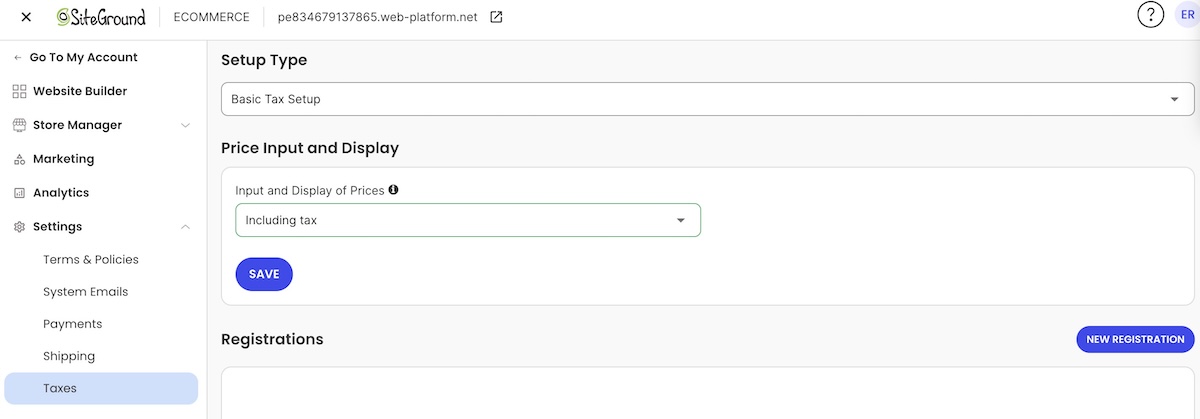
For most first-time sellers shipping within their own country, this takes maybe 10 minutes to configure. The platform already knows the sales tax rates: you just tell it where you’re located and where you’re shipping, making it easy to collect sales tax.
If you’re selling internationally (especially in the EU), there are extra considerations like VAT and different tax classes. But even here, good platforms have pre-loaded rates and can handle things like EU B2B transactions with VIES checks. It sounds complicated, but the platform does the math for you.
Advanced tax setup (if you need it later):
Some platforms, like SiteGround Ecommerce, offer advanced tax services (like Stripe Tax integration) that automatically calculate taxes for even more countries and product types, plus give you detailed reporting.
Start selling in hours, not weeks With SiteGround Ecommerce, your store comes ready with professional templates and intuitive customization tools, so your site looks great from day one. Payment gateways, shipping options, and taxes are built in and easy to configure — no technical headaches, no juggling multiple tools.
Your theme is the visual foundation of your store — it shapes how customers perceive your brand before they’ve read a single word. The goal isn’t to win a design award; it’s to create a professional-looking store that doesn’t scare people away and makes it easy to buy. You can refine the aesthetic later, once you’ve made some sales and know what resonates.
Start with a template
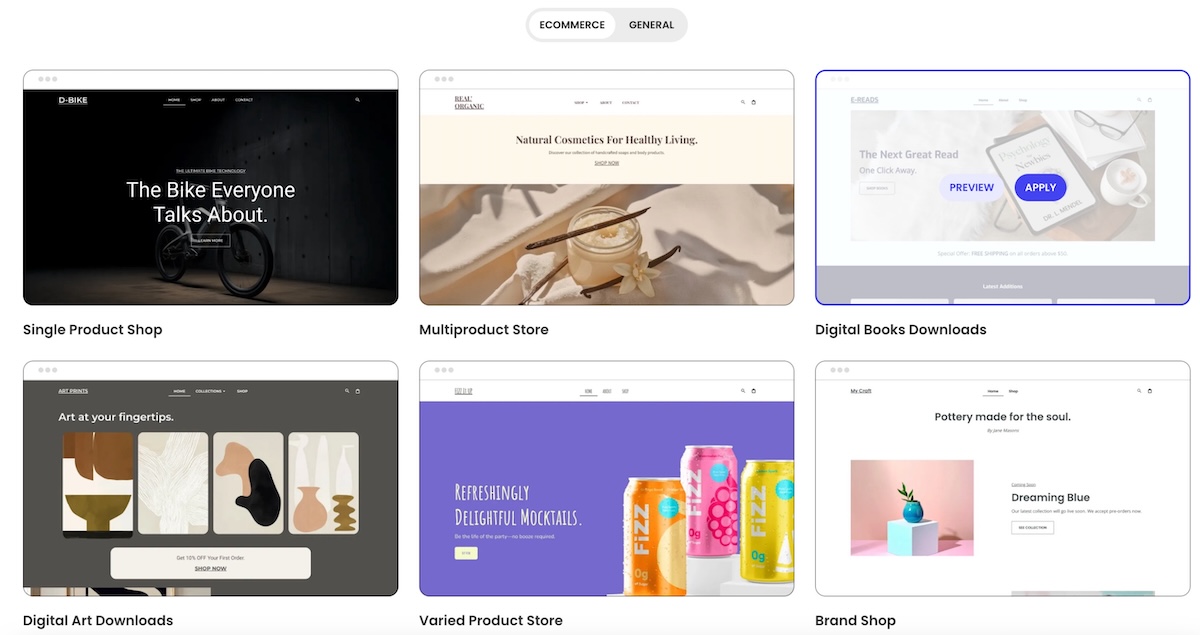
Unless you’re a designer — or have the budget to hire one — you’ll start with a pre-made template. That’s a good thing. Modern ecommerce platforms offer templates built specifically for online stores, so you’re not designing from scratch or guessing what works.
Choose something that fits your industry. A handmade jewelry store should feel different from an auto parts shop. But don’t overthink it. As long as the structure is solid, you can adjust the visuals to match your brand.
The goal isn’t perfection; it’s launching with a website design that looks professional, works on every device, and makes it easy for customers to buy. You can always refine the look later, once sales start coming in.
Customize the basics (but don’t go overboard)
Once you’ve picked a theme, you’ll want to make it yours. But “making it yours” doesn’t mean rebuilding everything from scratch.
Focus on these essentials:
Your logo: Even a simple text-based company logo is fine to start. You can always upgrade later
Your brand colors: Swap in your main colors so it feels cohesive with your online business.
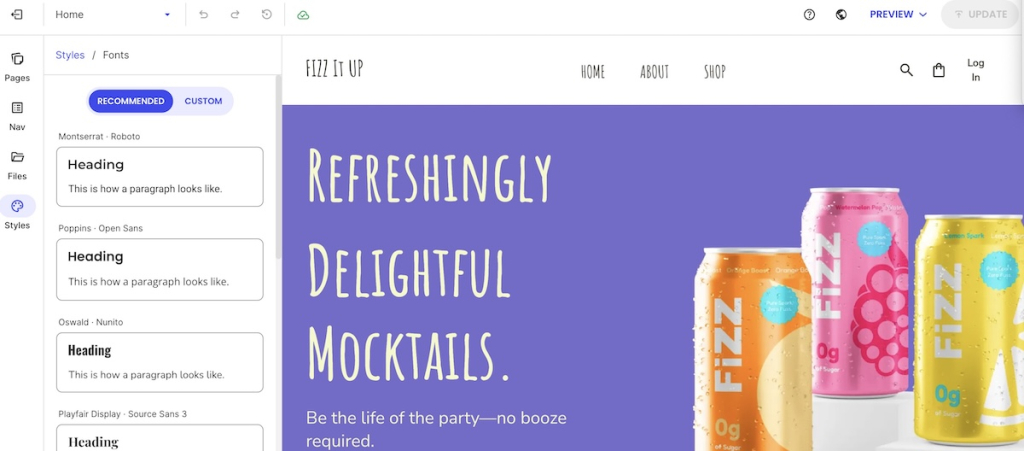
Your font: Same with fonts: pick a set of fonts that aligns with your branding basics.
Most modern themes let you do all of this with user-friendly builders. No coding required. You click, you type, you upload an image, you’re done.
Resist the urge to tinker endlessly
Customization tools are fun to play with, but they can be a trap! You can change button shapes, rearrange sections, edit images…and before you know it, it’s been six hours and you still haven’t added a single product.
So remember Step 1? Keep the sale in mind, and save the tinkering for later.
Step 5: Build your website pages
Your website pages are what turn visitors into customers, and you don’t need many of them to launch. A handful of well-built pages that do their job beats 20 half-finished ones every time. Everything else can wait.
Create essential pages
Let’s talk about the non-negotiables — the pages every ecommerce site needs from day one:
Homepage: This is where most visitors land first, so your homepage design should quickly explain what you sell, why it matters, and what to do next. Keep it simple with a clear headline, featured products or categories, and an obvious path to start shopping.
Product category pages: If you sell more than a few products, category pages help shoppers browse without feeling overwhelmed. Group similar items together and make it easy to scan products at a glance.
Product pages: This is where the sale happens. Each product detail page should clearly show what the product is, why it’s valuable, how much it costs, and how to add it to the cart without distractions.
Trust pages: Every store also needs basic trust pages (we’ll touch more on these in a moment).
A note on why structure matters: Thoughtful website structure, with clearly organized categories and product pages, not only makes shopping easier for visitors but also helps search engines and AI-driven tools (including GEO search) understand your site, increasing visibility and discoverability.
Fill your website pages
Now that you know which pages you need, it’s time to fill them with content that actually helps people take action.
Start by writing for real humans. Use clear, straightforward language and focus on what the customer cares about most, and what this product or page does for them. Answer obvious questions before visitors have to go looking.
Next, make your content easy to scan. Most visitors won’t read every word; they’ll skim until something catches their eye. Research has found that on the average web page, users have time to read at most 28% of the words during an average visit.This is why visual hierarchy matters.
To keep pages scannable and effective:
Use descriptive headings that clearly explain what each section is about
Break information into short paragraphs (2–3 sentences max)
Use bullet points for key features or benefits
Bold important details so they stand out at a glance
Make sure each page naturally leads to one clear action (as discussed in Step 1)
This kind of thoughtful structure doesn’t just improve usability — it also helps search engines and AI-driven search tools better understand your pages, making them easier to surface in search results.
Clear content, strong visual hierarchy, and a logical flow all work together to turn browsers into buyers.
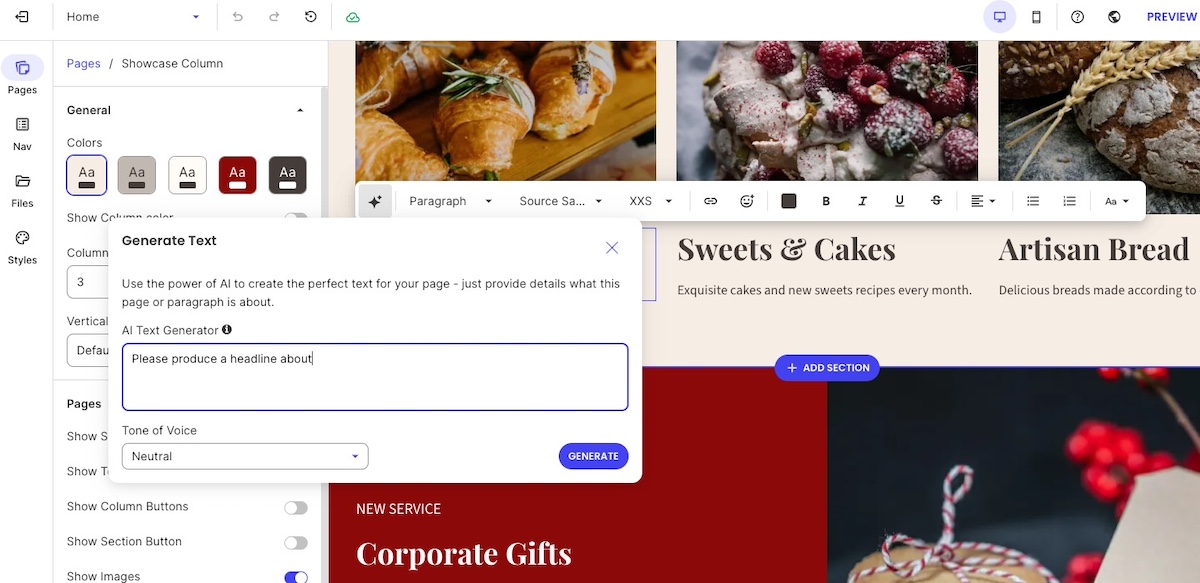
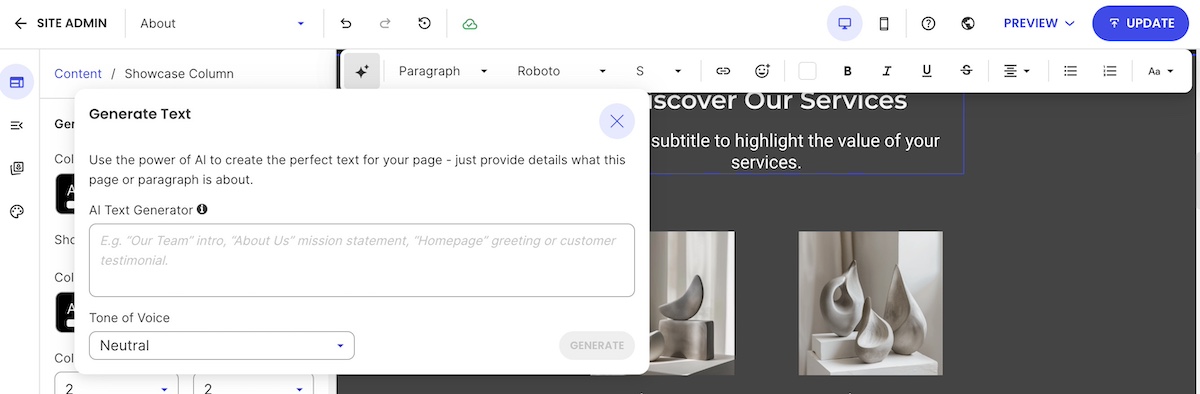
Stuck staring at a blank page? This is where SiteGround Ecommerce‘s built-in AI writer comes in handy. Need a product description? Homepage headline? About page copy? The AI writer can generate content on the fly based on what you’re selling. You can use it as-is or tweak it to match your voice. Either way, it beats the paralysis of “I don’t know what to write.”
Add basic imagery
The reality is that people buy with their eyes first. In fact, clear visuals are the most important factor for 67% of online shoppers, often outweighing product descriptions and reviews. So your images need to be good enough that people can actually see what they’re buying.
Types of images to include:
Product photos: Show each product from multiple angles, include a size reference if needed, and demonstrate use when relevant.
Other key images: Homepage hero images to set the vibe, category banners to preview what’s inside, and a personal touch photo for your About page.
Practical tips:
You don’t need a professional photographer on day one. A smartphone with good lighting works for most products.
Avoid generic stock photos; they kill trust immediately.
Keep image styles consistent across your site to align with your brand.
Leverage an AI image generator (such as the one built in to SiteGround Ecommerce) to create original images on the go.
Include an email marketing signup form
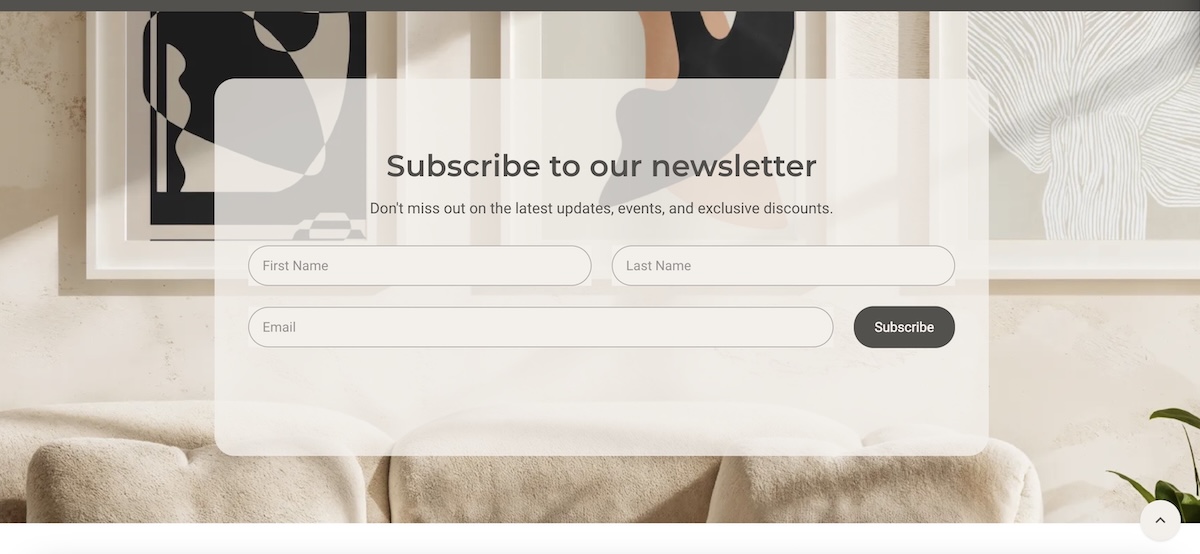
Here’s something super important to always keep in mind: not everyone who visits will buy on their first visit. But if you can capture their email (especially with the help of a good lead magnet), you get another chance to convert them later via email marketing. Plus, email marketing consistently delivers one of the highest returns on investment of any marketing channel — reason enough to make it a priority from day one.
To get those sign-ups, keep the ask simple: “Get 10% off your first order” or “Be the first to know about new products.” Don’t ask for their life story; just an email address.
And here’s where the all-in-one approach really shines: If you’re using SiteGround Email Marketing, adding signup forms is seamless — no third-party integrations or complicated setup. You get easy-to-use form builders, powerful segmentation so you can target the right people with the right messages, and built-in analytics to see what’s actually working. Everything managed from the same dashboard as your store. No juggling multiple platforms, no wondering if your tools are talking to each other. It just works.
Step 6: Make your website trustworthy
Trust is everything when you’re new. You don’t have thousands of reviews or a recognizable brand name yet, so you need to work harder to prove you’re legitimate.
Here’s what website content builds trust:
Clear contact info: Email address in your website footer, a dedicated Contact page, and ideally a phone number (even if it goes to voicemail). Nothing screams “scam” louder than an ecommerce website with no way to reach the people running it. Bonus points if you actually respond quickly, because nothing builds trust faster than a helpful human.
Simple policies: Shipping policy (when will it arrive and what does it cost?), return/refund policy, privacy policy (legally required in most places), and terms of service. Keep them straightforward and customer-friendly.
Social proof: Customer reviews on product pages, testimonials on your homepage, trust badges like secure checkout icons, and links to your social media. People trust other people way more than they trust you.
Step 7: Launch & drive first visitors
Your site is built, your products are listed, everything works. Now you need to actually get people to show up and (hopefully!) buy something. But the internet is vast and crowded, and nobody’s going to stumble upon your brand new store by accident. You need to actively drive traffic, especially in those critical first few weeks.
If you already have an email list, this is your fastest path to first sales.
Here’s how to use email marketing for your ecommerce website launch:
Announce your launch: Send a simple, exciting email letting people know you’re open for business
Offer a launch discount: Something like “10% off for our first 50 customers” creates urgency
Make it personal: Remind people why you started this and why they should care
Leverage social media
You might already have some followers on Instagram, Facebook, LinkedIn, TikTok, or wherever you hang out online. Now’s the time to tell your followers about your store.
Post about your launch: Share behind-the-scenes content, product photos, your story
Go live: Do a quick video showing your products and answering questions
Tag relevant people: If you know anyone who’d genuinely love what you’re selling, tag them (but don’t be spammy)
Use relevant hashtags: Make it easier for people interested in your niche to find you
Engage in communities: Join groups or forums related to your products and participate genuinely (not just dropping links)
Invest a small amount in paid ads
Organic reach is great, but paid ads can help you get in front of targeted customers quickly, even with a tiny budget.
Start with $5-10 per day and test:
Facebook/Instagram ads: Target based on interests, demographics, and behaviors
Google Shopping ads: Show your products in search results when people are actively looking
Pinterest ads: Great for visual products (home decor, fashion, crafts)
Focus on your ideal customer from Step 1, test different images and copy, and track actual sales (not just clicks). Don’t blow your budget on day one; instead start small and scale what works.
Gather customer feedback
Pay attention to what’s working and what’s not. Track where traffic comes from, which products people view, and where they drop off. Send survey emails, asking early customers how they heard about you and what almost stopped them from buying.
This feedback tells you what to double down on and what to fix. Your first few weeks are a live experiment, so adjust accordingly.
Step 8: Improve and fine tune after first sales
Your first sale is proof that people will pay for what you’re selling. Now the job shifts from launching to improving, using real customer behavior and data to make your store work better over time.
Tweak design
Now that you have real traffic and sales data, you can look at your digital marketing metrics to see how people actually use your site (as opposed to how you thought they’d use it).
Look for friction points:
Are people abandoning their carts? Maybe your checkout process is confusing or your shipping costs are surprising them at the last minute
Are certain pages getting high bounce rates? Could be slow loading times, unclear messaging, or design issues
Are mobile users struggling? Check your analytics. If mobile traffic is high but conversions are low, your mobile device experience needs work
Is your CTA button getting missed? Maybe it’s not prominent enough or the color doesn’t stand out
Make small, strategic tweaks based on actual behavior and feedback. Change one thing at a time so you know what’s making a difference. A/B test if you want to get fancy, but honestly, just fixing obvious pain points will get you most of the way there.
[37]
Add more products
Your initial product lineup was enough to prove the concept. Now you can expand strategically.
Look at what’s selling best and add variations (different colors, sizes, related items)
Pay attention to customer requests: If multiple people ask “do you have X?”, that’s a clear signal
Fill gaps in your catalog: What would make sense as a natural addition to what you already offer?
Test new categories carefully: Don’t go too broad too fast. Instead stay close to what’s already working
Build your email list
Remember that email signup form you added in Step 5? Now’s the time to get serious about building your email list and actually using it.
Focus on:
Optimizing your signup offers: Is your incentive compelling enough? Test different offers (10% off vs. free shipping vs. early access to sales)
Capturing emails at checkout: Every customer should be on your list
Sending regular emails: Weekly or bi-weekly newsletters, product launches, exclusive deals. Stay top of mind without being annoying
Segmenting your list: Send different messages to first-time buyers vs. repeat customers vs. people who abandoned carts
Email is your most valuable marketing channel because you own it. Social media platforms can change algorithms or disappear. Your email list is yours forever. Treat it like the asset it is.
Now you know how to build an ecommerce site — get that first sale
Building an ecommerce store is truly easier than ever. You don’t need a massive budget, a tech degree, or months of preparation. You just need a clear plan, the right ecommerce tools, and the willingness to launch before everything feels perfect.
Ready to start? SiteGround Ecommerce gives you everything you need in one place: domain, premium web hosting, payment processing, email marketing, and an intuitive online store builder. No juggling multiple services. No technical nightmares. Just a straightforward path from idea to first sale.
Stop planning. Start selling.
FAQs for how to create an ecommerce site
How much does it cost to create an ecommerce website?
It depends on your approach, but you can start for less than you think. If you go the all-in-one platform route (like SiteGround Ecommerce), expect to pay anywhere from $10-50 per month for web hosting and platform fees, plus your domain name (around $10-15 per year — unless you go with a SiteGround domain, which is free for the first year). Add in some budget for initial product photography or marketing, and you can realistically launch for under $100-200. The DIY route (separate hosting + WordPress + WooCommerce) might seem cheaper upfront, but factor in the time cost of setup, potential paid plugins, and troubleshooting.
What do I need to start an ecommerce website?
Less than you probably think. The essentials are: a product to sell, a domain name (your web address), web hosting, an ecommerce platform to build and manage your store, a payment gateway to collect payments, basic policies (shipping, returns, privacy), and product photos and descriptions. With an all-in-one platform like SiteGround Ecommerce, most of this is bundled together and ready to go from day one.
What’s the best ecommerce platform for beginners?
Honestly? The most user-friendly platform is the one that doesn’t make you think about the technical stuff. All-in-one platforms like SiteGround Ecommerce are built specifically to get you up and running fast: domain registration, hosting, payment setup, and store building all happen in one place with intuitive dashboards and drag-and-drop builders. No coding required, no juggling multiple logins. Other popular options can also be user-friendly but come with monthly fees and less flexibility as you grow. WordPress with WooCommerce gives you maximum control but has a steeper learning curve. For first-time sellers, small businesses, and solopreneurs who want to focus on selling (not troubleshooting), go with a platform that bundles everything and has solid support.
What are the four types of ecommerce?
The four main types of ecommerce are based on who’s selling to whom:
– B2C (Business-to-Consumer): You sell directly to individual customers. This is what most people think of when they hear “ecommerce.” Think of online stores like Amazon, clothing retailers, or your handmade jewelry shop.
– B2B (Business-to-Business): You sell products or services to other businesses. Think wholesale suppliers, software companies, or bulk office supply distributors.
– C2C (Consumer-to-Consumer): Individuals sell to other individuals, usually through a marketplace. eBay, Etsy, and Facebook Marketplace are classic examples.
– C2B (Consumer-to-Business): Individuals offer products or services to businesses. Freelancers, influencers, and photographers often operate in this model.
For most first-time sellers reading this guide, you’re building a B2C store. But it’s good to know the landscape.
This article was originally published in May 2022, and then updated in April 2026
This article was originally published in January 2022, and then updated in December 2025.
Searching for the best WordPress themes can feel like endless job interviews. Every candidate looks impressive on paper, they all promise to be the perfect fit, but which one will actually deliver?
You don’t need to interview every theme on the internet before finding your match.
We’ve done the homework for you by looking at what actual users are saying—not just what the sales pages promise.
Every theme claims to be “lightning-fast,” “SEO-optimized,” and “beginner-friendly.” Do they deliver? That’s what we’re here to find out. Whether you’re launching your first blog, building a business site, or just tired of your current theme’s performance issues, this guide will help you find the best WordPress theme that actually shows up and does the work.
Key Takeaways:
WordPress themes control your site’s design and come in three types: default, free, and premium.
Best default theme: Twenty Twenty-Three—lightweight, fast, supports full site editing, and accessibility-focused.
Best free theme: Astra—over 1 million installs, highly customizable, works with page builders, praised for speed and flexibility.
Best premium theme: Avada—750,000+ sales, multipurpose with hundreds of templates, extensive customization, and strong support.
Essential features to prioritize: responsive design, fast loading, SEO-friendly code, customization options, plugin compatibility, and regular updates.
A WordPress theme is the design framework that controls how your website looks. It defines your website’s layout, typography, colors, spacing, header and footer structure, and sometimes even template options for posts and pages.
In other words: Your theme sets the overall style of your site, which is the foundation your content sits on.
How Themes and WordPress Work Together
Before diving into specific themes, it helps to understand how WordPress themes work alongside the platform’s editing tools. Here’s a quick overview:
Gutenberg (Block Editor): WordPress’s built-in editor for writing and designing content with blocks (text, images, columns, etc.). You’ll use this editor no matter which theme you choose.
Page Builders: Optional plugins that let you design pages visually with drag-and-drop layouts. Some page builders, like Elementor and Divi, also offer their own pre-built themes or templates, so you can use them to control your website’s design entirely, not just individual pages.
Themes: The main design framework that controls site-wide style — your header, footer, colors, typography, and default layouts. You can use a standalone theme, a free or premium theme, or a theme provided by a page builder like Divi or Elementor.
Types of WordPress Themes
WordPress themes come in different types, each suited to different needs and skill levels. These are the main categories of WordPress themes:
Default WordPress Themes: These come pre-installed with WordPress (like Twenty Twenty-Three). They’re lightweight, well-coded, and great for simple sites.
Free WordPress Themes: Available in the WordPress.org theme directory. Many are excellent, but some free WordPress themes offer limited design options unless you upgrade.
Paid (Premium) WordPress Themes: These typically include advanced customization features, more templates, priority support, and extra design flexibility.
Custom WordPress Themes: Built from scratch or heavily customized for a unique design and functionality. (Note: Fully custom themes aren’t covered in this guide; we focus on default, free, and premium themes that anyone can use without hiring a developer.)
How We Picked These WordPress Themes
Rather than testing every theme ourselves, we focused on what real users are saying. Here’s how we curated this list:
Popularity Metrics – We looked at the most purchased and downloaded themes from major marketplaces. Themes that are widely used tend to be reliable and well-supported.
User Reviews – Instead of relying on a few testimonials, we analyzed ratings and reviews from hundreds of users to identify consistent feedback.
Forum Insights – We checked reputable WordPress forums and communities to see which themes users actually recommend and why.
Updates & Support – Active development and responsive support were key factors. Themes that are regularly updated and supported reduce long-term risks for your WordPress website.
Feature Relevance – Finally, we considered the features users mention most frequently, including mobile responsiveness, SEO optimization, customization options, and plugin compatibility.
By focusing on real user feedback and measurable popularity, this guide helps you choose the theme most likely to work well for your website, business, or project.
Best WordPress Themes (Quick View)
Theme
Type
Price
Standout Features
Twenty Twenty-Three
Default
Free
Full site editing, lightweight, accessibility-focused
When it comes to default WordPress themes, Twenty Twenty-Three stands out as the top choice. Released alongside WordPress 6.3, it’s designed with full site editing in mind, giving users unprecedented control over layout and design without needing any coding skills.
Why Twenty Twenty-Three Is So Popular
Full Site Editing: Unlike earlier default themes, Twenty Twenty-Three fully supports block-based editing, allowing users to customize headers, footers, and page layouts directly in the WordPress editor.
Lightweight & Fast: Many users on WordPress forums and ThemeForest discussions note that the theme is highly optimized for speed, helping pages load quickly and improving SEO.
Accessibility First: It’s built with accessible web design in mind, ensuring that your site is usable for all visitors—a feature praised repeatedly by real users.
Flexible Design Options: Comes with multiple starter templates and block patterns, so you can quickly launch a site or build a custom look from scratch.
Reliable & Well-Supported: As an official WordPress theme, it’s regularly updated to stay compatible with the latest WordPress version, plugins, and security standards.
What is block-based editing? It’s the modern WordPress editing system where every part of your page—text, images, buttons, columns, headers, footers—is built using customizable “blocks.” Instead of relying on a single large editor or custom code, you assemble your site visually by dragging, arranging, and styling these blocks. This gives you more design control, a faster workflow, and a consistent way to edit both content and full site layouts (headers, footers, templates) without needing a page builder.
Best For:
Twenty Twenty-Three is ideal for bloggers, small business websites, and anyone who wants a minimalist, highly customizable, and modern WordPress theme. Beginners will appreciate its ease of use, while advanced users can leverage full site editing to create unique designs without additional plugins.
Not Ideal For:
Highly Feature-Rich Sites: If you need complex ecommerce functionality or advanced custom layouts, you may need additional plugins or a premium theme.
Older WordPress Versions: Requires WordPress 6.1 or newer for full site editing, so it’s not suitable for sites running outdated versions.
Users Seeking Pre-Built Designs: While starter templates exist, the theme is minimalist by default, so it may require some design work for a fully polished look.
Real User Feedback:
Across WordPress.org forums and review threads, users consistently praise Twenty Twenty-Three for its speed, reliability, and design flexibility. Many note that it’s a safe, stress-free starting point, especially for those building a website from scratch or migrating from older themes.
When it comes to the best free WordPress themes, Astra consistently stands out. With over a million active installations and glowing reviews across WordPress.org and popular forums, it’s a free theme trusted by beginners and professionals alike.
Why Astra Is a Popular WordPress Theme:
Lightweight & Fast: Astra is designed for performance, with minimal bloat and fast loading times, a feature highlighted by many users.
Highly Customizable: Using the WordPress Customizer or page builders like Elementor and Beaver Builder, you can create a unique look without touching code.
Multipurpose Design: Astra works well for blogs, portfolios, business sites, and small online stores. Its flexible layout options make it easy to adapt to different site types.
SEO-Friendly: Users appreciate that Astra is built with clean code and optimized for search engines, helping sites rank better in Google.
Regular Updates & Support: The theme is actively maintained, ensuring compatibility with the latest WordPress version and plugins.
Best For:
Astra is a free WordPress theme that is ideal for beginners who want a reliable, flexible option, as well as experienced users who want a lightweight, customizable foundation for any type of site.
Not Ideal For:
Sites that want complex features built directly into the theme without using plugins.
Users who prefer a pre-styled design out of the box—Astra is minimal by default, so some setup is required to achieve a polished look.
Real User Feedback:
Across WordPress forums and review sites, Astra is frequently praised for being fast, flexible, and easy to use. Many users recommend it as a “go-to” free WordPress theme, noting that it’s a reliable foundation for building any website.
In addition to Astra, several other free WordPress themes are widely used and praised by the community. These other free WordPress themes offer solid functionality, flexibility, and strong user support.
With over 750,000 sales on ThemeForest—a popular online marketplace where developers sell WordPress themes and plugins—and thousands of positive reviews, Avada is one of the most trusted and widely used premium themes in the WordPress community.
Why Avada Is a Popular WordPress Theme
Multipurpose Flexibility: Avada comes with hundreds of pre-built templates for blogs, business websites, portfolios, and ecommerce stores. Users love that it can adapt to almost any site type.
Advanced Customization: Built-in options and the Fusion Builder page builder allow users to tweak layouts, colors, headers, and footers without touching a single line of code.
Plugin Compatibility: Avada works seamlessly with WooCommerce, Yoast SEO, and other essential plugins, making it ideal for professional sites.
Regular Updates & Support: The theme is actively maintained, with dedicated support and detailed documentation, which users consistently praise in forums and reviews.
Performance & SEO Optimized: Despite being feature-rich, Avada is optimized for speed and search engines, helping websites perform well.
Best For:
Avada is perfect for business websites, agencies, portfolios, and ecommerce sites that need a highly flexible theme with robust support. It’s also suitable for users who want a “ready-to-go” theme with many pre-built templates.
Not Ideal For:
Beginners seeking lightweight themes: Avada is feature-rich and can feel heavy if not optimized properly.
Minimalist Sites: If you want a simple, stripped-down design, Avada’s extensive options may be overwhelming.
Real User Feedback:
Across ThemeForest reviews and WordPress forums, users consistently praise Avada for its flexibility, extensive customization options, and reliable support. Many recommend it as a go-to premium theme for serious projects that require professional design and functionality.
A Note on Heavy Themes & Hosting: Some premium themes are feature-rich and can be “heavy,” meaning they use more resources and may require optimization to keep your site fast. Using SiteGround’s fast WordPress Hosting can help: it automatically handles updates for WordPress core, themes, and plugins, and its optimized servers ensure even complex sites load quickly and run smoothly. This way, you get the flexibility of a feature-rich theme without worrying about speed or maintenance.
Here are a few other popular WordPress themes that are premium and repeatedly show up in expert round‑ups and marketplace best‑seller lists—often praised for flexibility, design quality, or specialized strengths.
Overview: A versatile multipurpose premium theme with hundreds of pre-built website templates.
Best For: Agencies, large or complex websites, and projects that need ready-made layouts.
Why Users Like It: Extensive template library, flexible design, and wide plugin compatibility.
Not Ideal For: Users who prefer minimal or simple themes; it can be heavy and complex to navigate.
WordPress Theme Features to Look For
Choosing a WordPress theme isn’t just about looks; it’s about functionality, performance, and long-term reliability. Below are the features we considered when selecting the themes in this guide. That said, if you explore other themes, keep these same standards in mind to ensure your site stays fast, flexible, and reliable.
Here are the essential WordPress theme features you should consider:
1. Responsive Design / Mobile Friendly: Your theme should look great on desktops, tablets, and smartphones. Since more than 60% of global web traffic comes from mobile devices—and Google favors mobile-friendly sites—a responsive WordPress theme ensures your content performs well across all screens.
2. Fast Loading & Performance Optimized: WordPress themes that are lightweight and well-coded load faster, improving user experience and SEO. Avoid themes that are bloated with unnecessary features.
3. SEO-Friendly: Themes built with clean code, proper HTML structure, and optimized performance support WordPress SEO, helping search engines index and rank your content more effectively.
4. Customization Options: Look for themes with easy-to-use customization tools: headers, footers, colors, fonts, and layout options. Themes compatible with the WordPress Customizer or page builders make design simple.
5. Plugin Compatibility: Your theme should work seamlessly with popular plugins like WooCommerce, Yoast SEO, and Contact Form 7. This ensures you can grow your business and expand your site’s functionality without conflicts.
6. Regular Updates & Support: WordPress themes that are actively maintained are safer, more secure, and compatible with the latest WordPress version. If you’re using SiteGround Managed WordPress Hosting, updates for WordPress core, themes, and plugins are automatically handled for you, so your site stays secure and up-to-date with minimal effort. Check also for responsive theme support and thorough documentation.
7. Starter Templates / Demo Content: Themes with pre-built templates or demo content can help you launch your site faster and give you a foundation to build on.
8. Accessibility & Translation Ready: Themes that follow accessibility guidelines (WCAG) and support multilingual plugins make your site usable for more people worldwide.
Next Steps: Pick the Best WordPress Theme for Your Site
So there you have it—no more endless scrolling through theme directories. Whether you go with a reliable default theme, a flexible free option, or splurge on a premium theme with all the bells and whistles, you’ve now got a solid foundation that actually shows up and does the work.
The best WordPress theme isn’t the one with the most features or the flashiest demo. It’s the one that performs well and doesn’t cause drama down the line. And if you want your theme to run at its best, pair it with hosting that can keep up. SiteGround’s Managed WordPress Hosting automatically handles updates for WordPress core, themes, and plugins, so you never have to worry about compatibility issues or security gaps. Plus, their optimized servers mean even feature-rich themes stay fast and responsive.
Now stop overthinking it and launch that site already. Your ideal theme is waiting.
Starting an online store on a budget is simpler than it looks, as long as you make the right decisions early. Translation: this means choosing a platform that gets you up and running without stitching tools together, focusing your offer on a core product selection, and using built-in or low-cost tools to handle marketing, SEO, and automation from day one.
This guide covers 10 practical tips to help first-time store owners launch a professional, functional ecommerce site without overspending, from defining your audience and unique value proposition to choosing how to build your store, leveraging AI, and growing through testing and iteration.
Key takeaways
Start focused, not broad: launch with a small, high-value product selection and expand once you know what resonates with customers.
Choose a platform that does the heavy lifting: an all-in-one setup with hosting, ecommerce tools, and domain management saves time, money, and technical headaches from day one.
Know your customer before you build: a clear audience profile shapes your product selection, store design, messaging, and marketing from the start.
Build your email list early: email is the one marketing channel you own outright, and it consistently delivers one of the highest ROIs in digital marketing.
Use AI and automation to stay lean: from writing product descriptions to running welcome sequences, the right tools let you do more without hiring or overspending.
Treat launch as the starting line, not the finish line: test one thing at a time, learn from real data, and make small improvements that compound over time.
[24]
1. Start With a Clear Offer and a Problem Worth Solving
When launching an online store on a budget, starting with a small, focused product selection keeps costs low, makes your offer clear, and gives you real data to guide what you add next. Narrow your focus to the products that best showcase your brand’s strength and most clearly solve a problem for your customer.
A focused starting point also makes it easier to test your business model. You can gather real customer feedback, see which products resonate most, and gradually expand your offerings. It’s much easier, and cheaper, to add products later than to fix a cluttered, unfocused store.
Quick tips for focusing on core value:
Launch with your best-selling or flagship products.
Keep your product descriptions clear and benefit-oriented.
Avoid adding unnecessary features or complicated checkout processes early on.
Use simple, clean design to highlight your products and messaging.
2. Research Your Online Business’s Target Audience
Understanding your customer will help you focus not only on the right products, but also on the most effective ways to approach your marketing. Without a clear picture of who you’re selling to, or where they are in the customer journey, even the best and most brilliant products or marketing strategies can hit an unfortunate wall.
So start by defining your ideal customer profile:
Demographics: Age, gender, location, income level.
Behavior: How they shop online, which social platforms they use, and what influences their buying decisions.
Pain points and desires: What does my customer struggle with and what is the benefit my product provides?
Knowing this helps you make smarter decisions about your product selection, store design, messaging, and promotions. For example, if your target audience values sustainability, market research might reveal that you should highlight eco-friendly packaging or sourcing in your product descriptions and marketing.
Quick tips to get clear on your customer:
Create a simple customer persona to guide decisions.
Study competitors to see who they’re targeting.
Engage with potential customers and your target audience via survey emails, social media, or early testers.
3. Define Your Unique Value Proposition
Your Unique Value Proposition (UVP) is the reason customers choose you over everyone else, and defining it before you build shapes everything from your homepage to your product pages. A strong UVP gives your online store purpose, focus, and a story that invites people to buy.
We’ve already defined your product, what problem it solves, and for whom, so for the UVP, we’re putting it all together, including why your offering is different or better than others on the market.
Your UVP can be based on anything that adds real value: superior quality, unique design, faster shipping, excellent customer service, or even a creative brand story. Once you know it, your UVP should be clearly reflected in your online store’s homepage design, product and service pages, and marketing messages—so visitors instantly understand why they should buy from you.
Quick tips to define a strong UVP:
Keep it concise: One or two sentences should be enough.
Focus on benefits, not just features.
Highlight what makes you different (don’t just copy competitors).
Test your UVP with potential customers to see if it resonates.
4. Decide How to Build Your Website
Before you think about plugins, hosting plans, or advanced features, you need to make one foundational decision: how you’re going to build your online store. This choice affects your budget, the time it takes to launch, and how much ongoing effort your ecommerce business will require.
At a high level, there are two practical paths. Neither is inherently better—the right option is the one that matches your current skills, timeline, and budget.
The DIY route:
This approach typically involves using a CMS like WordPress and adding ecommerce functionality with tools such as WooCommerce. You’ll need to source and connect several components yourself: website hosting, your custom domain name, security, performance optimization, updates, and ongoing maintenance.
It’s flexible and powerful, especially if you’re comfortable working with websites or enjoy customizing your setup. That said, it usually requires more time, more decision-making, and more hands-on management—time you could otherwise spend on products, marketing, or customer experience.
The all-in-one route:
With an all-in-one ecommerce platform, everything is bundled together: website builder, ecommerce tools, hosting, performance optimization, security, and domain setup.
For first-time sellers on a budget, this approach often makes more sense. Fewer tools mean fewer costs, fewer technical issues, and a faster path from idea to launch.
Quick tip: Don’t forget your domain name
As part of setting up your ecommerce business, you’ll also need to choose a domain name—your store’s web address (for example, yourstore.com) that customers will use to find and remember your business.
When you sign up as a SiteGround client, you can get a new domain for free for the first year, and it’s automatically connected to your hosting. That means no purchasing a domain separately and no manual configuration; everything is handled in one streamlined setup.
Why choosing the right setup keeps your store lean
Starting with a platform that already includes the essentials helps you avoid hidden costs later on. Instead of paying for extra plugins, third-party services, or technical fixes, you begin with a foundation designed for ecommerce from day one.
An all-in-one platform also reduces complexity as you grow. You manage your website, store, domain, and performance from a single dashboard, with one support team if you need help—saving both time and money over the long term.
What to look for when deciding how to build
No matter which route you choose, make sure your setup covers the fundamentals without unnecessary complexity:
Professional, ecommerce-ready templates that help build trust from the first visit
Ease of use, so you can add products, update content, and manage orders without technical friction
Built-in ecommerce features, including secure checkout, inventory management, and order tracking
Room to grow, so you don’t need to rebuild your store as your business expands
Quick tip: The best platform is the one that gets out of your way. If setup feels overwhelming or time-consuming, that’s a sign the tool—not your idea—is slowing you down.
A simpler way to get started
If you want an easier path from idea to launch, SiteGround Ecommerce brings all of these essentials together in one place. It combines ecommerce-ready templates, built-in store functionality, fast and secure hosting, and domain setup—so you can focus on building your store, not stitching tools together.
For first-time sellers especially, this kind of setup helps avoid common ecommerce website mistakes, reduce upfront complexity, and get your store online faster with fewer decisions to make.
5. Set Up the Pages and Features Your Online Store Needs to Launch
Whether you’re building your site with WordPress or going with an easy-to-use platform like SiteGround Ecommerce, every online store needs a few essentials in place before launch. This doesn’t mean designing everything from scratch. In most cases, the smartest approach is to start with a template, make a few basic branding updates, and focus on creating only the pages your ecommerce business actually needs to function.
Think of this stage as setting a solid foundation. Your goal isn’t perfection; it’s clarity, usability, and consistency.
Before you start building out individual pages, take care of the basic store setup. These are the foundational steps that ensure your ecommerce site looks cohesive and can actually process orders once it goes live.
Choose a template that fits your business type and products.
Apply branding basics, including your logo, brand colors, fonts, and tone of voice.
Set up core ecommerce functionality, such as accepting payments online, as well as shipping options (both of which are especially easy to do with an all-in-one ecommerce platform).
Homepage: Highlight your core offerings and your UVP with a strong call to action.
Product or Service Pages: Whatever you sell online, whether that’s products, services, or both, these pages are where you explain what you offer, how it works, and why customers should choose you. Include clear descriptions, benefits, pricing, and high-quality visuals.
About Page: Share your story and what makes your brand unique.
Contact Page: Make it easy for customers to reach you.
Policy Pages: Include shipping, returns, and privacy policies—they increase credibility and reduce disputes.
Quick tips for essential pages:
Keep website navigation simple so visitors can find your offerings and information easily.
Use a clear, scalable website structure that makes it easy to expand your store over time.
Include trust signals like having an SSL certificate, and including customer testimonials.
Start with the basics, then expand to include other pages, such as an FAQ page or partner page.
6. Integrate Email Marketing From the Start
One of the smartest, most budget-friendly ways to grow a successful online store is by building an email list early. Unlike social media followers, your email list is an owned channel—you’re not at the frustrating mercy of algorithms or ads. And because email marketing consistently delivers one of the highest ROIs in digital marketing, it’s a lean but powerful way to drive online sales.
Start small by adding email signup forms to your homepage, product pages, or even your checkout process. Focus on attracting quality subscribers rather than chasing large numbers—people genuinely interested in your products are far more likely to convert into paying customers.
Even better, you can set up email automations, like welcome emails, lead nurturing campaigns, or a product launch series. These run in the background, meaning you get more done with less effort while creating a consistent customer experience.
Quick tips for email marketing on a budget:
Place signup forms in key locations (homepage, footer, and checkout).
Offer value for signing up—like tips, exclusive content, or early access to new products.
Go a step further with lead magnets: offer something small but valuable in exchange for an email address, like a discount code, a free guide, or a checklist.
Keep your list clean: focus on engaged subscribers rather than bloating your list with uninterested contacts. Including a double opt-in can help accomplish this.
With SiteGround Email Marketing, you can handle all of this in one place—from creating branded signup forms to setting up automated workflows and even using AI tools (like a built-in AI writer) to speed up content creation—helping you launch smarter while keeping costs low.
7. Use AI Tools When Starting Your Online Store
AI tools give small online stores a practical way to move faster and spend less—from drafting product descriptions and marketing copy to analyzing performance data and automating customer communication. You can even use tools like the best ChatGPT prompts to generate polished subject lines, social media captions, and campaign ideas in minutes.
Quick tips for using AI effectively:
Start with areas where AI saves you the most time, like drafting content for emails, your website, or campaigns.
Explore AI business tools to help with everything from recruiting, to meeting overviews, and video creation.
Prioritize AI ethics in marketing: stay transparent, review outputs for bias, and keep authenticity front and center.
Treat AI as a partner in testing and optimization, helping you iterate faster.
If you want one place to access and experiment with AI tools, SiteGround AI Studio brings together leading AI models so you can put them to work for your ecommerce business without juggling multiple subscriptions.
8. Use Lean Marketing for Your New Online Business
The most effective marketing strategies for a new online store on a budget are the ones that build real audience ownership (email, social media, user-generated content, and collaborations) before you spend a cent on ads.
Lean marketing strategies to try for your online store:
Social media marketing: Share engaging content, behind-the-scenes updates, or tips related to your products or services.
Collaborations: Partner with complementary brands or influencers to reach your target audiences through new channels.
User-generated content: Encourage existing customers to share photos, reviews, or testimonials—they act as authentic endorsements.
Email marketing: As we discussed above, email marketing is one of the best ways to get the most bang for your buck. It allows you to reach your most interested audience with targeted messages and minimal effort.
Quick tips for lean marketing:
Focus on channels your customers actually use.
Repurpose content across social media, email, and your website.
Encourage customers to leave reviews or share their experiences.
Track results and tweak your campaigns based on what works best.
9. Make Your Store Discoverable Online through Search
Customers today find products through a mix of channels: Google search, AI tools like ChatGPT and Perplexity, and marketplace search. In fact, according to Adobe Analytics, traffic to retail sites from generative AI sources grew 1,200% year-over-year as of October 2025, making it more important than ever to ensure your store is structured for discovery across all of them.
Start with search basics:
Keyword research: Identify the words and phrases your potential customers use when searching for products like yours, and include them naturally in your product titles, descriptions, and page content. This helps both search engines and AI tools understand what your store offers.
On-page SEO: Make sure each page has a clear title, meta description, headings, and alt text for images. These help search engines index your content and give AI tools the structured information they need to surface your store in recommendations.
Technical SEO: Fast-loading pages, mobile-friendly web design, and clean URLs are essential for any discoverable online store. They affect your search engine rankings, your user experience, and how confidently AI tools recommend your ecommerce site.
Quick tips for SEO on a budget:
Focus on long-tail keywords to reach customers with strong purchase intent.
Use internal linking to guide visitors and search engines to related products or pages.
Monitor performance with free tools like Google Search Console to see how search engines view your ecommerce site. Also keep an eye on referral traffic sources to see if AI tools are starting to send visitors your way.
With SiteGround Ecommerce, the discoverability basics are built into the store-building process. You can add meta titles, descriptions, and image alt text as you build, so your pages are structured for Google, AI search, and beyond (and without extra tools or technical setup).
10. Grow Your Online Store: Test, Learn, Iterate
The fastest way to grow an online store on a budget is to treat launch as an experiment. Test one thing at a time, measure what works, and make small improvements that add up over time.
Ways to test and iterate your online store:
Website performance: Track digital marketing metrics like website traffic, page views, and conversions.
Product offerings: Experiment with different products, bundles, or promotions to see what resonates.
Email marketing campaigns: Test subject lines, email content, calls to action, etc. to optimize engagement.
Social media marketing: Analyze your social media metrics so that you can get the most out of your presence on each platform.
Customer feedback: Collect reviews, send survey emails, or ask for direct feedback to understand what’s working and what needs improvement.
Quick tips for testing your online store effectively:
Make one change at a time so you can measure impact.
Track results over a meaningful period before drawing conclusions.
Use data to guide decisions instead of assumptions.
Celebrate small wins and iterate gradually—even tiny improvements can add up over time.
Get Your Online Store Started Now
Launching a successful online store on a budget is all about focusing on what matters: start with a clear offer, understand your customers, create essential pages, use automation and AI where it helps, prioritize mobile, and test, learn, and iterate as you grow. Following these steps will help you build a professional, functional online store without overspending.
And don’t overlook the foundation of your online store: the platform you build it on. With SiteGround Ecommerce, setup is straightforward and everything works together from day one. You get a fast, secure ecommerce-ready setup without technical complexity, so you can spend less time configuring your store and more time focusing on marketing efforts, product development, and delivering a great customer experience, helping you run your ecommerce store lean, smart, and efficiently.
The cost of starting an online store varies depending on the platform and tools you choose. An all-in-one platform that bundles hosting, marketing tools, ecommerce, and a domain in one plan is typically the most cost-effective starting point—you avoid paying separately for each component. Costs rise quickly when you piece together multiple tools, so the leaner your setup, the lower your starting costs.
Do I need technical skills to build an online store?
Definitely not. All-in-one platforms like SiteGround Ecommerce are designed for first-time online sellers and require no coding knowledge. However, if you go the DIY route with WordPress and WooCommerce, you’ll want a basic comfort level with figuring out some of the more technical elements of putting together an online store.
What’s the best platform for a first online store?
The best platform is the one that matches your skills, timeline, and budget. For most first-time sellers, an all-in-one platform is the faster, simpler choice. Everything works together out of the box and there are fewer decisions to make before launch.
How many products do I need to launch my online store?
You don’t need a large catalog to start. Launching with a small, focused selection of your best products (or, simply, your best product) is often the smarter move. It’s easier to manage, cheaper to maintain, and gives you real customer data to guide what you add next.
Do I need a business license to sell online?
Requirements vary by country, region, and what you’re selling. It’s worth checking your local regulations before launch, as some jurisdictions require a business registration even for small online stores. When in doubt, consult a local accountant or business advisor.
How do I get my first customers for a new online store?
Start with the channels your target audience already uses—whether that’s social media, email, or search. Building an email list from day one gives you a direct line to interested buyers, while basic SEO helps customers find your store organically over time.
This article was originally published in November 2019 and then updated in May 2026.