The SiteGround academy provides a wide variety of tips, tools, and resources related to WordPress, web performance, website optimization and site security.
Gone are the days of using AI as just an afterthought—something you plug in to simply spruce up some copy, or help with image creation. We are now in the age of AI first.
On one hand, if you don’t get on board, you’ll definitely get left behind. On the other, if you truly embrace an AI-first mindset, then you actually have the chance to get ahead…way ahead.
That’s what we’re covering here today. Not just how AI can help you with your business, but how transforming how you think about it and integrate it can actually change the potential of your business as you build, launch and grow.
Why an AI-First Mindset Matters Now
Perhaps you need no convincing that AI is rapidly reshaping how we do business—and life. It’s no longer about sprinkling in AI tools here and there. Instead, we now must intentionally build AI into your projects, processes, and strategies from the start. Not as a shortcut, but as a creative and operational partner.
And while AI adoption might seem like something only big companies can afford, the opposite is often true. Solo entrepreneurs, small teams, and creators now stand to benefit the most. AI levels the playing field, giving you the speed, scale, and capabilities to compete without the overhead.
With an AI-first mindset, you’re no longer stuck doing things the slow, manual, and often expensive way. You can work smarter, move faster, and grow more strategically, while staying focused on what matters most. So let’s look at what this AI-first mindset really means in practice.
How to Integrate an AI First Mindset into Your Business
1. Start with Strategy: Make AI Part of the Plan
Most people think of AI as something you plug in later—a tool you use when you need help writing copy or analyzing data. But with an AI mindset, that thinking shifts completely. You don’t just use artificial intelligence—you plan with it from the start.
This mindset asks you to reimagine your role at the strategy table. Instead of doing all the early thinking alone, you bring artificial intelligence in as a thought partner—someone (or something) that can challenge assumptions, generate options, and surface insights early on.
No matter what you’re building—a website, a new product, a marketing campaign—ask yourself: How can AI help me shape this smarter from the beginning? When you approach strategy this way, you can:
Use AI to brainstorm business ideas or product features
Generate user personas or map customer journeys
Analyze trends or competitor moves
Construct a business plan
You’re not just getting help, but rather expanding your thinking. And you don’t need enterprise tools to make it happen. With generative AI tools like ChatGPT (and the right ChatGPT prompts), and other AI-powered options, an AI-first strategy is already within reach—no steep learning curve or extra resources required.
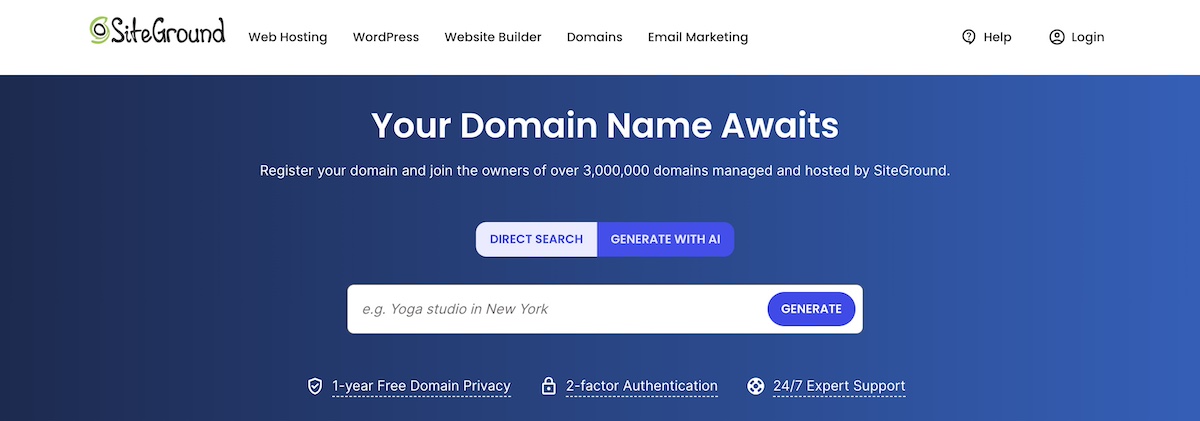
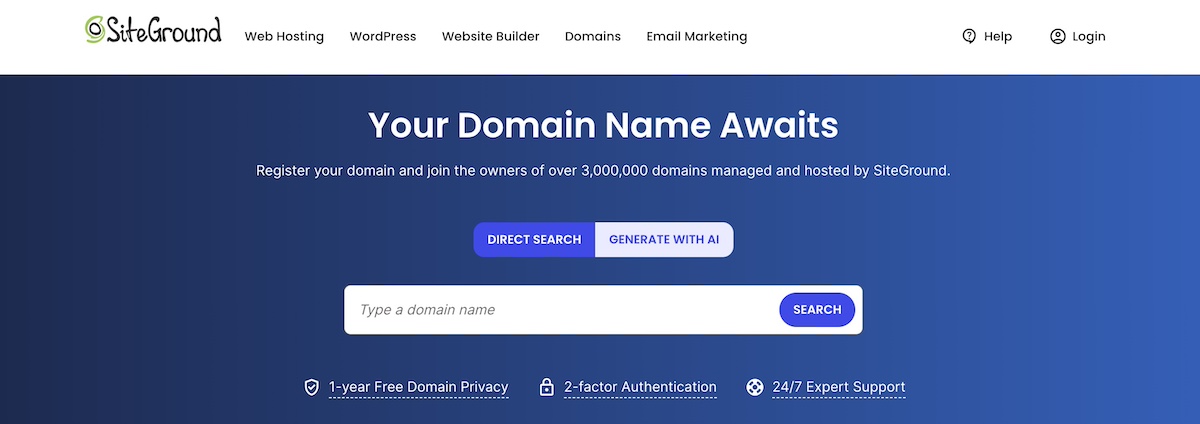
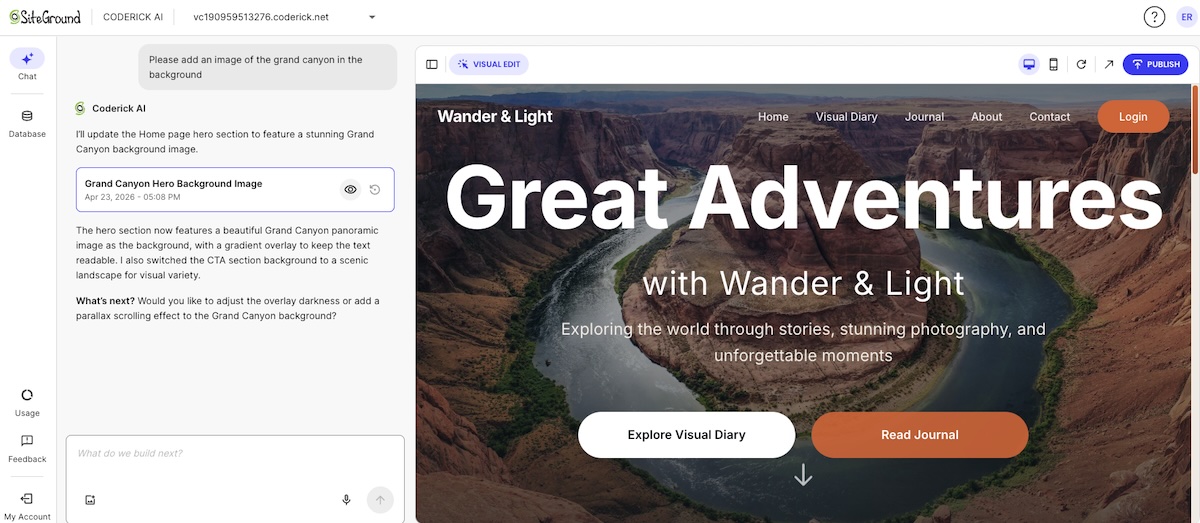
SiteGround, for example, takes this AI-first approach seriously. From the way we help customers choose domains, to enabling AI-generated content creation, and how we protect customer sites and support their growth, AI is baked in—not tacked on after. We deliver smarter tools that help creators and businesses do more and better with less.
2. Build Smarter: Let AI Streamline Website & Content Creation
Once you’ve laid the groundwork, it’s time to build—and this is where an AI-first mindset starts to benefit and shape your business. It’s not just about saving time (though you certainly will!). It’s about changing how you approach the building process from the ground up.
Instead of seeing AI as a last-minute add-on, an AI-first mindset means thinking like a team of two—you and your AI assistant—from day one. Every decision becomes a chance to ask: What can I delegate? What can AI make faster, more insightful, or more consistent?
This shift frees you up to focus on the more human elements: storytelling, vision, strategy, and connection.
For website and content creation, that collaborative mindset can show up in things like:
Drafting initial copy—from homepage headlines to product descriptions and welcome emails
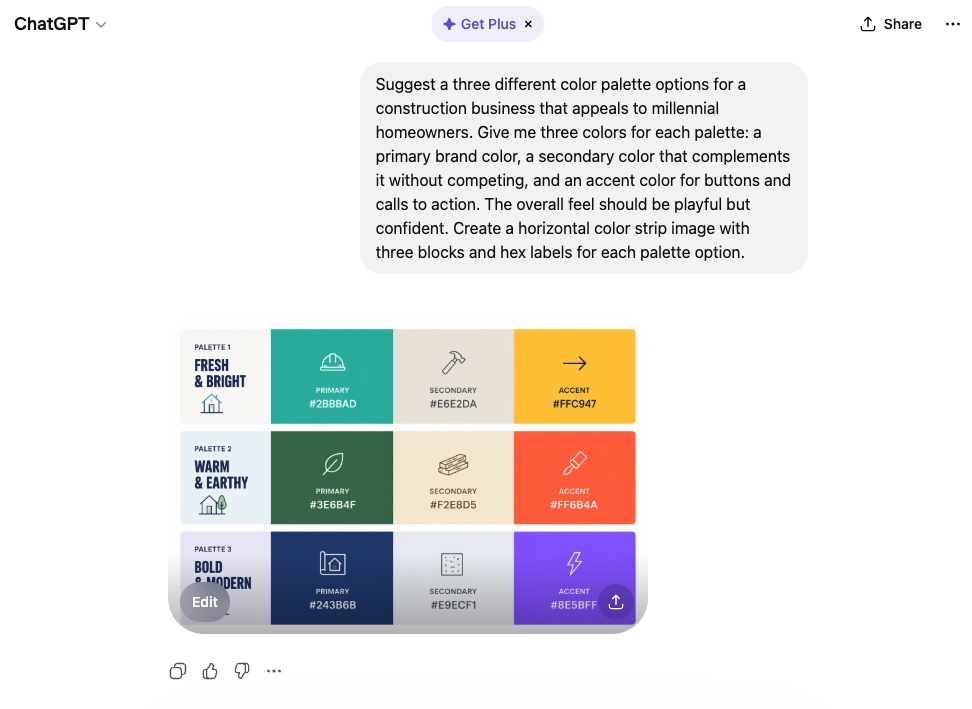
Exploring website layout and color palette ideas that align with your brand
Generating blog posts or service pages based on your audience’s needs
A general awareness and understanding of AI—that is, an AI-first mindset!—can also help you more clearly build and create with AI in mind. Traditional SEO is evolving into something broader: Generative Engine Optimization (GEO). That means, when it comes to AI and SEO, it’s not just about keywords anymore, but creating content that AI systems—like the ones behind search and chat interfaces—can interpret as relevant, trustworthy, and useful. This kind of proactive understanding will shape and elevate everything you create.
The core idea here: build with AI at your side, not trailing behind.
[41]
3. Launch Faster: Accelerate & Improve Prep and Promotion
An AI-first mindset changes how you approach launch prep—not just how you execute the launch itself.
Instead of seeing this stage as a long checklist of to-dos, AI-first thinkers use it as a creative springboard. More than just speeding up tasks, you can uncover better ways to craft and promote your message right from the start.
With AI, you can:
Brainstorm angles and formats for emails, landing pages, and social posts
Draft initial content faster, from ad copy to meta descriptions and email subject lines
Generate launch timelines and promotional plans targeted just for your audience
Adapt messaging for different user segments or platforms
Here, speed and creativity go hand in hand. You can lean on AI to help you come up with inventive approaches, and then turn to it again to help with the execution.
4. Grow Better: Ongoing Optimization with an AI-First Mindset
Once the launch is out the door, the real work begins. Rather than reacting slowly to results or relying on instinct, artificial intelligence helps you build continuous improvement into everything you do. That means using AI as an active feedback loop that helps you stay relevant, accurate, and aligned with your goals.
Leverage tools such as Google Trends, Surfer SEO, and ChatGPT to stay on top of SEO trends, and understand how generative AI models evaluate and surface content.
At the end of the day, AI is part of the whole process, from inception to optimization. So you don’t just create once and move on; you use artificial intelligence to turn every piece of content or campaign into a living, evolving asset.
5. Shift Company Culture: Embrace AI Holistically
An AI-first mindset means going beyond using AI as just a personal productivity hack; it’s a cultural shift. Whether you’re a solo entrepreneur or part of a small team, adopting this mindset means normalizing the use of AI across your workflows, decisions, and habits. It becomes part of how you think, not just what you use.
In practical terms, this means:
Encouraging regular AI adoption, not just when someone’s stuck
Promoting experimentation, where trying AI-generated drafts or solutions is seen as a smart first move
Creating space to learn—sharing prompts, tools, benefits, and results with your team or community to build collective confidence
Reducing resistance, especially from team members who assume artificial intelligence is too technical, unreliable, or impersonal
Expand AI use across teams—for example, using customer support chatbots or AI assistants that can handle common queries, frees your team to focus on higher-value interactions
Removing the stigma—using AI isn’t “cheating” or lazy. It’s about working more efficiently so you can focus on higher-value, human contributions
Keeping in mind the ethical considerations of AI in marketing and business. AI-first culture still requires good judgment. Fact-check results, avoid misuse, and be transparent when needed.
This last point is especially important. When you embrace an AI-first mindset as an integral part of your business, you can be clearer and more deliberate about your ethics around its use. AI becomes not just a tool, but a core part of your operations—and that means thoughtfully choosing how it fits in and building a culture grounded in those values.
The Competitive Edge of Thinking AI-First
Adopting an AI-first mindset means you aren’t just keeping up with the technology but rather making it a natural extension of your work. As such, when you approach your work and business with AI as a collaborative partner, you can actually unlock new levels of efficiency, creativity, and agility. Indeed, it helps you build, launch, and adapt smarter, all while giving you the speed and insight needed to outpace competitors, no matter the size or stage of your business.
At SiteGround, we take an AI-first approach to web hosting and beyond. Our Antibot AI helps keep your site secure by blocking millions of brute-force attacks before they ever reach your server. When you’re searching for the perfect domain, our AI-powered tools offer smart, memorable suggestions that are just right for your brand. And when it’s time to build your website or launch a campaign, the SiteGround Website Builder and Email Marketing Platform include built-in AI features that help you craft polished, engaging content with ease.
Get started with SiteGround today, and experience how an AI-first mindset can simplify your workflow, up your creativity, and empower your business to grow smarter and faster.
Writer’s block—it gets you every time, doesn’t it? We’ve all been there, staring at that pesky blinking cursor, uncertain how to start the next email. And sure, for inspiration we could show you flashy marketing copy from big-budget brands, but that doesn’t really help when you’re writing for your own business.
Instead, we’re breaking down seven email copywriting examples and tactics, each with clear and actionable takeaways. We’re dishing out smart techniques you can actually use to make your marketing emails more engaging, persuasive, and effective.
How These Email Copywriting Examples Will Make You a Better Writer
Indeed, looking at random email copywriting examples can be helpful—but it doesn’t really create a good foundation for email copywriting. What you need are practical examples that show how great email copywriting works, and not just what it looks like.
That’s why every email copywriting example in this article was crafted to teach you something very specific and replicable. These aren’t cherry-picked from famous brands with million-dollar teams. They’re clear, simple, and built around proven copywriting techniques, so you can learn them, practice them, and use them in your own marketing emails right away.
7 Email Copywriting Examples and Why They Work
1. Curiosity + Specificity
When your goal is to get someone to open and read your email, few techniques work as consistently as combining curiosity with a specific, attention-grabbing detail. The curiosity makes the reader want to know more; the specificity gives your message credibility and focus.
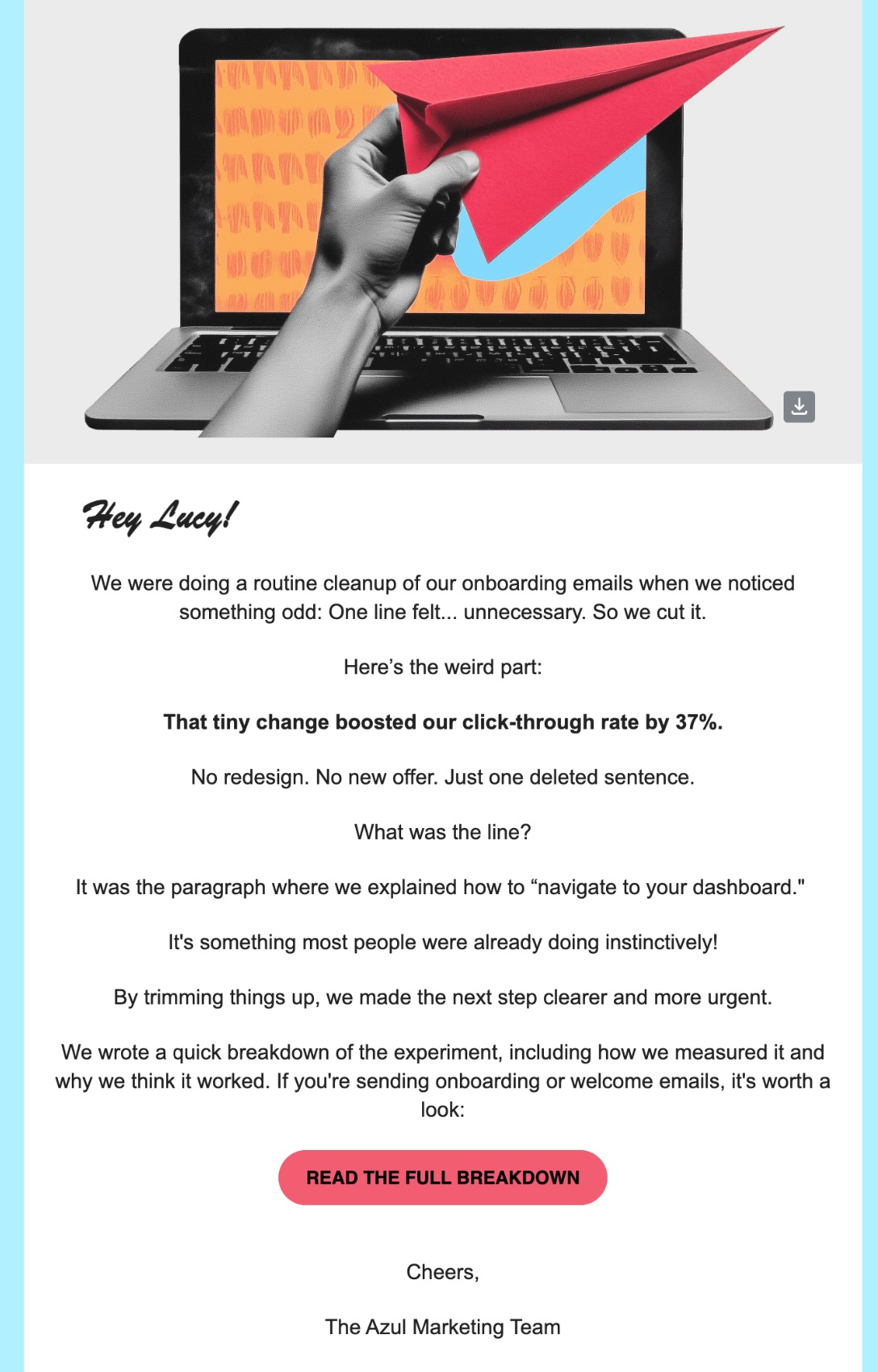
Here’s a great example of how that might look in an email:
Subject line: We deleted one line of email text — here’s what happened
Why it works:
The email subject line plants a question (“what happened?”) with just enough context to feed curiosity—and the body copy delivers a satisfying but concise story. Specificity (a 37% boost) gives credibility, while the tone stays casual and relatable.
The technique:
Curiosity + specificity
Bonus: Story-driven setup (a before/after moment with stakes)
When to use it:
This approach works well in email newsletters, product updates, or any content-driven email where you’re sharing an insight, test, or lesson learned. It draws readers in by promising something useful, and all without gimmicky overselling.
2. Problem–Agitate–Solve (PAS)
The PAS formula is one of the most effective copywriting techniques for email because it mirrors how people instinctively think through their own problems. You identify a pain point, dig into the frustration it causes, and then offer relief—ta-da: your solution.
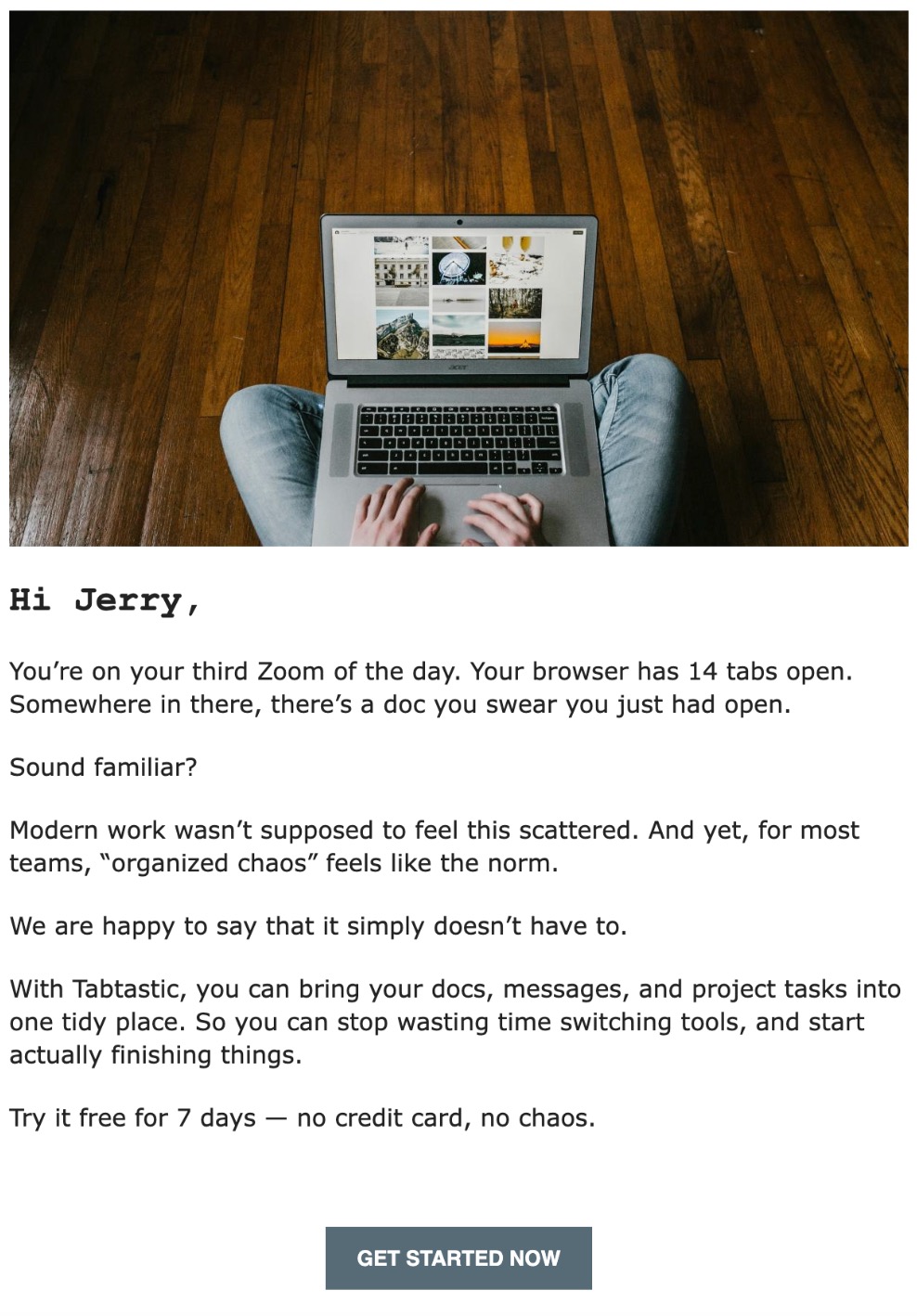
Here’s what this can look like in a real email:
Subject line: Still juggling too many tabs?
Why it works:
This email follows the classic Problem>Agitate>Solve structure. It opens with a familiar frustration (tab overload, sigh, we’ve all been there), leans into the emotional annoyance of disorganization, and then presents a simple, clear solution with a soft call to action (CTA).
The technique:
Problem: Scattered work and too many open tabs
Agitate: Emphasizes emotional impact and familiarity
Solve: Offers a streamlined, trial-friendly solution
When to use it:
Use PAS when you’re introducing a solution to a specific pain point—whether it’s in a cold outreach, an onboarding sequence, or promotional emails. It’s especially effective when you’re launching tools, services, or features designed to make life easier.
Ready to hit send faster? SiteGround Email Marketing makes it easy with a built-in AI email writer that helps you craft compelling copy in seconds. Plus, you get beautiful templates, contact list management, email campaign automation, and performance tracking—all in one simple, streamlined platform.
Tiny moments tell powerful stories. Micro-storytelling works because it shows (not tells) how a product fits into real life, and makes your reader feel something fast.
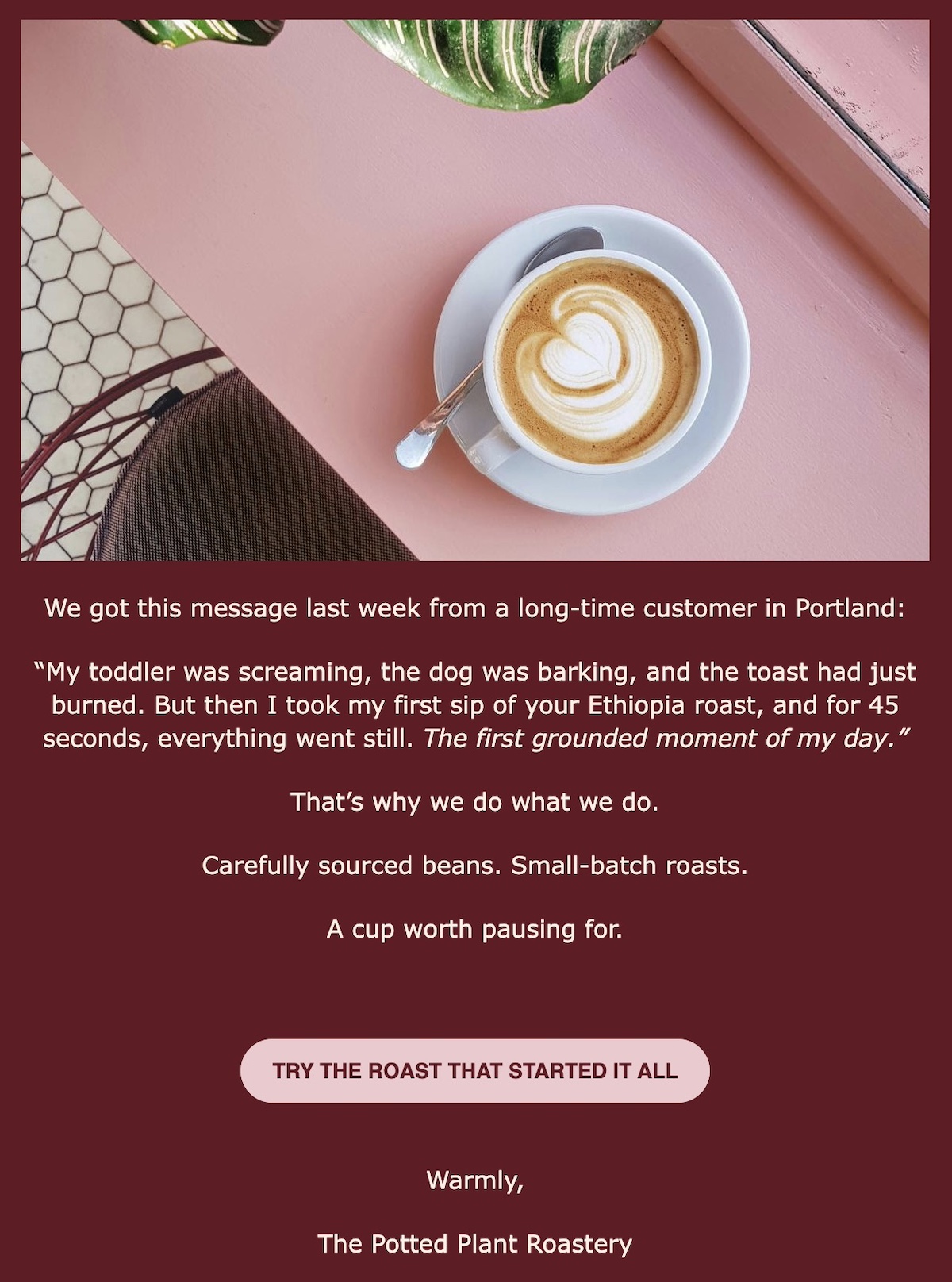
Here’s an example from a specialty coffee brand:
Subject line: She called it “the first grounded moment of my day.”
Why it works:
The compelling story is ultra-short and highly relatable—it feels honest, specific, and emotionally grounded. It anchors the product in a feeling (peace in the chaos) instead of just a feature (flavor or origin).
The technique:
Uses a real quote as the hook to grab the reader’s attention
The personal story evokes a sensory experience and emotion
Ties the brand into a familiar, everyday moment
Soft-sells the product by focusing on why it matters
When to use it:
Ideal for marketing messages ranging from brand storytelling to welcome emails, and highlighting customer love. Great for any product that’s part of a daily ritual, like coffee, tea, skincare, home goods, or wellness.
4. Cliffhanger CTA
A cliffhanger CTA leaves your reader wanting just a little more—which is exactly why they click. This technique teases curiosity or holds back a key detail so the reader has to follow through to find out.
Check out this email copywriting example from a skincare brand:
Subject line: You’ll never guess what’s *not* in this moisturizer
Why it works:
This is a great example because the CTA builds suspense by hinting that something unexpected is missing—and that it’s worth finding out. This taps into your reader’s curiosity, making the click feel irresistible. The rest of the email supports it with authenticity and a clear benefit.
The technique:
Starts with a bold subject line that poses a question
Creates a mini origin story (2 years, 100+ versions) in the body copy
Teases an unexpected insight or twist
Leaves the “surprise” just out of reach—accessible only by clicking
When to use it:
Best for product launch emails, or educational content that flips expectations. This tactic works well in industries like beauty, wellness, fashion, food, and personal development—anywhere you want to reframe what people think they know.
5. Benefit Stacking
Stacking benefits helps you quickly communicate the full value of your offer by layering multiple clear advantages. This makes it easier for your reader to say “yes” because they see how the product fits their needs in many ways.
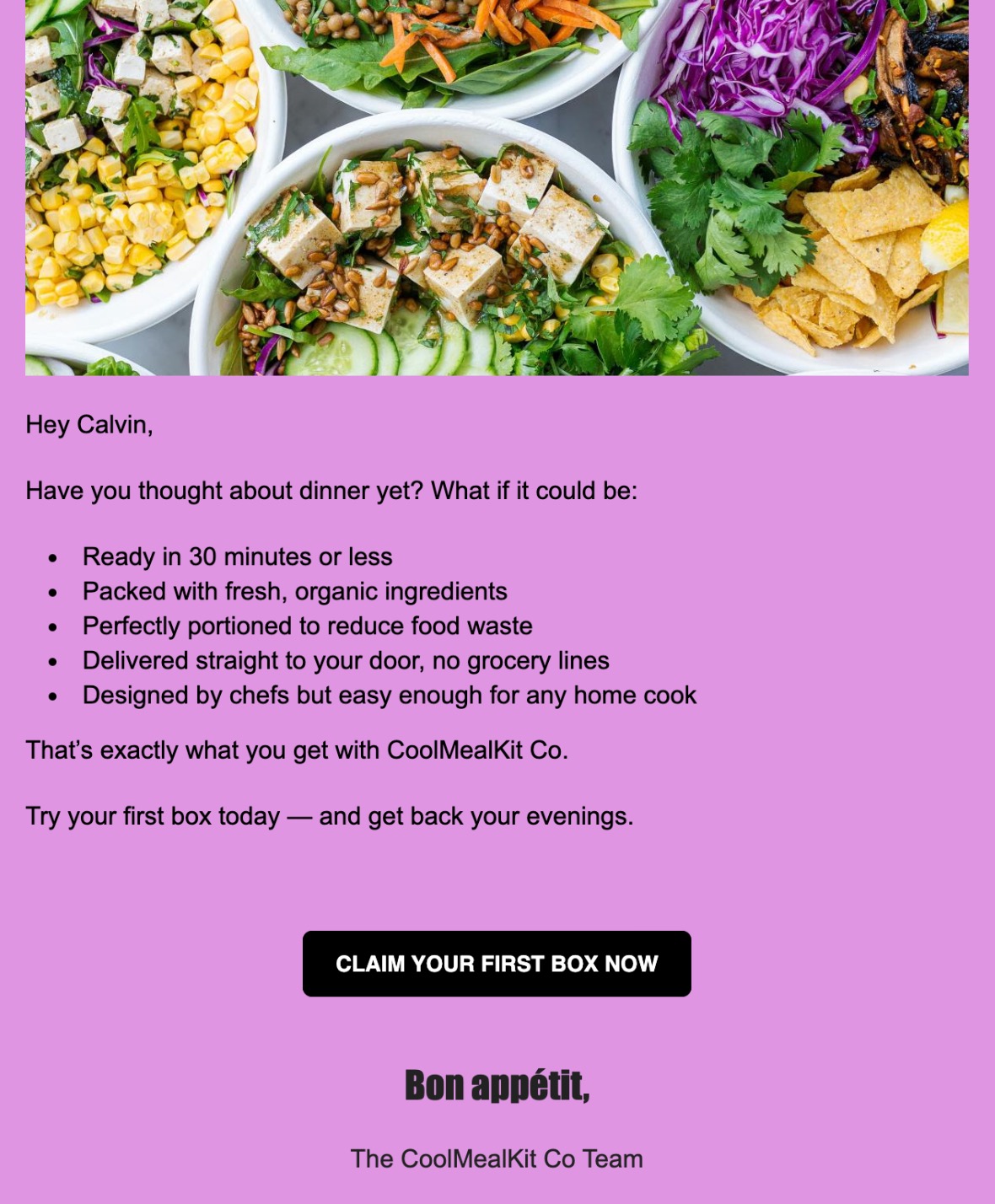
Here’s an copywriting example from a meal kit delivery service:
Subject line: Healthy dinners, zero grocery trips, and less cleanup? Yes, please.
Why it works:
This email highlights multiple benefits that appeal to convenience, health, sustainability, and cooking confidence. The stacked list creates a compelling, multi-faceted value proposition.
The technique:
Benefit stacking in bullets
Appeals to practical and emotional motivators
Clear, low-friction CTA
When to use it:
This type of email is great for any product or service with multiple advantages, such as food delivery, subscription boxes, wellness programs, or educational courses.
6. Conversational Tone
A conversational tone helps your emails feel more like a note from a friend than a hard sell. It builds trust, makes your brand feel more human, and encourages engagement—especially in inboxes full of formal marketing speak.
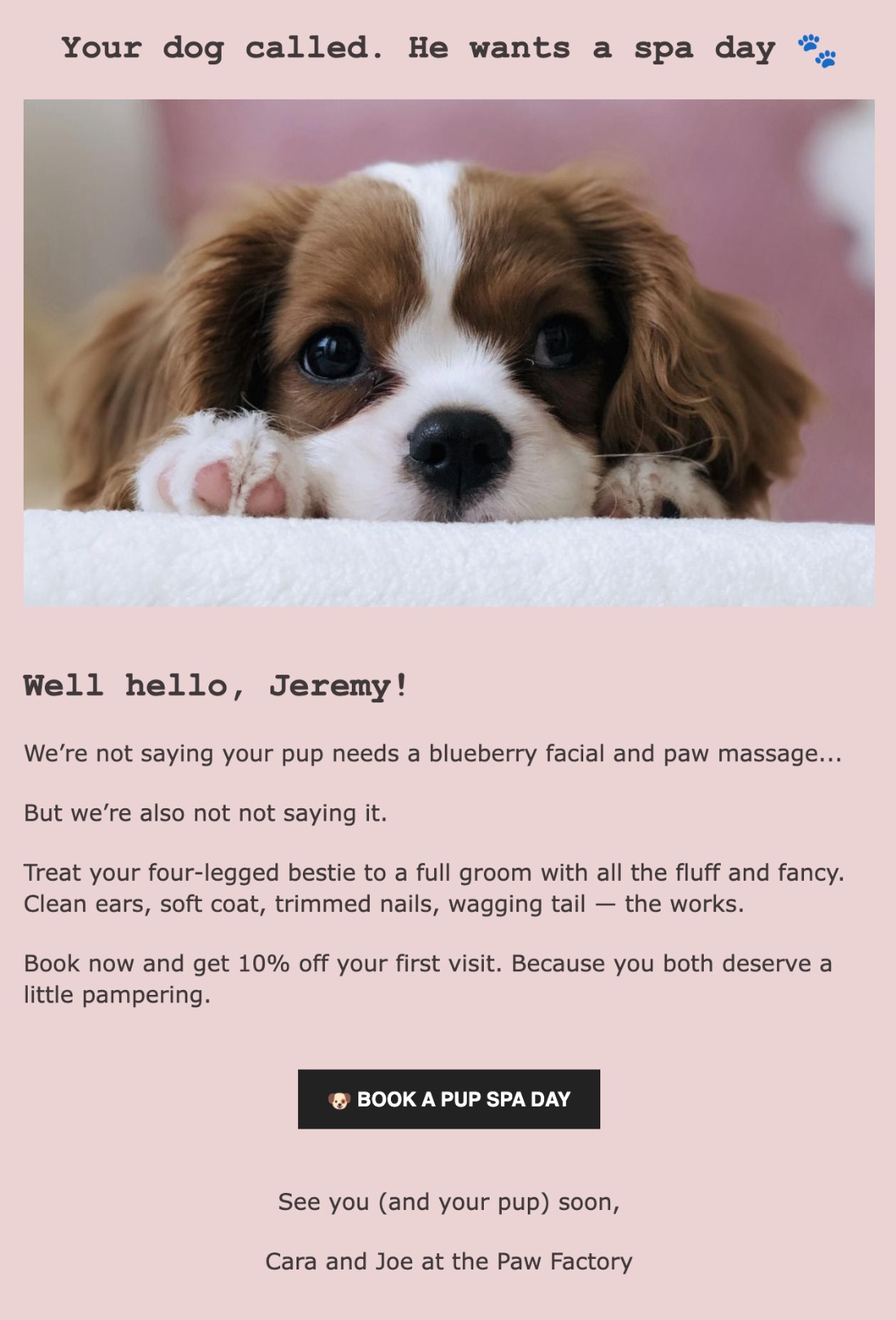
Below is an email copywriting example that demonstrates how that can sound when coming from a pet grooming service:
Subject line: Your dog called. He wants a spa day. 🐾
Why it works:
This email feels playful, friendly, and natural—like something you’d forward to a friend. It’s persuasive without sounding like a pitch, and it uses light humor and warmth to connect emotionally.
The technique:
Informal phrasing (“we’re not saying…”)
Humor and brand voice consistent with pet-lover culture
CTA that fits the tone of the message
When to use it:
Ideal for brands with strong personality or loyal customer communities—like pet services, indie ecommerce, personal coaching, or creative products. Especially effective when you want to stand out with tone rather than hard selling.
7. Ethical Scarcity
Scarcity is a classic persuasion tactic, but when done ethically, it builds urgency without relying on gimmicks. It works best when the limitation is real—whether it’s about time, availability, or capacity—and when it’s framed in a respectful, transparent way.
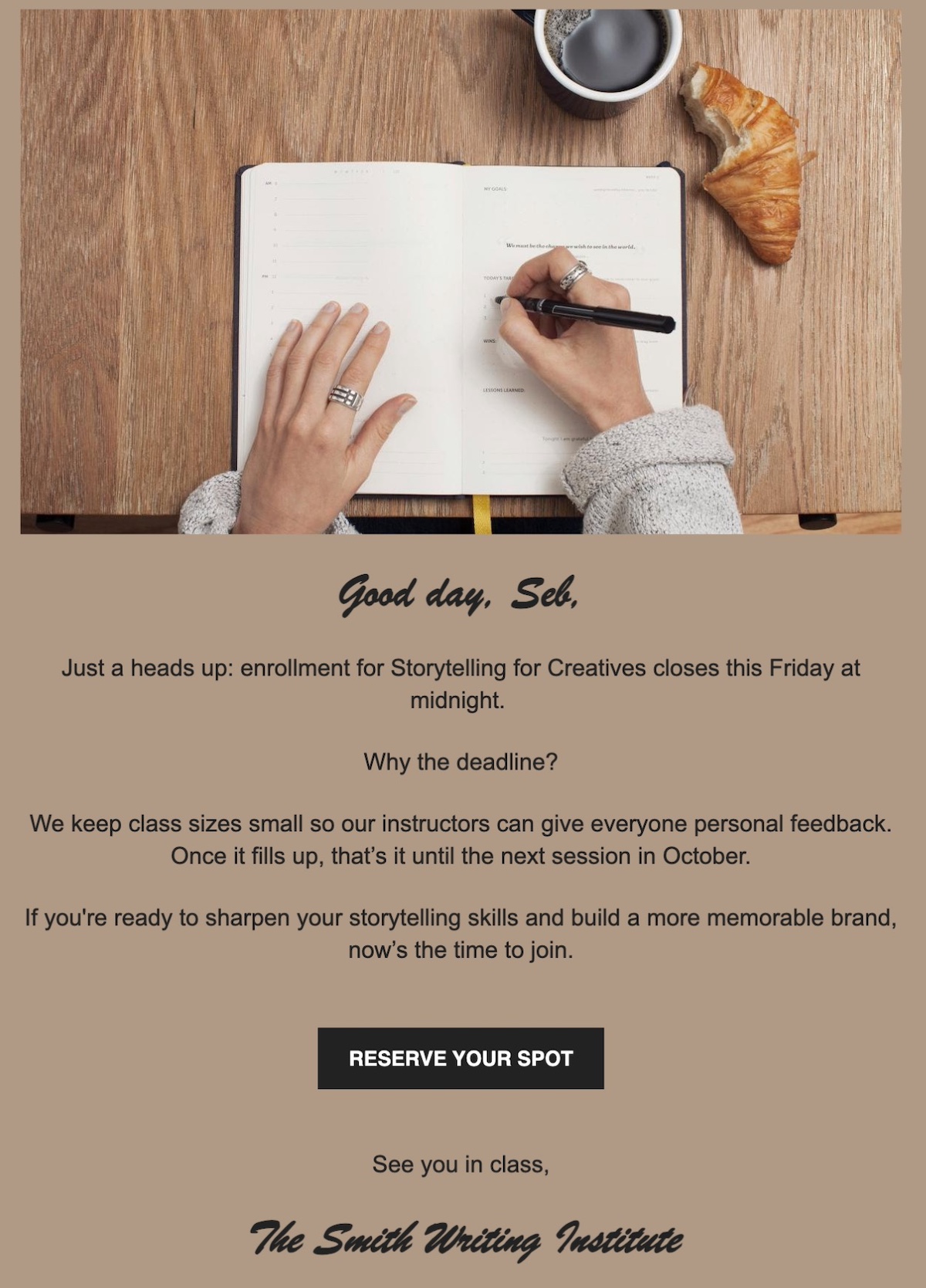
Here’s an example from an online course platform:
Subject line: Enrollment closes Friday—next session won’t open until October
Why it works:
It uses real scarcity (limited class size, set enrollment window), explains why the limit exists (personal attention), and avoids pressure or fake urgency. The tone is respectful and informative.
The technique:
Time-based scarcity + capacity limit
Transparent reasoning behind urgency
CTA with a clear next step
When to use it:
Perfect for courses, coaching, product drops, or seasonal offers (especially Black Friday emails), when timing and availability are real and meaningful.
The Bigger Strategy Behind These Email Copywriting Examples
Great marketing copy doesn’t exist in a vacuum (we looked and just found a bunch of boring dust). Each of the examples above works because it’s part of a broader, intentional email marketing strategy. This is so important!
No matter how clever your subject line or engaging your tone, if the email isn’t thought of as part of a full reader experience, it just won’t perform as well. So here are three essential elements that help these examples succeed—and that you should keep in mind when writing and planning your own email campaigns.
1. Mobile-Optimized Copy
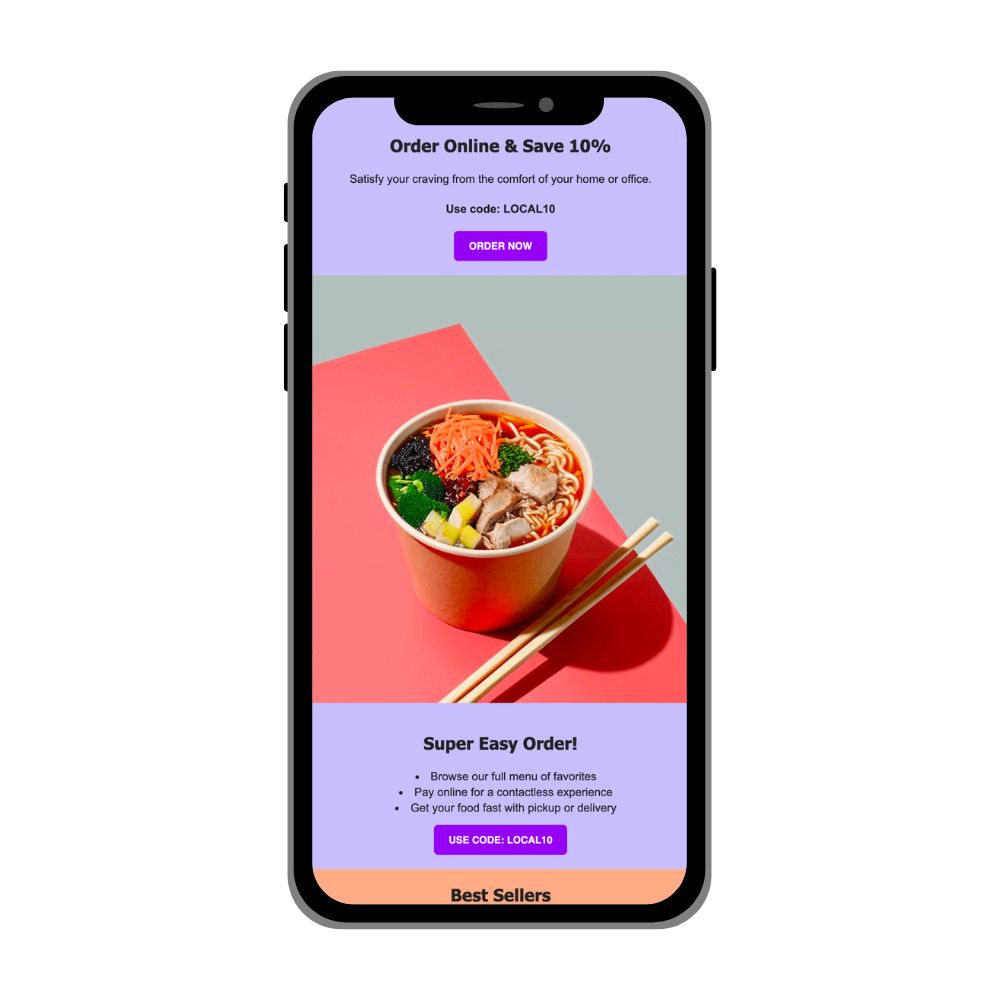
More than half of all emails are opened on mobile devices. That means your email copywriting should be skimmable, scrollable, and fast to load. Keep paragraphs short, use strong headers or bolded phrases, and make CTAs easy to tap. Every copywriting example above was written with a clean structure that would read well on a small screen.
Not sure how to make sure it all looks good on mobile? Lean on an email marketing platform, that makes mobile optimization instantaneous. Copy and images are automatically resized for mobile, and easily previewed right from the email editor.
2. Personalized and Targeted
These emails aren’t meant for everyone; they’re meant for the right someone. Whether it’s using a name, referencing behavior (like a recent event participation), or customizing content to specific needs, personalization helps copy land better. Even if the copywriting examples above didn’t use first names, they spoke directly to a clear, specific target audience.
3. Designed to Support the Customer Journey
Email copywriting isn’t just about generating one-time clicks, but rather about moving people through an email customer journey. That is, some of these examples are perfect for lead nurturing, others for sales conversion, and others still for post-purchase engagement. When your copy aligns with where your reader is in their journey, the email copywriting naturally becomes more effective.
Wrapping Up: The Power of Great Email Copy
Email copywriting isn’t about clever words. It’s about crafting the right words at the right time and for the right target audience. These best copywriting examples above show how these different techniques accomplish that, so that your emails are not only well written, but truly get the job done. Ultimately, when you combine those tactics with a clear strategy, the results speak for themselves.
Ready to put it all into action? With SiteGround Email Marketing, you can easily craft, send, and track beautifully written emails, and all from the same platform where you host, manage, and create your site. It’s built for small businesses who want simple, powerful tools that grow with them.
Think of your email footer as your trusty sidekick, swooping in to deliver all the must-know info effortlessly. Whether you’re a small business owner craving simplicity or a marketer looking for that extra punch, this article is your go-to guide.
We’ll help you easily craft a footer that’s both functional and stylish, complete with examples to ensure your emails always leave a lasting impression. Get ready to jazz up your email strategy with a splash of elegance and effectiveness!
What Is an Email Footer?
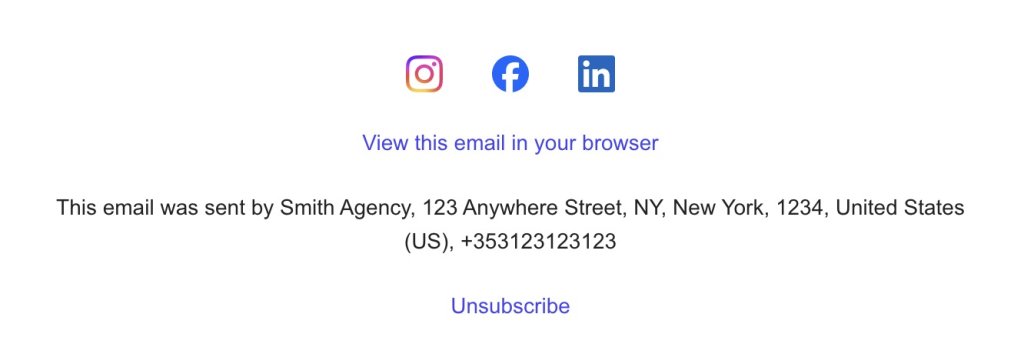
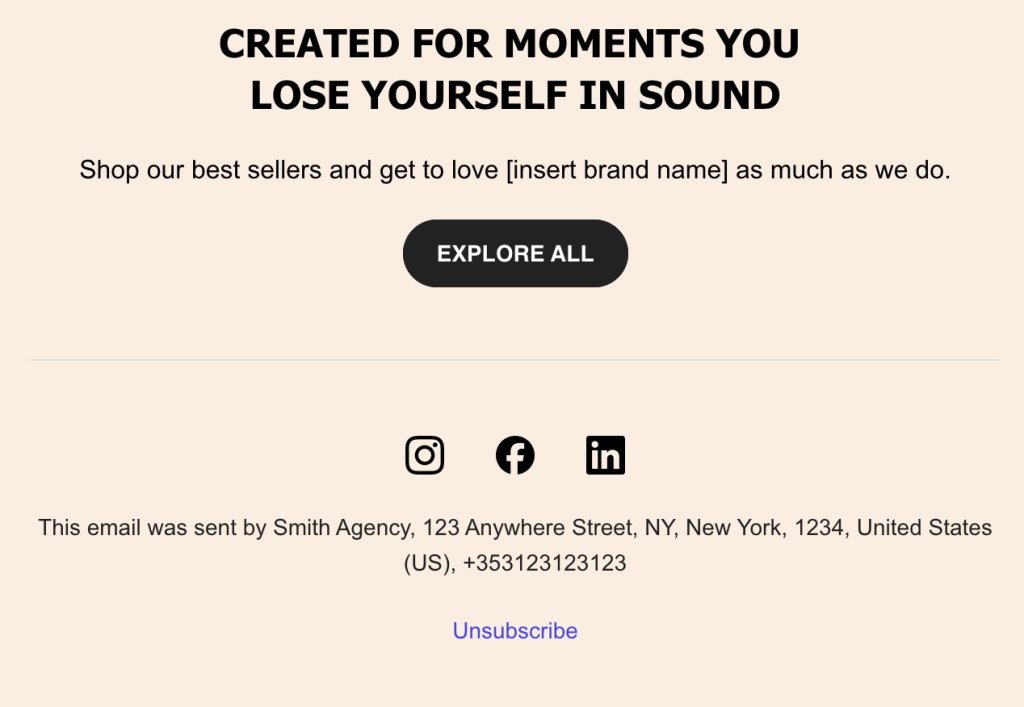
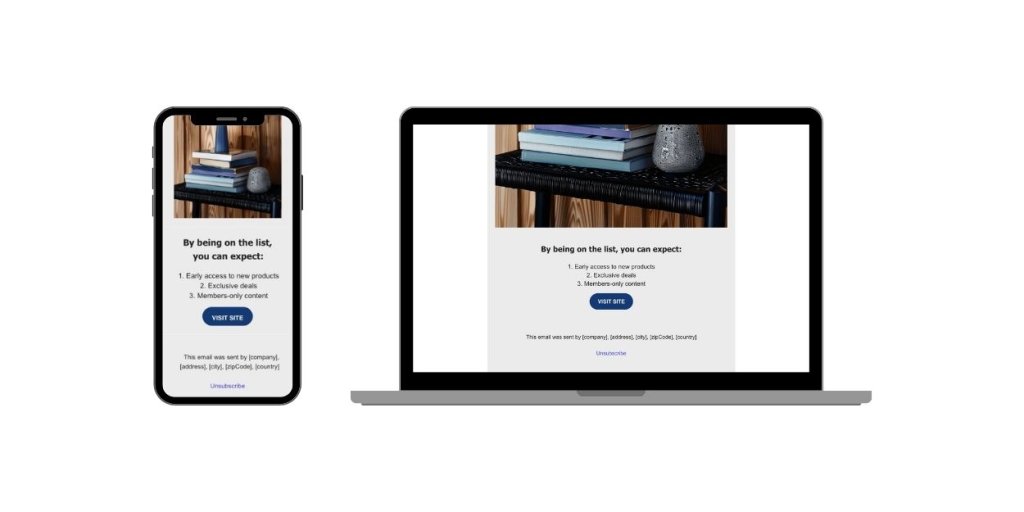
An email footer is the wrap-up section at the end of an email that includes key details and handy links, like contact info, legal bits, and branding elements. For small businesses, it’s a practical and essential part of every email. Now, you might not think much about the footer when crafting an email—it’s easy to shrug it off as just the bottom part. But that’s not quite the case.
Imagine sifting through a pile of emails, each with its own unique layout. Sometimes you’re just trying to find the most basic info, but with all the creative designs out there, it can be confusing to know where to look. Amidst all this variety, there’s one consistent and reliable spot you can always count on—the email footer. It’s the go-to place for all the essential details, no matter how the rest of the email is formatted. In fact, a well-designed footer can boost your email metrics by making it easier for people to engage and click through.
[47]
The email footer also makes sure you stay on the right side of regulations, keeping all the necessary legal information right where it needs to be. While it might not be the most exciting part of your email, it’s definitely important. Depending on the tool you choose, you can integrate into the footer, or add it as a separate section right above the footer, highlighting legal details or key information without cluttering the main footer area.
Email Footer Best Practices
With that in mind, a strategic email footer shows off your brand’s professionalism while making sure your audience can easily find all the important info. So, what makes the best footer for emails? Let’s jump into some best practices and examples that can help you create a footer that serves its purpose effectively.
Keep the Footer Clean and Clear
The first rule of thumb for a great email footer is to keep it clean and clear. A simple footer design ensures that your essential information isn’t buried in distractions. Stick to the basics: your contact info, a few branding elements, and perhaps any legal details you need. Make it easy to navigate by placing the most important details—like your contact info—right at the top.
While email copywriting offers endless possibilities, when it comes to the footer, simplicity is key. Skipping unnecessary details makes it easy for people to find what they need. Less is often more for a user-friendly email footer.
Make It Mobile Friendly
With everyone glued to their phones these days, making sure your email footer is mobile-friendly and accessible is super important. You don’t want your footer to be all over the place on a small screen, so keep things responsive so it fits nicely on any device.
Also consider using bigger fonts and buttons to make it easy for everyone to read and click, no matter if they’re on a phone or a computer. SiteGround makes this all easy for you by automatically displaying the best font size and adjusting everything—like spacing and layout—for mobile, so you don’t even need to worry about it. It’s all done for you.
Keep It Fresh & Update It Regularly
Just like any other part of your business, your email footer needs a little TLC to stay relevant. Regularly updating your footer makes sure all the info is up-to-date and spot-on. Whether it’s a change in contact details or social links, keeping things fresh helps maintain your professional image.
Plus, it shows that you’re on top of things and paying attention to the details. So, every now and then, give your footer a quick review to make sure it’s up-to-date and reflecting your brand just right.
Essential Footer Elements
Contact Info
Include phone, email, and address to build trust and offer easy communication.
Easy Opt-Out Links
Provide visible unsubscribe links for hassle-free email preference management.
Social Links
Add links to your social media profiles so people can easily connect and engage with your brand.
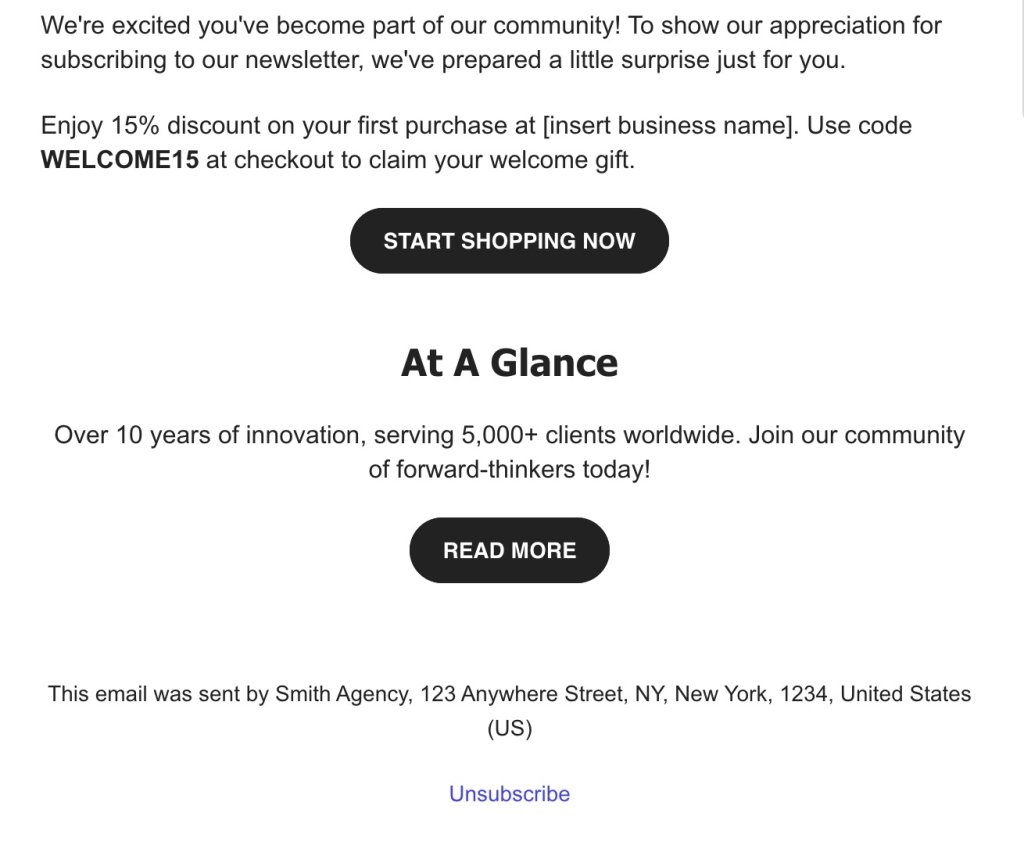
Your Company at a Glance
Optionally, add a brief overview or tagline to reinforce brand identity and connection. For example, phrases like “Your Trusted Partner in Excellence” can convey reliability and quality. And this doesn’t necessarily need to be part of the footer—it could also be placed right before it to set the tone for your email’s conclusion.
Your Step-by-Step Email Footer Checklist
Want to nail your email footer? It’s easier than you think. Follow these simple steps to learn how to make an email footer that’s both cool and effective, ensuring your emails always leave a great impression.
Step 1: Gather Your Content 📋
First things first, gather up all the info and bits you want in your footer. This could be any of the above-mentioned elements you want to include—contact details, any legal information, or links to your social media. Having everything in one spot makes putting your footer together a whole lot easier.
Step 2: Choose an Email Building Tool 🛠️
This step is optional, but it can definitely make your life easier. Choose the best tool to help you build your email marketing campaigns based on your needs. For example, with SiteGround’s Email Marketing, you can easily whip up and tweak your email footer using our drag-and-drop builder—no coding needed. Plus, our user-friendly design offers pre-made templates and easy customization to ensure your footer aligns perfectly with your brand’s vibe.
If you’re not using a tool, no worries! You can still put together a footer using basic HTML and CSS if you’re up for it. Or, keep it simple with a basic word processor. You can add some visual flair with design tools, and most email clients offer basic formatting options you can use too.
Step 3: Choose a Simple Design 🎨
We’ve already talked about the power of simplicity, and this applies to design too. Keep your footer clean and simple so it doesn’t overwhelm your readers. Go for a minimalistic look that’s free of clutter, making sure the important stuff stands out. A straightforward design keeps your footer easy to use and nice to look at.
Step 4: Test Across Devices 📱💻
Once you’ve nailed down the design, make sure your footer looks good on all devices. Remember what we said about mobile? Try it out on smartphones, tablets, and desktops to make sure it’s responsive and easy to navigate, no matter how your audience is viewing your email. Also, verify that all links, like social media icons, are working correctly, no matter how your audience is viewing your email.
Step 5: Implement Branding Elements 🏷️
After optimizing your email for mobile devices, it’s time to add in some brand-specific touches to really highlight your identity. This is where your main company elements—such as your company name and social media links—should take center stage. They will further showcase your brand and strengthen your connection with your audience.
Focus on making sure that your brand colors and fonts are consistent to pull everything together seamlessly. If you’re going for a colorful design, make sure the colors vibe well together and match your brand’s style.
SiteGround makes this all super easy for you. From mobile optimization to testing your emails, we’ve got you covered. With SiteGround, adding your footer and nailing these best practices is a breeze, keeping your brand front and center in every email.
Email Footer Takeaways
Creating a great email footer is all about mixing function with a bit of flair to back up your brand’s message. These tips will help make sure your footer is pulling its weight, giving out the key info while keeping your brand looking sharp and professional.
And it doesn’t have to be complicated. Whether you’re new to this or just want to tweak your style, SiteGround Email Marketing has got the tools you need to easily craft the best footer that fits your brand perfectly.
Ever opened an email and instantly cringed at the font? Maybe it was a bright purple script or something wildly hard to read. It might work for Uncle Jim’s road trip updates—but definitely not for marketing or business. When it comes to professional emails, choosing the best font for email makes a big difference.
Most people don’t think twice about fonts—until it’s time to send a real campaign. Suddenly, you’re asking: What are the best fonts for email that actually look good and render properly across inboxes?
Just like subject lines or email CTAs, font choice is one of those small details that can impact your email marketingand how your message is received. In this article, we’re breaking down the best fonts for email, including what to use, what to avoid, and how to keep your design clean and readable.
Why Font Choice Matters in Email
It might seem like a small thing, but your font choice speaks volumes. Before anyone reads a single word, the look of your email sends a message—about your business, your professionalism, and how much attention you pay to detail.
Pick the wrong font, and your email might feel clunky, off-brand, or just plain hard to read. But choose well, and you instantly boost clarity, trust, and visual appeal. It’s a subtle design choice that has a not-so-subtle impact.
What are Email-Safe and Web-Safe Fonts?
Now that we’ve established that font choice matters, let’s clear up a common point of confusion: the difference between email-safe and web-safe fonts.
Email-safe fonts
Theseare a rather limited group of standard fonts known to display consistently across major email clients like Gmail, Outlook, and Apple Mail. That’s because they are pre-installed on most devices and supported by all major email clients without needing to be loaded from the web.
So if you want to be absolutely certain as possible that your exact fonts show up in your emails, then email-safe fonts are a good option. These fonts include Arial, Tahoma, Georgia, and Geneva, just to name a few.
Web-safe fonts
That said, if you want to get a little more original, that’s where web-safe fonts come in. These fonts are widely supported across most browsers and devices, making them great for websites, where design flexibility is higher. Unlike email-safe fonts, web-safe fonts are not system-installed, meaning they need to be loaded from an external source. This process is known as font hosting.
Font hosting
When it comes to email marketing design, font hosting works by including a reference to a font file—typically hosted on a service like Google Fonts—directly in the email’s HTML. Most modern email platforms, like SiteGround and others, handle this automatically behind the scenes, so you don’t need to manually add the code.
If the recipient’s email client supports web fonts, it will download and display the custom font as intended. If it doesn’t, the client will simply ignore the hosted font and use the fallback font defined in the CSS, ensuring your email still looks clean and readable.
All of this is to say, when it comes to choosing your fonts, it’s important to think about how they will actually show up for the reader. It’s all about finding the sweet spot between brand style and technical reliability. And when you choose a competent email marketing platform—like, say, SiteGround Email Marketing—this technical side is already taken care of for you.
The Dos—What Makes a Good Email Font?
Now that you know how to make sure your fonts show up, it’s time to nail down a few simple guidelines. These “dos” and “don’ts” can help you choose fonts that help your message look sharp and readable, and stay out of the spam folder. Then, stick around for our list of top font examples to find what works best for you.
Choose Something Easy to Read
This might sound obvious, but it’s often overlooked. Fancy fonts might feel fun or unique, but if your reader has to squint or pause to figure out what you’re saying, you’ve lost them.
So when it comes to body copy in particular, stick with clean, simple fonts that are easy on the eyes—especially on smaller screens. Your font should help your message, not compete with it.
Think Strategically About Font Pairings
Using more than one font in your email layout can actually improve readability—if you do it right. The key is to create a clear visual hierarchy that helps readers quickly scan and digest your content.
A common approach is to use one font for headings and another for body text. This contrast makes it easier for people to spot the key takeaways at a glance, especially on mobile, where people tend to skim more than read.
For example, you might use a bold, modern sans-serif for headlines (like Verdana) and a clean serif for body text (like Georgia). The difference in style creates contrast, while still keeping the overall look cohesive.
Serif vs. Sans-Serif: What’s the Difference?
Serif fonts have small decorative strokes, or “serifs,” at the ends of their letters—think Courier New or Georgia. They give a classic, formal feel and are often used in print. Sans-serif fonts, like Arial or Verdana, don’t have those strokes. They’re clean, modern, and typically easier to read on screens—especially in emails. For most marketing emails, sans-serif fonts are the go-to for clarity and versatility, but serifs can add a touch of sophistication when used strategically.
Hang tight, because we’ll cover more ideal font pairings below.
Stick to Web-Safe and Widely Supported Fonts
We touched on this earlier, but it’s worth repeating: choose standard fonts that are proven to display reliably across all major email clients. Even the best-looking design won’t matter if your text shows up broken or defaulted to a font that you simply did not choose.
Email-safe fonts like Arial, Verdana, Georgia, and Tahoma are safe bets. And f you want to use a custom font, be sure to set a web-safe fallback so your message still looks good if the custom option doesn’t load.
It’s worth noting that SiteGround takes care of all of this for you, automatically implementing both email-safe and web-safe fonts so that you don’t need to worry about a thing.
Keep it Professional
Your font reflects your brand—whether you mean it to or not. So while it might be tempting to get playful with decorative or handwritten styles, it’s best to save those for party invites, not marketing emails.
Stick with fonts that look clean, modern, and trustworthy. Even if your brand has a fun or creative vibe, readability and polish should still come first. A professional-looking font instantly builds credibility and shows you take your communication seriously.
That doesn’t mean boring—but it does mean avoiding anything too stylized, overly casual, or hard to read. Aim for a look that aligns with your brand personality and maintains a level of professionalism that suits your audience.
Think About Mobile Readers
These days, most emails are opened on phones—so if your font looks great on desktop but cramped or chaotic on a smaller screen, that’s a problem.
Choose fonts that are legible at smaller sizes and avoid anything too thin or tightly spaced. A simple sans-serif font often works well on mobile because it’s clean and easy to scan. Also, keep font sizes generous—around 14–16px for body text and larger for headings—to make reading effortless, even on the go.
Bonus tip: Preview your email on both desktop and mobile before sending to make sure your fonts and layout look great everywhere.
SiteGround makes this extra easy, automatically optimizing all email design details (including font size) for mobile, as well as allowing you to easily see and compare screen-size versions, and of course send test emails.
The Don’ts—Common Email Font Mistakes to Avoid
Just as the right font can enhance your message, the wrong one can distract, confuse, or even annoy your readers. Here are a couple of common pitfalls to steer clear of when choosing fonts for your emails.
Don’t Use Script or Decorative Fonts for Body Copy
Sure, that curly script might look creative and playful in theory—but in practice, it’s often hard to read, especially on small screens or low-resolution displays. So decorative fonts might seem like a fun and expressive way to stand out, but they tend to backfire in email copywriting, where clarity is king.
Unless you’re designing a wedding invitation, it’s best to leave script and novelty fonts out of your email marketing. Stick to clean, legible typefaces that make your content easy to skim—and easy to trust.
Don’t Pick Obscure Fonts
Similarly, that rare, quirky font you stumbled across online might look like it has a lot of personality and flavor, but chances are your email recipients won’t see it the same way. Literally.
By now, you know that some email clients don’t necessarily support custom or less-common fonts. So if that super-cool font choice isn’t installed on the reader’s device, their email app will swap it for a default standard font—often with less-than-great results for design and readability.
Stick with tried-and-true fonts that you know will render well across most devices and platforms. And if you do use a custom font, always define a solid fallback to maintain a consistent look.
Don’t Go Overboard With Styles
It’s tempting to play with bolds, italics, colors, and different font sizes to make your email pop—but too much styling quickly turns into visual clutter.
Mixing multiple fonts, sizes, and formats can overwhelm your reader and make your email look unpolished. Instead, aim for consistency. Use a clear hierarchy—like bold for headings and regular weight for body text—and apply styles sparingly to emphasize key points without causing distraction.
Think of styling as seasoning: a little goes a long way.
Don’t Neglect Font Size
Even the best font won’t do you any favors if it’s too small to read. Tiny text is one of the fastest ways to lose readers—especially on mobile.
As a general rule, keep your body text around 14–16px, and headers at 20px or larger, depending on your design. This ensures your content is readable without zooming or squinting, and makes for a smoother user experience overall.
Also, be mindful of line spacing. Crowded lines make your email feel dense and harder to scan. A little breathing room goes a long way.
Best Fonts for Email (with Examples)
Now that you know what to do (and not do) when choosing fonts, let’s get specific with some font suggestions for different types of emails. Whether you’re aiming for clean and modern, professional and formal, or something with a bit of personality, here are some great options—plus a few curated pairings that work especially well together.
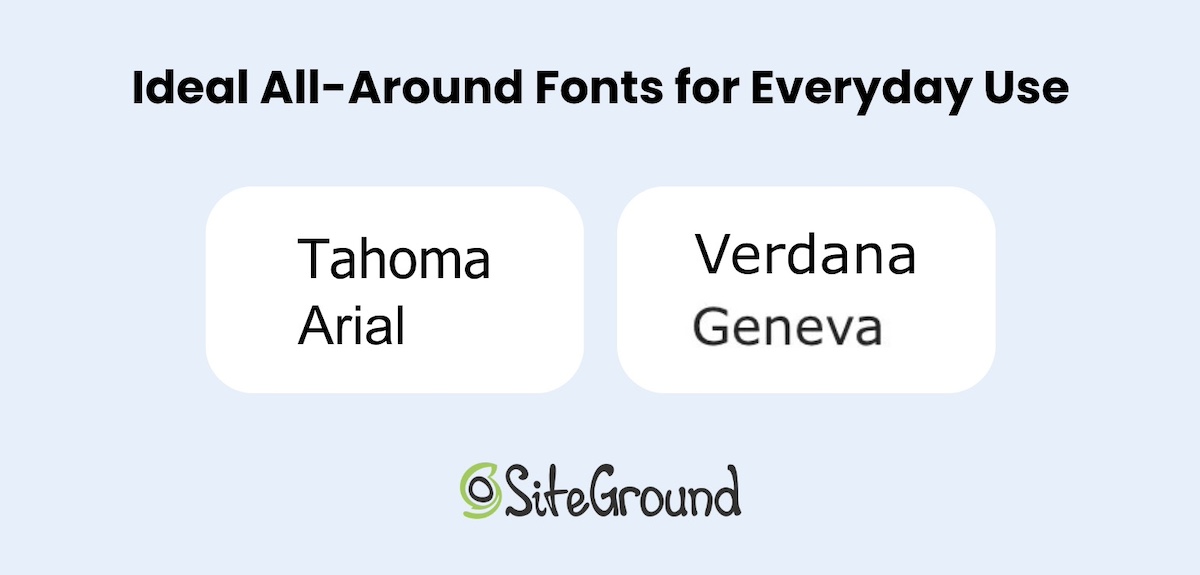
Ideal All-Around Fonts for Everyday Use
For emails like newsletters, product updates, or friendly promos, you want fonts that are clean, clear, and easy to scan. These widely supported sans-serif fonts get the job done:
Recommended Fonts:
Tahoma – Compact and efficient, great for tight layouts and small screens.
Arial – A true staple—neutral, clean, and readable across virtually all devices.
Verdana – Designed specifically for the screen, it’s excellent at small sizes.
Geneva – Crisp and tidy, it adds a subtle touch of sophistication to everyday content.
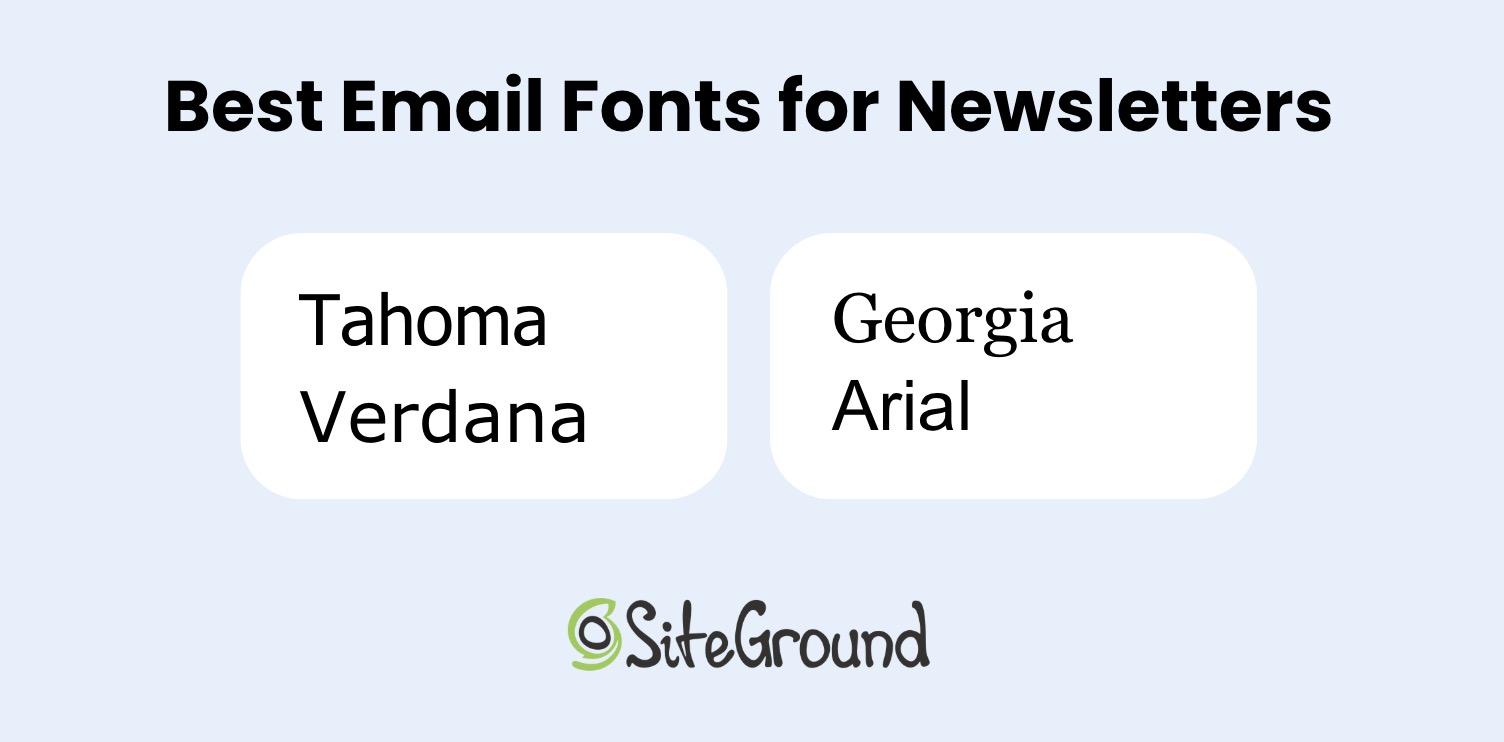
Top Professional Fonts for Business Emails
Business emails often need to strike a balance between professionalism and approachability. Use these fonts in client updates, service notifications, onboarding sequences, or internal newsletters—any message where email etiquette is top of mind, and you need a polished, brand-consistent tone. The best fonts for this purpose are simple, structured, and easy to read on any device.
Top picks for business emails:
Georgia – A classic serif font that feels polished and reliable.
Arial – Clean and professional without being stiff.
Courier New – Monospaced and traditional; best used sparingly for a technical or retro feel.
Verdana – Solid and straightforward—great for body text.
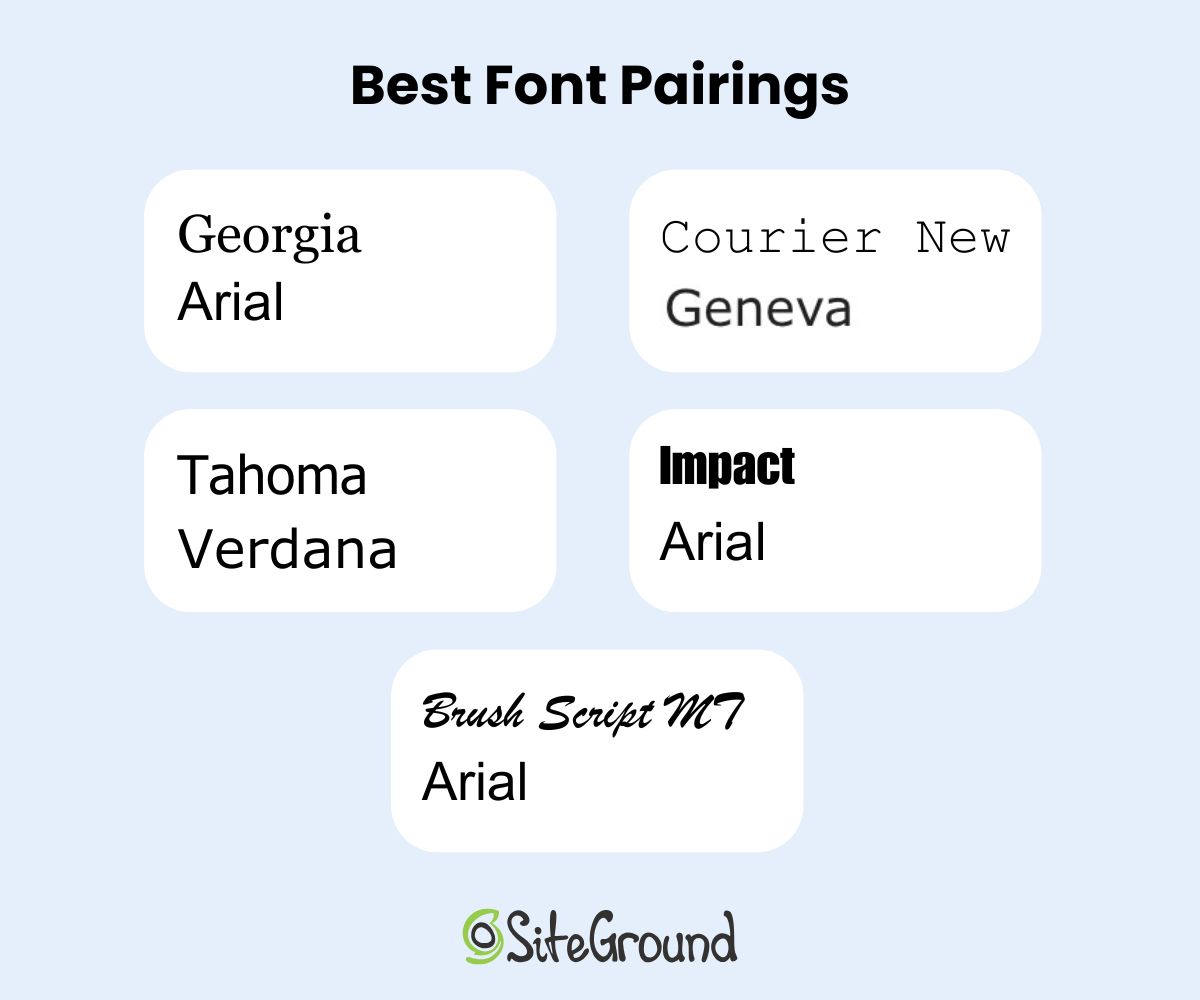
Best Font Pairings
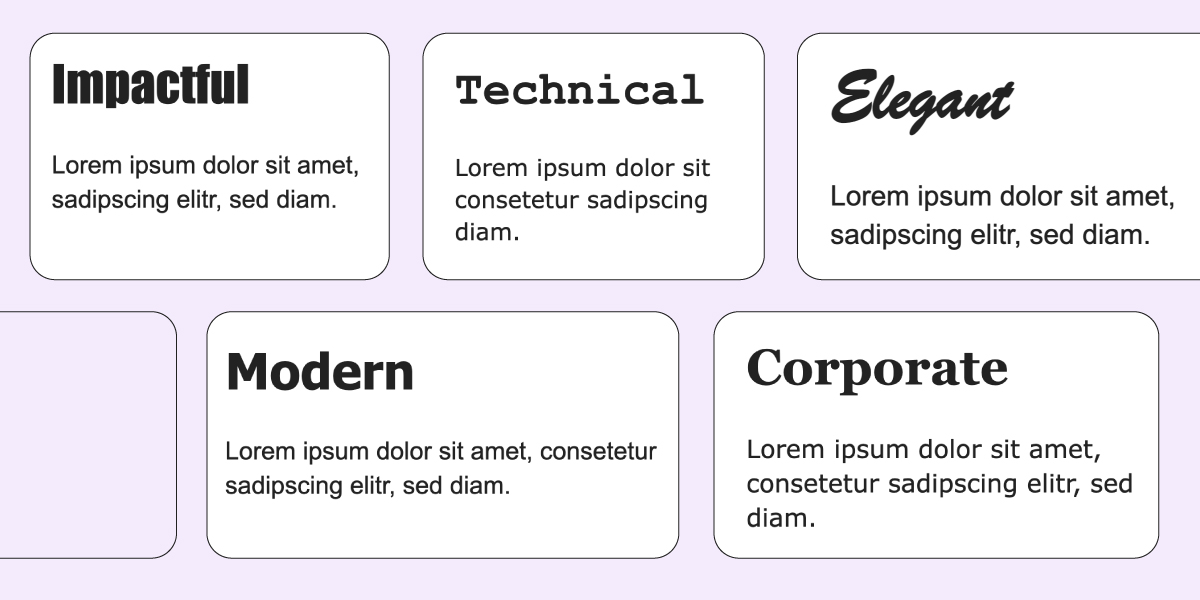
As we’ve already touched on, pairing fonts is a clever way to create contrast, guide the reader’s eye, and really optimize every part of your email. The trick is to match fonts that complement one another—usually one for headlines and another for body text. So let’s look at several pairings that strike that perfect balance between style and readability.
Best font pairings:
Georgia + Arial – A classic serif headline with a clean sans-serif body.
Tahoma + Verdana – A modern, web-safe combo that’s friendly and readable.
Courier New + Geneva – Technical meets tidy—a unique but effective pairing.
Impact + Arial – Bold headers paired with a clean body font for high-contrast layouts.
Brush Script MT + Arial – Script for flair in headlines, grounded by a solid sans-serif base (use script sparingly).
Each of these pairings is pre-built into SiteGround’s email design tools, so you can easily apply them without worrying about compatibility.
Final Thoughts on Best Email Fonts
Choosing the best font for email might seem like a teeny tiny design decision, but it can have a big impact on how your message is received. Clear, consistent, and well-paired fonts help your emails look professional, stay readable across devices, and reflect your brand’s personality—whether you’re sending a welcome message or announcing a big sale.
With SiteGround, creating beautiful, effective emails is simple. From smart font pairings to fully customizable templates, automation tools, and personalization options, our platform makes it easy to design, send, and manage your marketing emails—all in one place. So you can focus less on the technical details and more on building connections that convert.
There’s something exciting about buying a domain—it’s your own slice of digital real estate, and it’s usually quick and affordable to acquire. But more often than not, we forget that it’s not just about buying a domain, but also protecting it.
If you skip important security steps, you’re leaving your site—and your brand—vulnerable to hijacking, impersonation, or even accidental loss. So knowing how to secure a name is just as important as choosing the right domain name in the first place.
In this guide, we’ll walk you through nine essential best practices to help you safeguard your domain and keep it firmly under your control, now and in the future.
Why Domain Security Matters
Your domain name is the entry point for your business, blog, or personal brand. So if someone gains unauthorized access to it, the consequences aren’t trivial. They could redirect your site, intercept emails, or impersonate your brand online. The reality is that domain theft, spoofing, and accidental expiration are all very real threats, which can be costly to recover from, if recovery is even possible.
As such, it might come as no surprise that having a secure domain really matters. It helps to ensure:
Your website and email stay under your control
Your visitors aren’t redirected to malicious sites
Your brand reputation remains intact
You avoid unexpected downtime or data loss
You avoid short and even long term financial loss due to the fall out
While securing a domain name might seem like a minor technical detail, it’s in fact a core part of managing and maintaining your online presence—so kind of a big deal! The very good news is that there are super simple steps you can take that will save you loads of headaches down the road. And that’s what we’ll be tackling today.
How to Protect Your Domain: 9 Best Practices
1. Enable Domain Privacy
When you register a domain name, your personal information—such as your name, address, phone number, and email—ends up listed in the public WHOIS database by default. This database is accessible to anyone online and is often used by marketers, scammers, and cybercriminals alike. Not good.
What does this mean?
Exposing your contact details publicly can lead to a flood of unwanted spam emails, phishing attempts, and even social engineering attacks aimed at tricking you or your registrar into handing over control of your website domain. If it sounds like a nightmare, it’s because it is: this kind of information leakage can put both your domain and your online security at serious risk.
How can you fix this?
Domain privacy protection, sometimes called WHOIS privacy or WHOIS guard, masks your personal details by substituting them with the registrar’s contact information. This way, your private information is hidden from public view, greatly reducing your exposure to unwanted contacts and potential attacks.
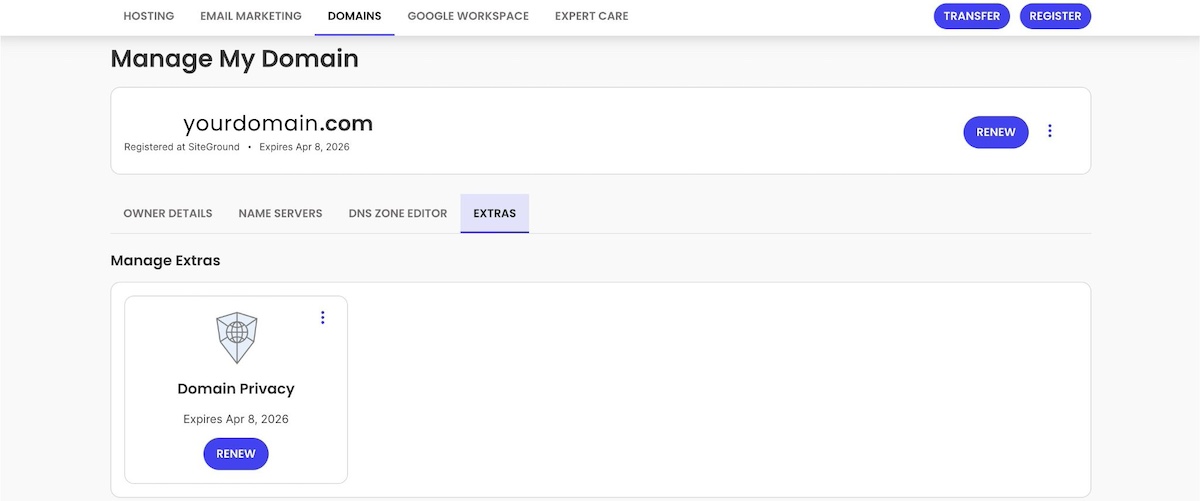
Most reputable registrars offer domain privacy as an optional service, and in some cases, it may even be included for free (like at SiteGround, where you get domain privacy for free during the first year after acquiring a domain). Enabling this feature is an easy but extra impactful step in protecting your identity and reducing risks linked to domain ownership.
So be sure to enable domain privacy as soon as you register your domain in order to keep your contact information hidden. Just keep in mind that privacy protection only conceals your details—it doesn’t prevent domain theft.
2. Set Up Auto Renewal
One of the most common (and quite preventable!) ways people lose their website domain names is by simply forgetting to renew them. That’s because domain names are typically registered on an annual basis, and if you miss the renewal window, your registrar can release the domain back to the public. That means anyone—yes, even a competitor—could swoop in and register it.
The fix? Quite simply: enable auto-renewal.
Most domain registrars give you the option to automatically renew your domain name each year. So as long as your payment method is valid, your domain will remain yours—no manual steps or last-minute reminders needed.
To be extra safe:
Double-check that auto-renewal is enabled in your account settings
Use a primary email address that you regularly check, so you’ll receive renewal notices or failed payment alerts
Set a calendar reminder a few weeks before your domain’s expiration date, just in case there’s an issue with your payment method
If you register your domain at SiteGround, then your domain is set up for automatic renewal by default (one less box to check off!). But to be extra safe, always make sure your payment methods are up to date, and keep an eye out for any email notifications
Losing a domain—even briefly—can cause website downtime, email disruption, and serious damage to your brand. Setting up auto-renewal is a quick and easy way to avoid that risk.
4. Use Strong, Unique Passwords and 2FA
Your domain is only as secure as the account that controls it. If someone gains access to your domain registrar login, they could transfer your domain, change DNS settings, or take your website offline altogether. That’s why it’s super important to protect your account with strong credentials and an extra layer of security.
By now, you probably know the drill when it comes to creating a good password: Start with a strong, unique password—something long, complex, and not reused across other accounts. Avoid using easy-to-guess information like birthdays, pet names, or words related to your brand.
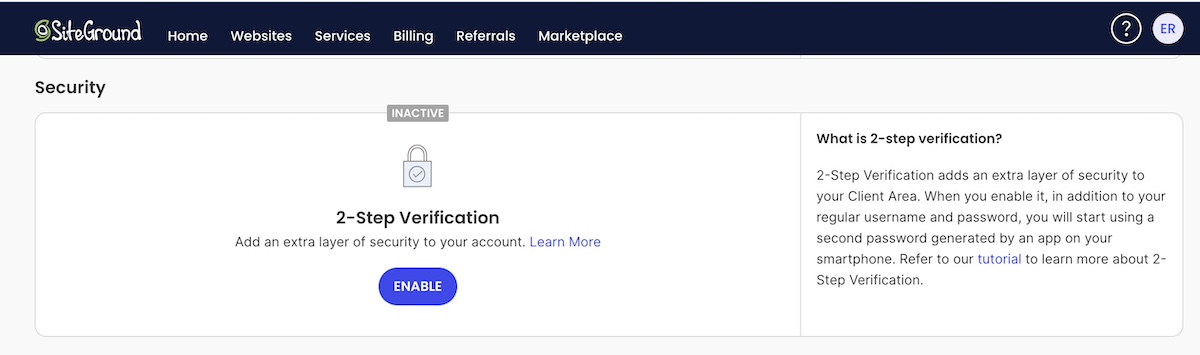
Then, enable two-factor authentication (2FA) if your registrar offers it (as SiteGround does). 2FA adds an additional step to the login process—typically a one-time code sent to your phone or generated through an authenticator app—making it much harder for unauthorized users to break in, even if they somehow get your password.
5. Protect Your DNS Settings
Once your domain is registered, your Domain Name System (DNS) settings determine where it points—whether that’s to your website, your email provider, or other services. If someone gains access to your DNS, they can redirect your traffic, hijack your email, or take your entire site offline. That’s why DNS protection is such a critical part of domain security.
Here’s how to lock it down:
Use a trusted DNS provider. Whether you manage DNS through your registrar or a third party, choose a provider with strong security practices and a reliable track record.
Restrict access. Make sure only authorized users can modify your DNS records, and monitor for any unexpected changes. As we’ve already covered, this means securing your account with a strong password and two-factor authentication, limiting who has login access, and avoiding shared credentials whenever possible.
Regularly review your records. Periodically check your DNS settings to remove outdated entries, unused subdomains, or third-party access you no longer need. This helps keep your domain secure and prevents potential misconfigurations or vulnerabilities.
Even if your domain is locked and private, weak DNS security can still leave your site vulnerable. Taking a few extra steps to secure it can protect your traffic, your customers, and your reputation.
At SiteGround, DNS management is built into our platform, giving you full control over your domain’s DNS settings with an easy-to-use interface—and the added security of a trusted provider.
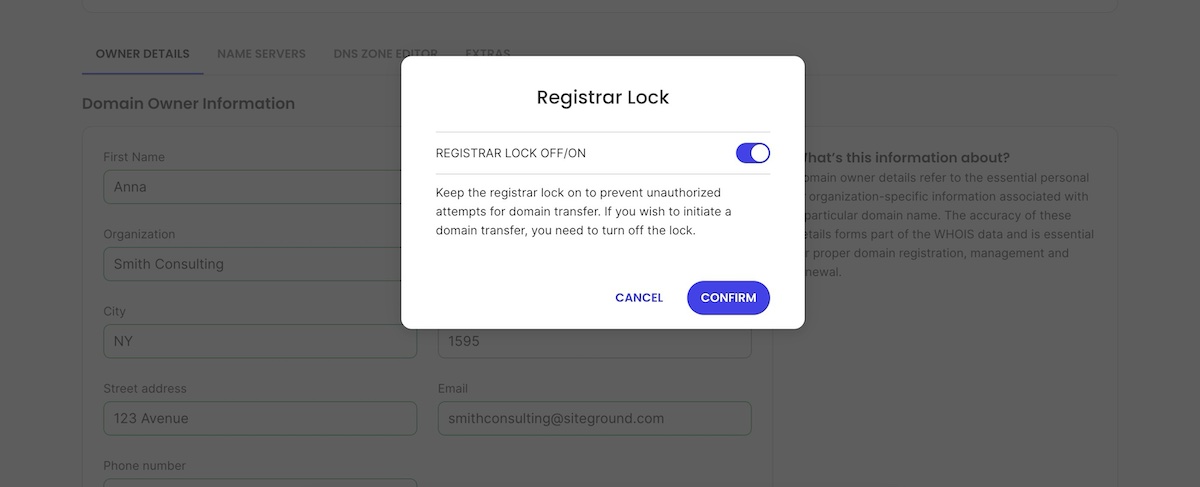
One of the simplest ways to prevent threats like the unauthorized transfer of your domain is by enabling registrar locking—sometimes called “domain lock” or “transfer lock.” This setting prevents anyone from moving your domain to another registrar without your explicit approval.
Without this lock in place, a digital troublemaker who gains access to your registrar account—or successfully targets you with a phishing attack—could initiate a website domain transfer. Once your domain is moved, you could be dealing with an avalanche of problems. Not only could getting it back can be extremely difficult, but your website, email, and online identity could all be compromised.
Registrar locking acts as a safeguard by blocking unauthorized or accidental domain transfers and giving you time to respond if any suspicious activity occurs. Most reputable registrars include this feature at no extra cost, and it’s typically just a toggle in your domain settings.
With SiteGround, domains are locked by default for your protection. You can easily view and manage this setting through your account dashboard, giving you peace of mind that your domain is staying put.
8. Monitor Your Domain Name for Domain Squatters and Spoofing
Even if you’ve locked down your website domain, someone up to no good can still try to take advantage of your brand by registering lookalike domains. This is known as domain squatting (or cybersquatting) and can be used for phishing scams, impersonation, or simply to confuse your visitors.
For example, someone might register a domain like yourbrand-support.com or a misspelled version like yorubrand.com to trick users into thinking it’s you.
This tactic is often part of a broader threat called spoofing—a form of digital impersonation where attackers pretend to be a legitimate business or individual to mislead users and gain their trust. In the context of domains, spoofing can be used to steal login credentials, spread malware, or damage your reputation.
To stay ahead of these threats:
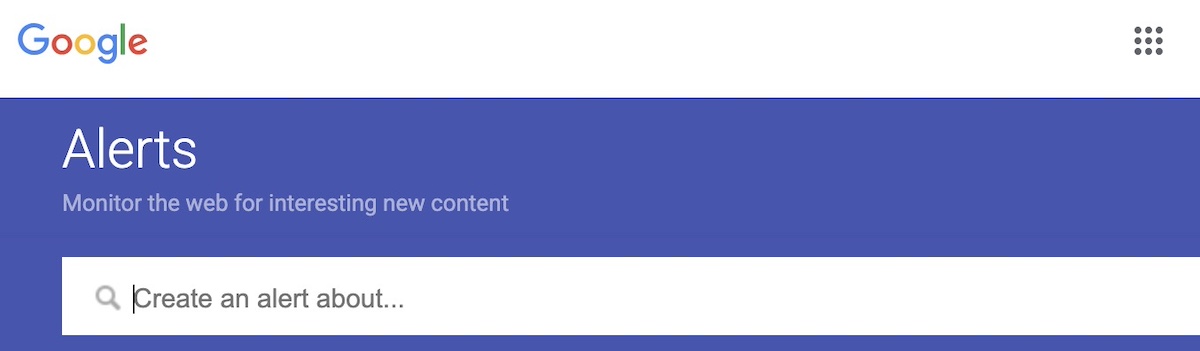
Set up Google Alerts for your brand name and domain
Periodically search for domain variations that could be mistaken for yours
Use domain monitoring tools that track new registrations of similar names
Report malicious use (like phishing or impersonation) to the registrar or authorities
If you’re serious about brand protection, this kind of ongoing monitoring is just as important as setting up strong passwords or enabling auto-renewal.
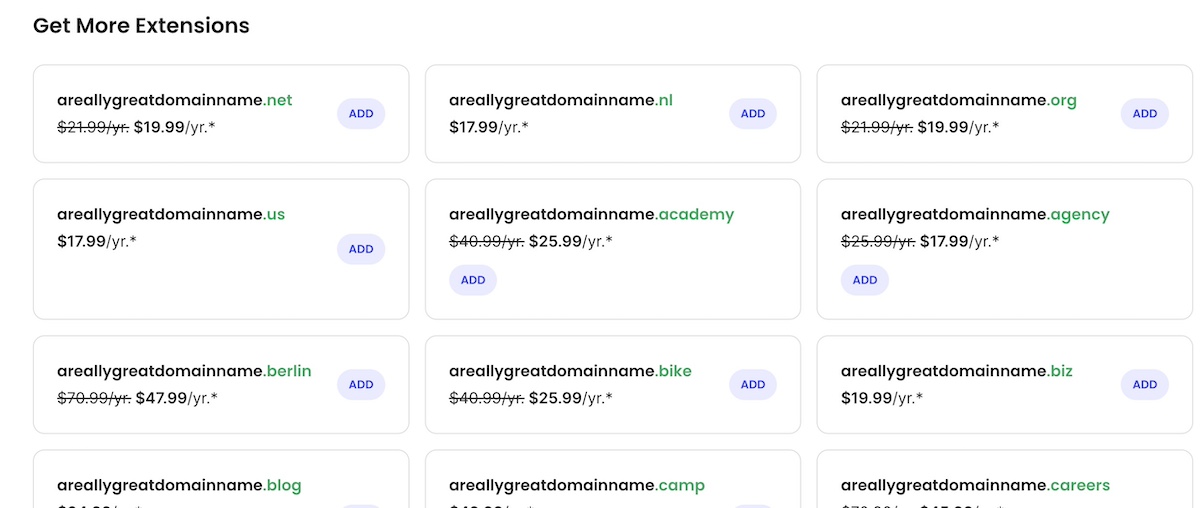
7. Buy Multiple Variations
Another important way to ward off domain squatters is by purchasing multiple variations of your domain name. Doing this reduces the risk of someone else registering similar names and using them to impersonate you, divert your traffic, or just plain confuse your audience.
Singular/plural or brand-related terms that could be mistaken for your own
When you acquire these additional variations, simply redirect the domain names to your main site for better visibility. Even if you don’t actively use them, having control over these domains strengthens your overall domain security and brand presence.
8. Keep Your Registrar Account Email Up to Date
This is yet another seemingly tiny detail that can make a big difference. Your registrar account email address is your main point of contact for not-to-be-missed domain updates—including renewal notices, transfer requests, and security alerts. If that email is outdated or inactive, you could miss something important and risk losing control of your domain.
Simply make sure you use an email address you check regularly, and avoid using one tied to the relevant domain (because if your domain goes down, so does access to that inbox!). This one simple habit will mean you always stay in the loop—and in control—if something unexpected happens.
9. Use a Reputable Registrar with Strong Support and Security
When all is said and done, it’s important to keep in mind that the registrar you choose plays a major role in keeping your domain name safe—because working with the right registrar makes implementing the above recommendations a whole lot easier.
With all the domain security tips we’ve covered, here’s a streamlined summary and some final points to guide your registrar choice:
Built-in security features like domain locking and two-factor authentication (2FA)
Reliable customer support that’s available when you need it
Easy domain management tools for DNS updates, transfers, and auto-renewals
Optional extras like domain privacy, subdomain creation, and email forwarding
Transparent pricing with no surprise renewal fees
At SiteGround, we make domain security a priority. With features like domain locking, WHOIS privacy, easy DNS management, and expert support, it’s easy to register and manage your domain name with confidence.
How to Secure a Domain Name: A Quick Security Recap
Securing your domain name goes far beyond the initial purchase. From locking your domain and enabling privacy protection to monitoring for spoofing and keeping your registrar info up to date, each step adds a noteworthy layer of protection. These best practices help ensure your domain—and everything connected to it—remains safe, stable, and under your control.
At SiteGround, we make domain security simple. When registering a new domain or managing multiple ones, you’ll have the tools and support you need—from domain locking and WHOIS privacy to intuitive DNS controls and expert help around the clock when you need it. Your domain deserves more than just a name—it deserves protection you can trust.
For small businesses, every detail matters, and that includes your email signature. Often overlooked, these little snippets are your chance to reinforce your brand, share key contact info, and leave a lasting impression on clients and partners.
In this article, we’re diving into why having an awesome email signature matters—and sharing creative ideas just for small businesses. If you’re going for a sleek, professional vibe or want to sprinkle in some personality, we’ve got the tips you need to make your emails grab attention and help your business get noticed in every inbox.
Why Email Signatures Matter
Email signatures might seem like a tiny detail, but they’re actually super important in professional communication. They do more than just list your contact info—they offer a small peek into your brand’s style and character.
Try adding your logo, brand colors, and a sprinkle of your unique tone of voice to your email signatures. It’s a simple way to make your email layouts look polished and professional. Plus, it keeps your brand on people’s minds, making you feel fresh and trustworthy.
Imagine you’re a customer getting emails from two businesses offering similar services. One ends with a plain, boring text signature, and the other has a snazzy signature with a logo, brand colors, and a fun sign-off. As a customer, which one grabs your attention? Probably the one that looks sharp and put-together, right? That little bit of extra effort makes them stick in your mind, builds trust, and makes your customers more likely to choose them over the other guys. This shows how different parts of an email, like the signature, can really change how the person on the other end sees things. A cool email signature can make all the difference in who you decide to work with.
Inspiring Professional Signature Examples
Now that we’ve seen why email signatures are a big deal, you might be wondering what the proper format for the best email signature is. Well, the heart of it is making a lasting impression while keeping things simple and on-brand.
A great email signature should share your essential contact info and reflect your brand’s vibe. Whether you go for a sleek and professional look or something bold and creative, the key is to match your brand’s personality and industry style. Keep it clear, consistent, and make sure it’s easy to read. Let’s dive into some inspiring styles and approaches to crafting engaging email signatures.
Classic and Clean
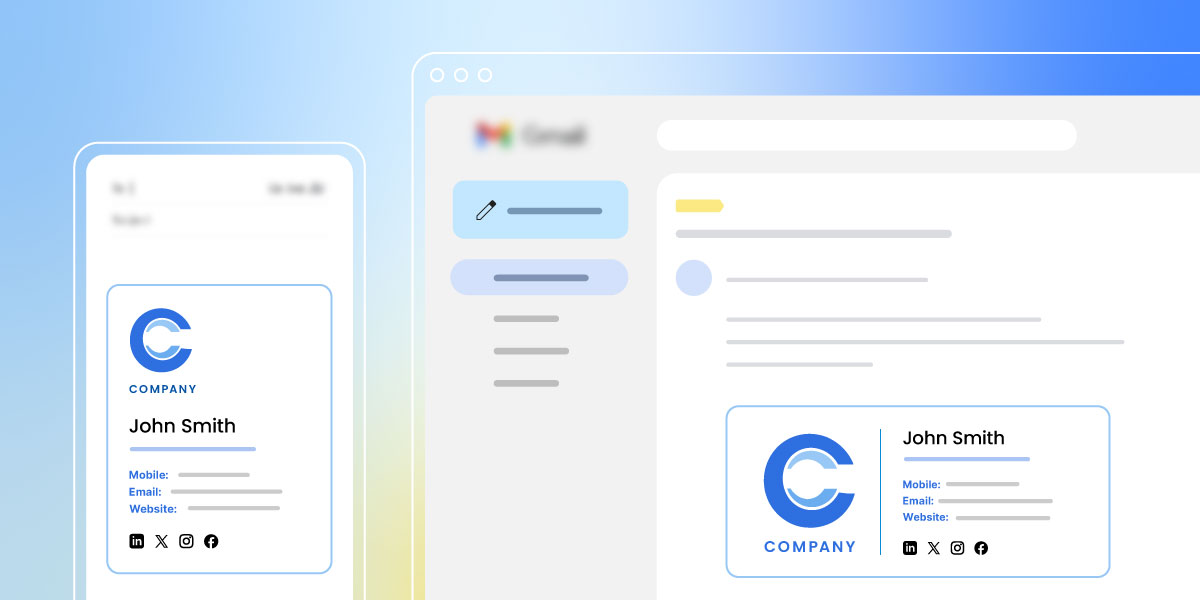
A classic and clean business email signature is about simplicity and professionalism. It typically includes your name, title, company logo, and contact details, all neatly organized to make it easy for recipients to find what they need. This style is perfect for industries where professionalism is key, like finance or law, where making a polished impression is essential. Think of it as the little black dress of email signatures—timeless and always appropriate.
Creative: Cute and Memorable
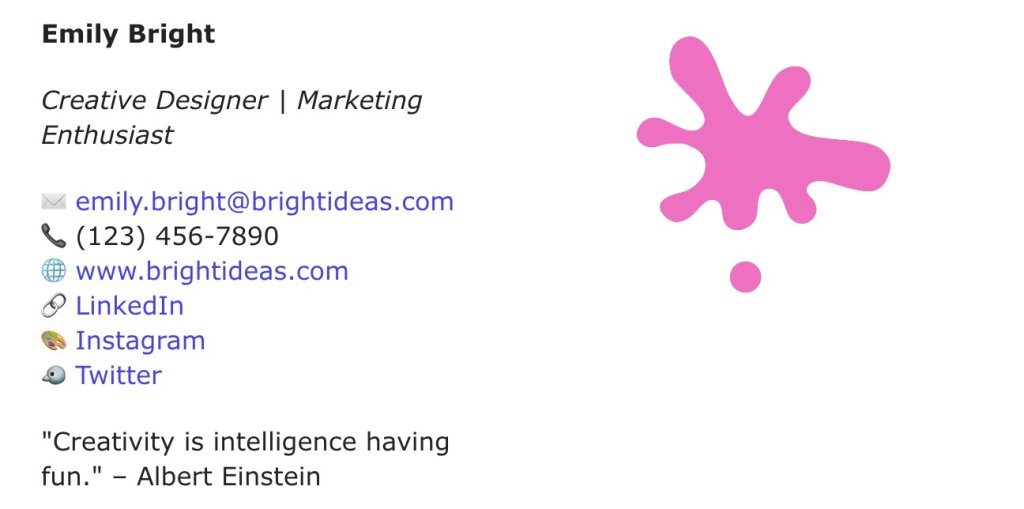
Ever notice how some brands just have that playful and energetic vibe? Those email signatures add a bit of personality while staying professional. They might have fun fonts, cute icons, or a quirky sign-off that shows off their unique style. They are perfect for creative fields like design or marketing, where making a memorable impression counts. It’s like a friendly wink at the end of your email that keeps you in people’s minds.
Quick tip: Consider using interactive elements like clickable social media icons, video links, or animated GIFs to take your signature up a notch. While not a must, this approach is great for industries that thrive on engagement, such as digital marketing or entertainment, turning your emails into experiences.
Minimalist and Modern
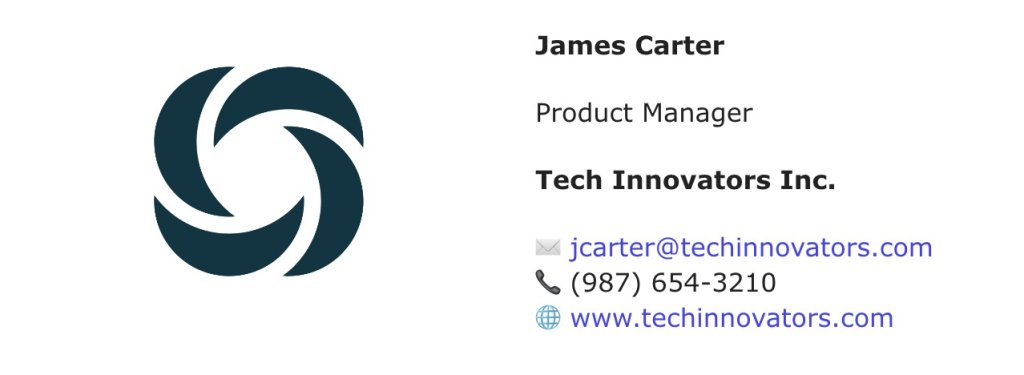
Minimalist email signatures are all about keeping it simple and sleek. They ditch the clutter and stick to the essentials—just your name, title, and contact info, often wrapped up in a clean, monochrome design.
If you’re in a tech or startup environment, for example, where innovation and efficiency are the names of the game, this style is spot-on for you. This is a breath of fresh air in your inbox, offering a modern and polished look. If you want your emails to feel sharp and to the point, a minimalist signature is definitely the way to go.
Modern & Industry-Specific
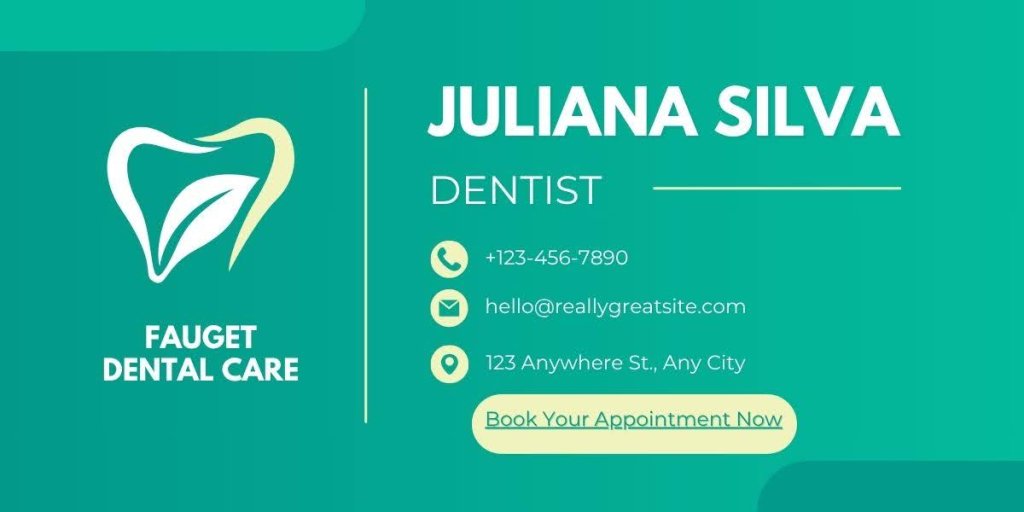
Customizing your email signature to your industry can make a big impact. For example, a healthcare professional might include certifications or a booking link, while someone in real estate could add a property showcase. This way, your signature stays relevant and super helpful for your audience. It’s about speaking the language of your industry right from the get-go, showing that you know your stuff.
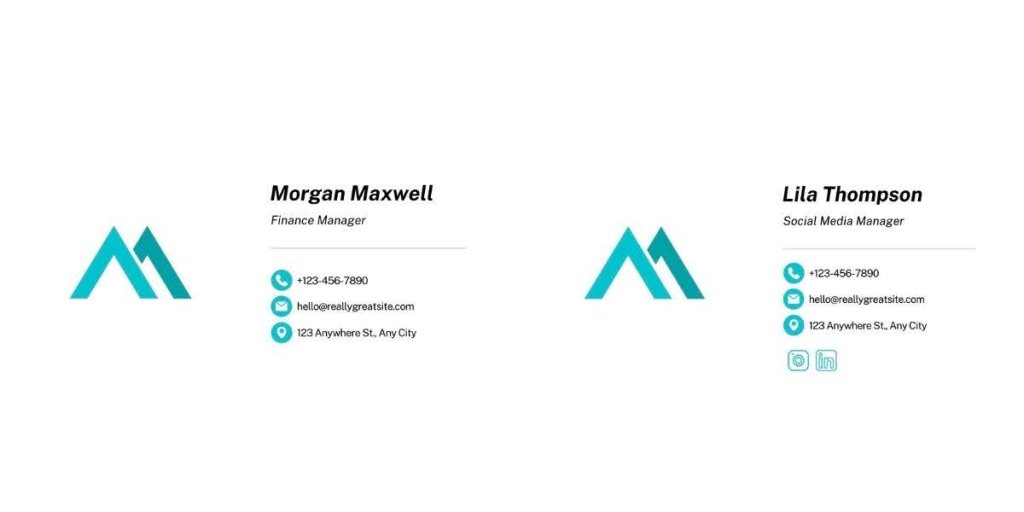
Team Signatures: Consistent and Cohesive
A unified team signature is all about keeping things consistent and working together. This is especially important for large organizations or those with multiple departments, where maintaining a consistent brand image is crucial. You don’t want people from different teams having clashing signatures—let’s show off that united front.
But hey, you can still tweak it based on your role. If you’re the social media manager, you might want to throw in some clickable social media icons to get people engaging. And if you’re the managing partner, maybe add a direct contact line or a link to your latest article. The trick is to keep it cohesive while letting your role shine through.
What to Put in an Email Signature
You’ve checked out the various styles of email signatures, but what should you actually include to make yours pop while covering all the must-haves? Let’s explore the key ingredients for a signature that really packs a punch.
Start with nailing the basics—make sure your name and title are front and center. Then, spice things up with a call to action to boost email engagement. Each piece adds to your professional vibe. Ready to make your email signature do its job? Let’s jump into what you need to include.
Your Name and Title
Start with showing who you are—your name and title. Whether you’re the boss or part of the team, putting your name and role front and center adds a personal touch and sets the tone for your emails.
Company Details
Your company name and logo isa simple way to keep your brand in the spotlight and remind people who you represent. This helps build trust and makes your emails feel more professional.
Contact Information
Make it easy for people to reach you by including your phone number, email, and maybe even your office address. Keep it clear and easy to find, so you’re always just a call or click away.
Social Media Links
Add links to your social media profiles to keep the conversation going beyond email. Whether it’s LinkedIn, Facebook, or Instagram, these links let people connect with you in different ways.
Legal Disclaimers
Include a legal disclaimer if your industry requires it. It could be a confidentiality notice or other important info. This keeps you compliant and worry-free about legal issues. Essential for fields like finance, healthcare, and legal where sensitive info and strict rules apply.
Whether it’s visiting your website, signing up for a newsletter, or booking a call, a simple CTA can drive engagement. Think about what you want people to do next and make it easy for them to take that step.
Adding social proof strengthens credibility. Include a client testimonial, industry awards, “As seen in…” media mentions, well-known client logos, and certifications to enhance credibility and trust. These elements subtly communicate your value and build trust.
Signature Tips for Small Business Owners
Examples? Check. Things to include? Check.
Now, let’s uncover some practical tips that will make your life easier and help you create an email signature that just works.
Leverage Templates
Tap into well-designed, ready-to-go templates available online. Loads of email clients and design platforms have pre-made templates, and guess what? Some of them are totally free. You can easily tweak these templates to match your brand. It’s a huge time-saver and makes sure your signature looks polished and consistent. Plus, who doesn’t love a little extra flair with minimal effort?
With platforms like SiteGround Email Marketing, you can craft professional signatures effortlessly. Plus, you can also enjoy handy features like sign-up forms, automated journeys, and a no-code email builder that includes an AI email writer to make things easier. You can keep it simple and stylish by making your signature look great while staying budget-friendly.
Test and Tweak
Don’t be afraid to experiment with different designs and formats. Test out what works best for your brand and audience, and make adjustments as needed. Regularly updating your signature keeps it fresh and aligned with your evolving brand.
Quick Tip: Keep in mind that email signatures might look different across various email providers. It’s a good idea to test your signature on platforms like Gmail, Outlook, and Apple Mail to ensure it looks great everywhere.
Use AI Tools Like ChatGPT
Last but not least, why not let AI lend a hand? Tools like ChatGPT can help you brainstorm creative ideas for your email signature or generate catchy phrases and call to actions that fit your brand’s tone. While AI can be a great asset, remember to maintain proper email etiquette. Make sure your signature keeps it classy, snappy, and respectful to whoever’s on the other end. And remember to give everything a once-over—after all, you’re the one calling the shots.
[45]
Up Your Email Signature Game
And there you have it! We’ve covered everything from why email signatures matter to the proper format for crafting one that leaves a lasting impression. Whether you’re going for a sleek, professional vibe or something more creative and fun, remember to keep it consistent and on-brand. Don’t forget the essentials like contact info, social media links, and a catchy CTA to keep the engagement rolling.
Need a hand with creating that killer signature? Check out SiteGround Email Marketing. It’s packed with tools like customizable templates and an AI email writer, making it super easy to create your signature and more!
While AI continues to advance rapidly, one approach that’s gaining real traction in practical business settings is Retrieval-Augmented Generation—also known as RAG. If you’ve heard the term floating around in tech circles and wondered what RAG is in AI and why it matters for your business—then this guide is for you!
Whether you’re a freelancer, building a growing agency, or running a small business, RAG can help you build smarter support systems, create better content, and give your team instant access to your company’s knowledge—all without writing a single line of code. Sounds great, right?
Let’s get to it and break it all down.
What is RAG (Retrieval-Augmented Generation)?
RAG means Retrieval-Augmented Generation, which is a modern AI technique that combines two powerful capabilities:
Retrieving information from a trusted source (like your most relevant documents, website, or internal knowledge base)
Generating a natural-sounding response using the retrieved information
Some of the most popular AI tools, such as ChatGPT or Claude, are generative AI models. That means they create answers based on patterns they’ve learned from the internet. But here’s the catch—they don’t know your business. They might know some basic public information, but if essential information like your policies, product specs, or customer needs isn’t part of their training data, the answers they give can be vague or worse—flat-out wrong.
That’s where RAG comes in.
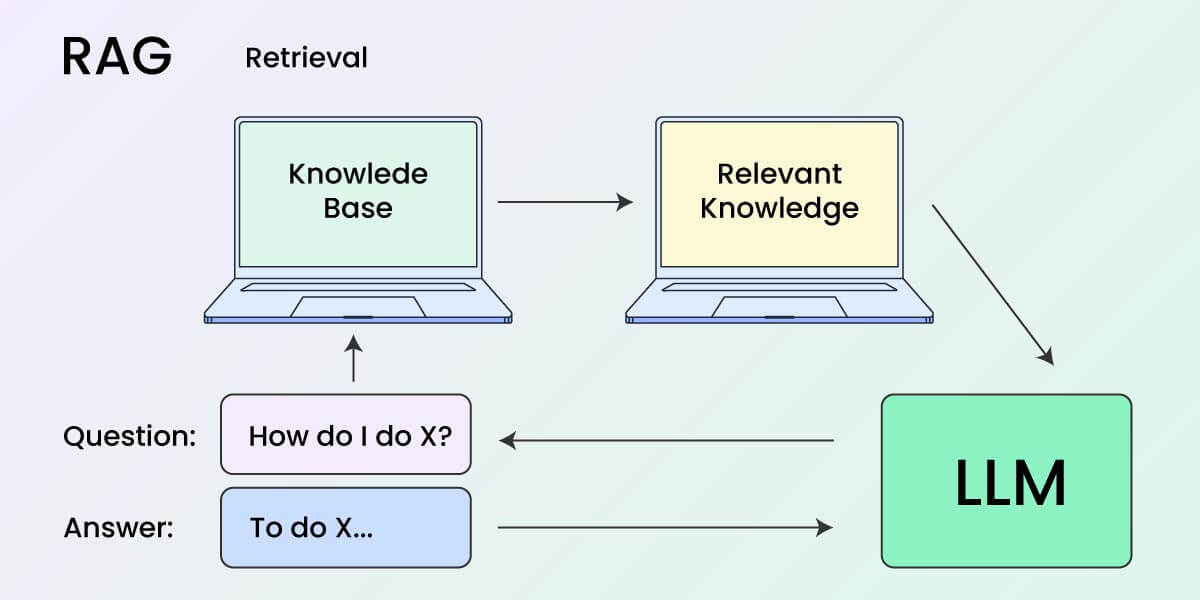
Instead of relying solely on what the model remembers, RAG systems “look up” relevant information in real time from a custom source (like your own knowledge base). Then, the AI uses that information to craft a grounded and accurate response.
Think of RAG like an AI that can “Google” your company’s internal data before answering a question.
So when someone asks your AI assistant, “What’s your return policy for international orders?”—it doesn’t guess and hallucinate. Instead, it’ll find the exact policy from your documentation and explain it clearly.
In short, RAG brings the power of search into the world of AI conversation.
How Does RAG in AI Work?
To keep things simple, think of RAG as a two-step process working quietly behind the scenes:
Step 1: Retrieval of information
The AI first looks for information that’s relevant to the question. This is done using a smart search tool that checks through a pre-indexed knowledge base—that could be your website, support docs, product manuals, or internal wiki.
But instead of looking for exact keyword matches, it uses semantic search. That means it understands the meaning behind the question and matches it to the most relevant content, even if the words aren’t exactly the same.
Here is a semantic search example: If someone searches for “comfortable shoes for running” on an ecommerce platform, they might see results for “lightweight trainers” or “breathable athletic footwear” if the platform understands the user’s intent and the semantic meaning of those phrases.
Step 2: Generation of response
Now, after the relevant content has been found, a language model like GPT or Claude reads it and generates a natural-sounding answer based on it.
But here it gets interesting—The AI doesn’t just repeat the source word-for-word. It will explain it in a conversational tone—the way a helpful teammate or support rep would talk to you.
Let’s backtrack with the question we previously had: “What is your return policy for international orders” question scenario. So instead of saying:
“Refer to section 3.2 of the returns policy on our website.”
…it might say:
“You can return international orders within 30 days—just keep in mind that return shipping is at your expense.”That’s the power of RAG—it gives you the factual accuracy of a search engine combined with the clarity of a human response. Best of both worlds!
How Can Businesses Use RAG? (3 Common Use Cases)
You got this far in the article, so now you might be wondering, “OK, but how would this help my business? How can I benefit from that?” You’re not alone.
The best thing here is that RAG isn’t just for enterprises and tech giants. In fact, it’s ideal for small teams that want to do more with less.
Here are three ways agencies, freelancers, and SMBs can start benefiting from RAG today:
1. Smarter Customer Support (That Doesn’t Hallucinate)
Most AI customer support chatbots struggle with real-world support issues. They’re either too scripted or too generic. But with RAG, you can build a custom AI assistant that actually knows your business.
Feed it your FAQs, policy documents, product guides, or past email templates
Let customers ask natural questions, like “Can I change my subscription tier next month?”
The AI retrieves the exact info and generates a confident, brand-aligned answer
This might result in fewer support tickets, faster answers, and happier customers, without hiring more support agents. Of course, you might have to make some tweaks and modifications at first to your internal documentations, FAQs, etc., but once everything is set up, everything should be a breeze.
You could even go the extra mile and set RAG in a way that can even be used internally to help your support team get quick answers while handling live chats or calls.
2. Instant Knowledge Access for Your Team
Once your internal knowledge base is connected, RAG becomes more than just a support tool—it becomes your team’s always-on assistant. Instead of pausing work to ask a teammate or digging through shared drives, emails, or Slack threads, your staff can simply ask a question and get an immediate and accurate answer.
Whether it’s a new hire getting up to speed, a team member handling a client call, or someone double-checking a workflow before a deadline, RAG can surface exactly what they need, without slowing them down.
Some of the practical use cases include:
Onboarding and training: let new team members ask questions and get accurate answers pulled from your internal guides or SOPs.
Task execution: find step-by-step instructions for internal processes, like submitting invoices or updating client dashboards.
Real-time support during meetings: need a quick stat, link, or document reference while talking to a client? RAG will have your back.
With RAG, you can create something like a “smart search assistant” for your internal content. Your team would just type a question, and the AI fetches the right info from your SOPs, onboarding guides, or client briefs.
It’s like having a teammate who always knows where everything is and can answer any question in seconds.
3. Marketing and Content Creation on Autopilot
If your team is small, keeping up with content demands like blog posts, product updates, or marketing emails can be a challenge.
Let’s say you want to:
Generate blog post outlines based on past reports
Write product descriptions using your own feature docs
With a RAG setup, you can automatically pull facts from your existing content and let the AI generate something new, clear, and aligned with your brand’s voice.
Keep in mind that it doesn’t invent things out of thin air. Instead, it repurposes what you already have, saving you hours of work. Let’s say you have a detailed PDF with all your product features and benefits. With RAG, your AI assistant can scan that document and help generate:
A landing page headline based on your strongest selling points
A short product description for your online store
A quick-answer snippet for your chatbot when customers ask, “What’s the difference between the basic and premium plans?”
You’re not starting from scratch—the AI is simply pulling the right information from your content and shaping it into the format you need.
How to Start Using RAG (Even Without Tech Skills)
As we previously said—The best part is that you don’t need a technical team to get started with RAG today.
Here are three beginner-friendly ways you can adopt RAG in your business:
1. Use a No-Code RAG Platform
Several tools now let you upload content and get a working RAG assistant within minutes, such as Chatbase, Twilio AI Assistants, Heyday (by Hootsuite), and Notion AI.
These platforms handle everything behind the scenes (like document indexing, embedding, retrieval, and generation) so you don’t have to worry about any of the technical setup.
What does that actually mean? When you upload your content (whether it’s FAQs, PDFs, website copy, or internal docs), the system automatically breaks it into chunks, understands the context using AI (that’s the embedding), and creates a fast way to search through it when someone asks a question.
You don’t need to know how vector databases work or how to fine-tune a language model. All you need to do is:
Upload your content (or paste in URLs, depending on the platform)
Tell the platform what types of questions you expect
Choose how and where the assistant will appear (on your website, in a chat widget, inside your CRM, etc.)
The result? You’ll have an AI assistant that feels like it was trained on your business, without ever touching code. It’s a plug-and-play way to bring RAG into your daily workflow—whether you want to improve support, onboard clients faster, or speed up internal communication.
2. Add RAG to Your Website Chatbot
If you’re already using live chat tools (like Intercom, Drift, Crisp, or Zendesk), good news—you may already have the foundation for RAG built in.
Many of these platforms are now offering AI integrations that let you connect a custom knowledge base (or even an entire folder of help docs) to the chat experience. Instead of relying on keyword search triggers or pre-set flows, your chatbot can now answer questions by searching your content and generating human-like responses, powered by RAG.
Why is this valuable for your business?
You don’t need to replace your existing support stack.
Your chatbot becomes smarter over time, especially as your knowledge base grows.
The responses are more accurate, consistent, and tailored to your brand tone – because they’re based on your actual content, not random web data.
Imagine a user lands on your pricing page and asks, “Do you offer bulk discounts for agencies?”
Instead of a generic “Let me connect you to support,” your AI-powered chatbot could respond with:
“Yes, we offer discounted rates for agency packages starting at 10 client accounts. You can learn more on our reseller page or request a custom quote here.”That kind of direct, helpful answer reduces friction, shortens sales cycles, and frees up your human team for more complex queries.
Pro tip: Some platforms allow you to train the bot on a mix of articles, past chat logs, and help center pages, making your chatbot a true extension of your support team.
If you’re an agency or a small business with a website and live chat, adding RAG support can give your customers a high-quality, self-service experience without you being online 24/7.
3. Go Open-Source (If You Have Technical Help)
If you’re looking for more control, deeper customization, or want to build something completely unique for your business, you can explore the open-source RAG ecosystem. This route gives you the flexibility to design a solution that’s tailored to your exact workflows, brand voice, or data privacy needs.
But here’s the tradeoff—you’ll need a developer or an AI-savvy freelancer to help set things up, because of the technical complexities.
Here’s a quick look at the key components that make up a custom RAG system:
Frameworks to Build With:
LangChain: A modular framework that makes it easier to connect large language models (like GPT-4 or Claude) with custom tools, APIs, and data sources. Great for chaining steps like retrieval, summarization, and follow-up generation in complex flows.
LlamaIndex: Built specifically to help developers connect large language models to external data, like PDFs, Notion pages, or Google Docs. It’s focused on the document ingestion and retrieval part of the pipeline.
Vector Databases (Where Your Data Lives):
Qdrant, Pinecone, and Weaviate are popular tools that store your document embeddings (AI-friendly formats) and enable lightning-fast similarity search. This is the “retrieval” part of Retrieval-Augmented Generation.
Imagine this case—a digital agency builds an internal RAG assistant that pulls from all their client briefs, creative strategy decks, and ad campaign performance reports. When a strategist types “What were the top-performing Facebook ad variations for the skincare brand last quarter?” The assistant retrieves relevant performance data and copy, then summarizes it in natural language.
Why go custom?
You can connect to niche tools or legacy systems
You can implement advanced filters (e.g., only search data from a specific client or date range)
You control the security and privacy of your data
You can embed the assistant into internal dashboards, CRMs, or apps
Keep in mind:
You’ll need to handle hosting, updates, and fine-tuning yourself or via your tech partner
Costs may vary depending on the infrastructure and usage
Tip: Many businesses start with a no-code RAG platform (like Chatbase or Twilio), see clear ROI, and then decide to invest in a custom setup to scale or integrate more deeply into operations.
If you’re an agency or growing business with in-house devs or a tech-savvy partner, this path opens up a highly strategic edge in how you deliver support, access knowledge, or even build AI-powered products for clients, but as we said—it’ll require technical assistance from a tech-savvy person.
How to Actually Get Started with RAG
1. Identify the Right RAG Use Case for Your Business
Before implementing Retrieval-Augmented Generation (RAG), identify a clear, high-impact use case. Focus on areas where customers or team members frequently ask questions or need access to context-specific information.
Think about the most common natural language queries your support team receives or what internal teams often search for across shared drives.
Examples include answering questions about product specifications, automating onboarding FAQs, or surfacing key process documentation.
2. Gather Relevant Business Content for RAG
RAG systems rely on high-quality unstructured data to generate relevant and coherent responses. Start by gathering internal documents, customer service transcripts, standard operating procedures (SOPs), and help articles.
The goal is to build a centralized knowledge base that your RAG model can retrieve from. This can include:
Help center articles
Internal wikis or SOPs
Product or service documentation
Blog posts, guides, or even support email templates
Preprocess the data using natural language processing techniques like chunking, tokenization, and entity recognition to improve retrieval quality.
Important! Make sure that this content/information is factually correct and up to date, because the generated responses otherwise would be inaccurate!
3. Select a RAG Platform and/or Tool
If you’re not a developer, choose a no-code or low-code RAG implementation.
These platforms often integrate with pre-trained large language models and manage the document embedding and vector search behind the scenes:
ChatGPT Plus: upload your own content and use it like a retrieval engine
LangChain templates: a flexible framework to build RAG pipelines with prompt engineering and retrieval tuning
OpenAI Assistants API: great for embedding natural language interfaces into business tools
Enterprise tools: tools like Perplexity Pages, Arcwise, or Glean combine vector databases and semantic search to scale efficiently
Each solution uses vector embeddings to encode your documents and semantic similarity to match them with user intent, making the traditional keyword search methods increasingly obsolete.
4. Test Like a Real User
Testing matters.
Input real-world questions that reflect how people naturally phrase things, with spelling errors, incomplete thoughts, or vague wording.
This is how you ensure your retrieval model and generative AI component work effectively. Instead, mimic how real users talk—messy, unclear, with typos or half-finished thoughts. Try questions like:
“Do you refund if I ship back late?”
“How do I fix the handle if it comes loose?”
“What do I say if a client is unhappy?”
Use the test results to refine your prompt templates, improve data indexing, or provide more grounding documents. RAG systems perform best when they’re aligned with user query intent and designed to minimize hallucination risks.
5. Add a Human Backup Plan
Even with solid AI systems, generative models can misinterpret edge cases or lack niche context. Always implement fallback logic to route low-confidence responses to humans.
Escalate high-risk or sensitive queries to support staff
Use feedback loops to update your embeddings and improve retrieval
Monitor model accuracy to detect drift or degradation over time
This hybrid model (AI + human oversight) keeps your system accurate and trustworthy, especially in customer-facing or regulated environments.
Is RAG in AI Right for Your Business?
If your business relies on knowledge, support, or content (and let’s face it—that’s most businesses), then RAG is one of the most practical AI tools you can adopt.
Instead of waiting for your favorite AI tool to guess the right answer, RAG lets you feed it exactly what it needs to know—so every answer is accurate, on-brand, and useful.
Let’s recap:
RAG is more reliable than basic AI because it fetches real info from your data sources
It works with your existing content—no need to “train” a model from scratch
It saves time for your team and customers, with better and faster answers
You don’t need to be technical to use it—thanks to no-code RAG tools and platforms
Still not sure if RAG fits your needs? Here’s a quick checklist:
Do you have a support team or a growing FAQ section?
Do your team members often ask repeat questions?
Do you publish guides, policies, case studies, or product docs?
Do you want to automate or scale content creation without sacrificing quality?
If you said yes to any of those – RAG is worth exploring.
Before you plug RAG into your support workflows, content tools, or chat widgets – you need a strong digital foundation. Whether you’re hosting help docs, building a branded website, or simply securing a domain for your next AI-powered project, SiteGround has your back.
From ultra-fast hosting to a powerful site builder and email marketing tools, we make it easy to launch, grow, and scale – no matter how tech-savvy (or not) you are. Explore our hosting solutions and build your AI-ready online presence today.
If you’re trying to grow your business online, chances are social media is already part of your strategy, especially Instagram and Facebook. With over 2 billion monthly users, it’s one of the most powerful tools to connect with your audience in almost every industry.
But now, your Instagram & Facebook content has become even more valuable not just inside the Meta apps, but across the entire web. Starting July 10th, public posts on both platforms from brands and creators can appear in Google search results, increasing your content’s chances of discovery among over 105,000 searches every second.
So, what exactly changed, and how can small business owners, freelancers, and creators make the most of this update? I’m breaking it all down, so keep reading.
The newest Meta update enables search engines to crawl and index all public photos and videos on Instagram and Facebook, starting July 10, 2025. That means when a user searches on Google, Bing, or another search engine, they’re going to not only see website links and AI overviews, but also related posts by public profiles on Instagram & Facebook.
Which Instagram Accounts Will Be Indexed by Google?
According to Meta, only posts and reels from brands and creators published after January 1, 2020, will be indexed, and only from Instagram accounts that meet these criteria:
The account owner is 18 years or older
The account is public
The account is a professional (business or creator) account
Why This Instagram Search Engine Update Matters for Brands and Creators
Until now, Meta didn’t allow search engines like Google to index public posts. And while social search has grown – especially among Gen Z, who increasingly use TikTok and Instagram as discovery platforms – Google and other traditional search engines remain the primary tools for finding businesses, services, and information online.
That meant Instagram content was basically invisible outside the app. It was sitting on the sidelines, quietly watching as TikTok videos climbed to the top of search results. As a result, all the effort you’ve poured into creating reels, carousels, and posts was limited by their short shelf life – if your audience missed them in their feed, the content was likely gone for good unless it went viral.
With Instagram’s new update, this is changing for the better. Smaller brands and creators finally have the chance to extend the reach and longevity of their content. Instead of relying solely on in-app engagement, now each Instagram post you publish is an opportunity to reach audiences actively searching for what you offer.
For example, imagine you’re a local florist in Atlanta. A video you posted months ago showcasing your wedding arrangements could now appear in a Google search like “best florists for a wedding in Atlanta.” Or, if you’re a pet photographer, your Instagram carousel of dog portraits might show up when someone searches “pet photography recommendations near me.”
What does this mean for your content strategy? It’s no longer just about chasing trends or quick engagement. With this update, older, high-quality posts can keep working for your business, turning Instagram into a more evergreen content channel that supports your SEO efforts, brand visibility, and conversions over time.
How to Optimize for Instagram Search Engine Visibility?
Before we dive into the how-tos, let’s get something clear: this update is brand new, and no one has all the answers yet. Everyone is in test-and-learn mode, trying to understand what actually gets results.
That said, here are a handful of tips based on existing SEO and content principles, which can give your content a better shot at showing up in search and expanding your reach.
Use Relevant Keywords in Captions
You probably already know not to substitute important words in your captions with emojis (if not, consider this a friendly reminder). But now, it’s more important than ever to be intentional with your captions.
This doesn’t mean your content needs to be boring or that you should start writing long, academic-style posts. It just means making the most of the words you choose, especially since those words can now help your content appear in Google search results.
For example, if you own a local florist shop and you’re posting a reel with behind-the-scenes footage of decorating a wedding venue, don’t just write: “Here’s a sneak peek of our work 💐”
Instead, try something like: “We loved being part of this beautiful wedding in Atlanta! Here’s a little sneak peek at how our custom wedding flower decorations brought the venue to life.”
This type of caption includes relevant keywords – like wedding, Atlanta, and flower decorations – that improve your post’s chances of being picked up by search engines.
Include Descriptive Alt-texts
You’re probably skipping this step, but trust me, it’s an important one. Search engines aren’t human. They don’t “see” images the way we do; they rely on text to understand visual content. That’s why adding alt-text to your images and videos is essential—it helps search engines (like Google) know what your content is about, which can increase your chances of showing up in search results.
And as a bonus, alt-text is also crucial for accessibility, making your content more inclusive for users who rely on screen readers.
So what’s the trick to writing good alt-texts without stressing out? Use AI. Upload your image to ChatGPT, Claude, or any AI tool you prefer, and ask it to generate an alt-text description. Chances are, it’ll nail it—after all, it’s a machine writing for a machine.
Create Reels and Original Content
Instagram’s short-form video format, a.k.a “Reels,” continues to be favored by the algorithm. And with Google increasingly prioritizing video content at the top of search engine results, there’s a good chance it will favor Reels too.
That said, make sure your Reels actually deliver value, not just quick, filler content riding the latest trending sound. Google is placing more focus on surfacing useful, relevant content that answers real user intent, as people increasingly look for authentic insights, not just entertainment.
So, whether you’re sharing tips, behind-the-scenes moments, or quick how-to videos, make sure your Reels are worth watching to make them worth ranking. And this goes for all your posts, regardless of the format—the more value you bring to your audience, the more likely your content will get ranked.
Use Relevant Hashtags
Think of hashtags as keyword tags for your content. They could help both Instagram and Google understand what your post is about.
Use your branded hashtag, but also add some related to your topic or industry. Aim for a combination of high-volume, mid-volume, and low-volume tags to increase your chances of reaching different audience segments.
And remember, more isn’t always better. Around 5 to 10 well-chosen hashtags is usually enough to help algorithms interpret the search intent behind your content.
Use Location Tags
One of the biggest expected benefits of this Instagram search engine update is for local businesses. With your posts now eligible to appear in Google results, there’s a real opportunity to rank for high-intent local searches and significantly boost your visibility.
To take advantage of this, you need to tag your business location whenever possible. Geotags help search engines understand where your business operates, which can strengthen your local SEO and improve chances of showing up in location-based searches.
Business Considerations and How to Stop Google Indexing Your Instagram Content
A note here, don’t forget that your Instagram content will be more public and visible than it was before. So when posting, consider if the piece of content is something you’d be happy to appear in Google search results.
It’s also worth auditing your old content and giving older posts an SEO update (such as adding keywords to the captions). And still, if you’re uncomfortable with Instagram indexing your posts, you can turn it off in settings.
Final Words
In short, the new Instagram & Facebook Search Engine update is great news for brands and creators using the Meta platforms. Here are a few key SEO principles that you can keep in mind when trying to take advantage of the change:
Use Relevant Keywords in Captions
Include Descriptive Alt-texts
Create Reels and Original Content
Use Relevant Hashtags
Use Location Tags
This update from Meta, in combination with the rise of social media searches, shows that the line between social media and SEO is fading.
For years, we treated organic social media content as a tool solely for brand awareness and community building. And while that’s still true, there’s now a major new layer: discoverability. A well-optimized Instagram post can now help you land in front of real customers who are actively searching for exactly what you offer.
Whether you’re a small business owner, freelancer, consultant, or creator, this shift is a huge opportunity to get found beyond the feed, but only if your social content and SEO strategies start working together.
Before you go, drop a comment on how you’re planning to get your Instagram content ranked on Google – I would love to hear your ideas!
ChatGPT has quietly made one of the hardest parts of starting a business dramatically easier. The naming, the messaging, the page structure, the copy — things that once required agencies, freelancers, and weeks of back-and-forth can now be worked out in a single conversation. And with AI website builders now able to take those ideas and turn them into a real, live site without a line of code, the whole process from blank page to published website has been compressed into something anyone can do. This step-by-step guide shows you how.
Key Takeaways:
ChatGPT handles naming, structure, and copy — but it can’t host a site or deploy anything. You need a separate tool for that.
There are four build paths to choose from. The right one depends on your timeline, design needs, and technical comfort.
The fastest path pairs ChatGPT with an AI website builder: one for the thinking, one for the execution.
Vague prompts produce generic copy. The more specific context you give ChatGPT, the more usable the output.
Launching is only beginning. Sites that get updated regularly outperform ones that go live and stay static.
Can ChatGPT really build an entire website on its own?
No. Not entirely on its own. But that’s not really the right question. The better one is: what can ChatGPT do to help build a basic website, and what do you need alongside it?
What ChatGPT can do
ChatGPT is excellent at the thinking and writing work that most people find hardest when building a website. For example, give it some context about your business, and it can:
Brainstorm domain names and taglines
Suggest your website structure and what should go on each page
Help you define your brand voice and messaging
Write headlines, calls to action, and full page copy
Generate color palette and font pairing ideas
Troubleshoot errors if you’re working with an code editor or WordPress
In short, ChatGPT is a capable thinking partner and content engine for your web development project. It removes the blank-page paralysis that slows most people down, and it’s genuinely good at turning vague business ideas into structured, usable language. This is huge. That said, the quality of what you get back depends heavily on the quality of your ChatGPT prompts. Vague prompts produce vague output. The more specific context you give ChatGPT (your target customer, your differentiator, the tone you’re after) the more useful its responses will be. Throughout this guide, we’ll give you prompt templates for exactly this.
[108]
What ChatGPT can’t do (and how to fill the gap)
Where ChatGPT falls short is the execution side. It can write HTML code until the cows come home, but you’d still have to host it somewhere, style it properly, make it mobile-friendly, set up forms, connect a domain, and handle all the technical configuration that comes with running a site. For most small business owners and first-time builders, that’s where things can totally unravel.
That’s also where AI site builders come in. Purpose-built tools in this category are designed to take your ideas and produce a functioning website. No code required, no server configuration, no hunting for tutorials. So think of it as ChatGPT for planning, and AI tools and AI builders for doing. Together, they cover the full picture, virtual soup to nuts.
What this can look like in practice SiteGround offers two options that fit this workflow particularly well: Coderick AI for a fully AI-driven build, and the SiteGround Website Builder for a more hands-on, design-controlled approach. We’ll get into the specifics shortly.
Step 1 — Choose a domain name
Before you have launch a site, you need to choose a domain name, the web address people will type to find you. If you’ve already got one, skip ahead. If not, ChatGPT can help you brainstorm one in just a few minutes.
How to brainstorm domain names with ChatGPT
Describe your business to ChatGPT (what you do, who you serve, what makes you different) and ask it to suggest domain name options. You’ll get back a working list much faster than staring at a blank search bar.
ChatGPT prompt template:
I’m starting a [type of business] in [location or market], focused on [key value or angle]. Can you suggest [number] creative domain name ideas that are memorable, easy to spell, and on-brand? I’d prefer .com where possible.
A few things worth knowing about domain names before you commit:
.com is still the default expectation. People type .com by habit. If you go with another extension, make sure it reads cleanly and doesn’t create confusion with an existing .com in the same space.
Shorter is better. Aim for under 15 characters if you can. Long domain names get mistyped, truncated, and are harder to say out loud.
Avoid hyphens and numbers. They’re easy to forget and make word-of-mouth much harder.
Check social availability too. Before locking in a name, search for it across major social platforms. A consistent handle across your website and social media marketing platforms looks more professional.
If your dream name is already taken, ask ChatGPT to riff on it — adding location-specific keywords, tweaking the extension, or finding a variation that’s equally strong. Domain generators (SiteGround’s AI Domain Name Generator is a solid option) can also surface available alternatives in real time once you’ve got a shortlist. Once you find one you like, register it swiftly to make it yours!
Step 2 — Choose how you’ll build your site
The build path you choose will determine how fast you launch, how much control you have, and how much technical knowledge you need. It’ll also determine how and when to lean on ChatGPT and other AI tools. There’s no single right answer — how you go about it will depend on your goals, your timeline, and how comfortable you are with technology. Let’s break it down.
The fastest path: ChatGPT + an AI website builder
If your goal is to get a real, professional website live as quickly as possible (without touching HTML code or wrestling with finicky design tools) this is the path for you.
AI site builders in this category let you describe what you want, then generate a fully functioning site from that input alone. You can use ChatGPT to do the upstream planning work (your positioning, your copy, your structure — all the things we’ll get into), then bring that into the builder to make it reality.
And the AI doesn’t just drop you into a blank template — it generates real pages, real structure, and design based on the context of what you’re building. This is essentially what is coined as vibe coding: building through conversation rather than configuration.
For example, SiteGround’s Coderick AI is built exactly for this workflow. You describe your site in plain language — a business site, a portfolio, a restaurant page — and Coderick AI builds it with responsive design and a modern layout already in place. The moment you’re happy with it, you hit publish and it’s live. No servers to set up, no plugins to install. You can keep refining after the fact too, just by chatting with Coderick AI to update colors, restructure pages, or swap out content. Every version is saved, so you can iterate freely without fear of breaking anything.
Best for: First-time builders, small businesses that need a site fast, anyone who comes in with a clear vision of what they want and just needs the fastest possible way to bring it to life.
More control with AI assistance: drag-and-drop builders with built-in AI
This is a step up in involvement from an AI builder, but that’s not a bad thing. Rather than handing the reins entirely to AI, you’re making many of the design decisions yourself, with AI there to assist.
You’re also not starting from scratch: templates give you a solid, professionally designed foundation with best practices already baked in. From there, you customize layouts visually, adjust to fit your brand, and use AI tools to generate copy and images as you go. You get real design flexibility without needing to generate code, or how to vibe code.
If you have a specific look in mind, want to tweak every section until it feels right, or, importantly, need seamless ecommerce functionality, this level of control is worth the extra effort.
The SiteGround Website Builder falls into this category — modern templates, full ecommerce support, and AI content tools built in. Plus it’s extra easy to use.
Best for: Businesses that want design flexibility, online stores, anyone who wants to build hands-on with AI assistance.
Maximum flexibility: WordPress + ChatGPT
WordPress is a CMS (content management system) which means it gives you a dashboard to build and manage your site without touching code directly. It offers thousands of WordPress themes and plugins, total customization, and a massive community of developers and documentation behind it. The tradeoff is a steeper learning curve, especially if you’re new to it.
With a managed WordPress hosting plan (SiteGround’s Hosting for WordPress, for example, you don’t need to install WordPress or configure it), you skip many of that standard WordPress setup and maintenance headaches. ChatGPT can be genuinely useful throughout this WordPress workflow — for writing content, troubleshooting plugin issues, customizing themes, understanding PHP errors, and more.
Best for: Those who want full control, plan to scale significantly, or have some technical confidence.
Pro tip: If you want AI assistance that lives directly inside your WordPress dashboard, SiteGround AI Studio includes a specialized WordPress Agent that can make real changes to your site based on simple chat prompts, handling setup, content, and configuration tasks without you ever leaving your dashboard. Instead of just pointing you in the right direction, it actually does the work for you, saving you significant time and effort. This agent is available for free to all SiteGround customers.
For developers: build a static site with ChatGPT
ChatGPT can generate clean HTML, CSS, and JavaScript for simple, lightweight websites. This approach is fast to produce and lean to host. But it’s not beginner-friendly, and updating it later requires going back into the code every time. There’s no CMS, no visual editor, and no built-in way to add a contact form or blog.
Best for: Developers or technically confident builders who want a minimal, no-CMS site — a portfolio, a landing page, or a simple product page.
A note on web hosting: Whichever path you choose, your hosting provider is what keeps your site fast, secure, and online 24/7. It affects how quickly pages load, how well you’re protected from threats, and who’s in your corner when something goes wrong. A Google-commissioned Deloitte study found that a 0.1 second improvement in site speed led to an 8.4% increase in retail conversions — the kind of thing that compounds over time in ways a cheaper provider will cost you later.
SiteGround Web Hosting covers all four paths with the same fast, secure, well-supported infrastructure underneath. And if you go the Coderick AI or SiteGround Website Builder route, your site goes live instantly with exceptional hosting already built in, no setup required.
The steps that follow are written for the first three paths — an AI builder, a drag-and-drop builder, or WordPress. If you’re going the custom code route, you likely don’t need the hand-holding.
Step 3 — Develop your branding
Your branding (colors, fonts, overall visual feel) shapes how visitors perceive your business before they’ve read a single word of copy. So getting the basics right early makes every design decision downstream easier. Plus it helps ChatGPT give you more on-target suggestions during the content creation process later.
Before diving in, a note on workflow: the next three steps are written assuming you’re using ChatGPT to do the thinking before you build. If you’re using an AI builder, the line between planning and building is blurrier, as much of this work happens inside the builder itself, woven into the prompts you use to describe and shape your site. Either way, the thinking still needs to happen. Use these steps as a checklist of what to work through, regardless of which tool you’re in when you do it.
Choose a color scheme
Colors set the emotional tone of your site before a visitor reads a single word. Blues signal trust and reliability, greens suggest growth or wellness, warm oranges feel energetic and approachable, and dark neutrals project premium credibility. That said, color psychology is a starting point, not a rulebook — what matters most is that your palette feels consistent and intentional.
A practical approach: start with three colors. One primary color that carries your brand (used on headers, key UI elements, and accents), one secondary color that complements it without competing, and one accent color reserved for buttons and calls to action. This keeps your design from feeling cluttered while giving you enough range to create visual hierarchy across pages.
ChatGPT prompt template:
Suggest three different color palette options for a [type of business] that appeals to [target audience]. Give me three colors for each palette: a primary brand color, a secondary color that complements it without competing, and an accent color for buttons and calls to action. The overall feel should be [tone or vibe]. Create a horizontal color strip image with three blocks and hex labels for each palette option.
When reviewing suggestions, keep a few practical constraints in mind. Your primary color should work on both light and dark backgrounds. Text needs a contrast ratio of at least 4.5:1 for body copy. And your accent color — used for buttons and calls to action — should stand out clearly without clashing with the rest of the palette. All of this not only makes your site look good, but also aligns with accessible web design best practices.
The example below was fully created by ChatGPT, simply by telling it a bit about a business idea and offerings. ChatGPT came back with a color palette-infused mood board that can easily be used as branding inspiration.
Get font pairing inspiration
Typography matters more than most people realize. The right font pairing makes a site feel intentional and polished. The wrong one can make the whole thing feel a bit amateur.
A reliable pairing approach is to combine one display font (for headlines) with one highly readable font (for body copy). These two fonts should complement each other without competing. A bold serif headline, for example, with a clean sans-serif body is a classic starting point that works across most business types.
ChatGPT prompt template:
Suggest font pairings for a [type of website] that feels [vibe — for example, modern but approachable / editorial and premium / friendly and casual]. Ideally Google Fonts, so they’re free and easy to implement.
Shape your site’s visual foundation
This is where you shift from ChatGPT to your builder. The planning and branding work is done — now it’s time to make your site look like yours. How you do that depends on the path you chose in Step 2:
AI builder: Describe what you want — including your branding direction — and the AI generates a site already shaped around your type of business. Coderick AI also offers ready-made prompts for common site types if you want a useful starting point to react to.
Drag-and-drop builder: Browse the template library and pick one that’s structurally close to what you need, then apply your colors, fonts, and logo to make it feel on-brand.
WordPress: Choose a theme that fits your type of site and visual direction. Depending on the theme, you may also have access to a drag-and-drop editor to customize further from there.
In all cases, you’re not starting from a blank page, and you don’t need everything to be perfect before moving on. Getting the visual foundation close enough and continuing keeps you moving forward with your eye on the prize.
Step 4 — Map out your site structure and page layouts
A clear website structure makes your site easier to navigate, better for search engines and AI-powered discovery tools, and more likely to convert visitors into customers. ChatGPT can help you map out a solid structure in minutes once you give it the right context.
Build a smart site structure
Most business websites need fewer pages than their owners think — at least at the start. A well-executed five-page site will outperform a sprawling 20-page site with thin content on every page. Focus on having fewer, more substantive pages rather than more pages that barely say anything. And make sure your important conversion pages are no more than three clicks deep.
ChatGPT prompt template:
I’m building a website for a [type of business] that offers [brief description of products or services]. My target audience is [describe them]. Can you suggest a logical site structure, including which pages I need and a short description of what should go on each one?
A standard starting structure for most small business websites looks something like this:
Homepage: Who you are, what you do, and why someone should care — with a clear call to action
About: Your story, your team, and what makes you credible
Services or Product pages: What you offer, with enough detail to answer the most common questions
Contact: How to get in touch, with a working form and your key contact details
Plan your page layouts
Once you know your pages, zoom in on each one individually. The homepage has a different objective than that of a Services page, both of which have different jobs than an About page. Mapping out the visual hierarchy within each of these pages before you start writing helps you produce more focused, purposeful content.
ChatGPT prompt template:
I’m working on the [page name] for a [type of business]. The goal of this page is to [main goal — for example, introduce the brand / generate leads / build trust / explain pricing]. What sections should I include, and how should I structure the layout for clarity and conversion?
For the homepage design specifically, a typical layout covers: a hero section with your headline and primary call to action, a social proof element (testimonials, client logos, or a key stat), a brief overview of your services or offerings, a secondary call to action, and a footer with navigation and contact information.
Set up your navigation
Your website navigation menu should reflect how your customers think about your business, not how you organize it internally. Keep the menu items to five or six at most and put your most important pages first.
With your structure mapped, head into your builder, create your pages, and set up navigation in an order that makes sense for a first-time visitor. The bones of your site are now ready to go.
Step 5 — Fill your pages with content
This is where ChatGPT does its best work. Give it the right context and it can draft everything from your homepage headline to your About page — ready for you to refine and personalize. Worth noting: if you’re using an AI builder or a drag-and-drop builder with built-in AI writing tools, you may not need to switch back to ChatGPT at all. Many builders let you generate and refine content ideas without ever leaving the platform. Coderick AI and the SiteGround Website Builder both work this way.
Define your unique selling proposition
Before you write a word of copy, get clear on your positioning. What do you do, who do you do it for, and what makes you different from the alternatives? Sharp answers to these three questions makes every other piece of writing easier — and it’s the foundation that ChatGPT needs to produce copy that actually sounds like you rather than a generic business template.
ChatGPT prompt template:
Help me develop a short, punchy value proposition for my [type of business]. I serve [target audience], my main offering is [product or service], and what makes me different is [key differentiator]. My brand voice is [tone — for example, direct and confident / warm and approachable / expert but plain-spoken]. Give me a few options to choose from.
Once you’ve settled on a unique selling proposition, use it as an anchor for everything else — your homepage headline, your About page opening, your social profiles, and your elevator pitch. Consistency in how you describe your business is also part of an AI-first mindset: that is the more consistently you use the same language across your site, the more likely AI search tools are to surface you accurately when someone’s looking for what you do.
Write your homepage copy
Your homepage has one main job: clearly communicate what you do and who it’s for, fast enough to convince someone to stay and keep reading. Most visitors decide within seconds whether to stay or move on — your headline and the first sentence of your body copy carry a disproportionate amount of that weight.
ChatGPT prompt template:
Write a homepage hero section for my [type of business]. My value proposition is [your value prop]. Target audience: [describe them]. Brand voice: [tone]. Include a headline, a two-to-three sentence subheadline, and a call-to-action button label.
After the hero, your homepage should answer the question every visitor is silently asking: “Is this for me?” A brief, specific description of who you work with does this job well and filters out poor-fit inquiries before they reach you.
Craft headlines and calls to action
ChatGPT prompt template:
Can you write [number] headline and call-to-action combinations for the [page name] of my [type of business]? The goal of this page is to [goal]. My brand voice is [tone].
When reviewing ChatGPT’s headline suggestions, look for specificity over cleverness. “Custom wedding photography in Austin, TX — booked out six months in advance” is more compelling than “Capturing your most important moments.” The first tells you exactly who this is for, where they are, and implies high demand. The second could describe any photographer on earth.
Write the copy for each page
ChatGPT prompt template:
Write copy for the [page name] of my [type of business]. The purpose of the page is to [goal]. Tone: [tone]. Please cover [key points or sections to include]. Aim for around [word count].
One tip worth repeating: treat ChatGPT’s output as a strong first draft, not a finished product. Read it back in your own voice, rewrite what doesn’t sound like you, and fill in the specific details that only you can provide. Your clients’ real results, your actual process, the stories from your own experience. That’s what turns generic AI copy into something that actually works for your business.
Don’t forget supporting content
Beyond your main essential pages, consider the content that helps visitors make a decision: testimonials, case studies, an FAQ section, and a clear description of your process or what working with you actually looks like. ChatGPT can draft all of this from your input — you just need to supply the raw material.
ChatGPT prompt template for an FAQ section:
Generate a FAQ section for the [page name or topic] of my [type of business]. Based on what you know about this industry and audience, what are the five to eight questions potential customers most commonly have? Write both the questions and answers. Tone: [tone].
Step 6 — Launch and what to do next
Do a pre-launch check
Before you hit publish, spend 30 minutes going through a basic pre-launch website checklist. It’s far easier to fix issues now than after your site is live and people are visiting.
Click through every page and every link — broken links lose trust fast
Test every contact form or booking widget end-to-end (submit a test entry and confirm it arrives)
Check every page on your phone — mobile visitors typically make up more than half of web traffic, so how your mobile web design looks and works matters
Confirm your desired domain is connected and pointing to the right place
Read your homepage copy out loud — you’ll catch awkward phrasing faster than reading silently
Make sure images are loading correctly and aren’t broken or missing
Troubleshoot before you go live
If you’ve gone the WordPress website route without an AI assistant living inside your dashboard, ChatGPT is a solid debugging partner. Describe the problem — layout issues, error messages, plugin conflicts — paste the error directly into the chat, and it’ll walk you through solutions. For common WordPress issues especially, this is often faster than searching forums. The same goes if you’ve gone the custom coding route.
If you’re using an AI builder or a drag-and-drop builder, you’ll likely run into far fewer issues to begin with. Performance, mobile optimization, and design consistency are handled behind the scenes. If something looks off, most fixes are a click or drag away in the visual interface. Plus you can usually lean on helpful customer support.
Set up basic SEO before launch
You don’t need to become an SEO expert before you launch. But a few basics (done before you go live!) make a real difference in how your site shows up in search over time.
Meta titles and descriptions: Write one for each page. ChatGPT can help — just describe the page and ask for SEO-friendly versions. Keep titles under 60 characters and descriptions under 155 characters.
H1 headings: Every page should have exactly one H1 heading, and it should clearly describe what the page is about.
Image alt text: Every image should have a short, descriptive alt text. This helps both search engines and accessibility tools understand your content.
Clean URLs: Make sure your page URLs are readable and descriptive — mysite.net/services is better than mysite.net/page?id=42.
Google Search Console: Submit your site to Google Search Console so Google knows it exists and you can monitor how it’s indexed over time.
ChatGPT prompt template for meta content:
Write an SEO meta title (under 60 characters) and meta description (under 155 characters) for the [page name] of my [type of business]. The page covers [brief description]. Primary keyword: [keyword].
Keep your content fresh after launch
Most people treat launch as the finish line. It isn’t. Search engines favor sites that get updated regularly, and so do visitors who come back more than once. A new blog post every month, a refreshed services page when your offerings change, a testimonial added after a good client engagement. None of it is a heavy lift, but it adds up.
Use ChatGPT for marketing to make this easier: ask it to help you brainstorm blog topics based on questions your customers ask, repurpose page content into social posts, or update your copy when your offerings change. Even small, regular updates (a new case study every quarter, a blog post every month) beat one big overhaul once a year. Bake it all into your workflow.
ChatGPT prompt template for blog ideas:
Generate 10 blog post ideas for a [type of business] targeting [audience]. Focus on topics that answer real questions potential customers have before they decide to hire someone or buy. Include a suggested headline for each.
Final thoughts on ChatGPT and website building
ChatGPT has made the hardest parts of building a website — the thinking, the writing, the decision-making — genuinely accessible to people who aren’t writers, designers, or developers. That’s a meaningful shift from even a few years ago, when getting a professional site live required significant budget, significant time, or significant technical skill.
But the full picture now includes more than just ChatGPT. Paired with the right AI builder, you’ve got a workflow that covers everything from the first spark of an idea to a live, polished site: ChatGPT for the planning and content, an AI builder for the build and deployment.
If you’re starting from scratch and want the fastest route to a real website, Coderick AI is worth a look. It’s purpose-built to take your ideas and turn them into a hosted site without the technical overhead. If you want more hands-on control over design or need full ecommerce capabilities, the SiteGround Website Builder gives you that flexibility, with AI tools built in to keep the content work moving. Either way, you don’t have to do this the hard way anymore.
ChatGPT itself is free to use for planning and content, but you don’t actually build your site in ChatGPT. You’ll use a separate tool for that, whether that’s an AI website builder, a drag-and-drop builder, or WordPress. Those platforms have their own costs: domain registration, a hosting account, and the platform itself. Some offer trials or limited free tiers, but a live, functioning business website will typically require a paid plan. The total cost is lower than most people expect, but it’s worth budgeting for from the start.
How long does it take to build a website with ChatGPT?
It depends heavily on the path you choose. With an AI builder like Coderick AI or a drag-and-drop builder, you can realistically have a site live in a single day — the tools are designed to get you there fast. WordPress is in a different category altogether — between choosing a theme, configuring plugins, and learning the platform, expect at least a week, often more, especially if you’re new to it.
Content is usually the biggest time variable across all paths, but this is where leaning on ChatGPT or an AI assistant throughout the process pays off. If you’re using it to draft copy, generate FAQs, and write page-by-page as you build, the content work stops being a bottleneck and becomes part of the flow.
Do I need coding skills to use ChatGPT to build a website?
No. If you use an AI builder or a visual drag-and-drop site builder, no coding is required at any stage. If you go the WordPress route, some technical familiarity helps, but ChatGPT can walk you through most issues — including interpreting error messages — as they come up. The only path that genuinely requires coding is the static HTML route, which we’d steer most people away from unless you’re already comfortable in code.
What’s the difference between ChatGPT and an AI website builder?
ChatGPT is a general-purpose AI assistant. That is, it’s excellent at thinking, writing, and problem-solving, but it doesn’t connect to hosting platforms, manage your files, or build pages. An AI website builder is purpose-built for construction: it takes your input and produces a hosted website with pages, styles, forms, and a connected domain. They work best together — one for planning, one for building. Treating ChatGPT as a replacement for an actual builder is the most common misunderstanding people make with this workflow.
Can ChatGPT write all my website content?
It can write a strong first draft of almost everything: headlines, page copy, calls to action, FAQ answers, About page narratives, and more. What it can’t do is replace your specific knowledge of your own business — the details, the stories, the nuances that make your brand feel real and trustworthy. Use ChatGPT to get 80% of the way there, then go through with your own voice and fill in what only you can provide.
How do I make sure my website shows up in search results?
Start with the basics from Step 6: a clear H1 on every page, descriptive meta titles and descriptions, image alt text, and clean URLs. Submit your site to Google Search Console so Google indexes it. Then focus on adding genuinely useful content over time (blog posts, service pages, FAQs) that answers real questions your potential customers are searching for. ChatGPT can help you identify those questions and draft the content. Consistent, relevant updates signal to search engines that your site is active and worth ranking.
This article was originally published in July 2025 and then updated in May 2026.
Choosing the right hosting service can make a big difference in your website performance and how much effort you need to invest in server management. So one of the most important decisions you’ll face when it comes to hosting is whether to choose a managed or an unmanaged solution. Both have their advantages—but which one fits your needs best?
In this guide, we’ll break down what each option offers, compare their key differences, and help you decide which server hosting type is right for you.
Key Takeaways
Managed and unmanaged hosting are two distinct approaches to server management. They mainly differ in who handles the technical tasks.
Managed hosting means your provider takes care of maintenance, security, updates, and expert support.
Unmanaged hosting gives you full control, but also the responsibility to maintain a stable, secure hosting environment.
Choose managed hosting if you want peace of mind and time savings; choose unmanaged if you need flexibility and have the technical skills.
What Is Managed Hosting?
Managed hosting is a type of web hosting service where the hosting company takes care of all the technical aspects for you. This includes server maintenance, security, operating system updates, backups, and more.
It’s a hands-off hosting solution ideal for users who don’t want to handle server management or lack the technical skills to do so. With managed hosting servers, your provider acts like your tech partner and ensures smooth operation and optimal performance.
This means:
Initial server setup and ongoing maintenance
Security monitoring and threat protection
Automated software and operating system updates
Regular backups and disaster recovery
Performance optimization with dedicated resources
Access to an experienced team for 24/7 customer support
It’s a great choice for business websites, blogs, and any WordPress site that needs reliable performance without technical headaches. Whether you’re launching a site solo or as part of a team, managed web hosting helps you focus on your content or business while a managed hosting team takes care of the backend.
What Is Unmanaged Hosting?
Unmanaged hosting gives you a bare-bones server with full control. You’re responsible for installing software, configuring the server, managing updates, and handling website security.
This type of hosting infrastructure is better suited for developers or experienced users who want customization and have the skills (or a team) to manage everything themselves.
It gives you full control over your server—but with that control comes responsibility.
You’ll need to handle:
Server setup and configuration
Software installation and updates
Security hardening and firewall setup
System patches and maintenance
Troubleshooting, logs, and performance optimization
Unmanaged hosting plans can be flexible, but require more time, effort, and technical know-how. They’re often used when hosting a custom application, or when full root access is required for advanced configuration. Unlike a fully managed server, you’ll be entirely responsible for your own server resources and security protocols.
Differences Between Managed and Unmanaged Hosting
The biggest difference between managed and unmanaged hosting comes down to who handles the technical tasks.
Feature
Managed Hosting
Unmanaged Hosting
Support
24/7 expert customer support included
Minimal support; limited to hardware issues
Server Control
Limited; the managed hosting team handles setup and changes
Full root access and complete control
Security & Updates
Managed by the web hosting provider, including operating system updates and monitoring
Your responsibility
Performance
Optimized server performance with dedicated resources
You handle tuning and optimization manually
Cost
Higher; includes built-in services and expert management
Lower upfront, but may cost more in time and third-party tools
Ease of Use
Beginner-friendly, ideal for most website owners
Requires technical knowledge or a developer team
With managed hosting services, the hosting provider takes care of everything behind the scenes—like updates, backups, and security. It’s designed to give you peace of mind and save time.
Unmanaged hosting, on the other hand, gives you complete freedom but also full responsibility. You’ll need to install and configure everything manually, keep the server secure, and monitor its performance.
Support is another major factor. Managed hosting clients typically benefit from having an experienced hosting IT team available 24/7. In contrast, unmanaged services usually offer limited support—mainly for physical server or network issues.
Pros and Cons
Both managed and unmanaged hosting have their strengths and weaknesses. Choosing the right one depends on your technical skills, available time, and what kind of experience you’re looking for.
Managed Hosting
The main benefit of managed hosting lies in what you don’t have to do. You won’t need to configure the server, monitor performance, or worry about backups and updates. That peace of mind is worth the higher price for many site owners, especially those focused on content, and business operations.
The trade-off? Less flexibility and a reliance on your hosting provider to make system-level changes on your behalf.
Unmanaged Hosting
Unmanaged hosting gives you complete control—ideal if your project demands a specific tech stack or setup.
You’ll need time, skills, and a solid understanding of server administration. It can be cost-efficient, but the hidden cost is the expertise it demands.
If you’re building something custom, or have an internal team ready to manage a server environment, this route offers maximum freedom—at the price of greater complexity.
How to Choose: Managed vs. Unmanaged Hosting
The right option depends on your goals, technical ability, and how hands-on you want to be.
1. Cost
Managed hosting plans usually cost more, but they include expert support, backups, optimizations, and peace of mind. For most website owners, the investment in fully managed hosting is worthwhile for the convenience and time savings.
Looking for a hosting provider that takes care of performance, security, and support?
If budget is your primary concern and you have the skills to manage a server, unmanaged hosting may work—especially if you’re setting up a custom project or testing new environments.
2. Technical Expertise
Server maintenance and performance tuning can be overwhelming if you’re not technically skilled. Keeping up with patches, configuration changes, and server resources requires knowledge and constant attention.
That’s why managed cloud hosting or a fully managed shared server is the best option for most users. With managed hosting solutions, you get a professional team that handles everything for you—so your focus stays on growing your site or business.
3. Custom Requirements
Some custom-built applications may have specific software requirements that are not available on managed setups. In such cases, unmanaged hosting offers the flexibility you need—at the cost of doing everything yourself.
However, if you’re hosting a WordPress site, an online store, or a business site, most managed hosting providers already offer optimized environments.
Even if you have custom requirements, managed services may still be the better option. Managed dedicated hosting clients, for example, benefit from having the entire physical server managed and configured for them.
Managed or Unmanaged Hosting—Which Option Is Best for You?
To summarize, if you want a worry-free experience and prefer to focus on your business—not server configuration—managed hosting services are the way to go. It’s perfect for business owners, bloggers, and non-technical users who want their site to just work.
On the other hand, if you’re experienced, enjoy customizing your tech stack, and need total control, unmanaged hosting gives you that freedom. It’s best suited for developers, sysadmins, or those with the time and knowledge to manage a server hosting environment on their own.
At the end of the day, choosing the right hosting service is about balancing cost, control, and convenience.
For most website owners, managed hosting is the smarter, stress-free choice. You get expert support, built-in security, and top performance—without the technical headaches. If you want a reliable solution that just works, try managed hosting with SiteGround and grow your website!