Mobile SEO: complete guide to optimizing for mobile-first search in 2026

Abstract graphic design of mobile seo

Over 57% of global web traffic comes from mobile devices, and Google now uses your mobile site to determine your search engine rankings everywhere, including desktop. So if your site looks great on a laptop but falls apart on a phone, that’s a problem.

You don’t need to rebuild everything from scratch, either. Responsive design, fast load times, and content that actually works on a small screen will get you most of the way there. This guide covers the rest — from technical SEO to local search and voice — so you know exactly what to fix and in what order.

Key takeaways:

  • Google ranks all pages based on your mobile website — desktop performance is no exception
  • Responsive design is the only configuration worth choosing in 2026
  • Mobile users scan, not read — structure your content accordingly
  • Local mobile searches convert fast — 76% result in a store visit within 24 hours
  • Speed is non-negotiable — 53% of visitors abandon a page that takes more than 3 seconds to load

What is mobile SEO?

Mobile SEO is the practice of optimizing websites for smartphones and tablets in order to rank higher in search engine results pages. Unlike traditional desktop SEO, which focuses primarily on desktop user experience, mobile search engine optimization requires a fundamentally different approach that prioritizes mobile user behavior, touch navigation, and the unique constraints of smaller screens.

What’s the difference between mobile SEO and traditional (desktop) SEO?

It differs from desktop SEO in three key ways: how users navigate (touch versus mouse), the conditions they’re browsing in (on the go versus seated), and how Google evaluates your site (mobile version first).

In practice, that means prioritizing fast load times, thumb-friendly design, and content that’s easy to scan on a small screen.

Google looks at your mobile site first

Let’s come back to this important point: since 2021, Google has used mobile-first indexing as its default. This is a big deal, as it means that when Google decides how to rank your pages, it bases that decision on your mobile version — for every device, including desktop.

The takeaway is simple: if your mobile site is slower, thinner, or missing content that your desktop version has, your search rankings take a hit everywhere.

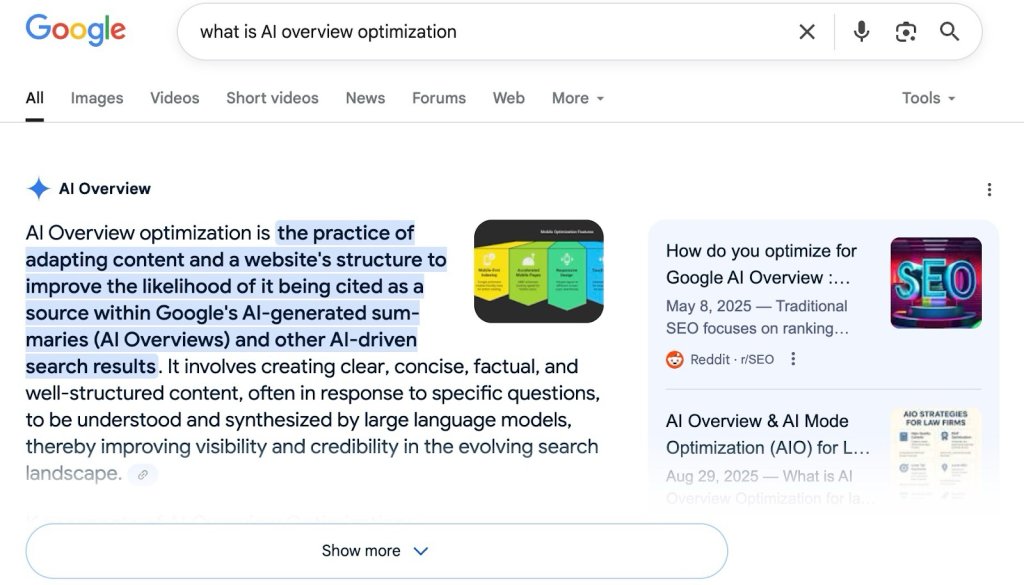
AI features like Google’s AI Overviews are pushing this even further, rewarding content that’s well-structured and easy for both users and algorithms to parse.

Mobile users behave differently

Optimizing for mobile isn’t just about making things smaller. It’s about understanding that mobile visitors:

  • Scan, they don’t read — walls of text get skipped
  • Expect pages to load instantly — most users leave if a page takes more than 3 seconds
  • Want the key information upfront — no scrolling to find what they came for
  • Navigate with their thumbs — small buttons and cramped links cause frustration

Get these mobile web design concepts right, and you’re not just improving rankings, you’re turning more mobile visitors into customers.

Why is mobile SEO so important in 2026?

Because your customers are on their phones. And so is Google.

57% of global searches happen on mobile, and over 96% of internet users access the web via their phones. Mobile traffic isn’t secondary anymore; it’s where the majority of your potential customers first encounter your site.

And it’s only growing. Here’s what that means for your business:

2. Mobile commerce is taking over

59% of all global ecommerce sales now happen on mobile — and that share is still climbing. Shoppers are browsing, comparing, and buying on their phones. If your mobile experience is clunky or slow, you’re handing those sales to competitors whose sites work better.

3. Local searches lead directly to customers

76% of local mobile searches result in a store visit within 24 hours. When someone searches “near me” or “open now,” they’re ready to act. Showing up (and showing up well!) on mobile local search directly translates to foot traffic and calls.

4. Speed is non-negotiable

53% of mobile visits are abandoned if a page takes longer than 3 seconds to load. Faster networks and better phones have raised the bar; users expect near-instant load times and leave quickly when they don’t get them.

Mobile site configuration options

There are three ways to configure a site for mobile devices. And hit: one is clearly the best choice. Here’s a quick breakdown:

ApproachHow it worksMobile SEO verdict
Responsive designOne site, one URL — layout adapts to screen size via CSS✅ Recommended
Dynamic servingSame URL, but different HTML served based on device⚠️ Works, but complex
Separate mobile URLs (m.domain.com)Entirely separate mobile site❌ Avoid in 2025

Responsive web design

Mobile optimization showing desktop and phone version

Responsive web design means your site automatically adjusts its layout to fit any screen (phone, tablet, or desktop) without serving different content or URLs. The same page, styled differently depending on the device.

Google recommends it, and for good reason:

  • No duplicate content issues — one URL means one set of signals
  • Easier to maintain — update content once, it updates everywhere
  • Better crawlability — search engines index everything in a single pass
  • Consistent UX — visitors get the same experience regardless of device

Dynamic serving

Dynamic serving keeps a single URL but detects the user’s device and serves different HTML and CSS depending on whether they’re on mobile or desktop. It allows for more tailored mobile device experiences, but it comes with real trade-offs:

  • Device detection can fail, especially with newer devices, leading to the wrong version being served
  • Server-side caching gets more complex since multiple versions need to be stored and managed
  • You need to implement the Vary: User-Agent HTTP header correctly, or search engines may not crawl both versions

It can make sense for large sites with very different mobile and desktop functionality, but for most, the added complexity isn’t worth it.

Separate mobile URLs (m.domain.com)

This approach creates an entirely separate mobile site on a subdomain like m.domain.com. It gives you full control over the mobile experience, but the downsides are significant:

  • Content has to be maintained in two places, which creates risk of inconsistencies and duplicate content
  • Canonical tags and redirects need to be set up carefully, or search engines get confused about which version to rank
  • Any site-wide change (navigation, product pages, content updates, website structure, you name it) has to be made twice

This approach is generally not recommended in 2026. Responsive design achieves the same goals with far less overhead.

If you’re starting fresh or rebuilding, the SiteGround Website Builder makes responsive design the default — every site is mobile-ready and fast-loading from day one, no configuration needed. 

Mobile SEO best practices

Effective mobile SEO requires attention to several essential optimization techniques that directly impact both search rankings and mobile user experience. These practices form the foundation of successful mobile optimization strategies.

Mobile page speed optimization

Speed isn’t just a nice-to-have on mobile devices; it’s a ranking factor. Google measures mobile performance through Core Web Vitals, with three metrics that reflect how fast and stable your page feels to real users.

Core Web Vitals: the benchmarks to hit

MetricWhat it measuresTarget
LCP (Largest Contentful Paint)How fast your main content loadsUnder 2.5 seconds
INP (Interaction to Next Paint)How quickly the page responds to inputUnder 200 milliseconds
CLS (Cumulative Layout Shift)How much the layout shifts while loadingBelow 0.1

Miss these thresholds and it can directly hurt your mobile rankings.

Images: the biggest speed win

Images are usually the heaviest assets on a page and the easiest place to make a big impact.

  • Convert to WebP — reduces file size by 25–35% vs. JPEG with no visible quality loss
  • Size images correctly before uploading — hero images at 800–1,200px wide, in-content images at 400–800px
  • Use srcset and sizes so browsers automatically serve the right size for each screen
  • Use lazy loading for images below the fold — but not above it, as this is one of the main causes of CLS issues

If you’re comfortable editing your site’s HTML, here’s what a properly implemented srcset looks like:

<img 
  src=”image-800.webp” 
  srcset=”image-400.webp 400w, image-800.webp 800w, image-1200.webp 1200w” 
  sizes=”(max-width: 600px) 400px, (max-width: 1200px) 800px, 1200px” 
  alt=”Example image”>

JavaScript and CSS

Bloated code slows down mobile pages, especially on weaker connections. The key actions:

  • Minify your JS and CSS files
  • Remove unused CSS
  • Inline critical CSS for above-the-fold content so it renders immediately
  • Reduce HTTP requests and enable browser caching

If your site runs on WordPress, our Speed Optimizer plugin handles all of this automatically — no manual configuration needed. 

If you’d rather not think about any of this, the SiteGround Website Builder takes care of it for you by default — fast-loading pages, optimized images, and clean code, all without touching a single setting.

Get started for free>>

Mobile-friendly content design

Getting people to your page is only half the battle. If your content is hard to read or navigate on a small screen, they’ll leave. Here’s what to get right:

Text and typography

  • Minimum font size: 16px — anything smaller and iOS will auto-zoom, which breaks your layout and frustrates users
  • Keep paragraphs short — mobile users scan, they don’t read top to bottom
  • Use clear heading hierarchies (H2s, H3s) to break up content and help users jump to what they need

Tap targets

  • Buttons and clickable elements should be at least 48×48 pixels
  • Leave enough space between links and buttons — cramped tap targets lead to accidental clicks and a poor experience, especially for users with larger fingers

Content structure

  • Lead with the most important information — don’t make users scroll to find what they came for
  • Use bullet points, numbered lists, and subheadings to make content easy to scan
  • Prioritize your key calls to action above the fold

Pop-ups and ads

Avoid anything that blocks the main content on mobile devices. Google actively penalizes pages where pop-ups or interstitials make content hard to access right after arriving from search. If you use them, they must be easy to dismiss and must not cover the main content.

Pro tip: Mobile-friendly design and accessible web design overlap more than you’d think. Minimum font sizes, sufficient color contrast, clear heading structure, and tap targets large enough for a thumb are also the foundations of an accessible site — one that works for users with visual impairments, motor difficulties, or cognitive differences. Getting these right doesn’t just help your mobile SEO; it makes your site usable for everyone, which should be an important part of your SEO strategy.

Technical mobile SEO elements

The next few elements are more technical in nature — they involve code, configuration files, and markup that lives behind the scenes. If you’re using the SiteGround Website Builder, a lot of this is already taken care of for you, so feel free to skip ahead to the next section. If you’re managing your own site, want to improve WordPress SEO, or are working with a developer, here’s what to check.

Viewport meta tag

The viewport tag tells mobile browsers how to scale and display your page. Without it, browsers default to a desktop layout — tiny text, horizontal scrolling, broken design.

If you’re using the SiteGround Website Builder or a top WordPress theme like Astra, this is already handled for you — no code needed. If you’re using a custom or lesser-known WordPress theme, it’s worth double-checking that the tag is present in your header.php file.

For everyone else, make sure this is included in your <head>:


<meta name=”viewport” content=”width=device-width, initial-scale=1″>

Common mistakes to avoid:

  • Fixed-width values (e.g. width=1024) — forces a desktop layout on mobile device screens
  • Omitting initial-scale=1 — causes inconsistent zoom levels across devices
  • user-scalable=no or maximum-scale=1 — prevents users from zooming, which is an accessibility issue and can hurt rankings

Structured data

On mobile search, rich results (star ratings, FAQ dropdowns, price info) take up more screen space than on desktop. That makes structured data one of the highest-leverage technical wins for mobile visibility and click-through rates.

You can use schema types that match your page’s intent:

  • FAQPage — for blog posts, service pages, support content
  • LocalBusiness — for “near me” searches
  • Product — for ecommerce and transactional pages (which helps Google surface your products as seen below)
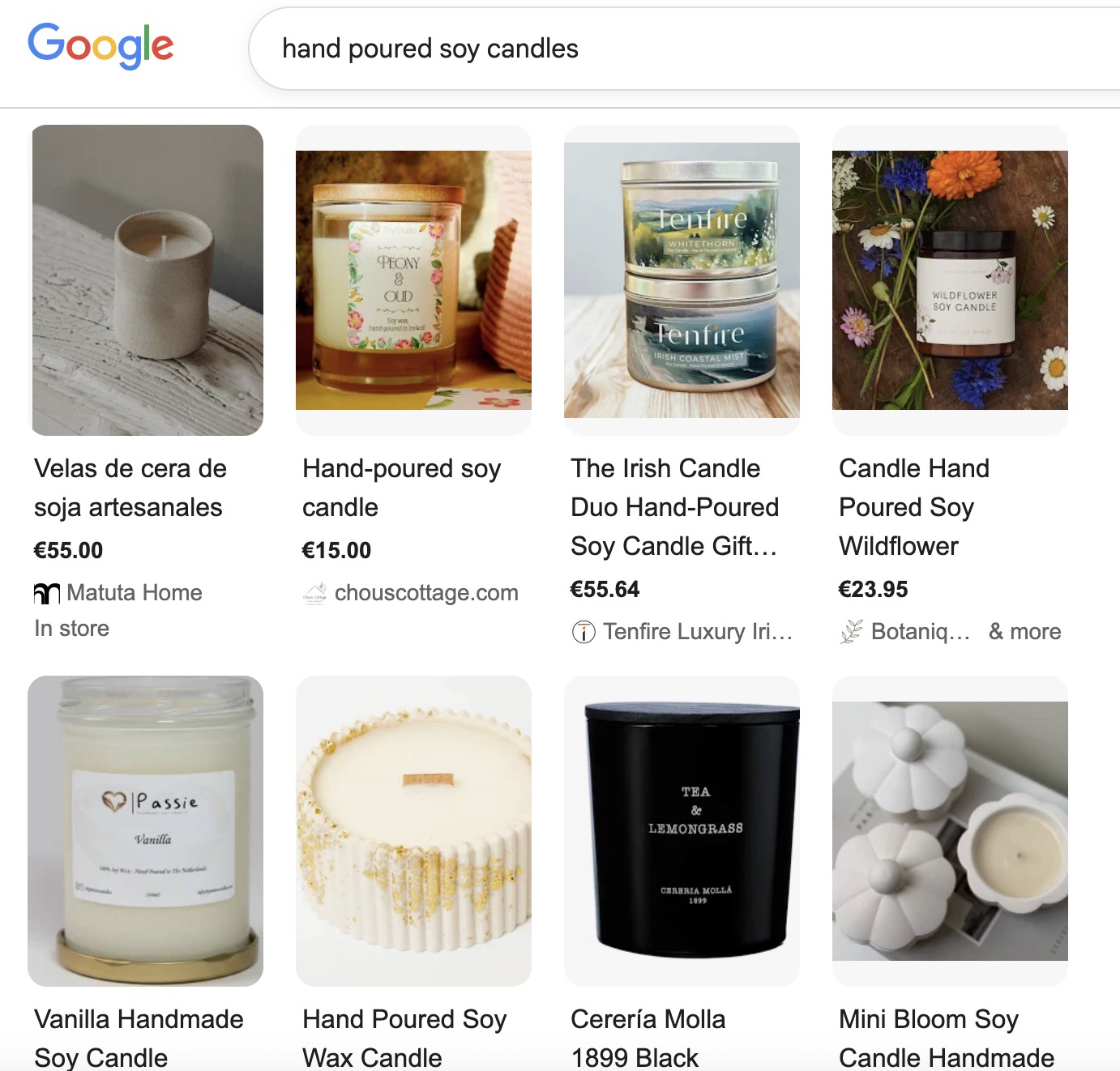
a gallery of products being featured by Google thanks to product schema

Google’s preferred format is JSON-LD. Here’s a simple FAQ example:


{
  “@context”: “https://schema.org”,
  “@type”: “FAQPage”,
  “mainEntity”: [{
    “@type”: “Question”,
    “name”: “How does mobile SEO improve rankings?”,
    “acceptedAnswer”: {
      “@type”: “Answer”,
      “text”: “Mobile SEO helps your site rank higher on smartphones and tablets by optimizing load speed, user experience, and mobile-first indexing readiness.”
    }
  }]
}

Pro tip: Always validate your markup with Google’s Rich Results Test or Schema.org’s Validator before publishing. You can find the full list of supported schema types here.

Sitemaps

A sitemap helps search engines discover and index every important page on your site — especially useful for large or newly launched sites. Submit yours through Google Search Console to make sure your mobile content gets crawled efficiently.

Robots.txt

Your robots.txt file controls what search engines can and can’t crawl. On mobile, the most common mistake is accidentally blocking files that are needed to render your pages — CSS, JavaScript, fonts, and images.

If Google’s Smartphone crawler can’t access these, it can’t see how your page actually looks on mobile devices, which leads to usability errors and ranking drops.

Pro tip: If you’re using a JS-heavy framework like React, Angular, or Vue, make sure your JavaScript is fully crawlable. Use Google Search Console’s URL Inspection tool or run a Lighthouse test to confirm your dynamic content renders correctly for Googlebot.

As mentioned before, if this all feels like a wee bit more than you even want to think about, then don’t worry. The SiteGround Website Builder automatically implements viewport meta tags, structured data for product pages, submits your sitemap for you, and generates a robots.txt file. So let’s move right along without a worry. 

Mobile user experience optimization

Good mobile SEO isn’t just about technical settings; it’s about making your site genuinely easy to use on a small screen. These are the areas that matter most.

Navigation

Most mobile users navigate with their thumbs, so the easier your navigation is to reach and use, the better.

  • Keep website navigation simple and shallow — the fewer taps to get somewhere, the better
  • Make sure your menu button is clearly visible and easy to tap
  • Avoid burying important links in dropdowns or secondary menus
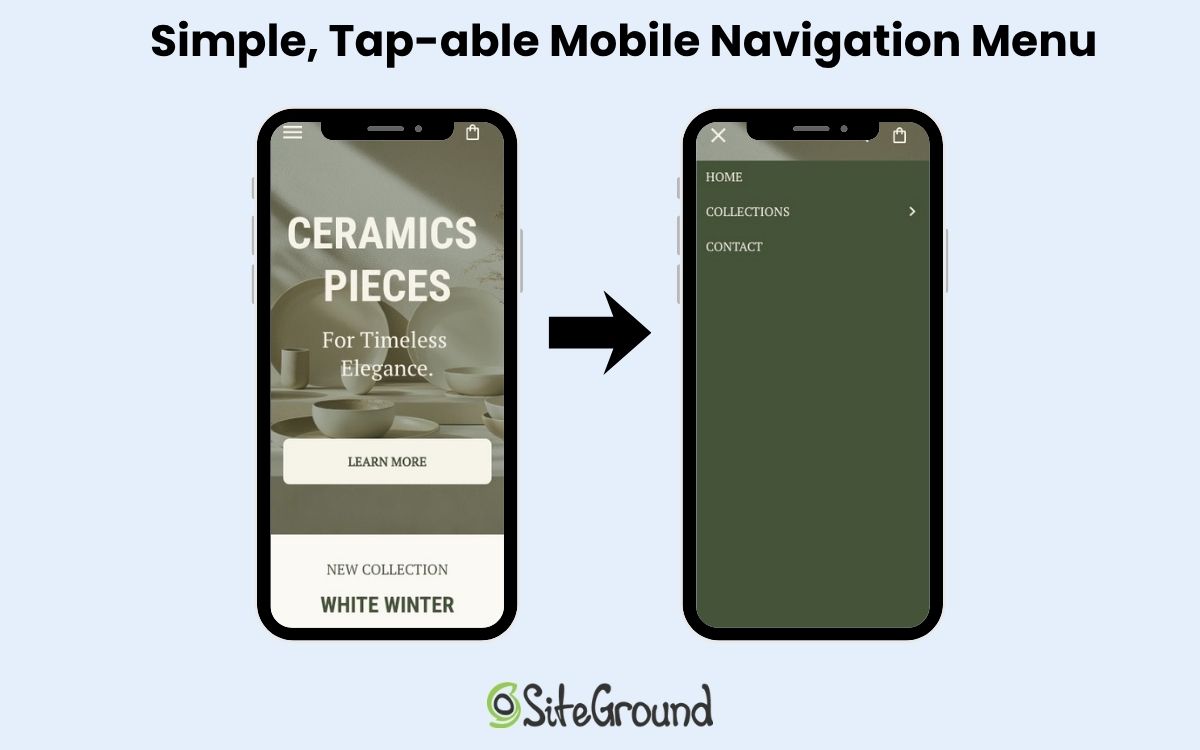
Example of a mobile web design with a simple and tap-able navigation menu

Forms

Every extra field on a mobile device form is friction. Keep them as short as possible, and make the experience as effortless as you can:

  • Only ask for what you actually need
  • Use the right keyboard for each field (numeric for phone numbers, email keyboard for email fields)
  • Make the submit button large, clearly labeled, and easy to tap

Visual hierarchy

Mobile device screens have limited space, so what you put above the fold matters a lot. Lead with your most important content and calls to action, and resist the urge to cram too much onto the screen at once. A focused page with a thoughtful visual hierarchy converts better than a busy one.

Button and link spacing

Tightly packed links and buttons lead to accidental taps and frustration. Make sure clickable elements have enough breathing room between them — this ties back to the 48x48px tap target minimum covered earlier in the content design section.
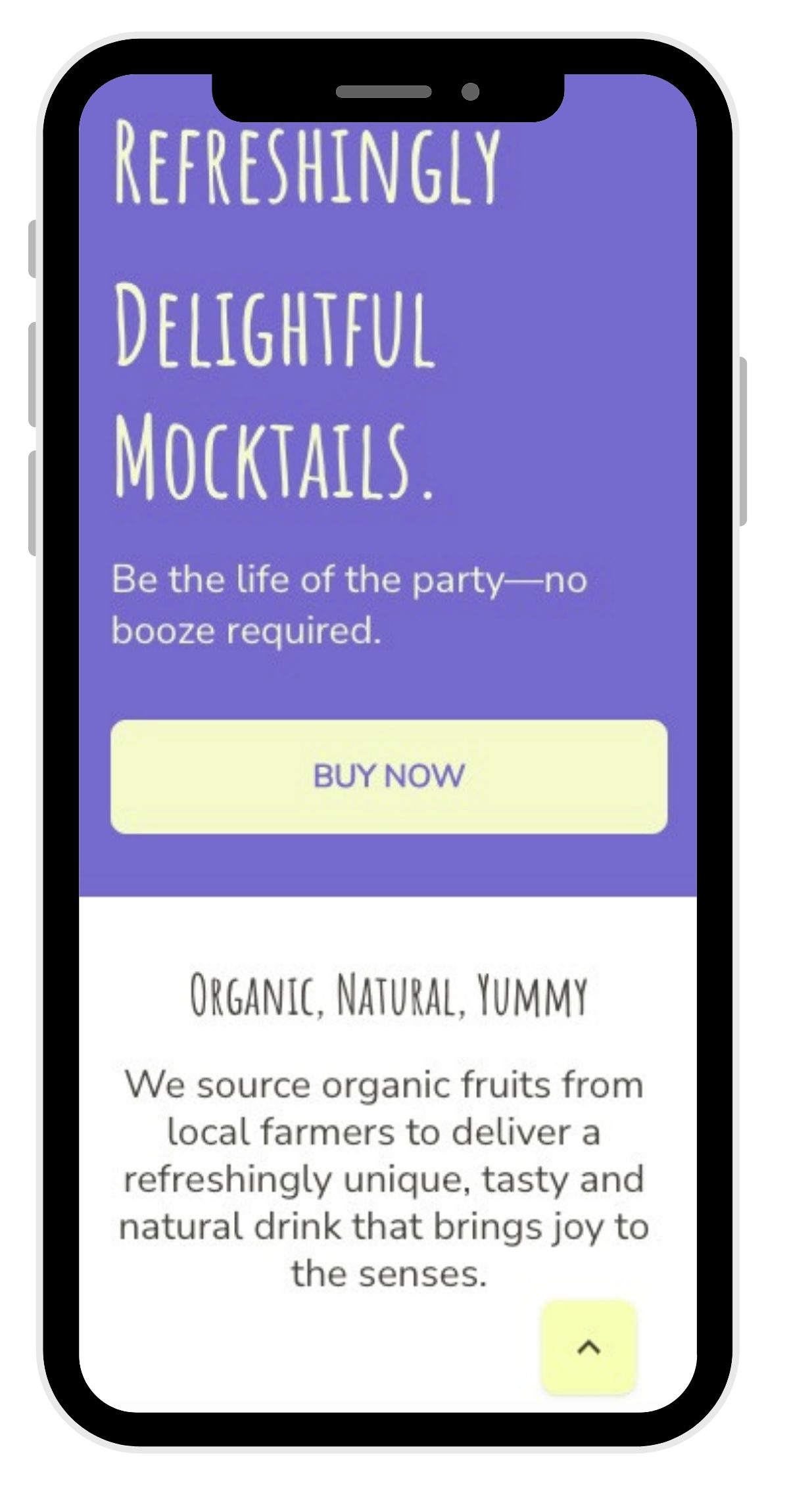
Example of a mobile website with a back-to-top button

Local SEO for mobile users

Mobile local searches have high commercial intent. That is, someone searching “locksmith open now” or “coffee shop near me” is ready to act. That’s why local SEO is so very important. Here’s how to make sure your business shows up when it counts.

Google Business Profile

Your Google Business Profile (GBP) is often the first thing a mobile user sees before ever visiting your site. Keep it complete and accurate:

  • Correct business hours (including holidays)
  • Up-to-date phone number and address
  • High-quality photos of your location, products, or team

An incomplete profile loses customers to competitors who’ve put in the work.
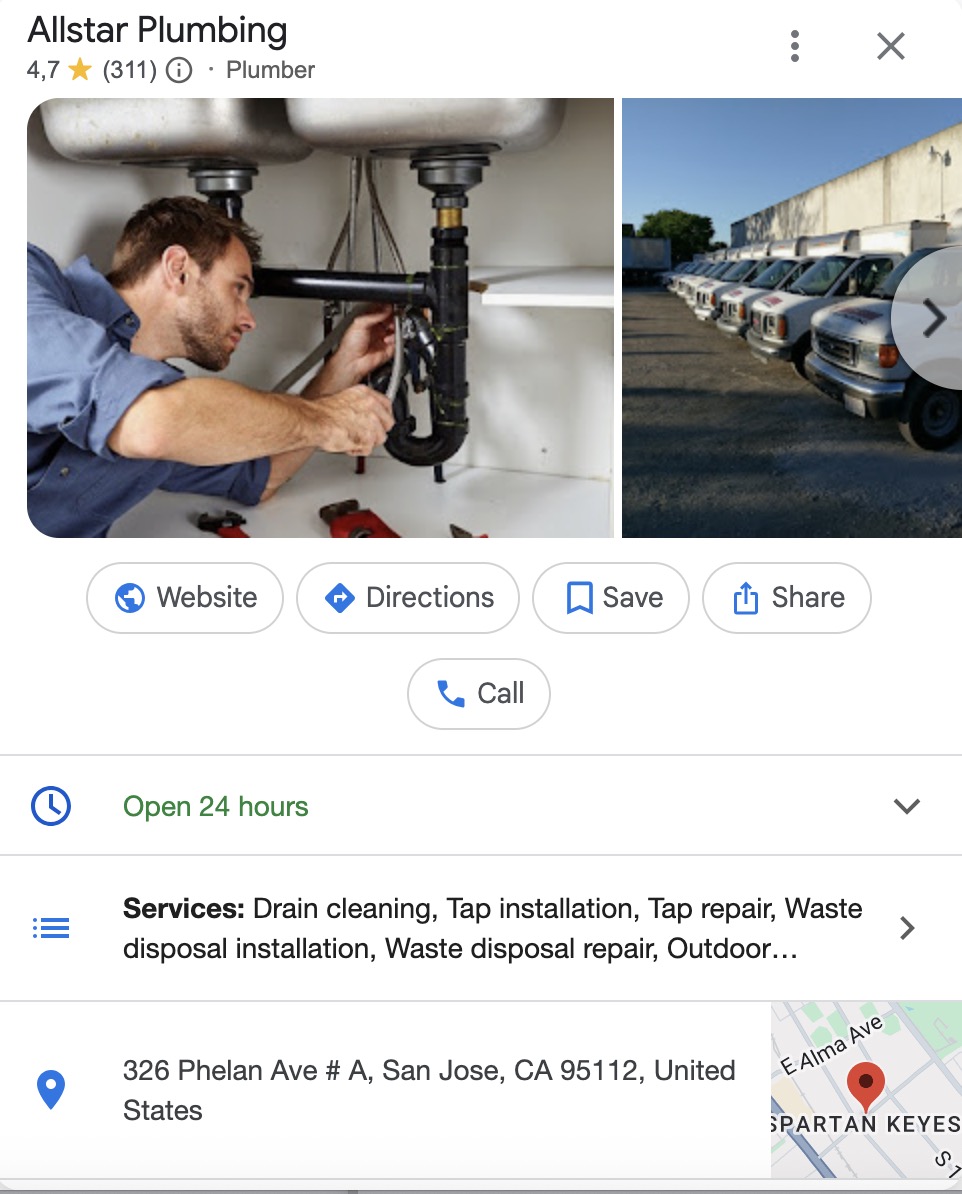
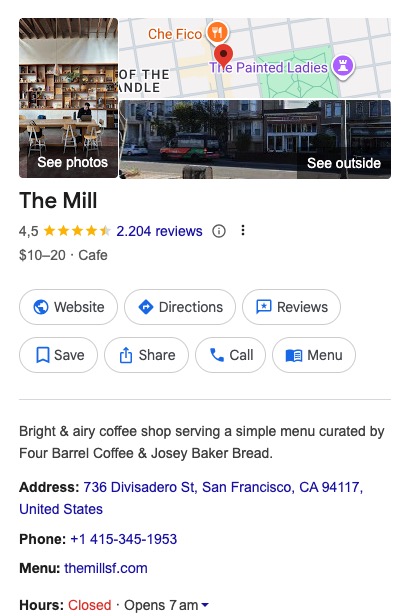
Example of a Google Business Profile

NAP consistency

Your Name, Address, and Phone number must be identical across your website, GBP, and any other directory listings. Inconsistencies confuse both search engines and users — and can quietly drag down your local rankings.

“Near me” keyword optimization

Mobile users search with location in mind, even when they don’t type a city name. Capture that intent by weaving local phrases naturally into:

  • Page titles — “Plumber in [city] | 24/7 Emergency Plumbing Services”
  • Meta descriptions — “Fast, affordable plumbing in [city]. Book a same-day visit from certified professionals near you.”
  • H1 headings — “Plumbing Services in [city] and Nearby Areas”
  • Body content — mention your location and service area naturally throughout the page

If you serve multiple locations, create a dedicated landing page for each area, and don’t try to rank one page for everywhere.

Pro tip: Add this to your SEO checklist: Search for your own business on mobile using terms like “near me,” “open now,” or your service + city. Verify whether you appear in the map pack, organic mobile search results, and AI snapshots. If you’re missing from any of them, it’s a signal that your GBP, local schema, or on-page content needs attention.

Click-to-call and click-to-directions

Make it as easy as possible for mobile users to take the next step. A tap-to-call button and a direct link to Google Maps directions remove friction at the exact moment someone is ready to reach out or visit. That directly impacts calls, walk-ins, and conversions.
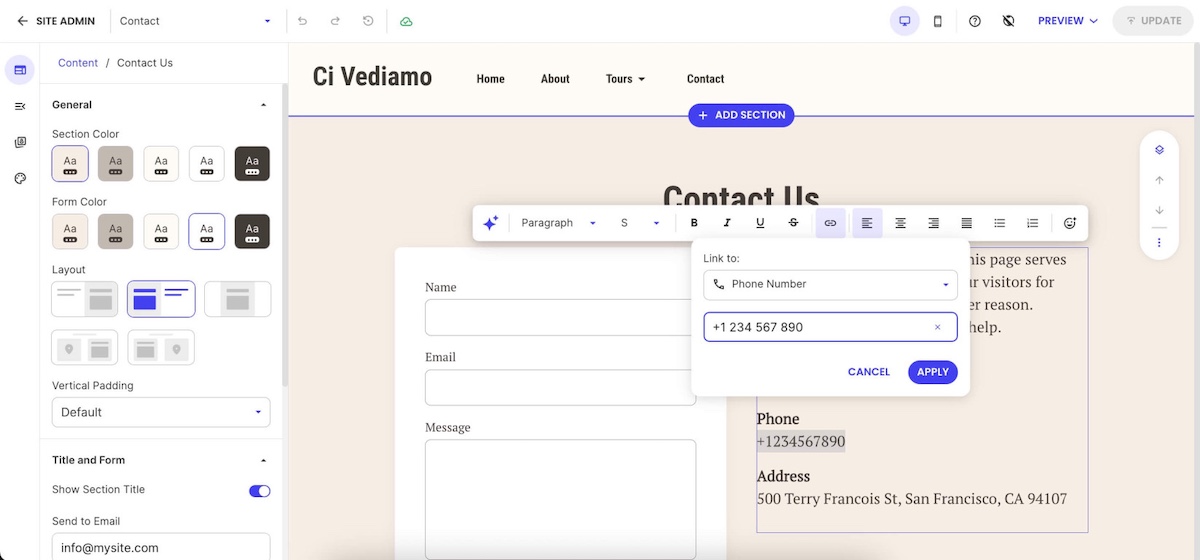
Example of adding a link to a phone number so that people can easily call

Voice search and mobile SEO

Optimizing for conversational queries requires targeting question-based keywords that match how people naturally speak when using voice search. Voice searches tend to be longer and more conversational than typed queries, requiring content that answers specific questions in natural language.

What to do to optimize for voice search:

  • Focus on featured snippet optimization
  • Add structured data
  • Cover long-tail keywords

Featured snippet optimization helps capture voice search results since many voice assistants read featured snippet content as answers to voice queries. Structuring content to directly answer common questions and using proper heading tags increases the likelihood of earning featured snippets.

Structured data markup (which we covered above) provides search engines with structured information about common questions and answers, improving the chances of appearing in voice search results. This markup format aligns well with the question-and-answer nature of many voice queries.

Long-tail keyword targeting for natural language queries helps capture the more conversational style of voice searches. These keywords often have lower competition and higher intent, making them valuable for both voice search optimization and general mobile SEO strategy.

Mobile SEO testing and monitoring

Once your mobile optimizations are in place, these four tools will help you track performance and catch issues before they affect rankings.

ToolWhat it’s for
Google Search ConsoleFlags mobile usability issues — text too small, tap targets too close, content wider than the screen
Google PageSpeed InsightsMeasures Core Web Vitals with real user data and gives specific recommendations to improve them
Chrome DevToolsSimulates different mobile devices during development so you can spot responsive design issues without a physical device
Google Analytics 4Tracks how mobile users behave on your site — conversion rates, bounce rates, and how their patterns differ from desktop users

Check Search Console and PageSpeed Insights regularly, not just when something breaks. Catching a usability issue early is far easier than recovering lost rankings after the fact.

The future of mobile SEO in 2026

Mobile SEO is changing fast. AI Overviews, voice results, and smarter ranking signals are all reshaping what it means to show up on mobile devices. But the sites that benefit most aren’t doing anything exotic. They’re quick, easy to use, and built around what their visitors actually need.

The SiteGround Website Builder gets you there by default — responsive design, fast-loading pages, and all the technical groundwork handled for you, so you can focus on your business instead of your code. And if you’re selling online, the built-in SiteGround Ecommerce tools are optimized for mobile too, so your store works as well on a phone as it does anywhere else.

Mobile SEO FAQs

What are the 4 types of SEO?

The four main types of SEO are on-page SEO, off-page SEO, technical SEO, and local SEO. On-page SEO focuses on optimizing content and elements on your website, like keywords and headings. Off-page SEO builds your site’s authority through backlinks and external signals. Technical SEO ensures your site is fast, crawlable, and easy for search engines to index. Local SEO helps your business appear in location-based searches, using tools like your Google Business Profile and local listings.

What is mobile-first indexing?

Mobile-first indexing means search engines like Google use the mobile version of your content for indexing and ranking, rather than the desktop version.

What is a responsive website design?

Responsive design means your website automatically adjusts its layout and content to fit different screen sizes, providing a consistent experience across devices.

Does page speed affect mobile SEO?

Yes, page speed is a key ranking factor. Slow-loading pages lead to higher bounce rates and lower rankings, especially on mobile connections.


How to read your email click to open rate (and act on it)

A woman smiling at her phone next to an email campaign dashboard showing a 30.40% click rate and 94% open rate, with a promotional email featuring a tote bag.

You hit send. Opens roll in. Clicks? Not so much.

Before you scrap your whole email marketing campaign, there’s one metric worth checking first: your click-to-open rate (CTOR). Open rate tells you who showed up, CTR tells you who clicked out of everyone you emailed, but neither one tells you whether your copy, images, CTA, and layout are actually working. CTOR filters out everything upstream: deliverability, subject lines, send time, and looks only at what happened inside your email. 

Key takeaways:

  • CTOR = clicks divided by opens. It tells you whether your copy, images, CTA, and layout are doing their job.
  • If your opens are fine but clicks are low, your subject line isn’t the problem — something inside the email is.
  • A “good” CTOR ranges from 6% to 30% depending on the source. Build your own baseline instead.
  • Too many CTAs, too many images, too many goals — pick one of each and stick to it.
  • Low CTOR points to your content. Low opens point to your subject line. Now you know where to look.

What is email click-to-open rate (CTOR)? 

Click-to-open rate measures how many people who opened your email actually clicked something inside it. While email open rate tells you how many people showed up, CTOR tells you whether the content was worth their time.

The formula is straightforward:

(Clicks / opens) × 100 = CTOR

So if 200 people opened your email and 40 clicked a link, your CTOR is 20%.

One number, one answer: did the people who read your email care enough to act? Clicks are where email starts turning into revenue. A higher CTOR means more of your openers are taking action. And more action means better email marketing ROI.

CTOR vs. other email metrics 

Low clicks: is it the subject line, the content of the email, or just a bad send day? Before you can answer that, you need to know what each email marketing metric is actually measuring. They measure different things, and knowing which one to look at saves you a lot of time going in the wrong direction.

MetricFormulaWhat it measuresWhat it tells you
Open rate(number of opens / number of delivered emails) x 100How many people opened your emailWhether your subject line, sender name, and send time are working
CTR(clicks / delivered emails) x 100How many people clicked out of everyone you delivered toThe overall performance of your email marketing campaign 
CTOR(clicks / opens) x 100How many openers clickedWhether your content, email design, and CTA earned the click

Open rate sets the stage: it tells you whether your email got noticed at all. Click through rate (CTR) gives you the big picture. CTOR zooms in on what happened after the open, which makes it the more useful metric when you’re trying to figure out what inside your email isn’t working.

What’s a good CTOR? 

Depends on who you ask. Benchmarks vary widely across industries anywhere from 6% to 30% — and that gap isn’t a typo. Industry, audience size, email type, and how often you send all pull the number in different directions. A transactional email to an engaged list will naturally outperform a promotional blast to cold contacts.

Rather than chasing a universal benchmark, track your own. Run a few campaigns, record your CTOR for each email type, and let that become your baseline. A 12% CTOR that’s climbing tells you more than hitting someone else’s average once.

Keep in mind: Open counts aren’t always accurate. Apple’s Mail Privacy Protection pre-loads tracking pixels on iOS devices, which can inflate your open numbers without anyone actually reading your email. Since CTOR is calculated from opens, inflated open counts can push your CTOR down, even if your content is performing well. It’s one more reason to measure against your own historical data rather than industry benchmarks — a sudden dip in CTOR is more meaningful when you know what your normal looks like.

A low CTOR? Start here.

A low CTOR is a signal, not just a bad number. What you do with it depends on what your other email marketing metrics are doing.

  • Opens are healthy, CTOR is low: the email isn’t earning the click. Look at your content, CTA, email layout, and images.
  • Both opens and CTOR are low: the email isn’t getting opened in the first place. Start with your subject line, sender name, and send time.
  • Opens are low, CTOR is high: your content is working, but not enough people are seeing it. Check your deliverability, list health, and subject line.
  • Both are healthy: keep testing. Don’t touch what’s working.

The most common scenario for small business senders is the first one: decent email open rates, disappointing clicks. The email got opened, it just didn’t give anyone a reason to click. And that’s exactly what the next section is about.

Your CTOR is low. Here are the parts of your email to look at.

If your opens are healthy but clicks aren’t coming, here are the parts of your email most likely to cost you the click.

Email copy

Your subject line made a promise. Does your email body deliver on it? A mismatch between the two is one of the fastest ways to lose a click. Readers feel misled and move on.

Keep the copy short and leave just enough out to make clicking feel worth it. A little curiosity goes a long way. Pick one marketing goal per email, stick to it, and personalize where you can. Not sure how to phrase it? SiteGround Email Marketing comes with a built-in AI Email Writer to help you draft focused, on-point copy. The strategy is still yours, but the words don’t have to be a struggle.You can also segment contacts directly from your campaign analytics. If someone clicked your last email, you can pull them into a separate group and follow up with something more targeted. A second touch that speaks to what they already showed interest in is a lot harder to ignore. Sending more relevant content to a tighter and engaged audience means more of the people who open will actually click. And that’s exactly what CTOR measures.

Images

Images work best when they’re specific to the message: a product shot, a before/after, a screenshot that backs up what the copy is saying. A generic stock photo of a smiling person at a laptop adds nothing and takes up space.

As a rule of thumb, one to three images per email is plenty for most campaigns. More than that and you’re competing with your own content for attention and risking the spam folder before anyone even sees it.

And we’re not done with AI yet. SiteGround Email Marketing also has a built-in AI Image Generator, so you can create visuals that actually match your message instead of settling for another stock photo of a handshake.

Email newsletter template for a pet brand featuring two product sections — Play Time with a golden retriever chewing a toy, and Walk Time with a woman walking a small dog on a leash

Always check how your email renders on mobile before hitting send, and don’t skip the alt text. Email accessibility is a legal requirement in many countries, and alt text is a core part of that. SiteGround Email Marketing prompts you to add it every time you upload an image, so it’s hard to miss.

Call to action 

One email, one CTA. The more options you give people, the less likely they are to pick any of them.

Place your primary email CTA above the fold so it’s visible without scrolling, use a button color that stands out from the rest of the email, and write copy that tells readers exactly what they’re getting. “Get my guide” lands better than “Submit” every time. A little urgency or curiosity in the button text doesn’t hurt either.

A CTA that’s clear, specific, and easy to find is often the difference between a CTOR you’re proud of and one that makes you scratch your head.

Email layout

Most of your subscribers are reading on their phones, so design for mobile first and treat desktop as secondary. That means single-column layouts over multi-column, large enough font sizes to read without zooming, and a CTA button big enough to tap with a thumb.

Keep the layout simple and the path to the CTA short. The more a reader has to scroll through blocks of content before they reach it, the less likely they are to get there. Put your most important content and your CTA early, and don’t bury either under decorative sections. This matters more than ever now that email clients are summarizing email messages with AI. If your key point and CTA aren’t near the top, they may not make it into the summary at all.
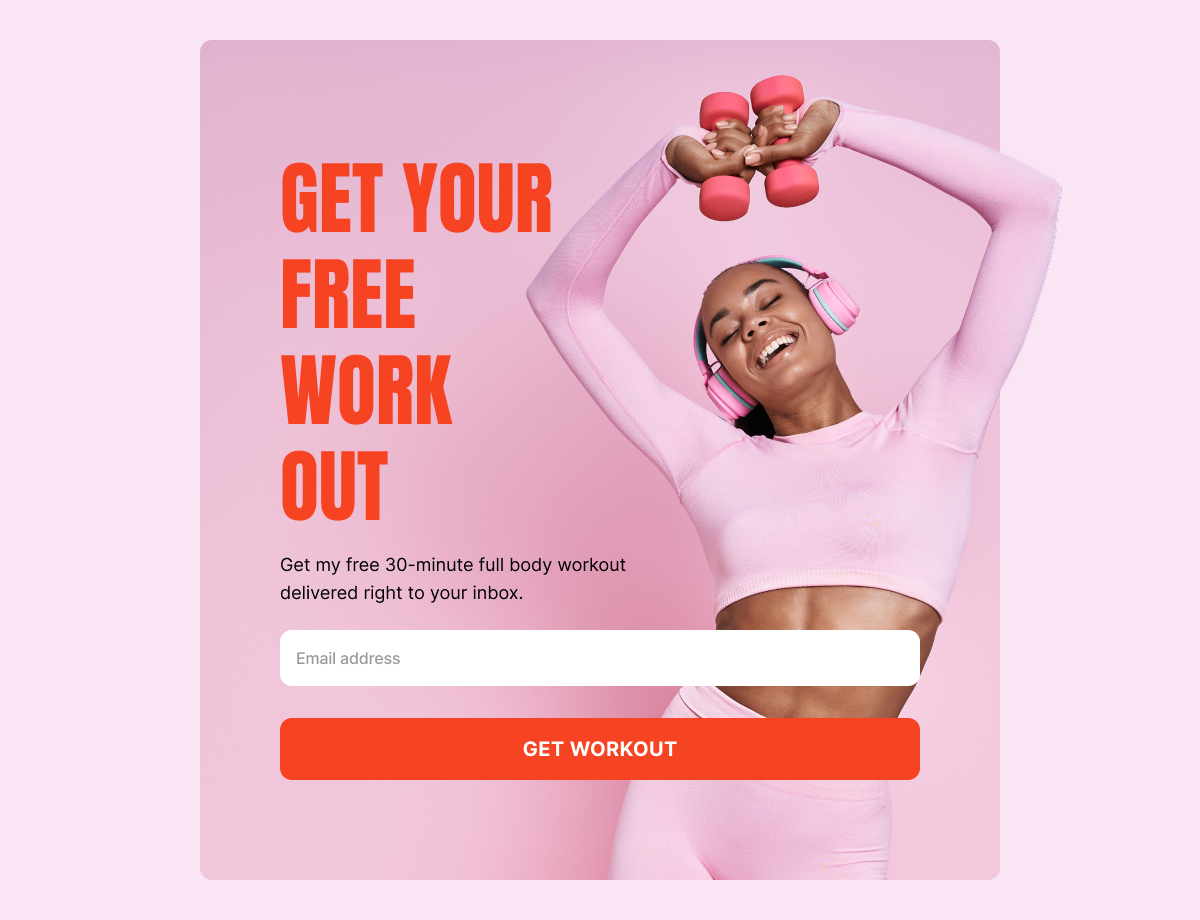
If you’re starting from scratch, SiteGround Email Marketing offers a range of professional templates you can customize with a no-code builder and a built-in AI assistant — so you’re not making layout decisions from a blank page. A well-structured email doesn’t just look good; it removes every excuse not to click.

Use CTOR to fix the right thing

CTOR won’t fix your emails for you, but it will stop you from fixing the wrong thing. Track it alongside your open rate, build your own baseline, and the next time a campaign underperforms, you’ll know exactly where to start.

[58]

Frequently asked questions about email CTOR

What is the difference between CTR and CTOR in email?

CTR divides clicks by emails delivered, CTOR divides by emails opened. CTR shows overall campaign performance; CTOR tells you whether the email’s content was worth clicking.

How do you actually use CTOR?

Read it alongside your open rate. Healthy opens but low CTOR means the problem is inside your email. Both low means focus on getting opens first. It tells you which part of the marketing funnel to fix so you’re not changing things at random.

What is a click through rate in email marketing?

CTR is the percentage of recipients who clicked a link out of the total emails delivered — regardless of whether they opened it or not. On the other hand, CTOR only counts clicks from people who actually opened, which is what makes it a more precise measure of how your content is performing.

What is considered a good open rate for emails?

Industry averages typically sit between 20% and 40%, but they vary by industry, list size, and email type. Your own historical average is a more reliable benchmark than any industry number.

What is a benchmark in email marketing?

An email marketing benchmark is a reference point for measuring your email performance, either against industry averages or your own historical data. Your own baseline tends to be more useful since it reflects your specific audience and email type.

Small business local SEO: ranking without a physical storefront

Abstract of local seo optimization

Most local SEO guides start with the same advice: add your address, claim your listing, show up on the map. Great advice, if you have a map-worthy address. But contractors, consultants, mobile service providers, and home service businesses play by different rules. Ranking locally without a physical storefront is entirely achievable, it just requires a smarter approach. This guide covers exactly that: from setting up your Google Business Profile correctly, to building service area pages that rank in cities you’ve never set foot in.

Key takeaways:

  • Local SEO still works without a storefront — but service-area businesses need a different local SEO strategy to prove geographic relevance.
  • Your Google Business Profile is critical — set it up as a service-area business, hide your address, and define realistic service regions.
  • Consistent citations (NAP) build trust — clean up any conflicting addresses and keep your business details aligned everywhere.
  • Create dedicated, high-quality service area pages for each location you target — avoid duplicate or “copy-paste” content.
  • Reviews are essential trust signals — build a simple system to request and respond to them consistently.
  • Track performance and stay consistent — effective local SEO compounds over time, and early effort gives you a competitive edge.

What is local SEO — and why does it work differently if you have no storefront?

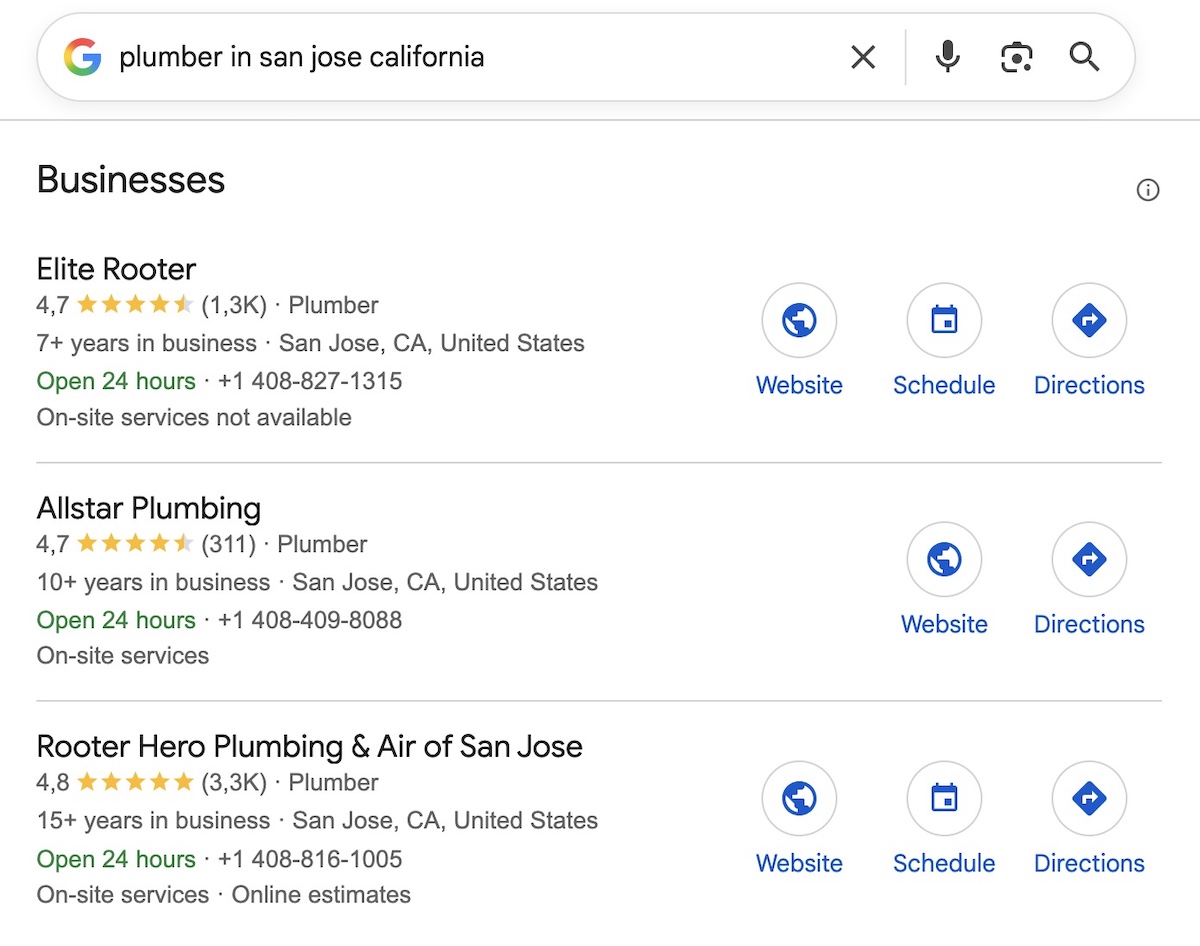
Local search engine optimization (SEO) is the process of optimizing your online presence so your business shows up when people search for services in a specific location. Think “plumber in San Jose” or “mobile dog groomer near me.” These searches have clear local intent, and the local businesses that appear at the top of search engine results get the calls.

Example of a local search on Google

Businesses that serve customers at their location rather than from a fixed address are known as service-area businesses, or SABs. Think plumbers, consultants, mobile cleaners, or personal trainers.

For a small business with a physical address, the setup is fairly straightforward: your location is a built-in ranking signal. But for a service-area business, it’s a different challenge. You need to rank in local areas where you have no physical presence, which means working a little harder to prove to search engines, and to potential customers, that you genuinely serve those areas.

That’s the gap this guide fills.

Why local SEO matters for service-area businesses

If you’re on the fence about whether this is worth your time, consider this: 80% of US consumers search for local businesses weekly, and 76% visit or contact a business within 24 hours of searching for something nearby. These aren’t people browsing. These are people who are likely already at the bottom of the marketing funnel and ready to hire.

That reach is growing too. AI tools like ChatGPT and Google’s AI Overviews are increasingly surfacing local business recommendations, drawing from the same signals as traditional local search: your GBP, your reviews, your citations, and your website content. Getting your foundation right today means building local visibility across both.

And guess what? The majority of your SAB competitors aren’t investing in local SEO properly. 58% of businesses still haven’t optimized for local search at all. That’s not a threat; it’s an incredible small business marketing opportunity. Getting in early and doing it right means you’re not fighting uphill; you’re stepping into a lane most of your competition has left wide open, and the wind is at your back. 

How to do local SEO as a service-area business: a step-by-step guide 

1. Set up your Google Business Profile as a service-area business

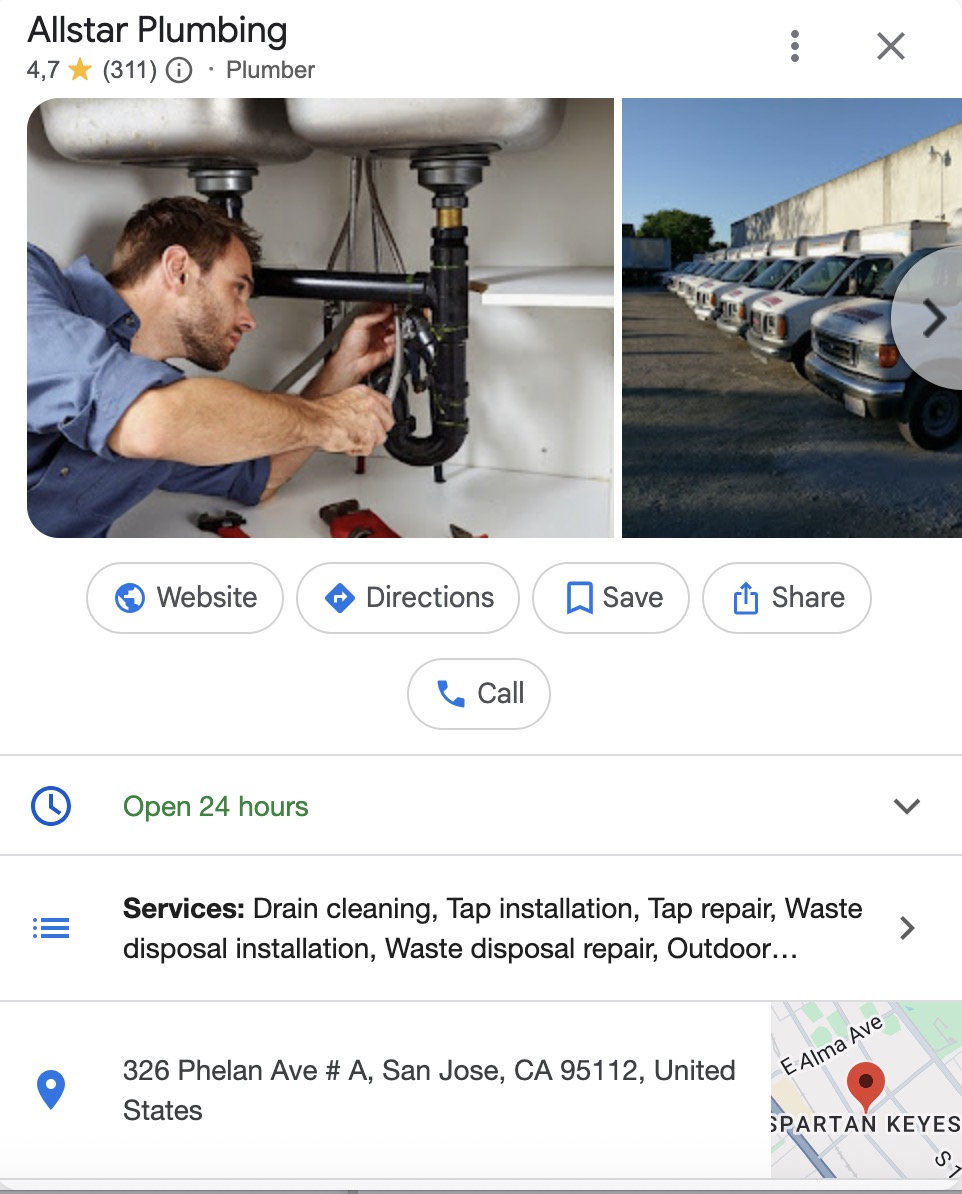
Your Google Business Profile (GBP) is the single most important local SEO asset you have. For SABs specifically, getting this part of your SEO strategy right from the start saves a lot of headaches later.

Example of a Google Business Profile

How SAB profiles differ from storefront profiles

A standard GBP displays a physical address that shows up on Google Maps. But, of course, as a service-area business, you don’t display a public address. Instead, you define the regions, cities, or zip codes you serve. This is a key distinction that many SAB owners miss, but getting it right from the start makes everything else easier.

Setting up your GBP step by step

  1. Go to Google Business Profile and create or claim your listing
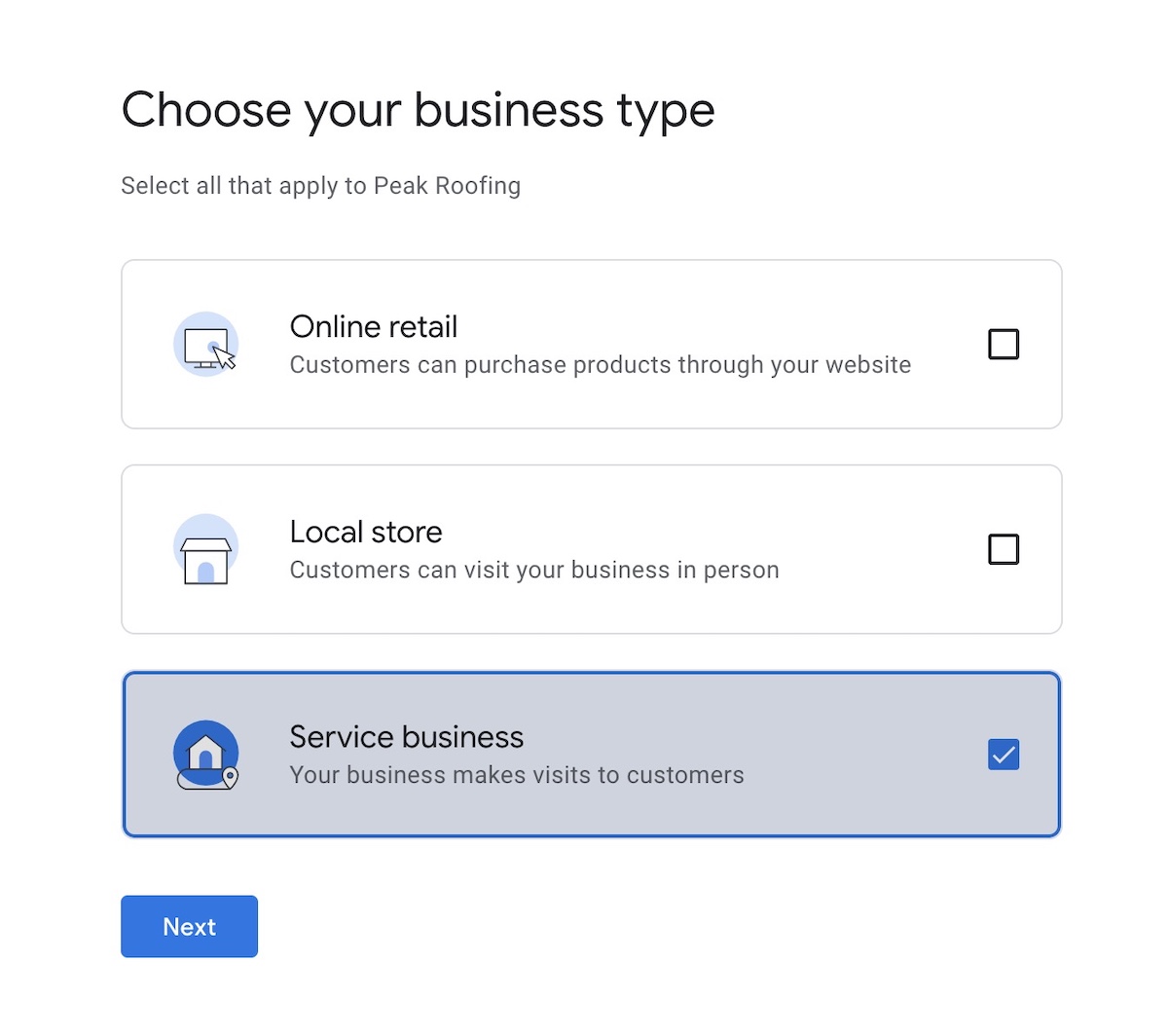
  2. When prompted, select that you are a service business, and that you make visits to customers (this marks you as an SAB)
  3. Hide your address so it doesn’t display publicly
  4. Define your service areas by city, region, or zip code. Be specific, but realistic — a one-person operation probably shouldn’t be claiming an entire state
  5. Choose your primary and secondary categories carefully, as these directly influence which searches you appear in
  6. Add your services and high-quality photos, along with a business description using local keywords, and written in natural language that includes the services you offer and the local areas you serve (so not just your business name and a generic tagline)
  7. Enable messaging and aim to post once a week. GBP posts are short updates (offers, service highlights, seasonal promotions, tips) that appear on your profile in local search results and signal to Google that your listing is active
Example of setting up your Google Business Profile

Build your online foundation with SiteGround 

Google Business Profile optimization works best when it points to a fast, professional website. SiteGround’s Website Builder gives service-area businesses an SEO-ready foundation — no technical experience needed. 

Explore SiteGround Website Builder →

2. Get found in more places: citations and NAP consistency

A citation is any online mention of your business name, address, and phone number (collectively known as NAP). Consistency across these mentions is a ranking signal. Inconsistencies confuse search engines and can tank trust.

Understand the SAB address challenge

For a small business with a fixed address, keeping NAP consistent is relatively straightforward. For SABs, it’s more complicated. You may not have a public address at all, or your address situation may have changed over time — and both scenarios create inconsistencies that are worth getting ahead of. The first step is deciding what your address situation actually is.

Choose your address situation

  • Home address: Not recommended to display publicly, but if it’s already out there, focus on cleaning it up rather than leaving mismatched data behind
  • Virtual office: A legitimate option that gives you a real, displayable address in your target market, though it comes with a monthly cost
  • PO Box: Not accepted by Google as a valid business address, so avoid using this as your primary listing

Fix a home address that’s already listed

It’s a citation headache, and a security concern. A less-than-satisfied customer could come and TP your house. Or a happy one might send you flowers. Anything is possible, but not everything is welcome.

Here’s how to sort it: go to your GBP dashboard, edit your business information, and — importantly — uncheck the address display option so it no longer shows publicly. Then run a citation audit to update any online directories where the address already appeared, which brings us to the next point.

Audit and clean up your citations

Tools like BrightLocal, Whitespark, and Moz Local can scan the web for existing mentions of your business and flag inconsistencies. Priority directories to be listed in include Google, Yelp, Bing Places, Apple Maps, and any industry-specific platforms relevant to your trade.

Beyond the major platforms, local directories (city-specific business listings, local chamber of commerce directories, and neighbourhood-specific sites) are worth pursuing too. They carry less individual weight than Google or Yelp, but collectively local directories reinforce your relevance in a specific area.

3. Build service area pages that rank

Your GBP tells Google where you operate, but it’s your website that provides the content signals Google (and increasingly AI) needs to actually rank you for location-based searches. Without a physical address, dedicated service area pages are how you build that geographic relevance. A good way to do this is to create one page per city or region you serve.

Picture it in practice

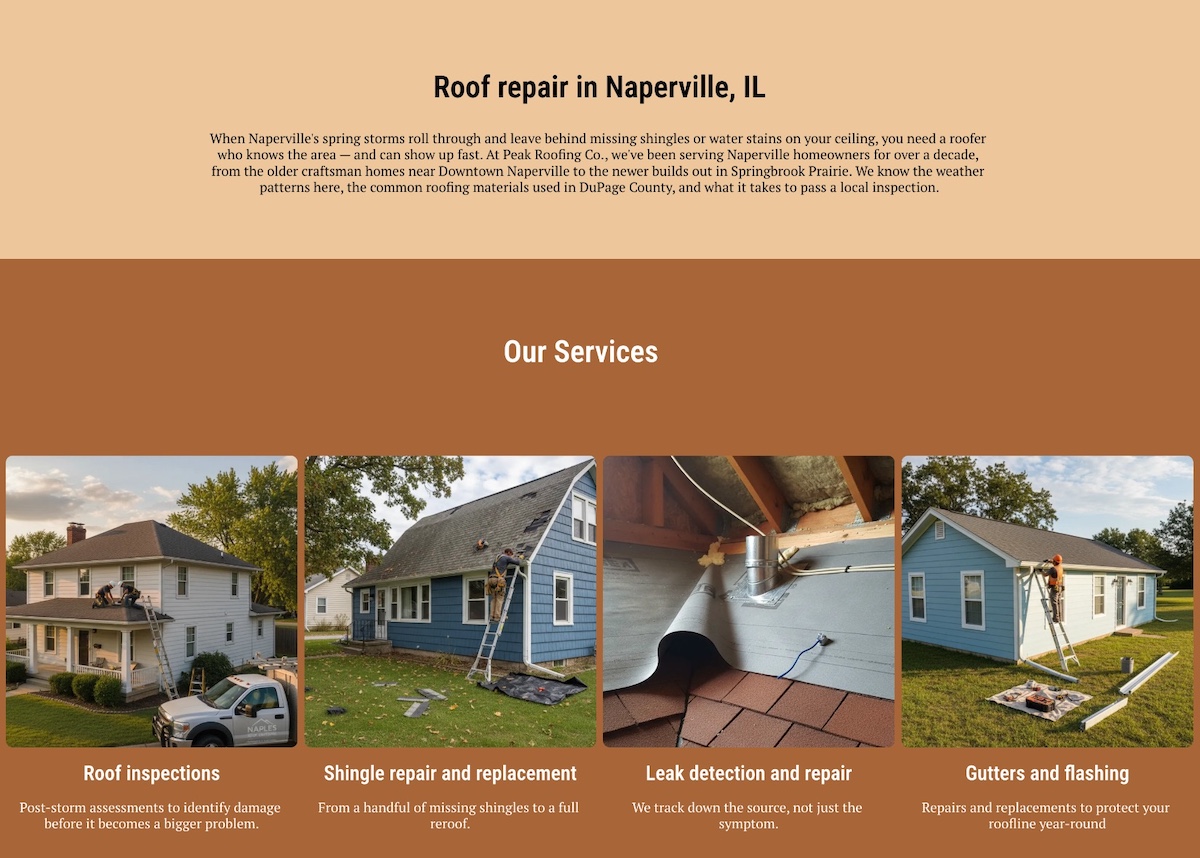
Take a roofing company serving five towns outside Chicago. They might have a service page called “Roof repair in Naperville” living at mysite.net/locations/naperville, another for Schaumburg, another for Aurora, and so on. Each page targets that specific location and is written as if a local homeowner landed on it directly from a search (because hopefully they will!).

In terms of website structure, most SABs keep it simple with a dedicated locations section:

mysite.net/locations/

    mysite.net/locations/naperville/

    mysite.net/locations/schaumburg/

    mysite.net/locations/aurora/

The parent /locations/ page acts as a hub that links out to each individual location page, helping search engines and AI crawl and understand the full geographic scope of your business. If you offer meaningfully different local services across areas, you can go one level deeper (mysite.net/roof-repair/naperville/), but for most small SABs the simpler structure works well.

Structure each page for search

While the specifics will vary by business, most service area pages follow a similar structure and visual hierarchy:

  • Locally targeted heading: Include the city or region name — “Roof repair in Naperville, IL” not just “Roof repair”
  • Local intro: A short opening paragraph that speaks directly to local customers, referencing the location naturally, and highlighting the unique selling proposition
  • Services offered: What you provide in that specific area, with any locally relevant context
Example of optimizing local SEO by including a service page for the local area
  • Trust signals: A review from a customer in that location, or a note about a recent project nearby
  • Keywords and search language: Incorporate local keywords, such as a city name, naturally into your copy and write conversationally to match how people search — phrases like “roof repair near me” or “best plumber in Naperville.” Avoid forcing keywords in awkwardly; Google is good at detecting over-optimization
  • Clear call to action: Something location-specific works best, like “Get a free quote for your Naperville home”
Example of including a trust signal such as a customer review on a local service page

Avoid thin and duplicate content

This is where most SABs trip up. If you’re serving ten cities and each page says the same thing with only the city name swapped out, search engines will likely treat those pages as thin or duplicate content, which can actively hurt your rankings. Each page needs a genuine reason to exist: a local detail, a relevant example, a neighborhood-specific reference.

Link internally between service area pages

Link between your service area pages to help search engines understand the geographic scope of your business and to pass authority across the service locations. A simple “we also serve [nearby city]” link at the bottom of each page goes a long way.

Keep in mind general SEO best practices

Service area pages still need to follow general SEO best practices to perform their best when it comes to local SEO. That means writing a unique meta title and description for each page, making sure your site loads fast and optimized for mobile, and keeping your page structure clean and crawlable. For a full rundown of the basics, SiteGround’s SEO checklist is a good place to start.

Create your service area pages with SiteGround
SiteGround Website Builder makes it easy to structure your location pages exactly the way you need them — no coding required. Every page is automatically mobile-responsive and fast, with built-in SEO tools to help you optimize as you go.
Get started with SiteGround Website Builder >>

4. Generate and manage reviews systematically

For a service-area business, reviews can seem secondary, but in reality, they’re often the first trust signal a potential customer encounters. Without a shopfront, foot traffic, or a physical presence, online reviews become your most visible proof of credibility. 

Here’s how to build a strong library of positive reviews for your small business:

Build a simple follow-up sequence

The best time to request a review is immediately after job completion, when the customer’s satisfaction is at its peak — waiting a week is waiting too long. 

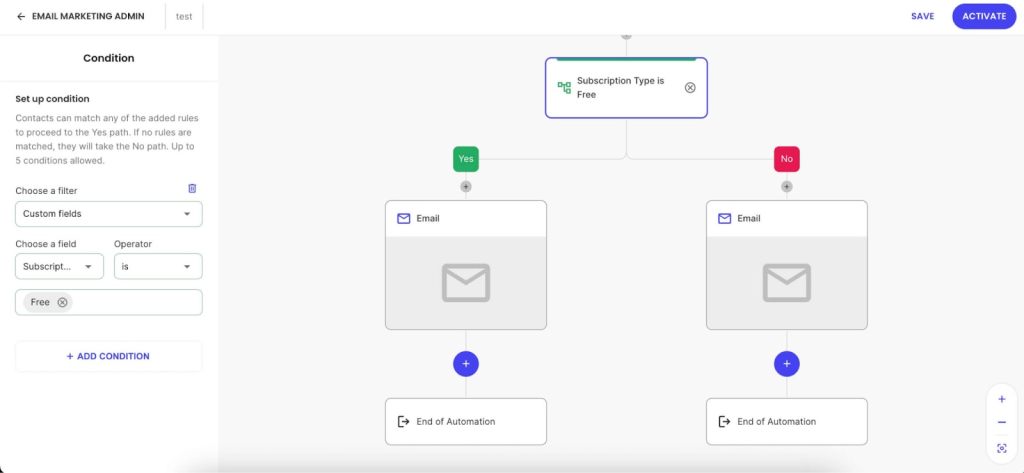
An easy way to handle this: if you collected the customer’s email during the service, add them to a follow-up email automation sequence as soon as the job is done. Keep that first email short, personal, encourage customers to share their feedback, and include a direct link to your Google review page. 

Example email of following up with a customer to get reviews and build local presence

Not familiar with setting up email automation? Don’t worry: getting started with post-job email sequences couldn’t be easier with SiteGround Email Marketing. No technical experience is needed — and if you’re already using SiteGround Website Builder, you can manage your website, your email list, and your automations all in one place. 

Prioritize the right platforms

Focus on Google first, since Google reviews have the most direct impact on local rankings. Then build presence on industry-specific platforms relevant to your trade, such as Houzz or Angi for home services or Thumbtack for general service businesses.

Respond to every review

Responding to online reviews — both positive and negative — signals to Google that your profile is active, and signals to potential local customers that you’re professional and engaged. According to BrightLocal, 88% of consumers say they are more likely to use a business that responds to all its reviews.

5. Measure what’s working

Tracking the right metrics is the only way to know whether your local SEO efforts are paying off. Here’s what to continually monitor and where to find it.

Key metrics to monitor

  • Google Search Console: Filter for local queries to see which location-based search terms are driving impressions and clicks to your site
  • GBP Insights: Track calls, direction requests, and website clicks directly from your profile — these are strong indicators of real-world intent
  • Service area page traffic: Monitor organic traffic to individual location pages in GA4 to see which areas are gaining traction

Realistic timelines

Most service-area businesses start to see early movement within 60 to 90 days of optimizing their GBP and building out citations. Meaningful results (such as consistent local pack appearances, steady inbound leads) typically take 3 to 6 months. Local SEO (like all SEO) compounds over time, so the earlier you start, the better your baseline becomes.

Your local SEO checklist

This all sounds good in practice, but now it’s time for the rubber to meet the road. Use the below checklist as your reference point once you’ve finished reading.

Google Business Profile

  • Set up or claimed as a service-area business
  • Address hidden from public display
  • Service areas defined accurately
  • Categories, services, photos, and description complete
  • Posting cadence established

Citations and NAP

  • Consistent business name, phone, and address across all directories
  • Listed on Google, Yelp, Bing Places, Apple Maps
  • Existing citation inconsistencies audited and cleaned up
  • Avoid using a PO Box as your primary address

Service area pages

  • Dedicated page created for each key city or region
  • Each page has unique, locally relevant content
  • “Near me” language included naturally
  • Service area pages linked to each other internally

Reviews

  • Post-job review request process in place
  • Follow-up sequence set up (text or email within 24 to 48 hours)
  • Responding to all reviews consistently
  • Listed on relevant industry platforms beyond Google

Tracking

  • Google Search Console set up and filtering for local queries
  • GBP Insights being checked regularly
  • GA4 tracking service area page performance

Take your local SEO further

The thing about local SEO is that it rewards consistency over cleverness. But you don’t need to do everything at once. Start with your GBP, get your citations in order, build out your first few service area pages, and put a review system in place. Then track what’s working and build from there.

The businesses that win at local search aren’t always the biggest or the best-funded. They’re the ones that show up consistently, in the right places, with the right information. For service-area businesses, that’s entirely achievable — and, good news for you, most of your competitors haven’t figured it out yet.

Everything in this guide — your service area pages, your GBP, your review follow-up sequences — works better when it’s anchored to a fast, well-structured website. Local SEO is one of the highest-impact channels in your broader website marketing strategy, and unlike paid ads, it compounds over time. 

SiteGround’s Website Builder gives you an easy-to-create foundation for this: SEO-ready, mobile-responsive, and connected to SiteGround Email Marketing so you can manage your entire local presence in one place. No developer required.

Local SEO FAQs

What is local SEO for small businesses?

Local SEO is the practice of optimizing your online presence to appear in local search results when potential customers look for businesses or services in a specific area. For small local businesses, it typically involves optimizing your Google Business Profile, building consistent citations, generating reviews, and creating locally targeted website content.

How much does local SEO cost for a small business?

Costs vary widely depending on whether you do it yourself or hire help. DIY local SEO can cost very little beyond your time, especially in the early stages. Hiring a freelancer or agency typically ranges from a few hundred to several thousand dollars per month depending on the scope of work and competitiveness of your market.

Is SEO worth it for a small business?

Yes, particularly having a local SEO strategy. Unlike paid advertising, which stops the moment you stop spending, local SEO helps build visibility that compounds over time. For service-area businesses with limited marketing budgets, it’s one of the highest-return investments available.

Do I need a website to rank locally as a service-area business?

Technically you can rank with just a GBP listing, but a website significantly increases your chances — especially for competitive searches. Service area pages, in particular, require a website to exist. A fast, well-structured site also strengthens your overall local authority.

How do I rank in a city where I don’t have an office?

Build a dedicated service area page for that city on your website, ensure your GBP service areas include that location, gather reviews that mention the area, and build citations that reference your service coverage. Over time, these signals combine to establish relevance in that market.

Will AI search affect my local SEO as a service-area business?

It’s already starting to. AI tools like ChatGPT and Google’s AI Overviews are being used to find and recommend local businesses, and they tend to pull from businesses with strong GBP profiles, consistent citations, and a healthy review base. Essentially the same things that drive traditional local rankings. If you want to go deeper on how AI is changing SEO more broadly, we’ve got you covered.

WordPress backups: Why daily backups may not be enough for your live site

Hero image of a laptop displaying a website dashboard with performance and security metrics, surrounded by floating icons representing cloud backups, data protection, alerts, bug detection, and password security.
.post-page__post-content figure figcaption { color: #666 !important; font-size: 0.875rem !important; line-height: 1.5 !important; text-align: left !important; background: none !important; position: static !important; padding: 8px 0 0 !important; } .post-page__post-content figure figcaption a { color: #4343F0 !important; }

Most websites have some form of backup system in place. A hosting provider runs daily snapshots, or a backup plugin handles scheduled exports. The box is checked, and the assumption is that if something breaks, there’s a recent copy to fall back on.

But “having backups” and “being protected” aren’t the same thing. 

Key takeaways:

  • Having backups doesn’t equal protection. What matters is how recent and complete your last backup is, and how easily you can restore it.
  • Daily backups can still mean hours of lost data (orders, forms, content) on active sites.
  • A full backup must include both files and the database, captured at the same time.
  • The data loss window (time since the last backup) determines how much you lose during a restore.
  • Backup reliability also depends on off-site storage, retention, and ease of use—not just frequency.
  • Sites with frequent changes (ecommerce, user data, active content) often need hourly backups.

This article breaks down:

  • what a WordPress backup actually covers,
  • how the gap between your most recent backup timestamp and the present creates real exposure,
  • and how to evaluate whether your current setup matches the risk your site carries.
.post-page__colored-blocks.post-page__colored-blocks–important p { margin: 15px 0px; }

The backup principles covered here apply to any database-driven site or CMS, not just WordPress. 

We’re using WordPress as the framework because it powers over 40% of the web and is the most common context where these decisions come up.

What happens when your backup isn’t recent enough

Let’s imagine the following scenario:

.post-page__colored-blocks.post-page__colored-blocks–update p { margin: 15px 0px; }

It’s 4 PM on a Tuesday. A plugin update on your WooCommerce store goes wrong and the checkout flow breaks. You catch it within the hour and decide to restore from backup.

Your last backup was created at 6 AM. That’s 10 hours ago.

The restore works and the site is back online. But everything that happened between 6 AM and 4 PM is gone. 

Every order, every form submission, every customer account created, every content edit your team made. All of it rolled back to the state your site was in before the workday started.

The backup didn’t fail. It restored your site to the most recent snapshot available. The problem is that the snapshot was 10 hours old, and your site didn’t stand still during those 10 hours.

This is the gap most site owners don’t think about. Daily backups are standard with good hosting providers, and they work well as a safety net for a wide range of situations. 

But for sites that process transactions, collect user data, or publish content throughout the day, the distance between the last backup and the moment something breaks is the difference between a clean recovery and hours of data loss. These can be orders that exist only in a customer’s email confirmation, form submissions with no other record, or any other content that has to be recreated from memory.

The question worth asking isn’t whether you have backups. It’s whether your backup frequency matches the pace at which your site actually changes.

What a WordPress backup actually includes

A WordPress site is made up of two distinct layers, and both are required for a working restore.

  • Site files: everything stored in the website root directory on your web server. This includes WordPress core files (wp-admin, wp-includes), themes and plugins inside the wp-content folder, uploaded media files, and configuration files like wp-config.php and .htaccess.
  • The database: where your actual content lives. Posts, pages, comments, WooCommerce orders, user accounts, plugin settings, and site configuration. Every piece of dynamic data your site generates is stored here.

These two layers are separate. Your WordPress files sit on the hosting server’s filesystem; your database runs on a database server. Backing up one without the other leaves you with an incomplete recovery path:

– Files without the database give you a shell: your theme, plugins, and uploads, but no content, no settings, no user data.
– The database without files gives you all your content and data, but no theme to render it, no plugins to extend functionality, and no media to display.

A complete backup requires both your website files and the database, captured at the same point in time. A file backup from Monday paired with a database backup from Wednesday creates inconsistencies that can break a site just as effectively as the problem you’re trying to recover from.

How automatic backups work on a live site

Most hosting providers run automatic backups on a schedule, typically once per day during off-peak hours. The backup process creates a snapshot of your entire site at that moment: every file and the full database, captured as a single restore point.

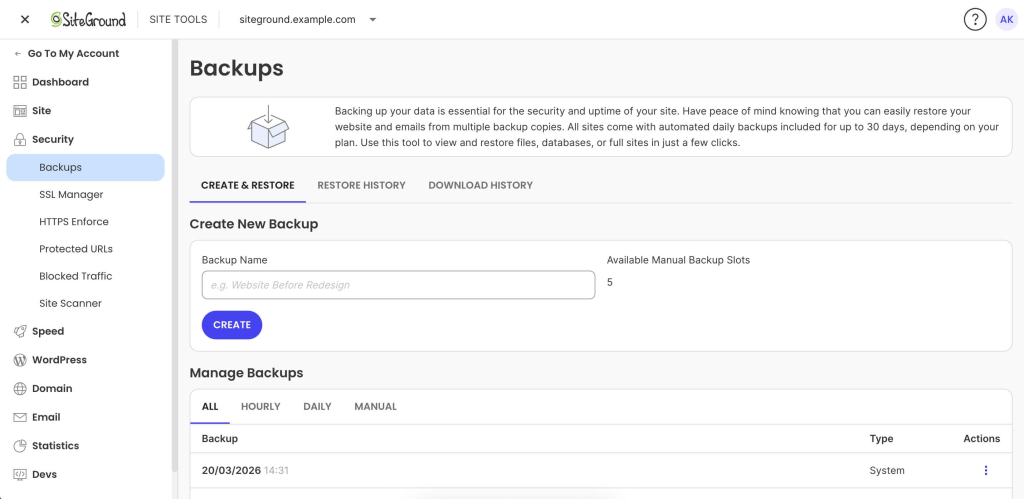
SiteGround Site Tools Backups page showing options to create a new backup and manage existing backups with restore actions.

Screenshot of SiteGround’s backups page in Site Tools.

If you are running a simple brochure-site that does not get updated often, and has no dynamic elements, this may be sufficient. 

However, if you are running a high-traffic, dynamic site, it most likely keeps changing between snapshots. New orders, published content, plugin updates, form submissions, account registrations are not going to be saved in your last backup. It only gets captured when the next scheduled run completes.

This creates what’s sometimes called a data loss window. This is the gap between your most recent backup and the present moment. If you restore right now, everything that changed since the last snapshot is gone. On a quiet site, that gap might not matter. On a site with active traffic and transactions, it can represent hours of irrecoverable data. 

Keep reading to understand how to evaluate your current backup system for such risks.

What changes between backups on a live site

The size of your data loss window depends entirely on how active your site is. On a live WordPress site, here’s what can accumulate between one backup and the next:

– Blog posts published, edited, or scheduled
– WooCommerce orders processed and inventory levels updated
– Form submissions: contact forms, quote requests, lead generation
– Plugin or theme updates applied (manually or via auto-updates)
– New customer account registrations and profile changes
– Comment activity across the site

A portfolio site updated once a week has a narrow gap. A WooCommerce store processing dozens of orders per day has a wide one. The more active the site, the more the question shifts from “do I have backups?” to “how recent is my last backup?”

The data loss window: real restore scenarios

The following scenarios aren’t hypothetical edge cases. They’re common failure patterns on live websites.

A broken plugin update on an ecommerce site

Similar to the example we gave above and very common: a WooCommerce plugin pushes an update at 2 PM. It introduces a conflict that crashes the checkout flow. You catch the issue by 3 PM and decide to restore.

With a daily backup from 6 AM, you roll back 8–9 hours. Every order placed that day is gone. Inventory levels revert. Customer accounts created during that window vanish. You’re left reconciling lost transactions from payment gateway records and accepting that some data no longer exists.

Malware injected and discovered late

Your site gets infected through a vulnerability in an outdated plugin. The malware is subtle: redirecting a small percentage of visitors to a phishing page, injecting spam links only search engines see, or adding a backdoor. You were on vacation and did not notice it for a week. 

This is where retention depth matters as much as frequency.

Let’s assume you are on a hosting plan where you have seven restore points, going seven days back. If the infection is older than a week, every available backup is compromised and you’re facing a manual cleanup with no clean baseline.

With 30 days of retention (standard on SiteGround shared hosting), you can step back through the last month to find a clean snapshot from before the infection, even if you didn’t catch the problem quickly. 

Accidental content deletion on a high-traffic site

This happens more often than you’d think. For example, a team member reorganizes pages in the dashboard mid-morning and accidentally deletes a high-performing landing page. Nobody notices until end-of-day traffic reports show an unexplained drop.

With a daily backup from the previous night, the page is recoverable. But restoring a full site backup to get one page back means rolling back everything else: new content, updated products, orders, form submissions. You recover the page but lose a day’s worth of work across the rest of the site.

This is where the ability to restore specific components matters. 

SiteGround’s restore process allows restoring specific files, databases, or both independently, so you can do a partial restore without forcing a full-site rollback.

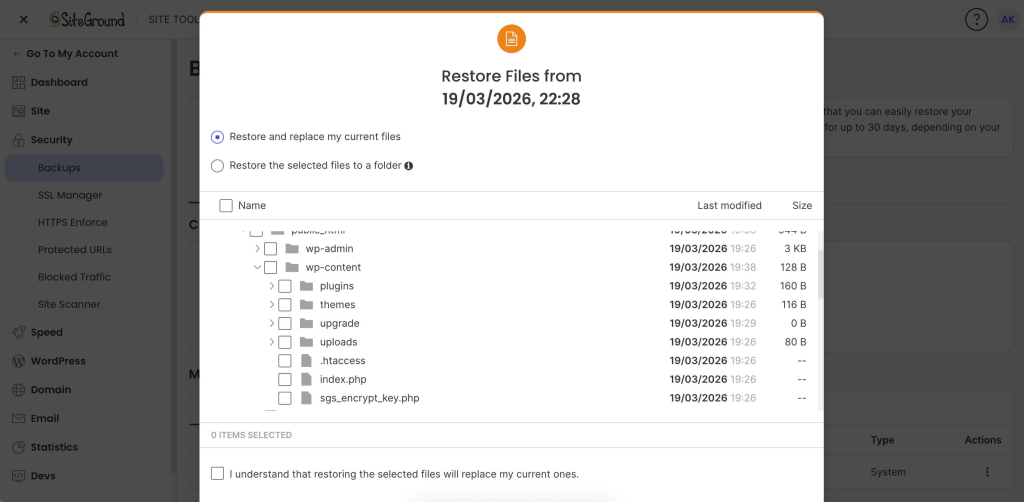
Restore interface showing file selection options, including replacing current files or restoring selected files to a folder.
The partial restore dialog window in Site Tools where SiteGround users can choose which files they wish to restore.

Daily vs. hourly WordPress backups: which do you need?

There’s no universal backup frequency that works for every site. The right answer depends on how your website is used, how often it changes, and how much data you can afford to lose.

When daily backups are enough

For relatively static sites like portfolios, brochure sites, blogs that publish once or twice a week, daily backups provide solid coverage. The data between scheduled backups is small and easy to recreate.

Daily backups are generally sufficient when:

– There are no ecommerce transactions or user-generated content to protect
– Content changes are infrequent and can be manually recreated if needed
– The acceptable data loss window is a full 24 hours

If this is your site, the priority shifts to making sure backups are stored off-site and that retention depth is sufficient for issues that aren’t caught immediately.

When you may need more frequent backups 

This changes quickly when your site generates data that can’t be recreated:

– The site processes transactions: orders, membership signups, bookings, or payments
– Multiple contributors are making content changes throughout the day
– The site collects form submissions, user registrations, or comments at volume
– Any amount of downtime or data loss has a direct revenue impact

In these cases, the acceptable window shrinks from 24 hours to a few hours or less. Hourly backups become a practical necessity.

.post-page__colored-blocks.post-page__colored-blocks–tip p { margin: 15px 0px; }

Questions to ask yourself

– If my site broke right now, when was my last backup?
– How much data would I lose between that backup and this moment?
– Could I manually recreate what’s lost, or is it gone forever?
– How long can my site be down before it costs me money or erodes trust?

The answers don’t require a technical background. They require an honest look at how your site is used and what is at stake.

What SiteGround covers by default, and when to upgrade

SiteGround shared hosting includes 30 daily automatic backups, stored in a geographically separate location, with easy partial restores and one-click full rollback through Site Tools. For many websites, this provides strong baseline coverage with enough retention to handle most recovery scenarios.

For active ecommerce stores, agencies managing client sites, or high-traffic content operations, Premium Backups adds hourly snapshots retained for 48 hours alongside the existing daily retention, plus downloadable backup copies for an independent recovery path.

A promotional banner for the SiteGround Premium Backups service.

The upgrade decision maps directly to the framework above: 

If your acceptable data loss window is measured in hours rather than days → hourly backups are a straightforward, risk-based investment.

What makes a backup strategy actually reliable

How often you back up your site gets most of the attention, but it’s only one dimension. 

Storage location

If your backup files sit on the same server as your live site, a single server failure destroys both. Backups hosted in the same datacenter, while better than same-server backups, also involve risk: a datacenter-level incident can still take out everything.

Off-site storage is the baseline. Storing backups on geo-distributed infrastructure, in a physically separate location from your hosting server, is the gold standard. 

SiteGround’s backup system is entirely geo-distributed and included without any additional charges for all sites, on all hosting plans. 

Retention depth 

Frequency decides how recent your latest restore point is. Retention decides how far back you can go.

This distinction matters most when problems aren’t immediately obvious: malware that sits undetected for days, a configuration change that causes subtle issues over time, or content deleted and only noticed later. In each case, you need to step back through multiple restore points. Shallow retention eliminates that option.

SiteGround shared hosting retains 30 daily copies. Premium Backups adds hourly snapshots retained for 48 hours on top of that. The combination gives you granularity for recent issues and depth for problems that surface later.

Restore speed and simplicity

A backup is only as useful as your ability to restore from it under pressure. When your site is down and customers can’t complete purchases, the restore process needs to be fast, not a multi-step manual operation involving FTP clients, database imports, and file permission fixes.

Trying to manually restore a WordPress site can take hours, requires technical confidence, and introduces the risk of human error at exactly the moment you can least afford it. 

A hosting-level restore that takes a few clicks and runs in minutes changes the recovery experience entirely. For example, SiteGround’s restore in Site Tools lets you select a restore point, choose files, database, or both, and the system handles the rest.

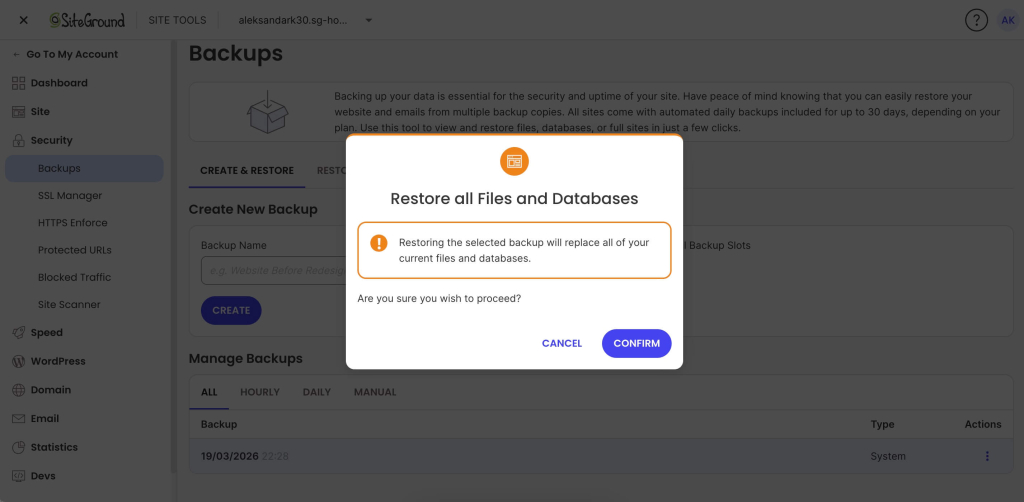
Confirmation dialog warning that restoring a backup will replace all current files and databases, with Cancel and Confirm options.
One-click confirm in Site Tools for restoring a full backup, which replaces all current website files and databases.

Downloadable backups

Hosting-level site backups cover the vast majority of recovery scenarios. But a downloadable copy gives you independence: a backup file that exists entirely outside your hosting environment. This is useful for:

– Migration to a new hosting provider
– Local development and testing with a production copy
– Redundancy for users who want a copy they fully control

SiteGround’s Premium Backup service includes full backups as a single-click download inside Site Tools. You can get a full copy of your website on your device at any time, without paid third-party WordPress plugins or manual export processes.

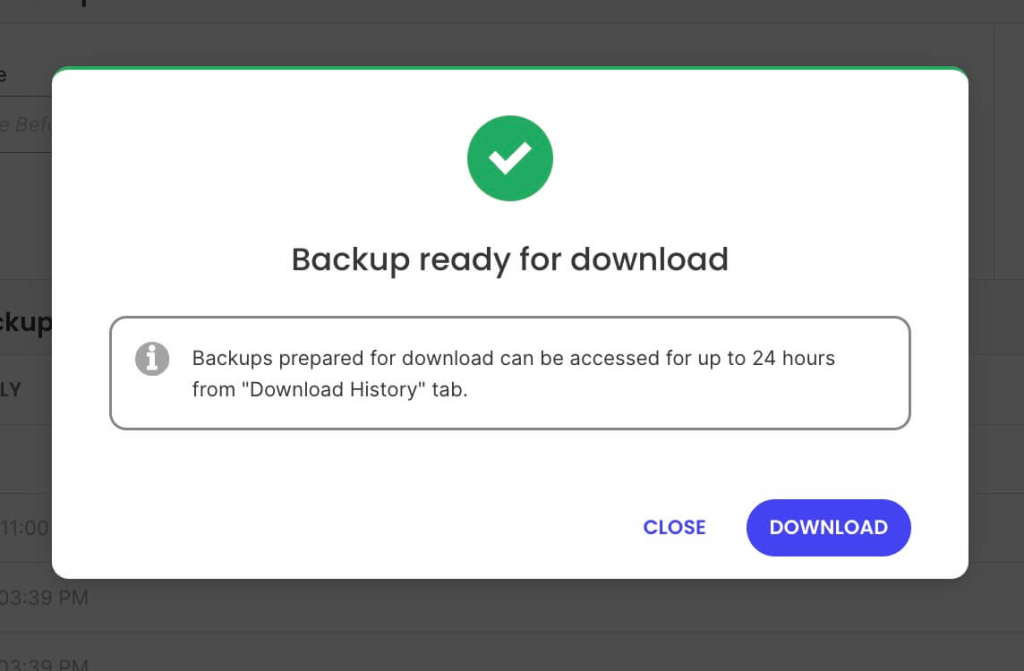
Popup confirmation showing “Backup ready for download” with a notice about 24-hour availability and a Download button.
Site Tools notification confirming a backup is ready for download.

How to evaluate your current backup setup

Everything above is practical only if you know where your own site stands. This is a self-assessment you can run in a few minutes, no technical expertise required.

Do a quick backup audit

Go to your hosting account and find the backup section. (If there isn’t one or you can’t find it easily, switch to another provider NOW.)

The main things you should check are: 

  • How many hours of data sit between your last backup and now?
  • If you restored that backup right now, what would you lose — and can any of it be recreated?
  • Are your backups stored on the same server as your live site, or in a separate location?
  • How many restore points do you have access to? (One recent backup isn’t the same as 30 days of daily snapshots.)
  • Have you ever tested a restore?

That last point is the most overlooked step in any backup strategy. Backups can fail silently: corrupted snapshots, incomplete captures, storage issues that go unnoticed until the moment you need to restore. 

Consider restoring to a staging site to verify the backup process works before you need it under real pressure. A backup you’ve never tested is a backup you’re trusting on faith.

What to do based on what you find

If your daily backup coverage matches your site’s risk profile (low activity, no transactions, easy-to-recreate content), you’re in a solid position. Make sure to verify your host is using off-site storage and also offers sufficient retention depth.

If the gap between your last backup and right now represents hours of data you can’t afford to lose, it’s worth considering hourly backups.

Either way, the single most valuable step is testing a restore at least once. Know the process before it’s urgent. Understand how long it takes, what options you have, and what the result looks like. That knowledge turns a backup from a line item on a features list into an actual recovery plan.

The bottom line

Having backups is not the same as being protected. The distance between your last backup and the present moment is where data disappears, and for active dynamic sites, that distance is measured in hours, not days. 

Evaluate your site based on what you’d actually lose if you had to restore right now, not on whether backups exist somewhere in the background. 

Test your restores, understand your retention, and make sure your backup frequency matches the real pace of change on your site. That’s the difference between a checkbox and a recovery plan. 

If that audit reveals gaps your current host can’t close (shallow retention, no off-site storage, no granular restore options), it may be worth evaluating a hosting provider where backups are built into the infrastructure from the start.


FAQ

Does WordPress have a built-in backup?

WordPress does not include a built-in backup system. Its autosave feature periodically saves post and page drafts while you’re editing, but that only covers individual content items. It doesn’t capture your WordPress database, plugins, themes, uploaded media files, or site configuration.

For site-level backups, you need either a hosting provider that includes automatic backups, a dedicated backup plugin or manual exports. 

Where do I find my WordPress backups?

It depends on how your backups are created.

If your hosting provider handles backups, you’ll find them in your hosting control panel. On SiteGround, that’s Site Tools → Security → Backups, where you can manage all backup features.

If you use a backup plugin like UpdraftPlus or Duplicator, backups are managed from the plugin settings inside your WordPress dashboard. If you’ve configured remote storage, such as Google Drive, Dropbox, or a cloud storage service like Amazon S3, your backup files will also be stored in whichever service you connected during setup.

How do I back up my entire WordPress site?

A full backup requires both your site files and your database. The file layer includes WordPress core files, themes, plugins, and everything inside the wp-content folder, including all uploaded media. The WordPress database contains posts, pages, comments, orders, user accounts, plugin settings, and site configuration.

Good hosting providers handle this automatically. SiteGround creates full site backups daily, capturing both files and database in a single snapshot. Paid third-party plugins can also create a complete backup and store it in a remote storage location of your choice.

Ecommerce website design ideas that convert browsers into buyers 

abstract of ecommerce website design ideas

High-converting ecommerce website design isn’t about how impressive your store looks, but rather about how easily shoppers can move from browsing to buying. The most effective sites reduce friction, guide attention, and build trust at every step, from the homepage to checkout.

This guide breaks down practical ecommerce website design ideas that actually drive sales, with clear examples across your homepage, navigation, product pages, and checkout, so you can see what to change and why it works.

Key takeaways:

  • Conversion beats aesthetics – High-performing ecommerce websites prioritize clarity, speed, and usability over looking fancy or flashy.
  • Reduce friction and build trust – Streamline navigation, speed up load times, and use social proof early to keep visitors engaged.
  • Homepage clarity matters – Use a clear hero section, prominent categories, and Z-pattern layouts to direct attention and simplify decisions.
  • Product pages close the deal – Show multiple product angles, highlight prices and promotions early, use real scarcity, and make CTAs impossible to miss.
  • Checkout should be frictionless – Enable guest checkout, remove distractions, and keep CTAs sticky on mobile to reduce abandonment.
  • Design for mobile first – Prioritize thumb-friendly layouts, legible product grids, and large tap targets to boost mobile conversions.

What makes good ecommerce website design?

Good ecommerce website design is about making it easy for shoppers to find what they want, trust what they see, and buy without hesitation. In fact, some of the highest-performing ecommerce sites (take Amazon, for example), prioritize usability over visual polish, focusing on clarity, speed, and frictionless purchasing rather than all the fancy aesthetics.

Three principles underpin almost every design decision that actually makes a difference:

1. Shoppers scan, they don’t read. Your visitors are not sitting down with a cup of tea to carefully read your homepage (if only!). They’re skimming. Their eyes jump to images, prices, buttons, and bold text. This is why visual hierarchy matters — your layout needs to guide the eye to the right information in the right order, because if shoppers have to hunt for it, most won’t bother.

2. Friction kills conversions. Every extra click, every unnecessary form field, every moment of confusion is a small reason to leave. The best ecommerce designs don’t just look good; they remove obstacles. The path from “I want this” to “I bought this” should be as short and smooth as possible.

3. Trust is earned in seconds. A shopper who lands on your store for the first time knows nothing about you. Within a few seconds, your ecommerce website design is already communicating whether you’re credible or not. Consistent branding, professional imagery, reviews, and clean layouts all reinforce credibility before a single word of copy is read — and it all starts the moment your page loads.

These principles sit at the heart of effective ecommerce website design, no matter what products you sell. They’re the lens through which every good design decision is made.

Why site speed is a design decision

Fast performance is a core part of ecommerce website design, not just a technical detail. A Deloitte and Google study found that a 0.1 second improvement in load time leads to an 8.4% increase in ecommerce conversions. Slow pages don’t just frustrate visitors; they signal an unprofessional experience before your design has had a chance to make an impression.

SiteGround Ecommerce is built with speed baked in, so your store loads fast for every visitor without you needing to do anything extra. Faster pages, better first impressions, more sales.

Start building your online store now>>

[79]

Homepage design ideas

Your homepage design is often the first impression of your ecommerce website design. Here’s how to make it count.

Let the Z-pattern guide your hero design

The hero section is the large visual area at the very top of your homepage — the first thing visitors see when they land on your page. It’s your most valuable real estate.

Most shoppers won’t scroll far. Engagement drops sharply once visitors move below the fold (the point where they have to start scrolling), which means content lower down the page is content many shoppers simply won’t see. So your hero needs to do real work: communicate what you sell online, why it’s worth buying, and what to do next.

There’s no single correct layout, but the Z-pattern, as shown in the homepage example below, is a reliable starting point. On visually led pages, the eye travels in a Z shape (across the top, diagonally down, then across the bottom) so placing your CTA along that path means it lands exactly where attention naturally goes. 

Using a z pattern in your ecommerce website design

Centered hero layouts and split-screen image-and-text formats work well too. The principle is the same either way: give the eye a clear path and make the next step obvious.

The idea: A single, high-quality hero image paired with a one-line unique selling proposition and one primary CTA button. Resist the urge to add multiple competing links or banners. One clear next step always outperforms three vague ones.

Why it works: You’re meeting the scanner where they are. A clean hero with a clear CTA gives the eye a path to follow, and a decision that’s easy to make.

Let social proof do the selling

Small businesses often put social proof, such as reviews, at the bottom of the homepage, in the footer, or on a dedicated testimonials page. This is a missed opportunity. Trust signals work hardest when they appear at the moment a visitor is deciding whether to stay or go, which is near the top of the page, not the bottom.

The idea: Add a simple social proof strip near your hero. This could be a star rating with a review count (“4.8 stars from 1,200 customers”), a row of press logos, or a short pull quote from a real customer. On product pages, display star ratings and review counts prominently near the price, before the description.

ecommerce website with social proof such as client logos

Why it works: Trust signals placed near your primary CTA reduce hesitation at exactly the right moment. A visitor who sees strong social proof before they’ve scrolled anywhere is far more likely to keep exploring, and a shopper who sees reviews next to the price is far more likely to buy.

Make your categories instantly obvious

If you sell more than one type of product, your homepage needs to help visitors self-select quickly. A shopper looking for a specific category shouldn’t have to dig through your navigation just to shop online for what they need.

Ecommerce website design with obvious product categories

The idea: Feature three to four category tiles prominently on the homepage, with clear labels and strong images. They should either be visible without scrolling, or immediately below the hero at most.

Why it works: This is about cognitive load: the mental effort required to make a decision. The more a visitor has to think about where to go next, the more likely they are to give up and leave. Clear categories remove that friction and route shoppers toward what they actually want.

Online store structure and navigation design ideas

Good ecommerce website navigation is the backbone of a store that converts. It’s how shoppers move from curiosity to purchase, and when it’s unclear, confusing, or cluttered, they leave. Your website structure should make the ecommerce journey effortless so that site visitors can find what they’re looking for, orient themselves at any point, and take the next step without having to think too hard.

Keep your navigation simple and honest

The temptation with ecommerce navigation is to show everything upfront. More categories means more products visible, right? In practice, the opposite is true. Too many options in your top navigation creates decision fatigue. Shoppers freeze, scan without clicking, and bounce.

The idea: Limit your main website navigation to your most important categories — typically five to seven at most. If your catalog is large, use a clean dropdown rather than a sprawling mega menu. If it’s small, a simple flat nav works best. Every navigation item should describe exactly what’s behind it; clever labels might feel on-brand but they slow people down.

Why it works: Clear, simple navigation reduces the mental effort required to explore your ecommerce store. Shoppers who can orient themselves quickly are far more likely to keep browsing, and far more likely to buy.

Make search visible for larger catalogues

For stores with more than a few dozen products, search is often the fastest path to purchase. A shopper who knows what they want shouldn’t have to browse through category pages to find it, but if your search bar is hidden, small, or hard to find, they won’t use it.

The idea: Place your search bar prominently in the header, visible on every website page. On mobile, use a recognizable magnifying glass icon that expands into a full search field on tap.

Why it works: Shoppers who use site search have already told you what they want: they’re further along in the buying process and far more likely to purchase. According to an eConsultancy study, site search users converted at 4.63% compared to the site average of 2.77%. Making search easy to find captures that high-intent behavior before it turns into frustration.

Use breadcrumbs to keep shoppers oriented

Breadcrumbs are the small navigation trail that shows a shopper where they are in your online store (for example, Store > Bath & Body > Honey Body Scrub, as seen below). They’re easy to overlook in the ecommerce website design process, but they play an important role in keeping visitors oriented, especially those who land directly on a product from a search engine.

The idea: Add breadcrumb navigation to all category and product pages. Keep them simple, clickable, and positioned above the product.

Ecommerce website with breadcrumbs for easy navigation

Why it works: Shoppers who feel lost in a store leave. Breadcrumbs give them a clear sense of where they are and an easy way to step back without hitting the browser’s back button, reducing bounce and encouraging further exploration.

Shorten the path to purchase

Every click between a visitor landing on your online store and completing a purchase is an opportunity to lose them. A well-structured ecommerce website gets shoppers from discovery to checkout in as few steps as possible.

The idea: Audit your click depth — how many clicks does it take to get from your homepage to a completed purchase? Three to four is a reasonable target. If your catalog structure requires more than that, look at where you can create shortcuts: featured products on the homepage, direct category links in the navigation, and prominent CTAs on category pages that bypass unnecessary browsing steps.

example diagram of a website structure click audit

Why it works: Friction compounds. Each additional step in the path to purchase introduces a new opportunity to abandon. A leaner ecommerce website structure keeps momentum going in the right direction.

Building your store with SiteGround Ecommerce

Setting up clean, intuitive site structure doesn’t have to be a technical challenge. SiteGround Ecommerce comes with the key navigation and structure features built in, including an easy-to-manage navigation menu, automatic breadcrumb navigation on category and product pages, and a built-in search bar so shoppers can always find what they’re looking for. Conversion best practices like these are organized logically from the start, without you needing to figure it out from scratch or hire a developer to make it work.

Build your online store with SiteGround Ecommerce>>

Product and listing page design ideas

If the homepage gets visitors interested, the product page is where ecommerce website design turns interest into purchases. These ideas will help you close the deal. 

Show the product from every angle

Online shoppers can’t pick up your product, turn it over, or hold it up to the light. The closest you can get to replicating that experience is giving them as many visual angles as possible. 56% of users’ first actions on a product page are to immediately begin exploring product images — that’s before reading the description, checking the price, or doing literally anything else.

The idea: Use a minimum of three angles for every product — front, back, and detail or lifestyle. On your listing (grid) pages, enable a hover image so that a second product photo appears when a cursor moves over the product thumbnail.

Why it works: Uncertainty is one of the top reasons people abandon carts. When a shopper isn’t sure exactly what they’re getting, they hesitate. More images reduce uncertainty, and uncertainty is the enemy of conversion.

Put price and promotions where eyes land first

Price is one of the first things shoppers look for. If they have to scroll past a description, a gallery of images, and three bullet points to find it, many won’t bother. They’ll go back to Google and find an online store that makes it easier.

ecommerce web design with obvious product price and promotions

The same logic applies to promotional labels. A “sale” tag that’s buried below the fold isn’t doing its job. This kind of signal is meant to create interest and urgency, and they only work if they’re seen early.

ecommerce product grid with clear sale icon

The idea: Place your price and any promotional labels (sale, low stock) at the top of the product page. On listing pages, make sure pricing and promo badges are visible without any interaction.

Why it works: Shoppers are scanning for specific information. Put the things they most want to see at the top, and you reduce friction at one of the most critical points in the buying decision.

Use scarcity signals (but keep them honest)

Scarcity is one of the most powerful psychological triggers in ecommerce. “Only 13 items left” creates a sense of urgency that a discount alone can’t replicate, as it introduces the fear of missing out entirely, not just the fear of paying more later.

Ecommerce product page design with limited stock

The caveat is important, though: fake scarcity destroys trust. If a product has been “almost sold out” for six months, shoppers notice. And once trust is gone, it’s very hard to earn back.

The idea: Display real low-stock labels when inventory genuinely is limited. If you have a time-sensitive promotion, a simple countdown or end-date label is equally effective. 

Why it works: Real scarcity creates urgency without requiring a price cut, and urgency shortens the decision-making window. Just make sure it’s real.

The good news is that keeping it real doesn’t require any manual work. SiteGround Ecommerce automatically displays sale badges and stock levels based on your actual inventory, so your scarcity signals are always accurate and always up to date.

Make your CTA impossible to miss

Your “Add to cart” button is the most important key element on the product page. Everything else (the images, the description, the reviews) exists to build the case for clicking it. So why do so many online stores bury it in a sea of visual noise?

The idea: Your CTA button should be high-contrast, meaning its color stands out on the page. It should sit above the fold, before any scrolling is required. Remove competing elements from the area immediately around it, such as links, banners, and secondary buttons dilute attention.

ecommerce web deign with noticeable CTAs

Why it works: Button contrast is consistently one of the highest-impact, lowest-effort wins in ecommerce A/B testing. A button that stands out visually gets clicked more. That’s it. That’s the whole insight.

Getting your product page layout right takes time — unless it’s already done for you. With SiteGround Ecommerce, pages are structured around conversion best practices by default, with image galleries, prominent pricing, review display, and high-contrast CTA placement built in. So instead of second-guessing where to put things, you can focus on what really matters: your products.

Checkout design ideas

You’ve done the hard work of convincing someone to buy. The checkout is where it can all fall apart, and often does. These ideas reduce the risk of losing that hard-earned sale at the final hurdle.

Offer guest checkout (don’t force an account)

Almost one in five shoppers abandon their order simply because they don’t want to create an account. Think about it from the customer’s perspective: they’ve decided to buy, they’re ready to pay, and then they’re told they have to create a password and confirm their email address first. It’s annoying friction at the worst possible moment — and we’ve all probably been there.

The idea: Make guest checkout the default or the most prominent option on your checkout page. You can always invite customers to create an account after the purchase is complete (you know, when they’re already happy and have nothing to lose).

ecommerce website with a check out as guest option

Why it works: Removing mandatory registration eliminates one of the most common drop-off points in ecommerce. Fewer barriers at checkout means more completed purchases.

Keep the CTA sticky on mobile

On mobile, checkout can feel long and form-heavy. If your “Continue to payment” button is only visible at the top of the page, a shopper who’s worked their way through the form has to scroll all the way back up to complete the purchase. Many won’t bother.

The idea: Implement a sticky CTA bar at the bottom of the screen on mobile checkout, so the final action is always within reach no matter how far the shopper has scrolled. Bonus: include a scroll-to-top button that makes it extra easy to go back to the top of the page.

mobile website with a floating add-to-cart button

Why it works: The fewer steps between intent and action, the higher the conversion rate. A sticky CTA removes a small but real piece of friction at the exact moment shoppers are most ready to buy.

Strip the checkout page back

Your checkout page has one job: get the shopper from “I want to buy this” to “I have bought this.” Every element on that page that isn’t directly related to completing the purchase is a potential distraction, and potentially an exit.

The idea: Remove your main navigation, promotional banners, sidebar content, and any non-essential links from the checkout. The shopper should have nothing to look at except the path to completing their order.

Why it works: More elements on a checkout page means more opportunities to leave. A stripped-back checkout keeps the focus where it needs to be and significantly reduces abandonment at this critical stage.

Mobile-first design ideas

According to Statista, smartphones accounted for over three-quarters of retail site visits in the US in 2024 — yet desktop, generating just 23% of traffic, represented 31% of all purchases. The gap isn’t about screen size. It’s about mobile web design. Most online stores were built for a cursor and a keyboard, not a thumb and a small screen. Yours doesn’t need to be one of those stores.

Design for how people actually use their phones

On a desktop, every part of the screen is equally accessible. On a mobile device held in one hand, that’s not true. The top corners of the screen are the hardest to reach for mobile users, while the lower-center area is the most natural resting zone for the thumb. If shoppers can’t easily see or tap your CTA, they won’t.

The idea: Audit your mobile layout with thumb zones in mind. Your primary CTA (most importantly the “Add to cart” button on product pages) should sit in the lower half of the screen where it’s easy to reach without repositioning your hand. Consider a sticky “Add to cart” bar that follows the user as they scroll through product images and descriptions, so the action is always visible. 

Button size matters here too — both Google and Apple recommend a minimum tap target size of 44×44 pixels, which helps ensure buttons are easy to tap without mis-clicks. (This is also an important component of accessible web design.)

Why it works: Ease of use is a conversion factor. If tapping the most important button requires an awkward stretch, some users simply won’t bother. Small ergonomic adjustments can have a measurable impact on mobile conversion rates.

Simplify your product grid on mobile

A three-column product grid might look clean on desktop, but, on mobile, it produces tiny images, unreadable text, and tap targets so small that mis-clicks become a regular occurrence. Frustration at this stage sends shoppers elsewhere.

The idea: Use a one-column grid layout on mobile, with large tap targets and enough white space between items to make browsing comfortable. Product names and prices should be legible without zooming.

Example of ecommerce web design product grid simplified for mobile

Why it works: A grid that’s easy to browse encourages exploration. A grid that requires squinting and precision-tapping encourages leaving. Simplicity at the browsing stage keeps shoppers engaged long enough to reach the product page.

Ecommerce website design: Get started now

You made it to the end, which means you’re serious about building a store that actually sells, not just one that looks good in a screenshot.

The ideas in this article aren’t complicated. Put the important things where eyes go. Build trust early. Remove friction at every step. Make the “buy” button impossible to ignore. These aren’t secrets; they’re fundamentals that get overlooked when everyone is busy chasing the next piece of design inspiration instead of focusing on what actually drives sales.

If you’re starting from scratch or starting over, SiteGround Ecommerce has all of this covered. Product pages, checkout, mobile optimization, site speed: it’s all handled out of the box, so you can skip the guesswork and get straight to selling. Your job is to know your products. Ours is to make sure the design doesn’t get in the way.

FAQs

Can I build an ecommerce website on my own?

Yes — and it’s more accessible than it’s ever been. Modern website builders like the SiteGround Website Builder include ecommerce functionality built in, with templates and layouts designed around conversion best practices. You don’t need to know how to code, hire a web designer, or start from a blank canvas. Most first-time sellers can have a functional, good-looking store live within a day or two.

Which ecommerce platform is best for small business?

For small ecommerce businesses and first-time sellers, the right ecommerce platform is one that handles the hard stuff for you. SiteGround Ecommerce is built with conversion best practices baked in — product pages are structured for high-intent shoppers, checkout is optimized to reduce abandonment, and your store automatically adjusts for mobile without any extra work on your end. Fast, secure hosting is included, so your pages load quickly out of the box. And because everything — your store, your hosting, your design tools — lives in one place, you’re not stitching together separate services or paying multiple subscriptions just to get started.

How do I make my ecommerce site look professional without a big budget?

Professionalism in ecommerce website design comes down to the fundamentals covered in this article, and not how much you spend. Keep your website layout clean and uncluttered, place your most important information where eyes naturally land, and make sure your CTA button stands out. Use high-quality product images shot from multiple angles, display reviews prominently, and make sure your online store loads fast. Meanwhile, consistent branding goes a long way toward making a store feel considered and trustworthy. None of this requires a designer or a big budget — just attention to the basics that most online stores overlook.

What is the most important web design change I can make to improve conversions?

It depends on where your biggest drop-off point is, but for most stores, one of the highest-impact, lowest-effort changes is fixing your CTA button. Make it high-contrast, position it above the fold on your product pages, and remove competing visual elements from around it. It’s a change most stores get wrong, and one that tends to show results quickly.

Email list cleaning explained: When, why, and how

Illustration showing a contact moving from an email form to a cleaned subscriber list

If your emails aren’t performing the way you’d expect, your list might be the reason. Invalid email addresses, contacts who’ve gone quiet, people who never really meant to sign up — they all quietly chip away at your email deliverability and your results.

This guide helps you figure out what’s actually going on with your list, and what to do about it.

Key takeaways:

  • A dirty email list costs you money, damages your sender reputation, and makes your data unreliable
  • Email addresses go stale at a rate of 22-30% per year — list cleaning isn’t a one-time fix
  • Low open rates and click-to-open rates aren’t always a content problem — your list might be the culprit
  • Hard bounces should be removed immediately; soft bounces need a threshold before you act
  • Double opt-in is the simplest way to keep bad contacts off your list from the start

What is email list cleaning?

Email list cleaning, also called email list hygiene or email scrubbing, is the process of going through the email list you’ve built and removing addresses that shouldn’t be there. Think of it like cleaning out your closet: you’re not getting rid of everything, just the stuff that’s taking up space and serving no purpose.

That includes invalid or misspelled addresses that never deliver, contacts who haven’t engaged in a long time, duplicates, and spam traps.

Done regularly, it keeps your sender reputation intact, improves your email deliverability, and means your stats actually reflect how your emails are performing; not how much dead weight is dragging them down.

The real cost of a dirty email list

A dirty email list hurts you in three ways: 

  1. Inflates your costs
  2. Damages your sender reputation
  3. Skews your data so you can’t tell what’s actually working

Start with the money. Most email platforms charge by the number of contacts you have. So if a chunk of your list is made up of people who will never open your emails, you’re paying for them anyway and getting nothing back. And lists go stale faster than you’d think. Roughly 22-30% of email addresses become invalid every year as people change jobs, abandon old accounts, or simply move on, according to Bulk Email Checker.

Then there’s what it does to your reputation. Every bounce, every ignored email, every spam complaint sends a signal to inbox providers like Gmail and Outlook. Too many of those signals and they start marking your emails as unwanted: treating them as spam, even for email subscribers who actually want to hear from you. In the worst case, you can end up blacklisted. That means ISPs have flagged your domain or IP as a spam sender, and your emails get blocked before they even reach anyone’s inbox.

And if your list is full of people who never engage, your numbers lie to you. Low email open rates and click-to-open rates aren’t always a content problem. They’re often a sign your list is full of disengaged or irrelevant contacts.

How to tell if you need to perform email cleaning

You should definitely clean your email list when your deliverability starts slipping, your email engagement drops without a clear reason, or your email provider flags your account. But sometimes the signs are subtler than that, or even nonexistent, because the damage is building quietly in the background.

So you know what email list cleaning is and why it matters. But how do you know if your list actually needs it right now? These are the signals worth looking for.

Your email bounce rate is climbing

Your email bounce rate is the percentage of emails in a campaign that were rejected by the recipient’s mail server. A bounce here and there is normal. But if your bounce rate is consistently above 2%, your list has a problem. Hard bounces (emails sent to addresses that don’t exist) are the ones to watch most closely. They’re a direct signal to inbox providers that your list isn’t well maintained, and they add up fast.

SiteGround Email Marketing automatically suppresses hard-bounced contacts so they don’t keep affecting your deliverability. To keep an eye on how things are going, you can check your bounce rate and other campaign performance analysis in your email campaign reports.

SiteGround Email Marketing Campaign Report showing open rate, click-to-open rate, and bounce rate for multiple campaigns

Your open and click-to-open rates are trending down

If your open rate or click-to-open rate has been trending down without an obvious reason, disengaged contacts are likely dragging the numbers. These are people who are still on your list but haven’t opened or clicked anything in months, sometimes years.

Say you ran a Black Friday campaign and picked up 200 new subscribers. A few months later, most of them have gone quiet, but they’re still on your list, still counted in your totals, and still pulling your averages down every time you hit send.

Your ESP (email service provider) sent you a warning

Most email marketing platforms will flag your account if your bounce rate or spam complaint rate crosses a threshold. If you’ve had a warning, don’t ignore it. It means the problem is already affecting your sending ability.

You imported an email database and never cleaned it

Imported lists are high risk. Whether it came from an old CRM, a spreadsheet, or another platform, you have no way of knowing how stale it is or how those contacts were collected. 

Say you switched email platforms and brought your entire contact list with you. Some of those email addresses could be years old, collected through a form you no longer use, or from a campaign people barely remember signing up for. Sending to that list without cleaning it first is one of the fastest ways to damage your sender reputation.

You’ve just never done it

If you’ve been sending emails for a year or more and never removed anyone, your list almost certainly has dead weight. It doesn’t mean something is visibly wrong, it just means the problem is building quietly in the background.

Regardless of which situation sounds familiar, the fix follows the same logic: identify what’s dragging your list down, then remove it. 

These signals don’t just tell you something’s wrong. Each one points to a different kind of problem and a different fix.

How to clean your email list in four steps

Once you’ve identified what’s dragging your list down, the fix is more straightforward than it sounds.

#1. Remove hard bounces

Hard bounces need to go immediately. Every time you send to an address that doesn’t exist, you’re signaling to inbox providers that your list isn’t looked after and that signal sticks.

Pro tip: Remove hard bounces immediately; never let them sit

SiteGround Email Marketing handles this automatically. When an email hard bounces, the contact is moved to a suppressed list and won’t receive future email campaigns. That means your sender reputation is protected without you having to manually track down and delete problem addresses.

[58]

#2. Handle soft bounces

Soft bounces are temporary: a full inbox or the recipient’s mail server being briefly down. One soft bounce isn’t a reason to remove someone. But if the same address keeps bouncing, it’s a sign something more permanent is going on.

Best practice: set a threshold before removing
A good rule of thumb is three consecutive soft bounces. If an address has failed to deliver three times in a row, treat it like a hard bounce and remove it.

#3. Cut or re-engage disengaged subscribers

Inactive subscribers are people who haven’t opened or clicked anything in six months or more. They are worth a second look before you remove them. A short re-engagement email can tell you quickly who’s still interested and who’s just taking up space. Anyone who doesn’t respond is safe to remove.

#4. Scrub imported or old lists

Imported and old lists need extra scrutiny. You don’t always know how the contacts were collected, how long ago, or whether they ever consented to hear from you.

Quick tip: what to look for when reviewing an old or inherited list
Go through the list for obvious red flags: addresses with typos, generic role-based addresses like info@ or admin@, contacts with no engagement history, and anyone added more than two years ago without a recent interaction. When in doubt, leave them out.

Keep a clean email list going forward 

A clean email list isn’t a one-time project. It’s what keeps your emails reaching the right people, your stats telling the truth, and your sender reputation intact.

It also doesn’t have to be a big deal. Know what to look for, deal with the warning signs before they snowball, and set up a few habits that mostly run themselves. The simplest one: enable double opt-in. It means every new contact has confirmed they want to hear from you, which cuts out a big chunk of the problem before it starts.

If you’re on SiteGround Email Marketing, a chunk of that is already taken care of: hard bounces are suppressed automatically and you’re not left guessing where your email deliverability stands. The rest is a quarterly check and a bit of common sense.

Frequently asked questions about email list cleaning

How do I clean up an email list?

Start by removing hard bounces, then cut contacts who haven’t engaged in six months or more. Check for duplicates, typos, and any addresses that look like bot signups. If you’re on SiteGround Email Marketing, hard bounces are suppressed automatically — the rest is a periodic manual review.

How often should I clean my email list?

A light review every quarter is enough for most senders. If you’re seeing a spike in bounces, a drop in engagement, or a warning from your ESP, don’t wait. Clean it straight away.

What is the best free email list cleaner?

Most email platforms have basic list management built in. SiteGround Email Marketing automatically suppresses hard bounces and flags deliverability issues, so you’re not starting from scratch. 

How much is a 1,000-person email list worth?

It depends entirely on the quality of the list. A thousand engaged, opted-in subscribers who regularly open and click is worth far more than ten thousand contacts who haven’t interacted in years. List size is a vanity metric. Engagement and deliverability are what actually drive results.

10 ways to get more leads from your email signup forms

On paper, growing an email list sounds simple. In practice, you add a signup form, check your stats, and still see only a handful of new subscribers each month.

That’s because, people rarely hand over their email address without getting something useful in return.

In this guide, we’ll look at 10 practical ways to make your signup forms attract more subscribers: from improving what they offer to placing them where visitors are most likely to act. Along the way, you’ll also see how small tweaks can help you attract subscribers who are genuinely interested in what you sell.

Key takeaways:

  • Use forms not just to “get subscribers,” but to capture leads with clear buying signals.
  • Add one or two custom fields so you know what each person wants and how to follow up.
  • Connect forms to simple automations so every signup receives relevant emails instead of one generic sequence.

The 10 forms covered in this guide:

  1. Welcome discount form: for visitors close to buying
  2. Lead magnet form: for people researching a problem
  3. Back-in-stock notification: for products that sell out
  4. Price drop alert: for price-sensitive shoppers
  5. Waitlist form: for launches and fully booked services
  6. Webinar or event registration: for topic-specific audiences
  7. Challenge or course signup: for people who need structured help
  8. Interest-based form: so subscribers self-select what they care about
  9. Frequency preference form: so people choose how often they hear from you
  10. Forms for specific roles or audiences: for businesses with different customer types

Use more specific offers on your forms to get higher‑intent leads

Sometimes the only thing standing between you and more leads is what you offer on your signup forms. A “join our newsletter” call to action is too broad to attract qualified subscribers. The people who sign up for it are curious at best, not motivated. The ones who are actually close to buying need something more specific to stop and hand over their email.

Here are two form types that attract people who are already leaning toward action.

1. Lead with a welcome discount code

Best for: ecommerce, services, coaches
The job: “I’m interested in buying, but I need a small push to commit.”

This is the most straightforward value exchange: someone is considering a purchase, and you offer a discount in exchange for their email. You get a subscriber who has already shown buying intent, and they get a reason to act now instead of “someday.”

What makes it work

  • The visitor gets tangible value (10% off, free shipping, a bonus session, or a free sample).
  • You get a lead who is actively browsing your product or service and is likely to be interested in future emails and offers.
  • The email you send next has a clear purpose: “Here’s your discount code, here’s how to use it.”

If you sell services, this can be “X% off your first session,” “free audit,” or “bonus 30‑minute consultation” instead of a product discount.

Where to place it

  • Product or service pages, where purchase intent is highest.
  • Your homepage, for new visitors who are just discovering you.

What to ask for

  • Email (essential)
  • First name (optional but recommended, for personalizing subject lines and intros),

What to send next (simple 3‑email flow)

  • Email 1: Discount + how to use it
  • Email 2: Social proof (reviews, before/after, testimonials) for that category.
  • Email 3: Reminder before the discount expires, with one clear call to action. (if applicable)

2. Add a lead magnet for people actively looking for a solution

Best for: almost any business
The job: “I have a problem and I want a resource that helps me solve it right now.”

A lead magnet is a small, focused resource you give away so people are willing to give you their email and keep hearing from you. It might be a checklist, a short guide, a mini‑course, or a simple tool that helps them solve one specific, annoying problem without much effort.

Good lead magnet ideas

  • Checklists (people love checking things off).
  • Templates (saves them from starting from scratch).
  • Mini‑courses delivered by email (spreads the value over time).
  • Calculators that give a personalized result.

If you sell services: a website budget planner, or a “5 questions to ask before hiring a [type of service]” resource works well in place of product‑focused magnets.

Why this is a lead, not just a subscriber

  • They’re telling you exactly what problem they’re trying to solve.
  • They’re open to learning from you, which makes later offers feel natural.
  • Their behavior (what they download, what they click) helps you decide what to send next.

Where to place it

  • Blog posts on related topics (“Want the full checklist? Get it here.”).
  • Resource or academy pages.
  • Landing pages you share on social media.

What to ask for

  • Email and first name.
  • One short, multiple‑choice question like “What’s your biggest challenge right now?”

What to send next

  • Email 1: Deliver the resource and show them how to use it quickly.
  • Email 2: A story or case study that matches the challenge they selected.
  • Email 3: A soft offer (free consult, audit, discovery call, or product recommendation) that helps them go further.

Catch the leads who were ready to buy, but couldn’t

Some visitors don’t need convincing. They’ve already decided they want what you sell. The only thing stopping them is timing: the product is out of stock, the price is out of reach right now, or you haven’t launched yet.

Back in stock and price drop alerts are features many ecommerce platforms offer natively but usually on higher-tier plans. If you’re on a leaner setup, both can be replicated manually with a signup form and a targeted email when the moment comes. Less automated, but it works.

3. Use forms for “back in stock” notifications

Best for: ecommerce
The job: “I want this specific product and I don’t want to miss it when it’s available.”

A back-in-stock form on sold‑out product pages turns a missed sale into a queue of ready‑to‑purchase customers for when inventory returns. 

If your shop platform doesn’t have built‑in back‑in‑stock alerts, you can still collect these leads with a basic form connected to your email tool. It won’t update stock automatically, but it will give you a list of people to notify the moment you restock.

How to set it up

  • Add a simple form on out‑of‑stock product pages asking for an email to be notified when it’s back.
  • Assign subscribers to a dedicated Group like “Back‑in‑stock: Product X”. Groups act like tags you can use to send targeted emails or trigger automations later.
  • When you restock, send a focused email to everyone who signed up for that item.

Pro tip: Include a small checkbox like “Also tell me about similar products.” Everyone who checks it becomes a lead for recommendations in that category, not just that one product.

If you sell services instead of products, you can adapt the same idea as a waitlist for fully booked services or upcoming new events (see the waitlist section below).

With SiteGround Email Marketing, you can create custom forms, assign Groups when someone signs up, and trigger automated email sequences from those groups, all without much effort.

4. Use forms for price drop alerts

Best for: ecommerce, services, learning platforms
The job: “I want this, but not at this price. Let me know when I can afford it.”

A price drop alert form captures price‑sensitive leads who would otherwise leave and forget about you. They’re interested, they just need the right timing or a better deal. Even without a built‑in price‑drop feature in your shop, you can let visitors leave their email and later email that group specifically when you run a promotion.

This works especially well for

  • Higher‑priced items where people need time to decide.
  • Seasonal businesses (outdoor furniture, winter gear).
  • Products that regularly go on promotion.
  • Courses or programs with occasional sales.

For services, think “Notify me when there’s an early‑bird price.”

What to send next

  • An email when the price changes or a promotion starts, highlighting the new price clearly.
  • A reminder before the promotion ends.

5. Use waitlist forms to build demand before launch

Best for: ecommerce, courses, creators, services, events, restaurants
The job: “I want to be first when this becomes available.”

Waitlist forms let you start marketing something before it’s ready and build an audience around it early. Instead of starting from zero on launch day, you launch to a group of people who already asked to hear from you.

This is especially powerful for service‑based businesses: think of an upcoming workshop, a new program, a seasonal offering, or next seasonal menu.

What to ask for

  • Email (essential).
  • First name (optional).
  • One simple question like “What excites you most about this?” or “What describes you best?” to shape your launch messaging.

What to send before launch

  • A welcome email explaining what they joined and when to expect news.
  • A launch day email with a clear offer, plus a reminder email near the end of the launch window.

Build your email list with webinars, challenges, and email courses

Not every lead is ready to buy today. Some need to learn, compare options, or get to know you first. Forms connected to content and events help you group people by interest so you can follow up with emails that make sense for where they are.

6. Webinar or event registration forms

Best for: education, services, ecommerce, creators, B2B
The job: “I want to attend this event and learn about this topic.”

An event registration form lets you promote a specific topic while collecting an audience that’s explicitly interested in it. Everyone who signs up for a webinar or event about topic X is essentially telling you “I care about X.”

What to include

  • Email and name.
  • Optional: “What question do you hope we cover?” or “What’s your main goal with this?”

What to send

  • Confirmation email
  • Reminder emails before the event.
  • A “thank you + replay” email after, with a call to action.
  • A short sequence with related content and a relevant offer.

7. Challenge or course registration forms

Best for: education, coaching, wellness, creators, services
The job: “I want structured help making progress on this goal.”

Challenges and email courses are a way to keep people engaged over several days or weeks. Instead of a one‑time download, they sign up for a series of emails that move them step by step toward a result. This can be very easy to create if you repurpose content you already have.

These work especially well for

  • Habit‑building goals (fitness, productivity, learning, wellness).
  • Complex topics that benefit from step‑by‑step guidance.
  • Warming people up before a bigger, paid offer.

What to send next

  • A welcome email setting expectations (how long, how often, what they’ll achieve).
  • A series of short, actionable lessons or prompts.
  • A final email summarizing progress and offering the next step (paid program, service, product).

Ask the right questions and your list segments itself

Most businesses wait until someone unsubscribes to wonder what went wrong. A better approach is to find out what people want at the moment they sign up and use that to send emails they actually want to open.

A small number of well‑chosen custom fields can transform a generic list into clear segments you can sell to more effectively.

8. The interest‑based signup form

Best for: ecommerce, content, services
The job: “I want to hear about things that matter to me, not everything you sell.”

Interest‑based signup forms help you understand what new subscribers care about right at the moment they join. Instead of putting everyone into the same newsletter, you ask one simple question and use the answer to decide what content they receive.

Examples

  • Content business: “What topics interest you?”
  • Ecommerce: “Which product categories should we keep you updated on?”
  • Services or coaching: “What’s your primary goal?”

How this creates better leads

  • You send emails that match their interests, so engagement stays high.
  • When you make an offer related to that interest, it feels natural.
  • You avoid blasting everyone with everything, which reduces unsubscribes.

9. The frequency preference form

Best for: any business that sends regular emails
The job: “I want to stay connected but not overwhelmed.”

Frequency preference forms set expectations about how often you’ll email. By letting people choose their cadence at signup, you make it easier to stay in their inbox longer — crucial if you want time to turn leads into customers.

Options to offer

  • Weekly digest.
  • Monthly roundup.
  • Only big announcements.
  • “Everything” for people who want it all.

10. Forms for specific roles or audiences

Best for: products and services that serve different types of customers
The job: “I want content that’s relevant to my situation.”

Unlike interest‑based forms that focus on what someone wants to hear about, role‑based fields focus on who they are. When the same product or content can serve very different customer types, this helps you adjust the message for each one. A quick role question at signup lets you send people into a version of your emails that fits their situation from the very first message.

How to implement

  • Add a dropdown to your signup form.
  • Keep it to 3–4 options so it doesn’t feel like a survey.
  • Use the answer to trigger different welcome emails or recommend different products.

A form that asks “What best describes you?” with options like “New business,” “Growing business,” and “Established business” lets you send very different emails and offers to each segment.

A few things to keep in mind

No matter which forms you use, a few small choices can make the difference between “more contacts” and “more and better leads.”

Keep forms simple

The research is clear: simpler forms convert better, especially on mobile. If you’re not going to use a field in your emails or segmentation, don’t ask for it.

  • Start with 1–2 fields (email + one more).
  • Add a third only if you know exactly how you’ll use it.

Match the form to the intent

A homepage visitor, a blog reader, and a product page browser are in different mindsets. Your form copy and offer should reflect that.

  • High intent (product pages, pricing): Direct offers work best. “Get 10% off your first order.”
  • Medium intent (blog, resources): Value‑focused offers work. “Get the complete checklist.”
  • Low intent (homepage, general browsing): Curiosity‑driven offers work. “See what our subscribers get every week.”

Make every field earn its place

Each form field should have a job:

  • First name →  personalize subject lines or intros.
  • Location → send localized offers or event invites.
  • Interest/role → send different content and offers.

If you’re collecting data but never using it to segment, personalize, or trigger automations, it’s just friction.

Whatever forms you use, make sure each one includes a clear opt‑in and a link to your privacy policy. If you have customers or subscribers in the EU, UK, or other regions with data protection laws, people need to actively agree to receive marketing emails from you — a pre‑ticked checkbox isn’t enough. When in doubt, check the rules that apply in your region, and always make it easy for people to unsubscribe.

Capture leads beyond your website

The forms above all live on your website, but many small businesses also connect with customers on Instagram, Facebook, or in person. A few ways to bring those leads into the same system:

  • Link to a dedicated landing page with your lead magnet or signup form from your Instagram or Facebook bio.
  • Use a QR code at events, in your packaging, or on printed materials that takes people directly to a form.

Once someone signs up through any of these routes, you can group them by source so you know where they came from.

How to know if your forms are working

Setting up forms is only half the job. Here are a few numbers worth tracking:

  • Form conversion rate: A well‑placed form with a strong offer should convert 2–5% of visitors on a typical page. If yours is well below 1%, it’s worth testing a different offer or placement.
  • Welcome email open rate: The first email in any automated flow typically gets the highest open rate — often 40–60% for warm leads. If yours is much lower, the form may be attracting the wrong audience, or the offer isn’t delivering what people expected.
  • Click‑through rate on follow‑up emails: For a targeted, interest‑based flow, a click rate of 3–5% is a reasonable benchmark. Below that, consider whether the content matches what subscribers actually signed up for.

These are rough guides, not hard rules. What matters more is your own trend over time: are conversions improving as you test different offers and placements?

If you’re a small business asking “how do I get leads?”, start with these 3 forms

You don’t need to implement everything in this guide at once. If you’re a small business with limited time, three well‑chosen forms will take you further than eight half‑built ones.

  • A welcome discount or “first‑order” offer on your product or pricing pages — for people who are already close to buying.
  • One strong, problem‑solving lead magnet on your most visited blog post or resource page — for people who are researching but not yet ready.
  • A simple interest‑based custom field on your main newsletter form — so every new contact lands in the right segment from day one.

SiteGround Email Marketing lets you build forms, collect the details you care about, and automatically place subscribers into the right Groups. From there, each Group can follow its own automated journey, with emails that match what those people signed up for.

Email lead generation: Frequently asked questions

What is an email signup form?

An email signup form is a small form on your website or social media where people can type in their email address to join your mailing list or newsletter. When someone fills it in and clicks submit, they give you permission to send them emails about your business.

How do email signup forms work?

First, a visitor sees the form and a short explanation of what they will get if they sign up, such as weekly tips, special offers, or a free resource. Next, they fill in their details and click submit, after which their information is saved to your list. Often, they are then shown a confirmation message or receive a welcome email that tells them what to expect.

What’s the difference between an email signup form and a contact form?

An email signup form is for ongoing marketing: “Add me to your list so I can get your updates, tips, and offers.” A contact form is for one-off messages: “I have a question or need help,” usually sent directly to your inbox or support.

How do I use email signup forms to generate leads?

To use email signup forms to generate leads, you want them to attract people who are likely to become customers, not just anyone. You do this by connecting the form to an offer that matches what you sell, like a free mini-consultation, a short guide, or a checklist closely tied to your main service or product. You can also ask one or two simple questions on the form that tell you what they are interested in, so you know how to follow up. Once they join, you send emails that match the problem or goal they told you about, which makes them more likely to buy later.

What should I offer on my email signup form to get more subscribers?

Replace “Subscribe to our newsletter” with something clear and useful. You can offer a short checklist, a cheat sheet, a template, a mini‑guide, a discount, a free sample, or a mini‑course delivered by email. The key is that your offer solves a real problem your ideal customer feels right now and naturally points toward what you sell.

How many fields should an email signup form have?

Email address is essential, first name is useful for personalisation, and you might add one simple question that helps you understand their situation or interest. Every extra field adds friction and lowers completion rates, so only ask for more information if you will actively use it in your emails or sales process.

What is a lead magnet?

A lead magnet is a free, valuable resource you give in exchange for someone’s email address. Its job is to attract the right people, give them a quick win, and show them that you understand their problem.

What are the best lead magnet ideas for small businesses?

Strong lead magnets for small businesses tend to be simple and focused rather than long and complex. A clear checklist, a one‑page cheat sheet, a short step‑by‑step guide, or a set of templates and scripts can work extremely well. In some cases, a quiz, a short video training, a free trial, a mini‑audit, or a small discount on a first order is a better fit. The best ideas are always tightly aligned with the main problem your product or service solves.

Does a lead magnet have to be a PDF or download?

A lead magnet does not have to be a PDF at all. It can be a short email course, a video lesson, a private audio, access to a resource library, a small tool or calculator, or even a brief one‑to‑one consultation.

How do I build an email list from scratch?

To build an email list from scratch, start by creating one strong lead magnet that matches what you sell and speaks to a real problem your ideal customers have. Set up a simple signup form or a dedicated signup page, connect it to your email tool, and clearly explain who the list is for, what people will get, and how often you email. Share that signup link wherever people already interact with you, including social profiles, posts, direct messages, your email signature, invoices, booking pages, and in‑person with a QR code. Then send a short welcome sequence and keep emailing on a consistent schedule so subscribers remember you and start to trust you.

Where should I place email signup forms on my website?

Good placement helps more visitors see and use your forms. Your homepage is a strong starting point, especially near your main message or after you explain what you do. Blog posts and articles are powerful spots too, both inside the content and at the end of the page, because readers there are already engaged. A dedicated “Subscribe” or “Free resources” page gives you a link you can share anywhere.

How long does it take to grow an email list?

The time it takes to grow an email list depends on your visibility and how attractive your offer is. When you are starting from a small audience, it can take several months to reach your first hundred or few hundred subscribers, and that is completely normal. Established lists often grow steadily by a few percent each month, while also losing some people to unsubscribes and inactive addresses. For most small businesses, a smaller list of engaged subscribers who actually want what you sell is far more valuable than a large, unresponsive list.

SEO strategy framework: Building search visibility on a 6-month timeline

Smiling woman holding a smartphone, overlaid with a browser search bar showing "https://www." and an analytics icon, on a purple background

Search engine optimization (SEO) has been around long enough that most of us have picked up something along the way. You know about keywords, backlinks, meta descriptions, maybe even a plugin or two. You’ve probably tried a few things: optimized a page title, published some blog posts with search in mind, wondered if any of it was working. And now, with AI reshaping how search results look and everyone talking about showing up in ChatGPT and Google’s AI answers, there’s even more to keep up with.

So you’re doing SEO things. You’re just not sure if they add up to anything.

That’s the difference between doing SEO tasks and having an SEO strategy. A strategy tells you what to do first, what to skip, and what progress looks like before your rankings move. Without one, it’s easy to spend hours on things that don’t compound — and give up right before results start showing.

This guide gives you a practical, six-month framework you can follow without an agency or a dedicated SEO team. What to do, in what order, what to stop, and what early signals mean it’s actually working.

Key takeaways:

  • An SEO strategy tells you what to do first, what to skip, and what progress looks like before rankings move.
  • Fix the technical foundation before anything else. Slow load times, crawl errors, and indexing issues will undermine even the best content and backlink work.
  • Keyword research in 2026 means thinking in topic clusters, not individual keywords. Check whether Google is already answering a query with an AI Overview before targeting it.
  • Search intent beats keyword placement. Matching your content format and depth to what the searcher actually expects matters more than hitting a keyword in the right spots.
  • Track the right metrics at the right stage. Impressions and indexing in months 1–2, keyword positions in months 3–4, traffic and page performance in months 5–6.

The 4 types of SEO that form a complete strategy

Before diving into the strategy, it helps to get clear on what SEO actually covers and what its components are. There are four types of SEO, and a solid strategy touches all of them: on-page optimization, off-page optimization, technical SEO, and local SEO. Here’s a quick breakdown.

On-page SEO

On-page SEO is the practice of optimizing the content and HTML elements on your individual pages, so search engines understand what each page is about and rank it accordingly:

  • Title tags
  • Meta descriptions
  • Headings, internal links
  • The words you use

In plain terms: it’s what you do directly on your pages to make them easier to find. If you’ve ever rewritten a page title to include a keyword, added headers to break up a wall of text, or linked from one blog post to another: that’s on-page SEO.

Example demonstrating how to change the header tags in a website builder

Off-page SEO

Off-page SEO refers to everything that builds your site’s authority and reputation outside of your own pages: primarily backlinks from other websites, but also brand mentions, digital PR, and how your site is referenced across the web.

Off-page SEO is the word-of-mouth marketing channel for search engines. When a reputable site links to yours, it’s essentially vouching for your content. The more credible those sources are, the more trustworthy your site looks to Google.

Technical SEO

Technical SEO covers the backend factors that determine whether search engines can properly crawl, index, and rank your site: 

It’s the foundation everything else sits on. You can have excellent content and strong backlinks, but if your site loads slowly or has indexing issues, search engines may never surface it. That’s why technical SEO isn’t a one-time fix; it’s something worth revisiting at every stage of your strategy.

Local SEO

Local SEO is the process of optimizing your online presence to appear in location-based searches. Think “coffee shop near me” or “plumber in Austin.” It involves optimizing your Google Business Profile, building local citations, and keeping your name, address, and phone number consistent across directories.

Example of a Google Business Profile as it shows up in search

If you run a local business or serve customers in a specific area, this is the type of SEO that gets you in front of people who are ready to buy, not just browsing.

Now that you know what each layer covers, here’s how to put them together into a plan that gives you clarity, direction, and a clear sense of what to do next.

How to build an effective SEO strategy step by step

To build your SEO strategy effectively, you need to cover all the bases: technical health, keyword research, content, authority, and tracking. Here’s how to work through each one.

Step 1: Audit your site and fix the foundation

Before you do anything else, you need to know where you stand. An SEO audit tells you what’s working, what’s broken, and what’s holding your site back before you invest time in content or link building.

Start with the basics and work through this SEO checklist:

  • Google Search Console: go to the Index section and check Coverage for crawl errors and excluded pages; check the Manual Actions report to confirm there are no penalties against your site.
  • Core Web Vitals: in Search Console, go to Experience → Core Web Vitals. You’re looking at three scores: LCP (how fast your main content loads, should be under 2.5s), INP (how quickly the web page responds to clicks and interactions), and CLS (how much the page layout shifts while loading). Google flags URLs that need improvement directly in the report. If your scores are consistently poor, your hosting may be part of the problem — server response time is one of the first things Google measures, and SiteGround’s SuperCacher and SiteGround CDN are designed to keep it in check.
  • Broken links and duplicate meta descriptions: use a free tool like Screaming Frog (crawls up to 500 URLs for free) or Ahrefs Webmaster Tools: both flag broken internal links, missing titles, duplicate or missing meta descriptions, and redirect chains in one scan. Once the crawl is done, export the issues list and work through it page by page. Fix broken links by updating the URL or removing the link entirely. Write a unique meta description for every page that’s missing one — no two pages should share the same description. And clean up any redirect chains: these happen when a URL redirects to another URL that redirects again, rather than going straight to the final destination. The fix is simple — make every redirect go directly to the final page in one step.
  • Mobile-friendliness: run your URL through Google’s Mobile-Friendly Test or check the Mobile Usability report in Search Console for a site-wide view.

None of this is glamorous work, but it’s the layer everything else depends on. Fixing foundation issues in month one means your content and keyword work in months two and three actually lands.

How long does it take? Set aside 3–4 hours in week one to run the initial audit. From there, budget 4–5 hours per week for ongoing technical fixes — the timeline depends on how many issues you find. Plan to re-run the audit every 2–3 months to catch anything new before it compounds.

Step 2: Do your keyword research

Keyword research in 2026 looks different from what it did a few years ago. And if the pace of change in search tells us anything about the future of SEO, it’s that relying on search volume alone gives you an increasingly incomplete picture.

What hasn’t changed:

  • Keyword intent still drives everything. Understanding whether someone is looking to learn, compare, or buy is still the foundation of good keyword research. Getting it wrong still means ranking for the wrong audience
  • Long-tail keywords with clear intent still work well. A new site has no business chasing a highly competitive keyword like “email marketing,” but “email marketing strategy for small online stores” is a different story. It’s more granular, which means less competition, a more specific audience, and a much higher chance of ranking and converting
  • Keyword difficulty still matters. Speaking of, targeting relevant keywords your site can realistically compete for, based on your current domain authority, is still one of the most important calls you make early on

What’s changed:

  • AI Overviews now answer a large portion of informational queries directly in search results, which means high-volume, generic keywords often generate impressions without clicks. Before targeting a keyword, check whether Google is already answering it with an AI Overview.  And think about what optimizing for AI Overviews actually means in practice: can your content add something the summary doesn’t? A specific example, a personal perspective, a tool recommendation, a comparison. If not, it might not be worth targeting at all.
Example of an AI Overview in Google search
  • Think in topic clusters, not individual keywords. Instead of optimizing one page per keyword, build a content structure where a core page covers the broad topic and supporting pages go deeper on specific angles. This signals topical authority to search engines, and increasingly, to AI models deciding which sources to cite.

Reddit, Quora, and niche forums are underrated keyword research sources. The way real people phrase questions in these communities often reveals intent more clearly than any keyword tool does, and frequently surfaces long-tail angles you wouldn’t think to search for yourself.

For the actual research, start with free tools:

  • Google Search Console shows you what you’re already ranking for and which pages are getting impressions
  • Google’s autocomplete and People Also Ask surface how your audience phrases their searches and what related questions they’re asking
  • AI Overviews show you how much of the results page Google is already answering itself, which helps you decide whether a keyword is worth targeting at all
  • Ahrefs Webmaster Tools or Semrush’s free tier give you keyword volume and difficulty data to help prioritize your list

How much time should you set aside? 3–4 hours to build your initial keyword list and cluster it by topic. Revisit quarterly as search behavior shifts.

Step 3: Match every page to search intent

Search intent is the real goal behind a search query: what someone actually wants to find when they type something into Google. It sounds simple, but it’s one of the most overlooked reasons pages don’t rank despite being well-written and properly optimized.

Google’s job is to return the most relevant result for a query, and relevance isn’t just about keywords. It’s about format, depth, and purpose. If someone searches “best project management tools,” they want a comparison list, not a definition of project management. If someone searches “how to write a meta description,” they want a short tutorial, not a 3,000-word guide. When your content type doesn’t match what the searcher expects, Google won’t rank it, even if the keyword is there.

There are four types of search intent worth knowing:

  • Informational: the person wants to learn something (“how does SEO work”)
  • Navigational: they’re looking for a specific site or page (“Semrush login”)
  • Commercial: they’re researching before a decision (“best SEO tools for small business”)
  • Transactional: they’re ready to act (“buy SEO audit template”)

Whether you’re optimizing an existing page or creating something new, run through the same checklist before you publish or update:

  • Search the keyword yourself first. Look at what’s already ranking: the format, the depth, the angle. That’s Google showing you what it considers the right answer. Use it as your starting point, then find a way to cover the topic better, more specifically, or from a fresher angle.
  • Match the content format to the intent. A commercial keyword needs a comparison or review format; an informational one needs a clear, educational answer structured around the question being asked.
  • Place your primary keyword in the title, H1, and first paragraph: these are the signals Google weighs most heavily when determining what a page is about. That said, natural always wins over precise: if forcing the keyword makes the sentence awkward, rewrite it until it fits. Stuffing keywords where they don’t belong hurts more than it helps.
  • Answer the question fully, but don’t pad. Cover everything the searcher needs: supporting questions, common misconceptions, next steps without stretching it. If someone has to Google a follow-up after reading your page, that’s a gap worth closing.
  • Add internal links to related pages on your site. If you mention something you’ve covered in depth elsewhere, point to it. Use descriptive anchor text that tells both the reader and Google what the linked page is about. Avoid “Click here.” It tells no one anything.

How long will this take? Writing a new page from scratch typically takes 3–6 hours depending on the topic and depth. Using AI tools can speed this up significantly. SiteGround AI Studio gives you access to AI writing and content capabilities directly from your hosting dashboard, so you’re not jumping between separate tools. Here are some ChatGPT prompts for marketing to get you started). For updates, it depends on what the page needs: a few tweaks to a title tag and meta description might take 20 minutes, while a full refresh with new keyword research and competitor analysis can take 2–3 hours. Let the data guide the effort, as not every page needs the same treatment.

Step 4: Build a content plan

Once your existing pages are in good shape, it’s time to plan what comes next. A content plan is a decision in advance about what you’ll publish, when, and why, grounded in your business goals, your audience’s questions, and where they are in their decision.

Map your keyword clusters to the customer journey: 

  • Awareness-stage content educates (how-to guides, explainers), 
  • Consideration-stage content helps people evaluate (comparisons, case studies), and 
  • Decision-stage content converts (testimonials, product-focused guides).
diagram of customer journey stages

This tells you what format each piece needs, not just what topic to cover.

Here’s how to build your content plan:

  1. Map each keyword cluster to a journey stage: think about where each topic sits in your reader’s decision process — are they just discovering the problem, weighing their options, or ready to act? You can also flip it: decide which stage you want to address first, then go back to your keyword research and find the terms people use at that stage. Either way, the stage tells you the format: a “what is” keyword needs an explainer, a “best X for Y” keyword needs a comparison, a “buy” or “hire” keyword needs a conversion-focused page.
  2. Set a realistic publishing cadence: look at your actual schedule and decide how many hours per week you can reliably dedicate to content. One solid piece per week is a good target for most solo operators; one every two weeks is better than burning out and going quiet
  3. Build a simple editorial calendar: a spreadsheet works fine. For each piece, note the working title, target keyword, journey stage, content format, planned publish date, and status. The goal is to have the next 6–8 weeks mapped out before you start writing anything, so you’re never staring at a blank brief wondering what to work on next
  4. Plan for content updates alongside new pieces: go back to Search Console, find pages sitting on page two or three, and add them to your calendar for a refresh. A targeted update on a page Google already knows about can move faster than a brand new piece starting from scratch

Once you publish, building an email list is the fastest way to get new content in front of people who already trust you. Real readers who spend time on your page and come back to it send Google early signals that the content is worth ranking, which matters most in the first few weeks when a new page has no track record yet. If you’re hosting with SiteGround, Email Marketing is built into the same Client Area as your site management tools, so you can set up and send email campaigns without adding another platform to your workflow.

[58]

Writing for search engines and AI:

Building your content plan around readers who genuinely engage matters more in 2026 than it ever has, because those same traits that make high-quality content worth reading are exactly what determines whether AI models cite you as a source. 

And this is important, because search behavior has shifted. A growing number of people now get their answers directly from AI-generated summaries without clicking through to any website at all. That means ranking isn’t always enough anymore; you need to be the source those summaries pull from. This is the foundation of Generative Engine Optimization (GEO) and why your content strategy in 2026 needs to account for both.

How long does it take? Building a 3-month content calendar takes anywhere from 4–5 hours for a solid first draft to up to a day or two if you’re going deep on keyword research, competitor analysis, and journey mapping. Budget writing time separately on top of that.

Step 5: Earn links and mentions worth having

Backlinks remain one of the strongest ranking signals Google uses, but the way you build them has changed. If you’ve ever gone down the rabbit hole of link directories and mass guest posting hoping to rack up numbers, you already know it doesn’t quite work that way. What actually makes the difference is relevance and editorial merit. Pages ranking first have 3.8 times more backlinks than pages in positions 2–10, according to SEOmator, and those are editorially earned links from credible, relevant sources, not directory submissions. 

What still works:

  • Digital PR: getting quoted or featured in relevant publications and news coverage.If a journalist references your business or cites your data, that’s the kind of link that actually impacts your rankings. It takes time to build, but responding to relevant requests is a realistic starting point, even for a small site
  • Creating genuinely useful resources: original research, detailed guides, free tools. These attract links naturally because other sites want to reference them. Think about what you know that others in your space don’t, and turn it into something concrete and shareable
  • Guest contributing to relevant publications: not mass guest posting for links, but writing for outlets your audience actually reads. Identify two or three publications your ideal reader trusts and pitch a specific, relevant angle, not a generic offer to “write content”
  • Building relationships with other site owners in your niche: collaborations, co-authored content, and genuine community presence all generate mentions over time. Show up consistently in the same spaces your peers do: comment thoughtfully, share their work, make yourself known before you need anything

What’s worth adding to your radar in 2026:

  • Unlinked brand mentions: when someone references your business or content without linking to you, that’s a low-effort outreach opportunity. Set up Google Alerts or Ahrefs Alerts for your brand name, find the mentions, and send a short, friendly email asking if they’d be happy to add a link. Most people will
  • AI citation signals: mentions across the web, even without links, contribute to the kind of authority AI models use when deciding which sources to cite. This is where the N-E-E-A-T framework comes in: Notability, Experience, Expertise, Authoritativeness, and Trustworthiness. It’s not enough to be credible; you need to be notable. Answer questions in relevant forums and communities, share original data or opinions on LinkedIn, get featured in podcasts or newsletters in your space, and make sure your author credentials are visible on every page you publish. The more your name and brand show up in credible contexts, the more likely AI models are to recognize you as a reliable source

What no longer works: low-quality link directories, mass guest posting, and private blog networks. These are either ignored or actively penalized.

Don’t expect overnight results: link building is one of the slowest-moving parts of SEO. Set aside 2–3 hours per week for outreach and relationship building. Small and steady is the right pace here.

Step 6: Track the right signals at the right time

SEO results don’t show up on a straight line, and one of the most common reasons people abandon a strategy that’s actually working is checking the wrong digital marketing metrics at the wrong stage.

Here’s what to watch and when:

TimeframeWhat to checkWhere to find itWhat it means
Months 1–2Indexing activitySearch Console → CoverageAre your pages being picked up at all?
Crawl frequencySearch Console → Settings → Crawl StatsIs Google visiting your site more often?
Impression growthSearch Console → Performance → ImpressionsYour pages are appearing in results — clicks come later
Months 3–4Keyword positionsSearch Console → Performance → Average PositionPages you’ve optimized should start moving up
Click-through rateSearch Console → Performance → CTRImpressions growing but clicks flat? Rewrite your title tags and meta descriptions
Months 5–6Traffic by pageGoogle Analytics → Pages and ScreensWhich content is gaining traction and which needs another pass
Pages stuck on page twoSearch Console → Performance → filter by position 11–20These are your priority updates for the next content cycle

One thing worth keeping in mind: SEO compounds. The work you did in month one is still accumulating value in month six and beyond. 

Make it a habit: Block one hour per week to check Search Console and Analytics, and set a recurring monthly review to step back, assess what’s working, and adjust your plan for the next cycle.

What no longer works in 2026 

You’ve probably tried at least one of these. Most people have. 

Here’s the full list in one place: bookmark it, print it out, do whatever works;  just stop doing these things.

  • Keyword stuffing: Google understands context. Write naturally and cover the topic thoroughly instead
  • Link directories and low-quality backlinks: irrelevant or low-quality links are discounted at best, a penalty risk at worst
  • Chasing high-volume keywords with a new site: if the top-ranking pages have a domain rating of 70+ and yours is at 15, no amount of good content will bridge that gap yet
  • Creating content purely for links: thin content built around an SEO tactic rather than a real reader rarely ranks, and with AI-generated content flooding the web, quality filters are only getting sharper
  • Ignoring search intent: optimizing for a keyword without matching the format and depth the searcher expects means you’re competing for the wrong thing
  • Treating AI visibility as an afterthought: if you’re not writing with AI citation in mind from the start, you’re already behind where search is heading
  • Inconsistent publishing: sporadic content followed by long silences undermines the topical authority you’re trying to build. A modest but consistent cadence beats occasional bursts every time
  • Skipping the technical foundation: no content strategy compensates for a slow, poorly structured, or poorly indexed site

Six months from now, you’ll wish you started this SEO strategy today

SEO is one of those things that always feels like something you’ll get serious about next month. And then next month comes, and you’re still publishing the occasional blog post and hoping for the best.

The good news: you don’t need to overhaul everything overnight. You need a plan, a few hours a week, and the discipline to keep going through month two and three when nothing seems to be happening — because that’s exactly when it’s working, just not visibly yet.

Fix your foundation. Target keywords you can actually compete for. Create content people and AI models both want to cite. Build links worth having. Track the right things at the right time. That’s it. No agency, no magic tool, no secret tactic that everyone else knows and you don’t.

Start with step оne this week. Six months from now, you’ll have a site that works harder than it does today and you’ll wish you’d started sooner.

SiteGround web hosting is built to handle the performance side of SEO out of the box: 

  • Fast server response times
  • Built-in caching
  • CDN that keeps your Core Web Vitals in shape

You can focus on the strategy, not the infrastructure. Six months from now, you’ll have a site that works harder than it does today — and you’ll wish you’d started sooner.

Frequently asked questions about SEO strategy

What is the 80/20 rule for SEO?

Also known as the Pareto Principle, it suggests that 20% of your efforts drive 80% of your results. In practice: a few high-intent keywords, a handful of well-optimized pages, and a clean technical foundation will do more for your rankings than spreading effort across dozens of tactics.

What are the new rules of SEO?

The biggest shift is AI visibility — you’re now optimizing to be cited by AI Overviews, ChatGPT, and Perplexity, not just ranking on page one. Beyond that, the fundamentals haven’t changed: relevance, authority, and technical health still drive results.

How long does it take for an SEO strategy to work?

Early signals like impressions, crawl activity, minor search engine ranking shifts typically show up within 4–6 weeks. Meaningful organic traffic growth takes 3–6 months, depending on your site’s authority and how competitive your keywords are.

What is the first step in building an SEO strategy?

The first step in building an SEO strategy is to audit your site. Before investing time in content or link building, you need to know what’s broken and what’s holding you back technically. Start with Google Search Console: it’s free and tells you more than most paid tools.

How do I know if my SEO strategy is working?

Watch for impression growth and indexing activity in Search Console first. Don’t judge it by rankings alone, especially early on. By months 3–4, you should see keyword positions shifting and organic search traffic growing on optimized pages.

Do I need an SEO agency to follow the best practices?

No. Everything in this guide is doable without an agency. What you need is time, consistency, and the right free tools: Google Search Console, Google Analytics, and Screaming Frog will get you further than most people think.

Why people unsubscribe (and when it’s a good thing)

Dashboard showing email unsubscribe rate metrics with a total unsubscribes graph, alongside a preview of a furniture brand email campaign.

You check your email campaign stats and scroll to the unsubscribe count. Three more people left your list today.

It stings a little, right? Was your subject line too pushy? Are you emailing too often? Should you delete everything and start over?

Some of those unsubscribes are actually helping you. That person who never opened a single email? They were tanking your sender reputation. The subscriber who wanted daily deals but you send weekly tips? Wrong fit. Better they unsubscribe now than mark you as spam later.

But not all unsubscribes are the helpful kind. Sometimes they’re warning signs. 

So the real question isn’t “is my unsubscribe rate too high?” It’s “who’s leaving and why?”

This article will show you how to figure that out and what to actually do about it.

Key takeaways:

  • Not all unsubscribes are bad: low-engagement subscribers leaving actually improves your sender reputation
  • SContext matters more than the number: a 1% rate could signal problems or healthy list cleaning depending on who’s leaving
  • Unsubscribe rate alongside other metrics tells the real story — high unsubscribes + high opens means your list is improving
  • People unsubscribe for four main reasons: wrong frequency, content drift, value mismatch, or life changes
  • A smaller list of engaged readers beats a large list of non-openers every time

Understanding email unsubscribe rate

Your unsubscribe rate shows the percentage of people who opt out after receiving your email. But the number itself matters less than what’s behind it — who’s leaving, when, and why. That’s what actually tells you if your list is getting healthier or heading in the wrong direction.

Good unsubscribes vs bad unsubscribes: Which is which

Long story short, good unsubscribes happen when people who weren’t engaging leave your list. 

Bad unsubscribes happen when your active, interested subscribers start leaving.

So before you panic or celebrate, you need to figure out which kind you’re dealing with.

Most email marketing benchmarks will tell you that 0.2% to 0.5% is “normal.” But here’s the problem with that number: it doesn’t tell you if your rate is healthy or not.

A 1% unsubscribe rate might be a red flag for an established email newsletter with an engaged audience. But for a new list you’re still refining? Or after you’ve shifted your content strategy? That same 1% could mean you’re successfully filtering out the wrong people.

Think of it like pruning a plant. You’re not losing something valuable. You’re cutting away what’s not working so the rest can thrive.

Your “good” rate depends on:

  • List size – Smaller lists feel each unsubscribe more, but percentages can look dramatic (one person leaving a 100-person list is 1%)
  • List age – New lists shed mismatched subscribers faster; mature lists stabilize
  • Content changes – Pivoting your email marketing strategy? Expect temporary spikes as you find your real audience
  • Acquisition method – Bought lists or giveaway signups unsubscribe at higher rates than people who intentionally signed up for your specific content

One more thing worth tracking: how quickly someone unsubscribes tells you more than the unsubscribe alone. Someone who opts out within minutes is reacting to that specific campaign: maybe the subject line promised something different, or your send frequency just hit their limit. Someone who unsubscribes three days later was probably already on their way out and your email just reminded them to clean up their inbox.

Good unsubscribes

Here’s when people leaving actually helps your list:

  • Low-engagement subscribers leaving – They haven’t opened your last ten emails. Their departure makes email providers trust you more and gives you a clearer picture of who’s actually paying attention.
  • Wrong-fit audience filtering out – They signed up expecting product discounts but you send industry insights. Or they wanted daily tips but you send monthly deep dives. Mismatch fixed.
  • Natural churn – People change jobs, shift interests, or clean out overflowing inboxes during their annual “digital declutter.” Life happens. This is normal attrition, not a you problem.
  • Post-segmentation departures – You started targeting content more specifically and some people realize it’s not for them anymore. Working exactly as intended.

Bad unsubscribes

These are the warning signs that need your attention:

  • Engaged subscribers leaving – People who regularly opened and clicked are suddenly opting out. Something shifted, and you need to figure out what.
  • Post-campaign spikes – Your unsubscribe rate jumps after a specific email. That campaign missed the mark. Maybe the subject line promised something different, or the content didn’t match expectations.
  • Pattern after changes – You increased sending frequency or shifted topics, and longtime subscribers start leaving. The change isn’t landing well with your core audience.
  • Sudden spike without explanation – Multiple unsubscribes within hours of sending, especially from people who’ve been with you a while. Something in that email didn’t work.

Here’s the paradox that trips people up: 

Sometimes a higher unsubscribe rate means your list is getting better.

Say you tighten your content focus or increase your send frequency. You might see unsubscribes climb from 0.3% to 0.8%, but your open rate jumps from 18% to 28% and your click rate doubles. The people leaving weren’t your audience anyway. The people staying are more engaged than ever.

The goal isn’t zero unsubscribes. The goal is a list full of people who actually want to hear from you.

The four reasons people unsubscribe

People unsubscribe for four main reasons: you’re emailing too much (or too little), your content drifted from what they expected, you’re not delivering what you promised at signup, or their life circumstances changed. 

Here’s how to tell which one you’ve got:

  1. Frequency issues: This is the most common culprit, and it goes both ways. Send too often and people feel bombarded. Send too sporadically (like once every three months) and they forget who you are. When your email finally lands, they think “who is this?” and hit unsubscribe. The inconsistency is often worse than high frequency.

How to spot it: unsubscribes spike right after a cadence change, or drop off consistently after every send once you increased frequency.

  1. Relevance drift: Your content slowly shifted away from what they originally signed up for. Maybe you started as a productivity newsletter and gradually became more about email marketing tools. Or you used to share actionable tips and now you mostly share personal updates. They didn’t sign up for the current version of your emails.

How to spot it: departures happen gradually over months, with no single campaign triggering the pattern.

  1. Value mismatch: They expected one thing at signup and got something different. This happens a lot with lead magnets. Someone downloads “10 Landing Page Templates” and suddenly they’re on a list getting emails about SEO strategy. The disconnect is immediate.

How to spot it: new subscribers leave within their first two or three emails.

  1. Timing and life changes: This one really isn’t about you. They switched jobs and left that email address behind. They’re in the middle of moving and purging everything non-essential. They had a baby and suddenly 47 newsletters feels like 47 too many. Life gets messy. These unsubscribes aren’t rejecting your content; they’re just making space for what matters right now.

How to spot it: no clear pattern: mixed subscriber ages, no common trigger campaign.

What your unsubscribe rate is actually telling you

Your unsubscribe rate doesn’t exist in a vacuum. The real insight comes from looking at it alongside your other metrics:

PatternWhat it meansWhat to do
High unsubscribe rate + high open rateList quality improvingKeep going. This is healthy list cleaning in action.
Low unsubscribe rate + low email engagementInactive subscribers not leavingRun a re-engagement email campaign (“Still want to hear from us?”). Remove non-responders to improve email deliverability.
Sudden unsubscribe spike after a specific campaignContent/frequency mismatchReview what changed in that campaign. If possible, send survey emails to people who left to understand why.
Steady unsubscribe climb over timeRelevance or frequency issueTest your sending cadence. Compare your current content to your original signup promise.
High unsubscribes from new subscribers onlySignup-to-content disconnectYour lead magnet or signup form is promising something your emails don’t deliver. Revisit your onboarding sequence.
Low unsubscribe rate + rising spam complaintsPeople can’t find the exitYour unsubscribe process is too hard to find or too complicated. Make it easier before mailbox providers start filtering you.

The pattern and context together tell you whether you’re looking at a problem or progress.

How to reduce problematic unsubscribes

Now that you can spot the difference between healthy list cleaning and actual warning signs, here’s how to prevent the problematic ones:

Set clear expectations at signup

Tell people exactly what they’re signing up for: topic, format, and frequency. “Get weekly marketing tips every Tuesday” is way better than “Join our newsletter.” When people know what’s coming, they’re less likely to be surprised and bail later.

Use double opt-in

Double opt-in means subscribers have to confirm their email address before they’re added to your list. They sign up, get a confirmation email, and click to verify. It filters out accidental signups, mistyped addresses, and people who weren’t serious about subscribing.

Your list grows slower, yes. But the people on it actually chose to be there and that matters more for engagement, delivery, and sales than a big subscriber count. Lists built with double opt-in consistently see lower unsubscribe rates and fewer spam complaints. 

With SiteGround Email Marketing, it’s a one-click setup — enable double opt-in on any subscriber group and the confirmation flow runs automatically from there.

Match content to subscriber intent

If someone downloaded a guide about Instagram marketing, don’t immediately pivot to email strategy in your follow-up sequence. Start with more Instagram content, then gradually expand. Give them what they came for first.

Better yet: ask what they want right from the start. With SiteGround’s Custom Fields, you can collect specific email preferences when people sign up, such as which topics interest them, what type of content they prefer, or what problems they’re trying to solve. You can add them to a WordPress form. Then set up automated email sequences based on what they actually care about.

This stops two major problems: relevance drift and value mismatch. People get content they actually want, so they stick around instead of thinking “this isn’t for me anymore.”

SiteGround Email Marketing automation builder showing a conditional workflow that splits contacts into two paths based on subscription type — free plan subscribers receive one email, paid plan subscribers receive another.

Find your email frequency sweet spot

There’s no universal “right” cadence. Some audiences want daily emails (deal hunters, news junkies). Others want monthly deep dives. Test different frequencies and watch your email marketing metrics; not just unsubscribe rates. If open rates stay strong as you increase email frequency, your audience can handle more.

Send too sporadically (like once every three months) and they forget who you are. Email your list after a four-month silence with ‘Hey! Long time no talk!’ and don’t be surprised when 15% unsubscribe on the spot.

Make it easy for people to leave

This may feel backwards, like you’re helping people escape, but hiding or complicating your unsubscribe process doesn’t keep subscribers. It just makes them more likely to mark you as spam instead. And that’s way worse for your sender reputation than a clean unsubscribe button.

The footer of an email from Smith Agency, including social media icons for Instagram, Facebook, and LinkedIn, contact information (123 Anywhere Street, NY, New York, 1234, United States, +353123123123), and links to view in browser and unsubscribe.

Add a clear unsubscribe link in every email footer. When people know they can leave anytime, they’re less likely to feel trapped and more likely to stick around. The ones who stay actually want to be there.

Test and monitor content changes

Planning to shift your email focus? Test it with part of your list first. Changing from tips to case studies? Try it with 20% of your list and see how they respond. Big changes without warning drive active subscribers away.

Unsubscribe rates: Quality beats quantity

A list of 10,000 subscribers looks great in your dashboard. But if only 500 actually open your emails? You’ve got 9,500 people hurting your deliverability and skewing your data.

Here’s what matters: the people who open, click, and actually care when you show up in their inbox. Those are your subscribers. The rest are just email addresses taking up space and tanking your deliverability.

Every unsubscribe tells you something. 

  • Low-engagement person finally leaves? → Your list just got healthier. 
  • Engaged subscriber bails after you tripled your send frequency? → That’s fixable feedback.

Your list size means nothing if people aren’t opening. Focus on the ones who actually want to hear from you.

Want to build a list of people who actually open your emails? SiteGround Email Marketing lets you segment by interest, track who’s engaged, and send relevant content that keeps the right people around while the wrong ones quietly show themselves out.

Not all unsubscribes are bad — but the right setup helps you keep the subscribers who matter. SiteGround Email Marketing comes with built-in double opt-in, easy one-click unsubscribe, and segmentation tools that help you send the right content to the right people from the start.

[58]

Frequently asked questions about email unsubscribe rate

What is a good email unsubscribe rate?

Most healthy email lists see unsubscribe rates between 0.2% and 0.5%. But context matters more than the raw number. A 1% rate might be fine if you just increased send frequency and your open rates are climbing. It’s a problem if engaged subscribers are leaving and your overall engagement is dropping. Look at the pattern, not just the percentage.

What is the 60:40 rule in email?

The 60:40 rule suggests that 60% of your email content should provide value (tips, insights, useful information) while 40% can be promotional (product pitches, sales, offers). The idea is to build trust and keep subscribers engaged before asking them to buy. Some audiences can handle more promotional content, others want less. Test what works for your list.

Can unsubscribes actually be good for my list?

Yes. When low-engagement subscribers or wrong-fit audience members leave, your list gets healthier. These departures improve your sender reputation, raise your engagement rates, and give you clearer data about what’s working. The goal isn’t keeping everyone — it’s keeping the right people.

How often should I check my unsubscribe rate?

Check your unsubscribe after every campaign to spot immediate issues, then review the overall trend weekly or monthly. Daily checking leads to overreaction. You’ll see natural fluctuations that don’t mean anything. Look for patterns over time: sudden spikes, steady climbs, or changes that align with content shifts.

What should I do if I see a sudden spike in unsubscribes?

Don’t panic, but don’t ignore it. Compare the email that triggered the spike to your recent sends: look at the subject line, topic, tone, and what you asked subscribers to do. Check if you recently changed anything: frequency, design, content focus. If your email tool shows who unsubscribed, look at whether they were active subscribers or people who were already disengaged. A spike from inactive subscribers is much less concerning than a spike from your most engaged readers. If the cause is obvious, adjust for the next send. If not, watch the next two or three campaigns to see if the trend continues before making bigger changes.

ChatGPT vs Claude vs Gemini: Which AI is best for writing, coding, research, image generation, and long documents

A man in a blue shirt is shown in a thoughtful pose, resting his hand on his chin against a blurred background. In the foreground, three prominent AI logos are displayed in a horizontal row, separated by small lightning bolt icons: the green ChatGPT logo on the left, the orange Claude logo in the center, and the colorful Gemini star logo on the right.

Generative AI is leveling the playing field for small businesses — what used to take hours of writing, research, design, or coding can now happen in minutes. But here’s what you might be missing: different AI models are built with different strengths, and using just one model for everything means you’re not getting the best AI has to offer. 

We’ve tested multiple AI models across real-world tasks small business owners do every day. This guide shows you which one to use for what, so you can stop defaulting to one tool and start getting the best possible output.

Key takeaways

  • No single AI model is best at everything. Different AI models have different strengths, and matching the right one to the task gets you significantly better outputs.
  • Each AI model has its specialty. ChatGPT (OpenAI) is the best pick for brainstorming and customer communication. Claude (Anthropic) leads for content creation and coding. Gemini (Google) excels at research and handling large documents.
  • Image generation works best with dedicated image models. Nano Banana Pro and GPT Image 1 each handle different types of visual work, from photorealism to stylized illustrations.
  • You don’t need multiple subscriptions. SiteGround AI Studio gives you access to all of these models in one place, so you don’t have to manage multiple accounts.
  • The best approach is to experiment. Try different models on the same task and see for yourself what works best.

Why different AI models are good at different things

ChatGPT alone holds over 80% of the AI chatbot market, which means most people never try anything else. In our own research, we’ve seen around 70% of website owners relying on ChatGPT for all their daily work. But here’s what’s interesting: OpenAI’s own data shows the most productive AI users (the ones saving 10+ hours per week) are actually using multiple models across different tasks. 

Why? Because different models are genuinely better at different things. 

AI models are trained on massive datasets (text, code, images, scientific papers, books, conversations), and the choices their creators make during training shape what they’re good at. Think of it like education. Two people can both be smart, but if one studied literature and the other studied engineering, you’d ask them different questions. AI models work the same way.

  • Anthropic’s Claude models (like Claude Sonnet 5 and Claude Opus 5) are optimized for careful instruction-following, long-form writing, and analytical reasoning. 
  • OpenAI’s GPT models (like GPT 5.6 Sol) are optimized for conversational writing and creative flexibility. 
  • Google’s Gemini models (like Gemini 3.1 Pro and Gemini 3.6 Flash) are built for research, long context, and multimodal inputs, with strong integration across Google’s ecosystem.
  • There are dedicated image models (like Nano Banana and GPT Image 1), each trained specifically on visual data with different priorities: photorealism, speed, text rendering, or artistic style.

This might sound like a lot to keep track of. It’s actually simpler than it seems. Once you know the basic strengths of each model family, picking the right one becomes second nature, like knowing when to use a spreadsheet versus a slide deck. 

Let’s put this into practice by walking through common tasks you’ll typically encounter when launching a new product or service, from the first brainstorm to customer support. We’ll show you which model to reach for at each step.

Best AI model for brainstorming and ideation 

Every launch starts with an idea. Or more often, a mess of half-formed ideas that need shaping. This is where AI earns its keep as a thinking partner: helping you explore angles you wouldn’t have considered, pressure-test concepts, and generate dozens of options before you commit to a direction.

Our pick: ChatGPT (GPT 5.6 Sol)

We found that GPT 5.6 Sol is the best brainstorming partner of the bunch. It generates a wide, surprising range of ideas and riffs naturally when you push back or redirect. Ask it “give me 20 product name ideas for an organic dog treat brand,” and you’ll have 20 usable options in under 30 seconds. Say “now make them more playful,” and it pivots without missing a beat.

For product naming, positioning exploration, tagline brainstorming, and early-stage “what if” thinking, GPT consistently produces more varied and unexpected output than models that skew more structured and precise. If you’re one of the many people already using ChatGPT daily, make sure to try it out as an ideation buddy.  

Runners-up:

  • Claude Opus 5 – When brainstorming needs to go deeper. If you’re not just generating ideas but evaluating them (weighing trade-offs, thinking through positioning strategy, or developing a rough concept into a full brief), Opus adds the analytical depth that GPT trades away for creative range.
  • Gemini 3.6 Flash – For rapid-fire idea generation when you want volume fast. Useful when you want 20 campaign angles in seconds.

Pro tip: Use GPT to generate the first long draft of ideas, then hand the shortlist to Claude Opus for feedback. Ask Opus “what are the three biggest weaknesses of this product name?” or “which of these five positioning angles would resonate most with first-time parents?” You’ll get a much sharper final answer than either model would give you alone. That’s even easier if you’re using a service such as SiteGround AI Studio, which gives you instant access to all the best AI models in a single workspace.

Best AI model for content creation and editing 

You’ve got an idea and a direction. For most launches, the next move is getting words on the page: the landing page, the announcement email, the blog post, the social captions. This is usually the heaviest lift, and it’s where choosing the right model pays off most, because content quality directly affects whether people buy.

Our pick: Claude Sonnet 5 (Anthropic) 

For the kind of content small businesses produce every day, like blog posts, marketing emails, product descriptions and social media copy, we found that Claude Sonnet 5 hits the sweet spot between quality, speed, and cost. It writes polished, natural-sounding prose, follows brand voice instructions well, and delivers results fast enough that you can iterate through multiple drafts without waiting.

What makes Sonnet stand out for content work is its precision. Give it a detailed brief (tone, audience, key points to hit, things to avoid), and it follows those instructions more reliably than most models. For the vast majority of business content tasks, Sonnet gives you 90% of the quality of the most powerful models at significantly faster output.

Runners-up:

  • Claude Opus 5 – When the stakes are high, step up to Opus. For long-form content that demands nuanced reasoning and editorial precision (a white paper, a detailed case study, a piece of thought leadership), Opus 5 produces work that needs minimal human editing. It’s the model to reach for when the content really matters.
  • GPT 5.6 Sol – A strong all-round writer, particularly good at conversational, engaging copy and at adapting to different tones. If you’ve been writing marketing emails and ad copy with ChatGPT, you’re in good hands. GPT’s natural warmth makes it especially effective for customer-facing communications.

Pro tip: Always paste your brand voice guidelines (even just 3-5 bullet points describing your tone) into the prompt. Sonnet is especially good at sticking to these, and it’s the single biggest quality improvement you can make without changing models. Also: never publish AI-generated content without reviewing it. 

Best AI model for research and data gathering 

This is crucial not only for any early stage of every small business or professional, but the tricky part is that you need to do it periodically in order to stay relevant. What does the market look like? What are customers actually asking for? What are your competitors doing to address that? The right model turns hours of reading into structured, actionable intelligence.

Our pick: Gemini 3.1 Pro (Google)

Gemini 3.1 Pro is the standout choice for research, as per our testing. Its deep reasoning capabilities and ability to process extremely long documents in a single session set it apart. Feed it a 50-page industry report and ask for the five most relevant competitive insights, and it delivers a structured summary without losing track of details buried on page 37.

This also makes it the best option for everyday summarization tasks: condensing a lengthy contract into key points, pulling the main takeaways from an industry report, or turning messy meeting notes into a clean summary. If research and document processing are a regular part of your work, Gemini 3.1 Pro should be your default.

Runners-up:

  • Claude Opus 5 – The best choice when research requires synthesis and judgment rather than just gathering facts. If you need to compare competing strategies, weigh trade-offs, or produce a recommendation from messy, conflicting inputs, Opus 5’s reasoning depth is hard to match. Think of Gemini as the better gatherer and Opus as the better synthesizer.
  • GPT 5.6 Sol – Strong for exploratory research where you’re iterating on questions and narrowing your focus. GPT’s conversational flow makes it easy to go back and forth (“what about this angle?”, “now compare those two”) in a way that feels natural and productive.

Pro tip: When doing competitive research, don’t just ask the AI to “research my competitors.” Instead, give it a specific document or URL to analyze and ask targeted questions: “What are the three main claims this company makes that we don’t?” or “Summarize the pricing strategy in this report.” Specific inputs get dramatically better outputs, no matter which model you use.

Best AI model for image creation and editing 

Product imagery, social media graphics, email banners, ad creatives. A few years ago, this meant hiring a designer or wrestling with Photoshop. Now you can generate and edit professional visuals with a prompt.

Our pick: Nano Banana Pro

Nano Banana Pro is currently the most capable all-round AI image model. It generates images up to 4K resolution with exceptional detail and, importantly for business use, can render readable text within images across multiple languages. That’s a genuine advantage when creating marketing materials like posters, social graphics, or banners with headlines baked in.

It also maintains character consistency across different scenes (so your brand mascot or product looks the same in every visual), handles complex compositions with multiple subjects, and supports editing through natural-language instructions. Want to change the background? Just type “make the background a sunset beach.” 

Runners-up:

  • Nano Banana 2 – A faster, more affordable alternative to Nano Banana Pro that retains much of its quality. If you need to generate a high volume of visuals quickly, like ad variations, social media batches, or product mockups, Nano Banana 2 gives you strong results at a fraction of the time. It also handles editing well, so it’s a great option for quick tweaks like background swaps or color adjustments.
  • GPT Image 1 – Where GPT Image 1 shines is artistic and stylized visuals. Illustrations, branded graphics with a specific aesthetic, creative interpretations of a concept: a hand-drawn feel, a vintage poster style, a whimsical brand mascot. GPT Image 1 produces more distinctive, personality-rich results than photorealistic models. A strong choice for social media content that needs to stand out.

Pro tip: Don’t settle for the first image. Generate 3-4 variations of the same concept, then pick the strongest one and refine it with follow-up instructions (“make the colors warmer,” “zoom in on the product,” “add more white space”). AI image generation is an iterative process, and your best result is almost never the first one (but it can be 2–3 prompts away).

Best AI model for code writing

Whether it’s building a landing page from scratch, customizing your WordPress site, setting up an automation, or creating a simple tool, this is where AI turns your ideas into functional products.

Our pick: Claude Opus 5 (Anthropic)

Claude Opus 5 is consistently rated as the top coding model available. It handles the full development lifecycle: from understanding what you need, to writing clean code, to debugging when something breaks. It’s particularly strong at complex, multi-step projects and working with large codebases where context matters.

For small business owners who aren’t developers but need to build or modify things (a custom contact form, a simple web app, an automation script), Opus 5 translates plain-language descriptions into working code more reliably than any other model. 

Runners-up:

  • Claude Sonnet 5 – Same family as Opus, faster and more affordable. For everyday coding tasks (writing a plugin, building a simple automation, tweaking your site), Sonnet is more than capable and delivers results quickly. Think of Opus as the architect and Sonnet as the builder you call for day-to-day work.
  • GPT 5.6 Sol – A very capable coding model, especially for quick prototyping and building web-based tools. If you’re comfortable with ChatGPT and want to build something quickly (a calculator, a form, a landing page), GPT 5.6 Sol handles it well.

Pro tip: If you want to go from idea to live site or a web application without writing code, SiteGround’s Coderick AI is a dedicated vibe coding tool that lets you describe what you want in plain language and generates a complete, deployment-ready project. It’s a different approach from the model-level coding discussed above: purpose-built for going from a concept to a working site or a web app.

Best AI model for data analysis 

Your product is live. Now the real questions start: Is it working? What’s selling? Which campaign is actually driving results? This is where most small business owners either drown in spreadsheets or ignore the numbers entirely. The right model turns raw data into decisions.

Our pick: Claude Opus 5 (Anthropic)

Opus 5 stands out for data analysis because it combines strong mathematical reasoning with the ability to explain what the numbers actually mean. It can analyze spreadsheets and tables, identify patterns and anomalies, perform statistical analysis, and, critically, present findings in plain language that help you decide what to do next, not just understand what happened.

When your sales data or your social media metrics come in messy and ambiguous (and they often do), Opus is the model most likely to tell you what it means and what to do about it. 

Runners-up:

  • Gemini 3.1 Pro – Excellent when your analysis involves very large datasets or requires cross-referencing with external information. Its ability to process massive amounts of data in a single session means you can feed it your entire sales history alongside an industry report and get a comparative analysis. Think of Gemini 3.1 Pro as the better number-cruncher and Opus as the better strategist.
  • GPT 5.6 Sol – Strong for data analysis tasks where you want to explore the numbers conversationally. GPT makes it easy to ask follow-up questions (“now break that down by month,” “what if we exclude returns?”) and iterate your way to an insight. A good choice when you’re not sure what you’re looking for yet.

Pro tip: Don’t just upload a spreadsheet and ask, “What does this data tell me?” Instead, ask a specific business question: “Which of my three marketing channels delivered the best ROI last month?” or “Are there any patterns in when my customers abandon their carts?” The more specific the question, the more actionable the answer, regardless of which model you use.

Best AI model for customer communication 

Your products are getting traction – and with that comes the questions. Customer inquiries, feature requests, the occasional complaint, review replies, follow-up emails. This is the part of the business that customers actually remember, and it’s the one place where sounding genuinely natural and helpful matters more than anything else.

Our pick: ChatGPT (GPT 5.6 Sol)

When you’re writing back to a customer, the priority is sounding natural, warm, and human. That’s exactly where GPT 5.6 Sol shines. Its conversational tone reads as approachable and empathetic, which matters enormously when you’re handling a complaint, thanking someone for their business, or navigating a tricky support situation.

For a small business owner who needs to respond to a dozen customer emails without sounding robotic or corporate, GPT 5.6 Sol is the most natural fit. It strikes the right balance between professional and personal: friendly without being sloppy, helpful without being stiff.

Runners-up:

  • GPT 5.5 Instant – For high-volume, routine responses (order confirmations, shipping updates, simple FAQ answers), Instant gives you the same conversational GPT tone at much faster speed. The quality difference is negligible for straightforward replies, and the speed adds up when you’re working through a full inbox.
  • Claude Sonnet 5 – Better than GPT when the communication requires careful nuance or precision. Think: a refund negotiation, a response to a complex complaint, or any message where getting the details exactly right matters as much as sounding friendly.

Pro tip: Create a short “response style guide”: just a few bullet points covering your brand’s voice, how you address customers, and any phrases you always (or never) use. Paste it into the prompt whenever you’re drafting customer replies. This is especially powerful with GPT, which naturally adapts to tone cues. It’s the difference between a generic reply and one that sounds unmistakably like your business.

Quick reference: Which AI model to use for every task

Table showing which AI model is best for which task.

Try all of these models in one place

The obvious problem is that managing separate accounts and subscriptions for each AI model is a hassle most small business owners don’t have time for. 

That’s one of the hurdles we’re solving with SiteGround AI Studio. It gives you access to all the most popular AI models in one place, with just one subscription. Every SiteGround customer already has access to AI Studio Essential, included automatically in your plan, no setup needed. You get all the models discussed in this article in one workspace. Switch between models in the same interface, compare how different ones handle the same task, and find what works best for your specific needs. You also get the AI Agent for WordPress to manage your WordPress sites through simple chat commands.

A mouse cursor selecting different AI models from SuteGround AI Studio's interface.

Try AI Studio Plus free for 14 days. You’ll get 100,000 tokens (significantly more room to explore different models across all tasks we’ve covered) plus access to 15+ specialized AI agents for SEO, content creation, reputation management, social media, and more, along with a full prompt library to get you started.

Note: This article was last updated on Jul 29, 2026.

FAQs

Which model is best for writing and long-form content?

Our best pick is Claude Sonnet 5 for everyday business content: blog posts, email marketing, product descriptions, social captions. It’s fast, precise, and follows brand voice instructions reliably. For high-stakes long-form content like white papers or case studies, step up to Claude Opus 5, which produces more polished and editorially refined output. Use GPT 5.6 Sol when you need conversational, engaging copy. It’s especially strong for marketing emails and ad text where warmth and personality matter. If your writing workflow is tightly connected to Google Docs or Drive, Gemini 3.1 Pro is a solid option that integrates well with that ecosystem.

Which model is best for coding and debugging?

Claude Opus 5 is our top pick for coding. It handles complex, multi-step projects reliably and translates plain-language descriptions into working code better than any other model we tested. Gemini 3.6 Flash is a strong alternative for quick scripts, snippets, and debugging smaller issues. It’s fast and surprisingly capable for its cost. GPT 5.6 Sol is a good choice if you’re already comfortable with ChatGPT and need to prototype something quickly, like a landing page or a simple web tool. And if you want to build an entire website or web app without writing code yourself, SiteGround’s Coderick AI lets you describe what you need in plain language and generates a deployment-ready project.

Which model is best for research and synthesis?

It depends on what “research” means for you. If it means processing long documents, analyzing reports, or summarizing contracts, Gemini 3.1 Pro is the best choice. Its ability to handle extremely long inputs in a single session is unmatched. If research means careful synthesis of what you already have (comparing SEO strategies, weighing trade-offs, producing a recommendation from messy inputs), Claude Opus 5’s reasoning depth is better suited. GPT 5.6 Sol works well for exploratory research where you’re iterating on questions and narrowing your focus conversationally.

Which model is best for long documents and heavy context?

Gemini 3.1 Pro is the strongest option for very large documents and datasets. It can process entire reports, contracts, or research papers in one session without losing track of details. Claude Opus 5 is excellent at turning long documents into clean, accurate summaries and structured briefs, especially when you need the output to include strategic interpretation rather than just extraction. GPT 5.6 Sol is still very capable for long documents, especially when you break them into sections and ask targeted questions about each one.

Which model is best for Google Workspace and enterprise workflows?

If your business runs on Google Workspace or Google Cloud, Gemini models integrate most naturally with that ecosystem. For most small business owners and solopreneurs, though, the more practical question is which model produces the best output for each task. SiteGround AI Studio gives you access to all major model families in one workspace, so you can pick the best model for the job regardless of which other tools you use.

Do these models change often, and will this guide stay accurate?

Yes, capabilities and model lineups change often. Model names, capabilities, and pricing can shift within months. What stays stable is the selection logic: different model families have different architectural strengths, and picking by task rather than brand will consistently get you better results. We’ll keep this guide updated as the landscape evolves, but the core principle (match the model to the task) will hold regardless of which specific version is current.