Spam rate explained: why good emails still end up in spam

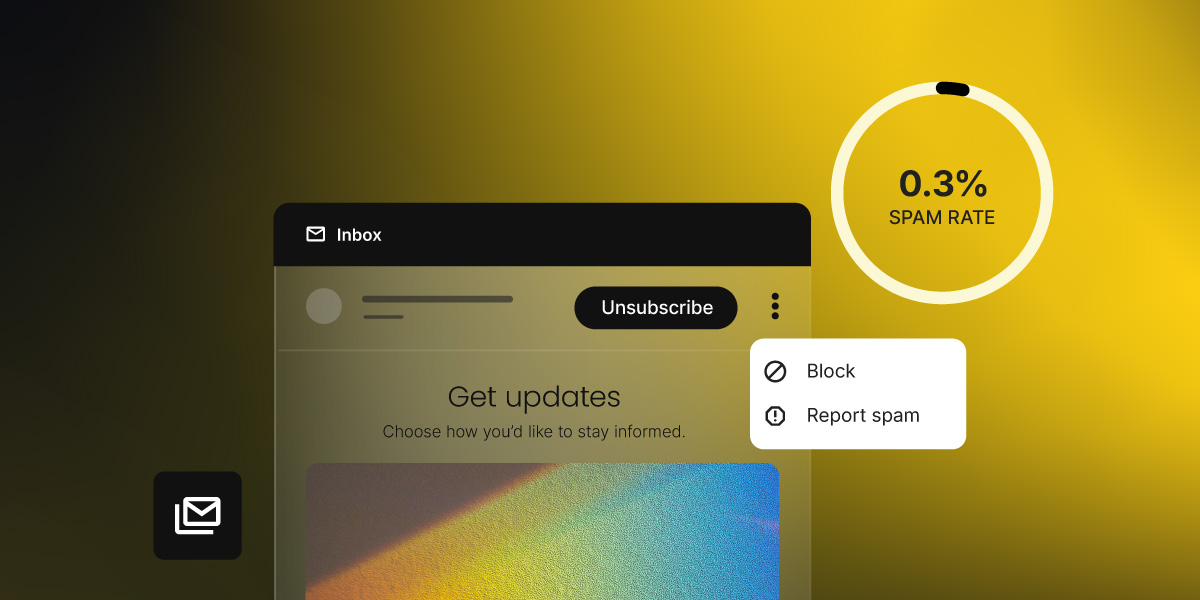
Email inbox interface showing an unsubscribe option, block and report spam menu, and a 0.3% spam rate indicator

Key takeaways:

  • Spam rate is the percentage of delivered emails that recipients report as spam.
  • Keep it below 0.1%. At 0.3%, Google and Yahoo begin blocking your messages, not just filtering them.
  • Most complaints come from human decisions, not technical failures: forgotten sign-ups, too-frequent sending, irrelevant content.
  • You can check your spam rate through Google Postmaster Tools, Yahoo Complaint Feedback Loop (CFL), and SiteGround Email Marketing’s reporting dashboard.
  • Double opt-in, list cleaning, and a visible unsubscribe link are the three highest-impact fixes.

Your emails look fine. Your list is clean. And yet, someone still hits the spam button, and you may not know it until your metrics start taking a turn.

The metric we’re talking about here is your spam rate, which tells you how often that’s happening and why. Here’s what spam rate is, what counts as too high, and what’s actually causing people to hit that button.

What is the spam rate in email marketing?

Spam rate is the percentage of delivered emails that recipients report as spam by clicking “Report spam” (or “Mark as junk”) in their email client. It’s calculated like this:

Spam rate = (number of spam reports ÷ number of emails delivered) × 100

So if you send 1,000 emails, 990 land in inboxes, and three people report them as spam, your spam rate is approximately 0.3%.

A few things spam rate is not:

  • It’s not a spam score. Spam score (sometimes called a spam filter score) is a pre-send content analysis that predicts whether your email will be flagged. Spam rate is a post-send measurement of what actually happened.
  • It’s not a bounce rate. Bounces happen when an email can’t be delivered at all — the address doesn’t exist, the inbox is full, or the server rejected it. Spam reports come from real people who received the email and chose to flag it.
  • It’s not an unsubscribe rate. An unsubscribe is a clean exit. A spam report is a complaint that damages your sender reputation. Both mean someone doesn’t want your emails anymore, but they carry very different consequences.

Mailbox providers like Gmail and Yahoo track spam reports at the domain level and use them to build a picture of your sender reputation. This is a trust score that determines whether your messages reach the inbox, land in spam, or get blocked.

Flag enough messages and those providers start treating everything from your domain with suspicion, not just the campaign that caused the problem. For small senders with low volumes, even a handful of complaints can tip you over a threshold.

And if you’ve come across the terms complaint rate or abuse rate, they mean exactly the same thing. Different providers just use different names for it.

One thing worth knowing: For privacy reasons, Gmail doesn’t share complaint data with email platforms, so it won’t show up in your campaign reports. To see how your emails are performing in Gmail specifically, you need to check Google Postmaster Tools separately. 

  • Gmail doesn’t share spam data with email platforms. To see your Gmail complaint rate, you need Google Postmaster Tools, a free dashboard that shows how your domain looks from Gmail’s side. 
  • Other providers, including Yahoo, do share complaint data with Email Service Providers (ESPs) through a feedback loop (FBL), which is a system that automatically forwards complaint reports back to your ESP every time someone hits “Report spam.” Those numbers show up directly in your campaign reports. 

More on where to find all of this in the steps below. But first, what rate are you actually aiming for?

What’s a good spam rate?

The short answer: below 0.1%. That’s the rate the industry has treated as a healthy benchmark for years, and it’s the number Google explicitly recommends staying under for reliable inbox placement.

The longer answer involves two distinct thresholds that every email sender should know.

Google and Yahoo spam rate thresholds

In February 2024, Google and Yahoo formally codified spam rate requirements as part of their updated bulk sender requirements (rules that apply to anyone sending more than 5,000 emails per day to Gmail or Yahoo addresses). 

The complaint threshold they set has two distinct levels that every sender should treat as separate targets. Microsoft followed with equivalent rules for Outlook, Hotmail, and Live.com addresses in May 2025.

Spam rateWhat it meansWhat to do
Below 0.1%Healthy. Google’s recommended target for reliable inbox placement.Maintain current practices. Keep monitoring.
0.1% – 0.29%Caution zone. Complaints are above ideal; deliverability may start to slip.Investigate the cause. Don’t wait for it to climb.
0.3% or aboveAction threshold. Google and Yahoo begin blocking or filtering your messages.Act immediately. At 0.3%, you’re ineligible for mitigation at Gmail.

To put 0.3% in concrete terms: if you send 10,000 emails, just 30 spam reports push you to that threshold. Aim for below 0.1% and treat anything above it as a warning sign, not a passing grade.

How to check your spam rate

You have two dedicated tools for the biggest providers: Google Postmaster Tools for Gmail data, Yahoo’s Complaint Feedback Loop for Yahoo data, and your SiteGround Email Marketing campaign analytics, which surface complaint data from providers that share it. Between those three, you have a complete picture of how your emails are landing.

The goal is to spot a trend before it becomes a problem.
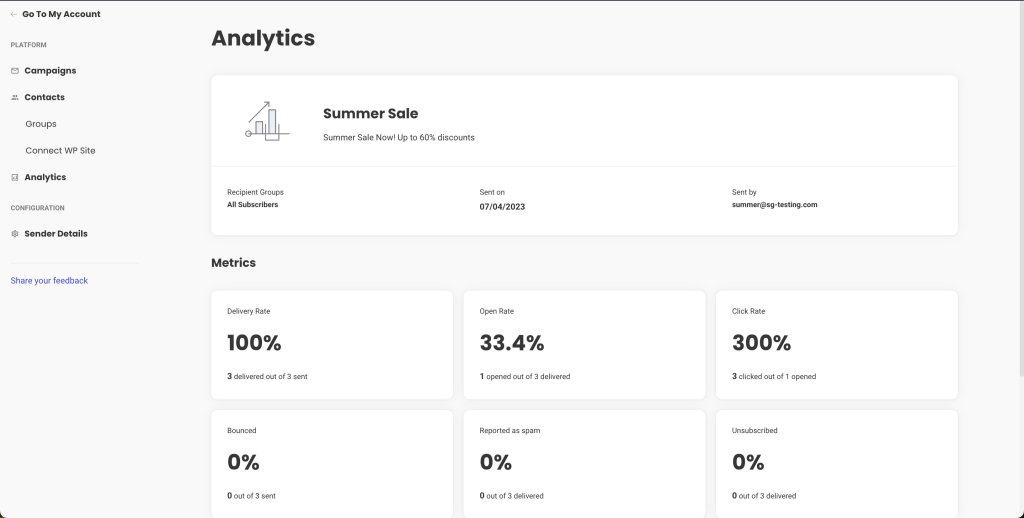
SiteGround Email Marketing analytics dashboard showing campaign metrics including delivery rate, open rate, click rate, bounced, reported as spam, and unsubscribed rates

Complaints compound quietly. By the time you notice a drop in open rates, you may already have a reputation problem.

5 reasons why people mark your emails as spam

Spam complaints are usually a human decision, not a technical failure. The most common triggers: they forgot they signed up, the emails stopped feeling relevant, unsubscribing was too hard, you were sending too often, or the email just looked suspicious. 

Here’s what’s behind each one.

#1. They forgot they signed up

Someone gets an email, doesn’t recognize the sender, and hits “Report spam” before even reading the subject line. They’re not angry; their inbox is just full and that’s the fastest way to clear it.

This happens more than you’d think. Someone signs up for a discount or a free download, your newsletter lands two weeks later, and they genuinely have no idea who you are. A pre-checked checkout box, no confirmation email, a list that’s been cold for months: none of these count as real consent. The person never made a deliberate choice to hear from you, and when your email lands, it feels like it came out of nowhere.

#2. The emails stopped feeling relevant

Relevance is a moving target. Someone who signed up for your newsletter when you were writing about freelancing tips may not want your new content about enterprise software. A customer who bought a specific product may have no interest in emails about a completely different category.

When your content consistently misses what a subscriber actually cares about, they don’t see a reason to unsubscribe when “Report spam” achieves the same result in one click.

#3. They couldn’t find the unsubscribe button

When people want out and can’t find an obvious way to leave, they find another one. A link buried in a dense footer, a confirmation page that requires logging in. Any friction pushes someone toward the spam button instead. It’s not that they’re frustrated with you specifically. Spam is just faster.

What makes this worse: Gmail and Yahoo now show an “Unsubscribe” link right next to your sender name in the inbox, before the email is even opened. When people still choose “Report spam” over that, it’s usually because the unsubscribe process has burned them before. Тhey clicked it somewhere else and the emails kept coming.
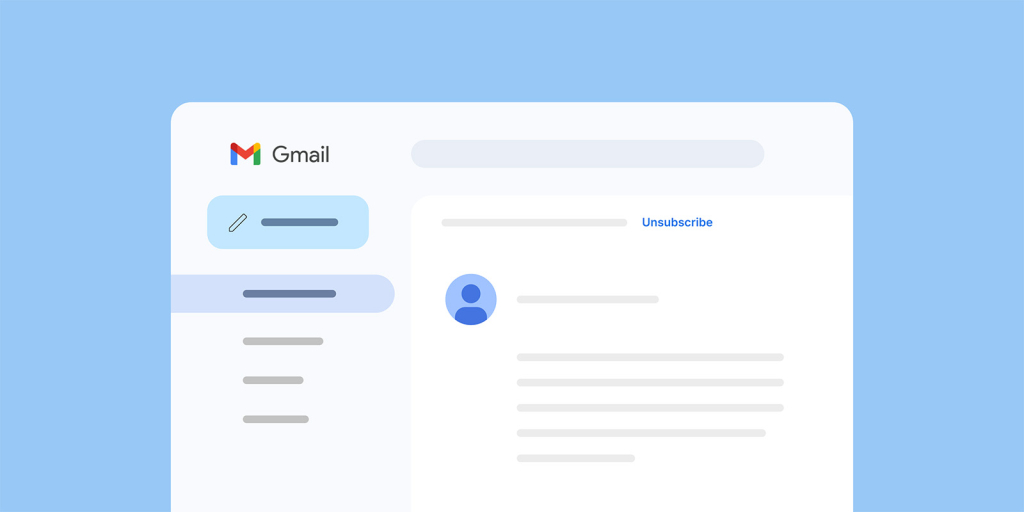
Gmail inbox interface showing an open email with an unsubscribe link visible in the header

#4. You’re sending too often

Frequency fatigue is one of the most consistent drivers of spam complaints. A subscriber who liked your weekly newsletter may not want to hear from you daily. A promotional email a day during a sale can push even engaged contacts over the edge.

Frequency fatigue is real. When someone’s inbox starts filling up with your emails, the spam button is the quickest way out.

There’s no universal “right” frequency that applies to every list. It depends on your audience, your industry, and what you’ve set expectations about. The email marketing benchmarks guide covers typical cadence ranges by list size and industry as a starting point.

#5. The email looked suspicious

Even if your content is legitimate, an email that looks like spam will get reported like spam. This includes:

  • A sender name that doesn’t match the brand the subscriber signed up for (for example, a personal name with no company context)
  • Subject lines with excessive punctuation, all-caps words, or vague urgency (“YOU WON!!! Open now!!!!”)
  • Broken images, misaligned layouts, or fonts that render oddly on mobile
  • Links that don’t match where they appear to go
  • No physical mailing address (required under CAN-SPAM)

According to Zero Bounce, around 80% of people will report an email as spam simply because it looks like spam. That’s before they’ve read a single word. Make sure your emails look like they come from a sender worth trusting: a recognizable name, a clean email layout, a subject line that doesn’t scream “promotional.” People should associate your address with something they actually want to open.

Knowing what drives complaints is half the battle. Let’s see what you can do about it.

6 steps to lower your spam rate

Most spam rate problems aren’t technical, they’re behavioral. The way you grow your list, how often you send, and how easy you make it to leave all have a direct impact on how often people reach for that button. These six steps address the most common causes.

#1. Keep an eye on your campaign reports

Your SiteGround Email Marketing reports are your first line of defense. Check them regularly for complaint data from providers that share it. If you want the full picture for Gmail specifically, Google Postmaster Tools fills that gap. It’s free, takes about 10 minutes to set up, and shows you data your campaign reports can’t.

For Yahoo and other providers, complaint data reaches you through a feedback loop (FBL).

If you’re using SiteGround Email Marketing, complaint data surfaces in your campaign reports automatically as a dedicated “Reported as spam” metric. If you’re sending frequently, check after every campaign. If you send once a week or less, a quick check every two weeks is enough. What you’re looking for is a trend, not a one-off spike.

A spam rate climbing from 0.05% to 0.12% over a few campaigns is a signal worth investigating. Spotted six weeks later, after your inbox placement has already dropped, it’s a much harder situation to recover from.

#2. Use double opt-in

Double opt-in means that after someone signs up, they receive a confirmation email with a link they have to click before they’re added to your list. This filters out typos, bots, and people who signed up impulsively and won’t remember doing so: the exact people most likely to hit the spam button later.

Yes, it reduces raw list growth numbers. But a smaller list of people who genuinely want to hear from you means higher open rates, fewer complaints, and better inbox placement over time: all of which matter more than a big number in your contacts dashboard.

SiteGround Email Marketing has double opt-in built in. You can enable it per group directly from your Contacts settings: either when creating a new group or by switching it on for an existing one.

#3. Clean your list

Inactive subscribers (people who haven’t opened or clicked in six to 12 months) aren’t just dead weight. They actively pull your metrics in the wrong direction. Low engagement signals to mailbox providers that your content isn’t wanted. And inactive email addresses sometimes get recycled into spam traps, which can damage your sender reputation even further.

A regular list cleaning process removes contacts who no longer interact with your emails before they become a problem. This means setting a window for inactivity (six months is a common standard) and either running a re-engagement campaign to see who responds, or removing non-responders from your main sending list.

#4. Make unsubscribing easy

As covered in the reasons above, a hidden or broken unsubscribe process pushes people toward the spam button. The fix is simple: make it visible, make it work in one click, and honor it immediately.

SiteGround Email Marketing handles one-click unsubscribe by default, so if you’re sending through the platform, you’re already covered. If you’re using a different tool, check that RFC 8058 compliance is enabled. Most modern email platforms support it, but it’s worth confirming.

#5. Segment before you send

Relevance is the strongest complaint deterrent you have. Sending a promotional email about enterprise software to a list that signed up for freelancing tips is a fast way to accumulate spam reports from people who just don’t care.

Segmentation doesn’t have to be complex. With SiteGround Email Marketing, you can organize subscribers into groups: by sign-up source or custom fields, and send campaigns to specific segments rather than your whole list. Even sending different content to different audience groups is enough to reduce the chance someone marks you as spam out of irrelevance.

#6. Watch your sending frequency

Too many emails is one of the most consistent reasons people reach for the spam button. There’s no one-size-fits-all answer to how often you should send. It depends on your audience’s expectations, your content type, and what you established when they signed up.

What matters is that frequency feels predictable and proportional. A subscriber who signed up for a weekly roundup and starts getting daily emails from you didn’t agree to that. When volume increases without warning, spam reports tend to follow.

The lower your spam rate, the better your chances in the inbox

Most spam rate problems trace back to the same handful of situations: a list that wasn’t cleaned before a reactivation campaign, emails sent too soon after a growth spike, or frequency creeping up around a sale period. None of those are random — and none require a technical fix. They just require catching the pattern before it compounds.

Keep your spam rate below 0.1%, watch your numbers consistently, and treat anything climbing toward 0.3% as a warning sign, not a passing grade. Your sender reputation and inbox placement depend on it.

One thing worth remembering: your deliverability also depends on the platform you send from. A poorly managed infrastructure, shared with spammers, can get your sending IP flagged regardless of how clean your own list is.

SiteGround Email Marketing gives you campaign-level reporting to monitor complaint data, built-in audience management to keep your list healthy, and the sending infrastructure to back it up.

[58]

Check your email marketing metrics regularly, not just when something feels off. The senders who maintain healthy spam rates aren’t doing anything extraordinary — they’re just watching the right numbers consistently.

Frequently asked questions about spam rate

How do you track spam rate over time?

The most reliable way to track Gmail complaints is Google Postmaster Tools, which shows your domain’s spam rate, sender reputation, and delivery errors as Gmail measures them. Register your sending domain at postmaster.google.com and check the “Spam Rate” tab for a historical view. For Yahoo and other providers that use a feedback loop (FBL), complaint reports are shared back to your ESP automatically — if you’re using SiteGround Email Marketing, Yahoo complaint data shows up in your campaign reports. Build a habit of checking both sources regularly.

Does spam rate affect email deliverability?

Yes, directly. Spam rate is one of the primary signals mailbox providers use to evaluate your sender reputation and decide whether your emails deserve inbox placement. A high spam rate — especially one that crosses the 0.3% complaint threshold — tells Gmail, Yahoo, and Outlook that your recipients don’t want your messages, and those providers will start filtering or blocking them accordingly. Beyond the immediate delivery hit, sustained high complaint rates erode your domain’s sender reputation, which affects how all your future mail is treated — even after you’ve fixed the underlying problem. See the email deliverability guide for a fuller picture of how reputation is built and recovered.

What are some email marketing best practices for a low spam rate in 2026?

The fundamentals haven’t changed, but enforcement has tightened. For 2026, the practices that matter most are: using double opt-in for new sign-ups, cleaning your list every three to six months, making one-click unsubscribe the default (part of Google and Yahoo’s bulk sender requirements since February 2024), segmenting your list so each send goes to people who actually want that content, and monitoring your complaint threshold consistently through Google Postmaster Tools and your email platform’s FBL reports. Authentication (SPF, DKIM, DMARC) is also now mandatory for bulk senders across Gmail, Yahoo, and Outlook.

What percentage of emails marked as spam will get you in trouble?

The official complaint threshold is 0.3% — that’s when Gmail and Yahoo begin enforcement, blocking messages or routing them to spam folders. But the practical warning line is lower. Google recommends keeping your spam rate below 0.1% for consistent inbox placement. The gap between 0.1% and 0.3% is a caution zone where your sender reputation may already be slipping even if you haven’t hit the hard ceiling yet. In concrete terms: 0.1% means one spam report per 1,000 delivered emails. 0.3% means three reports per 1,000. That’s a narrow margin, especially for smaller lists where individual complaints carry more weight.

What is the difference between email spam rate, complaint rate, and unsubscribe rate?

Spam rate and complaint rate are effectively the same metric — different providers use different terminology, but both measure how often recipients report your emails as unwanted. The distinction is that “spam rate” is more commonly used in Google’s tooling, while “complaint rate” or “abuse rate” is more common in industry reporting. Both damage your sender reputation when elevated.
The unsubscribe rate is different. An unsubscribe is a voluntary opt-out that removes someone from your list. It affects your list size and is a useful signal about content relevance or frequency issues, but it does not damage your sender reputation the way spam reports do. In fact, a higher unsubscribe rate is often preferable to a high spam rate — it’s a cleaner exit for both parties.

What percentage of all emails are spam?

Estimates vary by source and year, but industry figures consistently put total email spam at around 45–48% of all email traffic globally. Some sources cite numbers as high as 160+ billion spam messages sent daily. Gmail alone blocks over 15 billion spam emails per day. These figures explain why mailbox providers take spam rates seriously. The scale of the problem means even small changes in sender behavior have a meaningful impact on what their users see.


Email and social media marketing: better together

Small business owner working on a laptop with an email campaign and social media engagement notifications

Social media and email marketing solve different problems: social builds your audience, email deepens the relationship. For small business owners and solopreneurs, the answer isn’t to pick one; it’s to stop treating them as separate. This article shows you how.

Key takeaways:

  • Social media finds you new people; email is how you keep them coming back.
  • Your social followers and email subscribers aren’t the same people and running campaigns across both reaches more of them.
  • Seeing the same message twice is often what makes someone finally click.
  • A signup link in your bio and social icons in your emails are enough to get started.
  • One piece of content can work on both channels. Just change the format, not the idea.

What is social media and email marketing?

Social media marketing and email marketing are two digital marketing channels that help small businesses reach, engage, and convert their audience. 

  • Social media marketing uses platforms like Instagram, Facebook, LinkedIn, or TikTok to help people discover your business through content like posts, stories, videos, and comments.
  • Email marketing is the practice of sending messages to a list of people who’ve chosen to hear from you (your email list), giving you a direct line to an audience that already knows who you are.

Email vs. social media: what each one can’t do alone

Used together, social media and email are a core part of any integrated marketing strategy. But before we get to the “together” part, let’s look at what each one is missing on its own.

What social media can’t guarantee

Social media gives you reach, but not control. When you post, the platform’s algorithm decides who sees it and it’s rarely all of your followers. That’s because organic reach on most platforms has been shrinking for years, as reported by ADdictive. Therefore, your followers aren’t guaranteed to see your content. When a platform tweaks its algorithm, businesses that relied solely on organic reach have seen their engagement drop by half overnight — with no warning and no recourse.

What email can’t do for discovery

Email gives you a direct line to people who already know you, but it can’t help new people find you. You can only send to the list you have, and if that list isn’t growing, neither is your reach.

Why small businesses need both

So each channel has a ceiling the other helps break through. Here’s what that looks like for a small business.

Integrate social media to grow your email list

Social media marketing puts you in front of people who don’t know you yet and some of them will want to hear more. That’s your opportunity to convert a follower into a subscriber. A bio link pointing to a signup page, a post promoting a free resource, or a lead magnet tied to content you’re already sharing can all drive signups without a paid ad in sight. 

Email subscription form with first name, email address, and audience type fields, promoting a social media tips newsletter

This is especially worth keeping in mind if your audience skews younger. Gen Z may live on social media, but they’re also active email users when the content is relevant and doesn’t feel like a broadcast. Мost of them checking their emails multiple times a day, according to Campaign Monitor.

With SiteGround Email Marketing, you can create signup forms in minutes and share them anywhere, including your social profiles.

Use email to get more subscribers on social

Your email subscribers have already signed up to hear from you, which makes them far more likely to follow you on social media than someone who stumbled across your profile.

A simple nudge in your email newsletter gives subscribers a specific reason to follow you on social. Something like “we’re dropping an exclusive discount code on our Instagram tomorrow” or “join us on Facebook this Thursday for a live Q&A” can go a long way.

Extend the reach of a single campaign

There’s an advantage that’s easy to overlook: your email subscribers and your social followers aren’t usually the same group of people. Some follow you on Instagram but never signed up for your emails. Others are on your list but don’t follow you anywhere on social. 

A freelancer announcing new packages can email existing clients while posting on LinkedIn to get in front of potential new ones. A local shop running a seasonal promotion can hit their subscriber list and pin the offer to their Instagram profile at the same time. Same campaign, two audiences, more chances to convert.

Communicate the same message across both channels

Seeing the same campaign twice: once in an inbox, once on a social feed, makes people more likely to act on it. According to WifiTalents, email and social media combined generate 30% higher engagement than either channel alone.

Someone who ignored your email might act when they spot the same offer on Instagram. Someone who scrolled past your post might finally click when it lands in their inbox. That second touchpoint is often what makes the difference.

Five best practices for a combined email and social media marketing strategy

Now that you know what each channel brings to the table and why they work better together, it’s time to get into the how. Here are five things you can start doing today.

#1. Start with a signup form on your social channels

The simplest way to turn social followers into email subscribers is to make signing up easy and obvious. Think about how many people follow you on social, engage with your posts, and then disappear. No way to reach them outside of whatever the algorithm decides to show them next. A signup form bridges that gap. Add a link to your bio, include it in your posts when relevant, and if you’re running a lead magnet or a freebie, make the form the destination. The key is giving people a clear reason to hand over their email. “Get weekly tips” works better than “join our newsletter.”

Instagram business profile for Bloom Studio with a bio linking to a weekly email newsletter on pricing and packaging

With SiteGround Email Marketing, you can create and customize signup forms in minutes and drop the link anywhere your audience already is. There’s also a ready-to-use Subscribe page with no design work needed, you can just copy the link and share it on your social profiles, in your bio, or anywhere else your audience lands.

Of course, a signup form only works if people actually want to sign up.

#2. Promote your newsletter as a content destination

Most people won’t sign up for a newsletter just because it exists. But they will sign up for something that sounds worth reading. On social, treat your newsletter like a product: share snippets of what’s inside, tell people what they’ll get that they won’t find on your feed, and post consistently about it. A behind-the-scenes look at your last issue, a quote from a recent edition, or a “here’s what we covered this week” post all give followers a reason to want in.

Dark-themed newsletter card with the headline "Your feed gets the likes. Your newsletter gets the trust." and a note about email subscribers converting at 4x the rate of social followers

If you want to take it a step further, SiteGround Email Marketing’s View in Browser feature gives each of your emails a public link, meaning past issues can be browsed online like a blog. Share that link on social and people can read your previous emails before deciding to subscribe. Add a signup form to the page and you’ve turned a single social post into a list-building opportunity.

#3. Add social links to every email you send

Your subscribers are already engaged enough to open your emails, so give them an easy way to find you on social too. Adding social icons to your emails takes minutes, but don’t just drop them in your footer and call it done. Give people a reason to click. A line like “we post daily tips on Instagram that don’t make it into the newsletter” is far more compelling than a row of logos.

Email footer in mint green with an Instagram icon and a note that daily tips are posted on Instagram that don't appear in the newsletter

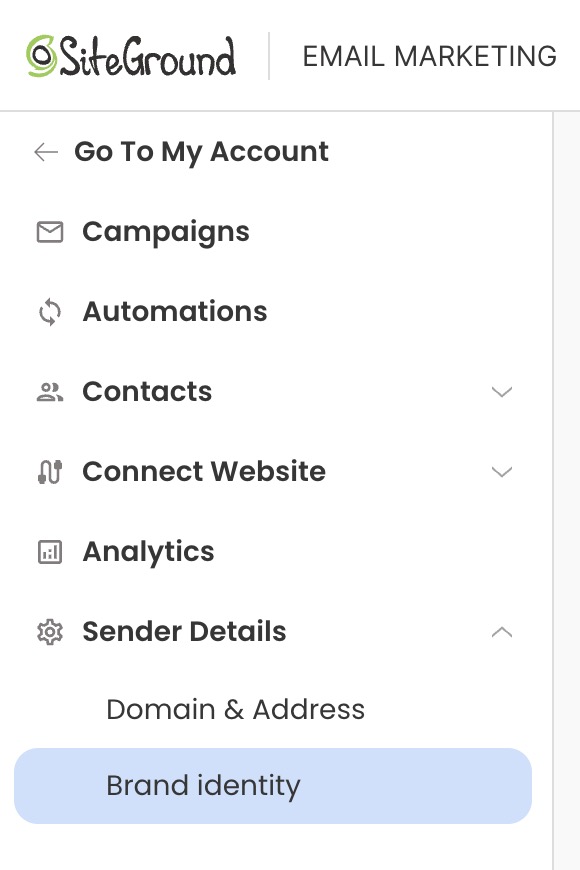
SiteGround Email Marketing lets you add social links directly to your email templates through Brand Identity. Set it up once and they’ll appear in every email you send automatically, without you having to think about it again.

SiteGround Email Marketing sidebar menu showing Campaigns, Automations, Contacts, Analytics, and Sender Details with Brand identity selected

#4. Use social to tease what’s coming in email (and vice versa)

People act on anticipation. A teaser post on social media before your email goes out: “something good is landing in inboxes tomorrow” or “we’re sharing our full pricing breakdown in this week’s newsletter, subscribe to get it”, creates a reason to pay attention before the message even arrives. It also rewards subscribers for being on your list, which makes them less likely to tune out over time.

On the flip side, use your emails to point subscribers to something happening on social like a live session, a poll, or a limited-time story. A fitness coach teasing their next workout plan email on Instagram, or a freelance designer using their newsletter to invite subscribers to a LinkedIn live session — small moves that keep both audiences engaged and curious. 

And if you’re already sharing content across both channels, you might as well get double the mileage out of it.

#5. Repurpose content across both channels

You don’t need to create separate content for every channel. If you’ve ever stared at a blank Instagram caption after already writing a newsletter that week, you know the feeling. The fix isn’t always more content; it’s the same content, reshaped for each channel.

A newsletter section can become a carousel post. A social post that got strong engagement can become a full email. A how-to you wrote for your list can be broken into a three-part Instagram series. The content is already there — repurposing it just means adapting the format, not starting from scratch. Take SiteGround’s Grow Your Business Email course, for instance, delivered as an email series and promoted across social media at the same time. Same content, different format, reaching people on both channels without doubling the workload.

SiteGround email course graphic covering SEO in the age of AI, AI marketing tips, and email marketing, rated 4.5 stars by participants

Email and social media marketing: putting it all together

Email and social media are better as a team and connecting them doesn’t take much. Use social to grow your list, use email to work that list, and let both channels carry your campaigns further than either one could alone. Start small, stay consistent, and the two channels will start pulling in the same direction.

[58]

Frequently asked questions about social media and email marketing

Which is better, email marketing or social media marketing?

Neither is better than the other. They serve different purposes. Social media is better for reaching new people and building awareness. Email is better for converting and retaining an audience you’ve already built. Used together, they cover the full email customer journey.

How do I grow my email list using social media?

Add a signup link to your bio, promote your newsletter regularly in your posts, and give people a specific reason to subscribe — a free resource, exclusive content, or a discount. The clearer the benefit, the more likely people are to sign up.

Can I manage email and social media without extra tools?

Yes. You don’t need a complex stack to connect the two channels. SiteGround AI Studio brings both together in one place — the Email Marketing Agent builds full campaigns from a single prompt and sends them directly into SiteGround Email Marketing, while the Social Media Managers turn the same message into channel-ready posts for Facebook, Instagram, and LinkedIn. Same workspace, both channels covered. 

What are common social media mistakes?

Posting inconsistently, focusing on follower count over engagement, and treating every platform the same. Another common one: using social as a broadcast channel rather than a two-way conversation. The businesses that get the most out of social media show up regularly, respond to comments, and give their audience something worth engaging with.

How AI works in WordPress 7.0, and how you can make it useful for your business

An abstract graphic on a purple grid background showing layered glassmorphism windows, with the top card labeled "AI Studio" marked as "Connected" and a toggle switch for "Enable integration" turned on.

WordPress 7.0 is the biggest WordPress update in years. Among the headline features is something that’s caught a lot of attention: built-in AI infrastructure (an AI Client, a new Connectors screen, and an Abilities API with an MCP Adapter) so WordPress plugins can use AI services in a consistent, standardized way.

But what does this all really mean? This guide breaks down what WordPress 7.0’s AI capabilities do and what SiteGround has built so you can start getting real value from AI on your site and your business today.

Key takeaways:

  • WordPress 7.0 introduces shared AI infrastructure, but no AI features out of the box. You need to connect at least one AI provider and have a compatible plugin to start using AI.
  • Most AI capabilities focus on content generation in the editor. Many plugins focus on generating text, images, alt text, excerpts, and summaries directly inside WordPress, instead of requiring you to use a separate tool and paste results back in.
  • You connect AI providers once and use them across compatible plugins. The new Connectors screen replaces the old approach of managing separate credentials in every plugin.
  • Setting up AI requires choosing a provider, creating an account, and managing your own costs. AI services charge per usage, and costs vary by provider and model.
  • SiteGround AI is what makes AI genuinely useful in WordPress. Connecting SiteGround AI as your provider pushes WordPress 7.0’s capabilities further by applying AI to the broader work of managing your site. It powers up the SiteGround AI Agent for WordPress (the most capable WordPress AI assistant available today), which helps with the operational tasks that eat up your time: content, SEO, WooCommerce, plugins, users, and multiple sites. It’s pre-connected on SiteGround-hosted sites, or through a quick setup for sites hosted elsewhere.

The AI problem WordPress 7.0 is solving

Until WordPress 7.0, there was no common system for how AI worked inside WordPress. If you wanted AI features on your site, every plugin handled it differently. An AI writing tool connected to one AI service with its own API key (a unique credential that lets the plugin communicate with the AI provider). An AI SEO plugin connected to a different service with a different key. An AI image generator needed yet another setup.

If you were running all three, you were managing three separate sets of credentials in three separate settings panels, often paying for overlapping subscriptions. None of those tools could share anything with each other. For plugin developers, it was duplicated work: every team building the same connection infrastructure from scratch. For you, it was messy, expensive, and fragmented.

WordPress 7.0 solves this by building a shared AI layer directly into core (the base software that powers every WordPress site). Three components work together to make it happen:

  • The AI Client is a native AI infrastructure layer built directly into WordPress core. It creates a standardized interface for connecting AI providers, so plugins and themes can tap into AI through a single consistent framework. Before this existed, every plugin that wanted to use AI had to build its own connection code for each AI service it supported. Now a plugin simply asks WordPress for what it needs (generate text, create an image), and WordPress routes that request to whichever provider you’ve connected.
  • The Abilities API and MCP Adapter work on two levels. First, they help WordPress know what each connected AI provider can do (text generation, image generation, and so on), so requests get routed to a provider that can handle them. Second, they keep a registry of what your WordPress site itself can do: create posts, manage users, update settings, and other actions that plugins and themes register as available capabilities. The MCP Adapter (which stands for Model Context Protocol) translates all of this into a format that AI tools can discover and work with.
  • The Connectors screen is where you manage all of this. It’s a new page in your WordPress dashboard (Settings → Connectors) where you can see which AI providers are available, connect new ones, and manage your credentials in one place. No more hunting through individual plugin settings to find where your API key went.

What you can do now

So WordPress 7.0 turns AI from a scattered, plugin-by-plugin experience into a platform-level capability. But what does that change for your workflow?

You can add AI to your WordPress site without any technical expertise

Until now, using AI with WordPress meant either hiring a developer to wire up integrations or bouncing between external tools and your editor, copying and pasting back and forth. The new Connectors screen (under Settings → Connectors) makes this dramatically simpler: available AI providers appear as visual cards. You pick one, paste your API key, and compatible plugins on your site can start using AI immediately.

To get your API key, you create an account on the provider’s website (such as platform.openai.com for OpenAI), navigate to their API or developer section, and generate a key. You then copy that key and paste it into the provider’s card on the Connectors screen. That’s the entire setup for most providers.

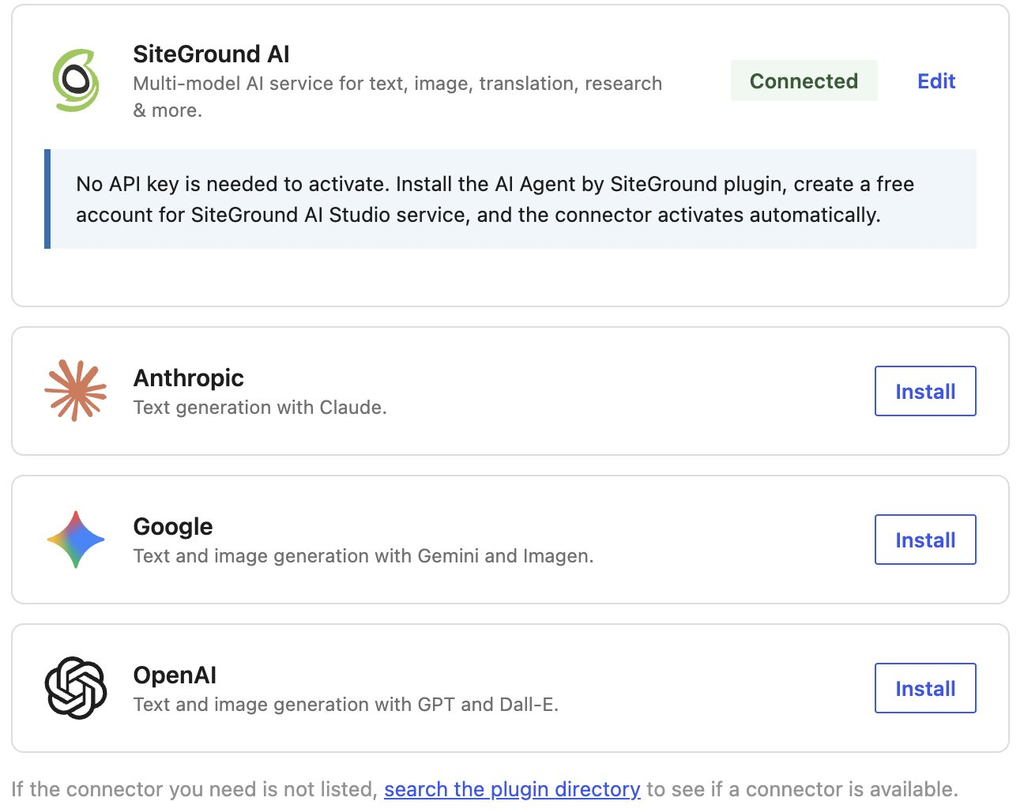
Three providers are featured by default on the Connectors page: OpenAI, Google Gemini, and Anthropic Claude. If you choose to proceed with any of these, you need to activate their plugin.

Beyond these three, the system is open: community-built providers can be added from the same page. Each one requires you to install its provider plugin and enter your own API key.

For SiteGround customers: If your WordPress site is hosted on SiteGround, there’s a fourth option on the Connectors page — SiteGround AI, already installed and connected. The authentication is handled automatically through your SiteGround account (no need to paste an API key), so it appears in Connectors as already active.

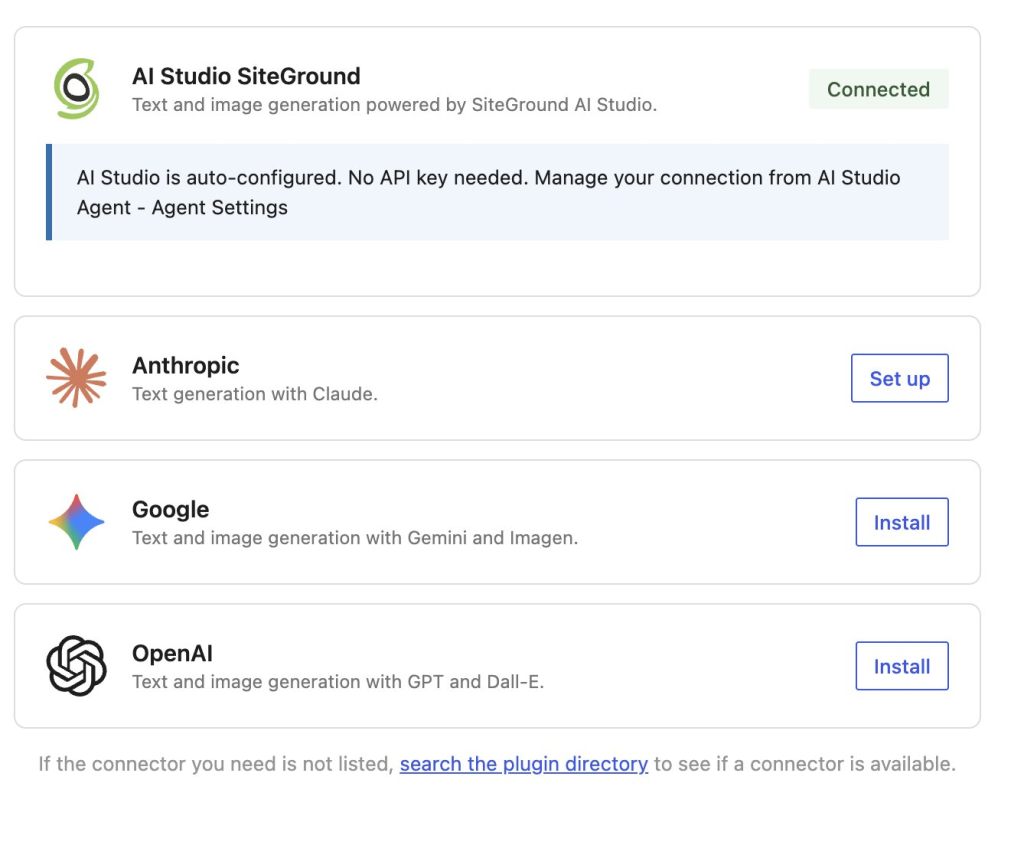
Screenshot of an AI connector dashboard showing SiteGround AI connected and options to install Anthropic, Google, and OpenAI.

You get 20,000 free AI tokens monthly and no separate AI billing to track.

If your site is hosted elsewhere, it’s a quick one-time setup. You will get 14 days of free service.

You can use one shared AI connection instead of managing credentials in every plugin

The practical payoff of the Connectors setup becomes clearer when you use AI-powered plugins on your site. An SEO plugin that generates meta descriptions, a content tool that helps with writing, an image plugin that creates visuals: in the old world, each of these would need its own AI subscription, its own credentials, its own billing. With WordPress 7.0, they all share the provider you’ve already connected. Install a new AI-compatible plugin, and it works immediately, no additional accounts or API keys required.

What this means in practice:

  • Lower costs. Instead of paying three AI services for three plugins, you pay one provider that powers all of them.
  • Easier switching. If a better or cheaper provider appears, you change it once in the Connectors screen and every plugin on your site picks up the new connection automatically.
  • Better plugins over time. Developers no longer need to build their own AI integration from scratch. They can rely on what WordPress provides natively, and focus on what their plugin actually does instead of reinventing credential management and API plumbing.

You can choose the AI provider that fits your needs, and change it later

WordPress 7.0 doesn’t lock you into a single AI service. You can connect multiple providers, and WordPress will figure out which one to use for each task. Through the Abilities API, each provider registers the types of requests it can handle. When a plugin needs AI, WordPress checks your connected providers and routes the request to one that supports it.

That flexibility comes with some things worth understanding before you choose:

  • Costs aren’t always obvious upfront. AI services bill based on “tokens” (roughly a word or part of a word). You use tokens for both your request and the AI’s response. But the price per token varies not just between providers, but between models within the same provider. A more capable model costs more per request, and those costs can add up across plugins that make frequent AI calls. It’s worth checking your provider’s pricing page before you connect.
  • Multiple providers means multiple accounts. Each one has its own API key, its own billing, and its own dashboard to monitor. If you’re connecting two or three providers for different capabilities, you’re managing two or three separate relationships.
  • Not every provider can do everything. For example, Anthropic Claude handles text generation but not images. If you ask for an image and Claude is checked first, WordPress will see that it can’t handle the request and pass it to a provider that can. That routing is automatic, but only if you have a second provider connected that supports the capability you need.

How SiteGround AI handles this more efficiently: Instead of requiring you to manage multiple provider accounts, SiteGround AI gives you access to all leading model families (OpenAI, Claude, and Gemini) through one connection. SiteGround AI automatically selects the best model for each task to deliver an optimal quality-spending balance. One subscription, one token balance, no juggling between providers. This works the same way whether your site is hosted on SiteGround or on another platform.

You can generate text and images inside the editor

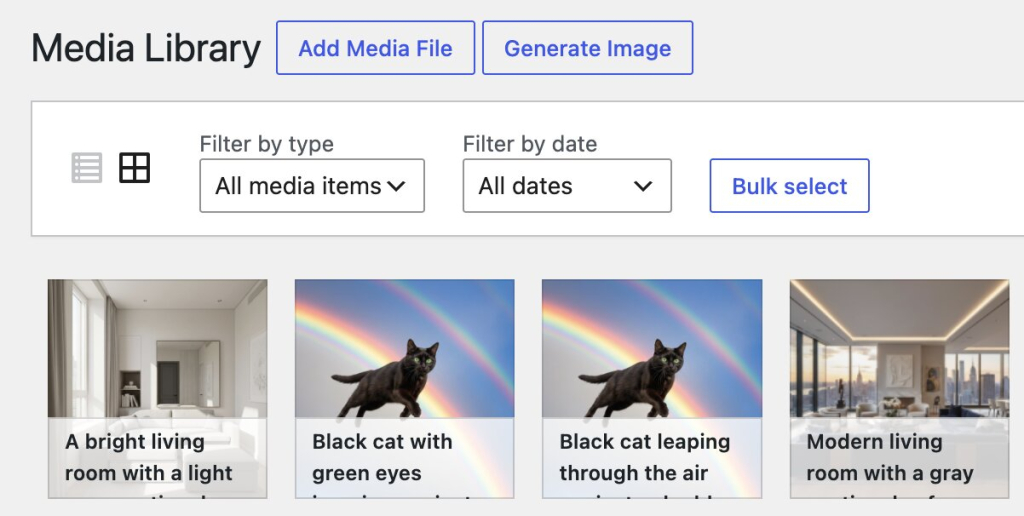
Before WordPress 7.0, using AI with your site usually meant going to a separate tool like ChatGPT, Claude, or Gemini, generating content there, and pasting it back into your editor. WordPress 7.0 changes that. With a provider connected, you can install plugins that use the shared AI infrastructure to bring content generation directly into your WordPress workflow. You can have, for example, a “Generate Image” button in your Media Library:

A screenshot of the WordPress Media Library interface showing a grid of uploaded images, including a golden retriever, a stylized cat, and various logos, with prominent buttons for "Add Media File" and "Generate Image" at the top.

Several options already exist, including the official WordPress AI plugin. The capabilities that compatible plugins currently offer center on content creation: generating and editing text, creating images from prompts, producing alt text for accessibility, writing excerpts, and summarizing long-form content. All of this happens inside the block editor and Media Library, so you stay in your workflow instead of switching between tools.

The provider you’ve connected in Settings → Connectors is the one powering these features behind the scenes, so your choice of provider affects the quality, speed, and cost of what you get in the editor.

If your primary need is help writing blog posts, generating images, or adding alt text to your media, the combination of a provider and a compatible plugin gets you there. For the broader work of making AI useful for your whole WordPress site, though, there’s more to the picture.

You can take the use of AI to the next level and incorporate it into your site maintenance workflow

Content creation is one part of running a WordPress website. Then there’s everything else: managing plugins, handling products and orders, organizing users, auditing SEO across hundreds of pages, keeping multiple sites in sync. That operational work eats hours every week, and it’s the part that plugins focused on in-editor generation don’t address.

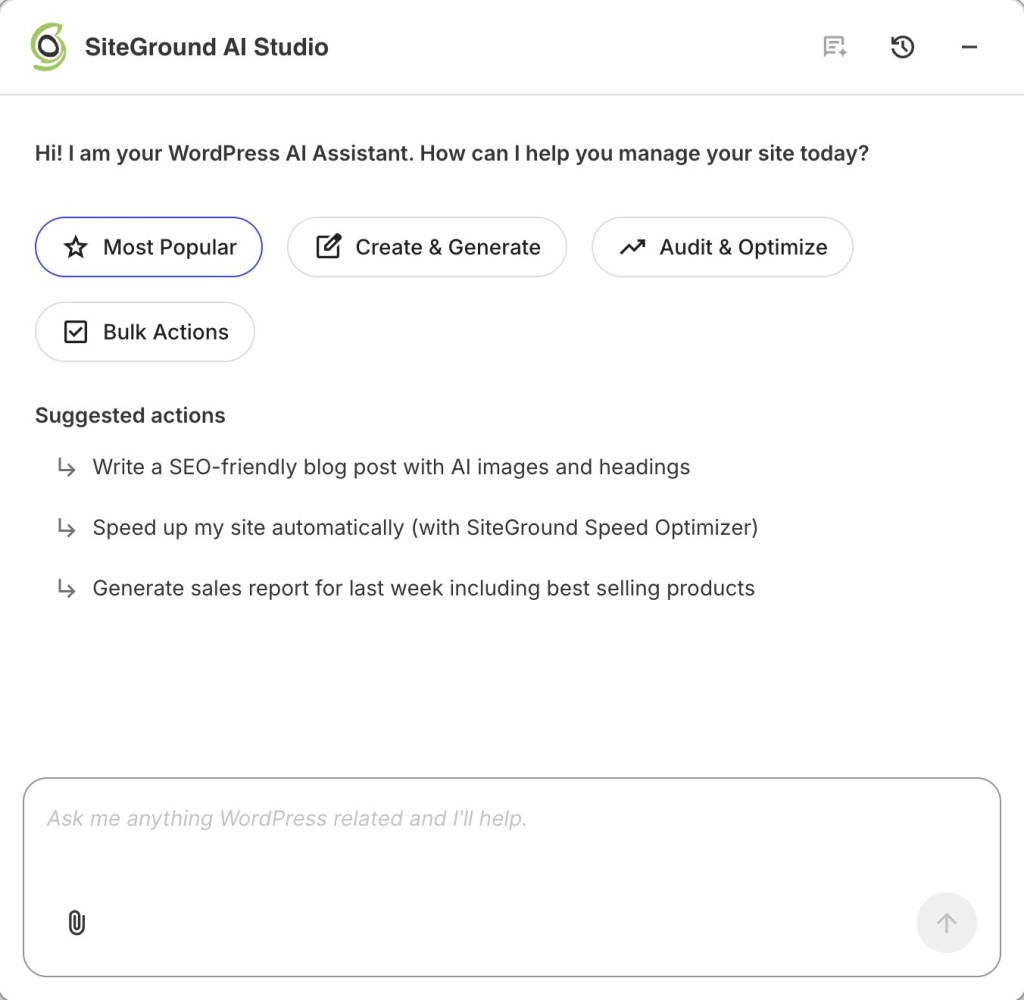
This is what the SiteGround AI Agent for WordPress is built for. When you connect SiteGround AI as your AI provider in WordPress 7.0, it powers the standard editor capabilities that any provider can handle, but it also activates the AI Agent. The Agent executes tasks across your entire site through a simple chat conversation. You describe what you need in plain language, and it does it. You also don’t need to jump across the admin — the chat conversation is persistent across screens and is able to serve all needs, including text and image generation.

A screenshot of a custom WordPress dashboard featuring a prominent notification banner for updates and a "Manage Your Website" section with quick-action cards for an "AI Agent for WordPress," "View Site," and "Manage Pages."

This is possible because the AI Agent by SiteGround plugin connects directly to your WordPress installation, giving the AI Agent for WordPress access to your plugins, products, users, and settings. A standalone AI provider like OpenAI or Anthropic can generate text or images when asked, but it has no way to reach into your site and act on it. The Agent can, because it’s connected at the site level through the plugin.

What’s more, you can activate the AI Agent by SiteGround plugin for multiple WordPress instances and manage them in bulk from a single chat, located in the SiteGround AI Agent dashboard.

For SiteGround-hosted sites, that connection is set up automatically. For sites hosted elsewhere, you get the same access after installing the plugin and connecting it.

What makes this different: Most plugins built on WordPress 7.0’s AI framework help you generate content. The SiteGround AI Agent for WordPress applies AI to the operational work of managing a WordPress site: the products, the plugins, the users, the SEO, the daily maintenance that eats your time but doesn’t grow your business. And it activates automatically when you connect SiteGround AI as your provider.

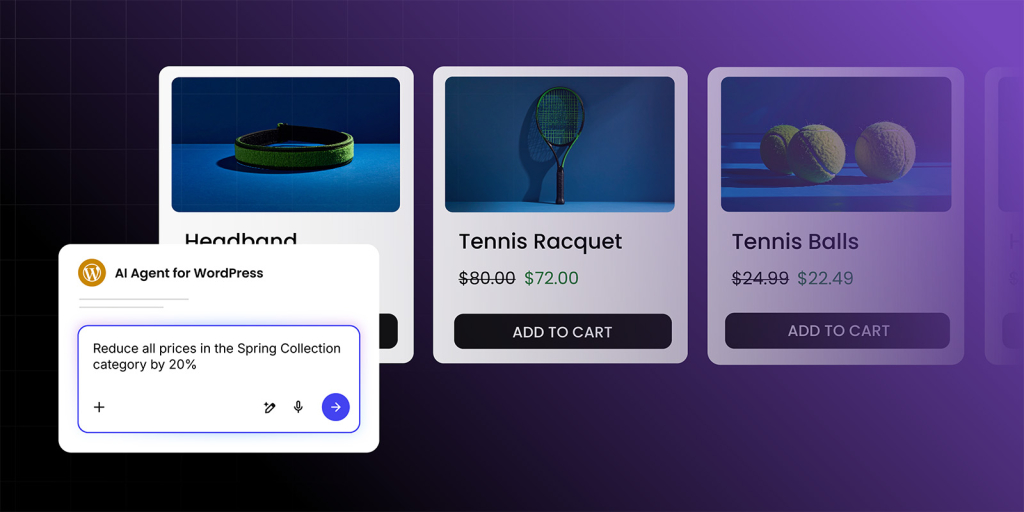
An interface showing an "AI Agent for WordPress" prompt box that says "Reduce all prices in the Spring Collection category by 20%," positioned in front of an e-commerce product gallery featuring a headband, tennis racquet, and tennis balls with discounted prices.

Try it on your site

When you update to WordPress 7.0, connect SiteGround AI as your AI provider and let the AI Agent for WordPress help you with the content, the products, the plugins, the SEO, and the daily site maintenance that eats up your time. You’ll be surprised how much of your WordPress workflow fits into a single chat.

FAQs

Does WordPress 7.0 come with AI features you can use right away?

Not out of the box. WordPress 7.0 primarily ships AI infrastructure, the AI Client (how WordPress communicates with AI services), and the Connectors screen (where you manage AI provider credentials). To get visible tools like title suggestions, image generation, alt text, excerpts, and summaries, you’ll typically install an AI plugin.

What is the Connectors screen in WordPress 7.0, and why does it matter?

The Connectors screen (Settings → Connectors) is where you connect AI providers by adding credentials (usually an API key). The practical benefit is simple: you configure AI once in a central place, and compatible plugins can reuse that connection, so you’re not pasting the same key into multiple plugin settings pages.

Do I need an API key (and do I have to pay) to use AI in WordPress 7.0?

Usually, yes. Most AI providers require an API key, and they charge based on usage (often measured in tokens). WordPress 7.0 makes setup cleaner by centralizing credentials in Connectors, but the actual cost depends on the provider and model you choose, and how often you generate content.

What can I actually do with AI in WordPress today?

Right now, the most practical value is content workflow help. With AI plugins, you can draft titles based on your post, excerpts for blog listings and sharing, alt text for images (accessibility + image SEO), summaries for longer pages and images from text prompts (where supported). These tools work best as draft + review — you stay in control of accuracy and tone.

What’s the difference between the WordPress AI plugin and SiteGround’s AI Agent for WordPress?

They’re built for different jobs. WordPress’ AI plugin focuses on content assistance inside the editor (titles, excerpts, alt text, summaries, image generation). SiteGround’s AI Agent for WordPress focuses on site management through chat, helping you handle routine WordPress tasks across your dashboard without you wiring up separate AI provider accounts and keys for each feature.

Will my site break or change when I update to WordPress 7.0?

For most sites, no. WordPress 7.0’s AI components are optional. If you don’t connect an AI provider and don’t install AI plugins, your site should behave the same as before. As with any major update, it’s still smart to test on a staging site first (where solutions like Siteground’s Staging tool can help you) if your site relies on a complex theme or many plugins.

Can I use the WordPress AI plugin on a live website, or should I test it first?

Because the WordPress AI plugin is experimental, it’s best to test it on a staging site first, especially if your site is business-critical. The features are generally triggered manually (you choose when to generate), but “experimental” also means functionality can change between updates, so staging gives you a safer place to validate your workflow.

What are the Abilities API and MCP Adapter, and why should small businesses care?

They’re the foundation for AI assistants that can take action in WordPress, not just generate text. The Abilities API describes what your site can do (publish content, manage settings, ecommerce actions, and more) in a structured way. The MCP Adapter helps translate those abilities into a format AI tools can understand and potentially act on, with permissions and safeguards. The takeaway: WordPress 7.0 isn’t just about AI writing tools; it’s laying the groundwork for AI to support routine site management over time.

What’s new in WordPress 7.0: New features, AI connectors, and how to prepare for the update

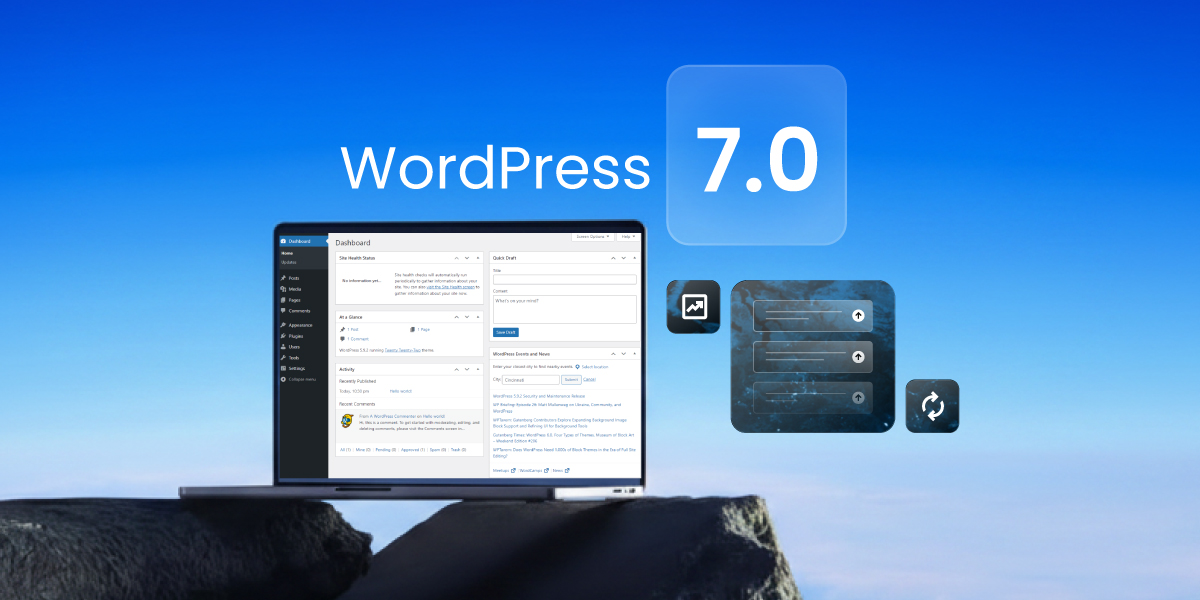
A promotional graphic for "WordPress 7.0" featuring a laptop displaying the WordPress dashboard against a blue sky background, with floating UI icons and an update symbol.

Originally scheduled for release in April 2026, WordPress 7.0 is delayed a little, but one thing’s for sure: it’s going to change how you manage your website. It’s focused on improving the editing experience, site-building tools, and AI integration. It builds on the block editor and Site Editor, adding new features and refinements that help you publish faster, design more flexibly, and manage content more efficiently.

This guide covers what’s new in WordPress 7.0 for your day-to-day work, explains what the AI Connectors actually do, and walks you through how to prepare for the update safely. It applies to any WordPress site, though some features (like AI and automatic updates) work differently depending on your hosting for WordPress.

Key takeaways:

  • Built-in AI infrastructure introduces an AI Connectors screen and the WP AI Client: a standardized way to connect your WordPress site to AI providers, and share credentials across compatible plugins.
  • Visual revisions replace the old HTML-based comparison screen with a single-column, color-coded view that shows your content as it actually appears in the editor, making it easy to spot and undo accidental changes.
  • New core blocks (Breadcrumbs and Icons) remove the need for separate plugins.
  • Editor and performance improvements include responsive/mobile-friendly controls, a refreshed wp-admin dashboard, faster block rendering, and client-side media processing.

Why WordPress 7.0 is an important update

Many WordPress updates focus on fixing bugs and incremental improvements. By contrast, WordPress 7.0 is a fundamental shift in how the platform operates, driven by one major change: AI infrastructure.

AI tools for WordPress have existed for a while, but every plugin has had to build its own connection to AI services, store its own credentials, and handle everything independently. WordPress 7.0 replaces that fragmented approach with a standardized system built into core.

The new release is also packed with design and performance upgrades that make the entire experience of using WordPress faster and more intuitive. Let’s take a look at the most important new improvements.

AI added to the core

WordPress 7 introduces an in-built AI client, which offers a standardized way for plugins and other services to communicate with AI models through the WP AI Client, Abilities API and Workflows API, MCP adapter, and Connectors.

What this new AI framework does is let you choose an AI provider to power all AI requests coming from your WordPress, including plugins, themes, editor, and others.

When you log into your WP-admin after the update to 7.0, you will see a new page, accessible from Settings → Connectors. By default, this page shows a list of three AI providers: OpenAI (ChatGPT), Google (Gemini), and Anthropic (Claude), but you can search and connect other AI models as well. In order to actually connect any of these AI providers, you need to activate their respective “connector” plugin and connect your account on their website via an API key.

For WordPress sites hosted with SiteGround, there’s an additional option as seen on the list above: SiteGround AI Studio, which is already a listed AI provider.

A WordPress dashboard settings page titled "Connectors," showing integration options for various AI services including AI Studio SiteGround (connected), Anthropic, Google, and OpenAI, allowing users to configure API keys and credentials.

For more insights on AI in WordPress 7.0, read our in-depth analysis: “How AI works in WordPress 7.0, and how you can make it useful for your business”.

Visual revisions for posts and pages

Every time you save or update a post in WordPress, the system keeps a copy of the previous version. This feature (called revisions) has always been available, but comparing revisions used to mean looking at a two-column screen that displayed your content as raw HTML, making it hard to match what you saw there with how your post actually looked in the editor.

WordPress 7.0 replaces that with a single-column visual comparison that renders your content the way it appears when you’re editing. Changes are color-coded: yellow for modified content, red for deletions, and green for additions. A sidebar lets you navigate quickly between each change in the post.

A screenshot of a website editor showing an "About Us" page for an interior design firm, featuring a hero section with a city view and a section introducing a co-founder with a headshot and biography.

What this means: If you’ve ever accidentally deleted a section of a blog post, removed a product image, or reformatted something incorrectly, visual revisions make it much easier to spot the change and undo it. Especially useful on content-heavy sites where posts go through multiple rounds of editing.

New core blocks: Breadcrumbs and Icons

WordPress 7.0 adds two new blocks to the block editor. Both previously required third-party plugins, so having them built into core means one fewer thing to install and maintain.

The Breadcrumbs block

Breadcrumbs are the small navigational text you sometimes see near the top of a page showing the path to where you are, for example: Home > Blog > How to bake sourdough bread. They help visitors understand where they are in your website’s structure, make it easy to navigate back to parent pages, and help search engines understand how your content is organized (which can improve your search rankings).

The Icons block

The Icons block lets you insert SVG icons (small, scalable graphic symbols) directly into your content from a native library. These are commonly used for things like social media icons, navigation arrows, checkmarks, or decorative elements.

Why this matters: Every plugin you add to your site introduces a potential security risk, a slight performance cost, and another thing to keep updated. By moving essential features like breadcrumbs and icons into WordPress core, your site becomes faster, more secure, and easier to maintain without sacrificing functionality.

Improvements to the block editor

Beyond the new blocks, WordPress 7.0 includes several refinements to the editing experience. These are the block design tools and editor updates that site owners and theme developers will notice most.

  • Better mobile menus: The Navigation block now includes an Overlay setting that controls how your menu looks on mobile devices. You can choose when the mobile overlay appears, pick a hamburger icon style, and design a full overlay template for the expanded mobile menu, all without a page builder or custom code.
  • Responsive controls: You can now choose to hide or show specific blocks on different screen sizes (desktop, tablet, mobile).
  • Simpler headings: The Heading block now registers H1 through H6 as separate block variations, each with its own icon in the block sidebar. This makes it easier to see and switch between heading levels while editing, without needing to rely solely on the toolbar dropdown. Proper heading structure matters for both readability and SEO.
  • Improved layouts: Two new options: text indent automatically indents the first line of paragraphs, and text columns display paragraph text in a multi-column layout without needing a separate Columns block. The Grid block also adds responsive layout controls for building multi-column designs that adapt across screen sizes.
  • Image and gallery updates: The Image block now maintains aspect ratios correctly at all sizes. When you set a specific aspect ratio (such as 16:9 or 4:3), it now applies correctly even at wide or full-width alignment. The Gallery block also adds a built-in lightbox option, so visitors can click images to view them in a larger overlay.
  • Smarter pattern editing: Synced patterns (pre-built block arrangements that update everywhere they’re used) now support a content-only editing mode. You can lock a pattern’s layout while allowing changes to the text and images inside it, with an isolated editor mode that lets you edit patterns without losing your place.

A refreshed admin dashboard

The WordPress admin dashboard hasn’t had a major visual overhaul since 2013. With version 7.0, the dashboard finally gets a modern redesign with updated typography, a cleaner color scheme, and less visual clutter.

A key part of this is a new system called DataViews, which replaces the traditional content lists with a more modern, app-like interface. This brings long-awaited features like inline filtering without page reloads, making it much faster to sort through posts, pages, or media on content-heavy sites.

This refresh is part of a larger, unified WordPress Design System being rolled out, which includes:

  • Consistent form elements and buttons across the admin area.
  • A new dedicated Fonts screen (at Appearance > Fonts) for managing your site’s typography.
  • Refreshed dashboard widgets with a more modern look.

Why this matters: These changes add up to a more modern, consistent admin experience that’s faster to navigate and easier on the eyes. A more efficient backend saves you time and makes managing your website less of a chore.

Performance improvements under the hood

WordPress 7.0 includes several optimizations that make your WordPress site faster. These work automatically after updating, with nothing to configure.

  • Faster block rendering. The way WordPress generates HTML for block-based pages has been optimized, reducing processing time on pages with complex layouts.
  • Improved database queries. Refined data retrieval can lower your web server’s response time (measured as TTFB, or time to first byte: how quickly your server starts sending a page to a visitor’s browser).
  • Client-side media processing. When you upload images, basic adjustments like resizing now happen in the browser’s capabilities rather than on the web server, reducing server load and adding support for advanced image formats. This is part of WordPress’s move toward leveraging client-side processing for smoother media workflows.
  • Better lazy loading. Lazy loading (where images don’t load until a visitor scrolls to them) has been refined, speeding up initial page loads on image-heavy pages.

Pro tip: To measure the impact on your site, you can use tools like Google PageSpeed Insights or GTmetrix. For further optimization, the SiteGround Optimizer plugin provides additional caching, frontend optimization, and image compression on top of what WordPress core offers.

How to prepare for the update

If your site is hosted with SiteGround, the SiteGround AutoUpdate tool can handle the update for you automatically, including a backup before the update and a rollback if anything goes wrong.

You can also update WordPress manually from your dashboard whenever you’re ready.

Step 1. Create a backup. Make a full backup of your WordPress website using the Backup tool in SiteTools. This creates a restore point you can return to if anything goes wrong.

Step 2. Test on a staging site. If your site uses a complex theme, a page builder, or more than a handful of plugins, test the update on a staging copy first. SiteGround’s Staging tool creates a private copy of your site where you can apply the WordPress 7.0 update and check that everything works correctly before touching your live site. You can install the WordPress 7.0 Beta or Release Candidate on staging to test ahead of the final release.

Step 3. Check plugin and theme compatibility. Make sure your active theme and all your plugins have been updated to support WordPress 7.0. Outdated plugins are one of the most common causes of issues after a major WordPress update. Pay particular attention to plugins that modify admin list views, as the DataViews changes may affect them.

Step 4. Confirm your PHP version. Check that your site is running PHP 7.4 or higher. If you’re still on an older PHP version, upgrade it on staging first, test thoroughly, and then apply the change to your live site.

Step 5. Update. Once your backup is in place and you’ve confirmed compatibility, apply the update from your WordPress Dashboard > Updates screen.

Conclusion

WordPress 7.0 is a real step forward for the platform. AI integration, visual revisions, and a refreshed editor all point in the same direction: WordPress is becoming a place where you do more of your work, not just publish the result.

If your hosting already handles automatic updates, backups, and AI provider setup for you, you’ll be able to take advantage of these features from day one. SiteGround customers, for example, get WordPress 7.0 with SiteGround AI Studio already connected as an AI provider, automatic updates with built-in rollback, and an infrastructure optimized for the new capabilities.

FAQs

When is WordPress 7.0 released?

Originally scheduled for release in April 2026, WordPress 7.0 is delayed a little. Until the final release, you can test WordPress 7.0 Beta and Release Candidate builds on a staging site.

What’s new in WordPress 7.0?

WordPress 7.0 introduces visual revisions, new Breadcrumbs and Icons blocks, block editor improvements, the command palette shortcut, a modern admin redesign with DataViews, performance optimizations, a PHP 7.4 minimum requirement, and built-in AI infrastructure including the Connectors screen, AI Client, and Abilities API.

Should I update to WordPress 7.0 right away?

For most sites, the safest approach is to create a backup, test on staging, and confirm that your plugins and theme are compatible before updating. If your site relies on complex plugins (ecommerce, membership, page builders), plan extra testing before upgrading your live site. SiteGround customers can rely on the AutoUpdate tool to handle backups and rollback automatically.

Will my site break or change when I update?

WordPress 7.0’s new features are additive. If you don’t connect an AI provider and don’t install AI plugins, your site behaves the same as before. As with any major release, test on staging first if your site uses a complex theme or many plugins.

What are AI Connectors in WordPress 7.0?

The AI Connectors screen in wp-admin (Settings → Connectors) is where you enter API keys for AI providers (OpenAI, Google, and Anthropic) in wp-admin. It centralizes credential management so plugins can share one set of AI credentials instead of each storing their own. You only need to use it if you want to use AI features that connect to those providers.

What is the WP AI Client?

The AI Client in WordPress 7.0 is a provider-agnostic system that lets plugins send prompts to AI models and receive results through one shared interface. It’s infrastructure, not a visible feature. It means AI-powered plugins will work more consistently and cause fewer conflicts.

Do I need an API key to use AI in WordPress 7.0?

For the built-in Connectors system, yes. You’ll need an account with an AI provider and you’ll pay based on usage. For WordPress sites hosted with SiteGround, the AI Agent for WordPress (part of SiteGround AI Studio) handles AI services for you with no API keys and no separate subscriptions.

Do the new Breadcrumbs and Icons blocks work with my theme?

Yes. Both new blocks are part of WordPress core and work with any theme. The Breadcrumbs block automatically inherits your theme’s global styles.

What is the Command Palette in WordPress 7.0?

The new command palette shortcut is accessible via Ctrl+K (Windows/Linux) or ⌘K (macOS) from the upper admin bar. It lets you search for and jump to any screen, setting, or action in wp-admin without navigating through menus, speeding up common tasks inside your admin dashboard.

What PHP version do I need for WordPress 7.0?

The minimum PHP version is 7.4. Sites on PHP 7.2 or 7.3 may not be able to update to WordPress 7.0 until PHP is upgraded. For best performance, PHP 8.3 or higher is recommended. Test any PHP version upgrade on a staging environment before applying it to your live site.

How do I safely test WordPress 7.0 before updating?

Test on a staging environment first: clone your site using SiteGround’s Staging tool, apply the WordPress 7.0 Beta or Release Candidate update, check that your theme and plugins work correctly, and run through your key pages and workflows (editor, forms, checkout if applicable). SiteGround customers get automatic backups and rollbacks through the AutoUpdate tool, so your live site is protected during the update.

Vibe coding glossary: Key terms every beginner should know

A person vibe coding with SiteGround Coderick AI, with prompts and code review terms visible on screen

Vibe coding turns a plain-language description into a working website or app. And it’s everywhere right now. But so is the jargon that comes with it. LLMs, context windows, prompt injection, agentic coding: terms that come up constantly but nobody stops to explain in plain English.

This glossary does. Start with the basics or skip ahead to the more advanced terms when you’re ready.

Key takeaways:

  • Vibe coding and AI-assisted coding are not the same thing. AI-assisted coding is the broad category; vibe coding is a specific approach within it.
  • Not all vibe coding tools are equal: IDE AI tools are built for developers, while AI app builders like Coderick AI are built for people who have never written a line of code.
  • The vibe coding platform you pick matters as much as the prompt you write. Type the same thing into two different AI app builders and you can get completely different results.
  • Most of the time, when the AI produces something off, the problem is how you asked (your prompt), not the tool itself.
  • Hallucinations are one of the most common beginner surprises: AI can generate something that looks completely finished and working, but references tools, steps, or features that don’t actually exist. Make sure to test what the AI built before making it live.
  • When AI seems to forget what you discussed earlier in a session, it’s not broken. It just hit its memory limit.
  • AI-generated code can look complete and polished and still have security gaps you’d never spot just by looking at it. Always check before it goes live.

What exactly is vibe coding?

Vibe coding is a way of building software without writing a single line of code. You describe what you want in plain language: “build me a booking page for my photography business”, and AI turns it into a working website, app, or tool for you.

A few years ago, building software meant learning to code, hiring a developer, or both. Now, all you need is a clear idea and the words to describe it.

The term was coined by AI researcher Andrej Karpathy in February 2025. The “vibe” part is intentional: instead of reading through code line by line, you go by the feel of what’s being built. The idea spread fast. What started as a tweet on social media turned into a mainstream movement in a matter of weeks.

The reason any of this is possible is LLMs (large language models): AI systems trained on extensive amounts of text and code that translate plain-language descriptions into functional software. The more specific your description, the better what gets built.

Vibe coding vs. AI-assisted coding

AI-assisted coding is the broad category: any use of AI to help write, review, or fix code. Vibe coding is a specific approach within it: the AI does the building, you do the directing. A developer using Cursor (an AI-powered code editor) to autocomplete a function is doing AI-assisted coding. Someone with no coding background describing an app idea and letting the AI build it is vibe coding.

TL;DR: 5 basic terms to start with & 5 more to grow into

Term:What it means:
The basics
PromptThe plain-language instruction you give the AI
LLMThe AI system powering every vibe coding tool; it reads your instructions and builds from them.
Code generationThe process of the AI turning your description into actual working code.
HallucinationA type of error where the AI produces output that looks correct but isn’t
Code reviewThe practice of checking what the AI built before it goes live
5 terms to know next
Prompt engineeringStructuring your prompts with enough detail to get reliable results
AI agentAn AI tool that handles a whole task from start to finish, not just a single prompt
Context windowThe limit on how much of your conversation the AI can hold in memory at once
Technical debtCode that works now but wasn’t built properly, creating hidden problems that make the project harder to update or fix over time
SAST (Static Application Security Testing)An automated tool that scans your code for security problems before it goes live

Core vibe coding concepts

These are the concepts behind every vibe coding tool: what powers them, how they process your instructions, and what sets different tools apart.  

LLM (large language model)

An LLM is an AI system trained on vast amounts of text and code. It predicts the most likely next word, line, or block of code based on your input: translating plain-language descriptions into working functions. Every vibe coding tool runs on one.

You’ll encounter this term when comparing tools. Мost platforms name the LLM they use, and different models have different strengths. Some handle creative output better, others write cleaner, more structured code.

Code generation

Code generation is the process of translating plain-language instructions into functional code (files, functions, and configuration). It’s the direct output of an LLM doing its job.

When something comes out wrong, the question is always: was it the prompt or the model?

Say you ask for a contact form and emails never arrive. 

  • You try the same prompt in a different tool and it works → model issue. 
  • You go back and try a more specific prompt in the original tool: “Build a contact form that sends submissions to my email address.” It works → prompt issue. 

Knowing the difference saves you from blaming the wrong thing.

IDE AI (Integrated Development Environments) tools & AI app builders

IDE AI tools and AI app builders both use code generation, but they’re built for different users and different workflows.

DefinitionExamplesWho it’s forBest for
IDE AI toolsAI embedded in a developer’s existing coding workspace; you still write and manage the code yourself, the AI assists.Cursor, Replit AgentDevelopers with coding knowledgeSpeeding up existing dev workflows
AI app buildersAll-in-one platforms that handle code generation, hosting, databases, and deploymentCoderick AINon-technical usersGoing from idea to live product

Bottom line: An IDE AI tool makes a developer faster. An AI app builder makes building accessible to someone who isn’t a developer at all. 

To make things even easier for non-developers, SiteGround’s Coderick AI takes this concept and develops it further. It’s built on SiteGround’s hosting infrastructure, and is designed for projects meant to run in the real world, not just look good in a demo.

[96]

Prompts and context

In vibe coding, you talk to the AI through plain-language instructions called prompts.This section breaks down how to structure a prompt that works, and why the AI sometimes loses track of what you’ve built together.

Prompt

A prompt is the plain-language instruction you give an AI tool: what you want it to build, fix, or explain. If there’s one term you’ve already heard before opening this glossary, it’s this one. Chances are you’ve already written one: any time you’ve asked ChatGPT to draft an email or summarize something, that was a prompt. In vibe coding, your prompt acts as the spec (the brief that tells the AI exactly what to build and how). 

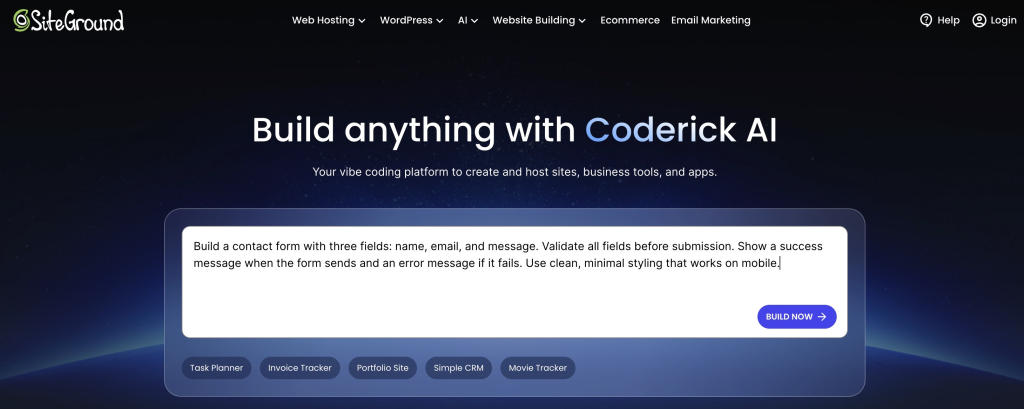
Every interaction in vibe coding starts with a prompt. The quality of that prompt directly determines the quality of the output: “Build a contact form with three fields: name, email, and message. Validate all fields before submission. Show a success message when the form sends and an error message if it fails. Use clean, minimal styling that works on mobile.” will get you further than “add a contact form to my website.”

SiteGround Coderick AI homepage with a prompt input field and quick-start options for building sites, tools, and apps

Here’s what Coderick AI builds from that prompt, and you can keep refining it from there.

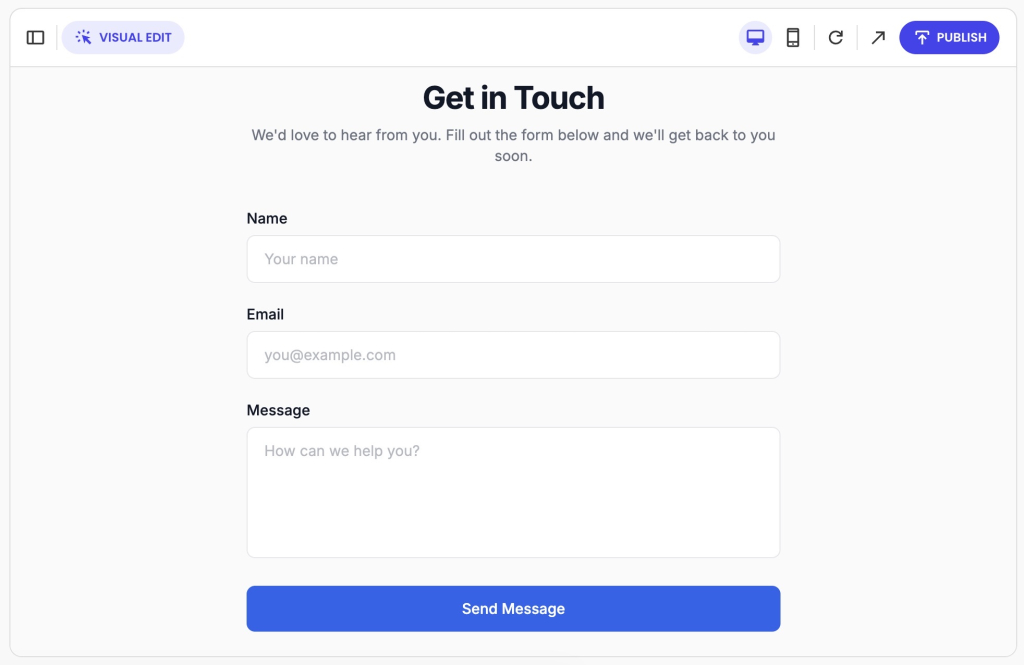
A contact form with name, email, and message fields shown in the SiteGround Coderick AI visual editor

Prompt types and scope

Not all prompts are the same. Here’s a breakdown of the most common types:

Prompt typeWhat it meansExample
Zero-shotA direct instruction with no examples or context“Build a contact form with name, email, and message fields”
Few-shotYou give the AI examples first to guide what it builds“Here are two forms I like. Build me something similar but with a file upload field”
InstructionalA direct command with specific requirements“Build a contact form. Validate all fields. Show a success message on send”
Role-basedYou ask the AI to take on a persona“Act as a senior web developer and build me a secure contact form”
Chain-of-thoughtYou ask the AI to reason through the problem step by step before building“Think through what a contact form needs, then build it”

There are three more terms that directly affect how your prompts are interpreted and how much you should ask for at once.

  • System prompt: A preset set of instructions that shapes how the AI behaves before you type anything, set by the platform, not you. This is why the same LLM can feel completely different across different tools.
  • Prompt engineering: The practice of structuring prompts with enough context, constraints, and detail to get reliably good results. When the AI produces something off, the prompt is usually the problem, not the tool.
  • Prompt scope: How much your prompt asks for in one go: a single specific task or an entire feature at once. Broad prompts produce inconsistent results; smaller focused prompts give more accurate output.

The bottom line: The more thought you put into how you write a prompt, the less time you’ll spend fixing what the AI gets wrong.

Context window

The context window is the total amount of text an LLM can read and hold at one time: your instructions, the conversation history, and any code already generated. Think of it as the AI’s working memory.

If you’ve ever caught the AI contradicting itself mid-project and thought “what’s going on”, you’ve hit the context window. The AI isn’t being inconsistent; it literally can’t see earlier parts of your conversation anymore.

Context limits

Context limits are the specific boundaries of a context window, measured in tokens, that vary by LLM and tool. The larger the limit, the more of your project the AI can hold in mind at once; and the less often you’ll hit the context window ceiling as your project grows. 

Tokens and credits

Tokens are the small chunks an LLM breaks text into before processing it: a single word, part of a word, or even a punctuation mark. Your prompt, the AI’s response, and all previous conversation history all consume them. The context window itself is measured in tokens, which is why longer conversations eat into it faster.

For example, in Coderick AI, tokens translate into credits. That’s the unit that measures how much data is processed per interaction. The longer and more complex the request, the more credits it uses. 

You’ll notice this when a large, vague prompt produces a partial or cut-off response. Breaking large builds into smaller, focused requests gets you more targeted output, and makes your credit allowance go further.

Temperature

Temperature is a parameter that controls how predictable or creative the AI’s output is. You won’t find a temperature slider in most vibe coding tools as they set it automatically. However, knowing what it does helps you understand why output sometimes can feel too safe or too unpredictable.

TemperatureOutputBest for
LowConsistent, conservativeFunctional builds, production code
HighCreative, unpredictableExploring ideas, brainstorming

For code generation, lower temperature is the right default. You want accurate, reliable output, not a creative interpretation of your instructions. Most vibe coding tools handle this automatically.

Hallucination

A hallucination is AI-generated output that looks correct but isn’t: wrong logic, invented functions, or references to libraries and APIs that don’t exist.

You’ve likely run into one if you’ve ever followed an AI’s instructions step by step, only to find that one of the tools, settings, or steps it described doesn’t actually exist or work the way it said.

Agents and automation

Answering a single prompt is just the start. Modern AI tools can plan multi-step tasks, connect to real services, and test what they build. Here’s what that actually looks like in practice.

AI agent / agentic coding

An AI agent is an AI system that handles a whole task from start to finish. You describe what you want, and it figures out how to get there, without you prompting each step. SiteGround’s Coderick AI is a great example of this: describe what you want to build, and it handles the rest.

It’s more powerful than a single prompt, but works best when you stay involved and review what it builds along the way.

Say you need a portfolio site that showcases your work, lets visitors filter by project type, and includes a contact form. Instead of building each piece separately, you describe the end result and the agent handles the full build.

“Build me a portfolio site with a project gallery, a filter by category, and a contact form. Use clean, minimal styling that works on mobile.”

And here’s what Coderick AI makes of it:

A portfolio website projects page with filterable categories and project cards for design, development, and branding work, built with SiteGround Coderick AI

Function calling

Function calling is how an AI agent interacts with external tools, APIs, or services mid-task. You’ll come across this term as you explore more advanced AI tools. Rather than just generating code, the agent can trigger real actions: querying a database, calling an API, or executing code. 

Say you’re building an online store and ask the agent to set up payment processing. It doesn’t just write the code — it calls the Stripe API directly, verifies the connection, and confirms the integration is working, all as part of the same task.

Human-in-the-loop, code review & testing

There are three different ways to catch problems — at different stages of the build:

DefinitionWhen it happensWorth knowing
Human-in-the-loopA workflow where the AI pauses at key decision points and waits for your approval before continuingDuring the buildThe safer default for beginners working with agents
Code reviewReading through generated code to check it works as intended and doesn’t introduce security or performance problemsAfter the build, before deploymentRunning is not the same as working correctly or safely
TestingAutomated verification that code behaves as expected across different conditionsContinuouslyAI can write tests that pass without catching real problems — always check what each test is actually verifying

The three layers of catching problems: 

  1. Human-in-the-loop stops the AI before it makes a decision
  2. Code review is you reading the finished output
  3. Testing is the code running automatically against real conditions to check if it behaves the way it should.

Debugging

Debugging is the process of identifying and fixing code that isn’t working as expected. In vibe coding, this typically means feeding error messages back into the AI and asking it to diagnose and resolve the problem.

A fix can introduce new problems while resolving the original one. Always verify.

Your booking form was working fine, then stopped sending confirmation emails after the AI updated the notification logic. Copy the exact error message, paste it into the AI alongside the relevant code, and ask it to explain what changed and why, before asking it to fix anything.

CI/CD (continuous integration and continuous deployment)

CI/CD is the automated process of testing and publishing code changes so updates go live reliably without manual intervention each time.

As a beginner you might need help setting this up yourself, and AI app builders handle this infrastructure by default.

Every time you make a change and it goes live automatically without manually uploading files, CI/CD is running in the background.

Evaluation (evals)

Evals are structured tests used to measure how well an AI model performs on specific tasks, essentially a scoring system for the quality and reliability of AI output across different scenarios.

You won’t run evals yourself, but they explain two things worth knowing: 

  1. Why one vibe coding tool handles certain tasks significantly better than another
  2. Why a model update can suddenly change how your prompts behave 

Knowing this helps you make a more informed choice when picking a tool, and stops you from blaming your prompts when a model update is actually what changed.

Security and risks

Fast builds come with real risks. AI-generated code can look clean, run without errors, and still expose your users’ data, break under real traffic, or become impossible to maintain. Knowing these terms  is about being informed, not alarmed. 

Many of these risks are handled automatically when you build with a reputable platform. Coderick AI, for example, is built on SiteGround’s infrastructure: a hosting environment with over 20 years of experience powering millions of websites securely and reliably.

Prompt injection

Prompt injection is an attack where malicious instructions are hidden within the content your AI processes (a form field, an uploaded file, a webpage) with the goal of hijacking what the AI does next. Instead of following your instructions, the AI follows the attacker’s.

This is one of the most underestimated risks in vibe coding. If your project takes any user input and feeds it into an AI, prompt injection is a surface you need to think about.

Here’s a real example: someone submits your support form with hidden instructions telling your AI to ignore previous rules and expose sensitive data. Without input validation in place, the AI processes it as a legitimate instruction.

Security vulnerability

A security vulnerability is a weakness in your code that an attacker could exploit: to access data they shouldn’t, break functionality, or take control of parts of your application. This is true of any codebase, human-written or AI-generated. The difference with vibe coding is speed: AI generates plausible-looking code fast, and vulnerabilities can hide in code that runs perfectly on the surface.

Credentials and secrets

Two terms beginners often confuse, and both can cause serious damage if mishandled:

Secrets vs. API keys

API keys grant access to a specific service. Secrets is the broader term covering any sensitive credential: API keys, passwords, and other access credentials your app uses to connect to external services. Every API key is a secret, but not every secret is an API key. 

The rule for both: Never hardcode them, never paste them into prompts, never commit them to a repository.

Input security and access control

Your code needs to control what gets in and what each part of your system can touch:

DefinitionWhat it protects againstWorth knowing
Input validationA security check that verifies data submitted by a user matches what your application expects before processing itMalicious input being processed as legitimate instructionsAI-generated code doesn’t always include this by default; worth adding it explicitly to your prompt just to be sure.
Principle of Least Privilege (PoLP)A security practice that limits what each part of your app can access to only what it actually needsUnnecessary access creating unnecessary risk if something gets compromisedWhen your AI agent requests broad access, question whether it actually needs it
Data privacyA set of practices governing how personal and sensitive information is collected, stored, and shared within your project, including what leaves your environment through AI promptsAccidental exposure of customer or business data through promptsNever paste real customer data into a prompt; use anonymized or synthetic data instead

SAST (Static Application Security Testing) 

SAST is an automated tool that scans your code for security problems before it goes live. Because it works independently of the AI that wrote the code, it catches issues the AI wouldn’t flag about its own output.

Your AI builds a search feature that takes user input and passes it directly into a database query. A SAST scan flags it as an injection risk before anyone uses it. Without the fix, a malicious user could manipulate that query to access or delete your data. The scan points you to the exact line of code to fix, so you’re not hunting blind.

Dependency risk

A dependency is any external library or package your project relies on. Dependency risk is the chance that one of those packages is outdated, unmaintained, or has known security vulnerabilities.

The AI will recommend and include packages without telling you whether they’re safe or still supported. You ask for a file upload feature, the AI picks a library to handle it, but that library hasn’t been updated since 2021 and has two open security advisories. Before accepting any package the AI recommends, check when it was last updated.

Sandboxing

Sandboxing is the practice of running code in an isolated environment with no access to your file system, database, or network unless you explicitly allow it. If something goes wrong, the damage stays contained.

It’s one specific security measure, not a complete strategy. Most relevant when running AI-generated code for the first time or letting an agent execute code on its own.

Say you let an agent generate a script to reorganize your database. Run it in a sandbox first. If it misbehaves, your live data stays untouched.

Sandboxing vs. security

Sandboxing contains damage in one place. Security covers everything else: credentials, validation, dependencies, vulnerability scanning.

Rate limits

A rate limit is a cap on how many requests your application can make to an external service within a given time period. Exceed it and the service stops responding until the limit resets.

AI-generated code doesn’t always account for this. If your app works perfectly in testing but breaks under real usage, a rate limit is one of the first things worth checking.

For instance, your store works fine in testing, but breaks on launch day when real customers start checking out at the same time. The payment service stops responding: you hit the rate limit.

Before you deploy anything

Running without errors is not the same as working correctly, securely, or ready for real users. Before anything goes live, paste the generated code back into the AI and ask: “What does this code do, what assumptions does it make, and what could go wrong?” If the answer surprises you, don’t ship it yet.

If you’re building with Coderick AI, this step looks different. Every change is first applied to a private preview environment where you can check that everything works as expected. Only when you’re happy with the result do you publish it to your live site. You’re not reviewing raw code, but the actual outcome before it goes public.

Keeping things working after the build

Vibe coding makes it easy to build fast. What it doesn’t do automatically is make sure what you built still works, makes sense, or can be updated six months from now. That’s what this section is about. The terms below explain what to watch for, and what to ask your AI to do differently, so your project stays healthy long after the first build.

Maintainability

Maintainability is the ease with which a codebase can be updated, fixed, and extended over time. In vibe coding, it’s the difference between a project that grows with you and one that becomes untouchable after the first month.

When prompting the AI, add “keep functions small and single-purpose” and “add comments explaining non-obvious logic.” One extra line in your prompt, significant difference later.

Technical debt

Technical debt is the cost of shortcuts and poorly structured code that accumulates over time, making a project harder to update, debug, or scale. 

It’s not always avoidable, but it is always cumulative. If adding a simple new feature keeps breaking other parts of your project, technical debt is likely why.

Quick note: this is more relevant if you’re working directly with AI-generated code in a developer environment. With all-in-one builders like Coderick AI, code structure is handled by the platform.

Code health: refactoring, documentation, and versioning

Three practices that keep a vibe-coded project from becoming impossible to maintain:

DefinitionWhy it matters in vibe coding
RefactorRewriting existing code to make it cleaner and better structured without changing what it doesThe primary tool for paying down technical debt
DocumentationWritten explanation of what your code does, how it works, and why certain decisions were madeAI-generated code often arrives without it and would need to ask for it specifically
VersioningTracking changes to your codebase over time so you can see what changed and roll back if something breaksAI can make sweeping changes across multiple files in a single step — versioning is what makes that recoverable

Git and PRs (pull requests)

  • Git is a version control system that tracks every change made to your codebase. 
  • A PR is a way of proposing changes before they go live, creating a review step before anything gets merged.

Even building solo, Git means every change the AI makes is tracked and reversible. Before accepting a large block of AI-generated changes, save a snapshot of where your project is right now. If something breaks, you have a clean version to return to.

Linters and formatters

  • A linter scans your code for errors and inconsistencies without running it. 
  • A formatter restructures it to follow consistent style rules. Together they keep a codebase readable and catch basic mistakes early.

AI-generated code doesn’t always follow a consistent style. Running both as a standard step keeps your project clean as it grows. If the tool you’re building in doesn’t do this automatically, ask the AI to set it up for you.

Logging and observability

  • Logging is the practice of recording what your application does as it runs: errors, events, user actions. 
  • Observability is the broader ability to understand what’s happening inside your application based on that data. Without it, debugging a live application means working blind. 

Ask the AI to include basic logging in every feature it builds. If you’re using an IDE AI tool, this is something you’ll need to set up yourself. With Coderick AI, common errors are detected and flagged automatically, so you don’t have to dig through logs yourself.

You’re fluent now. Go vibe code something.

You don’t need to memorize this glossary before you start. But the next time your AI hallucinates a function, hits a context window, or generates code you probably shouldn’t ship, you’ll know exactly what’s happening.

Knowing these terms makes you a more informed builder, whatever tool you use. If you’re working with an IDE AI tool (like Cursor), the security, infrastructure, and deployment concepts in this glossary are directly relevant to your day-to-day decisions. 

If you’re building with an all-in-one platform like Coderick AI, many of those things are handled for you by the platform, but understanding what’s happening under the hood still helps you make better choices and ask better questions. Coderick AI runs on SiteGround’s infrastructure, with 20+ years of hosting experience behind it, so the foundations are solid before you write your first prompt.

Frequently asked questions about vibe coding terms

How do you do vibe coding?

Through prompts: plain-language descriptions of what you want to build. Add constraints (what the code must not do) and acceptance criteria (what “done” looks like) to get more reliable code. Instead of “make a login page,” try: “Build a login page with email and password fields, a forgot password link, and an error message for wrong credentials.”

What are examples of vibe coding?

Describing a booking form and having the AI build it, connect it to a database, and set up confirmation emails, without writing a single line of code. Or using a platform like Coderick AI to go from a project description to a live, hosted application.

What are the 5 basic terms in computer code?

The five foundational elements of programming are variables, data structures, control structures like conditionals and loops, syntax, and functions. In vibe coding, you don’t need to write any of these manually — but knowing they exist helps you give the AI more precise instructions when something isn’t working the way you expected.

Is vibe coding risky?

Vibe coding is not inherently risky. But it becomes risky when you skip the basics like reviewing generated code, scanning for vulnerabilities, handling credentials correctly, and not deploying code you haven’t verified. AI generates code fast, and mistakes can pile up faster than you’d expect.

How do you tell a hallucination from a normal bug in vibe coding?

A bug is a mistake in the code that causes something to break or behave unexpectedly when you use it. A hallucination is different: the AI produces something that looks right but is based on something it made up — a feature, a setting, or a step that doesn’t actually exist. Bugs are fixable. Hallucinations require you to spot that something was never real in the first place.

How to build a 360° seasonal marketing campaign with AI: A guide for small businesses

A marketing graphic showing a cooking blog post, a social media post, and a spring sales promotion all linked.

Seasonal marketing campaigns are among the strongest growth drivers for small businesses, as your customers are already in buying mode. But those that see the biggest returns aren’t just posting one-off promotions on social media. They’re running a coordinated 360° marketing campaign across all their channels, including website, email, social media, and paid ads.

This guide walks you through every step of an effective multi-channel seasonal campaign and shows you how to execute each one with AI. That way, you can accomplish in a day what used to take a full marketing team and weeks of lead time.

Key takeaways:

  • Seasonal campaigns tap into buying intent that already exists. You’re reaching customers when they’re actively spending, which means less convincing and more converting.
  • A 360° campaign works because customers see your offer multiple times across different channels, building the recognition and trust that single-channel promos can’t match.
  • Your website is the foundation. Every email, social post, and ad sends people there, so if there’s no sign of the promotion when they arrive, everything else is wasted.
  • A short email sequence outperforms a single blast. A teaser, a launch, a reminder, and a last-chance email build anticipation and urgency.
  • Social and paid ads serve different audiences. Social reaches your followers, and ads reach everyone else. Both work best when they match the rest of the campaign.
  • SiteGround AI Studio lets you build the entire campaign from one workspace. It gives you access to specialized AI agents, each designed for a specific task like creating social posts, managing your store, or building ads. That way, you can execute every step, from planning to optimization, without switching platforms or juggling subscriptions.

Why do you need 360° seasonal campaigns?

Seasonal marketing campaigns are among the most effective small business marketing tools for driving revenue during peak buying periods. When customers are already shopping for Valentine’s or Black Friday, or refreshing their home for spring, your job shifts from creating demand to capturing it.

The problem is that, due to a lack of time and resources, most small businesses approach seasonal marketing sporadically: maybe an Instagram post, perhaps an email if there’s time. Meanwhile, the businesses that get the strongest returns run 360° campaigns, coordinating their website, email, social media, and paid ads around a single offer with a consistent message and visual identity.

This is a serious production effort. A full 360° campaign typically involves:

  • A promotional banner and updated website content
  • An email sequence (teaser, launch, reminder, last chance)
  • Social media posts adapted for each platform
  • Multiple ad variations for Google and Meta
  • Updated product pricing, descriptions, and tags (if you run an online store)

That’s thirty-plus individual pieces of content, each with different format requirements, platform conventions, and audience expectations. Marketing agencies charge thousands to produce this. Enterprise brands have dedicated teams for each channel. Most small businesses have a founder with a to-do list and maybe an afternoon.

A graphic on a purple grid background with the text 'VS' compares a single social media post to a group of multiple connected digital interfaces, which include a website, social posts, an email inbox, and a shop, suggesting an ecosystem.

Many are already using AI to help, but often stop at general-purpose AI chatbots. The real shift comes from having purpose-built tools for each specific task in the campaign workflow. That’s the idea behind SiteGround AI Studio, an AI workspace SiteGround built from two decades of working with small business owners and understanding what they actually need. It brings together specialized AI agents, each trained for a specific job in the campaign workflow, in a single workspace.

In the steps below, we’ll walk through the strategy for each part of a 360° seasonal campaign and show you how to execute them with the help of AI agents.

Step 1: Put up a promotional banner on your homepage

Your website is where every other channel sends people during a seasonal marketing campaign. Every email, social post, and ad you create will point back here. If a customer clicks through from your Instagram post or opens your campaign email and lands on a site that looks exactly the same as any other day, with no sign of a promotion, you’ve lost the moment.

The simplest and most effective way to fix this is a homepage promo banner (or hero banner) that makes the seasonal offer obvious right away. It catches every visitor (whether they came from your campaign or found you through search), and it immediately signals that something special is happening.

Here’s what makes a good promotional banner:

  • The offer is immediately clear. The discount, the product, and the deadline should all be obvious at a glance. Something like “20% off all dining tables, ends April 15” works better than vague phrases like “Big spring savings!” 
  • There’s one clear call to action (CTA). “Shop the sale,” “Use code SPRING20,” “See all deals.” One link, one action, taking visitors straight to the discounted products.
  • There are urgency signals built in. The end date, a note about limited stock, or a shipping cutoff. Real deadlines help people decide now rather than “later” (which usually means never).
  • The visual style matches the rest of the campaign. The same colors, typography, and seasonal feel that people will see in your emails and social posts. When the banner matches the email that brought someone to your site, the experience feels professional and trustworthy.

The best approach is to replace your homepage hero section with the campaign banner rather than adding a small notification bar above it. The hero section is the first thing visitors see before they scroll, and making the promotion the hero of the page means 100% of your visitors are aware of the offer instantly. 

It also keeps the page clean and focused: adding a ribbon banner on top of an existing hero creates visual clutter and competing messages, while replacing the hero gives visitors a single, clear directive.

How to execute this with AI Studio

The AI Agent for WordPress (an AI assistant that integrates with your WordPress dashboard, letting you manage your site through plain-language instructions instead of clicking through menus) handles this entire step. Instead of clicking through WordPress menus and dragging blocks around, you describe the homepage promo banner you need in a chat, and the agent builds it on your live site.

The more context you give the agent, the better the output. Include your offer details, your preferred layout, your brand’s visual style, and where you want the CTA to link. The agent builds the banner in one go, including generating and placing images.

Here’s an example of what a prompt to the AI Agent for WordPress might look like:

Update the homepage topmost hero section of my website to promote [X]% discount on [products], valid through [date]. Analyze my website and treat it as the source of truth for brand tone and visual style. Replace the existing hero image, headline, copy, and CTA with engaging sales messaging to promote the discount. Make the CTA prominent, high-contrast, and linked to the relevant product category.

Pro tip: Build the homepage banner before you move on to anything else. This becomes the reference for the entire 360° campaign: every email, social post, and ad you create from here will adapt the same message, look, and CTA.

Step 2: Prepare your online store

If your products still show full prices, have generic descriptions that don’t mention the seasonal campaign, and carry no visual signal that anything special is happening, you’ve broken the customer’s experience at the worst possible moment.

Before you start promoting your campaign to the world, the store needs to look like the campaign is already happening:

  • Apply sale pricing across the relevant products, categories, or bundles. If your banner says “20% off all dining tables,” every dining table in your store should reflect that discount when a customer clicks through.
  • Update product descriptions to mention the promotion and the end date naturally at the beginning.
  • Add promotional tags or badges (“Holiday Special,” “Black Friday Deal,” “Spring Sale”), so customers see the promotion as they browse, not just on the banner.
  • Create a curated collection page: a “Gift Guide,” “Spring Picks,” or “Best Deals” selection that gives browsers an easy starting point and showcases your strongest offers in one place.
  • Audit your product images. If photos are missing alt text, captions, or proper titles, fix them now. This matters for SEO, for website accessibility, and for the professional feel of your store.

For WooCommerce store owners, this preparation for an ecommerce seasonal campaign is usually the most tedious part: logging into the admin panel, clicking into products one by one, adjusting prices, editing descriptions, adding tags. Multiply that across dozens or hundreds of products and it can easily consume an entire day.

How to execute this with AI Studio

The AI Agent for WordPress connects directly to your WooCommerce store and can execute all of these changes through a simple chat, without clicking through your store’s admin panel:

  • Bulk pricing updates: Tell it “reduce all prices in the Spring Collection category by 20%” and it applies the change across your entire catalog in one go. No clicking through individual products.
  • Description rewrites: Ask it to update all product descriptions in a category to mention the spring sale and reference the campaign end date. It edits each product while keeping your existing formatting intact.
  • Tags and categories: Ask it to add a “Spring Sale” tag to all discounted products, or create a new “Spring Picks” category and assign your featured items to it.
  • New product creation: If you’re building seasonal bundles or gift sets, describe what you want and the agent handles setup, pricing, images, and categorization.
  • Image metadata at scale: Point the agent at your product images and ask it to generate alt text, captions, and titles across your media library. For a large store, this saves hours of mind-numbing manual work.
  • Catalog translation: If you’re expanding the campaign to international customers, the agent can translate your product catalog while preserving your brand tone and technical accuracy.

You can chain multiple actions into a single prompt. The agent works through them sequentially, and you can review the changes before moving on.

An interface showing an "AI Agent for WordPress" prompt box that says "Reduce all prices in the Spring Collection category by 20%," positioned in front of an e-commerce product gallery featuring a headband, tennis racquet, and tennis balls with discounted prices.

Here’s an example of how you might prompt the agent for store preparation:

Apply a [X]% discount to [discounted products or services] in my store ending on [date]. Update each product’s sale price based on its current regular price and add these products to a new product category named “Sale.” Update each product description to mention the [X]% promotion and the [date] end date naturally at the beginning. Create a new page titled “Shop the Sale” using the WooCommerce “On Sale Products” block so it updates automatically, and link this new page to the CTA on my promotional banner on the homepage. Use my current store structure and brand voice as context. If any details are missing, make the best choice based on my site.

Pro tip: Always prepare your store before writing emails and social posts. Once your products show the correct sale prices, descriptions, and promotional tags, you can reference specific items, prices, and collections in every piece of content you create. Every link from an email or social post will lead to a page that matches what was promised.

Step 3: Build your email sequence

Of all the channels in a seasonal campaign, email marketing remains one of the highest-converting channels for small businesses. The reason is simple: the people on your email list already know you. They’ve bought from you before, or they signed up because they were interested. A well-timed email with a clear, relevant offer converts at rates that social media and paid ads rarely match.

The most common mistake small businesses make with a seasonal email campaign is sending a single email blast announcing the sale and leaving it at that. That approach relies on one message reaching the right person at the right moment (which it rarely does). Instead, build an email marketing sequence that creates a narrative arc across the campaign:

  • Teaser (2–3 days before launch): Build anticipation without revealing everything. Something like: “Something big is coming this Friday. You’ll want to check your inbox.” This primes your audience to watch for the next email.
  • Launch (day the sale goes live): This is the most important email. Lead with the offer, make the CTA unmissable, and link directly to your store.
  • Reminder (midpoint of the campaign): By now, some people opened the launch email but didn’t act. Highlight specific products, share what’s selling fast, or link to your curated collection from Step 2.
  • Last chance (final day): Keep it short. The deadline is the message. “This ends tonight” is more powerful than another product roundup.

Every email in the sequence needs four things: an email subject line compelling enough to earn the open, body copy that drives the click, a visual that reinforces the campaign look, and a single CTA.

How to execute this with AI Studio

The Email Marketer (an AI agent that creates complete campaign emails including subject line, body copy, layout, and visuals from a single brief) is built for exactly this kind of work.

A marketing graphic displaying a sequence of example email marketing panels, each with a different theme (e.g., fashion, product feature, lifestyle), and a prominent AI chat interface labeled 'Email Marketer' displaying the prompt: 'Create a high-performing launch email sequence for...', illustrating an automated creation workflow.

Start by giving the agent enough context about your business and the campaign. Here’s what a prompt for the launch email might look like:

Create a high-performing launch email for a [X]% promotion on [discounted products or services] ending on [date]. Use my website as the source of truth for tone of voice, offer details, and brand style. The email should open with a strong hook, clearly state what’s on offer, highlight why it’s valuable, emphasize the deadline, and include one primary call to action with a catchy CTA copy that links to my website. Keep the language specific, benefit-led, and consistent with the website. If any details are missing, make a reasonable assumption based on the page without over-explaining it in the email itself.

The agent produces a complete email from this: subject line, body copy, images, and HTML layout, all ready to preview. Then you can follow up to create the rest of the sequence:

  • Now create a teaser version of this email that hints at the sale without revealing the discount. Build curiosity.
  • Create a reminder version of this email that spotlights our top [number] bestselling [product type] and clearly mentions that the sale ends in [number] days.
  • Create a last‑chance version of this email. Keep it very short and direct. The deadline is the main message, and the primary goal is to drive urgent clicks to the website before the sale ends.

The Email Marketer doesn’t just write the email, but it can also export the finished result as ready HTML or load it directly into SiteGround Email Marketing with a single click. The email goes from AI draft to your sending tool in the same workflow, ready for action.

Pro tip: Always write the launch email first and treat it as the template for the rest of the sequence. It contains the clearest, most complete version of your offer, and every other email is a variation of it, which is exactly the kind of adaptation AI handles in seconds.

Step 4: Create your social media posts

Email reaches the people who most likely already know you. Social media marketing reaches people who follow you but haven’t bought yet, and when a good campaign post gets shared, it reaches people who’ve never heard of you at all. That makes social media the discovery layer of your campaign: the channel where new customers first encounter your offer.

The key mistake to avoid here is treating all platforms the same. Copying your email text and pasting it as a Facebook post and an Instagram caption doesn’t work, because each platform has its own format, audience expectations, and content conventions:

  • Instagram is visual-first. A strong product image or seasonal graphic does most of the work in Instagram marketing, and the caption supports it.
  • Facebook allows longer, more conversational posts. It’s where you can tell a story behind the sale, share behind-the-scenes content, or tap into community engagement.
  • LinkedIn is best suited for B2B offers or professional services. If your seasonal campaign targets other businesses (holiday corporate gifts, for example), LinkedIn is where those buyers spend time.

Plan social media content for at least three to five posts per platform spread across the campaign window: a teaser, the launch announcement, a midpoint reminder (this is a good place to link to a blog post or gift guide if you have one), a product spotlight, and a final last-chance post.

How to execute this with AI Studio

AI Studio includes the Social Managers for Facebook, Instagram, and LinkedIn. Each agent produces a complete, ready-to-publish post: the copy, the image (sized correctly for the platform), and the hashtags, all from a single prompt. Because each agent has built-in knowledge of its platform’s best practices, the posts are already optimized for the format and conventions that perform best on that specific channel.

Here’s an example of prompting the Social Manager for Instagram:

Create a high-converting social media post to drive clicks to my website: [URL]. The promo is a [X]% discount on [discounted products or services], ending on [date]. Use my website as the source of truth for tone of voice, visual style, and positioning. Write a full caption (strong hook first line highlighting the promo, clear benefit, mention of the end date, and one click-focused CTA) and generate matching visuals. Keep the copy concrete, benefit-led, and urgency-driven. If something is missing, make a reasonable assumption based on my website.

Once the post is ready, the agents can publish directly to your connected pages and profiles, so you can go from brief to live post without leaving the workspace. Run through this workflow for each post in your sequence and you’ve got a full social media calendar for the campaign, created in a single session.

Beyond publishing, the Social Managers also help you track how your campaign is performing. You can ask any of the agents for an engagement report on your recent posts, and manage comments directly through the conversation, instead of logging into each platform separately to monitor reactions.

Pro tip: Create all your social content right after the email sequence. At that point, you already have the messaging, the visuals, and the campaign timeline from the previous steps. The Social Managers are adapting what exists, not starting from scratch, which is one of the core advantages of building every campaign asset from the same workspace and the same core brief.

Step 5: Set up your paid ads

Even a modest budget, well-targeted with the right creative, can meaningfully amplify a seasonal promotion by putting your offer in front of new audiences at the exact moment they’re looking to buy.

The part of paid advertising that consumes the most time isn’t the budget or the targeting settings, but writing the ads themselves. Effective ad campaigns require multiple variations: different headlines, different hooks, different descriptions, all promoting the same offer. The advertising platforms (Google, Meta) are designed to test these variations against each other and optimize toward what performs best. But writing five versions of the same ad is tedious, and it’s the step where most small business owners give up and run a single ad, which dramatically limits performance.

Two important principles before you start spending:

  • Don’t lead with ads. Make sure your promotional banner, store, emails, and social posts are live first. Ads work best when they amplify a campaign that’s already running across other channels.
  • Keep the creative aligned. Your ads should look and sound like the rest of the campaign. Same branding basics, same offer, same page destination. When someone clicks an ad and arrives at a page that looks completely different from what they just saw, trust evaporates.

How to execute this with AI Studio

AI Studio includes two dedicated advertising agents: the Ads Expert for Meta (which creates ad copy for Facebook and Instagram campaigns) and the Ads Expert for Google (which writes and refines Google Ads copy).

Here’s an example prompt for the Ads Expert for Meta:

Create ads for my [X]% promotion on [discounted products or services] ending on [date]. Generate five variations that highlight the promotion in different ways. Write the ad copy, generate matching visuals. Include a clear call to action linking to my website [URL]. Use the website as context for the tone of voice, visual style, and overall look and feel. Keep the ads clear, compelling, and focused on driving clicks. If any details are missing, make the best choice based on my site.

Each agent follows the ad structure guidelines of its respective platform, so the output is correctly formatted and ready to load into your ad manager. Aim for three to five variations per platform.

Pro tip: Don’t overthink which ad variation will “win.” The whole point of running multiple versions is to let the platform’s algorithm figure that out. Your job is to provide enough creative options for the system to test. That’s exactly what the Ads Experts make fast and easy.

Quick reference: which AI Studio agent for each step

Marketing campaign step AI Studio agent(s)
Building the promotional bannerAI Agent for WordPress
Preparing your online storeAI Agent for WordPress
Creating the email sequenceEmail Marketer
Creating social media postsSocial Managers for Facebook, Instagram, and LinkedIn
Setting up paid adsAds Expert for Meta + Ads Expert for Google

Build your entire seasonal campaign in one place

The reason a full 360° campaign is now realistic for one person or a small team isn’t just that AI can generate marketing copy or images. It’s that every step of the process can happen in the same workspace, with each step building naturally on the last. SiteGround AI Studio brings all of these agents together in a single workspace: one interface, one set of tools, one workflow for the entire campaign.

Want to build your full seasonal marketing campaign with AI agents? Try AI Studio Plus free for 14 days. You get 100,000 tokens and access to the Email Marketer, Social Managers, Ads Experts, Image Designer, Copywriter, Reputation Manager, Web Researcher, SEO Expert, and more. The trial is available once per account to all users who don’t currently have the paid AI Studio Plus plan. After the trial, the service auto-renews, but you can cancel anytime.

FAQs

What is a 360° seasonal campaign?

A 360° seasonal campaign is a coordinated promotion that runs across your website, email, social media, paid ads, and post-campaign follow-up, using a single consistent offer and message. The goal is to reinforce the same story at every touchpoint, which improves trust and conversion.

Is a 360° campaign the same as omnichannel marketing?

They overlap. Omnichannel marketing is a broader approach to creating connected experiences across channels, while a 360° campaign is the execution plan for a specific promotion (such as a seasonal sale or launch). For a growing small business, the practical difference is minimal: focus on consistency and one destination page.

Why should I add a promotional banner to my website?

Because every other part of your campaign (emails, social posts, ads) sends people to your site. If they arrive and see no sign of a promotion, the click was wasted. A sitewide banner is the fastest way to signal that a sale is happening, and it catches every visitor, not just the ones who came from your campaign.

What should a promotional banner include?

At minimum: one clear CTA (“Shop the sale,” “Book now,” etc.), featured products/services or curated picks, real urgency (end date, shipping cutoff, limited stock).

What emails should I send for a seasonal campaign?

A simple sequence works best: teaser (optional), launch (most important), mid-campaign reminder (spotlight benefits or bestsellers), last chance (deadline-driven), follow-up (thank you + next step). This typically outperforms a single email blast by creating momentum and multiple opportunities to convert.

How long should a seasonal marketing campaign run?

For most small businesses, 7–14 days is ideal: long enough to build momentum, short enough to keep urgency. Flash promos can work in 3–5 days, while longer campaigns need creative refreshes mid-way.

What metrics should I track during a seasonal campaign?

Track a small daily set of metrics: CTA clicks, email opens + click-through rate, top products/pages and add-to-cart rate (ecommerce), social clicks/engagement, ad CTR + cost per click (if running ads). Use the data to make small adjustments (headline, CTA, featured items, subject lines, ad hooks).

SEO for ecommerce product pages: a beginner-friendly guide

Abstract of seo for ecommerce product pages

If your product pages aren’t ranking, you’re leaving sales on the table. Not because your products aren’t good, but because Google, AI search tools, and the shoppers using them don’t know you exist.

The fix isn’t as complicated as it sounds. Product page SEO is really just a series of small, deliberate decisions — the right words in the right places, a few technical boxes ticked, and some genuine thought put into what your customers actually need to read before they hit “add to cart.” This guide walks you through all of it, in plain language, even if you’ve never thought about ecommerce SEO a day in your life.

Key takeaways:

  • Product page SEO drives high-intent traffic — these pages convert best because shoppers are already ready to buy.
  • Small optimizations add up — the right titles, product descriptions, and structure make your pages easier to find and rank.
  • Clarity beats cleverness — use the exact words your customers search for, not branded or overly creative language.
  • Original content wins — unique product descriptions and reviews outperform copied manufacturer text every time.
  • Technical basics matter — fast load times, clean URLs, and structured data directly impact visibility and performance.
  • Trust signals improve both search rankings and conversions — reviews, ratings, and UGC help search engines trust you and shoppers choose you.

Why product page SEO matters more than most small businesses realize

Product page SEO is the practice of optimizing individual product pages so they rank higher in search results, get cited by AI tools like ChatGPT and Perplexity, and convert more visitors into buyers. It’s one of those things that feels optional…until you realize your competitor is getting the sale you should have had.

Product pages are also some of the highest-intent pages on the internet. Someone doing a local search for “organic dog shampoo for sensitive skin” — in Google, an AI assistant, or anywhere else — isn’t browsing. They’re ready to buy! So if your page shows up, that’s a sale. And if it doesn’t? Someone else gets it.

Every element on a product page has two jobs: help search engines understand what you’re selling, and convince a real human to buy it. Most advice only covers one. This guide covers both. And unlike a paid ad that stops working the moment you stop paying, a well-optimized product page compounds over time, so the work you do today keeps paying off long after you’ve moved on to the next thing.

Anatomy of a high-ranking product page

A product page is more than a photo and a price. It’s a collection of individual elements, each sending its own signal to search engines. Here’s a quick map of what lives on a typical product page and what each piece is doing behind the scenes (we’ll dive in deeper in a minute). 

  1. Product title: This is the main heading on your page. In web terms, it’s called an H1, or title tag. It’s the first thing shoppers and search engines read, and it sets the context for everything else on the page.
  2. Meta title and meta description: These are what appear in search results. The meta title is a ranking factor; the meta description influences whether someone clicks.
  3. Product description: Your main copy. Where you use keywords naturally, highlight benefits, and give search engines and AI tools plenty of context about what you sell.
  4. Images: Search engines can read file names and alt text. Image quality and size also affect how fast your page loads, which affects search rankings.
  5. Reviews and user-generated content: Fresh content that adds keyword coverage you didn’t have to write yourself, and the kind of specific, natural language that AI search tools love to pull from. 
  6. URL: A permanent address for your page. Should be clean, readable, and include your product name.
  7. Internal links: Connections between your product pages and the rest of your site, like blog posts, category pages, and related products.
  8. Structured data (schema markup): Invisible code that helps search engines display rich results like star ratings and prices directly in search.
  9. Page speed: How fast your page loads, whether it works well on mobile, and whether it’s indexed correctly.
Visual diagram with the anatomy of a online store product page

How to optimize your product pages

Optimizing a product page is really just a series of smaller tasks stacked on top of each other. None of them are that hard, it’s just a matter of knowing where to start. So work through the steps below in order if you’re starting from scratch, or jump straight to wherever your pages need the most love. 

Let’s start with the stuff your customers actually see.
1. Product page essentials

Product titles

Your product title is the H1 (the main header title, or title tag, that is) on your page, and it’s one of the most important steps on your SEO checklist. It tells search engines (and increasingly, AI tools surfacing product recommendations) exactly what the product is using the words shoppers actually type into search. A surprising number of small stores spend little time thinking about this, which means getting this right already puts you ahead of more competitors than you’d think. 

Now, this doesn’t mean keyword stuffing your title. It means being specific. “Candle” is not a product title. “Hand-Poured Lavender Soy Candle” is.
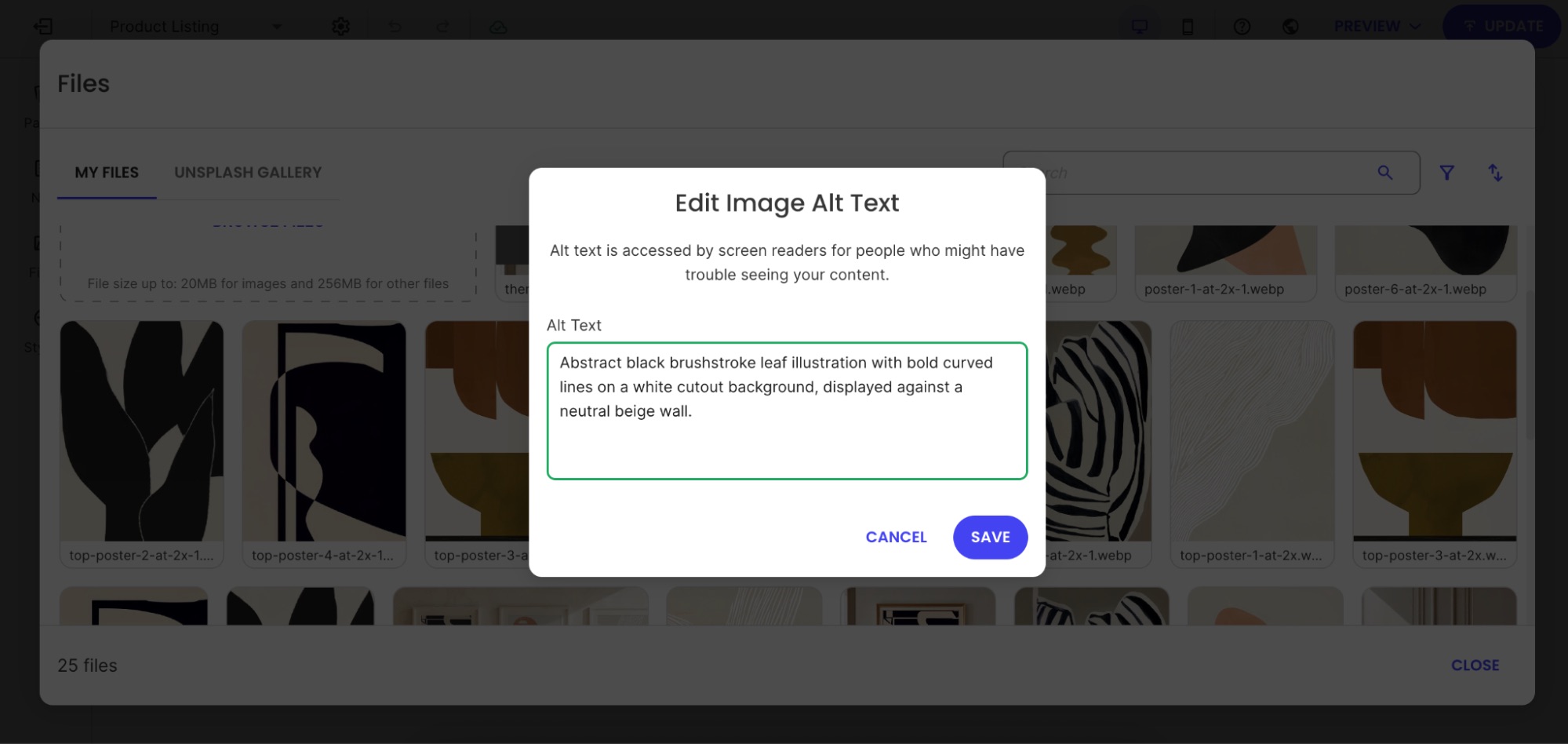

A few conventions worth following:

  • Lead with the most descriptive term. Put the thing first. “Running shoes for women” not “Women’s footwear: running shoes.”
  • Match how your customers talk. If they say “tote bag,” don’t call it a “hand-carry carryall.” Write in the language your customers use, not the language that sounds the cutest.
  • Keep it readable. You’re writing for humans first, then Google. If it sounds weird out loud, rewrite it.

For keyword research, free tools like Google Search Console (once your site has some traffic), Ubersuggest, or even Google’s autocomplete and “People also ask” section can show you how people phrase searches in your category.

Example of a Google search showing People Also Ask questions

Meta descriptions

Here’s something worth knowing: a lot of small online stores never write a meta description at all, leaving whatever text the platform auto-generated — or nothing. That’s a missed opportunity, because your meta description is the two-line summary that appears under your page title in search results, and it’s often what decides whether someone clicks on your listing or scrolls past it.

Example of a Google search showing the meta title and meta description

Think of it as a tiny ad for your product. It should include your main keyword, mention a key benefit or differentiator, and close with something concrete, like a detail that makes clicking feel worth it.

Example: 

  • Before: “Shop our selection of candles online.” Or worse, whatever text happened to get pulled from the top of the product page automatically.
  • After: “Hand-poured lavender soy candles made in small batches. Burns clean for 50+ hours. Free shipping on orders over $40.”

Pro tip: Keep it under 155 characters so it doesn’t get cut off in search results.

URLs and product variants

Your URL is the full web address of your product page — the text you see in the browser bar — and the part you can usually edit is called the slug (it’s everything after the last slash). When it comes to product page SEO, the slug is the part that matters. 

Now, it’s worth first emphasizing that you should aim to get it right from the start, as changing a URL later can wipe out any ranking value the page has already built up. That’s definitely a headache worth avoiding. So here’s what to know from the get-go:

  • Keep it readable. yourstore.com/products/lavender-soy-candle tells both search engines and shoppers exactly what the page is. yourstore.com/products/item?id=00342 tells them nothing.
  • Use one URL per product. Variants like size, color, or material should be selectable on the same page, not each living at their own separate URL. When every variant gets its own page, search engines can treat them as duplicate content, which splits your ranking power rather than stacking it.

Most modern ecommerce platforms handle URL structure automatically, so if you’re using something like the SiteGround Website Builder you likely don’t even need to think about this. If you’re on a heavily customized setup or have added plugins that affect URL structure, it’s worth clicking through your own product variants to check whether the URL changes. 

2. Product descriptions

Benefits vs. features

Features describe what a product is. Benefits describe what it does for the person buying it. Both matter for your SEO strategy, but benefits are what actually sell, as they naturally produce richer, more varied copy that ranks for a wider range of searches.

FeatureBenefit
Made from merino woolStays warm without overheating, even on long hikes
10,000 mAh batteryCharges your phone three times before you need an outlet
BPA-free plasticSafe for kids, no chemical aftertaste

Write product descriptions that lead with benefits and back them up with features. Because your customers aren’t shopping for specs; they’re shopping for outcomes. Nobody buys a travel pillow because it’s “ergonomically contoured.” They buy it because they want to actually sleep on the red-eye.

Long-tail keywords

Long-tail keywords are longer, more specific search phrases, like “waterproof hiking boots for wide feet” instead of just “hiking boots.” They get less search volume individually, but they’re much easier to rank for and they attract buyers who know exactly what they want (and are very ready to buy).

Your product description is the best place to work these in. To find the right ones, ask yourself:

  • What problem is my customer trying to solve?
  • What do they call this type of product?
  • What specific details matter to them? Size, material, use case, compatibility?
  • What would they type into a search bar at 10pm when they really need to find it?

The answers are often your long-tail keywords. Work them in naturally and your description will read better for shoppers and rank better in search.

Pro tip: This kind of specific, natural language also matters beyond traditional search. AI Overviews, and tools like ChatGPT, Claude, and so on, are increasingly where people go for product recommendations, and they favor the same things good shoppers do: clear answers and concrete details. A product description that reads like a helpful human wrote it is exactly what gets cited. Adopting an AI-first mindset when writing your product content isn’t just good for AI search — it makes your copy better for everyone. 

The duplicate content trap (and how beginners fall into it)

Duplicate content comes in two forms, and both will quietly undermine your rankings before you even realize what’s happening.

Copied product descriptions

If you copied the manufacturer’s product description, you’re not alone, but we’ve got some news: it’s costing you. When dozens of stores all use the same copy, Google sees duplicate content across the web and has no strong reason to rank any of them, especially not a smaller store over an established one.

This is fixable: simply write your own descriptions. They don’t have to be long. Even 100 to 150 words of original, specific copy will outperform copied content. Describe how the product feels, who it’s for, how you use it, or what makes your version worth buying from you specifically.

Duplicate product pages

The other kind of duplication is easier to create accidentally than you’d think, especially if you’ve been running your store for a while. Duplicate product pages (two or more pages for the same product, often created by importing products twice, copying listings, or platform migrations) confuse search engines and split your ranking power across multiple URLs instead of concentrating it on one.

Before optimizing anything, do a quick audit of your store and look for products that appear more than once. Tidy these up first. Every other optimization you make falls apart if search engines are trying to decide between two versions of the same page.

3. Images

File names and alt text

Before you upload any product image, rename it with a descriptive file name. A photo straight off your phone is named something like IMG_4823.jpg, which tells search engines exactly nothing. Something like lavender-soy-candle.jpg is far more useful.

Alt text is the written description attached to an image in your site’s code. It was originally designed as part of accessible web design for screen readers, but search engines also read it to understand what an image shows (and oftentimes they even serve up the product images in search results!).

Example of the the SiteGround Website Builder prompting you to add image alt text

To get alt text right, imagine that you’re describing the image to someone who can’t see it. Be specific and include your product name and any relevant detail: “Hand-poured lavender soy candle in a clear glass jar with a wooden wick” beats “candle” or, worse, “product image 1.”

Compression and page speed

Fact: large image files slow your page down. More problematic fact: slow pages rank lower and convert worse — a double penalty you most certainly don’t want.

Before uploading, compress your images to reduce file size without visibly sacrificing quality. Free tools like Squoosh or TinyPNG make this straightforward. The goal is to find the smallest file size that still looks good — there’s no single number that works for every image, but if a product photo is several megabytes, it’s almost certainly larger than it needs to be.

That said, if you’re building on the SiteGround Website Builder, the magic starts the moment you upload an image. Rather than just serving the same file to every device, SiteGround automatically compresses your images and generates optimized versions for different screen sizes — so a visitor on a phone never has to download the same heavy file as someone on a desktop. It’s the level of image optimization you’d usually only get by installing a premium WordPress plugin — except here, it’s baked in from the start, with nothing to configure.

4. User-generated content and trust signals

Reviews and keyword coverage for small stores

Every review a customer leaves is content you didn’t have to write. And because customers describe products in their own words, reviews often contain long-tail keywords and phrases you wouldn’t have thought to include yourself. Wins all around.

Someone reviewing your hiking boots might mention “great for a wide toe box,” “held up in muddy trails,” or “fits true to size.” Those phrases become searchable content on your product page and match exactly how future buyers describe their problem when they search. This is the kind of content that generative engine optimization is built around — specific, human language that AI systems can confidently cite rather than generic marketing copy that could apply to any product.

UGC for small business

You don’t need thousands of customers to start building user-generated content (UGC). A few strategies that work even at small scale:

  • Send a post-purchase survey email. A simple email three to seven days after delivery asking “How’s your [product name] treating you?” with a direct link to leave a review goes a long way. Keep it short, personal, and low-pressure.
  • Respond to reviews publicly. When potential buyers see you engage with feedback (both good and bad), it builds confidence. It also signals to search engines that your page is active.
  • Ask specific questions. “Would you recommend this to a friend?” gets fewer responses than “What problem did this solve for you?”

Trust signals and SEO impact 

Trust signals are your social proof — reviews, star ratings, return policies, and “as seen in” mentions — and they have a bigger search engine optimization impact than most people realize: 

  • In traditional search, they up conversions, and higher conversions send positive behavioral signals to search engines: people are landing on your page and doing something, not bouncing straight back to the results page. 
  • In AI search, the stakes are higher. AI tools actively factor in brand credibility and reputation when deciding what to recommend. A product page with strong reviews, clear policies, and visible trust signals is more likely to be cited than one that looks unestablished, even if the underlying product is just as good. It’s part of a broader shift in how AI is changing marketing, and product discovery in particular.

Practically speaking, make sure star ratings are visible near the top of your product page, and that any press mentions or recognizable partnerships are noted where shoppers can see them. These are the kinds of credibility signals that influence both human buyers and AI tools surfacing product recommendations.

5. Structured data

Now let’s look at what’s under the hood: the elements search engines read that your customers don’t see directly.

Structured data basics

Structured data, also called schema markup, is a snippet of code you add to your page that labels its content for search engines. Product schema is the version built for ecommerce — instead of Google having to guess what your page is about, it tells it explicitly: this is a product, here’s the name, here’s the price, here’s whether it’s in stock.”

Example of google search featuring product details thanks to product schema markup

When search engines understand your page this way, they can display richer, more informative results (like those above) before someone even clicks. That kind of visibility makes your listing stand out and gives shoppers more reason to choose you over a plain text result.

The schema type that matters most

For ecommerce product pages, Product schema is the one to know. It marks up the core details search engines need to understand and display your product accurately: name, description, price, availability, images, and brand. Getting this right is one of the more impactful technical things you can do for a product page, and thankfully it’s also one of the easier ones.

Implementation as a non-technical user

If you’re using an ecommerce platform like SiteGround Ecommerce, Product schema is built in. Fill in your product details completely, and your schema is already taken care of. The steps you’re taking to optimize your product pages are the same steps that keep your schema accurate and up to date. If you’re using a CMS platform like WordPress, on the other hand, you will need to add a plugin to handle this for you.

6. Technical essentials

Page speed and mobile optimization

Page speed is a direct ranking factor, and a slow product page loses visitors before they’ve even seen what you’re selling. And with more than half of ecommerce browsing happening on phones, the bar is even higher on mobile devices.

Beyond images (which we covered above), here’s what to check to ensure optimal website performance:

  • Watch your add-ons. Every plugin, widget, or third-party tool you install adds a little weight to your page. If you’re on WordPress with a stack of plugins, this adds up quickly. Audit what you actually use and remove what you don’t.
  • Check your scores. Run your product pages through Google’s free PageSpeed Insights tool. It gives you a plain-language breakdown of what’s slowing things down and what to fix first.
  • Test on your phone. Browse your own store as a customer would. If the mobile web design is slowing things down, your customers are experiencing the same thing.
  • Choose your web hostingprovider thoughtfully. Where your site lives has a direct impact on how fast it loads. A slow host puts a ceiling on your performance no matter how well you’ve optimized everything else. If you’re using the SiteGround Website Builder, speed is the starting point, not something you work toward. The sites it produces are in a different league from what you’d get with standard themes from competing builders — and that gap shows up exactly where it matters: load times, mobile performance, and real user experience.

Out-of-stock product pages

When a product goes out of stock, don’t delete the page. If it had any search visibility, deleting it throws that away. Here’s what to do instead:

  • Temporarily out of stock: Keep the page live, mark it clearly as out of stock. Update your product availability in your store settings so the status is accurate for both shoppers and search engines.
  • Permanently discontinued: Redirect the URL to the most relevant alternative product or category page. That way, any ranking value the page had gets passed along rather than disappearing into a 404 error.
Example of flagging an ecommerce product as out of stock

XML sitemap

An XML sitemap is a file that lists all the important pages on your site and helps search engines find and index them. Think of it as a map you hand directly to Google and say “here’s everything worth looking at.”

Worth noting: the SiteGround Website Builder generates and updates your sitemap automatically. You’ll still need to submit it via Google Search Console, but make sure your product pages are included when you do. New products won’t rank if search engines don’t know they exist.

7. Internal linking

Now that your product page is in good shape, here’s how it connects to the rest of your store. This part matters more than one might think, so don’t sleep on these tips.

Blog and category page links to products

Internal links from other website pages on your site pass authority to your product pages and help search engines understand how everything relates. If you write a blog post about “how to choose the right hiking boot,” linking to your hiking boot product page from that post is a direct SEO boost for the product.

Category pages work the same way. Make sure every product is reachable from at least one category page, and that those pages are easy for both shoppers and search engines to find.

Cross-sells and related products

“You might also like” and “frequently bought together” sections do double duty: they help shoppers discover more products and they create internal links between product pages. Both are good for SEO and for average order value.

Example of an ecommerce shop suggesting similar products

Orphan product pages

An orphan page is a page with no internal links pointing to it. Search engines may struggle to find it, and even if they do, the lack of internal links signals that it’s not very important. If you’ve ever added a product and forgotten to add it to a category or link to it from anywhere, there’s a solid chance you have orphan pages without knowing it.

To fix this, run a quick audit by checking your category pages and making sure every active product appears in at least one. Tools like Screaming Frog (free up to 500 pages) can help you find orphans if your catalog is larger.

Product page SEO checklist

We’ve covered a lot of ground, so use the below checklist as a quick reference every time you optimize a product page. Start with your best sellers and work through the catalog from there.

Product title

  • Includes the primary keyword naturally
  • Leads with the most descriptive term
  • Written in language your customers actually use

Meta description

  • Under 155 characters
  • Includes the primary keyword
  • Highlights a concrete benefit or differentiator

URL

  • Clean and readable slug
  • Includes the product name
  • No unnecessary parameters or numbers

Product description

  • Written in your own words (not manufacturer copy)
  • No duplicate product pages
  • Leads with benefits, backed up by features
  • Includes long-tail keywords naturally
  • Covers variant details where relevant

Images

  • Descriptive file names
  • Alt text written for every image
  • Compressed before uploading
  • Tested on mobile

Reviews and UGC

  • Reviews enabled on the page
  • Post-purchase survey email in place
  • Respond to reviews publicly

Structured data

  • Product schema is present and verified
  • All product details are filled in completely (name, price, description, images, availability)
  • Availability and pricing are kept up to date

Technical

  • Page loads quickly
  • Page is mobile-friendly
  • XML sitemap created and submitted
  • Out-of-stock pages handled correctly

Internal linking

  • Product appears in at least one category page
  • Linked from relevant blog content where possible
  • Related products section populated
  • No orphan pages

Start somewhere, not everywhere

If this guide has done its job, you now have a clear picture of what makes a product page work and why it matters. Your to-do list might feel a teeny bit longer, but once you get the hang of it, and reap the rewards, you’ll be glad you took a moment to really optimize.

So start now: pick your top three best-selling products and run them through the checklist above. From there, ecommerce marketing is the natural next frontier.

And if you’re building or moving your store to a platform that handles the technical side for you, that to-do list gets a whole lot shorter. SiteGround Ecommerce takes care of schema, sitemaps, image optimization, and mobile performance automatically, plus it makes the whole process easy and unintimidating — leaving you free to focus on the one thing no platform can do for you: making your products impossible to resist.

Frequently asked questions

How do I do SEO for a product page?

Start with the basics: a clear, keyword-rich product title, an original product description that leads with benefits, descriptive image file names and alt text, and a clean URL. Then layer in structured data, internal links, and user-generated content like reviews. Use the checklist in this guide to work through each element systematically, and prioritize your best-selling products first.

What is the 80/20 rule for SEO?

The 80/20 rule applied to SEO suggests that roughly 80% of your organic traffic comes from 20% of your pages or keywords. For small businesses, this means a handful of well-optimized product pages will drive the majority of your search visibility. Focus your effort on those high-value pages first rather than trying to optimize everything at once.

What are the 3 C’s of SEO?

The 3 C’s of SEO are content, code, and credibility. Content refers to the quality and relevance of what’s on your page. Code refers to the technical setup — page speed, structured data, mobile optimization. Credibility refers to the trust signals that tell search engines your site is authoritative, including backlinks and reviews.

5 SEO mistakes your hosting provider can prevent 

Person working on laptop surrounded by search result, impressions graph, and monthly visitors metric showing +10.90k growth

You’ve tweaked your headlines, done your keyword research, published post after post… And Google still isn’t impressed.

But most SEO mistakes aren’t content problems: they’re often infrastructure problems. Slow load times, unreliable uptime, missing SSL, and poor crawlability all start at with your hosting setup. Fixing them at the infrastructure level removes entire categories of SEO problems before they appear in your rankings data.

Key takeaways:

  • Your server’s response time, caching setup, and physical location all affect how fast your site loads — and slow sites rank lower, full stop.
  • One wrong line in your robots.txt file can accidentally tell Google to stop crawling your site entirely.
  • In 2026, being fast and accessible isn’t just good for rankings; it’s what gets you cited by AI tools like ChatGPT and Google’s AI Overviews.

The SEO problems built into most website setups

The five mistakes below cover the full range: from technical slip-ups to content missteps. What they have in common is that a reliable hosting provider either prevents them outright or gives you the tools to catch them early.

#1. Your site speed is too slow to compete 

If your pages take more than a few seconds to load, visitors leave. And that tells Google your site isn’t worth ranking. Page speed is a confirmed ranking factor, and Google measures it through Core Web Vitals: a set of metrics that track how fast your page loads, how quickly it responds to a click, and whether the website layout jumps around while loading. Score poorly on these, and your rankings will reflect it.

Most speed problems come down to three things on the content side:

  1. Uncompressed images adding unnecessary weight to every page
  2. Too many plugins running in the background
  3. Website themes loaded with features and animations that slow everything down

But content-side fixes only go so far. 

These four factors live at the server level — and they affect your speed before a single visitor lands on your page:

  1. TTFB (Time to First Byte): the time it takes for your server to send the first piece of data back to a visitor’s browser. A high TTFB means your site feels slow even before anything has loaded, and it’s almost always a hosting problem, not a content one.
  2. No caching: when someone visits your site, the server normally builds the page from scratch each time, pulling data from the database, assembling everything, then sending it over. Caching skips that process by saving a ready-made version of the page and serving it directly. Faster for visitors, less work for your server. 
  3. No CDN: without one, every visitor loads your site from the same single server — no matter where in the world they are. A visitor in Australia hitting a server in the US waits significantly longer than someone local.
  4. Server location: if your audience is in one country and your server is in another, every page load carries extra travel time.

How do you avoid it?
Compress your images before uploading and keep your plugins to what you actually need. If you’re on WordPress, SiteGround’s free Speed Optimizer plugin handles image compression, lazy loading, and minification and connects directly to the server-level caching, so both sides of the speed problem are covered in one place.

At the hosting level, look for a provider that includes server-level caching, a built-in CDN, and data centers in multiple locations. SiteGround handles all three out of the box: SuperCacher speeds up performance by up to 5x by caching everything from static files to dynamic content. SiteGround’s CDN 2.0 runs on Google Cloud’s global network, using 200+ edge locations (PoPs) for faster routing, with an average TTFB improvement of around 20% based on SiteGround’s internal testing. You also choose your data center at signup, so your site is physically close to your audience from day one.

#2. You’re not on HTTPS or your SSL lapsed

If your site still runs on HTTP, Google flags it as not secure, and so does every major browser. That warning is enough to make a visitor click straight back to the search results. Google has treated HTTPS as a ranking signal since 2014, which means a missing or expired SSL certificate isn’t just a trust problem, but an SEO problem too.

An SSL certificate is what puts the “S” in HTTPS and turns an unencrypted HTTP connection into a secure one. It encrypts the connection between your site and your visitors, and it’s what triggers the padlock icon in the browser bar. Without it, browsers label your site as “Not Secure” — not a great first impression for anyone landing on your page for the first time.

The certificate itself isn’t a one-time fix either. SSL certificates expire, and if yours lapses without auto-renewal, your site drops back to HTTP until you manually sort it out. Most site owners don’t notice until a visitor tells them, or until they see a dip in traffic.Any reputable hosting provider should handle SSL provisioning and auto-renewal automatically. If yours doesn’t, that’s a problem. 

Where things still go wrong in 2026 is post-migration: moving a site to a new host can break your cert configuration, leave mixed content warnings, or drop the HTTP to HTTPS redirect. Check your address bar after any migration and run your site through a mixed content checker before assuming everything carried over cleanly.

How do you avoid it?

Check that your site is running on HTTPS by looking at the address bar.  You should see HTTPS at the start of your URL. In most browsers, clicking the icon to the left of the address bar will also show you the connection status and whether your certificate is valid. If you don’t, your SSL certificate either isn’t installed or has lapsed. SiteGround provides SSL automatically on all plans and handles renewal, so the baseline is covered — focus your attention on those post-migration checks.

Chrome browser security panel for eu.siteground.com showing a secure connection and valid SSL certificate

#3. Google can’t reliably access your content

You published your site, submitted it to Google, and assumed that was that. But Google regularly sends a crawler called Googlebot to revisit your site and check for new and updated content. And a few common things can get in the way of that without you ever noticing.

Where your content gets in the way

  • No sitemap: without one, Google has to discover your pages on its own. A sitemap tells Google exactly what exists on your site and when it was last updated — it’s one of the first things to set up before you start publishing.
  • Blocked crawlers via robots.txt: your robots.txt file tells search engines which pages to crawl and which to skip. A misconfigured file — often left over from a staging setup — can accidentally block Google from crawling your entire site. It’s a small file that’s easy to overlook and expensive to get wrong.
  • Keyword cannibalization: when multiple pages on your site target the same keyword, Google isn’t sure which one to rank. Instead of one strong page rising to the top, you end up with several weak ones competing against each other — and none of them winning. For ecommerce sites, this is especially common with product and category pages that end up targeting near-identical terms and it’s one of the main reasons duplicate content becomes a rankings problem at scale.

Where your hosting gets in the way

Content mistakes aside, your site also needs to be physically accessible when Google comes to visit — and that’s where your hosting setup plays a direct role. A few things worth knowing:

  • Downtime blocks Googlebot: Googlebot crawls on a schedule. If your site is down when it visits, those pages don’t get indexed, or get dropped from results they were already ranking in.
  • Unreliable servers eat into your crawl budget: crawl budget is the number of pages Google will crawl on your site in a given timeframe. A slow or unstable server means fewer pages get crawled per visit.
  • Security threats can take your site offline: bot attacks and traffic spikes can bring a site down just as effectively as a server outage. 

No backups means longer downtime: if something does go wrong and you have no recent backup, getting your site back up can take days, or you lose data entirely. Automatic daily backups stored in a separate location are the difference between a quick recovery and a serious outage.

How do you avoid it?

Check your robots.txt file to make sure you’re not accidentally blocking pages that should be crawled. Submit your sitemap through Google Search Console and audit your content for keyword cannibalization: if two pages are targeting the same term, consider merging them or clearly differentiating their focus. 

On the hosting side, look for a provider with a strong uptime guarantee, DDoS protection, and automatic daily backups. SiteGround covers all of these: the Web Application Firewall and AI anti-bot system filter malicious traffic before it reaches your server, daily backups are stored separately so recovery takes minutes rather than days, and the premium CDN keeps your site fast and available globally, reducing the chance of timeouts that interrupt Googlebot’s crawl.

#4. You’re targeting the wrong keywords and can’t tell

Keyword mistakes don’t always feel like mistakes at the time. You pick terms that seem relevant, write content around them, and wait. But if your site is slow, your SSL has lapsed, or Googlebot is hitting crawl errors, your pages may not be ranking for reasons that have nothing to do with the keywords themselves. By the time you figure that out, you’ve already published several pieces pointed in the wrong direction. This is the one mistake on this list that starts with your strategy, but your hosting setup is what determines how quickly you catch it.

Those infrastructure issues aside, some keyword mistakes are purely strategic:

  • Chasing high-competition terms: going after keywords that established sites with years of authority have locked up. A small business site going head-to-head with Wikipedia or a major brand for a broad term isn’t a fair fight.
  • Ignoring search intent: ranking for a keyword means nothing if the content doesn’t match what the searcher actually wants. Someone searching “email marketing” might want a definition, a tool comparison, or a beginner guide — and Google knows the difference even if you don’t.
  • Duplicate or missing meta tags: if multiple pages share the same title tag and meta description, Google has to guess which one to surface. It usually guesses wrong.
  • Over-optimized anchor text: using the exact same keyword phrase in every internal link pointing to a page looks unnatural and can work against you.

None of this is visible without data. If you haven’t connected Google Search Console from day one, you’ve been making these decisions blind — with no keyword data, no indexing errors, no crawl issues, and no way to tell which pages Google has even found. But GSC only shows you part of the picture. Your server keeps its own logs: a record of every time Googlebot visited, which pages it crawled, and which ones threw errors. That’s the data that tells you whether your site is actually being crawled the way you think it is. SiteGround gives you raw access to these logs directly from Site Tools, under Statistics → Access Log. So you’re not flying blind between GSC reports.

How do you avoid targeting the wrong keywords? 

Start with search intent before you pick a keyword — ask what someone searching that term actually wants to find, and make sure your page delivers it. Keep title tags and meta descriptions unique across every page. For internal links, vary your anchor text naturally rather than repeating the exact keyword every time. And connect Google Search Console before you publish your first page — the data it gives you from day one is something you can never go back and recover. 

On the hosting side, check your server access logs in SiteGround’s Site Tools to confirm Googlebot is actually reaching the pages you’re optimizing.

#5. Your site is invisible to AI search results

Everything in this list feeds into this one. Site speed, SSL, uptime, crawlability: AI Overviews and tools like ChatGPT factor all of it in when deciding which sites to cite. In 2026, your hosting setup doesn’t just affect your Google rankings. It determines whether AI search can find you at all.

Getting picked up by AI search comes down to a few things:

  • Structured content: AI systems pull from pages that directly answer specific questions. Vague, meandering content gets skipped. Clear headings, direct answers, and a logical page structure for your website all help.
  • Schema markup: this is code you add to your pages that tells search engines and AI systems exactly what your content is about. An FAQ schema, for example, makes it easier for Google’s AI Overview to surface your answer for a relevant query. It’s one of the most underused on-page tools available.
  • Thin pages: a page that exists mainly to target a keyword but doesn’t genuinely answer anything won’t get cited. AI systems are good at recognizing when content is substantial and when it isn’t.

But content structure alone isn’t enough. AI crawlers behave like Googlebot: they need your site to be fast, stable, and consistently accessible. A slow server, frequent downtime, or a poor Core Web Vitals score can all make your site harder to crawl and less likely to be cited, even if your content is well structured.

How do you avoid it? 

Structure your content around specific questions your audience is actually asking. Add FAQ schema to pages where it makes sense: most SEO plugins handle this without any coding. Keep your pages substantive and direct. And make sure the hosting fundamentals are in place: fast load times, reliable uptime, and a CDN that keeps your site accessible globally.

And if you want a full rundown of what to check, our SEO checklist covers it step by step.

Good SEO starts with where your site lives

Five mistakes, and most of them trace back to one decision: where your site is hosted. Get that right, and slow speeds, SSL lapses, downtime, and crawlability issues largely take care of themselves. With SiteGround Web Hosting, the infrastructure side of SEO is handled from day one — so the only mistakes left to make are the ones actually within your control.

[86]

Frequently asked questions about SEO mistakes

What are common SEO mistakes?

The most common SEO mistakes include slow page speed, missing or expired SSL certificates, poor site structure, targeting keywords without considering search intent, and not connecting Google Search Console before launch. Many of these stem from hosting and setup decisions rather than content ones.

Does web hosting affect SEO?

Yes. Your hosting provider directly affects page speed, uptime, server response time, and SSL management — all of which are ranking factors. A slow or unreliable host can undermine well-optimized content by making your site harder for Google to crawl and slower for visitors to load.

What hosting features should I look for to help my SEO?

Look for server-level caching, a built-in CDN, data centers close to your audience, automatic SSL with renewal, strong uptime guarantees, and daily backups. These features handle the infrastructure side of SEO before it becomes a problem.

Does site speed affect AI Overview results?

Yes. AI systems like Google’s AI Overviews crawl and evaluate sites similarly to Googlebot. A slow or frequently inaccessible site is less likely to be cited, regardless of content quality. Fast load times, reliable uptime, and a global CDN all improve your chances of being picked up by AI search results.

Is SEO dead or evolving in 2026?

SEO is evolving. The fundamentals still apply: fast sites, trustworthy domains, relevant content. But AI Overviews, ChatGPT, and Perplexity are now part of how people find information. Optimizing for AI citation is as important as optimizing for traditional rankings.

How do I know if my hosting is hurting my SEO?

A few things to check: 
1. Run your site through Google’s PageSpeed Insights and look at your Core Web Vitals scores: a high TTFB is often a server problem, not a content one. 
2. In Google Search Console, look for crawl errors and check how frequently Googlebot is visiting. 
3. If pages aren’t being indexed or keep dropping from results, uptime and server reliability are worth investigating. Your server’s raw access logs are the most direct way to see what Googlebot is actually doing on your site — SiteGround gives you access to these under Site Tools → Statistics → Access Log.

What are the 3 C’s of SEO?

The 3 C’s of SEO are content, code, and credibility. Content covers what you publish and how well it matches search intent. Code refers to the technical setup of your site — speed, structure, and crawlability. Credibility is built through backlinks, consistent information across the web, and a trustworthy domain.

Ecommerce SEO: simple tips to get found online and sell more

abstract representation of ecommerce seo

Ecommerce SEO is the process of optimizing your online store so it shows up when people search for what you sell and turns those visitors into customers. It brings in consistent, high-intent traffic without relying entirely on ads.

It’s also not the dark art it’s often made out to be. This guide breaks down the fundamentals, including keywords, site structure, product pages, and technical basics, in plain language so you know exactly where to start.

Key takeaways:

  • Ecommerce SEO compounds: it brings consistent, high-intent traffic without ongoing ad spend.
  • Start with the basics: focus on your homepage, category pages, and site structure first.
  • Use relevant keywords: prioritize transactional and long-tail terms that convert.
  • Keep your site simple: clear navigation and internal links help users and rankings.
  • Optimize for clicks and sales: strong titles, clear structure, and unique product content matter.
  • Improve consistently: audit, update, and track performance to grow over time.

What is ecommerce SEO?

Ecommerce SEO is the practice of optimizing your online store to improve visibility in search engines and AI tools, and to convert more of the visitors it attracts. It’s the difference between a store that waits to be found and one that actively goes out and gets found.

How it differs from regular SEO

Most SEO advice is written with blog articles and service pages in mind. Ecommerce is a different kettle of fish. You’re not just trying to rank content; you’re trying to rank product and category pages that need to convince someone to buy within seconds of landing. Every optimization has two jobs: help search engines understand what you’re selling, and help real humans decide they want it. No pressure, right? 

Why it matters for small businesses and first-time sellers

You don’t need a big budget or a digital marketing team to compete in search. What you do need is a store that’s structured well, uses the right language, and gives Google enough to work with. Get those fundamentals down and you’re on a level playing field with sellers who’ve been at it for years and totally just phoning it in when it comes to SEO.

Why ecommerce SEO is worth your time (even if you’re just starting out)

Paid ads stop the moment you stop paying. But search engine optimization (SEO) keeps working while you sleep, eat, and do literally anything else. For small businesses and first-time sellers, that kind of compounding return matters, and it’s why SEO should be a cornerstone of any ecommerce marketing plan, not an afterthought bolted on once the store is live.

Beyond the free traffic, SEO also filters it. Someone who finds your store by searching “handmade ceramic mugs Portland” is a much warmer lead in the marketing funnel than someone who saw a banner ad and clicked out of curiosity. They were already looking. You just showed up.

The bar is also lower than you’d think. The majority of small businesses aren’t doing this well. Many skip ecommerce SEO entirely, lean on paid ads, or sort of set it up once and never revisit it. That’s your opening. A store that invests even modest effort into their SEO strategy can consistently outrank competitors who aren’t trying at all.

And you don’t need to overhaul your entire store at once. Start with the fundamentals: your homepage, your main category pages, and your site structure. Get those right and everything else builds on a solid foundation.

Your ecommerce SEO starter checklist

Not sure where to begin? Start here. Think of this as your quick-start SEO checklist: the highest-impact actions for a store that’s just getting started, in the order you should tackle them. The rest of this guide covers each one in detail.

  1. Set up Google Search Console and Google Analytics
  2. Make sure your site structure follows a clear Homepage → Category → Product hierarchy
  3. Write an original title tag and meta description for your homepage and top category pages
  4. Research and assign one primary keyword to each of your best-selling product and category pages
  5. Write original product descriptions for your top sellers (no copied manufacturer copy)
  6. Add descriptive file names and alt text to your product images
  7. Check your store on desktop and mobile to make sure it loads quickly and looks right
  8. Submit your sitemap to Google Search Console
  9. Enable product schema on your product pages
  10. Set a reminder to revisit and refresh your top pages every quarter

Keyword research for your online store

Before anyone can find your store, they have to type something into a search bar. Keywords are how you make sure what they type leads to you and not a competitor. The right ones bring in people who are ready to purchase. The wrong ones bring in traffic that doesn’t convert.

Ecommerce keyword research and where to start

Start with what your potential customers would actually type into a search engine. Think about your store in layers: your homepage targets your broadest category (“natural skincare”), your category pages go one level deeper (“natural face moisturizer”), and from there you branch out across your full range. Type that category into Google and autocomplete does half the work for you: “natural face moisturizer for sensitive skin,” “natural face moisturizer for oily skin,” “natural face moisturizer for winter.” Free tools like Google’s Keyword Planner and Google Search Console can take it further without costing anything.

Example of doing a google search and it autocompleting popular search options

The key principle is one primary keyword per web page. Don’t try to squeeze multiple variations into a single page hoping to cover all bases. It muddies the focus and usually ends up ranking well for nothing.

Buyer intent and why it matters

Search intent is the “why” behind a query, and it generally falls into two camps. Informational intent is research mode: “best leather wallet brands,” “how to care for a leather wallet,” “what is full-grain leather.” These searchers are learning, not buying. Transactional intent is purchase mode: “slim leather wallet under $50,” “buy minimalist leather wallet,” “leather card holder free shipping.” These searchers have their credit card nearby.

Understanding where someone is in the customer journey helps you target the right keywords on the right pages. Your product and category pages should target transactional keywords. Informational queries are better served by blog content, where you can educate, build trust, and link readers toward your store when they’re ready to buy.

Long-tail keywords and why they convert better

Long-tail keywords are longer, more specific phrases with lower search volume but much higher purchase intent. “Women’s running shoes” is broad, sure, but also very competitive and vague. “Women’s wide-fit trail running shoes size 10,” on the other hand, is niche, far easier to rank for, and comes from someone who knows exactly what they want. For small businesses, long-tail keywords are where the real opportunity lies: less competition, more qualified traffic, and a much higher chance of turning a visitor into a customer.

Competitor keywords and why they’re worth knowing

Type your main product category into Google and look at who’s showing up. SEO tools like Ahrefs or Semrush let you see exactly which relevant keywords your competitors rank for and which ones they’re missing. Those gaps are your opportunity. A competitor who ranks for “ceramic dinnerware” but not “speckled ceramic dinnerware handmade” has just handed you an opening.

Site structure and navigation

Think of your website structure as a map. If Google can’t navigate it clearly, it won’t rank your web pages well. If shoppers can’t navigate it clearly, they’ll leave. Both a major bummer.

Site architecture and why it matters for SEO

Search engines crawl your site by following links. A well-structured site makes it easy for them to find every page and understand how those pages relate to each other. A messy structure means pages get missed, buried, or indexed without context. It also means Google can’t tell which pages are most important, so it guesses, and — surprise — it often guesses wrong. That’s rankings left on the table before you’ve even written a word of copy.

Logical structure and how it helps Google and shoppers

The simplest structure that works is also the most intuitive: Homepage → Category pages → Product pages. Keep everything within three clicks of the homepage. A product buried five levels deep is harder for Google to find and harder for a shopper to reach, and a shopper who can’t find what they’re looking for will leave. Clean, predictable website navigation that mirrors your store’s categories serves both audiences at once. If a visitor can’t figure out where to go next within a few seconds, your structure needs work.

example diagram of a website structure click audit

Internal linking and why it works like a map

Every time you add an internal link from one page to another within your site, you’re doing two things: passing authority from one page to another, and telling Google what the destination page is about. Link from product pages to related products. Link from blog posts to relevant category pages. Link from your homepage to your most important categories. These are all internal links doing hard SEO work.

The words you use for those internal links matter too. Anchor text (the clickable text in a link) should describe where the internal link goes. “Shop our ceramic mugs” tells Google something useful. “Click here” tells it nothing. A simple rule: if you covered up the link, would the surrounding sentence still make it clear where you’d end up? If yes, the anchor text is probably doing its job.

On-page SEO that ranks and converts

On-page SEO is everything you control directly on each page of your ecommerce store. When you get it right, it does double duty: it signals relevance to search engines and convinces real shoppers to stick around. Let’s examine what good on-page search engine optimization looks like.

Title tags, meta descriptions, and URL structure

These three elements control how your ecommerce store appears in search engine results pages before anyone even visits your site. Nail them and you’ll earn more clicks from the same search engine rankings.

  • Title tag: the clickable headline that appears in search results. Include your primary keyword, lead with the most important words, and keep it under 60 characters. “Slim Leather Wallet for Men | Free Shipping” beats “Product — My Store” every time.
  • Meta description: the short summary below the title. It doesn’t directly affect search rankings, but it does affect clicks, so write it for humans. Keep it under 160 characters and give people a reason to choose your result. “Handcrafted slim wallets in full-grain leather. Ships in 24 hours.” is specific and compelling. “We sell wallets and other leather goods for men and women” is neither.
  • URL: keep it short, readable, and keyword-rich. mysite.net/wallets/slim-leather-wallet tells Google and the reader exactly what the page is. mysite.net/products/item?id=48302 tells neither. Edit your URLs to match the page’s primary keyword and cut anything unnecessary.
Example of a google search showing the meta title and meta description

Headings and page structure

Headings are the titles and subheadings that organize a page’s content. They’re marked up in order of importance: H1 is the main page title, H2s are the major sections beneath it, and H3s break those sections down further. Search engines use this visual hierarchy to understand what a page is about and which parts matter most. Shoppers use it to scan and find what they’re looking for without reading every word.

Choosing the right header type for a page in the SiteGround Website Builder

With that in mind, use one H1 per page (your main product or category name), then H2s and H3s to organize the rest. 

So on a category page, your H1 might be “Women’s Running Shoes,” with H2s for subcategories like “Trail Running” and “Road Running.” On a product page, your H1 is the product name, and H2s cover sections like specifications, reviews, and related products. A well-structured page like this is easier to scan, and shoppers who can find information quickly are more likely to buy.

Product page essentials

Your product pages have two jobs: convince Google they’re relevant, and convince a human to add to cart. Here’s what to keep in mind as you tackle product page SEO:

  • Original descriptions. Write copy that addresses what the shopper actually wants to know: what it is, who it’s for, and why it’s worth buying. Include your target keyword naturally in the title and lead with the most important information. Not sure what to write? Lean on a built-in AI writer, like the one in the SiteGround Website Builder, to generate content on the fly and give you a solid foundation you can refine and make your own.
  • Trust signals. Return policies, sizing notes, materials information, social proof, and anything else that removes doubt and answers the unspoken “but what if…” question.
  • Customer reviews. One of the most powerful conversion tools on any product page, and a source of fresh, keyword-rich content that search engines like.
  • Product schema. Structured data that helps Google display rich results for your listings, including star ratings, price, and stock availability, directly in the search results. Most ecommerce platforms generate it automatically.

Watch out for duplicate content. Copying a manufacturer’s description is a shortcut that backfires: if the same text appears on dozens of other ecommerce sites, Google sees it as duplicate content and is unlikely to rank your page for it. The same applies to product variants. If your store sells the same item in multiple sizes or colors, avoid creating near-identical pages for each one. Duplicate or very thin pages dilute your search engine optimization rather than multiply it. Consolidate where you can.

Technical foundations

Technical SEO sounds intimidating, but let’s demystify it. For most small store owners, it comes down to one question: does your store load quickly and look great on every device? Get that right and you’re covering most of the technical ground that matters. But let’s break it down.

Hosting and why it affects your store’s performance

A slow server affects load times across all devices, and web hosting quality is one of the most direct levers you have on performance. Shared hosting on an overloaded server, cheap plans with no caching, and hosting located far from your customers can all drag down your scores regardless of how well-optimized your images are or how clean your code is. If your store is consistently slow despite fixing the obvious culprits, your hosting is worth looking at.

Image optimization: file names, alt text, and page speed

Images are often the biggest drag on page load times, and slow pages lose sales. To address this:

  • Compress your images before uploading.
  • Use descriptive file names (“navy-linen-cushion-cover.jpg” rather than “IMG_4832.jpg”).
  • Write alt text that describes what’s in the image. This helps visually impaired users, helps Google understand your images, and opens the door to product discovery through Google image search and Google Lens.
Example of the the SiteGround Website Builder prompting you to add image alt text

Mobile-first indexing and what it means for your store

Google’s mobile-first indexing means it evaluates the mobile version of your ecommerce site when deciding how to rank it. If your mobile web design is missing content that exists on desktop, or if it loads slowly on a phone, that affects your rankings across all devices. Mobile SEO comes down to one principle: treat your mobile experience as the primary one, not an afterthought.

Simple performance checks for first-time sellers

Google’s free PageSpeed Insights tool gives your store a performance score and a prioritized list of issues to fix. You don’t need to action every flag, but the top recommendations are usually worth addressing, since even small website speed improvements can reduce the number of visitors who leave before your page finishes loading.

The metric that matters most here is Core Web Vitals, a set of three measurements Google uses as a real ranking factor:

  • Largest Contentful Paint: how long it takes for the main content of a page to load
  • Cumulative Layout Shift: whether elements jump around while the page loads (frustrating for users, penalized by Google)
  • Interaction to Next Paint: how consistently and quickly your page responds to user interactions (like clicks, taps, and key presses) throughout a visit

You don’t need to understand the technical details behind each one. PageSpeed Insights flags them clearly, and most fixes come down to the same handful of culprits: uncompressed images, too many third-party scripts, and slow hosting.

How SiteGround Website Builder handles the technical heavy lifting
The platform you build on makes a real difference to all of the above. SiteGround’s Website Builder handles hosting performance, image optimization, and mobile responsiveness by default: fast servers, built-in caching, automatic image compression for every screen size, and responsive design out of the box. You focus on your store; SiteGround handles the rest.
Start building your online store now>>

Ecommerce SEO marketing tips to keep improving over time

Getting your store optimized is a start. Keeping it optimized is what compounds over time.

1. Conduct a periodic SEO audit

Every few months, set aside an hour to check the health of your store using Google Search Console. Here’s what to look at:

  • Crawl errors: pages Google tried to visit but couldn’t access. Fix or redirect any pointing to removed products or changed URLs.
  • Broken links: links on your site that lead nowhere. They frustrate shoppers and signal to Google that your store isn’t well maintained. Tools like Google Search Console or the free version of Screaming Frog (which crawls up to 500 URLs) can help surface broken links quickly.
  • Sitemap: make sure it’s up to date and submitted so Google can find all your pages. (Good news: if you’re using the SiteGround Website Builder, this is already taken care of for you.)
  • Top-performing pages: confirm titles, descriptions, and content still reflect how people are actually searching.

2. Track your SEO performance

Set up Google Search Console and Google Analytics (both free) from day one, not after you’ve been running your store for six months. Here’s what each one tells you:

Google Search Console

  • Which queries are bringing people to your store
  • How often your pages appear in search results and your average position
  • Pages with high impressions but low clicks (a sign your title tag or meta description needs work)
  • Sudden ranking drops, and often why they happened

Google Analytics

  • Which pages visitors land on and where they drop off
  • Which traffic sources lead to actual purchases
  • How people move through your store before buying (or leaving)

You don’t need to check them every day. A monthly review will quickly tell you where to focus your next round of optimization. 

3. Refresh product pages and content regularly

Search engines favor fresh, updated content. Product pages with outdated descriptions, old pricing, or thin copy tend to lose ground over time. Set a reminder to revisit your top pages every quarter. Update descriptions, add new reviews where possible, and make sure your keywords still reflect how buyers are searching for your products today.

4. Build backlinks naturally as a small business

Backlinks (links from other websites to yours) are one of the strongest trust signals in ecommerce SEO. For small businesses, the most natural path to link building like this is through earned press, supplier pages that link to authorized retailers, guest contributions, and local business directories. You don’t need hundreds; a handful of relevant, authoritative links will make a difference. 

Start small, stay consistent, and let it compound

The truth about ecommerce SEO is that it’s less about doing everything right and more about doing something regularly. Small improvements compound. A better title tag here, a fresher product description there, and six months later your store looks very different in search results.

Ready to build a store that’s optimized from the ground up? SiteGround Ecommerce gives you everything you need: a fast, mobile-ready storefront, automatic image optimization, built-in product schema, and SEO-friendly structure baked into every template. You bring the products. SiteGround handles the rest. 

Frequently asked questions

How long does ecommerce SEO take to work?

Most stores start to see meaningful movement within three to six months of consistent optimization. Some changes (like fixing technical issues or improving page speed) can have a faster impact, while others (like building domain authority through backlinks) take longer.

Do I need technical knowledge to do ecommerce SEO?

Not much. The fundamentals, which include writing good titles, optimizing product descriptions, and structuring your ecommerce site logically, require no coding knowledge at all. And platforms like the SiteGround Website Builder handle the technical side automatically, so you can focus on the content.

What is product schema and do I need it?

Product schema is a type of structured data markup that helps Google display rich results for your products in search, including star ratings, prices, and stock availability. It’s not required, but it significantly increases the visibility and credibility of your listings. Many ecommerce platforms, like SiteGround, generate it automatically.

Which ecommerce platform is best for SEO?

The best platform for ecommerce SEO is one that combines technical performance (speed, mobile optimization, structured data) with tools that make on-page optimization straightforward. The SiteGround Website Builder is built with all of these in mind, giving small businesses an SEO-ready foundation without requiring technical expertise.

Make them laugh: Adding humor in email marketing

When you plan an email, it’s easy to focus on the offer, the segment, and the subject line. It’s also easy to forget there’s a real person on the other side deciding, in a second, whether they feel like reading any of it.

Humor is one of the few tools that can change that feeling quickly, even though it’s not always easy to pull off. In this article, we’ll look at a handful of humor styles that work in email and how to use them intentionally. For small businesses, that can lead to higher opens, more clicks, and a brand people actually remember when they need what you sell.

Key takeaways:

  • Humor works when it mirrors your reader’s actual life and frustrations, so the email makes people feel understood, not marketed at.
  • Choose one humor style per email (self-own, pain point, pun, inside joke, or twist) and make sure it points back to a clear message or offer.
  • Don’t sacrifice clarity for cleverness, if the joke makes the point harder to understand, cut the joke.
  • Measure if humor works by tracking opens, clicks, replies, unsubscribes, and forwards against your normal benchmarks.

Why humor actually works in emails

When an email makes you smile, you don’t experience it as “marketing” first but as a human moment. But the deeper reason humor works has nothing to do with comedy. It’s about recognition.

When you make someone laugh, you’re proving you understand them: their day, their frustrations, their industry, the specific kind of tired they are on a Tuesday afternoon. As conversion copywriter Lianna Patch puts it: “People don’t buy products. They buy feelings that come with them.” Laughter is one of the fastest ways to create that feeling.

According to Oracle’s Happiness Report, 72% of people would choose a brand that makes them laugh over a competitor. That’s a majority of your potential customers actively rewarding brands that don’t take themselves too seriously.

That’s the emotional core of good email marketing, humor or not. Laughter is just the shortcut.

The key insight

Humor is an emotional signal. It tells your subscriber: I wrote this for you specifically, not for a generic person who might be on my list. That signal is what builds the kind of loyalty no discount code can buy.

5 types of humor that work in email marketing

Not all humor is equal. Different styles work for different audiences and moments.

1. Self-deprecating humor (the safest kind)

Poking fun at your own product, your team, or your industry is low-risk and high-reward. It signals confidence, honesty, and humanity, three things marketing copy is usually missing.

The structure is simple: admit something true that’s slightly unflattering, then own it completely. A re‑engagement email that says, “We noticed you haven’t opened lately. We cried a little, ate a cookie, and decided to win you back” injects vulnerability and charm into what’s usually a dry message. Humor makes the outreach feel personal.

Online liquor store Drizly once sent an email full of lorem ipsum by mistake, then followed up with “lol, wtf was that” and a discount code called LOREMIPSUM. They turned an error into a self-deprecating moment that actually made subscribers like them more.

2. Pain-point humor (the most effective kind)

Take a real frustration your audience lives with and exaggerate it until it becomes absurd. This works because of recognition. When someone reads a copy that names their exact problem — not a vague approximation of it, the specific Tuesday-at-4pm version of it — they feel seen. And feeling seen is the fastest path to a click.

A fitness coach can mock the gap between January gym motivation and February reality. A web designer can joke about exported files named “FINAL” and “FINAL FINAL v3”. If your audience has felt it, you can joke about it.

Death Wish Coffee has framed running out of coffee like a horror movie plot, riffing on Friday the 13th in their emails. It’s funny because the fear is real for their audience: they’re exaggerating a genuine pain point, not inventing one.

3. Puns and wordplay (use sparingly, but use them)

Everyone rolls their eyes at puns. Everyone secretly enjoys them. That little eye-roll? It means the pun worked. It caught their attention, made them react, and that’s what makes it memorable.

Research consistently shows pun-based subject lines outperform generic ones (even the obvious ones) because they create a micro-moment of surprise that breaks the monotony of the inbox.

Subject line examples that work:

  • Florist: “We’re rooting for you 🌱”
  • Coffee brand: “Espresso yourself.”
  • Pet shop: “Pawsome deals end Sunday.”

The rule: a pun earns its place when it connects to something real in the email. A pun that exists just for the joke misses the point. A pun that bridges your subject line to your actual offer is a hook.

4. Inside jokes (the most bonding kind)

Nothing signals “I’m one of you” faster than a joke only your audience would get. Industry-specific humor: references to shared tools, shared nightmares, shared jargon — creates a sense of belonging that generic content never can.

Morning Brew, for example, constantly winks to finance in-jokes, niche business memes, and recurring “characters” in the news cycle, jokes that make no sense unless you’ve been following along.

And Cards Against Humanity has turned ridiculous Black Friday stunts into a tradition their audience feels part of: charging more, selling nothing, or listing ridiculous items. Both have built cult-level loyalty partly because of it.

For small business owners: what’s the joke only your customers would get? The one that’s so niche it would mean nothing to anyone outside your world? That’s the joke worth putting in an email.

5. The unexpected twist (the most shareable kind)

Set up an expectation. Break it.

The twist works because it rewards attention. Subscribers who read all the way through feel like they got something: a joke, a reveal, a moment of surprise. That feeling makes them more likely to click, more likely to remember you, and significantly more likely to forward the email to a friend.

Think: a “50% off” subject line that turns out, in the body copy, to be “50% off… your stress, because this tool now does the boring part for you,” then smoothly pivots into the actual (smaller but still real) discount.

Subject line humor vs. body copy humor: Two different skills

Most advice on funny emails treats subject lines and body copy as the same thing. They’re not. Getting one right doesn’t automatically mean you’ll get the other right and mixing up the approach is one of the most common reasons a “humorous” email falls flat.

Subject line humor

A subject line has roughly 40–50 characters to do everything: earn the open, set a tone, and create enough curiosity or recognition that clicking feels like the obvious next move.

This means subject line humor needs to be immediate. The joke has to land on the first read, without setup. The formats that work best here are:

Bluntly honest confessions

“This is a shameless bribe to open” or “Yes, this is a sales email” call out what’s happening and disarm skepticism in one line.

Broken clichés and flipped phrases

Take something familiar and twist it once, like “New year, same beautiful chaos” or “Limited-time offer (for real this time).”

Exaggerated overreactions

Lines like “Everything is under control (we think)” or “We need to talk about your cart” heighten a small situation just enough to be funny, not confusing.

What doesn’t work: jokes that require context to land, references that only make sense if you already know what the email is about, or wordplay so layered it needs a second read. In a subject line, if someone has to think, you’ve already lost them.

Body copy humor

Email body copy humor has the opposite problem. You have room which means you have enough rope to hang yourself with. The risk isn’t that the joke won’t land, it’s that you’ll keep going after it lands, explaining it into the ground, and arriving at your email CTA with no momentum left.

Good body copy humor follows a three-beat structure:

  1. Setup: Establish the bit. Name the pain, the absurdity, or the premise. Keep it short, one or two sentences maximum.
  2. Payoff: The punchline, the reveal, or the escalation. This is the moment the reader rewards you with a smile. It should arrive before they expect it.
  3. Pivot: The clean turn toward your actual point. This is where most brands lose the thread. They stay in the joke too long and the CTA doesn’t feel like the obvious next step anymore. The pivot should feel like the natural conclusion of the joke.

Map your humor to the right moment

Humor is an emotion, and emotions belong in specific places in your marketing funnel.

  • Welcome emails: Self-deprecating humor sets your voice immediately. It tells subscribers what kind of relationship this is going to be.
  • Promotional emails: Pain-point humor makes the problem feel real before your solution feels necessary. The joke is the setup, your offer is the punchline.
  • Re-engagement campaigns: Unexpected twists and a light tone work best here. Your subscriber has gone quiet — a funny email feels lower-stakes to respond to than a serious one.
  • Post-purchase follow-ups: The customer is happy, their guard is down. A funny follow-up deepens loyalty without asking for anything.
  • April Fools (and cultural moments): The rare occasion when everyone expects something different from their inbox. Your subscribers are primed. The bar is lower. Use it.

Priming your audience for humor

Humor lands differently depending on what your subscribers expect from you. If your tone has always been polished and professional, going playful without warning can feel jarring — like a stranger cracking a joke in a business meeting.

The solution is a permission layer: a few small signals that tell your audience your voice is loosening up, before it actually does:

  • Add a PS line with a light touch. A single line at the end of an otherwise normal email — something like “PS. We’re working on something a little different for next week. Just saying.” — plants a seed without committing to anything. It also gets opened: PS lines have disproportionately high read rates because they feel personal.
  • Let one sentence breathe. In your next regular email, swap one stiff, formal sentence for something slightly more human. “Honestly, this one took us a while to get right.” That’s enough. It starts recalibrating what subscribers expect from your voice.
  • Reference your audience’s reality, not just their goals. Most marketing emails speak to where subscribers want to be. One sentence about where they actually are: the frustration, the Monday morning feeling, the thing that’s not working yet, builds the kind of recognition that makes humor land when it arrives.

The permission layer matters most for two groups: new subscribers (who haven’t established a relationship with your voice yet) and long-term subscribers who joined during a more formal era of your brand. For everyone else who already expects warmth and personality from you, you can skip it.

The timing principle

You don’t need to warm up your entire list before one April Fools email. But if humor is going to become a regular part of your email marketing strategy, not just a one-off, the permission layer is what prevents the tonal whiplash that increases unsubscribes over time. Build the relationship first. Then make them laugh.

5 rules to not make it weird

1. Anchor every joke to something real

Every joke should connect to a real pain, a real product, or a real benefit. If you removed the humor, the email should still make sense.

2. Don’t sacrifice clarity for cleverness

If a subscriber has to decode the joke to understand what you’re selling, you’ve lost them. Funny subject line, clear email body. Never the other way around.

3. Know what your audience finds funny

A meme that lands with 25-year-old freelancers may confuse a 55-year-old dentist. Test with a small segment first.

4. Humor is hot sauce, not the main course

One strong humor moment per email. If every line is a gag, the offer disappears. The joke is the hook; the value is why they stay.

5. Test on 3 real humans before sending

If they don’t immediately “get it” — rewrite. Explained humor is dead humor. Always test outside your own bubble.

What to avoid (seriously)

✓ Do this

  • Joke about your failures, not your customer’s
  • Use humor in the subject line, then deliver value in the body
  • Lean on audience-specific references (insider jokes)
  • Use a warm, honest disclaimer when it’s a prank
  • A/B test your humorous vs. standard subject lines

X Avoid this

  • Cultural, political, or religious references
  • Humor that punches at a group (even lightly)
  • Sarcasm without a clear signal — it reads as rude in plain text
  • Over-explaining the joke (this is worse than the joke itself)
  • Humor that has nothing to do with your offer
  • Forcing humor in genuinely serious communications

How to measure if your humor is working

You don’t just want laughs, you want conversions. Here’s the email marketing benchmarks to watch:

  • Email open rate: Did the funny subject line work? Compare against your average.
  • Click-through rate: Did they engage, or just laugh and close? A spike in opens with flat CTR means your humor didn’t connect to the offer.
  • Reply rate: Positive replies are the strongest signal. Humor makes people respond.
  • Unsubscribe rate: A small spike is normal for anything unusual. A big spike means you missed the mark.
  • Forward/share rate: The ultimate proof, did subscribers share it?

Where to start with humor in your emails

At the end of the day, “funny” isn’t the goal. “Remembered,” “clicked,” and “bought again” are the goals, humor is just one way to get there.

A line that makes them smile, a subject line that surprises them a little, that’s often enough to tip the balance toward an open or a click.

Start small. Test one funny subject line against your usual one. Add a single joke to your next welcome email and see how people respond. Over time, you’ll figure out what your audience actually laughs at, not what a marketer on the internet told you should be funny.

Your subscribers are people. They have a sense of humor. Give them credit for it.