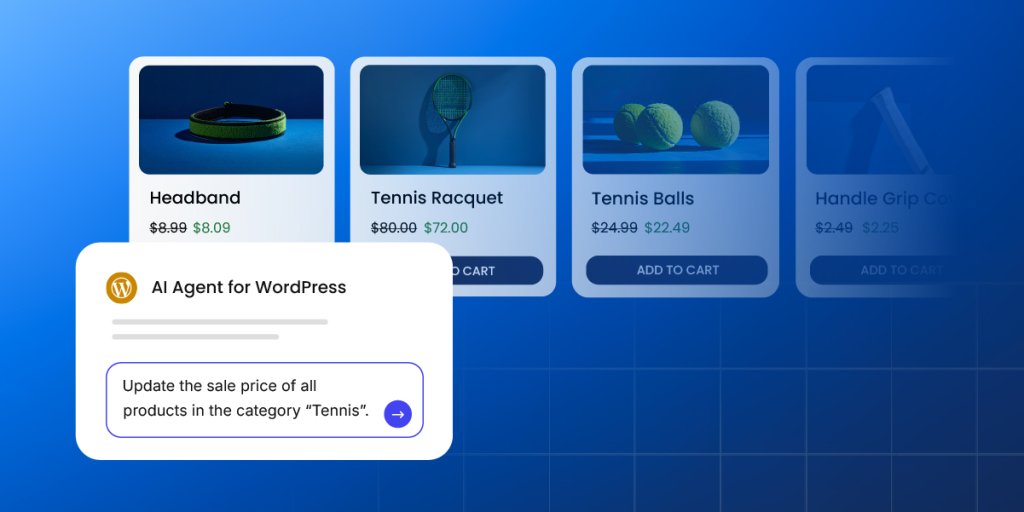
Turn WordPress admin work into simple conversations: 25 WordPress AI Agent prompts

Man working on a laptop next to a WordPress homepage editor, with a prompt asking AI Agent to generate variants for the header

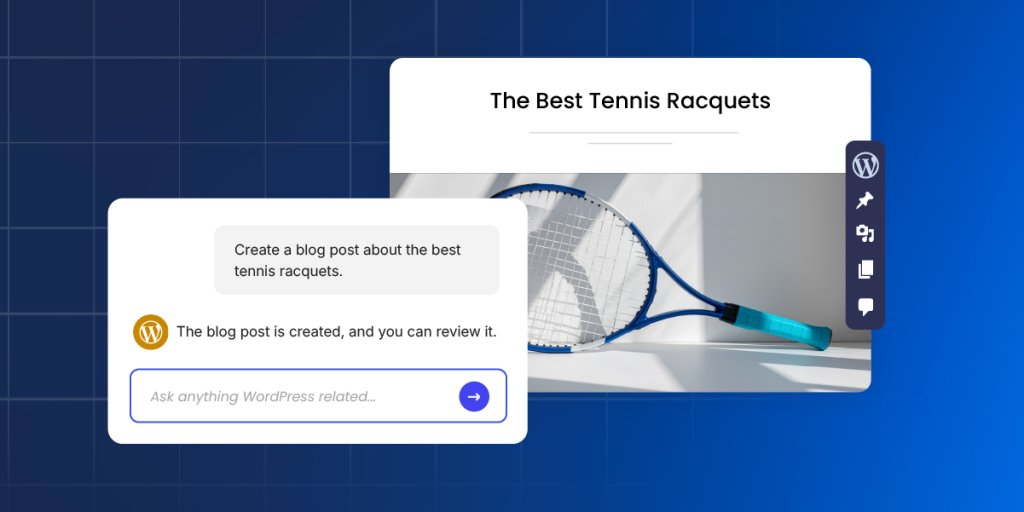
The SiteGround AI Agent for WordPress is not a chatbot: it’s connected to your WordPress site so prompts can become site-management actions. With the right AI Agent for WordPress prompts, you can instruct it to create post drafts, manage WooCommerce products and reports, review plugin update risks, and prepare SEO metadata, all through a conversation, instead of clicking through multiple wp-admin screens.

This is a library of 25 ready-to-copy prompts, organized by admin task type, plus a simple framework for writing your own WordPress AI prompts.

Key takeaways:

  • SiteGround AI Agent prompts turn WordPress admin tasks into natural-language instructions that can create, edit, update, organize, or review site content and settings — the agent works with your connected site, not just with text.
  • The strongest WordPress AI Agent prompts follow one repeatable pattern: area → item → action → constraint → review.
  • Prompting the AI Agent for WordPress differs from prompting ChatGPT because the agent can act inside a connected WordPress site, not just generate text for you to copy elsewhere.
  • Safer AI agent prompts include review-first language like “show me before applying,” “save as draft,” “back up first,” or “ask before deleting” — these protect you from changes you didn’t intend.
  • Vague prompts produce vague results. The fix is almost always adding the specific item name, an action verb, and a constraint.

How are AI agents for WordPress prompts different from ChatGPT prompts?

ChatGPT returns text you copy into WordPress yourself. The SiteGround AI Agent for WordPress is connected to your site, so a prompt can create a post draft, update a product, or check plugin risks directly, without you opening wp-admin.

ChatGPTSiteGround AI Agent
What it doesGenerates textActs on your connected WordPress site
Where the output goesYou copy it into WordPress manuallyDirectly into posts, products, settings
Risk of a vague promptImperfect text you editA change applied in the wrong place
Review step neededOptionalRecommended for most tasks

ChatGPT prompts usually generate text

When you ask ChatGPT to write a blog post, it returns text. You copy it, open wp-admin, create a new post, paste the content, add a category, write an excerpt, and hit publish yourself. 

The same goes for meta descriptions, product copy, alt text, or plugin recommendations: the AI generates; you do the WordPress work.

AI Agent prompts can trigger WordPress actions

The SiteGround AI Agent for WordPress is connected to your site. A prompt like “Create a draft blog post titled ‘How to speed up your WooCommerce store’ in the Performance category” doesn’t just return a copy; it can create the actual WordPress post draft, with the right category attached, ready for your review.

That gap between generating and doing is where the AI Agent for WordPress earns its place. You’re not managing two windows. You’re having one conversation that reaches into your site. For a broader look at its capabilities, use cases, and safety features, see how the SiteGround AI Agent for WordPress works.

The same logic applies to WooCommerce: asking the agent to “summarize recent orders from the last 7 days by status” is a data retrieval task, not a writing task. Or asking it to “check which plugins need updates and summarize the risk before touching anything” is a maintenance task that would otherwise mean logging into wp-admin, opening the Updates screen, and researching each one manually. The WordPress Agent runs inside SiteGround AI Studio and connects directly to your site from there.

Why action prompts need clearer instructions and review steps

Because the AI Agent can act, not just suggest, your prompts carry more weight. A vague ChatGPT prompt returns imperfect text you can edit. A vague action prompt might create a post with the wrong category, update content you didn’t intend to change, or skip a step you expected it to include.

This is why every strong WordPress AI Agent prompt includes three things ChatGPT prompts often skip: the exact item name, a constraint on how far the agent should go, and a review step before anything gets applied. “Show me before publishing” isn’t optional courtesy, it’s how you stay in control.

What makes a good WordPress AI Agent prompt?

A good WordPress AI Agent prompt tells the agent exactly where to work, what to work on, what to do, how far to go, and whether to check with you before applying changes. Five parts, in that order.

The framework is: Area → Item → Action → Constraint → Review

Prompt partWhat it doesExample
AreaThe part of WordPress the agent should work in“blog posts,” “WooCommerce products,” “plugins”
ItemThe specific item or group to work on“the About page,” “all products in Shoes,” “outdated plugins”
ActionWhat the agent should do“create,” “update,” “summarize,” “save as draft”
ConstraintLimits or requirements“under 155 characters,” “do not publish,” “ask before deleting”
ReviewHuman checkpoint before suggestions become site changes“save for review,” “show me the list first,” “summarize before applying”

The formula + example: 
“Review the post titled ‘Email marketing tips’ [area + item], suggest a meta description [action] under 155 characters [constraint], and show it to me before applying [review].”

Name the area of WordPress

Start by telling the agent where to work: blog posts, pages, WooCommerce products, WooCommerce orders, plugins, installed themes, pending comments. The AI Agent for WordPress works across your entire connected site, so naming the area narrows the scope and reduces the chance of unintended changes.

Identify the item or group of items

After naming the area, name the specific item. “The post titled [post title]” is specific. “My posts” is not. For groups, be just as precise: “all products in the Shoes category,” “plugins that haven’t been updated in 90 days,” “posts published before 2023 in the Marketing category.”

If you don’t name the item, the agent either asks you for it (adding a round trip to the conversation) or makes a reasonable guess (which may not be what you wanted).

State the action clearly

Use a plain verb: create, update, review, summarize, suggest, save, schedule, publish, delete. Avoid abstract requests like “do something about my plugins” or “help with my products.” The more specific the verb, the more predictable the result.

Some actions are reversible (creating a draft, suggesting changes). Others are harder to undo (deleting content, publishing a post). Use higher-stakes verbs with explicit confirmation requests: “delete spam comments — ask me before removing anything.”

Add constraints, safety language, or review instructions

Constraints tell the agent where to stop. For content: “under 155 characters,” “match the current brand voice,” “don’t change the heading structure.” For maintenance: “do not update major plugins without asking,” “back up first.” For data tasks: “summarize only, make no changes.”

Review instructions are the safety net. Adding “show me before applying” or “save as draft for review” to any content or settings prompt turns a potentially irreversible action into a two-step process where you stay in control. Use natural language prompts with clear review steps as your default pattern — then remove the review step only for tasks you’re comfortable running automatically.

Use follow-up prompts instead of overloading one request

One prompt, one task. If you ask the agent to write a blog post, find internal links, add a meta description, and schedule it all in one message, each step gets less attention and you have no clean point to review before changes apply.

A better approach: run the content creation first, confirm the output, then follow up with the meta description request, then the internal links. Each step stays reviewable, and if something looks off, you haven’t already applied five changes at once.

25 WordPress AI Agent prompts you can copy and adapt

These 25 AI Agent for WordPress prompts are organized by task type. Each includes what it does, what to customize, and what to check before confirming the result. Copy them directly or adjust the bracketed fields for your site.

Content prompts

Content prompts are among the most common use cases for SiteGround AI Agent for WordPress — and the ones where review steps matter most, because the agent is creating or editing material that will appear on your site under your name.

1. Create a draft blog post

Create a draft blog post titled “[title]” for the “[category]” category. Use H2s and H3s, add a short excerpt, and save it as a draft for review.

What it does: Creates a structured post draft in WordPress, assigned to the right category, with a heading hierarchy and excerpt already in place.

Customize: [title], [category].

Review note: Check accuracy, tone, links, and formatting before publishing. The draft won’t go live until you publish it manually.

2. Rewrite an existing page

Review the “[page name]” page and rewrite the introduction so it is clearer, more benefit-focused, and easier to read. Show me the new version before applying it.

What it does: Rewrites the intro copy of a specific page without touching the rest of the layout or content.

Customize: [page name].

Review note: Confirm the rewritten copy matches your offer and brand voice. The “show me before applying” instruction keeps this non-destructive until you approve.

3. Add categories and tags to a post

Review the draft post titled “[post title]” and suggest the best category and 5 relevant tags based on the content. Show me the suggestions before applying them.

What it does: Reads the post content and recommends taxonomy assignments based on what’s already there — rather than guessing from the title alone.

Customize: [post title].

Review note: Check for duplicate or near-duplicate tags before confirming. A site with 200 posts can accumulate 400 tags quickly if this step goes unreviewed.

4. Create a short excerpt

Write a short excerpt for the post titled “[post title]” in under 160 characters. Keep it clear, specific, and useful for readers.

What it does: Generates a concise excerpt within the character limit WordPress typically displays in archive pages and search results.

Customize: [post title].

Review note: Make sure the excerpt reflects the actual article. A generic excerpt that could apply to any post hurts click-through rates from your blog archive pages.

5. Refresh an old post

Review the post titled “[post title]” and identify sections that feel outdated. Suggest updates, but do not apply changes until I approve them.

What it does: Scans existing post content for outdated references and returns a list of suggested improvements.

Customize: [post title].

Review note: Manually check any facts, dates, prices, screenshots, or product references before accepting suggestions. The agent flags staleness — you confirm accuracy. For WordPress SEO, refreshing old posts is one of the most reliable ways to recover lost rankings without writing something new.

6. Moderate comments

Review pending comments and group them into three lists: approve, reply, and spam. Do not delete anything until I confirm.

What it does: Sorts your comment queue into three actionable groups without permanently removing anything until you say so.

Review note: Useful for high-volume comment sections where scanning manually is slow. Never let the agent delete comments in bulk without reviewing the spam list first — legitimate comments occasionally get caught.

7. Draft a post for manual scheduling

Create a draft blog post titled “[title]” for the “[category]” category. Use H2s and H3s, add a short excerpt, and save it as a draft for review.

What it does: Creates a structured post draft, ready for review, with a heading hierarchy, excerpt, and category already in place.

Customize: [title], [category].

Review note: Check accuracy, tone, links, and formatting. The agent can prepare the draft, but it doesn’t currently manage the future publish date and time, so set the schedule yourself in the Publish box once you’re ready.

WooCommerce prompts

WooCommerce admin work is some of the most repetitive WordPress tasks: writing product descriptions, checking stock, reviewing orders, setting up coupons, generating reports, and finding incomplete product data. These prompts hand the routine parts to the agent while keeping financial and inventory changes behind a review step.

8. Create a product draft

Create a WooCommerce product draft named “[product name]” with the price “[price],” category “[category],” and this short description: “[description].” Save it as a draft for review.

What it does: Creates a product listing in WooCommerce with the basic fields populated, saved as a draft so you can add images and review before publishing.

Customize: Product name, price, category, description.

Review note: Check pricing, tax class, shipping settings, inventory configuration, and product images before publishing. A product that goes live with a missing price or wrong tax setting causes real customer friction.

9. Improve product descriptions

Find products in the “[category]” category with short or weak descriptions. Suggest improved descriptions in a consistent format before applying them.

What it does: Reviews a category of products and returns improved copy suggestions, formatted consistently across all items in the group.

Customize: [category].

Review note: Confirm all specs, sizes, ingredients, and claims before accepting. For product descriptions, accuracy beats creativity — a suggested description that overstates a spec creates returns and complaints.

10. Check incomplete product data

Review WooCommerce products and list any items missing images, categories, prices, descriptions, or stock information. Do not change anything yet.

What it does: Produces a catalog health report showing which products have data gaps — without touching anything.

Review note: Run this before a sale or promotion. Missing data on a product page during high-traffic periods can suppress conversions without any obvious error to debug.

11. Update product stock notes

For products in “[category],” review stock status and prepare a summary of items that may need attention. Do not change stock quantities without confirmation.

What it does: Creates an inventory review summary without making any changes to stock levels.

Customize: [category].

Review note: Inventory changes should always be confirmed manually. The agent summarizes — you decide what to adjust and when.

12. Review recent orders

Summarize recent WooCommerce orders from the last “[time period]” by order status, total revenue, and any orders that may need follow-up.

What it does: Creates a structured order summary report with status breakdown and flags anything that might need attention — failed payments, pending fulfillment, abandoned carts.

Customize: [time period] — for example, “last 7 days” or “this month.”

Review note: Don’t share agent-generated order summaries in public notes or accessible channels. Keep order details in private admin contexts.

13. Prepare a coupon for manual launch

Prepare the settings for a coupon called “[coupon code]” for “[discount]” with an expiry date of “[date].” Include recommended usage limits, minimum order value, and product or category restrictions. Show me the settings so I can review them before creating the coupon.

What it does: Prepares a coupon configuration for review, including the discount, expiry date, and recommended safeguards, so you can confirm the details before the coupon is created.

Customize: Coupon code, discount amount or percentage, expiry date, usage limits, minimum order value, applicable products or categories.

Review note: Review the discount amount, usage limits, minimum order value, and product or category restrictions carefully before creating the coupon. The agent can help prepare or create the coupon after confirmation, but it should not be presented as able to schedule a future activation date or save a coupon draft for later publishing.

Maintenance prompts

Maintenance is where the review-first approach matters most. Plugin updates, theme changes, and security settings can all have site-wide consequences. These prompts are designed to give you information before the agent makes any changes — treating every maintenance task as a two-step process.

14. Check plugin updates

Check which plugins need updates and summarize the update risk for each one before making changes.

What it does: Reviews the plugin update queue and categorizes each by risk level — so you know whether you’re looking at a minor patch or a major version change before you commit.

Review note: Major version updates (e.g., from version 3.x to 4.x) are higher risk than patch updates. Review release notes for major updates before applying them, especially for plugins that handle payments, security, or page layout.

15. Low-risk plugin updates only

Check which plugins have updates available. Update only the plugins I have defined as low-risk, and pause before any major update, business-critical plugin update, deletion, or anything that may require Power Mode.

What it does: Reviews available plugin updates and applies only the updates that match your low-risk criteria. Anything major, sensitive, unclear, or potentially destructive is held for manual review.

Customize: Which plugins count as “low-risk” for your site; whether patch-only updates are allowed; whether to include theme updates in the same pass; which plugins are business-critical.

Review note: Back up the site manually in Site Tools before starting this session. The AI Agent doesn’t have a backup action of its own, so this step happens on your side first, not inside the prompt. Define “low-risk” clearly — for example, patch updates to non-critical plugins only. Deleting plugins requires Power Mode, and the agent should pause before any action that triggers it.

16. Check outdated themes

Check whether the active theme or installed themes need updates. Summarize what needs attention before making changes.

What it does: Reviews theme version status and returns a summary of what needs attention — without applying any updates.

Review note: Theme updates can affect visual layout, custom CSS, and child theme behavior. Review the update changelog and check your site’s front end after any theme update.

17. Clean spam comments

Review spam comments and summarize how many can be safely removed. Ask for confirmation before deleting anything.

What it does: Reviews the spam comment queue and returns a count and summary before removing anything permanently.

Review note: Review note: Bulk deletion of comments also requires Power Mode. Check the summary before confirming. The agent should give you a number and a breakdown, not just a deletion count after the fact.

18. Performance check

Review the site for common performance issues, including heavy plugins, caching concerns, and large media files. Give me a prioritized list of fixes.

What it does: Produces a prioritized list of performance issues — ordered by impact, not by how easy they are to fix.

Review note: Apply fixes one at a time and check site behavior after each one. Performance changes that interact with your caching layer can have unexpected effects if applied in bulk.

19. Security review

Review the site for basic security concerns, including outdated plugins, inactive users, and risky settings. Summarize findings before making changes.

What it does: Creates a security review summary covering the most common WordPress vulnerability sources.

Review note: Any user role changes or settings changes flagged by this review should be evaluated carefully before applying. Add “do not change anything yet” to the prompt if you want a pure audit with zero actions.

SEO prompts

SEO prompts are a natural fit for SiteGround WordPress AI Agent because most SEO tasks are repetitive and formulaic: write a meta description under 155 characters, suggest an SEO title under 60, add alt text that describes the image, and recommend internal links. These prompts hand the repetitive parts to the agent while keeping your review in the loop before anything gets published.

20. Write meta descriptions

Review the posts in the “[category]” category and suggest meta descriptions under 155 characters. Show them to me before applying changes.

What it does: Generates a batch of meta description suggestions for all posts in a category, sized correctly for standard search result display.

Customize: [category].

Review note: Check that each description is unique and accurately reflects the post. Duplicate meta descriptions across a category are worse than none — they create confusion in the SERP and signal thin content to crawlers.

21. Improve SEO title

Suggest a stronger SEO title for the post titled “[post title].” Keep it clear, under 60 characters, and aligned with the main topic.

What it does: Returns an improved title tag suggestion within the character limit that avoids truncation in search results.

Customize: [post title].

Review note: Make sure the suggested title still matches what the page actually covers. An optimized title that overpromises what’s in the article increases bounce rate and hurts dwell time, which feeds back into rankings.

Review the post titled “[post title]” and suggest 3 internal links from related existing pages or posts. Include natural anchor text for each link.

What it does: Identifies three relevant internal linking opportunities within the post, with suggested anchor text that reads naturally in context.

Customize: [post title].

Review note: Check that each suggested link is genuinely relevant — not just topically adjacent. An internal link earns its place only when the linked destination is the most useful next step for the reader at that exact point. A good SEO checklist treats internal links as a navigation decision, not a keyword-matching exercise.

23. Add image alt text

Find images on the “[page or post title]” page that are missing alt text. Suggest descriptive alt text for each image before applying it.

What it does: Reviews image fields on a specific page and returns alt text suggestions for any that are blank.

Customize: [page or post title].

Review note: Alt text should describe the image as it exists — not stuff the keyword from the page into every field. A photo of a laptop on a desk should be described as a photo of a laptop on a desk. Google’s image search benefits from accurate alt text; keyword-stuffed alt text is a flag, not an advantage.

24. Refresh SEO on an old post

Review the post titled “[post title]” for SEO refresh opportunities. Suggest updated H2s, a better meta description, and internal links before making changes.

What it does: Combines content freshness and SEO metadata review into one audit, returning suggestions across headings, metadata, and linking — without applying anything until you confirm.

Customize: [post title].

Review note: This is a starting point for a fuller refresh, not a complete rewrite. After reviewing the suggestions, run prompt 5 (content refresh) as a follow-up if the body copy also needs work.

Safety and troubleshooting prompts

Troubleshooting prompts work differently from the others: you’re not giving the AI Agent for WordPress a task, you’re asking it to diagnose a situation before anything gets changed. This is the most important category to use correctly, because WordPress problems can compound quickly if you start changing settings without knowing what caused the issue first.

25. Troubleshoot before changing anything

I’m seeing “[problem]” on my WordPress site. Review likely causes and give me safe next steps before changing anything.

What it does: Runs a diagnostic pass on the likely causes of the problem and returns a prioritized list of next steps — without making any changes to the site.

Customize: [problem] — be as specific as possible: “a white screen on the checkout page,” “the homepage loading slowly on mobile,” “a 403 error after updating a plugin.”

Review note: Use this prompt before plugin changes, settings changes, or support escalation. The more detail you include in the problem description, the more useful the diagnostic. “My site is broken” gives the agent very little to work with. “I’m seeing a 500 error on all pages after updating WooCommerce from 8.3 to 8.4” gives it a much clearer picture.

What to do when a prompt doesn’t work

Most AI Agent prompt failures have the same root cause: the instruction was too vague for the agent to act on confidently. Before changing tools or assuming the AI Agent can’t do something, try these fixes in order.

Add missing context

A prompt that fails is usually a prompt missing one of the five components. Go through the area → item → action → constraint → review checklist and identify which part is absent.

“Update my posts” is missing the item, the action specifics, and the constraint. “Review the last 5 posts published in the Marketing category and suggest updated meta descriptions under 155 characters — show me before applying” has all five. The second prompt will work; the first won’t.

Break a large prompt into smaller steps

If a prompt asks for too many actions at once, the agent may handle some parts well and skip others, or it may stop to ask for clarification mid-task. Split the work: one prompt per task, in the order you want them done.

A common mistake is asking the agent to “clean up my product catalog” in a single message. That’s too broad. Start with prompt 10 (check incomplete product data), review the results, then use prompt 9 (improve descriptions) on specific items the first prompt flagged.

Ask the agent to summarize before applying changes

If you’re not sure whether the agent understood your intent correctly, add “summarize what you’re about to do before starting” to the beginning of any complex prompt. This surfaces the agent’s interpretation of your request before any action is taken — and gives you a chance to correct it with a follow-up message.

Check whether the task needs Power Mode

You’ll have noticed Power Mode mentioned in a couple of the prompts above. It’s a safeguard that the agent requires before executing higher-impact actions: deleting posts, pages, media, plugins, or themes, making bulk content changes, creating or updating users, changing core settings like the site URL or timezone, and managing WooCommerce products and orders. It’s off by default, so when the agent asks you to enable it, that’s your cue to read carefully before confirming. For the full picture of what triggers it and why, see how SiteGround built Power Mode into the AI Agent for WordPress.

Rewrite vague prompts using area → item → action → constraint → review

If none of the above fixes it, go back to the framework: area → item → action → constraint → review. Write the prompt from scratch with all five parts, and the agent will almost always have enough to work with.

How to turn good AI Agent prompts into repeatable WordPress workflows

Running a good prompt once is useful. Running the same prompt every week without thinking about it is a system. The prompts in this library are starting points — once you’ve tested them and adjusted them for your site, the next step is building them into a routine.

Save prompts you use often

Keep a running document of the prompts that work well for your specific site. Customize the bracketed fields for your most common post types, product categories, and recurring tasks, then save the final versions somewhere you can copy from quickly — a plain text file, a note, or a pinned message in your workflow tool.

A prompt document doesn’t need to be elaborate. A filename and the prompt text, organized by task type, is enough. The goal is to remove the “what should I type?” decision from routine tasks.

Group prompts by task type

Organize your saved prompts the same way this library is organized: content, WooCommerce, maintenance, SEO, troubleshooting. When you sit down to do a specific type of work, open the relevant group and run through the prompts that apply. This is faster than building a prompt from scratch each time, and it creates consistency across similar tasks.

Add review checkpoints

Build the review step into every saved prompt by default, then remove it only for tasks where you’ve run the prompt enough times to trust the output. Starting with “show me before applying” in every prompt and progressively removing it for low-risk tasks is safer than the reverse.

For plugin updates, backups, and security changes, keep the review step permanently: these are areas where the cost of a wrong action is high enough that the extra confirmation step is always worth the few seconds it adds.

These 25 prompts cover the most common WordPress admin tasks. For complete step-by-step AI Agent workflows for WordPress — including recurring maintenance schedules, WooCommerce store health checks, and AI-assisted content planning — use the dedicated workflow guide.

Start with one prompt

The fastest way to get comfortable with AI Agent for WordPress prompts is to run one task right now. Pick a prompt from the maintenance or SEO section, customize the bracketed fields, and see how the agent handles it. Most people who try the framework once stop writing vague prompts forever. Use the complete AI Agent for WordPress tutorial when you need the broader setup and execution process.

The SiteGround AI Agent for WordPress is available inside SiteGround AI Studio. SiteGround-hosted WordPress sites can connect in fewer steps, while the AI Agent by SiteGround plugin also supports WordPress sites hosted elsewhere. If you’re not using it yet, it’s included with your hosting plan and takes about two minutes to connect to your site.

[97]

Frequently asked questions about AI Agent for WordPress prompts

What prompts work best with SiteGround AI Agent for WordPress?

The best prompts for SiteGround AI Agent for WordPress are specific, action-oriented, and include a review step. A strong prompt names the WordPress area (posts, products, plugins), the specific item, the action to take, a constraint on how far the agent should go, and an instruction to show the result before applying. The area → item → action → constraint → review framework covers all five parts.

How do I write effective WordPress AI agent prompts?

Use the pattern: area → item → action → constraint → review. For example: “Review the post titled [post title], suggest a meta description under 155 characters, and show it to me before applying it.” This gives the AI Agent for WordPress enough context to complete the task accurately without guessing what you want.

How is prompting the AI Agent for WordPress different from using ChatGPT?

ChatGPT generates text, code, or ideas that you copy into WordPress yourself. The AI Agent for WordPress works with a connected site and can help perform actions such as creating post drafts, editing content, managing WooCommerce products, checking plugins, or preparing SEO updates — without you opening wp-admin for each task.

Can I use the AI Agent for WordPress to create blog posts?

Yes. You can prompt the AI Agent for WordPress to create a blog post draft with headings, suggest categories and tags, write an excerpt, and save the post as a draft for review before publishing. The post won’t go live until you manually publish it.

What can I ask the AI Agent for WordPress to do for WooCommerce?

You can ask the AI Agent for WordPress to create product drafts, improve product descriptions for a specific category, check incomplete product data, summarize recent orders, prepare coupon settings, or review inventory status. Any action that changes stock quantities or publishes a product should include a confirmation step before the agent applies it.

How should I prompt the AI Agent to update plugins safely?

Use a backup-first, review-first prompt: “Back up the site first, then check which plugins need updates. Summarize risks before updating anything.” For high-impact plugins that handle payments, security, or page layout, confirm each major update individually rather than running them in a batch. Some actions may require Power Mode and an explicit confirmation step.

What prompts can I use for WordPress SEO?

Useful SEO prompts include requests for meta descriptions, SEO title suggestions, internal link recommendations, missing alt text, heading improvements, and content refresh suggestions. Include the post or page title, a character limit where relevant, and a review step in every SEO prompt. The agent writes the suggestions — you check accuracy and relevance before they go live.

Can the AI Agent understand multi-step prompts?

Yes, but single-task prompts produce cleaner results. The AI Agent for WordPress handles multi-step instructions better when each step is ordered clearly — but for complex or high-stakes work, splitting into separate follow-up prompts with a review between each step gives you more control and makes it easier to catch and correct any issues before they compound.

What happens if I give the AI Agent a bad prompt?

If the prompt is too vague, the agent may ask for clarification or return a less useful result. Rewrite the prompt using the area → item → action → constraint → review framework, and it will almost always produce a better output. “My site is slow” is a vague prompt. “Review the site for performance issues and give me a prioritized list of fixes, starting with the homepage” is specific enough to act on.

Can I undo changes made by the AI Agent for WordPress?

Some changes are reversible through WordPress revision history — post content edits, for example, can be rolled back through the Revisions panel. Larger or higher-impact changes, like bulk content updates or settings modifications, are harder to undo. The safest approach is to include “back up first” in any maintenance prompt and “show me before applying” in any content or settings prompt, so you review the output before it becomes a change to undo.
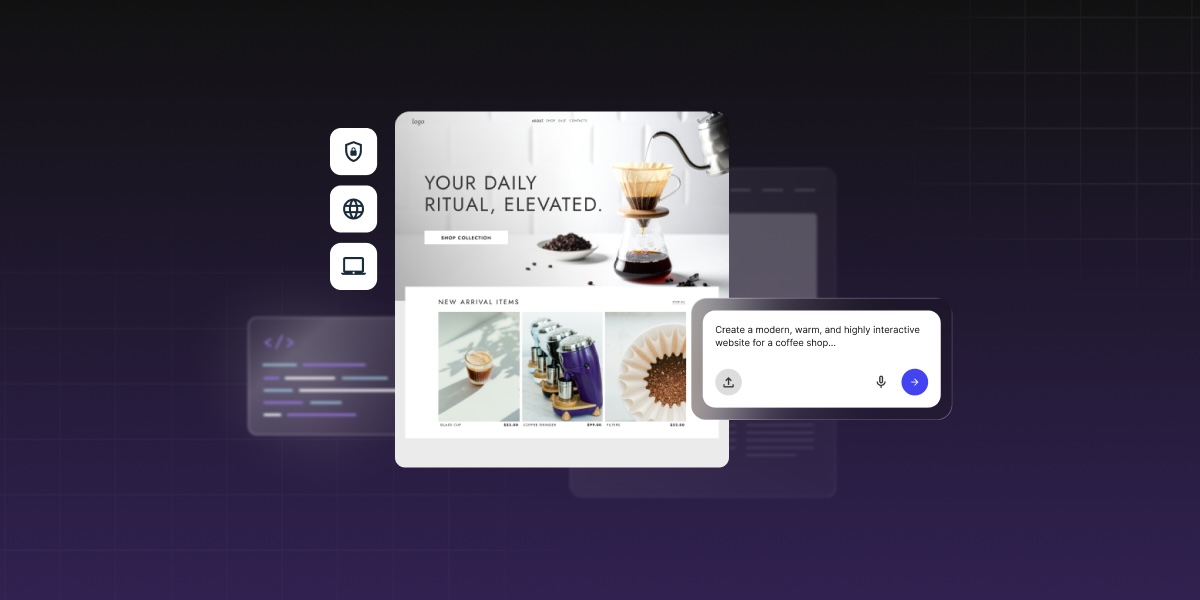

AI design tools aren’t enough: How to go from prototype to published website

Abstract of turning an ai prototype into a real website

If you’ve used an AI design tool and ended up with something that looks like a finished website, only to realize you have no idea how to actually put it online, you’re not alone. The gap between a solid AI prototype and an actual published website is where most AI-assisted projects come to a grinding halt. And while tools like Claude Artifacts, Google Stitch, and Claude Design have made the design stage faster than ever, they haven’t made the often-tedious production stage disappear.

An AI prototype becomes a published website only after that production layer is handled: we’re talking hosting, custom domains, SSL, responsive QA, metadata, backend needs, updates, and maintenance. So while AI design tools help validate the idea, a tool like Coderick AI can help move the validated concept into a managed publishing environment.

Key takeaways:

  • AI design tools help validate ideas, not finish the production layer. The two jobs are genuinely different.
  • The missing step is almost always the prototype-to-website handoff: hosting, SSL, domain, and maintenance all need to be solved before anything goes live.
  • Coderick AI fits as the practical publishing path after the AI prototype, handling hosting, SSL, custom domains, version control, and updates in one managed environment.
  • The source of the prototype determines the production path: a Claude Artifact, a Google Stitch export, and a Claude Design project each hand off differently.
  • A prototype-to-website handoff should include the page list, copy, user flow, form requirements, backend needs, domain details, and maintenance expectations. Screenshots alone aren’t enough for production.

Why aren’t AI design tools enough to publish a website?

A prototype shows the idea without handling production

AI design tools are built for speed. You describe what you want, the tool generates it, and, like magic, you have something that truly looks like a complete website — layouts, copy, navigation, interactive states. That’s the point. It lets you test the idea before committing to the beasty infrastructure behind it.

But the output is just a visual representation, and, alas, not the finished product. There’s simply no server behind it. No domain attached. No SSL certificate. None of it. That’s because the prototype lives inside the tool’s environment. So if you close that tab and nothing is publicly accessible, then nobody can find it, navigate to it, or use it the way a real visitor would. 

A visual design is different from a hosted website

A visual design is a set of decisions: what the pages look like, how they’re laid out, what the typography and color are, where the buttons go. A hosted website is infrastructure: a server, a domain, an SSL certificate, a deployment process, a database if anything dynamic is involved. One answers “what should this look like?” The other answers “how does this actually run?” They’re different problems, solved by different tools, and finishing the first one doesn’t start the second.

Publishing adds hosting, domains, SSL, QA, and maintenance

Getting from AI prototype to published website means handling at least six things the design tool didn’t: choosing a host, connecting a domain, provisioning SSL, testing responsive behavior across devices, setting up metadata and analytics, and deciding how updates will be handled going forward. That’s a laundry list of possibly dizzying extras, each adding another round of decisions. 

What’s the difference between an AI prototype and a published website?

An AI prototype validates layout, flow, and functionality

An AI prototype is a working representation of an idea. It shows what the pages look like, how navigation connects them, and (if the tool supports it) how interactive elements behave. A Claude Artifact can be a fully interactive React component. A Google Stitch output is high-fidelity UI screens and front-end code. A Claude Design project offers a structured handoff package with layout, copy, and requirements.

All super valuable outputs. But, disclaimer: all built to answer design and validation questions, not production ones.

A published website needs infrastructure and ownership

A published website has an address anyone can type into a browser. It loads over a secure connection. It stays up when you’re not logged into the tool that made it. It has an owner (you) who controls the domain, the hosting account, and what happens when something needs to change. There’s a massive infrastructure gap between the prototype and a published website.

A production website must be tested, secured, and maintained

Going live opens a whole different kind of work. A proper production website needs responsive QA across real devices, accessibility checks, page speed testing, form submission testing, SSL verification, and analytics setup before the first real visitor arrives. 

Then, after launch, it needs updates, security monitoring, and a process for making changes without breaking anything. The website checklist for launch day is indeed longer than most prototyping workflows account for.

StageWhat it provesWhat it still needs
AI prototypeIdea, layout, interaction, visual direction, user flowHosting, domain, SSL, QA, maintenance
Design handoffScreens, copy, user flow, requirements, source filesBuild path, backend decisions, publishing
Published websiteLive public experience on a controlled domainMonitoring, updates, SEO, security, maintenance ownership

Which AI design tools help before publishing?

Claude Artifacts help test interactive ideas

A Claude Artifact is a standalone output that Claude generates in a side panel: a web page, React component, form, calculator, chart, or interactive prototype. Artifacts run in the browser and can be shared via a claude.ai URL, embedded in another page, or downloaded as source files. They’re great for testing a specific interaction, validating a layout, or building a component that can be handed off to production.

Claude artifact in a side panel

Google Stitch helps create UI direction

Google Stitch is a free AI-powered UI design tool from Google Labs that turns text prompts, uploaded images, sketches, and wireframes into high-fidelity interface designs and front-end code. Stitch generates several complete UI directions from a single prompt, then lets you refine and export.

Example of a Google Stitch capabilities with  web page designs

Claude Design helps create design projects and handoff bundles

Claude Design is Anthropic’s design tool, still in early access. Describe what you want, refine it through chat, tweak layouts with sliders, and leave inline comments. It’s a pretty great way to nail down a visual direction. When you’re ready to hand it off, you can export to a zip folder, standalone HTML, Canva, PDF, or PPTX.

website visual design created by Claude Design

Other AI design tools may still need a production path

These processes often apply to other AI design tools. Screens, code, interactive mockups — they usually stop at the design layer. The production path is often a separate decision, and the source of the prototype determines which handoff workflow fits.

What does a prototype need before it becomes a published website?

Clear page structure and navigation

Before any prototype goes into production, you’ll want to tackle work though an AI website builder checklist, which includes outlining your page structure. That means a defined list of pages, a navigation model that covers how users move between them, and a clear decision about which pages are static, which pull from a database, and which require authentication. A prototype often implies this structure visually without making it explicit. But production needs it in writing.

Final copy, calls to action, and content blocks

A prototype almost always contains placeholder copy. Production calls for final text: headlines, body copy, calls to action, button labels, form field labels, and error messages. Copy decisions that seem trivial when you’re spitballing the prototype, like the exact text on a call-to-action button, ultimately affect conversion rates on a live site. So that final copy really belongs in the handoff brief, not in the production sprint.

Responsive layouts for mobile, tablet, and desktop

Most AI design tools generate desktop layouts by default, which is great, but a published website needs to also work correctly on mobiles and tablets. So, sure, you can review these elements after the production build, but the prototype should at least include mobile-specific decisions. That is, navigation behavior at small screen widths, form layout on touch devices, and any components that need to restructure below a certain viewport size.

Forms, backend, database, or login requirements

Let’s say you want to include a contact form, booking system, user account, CRM, dashboard, or really any feature that stores or retrieves data on your website. All of these requirements need to be specified before production starts. That’s because while the prototype can show that a form exists, it doesn’t automatically articulate where the submissions go, how they’re stored, or who can access them. And when those kinds of backend decisions get made during production rather than before, during prototyping, they tend to get sloppy, adding both time and cost.

SEO metadata, analytics, and indexability

A prototype has no SEO metadata, no proper page titles, no meta descriptions, no sitemap configuration, no robots.txt rules, no canonical URLs, and no analytics. And hey, that’s fine, because it’s a prototype. The production build is where all of this gets set up for the first time, and it’s worth doing before the first visitor arrives rather than cleaning it up afterward. Run through an SEO checklist, and get those analytics set up before launch to make sure the basics are covered.

How do you move from AI prototype to published website?

The path from AI prototype to published website follows these same five steps regardless of which AI design tool produced the prototype. 

  • Step 1: Validate the prototype
    Confirm that the prototype solves the problem it was designed to solve. This means reviewing the layout, user flow, and key interactions against the original goal. Get sign-off from any stakeholders who need to approve the design before production starts. Changes made after production starts cost more time and credits.
  • Step 2: Create a production handoff brief
    Document everything the production build needs that isn’t visible in the prototype: the page list, final copy, user flow, form behavior, backend requirements, domain details, launch requirements, and maintenance expectations. The handoff brief is what prevents the production tool or developer getting lost in making decisions that should have been made during the design stage. A clear brief means the first production build is close to the approved design.
  • Step 3: Choose a publishing path
    The right path depends on how much you want to manage. If you want hosting, SSL, publishing, and updates handled in one place without touching code, Coderick AI is the direct route. If you need source-code ownership, a custom deployment pipeline, or a developer-controlled environment, you’ll be looking at a separate build process using something like Claude Code (not your jam? Consider Claude Code alternatives). The decision table later in this article maps the most common starting points to the right next step.
  • Step 4: Build or recreate the production version
    In a managed publishing environment, the supported prototype files, screenshots, and the handoff brief go in together as production inputs. The production tool reads the source files, applies the design intent, and builds on top of it: adding pages, wiring up functionality, and extending the layout. In a developer-controlled path, the prototype becomes a specification that the developer builds from. Either way, the prototype is the brief, not the deliverable.
  • Step 5: Test, publish, and maintain the live website
    Before publishing, confirm that the live build matches the approved prototype, forms work correctly, responsive behavior holds across devices, SSL is active, metadata is set, and analytics are tracking. After publishing, the live website then needs a maintenance workflow: a process for content updates, a monitoring setup that catches errors, and a path for adding new features without taking the site down.

Where does Coderick AI fit after an AI prototype?

Coderick AI acts as the managed publishing path

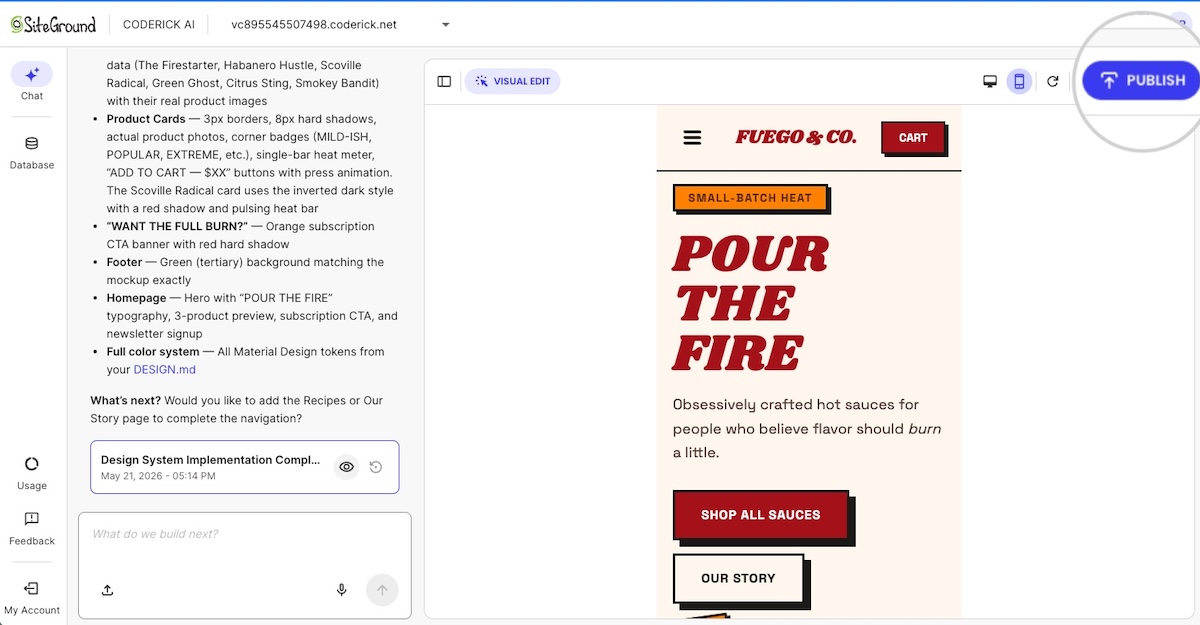
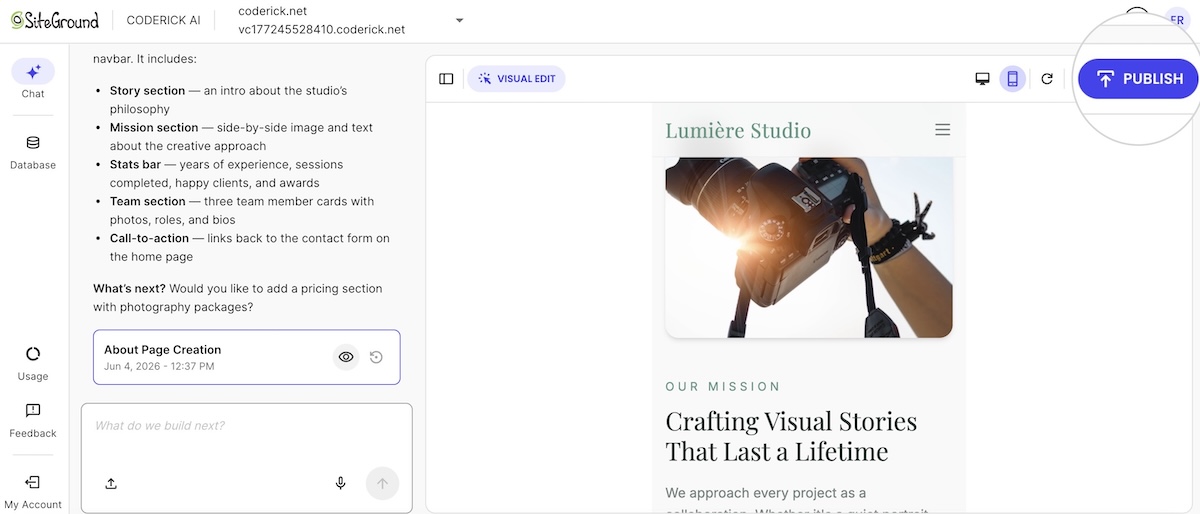
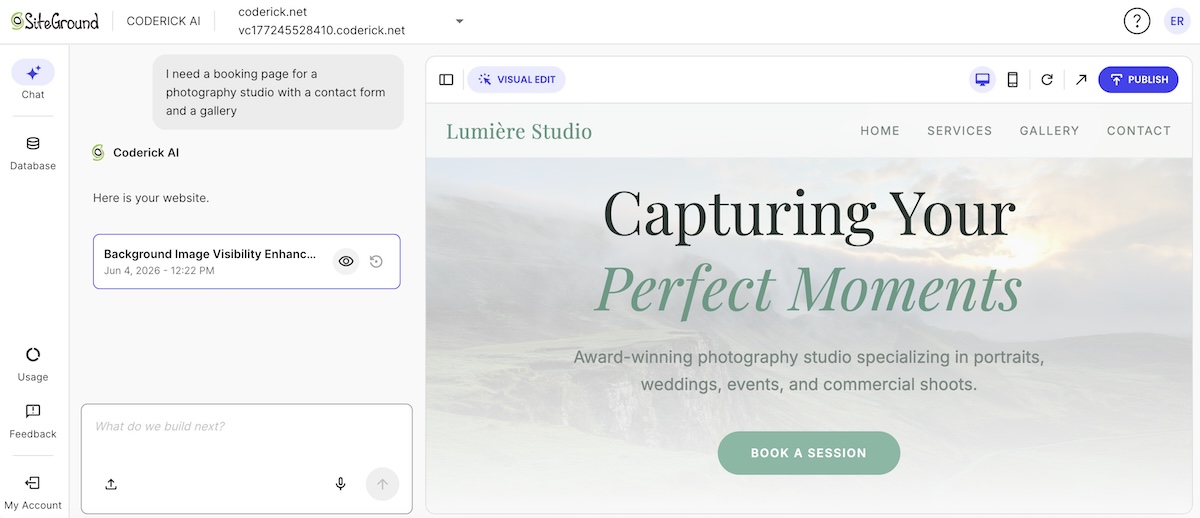
Coderick AI is SiteGround’s AI website and web app builder. Describe what you want to build, and Coderick AI generates it. Hosting, SSL, custom domain, database, version control, and deployment are all included. Hit Publish and the site is live, backed by SiteGround’s infrastructure across more than 3 million domains. There’s no separate server setup, no hosting account to manage on the side , which is also why users who want a managed website outcome can build a website without OpenAI Codex.

The prototype becomes the production brief

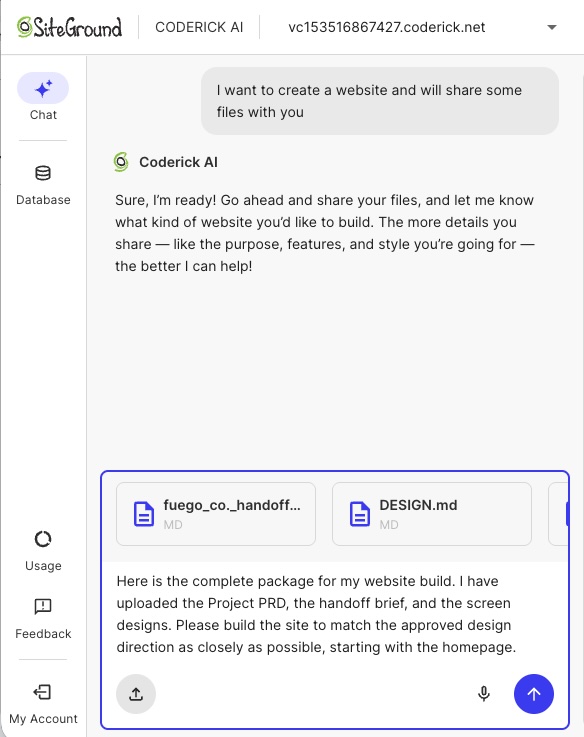
Coderick AI accepts both text prompts and file uploads, which means the prototype output can go directly into the build. That means a Claude Artifact’s exported source files, a Google Stitch HTML export, or a set of screenshots from a Claude Design project can all serve as starting points. 

Coderick AI simply reads the uploaded files and builds on top of them rather than starting from scratch so that the design decisions made during prototyping are preserved in the production build.

Hosting, SSL, publishing, and updates move into one environment

After the initial build, all updates happen through the same Coderick AI chat interface. Describe the change (a new content block, a revised form, a layout adjustment, a new page) and Coderick AI applies it and deploys automatically. Plus, there’s no separate hosting control panel, no FTP client, no deployment pipeline to manage. 

For those of you who don’t want to own or manage infrastructure, this is the difference between creating a pretty prototype that goes nowhere fast, and one that becomes a fully maintained, production website.

Publishing a website created by Coderick AI

Version control is built in so if an update breaks something you can roll back without a crisis. Projects that need user authentication support that too. Plus everything runs on the same infrastructure behind managed hosting at SiteGround, so it’s convenient, fast, and reliable.

Coderick AI is useful when users don’t want to manage the production stack

The decision between Coderick AI and a developer-controlled path comes down to one question: does the project need source-code ownership? If it does, because of any number of reasons (custom architecture, complex integrations, Git workflows, or a development team that will maintain the codebase) the project belongs in a developer environment. 

If none of that sounds remotely of interest to you, and all you need is a finished business site, landing page, booking system, membership area, CRM, or dashboard, then you can build a website without Claude Code and use Coderick AI as the faster publishing path.

And, worth considering: for those of you who might already be paying for Claude Code and then separately solving hosting, SSL, deployment, and maintenance, Coderick AI may also be the more predictable budget.

What should a prototype-to-website handoff include?

The handoff starts with the design output itself:

  • The prototype URL or shareable link
  • Screenshots of key states: default, hover, error, empty, and mobile views
  • Exported source files the design tool supports

For Coderick AI, exported source files are more useful than screenshots alone. The tool reads .html, .css, .scss, .js, .jsx, .ts, .tsx, and .md files directly, so the website structure built in the prototype can carry over to the production build without being re-described from scratch.

Giving Coderick the full handoff package to create a website

Page list, navigation, and user flow

Don’t just hand over the prototype and assume the page structure is obvious. Document every page the production site needs, how website navigation connects them, and the two or three user journeys that matter most. Those decisions are easy to lose between the design tool and the build.

Copy, CTA placement, and content requirements

Final copy for every page means:

  • Headlines, body text, and button labels
  • Form field labels, confirmation messages, and error states
  • CTA placement confirmed before production starts, not defaulted by the build tool
  • Any content that needs regular updates — testimonials, pricing tables, event listings — so the production build can account for how it’ll be managed

Forms, backend, database, and login needs

Backend decisions are the hardest to change once the build is done. Before production starts, document every form the site needs, where submissions go, how data is stored, and what authentication looks like if the site has user accounts. Getting this wrong mid-build costs more than getting it right in the brief.

Domain, hosting, SSL, and maintenance requirements

If you have a domain, note it in the brief. If you don’t, add “buy domain” to the launch checklist. Then, in Coderick AI, SSL can be handled automatically once the domain points to SiteGround nameservers. Also define the maintenance workflow before you launch: who’s keeping the site updated, how new pages get added, and whether you want a staging environment to check changes before they go live.

Handoff checklist

Before you move into production, use this checklist to confirm everything the build needs is documented and ready. Anything left blank is a decision that will get made during the build instead of before it.

  • Prototype source: link, supported exported files, screenshots, or visual references
  • Website goal: what the site needs to achieve
  • Target audience: who it’s for
  • Pages needed: full production page list, including pages not shown in the prototype
  • Navigation: how pages connect and what’s in the main menu
  • Final copy: headlines, body text, button labels, error messages
  • Calls to action: exact wording and destination for each
  • User flow: the two or three journeys that matter most
  • Forms: fields, validation rules, success/error states, and where submissions go
  • Backend/database needs: any dynamic content, data storage, or integrations
  • Authentication needs: user accounts, login requirements, access levels
  • SEO title, meta description, canonical URL, and indexability notes: for every page
  • Custom domain: registered or still to buy
  • Launch requirements: anything that needs to be true before go-live
  • Maintenance expectations: who updates the site, how often, and through which workflow

Which publishing path should you choose after an AI prototype?

The production path is broadly the same regardless of which tool you used, but the source asset determines where you start. The table below maps the most common starting points to the right next step.

Starting pointWhat you’re working withWhere to go next
Claude ArtifactAn interactive artifact with exportable source filesTurn a Claude Artifact into a real website
Google Stitch designUI screens with exportable front-end codeTurn a Google Stitch design into a real website
Claude Design projectA structured design handoff with export optionsTurn a Claude Design project into a real website
No existing prototypeJust the idea, no design output yetStart directly in Coderick AI

If you have a prototype, the handoff brief from the previous section is what you’ll use to turn a validated prototype into a live website in Coderick AI. If you’re starting from scratch, you can skip straight to Coderick AI and vibe code from the idea directly.

What should you test before the website goes live?

Visual match to the approved prototype

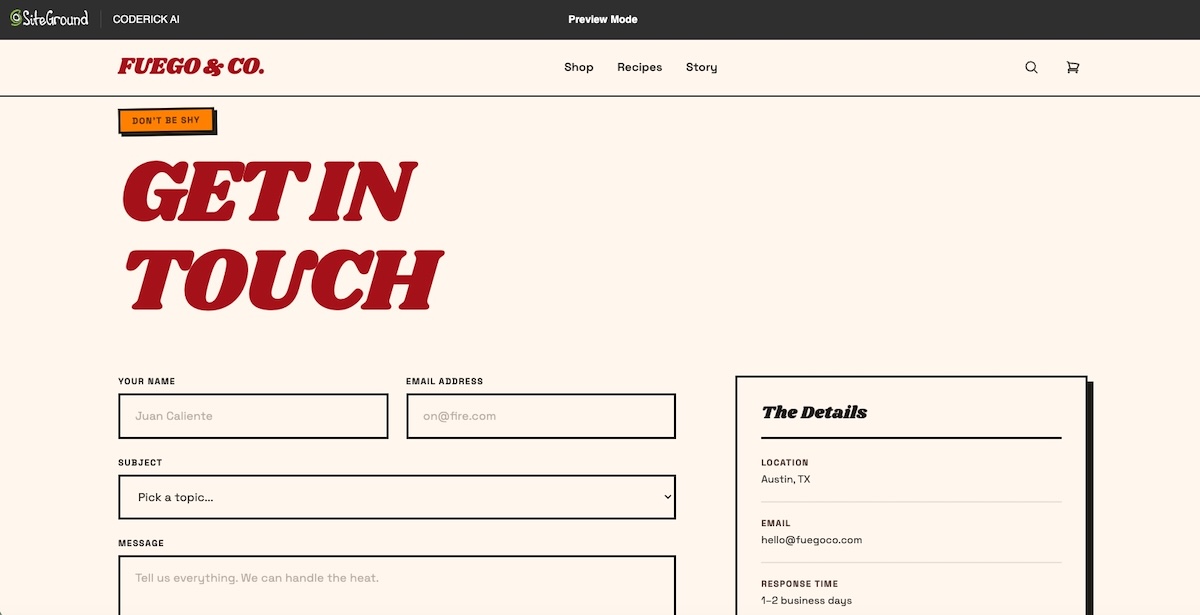
Before anything else, compare the production build to the approved prototype screen by screen. Typography, spacing, color, and layout should match. So should the states that are easy to miss — empty, loading, error, hover. The earlier a visual mismatch is caught, the cheaper it is to fix.

Responsive behavior on mobile and desktop

Though it’s tempting, don’t just resize the browser window. Open the live site on an actual phone and check that navigation works, forms are usable, images scale correctly, and text is readable without zooming. Better yet, watch someone else do it to see how they interact with your site.

Forms, buttons, navigation, and interactive states

Submit every form with both valid and invalid data. Check that validation messages appear, confirmations show after a successful submission, and nothing silently fails. Click every button, every link, every dropdown. If it’s interactive, test it.

Creating and checking forms on a website created with Coderick AI

Accessibility, contrast, and readable typography

Accessible web design is a legal requirement in many jurisdictions, so it’s worth having on your radar. Before launch, check that text color contrast meets WCAG 2.1 AA standards (4.5:1 minimum for body text at 16px or above), that images have descriptive alt text, that keyboard navigation works without a mouse, and that form fields have proper labels.

Page speed, metadata, indexability, and analytics

Before launch, run a Core Web Vitals check, keeping in mind that unoptimized images and layout shifts during load are the two most common failures on AI-generated sites. Also confirm every page has a unique title tag and meta description, the sitemap is accessible, and analytics are firing. These checks take less than an hour and prevent weeks of SEO cleanup after launch.

Custom domain, SSL, and maintenance workflow

Check that the domain loads the right site and the connection is secure (the URL should show HTTPS, not HTTP). Then, before you call it live, confirm who updates the site after launch, how new pages get added, and what happens if something breaks. 

The AI prototype is done. Now let’s publish.

It’s clear by now that moving from an AI prototype to a published website requires a lot more than a design tool. But it doesn’t have to be a complicated process. Validating the idea is the first step. The production layer (hosting, domain, SSL, backend, and ongoing maintenance) is what turns that idea into something people can actually visit. 

For people like you who want to turn a validated prototype into a live website without managing all the tedious extras, Coderick AI handles the production layer in one managed environment, from first build to ongoing updates.

[96]

Frequently asked questions

Are AI design tools enough to publish a website?

No. AI design tools help create prototypes, screens, mockups, or interactive concepts, but a published website still needs hosting, a custom domain, SSL, responsive QA, metadata, backend planning, updates, and maintenance. The prototype proves the idea; production makes it live and maintainable.

What is the difference between an AI prototype and a published website?

An AI prototype validates the concept, layout, user flow, or interface. A published website is a live public experience with hosting, domain setup, SSL, responsive behavior, SEO metadata, analytics, and maintenance. A prototype may look finished before the production layer is ready.

Which AI design tools help before publishing?

Claude Artifacts, Google Stitch, and Claude Design are examples of tools that help before publishing. Claude Artifacts can be viewed, downloaded, published, or embedded; Google Stitch creates UI for mobile and web apps; Claude Design supports design projects and handoff to production tools including Coderick AI.

Where does Coderick AI fit after an AI prototype?

Coderick AI fits after the prototype has validated the idea and you need a practical publishing path. The prototype, screenshots, copy, page structure, user flow, and functionality notes become the production brief. Coderick AI can then move the project into a managed website or web app environment with hosting, SSL, custom domain support, version control, and updates all included.

Is Coderick AI a replacement for AI design tools?

No. AI design tools help shape the visual idea, while Coderick AI helps turn that idea into something usable online. Coderick AI can create websites and web apps from prompts, but in this workflow its role is production: taking a validated prototype and turning it into a published site with hosting, SSL, domains, backend needs, and updates handled.

Can Coderick AI publish a website after a prototype?

Yes, Coderick AI can be used as the managed publishing path after a prototype. It accepts file uploads of .html, .css, .scss, .js, .jsx, .ts, .tsx, and .md files directly, so exported prototype files can become the starting point for the production build. Publishing from Coderick AI puts the site live on SiteGround’s infrastructure immediately, with SSL and automatic deployment included.

What should I prepare before turning a prototype into a website?

Prepare the prototype link or screenshots, page list, navigation, final copy, calls to action, user flow, form requirements, backend or database needs, SEO metadata, custom domain, launch requirements, and maintenance expectations. This gives the production path a clear brief and reduces the number of decisions made during the build.

Do I need a developer after using an AI design tool?

No. A developer is useful when the project needs custom architecture, source-code ownership, complex integrations, or advanced backend work. If the project is a business site, landing page, booking page, dashboard, or simple web app, a managed publishing path such as Coderick AI may be enough without a development team.

Why do prototypes fail at launch?

Prototypes often fail at launch because they look complete but lack the production layer: hosting, domain setup, SSL, responsive QA, accessibility checks, forms, backend logic, SEO metadata, analytics, maintenance, and update workflows. The failure happens when the path from AI prototype to production website doesn’t get planned.

What is the easiest path from an AI prototype to a published website?

The easiest path depends on the prototype source. Claude Artifacts, Google Stitch, and Claude Design each have their own handoff workflow. For users without a technical team, Coderick AI can act as the managed publishing path after the prototype is validated, handling hosting, SSL, domain, updates, and version control in a single environment.

OpenAI Codex alternatives for beginners: What to use if Codex feels too technical

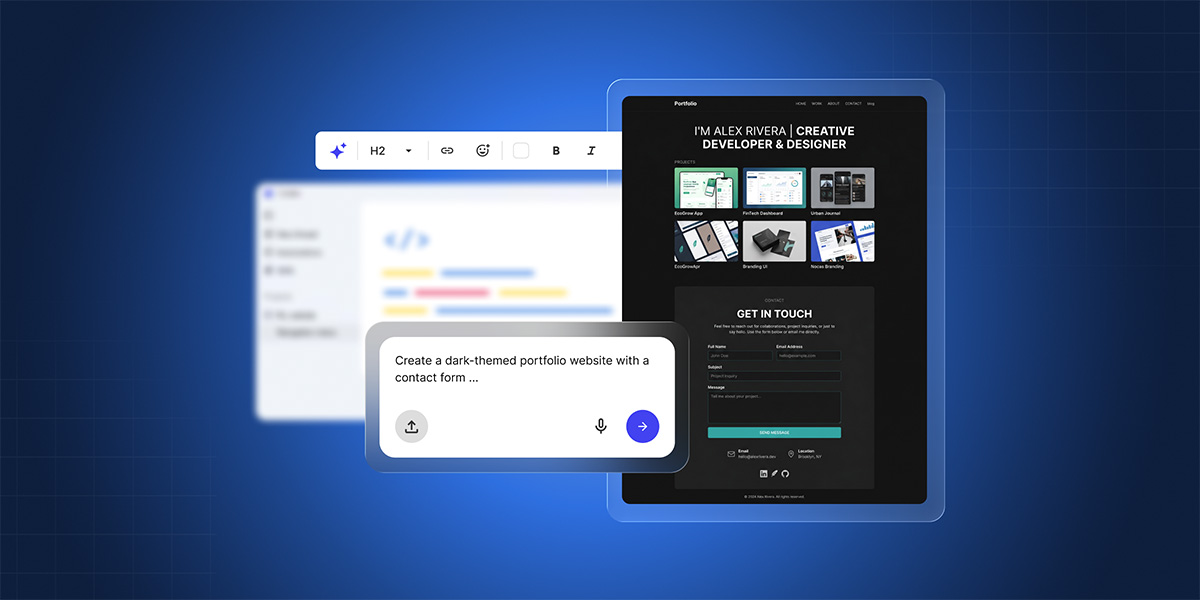
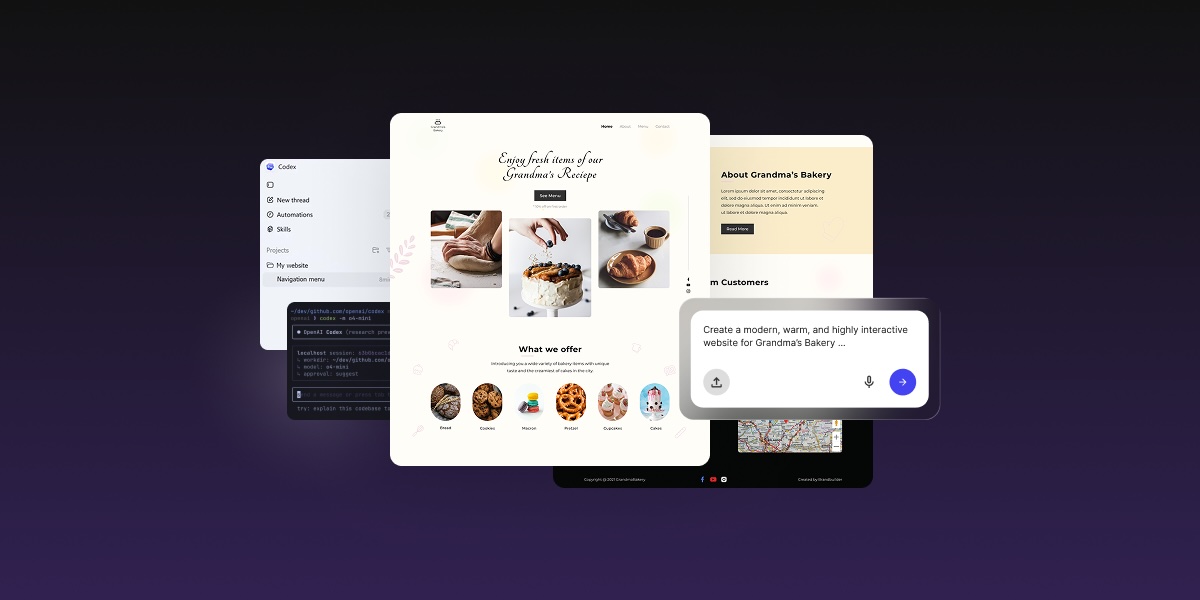
AI coding tool interface showing a prompt to build a dark-themed portfolio website next to the generated site with a project gallery and contact form

OpenAI Codex is a capable coding agent, but capable and beginner-friendly are not the same thing.

The best OpenAI Codex alternatives for beginners are tools that handle the technical side for you (code, agents, diffs, repositories, hosting, and deployment) without expecting you to know what any of that means. Codex is built for people who want to write, review, and ship code inside a software-engineering workflow. If you just want a live website or web app without any of that, a managed AI website and web app builder like Coderick AI is a better starting point.

Key takeaways:

  • OpenAI Codex is powerful, but it’s still built around a coding-agent workflow
  • As a beginner, you probably don’t need a coding-agent environment
  • Coderick AI is the managed path for people who want a live website, not a folder full of code
  • Codex is still the right call if you want developer control over how something gets built

What is OpenAI Codex?

OpenAI Codex is a cloud-based software engineering agent from OpenAI. It can read, write, and run code across your entire codebase. It’s not a website builder, not drag-and-drop, but a tool built for real software development work.

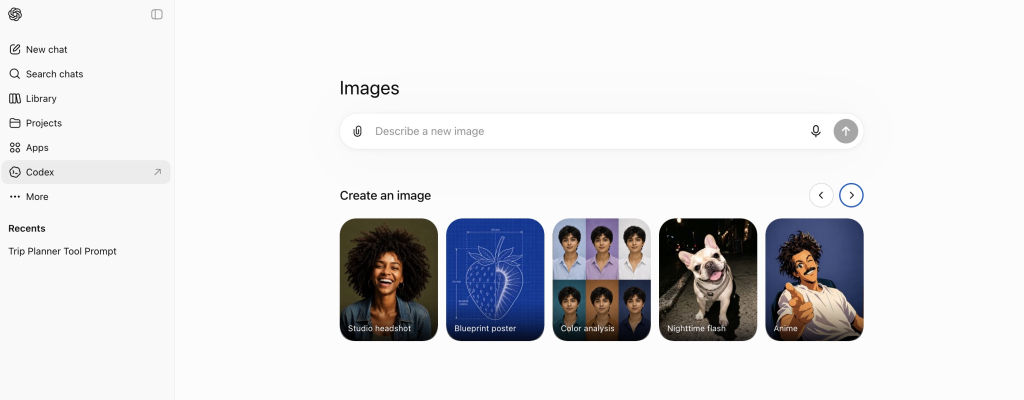
You can access it through the ChatGPT sidebar.

ChatGPT interface showing the Images tab with sample AI-generated photos and a Codex link in the left sidebar

What Codex can do with code

Codex can generate code from a plain-language description, explain what existing code does, spot bugs and suggest fixes, and run programming tasks in an isolated cloud environment (a secure sandbox that keeps your code separate from everything else). It works across programming languages and can handle anything from writing a single function (a small, self-contained block of code) to working through complex multi-file changes.

How Codex works in the cloud, app, CLI, and editor

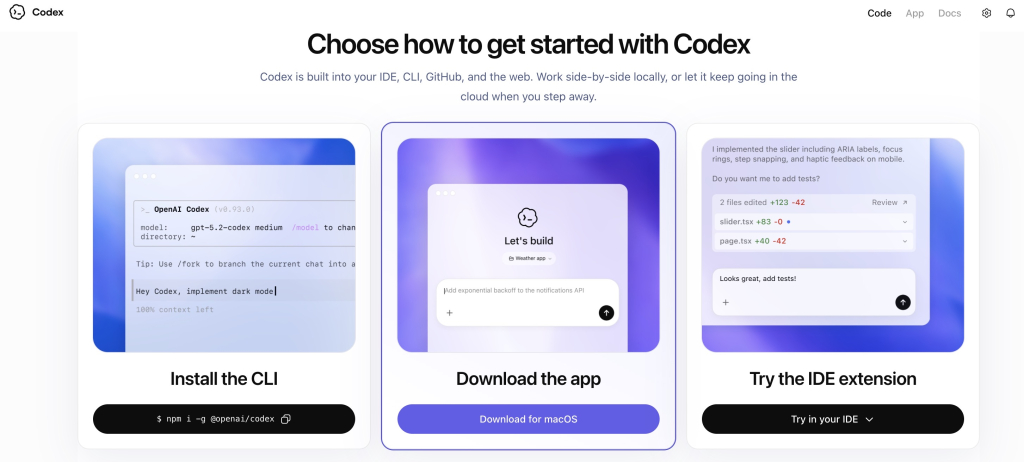
Codex works across several surfaces:

Codex setup page showing three options to begin: install the CLI, download the desktop app, or add the IDE extension Codex setup page showing three options to begin: install the CLI, download the desktop app, or add the IDE extension
  • ChatGPT sidebar: access it at chatgpt.com/codex, create tasks, and assign them to the agent
  • CLI (a text-based interface you run from your computer’s terminal): connects to repositories (the folders where your project’s code lives) and cloud environments
  • Code editors: works inside tools like VS Code so you can use Codex without leaving your editor
  • GitHub: integrates with pull requests (proposed code changes ready for review) and diffs (a side-by-side view of what changed between one version of a file and another)

Since launch, OpenAI has also added internet access during task execution, which means Codex can pull in external context while it works; not just the code you have already given it.

Why Codex is different from a no-code AI website builder

Codex produces or modifies code. What you do with that code is a completely separate problem: where it runs, how it gets deployed, which domain points to it, whether SSL (the security layer that gives you “https”) is configured. A no-code AI website builder handles all of that inside the same platform. Codex hands you the code and leaves the rest to you.

How does Codex work for beginners?

Codex can work for beginners, but it comes with homework. The workflow is built around coding concepts that, if you’re just starting out, you may never have had to think about before and some of them will show up before you even get started.

Codex can run coding tasks in separate project threads

With Codex, you assign tasks by creating project threads: separate workspaces where the agent tackles one job at a time, each running in its own isolated environment. You can do this through the Codex app, the CLI, or the API. 

That structure makes sense if you are a developer managing multiple software tasks at once. If you are a beginner trying to launch your first website, it’s one more concept to get your head around before you can even get started.

Codex can review changes, diffs, and code outputs

Codex can review code changes and surface diffs. Useful if you are a developer reviewing a pull request. Less useful if you are a beginner who just wants a homepage and doesn’t yet know what a diff is.

Codex still expects you to understand the project context

Codex works best when you can describe your project clearly in developer terms: what the codebase does, what the goal is, what the expected output looks like. Without that context, the outputs can be technically fine but practically useless for what you were actually trying to do.

Who is OpenAI Codex actually for?

If you’re reading this as a beginner, there’s a good chance Codex wasn’t built with you in mind. Here’s who it’s actually for.

Developers working with codebases

If you have an existing project, Codex can read it, edit it, run tasks against it, and review changes in context. That’s where it genuinely shines.

Technical founders and product teams

If you can read and review code, Codex can help you move faster: prototyping features, reviewing changes, running parallel coding tasks without expanding the engineering team.

Teams that review diffs, pull requests, and coding tasks

If your team already uses GitHub to track changes and review pull requests, Codex slots naturally into that workflow.

Users who want control over implementation and shipping

If you want to decide exactly how your project is built, what stack it runs on, and how it gets deployed, Codex gives you that control. Just know that every one of those decisions is yours to make.

If none of that sounds like your situation, you’re probably in the right place looking for an alternative.

Why can Codex feel difficult for beginners?

Codex feels difficult for beginners because it assumes you already speak the language and know the workflows. It expects you to understand what a codebase is, how to review code changes, and what to do once the code is ready, before you’ve even started building anything.

It’s still a coding-agent workflow

Even through the friendliest Codex interface, the workflow involves project threads, developer-style task descriptions, and reviewing agent outputs. If you don’t yet know how to evaluate whether the code is correct, you’re trusting output you can’t read.

It can involve projects, diffs, editors, and repositories

Start digging into Codex and you’ll likely run into repositories, diffs, cloud environments, CLI access, and editor integration — not always, but sooner than you expect. None of these are beginner concepts, and none of them are optional when they come up.

It may help you create code before you know how to launch it

Codex can help create working code for a website or app. But that code still needs to run somewhere. A lot of beginners end up with code that works locally, but no idea how to get it online and figuring that out can take longer than the build itself.

It doesn’t handle hosting, SSL, domains, or updates

Even when Codex produces solid code, you still need to choose a hosting provider, configure SSL, connect a domain, and work out how to push updates when something changes. All of that sits outside Codex and adds up to a second project on top of the first one. The same production-stack problem is why many non-technical users choose to skip Claude Code for website projects too.

What should beginners look for in an OpenAI Codex alternative?

If your goal is a published website or app rather than a codebase, there are five things worth looking for in an OpenAI Codex alternative for beginners. Coderick AI is a good example of a tool that checks all of them.

1. You describe it, it builds it
No coding knowledge needed. You type what you want, like “a portfolio site with a contact form” or “a booking page for my freelance business,” and the builder works from that. With Coderick AI, that happens in a chat interface and the result is a working site, not a file you still need to figure out what to do with.

2. The code stays out of your way
You never see a diff, a repository, or a file structure. Coderick AI handles all of that in the background, which means you spend your time making decisions about your website, not about how the code that powers it is organized.

3. Publishing is part of the build, not a separate project
Going live should not be a whole second problem. Coderick AI builds and publishes in the same managed environment, so when you’re ready, your site deploys to SiteGround’s hosting without a separate account or configuration to figure out.

4. The production stuff is already handled
SSL, custom domains, version control, user authentication, automatic deployment: it’s all included from the start. You don’t need to research providers, compare plans, or make decisions you’re not yet qualified to make.

5. You can bring existing files with you
If you’re starting from a design export or picking up a partial build from another tool, Coderick AI lets you import .js, .jsx, .ts, .tsx, .html, .css, .scss, and .md files directly, so you’re not locked into starting from scratch every time.

Moving from an AI idea or prototype to a published website is where most beginners hit unexpected friction. The broader AI prototype to published website workflow explains why keeping the build, hosting, and updates in one place removes most of it.

When is OpenAI Codex still the better option?

Codex is the right tool when you’re doing actual software work, not just trying to get a website online. If any of the following sounds like you, OpenAI Codex is probably the better call.

You need to work with an existing codebase

If your project already has existing code, Codex can read it, edit it, and run tasks against it. Managed AI website builders start from scratch and can’t work with what you already have.

You want to review code changes

Codex is built for the code review loop. If tracking changes and reviewing pull requests is a regular part of your work, Codex fits right into that process.

You need custom engineering or complex integrations

If you’re building something with complex backend logic, specific API integrations, or technical requirements that go beyond a standard website, you need a tool that can work at the code level. Managed builders are not designed for that kind of depth.

You want a coding agent that can work in parallel on software tasks

Codex can handle several coding tasks in parallel across separate project threads. If you have a backlog of software work and want an agent that can chip away at multiple things at once, that is a real advantage.

If you are comparing options because the cost or technical complexity of coding agents feels like too much, it’s also worth looking at Claude Code alternatives for beginners. The same questions apply across that whole category.

Which path should beginners choose?

Your situationBetter pathWhy
You want to work with codebases, projects, diffs, and editorsOpenAI CodexCodex is built for coding-agent workflows
You already have a codebase or software projectOpenAI CodexCodex can read, edit, and run code in a project context
You want to build a website without OpenAI Codex, without managing codeCoderick AIIt focuses on building and publishing in a managed environment
You need hosting, SSL, domains, backend support, and updates handled togetherCoderick AIIt’s an AI website and web app builder with managed production included

So, which tool should you actually go with?

If you opened this article because Codex felt like too much, that feeling was probably right. The right tool is not the most powerful one. It is the one that gets you from idea to live project without making you learn a whole second skill set to get there.

Coderick AI has a 14-day free trial. Worth a try before you spend anything.

[96]

Frequently asked questions about Codex alternatives for beginners

Is OpenAI Codex good for beginners?

OpenAI Codex can work for beginners who are motivated to learn how code works. But it’s still a coding agent — the Codex app involves project threads, diffs, and handing off code to an editor to review and run it.

What’s the best OpenAI Codex alternative for beginners?

The best OpenAI Codex alternative for beginners depends on what you’re trying to do. If you want to learn coding or work with a codebase, Codex is still worth exploring. If you want to build a website without OpenAI Codex and launch a website or web app without dealing with code, hosting, SSL, or deployment, Coderick AI is a strong option.

Why does Codex feel technical?

Codex feels technical because it is. Codex is designed around coding-agent workflows — running tasks in cloud environments, reviewing code changes, working with project-based development. Those capabilities are useful for software work, but they’re a lot to navigate when all you want is a published website.

Can non-technical users use Codex?

Yes, non-technical users can try Codex especially through ChatGPT plan access. But you’ll still need to make sense of code outputs, understand the project context, figure out diffs, and sort out deployment. 

Where does Coderick AI fit as a Codex alternative?

Coderick AI is the right fit when you want the finished product, not the coding environment. You describe what you want to build, and it handles the rest — including the bits that Codex leaves to you.

Is Coderick AI a replacement for Codex?

Not exactly. They’re built for different goals. Codex is for people who want to write, review, and ship code. Coderick AI is for people who want to build and publish a website or simple web app without a coding-agent workflow in the middle. Which one is right depends on whether you want code control or a managed build-and-publish path.

Can Coderick AI build a website without coding?

Yes. You describe what you want in plain language, and Coderick AI builds it. It’s made for small businesses, freelancers, creators, and founders who want to get something online without touching code or setting up complicated tools.

Does Coderick AI include hosting and SSL?

Yes. Hosting, SSL, version control, user authentication, and automatic deployment are all included as part of the build experience.

When should I choose Codex instead of Coderick AI?

Choose Codex if you want to work with a codebase, review diffs, run coding tasks, or use a coding agent to help ship software. Choose Coderick AI if you want to build and publish a website or web app without managing any of the code environment yourself.

How much does OpenAI Codex cost?

Codex is included with ChatGPT Plus, Pro, Business, Edu, and Enterprise plans. Pricing starts at $20/month for Plus and goes up to $200/month for Pro, with Business and Enterprise plans priced separately. Usage is subject to rate limits depending on your plan. Pricing and plan availability can change, so check openai.com/pricing for the latest.

How much does Coderick AI cost?

Coderick AI has three plans. Essential starts at €10/month and includes one project with a 14-day free trial. Plus is €20/month and covers up to five projects. Pro is €40/month for up to ten projects. Annual billing is available at a discounted rate. All plans include hosting, SSL, and deployment. So unlike Codex, there is no separate infrastructure cost on top. Check the latest pricing.

What should beginners avoid when choosing a Codex alternative?

Don’t pick an OpenAI Codex alternative just because it can generate code. That’s only the first step. Ask whether it also handles publishing, hosting, custom domains, SSL, backend support, content updates, and ongoing maintenance. A tool that generates code but leaves everything else to you is still Codex by another name.

Email marketing audit: A step-by-step checklist to find what’s hurting your results

Woman reviewing email marketing performance charts on a laptop, with an "Email opened" automation trigger and analytics icons overlaid.

Campaigns go out, metrics look okay-ish, nothing improves. Sound familiar? Whether you’ve been sending for two months or two years, the cause is usually a handful of small issues across your list, deliverability, content, and automation, not one big problem. An email marketing audit finds them in one sitting. Pull your last few months of campaign data first, so you’re not hunting for numbers mid-audit.

Key takeaways:

  • An email marketing audit covers five areas: list health, deliverability, performance metrics, content and design, and automation flows.
  • Most email campaign audits take 30–60 minutes when your data is pulled together in advance.
  • Deliverability and authentication issues need to be fixed before anything else — they affect every email you send.
  • Benchmarks give you context. Open rates between 20–30%, CTR of 2–5%, bounce rate under 2%, and spam complaint rate under 0.1% are reasonable targets for most senders.
  • Run the audit quarterly, or after any major list event.

What is an email marketing audit, and why bother?

An email marketing audit is a check-up for your entire email marketing setup. You go through your list, your numbers, and your automations to see what’s working and what’s dragging your results down.

Done right, it tells you exactly which fix will move your numbers the most, instead of you guessing where to spend your time next.

The email marketing audit checklist

This checklist covers the five areas that affect email performance most: list health, deliverability, performance metrics, content and design, and automation flows. Work through each area in order. Every section ends with a pass signal, a flag signal, and a clear next action if something is off.

1. List health

Your list quality affects every metric downstream. A list full of inactive or invalid addresses drags down your open and click rates, increases bounces, and signals to inbox providers that your emails aren’t worth delivering. So before you look at your metrics, check that the right people are on your list in the first place.

  • How did your subscribers join? Opt-in form, imported contacts, or something else? Any purchased or scraped contacts need to be removed now; sending to people who didn’t ask to hear from you is the fastest way to damage your sender reputation.
  • Is your list growing net-positive? Compare new subscribers against unsubscribes each month. A shrinking list isn’t automatically a crisis, but a consistent downward trend is worth investigating.
  • What percentage hasn’t opened in 90+ days? Above 30% inactive is a deliverability risk, not just a content problem. Inbox providers use engagement signals to judge whether your emails belong in the inbox — a large pool of non-openers pulls those signals down for everyone on your list.
  • Any hard bounce spikes recently? A sudden increase in hard bounces signals a bad signup source or stale data that’s been sitting on your list.
  • Are all subscribers confirmed via double opt-in? Double opt-in filters out mistyped addresses and disengaged signups before they become list quality problems.
  • Do you have consent records, and does your unsubscribe link actually work? Open one of your own recent email campaigns and click the unsubscribe link in the footer. Confirm it loads, processes the request without asking for a login or extra information, and actually removes you from future sends. Under GDPR, you also need a documented record of how each subscriber consented to join your list. Under CAN-SPAM, every commercial email needs a working opt-out, your sender identity has to be accurate, and opt-out requests need to be honored within 10 business days. 

SiteGround Email Marketing includes double opt-in and easy opt-out by default, covering the GDPR side, but CAN-SPAM compliance (accurate sender info, honoring opt-outs on time) is still on you to maintain. The audit is a good moment to confirm both are in place.

✅ Pass: list growing, under 20% inactive, hard bounces under 2%, all contacts opted in.
⚠️ Flag: list shrinking, over 30% inactive, recent bounce spike, non-opt-in contacts present.
→ If flagged: run a re-engagement campaign before your next send to give inactive subscribers one last chance to confirm interest. Remove hard bounces immediately. Never send to purchased or scraped lists.

2. Email deliverability

Email deliverability is the layer everything else sits on. If your emails don’t land in the inbox, nothing else in this audit matters. This section checks the technical signals inbox providers use to decide whether to trust your sends.

  • Bounce rate per campaign. A hard bounce means the email address doesn’t exist or is permanently invalid. A soft bounce is a temporary issue: the mailbox is full, the server is down. Hard bounces need to be removed; soft bounces can be retried, but a pattern of soft bounces from the same address is worth investigating.
  • Spam complaint rate. Above 0.1% is a live risk. Gmail’s bulk sender guidelines (updated in 2024) set 0.10% as the threshold at which deliverability starts to degrade, and 0.30% as the point where sending can be blocked outright.
  • SPF, DKIM, and DMARC — are all three configured? SPF tells inbox providers your domain is authorized to send. DKIM adds a digital signature that proves the email really came from you and wasn’t altered along the way. DMARC tells inbox providers what to do if SPF or DKIM fail. If your DNS is managed through SiteGround, all three are set up automatically. If it’s hosted elsewhere, you might need to add SPF and DKIM manually and check that DMARC is in place too. Worth confirming either way if it’s been a while since setup.
  • Any blocklist hits? A blocklist is a list of domains and IP addresses flagged as spam sources. If yours ends up on one, your emails may get rejected or sent to spam no matter how clean your list is. Check via MXToolbox or Google Postmaster Tools, both free. A hit doesn’t always mean something serious; it can happen after a single high-complaint send. To resolve it, pause sending for a few days, remove the contacts who triggered the complaints, and request delisting from the blocklist’s site once the issue is fixed.
  • Suppression lists synced across all sending tools? If you use more than one platform to send email, unsubscribes and complaints need to be reflected everywhere. A subscriber who opted out via one tool and then receives a message through another is a complaint waiting to happen.

✅ Pass: bounce rate under 2%, spam complaints under 0.1%, SPF/DKIM/DMARC confirmed, no blocklist hits.
⚠️ Flag: bounce rate climbing, spam complaints above 0.1%, authentication gaps, blocklist hit.
→ If flagged: fix authentication first. See the full email deliverability guide for step-by-step setup instructions. Everything else in this audit depends on your emails actually reaching the inbox.

3. Performance metrics

Once you know your emails are being delivered, the next question is whether they’re working. Compare your last 10 campaigns against the email marketing benchmarks below. Look for trends across your sends, not one-off results. A single bad campaign doesn’t tell you much on its own.

MetricHealthy rangeNeeds attention
Open rate20–30%Below 15%
Click-through rate2–5%Below 1%
Unsubscribe rateBelow 2% (1–2% is typical)Above 2%
Bounce rateBelow 2%Above 2%
Spam complaint rateBelow 0.1%Above 0.1%

Benchmarks shift depending on your industry and list size. For example, B2B accounts usually see higher open rates, while ecommerce and high-volume senders tend to run lower. Worth knowing too: open rates are getting less reliable these days, since Apple’s Mail Privacy Protection and email security bots can inflate the numbers without anyone actually opening your email. Treat these benchmarks as a general guide, not a number you need to hit exactly.

Now, back to those patterns we mentioned: which subject lines pulled your highest open rates? Which CTAs or content types got the most clicks? Is there a send day or time that consistently does better than the rest? This is more useful than any benchmark, since it tells you what your specific audience actually responds to.

✅ Pass: most campaigns within benchmark ranges, stable or improving trend.
⚠️ Flag: open rate below 15%, CTR stuck below 1%, unsubscribe rate climbing.
→ If flagged: open rate issues usually point to subject lines or list quality. CTR issues usually point to content relevance or CTA clarity. Audit those areas next.

4. Content and design

Deliverability gets your email to the inbox, but content and design decide whether anyone actually opens it, reads it, or clicks anything once they do.

  • Read your last five subject lines out loud. Would you open them? Subject lines that over-promise, underdeliver, or say nothing specific are the most common reason open rates stay flat. 
  • Is your email preheader doing any work? Preview text is the line of copy that appears next to your subject line in most inboxes. If it’s auto-populated from the first line of your email body (“View this email in your browser”), you’re wasting the second line of inbox attention you have.
  • Open one of your emails on a mobile screen. Is the call-to-action button tappable without zooming? Does the layout hold, or does it collapse into a wall of text? The majority of messages are now opened on mobile, so a broken email marketing design is a reliable way to lose clicks regardless of how good the content is.
  • One clear call to action per email. Multiple competing CTAs dilute clicks. If you’re asking subscribers to visit your blog, reply to a question, and check out a product offer in the same email, they’ll often do none of them.
  • Consistent brand voice across campaigns? If each email sounds like it was written by a different person, subscribers lose the sense of who they’re hearing from, which makes them less likely to open the next one.
  • Are image alt texts filled in? This matters for accessibility and, in some inbox configurations, for whether your email renders legibly when images are blocked.
  • Are you segmenting, or does everyone get the same email? A single welcome offer sent to brand-new leads and three-year customers alike is a missed opportunity, not a strategy. Even basic segmentation like new vs. existing customers usually lifts both open and click rates because the content is more relevant to whoever’s reading it. In SiteGround Email Marketing, you can segment contacts based on their campaign interactions directly from the platform.

✅ Pass: clean mobile render, single clear CTA, subject lines that accurately reflect content, consistent voice.
⚠️ Flag: broken mobile layout, multiple competing CTAs, subject lines that over-promise.
→ If flagged: start with mobile rendering and CTA consolidation: both have a direct impact on CTR.

5. Automation flows

Automated flows often get set up once and then forgotten. That’s fine for the first few months, but a welcome sequence with stale copy, a broken trigger, or an outdated offer is quietly working against you every time a new subscriber joins.

  • List every active flow. In SiteGround Email Marketing, your flows live under Automations > Manage Automations — open it and write down every one that’s active. Welcome series, lead nurture, re-engagement, freebie delivery. Flows you can’t name are flows you haven’t checked.
  • Test each one with a fresh email address. Does the flow actually trigger and send? Join the group that triggers it and confirm the emails arrive. A broken automation doesn’t send you an error notification — it just stops working.
  • Check open and click rates per flow vs. your campaign average. In the Automations section of your dashboard, find the Completed column and click through to see per-flow stats. Below-average performance usually means broken logic, stale content, or a mismatch between the trigger group and the audience in it.
  • When did you last review the copy inside each flow? If the answer is “when I set it up,” that’s the flag. Copy that made sense six months ago may no longer reflect your current offer, pricing, or tone.
  • Are trigger conditions still accurate? Automations in SiteGround Email Marketing trigger when a contact joins a specific group. Check that the right subscribers are being added to the right groups — a contact landing in the wrong group gets the wrong sequence.
  • Are flows suppressed correctly? A subscriber shouldn’t be in a welcome group and a re-engagement group at the same time. Overlapping flows send mixed signals and push complaint rates up.

✅ Pass: all flows tested and triggering, performing at or above campaign average, content reviewed in the last six months.
⚠️ Flag: untested flows, below-average performance, any flow not reviewed in six or more months, suppression gaps.
→ If flagged: test before anything else. A broken flow damages your sender reputation with every non-delivery. The welcome email guide is worth a read if your welcome sequence hasn’t been touched since launch.

What to fix first

Working through the checklist is one thing. Here’s what to actually do with what you found, and in what order.

Fix now: deliverability and authentication.

These sit underneath every other metric. A clean list with well-written emails still fails if your messages aren’t reaching the inbox. If you flagged anything in the deliverability section, start here today, before your next send.

Fix this week: list hygiene.
Remove hard bounces, suppress non-opt-in contacts, and launch a re-engagement campaign for inactive subscribers. 

A smaller, cleaner list consistently outperforms a large, stale one. Fewer engaged subscribers will generate better results than a bloated list full of people who stopped paying attention months ago.

Fix this month: content and flows.
Subject line testing, CTA consolidation, a fresh review of your welcome sequence copy. A/B test one variable at a time so you know what actually moved the needle.

Ongoing: set a 90-day reminder.
One audit won’t fix everything. The value compounds when you run it quarterly and compare results over time. If you’re fixing the same things every quarter without improvement, that’s usually a sign the issue is structural: an outdated platform, a list that’s never been properly segmented, or an email strategy that needs rebuilding rather than patching.

SiteGround Email Marketing gives you the campaign data, automation builder, and sending infrastructure to run this entire process from one place, no separate analytics tools, no patchwork of platforms.

Make your audit process a habit

An email marketing audit isn’t about chasing perfect numbers. It’s about knowing where your time pays off most, whether that’s a deliverability fix, a cleaner list, or a flow that’s underperformed for months. Work through the five areas, fix what’s flagged in order, and set a reminder to do it again in 90 days.

Ready to see your email campaign data in one place? SiteGround Email Marketing gives you the metrics, the tools, and the automation builder to put your findings to work.

[58]

Frequently asked questions about email marketing audit

How often should you run an email marketing audit?

Run an email marketing audit at least once per quarter. Also run one after any major list event — a new signup source, an ESP migration, a campaign that significantly underperforms your average, or a gap of more than 60 days without sending. Regular audits catch small issues before they compound into bigger ones.

What metrics should I check in an email audit?

The five key metrics that matter most are open rate, click-through rate, unsubscribe rate, bounce rate, and spam complaint rate. Healthy ranges for most senders: open rate 20–30%, CTR 2–5%, unsubscribe rate below 2%, bounce rate below 2%, spam complaint rate below 0.1%. Track trends across your last 10 campaigns rather than judging individual sends in isolation.

What is a good open rate for email marketing?

A good open rate for email marketing is generally between 20% and 30%, though it varies significantly by industry, list size, and send frequency. B2B senders tend to see higher open rates; high-volume ecommerce senders tend to run lower. Worth noting: open rates have become less reliable as a standalone metric since Apple’s Mail Privacy Protection and inbox security bots can inflate them — use CTR and conversion rate as your primary engagement signals.

Why are my emails going to spam?

The most common causes are missing or misconfigured email authentication (SPF, DKIM, or DMARC), a high spam complaint rate, a large volume of hard bounces, or sending to unengaged subscribers who haven’t opened your emails in months. Start by checking your authentication setup and running a blocklist check via MXToolbox. If authentication is confirmed and complaints are low, the issue is most likely list quality — a re-engagement campaign or list cleanup is the next step.

What is the difference between a hard bounce and a soft bounce?

A hard bounce means an email permanently couldn’t be delivered, typically because the address doesn’t exist, has been closed, or the domain is invalid. A soft bounce is a temporary delivery failure. The recipient’s mailbox is full, the receiving server is temporarily down, or the message was too large. Hard bounces should be removed from your list immediately. Soft bounces from the same address that persist across multiple sends should also be removed, as they can start to affect your sender reputation.

The biggest AI app builder mistakes (and how to avoid them)

A digital illustration featuring a central man with dark hair and glasses, wearing a beige shirt over a white t-shirt, holding a silver laptop. He has a confused and puzzled expression, gesturing with an open hand. Surrounding him are translucent cards with specific text and green checkmark icons. On the left, a card reads "Weak permissinos". In the center, a prompt input box contains the text "Build me an app" with a blue submit arrow. Above this, a card reads "Vague prompt". To the right, a card reads "Publish too early". Blurred abstract technology wireframes, including a terminal with code on the left and an app layout on the right, are visible in the background against a dark gradient.

If you’re wondering whether an app you built with an AI app builder will hold up once people start using it, rest assured: most AI app builder mistakes are easily avoidable. In fact, nearly all of them happen before the app is ever generated: a vague idea or goal, unclear data or prompt, too many features at once, or no plan for testing. An AI app builder can produce a fast first version, but it only becomes useful once you define the goal, review what it built, test the key workflows, and refine in small steps.

This guide walks you through the nine most common AI app builder mistakes that trip people up most, and how to avoid each one, including how advanced AI tools like Coderick AI make those good habits easier to follow.

Key takeaways:

  • Most AI app builder mistakes happen before you build. Unclear goals, vague prompts, missing data rules, weak testing, and overbuilding cause most of the trouble.
  • Treat the first version as a draft. The first AI-generated app is a starting point to react to, not a finished product to ship.
  • Solve one problem for one user first. A useful first version does one clear job for one main group of people.
  • Check the boring stuff before real data. Users, permissions, workflows, and edge cases decide whether the app holds up.
  • Strong prompts spell out five things. The app’s goal, its users, its data, the main actions, and what “working” actually means.
  • All-in-one AI app builders like Coderick AI get you to a working first version fast. They handle the database, hosting, and publishing, so several common mistakes are easier to steer clear of.

Why do AI app builder projects fail?

AI app builders rarely fail because the AI isn’t good enough. They fail because of what happens around the building: fuzzy goals, a first draft mistaken for a finished product, and no testing before real users show up.

The tool builds from the context you give

An AI web app builder works best when you give it a good description of your project. Give it a vague request and it guesses the rest, filling the gaps with generic assumptions that may have nothing to do with your business. The first output is mostly a reflection of the context you provided.

A demo is not the same as a usable app

The first result from a demo usually looks impressive, which is exactly the trap. Looking right and working right are two different things. A demo works when everything goes to plan, but a really usable app keeps working even when someone skips a field, enters the wrong thing, or does steps out of order.

The first version is a draft, not a finished system

Think of the first AI-built app version like the first draft of a document written by ChatGPT. It gives you something to improve, not something ready to publish. Nobody sends a first draft to a client, and the same caution applies here.

User focus changes the outcome

An app built for “everyone” ends up serving no one well. Decide who the main user is, if there’s an admin, a team member, or a customer, and the AI app builder will keep this in mind: which screen comes first, what each person sees, and what the app actually needs to do.

Mistake 1: Starting with a vague app idea

The most common AI app builder mistake is asking for an app before you can describe it. If you want a tool for tracking customers and leads, and your prompt is just “Build me a CRM”, this gives the AI almost nothing to work with. It fills in the details for you, and rarely in the way you had in mind.

What vague looks like

Vague prompts often name the type of app but none of the specifics. For example, saying “I want a booking app” doesn’t say who books, what they book, or what you need to see afterward. As mentioned, every missing detail is one the AI has to invent.

A digital graphic comparing two AI prompting techniques side-by-side against a dark, blurry gradient background.

The left side is labeled "WEAK REQUEST" and features a smartphone mockup displaying a generic wireframe layout with basic placeholder buttons like "COMPOSE" and "FIND FRIENDS." A translucent glassmorphism text box overlays the phone with the vague prompt, "Build me an app for sharing stuff."

The right side is labeled "BETTER REQUEST" and features a smartphone mockup showing a high-fidelity, polished application interface titled "Find hobbies," complete with an interactive map, user profile listings, and a bottom navigation bar. A translucent text box overlays this phone with the specific, descriptive prompt, "Build me a peer-to-peer rental app for specific hobbies."

Why AI fills in the blanks

An AI app builder is designed to be helpful, so it won’t stop and say “that’s too vague.” It makes reasonable-sounding choices to keep you moving. This can seem helpful, but it can also be exactly where your app drifts away from what you needed, and you’ll waste much more time.

How to fix it

Try to pin down five things before you build: the goal, who uses it, the data it stores, the main actions, and what “working” looks like (how you’ll know the app actually did its job). You don’t need perfect wording, just enough that someone else could picture the same app you do.

Weak prompt Better prompt
“Build me a CRM”“Build a CRM for a 3-person agency to track leads with status, owner, next follow-up date, and notes. The main thing I need is one screen that shows whose follow-ups are due today, so nothing slips through.”
“Make a booking app”“Build a booking app for a physiotherapy clinic where clients pick an appointment type and an open slot, and staff review the day’s schedule. The goal is for clients to book without calling us.”

Mistake 2: Building too much in version one

Your first prompt should capture the app idea as a whole: the goal, the main user, the data, and the one core action, as covered above. What it shouldn’t do is pile on every feature you want. It’s tempting to bolt on things like payments, reports, email, and a mobile version in a single go, and that’s exactly how a clean app idea turns into a tangled first version you can’t fix.

Why big first prompts create messy apps

The more you cram into one request, the more places something can go wrong, and the harder it is to tell which part broke. A huge first prompt also forces the AI to make more guesses, so more of your app ends up being its assumptions instead of your decisions.

What belongs in version one

Version one should do one job for one group of people: one main screen, the data behind it, and the single most important action. If your app is a booking tool, version one takes a booking and shows you the schedule. That’s it.

What to save for later

Everything that isn’t the core job waits: payments, fancy reports, notifications, extra user types, a polished design. Add them one at a time, after the main flow works, so each addition is easy to test and easy to undo if it causes trouble.

Mistake 3: Not defining users, roles, and permissions

Most apps are used by more than one kind of person, and they should not all see the same things. Skip defining this, and you risk the worst kind of bug: one customer seeing another customer’s information.

Admin, team, and customer roles

Three roles cover most small apps. An admin (you) can manage everything. A team member works in the app day to day but can’t change the settings. A customer only ever sees their own corner of it. Decide which roles your app needs before you build, not after.

Who can view what

Viewing is about what each role can see, and the rule of thumb is that people see only what belongs to them. A customer sees their own orders, a team member sees the day’s orders, an admin sees everything. Tell the AI this directly, because it won’t assume it for you (and if it does, it may be the wrong assumption).

Who can edit or delete

Seeing something and changing it are different powers. A team member might update an order’s status but not delete the order. A customer might edit their own contact details and nothing else. Spell out who can edit and who can delete, since “delete” is the one that really hurts when it’s wrong.

Permission checks before launch

Before anyone logs in, test the roles. Sign in as a customer in a separate browser and try to reach something you shouldn’t. If you can’t, the permissions work. If you can, you just found a problem while it was still cheap to fix.

Mistake 4: Treating the data model as an afterthought

The data model, which means the way your app’s information is organized, is the foundation under everything else. Get it wrong and your screens, searches, and reports all wobble. You don’t need to design a database, but you do need to think about a few basics first.

What information the app stores

Start by listing the things your app keeps track of: customers, orders, bookings, products. Each of these becomes a table, a list of one kind of thing, like a tab in a spreadsheet. If you can’t list them, the app doesn’t yet know what it’s about.

Which fields matter

For each thing, decide the details worth storing. For a booking, that might be the name, date, service, and status. Those details are called fields. Capture what you’ll actually use, and resist storing information “just in case,” since every extra field is one more thing to maintain.

How records connect

A record is a single entry: one customer, one order, one booking. Records should connect to each other instead of sitting in separate piles, so a customer connects to their orders and an order connects to its items. Without those links you retype the same details over and over, and they drift out of sync.

What happens when data changes

Think about updates and deletions early. If a customer changes their email, does it update everywhere? If you delete a customer, what happens to their past orders? Apps can break at the moment data changes, not when it’s first created, so tell the AI how you want changes handled.

Mistake 5: Skipping workflow rules

A workflow rule is the app doing something automatically, the “when this happens, do that” logic that turns a set of screens into a real tool. Leaving it out means you’ve built a tidy filing cabinet, not an app that works for you.

Statuses

A status shows the stage something is in, like “new,” “in progress,” or “done.” Statuses let you and your team see what needs attention at a glance, and they’re the backbone of almost every workflow. Decide the stages your main item moves through.

Notifications

Notifications tell the right person when something needs them, like an email when a booking comes in. Be specific about who gets told and when, so the app cuts down the messages you send by hand instead of adding noise.

Approvals

Some workflows need approval before they continue, such as a manager approving a request or a refund. If your process has a gatekeeper, build that approval step in rather than relying on someone to remember it.

Follow-ups

Follow-ups are the nudges that keep things from slipping through the cracks, like a reminder when an invoice is overdue or a lead has gone quiet. They’re easy to skip and surprisingly valuable to keep.

Calculations

If your app needs numbers worked out, like a total, a tax amount, or days remaining, let the app do the math. Manual calculations are where small errors creep in, so describe the formula you expect to see.

Mistake 6: Trusting the first version too quickly

The first AI-built app version looks finished, so it’s tempting to call it done. Spend 20 minutes trying to break it first. That’s far cheaper than letting a customer find the cracks for you.

A digital graphic featuring a floating glassmorphism workflow checklist panel titled "Checking" against a dark, blurry background with subtle blue and purple lighting.

The main panel outlines a vertical sequence of automated backend steps connected by a thin timeline:

"Comlete main action" and "Does the record save" are both accompanied by a translucent "Checked" badge.

"Flow control" is flagged with a red-bordered "Skipped" badge.

This is followed by a loading ellipsis step ("...") and a final step marked with a green checkmark labeled "Done."

A smaller, simplified translucent wireframe card with placeholder lines is partially visible in the background beneath the main panel.

Test the main user path

Walk through the single most important workflow your app does, start to finish, the way a normal user would. Book the appointment, save the order, submit the form. If the main path stumbles, nothing else matters yet.

Test bad inputs

Now misbehave on purpose. Enter letters where a number goes, leave the email blank, paste a phone number into the wrong box. Good apps catch this; weak ones save broken data or fall over.

Test each user role

Log in as each kind of user, not just as yourself, the admin. What a customer can see and do is usually very different from what you can, and the only way to know it’s right is to look through their eyes.

Test the data output

Check that what you entered actually saved and shows up where it should. Add a record, then find it again in the list, on the dashboard (the at-a-glance summary screen), and in any report. Data that looks saved but isn’t is a common and nasty surprise.

Test what happens when something is missing

Real people leave things out. See what the app does with a half-finished booking or a missing required field. It should guide the person to fix it, not fail or store a confusing half-record.

A quick five-point AI-built app testing checklist:

  • Can a user complete the main action?
  • Does the record save correctly?
  • Does the right person see the right data?
  • What happens if a required field is empty?
  • What happens if a user does something out of order?

Try to break it: Test like your worst user, not your best one: the person who double-clicks every button, hits “back” halfway through, types in all caps, and tries to book the same slot twice. Your calm, careful run-through will always pass. The messy user is the one who finds the bug, so be that user for 10 minutes before anyone else has to.

Mistake 7: Ignoring edge cases

Edge cases are the unusual situations that never come up in a smooth demo but absolutely come up in real life. They’re the difference between an app that works on stage and one that works at 5 p.m. on a busy Friday.

Empty fields

What happens when someone submits a form with missing information, or skips a field you assumed they’d fill? The app should ask for what’s missing, not save a blank record or break.

Duplicate records

People submit twice, and two customers can share a name. Decide how the app should handle duplicates, or you’ll end up with two half-right versions of the same thing and no idea which one is correct.

Wrong user access

Test what happens when someone tries to open a page they shouldn’t, by guessing a link or reusing an old one. They should be turned away cleanly, never shown someone else’s data.

Cancelled requests

Bookings get cancelled and orders get withdrawn. Make sure cancelling actually frees things up, like reopening the time slot, instead of leaving a ghost record that blocks everyone else.

Failed payments

If you take money, some payments will fail. The app should handle a declined card gracefully, not leave a customer charged-but-not-confirmed, or confirmed-but-not-paid.

Overdue statuses

Things slip past their due date: an invoice goes unpaid, a task runs late. The app should be able to show what’s overdue, so problems surface on their own instead of waiting for you to notice them.

Mistake 8: Refining everything at once

When an AI-built app isn’t quite right, the instinct is to fire off one giant prompt fixing 10 things. That usually makes it worse, because the AI can rewrite parts that were already fine.

Fix one issue per prompt

Refine one issue at a time and check it before moving on. It’s slower for about five minutes and faster overall, because you always know exactly what caused a change.

Keep what works

Tell the AI what to leave alone, not just what to change. “Keep the booking form exactly as it is, but add a confirmation email” protects the parts you’re happy with from being rewritten.

Use before-and-after feedback

After each change, compare it against the version before. Did the fix work? Did it break anything else? Catching a slip right away is far easier than untangling it 10 prompts later.

Stop when the core workflow works

Know when to stop. Once the main job runs from start to finish, resist polishing forever. Publish or share the useful version, then improve it with real feedback instead of guesses.

The reset move when prompting drifts: If every prompt seems to make the app worse, stop editing and reset. Open a fresh, short brief and restate the basics in a few lines: the goal, who uses it, the data it holds, the one workflow you care about most, and the single problem you want fixed. Starting clean from a clear summary often beats digging a tangled conversation back out of a hole.

Mistake 9: Publishing before the app is ready for real users

Going live feels like the finish line, but publishing to real customers before the app is ready is how a small bug becomes a public one. A few checks first will save you a lot of apologies later.

What to check before users see it

Run the main workflow one last time, confirm each role sees only what it should, and make sure forms save and confirmations send. If you can’t explain in one sentence what each user can see, you’re not ready yet.

What not to connect too early

Hold off on the risky parts until the basics are solid: real payment processing, your live customer list, and anything that sends messages to actual people. Try these with safe stand-ins first.

When to use test data

Until you trust the app, use test data: fake customers, sample bookings, a test card. It lets you try everything, including the failures, without touching a real person’s information or money.

When to ask for help

If something involves payments, legal terms, or sensitive personal data and you’re unsure, that’s the moment to get a second opinion from someone technical. Knowing the edge of your comfort zone is a skill, not a weakness.

A few basic rules for going live:

  • Don’t use real customer data until permissions are checked.
  • Don’t accept payments until the flow is tested.
  • Don’t invite customers until the admin path works.
  • Don’t launch if you can’t explain what each role can see.

A simple checklist to avoid AI app builder mistakes

Before you build with an AI app builder, run through these seven questions. If you can answer each one in a sentence, you’ve already avoided many of the most common AI app builder mistakes.

Before you buildQuestion
GoalWhat specific problem does the app solve?
UserWho is the first user group?
DataWhat records and fields does it store?
WorkflowWhat happens after each action?
PermissionsWho can view, edit, or delete each record?
TestWhat proves the core workflow works?
ScopeWhat is intentionally not included in version one?

How Coderick AI helps you avoid common app-builder mistakes

Look at where most of AI app builder mistakes happen: in the data, the permissions, the workflow, and the messy business of getting an app safely in front of real people. Many AI tools happily generate screens and leave you to handle the rest, which is exactly why those traps are so easy to fall into.

Because all-in-one solutions like Coderick AI keep the building, the data, the hosting, and the publishing in one platform, those parts are handled together rather than left for you to bolt on at the end, and the good habits from this guide become the path of least resistance.

A digital graphic depicting a four-step sequential workflow diagram ascending from bottom-left to top-right against a dark, blurry background with subtle neon lighting. The steps are presented as translucent glassmorphism panels connected by colorful curved arrows. The process begins at the bottom left with "Describe" featuring a pencil icon, which connects via a green line to "Review" featuring an eye icon. A purple line then leads to "Refine" featuring a circular refresh icon, and a final blue line points to the top-right step labeled "Publish" featuring a globe icon.

It builds the data and logic

Many builders hand you good-looking screens and leave the foundation to you, which is exactly how the data-model and workflow mistakes happen. When you describe your app to Coderick AI, it generates the database, the way records connect, and the “when this happens, do that” rules along with the screens. The structure that usually gets treated as an afterthought is there from the first version, so you’re reviewing a foundation instead of scrambling to build one later.

A working draft makes the gaps obvious

The fastest cure for a vague idea is something real to react to. Coderick AI gives you a clickable, working first draft rather than a wall of settings, so the moment you open it you can see what you forgot to mention and what you don’t actually need. It turns “I think I want a CRM” into “this is close, but customers shouldn’t see each other’s notes”, which is a far easier problem to solve.

Version restore makes testing and refinement low-risk

Two of the biggest mistakes, trusting the first version and changing everything at once, come from a fear of breaking things. Coderick AI takes that fear away. You can refine one instruction at a time, make a quick visual edit, or throw a deliberately awkward edge case at it, and if a change goes wrong, version restore rolls the whole app back to an earlier point, like an undo button for the entire project. That makes it safe to test like your worst user and to fix things one at a time.

Everything lives in one place, so you publish on your terms

Publishing before you’re ready gets worse when going live means stitching together a host, a database, and security at the last minute. With Coderick AI, all of that is already part of the platform, so there are fewer seams where things break and nothing rushes you. You can work with sample data for as long as you like, and when the core workflow actually holds up, you publish to SiteGround’s battle-tested infrastructure in a click, with a custom domain on paid plans.

[96]

FAQs

What are the biggest AI app builder mistakes?

The biggest AI app builder mistakes are starting with a vague idea, building too much at once, skipping user roles, ignoring the data model, trusting the first version too quickly, and publishing before testing. Most problems come from unclear inputs, not from the AI alone.

Why do AI app builder projects fail?

AI app builder projects often fail because the user asks for an app before defining the goal, users, data, workflow, and success checks. The builder can generate a first version, but it needs clear context and review to become useful.

How do I avoid vague prompts in an AI app builder?

Avoid vague prompts by describing the app type, user roles, main actions, data fields, business rules, and what counts as success. In Coderick AI, a request like “build a client portal for agencies with client-only project views and admin controls” gives far better context than “build me a portal.”

Should I build all features in the first version?

No. The first version should solve one problem well before you add advanced features. Start with one user group, one workflow, and the data needed to support it. Extra features can be added after the core flow works.

What should I test in an AI-built app?

Test the main workflow, required fields, saved data, user roles, permissions, and edge cases. Use test data first. Check what happens when a user submits incomplete information, tries the wrong action, or logs in with a different role.

Can Coderick AI help non-technical users avoid mistakes?

Yes. Coderick AI can help non-technical users create a first version from a plain-language description and refine it through follow-up instructions. The best results still come when the user explains the goal, users, data, and workflow clearly before building.

Is an AI-built app ready to publish immediately?

Usually not. An AI-built app may be useful quickly, but it should be reviewed before real users or real data are involved. Check the main workflow, permissions, forms, data storage, and edge cases before publishing or inviting customers.

What should I do if the app starts getting worse after several prompts?

Stop changing everything at once. Save what works, identify one issue, and use a focused follow-up prompt. If the conversation has drifted, restart with a shorter brief that includes the goal, users, data, and the exact problem you want fixed.

Which no-code web app builder to choose? A buyer’s criteria for non-technical teams

A digital graphic featuring a woman with curly dark hair wearing a bright blue leather jacket and blue pants, sitting with a laptop on her lap. She smiles toward the camera against a dark blue background with abstract blue curves at the bottom. To her left, a vertical list of translucent menu options with green checkmarks is displayed, with one highlighted button clearly labeled "Criteria." An overlay in the center shows a white text input box containing the prompt "Build me a..." and a blue button with a white arrow. In the background to the right, a translucent app dashboard interface is visible, showcasing metrics, graphs, and a profile section.

So you’ve probably heard the good news: you no longer need to hire a developer or wrestle with code yourself to build a web app for your small business. A no-code web app builder can help non-technical teams create browser-based business apps, with screens, data, users, workflows, and publishing support, without writing code.

The problem now becomes: which builder should you choose if you don’t want to spend hours digging into technical details? This guide walks you through what to check before you commit: the features that matter, the integration traps, the costs that can show up later, and how all-in-one solutions like Coderick AI fit the bill.

Key takeaways:

  • Start by deciding what kind of web app you need. Internal tool, customer portal, dashboard, CRM, booking system, or marketplace? The right builder is the one that fits your app type and launch needs.
  • Look past the good-looking screens. A no-code web app builder needs to handle real data, user permissions, and publishing, not just look pretty.
  • Treat integrations with suspicion. If you see the phrase “It connects with your tools,” this can mean true two-way sync or a one-time copy that breaks.
  • Watch the upgrade triggers. Pricing usually climbs as users, records, workflows, or usage grow, so find the limits before you sign up.
  • All-in-one app builders like Coderick AI fit the “just build it for me” case. Describe the app in plain language and get a working, hosted project back, with no manual setup.

What is a no-code web app builder?

A no-code web app builder is a tool that turns your idea into a working browser-based app, without writing any code. You describe what you need, or arrange it with a visual editor, and the tool builds the screens and the rules that tie it all together. When it’s published, your app lives at a web address, and anyone you invite can use it from their phone, tablet or laptop.

Many app builders can give you decent results, but the question you should start with is “can it build my app, for the people who’ll actually use it?”

How a web app differs from a regular website

A website mostly shows information; a web app does something with it. A page that lists your opening hours is a website. A page that takes a booking, saves it, and shows you today’s schedule is a web app. If your idea involves people entering, changing, or looking up information, you’re in web app territory.

What “no code” means in practice

“No code” means you build by simply describing what you want or through a visual interface, instead of writing in a programming language. That doesn’t mean there’s no thinking involved. You still decide what happens when a customer submits a form, a booking changes, or when stock runs low.

That same shift, from writing code to giving plain-language instructions, is what people mean by vibe coding, and it’s why a pastry chef can now build something a developer used to charge thousands for.

What non-technical teams actually build

Most non-technical teams start with one small tool that takes a recurring headache off their plate. A few you’ll recognize:

  • A marketing manager builds a campaign tracker or a content calendar.
  • An agency owner builds client portals, where each client sees only their own files.
  • A product manager builds a feedback board.
  • An operations lead builds an approval workflow.

Different jobs, but notice they’re all the same shape underneath: clear users, structured data, and a process that repeats. That pattern is exactly what no-code app builders are good at.

Where no-code stops being enough

You can build many things with the no-code web app builder, but if your app needs unusual custom logic, deep links into old industry-specific systems, heavy regulated paperwork, or has to serve enormous traffic, you’ll eventually want a developer.

But even then, no-code earns its keep: you can build a first version to prove the idea works, then bring in technical help only for the parts that genuinely need it.

What should a no-code web app builder include?

Strip away the marketing, and every no-code web app builder should come down to six basics: a way to build screens, store data, run rules, manage users, publish, and get help when you are stuck. Miss one of those and you’ll feel it fast, usually the first time your app needs to do something real. Here’s what to look for in each.

User interface builder

This is the part where you build the screens, the actual pages people will look at and click on, like a home screen, a sign-up form, or a list of bookings. A good builder lets you add a page and drop in things like text, buttons, and images, then move them around just by clicking and dragging, with no code involved. Before you commit, try changing one small thing yourself, like moving a button or editing a heading. If even that feels hard, the rest of the app-building process will feel hard too.

Data storage

Your app needs a place to keep information: for example, your customers, their orders, your bookings, and so on. Think of it as a smart spreadsheet built into the app. Each kind of information lives in its own table (one table for customers, one for orders), and each table has columns for the details you care about (name, email, date, price).

The important part is that the tables can talk to each other, so when you open a customer, you can see all of their orders in one place. If a builder barely lets you store or organize information, that is a warning sign, because everything else in your app depends on it.

App logic and workflows

Logic is what makes your app actually do things on its own, instead of just sitting there looking nice. It works like a set of simple “if this, then that” rules that you set up by picking options, not by coding. For example, when someone books an appointment, automatically send them a confirmation email. Or: when you mark an order as shipped, move it to a “Done” list. Make sure you can build the one main thing your app needs to do this way.

User roles and access

Most apps are used by different kinds of people, and not everyone should see or do the same things. A “role” is just a label that decides what a person is allowed to see and change. The common ones are:

  • an admin (you, who can do everything)
  • a team member (who works in the app day to day)
  • a customer (who should only ever see their own information, like their own orders)

Check that the builder lets you set this up easily, so one customer can never see another customer’s details.

Publishing and hosting basics

Building the app is only half the job. You also have to put it on the internet so people can actually open it, the way a shop needs an address, not just shelves full of stock. “Publishing” means making your app live, and “hosting” is the service that keeps it online and running (think of it as the land your app sits on).

Check whether the builder publishes the app for you and whether hosting is included, so you end up with a real web link you can share. Some tools let you design a lovely app, but stop right before this step, and this step is the hard part.

Support and documentation

When you are new to this, and something will not work, getting help quickly matters as much as any feature. “Documentation” simply means the help guides and articles that explain how to do things. Look for clear, easy-to-follow guides, plus support you can actually reach, ideally, real people by chat or email, when you get stuck. You will lean on this most in the first few days, more than you would expect.

CapabilityWhy it mattersBuyer check
UI builderCreates the screens people useCan you edit the layout yourself?
DataStores your recordsCan you structure the fields you need?
LogicRuns your rulesCan an action trigger an outcome?
UsersControls who sees whatCan you set roles and access?
Hosting / publishingGets the app liveCan you publish without separate setup?
SupportHelps non-technical teams unblock issuesCan you reach help when stuck?
IntegrationsConnects to other toolsIs data synced or just copied once?

How visual should a visual web app builder be?

Editing your app should feel like rearranging a shop window, not defusing a bomb. A good visual web app builder lets you change a layout, add a field, or move a button and see the result straight away. Too little visual control and you’re editing settings you don’t understand and hoping for the best. Too much and a five-second change gets buried four menus deep. You want the middle: direct, obvious, and forgiving of mistakes.

A digital graphic featuring a floating glassmorphism application dashboard against a dark blue background with a blurred workflow flowchart visible in the upper left. The dashboard displays a prominent banner showing a woman wearing sunglasses alongside the text "BUILD NEW TRACKER." To the right, a user profile widget for "Victoria Louise" sits above a bright green accent block. The bottom of the interface displays data metrics including "$43,007" and a "4.72" rating. In the bottom-right foreground, a separate white pop-out card highlights "Monthly visitors" with a value of "+10.90k" and an upward-trending blue line graph.

Screen editing

This is just changing how a page looks and how things sit on it: moving a heading up, making an image bigger, putting two things side by side. In a good visual web app builder, you do this by clicking and dragging, the same way you’d rearrange slides in a presentation. Try moving something early on. If it feels natural, you’re in good shape.

Forms and input fields

A form is any screen where people type information in, like a contact form, a booking form, or a “create new order” screen. The boxes they fill in (name, email, date) are called fields. Check that you can add fields easily, label them clearly, and mark the important ones as required so people can’t skip them. Most apps depend on at least one form working properly, so this matters more than it sounds.

Dashboards and tables

A table shows your information in rows and columns, exactly like a spreadsheet: one row per customer, with columns for their name, email, and so on. A dashboard is a screen that gathers important numbers and lists in one place, so you can see what’s going on at a glance, such as today’s bookings or this week’s orders. Look for the ability to sort and filter, so you can quickly answer questions like “show me only this week’s orders.”

Reusable components

A component is a piece you build once and then reuse in many places, like a header with your logo or a standard “card” that shows a product. Instead of rebuilding the same thing on every page, you make it once and drop it in wherever you need it. The real payoff comes later: when you want to change it, you edit it in one place, and it updates everywhere. It saves serious time once your app grows past a few screens.

Mobile responsiveness

This means the app adjusts itself to fit whatever screen it’s on, so it looks right on a phone, a tablet, and a computer without you building three separate versions. Plenty of people, you included, will open the app on a phone first. Always check the phone view before you trust how it looks on a desktop.

The 10-minute test drive: Before you trust any visual web app builder, spend ten minutes in the free trial doing four small things: add a field to a form, rename a button, open your app on your phone, and undo a change you just made. These are the moves you’ll repeat a hundred times once you’re building for real. If any of them fight you during a trial, it will be far worse on a deadline.

What data capabilities matter most?

Data is the part of a no-code web app builder that decides everything else. Get the data model wrong and your screens, workflows, permissions, and reports all inherit the problem. So look past the editor and see how the platform really stores and connects your records.

Tables and fields

A table is one type of information kept together, like all your customers or all your orders, laid out in rows like a spreadsheet. A field is a single detail you store about each one, like a name, an email, a date, or a price. Good builders let you pick the right kind of field for each detail (text, number, date, dropdown, or file upload), which keeps your information tidy and easy to use later.

Relationships between records

Different pieces of information should connect instead of living on separate islands. For example, a customer is linked to their orders, and each order is linked to the items in it. This stops you from typing the same thing over and over. Without it, you might write a customer’s name into a dozen different rows, and the day they change their email, you’ll update some and miss others.

Search, filters, and views

Once you have a lot of information, you need fast ways to find what you want. Search lets you look something up by typing. A filter narrows a long list down to what matters right now, like “only this week’s orders.” A saved view is a filter you keep so you don’t rebuild it every time, like “leads assigned to me.” Without saved views, everyone on your team redoes the same setup every single day.

Imports and exports

Importing means bringing information in, usually by uploading a spreadsheet, so you don’t have to type everything from scratch when you start. Exporting means getting your information back out, usually as a downloadable file. Check that the builder does both, because you’ll almost always want to start from data you already have, and one day you may want a copy of it elsewhere.

Data ownership basics

Data ownership is about who controls your information and whether you can take it with you. Ask any vendor this plainly before you commit: if you stop using the tool, what happens to your records, and in what format can you download them? You want a clear answer up front, not a nasty surprise six months in. Your information is yours, and the right platform treats it that way.

Worth knowing: Almost every no-code tool lets you export your data, usually as a CSV file you can open in a spreadsheet, so your records (customers, orders, bookings) are rarely truly trapped. Far fewer let you export the app itself, the screens, and logic you built, to run somewhere else. Most platforms, including most AI builders, keep the app on their own infrastructure by design. So decide which kind of portability you actually need: if it’s your records, you’re almost always fine; if it’s the whole app, ask that exact question before you build, because the honest answer is usually no.

What user and permission features should you check?

Permissions decide who can access your app and what they’re allowed to do once they’re in. For a non-technical team, this is less about security theory and more about a few plain questions you should be able to answer before you build. Here’s what to look at.

Public vs private apps

First, decide who the app is for. A public app is open to people outside your company, so it usually needs a login, like a customer portal where clients sign in to see their own orders. A private app is just for your own team, like an internal dashboard that never leaves the company. Knowing which one you’re building shapes almost every other choice, so settle it early.

Admin, team, and customer roles

As mentioned above, many small apps need three basic roles. An admin is you, the owner, who can do everything. A team member works in the app day to day but doesn’t control the settings. A customer is an outside user who only ever sees their own corner of it. Good no-code web app builders let you set these up without any technical work.

What each role can view

The golden rule is that people should only see what belongs to them. A customer should see their own bookings, not everyone else’s. A team member might see all of today’s orders, while an admin sees the whole picture. Check that the builder makes it easy to keep one person’s information out of another person’s view.

What each role can edit

Seeing something and being able to change it are two different things, and you want control over both. A new team member might be able to update an order’s status but not delete the order. A customer might update their own contact details, but nothing else. The right setup lets you hand out exactly the right amount of control, no more.

Login and account basics

If people need to sign in, the basics should just work without you babysitting them. Look for simple sign-up and login, and the ability for users to reset their own password when they forget it, which they will. You don’t need anything fancy here. You just need accounts that let the right people in and keep everyone else out.

Don’t skip this: The moment your app stores other people’s details, names, emails, bookings, and payments, you take on responsibilities that have nothing to do with the builder. The basics: collect only what you actually need, add a short privacy policy saying what you store and why, give people a way to request deletion of their data, and check where that data is physically stored if your customers are in strict regions like the EU. It’s far cheaper to set this up on day one than to retrofit it after a complaint.

What integrations do buyers often misunderstand?

Integrations might be the most oversold feature in the whole no-code category, mostly because the word means wildly different things. “Connects with your favorite tools” could be a deep two-way sync, or it could be a one-time copy that breaks the second your data changes. So before you trust a connection, find out which kind it is.

Connector vs true sync

A connector moves information once, or whenever something sets it off, like copying a new sign-up into another tool. A true sync is stronger: it keeps both tools matching all the time, so a change in one instantly shows up in the other. If your app and your other tool always need to agree, a connector on its own isn’t enough. You want a real sync.

A technical diagram comparing two data integration methods, "CONNECTOR" and "TRUE SYNC," against a dark blue gradient background. On the left side under "CONNECTOR," a single horizontal purple arrow with a database icon points one way from an "Application" button to a cluster of popular software icons, including GitHub, Figma, and Google Drive. On the right side under "TRUE SYNC," the "Application" button and the software icons are linked by two curved green arrows that form a continuous circular loop with database icons at the top and bottom, representing bidirectional synchronization.

One-way vs two-way data flow

One-way means information travels in a single direction, like new form entries dropping into a spreadsheet but never coming back. Two-way means it travels both directions, so a change in either place updates the other. Ask which one you’re getting, because a lot of “integrations” turn out to be one-way, and that can catch you out later.

API access in plain English

An API is just a doorway that lets other software talk to your app automatically. You’ll probably never touch it yourself, but if you think you might connect another tool down the road, or pay someone to do it for you, check that the platform offers one. Having an API means your app can grow and connect later instead of being a walled garden.

External databases and spreadsheets

Sometimes your information already lives somewhere else, like a Google Sheet or a separate database, and you want your app to use it. The key question is whether the app stays in step with that source or just takes a one-time snapshot that goes stale. A live connection updates as the source changes. A snapshot is frozen at the moment you imported it. Know which one you’re relying on.

What to ask before you commit

Before you trust any connection, ask the vendor four questions: what information moves, which direction it moves in, how often it updates, and what happens if the connection breaks. Clear answers are a good sign. Vague ones are a warning. When in doubt, test the connection with real information before you depend on it.

What limits show up as your app grows?

The limits that bite are rarely the ones printed on the pricing page. They show up later, once your app is doing real work and more people lean on it. Knowing the usual pressure points helps you choose a no-code web app builder you won’t outgrow in a single quarter. Six things tend to grow at the same time.

More users

As more people use your app, you add more logins and more roles to manage, and many platforms charge more once you pass a certain number of users. Before you choose, check how many people are included in your plan and what happens to the price when your team or your customer base grows.

More records

A record is a single entry, one customer, one order, one booking. They pile up fast, and some plans cap how many you can store or slow down when there are a lot. Make sure the app will still feel quick to search and load once you have thousands of records, not just the handful you start with.

More workflows

Workflows are the automatic “if this, then that” rules that do work for you in the background. The more of them you add, the more some platforms limit how many can run or how often. If automation is a big reason you’re building the app, check those limits before you depend on them.

More integrations

Every connection to an outside tool is one more thing to keep working. As you add integrations, you add places where something can break or fall out of sync. Check whether your plan limits how many connections you can set up, and remember that more of them means more to keep an eye on.

More permissions

When it’s just you, access is simple. Add staff, clients, and different roles, and you need a more careful setup so each person sees only what they should. Check that the builder can handle more detailed permissions as your team and your customer list grow, without it becoming a headache.

More monthly usage

Some tools charge based on how much your app is used each month, such as the number of times it runs or how much data it moves. That bill can climb right when your app is succeeding. If your plan is usage-based, understand exactly what counts as usage so a busy month doesn’t become an expensive surprise.

How do no-code web app builders usually price apps?

No-code web app builder pricing looks simple on the surface and trips people up underneath. The headline number rarely matches what you’ll pay once the app is live, so read the limits next to the price just as carefully as the price itself. These are the common ways these tools charge.

Free plans and trials

Most builders let you try them at no cost, either with a free plan or a time-limited trial. This is exactly how you should test whether a tool fits before paying anything. Build a small version of your real app during the free period, because that tells you far more than any feature list.

Per-user plans

Some tools charge based on how many people can use the app. That’s fine when it’s just you, but the cost can climb as you add teammates or clients. Check what’s included and what each extra person costs, so a growing team doesn’t push you onto a much pricier plan.

Usage-based pricing

Other tools charge based on how much the app is used, such as how many times it runs or how much information it handles. The catch is that the bill grows right when your app is doing well. If a plan works this way, make sure you understand what counts as usage.

Feature-gated plans

Many builders put the better features behind higher tiers. The thing you specifically need, like detailed permissions or a certain integration, might only appear on a more expensive plan. Before you choose, confirm that the feature you actually care about is included at the price you’re looking at.

Publishing and hosting costs

Sometimes getting your app online costs extra on top of building it. Check whether publishing and hosting are included or billed separately, so you don’t finish your app and then discover there’s another charge just to put it in front of people.

Support and collaboration costs

Extras like priority support or letting more than one person edit the app can sit on higher plans, too. If you’ll need real help or you’re working with a teammate, check what that costs. The smart move overall is to map your real needs to the tier one step above where you start, so an upgrade feels like a choice instead of an ambush.

What “free” usually leaves out: Free plans are great for testing, but read what they hold back. Common catches: your app stays unpublished or shows the builder’s branding, you’re capped to a small number of records, a custom domain is paid-only, and some tools delete inactive projects. None of this makes a free plan bad. It just means “free” is for trying the tool, not for running your business on long term.

How does Coderick AI fit for non-technical teams?

Here’s the part nobody warns you about: the app is usually the easy bit. You describe what you want, and for one glorious afternoon, you feel like a developer. Then the unglamorous half shows up. Where does the app actually live? Where does its information go? How do you keep it safe? And what do people type to find it? That’s hosting, a database setup, security, and domain management, and it’s exactly where most AI web app builders wave goodbye and leave you to wire everything together yourself, extra logins, extra bills, and a vanished weekend included.

Coderick AI was built to skip that entire second act. It’s a full build-and-publish platform rather than just a builder, so building, refining, hosting, and publishing all happen in one place. Every plan comes with premium hosting baked in, a database that sets itself up, the same ultrafast infrastructure that runs millions of SiteGround sites, and a custom domain on paid plans. You build the app, and it’s already home.

Describe the app instead of wiring every screen manually

You don’t lay out a single screen by hand. You tell Coderick AI what you want in everyday language, who uses the app and the main thing it should do, and it generates a working first version for you: the screens, the place to store your information, and the logic that ties them together.

Example prompt you can start with:

“Build an internal admin panel for a small online shop. It should list all orders (date, customer, items, total, status) and let me search by customer name or order number. I want to update the order status (pending → packed → shipped → delivered) from a dropdown. Two roles: admin (full access, can delete orders) and team (can view and update status, but cannot delete).”

Start with a working draft

Coderick AI hands you a real, working draft you can click around in straight away, instead of a blank canvas and a blinking cursor. That helps more than it sounds: it’s far easier to react to something real than to picture an app from nothing, and seeing it live makes it obvious what you’d like to change next.

Edit by giving clear instructions

You refine the app by typing plain-language instructions, like “add a status field to each order” or “make the dashboard the first screen,” or you use visual edits to click straight onto something and change it. And if a change doesn’t work out, version restore lets you roll back to an earlier version, so you can experiment without worrying about breaking what you’ve built.

Publish on the included hosting

When you hit publish, your app goes live on SiteGround’s infrastructure automatically, with hosting, the database, and security already in place. That means:

  • no separate host to find,
  • no database to wire up,
  • no SSL certificate to chase,
  • and no juggling three different bills.

You go from a working draft to a real, shareable web address without ever leaving the platform.

Best-fit projects for Coderick AI

You can build almost any website and web app with Coderick AI, but most non-technical teams use it for internal tools, client portals, dashboards, booking trackers, and straightforward business apps. As with any app, the ones that succeed start narrow: one group of users, one source of information, one clear task, then grow from there. If your project needs deep custom engineering, or you already know you’ll need to move it onto a completely different host later, treat the build as a fast prototype and plan from there.

15-minute no-code web app builder scorecard

Use this scorecard to compare two or three no-code web app builders quickly before you commit. Score each from 1 to 5, add up the columns, and let the totals, not the longest feature list, make the call. The tool that fits your specific app beats the one with the most checkboxes.

CriteriaQuestion to askScore (1–5)
App type fitCan it build your specific app?
DataCan it store the records you need?
UsersCan it manage roles and access?
WorkflowsCan it handle your main process?
IntegrationsDoes data sync the way you need?
CostWhat triggers an upgrade?
OwnershipCan you export what matters?
SupportCan non-technical users get help?
LaunchCan you publish without extra setup?

Once you have your scores, the choice is usually obvious. The right no-code web app builder is the one that handles your app type, your data, and your launch without forcing you to learn a new skill or wait on someone else. Build the smallest version that solves a real problem, get it in front of real users, and grow from what you learn.

The truth is, you learn the most about a no-code web app builder by building something in it. Pick the one small tool you keep meaning to make, the booking tracker, the client portal, the simple internal dashboard, and give it a real go. Ready to start?

Try Coderick AI and build your first web app

[96]

FAQs

What is a no-code web app builder?

A no-code web app builder is a platform that lets you create browser-based apps without writing code. It usually gives you tools for screens, data, users, logic, and publishing, so a non-technical team can build an internal tool, portal, dashboard, or simple business app.

What is the difference between a no-code app builder and a no-code web app builder?

A no-code app builder can refer to web, mobile, or internal apps. A no-code web app builder is more specific: it creates apps that run in a browser. That distinction matters if your team wants a dashboard, portal, CRM, booking tool, or business app that people access through a URL.

Do I need technical skills to use a visual web app builder?

No, but you do need to understand the process you want to build. A visual web app builder can help you create screens and workflows without code, but you still need to define users, data, actions, and the main business rules clearly.

What features should I check before choosing a no-code web app builder?

Check data storage, user roles, workflow logic, integrations, hosting, support, pricing limits, and export options. The right tool should match the app you want to build now and still make sense when your users, records, or workflows grow.

Can I build internal tools with a no-code web app builder?

Yes. No-code web app builders are often a good fit for internal tools like CRMs, dashboards, task trackers, approval tools, and admin panels. These apps usually have clear users, structured data, and repeatable workflows, which makes them easier to build and test.

How do integrations work in no-code web apps?

Integrations connect your app to outside tools or databases. Some only send data in one direction, while others support two-way sync or API access. Before choosing a platform, ask what data moves, how often it updates, and what happens if the connection fails.

How should non-technical teams compare no-code platforms?

Non-technical teams should compare no-code platforms by app type fit, ease of editing, data structure, workflow logic, user permissions, integrations, pricing limits, support, and publishing. A simple scorecard is better than choosing the tool with the longest feature list.

Is Coderick AI a no-code web app builder?

Coderick AI can help non-technical users create web apps without writing code by describing what they want in plain language. It is different from a traditional manual no-code platform because the AI creates a working draft first, then you refine it through instructions and publish it on SiteGround hosting.

What kind of app should I build first?

Build the smallest app that solves a real problem. Good first options include a CRM dashboard, booking tracker, customer portal, inventory list, approval workflow, or internal reporting tool. Start with one user group, one data source, and one main workflow.

When is a no-code web app builder not enough?

A no-code web app builder may not be enough if your app needs advanced custom logic, complex external systems, high-scale performance, strict compliance review, or deep engineering control. In those cases, use no-code for a prototype or internal version, then bring in technical help.

Shipping methods for your online store: A practical guide for first-time sellers

Abstract of different ecommerce shipping methods

Shipping is one of those things that looks simple until you’re actually doing it. Costs you didn’t account for, customers asking where their order is, checkout drop-offs you can’t explain — a lot of it traces back to shipping decisions made early that seemed fine at the time. I ran my own online store and made most of these mistakes myself. This guide covers what I wish I’d known before my first sale.

Key takeaways:

  • How you present shipping matters as much as what it actually costs. Unexpected fees at checkout are the single biggest driver of abandoned carts.
  • There are two separate decisions to make: how the order gets to the customer (delivery method) and how you charge for it (rate strategy).
  • Free shipping doesn’t mean absorbing the cost. It means deciding where to hide it — in your product price, your margin, or behind a minimum order threshold.
  • Carrier integration and carrier-calculated rates are not the same thing. You can connect to a carrier for discounted labels and tracking without showing live rates at checkout.
  • Your shipping setup should match your volume and stage. What works at five orders a week breaks down at 50 (and breaks down again at 500).

What is ecommerce shipping and why does it matter

Ecommerce shipping covers every decision between “order confirmed” and “package delivered”: who carries it, how fast it gets there, what it costs, and who pays. For a first-time seller it can feel like a technical afterthought. But once you start scratching the surface, it becomes obvious that it’s one of the primary drivers of whether a customer completes a purchase — and whether they come back.

How ecommerce shipping affects conversion rates and customer satisfaction

Shipping has a direct, measurable effect on whether customers complete a purchase. According to Baymard Institute, 48% of US shoppers abandon their cart because of extra costs at checkout (shipping, taxes, and fees) making it the leading addressable cause of abandonment.

Two things drive this more than the cost itself:

  • Visibility: A $6 fee stated on the product page feels different from a $6 fee appearing for the first time at checkout. Surfacing shipping costs early (in a banner, on the product page, or via a shipping calculator) reduces drop-offs.
  • Predictability: Free shipping outperforms paid shipping on conversion not because customers are irrational, but because it removes a moment of calculation. A customer who sees “free shipping” never has to decide whether the total still feels fair.

Ecommerce delivery methods explained

When it comes to ecommerce, the delivery method is how an order physically gets from your inventory to the customer. This is a separate decision from how you price shipping. You need to decide both, and they don’t have to match one-to-one. Let’s break it down.

Self-fulfilled carrier shipping

Self-fulfillment means you store the inventory, pack the orders, and hand them off to a carrier for delivery. It’s where most first-time sellers start: no minimum volume, no contracts, no upfront infrastructure. The tradeoff is time: most sellers hit a natural ceiling around 20 to 50 orders per week before the packing workload outweighs the cost savings of doing it yourself.

For example, I ran self-fulfillment for up to about 50 orders and it worked fine. Until, of course, it didn’t. The breaking point wasn’t just the packing. It was the storage taking over my space, plus the constant juggle of either driving packages to the post office or coordinating carrier pickups. It gets messy fast.

A bunch of online store boxes that need to be shipped

Pro tip: if you’re doing self fulfillment, do yourself a favor and invest in a good thermal shipping label printer (no ink needed!), and make sure you always have extra labels on hand. It makes label creation, printing, and application so, so much easier (and the Pavlovian pleasure of that printing sound is genuinely one of the small joys of running a store).

Local pickup

Local pickup lets customers place an order online and collect it in person, with no shipping involved. It suits stores with a physical location (a studio, a workshop, or a retail space) and customers who are local or prefer to avoid ecommerce shipping costs. This only works of course if you don’t also offer free shipping, otherwise there’s no real incentive for customers to make the pick up effort.

From a configuration standpoint, it’s one of the simplest options to offer. Most ecommerce platforms let you add local pickup as a checkout option alongside standard shipping, so customers who prefer it can self-select. 

adding local pickup as a shipping method in SiteGround Ecommerce

Local delivery

Local delivery is a step between shipping and pickup: you or a team member delivers orders directly to customers within a certain radius, rather than using a carrier. It’s common for food, flowers, furniture, and other categories where a carrier is impractical or where same-day service is a selling point.

For my ecommerce business this was a smart move. We offered free shipping over a certain price, so being able to handle local orders ourselves meant we weren’t eating carrier costs on nearby customers. Plus it removed the shipping process hassle entirely for that segment. And the bonus is that you can say hello to your customers face to face, which builds customer loyalty. Long story short: if you have a meaningful local customer base and the bandwidth, local delivery is worth the setup.

Dropshipping

Dropshipping is a fulfillment model where you sell products you don’t physically hold in inventory. When an order comes in, it’s forwarded to a supplier who packs and ships it directly to the customer under your brand or in a neutral box. You never touch the product.

The appeal is obvious: no inventory costs, no warehouse, no packing. The tradeoffs are real: lower margins, less control over quality and packaging, and dependency on a supplier’s stock levels and fulfillment speed. Dropshipping also requires a platform and supplier setup that supports it — not all ecommerce tools do.

Third-party fulfillment (3PL)

A third-party logistics provider, or 3PL, stores your inventory in their warehouse and handles picking, packing, and shipping on your behalf. You send them stock in bulk (often along with shipping materials), and they fulfill individual orders as they come in.

3PL made sense for me once volume was high enough — and that qualifier matters. That’s because most 3PLs require a monthly minimum spend or a minimum order volume, so if you aren’t selling enough, the numbers simply don’t pencil out. 

I’d treat it as a growth-stage decision, not a launch-day one. Once you hit that threshold though, the per-order cost can actually come out lower than self-fulfillment once you account for your own time, packaging materials, and the deeper discounted carrier rates most 3PLs pass on.

Freight and international shipping

Freight applies when orders are too large or heavy for standard parcel carriers, typically above 150 lbs or for pallet-sized shipments. It’s most relevant for stores selling furniture, industrial equipment, or large quantities of a product to a single buyer. Freight requires a separate carrier relationship and is usually quoted per shipment rather than at a fixed rate.

International shipping of course means delivering orders to customers outside your home country. It introduces additional and sometimes frustrating complexity: customs declarations, import duties, variable carrier availability by destination, and longer delivery windows. 

For stores just starting out, international shipping is worth supporting if demand exists, but it requires clearly communicated delivery estimates and a shipping policy that addresses duties and returns for cross-border orders. I offered international shipping as a one-off, but not as a main shipping option, simply because it was too complicated to set proper expectations and pricing. 

Working with shipping carriers

Regardless of which delivery method you choose, most stores that ship physical orders will work with at least one parcel carrier. It’s worth understanding how carrier integrations work before you decide how to price shipping, because the two are related but not the same thing.

The main carriers and when to use them

  • USPS — most cost-effective for small, lightweight domestic parcels; strong last-mile coverage including rural addresses
  • UPS / FedEx — better for heavier packages, time-sensitive delivery, and reliable tracking at scale
  • DHL — strong for international shipments, particularly to Europe and Asia
  • Canada Post, Royal Mail, Australia Post — worth knowing if you have meaningful customer bases in Canada, the UK, or Australia respectively

Most stores use more than one carrier depending on package size, destination, and speed. At higher volumes, multi-carrier rate shopping (where your platform automatically compares rates across carriers per order) can meaningfully reduce shipping costs.

Carrier integrations vs. carrier-calculated rates

This is a distinction worth understanding clearly, because the two are often conflated.

Carrier integration means connecting your ecommerce platform to one or more carriers to access discounted label rates, generate labels in a few clicks, and automate tracking updates to customers — all from your store’s dashboard. It’s a back-end operational tool. You can be fully integrated with USPS or UPS while still charging customers a flat rate or free shipping at checkout. How you charge customers is a separate decision.

Carrier-calculated rates is a specific pricing strategy where real-time carrier quotes are displayed to customers at checkout based on their order’s weight, dimensions, and destination. It requires a carrier integration to work, but having a carrier integration doesn’t mean you have to use calculated shipping rates.

In short: integrate with a carrier to streamline label creation, automate tracking, and access better shipping rates. Use carrier-calculated rates at checkout only if that pricing model fits your store — more on that in the next section.

Delivery speed tiers

Most carriers offer standard (3–7 business days domestically), expedited (2–3 days), and overnight. Standard is the default for most stores. Expedited shipping is worth offering if your product has a time-sensitive use case — gifts, event items, or anything customers might need by a specific date. Overnight shipping is rarely worth the complexity at small volumes unless speed is a genuine differentiator in your category.

Pro tip: Make this easy by using a shipping integration platform that connects you to multiple carriers at once, and with discounted rates. That way you can always choose the absolute best shipping price for every package you send. 

SiteGround Ecommerce comes with a built-in carrier integration powered by Shippo, giving you access to 16 carriers and over 150 shipping services from one place. Generate labels in a few clicks, display live carrier rates at checkout, and automate tracking updates — all from your store dashboard. 

Start shipping now>>

Ways to price shipping for customers

The rate strategy is how you charge customers for shipping at checkout, independent of which delivery method you use. There are four main approaches, each with different implications for your margins and customer experience.

Flat rate shipping

Flat rate shipping charges every customer the same amount regardless of what they ordered or where they live. A common example is “$5.99 shipping on all orders.”

It’s simple to set up and easy for customers to understand. The risk is that you will undercharge on heavy or bulky orders and overcharge on lightweight ones, which can either erode your margins or make small orders feel expensive. Flat rate works best when your product catalog has consistent weight and dimensions, or when the variance in your actual shipping costs is small enough that a single rate covers it without frustrating customers. 

ScenarioFlat rate works wellFlat rate works poorly
Product weightConsistent across catalogWide variation (such as small accessories + heavy equipment)
Order geographyMostly local or regionalWide national or international spread
Catalog sizeSmall, focusedLarge, varied

Free shipping

Free shipping means the customer pays nothing at checkout…but the cost doesn’t actually disappear. It’s either absorbed into your product pricing, covered by your margin, or activated only above a minimum order threshold.

The minimum threshold approach is the most common for small stores because it serves two purposes: it covers shipping costs on orders where the margin supports it, and it increases average order value. As a general rule of thumb, a free shipping threshold set around 30% above your average order value motivates customers to spend more while helping cover your actual shipping costs. At the same time, it doesn’t set the bar so high that customers give up and abandon instead.

Unconditional free shipping (no minimum) only makes sense when your product margins are wide enough to absorb it or when your average order value is consistently high. Offering free shipping on a $15 item with a $7 shipping cost and a 40% margin is a fast way to lose money.

With my own online business, I took the minimum-threshold approach. I had my main products, and set the price threshold such that if people bought one product, they had to pay about $8 for shipping. If they bought a set (two products), the shipping was free. As a result, the vast majority of orders were for the set, and very few people bought only a single item (you can see how this worked out in reality in the shipping image above: almost all the boxes were two-product boxes, save for one box, which is smaller than all the others). 

Carrier-calculated rates

Carrier-calculated rates pull real-time quotes from carriers (USPS, UPS, FedEx, DHL) at checkout based on the order’s weight, dimensions, and destination. The customer sees the actual cost of shipping their specific order.

This is the most precise approach, and it removes the risk of systematically undercharging or overcharging. It requires your products to have correct weights and dimensions set in your store (because without that data, the rate calculations will be wrong). It also produces less predictable checkout totals for customers, which can increase friction compared to a simple flat rate or free shipping offer.

Carrier-calculated rates are most useful for stores with varied product sizes and weights, stores shipping nationally or internationally, or sellers who want to offer multiple speed options (standard vs. expedited shipping) at transparent shipping prices.

The downside here is that it can get complicated when it comes to packaging sizes and product combinations. For my business, and many small businesses with a limited product offering, it may make more sense to simply base it on general weight ranges…which brings us to the next point.

Table or weight-based rates

Table rates let you define custom shipping costs based on order weight, total price, item count, or destination. For example: orders under 1 lb ship for $4.99, orders between 1 and 5 lbs ship for $7.99, orders over 5 lbs ship for $12.99.

This gives more granular control than flat rate without the real-time complexity of carrier-calculated rates. It requires a little bit of setup work and needs to be updated if your carrier costs change, but it’s practical for stores with a predictable range of order sizes. 

For my small business, this was the perfect middle ground. It ensured I charged roughly the right amount for shipping on my orders without logistics getting unnecessarily complicated. 

How to build your shipping strategy

Choosing a delivery method and a rate structure is only half the job. The other half is making sure those choices hold up as your ecommerce business changes. A shipping strategy that works at launch can become a source of margin leakage or operational strain within months if it wasn’t built with growth in mind. Here the key questions to address as you build your strategy:

What are you selling, and how heavy is it?

Your product characteristics set the outer boundary of what is practical. A store selling greeting cards has a different calculus than one selling hand-thrown ceramics.

  • Lightweight and/or consistent products: flat rate or free shipping is manageable
  • Heavy or fragile items: carrier-calculated rates protect your margins and set accurate expectations
  • Products requiring custom packaging: factor that cost into your flat rate or product pricing — this is part of your shipping cost whether you account for it or not

Where are your customers?

  • Mostly local or regional: a flat rate based on your average regional carrier cost is usually sufficient
  • National or international: carrier cost variance by destination makes flat rate riskier — you will either overcharge customers near you or undercharge on distant orders

What do your margins allow?

Free shipping is an ecommerce marketing decision as much as a logistics one. Customers respond better to a $29 product with free shipping than a $23 product with a $6 shipping fee, even though the total is identical. Oftentimes, as was the case with my business, people will happily buy and spend more just to hit the free shipping threshold. 

That said, before offering it, confirm your margin covers the actual shipping cost per order. If your margins are tight, a minimum order threshold protects profitability while still giving customers the incentive they respond to.

How many orders are you shipping?

VolumeRecommended approach
Under 10 orders/weekSelf-fulfillment + flat rate or free shipping threshold, consider multi-carrier rate shopping
10–50 orders/weekSame, but start tracking actual shipping costs vs. what you charge, consider multi-carrier rate shopping
50+ orders/weekCarrier-calculated rates, evaluate 3PL, implement multi-carrier rate shopping

What do your customers expect from delivery?

Setting clear delivery expectations matters more than matching the fastest available option. That said, free shipping has become a baseline in many categories — if your competitors offer it and you do not, that gap shows up at checkout. Research the norm in your product category before assuming customers will accept a shipping fee.

In my case, apart from examining our own business expenses, I looked at competitors to see what they were doing. When I saw that several offered the free shipping threshold, it was the nudge I needed to do the same.

Pro tip: Don’t underestimate the packaging experience. At minimum, customers expect their order to arrive well-packaged and undamaged. But depending on your product type, price point, or simply how much you want to make an impression, it’s worth going further. Branded packaging, a handwritten note, a discount card, stickers — these are small touches that are disproportionately memorable. With my own store, I used branded tape on every box and included product usage cards and a discount inside every order. Sometimes stickers too. It cost very little and customers noticed. For a small business, that kind of detail is one of the few places you can genuinely out-experience a larger competitor.

example of ecommerce product with branded packaging

Common shipping mistakes first-time sellers make

Most early shipping problems are not carrier problems or platform problems. They’re setup decisions that seemed reasonable (or at least manageable) at launch and became expensive as order volume grew.

1. Setting a flat rate without checking actual carrier costs. A flat rate set below your average shipping cost is a silent margin leak. Before publishing a rate, run sample orders through your carrier’s rate calculator using realistic weights, dimensions, and destination zip codes. Build in a small buffer for packaging materials.

2. Offering free shipping without adjusting product prices. Free shipping absorbs cost. It does not eliminate it. If you activate free shipping without either raising prices or confirming your margins can cover it, you are discounting your own margin on every order.

3. Ignoring dimensional weight pricing. Most major carriers calculate shipping cost based on dimensional weight (the space a package occupies) rather than actual weight, if dimensional weight is higher. A light but bulky item can cost significantly more to ship than its weight alone suggests. Stores that do not account for this undercharge on those products.

4. No tracking or confirmation emails. Customers who do not receive a shipping confirmation with tracking information contact customer support to ask where their order is. This is avoidable. Automated shipping notifications are a standard feature on most ecommerce platforms and take minutes to configure.

5. Writing no shipping policy — or writing one nobody can find. A shipping policy answers the questions customers have before they contact you: how long does fulfillment take, when does the order ship, what happens if something arrives damaged, how do returns work. I would also add key questions to your FAQ page, as this is often where people will go first to resolve doubts.

6. Setting international shipping to “same as domestic.” International orders involve customs fees, variable transit times, and carrier restrictions that domestic settings do not account for. Applying a domestic flat rate to international orders almost always results in undercharging. Set dedicated international rates or use carrier-calculated rates for non-domestic orders.

How to set up shipping on your online store

Once you’ve decided on your delivery method and rate strategy, setting up shipping in most ecommerce platforms follows the same basic pattern.

What to look for in your platform’s shipping settings:

  • Shipping zones — define which regions or countries you ship to and assign different rates to each. Most platforms let you create zones by country, region, or postal code range.
adding a new shipping zone in SiteGround Ecommerce
  • Flat rate configuration — set a fixed shipping cost per order or per item, with the option to apply it globally or by zone.
  • Free shipping triggers — activate free shipping unconditionally, or set a minimum order value threshold that customers need to hit.
Adding a flat rate shipping method along with free shipping threshold in SiteGround Ecommerce
  • Local pickup — add an in-person collection option at checkout so local customers can opt out of shipping entirely.
  • Carrier integration — connect to one or more carriers to generate labels, pull live rates, and automate tracking notifications from your dashboard.

Shipping is generally pretty configurable without any technical knowledge — you just need to know what you want before you go looking for the setting. The decisions covered earlier in this guide should give you that clarity.

SiteGround Ecommerce makes shipping setup straightforward. Flat rate, free shipping with or without a minimum threshold, local pickup, carrier integration, and shipping zones by country or region are all configurable from one place — no technical knowledge needed.

Build your online store now>>

How to write a basic shipping policy

A shipping policy is a short document (typically just a page on your website) that sets customer expectations about fulfillment times, delivery windows, costs, and how problems are handled. It’s a standard step in creating your ecommerce website, and should link from your store’s footer.

A functional shipping policy covers six things:

  • Processing time: How long between order placement and the order shipping. “Orders ship within 1–2 business days” is more useful than “orders ship quickly.”
  • Estimated delivery time: Typical transit times by region or shipping method. Include a note that these are estimates, not guarantees.
  • Shipping costs: How you calculate shipping fees, including when free shipping applies and any surcharges for remote locations or oversized items.
  • International orders: Whether you ship internationally, which countries you serve, and who is responsible for customs duties and import taxes (typically the customer, but this must be stated clearly).
  • Damaged or lost orders: What the customer should do if an order arrives damaged or does not arrive at all, and what resolution they can expect.
  • Returns and exchanges: Whether you accept returns, how long the return window is, who pays return shipping, and how refunds are processed. This can link to a separate returns policy if you have one.

Keep the language plain. A customer reading your shipping policy has a specific question: answer it directly without legalese. The goal is to reduce uncertainty, not to protect yourself with disclaimers.

For stores using SiteGround Ecommerce, you can easily add a shipping policy page directly from your dashboard and link it in the footer and checkout flow without any custom code.

Example of a shipping policy in the footer of a website

Choosing the right ecommerce shipping strategy for your business

There’s no single correct shipping setup. The right combination depends on your product, your margins, your customers, and where you are in your business. What’s important is to get clear about which combination works best for you, and choose an ecommerce solution that supports it.

SiteGround Ecommerce makes it easy to get your shipping set up and running. Flat rate, free shipping thresholds, local pickup, carrier integration, and shipping zones all come out of the box, configurable without any technical knowledge, and backed by expert 24/7 support. And as your business grows, the platform grows with you.

[103]

Frequently asked questions

What shipping options should I offer at checkout?

Most stores offer a combination of two or three options rather than a single one — typically a paid shipping rate (flat rate or carrier-calculated), a free shipping threshold, and local pickup if relevant. The right mix depends on your product type, customer location, and margin structure. The goal is to give customers enough choice without overwhelming them at the final step of purchase.

What are the different shipping methods for online stores?

Shipping methods can be categorized in two ways: by delivery route (self-fulfilled carrier shipping, local pickup, local delivery, dropshipping, 3PL, or freight) and by rate structure (flat rate, free shipping, carrier-calculated rates, or table-based rates). These are separate decisions: how you get the product to the customer and how you charge for it do not have to follow the same logic.

What are the three main shipping methods for online stores?

Most stores move through three fulfillment stages as they grow. Starting out, selling online typically means self-fulfillment — you pack and ship orders yourself. As volume increases, a third-party logistics provider (3PL) takes over storage, packing, and shipping on your behalf. At the largest scale, freight handles bulk or pallet-sized shipments that exceed standard parcel carrier limits. Each stage suits a different order volume and level of operational complexity, and as businesses scale it’s likely they’ll move through at least the first two.

How do businesses ship products?

Most small online stores follow a straightforward process: the customer places an order, the seller packs the item, prints a shipping label through their ecommerce platform or directly through a carrier, and hands the package off for delivery. At low volumes this is done in-house. As order volume grows, many sellers move to a 3PL that handles storage, packing, and carrier handoff on their behalf.

Email preheader: the subject line’s missing half (and how to write it)

Illustration of an inbox preview showing the sender name, subject line, and preheader highlighted, with a person reading an email on a smartphone

The preheader is the line of text that appears next to your subject line in the inbox and many people either ignore it or leave it to chance. That’s a shame, because it’s the second thing subscribers read before deciding whether to open, and it works best when written as a pair with the subject line, not bolted on at the end.

This article covers what it is, how long it should be, and how to write one that actually pulls its weight in your email marketing campaigns.

Key takeaways:

  • The email preheader is the line of preview text that appears next to your subject line in the inbox, before anyone opens your email.
  • If no preheader is set, the email client fills the preview with whatever text it finds first; usually “View this email in your browser” or an unsubscribe link.
  • The subject line and preheader work as a pair. Writing them separately is the most common mistake.
  • Keep your preheader between 40–100 characters, and front-load the key message — mobile clients cut off much earlier.
  • Campaigns with a custom preheader consistently get more opens than those without one.

What is an email preheader?

An email preheader is a short line of text that email clients display in the inbox alongside the subject line, before the recipient opens the email. In most email clients, it appears in lighter gray text directly after or below the subject line in the inbox view. 

Gmail inbox showing a SiteGround email with the subject line "Congratulations on completing the Start Your Business email course"

You’ll also see it called email preview text or snippet text. The two terms refer to the same thing: “preheader” describes where it lives in the email’s code, while “preview text” describes what the subscriber sees in the inbox.

Here is where the preheader text sits alongside the other parts of an email: from the subject line down to the footer.

The different parts of an email

Three things show in the inbox before a subscriber opens any email: the sender name, the subject line, and the preheader. That’s the full picture a subscriber has when deciding whether to open. Yet the preheader is the one most senders give the least thought to.

How to set your email preheader

Setting your email preheader takes less than a minute: it’s a single field you fill in before sending.

Technically, the preheader lives in your email’s HTML. It’s a piece of text at the top of the code that email clients read and display as preview text. If you’re working with raw HTML templates, that’s where you’d add it. If you’re using SiteGround Email Marketing, there’s a dedicated field for it right in the campaign editor; no code involved.

To set your email preheader, simply:

  1. Open your campaign and go to the Content step.
  2. Find the Preheader box and type your text directly, or use the built-in AI generator to get three options in seconds.
SiteGround Email Marketing campaign editor showing the Subject and Preheader fields filled in, alongside a live email preview

Preheader vs. subject line: how they work together

The subject line and preheader are read as a pair. Most people scan both in under two seconds before deciding to open, ignore, or delete. That means the two lines function as a single unit of copy — not as two separate decisions.

Subject lines tend to carry the hook: the topic, the offer, the reason to care. The preheader’s job is to complete the picture. It can add detail, create context, deepen curiosity, or reinforce urgency. What it shouldn’t do is repeat the subject line.

Here’s the difference in practice:

Subject linePreheader (weak)Preheader (strong)
Your October newsletter is hereRead your October newsletter3 things to do with your site before the holiday rush
We have a deal for youSpecial offer inside30% off hosting — ends Sunday at midnight
You’re almost out of timeTime is running outYour free trial ends in 48 hours. Here’s what happens next.
New from SiteGround AcademyNew article publishedHow to clean your email list without losing good subscribers

When both lines work together, they give a more complete reason to open. When they don’t, you’re leaving one of your two inbox lines doing nothing, which is a pretty easy fix once you know what to look for.

What happens when you leave the preheader blank?

When no preheader is set, the email client fills that space with the first readable text it finds in your email’s HTML. That’s rarely what you’d choose. Depending on how your email is built, it typically pulls in phrases like:

  • “View this email in your browser”
  • “Having trouble viewing this email? Click here”
  • “Unsubscribe | Privacy policy”
  • Navigation links like “Shop,” “About Us,” or “My Account”
  • Image alt text meant for screen readers, like “Header logo”

None of those give a subscriber any reason to open. They just take up the space where a useful line could have been. The preheader costs one sentence, so it’s worth writing it.

How long should an email preheader be?

Aim for 40–100 characters. That’s the range that works across most email clients and devices without getting cut off. The exact amount that shows, though, depends on the email client, the device, and how long your subject line is — a longer subject line leaves less room for the preheader, a shorter one gives it more space.

Character limits by email client

The table below shows approximate visible character counts for common email clients. These are not hard limits; they’re the ranges where text typically gets cut off in standard inbox views.

Email clientApproximate visible characters
Gmail (desktop)~100 characters
Apple Mail (desktop)Up to 140 characters
Outlook (desktop)~50–75 characters (varies by version)
Gmail (mobile)~40–70 characters
Apple Mail (iOS)~90–110 characters
Android (various)~40–60 characters

Mobile vs. desktop: what actually shows

Mobile shows less: usually 40–55 characters, as you can see in the table above. Desktop clients like Gmail and Apple Mail show significantly more.

The practical rule: write for mobile first. Put the most important information in the first 40–50 characters, and treat anything after that as a bonus for desktop readers. 

A preheader that reads “30% off all plans — upgrade before Sunday” works at any length. One that reads “We’re really excited to share this week’s special offer with you — 30% off” loses mobile readers before they get to the point.

How to write a preheader that pairs with your subject line

Write both the subject line and preheader at the same time, as a two-line unit. 

Email preheader best practices

There are a few ways to structure the relationship:

  • The subject sets the topic, the preheader delivers the detail
    Subject: Your site speed report is ready
    Preheader: 3 pages are slowing you down — here’s what to fix first
  • The subject creates curiosity, the preheader rewards it
    Subject: We need to talk about your email list
    Preheader: You might be sending to people who aren’t there anymore
  • The subject states the offer, the preheader adds urgency or context
    Subject: 25% off — this week only
    Preheader: Applies to all annual plans. Ends Friday at 11:59 PM.
  • The subject and preheader complete a single sentence
    Subject: This one change
    Preheader: …increased open rates by 7% in our test. Here’s what we did.

If you read both lines and the preheader feels redundant, rewrite it.

If writing both from scratch every send feels like too much, SiteGround Email Marketing has an AI tool built into the campaign editor that generates subject line and preheader options for you. Use your email content or just describe what you’re sending in a few words. It’ll come back with three options to choose from. Not happy with any of them? Hit regenerate. It takes about ten seconds.

SiteGround Email Marketing AI Preheader Generator showing three preheader options generated from email content, with a Regenerate button

What to avoid in your email preheader

A few patterns that consistently underperform:

  • Repeating the subject line: If both lines say the same thing, you’ve halved your persuasion without reducing your word count.
  • Leaving it blank: The fallback text almost never helps. Set a preheader on every campaign, without exception.
  • Generic filler: “Check out our latest newsletter” or “Don’t miss this” says nothing specific. Specific details outperform vague teasers.
  • Starting with the company name: The sender field already shows who it’s from. The preheader should do something the sender name can’t.
  • CTAs as preheaders: “Click here to save 20%” is an instruction before the subscriber has any reason to act. Earn the click first.

The hidden preheader technique

If you’re working with custom HTML email templates, the hidden preheader technique is worth knowing about. It prevents unwanted email body copy from appearing in the inbox preview by adding invisible characters after your preheader text — transparent filler that takes up space so the email client stops pulling in body text to fill the gap.

With a standard preheader, the text sits visibly at the top of the email body — readers see it in the inbox preview and again when they open the email. A hidden preheader shows only in the inbox preview, invisible once the email is open.

It’s particularly useful for:

  • Design-heavy emails where the first visible text is a headline or image alt text
  • Transactional emails where the body opens with structural copy
  • Any campaign where the first body sentence doesn’t complement the preheader

This is a more advanced use case and usually only relevant if you’re working with custom HTML email templates.

Put your preheader to work

The preheader is a small thing that’s easy to overlook and just as easy to get right. Write it alongside your subject line, keep it under 100 characters, and make sure it adds something the subject line doesn’t already say. That’s most of the work done.

If you’re sending with SiteGround Email Marketing, the preheader field is right there in the campaign editor. And if you’d rather let AI take a first pass, the built-in generator will give you three options in seconds.

[58]

Frequently asked questions about email preheader

How do I view an email preheader?

Open your email inbox and look at the line of text that appears after the subject line, before you open the email. On Gmail desktop, it appears in lighter gray text to the right of the subject line. On mobile, it typically appears on a second line below the subject.

Does preheader length differ on mobile vs. desktop?

Yes, significantly. Desktop clients like Gmail and Apple Mail show 85–140 characters of preheader text. Mobile clients typically show 40–70 characters, depending on screen size and subject line length. Write your preheader so the first 40–50 characters carry the key message — the rest is visible only on desktop.

What happens if I don’t set a preheader?

If no preheader is set, the email client automatically pulls the first readable text from the email body. That’s usually a “View in browser” link, an unsubscribe notice, or whatever opening text your template starts with. None of that helps your open rate. Setting a custom preheader on every campaign takes less than a minute and is one of the higher-return habits in email marketing.

How does the email preheader impact open rates?

Email marketing campaigns with a custom preheader average a 44.67% open rate compared to 39.28% for those without one, according to GetResponse. In a separate study by Litmus and Fluent, 24% of email subscribers said preview text is the main factor influencing their decision to open. The preheader doesn’t operate in isolation — its impact is tied to how well it works alongside the subject line.

What are some email preheader phrases that create intrigue?

Curiosity-gap preheaders tend to perform well when paired with a specific subject line. A few patterns that work:
“Here’s what most people miss about [topic]”
“The part we didn’t mention in the subject line”
“It takes less than 5 minutes — here’s how”
“We ran the numbers. The results surprised us.”
“One thing to do before [event/deadline]”
The key is that the intrigue has a payoff inside the email. Teasing something and not delivering it trains subscribers to stop trusting your previews.

Build a website without OpenAI Codex: Why non-technical users choose Coderick AI

abstract of building a website without OpenAI Codex

OpenAI Codex is a coding agent built for software-engineering workflows: existing codebases, coding tasks, pull requests, code review, and developer-managed changes. Powerful stuff, if that’s your world. But maybe none of that is what you’re after. You just want a website, a real one, live and working. That’s where Coderick AI comes in. SiteGround’s AI website and app builder takes you from plain-language description to published site, with hosting, security, and your domain handled along the way.

Key takeaways:

  • OpenAI Codex is built for coding-agent workflows: writing features, fixing bugs, and reviewing code changes inside an existing software project. That’s a developer tool, not a website builder.
  • Most non-technical users don’t need Codex to launch a website. If you don’t have an existing codebase or a developer workflow, Codex adds complexity you’ll never use.
  • Coderick AI gives non-technical users a managed path from idea to live website. Describe what you want, and it handles the building, hosting, security, and publishing.
  • Codex is still the better choice when code control matters: source code history, automated testing, pull request reviews, and custom engineering work are where it genuinely earns its place.

When does OpenAI Codex make sense for a website?

When OpenAI Codex helps

Codex earns its keep when you already have a software project, codebase, or development workflow. It can write new features, fix bugs, and propose changes for a developer to review, all while running in a private cloud environment loaded with your existing code. Teams use it to run multiple development tasks in the background at once, with each result coming back as a tidy package ready for review. If that sentence made sense to you, Codex might be for you.

When OpenAI Codex is unnecessary

If your goal is a live website rather than a software-engineering project, Codex brings a lot of equipment you just won’t use. Before you’ve written a word of copy or picked a font, you’d be creating a code repository, installing a code editor, and wiring it all up to a GitHub account. After all that, you’d still need to separately sort out hosting, security certificates, and your domain. That’s a developer’s setup path, and if a website is what you came for, there’s a shorter, easier way, and if Codex feels too technical for the website you want to launch, OpenAI Codex alternatives for beginners can help you choose a simpler starting point.

When a managed website path is simpler

The easier way is a managed AI website builder. Tools like Coderick AI take the infrastructure layer off your plate entirely. All you have to do is describe what you want, the site gets built, and it goes live through a single platform. No code editor, no repository, no technical setup, no headaches.

What does OpenAI Codex add to the website-building workflow?

It adds a developer’s process between your idea and a live site. For actual software projects, that workflow does real work. But for someone who just needs a website, it mostly just gets in the way. Here’s how OpenAI Codex works:

It works on code projects, new or existing 

Codex can start a new project from a prompt or work inside an existing codebase, reading files, analyzing structure, and making changes inside a protected test environment. Either way, the tasks it’s built for are developer tasks: restructuring code, adding test coverage, building new features, and generating technical documentation. Whether it’s working with something new or something established, the output is always code. Getting that code to a live website is still a separate step.

It can review code changes and proposed updates

One of Codex’s developer-specific capabilities is code review. OpenAI describes it as checking whether a proposed set of code changes actually matches what the developer said they were trying to do, across the entire codebase, not just the files that were edited. Genuinely useful for developers. That’s genuinely useful for developers. For someone who just wants a homepage and a contact form, it’s completely out of scope and overkill by a long stretch.

It fits the Codex app, Codex CLI, and editor-based workflows

Codex runs in four places: a command-line tool (text-based interface developers use to run commands), code editors like VS Code and Cursor, a desktop app, and a cloud service for background tasks connected to GitHub. Every entry point assumes you’re already inside a development environment and understand what these terms mean. 

It still leaves you with hosting and launch decisions

OpenAI recently launched Codex Sites, a plugin that lets Codex build and deploy hosted websites without setting up a separate hosting workflow. On the surface, that sounds like it closes the gap, but the details matter. Codex Sites is currently in preview and only available for ChatGPT Business and Enterprise workspaces, so it’s not accessible to most individuals or small businesses. And even within those tiers, the documentation makes clear it’s built for internal team tools: dashboards, request trackers, and apps shared within a workspace. There’s no custom domain support, and access controls are built around workspace membership rather than the open web.

For a small business owner, freelancer, or founder who wants a public website with their own domain, the hosting problem is still theirs to solve. Codex Sites isn’t built for that use case, at least not yet.

Why would a non-technical person avoid OpenAI Codex?

Codex is built around developer concepts that don’t always map to “I want a website.” It was never designed for non-technical users in the first place. Here are the obstacles that get in the way:

They don’t want to manage a coding-agent workspace

Using Codex means setting up a developer environment, framing your goal as a coding task, and monitoring the output. By June 2026, Codex grew to more than 5 million weekly active users, though developers remain the dominant audience, and the core workflow is still built around code tasks, not website publishing. Non-technical users aren’t avoiding Codex because it’s hard to find. They’re actually avoiding it because what it gives you is a developer workflow (task queues, code environments, change reviews) when what they actually need is simpler: describe a website, and see it live.

They don’t want to review code changes before publishing

When Codex finishes a task, it produces a “diff,” meaning a report showing exactly which lines of code were added, changed, or removed. That’s just one of several technical checkpoints (alongside sandboxes, pull requests, and deployment configs) that make sense to a developer but add unnecessary complexity for someone who just wants a live website. It’s a developer workflow, and it stands between you and the live website you want to launch. Non-technical users don’t need a coding agent; they need a builder where the output is the website, not the code behind it.

They don’t want GitHub, repositories, or editor setup

Before Codex runs on anything, there’s a setup list: a GitHub account, a code repository for your project, a supported code editor or the Codex command-line tool, and enough familiarity with how code projects are structured to point Codex in the right direction. For an experienced developer, that’s already in place. For someone building their first business website, it’s weeks of learning overhead before a single page is live.

They don’t want to configure hosting, domain, or security settings separately

As noted above, Codex Sites can handle deployment for Business and Enterprise workspace users, but for everyone else, making a site accessible on the public internet is still a separate task. It means setting up web hosting, configuring your domain name to point to the right place, and getting an SSL certificate (the security layer that lets your site load over a secure connection). Codex isn’t alone in this. For non-technical users, building a website without Claude Code comes down to the same thing: you want a live site without the technical setup that coding tools leave on your plate. The same decision applies to Anthropic’s coding tool: if Claude Code feels too technical for the website you want to launch, Claude Code alternatives for non-technical users can help you choose a simpler starting point.

They want a live website, not a software-engineering workflow

OpenAI Codex is a tool for engineers building software. If your goal is simpler, however, like a website or web app that’s live and working, an AI builder like Coderick AI is the better fit.

What’s the simpler path if you don’t want Codex (or aren’t a developer)?

It starts with a different question. Not “what coding tasks do I need to set up?” but “what does this website need to do, and how do I get it live?” That’s the real split between the two kinds of tool. Ask a coding agent and it pulls the conversation toward the code. Ask an AI builder like Coderick AI and it pulls the other way, toward the site itself: what it should say, how it should look, when it goes live. That is the same logic behind a managed path from prototype to published website.

Start with the website outcome, not the code task

A business website, a booking page, a portfolio, or a simple web app are goal-level outcomes. The technology that produces them is an implementation detail you shouldn’t have to manage. When you start from what you want the website to do, the right tools are the ones that handle the technical side automatically.

Pick a managed builder that launches your site, not one that just writes code

A managed AI website builder produces a live website from a plain-language description. It handles the code generation, hosting, and publishing as part of one workflow. A coding agent produces code, and then leaves you to sort out the rest. For someone who just wants a site live, the managed path skips the layer where most of the friction is.

Keep publishing, hosting, domains, and updates in one place

Juggling multiple tools adds complexity fast. A site built in one tool, hosted on a separate platform, with your domain managed somewhere else, and your security certificate set up through yet another provider — that’s four tools doing one job, and four things that can break on a Sunday night. A managed environment brings all of it under one roof, and, if chosen right, with around-the-clock expert support should you need it.

How does Coderick AI replace the technical setup around Codex?

Coderick AI is SiteGround’s AI website and web app builder. Instead of a developer workflow, it gives you a chat interface: describe what you want, and Coderick AI builds it. It’s that easy. No code review, no technical setup, no separate hosting to configure.

Describe the website or app instead of opening a coding project

You start by describing your project in plain language (a booking page, a portfolio, an internal tool for your team) and Coderick AI generates a working result. There’s no repository to create and no task queue to manage. The starting point is what you want the site to do, not how the code behind it should be structured.

Build pages, forms, dashboards, or simple app logic through prompts

Coderick AI covers a wide range of projects: business websites, landing pages, portfolio sites, product catalogs, booking pages, client dashboards, simple CRM tools, membership areas, order management pages, task trackers, and invoice generators. The list goes on. You can also ask for animations, scrolling effects, and custom design touches, all through conversation rather than code review.

And if you’ve already got some work to bring in, Coderick AI now supports file uploads. You can drop in existing files (including HTML, CSS, JavaScript, TypeScript, and Markdown) directly into the chat and build from there. No repository, no code editor, no technical transfer process required.

Publish without managing a separate deployment workflow

When your Coderick AI project is ready, publishing is one step inside the same managed environment. There’s no process to configure, no server to set up, and no staging environment to manage. The site goes live on SiteGround’s hosting infrastructure automatically.

Example of publishing a website with Coderick AI

Connect the live project to hosting, security, and your own domain

Your Coderick AI project runs on SiteGround’s enterprise-grade hosting, with an SSL security certificate included. You can connect a custom domain name without manually adjusting settings through a separate registrar account. Hosting, security, and domain management all happen inside the same platform where you built the site.

Update the project without reviewing code changes manually

After your site is live, updates work exactly the same way the build did: you just describe the change, and Coderick AI applies it. Et voilà. There’s no code change report to review, and no technical approval step. For anyone managing their own site on an ongoing basis, that’s a significant removal of friction from what is otherwise a recurring, time-consuming, and possibly costly task.

What do you avoid by using Coderick AI instead of OpenAI Codex?

It’s not just that Coderick AI is simpler. It’s that it removes a whole category of tooling that most website owners were never supposed to need in the first place.

No coding-agent task setup

Codex needs the work framed as a developer task: “fix this bug,” “add this feature,” “rewrite this module.” Coderick AI, on the other hand, takes “I need a booking page for a photography studio with a contact form and a gallery” and builds it. That’s not just a nicer interface but rather a different starting point that determines whether you can use the tool at all.

Example of website built with Coderick AI and a single prompt

No code change review before publishing a simple site

Every Codex task finishes with a code change report that you’re expected to review before anything updates. For developers, that’s a sensible safety check. For someone building a landing page, it’s a mandatory technical step they have to clear just to hit publish.

No GitHub account required for basic website projects

Codex Cloud connects to GitHub repositories to do its work. Coderick AI doesn’t require a repository at all for new projects. If you’ve got existing files to bring in (HTML, CSS, JavaScript, TypeScript, Markdown), you can upload them directly to the chat. No GitHub account, no branching setup, no commit history to manage, no learning a foreign technical language.

No manual process to get the site live

Codex produces code. Getting that code onto a live website requires a separate deployment process: a build tool, a hosting account, configuration settings, environment variables, and usually a fair amount of Googling. With Coderick AI, building and publishing happen in the same workflow. When you’re done, the site is live.

No separate hosting or security certificate setup

Every Coderick AI project runs on SiteGround’s infrastructure, with an SSL security certificate and CDN included. Hosting isn’t a separate decision after the site is built. It’s part of the platform from the start.

Less to manage after launch

Sites built through a Codex workflow spread across multiple tools: the code lives in one place, the hosting in another, the security certificate in a third. Each one is yours to maintain. Sites built through Coderick AI stay in one platform. For anyone managing a site without a technical team, that consolidation is a major win.

When should you still choose OpenAI Codex?

Codex is the right tool when the work is truly a software engineering task. There are real situations where its depth is exactly what’s needed.

You need full control over your source code

If your project needs to live in a code repository — with a full change history, the ability to branch and test in parallel, and rollback to any previous version — Codex fits that requirement. While Coderick AI includes version control at the project level, it’s built for website and app iterations, not for teams managing a shared codebase across multiple developers.

You already work in the Codex app, the Codex CLI, or a code editor

If your workflow already lives in VS Code, Cursor, Windsurf, or the Codex command-line tool, adding Codex as a coding agent is a natural extension of what you’re already doing. The setup cost is minimal because the environment is already in place.

You need code review, automated tests, and change tracking

Codex can write automated tests, propose changes for review, and check whether proposed updates actually match what was intended. For teams that ship software through a structured review process, those capabilities are hard to replicate with a managed website builder.

You need advanced integrations or custom-built architecture

Custom backend logic, complex connections to third-party services, multi-system architectures, and enterprise-scale engineering require hands-on code control. Codex can work across an entire codebase and make coordinated changes across dozens of files. So even though Coderick AI handles a broad range of business applications well, the serious custom engineering belongs in a software development workflow.

You want a coding agent for software work

OpenAI Codex is a software engineering agent, full stop. It runs tasks in isolated cloud environments, ships proposed changes through a review process, and connects to the tools developers already use. For developers building software rather than just websites, it’s the right tool for the job.

Is Coderick AI the right path if you want to skip OpenAI Codex?

Use this table to match your situation to the right tool.

Your situationBetter pathWhy
You want a live site without touching a developer workflowCoderick AIThe process starts from what you want the site to do, not from a coding task
You don’t want code change reports, GitHub, or repository setupCoderick AIThe managed path removes the developer layer entirely
You need hosting, security, publishing, and updates in one placeCoderick AISiteGround built Coderick AI as an all-in-one hosted AI website and app builder, with infrastructure included
You already have a codebase you want to extend or modifyOpenAI CodexCodex is built for software engineering work against existing code projects
You need automated tests, code review, and change trackingOpenAI CodexCodex can review proposed changes, write tests, and suggest updates across an entire codebase

Ready to build without the developer overhead?

If your goal is a live website and not a software engineering project, the path is clear. Coderick AI skips the repositories, the code review, the deployment process, and the hosting setup, and gets you to a published site instead. Meanwhile, the 14-day free trial gives you enough runway to go from first prompt to published site, no commitment required.

[96]

Frequently asked questions

When should I build a website without OpenAI Codex?

If you don’t have an existing codebase, a GitHub account, or a developer workflow already in place, building a website without Codex is almost always the right call. Codex is designed for software engineering tasks, not website publishing, so if your goal is a business website, a portfolio, a booking page, or a simple web app, you’d be taking on a lot of technical overhead for no real benefit. The simpler path is a managed builder like Coderick AI that starts from what you want the site to do and handles the rest.

Should I use OpenAI Codex for a simple business website?

Probably not. Unless you need direct control over your source code or have custom engineering work to do, Codex adds a developer workflow that a simple business website doesn’t need. A landing page, portfolio, booking page, or simple web app doesn’t require a code repository, a deployment pipeline, or a technical review process. Coderick AI gets you to the same destination without any of that setup.

Why would I avoid OpenAI Codex?

You’d avoid OpenAI Codex if you don’t want to deal with code repositories, technical task setup, code change reviews, GitHub, deployment processes, or separate hosting configuration. Codex is a powerful tool, but it’s built entirely around software development. That’s overhead most people building a business website don’t need.

What is Coderick AI?

Coderick AI is SiteGround’s AI website and web app builder. You describe what you want to build, and Coderick AI creates it, and you can refine and update through follow-up prompts. It’s built for small businesses, freelancers, creators, and founders who want to launch something real without writing code or managing developer tools.

Is Coderick AI a replacement for OpenAI Codex?

Not exactly. They’re built for different people. OpenAI Codex is for developers who want an AI agent working inside their code projects, handling tasks, proposing changes, and integrating with their existing developer setup. Coderick AI is for people who want to go from idea to live website without any of that technical layer. Different tools, different jobs.

What does Coderick AI help me avoid?

Coderick AI removes the technical setup that would otherwise sit between you and a live website: code repositories, developer task queues, code change reviews, deployment processes, separate hosting configuration, security certificate setup, and ongoing infrastructure management. The point isn’t that it replaces every developer tool. You simply don’t need any of them for a straightforward website or web app.

Can Coderick AI build a website from scratch?

Yes. Describe what you want and Coderick AI builds it. Supported projects include business websites, dashboards, simple CRM tools, booking systems, portfolio sites, invoice generators, task planners, and internal team tools — all without coding or server setup. You can also bring in existing files (HTML, CSS, JavaScript, TypeScript, Markdown) to build from something you’ve already started.

Does Coderick AI include hosting and SSL?

Yes. Coderick AI includes hosting, an SSL security certificate, version control, and publishing as part of the platform. Your site runs on SiteGround’s infrastructure with built-in caching and a free CDN. You can connect your own domain name and publish without configuring anything outside of Coderick AI.

When should I still choose OpenAI Codex?

Choose OpenAI Codex when you need direct control over your source code, want automated tests and code review, or are doing serious software engineering work on an existing project. OpenAI describes Codex as a tool for writing new features, answering questions about a codebase, fixing bugs, and proposing changes for developer review, all running in isolated cloud environments connected to your code repository.

Choose the right WordPress AI assistant for your business: A guide for bloggers, store owners, and agencies

SiteGround AI Agent for WordPress chat interface showing a prompt to create a new blog post and generate a header image, with a minimalist lifestyle blog in the background

A WordPress AI assistant for business  is worth using if you regularly handle content, ecommerce tasks, maintenance, SEO updates, users, or site settings inside WordPress. Most tools handle one of those areas well. SiteGround AI Agent for WordPress is built to handle all of them and each group can use the same chat-based assistant for completely different workflows. Each group can use the same chat-based WordPress management assistant for completely different workflows.

Key takeaways:

  • The right WordPress AI assistant depends on the type of site you run and the WordPress admin tasks that slow you down most.
  • The SiteGround AI Agent for WordPress is most useful for bloggers, WooCommerce store owners, agencies, and small businesses that want help managing WordPress tasks through natural language prompts.
  • Bloggers benefit most from content workflow support, store owners benefit most from WooCommerce operations, and agencies benefit most from repeat site-management tasks across client sites.
  • Staging, backups, Power Mode, and human review are important when using an AI Agent for WordPress on unfamiliar or high-impact tasks.

Which WordPress business owners benefit most from an AI assistant?

The answer depends on how you use WordPress, but bloggers, WooCommerce store owners, agencies, and small businesses usually get the clearest value from a WordPress AI assistant.

Bloggers need help publishing and refreshing content

Bloggers spend more time on post-publishing housekeeping than most would care to admit. Categories, tags, image alt text, comment moderation, meta descriptions. None of it is hard, but it adds up fast and it all lands on the same to-do list as the actual writing, updating, and improving of posts. The AI Agent for WordPress handles that layer so the blogger can stay in the work that matters.

Store owners need help managing WooCommerce operations

WooCommerce store owners deal with products, prices, orders, inventory, coupons, reports, and customer details, often in separate admin screens. The AI Agent for WordPress can work across those areas from a single conversation, which reduces the number of clicks needed for routine store management.

Agencies need help reducing repeat admin work

Agencies that manage multiple client sites spend a lot of time on the same tasks: plugin updates, user role changes, content edits, and maintenance checks. But the AI Agent for WordPress can run those tasks through natural language prompts, which is faster than logging into each dashboard manually.

Small businesses need practical time savings, not another tool to manage

A small business owner wearing multiple hats does not have time to learn a complex new platform. What works for this group is a WordPress AI assistant that fits into their existing WordPress workflow, responds to plain-language prompts, and handles the admin tasks they find most repetitive.

Is the SiteGround AI Agent for WordPress good for bloggers?

Yes. The SiteGround AI Agent for WordPress is useful for bloggers who want help creating, organizing, optimizing, publishing, and refreshing WordPress content. It can handle posts, pages, categories, tags, images, comments, and SEO-related content tasks through natural language prompts, while the blogger stays responsible for editorial judgment and final review.

SiteGround AI Agent for WordPress chat interface with a prompt to create a blog post about the best tennis racquets, with the generated post preview visible on the right

Think of a blogger who publishes weekly and has a backlog of older posts quietly collecting dust. The writing is done, but the to-do list isn’t: categories, tags, image alt text, comments, meta descriptions. None of it requires a human brain, but all of it somehow takes up half the afternoon. That’s exactly where the AI Agent earns its place.

Blog content creation and editing

The AI Agent for WordPress can draft new posts, update existing ones, and apply formatting changes without the blogger opening the block editor. 

Ask it to create a post, and it generates the content, assigns categories, adds tags, prepares SEO metadata, and publishes when you’re ready: one prompt instead of a full manual workflow. It also handles targeted edits to older posts without touching the surrounding content, so Gutenberg blocks stay formatted and shortcodes keep working.

Categories, tags, media, and comment moderation

A blogger can ask the AI Agent to assign categories, update tags across multiple posts, add alt text to images, or moderate a queue of comments, all in a single conversation. For media-heavy blogs, it can update titles, alt text, captions, and descriptions across hundreds of files at once, and flag unused images bloating the library.

SEO metadata and old content refreshes

For bloggers with a large back catalog, this is one of the most practical use cases. Point the AI Agent for WordPress at a set of older posts and it works through missing or outdated meta titles, meta descriptions, and alt text systematically, no need to open each post individually.

When bloggers may still want a dedicated writing tool

SiteGround AI Agent for WordPress runs inside AI Studio and connects to your WordPress site from there. If your writing process happens mostly outside the CMS (in Google Docs, Notion, or a dedicated editor) the agent picks up where that workflow ends, not where it starts. Think of it as the part of the job that happens after the writing is done.

Is the SiteGround AI Agent for WordPress useful for WooCommerce store owners?

Yes. SiteGround AI Agent for WordPress can help WooCommerce store owners manage product updates, prices, orders, coupons, inventory, and sales reports through natural language prompts. One thing to know upfront: product management works for simple products only, such as single items with no size, color, or variation options, like a book, a bag of coffee, or a print. Products with selectable options still need the standard WooCommerce dashboard.

SiteGround AI Agent for WordPress chat interface with a prompt to update sale prices for all products in the Tennis category, with a WooCommerce product grid showing discounted tennis equipment in the background

Running a 50-product store, for instance, means a lot of tab-switching for tasks that should take minutes. The AI Agent handles prices, coupons, orders, and sales reports from a single conversation.

Product creation and product updates

The AI Agent for WordPress can create new products, update descriptions, and apply changes across multiple listings from a single prompt. For a store owner adding a new seasonal line, that means no more opening each product individually, filling in the same fields, and hoping nothing gets missed halfway through.

Prices, inventory, coupons, and promotions

Price changes and inventory updates are the kind of tasks that feel quick until you’re doing them across 50 SKUs. The AI Agent for WordPress handles bulk price updates, stock adjustments, and coupon creation through a single conversation — so “reduce everything in the Summer Collection by 20%” is a prompt, not an afternoon.

Orders, customer details, and sales reports

Instead of jumping between order screens, customer records, and WooCommerce reports, store owners can ask the AI Agent a plain question and get a plain answer. What sold best last month? Which orders are still processing? What’s a specific customer’s shipping address? The agent pulls the data and surfaces what you need without the tab-switching.

When store owners should test changes on staging first

Product changes, price updates, and order operations directly affect revenue. Any unfamiliar or high-impact WooCommerce task is worth testing on a staging copy of the site before applying it live. This is especially true for bulk updates or operations the store owner has not run through the agent before. See the section below on safe testing.

Is SiteGround AI Agent for WordPress a good fit for agencies?

Yes. SiteGround AI Agent for WordPress can help agencies cut down on repetitive WordPress work. Teams can manage multiple client sites with an AI Agent instead of repeating plugin updates, user-role changes, content edits, and maintenance tasks inside every separate dashboard.

SiteGround AI Agent for WordPress connection panel showing two websites marked as connected, next to a sports website with a tennis player hero image

Maintenance tasks across client sites

Plugin updates, theme checks, and routine maintenance are the kind of tasks that are never urgent until they are. The SiteGround AI Agent for WordPress runs them through natural language prompts; no dashboard hopping, no repetitive clicking, no “I’ll do it later.”

Content updates and standardized workflows

If updating metadata, reorganizing categories, and refreshing page content sounded like a lot when we talked about bloggers… multiply that by fifteen client sites. A single conversation with the agent handles all of it, which means less time logged into block editors and more time doing work clients actually notice.

User roles, permissions, and delegation

Adding a new editor to a client site takes thirty seconds. Adding new editors to fifteen client sites, checking who still has admin access from two years ago, and cleaning up leftover user accounts from a contractor who left, that’s a different story. SiteGround AI Agent for WordPress handles user management across an entire portfolio in one conversation, which is where the time saving actually adds up.

How should bloggers, store owners, and agencies test the AI Agent for WordPress safely?

Drafting a post or refreshing metadata carries very little risk. Bulk-deleting products, updating prices across a catalog, or changing user roles across client sites is a different story. Here’s how each group should approach the agent before going all in.

Bloggers can start with draft content and small edits

Bloggers face the lowest risk of the three groups. Starting with draft posts, category assignments, or metadata updates is a low-stakes way to get comfortable with how the AI Agent for WordPress responds to different prompts before using it on published content.

Store owners should test prices, orders, and product changes carefully

WooCommerce tasks carry real risk. A pricing error or order change applied to the live store has immediate consequences. Before running any bulk update or order operation, make sure Power Mode is enabled. It’s the setting that unlocks high-impact actions inside the AI Agent, and it’s off by default for exactly this reason. Run unfamiliar operations on a staging site first, check the results, and move to the live site once the workflow behaves as expected.

Agencies should test workflows per client site

Because client sites vary in configuration, an agency workflow that works on one site may produce different results on another. Testing each repeated workflow on a staging copy of the specific client site before applying it live keeps client data and site functionality protected.

Use staging for unfamiliar or high-impact tasks

A staging site is a private copy of your WordPress site where you can test changes without affecting the live version. SiteGround’s staging tool creates one with a click. Run anything unfamiliar there first: bulk updates, price changes across a catalog, and any task that requires Power Mode. Check that everything looks right, then push it live when you’re ready.

Three rules worth keeping in mind regardless of your site type
1. Start with low-stakes tasks until you know how the agent handles your specific setup.
2. Power Mode unlocks high-impact actions like deletions and bulk updates. It’s off by default. Turn it on when you need those actions, and turn it off again when you’re done.
3. When in doubt, test on staging first. It takes a few extra minutes and saves a lot of explaining.

Which SiteGround AI Agent for WordPress features matter most for each user type?

Feature / CapabilityBloggersStore ownersAgencies
Create and edit posts/pagesCoreUsefulUseful
Manage categories and tagsCoreUsefulOccasional
SEO titles and metadata descriptionsCoreUsefulUseful
Refresh old contentCoreOccasionalUseful
Comment moderationCoreOccasionalOccasional
Create or update productsNot relevantCoreUseful
Price and inventory updatesNot relevantCoreUseful
Order tracking and reportsNot relevantCoreOccasional
Coupons and promotionsNot relevantCoreOccasional
Plugin, theme, and maintenance tasksUsefulUsefulCore
User management and rolesOccasionalOccasionalCore
Multi-site workflowsNot relevantOccasionalCore
Power Mode operationsOccasionalImportantImportant
Staging-first testingRecommendedEssentialEssential

Who might not need an AI Agent for WordPress yet?

The AI Agent for WordPress is not the right fit for every AI use case. Here’s who can probably skip it for now.

Users who only need a visitor-facing chatbot

An AI Agent for WordPress manages the WordPress site itself through admin-level operations. It is not a frontend chatbot for site visitors. If your goal is to add a live chat or FAQ widget for visitors, you need a different type of tool.

Developers who want custom AI integrations

The AI Agent for WordPress is built for site management, not custom development. Developers who need API integrations, custom agent frameworks, or tailored automation will likely find it too rigid for what they’re trying to build.

Users who do not want a WordPress management assistant

The AI Agent for WordPress operates directly on your site. It has access to your content, WooCommerce data, and site settings. If that level of access isn’t something you’re comfortable with yet, it’s not the right fit right now. That’s a completely fair call.

Is SiteGround AI Agent for WordPress worth it for your business?

The  SiteGround AI Agent for WordPress is worth considering if your business spends regular time managing WordPress content, WooCommerce products, plugin and theme maintenance, SEO updates, user management, or site settings. It is less useful if you only need a frontend chatbot or a custom developer AI framework.

It’s most valuable when WordPress admin work slows you down

The clearest sign that the AI Agent for WordPress will be useful: you spend time on WordPress tasks you could describe in a plain sentence. Writing product descriptions, updating prices, refreshing metadata, running plugin updates — these are exactly the tasks the agent is built for. For a broader explanation of its supported tasks and safety features, see how the SiteGround AI Agent for WordPress handles everyday site management.

It’s less valuable when you only need one narrow AI feature

If you need only one specific AI capability like a writing assistant, a chatbot, or a custom reporting tool, a focused AI plugin or standalone tool may serve you better. The SiteGround AI Agent for WordPress is most useful when you want help across multiple parts of the WordPress admin, not just one. Compare AI plugins vs AI agents for WordPress before deciding whether a specialized feature or broader site-management support is the better fit.

The best next step depends on your site type

For bloggers: start with a draft post or an old content refresh and see how the agent handles your workflow. 

  • For store owners: test a product update or a coupon on a staging site before going live, and follow the Power Mode safety guide before approving high-impact WooCommerce actions.
  • For agencies: pick one client site, run your most repetitive maintenance task through the agent, and go from there. These real-world AI Agent workflows show how common tasks move from the initial request to a reviewed result.

Ready to spend less time in WordPress admin?

SiteGround AI Agent for WordPress is available to all SiteGround customers through AI Studio, and if you’re on SiteGround’s WordPress hosting, connecting your site takes one click.

 Whether you’re a blogger drowning in post-publishing housekeeping, a store owner tab-switching through WooCommerce, or an agency running the same tasks across fifteen client sites, it handles the repetitive layer so you can get to the work that actually needs you. If your to-do list is full of tasks you could describe in a plain sentence, it’s worth trying.

[97]

Frequently asked questions about the SiteGround WordPress AI Assistant for WordPress

Is the SiteGround AI Agent for WordPress good for bloggers? 

Yes. The SiteGround AI Agent for WordPress is useful for bloggers who want help creating, organizing, optimizing, and refreshing WordPress content. It can handle posts, pages, categories, tags, images, comments, and SEO-related content tasks through natural language prompts.

Can WooCommerce store owners use the SiteGround AI Agent for WordPress?

Yes. WooCommerce store owners can use SiteGround AI Agent for WordPress to help manage products, prices, orders, coupons, inventory, and sales reports. Product management works for simple products like single items with no size, color, or variation options. For stores that rely heavily on variable products, the agent still helps with orders, coupons, and reports, but product management would need to happen in the standard WooCommerce dashboard.

Is the SiteGround AI Agent for WordPress useful for agencies?

Yes. The SiteGround AI Agent for WordPress can help agencies and freelancers cut down on repetitive WordPress work, including maintenance tasks, content updates, user-role changes, and site-management workflows. Agencies that manage multiple client sites should read the dedicated agency guide for deeper multi-site workflows.

What type of business benefits most from an AI Agent for WordPress?

An AI Agent for WordPress is most useful for businesses that regularly manage WordPress content, WooCommerce products, site maintenance, users, plugins, SEO updates, or settings. It is less useful for businesses that only need frontend chatbots or custom AI development.

Should I test the AI Agent for WordPress on staging first?

Yes, staging is the right approach for unfamiliar or high-impact tasks. Bloggers can start with low-risk draft content; store owners should test product, price, and order-related workflows carefully; agencies should test repeat workflows before applying them to client sites. SiteGround’s staging tool creates a development copy of your WordPress site where you can test changes before publishing them live.

Is the AI Agent for WordPress accurate with WooCommerce orders?

The AI Agent for WordPress works with WooCommerce data, including products, orders, inventory, pricing, and sales reports. For order changes, price changes, or other high-impact ecommerce tasks, review the results and use staging or backups when appropriate.

Is an AI Agent for WordPress right for a small business?

Yes, an AI Agent for WordPress can be a practical WordPress AI assistant for a small business that wants to reduce repetitive WordPress admin work. It’s especially useful when the business needs help with content updates, WooCommerce management, plugin and theme tasks, SEO updates, or user management.