Ecommerce platform vs. marketplace: Which one should you sell on?

Side-by-side comparison of a marketplace shop page (Handmade Haven, a ceramics and craft seller on a hosted marketplace) and a standalone e-commerce platform (Luma, a home goods brand with its own branded storefront), connected by a lightning bolt icon.

You’ve got a product, maybe even a few sales to friends and family, and no idea where to actually sell it. That’s normal. There are really only two paths: list it on an online marketplace, or build your own ecommerce store. One hands you an audience and takes a cut for it. The other keeps more of the money, once you’ve built the audience yourself.

Key takeaways:

  • The ecommerce platform vs marketplace decision comes down to three tradeoffs: setup cost, control over your brand, and where your buyers come from.
  • A marketplace works as a ready-made sales channel: you get access to shoppers already browsing, but you don’t own the storefront or the customer data. You’re a tenant, not a landlord.
  • Your own ecommerce platform costs more time and setup work upfront, but you keep full control over pricing, branding, and have direct access to every customer’s contact information.
  • You don’t have to pick one lane. Plenty of sellers list on a marketplace and run their own ecommerce site as two sales channels at once, keeping stock and pricing in sync by hand.

What is an ecommerce platform?

An ecommerce platform is software you use to build and run your own online store on your own domain, where you control the pricing, the checkout, and every piece of customer data that comes through it. Nobody else’s logo is on the page, and nobody else sets the rules for how you sell. For most people selling online for the first time, that control is the whole appeal.

Most first-time sellers build one using a website builder, a tool that turns product photos, descriptions, and a page layout into a live storefront without touching code. You pick a template, add your products, connect a way to accept payments, and the platform handles the technical side: hosting, checkout, security, and usually taxes and shipping calculations too. Et voila.

Example of customizing an ecommerce platfrom for your own website

The tradeoff is visibility. A brand-new ecommerce platform starts with no traffic. Every visitor has to come from somewhere: search, social media, paid ads, or word of mouth. Owning the whole experience means owning the empty parking lot, too…at least for a while.

What is an online marketplace?

A marketplace platform is a third-party website where multiple sellers list products under one shared brand and one shared audience. You don’t own the storefront, you’re working inside someone else’s.

Common examples include:

  • Etsy – handmade goods, vintage items, and craft supplies
  • Amazon – general merchandise at massive scale
  • eBay – auctions, used goods, and general merchandise
  • Facebook Marketplace – local, peer-to-peer sales with minimal setup

Every marketplace runs on the same basic exchange: it brings the buyers, you bring the product, and it takes a cut of every sale for the introduction. Etsy alone reported roughly 86.5 million active buyers at the end of 2025. The target audience is there, but so is the competition.

Ecommerce platform vs. marketplace: cost, control, and traffic compared

The real difference between an ecommerce platform and a marketplace comes down to three things: what it costs you, who’s actually in control, and where your buyers come from. Here’s how they stack up, numbers included, so nobody has to take our word for it.

Setup cost, monthly cost, and fees

Etsy (example marketplace)Your own ecommerce platform (SiteGround Ecommerce, Grow plan)
Setup cost$0 to open a shop, plus a one-time $15 shop verification fee$0 to build and preview your store (14-day free trial, no credit card required)
Monthly cost$0 (Etsy Plus is optional, $10/month)$24/month (billed annually)
Listing fee$0.20 per item, renews every 4 months until it sellsNone
Transaction fee6.5% of the total order, including shippingNone (0% platform fee)
Payment processing~3% + $0.25 per order (US rates)Set by your payment processor, typically 2.9% + $0.30 per card transaction
AdvertisingOffsite Ads: 15% if you’ve made under $10,000 in the past year, 12% mandatory above thatOptional, and entirely your choice
Time to launchSame day: list a product into an existing marketplace with built-in checkoutA few hours to a few days, depending on your catalog size

Prices shown above are as of July 10, 2026. Consult product pages for current prices. 

Add it up and a typical Etsy sale runs close to 10% in combined fees before any advertising even shows up to the party. Your own platform trades that per-sale cut for a flat monthly cost, so the more you sell, the more the math tips in your favor. Fixed costs love volume. Percentage cuts do not.

Control over branding and customer data

On a marketplace, you’re working inside someone else’s template. You can pick a shop banner and write a bio, but the layout, the checkout, and the overall look are Etsy’s, Amazon’s, or eBay’s to control, not yours.

Play it forward a couple of years, and the marketplace path looks like this:

  • 400 sales, but no list of 400 customers, just transactions that passed through someone else’s platform
  • No way to email past buyers about a new product or restock
  • If the marketplace changes its fees, its algorithm, or suspends your account, that customer base goes with it

Your own ecommerce platform flips that. You control the brand, the design, the checkout flow, and the customer list.

Same two years, different outcome:

  • 400 sales become a real email list you own outright, no platform in between
  • You can send a welcome email, announce new products, run a loyalty program, or ask for reviews for free
  • Nobody handed you those customers. You found every one yourself, but once you have them, they’re yours to keep

Welcome email example from a website on an ecommerce platform

Where SiteGround Ecommerce fits in

If this sounds like your situation, SiteGround Ecommerce is built for exactly this: a real store on your own domain, with templates designed for retail and everything (hosting, payments, checkout, email marketing) already connected. You can build the whole thing during the free trial before paying anything, so there’s no cost to see if it’s the right fit.

Starting building your ecommerce website now>>

Built-in traffic and discovery

This is where marketplaces earn their fees, and it’s the one thing they’re genuinely good at. Etsy, Amazon, and eBay all have shoppers actively searching inside their platforms, which means a new listing can get discovered without a single dollar spent on marketing. Your own site starts at zero. You’re responsible for every visitor, whether that’s through SEO, social media marketing, or paid traffic, and none of it shows up just because you launched.

Neither approach is free. A marketplace charges you in fees for its traffic. Your own site charges you in time and marketing spend to build traffic from scratch. There’s no free option here, only a choice of which cost you’d rather carry.

How to choose based on your situation

The right choice depends less on the product and more on where you are right now and where you plan to go: how much budget you have, how long you plan to sell, and what kind of product you’re selling. Here are a few scenarios to map against your own situation:

Testing a product idea with little budget

If you’re not sure people will buy what you’re making, a marketplace is a fast and cheap way to find out. Listing fees are pennies, there’s no monthly cost to test with, and you’re in front of buyers immediately instead of waiting on traffic. 

Building a long-term brand

If you already know you’re in this for the long haul (and branding is an important part of your online business plan), building on a custom ecommerce platform pays off sooner than you might expect. You own the customer relationships from sale one, which matters more with every repeat purchase, and you’re not paying a percentage of your growth back to a marketplace forever. Renting gets old.

Selling handmade or niche goods

Handmade and niche products get real discovery benefits from a marketplace: buyers who are already searching for exactly that kind of item are hard to reach cold on a brand-new website. That’s a genuine advantage.

It comes with a real cost, too. Handmade goods usually run on thin margins to begin with, and a marketplace’s fees eat into that margin on every single sale. You’re also sitting next to hundreds of other sellers making similar things, which makes it harder to stand out or charge what your work is actually worth. Some sellers use a marketplace to get discovered, then move buyers toward their own site over time specifically to protect their margins and their brand.

product catalog page on ecommerce platform website with handmade goods

There’s no single right answer for handmade sellers. It depends on whether you value the built-in audience more than the fees and competition cost you.

The hybrid approach: selling on both 

You don’t have to choose one and abandon the other. Plenty of sellers list the same products on a marketplace and their own site at the same time, using the marketplace for discovery and their own site for the sales they want to keep full control and full margin on.

Others use it as a sequence rather than a split: start on a marketplace to prove the product sells with real buyers, then build a site once there’s demand worth owning. The marketplace does the early legwork of finding an audience. The site is where you keep them.

For a solo seller with a manageable product count, running both at once is simpler than it sounds:

  • Keep a single spreadsheet or notebook with current stock counts, and update it by hand after each sale on either channel
  • Use the same product photos and descriptions across both, tightened to each platform’s format
  • Decide on a pricing strategy across channels and stick to it. Some sellers keep prices identical everywhere to avoid undercutting themselves. Others price slightly lower on their own site, since skipping the marketplace fee leaves room to do that and still keep more margin than the marketplace sale would. Either works. What doesn’t is customers noticing a price gap with no clear reason behind it.
  • Check both dashboards on a set schedule, like once a day, instead of trying to watch them constantly and losing the rest of your afternoon to it

This gets harder past a handful of SKUs or a sales volume where manual updates start slipping through the cracks. At that point, it’s worth rethinking how much you’re tracking by hand. Until then, a simple habit of checking both channels on a schedule works fine for most new sellers.

How to launch your own ecommerce platform

Creating your ecommerce website doesn’t require a developer, an agency, or a big budget. The basic setup is the same regardless of platform: pick a template, add your products, and connect a payment method.

A few things are worth getting right before you go live:

  • Start with a template instead of custom design work. Most store builders include templates built specifically for retail, so you get a professional layout without designing one from scratch
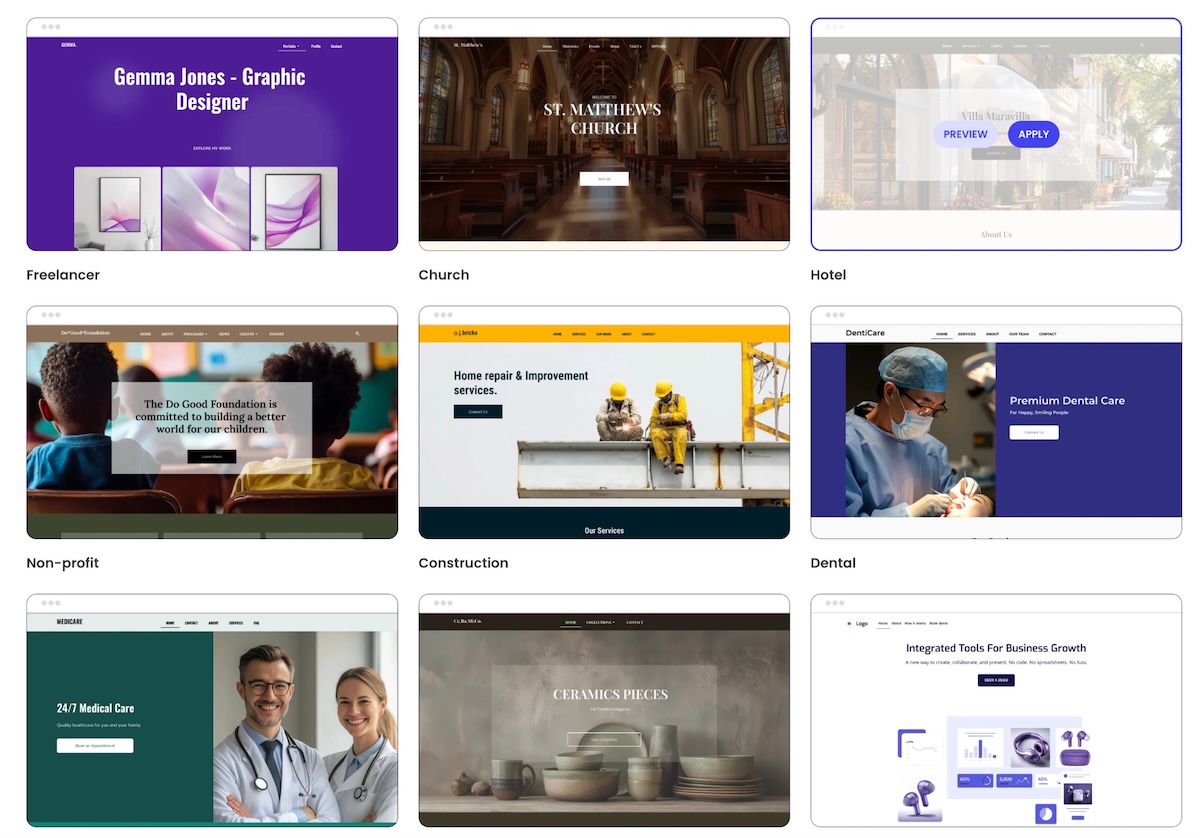
Different templates available on an ecommerce platform
  • Look for a platform that offers a free trial, and build your whole store during it. You can set up your store, add products, and preview it live before you’re ever charged
  • Decide your shipping approach before you list anything, not after your first order comes in. Flat rate, calculated by weight or destination, or built into the price all work, but pick one before a customer is waiting on an answer
  • Take product photos from multiple angles, not just one hero shot, and make sure they’re actually in focus and well-lit. This matters more for a brand-new store with no reviews yet than almost anything else on the page. If your original photos are a little rough, an AI image tool can clean up lighting and background without needing a reshoot
  • Add basic trust signals before you launch: a way to contact you, a shipping and return policy, and a privacy policy. A brand-new store has no reviews yet, so this is what tells a stranger you’re legitimate

Setup is the easy part. Developing an ecommerce marketing plan and getting people to actually visit is the harder one. Here’s what you need to know:

  • Post on social media where your buyers already are, not everywhere at once
  • Start building your email list from day one, even just a signup box on your homepage. A small list you can email directly is worth more long-term than a big spike of one-time visitors
  • Use AI to draft a first pass at product titles and descriptions, then edit them the way a buyer would actually search, not the way you’d describe it to a friend. This is a very important part of your ecommerce SEO at this stage
  • Ask happy customers to share what they bought. A tagged photo or a mention does more for a new store than most paid ads would at this stage

The first month or two on your own platform will feel slower than a marketplace, because you’re building traffic instead of borrowing it. That’s expected, not a sign you picked wrong.

Common mistakes when choosing where to sell

  • Picking a marketplace only because it’s free to start. The listing and transaction fees add up fast once you’re selling consistently, and “free to start” isn’t the same as “cheap to run.”
  • Underestimating how long it takes to build traffic on your own site. A new store doesn’t show up in search results overnight, or in week one, or usually in week three either. Budget weeks, not days, before expecting steady visitors.
  • Assuming you have to choose one and stick with it forever. Sellers move between models constantly. Etsy sellers add a website once they have proof a product sells; website owners add a marketplace listing to reach a new audience. Nobody signs a lifetime contract here.
  • Ignoring who owns the customer relationship. If you’re building a brand you want people to remember, a marketplace-only strategy makes every sale a one-off instead of a repeat customer.
  • Copying a competitor’s setup without checking your own numbers. What’s cheap or affordable for someone selling $200 candles isn’t the same math as someone selling $8 stickers. Run your own fee comparison before committing, not after.

The bottom line: ecommerce platform or marketplace?

There’s no universal right answer here, only the right answer for where you are. If you’re still testing whether the product sells, a marketplace gets you in front of buyers with less money on the line. If you already know you’re building something long-term, your own platform starts paying you back instead of a marketplace, and sooner than most people expect.

SiteGround Ecommerce makes the ownership side of that genuinely easy, not just possible. You can go from a blank page to a live, working store in a matter of hours, no developer and no code required. Every plan comes with fast, reliable hosting built in, so your store loads quickly and stays up when it matters. And if something trips you up along the way, real support is available 24/7, not a chatbot loop or a three-day ticket queue.

[103]

Frequently asked questions

What’s the difference between an ecommerce platform and a marketplace?

An ecommerce platform is software for building your own standalone online store, where you control the branding, pricing, and customer data. A marketplace is a shared website where multiple sellers list products under one brand, like Etsy or Amazon, in exchange for a cut of every sale.

Should I sell on Etsy or build my own website?

That depends on what stage you’re at and what you’re trying to solve for. Etsy trades a cut of every sale for speed and an existing audience. Your own website trades more setup time for control and margin. Neither is the “right” starting point, they fit different situations.

Is Etsy a marketplace or an ecommerce platform?

Etsy is a marketplace, not an ecommerce platform. It hosts millions of individual sellers under one shared brand and takes a percentage of each sale, rather than giving you a standalone ecommerce store on your own domain.

Is it cheaper to sell on a marketplace or build your own store?

It depends on your sales volume. At low volume, a marketplace can be cheaper because there’s no monthly cost. Once you’re selling consistently, the roughly 10% in combined marketplace fees per sale often costs more than a flat monthly plan for your own platform.

Can I use both a marketplace and my own online store?

Yes. Many sellers list the same products on a marketplace and their own ecommerce site at once, using each as a separate sales channel. At low product counts, this works fine with manual inventory updates and no extra software.

What are examples of ecommerce platforms vs. marketplaces?

Ecommerce platforms include website builders you use to create a standalone store on your own domain. Marketplaces include Etsy, Amazon, eBay, and Facebook Marketplace, where you sell inside someone else’s shared platform.


AI website builder pricing: how to compare plans without getting burned

A digital graphic featuring an open laptop displaying a website mockup for "Panto" with a dark interior scene and the headline "MINIMALISTIC & MODERN INTERIOR" against a green to deep purple gradient background. To the left of the laptop sits a three-by-three grid of square UI icon buttons. To the right, a highlighted glassmorphism card topped with a bright green "BEST VALUE" banner displays a "Pricing plan" priced at "5.49 €/mo" above feature line placeholders, with other blurred plan cards in the background. In the bottom-right foreground, a white callout button reads "SELECT PLAN" with an arrow cursor clicking on it.

An AI website builder can look cheap right up until you try to connect your domain or actually publish the site. That’s because AI website builder pricing is rarely just the monthly plan price you see on the pricing page. The real cost can include the builder itself, hosting, domain, SSL, storage, forms, ecommerce features, email, renewals, transaction fees, and upgrades. The safest comparison is a year-one cost check plus a list of features your business actually needs.

This article shows you how to choose the right AI website builder plan for your business, spot the limits that make a cheap plan expensive later, and understand how all-in-one AI website builders such as Coderick AI combine building, hosting, security, and publishing in one platform instead of leaving you assembling separate services.

Key takeaways:

  • Compare the cost of a working AI-built website, not the price of access to the builder. Hosting, a domain, email, forms, payments, and renewals can change the result.
  • Choose a plan by the job the website must do (generate inquiries, take bookings, or sell) not by the lowest price on the page.
  • Translate technical limits into business limits. A cap on form submissions, products, team members, or monthly AI credits can become a cap on leads, sales, and updates.
  • Calculate both year one and year two. Introductory discounts make the first bill look attractive; renewals reveal the recurring cost.
  • Use a free plan or trial to test your real workflow, including editing, mobile viewing, form delivery, publishing, and the plan required for your must-have features.
  • With an all-in-one platform such as Coderick AI, paid plans combine the builder with premium hosting and publishing support, reducing separate setup steps and bills.

What does AI website builder pricing actually include?

An AI website builder pricing page usually leads with the easiest number to advertise: the builder subscription. Your business, however, needs a live website that customers can visit, trust, and use. The practical question is therefore not “What does the builder cost?” but “What will it cost to get the result I need and keep it running?”

The AI builder subscription

This is the fee for creating, editing, and maintaining the website inside the AI builder. The important detail is not simply whether the plan says “AI included,” but how the AI is metered. Some services limit generations, edits, pages, projects, or monthly credits. A plan can be generous enough to create a first draft but restrictive once you start refining copy, adding pages, updating sections, or maintaining the site. If you’re comparing platforms, use the website-builder checklist.

Hosting

Hosting is the service that keeps your website available on the internet. It’s the online home where the site’s pages, images, and files live. Every website needs hosting, whether it appears as a separate bill or is included in the AI website builder plan.

When hosting is separate, you may need another account, another renewal date, and a connection between the builder and the host. When it is included, publishing is usually simpler because the tool that creates the site already knows where the site will run.

Domain name

A domain name is the address customers type, such as yourbusiness.com. A temporary builder address is fine while you test, but most businesses eventually need their own domain for credibility, branded email, and easier marketing.

Check three separate things:

  • whether a domain is included,
  • whether that offer applies only to the first year,
  • and what the renewal price will be.

“Free domain” often describes the first invoice rather than the long-term cost.

SSL certificate and HTTPS

SSL is the security technology that encrypts information moving between a visitor and your website. When it is working, the address starts with https:// and the browser shows a padlock or other security indicator. This matters even on a simple brochure site because contact forms, logins, and customer details should not travel across an unsecured connection.

Most modern platforms include SSL, but don’t rely on “secure hosting” as a vague promise. Confirm that HTTPS is enabled automatically for your own domain and that renewal is handled without a separate certificate purchase.

Business email

A professional inbox uses your domain (for example, hello@yourbusiness.com) instead of a personal address. It may be included, sold separately, or priced per mailbox. That last detail is important when several people need addresses such as sales@, bookings@, and accounts@.

Also check what “email included” means. A forwarding address that sends mail elsewhere is not the same as a full inbox you can send from, search, and access on your phone.

Business features

Forms, appointment booking, payments, ecommerce, customer accounts, and marketing integrations are often the real reason a business needs a website. These features are also where plans diverge. A low-cost tier may let you design the page but require an upgrade before visitors can complete the action the page was built for.

Work backwards from your revenue path. If customers must submit a quote request, reserve a time, or pay online, test and price that complete journey, not just the page that introduces it.

Support

Support becomes part of the price when your website affects inquiries or sales. Compare the channel, hours, and scope: documentation only, an AI assistant, live chat, email tickets, or hands-on help. A cheaper plan can cost more in practice when a small publishing problem takes an afternoon to solve.

Pro tip: Count accounts as well as money. A builder, host, domain registrar, email provider, booking tool, and payment add-on can create six logins, six renewal dates, and six places to troubleshoot. Fewer moving parts have a real operational value for a small team.

Cost itemPlain-English meaningQuestions to ask
AI builderThe tool used to create and edit the siteAre generations, edits, pages, projects, or credits limited?
HostingThe online service that keeps the site availableIs it included? Who handles publishing, speed, backups, and security?
DomainYour website addressIs the first year free? What does it renew at? Can you use an existing domain?
SSL/HTTPSThe encrypted connection that secures the siteIs it automatic for a custom domain, and does it renew automatically?
Business emailAn inbox using your domainIs it a full mailbox? How many inboxes are included?
Forms/bookingTools that collect leads or appointmentsWhich plan unlocks them? Are submissions or bookings capped?
EcommerceProducts, cart, checkout, and order toolsAre there product, sales, or platform transaction limits?
SupportHelp when setup or publishing goes wrongIs human support included, and when is it available?

How much does an AI website builder cost in year one?

Year one is the best time to compare AI website builder costs because it forces all required items onto the same page. It also prevents a common comparison mistake: putting an all-in-one plan next to a builder-only plan and treating the two headline prices as equivalent.

A simple example: Plan A costs $12 a month, but needs a $20 domain, $72 of business email, and a $120 booking add-on. Its first-year total is $356. Plan B costs $24 a month and includes those items, for a $288 total. These figures are illustrative, but the comparison method is the point: the lower monthly price was not the lower business cost.

Monthly subscription

Multiply the price by the number of months you will actually pay. If the page shows a low “per month” figure beside annual billing, check whether the full year is charged upfront. A monthly equivalent is not the same as a month-to-month commitment.

Monthly vs annual billing

Annual billing often reduces the monthly equivalent, but the saving is payment for commitment. Before prepaying, check the refund window, what happens if you cancel, whether unused credit carries over, and whether the plan can be downgraded at renewal.

For a new business idea, a slightly higher month-to-month price can be sensible while you prove demand. For an established business replacing an existing site, annual billing may be easier to justify once the trial has confirmed the platform fits.

Domain registration and renewal

Record the first-year domain charge and the standard renewal separately. If you already own a domain, check whether connecting it is included in the plan you are considering. Some entry tiers only allow a platform-branded web address.

Email and add-ons

Add every mailbox and every extension the live website requires. Don’t count optional ideas you may never use, but do count the tools your daily workflow depends on. For example, a salon should include booking and reminders; a consultant should include a reliable inquiry form; a retailer should include product and checkout features.

Ecommerce or booking costs

A selling plan can carry three separate costs: the website plan, the payment processor’s fee, and sometimes an additional platform transaction fee. A booking system may also charge for reminders, staff calendars, locations, or the number of appointments. Compare the cost at your expected volume, not only at launch.

Renewal pricing after discounts

The first-year total tells you whether you can launch. The year-two total tells you whether the setup is sustainable. Record the regular plan price, domain renewal, mailbox renewals, and any promotional add-ons that revert to full price.

Year-one cost formula: Plan + domain + email + required features + payment/transaction costs + setup or migration costs

A digital graphic featuring a translucent glassmorphism UI dashboard floating against a dark blue gradient background with faint flowchart wireframes. The central dashboard panel displays a hero banner with a woman wearing sunglasses beside the bold text "BUILD NEW TRACKER," a user profile card for "Victoria Louise," and bottom widgets showing a "$43,007" metric and a "4.72" star rating. In the bottom-right foreground, a solid white card highlights "Monthly visitors" with an upward-trending blue graph and a growth count of "+10.90k."

Which AI website builder plans do small businesses usually need?

Most pricing pages present a ladder: free, starter, business, store, and growth. The names are marketing labels. The useful way to choose an AI website builder plan is to identify the first tier that supports the customer action that makes the website valuable to your business.

Free plan

A free AI website builder plan is best used as a test environment. It can show whether you understand the editor and whether the AI produces a useful starting point. It’s rarely the final home for a business because free tiers commonly use platform branding, a temporary address, lower usage limits, or restricted publishing.

Starter site plan

A starter plan can suit a simple information site: a homepage, services, about, and contact details. The deciding question is whether it supports your own domain and a working form. A “brochure site” still needs a clear way for a potential customer to take the next step.

Business website plan

This is often the practical level for lead generation. Look for custom domains, forms, basic search settings, analytics, enough storage for real images, and a manageable way to update the site. If email, form routing, or additional pages are extra, add those costs before comparing.

Booking or service-business plan

Choose this level when your calendar is part of the sale. Test the full process from a customer choosing a time to you receiving the booking. Check staff calendars, locations, cancellation rules, reminders, deposits, and monthly appointment limits. A booking widget that only looks good in a demo is not enough.

Online store plan

A store needs product management, stock or availability, a cart, checkout, order notifications, taxes or shipping rules where relevant, and a clear refund process. The cheapest ecommerce tier may be suitable for a few products, but product caps and extra transaction fees matter quickly as sales grow.

Advanced or growth plan

A growth plan becomes relevant when the business needs more projects, storage, traffic capacity, team access, languages, advanced reporting, or integrations. Don’t buy it for vague “future growth.” Buy it when a specific limit on the lower plan would interrupt work or revenue.

Plan typeUsually fitsMust-have proof before buyingTypical upgrade trigger
FreeTesting the builderYou can create and edit the kind of site you needCustom domain, publishing, branding removal
StarterSimple information siteCustom domain, HTTPS, mobile layout, working contact pathMore pages, forms, storage, or analytics
BusinessLead-generation siteForms reach the right inbox and are not heavily cappedBooking, more submissions, team access
BookingAppointment-led businessCalendar, reminders, deposits, and cancellation flow workMore staff, locations, or monthly bookings
StoreSelling products or servicesProducts, checkout, payment, notifications, and policies workProduct count, sales volume, transaction fees
GrowthLarger or multiple sitesThe extra capacity solves a known operational needMore projects, storage, credits, or users

What hidden AI website builder fees should you check?

Most hidden AI website builder fees are not literally secret. They are simply separated from the headline price, described in a footnote, or triggered only after the site becomes useful. The best defense is to look for the event that creates each charge: renewal, adding a mailbox, receiving a payment, exceeding a limit, or leaving the platform.
Renewal price after the first term

Introductory rates can apply for a long first term and then renew at a higher standard rate. Record the renewal date and recurring price when you buy. A low first bill should be treated as a discount, not as the permanent cost of the website.

Domain renewal and domain privacy

The domain may be renewed separately from the website plan. Domain privacy, which prevents your personal contact details from being displayed in public registration records where applicable, may be included or charged separately. Check both items for every domain you manage.

Email inboxes

Email is commonly priced per user or mailbox. A single included address can be enough for a sole trader, but a small team may need several. Decide whether shared addresses can forward to one inbox or whether each person requires a full account.

Payment processing and transaction fees

Payment processors charge for handling card or online payments. Some website platforms add their own transaction fee on top. Even a small extra percentage becomes significant at higher sales volume, so calculate the fee using your expected monthly revenue rather than judging it in isolation.

Apps, plugins, and add-ons

A plan may depend on third-party extensions for bookings, reviews, pop-ups, multilingual content, or advanced forms. Check whether those tools have their own subscriptions and whether the integration is maintained by the builder or by an outside developer. An add-on that stops being updated creates a reliability cost as well as a financial one.

Storage, bandwidth, page, and AI-credit caps

Storage is the space used by your images and files. Bandwidth is the amount of data sent to visitors when they load the site. Page caps limit how much you can publish, while AI credits (the units some builders use to meter how much you can generate or edit) can limit how often you generate or revise content and functionality. These limits are not automatically bad; they become expensive when normal use pushes you into the next tier.

Premium support

Priority queues, phone help, migration assistance, or hands-on setup may sit behind a higher plan. Think about the cost of downtime and your confidence with troubleshooting. A business that takes orders all day has a different support requirement from a portfolio updated twice a year.

Migration, export, and switching costs

The cost of leaving is easy to ignore when joining. Check whether you can export your text, images, products, customer records, form submissions, and domain. Some sites cannot be moved as a complete design, which means switching platforms involves rebuilding. That future labor is part of the long-term price.

Pro tip: Save a PDF or screenshot of the pricing page and included features on the day you subscribe. Pricing and plan names change. A simple record makes renewal decisions and support conversations much easier a year later.

Which limits trigger upgrades later?

Cheap AI website builder plans become expensive when its limits are attached to the part of your website that is succeeding. The useful exercise is to translate every cap into a business event you understand. “100 form submissions” means roughly three per day; “five team seats” means the sixth colleague changes the plan; “10GB storage” means something different for a text-led consultant than for a photographer.

Here are the limits that most often force an upgrade, and what each one really means for your business:

  • Traffic and bandwidth. More visitors cause the site to transfer more data. Ask what happens at the limit: a warning, slower service, an overage charge, or an automatic upgrade.
  • Pages. A page cap can become restrictive when you add individual services, locations, case studies, or campaign landing pages.
  • Storage. High-resolution photos, videos, downloadable files, and product images use space quickly. Image optimization can delay an upgrade without hurting quality.
  • Form submissions. A monthly cap can turn into lost inquiries if the form stops accepting entries or older submissions become inaccessible.
  • Bookings. Check monthly appointment limits, staff calendars, locations, reminder messages, and whether cancelled appointments still count.
  • Products and orders. Stores may cap listed products, variants, orders, or sales value. Make sure the tier fits seasonal peaks, not only an average month.
  • Team seats. The person who writes copy, the person who handles orders, and an outside freelancer may each need access. Role and permission controls matter as much as seat count.
  • AI credits or generations. Building consumes credits, but so does maintaining the site. It’s a different metering logic than token-based coding tools, such as Claude Code. Reserve capacity for later edits, new pages, and campaign updates.
  • Advanced SEO or analytics. Basic page titles may be included while redirects, structured data, deeper reporting, or integrations require a higher level.
  • Custom domain and branding. Using your own address and removing platform branding are classic reasons a free plan becomes paid.

Reality check: Do not forecast only average usage. A holiday campaign, press mention, busy booking season, or successful social post can create a short spike. Check how the platform handles peaks before a good month becomes an emergency upgrade.

How does included hosting change AI website builder cost?

Included hosting changes both AI website builder cost and the amount of technical coordination required. A builder-only product gives you a design or code output and leaves you to arrange where it runs. An all-in-one product includes the environment needed to publish and keep it online.

Builder-only pricing versus all-in-one pricing

A builder-only plan can be attractive when you already have hosting and know how deployment works. For a complete beginner, however, separate services create extra decisions: choosing a host, connecting accounts, configuring the domain, enabling HTTPS, and working out which provider is responsible when publishing fails.

An all-in-one AI website builder plan can appear more expensive beside a design-only tool because it includes more of the finished result. Compare like with like: either add hosting and publishing costs to the builder-only plan or remove them from the all-in-one total before judging value.

Why hosting matters for total cost

Hosting affects whether the website is available, how quickly pages load, how backups and security are handled, and how easily the site can grow. Those might sound like abstract technical details, but a slow or unavailable site loses trust, inquiries, and sales.

Domain, SSL, and publishing setup

Connecting a domain tells the internet where your website lives. SSL then secures that connection so visitors reach the site over HTTPS. With separate services, you may have to copy settings between the domain provider, builder, and host. With an integrated platform, much of that work can be handled inside one account.

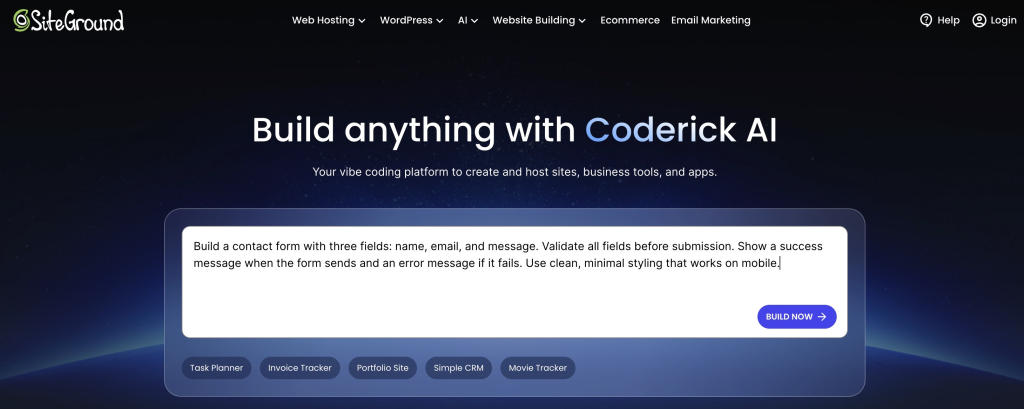
SiteGround Coderick AI homepage with a prompt input field and quick-start options for building sites, tools, and apps

How Coderick AI handles building and hosting

Because most AI builders stop at building and leave hosting, domains, and security for you to piece together afterward (which is why such AI design tools alone are not enough), Coderick AI is designed as an end-to-end build-and-publish platform. You describe the project, refine it in plain language or via visual editing (which is basically what vibe coding is), and publish it on SiteGround’s battle-tested infrastructure from the same environment. Paid Coderick AI plans include SiteGround hosting and custom-domain support, with security and the publishing workflow integrated rather than left as a separate deployment project.

For a small business owner, the practical benefit is that there are fewer hand-offs between the moment the website looks ready and the moment customers can actually use it.

Time is part of the price: If separate setup takes five hours of your own time (or requires paid help), add that to the comparison. The cheapest software is not the cheapest route when it turns the owner into an unpaid systems integrator.

A year-one AI website builder cost worksheet

Use one copy of this AI website builder cost worksheet for every platform you are considering. Enter zero only after confirming that an item is included, not because it is absent from the headline price. The year-two column is deliberately included so introductory discounts do not control the decision.

Cost itemWhat to enterYear 1Year 2
Website builder planFull amount charged, not only the monthly equivalent$$
HostingSeparate hosting plan or $0 when included$$
Domain nameRegistration, connection, and renewal$$
SSL/HTTPSCertificate or setup fee, usually $0 when included$$
Business emailNumber of paid mailboxes × annual price$$
Forms/bookingRequired plan upgrade or add-on$$
EcommerceStore plan, apps, and expected platform fees$$
Payment processingEstimated fees based on expected sales$$
Templates/appsOnly the paid additions you truly need$$
Migration/setupYour time, freelancer help, or provider service$$
SupportPremium support or maintenance help$$
ContingencyA small buffer for realistic changes$$
TOTALAdd every line above$$

Decision rule: When two totals are close, prefer the option with fewer critical add-ons and a clearer upgrade path. Predictability is valuable when the website is part of day-to-day operations.

What should a free trial prove before you pay?

An AI website builder trial is not a design competition. Its job is to remove uncertainty about the website you actually intend to run. Use real business details, test the feature that creates value, and follow the publishing path far enough to expose any plan upgrade or technical hand-off. For what a real first session looks like, use the 60-minute build walkthrough.

Can you build the site type you need?

Create a small but realistic version: a service business with a quote form, a studio with bookings, or a store with a few real products. A generic demo can hide the exact limitation that matters to you.

Can you edit content without fighting the tool?

Change the headline, replace an image, reorder a section, add a page, and update the main button. Building happens once; editing happens for the life of the site. The best platform is one you will actually keep current.

Can you add forms, booking, or store features?

Add the one feature the business depends on and complete it from a customer’s point of view. Submit the form and confirm where it arrives. Make a test booking and check the confirmation. Place a test order and inspect the notification. Note the plan required for each step.

Can you preview and use the mobile layout?

Preview is useful, but also open the test site on a real phone. Check text size, button spacing, forms, menus, images, booking, and checkout. A site can look tidy on a desktop preview and still be awkward to use with a thumb.

Can you understand publishing, domain, and HTTPS steps?

Find the publish button, the temporary address, the custom-domain instructions, and the point where HTTPS becomes active. You don’t need to memorize the technology. You do need confidence that the path is clear and that support can explain it in ordinary language.

Can you estimate the real paid plan you will need?

Before the trial ends, write down the lowest plan that supports every must-have feature, the annual amount charged, the renewal rate, and the main usage limits. If you cannot identify the real plan after testing, the pricing model is not yet clear enough to buy.

Pro tip: Don’t spend the trial polishing colors and stock photos. A plain site with a working inquiry, booking, or checkout flow tells you far more than a beautiful homepage that cannot run the business.

How to compare AI website builder pricing without getting burned

Use this sequence to compare AI website builder pricing across providers. It keeps the business requirement in front of the pricing language and makes unlike plans easier to compare.

  1. Define the website’s main job. Choose leads, bookings, sales, or another measurable outcome.
  2. List the must-have features. Separate launch requirements from ideas that can wait.
  3. Find the first plan that supports them. Ignore the cheapest tier if it cannot complete the customer journey.
  4. Add the missing services. Include hosting, domain, HTTPS, email, forms, booking, payments, apps, and support.
  5. Translate every limit. Convert credits, submissions, products, seats, storage, and traffic into ordinary monthly use.
  6. Calculate year one and year two. Separate promotional pricing from the recurring total.
  7. Test the real workflow. Build, edit, submit, book, buy, preview on mobile, and inspect publishing.
  8. Check the exit route. Confirm domain ownership and what content or data can be exported.
  9. Choose for total value and predictability. The right plan supports the website you need without surprise upgrades or unnecessary complexity.

Ready to build?

[96]

FAQs

What is included in AI website builder pricing?

AI website builder pricing usually includes access to the builder, but the complete package varies by platform and plan. Check hosting, a custom domain, HTTPS/SSL, business email, storage, forms, booking, ecommerce, support, AI usage, and publishing. The plan price is only comparable after every required item is counted.

How much does an AI website builder cost?

The cost of an AI website builder depends on the site’s job, billing term, included hosting, and required features. A simple information site normally needs less than a booking site or online store. Calculate the full first year and the standard renewal year rather than relying on an advertised monthly equivalent.

What hidden AI website builder fees should I watch for?

Common extra costs include renewal increases, domain renewal, email mailboxes, paid apps, booking tools, ecommerce upgrades, payment processing, platform transaction fees, extra storage, higher AI usage, premium support, and migration or rebuilding costs if you leave.

Are free AI website builder plans really free?

They can be free for testing, but they often limit publishing, custom domains, branding removal, pages, storage, forms, ecommerce, or support. A free plan is useful when it helps you prove the editor fits; it is rarely the final plan for a customer-facing business website.

Which AI website builder plan does a small business need?

Choose the lowest plan that supports the website’s main customer action. A lead-generation site needs a custom domain and reliable forms. A service business may need booking and reminders. A store needs products, checkout, payments, and order management. The plan label matters less than the complete workflow.

What do SSL and HTTPS mean?

SSL is the technology that encrypts information between a visitor and your website. HTTPS is the secure version of the web address that shows the protection is active. Most modern platforms include it, but confirm that it works automatically with your custom domain.

Why does hosting matter in AI website builder pricing?

Every website needs hosting to stay online. If it is not included, you need a separate service and may have to connect, configure, and troubleshoot it. All-in-one platforms, such as Coderick AI, include hosting and publishing, so their headline price covers more of the finished website.

Does Coderick AI have separate hosting fees?

Coderick AI is an end-to-end platform, and SiteGround hosting is included in paid plans. You can build, refine, and publish in the same environment instead of setting up a separate hosting account. Check the current plan page for the latest allowances and terms.

Is annual billing cheaper than monthly billing?

Annual billing often lowers the monthly equivalent, but it requires a larger upfront commitment. Compare the full amount charged, refund terms, renewal price, included features, and your confidence in the platform after testing.

What should I test during an AI website builder trial?

Build a small version of the real site, edit key content, test the main form, booking, or checkout flow, open it on a phone, follow the publishing and domain steps, and record which paid plan unlocks every required feature.

Email not working after a DNS change? Here’s how to fix it fast

Illustration of email reconnecting to its DNS MX record after a DNS change, with an interrupted envelope being restored

Your email didn’t break. When you changed your domain’s nameservers, mail routing moved to a new DNS provider that doesn’t have your old records, so messages have nowhere to land. Email not working after a DNS change is almost always a case of missing MX and supporting records, not lost data. Recreate the right records at your new DNS host, wait for propagation, and mail comes back.

Key takeaways:

  • Changing nameservers hands DNS control to a new provider, and your MX, SPF, DKIM, and autodiscover records do not transfer automatically.
  • Your mailboxes and existing messages live on the mail server, not in DNS, so a nameserver change cannot delete email you already received.
  • Receiving problems almost always trace back to MX and A records; sending or spam problems trace back to SPF, DKIM, and DMARC.
  • DNS changes can take up to 24 to 48 hours to fully propagate, though most updates apply within a few hours.
  • You can confirm which records are actually live in about a minute using a free MX lookup tool such as MxToolbox.

Why email stops working after a DNS change

Nameservers decide which company answers questions about your domain, and DNS records are the individual answers. When you point your domain to a new host, you switch to a fresh DNS zone that starts with a default set of records. That default set rarely includes the exact MX, SPF, and mail records your email provider needs, so incoming mail has no address to route to.

This is why the question “does changing nameservers affect email” comes up so often: the change itself is harmless, but the empty zone behind it is not. If you recently pointed your domain to a new host, the previous provider’s records stayed behind on the old nameservers. Nothing was deleted. The new nameservers simply never received a copy.

The reassuring part: your account, passwords, and stored messages sit on the mail server, which the DNS change never touches. You are reconnecting the signposts, not rebuilding the mailbox.

First, confirm the problem is actually DNS

Before editing anything, rule out the faster explanations. A wrong password, a provider outage, or a change made only minutes ago can all look identical to a DNS problem, and none of them are fixed by touching records.

Run three quick checks:

  1. Timing. If you changed nameservers in the last hour, the issue may just be propagation. Note the exact time you made the switch.
  2. Login and outage. Try webmail directly. If you can log in and see old messages but no new ones, DNS is the likely culprit. If you cannot log in at all, check if your provider is experiencing server issues.
  3. Both directions. Test sending and receiving separately. Which one fails tells you which records to check, and it saves you from editing records that were never the problem.

If webmail loads your history but new mail stopped arriving right after the switch, you are looking at a records issue. Move on to the diagnosis.

Find out which records went missing

Email relies on several record types working together, and a DNS change can drop any of them. Rather than guessing, look up what is currently live on your domain. A free tool like MxToolbox returns your MX records in seconds, and most DNS hosts show the full zone inside their control panel. Compare what you see against what your email provider says you should have.

Here is what each record does and how its absence shows up:

RecordWhat it does for emailSymptom if missing or wrong
MXPoints incoming mail to your mail serverYou stop receiving email entirely
A / CNAME (mail, webmail, autodiscover)Lets clients reach the server and auto-configureOutlook or Apple Mail cannot connect or set up
SPF (TXT)Lists servers allowed to send as your domainYour outgoing mail lands in spam or is rejected
DKIM (TXT)Signs messages so receivers trust themReduced deliverability, spoofing warnings
DMARC (TXT)Tells receivers how to handle failed checksInconsistent delivery, no reporting

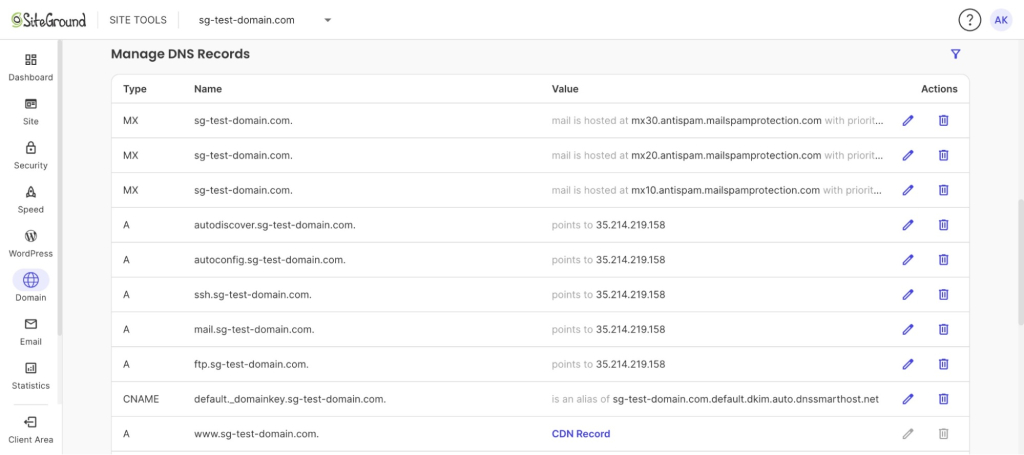
In SiteGround, the full zone is listed under Site Tools > Domain > DNS Zone Editor, in the Manage DNS Records table.

SiteGround Site Tools Manage DNS Records table showing the default MX records, mail-related A records, and the DKIM CNAME for a domain

Here you can see exactly what is live on your domain after pointing it to SiteGround’s nameservers. The three MX records, the mail-related A records (autodiscover, autoconfig, mail), and the DKIM CNAME are all present. Compare your own list against what your email provider expects.

When you point your domain to SiteGround, Site Tools comes with a default DNS zone that already includes SiteGround’s own MX and mail records, set up for email hosted on SiteGround. So before you edit anything, this is really a decision about where you want your email to live.

– Keep email with your current provider. Replace SiteGround’s default MX and mail records with the exact values from that provider, following the steps below. Your mailboxes stay where they are, and nothing moves.

– Move your email to SiteGround. Leave the default records in place and bring your existing mailboxes across with SiteGround email and its migration tool, so your messages and DNS records line up on their own. If your site already lives here, keeping email in the same place means one less zone to keep in sync. 

If you’re staying with your current email provider, read on and re-add its records. If consolidating sounds easier, the migration route skips the copy-paste entirely.

[86]

Check your MX records first

MX records are the first thing to verify, because without them nothing arrives. A correct set points to your provider’s mail hostnames, each with a priority number where the lowest value is tried first. Google Workspace, for example, publishes:

smtp.google.com at priority 1 (the current single-record setup), or the classic five-record set led by ASPMX.L.GOOGLE.COM at priority 1, with four ALT records at priorities 5 to 10.

Your provider’s set may differ, so use its exact hostnames and priorities. They should be available in your old DNS zone, or in their official product documentation.

If your lookup still returns SiteGround’s default MX, or any host that is not your email provider, that mismatch is your receiving problem in one line.

Check the A and CNAME records for mail access

Whether you need these at all depends on the provider:

  • Traditional, host-based email (including old cPanel-style hosts) usually uses hostnames such as mail.yourdomain.com and autodiscover.yourdomain.com so desktop clients can connect and auto-configure.
  • Google Workspace needs none of these, because Gmail is the interface.
  • Microsoft 365 wants an autodiscover CNAME pointing to autodiscover.outlook.com.

Check your provider’s documentation for the exact hostnames, and if it lists none, leave these out. When they are required but missing, mail can route fine while Outlook or Apple Mail sits there failing to connect.

Check SPF, DKIM, and DMARC for sending

These three TXT records decide whether the rest of the internet trusts mail sent from your domain. They do not affect receiving, but a missing or wrong SPF record after a DNS change is the usual reason your sent mail suddenly lands in spam. Each value is provider-specific. Using Google Workspace as an example again:

  • SPF is v=spf1 include:_spf.google.com ~all.
  • DKIM is a google._domainkey TXT record holding the key you generate in the Google Admin console.
  • DMARC is a _dmarc TXT record such as v=DMARC1; p=none; rua=mailto:you@yourdomain.com. 

Copy your provider’s exact strings, since a single wrong character in any of them breaks the check.

Restore the records at your new DNS host

Once you know which records are needed, recreate them in your new DNS zone using the values from your email provider. In SiteGround, you edit these under Site Tools > Domain > DNS Zone Editor, where a tab at the top of Create New Record lets you pick each record type — A, AAAA, CNAME, MX, SRV, or TXT — and fill in its fields.

To restore receiving, open the MX tab, choose Add your own MX records, then enter the mail hostname your provider lists in Destination and its Priority. The same panel handles A, CNAME, and TXT records via the other tabs.

Work in this order:

  1. Add the MX record with the exact mail hostname and priority your provider lists. This restores receiving.
  2. Add the mail A or CNAME records (mail, webmail, autodiscover) so email clients reconnect.
  3. Add the SPF, DKIM, and DMARC TXT records exactly as published, character for character.
  4. Save and re-run your MX lookup to confirm the new records are visible.

Important: Make sure to also delete any leftover email DNS records to avoid delivery conflicts.

Receiving vs sending: different symptoms, different fixes

Treat “I can’t receive” and “I can’t send” as two separate problems, because they live in different records. Fixing one does nothing for the other, and editing the wrong set just adds risk.

  • If mail is not arriving, the fault is in MX or the mail A records. 
  • If mail sends but bounces or lands in spam, the fault is in SPF, DKIM, or DMARC. 

That second case is really a deliverability problem, and the same authentication records that fix it also protect your email deliverability. Diagnosing the direction first turns a vague “email is down” into a specific record to repair.

How long until email works again

After you save correct records, email usually starts flowing within a few hours, but full propagation can take up to 24 to 48 hours. 

Resist the urge to keep editing DNS while you wait. Every change resets the clock and makes the delay worse, not better. Save the correct values once, verify them with a lookup tool, and give propagation time to finish. If mail still fails after 48 hours, the problem is the record values themselves, not propagation, so recheck them against your provider.

How to change nameservers without affecting email 

The clean way to change nameservers without affecting email is to prepare the new zone before you flip the switch, not after. A little sequencing removes the downtime entirely, and it is the same discipline behind any careful website migration.

Use this checklist before your next change:

  1. Record your current zone. Export or screenshot every existing record, especially MX, SPF, DKIM, and any mail hostnames.
  2. Recreate the records at the new host first, while the domain still uses the old nameservers.
  3. Switch the nameservers, then verify sending and receiving with a real test message.

Done in this order, mail keeps flowing through the switch because the new zone already knows where to send it.

When to call in help

If you have restored the records, waited out propagation, and mail still fails, it is time to involve people who can see the server side. Your email provider can confirm the exact record values, and your hosting support can verify the zone is applied correctly. 

This is also where the choice of provider matters. When email, DNS, and hosting sit with one company that offers real human support, a broken record is a five-minute chat rather than a multi-day back and forth across three providers. This is worth weighing when choosing a web hosting partner, because the cheapest plan often means you are the support team.

The bottom line

Email breaking after a DNS change is a routing problem, not data loss. A nameserver switch hands your domain to a new DNS zone, and until that zone’s MX and mail records point back at whoever hosts your mailboxes, incoming mail has nowhere to go. 

The fix is methodical rather than urgent: confirm the problem is DNS, pull the correct values from your provider or your old zone, replace the defaults, and let propagation finish before you judge the result.

The durable lesson is sequencing. Treat DNS records as part of any nameserver move, not an afterthought: stage the records at the new host before you flip, and test both sending and receiving before you call it done. Handle it that way and “email not working after a DNS change” stops being an emergency and becomes a checklist.

Frequently asked questions

Why is my email not working after a DNS change?

Because the new DNS zone is missing the MX and supporting records your mail needs. Changing nameservers moves control to a new provider that starts with default records, so incoming mail has nowhere to route until you recreate the correct MX, A, and authentication records.

Does changing nameservers affect email?

Yes, changing nameservers affects email whenever the new DNS host does not already have your mail records. The nameserver change itself is safe, but email stops until the MX, SPF, and related records are recreated in the new zone.

Will changing DNS delete my emails?

No. Your messages and mailboxes are stored on the mail server, which a DNS change never touches. You may temporarily stop receiving new mail, but existing email is not deleted and reappears once records are restored.

How long until email works again after a DNS change?

Usually within a few hours, and up to 24 to 48 hours for full propagation. The exact time depends on your TTL setting. Lowering the TTL before a planned change shortens the wait.

What DNS records does email need?

At minimum an MX record for receiving, plus A or CNAME records for mail client access, and SPF, DKIM, and DMARC TXT records for sending and deliverability. Missing MX records break receiving; missing authentication records break sending.

What causes email fatigue and how to fix it

Marketer sending a segmented email campaign to reduce email fatigue and improve open rates

Email fatigue is the mental exhaustion and disengagement subscribers feel when a brand’s email marketing stops earning their attention, caused by sending too often, sending repetitive content, or both. It shows up as declining opens long before anyone unsubscribes. 

The fix isn’t fewer emails. It’s knowing what’s actually happening, then closing the gap with the right combination of frequency, content, and a way for tired subscribers to step back before they leave.

Key takeaways:

  • Email fatigue shows up as declining opens and rising unsubscribes while your other channels stay flat, which is the fastest way to rule out general disengagement.
  • The average email unsubscribe rate sits at 0.46% and a healthy rate stays under 0.5%.
  • Comparing send frequency against list engagement level, not a fixed number, usually finds the mismatch faster than guessing at “too many emails.”
  • A quick content audit (tagging your last 10 sends by type) usually finds the real problem before a frequency change ever gets tested.
  • Fatigue and deliverability problems look identical in your open rate but require completely different fixes.

Email fatigue vs. general inbox overload

Some marketers call email fatigue “email list fatigue” instead, same thing, same fix. It also gets confused with a few related terms, worth sorting out before you try to diagnose anything.

TermWhat it means for youWhat causes itWhat you do about it
Email fatigueYour subscribers are tuning out your emails specificallyYour brand sending too often or too repetitivelyAdjust your frequency and content mix
General email overloadYour subscribers are overwhelmed by everyone’s emails, so your numbers can dip even when you’re doing everything rightTotal email volume across every company they’re subscribed to, not just yoursNot something you can fix directly; focus on the sends you control
Message fatigueThe broader pattern your situation falls under, not specific to emailAny repeated communication losing its value over timeSame diagnostic approach, applied to whichever channel is fatiguing

If your subscribers stop opening your newsletter specifically, that’s email fatigue, and it’s fixable with data you already have in your email engagement reports. You can’t see the rest of their inbox, so you can’t know for certain whether they’re tired of just you or everyone, but there’s a practical tell: check whether the drop lines up with a change on your end, a jump in frequency, a run of promotional sends. 

If it does, that’s a good sign it’s about you specifically. If your sending has been steady and engagement still slipped, general overload or something else entirely is more likely, and either way, your own sends are the only lever you actually have.

How to tell email fatigue apart from other engagement problems

Run the cross-channel check first: compare your email engagement against another channel where the same audience shows up, like website visits, app logins, or purchase activity. If those numbers hold steady while only your email metrics decline, you’re looking at fatigue. If everything drops together, the problem is broader than your send calendar.

Once you’ve confirmed it’s fatigue, pull your numbers from your email marketing metrics dashboard and check them against a real baseline. It depends on your business and audience, but a good rule of thumb is aiming for an open rate of at least 20% and an unsubscribe rate under 0.5%.

If your email marketing frequency has crept up over the last quarter and your unsubscribe rate has crossed that 0.5% line at the same time, that’s your confirmation. A slow, steady decline in open rate over months points to fatigue. A sudden drop points somewhere else, usually deliverability, which gets its own section below.

What causes email fatigue

Three factors drive most of it, and they usually compound rather than act alone.

  1. Sending too often. This is the most common cause, and the one most guides jump to first. Your email marketing frequency and general email frequency best practices matter here, but the number itself matters less than whether it matches what subscribers actually signed up for.
  2. Sending content that doesn’t earn its place in the inbox. Three promotional emails in a row with nothing else in between trains subscribers to stop opening, even at a low frequency.
  3. Never letting subscribers set their own pace. Most platforms send every subscriber the same schedule regardless of engagement level, which guarantees your most active readers get the same treatment as people who haven’t opened anything in six months.

Most subscribers don’t complain when they hit this point. Watch your open rate instead of your inbox for complaints. A gradual, sustained decline across a segment is the real warning sign, and it shows up in that number long before anyone bothers to unsubscribe.

How often to send marketing emails without triggering fatigue

The honest answer is that the number matters less than whether it matches what your list actually agreed to. Fixing it takes three steps.

  1. Count your current send frequency. Tally sends per week over the last month, across every list segment, not just your main newsletter. Most businesses underestimate this until they actually count it.
  2. Compare your send count against your list’s engagement level, not a fixed number. A highly engaged segment can handle more frequent sends than a cold one without any sign of fatigue. If your top-engagement segment and your bottom-engagement segment are getting the exact same schedule, that mismatch is usually the real driver, not the total count.
  3. Test a lower frequency on one segment before rolling it out everywhere. Pick one segment, cut sends by a third for two to three cycles, and compare its open and click rates against an untouched segment. If a segment hasn’t opened anything in months, that’s an email list cleaning problem to solve before a frequency problem, since a dead segment will skew your test either way.

How to fix your content mix and combat email fatigue

Tag your last 10 sends by type. Sort each one into promotional, educational, product update, or pure value content. This is the raw data the rest of the audit runs on, and most people skip it in favor of guessing.

Check your ratio against the 80/20 rule. The standard reference point in content marketing is 80% value or educational content to 20% promotional. If you count 10 sends and more than two were pure asks, that ratio is your problem, not your send frequency.

Adjust next month’s calendar to close the gap. Name exactly what gets cut or replaced. If your click-to-open rate drops while your open rate holds steady, that’s a content problem, not an inbox-placement one, and it confirms the fix belongs here, not in your frequency settings.

It’s not always fatigue: rule out deliverability and list quality first

Declining engagement can look like fatigue without being fatigue. A few other problems produce the same symptoms.

  • Deliverability. The email may never have reached the inbox at all, so no content or frequency change will fix it. Gmail’s bulk sender requirements, in place since February 2024, cap spam complaint rates at 0.3%. Cross that threshold and Gmail can start routing your email marketing campaigns to spam folder regardless of how engaged your list actually is. Rule this out with a quick email deliverability check before you touch your content calendar.
  • List contamination. A bought list, a scraped list, or a broken signup integration can add contacts who were never interested, dragging every metric down regardless of your sending habits. If a decline coincides with a list import or a new signup source, check the source first.
  • Seasonal or offer mismatch. Some drops are just the calendar, plenty of lists tank in December. Others are real, the target audience or the offer changed and the content no longer speaks to who’s on the list. Neither gets fixed by sending less or sending differently, since the sending isn’t the problem.

Lower your unsubscribe rate before subscribers leave for good

A rising unsubscribe rate is the signal that this step is overdue. Instead of losing a subscriber outright, give them a way to stay on lighter terms:

  • A frequency preference center where subscribers pick weekly, biweekly, or monthly instead of leaving entirely
  • A short re-engagement sequence for anyone who hasn’t opened in 90 days, asking directly whether they want to stay
  • A sunset flow that removes genuinely inactive contacts after the re-engagement campaign gets no response

Group-based sending makes it easier to run this without manually managing lists by hand.

Reducing how often you email a struggling segment, or cutting them from your list entirely, only helps if the rest of your subscribers get emails that are worth opening. That’s where the send frequency and content mix fixes above do the actual work.

Run one audit before your next send

Email fatigue isn’t fixed by sending less. It’s fixed by sending on a schedule your list agrees to, with content that earns its place, and a way for tired subscribers to step back instead of leaving.

If building that into your setup sounds like another tool to manage, it doesn’t have to be. SiteGround Email Marketing runs groups based on a common trait, automated sequences, and campaign analytics from your dashboard, so the fix takes an afternoon, not a migration project.

[58]

Frequently asked questions about email fatigue

How often should I email my list without causing fatigue?

There’s no universal number. What matters is whether your frequency matches your list’s actual engagement level. A highly engaged segment can handle weekly sends without any sign of fatigue, while a cold segment on the same schedule will show declining opens within a month. Count your current frequency per segment, then compare it against engagement, not against a fixed rule.

How do I know if my subscribers have fatigue and not just disengagement?

Run the cross-channel check. Compare your email engagement against another channel where the same audience shows up, like website visits or purchase activity. If those numbers hold steady while only your email metrics decline, that’s fatigue. If everything drops together, the problem is broader than your send calendar, and a frequency or content change won’t fix it.

Can email fatigue hurt my email deliverability?

Not directly, but they compound. Fatigued subscribers who stop opening or start marking emails as spam can push your complaint rate toward Gmail’s 0.3% bulk sender threshold, which then hurts deliverability for your entire list, not just the disengaged segment. Fixing fatigue early keeps it from becoming a deliverability problem later.

What is the 30-30-50 rule for cold emails?

The 30-30-50 rule is a cold outreach guideline, not a newsletter frequency rule: roughly 30% of your email marketing efforts goes to list building, 30% to message writing, and 50% to deliverability and infrastructure. It doesn’t apply to the send frequency of an existing subscriber list, so don’t borrow it for that decision.

OpenAI GPT-5.6 Sol, Terra, Luna, and GPT-Live: what small business owners need to know

A digital graphic depicting an AI model tier comparison arranged like a solar system against a dark blue space-themed background. On the left, an open laptop displaying the white OpenAI logo rests on a bed of dark blue, jagged crystals. Above the laptop, a large golden yellow sphere represents "Sol 5.6" with the sublabel "Capability." Concentric orbital lines curve toward the right, highlighting a blue sphere for "Terra 5.6" sublabeled "Balanced production" and a smaller grey sphere further out for "Luna 5.6" sublabeled "Speed and cost."

OpenAI just released two AI updates at once: the latest OpenAI models in the GPT-5.6 family, which come in three versions named Sol, Terra, and Luna, and a new voice model called GPT-Live. But what does that all mean, and are all those models useful for you? This guide explains what each one is, where you actually run into it, and whether any of it matters for your business.

Key takeaways:

  • OpenAI’s latest launch has two parts: the GPT-5.6 text models (Sol, Terra, and Luna) and GPT-Live, a new voice model for ChatGPT.
  • In the ChatGPT app you don’t pick a version: paid plans use Sol, while free and Go plans stay on the previous model in regular chat. Choosing between Sol, Terra, and Luna only happens on OpenAI’s developer and business tools.
  • GPT-Live is the change you’ll most likely notice: ChatGPT’s voice can now hold a natural, back-and-forth conversation.
  • If you build with OpenAI’s developer tools, the three tiers are mostly about cost: Sol is the priciest and most capable, Terra is the balanced middle, and Luna is the cheapest.

Is GPT-5.6 available in ChatGPT, and how do you use it?

Whether you can use GPT-5.6, and how, comes down to two things: which plan you’re on, and where in ChatGPT you are. There are two places these models show up, and they follow different rules.

If you use the regular ChatGPT chat


If you use ChatGPT for things like marketing, you usually use the app. When you open it on your phone, computer, or the web, you don’t pick Sol, Terra, or Luna by name.

  • On a paid plan (Plus and up), you get GPT-5.6 Sol. It’s the flagship, and it sits behind the reasoning settings (the Medium, High, and Extra High options). So when you open the app, you can choose GPT-5.6 Sol and then choose how hard you want it to think.
  • On the Free or Go plan, you don’t get GPT-5.6 in regular chat. You stay on the previous model, GPT-5.5.

One thing that’s true on every plan: for quick, everyday questions, ChatGPT uses a fast default (GPT-5.5 Instant) unless you turn up the reasoning. So even on Plus, you’re only using GPT-5.6 when a task calls for it or you ask for it.

If you use the API, Codex, or ChatGPT Work

These are separate spaces inside ChatGPT: Work is a business workspace, and Codex is OpenAI’s coding tool. Here the picture flips, because this is where free users can reach GPT-5.6:

  • Free and Go plans get GPT-5.6 Terra here, at no cost, even though their regular chat stays on the old model.
  • Paid plans can pick between Sol, Terra, and Luna.

This is also the world developers work in through the API (the connection that wires a model straight into their own software, billed by how much they use). If you run a website chatbot or an automation, this is where the Sol, Terra, or Luna choice actually gets made, usually by your provider, not by you.

In short: the names Sol, Terra, and Luna matter most to developers. As an app user, all you really need to know is that GPT-5.6 starts at Plus in regular chat, and free plans get Terra inside Work and Codex.

What are OpenAI’s GPT-5.6 Sol, Terra, and Luna models?

OpenAI GPT-5.6 Sol, Terra, and Luna are three versions of the same new model family. The number 5.6 is the generation, and the names are the tiers, from most powerful to cheapest. Here’s what each one is and where you’d come across it.

GPT-5.6 Sol, the flagship (and the one in your app)

Sol is the most capable of the three, built for the hardest work like complex coding, deep research, and careful reasoning. It’s also the model you’re already using when you use GPT-5.6 in the ChatGPT app, so for most people Sol isn’t a decision, it’s just what you get. On the developer side, Sol is the most expensive by a wide margin, which is why developers save it for genuinely hard jobs instead of everyday ones.

GPT-5.6 Terra, the balanced middle (developer side only)

Terra is the sensible middle option: close to the previous flagship, GPT-5.5, in quality, at roughly half the cost. You can’t select Terra in the standard ChatGPT app. It lives on the developer side, where it’s the practical default for most business tools, chatbots, and automations that need good quality without paying top rates.

GPT-5.6 Luna, the fast and cheap one (developer side only)

Luna is the cheapest and fastest, meant for simple, high-volume jobs like sorting messages, tagging content, or first-draft summaries. Like Terra, it isn’t something you pick in the ChatGPT app. It’s a tool for developers keeping costs down when they run the same task thousands of times.

What’s genuinely new in this generation

Compared with the last version, GPT-5.6 is mainly better at coding, reasoning, and multi-step tasks. That’s a real gain if you build software or complex automations, and barely noticeable for everyday writing or questions. If you’d rather compare whole assistants than tiers, which is a more useful question for most owners, read our guide on ChatGPT vs Claude vs Gemini.

ModelWhere you’ll meet itWhat it’s best for
SolThe GPT-5.6 you use in the ChatGPT app (for Plus and up), and the developer sideHard reasoning, coding, research
TerraAPI, Codex, ChatGPT WorkMost everyday business tools, at lower cost
LunaAPI, Codex, ChatGPT WorkSimple, high-volume tasks, the cheapest option

How much does GPT-5.6 cost?

It depends entirely on which of the two worlds you’re in.

If you use the ChatGPT app

You pay your normal subscription and nothing per token (roughly a word or a part of a word). The free plan costs nothing, Plus is about $20 a month, and higher tiers cost more and raise the usage limits. GPT-5.6 (as Sol) is included in Plus and up, so using the newer model doesn’t cost you anything extra. The newest models do tend to reach paid plans first as the rollout continues.

If you build on the developer side

Here you pay per use, measured per roughly a million tokens of input and output. Input is everything you send the model (your question plus any background text or documents), and output is everything it writes back; you’re billed for both, and output usually costs more. These are API rates (what developers pay to plug a model into their own software, billed by how much they use rather than a flat monthly fee). Most small business owners never see these directly, since you meet them folded into the price of the AI tools you already pay for.

ModelCost per ~1M tokens inputCost per ~1M tokens output
Sol$5.00$30.00
Terra$2.50$15.00
Luna$1.00$6.00

What is GPT-Live?

GPT-Live is OpenAI’s new real-time voice model for ChatGPT, and it became the default voice experience on July 8, 2026, replacing Advanced Voice Mode. Unlike the text tiers, there’s nothing to choose and no developer side, it just shows up in the ChatGPT app. The difference is that it can listen and speak at the same time, so talking to it feels less like trading voice memos and more like a phone call.

A voice that talks more like a person

GPT-Live can be interrupted mid-sentence, pause while you think, and drop in a quick “mhmm” or “got it” the way a person does. This back-and-forth style, listening and speaking at once, is the main upgrade over the old take-turns voice.

Two versions, free and paid

GPT-Live-1 is the default voice on Go, Plus, and Pro plans, and GPT-Live-1 mini is the default on the free tier. Both are rolling out now on iOS, Android, and the web.

Smart when it needs to be

For harder questions, GPT-Live hands off to a more powerful model in the background, GPT-5.5 at launch, and keeps talking to you while it works. You can set how much it thinks before answering, and it can show visual cards for things like weather, stocks, and sports.

What it means for your business

GPT-Live suits the moments when typing gets in the way. The practical uses for a small business owner include:

  • Hands-free help while you’re doing something else
  • Dictating notes or emails
  • Practicing a sales pitch out loud
  • Getting quick answers without stopping to type

Good to know: If you already used ChatGPT’s voice feature, you don’t have to switch anything on. GPT-Live is now the default, so the upgrade arrives on its own. The older Advanced Voice Mode is still there if you need video or screen sharing.

Why GPT-5.6 launched in stages

GPT-5.6 didn’t go public the day it was announced. OpenAI previewed the models on June 26, 2026, then, at the US government’s request, limited access to about 20 vetted organizations for roughly two weeks before opening it to everyone on July 9. The reason given was the flagship’s strong cybersecurity capabilities.

OpenAI also shipped these models with its strongest safety controls yet, and reviewers rated the family high-risk for cybersecurity and biology. For normal business use, none of this changes anything you’ll notice.

This is becoming a pattern for the most capable AI. Anthropic’s Claude Fable 5 went through a similar restriction earlier in 2026 before its access was restored. For a small business owner, the practical takeaway is small: the most powerful new tools may now arrive a little later than the headlines, and that’s about it.

A sign of that pattern came a month later. On August 10, 2026, OpenAI expanded a program called Daybreak, which gives vetted security professionals access to its models with fewer restrictions, and released GPT-5.6-Cyber, a version built on Sol and trained specifically for security work. The difference is large: on OpenAI’s own test of advanced cybersecurity requests, the gated model answers 95% of them against 1.5% for standard Sol. Access requires identity checks, monitoring, legal attestations, and from September 2026 a hardware security key. The reassuring part for everyone else is what that implies about the app. The Sol you use in ChatGPT is the same underlying model with its guardrails left on, and the capabilities that needed gating now sit behind a separate door.

The bottom line

So if your plan is Plus or above, the GPT-5.6 model you use in the ChatGPT app is Sol. You can pick it yourself in the model picker (the Medium, High, and Extra High options are all Sol, at increasing levels of effort), and on paid plans the app can also switch to Sol automatically when a question looks complex, leaving quicker messages on the faster GPT-5.5. So you feel the upgrade on harder tasks, whether you select Sol yourself or let the app decide.

With that in mind, the gains show up in three specific places:

  • Research that digs through the web. Ask ChatGPT to look something up and pull it together (compare three suppliers’ pricing, summarize what changed in your industry this quarter, or check what competitors are claiming), and Sol is noticeably better than the old model at going out, reading several sources, and turning them into one clear answer. This is probably the improvement a ChatGPT app user is most likely to feel.
  • Making things, not just describing them. The generation’s biggest leap is building, and you get that through Sol in the app. A spreadsheet formula you can paste straight in, a working script to rename a folder of files, a simple web page, a fix for an automation that broke, these are far more likely to just work on the first try. If you’ve ever asked ChatGPT for a formula and then spent twenty minutes debugging it, that’s the gap that closed.
  • Long, multi-step jobs. Ask it to take a messy list, clean it, sort it into categories, and draft a follow-up for each, and Sol holds the thread where the previous model tended to lose it partway through. The more steps a task has, the more the upgrade shows.

The test: To see whether GPT-5.6’s research is actually a step up, we gave the same task to Sol and to GPT-5.5: “Compare the fees for taking online card payments with Stripe, PayPal, and Square. For each, give the per-transaction rate, any fixed per-transaction fee, monthly cost, and standard payout timing, and link your sources.” Both models got the rates right, but GPT-5.5 left us to line them up and total them ourselves. Sol fixed a scope first (each provider’s standard pay-as-you-go online checkout), put the three side by side, and worked a real example on a $100 sale. It also caught the part that actually costs you money: that Square’s cheaper online rate needs a paid plan. That level of detail is the research upgrade a ChatGPT app user is most likely to feel.

Everything else like drafting emails, replies, social posts, quick facts, or brainstorming, is essentially unchanged, and often still handled by the faster GPT-5.5 anyway. That work was already strong, so if it’s most of your day, you won’t notice the new generation much, and that’s fine.

GPT-Live is the one to actually try. The obvious part is that it sounds natural. The less obvious part is what makes it useful:

  • It can look things up mid-conversation, searching the web or thinking harder in the background and coming back with the answer, so it handles real questions, not just small talk.
  • It does live translation, a genuine sleeper feature if you ever deal with customers, suppliers, or staff who speak another language.
  • It copes with interruptions and background noise, so it actually works on the move, in the car, on the shop floor, mid-task, instead of only in a quiet room.

It’s free to try, so it’s worth ten minutes even if the text models change nothing for you.

Task What actually changedWorth acting on?
Everyday writing, emails, repliesLittle; GPT-5.5 Instant still strongNo
Quick facts and brainstormingLittleNo
Research that digs through the webSol reads deeper and synthesizes betterYes, if you do this often
Formulas, code, simple toolsSol’s biggest jump; more likely to just workYes, if you make things
Long, multi-step tasksSol holds the thread where the old model driftedYes, for complex jobs
Voice and hands-freeGPT-Live: natural, looks things up, live translationYes, try it (free)

The rule that holds up: match the tool to the job, and change your routine only when there’s a real reason to. For most owners, that means trying GPT-Live, reaching for GPT-5.6 when you research or build something, and otherwise carrying on exactly as you are, without chasing every release for its own sake.

SiteGround AI Studio chat window where you can select which LLM model to use

The simplest way to use models like these is inside a workspace that keeps the leading AI tools in one place. SiteGround AI Studio gives you access to top models by OpenAI, Anthropic, and Google (including ChatGPT, Claude, and Gemini) without requiring separate subscriptions for each provider.

[97]

The article was updated on 8/11/2026.

FAQs

What are OpenAI GPT-5.6 Sol, Terra, Luna, and GPT-Live?

OpenAI GPT-5.6 Sol, Terra, and Luna are three versions of OpenAI’s newest text models, and GPT-Live is its new voice model for ChatGPT. Sol is the most powerful, Terra is the balanced middle, and Luna is the fastest and cheapest. All became publicly available in early July 2026.

Which GPT-5.6 model am I using in the ChatGPT app?

On a paid plan like Plus, the GPT-5.6 model in the ChatGPT app is Sol, the most capable one. You don’t pick it by name, it sits behind the reasoning options, and ChatGPT uses a faster model for quick questions unless you choose otherwise.

Can I choose GPT-5.6 Terra or Luna?

Not in the standard ChatGPT app. GPT-5.6 Terra and Luna are only available on the developer side, through the API, Codex, or ChatGPT Work. If you use a tool or app built on OpenAI, its makers may have chosen Terra or Luna for you behind the scenes.

What’s the difference between Sol, Terra, and Luna?

They differ by power and price. Sol is the most capable and most expensive, Terra is a balanced middle option at about half Sol’s cost, and Luna is the fastest and cheapest. For developers, most everyday work runs fine on Terra or Luna.

What is GPT-Live, and how is it different from the old voice mode?

GPT-Live is OpenAI’s new voice model for ChatGPT, and it became the default voice experience on July 8, 2026, replacing Advanced Voice Mode. Unlike the old take-turns voice, it can listen and speak at the same time, so you can interrupt it and it responds more naturally.

Is GPT-Live free, and how do I use it?

Yes, a version is free. GPT-Live-1 mini is the default voice on the free ChatGPT plan, and GPT-Live-1 is the default on paid plans. You use it through ChatGPT’s voice feature on iOS, Android, or the web, with nothing new to install.

How much does GPT-5.6 cost?

In the ChatGPT app, nothing beyond your normal subscription, the newer model is included in your plan’s limits. On the developer side you pay per use: roughly $5 to $30 per million tokens on Sol, $2.50 to $15 on Terra, and $1 to $6 on Luna.

Do I need to do anything about this for my business?

If you use the ChatGPT app, the main change worth trying is GPT-Live, the new voice. The GPT-5.6 tiers matter mostly to developers and the tools you already use. Upgrade or switch only when you hit a real need, not because of the launch.

Digital products to sell: How to choose the right one and make your first sale

abstract of digital products to sell in an online store

Starting a business used to mean a degree, funding, or a warehouse full of stock that may or may not move. Selling a digital product changes that though: you just need to pick one that matches what you already know, how much time you actually have, and who you can actually reach. 

This guide gives you a framework for figuring that out, then walks through pricing, where to sell (calculator included, so you can see exactly what you keep on each platform), and how to land your first sale in ecommerce, all backed by real insights from someone who’s been there and done that.

Key takeaways:

  • Digital products to sell often split into nine broad formats, but figuring out which one fits comes down to three things: your skills, your available time, and who you can actually reach, not whatever’s trending.
  • The easiest digital products to sell as a beginner are usually the ones with the shortest gap between “I made this” and “I can sell it,” like templates and printables.
  • An audience you already have, even a small one, beats a bigger cold one you’d have to build from scratch.
  • Selling on your own website instead of a marketplace means keeping 11 to 12 percentage points more of every sale, since there’s no platform commission stacked on top of standard payment processing, and that gap compounds fast as sales add up.

Why selling digital products is worth it in 2026

A digital product costs about the same to sell to one person as it does to 100,000. That’s because once the file exists, one more digital download costs you basically nothing, making it a super compelling case for building one before producing something tangible.

Physical products rack up costs and stress at every step:

  • Manufacturing
  • Storage
  • Shipping

A digital ebook, template, or course on the other hand? It just sits on a server and delivers itself. A $19 sale nets you closer to $17 or $18 after payment processing, instead of the 30 to 60 percent margins typical in physical retail. Margins that wide forgive a lot of early mistakes: an underpriced first batch, a slow month, or that cover design you’ll redo in three weeks.

Digital products also knock out the two things that stop most people from starting a business at all: money and time.

  • Money: if your starting budget is closer to $50 than $5,000, this is one of the few categories where that’s totally workable. (Meanwhile, our tips for starting an online store on a budget cover what a lean setup actually costs before you commit to anything.)
  • Time: there’s no lead time between finishing the thing and selling it. No manufacturing run, no supplier lead times, no stock sitting in a warehouse waiting for a first order. Finish the file today, and you can list it before dinner.

The most profitable types of digital products to sell

Nine product types make up most of the profitable digital product market. Each trades off differently on production time, price ceiling, and how much upkeep it needs after launch. AI tools have also made some of these easier to copy for free than others, worth weighing before you commit to one. 

1. Ebooks and guides

A written, downloadable resource, typically PDF or e-reader format, that walks a reader through a specific process or topic.

  • A narrow, specific promise is the way to go here. That is, “How to negotiate freelance rates” will consistently outsell a generic “Freelancing 101,” because the tighter promise is easier to judge before buying.
  • No reprint costs: update the file next year and it’s still the same product, but better!
  • Editing eats more time than writing does. Budget for a second pass before you hit publish.
digital products such as ebooks that you can sell online

2. Online courses and workshops

Structured video lessons, often paired with worksheets or quizzes, sold as a single self-paced purchase or a live cohort-based workshop.

  • The highest price ceiling on this list, but also the longest production time: sometimes 40-plus hours once you count scripting, filming, and editing.
  • Niche topics generally sell better than broad ones.
  • Online courses can generate passive income with no student limits.
  • Want a lower-risk test? Build a tight, two-hour workshop that solves one problem before you commit to a full multi-week curriculum.

A real example: I used to run an olive oil company, and at one point we started offering live, online virtual tasting workshops built around our physical product, mostly booked by companies for remote team events. We still shipped a tasting kit to every participant, but we bundled a workshop fee on top of the product cost and sold it all in one bulk order per company, sometimes up to 100 people in a single booking. That combination, product margin plus an online service fee, sold at volume, is what made the return massive: within a couple of years, those virtual workshops made up a large share of total revenue.

digital product example of an online course such as a virtual tasting

3. Templates

A pre-built file, spreadsheet, document, or design file that a buyer customizes for their own use instead of building from scratch.

  • One of the best margin-per-hour formats here, since you’re usually just packaging work you’ve already done once for yourself or a client.
  • Buyers pay for the time saved, not the file itself. A short setup guide makes that time-saving obvious.
  • AI can generate a generic version of this in seconds now, so the ones worth selling encode real judgment or trial-and-error, not just structure.

4. Printables

A designed file meant to be downloaded and printed at home: planners, wall art, checklists, and worksheets.

  • The lowest price and the lowest production barrier on this list. Design one in an afternoon with free tools and see if the idea sells before you build anything bigger.
  • The classic first product for total beginners, and for good reason.

5. Digital art and graphics

Illustrations, icon packs, brush sets, and other design assets sold as individual files or as themed bundles.

  • Bundle three to ten related digital assets together to lift average order value without much extra production work.
  • Keep the visual style consistent across a bundle: buyers judge the whole set by its weakest piece.
  • A distinct style is worth more than ever, since AI-generated digital art already covers a lot of the generic middle ground.
Digital product example of selling digital art online

6. Music, sound effects, and audio files

Royalty-free background tracks, sound effect packs, and audio samples licensed for use in someone else’s project.

  • Licensing confusion is the number one support complaint in this niche. Spell out exactly where and how a buyer can use the file before you list it, not after the first angry email.
  • Video creators, podcasters, and game developers are your core buyers here.

7. Photography and stock images

Original photos licensed for buyers to use in their own marketing, content, or design work, sold individually or in themed sets.

  • Themed bundles of 20 to 100 photos beat single-image sales on return per hour of shooting and editing.
  • Go niche. “Cozy home office setups” has far less competition than a generic “business photos” search.
  • Generic stock-style shots are increasingly free to generate. Specific, human photography holds its value better.

8. Software, plugins, tools, and apps

A small piece of software, a browser extension, a plugin, or a standalone app that adds a specific feature to a platform someone already uses, or solves a problem on its own.

  • The most defensible format on this list: solve a real problem and the tool keeps selling with almost no ongoing marketing.
  • Also the most demanding. Expect to keep supporting and updating it as the platforms it runs on change.

Think building your own app is out of reach without a technical background? Think again. AI-powered vibe coding tools like Coderick AI let you describe what you want in plain language and get a working app back, no code required.

9. Memberships and exclusive content communities

Paid, recurring access to a private community, a content library, or ongoing coaching, billed monthly or annually.

  • The only format here with predictable recurring revenue.
  • Also the slowest to build real momentum. Keeping someone subscribed means delivering fresh value every single month, not just once.

How to choose the best digital product to sell

Figuring out digital product ideas to sell comes down to three questions: what you’re good at, who you can actually reach, and how much time you realistically have. Skip any one of them and that’s usually why a first product goes nowhere.

Start with what you already know

The fastest path to a first sale is a skill you already have, not a topic you find interesting. A spreadsheet you built for your own budget, a workflow you use at your job, a craft you’ve practiced for years: all of these convert into a product faster than research on an unfamiliar niche, because you skip the learning curve and go straight to packaging what you already do well.

Think about who you are selling to

An audience you already have access to is worth more than a bigger one you’d have to build from scratch. Before you decide what to make, take stock of what you’ve actually got:

  • A social following, even a small one, in a specific niche
  • An email list of people who’ve bought from you before
  • An existing customer base for something else you sell, physical or otherwise

Any one of these changes the math. A tight, engaged audience of 200 will surprisingly outsell a cold audience of 20,000, because that small list already trusts you enough to buy.

A real example: The olive oil tasting workshops mentioned earlier didn’t start with a new audience. They started by selling something new to people who already trusted the brand enough to buy olive oil from it in the first place.

Match your product to your available time

Be realistic about hours per week, not the hours you wish you had. A printable can go from idea to published in an afternoon. A full course realistically needs several weeks of evening and weekend work before it’s ready to sell, and underestimating that gap is how half-finished courses end up gathering digital dust.

Here’s how skills, time, and audience typically map onto product type. Treat it as a starting point, not a rule. Plenty of successful sellers land outside their own row.

Your backgroundLow time (under 5 hrs/week)Medium time (5 to 15 hrs/week)High time (15+ hrs/week)
Writer or subject expertPrintables, checklistsEbooks, guidesFull online courses
Visual artist or designerDigital art, stock graphicsTemplates, illustrated printablesPremium graphic bundles, brand kits
Developer or technical builderSimple scripts, small pluginsStandalone software toolsMulti-feature plugin suites
Teacher or coachWorksheets, single printablesMini-courses, one-off workshopsFull courses, membership communities

How to price your digital products

Price a digital product on perceived transformation, not production time. A one-hour template that saves a buyer ten hours of spreadsheet work is worth more than a one-hour template that saves them ten minutes, even though both took you the same afternoon to build.

Typical ranges by format give you a starting anchor:

Product typeTypical price range
Ebooks and guides$9 to $39
Online courses and workshops$49 to $499
Templates$9 to $49
Printables$3 to $15
Digital art and graphics$5 to $50
Music, sound effects, and audio files$5 to $30
Photography and stock images$3 to $25 per image, or $19 to $99 per bundle
Software, plugins, tools, and apps$19 to $199
Memberships and exclusive content communities$9 to $49 per month

Below the low end of a range, fixed transaction fees eat a disproportionate share of every sale, so cheap products only work at real volume. Above the high end, buyers expect more social proof: testimonials, a preview, a results guarantee.

Treat your first price like a hypothesis:

  • Launch at the middle of your range.
  • Watch how the first 10 to 20 sales go.
  • Adjust from there.

Raising a price after early proof is easy. Cutting one to fix a launch that undersold your effort is a much harder story to tell returning buyers. How you display that price affects whether it converts, too. SiteGround’s guide to ecommerce website design ideas that convert covers price anchoring and layout choices that make a number feel fair instead of arbitrary.

A real example: We priced those tasting workshops too low at first, then adjusted as bookings and feedback came in. Watching what companies were actually willing to pay taught us more about the right number than any amount of pre-launch guesswork could have.

Worth mentioning: whether your price includes tax or adds it at checkout depends on your buyer’s region, EU shoppers expect tax-inclusive pricing, US shoppers expect it added on top, and most platforms, including SiteGround Ecommerce, let you set this per region automatically.

setting uup tax for a digital product on an online ecommerce platfrom

Where to sell digital products: own website vs. third-party marketplaces

Your two real options: a marketplace with built-in traffic and higher fees, or creating your ecommerce own website with lower fees and little traffic handed to you. Here’s how they stack up.

Selling on third-party marketplaces

Etsy and Gumroad hand you an existing audience that’s actively searching for products like yours, which matters most in your first few weeks before you’ve built any traffic of your own.

  • Traffic: built in, no work required to get in front of buyers.
  • Fees: a platform commission stacked on top of standard payment processing.
  • Control: the marketplace owns the checkout and the customer data, not you.
  • Taxes: most marketplaces collect and remit sales tax on your behalf as part of that fee.

Plenty of sellers treat a marketplace as a discovery channel for the first few months, then shift toward their own site once they’ve got enough reviews and repeat buyers to make that traffic worth capturing directly.

Selling on your own website

This is the shift marketplace sellers eventually make.

  • Traffic: yours to build. Nobody hands it to you.
  • Fees: typically just payment processing, around 2.9% plus $0.30 per card transaction, though some platforms tack on a small transaction fee too, still well below what a marketplace charges. SiteGround Ecommerce, for example, drops that extra fee entirely on its Grow and Scale plans, leaving just processing. 
  • Control: you own the customer relationship completely: their email, their purchase history, any repeat business that follows. That means accepting payments online directly through your store and setting up your own email marketing, both far easier to pull off than they might seem.
  • Ecommerce sales tax: your job too, but less work than it sounds. Most platforms calculate the right rate automatically at checkout once you’ve entered your business details, the same way a marketplace does behind the scenes.

Marketplaces are a fine place to start. They’re a worse place to stay once your product has actually proven itself.

How to set up a store to sell digital products

Whether you’re using a dedicated ecommerce platform, a marketplace, or a store builder, digital delivery is largely automated at this point: mark a product as downloadable, and the platform takes care of getting the file to the buyer.

Selecting digital product type in an online ecommerce platform

Here’s what that typically looks like, once it’s set up:

  • Delivery: the platform generates a working digital download link for each purchase, drops it into the buyer’s order confirmation email, and usually adds a backup download button to their order summary page too.
  • Payment: connect a processor once in your settings, and every sale after that routes through it automatically.
  • Tax: set your product’s tax classification once, and the rate calculates automatically at checkout based on the buyer’s location.

Platforms vary in how much of this is built in natively versus bolted on. Some require a separate plugin or third-party file host to handle digital delivery; others, like SiteGround Ecommerce, build it in from the start, which is one less integration to set up and maintain before launch.

How to get your first digital product sale

A little reality check: your first sale will almost certainly not come from a stranger finding your digital product business through search. It will come from your existing network, such as peers who already know you have expertise, maybe existing customers…probably your mom. 

Start close to home:

  • Tell 5 to 10 people directly, by name, that the product exists. Ask for feedback, not just a purchase.
  • Offer a small early-bird discount to remove the last bit of hesitation for buyer number one.
  • Turn their review into your first piece of social proof for everyone after them.
  • Build an email list before launch day, even just an email signup on a coming-soon page, so you’re not launching into silence.

From there, distribution takes over. Posting consistently on one platform where your audience already hangs is the way to go as opposed to scattershot posting literally everywhere. Building a structured 90-day ecommerce marketing plan will give that consistency a shape, instead of posting on a whim with no real plan.

A real example: Our first workshop sale came from a sales page built for that one product, advertised straight to our existing olive oil customers. They weren’t our exact target audience for a corporate team event, but a few of them were, and because they were loyal, they became our biggest advocates, referring us to exactly the kind of company we were trying to reach.

Common mistakes new digital product sellers make

Most of these aren’t visible until the first batch of customers hits them, which is exactly why they’re worth checking before launch instead of after your first refund request.

  1. Pricing too low out of fear. A $5 price tag signals low value about as often as it signals accessibility, and it locks in thin margins you’ll regret at scale.
  2. Skipping a delivery test. Buy your own product before launch. A broken download link on day one turns your first customer into your first refund.
  3. Skipping feedback from a trusted audience. Send the draft to a handful of people who actually fit your target buyer before you launch publicly. A confused beta reader today is a refund request, or worse, a quiet non-referral, next week.
  4. No differentiation from free alternatives. If a free YouTube tutorial covers 90 percent of what your product teaches, be specific about the 10 percent that justifies a price tag.
  5. Launching without any marketing plan. A great product with zero distribution plan sells to nobody. A marketing mix built for first-time sellers forces the channel and message decisions before launch day instead of after it stalls.
  6. Ignoring licensing terms. Sellers of audio, fonts, and templates who skip clear usage terms field the most refund and support requests of any category.

A real example: Our own biggest workshop mistake was skipping test runs. We hit technology and flow issues live, in front of paying customers, that a single dry run would have caught in ten minutes. Instead we spent an awkward hour of scrambling during our first virtual session.

Next steps: from idea to first sale

You’ve done it — you’ve really done it: figured out which digital product to sell, what to charge, and where to sell it. The only piece missing is somewhere to actually put it.

SiteGround Ecommerce handles that without a separate plugin, file host, or delivery workaround: digital products deliver themselves, payments and tax calculate automatically at checkout, and built-in marketing tools mean you’re not stitching together five different apps just to launch. The gap between “I have a product” and “I have a store” is an afternoon, not a month.

[103]

Frequently asked questions

What are the easiest digital products to sell?

Printables and templates are the easiest digital products to sell as a first product, since they need no video or audio production and can go from idea to published listing in a single day. Both formats also let you test an idea with minimal upfront investment before committing to something bigger, like a full course.

What digital products sell the most?

Templates, printables, and short ebooks sell in the highest volume because they solve narrow, specific problems at an impulse-buy price point, while online courses generate less volume but a higher price per sale. Volume and price per sale usually trade off against each other, so the “most sold” format isn’t always the most profitable one overall.

How do I start selling digital products with no money?

Start with a product type that needs no paid tools, like a printable made in free design software, and use a store platform’s free trial to list it before committing to a paid plan. Marketplaces like Etsy also let you list without any upfront store cost, though their per-sale fees run higher than running your own site.

Do I need a website to sell digital products?

No. Marketplaces like Etsy and Gumroad let you sell without a website, but you’ll pay higher combined fees and you won’t own the customer data that a website checkout gives you. A website becomes more valuable as your sales grow, since the fee savings compound with every additional order.

Are digital products profitable?

Yes. Digital products are typically more profitable than physical goods because there’s no manufacturing, storage, or shipping cost on each unit sold, which pushes margins well above 80 percent after payment processing. That profitability still depends on choosing a price that reflects the value delivered, not just what feels comfortable to charge as a beginner.

What is the most profitable digital product?

Online courses carry the highest price ceiling and the best margin per sale, but they also demand the most upfront production time of any digital product type. Want the profitability without the time investment? A well-priced template or toolkit sold at volume can get you close on total margin.

Protect your live WordPress site while using AI: How SiteGround built Power Mode into its AI Agent for WordPress

Man using a laptop beside a website preview, a “Website secured” badge, and a code panel.

The AI Agent for WordPress doesn’t just write content. It can manage live-site actions such as deleting plugins, changing user roles, and updating WooCommerce orders on your live site, which is exactly why it ships with a safety switch.

That switch is SiteGround AI Agent Power Mode. It is disabled by default, and until enable it, the agent can’t run high-impact AI actions such as deletions, bulk edits, user changes, WordPress settings changes, or WooCommerce order updates. Role-aware permissions and confirmation prompts back it up at every step.

Key takeaways:

  • Power Mode is disabled by default and requires explicit approval before the AI Agent for WordPress runs any high-impact action on a live WordPress site.
  • The agent works inside the WordPress permission model, so the five standard roles (Administrator, Editor, Author, Contributor, and Subscriber) still define what it can access.
  • SiteGround AI Agent Power Mode covers destructive and bulk operations: deletions, bulk content edits, user creation and updates, settings changes, and WooCommerce order actions.
  • The agent manages content, plugins, themes, users, settings, WooCommerce, and troubleshooting inside WordPress, but it can’t reach server configuration, DNS, SSL, or hosting credentials.
  • The safest workflow when using the AI Agent for WordPress is to keep Power Mode off by default, turn it on only when needed, back up before major changes, and review important actions before they go live.

Why safety matters when AI manages a live WordPress site

The risk of AI on a live site is rarely abstract. It looks like a deleted page that was still getting traffic, a changed setting that breaks checkout, or an order updated while the customer is mid-purchase.

Live-site AI needs more than a chat interface

A chatbot that suggests text is low stakes. An AI Agent for WordPress that can act on a production website needs stronger safety controls. 

Sensitive actions include:

  • publishing live content
  • deleting posts, plugins, themes, or media
  • changing users, WooCommerce orders, or WordPress settings 

This is where the cost of a misread instruction can result in a bad change to a real site. That gap is exactly what a safety model has to close, and it’s why keeping a live WordPress site secure has to account for automated actions, not just human ones.

The real risk isn’t AI writing text, it’s AI changing things

Writing is reversible. You read a draft, you don’t like it, you ignore it. Changing is not always reversible. Deleting a plugin, removing a page, or bulk-editing categories can affect layout, functionality, and revenue in seconds. 

Picture a prompt meant to tidy a blog: “delete the old posts.” Without a checkpoint, an agent could read that far more broadly than you intended, unpublish a year of content, and break every internal link pointing to it. Nothing malicious happened. The instruction was simply wider than you meant, and on a live site that gap between what you said and what you meant is the entire problem a safety model exists to catch. Clearer AI Agent for WordPress prompts reduce that ambiguity by defining the area, item, action, limit, and review step.

.post-page__colored-blocks.post-page__colored-blocks–update p { margin: 15px 0px; }

SiteGround’s safety model is built around permissions, confirmations, and Power Mode

SiteGround handles AI Agent for WordPress safety with three layers working together. 

1. WordPress roles decide the level of access. 
2. Confirmation prompts put a human in front of risky steps. 
3. Power Mode acts as the master switch that keeps high-impact actions off until you deliberately turn them on. 

Each layer covers a different failure: the wrong role, the wrong click, or the wrong bulk command.

What is SiteGround AI Agent Power Mode?

SiteGround AI Agent Power Mode is a built-in safeguard for the AI Agent for WordPress. It’s must be enabled before the agent can perform high-impact actions such as: 

  • deleting plugins 
  • removing posts 
  • changing key settings 
  • making bulk content changes 
  • managing users 
  • modifying WooCommerce orders

For a detailed list of sensitive actions, see What Does Power Mode Do in the AI Agent for WordPress?

Power Mode is disabled by default

Out of the box, the AI Agent for WordPress can’t run destructive or high-impact actions. This is a deliberate default, not a setting you have to remember to lock down. If you never enable it, the agent stays in its safer, lower-impact mode, which is a sensible baseline for anyone still learning how AI works inside WordPress.

Power Mode controls only high-impact actions

When Power Mode is off, the agent can still help with plenty of everyday work. What it can’t do is complete the actions that would be expensive to undo. 

Not every task deserves the same friction. Drafting a post and deleting 40 posts are not the same risk, so they shouldn’t require the same level of approval. By splitting low-risk work from high-impact work, SiteGround lets routine tasks stay fast while the actions that can break a site get a deliberate checkpoint.

How does the AI Agent for WordPress decide what it can access?

The AI Agent for WordPress doesn’t invent its own permissions. It works within the familiar WordPress role and capability system, so access maps to the same permissions you already assign to human users. That means the principle of least privilege applies to the agent exactly as it applies to your team: give it the lowest role that still gets the job done.

Every WordPress user has a role, and each role carries a fixed set of capabilities. The agent operates through that role rather than around it, so if a role can’t publish or delete something, neither can the agent acting under it. That makes role choice the first real safety decision you make, before Power Mode ever enters the picture.

Match the role to the work. An Administrator can manage plugins, themes, users, and settings, so an agent connected at that level can handle full site management, which is exactly why Administrator access is best reserved for workflows that genuinely need it. For content-only work, a lower role is the safer fit: an Editor handles content without plugin or settings control, a Contributor is limited to drafts, and a Subscriber has no business running site-management tasks at all.

WordPress rolePractical meaning for safe AI use
AdministratorUse only when the AI Agent needs full site-management access.
EditorBetter for content workflows that don’t require plugin or settings control.
AuthorUseful only for limited content creation or editing.
ContributorVery limited; best for draft-only workflows.
SubscriberNot suitable for site-management actions.

What can SiteGround’s AI Agent for WordPress change?

Inside WordPress, the agent’s reach is broad but bounded. It can help manage content, maintenance, users, WooCommerce, settings, and optimization tasks through chat prompts, while Power Mode gates higher-impact changes. Think of it as a capable operator across the WordPress admin, including the work that keeps WordPress performance in good shape.

Content, pages, media, and comments

The agent can create and manage posts, pages, images, categories, tags, and comments. This is the everyday WordPress content work most site owners want help with, and much of it stays in the lower-risk lane until publishing, deletion or bulk changes are involved.

Plugins, themes, users, and settings

It can also help with WordPress core, plugins, themes, and compatibility checks, along with user roles, permissions, and user details. These touch how the site runs, so several of these actions require Power Mode before they complete.

WooCommerce products, orders, and customer details

For stores, the agent can help run WooCommerce operations, including products, orders, and customer details. Order and transaction actions carry real financial weight, so the riskier ones are gated behind Power Mode.

Performance, security, troubleshooting, and maintenance guidance

The agent can advise on performance, caching, vulnerabilities, plugin conflicts, and on-page SEO. This guidance is mostly informational, which makes it a safe place to start before you hand over any high-impact work.

AreaWhat the AI Agent can help manage
ContentPosts, pages, images, categories, tags, comments
MaintenanceWordPress core, plugins, themes, compatibility checks
UsersUser roles, permissions, user details
WooCommerceProducts, orders, customer details
SettingsGeneral, reading, permalink, multilingual, staging, migration guidance
OptimizationPerformance, caching, vulnerabilities, plugin conflicts, on-page SEO

What can’t the AI Agent for WordPress access or change?

Just as important as what the AI Agent for WordPress does is what it deliberately leaves outside its WordPress management scope. It operates in the WordPress management context, not as a replacement for hosting-level administration, and that boundary is part of the safety design. For the broader product context, see how SiteGround’s AI Agent works inside WordPress.

Server-level configuration stays outside the WordPress agent scope

The AI Agent for WordPress works strictly inside the WordPress application layer. It doesn’t reconfigure the server, rewrite system-level settings, or take over the jobs that belong to your hosting environment. Those tasks stay where they’ve always lived: outside the WordPress admin.

Hosting panel, DNS, SSL, and credentials aren’t the same as WordPress content

Editing a page and changing a DNS record are different categories of action. The agent handles the first and not the second. Hosting panel settings, DNS, SSL certificates, database credentials, and user passwords sit outside its reach, the same way they sit outside a normal WordPress editor’s day-to-day work. If you want the fuller picture of where that line falls, it maps closely to what managed hosting handles for you at the server level.

Need help at the server level? The AI Agent for WordPress stays inside WordPress by design, but you’re not on your own for hosting tasks. The AI assistant in your SiteGround Help Center can help you with DNS, SSL, email, and other server-side settings, 

Third-party plugin settings and page builders work best in their own interfaces

The agent manages plugins as software: it can install, update, activate, or remove them, and check for compatibility issues. What it doesn’t do is operate inside a third-party plugin’s own settings panels. Configuring a form plugin, a membership tool, or a third-party SEO plugin still happens in that plugin’s interface, the same way it always has. The exception is SiteGround’s own plugins, such as Speed Optimizer and Security Optimizer, which the agent integrates with directly. 

The same logic applies to page builders. The agent works with standard WordPress content, so pages built with Elementor, Divi, or similar builders keep their layouts in the builder’s own structures. Content changes to those pages are best made in the builder itself. 

Why clear boundaries make the AI Agent safer to use

A tool with a defined scope is easier to trust. Because the agent can’t touch infrastructure, an over-broad prompt can’t accidentally reach your DNS or SSL setup. A request like “clean everything up” can’t take down your domain, because your domain was never within reach in the first place.

How do you enable or disable Power Mode safely?

You can turn Power Mode on in two places: from the AI Agent by SiteGround plugin page in WordPress, or directly in a chat session when the AI agent detects an impactful action and asks for it. To switch it on, follow SiteGround’s steps to enable Power Mode and confirm the change from the same interface.

The safe habit is to enable it only for the specific task at hand, then disable it again once you’re done. Power Mode stays enabled after a task completes, so turning it off deliberately keeps your default state on the cautious side rather than leaving high-impact actions available indefinitely. 

What happens when the AI Agent detects a risky action?

The safety model isn’t hidden. It shows up at the exact moment risk appears, so you see it right when it matters instead of reading about it in a settings menu later.

The agent pauses before execution

The agent stops before running a high-impact action. The task doesn’t quietly proceed in the background. It waits, which turns a potential accident into a decision you get to make on purpose.

The user sees a warning

You get a clear prompt explaining that the requested action is impactful and needs Power Mode. This is the human-in-the-loop step: the point where a person confirms that yes, this deletion or order change is intended. It’s also a natural cue to confirm you have a recent backup before anything runs.

AI Agent for WordPress warning message stating that the requested action requires Power mode to be enabled, cautioning it could harm the website, with an "Enable and Retry" button.

Power Mode must be enabled before the task continues

The high-impact action only proceeds once Power Mode is enabled. If it stays off, the risky step doesn’t happen. That single condition is what keeps a fast, chat-driven workflow from turning into an accidental one.

Best practices for using an AI Agent on a live WordPress site

Using an AI Agent for WordPress on a live site can be genuinely low-stress once you set a few habits. None of these are about fear. They’re about giving yourself an easy way back if something goes sideways.

Back up before major changes

For low-risk content tasks, a normal review workflow is usually enough. For deletions, settings changes, bulk edits, plugin updates, or WooCommerce order changes, take a backup first. The backup you never made is the one you’ll wish you had.

Use staging for unfamiliar workflows

When you’re trying something new, test it on a staging site before touching production. Staging lets the agent do its work where a mistake costs you nothing but a few minutes.

Keep Power Mode off until you need it

Leave Power Mode disabled as your default. Turn it on for the specific high-impact task, then turn it back off. This keeps the safer state as your resting position rather than the exception.

Start with low-risk prompts

Get a feel for the agent through low-risk AI Agent workflows for content edits, drafts, and guidance before you hand over destructive actions. A few low-stakes tasks tell you how it interprets instructions, so the first high-impact request isn’t also your first request.

Review important changes before publishing

Read what the agent produced before it goes live. Human review at the end catches the small misreadings that no permission model is designed to catch, and it’s the cheapest quality check you have.

The bottom line: SiteGround built AI safety around user control

SiteGround’s AI Agent for WordPress safety model comes down to one idea: you stay in control of high-impact actions on your live site. Power Mode keeps high-impact actions off by default, WordPress roles limit what the agent can reach, and confirmation prompts put a person in front of every risky step. The result is an assistant that’s fast for everyday work and deliberately slow for the actions that could break a live site.

If you want to try it on your own site, the AI Agent for WordPress lives inside SiteGround AI Studio. Use the AI Agent by SiteGround plugin to connect the agent. Start with low-risk prompts, follow the complete AI Agent for WordPress tutorial for supported tasks, and enable Power Mode only when a task genuinely calls for it. That’s how you get the speed of an AI agent with the safety net of human control.


Frequently asked questions

Is it safe to use an AI Agent for WordPress on a live site?

Yes. Using an AI Agent for WordPress on a live site can be safe when the workflow includes permissions, confirmation prompts, backups, and human review. SiteGround’s AI Agent for WordPress uses Power Mode for high-impact actions, so the agent can’t proceed with certain risky changes until you enable that mode.

What actions require Power Mode in the AI Agent for WordPress?

Power Mode is required for high-impact actions such as deleting plugins, themes, posts, pages, categories, tags, users, media, or products; making bulk content changes; creating or updating users; changing general WordPress settings; and managing WooCommerce orders or transactions.

How do I enable Power Mode for SiteGround’s AI Agent?

You can enable Power Mode from the AI Agent by SiteGround plugin page in WordPress, or from an AI chat session when the agent detects an impactful action and asks for Power Mode before continuing.

Does Power Mode stay enabled after the task is complete?

Yes. Power Mode remains enabled after the task is complete. You can manage the setting through the AI Agent by SiteGround plugin interface in WordPress.

Does the AI Agent for WordPress use WordPress user roles?

Yes. The AI Agent for WordPress works within the familiar WordPress permissions model, so its access follows the same roles and capabilities you already assign to human users.

Can the AI Agent for WordPress change WooCommerce orders?

Yes, SiteGround’s AI Agent for WordPress can help run WooCommerce store operations, including products, orders, and customer details. Some WooCommerce order actions, such as canceling pending orders, marking orders as completed, or deleting transactions, require Power Mode.

Should I back up my WordPress site before using an AI Agent?

Yes. For low-risk content tasks, a normal review workflow may be enough. For high-impact AI actions such as deletions, settings changes, bulk edits, plugin updates, or WooCommerce order changes, the safest approach is to create a backup first and review the result afterward.

How to choose the right WordPress management approach: AI Agent, plugins, manual admin, or a virtual assistant

When you’re a small business owner actively running your own WordPress site, routine management tasks can quickly eat up hours you’d rather spend growing your business. Content updates, WooCommerce product changes, plugin maintenance, SEO metadata, user tasks, troubleshooting… The list never really ends, and it’s not always obvious how to get through it faster.

Here’s the thing: you can stay on top of it all if you choose the right WordPress management approach for each task. For example, some WordPress tasks are best handled by an AI Agent for WordPress, some by specialized plugins, some by manual WordPress admin, and some by a human virtual assistant (VA) or developer. This guide walks you through when to use each one, so you can match every WordPress task to the approach that handles it best and spend less time in the dashboard.

Key takeaways:

  • The best WordPress management approach depends on the task type, task volume, and level of human judgment required, not the tool name.
  • An AI Agent for WordPress is strongest for structured, repeatable, multi-step site management work.
  • WordPress plugins are best for focused features, manual WordPress admin is best for visual control, and a VA is best for judgment, communication, and coordination.
  • The strongest WordPress management setup often combines an AI Agent, specialized plugins, manual review, VA support, and developer help instead of relying on only one approach.

The business question: which WordPress management approach fits the task?

Over the years, a handful of different kinds of help have grown up around WordPress, and each is good at a different type of work. Here’s what each one is:

  • An AI Agent for WordPress is a newer kind of AI assistant that connects to your site and carries out WordPress management tasks through natural language prompts. Best for repetitive, multi-step admin work.
  • WordPress plugins are small add-on programs you install to give your site one focused feature. Best when you need a single focused capability, like an SEO tool or a chatbot.
  • A virtual assistant (VA) is a real person you hire remotely to run tasks for you. Best for anything that needs human judgment or a personal touch.
  • Manual WordPress admin simply means doing the job yourself inside the dashboard. Best for quick and one-off changes.

The right choice depends on task type, volume, and judgment

When you have something to do in WordPress, ask yourself these three quick questions:

  • What kind of task is it? Creative and visual, or structured and rule-based? Design work wants human eyes; repetitive, predictable WordPress admin work suits AI.
  • How much of it is there? Changing one WooCommerce product price is a 20-second manual job. Changing 200 is one you’ll want to hand to an AI agent for WordPress.
  • How much judgment does it need? If a wrong move would upset a customer or dent your brand, keep a person involved. If it’s mechanical and low-risk, a tool can run with it.
A digital graphic featuring five floating, translucent glassmorphism panels arranged in a staggered horizontal wave against a dark blue gradient background. From left to right, the cards display a gold circle with the WordPress logo, a white square with a coding symbol (<>), a green circle with a power plug icon, a circular portrait of a smiling man with glasses and a beard, and a white square with adjustment slider controls.

Why no single tool should handle every WordPress task

No method is good at everything. Hand a thousand repetitive product edits to a person, and you’re paying premium human time for work an AI agent could clear in minutes. Lean on AI for a delicate brand decision, and you save time but risk losing the human read that keeps customers on-side. Reach for a plugin when the job actually spans your whole site, and you’ve solved one slice while the rest stays manual.

The cost is rarely a broken result: it’s rather wasted time, wasted money, or an outcome that’s technically done but not quite what your site needed. Matching the task to the method is how you avoid paying that tax over and over.

How to think about AI Agents, plugins, manual admin, and VAs together

Picture them as a team with different specialties, not rivals competing for the same job. If you’re not sure where to start, don’t start with the tools at all, start with your own week. Look at where your time actually disappears: for example, updating WooCommerce products, improving SEO metadata, publishing posts, chasing maintenance, checking plugins, managing users, or troubleshooting errors.

Hand off the biggest, most repetitive drain first. That single move usually frees the most time, and the time you get back is time you can put into the work that actually grows your business.

In short: The best WordPress management approach depends on the work involved. Use an AI Agent for WordPress for structured and repeatable site-management tasks, plugins for focused features, manual WordPress admin for visual or technical control, and a VA for judgment-heavy work such as communication, review, coordination, and brand-sensitive decisions.

When should you use an AI Agent for WordPress?

The use of AI in the form of an AI Agent for WordPress is one of the newest and most exciting developments in the WordPress world, and it’s genuinely different from the AI chatbots or AI plugins most people have already tried. This kind of WordPress AI assistant connects directly to your site and can actually carry out tasks, such as creating a post, preparing SEO metadata, managing WooCommerce products, checking plugins, and adjusting settings, all through plain-language conversation, instead of just telling you how to do it yourself.

This means you can now trade a big pile of tedious WordPress work for a simple chat with AI. Instead of clicking through menu after menu, you type what you want in plain English, and it gets done. For a broader overview, see what SiteGround’s AI Agent for WordPress can do across content, WooCommerce, plugins, users, settings, and maintenance.

Use it for structured, repeatable WordPress tasks

An AI agent for WordPress is at its strongest on the routine work that eats your week: publishing a batch of posts, writing SEO details across dozens of pages, refreshing an outdated services page, updating prices on a long product list. These jobs are tedious precisely because they repeat, which is exactly why handing them off pays off. There’s also no learning curve to clear: you don’t get instructions to follow or code to paste, so you never have to hunt through menus to find the right setting.

A digital graphic featuring an open laptop screen displaying a WordPress administrative dashboard against a dark blue gradient background. Overlaid on the left is a floating, translucent glassmorphism chat panel showing a user prompt, "Add the new Spring Blend product..." followed by an AI status message reading "Adding..." above an empty input bar with a blue arrow button. On the right, another translucent panel displays a checklist with one completed green checkmark and two generic line placeholders. In the lower right foreground, a small badge confirms "Changes applied" next to a circular green checkmark icon, while a faint white sparkle graphic accents the left side.

Use it when one task crosses content, SEO, WooCommerce, or maintenance

Some jobs touch several parts of WordPress at once, and that’s usually where the dashboard fights you hardest, because you’re jumping between the editor, the SEO panel, the WooCommerce store, and the plugins page. An AI Agent works across your whole site in one conversation, so it can write a post, set its SEO details, add it to your menu, and check nothing conflicts, all without screen-hopping. It handles bulk work at this scale too: you can add alt text to 200 product images, translate 50 products, or restructure a set of categories from a single prompt.

Running more than one site? Advanced AI Agents like SiteGround’s AI Agent for WordPress can manage multiple WordPress sites at once, from one chat. You can connect any number of WordPress sites (on SiteGround or on other hosts) into a single workspace, then run one instruction across all of them: push a plugin or theme update to 30 sites, standardize a setting across your whole portfolio, or roll out the same content change everywhere, without logging into each one separately. For anyone running more than one site, or an agency looking after dozens of client sites, that turns a repetitive site-by-site chore into a single request.

Use it when speed matters but human review still matters

An AI agent can be fast, but it works best with you reviewing the output, not rubber-stamping it. Use it to prepare and implement the heavy lifting, then keep final approval over anything that affects customers and pricing.

Task typeWhy an AI Agent fits
Content updatesIt can help create, edit, organize, save, and publish WordPress content with review steps.
WooCommerce product tasksIt can help manage products, pricing, and store operations, including bulk changes.
MaintenanceIt can support plugin, theme, performance, and troubleshooting tasks.
SEO metadataIt can help with titles, descriptions, headings, content refresh suggestions, and internal links.
Users and settingsIt can help manage users and WordPress settings where permissions and Power Mode allow.
Multi-step workflowsIt can combine several WordPress admin steps in one conversation.

What the time savings actually look like: In our own testing across real projects, mundane WordPress tasks saw 80–95% time savings with SiteGround’s AI Agent for WordPress. One example: writing SEO metadata for 200+ product images dropped from roughly 58 hours of manual work to about 4.5 hours with AI assistance. Tellingly, half the people in the test were AI beginners. To learn more, take a look at our new AI in WordPress white paper.

When are WordPress AI plugins the better choice?

An AI plugin is a small add-on you install to give WordPress one specific feature it doesn’t have out of the box. While an AI agent ranges across your whole site, an AI plugin does a one job. You can reach for a plugin when you want a specialist that owns a single, well-defined area, and you’re happy to set it up and manage it as its own thing.

Use AI writing plugins for focused content generation

When you want AI help built into the writing experience itself, an AI writing plugin works inside the block editor, drafting, rewriting, or expanding text as you go, plus related pieces like excerpts, summaries, and alt text. A good example is the official WordPress AI plugin (from the WordPress team), which adds this kind of in-editor content generation if you’ve upgraded to WordPress 7.0.

Use SEO plugins for technical SEO controls

SEO plugins are the control panel for how search engines understand your site. They own the technical dials, page titles, meta descriptions (the short summaries shown under your link in search results), sitemaps, schema markup, redirects, and readability checks, and the best-known ones, Rank Math and Yoast, now add AI to help fill those fields.

Use chatbot plugins for visitor-facing support

A chatbot plugin is the only tool in this guide that talks to your visitors rather than helping you run the site behind the scenes. It answers common questions in real time, day and night, so buyers get a reply at 2 a.m. and you wake up to fewer repetitive emails.

Use page-builder AI for visual design support

If you design your pages in a page builder, its built-in AI can generate text, images, and whole layout sections right on the canvas, where you can see the result as you go. Builders like Elementor and Divi include this, so you can rough out a design by describing it, then fine-tune it by eye.

Pro tip: You can actually manage your plugins with an AI Agent. For example, you can ask SiteGround’s AI Agent for WordPress to find and install a plugin (just describe what you need and it locates a good option, installs it, and activates it), update one plugin or many at once (and even back up your site first, for peace of mind), and clean house by identifying and removing old, deactivated plugins you no longer use. Not sure what’s even running on your site? Ask for a list of every installed plugin and its status, and you get an audit that makes outdated or unnecessary ones easy to spot.

A digital graphic showcasing automated backend processes over a blurred WordPress plugin administration page. In the upper left, a dark translucent box captures a user request to "Update all plugins" alongside an AI status indicator reading "Updating...". Overlaid in the foreground is a large glassmorphism panel displaying a live log of sequential actions marked by sparkle icons. The log text includes "Checking updates...", "Checking up database...", "Updating Plugin “Rank Math SEO”", and "Updating plugin “WooCo”", concluding with several faint horizontal placeholder lines and a small decorative sparkle at the bottom.

When is manual WordPress admin still the best option?

AI can be pretty amazing, but sometimes the fastest, safest path is to just do it yourself. Manual admin, working directly in the WordPress dashboard, still wins whenever the task is visual, tiny, or highly technical.

Use manual admin for visual design and layout work

If you’re making aesthetic calls (like how much space sits between sections, whether an image feels balanced, where the eye lands first), those are judgments you make best by looking and adjusting in real time.

Use manual admin for one-off changes that take less than a minute

Plenty of changes are tiny and self-contained: fixing a typo, flipping a toggle, swapping out a link. When you already know exactly what needs changing and where it lives, going straight to that spot in the dashboard and doing it is the most direct path there is.

Use manual admin for custom code, CSS, or highly technical settings

When you’re editing CSS (the code that controls how things look) or touching precise technical settings, hands-on control is important. If you have the skill, doing it directly is more exact than describing the result.

Use manual admin when you need precise visual confirmation

Some changes you simply need to see before they go out. For final, public-facing review, looking at the real page with your own eyes is the point.

TaskWhy manual admin works better
Page layout designVisual judgment matters.
Gutenberg block editingDrag-and-drop control matters. (Gutenberg is WordPress’s built-in block editor.)
Page-builder changesSeeing the design preview matters.
Custom CSS or codeTechnical precision matters.
One quick setting changeFaster than explaining the task.
Final publishing reviewHuman eyes should approve public-facing changes.

When should you use a WordPress virtual assistant instead of AI?

If your budget allows it, hiring a WordPress virtual assistant is the right call whenever you need help from a real human, someone to make a judgment call, talk to another person, or protect how your business comes across. Despite the name, a virtual assistant isn’t software. “Virtual” just means they work remotely rather than from your office. A VA is a real person, usually a freelancer or contract worker, who logs into your website and handles tasks for you.

Use a VA for decisions that need judgment

Some tasks come down to a call only a person should make: which of today’s ten jobs actually matters, whether a risky change is worth it, whether something just looks wrong. A VA can help you weigh the specifics of your business and make some decisions for you.

Use a VA when real people need to talk to real people

When a customer has a major complaint, a question, or a delicate request, they can usually tell when they’re being handled by a bot, and it rarely makes them feel valued. A VA can reply as a genuine human: reading the mood, showing they understand, and handling the conversation with the care a real relationship deserves.

Use a VA to keep your brand sounding authentically human

AI chatbots can draft competent copy, but it can often read a little generic, and customers are increasingly good at spotting it. A VA who knows your business can make your content sound like a real person with a point of view, catch anything that feels off-brand, and add the small human touches that make people trust you.

Use a VA when someone needs to own a task end-to-end

A lot of real work isn’t one action but a thread that unfolds over days: a client conversation, an approval that waits on a reply, a project with moving parts. A VA can own that from start to finish, follow up, adapt as things change, and make sure nothing falls through the cracks.

Use an AI Agent to reduce the VA’s admin workload

If you hire a VA, you can still let an AI Agent for WordPress take the repetitive clicks off their plate (the bulk updates, the metadata, the routine maintenance), so your VA can spend their time on the conversations, the judgment, and the brand-sensitive work that genuinely needs a human.

How to find a good WordPress VA: Look for someone who has actually worked in WordPress, not just general “admin support.” Before hiring, check they can name the tasks you care about, ask for a reference or an example of a site they’ve managed, and start with a small paid trial task before handing over anything big. Give them their own login with only the access they need, never your main admin password, and agree how they’ll use AI: a VA who pairs an AI Agent with their own judgment will clear your work faster and cheaper than one doing it all by hand.

TaskWhy a VA fits
Client communicationRequires tone, judgment, and relationship context.
Editorial reviewRequires brand and audience understanding.
Project coordinationRequires prioritization and follow-up.
Inbox or support triageRequires human judgment.
Content polishingRequires nuance and taste.
QA after AI-assisted changesRequires accountable human review.

When are other WordPress AI management tools a better fit?

The four options so far cover the vast majority of what a small business needs. However, there are a few specific jobs that can call for something else.

Use developer AI tools when you need something custom-built

Say you want a feature that doesn’t exist yet, like a booking system wired into software you already use, or a special connection between your site and another business tool. That’s custom development, essentially, building something new rather than using something ready-made. There are AI tools that help with this, but they’re made for people who write code. In practice, this is the point where you’d hand the job to a developer (who might use those AI tools to work faster), rather than something you’d tackle yourself.

Use automation platforms when you want tasks to happen automatically

Imagine that every time you get a new order, you want the details added to a spreadsheet, and the customer added to your mailing list, without you lifting a finger. That’s what automation platforms do: they connect your different apps and pass information between them automatically, following simple “when this happens, do that” rules you set up once. The best-known ones are Zapier and Make. You don’t need to code, but you do need to spend a little time setting up each connection.

Use hosting-integrated AI when you want the least possible setup

If the idea of installing and connecting anything already feels like too much, the easiest starting point is AI that’s built right into your hosting (the service that stores your website and keeps it online). Because it’s part of the platform, there’s little or nothing to set up. SiteGround’s AI Agent for WordPress is an example: on sites hosted with SiteGround, it’s already connected and ready, with nothing to install. It also works with sites hosted elsewhere.

Use standalone tools when you want to choose your own AI provider

Most people are happy to let a tool decide which AI does the work behind the scenes. But some prefer to pick the specific AI service themselves, for example, choosing exactly which company’s AI writes their content. Tools that allow this ask you to bring your own “API key,” which is just a password-like code that links the tool to the AI service you signed up for. It gives you more control, but also more to set up and keep track of, so it mainly suits people who enjoy tinkering with the technical side. If that’s not you, you’re not missing out.

Decision matrix: AI Agent, plugins, manual admin, VA, or developer?

Run your WordPress task through the questions below. Start at the top, stop at the first line that matches what you’re trying to do, and you’ll land on the approach that usually fits best.

WordPress taskAI AgentAI pluginManual adminVADeveloper
Bulk content updatesBestLimitedTediousGoodNot needed
Long-form writingGoodBestSlowGoodNot needed
SEO titles and meta descriptions at scaleBestGoodTediousGoodNot needed
Technical SEO settingsLimitedBestGoodLimitedSometimes
Visual page designNot bestSometimesBestGoodSometimes
WooCommerce product updatesBestLimitedTediousGoodNot needed
Plugin and theme updatesBestN/AGoodGoodSometimes
Routine maintenanceBestLimitedManualGoodSometimes
Client communicationN/AN/AN/ABestNot needed
Brand strategyNot bestNot bestN/ABestSometimes
Custom codeNot suitableNot suitableIf skilledNot suitableBest
Server configurationNot suitableNot suitableHosting panelNot suitableBest
TroubleshootingGoodLimitedGoodGoodBest (complex)

Conclusion

Choosing the right WordPress management approach is not about finding one perfect tool. Once the task points toward an AI Agent, check who the AI Agent for WordPress is best for based on the site type, team, and recurring workload. It’s about recognizing what each task needs, then using the right mix. Sort a job by its type, its volume, and the judgment it takes, and the answer usually becomes clear.

If the task is…Choose
Structured, repeatable, or multi-stepAn AI Agent for WordPress
A focused AI feature, such as writing, SEO scoring, a chatbot, or designA WordPress plugin
Visual layout, a quick one-off edit, or a direct setting changeManual WordPress admin
Client communication, creative review, coordination, or brand-sensitive workA virtual assistant
Custom code, database work, integrations, or server configurationA developer
A high-impact live-site changeUse staging (a safe test copy of your site), backups, Power Mode safeguards, and human review

Ready to see how AI can help with routine WordPress management? Put SiteGround’s AI Agent for WordPress to work on your next batch of repeatable WordPress tasks.

[97]

FAQs

What is the best WordPress management approach for a small business?

The best WordPress management approach for a small business depends on the work. Use an AI Agent for WordPress for structured and repeatable site-management tasks, plugins for focused features, manual admin for visual or one-off changes, and a VA for communication, coordination, and judgment-heavy work. Most small businesses end up using a mix.

When should I use an AI Agent for WordPress instead of manual admin?

Use an AI Agent for WordPress for repetitive work, multi-step AI Agent workflows, or tasks spread across several areas of WordPress. Manual admin is still better for visual design, quick one-off changes, custom code, and the final review before publishing.

Is an AI Agent for WordPress better than WordPress AI plugins?

They solve different problems. An AI Agent for WordPress is better for site-management tasks across your whole site, while WordPress AI plugins are better for focused features such as writing, SEO scoring, chatbots, or design assistance. The full comparison of AI plugins vs AI agents for WordPress explains where each category fits.

Should I hire a WordPress virtual assistant or use an AI Agent for WordPress?

Use an AI Agent for WordPress for structured admin work like content updates, WooCommerce product changes, plugin checks, SEO metadata, and routine maintenance. Hire a VA for human judgment, brand-sensitive review, client communication, coordination, and ongoing quality control. Many businesses use both.

Can an AI Agent for WordPress and a virtual assistant work together?

Yes, and it’s a strong setup. A VA can use the AI Agent for WordPress to finish routine admin work faster, then focus on review, communication, prioritization, and brand-sensitive decisions. The agent handles the repetitive clicks; the VA handles the judgment.

When is manual WordPress admin better than AI?

Manual admin is better for visual page design, page-builder edits, drag-and-drop layout work, custom settings, direct code edits, and quick one-off changes that are faster to make than to explain through a prompt.

Is SiteGround’s AI Agent for WordPress easy to set up compared with other AI tools?

It’s designed to be. SiteGround’s AI Agent for WordPress works through SiteGround AI Studio and can manage connected WordPress sites through chat. SiteGround-hosted sites are connected automatically. Externally hosted WordPress sites can connect through the AI Agent by SiteGround plugin, while many standalone AI plugins require you to create AI provider accounts and manage your own API keys.

Can an AI Agent for WordPress replace a WordPress developer?

No. An AI Agent for WordPress can help with site-management tasks, but a developer is still needed for custom code, advanced integrations, theme development, database work, and server-level architecture, and complex troubleshooting.

Build a website with AI: The non-technical 60-minute setup

A digital graphic illustrating an AI website builder tool for a bakery business against a softly blurred, warm-toned background. On the right, a floating image panel depicts a female baker wearing an apron and working on a laptop inside a bakery, flanked by a vertical row of black icon buttons representing AI generation, media, and e-commerce shopping carts. On the left, a translucent glassmorphism preview panel displays a live website mockup for "Golden Crust" featuring a rustic hero banner of fresh bread, the bold headline "ARTISAN BREAD, BAKED DAILY.", a gold "SHOP SOURDOUGH" button, and a lower grid titled "Artisanal Online Bakery Shop." In the bottom right foreground, a white chat container captures the user prompt, "Create a website for my bakery to take online orders..." alongside a blue AI icon and an active "Updating..." status message.

What if we told you you only need 60 minutes of setup to build a website with AI? You just have to start with one clear business goal, describe your offer, audience, pages, and the action you want visitors to take, and let the AI create a first draft. Then you review the structure, edit the copy, add your real details, test the forms and mobile layout, and publish once everything is accurate.

This guide walks you through the whole process, from picking your goal to running a final pre-launch check, and shows how all-in-one tools like Coderick AI take you all the way from a prompt to a good-looking, working business website in an hour.

Key takeaways:

  • Pick one goal first. The fastest way to build a website with AI is to decide what it should do: get leads, take bookings, or sell.
  • A strong first AI website prompt does the heavy lifting. Give the AI your business type, audience, offer, pages, tone, and main call to action (CTA), the main thing you want visitors to do.
  • A useful first version is simple. It needs a clear homepage, easy navigation, accurate details, and one working next step, not every section imaginable.
  • All-in-one solutions like Coderick AI take you from words to a working website. Describe the site, refine the draft in plain language, and publish it on SiteGround hosting when it is ready.
  • Review before you publish. Check the forms, mobile layout, contact details, page titles, policies, and the main CTA first.

What should your website do first: lead, book, or sell?

Before you write your first prompt, decide the one job your website has to do. It sounds almost too basic to matter, but this single choice shapes everything that follows: your layout, your wording, which pages you build, and where the buttons go.

Most small business websites exist to do one of three things: get leads, take bookings, or sell products. Picking one now shapes every choice that follows, and gives the AI a clear target to build toward.

Lead: get quote requests or contact form submissions

If you want your customers to get in touch so you can quote, advise, or close the deal, the site’s job is make the visitors message you. Everything should nudge the people toward a short contact or quote form: a clear headline, a visible button on every screen, and customer testimonials to make reaching out feel safe. This is the right goal for service businesses (like plumbers, consultants, lawyers, or agencies), where the sale happens in a conversation rather than on the page.

Book: let visitors schedule an appointment

If your income depends on a full calendar, the site’s job is to remove every excuse not to book. That means scheduling is the star of the show: easy to find and quick to complete. Businesses like salons, clinics, trainers, and studios live and die by this.

Sell: show products or take orders

If you sell products, the site has to make each product look worth buying and make buying feel easy. Good photos and engaging product descriptions are as important as a simple, obvious path to order.

Why one goal makes the AI output better

AI builds toward the goal you give it. Ask it for “a website” and it has no choice but to guess, so it hands you something generic that could belong to anyone. Ask it for “a site that gets quote requests from local homeowners” and suddenly every decision has a north star: the homepage leads with your service, the buttons say “Request a quote,” and the layout puts the form where people will see it. Your goal isn’t just a planning step for you, it’s the most useful single instruction you can give the AI.

What should you prepare before you build a website with AI?

The gap between an AI-built website draft that’s almost right and one that’s frustratingly generic usually comes down to a few minutes of prep. The AI can invent a plausible business out of thin air, but it can’t invent yours, so the more real detail you give it, the less placeholder filler you’ll have to undo later. You don’t need polished sentences, just the honest facts about your business gathered in one place. Here are the seven worth having ready.

Your business description

That’s literally one or two plain sentences on what you do and who you do it for. Resist the urge to dress it up: “I’m a mobile dog groomer serving north Austin” gives the AI far more to work with than “premium pet care solutions,” because concrete words produce concrete pages, while vague words produce vague ones.

Your audience

Name the people the site is for, because the same business speaks very differently to different customers. A bakery selling wedding cakes to couples planning a wedding reads nothing like one selling after-school treats to busy parents. Tell the AI who’s on the other end and it can aim the tone, the examples, and even the imagery at them.

Your offer or services

List the three to six things you actually sell or do, in the words your customers would use. This usually becomes your services or products section, and keeping it short is a feature, not a limit: a focused list is easier for a visitor to scan and easier for you to keep accurate as your business changes.

Your location or service area

State where you operate: a city, a travel radius, or “online only.” This shapes your contact details, tells local customers you actually serve them, and for a lot of small businesses, it’s sometimes the reason someone picks you over a big multinational corporation.

Your main CTA

Decide the single action you most want a visitor to take, like “Request a quote,” “Book now,” “Shop the collection,” and let everything else defer to it. A common early mistake is offering five things to do at once, which leads to none of them getting done. One clear next step almost always beats a menu of options.

Your brand details

Gather the bits that make the site unmistakably yours: your business name, a logo if you have one, and a rough sense of style: is your vibe clean and modern, warm and friendly, or bold and colorful? You don’t need a brand guide. Even three plain adjectives are enough to stop the AI defaulting to a generic look.

Your photos, reviews, and proof

Try to round up real photos, genuine customer reviews, and anything that proves you deliver. This is the single biggest upgrade you can make to an AI draft, because the placeholder images and invented quotes it ships with are exactly what make a site feel fake. Swapping in the real thing is what turns an AI-generated template into your business website.

How do you write AI website prompts that work?

Writing the first AI website prompt is where your prep pays off. You’re not after clever phrasing, you’re handing the AI the same facts you’d give a freelancer on a first call, in a sensible order. Cover these six things and it has nearly everything it needs to get close on the first try, which means less to fix afterward.

Start with the website type

Open with what you’re building and for which business, because the first thing you say frames everything after it. For example, a prompt like “Build a website for a family-run bakery” already tells the AI the industry, the likely pages, and the tone, before you’ve specified any of them.

Name the audience

Add who it’s for: “for local customers looking for custom cakes and everyday bread.” This points the AI at the right register (in this case, friendly and local rather than corporate) and helps it choose examples and images that actually fit your customers.

List the pages you need

Spell out the pages so the AI builds the structure you want instead of the one it assumes: “Include a homepage, menu, about, and contact page.” Naming them keeps things lean, since leaving it open often gets you extra pages you then have to delete.

State the main action

Name the one thing you want visitors to do, and the AI will design toward it: “Make the main action placing a custom cake order through a form.” This tells it where to put the emphasis and what every button is ultimately for.

Add tone and style notes

The AI can build almost any look, but it can’t read your mind, so a few words on feel go a long way, for example: “Use a warm, friendly design with soft colors and large photos.” It’s far easier to steer the first draft than to redecorate later, so spend the words up front.

Include must-have details

Finish with the specifics that simply have to be right: your location, hours, phone number, and any real selling point. “We’re in Portland, open Tuesday to Sunday, and everything is baked fresh daily.” Handing these over now means fewer placeholders to hunt down before launch.


A reusable prompt template

Build a website for [business type] that helps [audience] [main goal].
Include [pages], Use a [tone/style] design, and make the main call to action [CTA].
The site should highlight [services/products/proof] and make it easy to [contact/book/buy].

Filled in for that bakery, it might read: 

“Build a website for an artisanal, family-run bakery that helps local neighbors and event hosts order custom cakes for special occasions. Include a high-converting Homepage, Menu, About page, and a Contact page. Use appetizing images of cakes, and make the main call to action “Order a Custom Cake”. The site should highlight our custom cakes and make it easy to place an order.” 

Notice how little of that is clever writing. It’s almost entirely your prep, arranged in order. Here’s what SiteGround’s Coderick AI makes with this basic first prompt:

A website hero section for "Hearth & Crumb," featuring a top navigation bar with links for Home, Menu, About, Contact, and a prominent orange button reading "Order a Custom Cake." The background displays a rich close-up photo of a chocolate layer cake with chocolate drip icing, frosting swirls, and sprinkles. Overlaid on the left side is the tag "FAMILY-RUN ARTISANAL BAKERY," the main headline "Cakes Baked with Heart & Heritage," and descriptive text reading "Every celebration deserves a centerpiece crafted by hand, with the finest ingredients and generations of baking tradition." Two call-to-action buttons sit at the bottom: a solid orange button reading "Order a Custom Cake →" and an outlined button reading "Browse Our Menu."

What pages should your AI-generated business website include?

Most AI-generated business websites need far fewer pages than you’d think. Building a sprawling site is a common early mistake, and a focused handful of strong pages almost always beats it, because visitors don’t explore, they skim for the one thing they came for.
Start with the essentials below, and add more only when there’s a real reason to.

Homepage

The homepage is the one page nearly everyone sees, so it has to answer three questions in seconds: what you offer, who it’s for, and what to do next. Put your main call to action near the top, above the fold (the part visitors see before they scroll), because plenty of people decide whether to stay or leave without scrolling at all.

Services or products page

This is where interest turns into intent, so make it concrete. Lay out what you sell or do in plain terms, with either clear prices or an obvious way to ask for them. Vagueness here is expensive: a visitor who can’t tell what you offer, or roughly what it costs, usually leaves rather than emailing to find out.

About page

People are wary of buying from a business that could be anyone, and the About page is where you stop being anonymous. A real story, a face, and a genuine reason you do this work build more confidence than any list of features. It’s often the most-visited page after the homepage, precisely because trust is what people are really shopping for.

Contact page

Make getting in touch easy: a simple form, your phone number, email, and where you’re based. If your goal is leads, this is arguably your most important page, so don’t hide behind a form alone. Some people want to call, and every barrier you remove between a curious visitor and you is a customer you keep.

Reviews, portfolio, or proof page

As mentioned, testimonials, past work, and before-and-afters let other people vouch for you, which lands far harder than praising yourself. Even a small number of specific, named reviews can tip a hesitant visitor into acting.

Policies, if needed

If you take money or bookings, a few plain policies (for example, returns, privacy, and cancellations) reassure people at the exact moment they’re deciding to trust you with their details. Only add what applies to you; a page of boilerplate nobody needs just adds clutter.

Website goalCore pagesMain CTA
Get leadsHome, services, about, contactRequest a quote
Book appointmentsHome, services, booking, contactBook now
Sell productsHome, products, cart/checkout, policiesBuy now

How do you generate and edit the first version fast?

The moment the AI hands you a draft, there’s a strong pull to start fixing words. Resist it. The fastest route to a publishable site is to work from the outside in, structure before sentences, because there’s no point polishing copy on a page you might delete. Here’s the order that wastes the least effort.

Review the homepage first

It carries the most weight and sets the tone for everything else, so judge it before anything else. Does the headline say what you do? Is the offer clear? Does the main button point where you want people to go? If the homepage works, the rest of the site gets much easier to fix.

Check navigation before copy

Look at the menu before you read a single paragraph. Are the right pages there, in a sensible order, with nothing missing or doubled up? Getting the skeleton right first means you’re never rewriting text on a page that shouldn’t have existed in the first place.

Fix the headline and CTA

Your headline and main button do more work than everything else on the site combined, so give them the most attention. A headline should say plainly what you do and for whom; a button should say exactly what happens when it’s clicked. “Get your free quote” beats “Submit” every time, because it tells the visitor what they’re getting.

Remove sections you do not need

AI tends to pad, adding generic “Our mission” or “Why choose us” blocks to fill space. Delete anything that doesn’t serve your one goal. A short page that carries people toward the next step beats a long one that makes them scroll past filler to find it.

Rename pages and buttons

Swap clever or vague labels for plain ones. “Services” is clearer than “What we offer,” and “Book now” beats “Learn more” when booking is the point. Clarity almost always converts better than cleverness, because a visitor who has to pause and decode a label often just doesn’t click.

Ask for one change at a time

When you refine, give one instruction, check the result, then give the next. It feels slower but it’s faster overall: you can always see exactly what a change did, and it’s easy to undo a single step when something goes sideways, rather than untangling 10 changes at once.

Check what the AI made up: AI writes confident, professional-sounding text, and to fill the gaps you left, it will happily invent details: a phone number, an opening time, a glowing five-star review, a price. It’s just guessing, but a guessed phone number is just as wrong as a made-up one. Before you publish, treat every specific fact on the site as a placeholder until you’ve checked it against reality. The most damaging website mistakes aren’t broken layouts, they’re wrong contact details and claims you can’t stand behind.

What trust blocks should you add before launch?

A website can look polished and still fail, because looking professional and feeling trustworthy aren’t the same thing. A stranger deciding whether to hand you money, or even just their phone number, is scanning for reasons to believe you’re real and reliable. Trust blocks are those reasons made visible. Add the ones that fit your business, and place them where hesitation happens: near your prices and your buttons.

Reviews and testimonials

We’re mentioning this again because nothing you say about yourself carries the weight of what a customer says about you. A few specific reviews, ideally with real names and details (“booked me in same-day when my boiler died”), beat a page of adjectives, because specifics ring true while generic praise reads as invented.

Before-and-after examples or portfolio

For any business where the result is something you can see (like cleaners, landscapers, designers, or stylists), showing the work is more persuasive than describing it. A before-and-after does in a single glance what a paragraph can’t: it proves you can actually deliver the outcome the visitor is hoping for.

Credentials, licenses, or guarantees

Licenses, certifications, insurance, or a simple guarantee all do the same job: they lower the risk of choosing you. A short line like “fully insured” or “satisfaction guaranteed or your money back” can be the small reassurance that turns a maybe into a yes.

Address, phone number, and service area

A real address, a working phone number, and a service area tell a visitor there’s an actual business behind the site. It sounds basic, but missing or vague contact details are one of the fastest ways to make a site feel like a scam, even when it plainly isn’t.

Privacy, returns, or booking policies

Clear, plain-language policies reassure people at the precise moment they’re deciding to trust you, right before they pay or book. They don’t need to be long or lawyerly, they need to be easy to find and easy to understand, so no one hesitates over what happens if something goes wrong.

Clear pricing or “request a quote” language

Price is the question on nearly every visitor’s mind, so don’t dodge it. Either show your prices or make it obvious and easy to get them. Hiding pricing entirely is one of the most common reasons people leave a small business site: they assume the worst and move on to a competitor who was upfront.

What is the 12-point launch checklist for an AI-built website?

Before you launch an AI-built website, run one final check. This final check can catch the small, easily avoidable things: a typo’d phone number, a form that goes nowhere, that quietly cost real customers. It takes only a few minutes, and it’s the difference between a site that works and one that merely looks like it does.

  1. Main CTA is visible above the fold (before scrolling).
  2. Contact form sends to the right inbox.
  3. Booking or checkout flow works from start to finish.
  4. Phone number and email are correct.
  5. Address or service area is accurate.
  6. Mobile layout is readable on a real phone.
  7. Buttons are big enough to tap easily.
  8. Images load and have alt text (short descriptions that aid accessibility and image search).
  9. Page titles are unique for each page.
  10. Each page has one clear main heading (H1).
  11. Policies and any claims are accurate.
  12. Domain, SSL (the padlock that secures your site), and publishing settings are ready.

How does Coderick AI take you from prompt to published website?

Building with AI is the fun bit. You describe your site, watch the pages appear, tweak the words, and you can be ready in 60 minutes. Then the questions start: Where does this thing actually live? How do people find it? Is it secure? What happens when it’s time to swap the temporary address for your real one?

That’s hosting, a database, security, and a domain, and it’s exactly where most AI website tools hand you the keys and walk off, leaving you to wire it all together with extra logins, extra bills, and a weekend you weren’t planning to spend.

Coderick AI was built to answer all those questions. It’s a full build-and-publish platform rather than just a page generator, so describing, refining, hosting, and publishing all happen in one place. Coderick AI includes premium built-in hosting, database support when your site needs it, the same infrastructure that runs millions of SiteGround sites, and a custom domain on paid plans. You build the site, and it’s already home.

SiteGround Coderick AI homepage with a prompt input field and quick-start options for building sites, tools, and apps

It runs real features, not just static pages

Plenty of AI tools generate good-looking pages that only display information. If your site needs to do something, (take a booking, capture sign-ups, store enquiries), it needs a database behind it, and Coderick AI sets that up for you automatically when your project calls for one. You get a site that works, not just one that looks the part.

Hosting, security, and speed are part of the deal

There’s no separate host to find or configure. Coderick AI includes premium hosting, your pages run on SiteGround’s infrastructure, and the security that protects them is handled from the moment you go live. The tool that builds your site is the one that keeps it running, so nothing gets bolted on afterward.

You publish in one click, then point your domain at it

When the site ready, publishing happens inside Coderick AI with a single click: no export step, no separate deployment workflow. You can launch on a temporary web address while you polish, then connect your own custom domain (your yourbusiness.com) on a paid plan when it’s time for customers to find you.

Ready to build?

[96]

FAQs

Can I build a website with AI without coding?

Yes. You can build a website with AI withno coding required. You describe your business, audience, pages, and goal in plain language, and the AI builds the first version. Tools like Coderick AI generate the draft, then you review it, edit the details, test the forms and mobile layout, and publish when it’s ready.

What should I include in my first AI website prompt?

Include the business type, target audience, site goal, pages, services or products, brand tone, location, and main call to action. For example, tell Coderick AI whether the site should generate leads, take bookings, or sell products.

How long does it take to build a website with AI?

A simple business site can reach a useful first draft in minutes, but a publishable version still needs review. Plan time to edit the copy, replace placeholders, check the mobile layout, test the forms, add trust details, and verify your contact information before going live.

What pages should an AI-built business website include?

Most small business sites need a homepage, a services or products page, an about page, a contact page, and some trust elements such as reviews, portfolio examples, or policies. The exact page map depends on your goal: leads, bookings, or sales.

Can Coderick AI build a website from a short description?

Yes. Coderick AI can create a website from a plain-language description of what you need. Better results come from giving clear context: what your business does, who the site is for, what pages you need, and what action visitors should take.

What should I check before publishing an AI-built website?

Check the main CTA, forms, booking or checkout flow, mobile layout, contact details, images, page titles, policies, and any claims the AI generated. Treat the first version as a strong draft that needs your real business facts before it goes live.

Are AI-built websites mobile-friendly?

Most modern AI website tools generate layouts that adapt to phones, but you should still test on a real device. Check spacing, readable text, tap targets, images, and forms. Mobile review is a key step before publishing.

Can I launch a business website fast with Coderick AI?

Yes. Coderick AI helps you describe a site, generate a draft, refine it, and publish on SiteGround hosting when the website is ready. The fastest path is to start with one goal, use a clear prompt, edit only what matters first, then run a short launch checklist.

What is the biggest mistake when building a website with AI?

Publishing the first draft without review. AI creates structure, copy, and design quickly, but you need to check pricing, contact information, policies, guarantees, testimonials, forms, mobile layout, and the main CTA before sending visitors to the site.

Choose the right WordPress AI tool for your business: AI agents for WordPress vs. AI plugins

AI agent interface optimizing a website page, shown over a laptop image with plugin-style icons in the background.

The best way to pick a WordPress AI tool is to stop sorting by category and start sorting by job. A content plugin helps write. An SEO plugin helps optimize titles and metadata. A chatbot answers visitors. An AI agent helps manage site operations through natural language prompts. Match the tool to the task, and the rest of the decision falls into place.

WordPress AI tools fall into two broad groups: AI plugins that add one focused capability to your site, and AI agents that carry out WordPress management tasks through natural language prompts. Plugins suggest and generate. Agents act on the site. Knowing which group fits your goal is most of the decision. For a closer look at the second model, see how SiteGround’s AI Agent manages WordPress beyond content generation.

Key takeaways:

  • WordPress AI tools split into two groups: single-purpose AI plugins, and AI agents that run site-management tasks from a prompt.
  • Many WordPress AI plugins are built around one primary problem, with the five most common being content writing, SEO metadata, visitor chat, image generation, and page design.
  • An AI Agent for WordPress is built around tasks across content, SEO, WooCommerce products, plugins, themes, users, maintenance, and settings, not around generating text alone.
  • Many generic AI plugins ask you to bring your own API key from an AI provider; on SiteGround-hosted sites, the AI Agent for WordPress runs through AI Studio with no separate key or subscription.
  • The right pick depends on the business job: content plugins help you create, SEO plugins help you optimize, chatbots help you support, and AI agents help you operate the site.

The business decision: do you need an AI plugin or an AI agent for WordPress?

Start with the problem, not the product label. Most small businesses do not care whether a WordPress AI tool is technically a “plugin” or an “agent.” They care whether it saves time, cuts manual work, publishes faster, improves rankings, supports customers, or keeps the site running. The split that decides all of that is simple: a plugin hands you a suggestion to apply yourself, while an agent carries out the change on the site. If you are still mapping the wider field, a roundup of the AI tools for business worth shortlisting is a useful starting point.

Choose an AI plugin when you need one focused feature

Pick a WordPress AI plugin when the job is narrow and repeatable: draft blog posts, write product descriptions, generate SEO titles and meta descriptions, or add a support chatbot. A single-feature AI plugin does that one thing well and stays out of the rest of your site. You install it, point it at the task, and move on.

Choose an AI Agent for WordPress when you need site-management help

Pick an agent when the job spans the whole WordPress admin, not one box. Reorganizing content, updating WooCommerce products, managing users, adjusting settings, or handling routine maintenance are operational tasks, and an AI Agent for WordPress is designed to carry them out from a prompt rather than hand you text to paste somewhere yourself. The difference is execution: over dozens of small WordPress admin tasks a week, the saved copy-paste step is where the time adds up.

How the two compare across common business needs:

Business needTypical AI pluginAI Agent for WordPress
Write a blog draftGenerates textCan help create and organize content
Create SEO metadataSuggests a title or descriptionCan help apply site-level content changes, depending on capability
Answer visitor questionsAdds a frontend chatbotUsually focuses on admin or site-owner tasks
Update plugins or themesUsually outside scopeCan help manage plugins and themes where supported
Manage WooCommerceOften limited to contentCan help with products, orders, reports, and store tasks where supported
Change settingsUsually outside scopeCan help adjust settings where supported
Safety controlsVaries by pluginMay include confirmations, permissions, and restricted actions

What are WordPress AI plugins?

WordPress AI plugins are add-ons that bring focused AI features into a WordPress site. They usually focus on one use case: generating content, writing SEO titles and meta descriptions, answering visitor questions, creating designs, or connecting WordPress to AI models through an API. They behave like any other plugin you would find among the thousands of WordPress plugins in the directory, except the feature they add is powered by a language or image model.

AI content generator plugins

These AI content plugins write and rewrite text inside the editor: blog drafts, summaries, product descriptions, and outlines. Jetpack AI and AI Engine are common examples. The output is a draft you review and publish, so a human still owns the final copy.

AI SEO assistant plugins

These focus on optimization: suggested titles, meta descriptions, content scoring, and schema support. Rank Math and Yoast AI sit here. They tell you how to improve a page; they do not run wider site operations.

WordPress block editor with an untitled new post, showing a Yoast AI Content Planner prompt ("Stuck on what to write next?") offering a "Get content suggestions" button above the empty content area.

AI chatbot plugins

These add a frontend assistant that answers visitor questions and captures leads. Tidio is a well-known example. The work happens on the public side of your site, talking to customers, rather than in the admin.

AI page builder and design tools

These generate layouts, sections, and visual content. Elementor’s Angie assistant is one example. They speed up design work but stay inside the builder rather than managing plugins, users settings, or WooCommerce products, store data.

AI framework and toolkit plugins

AI Engine and similar toolkits give developers a way to connect WordPress to AI models, build custom workflows, and call APIs directly. They trade ease of setup for flexibility, which makes them an advanced choice rather than a first pick for non-technical owners.

What is an AI Agent for WordPress?

An AI Agent for WordPress is an AI assistant that understands site context and helps carry out WordPress management tasks through natural language prompts. Instead of only generating text, a WordPress AI agent can help manage content, plugins, users, settings, WooCommerce data, and maintenance workflows, depending on its permissions and how deeply it integrates with the site. This is the same shift toward AI that does the work that runs through making AI useful for your business inside WordPress itself.

WordPress admin AI Agent settings page with the SiteGround chat assistant open, presenting a step-by-step plan to publish a "Coming Soon" page and set it as the site homepage, asking for confirmation to proceed.

AI agents are built around tasks, not just text

The defining trait of an AI Agent for WordPress is that it completes tasks. Ask it to update a set of WooCommerce product prices or tidy a category structure, and it works through the steps rather than handing you a paragraph about how to do it. Text generation is one thing it can do, not the whole job.

How an AI Agent for WordPress uses site context

Site context is the current state of your installation: posts and pages, active plugins and themes, registered users and their roles, configured settings, and WooCommerce products and orders. An agent reads that state, which is what lets it act precisely. A generic chatbot answering from a blank slate cannot tell you which of your plugins is out of date; an agent with site access can read your posts to find the ten without a meta description, then write to all ten in a pass. Depth of access sets the ceiling on how much manual work a tool can remove, which makes it useful for audits, bulk changes, and site-wide cleanups.

AI Agent by SiteGround chat panel with category buttons (Most Popular, Create & Generate, Audit & Optimize, Bulk Actions) and a list of suggested actions for site speed, security, SEO audit, and update checks.

Why natural language prompts change the workflow

With an agent, the interface is a sentence. “Find posts published last year with no featured image” replaces a manual sweep through the admin. The prompt describes the outcome, and the agent maps it to the WordPress actions needed. For a non-technical owner, that removes the step of knowing exactly where each setting lives.

Setup differences: API keys, hosted services, and configuration

Setup is where many small businesses stall. The split is between tools that ask you to supply your own AI provider key and tools that handle the AI service for you. That choice decides how much technical work happens before you can do anything useful, and it is often the difference between a tool you adopt and one you abandon during onboarding.

Why API keys create friction for non-technical users

A bring-your-own-key WordPress AI plugin asks you to open an account with an AI provider such as OpenAI, generate an API key, paste it into a settings field, and manage billing and usage limits separately. Each of those is a small hurdle, and together they stop non-technical owners before the first prompt. Getting a feature running without touching code or external accounts removes that wall entirely.

Anthropic connector setup panel titled "Text generation with Claude," with an empty API key input field, a link to get an API key at platform.claude.com, and a Save button.

When plugin configuration gives developers more flexibility

For developers and agencies, the API-key route is a feature, not a cost. It lets you pick the exact model, control spending at the provider level, and wire AI into custom workflows. The friction that blocks a non-technical owner is the same control a developer may need. The audience decides whether configuration is a burden or a benefit.

Why hosted AI services can be easier for small businesses

A hosted approach folds the AI service into the product. On SiteGround-hosted WordPress sites, the AI Agent for WordPress runs through SiteGround AI Studio without requiring separate AI provider API keys or subscriptions, so there is nothing to wire up before you start. For a small business, fewer setup steps usually means the tool actually gets used.

SiteGround AI connector card showing a "Connected" status badge and Edit link, with a note that no API key is needed — install the AI Agent by SiteGround plugin and create a free SiteGround AI Studio account to activate automatically.

Safety and control: why permissions matter for WordPress AI

Safety matters because a tool that can change your site needs clear limits. For low-risk tasks, AI can speed up drafting and editing with little downside. For higher-impact actions such as deleting plugins, changing settings, or editing live store data, the workflow should include permissions, confirmations, backups, and human review. The same principle of least privilege that governs WordPress user roles should govern what an AI tool is allowed to do.

AI Agent for WordPress warning message stating the requested action requires Power Mode to be enabled, cautioning it could harm the website, with an "Enable and Retry" button.

Some AI tasks are low risk

Drafting a post, rewriting a paragraph, or suggesting a meta title changes nothing live until you approve it. These tasks are reversible and contained, so they need little more than a quick read before you accept the result. Speed is the main benefit and the risk is close to zero.

Some WordPress actions need confirmation

Deleting a plugin, editing a published product price, or changing a core setting can break a live site or affect real orders. Actions like these should require explicit confirmation before they run. SiteGround’s AI Agent for WordPress includes Power Mode, a safeguard for actions that could cause unintended or harmful changes to the site. 

Human review should stay part of the workflow

AI-assisted WordPress management should not mean walking away. Publishing, deleting, updating, and editing live data all deserve a human check, no matter how capable the tool. Keep a recent backup, use role-based access so only the right people can trigger high-impact actions, and treat AI output as a strong draft rather than a final decision.

Which WordPress AI tool should a small business choose?

Choose by the job in front of you. There is rarely a single “best” WordPress AI tool, only the right fit for a specific task, and on a WordPress site that often means running a few specialized tools alongside a sound WordPress SEO setup rather than expecting one tool to do everything. The table below maps common goals to the tool that handles them.

Choose an AI content plugin for writing assistance

If your bottleneck is producing copy, a content plugin is the answer. Blog drafts, rewrites, summaries, and product descriptions are exactly what these tools do, and they keep you in the editor where that work belongs.

Choose an AI SEO plugin for metadata and optimization guidance

If you need help with titles, meta descriptions, content scoring, and schema, an SEO plugin is built for it. Rank Math and Yoast give structured, page-by-page guidance that a general content tool will not.

Choose an AI chatbot for visitor support

If visitors ask the same questions and you are losing leads after hours, a chatbot covers the frontend. It answers around the clock and captures details you would otherwise miss.

Choose an AI Agent for WordPress for site operations

If the work is operational, reorganizing content, managing WooCommerce, updating plugins, handling users, or changing settings, an AI Agent for WordPress is the fit. It acts across the admin instead of one screen. See which businesses benefit most from an AI Agent for WordPress across blogs, stores, agencies, and service sites.

Use plugins and an agent together when they solve different problems

These categories are not mutually exclusive, and for most growing sites the right setup combines them. Let SEO plugins own technical checks, schema, and content scoring; let a chatbot handle frontend conversations; and let an AI Agent for WordPress run the operational admin work between them. A hybrid WordPress AI stack makes sense when each one removes a different kind of work.

Choose thisWhen you need
AI content pluginBlog drafts, rewrites, summaries, product descriptions
AI SEO pluginSEO titles, meta descriptions, content scoring, schema support
AI chatbotFrontend customer support and lead capture
AI page builderLayouts, designs, sections, visual content
AI framework/toolkitDeveloper control, custom workflows, API flexibility
AI Agent for WordPressSite management, WordPress operations, admin workflows, WooCommerce tasks

Final recommendation: match the WordPress AI tool to the business job

The decision comes down to one question: do you need a WordPress AI tool that produces output, or an AI Agent for WordPress that helps operate your site? Pick a plugin for a single repeatable job, pick an AI agent for site management, run both when they cover different work, and keep human review on anything that touches live data. Decide by the outcome you need and by what each tool can actually change on your site.

If you are choosing between an AI Agent, plugins, manual WordPress admin, a virtual assistant, or a developer, use the broader guide to choosing the right WordPress management approach.

If the work you keep putting off is operational, the kind that lives in the WordPress admin rather than the editor, a hosted WordPress AI assistant is the lowest-friction place to start. SiteGround AI Studio brings an AI Agent for WordPress to SiteGround-hosted sites with no separate AI provider API key to manage, so you can move from deciding to doing in the same afternoon. 

[97]


Frequently asked questions

What is the difference between a WordPress AI plugin and a WordPress AI agent?

A WordPress AI plugin usually adds one AI feature to WordPress, such as content writing, SEO metadata, chatbot support, or image generation. A WordPress AI agent is built to help manage WordPress tasks through natural language prompts, including site operations across content, users, plugins, settings, and WooCommerce where supported.

Is SiteGround AI Agent for WordPress a plugin or an AI agent?

SiteGround AI Agent for WordPress uses the AI Agent by SiteGround plugin to connect WordPress with SiteGround AI Studio, but the agent itself is better understood as a site-management assistant. The plugin creates the connection, while the AI Agent for WordPress handles management tasks through chat.

Do I need an API key to use SiteGround AI Agent for WordPress?

For SiteGround-hosted WordPress sites, the AI Agent for WordPress handles AI services through AI Studio without separate API keys or subscriptions. Many generic AI plugins, by contrast, require you to bring your own API key for an AI provider.

Can AI plugins manage my WordPress site like an AI Agent for WordPress?

Some AI plugins can help with specific WordPress tasks, but most are focused on content, SEO, chat, design, or API integrations. An AI Agent for WordPress is designed for broader site-management workflows when it has the right site access, permissions, and safeguards.

Should small businesses choose AI plugins or a WordPress AI agent?

Small businesses should choose based on the job. Among WordPress AI tools, use an AI content plugin for writing, an AI SEO plugin for optimization guidance, an AI chatbot for customer support, and an AI Agent for WordPress for site-management tasks such as content organization, WooCommerce updates, plugin management, user tasks, and settings changes.

Can I use an AI Agent for WordPress with SEO plugins like Yoast or Rank Math?

Yes. An AI Agent for WordPress works alongside SEO plugins. SEO plugins are useful for technical SEO checks, titles, meta descriptions, schema, and content scoring, while an AI Agent for WordPress helps with broader WordPress management tasks.

Is an AI Agent for WordPress safer than a regular AI plugin?

Safety depends on the tool, its permissions, and how it handles high-impact actions. SiteGround’s AI Agent for WordPress includes Power Mode — see how SiteGround built Power Mode for safe AI site management — a safeguard for actions that could cause unintended or harmful website changes. Human review still matters for publishing, deleting, updating, or changing live site data.

What can SiteGround AI Agent for WordPress do that ChatGPT cannot do by itself?

ChatGPT can generate advice, drafts, and instructions, but it does not directly manage your WordPress site unless it is connected through a tool or integration. SiteGround AI Agent for WordPress connects to WordPress through SiteGround AI Studio and can help manage real site tasks from the AI Studio interface or inside WordPress admin.

Can a WordPress AI agent replace all AI plugins?

No. A WordPress AI agent can reduce the need for some single-purpose tools, but it does not replace every AI plugin. A business may still use AI SEO plugins, frontend chatbots, AI design tools, or developer frameworks when those tools solve a specific need.