
The preheader is the line of text that appears next to your subject line in the inbox and many people either ignore it or leave it to chance. That’s a shame, because it’s the second thing subscribers read before deciding whether to open, and it works best when written as a pair with the subject line, not bolted on at the end.
This article covers what it is, how long it should be, and how to write one that actually pulls its weight in your email marketing campaigns.
Key takeaways:
- The email preheader is the line of preview text that appears next to your subject line in the inbox, before anyone opens your email.
- If no preheader is set, the email client fills the preview with whatever text it finds first; usually “View this email in your browser” or an unsubscribe link.
- The subject line and preheader work as a pair. Writing them separately is the most common mistake.
- Keep your preheader between 40–100 characters, and front-load the key message — mobile clients cut off much earlier.
- Campaigns with a custom preheader consistently get more opens than those without one.
What is an email preheader?
An email preheader is a short line of text that email clients display in the inbox alongside the subject line, before the recipient opens the email. In most email clients, it appears in lighter gray text directly after or below the subject line in the inbox view.

You’ll also see it called email preview text or snippet text. The two terms refer to the same thing: “preheader” describes where it lives in the email’s code, while “preview text” describes what the subscriber sees in the inbox.
Here is where the preheader text sits alongside the other parts of an email: from the subject line down to the footer.
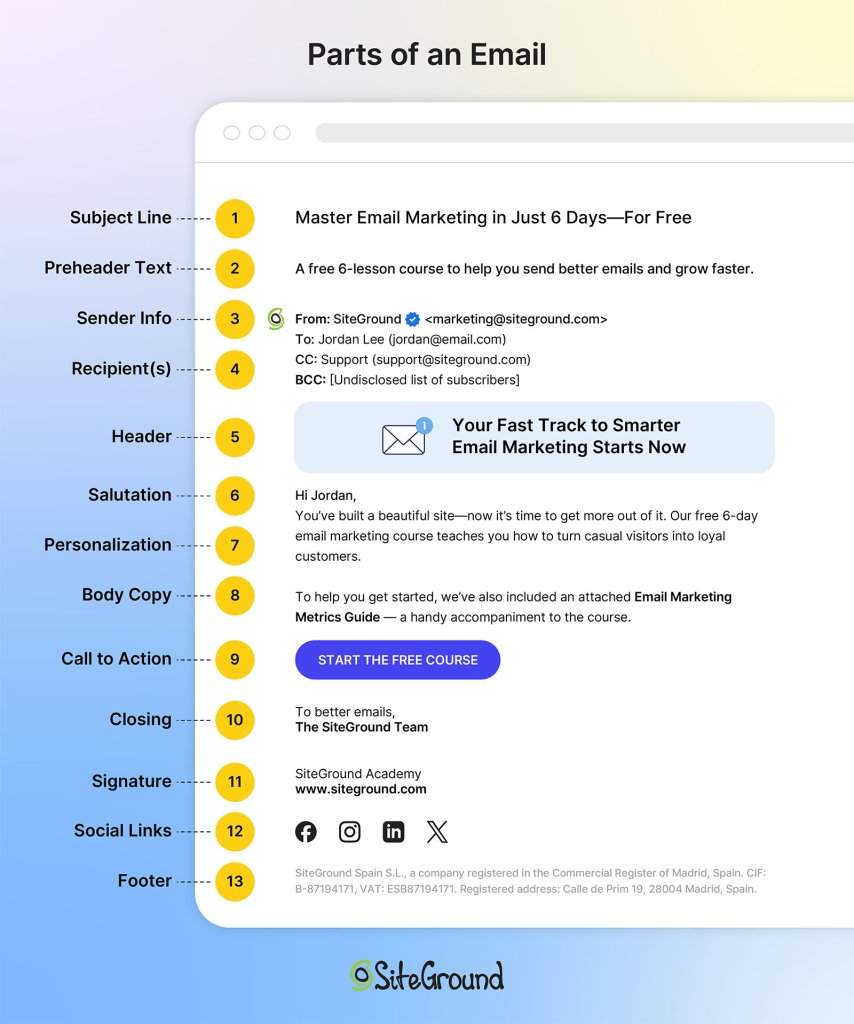
Three things show in the inbox before a subscriber opens any email: the sender name, the subject line, and the preheader. That’s the full picture a subscriber has when deciding whether to open. Yet the preheader is the one most senders give the least thought to.
How to set your email preheader
Setting your email preheader takes less than a minute: it’s a single field you fill in before sending.
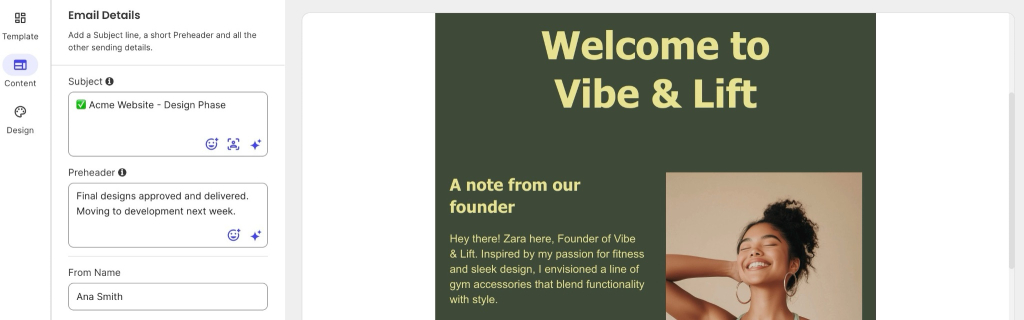
Technically, the preheader lives in your email’s HTML. It’s a piece of text at the top of the code that email clients read and display as preview text. If you’re working with raw HTML templates, that’s where you’d add it. If you’re using SiteGround Email Marketing, there’s a dedicated field for it right in the campaign editor; no code involved.
To set your email preheader, simply:
- Open your campaign and go to the Content step.
- Find the Preheader box and type your text directly, or use the built-in AI generator to get three options in seconds.
Preheader vs. subject line: how they work together
The subject line and preheader are read as a pair. Most people scan both in under two seconds before deciding to open, ignore, or delete. That means the two lines function as a single unit of copy — not as two separate decisions.
Subject lines tend to carry the hook: the topic, the offer, the reason to care. The preheader’s job is to complete the picture. It can add detail, create context, deepen curiosity, or reinforce urgency. What it shouldn’t do is repeat the subject line.
Here’s the difference in practice:
| Subject line | Preheader (weak) | Preheader (strong) |
| Your October newsletter is here | Read your October newsletter | 3 things to do with your site before the holiday rush |
| We have a deal for you | Special offer inside | 30% off hosting — ends Sunday at midnight |
| You’re almost out of time | Time is running out | Your free trial ends in 48 hours. Here’s what happens next. |
| New from SiteGround Academy | New article published | How to clean your email list without losing good subscribers |
When both lines work together, they give a more complete reason to open. When they don’t, you’re leaving one of your two inbox lines doing nothing, which is a pretty easy fix once you know what to look for.
What happens when you leave the preheader blank?
When no preheader is set, the email client fills that space with the first readable text it finds in your email’s HTML. That’s rarely what you’d choose. Depending on how your email is built, it typically pulls in phrases like:
- “View this email in your browser”
- “Having trouble viewing this email? Click here”
- “Unsubscribe | Privacy policy”
- Navigation links like “Shop,” “About Us,” or “My Account”
- Image alt text meant for screen readers, like “Header logo”
None of those give a subscriber any reason to open. They just take up the space where a useful line could have been. The preheader costs one sentence, so it’s worth writing it.
How long should an email preheader be?
Aim for 40–100 characters. That’s the range that works across most email clients and devices without getting cut off. The exact amount that shows, though, depends on the email client, the device, and how long your subject line is — a longer subject line leaves less room for the preheader, a shorter one gives it more space.
Character limits by email client
The table below shows approximate visible character counts for common email clients. These are not hard limits; they’re the ranges where text typically gets cut off in standard inbox views.
| Email client | Approximate visible characters |
| Gmail (desktop) | ~100 characters |
| Apple Mail (desktop) | Up to 140 characters |
| Outlook (desktop) | ~50–75 characters (varies by version) |
| Gmail (mobile) | ~40–70 characters |
| Apple Mail (iOS) | ~90–110 characters |
| Android (various) | ~40–60 characters |
Mobile vs. desktop: what actually shows
Mobile shows less: usually 40–55 characters, as you can see in the table above. Desktop clients like Gmail and Apple Mail show significantly more.
The practical rule: write for mobile first. Put the most important information in the first 40–50 characters, and treat anything after that as a bonus for desktop readers.
A preheader that reads “30% off all plans — upgrade before Sunday” works at any length. One that reads “We’re really excited to share this week’s special offer with you — 30% off” loses mobile readers before they get to the point.
How to write a preheader that pairs with your subject line
Write both the subject line and preheader at the same time, as a two-line unit.
Email preheader best practices
There are a few ways to structure the relationship:
- The subject sets the topic, the preheader delivers the detail
Subject: Your site speed report is ready
Preheader: 3 pages are slowing you down — here’s what to fix first - The subject creates curiosity, the preheader rewards it
Subject: We need to talk about your email list
Preheader: You might be sending to people who aren’t there anymore - The subject states the offer, the preheader adds urgency or context
Subject: 25% off — this week only
Preheader: Applies to all annual plans. Ends Friday at 11:59 PM. - The subject and preheader complete a single sentence
Subject: This one change
Preheader: …increased open rates by 7% in our test. Here’s what we did.
If you read both lines and the preheader feels redundant, rewrite it.
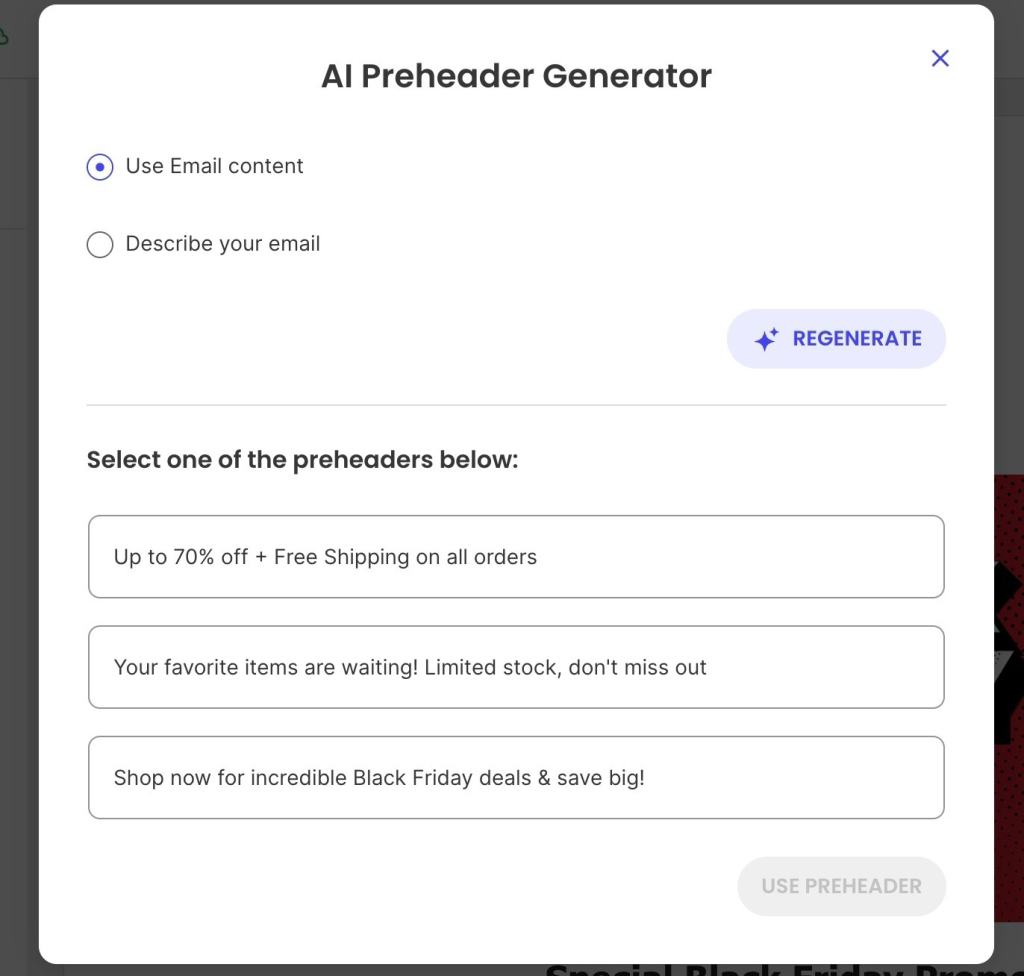
If writing both from scratch every send feels like too much, SiteGround Email Marketing has an AI tool built into the campaign editor that generates subject line and preheader options for you. Use your email content or just describe what you’re sending in a few words. It’ll come back with three options to choose from. Not happy with any of them? Hit regenerate. It takes about ten seconds.
What to avoid in your email preheader
A few patterns that consistently underperform:
- Repeating the subject line: If both lines say the same thing, you’ve halved your persuasion without reducing your word count.
- Leaving it blank: The fallback text almost never helps. Set a preheader on every campaign, without exception.
- Generic filler: “Check out our latest newsletter” or “Don’t miss this” says nothing specific. Specific details outperform vague teasers.
- Starting with the company name: The sender field already shows who it’s from. The preheader should do something the sender name can’t.
- CTAs as preheaders: “Click here to save 20%” is an instruction before the subscriber has any reason to act. Earn the click first.
The hidden preheader technique
If you’re working with custom HTML email templates, the hidden preheader technique is worth knowing about. It prevents unwanted email body copy from appearing in the inbox preview by adding invisible characters after your preheader text — transparent filler that takes up space so the email client stops pulling in body text to fill the gap.
With a standard preheader, the text sits visibly at the top of the email body — readers see it in the inbox preview and again when they open the email. A hidden preheader shows only in the inbox preview, invisible once the email is open.
It’s particularly useful for:
- Design-heavy emails where the first visible text is a headline or image alt text
- Transactional emails where the body opens with structural copy
- Any campaign where the first body sentence doesn’t complement the preheader
This is a more advanced use case and usually only relevant if you’re working with custom HTML email templates.
Put your preheader to work
The preheader is a small thing that’s easy to overlook and just as easy to get right. Write it alongside your subject line, keep it under 100 characters, and make sure it adds something the subject line doesn’t already say. That’s most of the work done.
If you’re sending with SiteGround Email Marketing, the preheader field is right there in the campaign editor. And if you’d rather let AI take a first pass, the built-in generator will give you three options in seconds.
[58]
Frequently asked questions about email preheader
Open your email inbox and look at the line of text that appears after the subject line, before you open the email. On Gmail desktop, it appears in lighter gray text to the right of the subject line. On mobile, it typically appears on a second line below the subject.
Yes, significantly. Desktop clients like Gmail and Apple Mail show 85–140 characters of preheader text. Mobile clients typically show 40–70 characters, depending on screen size and subject line length. Write your preheader so the first 40–50 characters carry the key message — the rest is visible only on desktop.
If no preheader is set, the email client automatically pulls the first readable text from the email body. That’s usually a “View in browser” link, an unsubscribe notice, or whatever opening text your template starts with. None of that helps your open rate. Setting a custom preheader on every campaign takes less than a minute and is one of the higher-return habits in email marketing.
Email marketing campaigns with a custom preheader average a 44.67% open rate compared to 39.28% for those without one, according to GetResponse. In a separate study by Litmus and Fluent, 24% of email subscribers said preview text is the main factor influencing their decision to open. The preheader doesn’t operate in isolation — its impact is tied to how well it works alongside the subject line.
Curiosity-gap preheaders tend to perform well when paired with a specific subject line. A few patterns that work:
“Here’s what most people miss about [topic]”
“The part we didn’t mention in the subject line”
“It takes less than 5 minutes — here’s how”
“We ran the numbers. The results surprised us.”
“One thing to do before [event/deadline]”
The key is that the intrigue has a payoff inside the email. Teasing something and not delivering it trains subscribers to stop trusting your previews.