
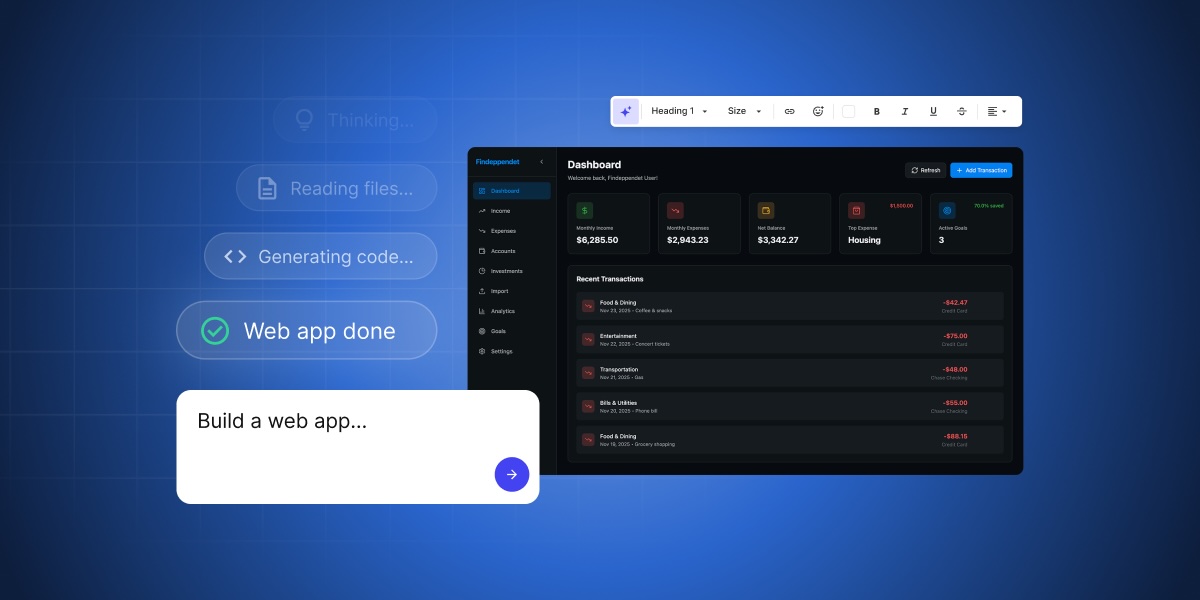
You don’t need a developer to build a working business web app anymore. If you can describe what your business needs in plain language, an AI web app builder can turn that description into a real app, with pages, data, users, forms, and the workflows that connect them.
This guide walks you through what AI web app builders create, what to think about before you start, and how to choose a first project you can ship in a week.
Key takeaways
- An AI web app builder helps you create web applications where users (your clients or coworkers, for example) can submit, view, update, or manage data.
- Strong web apps start with four basics: users, data, actions, and workflows. Define those before you ask AI to build.
- The best first app is narrow, testable, and useful: a CRM, a booking tool, a customer portal, or an internal dashboard.
- A good prompt for building your web app explains in plain language who uses it, what they do, what information it stores, and what counts as success.
- Before you publish, test the app on a private version first, and have a simple plan for undoing changes if something breaks.
- Advanced AI web app builders like SiteGround’s Coderick AI work best when you describe the business problem clearly, then refine the generated app until the main workflow is ready.
What is an AI web app builder?
An AI web app builder is a tool that turns your plain-language description of a business app into a working first version, without requiring you to write code, design screens, configure databases, or set up hosting manually. You describe what the app should do (for example, “a client portal where my customers can log in, see their invoices, and download tax documents”), and the AI builder generates the pages, forms, data tables, and basic logic for you.
This builds on the same shift behind AI website builders and the broader idea of vibe coding: instead of writing code, you write what you want, and the AI handles the technical execution. The result is a working draft you can review, refine, test, and publish when the core workflow is ready.
How a web app is different from a website
To put it simply: a website is mostly something people read, while a web app is something people use.
On a website, visitors look at pages: a homepage, a services page, an about page. They may fill in a contact form, but the experience is largely one-directional: you publish, they read. On a web app, users do things with data. They log in, submit information, see results that update for them, change records, and trigger actions.
Think of it like this: a small business that needs to share what it does needs a website (and it can easily create one with an AI website builder). A small business that needs to manage what it does often needs an app.
A few examples:
- A restaurant’s website shows the menu. A restaurant’s web app takes online reservations and stores them in a database (basically a smart, searchable list) the staff can manage.
- A consultancy’s website explains its services. A consultancy’s web app gives each client a personal portal with documents, invoices, and project status.
- A small store’s website lists products. A small store’s internal app helps the team track inventory, fulfil orders, and update stock levels.
What an AI web application builder does
An AI web application builder handles the parts that used to require a developer: creating the pages, generating the forms, setting up the database that stores the information, building the logic that ties everything together, and putting it all online at a real web address. You provide the business context, the AI provides the structure and code.
The best builders also include the things you’d otherwise have to set up separately: hosting, a database, security, and a way to publish to a real URL. Coderick AI was built around this all-in-one principle: when you click “publish,” the app goes live on SiteGround’s infrastructure with hosting and security already in place.
When a web app is the right choice
A web app is the right choice when you need users to do something with information, not just read it. If your project involves any of the following, you’re probably building a web app, not a website:
- People logging in to see their own data
- Tracking and updating information like leads, bookings, tickets, invoices, or tasks
- Tracking the status of something over time
- An internal team coordinating around a shared list or workflow
- A small set of users who need different levels of access
But if your project is mostly content, marketing pages, and a contact form, a website is usually the right call. SiteGround’s AI website builder guide covers that case in detail.
What makes a web app work?
Every web app comes down to four basics: users, data, actions, and workflows. Define those four right in your head before you start building, and the rest of the work becomes a series of small, specific decisions.
Users: who needs access
Start with the people who will use the app. Some users may be your team. Some may be your customers. Some may be the general public. Each group has a different reason to be there and a different set of things they’re allowed to do. A booking tool, for instance, has two user groups: customers (who book appointments) and staff (who manage the calendar). A client portal has clients (who see their own data) and an admin (who sees everyone’s).
You don’t need a long list to start. Two or three user groups is plenty for a first version.
Data: what the app stores
Next, the information your app keeps track of. For a CRM, that’s leads with names, emails, phone numbers, and statuses. For a booking app, it’s appointments with dates, times, customers, and services. For a client portal, it’s invoices, files, and project updates. The data is the heart of the app. Without it, there’s nothing to display, manage, or act on.
Actions: what users can do
Actions are what each user group can do with that data. A customer might submit a booking request. A staff member might mark it as confirmed. An admin might cancel it and notify the customer. Actions are usually verbs: submit, approve, edit, delete, send, schedule.
Outcomes: what changes after each action
Every action on your web app should produce a clear outcome. A submitted booking creates a new record. An approval changes a status and sends a confirmation email. A cancellation frees up the time slot. If you can’t say what changes after an action, the action probably isn’t useful enough for version one.
| Web app part | Plain-English meaning | Example |
| User | Person using the app | Customer, admin, employee |
| Data | Information stored | Leads, invoices, bookings |
| Action | What users do | Submit, approve, update |
| Workflow | What happens next | Send alert, change status |
What can an AI web app builder create?
A good AI web app builder can create almost anything, but most small business apps fall into a handful of common categories. The pattern of users, data, actions, and outcomes often repeats; what changes is the specific business problem. For example, here are the web app types small businesses create most often with Coderick AI:
Forms and data collection
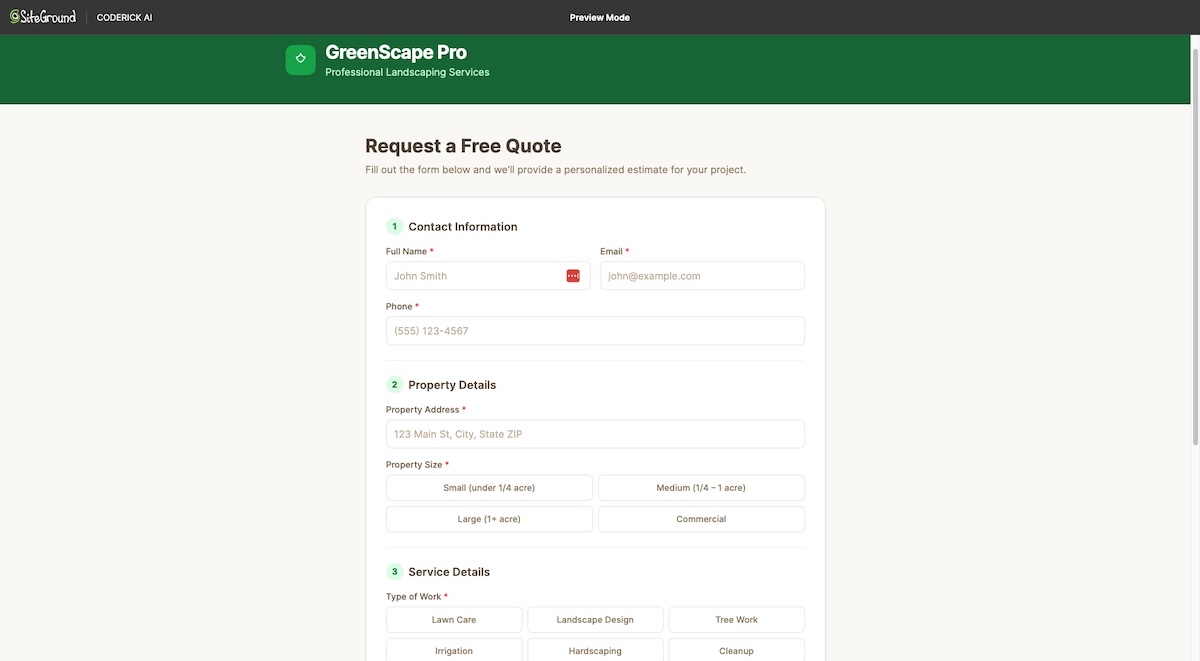
The simplest type. A form on a page, a database behind it, a place to review submissions. Useful for lead capture, event registrations, internal feedback, service requests, or for when someone needs to give you structured information and you need to keep track of it. A landscaping company can replace a generic contact form with a quote-request form that asks for property size, type of work, and preferred timing, then collects the answers in one place.
Example prompt you can start with:
“Build a quote-request form for a small landscaping company. Visitors submit their name, email, phone, property address, property size, type of work (lawn care, design, tree work, irrigation, hardscaping, cleanup), preferred timing, and optional notes – no login required. Admin logs in to a dashboard that lists all submissions with searchable, filterable rows, an editable status column (new, contacted, quoted, won, lost), per-submission notes, and CSV export. Clean, mobile-friendly design.“
Here’s what Coderick AI generates from that prompt – and you can keep refining from there.
Dashboards and reporting
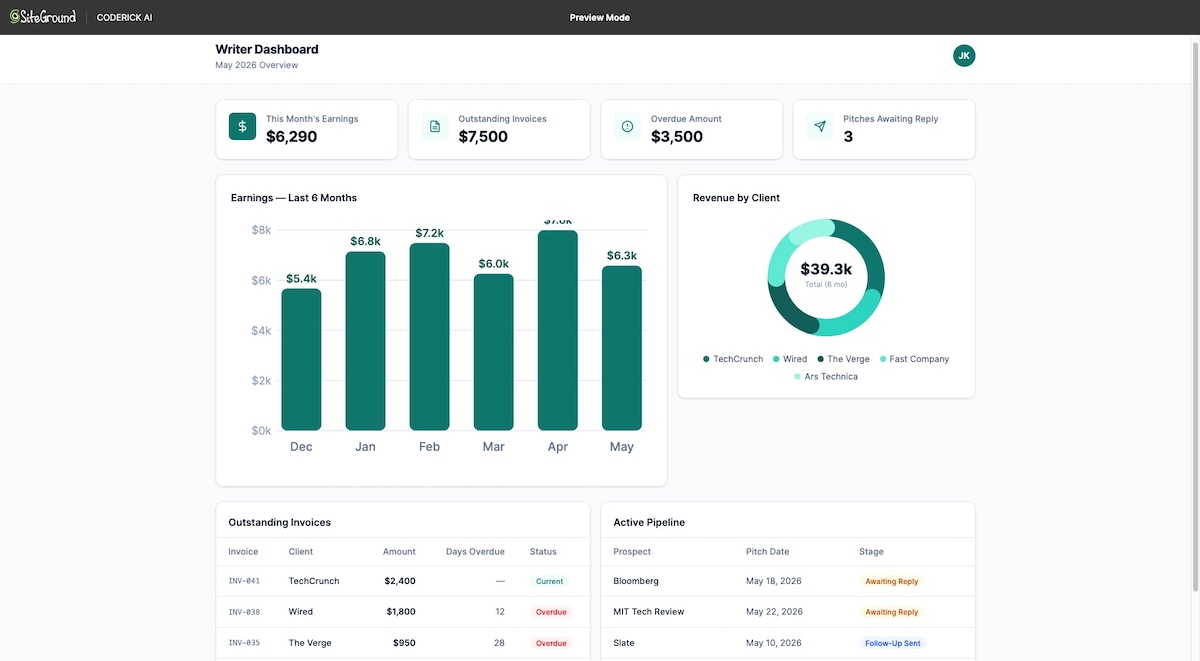
Dashboards turn lists of numbers and records into something you can read at a glance. They take the information you already have (in a spreadsheet, a CRM, a database) and present it as charts, tables, and key numbers. Freelancers juggle multiple clients, invoices in different states (draft, sent, paid, overdue), and projects at various stages. Most track this in a messy spreadsheet or across three different tools. A dashboard could pull it all together: month-to-date earnings, outstanding invoices, which clients owe what, average days-to-payment, a pipeline of pitches sent versus accepted, and upcoming deadlines. The numbers were always there; the dashboard makes them readable.
Example prompt you can start with:
“Build a single-page dashboard for a freelance writer. Top row: four key-number cards — this month’s earnings, outstanding invoices, overdue amount, pitches awaiting reply. Middle: bar chart of last 6 months’ earnings, and a donut of revenue by client. Bottom: two tables — outstanding invoices (client, amount, days overdue, color-coded status) and active pipeline (prospect, pitch date, stage). Clean minimal styling, deep teal accent, responsive.”
Customer portals
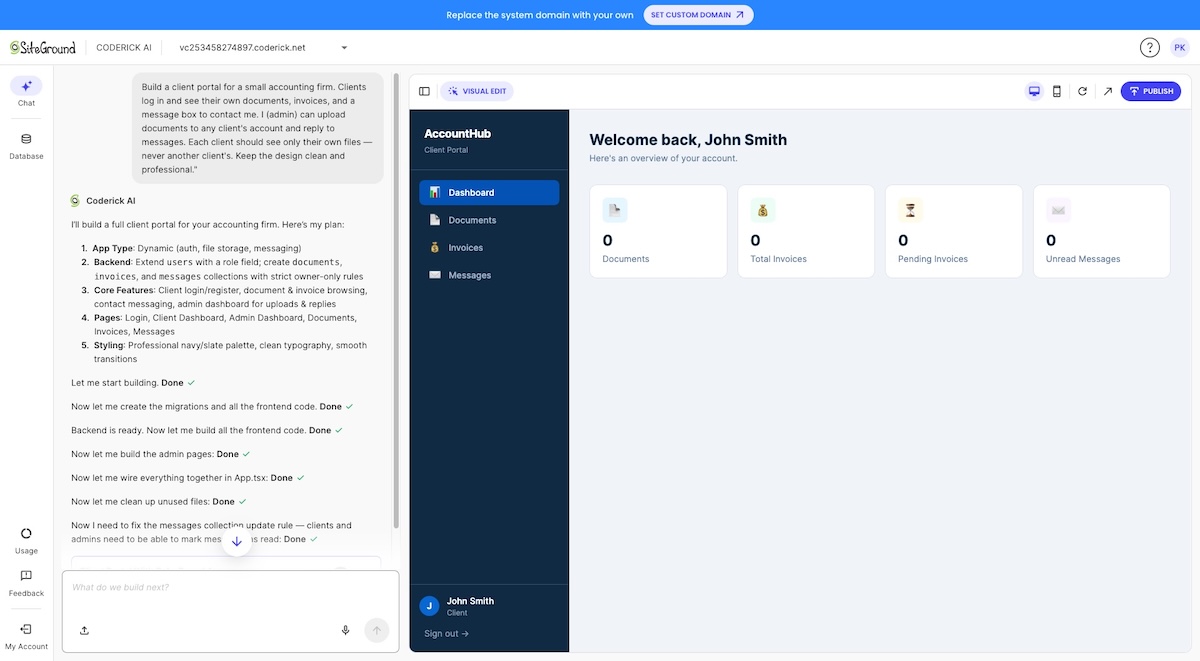
A customer portal is a private area where each customer logs in and sees their own information. An accountant might give every client a portal to upload documents, download statements, and message the firm. A coaching business might give clients a portal to track session notes, exercises, and progress. The portal removes back-and-forth emails and gives each customer a single place to go.
Example prompt you can start with:
“Build a client portal for a small accounting firm. Clients log in and see their own documents, invoices, and a message box to contact me. I (admin) can upload documents to any client’s account and reply to messages. Each client should see only their own files – never another client’s. Keep the design clean and professional.”
Booking and scheduling tools
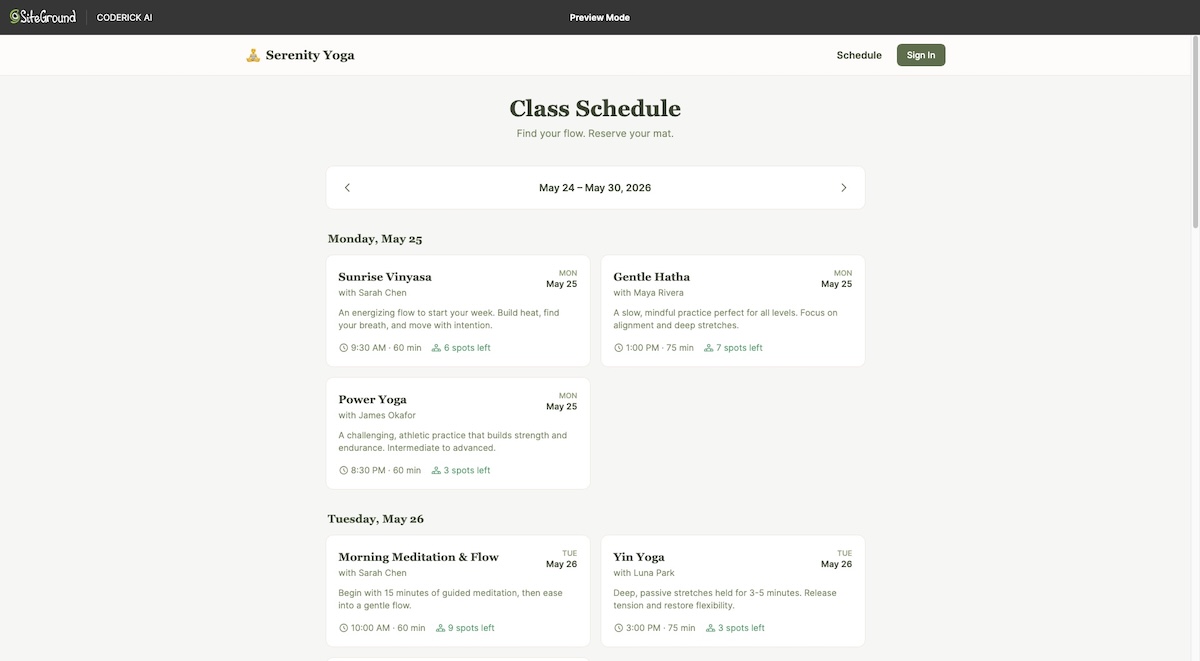
A small but powerful category. Customers see availability, choose a time, and book. The app stores the booking, sends a confirmation, and updates the calendar so the slot is no longer offered. A yoga studio might use one for class signups. A consultant might use one for discovery calls. A dog groomer might use one for full-service appointments with extras attached.
Example prompt you can start with:
“Build a class-booking app for a small yoga studio. Customers see the week’s classes (date, time, instructor, available spots) and book a spot. Bookings are stored and an email confirmation is sent. I (admin) can add classes, see all bookings, and cancel a class if needed. No payments in version one; bookings are free or paid in person. Mobile-friendly.”
CRM and sales tracking
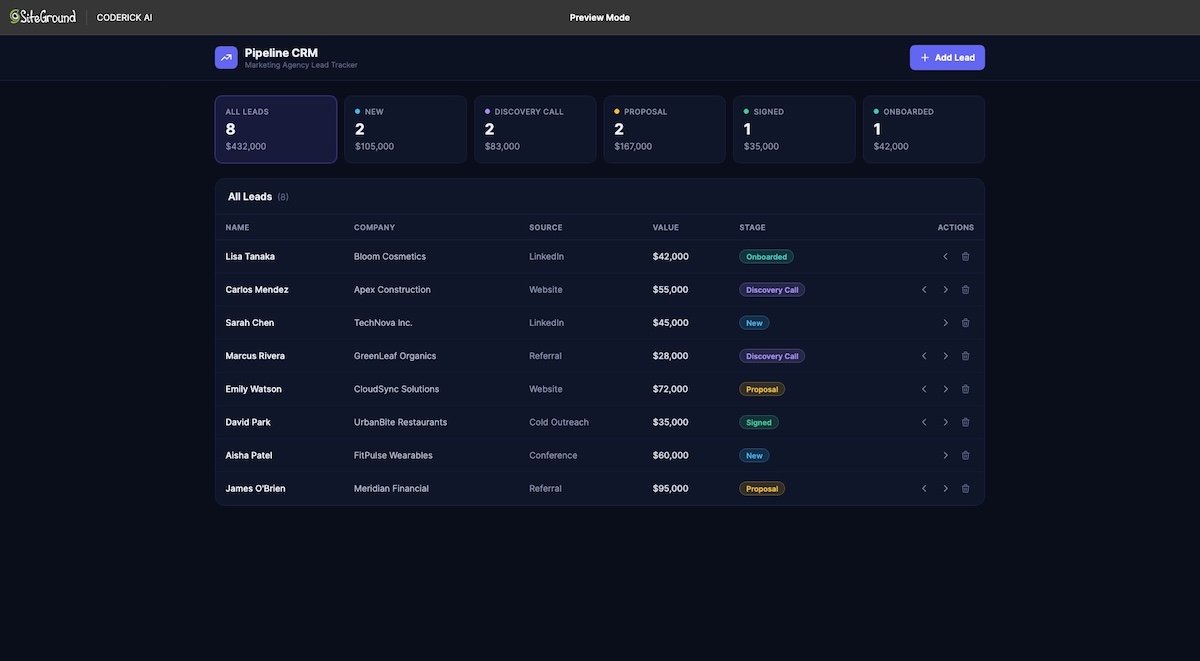
A CRM (customer relationship management tool) is where you track leads and customers through their journey with your business. New lead, qualified lead, proposal sent, won, lost. A custom CRM built with an AI web app builder lets you track the exact stages your business uses, not the generic ones a generic SaaS tool gives you. A real estate agent might track stages like “viewed property,” “offer made,” and “in escrow.” An agency might track “discovery call,” “proposal,” “signed,” and “onboarding.”
Example prompt you can start with:
“Build a CRM for a small marketing agency. Each lead has a name, company, source, estimated deal value, and a status (new → discovery call → proposal → signed → onboarded). I want to add leads manually, move them between stages with one click, and filter the list by stage. Show a small dashboard at the top with the count and total deal value per stage. Only my team can log in.”
Admin panels and internal tools
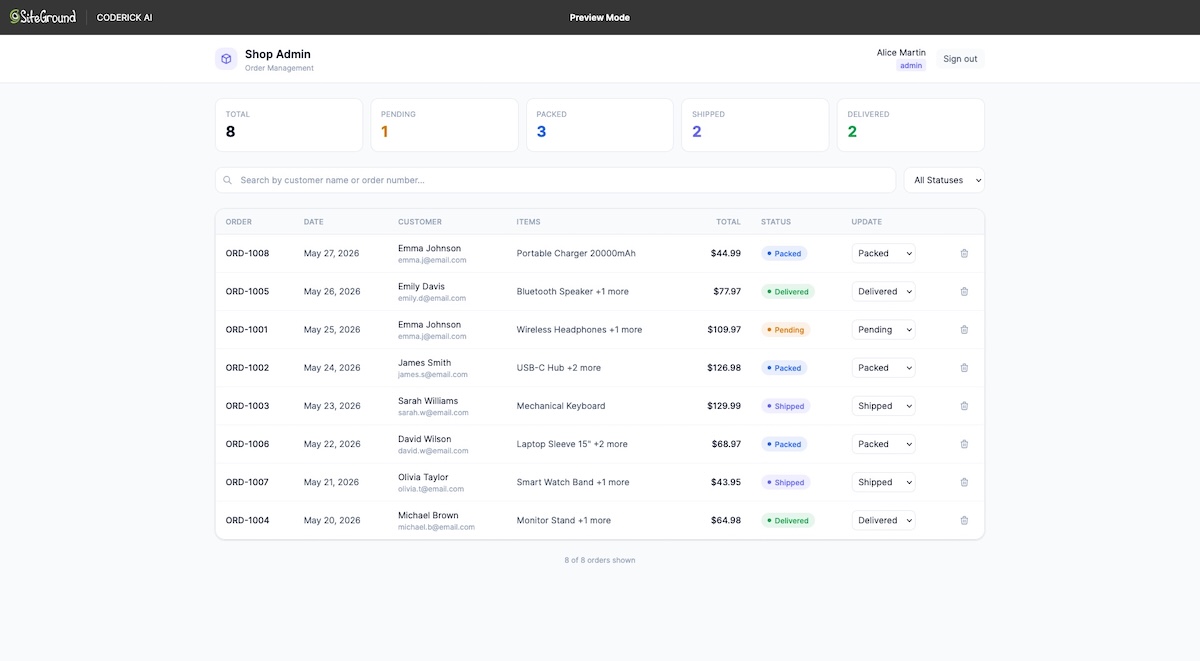
Admin panels are private apps for your team. They give you a way to view, search, edit, and manage your business records in one place: orders, customers, content, inventory, anything you currently juggle across spreadsheets and inboxes. An AI internal tool builder is useful when a team needs a private dashboard, CRM, approval tool, or operations tracker without waiting for a custom development project. The team often gets a working version faster than the procurement process for a new SaaS subscription.
Example prompt you can start with:
“Build an internal admin panel for a small online shop. It should list all orders (date, customer, items, total, status) and let me search by customer name or order number. I want to update the order status (pending → packed → shipped → delivered) from a dropdown. Two roles: admin (full access, can delete orders) and team (can view and update status, but cannot delete).”
What an AI web application builder can’t do
AI web app builders are useful, but builder choice matters because projects still need technical review or specialist help. Here are some things to be cautious about:
- Very specialized integrations with industry software (medical records systems, legal practice management, real estate MLS feeds) often need a developer to handle the technical bridges (called APIs) between systems.
- High-volume, mission-critical systems with strict performance, scaling, or compliance requirements (healthcare, payment processing at scale, regulated finance) generally need professional review.
- Complex algorithms for things like advanced search ranking, real-time matching, or specialized scientific computing tend to sit outside what an AI builder produces well.
- Pixel-perfect, brand-led design with unusual interactions may need a designer’s hand even if the underlying app is AI-generated.
For everything else (and that covers most small business apps), an AI web app builder gets you a working version faster than any other option.
How do permissions and roles work in a web app?
Roles and permissions are how a web app decides who can see, create, edit, delete, or manage each type of data. The thinking is intuitive once you connect it back to the people in your business.
Public users vs logged-in users
The first divide. Public users are anyone visiting the app without logging in. They can usually see whatever you’ve made public (a booking page, a contact form, a public dashboard). Logged-in users have an account and can see and do more. The login is the gate that separates “anyone on the internet” from “people you’ve given access to private data or actions.”
For a customer portal, the public side might be a small login page; everything else lives behind the login. For a booking tool, the public side might include the entire booking flow, with the admin side reserved for staff.
Admin roles vs customer roles
Among logged-in users, the next divide is usually admin versus customer. Admins manage the app. They see everyone’s data, change settings, and handle exceptions. Customers (or clients, or members, or whatever you call them) use the app. They see only their own data and the actions you’ve allowed.
A simple example: in a fitness studio’s booking app, admins see all bookings across all classes and can cancel, reschedule, or refund. Customers see only their own bookings and can cancel or reschedule their own.
What each role should be allowed to do
The clearest way to think about this: list each role, then list what they should be able to see and do. Two or three short rules per role is usually enough for a first version.
A short example for a small client portal:
- Admin (you): Can see all clients, all files, all invoices. Can add and remove clients. Can upload documents to any client account.
- Client: Can see only their own files, invoices, and project status. Can upload documents to their own account. Can message you through the portal.
That’s it. You can layer in more nuance later, but starting simple is the safer way.
Common permission mistakes to avoid
A few patterns that go wrong often:
- One role for everyone. Everyone is an admin, which means anyone with a login can see and edit anything. Easy to set up, dangerous in practice.
- Customers seeing each other’s data. Caused by missing the rule that says “show only records belonging to the logged-in user.” If a client portal accidentally shows another client’s invoice, trust is gone.
- Public pages that should be private. A dashboard with internal metrics left accessible to anyone with the URL. Always check what’s visible when you’re not logged in.
- Admins with no audit trail. When several team members can change records, you want to know who changed what. For sensitive workflows, ask the builder to log changes.
When you describe a web app to Coderick AI, mention the role rules explicitly. “Only logged-in clients can see their own invoices. Admins can see all invoices.” That single instruction shapes how the web app’s permissions are set up.
| Pro tip: Run the “logged-out test” | Open the app in a private browser window where you’re not signed in. Then log in as a customer, not as yourself. What you can see in each state is what real users will see. If anything looks wrong, fix it before you publish. |
How should non-technical owners think about app data?
The word “database” may sound intimidating, but a database is really a more organized version of the spreadsheets you already use. Where a spreadsheet stores one list, a database stores several lists at once and connects them to each other. You won’t design one yourself; the AI handles that. But you do need to understand what your app stores and how the pieces fit together, because that picture is what you’ll describe in plain English when the AI builds the app.
Three concepts cover most of what you need to know: tables, fields, and relationships.
Tables are lists of business records
A table is a list: for example, a list of customers, a list of bookings, or a list of products. Each row is one record (one customer, one booking, one product). If you’ve ever kept a spreadsheet of clients or stock, you’ve used a table.
Fields are the details inside each record
A field is one detail on each record. A customer record might have fields for first name, last name, email, phone, and status. Each row in the customers table has the same fields; the values are different from row to row. Sticking with the spreadsheet picture: tables are sheets, fields are columns.
Relationships connect one record to another
Sometimes one record relates to another. An invoice belongs to a customer. A booking relates to a service and a staff member. A relationship is the link between two tables, and it’s how a CRM knows which deals belong to which contact, or how a booking app knows which appointments belong to which client.
You don’t need to design relationships yourself. When you describe the app in plain English (“each invoice belongs to one customer”), the AI handles the technical setup.
Start with the smallest useful data model
The temptation is to plan for everything. Resist it. Start with the smallest set of tables and fields that lets the main workflow actually work. A first-version client portal might have just two tables: clients and files. A first-version CRM might have just one: leads. You can always add more once the basics are running and you know what’s actually missing.
| Pro tip: Add fields when you miss them, not before | Resist the urge to plan for every field you might one day need. Start with the bare minimum, use the app for a week, and add fields when gaps become obvious. Apps grow well when they grow from real use, not from imagined needs. |
Prompt-to-app: how to describe a web app in plain English
The way you describe your app shapes what the AI builds. A short, vague prompt gives you a generic starting point; a specific one gives you something much closer to what you actually need.
What “prompt to app” means
Prompt to app is the idea that a plain-language description (a prompt) is enough to produce a working app. You don’t write technical documents, you don’t draw screen layouts, you don’t sketch databases. You explain what the app does, who uses it, and what should happen, and the AI handles the construction.
Web app requirements explained in plain English
For your first app, requirements in plain English boil down to five sentences:
- Who uses the app. “This app is for me (admin) and my clients.”
- What it does. “It lets clients see their invoices and download files.”
- What data it stores. “Each invoice has a date, amount, status, and the client it belongs to.”
- What actions exist. “I can upload invoices and mark them as paid. Clients can view their own invoices and download them.”
- What success looks like. “Clients can log in, see their invoices, and download them without emailing me.”
Five sentences is enough to produce a useful first version.
The simple web app prompt pattern
A reliable pattern for web app prompts:
“Build a [type of app] for [business and audience]. Users are [user groups]. The app should let [user 1] do [action] and [user 2] do [action]. It stores [main data]. The main workflow is: [step 1] → [step 2] → [step 3]. Make the design simple and mobile-friendly.”
Filling that in with a real example:
“Build a booking app for a small massage therapy practice. Users are clients (who book) and the therapist (who manages the calendar). Clients should be able to choose a service, pick an available time, and confirm a booking. The therapist should be able to view all bookings, mark them as completed, and cancel if needed. It stores services, time slots, and bookings. The main workflow is: client picks a service → client picks a time → client confirms → therapist sees the booking. Make the design calm and mobile-friendly.”
That’s a sharper prompt than “build me a booking app.” It still leaves plenty for you to refine afterwards, but the first version will be a lot closer to what you actually need.
| Pro tip: Change one thing at a time | When refining the app, ask for one change per prompt instead of bundling five edits together. The AI handles a single clear instruction far better than a long list, and you’ll catch problems the moment they happen, not after five things changed at once. |
What to include before the AI builds
A short list to add to your prompt if you have strong opinions about any of them:
- Business details: your name, your service, your city if it matters
- User groups and what each can do: the role rules from earlier
- Required fields on the main records: “each lead has a name, email, source, and status”
- The main workflow you care about: the path through the app that matters most
- Anything you don’t want: “no payments yet,” “no calendar integration in version one”
How to check the first version
Open the first version and try the main workflow as the user. Submit a record. Approve a record. Log in as a customer.
The first version may look simpler than you imagined; that’s normal. It’s a starting point, not a finished product. From there, you can refine: ask Coderick AI to change the layout, add a field, add a page, or even add a new feature you didn’t include in the first prompt. Visual edits let you adjust labels, copy, and styling directly without going back to chat each time. If something is off, describe what you want changed in plain language, and the app updates. The loop of test → describe → adjust is where the app actually becomes yours.
What workflow rules should your first web app include?
Workflows are the rules that say “when this happens, that follows.” A first web app doesn’t need many workflow rules. The five below cover most small business apps.
Status changes
A status field is the simplest workflow tool. A lead is new, then contacted, then qualified, then won or lost. A booking is requested, then confirmed, then completed. A status change is often the action itself: clicking “approve” changes the status from pending to approved.
Notifications
A notification is a message sent when something happens. A new booking sends an email to you. An approved request sends a confirmation to the customer. Keep notifications few and meaningful. A notification for every small change quickly turns into noise people start to ignore.
| Pro tip: One notification rule of thumb | If a notification doesn’t change what someone does next, it shouldn’t exist. A booking confirmation tells the client to show up. A “your status was viewed” alert tells them nothing they can act on. Cut the second kind ruthlessly. |
Approvals
An approval is a workflow that requires someone with the right role to confirm an action before it proceeds. A discount request might need owner approval. A new client account might need admin review. Approvals are useful when an action has real consequences and you want a second pair of eyes.
Reminders
Reminders are time-based notifications. An appointment reminder sent 24 hours before the slot. A follow-up reminder a week after a quote is sent. Useful when a workflow has a gap between steps and people forget to come back.
Simple calculations
The web app does math so you don’t have to. An invoice app calculates the total from line items, tax, and discount. A booking app calculates the end time of an appointment from the start time and the service length. A CRM might calculate days since last contact. Small calculations like this turn an app from a list-keeper into something that actually saves time.
When you describe these rules to Coderick AI, keep them short. “When a booking is confirmed, send a confirmation email to the client and a notification to the therapist.” That single sentence gives the AI a clear workflow rule to build from.
What is the best first app to build with AI?
The best first app is small, useful, and easy to test. The most common mistake is starting too big. The second most common is starting in the wrong place. Both are avoidable.
Start with a narrow business problem
Pick one problem in your business that is repetitive, structured, and currently lives in spreadsheets, inboxes, or notebooks. For example, lead tracking, booking, invoice tracking, or client onboarding. Anything that’s currently a tangle of files and messages is a strong candidate.
Resist the impulse to build “the app for everything.” The all-in-one app for your whole business can take a year of work even with AI. A focused app for one thing can be an afternoon.
Choose one user group first
Build for one user group in the first version. Either the customer-facing side (booking, client portal) or the internal side (lead tracker, admin panel). Adding the second side later is easier than getting two sides right at once.
Avoid complex integrations in version one
Save integrations with email tools, payment processors, accounting software, and calendar systems for version two. They add real value, but they also add complexity, and complexity is the enemy of finishing version one.
Pick an app you can test in a week
The right scope for a first app is one you can describe, generate, refine, and test within a week of focused work. If the scope is bigger than that, narrow it. A booking app for one type of service. A CRM for one stage of your pipeline. A portal for one type of document. Short scope wins.
| Pro tip: Time-box version one | Set a deadline before you start, even an artificial one: “I’ll publish v1 by next Friday.” A deadline forces decisions. Without one, the urge to keep adding features eats whatever momentum you started with. |
| Business need | First app to build | Why it works |
| Track leads | CRM dashboard | Clear data, simple workflow |
| Manage bookings | Scheduling app | Easy user actions |
| Share updates | Customer portal | Simple access model |
| Track operations | Internal dashboard | High business value |
How to deploy an AI web app: staging vs production and rollback plan
Deployment is the moment the app moves from draft to something real users can access. Most of the time it’s a single click; the planning around it is what matters.
What it means to deploy an AI web app
To deploy an AI web app means to make it live for real users at a real web address. Until you publish, the app exists only in the builder. Once it’s live, anyone with the URL (or the login, depending on how it’s set up) can use it. In Coderick AI, for example, publishing is built into the platform: when you click “publish,” the app goes live on SiteGround’s infrastructure with hosting, security, and a database already handled inside the build-and-publish flow.
Staging vs production basics
A web app usually has two versions:
- Staging is the place where you make and test changes. Real users don’t see it.
- Production is the live version that real users actually use.
The point of the split is to try risky changes in staging first, confirm they work, and only then push them to production. For a non-technical owner, the simple rule is: never make a big change directly on the live version. Make it where it can be reviewed.
Pre-publish checks
Before you publish version one, run through a short checklist:
- Try the main workflow end to end as each user role.
- Test every form: submit, receive, confirm.
- Check the mobile experience on an actual phone.
- Confirm that permissions work (log in as a customer, make sure you can’t see other customers’ data).
- Read the user-facing copy as if you were a first-time visitor.
Five minutes of pre-publish testing prevents most launch-day problems.
Rollback plan: what to do if something breaks
A rollback plan is a simple recovery plan for going back to the last working version if something breaks after publishing. It doesn’t have to be elaborate. For a first app, it boils down to four questions:
- What counts as a problem? (“Users can’t log in.” “Forms aren’t submitting.” “Payments aren’t going through.”)
- Who checks for problems? (Usually you, in the first 24 hours after publishing.)
- How do I restore the previous version? (Most platforms keep a history; in Coderick AI, you can revert to an earlier project version through the dashboard.)
- How do I confirm the app is working again? (Run the main workflow yourself.)
How Coderick AI helps create prompt-built web apps
For non-technical users, the hardest part of building an app usually isn’t the app. It’s the four other things you have to figure out separately: where it lives (hosting), where the data goes (database), how it’s protected (security and a secure connection), and how people reach it (a web address of your own). Most AI builders leave all four to you. Coderick AI keeps them in one place, so the build, the hosting, the database, and the publishing all happen in the same platform.
Here’s a how to build your first web app in Coderick AI:
Describe the app in plain English
Open Coderick AI and describe the app in your own words: who uses it, what data it stores, what should happen at each step. As mentioned, you don’t need to be technical, and you don’t need to know what to call things. Coderick AI is built for plain-language instructions, so you don’t need to know technical terms before you start.
Review the first working version
Within a few minutes, Coderick AI builds a working first version of the app. Pages, forms, database, basic logic, the lot. Open it and try the main workflow yourself as if you were the user. The goal of the first version isn’t to be perfect; it’s to be a starting point you can react to.
Edit screens, content, and logic
From there, you refine. Ask Coderick to change a label, add a field, rearrange a section, or add a new feature. For copy and styling tweaks, you can also use visual edit mode and click directly on the element you want to change. Most apps go through several rounds of this before they feel right.
Publish when the core flow works
Once the main workflow runs cleanly, click “publish.” Coderick AI handles the parts that used to be a separate project:
- The app goes live on SiteGround’s premium hosting infrastructure.
- The database is already set up and connected.
- Security is active by default, including SSL (the secure-connection standard your browser shows as a small lock icon) and SiteGround’s enterprise-grade protections.
- The app is responsive on phones, tablets, and desktops by default.
- You can connect a custom domain through the dashboard.
The build-and-publish loop is one continuous workflow rather than five separate vendors. Ready to start?
Try Coderick AI and build your first web app
FAQs
An AI web app builder helps you create a browser-based app from a plain-language description. Instead of coding screens, forms, data tables, and workflows manually, you describe what the app should do, review the first version, and refine it until the main business flow works.
A website mostly presents information, while a web app lets users do something with data. A website might explain your services. A web app might let customers log in, book appointments, upload files, check status, or manage records.
You can build small business web apps such as CRM dashboards, booking tools, customer portals, internal dashboards, task trackers, admin panels, and reporting tools. The best first projects have clear users, simple data, and one main workflow.
Prompt to app means describing a web app in plain English so AI can create a working first version. A useful prompt explains the users, actions, data, screens, rules, and what counts as success. In Coderick AI, that description becomes the starting point for your app.
To deploy an AI web app means to make it live for real users. Before publishing, test the main workflow, forms, permissions, and data. In Coderick AI, publishing is simpler because projects run on SiteGround hosting, but the app should still be reviewed first.
Staging is a test version where you check changes before real users see them. Production is the live version people actually use. For non-technical teams, the simple rule is to test risky changes first, then publish only when the main workflow works.
A rollback plan is a simple recovery plan for returning to the last working version if something breaks after publishing. It should say what counts as a problem, who checks it, how to restore the previous version, and how to confirm the app works again.
No. An AI web application builder lets you describe the app in plain language rather than write code. You still need to clearly explain the goal, users, data, and business rules, because the AI builds on the context you provide.
The best first web app is usually a small internal tool with clear value, such as a lead tracker, booking manager, customer portal, or operations dashboard. These apps are easier to test because the users, data, and workflow are easy to define.