How to add a blog to your website (without starting from scratch)

Abstract of adding a blog to a website

You don’t need to blow up your website and start over just to add a blog to an existing website. Most builders thankfully treat it as simply a feature you add, rather than a whole separate project. It’s really just a matter of deciding where the blog lives, turning it on, publishing a first post, and adding it to your site.

Key takeaways:

  • You can add a blog to a site you already have without switching platforms or hiring a developer; most builders have a native feature for it.
  • Adding it is usually free, since it’s built into whatever plan is already running your site.
  • A niche and a few categories, settled before your first post, keep the blog focused as you publish more.
  • A handful of on-page fields, meta title, alt text, heading structure, a clean URL, do solid SEO work for a first post.
  • A simple content calendar (four to six post ideas, a rough posting cadence) keeps the blog from stalling after post one.
  • Publishing a post matters less than promoting it: sharing it, emailing it, and linking back to it is what actually builds an audience.

Do you need a new platform to add a blog?

No, in almost every case. Adding one is usually a matter of switching on a feature already sitting inside the site you have, so there’s no reason to rebuild or build anything.

Let’s back up, though. This is true because a blog is one section inside your website, usually reached from a “Blog” link in your main navigation.

You’d only need a new blogging platform if:

  • Your site was coded by hand, with no visual editor or dashboard behind it where you could add a page yourself
  • You don’t have a website at all yet and want one with blogging built in from the start. (If that’s you, the SiteGround Website Builder is one option. More about that later.)
  • You want the blog to be the entire site, not a section of a larger one
  • Your current platform truly has no blog feature, which is rare among mainstream builders 

Blog vs. website: what’s the difference?

A website is the container; a blog is one type of content inside it. Every blog lives on a website, but not every website has a blog.

Practically, the difference shows up in the website structure. A blog is organized by publish date and category, with new posts pushed to the top. The rest of a website (an About page, a Service page, a contact form) stays static until you edit it yourself.

So for someone asking whether they need a blog or a website, the honest answer is usually both, just not as two separate things. The blog is the part of your website that changes every week; everything else is the part that doesn’t.

Can you add a blog to your website for free?

Yes, and pretty easily, as adding the blog isn’t a separate purchase. Usually, it’s just a feature you switch on inside the plan you’re already using. So if your website is live and published at your own domain, whatever plan supports that already covers the blog too.
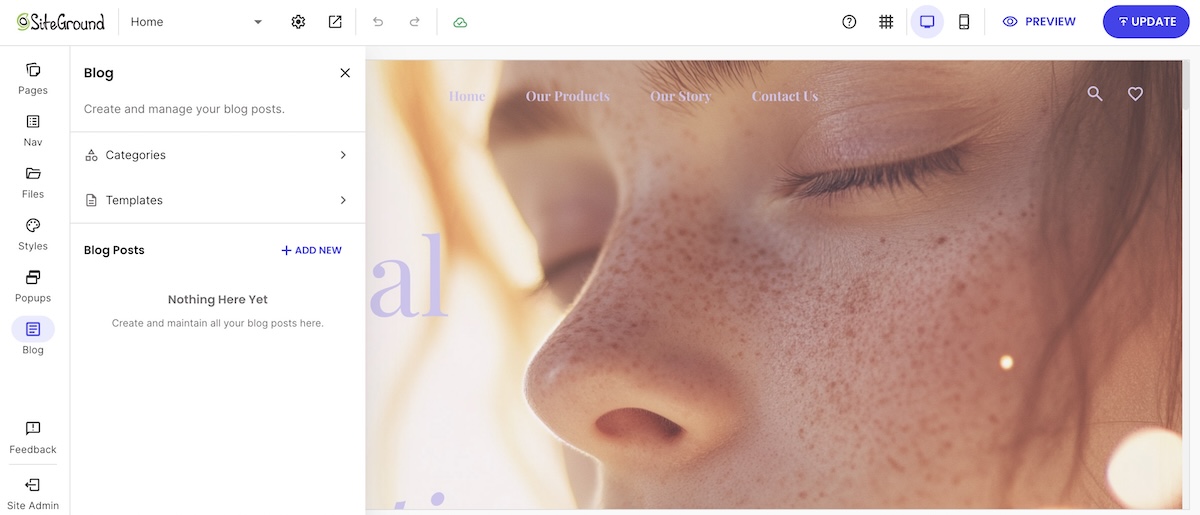
Adding a blog to a website on the SiteGround Website Builder

The “free” question mostly matters for a different reader: that person who hasn’t built a site yet, and for them it plays out differently by platform:

  • Some builders offer a genuine free-forever tier. Wix, WordPress.com, and a few others let you build and publish for free permanently, but your site sits on a builder-branded subdomain (yoursite.wixsite.com, for example) instead of your own domain, with the platform’s own branding on your pages. And there are usually limits to how much you can add, and the flexibility of what you can add, as well as its functionality.
  • Other builders bundle it into paid hosting instead. Rather than a permanent free tier, the “free” option is a time-limited trial for building and previewing, with publishing and custom domains available once you’re on a plan. 

Since this article assumes you already have a website, this distinction probably doesn’t apply to you. That is, the plan that’s already running your site is the plan the blog runs on too. So, good news: in all likelihood, your blogging ambitions are built-in and free at this point. 

How to add a blog to your website in 7 steps

The process below works the same way on most builders; specifics (menu names, button labels) will vary slightly by platform, but this gives you the general idea.

Step 1: Decide where the blog will live

Before turning anything on, decide where the blog will sit in your site’s URL structure: as a subdirectory or a subdomain.

  • Subdirectory (yoursite.com/blog): a folder-like path added onto your existing domain, rather than a separate address. The blog inherits the domain authority your main site has already built, since search engines generally treat it as part of the same site.
  • Subdomain (blog.yoursite.com): a distinct address that sits in front of your domain instead of after it. Technically separate in the eyes of most search engines, closer to hosting a second site. It can make sense for a large, editorially independent blog, but it’s the wrong default for a blog meant to support an existing business site.

Website builders typically default to a subdirectory, and that default is usually the right call. Unless you have a specific reason to split the two, keep the blog there. It’s also the setup that builders create automatically once you turn the feature on.

Step 2: Add a blog to your website

Most builders have some version of a blog feature to enable or add, usually found as its own icon or menu item in the main site editor.
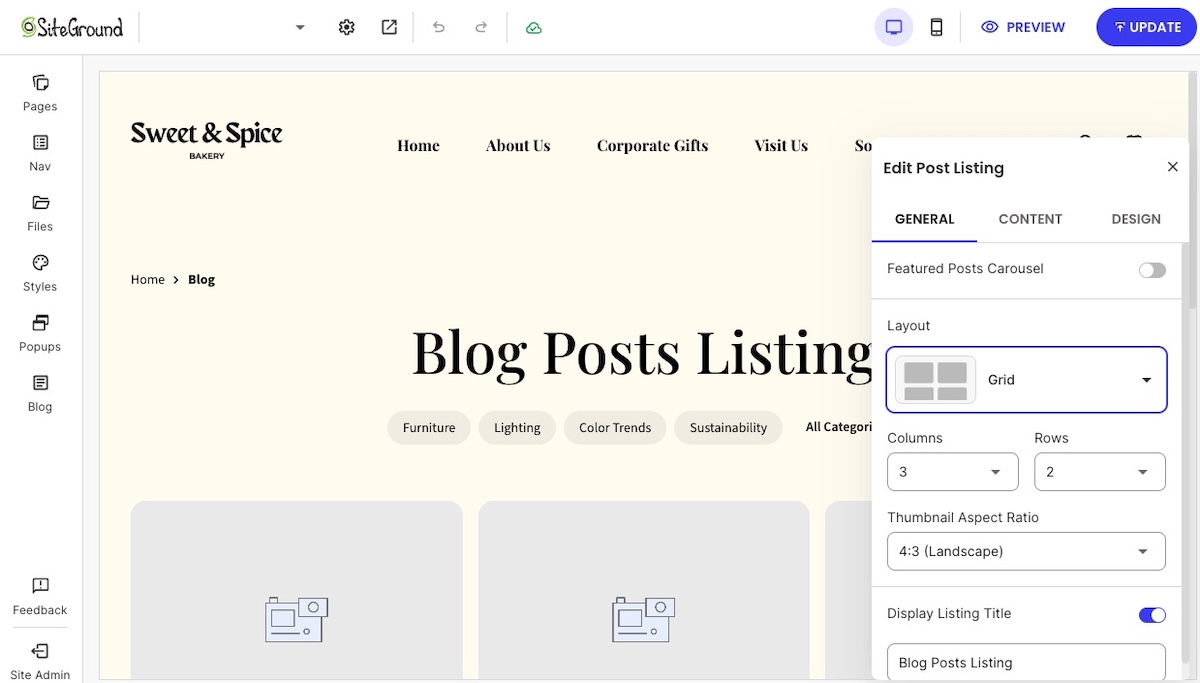
Choosing the layout and design of a blog posting page

You don’t necessarily need this in place before you start writing, either. On the SiteGround Website Builder, for example, you can draft a post first and add the main blog post page when you’re ready to publish it (more on that later). 

And don’t worry, you won’t lose any existing pages when you create your blog; it’s added alongside them, and not instead of them. 

What you get to customize from there varies by platform. For example, on the SiteGround Website Builder, once you’ve created a main blog page (called a Blog Posts Listing page), you choose how it looks: a grid or list layout, with toggles for what shows on each post preview (image, categories, description, read time), plus an optional carousel for featured or recent blog posts.

Choosing the layout and design of a blog posting page

Step 3: Settle on a niche, set up categories, and write your first post

Identify your niche

A blog works best with a niche: a specific enough topic or angle so that your target audience knows what to expect post to post, rather than a grab-bag of whatever’s on your mind that week. If you write about home renovation, for instance, your niche might be small-space renovations on a budget, not renovation in general. Haven’t landed on yours yet? This rundown on choosing a blog niche walks through how.

Define your categories

Categories are really just your niche broken into a handful of sub-topics. For example, if you look above, you can see that this very blog (which we call the Academy) is broken out into several categories, ranging from Web Hosting to Marketing.
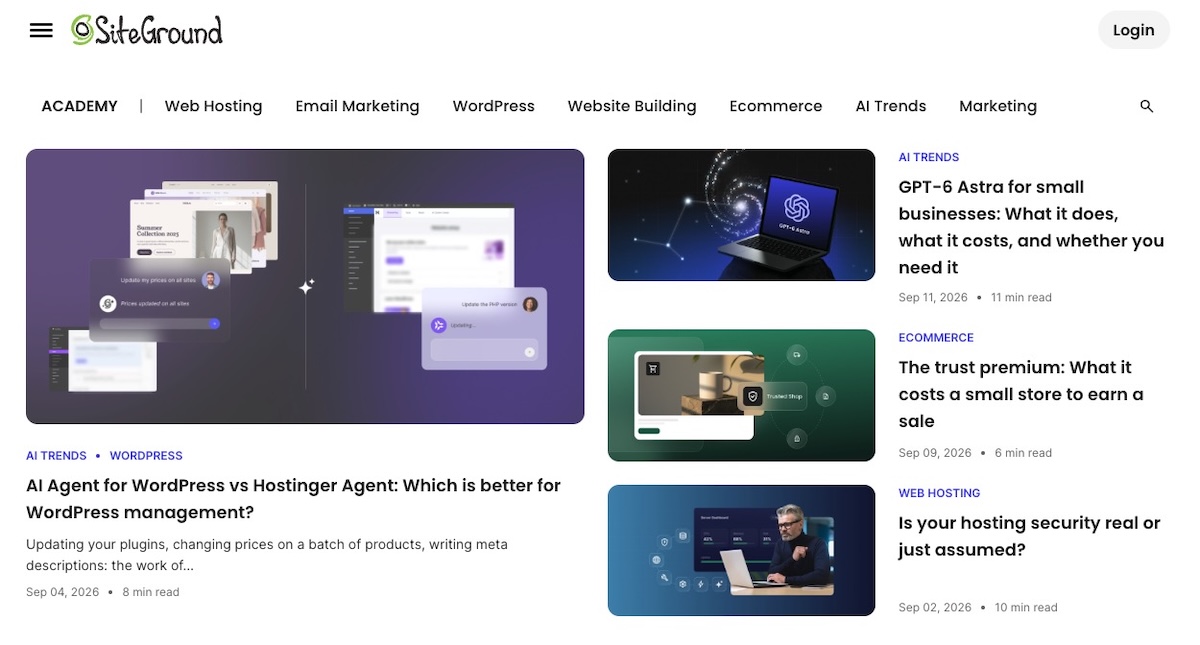
Example of a blog with different categories linked across the top

Prepare your first post

Categories sorted, the next job is turning a blank blog post into a published one. This is the checklist you’ll want to tackle for your first post:

  • Pick a topic your audience is actually searching for.
  • Have a keyword or phrase in mind for this specific blog post, ideally one your audience actually searches for, and work it naturally into the title, opening, and a subheading or two. 
  • Write a working title, then the post itself; titles are easier to sharpen once the post exists.
  • Add at least one image. A blog post with none reads as unfinished, even when the writing is fine.
  • Keep the first post short. That is, don’t let the pressure of producing a robust post hold you back from publishing. Less is more if it means getting it done. 

A blog post also doesn’t have to be just text. Embedded video, a sign-up form, or a product you sell can make a post more useful and engaging, even generating leads and sales.

With the SiteGround Website Builder (or Ecommerce, if you sell online), for example, the post editor already includes all of that: images with captions, video, sign-up forms, buttons, galleries, contact forms, icons, and product blocks you can set to show one item, several, or a rotating carousel, all from the same toolkit you used to build the rest of your site. None of it is required for a first post, but it’s there once you’re ready to make one do more than tell a story. If the blank page is the hold-up, the built-in AI writer can also get your text started.

Start building your website and blog now >>

Step 4: Add basic SEO to your post

SEO is what lets someone who’s never visited your site find this post through search, instead of the only readers being people who already follow you. A handful of fields, filled in before you publish, do most of that work:

  • Meta title and meta description, written for the reader, not stuffed with keywords
  • Alt text on every image, describing what’s actually in the picture: it’s an important part of accessible web design, since it’s what a screen reader reads aloud to someone who can’t see the image. It’s also a minor SEO signal.
  • One clear heading structure: an H1 for the post title, H2s for its main sections
  • A URL slug that matches the blog post’s main keyword, not a default date-and-number string
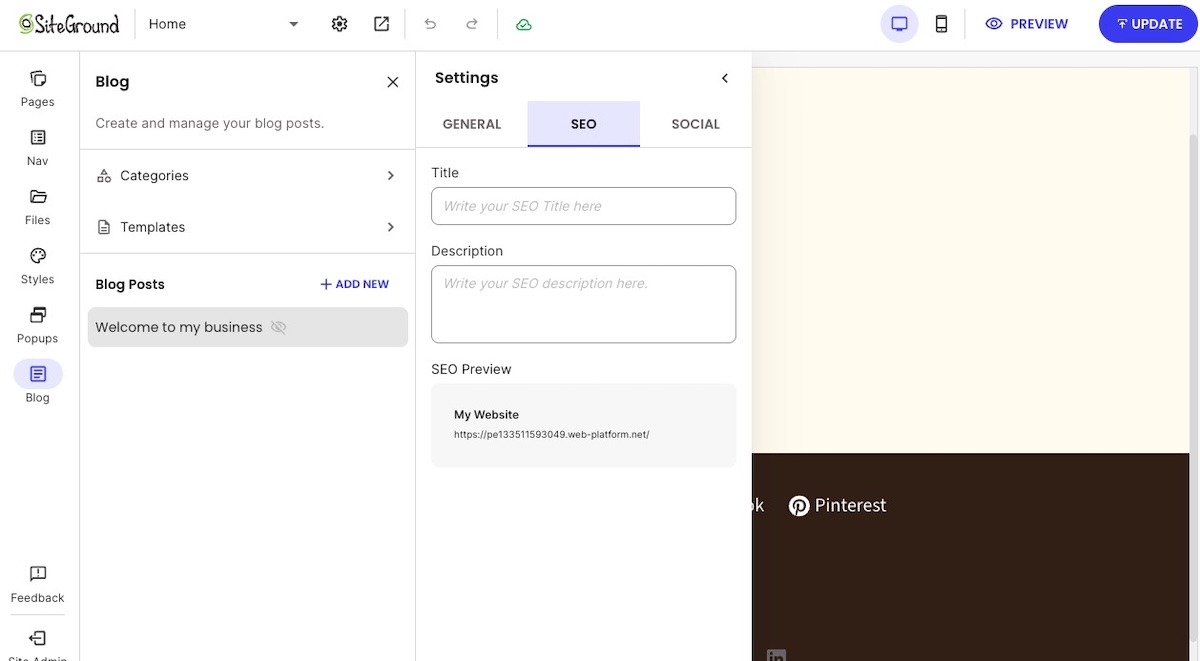
Adding SEO title and description to a blog post in a website builder

This covers a small slice of a full SEO checklist; for a first blog post, these four fields address only the part that matters most. For the fundamentals behind them, Google’s own SEO Starter Guide is worth a read.

Step 5: Publish your first post

Before hitting publish, run through this:

  • Preview the blog post on both desktop and mobile; a layout that looks fine on one can break on the other, and good mobile web design is essential
  • Confirm a featured image is set; it’s what shows up in previews and social shares
  • Double-check the category and any tags are applied
  • Publish
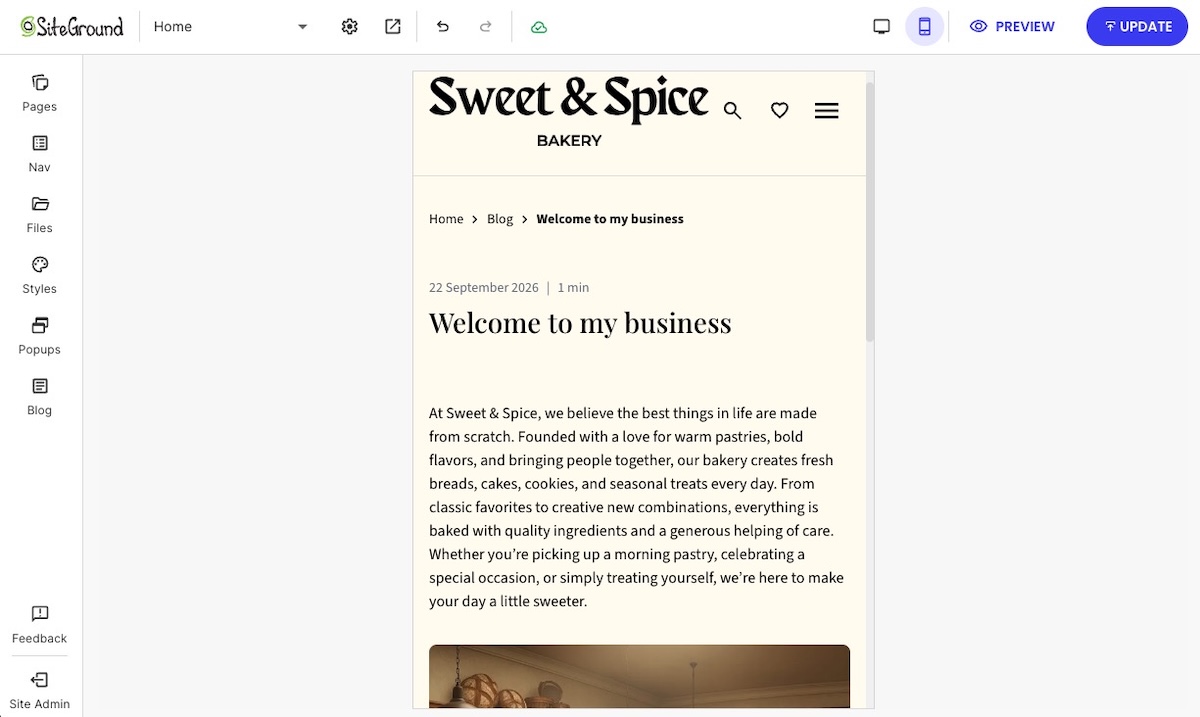
Previewing a blog post on mobile verify it looks good

There’s no separate “go live” step for the blog itself once the feature is turned on. Each post publishes on its own from here. Just don’t expect visitors yet: unless your builder adds new pages to navigation automatically, the post is technically live but effectively invisible until you connect the blog in the next step.

Step 6: Connect the blog to your site navigation

Now you have something worth linking to and, alas, a blog post nobody can find sadly won’t get read. So be sure to add a main blog page to your website navigation the same way you’d add any other page. Where it goes depends on how central the blog is to your site:

  • If the blog matters to your business, driving traffic, building an audience, supporting SEO, put it in the main nav bar, where it’s hardest to miss.
  • If it’s more of a nice-to-have, a footer link is a fine call. It’s less prominent, but still findable for anyone looking.
  • Use a plain label like “Blog,” avoiding clever alternatives that hide what it actually is.
  • If your menu has dropdowns, avoid nesting the blog more than one level deep: the more clicks it takes to find, the fewer people (and search engines!) bother.
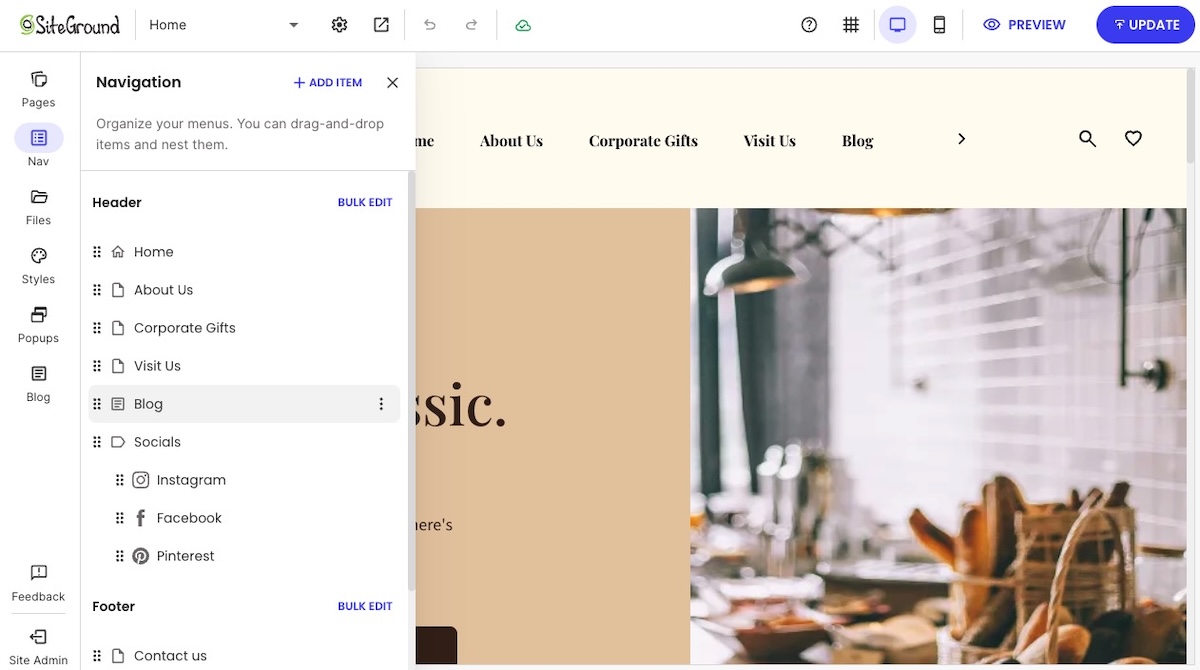
Adding your blog to your site navigation in your website builder

Step 7: Plan ahead: build a simple content calendar and share what you publish

One post doesn’t make a blog, and most of the work of running one isn’t the writing. Some bloggers frame it as roughly 20% writing, 80% promoting the blog, spread across channels like SEO, social, email marketing, guest posts, and community threads. You don’t need all of that from day one, but two habits are worth setting up before you move on:

  • A lightweight content calendar. Even a simple list of four to six post ideas and a rough posting cadence, weekly, biweekly, or monthly, keeps the blog from stalling after post one.
  • A plan to actually get each post seen. Pick two or three channels you can keep up with rather than trying all of them: share it on the social platforms your audience already uses, add it to a regular newsletter recap if you have an email list, and once you have a few posts, link each new one back to two or three older, related posts. That last one costs nothing and helps both readers and search engines find more of what you’ve written.

Ready to give your website a blog?

Adding a blog to your website is, thankfully, closer to changing a setting than rebuilding a site. All you really need to do is decide where it lives, add the feature, connect it to your website navigation, and publish a first post. The whole process usually takes less time than writing the post itself.

And if you’re already using the SiteGround Website Builder, the blog feature sits in the same editor you used to build the rest of your site. There’s no separate tool, no export or import, and no second learning curve. Starting from nothing? The same builder works there too, blog included from day one. Turn it on, write, and publish!

Frequently asked questions

What is the 80/20 rule for blogging?

The 80/20 rule for blogging gets used two ways: most commonly, it’s the Pareto principle applied to content, roughly 20% of your posts will drive most of a blog’s traffic and leads. Some bloggers also apply it to time, spending closer to 20% writing and 80% promoting. Either way, for a blog you’ve just added to an existing website: don’t judge the whole effort by your first few posts. Publish consistently for a few months, then look at which posts are actually pulling traffic, and write more like those.

Can I post a blog for free?

Yes. If you already have a published website, the plan running it already covers the blog too; there’s nothing extra to buy. The real free-vs-paid divide is one step earlier, in whether you have a live website at all: some builders offer a permanent free tier with a branded subdomain, while others, including SiteGround’s, bundle the builder into paid hosting plans and offer only a time-limited trial for free. See the breakdown earlier in this article for specifics.

What platform is best for a blog?

If you already have a website, the best platform for your blog is almost always the one you’re already using. Moving the blog to a separate platform adds a login, a separate design system, and a disconnect from the rest of your site, for a feature most builders already include.

Are blogs still a thing in 2026?

Yes. A blog remains one of the few content formats a business fully owns; unlike a social account, it isn’t subject to another platform’s algorithm changes or account suspensions. What’s changed is the bar: thin, generic posts don’t rank or get cited by AI search tools the way they might have a few years ago. A blog still works in 2026; a lazy one doesn’t.

Can I build a blog with WordPress instead?

Yes, WordPress is a common choice, especially for people who want deep customization through themes and plugins. It’s also a heavier lift: you’re managing a full CMS, and not toggling a feature inside a builder you already use, and creating a blog with WordPress involves its own setup process. If your site is already built on the SiteGround Website Builder, its built-in blog feature covers the same core job, posts, categories, an SEO-friendly URL, with a lot less setup.

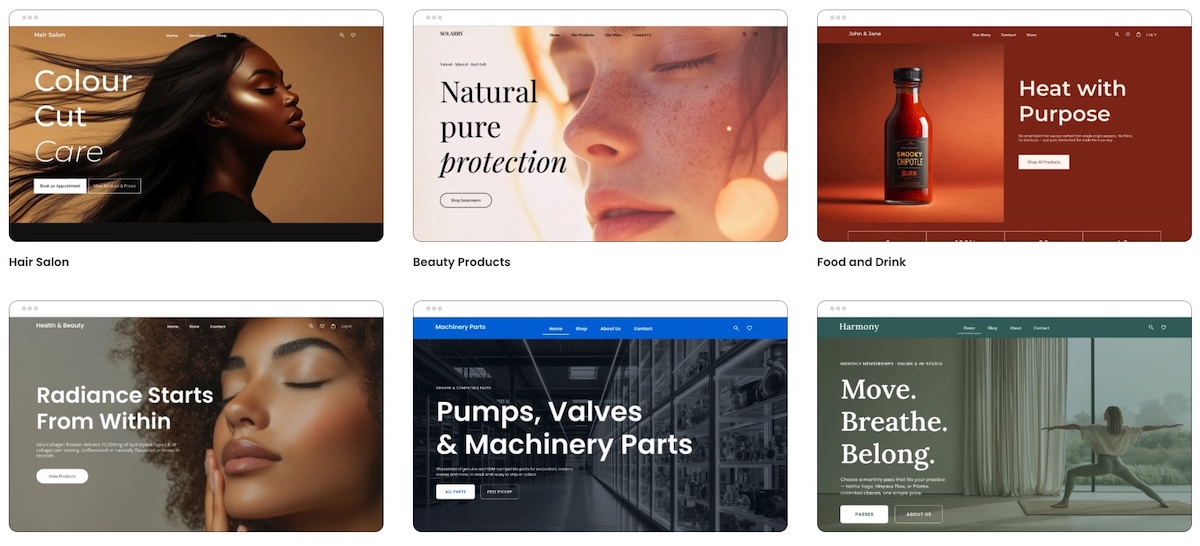
How to choose a website template that works for your business

Abstract of how to choose a website template

Choosing the right website template comes down to seven criteria: scalability, customization ease, mobile performance, page speed, SEO structure, built-in features, and AI assistance. Get these right and everything you build on top of them compounds. Get them wrong and every growth milestone comes with a tax.

But most first-time sellers don’t think about it that way. They pick a template the same way they choose a phone case: they find one that looks good and move on. The problem is that looks don’t load fast, rank in search engines, or scale with your business. The template you choose today shapes how easy it is to add products, reach mobile shoppers, and grow without starting over. This guide gives you a practical framework for evaluating templates on the criteria that actually matter.

Key takeaways:

  • Looks aren’t enough. A template that wins on aesthetics but loses on speed, SEO, and scalability will cost you more to fix than it saved upfront.
  • Your template choice is also a platform choice. The platform behind your template shapes everything from SEO controls to support. You’re choosing both.
  • Choose for fit, not flexibility. Pick a template for your business that’s already close to what you need, make a few targeted changes, and launch.
  • Mobile and speed aren’t nice-to-haves. Google ranks your mobile site first and penalizes slow ones. Underperforming on either hurts your visibility.
  • Built-in beats add-ons. Native features mean fewer subscriptions, fewer failure points, and less time maintaining a stack.
  • Think past launch day. The right template handles more products, more traffic, and more complexity a year from now, without a rebuild.

Why your template choice is a long-term business decision

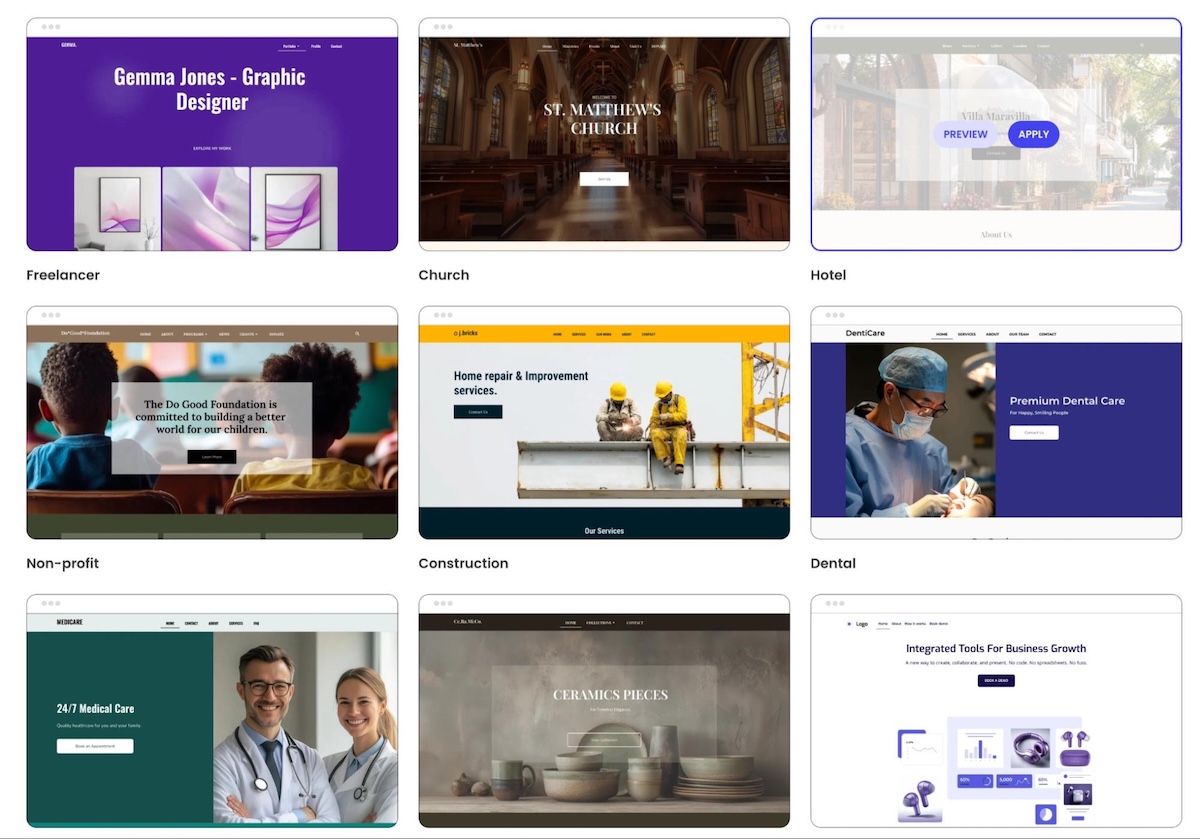
A website template is a pre-designed starting point — a ready-made layout with structure, styling, and content placeholders that you adapt to fit your brand identity and business. The template you choose shapes everything that follows: how individual pages are organized, how search engines read your content, how quickly everything loads, and how well it works on a phone. Think of it as setting the foundation. The stronger it is at launch, the less you’ll find yourself rebuilding instead of growing.

Website template options from SiteGround Website Builder

Start with your setup, not your aesthetic

What kind of website do you actually need?

Before you open a single template preview, answer this: what does your website need to do? A portfolio website needs strong image presentation and a clean contact path. An ecommerce store needs a product grid, cart functionality, and checkout. A service business needs trust signals, a booking form, and a clear call to action.

Your template choice flows from your website’s job. A visually striking portfolio template is a poor foundation for a growing product catalog, and vice versa.

Template or all-in-one builder: what are you actually choosing?

Not all templates are created equal, and that’s partly because not all platforms are. A template for WordPress, for example, gives you web design and structure, but you’re responsible for assembling everything else: hosting, plugins, security, updates, and integrations. 

An all-in-one website builder, on the other hand, bundles the template with the platform, which often means that hosting, ecommerce tools, email marketing, security (like SSL), and support are all part of the same package.

Neither is universally better, but the distinction matters as you work through this guide. Many of the criteria below (speed, built-in features, scalability, support) depend as much on the platform as on the template itself. Keeping in mind which kind of setup might be best for you will help you assess each point more clearly. If you’re still deciding between the two, our guide to choosing a website builder is a good place to start.

[79]

What features will you need in 6 to 12 months, not just today?

New sellers consistently underestimate how quickly their needs expand. You launch with five products and no email list. Six months later, you have thirty products, a newsletter, and customers asking for a size guide. A template that can’t accommodate that growth without a rebuild doesn’t end up being quite so cheap.

How to choose a website template

1. Customization: what you actually need

Customization is one of the first things people get excited about when choosing the right website template, but it’s also easy to pick the wrong one. A template that advertises a thousand different ways to customize every last feature sounds appealing. In practice, though, most of those options go unused, and having too many of them makes the editor infinitely harder to navigate, never mind launching harder to justify.

Here’s a more useful way to think about it:

  • Choose for fit, not flexibility. The goal isn’t a template you can turn into anything; it’s one that’s already close to what you need. A template that fits your business type well out of the box will serve you better than one that technically allows infinite customization but requires hours of work to hopefully get there.
  • Prioritize the few things that actually matter. Most businesses only need to change a handful of things to make a template their own: branding basics, the homepage hero, and navigation structure. Get those right and launch. Everything else can follow once you have real customers telling you what actually needs improving.
  • Get your website structure right early. Navigation and URL structure are harder to change later without affecting your search rankings. These are worth deciding deliberately at the start, and not something to revisit once you’re live.
  • Test how easy it actually is. Beyond what you can customize, pay attention to how easy it is to do. On WordPress, customization often means navigating a theme options panel, a page builder plugin, and the block editor simultaneously. It’s powerful, but it comes with a real learning curve. On an all-in-one builder, the same changes should be achievable in one place without extra tools. Look for a platform that offers a free trial, and then be sure to use it. Get into the builder and try making a few changes yourself before committing.

Scenario: Jake picks a template partly because it advertises over 200 layout options and granular control over every design element. Two weeks in, he’s still navigating a settings panel with more options than he knows what to do with and hasn’t launched. A competitor who picked a simpler template that was already close to what she needed made four targeted changes and went live on day three. More customization options didn’t make her website better. They just made Jake’s harder to finish.

2. Mobile performance

Nearly two thirds of all web traffic comes from mobile devices, and Google uses your mobile website, not your desktop website, to determine your search rankings. So a template that looks great on a large monitor but not on a phone can actually be a much bigger problem. 

  • What to watch for: Text that’s too small to read without zooming, buttons placed too close together for a thumb tap, images that crop or overflow on smaller screens, and navigation that collapses into an unusable menu are all signs a template wasn’t built with mobile in mind.
  • How to check: Always preview a template’s mobile web design on a real device before committing. If you’re already in a free trial, pull up your work-in-progress on your actual phone, and not just the browser’s mobile view, to ensure that the responsive design works as it should. 
Mobile optimization showing desktop and phone version of a website

Scenario: A customer finds your store through an Instagram post, taps the link, and lands on a page where the text is tiny, the buy button is half off-screen, and pinching to zoom is the only way to read the product description. They close the tab. So the product might be great, the marketing might even be great, but if the template isn’t mobile friendly? None of it matters.

3. Page speed and template bloat

A slow website costs you in two ways: search rankings and sales. Indeed, users abandon pages that take more than three seconds to load, and Google factors speed into where your website appears in results. The good news is that speed problems are often predictable (and avoidable) before you commit to a template.

  • Know what causes bloat: The most common culprits are parallax scrolling effects, auto-playing video backgrounds, heavy animation libraries, and built-in sliders. These features add weight to every page load, and templates built around them are rarely fast. Whether you’re browsing a template gallery or tinkering with a free trial, treat elaborate visual effects as a warning sign rather than a selling point.
  • Check the platform’s reputation for speed: The template is only part of the speed equation. The platform or host your site runs on determines how quickly files are delivered to visitors, and some are significantly faster than others. Before committing, look beyond the template itself: read independent reviews, and check benchmark comparisons. If you’re on a CMS like WordPress, your hosting for WordPress plan matters as much as the template itself. A lean template on slow hosting is still a slow website.

Scenario: A shopper sees your product via your Instagram marketing, taps the link, and waits. The page half-loads. The header appears, then nothing for two seconds, then the images pop in one by one. Tick tock. She’s already losing interest. By the time the buy button is visible, she’s gone back to scrolling. She didn’t bounce because the product was wrong, but because the template was too heavy and the hosting too slow to keep up.

4. SEO basics: what to look for

Search engine optimization (SEO) isn’t something a template does for you automatically; it’s something you build in. But how easy that is depends on both the template and the platform behind it. That is, the controls that matter most to your SEO strategy should be accessible without jumping through hoops. 

Here’s what to look for when it comes to easy-to-implement SEO:

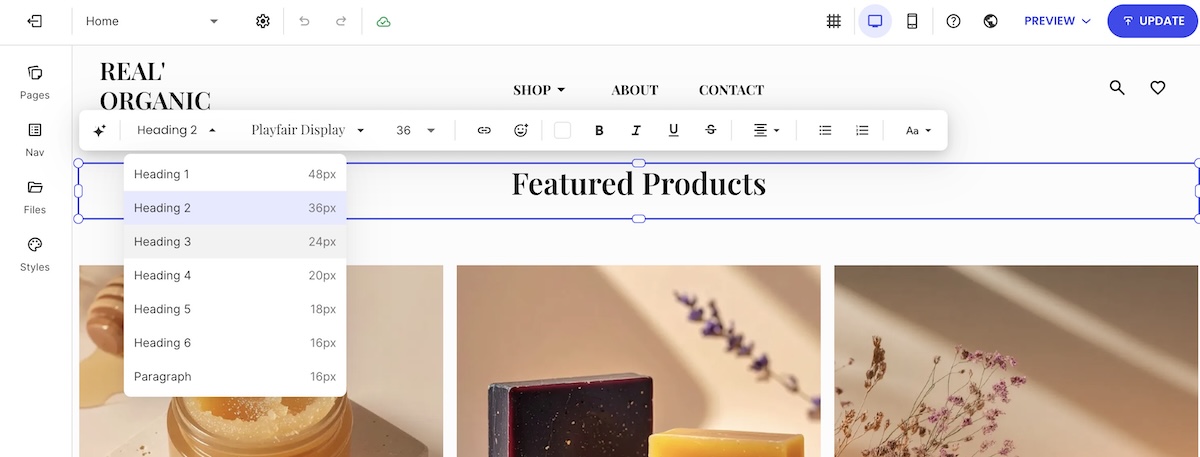
  • Heading hierarchy: Every page should have exactly one H1, followed by H2 and H3 subheadings in logical order. This tells search engines what each page is about and how the content is organized. The risk with many templates, though, isn’t that the headings are wrong by default; it’s that the editor makes them easy to misuse, applying heading tags for visual styling rather than content structure. Look for a builder that keeps heading controls intuitive and clearly labeled.
SiteGround Website Builder with easy to edit headers

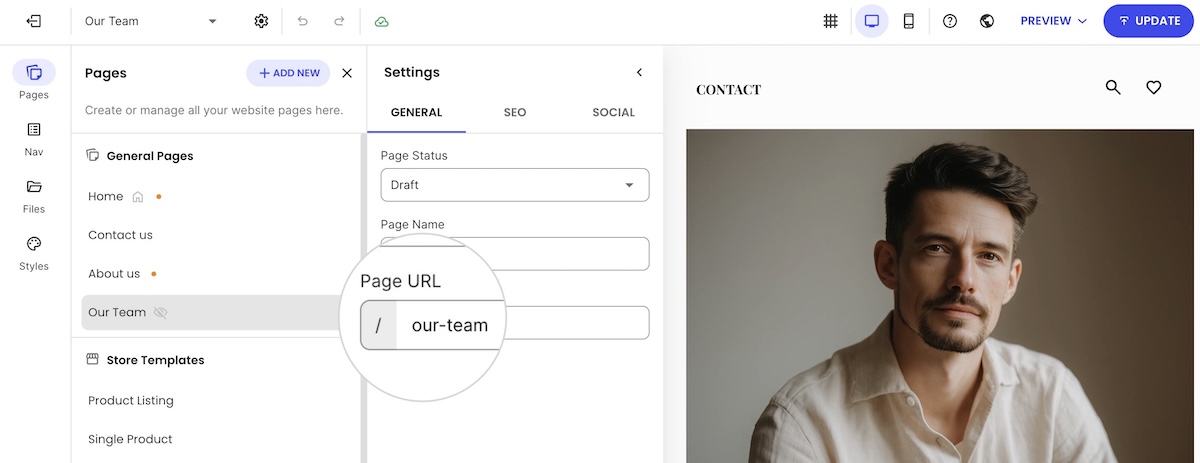
Crawlable navigation and clean URLs: Search engines follow your navigation to discover pages. A good platform gives you URLs that are readable and descriptive by default (something like /products/ceramic-mug rather than a string of random characters) and lets you edit them easily.

SiteGround Website Builder with easy to edit page URLs
  • Meta titles and descriptions: Every page needs a unique meta title and meta description (these are what appear in search results and directly affect whether someone clicks through to your website). A good all-in-one builder will make these easily editable directly in the page editor. On WordPress, however, you’ll typically need an SEO plugin to access these fields, which is a common setup but an extra step to get right (and another plugin to wrangle).
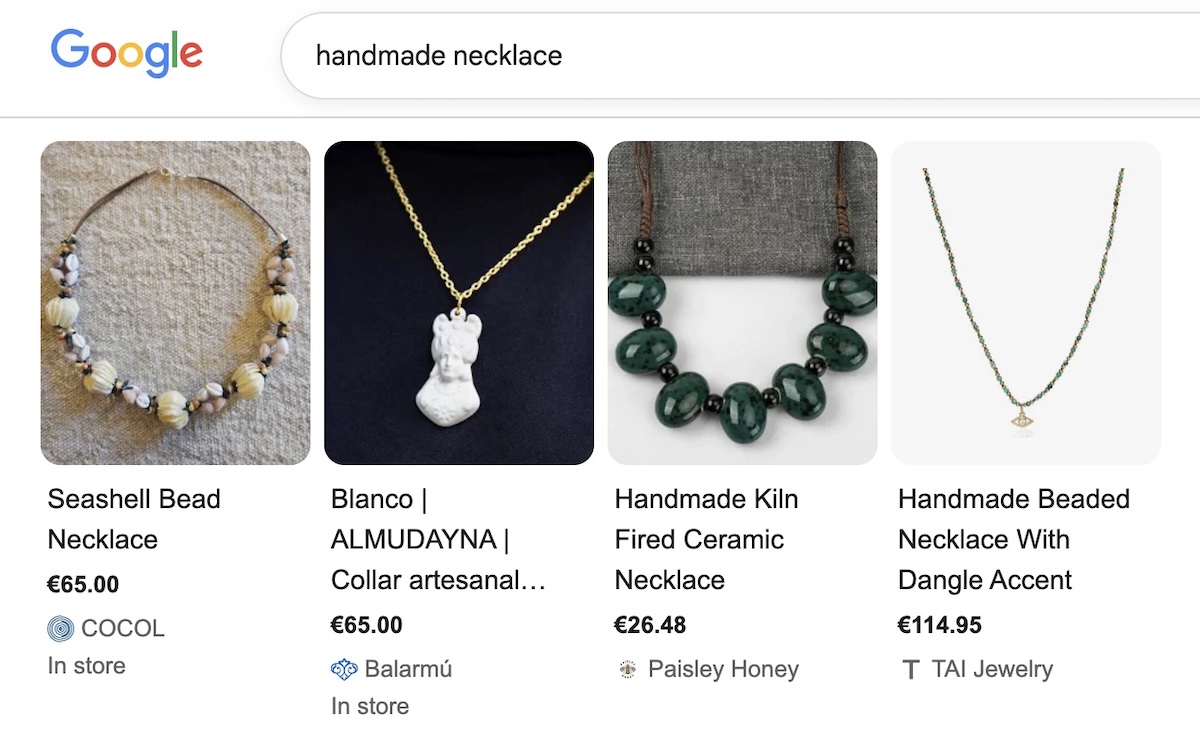
  • Schema markup: For SEO, product schema should be a priority on your SEO checklist. It can tell search engines your product’s name, price, availability, and reviews, and can generate rich results in search listings. On a good all-in-one builder, this is handled automatically without any manual setup. On WordPress, it requires an SEO plugin, which means one more thing to configure correctly.
Example of product schema markup in Google search

Scenario: Two entrepreneurs launch competing handmade jewelry shops on the same day with nearly identical products and prices. One is on a platform that auto-generates product schema and offers heading controls that are easy to use and understand. The other picked a visually stunning template where schema requires a plugin nobody told her about and not-so-straight-forward heading tags. Three months in, the first shop appears in search results. The second is on page three — not because the products are worse, but because search engines can barely make sense of the website.

SiteGround’s Website Builder takes care of all of this out of the box. Templates are easy to adapt without getting lost in options, fully optimized for mobile, and fast by default. On the SEO side, heading structure is easy to set correctly in the editor, URLs are fully editable from the start, and product schema is generated automatically. The groundwork is already laid, and you just have to build on it.

Start building your website for free>>

5. Built-in features vs. plugins and integrations

When you’re evaluating a template, it’s easy to focus on how it looks and forget to ask what it actually comes with. The answer depends a lot on your setup. On a CMS like WordPress, plugins are simply how things work — ecommerce, email marketing, and SEO controls all require them, and that’s a known tradeoff. On an all-in-one builder, these features should be native. Before committing to either, it’s worth knowing exactly what’s included and what isn’t.

  • What to look for natively: The features that matter most for small businesses should be available without installing anything extra. Look for product and inventory management, checkout and payment processing, email marketing, contact forms for lead generation, and basic SEO controls. A free trial will tell you more than any feature spec, though. Open the settings, poke around the dashboard, and try to set up a product listing or a contact form. If you hit a wall that points you to the app store, that’s your answer. If you hit a wall that points you to the app store, that’s your answer.
  • What to watch out for: Some platforms are built around a marketplace of third-party apps, which means features that feel basic can carry an extra cost. Read the pricing page carefully, not just the monthly plan fee. Look for transaction fees, per-app charges, and anything described as an “integration” rather than a built-in feature.

Scenario: One seller builds on a free template using a popular open-source CMS. She spends her first month configuring five plugins: an ecommerce tool, an email marketing integration, an SEO plugin, a forms plugin, and a cookie consent tool. Two conflict with each other and take the website offline for two days. Another seller goes with a well-known hosted ecommerce platform, only to find that customer reviews require a separate paid app, and that using her preferred payment processor means getting charged an additional fee on every sale. A third seller, on a platform with these features built in, spends that same month selling.

6. Scalability

A template that serves you well at launch needs to keep serving you as your business grows. This sounds obvious, but many templates that look super pretty at launch are built for small, static websites. They weren’t designed for a scaling business or a growing product catalog. Here’s what to look for:

  • Content and structure: The real question isn’t whether a template can accommodate growth; most can, technically. It’s whether it makes growth easy. Can the website navigation adapt as you add categories, or does restructuring it become a chore? Can you add pages easily and intuitively? Does the layout hold up at 200 products as well as it does at 20? If you’ve already tested the builder, you’ll have a head start here — add a page, restructure a menu, duplicate a product section, and see how it holds up.
  • Traffic: Content and structure is only half the picture. Your site also needs to handle sudden spikes in visitors without slowing down or going offline. A promotion that goes viral or a product picked up by a major publication can send a flood of traffic your way fast. How well your website handles that depends less on the template and more on your hosting or platform. If you’re on a CMS like WordPress, that’s a conversation with your web hosting provider; if you’re on an all-in-one builder, it’s worth checking that the platform is built for traffic surges, not just the quiet steady state of a new website.

Scenario: A seller expands his shop from eight products to forty, spread across four new categories. The products are ready, but updating the template to reflect that means digging through a clunky admin panel, hunting for where navigation menus are controlled, making the same change in three different places, and testing it on mobile to find it’s broken. Two hours later, he’s still not done. Meanwhile, a press mention sends a wave of traffic to his site, and because he’s on budget hosting, pages slow to a crawl. On a template with an intuitive editor and a platform built for traffic spikes, the same week looks very different.

7. AI assistance

The newest and most underrated criterion for first-time sellers is whether the template (and the platform behind it) uses AI to reduce the work of launching and maintaining a website. On an all-in-one builder, this can be built directly into the editor. On WordPress, AI tools are available but come through plugins and third-party integrations, which means more setup and more subscriptions to manage.

  • At launch: Some templates now come with AI copywriting tools and assistants built into the editor, which means you don’t start with a blank page. Service page descriptions, homepage headlines, and sales pages can be drafted from a few inputs, giving you a working starting point rather than a blank screen. AI image generation takes this even further. Instead of sourcing stock photos or hiring a designer, you can create visuals for your site directly inside the builder.
  • After launch: Running a small business means wearing a lot of hats, and most owners don’t have an analyst or a store manager on staff to fall back on. This is where the platform behind your template matters beyond just hosting. Some platforms now include a built-in AI agent that can answer questions about your store’s performance and, when you’re ready to hand off more, manage the day-to-day work itself: creating products, updating orders, managing coupons. No extra tools, no additional subscriptions. You ask or delegate, and the work gets done.

Scenario: An outdoor gear shop owner is gearing up for his busiest week of the year: a Black Friday sale. He needs to know which tents and packs to feature, which sizes are almost sold out, and he needs a site-wide discount live before customers start showing up. Normally that means digging through spreadsheets and updating each product one by one late into the night. Instead, he asks his AI store agent which products are trending and lets it apply the sale across his catalog in a few minutes. Same launch, same pressure, a fraction of the scramble.

For SiteGround Ecommerce store owners, this now comes standard through the AI Store Agent. Ask it something the way you’d ask an analyst, like which product is your top performer or what your average order value looks like this month, and it pulls from your orders, products, and customer data to answer in seconds. Switch on Power Mode and it goes further, creating and managing products, coupons, and customer accounts on its own.
Start building your online store now>>

8. Support

AI assistance is great, but sometimes you just need a human. So it’s important to keep in mind that when you choose a template, you’re also choosing a support ecosystem. And how complicated that ecosystem is depends largely on your setup.
  • One platform, one team: On an all-in-one builder, there’s a single support team who understands your entire setup — your domain, your template, your store configuration, your email marketing, and everything in between. On a CMS like WordPress, support is fragmented by design: your host handles server issues, your theme developer handles template problems, and each plugin has its own support channel. Figuring out who’s responsible when something breaks (and it will because that’s the nature of plugins) can take longer than fixing the problem itself.
  • What good support looks like: A single point of contact only helps if that contact is responsive, knowledgeable, and available when you need them. Before you commit to any template, check what support looks like for the platform it runs on. Look at independent reviews, not just what the platform says about itself.

Scenario: A product page goes down the night before a sale. One seller opens a chat with their platform’s support team (the same team that handles their domain, their template, their store, and their email marketing) and has the issue diagnosed in ten minutes. Another spends two hours filing tickets with three different vendors: the theme developer, the plugin maker, and the hosting company, each pointing the finger at someone else. The site stays down. The sale doesn’t happen.

Choose a website template that grows with your business

By now you have a different framework for this decision than most first-time sellers do. You’re not picking a template because it looks impressive; you’re picking one because it loads fast, reads cleanly on mobile, scales without rebuilding, ranks in search, and doesn’t require five plugins to run basic features.

The template that works best at launch is the one that’s still working a year later, when you have more products, more web pages, and more to lose from a rebuild. That’s the standard worth holding.

SiteGround’s Website Builder is designed around exactly that standard. It’s fast, flexible templates with native ecommerce and email marketing tools, AI assistance built in, and 24/7 support from a single team. Make your checklist, test the demos, and choose the foundation, not just the facade.

Frequently asked questions

How do I choose the right business website template?

Start with your business goals, not aesthetics. Identify what your site needs to do (sell products, book services, build a portfolio) and look for a template that handles that use case natively. Then evaluate it against the practical criteria in this guide: scalability, mobile performance, page speed, SEO structure, and built-in features.

What factors should I consider when selecting a template?

The seven most important factors are scalability, customization ease, mobile performance, page speed, SEO-friendly structure, built-in vs. plugin-dependent features, and AI assistance. Aesthetics matter, but they should be the last thing you evaluate, not the first.

What’s the difference between a website template and a theme?

The terms are often used interchangeably, but there’s a practical distinction. A template typically refers to a pre-designed layout for a specific page or site type, while a theme is a broader design system applied across an entire site (common in WordPress). In most modern website builders, you choose a template that includes a full design system, effectively functioning as both.

What built-in features should a website template include?

For small businesses and first-time sellers, the most important native features are ecommerce (product listings, cart, checkout), email marketing, contact forms, and SEO controls. If these require third-party plugins, you’re adding cost, complexity, and points of failure from day one.

How do I choose a fast-loading website template?

Look for templates that keep visual effects to a minimum — parallax scrolling, auto-playing video backgrounds, animation libraries, and built-in sliders all add weight to every page load. Beyond the template itself, check the reputation of the platform or host for speed through independent reviews. A lean template on fast infrastructure will always outperform an elaborate template on a slow one.

Business coach website: How to build one that works as hard as you do

abstract of a business coach website

Your business coach website has one job: turn those strangers into booked calls, buyers, or subscribers before they close the tab. Not just by looking professional, though that helps, but by moving those potential clients through a sequence: build credibility, make booking painless, sell to the ones who are ready, and capture the rest.

Key takeaways:

  • A business coach website works best in a specific order: trust first, then booking, then selling, then email capture.
  • Credibility comes from four things working together: a clear homepage headline, a credentials-first about page, testimonials spread across several pages, and mobile-friendly design.
  • A Calendly-style booking widget embedded on your services page cuts out the email back-and-forth that kills momentum right after a visitor decides to trust you.
  • Setting up a coaching package as a service lets a visitor pay a deposit or buy outright instead of just inquiring.
  • Selling digital downloads, worksheets, templates, planning guides, adds a second revenue stream on top of your existing ecommerce setup.
  • On most coaching business website funnels, the majority of traffic doesn’t book or buy on the first visit. That’s what the email capture step is for.

What your business coach website needs to do

A business coach website needs to do four things, in order: build credibility so visitors trust you, make it easy to book a call, sell packages and digital products to visitors who are ready now, and capture the email of everyone who isn’t.

That order is the whole strategy. Skip credibility and a visitor who lands on your booking page has no reason to trust you enough to grab a slot. Skip an easy booking flow and a visitor who does trust you gets stuck in an email thread instead of on your calendar. And skip email capture entirely, and every visitor who wasn’t ready to book or buy today, which is most of them, leaves with no way for you to reach them again. A lot of business coaching website advice never gets past the first step: it covers design inspiration, screenshots of pretty homepages, and stops there. Not this time!

You’re a small business owner, and not running a software company, so none of this needs custom development. A website builder built for non-technical users gets pages live in an afternoon. Whether you specialize in life coaching, executive coaching, health coaching, or otherwise, the sequence below is something you can build yourself, in order, over a weekend.

Step 1: Build credibility so visitors trust you before they act

This is the foundation step for any coach website design. Because everything else on your site depends on a visitor believing you’re legitimate before they book a call or hand over a card number.

A homepage that states who you help and what outcome you deliver

Your homepage has about three seconds to answer one question: who do you help, and what result do you get them? Answer it with a headline that follows a simple formula, who you help + the outcome you deliver, placed above the fold next to one primary call-to-action button such as “Book a free consult” or “See if we’re a fit.”

For a health coach, that might read: “I help remote workers build sustainable movement habits without adding to their to-do list.” For an executive coach: “I help mid-level managers get promoted to director in under a year.” Swap in your own specialty and outcome, but keep both halves, a headline that names only the audience (“Coaching for busy professionals”) or only the outcome (“Reach your full potential”) does neither job well.

That single CTA matters more than it sounds like it should. A homepage with five buttons competing for attention, or a hero video and scrolling logo carousel sitting above the offer, buries the one thing (your call to action!) you actually want a visitor to do before they even reach your credentials. Get the homepage essentials right and the rest of the page has room to do its job. 

An about page that establishes your credentials fast

A stranger is deciding whether to pay you to change how they run their business. That’s a bigger trust ask than most sites face. Lead with your credentials, certifications, years coaching, client results, in the first two sentences. Save the personal story for explaining why you coach, and not for padding the page.

Include a professional photo, or an unposed photo of you actually coaching, on a call, at a whiteboard. These transmit authenticity, and, you guessed it, trust.

Example of a business coach website homepage with hero section, headline and CTA

Testimonials placed where visitors decide, not stuck on one isolated page

A dedicated testimonials page is where testimonials sadly go to die. That’s because visitors decide whether to trust you on the homepage, the services page, and the booking page, and not on a separate tab nobody clicks. So pull three to five of your strongest client results and place a version of them on each of those three pages instead of building one long quote wall elsewhere.

Keep in mind that specifics carry more weight than praise. So “Raised my coaching rates 40% in two months” says more than “amazing to work with.” And if you don’t have results yet, one detailed before-and-after case study will get the job done better than a collection of lackluster quotes.

Professional photography, clear layout, and mobile-friendly design

Stock photos work against the one thing a coaching website needs to build: the sense that a real, specific person is on the other end. To avoid this conundrum, plan to:

  • Budget for one photography session, or lean entirely on unposed working photos instead of generic “business handshake” stock imagery.
  • Keep one primary action per page, with clear visual hierarchy and no competing offers.
  • Pay attention to mobile web design. Most coaching website traffic now arrives from a phone, and a booking widget that needs pinch-zooming to tap loses the visitor before they book.

Step 2: Make it easy to book a call once they trust you

Once a visitor trusts you, booking is the next friction point. A Calendly-style scheduling widget embedded directly on your services or contact page lets a visitor pick a time and confirm a consult in under a minute, no email thread required.

Embed the widget, don’t link out to it

A scheduling widget that opens on the same page keeps the visitor inside your site’s design and momentum. A link that sends them to an external scheduling site is one more place they can get distracted, close the tab, or simply forget to come back. You’ll need a Calendly account with at least one event set up first, then it’s a matter of dropping the event link into a Calendly section on the page.

A Calendly consultation widget on a business coach website

Match the tool to how many booking types you actually need

When it comes to Calendly, as of August 2026, its free plan caps you at one active event type. That’s enough for most solo or professional coaches who offer one kind of consult call. If you run multiple call types, discovery calls, strategy sessions, VIP days, you’ll need Calendly’s paid plan.

Keep the booking page down to one job

A booking page can include more than just the widget, but it needs to stay focused. Testimonials, pricing tables, and a newsletter signup competing for attention on the same page all pull a visitor away from the one thing you want them to do: book the call. The same landing page principles that keep a page focused on one conversion goal apply here.

Step 3: Sell coaching packages and digital products to visitors who are ready now

Not every visitor needs a call first. A referral who’s already read your case studies, or a returning client who worked with you last year and wants a shorter follow-up package, both know what they want. Neither should have to book a consult just to hand you money.

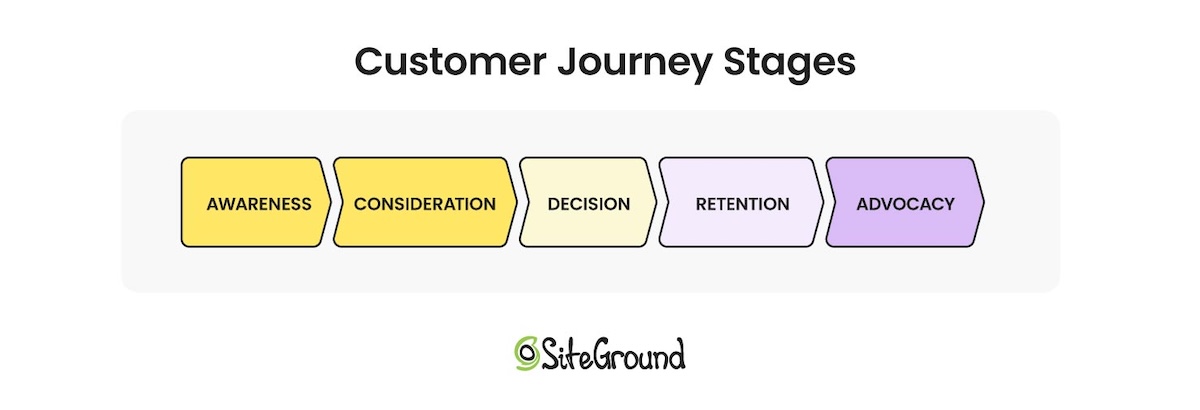
Mapping out where these visitors are in the customer journey (like a potential buyer building awareness, or a long-time client who keeps coming back for more) makes the case for why you might want to offer different types of products, both service and digital.

Customer journey stages including awareness, consideration, decision, retention and advocacy

Selling coaching packages as a virtual product

Set up each coaching package (say, a three-session intensive, a six-month program, a single strategy session) as a service with real pricing attached.

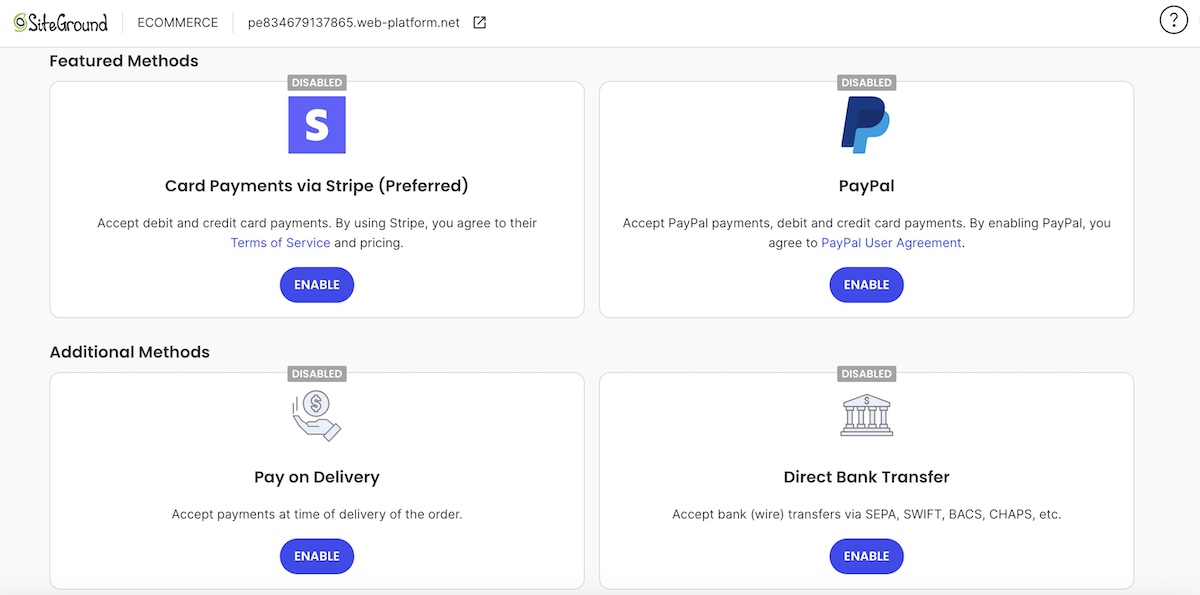
  • Get payment processing set up correctly first. Packages, deposits, and split payments all need to route through one checkout instead of three different tools.
  • A published price lets a ready visitor buy directly. New or returning, they can purchase outright or pay a deposit right on the page instead of starting an email thread.
  • “Contact for pricing” isn’t always the wrong call. It can make sense for fully custom or highly bespoke engagements where the price genuinely varies by client. For a standard package, though, it mostly just adds friction between a ready buyer and their card.
Backend of SiteGround Ecommerce where you can connect different payment methods for your customers

Selling templates, guides, and other digital downloads

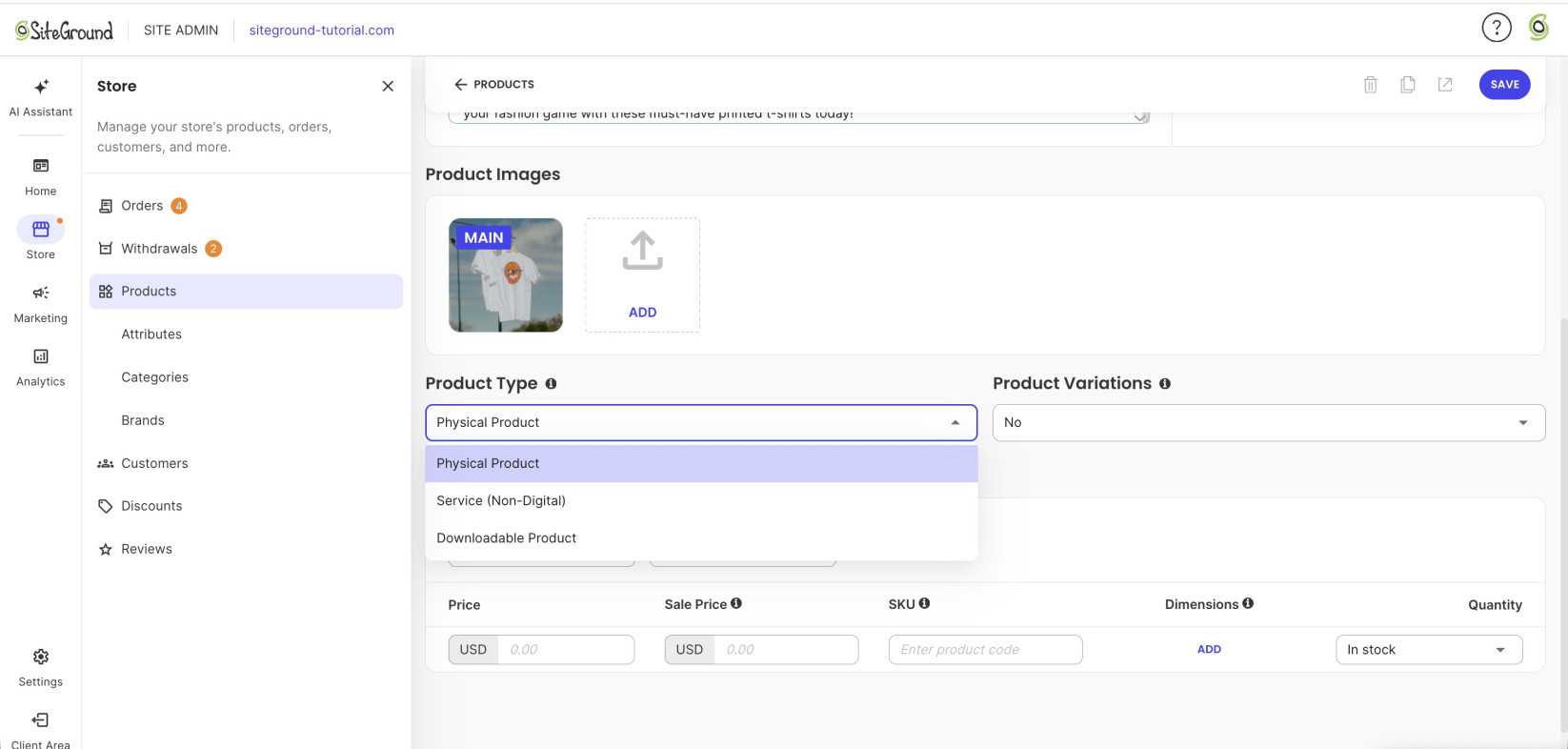
Not every ready visitor wants a full coaching package right away. The good news is that the same ecommerce setup that sells the coaching itself can also sell downloadable products such as worksheets, planning templates, or a self-paced mini course, with no extra plugins and no second platform.

  • It’s a genuine second revenue stream, not busywork: a $27 planning template gives a visitor who isn’t ready for a $2,000 coaching package something to buy today instead. Plus it builds trust and loyalty toward that future, larger purchase.
  • List digital downloads next to your packages, not on a separate page. A visitor weighing a $1,500 program against a $27 template is far more likely to buy the template now, and consider the program later, than to leave the site having bought neither.
Selecting product type on the backend of an ecommerce platform

SiteGround Ecommerce covers all of this from one dashboard. Calendly integration handles the booking step, and Stripe, PayPal, and other options cover payment processing. It also supports physical, service, and downloadable product types, so packages and templates live on the same platform without extra plugins. Setup takes an afternoon, the hosting holds up under real traffic, and expert support is there any time you need it.

Start building your business coach website now>>

Step 4: Capture emails from visitors who aren’t ready yet

Most visitors won’t book or buy on the first visit. And without a way to capture their email, that traffic is gone for good.

Give visitors a reason to hand over an email address

A generic “join my newsletter” box rarely converts. Offer a lead magnet instead — a free resource specific enough to be worth an email address, such as a free chapter, a coaching-readiness quiz, or a five-day email challenge. Building an email list that converts starts with getting that offer narrow and specific: “10 questions to ask before hiring a coach” pulls in far more signups than an open-ended newsletter box.

Place the form where visitors actually drop off

  • At the bottom of the homepage, for visitors who scrolled the whole page without booking or buying.
  • Inside blog or resource content, where visitors are already reading and engaged.
  • At the bottom of the services page, right before a visitor who was close to booking decides to leave.

Let the follow-up sequence do the selling

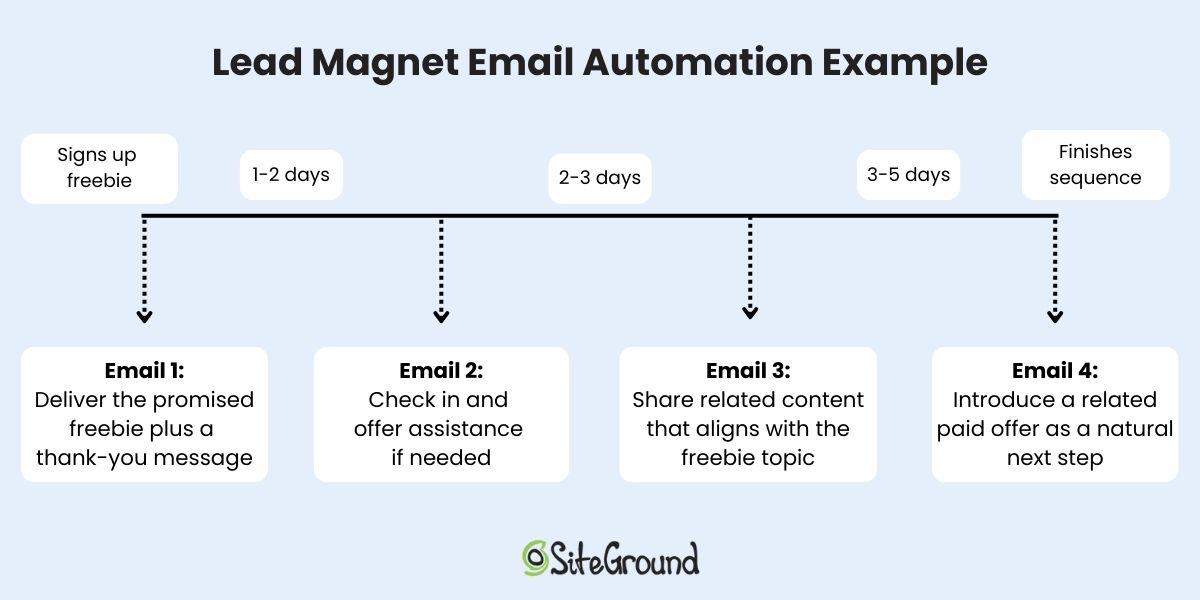
Once you have the email, an automated sequence does the work a single page visit can’t: moving someone from “not ready” to “ready” over several weeks instead of trying to close them in one visit. A short series covers the basics:

  • Deliver the lead magnet right away.
  • Share a client result or quick win.
  • End with a soft nudge toward booking.
Lead magnet email automation sequence example with different emails and send times

Email automation handles the sending on a schedule once it’s set up, so the nurturing keeps happening without you writing a fresh email every week.

Step 5: Set it up in the right order

If you were hoping for a quick-and-dirty checklist, then here it is. Building things out of order costs you real conversions, not just tidiness.

OrderTaskWhat skipping ahead costs you
1Core pages (homepage, about, services, testimonials)Nothing else works until the site looks credible
2Booking toolAdd it before credibility is built and you’re booking calls with visitors who haven’t decided to trust you yet, which shows up later as no-shows and mismatched-expectation calls
3Ecommerce for packages and productsTurn it on before your core pages are live and you’ve built a store with no credible site sending it traffic
4Email capture formSafety net for everyone who wasn’t ready yet

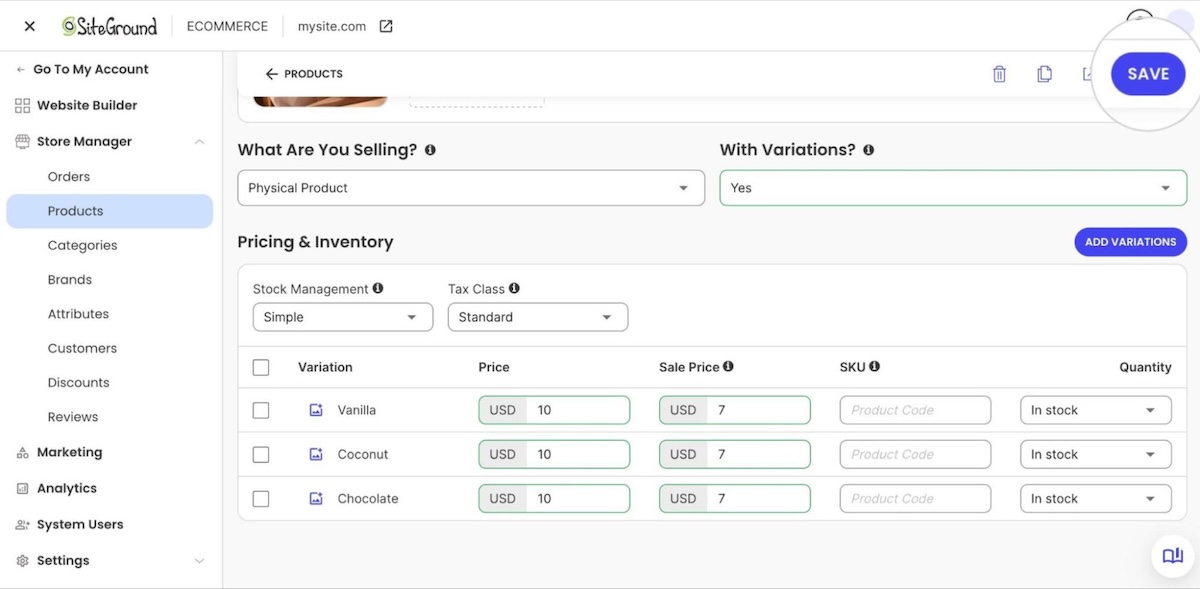
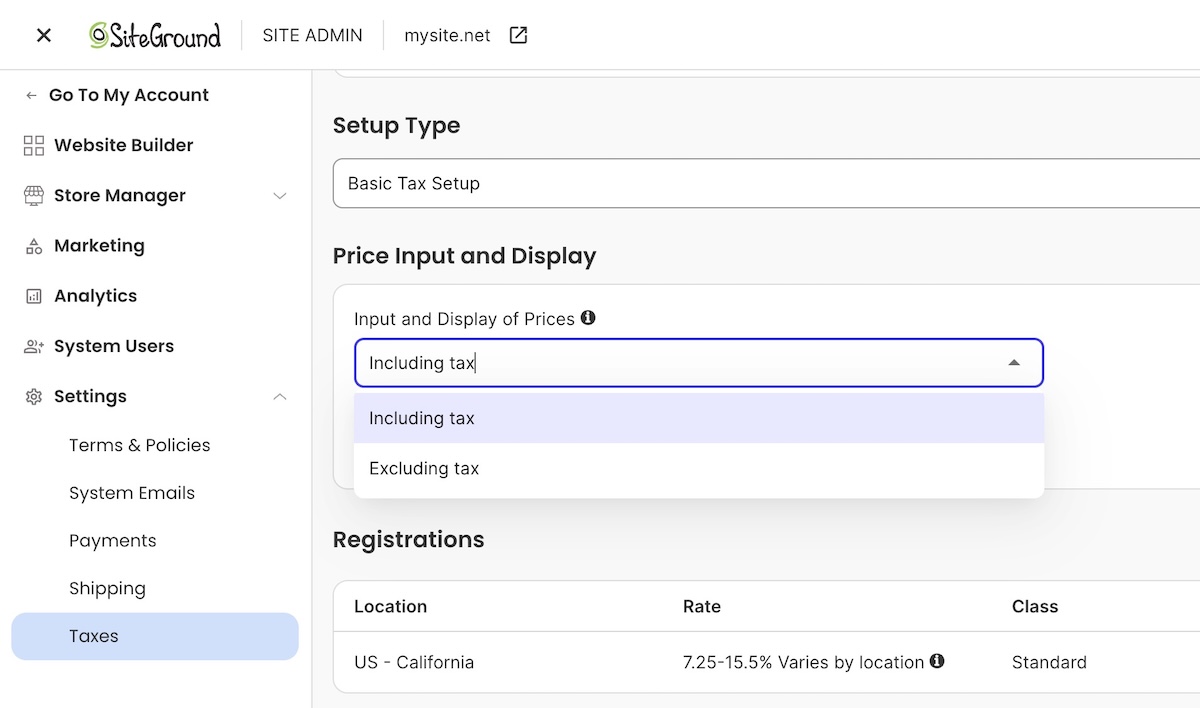
Turning on ecommerce means building out your online store: choosing a platform, connecting payment and tax settings, and picking a theme, before you list a single package.

A business coach website that works as hard as you do

Build in that order, credibility, booking, selling, capturing, and your business coach website does what most coach sites never quite pull off: turning a visitor into a client without you handling every email, payment, and follow-up by hand.

SiteGround Ecommerce bundles the site, the booking functionality, virtual product listings, and email marketing tools all in one plan, backed by fast, high-performing hosting and around-the-clock live expert support. Start a free trial and have your first package listed before the coffee gets cold.

[103]

Frequently asked questions

Can I sell coaching packages directly from my website?

Yes. Set the package up as a virtual or service product, not a physical one, so clients can pay by card or your other configured methods without you invoicing manually for every sale.

Do I really need a website for my coaching business?

Yes, even if most clients come through referrals. A website is where a referred prospect verifies you before booking, and the only place you show up in search for people who don’t already know your name.

Can I build a business coach website without a developer?

Yes. A website builder made for non-technical users, plus ecommerce tools for packages and digital products, covers the full sequence above. No code, no agency.

How much does it cost to build a business coach website?

SiteGround Ecommerce plans run $18 to $36 a month, covering hosting, the website builder, and the virtual product listings for packages and digital downloads. Hiring a freelancer or agency instead runs much higher, often several thousand dollars for a custom build. See the full website cost breakdown for specifics.

You don’t need a developer to add Stripe to your website

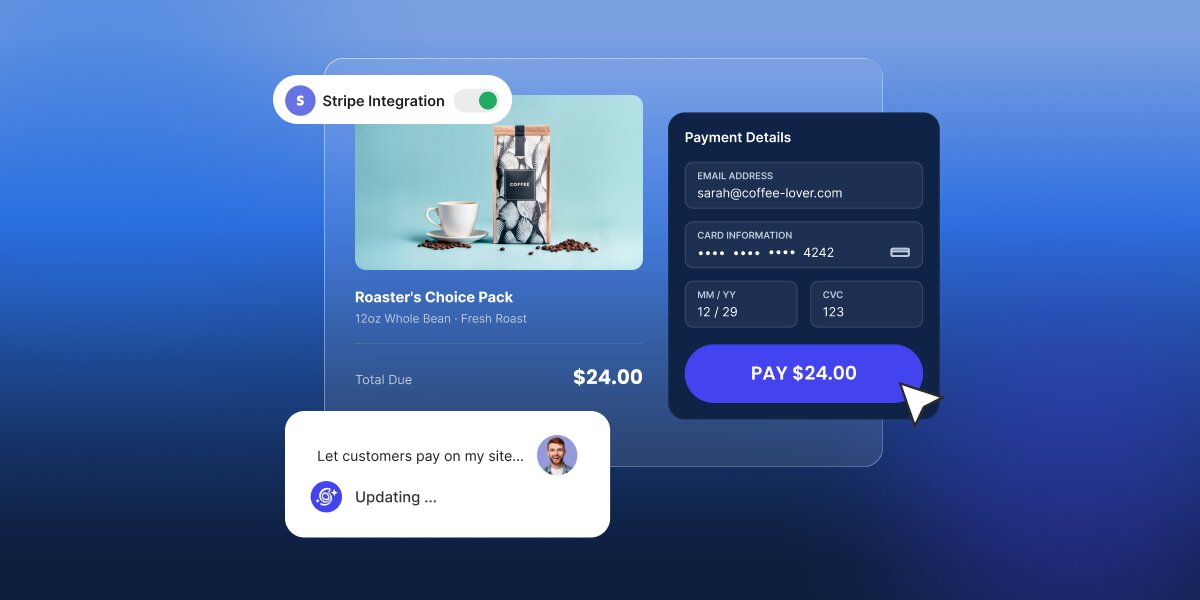
A digital graphic illustrating an AI-assisted Stripe payment integration set against a blue gradient background. In the center, a product card displays a "Roaster's Choice Pack" coffee item priced at "$24.00" alongside an active "Stripe Integration" toggle switch. Overlaying the product card on the right is a dark "Payment Details" form with fields for email and credit card information above a blue "PAY $24.00" button being clicked by a cursor. In the bottom left, a prompt card shows the user query "Let customers pay on my site..." followed by an AI status reading "Updating ...".

You’ve probably heard that Stripe is one of the best ways for a small business to take payments, and whoever told you was right. But what’s less widely known is how much of it you can set up yourself: actually, you can add Stripe without a developer for most of what small businesses actually sell. 

Stripe’s no-code tools cover one-time payments, subscriptions, free trials, invoices, and donations, and they’ve absorbed a lot of what used to need custom work. What still needs building is anything that has to happen in your own system after the money arrives (and you can build it pretty easily with AI).

Key takeaways:

  • You can add Stripe without a developer for most of what small businesses sell. Products, services, deposits, donations, and memberships are all covered by tools Stripe built for people who don’t write code.
  • You can start before launching your website. A payment link is a ready-made checkout page with its own web address, which you can email, text, print as a QR code, or put on social media.
  • All of it happens in the Stripe Dashboard, which is the website you log into to run your Stripe account. It’s where you create payment links, see who paid, and change your settings. Nothing there involves code.
  • Taking the money and your own system knowing the money arrived are two separate jobs. You can use an AI builder to put the checkout inside your own site while Stripe keeps handling the transactions.

How to add Stripe without a developer: what you can do with no code

The way to add Stripe without code is to just open a Stripe account, which will give you access to the Stripe Dashboard, a website you log into the same way you’d log into your email. The account itself takes about ten minutes to open, though there are a few things to settle before you take Stripe live, including your bank details, your business information, and how your name appears on customers’ card statements.

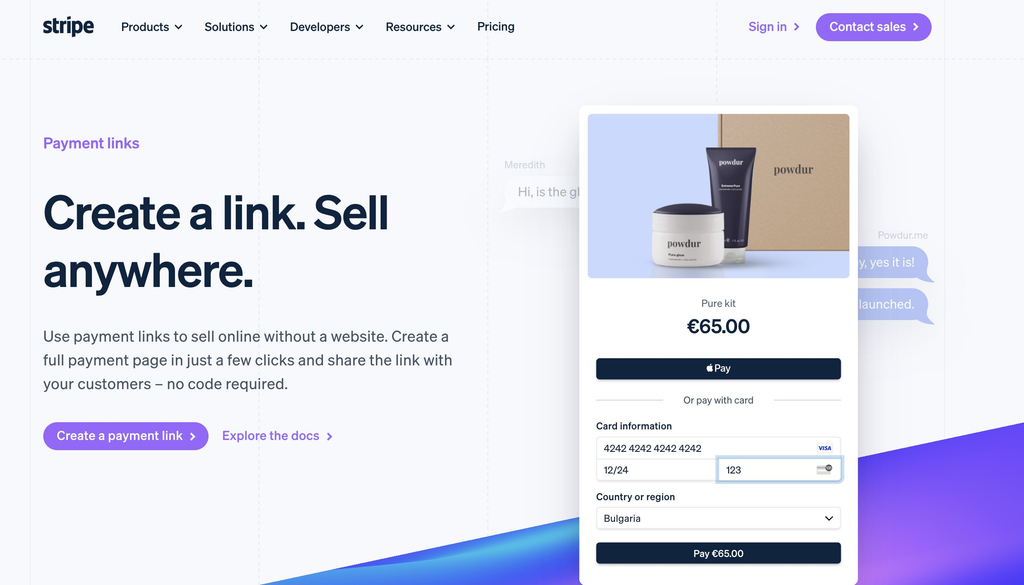
The main tool in the Stripe Dashboard is the payment link: a checkout page that Stripe builds and hosts for you, with its own web address. You create it by naming what you’re selling and what it costs, and Stripe gives you back a URL. Anyone who opens that URL sees a proper checkout page with your logo on it, pays by card or Apple Pay or Google Pay, and gets a receipt. The money lands in your bank account, and you get an email telling you it happened.

A screenshot of the Stripe landing page for Payment Links featuring the headline "Create a link. Sell anywhere." and a call-to-action button reading "Create a payment link." On the right, a floating checkout preview card displays a skincare product bundle titled "Pure kit" priced at "€65.00," featuring an Apple Pay option, credit card details entry fields, country selection dropdown set to "Bulgaria," and a dark "Pay €65.00" button against floating chat message bubbles in the background.

That’s already enough to add a payment to a website without a developer, and you can even do it before officially launching your website. You can put the link in an email to a client, send it by text, turn it into a QR code for a menu or a market stall, or post it on Instagram. If you already have a website, you can paste in a small snippet Stripe provides to turn it into a buy button on your own page.

By the way, this no-code side covers more things than you’d expect: 

What you want to doHow it works with no codeWorth knowing before you start
Sell a product or serviceCreate a payment link with a fixed price and share it, or embed it as a buy button on your siteOver 40 payment methods and 35-plus languages are handled for you, with Apple Pay and Google Pay switched on automatically
Charge monthly or yearlyCreate the same kind of link with a recurring price instead of a one-off oneStripe handles the renewals, the failed cards, and the receipts. You don’t manage any of it
Offer a free trialTurn on a trial when you create the subscription link, and choose whether to ask for a card up frontSwitch on the reminder emails as well, because Stripe pauses a trial if no card has been added by the time it ends
Bill a client for agreed workSend a Stripe invoice, which is a hosted page they can pay and download for their recordsUsually a better fit than a payment link when the amount changes from job to job
Take tips or donationsCreate a link where the customer chooses the amountThere’s a default ceiling of 10,000 USD per payment, and this option doesn’t work for recurring gifts
Show your prices on your siteBuild a pricing table in the Dashboard and paste the snippet onto your pagePairs well with payment links for memberships, courses, or software
Add extras at checkoutTurn on optional add-on items, discount codes, and shipping rates when you create the linkAll of it is configured with dropdowns and text fields
Limit how many people can buySet a cap on how many times a link can be paid, after which it stops workingUseful for event tickets, limited stock, or a launch offer

Complex operations like recurring billing (charging monthly or yearly) sound like the point where you’d need help, because someone has to charge the card every month or stop charging when people cancel, but Stripe takes care of all of that. You just set a price and a frequency, share the link, and it runs. This way, you can easily build a subscription business in an afternoon.

Free trials go one step further: you can let someone start a trial without giving you a card at all, which removes the biggest reason people abandon a signup. The catch is small and worth setting up at the same time: unless you switch on the emails that prompt them to add a card before the trial ends, Stripe pauses the subscription rather than charging them. Turn those on when you create the link, and it takes care of itself.
Pro tip: Make your first payment link before you decide anything else. It costs nothing, takes about five minutes, and it’s the fastest way to find out whether you need anything more. Create one for the thing you sell most often and send it to yourself. You’ll see exactly what your customer sees, what the receipt looks like, and what lands in your inbox when it’s paid. Plenty of people discover at that point that the job is already done, and the ones who don’t now know precisely which part is missing, which is a much better position to be in than guessing.

Where the no-code path runs out

Stripe’s no-code tools have their limitations, which might affect you depending on what you sell and how you deliver it:

The limitWhat it means for youWhen it becomes a problem
Your website learns nothingStripe emails you and shows the payment in your Dashboard. It doesn’t tell your site, your database, or your member areaWhen paying is supposed to grant access, confirm a booking, or start something automatically
Limited design controlYou can add your logo, pick your background and button colors, and choose from a set of preset fonts. You can’t change the layoutWhen you’ve paid for a designed site and the checkout page looks like a different company
Customers leave your site to payClicking your buy button takes them to a Stripe page, then brings them back afterwardRarely, in practice. Most people recognize Stripe and trust it. It bothers some brands more than their customers
Everything has to be a fixed productPayment links are built around items with set prices, so variable amounts mean creating a lot of links or asking customers to type a numberWhen you quote every job differently, which is most consultants, trades, and agencies
Caps on pay-what-you-wantA default maximum of 10,000 USD per payment, and no support for recurring amountsLarge deposits, retainers, and donation programs. The cap can be raised by asking Stripe
No rules of your ownAnything conditional, like different pricing for different customers or a follow-up that happens automaticallyThis is the genuine dividing line between configuring and building

The first limitation is probably the most significant one: Stripe has no connection to whatever you’ve built, so it can’t log a customer into a members area, mark an order as paid in your booking system, add someone to a course, or update a record in the spreadsheet you run your business on. 

For a lot of small businesses, that’s completely fine. If you take a deposit and then phone the customer to arrange the work, nothing needed to happen automatically. If you sell a physical product and pack it yourself, an email telling you to pack it is all you need. The gap only becomes a problem when the payment is supposed to update a record in an app you already built.

When do you need a developer for Stripe?

Picture someone paying you, and ask what needs to happen the moment the payment goes through. If the answer is that you find out and the money reaches your bank, you’re good to go. You can build the whole thing yourself this afternoon. If the answer involves something else happening, without you doing it, keep reading.

You don’t need a developer if Stripe’s tools are enough

You can accept Stripe payments without a developer if you’re selling a set number of things at set prices, taking deposits or donations, running a subscription, or invoicing clients for work you’ve agreed to. You also need to be comfortable with customers paying on Stripe Checkout, which is the hosted page they get sent to. For most small businesses, that’s a non-issue and occasionally an advantage, since people recognize the name.

That covers a lot of real businesses. A consultant selling three service packages, a restaurant taking deposits, a gym running memberships, a charity collecting donations or even a full ecommerce platform all sit comfortably inside the no-code surface. 

You might need a developer if you want more than the Stripe Dashboard

You’ve outgrown Stripe’s no-code options when paying has to give someone access to something you’ve built, when the checkout needs to sit on your own page with your own design, when the amount is worked out rather than picked from a list, or when something has to happen by itself once the money arrives.

A membership site is a good example: someone pays, and they should be able to log in and see the content immediately. Stripe can take that payment perfectly well, but it has no way to create their account or let them in. 

However, custom payment builds can get expensive. That’s why you should also know that needing more than the Stripe Dashboard and needing to hire a developer aren’t the same thing. There’s a route in between.

The middle path: add Stripe to your own site or app without custom code

What if you can get the checkout on your own site, styled like the rest of it, connected to whatever should happen next, and you still don’t write any code? 

An AI builder for launching without developers can do exactly this by building the connection for you. You describe the payment behavior you want, and it builds the checkout into your site and connects your own Stripe account, with the card handling still happening on Stripe’s side. Because the flow lives in your app, it can also do what payment links can’t: update a record, grant access, or mark an order paid when the payment succeeds. 

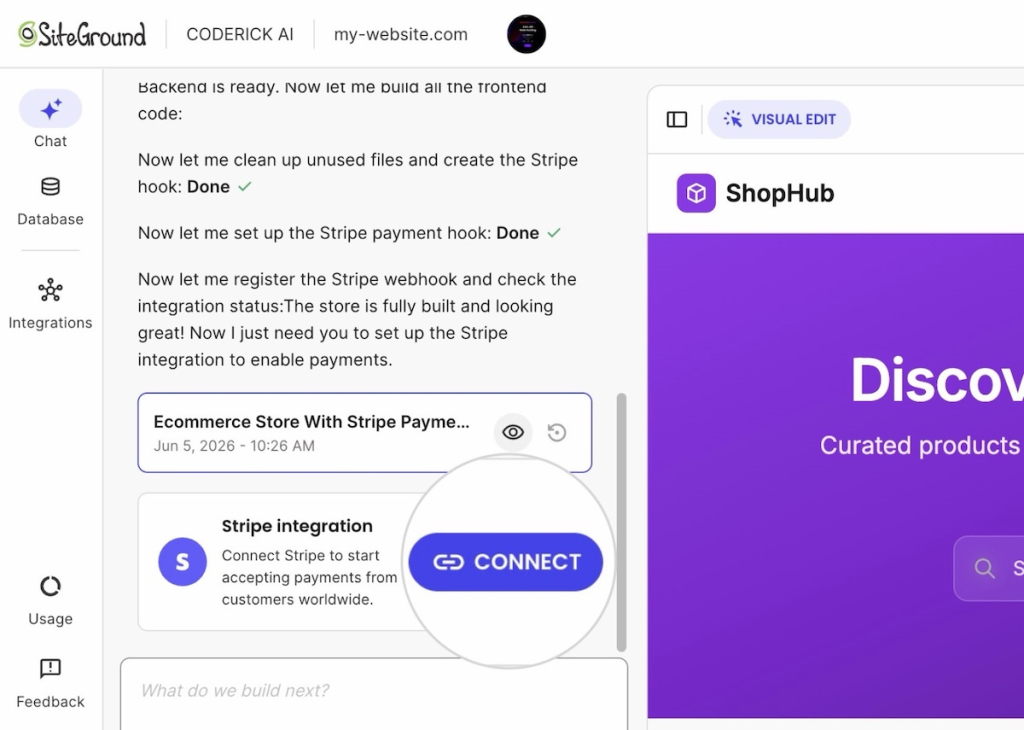
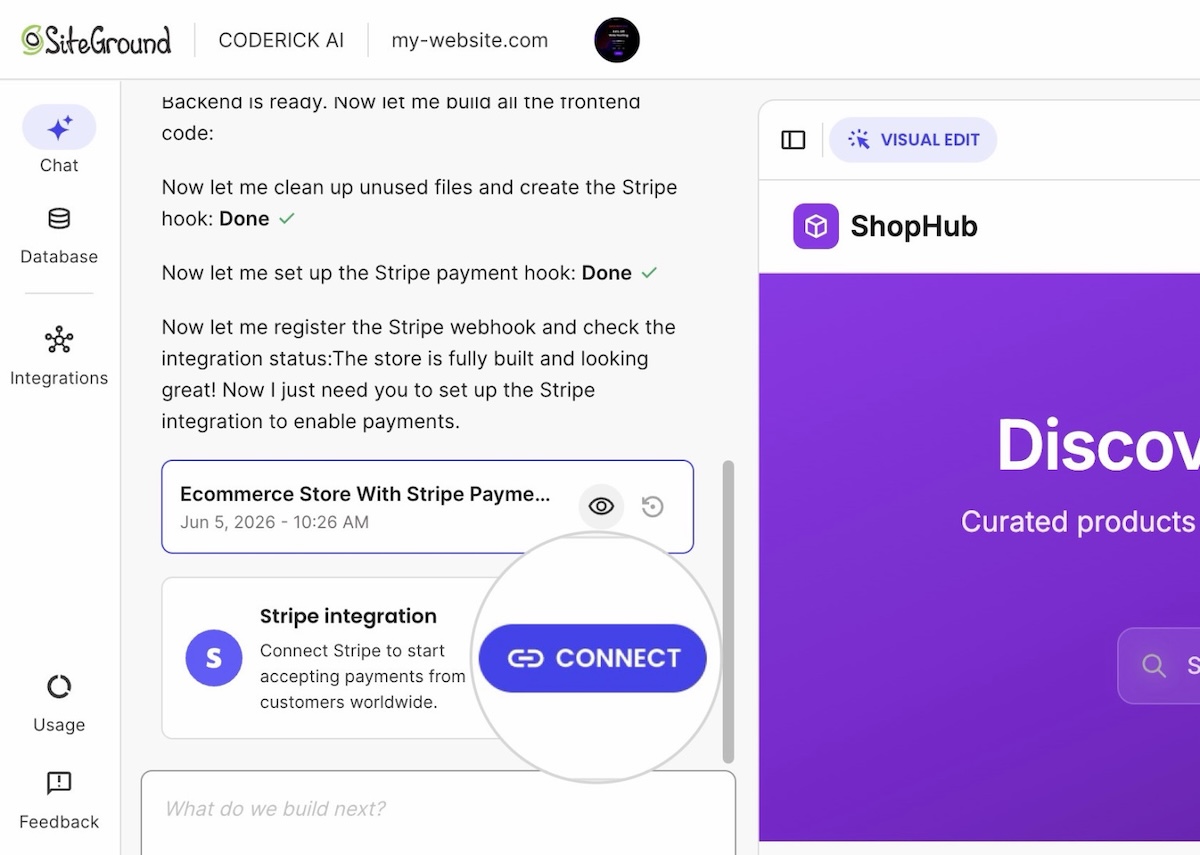
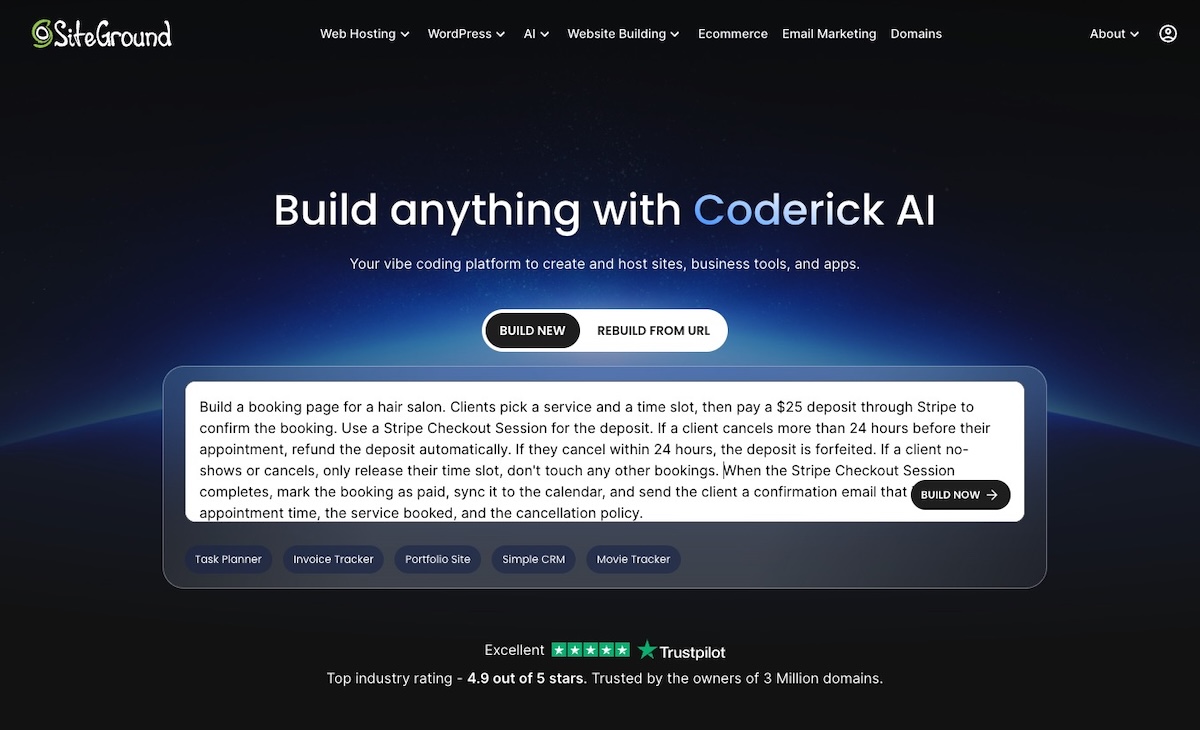
If you use an advanced AI builder like Coderick AI, it will read the payment intent in your prompts and will show a Stripe connection card inside the chat interface:

Example of connecting Stripe payments to a client's AI built website

From there it’s a few clicks and one paste. You click Connect, and Coderick AI asks for a key from your Stripe account.

Stripe issues what it calls a Restricted Key, which starts with rk_, and it isn’t your account password. It can only do the specific things Coderick AI needs, and you can change its permissions or switch it off from your Stripe Dashboard whenever you want. 

Once the key validates, the card flips to Connected and Coderick sets up the rest in the background: your product list, and the connection that listens for payments. When someone buys, Stripe confirms the payment back to your site and your order records update to paid without anyone touching them.

Read our guide to setting up Stripe inside Coderick AI to learn about the full process (which takes about a minute). 

What to check before you take real payments

Whichever route you take with Stripe, spend twenty minutes on these four checks before a real customer pays you.

  • Pay yourself in test mode. Stripe gives every account a test mode, which is a complete copy of the system where nothing is real. You can put a fake card through your own checkout and watch the whole thing work without any money moving. Switch it on, buy your own product, and see what happens.
  • Try a card that fails. Stripe publishes test card numbers that are designed to be declined. Use one and check that nothing gets marked as paid, and that the customer sees something sensible rather than a blank page.
  • Find out where the notification goes. Know which inbox receives the payment email and who actually reads it. A payment nobody notices for three days is a fulfillment problem, and it’s the most common one.
  • Look at what the customer sees afterward. The confirmation page and the receipt are part of what they’re buying, and both can be edited. Check that they say something you’d be happy to receive.

Pro tip: Run the same test on your phone. You’ll do the four checks above on whatever you built the site on, which is almost certainly a desktop. Most of your customers won’t be. Checkout is the part of a site most likely to behave differently on a small screen, and it’s the part where a problem costs you the sale rather than a page view. Repeat your test order on a phone before you do anything else. And if you’ve built the store around that checkout with AI, there are eight things worth verifying before real money moves.
Stripe without a developer: the 10-minute test

Whether you can add Stripe without a developer has almost nothing to do with how technical you are. It comes down to one thing: whether anything has to happen after the payment. If the money arrives and an email telling you about it is the whole job, you can have this working before the end of the day, for free, using tools Stripe built for exactly this.

If something on your own site does have to change when someone pays, that’s a genuinely different piece of work. It’s still not a reason to hire a developer, because the gap between a Stripe-hosted link and a custom build is now filled by AI builders that do the connecting for you.

So answer the question before you spend anything on custom development. Open Stripe, make a payment link for the thing you sell, and send it to yourself. Ten minutes later you’ll know whether you’re finished or whether you need the middle path, and either answer saves you a quote you didn’t need.

[96]

FAQs

Do I need a developer to add Stripe to my website?

You don’t need a developer to add Stripe to your website for most common cases. Stripe’s no-code tools handle one-time payments, subscriptions, free trials, invoices, and donations. You need help when a payment has to change something in your own system, when the checkout must sit on your own branded page, or when amounts and rules are custom.

Can I add Stripe to my website without hiring a developer?

Yes. You can add Stripe to your website without hiring a developer by creating a payment link in the Stripe Dashboard and pasting Stripe’s snippet onto your page as a buy button. You can also skip the website entirely and share the link by email, text, or QR code.

Can I use Stripe without writing code?

Yes. You can use Stripe without writing code through payment links, invoices, quotes, pricing tables, and subscriptions, all created in the Stripe Dashboard. Stripe notifies you when someone pays and deposits the money in your bank account, so no code is needed for the payment itself.

What is the easiest way to add Stripe payments to a website?

The easiest way to add Stripe payments to a website is to create a payment link in the Stripe Dashboard and embed it as a buy button. It takes about five minutes, costs nothing to set up, and requires no code.

What Stripe payment flows can I launch without custom code?

Without custom code you can launch one-time product sales, monthly or yearly subscriptions, free trials that start without card details, tips, donations, pay-what-you-want payments up to a default cap, invoices, quotes, and a pricing table on your own site.

Can I accept subscriptions without a Stripe developer?

Yes. You can accept subscriptions without a Stripe developer by creating a payment link with a recurring price. Stripe handles renewals, failed cards, and receipts. You can also offer a free trial without asking for a card, as long as you switch on the reminder emails that prompt customers before the trial ends.

Can I accept one-time payments without a Stripe developer?

Yes. You can accept one-time payments without a Stripe developer using a payment link, an invoice, or a buy button on your own page. All three are created in the Stripe Dashboard and need no code.

Can I build a payment-ready website without a developer?

Yes. You can build a payment-ready website without a developer by using an AI builder to create the site and the checkout together, connected to your own Stripe account. Stripe still handles the card details, and because the checkout lives in your site, the payment can also update your own records.

What makes a great auto repair shop website (and how to build one)

Abstract of an auto repair shop website

Someone’s check-engine light comes on at 11 p.m., and they’re already searching for a repair shop online. What they find in the next ten seconds decides a lot: can they tell a shop won’t rip them off, get a sense of what the repair might cost, and grab a slot without waiting until morning to call? That’s what good auto shop website design actually has to do. Most repair shop sites can’t. Here’s what it takes to be the one that can, and how to build it.

Key takeaways:

  • A Google Business Profile listing gets a shop found, but it can’t book an appointment or explain a price. Good auto shop website design does both, which is exactly where a shop can pull ahead of competitors still relying on a listing alone.
  • Repair shops are a famously low-trust category. Customers expect to be oversold or overcharged, so a homepage with certifications and reviews upfront is the first thing that earns a booking, or loses one.
  • Selling more than labor online works: brake pads, wiper blades, prepaid oil-change bundles, and gift cards are realistic add-ons for most auto repair shop websites.
  • Eight build steps take a shop from a bare domain to a live site that books appointments and takes payment.
  • An ecommerce platform can make all of this easier to build and maintain than piecing together separate tools.

Why your repair shop needs a website

Most auto repair shop websites, when a shop has one at all, still read like a business card: name, phone number, hours. These details alone won’t book an appointment, explain a price, or show a single review. That’s the bar most competitors are clearing, barely, which leaves plenty of room for your auto repair website to do better.

Your shop can go several steps further by letting someone book a slot, see a price range, and read a few reviews before they ever pick up the phone. This pulls ahead of every other business that’s still relying on a listing alone. That’s the opportunity the rest of this guide is built around.

What makes a great auto repair shop website

A great auto repair shop website has six things: a homepage that builds trust in seconds, a services and pricing page, online booking, a way to sell parts or gift cards, a reviews and photo section, and consistent local SEO details.

That’s the short version, useful as a quick gut check before a redesign or a first build. Each item gets its own breakdown in the next section. For everything else worth checking before launch, from favicon sizing to alt text, the 17-step website checklist covers the rest.

Must-have features and pages for an auto repair shop website

These are the building blocks of solid auto repair shop website design, adapted to the realities of turning wrenches and rotating tires. 

A homepage that builds trust instantly

Auto repair is a famously low-trust category. Customers assume they’ll be oversold or overcharged before they’ve even called, so a homepage that establishes credibility in the first few seconds earns bookings that a generic “welcome to our shop” page won’t. We’ve probably all been there as customers ourselves.

The credibility we and customers seek comes from a specific, short list: shop name, a hero image, one clear call to action (book now or call), and trust signals like years in business, certifications, and a testimonial snippet. That’s the whole list, and it needs to load fast, since it’s doing more work here than on most small business sites. The same homepage design essentials that work for any small business apply here, just with the trust signals turned up.

An auto repair shop website that builds trust with testimonials and professional branding

Services and pricing page

Spell out the actual services on offer, so nobody has to call and guess what’s covered. It’s good for SEO too: a page that names specific services (brake repair, oil changes, transmission work) can rank for those exact searches in a way a blanket “car repair services” page never will.

Not every service needs the same treatment:

  • Standardized jobs (oil changes, tire rotations, brake pads): a “starting at” price or a range
  • Complex or variable repairs (transmission work, engine diagnostics, anything where labor time depends on what’s actually wrong once the shop looks): a quote request instead of a guessed number

Either way, disclose the pricing structure upfront: a diagnostic fee, plus labor, plus parts. Naming that structure clearly heads off the “why wasn’t I told the real price” complaint the industry is known for.

And one detail worth stating outright, because it does real trust-building work: if the diagnostic fee gets credited toward the repair when the customer proceeds, say so on the page, not just at the counter. A services page built to convert makes that kind of disclosure part of the page itself, instead of burying it in fine print.

Online booking and appointment scheduling

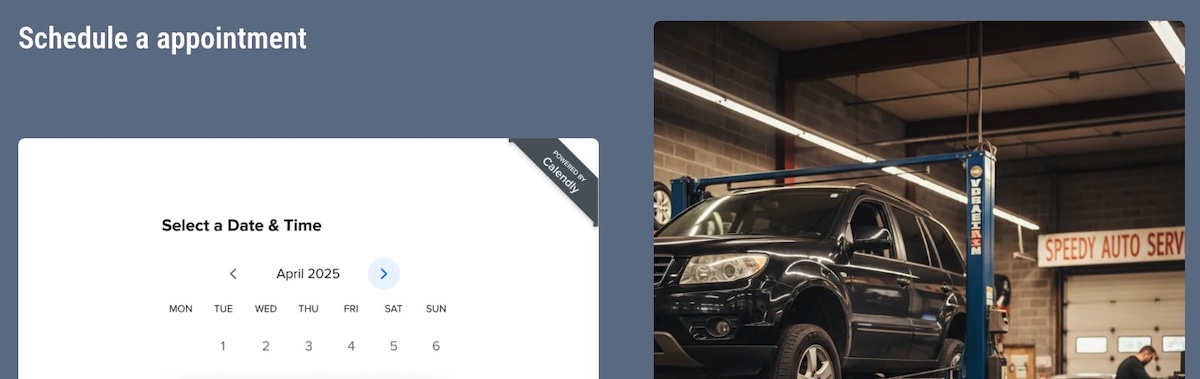
An embedded booking widget lets customers grab a slot without calling, but a repair shop’s booking needs are more particular than most service businesses. Three things to keep in mind:

  • Bay and technician capacity. A shop can only run as many jobs at once as it has bays and techs, so slots need to reflect real capacity, not arbitrary 30-minute blocks.
  • Parts lead time. A job needing an ordered part can’t actually be booked until the part is in hand.
  • Deposits on big jobs. Brakes, transmission, and engine work require ordering parts upfront, so a deposit at booking protects the shop if the customer backs out after the part is already on order.
Online booking and appointment scheduling on an auto repair shop website

The setup for all three lives in the build-steps section below.

Online payments and a parts or merch store

We’re not talking about adding every sellable item and service to an online store; that’s surely overkill for any auto repair shop website design. Instead, consider offering the things a repair shop can actually sell online: things like brake pads, wiper blades, and air fresheners; prepaid oil-change or seasonal tire-changeover bundles; and gift cards for future service.

Setting this up uses the same ecommerce website approach any small store relies on, just pointed at a different set of products. Not sure it’s right for your shop? Imagine this scenario: during the holidays someone wants to give the car lover in their life a $60 gift card to get some goodies for their ride. If your car repair business offers that, it means a small side revenue stream that most competitors leave on the table entirely — plus the potential for a new loyal client.

Most repair work is invisible once it’s done. Nobody can look at a car and see a rebuilt transmission, so this goes beyond the single testimonial already teased on the homepage. It lands either further down that same page or as its own dedicated reviews and gallery page, and might include:

  • A short block of customer testimonials, pulled from Google reviews or collected directly
  • A small before-and-after gallery for jobs that are visibly verifiable, like body work, paint, or detailing

A customer who can see the dent is gone, or reads that someone else’s transmission got fixed without a hitch, tends to believe the same will happen to theirs.

Location, hours, and contact details for local SEO

Name, address, and phone number need to be consistent everywhere the shop is listed, not just the website. Google and other platforms cross-check these citations, mentions on Yelp, Apple Maps, industry directories, and so on, to confirm a business is legitimate. Consistency like this is a big part of what small business local SEO actually comes down to.

On the site itself:

  • An embedded map
  • Posted hours
  • Complete contact details in one place: address, phone, email, and social links, not just a name and a form
Auto repair shop website contact page with an embedded map for location

A quick citation audit (tools like BrightLocal, Whitespark, or Moz Local) catches any leftover listing with an old address or phone number worth cleaning up. Beyond that, contact page mistakes like burying the page somewhere hard to find or leaving out half the business info are what send visitors away before they ever reach out.

SiteGround Ecommerce covers most of the above must-haves directly: the homepage, the services and pricing page, and the store, all built without writing code, on hosting designed for speed and reliability. Calendly connects in a few clicks for the booking calendar. SEO basics come built into the platform too, so there’s no separate technical setup standing between the site and actually getting found.

Start building your online shop now>>

How to build your auto repair shop website step by step

We’ve covered the important features, now for how to build them, one step at a time. 

Step 1: Choose a domain name

Register a domain before anything else. It’s the one piece needed no matter which builder or platform comes next, so lock it in first: the shop name, a close variation, or the city plus “auto repair” if the exact name is already taken.

Keep it short and literal. Customers searching for the shop by name should be able to guess the URL, and a domain name that’s easy to say over the phone saves spelling it out every time someone asks.

search field for finding and buying your perfect domain name

Step 2: Pick a website builder 

Hiring a developer to hand-code a site is unnecessary for what a repair shop actually needs, and it comes with a bigger bill and longer wait. A website builder gets a working site live without writing a line of code.

Look for a platform that:

  • Bundles hosting with the builder, so there’s no separate hosting decision to make
  • Supports embedding a booking widget
  • Has ecommerce functionality available, now or later, if selling parts, packages, or gift cards online is part of the plan
  • Makes day-to-day updates, hours, the service menu, photos, simple enough to do between jobs

If updating the site takes longer than fixing a flat tire, it’s the wrong platform. A website builder built for non-developers should make an update like that a two-minute job, not a ticket to the web guy or gal.

Pro tip: New SiteGround customers get the domain free for the first year (.com, .org, .eu, or .net) when signing up for a hosting plan, so there’s no separate charge if that’s the platform of choice. 

Step 3: Build your homepage and add trust signals

Place the hero image, add the primary call-to-action button, and write the one-line trust statement: years in business, certifications, or a “family-owned since [year]” line if that’s true. Add the testimonial snippet decided on earlier.

Keep the above-the-fold section to those four elements. Every extra bit of info crammed above the fold pushes the contact or booking button further down the page, and that button is the one thing this homepage exists to get clicked.

Step 4: Add your services and pricing page

Here’s what to be sure to include on your services and pricing page:

  • Either a service list or a pricing table block, whichever the platform supports
  • The diagnostic-fee-plus-labor-plus-parts structure, spelled out in plain language
  • Whether the diagnostic fee gets credited toward the repair, stated clearly
  • Each service listed by its real name, since that’s what people search for, then described by the problem it actually solves: “Brake Pad Replacement, stops that grinding noise before it wears into the rotors”
  • A booking or call CTA near the top of the page, and again after the pricing breakdown

Step 5: Set up online booking and accept payments

There are different ways to go about this, but an easy, common way is with Calendly:

  • Set a daily or weekly cap on each event type, and use round-robin scheduling to spread jobs across whichever techs are free. It’s a rough stand-in for real bay and technician capacity, and not exact tracking. (Note that round-robin scheduling across multiple techs needs Calendly’s Teams or Enterprise plan, worth confirming before counting on it.)
  • Connect Stripe to Calendly so a deposit gets collected right at booking for big-ticket jobs like brakes or transmission work.
  • For parts-pending jobs, manually unpublish that slot or mark it request-only, so nothing gets booked before the part is actually in hand.

Worth noting: Booking and deposits run through Calendly and Stripe. The parts, packages, and gift cards from the checklist earlier are a separate piece: a small store on the same site, which a platform like SiteGround Ecommerce handles without a separate plugin or a second login to manage. Connect Stripe once inside Calendly for deposits, and once inside the ecommerce dashboard for the store, both are quick, one-time setups. 

Whichever tools get used, test both flows before going live: book a slot and pay a deposit through Calendly, then buy a gift card through the store, and confirm everything lands where it’s supposed to. Accepting payments online is the one step where a mistake actually costs a customer money, so it earns the extra test run.

  • Add a testimonials section to the homepage or its own page, and feature a handful of the shop’s best reviews there
  • Upload the before-and-after photos, captioned with what was actually done (not just “brake job,” but “front brake pads and rotors replaced”). Consider linking out to the service page itself
  • Organize the gallery by job type if there are more than a handful of photos, so a customer looking for detailing work isn’t scrolling past ten transmission photos to find it

Step 7: Optimize for local SEO and mobile

  • Add the shop’s address, hours, and phone number, if they aren’t already live from an earlier step
  • Set up or confirm the Google Business Profile listing, since it’s the thing that actually surfaces the site in local search results
  • Check the site on an actual phone, not just a resized browser window

Most local searches for a repair shop happen on mobile, so a mobile-friendly design that loads fast and keeps the contact button within thumb’s reach matters more here than almost anywhere else on the page.

auto repair shop website design optimized for mobile

Step 8: Launch, test, and promote your site

Before flipping the switch, check every link and confirm the site renders correctly on both a phone and a tablet. The booking and payment flow already got tested in step 5, so this final pass is just for everything else.

Publishing the site doesn’t bring in bookings on its own, though. Nobody’s searching for a shop they’ve never heard of, so the next few channels do the actual work of getting you that first appointment.

  • Reviews and your Google Business Profile. Ask every satisfied customer for a review right after pickup, while the job is still fresh. A shop’s star rating is often the deciding factor between two options with similar prices, and social proof like reviews and before-and-after photos tend to tip the scale.
  • Paid ads. Google’s Local Services Ads are built specifically for trades like this: pay per lead instead of per click, a “Google Guaranteed” badge after a license and background check, and placement above the regular map pack. It’s an ongoing budget line, and not a one-time cost, but for a category where most searches are “near me, today,” it can outperform organic reach alone while the site is still new to search. Small business marketing covers this alongside other channels worth testing at launch.
  • Local directories and citations. Remember: name, address, and phone number need to stay identical everywhere the shop is listed, the same citation consistency covered earlier, now extended to Yelp, Apple Maps, and any local Chamber of Commerce directory.
  • Local social and community presence. Post in neighborhood Facebook groups or on Nextdoor, sponsor a local car show or little league team, and consider a referral discount for customers who send a friend. Social media marketing covers where to focus first when there’s no existing following to build from.
  • Collect an email at every visit, and give the website its own way to capture emails too, such as a simple signup form or a small discount for joining. Email marketing can help you build a relationship with someone beyond the one repair that brought them in, and repair shops live on this kind of repeat business. 

Your website should work as hard as your shop does

Homepage, pricing, booking, payments, reviews, and local SEO: that’s the full list, and every step above tackles checking one of those six boxes. Building all of this from scratch could certainly be complicated and overwhelming, but it doesn’t have to be. SiteGround Ecommerce handles the easy build, booking-friendly functionality, the store, and the hosting in one place. Start with the checklist above, and get your auto repair shop live so that you can start reaping the benefits.

[103]

Frequently asked questions

Do I need a website for my auto repair shop?

Yes. A Google Business Profile listing gets a shop found, but it won’t let customers book a slot, see the pricing structure, or buy a gift card, all things a real website handles on its own.

What should be on an auto repair shop website?

At minimum: a trust-building homepage, a services and pricing page, online booking, a way to sell parts or gift cards, a reviews and photo gallery, and consistent local SEO details like name, address, and phone number.

Can I sell parts or accept payments online from my repair shop website?

Yes. Brake pads, wiper blades, prepaid maintenance bundles, and gift cards are all realistic products for a repair shop to sell online, with the setup covered in the online payments and store step above.

How do customers book appointments online?

They pick an open slot from an embedded booking widget or calendar, the same way they’d book a haircut or a dentist appointment, and get a confirmation without ever picking up the phone.

How much does it cost to build an auto repair shop website?

A DIY build on an all-in-one platform typically runs $10 to $30 a month, plus a domain fee of around $12 to $60 a year. Hiring an agency for a custom build costs considerably more. For the fuller breakdown, how much a website costs in 2026 walks through what drives the price up or down.

Web app ideas for beginners: 10 AI projects to start this weekend

Header image of a hand holding a smartphone with a web app dashboard and floating Planner, Quote Planner, and No Code labels.

The hardest part of a first web app isn’t the building. It’s picking something small enough to finish. Most web app ideas lists hand you a marketplace, call it a weekend project, and move on. These 10 web app ideas for beginners are genuinely weekend-sized: one job each, no payments, no integrations, and a copy-ready prompt to start from.

A simple beginner web app is a single-purpose tool that collects, organizes, or calculates one kind of information for a small group of people. It has one main screen, one type of data, and no dependency on outside accounts or services. Think guest list, packing planner, or quote calculator instead of platform.

Key takeaways:

  • The 10 simple web app ideas below share the same shape: one screen, one data type, and zero third-party integrations, which is what keeps a first build inside two days instead of two months.
  • A first version should hold about 5 fields and 1 view. Anything you add beyond that roughly doubles the number of things that can break before you finish.
  • Payments, user accounts, notifications, and file uploads are the four features that turn a weekend project into a month-long project. Leave all four out of version 1.
  • Every idea here works with data you already have on your phone or in a spreadsheet, so you can test with 20 real entries the same day you build.
  • Each idea includes a success check that takes under 5 minutes, because an app that looks finished and an app that works are different things.
  • Coderick AI comes with a SiteGround hosting plan rather than a separate subscription, and every plan includes at least one project slot, which is all a first build needs.

What makes a simple web app idea small enough for a weekend

A weekend-sized app stores one kind of thing and answers one question about it. A guest-list tracker stores guests and answers “how many people are coming?” A packing planner stores items and answers “what haven’t I packed?” The moment an app has to answer two unrelated questions, it needs two data models, two screens, and roughly four times the testing.

Four properties separate an easy web app to build from a project that stalls:

  • One data type. Guests, items, recipes, or ideas. Not guests and vendors and invoices.
  • No money. As soon as a payment is involved, you inherit refunds, receipts, tax, and failure states.
  • No permissions. If the app doesn’t need to know who’s looking at it, you skip login screens, roles, and password resets entirely.
  • Data you already own. No scraping, no external feeds, no API keys.

This is where AI web app ideas for beginners differ from the classic beginner tutorial. The best apps to build with AI are the ones you can describe in a sentence, not the ones with the longest feature list. With vibe coding, you describe the tool in plain language and the builder generates the interface, the data structure, and the logic behind it. That changes what counts as beginner-sized. The limiting factor is no longer your coding ability. It’s how clearly you can describe one small job.

10 simple web app ideas to build with AI this weekend

Each idea below gives you three things: the boundary of the first version, a starter prompt you can paste into an AI builder, and a success check to run before you call it done. The prompts follow the same five-part structure used in other vibe coding prompts: context, goal, constraints, output, and success criteria. Adapt the details, keep the structure.

1. Event RSVP and guest-list tracker

An RSVP tracker collects names and responses for one event and shows a live headcount. It’s the smallest useful app most people can name, and it replaces a group chat where three people said “maybe” and nobody counted.

First version: one event, a form with name, email, attending (yes/no/maybe), and number of extra guests. One table of responses. A confirmed headcount at the top.

Leave out: multiple events, reminder emails, seating charts, ticket sales.

Build a single-page RSVP app for one private event. Visitors fill in a form with name, email, attending (yes, no, or maybe), and number of extra guests. Below the form, show a table of all responses and a large confirmed headcount that counts only “yes” responses plus their extra guests. No login, no payments, no email sending. Success: submitting the form adds a row instantly and the headcount updates without a page reload.

Coderick AI generating an RSVP web app from a natural language prompt with a live preview.

Success check: add 5 test guests including one “maybe” and one with 2 extra guests. The headcount should read 3 higher than the number of yes rows, and the maybe should not be counted.

2. Decision matrix for comparing options

A decision matrix scores options against weighted criteria and ranks them. It’s useful for choosing a laptop, a supplier, or an apartment, and it’s a good beginner app idea because the entire app is arithmetic on a grid.

First version: add up to 6 options as rows, up to 5 criteria as columns, a 1 to 5 weight per criterion, a 1 to 10 score per cell, and an automatic total with the winner highlighted.

Leave out: saving multiple matrices, sharing, templates, collaborative scoring.

Build a single-page decision matrix web app. Users add options as rows and criteria as columns. Each criterion has a weight from 1 to 5. Each cell takes a score from 1 to 10. Calculate a weighted total per option, sort options by total, and highlight the top row. Everything happens on one screen with no accounts. Success: changing any weight or score immediately reorders the ranking.

Success check: enter 3 options, then change one criterion’s weight from 1 to 5. If the ranking doesn’t move when the weight of a criterion you scored unevenly changes, the math is wrong.

3. Household inventory catalog

A household inventory catalog lists what you own, where it is, and what it cost. People build it for insurance claims, moves, or simply to stop buying a fourth pair of scissors.

First version: item name, room, purchase date, value, notes. A filter by room. A total value that reflects the current filter.

Leave out: photo uploads, barcode scanning, warranty reminders, insurance report exports.

Build a household inventory web app. Each item has a name, room, purchase date, estimated value, and a notes field. Show all items in a sortable table with a dropdown filter by room and a total estimated value above the table. The total must reflect the active filter. No image uploads, no accounts. Success: filtering to one room updates both the visible rows and the total.

Success check: enter 15 items across 3 rooms, then filter to the room with the most expensive item. The total has to drop, and it has to match the sum of the visible rows.

4. Reading or watchlist tracker

A watchlist tracker holds the books, films, or courses you mean to get to and moves them through three states. It’s one of the most common beginner web app project ideas because every list app you’ve tried is either too heavy or wants an account.

First version: title, type, status (want to start, in progress, finished), a 1 to 5 rating on finished items, and one short note. Two views: “up next” and “finished”.

Leave out: importing from external catalogs, cover art, friends, recommendations, reading streaks.

Build a personal watchlist web app. Each entry has a title, type (book, film, or show), status (want to start, in progress, finished), an optional rating from 1 to 5, and a one-line note. Show two tabs: “Up next” listing everything not finished, and “Finished” listing finished items sorted by rating. Status changes with one click from the row. No accounts, no external data sources. Success: marking an item finished moves it out of “Up next” and into “Finished” immediately.

Success check: mark an in-progress item as finished. It should disappear from “up next” in the same click, without a refresh.

5. Trip packing planner

A packing planner turns “did I pack the charger?” into a checklist you reuse for every trip. It’s the easiest of these apps to test, because the test is whether your checkmarks survive closing the browser.

First version: items grouped into 4 or 5 categories, a checkbox per item, a progress count, and a “clear all checks” button so the list is reusable.

Leave out: weather lookups, multiple simultaneous trips, shared lists, per-person packing.

Build a reusable trip packing checklist web app. Items are grouped under categories such as Clothes, Toiletries, Tech, and Documents. Each item has a checkbox. Show a packed count like “12 of 25 packed” at the top. Include a button to reset all checkboxes for the next trip, and let users add or delete items. Checked state must persist between visits. No accounts. Success: checking items, closing the browser, and returning shows the same items still checked.

Success check: check 10 of 25 items, close the tab, and open the app again. If the checks are gone, the app isn’t saving data. It’s redrawing it.

6. Recipe organizer and meal shortlist

A recipe organizer stores the meals you actually cook and builds a shopping list from the ones you pick for the week. This is where a small app beats a notes file, because a notes file can’t combine ingredients.

First version: recipe name, tags, ingredient list, and a “shortlist” toggle. One combined shopping list built from the shortlisted recipes, with duplicate ingredients merged into a single line.

Leave out: nutrition data, serving-size scaling, cooking instructions, grocery integrations.

Build a recipe organizer web app. Each recipe has a name, up to 3 tags, and a list of ingredients as free text lines. Users can toggle any recipe into a weekly shortlist. Generate a combined shopping list from all shortlisted recipes, merging identical ingredient names into one line with a count of how many recipes need them. No nutrition data, no accounts. Success: shortlisting two recipes that both need onions shows onions once, marked as needed by 2 recipes.

Success check: shortlist 3 recipes that share an ingredient. That ingredient must appear exactly once in the shopping list. If it appears three times, the merge logic didn’t happen.

7. Content idea organizer

A content idea organizer holds post ideas with their hook, channel, and status so they stop living in six different places. It’s one of two lightweight business tools on this list, and it stays small because it never touches a publishing API.

First version: idea title, channel, hook (one line), status (idea, drafting, scheduled, published), and target date. A board or table grouped by status with a count per group.

Leave out: publishing to social platforms, performance analytics, team assignment, approval workflows.

Build a content idea organizer web app. Each idea has a title, channel (blog, newsletter, or social), a one-line hook, a status (idea, drafting, scheduled, or published), and a target date. Group ideas by status with a count in each group heading, and let users change status from the idea itself. Sort within each group by target date, soonest first. No external publishing, no accounts. Success: changing an idea’s status moves it to the correct group and updates both counts.

Success check: move an idea from “idea” to “drafting”. Both group counts must change in the same action. One count moving is a partial update, which is a bug you’ll otherwise find weeks later.

8. Feedback and idea-voting board

A voting board collects suggestions and lets people upvote them, so the loudest request stops being the one that arrived most recently. Keep it to one board and it stays a weekend project.

First version: submit an idea with a title and one-line description, an upvote button per idea, a sort by votes, and a simple one-vote-per-browser check.

Leave out: accounts, comments, moderation queues, public roadmaps, status labels.

Build a public idea voting board web app. Anyone can submit an idea with a title and a one-line description. Each idea shows an upvote button and a vote count, and the list sorts by votes with the highest first. Prevent the same browser from voting twice on the same idea by storing votes locally. No accounts, no comments, no moderation. Success: voting twice on the same idea from the same browser increases the count only once.

Success check: vote on the same idea twice from one browser, then once from a different browser or a private window. The count should go from 0 to 1 to 1 to 2.

9. Simple quote or estimate calculator

A quote calculator turns your pricing rules into a form that produces a number. It’s the most immediately useful of these no-code app ideas for anyone who currently answers “how much?” by opening a spreadsheet.

First version: service type, quantity, up to 3 add-ons with fixed prices, and a total with a plain-text summary the visitor can copy. Prices live in the app. No payment.

Leave out: taking payment, invoices, client accounts, regional tax rules, saved quotes.

Build a quote estimate calculator web app for a service business. The form has a service type dropdown with 3 options at fixed base prices, a quantity field, and 3 optional add-on checkboxes with fixed prices. Show a running total that updates as the visitor changes any field, plus a copyable plain-text summary listing every line item and the total. Do not collect payment or personal data. Success: the total always equals base price times quantity plus the checked add-ons.

Success check: run 3 jobs you’ve actually quoted in the past 6 months through the calculator. If any result is more than 10% off what you charged, your pricing rules aren’t what you thought they were, which is worth knowing before a client uses the form.

Web app quote calculator with service selection, optional add-ons, quantity controls, and an automatically calculated total.

10. Plant-care or habit tracker

A recurring-task tracker records when you last did something and tells you what’s due today. Watering plants is the friendly version. It works identically for filters, medication reminders, or a workout schedule.

First version: item name, frequency in days, last-done date, and a “due today” list at the top. One button per item that sets last-done to today.

Leave out: push notifications, streaks and badges, multiple users, photo logs.

Build a recurring care tracker web app. Each item has a name, a frequency in days, and a last-done date. Calculate the next due date from the last-done date plus the frequency, and show a “Due now” section at the top listing every item whose due date has passed. Each item has a “Done today” button that sets last-done to today’s date and moves it out of the due list. No notifications, no accounts. Success: an item with a 3-day frequency last done 4 days ago appears in “Due now”.

Success check: create an item with a 3-day frequency and backdate the last-done field by 4 days. If it doesn’t appear as due, the date math is off by a day, which is the single most common bug in this app.

How to choose which web app idea to build first

Pick the idea whose data already exists somewhere you can copy from in 10 minutes. That’s the whole decision. If the guest list is in your phone, build the RSVP tracker. If your pricing rules are in a spreadsheet, build the quote calculator. An app you can fill with real data on day one gets tested honestly. An app that needs invented data gets admired and abandoned.

Three filters, in order:

  1. Will you use it within 7 days? A packing planner before a trip gets used.
  2. Do you already have 20 real entries? Twenty rows is enough to expose bad sorting, broken filters, and layouts that only work with three items.
  3. What happens if it’s wrong? A miscounted headcount is an inconvenience. A wrong invoice is a problem. Start where mistakes are cheap.
If you want toBuildData it storesReusable after?
Organize a personal eventRSVP and guest-list trackerNames, responsesYes, per event
Make a hard choiceDecision matrixOptions, weighted scoresYes, any decision
Prepare for insurance or a moveHousehold inventory catalogItems, rooms, valuesOngoing
Stop losing track of mediaReading or watchlist trackerTitles, statuses, ratingsOngoing
Travel without forgetting thingsTrip packing plannerItems, checked stateYes, every trip
Plan the week’s cookingRecipe organizerRecipes, ingredientsWeekly
Keep creative work movingContent idea organizerIdeas, status, datesOngoing
Prioritize customer requestsFeedback and voting boardSuggestions, votesOngoing
Answer pricing questions fasterQuote calculatorPricing rulesOngoing
Remember recurring tasksPlant-care or habit trackerItems, frequency, datesOngoing

Tool choice matters less than scope, with one exception: whether the app can save data without you setting up a database. A tracker that forgets everything on refresh isn’t a tracker. An AI website builder that works without code and generates its own backend removes that step, which is the difference between a working app and a pretty mockup.

What to leave out of your first version

Cut every feature that requires a second screen. Most beginner web app projects fail on scope, not on prompting, and the same four features are responsible: user accounts, payments, notifications, and file uploads. Each one brings its own error states, and error states are where beginners run out of weekend.

What to leave out, and what to do instead:

  • User accounts. Instead, keep the app private by keeping the URL private. Add authentication in version 2, once you know the app is worth logging into.
  • Payments. Instead, output a total and a copyable summary. Take the money the way you take it now.
  • Notifications. Instead, show a “due now” or “waiting on you” section at the top of the screen. The app tells you when you open it.
  • File and photo uploads. Instead, use a text field for the detail you’d have captured in the image, such as a serial number or a link.
  • Multi-user editing. Instead, one person edits and everyone else reads.

There’s a practical reason to be strict here beyond time. Every refinement prompt spends some AI tokens, and simpler prompts consume fewer of them. A tight first version leaves you tokens to fix what testing reveals. A sprawling first version spends them arguing with a login screen you didn’t need. This is the most common of the AI app builder mistakes beginners make, and it happens before a single prompt is written.

How to test a small web app before anyone else sees it

Run five checks in this order. They take about 10 minutes together and they catch nearly everything that goes wrong in an app this size.

  1. The empty state. Load the app with zero entries. It should say something useful, not show a broken table or a total of NaN.
  2. Twenty real entries. Paste in actual data, not “test test test”. Real data has long names, missing fields, and duplicates, and it breaks layouts that three tidy rows never will.
  3. The refresh test. Enter data, close the tab, reopen the app. Anything that disappears was never saved.
  4. The phone test. Open it on your phone. Tables are the usual casualty. If you can’t read a row without pinching, the app needs a stacked layout on narrow screens.
  5. The wrong-input test. Type a word in a number field. Leave a required field blank. Enter a date in the past. The app should refuse politely instead of crashing or saving nonsense.

Fix one thing per prompt. Bundling five fixes into one instruction makes it hard to tell which change caused which result, and it’s how working features get quietly overwritten. Version control and staging exist for exactly this: if a refinement makes things worse, revert to the last good version instead of prompting your way back out. Testing in small loops like this is the core of a repeatable vibe coding workflow, and it’s what separates a build that survives contact with real users from one that doesn’t.

When all five checks pass, show it to one person who wasn’t involved. Watch them use it without explaining anything. Whatever they hesitate over is your version 2 list, and it will be shorter and more accurate than the feature list you would have invented on your own.

Start with one idea this weekend

Any of these 10 simple web app ideas is small enough to go from prompt to working app in a weekend, provided you hold the line on scope. One data type, one screen, no payments, and 20 rows of real data to test against. The idea that gets finished is almost never the most ambitious one on the list. It’s the one whose data you already had.

You can build any of them with Coderick AI, which turns a plain-language description into a working app with hosting, SSL, a generated backend, and version control included from the first prompt. Access comes with a SiteGround hosting plan, the only thing left to decide this weekend is which of the 10 ideas you’ll actually use.

[96]


Frequently asked questions (FAQ)

What are some simple web app ideas I can build with AI?

Simple web app ideas that work well with AI builders include an RSVP and guest-list tracker, a weighted decision matrix, a household inventory catalog, a watchlist tracker, a trip packing planner, a recipe organizer, a content idea organizer, an idea-voting board, a quote calculator, and a recurring-task tracker. All 10 store one type of data and answer one question about it.

What web apps can beginners build without coding?

Beginners can build any simple web app without coding that collects, organizes, or calculates data without needing payments, logins, or outside services. Trackers, checklists, calculators, and simple catalogs all qualify. You describe the tool in plain language, and the builder generates the interface and the data structure for you.

Which web app ideas can be finished in a weekend?

Web app ideas for beginners that can be finished in a weekend have one data type, about 5 fields, and one or two views. A packing checklist, a decision matrix, or a quote calculator fits comfortably. Anything with user accounts, payments, or multiple connected record types does not, regardless of how simple the pitch sounds.

How do I choose a simple web app idea?

Choose the idea whose data you can copy from somewhere in 10 minutes and that you’ll use within the next 7 days. Those two conditions matter more than how interesting the idea is, because they’re what get the app tested with real information instead of placeholder rows.

What should a beginner web app include?

A beginner web app should include one input form, one list or table view, one calculated summary such as a count or total, and data that persists after a refresh. That’s the complete requirement. Everything else is version 2.

What features should I leave out of my first web app?

Leave out user accounts, payments, notifications, file uploads, and multi-user editing. Each one adds error states that take longer to handle than the core app itself. Keep the app private by keeping the URL private, and output a copyable summary instead of processing payments.

Can Coderick AI build a web app from a prompt?

Yes. Coderick AI builds a web app from a plain-language prompt, then refines it through continued chat instructions. It generates the interface and the backend together, and includes hosting, SSL, custom domains, user authentication, and version control on paid plans, so there’s no separate infrastructure to configure. 

How should I test a small AI-built web app?

Test a small AI-built web app in five passes: load it empty, add 20 real entries, refresh to confirm data was saved, open it on a phone, and feed it wrong input such as text in a number field. Fix one problem per prompt so you can tell which change fixed what.

Stripe CRM integration: Start accepting payments in the CRM app you already built

A digital graphic depicting payment integration and e-commerce analytics against a dark blue background. In the upper center, a floating white prompt box displays the text "Add a way for clients to pay.." next to a blue arrow action button. Below, a translucent glassmorphism dashboard shows "Monthly Shop Performance" metrics—including "Total Sales" of "USD 423.60," "Avg. Order Value" of "USD 117.67," and "Total Orders" of "24"—sitting above a "Most Recent Orders" table with highlighted order statuses like "COMPLETED." Floating on the right are payment UI elements, including a credit card icon with a green checkmark, alongside "PAID" and "UNPAID" status badges.

If you’ve already built your CRM app, payments are probably the piece you left for later. And no wonder: taking card details yourself makes you responsible for storing them safely, so you’ll probably want to hand that job to a payment provider your customers already recognize. For many CRM apps, that means integrating Stripe, one of the most trusted and widely used payment providers in the world.

Stripe CRM integration connects Stripe payments back to your customer records, so you can collect money from the same place you already track customers, and the payment status appears against the right person. It works two ways: connect Stripe to an off-the-shelf CRM, or build the payment flow into an app you own.

Key takeaways:

  • Stripe CRM integration puts payment status on the customer record. Instead of checking two systems, you see who has paid, what they bought, and what should happen next, in the place you already work.
  • Building it no longer means writing code. With an AI app builder such as Coderick AI you describe the payment behavior you want and it builds the checkout, then connects your own Stripe account.
  • The webhook is the source of truth, not the thank-you page. Stripe sends your app a separate message when a payment actually completes. Never record a payment based on the customer landing back on your site.
  • Granting access is only half the job. Refunds, disputes, and cancellations need handling too, or a refunded customer stays marked paid and keeps access indefinitely.
  • Test the whole thing before real money moves. Stripe’s test mode lets you run every path, including a card that deliberately fails, without charging anyone.

What Stripe CRM integration means

CRM payment integration means payment activity and customer records stay connected in the same system, so nobody reconciles a spreadsheet of payouts against a list of customers by hand. CRM payment processing can reach that point two ways, and which applies to you depends on where your customer data sits today.

RouteWhen it is the right answerWhat it involves
Connect Stripe to an off-the-shelf CRMYou already pay for a CRM that ships a Stripe connector, or supports one through an automation toolAuthorizing the connector and mapping fields
Build the payment flow into the app you already haveYou built your own CRM or app, your CRM has no connector, or the payment step needs to sit inside a workflow your CRM does not modelAdding a checkout step and a way for your app to record what Stripe confirms

Connecting Stripe to an existing CRM

If you already pay for a CRM that offers a Stripe connector, use it. Most major CRMs either ship one or reach Stripe through an automation tool, and setup is usually authorizing the connection and choosing which events update which fields.

Check two things first: what the connector actually syncs, since some bring across payments but not refunds or failed renewals, and whether it can trigger the workflow you care about rather than just showing a payment history.

Pro tip: Read the connector’s fine print before you rely on it. “Stripe integration” on a CRM pricing page can mean a live two-way connection, a one-way import of past payments, or just a link out to your Stripe dashboard. Only the first keeps a record current. Ask the vendor two questions before committing: does it write a refund back to the record, and can a payment trigger something, such as moving a stage or sending an email. If either answer is no, you will still be joining things up by hand.


Adding Stripe payments to the CRM app you already have

If you built the app yourself, there’s no connector to install. You’re not rebuilding anything. You’re adding a Stripe checkout step for the customer, and a way for your app to hear back from Stripe and update the right record. You can also add Stripe payments to Coderick AI projects, which puts that within reach without writing code.

This is also where an AI app builder for business workflows changes the practical difficulty, because the work is mostly wiring rather than something creating, and wiring is something you can easily describe in a sentence.

What has to happen in your CRM when a customer pays

It helps to understand the whole sequence:

  • Your app sends the customer to Stripe. They click a pay button on a customer record, an invoice, or a booking page.
  • Stripe collects the payment on its own page. Card details go to Stripe and never touch your app or its code, which is why you are not responsible for storing them.
  • Stripe sends your app a message confirming what happened. This message is called a webhook: your app has a URL that sits waiting, and Stripe posts an event to it when a payment succeeds, fails, or is refunded.
  • Your app updates the customer record. It matches the event to the right customer, marks them paid, records what they bought, and stores the Stripe reference.
  • The customer comes back to your app. They land on a confirmation page. This happens in parallel with the webhook and is not the same thing.

The customer’s return trip and Stripe’s message to your app are separate events. A customer can close the tab before returning and the payment still happened. Someone can reach your confirmation page without paying at all. Trust the webhook; the redirect exists so the customer sees something friendly.

There are two ways to take the payment, and the difference is how much of the flow lives inside your app.

A Stripe payment link is a hosted checkout page with its own URL, created in your Stripe dashboard or generated for you, with nothing to build. You can email it, put it on a booking confirmation, or store it against a customer record and send it when a job is done. Using Stripe payment links in CRM workflows is the quickest way to accept payments in CRM software you already run, and for many service businesses it is enough on its own.

The limit is that a bare payment link doesnчt know who clicked it. To have a payment land against the right record automatically, you pass an identifier through the link so the webhook can match it back, which is where the second option usually wins.

Stripe Checkout: when the payment sits inside the app

Stripe Checkout for CRM means your app creates the checkout at the moment the customer clicks and attaches your own identifiers, such as the customer ID and the job ID. Stripe still hosts the payment page, so card handling is unchanged, but the event that comes back carries those identifiers and the record updates itself.

Start with a payment link if you want money moving this week. Move to Checkout when you want the payment status to appear on the right record without anyone copying anything across.

How to add a payment flow with Coderick AI

If you build your CRM app with Coderick AI, you can add Stripe payments by describing the payment behavior you want in the chat and it builds the flow, including the products, the checkout, and the confirmation page.

A specific prompt is more useful than “add payments.” You can name the record, the trigger, and what should change afterward. Something closer to this:

“Add Stripe payments to my app so I can collect payment on a sale. Add a ‘Collect payment’ button on each sale that opens Stripe Checkout for the sale’s value, and mark the transaction as paid once the payment succeeds.“

Here’s an example of what Coderick AI gives you after this prompt: an option to integrate Stripe right in the chat.

A screenshot of the SiteGround Coderick AI web development interface showing a split view with an AI assistant on the left and a live application preview on the right. The left panel features an AI response regarding Stripe payment setup, a Stripe integration prompt with a "CONNECT" button, a credit usage alert, and a prompt input asking "What do we build next?" The right panel displays a preview of a web application titled "Ledger SALES DESK," showcasing a dark panel with the headline "Every lead, deal, and follow-up on one desk." beside a login form featuring email and password fields, a dark "Sign in" button, and a "Create an account" link.

The Collect payment button, the hand-off to Stripe, and the confirmation page are all ready; your Stripe key is what’s missing, so the chat says so plainly and shows a Connect card underneath. Click Connect and a dialog asks for your Restricted Key, which you copy from your own Stripe account. It goes in that dialog, never into the chat. A checkpoint is saved at the same moment, so you can preview what was built or roll back to it if the next change goes wrong.

Coderick AI connects to Stripe using a Restricted Key rather than your main secret key, so you choose exactly which permissions to grant, and a key beginning rk_test keeps you in test mode until you swap in rk_live. And the key goes into the connection dialog, never into the chat itself. The full setup guide covers creating the key and what each permission does.

What this doesn’t do is remove your responsibility to understand the flow. The builder handles the wiring. You still decide what happens after a refund, who can see paid features, and what the record should say.

Six CRM payment-flow mistakes that break payment status

These are the failures that cost real money, and they are the reason a payment flow can look finished while being wrong. Each one is worth checking whether you built the flow yourself, had it built, or described it to an AI builder.

What goes wrongWhat the business actually seesWhat to do instead
Duplicate webhook eventsStripe occasionally retries an event. A naive database insert records one payment twice, so two paid orders exist for one payment and CRM revenue stops matching StripeCheck whether the Stripe event ID has already been processed before acting, or make the write an update keyed on the Stripe object ID so repeats overwrite rather than duplicate
No revocation pathOnly the payment-succeeded event is handled. After a refund, a chargeback, or a failed renewal, the record stays marked paid and the customer keeps access indefinitelyHandle refund, dispute, and cancellation events too. Granting access is half the job; removing it is the half that gets forgotten
Access checked only in the browserA customer edits JavaScript in their own browser and reaches paid features without payingEnforce every paid-feature check on the server, not in frontend code
Trusting the success redirect instead of the webhookA customer closes the tab after paying and is never recorded as paid. Or the success page is reached without any payment completingTreat the webhook as the source of truth for payment state. The redirect is for the customer’s experience, not for your records
Secret key exposedThe Stripe secret key ends up in frontend code or committed to a repository, where anyone who finds it can use it against your accountKeep secret keys server-side only, never in frontend code and never committed. Prefer a restricted key scoped to just the permissions the integration needs
No webhook signature verificationA forged request marks orders as paid without any money movingVerify the webhook signing secret on every incoming event before processing it

These six mistakes cost money in more ways than the missed sale. Stripe keeps its processing fee when you refund a payment and charges a separate fee for every dispute, so a refunded customer who keeps access costs you the sale, the fee, and whatever you go on delivering to them. Factor those payment gateway fees into your prices before launch. None of this is specific to Stripe either. PayPal, Square, and most other providers also confirm payments through webhooks, retry failed deliveries, and sign their events, so the same six checks apply whichever provider you use to add payments to an AI-built app.

If the payment worked but the record didn’t update, Stripe will tell you why. Your Stripe dashboard logs every event it tried to send your app, whether your app answered, and what it said back. That log separates three very different problems: Stripe never sent the event, Stripe sent it and your app never answered, or your app answered with an error. Without it you are guessing which half of the flow is broken.

How to test before you take real money

Stripe gives you a complete test environment, so you can be wrong for free. Run all of this before a real card is involved.

  • Connect in test mode first. Keys beginning rk_test or sk_test cannot move real money, so nothing you do here can charge anyone.
  • Pay with Stripe’s test cards. Stripe publishes card numbers that always succeed, so you can complete the entire flow yourself and watch the record update.
  • Run the declined-card path deliberately. Stripe also publishes cards that always fail. Use one, and check that your app does not mark anyone paid.
  • Close the tab immediately after paying. This is the test almost nobody runs, and it is the one that catches a flow relying on the redirect. If the record still updates, your webhook is doing its job.
  • Refund the test payment in your Stripe dashboard. Then check whether the customer record went back to unpaid and whether access was removed. If it did not, you have found the revocation gap before a real customer did.

Only once all five behave correctly should you swap in your live key. On Coderick AI, that means replacing the test key from the Integrations menu, and the test to live mode guide covers the switch.

Test mode and live mode are separate worlds, and nothing crosses over. Products, prices, customers, and payment links created in test mode do not exist in live mode, and neither do your webhook settings. So the first live payment is not the test flow with real money in it, and a flow that worked on Friday can fail on Monday because what it pointed at was never created on the live side. After switching keys, run one small real payment to yourself and refund it before sending anything to a customer.

What payment status in your CRM should show after someone pays

This is what justifies having a CRM rather than just a checkout. A payment is a fact about a customer that should change what happens next.

At minimum, the customer payment status should distinguish four states rather than a single paid checkbox: unpaid, paid, refunded, and failed or overdue. A checkbox cannot represent someone who paid and was then refunded, which is the case that causes trouble later.

Alongside the status, store what they bought, the amount, the date, and the Stripe reference, so any record traces back to the transaction in your Stripe dashboard. Stripe stays the system of record for the money, and your app holds what the money means.

Then let the status do some work. Paid can trigger the onboarding email, move the deal stage, or schedule the booking. Overdue surfaces the record in a follow-up list. Refunded revokes access and flags the account. Tracking paid and unpaid customers in a CRM only pays off when the status changes something automatically, which is the reason to put payments where the customer data already lives.

Stripe handles the money, your app handles the meaning

Stripe CRM integration is easier to reason about once the division of labor is clear. Stripe takes the card, checks it, moves the money, and keeps the authoritative record of every transaction. Your app decides what that payment means for the customer: what they now have access to, what stage they are at, and what should happen next.

Almost everything that goes wrong is the second half falling out of step with the first. The payment succeeds and the record does not update, or the refund goes through and the access stays on. Build the checkout, then spend your remaining effort on the states, the revocation path, and the tests above.

[96]

FAQs

What is Stripe CRM integration?

Stripe CRM integration connects Stripe payment activity to CRM customer records, so payments can be collected from the same workflow where you already track customers and the resulting payment status appears against the right record. It can mean connecting Stripe to an off-the-shelf CRM, or building the payment flow into an app you own.

How do I add Stripe payments to a CRM?

To add Stripe payments to a CRM, either enable your CRM’s Stripe connector, or add a checkout step and a webhook handler to an app you built. The connector route is faster when it exists. The build route is what you use when the CRM is your own.

Can I connect Stripe to a CRM app I already built?

Yes. You can connect Stripe to a CRM app you already built without rebuilding it. You add a checkout step for the customer and a webhook handler that updates the customer record when Stripe confirms the payment.

Can a CRM track Stripe payment status?

Yes. A CRM can track Stripe payment status when your app listens for Stripe webhook events and writes the result to the customer record. The webhook, not the browser redirect, is what tells you a payment actually completed.

How do I connect Stripe payments to customer records?

To connect Stripe payments to customer records, pass an identifier such as the customer ID through the checkout session, then read it back from the Stripe event and update the matching record. Without that identifier, a payment arrives with no reliable way to tell whose it was.

Can Coderick AI build a CRM that accepts Stripe payments?

Yes. Coderick AI can build an AI-built CRM with Stripe payments. You describe the payment behavior you want in the chat, connect your Stripe account with a restricted key, and it builds the checkout, the products, and the confirmation flow around your existing records.

Can I use Stripe Payment Links inside a CRM workflow?

Yes. To use Stripe payment links inside a CRM workflow, store a link against a customer or job and send it when payment is due. To have payments land against the right record automatically, pass an identifier through the link or use Stripe Checkout instead.

How do I track paid and unpaid customers in a CRM?

To track paid and unpaid customers in a CRM, store a payment status on each record that covers unpaid, paid, refunded, and overdue, updated from Stripe webhook events rather than entered by hand.

What should happen in a CRM after a customer pays through Stripe?

After a customer pays through Stripe, the CRM should mark the record paid, store what they bought and the Stripe reference, and trigger whatever comes next, such as granting access, moving the deal stage, or sending onboarding. It should also be able to reverse all of that if the payment is later refunded.

How much does it cost to build a website or web app for your business in 2026?

A digital graphic illustrating website building and development costs against a dark green grid background. In the center, a website editor preview showcases a culinary site featuring a steaming bowl of risotto garnished with herbs, where a selected white button reading "GET STARTED" sits beneath a floating text-formatting toolbar. Floating on the right are three translucent price badges with indicator arrows displaying "$6,173" with a red upward arrow, "$2,646" with a green downward arrow, and "$1,376" with a green downward arrow, anchored by a white price tag icon badge in the bottom right corner.

Search for what a website costs, and you’ll get answers ranging from nothing to $250,000, which can hardly help you. The number is that wide because the question should really be what your project costs based on the path you take to build it.

The cost to build a website in 2026 is about $200 a year on a DIY builder, $1,500 to $8,000 with a freelancer, and $6,000 to $35,000 or more at an agency. Web apps and MVPs start higher, from a few hundred dollars on no-code tools to $18,000 and up for custom development.

Key takeaways:

  • Most small businesses spend under $10,000. 61% of small business buyers spent less than $10,000 on their most recent website and 84% spent under $20,000. Professional small business website costs cluster between $3,000 and $15,000.
  • The cost to build a website or web app is set by the path, not just the project. The same brochure site can cost $200 a year on a builder or $12,000 at an agency. What changes is who does the work.
  • A web app costs more than a website because it does something. Custom web app development starts around $18,000 for an MVP, against $3,000 to $15,000 for a typical small business site.
  • AI and no-code builders are the cheapest entry. AI app builders start free, and no-code platforms now run roughly $36 to $69 per month at entry level.
  • Ongoing costs are the line most quotes leave out. Budget roughly $600 to $6,000 a year for a small business site, and 15% to 25% of the build cost annually for a web app.

What determines website and web app development cost

Many cost guides start with features: how many pages, whether you need e-commerce, how complex the design is. Those are important details, but they’re actually second-order. The variable that moves the number most is who builds it and on what.

A five-page brochure site is a five-page brochure site whether you assemble it on a template, hand it to a freelancer, or commission an agency. The work is broadly the same. But that site is about $200 a year built yourself, around $4,000 from a freelancer, and $12,000 or more from an agency. You are not buying more website at the top of that range. You are buying more of three things.

  • Time is the one people underestimate. What you don’t pay in money you pay in hours: learning the tool, writing the copy, resizing images, fixing what breaks. A DIY site isn’t free, it’s unpaid. If your hours are worth anything to the business, price them before calling the builder path cheap.
  • Judgment is knowing which decisions matter and where projects like yours usually go wrong. Someone who has built dozens of these will skip the arguments you would have had. On the DIY path, that judgment is yours to supply, which is fine when the stakes are low and expensive when they aren’t.
  • Accountability is the least visible line on any quote. It answers who fixes it when the contact form stops sending on a Tuesday. On a builder, that’s you. With a freelancer, it depends what you agreed and whether they’re free that week. With an agency on a retainer, it’s contractual.

That’s also why quotes from different paths aren’t directly comparable. A $3,000 freelancer and a $12,000 agency are often quoting different work, because content, photography, revisions, and post-launch support may be inside one number and billed separately in the other. Write down what you need first, then check each quote against the same list.

So the useful question isn’t what a website costs. It’s which path fits what your site or app has to do, and what that path costs in 2026.

How much does it cost to build a website in 2026?

It costs between roughly $16 per month and $35,000 or more to build a website in 2026, depending on the path. Most professional small business website costs land between $3,000 and $15,000. In the Clutch 2026 survey, 61% of small businesses spent under $10,000 on their most recent website. GoodFirms’ 2026 software development cost survey found 51.6% of web development agencies quoting $3,000 to $15,000 for small-scale sites.

Build pathTypical 2026 costBest forWatch for
DIY website builder (Wix, Squarespace)$16 to $50 per monthSimple brochure sites, tight budgets, fast launchLimited customization, and you build and maintain it yourself
AI website builderFree to about $50 per monthNon-technical owners who want a fast first versionOutput quality varies, and publishing or a custom domain usually needs a paid plan
Self-hosted WordPress (DIY)$100 to $500 per yearOwners comfortable with a small learning curveMore technical than a hosted builder
Freelancer$1,500 to $8,000 one-timeCustom branding without agency overheadTurnaround times and limited post-launch support
Boutique or full agency$6,000 to $35,000 and upStrategy, custom design, and ongoing supportHighest upfront cost, and scope creep adds to it

The builder prices are entry plans billed annually: Wix starts at $17 per month and Squarespace at $16 to $19, but the plan most small businesses actually need sits closer to $29 to $39 once you add selling or remove transaction fees. And the agency range is wide because it covers everything from a boutique studio’s $6,000 template build to a $35,000 custom project with strategy and content included.

AI website builders sit alongside the DIY tier rather than replacing it, and the sticker price is rarely the whole bill. Our guide to AI website builder pricing covers plans, renewals, limits, and the fees that appear when you try to publish.

How much does it cost to build a web app or MVP in 2026?

Web app development cost starts where website cost tops out. An MVP built with no-code tools can cost a few hundred dollars a year, while custom development for the same idea starts around $18,000. The cost to build a web app depends on the same build path question, with an extra tier at the top that websites do not have.

Build pathTypical 2026 costBest forWatch for
AI app builderFree to about $300 per year to startValidating an idea fast, cheapest entryA complexity ceiling you may eventually outgrow
No-code platform (Bubble, Adalo, FlutterFlow)About $430 to $2,400 per yearFounders needing more logic than a builder allowsYou rent it, expect 100 to 300 hours to learn it, and per-seat costs climb
Hybrid no-code plus custom work$1,000 to $5,000MVPs expected to scale to real usersNeeds some technical help at the edges
Agency-built MVP$5,000 to $25,000 with a productized or offshore teamFunded teams wanting a polished first versionUS agencies commonly quote $25,000 and up for the same scope
Custom development (agency or team)$18,000 to $60,000 for an MVP; $45,000 to $150,000+ for a full appGenuinely complex or large-scale softwareMost expensive by far, and typically three to six months

No-code platforms are the tier most often misquoted in older guides. Entry plans currently run roughly $36 to $69 a month, with Adalo at the lower end and Bubble at the upper, and FlutterFlow’s Basic plan at $39. FlutterFlow raised that from $30 during 2026, so check current pricing rather than trusting a figure from last year’s roundup.

Note also how wide the agency MVP band is. Productized offers and offshore teams genuinely deliver at $5,000 to $25,000, while US agency quotes for a lean MVP commonly start at $25,000 and run past $100,000. If you are scoping an MVP, our guide to building an MVP with vibe coding covers what to include and what to cut.

“MVP” has no agreed meaning, which is why the quotes vary so much. One agency’s MVP is a landing page with a signup form. Another’s is a working product with accounts, payments, and an admin panel. When quotes for the same idea come back at $8,000 and $60,000, they are usually pricing different products, not the same product at different rates. Write the feature list yourself first, in plain language, and send the identical list to everyone. The spread shrinks immediately.

Why a web app costs more than a website

A web app costs more than a website because it does something, while a website mostly shows something. That single distinction explains most of the gap between the two tables.

A website presents information: pages, images, a contact form, maybe a shop. The work is largely design and content, and once built it mostly sits there. A web app has users who log in, data belonging to each of them, rules about who can see and change what, and logic that has to be right every time. All of that needs designing, building, and testing, and testing is where the hours go. Custom web app costs also carry a longer tail than custom website costs, because logic touching real customer data has to keep working as payment providers and integrations change around it.

What increases the cost

Within any path, five things move you from the bottom of the range to the top.

  • Design originality. A template build and a custom design are different products. This is the single biggest gap between a $3,500 site and a $14,000 one.
  • Page count and feature complexity. Bookings, e-commerce, and third-party integrations push toward the top of every range, because each one is a system that has to be configured and tested.
  • Who writes the content. Writing it yourself is free and slow. Done-for-you copy and photography are often quoted separately, and they are a common reason a quote comes in higher than expected.
  • User roles, data, and logic. This is the dividing line between website pricing and web app pricing. The moment people log in and the site remembers things about them, you have crossed into the second table.
  • Ongoing costs. Hosting, security, backups, maintenance, and tool subscriptions are rarely in the headline quote, and they run for as long as the site does.

On the AI and DIY paths there is a sixth cost that does not appear on any invoice, which is your own time. AI builders produce a first version quickly, then you iterate, and the number of rounds is where the hours accumulate. Describing what you want precisely cuts that down, and our guide to writing better prompts for building is the practical version of that skill.

Which path is right for your budget

One question routes you faster than any feature checklist: how much of your revenue depends on this site or app? Not how much you like it, or how much you want it to impress people. How much money moves through it or because of it.

If the site is a low-cost small business site or an early test

Stay in the DIY and AI builder tier, free to about $50 per month. This covers a local service business that needs to be findable and credible, a portfolio, a landing page for something you are still validating, or a first version of an app idea. Paying $8,000 for a site that supports a business but does not drive it is a poor trade.

This is also where an all-in-one AI builder earns its keep on cost. For instance, SiteGround’s Coderick AI sits on this line: you describe what you want, and building, hosting, SSL, version control, and publishing come in the same plan rather than as five separate subscriptions you assemble and pay for individually.

If the site is one of several lead sources

Look at freelancers and small agencies, roughly $1,500 to $10,000. This is the tier where custom design starts paying for itself, because the site is doing real work in a real sales process and looking like everyone else’s template costs you something measurable. A freelancer at $1,500 to $8,000 gets you custom branding without agency overhead. A boutique agency from around $6,000 adds strategy and a process, which matters more as the site gets more complicated.

If the site or app is revenue-critical

Budget for an agency or custom website or web app development: $6,000 to $35,000 and up for websites, $18,000 and up for web apps. If the site is the storefront, if downtime costs money by the hour, or if the app is the product itself, the cost of getting it wrong is larger than the cost of building it properly. This is also the tier where the ongoing budget stops being optional, because software that carries revenue needs someone responsible for it.

Pro tip: Count the weeks, not just the money. A site built with an AI builder can be live in a few days. An agency project commonly runs eight to sixteen weeks, and a custom web app three to six months. If the site or app brings in customers, every month of delay is revenue you didn’t earn, and that rarely appears in any comparison. It can flip the maths entirely: a cheaper build that starts working in March may beat a better one that starts in July.

Ongoing website and web app costs to budget for

Ongoing website costs, including website maintenance costs, are the line most quotes leave out, and they are why a build that looked affordable becomes a problem in year two. Website maintenance cost covers:

  • Hosting. The largest recurring line for most sites, and the one that scales as traffic grows.
  • Domain renewal. Small and annual, and easy to forget until the site goes down.
  • SSL certificate. Usually included with hosting now, but worth confirming rather than assuming.
  • Software and plugin updates. Free if you do them yourself, billed if somebody else does.
  • Security and backups. Sometimes bundled with hosting, sometimes a separate subscription.
  • Content edits. The line that grows fastest if you cannot make changes yourself.

For a small business site, expect roughly $600 to $6,000 a year in total, with full-service maintenance plans commonly landing at $95 to $195 per month. If the site is simple and you handle updates yourself, you can run it for well under $100 a year in domain and hosting alone, but you are paying in hours instead.

Ongoing web app costs work differently and are higher. Web app maintenance costs are usually estimated as a percentage of the build rather than a flat fee, at roughly 15% to 25% of the original cost every year, because the code has to keep working as the services around it change. On a $40,000 MVP that is $6,000 to $10,000 a year, indefinitely. Add hosting, monitoring, and any AI or third-party services the app depends on. If you want to see how those separate subscriptions add up in practice, our breakdown of AI coding and hosting costs prices a full stack line by line.

Match the path to the job, not to the lowest price

The cost to build a website or web app in 2026 spans four orders of magnitude, and every number in that range is correct for somebody. What makes it useful is the question underneath it, which is what this thing has to do for your business. A site that has to be findable and credible does not need the budget of a site that has to sell. An idea you are testing does not need the budget of a product people will pay for.

Pick the cheapest path that can genuinely do the job, then add the ongoing costs before you compare quotes. The expensive mistake is rarely overspending at the start. It’s choosing a path that cannot do what you needed, and paying to build the thing twice.

If you are not sure which tier you are in, the cheapest way to find out is to build the simple version and see where it runs out. A month with a real site teaches you more about what you need than another week of comparing quotes, and it makes the next quote a better one.

[96]

FAQs

How much does it cost to build a website in 2026?

It costs anywhere from about $16 per month on a DIY builder to $35,000 or more at a full agency to build a website in 2026. Most professional small business sites land between $3,000 and $15,000, and 61% of small businesses spent under $10,000 on their last site.

Why does a web app cost more than a website?

Web app development cost is usually higher than website development cost because a web app does something rather than just shows something. Websites mostly present information, while web apps handle users, data, logic, and roles, which means more design, engineering, and testing. Custom web app MVPs typically start around $18,000.

What is the cheapest way to build a business website?

The cheapest way to build a business website is a DIY or AI builder, starting free to around $50 per month. You trade customization and hands-off support for a low price, which suits simple brochure sites and early-stage testing.

Should I use an AI builder, freelancer, agency, or developer?

You should choose based on how much of your revenue depends on the site, how much customization you need, and your website development cost ceiling. An AI or DIY builder fits simple needs and tight budgets, a freelancer suits custom branding at $1,500 to $8,000, and an agency fits complex, revenue-critical projects starting around $6,000.

How much does it cost to build an MVP before hiring developers?

MVP development cost can range from nothing to a few thousand dollars before hiring developers, depending on the build path. AI app builder costs start free to about $300 per year, no-code app builder costs run roughly $430 to $2,400 per year, and hybrid builds land around $1,000 to $5,000.

How much does custom website or web app development cost?

Custom website cost is usually lower than custom web app cost, because a web app requires more logic, data handling, user interaction, and testing. Custom websites run from around $6,000 to $35,000 and up, while custom web apps start near $18,000 for an MVP and reach $150,000 or more for a full product.

What are the ongoing costs after building a website or web app?

Ongoing website costs and ongoing web app costs include hosting, domain renewal, security, backups, updates, subscriptions, and support. Budget roughly $600 to $6,000 a year for a small business site, and 15% to 25% of the build cost annually for a web app.

Can Coderick AI reduce the cost of building a website or web app?

Yes. Coderick AI can reduce the cost of building a website or web app by combining AI building, hosting, SSL, version control, and publishing in one plan, which removes several separate setup and subscription costs that a pieced-together stack would carry.

How agencies can add payments to client websites without custom code

Abstract of adding payment functionality to a client website

You quote a website build. Partway through, the client asks if people can actually pay through it: a checkout, a deposit, a subscription, whatever the case. Treat that like a custom-dev request, and your fixed-scope build turns into open-ended work.

That’s not where the real cost is, though. It’s custom payment code, unclear scope, a broken checkout handoff, and the post-launch fixes that eat your margin after delivery. Doing it right means delivering a payment-ready client site before launch: the checkout works, the confirmation fires, the record gets kept. This piece walks through how to add payments to client websites the right way: matching the setup to each client, building it with Coderick AI and Stripe instead of custom code, and handing it off clean.

Key takeaways:

  • You can add payments to client websites without custom payment code. Stripe handles the transaction layer; you handle the configuration.
  • The agency margin risk isn’t the website build. It’s custom payment code, unclear scope, and the post-launch fixes that follow a broken checkout handoff.
  • Payment-ready client sites need an end-to-end payment flow that runs itself: an automatic confirmation, a business notification, a status update, and a record you can actually search. Miss one, and you’re the tech support line now.
  • Client payment flows differ by project. A booking deposit, a one-time invoice, and a recurring membership charge each need a different setup, not a different codebase.
  • Standardizing agency payment workflows is what actually lets you ship client websites faster. Skipping the testing step just moves the slowdown to launch week.

What it means to add payments to client websites

Adding payments to a client website means connecting two separate things, and most of the confusion comes from treating them as one:

  • Payment access: having a Stripe account and API keys. Takes about five minutes. 
  • Payment integration: the working path from “client clicks pay” to “client’s business records the sale.”
Example of connecting Stripe payments to a client's AI built website

When agencies stop at access, they end up shipping a checkout button that looks finished and does about half the job.

To be clear on the scope here: this isn’t about an agency invoicing its own clients, and it isn’t about a business owner setting up payments on their own site themselves. It’s about building that payment flow into a site for someone else’s customers to use.

The gap between access and integration shows up in what a client actually means when they ask to “add payments to my website.” Usually it’s “let people pay me and tell me when it happens,” and that second half, the notification and the record, is the part nobody truly scopes and everybody just assumes is included. Closing that gap once, by matching the client’s situation to the right setup, means you’re not re-solving it on the next project. That match-up is exactly what the next three flow types cover.

Types of payment-ready client sites: bookings, stores, and memberships

Alas, “client website” covers a wide range of projects, and each one maps to a different Stripe object (Stripe’s term for a pre-built checkout, billing, or customer resource that already handles the logic for you) as part of the client payment setup. Match a format to a setup once, and that pairing holds for every future project of the same type. Here’s what each looks like.

What you can sell online with Stripe integration

Booking and service pages

A salon, a consultant, or an event venue usually needs a deposit or a full payment collected at the time of booking, tied to a specific date and service. But this payment has to be linked to the booking record, not just logged as a generic transaction, or the client ends up cross-referencing two systems…by hand…every week. No thanks.

So nail down the deposit amount, the cancellation policy, and the calendar sync before setting up client booking pages, because those decisions decide the Stripe setup, not the other way around.

Simple stores

A small catalog (say, ten to 20 products) doesn’t need a full ecommerce platform to take payments. Indeed, a Checkout Session with a short product list can handle it just fine. The right store setup depends on catalog size and how often it changes, not on defaulting to the heaviest tool on the shelf.

Membership and subscription sites

Recurring billing is a different beast entirely from a one-time charge. Stripe’s Billing product already handles proration, failed payments, and cancellations, so none of that needs custom code. What it doesn’t handle is whether the site checks a member’s status before letting them in, and that’s the part client membership sites actually break on.

Where agency payment workflows break down

Matching a flow to the right object solves the technical half. It doesn’t solve the payment setup cost side. The website build isn’t what blows the budget on a payment project. That said, four finicky things reliably do:

  • Custom payment code. Writing a bespoke checkout form and backend handler for a single client site takes days and creates a one-off system nobody else on the team can maintain.
  • Unclear scope. “Add payments” without a defined flow (one-time, deposit, subscription) invites scope creep the moment the client sees what’s possible.
  • Broken checkout handoff. The payment succeeds, but the confirmation email, the CRM entry, or the fulfillment step downstream doesn’t fire.
  • Post-launch fixes. Refund requests, failed webhook deliveries, and currency mismatches surface after launch, right when the project’s margin has already left the building.

None of these actually require more code. What they do require is a workflow that treats payments as configuration with a testing step, and not as a feature to be built from scratch every time. That’s the difference between agency payment workflows that scale and ones that end up eating their own margin. It’s the same repeatable pairing from the last section, just applied to the whole process instead of one flow: build it once, and it holds for the next client project instead of getting rebuilt from scratch.

How to build client websites with payments without custom code

Stripe already provides the hosted objects agencies need:

  • Payment Links
  • Checkout Sessions
  • Customer Portal
  • Billing for subscriptions

Each one handles the card form, the fraud checks, and the receipt. Building a payment-ready flow without custom code comes down to five steps:

  1. Connect the client’s Stripe account. This is the payment access piece from earlier: a real account, live API keys, nothing generated yet.
  2. Pick the Stripe object for this client’s flow. This is the same matching from the last section, just applied to an actual client instead of a category: a booking gets a Checkout Session, a subscription gets Billing, and so on.
  3. Describe the flow in plain language. Something like “when this Stripe Checkout Session completes, mark this booking as paid and send this confirmation” is enough for an AI-built app to skip payment code entirely.
  4. Let the app generate the plumbing. The success page, the webhook listener (the bit of code that catches Stripe’s automatic “this just happened” notification and reacts to it), and the record that ties a payment to a specific client all get built from that one description. The agency still makes every decision; it just isn’t hand-coding the webhook handler and the database write for every client separately.
  5. Review the result before it goes live. This step doesn’t get to skip a turn. A generated webhook handler can fail on a declined card the same way a hand-coded one can, and the failure stays invisible until a customer emails asking where their confirmation went.

Steps 3 and 4 are the ones that repeat: describe the flow once, and the same description applies to every future client who needs that same setup.

How Coderick AI builds client payment flows

Coderick AI payment flows turn a described payment flow into working code, connected to a real Stripe account, without a developer starting from a blank file each time. So you, as a noncoder, describe the flow (deposit, one-time charge, or subscription), and it generates the checkout, the webhook listener, and the confirmation logic to match. Note, of course, that the output still needs testing in Stripe’s test mode before it touches a live client account.

AI website prompt example for creating a booking page

Think of it as generating the plumbing, not the plumbing decisions (and, oh, you don’t need to be a proper “plumber”). The agency still decides:

  • Which Stripe object fits this client’s flow
  • Whether a client needs a deposit or a full charge
  • Whether a booking cancels the payment or just the slot
  • The deposit amount, cancellation policy, or calendar sync, if it’s a booking flow
  • What the confirmation should actually say

Coderick AI turns those decisions into working code connected to the client’s own Stripe account, so the same webhook-and-confirmation pattern doesn’t get rebuilt by hand on every new client site. 

This is also where agencies protect project margins: once a booking flow, a simple checkout, and a subscription flow each have a known pattern, quoting a new client project takes minutes instead of a scoping call about what’s technically possible. Working this way with an AI builder for client projects means the variable becomes the client’s business rules, not the underlying plumbing.

Pre-launch checks that prevent post-launch fixes

Before handing a payment-ready site to a client, run through a short list:

  1. Complete a test transaction with a Stripe test card and confirm the webhook fires.
  2. Confirm the confirmation email or notification reaches the right inbox, not a developer’s testing address.
  3. Test the refund path once, even if the client hasn’t asked for it yet (they will).
  4. Check the mobile checkout flow specifically; card entry on mobile is where most abandoned payments happen.
  5. Confirm the site’s currency and language match the client’s actual market.

These client launch checks take under an hour and remove most of the support tickets that would otherwise show up in the first week after launch. Most agencies that run this checklist once end up reusing it as a fixed step in every project. That’s the actual efficiency gain: not skipping verification, but never having to reinvent it per client.

What a clean payment-ready client handoff looks like at launch

Before calling a site ready to hand off, confirm it clears all of this:

  • These three things happen automatically after a payment. A confirmation to the customer, a notification to the client’s business, and an update to whatever system tracks status (booking calendar, membership list, order queue).
  • The checkout is tested, not just connected. A checkout button only proves Stripe is connected. A payment-ready app handoff proves the business can operate on the payments it receives without a person in the loop, which is exactly what the pre-launch checks above were for.
  • Every payment lands somewhere searchable. Who paid, how much, what for, one-time or recurring, stored as paid client records, not left as receipts buried in Gmail.

If any of these depend on someone checking an inbox, or the client manually checking Stripe’s dashboard, the site isn’t ready to hand off yet, no matter how finished it looks.

Once all three actually hold, the handoff itself comes down to three things: who owns the account, what gets documented, and what access changes hands.

Who should own the payment account and payout details?

The client should normally own the live payment account, payout details, tax settings, and customer payment records. The agency should keep only the access needed for agreed maintenance or support, and should document all retained permissions during handoff.

What the agency should document and hand off

Handoff documentation should cover:

  • Which Stripe object handles which flow
  • How to check whether a payment’s confirmation fired, using the Events log in the Stripe dashboard
  • What confirmation each flow sends, and to whom

Skip this, and the client ends up calling the agency for things they could’ve handled themselves, which defeats the point of handing it off in the first place.

What access the agency should remove or retain after launch

Once launch is confirmed, remove any development or test-mode API keys from production and transfer account ownership to the client’s own Stripe login. If there’s an ongoing maintenance contract, keep only the specific access that contract requires, spelled out by name, not a blanket admin role left over from the build.

Making payments part of the build, not a detour

Every format in this piece, from bookings to stores and memberships, comes down to the same three questions: which Stripe object fits, what has to happen after the charge, and where the record lives. Answer those once, reuse the answer, and you can add payments to client websites the same way you handle fonts or hosting: as a standard part of the build and not a separate quote with its own risks attached. That’s what keeps client website delivery predictable, project after project.

Build client sites with Coderick AI, and connecting Stripe is simple. The site runs on SiteGround’s own hosting the moment it’s published, so there’s no server to configure or database to set up on the side, and every version along the way gets saved automatically, so testing a payment flow doesn’t put a live project at risk. The booking, store, and membership setups from this piece already exist as a starting point. The only real variable left is the client’s own business rules, not whether the checkout works.

[96]

Frequently asked questions

How do you add payments to client websites without custom code?

You can add payments to client websites without custom code by using a payment processor’s hosted objects, such as Stripe Checkout or Payment Links, and generating the surrounding confirmation logic instead of hand-coding a payment form and backend.

What is the difference between payment access and payment integration?

Payment access is having a processor account and API keys connected to a site. Payment integration is the complete working path from checkout to confirmation to a recorded transaction, which is what actually makes a site payment-ready.

Can Coderick AI build client websites that accept Stripe payments?

Yes, Coderick AI can generate a client website and payment flow connected to a Stripe account, including the checkout flow and the confirmation logic, though the resulting flow still needs testing in Stripe’s test mode before it goes anywhere near a live client.

What should agencies test before handing off a payment-enabled client website?

Before handing off a payment-enabled client website, test a full transaction in the processor’s test mode, confirm the webhook and confirmation notifications fire correctly, and check the refund path once, even before a client requests one.

Is a checkout button enough for a payment-ready client site?

No, a checkout button alone isn’t enough for a payment-ready client website. It proves the payment processor is connected, but the app also needs a confirmation step and a way to record the payment against the right customer or booking.

Best platforms to create an online store: How to pick the right one for your business

A ceramics artisan holding a handmade mug in front of a laptop, surrounded by graphic overlays representing an online store: a product card for a handmade vase with color options, a payment methods panel (Visa, Mastercard, Apple Pay, Google Pay, Stripe, PayPal), a shopping cart icon, and a storefront preview showing "Artisanal Ceramics & Vases" with a row of bestselling vases.

Six tabs open, six platforms, and every one of them looks like the right answer for about thirty seconds. Here’s a shortcut: there’s no single best platform to create an online store. There’s only the best platform for your budget, your technical comfort, and how many products you’re selling this year versus next year. This guide walks through how your needs point you to a platform, and which one is truly best for you.

Key takeaways

  • There’s no single best platform. The right one depends on a variety of factors, from your budget to your tech know-how, and functionality needs.
  • Total cost of ownership matters more than the number on the pricing page. Hosting, transaction fees, apps, and themes rarely show up next to the subscription price, so they need to get added up separately.
  • All-in-one platforms like SiteGround Ecommerce bundle hosting, design, and a full online store so that everything lives under one roof.
  • Speed and uptime come from infrastructure built for hosting, not features bolted onto a page builder after the fact.
  • 24/7 support, on every plan, is rare. Many platforms limit phone support to premium tiers or skip it for lower ones, so it’s worth checking before you need it, not after.

What is an ecommerce platform?

An ecommerce platform is software that lets you build a website, list products, and accept payments in one system, instead of stitching together separate tools for hosting, design, and checkout. That’s different from a marketplace like Amazon or Etsy, where you list on someone else’s site instead of running your own store.

How to choose the right platform for your store

Work through six questions about your own store before you compare a single brand name. They decide which category of platform even makes sense, long before any brand name enters the conversation. Most “best of” lists skip straight to ranking platforms one through ten without asking any of this, which is how a solo candle-maker and a nine-figure retailer end up reading the exact same advice.

1. Do you already have a website, or are you starting from scratch?

Already running an ecommerce website? Adding a store to an existing website is a different job than building one from zero. If that site runs on WordPress, WooCommerce usually makes sense, since it plugs straight into a structure you’ve already built. We’ll get into this more in a moment.

Starting from scratch is simpler in a different way. An all-in-one platform handles your whole site and your ecommerce store in one plan: no separate CMS, theme, and ecommerce plugin to keep updated and speaking to each other. Building an ecommerce website from the ground up follows a straighter path than retrofitting one, since you’re choosing a platform, a design, and a payment setup in sequence, rather than working around page templates that were never built with a store in mind.

Action: If you’re building on an existing WordPress site, that’s a strong signal toward WooCommerce. Starting fresh points you toward an all-in-one platform instead.

2. How many products will you sell, and how fast do you expect to grow?

  • Catalog size can matter a lot when it comes to choosing an ecommerce platform. Five candles and a jar of wax melts don’t need bulk inventory tools, multi-warehouse shipping rules, or a dedicated staff account system. Five hundred SKUs usually do, and a platform that doesn’t support those tools can turn that catalog into a spreadsheet-and-duct-tape operation fast.
products added to an online store
  • Growth speed matters as much as current size. A platform that’s comfortable at 20 products can get expensive or clunky at 200. If you’re expecting to double or triple your catalog within a year, weight your decision toward a platform with room to grow, even if that means starting one tier above the bare minimum.
  • Scalability is one of the few factors here that’s genuinely hard to retrofit. As you grow your business, a scalable platform lets you add new sales channels, like a marketplace or a social storefront, without rebuilding the store from scratch, while a platform that’s outgrown its architecture usually means a costly migration instead of a simple upgrade.

Action: A small, stable catalog gives you more platforms to choose from. A large or fast-growing one means checking that your platform can grow with you, whether that’s through deeper app ecosystems, higher-tier plans, or built-in headroom, something worth confirming before price or design enters the picture.

3. What’s your budget for platform fees, transaction fees, and design?

Most first-time sellers budget for the monthly subscription and call it done. That’s usually the smallest number in the equation. Transaction fees, payment processing, apps for anything the platform doesn’t do natively, and premium themes all pile on faster than the plan price lets on.

A platform advertised at $29 a month can easily become $90 or $120 once real online sales start flowing, a couple of paid apps get added, and transaction fees start applying to actual revenue instead of a hypothetical one.

Action: Once you know your real number, not just the subscription price, you’ll know whether you’re picking from platforms with fees baked in or platforms where the fees show up later.

4. How comfortable are you with code, plugins, and maintenance?

Some people want to open a file and change something. Others want to never see the words “PHP version” in their life. Neither is wrong, but the honest answer to which one you are should decide this section, not the other way around.

Some platforms hand you full control and expect you to maintain it yourself. Others handle updates and security in the background so you never have to think about them. Which one fits you shapes a lot of what comes next, and we’ll break that down platform by platform further down.

Action: Which one fits you shapes a lot of what comes next, and we’ll break that down platform by platform further down.

5. What are you actually selling: physical goods, digital downloads, or services?

Physical products, digital downloads, and services each want something different from a platform:

  • Physical products need different shipping method options, tax rules, and inventory counts working in sync, since a gap between any two of those turns into a fulfillment error that costs real money.
  • Digital products (such as downloads) care about secure file delivery, licensing, and instant access right after checkout.
  • Services care about booking calendars, deposits, and appointment reminders.
choosing different product types in an online store such as physical, digital and service

Choosing a website builder without the overwhelm starts with being honest about which of these categories describes most of what you sell online. 

Action: Physical goods point you toward platforms with strong shipping and inventory tools. Digital downloads and services point toward platforms built around delivery and booking instead. Which one you land on shapes the shortlist you’ll see below.

6. What features do you need?

Some things that feel like obvious inclusions are actually paid add-ons, and this is where advertised prices and real costs drift apart the most:

  • Payment gateways: some platforms ship with ready integrations and zero extra setup; others hand you a separate provider to configure, rates and payout schedule included. Accepting payments online is mandatory no matter the platform, but the friction and per-transaction cost vary more than most comparison articles mention.
  • Tax calculation: ecommerce sales tax comes standard on some mid-tier plans, a paid extension on others.
  • Abandoned cart recovery: often free, sometimes a $15-a-month app.
  • Customer accounts: included by default on some platforms, gated behind a higher tier on others.
  • Inventory management: online store platforms should enable easy inventory and order management.
  • Analytics and reporting dashboards: essential for tracking e-commerce performance.
setting up taxes in an online store

Action: Before signing up for any platform, check its feature comparison page. More rows marked “included” than “available as an app” means fewer surprise costs later.

What is the best ecommerce platform?

There’s no single winner among the best ecommerce website builders to create an online store. Your answers to the six questions above point toward one of the five situations below, sorted by use case rather than by brand, including one we sell (SiteGround Ecommerce). Enterprise platforms aren’t part of this comparison: BigCommerce is designed for large-volume sellers running complex, multi-channel catalogs, and Adobe Commerce is built for technical teams managing custom enterprise storefronts, both well beyond what a first-time seller needs.

Quick answer, if you’re skimming:

If you’re mainly…Best fit
A total beginner with no interest in codeWix, SiteGround Ecommerce, or Squarespace
Selling hundreds of SKUs at real volumeShopify
Working with the tightest possible budgetWooCommerce, real costs added up
Set on full design and code controlSelf-hosted WordPress Site + WooCommerce
Wanting a full store with speed and supportSiteGround Ecommerce

Best for beginners with no technical experience

Pick: Wix, SiteGround Ecommerce, or Squarespace

Why: All-in-one ecommerce website builders are the easiest way for first-time sellers. A website builder handles hosting, design, and store setup as one system, so there’s no database to configure and no shopping cart plugin to bolt onto a CMS you’re also learning for the first time. Pick a template, add products, connect a payment processor, and you’re selling, often within a few hours. What that typically includes:

  • Templates built around product grids and checkout flows, not blank canvases you have to design from scratch
  • A connected payment processor, usually Stripe or PayPal, set up in a few clicks
  • Website builders should offer mobile-responsive themes and drag-and-drop editors.
different template options for an online store

Why not: You’ll trade some deep customization for that speed. Most first-time sellers don’t miss it. Between choosing what to sell online and figuring out how to photograph it well, custom CSS access rarely makes anyone’s top-five list of problems.

Best for growing product catalogs and high sales volume

Pick: Shopify

Why: Shopify is built for ecommerce stores expecting real volume: hundreds of SKUs, multiple staff accounts, and integrations with fulfillment services and third-party logistics. Its app ecosystem is the largest in ecommerce, so almost any feature you can dream up already exists as a plug-in rather than a custom build.

Why not: That same ecosystem is also the bill. Apps for reviews, upselling, or advanced shipping rules each carry their own monthly fee, and a store running eight or ten of them can add $100 to $300 a month before the base subscription even shows up on the invoice. A high-volume seller gets real value from that. A five-product store is paying for a gym membership it’s not using.

Best for lowest starting cost

Pick: WooCommerce

Why: WooCommerce has the lowest true floor: the plugin is free, and if you already have WordPress hosting, adding an ecommerce store costs nothing but your time.

Why not: The catch is that “cheapest to start” and “cheapest to run” are two different numbers, once hosting, an SSL certificate, a checkout-ready theme, and tax/shipping extensions get added up (roughly $50–$100/mo before a single transaction fee).

Best for full design and code control

Pick: WooCommerce

WooCommerce shows up twice on this list, once for cost and once for control, because both come from the same source: a free, open-source plugin with no built-in ceiling.

Why: If you want pixel-level control over layout, a custom checkout flow, or a design a developer builds from scratch, self-hosted WordPress with WooCommerce is the option here built for that. Every other platform on this list trades some code access for simplicity, a trade that suits most first-time sellers fine.

Why not: That gap is closing, though. All-in-one builders now offer more code injection, layout flexibility, and template-level customization than they used to, so full design control now sits on a spectrum instead of a hard line. A website builder versus a custom site deserves an actual decision, rather than a default one: WooCommerce still wins for a genuinely custom checkout flow or an unusual integration, but a builder now gets close enough for most brand-specific styling, without hiring a developer. 

Best for a complete online store, with the speed and support to back it up

Pick: SiteGround Ecommerce

Why: SiteGround is a hosting company first, with an ecommerce website builder layered on top, not a design tool with hosting attached as an afterthought. That heritage is built into the infrastructure itself, speed and uptime that come from two decades specializing in hosting, not features bolted onto a page builder. It also shows up directly in the numbers: SiteGround Ecommerce is one of only two platforms compared in this guide with 24/7 phone support on every plan, and it’s the less expensive of the two.

Why not: The trade-off here is breadth, not speed. The third-party app ecosystem is smaller than Shopify’s, so sellers who already know they’ll need a lot of specialized integrations, or a very large, multi-warehouse catalog, will find fewer plug-and-play options.

PlatformPhone supportLive chatNotes
SiteGround Ecommerce24/7, all plans24/7, all plansHelp desk tickets are answered in about 15 minutes on average
Wix24/7 callback, all plans24/7, all plansNo charge beyond standard phone rates
ShopifyPlus and Retail plans only24/7, all plansBasic, Grow, and Advanced plans don’t include phone support
SquarespaceNot offered, on any planHuman chat on weekdays only; 24/7 emailSquarespace states directly that it doesn’t offer phone support
WooCommerceNoneNoneSupport comes from your hosting provider or a developer, not the plugin itself

Common mistakes when choosing an ecommerce platform

First-time sellers tend to trip on the same handful of things, usually because they’re comparing platforms on price and reputation instead of fit.

  • Picking based on brand recognition alone. Shopify is the platform everyone’s heard of, which makes it the default pick even for a 5-product store with zero plans to scale past 20. Recognition earns trust, but it doesn’t guarantee fit, and a platform built for high-volume sellers usually charges for features a beginner will never touch.
  • Ignoring transaction fees until the first invoice. A platform with a low monthly price and a 3% or 4% transaction fee on top can end up costing more than a pricier plan with no fee at all, once online sales pass a few hundred dollars a month. This is the single most common surprise sellers report after their first real month of sales.
  • Underestimating total cost of ownership. Hosting, apps, themes, and payment processing rarely appear on the same page as the subscription price, which makes side-by-side comparisons misleading unless the numbers get added up independently before committing to a plan.
  • Choosing a platform built for a catalog size you don’t have. Enterprise-grade inventory systems are wasted on a 10-product store, and they usually charge for the privilege while adding a learning curve nobody asked for.
  • Assuming the platform locks you in forever. This fear talks some first-time sellers out of launching at all, which is a worse outcome than picking a platform that turns out to be an imperfect long-term fit. Product data, customer records, and order history can all be exported and migrated later if a store outgrows its platform.
  • Skipping the “what happens if I outgrow this” question. Every platform has a ceiling, whether that’s a storage limit, a product count where management turns clumsy, or a feature locked behind a much pricier tier. Better to know where that ceiling is before launch than to find it after the catalog has already tripled.

Your next steps: narrowing down your shortlist

Go back to what you truly need, and what each platform actually offers you: chances are you’ve now been able to narrow down your list substantially from those six tabs to just one or two.

If what you actually want is an easy-to-build online store without stitching separate tools into one, SiteGround Ecommerce is built for that. Hosting, design, and a store live in one plan, with no plugin stack to babysit. Speed and uptime come from infrastructure built for hosting, not features bolted onto a page builder, and 24/7 phone and chat support are there on every plan, not locked behind the priciest tier. For a first-time seller who wants a complete store without all the coding and confusion, it clears a lot of setup decisions before they ever come up.

[103]

Frequently asked questions

What is the best platform to create an online store?

There’s no single best platform. The right one depends on a variety of factors. All-in-one platforms like SiteGround Ecommerce and Wix suit beginners who want hosting, design, and a store in one plan. Shopify suits high-volume sellers who need a large app ecosystem, and WooCommerce suits sellers who want full code control and already have WordPress hosting.

Which ecommerce platform is best for small business?

For most small businesses selling under 100 products, an all-in-one platform that bundles hosting, design, and ecommerce, such as SiteGround Ecommerce, keeps setup and maintenance simple. Online businesses running a service page and a blog alongside their store get the most value from a platform that treats all three as one system.

Which ecommerce platform is best for SEO?

Built-in SEO tools and marketing features are important for driving traffic to online stores. Most major ecommerce platforms cover the core ecommerce SEO fundamentals: custom URLs, meta titles and descriptions, and mobile-friendly templates. WooCommerce offers the most flexibility for advanced SEO plugins since it runs on WordPress, though ecommerce site speed, content quality, and internal linking move the needle more than platform choice does.

Is Shopify the best ecommerce platform?

Shopify is a strong option for high-volume sellers who need a large app ecosystem and multi-channel selling tools. A 5-product store with no plans to scale quickly often ends up paying for app subscriptions it never uses, while a seller who wants an integrated marketing website alongside checkout may find an alternative all-in-one platform a better fit for less money.

How much does it cost to build an online store?

Total cost depends heavily on platform and catalog size. On platforms that charge extra for apps and add-ons, a small store typically runs $50 to $100 a month once hosting, plan fees, payment processing, and a couple of necessary apps get added together. On all-in-one platforms like SiteGround Ecommerce, more of that comes bundled into the plan itself, so the same store can cost less without needing separate apps to fill the gaps. Larger stores with more products and higher sales volume can run several hundred to over a thousand dollars a month on app-dependent platforms, driven mostly by transaction fees and app subscriptions that tend to outgrow the base plan price fast.

Can I switch platforms later if I outgrow my store?

Yes. Switching ecommerce platforms later takes more work than switching within one system, since it usually means migrating product data, customer records, and order history, but plenty of sellers have done it and lived to tell about it.