
You don’t need to blow up your website and start over just to add a blog to an existing website. Most builders thankfully treat it as simply a feature you add, rather than a whole separate project. It’s really just a matter of deciding where the blog lives, turning it on, publishing a first post, and adding it to your site.
Key takeaways:
- You can add a blog to a site you already have without switching platforms or hiring a developer; most builders have a native feature for it.
- Adding it is usually free, since it’s built into whatever plan is already running your site.
- A niche and a few categories, settled before your first post, keep the blog focused as you publish more.
- A handful of on-page fields, meta title, alt text, heading structure, a clean URL, do solid SEO work for a first post.
- A simple content calendar (four to six post ideas, a rough posting cadence) keeps the blog from stalling after post one.
- Publishing a post matters less than promoting it: sharing it, emailing it, and linking back to it is what actually builds an audience.
Do you need a new platform to add a blog?
No, in almost every case. Adding one is usually a matter of switching on a feature already sitting inside the site you have, so there’s no reason to rebuild or build anything.
Let’s back up, though. This is true because a blog is one section inside your website, usually reached from a “Blog” link in your main navigation.
You’d only need a new blogging platform if:
- Your site was coded by hand, with no visual editor or dashboard behind it where you could add a page yourself
- You don’t have a website at all yet and want one with blogging built in from the start. (If that’s you, the SiteGround Website Builder is one option. More about that later.)
- You want the blog to be the entire site, not a section of a larger one
- Your current platform truly has no blog feature, which is rare among mainstream builders
Blog vs. website: what’s the difference?
A website is the container; a blog is one type of content inside it. Every blog lives on a website, but not every website has a blog.
Practically, the difference shows up in the website structure. A blog is organized by publish date and category, with new posts pushed to the top. The rest of a website (an About page, a Service page, a contact form) stays static until you edit it yourself.
So for someone asking whether they need a blog or a website, the honest answer is usually both, just not as two separate things. The blog is the part of your website that changes every week; everything else is the part that doesn’t.
Can you add a blog to your website for free?
Yes, and pretty easily, as adding the blog isn’t a separate purchase. Usually, it’s just a feature you switch on inside the plan you’re already using. So if your website is live and published at your own domain, whatever plan supports that already covers the blog too.
The “free” question mostly matters for a different reader: that person who hasn’t built a site yet, and for them it plays out differently by platform:
- Some builders offer a genuine free-forever tier. Wix, WordPress.com, and a few others let you build and publish for free permanently, but your site sits on a builder-branded subdomain (yoursite.wixsite.com, for example) instead of your own domain, with the platform’s own branding on your pages. And there are usually limits to how much you can add, and the flexibility of what you can add, as well as its functionality.
- Other builders bundle it into paid hosting instead. Rather than a permanent free tier, the “free” option is a time-limited trial for building and previewing, with publishing and custom domains available once you’re on a plan.
Since this article assumes you already have a website, this distinction probably doesn’t apply to you. That is, the plan that’s already running your site is the plan the blog runs on too. So, good news: in all likelihood, your blogging ambitions are built-in and free at this point.
How to add a blog to your website in 7 steps
The process below works the same way on most builders; specifics (menu names, button labels) will vary slightly by platform, but this gives you the general idea.
Step 1: Decide where the blog will live
Before turning anything on, decide where the blog will sit in your site’s URL structure: as a subdirectory or a subdomain.
- Subdirectory (yoursite.com/blog): a folder-like path added onto your existing domain, rather than a separate address. The blog inherits the domain authority your main site has already built, since search engines generally treat it as part of the same site.
- Subdomain (blog.yoursite.com): a distinct address that sits in front of your domain instead of after it. Technically separate in the eyes of most search engines, closer to hosting a second site. It can make sense for a large, editorially independent blog, but it’s the wrong default for a blog meant to support an existing business site.
Website builders typically default to a subdirectory, and that default is usually the right call. Unless you have a specific reason to split the two, keep the blog there. It’s also the setup that builders create automatically once you turn the feature on.
Step 2: Add a blog to your website
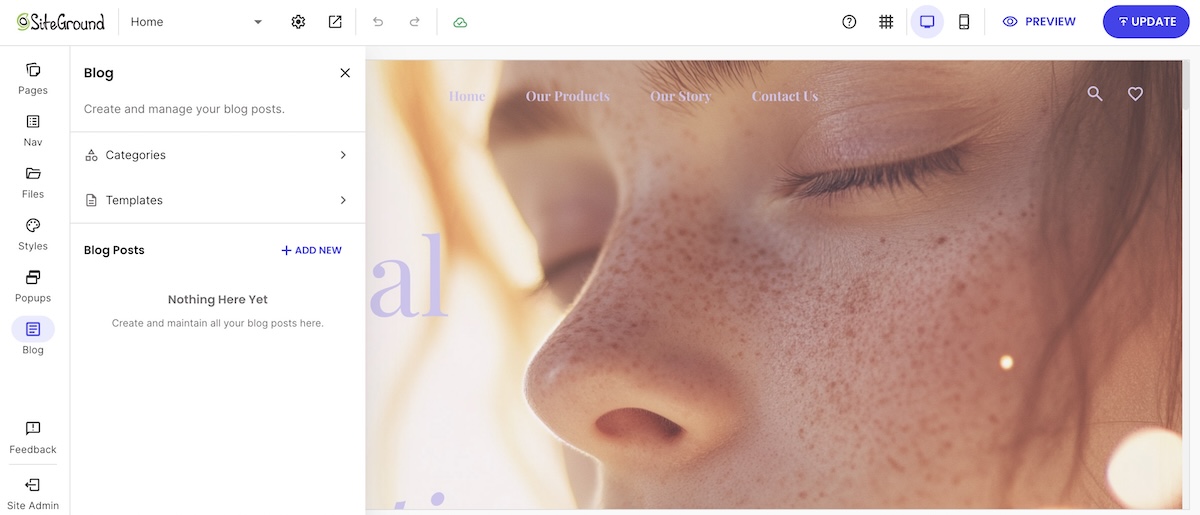
Most builders have some version of a blog feature to enable or add, usually found as its own icon or menu item in the main site editor.
You don’t necessarily need this in place before you start writing, either. On the SiteGround Website Builder, for example, you can draft a post first and add the main blog post page when you’re ready to publish it (more on that later).
And don’t worry, you won’t lose any existing pages when you create your blog; it’s added alongside them, and not instead of them.
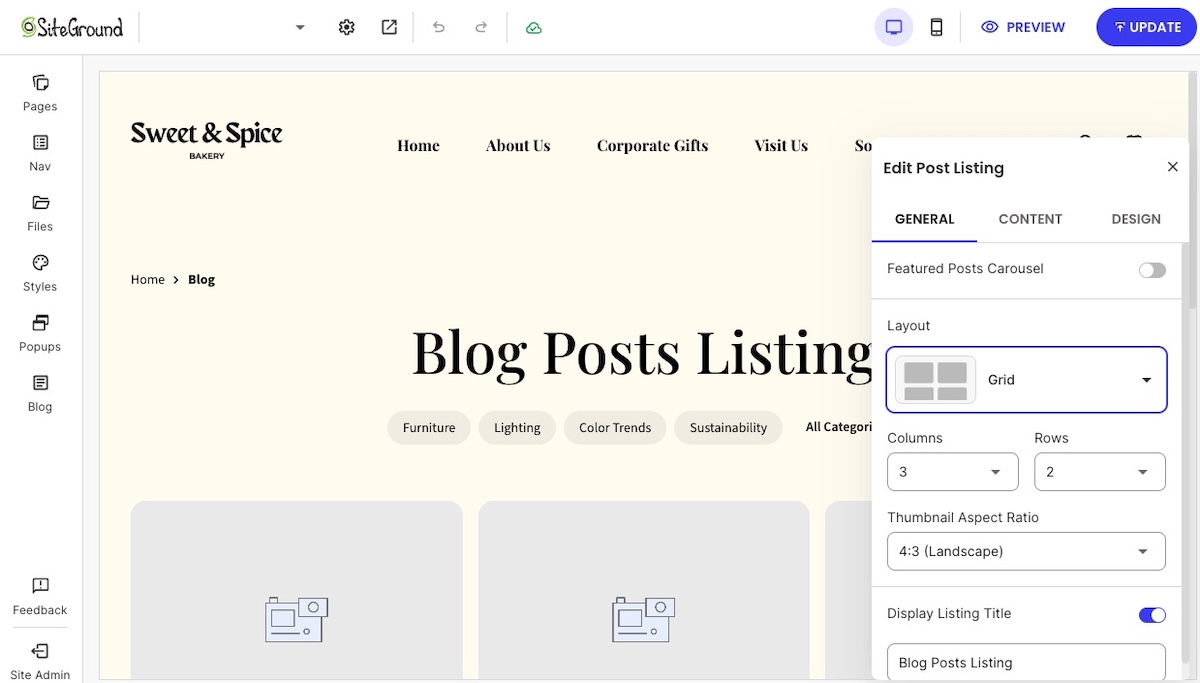
What you get to customize from there varies by platform. For example, on the SiteGround Website Builder, once you’ve created a main blog page (called a Blog Posts Listing page), you choose how it looks: a grid or list layout, with toggles for what shows on each post preview (image, categories, description, read time), plus an optional carousel for featured or recent blog posts.
Step 3: Settle on a niche, set up categories, and write your first post
Identify your niche
A blog works best with a niche: a specific enough topic or angle so that your target audience knows what to expect post to post, rather than a grab-bag of whatever’s on your mind that week. If you write about home renovation, for instance, your niche might be small-space renovations on a budget, not renovation in general. Haven’t landed on yours yet? This rundown on choosing a blog niche walks through how.
Define your categories
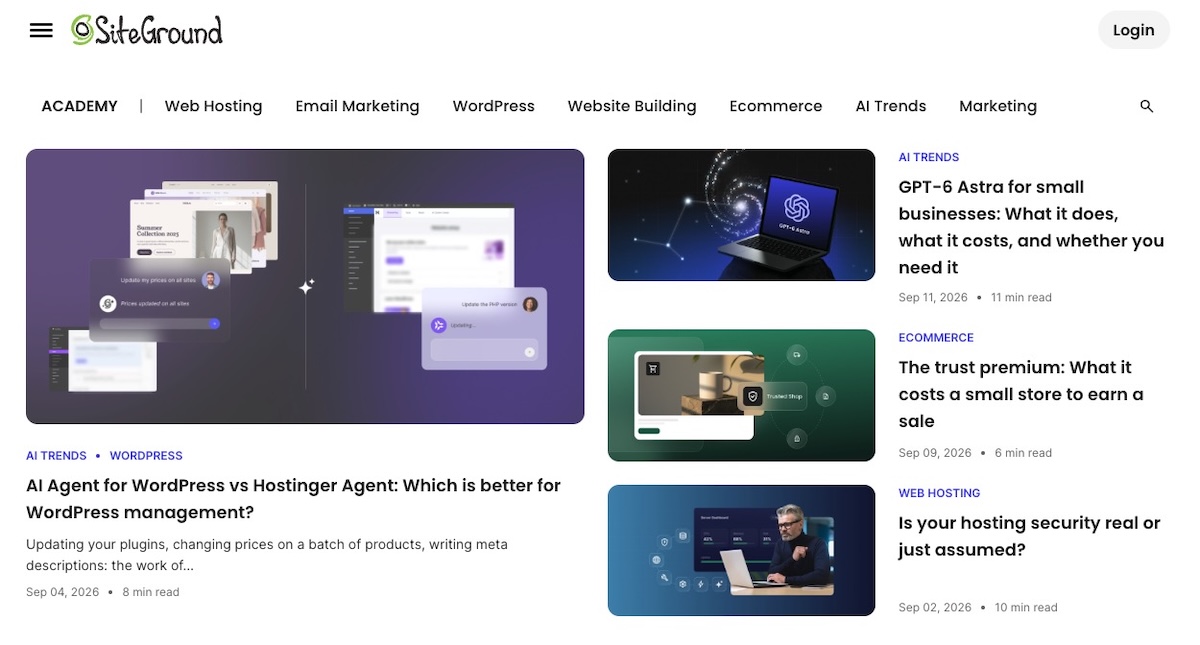
Categories are really just your niche broken into a handful of sub-topics. For example, if you look above, you can see that this very blog (which we call the Academy) is broken out into several categories, ranging from Web Hosting to Marketing.
Prepare your first post
Categories sorted, the next job is turning a blank blog post into a published one. This is the checklist you’ll want to tackle for your first post:
- Pick a topic your audience is actually searching for.
- Have a keyword or phrase in mind for this specific blog post, ideally one your audience actually searches for, and work it naturally into the title, opening, and a subheading or two.
- Write a working title, then the post itself; titles are easier to sharpen once the post exists.
- Add at least one image. A blog post with none reads as unfinished, even when the writing is fine.
- Keep the first post short. That is, don’t let the pressure of producing a robust post hold you back from publishing. Less is more if it means getting it done.
A blog post also doesn’t have to be just text. Embedded video, a sign-up form, or a product you sell can make a post more useful and engaging, even generating leads and sales.
With the SiteGround Website Builder (or Ecommerce, if you sell online), for example, the post editor already includes all of that: images with captions, video, sign-up forms, buttons, galleries, contact forms, icons, and product blocks you can set to show one item, several, or a rotating carousel, all from the same toolkit you used to build the rest of your site. None of it is required for a first post, but it’s there once you’re ready to make one do more than tell a story. If the blank page is the hold-up, the built-in AI writer can also get your text started.
Start building your website and blog now >>
Step 4: Add basic SEO to your post
SEO is what lets someone who’s never visited your site find this post through search, instead of the only readers being people who already follow you. A handful of fields, filled in before you publish, do most of that work:
- Meta title and meta description, written for the reader, not stuffed with keywords
- Alt text on every image, describing what’s actually in the picture: it’s an important part of accessible web design, since it’s what a screen reader reads aloud to someone who can’t see the image. It’s also a minor SEO signal.
- One clear heading structure: an H1 for the post title, H2s for its main sections
- A URL slug that matches the blog post’s main keyword, not a default date-and-number string
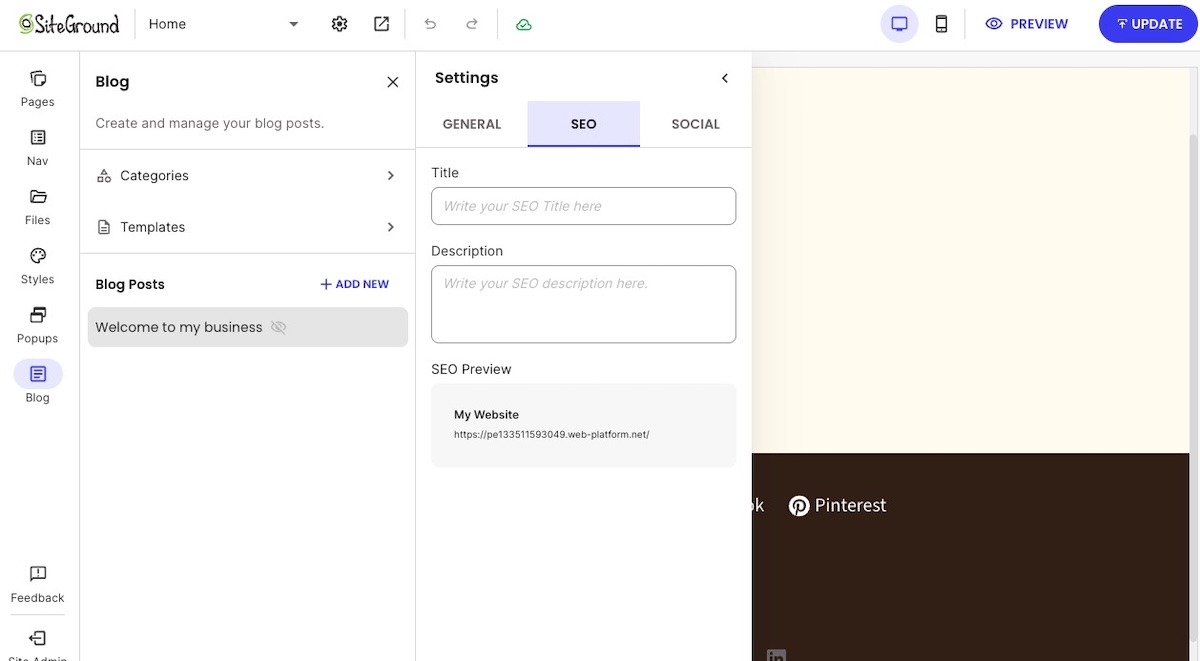
This covers a small slice of a full SEO checklist; for a first blog post, these four fields address only the part that matters most. For the fundamentals behind them, Google’s own SEO Starter Guide is worth a read.
Step 5: Publish your first post
Before hitting publish, run through this:
- Preview the blog post on both desktop and mobile; a layout that looks fine on one can break on the other, and good mobile web design is essential
- Confirm a featured image is set; it’s what shows up in previews and social shares
- Double-check the category and any tags are applied
- Publish
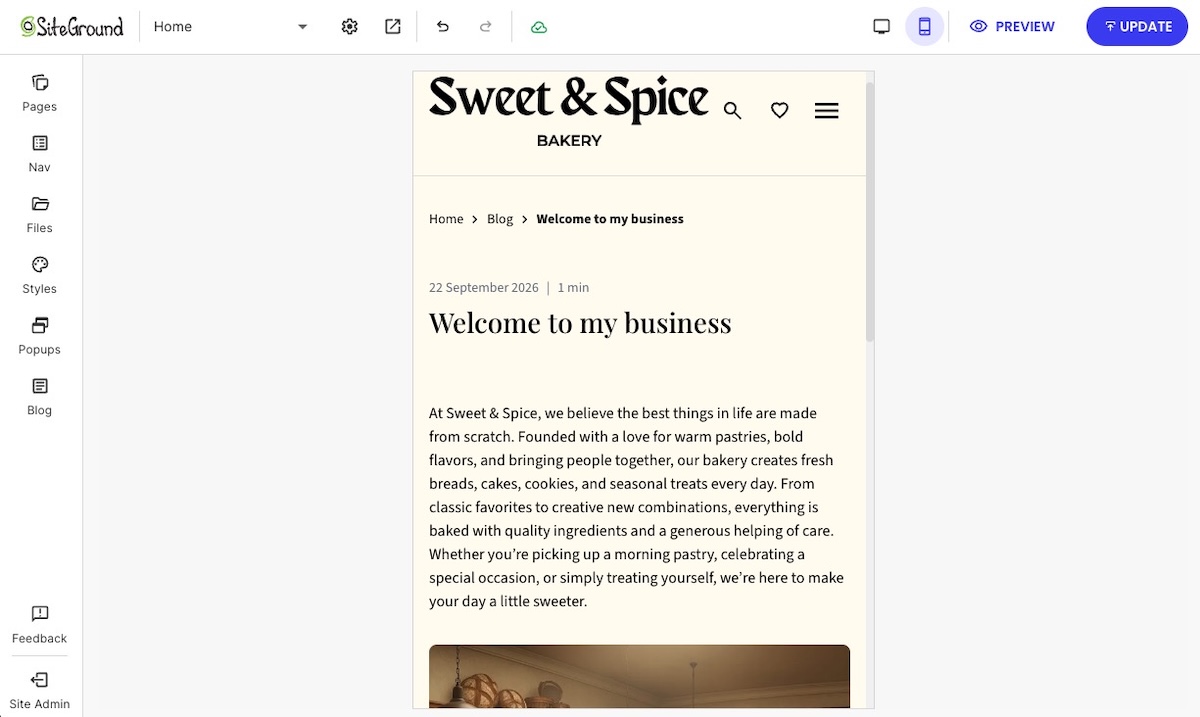
There’s no separate “go live” step for the blog itself once the feature is turned on. Each post publishes on its own from here. Just don’t expect visitors yet: unless your builder adds new pages to navigation automatically, the post is technically live but effectively invisible until you connect the blog in the next step.
Step 6: Connect the blog to your site navigation
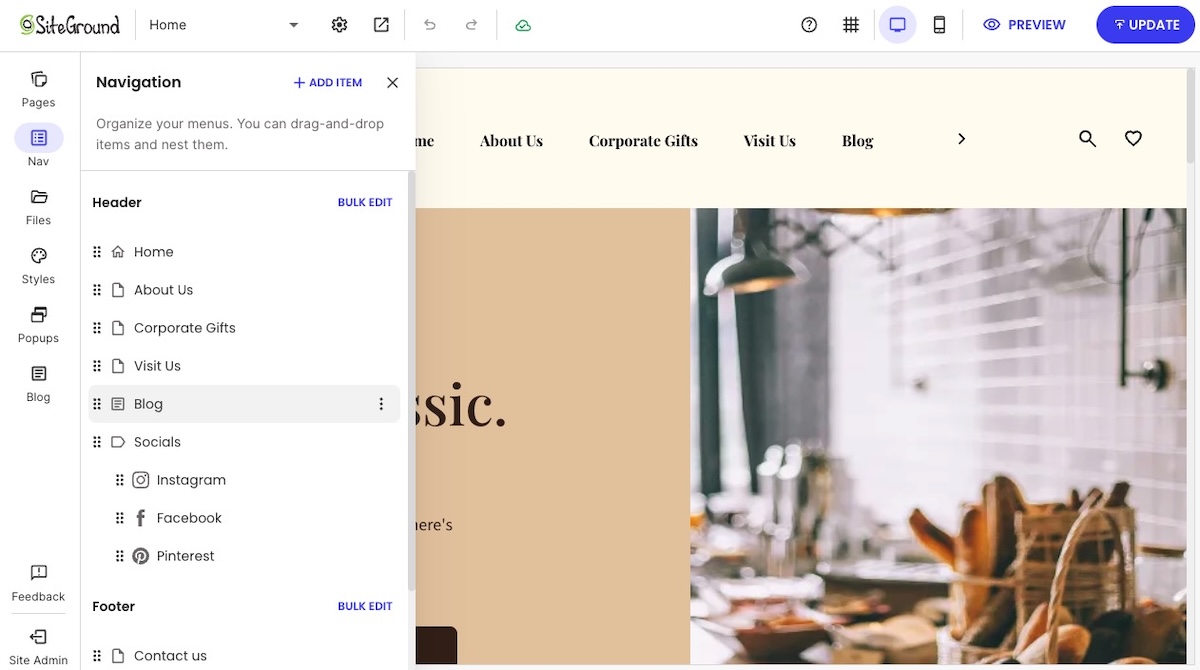
Now you have something worth linking to and, alas, a blog post nobody can find sadly won’t get read. So be sure to add a main blog page to your website navigation the same way you’d add any other page. Where it goes depends on how central the blog is to your site:
- If the blog matters to your business, driving traffic, building an audience, supporting SEO, put it in the main nav bar, where it’s hardest to miss.
- If it’s more of a nice-to-have, a footer link is a fine call. It’s less prominent, but still findable for anyone looking.
- Use a plain label like “Blog,” avoiding clever alternatives that hide what it actually is.
- If your menu has dropdowns, avoid nesting the blog more than one level deep: the more clicks it takes to find, the fewer people (and search engines!) bother.
Step 7: Plan ahead: build a simple content calendar and share what you publish
One post doesn’t make a blog, and most of the work of running one isn’t the writing. Some bloggers frame it as roughly 20% writing, 80% promoting the blog, spread across channels like SEO, social, email marketing, guest posts, and community threads. You don’t need all of that from day one, but two habits are worth setting up before you move on:
- A lightweight content calendar. Even a simple list of four to six post ideas and a rough posting cadence, weekly, biweekly, or monthly, keeps the blog from stalling after post one.
- A plan to actually get each post seen. Pick two or three channels you can keep up with rather than trying all of them: share it on the social platforms your audience already uses, add it to a regular newsletter recap if you have an email list, and once you have a few posts, link each new one back to two or three older, related posts. That last one costs nothing and helps both readers and search engines find more of what you’ve written.
Ready to give your website a blog?
Adding a blog to your website is, thankfully, closer to changing a setting than rebuilding a site. All you really need to do is decide where it lives, add the feature, connect it to your website navigation, and publish a first post. The whole process usually takes less time than writing the post itself.
And if you’re already using the SiteGround Website Builder, the blog feature sits in the same editor you used to build the rest of your site. There’s no separate tool, no export or import, and no second learning curve. Starting from nothing? The same builder works there too, blog included from day one. Turn it on, write, and publish!
Frequently asked questions
The 80/20 rule for blogging gets used two ways: most commonly, it’s the Pareto principle applied to content, roughly 20% of your posts will drive most of a blog’s traffic and leads. Some bloggers also apply it to time, spending closer to 20% writing and 80% promoting. Either way, for a blog you’ve just added to an existing website: don’t judge the whole effort by your first few posts. Publish consistently for a few months, then look at which posts are actually pulling traffic, and write more like those.
Yes. If you already have a published website, the plan running it already covers the blog too; there’s nothing extra to buy. The real free-vs-paid divide is one step earlier, in whether you have a live website at all: some builders offer a permanent free tier with a branded subdomain, while others, including SiteGround’s, bundle the builder into paid hosting plans and offer only a time-limited trial for free. See the breakdown earlier in this article for specifics.
If you already have a website, the best platform for your blog is almost always the one you’re already using. Moving the blog to a separate platform adds a login, a separate design system, and a disconnect from the rest of your site, for a feature most builders already include.
Yes. A blog remains one of the few content formats a business fully owns; unlike a social account, it isn’t subject to another platform’s algorithm changes or account suspensions. What’s changed is the bar: thin, generic posts don’t rank or get cited by AI search tools the way they might have a few years ago. A blog still works in 2026; a lazy one doesn’t.
Yes, WordPress is a common choice, especially for people who want deep customization through themes and plugins. It’s also a heavier lift: you’re managing a full CMS, and not toggling a feature inside a builder you already use, and creating a blog with WordPress involves its own setup process. If your site is already built on the SiteGround Website Builder, its built-in blog feature covers the same core job, posts, categories, an SEO-friendly URL, with a lot less setup.