
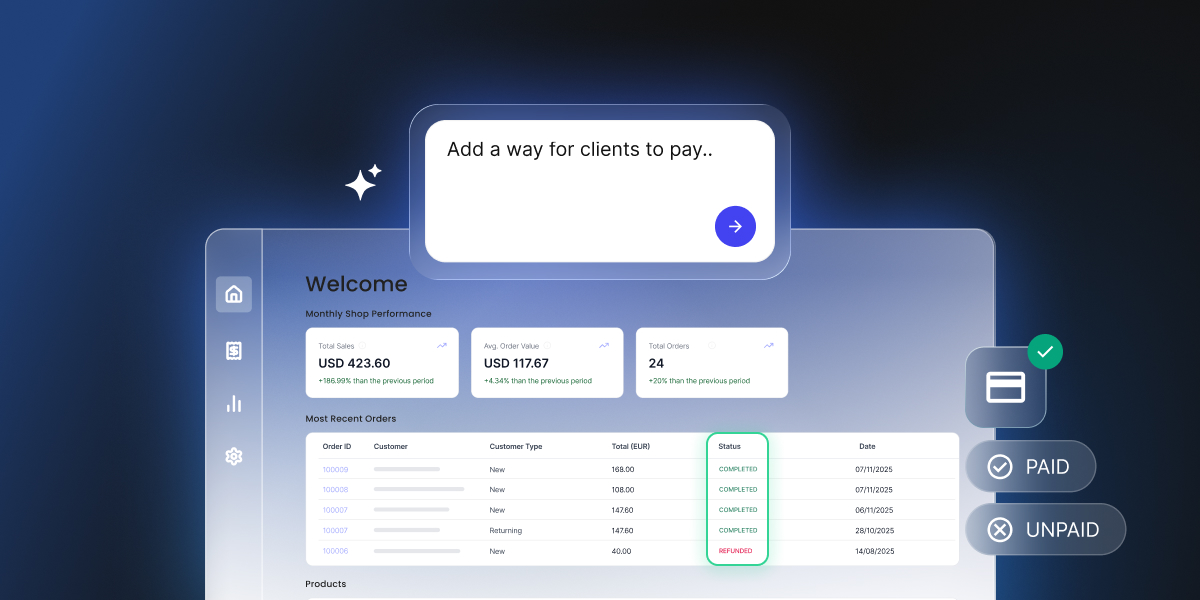
If you’ve already built your CRM app, payments are probably the piece you left for later. And no wonder: taking card details yourself makes you responsible for storing them safely, so you’ll probably want to hand that job to a payment provider your customers already recognize. For many CRM apps, that means integrating Stripe, one of the most trusted and widely used payment providers in the world.
Stripe CRM integration connects Stripe payments back to your customer records, so you can collect money from the same place you already track customers, and the payment status appears against the right person. It works two ways: connect Stripe to an off-the-shelf CRM, or build the payment flow into an app you own.
Key takeaways:
- Stripe CRM integration puts payment status on the customer record. Instead of checking two systems, you see who has paid, what they bought, and what should happen next, in the place you already work.
- Building it no longer means writing code. With an AI app builder such as Coderick AI you describe the payment behavior you want and it builds the checkout, then connects your own Stripe account.
- The webhook is the source of truth, not the thank-you page. Stripe sends your app a separate message when a payment actually completes. Never record a payment based on the customer landing back on your site.
- Granting access is only half the job. Refunds, disputes, and cancellations need handling too, or a refunded customer stays marked paid and keeps access indefinitely.
- Test the whole thing before real money moves. Stripe’s test mode lets you run every path, including a card that deliberately fails, without charging anyone.
What Stripe CRM integration means
CRM payment integration means payment activity and customer records stay connected in the same system, so nobody reconciles a spreadsheet of payouts against a list of customers by hand. CRM payment processing can reach that point two ways, and which applies to you depends on where your customer data sits today.
| Route | When it is the right answer | What it involves |
| Connect Stripe to an off-the-shelf CRM | You already pay for a CRM that ships a Stripe connector, or supports one through an automation tool | Authorizing the connector and mapping fields |
| Build the payment flow into the app you already have | You built your own CRM or app, your CRM has no connector, or the payment step needs to sit inside a workflow your CRM does not model | Adding a checkout step and a way for your app to record what Stripe confirms |
Connecting Stripe to an existing CRM
If you already pay for a CRM that offers a Stripe connector, use it. Most major CRMs either ship one or reach Stripe through an automation tool, and setup is usually authorizing the connection and choosing which events update which fields.
Check two things first: what the connector actually syncs, since some bring across payments but not refunds or failed renewals, and whether it can trigger the workflow you care about rather than just showing a payment history.
Pro tip: Read the connector’s fine print before you rely on it. “Stripe integration” on a CRM pricing page can mean a live two-way connection, a one-way import of past payments, or just a link out to your Stripe dashboard. Only the first keeps a record current. Ask the vendor two questions before committing: does it write a refund back to the record, and can a payment trigger something, such as moving a stage or sending an email. If either answer is no, you will still be joining things up by hand.
Adding Stripe payments to the CRM app you already have
If you built the app yourself, there’s no connector to install. You’re not rebuilding anything. You’re adding a Stripe checkout step for the customer, and a way for your app to hear back from Stripe and update the right record. You can also add Stripe payments to Coderick AI projects, which puts that within reach without writing code.
This is also where an AI app builder for business workflows changes the practical difficulty, because the work is mostly wiring rather than something creating, and wiring is something you can easily describe in a sentence.
What has to happen in your CRM when a customer pays
It helps to understand the whole sequence:
- Your app sends the customer to Stripe. They click a pay button on a customer record, an invoice, or a booking page.
- Stripe collects the payment on its own page. Card details go to Stripe and never touch your app or its code, which is why you are not responsible for storing them.
- Stripe sends your app a message confirming what happened. This message is called a webhook: your app has a URL that sits waiting, and Stripe posts an event to it when a payment succeeds, fails, or is refunded.
- Your app updates the customer record. It matches the event to the right customer, marks them paid, records what they bought, and stores the Stripe reference.
- The customer comes back to your app. They land on a confirmation page. This happens in parallel with the webhook and is not the same thing.
The customer’s return trip and Stripe’s message to your app are separate events. A customer can close the tab before returning and the payment still happened. Someone can reach your confirmation page without paying at all. Trust the webhook; the redirect exists so the customer sees something friendly.
Stripe Payment Links or Stripe Checkout: which to start with
There are two ways to take the payment, and the difference is how much of the flow lives inside your app.
Stripe Payment Links: the fastest way to start
A Stripe payment link is a hosted checkout page with its own URL, created in your Stripe dashboard or generated for you, with nothing to build. You can email it, put it on a booking confirmation, or store it against a customer record and send it when a job is done. Using Stripe payment links in CRM workflows is the quickest way to accept payments in CRM software you already run, and for many service businesses it is enough on its own.
The limit is that a bare payment link doesnчt know who clicked it. To have a payment land against the right record automatically, you pass an identifier through the link so the webhook can match it back, which is where the second option usually wins.
Stripe Checkout: when the payment sits inside the app
Stripe Checkout for CRM means your app creates the checkout at the moment the customer clicks and attaches your own identifiers, such as the customer ID and the job ID. Stripe still hosts the payment page, so card handling is unchanged, but the event that comes back carries those identifiers and the record updates itself.
Start with a payment link if you want money moving this week. Move to Checkout when you want the payment status to appear on the right record without anyone copying anything across.
How to add a payment flow with Coderick AI
If you build your CRM app with Coderick AI, you can add Stripe payments by describing the payment behavior you want in the chat and it builds the flow, including the products, the checkout, and the confirmation page.
A specific prompt is more useful than “add payments.” You can name the record, the trigger, and what should change afterward. Something closer to this:
“Add Stripe payments to my app so I can collect payment on a sale. Add a ‘Collect payment’ button on each sale that opens Stripe Checkout for the sale’s value, and mark the transaction as paid once the payment succeeds.“
Here’s an example of what Coderick AI gives you after this prompt: an option to integrate Stripe right in the chat.
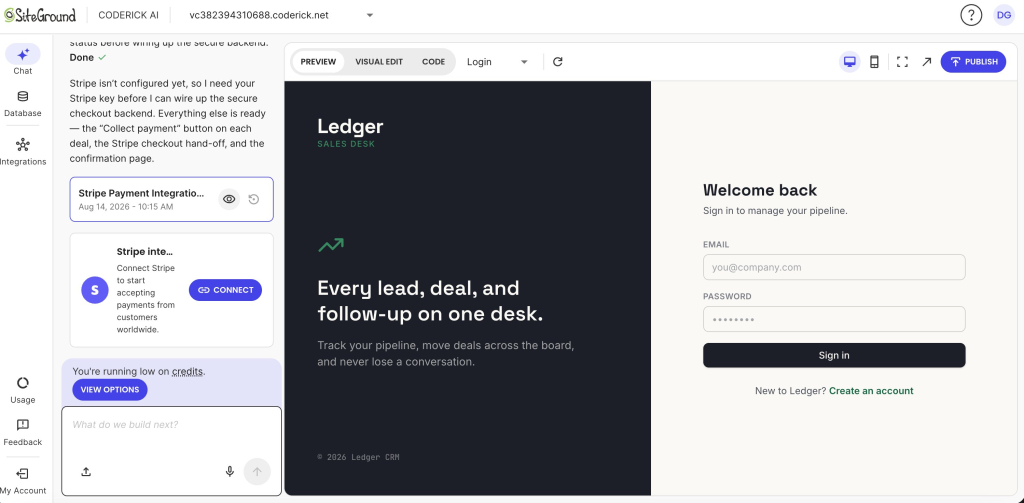
The Collect payment button, the hand-off to Stripe, and the confirmation page are all ready; your Stripe key is what’s missing, so the chat says so plainly and shows a Connect card underneath. Click Connect and a dialog asks for your Restricted Key, which you copy from your own Stripe account. It goes in that dialog, never into the chat. A checkpoint is saved at the same moment, so you can preview what was built or roll back to it if the next change goes wrong.
Coderick AI connects to Stripe using a Restricted Key rather than your main secret key, so you choose exactly which permissions to grant, and a key beginning rk_test keeps you in test mode until you swap in rk_live. And the key goes into the connection dialog, never into the chat itself. The full setup guide covers creating the key and what each permission does.
What this doesn’t do is remove your responsibility to understand the flow. The builder handles the wiring. You still decide what happens after a refund, who can see paid features, and what the record should say.
Six CRM payment-flow mistakes that break payment status
These are the failures that cost real money, and they are the reason a payment flow can look finished while being wrong. Each one is worth checking whether you built the flow yourself, had it built, or described it to an AI builder.
| What goes wrong | What the business actually sees | What to do instead |
| Duplicate webhook events | Stripe occasionally retries an event. A naive database insert records one payment twice, so two paid orders exist for one payment and CRM revenue stops matching Stripe | Check whether the Stripe event ID has already been processed before acting, or make the write an update keyed on the Stripe object ID so repeats overwrite rather than duplicate |
| No revocation path | Only the payment-succeeded event is handled. After a refund, a chargeback, or a failed renewal, the record stays marked paid and the customer keeps access indefinitely | Handle refund, dispute, and cancellation events too. Granting access is half the job; removing it is the half that gets forgotten |
| Access checked only in the browser | A customer edits JavaScript in their own browser and reaches paid features without paying | Enforce every paid-feature check on the server, not in frontend code |
| Trusting the success redirect instead of the webhook | A customer closes the tab after paying and is never recorded as paid. Or the success page is reached without any payment completing | Treat the webhook as the source of truth for payment state. The redirect is for the customer’s experience, not for your records |
| Secret key exposed | The Stripe secret key ends up in frontend code or committed to a repository, where anyone who finds it can use it against your account | Keep secret keys server-side only, never in frontend code and never committed. Prefer a restricted key scoped to just the permissions the integration needs |
| No webhook signature verification | A forged request marks orders as paid without any money moving | Verify the webhook signing secret on every incoming event before processing it |
These six mistakes cost money in more ways than the missed sale. Stripe keeps its processing fee when you refund a payment and charges a separate fee for every dispute, so a refunded customer who keeps access costs you the sale, the fee, and whatever you go on delivering to them. Factor those payment gateway fees into your prices before launch. None of this is specific to Stripe either. PayPal, Square, and most other providers also confirm payments through webhooks, retry failed deliveries, and sign their events, so the same six checks apply whichever provider you use to add payments to an AI-built app.
If the payment worked but the record didn’t update, Stripe will tell you why. Your Stripe dashboard logs every event it tried to send your app, whether your app answered, and what it said back. That log separates three very different problems: Stripe never sent the event, Stripe sent it and your app never answered, or your app answered with an error. Without it you are guessing which half of the flow is broken.
How to test before you take real money
Stripe gives you a complete test environment, so you can be wrong for free. Run all of this before a real card is involved.
- Connect in test mode first. Keys beginning rk_test or sk_test cannot move real money, so nothing you do here can charge anyone.
- Pay with Stripe’s test cards. Stripe publishes card numbers that always succeed, so you can complete the entire flow yourself and watch the record update.
- Run the declined-card path deliberately. Stripe also publishes cards that always fail. Use one, and check that your app does not mark anyone paid.
- Close the tab immediately after paying. This is the test almost nobody runs, and it is the one that catches a flow relying on the redirect. If the record still updates, your webhook is doing its job.
- Refund the test payment in your Stripe dashboard. Then check whether the customer record went back to unpaid and whether access was removed. If it did not, you have found the revocation gap before a real customer did.
Only once all five behave correctly should you swap in your live key. On Coderick AI, that means replacing the test key from the Integrations menu, and the test to live mode guide covers the switch.
Test mode and live mode are separate worlds, and nothing crosses over. Products, prices, customers, and payment links created in test mode do not exist in live mode, and neither do your webhook settings. So the first live payment is not the test flow with real money in it, and a flow that worked on Friday can fail on Monday because what it pointed at was never created on the live side. After switching keys, run one small real payment to yourself and refund it before sending anything to a customer.
What payment status in your CRM should show after someone pays
This is what justifies having a CRM rather than just a checkout. A payment is a fact about a customer that should change what happens next.
At minimum, the customer payment status should distinguish four states rather than a single paid checkbox: unpaid, paid, refunded, and failed or overdue. A checkbox cannot represent someone who paid and was then refunded, which is the case that causes trouble later.
Alongside the status, store what they bought, the amount, the date, and the Stripe reference, so any record traces back to the transaction in your Stripe dashboard. Stripe stays the system of record for the money, and your app holds what the money means.
Then let the status do some work. Paid can trigger the onboarding email, move the deal stage, or schedule the booking. Overdue surfaces the record in a follow-up list. Refunded revokes access and flags the account. Tracking paid and unpaid customers in a CRM only pays off when the status changes something automatically, which is the reason to put payments where the customer data already lives.
Stripe handles the money, your app handles the meaning
Stripe CRM integration is easier to reason about once the division of labor is clear. Stripe takes the card, checks it, moves the money, and keeps the authoritative record of every transaction. Your app decides what that payment means for the customer: what they now have access to, what stage they are at, and what should happen next.
Almost everything that goes wrong is the second half falling out of step with the first. The payment succeeds and the record does not update, or the refund goes through and the access stays on. Build the checkout, then spend your remaining effort on the states, the revocation path, and the tests above.
[96]
FAQs
Stripe CRM integration connects Stripe payment activity to CRM customer records, so payments can be collected from the same workflow where you already track customers and the resulting payment status appears against the right record. It can mean connecting Stripe to an off-the-shelf CRM, or building the payment flow into an app you own.
To add Stripe payments to a CRM, either enable your CRM’s Stripe connector, or add a checkout step and a webhook handler to an app you built. The connector route is faster when it exists. The build route is what you use when the CRM is your own.
Yes. You can connect Stripe to a CRM app you already built without rebuilding it. You add a checkout step for the customer and a webhook handler that updates the customer record when Stripe confirms the payment.
Yes. A CRM can track Stripe payment status when your app listens for Stripe webhook events and writes the result to the customer record. The webhook, not the browser redirect, is what tells you a payment actually completed.
To connect Stripe payments to customer records, pass an identifier such as the customer ID through the checkout session, then read it back from the Stripe event and update the matching record. Without that identifier, a payment arrives with no reliable way to tell whose it was.
Yes. Coderick AI can build an AI-built CRM with Stripe payments. You describe the payment behavior you want in the chat, connect your Stripe account with a restricted key, and it builds the checkout, the products, and the confirmation flow around your existing records.
Yes. To use Stripe payment links inside a CRM workflow, store a link against a customer or job and send it when payment is due. To have payments land against the right record automatically, pass an identifier through the link or use Stripe Checkout instead.
To track paid and unpaid customers in a CRM, store a payment status on each record that covers unpaid, paid, refunded, and overdue, updated from Stripe webhook events rather than entered by hand.
After a customer pays through Stripe, the CRM should mark the record paid, store what they bought and the Stripe reference, and trigger whatever comes next, such as granting access, moving the deal stage, or sending onboarding. It should also be able to reverse all of that if the payment is later refunded.