
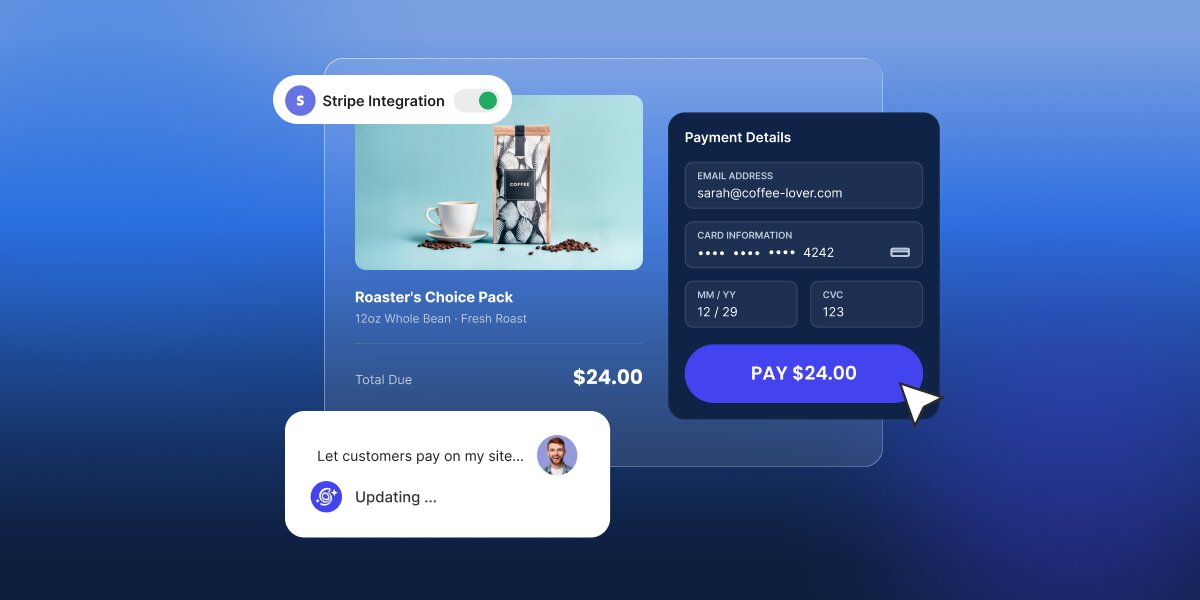
You’ve probably heard that Stripe is one of the best ways for a small business to take payments, and whoever told you was right. But what’s less widely known is how much of it you can set up yourself: actually, you can add Stripe without a developer for most of what small businesses actually sell.
Stripe’s no-code tools cover one-time payments, subscriptions, free trials, invoices, and donations, and they’ve absorbed a lot of what used to need custom work. What still needs building is anything that has to happen in your own system after the money arrives (and you can build it pretty easily with AI).
Key takeaways:
- You can add Stripe without a developer for most of what small businesses sell. Products, services, deposits, donations, and memberships are all covered by tools Stripe built for people who don’t write code.
- You can start before launching your website. A payment link is a ready-made checkout page with its own web address, which you can email, text, print as a QR code, or put on social media.
- All of it happens in the Stripe Dashboard, which is the website you log into to run your Stripe account. It’s where you create payment links, see who paid, and change your settings. Nothing there involves code.
- Taking the money and your own system knowing the money arrived are two separate jobs. You can use an AI builder to put the checkout inside your own site while Stripe keeps handling the transactions.
How to add Stripe without a developer: what you can do with no code
The way to add Stripe without code is to just open a Stripe account, which will give you access to the Stripe Dashboard, a website you log into the same way you’d log into your email. The account itself takes about ten minutes to open, though there are a few things to settle before you take Stripe live, including your bank details, your business information, and how your name appears on customers’ card statements.
The main tool in the Stripe Dashboard is the payment link: a checkout page that Stripe builds and hosts for you, with its own web address. You create it by naming what you’re selling and what it costs, and Stripe gives you back a URL. Anyone who opens that URL sees a proper checkout page with your logo on it, pays by card or Apple Pay or Google Pay, and gets a receipt. The money lands in your bank account, and you get an email telling you it happened.
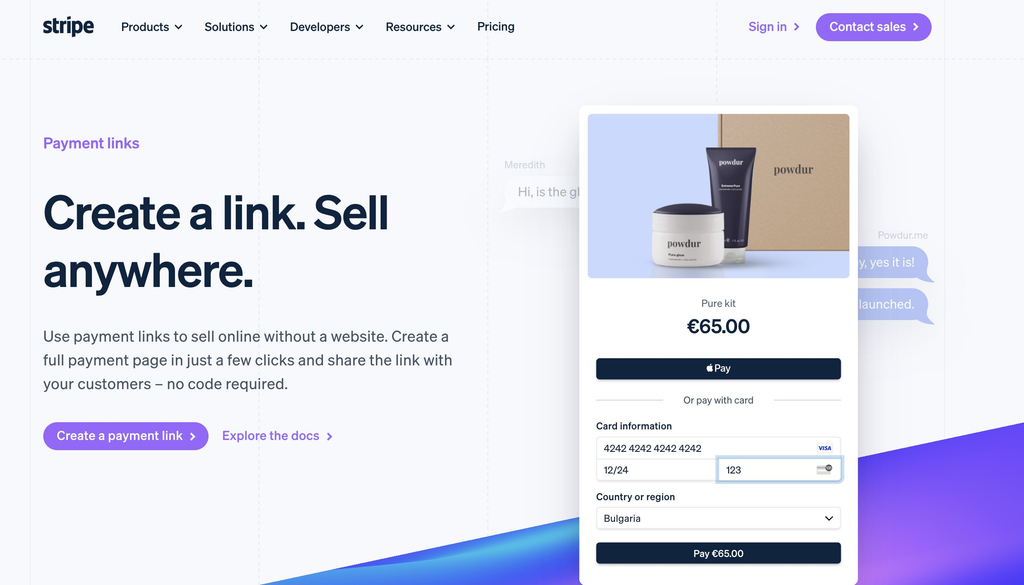
That’s already enough to add a payment to a website without a developer, and you can even do it before officially launching your website. You can put the link in an email to a client, send it by text, turn it into a QR code for a menu or a market stall, or post it on Instagram. If you already have a website, you can paste in a small snippet Stripe provides to turn it into a buy button on your own page.
By the way, this no-code side covers more things than you’d expect:
| What you want to do | How it works with no code | Worth knowing before you start |
|---|---|---|
| Sell a product or service | Create a payment link with a fixed price and share it, or embed it as a buy button on your site | Over 40 payment methods and 35-plus languages are handled for you, with Apple Pay and Google Pay switched on automatically |
| Charge monthly or yearly | Create the same kind of link with a recurring price instead of a one-off one | Stripe handles the renewals, the failed cards, and the receipts. You don’t manage any of it |
| Offer a free trial | Turn on a trial when you create the subscription link, and choose whether to ask for a card up front | Switch on the reminder emails as well, because Stripe pauses a trial if no card has been added by the time it ends |
| Bill a client for agreed work | Send a Stripe invoice, which is a hosted page they can pay and download for their records | Usually a better fit than a payment link when the amount changes from job to job |
| Take tips or donations | Create a link where the customer chooses the amount | There’s a default ceiling of 10,000 USD per payment, and this option doesn’t work for recurring gifts |
| Show your prices on your site | Build a pricing table in the Dashboard and paste the snippet onto your page | Pairs well with payment links for memberships, courses, or software |
| Add extras at checkout | Turn on optional add-on items, discount codes, and shipping rates when you create the link | All of it is configured with dropdowns and text fields |
| Limit how many people can buy | Set a cap on how many times a link can be paid, after which it stops working | Useful for event tickets, limited stock, or a launch offer |
Complex operations like recurring billing (charging monthly or yearly) sound like the point where you’d need help, because someone has to charge the card every month or stop charging when people cancel, but Stripe takes care of all of that. You just set a price and a frequency, share the link, and it runs. This way, you can easily build a subscription business in an afternoon.
Free trials go one step further: you can let someone start a trial without giving you a card at all, which removes the biggest reason people abandon a signup. The catch is small and worth setting up at the same time: unless you switch on the emails that prompt them to add a card before the trial ends, Stripe pauses the subscription rather than charging them. Turn those on when you create the link, and it takes care of itself.
Pro tip: Make your first payment link before you decide anything else. It costs nothing, takes about five minutes, and it’s the fastest way to find out whether you need anything more. Create one for the thing you sell most often and send it to yourself. You’ll see exactly what your customer sees, what the receipt looks like, and what lands in your inbox when it’s paid. Plenty of people discover at that point that the job is already done, and the ones who don’t now know precisely which part is missing, which is a much better position to be in than guessing.
Where the no-code path runs out
Stripe’s no-code tools have their limitations, which might affect you depending on what you sell and how you deliver it:
| The limit | What it means for you | When it becomes a problem |
|---|---|---|
| Your website learns nothing | Stripe emails you and shows the payment in your Dashboard. It doesn’t tell your site, your database, or your member area | When paying is supposed to grant access, confirm a booking, or start something automatically |
| Limited design control | You can add your logo, pick your background and button colors, and choose from a set of preset fonts. You can’t change the layout | When you’ve paid for a designed site and the checkout page looks like a different company |
| Customers leave your site to pay | Clicking your buy button takes them to a Stripe page, then brings them back afterward | Rarely, in practice. Most people recognize Stripe and trust it. It bothers some brands more than their customers |
| Everything has to be a fixed product | Payment links are built around items with set prices, so variable amounts mean creating a lot of links or asking customers to type a number | When you quote every job differently, which is most consultants, trades, and agencies |
| Caps on pay-what-you-want | A default maximum of 10,000 USD per payment, and no support for recurring amounts | Large deposits, retainers, and donation programs. The cap can be raised by asking Stripe |
| No rules of your own | Anything conditional, like different pricing for different customers or a follow-up that happens automatically | This is the genuine dividing line between configuring and building |
The first limitation is probably the most significant one: Stripe has no connection to whatever you’ve built, so it can’t log a customer into a members area, mark an order as paid in your booking system, add someone to a course, or update a record in the spreadsheet you run your business on.
For a lot of small businesses, that’s completely fine. If you take a deposit and then phone the customer to arrange the work, nothing needed to happen automatically. If you sell a physical product and pack it yourself, an email telling you to pack it is all you need. The gap only becomes a problem when the payment is supposed to update a record in an app you already built.
When do you need a developer for Stripe?
Picture someone paying you, and ask what needs to happen the moment the payment goes through. If the answer is that you find out and the money reaches your bank, you’re good to go. You can build the whole thing yourself this afternoon. If the answer involves something else happening, without you doing it, keep reading.
You don’t need a developer if Stripe’s tools are enough
You can accept Stripe payments without a developer if you’re selling a set number of things at set prices, taking deposits or donations, running a subscription, or invoicing clients for work you’ve agreed to. You also need to be comfortable with customers paying on Stripe Checkout, which is the hosted page they get sent to. For most small businesses, that’s a non-issue and occasionally an advantage, since people recognize the name.
That covers a lot of real businesses. A consultant selling three service packages, a restaurant taking deposits, a gym running memberships, a charity collecting donations or even a full ecommerce platform all sit comfortably inside the no-code surface.
You might need a developer if you want more than the Stripe Dashboard
You’ve outgrown Stripe’s no-code options when paying has to give someone access to something you’ve built, when the checkout needs to sit on your own page with your own design, when the amount is worked out rather than picked from a list, or when something has to happen by itself once the money arrives.
A membership site is a good example: someone pays, and they should be able to log in and see the content immediately. Stripe can take that payment perfectly well, but it has no way to create their account or let them in.
However, custom payment builds can get expensive. That’s why you should also know that needing more than the Stripe Dashboard and needing to hire a developer aren’t the same thing. There’s a route in between.
The middle path: add Stripe to your own site or app without custom code
What if you can get the checkout on your own site, styled like the rest of it, connected to whatever should happen next, and you still don’t write any code?
An AI builder for launching without developers can do exactly this by building the connection for you. You describe the payment behavior you want, and it builds the checkout into your site and connects your own Stripe account, with the card handling still happening on Stripe’s side. Because the flow lives in your app, it can also do what payment links can’t: update a record, grant access, or mark an order paid when the payment succeeds.
If you use an advanced AI builder like Coderick AI, it will read the payment intent in your prompts and will show a Stripe connection card inside the chat interface:
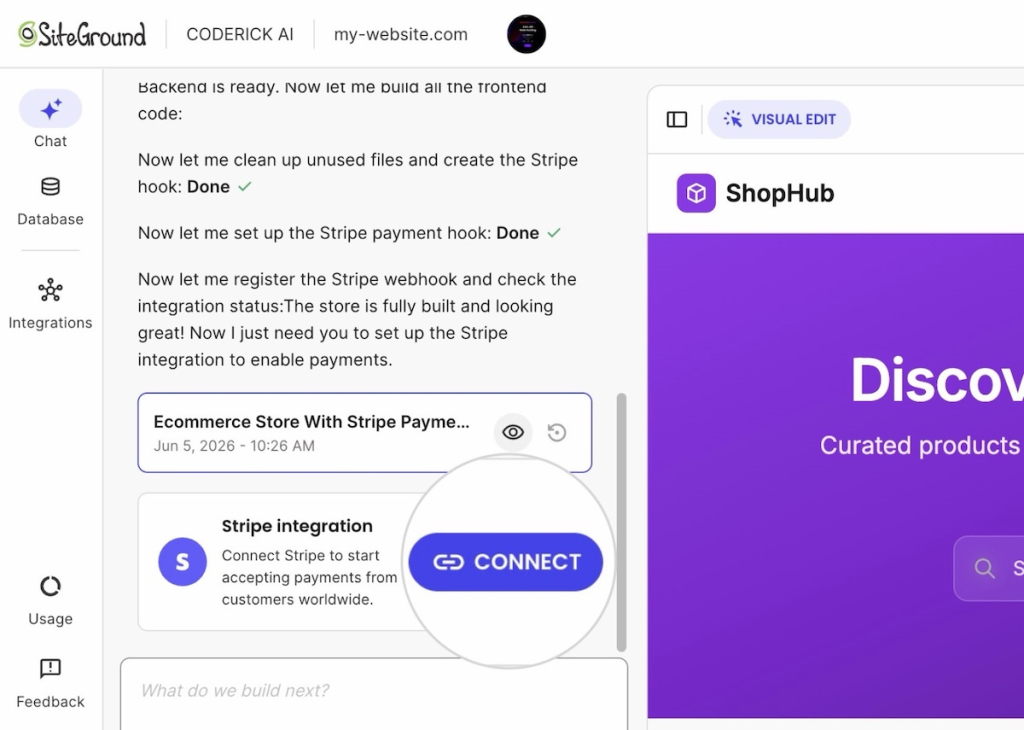
From there it’s a few clicks and one paste. You click Connect, and Coderick AI asks for a key from your Stripe account.
Stripe issues what it calls a Restricted Key, which starts with rk_, and it isn’t your account password. It can only do the specific things Coderick AI needs, and you can change its permissions or switch it off from your Stripe Dashboard whenever you want.
Once the key validates, the card flips to Connected and Coderick sets up the rest in the background: your product list, and the connection that listens for payments. When someone buys, Stripe confirms the payment back to your site and your order records update to paid without anyone touching them.
Read our guide to setting up Stripe inside Coderick AI to learn about the full process (which takes about a minute).
What to check before you take real payments
Whichever route you take with Stripe, spend twenty minutes on these four checks before a real customer pays you.
- Pay yourself in test mode. Stripe gives every account a test mode, which is a complete copy of the system where nothing is real. You can put a fake card through your own checkout and watch the whole thing work without any money moving. Switch it on, buy your own product, and see what happens.
- Try a card that fails. Stripe publishes test card numbers that are designed to be declined. Use one and check that nothing gets marked as paid, and that the customer sees something sensible rather than a blank page.
- Find out where the notification goes. Know which inbox receives the payment email and who actually reads it. A payment nobody notices for three days is a fulfillment problem, and it’s the most common one.
- Look at what the customer sees afterward. The confirmation page and the receipt are part of what they’re buying, and both can be edited. Check that they say something you’d be happy to receive.
Pro tip: Run the same test on your phone. You’ll do the four checks above on whatever you built the site on, which is almost certainly a desktop. Most of your customers won’t be. Checkout is the part of a site most likely to behave differently on a small screen, and it’s the part where a problem costs you the sale rather than a page view. Repeat your test order on a phone before you do anything else. And if you’ve built the store around that checkout with AI, there are eight things worth verifying before real money moves.
Stripe without a developer: the 10-minute test
Whether you can add Stripe without a developer has almost nothing to do with how technical you are. It comes down to one thing: whether anything has to happen after the payment. If the money arrives and an email telling you about it is the whole job, you can have this working before the end of the day, for free, using tools Stripe built for exactly this.
If something on your own site does have to change when someone pays, that’s a genuinely different piece of work. It’s still not a reason to hire a developer, because the gap between a Stripe-hosted link and a custom build is now filled by AI builders that do the connecting for you.
So answer the question before you spend anything on custom development. Open Stripe, make a payment link for the thing you sell, and send it to yourself. Ten minutes later you’ll know whether you’re finished or whether you need the middle path, and either answer saves you a quote you didn’t need.
[96]
FAQs
You don’t need a developer to add Stripe to your website for most common cases. Stripe’s no-code tools handle one-time payments, subscriptions, free trials, invoices, and donations. You need help when a payment has to change something in your own system, when the checkout must sit on your own branded page, or when amounts and rules are custom.
Yes. You can add Stripe to your website without hiring a developer by creating a payment link in the Stripe Dashboard and pasting Stripe’s snippet onto your page as a buy button. You can also skip the website entirely and share the link by email, text, or QR code.
Yes. You can use Stripe without writing code through payment links, invoices, quotes, pricing tables, and subscriptions, all created in the Stripe Dashboard. Stripe notifies you when someone pays and deposits the money in your bank account, so no code is needed for the payment itself.
The easiest way to add Stripe payments to a website is to create a payment link in the Stripe Dashboard and embed it as a buy button. It takes about five minutes, costs nothing to set up, and requires no code.
Without custom code you can launch one-time product sales, monthly or yearly subscriptions, free trials that start without card details, tips, donations, pay-what-you-want payments up to a default cap, invoices, quotes, and a pricing table on your own site.
Yes. You can accept subscriptions without a Stripe developer by creating a payment link with a recurring price. Stripe handles renewals, failed cards, and receipts. You can also offer a free trial without asking for a card, as long as you switch on the reminder emails that prompt customers before the trial ends.
Yes. You can accept one-time payments without a Stripe developer using a payment link, an invoice, or a buy button on your own page. All three are created in the Stripe Dashboard and need no code.
Yes. You can build a payment-ready website without a developer by using an AI builder to create the site and the checkout together, connected to your own Stripe account. Stripe still handles the card details, and because the checkout lives in your site, the payment can also update your own records.