The SiteGround academy provides a wide variety of tips, tools, and resources related to WordPress, web performance, website optimization and site security.
An AI store manager is a software agent that plugs into your ecommerce dashboard, reads your real store data, and, if you let it, takes action on your behalf. Think of it as a store employee who already knows your sales numbers and can act on them. Here’s what that looks like once you turn one on.
Key takeaways:
An AI store manager answers plain-language questions about your store and can take permissioned action inside it.
It pulls data from your actual store: orders, products, categories, customers, reviews, coupons, brands, and attributes.
Action-taking stays off by default. You decide when to switch it from reporting only to reporting and acting.
A single instruction can reprice every product in a collection by a set percentage, replacing a manual, item-by-item edit.
Strategy calls, like pricing philosophy or what to sell next, remain yours. The agent handles execution, not direction.
What is an AI store manager?
An AI store manager is an AI agent that runs inside your ecommerce dashboard and works with your store’s actual data. It’s built to answer questions about what’s happening in your store and act on it, not to draw on general web knowledge like a public chatbot.
What that means in practice:
It reads your real orders, products, customers, coupons, and reviews, not sample data or guesses.
It sits inside the dashboard you already use, with nothing new to log into and nothing to configure first.
It’s a different category from AI tools that write product descriptions or ad copy. Those produce content. This one operates on your store’s live data and, with permission, changes it.
The two jobs a real AI store manager does
Strip away the marketing and an AI store manager does exactly two things: answer questions, and, if you allow it, take action. Everything else people describe, from restock alerts to seasonal repricing, is one of these two jobs applied to a specific situation. Let’s break down what it does.
1. It answers questions about your store
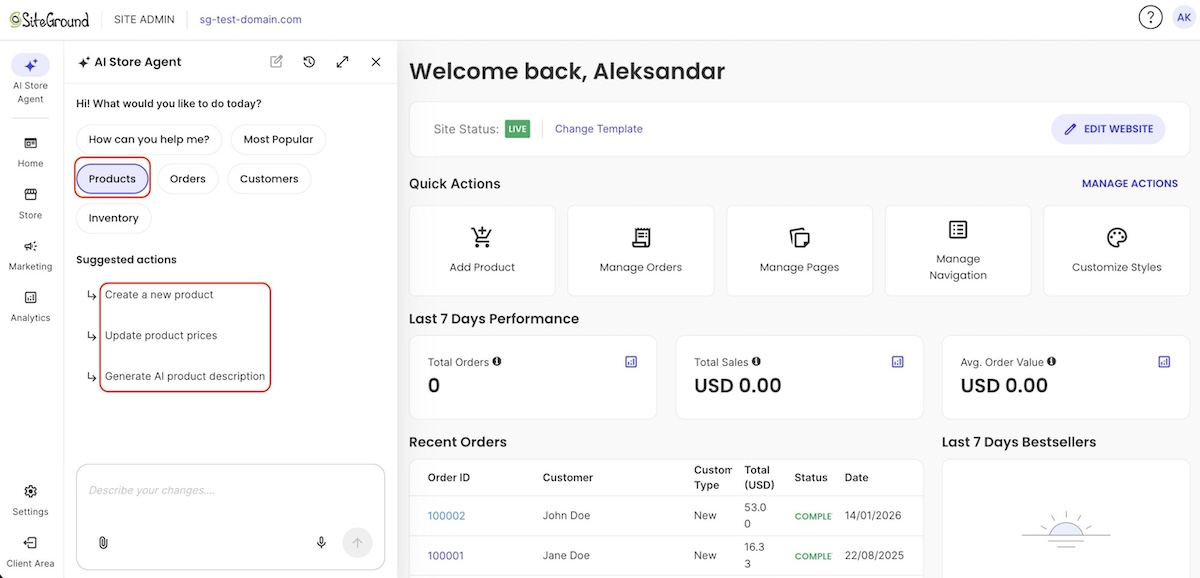
This is the reporting side. Ask something in plain language and it pulls the answer from your real records:
“What’s my top performing product this month?”
“Which coupon was used most in the last 30 days?”
“How many units of the Autumn hoodie sold last week?”
No spreadsheet exports, no filtering through an analytics dashboard first.
2. It takes action on your behalf
This is what separates an agent from a plain AI tool. From the same chat, it can:
Create and manage products
Create and manage coupons
Create and manage customer accounts and brands
Handle bulk changes, like reducing every product in a collection by a set percentage in one instruction instead of a hundred individual edits
How is an AI store manager different from a store builder or a chatbot?
A store builder gets you live, but that’s where its job ends. Once your store is running, it doesn’t answer questions or take action inside it. It’s built for launch, and not for the daily grind that comes after. That’s it.
A generic chatbot can attempt the first job mentioned above, answering questions, but it doesn’t know your store specifically. Ask a generic chatbot how many units of your best-selling hoodie sold last month, and it has no way to tell you (though it may confidently pretend to).
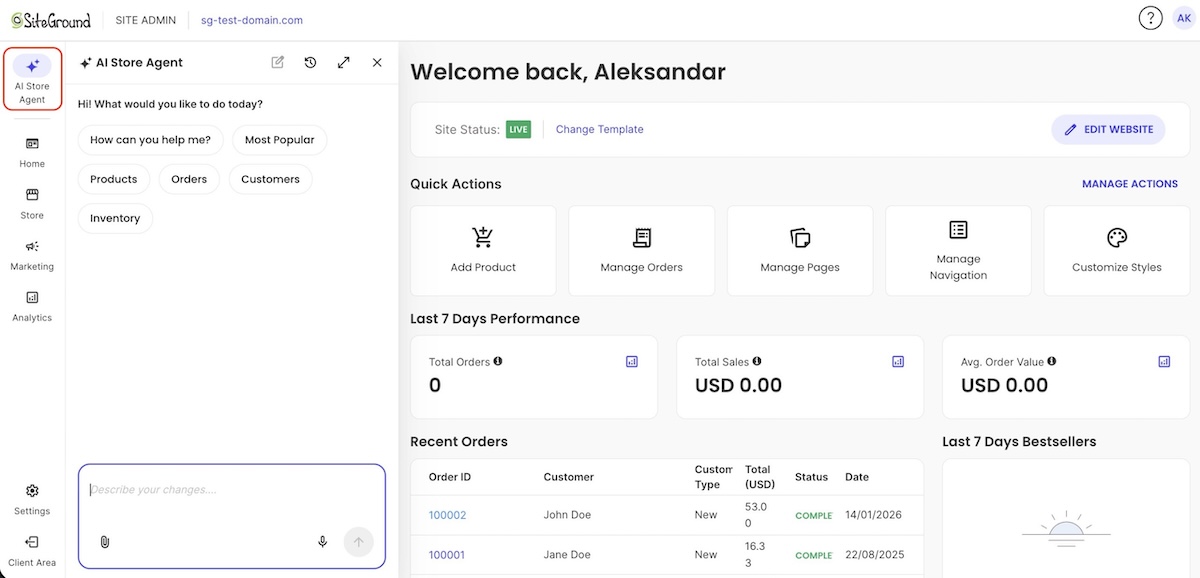
On the other hand, ask SiteGround’s AI Store Agent the same question, for example, and it pulls the number straight from your own Ecommerce dashboard, reading your actual order history instead of guessing.
Tool
Answers store questions
Takes action in your store
Knows your real data
Store builder
No
No
No
Generic chatbot
Sometimes
No
No
AI store manager (such as the SiteGround AI Store Agent)
Yes
Yes, if permitted
Yes
Where a human still calls the shots
An AI store manager handles the busywork, but you still get the ever-so-human pleasure of making the judgment calls. Keeping that split clear is part of what an AI-first mindset for a growing store actually looks like: the tool for execution, you for direction.
The general rule: anything with a single correct read of the numbers is fair game to hand off; anything that depends on context the data doesn’t capture stays with you. Here’s what that looks like in practice:
Strategy and brand decisions
These stay a human call:
Positioning and brand voice: premium and minimal, or budget and loud
Pricing philosophy: lowest price in the category, or highest quality
What to sell next: expand a bestselling line, or cut a slow one
An agent can tell you a product is underperforming. Deciding whether to discontinue it, reposition it, or double down is still yours.
Ambiguous customer situations
A person still needs to weigh in on:
Disputes and exceptions: a refund request outside your stated return window
Anything that isn’t a clean read of the data: a return spike from a bad batch, or just from one bad review
The control that makes it safe to try
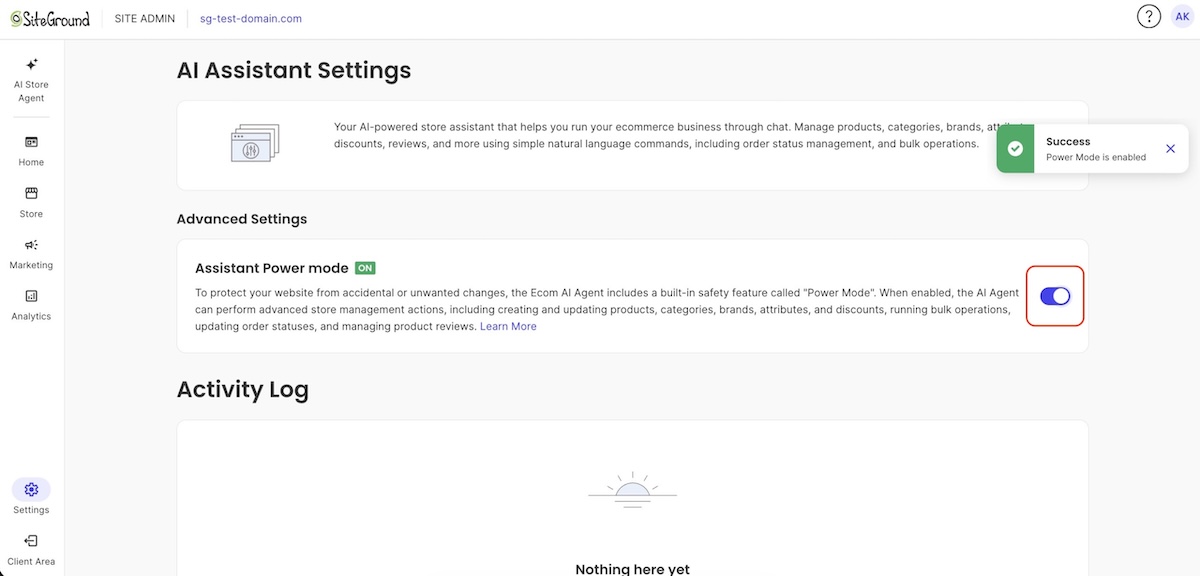
Handing software the ability to edit your live store is worth being cautious about. With SiteGround’s AI Store Agent, that’s governed by a single setting called Power Mode.
It’s off by default. Out of the box, the agent can only read your ecommerce data and answer questions.
Turning it on is an explicit choice, made either in the chat interface or from the AI Store Agent settings page.
It’s an operational safeguard, not a permissions system: it controls which actions the agent will carry out, not what data it can already see.
With it on, the agent can create, update, and make bulk changes to most resources. Deleting stays more restricted even with Power Mode on.
Higher-risk actions, like deleting entities, bulk updates, and price changes, all require Power Mode to be on first. That keeps the riskiest changes from happening by accident, since turning it on is a deliberate step you take rather than a default you’d have to remember to switch off.
How it improves your daily workflow
A few realistic scenarios make the AI store manager concept concrete, with each one demonstrating the same task done two ways: the manual version most sellers already know, and the one-question or one-instruction version an AI store manager replaces it with.
A morning sales check-in
Before: Log into the dashboard, open the orders table, filter by yesterday’s date, then cross-reference SKUs against product names to piece together what actually sold and how it compares to your average order value.
After: Ask “what sold yesterday and what was my average order value?” and get a direct answer, in the time it takes to read a text message, with no filtering or cross-referencing required.
Restock and inventory alerts
Before: A fast-moving product, say your bestselling tote bag, sells out over a busy weekend. You don’t notice until days later, when you check the storefront and see it listed as out of stock, having already missed a stretch of sales you could have caught with a quick reorder.
After: Ask “which products are below 10 units in stock?” as part of your morning routine, or let the agent flag it unprompted the moment stock runs low, so you reorder while it’s still on the shelf instead of after it’s already gone.
Seasonal pricing and coupon cleanup
Before: Ahead of a fall sale, cut the price on every product in your swimwear line one at a time to clear summer stock, then scroll through old coupon codes by hand to switch off the ones nobody’s used in months.
After: Say “cut prices on swimwear by 20% for the fall sale and deactivate any coupon unused in the last six months,” and both changes apply in one instruction, the same kind of cleanup sellers already do ahead of a Black Friday push, instead of an afternoon of clicking through products and codes.
Ready to let AI handle the busywork in your store?
An AI store manager hands back the hours that used to go into pulling numbers, catching low stock, and cleaning up pricing and coupons. That time goes toward customers and growth instead of routine admin that doesn’t need a founder’s judgment.
SiteGround Ecommerce includes exactly that. The AI Store Agent comes with every plan at no extra cost, nothing separate to buy or set up. Reporting is on from day one, and Power Mode, the setting that lets it act, stays off until you turn it on, so you can start by asking questions and decide later how much to hand off.
[103]
Frequently asked questions
Is an AI store manager the same as a chatbot?
No. A generic chatbot works from general web knowledge and can only answer questions. An AI store manager reads your actual store data, real orders, products, customers, and coupons, and can also act on your store when you allow it, creating and editing products, coupons, and customer records. A chatbot can tell you what a return policy generally looks like. An AI store manager can tell you how many returns your store processed last month, and update a coupon based on the answer.
Do I need technical skills to use one?
No. There’s no setup or configuration involved. It works from your existing store dashboard, using the data that’s already there.
Is it safe to let AI make changes to my store?
Yes, with the right controls. For example, with the SiteGround AI Store Agent, action-taking is off by default. That way, you can review what an agent proposes before it’s committed to your store, then decide whether to allow it going forward.
How much does an AI store manager cost?
It varies. Some standalone AI tools charge a separate subscription, while some ecommerce platforms bundle it into existing plans. Check what’s already included before buying a standalone tool. SiteGround Ecommerce includes its AI Store Agent on every plan at no extra cost.
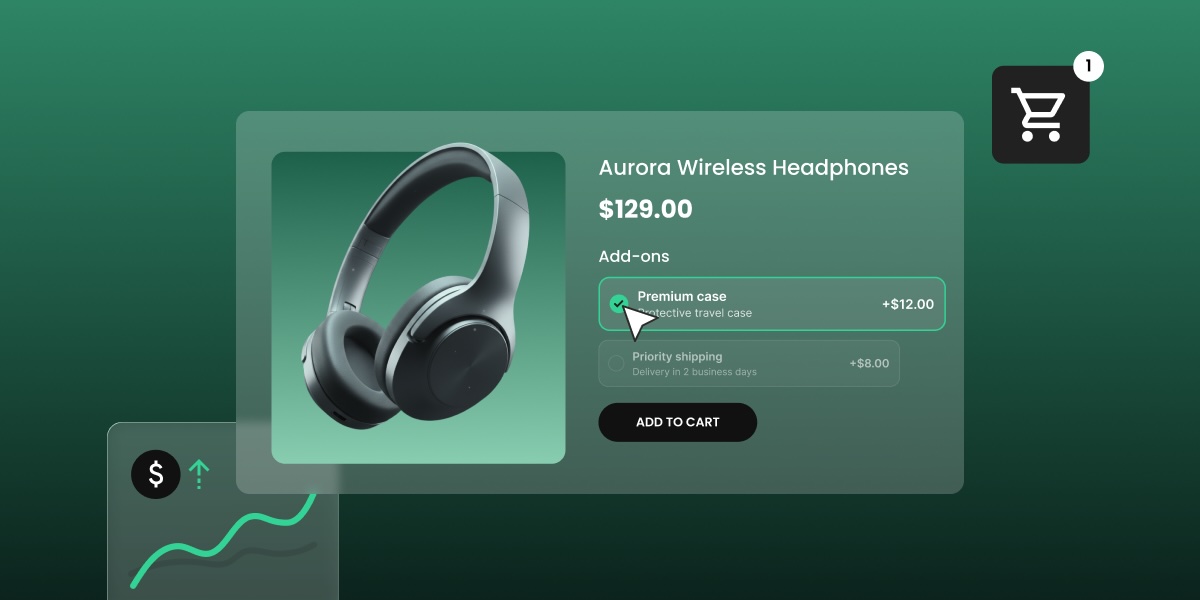
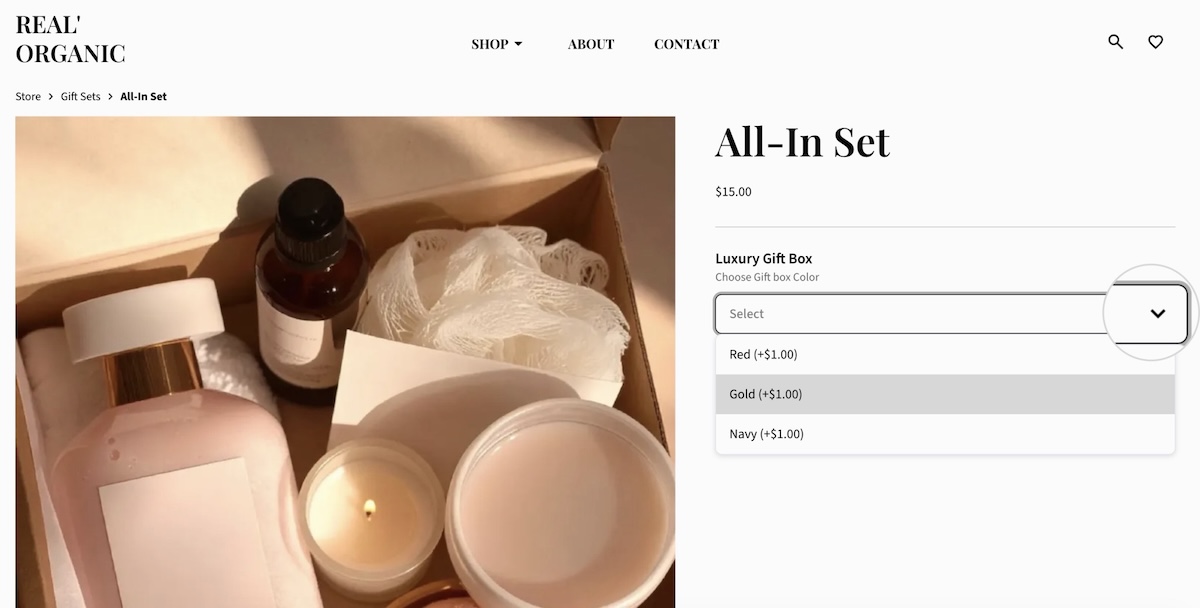
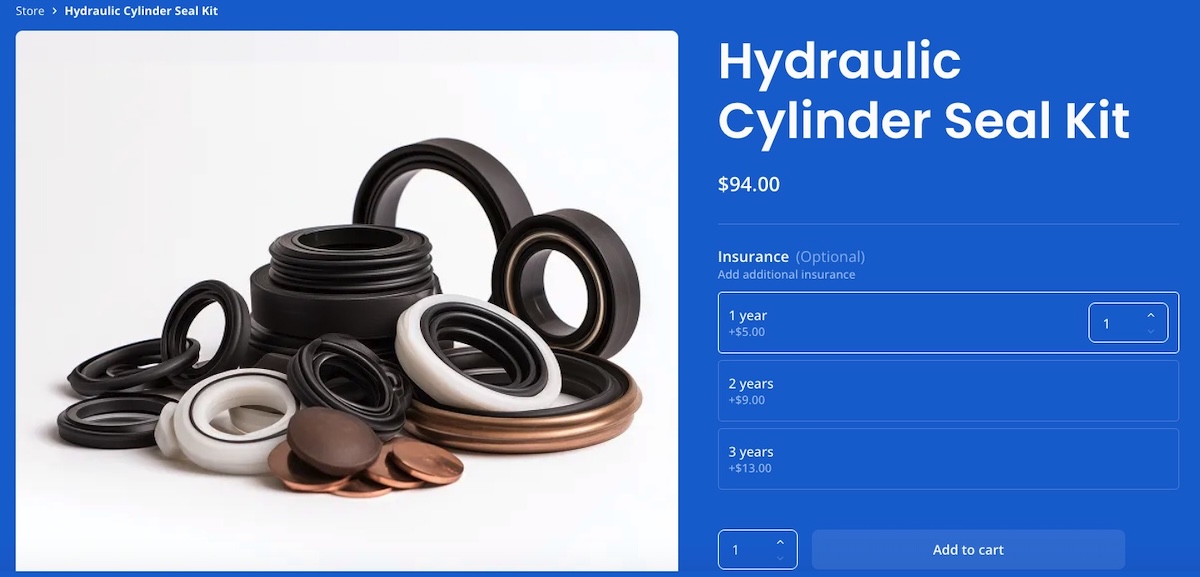
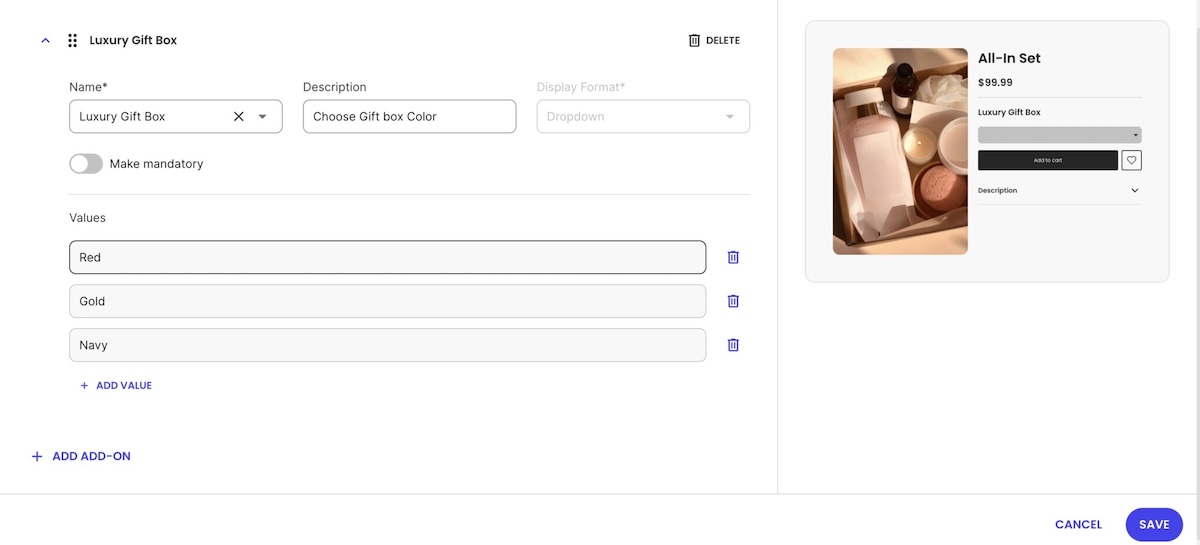
One checkbox on a product page can do more for your bottom line than your last sitewide discount, and it costs you nothing to offer. Gift wrapping, insurance, and engraving are three simple forms of product customization, but the same logic works for almost any optional extra you can attach to a product. This guide covers which ones you can put to work for your online store, how to price and configure them so they actually convert, and how to set them up without touching a line of code.
Key takeaways:
Product customization for ecommerce usually means optional extras, like gift wrapping, insurance, or engraving, that a shopper adds before putting a product in their cart, not a full product configurator.
Upselling and cross-selling programs lift average order value (AOV) by roughly 20-30%, according to 2025 research from Fairing, and product add-ons are one of the lowest-effort ways to run that play.
A $3 gift-wrap add-on with even a 10-15% attach rate protects margin better than an equivalent discount, because there’s no unit cost behind it.
Which add-on converts best depends on the product: gift wrap fits gift-occasion items, insurance fits high-ticket or fragile goods, and engraving fits made-to-order pieces, each working through a different reason customers are willing to pay more.
Optional vs. mandatory, free vs. paid, and single-select vs. multi-select are the three configuration calls that decide whether an add-on converts or gets ignored.
Made-to-order add-ons like engraving carry lead time that needs to fit inside your return policy and shipping promises, and on many platforms, an add-on’s refund is tied to the base product rather than something you can offer separately.
What is product customization in ecommerce?
Ecommerce product customization can be as simple as an optional add-on, like gift wrap, insurance, or engraving, that a shopper selects on the product detail page before adding the product to their cart. Most ecommerce businesses don’t need dedicated online product customization software for this: it’s a setting on a product that already exists, not a new system to install.
Add-ons vs. product configurators
An add-on isn’t the same as a full product configurator, though, which is the kind of tool that lets a shopper design a product before it’s even made.
Add-ons attach a service or extra to a product that already exists, with no configurator required.
Configurators build the customizable product itself (color, materials, dimensions) and usually need dedicated product customization software or a developer to set up.
Why should you offer product add-ons?
Product add-ons raise average order value (AOV) because a customer who’s already decided to buy is far more likely to accept a small extra than a stranger is to click a discount banner. Upselling and cross-selling programs lift AOV by roughly 20-30%, according to 2025 research from Fairing, and add-ons are one of the lowest-effort ways to run that play because they need no new inventory.
Here’s what that looks like on a single item: a $3 gift-wrap add-on doesn’t need a high attach rate to matter. Even a modest 10-15% attach rate adds more to margin than a comparable discount, because there’s no unit cost behind it beyond tissue paper and a few extra minutes of packing time. On 1,000 monthly orders, that’s an extra $300 to $450 a month in near-pure margin, without touching the base product’s price.
Add-ons also improve customer satisfaction and experience in ways a discount can’t:
They let a shopper solve a real problem (protecting a fragile item, wrapping a gift) at the moment they’re already buying.
They add margin instead of eroding it, unlike a sitewide discount.
They require no extra product photography or listing work.
Gift wrap, insurance, and engraving are the obvious product customization examples that probably pop into your mind, but their fit for your own products might not always be so obvious. So let’s unpack add-ons by product type, since it might just reveal one you hadn’t yet considered.
Gifts
If a meaningful share of your orders ship to someone other than the buyer, then news flash: you’re selling gifts, and gift wrap could be worth testing. Jewelry, home goods, and kids’ items carry a high gift-to-self-purchase ratio and convert on gift wrap even outside the holiday season; commodity items like phone chargers or office supplies mostly don’t, regardless of the time of year. The AOV mechanic here is simple: the customer is already paying for the occasion, so the wrap reads as part of that spend rather than an extra expense.
High-ticket or fragile goods
Insurance and warranties fit anything expensive enough that a customer worries about damage or loss: electronics, furniture, fine jewelry. The AOV mechanic is different from gift wrap. Customers aren’t paying for an occasion here; they’re paying to reduce risk, and their price tolerance scales with the item’s value rather than sitting at a flat few dollars.
Genuine insurance, priced against an item’s actual value, usually comes from a dedicated warranty provider, not from a basic add-on field. If you’re using a generic product add-on for this instead, what you’re really offering is a store-backed guarantee: you’re promising to replace or refund the item yourself if something goes wrong, funded by that flat fee. That’s a legitimate thing to sell, but it isn’t the same as a formal insurance policy, and customers should know which one they’re getting.
Made-to-order goods
Engraving and personalization touches fit products made or finished to order: jewelry, watches, apparel with monograms or custom text. The AOV mechanic here comes from the item’s uniqueness of a personalized product rather than an occasion or a risk: a customer will pay more for a customized product that is made or finished specifically for them than for the off-the-shelf version.
The operational catch is separate and worth keeping in mind, though: personalizing something takes time, and a three-day turnaround collides with that two-day shipping promise you made or the feasibility of return. So set the expectation on customization options up front, on the product page and in the confirmation email, so a slower fulfillment time or a non-returnable item don’t turn out to be unpleasant surprises for your customer.
Bulky or time-sensitive goods
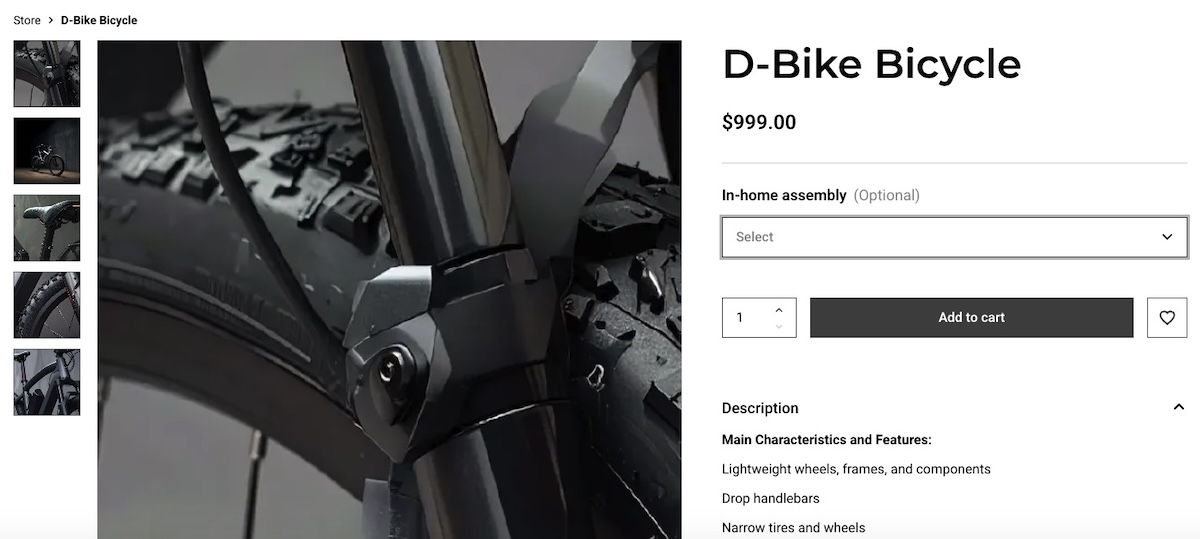
Furniture, electronics, and fitness equipment are bulky enough to carry an optional assembly or setup service. Meanwhile, time-sensitive orders can carry a rush or expedite fee handled as a product add-on instead of a separate shipping tier. The AOV mechanic is convenience: the customer is paying to skip a hassle, whether that’s assembling something themselves or waiting in the standard queue, rather than paying for an occasion or reducing risk.
How do you configure product add-ons?
Once you’ve picked your add-ons, three settings decide how they behave on the product page:
Decision
Default
When to flip it
Optional vs. mandatory
Optional
Force a selection when the alternative is a promise you can’t back, like shipping a $2,000 item with no protection option
Free vs. paid
Paid if it costs you anything
Offer it free when it’s pure goodwill or a differentiator, like a branded box at no charge
Single-select vs. multi-select
Single-select
Allow multiple selections when a shopper could reasonably want more than one option from the same add-on, like a gift note plus a ribbon color
Optional vs. mandatory
Leave add-ons optional by default: forcing a selection a shopper doesn’t want adds friction at the exact moment they’ve decided to buy, and that friction costs you more carts than the extra revenue is worth. Make one mandatory only when skipping it would mean shipping something you can’t stand behind, like sending a fragile, high-value item with no protection option at all.
Free vs. paid
An add-on with no price attached reads as free to the customer. That’s fine for goodwill gestures (a thank-you note, a simple ribbon) or as a competitive edge against other brands who charge for the same thing. Charge for anything that costs you real time or material, like engraving or a protection plan.
Single-select vs. multi-select
Most display formats aresingle-select by nature: a dropdown, a color swatch, a button. Only when you need a shopper to choose more than one option at once, like a gift note plus a ribbon color, does a dedicated multi-select checkbox format make sense. If a shopper might want more than one unit of that same add-on, enable quantity selection alongside it too, so they aren’t stuck adding the option twice.
Getting these decisions right shapes how the options look on your product page, so treat them as part of the product’s design instead of a checkout-settings afterthought.
How do you set up product add-ons in your online store?
Setting up add-ons generally follows a similar order regardless of platform:
Identify your extras. Pick two to four add-ons you’re actually offering before touching any settings.
Decide format and pricing per extra. Free or paid, single-select or multi-select, using the table above as a starting point.
Reuse the same add-on across products where your platform allows it. Many platforms save each add-on as a reusable template automatically once you set it up, so you can attach the same gift-wrap option to other products instead of rebuilding it from scratch each time.
Preview how it looks on the product page before publishing, on mobile as well as desktop.
Confirm your fulfillment side can see which orders include which add-ons before the first order ships.
None of this requires developer time beyond what building an ecommerce website already involves. On SiteGround Ecommerce specifically, you can enable and manage add-ons directly from the product page: pick extras, set pricing and format, reuse them as saved templates, and preview before publishing, all without touching code.
What should you watch for before launch?
Run through this list before turning add-ons on:
State your add-on refund policy on the product page or in your returns policy, not just in a support reply after the fact, especially if your platform ties add-ons to the base product with no separate refund option. Setting proper expectations builds customer loyalty.
Make sure fulfillment can see, order by order, which add-ons are included.
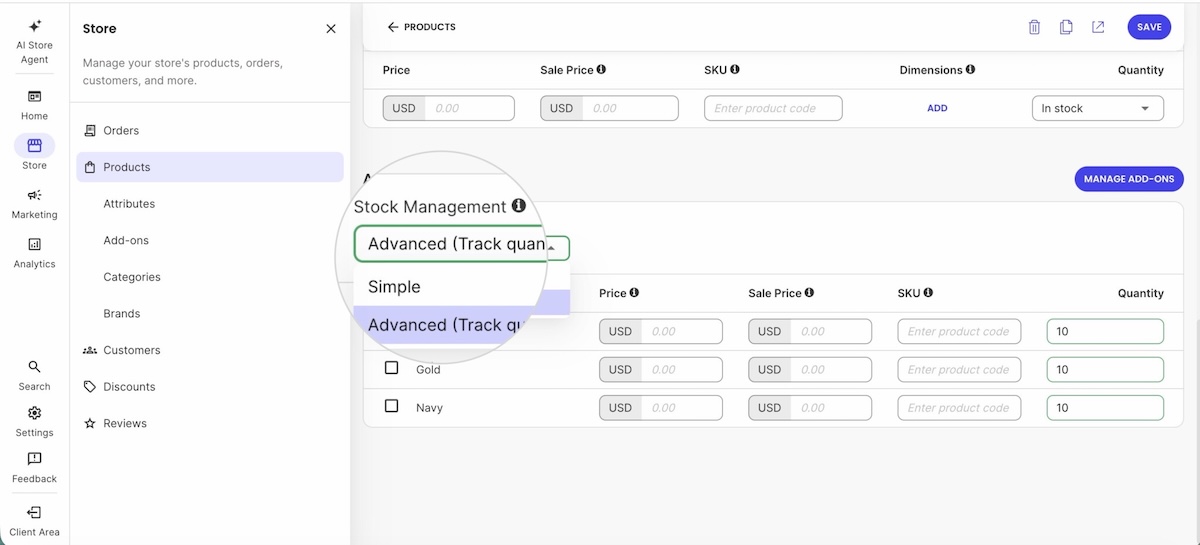
Decide whether any add-on value needs its own SKU or stock tracking, at least a simple in-stock/out-of-stock flag. Gift boxes run out too.
Keep add-on pricing consistent across products at different price points. A $5 gift wrap reads differently on a $15 item than on a $150 one.
Test the whole flow on yourmobile web design, not just desktop, before publishing.
A checklist like this pays for itself: it’s cheaper to catch inconsistencies now than after the first refund request.
Turn every product page into an upsell opportunity
Everything above, from picking the right add-ons, to pricing them, and deciding optional vs. mandatory, still needs somewhere to live on the product page. That’s usually the part that requires a developer or a paid plugin, which is the whole reason product customization for ecommerce gets treated as way more complicated than it needs to be.
SiteGround Ecommerce’s Grow and Scale plans include a built-in Product Add-Ons feature, so store owners can set up gift wrap, insurance, engraving, or any other extra directly from the product editor, with no plugin and no custom code. It comes with six ready-made templates to start from, and once an order includes an add-on, it’s flagged automatically on the order page so fulfillment never has to guess. Explore SiteGround Ecommerce to see how it fits your store.
[103]
Frequently asked questions
What is product customization in ecommerce?
Product customization in ecommerce usually means an optional add-on, like gift wrap or engraving, that a shopper selects before adding a product to their cart, not a full product configurator.
What’s the difference between product customization and personalization?
Product customization here means optional extras or services added to an existing product. Personalization more often refers to tailored recommendations or account-level experiences, like a homepage that changes based on browsing history.
What products work best with add-ons?
Gift-related items convert on wrapping because the buyer has already decided to pay for the occasion. High-value or fragile goods convert on protection because price tolerance scales with the item’s value. Personal items like jewelry or apparel convert on engraving because a made-to-order version is worth more than the off-the-shelf one.
Can add-ons be refunded separately from the product?
On most platforms, no. Add-ons are typically tied to the base product’s refund rather than refunded separately, and on some platforms, including SiteGround Ecommerce, that’s a fixed behavior rather than a setting you can change. Decide how you’ll communicate this before launch and state it clearly during the purchase process.
Do I need a separate app to sell add-ons like gift wrapping?
No, if your ecommerce platform includes add-ons natively. SiteGround Ecommerce, for example, offers them from the product editor with no plugin. On platforms without native support, a plugin or app is the fallback.
Do you need product customization software?
Not usually. For add-ons like gift wrap, insurance, or engraving, this is a setting on your ecommerce platform, not a separate purchase. Dedicated product customization software is really only necessary for full 3D or AR configurators, a different and far more expensive category of tool.
Choosing the right website template comes down to seven criteria: scalability, customization ease, mobile performance, page speed, SEO structure, built-in features, and AI assistance. Get these right and everything you build on top of them compounds. Get them wrong and every growth milestone comes with a tax.
But most first-time sellers don’t think about it that way. They pick a template the same way they choose a phone case: they find one that looks good and move on. The problem is that looks don’t load fast, rank in search engines, or scale with your business. The template you choose today shapes how easy it is to add products, reach mobile shoppers, and grow without starting over. This guide gives you a practical framework for evaluating templates on the criteria that actually matter.
Key takeaways:
Looks aren’t enough. A template that wins on aesthetics but loses on speed, SEO, and scalability will cost you more to fix than it saved upfront.
Your template choice is also a platform choice. The platform behind your template shapes everything from SEO controls to support. You’re choosing both.
Choose for fit, not flexibility. Pick a template for your business that’s already close to what you need, make a few targeted changes, and launch.
Mobile and speed aren’t nice-to-haves. Google ranks your mobile site first and penalizes slow ones. Underperforming on either hurts your visibility.
Built-in beats add-ons. Native features mean fewer subscriptions, fewer failure points, and less time maintaining a stack.
Think past launch day. The right template handles more products, more traffic, and more complexity a year from now, without a rebuild.
Why your template choice is a long-term business decision
A website template is a pre-designed starting point — a ready-made layout with structure, styling, and content placeholders that you adapt to fit your brand identity and business. The template you choose shapes everything that follows: how individual pages are organized, how search engines read your content, how quickly everything loads, and how well it works on a phone. Think of it as setting the foundation. The stronger it is at launch, the less you’ll find yourself rebuilding instead of growing.
Start with your setup, not your aesthetic
What kind of website do you actually need?
Before you open a single template preview, answer this: what does your website need to do? A portfolio website needs strong image presentation and a clean contact path. An ecommerce store needs a product grid, cart functionality, and checkout. A service business needs trust signals, a booking form, and a clear call to action.
Your template choice flows from your website’s job. A visually striking portfolio template is a poor foundation for a growing product catalog, and vice versa.
Template or all-in-one builder: what are you actually choosing?
Not all templates are created equal, and that’s partly because not all platforms are. A template for WordPress, for example, gives you web design and structure, but you’re responsible for assembling everything else: hosting, plugins, security, updates, and integrations.
An all-in-one website builder, on the other hand, bundles the template with the platform, which often means that hosting, ecommerce tools, email marketing, security (like SSL), and support are all part of the same package.
Neither is universally better, but the distinction matters as you work through this guide. Many of the criteria below (speed, built-in features, scalability, support) depend as much on the platform as on the template itself. Keeping in mind which kind of setup might be best for you will help you assess each point more clearly. If you’re still deciding between the two, our guide to choosing a website builder is a good place to start.
[79]
What features will you need in 6 to 12 months, not just today?
New sellers consistently underestimate how quickly their needs expand. You launch with five products and no email list. Six months later, you have thirty products, a newsletter, and customers asking for a size guide. A template that can’t accommodate that growth without a rebuild doesn’t end up being quite so cheap.
How to choose a website template
1. Customization: what you actually need
Customization is one of the first things people get excited about when choosing the right website template, but it’s also easy to pick the wrong one. A template that advertises a thousand different ways to customize every last feature sounds appealing. In practice, though, most of those options go unused, and having too many of them makes the editor infinitely harder to navigate, never mind launching harder to justify.
Here’s a more useful way to think about it:
Choose for fit, not flexibility. The goal isn’t a template you can turn into anything; it’s one that’s already close to what you need. A template that fits your business type well out of the box will serve you better than one that technically allows infinite customization but requires hours of work to hopefully get there.
Prioritize the few things that actually matter. Most businesses only need to change a handful of things to make a template their own: branding basics, the homepage hero, and navigation structure. Get those right and launch. Everything else can follow once you have real customers telling you what actually needs improving.
Get yourwebsite structureright early. Navigation and URL structure are harder to change later without affecting your search rankings. These are worth deciding deliberately at the start, and not something to revisit once you’re live.
Test how easy it actually is. Beyond what you can customize, pay attention to how easy it is to do. On WordPress, customization often means navigating a theme options panel, a page builder plugin, and the block editor simultaneously. It’s powerful, but it comes with a real learning curve. On an all-in-one builder, the same changes should be achievable in one place without extra tools. Look for a platform that offers a free trial, and then be sure to use it. Get into the builder and try making a few changes yourself before committing.
Scenario:Jake picks a template partly because it advertises over 200 layout options and granular control over every design element. Two weeks in, he’s still navigating a settings panel with more options than he knows what to do with and hasn’t launched. A competitor who picked a simpler template that was already close to what she needed made four targeted changes and went live on day three. More customization options didn’t make her website better. They just made Jake’s harder to finish.
2. Mobile performance
Nearly two thirds of all web traffic comes from mobile devices, and Google uses your mobile website, not your desktop website, to determine your search rankings. So a template that looks great on a large monitor but not on a phone can actually be a much bigger problem.
What to watch for: Text that’s too small to read without zooming, buttons placed too close together for a thumb tap, images that crop or overflow on smaller screens, and navigation that collapses into an unusable menu are all signs a template wasn’t built with mobile in mind.
How to check: Always preview a template’s mobile web design on a real device before committing. If you’re already in a free trial, pull up your work-in-progress on your actual phone, and not just the browser’s mobile view, to ensure that the responsive design works as it should.
Scenario:A customer finds your store through an Instagram post, taps the link, and lands on a page where the text is tiny, the buy button is half off-screen, and pinching to zoom is the only way to read the product description. They close the tab. So the product might be great, the marketing might even be great, but if the template isn’t mobile friendly? None of it matters.
3. Page speed and template bloat
A slow website costs you in two ways: search rankings and sales. Indeed, users abandon pages that take more than three seconds to load, and Google factors speed into where your website appears in results. The good news is that speed problems are often predictable (and avoidable) before you commit to a template.
Know what causes bloat: The most common culprits are parallax scrolling effects, auto-playing video backgrounds, heavy animation libraries, and built-in sliders. These features add weight to every page load, and templates built around them are rarely fast. Whether you’re browsing a template gallery or tinkering with a free trial, treat elaborate visual effects as a warning sign rather than a selling point.
Check the platform’s reputation for speed: The template is only part of the speed equation. The platform or host your site runs on determines how quickly files are delivered to visitors, and some are significantly faster than others. Before committing, look beyond the template itself: read independent reviews, and check benchmark comparisons. If you’re on a CMS like WordPress, your hosting for WordPress plan matters as much as the template itself. A lean template on slow hosting is still a slow website.
Scenario:A shopper sees your product via yourInstagram marketing, taps the link, and waits. The page half-loads. The header appears, then nothing for two seconds, then the images pop in one by one. Tick tock. She’s already losing interest. By the time the buy button is visible, she’s gone back to scrolling. She didn’t bounce because the product was wrong, but because the template was too heavy and the hosting too slow to keep up.
4. SEO basics: what to look for
Search engine optimization (SEO) isn’t something a template does for you automatically; it’s something you build in. But how easy that is depends on both the template and the platform behind it. That is, the controls that matter most to your SEO strategy should be accessible without jumping through hoops.
Here’s what to look for when it comes to easy-to-implement SEO:
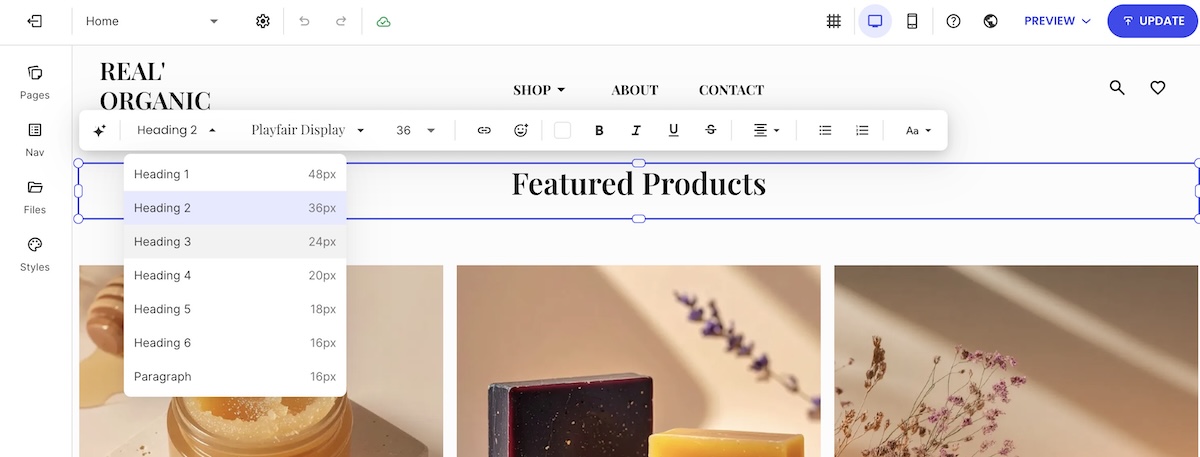
Heading hierarchy: Every page should have exactly one H1, followed by H2 and H3 subheadings in logical order. This tells search engines what each page is about and how the content is organized. The risk with many templates, though, isn’t that the headings are wrong by default; it’s that the editor makes them easy to misuse, applying heading tags for visual styling rather than content structure. Look for a builder that keeps heading controls intuitive and clearly labeled.
Crawlable navigation and clean URLs: Search engines follow your navigation to discover pages. A good platform gives you URLs that are readable and descriptive by default (something like /products/ceramic-mug rather than a string of random characters) and lets you edit them easily.
Meta titles and descriptions: Every page needs a unique meta title and meta description (these are what appear in search results and directly affect whether someone clicks through to your website). A good all-in-one builder will make these easily editable directly in the page editor. On WordPress, however, you’ll typically need an SEO plugin to access these fields, which is a common setup but an extra step to get right (and another plugin to wrangle).
Schema markup: For SEO, product schema should be a priority on your SEO checklist. It can tell search engines your product’s name, price, availability, and reviews, and can generate rich results in search listings. On a good all-in-one builder, this is handled automatically without any manual setup. On WordPress, it requires an SEO plugin, which means one more thing to configure correctly.
Scenario:Two entrepreneurs launch competing handmade jewelry shops on the same day with nearly identical products and prices. One is on a platform that auto-generates product schema and offers heading controls that are easy to use and understand. The other picked a visually stunning template where schema requires a plugin nobody told her about and not-so-straight-forward heading tags. Three months in, the first shop appears in search results. The second is on page three — not because the products are worse, but because search engines can barely make sense of the website.
SiteGround’s Website Builder takes care of all of this out of the box. Templates are easy to adapt without getting lost in options, fully optimized for mobile, and fast by default. On the SEO side, heading structure is easy to set correctly in the editor, URLs are fully editable from the start, and product schema is generated automatically. The groundwork is already laid, and you just have to build on it.
When you’re evaluating a template, it’s easy to focus on how it looks and forget to ask what it actually comes with. The answer depends a lot on your setup. On a CMS like WordPress, plugins are simply how things work — ecommerce, email marketing, and SEO controls all require them, and that’s a known tradeoff. On an all-in-one builder, these features should be native. Before committing to either, it’s worth knowing exactly what’s included and what isn’t.
What to look for natively: The features that matter most for small businesses should be available without installing anything extra. Look for product and inventory management, checkout and payment processing, email marketing, contact forms for lead generation, and basic SEO controls. A free trial will tell you more than any feature spec, though. Open the settings, poke around the dashboard, and try to set up a product listing or a contact form. If you hit a wall that points you to the app store, that’s your answer. If you hit a wall that points you to the app store, that’s your answer.
What to watch out for: Some platforms are built around a marketplace of third-party apps, which means features that feel basic can carry an extra cost. Read the pricing page carefully, not just the monthly plan fee. Look for transaction fees, per-app charges, and anything described as an “integration” rather than a built-in feature.
Scenario:One seller builds on a free template using a popular open-source CMS. She spends her first month configuring five plugins: an ecommerce tool, an email marketing integration, an SEO plugin, a forms plugin, and a cookie consent tool. Two conflict with each other and take the website offline for two days. Another seller goes with a well-known hosted ecommerce platform, only to find that customer reviews require a separate paid app, and that using her preferred payment processor means getting charged an additional fee on every sale. A third seller, on a platform with these features built in, spends that same month selling.
6. Scalability
A template that serves you well at launch needs to keep serving you as your business grows. This sounds obvious, but many templates that look super pretty at launch are built for small, static websites. They weren’t designed for a scaling business or a growing product catalog. Here’s what to look for:
Content and structure: The real question isn’t whether a template can accommodate growth; most can, technically. It’s whether it makes growth easy. Can the website navigation adapt as you add categories, or does restructuring it become a chore? Can you add pages easily and intuitively? Does the layout hold up at 200 products as well as it does at 20? If you’ve already tested the builder, you’ll have a head start here — add a page, restructure a menu, duplicate a product section, and see how it holds up.
Traffic: Content and structure is only half the picture. Your site also needs to handle sudden spikes in visitors without slowing down or going offline. A promotion that goes viral or a product picked up by a major publication can send a flood of traffic your way fast. How well your website handles that depends less on the template and more on your hosting or platform. If you’re on a CMS like WordPress, that’s a conversation with your web hosting provider; if you’re on an all-in-one builder, it’s worth checking that the platform is built for traffic surges, not just the quiet steady state of a new website.
Scenario:A seller expands his shop from eight products to forty, spread across four new categories. The products are ready, but updating the template to reflect that means digging through a clunky admin panel, hunting for where navigation menus are controlled, making the same change in three different places, and testing it on mobile to find it’s broken. Two hours later, he’s still not done. Meanwhile, a press mention sends a wave of traffic to his site, and because he’s on budget hosting, pages slow to a crawl. On a template with an intuitive editor and a platform built for traffic spikes, the same week looks very different.
7. AI assistance
The newest and most underrated criterion for first-time sellers is whether the template (and the platform behind it) uses AI to reduce the work of launching and maintaining a website. On an all-in-one builder, this can be built directly into the editor. On WordPress, AI tools are available but come through plugins and third-party integrations, which means more setup and more subscriptions to manage.
At launch: Some templates now come with AI copywriting tools and assistants built into the editor, which means you don’t start with a blank page. Service page descriptions, homepage headlines, and sales pages can be drafted from a few inputs, giving you a working starting point rather than a blank screen. AI image generation takes this even further. Instead of sourcing stock photos or hiring a designer, you can create visuals for your site directly inside the builder.
After launch: Running a small business means wearing a lot of hats, and most owners don’t have an analyst or a store manager on staff to fall back on. This is where the platform behind your template matters beyond just hosting. Some platforms now include a built-in AI agent that can answer questions about your store’s performance and, when you’re ready to hand off more, manage the day-to-day work itself: creating products, updating orders, managing coupons. No extra tools, no additional subscriptions. You ask or delegate, and the work gets done.
Scenario:An outdoor gear shop owner is gearing up for his busiest week of the year: a Black Friday sale. He needs to know which tents and packs to feature, which sizes are almost sold out, and he needs a site-wide discount live before customers start showing up. Normally that means digging through spreadsheets and updating each product one by one late into the night. Instead, he asks his AI store agent which products are trending and lets it apply the sale across his catalog in a few minutes. Same launch, same pressure, a fraction of the scramble.
For SiteGround Ecommerce store owners, this now comes standard through the AI Store Agent. Ask it something the way you’d ask an analyst, like which product is your top performer or what your average order value looks like this month, and it pulls from your orders, products, and customer data to answer in seconds. Switch on Power Mode and it goes further, creating and managing products, coupons, and customer accounts on its own. Start building your online store now>>
8. Support
AI assistance is great, but sometimes you just need a human. So it’s important to keep in mind that when you choose a template, you’re also choosing a support ecosystem. And how complicated that ecosystem is depends largely on your setup.
One platform, one team: On an all-in-one builder, there’s a single support team who understands your entire setup — your domain, your template, your store configuration, your email marketing, and everything in between. On a CMS like WordPress, support is fragmented by design: your host handles server issues, your theme developer handles template problems, and each plugin has its own support channel. Figuring out who’s responsible when something breaks (and it will because that’s the nature of plugins) can take longer than fixing the problem itself.
What good support looks like: A single point of contact only helps if that contact is responsive, knowledgeable, and available when you need them. Before you commit to any template, check what support looks like for the platform it runs on. Look at independent reviews, not just what the platform says about itself.
Scenario:Aproduct pagegoes down the night before a sale. One seller opens a chat with their platform’s support team (the same team that handles their domain, their template, their store, and their email marketing) and has the issue diagnosed in ten minutes. Another spends two hours filing tickets with three different vendors: the theme developer, the plugin maker, and the hosting company, each pointing the finger at someone else. The site stays down. The sale doesn’t happen.
Choose a website template that grows with your business
By now you have a different framework for this decision than most first-time sellers do. You’re not picking a template because it looks impressive; you’re picking one because it loads fast, reads cleanly on mobile, scales without rebuilding, ranks in search, and doesn’t require five plugins to run basic features.
The template that works best at launch is the one that’s still working a year later, when you have more products, more web pages, and more to lose from a rebuild. That’s the standard worth holding.
SiteGround’s Website Builder is designed around exactly that standard. It’s fast, flexible templates with native ecommerce and email marketing tools, AI assistance built in, and 24/7 support from a single team. Make your checklist, test the demos, and choose the foundation, not just the facade.
How do I choose the right business website template?
Start with your business goals, not aesthetics. Identify what your site needs to do (sell products, book services, build a portfolio) and look for a template that handles that use case natively. Then evaluate it against the practical criteria in this guide: scalability, mobile performance, page speed, SEO structure, and built-in features.
What factors should I consider when selecting a template?
The seven most important factors are scalability, customization ease, mobile performance, page speed, SEO-friendly structure, built-in vs. plugin-dependent features, and AI assistance. Aesthetics matter, but they should be the last thing you evaluate, not the first.
What’s the difference between a website template and a theme?
The terms are often used interchangeably, but there’s a practical distinction. A template typically refers to a pre-designed layout for a specific page or site type, while a theme is a broader design system applied across an entire site (common in WordPress). In most modern website builders, you choose a template that includes a full design system, effectively functioning as both.
What built-in features should a website template include?
For small businesses and first-time sellers, the most important native features are ecommerce (product listings, cart, checkout), email marketing, contact forms, and SEO controls. If these require third-party plugins, you’re adding cost, complexity, and points of failure from day one.
How do I choose a fast-loading website template?
Look for templates that keep visual effects to a minimum — parallax scrolling, auto-playing video backgrounds, animation libraries, and built-in sliders all add weight to every page load. Beyond the template itself, check the reputation of the platform or host for speed through independent reviews. A lean template on fast infrastructure will always outperform an elaborate template on a slow one.
Trust has a price, and it’s usually the store paying it, not the shopper. A recognized retailer collects that premium without trying. A store nobody’s heard of has to earn it, sale by sale, and most conversion advice was written for the store that doesn’t have to. Here’s where that happens, and the five specific moves that close the gap faster.
Key takeaways:
Shoppers spend 51% more with retailers they trust than with ones they don’t
Nearly one in five cart abandoners (19%) say they left because they didn’t trust the site with their card information
Well-known brands earn trust with minimal visual security cues; smaller, less familiar stores need stronger, more deliberate types of trust signals to get the same effect.
A PayPal badge beats dedicated security seals at inspiring shopper confidence, because familiarity matters more than the technical claim behind a badge.
Unpaid customer reviews and peer recommendations carry more weight in building trust than paid advertising.
Five specific, evidence-backed moves make up a small store’s trust stack: recognized payment badges, visible shipping and return terms, a well-styled card field, prominent reviews, and reliable hosting.
Shoppers spend 51% more with sellers they trust
Consumers spend 51% more with retailers they trust than with ones they don’t, according to Forter’s 2024 Trust Premium Report. That premium isn’t distributed evenly: brands people already recognize get it by default. Stores nobody’s heard of have to earn it, one nervous checkout at a time.
The rest of this piece breaks down exactly where that premium gets tested in your checkout, and the five specific moves that help an unfamiliar store close the gap faster.
Why most trust advice doesn’t apply to a store nobody’s heard of
The trust stats everyone quotes come from the whole market at once. That means a shopper’s tenth order from a brand they’ve used for years gets averaged in with their first order from your store, which they found an hour ago.
To break it down: Baymard says 19% of cart abandoners didn’t trust the site with their card details. Forter says 78% abandon a checkout that feels too slow or difficult. Both numbers are averages of that mixed group.
Edelman’s 2026 Trust Barometer found that 88% of shoppers call trusting a brand an important or critical purchase factor, right up there with quality (89%) and value (88%). That puts trust on equal footing with quality and price, not as an afterthought.
And yet none of these reports split “a retailer I already know” from “a store I’ve never heard of.” That’s the split that actually matters if you’re the second one.
Averaged data hides the real number for unknown sellers
Cart abandonment surveys count every kind of store at once: department chains, marketplaces, and one-person shops nobody’s ever linked to before.
A shopper checking out at a store they already trust barely glances at the card field. A shopper landing on a business they found through an AI search result or a social ad has no history to lean on.
That’s the exact moment Baymard’s 19% distrust figure is measuring. It’s just diluted by everyone else who wasn’t hesitating in the first place.
No report isolates the real number for first-time, unfamiliar sellers. But it’s almost certainly higher than the pooled average lets on.
Recognized brands get a security pass that new stores don’t
Baymard’s research on perceived checkout security found something almost unfair: shoppers trust Apple and Walmart with barely any visual security cues at all. The name is doing the work a padlock icon would otherwise have to do.
Newer or less familiar sites don’t get that shortcut. That’s part of why website security fundamentals matter more for a store that’s still building a reputation than for one that already has it.
Baymard’s fix is simple: add visual reinforcement, like a border or shading, around the card entry field. It’s a small design change that borrows some of the confidence a big name gets for free. Baymard’s own explanation for why is refreshingly blunt: shoppers aren’t evaluating checkout security on any technical basis, they’re going on gut feeling, and anything that looks visually set apart or reinforced reads as safer, whether or not it actually is.
Most sites still skip it. 66% of major ecommerce sites have no visual emphasis on the card field at all, per Baymard’s latest count. Better than the 89% that skipped it in 2012, but still most stores.
Where trust actually gets tested in an unknown seller’s checkout
Consumer trust gets tested at three specific moments: the homepage, the product page, and the payment step. Get any of them wrong and you’re making one of the common ecommerce design mistakes that cost stores sales before checkout even starts.
When customers decide you’re safe to pay
As customers peruse your pages, a first-time visitor will check the following the same way they’d check a stranger’s references, because that’s exactly what they are:
Shipping: 95% of shoppers say policy matters, and 53% have abandoned a purchase over a restrictive one, per Forter.
Returns: 89% say policy matters, and 22% have abandoned a purchase over a restrictive one, per Forter.
Payment: 9% abandon when a store doesn’t offer enough payment methods, and 10% leave after a card gets declined, per Baymard.
The payment step carries an extra test we already touched on: visual reinforcement around the card field is what makes that moment feel secure. A payment step that looks unfamiliar and offers only one way to pay is asking a first-time buyer to take two leaps of faith instead of one.
Which badge actually reassures a buyer at the payment step
Some trust signals don’t work the way people assume. CXL surveyed more than 2,100 shoppers and asked which badge gave them the most sense of security when paying online. PayPal won: 25% picked it as the top choice, ahead of Norton, Google Trusted Store, Visa-Mastercard, the Better Business Bureau, and McAfee.
That’s a payment logo doing more work than those five badges whose entire job is signaling security, and it comes down to recognition rather than accuracy: shoppers pick what looks familiar, whether or not it makes a security claim at all.
For a small store, a familiar payment logo can do more trust-building work than a generic secure-site seal from a vendor nobody’s heard of.
The small-store trust stack: five moves backed by data
Five specific moves make up a small store’s trust stack, each backed by its own data point instead of a guess. Here’s what to prioritize, and why each one earns its spot.
1. Choose recognized payment badges over generic security seals
We already saw that a recognized payment badge beats a dedicated security seal at inspiring confidence. Put that to use at your own checkout: skip the generic secure-site seal, and show whichever payment badges you actually accept instead.
2. Make shipping and return terms specific and visible
We already saw that a restrictive shipping policy drives away over half of otherwise interested shoppers. The real fix is often visibility, not a better policy: show exact shipping costs and delivery windows before checkout, not three clicks into a policy page.
The same goes for returns. A “see our returns policy” link buried in the footer does nothing at the moment a shopper is deciding whether to buy. State the return window and who pays for return shipping right on the product page.
3. Add visual reinforcement around the card field
We’ve already covered why this matters: a bordered or shaded card field measurably increases how secure a checkout feels, and most stores still skip it. Implementing it takes minutes in most ecommerce platforms and instantly separates you from every competitor who didn’t bother.
4. Lead with third-party reviews over brand messaging
Your own product description will never be as convincing as someone else’s experience. Edelman’s 2026 Trust Barometer found that unpaid advocates, satisfied customers, and peers carry more weight in building brand trust than paid or owned channels, brand websites included.
Make sure real, verifiable customer testimonials and positive reviews are actually visible on product pages, not buried in a tab shoppers have to click to find. If you’re light on testimonials so far, social proof doesn’t have to mean five star reviews: user photos, client logos, video testimonials, and a specific customer feedback quote all work.
5. Don’t let a slow or broken checkout undo the other four
None of the four moves above matter if the checkout page doesn’t load, or doesn’t load quickly. Baymard’s research found that 17% of cart abandoners left because of website errors or crashes, and Forter found that 78% abandon a checkout that feels too slow or difficult in general.
The gains for fixing this are larger than most store owners expect. The hardest data on it happens to be mobile-specific: Deloitte’s “Milliseconds Make Millions” study found that shaving just 0.1 seconds off mobile page load time raised mobile retail conversion rates by 8.4%, and checkout-to-order completion specifically by 4.7%.
A recognized payment badge, a clear return policy, and glowing reviews don’t help a shopper staring at a spinning loading icon. Reliable, secure hosting is the layer everything else in this stack sits on top of, which is exactly why speeding up your website has to be part of the trust conversation, not a separate one.
You don’t need a bigger name, you need a better stack
A recognized brand inherited that 51% premium we opened with. A store nobody’s heard of has to build it, one evidenced move at a time: visible policies, a well-designed card field, real reviews, and a checkout that actually works.
Some of that stack is on you: writing the return policy, collecting reviews. The rest, like reliable uptime, checkout security, and payment options that don’t buckle during a sale, comes down to what your store runs on. SiteGround Ecommerce is built to cover that half of the list, so the trust you’re building shows up as revenue instead of an abandoned cart.
[103]
Frequently asked questions
What is a trust signal?
A trust signal is any specific, verifiable detail on a store, like a recognized payment badge, a clear return policy, or social proof like a genuine customer review, that helps a shopper decide the business is safe to buy from. Recognition and specificity matter more than the signal simply existing.
What are some examples of trust signals?
The strongest examples, based on the data in this piece, are a payment badge shoppers already recognize, a visible and specific shipping and return policy, a clearly styled card field at checkout, and verifiable third-party reviews.
Do trust badges actually increase conversions for small stores?
Some do and some don’t. Research from CXL found that a recognized payment badge like PayPal inspires more shopper confidence than dedicated security seals from vendors like Norton or McAfee, so a badge’s familiarity matters more than what it technically certifies.
How long does it take a new store to build customer trust?
There’s no fixed timeline. Trust accrues one verifiable proof point at a time, a policy a shopper can actually read, a review from a real customer, a checkout that works, rather than building up the way brand awareness does.
Your business coach website has one job: turn those strangers into booked calls, buyers, or subscribers before they close the tab. Not just by looking professional, though that helps, but by moving those potential clients through a sequence: build credibility, make booking painless, sell to the ones who are ready, and capture the rest.
Key takeaways:
A business coach website works best in a specific order: trust first, then booking, then selling, then email capture.
Credibility comes from four things working together: a clear homepage headline, a credentials-first about page, testimonials spread across several pages, and mobile-friendly design.
A Calendly-style booking widget embedded on your services page cuts out the email back-and-forth that kills momentum right after a visitor decides to trust you.
Setting up a coaching package as a service lets a visitor pay a deposit or buy outright instead of just inquiring.
Selling digital downloads, worksheets, templates, planning guides, adds a second revenue stream on top of your existing ecommerce setup.
On most coaching business website funnels, the majority of traffic doesn’t book or buy on the first visit. That’s what the email capture step is for.
What your business coach website needs to do
A business coach website needs to do four things, in order: build credibility so visitors trust you, make it easy to book a call, sell packages and digital products to visitors who are ready now, and capture the email of everyone who isn’t.
That order is the whole strategy. Skip credibility and a visitor who lands on your booking page has no reason to trust you enough to grab a slot. Skip an easy booking flow and a visitor who does trust you gets stuck in an email thread instead of on your calendar. And skip email capture entirely, and every visitor who wasn’t ready to book or buy today, which is most of them, leaves with no way for you to reach them again. A lot of business coaching website advice never gets past the first step: it covers design inspiration, screenshots of pretty homepages, and stops there. Not this time!
You’re a small business owner, and not running a software company, so none of this needs custom development. A website builder built for non-technical users gets pages live in an afternoon. Whether you specialize in life coaching, executive coaching, health coaching, or otherwise, the sequence below is something you can build yourself, in order, over a weekend.
Step 1: Build credibility so visitors trust you before they act
This is the foundation step for any coach website design. Because everything else on your site depends on a visitor believing you’re legitimate before they book a call or hand over a card number.
A homepage that states who you help and what outcome you deliver
Your homepage has about three seconds to answer one question: who do you help, and what result do you get them? Answer it with a headline that follows a simple formula, who you help + the outcome you deliver, placed above the fold next to one primary call-to-action button such as “Book a free consult” or “See if we’re a fit.”
For a health coach, that might read: “I help remote workers build sustainable movement habits without adding to their to-do list.” For an executive coach: “I help mid-level managers get promoted to director in under a year.” Swap in your own specialty and outcome, but keep both halves, a headline that names only the audience (“Coaching for busy professionals”) or only the outcome (“Reach your full potential”) does neither job well.
That single CTA matters more than it sounds like it should. A homepage with five buttons competing for attention, or a hero video and scrolling logo carousel sitting above the offer, buries the one thing (your call to action!) you actually want a visitor to do before they even reach your credentials. Get the homepage essentials right and the rest of the page has room to do its job.
An about page that establishes your credentials fast
A stranger is deciding whether to pay you to change how they run their business. That’s a bigger trust ask than most sites face. Lead with your credentials, certifications, years coaching, client results, in the first two sentences. Save the personal story for explaining why you coach, and not for padding the page.
Include a professional photo, or an unposed photo of you actually coaching, on a call, at a whiteboard. These transmit authenticity, and, you guessed it, trust.
Testimonials placed where visitors decide, not stuck on one isolated page
A dedicated testimonials page is where testimonials sadly go to die. That’s because visitors decide whether to trust you on the homepage, the services page, and the booking page, and not on a separate tab nobody clicks. So pull three to five of your strongest client results and place a version of them on each of those three pages instead of building one long quote wall elsewhere.
Keep in mind that specifics carry more weight than praise. So “Raised my coaching rates 40% in two months” says more than “amazing to work with.” And if you don’t have results yet, one detailed before-and-after case study will get the job done better than a collection of lackluster quotes.
Professional photography, clear layout, and mobile-friendly design
Stock photos work against the one thing a coaching website needs to build: the sense that a real, specific person is on the other end. To avoid this conundrum, plan to:
Budget for one photography session, or lean entirely on unposed working photos instead of generic “business handshake” stock imagery.
Keep one primary action per page, with clear visual hierarchy and no competing offers.
Pay attention to mobile web design. Most coaching website traffic now arrives from a phone, and a booking widget that needs pinch-zooming to tap loses the visitor before they book.
Step 2: Make it easy to book a call once they trust you
Once a visitor trusts you, booking is the next friction point. A Calendly-style scheduling widget embedded directly on your services or contact page lets a visitor pick a time and confirm a consult in under a minute, no email thread required.
Embed the widget, don’t link out to it
A scheduling widget that opens on the same page keeps the visitor inside your site’s design and momentum. A link that sends them to an external scheduling site is one more place they can get distracted, close the tab, or simply forget to come back. You’ll need a Calendly account with at least one event set up first, then it’s a matter of dropping the event link into a Calendly section on the page.
Match the tool to how many booking types you actually need
When it comes to Calendly, as of August 2026, its free plan caps you at one active event type. That’s enough for most solo or professional coaches who offer one kind of consult call. If you run multiple call types, discovery calls, strategy sessions, VIP days, you’ll need Calendly’s paid plan.
Keep the booking page down to one job
A booking page can include more than just the widget, but it needs to stay focused. Testimonials, pricing tables, and a newsletter signup competing for attention on the same page all pull a visitor away from the one thing you want them to do: book the call. The same landing page principles that keep a page focused on one conversion goal apply here.
Step 3: Sell coaching packages and digital products to visitors who are ready now
Not every visitor needs a call first. A referral who’s already read your case studies, or a returning client who worked with you last year and wants a shorter follow-up package, both know what they want. Neither should have to book a consult just to hand you money.
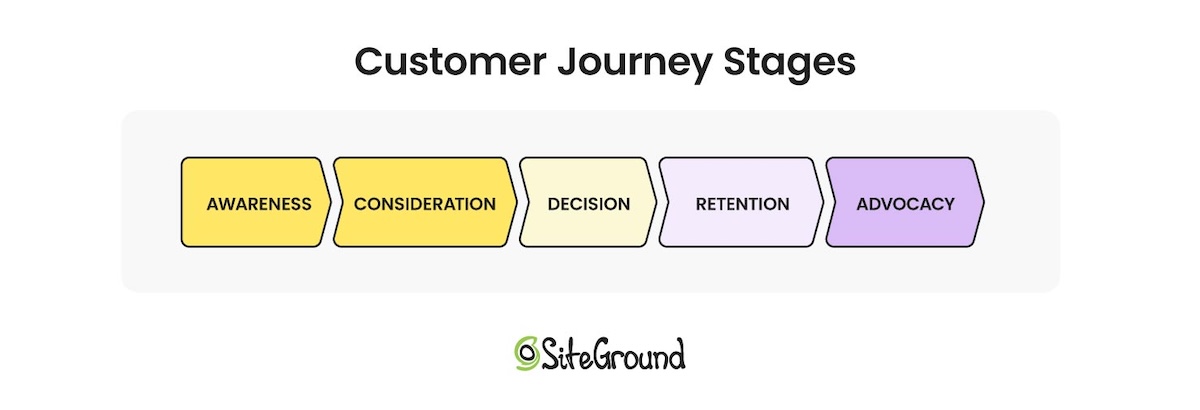
Mapping out where these visitors are in the customer journey (like a potential buyer building awareness, or a long-time client who keeps coming back for more) makes the case for why you might want to offer different types of products, both service and digital.
Selling coaching packages as a virtual product
Set up each coaching package (say, a three-session intensive, a six-month program, a single strategy session) as a service with real pricing attached.
Get payment processing set up correctly first. Packages, deposits, and split payments all need to route through one checkout instead of three different tools.
A published price lets a ready visitor buy directly. New or returning, they can purchase outright or pay a deposit right on the page instead of starting an email thread.
“Contact for pricing” isn’t always the wrong call. It can make sense for fully custom or highly bespoke engagements where the price genuinely varies by client. For a standard package, though, it mostly just adds friction between a ready buyer and their card.
Selling templates, guides, and other digital downloads
Not every ready visitor wants a full coaching package right away. The good news is that the same ecommerce setup that sells the coaching itself can also sell downloadable products such as worksheets, planning templates, or a self-paced mini course, with no extra plugins and no second platform.
It’s a genuine second revenue stream, not busywork: a $27 planning template gives a visitor who isn’t ready for a $2,000 coaching package something to buy today instead. Plus it builds trust and loyalty toward that future, larger purchase.
List digital downloads next to your packages, not on a separate page. A visitor weighing a $1,500 program against a $27 template is far more likely to buy the template now, and consider the program later, than to leave the site having bought neither.
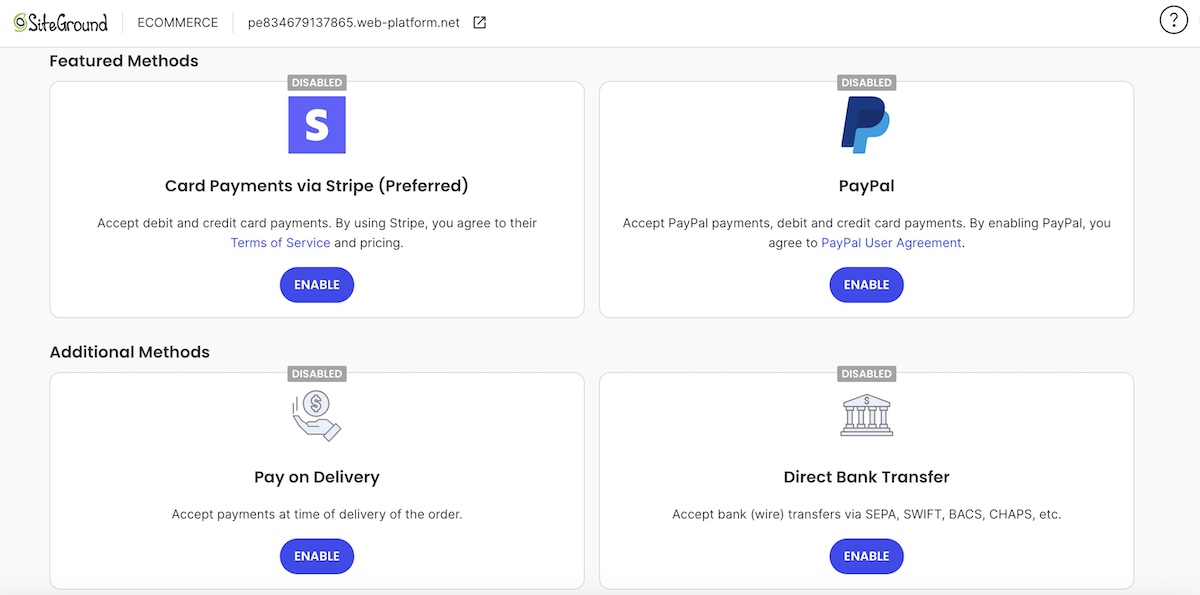
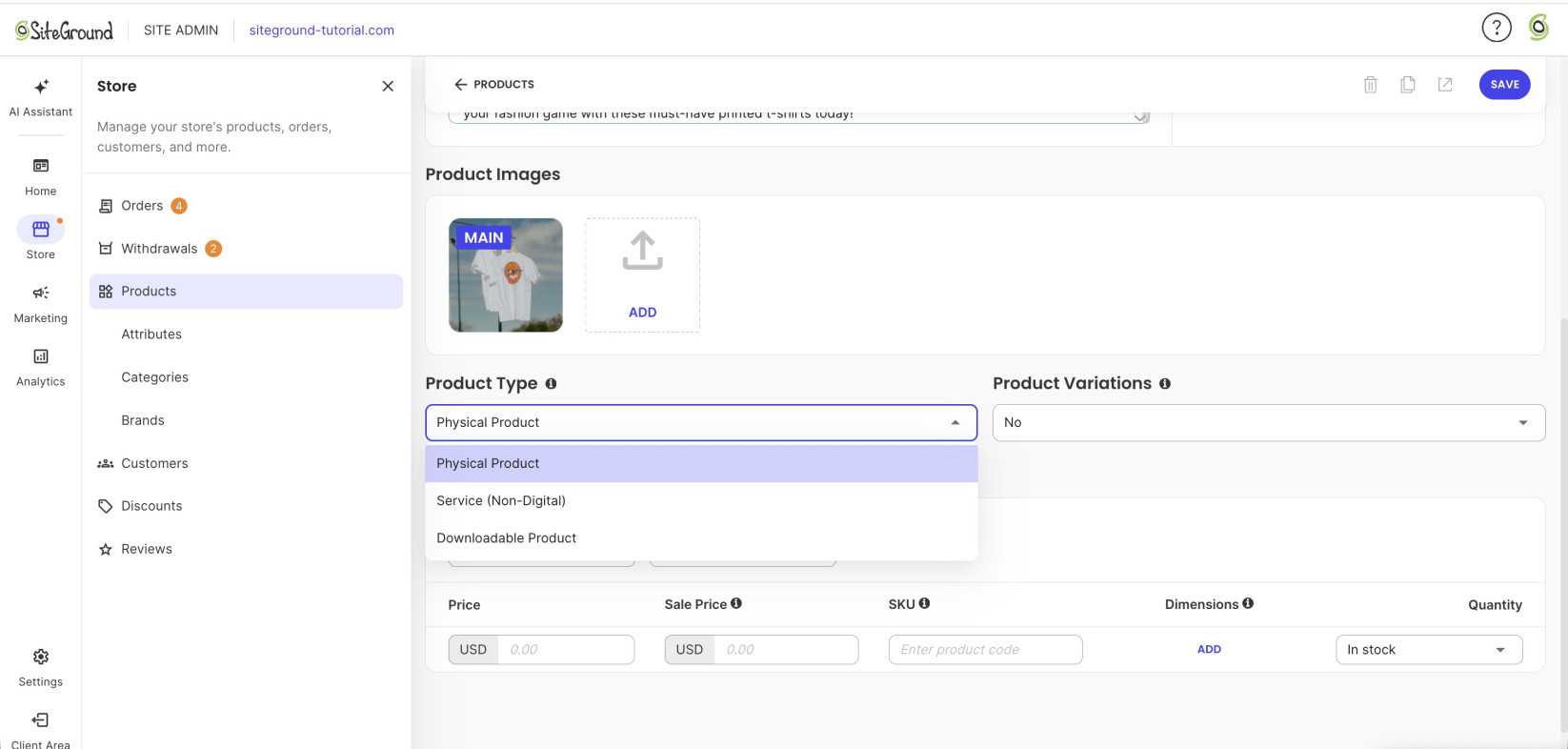
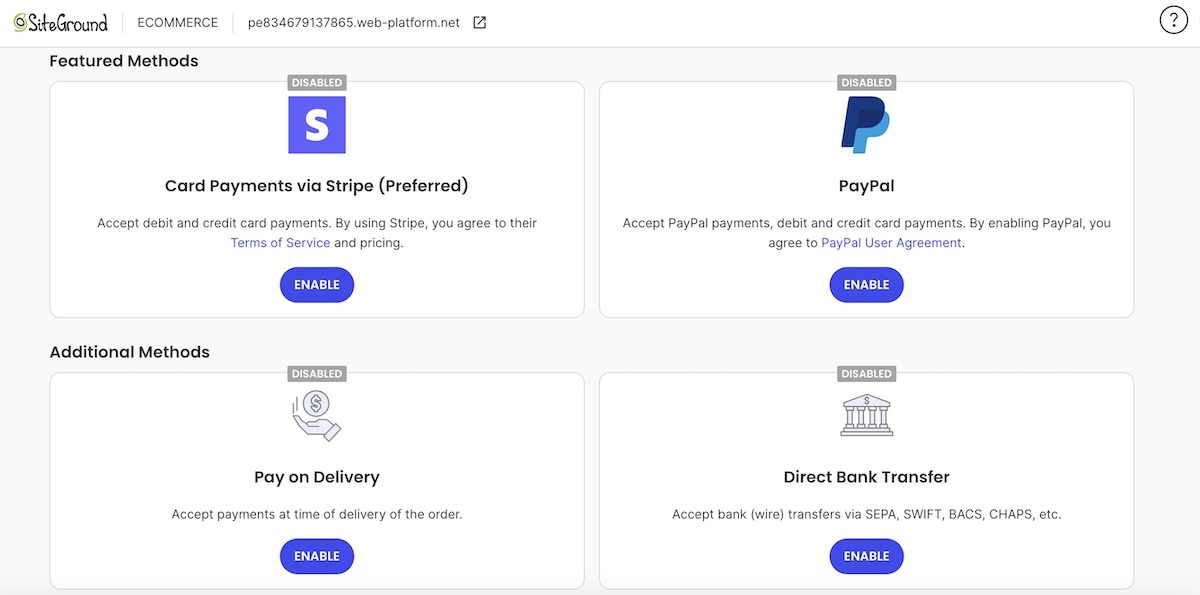
SiteGround Ecommerce covers all of this from one dashboard. Calendly integration handles the booking step, and Stripe, PayPal, and other options cover payment processing. It also supports physical, service, and downloadable product types, so packages and templates live on the same platform without extra plugins. Setup takes an afternoon, the hosting holds up under real traffic, and expert support is there any time you need it.
Step 4: Capture emails from visitors who aren’t ready yet
Most visitors won’t book or buy on the first visit. And without a way to capture their email, that traffic is gone for good.
Give visitors a reason to hand over an email address
A generic “join my newsletter” box rarely converts. Offer a lead magnet instead — a free resource specific enough to be worth an email address, such as a free chapter, a coaching-readiness quiz, or a five-day email challenge. Building an email list that converts starts with getting that offer narrow and specific: “10 questions to ask before hiring a coach” pulls in far more signups than an open-ended newsletter box.
Place the form where visitors actually drop off
At the bottom of the homepage, for visitors who scrolled the whole page without booking or buying.
Inside blog or resource content, where visitors are already reading and engaged.
At the bottom of the services page, right before a visitor who was close to booking decides to leave.
Let the follow-up sequence do the selling
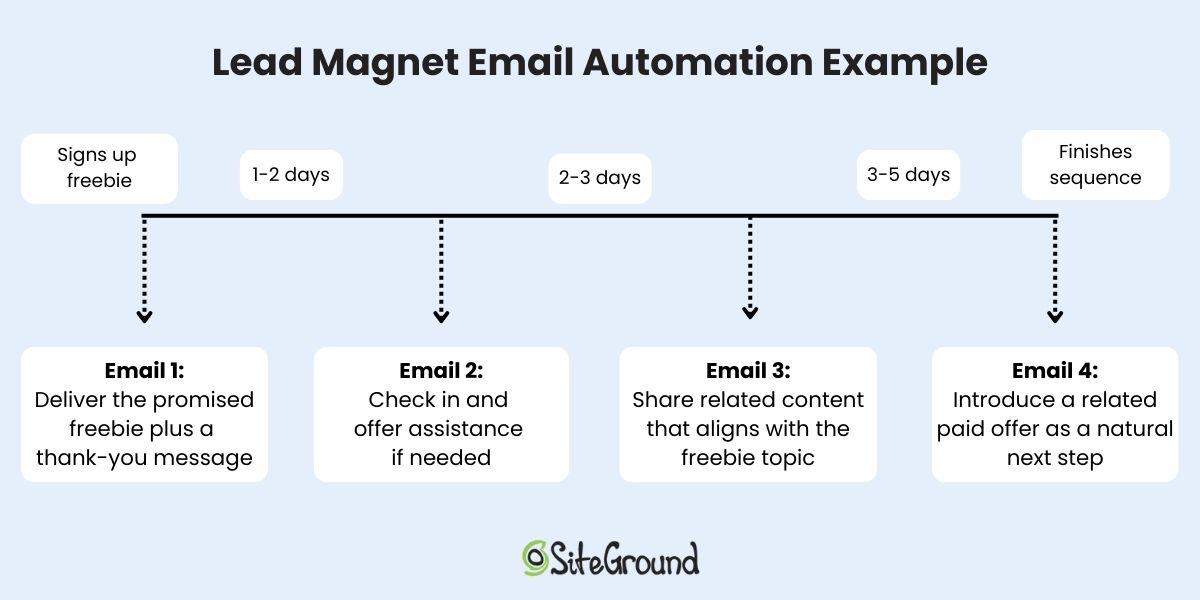
Once you have the email, an automated sequence does the work a single page visit can’t: moving someone from “not ready” to “ready” over several weeks instead of trying to close them in one visit. A short series covers the basics:
Deliver the lead magnet right away.
Share a client result or quick win.
End with a soft nudge toward booking.
Email automation handles the sending on a schedule once it’s set up, so the nurturing keeps happening without you writing a fresh email every week.
Step 5: Set it up in the right order
If you were hoping for a quick-and-dirty checklist, then here it is. Building things out of order costs you real conversions, not just tidiness.
Add it before credibility is built and you’re booking calls with visitors who haven’t decided to trust you yet, which shows up later as no-shows and mismatched-expectation calls
3
Ecommerce for packages and products
Turn it on before your core pages are live and you’ve built a store with no credible site sending it traffic
4
Email capture form
Safety net for everyone who wasn’t ready yet
Turning on ecommerce means building out your online store: choosing a platform, connecting payment and tax settings, and picking a theme, before you list a single package.
A business coach website that works as hard as you do
Build in that order, credibility, booking, selling, capturing, and your business coach website does what most coach sites never quite pull off: turning a visitor into a client without you handling every email, payment, and follow-up by hand.
SiteGround Ecommerce bundles the site, the booking functionality, virtual product listings, and email marketing tools all in one plan, backed by fast, high-performing hosting and around-the-clock live expert support. Start a free trial and have your first package listed before the coffee gets cold.
[103]
Frequently asked questions
Can I sell coaching packages directly from my website?
Yes. Set the package up as a virtual or service product, not a physical one, so clients can pay by card or your other configured methods without you invoicing manually for every sale.
Do I really need a website for my coaching business?
Yes, even if most clients come through referrals. A website is where a referred prospect verifies you before booking, and the only place you show up in search for people who don’t already know your name.
Can I build a business coach website without a developer?
Yes. A website builder made for non-technical users, plus ecommerce tools for packages and digital products, covers the full sequence above. No code, no agency.
How much does it cost to build a business coach website?
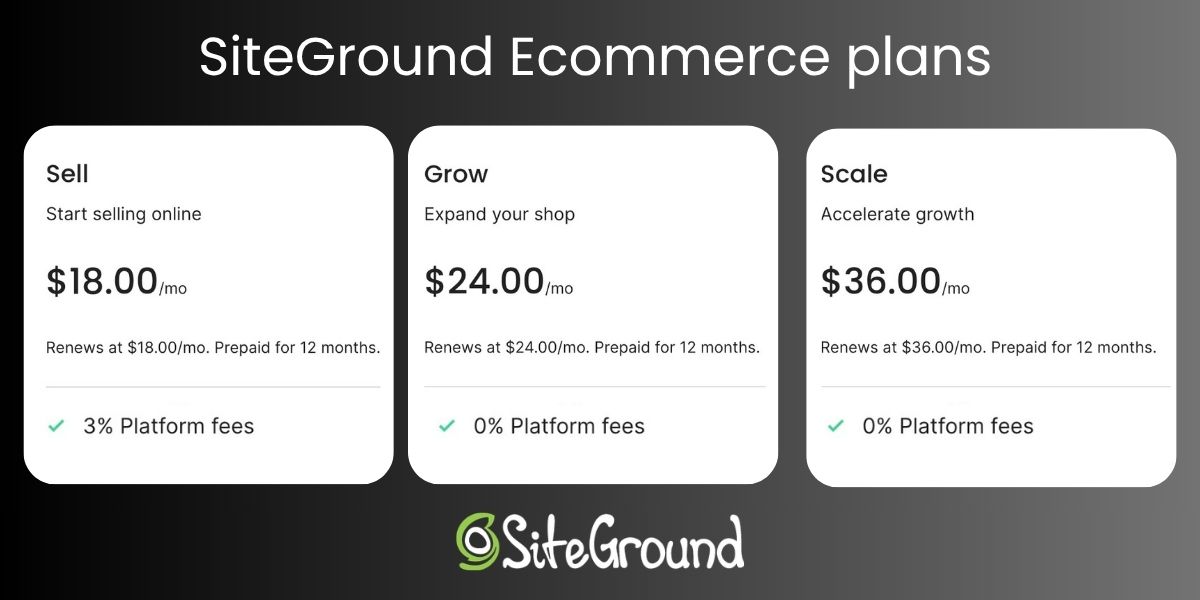
SiteGround Ecommerce plans run $18 to $36 a month, covering hosting, the website builder, and the virtual product listings for packages and digital downloads. Hiring a freelancer or agency instead runs much higher, often several thousand dollars for a custom build. See the full website cost breakdown for specifics.
You’ve heard both sides: PayPal is the easiest way to get paid, and PayPal is one bad week away from freezing your money. Both are true. The fees are manageable, more manageable than most sellers assume once you know which button to use at checkout. The real risk is a hold with zero warning and no promised release date. Here’s what the fees really add up to, why holds happen, and whether PayPal, Stripe, or both deserve a spot in your checkout.
Key takeaways:
Standard PayPal Checkout costs 3.49% + $0.49 per domestic sale when a customer pays from their PayPal balance, bank, or Venmo. Card payments through the same checkout button run lower, 2.99% + $0.49, automatically.
International sales add a 1.50% surcharge on top of the domestic rate, and currency conversion typically adds another 3% to 4% on top of that.
No LLC is required to open a PayPal Business account. A sole proprietor can sign up with an SSN.
Refunding a sale returns the customer’s money, but PayPal keeps the original transaction fee, anywhere from $3.48 to $3.98 on a $100 sale.
PayPal issues a 1099-K once you cross $20,000 in payments and 200 transactions in a year, but every dollar of business income is taxable whether or not a form ever shows up.
Frozen funds, not fraud, are the most common small-business complaint about PayPal. They’re usually triggered by a sudden sales spike or an unresolved dispute, not wrongdoing
What is PayPal for small business?
A PayPal Business account is the version of PayPal built for accepting customer payments, sending invoices, and keeping business money separate from personal funds. It’s free to open, has no monthly fee, and works for anyone from a solo Etsy seller to a multi-employee retailer.
If you’re an early-stage seller trying to keep startup costs down, a payment processor with no monthly fee is one line item you can cross off your online store budget before you’ve made a single sale.
What features come with a PayPal Business account
Invoicing: send professional invoices with built-in payment links, no separate tool needed
Checkout buttons: embeddable PayPal Checkout for your website or online store
In-person card reader: a physical Zettle reader for markets, pop-ups, or a storefront counter
Multi-user access: add employees or bookkeepers with permission-based logins
Brand recognition: customers already trust the PayPal button, which can reduce checkout drop-off
PayPal business vs. personal account
The two accounts aren’t interchangeable once you’re actually running a business:
Personal account
Business account
Intended use
Paying friends, occasional purchases
Accepting payments for goods or services
Selling limits
Restricted, can trigger holds if exceeded
Built for ongoing commercial volume
Invoicing
Not available
Included
Multiple users
No
Yes
Transaction fees
Same fee structure applies to commercial payments
Same fee structure, with business tools included
Using a personal account to run a business violates PayPal’s terms and is one of the fastest ways to trigger a hold, since PayPal’s fraud systems flag business-pattern activity on personal accounts.
How much does PayPal really cost small businesses?
A standard PayPal Business account has no monthly fee. What it charges instead is a percentage plus a fixed amount on every transaction, and that rate changes depending on how the customer pays.
Standard transaction fees
Payment type
Domestic rate
PayPal Checkout (pay with PayPal balance, bank, or Venmo)
Take a $100 sale. Run it through standard PayPal Checkout and PayPal walks away with $3.98. Run the same sale through standard card processing, and PayPal settles for $3.48. Not a huge gap on one sale, but multiply it by every transaction you process and it stops feeling like pocket change.
Beyond the headline rate, a few charges only show up once you’re already using the account:
Currency conversion: a 3% to 4% spread on top of the exchange rate for cross-border sales
Chargeback fee: $20 when a buyer disputes a charge through their card issuer
Dispute fee: $15 for a standard dispute filed through PayPal, rising to $30 if your account is flagged for a high dispute rate
Instant transfer: 1.50% of the amount (minimum $0.50) to move your balance to your bank in minutes
Refunds: issuing a refund returns the customer’s money, but PayPal keeps whatever fee you paid to receive it in the first place, anywhere from $3.48 to $3.98 on a $100 sale, depending on how the customer paid.
That last one catches a lot of new sellers off guard. PayPal doesn’t deposit money to your bank account by default. It sits in your PayPal balance until you either withdraw it manually (free, 1 to 3 business days) or pay for an instant transfer. If you’d rather not remember to move money every week, PayPal’s Auto Transfer setting handles it automatically.
One more cost worth factoring in: most ecommerce platforms charge their own platform fee on top of whatever your payment processor charges. SiteGround Ecommerce only applies one on its Sell plan; other plans skip that fee entirely, so it’s one variable worth checking regardless of which platform you land on.
How to reduce or avoid PayPal’s 3% fee
A few practical moves lower your effective rate without switching processors:
Skip instant transfers unless you genuinely need the cash same-day. Standard transfers are free.
Contact PayPal directly once your monthly volume is consistent and ask about negotiated rates. PayPal offers reduced pricing to higher-volume sellers, though the terms aren’t published and are set case by case.
Pass processing costs to the buyer through PayPal’s invoicing settings, where allowed by your state and card network rules.
Pros and cons of PayPal for small business
Where PayPal has a genuine edge
Most of what people credit to PayPal (fast setup, no monthly fee, buyer trust) isn’t unique. Stripe matches or beats PayPal on all three: its standard rate is 2.9% + $0.30 (cheaper than PayPal’s own card rate), setup takes minutes, and it natively supports Apple Pay, Google Pay, and other wallets buyers already trust. What PayPal actually offers that a lot of alternatives don’t:
Existing balance checkout: a huge number of shoppers already have money sitting in a PayPal account, and paying from that balance skips re-entering card details entirely
No business website required: PayPal accounts can activate for sellers running purely through social media or marketplaces, where some other processors expect a live storefront to verify against
Crossover from personal use: customers who use PayPal to split rent or pay a friend are one click from checking out with the same account, which lowers the barrier for occasional or one-off buyers
The real risk: frozen funds and account holds
Ask around in any seller forum and this is the complaint that comes up first, the one most PayPal roundups mention in a single throwaway line and move on. Here’s the real version: PayPal can hold your balance for up to 21 days if its risk systems flag your account, according to PayPal’s own funds availability policy, and it doesn’t ask permission first. What tends to set it off:
A sudden spike in sales volume compared to your account’s history
A new seller account processing large transactions early on
A wave of disputes or refund requests in a short window
Selling in a category PayPal classifies as higher risk
Deep breath, though: none of these require actual fraud to have taken place on your part. A viral product launch can trigger the same hold as a genuine problem. To lower the odds of this kind of thing happening:
Notify PayPal before a known spike, such as a planned launch or seasonal sale
Keep tracking numbers and delivery confirmation on file for every order
Respond to disputes immediately rather than letting them escalate to a chargeback
Avoid relying on PayPal as your only source of operating cash, since a hold can freeze funds you were counting on
How to set up a PayPal business account
What you need before you start
You don’t need an LLC to open a PayPal Business account. A sole proprietor can sign up with a Social Security Number; an LLC or corporation will need an EIN instead. Either way, have ready:
Your legal business name and address
SSN or EIN, depending on your business structure
A linked bank account
A description of what you sell
One more thing worth knowing before you start selling: PayPal issues a 1099-K once your account crosses $20,000 in payments and more than 200 transactions in a year. That threshold has moved around in recent tax law (a lower $600 threshold was passed, delayed several times, then repealed in 2025), so treat this as a reporting rule, not a taxability rule: business income is taxable on your return regardless of whether a 1099-K ever arrives, and it’s worth understanding how ecommerce sales tax works alongside it if you’re selling to customers in multiple states. Thresholds and requirements can change, and this isn’t tax advice, so confirm your specific obligations with a tax professional or the IRS directly.
Step-by-step setup walkthrough
Go to PayPal’s business signup page and select Business account
Enter your business name, category, and website or social profile
Add your SSN or EIN and confirm your business address
Link a bank account for withdrawals
Verify your email and confirm your identity if PayPal requests it
Most accounts are approved instantly; some are held for manual review, which can take a few business days.
Connecting PayPal to your online store
Once your account is active, PayPal plugs into most store platforms through a checkout button or a plugin, no custom code required for the standard integration. If you’re building your ecommerce website from scratch, PayPal is typically one of two or three payment methods you’ll want live before launch, alongside a card processor.
If you’re building on SiteGround Ecommerce specifically, PayPal is one of the payment options ready to switch on from your store settings, alongside Stripe, with no plugin hunting or custom code involved. That comes with high-performance hosting and around-the-clock support already built in, so the payments part of your launch isn’t the piece you’re left troubleshooting alone.
Choosing the best payment processor for your small business
This isn’t really a question of picking one processor and sticking with it. It’s a question of which processor, or combination of processors, actually matches how you sell. PayPal alone covers plenty of small businesses. Others need to add a second option next to it.
Signs PayPal alone could be enough
PayPal by itself is a solid fit if most of these describe your business:
You sell simple, one-time purchases rather than subscriptions or recurring billing
Your monthly volume is modest enough that a flat rate doesn’t eat into margins
Most of your sales are domestic, so you’re not stacking international and conversion fees
You want a working checkout today, not a week spent on a custom integration
Your customers already expect to see the PayPal button and trust it
Signs you need more than PayPal alone
PayPal alone starts to show its limits once you hit any of these:
High transaction volume, where flat-rate fees add up faster than a negotiated processor rate
A preference to accept card payments directly rather than routing everyone through PayPal’s interface
None of these are reasons to drop PayPal. They’re reasons to add a second processor alongside it.
Running Stripe and PayPal together
Stripe and PayPal aren’t an either-or choice for most small businesses. Running both means covering more of your customers’ preferred payment methods than either processor covers alone, card payments, digital wallets, and checkout flexibility that neither one fully replaces on its own. If Stripe is new to your setup, what to check on Stripe before going live walks through the parts that trip people up first: test mode, checkout, and receipts.
Is PayPal the right fit for your small business?
For low-volume sellers, freelancers invoicing a handful of clients, or anyone who wants to start accepting payments today, PayPal is a reasonable default. The fees are predictable, the setup takes minutes, and buyers already trust the button. Where it falls short is at scale: higher volume, international sales, or a dispute-heavy niche all make the hidden costs and hold risk more likely to bite.
Most small businesses land on running PayPal and Stripe together rather than choosing one exclusively.SiteGround Ecommerce supports both natively, so you can offer customers the payment options they already expect without a pile of extra plugins to manage. You also get high-performance infrastructure and around-the-clock expert support built in, so payments aren’t the only thing running smoothly.
[103]
Frequently asked questions
Is PayPal good for small businesses?
Yes, for low-volume or straightforward selling. It’s less suited to high-volume, international, or dispute-heavy businesses without a second processor to back it up.
How much does PayPal charge for small business?
Standard PayPal Checkout costs 3.49% + $0.49 per domestic sale; standard card payments run 2.99% + $0.49. See the full fee table above for invoicing, international, and in-person rates.
What’s the best payment processor for small business?
There isn’t one universal answer. PayPal works well for straightforward, lower-volume selling. Stripe adds deeper checkout customization and subscription support. Most small businesses end up running both rather than picking one exclusively.
Do I need an LLC for a PayPal Business account?
No. A sole proprietor can open a PayPal Business account with an SSN. An LLC or corporation uses an EIN instead, but the business structure itself isn’t a requirement.
How do I avoid a 3% fee on PayPal?
Skip instant transfers in favor of free standard ones, ask PayPal about negotiated rates once your volume is consistent, and pass processing costs to the buyer through invoicing where your state and card network rules allow it.
Yes, you can add payments to an AI-built app without hiring a developer. What you can’t do is stop at a checkout button that just sits there looking pretty. Real payment readiness means your app also knows whether the charge succeeded, and what to do next: confirm an order, unlock access, update a subscription, or something else. Here’s what that actually takes, step by step.
Key takeaways:
To add payments to an AI-built app, you need six things working together, in this order: a real checkout connection, a working webhook (the signal that tells your app a payment actually went through), a test run through failure cases, controlled access, accurate payment status, and a confirmation step.
A checkout button that isn’t wired to a real payment integration, Stripe or otherwise, is a shape with a border-radius, not a payment flow.
Many AI app builders connect to Stripe using a restricted API key rather than your account’s main secret key, so you control exactly what gets accessed.
The webhook, not the redirect back to your site, is what actually tells your app a payment succeeded, but only if that webhook checks Stripe’s signature first.
Testing an AI-built app’s payment flow means running a decline, a cancellation, a refund, and a duplicate order, not just one successful purchase.
One-time payments and subscriptions need different logic for what happens when access should turn off.
Why a checkout button isn’t the same as payment-ready
Is a checkout button enough for an AI-built app? Nope. A button just opens the door. Whether real payments actually work depends on six pieces working together behind it, and a good-looking checkout is only one of them.
Here’s what those six pieces are:
A checkout connection to a real payment processor, not a mockup.
A way for the app to hear back when a payment actually succeeds.
Testing against real failure cases before a real customer hits them.
Access that unlocks only after the webhook confirms payment, not before.
Accurate payment status tracking: paid, unpaid, refunded, failed.
A confirmation step that tells the customer what happens next.
How to add payments to an AI-built app, step by step
This section covers three of the six pieces from above: connect a real checkout, wire up a way for your app to hear back when payment succeeds, then test the whole thing before real money moves. Testing comes right after the connection here, not at the end of all the steps, since there’s no point building access, status, and confirmation logic on top of a checkout you haven’t verified.
Note: We’ll use Stripe as the running example below, since it’s what most AI app builders connect to first.
Step 1: Connect a real checkout
Get a Stripe account
Getting a Stripe account takes minutes: just a name, an email, and a password, no code involved. Once you’re in, Stripe walks you through a short onboarding step before it’ll let you take real payments, where it asks for:
Your business name, or your own name if you’re a sole proprietor
A bank account for payouts
Basic details about what you’re selling
A Stripe integration for an AI-built app starts here, with an account, and, thankfully, not a line of code in sight. Stripe’s payments overview covers everything an account can do, but for a single app, one account and one connected key is enough to get started. You can save tax handling, multiple currencies, and marketplace splits for later.
Add a real checkout instead of a static button
A checkout button design is indeed just a shape. It looks functional, but it doesn’t necessarily process anything. Swapping it for a real payment flow means connecting to a processor’s hosted checkout page, where the processor collects the card details directly, so they never touch your app’s own code or servers.
Some AI app builders, such as Coderick AI, let you add Stripe payments to your app without custom code. You simply describe what you’re selling and the price, and the builder wires a Stripe Checkout session behind the button. What’s still on you is confirming that the right product, price, and currency actually get passed into that session.
Stripe’s own checkout page covers the technical detail behind the scenes. Stripe go-live basics, like switching from test keys to live keys, come later, after testing, not before.
What’s Coderick AI? SiteGround’s own AI app builder: describe what you’re building in plain language, and it generates a working app, not a prototype, that publishes straight to SiteGround’s hosting. More on how it handles the rest of this checklist further down.
Step 2. Connect it so your app hears back when someone pays
Your app needs to hear back from Stripe the moment a payment actually completes. That message is called a webhook: a notification Stripe sends directly to your app, separate from the redirect that sends the customer back to your site after paying.
This is exactly where AI-built apps tend to trip up, because the two signals look like twins but they very much aren’t:
The redirect back to your site after checkout is just a page load. It tells your app that someone landed there, not that Stripe actually processed a charge. Someone could open that page directly, or the redirect could fire before payment finishes confirming.
The webhook is the trustworthy message, since it comes from Stripe’s own servers reporting what actually happened, and not from a browser passing through a page.
The takeaway here: a payment should never get recorded as successful based on the redirect alone. Status, access, and confirmation should all wait for the webhook, in that order.
Most AI app builders wire up webhook handling automatically once you connect a Stripe account (an internal signal from Stripe confirming the payment, not a connection out to an external tool like a CRM or accounting platform). What’s worth checking is whether that handler verifies the webhook’s signature, the check that proves a request actually came from Stripe and not from someone who found your webhook URL and faked a payment. Ask this directly in the same chat you used to build the app: “Does my webhook handler verify Stripe’s signature using the signing secret?” If you don’t get a clear yes, don’t launch until you do.
Step 3: Test before you charge real users
What should you test before charging users in an AI-built app? Run the following five scenarios before a single real customer does:
Place a real test transaction using your processor’s test card numbers.
Decline a test card on purpose, and confirm your app shows the right status.
Cancel mid-checkout, and confirm access stays off.
Request a test refund, and confirm access turns off the same way.
Place the same order twice, and check your records show one order, not two.
Congratulations, you just faked five transactions and nobody’s card got charged for real. This mirrors the same edge-case checklist SiteGround already covers for how to test before taking payments on an AI-built store, since an app and a store fail in exactly the same places. If a developer is handling setup, Stripe’s own go-live checklist covers the account-level items, like registering live webhook endpoints, worth checking once the list above is clean.
What happens after someone pays: access, status, and confirmation
Once a payment goes through, three things need to happen on your side of the app, not Stripe’s: access turns on, the order’s status updates, and the customer gets told what’s next. Let’s unpack one by one.
Step 4: Unlock access after payment
“Access” refers to whatever the payment unlocks: a feature, a download, a membership area, or a product page. Access should switch on only when a payment actually succeeds, never when someone simply opens the checkout page. Because a checkout page loading doesn’t mean money changed hands — the customer could have closed the tab, or abandoned the flow halfway through, or the card could have been declined.
The safest pattern ties access to the webhook’s payment status, and not to any action on the checkout page. This is what that looks like:
Access turns on after the webhook confirms success, not after a redirect back to your site.
A canceled or failed payment leaves access off, with no separate step needed to undo anything.
A refund reverses access the same way a failed payment would.
Long story short: if you tie access to the redirect instead, you’ll eventually grant it to someone whose payment never actually went through. Not good.
In practice:Payments inside Coderick AI apps can have that access logic wired in, tying the unlock to the webhook rather than the redirect, but it’s worth prompting for explicitly rather than assuming it comes bundled in once Stripe’s connected. You’ll also need to specify what “access” actually means for your app, which feature, page, or download it’s gating, since that’s specific to what you’re selling.
Step 5: Track payment status and customer records
Customer payment status in an AI-built app needs more than a single paid or unpaid flag, and it needs to live somewhere your app can actually check it, not just in Stripe’s own dashboard. A real customer record inside your app tracks four separate states, since each one triggers a different action:
Paid. Access stays on, and fulfillment continues as normal.
Unpaid. No access and no fulfillment, until payment clears.
Refunded. Access and fulfillment both reverse, on the same trigger as a failed payment.
Failed. The same as unpaid: nothing unlocks until a successful charge comes through.
Many AI app builders connect to Stripe using a restricted API key rather than your main secret key, limiting exactly what the connection can touch on your account. This is the kind of connection mentioned earlier: a customer payment status that updates automatically as Stripe reports each event, instead of a static list you have to update by hand.
Note: Collect only the customer information you actually need to fulfill the order. An email address and a name cover most cases; a shipping address only matters if you’re shipping something.
Step 6: Send payment confirmation
A payment confirmation has two separate jobs from two different places. Stripe sends the receipt: it’s a single toggle in your dashboard, and it doubles as proof the charge went through. Your app sends the actual next step: what the customer gets, when, and how to reach you if something’s wrong.
On Coderick AI specifically, that next step happens on the screen the customer lands on right after paying, since there’s no follow-up email to fall back on yet.
Whatever builder you’re using, a generic thank-you message does about as much as saying nothing at all. Instead, state what happens next in specific terms:
When access unlocks, if it isn’t immediate.
Where to find what the customer just bought.
How to reach support if the confirmation doesn’t match what they expected.
One-time payments vs. subscriptions in an AI-built app
One-time payments and subscriptions need different logic, even on the same Stripe connection. AI-built app monetization usually starts as a one-time payment flow: a single purchase, a single confirmation, access granted once and left alone. A paid subscription flow adds recurring billing, plus a decision about what happens when a charge fails or a customer cancels.
Factor
One-time payment flow
Paid subscription flow
Access logic
Granted once, stays on
Re-checked on every billing cycle
Failure handling
A failed payment simply means no access
A failed renewal must revoke access already granted
Cancellation
Not applicable after purchase
Needs a clear cutoff date, not an immediate one
Testing focus
One successful transaction, one decline
A full billing cycle, including a forced renewal failure
Most AI-built apps handle the first charge just fine. The real test shows up on renewal three, when a card has expired or a payment failed somewhere in the background, and nobody notices until the customer does. Unclear refund or cancellation terms don’t just create a support headache: they lead directly to chargebacks and disputes. Decide those terms before the pricing page copy gets written, not after.
Why AI-built apps fail at payments
Most AI-built apps that fail at payments don’t fail because the AI did something wrong. They fail because a step got skipped after the AI finished building.
The same four gaps show up again and again:
A checkout button with nothing behind it. It looks finished in a demo, since nobody clicked pay with a real card.
No confirmation step. The payment succeeds, but the message doesn’t say what happens next, so support tickets fill in the gap.
No access logic tied to payment status. A feature unlocks when checkout opens instead of when payment clears, so a canceled payment can still grant access.
Skipping test mode entirely. The first real transaction becomes the first test, and the customer becomes the test case.
Each traces back to the same root cause: treating a working checkout button as the finish line instead of the starting point for testing.
What to look for in an AI app builder with Stripe
Before committing to an AI app builder for a paid product, run it against four checks: built-in checkout, real access logic, zero required code, and basic security handled by default.
Built-in checkout. The builder should connect to Stripe without a separate integration built from scratch. Coderick AI, for example, is an AI app builder for paid products: describe what you’re charging for, and it wires the Stripe connection behind a real checkout session.
Access logic, not just design. A builder that only generates a visual mockup of member access, like a “Members Only” page that still opens for anyone who clicks it, without gating content by payment status, leaves that logic for you to build later.
No code required. If a feature needs a developer to wedge payments in after the fact, you’ve basically hired the developer you were trying to skip. AI-built store setup works the same way: the builder should handle products, checkout, and orders without a separate development project.
Basic security by default. Card numbers should route to the processor directly, never sit on the builder’s own servers.
Coderick AI is SiteGround’s own AI app builder. Describe what you’re building in plain language, and it generates a working app, not a prototype, meant to run in production from day one, then publishes straight to SiteGround’s own hosting infrastructure, so there’s no separate step to figure out where it actually lives once it’s built. The Stripe connection and basic security come set up as part of that build. Access logic is worth prompting for explicitly, what should unlock and when, rather than assuming it’s already covered.
Agencies managing client app payment flows face the same four checks, just multiplied: each client app needs its own Stripe connection, not a shared setup that links every client’s account to the same one behind the scenes. The payment setup costs are also worth comparing across processors before committing to one for every client.
Ready to launch a payment-ready AI-built app?
Great news: none of this requires a developer. It does, however, require the six pieces above working together: a wired checkout, a working webhook, controlled access, accurate status, a clear confirmation, and a test run through every failure case. Add payments to your AI-built app, run a real test transaction through that list, and once it comes back clean, the app has graduated from launched to payment-ready.
If you’re still building the app itself, Coderick AI is built to check off checkout, access, and confirmation from day one, so setup time goes toward testing instead of wiring. Describe what you’re charging for, connect your own Stripe account, and launch a paid app with Coderick AI once the checklist above comes back clean.
[96]
Frequently asked questions
How do I add payments to an AI-built app?
To add payments to an AI-built app, connect a real checkout to a processor like Stripe, set up a webhook so the app knows when a payment succeeds, and gate access to that status rather than to the checkout page loading. Most AI app builders handle the checkout connection; testing and access logic are still on you.
Can an AI-built app actually take payments?
Yes. An AI-built app can take real payments once it’s connected to a processor like Stripe and tested against a live transaction, not just a design preview. The build method doesn’t limit whether payments work. What was verified before launch does.
What makes an AI-built app payment-ready?
An AI-built app is payment-ready once it has a real checkout connection, a way to hear when payment succeeds, access tied to that status, accurate status tracking, a confirmation step, and a completed test run through failures. Skipping any one leaves a gap that only shows up once real money moves.
Can Coderick AI build an app that accepts Stripe payments?
Yes. Coderick AI connects to your own Stripe account and builds the checkout, webhook handling, and confirmation page around it, so you describe the payment behavior instead of coding it. What happens after a refund or a canceled subscription is still your decision.
What is the difference between payment access and payment integration?
Payment integration is the technical connection to a processor like Stripe: the checkout, the webhook, the keys. Payment access is what the app does with that connection, like unlocking a feature or product only once payment status confirms as paid.
How do Coderick AI and Stripe help make AI-built apps ready to sell?
Coderick AI builds the app and connects to Stripe’s hosted checkout without custom code, while Stripe handles payment processing, card security, and compliance behind it. Together, they cover the checkout connection and the underlying infrastructure automatically. Wiring access to the webhook instead of the redirect, deciding what gets unlocked, and testing every failure case are all worth prompting for explicitly, not assumed to come free.
Is a checkout button enough for an AI-built app?
No. A checkout button alone isn’t enough for an AI-built app to take real payments. It also needs a working processor connection, a webhook that confirms payment succeeded, access tied to that confirmation, and a tested failure path.
What should I test before charging users in an AI-built app?
Before charging users in an AI-built app, test a successful payment, a declined card, a canceled checkout, a refund, and the same order placed twice in a row. If any of those five produces a confusing result, fix it before a real customer hits it first.
Why do AI-built apps fail at payments?
AI-built apps fail at payments when a checkout button isn’t wired to a real processor, when there’s no webhook to confirm success, when access doesn’t check payment status, or when nobody tests declines, cancellations, and refunds before launch. Each failure traces back to skipping one of the same six requirements.
Your kitchen table is covered in jewelry, candles, soap, you name it, and everyone keeps asking if you sell it. Time to make that a yes. Selling homemade and handmade products means picking a channel that matches what you’re making, pricing around that channel’s fees, and building toward your own online store once the per-sale cut starts eating into your margin. Start with a low-commitment channel to test demand, then move to your own site once fees justify the switch.
Key takeaways:
Marketplaces and your own store solve different problems: one gets you selling online fast, the other keeps more of each sale once fees start adding up.
Cost-plus pricing needs to include your time and overhead, not just materials, or you’re not actually pricing a business.
If wholesale is ever a real possibility, price for it from day one: a direct-to-consumer price alone can lock you out of a retail deal later.
Owning your own store also means owning the customer relationship, since marketplaces typically restrict using buyer data for marketing beyond the platform.
Test demand with a small batch, a local pop-up, or a limited listing before committing to a full production run.
Most hobby sellers can start as a sole proprietor; forming an LLC can wait until inventory, risk, or income grows enough to justify it.
Here’s the full six-step path, starting with the one decision everything else depends on: knowing you actually have something worth selling.
Step 1: Decide what to make and validate there’s demand
If you already have a product idea, this step tells you whether it’s worth building a business around before you sink money into inventory. Every step after this one assumes you’ve settled on a specific product.
How to spot a profitable homemade product idea
A good homemade product idea hits three marks:
Repeatable to make. You can produce it again and again without the process draining you.
Real margin. Materials, your time, and what it sells for actually pencil out once you do the math.
Existing demand. People are already searching for or buying similar items somewhere.
Jewelry, candles, and soap tend to score well on the margin test because materials cost is low relative to perceived value. That is, a product that takes four hours to make and sells for $15 fails that test even if the other two check out.
Quick ways to test demand before you invest
Testing an idea doesn’t require betting on a full production run. Four low-cost ways to validate first:
A local pop-up or craft fair table. A weekend at a market tells you more about real buying behavior than weeks of guessing.
A small social test batch. Post a handful of finished pieces on social media or in a relevant community and watch for actual purchase interest, not just likes.
A limited marketplace listing. List five to ten units on Etsy before committing to a full production run.
A quick, no-code website. Setting up a basic online store lets you test a real product page and checkout without weeks of setup or a full marketplace commitment.
If none of those produce interest, that’s useful information too. It’s cheaper to learn that from ten units than from two hundred.
Step 2: Handle the legal and business basics
None of this replaces a lawyer or accountant, but you need to know what to check before you take your first payment. Keep this practical: flag what applies to you, then confirm the specifics for your state and product category.
Do you need a business license or LLC?
Most hobby sellers don’t need an LLC to start slinging handmade items or selling crafts online. A sole proprietorship, which typically requires no separate formation, covers most first-time sellers, and you can add an LLC later once revenue and liability exposure both grow enough to justify it. It starts to matter once:
You’re carrying real inventory instead of making pieces to order.
You’re shipping fragile products that could cause injury if something goes wrong.
Your income changes your tax situation enough to want the legal separation.
Non-food handmade goods like jewelry, candles, soap, art, and home decor generally face far lighter permit requirements than food items, but they’re not permit-free. Most makers in this category need to check a few things regardless of what they’re crafting:
A sales tax permit, since most states require you to collect and remit sales tax once you’re selling regularly, whether through a marketplace, at a fair, or from your own site.
A home occupation permit or local business license, if you’re producing from home and your city or county requires one for a home-based business.
Product-specific safety rules, which vary by category. Candles are covered by an industry fire-safety labeling standard (ASTM F2058) that most marketplaces and retailers expect even though it’s technically voluntary, and soap marketed with moisturizing or other beyond-cleansing claims shifts from the CPSC’s lighter “true soap” category into FDA cosmetic labeling rules.
Cottage food laws, allergen labeling, and health department permits sit in a separate, stricter category that applies specifically to baked goods and other food products, and those requirements shift by state and even by county. If you’re making food items rather than handmade crafts, SiteGround’s bakery website builder guide covers that compliance in more detail.
Step 3: Where to sell handmade items: marketplaces, local, or your own store
This is the decision that shapes everything after it. Your channel determines your fee structure, and your fee structure determines your price in Step 4. There’s no universally “best” option here: it depends on how much traffic you can drive yourself versus how much you’re willing to pay a platform to bring buyers to you.
Selling on marketplaces (Etsy, Amazon Handmade, and alternatives)
Etsy stacks a listing fee, transaction fee, and payment processing to land around 10-13% combined, while Amazon Handmade charges one flat 15% referral fee, and both work better than eBay or Depop for a dedicated handmade storefront. (Fees accurate as of August 2026 — always check each platform’s current seller fee page before pricing.) Those fee percentages are only part of the picture when weighing an ecommerce platform against a marketplace, which also comes down to how much control and traffic you’re trading away.
Selling locally: markets, pop-ups, and consignment
Local selling carries its own cost structure, separate from either marketplace:
Craft fairs and markets typically charge a flat booth fee, often $25 to $150 for a weekend, regardless of what you sell.
Consignment shops take a percentage cut of each sale instead, commonly 30 to 50%, in exchange for handling the retail floor space for you.
Local selling is a natural extension of the demand testing from Step 1: real buyers, no storefront commitment yet.
Selling from your own website
Your own store has no per-sale marketplace cut. On a typical $16 item, Step 4 works through the exact numbers, but that’s roughly $1.50 to $1.80 more in your pocket per sale than a marketplace takes, before you’ve changed anything about the product itself. A few other things come with owning the storefront:
You own the customer relationship. Etsy’s seller policy restricts using customer data beyond Etsy-related communications unless the buyer opts in elsewhere. Your own checkout can capture an email with consent, feeding straight into the repeat-customer tactics in Step 6.
You’re not competing in someone else’s search results. A marketplace search for “handmade ceramic mug” returns thousands of sellers ranked by that platform’s algorithm. Your own product pages compete in Google instead, where SEO effort compounds rather than resetting with every algorithm change.
You control the presentation. Photography, the maker story, bundling, subscriptions: marketplaces standardize these into a fixed listing format, while your own site builds the page around what actually sells your product.
You skip platform-mandated fees on top of your base rate, like Etsy’s Offsite Ads program, which can add another 12-15% on sales it attributes to itself.
The trade-off: you’re now responsible for driving your own traffic, which is what Step 6 covers. Apparel and accessory makers should check SiteGround’s clothing website builder guide and online boutique guide for category-specific setup; food sellers should use the bakery guide referenced in Step 2 instead.
Step 4: Price your homemade products so they’re actually profitable
Pricing comes after the channel decision on purpose. The same candle needs a different price on an Etsy shop than it does on your own store, because one of those channels is taking a cut and the other isn’t.
A simple cost-plus pricing formula
Cost-plus pricing adds up materials, your time at a real hourly rate, and overhead, then layers a margin on top. Here’s a candle priced that way:
Cost component
Amount
Materials (wax, wick, container)
$4.00
Time (20 min at $20/hour)
$6.67
Overhead (packaging, utilities)
$1.00
Base cost
$11.67
+ 40% margin
~$16.35
Rounded price
$16-17
Skipping the “time” line is the single most common mistake first-time sellers make. If your time isn’t in the formula, you’re not running a business. You’re subsidizing one.
Pro tip: the $16-17 price above works if you’re only selling direct to customers. It falls apart if you also want to sell through shops or boutiques, because retailers who resell your product usually want to buy it at about half of what they’ll charge their own customers, a standard called keystone pricing. That’s where the math gets tight: you can’t just raise your own retail price to make room, since customers won’t pay a wildly higher price for the same candle just because a boutique might carry it someday. In practice, most makers either accept a thinner cut on wholesale orders than textbook keystone, or price a little higher from the start so there’s some room without pricing themselves out of their own direct sales. Decide which trade-off you’re making before a shop asks for wholesale terms, not after.
Factoring in shipping and packaging for fragile items
Breakable goods like ceramics, candles, and glass jewelry need protective packaging: sturdy boxes, void fill, and “fragile” handling labels can add $1 to $4 per shipment depending on item size. Skip it to save a few cents and it comes back as breakage claims, returns, and refunds, all of which cost more than the packaging would have. Build that cost into your product price or charge it separately at checkout. Either way, price it in upfront.
Adjusting your price for marketplace fees vs. your own store’s margins
Take that same $16 candle across three channels:
Channel
Fee
You net
Etsy
~10-13% combined
~$14.00-14.40
Amazon Handmade
15% flat
$13.60
Your own store
2.9% + $0.30 processing
~$15.24
That’s the entire argument for eventually moving toward an owned store: the product doesn’t change, but the channel decides how much of that $16 actually reaches you.
Step 5: What you need to launch your own online store
If you’ve decided your own online store is the right path, the channel comparison and fee math earlier in this guide already told you why. What’s left is a short, concrete list: five things to actually set up before you’re taking orders.
The launch checklist
A domain name that matches your brand and is short enough to say out loud. Your business name is the obvious first choice; if it’s taken as a .com, a close variation usually reads better to customers than an unfamiliar extension. Beyond the name itself, buying a domain involves a few checks before and after registering it that are worth getting right the first time.
High-performance hosting built for stores. A store handles more simultaneous visitors and heavier pages than a blog, especially around a sale or a feature in someone’s newsletter, and slow load times cost you sales directly: shoppers abandon a cart faster than they’d tolerate a slow blog post loading.
A payment processor connected and tested before launch, not after your first sale comes in. Run a real test purchase with a real card before you announce the store, so a broken connection doesn’t surface for the first time on a paying customer.
Shipping rates and zones set up to match your actual costs. This matters most for fragile items: a flat rate that doesn’t account for the extra packaging from earlier loses money on every heavier order, so build that packaging cost into the rate itself rather than absorbing it.
At least one full product page built and a complete test checkout run, from browsing to confirmation email, so you catch a broken step before a customer does.
SiteGround Ecommerce covers four of these in one place: domain registration, hosting built for stores, direct payment integration so orders don’t need manual reconciling against a separate processor account, and built-in shipping zone and rate tools so you can set different rates by region without a separate plugin. Its built-in AI Store Agent even gets you a head start on the fifth, generating product titles, descriptions, and categories so the test checkout is really all that’s left to do yourself. If you’re weighing it against other options, SiteGround’s guide to the best platforms to create an online store breaks down the tool-by-tool differences.
Step 6: Market your homemade business and get repeat customers
This step matters most if you’re running your own store, since a marketplace’s built-in traffic disappears once you’re on your own site, though several of the tactics below help no matter where you sell. Getting your first sale is the hard part everyone focuses on. Getting your fifth sale from the same customer is where the actual business starts.
Social media and content that actually sells
Short-form video and photo content showing your making process performs unusually well for handmade goods specifically, because the process is the product’s story. A 30-second clip of a juice being made or a ring being soldered sells more than a polished product photo alone, which is the whole logic behind marketing a small business on Instagram: show the making, not just the finished piece.
Email, local SEO, and other ways to reach new buyers
Beyond social content, a short list of channels is worth setting up early:
Emailmarketing — the highest-return marketing channel for repeat buyers.
Local SEO — matters if you also sell at local markets or from a studio, since “handmade jewelry near me” searches convert differently than broad marketplace traffic.
Cross-promotion with other makers — swapping mentions or bundling with complementary sellers, especially at shared craft fairs.
These three barely scratch the surface of a full small business marketing plan, but they’re the ones with the fastest payoff for a handmade seller specifically.
Turning first-time buyers into repeat customers
Most sellers stop marketing the moment the order ships, which is exactly when a repeat customer is won or lost. Three tactics do most of the work:
A packaging insert with a discount code for the next order.
A direct request for a review once the order’s arrived.
A follow-up email a week or two after delivery, asking how the product held up.
Ready to turn your homemade products into a real business?
The path is the same regardless of what you’re making: validate the idea, handle the legal basics, pick a channel, price around that channel’s fees, and market for repeat business once you’re selling consistently.
When you’re ready to run your own storefront, SiteGround Ecommerce bundles the hosting, checkout, domain, and shipping tools into one place, backed by expert support, so you can launch without stitching together separate services or learning a new platform from scratch.
[103]
Frequently asked questions
Where’s the best place to sell handmade items?
For most first-time sellers, a marketplace like Etsy is the fastest place to start because of the built-in audience, and your own store makes sense once fees start eating a meaningful cut of margin. See the marketplace, local, and own-store breakdown above for the full decision framework.
What is the best alternative to Etsy?
Amazon Handmade, eBay, and Depop are the three most common Etsy alternatives, each suited to different product types, price points, and craft businesses. Amazon Handmade is an online marketplace that tends to work best for higher-priced items, while eBay and Depop fit resale-adjacent or fashion-leaning goods.
Do I need an LLC to sell handmade items?
Usually not to start. Most hobby sellers begin as a sole proprietor and only form an LLC once sales volume, inventory risk, or tax complexity grows enough to justify the paperwork.
What is the most profitable handmade item to sell?
It depends on the difference between material cost and perceived value rather than any single “best” product. Jewelry and candles often carry strong margins because materials are cheap relative to what buyers are willing to pay, which ties back to the validation criteria in Step 1.
Someone’s check-engine light comes on at 11 p.m., and they’re already searching for a repair shop online. What they find in the next ten seconds decides a lot: can they tell a shop won’t rip them off, get a sense of what the repair might cost, and grab a slot without waiting until morning to call? That’s what good auto shop website design actually has to do. Most repair shop sites can’t. Here’s what it takes to be the one that can, and how to build it.
Key takeaways:
A Google Business Profile listing gets a shop found, but it can’t book an appointment or explain a price. Good auto shop website design does both, which is exactly where a shop can pull ahead of competitors still relying on a listing alone.
Repair shops are a famously low-trust category. Customers expect to be oversold or overcharged, so a homepage with certifications and reviews upfront is the first thing that earns a booking, or loses one.
Selling more than labor online works: brake pads, wiper blades, prepaid oil-change bundles, and gift cards are realistic add-ons for most auto repair shop websites.
Eight build steps take a shop from a bare domain to a live site that books appointments and takes payment.
An ecommerce platform can make all of this easier to build and maintain than piecing together separate tools.
Why your repair shop needs a website
Most auto repair shop websites, when a shop has one at all, still read like a business card: name, phone number, hours. These details alone won’t book an appointment, explain a price, or show a single review. That’s the bar most competitors are clearing, barely, which leaves plenty of room for your auto repair website to do better.
Your shop can go several steps further by letting someone book a slot, see a price range, and read a few reviews before they ever pick up the phone. This pulls ahead of every other business that’s still relying on a listing alone. That’s the opportunity the rest of this guide is built around.
What makes a great auto repair shop website
A great auto repair shop website has six things: a homepage that builds trust in seconds, a services and pricing page, online booking, a way to sell parts or gift cards, a reviews and photo section, and consistent local SEO details.
That’s the short version, useful as a quick gut check before a redesign or a first build. Each item gets its own breakdown in the next section. For everything else worth checking before launch, from favicon sizing to alt text, the 17-step website checklist covers the rest.
Must-have features and pages for an auto repair shop website
These are the building blocks of solid auto repair shop website design, adapted to the realities of turning wrenches and rotating tires.
A homepage that builds trust instantly
Auto repair is a famously low-trust category. Customers assume they’ll be oversold or overcharged before they’ve even called, so a homepage that establishes credibility in the first few seconds earns bookings that a generic “welcome to our shop” page won’t. We’ve probably all been there as customers ourselves.
The credibility we and customers seek comes from a specific, short list: shop name, a hero image, one clear call to action (book now or call), and trust signals like years in business, certifications, and a testimonial snippet. That’s the whole list, and it needs to load fast, since it’s doing more work here than on most small business sites. The same homepage design essentials that work for any small business apply here, just with the trust signals turned up.
Services and pricing page
Spell out the actual services on offer, so nobody has to call and guess what’s covered. It’s good for SEO too: a page that names specific services (brake repair, oil changes, transmission work) can rank for those exact searches in a way a blanket “car repair services” page never will.
Not every service needs the same treatment:
Standardized jobs (oil changes, tire rotations, brake pads): a “starting at” price or a range
Complex or variable repairs (transmission work, engine diagnostics, anything where labor time depends on what’s actually wrong once the shop looks): a quote request instead of a guessed number
Either way, disclose the pricing structure upfront: a diagnostic fee, plus labor, plus parts. Naming that structure clearly heads off the “why wasn’t I told the real price” complaint the industry is known for.
And one detail worth stating outright, because it does real trust-building work: if the diagnostic fee gets credited toward the repair when the customer proceeds, say so on the page, not just at the counter. A services page built to convert makes that kind of disclosure part of the page itself, instead of burying it in fine print.
Online booking and appointment scheduling
An embedded booking widget lets customers grab a slot without calling, but a repair shop’s booking needs are more particular than most service businesses. Three things to keep in mind:
Bay and technician capacity. A shop can only run as many jobs at once as it has bays and techs, so slots need to reflect real capacity, not arbitrary 30-minute blocks.
Parts lead time. A job needing an ordered part can’t actually be booked until the part is in hand.
Deposits on big jobs. Brakes, transmission, and engine work require ordering parts upfront, so a deposit at booking protects the shop if the customer backs out after the part is already on order.
The setup for all three lives in the build-steps section below.
Online payments and a parts or merch store
We’re not talking about adding every sellable item and service to an online store; that’s surely overkill for any auto repair shop website design. Instead, consider offering the things a repair shop can actually sell online: things like brake pads, wiper blades, and air fresheners; prepaid oil-change or seasonal tire-changeover bundles; and gift cards for future service.
Setting this up uses the same ecommerce website approach any small store relies on, just pointed at a different set of products. Not sure it’s right for your shop? Imagine this scenario: during the holidays someone wants to give the car lover in their life a $60 gift card to get some goodies for their ride. If your car repair business offers that, it means a small side revenue stream that most competitors leave on the table entirely — plus the potential for a new loyal client.
Reviews and a before-and-after photo gallery
Most repair work is invisible once it’s done. Nobody can look at a car and see a rebuilt transmission, so this goes beyond the single testimonial already teased on the homepage. It lands either further down that same page or as its own dedicated reviews and gallery page, and might include:
A short block of customer testimonials, pulled from Google reviews or collected directly
A small before-and-after gallery for jobs that are visibly verifiable, like body work, paint, or detailing
A customer who can see the dent is gone, or reads that someone else’s transmission got fixed without a hitch, tends to believe the same will happen to theirs.
Location, hours, and contact details for local SEO
Name, address, and phone number need to be consistent everywhere the shop is listed, not just the website. Google and other platforms cross-check these citations, mentions on Yelp, Apple Maps, industry directories, and so on, to confirm a business is legitimate. Consistency like this is a big part of what small business local SEO actually comes down to.
On the site itself:
An embedded map
Posted hours
Complete contact details in one place: address, phone, email, and social links, not just a name and a form
A quick citation audit (tools like BrightLocal, Whitespark, or Moz Local) catches any leftover listing with an old address or phone number worth cleaning up. Beyond that, contact page mistakes like burying the page somewhere hard to find or leaving out half the business info are what send visitors away before they ever reach out.
SiteGround Ecommerce covers most of the above must-haves directly: the homepage, the services and pricing page, and the store, all built without writing code, on hosting designed for speed and reliability. Calendly connects in a few clicks for the booking calendar. SEO basics come built into the platform too, so there’s no separate technical setup standing between the site and actually getting found.
How to build your auto repair shop website step by step
We’ve covered the important features, now for how to build them, one step at a time.
Step 1: Choose a domain name
Register a domain before anything else. It’s the one piece needed no matter which builder or platform comes next, so lock it in first: the shop name, a close variation, or the city plus “auto repair” if the exact name is already taken.
Keep it short and literal. Customers searching for the shop by name should be able to guess the URL, and a domain name that’s easy to say over the phone saves spelling it out every time someone asks.
Step 2: Pick a website builder
Hiring a developer to hand-code a site is unnecessary for what a repair shop actually needs, and it comes with a bigger bill and longer wait. A website builder gets a working site live without writing a line of code.
Look for a platform that:
Bundles hosting with the builder, so there’s no separate hosting decision to make
Supports embedding a booking widget
Has ecommerce functionality available, now or later, if selling parts, packages, or gift cards online is part of the plan
Makes day-to-day updates, hours, the service menu, photos, simple enough to do between jobs
If updating the site takes longer than fixing a flat tire, it’s the wrong platform. A website builder built for non-developers should make an update like that a two-minute job, not a ticket to the web guy or gal.
Pro tip: New SiteGround customers get the domain free for the first year (.com, .org, .eu, or .net) when signing up for a hosting plan, so there’s no separate charge if that’s the platform of choice.
Step 3: Build your homepage and add trust signals
Place the hero image, add the primary call-to-action button, and write the one-line trust statement: years in business, certifications, or a “family-owned since [year]” line if that’s true. Add the testimonial snippet decided on earlier.
Keep the above-the-fold section to those four elements. Every extra bit of info crammed above the fold pushes the contact or booking button further down the page, and that button is the one thing this homepage exists to get clicked.
Step 4: Add your services and pricing page
Here’s what to be sure to include on your services and pricing page:
Either a service list or a pricing table block, whichever the platform supports
The diagnostic-fee-plus-labor-plus-parts structure, spelled out in plain language
Whether the diagnostic fee gets credited toward the repair, stated clearly
Each service listed by its real name, since that’s what people search for, then described by the problem it actually solves: “Brake Pad Replacement, stops that grinding noise before it wears into the rotors”
A booking or call CTA near the top of the page, and again after the pricing breakdown
Step 5: Set up online booking and accept payments
There are different ways to go about this, but an easy, common way is with Calendly:
Set a daily or weekly cap on each event type, and use round-robin scheduling to spread jobs across whichever techs are free. It’s a rough stand-in for real bay and technician capacity, and not exact tracking. (Note that round-robin scheduling across multiple techs needs Calendly’s Teams or Enterprise plan, worth confirming before counting on it.)
Connect Stripe to Calendly so a deposit gets collected right at booking for big-ticket jobs like brakes or transmission work.
For parts-pending jobs, manually unpublish that slot or mark it request-only, so nothing gets booked before the part is actually in hand.
Worth noting: Booking and deposits run through Calendly and Stripe. The parts, packages, and gift cards from the checklist earlier are a separate piece: a small store on the same site, which a platform like SiteGround Ecommerce handles without a separate plugin or a second login to manage. Connect Stripe once inside Calendly for deposits, and once inside the ecommerce dashboard for the store, both are quick, one-time setups.
Whichever tools get used, test both flows before going live: book a slot and pay a deposit through Calendly, then buy a gift card through the store, and confirm everything lands where it’s supposed to. Accepting payments online is the one step where a mistake actually costs a customer money, so it earns the extra test run.
Step 6: Add your reviews and before-and-after gallery
Add a testimonials section to the homepage or its own page, and feature a handful of the shop’s best reviews there
Upload the before-and-after photos, captioned with what was actually done (not just “brake job,” but “front brake pads and rotors replaced”). Consider linking out to the service page itself
Organize the gallery by job type if there are more than a handful of photos, so a customer looking for detailing work isn’t scrolling past ten transmission photos to find it
Step 7: Optimize for local SEO and mobile
Add the shop’s address, hours, and phone number, if they aren’t already live from an earlier step
Set up or confirm the Google Business Profile listing, since it’s the thing that actually surfaces the site in local search results
Check the site on an actual phone, not just a resized browser window
Most local searches for a repair shop happen on mobile, so a mobile-friendly design that loads fast and keeps the contact button within thumb’s reach matters more here than almost anywhere else on the page.
Step 8: Launch, test, and promote your site
Before flipping the switch, check every link and confirm the site renders correctly on both a phone and a tablet. The booking and payment flow already got tested in step 5, so this final pass is just for everything else.
Publishing the site doesn’t bring in bookings on its own, though. Nobody’s searching for a shop they’ve never heard of, so the next few channels do the actual work of getting you that first appointment.
Reviews and your Google Business Profile. Ask every satisfied customer for a review right after pickup, while the job is still fresh. A shop’s star rating is often the deciding factor between two options with similar prices, and social proof like reviews and before-and-after photos tend to tip the scale.
Paid ads. Google’s Local Services Ads are built specifically for trades like this: pay per lead instead of per click, a “Google Guaranteed” badge after a license and background check, and placement above the regular map pack. It’s an ongoing budget line, and not a one-time cost, but for a category where most searches are “near me, today,” it can outperform organic reach alone while the site is still new to search. Small business marketing covers this alongside other channels worth testing at launch.
Local directories and citations. Remember: name, address, and phone number need to stay identical everywhere the shop is listed, the same citation consistency covered earlier, now extended to Yelp, Apple Maps, and any local Chamber of Commerce directory.
Local social and community presence. Post in neighborhood Facebook groups or on Nextdoor, sponsor a local car show or little league team, and consider a referral discount for customers who send a friend. Social media marketing covers where to focus first when there’s no existing following to build from.
Collect an email at every visit, and give the website its own way to capture emails too, such as a simple signup form or a small discount for joining. Email marketing can help you build a relationship with someone beyond the one repair that brought them in, and repair shops live on this kind of repeat business.
Your website should work as hard as your shop does
Homepage, pricing, booking, payments, reviews, and local SEO: that’s the full list, and every step above tackles checking one of those six boxes. Building all of this from scratch could certainly be complicated and overwhelming, but it doesn’t have to be. SiteGround Ecommerce handles the easy build, booking-friendly functionality, the store, and the hosting in one place. Start with the checklist above, and get your auto repair shop live so that you can start reaping the benefits.
[103]
Frequently asked questions
Do I need a website for my auto repair shop?
Yes. A Google Business Profile listing gets a shop found, but it won’t let customers book a slot, see the pricing structure, or buy a gift card, all things a real website handles on its own.
What should be on an auto repair shop website?
At minimum: a trust-building homepage, a services and pricing page, online booking, a way to sell parts or gift cards, a reviews and photo gallery, and consistent local SEO details like name, address, and phone number.
Can I sell parts or accept payments online from my repair shop website?
Yes. Brake pads, wiper blades, prepaid maintenance bundles, and gift cards are all realistic products for a repair shop to sell online, with the setup covered in the online payments and store step above.
How do customers book appointments online?
They pick an open slot from an embedded booking widget or calendar, the same way they’d book a haircut or a dentist appointment, and get a confirmation without ever picking up the phone.
How much does it cost to build an auto repair shop website?
A DIY build on an all-in-one platform typically runs $10 to $30 a month, plus a domain fee of around $12 to $60 a year. Hiring an agency for a custom build costs considerably more. For the fuller breakdown, how much a website costs in 2026 walks through what drives the price up or down.
At first blush, payment gateway fees seem pretty straightforward: a processor takes a small cut of every transaction, and that’s the end of it. But when all is said and done, that also means getting checkout live, keeping it running, covering the fees that only show up when something goes sideways, and cleaning up after any mistakes that show up three months in. Knowing these costs beforehand turns a surprise bill into a number you already expected.
Key takeaways:
Payment gateway fees typically run around 2.9% plus $0.30 per online card transaction in the US, but that line is rarely the full bill.
Checkout setup cost ranges from minutes to connect payments through an existing platform to several weeks for a custom developer build.
Whether checkout, inventory, and order records stay connected automatically or need manual wiring by hand depends entirely on which setup approach is used.
Hidden payment gateway fees, including refund fees, dispute fees, currency conversion, PCI compliance charges, and platform-level transaction fees, add up fast when nobody’s tracking them.
A payment dispute typically triggers a $15 flat fee on top of the disputed amount, refunded by some processors on a win, kept by most on a loss.
Subscription businesses carry extra payment costs beyond one-time sellers: failed-renewal churn, plus often a separate billing-tool fee on top of standard processing.
Disconnected tools, a payment processor that doesn’t talk to your accounting software or CRM, cost more in reconciliation time than in fees.
What are payment gateway fees, really?
Payment gateway fees are the cut a payment processor keeps for handling a card transaction, usually a percentage of the sale, plus a small flat fee. Here’s what that looks like on a single transaction:
A gateway captures the customer’s card details at checkout.
A processor moves the money and takes its cut. For example, Stripe fees are 2.9% plus $0.30 per successful US card charge, with no monthly fee on its Standard plan.
The payout lands in the business’s bank account a few days later, minus that fee.
That fee, though, is the smallest number when it comes to how businesses accept payments online, and the one most comparison articles stop at. It doesn’t cover what it takes to get checkout live or keep it running, which is where the real budget lives.
Note: All fees and plan details in this article are as of August 2026. Stripe’s the running example throughout this piece because its pricing is public and it’s a common default for small businesses; PayPal, Square, and other major processors land in a similar range, just with their own rate cards, so the cost categories below apply no matter which one ends up running checkout. Getting these Stripe basics down early makes the rest of this easier to follow.
What it costs to get payments live
Indeed, most people underestimate the total cost of taking payments. They see the processor’s fee and stop there, and yet, in practice, there’s a lot more to actually getting paid. Part of that is dictated by your setup approach, which determines how much time you’ll be spending getting everything live.
What kind of setup complexity are you looking at? It comes down to who builds the payment experience and where it lives. That splits into five basic setups:
DIY with Stripe’s API (Stripe Elements): you write the code yourself, and the payment form lives directly on your own site. Best suited to a business owner comfortable coding a fairly simple checkout personally, using Stripe’s own building blocks rather than hiring anyone.
Stripe Checkout: Stripe hands over a pre-built, hosted page; customers get redirected there and back.
Coderick AI (SiteGround’s AI website and app builder): describing the store to it is the entire setup step, no custom Stripe build required. The store, products, and checkout flow live inside your site’s own design; the payment window itself, where the card gets entered, is Stripe’s. No page to design, no API to wire up. The screenshot below shows this step in action: Coderick AI registering Stripe’s own confirmation webhook, the internal signal that tells the app a payment succeeded, not a connection to any outside tool.
Custom development: a hired developer builds it, anything from a simple embedded form to a multi-step, split-payment checkout. Unlike DIY, someone else does the coding, which removes the ceiling DIY has on complexity, at the cost of paying for that work instead of spending your own time.
A full ecommerce platform, such as SiteGround Ecommerce: signing up for the platform is the setup step. Checkout lives inside the platform’s own storefront, with Stripe (or an equivalent) running underneath.
That last one is a bigger decision than the other four: it comes with a storefront and product catalog attached, not just a way to take payments. That bigger footprint earns its keep for a catalog-driven store that needs shipping, tax, and marketing tooling built in from day one. For a handful of products or a single checkout flow, it’s often more machinery than the job needs, and Coderick AI or Stripe Checkout gets there faster.
Time and cost still swing widely across all five, though. Here’s the breakdown:
Checkout setup cost
Approach
Setup time
Setup cost
Typically used for
DIY with Stripe’s API
A few hours to a few days
$0 in tool fees, unpaid time spent building it
Developers writing their own integration by hand
Stripe Checkout
A few hours
$0 setup fee, standard processing rate
A fast payment page that doesn’t touch the site’s design
Coderick AI
Same day
$10 to $40 a month, no developer invoice
Getting a store live the same day without writing or hiring for code
Custom development
Two to six-plus weeks
$5,000 to $50,000-plus upfront, then hourly for changes
A full storefront and checkout bundled into one signup
That table covers building a checkout, five ways to do it. For anyone comparing a lighter ecommerce setup against building everything from scratch, the fifth row is the one to study most closely. Turning any of these into a working checkout that can actually run a business adds to the payment integration cost, regardless of approach.
What payment integration cost actually includes
Moving the money is the easy part. A working checkout also needs:
Order confirmation emails: a basic payment receipt often comes free once that setting’s turned on, but a proper order confirmation with your own branding and order details is usually separate logic that needs building or wiring up.
Tax calculation: applying the right ecommerce sales tax based on where the customer’s buying from. Stripe Tax is available with its own fee whether Stripe runs directly or through an ecommerce platform’s tax settings (as seen below); otherwise it’s a dedicated tax service or manual handling.
Inventory updates: no payment processor tracks what’s in stock, that’s a store feature, not a payment one.
Refund handling your team can use without needing direct access to the processor’s own dashboard: most processors already have a one-click refund button built in, so this only becomes a build item if refunds need to happen from your own admin panel or CRM instead, and even then, the processor’s own API key needs refund permissions specifically enabled for it to actually work.
Who this applies to: DIY, Stripe Checkout, and custom development mean connecting these pieces (confirmations, tax, inventory, refunds) by hand, self-taught code or a developer’s invoice. A full ecommerce platform ships with them already built in; Coderick AI can build the same pieces if specifically asked, but that takes prompting and testing, not something that comes bundled by default.
None of this applies to a single one-off payment, a portfolio deposit, a restaurant reservation hold, an event ticket, as a hosted payment link or an embedded pay button covers these simple payment flows instead. An ongoing store needs all of it.
Payment maintenance costs after launch
Payment maintenance costs don’t show up on the invoice for getting checkout live. They only start once a checkout’s actually been running for a while, and they come in two flavors: keeping tools connected to each other, and handling renewal payments that don’t go through cleanly if the plan includes subscriptions. Let’s break it down.
How disconnected tools add to your maintenance costs
Watch for this pattern: checkout runs through one tool, bookkeeping happens in a separate accounting app, and payment status in your CRM or project tool sits disconnected from both. Disconnected integrations like this turn every sale into:
Copying the transaction into the books by hand
Updating the order or client record separately
Matching any refund across all three, so nothing gets missed
For agencies invoicing multiple clients, closing this exact gap, checkout status not showing up where the client record lives, is usually the difference between faster client payments and constantly chasing down who’s actually paid.
Who this applies to: all five setups. Custom development can have an accounting or CRM connection built in, for a price. The other four handle payment confirmation internally, that’s how any checkout works at all, but none of them expose a way to connect out to a separate accounting or CRM tool.
The fix: a manual routine, though what that actually looks like depends on the setup:
Full ecommerce platform: often handled through a built-in order export.
Coderick AI: doesn’t include one by default, but it can be asked to add an export option, and refined further with more specific instructions if needed. It still can’t create a live connection to an external accounting or CRM tool.
DIY and Stripe Checkout: writing that export step yourself.
No export at all: block off ten minutes a week to copy new orders and refunds into the books and the client tracker by hand.
Recurring payment costs for subscription businesses
Anyone building a subscription business should budget for involuntary churn from the start. Imagine: a card expires or a bank declines a renewal, the subscription lapses unless something catches it, and sales go down. Two things reduce this:
Automatic retries: re-attempting a failed renewal a few times over one to two weeks, sometimes on by default, sometimes a setting to turn on
Card-expiration emails: sent before the renewal date instead of only after it fails, though this is often a setting that needs switching on rather than something that happens automatically
Who this applies to: it depends on whether a subscription layer already sits on top of the processor. A full ecommerce platform or a dedicated subscription app usually handles both without the business owner touching a setting; wiring a processor directly means checking what’s on by default and switching on the rest.
There’s a second cost to plan for on top of that: processors that offer dedicated subscription tools, automated invoicing, retries, dunning, usage tracking, often charge extra for it. For example, Stripe’s version, Stripe Billing, adds a flat 0.7% of subscription volume on top of its standard 2.9% plus $0.30 per charge. Treat both the churn risk and this extra billing fee as built-in costs of running subscriptions at all, not one-off surprises to troubleshoot later.
The hidden costs behind payment gateway fees
Maintenance costs show up on a predictable timeline, whether or not anything goes wrong. Hidden payment gateway fees are different: they only show up when something other than a clean, successful sale happens. Refunds, disputes, and a handful of smaller charges all live here.
Refund fees: most processors don’t charge extra to process a refund, but they typically don’t return the original processing fee either. Refund a $50 sale, and the $1.75 already paid to accept it (2.9% plus $0.30) is usually gone for good.
Dispute fees: a chargeback usually triggers a separate $15 flat fee on top of the disputed amount, refunded by some processors if the merchant wins, kept by most if they lose.
Currency conversion and cross-border fees: expect another percentage point or two on top of the standard rate whenever a customer pays in a different currency or from a different country.
Monthly minimums and PCI compliance fees: PCI compliance is the security standard card networks require for handling card data safely, usually confirmed through a short questionnaire. Modern processors like Stripe handle most of this through their own checkout tools, so it rarely shows up as a separate charge. Traditional merchant account providers are a different story: some still charge a monthly non-compliance fee, often $20 to $100, for skipping the paperwork.
Platform fees stacked on top of processing fees
Some ecommerce platforms and website builders add their own per-transaction cut on top of whatever the payment processor already charges. That’s a second fee stacked on every sale, not a replacement for the first, and it’s easy to miss when comparing platforms by their processing rate alone.
Who this applies to: the ecommerce platform route specifically. DIY, Stripe Checkout, custom development, and Coderick AI don’t have a platform layer sitting between the processor and the sale, so there’s no platform fee. SiteGround Ecommerce, for example, drops that extra fee entirely on its Grow and Scale plans, leaving just standard processing, a detail that matters when comparing platforms for selling digital or physical products. Sell runs $18 a month plus the 3% fee, Grow is $24 with none, so past roughly $200 in monthly sales, upgrading pays for itself.
Common payment setup mistakes that cost you more later
Every cost covered so far is baked into how payments work, no mistake required. What follows is different: these are payment launch risks, avoidable and rare on launch day itself. They show up the first time something other than a clean transaction happens: the first refund, the first disputed charge, the first server change.
1. Never testing a real transaction end to end
A checkout that “looks” done and a checkout that’s actually processed a real card, a refund, and a confirmation email are different things. Test all three before launch, including what a customer sees when a card gets declined.
Who this applies to: every setup, regardless of path.
2. Moving hosting without re-checking payment notifications
A site migration is a common place for this exact mistake to surface: moving a live site to new hostingcan leave the automatic message a processor sends to confirm a payment pointed at a server that no longer exists, so an order shows “confirmed” on the site while the payment never actually clears on the backend. That kind of gap can run for a couple of days before a customer emails to ask where their order is.
Who this applies to: self-managed hosting, DIY or custom development. A managed platform like Coderick AI or a full ecommerce platform includes hosting already set up for the merchant, so there’s no server to move or a payment notification to break in the first place.
3. Leaving test API keys live in production
Real charges silently fail, or a store looks like it’s taking payments when it’s actually just running in test mode, when test and live keys get mixed up.
Who this applies to: DIY and custom development, where a live key can end up hardcoded into exposed project files. Coderick AI has a dedicated popup for pasting in a Stripe restricted key, separate from typing it into the chat or the project’s code directly. It’s still worth confirming it’s the right key, test or live, each time.
4. Treating PCI compliance as optional
It isn’t a suggestion. For Stripe-based setups, skipping it usually doesn’t show up as its own line item, since Stripe absorbs most of the compliance work into its own tools, but it still raises liability if a breach happens.
Who this applies to: everyone, though the consequence differs by setup. For example, when it comes to Coderick AI, customers enter their card details directly through Stripe, so Coderick AI itself never handles the card data, and there’s no PCI compliance for Coderick AI to carry in the first place. On a traditional merchant account, it’s more direct: skipping it is how a monthly non-compliance fee ends up on a statement.
So, what do payment gateway fees really cost?
Here’s what all of this can look like in practice for a small store doing around $5,000 a month in sales, 100 orders averaging $50 each:
Cost
Amount
The math
Processing fees
$175
2.9% + $0.30 per order, across 100 orders
Platform fee (Sell tier)
$150
3% of $5,000 in monthly sales
One dispute
$15
Flat fee per chargeback
Total
$340
That’s before the one-time cost of getting checkout live in the first place, or the cost of fixing a mistake made at launch.
Payment gateway fees, and what comes next
Payment gateway fees are the smallest, most visible line in this whole picture. The real total is provider fees plus setup time plus ongoing maintenance plus whatever a rushed launch costs to fix later, and that last category is the one most small businesses pay for without ever seeing it itemized. Which of these apply, and how much, depends entirely on the path in question.
Coderick AI’s distinct advantage in this comparison is the build process itself: whatever gets described (checkout, inventory tracking, order records) comes out connected, and updates work the same way, describing a change instead of filing one with a developer. That’s what makes it the right fit for a single checkout or a lean store built around exactly what’s needed. Build with Coderick AI to get the same connected checkout without paying a developer to build it.
[96]
Frequently asked questions
What are payment gateway fees?
Payment gateway fees are what a payment processor charges to move money from a customer’s card to a business’s bank account, typically a percentage of the sale plus a small fixed amount per transaction.
What do payment gateway fees include beyond transaction fees?
Payment gateway fees themselves usually cover just the per-transaction rate. The broader payment gateway costs around them, refund handling, dispute fees, currency conversion, and monthly minimums, gets billed separately and often gets missed when comparing providers.
What hidden payment gateway fees should small businesses know about?
Hidden payment gateway fees include refund fees (the processing fee that doesn’t come back on a refund), dispute fees, cross-border and currency conversion charges, and PCI compliance fees for skipping the annual security questionnaire.
How much does it really cost a small business to take payments online?
The real cost of taking payments online is the processing rate plus setup time plus ongoing maintenance plus the cost of fixing launch mistakes, not just the percentage listed on a pricing page. The processing rate alone is usually the smallest piece of that total.
What does checkout setup cost for a website?
Checkout setup cost for a website ranges from minutes to connect payments through an existing platform to several weeks and several thousand dollars with a custom developer build.
What does payment integration cost for a small business?
Payment integration cost for a small business covers more than connecting a processor: order confirmation emails, tax calculation, inventory syncing, and refund handling all need building or configuring too.
What payment maintenance costs continue after launch?
Payment maintenance costs after launch include handling failed or expired cards, retrying subscription renewals, and keeping payment records synced with accounting or CRM tools.
What payment setup mistakes make online payments more expensive?
Payment setup mistakes that make online payments more expensive include skipping end-to-end testing, missing a payment notification update after a hosting migration, mixing up test and live API keys, and treating PCI compliance as optional.
Do refund fees and dispute fees increase payment costs?
Yes. Refund fees and dispute fees increase payment costs because most processors keep the original processing fee on a refund and charge a separate flat fee for every dispute, refunded by some processors on a win, kept by most on a loss.
Is Stripe Checkout cheaper than building a custom checkout?
Stripe Checkout is usually cheaper than building a custom checkout, since it skips developer hours entirely, though Stripe checkout in Coderick AI can be faster still because it handles the surrounding integration work, such as order records and confirmation emails, too.