
Going live with Stripe for small business means real money starts moving the moment you flip one switch, and there’s no finance team or QA department standing between you and that switch. One short list catches the problems that matter: test mode, checkout, confirmation, refunds, disputes, and tax, checked once before launch.
Key takeaways:
- Stripe for small business comes down to one go-live checklist: test mode, checkout, confirmation, refunds, disputes, and tax.
- Your first Stripe payout typically takes 7 to 14 days after your first live payment, so plan cash flow around the delay.
- Test and live mode run on separate keys, so nothing touches real money until you deliberately switch.
- Refunds don’t return Stripe’s processing fee, and disputes add their own fee, around $15 in the US, on top.
- Stripe Tax calculates the right rate automatically at checkout and can flag when you cross a threshold, but it doesn’t handle registration or filing for you.
- Coderick AI handles checkout and confirmation for you, but live keys, payouts, receipts, and tax are still yours to set up.
Stripe for small business: what “going live” actually means
For a small business, going live with Stripe means one person wearing hats across finance, engineering, and QA. There’s no separate team to catch a misconfigured price or a forgotten test key before a customer sees it. That’s the real risk behind Stripe for small business: the checks a bigger company spreads across three departments land on you alone, with nobody double-checking your work before the switch flips.
The same short list of things to confirm applies whether you’re selling through a payment link sent in a DM, a checkout embedded on a page you built, or a full ecommerce website, even though where you go to check some of them differs. This article walks through that list once, in the order it matters, and closes with a checklist you can work through section by section. Let’s get started.
How Stripe payment processing works
The path a payment takes from checkout to your bank account
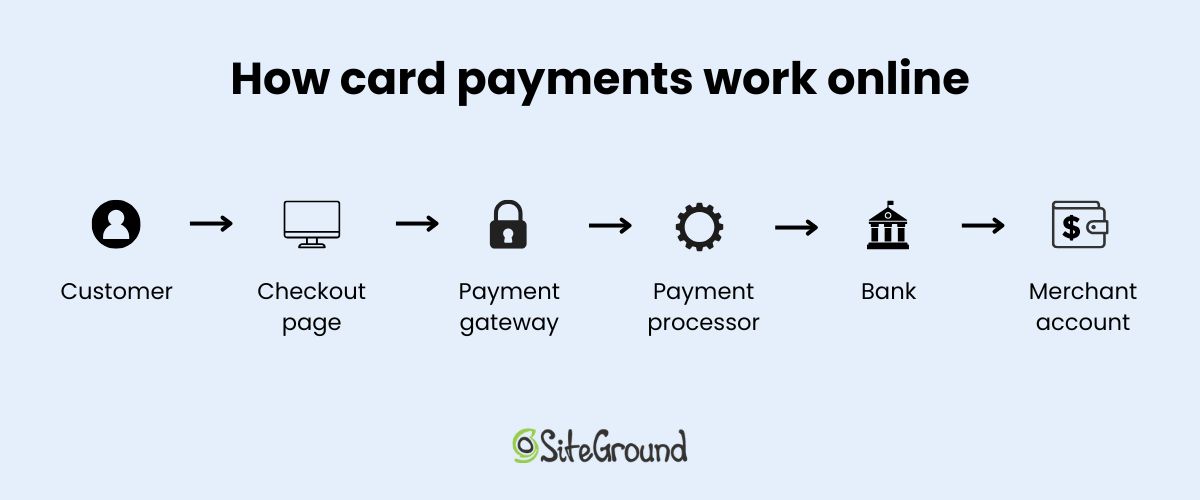
When your customer pays, Stripe allows you to accept payments online by sitting between three parties: the customer’s bank, the card network, and your bank. Stripe authorizes the charge in real time, holds the funds in your balance, and later batches them into a payout.
When the money actually lands: payout timing
Important to note though: new Stripe accounts don’t get paid out immediately. According to Stripe’s payout documentation, the first payout typically arrives 7 to 14 days after your first live payment, and it can be even longer depending on industry and country. After that, most US accounts settle onto a rolling two-day schedule. But that delay matters more without a cash reserve to smooth it over, so be sure to plan around it rather than the payment date.
Choosing how customers pay you: Stripe Checkout vs. Stripe Payment Links
Stripe Checkout: for a page you control
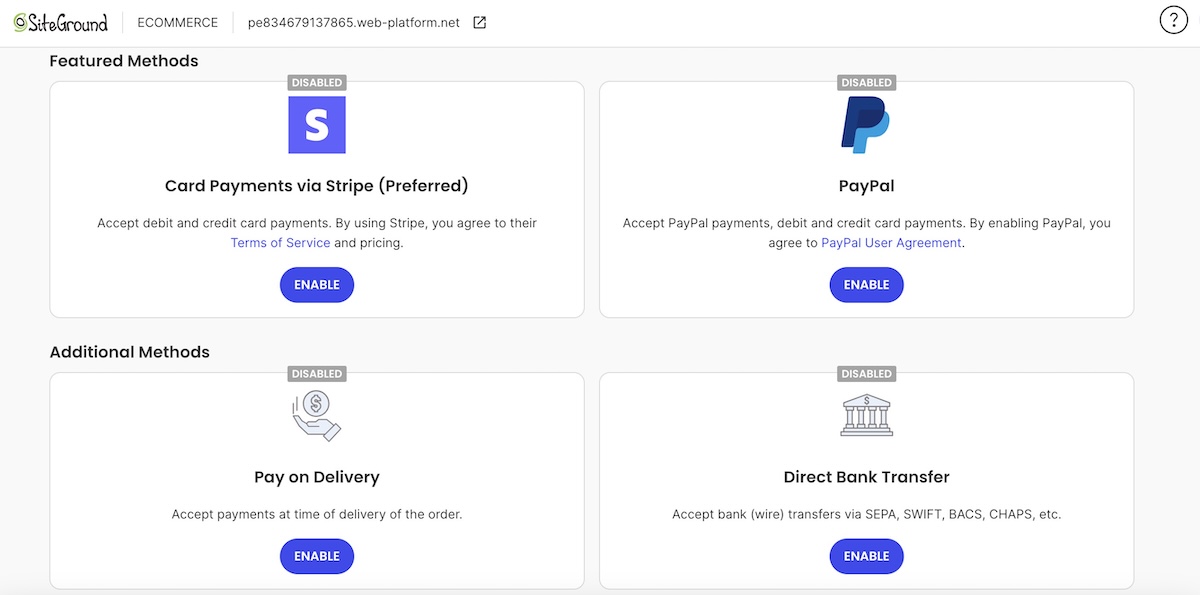
Stripe Checkout is a hosted payment page you generate through the Stripe API: you, or an AI builder like Coderick AI generating it on your behalf, create a Checkout Session with the product, price, and currency baked in, and Stripe renders a payment page that matches your branding.
Coderick AI, in this case, is SiteGround’s AI website and app builder: you describe what you’re selling, and it builds the site around that, including this Stripe connection. Either way, it’s genuinely Stripe’s own checkout, so Stripe’s own dashboard settings, like the receipt toggle, are the ones that apply.
Worth knowing: a full ecommerce website builder like SiteGround Ecommerce works differently. It typically runs its own checkout, with Stripe plugged in as the processor underneath, so things like order confirmations and receipts usually come from the platform’s own system instead.
Stripe Payment Links: for selling without a website
Stripe Payment Links skip the website entirely. That is, you can set up a product once in the Stripe dashboard, get a reusable URL, and paste it in all the places you’re already talking to customers. Think: a DM, an invoice, an email signature, or a QR code at an event.
There’s no code and no page to build for this, which makes Payment Links the faster option for selling one thing to people you’re already in conversation with.
Stripe test mode vs. Stripe live mode: what actually changes when you flip the switch
How does Stripe test mode work?
Test mode is a full copy of your Stripe setup that never touches real money. Here’s what that gives you:
- Separate test keys, clearly labeled “Test” in your dashboard, so you can’t accidentally mix them up with your live ones.
- Test card numbers, such as 4242 4242 4242 4242, that simulate successful payments, declines, and refunds.
- A safe place to run a full purchase, a canceled checkout, and a failed payment before you launch.
Nothing you do here shows up in your live dashboard, and nothing costs you money.
What changes the moment you switch to Stripe live mode
Switching to live mode swaps your test keys for live ones, and every charge now processes against a real card and moves real money into your balance. It also requires details test mode never asked for:
- Your legal business name and address.
- Your tax information.
- A bank account for payouts.
This toggle is worth checking twice, wherever it lives in your setup, before you tell anyone the store is open.
The most common go-live mistake: forgetting to swap the key
The most common go-live mistake is leaving test keys in place after flipping the switch elsewhere. Test mode and live mode both produce a checkout that looks successful, so a customer can complete a purchase and never know no real money moved. Nobody catches it because there’s no second person checking, which is exactly the risk of building without a developer: fewer people to notice the mismatch before it costs you a launch day. Reconciling your bank account is the only way you’d find out, and by then, you’ve likely already told people you’re open.
What should happen after a customer pays through Stripe
Confirmation: what the customer should see immediately
Right after payment, the customer needs a clear thank-you page or next step, not a blank redirect to your homepage. Two things make the difference:
- Say what happened next. “Your order is confirmed, we’ll email details shortly” is a lot more confidence-inspiring than a generic “thanks.”
- Match the reassurance to the trust gap. A stranger clicking a Payment Link needs more of it than someone checking out on an established brand’s site.
Receipts: what the customer should receive by email
Stripe can email a receipt automatically, but it isn’t switched on by default in every setup. A few things worth knowing before launch:
- Turn it on under Customer emails in your Stripe dashboard settings, by toggling “Successful payments” on.
- Receipts only go out for completed payments. A failed charge never generates one.
- With no support team to catch the gap, a missing receipt becomes a support email, so confirm the toggle before a customer asks where theirs went.
What you should see on your end
A successful payment should show up in your Stripe dashboard with the customer’s details, the amount, and the payment method attached, filed under your live data, not test data. Glance at that after your first few sales: if a payment you just took shows up in test mode instead of live mode, that’s the swapped-key mistake showing up here first, before you’d otherwise catch it reconciling your bank account.
How Stripe refunds and disputes work
How refunds work and what happens to your fees
A refund returns the customer’s money in full — but important caveat: Stripe doesn’t return its processing fee from the original charge. So on a $100 sale processed at Stripe’s standard US rate of 2.9% + $0.30, you’d keep $96.80 after the sale and still lose that $3.20 if you refund it. For a large retailer, that’s a rounding error. Alone, a handful of big refunds in a launch week can start to put a dent in the numbers you expected.
How disputes are different from refunds
A dispute isn’t a refund. It’s the customer going to their card issuer instead of you, and the issuer reversing the payment immediately, before you’ve had a chance to respond. Stripe adds a separate dispute fee, around $15 in the US, on top of the disputed amount the moment a dispute is filed, and the back-and-forth can take two to three months to resolve.
Where disputes show up, and who should respond
Disputes show up in your Stripe dashboard under Disputes, with an email notification the moment one is filed. Responding means submitting evidence: proof of delivery, a signed agreement, or a support thread showing the customer got what they paid for. Someone has to gather and submit that before Stripe’s deadline, and if you’re running a service business online solo, that someone is you.
Stripe Tax as a pre-launch setting, not an afterthought
Sales tax depends on where you have “nexus,” which is the legal term for a strong enough connection to a state that it can require you to collect its sales tax. If your business is based in a state and what you sell is taxable there, that’s enough on its own, so you likely owe tax on sales into that state from day one, regardless of revenue.
Selling into other states is a different story: there, the connection is triggered by a sales threshold instead, commonly $100,000 over 12 months, though it varies by state, and few new businesses clear it right away.
Turning on Stripe Tax handles the mechanical part of this:
- It calculates the right rate automatically at checkout, for any state or country where you’ve told it you’re registered.
- It monitors your Stripe-processed sales by state and can notify you once you’ve crossed a threshold in a given location, though it’s still worth checking in yourself rather than relying on it as your only signal.
- It applies once you’re registered; it doesn’t decide where you need to register, or handle the registration and filing itself.
Registration, filing, and the full state-by-state picture are a bigger topic than this checklist covers. SiteGround’s ecommerce sales tax guide walks through all of it. For go-live purposes, the short version holds: confirm what your home state requires before your first sale, then turn on Stripe Tax so it calculates the right amount automatically at checkout, and keep an eye on other states as your sales grow.
A Stripe go-live checklist for small business
This is the payments half of a broader website launch checklist. Work through both before you tell anyone you’re open. Each row below maps to a section above, so if anything doesn’t check out yet, you’ll find the details a few paragraphs up.
| Go-live item | What to check |
| Checkout | Make sure the customer sees the right product, price, currency, and payment method. |
| Test mode | Run test purchases, cancellations, failed payments, and refunds. |
| Live mode | Confirm the correct live key is saved in the correct place. |
| Confirmation | Show a clear thank-you page or next step after payment. |
| Receipts | Confirm the customer receives the right email or receipt. |
| Refunds | Know how refunds are issued and what happens to fees. |
| Disputes | Know where disputes appear and who responds. |
| Tax | Confirm what your home state requires, and keep an eye on other states as your sales grow. |
| Support | Decide who answers payment questions after customers pay. If it’s just you, plan for that. |
Coderick AI Stripe setup: why to use it and what to check before launch
No developer? Don’t want to spend a week picking a platform and wrestling with setup? Coderick AI just builds the site for you from a description of what you’re selling, checkout and confirmation included. It won’t set up your live keys, payout account, receipt emails, or tax registration for you, though, so check those before you launch:
- The Coderick AI Stripe connection shows live mode, not test.
- Your payout bank account is added and verified.
- Your confirmation page says what happens next.
- Receipt emails are switched on in your Stripe settings.
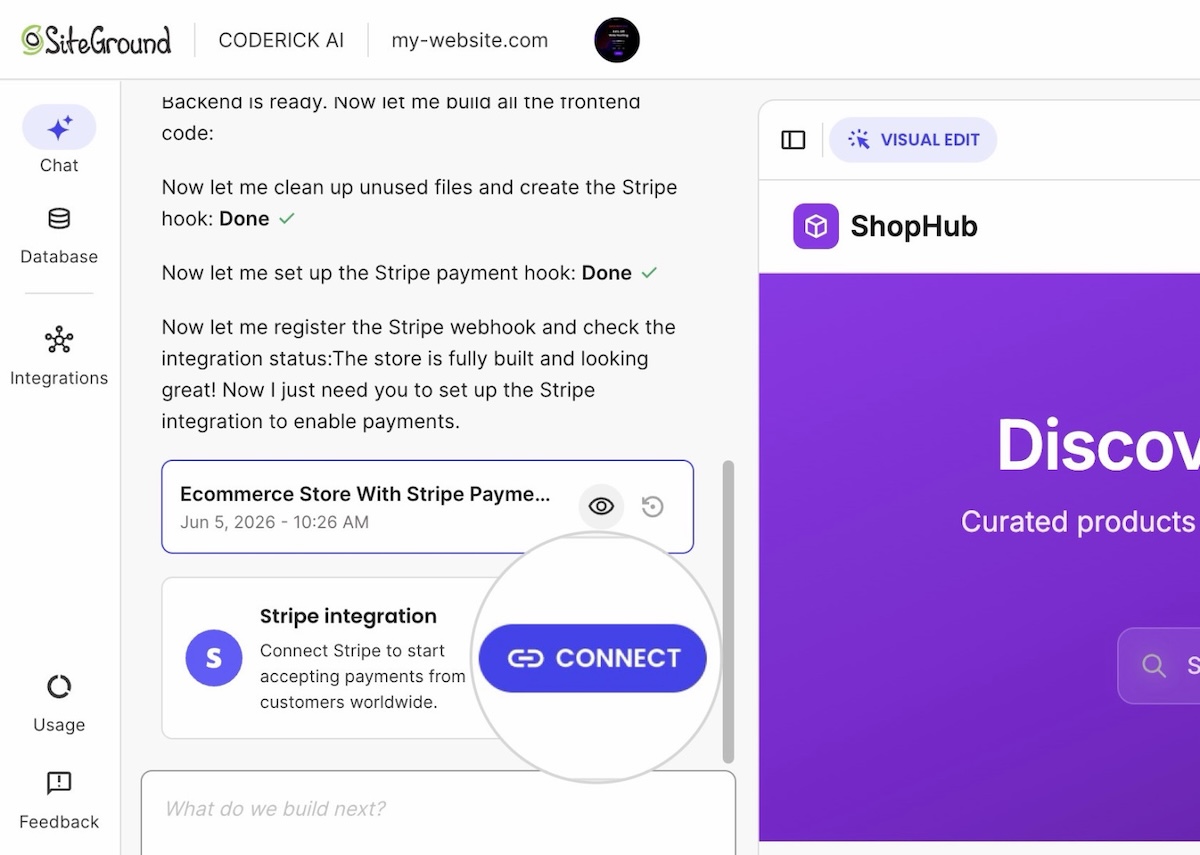
Skip one, and a launch day can go by without a single real payment landing in your account, and you won’t know until you reconcile your bank. Gulp.
Flip the switch with confidence
Going live with Stripe for small business isn’t complicated once you’ve checked it off in the right order: pick how customers pay, run it in test mode, swap in live keys, sort confirmation and receipts before you tell anyone you’re open, and have a plan for refunds, disputes, and tax before the first one shows up. None of that requires a finance team. It requires going through the list once.
If you’re building the site itself rather than just connecting payments to one, start your Coderick AI payment project and get checkout, confirmation, and hosting handled together from the first prompt.
[96]
Frequently asked questions
Before going live with Stripe, confirm test mode, checkout, live-mode keys, confirmation, receipts, refunds, disputes, and tax, in that order, as one connected checklist rather than separate tasks.
A Stripe go-live checklist should cover checkout accuracy, a completed test run, the live-mode key swap, a confirmation page, working receipts, a refund process, a dispute plan, and a tax decision. The table above works as a starting point.
The difference comes down to the keys: test mode uses a separate set of test keys and never touches real money, while Stripe live mode uses your live keys and processes real charges.
Yes. Test mode is the only way to confirm your checkout, confirmation page, and refund flow work correctly without risking a customer’s card or your own money.
They should see an immediate confirmation, receive a receipt by email if that setting is on, and the payment should appear in your Stripe dashboard with the amount and payment method attached.
Stripe refunds return the customer’s money but not the processing fee Stripe already charged you. Disputes work differently: the card issuer reverses the payment directly, and Stripe adds its own dispute fee on top.
Yes. Sales tax in your home state can apply from your first sale, while a threshold-based obligation in other states usually doesn’t kick in until much higher revenue. Stripe Tax calculates the right rate once you’re registered and can flag when you cross a threshold elsewhere.
Stripe for small business is a strong fit before going live, provided you complete the pre-launch checks. Skipping the checklist, not the platform itself, is where problems tend to start.
Yes. Coderick AI Stripe setup wires up checkout and confirmation automatically inside your project. You still confirm your live keys, payout account, receipt emails, and tax settings yourself before launch.
The AI builder typically handles checkout and confirmation, while you’re still responsible for switching to live mode, verifying your payout account, turning on receipt emails, and deciding whether tax collection applies to your sales.