What makes a great auto repair shop website (and how to build one)

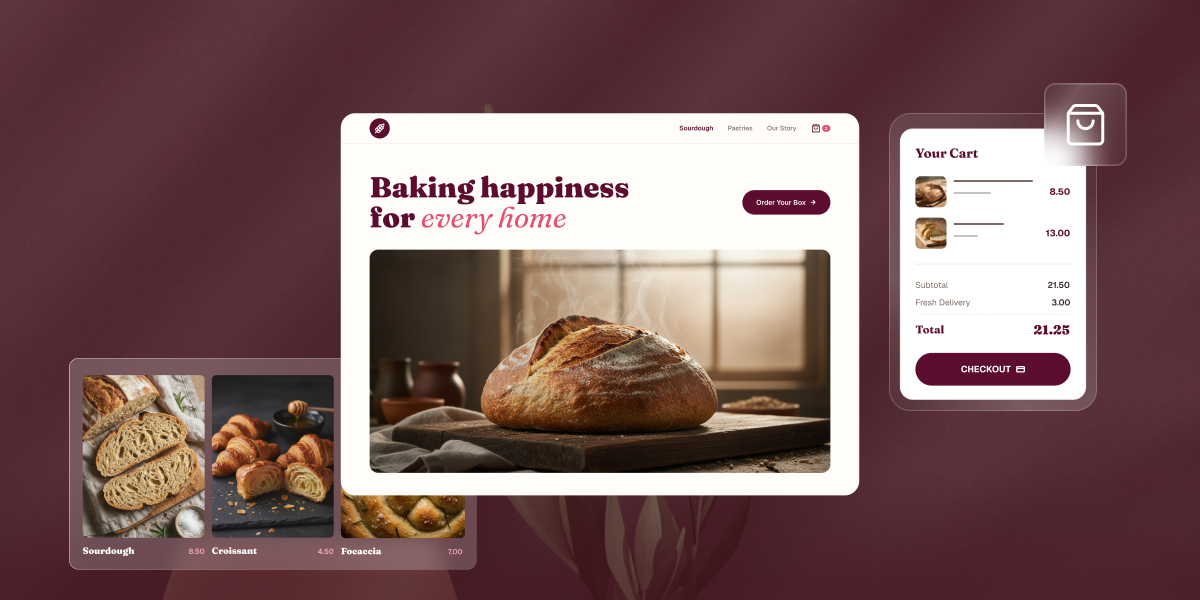
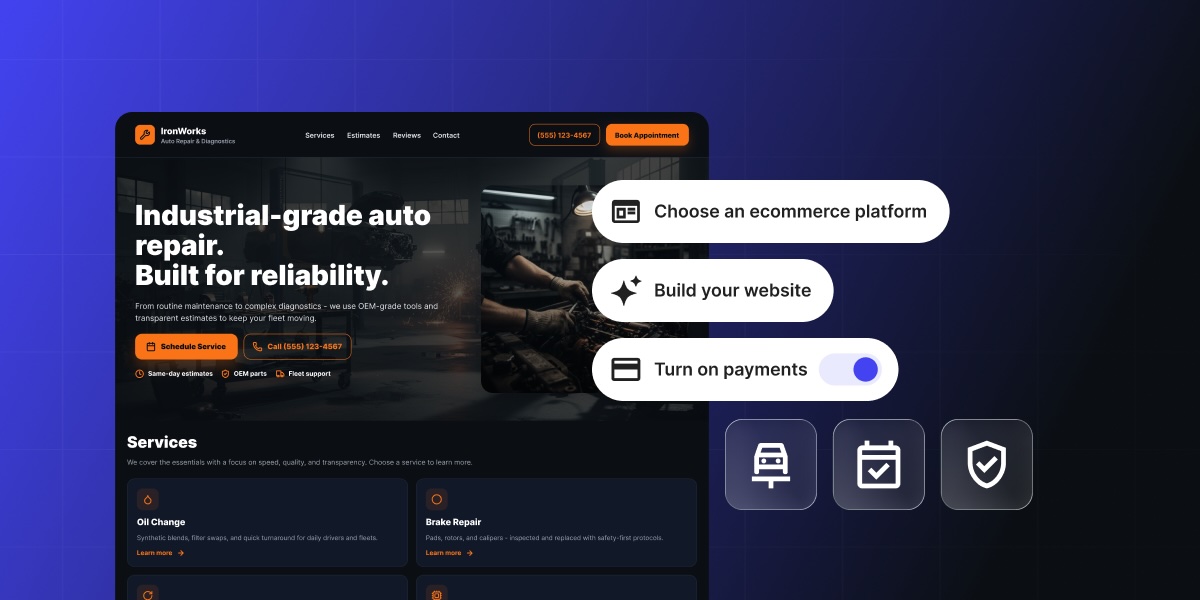
Abstract of an auto repair shop website

Someone’s check-engine light comes on at 11 p.m., and they’re already searching for a repair shop online. What they find in the next ten seconds decides a lot: can they tell a shop won’t rip them off, get a sense of what the repair might cost, and grab a slot without waiting until morning to call? That’s what good auto shop website design actually has to do. Most repair shop sites can’t. Here’s what it takes to be the one that can, and how to build it.

Key takeaways:

  • A Google Business Profile listing gets a shop found, but it can’t book an appointment or explain a price. Good auto shop website design does both, which is exactly where a shop can pull ahead of competitors still relying on a listing alone.
  • Repair shops are a famously low-trust category. Customers expect to be oversold or overcharged, so a homepage with certifications and reviews upfront is the first thing that earns a booking, or loses one.
  • Selling more than labor online works: brake pads, wiper blades, prepaid oil-change bundles, and gift cards are realistic add-ons for most auto repair shop websites.
  • Eight build steps take a shop from a bare domain to a live site that books appointments and takes payment.
  • An ecommerce platform can make all of this easier to build and maintain than piecing together separate tools.

Why your repair shop needs a website

Most auto repair shop websites, when a shop has one at all, still read like a business card: name, phone number, hours. These details alone won’t book an appointment, explain a price, or show a single review. That’s the bar most competitors are clearing, barely, which leaves plenty of room for your auto repair website to do better.

Your shop can go several steps further by letting someone book a slot, see a price range, and read a few reviews before they ever pick up the phone. This pulls ahead of every other business that’s still relying on a listing alone. That’s the opportunity the rest of this guide is built around.

What makes a great auto repair shop website

A great auto repair shop website has six things: a homepage that builds trust in seconds, a services and pricing page, online booking, a way to sell parts or gift cards, a reviews and photo section, and consistent local SEO details.

That’s the short version, useful as a quick gut check before a redesign or a first build. Each item gets its own breakdown in the next section. For everything else worth checking before launch, from favicon sizing to alt text, the 17-step website checklist covers the rest.

Must-have features and pages for an auto repair shop website

These are the building blocks of solid auto repair shop website design, adapted to the realities of turning wrenches and rotating tires. 

A homepage that builds trust instantly

Auto repair is a famously low-trust category. Customers assume they’ll be oversold or overcharged before they’ve even called, so a homepage that establishes credibility in the first few seconds earns bookings that a generic “welcome to our shop” page won’t. We’ve probably all been there as customers ourselves.

The credibility we and customers seek comes from a specific, short list: shop name, a hero image, one clear call to action (book now or call), and trust signals like years in business, certifications, and a testimonial snippet. That’s the whole list, and it needs to load fast, since it’s doing more work here than on most small business sites. The same homepage design essentials that work for any small business apply here, just with the trust signals turned up.

An auto repair shop website that builds trust with testimonials and professional branding

Services and pricing page

Spell out the actual services on offer, so nobody has to call and guess what’s covered. It’s good for SEO too: a page that names specific services (brake repair, oil changes, transmission work) can rank for those exact searches in a way a blanket “car repair services” page never will.

Not every service needs the same treatment:

  • Standardized jobs (oil changes, tire rotations, brake pads): a “starting at” price or a range
  • Complex or variable repairs (transmission work, engine diagnostics, anything where labor time depends on what’s actually wrong once the shop looks): a quote request instead of a guessed number

Either way, disclose the pricing structure upfront: a diagnostic fee, plus labor, plus parts. Naming that structure clearly heads off the “why wasn’t I told the real price” complaint the industry is known for.

And one detail worth stating outright, because it does real trust-building work: if the diagnostic fee gets credited toward the repair when the customer proceeds, say so on the page, not just at the counter. A services page built to convert makes that kind of disclosure part of the page itself, instead of burying it in fine print.

Online booking and appointment scheduling

An embedded booking widget lets customers grab a slot without calling, but a repair shop’s booking needs are more particular than most service businesses. Three things to keep in mind:

  • Bay and technician capacity. A shop can only run as many jobs at once as it has bays and techs, so slots need to reflect real capacity, not arbitrary 30-minute blocks.
  • Parts lead time. A job needing an ordered part can’t actually be booked until the part is in hand.
  • Deposits on big jobs. Brakes, transmission, and engine work require ordering parts upfront, so a deposit at booking protects the shop if the customer backs out after the part is already on order.

Online booking and appointment scheduling on an auto repair shop website

The setup for all three lives in the build-steps section below.

Online payments and a parts or merch store

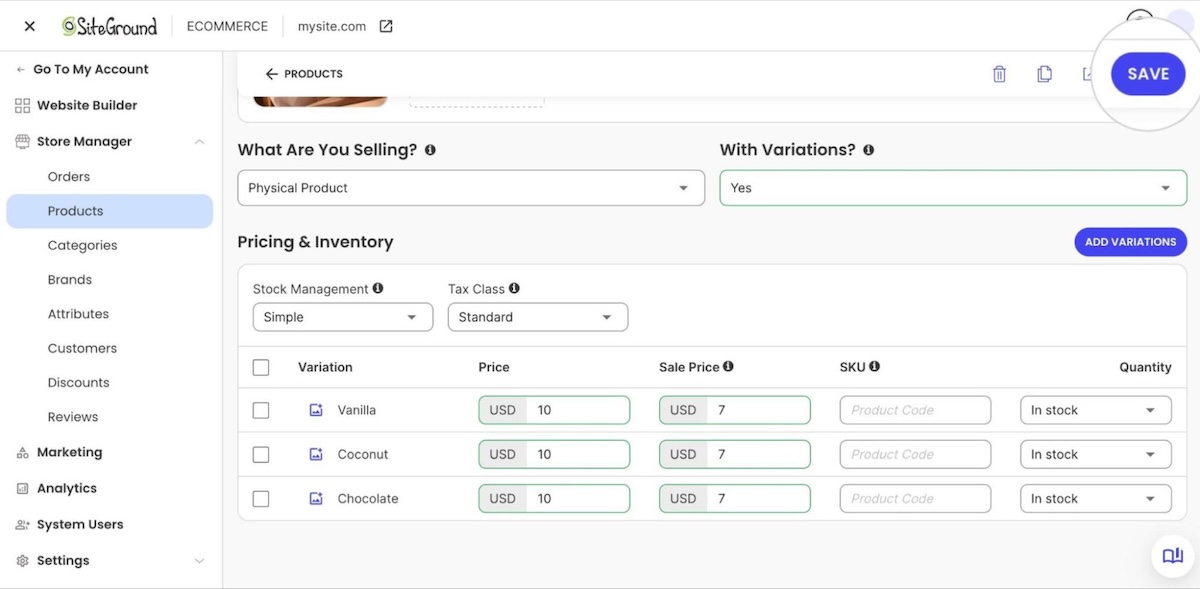
We’re not talking about adding every sellable item and service to an online store; that’s surely overkill for any auto repair shop website design. Instead, consider offering the things a repair shop can actually sell online: things like brake pads, wiper blades, and air fresheners; prepaid oil-change or seasonal tire-changeover bundles; and gift cards for future service.

Setting this up uses the same ecommerce website approach any small store relies on, just pointed at a different set of products. Not sure it’s right for your shop? Imagine this scenario: during the holidays someone wants to give the car lover in their life a $60 gift card to get some goodies for their ride. If your car repair business offers that, it means a small side revenue stream that most competitors leave on the table entirely — plus the potential for a new loyal client.

Most repair work is invisible once it’s done. Nobody can look at a car and see a rebuilt transmission, so this goes beyond the single testimonial already teased on the homepage. It lands either further down that same page or as its own dedicated reviews and gallery page, and might include:

  • A short block of customer testimonials, pulled from Google reviews or collected directly
  • A small before-and-after gallery for jobs that are visibly verifiable, like body work, paint, or detailing

A customer who can see the dent is gone, or reads that someone else’s transmission got fixed without a hitch, tends to believe the same will happen to theirs.

Location, hours, and contact details for local SEO

Name, address, and phone number need to be consistent everywhere the shop is listed, not just the website. Google and other platforms cross-check these citations, mentions on Yelp, Apple Maps, industry directories, and so on, to confirm a business is legitimate. Consistency like this is a big part of what small business local SEO actually comes down to.

On the site itself:

  • An embedded map
  • Posted hours
  • Complete contact details in one place: address, phone, email, and social links, not just a name and a form

Auto repair shop website contact page with an embedded map for location

A quick citation audit (tools like BrightLocal, Whitespark, or Moz Local) catches any leftover listing with an old address or phone number worth cleaning up. Beyond that, contact page mistakes like burying the page somewhere hard to find or leaving out half the business info are what send visitors away before they ever reach out.

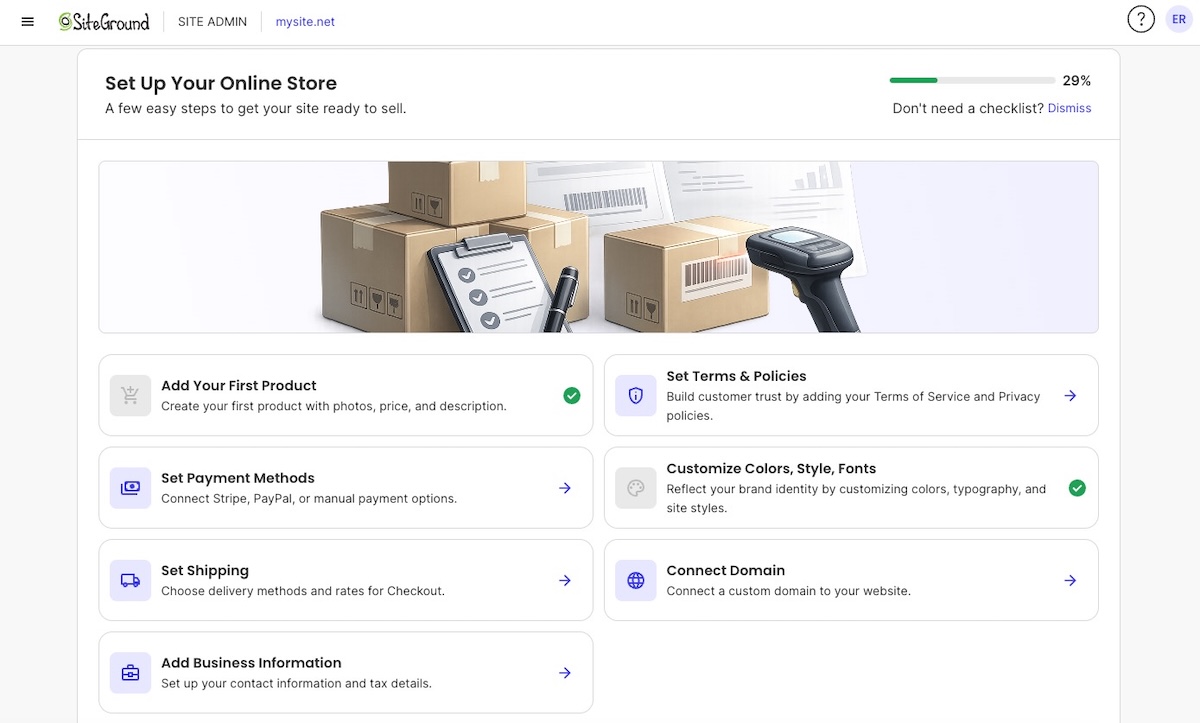
SiteGround Ecommerce covers most of the above must-haves directly: the homepage, the services and pricing page, and the store, all built without writing code, on hosting designed for speed and reliability. Calendly connects in a few clicks for the booking calendar. SEO basics come built into the platform too, so there’s no separate technical setup standing between the site and actually getting found.

Start building your online shop now>>

How to build your auto repair shop website step by step

We’ve covered the important features, now for how to build them, one step at a time. 

Step 1: Choose a domain name

Register a domain before anything else. It’s the one piece needed no matter which builder or platform comes next, so lock it in first: the shop name, a close variation, or the city plus “auto repair” if the exact name is already taken.

Keep it short and literal. Customers searching for the shop by name should be able to guess the URL, and a domain name that’s easy to say over the phone saves spelling it out every time someone asks.
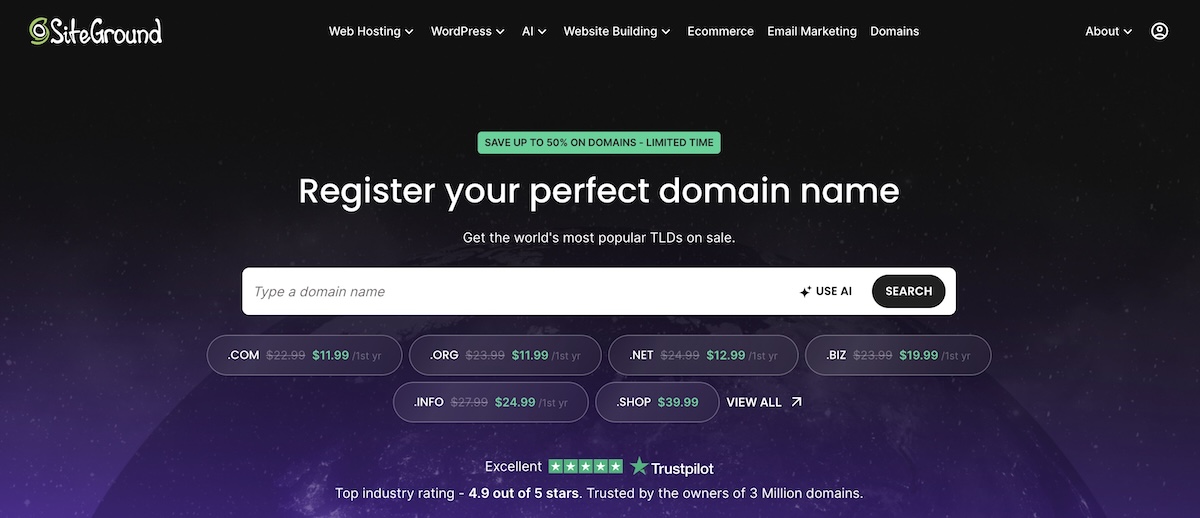
search field for finding and buying your perfect domain name

Step 2: Pick a website builder 

Hiring a developer to hand-code a site is unnecessary for what a repair shop actually needs, and it comes with a bigger bill and longer wait. A website builder gets a working site live without writing a line of code.

Look for a platform that:

  • Bundles hosting with the builder, so there’s no separate hosting decision to make
  • Supports embedding a booking widget
  • Has ecommerce functionality available, now or later, if selling parts, packages, or gift cards online is part of the plan
  • Makes day-to-day updates, hours, the service menu, photos, simple enough to do between jobs

If updating the site takes longer than fixing a flat tire, it’s the wrong platform. A website builder built for non-developers should make an update like that a two-minute job, not a ticket to the web guy or gal.

Pro tip: New SiteGround customers get the domain free for the first year (.com, .org, .eu, or .net) when signing up for a hosting plan, so there’s no separate charge if that’s the platform of choice. 

Step 3: Build your homepage and add trust signals

Place the hero image, add the primary call-to-action button, and write the one-line trust statement: years in business, certifications, or a “family-owned since [year]” line if that’s true. Add the testimonial snippet decided on earlier.

Keep the above-the-fold section to those four elements. Every extra bit of info crammed above the fold pushes the contact or booking button further down the page, and that button is the one thing this homepage exists to get clicked.

Step 4: Add your services and pricing page

Here’s what to be sure to include on your services and pricing page:

  • Either a service list or a pricing table block, whichever the platform supports
  • The diagnostic-fee-plus-labor-plus-parts structure, spelled out in plain language
  • Whether the diagnostic fee gets credited toward the repair, stated clearly
  • Each service listed by its real name, since that’s what people search for, then described by the problem it actually solves: “Brake Pad Replacement, stops that grinding noise before it wears into the rotors”
  • A booking or call CTA near the top of the page, and again after the pricing breakdown

Step 5: Set up online booking and accept payments

There are different ways to go about this, but an easy, common way is with Calendly:

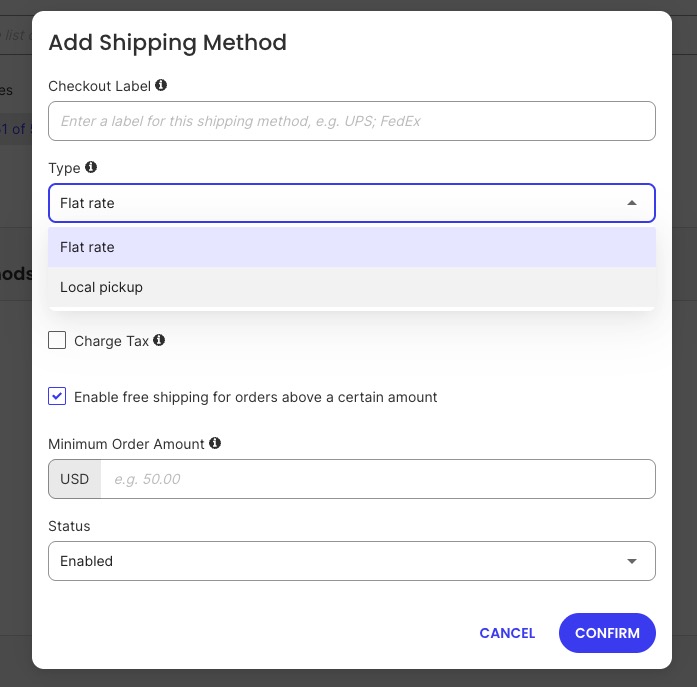
  • Set a daily or weekly cap on each event type, and use round-robin scheduling to spread jobs across whichever techs are free. It’s a rough stand-in for real bay and technician capacity, and not exact tracking. (Note that round-robin scheduling across multiple techs needs Calendly’s Teams or Enterprise plan, worth confirming before counting on it.)
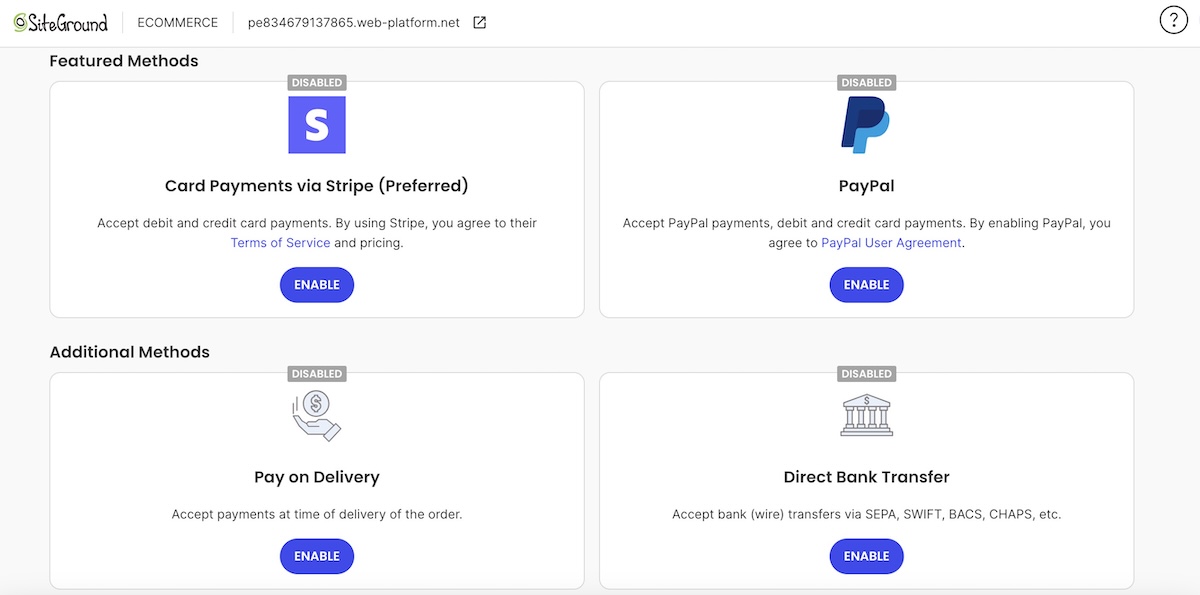
  • Connect Stripe to Calendly so a deposit gets collected right at booking for big-ticket jobs like brakes or transmission work.
  • For parts-pending jobs, manually unpublish that slot or mark it request-only, so nothing gets booked before the part is actually in hand.

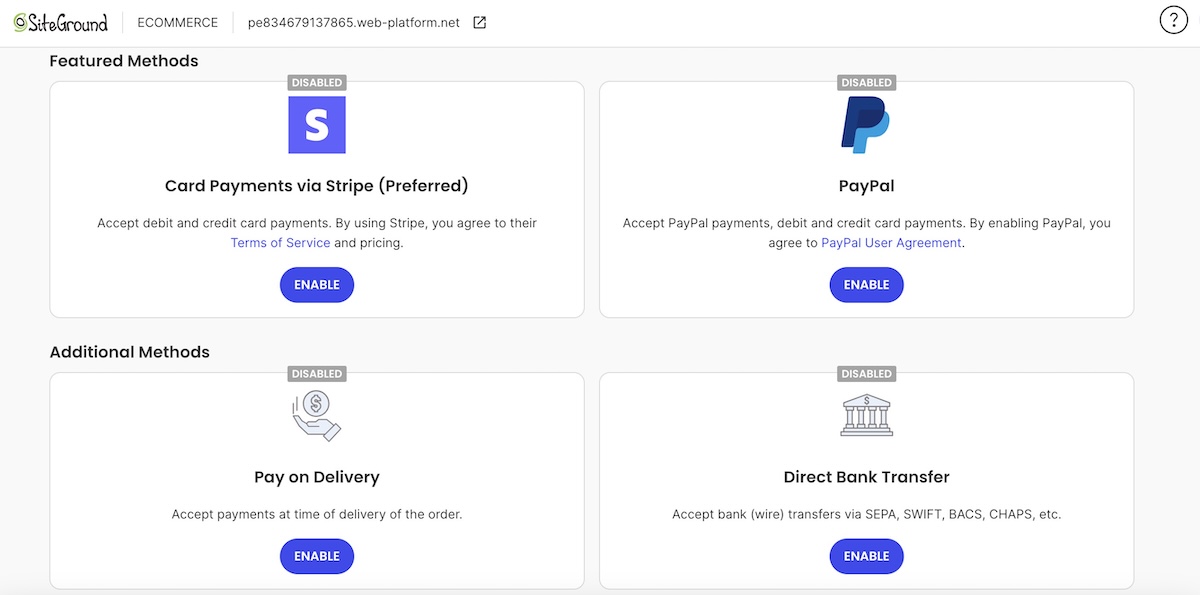
Worth noting: Booking and deposits run through Calendly and Stripe. The parts, packages, and gift cards from the checklist earlier are a separate piece: a small store on the same site, which a platform like SiteGround Ecommerce handles without a separate plugin or a second login to manage. Connect Stripe once inside Calendly for deposits, and once inside the ecommerce dashboard for the store, both are quick, one-time setups. 

Whichever tools get used, test both flows before going live: book a slot and pay a deposit through Calendly, then buy a gift card through the store, and confirm everything lands where it’s supposed to. Accepting payments online is the one step where a mistake actually costs a customer money, so it earns the extra test run.

  • Add a testimonials section to the homepage or its own page, and feature a handful of the shop’s best reviews there
  • Upload the before-and-after photos, captioned with what was actually done (not just “brake job,” but “front brake pads and rotors replaced”). Consider linking out to the service page itself
  • Organize the gallery by job type if there are more than a handful of photos, so a customer looking for detailing work isn’t scrolling past ten transmission photos to find it

Step 7: Optimize for local SEO and mobile

  • Add the shop’s address, hours, and phone number, if they aren’t already live from an earlier step
  • Set up or confirm the Google Business Profile listing, since it’s the thing that actually surfaces the site in local search results
  • Check the site on an actual phone, not just a resized browser window

Most local searches for a repair shop happen on mobile, so a mobile-friendly design that loads fast and keeps the contact button within thumb’s reach matters more here than almost anywhere else on the page.

auto repair shop website design optimized for mobile

Step 8: Launch, test, and promote your site

Before flipping the switch, check every link and confirm the site renders correctly on both a phone and a tablet. The booking and payment flow already got tested in step 5, so this final pass is just for everything else.

Publishing the site doesn’t bring in bookings on its own, though. Nobody’s searching for a shop they’ve never heard of, so the next few channels do the actual work of getting you that first appointment.

  • Reviews and your Google Business Profile. Ask every satisfied customer for a review right after pickup, while the job is still fresh. A shop’s star rating is often the deciding factor between two options with similar prices, and social proof like reviews and before-and-after photos tend to tip the scale.
  • Paid ads. Google’s Local Services Ads are built specifically for trades like this: pay per lead instead of per click, a “Google Guaranteed” badge after a license and background check, and placement above the regular map pack. It’s an ongoing budget line, and not a one-time cost, but for a category where most searches are “near me, today,” it can outperform organic reach alone while the site is still new to search. Small business marketing covers this alongside other channels worth testing at launch.
  • Local directories and citations. Remember: name, address, and phone number need to stay identical everywhere the shop is listed, the same citation consistency covered earlier, now extended to Yelp, Apple Maps, and any local Chamber of Commerce directory.
  • Local social and community presence. Post in neighborhood Facebook groups or on Nextdoor, sponsor a local car show or little league team, and consider a referral discount for customers who send a friend. Social media marketing covers where to focus first when there’s no existing following to build from.
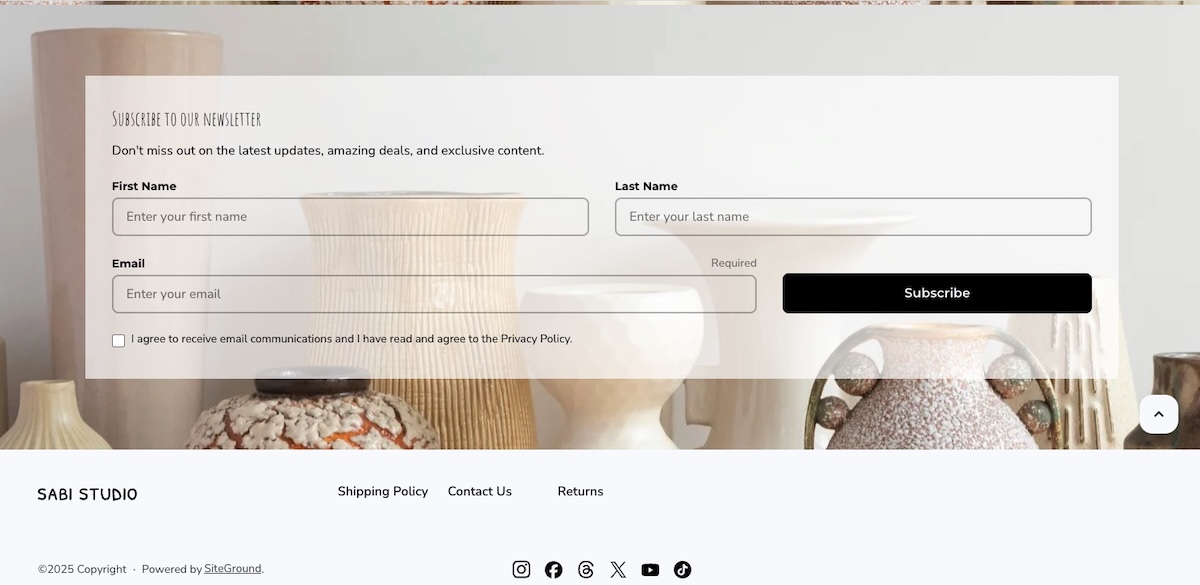
  • Collect an email at every visit, and give the website its own way to capture emails too, such as a simple signup form or a small discount for joining. Email marketing can help you build a relationship with someone beyond the one repair that brought them in, and repair shops live on this kind of repeat business. 

Your website should work as hard as your shop does

Homepage, pricing, booking, payments, reviews, and local SEO: that’s the full list, and every step above tackles checking one of those six boxes. Building all of this from scratch could certainly be complicated and overwhelming, but it doesn’t have to be. SiteGround Ecommerce handles the easy build, booking-friendly functionality, the store, and the hosting in one place. Start with the checklist above, and get your auto repair shop live so that you can start reaping the benefits.

[103]

Frequently asked questions

Do I need a website for my auto repair shop?

Yes. A Google Business Profile listing gets a shop found, but it won’t let customers book a slot, see the pricing structure, or buy a gift card, all things a real website handles on its own.

What should be on an auto repair shop website?

At minimum: a trust-building homepage, a services and pricing page, online booking, a way to sell parts or gift cards, a reviews and photo gallery, and consistent local SEO details like name, address, and phone number.

Can I sell parts or accept payments online from my repair shop website?

Yes. Brake pads, wiper blades, prepaid maintenance bundles, and gift cards are all realistic products for a repair shop to sell online, with the setup covered in the online payments and store step above.

How do customers book appointments online?

They pick an open slot from an embedded booking widget or calendar, the same way they’d book a haircut or a dentist appointment, and get a confirmation without ever picking up the phone.

How much does it cost to build an auto repair shop website?

A DIY build on an all-in-one platform typically runs $10 to $30 a month, plus a domain fee of around $12 to $60 a year. Hiring an agency for a custom build costs considerably more. For the fuller breakdown, how much a website costs in 2026 walks through what drives the price up or down.
Payment gateway fees and costs: what small businesses should expect

Abstract image of payment gateway fees

At first blush, payment gateway fees seem pretty straightforward: a processor takes a small cut of every transaction, and that’s the end of it. But when all is said and done, that also means getting checkout live, keeping it running, covering the fees that only show up when something goes sideways, and cleaning up after any mistakes that show up three months in. Knowing these costs beforehand turns a surprise bill into a number you already expected.

Key takeaways:

  • Payment gateway fees typically run around 2.9% plus $0.30 per online card transaction in the US, but that line is rarely the full bill.
  • Checkout setup cost ranges from minutes to connect payments through an existing platform to several weeks for a custom developer build.
  • Whether checkout, inventory, and order records stay connected automatically or need manual wiring by hand depends entirely on which setup approach is used.
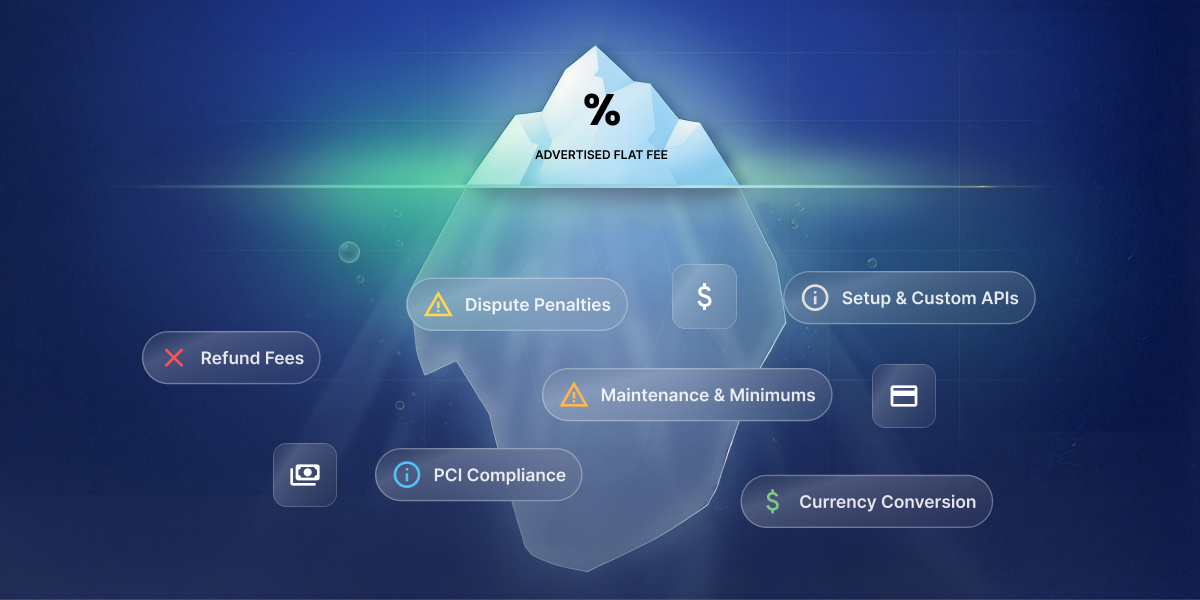
  • Hidden payment gateway fees, including refund fees, dispute fees, currency conversion, PCI compliance charges, and platform-level transaction fees, add up fast when nobody’s tracking them.
  • A payment dispute typically triggers a $15 flat fee on top of the disputed amount, refunded by some processors on a win, kept by most on a loss.
  • Subscription businesses carry extra payment costs beyond one-time sellers: failed-renewal churn, plus often a separate billing-tool fee on top of standard processing.
  • Disconnected tools, a payment processor that doesn’t talk to your accounting software or CRM, cost more in reconciliation time than in fees.

What are payment gateway fees, really?

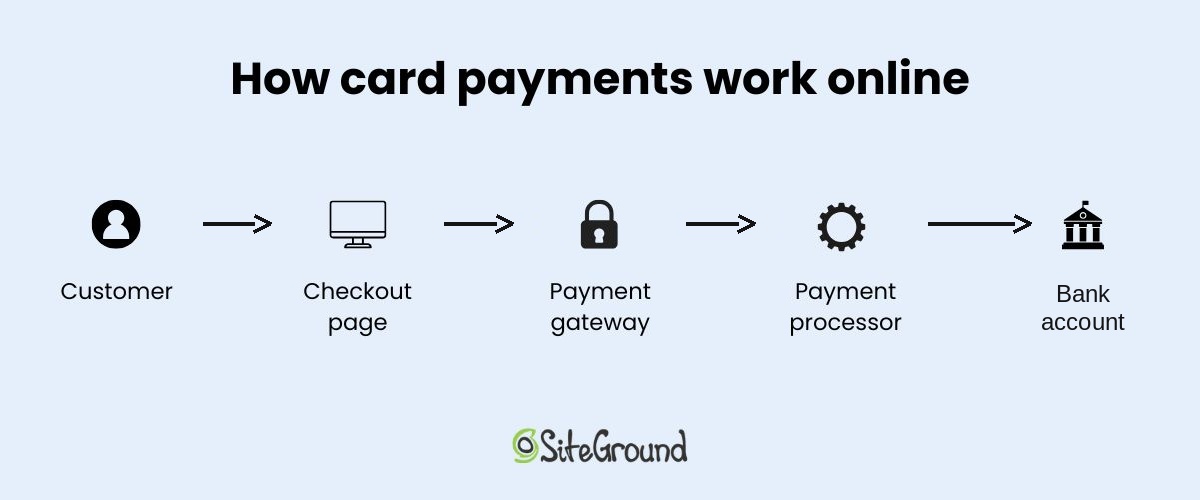
Payment gateway fees are the cut a payment processor keeps for handling a card transaction, usually a percentage of the sale, plus a small flat fee. Here’s what that looks like on a single transaction:

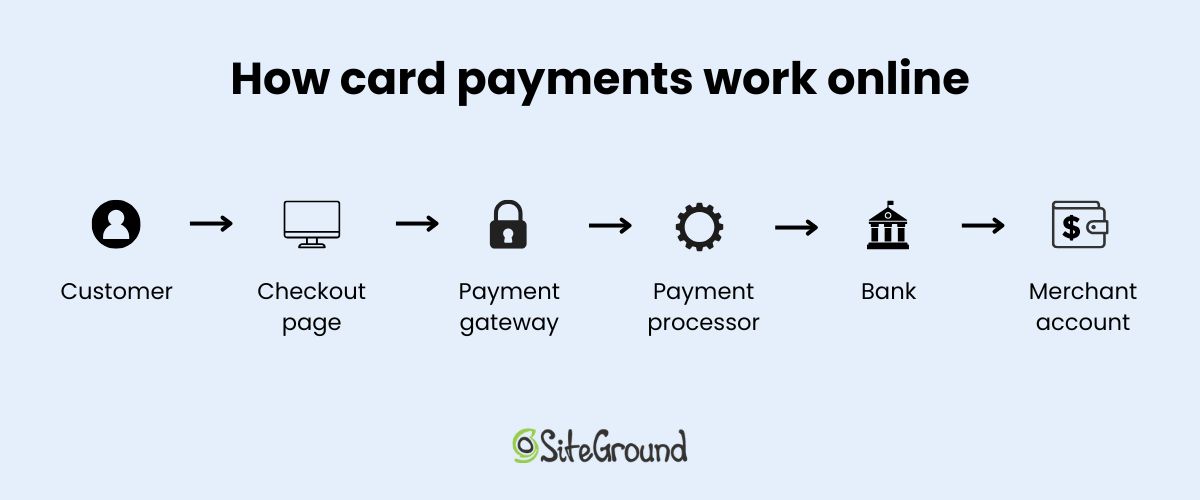
  1. A gateway captures the customer’s card details at checkout.
  2. A processor moves the money and takes its cut. For example, Stripe fees are 2.9% plus $0.30 per successful US card charge, with no monthly fee on its Standard plan.
  3. The payout lands in the business’s bank account a few days later, minus that fee.
A diagram showing the flow of how payments work online, from the customer to checkout, payment gateway, payment processor, and bank account

That fee, though, is the smallest number when it comes to how businesses accept payments online, and the one most comparison articles stop at. It doesn’t cover what it takes to get checkout live or keep it running, which is where the real budget lives.

Note: All fees and plan details in this article are as of August 2026. Stripe’s the running example throughout this piece because its pricing is public and it’s a common default for small businesses; PayPal, Square, and other major processors land in a similar range, just with their own rate cards, so the cost categories below apply no matter which one ends up running checkout. Getting these Stripe basics down early makes the rest of this easier to follow.

What it costs to get payments live

Indeed, most people underestimate the total cost of taking payments. They see the processor’s fee and stop there, and yet, in practice, there’s a lot more to actually getting paid. Part of that is dictated by your setup approach, which determines how much time you’ll be spending getting everything live. 

What kind of setup complexity are you looking at? It comes down to who builds the payment experience and where it lives. That splits into five basic setups:

  1. DIY with Stripe’s API (Stripe Elements): you write the code yourself, and the payment form lives directly on your own site. Best suited to a business owner comfortable coding a fairly simple checkout personally, using Stripe’s own building blocks rather than hiring anyone.
  2. Stripe Checkout: Stripe hands over a pre-built, hosted page; customers get redirected there and back.
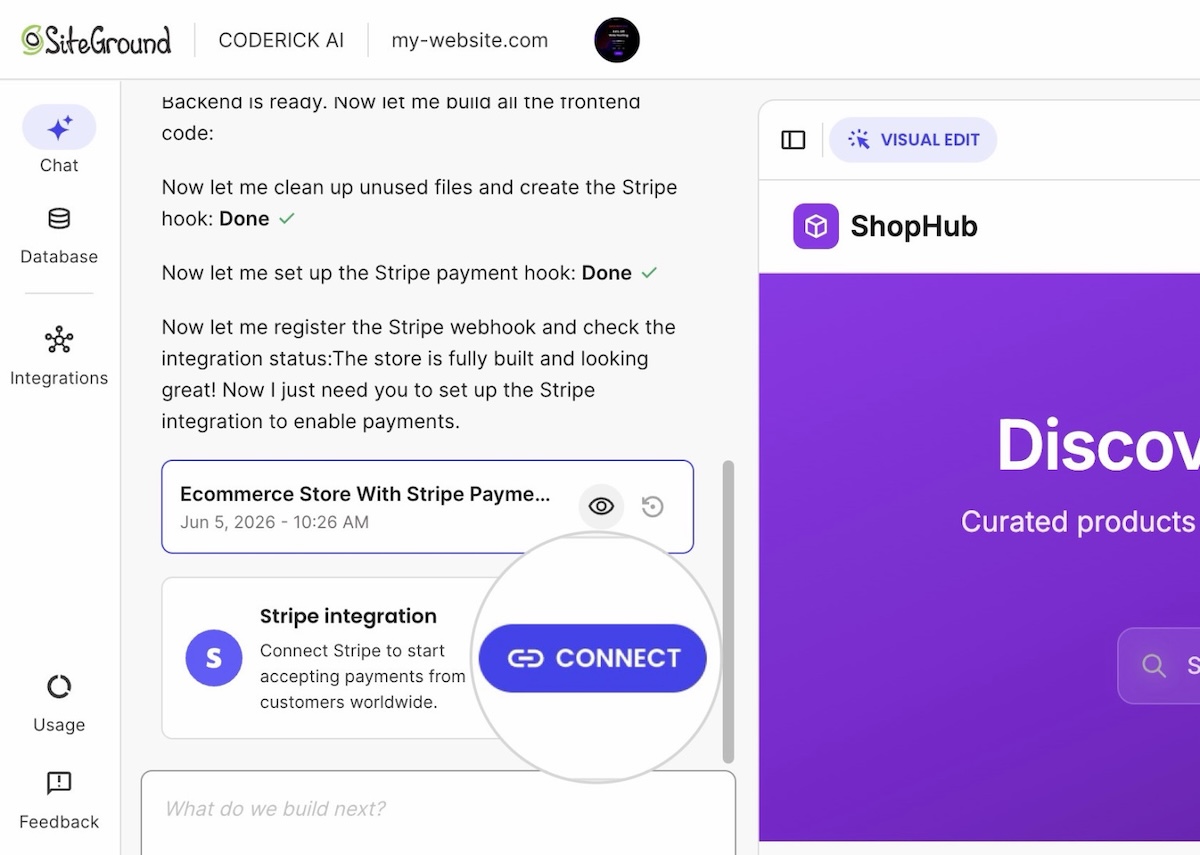
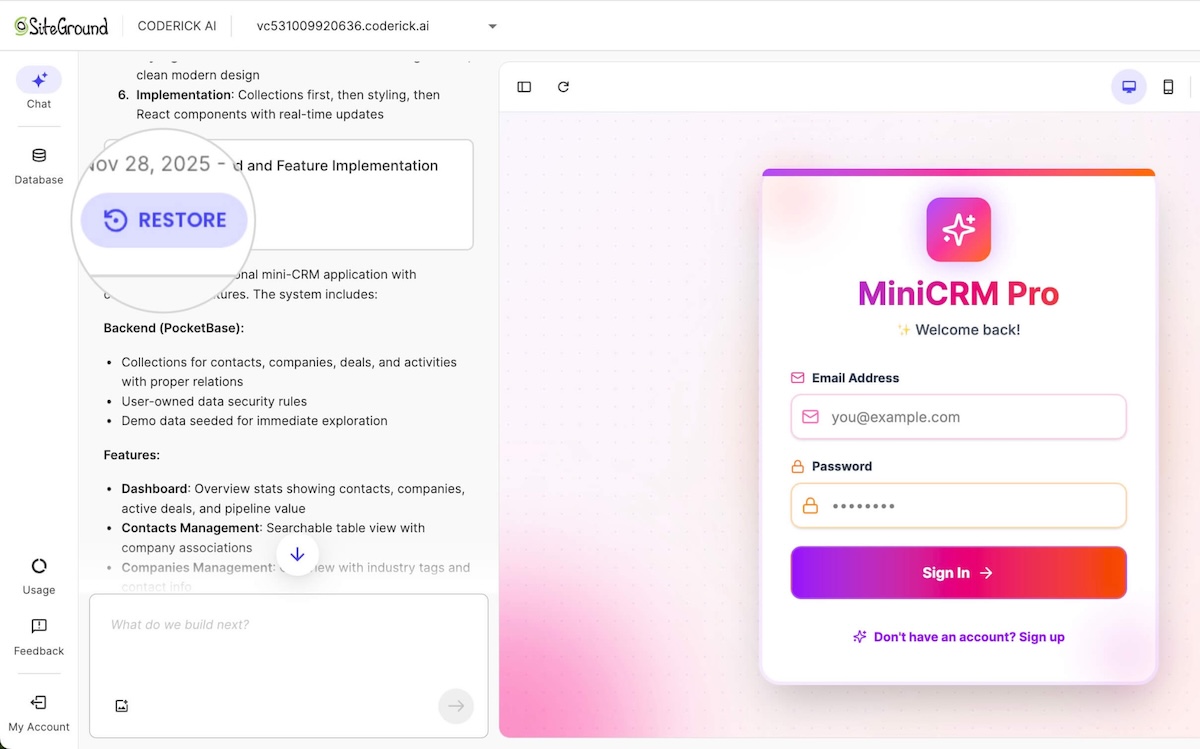
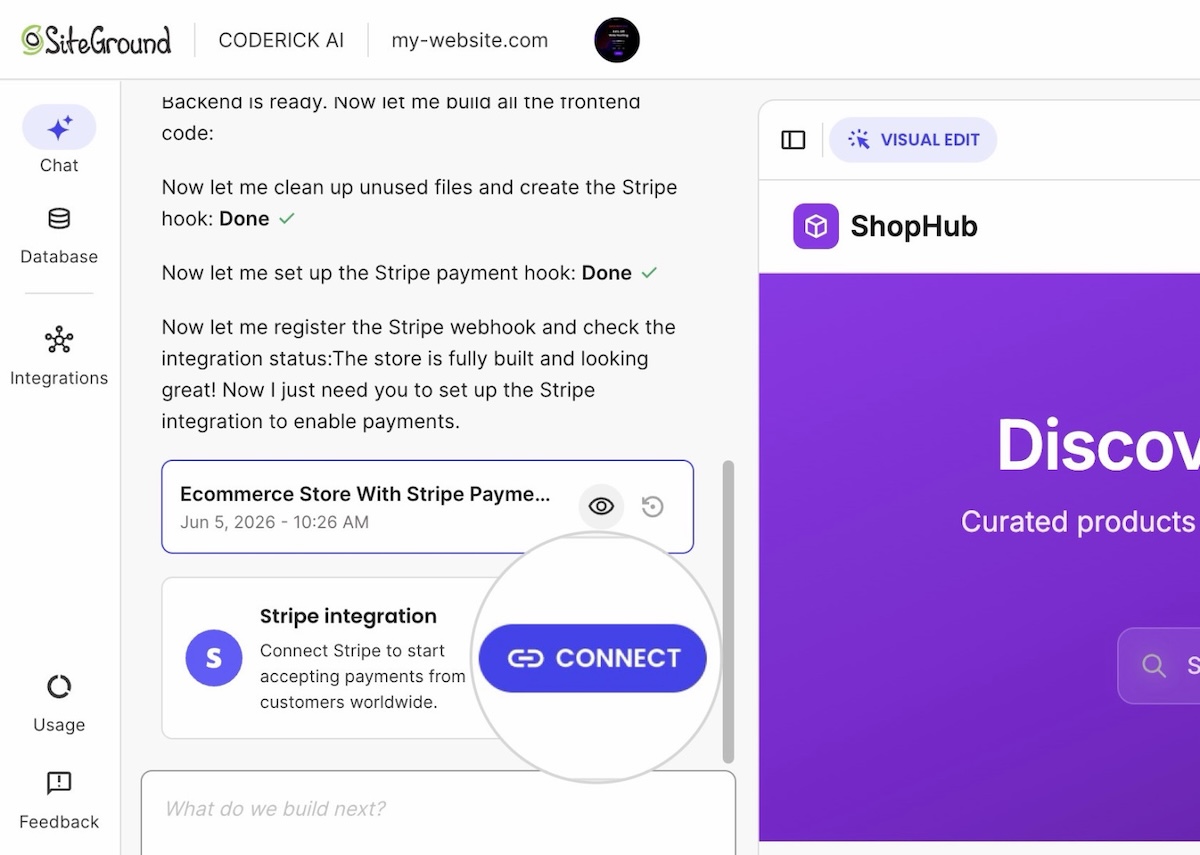
  3. Coderick AI (SiteGround’s AI website and app builder): describing the store to it is the entire setup step, no custom Stripe build required. The store, products, and checkout flow live inside your site’s own design; the payment window itself, where the card gets entered, is Stripe’s. No page to design, no API to wire up. The screenshot below shows this step in action: Coderick AI registering Stripe’s own confirmation webhook, the internal signal that tells the app a payment succeeded, not a connection to any outside tool.
Example of connecting Stripe payments to a client's AI built website
  1. Custom development: a hired developer builds it, anything from a simple embedded form to a multi-step, split-payment checkout. Unlike DIY, someone else does the coding, which removes the ceiling DIY has on complexity, at the cost of paying for that work instead of spending your own time.
  2. A full ecommerce platform, such as SiteGround Ecommerce: signing up for the platform is the setup step. Checkout lives inside the platform’s own storefront, with Stripe (or an equivalent) running underneath.

That last one is a bigger decision than the other four: it comes with a storefront and product catalog attached, not just a way to take payments. That bigger footprint earns its keep for a catalog-driven store that needs shipping, tax, and marketing tooling built in from day one. For a handful of products or a single checkout flow, it’s often more machinery than the job needs, and Coderick AI or Stripe Checkout gets there faster.

Time and cost still swing widely across all five, though. Here’s the breakdown:

Checkout setup cost

ApproachSetup timeSetup costTypically used for
DIY with Stripe’s APIA few hours to a few days$0 in tool fees, unpaid time spent building itDevelopers writing their own integration by hand
Stripe CheckoutA few hours$0 setup fee, standard processing rateA fast payment page that doesn’t touch the site’s design
Coderick AISame day$10 to $40 a month, no developer invoiceGetting a store live the same day without writing or hiring for code
Custom developmentTwo to six-plus weeks$5,000 to $50,000-plus upfront, then hourly for changesComplex logic: marketplaces, split payments, unusual rules
Full ecommerce platformA few minutes to a few hours to connect payments$18 to $36 a month, no separate developer cost A full storefront and checkout bundled into one signup

That table covers building a checkout, five ways to do it. For anyone comparing a lighter ecommerce setup against building everything from scratch, the fifth row is the one to study most closely. Turning any of these into a working checkout that can actually run a business adds to the payment integration cost, regardless of approach.

What payment integration cost actually includes

Moving the money is the easy part. A working checkout also needs:

  • Order confirmation emails: a basic payment receipt often comes free once that setting’s turned on, but a proper order confirmation with your own branding and order details is usually separate logic that needs building or wiring up.
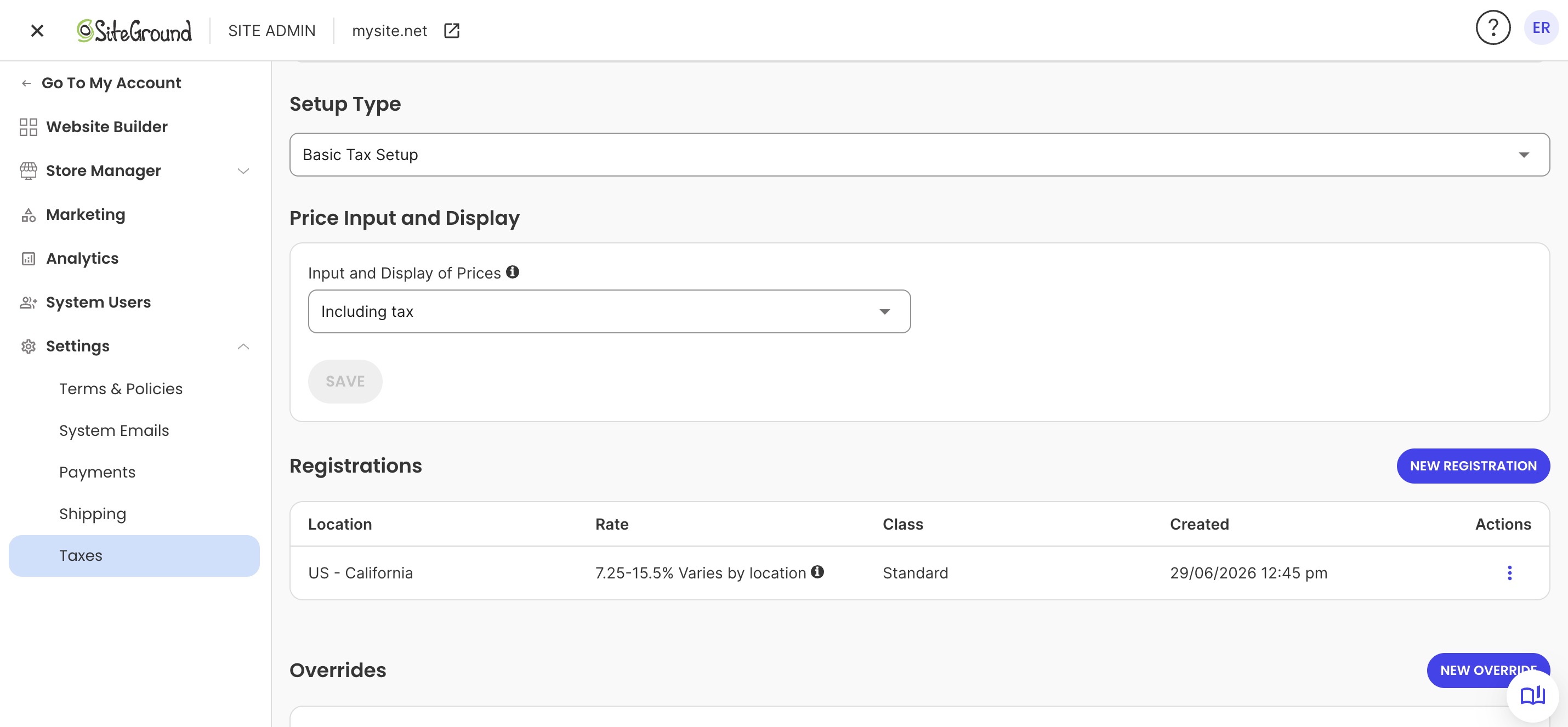
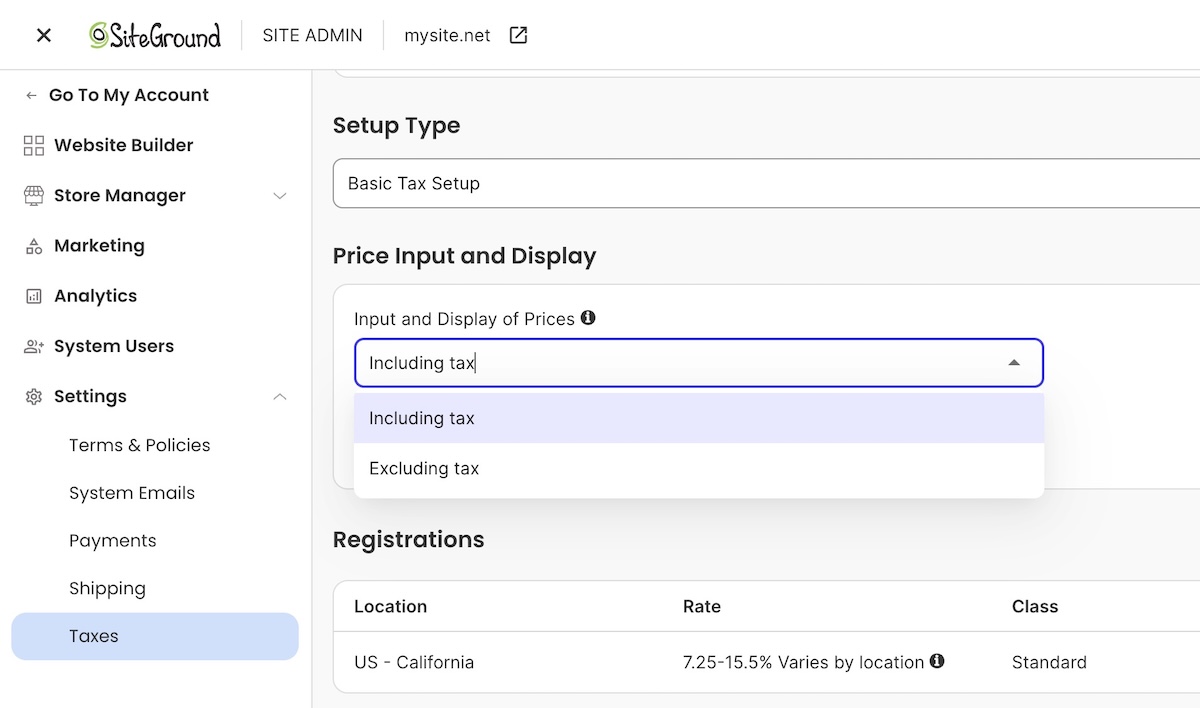
  • Tax calculation: applying the right ecommerce sales tax based on where the customer’s buying from. Stripe Tax is available with its own fee whether Stripe runs directly or through an ecommerce platform’s tax settings (as seen below); otherwise it’s a dedicated tax service or manual handling.
Choosing configuration of the Basic Tax Setup with SiteGround Ecommerce
  • Inventory updates: no payment processor tracks what’s in stock, that’s a store feature, not a payment one.
  • Refund handling your team can use without needing direct access to the processor’s own dashboard: most processors already have a one-click refund button built in, so this only becomes a build item if refunds need to happen from your own admin panel or CRM instead, and even then, the processor’s own API key needs refund permissions specifically enabled for it to actually work.

Who this applies to: DIY, Stripe Checkout, and custom development mean connecting these pieces (confirmations, tax, inventory, refunds) by hand, self-taught code or a developer’s invoice. A full ecommerce platform ships with them already built in; Coderick AI can build the same pieces if specifically asked, but that takes prompting and testing, not something that comes bundled by default.

None of this applies to a single one-off payment, a portfolio deposit, a restaurant reservation hold, an event ticket, as a hosted payment link or an embedded pay button covers these simple payment flows instead. An ongoing store needs all of it. 

Payment maintenance costs after launch

Payment maintenance costs don’t show up on the invoice for getting checkout live. They only start once a checkout’s actually been running for a while, and they come in two flavors: keeping tools connected to each other, and handling renewal payments that don’t go through cleanly if the plan includes subscriptions. Let’s break it down.

How disconnected tools add to your maintenance costs

Watch for this pattern: checkout runs through one tool, bookkeeping happens in a separate accounting app, and payment status in your CRM or project tool sits disconnected from both. Disconnected integrations like this turn every sale into:

  • Copying the transaction into the books by hand
  • Updating the order or client record separately
  • Matching any refund across all three, so nothing gets missed

For agencies invoicing multiple clients, closing this exact gap, checkout status not showing up where the client record lives, is usually the difference between faster client payments and constantly chasing down who’s actually paid.

Who this applies to: all five setups. Custom development can have an accounting or CRM connection built in, for a price. The other four handle payment confirmation internally, that’s how any checkout works at all, but none of them expose a way to connect out to a separate accounting or CRM tool.

The fix: a manual routine, though what that actually looks like depends on the setup:

  • Full ecommerce platform: often handled through a built-in order export.
  • Coderick AI: doesn’t include one by default, but it can be asked to add an export option, and refined further with more specific instructions if needed. It still can’t create a live connection to an external accounting or CRM tool.
  • DIY and Stripe Checkout: writing that export step yourself.
  • No export at all: block off ten minutes a week to copy new orders and refunds into the books and the client tracker by hand.

Recurring payment costs for subscription businesses

Anyone building a subscription business should budget for involuntary churn from the start. Imagine: a card expires or a bank declines a renewal, the subscription lapses unless something catches it, and sales go down. Two things reduce this:

  • Automatic retries: re-attempting a failed renewal a few times over one to two weeks, sometimes on by default, sometimes a setting to turn on
  • Card-expiration emails: sent before the renewal date instead of only after it fails, though this is often a setting that needs switching on rather than something that happens automatically

Who this applies to: it depends on whether a subscription layer already sits on top of the processor. A full ecommerce platform or a dedicated subscription app usually handles both without the business owner touching a setting; wiring a processor directly means checking what’s on by default and switching on the rest.

There’s a second cost to plan for on top of that: processors that offer dedicated subscription tools, automated invoicing, retries, dunning, usage tracking, often charge extra for it. For example, Stripe’s version, Stripe Billing, adds a flat 0.7% of subscription volume on top of its standard 2.9% plus $0.30 per charge. Treat both the churn risk and this extra billing fee as built-in costs of running subscriptions at all, not one-off surprises to troubleshoot later.

The hidden costs behind payment gateway fees

Maintenance costs show up on a predictable timeline, whether or not anything goes wrong. Hidden payment gateway fees are different: they only show up when something other than a clean, successful sale happens. Refunds, disputes, and a handful of smaller charges all live here.

  • Refund fees: most processors don’t charge extra to process a refund, but they typically don’t return the original processing fee either. Refund a $50 sale, and the $1.75 already paid to accept it (2.9% plus $0.30) is usually gone for good.
  • Dispute fees: a chargeback usually triggers a separate $15 flat fee on top of the disputed amount, refunded by some processors if the merchant wins, kept by most if they lose.
  • Currency conversion and cross-border fees: expect another percentage point or two on top of the standard rate whenever a customer pays in a different currency or from a different country.
  • Monthly minimums and PCI compliance fees: PCI compliance is the security standard card networks require for handling card data safely, usually confirmed through a short questionnaire. Modern processors like Stripe handle most of this through their own checkout tools, so it rarely shows up as a separate charge. Traditional merchant account providers are a different story: some still charge a monthly non-compliance fee, often $20 to $100, for skipping the paperwork.

Platform fees stacked on top of processing fees

Some ecommerce platforms and website builders add their own per-transaction cut on top of whatever the payment processor already charges. That’s a second fee stacked on every sale, not a replacement for the first, and it’s easy to miss when comparing platforms by their processing rate alone.

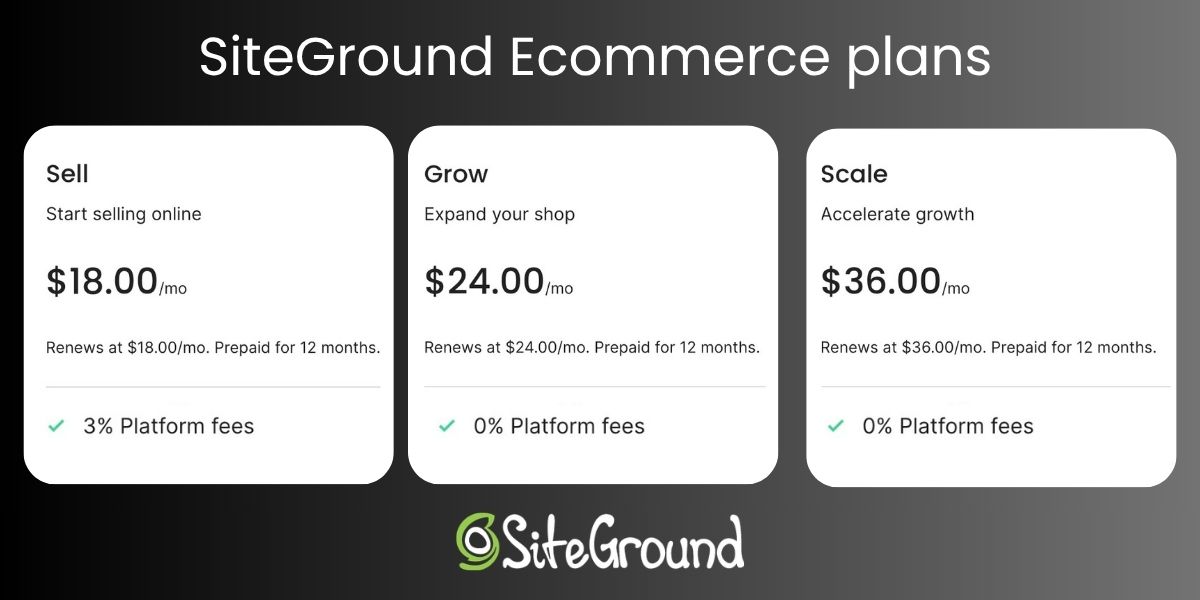
Who this applies to: the ecommerce platform route specifically. DIY, Stripe Checkout, custom development, and Coderick AI don’t have a platform layer sitting between the processor and the sale, so there’s no platform fee. SiteGround Ecommerce, for example, drops that extra fee entirely on its Grow and Scale plans, leaving just standard processing, a detail that matters when comparing platforms for selling digital or physical products. Sell runs $18 a month plus the 3% fee, Grow is $24 with none, so past roughly $200 in monthly sales, upgrading pays for itself.

The three different SiteGround Ecommerce plans - Sell, Grow and Scale

Common payment setup mistakes that cost you more later

Every cost covered so far is baked into how payments work, no mistake required. What follows is different: these are payment launch risks, avoidable and rare on launch day itself. They show up the first time something other than a clean transaction happens: the first refund, the first disputed charge, the first server change. 

1. Never testing a real transaction end to end

A checkout that “looks” done and a checkout that’s actually processed a real card, a refund, and a confirmation email are different things. Test all three before launch, including what a customer sees when a card gets declined.

Who this applies to: every setup, regardless of path.

2. Moving hosting without re-checking payment notifications

A site migration is a common place for this exact mistake to surface: moving a live site to new hosting can leave the automatic message a processor sends to confirm a payment pointed at a server that no longer exists, so an order shows “confirmed” on the site while the payment never actually clears on the backend. That kind of gap can run for a couple of days before a customer emails to ask where their order is.

Who this applies to: self-managed hosting, DIY or custom development. A managed platform like Coderick AI or a full ecommerce platform includes hosting already set up for the merchant, so there’s no server to move or a payment notification to break in the first place.

3. Leaving test API keys live in production

Real charges silently fail, or a store looks like it’s taking payments when it’s actually just running in test mode, when test and live keys get mixed up.

Who this applies to: DIY and custom development, where a live key can end up hardcoded into exposed project files. Coderick AI has a dedicated popup for pasting in a Stripe restricted key, separate from typing it into the chat or the project’s code directly. It’s still worth confirming it’s the right key, test or live, each time.

4. Treating PCI compliance as optional

It isn’t a suggestion. For Stripe-based setups, skipping it usually doesn’t show up as its own line item, since Stripe absorbs most of the compliance work into its own tools, but it still raises liability if a breach happens.

Who this applies to: everyone, though the consequence differs by setup. For example, when it comes to Coderick AI, customers enter their card details directly through Stripe, so Coderick AI itself never handles the card data, and there’s no PCI compliance for Coderick AI to carry in the first place. On a traditional merchant account, it’s more direct: skipping it is how a monthly non-compliance fee ends up on a statement.

So, what do payment gateway fees really cost?

Here’s what all of this can look like in practice for a small store doing around $5,000 a month in sales, 100 orders averaging $50 each:

CostAmountThe math
Processing fees$1752.9% + $0.30 per order, across 100 orders
Platform fee (Sell tier)$1503% of $5,000 in monthly sales
One dispute$15Flat fee per chargeback
Total$340

That’s before the one-time cost of getting checkout live in the first place, or the cost of fixing a mistake made at launch. 

Payment gateway fees, and what comes next

Payment gateway fees are the smallest, most visible line in this whole picture. The real total is provider fees plus setup time plus ongoing maintenance plus whatever a rushed launch costs to fix later, and that last category is the one most small businesses pay for without ever seeing it itemized. Which of these apply, and how much, depends entirely on the path in question.

Coderick AI’s distinct advantage in this comparison is the build process itself: whatever gets described (checkout, inventory tracking, order records) comes out connected, and updates work the same way, describing a change instead of filing one with a developer. That’s what makes it the right fit for a single checkout or a lean store built around exactly what’s needed. Build with Coderick AI to get the same connected checkout without paying a developer to build it.

[96]

Frequently asked questions

What are payment gateway fees?

Payment gateway fees are what a payment processor charges to move money from a customer’s card to a business’s bank account, typically a percentage of the sale plus a small fixed amount per transaction.

What do payment gateway fees include beyond transaction fees?

Payment gateway fees themselves usually cover just the per-transaction rate. The broader payment gateway costs around them, refund handling, dispute fees, currency conversion, and monthly minimums, gets billed separately and often gets missed when comparing providers.

What hidden payment gateway fees should small businesses know about?

Hidden payment gateway fees include refund fees (the processing fee that doesn’t come back on a refund), dispute fees, cross-border and currency conversion charges, and PCI compliance fees for skipping the annual security questionnaire.

How much does it really cost a small business to take payments online?

The real cost of taking payments online is the processing rate plus setup time plus ongoing maintenance plus the cost of fixing launch mistakes, not just the percentage listed on a pricing page. The processing rate alone is usually the smallest piece of that total.

What does checkout setup cost for a website?

Checkout setup cost for a website ranges from minutes to connect payments through an existing platform to several weeks and several thousand dollars with a custom developer build.

What does payment integration cost for a small business?

Payment integration cost for a small business covers more than connecting a processor: order confirmation emails, tax calculation, inventory syncing, and refund handling all need building or configuring too.

What payment maintenance costs continue after launch?

Payment maintenance costs after launch include handling failed or expired cards, retrying subscription renewals, and keeping payment records synced with accounting or CRM tools.

What payment setup mistakes make online payments more expensive?

Payment setup mistakes that make online payments more expensive include skipping end-to-end testing, missing a payment notification update after a hosting migration, mixing up test and live API keys, and treating PCI compliance as optional.

Do refund fees and dispute fees increase payment costs?

Yes. Refund fees and dispute fees increase payment costs because most processors keep the original processing fee on a refund and charge a separate flat fee for every dispute, refunded by some processors on a win, kept by most on a loss.

Is Stripe Checkout cheaper than building a custom checkout?

Stripe Checkout is usually cheaper than building a custom checkout, since it skips developer hours entirely, though Stripe checkout in Coderick AI can be faster still because it handles the surrounding integration work, such as order records and confirmation emails, too.

How to sell beauty products online: A 7-step guide to launching your store

abstract of how to sell beauty products online

Yes, you can make real money selling beauty products online, whether that’s a lip oil you’ve been mixing in your kitchen or a wholesale account with a supplier three time zones away. Getting there takes the right niche, some unglamorous legal groundwork, and an online store that ticks all the right boxes to make your business a success.

Key takeaways:

  • Private label, reselling, and handmade aren’t interchangeable: each comes with a different cost structure, margin, and workload.
  • Legal and licensing requirements run deeper for beauty than for most product categories, and skipping them is the fastest way to get a store shut down.
  • Compliance isn’t just federal. State-level rules can apply based on where your customer lives, not where your business is registered.
  • Registering a business name and legally owning that name are two different things, and conflating them is a common early mistake.
  • An all-in-one platform handles most of the technical setup, from product variants to payments, which is central to how to sell beauty products online without hiring a developer.
  • Photography and honest ingredient information do more for conversion than traffic volume, regardless of which business model you choose.

Step 1: Choose your beauty niche and business model

The beauty industry has room for another brand: U.S. shoppers are on pace to spend $30.73 billion on beauty and personal care products online in 2026, growing roughly 8.4% a year, faster than any other beauty sales channel, according to Statista. 

But if you plan to jump in, first you must start with a decision that shapes everything else: are you formulating, reselling, or making the product yourself? Most sellers land in one of three lanes, and each one comes with a different cost structure and a different list of Step 2’s legal boxes to check.

Private label

Partner with a manufacturer that already has a formula, a moisturizer base, a lip gloss, a shampoo, and put your own name, packaging, and branding on it.

  • Choose from an existing formula menu instead of commissioning one from scratch
  • Minimum order quantities are manageable for a first-time seller
  • Margins run higher than reselling, since you’re not the tenth seller of an identical product

Reselling

Buy finished, branded beauty products at wholesale and mark them up. It’s the more straightforward way to sell cosmetic products online if you’d rather test a niche than build a formula.

  • Fastest route to inventory: no formulation or packaging decisions to make
  • Thinnest margins of the three models
  • Bound by the brand’s minimum advertised price rules, so pricing isn’t fully yours either

Handmade beauty products

Make the product yourself: cold-process soap, whipped body butter, small-batch lip balm, really any body products mixed in your own kitchen or a rented commercial space.

  • Full creative control over the formula, packaging, and branding
  • The model most associated with wanting to sell beauty products from home
  • You’re the manufacturer of record, so every compliance box in Step 2 is yours to check

Whichever lane you pick, most beginners are working with limited capital, so it’s worth pairing your niche decision with a plan for starting an online store on a budget before you spend on inventory or a logo designer.

Business modelStartup costControl over formulaTypical margin
Private labelLow to moderateChoose from existing formulasHigher
ResellingLowNoneLower
HandmadeLow, but time-intensiveFullHighest, if priced right
A quick disclaimer before the specifics: this section is a general overview, not legal advice. Requirements, fees, and exemption thresholds shift by state, product type, and over time, so confirm current rules for your specific product and location with your state’s licensing office, the FDA, or a lawyer before you rely on any number below.

This step is an easy one to procrastinate over, but it’s also the one most likely to shut your store down if you ignore it. So let’s break it down so that you can check it off your list.

Registering your beauty business

A sole proprietorship has no state filing fee to form and works fine for testing the water, but your personal assets aren’t separated from your business liabilities, which matters in a category prone to allergic-reaction claims.

  • Sole proprietorship: no state formation fee, though a DBA filing (needed if you’re selling under a brand name rather than your own legal name, which most beauty sellers are) typically runs $10 to $100
  • LLC: $35 to $500 in one-time state filing fees, separates personal and company assets. Several states also charge an ongoing annual franchise tax on top of that filing fee. California’s is $800 a year minimum, regardless of income, so check your state’s full cost, not just the filing fee
  • EIN: free and instant from the IRS, needed once you open a business bank account or hire anyone

Worth noting: Most beauty sellers make the jump to an LLC once they’re taking real orders.

Getting a seller’s permit and sales tax basics

Most states require a seller’s permit before you can legally collect ecommerce sales tax, and you’ll need one in your home state at minimum, plus any state where you have nexus (a warehouse, an employee, or enough sales volume). Handmade cosmetics and private label products are generally taxed the same way as any other tangible good, though a few states carve out exceptions for specific categories, so it’s worth a quick check with your state’s department of revenue before you launch.

FDA cosmetic regulations and MoCRA compliance

The Modernization of Cosmetics Regulation Act (MoCRA), in effect since 2023, requires most facilities that manufacture or process cosmetics to register with the FDA and list every product they sell, including its ingredients.

  • Facility registration renews every two years, anchored to your facility’s own initial registration date rather than a single fixed deadline. Facilities that registered back in 2024 are hitting their first renewal window this year
  • New products must be listed within 120 days of hitting the market
  • A small-business exemption applies if your average annual revenue is under $1 million

The exemption doesn’t cover everyone, though. It doesn’t apply if your products:

  • Come into contact with the eyes, like mascara or eyeliner
  • Are injected
  • Are ingested
  • Are intended to alter appearance for more than 24 hours, like gel nail polish or brow tint

Cosmetic labeling requirements

Every cosmetic label needs a handful of required elements, split across the front-facing panel and the ingredient panel.

  • Identity statement: what the product is, like “facial moisturizer,” on the front panel
  • Net quantity of contents: also on the front panel
  • Ingredient list: standardized INCI names, short for International Nomenclature of Cosmetic Ingredients, in descending order by weight (anything under 1% can be listed in any order after the rest)
  • Warning statement: required wording for certain product types, such as aerosols
  • Name and address of whoever’s responsible for the product

Product liability insurance for beauty sellers

Allergic reactions and skin irritation complaints happen even with a well-tested formula, and a single claim can outstrip whatever you’d saved by skipping insurance. General liability policies that include product coverage for small or home-based beauty sellers typically run a few hundred dollars a year for $1 million to $2 million in coverage through insurers that specialize in handmade goods, and most don’t require a storefront or employees to qualify.

State-specific rules to watch

Federal rules aren’t the only ones that apply. California’s Proposition 65 requires a clear and reasonable warning before selling a product containing a listed chemical to a California resident, and it applies based on where your customer lives, not where your business is registered, so an online store based in Ohio can still trigger it. Businesses with fewer than 10 employees are formally exempt, but the exemption doesn’t change the fact that liability follows the sale, not the location.

Search the USPTO’s trademark database before you commit to a name, and ideally before you order packaging with that name printed on it. This clearance check is free and worth doing no matter when, or whether, you file a formal application.

  • Search the USPTO database for exact and confusingly similar marks
  • Check your state’s business entity registry, plus your target domain and social handles, for the same name already in use
  • A DBA lets you legally operate under a name, but it doesn’t protect that name or stop someone else from using something similar

Formal federal registration is a bigger, later step, and plenty of small or home-based sellers reasonably wait until the business has traction before filing. If and when you do:

  • USPTO filing fee: $350 per class, using pre-approved goods and services descriptions to avoid extra surcharges
  • Attorney-assisted filing typically runs $750 to $1,750 all in for a single class; self-filing skips that cost but carries more risk of a rejected application
  • Budget 10 to 14 months from filing to registration in a clean case, and longer if the USPTO issues an office action, which happens to the majority of applications

Whether or not you file this year, getting your branding basics locked in early, name, logo, and visual identity together, makes that clearance search easier because you’re evaluating one direction instead of five.

Step 3: Source reliable suppliers or manufacturers

Sourcing is where your business model from Step 1 becomes a real supply chain, and vetting takes longer than most first-time sellers budget for.

Private label manufacturers

Vetting a private label manufacturer comes down to three things: their formula catalog, their minimum order, and their paperwork.

  • Minimum orders typically run a few hundred to a few thousand units per SKU
  • Many offer sample kits so you can test formulas before committing
  • Ask for a certificate of analysis and safety data sheet for every formula under consideration, not just the ones you like on first smell

White-label manufacturers

White-label takes private label (Step 1) one step further: you’re picking from the manufacturer’s existing packaging too, not just the formula.

  • Cuts development time further than private label
  • Leaves you with less to differentiate on besides branding and marketing
  • Often the fastest route to a finished, ready-to-sell product

Wholesale suppliers

Finding a legitimate wholesale account takes more digging than searching “wholesale beauty supplier” and picking the first result.

  • Contact the brand directly to ask about an authorized reseller or wholesale account, since going through an unauthorized middleman raises the risk of gray-market or counterfeit stock
  • Ask directly whether the supplier allows resale on your own branded website, since some agreements restrict sales to marketplaces only
  • Get the wholesale price list and minimum order requirements in writing before you commit, terms quoted verbally tend to shift

Vetting three or four manufacturers before you commit eats real hours, and building time-saving systems for running your online business early pays off long after sourcing wraps up.

Step 4: Build your store

This is where niche, licensing, and suppliers turn into an actual beauty ecommerce store a customer can buy from.

Choose how to sell

Beauty sellers face the same ecommerce platform vs. marketplace decision every seller does, and it comes down to the same three tradeoffs: cost, control, and where your buyers actually come from.

Selling on marketplaces

Marketplaces hand you built-in traffic and a checkout system you don’t have to build, which makes them a fast, cheap way to test whether a product sells before you invest in a full storefront.

  • Fees stack up fast: Etsy, for example, charges a $0.20 listing fee per item that renews every four months until it sells, a 6.5% transaction fee, and roughly 3% plus $0.25 in payment processing, adding up to close to 10% in combined fees before advertising even enters the picture
  • You don’t own the customer relationship or email list, just the individual transactions that pass through
  • The marketplace can change its fee structure, algorithm, or policies without asking you first, and your customer base goes with it if your account is ever suspended

Building your own branded store

A branded store trades that percentage cut on every sale for a flat cost that doesn’t change with volume, so the math tips further in your favor the more you sell.

  • You own the customer relationship, the email list, and every piece of data that comes through checkout
  • Building an ecommerce website today means picking a platform that bundles the catalog, checkout, shipping, and tax into one system, instead of stitching together a separate builder, payment processor, and tax tool the way it used to work
  • The tradeoff is traffic: a new store starts with zero visitors, and every one has to come from search, social, ads, or word of mouth, the same cost a marketplace charges you in fees instead

Feature strong product photography

Beauty sells on visuals more than almost any other category, so the platform you build on needs strong image zoom and gallery support built in, since a swatch that looks muddy on a phone screen costs you the sale before the description even loads. Mobile-first matters even more here: beauty discovery happens overwhelmingly on phones, through social feeds and search, not desktop browsing.

Add product variants for shades, scents, and sizes

A lipstick that comes in 12 shades doesn’t need 12 separate product pages. Managing shade, scent, and size as variants on a single listing keeps your catalog manageable and keeps your SEO from splitting across duplicate pages competing with each other.

Selecting product variants such as scent on a product page

Write product descriptions that include ingredients and compliance info

This is where Step 2’s labeling requirements actually show up on the page: the full ingredient list in INCI names, net weight, and any required warning statement belong in the description or a dedicated specs section of each product detail page, not buried in a PDF nobody opens. Customers increasingly check ingredient lists before buying, so treating that information as a selling point, not a compliance afterthought, works in your favor.

Accept secure payments

Whatever platform you choose, checkout should accept the payment methods your customers already trust: credit and debit cards, digital wallets like Apple Pay and Google Pay, PayPal, and for some categories, bank transfers or cash on delivery.

If you want the mechanics of how to accept payments online spelled out step by step, including PCI compliance basics, that’s worth a closer look before you go live.

Handle shipping, including restricted items

Configure your shipping methods (zones, rates, and carrier options) before your first sale, and keep a running list of restricted items like aerosols and alcohol-based products (perfume, some nail polishes) so you don’t overlook them, since carrier rules for these vary by transport method.

Where SiteGround Ecommerce fits in
SiteGround Ecommerce brings everything in this step together in one system: storefront setup, product variants, photography-friendly templates, optimized product pages, and payments and shipping. All of it runs on SiteGround’s platform, with support available around the clock if something trips you up. That’s the assembly work most beauty sellers dread, already done.
Starting building your online store now>>

Step 5: Create product pages that convert browsers into buyers

Traffic doesn’t matter if the product page doesn’t close the sale, and beauty shoppers are unusually skeptical, since they’re putting the product on their skin. Whether you’re figuring out how to sell makeup products online or building a skincare line, product pages carry the weight of proof.

Product photography 

Beauty shoppers need to see more than a pretty bottle before they trust a new brand on their skin.

  • The product in its packaging
  • Swatched on skin in natural light
  • A close-up of texture or size
Product images in natural light and consistently designed on an online store

A single hero shot with perfect studio lighting looks nice but doesn’t answer the question every beauty shopper actually has: what does this look like on a real person? Good ecommerce website design ideas that convert treat photography as functional information, and not just decoration.

Descriptions

Lead with what the product does and who it’s for, then back it up with the ingredient list and texture details a skincare or makeup shopper actually reads before buying. Following basic SEO for ecommerce product pages, working the way real consumers search into your titles and descriptions naturally, helps you get found for the exact terms beauty shoppers already use.

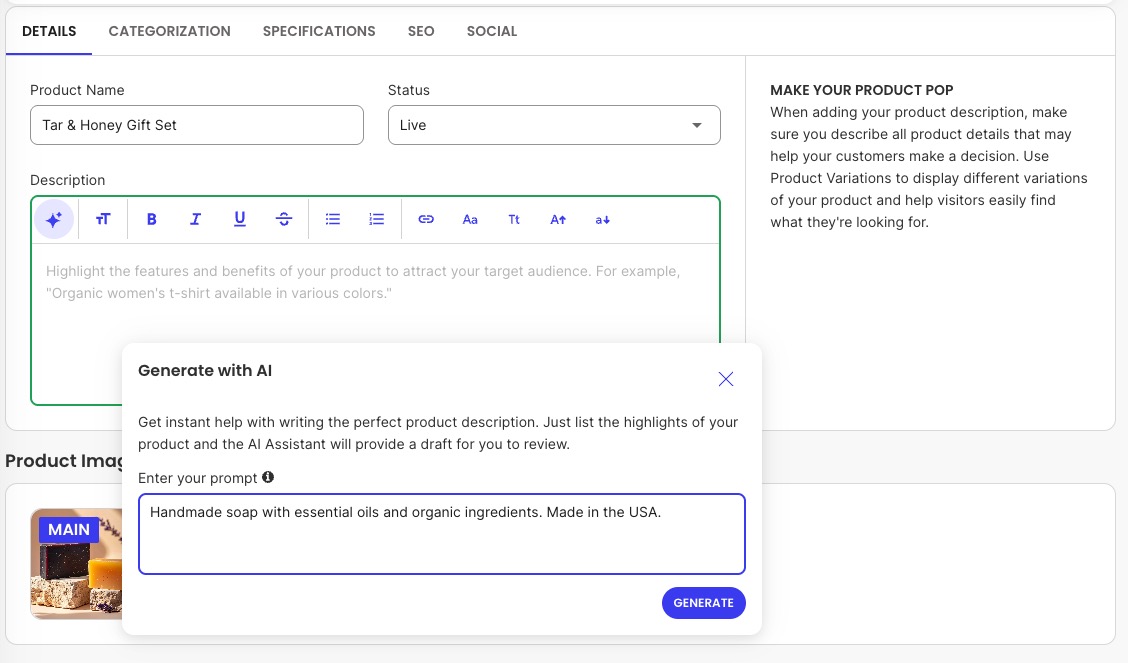
Pro tip: Need a little copywriting inspiration? A built-in AI writer, like SiteGround’s, makes it extra easy to craft the perfect product description on the fly.

Example of writing a product description with the help of AI in a website builder

Customer reviews

“Will this work on my skin type” isn’t something a spec sheet can answer, which is why reviews and social proof matter more in beauty than in almost any other category. Displaying star ratings and written reviews directly on the product page, especially ones mentioning skin type or shade match, does more for conversion than almost any other single design decision you’ll make.

Certifications and safety claims

If a product is cruelty-free, vegan, or dermatologist-tested, say so clearly, and only if it’s actually true. Overstating a certification you don’t hold is exactly the kind of overclaiming that erodes trust fast in a category where customers already read labels closely.

Trust signals and badges

A few small additions reduce the hesitation beauty shoppers feel before trying a new brand on their face.

  • Secure checkout badges
  • Clear return policies
  • Visible customer service contact information
Example website with a shipping policy in the footer transmitting trust

None of this replaces a good product, but it removes the friction that stops an otherwise interested buyer from finishing checkout.

Step 6: Market your launch and land your first sales

Hitting publish doesn’t summon customers (wouldn’t that be nice?). Nobody’s going to stumble onto a brand-new beauty website by accident, which means the next three things matter as much as everything you just built.

Social media marketing

Instagram and TikTok are where beauty discovery happens, which is why social media marketing is the highest-leverage channel for a new brand: short-form video (a shade swatch, a texture close-up, a quick tutorial) tends to outperform static product photos when you have no existing audience.

Paid ads

A modest budget on Instagram, TikTok, or Google ads can get your first sales moving faster than organic reach alone, especially when you’re starting with zero followers and zero reviews. Target narrow (skincare for combination skin, not “beauty” in general) and track cost per click and conversion rate before scaling spend. Small business marketing covers paid ads alongside the other channels worth testing at launch.

Influencer seeding

Sending product to micro-influencers, typically 10,000 to 100,000 followers, in exchange for honest coverage, not a guaranteed post, usually delivers a better return than paying a handful of larger creators for one sponsored post. Disclose the relationship clearly. The FTC requires it, and skipping it is the kind of shortcut that backfires publicly.

Email marketing

Capture emails from day one, even before launch, with a waitlist or early-access offer. A beginner’s guide to ecommerce email marketing is worth reading before your first campaign, since a solid welcome sequence is what turns a new subscriber into a first customer for a brand nobody’s heard of yet.

Step 7: Track performance and scale

Launching is the easy part. Knowing whether it’s working matters just as much, especially once you’re deciding what to reorder. Three numbers are worth watching from day one:

  • Conversion rate: Ecommerce conversion rates for beauty tend to run a bit higher than the overall ecommerce average, since it’s a repeat-purchase category, but the exact number varies a lot by source and by price point.
  • Average order value (AOV): Bundling complementary products (a cleanser with a moisturizer, a shade with a matching lip color) and setting a free-shipping threshold just above your current average order value are the two most reliable levers for raising AOV without discounting.
  • Repeat purchase rate: Skincare and haircare are consumable products, so this matters here more than in almost any other category. As your catalog and traffic grow, website speed matters just as much as it did on launch day, since a slower site quietly erodes the repeat purchases you worked hard to earn.

When and how to expand your product line

Expand once you have reliable repeat purchase data telling you what customers already buy together or ask for in reviews, not before. A second product launched too early, before the first one has proven demand, usually just splits your limited marketing budget and inventory cash two ways instead of growing the business.

Your beauty brand is ready to launch

Seven steps, one honest sequence for how to sell beauty products online: pick your niche and business model, handle the legal and licensing groundwork that’s easy to overlook, source suppliers you’ve actually vetted, build a branded storefront, write product pages that earn trust, market the launch, then track the numbers that tell you what to do next. None of it requires a developer, a warehouse, or six figures of startup capital.

SiteGround Ecommerce is built to get a beauty brand from idea to first sale without the technical detour. Product variants, secure payments, shipping, and tax all live in one place, so the time you’d spend wiring plugins together goes into your formula, your photos, and your first hundred customers instead.

[103]

Frequently asked questions

What is the best platform to sell beauty products?

It depends on whether you’re starting small by testing a niche on a marketplace or building a branded store for the long haul. For a branded store, look for an all-in-one platform, like SiteGround Ecommerce, that bundles hosting, payments, and shipping, with real human support if something goes wrong.

Do I need a license to sell beauty products online?

There’s no single “beauty license,” but you’ll typically need a business registration, a seller’s permit for sales tax, and, unless you qualify for the small-business exemption, FDA facility registration and product listing under MoCRA if you manufacture or process cosmetics.

Can I sell homemade beauty products online?

Yes, but “homemade” doesn’t mean unregulated: you’ll still need business registration, compliant labeling, and, depending on your revenue and product type, FDA facility registration under MoCRA. Product liability insurance is worth budgeting for too, since a single allergic-reaction claim can cost more than years of premiums combined.

What are the best beauty products to sell online?

Skincare is the largest beauty category by sales, accounting for roughly a third of the U.S. beauty and personal care market, according to Grand View Research, with moisturizers and cleansers as the most consistently repurchased individual products.

Is reselling beauty products profitable?

Reselling can be profitable, especially as a low-cost way to test a niche, but margins run thinner than private label, since you don’t control the wholesale price and you’re bound by the brand’s minimum advertised price policy.

How to start an online boutique: A step-by-step guide to sourcing, setup, and real costs

Abstract of how to start an online boutique with images of a homepage and product pages

The online boutique you’ve been dreaming up is the fun part. Putting it into action might feel like a different story. Getting there means choosing a builder, sourcing an apparel line you can actually stock and ship, photographing it so shoppers trust the fit, and pricing it against real numbers instead of a vague “initial costs” line. We’ll cover all of that, plus the legal basics that usually get glossed over.

Key takeaways:

  • How to start a successful online boutique comes down to four real jobs: choosing the right platform, sourcing your product, photographing and listing it correctly, and pricing the whole thing honestly.
  • Inventory is the single biggest cost of launching a boutique if you’re holding stock upfront.
  • Different sourcing paths, wholesale, private label, dropshipping, and made-to-order, trade off cost and control for how much cash sits in inventory before your first sale.
  • You can start an online clothing boutique with little to no upfront inventory spend using made-to-order production or pre-orders instead of a bulk buy.
  • Sales tax gets a lot more manageable with the right platform: many ecommerce builders include built-in rate calculation and nexus tracking, so you’re not tracking rates state by state on your own.
  • Once you’ve chosen the right builder, connecting your domain and activating your store is the fast part, usually just pointing a domain and clicking through a few settings.

(Still getting oriented on what ecommerce actually involves? Start there before you dive into sourcing.)

Step 1: Pick and source your apparel niche

You’ve probably already got a business idea in mind. Maybe you’ve even done all the research. But if you’re starting from scratch, then pick a niche you can actually source and restock, not just one you’re excited to sell. Let’s quickly make sure you’re on the right track.

There are a few common ways to get product, each with a different tradeoff between cost, control, and how much inventory you need to hold upfront:

  • Wholesale or resale: stock existing brands to test a niche before committing to your own designs
  • Private label: put your own branding on an existing product without running full manufacturing yourself
  • Custom manufacturing: design and produce your own line, with the most control but the biggest upfront commitment
  • Dropshipping or made-to-order: sell without holding inventory upfront. Made-to-order works on most platforms; dropshipping specifically needs a builder that supports it, so confirm that before you commit to this route

Whichever route you choose, get clear on three things before you commit to a supplier: their minimum order quantity, what a sample costs and how long it takes to arrive, and whether they can back up their claims with a verifiable business history, reviews, or past client work. A sample itself is worth the cost no matter what: it’s the only way to check fabric weight, stitching quality, and true-to-size fit before you’re financially locked into a style, and a supplier who won’t produce one at any price is a red flag on its own.

How many styles should you start with? Enough to look like a real store, not so many you can’t restock evenly. A tight, focused lineup is easier to manage and sell through than a sprawling catalog, and you’ll have real sales data to guide you once you start scaling your business.

Step 2: Choose an ecommerce platform

You’re going to need a place to sell that product, and the easiest route will be to choose an ecommerce website builder. At a high level, look for a builder that can handle a variant-heavy catalog well, not just a generic product list. Run through these before you commit to one:

  • Think about what job your site needs to do. For a boutique, that’s selling a variant-heavy catalog, not just publishing pages.
  • Built-in size and color variants, so a shopper picks options from one product page instead of you creating a separate listing per combination.
  • Bulk photo uploads, so listing 20 products doesn’t mean 20 separate upload sessions.
  • Checkout that’s already optimized for conversions, not an added-on plugin you have to configure yourself.
  • Works well on mobile, not just desktop. Most ecommerce traffic now comes from phones, so make sure mobile web design comes baked in: size and color selection, photos, and checkout all need to hold up on a small screen before you commit to a builder.
  • Fast, reliable hosting with SSL bundled in. A catalog full of product photos is only as fast as the hosting underneath it, and slow pages cost you both search rankings and sales, so this shouldn’t be an afterthought or a separate purchase.
  • Easy-to-manage ecommerce SEO, so product pages are structured to rank without a developer or a separate plugin to configure. 
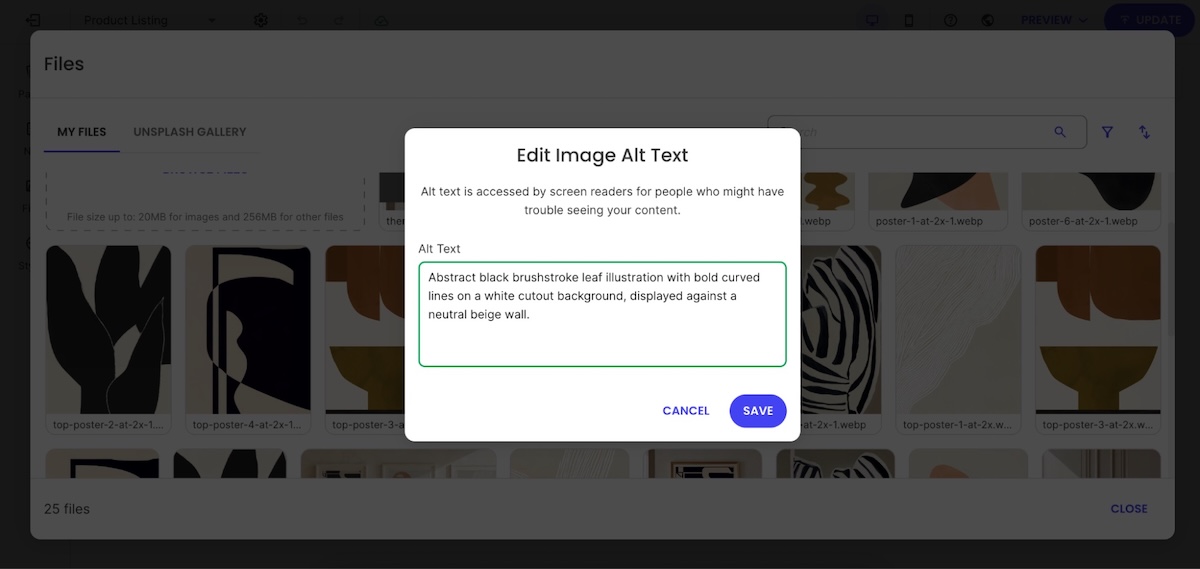
Example of the SiteGround Website Builder prompting you to add image alt text
  • Consider time to launch. A templated builder gets you live faster than one with unlimited design freedom and more decisions to make.
  • Be thoughtful about pricing. Check whether the plan includes hosting, SSL, and a domain, or whether those show up as separate line items later.

Most general-purpose builders can technically sell clothes, but the difference shows up once you have 20 products with three sizes and four colors each. A builder that treats each variant as a separate product turns a simple catalog into a maintenance chore, so it’s worth taking a closer look at what a clothing storefront specifically needs from a builder before you commit to one.

Why SiteGround Ecommerce makes the difference here: variants live on a single product page instead of scattered listings, bulk photo uploads and AI-assisted product details cut the busywork, checkout comes optimized for conversions out of the box, and hosting, SSL, and SEO tools are all bundled in rather than added on afterward.

Start building your ecommerce website now>>

Step 3: Set up your domain and activate your store

With the right builder, this step covers two things at once: your domain and the hosting underneath it.

  • New domain: Buy one directly through your builder and it connects automatically. No separate registrar, no DNS setup on your end.
  • Existing domain: If you already own one from elsewhere, you’ll need to update its DNS records, usually just changing the nameservers, to point it at your new store. This is where support matters most: redirecting a pre-purchased domain trips up a lot of first-time sellers, so a builder with a real person on chat beats one that only offers a ticket queue.
  • Hosting: With top-notch hosting, this is what keeps your store online, fast, and secure. It’s set up automatically with the right builder rather than something you shop for and configure on your own.

This is where an all-in-one platform actually pays off: look for one where your domain, hosting, and SSL connect automatically in a single setup, not three separate purchases you have to coordinate yourself. Hosting speed matters more than people expect, since a photo-heavy catalog is only as fast as what’s running underneath it. SiteGround Ecommerce, for example, builds speed optimization into hosting instead of treating it as an upsell. And when you’re moving a domain from elsewhere, real support on hand is the way to go.

Once you’ve connected your domain and activated your store, the boutique-specific work starts: getting your products photographed, listed, and priced.

Step 4: Photograph and list your products

Product photography is the one technical task that’s genuinely specific to selling clothes, and it’s what actually makes a storefront sellable. A shopper who can’t tell how a fabric drapes or what color it really is won’t buy, and if they do, they’ll return it. So let’s get this one right.

Photography basics that make a difference

  • Consistency over expensive equipment: a phone camera, a $30 lighting kit, and one consistent background will outperform a mix of styles shot in different rooms
  • Pick one format, flat-lay, mannequin, or model, and use it across your whole catalog so your store doesn’t look like three different sellers
  • If you’re using a model, shoot the same size and model across the full catalog so shoppers have one consistent reference point

Size and color variants

Set up size and color variants on a single product page rather than creating a separate listing for every size and color combination. This is basic product page SEO: splitting variants across multiple URLs creates near-duplicate pages that compete with each other in search results instead of stacking their ranking power, and it forces shoppers to hunt for the right size instead of selecting it from a dropdown.

Listings that reduce returns

Write sizing details as if the shopper can’t try the item on…because they can’t. Include:

  • Exact measurements (bust, waist, hip, length) for at least one size, not just “small, medium, large”
  • The model’s height and which size they’re wearing, if you’re using a model
  • Fabric composition and stretch, since a 95% cotton tee fits differently than a 5% spandex blend
  • A direct answer to “does this run small or large,” since that’s the question behind most sizing-related returns
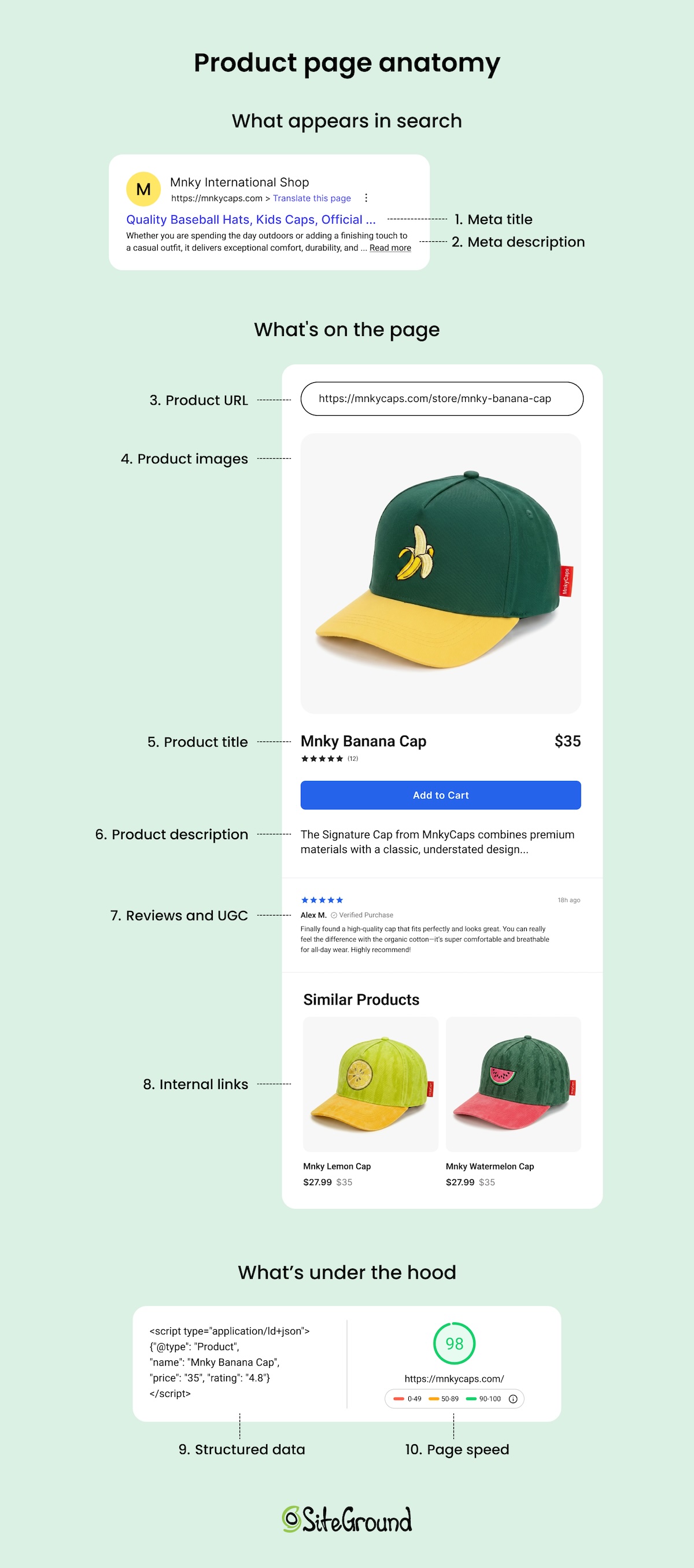
Visual diagram with the anatomy of an online store product page

Photos and listings that convert browsers into buyers follow the same visual and structural principles as any ecommerce store, so it’s worth digging into the layout and conversion side of things once your catalog’s live.

Step 5: Connect payments and shipping

With the right builder, this step is generally just about flipping switches and not building technical integrations (thankfully). Most all-in-one platforms come with payment processor options already available and a shipping rate calculator built in, so you’re choosing settings rather than hunting down plugins.

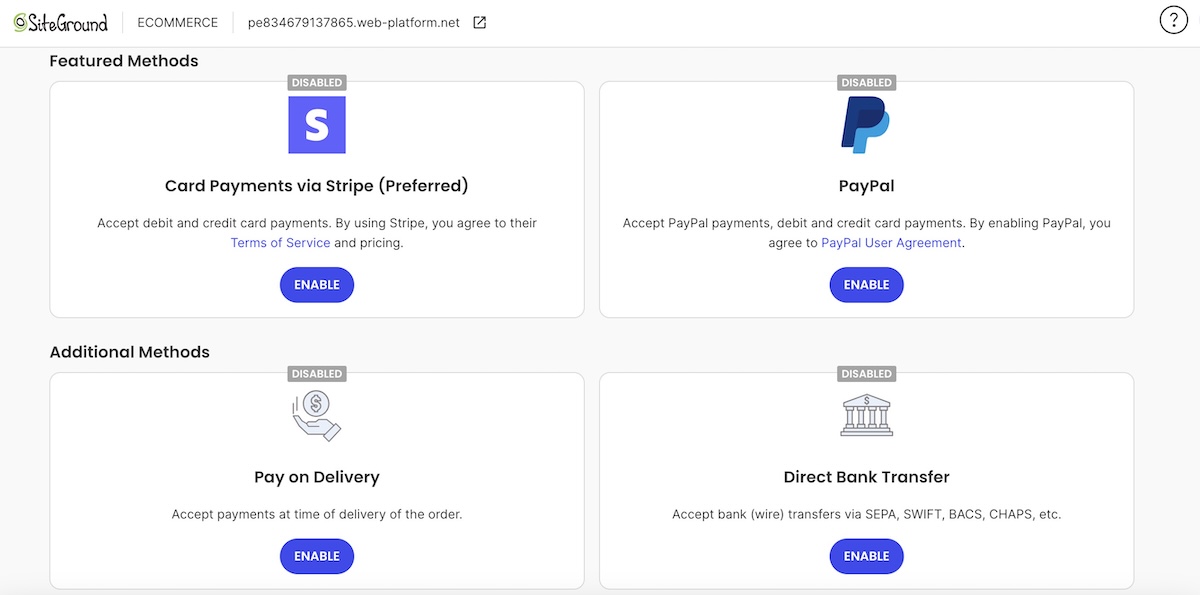
Backend of SiteGround Ecommerce where you can connect different payment methods for your customers

A few things worth getting right on the payments side:

  • Check for a stacked platform fee. Card processing typically runs around 2.9% plus $0.30 per transaction, but some builders add their own fee on top of that, so it’s worth understanding how online payments actually get priced before assuming the headline rate is what you’ll pay.
  • Run a test transaction before you go live. It takes two minutes and catches problems that are embarrassing to find out about on your first real sale.
  • Set your returns policy before launch, and not after your first return request. Clothing returns are common because sizing varies by brand, so decide on free returns, a restocking fee, or store credit only, and state it clearly.

For shipping, you’re really making two separate calls: how the order gets to the customer, and how you charge for it. Here’s what to keep in mind:

  • Pick a shipping cost rate strategy that fits your margins. A flat rate is simple but risks undercharging on heavy orders, which is why it’s worth setting shipping by weight and destination instead once your catalog has any real size range.
  • If you offer free shipping, build it into your numbers on purpose. A minimum-order threshold, often set around 30% above your average order value, covers your cost while still nudging people to buy more.
  • Get your product weights and dimensions right. Most rate calculations run on this data, and a wrong number is an easy way to lose money on every heavier order.
  • Write a short shipping policy covering processing time, delivery estimates, and returns, and link it in your footer so customers don’t have to ask. Better yet, add a section about it as well as payment-related issues on an FAQ page.
Choosing a shipping method in SiteGround Ecommerce backend

Step 6: Start your boutique legally

Starting an online boutique legally comes down to four concrete things, and none of them require a lawyer to get right the first time.

  • Business structure. A sole proprietorship needs no separate filing: you operate under your own name and Social Security number from day one. An LLC costs $150 to $800 to set up depending on your state, filed through your state’s Secretary of State website, and typically takes anywhere from same-day to a few weeks to process. The tradeoff for the extra cost: an LLC separates your personal assets from business liability, which matters more once you’re carrying real inventory.
  • EIN. Most sole proprietors don’t need one unless they hire employees or their bank requires one to open a business account. Apply directly through irs.gov, skip any third-party site charging a fee for this, and you’ll have your EIN the same day, for free.
  • Ecommerce sales tax. Cross a state’s economic nexus threshold, usually $100,000 in annual sales, and you’re required to register and collect there too, not just your home state. The right builder can automate most of this: a free basic setup applies predefined rates at checkout, and a Stripe-connected advanced setup handles real-time rates and nexus tracking automatically.
  • Business license. Requirements vary by city and state, and some require a general license even for a store that only sells online. A quick search of your city and state government site tells you what applies before you launch.

Step 7: Launch and get your first sale

Before you announce anything, run a pre-launch checklist:

  • Place a test order and confirm the checkout, confirmation email, and order notification all work
  • Click through every size and color variant to confirm the right photo loads for each
  • Test your shipping rate calculation with a real address, not just your own
  • Read every product listing once more for sizing details and typos

Promoting your boutique doesn’t require a big budget in the first weeks, just a plan. A few things to get right early:

  • Get your store ready to convert before you spend time or money on traffic. Product photos, sizing details, and a working checkout matter more than which channel you pick.
  • Make sure your search engine optimization is dialed in. Write product titles and descriptions around the terms people actually search, add alt text to your photos, and claim a Google Business Profile if local SEO matters for your boutique too.
  • Set up two automated email flows before you launch: an abandoned cart reminder and a post-purchase thank-you. Both run in the background and recover sales you’d otherwise lose.
  • Pick two channels that match your product and target market. Visually driven products like clothing tend to do best on Instagram, TikTok, or Pinterest. 
  • Match your effort to your budget. With $0 to spend, lean on organic posting and your existing network; with a small business budget, you boost your best-performing posts instead of guessing where to start.

Want more structure than the basics above? A full 90-day marketing plan is there once you’re ready for it.

What it actually costs to start an online boutique

If you’re sourcing wholesale, private label, or custom-manufactured inventory, most first-time launches cost between $2,000 and $10,000. Inventory is the largest piece of that: StartupOwl’s guide to starting an online boutique puts your first inventory purchase at 60 to 70% of your total startup budget. Made-to-order and pre-order sellers see a much lower number here, since there’s no stock to buy upfront.

Cost itemTypeTypical range
Starting inventory and samplesOne-time$1,000 to $5,000+
Domain nameOne-time, renews yearly$10 to $20 per year
Business registration and licensingOne-time$150 to $800, depending on your state
Store platform planRecurringRoughly $15 to $50/month
Payment processingRecurring, per transactionAround 2.9% plus $0.30 per transaction, set by your processor
MarketingRecurring, optionalCan start at $0 with organic promotion

If you’re planning this line by line, there are more ways to trim costs without cutting corners on the stuff that actually affects sales.

Common mistakes that stall first-time boutique sellers

  • Buying inventory before validating the niche. Committing to a large inventory run before you’ve sold a single item to a stranger is the single fastest way to tie up cash in stock that doesn’t move.
  • Starting with too large a catalog. Launching with dozens of styles spreads your budget thin, makes restocking uneven, and makes it harder to tell what’s actually working when your attention is split across everything at once. A focused offering lets you build thoughtfully, watching what sells and expanding with intention instead of guessing.
  • Inconsistent product photography. Mixing flat-lay, mannequin, and model shots, or shooting in different lighting across your catalog, makes a store look unfinished even when the product is good.
  • Treating inventory as part of “initial costs” instead of its own budget line. Since inventory is typically 60 to 70% of your launch budget, folding it into a vague total makes it easy to underestimate.
  • Skipping business registration and sales tax setup until after the first sale. Registering after you’ve already sold in a state creates back taxes and penalties that a same-day setup would have avoided.
  • Splitting size and color variants into separate product listings. This is a common mistake on generic ecommerce sites too, and it hurts both search rankings and the shopper’s experience.
  • Not confirming the payment processing rate before launch. That rate applies to every sale you make, so finding out what it costs after your first month of transactions is too late to factor it into your pricing.
  • Repeating generic ecommerce mistakes on top of boutique-specific ones. Poor navigation, slow load times, and cluttered product pages sink clothing stores the same way they sink any other store. Worth running through the ones that trip up ecommerce sites across the board, not just the clothing-specific stuff.

The setup is handled: now build your boutique

Sourcing, photography, pricing, and legal setup are the real work of starting an online boutique. Once those pieces are in place, the technical side is the fastest part of the whole process: SiteGround Ecommerce bundles hosting, SSL, a store builder, and checkout into one dashboard, so you’re not wrangling five separate tools before you’ve listed a single product.

You can test the full setup with a 14-day free trial, no credit card required, before committing to a plan. That’s enough time to upload your first products, set up size and color variants, and see what your boutique actually looks like live before you spend a dollar on the platform itself.

[103]

Frequently asked questions

How much does it cost to start an online boutique?

Most first-time sellers spend between $2,000 and $10,000, with inventory making up 60 to 70% of that total. Domain, registration, and platform costs are comparatively small next to the cost of your first batch of stock.

Can I start an online boutique with no money?

You can start with very little upfront cash by using made-to-order production, or pre-orders instead of buying bulk inventory. You’ll pay more per unit than a wholesale order, but you avoid tying up cash in stock before you know it sells.

How do I start an online boutique legally?

Register a business structure, sole proprietorship or LLC, get an EIN if you plan to hire or need a dedicated business bank account, and register for a sales tax permit in any state where you cross that state’s economic nexus threshold.

Do I need a business license to sell online?

It depends on your city and state. Many jurisdictions require a general business license even for a store that only sells online, so check your local government’s requirements before you launch rather than after.

How do I start an online boutique from home?

Every step here, sourcing, photography, listing setup, and store activation, works the same whether you’re shipping from a spare room or a warehouse. The main home-specific consideration is storage space for inventory and a consistent spot to photograph products.

What’s the easiest way to start an online clothing boutique?

Pick one niche. For example, use made-to-order sourcing to skip the upfront inventory cost, and set up your store on a single platform that handles hosting, checkout, and product management together instead of pulling together separate tools.

Can you trust an AI-built online store with customers and payments?

Abstract of an AI-built online store you can trust

You built an online store in an afternoon. It looks great, you pat yourself on the back. But there’s one looming question: are you actually able to charge someone’s card yet? Are AI-built online stores safe for real payments? The answer is yes — if the store passes a payment-readiness check first. 

Key takeaways:

  • Are AI-built online stores safe for real payments? Yes, once you verify eight specific things before launch, not just the design.
  • Test an AI-built store before launch in order: offer, trust signals, policies and data, checkout, mobile, payment status, confirmation, then edge cases.
  • Secure online checkout means card numbers never touch your site’s own code. That’s not a promise, it’s a technical fact.
  • Coderick AI’s Stripe integration handles one-time purchases and subscriptions automatically.
  • A launch checklist only counts if you run it against a real test transaction, not a visual walkthrough.

One thing first: if you haven’t settled on a platform yet, choose the right selling path before working through the rest of this.

Are AI-built online stores safe for real payments?

Yes, but only if you check a specific set of things before you flip the switch on real payments. AI-built store safety comes down to two things: what you actually check yourself, and how much your builder already handles by default. Most of the risk lives in the first part, and that’s what the checklist below walks you through.

Indeed, an AI website builder can produce a complete-looking store in minutes: product pages, a working cart, a checkout button that appears to do its job. But speed and safety solve different problems. A finished-looking store can still fail on:

  • Payment status handling
  • Refund logic
  • A checkout that breaks the moment someone opens it on a phone

A few things make AI-built store risks a distinct category, not just the standard ecommerce checklist with an AI label stuck on it:

  • AI-generated copy can misstate a price, a shipping promise, or a product spec with total confidence and zero warning.
  • A store built in minutes rarely gets the manual walkthrough an agency-built site would get before launch, because skipping that step was the whole point.
  • The person building it is often not a technical or ecommerce professional either, so there’s no expertise in the loop to catch what a specialist would spot on sight.

None of these problems show up when you’re just poking around a finished site. All three show up the first time a customer tries to pay. That’s why the checklist below treats payment readiness as separate from design readiness.

Heads up: not every AI builder leaves all of this on you. Coderick AI closes off a chunk of it before you even start testing, more on that once you’ve gone through the list below.

AI-built store launch checklist: what to verify before taking real payment

AI-built store payments touch eight separate points before you can actually trust them. Work through each one in order:

1. Start with the offer: is it actually clear?

An AI generator, in all its cheerful optimism, will happily produce a colorful product description, a price, and a delivery promise that don’t quite agree with each other, nevermind what you can actually execute. Before you touch checkout, put yourself in a customer’s shoes landing on this page for the first time. Can they answer:

  • What am I paying?
  • What am I getting?
  • By when?

How to check: read your own product page as a stranger would. If you can’t answer all three in one glance, that’s the fix.

An unclear promise turns into payment risk costs the moment a customer disputes a charge over it. This is also the cheapest fix on the whole list, since it’s a text edit, not a technical one, so do it before anything else here.

2. Do the trust signals actually hold up?

Right after the offer, a customer checks whether you’re a real business with a safe and secure website. This is what they’re looking for:

  • Your business name matches what’s on the payment page.
  • A real contact method exists, and someone actually answers it.
  • Checkout shows a padlock and a recognizable payment brand.
  • There’s a working support channel, not just a contact page that exists for show.

How to check: use your own contact form and support channel like a stranger would, and see whether anything, or anyone, actually answers.

This matters even for businesses that don’t sell physical goods, since the same expectations apply to safe payment pages built for portfolios, restaurants, or one-off event bookings. An AI builder can generate a footer with a contact form in seconds, but it won’t notice if that form points to a dead inbox. 

3. Are your policies actually visible?

Another thing customers expect to see, and that conveys trust, is a clear answer to what happens if something goes wrong, before they hand over a card number, not after. They expect to see:

  • Your refund window is stated plainly, not brushed aside on a page nobody clicks.
  • Your delivery timeline is realistic and accessible before checkout, not just in a shipping confirmation email.
  • Any access or subscription terms are spelled out up front.
Example website with a shipping policy in the footer transmitting trust

How to check: make sure all of these details are easily visible from your product pages, or no more than one click away. 

4. Is the online checkout secure and easy to use?

A secure online checkout comes down to two separate things, and they don’t fail in the same place:

  • Security: this is solved by choosing the right foundation, not by building it yourself. Integrating with a reputable payment processor like Stripe (used as the example throughout this checklist, the same checks apply to whichever one you use) means the most sensitive part of the transaction, the actual card data, is handled by a company that specializes in exactly that: encrypted, PCI-compliant, and built for this one job. It also means checkout carries a brand your customers already trust, rather than an unfamiliar name asking for their card number.
  • Usability: if checkout runs through Stripe’s own hosted page, the payment form itself isn’t something the AI generator built, it’s Stripe’s tested interface. What the AI-built site still controls is everything around it: whether the right product, price, and currency get passed into that page, and whether the redirect back to your site after payment actually works. That hand-off, not the payment form, is where bugs tend to show up.

How to test: place a real test order with a real card, not a made-up test transaction, and confirm the product, price, and currency on Stripe’s page match exactly what you expected before payment.

5. Does checkout actually work on mobile?

We’ve all been there: mobile checkout simply fails in ways desktop checkout doesn’t. And boy is it frustrating. Make sure your mobile experience ticks these boxes:

  • The payment button stays visible instead of hiding under the on-screen keyboard.
  • The card field accepts spaces and other common formatting.
  • The confirmation page loads fully on screen, not cut off at the edge.
online store mobile website that works well and transmits trust

How to test: run the exact same test from step 4, but do it on your phone. AI-generated layouts render cleanly in a desktop preview and only reveal these problems once a thumb, not a mouse, is doing the tapping.

If most of your traffic already arrives on mobile (which, according to recent mobile commerce data, it likely does, with some estimates as high as 78% of global ecommerce traffic), this test matters more than the desktop version you keep checking instead.

6. Does the store know if the payment succeeded, failed, or was canceled?

Can an AI-built store process payments securely? Part of the answer is whether the store actually knows what happened after the customer clicked “pay.” Practically, a payment can:

  • Succeed
  • Fail on a declined card
  • Get canceled mid-checkout

How to test: use your payment processor’s test card numbers to trigger a successful payment, a decline, and a cancellation, then confirm each one redirects to the right place and shows the correct status, both what the customer sees and what your payment processor dashboard reflects.

Your store needs to get this right every time, not just on the happy path, and that consistency is what AI-built store payment security really comes down to.

If you sell subscriptions: run the same test on a renewal charge, not just the first payment. Confirm that a failed renewal actually cuts off access, using recurring access checks rather than leaving the account active by mistake.

7. What happens in the moment right after a customer pays?

Step 6 confirmed a successful payment shows the right status. This step is about whether that moment actually reassures the customer, and two different systems are behind it:

  • Your thank-you page and its next-step messaging come from your own site, not Stripe. Once payment goes through, Stripe hands control back to whatever confirmation page your site built, so a generic “thanks” instead of a real next step is your site’s copy to fix, not a Stripe default.
  • The email receipt is Stripe’s own mechanism, a dashboard toggle, sent from Stripe’s own template.

How to test: place a real test order and time it. Turn receipts on under Customer emails in your Stripe dashboard settings by toggling “Successful payments,” and separately, check that your own confirmation page actually says something useful instead of a generic thank-you.

8. Have you tested what happens when something goes wrong?

The friction-free path is 80% of testing. The other 20% is deliberately breaking things. Let’s get messy.

How to test:

  • Decline a test card
  • Cancel mid-checkout
  • Request a refund
  • Place the same order twice in a row, then check your payment records after checkout to confirm it created one order, not two.

Agencies building AI-generated stores for clients run exactly this kind of client store QA before handoff. If you can’t answer what your store does in each of these four scenarios, you haven’t tested an AI-built store before launch. You’ve only tested that it looks like one.

AreaWhat to check
OfferProduct, service, price, and promise are stated plainly.
Trust signalsBusiness identity, contact information, secure checkout, and a support path are visible.
PoliciesRefunds, delivery, access, and support expectations are clear before checkout.
Customer dataCheckout forms collect only what fulfilling the order requires.
CheckoutA customer can pay without confusion or unexplained errors.
MobileCheckout works cleanly on a phone, not just on desktop.
Payment statusThe store correctly shows success, failure, or cancellation every time.
ConfirmationThe customer gets a clear next step immediately after paying.
Edge casesFailed payments, canceled payments, refunds, and duplicate orders have all been tested.

The checklist above covers what’s specific to AI-built stores. Stripe checks before launch covers what it doesn’t: test mode, live keys, tax, and disputes.

A note on Coderick AI
If you’re building with Coderick AI, SiteGround’s AI website and app builder, checkout and payment status both come included by default, since it connects to Stripe’s own checkout page rather than a payment form built from scratch. A confirmation page comes included too, though its actual messaging (a real next step versus a generic thanks) is still yours to write well, more on that in step 7.
Start building your online store now with Coderick AI>>

What Coderick AI already handles: where a developer still needs to check the rest

A Coderick AI online store comes with a portion of the checklist above already checked off before you typing out any prose on your keyboard.

The security that comes with the site, not just the site itself

Most of the checklist above is about what you test. This part is about what’s running behind the site to keep it safe, none of which a customer ever sees:

  • Access control: user authentication is built in from the start. Weak or missing authentication is one of the most common vulnerabilities found in AI-generated code, so having it handled by default closes off a real, documented gap rather than a hypothetical one.
  • Hosting and security: SiteGround’s stack comes with it automatically, covering firewalls, malware scanning, and DDoS protection. Translation: this blocks common break-in attempts, scans for infections, and absorbs traffic spikes designed to knock a site offline.
  • Version control: every change to the site is tracked, so there’s a history to roll back to if an edit breaks something, or if an unauthorized one gets through.
  • Coderick AI payments: payments here run through Stripe’s hosted page, so card numbers never touch the platform’s underlying code. It’s one of several payment features in Coderick AI built to remove risk before you write a line of setup instructions.
Restore a previous version of project in Coderick AI

This lines up with security research on vibe-coded websites more broadly: build method is exactly why security gaps show up in the first place, which is why having some of it handled by default matters.

Where a developer still needs to check the rest

Coderick AI’s built-in Stripe checkout draws a clear line between what’s handled for you and what isn’t:

  • Handled without a developer: one-time purchases and recurring subscriptions.
  • Still needs a developer: splitting a single payment between multiple parties, a custom pricing engine, or a marketplace where customers shouldn’t see each other’s data.

Every AI website builder draws this same line somewhere, Coderick AI included. Look at code-free checkout options first to see how far you can get without a developer, then bring in one specifically for a paid app flow review once you know what needs custom logic.

Build an AI-built store your customers can trust

Are AI-built online stores safe for real payments once you’ve gone through that list? They sure can be, but only in the past tense, after you’ve actually run it against a live transaction, and not while it’s still sitting on a to-do list. Coderick AI is an AI builder with launch controls already pointed at the specific risks above: built-in authentication, inherited hosting security, version history, and Stripe checkout that never lets card data touch your code.

You’ll still want to run the checklist. Coderick AI just gets you started several items ahead, not at zero. If you’re ready to put a store in front of real customers and real payments, build your trusted AI project and run this same checklist against it before you take your first order.

[96]

Frequently asked questions

Are AI-built online stores safe for real payments?

Yes, AI-built online stores are safe for real payments when you verify checkout, payment status handling, and post-payment confirmation before launch, rather than assuming a finished-looking site is a tested one. The build method doesn’t determine safety. What you checked before your first real transaction does.

What makes an AI-built online store safe to launch?

An AI-built store is safe to launch once it passes eight checks: a clear offer, visible trust signals, upfront policies, minimal data collection, a working checkout, mobile compatibility, accurate payment status handling, and a tested confirmation flow. Skipping any one leaves a gap that only shows up once real money is involved.

Can an AI-built store process payments securely through Stripe?

Yes. An AI-built store can process payments securely through Stripe when Stripe processes the actual payment on its own PCI-compliant infrastructure, so card details never sit on your AI-built store’s servers. What still needs checking on your end is whether your store correctly reflects Stripe’s payment status back to the customer, since a secure processor doesn’t guarantee an accurate confirmation screen.

What should I test on an AI-built store before accepting real payments?

To test an AI-built store before launch, run a full transaction end to end: place a real order, use a card built to simulate a decline, cancel mid-checkout, and request a refund. Then repeat the same order on a phone. If any of those scenarios produces a confusing result for you or the customer, fix it before accepting a real payment from someone who isn’t testing.

What are the risks of using an AI-built online store?

The main AI-built store risks are unreviewed AI-generated content, like a wrong price stated with total confidence, thin post-payment handling with no clear status tracking, and gaps between what the builder covers by default and what still needs a developer, such as custom payment splits. None of these are reasons to avoid AI-built stores. They’re reasons to test one before it takes real money.

Shopify vs. WooCommerce vs. AI-built store: Choose by payments, setup, and control

Abstract of Shopify vs. WooCommerce vs. AI-built store

Searching “Shopify vs WooCommerce” for a business with no warehouse and nothing to ship, just a coaching package, a photography session, or a members-only newsletter, is the first sign you’re comparing the wrong two things. The real question is Shopify vs WooCommerce vs AI-built store, and it isn’t decided by platform popularity. What you’re actually selling decides it first, then payments, setup time, and long-term control decide it from there.

Key takeaways:

  • Shopify vs WooCommerce vs AI-built store comes down to one question: are you selling a product catalog, or something else?
  • An AI-built store skips the product catalog step and can go live with a working payment flow in hours, not weeks.
  • Coderick AI’s Stripe-based checkout accepts real payments for products, services, bookings, digital downloads, and subscriptions.
  • Service businesses, bookings, memberships, and portfolio sites rarely fit the product-catalog assumption behind a typical Shopify vs WooCommerce comparison.
  • If you need full inventory, tax, and multichannel tooling, a full platform earns its complexity. If you don’t, an AI-built selling flow usually gets you to a first sale faster.

Shopify vs. WooCommerce vs. AI-built store: What each option actually solves

Each option solves a different problem before it solves any feature comparison. Here’s what each one is actually built to do.

Shopify: a hosted, retail-ready ecommerce platform

Shopify is a hosted platform built for retail: a product catalog, cart, checkout, and fulfillment tools that work right out of the box. You don’t manage servers or software updates.

  • What’s included: Hosting, security patches, and PCI compliance, all handled inside Shopify’s own admin and theme system.
  • Entry cost: As of August 2026, the Basic plan runs $39 a month, or $29 a month billed annually, plus a 2.9% + 30 cent card transaction fee through Shopify Payments. Adding functionality beyond the core plan typically means paying for separate apps.
  • Next tier: The Grow plan, formerly called the “Shopify” plan in older comparisons, runs $105 a month (as of August 2026) and adds stronger reporting and up to five staff accounts.
  • The trade-off: A retail-ready storefront and predictable support, in exchange for a monthly subscription, a percentage of every sale, and costs that can climb quickly once you’re paying for apps to cover features the core plan doesn’t.

For a business selling 20 or 200 product variants, this level of out-of-the-box functionality is usually worth it. For a business selling one service package or a single paid course, it’s a lot of catalog infrastructure you’ll never use.

Worth knowing
SiteGround Ecommerce is a hosted, all-in-one store builder aimed at the same retail-catalog businesses Shopify serves. Instead of hunting down and paying for a separate app every time you need a new feature, the core pieces come built into the plan itself, running on SiteGround’s own hosting infrastructure for speed and uptime, with SiteGround’s support team behind it if something goes wrong.

WooCommerce: self-hosted control on WordPress

WooCommerce is a free, open-source plugin that turns a self-hosted WordPress site into a store. You own the code, the data, and the hosting account, and nothing about your setup is locked into a vendor’s theme system or app marketplace.

  • Core plugin: Free to install.
  • Real cost: A production-ready store realistically runs $500 to $3,000 a year once hosting, an SSL certificate, a premium theme, and a handful of paid extensions are stacked in, and that’s before a developer touches it.
  • Hosting range: Entry-level hosting often starts around $3 to $15 a month, though renewal rates are commonly higher, and costs climb further as a store’s traffic and resource needs grow.
  • What you get: Full code and data ownership, plus the entire WordPress plugin ecosystem, tens of thousands of extensions covering shipping, tax, subscriptions, and marketing.
  • The trade-off: Full ownership and lower platform costs, in exchange for an ongoing maintenance job and costs that climb as you add plugins to cover missing features. Plugin updates, security patches, and the odd conflict between extensions are yours to handle indefinitely, whether that’s your own time or a developer’s you’re paying for. If you haven’t run a WordPress site before, expect a real learning curve before any of it feels routine.
Adding WooCommerce as a plugin in WordPress

AI-built store: a custom selling flow, not a catalog platform

An AI online store builder isn’t a smaller Shopify or a simpler WooCommerce. It’s a custom online store with AI generating the structure from a plain-language description: tell it what you sell, and it builds the pages, forms, and checkout flow around that.

  • How it’s built: No product-catalog template to start from. The structure, pages, and forms come from your description, not a theme picker.
  • Payments: If you use a platform such as Coderick AI, the payment flow inside an AI build can run through Stripe. That means a generated site can accept cards, Apple Pay, and Google Pay directly.
  • The trade-off: Less catalog and inventory depth than Shopify or WooCommerce, in exchange for a setup that skips platform selection, theme shopping, and plugin configuration almost entirely.
An AI built website created by Coderick AI from a single prompt

Do you need a full ecommerce platform?

The fastest way to know if you need a full ecommerce platform is to count what you’re actually managing, including your catalog of physical products with variants, stock levels, and shipping rules. If that list is short, a full platform is solving problems you don’t have yet. Let’s break it down.

Signs a full platform earns its complexity

  • You stock 20 or more product variants, or manage physical inventory across more than one location.
  • You need multichannel selling: the same catalog listed on your site, a marketplace, and social shops at once.
  • You collect ecommerce sales tax across multiple states or countries and need automated calculation, not a spreadsheet.

If your business matches that list, a full platform, whether that’s Shopify, WooCommerce, or SiteGround Ecommerce is a more realistic starting point than an AI-built selling flow.

When a simple payment flow is enough

A simple payment flow is enough when your business model involves services, bookings, digital downloads, or paid access rather than a shelf of physical products. What you actually need is simply a payment-ready store, and not a complex catalog platform. That means a page that explains what you offer and a checkout that takes the payment. Easy as that.

Getting there without hiring a developer is the whole appeal of an AI-built store. You describe what you sell, and the builder generates a checkout without development and a working payment page without a line of code or an eye-crossing plugin stack to configure.

If your product list is short and stable, this is usually the faster and cheaper path to a first sale.

A website selling only one service with a simple payment flow

Shopify vs. WooCommerce vs. AI-Built Store at a glance

The table below distills payments, setup time, control, cost, and best-fit business type across all three selling setups.

DimensionShopify/ecommerce platformWooCommerceAI-built store (Coderick AI)
PaymentsShopify Payments or third-party gateways; 2.9% + 30 cents standard rateAny gateway via plugin: Stripe, PayPal, WooCommerce PaymentsPayment processor varies by builder; Coderick AI, for example, uses Stripe (and thus Apple Pay, and Google Pay)
Setup timeDays to weeks, including theme and app setupDays to weeks, plus hosting and plugin configurationHours for a basic selling flow
Control and customizationModerate; bound by themes and apps system, or more complex code editingHigh; full code and hosting ownershipLow to moderate; generated structure, limited deep customization
Ongoing maintenanceLow; handles hosting, security patches, and platform updatesHigh; you or a developer handle plugin updates, security patches, and the occasional plugin conflict indefinitelyLow; hosting and platform updates are handled by the builder
Typical annual cost$468 to $4,788+ plus transaction fees and apps$500 to $3,000+ plus developer time if neededSingle subscription; hosting included
Best-fit business typeRetail catalogs, multichannel sellersContent-and-commerce hybrids, custom integrationsServices, bookings, paid access, portfolios

Cost is rarely a single number on any of these three. The store cost tradeoffs above show why the advertised monthly price is only the starting point, not the realistic annual figure, once transaction fees, apps, extensions, or hosting are factored in.

Where Shopify and WooCommerce pull ahead of an AI-built store

The evidence here favors a full platform once a catalog gets complex enough to need real inventory and integration tooling.

Shopify vs. AI-built store: catalog, inventory, and multichannel selling

Shopify vs an AI-built store is a clear win for Shopify (or other competent ecommerce website builders) once your catalog crosses a few dozen SKUs. These are core ecommerce website builder features, not add-ons:

  • Built-in inventory tracking across multiple locations.
  • Product variants, such as size, color, and material, managed natively.
  • Native listings on sales channels such as Instagram, TikTok Shop, and Amazon, though the exact channel list varies by platform.

An AI-built store can generate a product page and working payment setup basics in an afternoon. It doesn’t come with inventory management as a built-in feature the way Shopify does, so stock tracking would have to be custom-described and built into the app itself, and keeping that in sync with a separate sales channel, a marketplace or an in-person POS, isn’t something an AI-built store can typically support. For a boutique with 200 SKUs across three sales channels, that gap will matter more than setup speed.

WooCommerce vs. AI-built store: content control and developer flexibility

WooCommerce vs an AI-built store comes down to ownership. WooCommerce gives you:

  • Full code access.
  • A WordPress content system built for long-form blogging and ecommerce SEO.
  • Access to tens of thousands of WordPress plugins, so almost any custom workflow, from a loyalty program to a booking calendar, can be built or bought (although often with added cost).
  • Straightforward payment data in your workflow: syncing orders into a CRM, an accounting tool, or a custom reporting dashboard.

That last one is harder to replicate on a generated AI build that isn’t designed for deep third-party integrations yet. If your business depends on content marketing alongside selling, or on a specific integration WooCommerce already supports, that flexibility is hard to give up.

Where an AI-built store pulls ahead of Shopify and WooCommerce

The evidence runs the other way for service-based, appointment-based, and access-based businesses, where a product catalog was never really the point.

Building an AI-built selling flow instead of a full store

Building an AI-built selling flow instead of a full store starts with a conversation and not a template picker. You describe what you’re selling and who buys it, and an AI builder for selling flows, such as Coderick AI, turns that into a custom selling flow: the pages, forms, and Stripe-based checkout built around your description. This means:

  • No theme to install.
  • No plugin stack to configure.
  • No separate hosting account: the site publishes on the builder’s own hosting the moment you’re ready.
  • Setup typically runs hours instead of the days or weeks a Shopify or WooCommerce launch usually takes once you count theme customization and app setup.

Before sending real customers to it, a short list of AI store launch checks, testing the checkout, confirming pricing and policies display correctly, and checking the mobile view, is worth running through.

For businesses that need more than a page and a checkout, such as a custom ecommerce app with account logins, saved orders, and a dashboard, the same plain-language approach applies: describe the added functionality, and it gets built into the generated site.

Creating an online store website with Coderick AI with a simple prompt

Selling services or taking paid bookings online without a product catalog

Selling services or taking paid bookings online doesn’t require a product catalog at all. It requires:

  • A page that explains the service.
  • A calendar or intake form.
  • A checkout.

An AI-built store can generate all three from a description of the service and the price. This is also where freelancers and small agencies benefit most: handling client selling projects, invoices, and one-off packages inside a generated selling flow skips the overhead of running a full store just to bill a handful of clients a month.

Choosing a platform for paid access, memberships, or gated content

The right choice here comes down to whether you need a member login and drip content, or a full store built around it.

  • Coderick AI can build a members-only area with sign-up, login, and gated pages.
  • A Stripe subscription handles the recurring charge itself.

For a creator or coach selling one membership tier, that’s a recurring revenue setup without a shopping cart, a product catalog, or checkout steps built for buying multiple physical items at once.

Running a portfolio, restaurant, or event-based business

Running a portfolio, restaurant, or event-based business rarely means managing SKUs:

  • A restaurant needs online ordering or reservations.
  • A photographer needs a booking calendar and a way to collect a deposit or shoot payment.
  • An event organizer needs ticket sales tied to a date, not a warehouse.

These are businesses built to sell without a product catalog, and an AI-built store, with Stripe handling the ticket or order payment, matches that shape more closely than a platform designed around stock-keeping units and shipping zones.

How to choose the right selling setup for a small business

Which selling setup is best for a small business depends on one thing first: what you’re actually selling, not which platform has the most reviews.

Start with your business model, not the platform

Start with your business model, not the platform name. Ask what you’re actually selling before you compare features: a product catalog points toward Shopify, WooCommerce (or other ecommerce platforms such as SiteGround Ecommerce), while services, bookings, or paid access point toward an AI-built store or a simple payment flow.

Weigh setup time against long-term control

Setup speed and long-term control rarely move together across these three options:

  • AI-built store: Live fastest, but the structure is generated from your description. A major redesign later usually means describing it again, not editing existing code.
  • WooCommerce: The most control and the most maintenance. Because the code is yours, you can move hosts or rebuild the front end later without starting over.
  • Shopify and similar hosted platforms, such as SiteGround Ecommerce: Sit in between, a subscription in exchange for less upkeep.

Plan for where you’ll need to grow

Think about how you’ll grow, and not just where you’re starting. If you’re not selling yet, or you’re not sure you’ll ever need a full product catalog, an AI-built selling flow gets you live and taking payments now instead of spending weeks setting up a platform you might not need. 

And if that product line does happen? Moving to Shopify or WooCommerce later means rebuilding there rather than exporting and continuing, which is a reasonable trade for the months you spent selling instead of waiting. A business that already knows it needs multichannel inventory can skip that step and start on the full platform directly.

If you’re selling…Start with…
A physical product catalog with 20+ SKUsAn ecommerce platform like Shopify, WooCommerce or SiteGround
A smaller catalog, with full code ownership as a priorityWooCommerce
Services, bookings, or a single paid courseAn AI-built store
Paid access, memberships, or gated contentAn AI-built store with a Stripe subscription
A portfolio, restaurant, or event-based businessAn AI-built store

Where Coderick AI fits compared to Shopify and WooCommerce

Coderick AI is built for exactly the businesses this article has been describing: services, bookings, memberships, portfolios, and short product lists that don’t need multichannel inventory or tax automation across a dozen jurisdictions. Instead of picking a theme and configuring plugins, you describe what you’re selling in plain language, and Coderick AI builds the pages, forms, and checkout around it, then keeps building as the business needs more: a booking calendar, a client portal, an invoice tracker, or an internal dashboard, all as part of the same project rather than a separate app or plugin.

It isn’t positioned as a Shopify or WooCommerce replacement for a retail catalog business; it’s a separate path for businesses that were never trying to run one.

  • How it works: Describe what you’re selling, connect a Stripe account, and Coderick AI generates the pages, forms, and checkout around that description.
  • What’s handled for you: Every project starts on a SiteGround-provided domain and publishes immediately on SiteGround’s own hosting, included in the plan, no separate hosting account to arrange. Connecting your own domain later, with SSL enabled automatically once it’s pointed, is a setting inside your account rather than a separate technical project, backed by the same support team behind SiteGround’s other hosting and ecommerce products.
  • Beyond the storefront: The same prompt-based approach can add a client portal, an invoice tracker, or an internal dashboard to the same project, not just the pages that take payment.
  • Checkout: The Coderick AI checkout setup runs on Stripe, taking cards, Apple Pay, and Google Pay for products, services, bookings, digital downloads, and subscriptions. Running through app checkout readiness, confirming the Stripe connection, testing a real charge, and checking the confirmation flow, takes a few minutes before sending customers to it.
Coderick AI SiteGrounds AI-powered platform in action creating an app

Choosing Shopify vs. WooCommerce vs. AI-built store decision comes down to fit

The right choice here was never about finding the best-reviewed platform. It comes down to naming what you’re actually selling before comparing a single feature, then letting that answer point you to Shopify, WooCommerce, or an AI-built store.

If that’s services, bookings, paid access, or a portfolio without a warehouse behind it, Coderick AI is built for exactly that path. Describe what you’re selling in plain language, and it generates the pages, forms, and Stripe-based checkout around it, with hosting and your domain already sorted. It keeps building as the business grows, too, into a client portal, an invoice tracker, or an internal dashboard, not just a bigger storefront. Create a selling flow with Coderick AI and go from a description to a working checkout in just hours.

[96]

Frequently asked questions

Should I use Shopify, WooCommerce, or an AI-built store?

Use Shopify or WooCommerce if you’re selling a physical product catalog with multiple SKUs, variants, or inventory across channels. Use an AI-built store, such as one built with Coderick AI, if you’re selling services, bookings, digital downloads, or paid access and want a working payment flow without managing a full ecommerce platform.

What’s the difference between Shopify, WooCommerce, and an AI-built store?

Shopify is a hosted, subscription-based platform built for retail catalogs. WooCommerce is a free, self-hosted plugin that turns WordPress into a store you fully control. An AI-built store generates a custom selling flow from a plain-language description instead of starting from a catalog template.

When should I choose Shopify over WooCommerce or an AI-built store?

Choose an ecommerce platform like Shopify or SiteGround when you want a hosted platform with built-in support, predictable updates, and native multichannel selling, and you’re willing to pay a monthly subscription plus transaction fees for that convenience.

When is an AI-built store enough to start selling online?

An AI-built store is enough when you need a payment-ready store for services, bookings, digital downloads, or paid access rather than a physical product catalog, and you want to accept payments without configuring a full ecommerce platform first.

Do I need a full ecommerce platform to sell online?

No. You need a full ecommerce platform only if you’re managing a product catalog with inventory, shipping, and tax across multiple channels. Services, bookings, and paid access can run on a simpler payment flow instead.

Can I sell online with a simple AI-built payment flow?

Yes. Platforms like Coderick AI can often connect to Stripe, so a generated site can accept cards, Apple Pay, and Google Pay for products, services, bookings, digital downloads, and subscriptions.

Is Shopify better for retail stores than AI-built stores?

Yes, for retail stores with a real product catalog. Ecommerce platform inventory tracking, product variants, and native multichannel listings handle catalog complexity that an AI-built store isn’t designed to manage at scale.

When is Coderick AI a better fit than Shopify or WooCommerce?

Coderick AI fits better when you’re selling services, bookings, memberships, or a short list of offerings rather than a full product catalog, and you want a working payment flow without configuring a separate ecommerce platform.

Can Coderick AI help me build a custom selling flow?

Yes, Coderick AI can help you build a custom selling flow. Describe what you’re selling and Coderick AI generates the pages, forms, and Stripe-based checkout around that description, without a theme, plugin, or template to configure first.

What should I compare before choosing an online store builder?

Compare what you’re actually selling, how much setup time you can spend before your first sale, how much control you want over code and hosting, and the realistic annual cost, not just the advertised monthly price, of each option.

Stripe for small business: What to know before going live, from setup to testing

Abstract of Stripe for small business

Going live with Stripe for small business means real money starts moving the moment you flip one switch, and there’s no finance team or QA department standing between you and that switch. One short list catches the problems that matter: test mode, checkout, confirmation, refunds, disputes, and tax, checked once before launch.

Key takeaways:

  • Stripe for small business comes down to one go-live checklist: test mode, checkout, confirmation, refunds, disputes, and tax.
  • Your first Stripe payout typically takes 7 to 14 days after your first live payment, so plan cash flow around the delay.
  • Test and live mode run on separate keys, so nothing touches real money until you deliberately switch.
  • Refunds don’t return Stripe’s processing fee, and disputes add their own fee, around $15 in the US, on top.
  • Stripe Tax calculates the right rate automatically at checkout and can flag when you cross a threshold, but it doesn’t handle registration or filing for you.
  • Coderick AI handles checkout and confirmation for you, but live keys, payouts, receipts, and tax are still yours to set up.

Stripe for small business: what “going live” actually means

For a small business, going live with Stripe means one person wearing hats across finance, engineering, and QA. There’s no separate team to catch a misconfigured price or a forgotten test key before a customer sees it. That’s the real risk behind Stripe for small business: the checks a bigger company spreads across three departments land on you alone, with nobody double-checking your work before the switch flips.

The same short list of things to confirm applies whether you’re selling through a payment link sent in a DM, a checkout embedded on a page you built, or a full ecommerce website, even though where you go to check some of them differs. This article walks through that list once, in the order it matters, and closes with a checklist you can work through section by section. Let’s get started.

How Stripe payment processing works

The path a payment takes from checkout to your bank account

When your customer pays, Stripe allows you to accept payments online by sitting between three parties: the customer’s bank, the card network, and your bank. Stripe authorizes the charge in real time, holds the funds in your balance, and later batches them into a payout.

Diagram of the path a payment takes to your bank account

When the money actually lands: payout timing

Important to note though: new Stripe accounts don’t get paid out immediately. According to Stripe’s payout documentation, the first payout typically arrives 7 to 14 days after your first live payment, and it can be even longer depending on industry and country. After that, most US accounts settle onto a rolling two-day schedule. But that delay matters more without a cash reserve to smooth it over, so be sure to plan around it rather than the payment date.

Stripe Checkout: for a page you control

Stripe Checkout is a hosted payment page you generate through the Stripe API: you, or an AI builder like Coderick AI generating it on your behalf, create a Checkout Session with the product, price, and currency baked in, and Stripe renders a payment page that matches your branding. 

Coderick AI, in this case, is SiteGround’s AI website and app builder: you describe what you’re selling, and it builds the site around that, including this Stripe connection. Either way, it’s genuinely Stripe’s own checkout, so Stripe’s own dashboard settings, like the receipt toggle, are the ones that apply.

Worth knowing: a full ecommerce website builder like SiteGround Ecommerce works differently. It typically runs its own checkout, with Stripe plugged in as the processor underneath, so things like order confirmations and receipts usually come from the platform’s own system instead.

Enabling Stripe via the SiteGround Ecommerce platform

Stripe Payment Links skip the website entirely. That is, you can set up a product once in the Stripe dashboard, get a reusable URL, and paste it in all the places you’re already talking to customers. Think: a DM, an invoice, an email signature, or a QR code at an event. 

There’s no code and no page to build for this, which makes Payment Links the faster option for selling one thing to people you’re already in conversation with. 

Stripe test mode vs. Stripe live mode: what actually changes when you flip the switch

Abstract image of topping on Stripe integration on an ecommerce site

How does Stripe test mode work?

Test mode is a full copy of your Stripe setup that never touches real money. Here’s what that gives you:

  • Separate test keys, clearly labeled “Test” in your dashboard, so you can’t accidentally mix them up with your live ones.
  • Test card numbers, such as 4242 4242 4242 4242, that simulate successful payments, declines, and refunds.
  • A safe place to run a full purchase, a canceled checkout, and a failed payment before you launch.

Nothing you do here shows up in your live dashboard, and nothing costs you money.

What changes the moment you switch to Stripe live mode

Switching to live mode swaps your test keys for live ones, and every charge now processes against a real card and moves real money into your balance. It also requires details test mode never asked for:

  • Your legal business name and address.
  • Your tax information.
  • A bank account for payouts.

This toggle is worth checking twice, wherever it lives in your setup, before you tell anyone the store is open.

The most common go-live mistake: forgetting to swap the key

The most common go-live mistake is leaving test keys in place after flipping the switch elsewhere. Test mode and live mode both produce a checkout that looks successful, so a customer can complete a purchase and never know no real money moved. Nobody catches it because there’s no second person checking, which is exactly the risk of building without a developer: fewer people to notice the mismatch before it costs you a launch day. Reconciling your bank account is the only way you’d find out, and by then, you’ve likely already told people you’re open.

What should happen after a customer pays through Stripe

Confirmation: what the customer should see immediately

Right after payment, the customer needs a clear thank-you page or next step, not a blank redirect to your homepage. Two things make the difference:

  • Say what happened next. “Your order is confirmed, we’ll email details shortly” is a lot more confidence-inspiring than a generic “thanks.”
  • Match the reassurance to the trust gap. A stranger clicking a Payment Link needs more of it than someone checking out on an established brand’s site.

Receipts: what the customer should receive by email

Stripe can email a receipt automatically, but it isn’t switched on by default in every setup. A few things worth knowing before launch:

  • Turn it on under Customer emails in your Stripe dashboard settings, by toggling “Successful payments” on.
  • Receipts only go out for completed payments. A failed charge never generates one.
  • With no support team to catch the gap, a missing receipt becomes a support email, so confirm the toggle before a customer asks where theirs went.

What you should see on your end

A successful payment should show up in your Stripe dashboard with the customer’s details, the amount, and the payment method attached, filed under your live data, not test data. Glance at that after your first few sales: if a payment you just took shows up in test mode instead of live mode, that’s the swapped-key mistake showing up here first, before you’d otherwise catch it reconciling your bank account.

How Stripe refunds and disputes work

How refunds work and what happens to your fees

A refund returns the customer’s money in full — but important caveat: Stripe doesn’t return its processing fee from the original charge. So on a $100 sale processed at Stripe’s standard US rate of 2.9% + $0.30, you’d keep $96.80 after the sale and still lose that $3.20 if you refund it. For a large retailer, that’s a rounding error. Alone, a handful of big refunds in a launch week can start to put a dent in the numbers you expected.

How disputes are different from refunds

A dispute isn’t a refund. It’s the customer going to their card issuer instead of you, and the issuer reversing the payment immediately, before you’ve had a chance to respond. Stripe adds a separate dispute fee, around $15 in the US, on top of the disputed amount the moment a dispute is filed, and the back-and-forth can take two to three months to resolve.

Where disputes show up, and who should respond

Disputes show up in your Stripe dashboard under Disputes, with an email notification the moment one is filed. Responding means submitting evidence: proof of delivery, a signed agreement, or a support thread showing the customer got what they paid for. Someone has to gather and submit that before Stripe’s deadline, and if you’re running a service business online solo, that someone is you.

Stripe Tax as a pre-launch setting, not an afterthought

Sales tax depends on where you have “nexus,” which is the legal term for a strong enough connection to a state that it can require you to collect its sales tax. If your business is based in a state and what you sell is taxable there, that’s enough on its own, so you likely owe tax on sales into that state from day one, regardless of revenue. 

Selling into other states is a different story: there, the connection is triggered by a sales threshold instead, commonly $100,000 over 12 months, though it varies by state, and few new businesses clear it right away.

Turning on Stripe Tax handles the mechanical part of this:

  • It calculates the right rate automatically at checkout, for any state or country where you’ve told it you’re registered.
  • It monitors your Stripe-processed sales by state and can notify you once you’ve crossed a threshold in a given location, though it’s still worth checking in yourself rather than relying on it as your only signal.
  • It applies once you’re registered; it doesn’t decide where you need to register, or handle the registration and filing itself.

Registration, filing, and the full state-by-state picture are a bigger topic than this checklist covers. SiteGround’s ecommerce sales tax guide walks through all of it. For go-live purposes, the short version holds: confirm what your home state requires before your first sale, then turn on Stripe Tax so it calculates the right amount automatically at checkout, and keep an eye on other states as your sales grow.

A Stripe go-live checklist for small business

This is the payments half of a broader website launch checklist. Work through both before you tell anyone you’re open. Each row below maps to a section above, so if anything doesn’t check out yet, you’ll find the details a few paragraphs up.

Go-live itemWhat to check
CheckoutMake sure the customer sees the right product, price, currency, and payment method.
Test modeRun test purchases, cancellations, failed payments, and refunds.
Live modeConfirm the correct live key is saved in the correct place.
ConfirmationShow a clear thank-you page or next step after payment.
ReceiptsConfirm the customer receives the right email or receipt.
RefundsKnow how refunds are issued and what happens to fees.
DisputesKnow where disputes appear and who responds.
TaxConfirm what your home state requires, and keep an eye on other states as your sales grow.
SupportDecide who answers payment questions after customers pay. If it’s just you, plan for that.

Coderick AI Stripe setup: why to use it and what to check before launch

No developer? Don’t want to spend a week picking a platform and wrestling with setup? Coderick AI just builds the site for you from a description of what you’re selling, checkout and confirmation included. It won’t set up your live keys, payout account, receipt emails, or tax registration for you, though, so check those before you launch:

  • The Coderick AI Stripe connection shows live mode, not test.
  • Your payout bank account is added and verified.
  • Your confirmation page says what happens next.
  • Receipt emails are switched on in your Stripe settings.
Example of connecting Stripe payments to a client's AI built website

Skip one, and a launch day can go by without a single real payment landing in your account, and you won’t know until you reconcile your bank. Gulp.

Flip the switch with confidence

Going live with Stripe for small business isn’t complicated once you’ve checked it off in the right order: pick how customers pay, run it in test mode, swap in live keys, sort confirmation and receipts before you tell anyone you’re open, and have a plan for refunds, disputes, and tax before the first one shows up. None of that requires a finance team. It requires going through the list once.

If you’re building the site itself rather than just connecting payments to one, start your Coderick AI payment project and get checkout, confirmation, and hosting handled together from the first prompt.

[96]

Frequently asked questions

What should a small business know before going live with Stripe?

Before going live with Stripe, confirm test mode, checkout, live-mode keys, confirmation, receipts, refunds, disputes, and tax, in that order, as one connected checklist rather than separate tasks.

What should a Stripe go-live checklist include?

A Stripe go-live checklist should cover checkout accuracy, a completed test run, the live-mode key swap, a confirmation page, working receipts, a refund process, a dispute plan, and a tax decision. The table above works as a starting point.

What is the difference between Stripe test mode and live mode?

The difference comes down to the keys: test mode uses a separate set of test keys and never touches real money, while Stripe live mode uses your live keys and processes real charges.

Do I need to test Stripe before accepting real payments?

Yes. Test mode is the only way to confirm your checkout, confirmation page, and refund flow work correctly without risking a customer’s card or your own money.

What should happen after a customer pays through Stripe?

They should see an immediate confirmation, receive a receipt by email if that setting is on, and the payment should appear in your Stripe dashboard with the amount and payment method attached.

How do Stripe refunds and disputes work?

Stripe refunds return the customer’s money but not the processing fee Stripe already charged you. Disputes work differently: the card issuer reverses the payment directly, and Stripe adds its own dispute fee on top.

Do small businesses need to think about tax before taking Stripe payments?

Yes. Sales tax in your home state can apply from your first sale, while a threshold-based obligation in other states usually doesn’t kick in until much higher revenue. Stripe Tax calculates the right rate once you’re registered and can flag when you cross a threshold elsewhere.

Is Stripe for small business a good fit before going live?

Stripe for small business is a strong fit before going live, provided you complete the pre-launch checks. Skipping the checklist, not the platform itself, is where problems tend to start.

Can Coderick AI help with Stripe setup for a small business?

Yes. Coderick AI Stripe setup wires up checkout and confirmation automatically inside your project. You still confirm your live keys, payout account, receipt emails, and tax settings yourself before launch.

What should I understand before connecting Stripe to an AI-built website or app?

The AI builder typically handles checkout and confirmation, while you’re still responsible for switching to live mode, verifying your payout account, turning on receipt emails, and deciding whether tax collection applies to your sales.

Choosing a bakery website builder that’s easy now and ready to grow

Abstract of bakery website builder

Pick a bakery website builder the way you’d pick a mixer: focus on the batches you’re actually making, and less so on the wedding-cake empire you might run someday. That means an easy-to-use platform that can actually take a payment, priced in a way that matches how much you’re really selling. What does that mean? Let’s unpack.

Key takeaways:

  • A bakery website builder needs things a generic site builder doesn’t: real online ordering, pickup as its own checkout option, and space for cottage food or allergen disclosures.
  • Entry-level builders get you online in a day, but cap out fast: no real ordering system, no inventory tracking, no order notifications.
  • Some platforms give you built-in ordering without a steep learning curve or a pile of add-on costs.
  • Plan price isn’t the full story: some platforms charge a per-order fee on top of a lower monthly price, others charge more upfront with none. Run the math against your own volume before assuming the cheaper plan is cheaper.
  • A slow-loading order page costs real sales during pickup rushes and pre-order windows, not just search rankings.

What actually matters in a bakery website builder

Two things matter most when you’re narrowing down a bakery website builder: how easy it is to run day to day, and whether the pricing still makes sense once real orders start coming in. Everything else on the list that follows still matters, but these two are the foundation the rest builds on.

A home baker testing recipes on weekends mostly needs the first: something live this weekend, with nothing to configure or maintain. A bakery already taking orders every week needs both, a platform that doesn’t get in the way, at a price that doesn’t quietly cost more than it looks like once volume climbs.

Start there, then use the list that follows to cover what’s specific to selling food, like allergen disclosures and cottage food rules, on top of that foundation.

What to look for in a bakery website builder

Here are the eight checkpoints to run any platform through, covering the foundation above and what’s specific to selling food, allergen disclosures, cottage food rules, and everything else that comes with running a bakery online.

1. Ease of setup

Setup time is the first filter, since most bakery owners are running the kitchen and the website at the same time. But the real test isn’t how few features a platform has, it’s whether a platform that does a lot still feels simple to run.

  • Look for a guided setup that walks you through adding products, connecting payments, and publishing.
  • The best platforms hide the complexity: real infrastructure and a real payment processor running underneath, with a dashboard that reads like a checklist, not a settings menu.
  • Test this before you commit. Try going from creating an account to actually taking a payment, and notice whether the platform explains each step as you go, or leaves you guessing.
SiteGround Ecommerce checklist to get started step by step

2. Bakery website templates

Templates matter more for food than almost any other product category, because photos do the selling. You won’t always find a template labeled specifically for bakeries, and that’s fine. What matters is whether any given template handles design and high quality images well. Before you commit to one, check for:

  • Large image grids that can showcase a cake gallery, not just generic text blocks.
  • A clean, scannable layout that works for a daily-changing menu.
  • A homepage hero built to show one great photo, not a stock banner that could belong to any business.
Large image grid on a bakery website builder

3. Online ordering or order forms

A real ecommerce cart lets a customer pick a product variation, like size or flavor, and pay online, all without a phone call. Building an ecommerce website the right way means checking, before you commit, what a platform actually handles out of the box:

  • Product variations for size, flavor, or filling, selectable right on the product page.
  • A dedicated field for allergy or dietary notes, so customers can flag what to avoid.
  • The ability to add notes during checkout, whether that relates to customization, allergies, or otherwise.

4. Local pickup

For many bakeries, pickup is essential, so there are few features you’ll want to look for when picking a website builder that is right for you.

  • Pickup listed as its own option at checkout, separate from shipping, so customers aren’t charged a shipping fee they’ll never use.
  • A clear description of the pickup process.
Adding local pickup as a shipping option in a bakery website builder

5. Mobile-friendly menu and photo display

More than half of local searches happen on mobile devices, according to Semrush’s local search data, often while someone is deciding what to order in the next five minutes. Here’s what to keep in mind when it comes to mobile:

  • Test the mobile website design with your own bakery photos, not the demo content.
  • Remember that mobile speed is a web hosting question, not just a design one. A perfectly responsive template can still be painfully slow if the hosting behind it can’t handle a spike, and spikes hit exactly when you need the site most. SiteGround’s infrastructure, for example, is built to absorb exactly those moments, so a good week doesn’t accidentally take the site down.
A mobile version of a bakery website

6. Local SEO basics

Most bakeries’ customers are almost entirely local, so local SEO matters more than broad keyword rankings. Check whether the builder:

  • Links out to and reinforces your Google Business Profile, since that’s often the first thing a local searcher sees, before they ever click through to your site.
  • Makes it easy to optimize your product page SEO with elements like the page name and meta description
  • Generates and automatically updates an XML sitemap as you add products or pages, so search engines can find new content without you doing anything by hand
  • Has solid hosting and performance, which translates to faster pages, something search favors

One easy win either way: make sure your city or neighborhood name shows up naturally in your homepage title and “about” section, not just your address. Someone searching “bakery near me” is looking for that context before they click. As your menu grows past a handful of items, the same logic applies to product page SEO: each one needs to be structured to be found, not just listed.

7. Compliance: cottage food laws, allergen labeling, health permits

Cottage food laws let bakers sell certain low-risk foods, like selling baked goods, out of a home kitchen without a commercial license or routine health inspection, in exchange for limits on what and how much you can sell. Most states require a specific disclosure statement on any product sold under cottage food law, something like “this product was produced in a home kitchen not subject to state food safety inspection.” The exact wording, and whether it belongs on your website or just the packaging, is set by each state’s health department, so check the current requirement before publishing. 

Beyond the legal disclosure, make sure your platform lets you cover:

  • Allergen labeling for the nine major allergens under U.S. law, including milk, eggs, wheat, soy, peanuts, and tree nuts
  • A custom text field on every product page, not a description box shoppers scroll past
  • A visible health permit number, if you have a storefront and your jurisdiction requires it posted online
A bakery website builder product vpage where you can add descriptions

8. Pricing and transaction fees vs. your order volume

The plan price is rarely the whole story, and “free” isn’t realistic. What actually varies across platforms is whether the price you pay comes as a flat monthly fee, a percentage cut of every order, or some mix of both. This shapes which platform makes sense at your order volume. Before ruling a platform in or out on price alone:

  • Check whether its ordering plan charges a percentage-based fee per order, a flat monthly cost with no added fee, or both.
  • Estimate your average monthly order revenue, then calculate what a percentage fee would actually cost you at that volume.
  • Compare that dollar figure to the flat monthly cost of a platform or plan that skips the percentage fee entirely.

Say you’re doing 15 orders a week at $35 average, that’s about $2,100 a month. A 3% per-order fee costs roughly $63 a month. SiteGround Ecommerce’s Sell plan charges that 3% fee at $18/month, while its Grow plan removes the fee entirely for $24/month, just $6 more. At this volume, the fee alone ($63) is already ten times the $6 price gap, so the plan without the fee is the clear win. Run this same math against your own numbers, and not just a platform’s advertised starting price: starting an online store on a budget means doing it before you pick a platform, not after a busy holiday season does it for you.

Bakery website builders compared

Not every option here deserves equal weight. Most of the market splits into a few predictable buckets, so here’s the general breakdown.

OptionStarting priceReal online orderingBest for
Carrd, SITE123Free, paid from about $19/yearNo (contact form only)Testing an idea before investing more time
Wix, SquarespacePaid plans from about $16 to $29/month, real ecommerce needs a higher tierYes, on a higher-tier planDesign flexibility, if that matters more than selling costs
Square OnlineFree, but at a higher processing rate than paid tiersYes, built for food and pickupBakeries already using Square in person
ShopifyPaid plans from about $39/monthYes, full ecommerce suiteHigh volume, multi-channel, or shipping nationally
SiteGround Ecommerce$18/month (Sell plan)Yes, from the Sell plan upA real store today, with room to grow and no fee surprises later

Not every option here escapes a growth ceiling or a pricing catch. The difference is where the catch shows up and how much it costs to clear it.

Best for getting online fast with minimal setup (Carrd, SITE123)

Carrd and SITE123 solve one problem: getting something live today. No real ecommerce, so orders travel through a contact form, email, or a linked Instagram DM. Fine for testing an idea, a dead end once daily orders start.

Best for built-in ordering without a big learning curve (Square Online, SiteGround Ecommerce)

Square Online gives you a real cart and food-friendly ordering, tied to Square’s point-of-sale ecosystem. Strong if your in-person payments already run through Square, less useful if they don’t.

SiteGround Ecommerce follows the same pattern: the entry-level Build plan is a general website with no selling built in, and moving up to Sell is what turns on a real cart. What’s different is what that climb actually costs. The Sell plan ($18/month) turns on a real cart and payments, at a 3% fee per order. The Grow plan ($24/month), just $6 more, drops that fee to 0% and adds customer accounts, promo scheduling, and a wishlist. Every tier is backed by SiteGround’s hosting infrastructure and 24/7 expert support.

Best for design-forward storefronts (Wix, Squarespace)

Wix and Squarespace are general-purpose website builders with an online store added on. Real ecommerce usually means a separate, pricier commerce-tier plan on top of the advertised entry price, and what that extra cost buys is design range, not more ability to sell.

Best for scaling and high order volume (Shopify)

Shopify is built for volume across sales channels and shipping. Real setup overhead and ongoing app costs that outweigh what most bakeries need before they’re shipping nationally or running a subscription box.

A quick decision framework

Match your current stage to the row that fits, not the one you hope to be in next year.

Your stageOrder volumeWhat to prioritizeFits best
Testing an idea, home-basedUnder 10 orders/weekGetting live fast, minimal costCarrd, SITE123
Established home bakery10 to 50 orders/weekReal ordering, pickup scheduling, local SEOSquare Online, SiteGround Ecommerce
First storefront, growing50+ orders/week, some wholesaleOrdering plus room to add features, product page SEO as your catalog growsSiteGround Ecommerce, Wix, Squarespace
Shipping nationally or multi-locationHigh volume across channelsInventory, shipping, app ecosystemShopify

The middle two rows cover most bakery owners reading this. If you’re already taking real orders every week, the deciding factor usually isn’t design, but rather whether the ordering system was actually built to sell effectively.

Choosing the right bakery website builder for where you are now

Keep two things in mind as you compare platforms: how easy one actually is to run day to day, and whether its pricing still makes sense at your real order volume, not the volume you’re hoping for. Get those right first. Everything else mentioned above still matters, but these two are where the wrong choice costs you the most.

For most bakeries past the testing phase, that means a builder with real ecommerce built in from the start. SiteGround Ecommerce bundles a full online ordering system with hosting built for the traffic spikes that come with holiday pre-orders and weekend rushes, so the setup you do today doesn’t need a rebuild the day your order volume doubles.

[103]

Frequently asked questions

What’s the best website builder for a bakery?

There’s no single best bakery website builder; it depends on order volume and stage. Home bakery businesses testing an idea do fine with Carrd or SITE123. Bakeries taking regular orders need real ecommerce, which is where SiteGround Ecommerce fits in.

How much does a bakery website cost?

A basic bakery website can cost nothing beyond a domain name if you use a free plan, but free ecommerce plans usually charge a per-transaction fee that adds up with volume. Paid ecommerce plans typically run from around $15 to $40 a month, plus standard card-processing fees on every order.

What pages should a bakery website have?

A bakery website needs a home page with a clear hero photo and call to action, a menu or product pages with prices and allergen information, an ordering or contact page, a pickup or delivery details page, and an about page that builds trust in a home-based or small operation. Cottage food or health permit disclosures belong on the ordering page, not buried in a footer link. A short FAQ page covering lead times, custom order minimums, and payment methods also cuts down on repetitive customer questions sent by email or DM, which frees up time better spent decorating cakes.

Can I build a bakery website without any coding experience?

Yes. Every builder covered here, including SiteGround Ecommerce, is designed for setup without writing code. The difference between them is how much time the drag-and-drop setup takes and how deep the customization options go once you’re past the basics.

Do I need a website if I already sell through social media?

Social media marketing reaches new customers, but a website is what lets you take an order without depending on a platform you don’t control. Instagram and Facebook can disable accounts, change algorithms, or bury your posts, and neither is built for real order management the way a proper bakery website is. Think of social media as the storefront window and your website as the actual cash register.

Ecommerce sales tax: How to know if you owe it, register, and collect correctly

Abstract of ecommerce sales tax

Too often, online sellers discover their US sales tax obligations the same way: a notice from a state revenue department, or a tax season conversation that turns uncomfortable fast. It doesn’t help that the rules changed significantly in 2018. Now you can owe in states where you’ve never set foot, based purely on how much you sell there. Here’s how to figure out where you owe, what to do about it, and how to get your store set up before it becomes a problem.

Key takeaways:

  • Sales tax obligation is triggered by nexus — either a physical presence or sufficient sales volume in a state. You don’t have to be physically located there to owe it.
  • The rate you charge depends on what you sell and where your customer is — except in origin-based nexus states, where it depends on where your store is instead. It’s not a flat number — rates vary by state, county, and city, and some product categories are exempt entirely.
  • Whether you sell through a marketplace or your own store changes who’s responsible for collecting. Marketplaces typically handle tax collection for their platform under marketplace facilitator laws, but at the cost of margin, customer ownership, and control (though exceptions exist). Your own store puts the responsibility on you, but keeps everything else in your hands.
  • Filing and remittance is ongoing — but most of it can be automated or handed off. Stripe Tax handles calculation and nexus monitoring. An accountant can take care of the rest. The upfront setup is the part that needs your attention.

A note before we start
We’re about to unpack a lot of tax info, and it can easily feel like a lot. But before the overwhelm, keep in mind that SO much of this can easily be managed by your ecommerce platform, payment gateway, and a reliable accountant. Jump ahead to the “How to configure sales tax in your ecommerce store” section if you want quick answers on how to make this all a lot easier.

Do you need to collect online sales tax for your store?

The answer depends on whether your store has “nexus” in a given state. If you do, you’re required to register there, collect the correct rate on every applicable sale, and file periodic returns. Stay below the threshold and you have no obligation.

Before 2018, nexus almost always meant a physical presence. Since then, selling enough to customers in a state is enough, regardless of physical presence. If you run an online business that ships across the US, you may very well have obligations in more than one state.

Based outside the US, or selling to international customers?
This article covers US sales tax specifically. If you’re doing ecommerce in the EU, UK, Canada, or Australia, those markets operate under VAT and GST — different systems with their own rules, registration thresholds and filing requirements. SiteGround Ecommerce, for example, handles VAT and GST through the same tax management tools, but the rules themselves are outside the scope of this guide.

What is sales tax nexus?

Nexus is the legal connection between your business and a state. It’s the threshold that determines whether a state can require you to collect sales tax. Once you have it, you must register, collect the correct rate, and remit what you’ve collected on a regular schedule. There are two types:

Physical nexus

Physical nexus has existed as long as sales tax has. If your business has a warehouse, office, store, or employees in a state, you generally have nexus there, though the exact rules vary, so verify with the relevant state’s tax authority. This can include remote employees and third-party fulfillment centers, so check where your inventory is physically stored, especially if you use fulfillment services. Nexus often follows the inventory, not just the address on your business registration. For example, if you use Amazon FBA and your stock sits in an Amazon warehouse in Texas — surprise! — you may have physical nexus in Texas.

Economic nexus — what changed after South Dakota v. Wayfair

In 2018, the US Supreme Court ruled in South Dakota v. Wayfair that states could require out-of-state sellers to collect sales tax based on sales volume alone, without physical presence. Within two years, every US state with a sales tax had enacted economic nexus laws.

Before Wayfair, an online seller based in California could ship to customers in New York, Texas, and Florida and owe nothing in any of those states unless they had a physical footprint there. That’s no longer the case. Cross a state’s threshold and you’re obligated, even if your entire operation runs out of a spare bedroom in a different state.

Economic nexus thresholds by state

The most common threshold is $100,000 in sales or 200 transactions to customers in a state during the current/previous calendar year or a 12-month period. In most states, hitting either trigger creates nexus — you don’t have to hit both. A handful of states require both thresholds to be met, so check the specific rules for each state you sell into.

Some states have moved away from the transaction count and now use sales-only thresholds, and a few set significantly higher bars. For current figures, the Sales Tax Institute’s state-by-state guide is updated regularly. States vary in how they measure the threshold period — some use a rolling 12 months, others look at the current or previous calendar year. Check your specific state’s rules to know when your obligation kicks in.

States with no sales tax

Currently five states have no statewide sales tax: Alaska, Delaware, Montana, New Hampshire, and Oregon. Sellers who only ship to customers in those states have no state-level sales tax obligation, though tax laws change — confirm current rules before drawing conclusions. Worth noting: some Alaskan localities do charge local taxes even without a state-level one, so Alaska isn’t entirely off the hook for every transaction. Also highly probable you aren’t selling extensively to a random locality in Alaska.

How to check if you have nexus in a state right now

Export order data from the last 12 months (or current/prior calendar year, depending on the state’s rules) and group it by the state the order shipped to. For each state, calculate your total sales and transaction count, then compare to that state’s threshold — keeping in mind that states differ on whether gross sales, taxable sales, or exempt sales count toward nexus. Check the state’s Department of Revenue for the exact definition before drawing conclusions.

example list of exported orders for ecommerce sales tax

If either number exceeds the threshold, you likely have economic nexus there and should consult your tax advisor about next steps. If you’re close to the threshold in a few states, monitor those going forward, as you can cross mid-year without realizing it until later.

States to pay particular attention to: any state where you’ve recently started selling more aggressively. New ecommerce marketing campaigns, wholesale accounts, or marketplace listings can push your sales into nexus territory in a state faster than you’d expect.

How to register for a sales tax permit

Once you’ve confirmed nexus in a state, you need to register for a sales tax permit in that state (the name varies by state — seller’s permit, vendor’s license, and others). Indeed, collecting without a permit is generally considered a compliance violation. 

Where and how to register

Every state lets you register online through its Department of Revenue or Department of Taxation. The process varies, but you’ll typically need:

  • Your business’s legal name and address
  • Federal Employer Identification Number (EIN), or Social Security Number for sole proprietors
  • Business structure (LLC, corporation, sole proprietor)
  • A description of what you sell
  • Your projected monthly or annual sales volume to that state

Even better, the Streamlined Sales Tax Registration System (SSTRS) lets you register in multiple states simultaneously, which is particularly useful if you’ve crossed thresholds in several states at once. Not every state participates, but many do, making it considerably less of a pain than doing each state individually.

Also good news: registration is usually free (although a few states charge a small fee).

What happens after you register

Once you’re registered, you’ll receive a sales tax permit number and a start date for collection. From that date forward, you’ll generally be required to collect sales tax on applicable sales in that state, so check your permit documentation for the exact terms.

Most states also assign a filing frequency at registration (monthly, quarterly, or annually) based on your projected sales volume. Higher volume means more frequent filings. You can usually request a change if your volume shifts significantly after registration. Make note of your assigned frequency: missing a filing deadline triggers penalties and interest in most states, even if the tax was already collected.

Pro tip: If this is starting to feel like a part-time job, that’s because for multi-state sellers it can be. Most small business accountants are comfortable handling sales tax registration, filing, and remittance — and handing it off is often worth it so you can focus on actually running your business rather than avoiding possible tax nightmares. 

What determines how much tax you owe

Sales tax isn’t a flat percentage (if only it were so easy!). The rate that applies to a given sale depends on which state’s rules govern the transaction and what you’re selling: some products are fully taxable, some are exempt, and some qualify for reduced rates.

Origin-based vs. destination-based states

Nexus tells you whether you’re required to collect in a state. Origin vs. destination tells you which rate to charge once you are.

Origin-based states apply the rate from where the seller is located. If your business is in Arizona and you sell to a buyer anywhere in Arizona, you charge your business address’s rate.

Destination-based states apply the rate based on where the buyer is. This is most US states. A sale to a customer in a given city might be subject to the state rate plus a county rate plus a local rate, all stacked together. The rate changes with every order based on the buyer’s exact address.

For out-of-state sales, destination-based sales tax rules almost always apply. That means the effective rate is different for every order, which is one of the main reasons automated tax tools exist.

Product taxability — what is and isn’t taxable

Even once you have nexus in a state and know the rate, not every product you sell is taxable. Taxability rules vary significantly by state and product category, so what’s exempt in one state may be fully taxable in another, and rules change over time. Common categories that often have exemptions or special treatment include groceries, medications, clothing, and resale goods, but the specifics differ by jurisdiction and can shift with new legislation.

Check the current taxability rules in each state where you have nexus, no matter what you sell. This is especially important for the categories above, since taxability differs the most there.  Getting this wrong in either direction is a problem: under-collecting leaves you liable, over-collecting creates refund obligations you may not even know you have.

How your platform affects tax collection

Whether your ecommerce store lives on a marketplace or your own domain changes who’s responsible for collecting tax, and by how much.

Selling through a marketplace

If you sell through Amazon, Etsy, eBay, or similar marketplaces, those platforms are required by law to collect and remit sales tax on your behalf. Every US state with a sales tax has enacted marketplace facilitator laws since 2019. That said, the specifics of marketplace facilitator laws vary by state and evolve over time, so verify the current rules in each state where you have nexus.

Sounds like an easy solve, but a few caveats exist:

  • Sales through your own website are not covered. Marketplace facilitator laws apply to sales made through the marketplace, and not if you’ve created your own ecommerce website. Those are always your responsibility.
  • Marketplace sales can still count toward your nexus threshold. In many states, your Amazon or Etsy sales count toward the economic nexus calculation even though the marketplace handled the tax. Marketplace sales pushing you over a state’s threshold means you need to register and collect for your direct store there too.
  • You may still need to report marketplace sales on your state returns. Some states require marketplace-facilitated sales as a line item on your return, even as zero-tax transactions. Check the specific state’s requirements when you register.
  • The convenience comes with tradeoffs. The tax handling is one of several things a marketplace manages for you, alongside fees that cut into your margin, a customer relationship that belongs to the platform, and policies you don’t control. For some sellers that’s the right trade. For others, a direct store is worth the added responsibility because it means keeping the margin and owning the customer.

Running your own store

If you run your own store, there’s no platform absorbing the tax obligation. You need to configure collection yourself. Thankfully, though, this is a whole lot more straightforward than it sounds.

There are three main approaches:

Manual rate configuration is the baseline. You add each state where you’re registered, enter the applicable rates, and the platform applies them at checkout. It works, but requires you to stay current as rates change. Fine for a small number of states; increasingly fragile as you scale.

Stripe Tax is a paid service from Stripe — one of the most widely used payment processors for online businesses, alongside PayPal. While both handle accepting payments, Stripe Tax calculates the correct rate in real time, monitors your sales volume by state, and alerts you when you’re approaching a nexus threshold.

Dedicated compliance services go further. In addition to calculation, they handle filing and remittance on your behalf. Worth evaluating if you want to fully hand off the periodic returns.

How to configure sales tax in your ecommerce store

How you set this up depends on how your store is built.

If you’re on an ecommerce platform, you’ll typically have two built-in options.

1. With SiteGround, for example, the Basic Tax Setup uses predefined rates (that may also be customized) for the US, Canada, the EU, the UK, and Australia, with tax applied at checkout. For any other countries, you set rates manually. Functionality varies by platform, though, so be sure to check what your platform includes and whether the rates can be customized.

Choosing configuration of the Basic Tax Setup with SiteGround Ecommerce

2. The Advanced Tax Setup with Stripe, on the other hand, connects directly to your store and handles real-time rate calculation, nexus threshold monitoring, and automatic alerts when you’re approaching a new state obligation.

Backend of SiteGround Ecommerce where you can connect different payment methods for your customers including Stripe which offers Advanced Tax Setup

If your store is custom-built, Stripe Tax is the most common path. It integrates directly and doesn’t require an ecommerce platform.

Either way, product tax codes are where most configuration errors happen. A miscategorized product gets taxed incorrectly on every order in every state: assign the correct tax code to each product before you go live, and manage any overrides for category exemptions.

Want tax configuration handled out of the box?
SiteGround Ecommerce includes Basic Tax Setup free on all plans, with predefined rates for the US, Canada, the EU, the UK, and Australia, with no per-transaction fees or monthly caps. For more complex needs, the Advanced Tax Setup with Stripe is a few clicks away. Trusted by 3 million domain owners, rated 4.9/5 on Trustpilot. Try it free for 14 days — no credit card required.

Online business sales tax compliance: how to file and remit

Registering and collecting is only part of the picture: there’s that finicky part of actually paying sales tax. Sigh. That translates to filing returns and remitting the tax you’ve collected to each state on a regular schedule. If you’re selling online in multiple states, this is where compliance can get administratively intense.

Filing frequency by state

Your filing frequency is assigned at registration based on your sales volume in that state. Most small sellers file sales tax quarterly or annually. Higher-volume sellers may be required to file monthly. The frequency can be found in your registration confirmation, online tax portal, or seller tax account information.

Missing a deadline carries penalties in most states, plus interest that accrues over time. Note that missing the filing is penalized separately from missing the payment, so don’t assume that paying sales tax without filing satisfies the requirement.

Keep a filing calendar…or hand this piece off to your accountant. List every state where you’re registered, your assigned frequency, and each state’s deadline. The deadlines are not uniform: some states require returns by the 20th of the month following the period, others by the last day, and some by the first. One missed deadline in a state with a monthly filing schedule can turn into a multi-penalty situation quickly. If you’re already working with a bookkeeper or accountant, this is exactly the kind of ongoing administrative work worth delegating.

How to avoid common filing mistakes

The most common errors in online business sales tax compliance:

  • Reporting the wrong period. Make sure you’re reporting the taxes collected in the current return period, not the current calendar month.
  • Using outdated rates. States and localities update sales tax rates regularly. If your store’s configured rates are stale, you’re collecting the wrong amount. Check rates against current state publications at each filing period.
  • Missing a nexus state. If you crossed a threshold mid-year and didn’t register, you may owe back taxes for that period, so consult a tax professional to understand your specific exposure. A nexus review at the start of each year catches most of these before they become delinquencies, but ongoing monitoring throughout the year is the best practice to identify new obligations as they arise rather than waiting until year-end.
  • Skipping marketplace sales on your return. Some states require marketplace-facilitated sales to appear on your return as a separate, non-taxable line item. Filing without them can trigger discrepancies.

For stores registered in more than three or four states, sales tax software that integrates with your store and pre-populates returns is worth evaluating. The cost is almost always less than the time (and the mistakes) you’d otherwise spend on it.

Note: Where an accountant is less likely to help proactively is nexus monitoring. They’ll catch new threshold crossings at year end, not necessarily mid-year when you’ve already crossed them. That’s the piece that benefits most from automation.

What to do if you’ve already been selling without collecting

Oops: you’ve been selling for a year or more, crossed nexus thresholds in a few states, and never registered or collected. Deep breath: here’s what to do.

Start by not ignoring it. States can and do audit online sellers, and the longer the gap, the larger the exposure. Coming forward voluntarily almost always produces a better outcome than being discovered, but voluntary disclosure procedures have their own specifics by state, so consult a tax professional before deciding on next steps.

Ecommerce sales tax checklist: what to do first

Use this as your starting point if you’re setting up sales tax from scratch, or getting compliant after a gap.

  1. Pull your order data by shipping state (covering whatever period your states require, whether that’s a rolling 12 months, the previous calendar year, or the current one) and compare against each state’s nexus threshold. Identify every state where you’ve crossed, or are close to, the limit. Using Stripe Tax? It monitors your sales volume by state and flags threshold crossings automatically — skip the manual review once it’s set up.
  2. Register for a sales tax permit in each nexus state before you start collecting. This step is always manual — there’s no way around it. The Streamlined Sales Tax Registration System (SSTRS) lets you register in multiple states at once if you’ve crossed several thresholds simultaneously.
  3. Check product taxability rules in each registered state for every category you sell. Categories like clothing, groceries, and digital products often have state-specific exemptions or special treatment, though the rules vary. If you’re using Stripe Tax, assign the correct tax code to each product and Stripe handles the rest.
  4. Configure your store to collect the correct rate. Use a basic tax setup for straightforward setups, or Stripe Tax for automated calculation and nexus monitoring. On SiteGround Ecommerce, both the Basic Tax Setup and Advanced Tax Setup with Stripe are built in.
  5. Build a filing calendar with each state’s assigned frequency and deadline — or hand this off to your accountant. Either way, don’t skip it: missing a filing deadline triggers penalties even if the tax was already collected.
  6. If you’ve been selling without collecting: consult a tax professional about options before you file anything.

For first-time sellers planning to start an online store, the best time to handle this is before your first sale (or at least before you cross any thresholds). Do it now.

Get your store collecting correctly from day one

This is a lot of information, and you do want to get it right. But it’s more manageable than it looks. Run your nexus check, get registered in the states where you owe, and configure your store to collect automatically. For the ongoing filing and remittance, lean on capable partners: an accountant who knows multi-state compliance, Stripe Tax for automated calculation and monitoring, and a platform that makes setup straightforward from day one.

SiteGround Ecommerce gets you compliant quickly and easily, with a Basic Tax Setup or Advanced Setup with Stripe, no plugins required. But tax is just one piece of what the platform handles out of the box. You also get a conversion-optimized checkout, built-in SEO tools, AI-powered product management, email marketing, and enterprise-grade hosting — all from one dashboard, without stitching together third-party tools.

[103]

Frequently asked questions

Do I need to collect ecommerce sales tax for online sales?

Yes, if you have nexus in a state and the product that you sell is taxable. Nexus can be physical (a warehouse, employees, or inventory stored there) or economic, meaning you’ve crossed that state’s sales or transaction threshold. You’re not required to collect in states where you have no nexus, or in states that have no sales tax — though note that even in some of those states, local jurisdictions may still impose their own taxes.

What is economic nexus and how does it affect my online store?

Economic nexus is the standard that lets states require out-of-state online sellers to collect sales tax once they cross a sales threshold, even without physical presence. It was established by the 2018 Supreme Court ruling in South Dakota v. Wayfair. The most common threshold is $100,000 in annual sales or 200 transactions to customers in that state, but thresholds and measurement periods vary by state, so check each state’s specific rules. Cross either, and you’re required to register and collect.

How do I know which states I owe sales tax in?

Run a sales report covering whatever period the states require (a rolling 12 months, the previous calendar year, or the current one) grouped by the state each order shipped to. Total up your sales and transaction count for each state, then compare against that state’s current nexus threshold. Any state where you’ve exceeded either figure is a state where you likely have an obligation. Note that some states only count taxable sales toward the threshold, so check the state’s specific rule before totaling.

What happens if I don’t collect sales tax?

You’re still liable for the uncollected tax, and it will come out of your pocket rather than your customers’. Consult a tax professional to understand your specific situation and options. A state audit can result in the full back tax amount, plus interest and penalties. Most states also penalize late or missing registrations separately.

Do marketplaces like Amazon or Etsy collect sales tax for me?

Yes, for sales made through those platforms. Under marketplace facilitator laws, Amazon, Etsy, eBay, and similar platforms are generally required to collect and remit sales tax on sales they facilitate, though specifics vary by state, so verify the rules where you have nexus.. But those sales can still count toward your economic nexus threshold in many states, meaning you may still need to register and collect for sales made through your own store, even if the marketplace has your third-party sales covered.

Best platforms to create an online store: How to pick the right one for your business

A ceramics artisan holding a handmade mug in front of a laptop, surrounded by graphic overlays representing an online store: a product card for a handmade vase with color options, a payment methods panel (Visa, Mastercard, Apple Pay, Google Pay, Stripe, PayPal), a shopping cart icon, and a storefront preview showing "Artisanal Ceramics & Vases" with a row of bestselling vases.

Six tabs open, six platforms, and every one of them looks like the right answer for about thirty seconds. Here’s a shortcut: there’s no single best platform to create an online store. There’s only the best platform for your budget, your technical comfort, and how many products you’re selling this year versus next year. This guide walks through how your needs point you to a platform, and which one is truly best for you.

Key takeaways

  • There’s no single best platform. The right one depends on a variety of factors, from your budget to your tech know-how, and functionality needs.
  • Total cost of ownership matters more than the number on the pricing page. Hosting, transaction fees, apps, and themes rarely show up next to the subscription price, so they need to get added up separately.
  • All-in-one platforms like SiteGround Ecommerce bundle hosting, design, and a full online store so that everything lives under one roof.
  • Speed and uptime come from infrastructure built for hosting, not features bolted onto a page builder after the fact.
  • 24/7 support, on every plan, is rare. Many platforms limit phone support to premium tiers or skip it for lower ones, so it’s worth checking before you need it, not after.

What is an ecommerce platform?

An ecommerce platform is software that lets you build a website, list products, and accept payments in one system, instead of stitching together separate tools for hosting, design, and checkout. That’s different from a marketplace like Amazon or Etsy, where you list on someone else’s site instead of running your own store.

How to choose the right platform for your store

Work through six questions about your own store before you compare a single brand name. They decide which category of platform even makes sense, long before any brand name enters the conversation. Most “best of” lists skip straight to ranking platforms one through ten without asking any of this, which is how a solo candle-maker and a nine-figure retailer end up reading the exact same advice.

1. Do you already have a website, or are you starting from scratch?

Already running an ecommerce website? Adding a store to an existing website is a different job than building one from zero. If that site runs on WordPress, WooCommerce usually makes sense, since it plugs straight into a structure you’ve already built. We’ll get into this more in a moment.

Starting from scratch is simpler in a different way. An all-in-one platform handles your whole site and your ecommerce store in one plan: no separate CMS, theme, and ecommerce plugin to keep updated and speaking to each other. Building an ecommerce website from the ground up follows a straighter path than retrofitting one, since you’re choosing a platform, a design, and a payment setup in sequence, rather than working around page templates that were never built with a store in mind.

Action: If you’re building on an existing WordPress site, that’s a strong signal toward WooCommerce. Starting fresh points you toward an all-in-one platform instead.

2. How many products will you sell, and how fast do you expect to grow?

  • Catalog size can matter a lot when it comes to choosing an ecommerce platform. Five candles and a jar of wax melts don’t need bulk inventory tools, multi-warehouse shipping rules, or a dedicated staff account system. Five hundred SKUs usually do, and a platform that doesn’t support those tools can turn that catalog into a spreadsheet-and-duct-tape operation fast.
products added to an online store
  • Growth speed matters as much as current size. A platform that’s comfortable at 20 products can get expensive or clunky at 200. If you’re expecting to double or triple your catalog within a year, weight your decision toward a platform with room to grow, even if that means starting one tier above the bare minimum.
  • Scalability is one of the few factors here that’s genuinely hard to retrofit. As you grow your business, a scalable platform lets you add new sales channels, like a marketplace or a social storefront, without rebuilding the store from scratch, while a platform that’s outgrown its architecture usually means a costly migration instead of a simple upgrade.

Action: A small, stable catalog gives you more platforms to choose from. A large or fast-growing one means checking that your platform can grow with you, whether that’s through deeper app ecosystems, higher-tier plans, or built-in headroom, something worth confirming before price or design enters the picture.

3. What’s your budget for platform fees, transaction fees, and design?

Most first-time sellers budget for the monthly subscription and call it done. That’s usually the smallest number in the equation. Transaction fees, payment processing, apps for anything the platform doesn’t do natively, and premium themes all pile on faster than the plan price lets on.

A platform advertised at $29 a month can easily become $90 or $120 once real online sales start flowing, a couple of paid apps get added, and transaction fees start applying to actual revenue instead of a hypothetical one.

Action: Once you know your real number, not just the subscription price, you’ll know whether you’re picking from platforms with fees baked in or platforms where the fees show up later.

4. How comfortable are you with code, plugins, and maintenance?

Some people want to open a file and change something. Others want to never see the words “PHP version” in their life. Neither is wrong, but the honest answer to which one you are should decide this section, not the other way around.

Some platforms hand you full control and expect you to maintain it yourself. Others handle updates and security in the background so you never have to think about them. Which one fits you shapes a lot of what comes next, and we’ll break that down platform by platform further down.

Action: Which one fits you shapes a lot of what comes next, and we’ll break that down platform by platform further down.
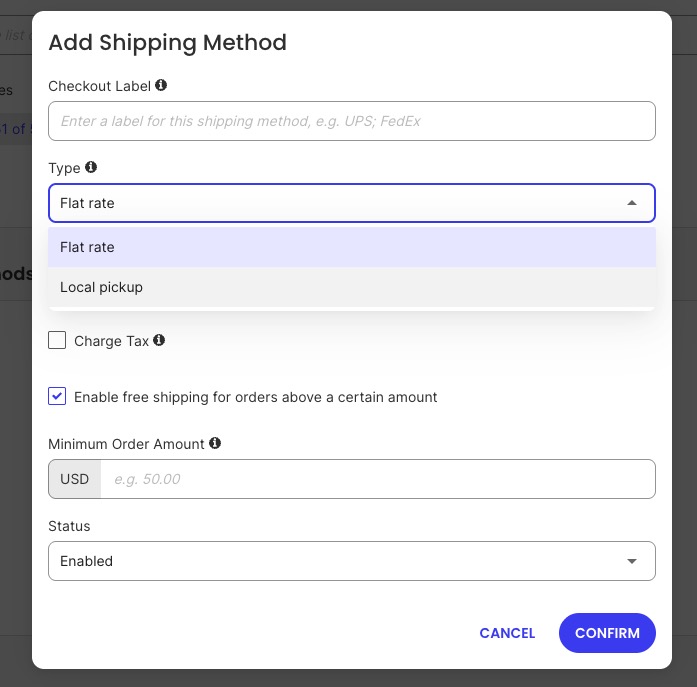
5. What are you actually selling: physical goods, digital downloads, or services?

Physical products, digital downloads, and services each want something different from a platform:

  • Physical products need different shipping method options, tax rules, and inventory counts working in sync, since a gap between any two of those turns into a fulfillment error that costs real money.
  • Digital products (such as downloads) care about secure file delivery, licensing, and instant access right after checkout.
  • Services care about booking calendars, deposits, and appointment reminders.
choosing different product types in an online store such as physical, digital and service

Choosing a website builder without the overwhelm starts with being honest about which of these categories describes most of what you sell online. 

Action: Physical goods point you toward platforms with strong shipping and inventory tools. Digital downloads and services point toward platforms built around delivery and booking instead. Which one you land on shapes the shortlist you’ll see below.

6. What features do you need?

Some things that feel like obvious inclusions are actually paid add-ons, and this is where advertised prices and real costs drift apart the most:

  • Payment gateways: some platforms ship with ready integrations and zero extra setup; others hand you a separate provider to configure, rates and payout schedule included. Accepting payments online is mandatory no matter the platform, but the friction and per-transaction cost vary more than most comparison articles mention.
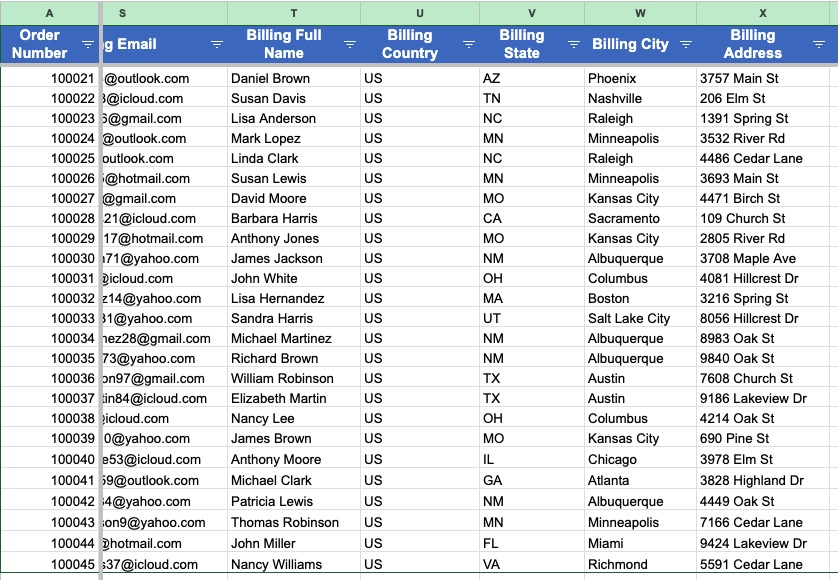
  • Tax calculation: ecommerce sales tax comes standard on some mid-tier plans, a paid extension on others.
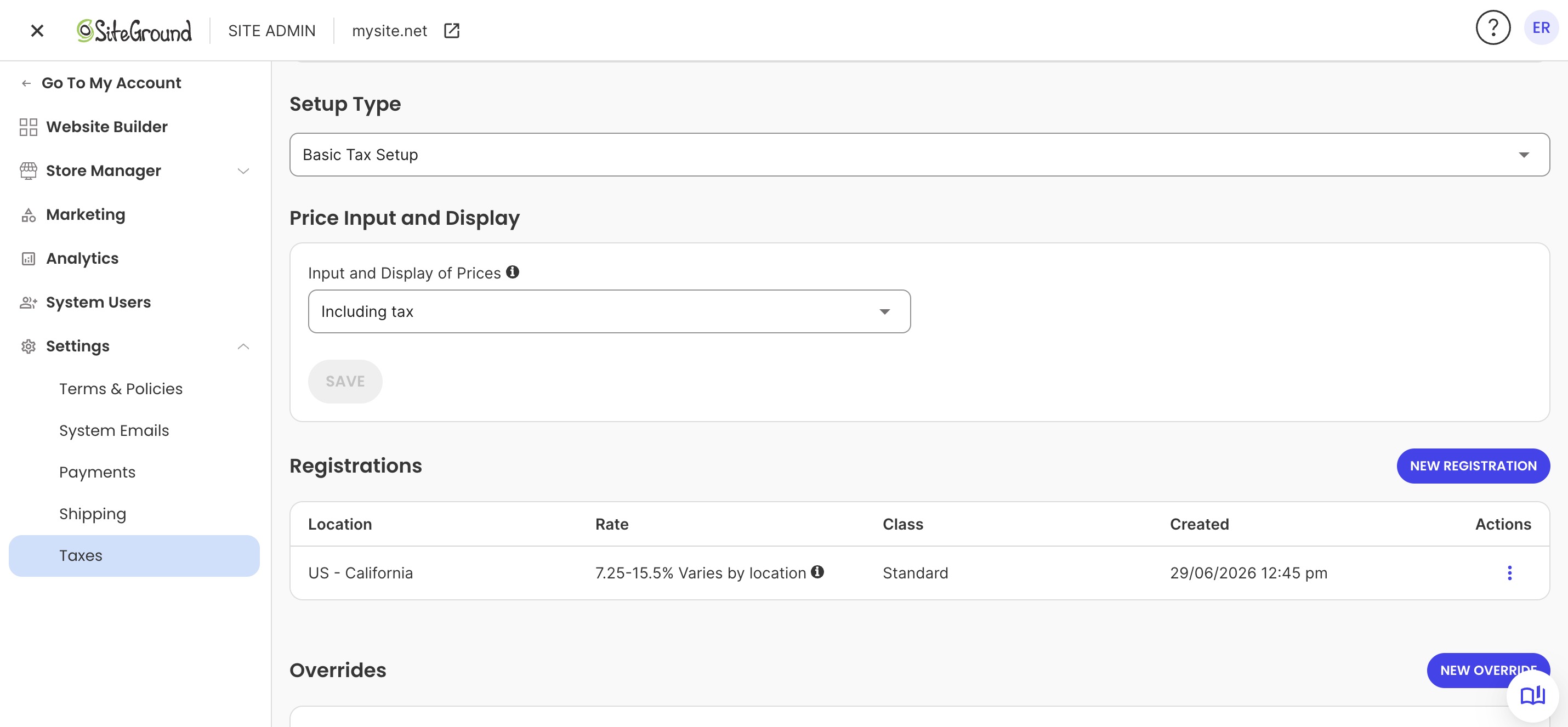
  • Abandoned cart recovery: often free, sometimes a $15-a-month app.
  • Customer accounts: included by default on some platforms, gated behind a higher tier on others.
  • Inventory management: online store platforms should enable easy inventory and order management.
  • Analytics and reporting dashboards: essential for tracking e-commerce performance.
setting up taxes in an online store

Action: Before signing up for any platform, check its feature comparison page. More rows marked “included” than “available as an app” means fewer surprise costs later.

What is the best ecommerce platform?

There’s no single winner among the best ecommerce website builders to create an online store. Your answers to the six questions above point toward one of the five situations below, sorted by use case rather than by brand, including one we sell (SiteGround Ecommerce). Enterprise platforms aren’t part of this comparison: BigCommerce is designed for large-volume sellers running complex, multi-channel catalogs, and Adobe Commerce is built for technical teams managing custom enterprise storefronts, both well beyond what a first-time seller needs.

Quick answer, if you’re skimming:

If you’re mainly…Best fit
A total beginner with no interest in codeWix, SiteGround Ecommerce, or Squarespace
Selling hundreds of SKUs at real volumeShopify
Working with the tightest possible budgetWooCommerce, real costs added up
Set on full design and code controlSelf-hosted WordPress Site + WooCommerce
Wanting a full store with speed and supportSiteGround Ecommerce

Best for beginners with no technical experience

Pick: Wix, SiteGround Ecommerce, or Squarespace

Why: All-in-one ecommerce website builders are the easiest way for first-time sellers. A website builder handles hosting, design, and store setup as one system, so there’s no database to configure and no shopping cart plugin to bolt onto a CMS you’re also learning for the first time. Pick a template, add products, connect a payment processor, and you’re selling, often within a few hours. What that typically includes:

  • Templates built around product grids and checkout flows, not blank canvases you have to design from scratch
  • A connected payment processor, usually Stripe or PayPal, set up in a few clicks
  • Website builders should offer mobile-responsive themes and drag-and-drop editors.
different template options for an online store

Why not: You’ll trade some deep customization for that speed. Most first-time sellers don’t miss it. Between choosing what to sell online and figuring out how to photograph it well, custom CSS access rarely makes anyone’s top-five list of problems.

Best for growing product catalogs and high sales volume

Pick: Shopify

Why: Shopify is built for ecommerce stores expecting real volume: hundreds of SKUs, multiple staff accounts, and integrations with fulfillment services and third-party logistics. Its app ecosystem is the largest in ecommerce, so almost any feature you can dream up already exists as a plug-in rather than a custom build.

Why not: That same ecosystem is also the bill. Apps for reviews, upselling, or advanced shipping rules each carry their own monthly fee, and a store running eight or ten of them can add $100 to $300 a month before the base subscription even shows up on the invoice. A high-volume seller gets real value from that. A five-product store is paying for a gym membership it’s not using.

Best for lowest starting cost

Pick: WooCommerce

Why: WooCommerce has the lowest true floor: the plugin is free, and if you already have WordPress hosting, adding an ecommerce store costs nothing but your time.

Why not: The catch is that “cheapest to start” and “cheapest to run” are two different numbers, once hosting, an SSL certificate, a checkout-ready theme, and tax/shipping extensions get added up (roughly $50–$100/mo before a single transaction fee).

Best for full design and code control

Pick: WooCommerce

WooCommerce shows up twice on this list, once for cost and once for control, because both come from the same source: a free, open-source plugin with no built-in ceiling.

Why: If you want pixel-level control over layout, a custom checkout flow, or a design a developer builds from scratch, self-hosted WordPress with WooCommerce is the option here built for that. Every other platform on this list trades some code access for simplicity, a trade that suits most first-time sellers fine.

Why not: That gap is closing, though. All-in-one builders now offer more code injection, layout flexibility, and template-level customization than they used to, so full design control now sits on a spectrum instead of a hard line. A website builder versus a custom site deserves an actual decision, rather than a default one: WooCommerce still wins for a genuinely custom checkout flow or an unusual integration, but a builder now gets close enough for most brand-specific styling, without hiring a developer. 

Best for a complete online store, with the speed and support to back it up

Pick: SiteGround Ecommerce

Why: SiteGround is a hosting company first, with an ecommerce website builder layered on top, not a design tool with hosting attached as an afterthought. That heritage is built into the infrastructure itself, speed and uptime that come from two decades specializing in hosting, not features bolted onto a page builder. It also shows up directly in the numbers: SiteGround Ecommerce is one of only two platforms compared in this guide with 24/7 phone support on every plan, and it’s the less expensive of the two.

Why not: The trade-off here is breadth, not speed. The third-party app ecosystem is smaller than Shopify’s, so sellers who already know they’ll need a lot of specialized integrations, or a very large, multi-warehouse catalog, will find fewer plug-and-play options.

PlatformPhone supportLive chatNotes
SiteGround Ecommerce24/7, all plans24/7, all plansHelp desk tickets are answered in about 15 minutes on average
Wix24/7 callback, all plans24/7, all plansNo charge beyond standard phone rates
ShopifyPlus and Retail plans only24/7, all plansBasic, Grow, and Advanced plans don’t include phone support
SquarespaceNot offered, on any planHuman chat on weekdays only; 24/7 emailSquarespace states directly that it doesn’t offer phone support
WooCommerceNoneNoneSupport comes from your hosting provider or a developer, not the plugin itself

Common mistakes when choosing an ecommerce platform

First-time sellers tend to trip on the same handful of things, usually because they’re comparing platforms on price and reputation instead of fit.

  • Picking based on brand recognition alone. Shopify is the platform everyone’s heard of, which makes it the default pick even for a 5-product store with zero plans to scale past 20. Recognition earns trust, but it doesn’t guarantee fit, and a platform built for high-volume sellers usually charges for features a beginner will never touch.
  • Ignoring transaction fees until the first invoice. A platform with a low monthly price and a 3% or 4% transaction fee on top can end up costing more than a pricier plan with no fee at all, once online sales pass a few hundred dollars a month. This is the single most common surprise sellers report after their first real month of sales.
  • Underestimating total cost of ownership. Hosting, apps, themes, and payment processing rarely appear on the same page as the subscription price, which makes side-by-side comparisons misleading unless the numbers get added up independently before committing to a plan.
  • Choosing a platform built for a catalog size you don’t have. Enterprise-grade inventory systems are wasted on a 10-product store, and they usually charge for the privilege while adding a learning curve nobody asked for.
  • Assuming the platform locks you in forever. This fear talks some first-time sellers out of launching at all, which is a worse outcome than picking a platform that turns out to be an imperfect long-term fit. Product data, customer records, and order history can all be exported and migrated later if a store outgrows its platform.
  • Skipping the “what happens if I outgrow this” question. Every platform has a ceiling, whether that’s a storage limit, a product count where management turns clumsy, or a feature locked behind a much pricier tier. Better to know where that ceiling is before launch than to find it after the catalog has already tripled.

Your next steps: narrowing down your shortlist

Go back to what you truly need, and what each platform actually offers you: chances are you’ve now been able to narrow down your list substantially from those six tabs to just one or two.

If what you actually want is an easy-to-build online store without stitching separate tools into one, SiteGround Ecommerce is built for that. Hosting, design, and a store live in one plan, with no plugin stack to babysit. Speed and uptime come from infrastructure built for hosting, not features bolted onto a page builder, and 24/7 phone and chat support are there on every plan, not locked behind the priciest tier. For a first-time seller who wants a complete store without all the coding and confusion, it clears a lot of setup decisions before they ever come up.

[103]

Frequently asked questions

What is the best platform to create an online store?

There’s no single best platform. The right one depends on a variety of factors. All-in-one platforms like SiteGround Ecommerce and Wix suit beginners who want hosting, design, and a store in one plan. Shopify suits high-volume sellers who need a large app ecosystem, and WooCommerce suits sellers who want full code control and already have WordPress hosting.

Which ecommerce platform is best for small business?

For most small businesses selling under 100 products, an all-in-one platform that bundles hosting, design, and ecommerce, such as SiteGround Ecommerce, keeps setup and maintenance simple. Online businesses running a service page and a blog alongside their store get the most value from a platform that treats all three as one system.

Which ecommerce platform is best for SEO?

Built-in SEO tools and marketing features are important for driving traffic to online stores. Most major ecommerce platforms cover the core ecommerce SEO fundamentals: custom URLs, meta titles and descriptions, and mobile-friendly templates. WooCommerce offers the most flexibility for advanced SEO plugins since it runs on WordPress, though ecommerce site speed, content quality, and internal linking move the needle more than platform choice does.

Is Shopify the best ecommerce platform?

Shopify is a strong option for high-volume sellers who need a large app ecosystem and multi-channel selling tools. A 5-product store with no plans to scale quickly often ends up paying for app subscriptions it never uses, while a seller who wants an integrated marketing website alongside checkout may find an alternative all-in-one platform a better fit for less money.

How much does it cost to build an online store?

Total cost depends heavily on platform and catalog size. On platforms that charge extra for apps and add-ons, a small store typically runs $50 to $100 a month once hosting, plan fees, payment processing, and a couple of necessary apps get added together. On all-in-one platforms like SiteGround Ecommerce, more of that comes bundled into the plan itself, so the same store can cost less without needing separate apps to fill the gaps. Larger stores with more products and higher sales volume can run several hundred to over a thousand dollars a month on app-dependent platforms, driven mostly by transaction fees and app subscriptions that tend to outgrow the base plan price fast.

Can I switch platforms later if I outgrow my store?

Yes. Switching ecommerce platforms later takes more work than switching within one system, since it usually means migrating product data, customer records, and order history, but plenty of sellers have done it and lived to tell about it.