
Originally scheduled for release in April 2026, WordPress 7.0 is delayed a little, but one thing’s for sure: it’s going to change how you manage your website. It’s focused on improving the editing experience, site-building tools, and AI integration. It builds on the block editor and Site Editor, adding new features and refinements that help you publish faster, design more flexibly, and manage content more efficiently.
This guide covers what’s new in WordPress 7.0 for your day-to-day work, explains what the AI Connectors actually do, and walks you through how to prepare for the update safely. It applies to any WordPress site, though some features (like AI and automatic updates) work differently depending on your hosting for WordPress.
Key takeaways:
- Built-in AI infrastructure introduces an AI Connectors screen and the WP AI Client: a standardized way to connect your WordPress site to AI providers, and share credentials across compatible plugins.
- Visual revisions replace the old HTML-based comparison screen with a single-column, color-coded view that shows your content as it actually appears in the editor, making it easy to spot and undo accidental changes.
- New core blocks (Breadcrumbs and Icons) remove the need for separate plugins.
- Editor and performance improvements include responsive/mobile-friendly controls, a refreshed wp-admin dashboard, faster block rendering, and client-side media processing.
Why WordPress 7.0 is an important update
Many WordPress updates focus on fixing bugs and incremental improvements. By contrast, WordPress 7.0 is a fundamental shift in how the platform operates, driven by one major change: AI infrastructure.
AI tools for WordPress have existed for a while, but every plugin has had to build its own connection to AI services, store its own credentials, and handle everything independently. WordPress 7.0 replaces that fragmented approach with a standardized system built into core.
The new release is also packed with design and performance upgrades that make the entire experience of using WordPress faster and more intuitive. Let’s take a look at the most important new improvements.
AI added to the core
WordPress 7 introduces an in-built AI client, which offers a standardized way for plugins and other services to communicate with AI models through the WP AI Client, Abilities API and Workflows API, MCP adapter, and Connectors.
What this new AI framework does is let you choose an AI provider to power all AI requests coming from your WordPress, including plugins, themes, editor, and others.
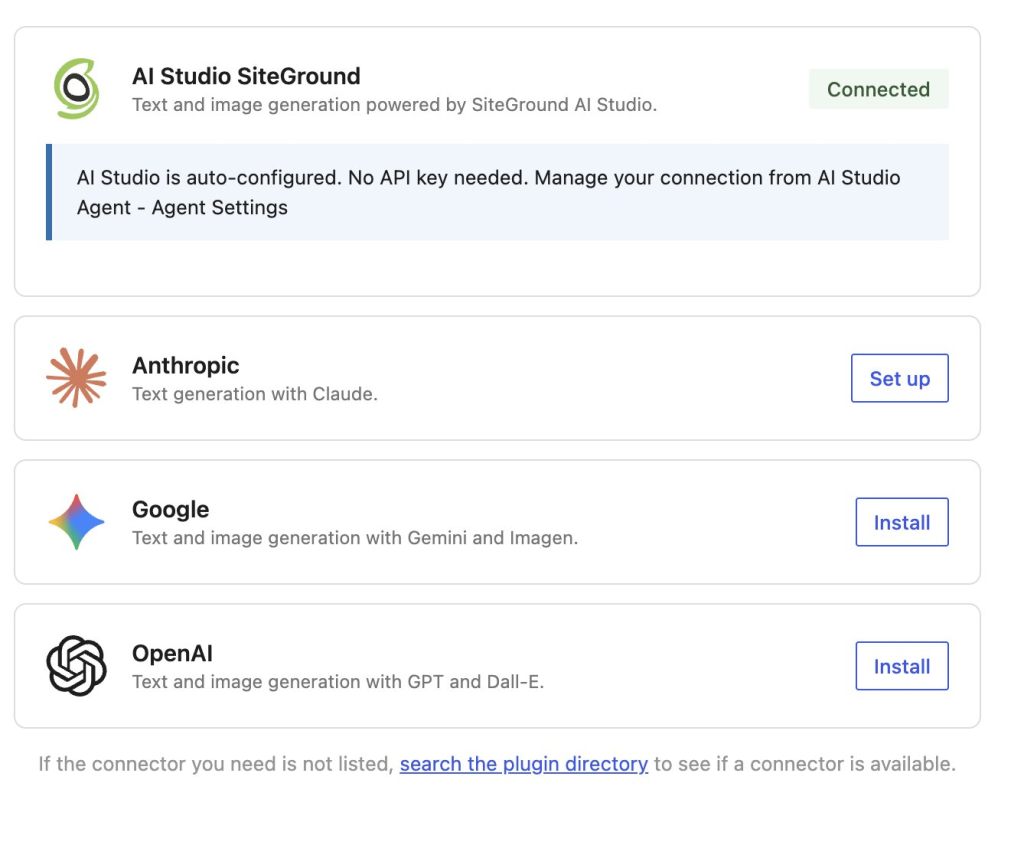
When you log into your WP-admin after the update to 7.0, you will see a new page, accessible from Settings → Connectors. By default, this page shows a list of three AI providers: OpenAI (ChatGPT), Google (Gemini), and Anthropic (Claude), but you can search and connect other AI models as well. In order to actually connect any of these AI providers, you need to activate their respective “connector” plugin and connect your account on their website via an API key.
For WordPress sites hosted with SiteGround, there’s an additional option as seen on the list above: SiteGround AI Studio, which is already a listed AI provider.
For more insights on AI in WordPress 7.0, read our in-depth analysis: “How AI works in WordPress 7.0, and how you can make it useful for your business”.
Visual revisions for posts and pages
Every time you save or update a post in WordPress, the system keeps a copy of the previous version. This feature (called revisions) has always been available, but comparing revisions used to mean looking at a two-column screen that displayed your content as raw HTML, making it hard to match what you saw there with how your post actually looked in the editor.
WordPress 7.0 replaces that with a single-column visual comparison that renders your content the way it appears when you’re editing. Changes are color-coded: yellow for modified content, red for deletions, and green for additions. A sidebar lets you navigate quickly between each change in the post.

What this means: If you’ve ever accidentally deleted a section of a blog post, removed a product image, or reformatted something incorrectly, visual revisions make it much easier to spot the change and undo it. Especially useful on content-heavy sites where posts go through multiple rounds of editing.
New core blocks: Breadcrumbs and Icons
WordPress 7.0 adds two new blocks to the block editor. Both previously required third-party plugins, so having them built into core means one fewer thing to install and maintain.
The Breadcrumbs block
Breadcrumbs are the small navigational text you sometimes see near the top of a page showing the path to where you are, for example: Home > Blog > How to bake sourdough bread. They help visitors understand where they are in your website’s structure, make it easy to navigate back to parent pages, and help search engines understand how your content is organized (which can improve your search rankings).
The Icons block
The Icons block lets you insert SVG icons (small, scalable graphic symbols) directly into your content from a native library. These are commonly used for things like social media icons, navigation arrows, checkmarks, or decorative elements.
Why this matters: Every plugin you add to your site introduces a potential security risk, a slight performance cost, and another thing to keep updated. By moving essential features like breadcrumbs and icons into WordPress core, your site becomes faster, more secure, and easier to maintain without sacrificing functionality.
Improvements to the block editor
Beyond the new blocks, WordPress 7.0 includes several refinements to the editing experience. These are the block design tools and editor updates that site owners and theme developers will notice most.
- Better mobile menus: The Navigation block now includes an Overlay setting that controls how your menu looks on mobile devices. You can choose when the mobile overlay appears, pick a hamburger icon style, and design a full overlay template for the expanded mobile menu, all without a page builder or custom code.
- Responsive controls: You can now choose to hide or show specific blocks on different screen sizes (desktop, tablet, mobile).
- Simpler headings: The Heading block now registers H1 through H6 as separate block variations, each with its own icon in the block sidebar. This makes it easier to see and switch between heading levels while editing, without needing to rely solely on the toolbar dropdown. Proper heading structure matters for both readability and SEO.
- Improved layouts: Two new options: text indent automatically indents the first line of paragraphs, and text columns display paragraph text in a multi-column layout without needing a separate Columns block. The Grid block also adds responsive layout controls for building multi-column designs that adapt across screen sizes.
- Image and gallery updates: The Image block now maintains aspect ratios correctly at all sizes. When you set a specific aspect ratio (such as 16:9 or 4:3), it now applies correctly even at wide or full-width alignment. The Gallery block also adds a built-in lightbox option, so visitors can click images to view them in a larger overlay.
- Smarter pattern editing: Synced patterns (pre-built block arrangements that update everywhere they’re used) now support a content-only editing mode. You can lock a pattern’s layout while allowing changes to the text and images inside it, with an isolated editor mode that lets you edit patterns without losing your place.
A refreshed admin dashboard
The WordPress admin dashboard hasn’t had a major visual overhaul since 2013. With version 7.0, the dashboard finally gets a modern redesign with updated typography, a cleaner color scheme, and less visual clutter.
A key part of this is a new system called DataViews, which replaces the traditional content lists with a more modern, app-like interface. This brings long-awaited features like inline filtering without page reloads, making it much faster to sort through posts, pages, or media on content-heavy sites.
This refresh is part of a larger, unified WordPress Design System being rolled out, which includes:
- Consistent form elements and buttons across the admin area.
- A new dedicated Fonts screen (at Appearance > Fonts) for managing your site’s typography.
- Refreshed dashboard widgets with a more modern look.
Why this matters: These changes add up to a more modern, consistent admin experience that’s faster to navigate and easier on the eyes. A more efficient backend saves you time and makes managing your website less of a chore.
Performance improvements under the hood
WordPress 7.0 includes several optimizations that make your WordPress site faster. These work automatically after updating, with nothing to configure.
- Faster block rendering. The way WordPress generates HTML for block-based pages has been optimized, reducing processing time on pages with complex layouts.
- Improved database queries. Refined data retrieval can lower your web server’s response time (measured as TTFB, or time to first byte: how quickly your server starts sending a page to a visitor’s browser).
- Client-side media processing. When you upload images, basic adjustments like resizing now happen in the browser’s capabilities rather than on the web server, reducing server load and adding support for advanced image formats. This is part of WordPress’s move toward leveraging client-side processing for smoother media workflows.
- Better lazy loading. Lazy loading (where images don’t load until a visitor scrolls to them) has been refined, speeding up initial page loads on image-heavy pages.
Pro tip: To measure the impact on your site, you can use tools like Google PageSpeed Insights or GTmetrix. For further optimization, the SiteGround Optimizer plugin provides additional caching, frontend optimization, and image compression on top of what WordPress core offers.
How to prepare for the update
If your site is hosted with SiteGround, the SiteGround AutoUpdate tool can handle the update for you automatically, including a backup before the update and a rollback if anything goes wrong.
You can also update WordPress manually from your dashboard whenever you’re ready.
Step 1. Create a backup. Make a full backup of your WordPress website using the Backup tool in SiteTools. This creates a restore point you can return to if anything goes wrong.
Step 2. Test on a staging site. If your site uses a complex theme, a page builder, or more than a handful of plugins, test the update on a staging copy first. SiteGround’s Staging tool creates a private copy of your site where you can apply the WordPress 7.0 update and check that everything works correctly before touching your live site. You can install the WordPress 7.0 Beta or Release Candidate on staging to test ahead of the final release.
Step 3. Check plugin and theme compatibility. Make sure your active theme and all your plugins have been updated to support WordPress 7.0. Outdated plugins are one of the most common causes of issues after a major WordPress update. Pay particular attention to plugins that modify admin list views, as the DataViews changes may affect them.
Step 4. Confirm your PHP version. Check that your site is running PHP 7.4 or higher. If you’re still on an older PHP version, upgrade it on staging first, test thoroughly, and then apply the change to your live site.
Step 5. Update. Once your backup is in place and you’ve confirmed compatibility, apply the update from your WordPress Dashboard > Updates screen.
Conclusion
WordPress 7.0 is a real step forward for the platform. AI integration, visual revisions, and a refreshed editor all point in the same direction: WordPress is becoming a place where you do more of your work, not just publish the result.
If your hosting already handles automatic updates, backups, and AI provider setup for you, you’ll be able to take advantage of these features from day one. SiteGround customers, for example, get WordPress 7.0 with SiteGround AI Studio already connected as an AI provider, automatic updates with built-in rollback, and an infrastructure optimized for the new capabilities.
FAQs
Originally scheduled for release in April 2026, WordPress 7.0 is delayed a little. Until the final release, you can test WordPress 7.0 Beta and Release Candidate builds on a staging site.
WordPress 7.0 introduces visual revisions, new Breadcrumbs and Icons blocks, block editor improvements, the command palette shortcut, a modern admin redesign with DataViews, performance optimizations, a PHP 7.4 minimum requirement, and built-in AI infrastructure including the Connectors screen, AI Client, and Abilities API.
For most sites, the safest approach is to create a backup, test on staging, and confirm that your plugins and theme are compatible before updating. If your site relies on complex plugins (ecommerce, membership, page builders), plan extra testing before upgrading your live site. SiteGround customers can rely on the AutoUpdate tool to handle backups and rollback automatically.
WordPress 7.0’s new features are additive. If you don’t connect an AI provider and don’t install AI plugins, your site behaves the same as before. As with any major release, test on staging first if your site uses a complex theme or many plugins.
The AI Connectors screen in wp-admin (Settings → Connectors) is where you enter API keys for AI providers (OpenAI, Google, and Anthropic) in wp-admin. It centralizes credential management so plugins can share one set of AI credentials instead of each storing their own. You only need to use it if you want to use AI features that connect to those providers.
The AI Client in WordPress 7.0 is a provider-agnostic system that lets plugins send prompts to AI models and receive results through one shared interface. It’s infrastructure, not a visible feature. It means AI-powered plugins will work more consistently and cause fewer conflicts.
For the built-in Connectors system, yes. You’ll need an account with an AI provider and you’ll pay based on usage. For WordPress sites hosted with SiteGround, the AI Agent for WordPress (part of SiteGround AI Studio) handles AI services for you with no API keys and no separate subscriptions.
Yes. Both new blocks are part of WordPress core and work with any theme. The Breadcrumbs block automatically inherits your theme’s global styles.
The new command palette shortcut is accessible via Ctrl+K (Windows/Linux) or ⌘K (macOS) from the upper admin bar. It lets you search for and jump to any screen, setting, or action in wp-admin without navigating through menus, speeding up common tasks inside your admin dashboard.
The minimum PHP version is 7.4. Sites on PHP 7.2 or 7.3 may not be able to update to WordPress 7.0 until PHP is upgraded. For best performance, PHP 8.3 or higher is recommended. Test any PHP version upgrade on a staging environment before applying it to your live site.
Test on a staging environment first: clone your site using SiteGround’s Staging tool, apply the WordPress 7.0 Beta or Release Candidate update, check that your theme and plugins work correctly, and run through your key pages and workflows (editor, forms, checkout if applicable). SiteGround customers get automatic backups and rollbacks through the AutoUpdate tool, so your live site is protected during the update.