

Multiple cache layers usually coexist without issues. The real problem starts when two or more systems try to control full-page (HTML) caching independently, which causes stale content, wrong data for logged-in users, and purges that seem to do nothing.
Key takeaways:
- Browser cache, CDN, server cache, and application cache each serve a different role, and stacking them is not the problem.
- Performance issues start when two or more systems independently control full-page (HTML) caching.
- The most common symptoms of duplicate page caching are stale content after publishing, logged-in users seeing incorrect data, and cache purges with no visible effect.
- You can identify which layer served a page in about a minute by checking HTTP response headers in your browser’s DevTools.
- For most sites, one system for page caching, a CDN for delivery, and browser cache for repeat visits covers everything.
- Integrated hosting stacks remove the most common source of conflicts because one system owns the HTML response by design.
When caching starts working against you
You publish a content update, but visitors still see the old version. A logged-in customer sees someone else’s cart data. The site loads fast on one request and slow on the next, with nothing changed on your end. You clear the cache, and nothing happens.
That last symptom is the tell. A single, well-behaved cache clears when you tell it to. When purging changes nothing, more than one system is caching the same HTML page, each with its own rules for when to store, serve, and expire it. They don’t know about each other, so clearing one leaves the others serving their own copies.
It happens more often than you’d expect:
- A WordPress site running two caching plugins, each generating its own static HTML.
- A CDN caching HTML responses while a plugin also generates static pages.
- A host’s server-level cache overlapping with a plugin’s page cache.
The fix isn’t to disable caching. It’s to find where page caching is duplicated, remove the overlap, and let one system own the HTML.
What a website cache does
A website cache stores a copy of your site’s content so it can be served faster on repeat requests. Instead of rebuilding a page from scratch on every visit, the web server (or browser, or CDN) delivers a saved version. That reduces load time, lowers server resource usage, and improves the experience for visitors.
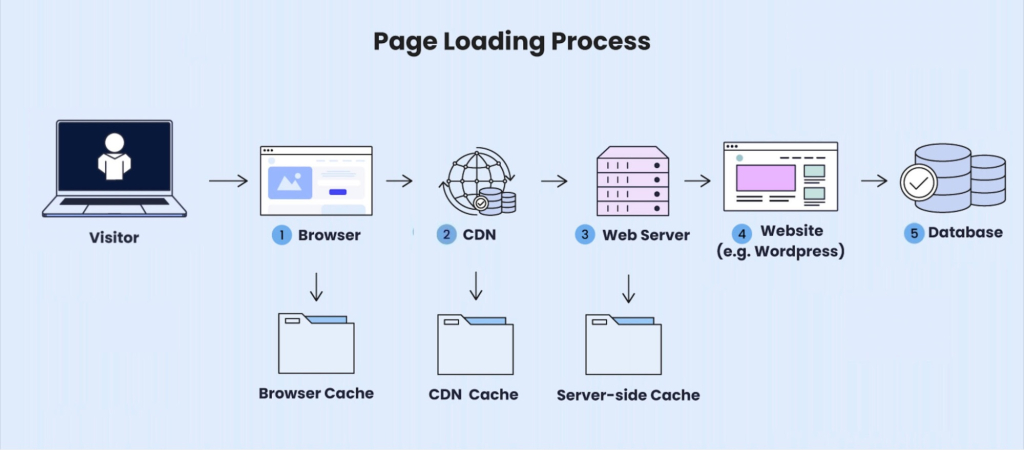
There are several distinct layers, each operating at a different point in the delivery chain.
| Cache layer | Where it operates | What it caches |
| Browser cache | Visitor’s device | Static files (images, stylesheets, JS). Speeds up repeat visits by loading assets locally. |
| CDN cache | Edge servers worldwide | Static assets, and in some configurations full HTML pages. Serves content from the nearest node to reduce latency. |
| Server-level cache | Web server | Prebuilt HTML pages. Skips PHP execution and database queries on every request. One of the most impactful layers for dynamic sites like WordPress. |
| Application cache | Inside the CMS | Full pages and dynamic content rules. Managed by a WordPress cache plugin. Controls what to cache, what to exclude, and when to invalidate. |
In most setups, these layers handle different content types or serve different purposes and work fine together. The conflict zone is specifically full-page HTML caching, where server cache, application cache, and sometimes CDN cache overlap.
Where conflicts actually happen
Browser cache and CDN cache for static assets (images, CSS, JS) rarely cause problems. These layers store different file types, operate at different points in the chain, and don’t interfere with each other. The real issues come from duplicate page caching: two or more systems that independently generate, store, and serve cached HTML.
Common misconfigurations
| Misconfiguration | What happens | What to do |
| Two page-caching plugins active at once | Both generate their own static HTML files. Purging one doesn’t clear the other. Content updates appear inconsistently. | Disable one. Keep whichever integrates better with your hosting or CDN. |
| CDN caching HTML while a plugin also caches pages | The CDN serves its own stored HTML, ignoring the plugin’s cache entirely. Purging the plugin cache has no visible effect for most visitors. | Either disable page caching in the plugin, or configure the CDN to pass HTML requests through to origin. |
| Plugin page cache overlapping with host’s server cache | Two full-page caches with different expiration and purge rules. Stale content persists because purging one layer doesn’t affect the other. | If your host’s server cache handles page caching, disable the plugin’s page cache and use the plugin only for minification or lazy loading. |
Note: If you run an ecommerce site on Hosting for WooCommerce or any platform, duplicate page caching is especially risky. Stale cart data, broken checkout flows, and incorrect pricing can directly cost you sales, and these issues often go unnoticed until customers report them.
Why duplicate page caching is hard to debug
In a well-configured caching system, troubleshooting is simple: clear the cache, test the page, check the result. With two or more systems caching HTML independently, that process breaks down.
You purge the plugin cache, but the server cache still serves an old version. Then you clear the server cache, but the CDN holds its own copy. You purge the CDN, but the browser cache on the visitor’s device still shows stale content. Simple fixes turn into a cycle of clearing everything, testing blindly, and hoping the site works for everyone.
How to check which layer served a page
You can debug this from your browser, and it’s easier than you think. You can identify which caching system served a page by inspecting the HTTP response headers in your browser’s DevTools.
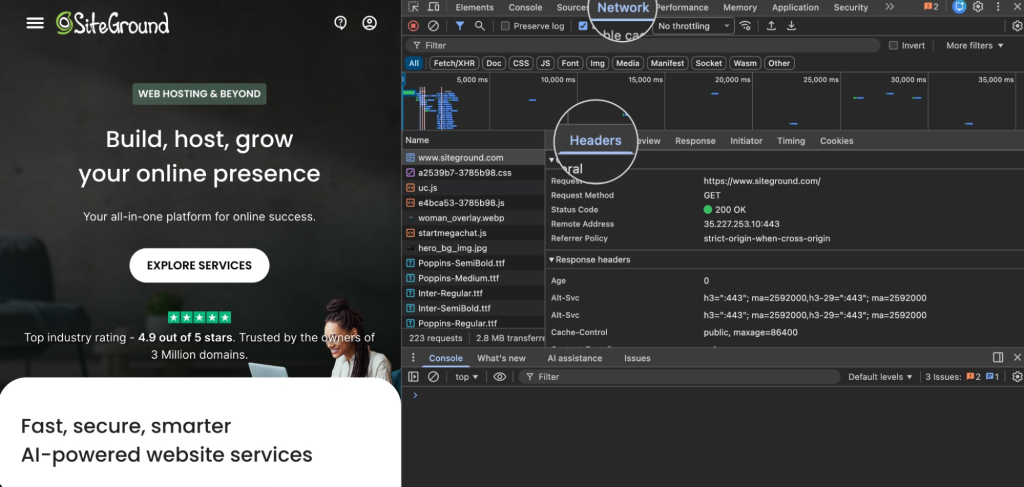
Open the Network tab, reload the page, click the HTML document request, and check the response headers.
Headers to look for:
- x-cache or x-proxy-cache: shows whether the server or reverse proxy served a cached version (typically HIT or MISS).
- cf-cache-status: a Cloudflare-specific header. Values like HIT, MISS, DYNAMIC, or BYPASS tell you whether Cloudflare served the page from its cache.
- age: the number of seconds the response has been stored in cache. A high value right after publishing a change means a layer is serving stale content.
- cache-control: the caching rules the server sent to the browser and intermediaries. Look for max-age, no-cache, or private directives.
Here’s an example of response headers showing the page was cached at the server level:
x-proxy-cache: HIT
cache-control: public, max-age=86400
age: 532
If you see cache HIT headers from two different systems on the same HTML response, or if purging doesn’t change the age value, you likely have overlapping page caches:
x-proxy-cache: HIT
cf-cache-status: HIT
age: 1240
cache-control: public, max-age=86400
One system for page caching
The most reliable setups follow one principle: a single system controls how HTML pages are cached and served, and every other layer handles a different job.
- One page-caching system: either your host’s server-level cache or a single cache plugin, not both. This is the layer that stores prebuilt HTML and skips database queries and PHP execution on every request. It owns HTML generation, expiration, and purging.
- A CDN sits on top of that, serving static assets from the closest node to each visitor. For most setups, the CDN should pass HTML requests through to your page-caching system rather than caching HTML independently.
- Browser cache handles the rest: static files stored locally on the visitor’s device so repeat visits don’t re-download assets.
When page caching lives in one place, purging works reliably, expiration rules are consistent, and there’s no ambiguity about which version of a page is being served. The problems described earlier almost always trace back to two systems both claiming ownership of the HTML response.
An integrated setup is one where page caching, CDN, and frontend optimization are built to work together under a single system, instead of being assembled from separate plugins and services that each manage their own cache. That design removes the coordination problem before it can start, because ownership of each job is decided in advance rather than negotiated at request time.
SiteGround’s stack is built this way, and it works precisely because each layer has one job and doesn’t reach into another’s:
- SuperCacher runs three separate caches at the server level: NGINX Direct Delivery for static files, Dynamic Cache that serves full HTML pages from RAM, and Memcached for object and database queries. The HTML conflict this article is about lives in that Dynamic Cache layer, and only one system owns it.
- Speed Optimizer is the connector between Dynamic Cache and WordPress. It triggers autopurge when you update content, manages cache exclusions, and handles frontend optimization like minification and lazy loading. That autopurge coordination is what makes purging reliable, rather than something you do by hand across disconnected layers.
- SiteGround CDN (CDN 2.0) sits in front, using anycast routing across Google’s network edge to serve each visitor from the nearest location instead of passing every HTML request back to origin.
[86]
For the majority of WordPress sites, an integrated stack like this solves the most common caching problem by design: multiple disconnected systems fighting over the same HTML response.
How to audit your cache setup
You don’t need specialized tools to evaluate your caching stack. A plain review of what’s active, where page caching overlaps, and what symptoms it causes is usually enough to find the problem.
Step 1: List all cache layers
Document every caching mechanism active on your site:
- Caching plugins installed in WordPress (and whether page caching is enabled in each)
- CDN services connected to your domain (and whether they cache HTML, not just static assets)
- Server-level caching provided by your hosting
- Browser cache rules set through HTTP headers or your .htaccess file
Important: Don’t overlook hidden cache sources. Some page builders, optimization plugins, and security tools include their own page-caching features, sometimes enabled by default. Check each plugin’s settings menu for anything labeled “cache,” “static files,” or “page cache.” A typical site that already shows symptoms might have server-side caching enabled, a CDN connected, and two separate caching plugins running at once. That alone signals a likely conflict.
Step 2: Find duplicate page caching
From your list, identify how many systems independently cache full HTML pages. This is the specific overlap that causes problems:
- More than one plugin with page caching enabled
- A plugin generating static HTML while the server cache already does the same
- A CDN caching HTML responses while a plugin or server cache also handles page caching
Overlap in static asset caching (CSS, JS, images) is generally harmless. Your audit should focus on which systems control the HTML response.
Step 3: Test by disabling one layer at a time
Once you’ve identified duplicate page caching, use a simple testing loop:
- Disable page caching in one system (start with the one you suspect is redundant).
- Purge all remaining caches (server, CDN, browser).
- Test the page: check load time, verify content freshness, and inspect response headers.
If performance stays the same and content updates appear correctly, that layer was redundant. If load times increase, re-enable it and test disabling the other system instead. Repeat until only one system controls page caching, and keep the one that integrates best with your hosting and CDN.
When more complexity makes sense
Not every site runs best on a minimal setup. Additional caching layers are justified when:
- High-traffic global sites need granular control over how and where content is cached across multiple regions, languages, or regulatory requirements.
- Custom infrastructure, such as dedicated servers, containerized environments, or multi-server clusters, calls for purpose-built strategies like object caching with Redis or Memcached, edge-level logic, and tiered CDN configurations.
- Advanced edge caching pushes dynamic logic closer to the visitor by processing requests at CDN nodes rather than routing them back to the origin server.
The difference between these setups and the accidental complexity described earlier isn’t the number of layers. It’s the intent behind them. Each layer exists for a documented reason, follows strict rules, and stays clearly separated from the others. Page caching is still controlled by one system; the additional layers handle different jobs.
Fewer conflicts, faster sites
Most caching-related performance issues aren’t caused by too little caching or too many cache layers. They’re caused by a specific, fixable problem: more than one system trying to control full-page caching at the same time. Fix the duplication, keep one system in charge of HTML, and let the other layers do what they’re designed to do. The result is a setup that’s faster to maintain, easier to debug, and more consistent for every visitor.
If you’d rather not assemble and police those layers yourself, an integrated stack handles the coordination for you. SiteGround Web Hosting ships server-level page caching, a built-in CDN, and frontend optimization that already know about each other, so one system owns the HTML response and purging stays predictable.
FAQ
Website cache is a stored copy of your site’s content (pages, images, and scripts) that can be served to visitors without rebuilding the page on every request. It reduces load time and lowers server demand.
If your web host already handles page caching at the server level, enabling page caching in a plugin duplicates that function and can cause conflicts. Use the plugin for features your host doesn’t cover, such as minification or lazy loading, and let the server handle page caching. Integrated setups like SiteGround’s manage both from one system.
Not exactly. Multiple cache layers don’t inherently slow things down. The problem is specifically when two or more systems cache full HTML pages independently, creating conflicts around expiration, purging, and delivery.
Clear cache on every active layer, not just one: your caching plugin (if active), server-level cache, and CDN cache. If the issue persists, browser cache on the visitor’s side may also be serving an old version. Check response headers to confirm which layer is still returning stale content.
The most common signs are content that doesn’t update after publishing, logged-in users seeing incorrect data, and cache purges that don’t seem to take effect. Check your HTTP response headers: if you see cache HIT indicators from two different systems on the same HTML request, you have duplicate page caching.