The SiteGround academy provides a wide variety of tips, tools, and resources related to WordPress, web performance, website optimization and site security.
Category: AI Trends
Stay on top of the latest in artificial intelligence with easy-to-follow guides, practical tips, and real-world examples. Learn how AI can save you time, boost your website, and help your business grow smarter every day.
As we found in our 2026 report on AI in WordPress for small businesses, the AI plugins market has been exploding. There is now an AI plugin for almost every WordPress task imaginable, and it’s tempting to install each shiny new tool that promises to make your life easier with a bit of AI magic. But that is how your site ends up overloaded, so the real question is: how do you choose AI plugins for WordPress well, and end up with only the ones you actually need?
Fortunately, you don’t need to test every option. Choosing AI plugins for WordPress means starting with the task you need to complete, narrowing your options to the right plugin category, and evaluating each candidate for compatibility, total cost, API requirements, security, overlap, and ongoing maintenance before installing it. That kind of WordPress AI plugin selection is what keeps your site fast and easy to manage rather than cluttered.
This article will walk you through the whole process and show you how a site-connected assistant like the AI Agent for WordPress can help you search for and install the AI plugins you actually need.
Key takeaways:
Choosing AI plugins for WordPress is a process, not a shopping trip: start from the task, narrow to the category, then run one candidate through nine checks before you install anything.
Judge every plugin on the same nine points, from whether it fits the job to how it handles your data and whether it overlaps something you already run.
The real cost is rarely the sticker price, because separate subscriptions, AI provider accounts, and API keys can add up across a stack of AI tools.
Overlap is the check most people skip, yet removing a plugin you no longer need is often a bigger speed and security win than adding a new one.
A site-connected assistant like the AI Agent for WordPress can run these checks against your live site, recommend or install a plugin, and in many cases handle the task so you need no new plugin at all.
How do you choose an AI plugin for WordPress?
The best way to choose an AI plugin for WordPress is to define the task first, then check a single candidate against the same short list of questions every time, so the decision is consistent instead of swayed by whichever tool has the best marketing that week.
AI has become the headline feature nearly every plugin leads with, from established names bolting an AI panel onto tools you already know to brand-new plugins built entirely around a single model. On the surface, many can look almost identical, which makes it genuinely hard to tell a tool that will still be maintained next year from one that was rushed out to catch the wave.
The nine checks below cover the things that actually decide whether a plugin helps your site or slowly weighs it down.
1. Does it fit the specific task?
Among WordPress AI tools, task fit matters more than feature count. The question is not whether a plugin does a little or a lot, it’s whether what it does matches what you actually need. If you have one narrow job, a plugin built for exactly that will serve you better than a broad suite where your task is buried among features you will never open. If your need is genuinely bigger, like WordPress management as a whole, then a tool scoped to that makes sense. What you are avoiding is the mismatch: paying for and loading capabilities that have nothing to do with the job in front of you.
2. Is the AI plugin compatible with your WordPress setup?
AI plugin compatibility is whether the plugin works cleanly alongside the rest of your site: your WordPress version, your theme (the design template that controls how your site looks), and the plugins you already run. Plugin conflicts are one of the most common reasons a WordPress site suddenly looks broken or slows to a crawl, because two tools try to do overlapping things at the same time.
Check that the plugin lists support for a current WordPress version and was tested recently. AI plugin compatibility problems are far cheaper to avoid than to diagnose after the fact.
3. What does the subscription actually cost?
Note the plugin’s own price, monthly or yearly, and be honest about which tier you will really need. The free version is often a preview, and the feature you actually came for (bulk actions, higher limits, the model you want) tends to sit on a paid plan. AI plugin pricing is worth writing down rather than eyeballing, because a “cheap” plugin at the tier that does nothing useful is not cheap. And this is only half the cost picture, which brings us to the next check.
4. Does it need its own API keys or provider account?
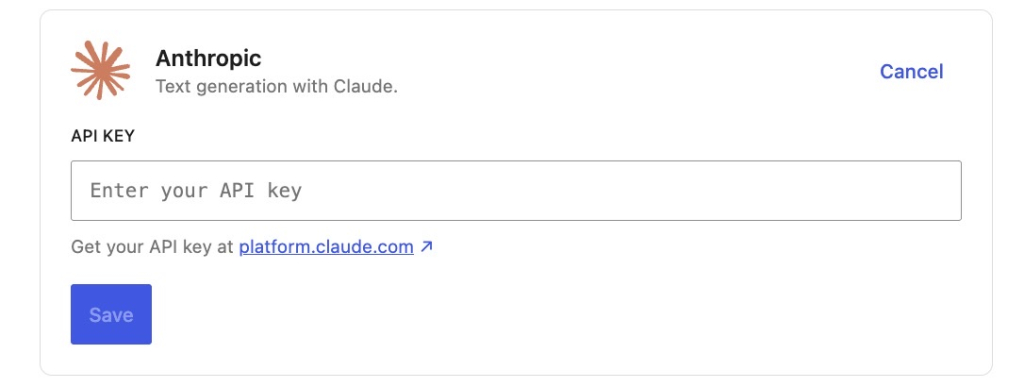
This is the cost that catches people out. Many WordPress AI plugins don’t include the AI itself. Instead, they connect to AI models like ChatGPT, Claude or Gemini, and to do that you have to create your own account there and generate an API key, a long password that lets the plugin use that service and bills you for what it uses.
When this is the case, you’re paying twice: once for the plugin and again for the AI usage on a separate bill you have to set up and watch. Always check whether the AI is included or billed separately before you decide a plugin is affordable.
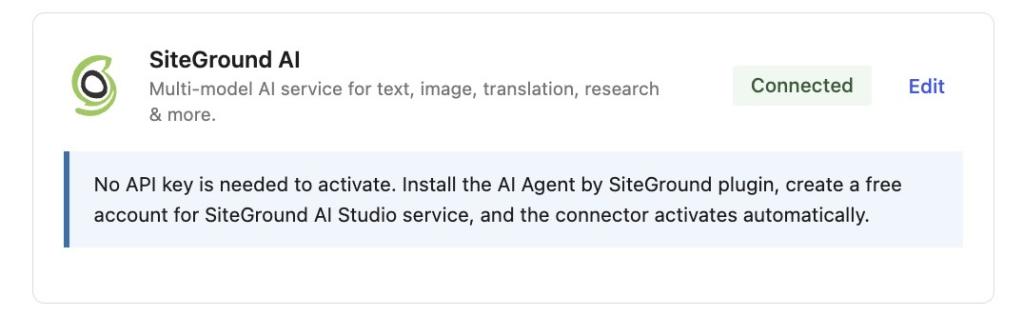
If you are on WordPress 7.0 or later, this check gets easier. WordPress 7 added a built-in way to connect an AI provider like OpenAI or Anthropic once, from a single Connectors screen, and plugins built for it share that connection instead of each asking for its own API key. You still set up one provider account and still pay for what the AI uses, but it is one connection and one bill to watch rather than a separate key buried in every plugin. Our guide to AI in WordPress 7.0 for business explains this in detail.
5. How does it handle your data and permissions?
An AI plugin often needs real access to your site to read your content, change your pages, or send your data to an outside service to process it. That is quite common, but it’s worth a moment’s thought. Look at what the plugin asks to do, and where your content goes when it uses AI. A well-made plugin is clear about both.
WordPress AI plugin security comes down to two simple questions: does it ask for more access than the job requires, where does it send site data, and is it still being looked after? An abandoned plugin with deep access is one of the riskier things you can leave installed, which leads us to the next check.
6. Is it actively maintained?
WordPress, PHP (the programming language WordPress runs on), and the AI services behind these plugins all change regularly. An AI plugin that is not kept up to date will eventually break against them, or stop being safe. Before installing, look at when it was last updated and how often new versions appear. A plugin updated last week is a good sign; one untouched for a year is a warning, however good it looked at launch.
7. Is there real support if something goes wrong?
It’s possible at some point an AI plugin will do something you didn’t expect, and what matters then is whether you can reach a human who can help. Check what support looks like before you commit: documentation only, a community forum, or actual responsive help from the people who built it. On a free plugin, the answer is often “you are on your own,” which can be fine for something minor and painful for something your business depends on.
8. Does it overlap with something you already have?
This is the check almost everyone skips, and it is the core of a simple WordPress plugin audit. Before adding a plugin, look at what is already installed, because there is a fair chance something on your site already does part of the job. Running two WordPress AI plugins that overlap is worse than wasteful: they compete, they both load code on every page, and they widen the surface where things can break. That overlap can add cost, maintenance work, and conflict risk even when both plugins are technically compatible. This is how sites end up slow and fragile without anyone deciding they should be.
9. How much work is it to set up and keep running?
Finally, be realistic about effort, both to get started and to live with. Some plugins are active in a click; others want accounts, keys, and a page of configuration before they do anything. And setup is only day onе: every plugin you keep is another interface to learn, another thing to update, another candidate when something goes wrong. A slightly less powerful tool that you will actually keep current often beats a stronger one that becomes a chore. Low ongoing effort is a feature, not an afterthought.
Check
What to verify
Task fit
It does the job you need, without sprawling into features you will never use.
Compatibility and performance
Works with your WordPress version, theme, and existing plugins without causing conflicts or unnecessary load.
Subscription price
The plugin’s own cost, at the tier that actually does the job.
API keys and accounts
Whether the AI is included or billed separately through your own account.
Data and permissions
How it handles your content and how much access it asks for.
Active maintenance
Updated regularly and keeping pace with WordPress and PHP.
Support
Real help available when something goes wrong.
Overlap
Nothing you already run does the same job.
Setup, testing and upkeep
Can be tested safely, reversed if needed, and maintained without excessive effort.
How an AI Agent for WordPress can run these checks for you
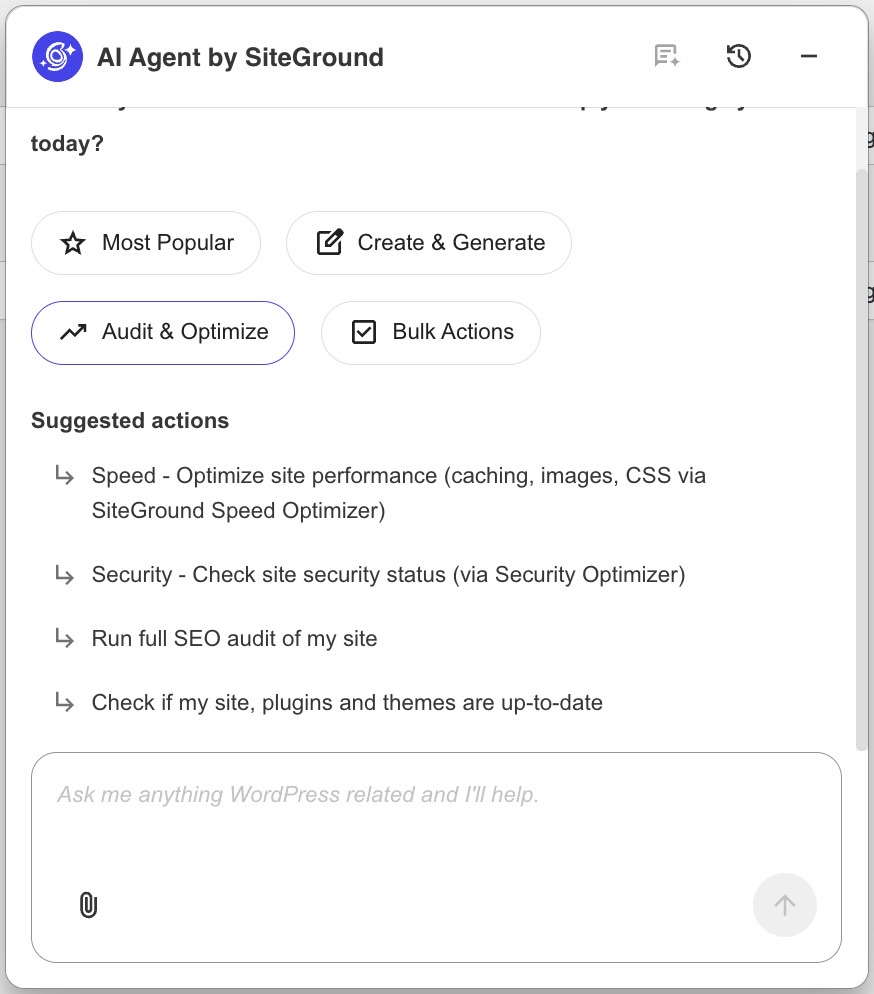
Running all these checks can be a fair amount of work. But here’s some good news: you don’t actually have to do this by yourself. It’s exactly the kind of job a specialized AI agent for WordPress can do for you, from choosing the AI plugin against these criteria to even installing it.
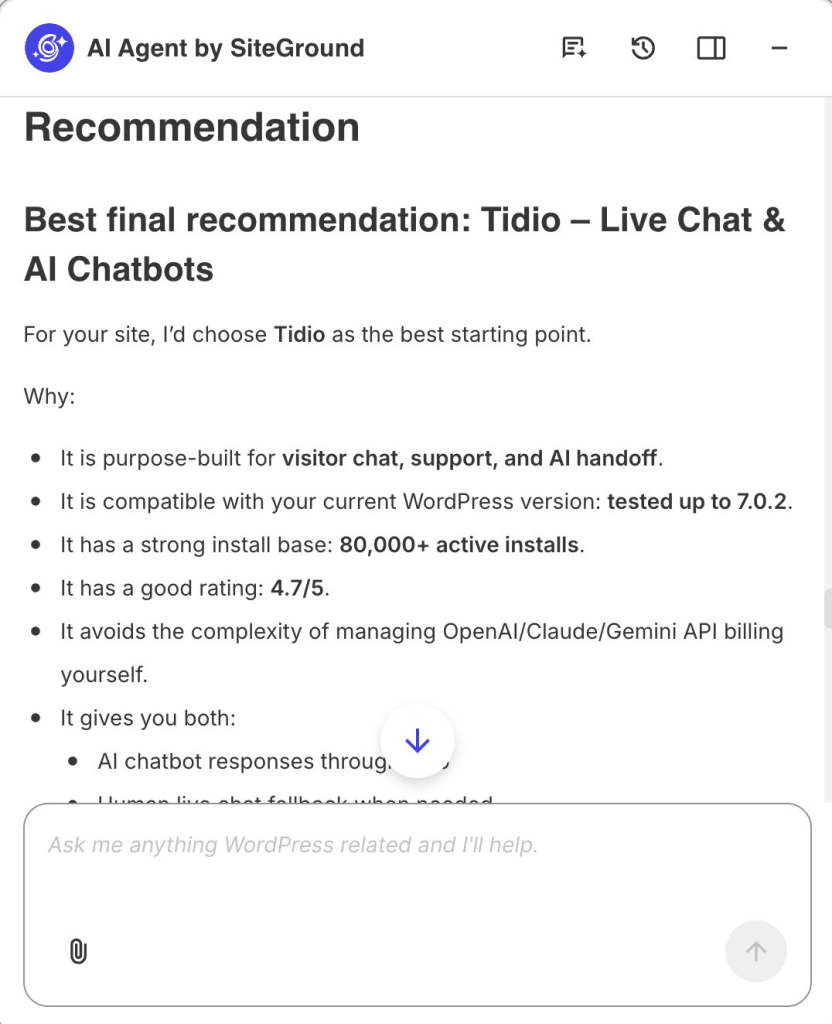
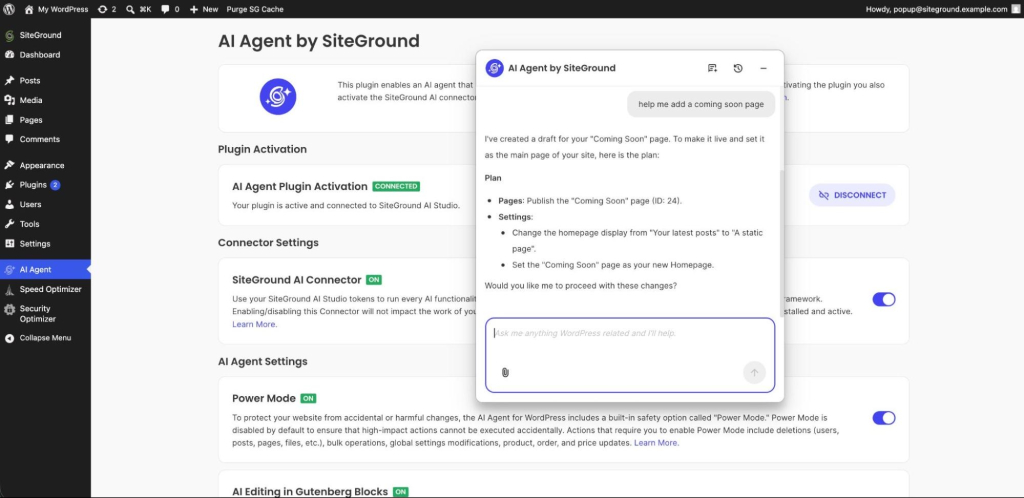
For example, you can ask SiteGround’s AI Agent for WordPress to act as your research assistant. And because it connects directly to your site, it doesn’t just give generic advice, but actually looks at what you have installed right now. In one exchange, it can handle the hardest check—overlap—by cross-referencing your actual setup, potentially saving you from adding a plugin you don’t even need.
If a new tool genuinely is the answer, the agent will search and generate a comparison table with pros, cons, and a suggested starting point. Once you’re satisfied, just give the agent the word, and it will install your chosen plugin for you.
Here’s an example prompt you can copy and adapt:
“Find me the best WordPress AI plugin for a [task] on my WordPress site. Compare options based on task fit, compatibility, performance impact, pricing, API key/provider costs, security, update history, support quality, overlap with my existing plugins, and setup/testing effort. Check my existing plugins first, then give me a shortlist and one final recommendation.”
Say you are about to add another AI tool for a visitor chatbot. Rather than reaching for a generic “best chatbots” list, the agent checks your WordPress version, your theme, and your active plugins, and tells you what it finds. It works through the same nine checks for you, weighing a handful of candidates on task fit, compatibility with your exact setup, pricing, whether each needs its own API keys, how it handles your visitors’ data, update history, support, and setup effort.
You can then just tell the AI Agent “install it.” And because the AI Agent is securely linked to your site, you don’t need to log into the dashboard, navigate through the Plugins menu, or search the repository yourself. It instantly downloads, installs, and activates the plugin directly on your live site.
When your site does not need another AI plugin at all
Knowing you can choose the right AI plugins so easily doesn’t change the big problem: stack up too many of them, and your dashboard fills with separate settings screens, each with its own login, its own way of working, and its own updates to keep track of. Your monthly costs can climb, because most of these tools are subscriptions, and several small ones add up to a bill you never sat down and agreed to. And your site gets heavier, because each plugin loads its own code, so the more you stack, the slower and more fragile the whole thing becomes.
This is once again where a site-connected WordPress assistant changes the math, because it doesn’t do one job. A specialized AI agent can often replace a whole shelf of single-purpose plugins at once and become the most useful WordPress AI tool for your business.
With the SiteGround AI Agent for WordPress, for example, the same tool can draft and publish a post, generate and apply SEO metadata, upload images to your media library, create products and discount coupons in your store, and moderate comments—all from one place, on your instruction. It can even clear your site’s cache, install and update themes, or run your core updates.
So instead of adding another tool to the pile, you are removing the reason the pile exists. And there are no separate logins to remember, no API keys to configure, and no subscriptions to keep track of. In fact, the AI Agent for WordPress is completely free for SiteGround customers, giving you 20,000 AI tokens a month as part of the free AI Studio Essential plan. You can also use it on sites hosted elsewhere (if you have a SiteGround account): it’s one lightweight plugin and about a minute to connect.
You choose an AI plugin for WordPress by starting from the specific task you need done, narrowing to the right type of plugin, and then checking one candidate against a consistent set of questions, about task fit, compatibility, real cost, API keys, data and permissions, maintenance, support, overlap, and setup effort, before installing anything.
What should you check before installing an AI plugin for WordPress?
Before installing an AI plugin for WordPress, check that it fits your exact task, works with your WordPress version and existing plugins, and is priced clearly, including whether the AI is billed separately through your own account. Then look at how it handles your data, whether it is actively maintained and supported, and whether anything you already run does the same job.
Should I install multiple AI plugins on WordPress?
Not by default — each one adds its own settings, login, and code to every page load, and overlapping plugins compete rather than add value. Check for overlap with what you already run before adding another, and consider whether a site-connected assistant like the AI Agent for WordPress can cover several of those jobs at once instead of adding another single-purpose tool.
Which type of WordPress AI plugin does my business site need?
The type of WordPress AI plugin your business needs depends on the job you are trying to finish, such as writing content, generating SEO metadata, editing images, translating a store, or moderating comments. Define that task first, then look only at plugins in that category, rather than at broad tools that promise to do everything.
How much do WordPress AI plugins cost?
To compare the true cost of WordPress AI plugins, add the subscription price at the tier you actually need to any separate AI usage billed through your own provider account. Many plugins connect to an outside AI service, so the real cost is the plugin plus that usage, not just the advertised plan.
Do WordPress AI plugins require API keys?
Many WordPress AI plugins do require API keys, because they connect to an outside AI service rather than including the AI themselves, though WordPress 7.0 lets you connect a provider once for the whole site rather than per plugin. An API key is a private credential that lets the plugin use that service on your account, which usually means a second bill for AI usage on top of the plugin’s own price. Always check whether the AI is included or billed separately.
How can I tell whether two WordPress AI plugins overlap?
Two WordPress AI plugins overlap when they can perform the same job, such as two tools that both generate SEO metadata. Review what each installed plugin actually does, not just its name, and remove duplicates, since overlapping plugins compete, add weight to every page, and increase the chance of conflicts.
How do I audit the AI plugins on my WordPress site?
To audit the AI plugins on your WordPress site, list everything installed, note the single job each one does, and flag any that overlap, sit unused, or have not been updated in a long time. Removing those is often a faster performance and security win than adding a new plugin. A site-connected assistant can run this audit for you.
Can an AI Agent for WordPress recommend and install plugins?
Yes. An AI Agent for WordPress can recommend a plugin for a task, check it against what you already have installed to avoid overlap, and install it on your instruction. Because it is connected to your live site, its recommendations reflect your actual setup, and it can also remove plugins you no longer need, with your confirmation.
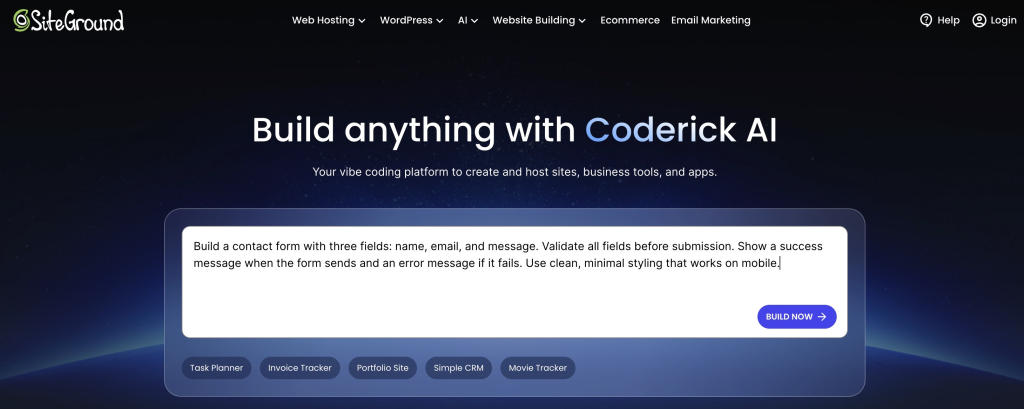
Vibe coding prompts are structured plain-language instructions that tell an AI builder what website, app, or MVP to create inside any vibe coding tool. An MVP, or minimum viable product, is the smallest version that tests one idea with real users. The prompt only works if it’s structured though; a vague ask like “build me a website” produces a generic result.
The difference is structure. “Build me a website” gives you a generic result; a prompt that names the pages, the content, and the rules gives you something you can use. The five-part formula below is how you get that structure every time. Reuse it in a vibe coding tool like Coderick AI at every stage of a build, from the first draft to the version you launch.
Key takeaways:
A working vibe coding prompt needs five parts: context, goal, constraints, output format, and success criteria.
Website prompt templates focus on pages and content; web app prompt templates need to specify data, logic, and user roles.
MVP prompts work best when they scope one feature and name what you’re testing with real users.
Testing prompts before launch catch broken forms, missing states, and mobile layout issues that the first build usually misses.
Coderick AI uses the same prompt structure across every build stage, from a first draft to a pre-launch check.
What a vibe coding prompt needs to include
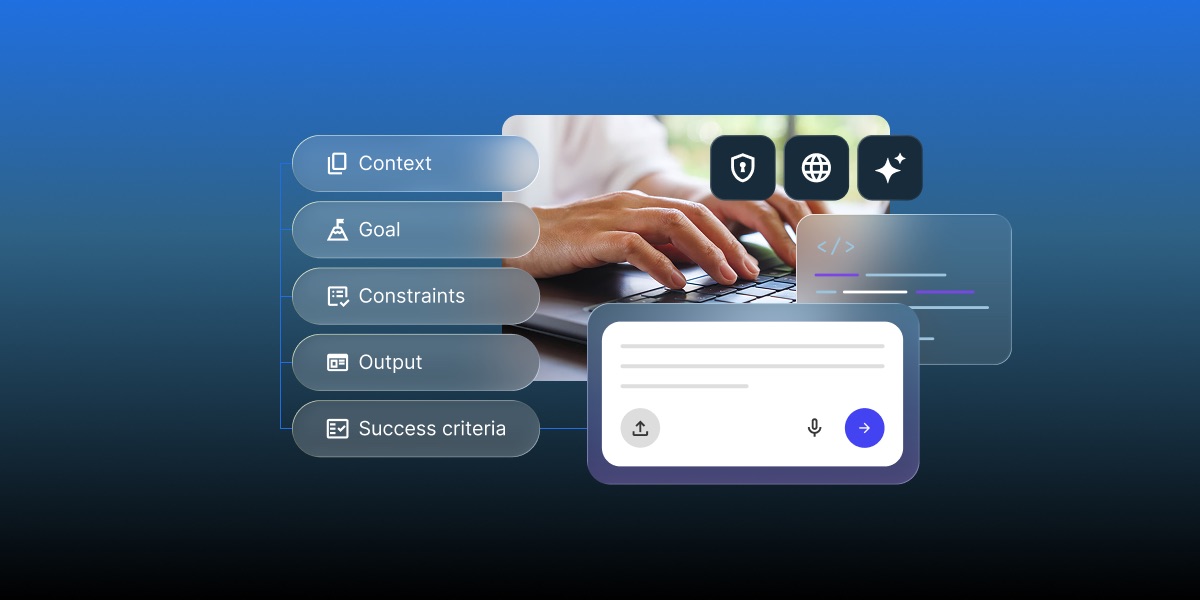
A vibe coding prompt works best for you when it answers five questions: who it’s for, what it should do, what rules it follows, what the output should look like, and how you’ll know it worked. Skip any of the five and the AI builder fills the gap with a generic version, not yours.
The five-part prompt formula: context, goal, constraints, output, and acceptance criteria
Context: who the site or app is for, and where it fits. Example: an internal tool for a five-person team.
Goal: the single outcome the build needs to achieve, stated as a specific action, not a vague theme.Example: let customers book a table without calling.
Constraints: the pages, data fields, or rules the AI can’t improvise around. Example: three service tiers, a contact form with four fields, no login.
Output format: what you expect back. Example: a dashboard with a table and a chart.
Acceptance criteria: what “done” looks like in concrete terms, so you can tell a usable build from a half-finished one. Example: a visitor can submit the form and see a confirmation.
This is the same context-goal-constraints logic behind writing effective ChatGPT prompts: specificity replaces guesswork, whether the AI is writing a paragraph or generating a page.
A vague prompt vs. a structured prompt
Vague:“Build me a website for my bakery.”
Structured:“Build a four-page website for a neighborhood bakery: home, menu, ordering info, and contact. The goal is for a visitor to find the menu and place a pickup order within two clicks. The home page needs a hero image spot, a short intro, and a call-to-action button linking to the menu. The menu page lists eight items with a name, description, and price for each. Use a warm, handwritten-style font for headings and a cream-and-brown color palette. No online payment; the contact page just needs a form with name, email, and message fields. Done means every price is visible without scrolling and the contact form submits without errors.”
The second version names the pages, the content on each, the visual direction, and what’s explicitly out of scope. That’s the difference between a build you can use and one you’ll spend an afternoon fixing.
Got one page or feature that turned out exactly right? Use reverse meta prompting: paste that result back into the AI and ask it to generate the exact prompt that would produce it. A request like “Analyze this [page/component]. Break down its structure, tone, and formatting, then write a reusable prompt that would produce a response like this in one try” turns a lucky result into a template for the rest of the site or app.
Vibe coding prompts for a business website
Vibe coding prompts for websites are the easiest starting point because the output is mostly pages, content, and layout rather than data or logic. The prompt still needs to name every page and what belongs on it, or the AI builder will invent a generic template.
First-build prompt template
“Build a [number]-page website for a [type of business]. Pages: [list each page and its purpose]. The homepage should include [hero section, intro copy, call-to-action]. Use a [style descriptor] visual style with a [color palette] color scheme. Target audience: [who visits this site and what they’re looking for]. No [explicitly excluded features, like ecommerce or a blog].”
This website prompt covers the same five parts from the formula above: business type and audience as context, the page list as goal, the style and color rules as constraints, the page format as output, and the excluded feature as a scope boundary.
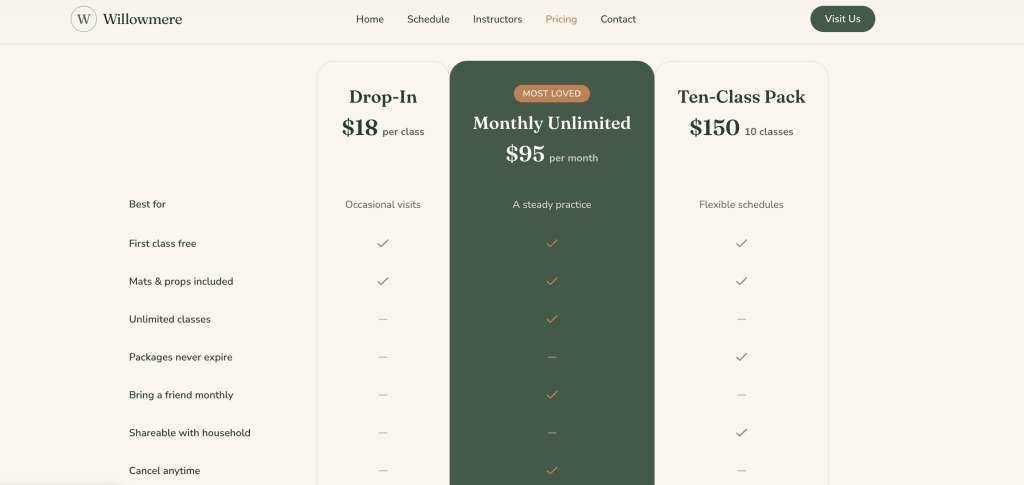
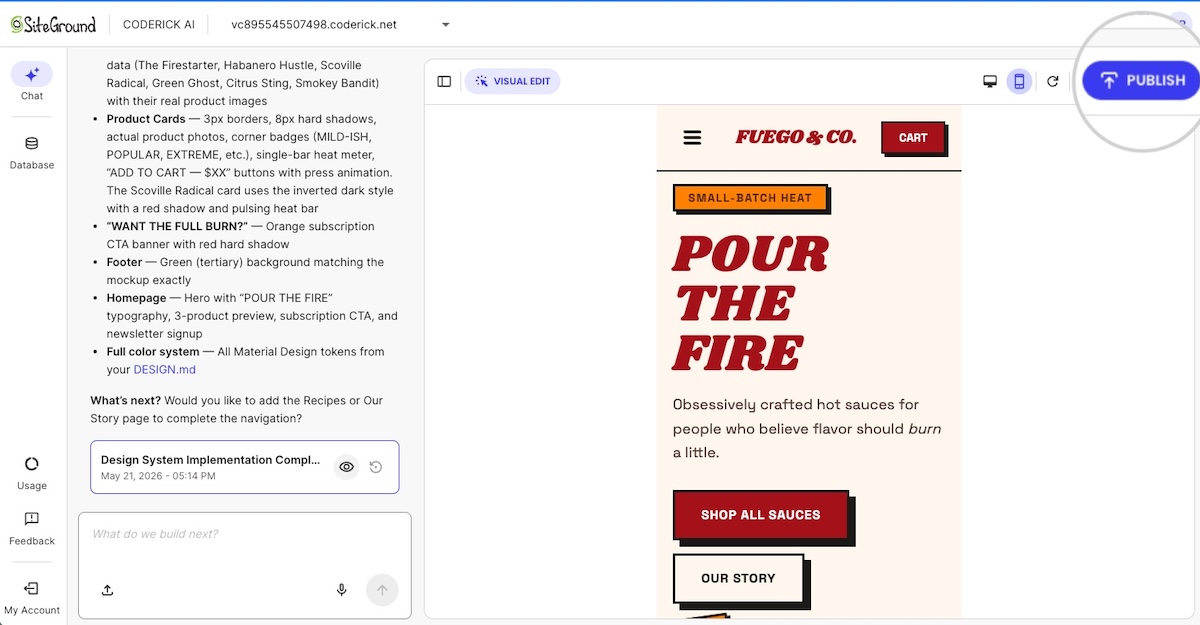
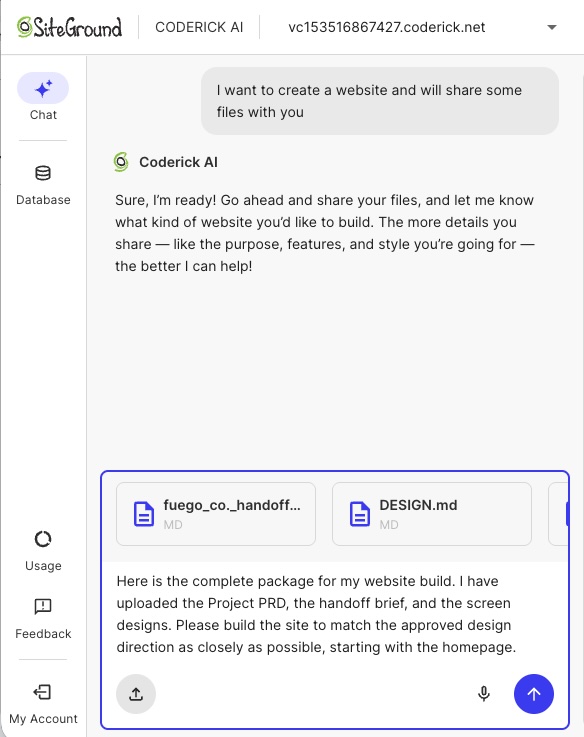
Here’s what Coderick AI did with this prompt template, adjusting it for a yoga studio for local residents in their 20s and 30s:
Page-by-page refinement prompt template
“On the [page name] page, change [specific element] to [specific change]. Keep [element that should stay the same] as it is. The [section name] section should now include [new requirement].”
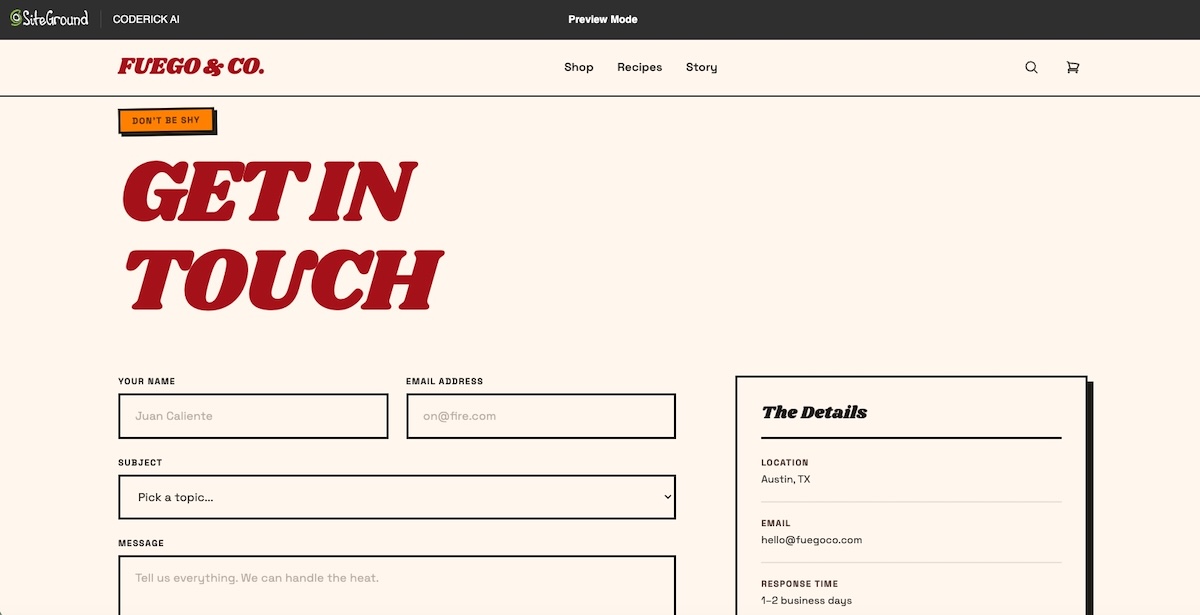
And our Coderick AI-built result:
Refinement prompts work best one page and one change at a time. Asking for five changes across three pages in one prompt tends to produce a build that fixes two things and breaks a third.
For small tweaks like a text swap or a button’s color change, Coderick AI’s Visual Edit skips the prompt entirely: click the element directly in the preview and edit it on the spot, at zero credit cost. Save the templates above for changes that touch layout or logic; use Visual Edit for the one-line fixes.
Vibe coding prompts for building web apps carry more weight than website prompts because they need to define data, user roles, and behavior, not just content and layout. A web app prompt that skips the data model will get you a UI shell with no logic behind it.
Core functionality prompt template
Core functionality is the one thing your web app actually needs to do to be useful, not every feature you can imagine adding later. A task app’s core functionality is adding and completing tasks; everything else (tags, reminders, sharing) is an addition, not the job itself.
“Build a [type of app] for [specific use case]. The core action is: [the one thing a user does most, e.g. adding and completing tasks]. Track [specific data fields, e.g. name, email, due date] for each [record type]. Include a [table/dashboard/form] view showing [specific columns or metrics]. [User role, if any] can [permission, e.g. submit], while [other role] can only [more limited permission, e.g. approve].”
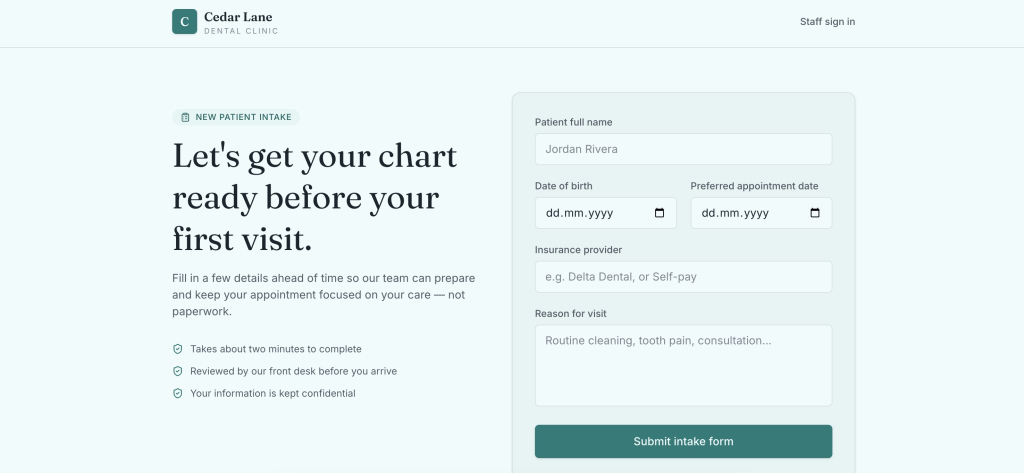
Here’s a Coderick AI output after the initial prompt.
Naming the exact fields and permissions up front is what separates a working internal tool from one that needs three rounds of follow-up prompts to fix. Reviewing your current setup with our guide to building a website without Claude Code is a useful gut check if you’re not sure how much technical detail your builder actually needs from you.
Data and workflow prompt template
“When a customer submits the [form], the app should [what happens next] and save it as a record with [the details you want to keep].”
Here’s how Coderick AI handled this in our scenario:
Want an at-a-glance number or a follow-up flag? Add them one prompt at a time, the same way you’d refine anything else:
“Show a count of this week’s bookings on the dashboard.”
“Flag any booking for more than six people so I can confirm it by phone.”
This template handles the workflow logic that a static form-and-table app usually lacks: what happens after a submission, not just what the submission form looks like.
Vibe coding MVP prompts
A vibe coding MVP prompt asks for less than a website or web app prompt does. Instead of a finished product, it asks for the smallest version that tests one specific assumption with real users, nothing more. Padding that prompt with features meant for later versions is a common way founders slow down their own launch.
Scope-definition prompt template
“Build an MVP for [product idea] that does exactly one thing: [core action]. Skip [authentication/payments/admin panel/anything not required to test the core action] for now. The goal is to test whether [target user] will [specific behavior you’re validating], not to build every feature.”
And here’s what Coderick AI created from one prompt, following this template.
Naming what to skip is as important as naming what to build. If terms like “scope” or “hypothesis” feel unfamiliar once you start writing prompts around them, vibe coding’s glossary of terms is worth a quick check.
Feature-prioritization prompt template
“I have these [number] possible features for [product]: [list them]. Given that the MVP needs to test [core hypothesis], which one feature is essential and which can wait? Rebuild the app with only the essential feature included.”
The result:
Asking the AI builder to prioritize, rather than just build everything you listed, forces a decision you’d otherwise put off until the build is already bloated.
Prompts to refine an AI-built site or app
The first version from any AI builder or AI app builder is a starting point, not a finished product. Refinement prompts work best when they change one thing at a time and reference what already exists, rather than restating the entire original request.
“In the [component/section] you just built, change [specific element] to [specific change]. Keep everything else as it is.”
“The [page/feature] feels [specific problem: cluttered, slow, confusing]. Simplify it by [specific direction: removing X, combining Y and Z, reducing the number of steps].”
“Add [missing state] for when [specific condition]: an empty state for no results, a loading indicator while data fetches, an error message if the submission fails.”
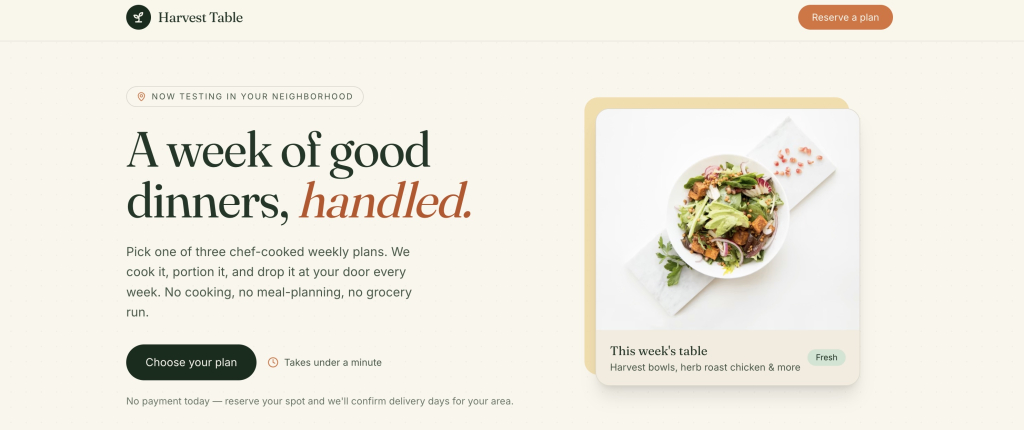
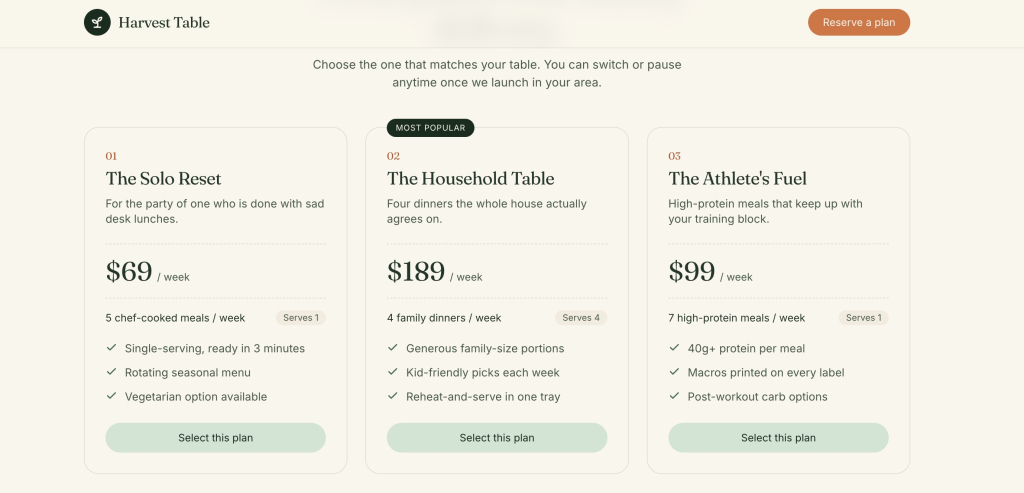
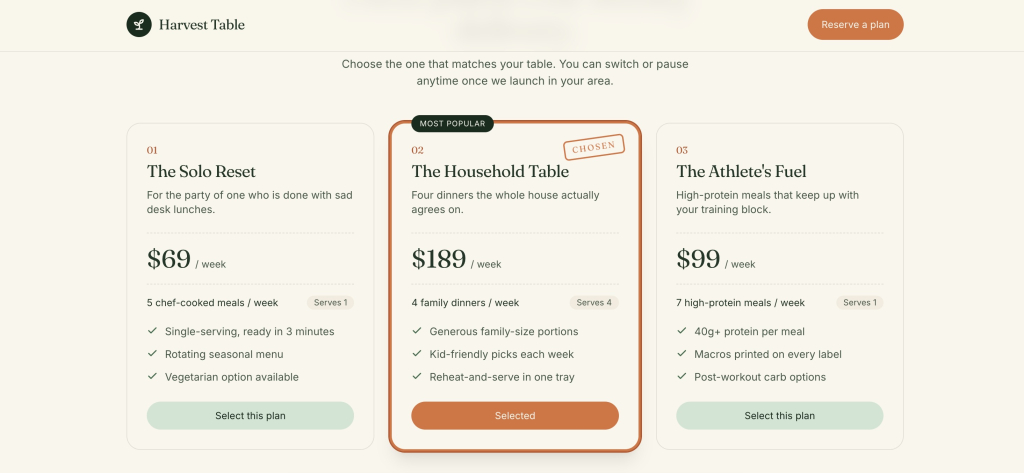
Testing Harvest Table with these prompts caught a form that silently failed on bad emails, let people type a 200-character name it couldn’t actually save, three buttons too small to tap comfortably, and a selected plan that seemed to vanish once you scrolled down, all fixed.
Screenshot
Missing states, the loading spinner, the empty list, the failed-submission message, are the most common reasons a first build feels unfinished even when the core feature works. If you started from a design file rather than a blank prompt, our guide on how to turn a Claude Artifact into a real website covers the extra refinement pass that step usually needs.
Prompts to test a build before launch
Testing prompts are the stage every vibe coding prompt library in this space skips, and it’s the one that catches the problems a reader actually ships with if they skip review. Before launch, a build needs to survive a form submitted with bad data, a screen narrower than a laptop, and a user who clicks the back button mid-flow.
“Test the [form/signup/checkout] flow: what happens if I submit it empty, with an invalid email, or with a name that’s 200 characters long? Fix any case that breaks or fails silently.”
“Check the site or app on a mobile screen width of 375 pixels. Fix any text that’s cut off, any button smaller than 44×44 pixels, and any table that doesn’t scroll.”
“Walk through the full user flow for [core action] as a first-time visitor with no prior context. Note anywhere the next step isn’t obvious.”
A website, web app, or MVP that passes these three prompts before launch has already caught issues that might otherwise show up as a support email or a confused first user. It’s a smaller set of checks than a full QA pass, but it covers the failure modes that matter most for a small business site or app, not a developer’s edge-case list.
How to use these vibe coding prompts in Coderick AI
These templates work in Coderick AI the same way they work anywhere else: fill in the brackets with your specifics, paste the result in, and treat the output as a first draft rather than a final answer. Coderick AI reads plain-language prompts and generates the website, app, or MVP draft, so the five-part formula, context, goal, constraints, output, and success criteria, maps naturally onto its build flow without any translation needed.
One detail worth knowing before your initial prompt: Coderick AI keeps a running history of your build, so a refinement prompt can just say “on the page you just built” without repeating the original request. That’s useful for the page-by-page and one-change-at-a-time templates above, since each prompt builds on the last one directly.
If you’re comparing Coderick AI against other options first, our roundup of the best AI tools for business covers where AI website and app builders fit next to broader categories like AI writing and research tools.
Write better vibe coding prompts by starting with the result
Every vibe coding prompt template above works the same way: state the result you want before you describe how to get there. That’s what separates vibe coding prompts that ship a usable website, web app, or MVP on the first try from ones that need three rounds of guesswork to fix.
Ready to put these templates to work? Try Coderick AI and paste in a prompt from any section above, adjusted for your business.
[96]
Frequently asked questions about vibe coding prompts
What should a vibe coding prompt include?
A vibe coding prompt should include five things: context, goal, constraints, output format, and success criteria. Context explains who it is for, the goal defines what the build should do, constraints set limits, output format names what the AI should create, and success criteria define “done.”
What are the best vibe coding prompts for building a business website?
The best vibe coding prompts for building a business website name the page structure, the goal of each section, and the tone or style upfront, rather than asking for “a website” in general terms.
How do I write a prompt for an AI website builder?
To write a prompt for an AI website builder, describe the pages you need, what each page should do, your target visitor, and any brand or style references, then refine section by section.
How do I write a prompt for an AI app builder?
To write a prompt for an AI app builder, define the core user action, the data it reads or writes, user roles if any, and the exact UI format (form, dashboard, list) you expect back.
How do I prompt an AI builder to create an MVP?
To prompt an AI builder to create an MVP, scope one core feature only, state what you’re testing with real users, and explicitly exclude anything not needed to validate that.
What is the difference between website prompts and web app prompts?
The difference between website prompts and web app prompts is that website prompts focus on pages, content, and layout, while web app prompts need to specify data, logic, and user interactions.
How do I improve the first version from an AI builder?
To improve the first version from an AI builder, give small, targeted follow-up prompts, one change at a time, instead of re-writing the entire original prompt.
Can I use these prompts in Coderick AI?
Yes, these vibe coding prompts can be used in Coderick AI. Adapt the bracketed details to your business, website, web app, or MVP requirements, and paste the prompt into Coderick AI; the structure works the same across build stages.
An AI website builder can look cheap right up until you try to connect your domain or actually publish the site. That’s because AI website builder pricing is rarely just the monthly plan price you see on the pricing page. The real cost can include the builder itself, hosting, domain, SSL, storage, forms, ecommerce features, email, renewals, transaction fees, and upgrades. The safest comparison is a year-one cost check plus a list of features your business actually needs.
This article shows you how to choose the right AI website builder plan for your business, spot the limits that make a cheap plan expensive later, and understand how all-in-one AI website builders such as Coderick AI combine building, hosting, security, and publishing in one platform instead of leaving you assembling separate services.
Key takeaways:
Compare the cost of a working AI-built website, not the price of access to the builder. Hosting, a domain, email, forms, payments, and renewals can change the result.
Choose a plan by the job the website must do (generate inquiries, take bookings, or sell) not by the lowest price on the page.
Translate technical limits into business limits. A cap on form submissions, products, team members, or monthly AI credits can become a cap on leads, sales, and updates.
Calculate both year one and year two. Introductory discounts make the first bill look attractive; renewals reveal the recurring cost.
Use a free plan or trial to test your real workflow, including editing, mobile viewing, form delivery, publishing, and the plan required for your must-have features.
With an all-in-one platform such as Coderick AI, paid plans combine the builder with premium hosting and publishing support, reducing separate setup steps and bills.
What does AI website builder pricing actually include?
An AI website builder pricing page usually leads with the easiest number to advertise: the builder subscription. Your business, however, needs a live website that customers can visit, trust, and use. The practical question is therefore not “What does the builder cost?” but “What will it cost to get the result I need and keep it running?”
The AI builder subscription
This is the fee for creating, editing, and maintaining the website inside the AI builder. The important detail is not simply whether the plan says “AI included,” but how the AI is metered. Some services limit generations, edits, pages, projects, or monthly credits. A plan can be generous enough to create a first draft but restrictive once you start refining copy, adding pages, updating sections, or maintaining the site. If you’re comparing platforms, use the website-builder checklist.
Hosting
Hosting is the service that keeps your website available on the internet. It’s the online home where the site’s pages, images, and files live. Every website needs hosting, whether it appears as a separate bill or is included in the AI website builder plan.
When hosting is separate, you may need another account, another renewal date, and a connection between the builder and the host. When it is included, publishing is usually simpler because the tool that creates the site already knows where the site will run.
Domain name
A domain name is the address customers type, such as yourbusiness.com. A temporary builder address is fine while you test, but most businesses eventually need their own domain for credibility, branded email, and easier marketing.
Check three separate things:
whether a domain is included,
whether that offer applies only to the first year,
and what the renewal price will be.
“Free domain” often describes the first invoice rather than the long-term cost.
SSL certificate and HTTPS
SSL is the security technology that encrypts information moving between a visitor and your website. When it is working, the address starts with https:// and the browser shows a padlock or other security indicator. This matters even on a simple brochure site because contact forms, logins, and customer details should not travel across an unsecured connection.
Most modern platforms include SSL, but don’t rely on “secure hosting” as a vague promise. Confirm that HTTPS is enabled automatically for your own domain and that renewal is handled without a separate certificate purchase.
Business email
A professional inbox uses your domain (for example, hello@yourbusiness.com) instead of a personal address. It may be included, sold separately, or priced per mailbox. That last detail is important when several people need addresses such as sales@, bookings@, and accounts@.
Also check what “email included” means. A forwarding address that sends mail elsewhere is not the same as a full inbox you can send from, search, and access on your phone.
Business features
Forms, appointment booking, payments, ecommerce, customer accounts, and marketing integrations are often the real reason a business needs a website. These features are also where plans diverge. A low-cost tier may let you design the page but require an upgrade before visitors can complete the action the page was built for.
Work backwards from your revenue path. If customers must submit a quote request, reserve a time, or pay online, test and price that complete journey, not just the page that introduces it.
Support
Support becomes part of the price when your website affects inquiries or sales. Compare the channel, hours, and scope: documentation only, an AI assistant, live chat, email tickets, or hands-on help. A cheaper plan can cost more in practice when a small publishing problem takes an afternoon to solve.
Pro tip: Count accounts as well as money. A builder, host, domain registrar, email provider, booking tool, and payment add-on can create six logins, six renewal dates, and six places to troubleshoot. Fewer moving parts have a real operational value for a small team.
Cost item
Plain-English meaning
Questions to ask
AI builder
The tool used to create and edit the site
Are generations, edits, pages, projects, or credits limited?
Hosting
The online service that keeps the site available
Is it included? Who handles publishing, speed, backups, and security?
Domain
Your website address
Is the first year free? What does it renew at? Can you use an existing domain?
SSL/HTTPS
The encrypted connection that secures the site
Is it automatic for a custom domain, and does it renew automatically?
Business email
An inbox using your domain
Is it a full mailbox? How many inboxes are included?
Forms/booking
Tools that collect leads or appointments
Which plan unlocks them? Are submissions or bookings capped?
Ecommerce
Products, cart, checkout, and order tools
Are there product, sales, or platform transaction limits?
Support
Help when setup or publishing goes wrong
Is human support included, and when is it available?
How much does an AI website builder cost in year one?
Year one is the best time to compare AI website builder costs because it forces all required items onto the same page. It also prevents a common comparison mistake: putting an all-in-one plan next to a builder-only plan and treating the two headline prices as equivalent.
A simple example: Plan A costs $12 a month, but needs a $20 domain, $72 of business email, and a $120 booking add-on. Its first-year total is $356. Plan B costs $24 a month and includes those items, for a $288 total. These figures are illustrative, but the comparison method is the point: the lower monthly price was not the lower business cost.
Monthly subscription
Multiply the price by the number of months you will actually pay. If the page shows a low “per month” figure beside annual billing, check whether the full year is charged upfront. A monthly equivalent is not the same as a month-to-month commitment.
Monthly vs annual billing
Annual billing often reduces the monthly equivalent, but the saving is payment for commitment. Before prepaying, check the refund window, what happens if you cancel, whether unused credit carries over, and whether the plan can be downgraded at renewal.
For a new business idea, a slightly higher month-to-month price can be sensible while you prove demand. For an established business replacing an existing site, annual billing may be easier to justify once the trial has confirmed the platform fits.
Domain registration and renewal
Record the first-year domain charge and the standard renewal separately. If you already own a domain, check whether connecting it is included in the plan you are considering. Some entry tiers only allow a platform-branded web address.
Email and add-ons
Add every mailbox and every extension the live website requires. Don’t count optional ideas you may never use, but do count the tools your daily workflow depends on. For example, a salon should include booking and reminders; a consultant should include a reliable inquiry form; a retailer should include product and checkout features.
Ecommerce or booking costs
A selling plan can carry three separate costs: the website plan, the payment processor’s fee, and sometimes an additional platform transaction fee. A booking system may also charge for reminders, staff calendars, locations, or the number of appointments. Compare the cost at your expected volume, not only at launch.
Renewal pricing after discounts
The first-year total tells you whether you can launch. The year-two total tells you whether the setup is sustainable. Record the regular plan price, domain renewal, mailbox renewals, and any promotional add-ons that revert to full price.
Year-one cost formula: Plan + domain + email + required features + payment/transaction costs + setup or migration costs
Which AI website builder plans do small businesses usually need?
Most pricing pages present a ladder: free, starter, business, store, and growth. The names are marketing labels. The useful way to choose an AI website builder plan is to identify the first tier that supports the customer action that makes the website valuable to your business.
Free plan
A free AI website builder plan is best used as a test environment. It can show whether you understand the editor and whether the AI produces a useful starting point. It’s rarely the final home for a business because free tiers commonly use platform branding, a temporary address, lower usage limits, or restricted publishing.
Starter site plan
A starter plan can suit a simple information site: a homepage, services, about, and contact details. The deciding question is whether it supports your own domain and a working form. A “brochure site” still needs a clear way for a potential customer to take the next step.
Business website plan
This is often the practical level for lead generation. Look for custom domains, forms, basic search settings, analytics, enough storage for real images, and a manageable way to update the site. If email, form routing, or additional pages are extra, add those costs before comparing.
Booking or service-business plan
Choose this level when your calendar is part of the sale. Test the full process from a customer choosing a time to you receiving the booking. Check staff calendars, locations, cancellation rules, reminders, deposits, and monthly appointment limits. A booking widget that only looks good in a demo is not enough.
Online store plan
A store needs product management, stock or availability, a cart, checkout, order notifications, taxes or shipping rules where relevant, and a clear refund process. The cheapest ecommerce tier may be suitable for a few products, but product caps and extra transaction fees matter quickly as sales grow.
Advanced or growth plan
A growth plan becomes relevant when the business needs more projects, storage, traffic capacity, team access, languages, advanced reporting, or integrations. Don’t buy it for vague “future growth.” Buy it when a specific limit on the lower plan would interrupt work or revenue.
Plan type
Usually fits
Must-have proof before buying
Typical upgrade trigger
Free
Testing the builder
You can create and edit the kind of site you need
Custom domain, publishing, branding removal
Starter
Simple information site
Custom domain, HTTPS, mobile layout, working contact path
More pages, forms, storage, or analytics
Business
Lead-generation site
Forms reach the right inbox and are not heavily capped
Booking, more submissions, team access
Booking
Appointment-led business
Calendar, reminders, deposits, and cancellation flow work
More staff, locations, or monthly bookings
Store
Selling products or services
Products, checkout, payment, notifications, and policies work
Product count, sales volume, transaction fees
Growth
Larger or multiple sites
The extra capacity solves a known operational need
More projects, storage, credits, or users
What hidden AI website builder fees should you check?
Most hidden AI website builder fees are not literally secret. They are simply separated from the headline price, described in a footnote, or triggered only after the site becomes useful. The best defense is to look for the event that creates each charge: renewal, adding a mailbox, receiving a payment, exceeding a limit, or leaving the platform.
Renewal price after the first term
Introductory rates can apply for a long first term and then renew at a higher standard rate. Record the renewal date and recurring price when you buy. A low first bill should be treated as a discount, not as the permanent cost of the website.
Domain renewal and domain privacy
The domain may be renewed separately from the website plan. Domain privacy, which prevents your personal contact details from being displayed in public registration records where applicable, may be included or charged separately. Check both items for every domain you manage.
Email inboxes
Email is commonly priced per user or mailbox. A single included address can be enough for a sole trader, but a small team may need several. Decide whether shared addresses can forward to one inbox or whether each person requires a full account.
Payment processing and transaction fees
Payment processors charge for handling card or online payments. Some website platforms add their own transaction fee on top. Even a small extra percentage becomes significant at higher sales volume, so calculate the fee using your expected monthly revenue rather than judging it in isolation.
Apps, plugins, and add-ons
A plan may depend on third-party extensions for bookings, reviews, pop-ups, multilingual content, or advanced forms. Check whether those tools have their own subscriptions and whether the integration is maintained by the builder or by an outside developer. An add-on that stops being updated creates a reliability cost as well as a financial one.
Storage, bandwidth, page, and AI-credit caps
Storage is the space used by your images and files. Bandwidth is the amount of data sent to visitors when they load the site. Page caps limit how much you can publish, while AI credits (the units some builders use to meter how much you can generate or edit) can limit how often you generate or revise content and functionality. These limits are not automatically bad; they become expensive when normal use pushes you into the next tier.
Premium support
Priority queues, phone help, migration assistance, or hands-on setup may sit behind a higher plan. Think about the cost of downtime and your confidence with troubleshooting. A business that takes orders all day has a different support requirement from a portfolio updated twice a year.
Migration, export, and switching costs
The cost of leaving is easy to ignore when joining. Check whether you can export your text, images, products, customer records, form submissions, and domain. Some sites cannot be moved as a complete design, which means switching platforms involves rebuilding. That future labor is part of the long-term price.
Pro tip: Save a PDF or screenshot of the pricing page and included features on the day you subscribe. Pricing and plan names change. A simple record makes renewal decisions and support conversations much easier a year later.
Which limits trigger upgrades later?
Cheap AI website builder plans become expensive when its limits are attached to the part of your website that is succeeding. The useful exercise is to translate every cap into a business event you understand. “100 form submissions” means roughly three per day; “five team seats” means the sixth colleague changes the plan; “10GB storage” means something different for a text-led consultant than for a photographer.
Here are the limits that most often force an upgrade, and what each one really means for your business:
Traffic and bandwidth. More visitors cause the site to transfer more data. Ask what happens at the limit: a warning, slower service, an overage charge, or an automatic upgrade.
Pages. A page cap can become restrictive when you add individual services, locations, case studies, or campaign landing pages.
Storage. High-resolution photos, videos, downloadable files, and product images use space quickly. Image optimization can delay an upgrade without hurting quality.
Form submissions. A monthly cap can turn into lost inquiries if the form stops accepting entries or older submissions become inaccessible.
Bookings. Check monthly appointment limits, staff calendars, locations, reminder messages, and whether cancelled appointments still count.
Products and orders. Stores may cap listed products, variants, orders, or sales value. Make sure the tier fits seasonal peaks, not only an average month.
Team seats. The person who writes copy, the person who handles orders, and an outside freelancer may each need access. Role and permission controls matter as much as seat count.
AI credits or generations. Building consumes credits, but so does maintaining the site. It’s a different metering logic than token-based coding tools, such as Claude Code. Reserve capacity for later edits, new pages, and campaign updates.
Advanced SEO or analytics. Basic page titles may be included while redirects, structured data, deeper reporting, or integrations require a higher level.
Custom domain and branding. Using your own address and removing platform branding are classic reasons a free plan becomes paid.
Reality check: Do not forecast only average usage. A holiday campaign, press mention, busy booking season, or successful social post can create a short spike. Check how the platform handles peaks before a good month becomes an emergency upgrade.
How does included hosting change AI website builder cost?
Included hosting changes both AI website builder cost and the amount of technical coordination required. A builder-only product gives you a design or code output and leaves you to arrange where it runs. An all-in-one product includes the environment needed to publish and keep it online.
Builder-only pricing versus all-in-one pricing
A builder-only plan can be attractive when you already have hosting and know how deployment works. For a complete beginner, however, separate services create extra decisions: choosing a host, connecting accounts, configuring the domain, enabling HTTPS, and working out which provider is responsible when publishing fails.
An all-in-one AI website builder plan can appear more expensive beside a design-only tool because it includes more of the finished result. Compare like with like: either add hosting and publishing costs to the builder-only plan or remove them from the all-in-one total before judging value.
Why hosting matters for total cost
Hosting affects whether the website is available, how quickly pages load, how backups and security are handled, and how easily the site can grow. Those might sound like abstract technical details, but a slow or unavailable site loses trust, inquiries, and sales.
Domain, SSL, and publishing setup
Connecting a domain tells the internet where your website lives. SSL then secures that connection so visitors reach the site over HTTPS. With separate services, you may have to copy settings between the domain provider, builder, and host. With an integrated platform, much of that work can be handled inside one account.
How Coderick AI handles building and hosting
Because most AI builders stop at building and leave hosting, domains, and security for you to piece together afterward (which is why such AI design tools alone are not enough), Coderick AI is designed as an end-to-end build-and-publish platform. You describe the project, refine it in plain language or via visual editing (which is basically what vibe coding is), and publish it on SiteGround’s battle-tested infrastructure from the same environment. Paid Coderick AI plans include SiteGround hosting and custom-domain support, with security and the publishing workflow integrated rather than left as a separate deployment project.
For a small business owner, the practical benefit is that there are fewer hand-offs between the moment the website looks ready and the moment customers can actually use it.
Time is part of the price: If separate setup takes five hours of your own time (or requires paid help), add that to the comparison. The cheapest software is not the cheapest route when it turns the owner into an unpaid systems integrator.
A year-one AI website builder cost worksheet
Use one copy of this AI website builder cost worksheet for every platform you are considering. Enter zero only after confirming that an item is included, not because it is absent from the headline price. The year-two column is deliberately included so introductory discounts do not control the decision.
Cost item
What to enter
Year 1
Year 2
Website builder plan
Full amount charged, not only the monthly equivalent
$
$
Hosting
Separate hosting plan or $0 when included
$
$
Domain name
Registration, connection, and renewal
$
$
SSL/HTTPS
Certificate or setup fee, usually $0 when included
$
$
Business email
Number of paid mailboxes × annual price
$
$
Forms/booking
Required plan upgrade or add-on
$
$
Ecommerce
Store plan, apps, and expected platform fees
$
$
Payment processing
Estimated fees based on expected sales
$
$
Templates/apps
Only the paid additions you truly need
$
$
Migration/setup
Your time, freelancer help, or provider service
$
$
Support
Premium support or maintenance help
$
$
Contingency
A small buffer for realistic changes
$
$
TOTAL
Add every line above
$
$
Decision rule: When two totals are close, prefer the option with fewer critical add-ons and a clearer upgrade path. Predictability is valuable when the website is part of day-to-day operations.
What should a free trial prove before you pay?
An AI website builder trial is not a design competition. Its job is to remove uncertainty about the website you actually intend to run. Use real business details, test the feature that creates value, and follow the publishing path far enough to expose any plan upgrade or technical hand-off. For what a real first session looks like, use the 60-minute build walkthrough.
Can you build the site type you need?
Create a small but realistic version: a service business with a quote form, a studio with bookings, or a store with a few real products. A generic demo can hide the exact limitation that matters to you.
Can you edit content without fighting the tool?
Change the headline, replace an image, reorder a section, add a page, and update the main button. Building happens once; editing happens for the life of the site. The best platform is one you will actually keep current.
Can you add forms, booking, or store features?
Add the one feature the business depends on and complete it from a customer’s point of view. Submit the form and confirm where it arrives. Make a test booking and check the confirmation. Place a test order and inspect the notification. Note the plan required for each step.
Can you preview and use the mobile layout?
Preview is useful, but also open the test site on a real phone. Check text size, button spacing, forms, menus, images, booking, and checkout. A site can look tidy on a desktop preview and still be awkward to use with a thumb.
Can you understand publishing, domain, and HTTPS steps?
Find the publish button, the temporary address, the custom-domain instructions, and the point where HTTPS becomes active. You don’t need to memorize the technology. You do need confidence that the path is clear and that support can explain it in ordinary language.
Can you estimate the real paid plan you will need?
Before the trial ends, write down the lowest plan that supports every must-have feature, the annual amount charged, the renewal rate, and the main usage limits. If you cannot identify the real plan after testing, the pricing model is not yet clear enough to buy.
Pro tip: Don’t spend the trial polishing colors and stock photos. A plain site with a working inquiry, booking, or checkout flow tells you far more than a beautiful homepage that cannot run the business.
How to compare AI website builder pricing without getting burned
Use this sequence to compare AI website builder pricing across providers. It keeps the business requirement in front of the pricing language and makes unlike plans easier to compare.
Define the website’s main job. Choose leads, bookings, sales, or another measurable outcome.
List the must-have features. Separate launch requirements from ideas that can wait.
Find the first plan that supports them. Ignore the cheapest tier if it cannot complete the customer journey.
Add the missing services. Include hosting, domain, HTTPS, email, forms, booking, payments, apps, and support.
Translate every limit. Convert credits, submissions, products, seats, storage, and traffic into ordinary monthly use.
Calculate year one and year two. Separate promotional pricing from the recurring total.
Test the real workflow. Build, edit, submit, book, buy, preview on mobile, and inspect publishing.
Check the exit route. Confirm domain ownership and what content or data can be exported.
Choose for total value and predictability. The right plan supports the website you need without surprise upgrades or unnecessary complexity.
Ready to build?
[96]
FAQs
What is included in AI website builder pricing?
AI website builder pricing usually includes access to the builder, but the complete package varies by platform and plan. Check hosting, a custom domain, HTTPS/SSL, business email, storage, forms, booking, ecommerce, support, AI usage, and publishing. The plan price is only comparable after every required item is counted.
How much does an AI website builder cost?
The cost of an AI website builder depends on the site’s job, billing term, included hosting, and required features. A simple information site normally needs less than a booking site or online store. Calculate the full first year and the standard renewal year rather than relying on an advertised monthly equivalent.
What hidden AI website builder fees should I watch for?
Common extra costs include renewal increases, domain renewal, email mailboxes, paid apps, booking tools, ecommerce upgrades, payment processing, platform transaction fees, extra storage, higher AI usage, premium support, and migration or rebuilding costs if you leave.
Are free AI website builder plans really free?
They can be free for testing, but they often limit publishing, custom domains, branding removal, pages, storage, forms, ecommerce, or support. A free plan is useful when it helps you prove the editor fits; it is rarely the final plan for a customer-facing business website.
Which AI website builder plan does a small business need?
Choose the lowest plan that supports the website’s main customer action. A lead-generation site needs a custom domain and reliable forms. A service business may need booking and reminders. A store needs products, checkout, payments, and order management. The plan label matters less than the complete workflow.
What do SSL and HTTPS mean?
SSL is the technology that encrypts information between a visitor and your website. HTTPS is the secure version of the web address that shows the protection is active. Most modern platforms include it, but confirm that it works automatically with your custom domain.
Why does hosting matter in AI website builder pricing?
Every website needs hosting to stay online. If it is not included, you need a separate service and may have to connect, configure, and troubleshoot it. All-in-one platforms, such as Coderick AI, include hosting and publishing, so their headline price covers more of the finished website.
Does Coderick AI have separate hosting fees?
Coderick AI is an end-to-end platform, and SiteGround hosting is included in paid plans. You can build, refine, and publish in the same environment instead of setting up a separate hosting account. Check the current plan page for the latest allowances and terms.
Is annual billing cheaper than monthly billing?
Annual billing often lowers the monthly equivalent, but it requires a larger upfront commitment. Compare the full amount charged, refund terms, renewal price, included features, and your confidence in the platform after testing.
What should I test during an AI website builder trial?
Build a small version of the real site, edit key content, test the main form, booking, or checkout flow, open it on a phone, follow the publishing and domain steps, and record which paid plan unlocks every required feature.
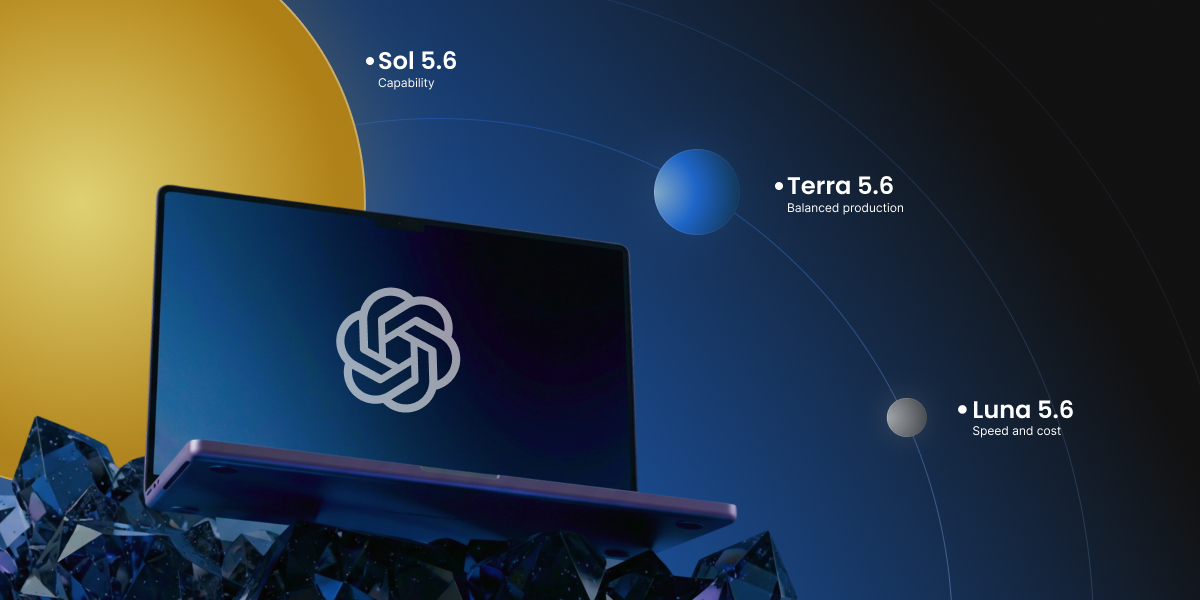
OpenAI just released two AI updates at once: the latest OpenAI models in the GPT-5.6 family, which come in three versions named Sol, Terra, and Luna, and a new voice model called GPT-Live. But what does that all mean, and are all those models useful for you? This guide explains what each one is, where you actually run into it, and whether any of it matters for your business.
Key takeaways:
OpenAI’s latest launch has two parts: the GPT-5.6 text models (Sol, Terra, and Luna) and GPT-Live, a new voice model for ChatGPT.
In the ChatGPT app you don’t pick a version: paid plans use Sol, while free and Go plans stay on the previous model in regular chat. Choosing between Sol, Terra, and Luna only happens on OpenAI’s developer and business tools.
GPT-Live is the change you’ll most likely notice: ChatGPT’s voice can now hold a natural, back-and-forth conversation.
If you build with OpenAI’s developer tools, the three tiers are mostly about cost: Sol is the priciest and most capable, Terra is the balanced middle, and Luna is the cheapest.
Is GPT-5.6 available in ChatGPT, and how do you use it?
Whether you can use GPT-5.6, and how, comes down to two things: which plan you’re on, and where in ChatGPT you are. There are two places these models show up, and they follow different rules.
If you use the regular ChatGPT chat
If you use ChatGPT for things like marketing, you usually use the app. When you open it on your phone, computer, or the web, you don’t pick Sol, Terra, or Luna by name.
On a paid plan (Plus and up), you get GPT-5.6 Sol. It’s the flagship, and it sits behind the reasoning settings (the Medium, High, and Extra High options). So when you open the app, you can choose GPT-5.6 Sol and then choose how hard you want it to think.
On the Free or Go plan, you don’t get GPT-5.6 in regular chat. You stay on the previous model, GPT-5.5.
One thing that’s true on every plan: for quick, everyday questions, ChatGPT uses a fast default (GPT-5.5 Instant) unless you turn up the reasoning. So even on Plus, you’re only using GPT-5.6 when a task calls for it or you ask for it.
If you use the API, Codex, or ChatGPT Work
These are separate spaces inside ChatGPT: Work is a business workspace, and Codex is OpenAI’s coding tool. Here the picture flips, because this is where free users can reach GPT-5.6:
Free and Go plans get GPT-5.6 Terra here, at no cost, even though their regular chat stays on the old model.
Paid plans can pick between Sol, Terra, and Luna.
This is also the world developers work in through the API (the connection that wires a model straight into their own software, billed by how much they use). If you run a website chatbot or an automation, this is where the Sol, Terra, or Luna choice actually gets made, usually by your provider, not by you.
In short: the names Sol, Terra, and Luna matter most to developers. As an app user, all you really need to know is that GPT-5.6 starts at Plus in regular chat, and free plans get Terra inside Work and Codex.
What are OpenAI’s GPT-5.6 Sol, Terra, and Luna models?
OpenAI GPT-5.6 Sol, Terra, and Luna are three versions of the same new model family. The number 5.6 is the generation, and the names are the tiers, from most powerful to cheapest. Here’s what each one is and where you’d come across it.
GPT-5.6 Sol, the flagship (and the one in your app)
Sol is the most capable of the three, built for the hardest work like complex coding, deep research, and careful reasoning. It’s also the model you’re already using when you use GPT-5.6 in the ChatGPT app, so for most people Sol isn’t a decision, it’s just what you get. On the developer side, Sol is the most expensive by a wide margin, which is why developers save it for genuinely hard jobs instead of everyday ones.
GPT-5.6 Terra, the balanced middle (developer side only)
Terra is the sensible middle option: close to the previous flagship, GPT-5.5, in quality, at roughly half the cost. You can’t select Terra in the standard ChatGPT app. It lives on the developer side, where it’s the practical default for most business tools, chatbots, and automations that need good quality without paying top rates.
GPT-5.6 Luna, the fast and cheap one (developer side only)
Luna is the cheapest and fastest, meant for simple, high-volume jobs like sorting messages, tagging content, or first-draft summaries. Like Terra, it isn’t something you pick in the ChatGPT app. It’s a tool for developers keeping costs down when they run the same task thousands of times.
What’s genuinely new in this generation
Compared with the last version, GPT-5.6 is mainly better at coding, reasoning, and multi-step tasks. That’s a real gain if you build software or complex automations, and barely noticeable for everyday writing or questions. If you’d rather compare whole assistants than tiers, which is a more useful question for most owners, read our guide on ChatGPT vs Claude vs Gemini.
Model
Where you’ll meet it
What it’s best for
Sol
The GPT-5.6 you use in the ChatGPT app (for Plus and up), and the developer side
Hard reasoning, coding, research
Terra
API, Codex, ChatGPT Work
Most everyday business tools, at lower cost
Luna
API, Codex, ChatGPT Work
Simple, high-volume tasks, the cheapest option
How much does GPT-5.6 cost?
It depends entirely on which of the two worlds you’re in.
If you use the ChatGPT app
You pay your normal subscription and nothing per token (roughly a word or a part of a word). The free plan costs nothing, Plus is about $20 a month, and higher tiers cost more and raise the usage limits. GPT-5.6 (as Sol) is included in Plus and up, so using the newer model doesn’t cost you anything extra. The newest models do tend to reach paid plans first as the rollout continues.
If you build on the developer side
Here you pay per use, measured per roughly a million tokens of input and output. Input is everything you send the model (your question plus any background text or documents), and output is everything it writes back; you’re billed for both, and output usually costs more. These are API rates (what developers pay to plug a model into their own software, billed by how much they use rather than a flat monthly fee). Most small business owners never see these directly, since you meet them folded into the price of the AI tools you already pay for.
Model
Cost per ~1M tokens input
Cost per ~1M tokens output
Sol
$5.00
$30.00
Terra
$2.50
$15.00
Luna
$1.00
$6.00
What is GPT-Live?
GPT-Live is OpenAI’s new real-time voice model for ChatGPT, and it became the default voice experience on July 8, 2026, replacing Advanced Voice Mode. Unlike the text tiers, there’s nothing to choose and no developer side, it just shows up in the ChatGPT app. The difference is that it can listen and speak at the same time, so talking to it feels less like trading voice memos and more like a phone call.
A voice that talks more like a person
GPT-Live can be interrupted mid-sentence, pause while you think, and drop in a quick “mhmm” or “got it” the way a person does. This back-and-forth style, listening and speaking at once, is the main upgrade over the old take-turns voice.
Two versions, free and paid
GPT-Live-1 is the default voice on Go, Plus, and Pro plans, and GPT-Live-1 mini is the default on the free tier. Both are rolling out now on iOS, Android, and the web.
Smart when it needs to be
For harder questions, GPT-Live hands off to a more powerful model in the background, GPT-5.5 at launch, and keeps talking to you while it works. You can set how much it thinks before answering, and it can show visual cards for things like weather, stocks, and sports.
What it means for your business
GPT-Live suits the moments when typing gets in the way. The practical uses for a small business owner include:
Hands-free help while you’re doing something else
Dictating notes or emails
Practicing a sales pitch out loud
Getting quick answers without stopping to type
Good to know: If you already used ChatGPT’s voice feature, you don’t have to switch anything on. GPT-Live is now the default, so the upgrade arrives on its own. The older Advanced Voice Mode is still there if you need video or screen sharing.
Why GPT-5.6 launched in stages
GPT-5.6 didn’t go public the day it was announced. OpenAI previewed the models on June 26, 2026, then, at the US government’s request, limited access to about 20 vetted organizations for roughly two weeks before opening it to everyone on July 9. The reason given was the flagship’s strong cybersecurity capabilities.
OpenAI also shipped these models with its strongest safety controls yet, and reviewers rated the family high-risk for cybersecurity and biology. For normal business use, none of this changes anything you’ll notice.
This is becoming a pattern for the most capable AI. Anthropic’s Claude Fable 5 went through a similar restriction earlier in 2026 before its access was restored. For a small business owner, the practical takeaway is small: the most powerful new tools may now arrive a little later than the headlines, and that’s about it.
A sign of that pattern came a month later. On August 10, 2026, OpenAI expanded a program called Daybreak, which gives vetted security professionals access to its models with fewer restrictions, and released GPT-5.6-Cyber, a version built on Sol and trained specifically for security work. The difference is large: on OpenAI’s own test of advanced cybersecurity requests, the gated model answers 95% of them against 1.5% for standard Sol. Access requires identity checks, monitoring, legal attestations, and from September 2026 a hardware security key. The reassuring part for everyone else is what that implies about the app. The Sol you use in ChatGPT is the same underlying model with its guardrails left on, and the capabilities that needed gating now sit behind a separate door.
The bottom line
So if your plan is Plus or above, the GPT-5.6 model you use in the ChatGPT app is Sol. You can pick it yourself in the model picker (the Medium, High, and Extra High options are all Sol, at increasing levels of effort), and on paid plans the app can also switch to Sol automatically when a question looks complex, leaving quicker messages on the faster GPT-5.5. So you feel the upgrade on harder tasks, whether you select Sol yourself or let the app decide.
With that in mind, the gains show up in three specific places:
Research that digs through the web. Ask ChatGPT to look something up and pull it together (compare three suppliers’ pricing, summarize what changed in your industry this quarter, or check what competitors are claiming), and Sol is noticeably better than the old model at going out, reading several sources, and turning them into one clear answer. This is probably the improvement a ChatGPT app user is most likely to feel.
Making things, not just describing them. The generation’s biggest leap is building, and you get that through Sol in the app. A spreadsheet formula you can paste straight in, a working script to rename a folder of files, a simple web page, a fix for an automation that broke, these are far more likely to just work on the first try. If you’ve ever asked ChatGPT for a formula and then spent twenty minutes debugging it, that’s the gap that closed.
Long, multi-step jobs. Ask it to take a messy list, clean it, sort it into categories, and draft a follow-up for each, and Sol holds the thread where the previous model tended to lose it partway through. The more steps a task has, the more the upgrade shows.
The test: To see whether GPT-5.6’s research is actually a step up, we gave the same task to Sol and to GPT-5.5: “Compare the fees for taking online card payments with Stripe, PayPal, and Square. For each, give the per-transaction rate, any fixed per-transaction fee, monthly cost, and standard payout timing, and link your sources.” Both models got the rates right, but GPT-5.5 left us to line them up and total them ourselves. Sol fixed a scope first (each provider’s standard pay-as-you-go online checkout), put the three side by side, and worked a real example on a $100 sale. It also caught the part that actually costs you money: that Square’s cheaper online rate needs a paid plan. That level of detail is the research upgrade a ChatGPT app user is most likely to feel.
Everything else like drafting emails, replies, social posts, quick facts, or brainstorming, is essentially unchanged, and often still handled by the faster GPT-5.5 anyway. That work was already strong, so if it’s most of your day, you won’t notice the new generation much, and that’s fine.
GPT-Live is the one to actually try. The obvious part is that it sounds natural. The less obvious part is what makes it useful:
It can look things up mid-conversation, searching the web or thinking harder in the background and coming back with the answer, so it handles real questions, not just small talk.
It does live translation, a genuine sleeper feature if you ever deal with customers, suppliers, or staff who speak another language.
It copes with interruptions and background noise, so it actually works on the move, in the car, on the shop floor, mid-task, instead of only in a quiet room.
It’s free to try, so it’s worth ten minutes even if the text models change nothing for you.
Task
What actually changed
Worth acting on?
Everyday writing, emails, replies
Little; GPT-5.5 Instant still strong
No
Quick facts and brainstorming
Little
No
Research that digs through the web
Sol reads deeper and synthesizes better
Yes, if you do this often
Formulas, code, simple tools
Sol’s biggest jump; more likely to just work
Yes, if you make things
Long, multi-step tasks
Sol holds the thread where the old model drifted
Yes, for complex jobs
Voice and hands-free
GPT-Live: natural, looks things up, live translation
Yes, try it (free)
The rule that holds up: match the tool to the job, and change your routine only when there’s a real reason to. For most owners, that means trying GPT-Live, reaching for GPT-5.6 when you research or build something, and otherwise carrying on exactly as you are, without chasing every release for its own sake.
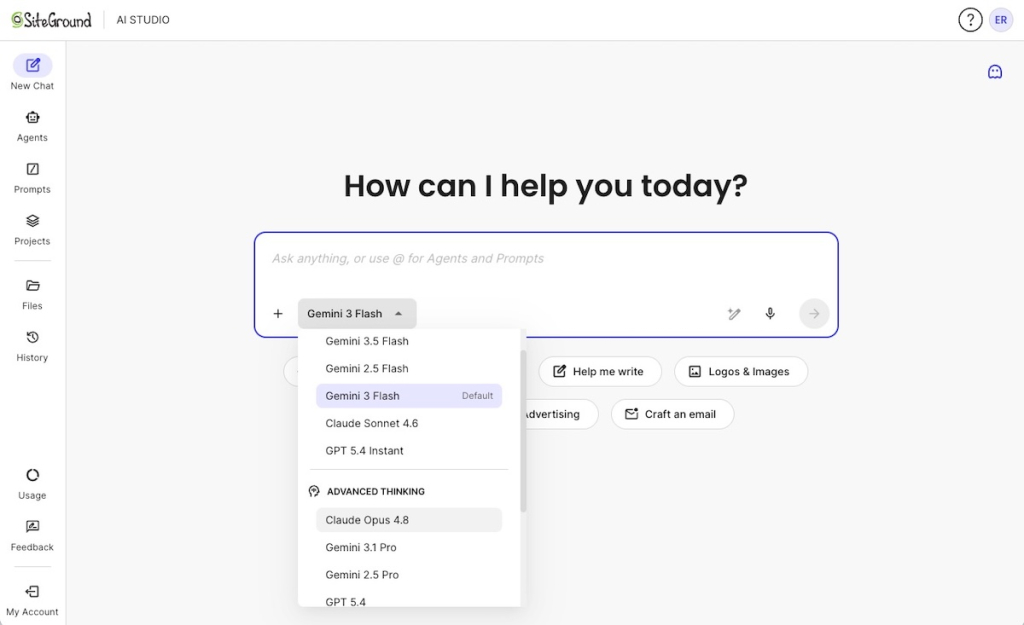
The simplest way to use models like these is inside a workspace that keeps the leading AI tools in one place. SiteGround AI Studio gives you access to top models by OpenAI, Anthropic, and Google (including ChatGPT, Claude, and Gemini) without requiring separate subscriptions for each provider.
[97]
The article was updated on 8/11/2026.
FAQs
What are OpenAI GPT-5.6 Sol, Terra, Luna, and GPT-Live?
OpenAI GPT-5.6 Sol, Terra, and Luna are three versions of OpenAI’s newest text models, and GPT-Live is its new voice model for ChatGPT. Sol is the most powerful, Terra is the balanced middle, and Luna is the fastest and cheapest. All became publicly available in early July 2026.
Which GPT-5.6 model am I using in the ChatGPT app?
On a paid plan like Plus, the GPT-5.6 model in the ChatGPT app is Sol, the most capable one. You don’t pick it by name, it sits behind the reasoning options, and ChatGPT uses a faster model for quick questions unless you choose otherwise.
Can I choose GPT-5.6 Terra or Luna?
Not in the standard ChatGPT app. GPT-5.6 Terra and Luna are only available on the developer side, through the API, Codex, or ChatGPT Work. If you use a tool or app built on OpenAI, its makers may have chosen Terra or Luna for you behind the scenes.
What’s the difference between Sol, Terra, and Luna?
They differ by power and price. Sol is the most capable and most expensive, Terra is a balanced middle option at about half Sol’s cost, and Luna is the fastest and cheapest. For developers, most everyday work runs fine on Terra or Luna.
What is GPT-Live, and how is it different from the old voice mode?
GPT-Live is OpenAI’s new voice model for ChatGPT, and it became the default voice experience on July 8, 2026, replacing Advanced Voice Mode. Unlike the old take-turns voice, it can listen and speak at the same time, so you can interrupt it and it responds more naturally.
Is GPT-Live free, and how do I use it?
Yes, a version is free. GPT-Live-1 mini is the default voice on the free ChatGPT plan, and GPT-Live-1 is the default on paid plans. You use it through ChatGPT’s voice feature on iOS, Android, or the web, with nothing new to install.
How much does GPT-5.6 cost?
In the ChatGPT app, nothing beyond your normal subscription, the newer model is included in your plan’s limits. On the developer side you pay per use: roughly $5 to $30 per million tokens on Sol, $2.50 to $15 on Terra, and $1 to $6 on Luna.
Do I need to do anything about this for my business?
If you use the ChatGPT app, the main change worth trying is GPT-Live, the new voice. The GPT-5.6 tiers matter mostly to developers and the tools you already use. Upgrade or switch only when you hit a real need, not because of the launch.
The AI Agent for WordPress doesn’t just write content. It can manage live-site actions such as deleting plugins, changing user roles, and updating WooCommerce orders on your live site, which is exactly why it ships with a safety switch.
That switch is SiteGround AI Agent Power Mode. It is disabled by default, and until enable it, the agent can’t run high-impact AI actions such as deletions, bulk edits, user changes, WordPress settings changes, or WooCommerce order updates. Role-aware permissions and confirmation prompts back it up at every step.
Key takeaways:
Power Mode is disabled by default and requires explicit approval before the AI Agent for WordPress runs any high-impact action on a live WordPress site.
The agent works inside the WordPress permission model, so the five standard roles (Administrator, Editor, Author, Contributor, and Subscriber) still define what it can access.
SiteGround AI Agent Power Mode covers destructive and bulk operations: deletions, bulk content edits, user creation and updates, settings changes, and WooCommerce order actions.
The agent manages content, plugins, themes, users, settings, WooCommerce, and troubleshooting inside WordPress, but it can’t reach server configuration, DNS, SSL, or hosting credentials.
The safest workflow when using the AI Agent for WordPress is to keep Power Mode off by default, turn it on only when needed, back up before major changes, and review important actions before they go live.
Why safety matters when AI manages a live WordPress site
The risk of AI on a live site is rarely abstract. It looks like a deleted page that was still getting traffic, a changed setting that breaks checkout, or an order updated while the customer is mid-purchase.
Live-site AI needs more than a chat interface
A chatbot that suggests text is low stakes. An AI Agent for WordPress that can act on a production website needs stronger safety controls.
Sensitive actions include:
publishing live content
deleting posts, plugins, themes, or media
changing users, WooCommerce orders, or WordPress settings
This is where the cost of a misread instruction can result in a bad change to a real site. That gap is exactly what a safety model has to close, and it’s why keeping a live WordPress site secure has to account for automated actions, not just human ones.
The real risk isn’t AI writing text, it’s AI changing things
Writing is reversible. You read a draft, you don’t like it, you ignore it. Changing is not always reversible. Deleting a plugin, removing a page, or bulk-editing categories can affect layout, functionality, and revenue in seconds.
Picture a prompt meant to tidy a blog: “delete the old posts.” Without a checkpoint, an agent could read that far more broadly than you intended, unpublish a year of content, and break every internal link pointing to it. Nothing malicious happened. The instruction was simply wider than you meant, and on a live site that gap between what you said and what you meant is the entire problem a safety model exists to catch. Clearer AI Agent for WordPress prompts reduce that ambiguity by defining the area, item, action, limit, and review step.
.post-page__colored-blocks.post-page__colored-blocks–update p {
margin: 15px 0px;
}
SiteGround’s safety model is built around permissions, confirmations, and Power Mode
SiteGround handles AI Agent for WordPress safety with three layers working together.
1. WordPress roles decide the level of access. 2. Confirmation prompts put a human in front of risky steps. 3. Power Mode acts as the master switch that keeps high-impact actions off until you deliberately turn them on.
Each layer covers a different failure: the wrong role, the wrong click, or the wrong bulk command.
What is SiteGround AI Agent Power Mode?
SiteGround AI Agent Power Mode is a built-in safeguard for the AI Agent for WordPress. It’s must be enabled before the agent can perform high-impact actions such as:
Out of the box, the AI Agent for WordPress can’t run destructive or high-impact actions. This is a deliberate default, not a setting you have to remember to lock down. If you never enable it, the agent stays in its safer, lower-impact mode, which is a sensible baseline for anyone still learning how AI works inside WordPress.
Power Mode controls only high-impact actions
When Power Mode is off, the agent can still help with plenty of everyday work. What it can’t do is complete the actions that would be expensive to undo.
Not every task deserves the same friction. Drafting a post and deleting 40 posts are not the same risk, so they shouldn’t require the same level of approval. By splitting low-risk work from high-impact work, SiteGround lets routine tasks stay fast while the actions that can break a site get a deliberate checkpoint.
How does the AI Agent for WordPress decide what it can access?
The AI Agent for WordPress doesn’t invent its own permissions. It works within the familiar WordPress role and capability system, so access maps to the same permissions you already assign to human users. That means the principle of least privilege applies to the agent exactly as it applies to your team: give it the lowest role that still gets the job done.
Every WordPress user has a role, and each role carries a fixed set of capabilities. The agent operates through that role rather than around it, so if a role can’t publish or delete something, neither can the agent acting under it. That makes role choice the first real safety decision you make, before Power Mode ever enters the picture.
Match the role to the work. An Administrator can manage plugins, themes, users, and settings, so an agent connected at that level can handle full site management, which is exactly why Administrator access is best reserved for workflows that genuinely need it. For content-only work, a lower role is the safer fit: an Editor handles content without plugin or settings control, a Contributor is limited to drafts, and a Subscriber has no business running site-management tasks at all.
WordPress role
Practical meaning for safe AI use
Administrator
Use only when the AI Agent needs full site-management access.
Editor
Better for content workflows that don’t require plugin or settings control.
Author
Useful only for limited content creation or editing.
Contributor
Very limited; best for draft-only workflows.
Subscriber
Not suitable for site-management actions.
What can SiteGround’s AI Agent for WordPress change?
Inside WordPress, the agent’s reach is broad but bounded. It can help manage content, maintenance, users, WooCommerce, settings, and optimization tasks through chat prompts, while Power Mode gates higher-impact changes. Think of it as a capable operator across the WordPress admin, including the work that keeps WordPress performance in good shape.
Content, pages, media, and comments
The agent can create and manage posts, pages, images, categories, tags, and comments. This is the everyday WordPress content work most site owners want help with, and much of it stays in the lower-risk lane until publishing, deletion or bulk changes are involved.
Plugins, themes, users, and settings
It can also help with WordPress core, plugins, themes, and compatibility checks, along with user roles, permissions, and user details. These touch how the site runs, so several of these actions require Power Mode before they complete.
WooCommerce products, orders, and customer details
For stores, the agent can help run WooCommerce operations, including products, orders, and customer details. Order and transaction actions carry real financial weight, so the riskier ones are gated behind Power Mode.
Performance, security, troubleshooting, and maintenance guidance
The agent can advise on performance, caching, vulnerabilities, plugin conflicts, and on-page SEO. This guidance is mostly informational, which makes it a safe place to start before you hand over any high-impact work.
General, reading, permalink, multilingual, staging, migration guidance
Optimization
Performance, caching, vulnerabilities, plugin conflicts, on-page SEO
What can’t the AI Agent for WordPress access or change?
Just as important as what the AI Agent for WordPress does is what it deliberately leaves outside its WordPress management scope. It operates in the WordPress management context, not as a replacement for hosting-level administration, and that boundary is part of the safety design. For the broader product context, see how SiteGround’s AI Agent works inside WordPress.
Server-level configuration stays outside the WordPress agent scope
The AI Agent for WordPress works strictly inside the WordPress application layer. It doesn’t reconfigure the server, rewrite system-level settings, or take over the jobs that belong to your hosting environment. Those tasks stay where they’ve always lived: outside the WordPress admin.
Hosting panel, DNS, SSL, and credentials aren’t the same as WordPress content
Editing a page and changing a DNS record are different categories of action. The agent handles the first and not the second. Hosting panel settings, DNS, SSL certificates, database credentials, and user passwords sit outside its reach, the same way they sit outside a normal WordPress editor’s day-to-day work. If you want the fuller picture of where that line falls, it maps closely to what managed hosting handles for you at the server level.
Need help at the server level? The AI Agent for WordPress stays inside WordPress by design, but you’re not on your own for hosting tasks. The AI assistant in your SiteGround Help Center can help you with DNS, SSL, email, and other server-side settings,
Third-party plugin settings and page builders work best in their own interfaces
The agent manages plugins as software: it can install, update, activate, or remove them, and check for compatibility issues. What it doesn’t do is operate inside a third-party plugin’s own settings panels. Configuring a form plugin, a membership tool, or a third-party SEO plugin still happens in that plugin’s interface, the same way it always has. The exception is SiteGround’s own plugins, such as Speed Optimizer and Security Optimizer, which the agent integrates with directly.
The same logic applies to page builders. The agent works with standard WordPress content, so pages built with Elementor, Divi, or similar builders keep their layouts in the builder’s own structures. Content changes to those pages are best made in the builder itself.
Why clear boundaries make the AI Agent safer to use
A tool with a defined scope is easier to trust. Because the agent can’t touch infrastructure, an over-broad prompt can’t accidentally reach your DNS or SSL setup. A request like “clean everything up” can’t take down your domain, because your domain was never within reach in the first place.
How do you enable or disable Power Mode safely?
You can turn Power Mode on in two places: from the AI Agent by SiteGround plugin page in WordPress, or directly in a chat session when the AI agent detects an impactful action and asks for it. To switch it on, follow SiteGround’s steps to enable Power Mode and confirm the change from the same interface.
The safe habit is to enable it only for the specific task at hand, then disable it again once you’re done. Power Mode stays enabled after a task completes, so turning it off deliberately keeps your default state on the cautious side rather than leaving high-impact actions available indefinitely.
What happens when the AI Agent detects a risky action?
The safety model isn’t hidden. It shows up at the exact moment risk appears, so you see it right when it matters instead of reading about it in a settings menu later.
The agent pauses before execution
The agent stops before running a high-impact action. The task doesn’t quietly proceed in the background. It waits, which turns a potential accident into a decision you get to make on purpose.
The user sees a warning
You get a clear prompt explaining that the requested action is impactful and needs Power Mode. This is the human-in-the-loop step: the point where a person confirms that yes, this deletion or order change is intended. It’s also a natural cue to confirm you have a recent backup before anything runs.
Power Mode must be enabled before the task continues
The high-impact action only proceeds once Power Mode is enabled. If it stays off, the risky step doesn’t happen. That single condition is what keeps a fast, chat-driven workflow from turning into an accidental one.
Best practices for using an AI Agent on a live WordPress site
Using an AI Agent for WordPress on a live site can be genuinely low-stress once you set a few habits. None of these are about fear. They’re about giving yourself an easy way back if something goes sideways.
Back up before major changes
For low-risk content tasks, a normal review workflow is usually enough. For deletions, settings changes, bulk edits, plugin updates, or WooCommerce order changes, take a backup first. The backup you never made is the one you’ll wish you had.
Use staging for unfamiliar workflows
When you’re trying something new, test it on a staging site before touching production. Staging lets the agent do its work where a mistake costs you nothing but a few minutes.
Keep Power Mode off until you need it
Leave Power Mode disabled as your default. Turn it on for the specific high-impact task, then turn it back off. This keeps the safer state as your resting position rather than the exception.
Start with low-risk prompts
Get a feel for the agent through low-risk AI Agent workflows for content edits, drafts, and guidance before you hand over destructive actions. A few low-stakes tasks tell you how it interprets instructions, so the first high-impact request isn’t also your first request.
Review important changes before publishing
Read what the agent produced before it goes live. Human review at the end catches the small misreadings that no permission model is designed to catch, and it’s the cheapest quality check you have.
The bottom line: SiteGround built AI safety around user control
SiteGround’s AI Agent for WordPress safety model comes down to one idea: you stay in control of high-impact actions on your live site. Power Mode keeps high-impact actions off by default, WordPress roles limit what the agent can reach, and confirmation prompts put a person in front of every risky step. The result is an assistant that’s fast for everyday work and deliberately slow for the actions that could break a live site.
If you want to try it on your own site, the AI Agent for WordPress lives inside SiteGround AI Studio. Use the AI Agent by SiteGround plugin to connect the agent. Start with low-risk prompts, follow the complete AI Agent for WordPress tutorial for supported tasks, and enable Power Mode only when a task genuinely calls for it. That’s how you get the speed of an AI agent with the safety net of human control.
Frequently asked questions
Is it safe to use an AI Agent for WordPress on a live site?
Yes. Using an AI Agent for WordPress on a live site can be safe when the workflow includes permissions, confirmation prompts, backups, and human review. SiteGround’s AI Agent for WordPress uses Power Mode for high-impact actions, so the agent can’t proceed with certain risky changes until you enable that mode.
What actions require Power Mode in the AI Agent for WordPress?
Power Mode is required for high-impact actions such as deleting plugins, themes, posts, pages, categories, tags, users, media, or products; making bulk content changes; creating or updating users; changing general WordPress settings; and managing WooCommerce orders or transactions.
How do I enable Power Mode for SiteGround’s AI Agent?
You can enable Power Mode from the AI Agent by SiteGround plugin page in WordPress, or from an AI chat session when the agent detects an impactful action and asks for Power Mode before continuing.
Does Power Mode stay enabled after the task is complete?
Yes. Power Mode remains enabled after the task is complete. You can manage the setting through the AI Agent by SiteGround plugin interface in WordPress.
Does the AI Agent for WordPress use WordPress user roles?
Yes. The AI Agent for WordPress works within the familiar WordPress permissions model, so its access follows the same roles and capabilities you already assign to human users.
Can the AI Agent for WordPress change WooCommerce orders?
Yes, SiteGround’s AI Agent for WordPress can help run WooCommerce store operations, including products, orders, and customer details. Some WooCommerce order actions, such as canceling pending orders, marking orders as completed, or deleting transactions, require Power Mode.
Should I back up my WordPress site before using an AI Agent?
Yes. For low-risk content tasks, a normal review workflow may be enough. For high-impact AI actions such as deletions, settings changes, bulk edits, plugin updates, or WooCommerce order changes, the safest approach is to create a backup first and review the result afterward.
When you’re a small business owner actively running your own WordPress site, routine management tasks can quickly eat up hours you’d rather spend growing your business. Content updates, WooCommerce product changes, plugin maintenance, SEO metadata, user tasks, troubleshooting… The list never really ends, and it’s not always obvious how to get through it faster.
Here’s the thing: you can stay on top of it all if you choose the right WordPress management approach for each task. For example, some WordPress tasks are best handled by an AI Agent for WordPress, some by specialized plugins, some by manual WordPress admin, and some by a human virtual assistant (VA) or developer. This guide walks you through when to use each one, so you can match every WordPress task to the approach that handles it best and spend less time in the dashboard.
Key takeaways:
The best WordPress management approach depends on the task type, task volume, and level of human judgment required, not the tool name.
An AI Agent for WordPress is strongest for structured, repeatable, multi-step site management work.
WordPress plugins are best for focused features, manual WordPress admin is best for visual control, and a VA is best for judgment, communication, and coordination.
The strongest WordPress management setup often combines an AI Agent, specialized plugins, manual review, VA support, and developer help instead of relying on only one approach.
The business question: which WordPress management approach fits the task?
Over the years, a handful of different kinds of help have grown up around WordPress, and each is good at a different type of work. Here’s what each one is:
An AI Agent for WordPress is a newer kind of AI assistant that connects to your site and carries out WordPress management tasks through natural language prompts. Best for repetitive, multi-step admin work.
WordPress plugins are small add-on programs you install to give your site one focused feature. Best when you need a single focused capability, like an SEO tool or a chatbot.
A virtual assistant (VA) is a real person you hire remotely to run tasks for you. Best for anything that needs human judgment or a personal touch.
Manual WordPress admin simply means doing the job yourself inside the dashboard. Best for quick and one-off changes.
The right choice depends on task type, volume, and judgment
When you have something to do in WordPress, ask yourself these three quick questions:
What kind of task is it? Creative and visual, or structured and rule-based? Design work wants human eyes; repetitive, predictable WordPress admin work suits AI.
How much of it is there? Changing one WooCommerce product price is a 20-second manual job. Changing 200 is one you’ll want to hand to an AI agent for WordPress.
How much judgment does it need? If a wrong move would upset a customer or dent your brand, keep a person involved. If it’s mechanical and low-risk, a tool can run with it.
Why no single tool should handle every WordPress task
No method is good at everything. Hand a thousand repetitive product edits to a person, and you’re paying premium human time for work an AI agent could clear in minutes. Lean on AI for a delicate brand decision, and you save time but risk losing the human read that keeps customers on-side. Reach for a plugin when the job actually spans your whole site, and you’ve solved one slice while the rest stays manual.
The cost is rarely a broken result: it’s rather wasted time, wasted money, or an outcome that’s technically done but not quite what your site needed. Matching the task to the method is how you avoid paying that tax over and over.
How to think about AI Agents, plugins, manual admin, and VAs together
Picture them as a team with different specialties, not rivals competing for the same job. If you’re not sure where to start, don’t start with the tools at all, start with your own week. Look at where your time actually disappears: for example, updating WooCommerce products, improving SEO metadata, publishing posts, chasing maintenance, checking plugins, managing users, or troubleshooting errors.
Hand off the biggest, most repetitive drain first. That single move usually frees the most time, and the time you get back is time you can put into the work that actually grows your business.
In short: The best WordPress management approach depends on the work involved. Use an AI Agent for WordPress for structured and repeatable site-management tasks, plugins for focused features, manual WordPress admin for visual or technical control, and a VA for judgment-heavy work such as communication, review, coordination, and brand-sensitive decisions.
When should you use an AI Agent for WordPress?
The use of AI in the form of an AI Agent for WordPress is one of the newest and most exciting developments in the WordPress world, and it’s genuinely different from the AI chatbots or AI plugins most people have already tried. This kind of WordPress AI assistant connects directly to your site and can actually carry out tasks, such as creating a post, preparing SEO metadata, managing WooCommerce products, checking plugins, and adjusting settings, all through plain-language conversation, instead of just telling you how to do it yourself.
This means you can now trade a big pile of tedious WordPress work for a simple chat with AI. Instead of clicking through menu after menu, you type what you want in plain English, and it gets done. For a broader overview, see what SiteGround’s AI Agent for WordPress can do across content, WooCommerce, plugins, users, settings, and maintenance.
Use it for structured, repeatable WordPress tasks
An AI agent for WordPress is at its strongest on the routine work that eats your week: publishing a batch of posts, writing SEO details across dozens of pages, refreshing an outdated services page, updating prices on a long product list. These jobs are tedious precisely because they repeat, which is exactly why handing them off pays off. There’s also no learning curve to clear: you don’t get instructions to follow or code to paste, so you never have to hunt through menus to find the right setting.
Use it when one task crosses content, SEO, WooCommerce, or maintenance
Some jobs touch several parts of WordPress at once, and that’s usually where the dashboard fights you hardest, because you’re jumping between the editor, the SEO panel, the WooCommerce store, and the plugins page. An AI Agent works across your whole site in one conversation, so it can write a post, set its SEO details, add it to your menu, and check nothing conflicts, all without screen-hopping. It handles bulk work at this scale too: you can add alt text to 200 product images, translate 50 products, or restructure a set of categories from a single prompt.
Running more than one site? Advanced AI Agents like SiteGround’s AI Agent for WordPress can manage multiple WordPress sites at once, from one chat. You can connect any number of WordPress sites (on SiteGround or on other hosts) into a single workspace, then run one instruction across all of them: push a plugin or theme update to 30 sites, standardize a setting across your whole portfolio, or roll out the same content change everywhere, without logging into each one separately. For anyone running more than one site, or an agency looking after dozens of client sites, that turns a repetitive site-by-site chore into a single request.
Use it when speed matters but human review still matters
An AI agent can be fast, but it works best with you reviewing the output, not rubber-stamping it. Use it to prepare and implement the heavy lifting, then keep final approval over anything that affects customers and pricing.
Task type
Why an AI Agent fits
Content updates
It can help create, edit, organize, save, and publish WordPress content with review steps.
WooCommerce product tasks
It can help manage products, pricing, and store operations, including bulk changes.
Maintenance
It can support plugin, theme, performance, and troubleshooting tasks.
SEO metadata
It can help with titles, descriptions, headings, content refresh suggestions, and internal links.
Users and settings
It can help manage users and WordPress settings where permissions and Power Mode allow.
Multi-step workflows
It can combine several WordPress admin steps in one conversation.
What the time savings actually look like: In our own testing across real projects, mundane WordPress tasks saw 80–95% time savings with SiteGround’s AI Agent for WordPress. One example: writing SEO metadata for 200+ product images dropped from roughly 58 hours of manual work to about 4.5 hours with AI assistance. Tellingly, half the people in the test were AI beginners. To learn more, take a look at our new AI in WordPress white paper.
When are WordPress AI plugins the better choice?
An AI plugin is a small add-on you install to give WordPress one specific feature it doesn’t have out of the box. While an AI agent ranges across your whole site, an AI plugin does a one job. You can reach for a plugin when you want a specialist that owns a single, well-defined area, and you’re happy to set it up and manage it as its own thing.
Use AI writing plugins for focused content generation
When you want AI help built into the writing experience itself, an AI writing plugin works inside the block editor, drafting, rewriting, or expanding text as you go, plus related pieces like excerpts, summaries, and alt text. A good example is the official WordPress AI plugin (from the WordPress team), which adds this kind of in-editor content generation if you’ve upgraded to WordPress 7.0.
Use SEO plugins for technical SEO controls
SEO plugins are the control panel for how search engines understand your site. They own the technical dials, page titles, meta descriptions (the short summaries shown under your link in search results), sitemaps, schema markup, redirects, and readability checks, and the best-known ones, Rank Math and Yoast, now add AI to help fill those fields.
Use chatbot plugins for visitor-facing support
A chatbot plugin is the only tool in this guide that talks to your visitors rather than helping you run the site behind the scenes. It answers common questions in real time, day and night, so buyers get a reply at 2 a.m. and you wake up to fewer repetitive emails.
Use page-builder AI for visual design support
If you design your pages in a page builder, its built-in AI can generate text, images, and whole layout sections right on the canvas, where you can see the result as you go. Builders like Elementor and Divi include this, so you can rough out a design by describing it, then fine-tune it by eye.
Pro tip: You can actually manage your plugins with an AI Agent. For example, you can ask SiteGround’s AI Agent for WordPress to find and install a plugin (just describe what you need and it locates a good option, installs it, and activates it), update one plugin or many at once (and even back up your site first, for peace of mind), and clean house by identifying and removing old, deactivated plugins you no longer use. Not sure what’s even running on your site? Ask for a list of every installed plugin and its status, and you get an audit that makes outdated or unnecessary ones easy to spot.
When is manual WordPress admin still the best option?
AI can be pretty amazing, but sometimes the fastest, safest path is to just do it yourself. Manual admin, working directly in the WordPress dashboard, still wins whenever the task is visual, tiny, or highly technical.
Use manual admin for visual design and layout work
If you’re making aesthetic calls (like how much space sits between sections, whether an image feels balanced, where the eye lands first), those are judgments you make best by looking and adjusting in real time.
Use manual admin for one-off changes that take less than a minute
Plenty of changes are tiny and self-contained: fixing a typo, flipping a toggle, swapping out a link. When you already know exactly what needs changing and where it lives, going straight to that spot in the dashboard and doing it is the most direct path there is.
Use manual admin for custom code, CSS, or highly technical settings
When you’re editing CSS (the code that controls how things look) or touching precise technical settings, hands-on control is important. If you have the skill, doing it directly is more exact than describing the result.
Use manual admin when you need precise visual confirmation
Some changes you simply need to see before they go out. For final, public-facing review, looking at the real page with your own eyes is the point.
Task
Why manual admin works better
Page layout design
Visual judgment matters.
Gutenberg block editing
Drag-and-drop control matters. (Gutenberg is WordPress’s built-in block editor.)
Page-builder changes
Seeing the design preview matters.
Custom CSS or code
Technical precision matters.
One quick setting change
Faster than explaining the task.
Final publishing review
Human eyes should approve public-facing changes.
When should you use a WordPress virtual assistant instead of AI?
If your budget allows it, hiring a WordPress virtual assistant is the right call whenever you need help from a real human, someone to make a judgment call, talk to another person, or protect how your business comes across. Despite the name, a virtual assistant isn’t software. “Virtual” just means they work remotely rather than from your office. A VA is a real person, usually a freelancer or contract worker, who logs into your website and handles tasks for you.
Use a VA for decisions that need judgment
Some tasks come down to a call only a person should make: which of today’s ten jobs actually matters, whether a risky change is worth it, whether something just looks wrong. A VA can help you weigh the specifics of your business and make some decisions for you.
Use a VA when real people need to talk to real people
When a customer has a major complaint, a question, or a delicate request, they can usually tell when they’re being handled by a bot, and it rarely makes them feel valued. A VA can reply as a genuine human: reading the mood, showing they understand, and handling the conversation with the care a real relationship deserves.
Use a VA to keep your brand sounding authentically human
AI chatbots can draft competent copy, but it can often read a little generic, and customers are increasingly good at spotting it. A VA who knows your business can make your content sound like a real person with a point of view, catch anything that feels off-brand, and add the small human touches that make people trust you.
Use a VA when someone needs to own a task end-to-end
A lot of real work isn’t one action but a thread that unfolds over days: a client conversation, an approval that waits on a reply, a project with moving parts. A VA can own that from start to finish, follow up, adapt as things change, and make sure nothing falls through the cracks.
Use an AI Agent to reduce the VA’s admin workload
If you hire a VA, you can still let an AI Agent for WordPress take the repetitive clicks off their plate (the bulk updates, the metadata, the routine maintenance), so your VA can spend their time on the conversations, the judgment, and the brand-sensitive work that genuinely needs a human.
How to find a good WordPress VA: Look for someone who has actually worked in WordPress, not just general “admin support.” Before hiring, check they can name the tasks you care about, ask for a reference or an example of a site they’ve managed, and start with a small paid trial task before handing over anything big. Give them their own login with only the access they need, never your main admin password, and agree how they’ll use AI: a VA who pairs an AI Agent with their own judgment will clear your work faster and cheaper than one doing it all by hand.
Task
Why a VA fits
Client communication
Requires tone, judgment, and relationship context.
Editorial review
Requires brand and audience understanding.
Project coordination
Requires prioritization and follow-up.
Inbox or support triage
Requires human judgment.
Content polishing
Requires nuance and taste.
QA after AI-assisted changes
Requires accountable human review.
When are other WordPress AI management tools a better fit?
The four options so far cover the vast majority of what a small business needs. However, there are a few specific jobs that can call for something else.
Use developer AI tools when you need something custom-built
Say you want a feature that doesn’t exist yet, like a booking system wired into software you already use, or a special connection between your site and another business tool. That’s custom development, essentially, building something new rather than using something ready-made. There are AI tools that help with this, but they’re made for people who write code. In practice, this is the point where you’d hand the job to a developer (who might use those AI tools to work faster), rather than something you’d tackle yourself.
Use automation platforms when you want tasks to happen automatically
Imagine that every time you get a new order, you want the details added to a spreadsheet, and the customer added to your mailing list, without you lifting a finger. That’s what automation platforms do: they connect your different apps and pass information between them automatically, following simple “when this happens, do that” rules you set up once. The best-known ones are Zapier and Make. You don’t need to code, but you do need to spend a little time setting up each connection.
Use hosting-integrated AI when you want the least possible setup
If the idea of installing and connecting anything already feels like too much, the easiest starting point is AI that’s built right into your hosting (the service that stores your website and keeps it online). Because it’s part of the platform, there’s little or nothing to set up. SiteGround’s AI Agent for WordPress is an example: on sites hosted with SiteGround, it’s already connected and ready, with nothing to install. It also works with sites hosted elsewhere.
Use standalone tools when you want to choose your own AI provider
Most people are happy to let a tool decide which AI does the work behind the scenes. But some prefer to pick the specific AI service themselves, for example, choosing exactly which company’s AI writes their content. Tools that allow this ask you to bring your own “API key,” which is just a password-like code that links the tool to the AI service you signed up for. It gives you more control, but also more to set up and keep track of, so it mainly suits people who enjoy tinkering with the technical side. If that’s not you, you’re not missing out.
Decision matrix: AI Agent, plugins, manual admin, VA, or developer?
Run your WordPress task through the questions below. Start at the top, stop at the first line that matches what you’re trying to do, and you’ll land on the approach that usually fits best.
WordPress task
AI Agent
AI plugin
Manual admin
VA
Developer
Bulk content updates
Best
Limited
Tedious
Good
Not needed
Long-form writing
Good
Best
Slow
Good
Not needed
SEO titles and meta descriptions at scale
Best
Good
Tedious
Good
Not needed
Technical SEO settings
Limited
Best
Good
Limited
Sometimes
Visual page design
Not best
Sometimes
Best
Good
Sometimes
WooCommerce product updates
Best
Limited
Tedious
Good
Not needed
Plugin and theme updates
Best
N/A
Good
Good
Sometimes
Routine maintenance
Best
Limited
Manual
Good
Sometimes
Client communication
N/A
N/A
N/A
Best
Not needed
Brand strategy
Not best
Not best
N/A
Best
Sometimes
Custom code
Not suitable
Not suitable
If skilled
Not suitable
Best
Server configuration
Not suitable
Not suitable
Hosting panel
Not suitable
Best
Troubleshooting
Good
Limited
Good
Good
Best (complex)
Conclusion
Choosing the right WordPress management approach is not about finding one perfect tool. Once the task points toward an AI Agent, check who the AI Agent for WordPress is best for based on the site type, team, and recurring workload. It’s about recognizing what each task needs, then using the right mix. Sort a job by its type, its volume, and the judgment it takes, and the answer usually becomes clear.
If the task is…
Choose
Structured, repeatable, or multi-step
An AI Agent for WordPress
A focused AI feature, such as writing, SEO scoring, a chatbot, or design
A WordPress plugin
Visual layout, a quick one-off edit, or a direct setting change
Manual WordPress admin
Client communication, creative review, coordination, or brand-sensitive work
A virtual assistant
Custom code, database work, integrations, or server configuration
A developer
A high-impact live-site change
Use staging (a safe test copy of your site), backups, Power Mode safeguards, and human review
Ready to see how AI can help with routine WordPress management? Put SiteGround’s AI Agent for WordPress to work on your next batch of repeatable WordPress tasks.
[97]
FAQs
What is the best WordPress management approach for a small business?
The best WordPress management approach for a small business depends on the work. Use an AI Agent for WordPress for structured and repeatable site-management tasks, plugins for focused features, manual admin for visual or one-off changes, and a VA for communication, coordination, and judgment-heavy work. Most small businesses end up using a mix.
When should I use an AI Agent for WordPress instead of manual admin?
Use an AI Agent for WordPress for repetitive work, multi-step AI Agent workflows, or tasks spread across several areas of WordPress. Manual admin is still better for visual design, quick one-off changes, custom code, and the final review before publishing.
Is an AI Agent for WordPress better than WordPress AI plugins?
They solve different problems. An AI Agent for WordPress is better for site-management tasks across your whole site, while WordPress AI plugins are better for focused features such as writing, SEO scoring, chatbots, or design assistance. The full comparison of AI plugins vs AI agents for WordPress explains where each category fits.
Should I hire a WordPress virtual assistant or use an AI Agent for WordPress?
Use an AI Agent for WordPress for structured admin work like content updates, WooCommerce product changes, plugin checks, SEO metadata, and routine maintenance. Hire a VA for human judgment, brand-sensitive review, client communication, coordination, and ongoing quality control. Many businesses use both.
Can an AI Agent for WordPress and a virtual assistant work together?
Yes, and it’s a strong setup. A VA can use the AI Agent for WordPress to finish routine admin work faster, then focus on review, communication, prioritization, and brand-sensitive decisions. The agent handles the repetitive clicks; the VA handles the judgment.
When is manual WordPress admin better than AI?
Manual admin is better for visual page design, page-builder edits, drag-and-drop layout work, custom settings, direct code edits, and quick one-off changes that are faster to make than to explain through a prompt.
Is SiteGround’s AI Agent for WordPress easy to set up compared with other AI tools?
It’s designed to be. SiteGround’s AI Agent for WordPress works through SiteGround AI Studio and can manage connected WordPress sites through chat. SiteGround-hosted sites are connected automatically. Externally hosted WordPress sites can connect through the AI Agent by SiteGround plugin, while many standalone AI plugins require you to create AI provider accounts and manage your own API keys.
Can an AI Agent for WordPress replace a WordPress developer?
No. An AI Agent for WordPress can help with site-management tasks, but a developer is still needed for custom code, advanced integrations, theme development, database work, and server-level architecture, and complex troubleshooting.
What if we told you you only need 60 minutes of setup to build a website with AI? You just have to start with one clear business goal, describe your offer, audience, pages, and the action you want visitors to take, and let the AI create a first draft. Then you review the structure, edit the copy, add your real details, test the forms and mobile layout, and publish once everything is accurate.
This guide walks you through the whole process, from picking your goal to running a final pre-launch check, and shows how all-in-one tools like Coderick AI take you all the way from a prompt to a good-looking, working business website in an hour.
Key takeaways:
Pick one goal first. The fastest way to build a website with AI is to decide what it should do: get leads, take bookings, or sell.
A strong first AI website prompt does the heavy lifting. Give the AI your business type, audience, offer, pages, tone, and main call to action (CTA), the main thing you want visitors to do.
A useful first version is simple. It needs a clear homepage, easy navigation, accurate details, and one working next step, not every section imaginable.
All-in-one solutions like Coderick AI take you from words to a working website. Describe the site, refine the draft in plain language, and publish it on SiteGround hosting when it is ready.
Review before you publish. Check the forms, mobile layout, contact details, page titles, policies, and the main CTA first.
What should your website do first: lead, book, or sell?
Before you write your first prompt, decide the one job your website has to do. It sounds almost too basic to matter, but this single choice shapes everything that follows: your layout, your wording, which pages you build, and where the buttons go.
Most small business websites exist to do one of three things: get leads, take bookings, or sell products. Picking one now shapes every choice that follows, and gives the AI a clear target to build toward.
Lead: get quote requests or contact form submissions
If you want your customers to get in touch so you can quote, advise, or close the deal, the site’s job is make the visitors message you. Everything should nudge the people toward a short contact or quote form: a clear headline, a visible button on every screen, and customer testimonials to make reaching out feel safe. This is the right goal for service businesses (like plumbers, consultants, lawyers, or agencies), where the sale happens in a conversation rather than on the page.
Book: let visitors schedule an appointment
If your income depends on a full calendar, the site’s job is to remove every excuse not to book. That means scheduling is the star of the show: easy to find and quick to complete. Businesses like salons, clinics, trainers, and studios live and die by this.
Sell: show products or take orders
If you sell products, the site has to make each product look worth buying and make buying feel easy. Good photos and engaging product descriptions are as important as a simple, obvious path to order.
Why one goal makes the AI output better
AI builds toward the goal you give it. Ask it for “a website” and it has no choice but to guess, so it hands you something generic that could belong to anyone. Ask it for “a site that gets quote requests from local homeowners” and suddenly every decision has a north star: the homepage leads with your service, the buttons say “Request a quote,” and the layout puts the form where people will see it. Your goal isn’t just a planning step for you, it’s the most useful single instruction you can give the AI.
What should you prepare before you build a website with AI?
The gap between an AI-built website draft that’s almost right and one that’s frustratingly generic usually comes down to a few minutes of prep. The AI can invent a plausible business out of thin air, but it can’t invent yours, so the more real detail you give it, the less placeholder filler you’ll have to undo later. You don’t need polished sentences, just the honest facts about your business gathered in one place. Here are the seven worth having ready.
Your business description
That’s literally one or two plain sentences on what you do and who you do it for. Resist the urge to dress it up: “I’m a mobile dog groomer serving north Austin” gives the AI far more to work with than “premium pet care solutions,” because concrete words produce concrete pages, while vague words produce vague ones.
Your audience
Name the people the site is for, because the same business speaks very differently to different customers. A bakery selling wedding cakes to couples planning a wedding reads nothing like one selling after-school treats to busy parents. Tell the AI who’s on the other end and it can aim the tone, the examples, and even the imagery at them.
Your offer or services
List the three to six things you actually sell or do, in the words your customers would use. This usually becomes your services or products section, and keeping it short is a feature, not a limit: a focused list is easier for a visitor to scan and easier for you to keep accurate as your business changes.
Your location or service area
State where you operate: a city, a travel radius, or “online only.” This shapes your contact details, tells local customers you actually serve them, and for a lot of small businesses, it’s sometimes the reason someone picks you over a big multinational corporation.
Your main CTA
Decide the single action you most want a visitor to take, like “Request a quote,” “Book now,” “Shop the collection,” and let everything else defer to it. A common early mistake is offering five things to do at once, which leads to none of them getting done. One clear next step almost always beats a menu of options.
Your brand details
Gather the bits that make the site unmistakably yours: your business name, a logo if you have one, and a rough sense of style: is your vibe clean and modern, warm and friendly, or bold and colorful? You don’t need a brand guide. Even three plain adjectives are enough to stop the AI defaulting to a generic look.
Your photos, reviews, and proof
Try to round up real photos, genuine customer reviews, and anything that proves you deliver. This is the single biggest upgrade you can make to an AI draft, because the placeholder images and invented quotes it ships with are exactly what make a site feel fake. Swapping in the real thing is what turns an AI-generated template into your business website.
How do you write AI website prompts that work?
Writing the first AI website prompt is where your prep pays off. You’re not after clever phrasing, you’re handing the AI the same facts you’d give a freelancer on a first call, in a sensible order. Cover these six things and it has nearly everything it needs to get close on the first try, which means less to fix afterward.
Start with the website type
Open with what you’re building and for which business, because the first thing you say frames everything after it. For example, a prompt like “Build a website for a family-run bakery” already tells the AI the industry, the likely pages, and the tone, before you’ve specified any of them.
Name the audience
Add who it’s for: “for local customers looking for custom cakes and everyday bread.” This points the AI at the right register (in this case, friendly and local rather than corporate) and helps it choose examples and images that actually fit your customers.
List the pages you need
Spell out the pages so the AI builds the structure you want instead of the one it assumes: “Include a homepage, menu, about, and contact page.” Naming them keeps things lean, since leaving it open often gets you extra pages you then have to delete.
State the main action
Name the one thing you want visitors to do, and the AI will design toward it: “Make the main action placing a custom cake order through a form.” This tells it where to put the emphasis and what every button is ultimately for.
Add tone and style notes
The AI can build almost any look, but it can’t read your mind, so a few words on feel go a long way, for example: “Use a warm, friendly design with soft colors and large photos.” It’s far easier to steer the first draft than to redecorate later, so spend the words up front.
Include must-have details
Finish with the specifics that simply have to be right: your location, hours, phone number, and any real selling point. “We’re in Portland, open Tuesday to Sunday, and everything is baked fresh daily.” Handing these over now means fewer placeholders to hunt down before launch.
A reusable prompt template
Build a website for [business type] that helps [audience][main goal]. Include [pages], Use a [tone/style] design, and make the main call to action [CTA]. The site should highlight [services/products/proof] and make it easy to [contact/book/buy].
Filled in for that bakery, it might read:
“Build a website for an artisanal, family-run bakery that helps local neighbors and event hosts order custom cakes for special occasions. Include a high-converting Homepage, Menu, About page, and a Contact page. Use appetizing images of cakes, and make the main call to action “Order a Custom Cake”. The site should highlight our custom cakes and make it easy to place an order.”
Notice how little of that is clever writing. It’s almost entirely your prep, arranged in order. Here’s what SiteGround’s Coderick AI makes with this basic first prompt:
What pages should your AI-generated business website include?
Most AI-generated business websites need far fewer pages than you’d think. Building a sprawling site is a common early mistake, and a focused handful of strong pages almost always beats it, because visitors don’t explore, they skim for the one thing they came for. Start with the essentials below, and add more only when there’s a real reason to.
Homepage
The homepage is the one page nearly everyone sees, so it has to answer three questions in seconds: what you offer, who it’s for, and what to do next. Put your main call to action near the top, above the fold (the part visitors see before they scroll), because plenty of people decide whether to stay or leave without scrolling at all.
Services or products page
This is where interest turns into intent, so make it concrete. Lay out what you sell or do in plain terms, with either clear prices or an obvious way to ask for them. Vagueness here is expensive: a visitor who can’t tell what you offer, or roughly what it costs, usually leaves rather than emailing to find out.
About page
People are wary of buying from a business that could be anyone, and the About page is where you stop being anonymous. A real story, a face, and a genuine reason you do this work build more confidence than any list of features. It’s often the most-visited page after the homepage, precisely because trust is what people are really shopping for.
Contact page
Make getting in touch easy: a simple form, your phone number, email, and where you’re based. If your goal is leads, this is arguably your most important page, so don’t hide behind a form alone. Some people want to call, and every barrier you remove between a curious visitor and you is a customer you keep.
Reviews, portfolio, or proof page
As mentioned, testimonials, past work, and before-and-afters let other people vouch for you, which lands far harder than praising yourself. Even a small number of specific, named reviews can tip a hesitant visitor into acting.
Policies, if needed
If you take money or bookings, a few plain policies (for example, returns, privacy, and cancellations) reassure people at the exact moment they’re deciding to trust you with their details. Only add what applies to you; a page of boilerplate nobody needs just adds clutter.
Website goal
Core pages
Main CTA
Get leads
Home, services, about, contact
Request a quote
Book appointments
Home, services, booking, contact
Book now
Sell products
Home, products, cart/checkout, policies
Buy now
How do you generate and edit the first version fast?
The moment the AI hands you a draft, there’s a strong pull to start fixing words. Resist it. The fastest route to a publishable site is to work from the outside in, structure before sentences, because there’s no point polishing copy on a page you might delete. Here’s the order that wastes the least effort.
Review the homepage first
It carries the most weight and sets the tone for everything else, so judge it before anything else. Does the headline say what you do? Is the offer clear? Does the main button point where you want people to go? If the homepage works, the rest of the site gets much easier to fix.
Check navigation before copy
Look at the menu before you read a single paragraph. Are the right pages there, in a sensible order, with nothing missing or doubled up? Getting the skeleton right first means you’re never rewriting text on a page that shouldn’t have existed in the first place.
Fix the headline and CTA
Your headline and main button do more work than everything else on the site combined, so give them the most attention. A headline should say plainly what you do and for whom; a button should say exactly what happens when it’s clicked. “Get your free quote” beats “Submit” every time, because it tells the visitor what they’re getting.
Remove sections you do not need
AI tends to pad, adding generic “Our mission” or “Why choose us” blocks to fill space. Delete anything that doesn’t serve your one goal. A short page that carries people toward the next step beats a long one that makes them scroll past filler to find it.
Rename pages and buttons
Swap clever or vague labels for plain ones. “Services” is clearer than “What we offer,” and “Book now” beats “Learn more” when booking is the point. Clarity almost always converts better than cleverness, because a visitor who has to pause and decode a label often just doesn’t click.
Ask for one change at a time
When you refine, give one instruction, check the result, then give the next. It feels slower but it’s faster overall: you can always see exactly what a change did, and it’s easy to undo a single step when something goes sideways, rather than untangling 10 changes at once.
Check what the AI made up: AI writes confident, professional-sounding text, and to fill the gaps you left, it will happily invent details: a phone number, an opening time, a glowing five-star review, a price. It’s just guessing, but a guessed phone number is just as wrong as a made-up one. Before you publish, treat every specific fact on the site as a placeholder until you’ve checked it against reality. The most damaging website mistakes aren’t broken layouts, they’re wrong contact details and claims you can’t stand behind.
What trust blocks should you add before launch?
A website can look polished and still fail, because looking professional and feeling trustworthy aren’t the same thing. A stranger deciding whether to hand you money, or even just their phone number, is scanning for reasons to believe you’re real and reliable. Trust blocks are those reasons made visible. Add the ones that fit your business, and place them where hesitation happens: near your prices and your buttons.
Reviews and testimonials
We’re mentioning this again because nothing you say about yourself carries the weight of what a customer says about you. A few specific reviews, ideally with real names and details (“booked me in same-day when my boiler died”), beat a page of adjectives, because specifics ring true while generic praise reads as invented.
Before-and-after examples or portfolio
For any business where the result is something you can see (like cleaners, landscapers, designers, or stylists), showing the work is more persuasive than describing it. A before-and-after does in a single glance what a paragraph can’t: it proves you can actually deliver the outcome the visitor is hoping for.
Credentials, licenses, or guarantees
Licenses, certifications, insurance, or a simple guarantee all do the same job: they lower the risk of choosing you. A short line like “fully insured” or “satisfaction guaranteed or your money back” can be the small reassurance that turns a maybe into a yes.
Address, phone number, and service area
A real address, a working phone number, and a service area tell a visitor there’s an actual business behind the site. It sounds basic, but missing or vague contact details are one of the fastest ways to make a site feel like a scam, even when it plainly isn’t.
Privacy, returns, or booking policies
Clear, plain-language policies reassure people at the precise moment they’re deciding to trust you, right before they pay or book. They don’t need to be long or lawyerly, they need to be easy to find and easy to understand, so no one hesitates over what happens if something goes wrong.
Clear pricing or “request a quote” language
Price is the question on nearly every visitor’s mind, so don’t dodge it. Either show your prices or make it obvious and easy to get them. Hiding pricing entirely is one of the most common reasons people leave a small business site: they assume the worst and move on to a competitor who was upfront.
What is the 12-point launch checklist for an AI-built website?
Before you launch an AI-built website, run one final check. This final check can catch the small, easily avoidable things: a typo’d phone number, a form that goes nowhere, that quietly cost real customers. It takes only a few minutes, and it’s the difference between a site that works and one that merely looks like it does.
Main CTA is visible above the fold (before scrolling).
Contact form sends to the right inbox.
Booking or checkout flow works from start to finish.
Phone number and email are correct.
Address or service area is accurate.
Mobile layout is readable on a real phone.
Buttons are big enough to tap easily.
Images load and have alt text (short descriptions that aid accessibility and image search).
Page titles are unique for each page.
Each page has one clear main heading (H1).
Policies and any claims are accurate.
Domain, SSL (the padlock that secures your site), and publishing settings are ready.
How does Coderick AI take you from prompt to published website?
Building with AI is the fun bit. You describe your site, watch the pages appear, tweak the words, and you can be ready in 60 minutes. Then the questions start: Where does this thing actually live? How do people find it? Is it secure? What happens when it’s time to swap the temporary address for your real one?
That’s hosting, a database, security, and a domain, and it’s exactly where most AI website tools hand you the keys and walk off, leaving you to wire it all together with extra logins, extra bills, and a weekend you weren’t planning to spend.
Coderick AI was built to answer all those questions. It’s a full build-and-publish platform rather than just a page generator, so describing, refining, hosting, and publishing all happen in one place. Coderick AI includes premium built-in hosting, database support when your site needs it, the same infrastructure that runs millions of SiteGround sites, and a custom domain on paid plans. You build the site, and it’s already home.
It runs real features, not just static pages
Plenty of AI tools generate good-looking pages that only display information. If your site needs to do something, (take a booking, capture sign-ups, store enquiries), it needs a database behind it, and Coderick AI sets that up for you automatically when your project calls for one. You get a site that works, not just one that looks the part.
Hosting, security, and speed are part of the deal
There’s no separate host to find or configure. Coderick AI includes premium hosting, your pages run on SiteGround’s infrastructure, and the security that protects them is handled from the moment you go live. The tool that builds your site is the one that keeps it running, so nothing gets bolted on afterward.
You publish in one click, then point your domain at it
When the site ready, publishing happens inside Coderick AI with a single click: no export step, no separate deployment workflow. You can launch on a temporary web address while you polish, then connect your own custom domain (your yourbusiness.com) on a paid plan when it’s time for customers to find you.
Ready to build?
[96]
FAQs
Can I build a website with AI without coding?
Yes. You can build a website with AI withno coding required. You describe your business, audience, pages, and goal in plain language, and the AI builds the first version. Tools like Coderick AI generate the draft, then you review it, edit the details, test the forms and mobile layout, and publish when it’s ready.
What should I include in my first AI website prompt?
Include the business type, target audience, site goal, pages, services or products, brand tone, location, and main call to action. For example, tell Coderick AI whether the site should generate leads, take bookings, or sell products.
How long does it take to build a website with AI?
A simple business site can reach a useful first draft in minutes, but a publishable version still needs review. Plan time to edit the copy, replace placeholders, check the mobile layout, test the forms, add trust details, and verify your contact information before going live.
What pages should an AI-built business website include?
Most small business sites need a homepage, a services or products page, an about page, a contact page, and some trust elements such as reviews, portfolio examples, or policies. The exact page map depends on your goal: leads, bookings, or sales.
Can Coderick AI build a website from a short description?
Yes. Coderick AI can create a website from a plain-language description of what you need. Better results come from giving clear context: what your business does, who the site is for, what pages you need, and what action visitors should take.
What should I check before publishing an AI-built website?
Check the main CTA, forms, booking or checkout flow, mobile layout, contact details, images, page titles, policies, and any claims the AI generated. Treat the first version as a strong draft that needs your real business facts before it goes live.
Are AI-built websites mobile-friendly?
Most modern AI website tools generate layouts that adapt to phones, but you should still test on a real device. Check spacing, readable text, tap targets, images, and forms. Mobile review is a key step before publishing.
Can I launch a business website fast with Coderick AI?
Yes. Coderick AI helps you describe a site, generate a draft, refine it, and publish on SiteGround hosting when the website is ready. The fastest path is to start with one goal, use a clear prompt, edit only what matters first, then run a short launch checklist.
What is the biggest mistake when building a website with AI?
Publishing the first draft without review. AI creates structure, copy, and design quickly, but you need to check pricing, contact information, policies, guarantees, testimonials, forms, mobile layout, and the main CTA before sending visitors to the site.
The best way to pick a WordPress AI tool is to stop sorting by category and start sorting by job. A content plugin helps write. An SEO plugin helps optimize titles and metadata. A chatbot answers visitors. An AI agent helps manage site operations through natural language prompts. Match the tool to the task, and the rest of the decision falls into place.
WordPress AI tools fall into two broad groups: AI plugins that add one focused capability to your site, and AI agents that carry out WordPress management tasks through natural language prompts. Plugins suggest and generate. Agents act on the site. Knowing which group fits your goal is most of the decision. For a closer look at the second model, see how SiteGround’s AI Agent manages WordPress beyond content generation.
Key takeaways:
WordPress AI tools split into two groups: single-purpose AI plugins, and AI agents that run site-management tasks from a prompt.
Many WordPress AI plugins are built around one primary problem, with the five most common being content writing, SEO metadata, visitor chat, image generation, and page design.
An AI Agent for WordPress is built around tasks across content, SEO, WooCommerce products, plugins, themes, users, maintenance, and settings, not around generating text alone.
Many generic AI plugins ask you to bring your own API key from an AI provider; on SiteGround-hosted sites, the AI Agent for WordPress runs through AI Studio with no separate key or subscription.
The right pick depends on the business job: content plugins help you create, SEO plugins help you optimize, chatbots help you support, and AI agents help you operate the site.
The business decision: do you need an AI plugin or an AI agent for WordPress?
Start with the problem, not the product label. Most small businesses do not care whether a WordPress AI tool is technically a “plugin” or an “agent.” They care whether it saves time, cuts manual work, publishes faster, improves rankings, supports customers, or keeps the site running. The split that decides all of that is simple: a plugin hands you a suggestion to apply yourself, while an agent carries out the change on the site. If you are still mapping the wider field, a roundup of the AI tools for business worth shortlisting is a useful starting point.
Choose an AI plugin when you need one focused feature
Pick a WordPress AI plugin when the job is narrow and repeatable: draft blog posts, write product descriptions, generate SEO titles and meta descriptions, or add a support chatbot. A single-feature AI plugin does that one thing well and stays out of the rest of your site. You install it, point it at the task, and move on.
Choose an AI Agent for WordPress when you need site-management help
Pick an agent when the job spans the whole WordPress admin, not one box. Reorganizing content, updating WooCommerce products, managing users, adjusting settings, or handling routine maintenance are operational tasks, and an AI Agent for WordPress is designed to carry them out from a prompt rather than hand you text to paste somewhere yourself. The difference is execution: over dozens of small WordPress admin tasks a week, the saved copy-paste step is where the time adds up.
How the two compare across common business needs:
Business need
Typical AI plugin
AI Agent for WordPress
Write a blog draft
Generates text
Can help create and organize content
Create SEO metadata
Suggests a title or description
Can help apply site-level content changes, depending on capability
Answer visitor questions
Adds a frontend chatbot
Usually focuses on admin or site-owner tasks
Update plugins or themes
Usually outside scope
Can help manage plugins and themes where supported
Manage WooCommerce
Often limited to content
Can help with products, orders, reports, and store tasks where supported
Change settings
Usually outside scope
Can help adjust settings where supported
Safety controls
Varies by plugin
May include confirmations, permissions, and restricted actions
What are WordPress AI plugins?
WordPress AI plugins are add-ons that bring focused AI features into a WordPress site. They usually focus on one use case: generating content, writing SEO titles and meta descriptions, answering visitor questions, creating designs, or connecting WordPress to AI models through an API. They behave like any other plugin you would find among the thousands of WordPress plugins in the directory, except the feature they add is powered by a language or image model.
AI content generator plugins
These AI content plugins write and rewrite text inside the editor: blog drafts, summaries, product descriptions, and outlines. Jetpack AI and AI Engine are common examples. The output is a draft you review and publish, so a human still owns the final copy.
AI SEO assistant plugins
These focus on optimization: suggested titles, meta descriptions, content scoring, and schema support. Rank Math and Yoast AI sit here. They tell you how to improve a page; they do not run wider site operations.
AI chatbot plugins
These add a frontend assistant that answers visitor questions and captures leads. Tidio is a well-known example. The work happens on the public side of your site, talking to customers, rather than in the admin.
AI page builder and design tools
These generate layouts, sections, and visual content. Elementor’s Angie assistant is one example. They speed up design work but stay inside the builder rather than managing plugins, users settings, or WooCommerce products, store data.
AI framework and toolkit plugins
AI Engine and similar toolkits give developers a way to connect WordPress to AI models, build custom workflows, and call APIs directly. They trade ease of setup for flexibility, which makes them an advanced choice rather than a first pick for non-technical owners.
What is an AI Agent for WordPress?
An AI Agent for WordPress is an AI assistant that understands site context and helps carry out WordPress management tasks through natural language prompts. Instead of only generating text, a WordPress AI agent can help manage content, plugins, users, settings, WooCommerce data, and maintenance workflows, depending on its permissions and how deeply it integrates with the site. This is the same shift toward AI that does the work that runs through making AI useful for your business inside WordPress itself.
AI agents are built around tasks, not just text
The defining trait of an AI Agent for WordPress is that it completes tasks. Ask it to update a set of WooCommerce product prices or tidy a category structure, and it works through the steps rather than handing you a paragraph about how to do it. Text generation is one thing it can do, not the whole job.
How an AI Agent for WordPress uses site context
Site context is the current state of your installation: posts and pages, active plugins and themes, registered users and their roles, configured settings, and WooCommerce products and orders. An agent reads that state, which is what lets it act precisely. A generic chatbot answering from a blank slate cannot tell you which of your plugins is out of date; an agent with site access can read your posts to find the ten without a meta description, then write to all ten in a pass. Depth of access sets the ceiling on how much manual work a tool can remove, which makes it useful for audits, bulk changes, and site-wide cleanups.
Why natural language prompts change the workflow
With an agent, the interface is a sentence. “Find posts published last year with no featured image” replaces a manual sweep through the admin. The prompt describes the outcome, and the agent maps it to the WordPress actions needed. For a non-technical owner, that removes the step of knowing exactly where each setting lives.
Setup differences: API keys, hosted services, and configuration
Setup is where many small businesses stall. The split is between tools that ask you to supply your own AI provider key and tools that handle the AI service for you. That choice decides how much technical work happens before you can do anything useful, and it is often the difference between a tool you adopt and one you abandon during onboarding.
Why API keys create friction for non-technical users
A bring-your-own-key WordPress AI plugin asks you to open an account with an AI provider such as OpenAI, generate an API key, paste it into a settings field, and manage billing and usage limits separately. Each of those is a small hurdle, and together they stop non-technical owners before the first prompt. Getting a feature running without touching code or external accounts removes that wall entirely.
When plugin configuration gives developers more flexibility
For developers and agencies, the API-key route is a feature, not a cost. It lets you pick the exact model, control spending at the provider level, and wire AI into custom workflows. The friction that blocks a non-technical owner is the same control a developer may need. The audience decides whether configuration is a burden or a benefit.
Why hosted AI services can be easier for small businesses
A hosted approach folds the AI service into the product. On SiteGround-hosted WordPress sites, the AI Agent for WordPress runs through SiteGround AI Studio without requiring separate AI provider API keys or subscriptions, so there is nothing to wire up before you start. For a small business, fewer setup steps usually means the tool actually gets used.
Safety and control: why permissions matter for WordPress AI
Safety matters because a tool that can change your site needs clear limits. For low-risk tasks, AI can speed up drafting and editing with little downside. For higher-impact actions such as deleting plugins, changing settings, or editing live store data, the workflow should include permissions, confirmations, backups, and human review. The same principle of least privilege that governs WordPress user roles should govern what an AI tool is allowed to do.
Some AI tasks are low risk
Drafting a post, rewriting a paragraph, or suggesting a meta title changes nothing live until you approve it. These tasks are reversible and contained, so they need little more than a quick read before you accept the result. Speed is the main benefit and the risk is close to zero.
Some WordPress actions need confirmation
Deleting a plugin, editing a published product price, or changing a core setting can break a live site or affect real orders. Actions like these should require explicit confirmation before they run. SiteGround’s AI Agent for WordPress includes Power Mode, a safeguard for actions that could cause unintended or harmful changes to the site.
Human review should stay part of the workflow
AI-assisted WordPress management should not mean walking away. Publishing, deleting, updating, and editing live data all deserve a human check, no matter how capable the tool. Keep a recent backup, use role-based access so only the right people can trigger high-impact actions, and treat AI output as a strong draft rather than a final decision.
Which WordPress AI tool should a small business choose?
Choose by the job in front of you. There is rarely a single “best” WordPress AI tool, only the right fit for a specific task, and on a WordPress site that often means running a few specialized tools alongside a sound WordPress SEO setup rather than expecting one tool to do everything. The table below maps common goals to the tool that handles them.
Choose an AI content plugin for writing assistance
If your bottleneck is producing copy, a content plugin is the answer. Blog drafts, rewrites, summaries, and product descriptions are exactly what these tools do, and they keep you in the editor where that work belongs.
Choose an AI SEO plugin for metadata and optimization guidance
If you need help with titles, meta descriptions, content scoring, and schema, an SEO plugin is built for it. Rank Math and Yoast give structured, page-by-page guidance that a general content tool will not.
Choose an AI chatbot for visitor support
If visitors ask the same questions and you are losing leads after hours, a chatbot covers the frontend. It answers around the clock and captures details you would otherwise miss.
Choose an AI Agent for WordPress for site operations
If the work is operational, reorganizing content, managing WooCommerce, updating plugins, handling users, or changing settings, an AI Agent for WordPress is the fit. It acts across the admin instead of one screen. See which businesses benefit most from an AI Agent for WordPress across blogs, stores, agencies, and service sites.
Use plugins and an agent together when they solve different problems
These categories are not mutually exclusive, and for most growing sites the right setup combines them. Let SEO plugins own technical checks, schema, and content scoring; let a chatbot handle frontend conversations; and let an AI Agent for WordPress run the operational admin work between them. A hybrid WordPress AI stack makes sense when each one removes a different kind of work.
Choose this
When you need
AI content plugin
Blog drafts, rewrites, summaries, product descriptions
AI SEO plugin
SEO titles, meta descriptions, content scoring, schema support
AI chatbot
Frontend customer support and lead capture
AI page builder
Layouts, designs, sections, visual content
AI framework/toolkit
Developer control, custom workflows, API flexibility
AI Agent for WordPress
Site management, WordPress operations, admin workflows, WooCommerce tasks
Final recommendation: match the WordPress AI tool to the business job
The decision comes down to one question: do you need a WordPress AI tool that produces output, or an AI Agent for WordPress that helps operate your site? Pick a plugin for a single repeatable job, pick an AI agent for site management, run both when they cover different work, and keep human review on anything that touches live data. Decide by the outcome you need and by what each tool can actually change on your site.
If the work you keep putting off is operational, the kind that lives in the WordPress admin rather than the editor, a hosted WordPress AI assistant is the lowest-friction place to start. SiteGround AI Studio brings an AI Agent for WordPress to SiteGround-hosted sites with no separate AI provider API key to manage, so you can move from deciding to doing in the same afternoon.
[97]
Frequently asked questions
What is the difference between a WordPress AI plugin and a WordPress AI agent?
A WordPress AI plugin usually adds one AI feature to WordPress, such as content writing, SEO metadata, chatbot support, or image generation. A WordPress AI agent is built to help manage WordPress tasks through natural language prompts, including site operations across content, users, plugins, settings, and WooCommerce where supported.
Is SiteGround AI Agent for WordPress a plugin or an AI agent?
SiteGround AI Agent for WordPress uses the AI Agent by SiteGround plugin to connect WordPress with SiteGround AI Studio, but the agent itself is better understood as a site-management assistant. The plugin creates the connection, while the AI Agent for WordPress handles management tasks through chat.
Do I need an API key to use SiteGround AI Agent for WordPress?
For SiteGround-hosted WordPress sites, the AI Agent for WordPress handles AI services through AI Studio without separate API keys or subscriptions. Many generic AI plugins, by contrast, require you to bring your own API key for an AI provider.
Can AI plugins manage my WordPress site like an AI Agent for WordPress?
Some AI plugins can help with specific WordPress tasks, but most are focused on content, SEO, chat, design, or API integrations. An AI Agent for WordPress is designed for broader site-management workflows when it has the right site access, permissions, and safeguards.
Should small businesses choose AI plugins or a WordPress AI agent?
Small businesses should choose based on the job. Among WordPress AI tools, use an AI content plugin for writing, an AI SEO plugin for optimization guidance, an AI chatbot for customer support, and an AI Agent for WordPress for site-management tasks such as content organization, WooCommerce updates, plugin management, user tasks, and settings changes.
Can I use an AI Agent for WordPress with SEO plugins like Yoast or Rank Math?
Yes. An AI Agent for WordPress works alongside SEO plugins. SEO plugins are useful for technical SEO checks, titles, meta descriptions, schema, and content scoring, while an AI Agent for WordPress helps with broader WordPress management tasks.
Is an AI Agent for WordPress safer than a regular AI plugin?
Safety depends on the tool, its permissions, and how it handles high-impact actions. SiteGround’s AI Agent for WordPress includes Power Mode — see how SiteGround built Power Mode for safe AI site management — a safeguard for actions that could cause unintended or harmful website changes. Human review still matters for publishing, deleting, updating, or changing live site data.
What can SiteGround AI Agent for WordPress do that ChatGPT cannot do by itself?
ChatGPT can generate advice, drafts, and instructions, but it does not directly manage your WordPress site unless it is connected through a tool or integration. SiteGround AI Agent for WordPress connects to WordPress through SiteGround AI Studio and can help manage real site tasks from the AI Studio interface or inside WordPress admin.
Can a WordPress AI agent replace all AI plugins?
No. A WordPress AI agent can reduce the need for some single-purpose tools, but it does not replace every AI plugin. A business may still use AI SEO plugins, frontend chatbots, AI design tools, or developer frameworks when those tools solve a specific need.
The SiteGround AI Agent for WordPress is not a chatbot: it’s connected to your WordPress site so prompts can become site-management actions. With the right AI Agent for WordPress prompts, you can instruct it to create post drafts, manage WooCommerce products and reports, review plugin update risks, and prepare SEO metadata, all through a conversation, instead of clicking through multiple wp-admin screens.
This is a library of 25 ready-to-copy prompts, organized by admin task type, plus a simple framework for writing your own WordPress AI prompts.
Key takeaways:
SiteGround AI Agent prompts turn WordPress admin tasks into natural-language instructions that can create, edit, update, organize, or review site content and settings — the agent works with your connected site, not just with text.
The strongest WordPress AI Agent prompts follow one repeatable pattern: area → item → action → constraint → review.
Prompting the AI Agent for WordPress differs from prompting ChatGPT because the agent can act inside a connected WordPress site, not just generate text for you to copy elsewhere.
Safer AI agent prompts include review-first language like “show me before applying,” “save as draft,” “back up first,” or “ask before deleting” — these protect you from changes you didn’t intend.
Vague prompts produce vague results. The fix is almost always adding the specific item name, an action verb, and a constraint.
How are AI agents for WordPress prompts different from ChatGPT prompts?
ChatGPT returns text you copy into WordPress yourself. The SiteGround AI Agent for WordPress is connected to your site, so a prompt can create a post draft, update a product, or check plugin risks directly, without you opening wp-admin.
ChatGPT
SiteGround AI Agent
What it does
Generates text
Acts on your connected WordPress site
Where the output goes
You copy it into WordPress manually
Directly into posts, products, settings
Risk of a vague prompt
Imperfect text you edit
A change applied in the wrong place
Review step needed
Optional
Recommended for most tasks
ChatGPT prompts usually generate text
When you ask ChatGPT to write a blog post, it returns text. You copy it, open wp-admin, create a new post, paste the content, add a category, write an excerpt, and hit publish yourself.
The same goes for meta descriptions, product copy, alt text, or plugin recommendations: the AI generates; you do the WordPress work.
AI Agent prompts can trigger WordPress actions
The SiteGround AI Agent for WordPress is connected to your site. A prompt like “Create a draft blog post titled ‘How to speed up your WooCommerce store’ in the Performance category” doesn’t just return a copy; it can create the actual WordPress post draft, with the right category attached, ready for your review.
That gap between generating and doing is where the AI Agent for WordPress earns its place. You’re not managing two windows. You’re having one conversation that reaches into your site. For a broader look at its capabilities, use cases, and safety features, see how the SiteGround AI Agent for WordPress works.
The same logic applies to WooCommerce: asking the agent to “summarize recent orders from the last 7 days by status” is a data retrieval task, not a writing task. Or asking it to “check which plugins need updates and summarize the risk before touching anything” is a maintenance task that would otherwise mean logging into wp-admin, opening the Updates screen, and researching each one manually. The WordPress Agent runs inside SiteGround AI Studio and connects directly to your site from there.
Why action prompts need clearer instructions and review steps
Because the AI Agent can act, not just suggest, your prompts carry more weight. A vague ChatGPT prompt returns imperfect text you can edit. A vague action prompt might create a post with the wrong category, update content you didn’t intend to change, or skip a step you expected it to include.
This is why every strong WordPress AI Agent prompt includes three things ChatGPT prompts often skip: the exact item name, a constraint on how far the agent should go, and a review step before anything gets applied. “Show me before publishing” isn’t optional courtesy, it’s how you stay in control.
What makes a good WordPress AI Agent prompt?
A good WordPress AI Agent prompt tells the agent exactly where to work, what to work on, what to do, how far to go, and whether to check with you before applying changes. Five parts, in that order.
The framework is: Area → Item → Action → Constraint → Review
Prompt part
What it does
Example
Area
The part of WordPress the agent should work in
“blog posts,” “WooCommerce products,” “plugins”
Item
The specific item or group to work on
“the About page,” “all products in Shoes,” “outdated plugins”
Action
What the agent should do
“create,” “update,” “summarize,” “save as draft”
Constraint
Limits or requirements
“under 155 characters,” “do not publish,” “ask before deleting”
Review
Human checkpoint before suggestions become site changes
“save for review,” “show me the list first,” “summarize before applying”
The formula + example: “Review the post titled ‘Email marketing tips’ [area + item], suggest a meta description [action] under 155 characters [constraint], and show it to me before applying [review].”
Name the area of WordPress
Start by telling the agent where to work: blog posts, pages, WooCommerce products, WooCommerce orders, plugins, installed themes, pending comments. The AI Agent for WordPress works across your entire connected site, so naming the area narrows the scope and reduces the chance of unintended changes.
Identify the item or group of items
After naming the area, name the specific item. “The post titled [post title]” is specific. “My posts” is not. For groups, be just as precise: “all products in the Shoes category,” “plugins that haven’t been updated in 90 days,” “posts published before 2023 in the Marketing category.”
If you don’t name the item, the agent either asks you for it (adding a round trip to the conversation) or makes a reasonable guess (which may not be what you wanted).
State the action clearly
Use a plain verb: create, update, review, summarize, suggest, save, schedule, publish, delete. Avoid abstract requests like “do something about my plugins” or “help with my products.” The more specific the verb, the more predictable the result.
Some actions are reversible (creating a draft, suggesting changes). Others are harder to undo (deleting content, publishing a post). Use higher-stakes verbs with explicit confirmation requests: “delete spam comments — ask me before removing anything.”
Add constraints, safety language, or review instructions
Constraints tell the agent where to stop. For content: “under 155 characters,” “match the current brand voice,” “don’t change the heading structure.” For maintenance: “do not update major plugins without asking,” “back up first.” For data tasks: “summarize only, make no changes.”
Review instructions are the safety net. Adding “show me before applying” or “save as draft for review” to any content or settings prompt turns a potentially irreversible action into a two-step process where you stay in control. Use natural language prompts with clear review steps as your default pattern — then remove the review step only for tasks you’re comfortable running automatically.
Use follow-up prompts instead of overloading one request
One prompt, one task. If you ask the agent to write a blog post, find internal links, add a meta description, and schedule it all in one message, each step gets less attention and you have no clean point to review before changes apply.
A better approach: run the content creation first, confirm the output, then follow up with the meta description request, then the internal links. Each step stays reviewable, and if something looks off, you haven’t already applied five changes at once.
25 WordPress AI Agent prompts you can copy and adapt
These 25 AI Agent for WordPress prompts are organized by task type. Each includes what it does, what to customize, and what to check before confirming the result. Copy them directly or adjust the bracketed fields for your site.
Content prompts
Content prompts are among the most common use cases for SiteGround AI Agent for WordPress — and the ones where review steps matter most, because the agent is creating or editing material that will appear on your site under your name.
1. Create a draft blog post
Create a draft blog post titled “[title]” for the “[category]” category. Use H2s and H3s, add a short excerpt, and save it as a draft for review.
What it does: Creates a structured post draft in WordPress, assigned to the right category, with a heading hierarchy and excerpt already in place.
Customize: [title], [category].
Review note: Check accuracy, tone, links, and formatting before publishing. The draft won’t go live until you publish it manually.
2. Rewrite an existing page
Review the “[page name]” page and rewrite the introduction so it is clearer, more benefit-focused, and easier to read. Show me the new version before applying it.
What it does: Rewrites the intro copy of a specific page without touching the rest of the layout or content.
Customize: [page name].
Review note: Confirm the rewritten copy matches your offer and brand voice. The “show me before applying” instruction keeps this non-destructive until you approve.
3. Add categories and tags to a post
Review the draft post titled “[post title]” and suggest the best category and 5 relevant tags based on the content. Show me the suggestions before applying them.
What it does: Reads the post content and recommends taxonomy assignments based on what’s already there — rather than guessing from the title alone.
Customize: [post title].
Review note: Check for duplicate or near-duplicate tags before confirming. A site with 200 posts can accumulate 400 tags quickly if this step goes unreviewed.
4. Create a short excerpt
Write a short excerpt for the post titled “[post title]” in under 160 characters. Keep it clear, specific, and useful for readers.
What it does: Generates a concise excerpt within the character limit WordPress typically displays in archive pages and search results.
Customize: [post title].
Review note: Make sure the excerpt reflects the actual article. A generic excerpt that could apply to any post hurts click-through rates from your blog archive pages.
5. Refresh an old post
Review the post titled “[post title]” and identify sections that feel outdated. Suggest updates, but do not apply changes until I approve them.
What it does: Scans existing post content for outdated references and returns a list of suggested improvements.
Customize: [post title].
Review note: Manually check any facts, dates, prices, screenshots, or product references before accepting suggestions. The agent flags staleness — you confirm accuracy. For WordPress SEO, refreshing old posts is one of the most reliable ways to recover lost rankings without writing something new.
6. Moderate comments
Review pending comments and group them into three lists: approve, reply, and spam. Do not delete anything until I confirm.
What it does: Sorts your comment queue into three actionable groups without permanently removing anything until you say so.
Review note: Useful for high-volume comment sections where scanning manually is slow. Never let the agent delete comments in bulk without reviewing the spam list first — legitimate comments occasionally get caught.
7. Draft a post for manual scheduling
Create a draft blog post titled “[title]” for the “[category]” category. Use H2s and H3s, add a short excerpt, and save it as a draft for review.
What it does: Creates a structured post draft, ready for review, with a heading hierarchy, excerpt, and category already in place.
Customize: [title], [category].
Review note: Check accuracy, tone, links, and formatting. The agent can prepare the draft, but it doesn’t currently manage the future publish date and time, so set the schedule yourself in the Publish box once you’re ready.
WooCommerce prompts
WooCommerce admin work is some of the most repetitive WordPress tasks: writing product descriptions, checking stock, reviewing orders, setting up coupons, generating reports, and finding incomplete product data. These prompts hand the routine parts to the agent while keeping financial and inventory changes behind a review step.
8. Create a product draft
Create a WooCommerce product draft named “[product name]” with the price “[price],” category “[category],” and this short description: “[description].” Save it as a draft for review.
What it does: Creates a product listing in WooCommerce with the basic fields populated, saved as a draft so you can add images and review before publishing.
Review note: Check pricing, tax class, shipping settings, inventory configuration, and product images before publishing. A product that goes live with a missing price or wrong tax setting causes real customer friction.
9. Improve product descriptions
Find products in the “[category]” category with short or weak descriptions. Suggest improved descriptions in a consistent format before applying them.
What it does: Reviews a category of products and returns improved copy suggestions, formatted consistently across all items in the group.
Customize: [category].
Review note: Confirm all specs, sizes, ingredients, and claims before accepting. For product descriptions, accuracy beats creativity — a suggested description that overstates a spec creates returns and complaints.
10. Check incomplete product data
Review WooCommerce products and list any items missing images, categories, prices, descriptions, or stock information. Do not change anything yet.
What it does: Produces a catalog health report showing which products have data gaps — without touching anything.
Review note: Run this before a sale or promotion. Missing data on a product page during high-traffic periods can suppress conversions without any obvious error to debug.
11. Update product stock notes
For products in “[category],” review stock status and prepare a summary of items that may need attention. Do not change stock quantities without confirmation.
What it does: Creates an inventory review summary without making any changes to stock levels.
Customize: [category].
Review note: Inventory changes should always be confirmed manually. The agent summarizes — you decide what to adjust and when.
12. Review recent orders
Summarize recent WooCommerce orders from the last “[time period]” by order status, total revenue, and any orders that may need follow-up.
What it does: Creates a structured order summary report with status breakdown and flags anything that might need attention — failed payments, pending fulfillment, abandoned carts.
Customize: [time period] — for example, “last 7 days” or “this month.”
Review note: Don’t share agent-generated order summaries in public notes or accessible channels. Keep order details in private admin contexts.
13. Prepare a coupon for manual launch
Prepare the settings for a coupon called “[coupon code]” for “[discount]” with an expiry date of “[date].” Include recommended usage limits, minimum order value, and product or category restrictions. Show me the settings so I can review them before creating the coupon.
What it does: Prepares a coupon configuration for review, including the discount, expiry date, and recommended safeguards, so you can confirm the details before the coupon is created.
Customize: Coupon code, discount amount or percentage, expiry date, usage limits, minimum order value, applicable products or categories.
Review note: Review the discount amount, usage limits, minimum order value, and product or category restrictions carefully before creating the coupon. The agent can help prepare or create the coupon after confirmation, but it should not be presented as able to schedule a future activation date or save a coupon draft for later publishing.
Maintenance prompts
Maintenance is where the review-first approach matters most. Plugin updates, theme changes, and security settings can all have site-wide consequences. These prompts are designed to give you information before the agent makes any changes — treating every maintenance task as a two-step process.
14. Check plugin updates
Check which plugins need updates and summarize the update risk for each one before making changes.
What it does: Reviews the plugin update queue and categorizes each by risk level — so you know whether you’re looking at a minor patch or a major version change before you commit.
Review note: Major version updates (e.g., from version 3.x to 4.x) are higher risk than patch updates. Review release notes for major updates before applying them, especially for plugins that handle payments, security, or page layout.
15. Low-risk plugin updates only
Check which plugins have updates available. Update only the plugins I have defined as low-risk, and pause before any major update, business-critical plugin update, deletion, or anything that may require Power Mode.
What it does: Reviews available plugin updates and applies only the updates that match your low-risk criteria. Anything major, sensitive, unclear, or potentially destructive is held for manual review.
Customize: Which plugins count as “low-risk” for your site; whether patch-only updates are allowed; whether to include theme updates in the same pass; which plugins are business-critical.
Review note: Back up the site manually in Site Tools before starting this session. The AI Agent doesn’t have a backup action of its own, so this step happens on your side first, not inside the prompt. Define “low-risk” clearly — for example, patch updates to non-critical plugins only. Deleting plugins requires Power Mode, and the agent should pause before any action that triggers it.
16. Check outdated themes
Check whether the active theme or installed themes need updates. Summarize what needs attention before making changes.
What it does: Reviews theme version status and returns a summary of what needs attention — without applying any updates.
Review note: Theme updates can affect visual layout, custom CSS, and child theme behavior. Review the update changelog and check your site’s front end after any theme update.
17. Clean spam comments
Review spam comments and summarize how many can be safely removed. Ask for confirmation before deleting anything.
What it does: Reviews the spam comment queue and returns a count and summary before removing anything permanently.
Review note: Review note: Bulk deletion of comments also requires Power Mode. Check the summary before confirming. The agent should give you a number and a breakdown, not just a deletion count after the fact.
18. Performance check
Review the site for common performance issues, including heavy plugins, caching concerns, and large media files. Give me a prioritized list of fixes.
What it does: Produces a prioritized list of performance issues — ordered by impact, not by how easy they are to fix.
Review note: Apply fixes one at a time and check site behavior after each one. Performance changes that interact with your caching layer can have unexpected effects if applied in bulk.
19. Security review
Review the site for basic security concerns, including outdated plugins, inactive users, and risky settings. Summarize findings before making changes.
What it does: Creates a security review summary covering the most common WordPress vulnerability sources.
Review note: Any user role changes or settings changes flagged by this review should be evaluated carefully before applying. Add “do not change anything yet” to the prompt if you want a pure audit with zero actions.
SEO prompts
SEO prompts are a natural fit for SiteGround WordPress AI Agent because most SEO tasks are repetitive and formulaic: write a meta description under 155 characters, suggest an SEO title under 60, add alt text that describes the image, and recommend internal links. These prompts hand the repetitive parts to the agent while keeping your review in the loop before anything gets published.
20. Write meta descriptions
Review the posts in the “[category]” category and suggest meta descriptions under 155 characters. Show them to me before applying changes.
What it does: Generates a batch of meta description suggestions for all posts in a category, sized correctly for standard search result display.
Customize: [category].
Review note: Check that each description is unique and accurately reflects the post. Duplicate meta descriptions across a category are worse than none — they create confusion in the SERP and signal thin content to crawlers.
21. Improve SEO title
Suggest a stronger SEO title for the post titled “[post title].” Keep it clear, under 60 characters, and aligned with the main topic.
What it does: Returns an improved title tag suggestion within the character limit that avoids truncation in search results.
Customize: [post title].
Review note: Make sure the suggested title still matches what the page actually covers. An optimized title that overpromises what’s in the article increases bounce rate and hurts dwell time, which feeds back into rankings.
22. Add internal links
Review the post titled “[post title]” and suggest 3 internal links from related existing pages or posts. Include natural anchor text for each link.
What it does: Identifies three relevant internal linking opportunities within the post, with suggested anchor text that reads naturally in context.
Customize: [post title].
Review note: Check that each suggested link is genuinely relevant — not just topically adjacent. An internal link earns its place only when the linked destination is the most useful next step for the reader at that exact point. A good SEO checklist treats internal links as a navigation decision, not a keyword-matching exercise.
23. Add image alt text
Find images on the “[page or post title]” page that are missing alt text. Suggest descriptive alt text for each image before applying it.
What it does: Reviews image fields on a specific page and returns alt text suggestions for any that are blank.
Customize: [page or post title].
Review note: Alt text should describe the image as it exists — not stuff the keyword from the page into every field. A photo of a laptop on a desk should be described as a photo of a laptop on a desk. Google’s image search benefits from accurate alt text; keyword-stuffed alt text is a flag, not an advantage.
24. Refresh SEO on an old post
Review the post titled “[post title]” for SEO refresh opportunities. Suggest updated H2s, a better meta description, and internal links before making changes.
What it does: Combines content freshness and SEO metadata review into one audit, returning suggestions across headings, metadata, and linking — without applying anything until you confirm.
Customize: [post title].
Review note: This is a starting point for a fuller refresh, not a complete rewrite. After reviewing the suggestions, run prompt 5 (content refresh) as a follow-up if the body copy also needs work.
Safety and troubleshooting prompts
Troubleshooting prompts work differently from the others: you’re not giving the AI Agent for WordPress a task, you’re asking it to diagnose a situation before anything gets changed. This is the most important category to use correctly, because WordPress problems can compound quickly if you start changing settings without knowing what caused the issue first.
25. Troubleshoot before changing anything
I’m seeing “[problem]” on my WordPress site. Review likely causes and give me safe next steps before changing anything.
What it does: Runs a diagnostic pass on the likely causes of the problem and returns a prioritized list of next steps — without making any changes to the site.
Customize: [problem] — be as specific as possible: “a white screen on the checkout page,” “the homepage loading slowly on mobile,” “a 403 error after updating a plugin.”
Review note: Use this prompt before plugin changes, settings changes, or support escalation. The more detail you include in the problem description, the more useful the diagnostic. “My site is broken” gives the agent very little to work with. “I’m seeing a 500 error on all pages after updating WooCommerce from 8.3 to 8.4” gives it a much clearer picture.
What to do when a prompt doesn’t work
Most AI Agent prompt failures have the same root cause: the instruction was too vague for the agent to act on confidently. Before changing tools or assuming the AI Agent can’t do something, try these fixes in order.
Add missing context
A prompt that fails is usually a prompt missing one of the five components. Go through the area → item → action → constraint → review checklist and identify which part is absent.
“Update my posts” is missing the item, the action specifics, and the constraint. “Review the last 5 posts published in the Marketing category and suggest updated meta descriptions under 155 characters — show me before applying” has all five. The second prompt will work; the first won’t.
Break a large prompt into smaller steps
If a prompt asks for too many actions at once, the agent may handle some parts well and skip others, or it may stop to ask for clarification mid-task. Split the work: one prompt per task, in the order you want them done.
A common mistake is asking the agent to “clean up my product catalog” in a single message. That’s too broad. Start with prompt 10 (check incomplete product data), review the results, then use prompt 9 (improve descriptions) on specific items the first prompt flagged.
Ask the agent to summarize before applying changes
If you’re not sure whether the agent understood your intent correctly, add “summarize what you’re about to do before starting” to the beginning of any complex prompt. This surfaces the agent’s interpretation of your request before any action is taken — and gives you a chance to correct it with a follow-up message.
Check whether the task needs Power Mode
You’ll have noticed Power Mode mentioned in a couple of the prompts above. It’s a safeguard that the agent requires before executing higher-impact actions: deleting posts, pages, media, plugins, or themes, making bulk content changes, creating or updating users, changing core settings like the site URL or timezone, and managing WooCommerce products and orders. It’s off by default, so when the agent asks you to enable it, that’s your cue to read carefully before confirming. For the full picture of what triggers it and why, see how SiteGround built Power Mode into the AI Agent for WordPress.
Rewrite vague prompts using area → item → action → constraint → review
If none of the above fixes it, go back to the framework: area → item → action → constraint → review. Write the prompt from scratch with all five parts, and the agent will almost always have enough to work with.
How to turn good AI Agent prompts into repeatable WordPress workflows
Running a good prompt once is useful. Running the same prompt every week without thinking about it is a system. The prompts in this library are starting points — once you’ve tested them and adjusted them for your site, the next step is building them into a routine.
Save prompts you use often
Keep a running document of the prompts that work well for your specific site. Customize the bracketed fields for your most common post types, product categories, and recurring tasks, then save the final versions somewhere you can copy from quickly — a plain text file, a note, or a pinned message in your workflow tool.
A prompt document doesn’t need to be elaborate. A filename and the prompt text, organized by task type, is enough. The goal is to remove the “what should I type?” decision from routine tasks.
Group prompts by task type
Organize your saved prompts the same way this library is organized: content, WooCommerce, maintenance, SEO, troubleshooting. When you sit down to do a specific type of work, open the relevant group and run through the prompts that apply. This is faster than building a prompt from scratch each time, and it creates consistency across similar tasks.
Add review checkpoints
Build the review step into every saved prompt by default, then remove it only for tasks where you’ve run the prompt enough times to trust the output. Starting with “show me before applying” in every prompt and progressively removing it for low-risk tasks is safer than the reverse.
For plugin updates, backups, and security changes, keep the review step permanently: these are areas where the cost of a wrong action is high enough that the extra confirmation step is always worth the few seconds it adds.
Link prompt examples to deeper workflow guides
These 25 prompts cover the most common WordPress admin tasks. For complete step-by-step AI Agent workflows for WordPress — including recurring maintenance schedules, WooCommerce store health checks, and AI-assisted content planning — use the dedicated workflow guide.
Start with one prompt
The fastest way to get comfortable with AI Agent for WordPress prompts is to run one task right now. Pick a prompt from the maintenance or SEO section, customize the bracketed fields, and see how the agent handles it. Most people who try the framework once stop writing vague prompts forever. Use the complete AI Agent for WordPress tutorial when you need the broader setup and execution process.
The SiteGround AI Agent for WordPress is available inside SiteGround AI Studio. SiteGround-hosted WordPress sites can connect in fewer steps, while the AI Agent by SiteGround plugin also supports WordPress sites hosted elsewhere. If you’re not using it yet, it’s included with your hosting plan and takes about two minutes to connect to your site.
[97]
Frequently asked questions about AI Agent for WordPress prompts
What prompts work best with SiteGround AI Agent for WordPress?
The best prompts for SiteGround AI Agent for WordPress are specific, action-oriented, and include a review step. A strong prompt names the WordPress area (posts, products, plugins), the specific item, the action to take, a constraint on how far the agent should go, and an instruction to show the result before applying. The area → item → action → constraint → review framework covers all five parts.
How do I write effective WordPress AI agent prompts?
Use the pattern: area → item → action → constraint → review. For example: “Review the post titled [post title], suggest a meta description under 155 characters, and show it to me before applying it.” This gives the AI Agent for WordPress enough context to complete the task accurately without guessing what you want.
How is prompting the AI Agent for WordPress different from using ChatGPT?
ChatGPT generates text, code, or ideas that you copy into WordPress yourself. The AI Agent for WordPress works with a connected site and can help perform actions such as creating post drafts, editing content, managing WooCommerce products, checking plugins, or preparing SEO updates — without you opening wp-admin for each task.
Can I use the AI Agent for WordPress to create blog posts?
Yes. You can prompt the AI Agent for WordPress to create a blog post draft with headings, suggest categories and tags, write an excerpt, and save the post as a draft for review before publishing. The post won’t go live until you manually publish it.
What can I ask the AI Agent for WordPress to do for WooCommerce?
You can ask the AI Agent for WordPress to create product drafts, improve product descriptions for a specific category, check incomplete product data, summarize recent orders, prepare coupon settings, or review inventory status. Any action that changes stock quantities or publishes a product should include a confirmation step before the agent applies it.
How should I prompt the AI Agent to update plugins safely?
Use a backup-first, review-first prompt: “Back up the site first, then check which plugins need updates. Summarize risks before updating anything.” For high-impact plugins that handle payments, security, or page layout, confirm each major update individually rather than running them in a batch. Some actions may require Power Mode and an explicit confirmation step.
What prompts can I use for WordPress SEO?
Useful SEO prompts include requests for meta descriptions, SEO title suggestions, internal link recommendations, missing alt text, heading improvements, and content refresh suggestions. Include the post or page title, a character limit where relevant, and a review step in every SEO prompt. The agent writes the suggestions — you check accuracy and relevance before they go live.
Can the AI Agent understand multi-step prompts?
Yes, but single-task prompts produce cleaner results. The AI Agent for WordPress handles multi-step instructions better when each step is ordered clearly — but for complex or high-stakes work, splitting into separate follow-up prompts with a review between each step gives you more control and makes it easier to catch and correct any issues before they compound.
What happens if I give the AI Agent a bad prompt?
If the prompt is too vague, the agent may ask for clarification or return a less useful result. Rewrite the prompt using the area → item → action → constraint → review framework, and it will almost always produce a better output. “My site is slow” is a vague prompt. “Review the site for performance issues and give me a prioritized list of fixes, starting with the homepage” is specific enough to act on.
Can I undo changes made by the AI Agent for WordPress?
Some changes are reversible through WordPress revision history — post content edits, for example, can be rolled back through the Revisions panel. Larger or higher-impact changes, like bulk content updates or settings modifications, are harder to undo. The safest approach is to include “back up first” in any maintenance prompt and “show me before applying” in any content or settings prompt, so you review the output before it becomes a change to undo.
If you’ve used an AI design tool and ended up with something that looks like a finished website, only to realize you have no idea how to actually put it online, you’re not alone. The gap between a solid AI prototype and an actual published website is where most AI-assisted projects come to a grinding halt. And while tools like Claude Artifacts, Google Stitch, and Claude Design have made the design stage faster than ever, they haven’t made the often-tedious production stage disappear.
An AI prototype becomes a published website only after that production layer is handled: we’re talking hosting, custom domains, SSL, responsive QA, metadata, backend needs, updates, and maintenance. So while AI design tools help validate the idea, a tool like Coderick AI can help move the validated concept into a managed publishing environment.
Key takeaways:
AI design tools help validate ideas, not finish the production layer. The two jobs are genuinely different.
The missing step is almost always the prototype-to-website handoff: hosting, SSL, domain, and maintenance all need to be solved before anything goes live.
Coderick AI fits as the practical publishing path after the AI prototype, handling hosting, SSL, custom domains, version control, and updates in one managed environment.
The source of the prototype determines the production path: a Claude Artifact, a Google Stitch export, and a Claude Design project each hand off differently.
A prototype-to-website handoff should include the page list, copy, user flow, form requirements, backend needs, domain details, and maintenance expectations. Screenshots alone aren’t enough for production.
Why aren’t AI design tools enough to publish a website?
A prototype shows the idea without handling production
AI design tools are built for speed. You describe what you want, the tool generates it, and, like magic, you have something that truly looks like a complete website — layouts, copy, navigation, interactive states. That’s the point. It lets you test the idea before committing to the beasty infrastructure behind it.
But the output is just a visual representation, and, alas, not the finished product. There’s simply no server behind it. No domain attached. No SSL certificate. None of it. That’s because the prototype lives inside the tool’s environment. So if you close that tab and nothing is publicly accessible, then nobody can find it, navigate to it, or use it the way a real visitor would.
A visual design is different from a hosted website
A visual design is a set of decisions: what the pages look like, how they’re laid out, what the typography and color are, where the buttons go. A hosted website is infrastructure: a server, a domain, an SSL certificate, a deployment process, a database if anything dynamic is involved. One answers “what should this look like?” The other answers “how does this actually run?” They’re different problems, solved by different tools, and finishing the first one doesn’t start the second.
Publishing adds hosting, domains, SSL, QA, and maintenance
Getting from AI prototype to published website means handling at least six things the design tool didn’t: choosing a host, connecting a domain, provisioning SSL, testing responsive behavior across devices, setting up metadata and analytics, and deciding how updates will be handled going forward. That’s a laundry list of possibly dizzying extras, each adding another round of decisions.
What’s the difference between an AI prototype and a published website?
An AI prototype validates layout, flow, and functionality
An AI prototype is a working representation of an idea. It shows what the pages look like, how navigation connects them, and (if the tool supports it) how interactive elements behave. A Claude Artifact can be a fully interactive React component. A Google Stitch output is high-fidelity UI screens and front-end code. A Claude Design project offers a structured handoff package with layout, copy, and requirements.
All super valuable outputs. But, disclaimer: all built to answer design and validation questions, not production ones.
A published website needs infrastructure and ownership
A published website has an address anyone can type into a browser. It loads over a secure connection. It stays up when you’re not logged into the tool that made it. It has an owner (you) who controls the domain, the hosting account, and what happens when something needs to change. There’s a massive infrastructure gap between the prototype and a published website.
A production website must be tested, secured, and maintained
Going live opens a whole different kind of work. A proper production website needs responsive QA across real devices, accessibility checks, page speed testing, form submission testing, SSL verification, and analytics setup before the first real visitor arrives.
Then, after launch, it needs updates, security monitoring, and a process for making changes without breaking anything. The website checklist for launch day is indeed longer than most prototyping workflows account for.
Stage
What it proves
What it still needs
AI prototype
Idea, layout, interaction, visual direction, user flow
Hosting, domain, SSL, QA, maintenance
Design handoff
Screens, copy, user flow, requirements, source files
Build path, backend decisions, publishing
Published website
Live public experience on a controlled domain
Monitoring, updates, SEO, security, maintenance ownership
Which AI design tools help before publishing?
Claude Artifacts help test interactive ideas
A Claude Artifact is a standalone output that Claude generates in a side panel: a web page, React component, form, calculator, chart, or interactive prototype. Artifacts run in the browser and can be shared via a claude.ai URL, embedded in another page, or downloaded as source files. They’re great for testing a specific interaction, validating a layout, or building a component that can be handed off to production.
Google Stitch helps create UI direction
Google Stitch is a free AI-powered UI design tool from Google Labs that turns text prompts, uploaded images, sketches, and wireframes into high-fidelity interface designs and front-end code. Stitch generates several complete UI directions from a single prompt, then lets you refine and export.
Claude Design helps create design projects and handoff bundles
Claude Design is Anthropic’s design tool, still in early access. Describe what you want, refine it through chat, tweak layouts with sliders, and leave inline comments. It’s a pretty great way to nail down a visual direction. When you’re ready to hand it off, you can export to a zip folder, standalone HTML, Canva, PDF, or PPTX.
Other AI design tools may still need a production path
These processes often apply to other AI design tools. Screens, code, interactive mockups — they usually stop at the design layer. The production path is often a separate decision, and the source of the prototype determines which handoff workflow fits.
What does a prototype need before it becomes a published website?
Clear page structure and navigation
Before any prototype goes into production, you’ll want to tackle work though an AI website builder checklist, which includes outlining your page structure. That means a defined list of pages, a navigation model that covers how users move between them, and a clear decision about which pages are static, which pull from a database, and which require authentication. A prototype often implies this structure visually without making it explicit. But production needs it in writing.
Final copy, calls to action, and content blocks
A prototype almost always contains placeholder copy. Production calls for final text: headlines, body copy, calls to action, button labels, form field labels, and error messages. Copy decisions that seem trivial when you’re spitballing the prototype, like the exact text on a call-to-action button, ultimately affect conversion rates on a live site. So that final copy really belongs in the handoff brief, not in the production sprint.
Responsive layouts for mobile, tablet, and desktop
Most AI design tools generate desktop layouts by default, which is great, but a published website needs to also work correctly on mobiles and tablets. So, sure, you can review these elements after the production build, but the prototype should at least include mobile-specific decisions. That is, navigation behavior at small screen widths, form layout on touch devices, and any components that need to restructure below a certain viewport size.
Forms, backend, database, or login requirements
Let’s say you want to include a contact form, booking system, user account, CRM, dashboard, or really any feature that stores or retrieves data on your website. All of these requirements need to be specified before production starts. That’s because while the prototype can show that a form exists, it doesn’t automatically articulate where the submissions go, how they’re stored, or who can access them. And when those kinds of backend decisions get made during production rather than before, during prototyping, they tend to get sloppy, adding both time and cost.
SEO metadata, analytics, and indexability
A prototype has no SEO metadata, no proper page titles, no meta descriptions, no sitemap configuration, no robots.txt rules, no canonical URLs, and no analytics. And hey, that’s fine, because it’s a prototype. The production build is where all of this gets set up for the first time, and it’s worth doing before the first visitor arrives rather than cleaning it up afterward. Run through an SEO checklist, and get those analytics set up before launch to make sure the basics are covered.
How do you move from AI prototype to published website?
The path from AI prototype to published website follows these same five steps regardless of which AI design tool produced the prototype.
Step 1: Validate the prototype Confirm that the prototype solves the problem it was designed to solve. This means reviewing the layout, user flow, and key interactions against the original goal. Get sign-off from any stakeholders who need to approve the design before production starts. Changes made after production starts cost more time and credits.
Step 2: Create a production handoff brief Document everything the production build needs that isn’t visible in the prototype: the page list, final copy, user flow, form behavior, backend requirements, domain details, launch requirements, and maintenance expectations. The handoff brief is what prevents the production tool or developer getting lost in making decisions that should have been made during the design stage. A clear brief means the first production build is close to the approved design.
Step 3: Choose a publishing path The right path depends on how much you want to manage. If you want hosting, SSL, publishing, and updates handled in one place without touching code, Coderick AI is the direct route. If you need source-code ownership, a custom deployment pipeline, or a developer-controlled environment, you’ll be looking at a separate build process using something like Claude Code (not your jam? Consider Claude Code alternatives). The decision table later in this article maps the most common starting points to the right next step.
Step 4: Build or recreate the production version In a managed publishing environment, the supported prototype files, screenshots, and the handoff brief go in together as production inputs. The production tool reads the source files, applies the design intent, and builds on top of it: adding pages, wiring up functionality, and extending the layout. In a developer-controlled path, the prototype becomes a specification that the developer builds from. Either way, the prototype is the brief, not the deliverable.
Step 5: Test, publish, and maintain the live website Before publishing, confirm that the live build matches the approved prototype, forms work correctly, responsive behavior holds across devices, SSL is active, metadata is set, and analytics are tracking. After publishing, the live website then needs a maintenance workflow: a process for content updates, a monitoring setup that catches errors, and a path for adding new features without taking the site down.
Where does Coderick AI fit after an AI prototype?
Coderick AI acts as the managed publishing path
Coderick AI is SiteGround’s AI website and web app builder. Describe what you want to build, and Coderick AI generates it. Hosting, SSL, custom domain, database, version control, and deployment are all included. Hit Publish and the site is live, backed by SiteGround’s infrastructure across more than 3 million domains. There’s no separate server setup, no hosting account to manage on the side , which is also why users who want a managed website outcome can build a website without OpenAI Codex.
The prototype becomes the production brief
Coderick AI accepts both text prompts and file uploads, which means the prototype output can go directly into the build. That means a Claude Artifact’s exported source files, a Google Stitch HTML export, or a set of screenshots from a Claude Design project can all serve as starting points.
Coderick AI simply reads the uploaded files and builds on top of them rather than starting from scratch so that the design decisions made during prototyping are preserved in the production build.
Hosting, SSL, publishing, and updates move into one environment
After the initial build, all updates happen through the same Coderick AI chat interface. Describe the change (a new content block, a revised form, a layout adjustment, a new page) and Coderick AI applies it and deploys automatically. Plus, there’s no separate hosting control panel, no FTP client, no deployment pipeline to manage.
For those of you who don’t want to own or manage infrastructure, this is the difference between creating a pretty prototype that goes nowhere fast, and one that becomes a fully maintained, production website.
Version control is built in so if an update breaks something you can roll back without a crisis. Projects that need user authentication support that too. Plus everything runs on the same infrastructure behind managed hosting at SiteGround, so it’s convenient, fast, and reliable.
Coderick AI is useful when users don’t want to manage the production stack
The decision between Coderick AI and a developer-controlled path comes down to one question: does the project need source-code ownership? If it does, because of any number of reasons (custom architecture, complex integrations, Git workflows, or a development team that will maintain the codebase) the project belongs in a developer environment.
If none of that sounds remotely of interest to you, and all you need is a finished business site, landing page, booking system, membership area, CRM, or dashboard, then you can build a website without Claude Code and use Coderick AI as the faster publishing path.
And, worth considering: for those of you who might already be paying for Claude Code and then separately solving hosting, SSL, deployment, and maintenance, Coderick AI may also be the more predictable budget.
What should a prototype-to-website handoff include?
Prototype link, screenshots, or exported files
The handoff starts with the design output itself:
The prototype URL or shareable link
Screenshots of key states: default, hover, error, empty, and mobile views
Exported source files the design tool supports
For Coderick AI, exported source files are more useful than screenshots alone. The tool reads .html, .css, .scss, .js, .jsx, .ts, .tsx, and .md files directly, so the website structure built in the prototype can carry over to the production build without being re-described from scratch.
Page list, navigation, and user flow
Don’t just hand over the prototype and assume the page structure is obvious. Document every page the production site needs, how website navigation connects them, and the two or three user journeys that matter most. Those decisions are easy to lose between the design tool and the build.
Copy, CTA placement, and content requirements
Final copy for every page means:
Headlines, body text, and button labels
Form field labels, confirmation messages, and error states
CTA placement confirmed before production starts, not defaulted by the build tool
Any content that needs regular updates — testimonials, pricing tables, event listings — so the production build can account for how it’ll be managed
Forms, backend, database, and login needs
Backend decisions are the hardest to change once the build is done. Before production starts, document every form the site needs, where submissions go, how data is stored, and what authentication looks like if the site has user accounts. Getting this wrong mid-build costs more than getting it right in the brief.
Domain, hosting, SSL, and maintenance requirements
If you have a domain, note it in the brief. If you don’t, add “buy domain” to the launch checklist. Then, in Coderick AI, SSL can be handled automatically once the domain points to SiteGround nameservers. Also define the maintenance workflow before you launch: who’s keeping the site updated, how new pages get added, and whether you want a staging environment to check changes before they go live.
Handoff checklist
Before you move into production, use this checklist to confirm everything the build needs is documented and ready. Anything left blank is a decision that will get made during the build instead of before it.
Prototype source: link, supported exported files, screenshots, or visual references
Website goal: what the site needs to achieve
Target audience: who it’s for
Pages needed: full production page list, including pages not shown in the prototype
Navigation: how pages connect and what’s in the main menu
Final copy: headlines, body text, button labels, error messages
Calls to action: exact wording and destination for each
User flow: the two or three journeys that matter most
Forms: fields, validation rules, success/error states, and where submissions go
Backend/database needs: any dynamic content, data storage, or integrations
Authentication needs: user accounts, login requirements, access levels
SEO title, meta description, canonical URL, and indexability notes: for every page
Custom domain: registered or still to buy
Launch requirements: anything that needs to be true before go-live
Maintenance expectations: who updates the site, how often, and through which workflow
Which publishing path should you choose after an AI prototype?
The production path is broadly the same regardless of which tool you used, but the source asset determines where you start. The table below maps the most common starting points to the right next step.
Starting point
What you’re working with
Where to go next
Claude Artifact
An interactive artifact with exportable source files
If you have a prototype, the handoff brief from the previous section is what you’ll use to turn a validated prototype into a live website in Coderick AI. If you’re starting from scratch, you can skip straight to Coderick AI and vibe code from the idea directly.
What should you test before the website goes live?
Visual match to the approved prototype
Before anything else, compare the production build to the approved prototype screen by screen. Typography, spacing, color, and layout should match. So should the states that are easy to miss — empty, loading, error, hover. The earlier a visual mismatch is caught, the cheaper it is to fix.
Responsive behavior on mobile and desktop
Though it’s tempting, don’t just resize the browser window. Open the live site on an actual phone and check that navigation works, forms are usable, images scale correctly, and text is readable without zooming. Better yet, watch someone else do it to see how they interact with your site.
Forms, buttons, navigation, and interactive states
Submit every form with both valid and invalid data. Check that validation messages appear, confirmations show after a successful submission, and nothing silently fails. Click every button, every link, every dropdown. If it’s interactive, test it.
Accessibility, contrast, and readable typography
Accessible web design is a legal requirement in many jurisdictions, so it’s worth having on your radar. Before launch, check that text color contrast meets WCAG 2.1 AA standards (4.5:1 minimum for body text at 16px or above), that images have descriptive alt text, that keyboard navigation works without a mouse, and that form fields have proper labels.
Page speed, metadata, indexability, and analytics
Before launch, run a Core Web Vitals check, keeping in mind that unoptimized images and layout shifts during load are the two most common failures on AI-generated sites. Also confirm every page has a unique title tag and meta description, the sitemap is accessible, and analytics are firing. These checks take less than an hour and prevent weeks of SEO cleanup after launch.
Custom domain, SSL, and maintenance workflow
Check that the domain loads the right site and the connection is secure (the URL should show HTTPS, not HTTP). Then, before you call it live, confirm who updates the site after launch, how new pages get added, and what happens if something breaks.
The AI prototype is done. Now let’s publish.
It’s clear by now that moving from an AI prototype to a published website requires a lot more than a design tool. But it doesn’t have to be a complicated process. Validating the idea is the first step. The production layer (hosting, domain, SSL, backend, and ongoing maintenance) is what turns that idea into something people can actually visit.
For people like you who want to turn a validated prototype into a live website without managing all the tedious extras, Coderick AI handles the production layer in one managed environment, from first build to ongoing updates.
[96]
Frequently asked questions
Are AI design tools enough to publish a website?
No. AI design tools help create prototypes, screens, mockups, or interactive concepts, but a published website still needs hosting, a custom domain, SSL, responsive QA, metadata, backend planning, updates, and maintenance. The prototype proves the idea; production makes it live and maintainable.
What is the difference between an AI prototype and a published website?
An AI prototype validates the concept, layout, user flow, or interface. A published website is a live public experience with hosting, domain setup, SSL, responsive behavior, SEO metadata, analytics, and maintenance. A prototype may look finished before the production layer is ready.
Which AI design tools help before publishing?
Claude Artifacts, Google Stitch, and Claude Design are examples of tools that help before publishing. Claude Artifacts can be viewed, downloaded, published, or embedded; Google Stitch creates UI for mobile and web apps; Claude Design supports design projects and handoff to production tools including Coderick AI.
Where does Coderick AI fit after an AI prototype?
Coderick AI fits after the prototype has validated the idea and you need a practical publishing path. The prototype, screenshots, copy, page structure, user flow, and functionality notes become the production brief. Coderick AI can then move the project into a managed website or web app environment with hosting, SSL, custom domain support, version control, and updates all included.
Is Coderick AI a replacement for AI design tools?
No. AI design tools help shape the visual idea, while Coderick AI helps turn that idea into something usable online. Coderick AI can create websites and web apps from prompts, but in this workflow its role is production: taking a validated prototype and turning it into a published site with hosting, SSL, domains, backend needs, and updates handled.
Can Coderick AI publish a website after a prototype?
Yes, Coderick AI can be used as the managed publishing path after a prototype. It accepts file uploads of .html, .css, .scss, .js, .jsx, .ts, .tsx, and .md files directly, so exported prototype files can become the starting point for the production build. Publishing from Coderick AI puts the site live on SiteGround’s infrastructure immediately, with SSL and automatic deployment included.
What should I prepare before turning a prototype into a website?
Prepare the prototype link or screenshots, page list, navigation, final copy, calls to action, user flow, form requirements, backend or database needs, SEO metadata, custom domain, launch requirements, and maintenance expectations. This gives the production path a clear brief and reduces the number of decisions made during the build.
Do I need a developer after using an AI design tool?
No. A developer is useful when the project needs custom architecture, source-code ownership, complex integrations, or advanced backend work. If the project is a business site, landing page, booking page, dashboard, or simple web app, a managed publishing path such as Coderick AI may be enough without a development team.
Why do prototypes fail at launch?
Prototypes often fail at launch because they look complete but lack the production layer: hosting, domain setup, SSL, responsive QA, accessibility checks, forms, backend logic, SEO metadata, analytics, maintenance, and update workflows. The failure happens when the path from AI prototype to production website doesn’t get planned.
What is the easiest path from an AI prototype to a published website?
The easiest path depends on the prototype source. Claude Artifacts, Google Stitch, and Claude Design each have their own handoff workflow. For users without a technical team, Coderick AI can act as the managed publishing path after the prototype is validated, handling hosting, SSL, domain, updates, and version control in a single environment.