The SiteGround academy provides a wide variety of tips, tools, and resources related to WordPress, web performance, website optimization and site security.
Category: AI Trends
Stay on top of the latest in artificial intelligence with easy-to-follow guides, practical tips, and real-world examples. Learn how AI can save you time, boost your website, and help your business grow smarter every day.
OpenAI Codex is a capable coding agent, but capable and beginner-friendly are not the same thing.
The best OpenAI Codex alternatives for beginners are tools that handle the technical side for you (code, agents, diffs, repositories, hosting, and deployment) without expecting you to know what any of that means. Codex is built for people who want to write, review, and ship code inside a software-engineering workflow. If you just want a live website or web app without any of that, a managed AI website and web app builder like Coderick AI is a better starting point.
Key takeaways:
OpenAI Codex is powerful, but it’s still built around a coding-agent workflow
As a beginner, you probably don’t need a coding-agent environment
Coderick AI is the managed path for people who want a live website, not a folder full of code
Codex is still the right call if you want developer control over how something gets built
What is OpenAI Codex?
OpenAI Codex is a cloud-based software engineering agent from OpenAI. It can read, write, and run code across your entire codebase. It’s not a website builder, not drag-and-drop, but a tool built for real software development work.
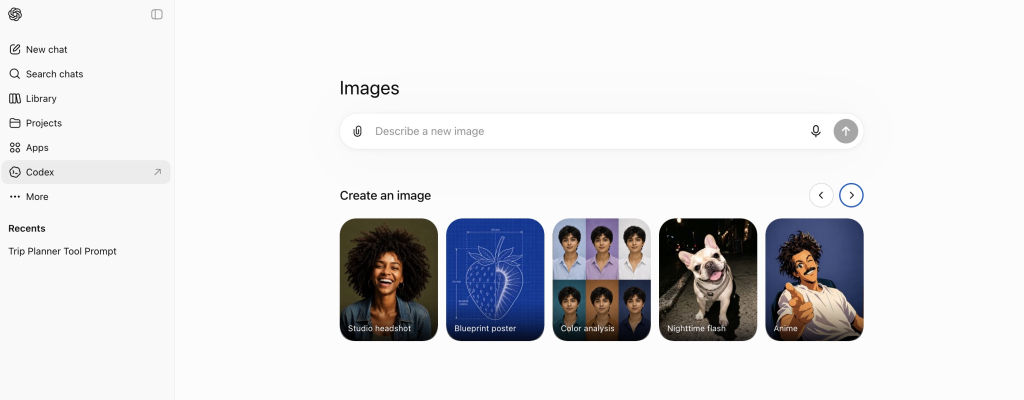
You can access it through the ChatGPT sidebar.
What Codex can do with code
Codex can generate code from a plain-language description, explain what existing code does, spot bugs and suggest fixes, and run programming tasks in an isolated cloud environment (a secure sandbox that keeps your code separate from everything else). It works across programming languages and can handle anything from writing a single function (a small, self-contained block of code) to working through complex multi-file changes.
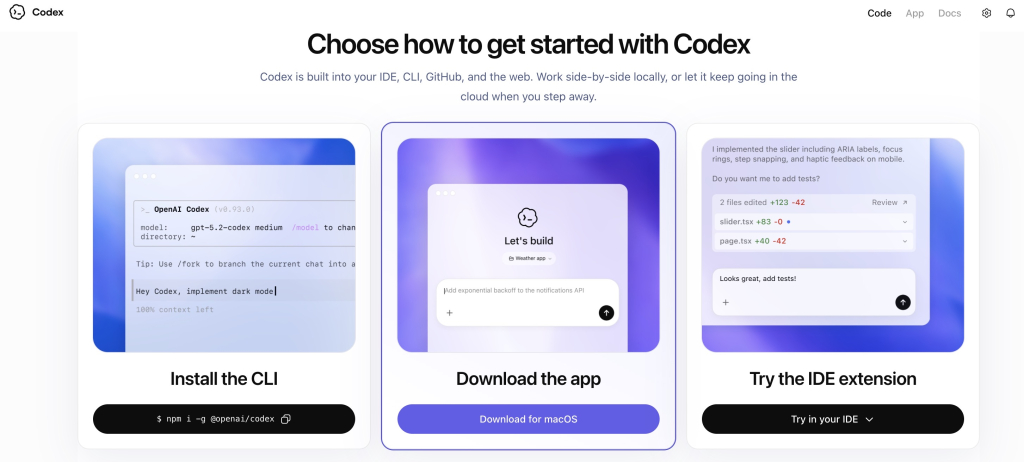
How Codex works in the cloud, app, CLI, and editor
Codex works across several surfaces:
ChatGPT sidebar: access it at chatgpt.com/codex, create tasks, and assign them to the agent
CLI (a text-based interface you run from your computer’s terminal): connects to repositories (the folders where your project’s code lives) and cloud environments
Code editors: works inside tools like VS Code so you can use Codex without leaving your editor
GitHub: integrates with pull requests (proposed code changes ready for review) and diffs (a side-by-side view of what changed between one version of a file and another)
Since launch, OpenAI has also added internet access during task execution, which means Codex can pull in external context while it works; not just the code you have already given it.
Why Codex is different from a no-code AI website builder
Codex produces or modifies code. What you do with that code is a completely separate problem: where it runs, how it gets deployed, which domain points to it, whether SSL (the security layer that gives you “https”) is configured. A no-code AI website builder handles all of that inside the same platform. Codex hands you the code and leaves the rest to you.
How does Codex work for beginners?
Codex can work for beginners, but it comes with homework. The workflow is built around coding concepts that, if you’re just starting out, you may never have had to think about before and some of them will show up before you even get started.
Codex can run coding tasks in separate project threads
With Codex, you assign tasks by creating project threads: separate workspaces where the agent tackles one job at a time, each running in its own isolated environment. You can do this through the Codex app, the CLI, or the API.
That structure makes sense if you are a developer managing multiple software tasks at once. If you are a beginner trying to launch your first website, it’s one more concept to get your head around before you can even get started.
Codex can review changes, diffs, and code outputs
Codex can review code changes and surface diffs. Useful if you are a developer reviewing a pull request. Less useful if you are a beginner who just wants a homepage and doesn’t yet know what a diff is.
Codex still expects you to understand the project context
Codex works best when you can describe your project clearly in developer terms: what the codebase does, what the goal is, what the expected output looks like. Without that context, the outputs can be technically fine but practically useless for what you were actually trying to do.
Who is OpenAI Codex actually for?
If you’re reading this as a beginner, there’s a good chance Codex wasn’t built with you in mind. Here’s who it’s actually for.
Developers working with codebases
If you have an existing project, Codex can read it, edit it, run tasks against it, and review changes in context. That’s where it genuinely shines.
Technical founders and product teams
If you can read and review code, Codex can help you move faster: prototyping features, reviewing changes, running parallel coding tasks without expanding the engineering team.
Teams that review diffs, pull requests, and coding tasks
If your team already uses GitHub to track changes and review pull requests, Codex slots naturally into that workflow.
Users who want control over implementation and shipping
If you want to decide exactly how your project is built, what stack it runs on, and how it gets deployed, Codex gives you that control. Just know that every one of those decisions is yours to make.
If none of that sounds like your situation, you’re probably in the right place looking for an alternative.
Why can Codex feel difficult for beginners?
Codex feels difficult for beginners because it assumes you already speak the language and know the workflows. It expects you to understand what a codebase is, how to review code changes, and what to do once the code is ready, before you’ve even started building anything.
It’s still a coding-agent workflow
Even through the friendliest Codex interface, the workflow involves project threads, developer-style task descriptions, and reviewing agent outputs. If you don’t yet know how to evaluate whether the code is correct, you’re trusting output you can’t read.
It can involve projects, diffs, editors, and repositories
Start digging into Codex and you’ll likely run into repositories, diffs, cloud environments, CLI access, and editor integration — not always, but sooner than you expect. None of these are beginner concepts, and none of them are optional when they come up.
It may help you create code before you know how to launch it
Codex can help create working code for a website or app. But that code still needs to run somewhere. A lot of beginners end up with code that works locally, but no idea how to get it online and figuring that out can take longer than the build itself.
It doesn’t handle hosting, SSL, domains, or updates
Even when Codex produces solid code, you still need to choose a hosting provider, configure SSL, connect a domain, and work out how to push updates when something changes. All of that sits outside Codex and adds up to a second project on top of the first one. The same production-stack problem is why many non-technical users choose to skip Claude Code for website projects too.
What should beginners look for in an OpenAI Codex alternative?
If your goal is a published website or app rather than a codebase, there are five things worth looking for in an OpenAI Codex alternative for beginners. Coderick AI is a good example of a tool that checks all of them.
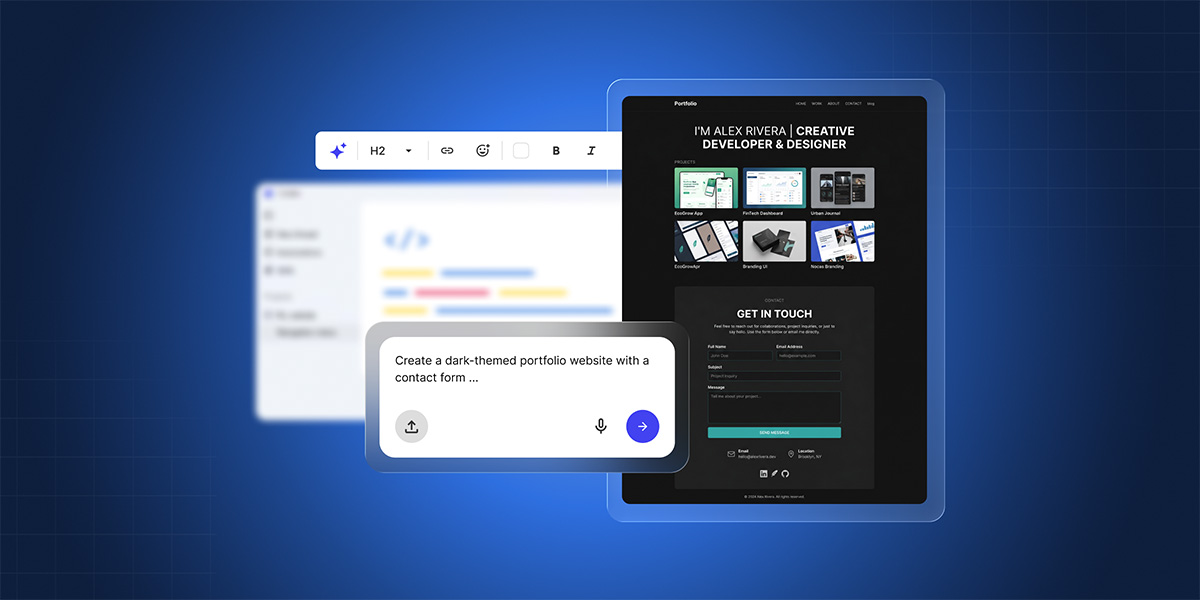
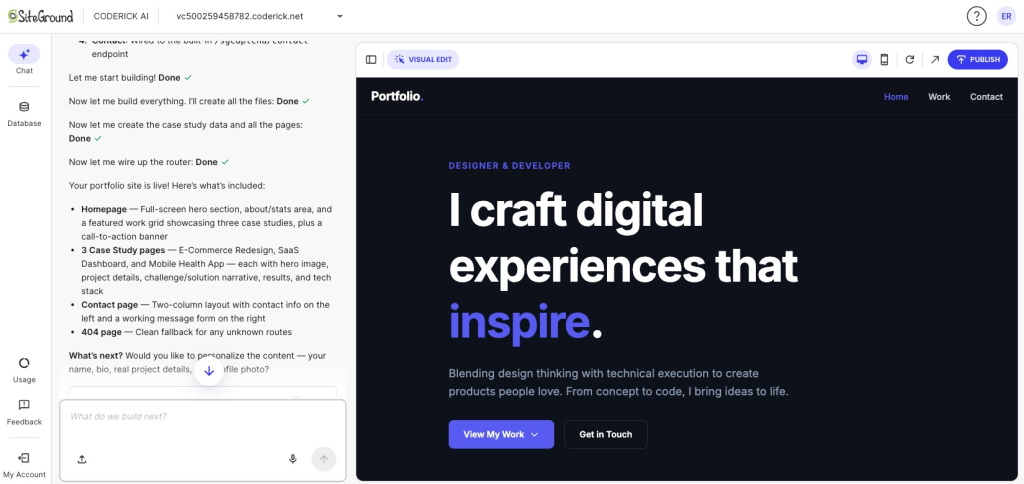
1. You describe it, it builds it No coding knowledge needed. You type what you want, like “a portfolio site with a contact form” or “a booking page for my freelance business,” and the builder works from that. With Coderick AI, that happens in a chat interface and the result is a working site, not a file you still need to figure out what to do with.
2. The code stays out of your way You never see a diff, a repository, or a file structure. Coderick AI handles all of that in the background, which means you spend your time making decisions about your website, not about how the code that powers it is organized.
3. Publishing is part of the build, not a separate project Going live should not be a whole second problem. Coderick AI builds and publishes in the same managed environment, so when you’re ready, your site deploys to SiteGround’s hosting without a separate account or configuration to figure out.
4. The production stuff is already handled SSL, custom domains, version control, user authentication, automatic deployment: it’s all included from the start. You don’t need to research providers, compare plans, or make decisions you’re not yet qualified to make.
Moving from an AI idea or prototype to a published website is where most beginners hit unexpected friction. The broader AI prototype to published website workflow explains why keeping the build, hosting, and updates in one place removes most of it.
When is OpenAI Codex still the better option?
Codex is the right tool when you’re doing actual software work, not just trying to get a website online. If any of the following sounds like you, OpenAI Codex is probably the better call.
You need to work with an existing codebase
If your project already has existing code, Codex can read it, edit it, and run tasks against it. Managed AI website builders start from scratch and can’t work with what you already have.
You want to review code changes
Codex is built for the code review loop. If tracking changes and reviewing pull requests is a regular part of your work, Codex fits right into that process.
You need custom engineering or complex integrations
If you’re building something with complex backend logic, specific API integrations, or technical requirements that go beyond a standard website, you need a tool that can work at the code level. Managed builders are not designed for that kind of depth.
You want a coding agent that can work in parallel on software tasks
Codex can handle several coding tasks in parallel across separate project threads. If you have a backlog of software work and want an agent that can chip away at multiple things at once, that is a real advantage.
If you are comparing options because the cost or technical complexity of coding agents feels like too much, it’s also worth looking at Claude Code alternatives for beginners. The same questions apply across that whole category.
Which path should beginners choose?
Your situation
Better path
Why
You want to work with codebases, projects, diffs, and editors
OpenAI Codex
Codex is built for coding-agent workflows
You already have a codebase or software project
OpenAI Codex
Codex can read, edit, and run code in a project context
You want to build a website without OpenAI Codex, without managing code
Coderick AI
It focuses on building and publishing in a managed environment
You need hosting, SSL, domains, backend support, and updates handled together
Coderick AI
It’s an AI website and web app builder with managed production included
So, which tool should you actually go with?
If you opened this article because Codex felt like too much, that feeling was probably right. The right tool is not the most powerful one. It is the one that gets you from idea to live project without making you learn a whole second skill set to get there.
Coderick AI has a 14-day free trial. Worth a try before you spend anything.
[96]
Frequently asked questions about Codex alternatives for beginners
Is OpenAI Codex good for beginners?
OpenAI Codex can work for beginners who are motivated to learn how code works. But it’s still a coding agent — the Codex app involves project threads, diffs, and handing off code to an editor to review and run it.
What’s the best OpenAI Codex alternative for beginners?
The best OpenAI Codex alternative for beginners depends on what you’re trying to do. If you want to learn coding or work with a codebase, Codex is still worth exploring. If you want to build a website without OpenAI Codex and launch a website or web app without dealing with code, hosting, SSL, or deployment, Coderick AI is a strong option.
Why does Codex feel technical?
Codex feels technical because it is. Codex is designed around coding-agent workflows — running tasks in cloud environments, reviewing code changes, working with project-based development. Those capabilities are useful for software work, but they’re a lot to navigate when all you want is a published website.
Can non-technical users use Codex?
Yes, non-technical users can try Codex especially through ChatGPT plan access. But you’ll still need to make sense of code outputs, understand the project context, figure out diffs, and sort out deployment.
Where does Coderick AI fit as a Codex alternative?
Coderick AI is the right fit when you want the finished product, not the coding environment. You describe what you want to build, and it handles the rest — including the bits that Codex leaves to you.
Is Coderick AI a replacement for Codex?
Not exactly. They’re built for different goals. Codex is for people who want to write, review, and ship code. Coderick AI is for people who want to build and publish a website or simple web app without a coding-agent workflow in the middle. Which one is right depends on whether you want code control or a managed build-and-publish path.
Can Coderick AI build a website without coding?
Yes. You describe what you want in plain language, and Coderick AI builds it. It’s made for small businesses, freelancers, creators, and founders who want to get something online without touching code or setting up complicated tools.
Does Coderick AI include hosting and SSL?
Yes. Hosting, SSL, version control, user authentication, and automatic deployment are all included as part of the build experience.
When should I choose Codex instead of Coderick AI?
Choose Codex if you want to work with a codebase, review diffs, run coding tasks, or use a coding agent to help ship software. Choose Coderick AI if you want to build and publish a website or web app without managing any of the code environment yourself.
How much does OpenAI Codex cost?
Codex is included with ChatGPT Plus, Pro, Business, Edu, and Enterprise plans. Pricing starts at $20/month for Plus and goes up to $200/month for Pro, with Business and Enterprise plans priced separately. Usage is subject to rate limits depending on your plan. Pricing and plan availability can change, so check openai.com/pricing for the latest.
How much does Coderick AI cost?
Coderick AI has three plans. Essential starts at €10/month and includes one project with a 14-day free trial. Plus is €20/month and covers up to five projects. Pro is €40/month for up to ten projects. Annual billing is available at a discounted rate. All plans include hosting, SSL, and deployment. So unlike Codex, there is no separate infrastructure cost on top. Check the latest pricing.
What should beginners avoid when choosing a Codex alternative?
Don’t pick an OpenAI Codex alternative just because it can generate code. That’s only the first step. Ask whether it also handles publishing, hosting, custom domains, SSL, backend support, content updates, and ongoing maintenance. A tool that generates code but leaves everything else to you is still Codex by another name.
If you’re wondering whether an app you built with an AI app builder will hold up once people start using it, rest assured: most AI app builder mistakes are easily avoidable. In fact, nearly all of them happen before the app is ever generated: a vague idea or goal, unclear data or prompt, too many features at once, or no plan for testing. An AI app builder can produce a fast first version, but it only becomes useful once you define the goal, review what it built, test the key workflows, and refine in small steps.
This guide walks you through the nine most common AI app builder mistakes that trip people up most, and how to avoid each one, including how advanced AI tools like Coderick AI make those good habits easier to follow.
Key takeaways:
Most AI app builder mistakes happen before you build. Unclear goals, vague prompts, missing data rules, weak testing, and overbuilding cause most of the trouble.
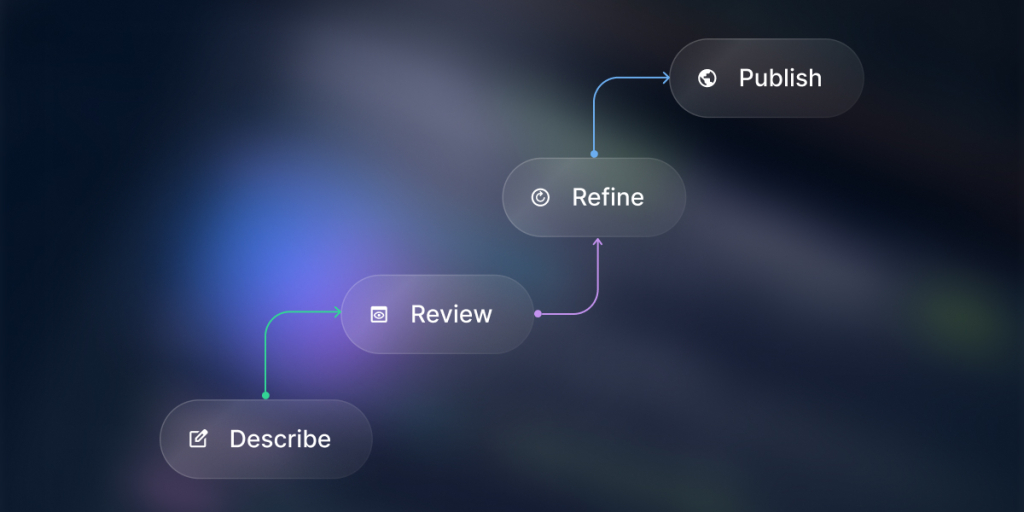
Treat the first version as a draft. The first AI-generated app is a starting point to react to, not a finished product to ship.
Solve one problem for one user first. A useful first version does one clear job for one main group of people.
Check the boring stuff before real data. Users, permissions, workflows, and edge cases decide whether the app holds up.
Strong prompts spell out five things. The app’s goal, its users, its data, the main actions, and what “working” actually means.
All-in-one AI app builders like Coderick AI get you to a working first version fast. They handle the database, hosting, and publishing, so several common mistakes are easier to steer clear of.
Why do AI app builder projects fail?
AI app builders rarely fail because the AI isn’t good enough. They fail because of what happens around the building: fuzzy goals, a first draft mistaken for a finished product, and no testing before real users show up.
The tool builds from the context you give
An AI web app builder works best when you give it a good description of your project. Give it a vague request and it guesses the rest, filling the gaps with generic assumptions that may have nothing to do with your business. The first output is mostly a reflection of the context you provided.
A demo is not the same as a usable app
The first result from a demo usually looks impressive, which is exactly the trap. Looking right and working right are two different things. A demo works when everything goes to plan, but a really usable app keeps working even when someone skips a field, enters the wrong thing, or does steps out of order.
The first version is a draft, not a finished system
Think of the first AI-built app version like the first draft of a document written by ChatGPT. It gives you something to improve, not something ready to publish. Nobody sends a first draft to a client, and the same caution applies here.
User focus changes the outcome
An app built for “everyone” ends up serving no one well. Decide who the main user is, if there’s an admin, a team member, or a customer, and the AI app builder will keep this in mind: which screen comes first, what each person sees, and what the app actually needs to do.
Mistake 1: Starting with a vague app idea
The most common AI app builder mistake is asking for an app before you can describe it. If you want a tool for tracking customers and leads, and your prompt is just “Build me a CRM”, this gives the AI almost nothing to work with. It fills in the details for you, and rarely in the way you had in mind.
What vague looks like
Vague prompts often name the type of app but none of the specifics. For example, saying “I want a booking app” doesn’t say who books, what they book, or what you need to see afterward. As mentioned, every missing detail is one the AI has to invent.
Why AI fills in the blanks
An AI app builder is designed to be helpful, so it won’t stop and say “that’s too vague.” It makes reasonable-sounding choices to keep you moving. This can seem helpful, but it can also be exactly where your app drifts away from what you needed, and you’ll waste much more time.
How to fix it
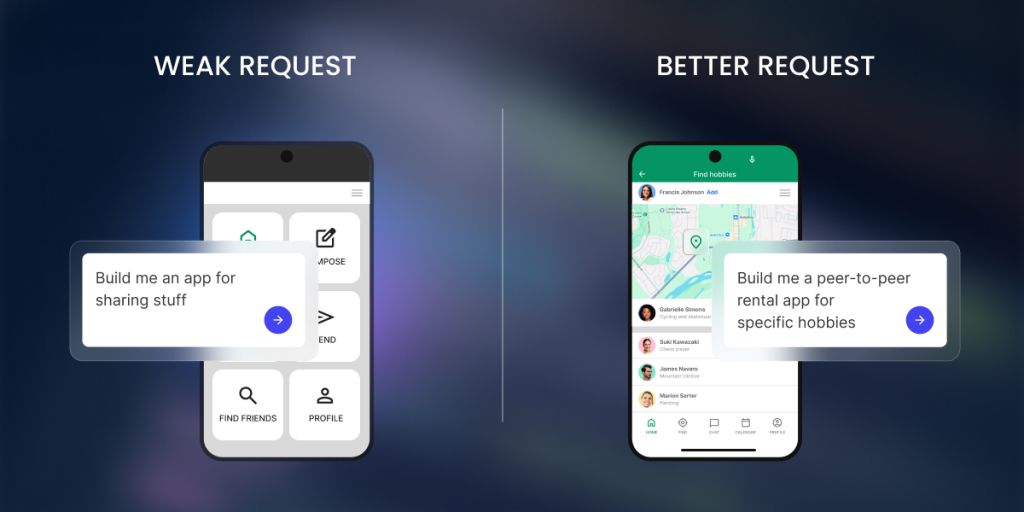
Try to pin down five things before you build: the goal, who uses it, the data it stores, the main actions, and what “working” looks like (how you’ll know the app actually did its job). You don’t need perfect wording, just enough that someone else could picture the same app you do.
Weak prompt
Better prompt
“Build me a CRM”
“Build a CRM for a 3-person agency to track leads with status, owner, next follow-up date, and notes. The main thing I need is one screen that shows whose follow-ups are due today, so nothing slips through.”
“Make a booking app”
“Build a booking app for a physiotherapy clinic where clients pick an appointment type and an open slot, and staff review the day’s schedule. The goal is for clients to book without calling us.”
Mistake 2: Building too much in version one
Your first prompt should capture the app idea as a whole: the goal, the main user, the data, and the one core action, as covered above. What it shouldn’t do is pile on every feature you want. It’s tempting to bolt on things like payments, reports, email, and a mobile version in a single go, and that’s exactly how a clean app idea turns into a tangled first version you can’t fix.
Why big first prompts create messy apps
The more you cram into one request, the more places something can go wrong, and the harder it is to tell which part broke. A huge first prompt also forces the AI to make more guesses, so more of your app ends up being its assumptions instead of your decisions.
What belongs in version one
Version one should do one job for one group of people: one main screen, the data behind it, and the single most important action. If your app is a booking tool, version one takes a booking and shows you the schedule. That’s it.
What to save for later
Everything that isn’t the core job waits: payments, fancy reports, notifications, extra user types, a polished design. Add them one at a time, after the main flow works, so each addition is easy to test and easy to undo if it causes trouble.
Mistake 3: Not defining users, roles, and permissions
Most apps are used by more than one kind of person, and they should not all see the same things. Skip defining this, and you risk the worst kind of bug: one customer seeing another customer’s information.
Admin, team, and customer roles
Three roles cover most small apps. An admin (you) can manage everything. A team member works in the app day to day but can’t change the settings. A customer only ever sees their own corner of it. Decide which roles your app needs before you build, not after.
Who can view what
Viewing is about what each role can see, and the rule of thumb is that people see only what belongs to them. A customer sees their own orders, a team member sees the day’s orders, an admin sees everything. Tell the AI this directly, because it won’t assume it for you (and if it does, it may be the wrong assumption).
Who can edit or delete
Seeing something and changing it are different powers. A team member might update an order’s status but not delete the order. A customer might edit their own contact details and nothing else. Spell out who can edit and who can delete, since “delete” is the one that really hurts when it’s wrong.
Permission checks before launch
Before anyone logs in, test the roles. Sign in as a customer in a separate browser and try to reach something you shouldn’t. If you can’t, the permissions work. If you can, you just found a problem while it was still cheap to fix.
Mistake 4: Treating the data model as an afterthought
The data model, which means the way your app’s information is organized, is the foundation under everything else. Get it wrong and your screens, searches, and reports all wobble. You don’t need to design a database, but you do need to think about a few basics first.
What information the app stores
Start by listing the things your app keeps track of: customers, orders, bookings, products. Each of these becomes a table, a list of one kind of thing, like a tab in a spreadsheet. If you can’t list them, the app doesn’t yet know what it’s about.
Which fields matter
For each thing, decide the details worth storing. For a booking, that might be the name, date, service, and status. Those details are called fields. Capture what you’ll actually use, and resist storing information “just in case,” since every extra field is one more thing to maintain.
How records connect
A record is a single entry: one customer, one order, one booking. Records should connect to each other instead of sitting in separate piles, so a customer connects to their orders and an order connects to its items. Without those links you retype the same details over and over, and they drift out of sync.
What happens when data changes
Think about updates and deletions early. If a customer changes their email, does it update everywhere? If you delete a customer, what happens to their past orders? Apps can break at the moment data changes, not when it’s first created, so tell the AI how you want changes handled.
Mistake 5: Skipping workflow rules
A workflow rule is the app doing something automatically, the “when this happens, do that” logic that turns a set of screens into a real tool. Leaving it out means you’ve built a tidy filing cabinet, not an app that works for you.
Statuses
A status shows the stage something is in, like “new,” “in progress,” or “done.” Statuses let you and your team see what needs attention at a glance, and they’re the backbone of almost every workflow. Decide the stages your main item moves through.
Notifications
Notifications tell the right person when something needs them, like an email when a booking comes in. Be specific about who gets told and when, so the app cuts down the messages you send by hand instead of adding noise.
Approvals
Some workflows need approval before they continue, such as a manager approving a request or a refund. If your process has a gatekeeper, build that approval step in rather than relying on someone to remember it.
Follow-ups
Follow-ups are the nudges that keep things from slipping through the cracks, like a reminder when an invoice is overdue or a lead has gone quiet. They’re easy to skip and surprisingly valuable to keep.
Calculations
If your app needs numbers worked out, like a total, a tax amount, or days remaining, let the app do the math. Manual calculations are where small errors creep in, so describe the formula you expect to see.
Mistake 6: Trusting the first version too quickly
The first AI-built app version looks finished, so it’s tempting to call it done. Spend 20 minutes trying to break it first. That’s far cheaper than letting a customer find the cracks for you.
Test the main user path
Walk through the single most important workflow your app does, start to finish, the way a normal user would. Book the appointment, save the order, submit the form. If the main path stumbles, nothing else matters yet.
Test bad inputs
Now misbehave on purpose. Enter letters where a number goes, leave the email blank, paste a phone number into the wrong box. Good apps catch this; weak ones save broken data or fall over.
Test each user role
Log in as each kind of user, not just as yourself, the admin. What a customer can see and do is usually very different from what you can, and the only way to know it’s right is to look through their eyes.
Test the data output
Check that what you entered actually saved and shows up where it should. Add a record, then find it again in the list, on the dashboard (the at-a-glance summary screen), and in any report. Data that looks saved but isn’t is a common and nasty surprise.
Test what happens when something is missing
Real people leave things out. See what the app does with a half-finished booking or a missing required field. It should guide the person to fix it, not fail or store a confusing half-record.
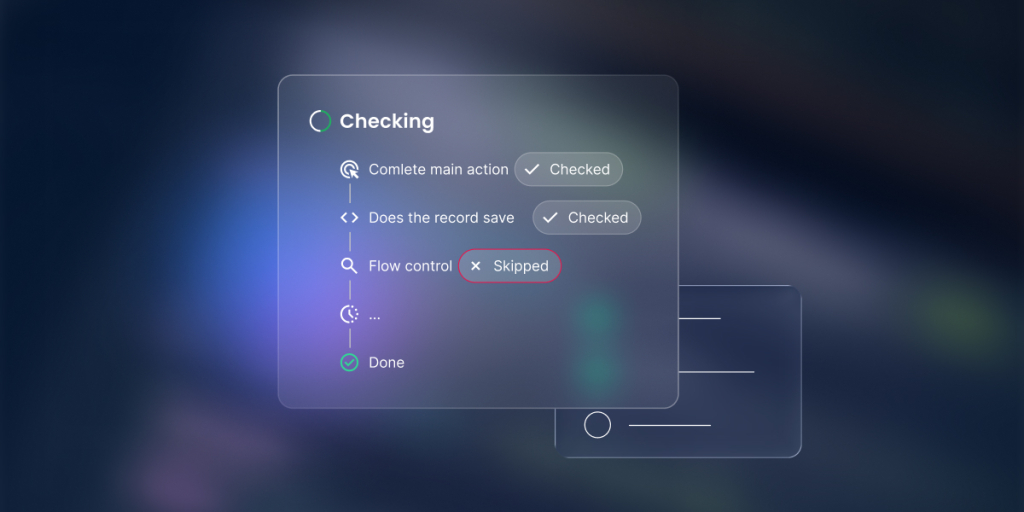
A quick five-point AI-built app testing checklist:
Can a user complete the main action?
Does the record save correctly?
Does the right person see the right data?
What happens if a required field is empty?
What happens if a user does something out of order?
Try to break it: Test like your worst user, not your best one: the person who double-clicks every button, hits “back” halfway through, types in all caps, and tries to book the same slot twice. Your calm, careful run-through will always pass. The messy user is the one who finds the bug, so be that user for 10 minutes before anyone else has to.
Mistake 7: Ignoring edge cases
Edge cases are the unusual situations that never come up in a smooth demo but absolutely come up in real life. They’re the difference between an app that works on stage and one that works at 5 p.m. on a busy Friday.
Empty fields
What happens when someone submits a form with missing information, or skips a field you assumed they’d fill? The app should ask for what’s missing, not save a blank record or break.
Duplicate records
People submit twice, and two customers can share a name. Decide how the app should handle duplicates, or you’ll end up with two half-right versions of the same thing and no idea which one is correct.
Wrong user access
Test what happens when someone tries to open a page they shouldn’t, by guessing a link or reusing an old one. They should be turned away cleanly, never shown someone else’s data.
Cancelled requests
Bookings get cancelled and orders get withdrawn. Make sure cancelling actually frees things up, like reopening the time slot, instead of leaving a ghost record that blocks everyone else.
Failed payments
If you take money, some payments will fail. The app should handle a declined card gracefully, not leave a customer charged-but-not-confirmed, or confirmed-but-not-paid.
Overdue statuses
Things slip past their due date: an invoice goes unpaid, a task runs late. The app should be able to show what’s overdue, so problems surface on their own instead of waiting for you to notice them.
Mistake 8: Refining everything at once
When an AI-built app isn’t quite right, the instinct is to fire off one giant prompt fixing 10 things. That usually makes it worse, because the AI can rewrite parts that were already fine.
Fix one issue per prompt
Refine one issue at a time and check it before moving on. It’s slower for about five minutes and faster overall, because you always know exactly what caused a change.
Keep what works
Tell the AI what to leave alone, not just what to change. “Keep the booking form exactly as it is, but add a confirmation email” protects the parts you’re happy with from being rewritten.
Use before-and-after feedback
After each change, compare it against the version before. Did the fix work? Did it break anything else? Catching a slip right away is far easier than untangling it 10 prompts later.
Stop when the core workflow works
Know when to stop. Once the main job runs from start to finish, resist polishing forever. Publish or share the useful version, then improve it with real feedback instead of guesses.
The reset move when prompting drifts: If every prompt seems to make the app worse, stop editing and reset. Open a fresh, short brief and restate the basics in a few lines: the goal, who uses it, the data it holds, the one workflow you care about most, and the single problem you want fixed. Starting clean from a clear summary often beats digging a tangled conversation back out of a hole.
Mistake 9: Publishing before the app is ready for real users
Going live feels like the finish line, but publishing to real customers before the app is ready is how a small bug becomes a public one. A few checks first will save you a lot of apologies later.
What to check before users see it
Run the main workflow one last time, confirm each role sees only what it should, and make sure forms save and confirmations send. If you can’t explain in one sentence what each user can see, you’re not ready yet.
What not to connect too early
Hold off on the risky parts until the basics are solid: real payment processing, your live customer list, and anything that sends messages to actual people. Try these with safe stand-ins first.
When to use test data
Until you trust the app, use test data: fake customers, sample bookings, a test card. It lets you try everything, including the failures, without touching a real person’s information or money.
When to ask for help
If something involves payments, legal terms, or sensitive personal data and you’re unsure, that’s the moment to get a second opinion from someone technical. Knowing the edge of your comfort zone is a skill, not a weakness.
A few basic rules for going live:
Don’t use real customer data until permissions are checked.
Don’t accept payments until the flow is tested.
Don’t invite customers until the admin path works.
Don’t launch if you can’t explain what each role can see.
A simple checklist to avoid AI app builder mistakes
Before you build with an AI app builder, run through these seven questions. If you can answer each one in a sentence, you’ve already avoided many of the most common AI app builder mistakes.
Before you build
Question
Goal
What specific problem does the app solve?
User
Who is the first user group?
Data
What records and fields does it store?
Workflow
What happens after each action?
Permissions
Who can view, edit, or delete each record?
Test
What proves the core workflow works?
Scope
What is intentionally not included in version one?
How Coderick AI helps you avoid common app-builder mistakes
Look at where most of AI app builder mistakes happen: in the data, the permissions, the workflow, and the messy business of getting an app safely in front of real people. Many AI tools happily generate screens and leave you to handle the rest, which is exactly why those traps are so easy to fall into.
Because all-in-one solutions like Coderick AI keep the building, the data, the hosting, and the publishing in one platform, those parts are handled together rather than left for you to bolt on at the end, and the good habits from this guide become the path of least resistance.
It builds the data and logic
Many builders hand you good-looking screens and leave the foundation to you, which is exactly how the data-model and workflow mistakes happen. When you describe your app to Coderick AI, it generates the database, the way records connect, and the “when this happens, do that” rules along with the screens. The structure that usually gets treated as an afterthought is there from the first version, so you’re reviewing a foundation instead of scrambling to build one later.
A working draft makes the gaps obvious
The fastest cure for a vague idea is something real to react to. Coderick AI gives you a clickable, working first draft rather than a wall of settings, so the moment you open it you can see what you forgot to mention and what you don’t actually need. It turns “I think I want a CRM” into “this is close, but customers shouldn’t see each other’s notes”, which is a far easier problem to solve.
Version restore makes testing and refinement low-risk
Two of the biggest mistakes, trusting the first version and changing everything at once, come from a fear of breaking things. Coderick AI takes that fear away. You can refine one instruction at a time, make a quick visual edit, or throw a deliberately awkward edge case at it, and if a change goes wrong, version restore rolls the whole app back to an earlier point, like an undo button for the entire project. That makes it safe to test like your worst user and to fix things one at a time.
Everything lives in one place, so you publish on your terms
Publishing before you’re ready gets worse when going live means stitching together a host, a database, and security at the last minute. With Coderick AI, all of that is already part of the platform, so there are fewer seams where things break and nothing rushes you. You can work with sample data for as long as you like, and when the core workflow actually holds up, you publish to SiteGround’s battle-tested infrastructure in a click, with a custom domain on paid plans.
[96]
FAQs
What are the biggest AI app builder mistakes?
The biggest AI app builder mistakes are starting with a vague idea, building too much at once, skipping user roles, ignoring the data model, trusting the first version too quickly, and publishing before testing. Most problems come from unclear inputs, not from the AI alone.
Why do AI app builder projects fail?
AI app builder projects often fail because the user asks for an app before defining the goal, users, data, workflow, and success checks. The builder can generate a first version, but it needs clear context and review to become useful.
How do I avoid vague prompts in an AI app builder?
Avoid vague prompts by describing the app type, user roles, main actions, data fields, business rules, and what counts as success. In Coderick AI, a request like “build a client portal for agencies with client-only project views and admin controls” gives far better context than “build me a portal.”
Should I build all features in the first version?
No. The first version should solve one problem well before you add advanced features. Start with one user group, one workflow, and the data needed to support it. Extra features can be added after the core flow works.
What should I test in an AI-built app?
Test the main workflow, required fields, saved data, user roles, permissions, and edge cases. Use test data first. Check what happens when a user submits incomplete information, tries the wrong action, or logs in with a different role.
Can Coderick AI help non-technical users avoid mistakes?
Yes. Coderick AI can help non-technical users create a first version from a plain-language description and refine it through follow-up instructions. The best results still come when the user explains the goal, users, data, and workflow clearly before building.
Is an AI-built app ready to publish immediately?
Usually not. An AI-built app may be useful quickly, but it should be reviewed before real users or real data are involved. Check the main workflow, permissions, forms, data storage, and edge cases before publishing or inviting customers.
What should I do if the app starts getting worse after several prompts?
Stop changing everything at once. Save what works, identify one issue, and use a focused follow-up prompt. If the conversation has drifted, restart with a shorter brief that includes the goal, users, data, and the exact problem you want fixed.
So you’ve probably heard the good news: you no longer need to hire a developer or wrestle with code yourself to build a web app for your small business. A no-code web app builder can help non-technical teams create browser-based business apps, with screens, data, users, workflows, and publishing support, without writing code.
The problem now becomes: which builder should you choose if you don’t want to spend hours digging into technical details? This guide walks you through what to check before you commit: the features that matter, the integration traps, the costs that can show up later, and how all-in-one solutions like Coderick AI fit the bill.
Key takeaways:
Start by deciding what kind of web app you need. Internal tool, customer portal, dashboard, CRM, booking system, or marketplace? The right builder is the one that fits your app type and launch needs.
Look past the good-looking screens. A no-code web app builder needs to handle real data, user permissions, and publishing, not just look pretty.
Treat integrations with suspicion. If you see the phrase “It connects with your tools,” this can mean true two-way sync or a one-time copy that breaks.
Watch the upgrade triggers. Pricing usually climbs as users, records, workflows, or usage grow, so find the limits before you sign up.
All-in-one app builders like Coderick AI fit the “just build it for me” case. Describe the app in plain language and get a working, hosted project back, with no manual setup.
What is a no-code web app builder?
A no-code web app builder is a tool that turns your idea into a working browser-based app, without writing any code. You describe what you need, or arrange it with a visual editor, and the tool builds the screens and the rules that tie it all together. When it’s published, your app lives at a web address, and anyone you invite can use it from their phone, tablet or laptop.
Many app builders can give you decent results, but the question you should start with is “can it build my app, for the people who’ll actually use it?”
How a web app differs from a regular website
A website mostly shows information; a web app does something with it. A page that lists your opening hours is a website. A page that takes a booking, saves it, and shows you today’s schedule is a web app. If your idea involves people entering, changing, or looking up information, you’re in web app territory.
What “no code” means in practice
“No code” means you build by simply describing what you want or through a visual interface, instead of writing in a programming language. That doesn’t mean there’s no thinking involved. You still decide what happens when a customer submits a form, a booking changes, or when stock runs low.
That same shift, from writing code to giving plain-language instructions, is what people mean by vibe coding, and it’s why a pastry chef can now build something a developer used to charge thousands for.
What non-technical teams actually build
Most non-technical teams start with one small tool that takes a recurring headache off their plate. A few you’ll recognize:
A marketing manager builds a campaign tracker or a content calendar.
An agency owner builds client portals, where each client sees only their own files.
A product manager builds a feedback board.
An operations lead builds an approval workflow.
Different jobs, but notice they’re all the same shape underneath: clear users, structured data, and a process that repeats. That pattern is exactly what no-code app builders are good at.
Where no-code stops being enough
You can build many things with the no-code web app builder, but if your app needs unusual custom logic, deep links into old industry-specific systems, heavy regulated paperwork, or has to serve enormous traffic, you’ll eventually want a developer.
But even then, no-code earns its keep: you can build a first version to prove the idea works, then bring in technical help only for the parts that genuinely need it.
What should a no-code web app builder include?
Strip away the marketing, and every no-code web app builder should come down to six basics: a way to build screens, store data, run rules, manage users, publish, and get help when you are stuck. Miss one of those and you’ll feel it fast, usually the first time your app needs to do something real. Here’s what to look for in each.
User interface builder
This is the part where you build the screens, the actual pages people will look at and click on, like a home screen, a sign-up form, or a list of bookings. A good builder lets you add a page and drop in things like text, buttons, and images, then move them around just by clicking and dragging, with no code involved. Before you commit, try changing one small thing yourself, like moving a button or editing a heading. If even that feels hard, the rest of the app-building process will feel hard too.
Data storage
Your app needs a place to keep information: for example, your customers, their orders, your bookings, and so on. Think of it as a smart spreadsheet built into the app. Each kind of information lives in its own table (one table for customers, one for orders), and each table has columns for the details you care about (name, email, date, price).
The important part is that the tables can talk to each other, so when you open a customer, you can see all of their orders in one place. If a builder barely lets you store or organize information, that is a warning sign, because everything else in your app depends on it.
App logic and workflows
Logic is what makes your app actually do things on its own, instead of just sitting there looking nice. It works like a set of simple “if this, then that” rules that you set up by picking options, not by coding. For example, when someone books an appointment, automatically send them a confirmation email. Or: when you mark an order as shipped, move it to a “Done” list. Make sure you can build the one main thing your app needs to do this way.
User roles and access
Most apps are used by different kinds of people, and not everyone should see or do the same things. A “role” is just a label that decides what a person is allowed to see and change. The common ones are:
an admin (you, who can do everything)
a team member (who works in the app day to day)
a customer (who should only ever see their own information, like their own orders)
Check that the builder lets you set this up easily, so one customer can never see another customer’s details.
Publishing and hosting basics
Building the app is only half the job. You also have to put it on the internet so people can actually open it, the way a shop needs an address, not just shelves full of stock. “Publishing” means making your app live, and “hosting” is the service that keeps it online and running (think of it as the land your app sits on).
Check whether the builder publishes the app for you and whether hosting is included, so you end up with a real web link you can share. Some tools let you design a lovely app, but stop right before this step, and this step is the hard part.
Support and documentation
When you are new to this, and something will not work, getting help quickly matters as much as any feature. “Documentation” simply means the help guides and articles that explain how to do things. Look for clear, easy-to-follow guides, plus support you can actually reach, ideally, real people by chat or email, when you get stuck. You will lean on this most in the first few days, more than you would expect.
Capability
Why it matters
Buyer check
UI builder
Creates the screens people use
Can you edit the layout yourself?
Data
Stores your records
Can you structure the fields you need?
Logic
Runs your rules
Can an action trigger an outcome?
Users
Controls who sees what
Can you set roles and access?
Hosting / publishing
Gets the app live
Can you publish without separate setup?
Support
Helps non-technical teams unblock issues
Can you reach help when stuck?
Integrations
Connects to other tools
Is data synced or just copied once?
How visual should a visual web app builder be?
Editing your app should feel like rearranging a shop window, not defusing a bomb. A good visual web app builder lets you change a layout, add a field, or move a button and see the result straight away. Too little visual control and you’re editing settings you don’t understand and hoping for the best. Too much and a five-second change gets buried four menus deep. You want the middle: direct, obvious, and forgiving of mistakes.
Screen editing
This is just changing how a page looks and how things sit on it: moving a heading up, making an image bigger, putting two things side by side. In a good visual web app builder, you do this by clicking and dragging, the same way you’d rearrange slides in a presentation. Try moving something early on. If it feels natural, you’re in good shape.
Forms and input fields
A form is any screen where people type information in, like a contact form, a booking form, or a “create new order” screen. The boxes they fill in (name, email, date) are called fields. Check that you can add fields easily, label them clearly, and mark the important ones as required so people can’t skip them. Most apps depend on at least one form working properly, so this matters more than it sounds.
Dashboards and tables
A table shows your information in rows and columns, exactly like a spreadsheet: one row per customer, with columns for their name, email, and so on. A dashboard is a screen that gathers important numbers and lists in one place, so you can see what’s going on at a glance, such as today’s bookings or this week’s orders. Look for the ability to sort and filter, so you can quickly answer questions like “show me only this week’s orders.”
Reusable components
A component is a piece you build once and then reuse in many places, like a header with your logo or a standard “card” that shows a product. Instead of rebuilding the same thing on every page, you make it once and drop it in wherever you need it. The real payoff comes later: when you want to change it, you edit it in one place, and it updates everywhere. It saves serious time once your app grows past a few screens.
Mobile responsiveness
This means the app adjusts itself to fit whatever screen it’s on, so it looks right on a phone, a tablet, and a computer without you building three separate versions. Plenty of people, you included, will open the app on a phone first. Always check the phone view before you trust how it looks on a desktop.
The 10-minute test drive: Before you trust any visual web app builder, spend ten minutes in the free trial doing four small things: add a field to a form, rename a button, open your app on your phone, and undo a change you just made. These are the moves you’ll repeat a hundred times once you’re building for real. If any of them fight you during a trial, it will be far worse on a deadline.
What data capabilities matter most?
Data is the part of a no-code web app builder that decides everything else. Get the data model wrong and your screens, workflows, permissions, and reports all inherit the problem. So look past the editor and see how the platform really stores and connects your records.
Tables and fields
A table is one type of information kept together, like all your customers or all your orders, laid out in rows like a spreadsheet. A field is a single detail you store about each one, like a name, an email, a date, or a price. Good builders let you pick the right kind of field for each detail (text, number, date, dropdown, or file upload), which keeps your information tidy and easy to use later.
Relationships between records
Different pieces of information should connect instead of living on separate islands. For example, a customer is linked to their orders, and each order is linked to the items in it. This stops you from typing the same thing over and over. Without it, you might write a customer’s name into a dozen different rows, and the day they change their email, you’ll update some and miss others.
Search, filters, and views
Once you have a lot of information, you need fast ways to find what you want. Search lets you look something up by typing. A filter narrows a long list down to what matters right now, like “only this week’s orders.” A saved view is a filter you keep so you don’t rebuild it every time, like “leads assigned to me.” Without saved views, everyone on your team redoes the same setup every single day.
Imports and exports
Importing means bringing information in, usually by uploading a spreadsheet, so you don’t have to type everything from scratch when you start. Exporting means getting your information back out, usually as a downloadable file. Check that the builder does both, because you’ll almost always want to start from data you already have, and one day you may want a copy of it elsewhere.
Data ownership basics
Data ownership is about who controls your information and whether you can take it with you. Ask any vendor this plainly before you commit: if you stop using the tool, what happens to your records, and in what format can you download them? You want a clear answer up front, not a nasty surprise six months in. Your information is yours, and the right platform treats it that way.
Worth knowing: Almost every no-code tool lets you export your data, usually as a CSV file you can open in a spreadsheet, so your records (customers, orders, bookings) are rarely truly trapped. Far fewer let you export the app itself, the screens, and logic you built, to run somewhere else. Most platforms, including most AI builders, keep the app on their own infrastructure by design. So decide which kind of portability you actually need: if it’s your records, you’re almost always fine; if it’s the whole app, ask that exact question before you build, because the honest answer is usually no.
What user and permission features should you check?
Permissions decide who can access your app and what they’re allowed to do once they’re in. For a non-technical team, this is less about security theory and more about a few plain questions you should be able to answer before you build. Here’s what to look at.
Public vs private apps
First, decide who the app is for. A public app is open to people outside your company, so it usually needs a login, like a customer portal where clients sign in to see their own orders. A private app is just for your own team, like an internal dashboard that never leaves the company. Knowing which one you’re building shapes almost every other choice, so settle it early.
Admin, team, and customer roles
As mentioned above, many small apps need three basic roles. An admin is you, the owner, who can do everything. A team member works in the app day to day but doesn’t control the settings. A customer is an outside user who only ever sees their own corner of it. Good no-code web app builders let you set these up without any technical work.
What each role can view
The golden rule is that people should only see what belongs to them. A customer should see their own bookings, not everyone else’s. A team member might see all of today’s orders, while an admin sees the whole picture. Check that the builder makes it easy to keep one person’s information out of another person’s view.
What each role can edit
Seeing something and being able to change it are two different things, and you want control over both. A new team member might be able to update an order’s status but not delete the order. A customer might update their own contact details, but nothing else. The right setup lets you hand out exactly the right amount of control, no more.
Login and account basics
If people need to sign in, the basics should just work without you babysitting them. Look for simple sign-up and login, and the ability for users to reset their own password when they forget it, which they will. You don’t need anything fancy here. You just need accounts that let the right people in and keep everyone else out.
Don’t skip this: The moment your app stores other people’s details, names, emails, bookings, and payments, you take on responsibilities that have nothing to do with the builder. The basics: collect only what you actually need, add a short privacy policy saying what you store and why, give people a way to request deletion of their data, and check where that data is physically stored if your customers are in strict regions like the EU. It’s far cheaper to set this up on day one than to retrofit it after a complaint.
What integrations do buyers often misunderstand?
Integrations might be the most oversold feature in the whole no-code category, mostly because the word means wildly different things. “Connects with your favorite tools” could be a deep two-way sync, or it could be a one-time copy that breaks the second your data changes. So before you trust a connection, find out which kind it is.
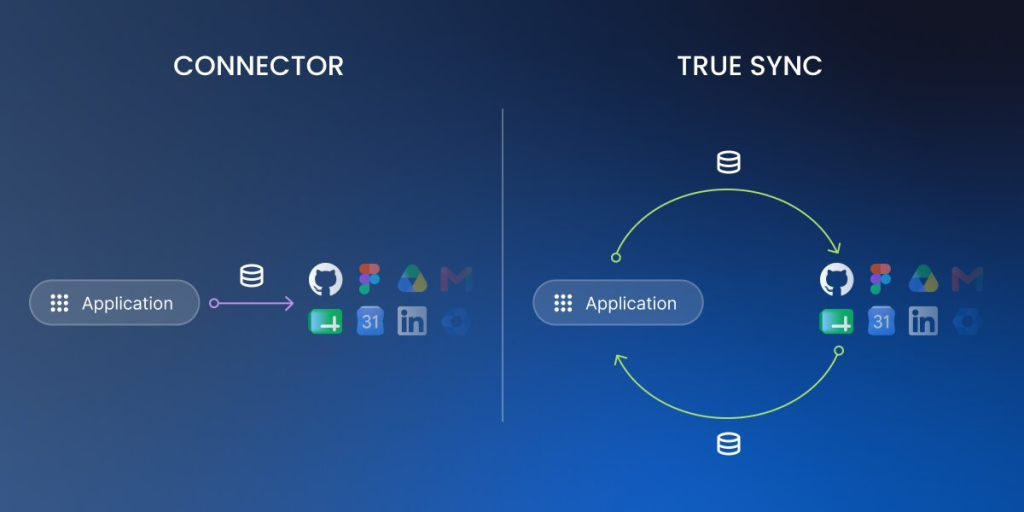
Connector vs true sync
A connector moves information once, or whenever something sets it off, like copying a new sign-up into another tool. A true sync is stronger: it keeps both tools matching all the time, so a change in one instantly shows up in the other. If your app and your other tool always need to agree, a connector on its own isn’t enough. You want a real sync.
One-way vs two-way data flow
One-way means information travels in a single direction, like new form entries dropping into a spreadsheet but never coming back. Two-way means it travels both directions, so a change in either place updates the other. Ask which one you’re getting, because a lot of “integrations” turn out to be one-way, and that can catch you out later.
API access in plain English
An API is just a doorway that lets other software talk to your app automatically. You’ll probably never touch it yourself, but if you think you might connect another tool down the road, or pay someone to do it for you, check that the platform offers one. Having an API means your app can grow and connect later instead of being a walled garden.
External databases and spreadsheets
Sometimes your information already lives somewhere else, like a Google Sheet or a separate database, and you want your app to use it. The key question is whether the app stays in step with that source or just takes a one-time snapshot that goes stale. A live connection updates as the source changes. A snapshot is frozen at the moment you imported it. Know which one you’re relying on.
What to ask before you commit
Before you trust any connection, ask the vendor four questions: what information moves, which direction it moves in, how often it updates, and what happens if the connection breaks. Clear answers are a good sign. Vague ones are a warning. When in doubt, test the connection with real information before you depend on it.
What limits show up as your app grows?
The limits that bite are rarely the ones printed on the pricing page. They show up later, once your app is doing real work and more people lean on it. Knowing the usual pressure points helps you choose a no-code web app builder you won’t outgrow in a single quarter. Six things tend to grow at the same time.
More users
As more people use your app, you add more logins and more roles to manage, and many platforms charge more once you pass a certain number of users. Before you choose, check how many people are included in your plan and what happens to the price when your team or your customer base grows.
More records
A record is a single entry, one customer, one order, one booking. They pile up fast, and some plans cap how many you can store or slow down when there are a lot. Make sure the app will still feel quick to search and load once you have thousands of records, not just the handful you start with.
More workflows
Workflows are the automatic “if this, then that” rules that do work for you in the background. The more of them you add, the more some platforms limit how many can run or how often. If automation is a big reason you’re building the app, check those limits before you depend on them.
More integrations
Every connection to an outside tool is one more thing to keep working. As you add integrations, you add places where something can break or fall out of sync. Check whether your plan limits how many connections you can set up, and remember that more of them means more to keep an eye on.
More permissions
When it’s just you, access is simple. Add staff, clients, and different roles, and you need a more careful setup so each person sees only what they should. Check that the builder can handle more detailed permissions as your team and your customer list grow, without it becoming a headache.
More monthly usage
Some tools charge based on how much your app is used each month, such as the number of times it runs or how much data it moves. That bill can climb right when your app is succeeding. If your plan is usage-based, understand exactly what counts as usage so a busy month doesn’t become an expensive surprise.
How do no-code web app builders usually price apps?
No-code web app builder pricing looks simple on the surface and trips people up underneath. The headline number rarely matches what you’ll pay once the app is live, so read the limits next to the price just as carefully as the price itself. These are the common ways these tools charge.
Free plans and trials
Most builders let you try them at no cost, either with a free plan or a time-limited trial. This is exactly how you should test whether a tool fits before paying anything. Build a small version of your real app during the free period, because that tells you far more than any feature list.
Per-user plans
Some tools charge based on how many people can use the app. That’s fine when it’s just you, but the cost can climb as you add teammates or clients. Check what’s included and what each extra person costs, so a growing team doesn’t push you onto a much pricier plan.
Usage-based pricing
Other tools charge based on how much the app is used, such as how many times it runs or how much information it handles. The catch is that the bill grows right when your app is doing well. If a plan works this way, make sure you understand what counts as usage.
Feature-gated plans
Many builders put the better features behind higher tiers. The thing you specifically need, like detailed permissions or a certain integration, might only appear on a more expensive plan. Before you choose, confirm that the feature you actually care about is included at the price you’re looking at.
Publishing and hosting costs
Sometimes getting your app online costs extra on top of building it. Check whether publishing and hosting are included or billed separately, so you don’t finish your app and then discover there’s another charge just to put it in front of people.
Support and collaboration costs
Extras like priority support or letting more than one person edit the app can sit on higher plans, too. If you’ll need real help or you’re working with a teammate, check what that costs. The smart move overall is to map your real needs to the tier one step above where you start, so an upgrade feels like a choice instead of an ambush.
What “free” usually leaves out: Free plans are great for testing, but read what they hold back. Common catches: your app stays unpublished or shows the builder’s branding, you’re capped to a small number of records, a custom domain is paid-only, and some tools delete inactive projects. None of this makes a free plan bad. It just means “free” is for trying the tool, not for running your business on long term.
How does Coderick AI fit for non-technical teams?
Here’s the part nobody warns you about: the app is usually the easy bit. You describe what you want, and for one glorious afternoon, you feel like a developer. Then the unglamorous half shows up. Where does the app actually live? Where does its information go? How do you keep it safe? And what do people type to find it? That’s hosting, a database setup, security, and domain management, and it’s exactly where most AI web app builders wave goodbye and leave you to wire everything together yourself, extra logins, extra bills, and a vanished weekend included.
Coderick AI was built to skip that entire second act. It’s a full build-and-publish platform rather than just a builder, so building, refining, hosting, and publishing all happen in one place. Every plan comes with premium hosting baked in, a database that sets itself up, the same ultrafast infrastructure that runs millions of SiteGround sites, and a custom domain on paid plans. You build the app, and it’s already home.
Describe the app instead of wiring every screen manually
You don’t lay out a single screen by hand. You tell Coderick AI what you want in everyday language, who uses the app and the main thing it should do, and it generates a working first version for you: the screens, the place to store your information, and the logic that ties them together.
Example prompt you can start with:
“Build an internal admin panel for a small online shop. It should list all orders (date, customer, items, total, status) and let me search by customer name or order number. I want to update the order status (pending → packed → shipped → delivered) from a dropdown. Two roles: admin (full access, can delete orders) and team (can view and update status, but cannot delete).”
Start with a working draft
Coderick AI hands you a real, working draft you can click around in straight away, instead of a blank canvas and a blinking cursor. That helps more than it sounds: it’s far easier to react to something real than to picture an app from nothing, and seeing it live makes it obvious what you’d like to change next.
Edit by giving clear instructions
You refine the app by typing plain-language instructions, like “add a status field to each order” or “make the dashboard the first screen,” or you use visual edits to click straight onto something and change it. And if a change doesn’t work out, version restore lets you roll back to an earlier version, so you can experiment without worrying about breaking what you’ve built.
Publish on the included hosting
When you hit publish, your app goes live on SiteGround’s infrastructure automatically, with hosting, the database, and security already in place. That means:
no separate host to find,
no database to wire up,
no SSL certificate to chase,
and no juggling three different bills.
You go from a working draft to a real, shareable web address without ever leaving the platform.
Best-fit projects for Coderick AI
You can build almost any website and web app with Coderick AI, but most non-technical teams use it for internal tools, client portals, dashboards, booking trackers, and straightforward business apps. As with any app, the ones that succeed start narrow: one group of users, one source of information, one clear task, then grow from there. If your project needs deep custom engineering, or you already know you’ll need to move it onto a completely different host later, treat the build as a fast prototype and plan from there.
15-minute no-code web app builder scorecard
Use this scorecard to compare two or three no-code web app builders quickly before you commit. Score each from 1 to 5, add up the columns, and let the totals, not the longest feature list, make the call. The tool that fits your specific app beats the one with the most checkboxes.
Criteria
Question to ask
Score (1–5)
App type fit
Can it build your specific app?
Data
Can it store the records you need?
Users
Can it manage roles and access?
Workflows
Can it handle your main process?
Integrations
Does data sync the way you need?
Cost
What triggers an upgrade?
Ownership
Can you export what matters?
Support
Can non-technical users get help?
Launch
Can you publish without extra setup?
Once you have your scores, the choice is usually obvious. The right no-code web app builder is the one that handles your app type, your data, and your launch without forcing you to learn a new skill or wait on someone else. Build the smallest version that solves a real problem, get it in front of real users, and grow from what you learn.
The truth is, you learn the most about a no-code web app builder by building something in it. Pick the one small tool you keep meaning to make, the booking tracker, the client portal, the simple internal dashboard, and give it a real go. Ready to start?
A no-code web app builder is a platform that lets you create browser-based apps without writing code. It usually gives you tools for screens, data, users, logic, and publishing, so a non-technical team can build an internal tool, portal, dashboard, or simple business app.
What is the difference between a no-code app builder and a no-code web app builder?
A no-code app builder can refer to web, mobile, or internal apps. A no-code web app builder is more specific: it creates apps that run in a browser. That distinction matters if your team wants a dashboard, portal, CRM, booking tool, or business app that people access through a URL.
Do I need technical skills to use a visual web app builder?
No, but you do need to understand the process you want to build. A visual web app builder can help you create screens and workflows without code, but you still need to define users, data, actions, and the main business rules clearly.
What features should I check before choosing a no-code web app builder?
Check data storage, user roles, workflow logic, integrations, hosting, support, pricing limits, and export options. The right tool should match the app you want to build now and still make sense when your users, records, or workflows grow.
Can I build internal tools with a no-code web app builder?
Yes. No-code web app builders are often a good fit for internal tools like CRMs, dashboards, task trackers, approval tools, and admin panels. These apps usually have clear users, structured data, and repeatable workflows, which makes them easier to build and test.
How do integrations work in no-code web apps?
Integrations connect your app to outside tools or databases. Some only send data in one direction, while others support two-way sync or API access. Before choosing a platform, ask what data moves, how often it updates, and what happens if the connection fails.
How should non-technical teams compare no-code platforms?
Non-technical teams should compare no-code platforms by app type fit, ease of editing, data structure, workflow logic, user permissions, integrations, pricing limits, support, and publishing. A simple scorecard is better than choosing the tool with the longest feature list.
Is Coderick AI a no-code web app builder?
Coderick AI can help non-technical users create web apps without writing code by describing what they want in plain language. It is different from a traditional manual no-code platform because the AI creates a working draft first, then you refine it through instructions and publish it on SiteGround hosting.
What kind of app should I build first?
Build the smallest app that solves a real problem. Good first options include a CRM dashboard, booking tracker, customer portal, inventory list, approval workflow, or internal reporting tool. Start with one user group, one data source, and one main workflow.
When is a no-code web app builder not enough?
A no-code web app builder may not be enough if your app needs advanced custom logic, complex external systems, high-scale performance, strict compliance review, or deep engineering control. In those cases, use no-code for a prototype or internal version, then bring in technical help.
OpenAI Codex is a coding agent built for software-engineering workflows: existing codebases, coding tasks, pull requests, code review, and developer-managed changes. Powerful stuff, if that’s your world. But maybe none of that is what you’re after. You just want a website, a real one, live and working. That’s where Coderick AI comes in. SiteGround’s AI website and app builder takes you from plain-language description to published site, with hosting, security, and your domain handled along the way.
Key takeaways:
OpenAI Codex is built for coding-agent workflows: writing features, fixing bugs, and reviewing code changes inside an existing software project. That’s a developer tool, not a website builder.
Most non-technical users don’t need Codex to launch a website. If you don’t have an existing codebase or a developer workflow, Codex adds complexity you’ll never use.
Coderick AI gives non-technical users a managed path from idea to live website. Describe what you want, and it handles the building, hosting, security, and publishing.
Codex is still the better choice when code control matters: source code history, automated testing, pull request reviews, and custom engineering work are where it genuinely earns its place.
When does OpenAI Codex make sense for a website?
When OpenAI Codex helps
Codex earns its keep when you already have a software project, codebase, or development workflow. It can write new features, fix bugs, and propose changes for a developer to review, all while running in a private cloud environment loaded with your existing code. Teams use it to run multiple development tasks in the background at once, with each result coming back as a tidy package ready for review. If that sentence made sense to you, Codex might be for you.
When OpenAI Codex is unnecessary
If your goal is a live website rather than a software-engineering project, Codex brings a lot of equipment you just won’t use. Before you’ve written a word of copy or picked a font, you’d be creating a code repository, installing a code editor, and wiring it all up to a GitHub account. After all that, you’d still need to separately sort out hosting, security certificates, and your domain. That’s a developer’s setup path, and if a website is what you came for, there’s a shorter, easier way, and if Codex feels too technical for the website you want to launch, OpenAI Codex alternatives for beginners can help you choose a simpler starting point.
When a managed website path is simpler
The easier way is a managed AI website builder.Tools like Coderick AI take the infrastructure layer off your plate entirely. All you have to do is describe what you want, the site gets built, and it goes live through a single platform. No code editor, no repository, no technical setup, no headaches.
What does OpenAI Codex add to the website-building workflow?
It adds a developer’s process between your idea and a live site. For actual software projects, that workflow does real work. But for someone who just needs a website, it mostly just gets in the way. Here’s how OpenAI Codex works:
It works on code projects, new or existing
Codex can start a new project from a prompt or work inside an existing codebase, reading files, analyzing structure, and making changes inside a protected test environment. Either way, the tasks it’s built for are developer tasks: restructuring code, adding test coverage, building new features, and generating technical documentation. Whether it’s working with something new or something established, the output is always code. Getting that code to a live website is still a separate step.
It can review code changes and proposed updates
One of Codex’s developer-specific capabilities is code review. OpenAI describes it as checking whether a proposed set of code changes actually matches what the developer said they were trying to do, across the entire codebase, not just the files that were edited. Genuinely useful for developers. That’s genuinely useful for developers. For someone who just wants a homepage and a contact form, it’s completely out of scope and overkill by a long stretch.
It fits the Codex app, Codex CLI, and editor-based workflows
Codex runs in four places: a command-line tool (text-based interface developers use to run commands), code editors like VS Code and Cursor, a desktop app, and a cloud service for background tasks connected to GitHub. Every entry point assumes you’re already inside a development environment and understand what these terms mean.
It still leaves you with hosting and launch decisions
OpenAI recently launched Codex Sites, a plugin that lets Codex build and deploy hosted websites without setting up a separate hosting workflow. On the surface, that sounds like it closes the gap, but the details matter. Codex Sites is currently in preview and only available for ChatGPT Business and Enterprise workspaces, so it’s not accessible to most individuals or small businesses. And even within those tiers, the documentation makes clear it’s built for internal team tools: dashboards, request trackers, and apps shared within a workspace. There’s no custom domain support, and access controls are built around workspace membership rather than the open web.
For a small business owner, freelancer, or founder who wants a public website with their own domain, the hosting problem is still theirs to solve. Codex Sites isn’t built for that use case, at least not yet.
Why would a non-technical person avoid OpenAI Codex?
Codex is built around developer concepts that don’t always map to “I want a website.” It was never designed for non-technical users in the first place. Here are the obstacles that get in the way:
They don’t want to manage a coding-agent workspace
Using Codex means setting up a developer environment, framing your goal as a coding task, and monitoring the output. By June 2026, Codex grew to more than 5 million weekly active users, though developers remain the dominant audience, and the core workflow is still built around code tasks, not website publishing. Non-technical users aren’t avoiding Codex because it’s hard to find. They’re actually avoiding it because what it gives you is a developer workflow (task queues, code environments, change reviews) when what they actually need is simpler: describe a website, and see it live.
They don’t want to review code changes before publishing
When Codex finishes a task, it produces a “diff,” meaning a report showing exactly which lines of code were added, changed, or removed. That’s just one of several technical checkpoints (alongside sandboxes, pull requests, and deployment configs) that make sense to a developer but add unnecessary complexity for someone who just wants a live website. It’s a developer workflow, and it stands between you and the live website you want to launch. Non-technical users don’t need a coding agent; they need a builder where the output is the website, not the code behind it.
They don’t want GitHub, repositories, or editor setup
Before Codex runs on anything, there’s a setup list: a GitHub account, a code repository for your project, a supported code editor or the Codex command-line tool, and enough familiarity with how code projects are structured to point Codex in the right direction. For an experienced developer, that’s already in place. For someone building their first business website, it’s weeks of learning overhead before a single page is live.
They don’t want to configure hosting, domain, or security settings separately
As noted above, Codex Sites can handle deployment for Business and Enterprise workspace users, but for everyone else, making a site accessible on the public internet is still a separate task. It means setting up web hosting, configuring your domain name to point to the right place, and getting an SSL certificate (the security layer that lets your site load over a secure connection). Codex isn’t alone in this. For non-technical users, building a website without Claude Code comes down to the same thing: you want a live site without the technical setup that coding tools leave on your plate. The same decision applies to Anthropic’s coding tool: if Claude Code feels too technical for the website you want to launch, Claude Code alternatives for non-technical users can help you choose a simpler starting point.
They want a live website, not a software-engineering workflow
OpenAI Codex is a tool for engineers building software. If your goal is simpler, however, like a website or web app that’s live and working, an AI builder like Coderick AI is the better fit.
What’s the simpler path if you don’t want Codex (or aren’t a developer)?
It starts with a different question. Not “what coding tasks do I need to set up?” but “what does this website need to do, and how do I get it live?” That’s the real split between the two kinds of tool. Ask a coding agent and it pulls the conversation toward the code. Ask an AI builder like Coderick AI and it pulls the other way, toward the site itself: what it should say, how it should look, when it goes live. That is the same logic behind a managed path from prototype to published website.
Start with the website outcome, not the code task
A business website, a booking page, a portfolio, or a simple web app are goal-level outcomes. The technology that produces them is an implementation detail you shouldn’t have to manage. When you start from what you want the website to do, the right tools are the ones that handle the technical side automatically.
Pick a managed builder that launches your site, not one that just writes code
A managed AI website builder produces a live website from a plain-language description. It handles the code generation, hosting, and publishing as part of one workflow. A coding agent produces code, and then leaves you to sort out the rest. For someone who just wants a site live, the managed path skips the layer where most of the friction is.
Keep publishing, hosting, domains, and updates in one place
Juggling multiple tools adds complexity fast. A site built in one tool, hosted on a separate platform, with your domain managed somewhere else, and your security certificate set up through yet another provider — that’s four tools doing one job, and four things that can break on a Sunday night. A managed environment brings all of it under one roof, and, if chosen right, with around-the-clock expert support should you need it.
How does Coderick AI replace the technical setup around Codex?
Coderick AI is SiteGround’s AI website and web app builder. Instead of a developer workflow, it gives you a chat interface: describe what you want, and Coderick AI builds it. It’s that easy. No code review, no technical setup, no separate hosting to configure.
Describe the website or app instead of opening a coding project
You start by describing your project in plain language (a booking page, a portfolio, an internal tool for your team) and Coderick AI generates a working result. There’s no repository to create and no task queue to manage. The starting point is what you want the site to do, not how the code behind it should be structured.
Build pages, forms, dashboards, or simple app logic through prompts
Coderick AI covers a wide range of projects: business websites, landing pages, portfolio sites, product catalogs, booking pages, client dashboards, simple CRM tools, membership areas, order management pages, task trackers, and invoice generators. The list goes on. You can also ask for animations, scrolling effects, and custom design touches, all through conversation rather than code review.
And if you’ve already got some work to bring in, Coderick AI now supports file uploads. You can drop in existing files (including HTML, CSS, JavaScript, TypeScript, and Markdown) directly into the chat and build from there. No repository, no code editor, no technical transfer process required.
Publish without managing a separate deployment workflow
When your Coderick AI project is ready, publishing is one step inside the same managed environment. There’s no process to configure, no server to set up, and no staging environment to manage. The site goes live on SiteGround’s hosting infrastructure automatically.
Connect the live project to hosting, security, and your own domain
Your Coderick AI project runs on SiteGround’s enterprise-grade hosting, with an SSL security certificate included. You can connect a custom domain name without manually adjusting settings through a separate registrar account. Hosting, security, and domain management all happen inside the same platform where you built the site.
Update the project without reviewing code changes manually
After your site is live, updates work exactly the same way the build did: you just describe the change, and Coderick AI applies it. Et voilà. There’s no code change report to review, and no technical approval step. For anyone managing their own site on an ongoing basis, that’s a significant removal of friction from what is otherwise a recurring, time-consuming, and possibly costly task.
What do you avoid by using Coderick AI instead of OpenAI Codex?
It’s not just that Coderick AI is simpler. It’s that it removes a whole category of tooling that most website owners were never supposed to need in the first place.
No coding-agent task setup
Codex needs the work framed as a developer task: “fix this bug,” “add this feature,” “rewrite this module.” Coderick AI, on the other hand, takes “I need a booking page for a photography studio with a contact form and a gallery” and builds it. That’s not just a nicer interface but rather a different starting point that determines whether you can use the tool at all.
No code change review before publishing a simple site
Every Codex task finishes with a code change report that you’re expected to review before anything updates. For developers, that’s a sensible safety check. For someone building a landing page, it’s a mandatory technical step they have to clear just to hit publish.
No GitHub account required for basic website projects
Codex Cloud connects to GitHub repositories to do its work. Coderick AI doesn’t require a repository at all for new projects. If you’ve got existing files to bring in (HTML, CSS, JavaScript, TypeScript, Markdown), you can upload them directly to the chat. No GitHub account, no branching setup, no commit history to manage, no learning a foreign technical language.
No manual process to get the site live
Codex produces code. Getting that code onto a live website requires a separate deployment process: a build tool, a hosting account, configuration settings, environment variables, and usually a fair amount of Googling. With Coderick AI, building and publishing happen in the same workflow. When you’re done, the site is live.
No separate hosting or security certificate setup
Every Coderick AI project runs on SiteGround’s infrastructure, with an SSL security certificate and CDN included. Hosting isn’t a separate decision after the site is built. It’s part of the platform from the start.
Less to manage after launch
Sites built through a Codex workflow spread across multiple tools: the code lives in one place, the hosting in another, the security certificate in a third. Each one is yours to maintain. Sites built through Coderick AI stay in one platform. For anyone managing a site without a technical team, that consolidation is a major win.
When should you still choose OpenAI Codex?
Codex is the right tool when the work is truly a software engineering task. There are real situations where its depth is exactly what’s needed.
You need full control over your source code
If your project needs to live in a code repository — with a full change history, the ability to branch and test in parallel, and rollback to any previous version — Codex fits that requirement. While Coderick AI includes version control at the project level, it’s built for website and app iterations, not for teams managing a shared codebase across multiple developers.
You already work in the Codex app, the Codex CLI, or a code editor
If your workflow already lives in VS Code, Cursor, Windsurf, or the Codex command-line tool, adding Codex as a coding agent is a natural extension of what you’re already doing. The setup cost is minimal because the environment is already in place.
You need code review, automated tests, and change tracking
Codex can write automated tests, propose changes for review, and check whether proposed updates actually match what was intended. For teams that ship software through a structured review process, those capabilities are hard to replicate with a managed website builder.
You need advanced integrations or custom-built architecture
Custom backend logic, complex connections to third-party services, multi-system architectures, and enterprise-scale engineering require hands-on code control. Codex can work across an entire codebase and make coordinated changes across dozens of files. So even though Coderick AI handles a broad range of business applications well, the serious custom engineering belongs in a software development workflow.
You want a coding agent for software work
OpenAI Codex is a software engineering agent, full stop. It runs tasks in isolated cloud environments, ships proposed changes through a review process, and connects to the tools developers already use. For developers building software rather than just websites, it’s the right tool for the job.
Is Coderick AI the right path if you want to skip OpenAI Codex?
Use this table to match your situation to the right tool.
Your situation
Better path
Why
You want a live site without touching a developer workflow
Coderick AI
The process starts from what you want the site to do, not from a coding task
You don’t want code change reports, GitHub, or repository setup
Coderick AI
The managed path removes the developer layer entirely
You need hosting, security, publishing, and updates in one place
Coderick AI
SiteGround built Coderick AI as an all-in-one hosted AI website and app builder, with infrastructure included
You already have a codebase you want to extend or modify
OpenAI Codex
Codex is built for software engineering work against existing code projects
You need automated tests, code review, and change tracking
OpenAI Codex
Codex can review proposed changes, write tests, and suggest updates across an entire codebase
Ready to build without the developer overhead?
If your goal is a live website and not a software engineering project, the path is clear.Coderick AI skips the repositories, the code review, the deployment process, and the hosting setup, and gets you to a published site instead. Meanwhile, the 14-day free trial gives you enough runway to go from first prompt to published site, no commitment required.
[96]
Frequently asked questions
When should I build a website without OpenAI Codex?
If you don’t have an existing codebase, a GitHub account, or a developer workflow already in place, building a website without Codex is almost always the right call. Codex is designed for software engineering tasks, not website publishing, so if your goal is a business website, a portfolio, a booking page, or a simple web app, you’d be taking on a lot of technical overhead for no real benefit. The simpler path is a managed builder like Coderick AI that starts from what you want the site to do and handles the rest.
Should I use OpenAI Codex for a simple business website?
Probably not. Unless you need direct control over your source code or have custom engineering work to do, Codex adds a developer workflow that a simple business website doesn’t need. A landing page, portfolio, booking page, or simple web app doesn’t require a code repository, a deployment pipeline, or a technical review process. Coderick AI gets you to the same destination without any of that setup.
Why would I avoid OpenAI Codex?
You’d avoid OpenAI Codex if you don’t want to deal with code repositories, technical task setup, code change reviews, GitHub, deployment processes, or separate hosting configuration. Codex is a powerful tool, but it’s built entirely around software development. That’s overhead most people building a business website don’t need.
What is Coderick AI?
Coderick AI is SiteGround’s AI website and web app builder. You describe what you want to build, and Coderick AI creates it, and you can refine and update through follow-up prompts. It’s built for small businesses, freelancers, creators, and founders who want to launch something real without writing code or managing developer tools.
Is Coderick AI a replacement for OpenAI Codex?
Not exactly. They’re built for different people. OpenAI Codex is for developers who want an AI agent working inside their code projects, handling tasks, proposing changes, and integrating with their existing developer setup. Coderick AI is for people who want to go from idea to live website without any of that technical layer. Different tools, different jobs.
What does Coderick AI help me avoid?
Coderick AI removes the technical setup that would otherwise sit between you and a live website: code repositories, developer task queues, code change reviews, deployment processes, separate hosting configuration, security certificate setup, and ongoing infrastructure management. The point isn’t that it replaces every developer tool. You simply don’t need any of them for a straightforward website or web app.
Can Coderick AI build a website from scratch?
Yes. Describe what you want and Coderick AI builds it. Supported projects include business websites, dashboards, simple CRM tools, booking systems, portfolio sites, invoice generators, task planners, and internal team tools — all without coding or server setup. You can also bring in existing files (HTML, CSS, JavaScript, TypeScript, Markdown) to build from something you’ve already started.
Does Coderick AI include hosting and SSL?
Yes. Coderick AI includes hosting, an SSL security certificate, version control, and publishing as part of the platform. Your site runs on SiteGround’s infrastructure with built-in caching and a free CDN. You can connect your own domain name and publish without configuring anything outside of Coderick AI.
When should I still choose OpenAI Codex?
Choose OpenAI Codex when you need direct control over your source code, want automated tests and code review, or are doing serious software engineering work on an existing project. OpenAI describes Codex as a tool for writing new features, answering questions about a codebase, fixing bugs, and proposing changes for developer review, all running in isolated cloud environments connected to your code repository.
A WordPress AI assistant for business is worth using if you regularly handle content, ecommerce tasks, maintenance, SEO updates, users, or site settings inside WordPress. Most tools handle one of those areas well. SiteGround AI Agent for WordPress is built to handle all of them and each group can use the same chat-based assistant for completely different workflows. Each group can use the same chat-based WordPress management assistant for completely different workflows.
Key takeaways:
The right WordPress AI assistant depends on the type of site you run and the WordPress admin tasks that slow you down most.
The SiteGround AI Agent for WordPress is most useful for bloggers, WooCommerce store owners, agencies, and small businesses that want help managing WordPress tasks through natural language prompts.
Bloggers benefit most from content workflow support, store owners benefit most from WooCommerce operations, and agencies benefit most from repeat site-management tasks across client sites.
Staging, backups, Power Mode, and human review are important when using an AI Agent for WordPress on unfamiliar or high-impact tasks.
Which WordPress business owners benefit most from an AI assistant?
The answer depends on how you use WordPress, but bloggers, WooCommerce store owners, agencies, and small businesses usually get the clearest value from a WordPress AI assistant.
Bloggers need help publishing and refreshing content
Bloggers spend more time on post-publishing housekeeping than most would care to admit. Categories, tags, image alt text, comment moderation, meta descriptions. None of it is hard, but it adds up fast and it all lands on the same to-do list as the actual writing, updating, and improving of posts. The AI Agent for WordPress handles that layer so the blogger can stay in the work that matters.
Store owners need help managing WooCommerce operations
WooCommerce store owners deal with products, prices, orders, inventory, coupons, reports, and customer details, often in separate admin screens. The AI Agent for WordPress can work across those areas from a single conversation, which reduces the number of clicks needed for routine store management.
Agencies need help reducing repeat admin work
Agencies that manage multiple client sites spend a lot of time on the same tasks: plugin updates, user role changes, content edits, and maintenance checks. But the AI Agent for WordPress can run those tasks through natural language prompts, which is faster than logging into each dashboard manually.
Small businesses need practical time savings, not another tool to manage
A small business owner wearing multiple hats does not have time to learn a complex new platform. What works for this group is a WordPress AI assistant that fits into their existing WordPress workflow, responds to plain-language prompts, and handles the admin tasks they find most repetitive.
Is the SiteGround AI Agent for WordPress good for bloggers?
Yes. The SiteGround AI Agent for WordPress is useful for bloggers who want help creating, organizing, optimizing, publishing, and refreshing WordPress content. It can handle posts, pages, categories, tags, images, comments, and SEO-related content tasks through natural language prompts, while the blogger stays responsible for editorial judgment and final review.
Think of a blogger who publishes weekly and has a backlog of older posts quietly collecting dust. The writing is done, but the to-do list isn’t: categories, tags, image alt text, comments, meta descriptions. None of it requires a human brain, but all of it somehow takes up half the afternoon. That’s exactly where the AI Agent earns its place.
Blog content creation and editing
The AI Agent for WordPress can draft new posts, update existing ones, and apply formatting changes without the blogger opening the block editor.
Ask it to create a post, and it generates the content, assigns categories, adds tags, prepares SEO metadata, and publishes when you’re ready: one prompt instead of a full manual workflow. It also handles targeted edits to older posts without touching the surrounding content, so Gutenberg blocks stay formatted and shortcodes keep working.
Categories, tags, media, and comment moderation
A blogger can ask the AI Agent to assign categories, update tags across multiple posts, add alt text to images, or moderate a queue of comments, all in a single conversation. For media-heavy blogs, it can update titles, alt text, captions, and descriptions across hundreds of files at once, and flag unused images bloating the library.
SEO metadata and old content refreshes
For bloggers with a large back catalog, this is one of the most practical use cases. Point the AI Agent for WordPress at a set of older posts and it works through missing or outdated meta titles, meta descriptions, and alt text systematically, no need to open each post individually.
When bloggers may still want a dedicated writing tool
SiteGround AI Agent for WordPress runs inside AI Studio and connects to your WordPress site from there. If your writing process happens mostly outside the CMS (in Google Docs, Notion, or a dedicated editor) the agent picks up where that workflow ends, not where it starts. Think of it as the part of the job that happens after the writing is done.
Is the SiteGround AI Agent for WordPress useful for WooCommerce store owners?
Yes. SiteGround AI Agent for WordPress can help WooCommerce store owners manage product updates, prices, orders, coupons, inventory, and sales reports through natural language prompts. One thing to know upfront: product management works for simple products only, such as single items with no size, color, or variation options, like a book, a bag of coffee, or a print. Products with selectable options still need the standard WooCommerce dashboard.
Running a 50-product store, for instance, means a lot of tab-switching for tasks that should take minutes. The AI Agent handles prices, coupons, orders, and sales reports from a single conversation.
Product creation and product updates
The AI Agent for WordPress can create new products, update descriptions, and apply changes across multiple listings from a single prompt. For a store owner adding a new seasonal line, that means no more opening each product individually, filling in the same fields, and hoping nothing gets missed halfway through.
Prices, inventory, coupons, and promotions
Price changes and inventory updates are the kind of tasks that feel quick until you’re doing them across 50 SKUs. The AI Agent for WordPress handles bulk price updates, stock adjustments, and coupon creation through a single conversation — so “reduce everything in the Summer Collection by 20%” is a prompt, not an afternoon.
Orders, customer details, and sales reports
Instead of jumping between order screens, customer records, and WooCommerce reports, store owners can ask the AI Agent a plain question and get a plain answer. What sold best last month? Which orders are still processing? What’s a specific customer’s shipping address? The agent pulls the data and surfaces what you need without the tab-switching.
When store owners should test changes on staging first
Product changes, price updates, and order operations directly affect revenue. Any unfamiliar or high-impact WooCommerce task is worth testing on a staging copy of the site before applying it live. This is especially true for bulk updates or operations the store owner has not run through the agent before. See the section below on safe testing.
Is SiteGround AI Agent for WordPress a good fit for agencies?
Yes. SiteGround AI Agent for WordPress can help agencies cut down on repetitive WordPress work. Teams can manage multiple client sites with an AI Agent instead of repeating plugin updates, user-role changes, content edits, and maintenance tasks inside every separate dashboard.
Maintenance tasks across client sites
Plugin updates, theme checks, and routine maintenance are the kind of tasks that are never urgent until they are. The SiteGround AI Agent for WordPress runs them through natural language prompts; no dashboard hopping, no repetitive clicking, no “I’ll do it later.”
Content updates and standardized workflows
If updating metadata, reorganizing categories, and refreshing page content sounded like a lot when we talked about bloggers… multiply that by fifteen client sites. A single conversation with the agent handles all of it, which means less time logged into block editors and more time doing work clients actually notice.
User roles, permissions, and delegation
Adding a new editor to a client site takes thirty seconds. Adding new editors to fifteen client sites, checking who still has admin access from two years ago, and cleaning up leftover user accounts from a contractor who left, that’s a different story. SiteGround AI Agent for WordPress handles user management across an entire portfolio in one conversation, which is where the time saving actually adds up.
How should bloggers, store owners, and agencies test the AI Agent for WordPress safely?
Drafting a post or refreshing metadata carries very little risk. Bulk-deleting products, updating prices across a catalog, or changing user roles across client sites is a different story. Here’s how each group should approach the agent before going all in.
Bloggers can start with draft content and small edits
Bloggers face the lowest risk of the three groups. Starting with draft posts, category assignments, or metadata updates is a low-stakes way to get comfortable with how the AI Agent for WordPress responds to different prompts before using it on published content.
Store owners should test prices, orders, and product changes carefully
WooCommerce tasks carry real risk. A pricing error or order change applied to the live store has immediate consequences. Before running any bulk update or order operation, make sure Power Mode is enabled. It’s the setting that unlocks high-impact actions inside the AI Agent, and it’s off by default for exactly this reason. Run unfamiliar operations on a staging site first, check the results, and move to the live site once the workflow behaves as expected.
Agencies should test workflows per client site
Because client sites vary in configuration, an agency workflow that works on one site may produce different results on another. Testing each repeated workflow on a staging copy of the specific client site before applying it live keeps client data and site functionality protected.
Use staging for unfamiliar or high-impact tasks
A staging site is a private copy of your WordPress site where you can test changes without affecting the live version. SiteGround’s staging tool creates one with a click. Run anything unfamiliar there first: bulk updates, price changes across a catalog, and any task that requires Power Mode. Check that everything looks right, then push it live when you’re ready.
Three rules worth keeping in mind regardless of your site type 1. Start with low-stakes tasks until you know how the agent handles your specific setup. 2. Power Mode unlocks high-impact actions like deletions and bulk updates. It’s off by default. Turn it on when you need those actions, and turn it off again when you’re done. 3. When in doubt, test on staging first. It takes a few extra minutes and saves a lot of explaining.
Which SiteGround AI Agent for WordPress features matter most for each user type?
Feature / Capability
Bloggers
Store owners
Agencies
Create and edit posts/pages
Core
Useful
Useful
Manage categories and tags
Core
Useful
Occasional
SEO titles and metadata descriptions
Core
Useful
Useful
Refresh old content
Core
Occasional
Useful
Comment moderation
Core
Occasional
Occasional
Create or update products
Not relevant
Core
Useful
Price and inventory updates
Not relevant
Core
Useful
Order tracking and reports
Not relevant
Core
Occasional
Coupons and promotions
Not relevant
Core
Occasional
Plugin, theme, and maintenance tasks
Useful
Useful
Core
User management and roles
Occasional
Occasional
Core
Multi-site workflows
Not relevant
Occasional
Core
Power Mode operations
Occasional
Important
Important
Staging-first testing
Recommended
Essential
Essential
Who might not need an AI Agent for WordPress yet?
The AI Agent for WordPress is not the right fit for every AI use case. Here’s who can probably skip it for now.
Users who only need a visitor-facing chatbot
An AI Agent for WordPress manages the WordPress site itself through admin-level operations. It is not a frontend chatbot for site visitors. If your goal is to add a live chat or FAQ widget for visitors, you need a different type of tool.
Developers who want custom AI integrations
The AI Agent for WordPress is built for site management, not custom development. Developers who need API integrations, custom agent frameworks, or tailored automation will likely find it too rigid for what they’re trying to build.
Users who do not want a WordPress management assistant
The AI Agent for WordPress operates directly on your site. It has access to your content, WooCommerce data, and site settings. If that level of access isn’t something you’re comfortable with yet, it’s not the right fit right now. That’s a completely fair call.
Is SiteGround AI Agent for WordPress worth it for your business?
The SiteGround AI Agent for WordPress is worth considering if your business spends regular time managing WordPress content, WooCommerce products, plugin and theme maintenance, SEO updates, user management, or site settings. It is less useful if you only need a frontend chatbot or a custom developer AI framework.
It’s most valuable when WordPress admin work slows you down
The clearest sign that the AI Agent for WordPress will be useful: you spend time on WordPress tasks you could describe in a plain sentence. Writing product descriptions, updating prices, refreshing metadata, running plugin updates — these are exactly the tasks the agent is built for. For a broader explanation of its supported tasks and safety features, see how the SiteGround AI Agent for WordPress handles everyday site management.
It’s less valuable when you only need one narrow AI feature
If you need only one specific AI capability like a writing assistant, a chatbot, or a custom reporting tool, a focused AI plugin or standalone tool may serve you better. The SiteGround AI Agent for WordPress is most useful when you want help across multiple parts of the WordPress admin, not just one. Compare AI plugins vs AI agents for WordPress before deciding whether a specialized feature or broader site-management support is the better fit.
The best next step depends on your site type
For bloggers: start with a draft post or an old content refresh and see how the agent handles your workflow.
For store owners: test a product update or a coupon on a staging site before going live, and follow the Power Mode safety guide before approving high-impact WooCommerce actions.
For agencies: pick one client site, run your most repetitive maintenance task through the agent, and go from there. These real-world AI Agent workflows show how common tasks move from the initial request to a reviewed result.
Ready to spend less time in WordPress admin?
SiteGround AI Agent for WordPress is available to all SiteGround customers through AI Studio, and if you’re on SiteGround’s WordPress hosting, connecting your site takes one click.
Whether you’re a blogger drowning in post-publishing housekeeping, a store owner tab-switching through WooCommerce, or an agency running the same tasks across fifteen client sites, it handles the repetitive layer so you can get to the work that actually needs you. If your to-do list is full of tasks you could describe in a plain sentence, it’s worth trying.
[97]
Frequently asked questions about the SiteGround WordPress AI Assistant for WordPress
Is the SiteGround AI Agent for WordPress good for bloggers?
Yes. The SiteGround AI Agent for WordPress is useful for bloggers who want help creating, organizing, optimizing, and refreshing WordPress content. It can handle posts, pages, categories, tags, images, comments, and SEO-related content tasks through natural language prompts.
Can WooCommerce store owners use the SiteGround AI Agent for WordPress?
Yes. WooCommerce store owners can use SiteGround AI Agent for WordPress to help manage products, prices, orders, coupons, inventory, and sales reports. Product management works for simple products like single items with no size, color, or variation options. For stores that rely heavily on variable products, the agent still helps with orders, coupons, and reports, but product management would need to happen in the standard WooCommerce dashboard.
Is the SiteGround AI Agent for WordPress useful for agencies?
Yes. The SiteGround AI Agent for WordPress can help agencies and freelancers cut down on repetitive WordPress work, including maintenance tasks, content updates, user-role changes, and site-management workflows. Agencies that manage multiple client sites should read the dedicated agency guide for deeper multi-site workflows.
What type of business benefits most from an AI Agent for WordPress?
An AI Agent for WordPress is most useful for businesses that regularly manage WordPress content, WooCommerce products, site maintenance, users, plugins, SEO updates, or settings. It is less useful for businesses that only need frontend chatbots or custom AI development.
Should I test the AI Agent for WordPress on staging first?
Yes, staging is the right approach for unfamiliar or high-impact tasks. Bloggers can start with low-risk draft content; store owners should test product, price, and order-related workflows carefully; agencies should test repeat workflows before applying them to client sites. SiteGround’s staging tool creates a development copy of your WordPress site where you can test changes before publishing them live.
Is the AI Agent for WordPress accurate with WooCommerce orders?
The AI Agent for WordPress works with WooCommerce data, including products, orders, inventory, pricing, and sales reports. For order changes, price changes, or other high-impact ecommerce tasks, review the results and use staging or backups when appropriate.
Is an AI Agent for WordPress right for a small business?
Yes, an AI Agent for WordPress can be a practical WordPress AI assistant for a small business that wants to reduce repetitive WordPress admin work. It’s especially useful when the business needs help with content updates, WooCommerce management, plugin and theme tasks, SEO updates, or user management.
Most WordPress admin work doesn’t take long because each task is hard. It takes a long time because there are just so many darn tasks. But AI Agent workflows change that. With SiteGround AI Agent for WordPress, you can move from all that scattered manual admin work to structured AI Agent workflows for publishing, service page updates, WooCommerce product management, maintenance, onboarding, SEO refreshes, and troubleshooting in a fraction of the usual time.
Key takeaways
AI Agent workflows turn repeat WordPress tasks into guided prompt sequences instead of scattered manual admin work.
The most useful WordPress AI workflows combine several types of work, such as content publishing, WooCommerce product management, maintenance, site onboarding, SEO, and troubleshooting.
A strong AI SEO workflow can refresh outdated WordPress content, improve headings, update metadata, and add internal links in one review-first process.
Power Mode, staging, backups, and human review help keep AI Agent for WordPress workflows safer when changes affect live content, WooCommerce products, settings, users, plugins, or site structure.
What are AI Agent workflows?
AI Agent workflows are multi-step task sequences completed through natural language prompts. The AI Agent for WordPress prompt examples provide the individual instructions that can be combined into each sequence. A single workflow can include drafting content, updating metadata, reviewing plugins, cleaning up comments, troubleshooting issues, and saving changes for human review, all without switching between a dozen admin screens. With the SiteGround AI Agent for WordPress, those prompts don’t just generate suggestions. They execute real changes on your live WordPress site.
Why AI Agent workflows matter more than single WordPress tasks
Single-task automation solves one problem, but a workflow completes the job.
For example, ask an AI agent to “write a blog post” and you get a draft. That’s nice. Run an AI Agent workflow, on the other hand, and you get a brainstormed topic, a structured outline, a formatted draft, suggested categories and tags, a meta description, and a saved draft ready for human review. The difference between a single AI task and an AI Agent workflow is the difference between a tool and a full-fledged WordPress process.
Why WordPress work spreads across too many admin screens
The WordPress admin is organized by feature, not by job. Plugin updates live in one place, SEO settings in another, user roles somewhere else, and performance tools somewhere else entirely. A single task that feels straightforward — say, getting a new site ready to launch — can easily touch five or six completely separate admin screens before it’s done.
AI Agent workflows collapse that navigation into one single, glorious conversation thread. The agent moves through the steps; you review and approve. Easy as that.
How SiteGround AI Agent for WordPress turns repeat work into guided prompts
SiteGround AI Agent for WordPress is a capability inside SiteGround AI Studio that connects natural language prompts to live WordPress site-management actions. It can read your site content, draft new content, check plugin status, update settings, suggest SEO improvements, and save drafts for review.
Workflows are the prompt sequences. That is, they are a structured series of instructions that move through a job from start to finish. You can run them in a single session or split them across multiple sessions. The agent keeps the context, and you keep the control. Use the complete AI Agent for WordPress tutorial for the underlying connection, interface, and task-execution process.
Let’s break down each of these possible workflows.
Workflow 1: Publish a blog post from idea to draft
The fastest path from “I should write about this” to a draft ready for review is now about 10 minutes.
Manually, publishing a blog post has meant generating the idea, building the outline, writing the draft, formatting it in the WordPress editor, assigning categories and tags, writing the meta description, and doing a final review. That’s a multi-hour process even for the most experienced of writers.
With an AI content workflow in the SiteGround AI Agent for WordPress, those steps become a prompt sequence within WordPress itself. The agent creates idea options, builds structure, drafts content, and organizes metadata. You review before anything goes live.
The AI workflow: brainstorm, structure, draft, and organize
Step
Prompt example
What the AI Agent does
1
“Suggest five blog post ideas for [topic] based on this site’s content.”
Creates topic options
2
“Turn idea #2 into an outline with H2s and H3s.”
Builds the structure
3
“Draft the post and save it as a WordPress draft.”
Creates the draft
4
“Suggest categories, tags, and a short excerpt.”
Organizes the post
5
“Write an SEO title and meta description.”
Prepares metadata.
6
“Save this for review before publishing.”
Keeps human approval in the workflow
What to review before publishing
Before you hit publish, check the draft for factual accuracy, brand voice consistency, and any claims the agent may have made with false confidence. Review the suggested categories and tags against your existing taxonomy (afterall, the agent suggests based on content, not editorial strategy). Confirm the meta description matches actual search intent, and review any generated featured image for brand visual alignment and alt text accuracy before publishing.
Estimated time: 60+ minutes manually vs. about 10 minutes with an AI-assisted workflow.
Workflow 2: Update a service page for a new offer
Updating a service page is one of the most procrastinated WordPress tasks. The manual process means rewriting copy, adjusting headings, updating CTAs, adding or removing sections, and refreshing the SEO metadata, all without breaking the page layout. It’s enough to make one go crosseyed.
An AI workflow fixes this by handling the content side, while you simply handle the final approval. This workflow is useful for consultants, agencies, freelancers, local businesses, and service providers who update their pages when offers change but rarely have a full writing session blocked in the calendar.
Since the page is already live, start by creating a draft copy. That way, none of the edits in steps 2–6 touch the published version until you’re ready to swap it in.
The AI workflow: revise the page without rebuilding it from scratch
The new step order looks like this before I apply:
Step
Prompt example
What the AI Agent does
1
“Create a duplicate of this service page as a draft for editing.”
Creates a safe copy for review without unpublishing the live page
2
“Review this service page and summarize what needs updating for our new offer.”
Finds outdated or weak sections
3
“Rewrite the hero section for [new offer] with a clearer value proposition.”
Updates core copy
4
“Improve the H2s so they match buyer questions.”
Strengthens structure
5
“Add a short FAQ section for this service.”
Adds supporting content
6
“Write a new meta title and meta description.”
Supports search visibility
7
“Save the draft for final review before swapping it with the live page.”
Keeps human approval in the workflow before the updated page goes live
What to review before setting the page live
Read the revised hero section aloud. Does it reflect your actual service, or did the agent generalize? Check the updated H2s against the questions your real prospects ask, as the agent works from the existing page content and may not know the nuance of your audience. Confirm all CTA text points to the correct destination before setting the page live.
Estimated time: 45+ minutes manually vs. about 10 minutes with an AI-assisted workflow.
Workflow 3: Update and organize a WooCommerce product catalog
WooCommerce product catalog work is slow by default. Missing descriptions, inconsistent categories, and absent images all live in separate screens. While you could use a WordPress AI assistant for pricing, its real power lies in product catalog cleanup and data hygiene. It collapses the distance between your media library and your product list, cleaning up descriptions and structure until your catalog is consistent, professional, and search-ready. One conversation replaces a hundred clicks.”
The AI workflow: clean up product data without running a promotion
Step
Prompt example
What the AI Agent does
1
“Find products with missing or weak descriptions.”
Identifies product content gaps
2
“Rewrite the descriptions for these products using a clear, consistent format.”
Improves product copy
3
“Find products without categories or with inconsistent categories.”
Flags catalog organization issues
4
“Suggest better product categories and tags.”
Improves catalog structure
5
“Check products with missing images or incomplete attributes.”
Finds incomplete product data
6
“Prepare a review list before applying changes.”
Keeps the store owner in control
What needs review before product changes go live
Descriptions: Review rewritten descriptions for accuracy before applying them. The agent drafts from existing information and may miss product-specific details.
Categories: Check suggested categories against your store’s navigation structure before applying them.
Bulk changes: Do not apply bulk changes without reviewing the list the agent prepares in step 6 of the table above.
Product types: This workflow is optimized for Simple Products. Variable products with multiple attributes such as size or color should be managed directly in the WooCommerce dashboard.
Images and attributes: The agent flags missing images and incomplete attributes but cannot update attributes directly. Those need manual resolution in the WooCommerce dashboard.
Estimated time: 90+ minutes manually vs. about 15 minutes with an AI-assisted workflow.
Workflow 4: Run a monthly WordPress maintenance routine
Monthly maintenance on a WordPress site covers plugin updates, theme updates, spam comment cleanup, performance checks, and WordPress security review. Done manually, that’s 90+ minutes across separate admin screens (plus those small lost bits of sanity). Done with a WordPress maintenance AI workflow, it’s about 10 minutes of prompts and a review-first output that tells you exactly what to check, approve, update, or leave for manual review.
The AI workflow: turn maintenance into a repeatable routine
Step
Prompt example
What the AI Agent does
1
“Check which plugins and themes need updates.”
Reviews pending updates
2
“Summarize any risks before updating.”
Adds a review layer
3
“Update low-risk plugins first and leave major updates for approval.”
Helps prioritize updates
4
“Check spam comments and suggest what should be removed.”
Supports cleanup
5
“Review performance or security issues I should investigate.”
Flags maintenance priorities
6
“Create a monthly maintenance summary.”
Produces a report-style output
Which steps need backup or Power Mode
Backup first: Take a backup before running plugin or theme updates.
Use staging: Run updates on staging first if the site has custom development or an active WooCommerce store.
Power Mode: Some update actions require Power Mode, a setting that enables the agent to apply high-impact changes that need elevated permissions. The agent will pause and prompt you to enable it before continuing — it won’t proceed automatically. The Power Mode safety guide explains the wider permission and review model.
Estimated time: 90+ minutes manually vs. about 10 minutes with an AI-assisted workflow.
Workflow 5: Onboard a new WordPress site
If you’re an agency managing multi-site operations, then setting up a new WordPress site from scratch involves a laundry list of tasks. Manually, that’s a half-day of work. With an AI site onboarding workflow in SiteGround AI Agent for WordPress, it’s about 20 minutes of prompts and a structured setup you can repeat across every new project.
The AI workflow: standardize setup without missing steps
Step
Prompt example
What the AI Agent does
1
“Set the site title to [Title], tagline to [Tagline], and timezone to [City]. Check the permalink structure and remind me if I need to update it manually.”
Updates global site settings and flags any items that require a manual step in the dashboard. Note: permalink structure changes require a one-click manual update in WordPress settings and cannot be applied automatically
2
“Create my starter pages as drafts and add a placeholder Hero block to each one.”
Generates a batch of pages with basic Gutenberg block markup so they are ready for your page builder or theme, not just blank screens
3
“Suggest user roles for owner, editor, and contributor access.”
Supports access planning
4
“Add placeholder SEO titles and descriptions for the starter pages.”
Prepares launch basics
5
“Create a pre-launch QA checklist.”
Helps review before go-live
6
“Summarize the setup for the handoff note.”
Creates a client or owner summary
When to use staging before launch
Use staging for any new site that involves custom theme development, paid plugin configurations, or client-specific settings you want to validate before the domain goes live. The agent’s starter page output and settings review can be tested on staging first, then replicated on the live site with confidence.
Onboarding is also a good time to ask the agent to install and activate your standard plugin stack — Speed Optimizer, Security Optimizer, and an SEO plugin, for example. The AI Agent for WordPress can handle installation and activation of multiple plugins in a single batch prompt.
Estimated time: Half a day manually vs. about 20 minutes with an AI-assisted workflow.
Workflow 6: Refresh old WordPress content for SEO
Old WordPress posts lose search visibility for predictable reasons: the information is outdated, the headings don’t match current search intent, internal links point to newer content that has overtaken them, and the metadata was written years ago for a different audience. This AI SEO workflow addresses all of those problems in one review-first pass.
A content refresh done well typically takes 30+ minutes per post. With the SiteGround AI Agent for WordPress, it runs in about five minutes per post.
The AI workflow: update old content with a review-first process
Step
Prompt example
What the AI Agent does
1
“Find older posts that may need a content refresh.”
Identifies refresh candidates
2
“Review this post and list outdated sections.”
Creates an update plan
3
“Rewrite the outdated sections with clearer, current information.”
Refreshes the content
4
“Improve the H2s, title tag, and meta description for search intent.”
Handles metadata and heading work inside the same SEO workflow
5
“Search my site for my three most recent posts about [Topic] and suggest where to link them in this article.”
Searches your content library for relevant posts and identifies anchor text opportunities. Links are provided as a list for your approval, not auto-inserted
6
“Apply these updates to the post while keeping it published, so we don’t lose our current search ranking.”
Updates the live post without taking it offline. Note: changing a published post to draft will unpublish it and return a 404 to visitors and search engines
What to check before republishing
Facts and statistics: Verify anything the agent surfaced in the rewrite. Outdated numbers replaced with new outdated numbers don’t fix the underlying problem.
Title tag and meta description: Check that both match current search intent, not just what the original post was targeting.
Internal links: Review suggestions for relevance. The agent picks from existing content, but editorial judgment still determines what belongs in the flow.
Images: Check whether any images in the post are still accurate. If the agent updated the text but screenshots show an older version of a product or interface, upload a fresh image or ask the agent to generate a placeholder.
Estimated time: 30+ minutes per post manually vs. about five minutes per post with an AI-assisted workflow.
Workflow 7: Troubleshoot a WordPress issue before asking for support
Most WordPress troubleshooting workflows start with “something is slow” or “something broke after an update.” Without a structured process, that turns into 45 minutes of forum searches, deactivated plugins, and support tickets that are hard to write because you don’t have a clear list of what changed.
This AI troubleshooting workflow collects symptoms, checks recent changes, and prepares a support-ready summary so if you do need to escalate, you arrive with a clear picture of the problem.
The AI workflow: collect symptoms and narrow the likely cause
Step
Prompt example
What the AI Agent does
1
“The site is loading slowly after the latest update. Help me investigate.”
Starts diagnosis
2
“List all active plugins and flag any that are resource-heavy or have available updates that might contain a fix.”
Reviews active plugins, checks for available updates, and flags any known to cause performance issues
3
“Review caching, performance, or theme issues I should check.”
Suggests troubleshooting paths
4
“Summarize safe next steps before I change anything.”
Adds a review layer
5
“Create a support summary with symptoms, recent changes, and likely causes.”
Prepares handoff information
When to stop and escalate to support
Stop the AI troubleshooting workflow and contact support directly when:
The site is down.
Customer data may be affected.
There’s evidence of a security incident.
The agent’s suggested steps involve database changes or file edits you’re not comfortable making.
The workflow is for investigation, not remediation of serious issues.
Estimated time: 45+ minutes manually vs. about 10 minutes with an AI-assisted workflow.
How much time can AI Agent workflows save on WordPress tasks?
The table below shows practical time estimates across all seven workflows. These are examples based on typical task scope; actual time savings will vary by site complexity, content volume, and how much review each output requires.
Workflow
Manual time
AI Agent workflow time
Estimated time saved
Publish a blog post
60+ minutes
~10 minutes
~50 minutes
Update a service page
45+ minutes
~10 minutes
~35 minutes
Update WooCommerce product catalog
90+ minutes
~15 minutes
~75 minutes
Monthly WordPress maintenance
90+ minutes
~10 minutes
~80 minutes
Onboard a WordPress site
Half day
~20 minutes
~3.5 hours
Refresh old content for SEO
30+ minutes per post
~5 minutes per post
~25 minutes per post
Troubleshoot a WordPress issue
45+ minutes
~10 minutes
~35 minutes
Which AI Agent workflow steps need review, staging, or Power Mode?
Not every AI workflow step carries the same risk. The review, staging, and Power Mode guidance below applies to all seven workflows.
Use review steps before publishing or applying SEO changes
Every workflow in this article includes at least one “save for review” step before changes go live. That’s intentional. AI-generated content is a strong first draft, not a final publication.
Text: Review for factual accuracy, brand voice, and audience fit.
SEO metadata: Check for search intent match.
Internal links: Review suggestions for editorial relevance.
Use staging for unfamiliar workflows
Run unfamiliar WordPress AI workflows on a staging copy of your site before applying them to a live environment. This applies particularly to:
Site onboarding workflows on a new build.
Maintenance workflows that include plugin or theme updates on a site with custom development.
Any workflow that touches WooCommerce settings or product data at scale.
Use Power Mode for high-impact actions
Some actions inside SiteGround AI Agent for WordPress require Power Mode before the agent proceeds. Power Mode is required for high-impact actions such as deletions, bulk content changes, creating or updating users, modifying core WordPress settings, and managing WooCommerce orders. The agent will pause and prompt you to enable it when an action requires it — it won’t proceed automatically.
Start running AI Agent workflows on your WordPress site
Most WordPress sites are one good workflow away from getting hours back every month. Run them once and save an hour. Run them every month and change how your site gets managed.
Start with the blog post or maintenance workflow. Both are low stakes, high frequency, and will show you exactly how the prompt-and-review pattern works in practice. From there, the other five workflows are ready when you are. All of them run conveniently via the SiteGround AI Agent for WordPress, available through SiteGround AI Studio. For a broader explanation of its capabilities, supported tasks, and safety controls, read the SiteGround AI Agent for WordPress overview.
AI Agent workflows for WordPress are multi-step task sequences completed through natural language prompts. A workflow can include drafting content, updating SEO metadata, checking plugins, reviewing settings, cleaning up comments, troubleshooting issues, and saving changes for review — all within a single conversation thread.
Can SiteGround AI Agent for WordPress handle multi-step workflows?
Yes. The SiteGround AI Agent for WordPress supports multi-step workflows by working with WordPress content, plugins, themes, users, settings, WooCommerce tasks, maintenance, troubleshooting, and SEO-related tasks via chat prompts inside SiteGround AI Studio.
What WordPress tasks can be done faster with an AI Agent?
An AI Agent for WordPress can help speed up tasks such as drafting posts, updating service pages, refreshing old content, writing meta descriptions, suggesting internal links, checking plugin updates, cleaning up spam comments, onboarding a new site, and collecting information before a troubleshooting call.
Can I use an AI Agent for WordPress to publish blog posts?
Yes. The SiteGround AI Agent for WordPress can help brainstorm topics, create outlines, draft posts, suggest categories and tags, write meta descriptions, recommend internal links, and save posts as drafts for review before publishing.
Can an AI Agent for WordPress update service pages?
Yes. An AI Agent for WordPress can review a service page, rewrite outdated sections, improve headings, add FAQ content, prepare SEO metadata, and save changes for review before they go live. Manual review before publishing is still recommended.
Can an AI Agent for WordPress help with SEO workflows?
Yes. The SiteGround AI Agent for WordPress supports AI SEO workflows including improving title tags, writing meta descriptions, refreshing old content, updating headings, and suggesting internal links. SEO changes should still be reviewed by a human before republishing.
Can an AI Agent for WordPress help with maintenance?
Yes. The SiteGround AI Agent for WordPress can help with WordPress maintenance AI workflows such as plugin and theme update reviews, performance checks, security flagging, spam cleanup, troubleshooting, and maintenance summaries. Some actions require Power Mode depending on their impact.
Do AI Agent workflows require Power Mode?
Some AI Agent workflows require Power Mode for actions that delete content, make bulk changes, create or update users, modify core WordPress settings, or manage WooCommerce orders. The agent pauses and asks you to enable it before continuing.
Should I test WordPress AI workflows on staging first?
Yes. Staging is recommended for unfamiliar WordPress AI workflows, site setup, plugin or theme updates, bulk content changes, WooCommerce product changes, settings changes, or any troubleshooting steps that could affect a live site.
How much time can AI Agent workflows save on WordPress tasks?
Time savings vary by site and workflow. Practical examples include reducing a blog post workflow from 60+ minutes to about 10 minutes, a maintenance routine from 90+ minutes to about 10 minutes, and a content refresh from 30+ minutes to about five minutes per post.
Claude Code can help build software, but it still expects you to understand how software gets written.
Claude Code is built for people who are already comfortable with terminals, codebases, Git, and deployment workflows — in short, developers. If any of those terms are unfamiliar, it’s probably not the right starting point. Beginners who just want a live website or simple web app will get a more direct path with a managed AI website and web app builder like Coderick AI.
Key takeaways:
Claude Code is a code-first tool built for developer workflows. It works inside existing code projects and expects you to already know your way around a terminal, Git, and developer workflows.
Coderick AI lets beginners describe what they want in plain language and get a live website or app: hosting, security, and publishing included.
Getting started with Claude Code requires a paid subscription, a terminal, and an existing code project; all before the AI does anything. That’s a developer setup checklist, not a website launch plan.
The beginner barrier isn’t the AI itself. It’s the four or five tools that have to be in place before the AI can do anything useful.
If the goal is getting a website or web app live rather than learning a coding workflow, the more direct path is to build a website without Claude Code.
What is Claude Code?
Claude Code is Anthropic’s agentic coding tool: an agent that plans work, reads a full codebase, edits files across multiple directories, runs tests, and can create pull requests. It launched as a generally available product in May 2025.
What Claude Code can do inside a codebase
Claude Code operates at the project level. It can read files across an entire codebase, make coordinated edits in multiple locations, run shell commands (instructions typed directly into your computer’s terminal), handle Git workflows (tracking and saving changes to code), and work through multi-step engineering tasks. It understands context that spans dozens or hundreds of files at once, which is what makes it useful for developers managing complex projects.
Where Claude Code runs: terminal, code editor, desktop app, and browser
Claude Code works in terminals, code editors, desktop apps, and developer platforms like GitHub. The terminal version has the most features and gets updates first. The underlying engine is the same across all of them, so settings you configure in one carry over to the others.
If none of those are part of your day-to-day workflow, that’s a good sign Claude Code isn’t the right starting point — and this article will help you find one that is.
If terms like terminal, CLI, or CI/CD are new, the vibe coding glossary covers the vocabulary beginners run into most.
Why Claude Code is different from a no-code AI builder
A no-code AI builder asks what the user wants to create. Claude Code asks what the developer wants to do inside a code project that already exists. The distinction matters: Claude Code doesn’t generate a finished website from a description. It helps technical users work faster inside a codebase they’re already managing or are prepared to manage.
How does Claude Code work for beginners?
Claude Code works for beginners who are willing to learn a development environment first. That means a terminal, a code project, and a connected account, none of which the tool creates for you.
A Claude subscription (Pro, Max, Team, or Enterprise), Claude Console account, or access through a supported cloud provider.
That’s before a single prompt is typed.
Why a terminal or command prompt can be a barrier
The terminal is a text-only screen on your computer where you type instructions instead of clicking buttons. There’s no visual interface, no drag-and-drop, and no menus. For users who’ve never opened one, figuring out how to find it, open it, and type the right commands is the first obstacle — and it comes up before any building begins.
Why having a code project matters
Claude Code is designed to work with an existing project. You open your terminal, go to the folder where your project lives, and run the tool from there. For beginners who don’t have a project folder, repository, or a codebase yet, Claude Code may feel like the wrong starting point.
Who is Claude Code actually for?
Claude Code is built for users who want to work inside a development environment.
Developers working with existing codebases
Claude Code’s primary use case is helping developers move faster inside projects they already own. It can read a large codebase, understand how the pieces connect, and make changes across multiple files simultaneously. That’s not useful until the codebase exists.
Technical founders and product teams
Technical founders who write code and product teams with engineering resources can use Claude Code to move faster on features, debug issues, and automate repetitive development tasks. The time savings are real, but they only show up for users who understand the technical context already; they know enough to check the AI’s work and point it in the right direction.
Teams that use GitHub, pull requests, or CI/CD
Claude Code integrates with GitHub Actions, supports pull request workflows, and can run inside CI/CD pipelines. For teams that already use these tools daily, Claude Code fits into the workflow they have. For beginners, those are new concepts to learn on top of the tool itself.
Users who want control over code and deployment
Some users specifically want to own their source code, manage their deployment pipeline, and have access to every file the project creates. Claude Code is built for that use case. It’s a code-control path, not a managed website or app publishing environment. If that level of control is the goal — and the technical fluency to exercise it is already there — Claude Code is well suited to the work.
Why can Claude Code feel difficult for beginners?
Claude Code might feel technical if you’re a beginner because it works inside development workflows. Each of its strengths assumes a layer of technical knowledge the user has already built.
It still uses developer tools and project files
Claude Code’s terminal CLI is its most capable interface. Working with it means being comfortable in a command-line environment, which requires knowing how to navigate directories, install packages, and run commands. Users who have never done those things won’t get far before hitting something unfamiliar.
It can require Git, repositories, and approvals
Git is a version control system that tracks changes in a codebase. Claude Code works with Git naturally: it can make commits, create branches, and generate pull requests. For a developer, those are routine tasks. For a beginner, Git is a separate system to learn, with its own terminology, setup steps, and ways to go wrong.
It does not remove hosting, DNS, SSL, or deployment decisions
Generating code and launching a website are two different things. Claude Code helps produce or modify code. Getting that code onto the internet still requires a hosting account, a deployment pipeline, DNS configuration (connecting your domain name to the server where your site lives), and SSL setup (the security certificate that makes your site load as https rather than http). None of that is simplified by the coding agent. A beginner who uses Claude Code to build something still has to solve the publishing problem afterward.
It may create a working project before the user knows how to launch it
This is a common experience for non-technical users who try Claude Code: they get working code faster than they expected, then find themselves stuck because they don’t know what to do with it. The code exists; the infrastructure to run it publicly still has to be chosen, configured, and maintained.
Cost is another reason beginners look beyond coding agents. Claude Code pricing and deployment costs after the project is built often come as a surprise, since hosting, domain registration, and any external services are separate expenses on top of the subscription.
What should beginners look for in a Claude Code alternative?
If you want to build a site without Claude Code, the right alternative depends on the goal. For most beginners, the goal isn’t “generate code” — it’s “get your website live.” That changes what the tool needs to do.
A plain-language building experience
A useful beginner-friendly Claude Code alternative lets users describe what they want in plain language without needing to translate it into technical instructions. “I want a booking form on the homepage” should be enough. The tool should handle the interpretation, not the user.
No terminal or local setup requirement
Any tool that requires installing software, running commands, or configuring a local development environment before the first page renders is adding friction the beginner doesn’t need. The building experience should start in the browser, not in a local terminal setup.
Built-in publishing and hosting
Building and publishing are usually treated as separate steps, but for most beginners they should be part of the same experience. An alternative that generates a project but leaves the user to figure out where to put it hasn’t solved the actual problem.
Custom domain, SSL, backend, and database support
A beginner-friendly tool should handle the infrastructure decisions that would otherwise require research, separate service accounts, and manual configuration. Custom domains, SSL certificates, form backends, and basic database functionality should be part of the managed environment, not add-ons.
Easy updates after the site or app goes live
Launching is only the beginning. A tool that makes it easy to build something but hard to change it later is a problem waiting to happen. Making changes after launch should be as easy as building in the first place and ideally through the same interface.
Why is Coderick AI a better fit for many non-technical users?
Coderick AI is a better fit for many beginners when the goal is not to manage a codebase, but to get a working website or web app live. Instead of starting with a terminal, repository, deployment pipeline, hosting account, DNS records, and database setup, users describe what they want and build it inside a managed AI website/app environment.
It starts with describing the website or app you want
Coderick AI is a web-based AI website and app builder that runs inside a SiteGround account. There’s no installation and no terminal. Users open it in a browser, describe the site or app they want to build, and Coderick AI generates the project from there. It’s designed for users with zero coding or design experience.
It creates structure, layout, pages, forms, and basic logic
Coderick AI doesn’t just produce code. It generates a working project: navigation structure, page layouts, form functionality, and basic application logic (things like a contact form that sends you an email, a booking system, or a price calculator). For more advanced starting points, it also accepts file uploads including .html, .css, .js, .jsx, .ts, .tsx, .scss, and .md files, so users who prototyped something in Claude Design or another tool can hand those files over and continue building from there. That’s the shorter path described in how to turn a Claude Design project into a real website. If the starting point is a prototype rather than a codebase, the broader AI prototype to published website workflow explains how to move from design output to live site.
It runs projects on managed hosting instead of a manual deployment pipeline
When a Coderick AI project is published, it goes live on SiteGround’s hosting immediately. SSL installs automatically once a custom domain points to SiteGround’s nameservers. There’s no separate hosting account to set up, no deployment pipeline to configure, and no server to manage. The infrastructure is part of the product, not an afterthought.
It lets users edit and expand the project through chat
After launch, the project is still editable through the same chat interface. Users can request layout changes, add new pages or forms, adjust content, and extend functionality without leaving the builder or touching any code. For small businesses and solopreneurs who need to manage a site on their own over time, that’s the part that matters most.
When is Claude Code still the better option?
There are cases where Claude Code is clearly the right tool. These are not edge cases — they’re the situations Claude Code was built for.
You need source-code control
If you need to own every file and track every change made to the project, Claude Code is the right path. It works directly with Git, keeps a full history of changes, and gives you visibility into what was modified and when.
You already have a codebase or development team
Claude Code can read and work across an entire existing codebase. If a project already has thousands of lines of code, an established directory structure, and a team of engineers collaborating on it, Claude Code fits into that workflow in a way a managed builder doesn’t.
You need custom integrations or complex engineering
Some projects need to connect to multiple external services, require users to log in with their own accounts, or run complex logic behind the scenes that a managed builder can’t handle. Claude Code gives technical users the control to direct that work precisely.
You want GitHub, pull requests, tests, and manual deployment
For teams that run their delivery process through GitHub, manage code reviews through pull requests, and deploy on their own schedule, Claude Code integrates directly with those tools. The full developer workflow remains available.
This isn’t unique to Claude Code. The same pattern shows up across coding agents and it’s why some users end up looking for OpenAI Codex alternatives for beginners for exactly the same reasons.
Which path should beginners choose?
The right tool depends on the goal, specifically, whether the goal is to work with code or to get something live.
User situation
Better path
Why
You want to learn coding and work with files, commands, and Git
Claude Code
It gives developer control and works directly with codebases
You already have a project or repo
Claude Code
It can read, edit, run commands, and help across multiple files
You want a live website or a simple web app without technical setup
Coderick AI
It lets you describe the outcome and build in a managed environment
You need hosting, SSL, custom domains, backend, and updates handled together
Coderick AI
Those are part of the managed website/app-building path
Ready to build without the developer setup?
If the real goal is not learning a coding-agent workflow but launching a site, the more direct path skips the terminal entirely. Coderick AI is a managed AI website builder for non-technical users that handles the build, the hosting, the domain connection, and the ongoing edits inside one managed environment. Describe what you want, publish when it’s ready, and update it through chat when it needs to change.
[96]
Frequently asked questions about Claude Code alternatives
Is Claude Code good for beginners?
Claude Code can work for motivated beginners, but it’s still a developer-oriented tool. Anthropic’s quickstart expects users to have a terminal or command prompt, a code project, and account access before starting. Beginners who don’t want to manage technical setup may prefer an AI website or app builder.
What is the best Claude Code alternative for beginners?
The best alternative depends on the goal. If the goal is to build and launch a website or simple web app without terminals, GitHub, hosting, DNS, SSL, or database setup, Coderick AI is a strong beginner-friendly option.
Why does Claude Code feel technical?
Claude Code feels technical because it works inside development workflows. It can read codebases, edit files, run commands, work with Git, and integrate with development tools. Those capabilities are powerful, but they can be unfamiliar to users who mainly want a finished website or app.
Can non-technical users use Claude Code?
Non-technical users can use Claude Code, especially through web or desktop interfaces, but they still need to understand what files and folders their project uses, how the code is organized, and what needs to happen after changes are made. For users who don’t want to manage a codebase or deployment, a managed AI builder may be easier.
Where does Coderick AI fit as a Claude Code alternative?
Coderick AI fits when the user wants the outcome of building with AI without managing the developer workflow. Instead of starting with files, commands, repositories, hosting, DNS, and deployment, users describe the website or app they want and build inside a managed environment.
Is Coderick AI a replacement for Claude Code?
Not exactly. Claude Code and Coderick AI solve different problems. Claude Code helps users work with codebases and development tasks. Coderick AI helps users create websites and web apps from descriptions, then edit, publish, and manage them in a hosted environment.
Can Coderick AI build a website without coding?
Yes. Coderick AI is designed for users with zero coding or design experience. Users describe what they want, and Coderick AI builds a working project that can be edited through chat and runs automatically on SiteGround hosting.
Does Coderick AI include hosting?
Yes. Every paid Coderick AI plan includes SiteGround hosting, and projects can be published without configuring servers or deploying manually.
When should I choose Claude Code instead of Coderick AI?
Choose Claude Code if you want source-code control, Git workflows, pull requests, custom integrations, tests, and manual deployment. Choose Coderick AI if you want to describe a website or web app and build it inside a managed environment where hosting, publishing, responsive design, backend support, and updates are handled together.
What should beginners avoid when choosing a Claude Code alternative?
Beginners should avoid choosing a tool only because it generates code. They should ask whether the tool also helps them publish, host, connect a domain, secure the site, update content, manage forms, and maintain the project after launch.
Managing 20 client WordPress sites the same way you managed five doesn’t scale. It breaks. The SiteGround AI Agent for WordPress gives agencies a way to run repeatable tasks across multiple client sites through natural language prompts, without logging into each one separately. Available inside SiteGround AI Studio, it covers updates, content changes, user management, and WooCommerce tasks across a connected client portfolio.
Key takeaways
Agencies can manage more client sites without adding headcount by turning repeatable WordPress admin tasks into prompt-based workflows through SiteGround AI Agent for WordPress.
SiteGround AI Agent for WordPress connects to WordPress installations and executes real changes, including plugin updates, content edits, user-role assignments, SEO metadata updates, and WooCommerce product adjustments.
Traditional multi-site WordPress dashboards centralize visibility and reporting. SiteGround AI Agent for WordPress adds a conversational execution layer on top of that visibility.
The AI Agent works best as a supervised operations assistant. Agency teams stay responsible for QA, client strategy, custom development, and risk review.
The multi-site operations problem agencies hit first
More clients usually means more logins, updates, and repeat admin work
The operations math is straightforward: every new client site adds another WordPress dashboard, another update cycle, another set of credentials, and another round of the same tasks you ran last month. Agencies on care plans can easily spend 30–40% of their maintenance hours on tasks that follow the exact same pattern every single time.
WordPress performance depends on consistent maintenance. The problem is that consistent maintenance, at scale, is expensive when done manually.
Repetitive WordPress tasks become unbillable agency overhead
Care plan clients pay for outcomes: a maintained, secure, well-performing WordPress site. They don’t pay line-by-line for every last plugin update or every taxonomy cleanup. That means the time your team spends logging into individual sites, running updates, checking results, and logging back out again is either absorbed into a flat-rate care fee or quietly written off.
At a small portfolio, that’s fine, but at a growing one, it’s very much a margin problem. A senior developer spending two hours per week across 20 sites on routine updates is a senior developer not doing development.
Scaling revenue and scaling workload don’t have to move together
Agencies scale revenue by adding clients. They also scale workload when every new client adds a proportional volume of manual work. The two move together until something breaks the link.
The break point is usually an operations layer that handles repetitive execution so the team can focus on the work that actually needs their judgment. And that’s where the SiteGround AI Agent for WordPress comes in: it’s designed to sit at that layer, handling the execution while agency teams stay on strategy, QA, client communication, and development.
What is a WordPress AI agent for multi-site operations?
How SiteGround’s AI Agent for WordPress differs from a chatbot
A chatbot answers questions. The SiteGround AI Agent for WordPress executes tasks.
The distinction matters for agencies. When you ask the AI Agent to update all plugins across three connected client sites, it doesn’t explain how to do it. It actually does it. When you ask it to update the support email address in footer content across a set of sites, it makes the change.
That’s possible because SiteGround built a direct connection between AI Studio and your WordPress installations. Once the AI Agent by SiteGround plugin is installed on a client site, that site becomes available inside AI Studio and the agent can act on it directly. That’s what separates it from AI writing tools or dashboards that surface information without executing anything. For a broader explanation of the connection, supported tasks, and safety controls, see how the SiteGround AI Agent connects to and manages WordPress sites.
What multi-site operations means for an agency
Multi-site operations, in an agency context, means running the same class of tasks across a portfolio of independent WordPress installations. These are individual client sites that share a common maintenance pattern, and not a WordPress Multisite network.
Examples of multi-site operations tasks agencies run repeatedly:
Plugin, theme, and WordPress core updates across all care-plan sites
Footer and legal content updates when a client changes their business details
User role reviews when a client’s team changes
SEO metadata refreshes on recurring content
WooCommerce product updates for ecommerce clients on retainer
The AI Agent for WordPress handles this class of work by letting you address multiple connected sites in a single prompt session, rather than opening each site’s wp-admin separately. For broader publishing, WooCommerce, maintenance, SEO, and troubleshooting examples, explore these real-world AI Agent workflows.
Why natural language execution matters
Using natural language to get tasks done unlocks speed and accessibility in ways not previously possible. A well-structured prompt can now replace a 15-step manual process spread across multiple wp-admin dashboards and browser tabs. These AI Agent for WordPress prompt examples show how to define the sites, tasks, constraints, and review conditions.
It also means non-developer team members can run standard maintenance tasks without touching wp-admin directly. For example, an account manager can trigger a content update across five client sites via SiteGround AI Studio, with the developer reviewing results afterward instead of doing the work from scratch.
Can SiteGround’s AI Agent manage multiple WordPress sites at once?
Yes, it sure can. The SiteGround AI Agent for WordPress can execute tasks across multiple connected WordPress installations in a single session. You select the sites you want to work on inside SiteGround AI Studio, and the agent applies your prompt to each one.
How connected sites are selected in SiteGround AI Studio
Site selection happens inside SiteGround AI Studio, where, within the AI Agent for WordPress, you choose which WordPress installations you want the agent to work on before starting your prompt session. You don’t need a separate multi-site setup or a network configuration. Each site just needs to be connected to your SiteGround account.
Examples of one-prompt, multi-site actions
Here’s what a single AI Agent prompt can do across multiple connected sites:
Health report: “Generate a health report for each of these sites and summarize any issues.”
Plugin updates: “Update all plugins on these five sites and report what changed.”
Content changes: “Update the footer support email to support@agency.com on all selected sites.”
User management: “Add [name] as an Editor to the following three client sites. Here is their email and password.”
SEO metadata: “Update the meta description for the homepage on each of these sites to [description].”
WooCommerce: “Set the sale price on product ID 847 to $29 on these two client sites.”
All five are bulk operations across multiple sites, which means Power Mode is required for each. Power Mode is SiteGround AI Studio’s confirmation layer that requires you to review and approve the agent’s plan before it executes. The agent drafts a plan first, confirms the details with you, and executes once Power Mode is active.
Where agencies still need review and approval
Not every action should run to completion without a human checkpoint. High-impact changes, WooCommerce order data, custom-code sites, and anything touching client-facing revenue flows should have a review step between the prompt and the final confirmation. For those actions, the agent requires Power Mode safety controls before it will execute. It detects the high-impact action, pauses, and won’t proceed until Power Mode is enabled and the plan is reviewed.
Note that Power Mode is disabled by default. You can enable Power Mode in two ways: through the AI Agent plugin in your WordPress admin, or directly inside a chat session (as shown above) when the agent detects a high-impact action and pauses to prompt you. Once enabled, it stays on until you turn it off via the plugin interface.
How agencies can use SiteGround AI Agent for bulk WordPress updates
Plugin, theme, and WordPress core updates
Bulk plugin and theme updates are the clearest use case for AI-assisted multi-site operations. The task is identical across every site: check for updates, apply them, verify the site still loads, report back. Running that loop manually across 20 sites takes hours. Running it through the AI Agent takes a prompt and a review cycle.
And it’s not a trivial task: WordPress security depends heavily on keeping plugins, themes, and core current, as outdated plugins are one of the most common attack vectors on WordPress sites. For agencies managing care plans, that makes plugin update cadence a direct client risk that goes beyond a simple maintenance chore.
Enter the AI Agent, which can run these kinds of update tasks across selected sites and return a summary of what changed, what succeeded, and what flagged an error. Your team reviews outcomes rather than running the process step by step.
Backup-first update workflows
The correct update sequence is: backup, update, verify, report. Before opening an AI Agent session, confirm that a recent backup exists for each site you’re updating — either through SiteGround’s backup system if the site is hosted with SiteGround, or through whatever backup solution is in place for that client.
Once that’s confirmed, a typical AI Agent prompt sequence looks like this:
Run plugin updates across selected sites
Check that each site’s REST API is responding correctly after updates
Summarize update results and flag any errors
This is the execution work a developer would run manually, handled at portfolio scale.
Update confirmation and post-update checks
After bulk updates run, the AI Agent can check that each site is responding correctly and return a summary. This doesn’t replace a full QA review for complex or custom-code sites, but it does surface obvious failures quickly.
Agencies managing 20+ sites can use this summary as a first-pass filter: sites that pass the post-update check get cleared from the queue, and sites that return errors get escalated to a developer for manual review. That’s a significant time saving even before you account for the update execution itself.
Applying the same changes across WordPress client sites
Update footers, policies, business details, and disclaimers
This is the task that wastes the most agency time per change. A client changes their support email. Their privacy policy updates. Their business address changes. Their cookie disclaimer needs a new line. The change itself takes 30 seconds on one site. Across 20 client sites, that 30 seconds becomes a two-hour afternoon.
The SiteGround AI Agent for WordPress handles these changes in a flash. You write the prompt once: “Update the footer support email address from old@email.com to new@email.com across these sites.” The agent applies it across your selected installations and confirms what changed.
Legal content updates are particularly well-suited to this workflow because they’re genuinely identical across sites: the same text, the same placement, the same change. Prompt, review, done.
Standardize settings across a client portfolio
New clients often come with inconsistent WordPress configurations: different comment settings, different permalink structures, different media sizes, different user role setups. Bringing a new portfolio site into your agency’s standard configuration is a repetitive audit-and-fix task.
The AI Agent can apply a standard configuration checklist across a site through prompts, reducing the setup time for onboarding a new care-plan client. It’s also useful for quarterly configuration audits: checking that sites in your portfolio still match your agency’s baseline settings and flagging anything that’s drifted.
Manage users and roles across multiple sites
User management across a client portfolio is another class of work that compounds with scale. Maybe a client’s team changes, a new account manager needs access, a former employee needs to be removed, or a collaborator needs Editor access on three of your agency’s client sites. All tedious tasks, but by using the AI Agent, user-role management across connected sites becomes a single prompt operation.
Automating repetitive WordPress tasks that don’t justify billable time
SEO metadata, alt text, and internal linking cleanup
SEO cleanup tasks accumulate on every care-plan site. They’re too small to bill for, too important to skip, and too numerous to handle manually across a growing portfolio. The result is WordPress SEO that quietly slips on sites nobody has time to fix.
The AI Agent can run SEO cleanup tasks across content on connected sites, whether that’s updating missing meta descriptions, flagging empty alt text fields, or reviewing title tags for format consistency. The output is a task list and a set of changes, not a finished SEO strategy. But the time-consuming execution layer is tackled.
Taxonomy, category, and tag cleanup
Over time, WordPress sites accumulate taxonomic clutter such as duplicate tags, unused categories, inconsistent naming conventions, and orphaned terms with no posts attached. On a site that’s been running for two or three years, this cleanup is a true pain.
The AI Agent addresses this, running taxonomy audits and cleanup tasks across selected sites, identifying inconsistencies and applying fixes through natural language prompts. This is a good use case for account managers who aren’t developers: the task requires attention and consistency, not technical judgment.
WooCommerce product updates for agency clients
Agencies managing WooCommerce clients on retainer handle the same product updates on repeat: seasonal pricing changes, sale price toggles, inventory flags. Each one is a wp-admin task that requires logging into the store, finding the product, and making the change. Multiply that across a client portfolio and it adds up fast.
For simple products, the AI Agent handles these updates across connected WooCommerce stores through prompts. “Apply a 20% discount to all products in the [category] category” or “Set all out-of-stock items to hidden” are instructions, not afternoon projects.
Every WooCommerce update triggers a plan first. The agent identifies the target products, calculates the changes, and presents a summary for review before anything goes live. That’s the right sequence for live store data: prompt, review, confirm, execute.
Content refresh tasks across care-plan sites
Content maintenance is a core care-plan deliverable: updating outdated statistics, refreshing publication dates, updating author bios, replacing deprecated shortcodes. None of this requires creative judgment, but it does require precision and volume.
The AI Agent handles this class of work through surgical text replacement, finding specific strings across dozens of pages without touching surrounding content or block formatting. In practice that means:
Swapping outdated statistics or dates across every post in a single prompt
Updating author bios or team descriptions across the full site
Replacing deprecated shortcodes with current versions across a multi-site portfolio
These tasks rarely justify senior developer time and don’t justify skipping either, because outdated content creates real SEO and credibility problems for clients. The AI Agent for WordPress handles the execution so the work gets done, and your team stays on the QA and strategy work that actually justifies the care-plan value.
How the AI Agent for WordPress fits into SiteGround’s agency ecosystem
SiteGround Client Area as the control layer
The SiteGround Client Area is where agencies manage hosting accounts, site connections, billing, collaborators, and access. It’s the organizational layer for your client portfolio, where sites live and accounts are structured.
For agencies, the Client Area also manages white-label hosting workflows: connecting client sites to your account, managing collaborator access so your team can work across sites without sharing primary credentials, and keeping your agency’s branding in front of clients throughout the hosting relationship.
SiteGround AI Studio as the prompt and execution layer
The SiteGround AI Studio is where AI Agent sessions happen. It’s separate from the Client Area and designed for prompt-based workflows: selecting sites, writing prompts, reviewing what the agent did, and managing token usage.
In practice that means selecting which client sites the agent works on, writing and refining prompts, reviewing the agent’s plan before it executes, and checking the summary afterward. The session history stays private to your agency account, which matters for keeping your workflows proprietary. Token usage is tracked inside AI Studio so you can monitor capacity across the month without logging into a separate dashboard.
Collaborators, client access, and white-label workflows
SiteGround’s collaborator system lets agencies give clients access to their own sites while keeping the agency in control of the WordPress hosting account. In practice that means:
Clients log in with their own credentials and can access Site Tools for their specific site, but are completely walled off from other clients’ accounts, billing, and configurations
AI Studio sessions, prompts, and chat histories are private to the agency’s account — clients see the outcome, not the execution behind it
On GoGeek and Cloud plans, white-label hosting means clients see your agency’s branding throughout Site Tools, not SiteGround’s
SiteGround AI Agent for WordPress vs traditional multi-site WordPress dashboards
Most agencies already use a dashboard tool like ManageWP or MainWP to monitor their client portfolio. What those tools don’t do is take action on what they surface. That’s the gap the SiteGround AI Agent for WordPress fills.
Dashboards centralize visibility
Traditional multi-site dashboards aggregate information from across a portfolio and surface it in one place. You can see update status, backup status, security scan results, and uptime data without logging into each site. That’s truly useful for monitoring and client reporting.
What dashboards don’t do, by design, is take action based on natural language input. You click buttons, run batch update functions, and schedule tasks through the dashboard UI. The decision-making is yours; the dashboard executes what you tell it to click.
AI agents execute natural-language tasks
The SiteGround AI Agent for WordPress takes the input as a prompt and figures out the execution. “Update all plugins on these three sites, flag any errors, and give me a summary when done” is a complete instruction. The agent interprets it, runs the steps in order, and reports back.
That’s a fundamentally different interaction model. It’s faster for experienced users who know what they want, and it’s accessible to team members who aren’t WordPress developers. And because each connection to an individual WordPress site runs securely through SiteGround’s infrastructure, agencies can extend that access across an entire client portfolio without compromising site integrity.
When agencies may use both together
Many agencies will use a traditional monitoring dashboard alongside the SiteGround AI Agent for WordPress, not instead of it. The dashboard surfaces what needs attention; the AI Agent handles the execution once priorities are set.
A practical workflow: check the dashboard for update flags and security alerts each Monday, then open AI Studio and prompt the AI Agent to run updates, verify results, and prepare a client-ready summary. The dashboard provides the visibility; the agent does the work.
Capability
Traditional dashboard tools
SiteGround AI Agent for WordPress
See multiple sites
Yes
Yes, through SiteGround-connected site selection
Run updates
Yes, through dashboard actions
Yes, via natural language prompts
Apply repeated content changes
Limited or manual
Strong use case for prompt-based execution
Manage users
Often supported
Supported as an AI Agent task category
Natural-language task execution
Not the core model
Core differentiator
Best fit
Monitoring, reporting, visibility
Execution, repeat tasks, agency workflows
Example agency workflows for managing more client sites without hiring
New client onboarding workflow
When a new client site joins a care plan, the onboarding checklist is the same every time: confirm the site is connected, run a configuration audit against your agency baseline, set up the correct user roles, verify backup settings, and run a first-pass update cycle.
Prompt the AI Agent to walk through this checklist across the new site, report any configuration gaps, and apply standard settings. What used to take 45 minutes per new client can run in under 10.
Weekly care-plan maintenance workflow
Before starting, confirm that a recent backup exists for each site you’re updating — through SiteGround’s backup system if the site is hosted with SiteGround, or through whatever backup solution is in place for that client.
Once that’s confirmed, a weekly care-plan workflow through the AI Agent looks like this:
Select all care-plan sites in AI Studio
Run available plugin and theme updates across all sites
Review the agent’s post-update health check, which flags any site that didn’t respond correctly after updating
Generate a maintenance summary for client reporting
A typical summary breaks down like this: sites updated, plugins updated, errors flagged, and post-update health status for each site. The developer doesn’t touch the 18 sites that updated cleanly. They spend their time on the two that flagged an error.
That’s the rebalancing the workflow creates: execution handled by the agent, judgment reserved for the work that actually needs it.
Monthly SEO cleanup workflow
Monthly, select care-plan sites and prompt the AI Agent to audit meta descriptions for empty or duplicate values, check image alt text completion rates, and flag internal links pointing to 404 responses. The agent returns an SEO Health Report and Task List, allowing the team to focus on high-level content strategy while the Agent handles the bulk metadata and media updates.
WooCommerce client update workflow
For WooCommerce clients with recurring update needs, the AI Agent handles the maintenance tasks that keep a store current. Each month, use the agent to:
Apply seasonal discounts or revert sale prices across specific product categories
Flag out-of-stock or low-inventory items for client review
Scan for simple products missing descriptions, images, or SEO metadata
Note that the agent is currently optimized for simple products. Variable products with size or color variants, and shipping class configurations, are outside what the agent can modify through the API at this point.
Because these actions have a direct financial impact, they run through Power Mode. Before anything goes live, the agent presents a detailed plan showing exactly which products will change and by how much. The agency reviews, confirms, and execution runs.
Emergency update workflow
When a critical plugin vulnerability is disclosed, you need to update the affected plugin across every client site the same day. The emergency workflow: confirm which connected sites are running the vulnerable plugin, back up all affected sites, run the update across all of them, verify post-update responses, and report. With the AI Agent, that’s a 20-minute session instead of a half-day of individual site visits.
What agencies should not automate completely
High-impact changes still need human review
The AI Agent is a supervised operations assistant, not an autonomous one. High-impact changes, including anything that touches revenue flows, authentication, client-facing content, or custom-code integrations, should have a human review step before they go live.
This isn’t a limitation of the technology. It’s a risk management position. An agency that lets AI-assisted updates run to completion on WooCommerce stores without review is accepting a risk that’s entirely avoidable with a 10-minute confirmation step.
When to use staging before production changes
For sites with custom plugins, custom themes, or non-standard configurations, run the AI Agent against a staging environment before applying changes to production. SiteGround’s staging tools let you create a copy of a client site, apply the AI-assisted changes there first, and verify results before pushing to live.
This is especially important for securing a website against update-related conflicts: a plugin update that breaks a custom integration is a client emergency on production, but a three-minute fix on staging.
How to keep QA inside the agency workflow
QA is the one thing the AI Agent explicitly doesn’t replace. The agent executes; your team validates.
Build QA into every AI-assisted workflow as a non-optional step:
After bulk updates: human reviews the summary and spot-checks at least two or three sites
After content changes: human confirms the change appears correctly on a live site
After user management changes: human verifies the new user can access what they need and can’t access what they shouldn’t
After WooCommerce changes: human checks the front-end product display before the session closes
Scale the work, not the headcount
SiteGround AI Agent for WordPress doesn’t change what agencies need to do, but rather it changes how long it takes. The update cycles still run. The content still gets refreshed. The user roles still get managed. The difference is that an experienced team member can prompt the agent to handle the execution layer across dozens of client sites, then spend their time reviewing outcomes and doing the work that actually requires their judgment.
For agencies building a practice around WordPress care plans, that’s not a minor efficiency gain. It’s the difference between a portfolio that grows your revenue and one that just grows your workload.
A WordPress AI agent is an AI assistant that can perform WordPress management tasks through natural language prompts. Unlike a chatbot that only answers questions, SiteGround’s AI Agent for WordPress connects to WordPress installations and executes real changes such as content edits, plugin tasks, WooCommerce actions, and user management.
How can agencies use a WordPress AI agent for multi-site operations?
Agencies can use a WordPress AI agent for multi-site operations to run repeatable tasks across client sites, including plugin updates, content edits, SEO metadata changes, user-role updates, and WooCommerce product adjustments. The main value is reducing repetitive admin work while keeping human review for QA and client strategy.
Can SiteGround’s AI Agent manage multiple WordPress sites at once?
Yes. SiteGround’s AI Agent for WordPress can manage several connected WordPress sites at once, including updates, content changes, and user-management tasks across multiple installations. Sites are selected inside SiteGround AI Studio before each session.
Can SiteGround AI Agent for WordPress manage sites hosted outside of SiteGround?
Yes. The AI Agent connects to WordPress installations regardless of where they’re hosted. Agencies managing a mixed portfolio (some sites on SiteGround, others on different hosts) can connect and manage all of them through SiteGround AI Studio.
How does the SiteGround AI Agent for WordPress help agencies manage more client sites without hiring?
SiteGround AI Agent for WordPress helps agencies manage more client sites by turning repeatable WordPress tasks into prompt-based workflows. Instead of logging into each site separately, an agency can select connected sites and ask the agent to perform updates, apply changes, or prepare summaries across the portfolio.
Can agencies bulk update WordPress plugins across multiple sites with AI?
Yes, agencies can use AI-assisted workflows to update plugins across multiple connected WordPress sites. The recommended sequence is backup first, update second, verify third, and summarize last. Human review after high-impact changes is strongly recommended, especially for WooCommerce or custom-code sites.
Is the SiteGround AI Agent for WordPress included with agency hosting plans?
Yes. SiteGround’s AI Studio Essential plan is included for free with all hosting plans. This includes 20,000 monthly tokens, access to leading AI models, and the AI Agent for WordPress. For agencies on our higher-tier plans, we provide a higher monthly token allowance to support multi-site management: GoGeek Plans include 40,000 monthly tokens, and Cloud Plans include 100,000 monthly tokens. For agencies managing large portfolios that require even higher volume, additional tokens can be added via the AI Studio Plus plan in the SiteGround Client Area.
Does an AI agent for WordPress replace a maintenance team?
No. An AI Agent for WordPress is an operations assistant that handles repeatable execution, not a replacement for an agency maintenance team. Human team members stay responsible for QA, client strategy, custom development, design decisions, client communication, and risk review.
Can the SiteGround AI Agent for WordPress apply the same content changes across WordPress sites?
Yes. SiteGround’s multi-site AI Agent workflow supports repeated content or user-management changes across connected WordPress installations. Practical agency examples include updating footer text, privacy policy links, support email addresses, user roles, and recurring maintenance content.
To start vibe coding, pick one small project, describe what you want in plain language, let an AI builder, like Coderick AI, create a first version, then test and refine it until the main result works. Starting small, with a landing page, a portfolio, or a simple web app as a first vibe coding project, will get you further faster than trying to build everything at once.
Key takeaways:
The easiest way to start vibe coding is to choose one small project, generate a first version, and improve it one step at a time.
Vibe coding beginners should treat the first AI output as a draft that needs testing, edits, and review.
A good first vibe coding project is simple, useful, and easy to test, such as a landing page, lead form, portfolio, or small tracker.
Your first prompt should include the goal, audience, required pages or features, and what “done” looks like.
Vibe coding tool choice matters less than project fit: pick a tool that helps you preview, edit, and publish without extra setup.
Ask for help when the project involves payments, private data, user accounts, third-party integrations, or repeated errors you cannot explain.
What should beginners know before they start vibe coding?
Below are the most important things to know about vibe coding for beginners before your first session.
Vibe coding is fastest when the project is small
Vibe coding is an approach to building software where you describe what you want in plain language and an AI tool generates the first version. The clearer your description, the better the result. And at least when you’re first starting with vibe coding, small projects are simply easier to describe clearly.
One beginner’s mistake is starting too big. A landing page has one clear job. A portfolio has a defined structure. A small calculator has a fixed number of inputs. Those boundaries are actually what make the first session manageable, as the AI has less to guess at, and you have less to review.
The first AI output is a draft, not the final version
The AI interprets your project brief, makes assumptions about gaps, and fills in details you didn’t specify. That’s exactly what it should do. Your job is to review those assumptions and correct the ones that don’t match what you actually wanted.
Expect the first version to be roughly right, not exactly right. The goal of that first generation is a working draft you can test and improve.
What should you review?
Content accuracy, layout across screen sizes, links, and the main action (a button click, a form submission, a calculation) all need a check before you move on.
Reviewing isn’t optional, even for simple beginner projects. Check that the content is accurate, the layout works on different screen sizes, the links go to the right places, and the main action (a button click, a form submission, a calculation) produces the correct result.
If you’re using Coderick AI, version control makes that process less pressured: you can restore any previous version if something goes wrong, so experimenting doesn’t carry risk. The visual editor also lets you click directly on elements to adjust them without writing a new prompt every time — useful when the fix is small and obvious.”
Not every project is a good beginner project
Some projects look simple on the surface but carry hidden complexity. Payments, private user data, login accounts, and third-party integrations like CRMs or booking platforms all come with technical and legal responsibilities that go beyond a first session. Tools like Coderick AI can handle many of these, but they work best as a second project, once you’re comfortable with the basic loop and confident in what you’re asking the AI to build.
Start with a project you can describe clearly and test on your own once it’s built.
Vibe coding follows a short repeating loop: describe, generate, test, refine. Each pass tightens the result.
Describe what you want
The first step is writing your prompt: a clear description of the project. This isn’t a technical specification. It’s a plain-language brief that covers what you’re building, who it’s for, what it should do, and how simple the first version should be.
Generate the first version
The AI takes your description and builds a first draft. Depending on the tool and project, this might be a full web page, a working form, a functional calculator, or a basic web app layout. Review the output before you do anything else. Read what was built, click through it, and note what works and what doesn’t. This is the ground for your next steps.
Test what works
Testing means trying the project the way a real user would. Click the buttons, fill in the forms, resize the window. The gaps that appear during testing are the most valuable feedback you’ll get, because they show you where the AI interpreted your brief differently from what you intended. Note everything that needs improving; you’ll work through it one item at a time.
Refine one thing at a time
This is another step where most beginners go wrong. Go back to your notes and pick the single most important issue. Ask for that one change. Depending on the tool you use, you can either prompt it or make other changes.
For example, with Coderick AI, you can describe the change you need in the chat, or, for something small like a text edit, click directly on the element and change it. One focused prompt produces a cleaner result than five problems lumped together — work through the list in order.
Your 30-minute vibe coding action plan
This is a practical first vibe coding session. It works regardless of what tool you choose (see how to choose the best one for your case) and the type of project: landing page, a portfolio, a lead form, or a small tracker. Do the steps in order.
Choose one small project. Decide what you’re building before you open any tool. Write it in one sentence.
Write one clear goal. What does success look like at the end of this session? “A live landing page with a working contact form” is a goal. “A good website” is not.
Add the audience and context. Who is the page for? What do they need to understand or do when they see it? Add that to your brief.
Generate the first version. Paste your brief into the tool and let it build. Don’t prompt again until you’ve read and clicked through the full result.
Test the main action. Find the single most important thing a user would do on this page (clicking a button, submitting a form, reading a price) and test it. Note what works and what doesn’t.
Ask for one focused improvement. Pick the most important gap from your test and write a focused prompt to fix it. One thing.
Save the prompt or version that worked. You’ll want to reuse the ones that produced the best result.
Decide the next step before ending the session. What would you improve in the next session? Write it down before you close the tab. You’ll thank yourself later.
What should your first vibe coding project be?
The best first vibe coding project has a clear goal, a simple structure, and a result you can judge on your own. The project should be simple enough that you know immediately whether it worked.
Simple business landing page
A landing page has one goal, one audience, and a handful of sections — headline, description, social proof, call to action. That structure is well-defined enough that AI tools produce a solid first draft quickly, and the quality is easy to judge: does it communicate what the business does, and does the call to action work?
Personal portfolio or service page
A portfolio or service page is a good beginner project because you already know the content. You don’t have to make up product details or invent testimonials. You can describe your work accurately, and the AI can focus on structure and layout rather than guessing at copy.
Lead capture form
A lead form has a clear outcome: someone fills it in or they don’t. That makes it straightforward to test and easy to measure. Keep the first version simple: a name, an email, maybe one other field. Avoid CRM or email integrations in the first session.
Small internal tracker
A tracker for personal use (tasks, expenses, a reading list, a simple habit log) is low-stakes and genuinely useful. Because you’re the only user, you set the rules and there’s no pressure to make it production-ready before you’re happy with it.
Simple calculator or generator
A calculator or generator has defined inputs, a defined output, and a result you can verify immediately. If the math is right, the project works. If it’s wrong, you know exactly what to fix.
First project options for beginners:
First project
Why it works for beginners
Avoid at first
Landing page
Simple structure, clear goal
Complex checkout flows
Portfolio / service page
You already know the content
User accounts or login
Lead capture form
One clear outcome, easy to test
CRM or email integrations
Internal tracker
Low-stakes, immediately useful
Advanced permissions
Calculator or generator
Result is instantly verifiable
External API connections
How do you choose your first vibe coding tool?
Vibe coding tool choice is a real decision, but it’s not the most important one. The project comes first. Choose your AI builder based on what you’re building, not based on which one has the most impressive demo or the longest feature list.
Choose by project type, not hype
Different tools are built for different outputs. Some let you preview the result in the browser and publish it live with one click. Others are built for backend logic or full-stack apps that expect you to run code in a terminal.
Pick a tool that matches the output you need: a website, landing page, small web app, tracker, calculator, or form. If you don’t have a technical background, look for a tool where you write your prompt, it builds, and you’re looking at a live website. If a tool asks you to install something, write code, or configure a database and hosting separately, it’s probably not the right starting point.
Look for editing, preview, and publishing support
A useful vibe coding tool for beginners does three things:
It shows you the result as it builds
It lets you make edits without writing raw code
It handles the publishing step without asking you to set up hosting separately
These are the baseline for a tool that actually fits a beginner workflow.
Why Coderick AI is a good first tool for websites and web apps
Coderick AI is built for non-technical users who want to go from description to live result without a developer setup in the middle. You describe your website or web app in plain language, the AI website builder generates a working version, and you can preview, edit, and publish directly from the interface.
For beginners building a landing page, portfolio, service site, or small web app, that workflow covers the full loop: describe, generate, test, refine, publish. Coderick AI also supports visual editing alongside the AI prompting interface, so you can click directly on elements to adjust text, colors, or layout without writing a new prompt every time. There’s no separate hosting account to configure and no deployment pipeline to manage. The published URL is ready as soon as you decide the project is done.
What are your first 3 vibe coding prompts?
The three beginner prompts below follow the describe-generate-refine loop. Keep each one focused. A shorter, clearer prompt almost always produces a better first result than a long one that covers multiple goals. If terms like prompt, constraints, first version, or refinement still feel new, this vibe coding glossary can help you check the basics before writing your first prompt.
Prompt 1: describe the project
The first prompt starts the session and sets the scope for every output that follows. Include the project type, the audience, the goal, and the main sections or features. Keep constraints in the prompt too: if you want the first version to be a single page, say so.
Here’s your first prompt formula:
“Build a [project type] for [audience]. The goal is [main action or outcome]. Include [key sections or features]. [Any constraints — style, scope, what to leave out].”
Example: “Build a one-page landing page for a freelance copywriter. The audience is small business owners looking to hire someone for website copy and email campaigns. Include a short bio section, a list of services, two or three testimonials, and a contact form. Keep the design clean and professional.”
That’s enough for a solid first draft and here’s what Coderick AI generates from this first prompt:
Prompt 2: improve the first version
After reviewing the first output, pick one specific thing to change. Don’t list everything at once.
In our case, there are two competing CTAs in the hero section. “Start a Project” and “View Services” are both asking for attention, which splits the visitor’s focus at exactly the point where you want them to do one thing. If the goal is conversion, there should be one primary action.
Prompt 2 example: “Remove the ‘View Services’ button from the hero. The only action in that section should be ‘Start a Project’.”
One clear instruction, one specific area, one result to review. The result will be more accurate than asking for five changes in one go. And the result is clear:
Prompt 3: test and fix issues
After testing the main action (in this case, the contact form), report the exact issue.
Going through our example website, the placeholder text in the message field reads “Tell me about your project, timeline, and budget.” This asks for three things before the visitor has even decided to reach out.
For someone who just wants to ask a quick question, that level of detail can feel like too much commitment too soon and may stop them from sending the message at all. The fix is simple: describe the problem and the expected behavior in the same prompt.
Prompt 3 example: “Change the message field placeholder to ‘How can I help you?’ The current placeholder asks for a project, timeline, and budget upfront, which may put off visitors who aren’t ready to share that detail yet.”
That gives the AI both the fault and the fix target, and you’ll get a more accurate result than a vague “fix the form.”
And voila:
What beginner mistakes should you avoid?
Now that you have the core prompts down, here are the mistakes worth watching out for before they slow you down.
Starting with a project that’s too large
A project is too big for a first session when the scope has too many moving parts to evaluate clearly. Multiple user roles, conditional logic, or integrations before you’ve built the core feature are all signs to break it down. The project itself is something you can judge on your own once it’s built.
Too broad: “Build a website for my freelance copywriting business with a homepage, services page, about page, blog, client portal, and a contact form with automated replies.”
Better: “Build a one-page site for a freelance copywriter. The main goal is to get potential clients to send an inquiry. Include a short bio, three service cards, and a contact form that shows a confirmation message after submitting.”
Giving vague instructions
First, think through what you want, then describe the goal, audience, pages or features, and constraints in as much detail as you can to the AI. “Make it look nice” is not a prompt. “Change the background to off-white and make the headline font larger” is. The AI generates what you describe, which means vague input produces vague output.
Changing too many things at once
After the first version, it’s tempting to list every issue and ask for them all at once. That produces messy results. One change at a time is slower per prompt but faster overall. You spend less time untangling results that fixed one thing and broke three others.
Publishing without testing
A working draft and a publishable project are not the same thing. Before sharing anything publicly, click every link, test every form, check the page on a phone, and read the content out loud. Things that looked fine in the build view sometimes reveal problems the moment a real person tries to use them.
Ignoring errors you don’t understand
If the AI generates an error message you can’t explain, don’t skip past it. Either ask the tool to explain what the error means, or (for anything beyond a basic website) ask a developer before continuing. Errors in the early build are easier to fix than errors discovered after the project is live.
When should you ask a developer for help?
Vibe coding covers a lot of ground, but there’s a clear line where the project scope exceeds what a beginner should manage alone. Knowing that line before you hit it saves time and avoids building something that creates real problems later. Let’s examine where to draw that line.
When money or private data is involved
Payments, billing, and financial data require security standards that go beyond a first vibe coding session. That said, tools like Coderick AI support Stripe integration through a restricted key, which means the payment processing stays on Stripe’s side: a simpler and safer setup than building payment logic from scratch.
The line to watch is when you start storing, handling, or taking responsibility for financial data yourself. The same applies to any project that stores personal information about other people: customer records, medical details, private communications. These need proper security review, compliance checks, and infrastructure that a beginner project won’t have by default.
When login or permissions matter
The moment your project needs to restrict who can see what, separate admin access from regular user access, or let people log in at all, login and permissions move from a feature request to a security decision.
You become responsible for what users can access, how their data is stored, and what happens if an account is compromised. And those aren’t questions a prompt can answer. They require proper planning, security review, and in most cases, a developer.
When the project runs a core business operation
Some projects need more than a great website — they need custom backend logic, specific infrastructure, or compliance requirements that go beyond the scope of any website builder. If that’s the case, bring a developer in early.
When you see repeated errors
One error is a prompt problem. Two related errors might be a logic gap. Three or more errors in the same area that keep returning after you ask for fixes are a sign the underlying structure has a problem that prompting can’t resolve cleanly. That’s a developer conversation.
When you need custom integrations
Connecting to a payment gateway, syncing with a CRM, pulling data from an external API: these integrations have authentication flows, error handling requirements, and rate limit considerations that add up quickly. Getting it right the first time is much easier with a developer who’s built the integration before.
Ready to build your first vibe coded project?
The first session teaches you more than any guide can: what context the AI actually needs, how much scope is too much for a single prompt, and how quickly a clear goal produces a usable first version.
Coderick AI is built for this beginner workflow: a clear brief, a working first version, and a direct path from draft to live without a developer setup in the middle. If you’ve got a project in mind and 30 minutes, that’s enough to have something real to show.
[96]
Frequently asked questions about getting started with vibe coding
How do I start vibe coding as a beginner?
Start vibe coding by choosing one small project, describing what you want in plain language, generating a first version, and testing the main result. Don’t start with a large app. Begin with something you can understand, review, and improve in one short session.
What is the best first vibe coding project?
The best first vibe coding project is simple, useful, and easy to test. Good starter options include a landing page, portfolio site, lead capture form, small calculator, or internal tracker. Avoid projects that need payments, complex user accounts, or sensitive data until you’re comfortable with the basic loop.
Do I need coding skills to start vibe coding?
No. You don’t need coding skills to start vibe coding, but you do need to explain your goal clearly. Tools like Coderick AI can create a first draft from your description, but you still need to review the result, test it, and decide what should change.
What should my first vibe coding prompt include?
Your first vibe coding prompt should include the project type, audience, goal, required pages or features, and any constraints. A good prompt tells the AI what to build, who it’s for, what it should do, and how simple the first version should be.
How do I choose a vibe coding tool?
Choose a vibe coding tool based on the project you want to build, not the tool that sounds most advanced. For beginners, Coderick AI is a strong fit when you want to describe a website or web app, preview the result, edit it, and publish without extra setup.
What are the most common beginner mistakes in vibe coding?
The most common beginner mistakes are starting too big, writing vague prompts, changing too many things at once, skipping testing, and publishing before reviewing the output. Beginners get better results by working in small steps and testing after each meaningful change.
Can I use vibe coding to build a real business website?
Yes, vibe coding can produce a real business website if the site is simple, clear, and reviewed before publishing. Coderick AI is especially useful for service pages, landing pages, lead forms, portfolios, and small business sites where speed and clarity matter.
When should I ask a developer for help?
Ask a developer for help when the project involves payments, private user data, login and permissions, third-party integrations, or repeated errors you can’t resolve with a few focused prompts. These areas carry technical and security requirements that go beyond a beginner vibe coding project.
Update, July 1, 2026: Following an official statement from Anthropic on June 30th, access to Claude Fable 5 has been restored. The US government had ordered Anthropic to suspend the model on June 12th while it investigated a potential security concern; that directive has now been lifted, and Fable 5 is available again across Claude.ai, Claude Code, Claude Cowork, and the Claude Platform. Mythos 5 has also been partially restored for a set of approved US organizations. All other Claude models were unaffected throughout. Read below to understand more about each model and how Fable 5 fits.
Anthropic just handed the public a model that was, until June 9, 2026, too powerful to release openly. Claude Fable 5 sits at the top of the Claude model family, built on the same foundation as the restricted Mythos 5 with safety guardrails added for general use. Whether it belongs in your workflow, though, is a different question.
Key Takeaways
Claude Fable 5 is Anthropic’s most capable publicly available AI model, released on June 9, 2026, and built on the same foundation as the restricted Claude Mythos 5.
It’s designed for long-running, autonomous tasks, including multi-step research, complex document analysis, and extended coding projects that previous models struggled to sustain.
The model costs $10 per million input tokens and $50 per million output tokens via API, roughly twice the price of Claude Opus 4.8.
For most everyday business tasks such as writing, summarizing, and basic research, Claude Sonnet 5 is the smarter, more cost-effective choice, with Opus 4.8 as the step up for work that needs the highest reliability.
What is Claude Fable 5?
Claude Fable 5 is Anthropic’s most capable publicly available AI model, launched June 9, 2026. It’s built for complex, long-running tasks that previous models struggled to sustain. It comes from a model tier Anthropic had, until now, considered too powerful to release openly.
What is Claude Mythos 5 and what does it have to do with Fable?
For the past year, Anthropic has been quietly developing a tier of models called Mythos: models powerful enough that the company considered them too capable for public release. The concern was specific. At Mythos-level reasoning, a model can identify and exploit security vulnerabilities and navigate sensitive areas of biology and chemistry with a degree of precision that raises real risks. Enticing, sure, but problematic.
Anthropic’s answer was to build two versions of the same model. Claude Mythos 5 stays restricted, available only to cyberdefenders, critical infrastructure providers, and select research partners through Project Glasswing. Claude Fable 5, on the other hand, is the same model with safety classifiers added on top, launched for general use on June 9, 2026.
What are the safety filters and what happens when they trigger?
Because Fable 5 inherits Mythos-level reasoning, it comes with classifiers that monitor every request. So if a prompt touches restricted territory (such as detailed cyberattack tooling, dual-use biology, certain chemistry applications, or frontier AI model development), the model declines and for most of these categories automatically reroutes to Claude Opus 4.8, though behavior may vary depending on the specific topic flagged.
Anthropic reports this happens in fewer than 5% of sessions, so for normal business work you’re unlikely to ever see a refusal. One caveat: shortly after launch, some users reported false positives on completely benign prompts. Anthropic has acknowledged the issue and is working on fixes. If it happens, Opus 4.8 handles the task in the background and your workflow continues.
What’s actually different about Fable 5 — and what isn’t
Where Fable 5 pulls ahead of previous Claude models
The meaningful difference between Fable 5 and Opus 4.8 isn’t any single capability but rather how much further the model can run before it loses the thread. Previous models handle complex tasks well but tend to need check-ins. A long research project, a detailed document analysis, or a multi-step workflow will often require you to re-prompt, correct course, or fill in gaps. Fable 5 is built to sustain that work longer before that happens.
Specific areas where the gap is noticeable:
Long-horizon autonomous work: Tasks that previously needed to be broken into chunks and supervised can run end-to-end. Anthropic’s benchmarks on agentic performance show Fable 5 consistently ahead of Opus 4.8 on tasks requiring sequential decisions across extended runs.
Maintaining focus across long documents: Opus 4.8 could handle a 1-million-token context window, and so can Fable 5. But remembering early constraints, tracking long document threads, and avoiding contradictions across that full window is where Fable 5 shows a practical difference.
Vision and document analysis: Fable 5 posts the strongest vision benchmark scores Anthropic has published. Reading dense technical graphs, extracting data from multi-page PDFs, and interpreting complex screenshots all produce more reliable results.
Multi-step workflows: Tool use and agentic workflows, where Claude calls external services, processes the results, and continues working, are smoother. The model is less likely to stall when it hits an unexpected result.
Coding: This is where Fable 5 really shines. It’s Anthropic’s strongest coding model to date. It can write, review, and debug complex code with fewer errors and less back-and-forth than previous versions, which makes a real difference if you’re building or maintaining a website, app, or any custom tool.
What Fable 5 still won’t do well
Fable 5 still needs a clear, well-defined task to produce good results. If your brief is vague, the output will be too. It won’t push back and tell you the question you asked is the wrong one, and it can’t replace judgment on decisions that require real-world context.
The safety classifiers can also produce unexpected refusals on benign prompts. And for anything routine, the cost premium is hard to justify when Sonnet or Opus will get you most of the way there for less.
How much does Claude Fable 5 cost?
If you’re on a Claude subscription plan
If you’re using Claude through claude.ai, Fable 5 comes with a temporary usage allowance rather than a flat inclusion. Pro, Max, Team, and select Enterprise plans include it for a limited portion of weekly usage before it shifts to usage credits (check Anthropic’s usage credits page for the current terms). Standard Enterprise seats don’t get an included allowance at all and need usage credits enabled from day one. Opus 4.8, Sonnet 5, and Haiku remain on standard plans without this kind of cap
If you’re paying per token via the API
For developers and businesses accessing Claude through the API, pricing is per million tokens. Fable 5 sits at the top of the scale at exactly twice the price of Opus 4.8, following the same 5x output-to-input ratio consistent across all models.
*Sonnet 5 launched with introductory pricing of $2 per million input tokens and $10 per million output tokens, in effect through August 31, 2026. Standard pricing shown above applies after that date.
The list price is only part of the picture. Fable 5 thinks longer before it responds, running internal checks that improve output quality but increase token usage. A task that costs a dollar on Opus 4.8 may cost two dollars or more on Fable 5 in practice. For long autonomous jobs where Fable 5 completes something in one run that would take Opus 4.8 three supervised rounds, the math can favor Fable 5. For standard content and research tasks, it rarely does.
Sonnet 5 has a smaller version of the same issue. It runs on a new tokenizer, so the same text can translate to more tokens than it did on Sonnet 4.6. Anthropic set the introductory price to offset that, but it’s worth knowing the token count itself shifted, not just the sticker price.
The Claude AI model family, and which one is right for your business
Claude is not one model. It’s a family, with each tier designed for a different balance of speed, cost, and capability.
Model
Speed
Relative cost
Claude Haiku 4.5
Fastest
Lowest
Claude Sonnet 5
Fast
Mid
Claude Opus 4.8
Moderate
Higher
Claude Fable 5
Slower
Highest
Not sure which one fits your needs? Here’s a quick guide, with more detail in the sections below.
If you need to…
Use this model
Handle high-volume, simple, repetitive tasks
Haiku 4.5
Handle everyday writing, research, content, and agentic work like coding and tool use
Sonnet 5
Tackle detailed work where accuracy matters most, or complex tasks that need the highest reliability
Opus 4.8
Run extended autonomous, multi-step, long-horizon tasks
Fable 5
If you’re also weighing Claude against other AI tools, our ChatGPT vs Claude vs Gemini guide covers the key differences across use cases.
When to use Haiku or Sonnet
Haiku is the right choice when you’re running high volumes of simple, structured tasks: classifying support tickets, tagging content, generating short product descriptions at scale. It’s fast and costs a fraction of the upper-tier models.
Sonnet 5 covers everyday business work and quite a bit more: drafting emails, writing blog posts, summarizing meeting notes, answering customer questions, building basic content. It’s also Anthropic’s most agentic Sonnet yet, closing much of the gap with Opus 4.8 on reasoning, tool use, and coding.
For most small business owners using an AI assistant day-to-day, Sonnet is where to start, and it now handles a wider range of tasks than “start here” used to mean. Speed is good, quality is close to top-tier, and the cost is still the most manageable of the three paid tiers.
When Opus 4.8 is still the smart default
Opus 4.8 is the workhorse for work where accuracy and reliability matter most, short of a multi-day autonomous run. Detailed research reports, nuanced client documents, code reviews, and long-form analysis all fall comfortably within what Opus handles well.
Sonnet 5 can take on a lot of this too now, so the honest dividing line is less about task type and more about how much margin for error you’re comfortable with. When the work is high-stakes enough that you’d rather not double-check it, Opus is worth the extra cost over Fable 5’s price.
If you’re weighing Claude Code pricing for a development project, Sonnet 5 will cover a large share of coding tasks at a lower cost, with Opus 4.8 as the step up when you need the extra reliability.
When Fable 5 is worth it
Fable 5 earns its cost when the task is genuinely large and benefits from running autonomously start to finish. Good candidates include:
Researching and writing a comprehensive market analysis or business report from scratch, pulling from multiple sources without you stepping in between each step
Running a full content audit across a large website and producing a prioritized action plan in one go
Analyzing a large set of customer reviews, support tickets, or survey responses to surface patterns and recommendations
Building out a multi-page proposal or pitch deck that requires synthesizing information from several documents
If the task could be completed with a few rounds of Opus 4.8 prompts, Fable 5 is probably not the right spend.
How to access Claude Fable 5
Claude Fable 5 is generally available across all of Anthropic’s main surfaces: Claude.ai (web and mobile), Claude Code, and Claude Cowork. It is also available through the Claude API, Amazon Bedrock, Google Cloud Vertex AI, and Microsoft Foundry.
The bottom line: matching the right Claude model to your needs
Claude Fable 5 is a genuinely significant release, but alas “significant” doesn’t mean “right for everyone.” For most small businesses, the model to reach for daily is Sonnet 5, with Opus 4.8 as the upgrade for anything where reliability matters more than cost. Fable 5 earns its place on tasks that are genuinely large, long-running, and autonomous: the kind of work where a skilled contractor completing a project unsupervised over several days is the right mental model.
For the day-to-day work that makes up most of a small business’s AI needs, SiteGround AI Studio gives you access to ChatGPT, Claude, Gemini, and more than 15 specialized AI agents for SEO, social media, email marketing, and WordPress — all in one workspace, under one subscription.
[97]
Frequently asked questions
What is the difference between Claude Fable 5 and Mythos 5?
Fable 5 and Mythos 5 are the same underlying model with one key difference: Fable 5 includes safety classifiers that block and reroute requests in restricted categories: cyberattack tooling, dual-use biology and chemistry, and frontier AI model development.. Mythos 5 operates without those classifiers and is available only to vetted partners through Anthropic’s Project Glasswing program. For general business use, Fable 5 offers the same capabilities.
Is Claude Fable 5 free?
Fable 5 comes with a temporary usage allowance on Claude Pro, Max, Team, and select Enterprise plans, rather than being included at no cost indefinitely. Check Anthropic’s usage credits page for the current terms. It’s not available on the free tier. Via the API, it costs $10 per million input tokens and $50 per million output tokens.
Which Claude model is best for small businesses?
For the majority of small business tasks (content creation, research, email drafting, customer support) Claude Sonnet 5 offers the best balance of quality and cost, and now handles a fair amount of agentic work like coding and tool use too. Claude Opus 4.8 is the better choice when the work is high-stakes enough that reliability matters more than cost, things like long-form analysis or document-heavy projects where a mistake is expensive. Claude Fable 5 is worth considering only for genuinely large, autonomous, multi-step tasks where the extended run capability justifies the higher cost.
How does Claude Fable 5 handle sensitive or restricted topics?
Fable 5 includes classifiers that monitor for requests in restricted categories: detailed cybersecurity exploits, dual-use chemistry or biology content, and frontier AI model development. If a request triggers a classifier, the model declines and automatically reroutes to Claude Opus 4.8. Anthropic reports this affects fewer than 5% of sessions. For normal business work, refusals are rare. Shortly after launch, some false positives were reported on benign prompts; Anthropic has acknowledged this and is actively addressing it.
Do I need technical knowledge to use Claude Fable 5?
No. Fable 5 is available directly through Claude.ai on web, mobile, and desktop without any technical setup. If you are on a paid Claude plan, you can start using it today from the model selector in the interface. Developer access via API does require technical knowledge, but for everyday business use the standard Claude interface is all you need.