
WordPress 7.0 is the biggest WordPress update in years. Among the headline features is something that’s caught a lot of attention: built-in AI infrastructure (an AI Client, a new Connectors screen, and an Abilities API with an MCP Adapter) so WordPress plugins can use AI services in a consistent, standardized way.
But what does this all really mean? This guide breaks down what WordPress 7.0’s AI capabilities do and what SiteGround has built so you can start getting real value from AI on your site and your business today.
Key takeaways:
- WordPress 7.0 introduces shared AI infrastructure, but no AI features out of the box. You need to connect at least one AI provider and have a compatible plugin to start using AI.
- Most AI capabilities focus on content generation in the editor. Many plugins focus on generating text, images, alt text, excerpts, and summaries directly inside WordPress, instead of requiring you to use a separate tool and paste results back in.
- You connect AI providers once and use them across compatible plugins. The new Connectors screen replaces the old approach of managing separate credentials in every plugin.
- Setting up AI requires choosing a provider, creating an account, and managing your own costs. AI services charge per usage, and costs vary by provider and model.
- SiteGround AI is what makes AI genuinely useful in WordPress. Connecting SiteGround AI as your provider pushes WordPress 7.0’s capabilities further by applying AI to the broader work of managing your site. It powers up the SiteGround AI Agent for WordPress (the most capable WordPress AI assistant available today), which helps with the operational tasks that eat up your time: content, SEO, WooCommerce, plugins, users, and multiple sites. It’s pre-connected on SiteGround-hosted sites, or through a quick setup for sites hosted elsewhere.
The AI problem WordPress 7.0 is solving
Until WordPress 7.0, there was no common system for how AI worked inside WordPress. If you wanted AI features on your site, every plugin handled it differently. An AI writing tool connected to one AI service with its own API key (a unique credential that lets the plugin communicate with the AI provider). An AI SEO plugin connected to a different service with a different key. An AI image generator needed yet another setup.
If you were running all three, you were managing three separate sets of credentials in three separate settings panels, often paying for overlapping subscriptions. None of those tools could share anything with each other. For plugin developers, it was duplicated work: every team building the same connection infrastructure from scratch. For you, it was messy, expensive, and fragmented.
WordPress 7.0 solves this by building a shared AI layer directly into core (the base software that powers every WordPress site). Three components work together to make it happen:
- The AI Client is a native AI infrastructure layer built directly into WordPress core. It creates a standardized interface for connecting AI providers, so plugins and themes can tap into AI through a single consistent framework. Before this existed, every plugin that wanted to use AI had to build its own connection code for each AI service it supported. Now a plugin simply asks WordPress for what it needs (generate text, create an image), and WordPress routes that request to whichever provider you’ve connected.
- The Abilities API and MCP Adapter work on two levels. First, they help WordPress know what each connected AI provider can do (text generation, image generation, and so on), so requests get routed to a provider that can handle them. Second, they keep a registry of what your WordPress site itself can do: create posts, manage users, update settings, and other actions that plugins and themes register as available capabilities. The MCP Adapter (which stands for Model Context Protocol) translates all of this into a format that AI tools can discover and work with.
- The Connectors screen is where you manage all of this. It’s a new page in your WordPress dashboard (Settings → Connectors) where you can see which AI providers are available, connect new ones, and manage your credentials in one place. No more hunting through individual plugin settings to find where your API key went.
What you can do now
So WordPress 7.0 turns AI from a scattered, plugin-by-plugin experience into a platform-level capability. But what does that change for your workflow?
You can add AI to your WordPress site without any technical expertise
Until now, using AI with WordPress meant either hiring a developer to wire up integrations or bouncing between external tools and your editor, copying and pasting back and forth. The new Connectors screen (under Settings → Connectors) makes this dramatically simpler: available AI providers appear as visual cards. You pick one, paste your API key, and compatible plugins on your site can start using AI immediately.
To get your API key, you create an account on the provider’s website (such as platform.openai.com for OpenAI), navigate to their API or developer section, and generate a key. You then copy that key and paste it into the provider’s card on the Connectors screen. That’s the entire setup for most providers.
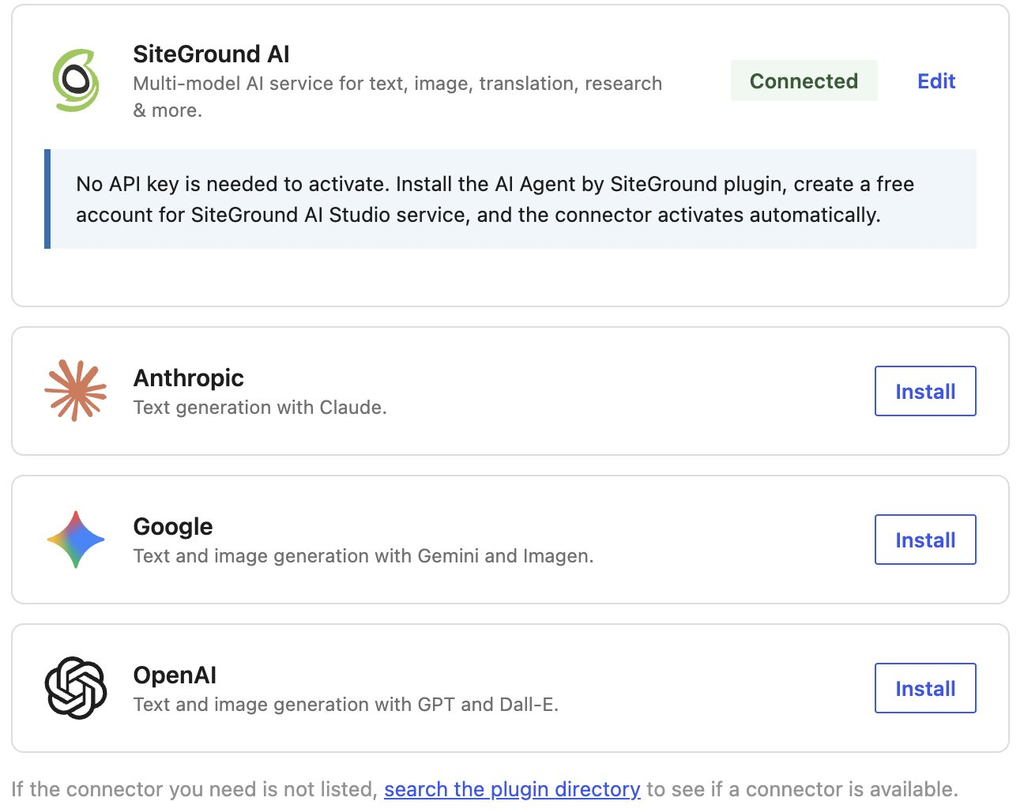
Three providers are featured by default on the Connectors page: OpenAI, Google Gemini, and Anthropic Claude. If you choose to proceed with any of these, you need to activate their plugin.
Beyond these three, the system is open: community-built providers can be added from the same page. Each one requires you to install its provider plugin and enter your own API key.
For SiteGround customers: If your WordPress site is hosted on SiteGround, there’s a fourth option on the Connectors page — SiteGround AI, already installed and connected. The authentication is handled automatically through your SiteGround account (no need to paste an API key), so it appears in Connectors as already active.
You get 20,000 free AI tokens monthly and no separate AI billing to track.
If your site is hosted elsewhere, it’s a quick one-time setup. You will get 14 days of free service.
You can use one shared AI connection instead of managing credentials in every plugin
The practical payoff of the Connectors setup becomes clearer when you use AI-powered plugins on your site. An SEO plugin that generates meta descriptions, a content tool that helps with writing, an image plugin that creates visuals: in the old world, each of these would need its own AI subscription, its own credentials, its own billing. With WordPress 7.0, they all share the provider you’ve already connected. Install a new AI-compatible plugin, and it works immediately, no additional accounts or API keys required.
What this means in practice:
- Lower costs. Instead of paying three AI services for three plugins, you pay one provider that powers all of them.
- Easier switching. If a better or cheaper provider appears, you change it once in the Connectors screen and every plugin on your site picks up the new connection automatically.
- Better plugins over time. Developers no longer need to build their own AI integration from scratch. They can rely on what WordPress provides natively, and focus on what their plugin actually does instead of reinventing credential management and API plumbing.
You can choose the AI provider that fits your needs, and change it later
WordPress 7.0 doesn’t lock you into a single AI service. You can connect multiple providers, and WordPress will figure out which one to use for each task. Through the Abilities API, each provider registers the types of requests it can handle. When a plugin needs AI, WordPress checks your connected providers and routes the request to one that supports it.
That flexibility comes with some things worth understanding before you choose:
- Costs aren’t always obvious upfront. AI services bill based on “tokens” (roughly a word or part of a word). You use tokens for both your request and the AI’s response. But the price per token varies not just between providers, but between models within the same provider. A more capable model costs more per request, and those costs can add up across plugins that make frequent AI calls. It’s worth checking your provider’s pricing page before you connect.
- Multiple providers means multiple accounts. Each one has its own API key, its own billing, and its own dashboard to monitor. If you’re connecting two or three providers for different capabilities, you’re managing two or three separate relationships.
- Not every provider can do everything. For example, Anthropic Claude handles text generation but not images. If you ask for an image and Claude is checked first, WordPress will see that it can’t handle the request and pass it to a provider that can. That routing is automatic, but only if you have a second provider connected that supports the capability you need.
How SiteGround AI handles this more efficiently: Instead of requiring you to manage multiple provider accounts, SiteGround AI gives you access to all leading model families (OpenAI, Claude, and Gemini) through one connection. SiteGround AI automatically selects the best model for each task to deliver an optimal quality-spending balance. One subscription, one token balance, no juggling between providers. This works the same way whether your site is hosted on SiteGround or on another platform.
You can generate text and images inside the editor
Before WordPress 7.0, using AI with your site usually meant going to a separate tool like ChatGPT, Claude, or Gemini, generating content there, and pasting it back into your editor. WordPress 7.0 changes that. With a provider connected, you can install plugins that use the shared AI infrastructure to bring content generation directly into your WordPress workflow. You can have, for example, a “Generate Image” button in your Media Library:
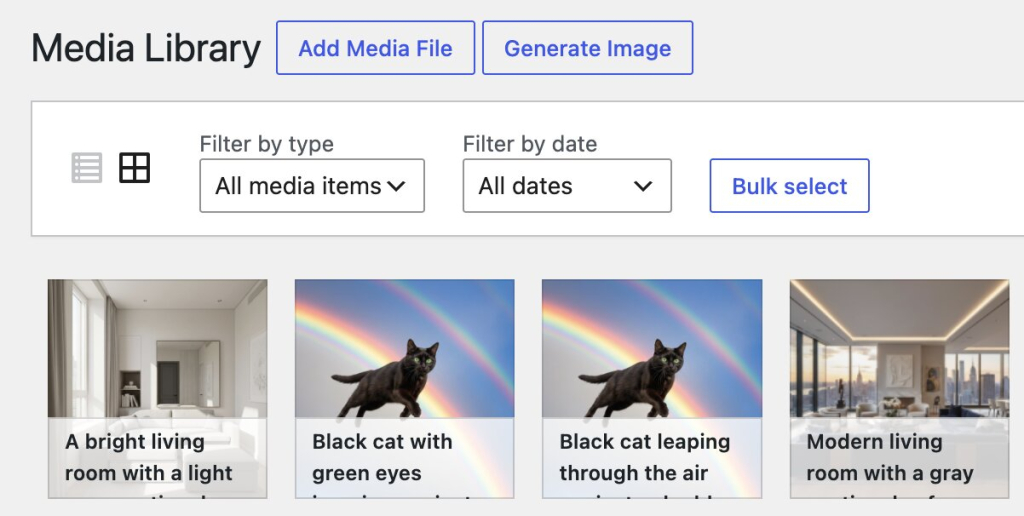
Several options already exist, including the official WordPress AI plugin. The capabilities that compatible plugins currently offer center on content creation: generating and editing text, creating images from prompts, producing alt text for accessibility, writing excerpts, and summarizing long-form content. All of this happens inside the block editor and Media Library, so you stay in your workflow instead of switching between tools.
The provider you’ve connected in Settings → Connectors is the one powering these features behind the scenes, so your choice of provider affects the quality, speed, and cost of what you get in the editor.
If your primary need is help writing blog posts, generating images, or adding alt text to your media, the combination of a provider and a compatible plugin gets you there. For the broader work of making AI useful for your whole WordPress site, though, there’s more to the picture.
You can take the use of AI to the next level and incorporate it into your site maintenance workflow
Content creation is one part of running a WordPress website. Then there’s everything else: managing plugins, handling products and orders, organizing users, auditing SEO across hundreds of pages, keeping multiple sites in sync. That operational work eats hours every week, and it’s the part that plugins focused on in-editor generation don’t address.
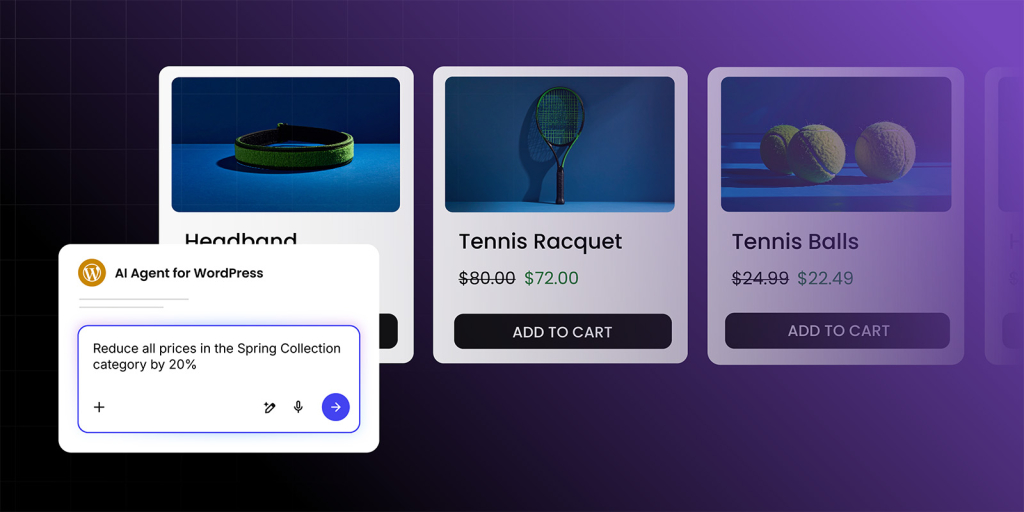
This is what the SiteGround AI Agent for WordPress is built for. When you connect SiteGround AI as your AI provider in WordPress 7.0, it powers the standard editor capabilities that any provider can handle, but it also activates the AI Agent. The Agent executes tasks across your entire site through a simple chat conversation. You describe what you need in plain language, and it does it. You also don’t need to jump across the admin — the chat conversation is persistent across screens and is able to serve all needs, including text and image generation.
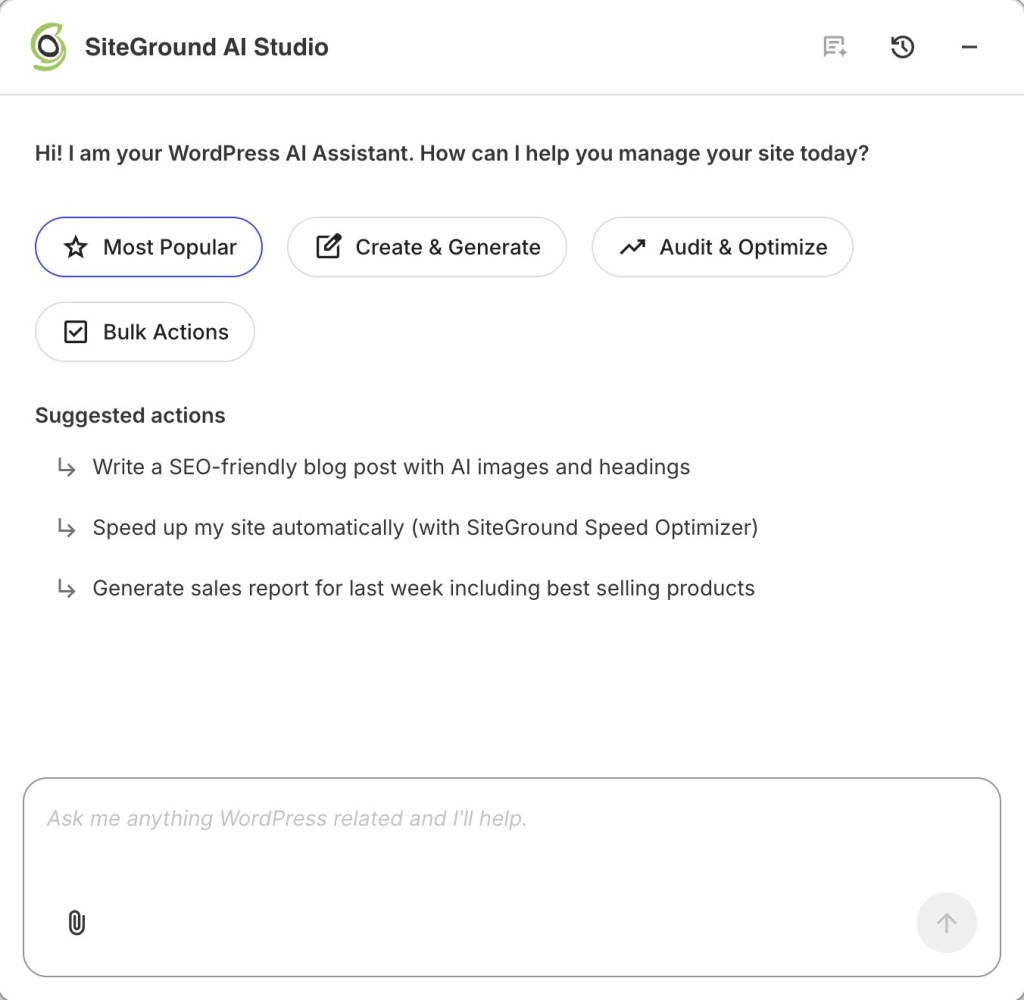
This is possible because the AI Agent by SiteGround plugin connects directly to your WordPress installation, giving the AI Agent for WordPress access to your plugins, products, users, and settings. A standalone AI provider like OpenAI or Anthropic can generate text or images when asked, but it has no way to reach into your site and act on it. The Agent can, because it’s connected at the site level through the plugin.
What’s more, you can activate the AI Agent by SiteGround plugin for multiple WordPress instances and manage them in bulk from a single chat, located in the SiteGround AI Agent dashboard.
For SiteGround-hosted sites, that connection is set up automatically. For sites hosted elsewhere, you get the same access after installing the plugin and connecting it.
What makes this different: Most plugins built on WordPress 7.0’s AI framework help you generate content. The SiteGround AI Agent for WordPress applies AI to the operational work of managing a WordPress site: the products, the plugins, the users, the SEO, the daily maintenance that eats your time but doesn’t grow your business. And it activates automatically when you connect SiteGround AI as your provider.
Try it on your site
When you update to WordPress 7.0, connect SiteGround AI as your AI provider and let the AI Agent for WordPress help you with the content, the products, the plugins, the SEO, and the daily site maintenance that eats up your time. You’ll be surprised how much of your WordPress workflow fits into a single chat.
FAQs
Not out of the box. WordPress 7.0 primarily ships AI infrastructure, the AI Client (how WordPress communicates with AI services), and the Connectors screen (where you manage AI provider credentials). To get visible tools like title suggestions, image generation, alt text, excerpts, and summaries, you’ll typically install an AI plugin.
The Connectors screen (Settings → Connectors) is where you connect AI providers by adding credentials (usually an API key). The practical benefit is simple: you configure AI once in a central place, and compatible plugins can reuse that connection, so you’re not pasting the same key into multiple plugin settings pages.
Usually, yes. Most AI providers require an API key, and they charge based on usage (often measured in tokens). WordPress 7.0 makes setup cleaner by centralizing credentials in Connectors, but the actual cost depends on the provider and model you choose, and how often you generate content.
Right now, the most practical value is content workflow help. With AI plugins, you can draft titles based on your post, excerpts for blog listings and sharing, alt text for images (accessibility + image SEO), summaries for longer pages and images from text prompts (where supported). These tools work best as draft + review — you stay in control of accuracy and tone.
They’re built for different jobs. WordPress’ AI plugin focuses on content assistance inside the editor (titles, excerpts, alt text, summaries, image generation). SiteGround’s AI Agent for WordPress focuses on site management through chat, helping you handle routine WordPress tasks across your dashboard without you wiring up separate AI provider accounts and keys for each feature.
For most sites, no. WordPress 7.0’s AI components are optional. If you don’t connect an AI provider and don’t install AI plugins, your site should behave the same as before. As with any major update, it’s still smart to test on a staging site first (where solutions like Siteground’s Staging tool can help you) if your site relies on a complex theme or many plugins.
Because the WordPress AI plugin is experimental, it’s best to test it on a staging site first, especially if your site is business-critical. The features are generally triggered manually (you choose when to generate), but “experimental” also means functionality can change between updates, so staging gives you a safer place to validate your workflow.
They’re the foundation for AI assistants that can take action in WordPress, not just generate text. The Abilities API describes what your site can do (publish content, manage settings, ecommerce actions, and more) in a structured way. The MCP Adapter helps translate those abilities into a format AI tools can understand and potentially act on, with permissions and safeguards. The takeaway: WordPress 7.0 isn’t just about AI writing tools; it’s laying the groundwork for AI to support routine site management over time.