How to use AI in WordPress beyond content creation with site-connected AI

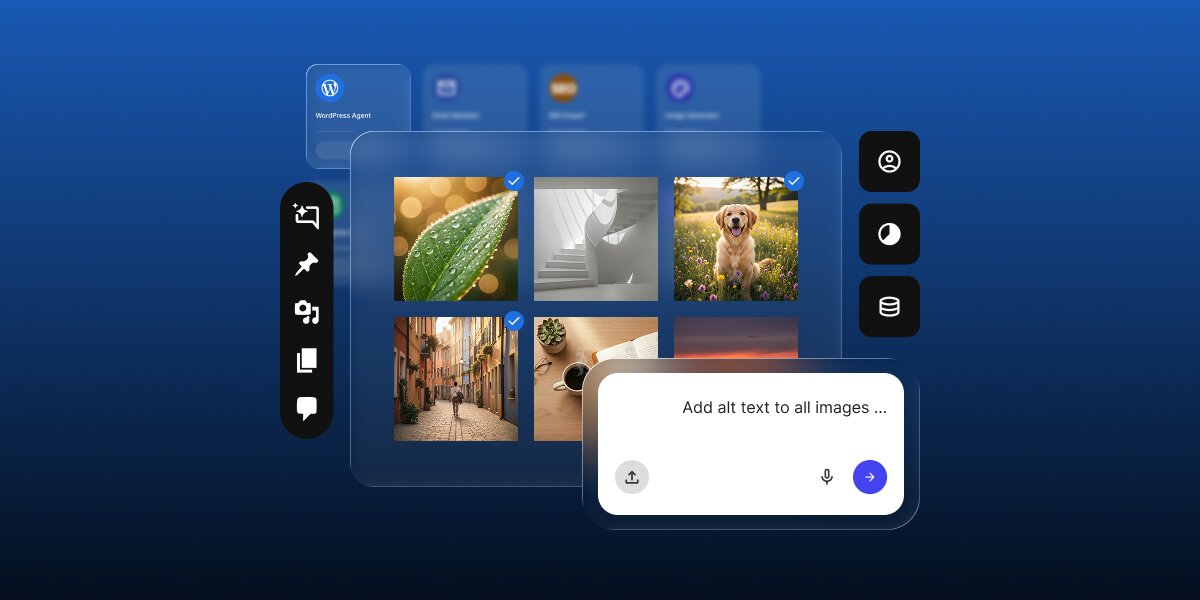
A digital graphic illustrating AI image management for WordPress against a deep blue gradient background. In the center, a translucent glassmorphism UI modal displays a media library grid with six photos—a dew-covered leaf, a spiral staircase, a golden retriever in a field, an alleyway, a coffee desk setup, and a sunset—with several selected via blue checkmarks. In the lower foreground, a white AI prompt box shows the user command "Add alt text to all images ..." alongside action buttons, surrounded by floating dark UI toolbars and a top badge labeled "WordPress Agent."

According to our 2026 report on AI in WordPress for small businesses, most small business owners now use AI every day. However, almost all of them use it the same way: a generic chatbot like ChatGPT for research and content creation. This leaves the vast majority of AI’s real potential standing at the front door, while you are left inside still doing all the heavy lifting of WordPress management.

Learning how to use AI in WordPress beyond content creation means using site-connected AI that can work with your WordPress data and complete real tasks, like publishing posts, updating products, and running maintenance, instead of only advising you or handing you text to paste. This guide shows what that looks like and how a specialized, site-connected assistant like the AI Agent for WordPress turns AI into something genuinely useful for your WordPress site and your business.

Key takeaways:

  • Most small business owners running their WordPress sites already use AI daily, but mainly through a general chatbot like ChatGPT, and mostly for research and content creation.
  • A general chatbot can advise and draft, but it cannot act on your site, so you are still left doing the hard WordPress work by hand.
  • Site-connected AI completes approved tasks inside WordPress, from publishing and SEO to WooCommerce, maintenance, and comments, on your instruction.
  • Learning how to use AI in WordPress beyond content creation is the shift from AI that suggests to AI that does, and it is where the real time savings live.

How do small businesses use AI in WordPress today?

Most small business owners use AI every day, but almost entirely through general-purpose tools like ChatGPT rather than specialized WordPress AI tools. Our AI in WordPress report, which included a survey of more than 7,000 small business owners conducted at the end of last year, found that 53.9% use AI daily and another 24.1% use it several times a week.

However, this usage is overwhelmingly confined to generic chatbots: you open a separate tab, type a prompt, and get text back. That format is incredibly easy to try, which explains why adoption skyrocketed so fast in a single year. Compared to 2024, ChatGPT usage rose over 21 points, and Google Gemini jumped nearly 25 points, with every major tool seeing double-digit growth.

AI toolShare of owners in 2025Change since 2024
ChatGPT67.1%+21.4 pts
Google Gemini36.9%+24.5 pts
Microsoft Copilot18.1%+9.3 pts
Claude16.7%+9.3 pts
Perplexity12.1%+10.9 pts

And because a standard chatbot works exclusively in words, the tasks it wins are the ones that begin and end in words: researching a topic, drafting a post, or rewriting a paragraph. You just paste the result somewhere or throw it away. As a result, these became the natural first jobs to hand over to AI, and they still dominate the workflow by a massive margin.

What small business owners use AI forShare of small business owners
Research and data gathering66.5%
Content creation and editing65.7%
Image creation and editing39.7%
Code writing35.1%
Data analysis34.2%
Automating repetitive tasks28.7%
Building or editing websites21.6%
Translation20.7%

The other tasks are lower not because small business owners tried them and stopped, but because most have never thought of AI as something that could do them in the first place.

Why using ChatGPT for WordPress still requires a site connection

To take full advantage of how AI can save you time in WordPress, you should definitely go beyond generic chatbots like ChatGPT. A generic chatbot can write a draft blog post or the copy for a landing page, and if you ask it how to do something in WordPress, it will walk you through the steps.

The problem is that the chatbot sits in a separate app with no connection to your WordPress site, so everything it produces is something you then have to carry out yourself. It writes the post, but you are the one who pastes it in, formats it, and publishes it. When it explains how to change a setting, you are still the one who goes and changes it, which can still take an hour of clicking through menus.

And because it cannot see your site, generic AI’s advice is often shaky. If you ask it to recommend a plugin, it will happily list the popular options from around the web, but it has no idea which version of WordPress you are on, what theme you use, or what else you have installed, so it cannot tell you whether its suggestion will actually work on your site or break something, and you usually only find that out after you have installed it.

That leaves you two ways to get a useful result: you can learn to prompt well, spelling out your setup in detail every time so the tool has enough context to give a sensible answer, or you can take whatever it gives you and check it all yourself. Either way, a good part of your time still goes back into managing WordPress, because a chatbot can advise and draft, but it cannot reach your site.

What is site-connected AI for WordPress?

Site-connected AI for WordPress is a major step up from normal chatbots you might be used to. Instead of just writing text for you to copy and paste, it’s a dedicated assistant that plugs directly into your WordPress website and actually does the work for you.

This direct connection changes everything about how AI helps you. A site-connected AI for WordPress can actually “see” your real setup. It knows exactly which version of WordPress you are running, what active theme your site uses, and which plugins are already installed. This means every action it takes is grounded in the reality of your specific website, completely eliminating the guesswork.

And because it can see your site and act on it, your daily WordPress workflow completely changes. You are no longer the one doing all the clicking, searching through complicated WordPress menus, or worrying about where a specific setting is hidden. When you need something made, you simply ask for it in plain English.

The AI Agent for WordPress, part of SiteGround’s AI Studio, is the perfect example of this new kind of tool. You chat with it just like any regular AI, but the conversation ends with the actual job done on your website.

What can AI do in WordPress beyond content creation?

Once AI is linked to your dashboard, it moves beyond content generation into AI for WordPress site management. The easiest way to see this difference is to look at the everyday jobs you might already use AI for, and follow each one past the initial drafting phase into the manual work you usually have to finish yourself.

For instance, the AI Agent for WordPress can take over each of those tedious steps:

Publishing and organizing content, not just drafting it

Instead of writing a draft that you have to copy, paste, format, and categorize manually, the AI Agent can publish the post or page and sort it into the right categories and tags as it goes. It can even handle mass edits, so refreshing or filing a stack of old posts becomes a single request rather than an afternoon of tedious clicking.

Applying SEO and media, not just suggesting it

A normal chatbot will happily suggest a title tag or some alt text (the short description that search engines and screen readers use for images). A site-connected AI like the AI Agent for WordPress actually writes that metadata and applies it directly to your live posts and images. It can also manage your media library, allowing you to seamlessly upload new files or clear out old ones you no longer need.

Running your store, not just describing products

For a WooCommerce shop, a standard AI can write a catchy product description. A connected assistant goes much further: it uses your real store data to actually create and update the products, adjust pricing, generate discount coupons, manage customer orders, and even pull a sales report for you to review.

Handling maintenance, not just reminding you about it

Generic AI can tell you that site updates are something you should do, while site-connected AI actually does the upkeep. You can ask it to install new themes, update your plugins, run WordPress core updates, clear your site’s cache, or change your general site settings.

Managing users and comments, not just answering them

Beyond just drafting a reply for you to paste, a connected assistant like the AI Agent for WordPress can actively manage your community. It can moderate your comments (approving the good ones, holding the doubtful, and clearing the spam), and it can even create or update user accounts and roles for your staff, without you having to dig through the WordPress settings.

Task areaGeneric AI gives youSite-connected AI completes
ContentA draft you copy, format, and publish yourself.Publishes posts and pages, edits in bulk, and files them under the correct categories and tags.
SEO and mediaSuggested titles and alt text to paste in.Applies metadata directly to posts and images, and actively manages the media library.
WooCommerceA product description you add by hand.Creates products, updates prices, generates discount coupons, manages orders, and pulls sales reports.
MaintenanceA reminder to update and back up.Installs plugins, updates themes, runs WordPress core updates, clears caches, and changes core settings
Users and commentsA reply you post yourself.Creates user accounts, updates roles, and moderates your comments.

How site-connected AI completes a WordPress task in practice

Say you haven’t been adding alt text for many of your images, and you just learn you have to do it so that search engines can properly understand and rank your content. (We know you are likely already on top of this from reading SiteGround’s Academy, but just imagine for the sake of the argument.)

Now you have to click through the media library, image by image, writing and pasting those descriptions by hand to catch up. A standard AI chatbot like ChatGPT will happily write a list of image descriptions for you to copy if you give it the images or describe them. You would then have to manually paste them for each individual image, which can take so much time.

However, a site-connected AI actually does the data entry for you. Because it is directly linked to your site, it can analyze your assets, formulate a strategy, and apply the text across your entire media library in seconds.

For example, you can just give the AI Agent for WordPress this prompt:

“Generate and apply SEO alt text for all the images in my media library.”

The AI Agent for WordPress then actively scans your live media library, finds the images, explains exactly how it plans to optimize them, and pauses to ask for your confirmation.
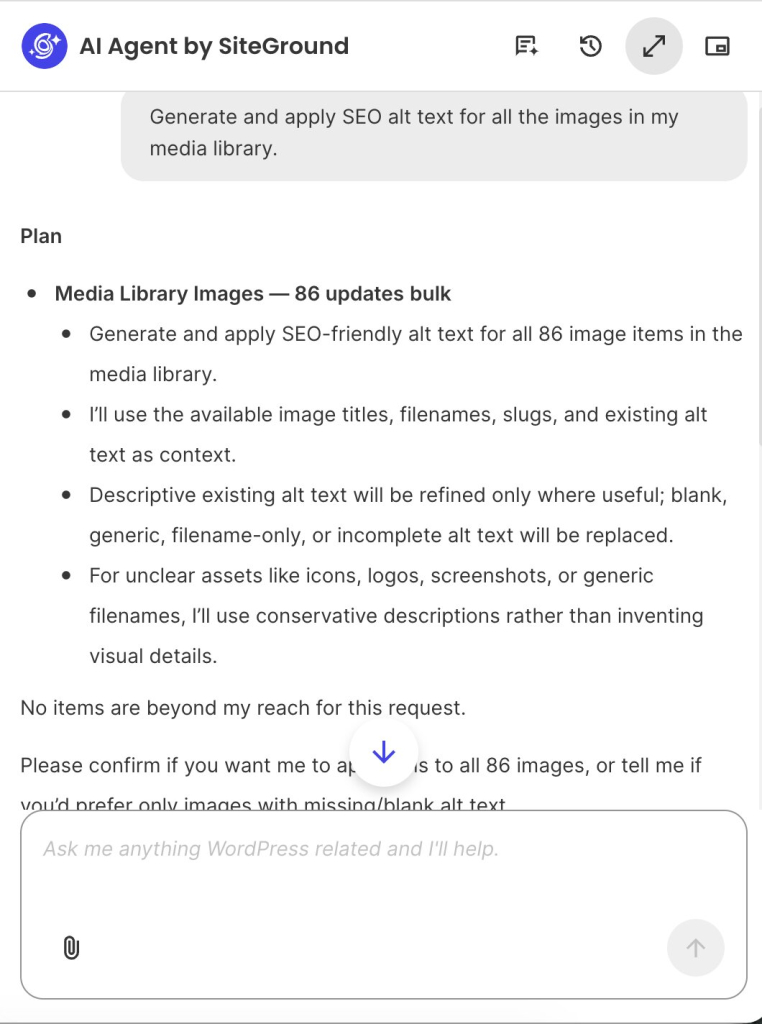
A screenshot of the AI Agent by SiteGround chat interface outlining a bulk alt text generation task. At the top, a user prompt reads "Generate and apply SEO alt text for all the images in my media library." Below, under "Plan," the assistant outlines a proposal titled "Media Library Images — 86 updates bulk," detailing how it will generate SEO-friendly alt text for 86 media items using existing titles, filenames, slugs, and context while refining or replacing blank and generic descriptions. At the bottom, the assistant asks for confirmation to proceed, situated above a prompt input box reading "Ask me anything WordPress related and I'll help."

Once you review the plan and give the green light, the AI Agent for WordPress executes the changes on your backend and reports back with a clear summary of the work it completed.
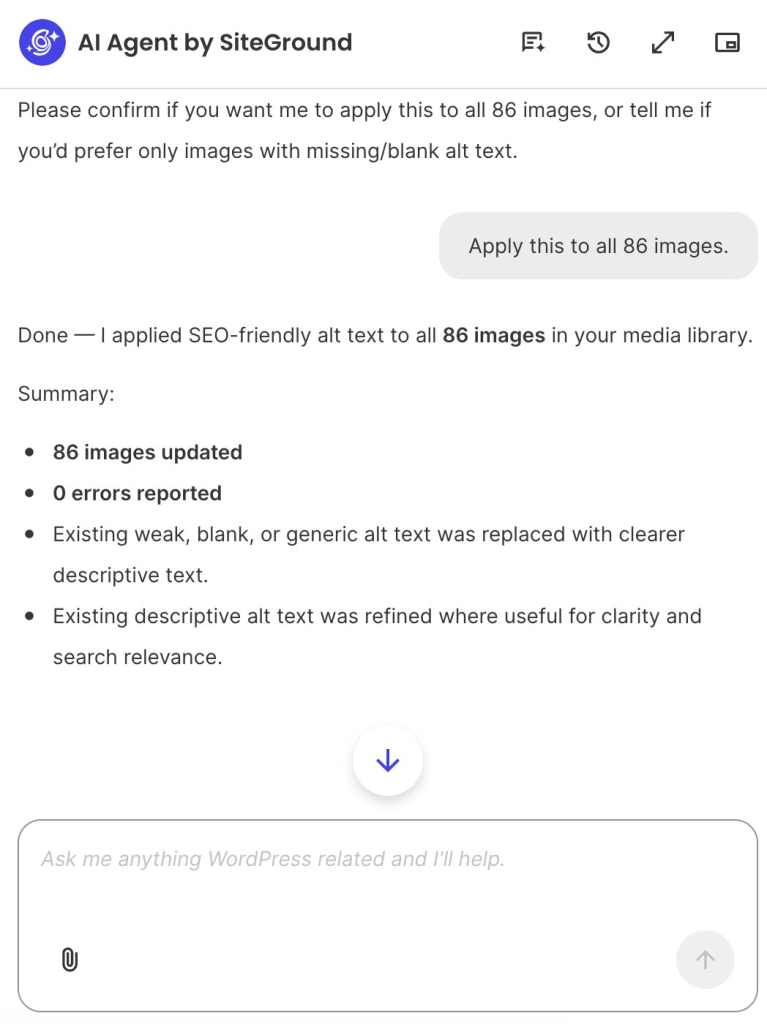
This perfectly highlights what makes a site-connected AI assistant so powerful. It acts as a responsible, hands-on partner that does the heavy lifting, saving you hours of clicking and pasting while keeping you in complete control of the final outcome.

Which WordPress tasks still need human review?

A site-connected AI is not designed to run your business, but to run your errands. Strategic decisions will always remain human. What products to sell, how to price your services, the overarching direction of your website, and the final review of anything your customers will actually see are your choices.

In the case of the AI Agent for WordPress, you also never have to worry about it making a major mistake behind your back. Because it acts as a responsible partner, it uses built-in safeguards like Power Mode to ensure you stay in complete control. It will always pause and require your explicit approval before executing any action with real consequences, like deleting data or altering core settings.

So, the most accurate way to picture this new era of WordPress management isn’t “AI runs my site,” but rather “I make the decisions, and the AI does the legwork.” That is the ultimate value of learning how to use AI in WordPress beyond content creation: you keep the creative control, and you hand over the tedious tasks.

FAQs


How do you use AI in WordPress beyond content creation?

You use AI in WordPress beyond content creation by connecting it to your site so it can complete tasks, not just draft them. Instead of pasting in AI-written text, a site-connected assistant can publish posts, apply SEO metadata, update WooCommerce products, run maintenance, and moderate comments, on your instruction and with your approval for anything major.

Can AI manage a WordPress site?

Yes, a site-connected AI can manage much of a WordPress site. Because it is connected to your real content and settings, it can publish and organize content, update products and prices, run plugin and core updates, and moderate comments. You keep the decisions and approvals; the AI carries out the work.

Why can’t ChatGPT manage WordPress without a site connection?

ChatGPT cannot manage WordPress on its own because it is not connected to your site. It has never seen your pages, products, or settings, so it can only suggest text and steps that you then carry out by hand. Managing a site needs AI that can read your real data and make approved changes directly.

What is site-connected AI for WordPress?

Site-connected AI for WordPress is AI plugged directly into your site, so it can read your real content and complete approved tasks rather than only producing drafts. It is the difference between an assistant that suggests a change and one that makes the change for you inside WordPress.

What can AI do in WordPress besides writing?

Besides writing, AI connected to your site can publish and organize content, apply SEO metadata across posts and images, manage WooCommerce products, prices, and orders, install and update plugins and themes, run core updates, and moderate comments and users, turning suggestions into completed work.

Can a WordPress AI agent complete tasks on the site?

Yes. A WordPress AI agent connected to your site can complete tasks directly, such as publishing a post, updating a batch of products, or running updates, rather than only advising you. It acts on your instruction and typically pauses for confirmation before anything high-impact.

How can a small business start managing WordPress with AI?

A small business can start to manage WordPress with AI by picking one repetitive task, such as publishing a backlog of posts or updating product prices, and handing it to a site-connected assistant like the AI Agent for WordPress. Starting with a single real task is the simplest way to see the difference between drafting and completing.
How to build a subscription business in an afternoon

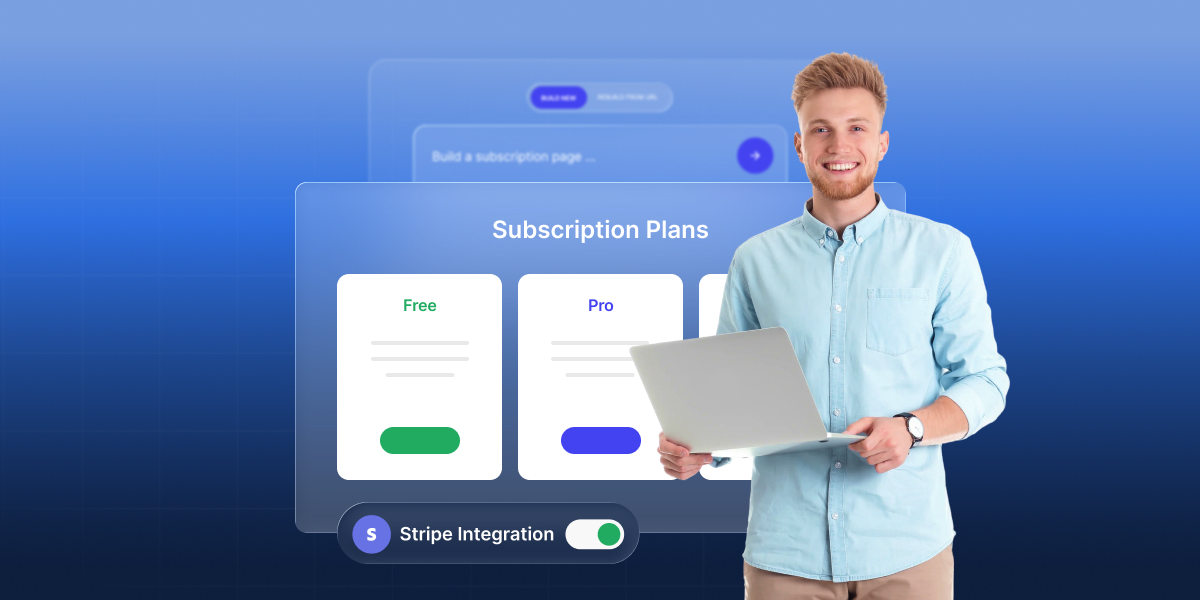
Man holding a laptop next to a subscription plans interface with Free and Pro tiers and a Stripe integration toggle switched on

How to build a subscription business without hiring a developer comes down to three things: a clear recurring offer, a working site or app, and a reliable way to accept recurring payments that doesn’t require writing payment code. AI builders now handle the first. Stripe handles the second. What’s left is deciding what you’re selling, who it’s for, and what it costs, which takes longer to think through than it does to build.

Key takeaways:

  • A subscription business charges once a month, not once, for content, coaching, software, communities, or a box that ships regularly.
  • AI builders can generate a working subscription website or app from a written description in under an hour.
  • Stripe Billing handles the recurring charge: it retries failed payments, sends receipts, and updates subscriber access automatically.
  • Deciding the offer, price, and billing cadence in advance is what makes the actual build take an afternoon.
  • A membership site and a subscription app both work the same way: access stays open only while payment stays active.
  • Clear rules on cancellation, meaning when access ends and whether refunds apply, protect retention as much as a good sign-up flow does.

What a subscription business model looks like today

A subscription business model charges customers a recurring fee, usually monthly, for ongoing access to a product, service, or piece of content. That’s the whole model. What’s changed is where it shows up.

Software normalized recurring billing over the last decade. The same model now powers newsletters, online courses, coaching programs, private communities, curated boxes, and single-feature tools that used to sell once and now rent by the month instead. A subscription business no longer needs inventory, a custom subscription app, or a large team. A single creator with a clear offer and the right tools for running a service business online can charge recurring fees the same way a larger company does.

The shift that matters most for anyone starting today: the technical barrier dropped. Billing infrastructure like Stripe Billing used to require a developer to wire up. AI builders now generate the site or app itself. Neither piece requires the founder to write code, which is the main reason solo founders and small teams are entering categories that used to require a funded team and an engineering roadmap.

What you need before you start a subscription business

Before you build anything, decide the offer, the audience, and the price. A short round of website planning before you open any builder saves you from rebuilding the pricing page twice.

#1: Define the offer: what the subscriber gets every month

Every subscription needs a recurring deliverable, not just a recurring charge: a new lesson every month, a fresh box of product, continued access to a tool, or a standing coaching call. Name it in one sentence: what does the subscriber get on day one, and what do they keep getting on day 30? 

Here’s the fitness coach example worked through:

  • What do they get on day one? A starter workout program built around their goal (fat loss, strength, a 5K) and access to the private community.
  • What do they get every month after that? A new 4-week workout program, adjusted based on their check-in from the month before.
  • What’s the recurring touchpoint that isn’t just content? One 15-minute check-in call or async video review, so the coach is actually present, not just dropping a PDF.
  • What would make them cancel? If the program stops changing, or the check-in stops happening.

The one-sentence result: “Subscribers get a new workout program every month, adjusted from their last check-in, plus one 15-minute coaching call.”

That sentence is the test. If you can’t fill in all four blanks that specifically for your own offer, it isn’t ready to price or build yet.

#2: Identify your audience and what they’re already paying for

Two questions, in order:

1. Who exactly is this for?
Not “fitness enthusiasts.” Something you could describe to a stranger in one sentence: “Women over 40 starting strength training for the first time.” The narrower this is, the easier the next question gets.

2. What does that specific person already pay for, monthly or otherwise?

  • A gym membership
  • A workout app or tracker
  • A supplement subscription
  • A one-time course or piece of gear

That spending tells you the price range they’ll accept without blinking, and the cancellation friction they expect.

How to actually find this out:

  • Already have an audience (email list, following)? Ask directly. A 3-question poll (“Do you pay for a gym, an app, or a coach? How much?”) gets a real number in a day.
  • No existing audience yet? Look at what your specific person pays to solve the same problem a different way. Even if they’ve never paid for coaching, they’re likely paying for something adjacent.
  • Neither of those gives you a clear answer? Test the price with a small paid pilot, five people is enough, before building the full site. That’s a faster answer than guessing.

Back to the fitness coach: her audience (women over 40, new to strength training) already pays $50-$150/month for a gym and $10-$20/month for a workout app. A $40/month coaching subscription sits in that gap: cheaper than a gym, more personal than an app. Price it at $150, and she’s now competing with in-person personal training, where people expect a live human in the room, not a monthly PDF and a video call. Same offer, wrong price bracket.

#3: Set your price point and billing cadence

Setting the right price means matching two things: how often you bill, and how much you charge, to what your audience already expects to pay.

Pick monthly billing by default
It matches how people already budget, and gives you 12 chances a year to prove the offer’s worth keeping. Switch to annual only once you have retention data, not before, since discounting a plan you haven’t proven yet just locks in churn for a full year instead of a month.

Price against the market, not your costs
Your time and effort don’t set the price. What similar things already cost does. A $9 offer next to $30 alternatives doesn’t win on value, it raises the question “what’s wrong with it.”

Back to the fitness coach: a gym costs $50-$150/month, an app costs $10-$20/month. Her $40/month coaching plan sits between them on purpose, cheaper than a gym, more personal than an app. If she priced it at $12, it would look like a workout app with a video call bolted on, undervaluing the coaching itself. If she priced it at $100, she’s back to competing with the gym on price, a fight she doesn’t need to have.

When to switch to annual billing:
Once a few months of data show subscribers sticking around past month 3, offer an annual plan at roughly 10 months’ price for 12 months’ access. Before that point, you don’t have proof the offer holds up long enough to justify asking for a year upfront.

#4: Decide what “cancel anytime” means for your business

“Cancel anytime” is a promise, not a technicality, and you need to define it before a single customer signs up. Does access end immediately, or run out the paid period? Is there a refund for unused days, or does the subscriber simply stop being billed? Write the answer down before launch. 

Figuring it out during a support ticket, with an annoyed customer waiting, is the wrong time.

How to build a subscription business: the actual steps

Once the offer, audience, and price are decided, the build itself takes an afternoon, not a sprint. Three things need to happen: the site or app needs to exist, it needs to take recurring payments, and it needs to manage who gets access after they pay.

Step 1: Choose how you’ll build your subscription website or app

You’ve got three realistic paths for building a no-code subscription website or app without a developer: 

A template-based website builder

Fast to set up, but rigid. You’re stuck with whatever page types and layouts the platform ships, and gated content usually needs a bolted-on plugin.

A dedicated membership platform

Handles gated content and subscriber tiers well out of the box, but often locks you into its own payment stack, so switching processors later means rebuilding the whole setup.

An AI builder

Sits in between the two. Describe the pricing tiers, the gated pages, and the member dashboard you want in plain language, and it builds the actual site or app, not a template you’re left to finish yourself. No page-builder learning curve, no separate plugin for gated content. 

Coderick AI works this way. Vibe coding is the general term for this approach, and understanding it now means you’ll spot the right tool for the job faster, whichever one you pick.

Step 2: Set up Stripe recurring payments

Once the site exists, it needs a way to actually charge people every month. You’ve got a few options here: 

  • Build a custom billing integration from scratch 
  • Use a payment processor’s own hosted checkout 
  • Connect a subscription-ready provider like Stripe directly to your builder 

For a solo founder or small team, the first option isn’t realistic: PCI compliance, failed-payment retries, and subscription state management take a payments engineer weeks to get right.

Stripe is the practical default because it handles the billing logic: charge amount, billing interval, trial periods, and what happens on a failed card, all without custom code. You define the pricing tiers as Stripe products, connect your bank account for payouts, and Stripe recurring payments take over from there, retrying failed charges automatically before flagging the account.

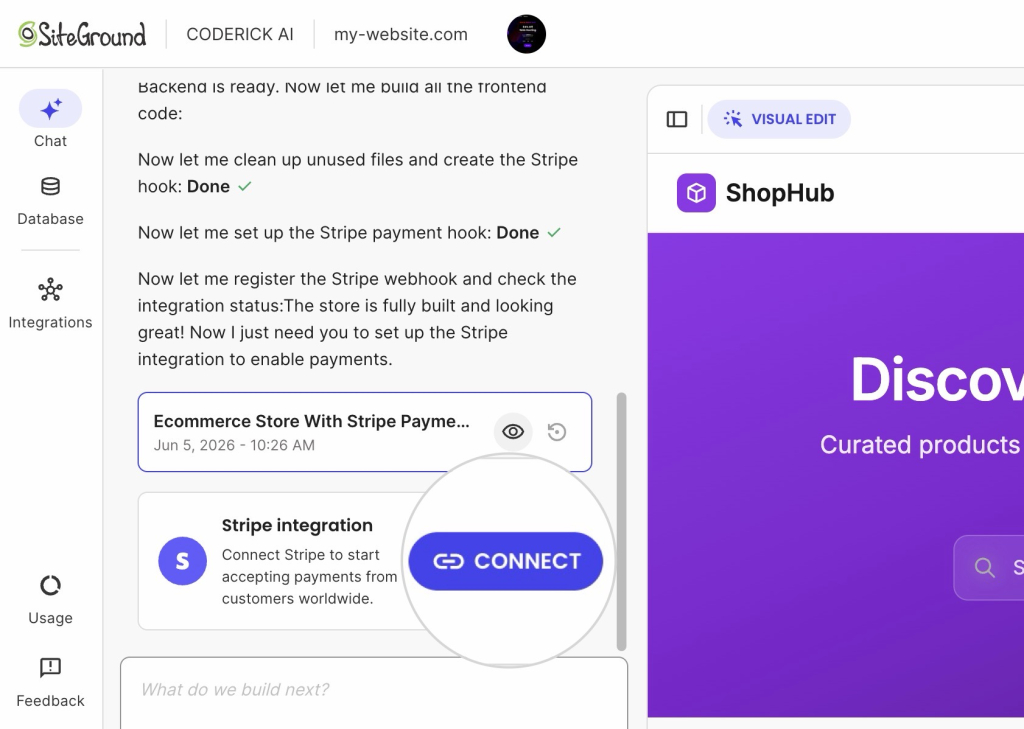
Stripe payments in Coderick AI connect directly to your project, so the site you build and the payment setup live in the same place instead of two separate tools you have to wire together yourself. That’s where accepting recurring payments stops being a technical question and becomes a configuration one: interval, currency, and whether you’re offering a free trial before the first charge.

Coderick AI chat interface showing the Stripe integration card with a Connect button, next to a live preview of an ecommerce store built with the platform

Step 3: Manage subscriber access and upgrades

Subscription status and subscriber access need to stay in sync, or you end up manually revoking access from people who canceled three billing cycles ago.

How access tracking works
Most builders and Stripe integrations check subscription status before rendering gated content: active subscribers see it, lapsed ones don’t. No manual checking required.

How upgrades work
A subscriber moving from a $15 tier to a $30 tier should see the new content immediately, with Stripe prorating the charge for the switch automatically, rather than waiting for the next billing date.

Step 4: Plan for what happens when a subscriber cancels

Cancellation has two sides, and most launches only plan for one.

From the subscriber’s side:

  • Does access continue until the paid period ends, or stop right away?
  • Is it clear how to reactivate if they change their mind?

From the business owner’s side:

  • When a subscriber cancels, Stripe records the cancellation and stops future charges automatically.
  • Access removal is a separate decision you have to make. Some builders revoke access immediately; others, usually the fairer option, let the subscriber keep access through the period they already paid for.
  • Refunds are a separate call again: a partial refund for unused days is a policy choice, not something Stripe does by default.

Decide all three, access timing, refund policy, and reactivation, before the first cancellation request lands in your inbox, not after.

Choosing your subscription pricing and billing cadence

Price against comparable subscription payments in your category, not your own costs. If a customer already pays $12 a month for a similar tool, pricing at $45 needs a clear reason. Keep tiers to two or three: five make people hesitate, two or three let them self-select fast.

Once the price is set, match your billing cadence to it, along with how you deliver:

Delivery cadencePrice pointBill this wayWhy
Weekly (new content, coaching calls)AnyMonthlyWeekly delivery inside a monthly bill feels generous. Weekly billing on top of weekly delivery just adds friction for no reason.
Physical product (shipped box)AnyMonthly, timed to your fulfillment cycleBilling has to line up with when you actually ship, or you’re financing inventory out of your own pocket.
AnyUnder $15Monthly only at first; add annual after 3+ months of retention dataLow prices are impulse decisions. You need proof people stick around before asking for a year upfront.
AnyOver $50, or B2BMonthly and annual from day oneBuyers at this level already expect an annual discount option and will ask for it if you don’t have one.

Choosing a payment processing partner that supports the cadence you land on (trials, proration, multiple currencies) up front avoids a painful migration later. It’s one more reason Stripe shows up in nearly every serious subscription build: it supports all of the above without custom code.

Subscription business launch checklist: what to check before going live

Before you announce anything, run through this. A general website launch checklist covers the basics, like broken links and mobile display; a subscription launch needs a few billing-specific checks on top.

✅ Test the full checkout flow as a customer, not just an admin
Sign up for your own subscription using a real card (Stripe’s test mode works too) and go through checkout exactly as a customer would. Admin previews skip steps customers actually hit, like entering a card number or confirming an email.

✅ Confirm Stripe payouts and tax settings are live, not in test mode
Test mode and live mode use separate API keys in Stripe, and it’s a common mistake to launch while still pointed at test mode. Check that payouts go to your real bank account and tax collection, if you need it, is switched on before the first real charge.

✅ Set up subscriber access and gated content
Confirm gated pages actually check subscription status, and that a canceled test account loses access on schedule. People skip this because it works fine for the one active test subscriber, and nobody tests the canceled case.

✅ Write your cancellation and refund policy
Publish the plain-language version of what you decided earlier: when access ends, whether refunds are offered, and how to reactivate. A support inbox with no written policy to point to is where cancellation disputes turn into chargebacks.

✅ Check email receipts and renewal notifications work
Stripe sends receipt emails by default, but make sure to confirm they’re branded correctly and that renewal notices go out with enough lead time that a subscriber isn’t surprised by a charge.

✅ Proofread pricing pages and confirm currency and billing cadence
A typo on a pricing page, a wrong currency symbol, or the wrong interval generates support tickets on day one. Read every price out loud: amount, currency, and interval, exactly as a new subscriber would see it.

✅ Set up basic analytics to track signups and churn
You don’t need a dashboard yet, just a way to see new signups, cancellations, and monthly recurring revenue at a glance. Stripe’s own dashboard covers this out of the box for most small subscription businesses.

Ready when the offer is, not when the code is

Learning how to build a subscription business no longer requires hiring a developer, which is sort of the whole point. Coderick AI builds the site, connects Stripe, and keeps access synced to payment status, the three things this entire guide has been about. What’s left once the tech stops being the hard part: pricing decisions, a written cancellation policy, and a few minutes spent clicking through your own checkout like a stranger would.

If the offer’s ready, start building with Coderick AI and describe the subscription website or app in your head. It’ll be live before the checklist would’ve taken you to write from scratch

[96]

Frequently asked questions about building a subscription business

Is a subscription business profitable?

Yes. A subscription business can be profitable, and often more predictably than a one-time-sale business, because recurring revenue is easier to forecast month over month. Profitability depends on keeping subscriber acquisition costs below the lifetime value of a subscription, which usually takes a few months of data to calculate accurately.

How to build a subscription business without a developer?

How to build a subscription business without a developer comes down to using an AI builder for the site or app and Stripe for the billing. AI builders generate the actual project from a written description, and Stripe Billing handles recurring charges, subscription status, and cancellations once it’s connected, so no custom payment code is required.

What is a good subscription business to start?

A good subscription business to start is one built around an offer you can genuinely sustain every month: a newsletter you’ll actually write, a tool you’ll actually maintain, a coaching call you’ll actually show up for. The strongest subscription ideas usually come from something the founder was already doing for free.

What is the subscription trap?

The subscription trap describes services designed to be easy to sign up for and hard to cancel, often burying the cancel option behind multiple screens or requiring a phone call. It’s a reputational risk as much as an ethical one: subscribers who feel trapped churn loudly, in reviews and on social media, the moment they finally get out.

How much does it cost to start a subscription box business?

Startup costs for a subscription box business vary by product category, but the main line items are inventory, packaging, and shipping, on top of the website and payment setup costs covered in this guide. Digital subscriptions, meaning content, software, or coaching, skip the inventory and shipping costs entirely, which is why they’re the faster afternoon build.

Why Your CDN Keeps Showing an Old Version of Your Site and How to Cache Safely

Illustration of a website in a browser window with a blurred, unloaded image placeholder, a "Page not found" notice with a Refresh button, a stopwatch icon, and a reload icon — representing stale cache and loading issues.

You pushed an update an hour ago. You can see the new version. Some of your visitors can’t. That’s your CDN cache doing exactly what you told it to: serving a saved copy instead of asking your server for a fresh one. It’s rarely a real bug, and it’s usually fixable in a few minutes once you know which copy is stale and how to clear it.

Key takeaways:

  • A CDN cache serves saved copies of your site from edge servers for a set TTL, so an update can take minutes to 24 hours to appear.
  • Most “my CDN broke my site” cases are stale content, not true breakage; the exception is an asset-version mismatch that renders pages broken.
  • A full CDN cache purge shows fresh content but drops your cache hit ratio to 0% and sends every request back to your origin.
  • To clear the CDN cache, purge it from the CDN tool (on SiteGround, Site Tools > Speed > CDN); in WordPress a caching plugin clears the server cache, a separate layer.
  • Safe caching is five habits: cache static files long, never cache logged-in or checkout pages, version filenames, set sane TTLs, and purge on deploy.
  • CDN cache invalidation clears only what changed, keeping your hit ratio high while still updating what visitors see.

What is a CDN cache, and why it’s not the villain here

A CDN cache is a set of temporary copies of your site stored on a network of edge servers around the world, so visitors download your pages from a server near them instead of from your origin every time. It exists to make your site faster and to take load off your origin server, and for static content it does that job well. When it “misbehaves,” it’s almost always following the rules you (or your platform) gave it.

That framing matters, because the fix is rarely “turn off the CDN.” The fix is usually “tell the cache the content changed.” If you want the full definition of the delivery layer itself, SiteGround’s explainer on what a content delivery network is covers the network side in detail. Here, the important part is narrower: the cache is a copy, copies go out of date, and out-of-date copies are the entire problem you’re troubleshooting.

So when your CDN keeps showing an old version, it hasn’t failed. It’s holding a copy that was correct when it was stored and is now behind your latest change.

Cache HIT, MISS, and TTL: how long your CDN actually holds a page

Every request to your CDN ends in one of two outcomes:

OutcomeWhat the edge server does
Cache HITIt already has a copy and serves it instantly.
Cache MISSIt has no copy, so it fetches from your origin, serves that, and stores a copy for next time.

A high ratio of HITs is what keeps your time to first byte low and your origin quiet.

How long the edge keeps that copy is the TTL, set by response headers like Cache-Control: max-age (for browsers) and s-maxage (for shared caches such as a CDN). A max-age=3600 says “this is good for 3,600 seconds,” so the edge will keep serving it for an hour before checking back.

This is the direct answer to “how long does it take for a CDN to cache a page” and “how long until my change shows up.” The cache stores a page on the first request after a MISS, and it holds that copy until the TTL expires or you purge it. Many CDNs default to a TTL of several hours.

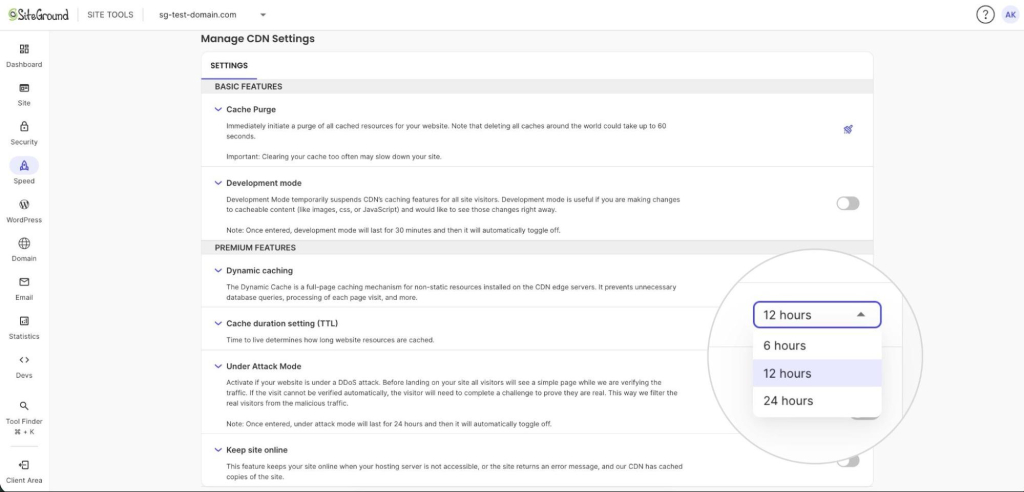
Manage CDN Settings page in SiteGround Site Tools showing Premium Features, with the Cache duration setting (TTL) dropdown expanded and options for 6 hours, 12 hours, and 24 hours.

📌 Why the default TTL is measured in hours, not minutes

It’s tempting to read this as “shorter TTL, fewer stale-content problems.” It’s the opposite. Every time a cached copy expires, the next visitor triggers a cache MISS that travels all the way back to your origin, so a very short TTL means more MISSes, a lower hit ratio, and a slower average response.

SiteGround CDN defaults to 12 hours, and most CDNs sit in the same range, because a longer TTL keeps the majority of requests as instant HITs. Handle freshness by purging (or changing a versioned filename) the moment something actually changes, not by starving the cache with a low TTL.

CDN vs. cache vs. browser cache: which one is actually serving you old content?

Before you purge anything, figure out which layer is stale, because purging the wrong one wastes time. A cache is just a stored copy of data, and on a typical site there are at least three of them stacked between your server and your visitor’s screen:

LayerWhere it livesCan you purge it?
Origin/server cacheOn your host (page cache, object cache)Yes, from your hosting tools. A CDN purge won’t touch it.
CDN cacheOn the edge network worldwideYes, with a CDN purge. This is the layer serving most visitors.
Browser cacheOn each visitor’s own deviceNot remotely. You influence it with headers and cache-busting.

Then run a quick diagnostic:

  • Only you see the old version? Probably your browser. Hard-refresh or test from incognito to confirm.
  • Everyone sees it, including you in a private window? It’s the CDN or origin.

A CDN is not the same thing as a cache. It’s a delivery network that happens to use caching as its main mechanism, which is why “is a CDN a cache” gets a “sort of, but not only.”

Why your CDN broke your site: 6 causes (and the one everyone misses)

Almost every stale-or-broken-after-deploy case traces back to one of these causes. Getting this wrong doesn’t just annoy visitors. Broken assets hurt conversions and the site speed signals search engines watch.

  1. Stale asset after a deploy. You changed a file but its URL stayed the same, so the edge keeps serving the copy it has until the TTL runs out.
  2. TTL set too long. A generous max-age is great for images that never change and painful for files you edit weekly. One TTL rarely fits every asset type.
  3. Dynamic pages got cached. Cart, checkout, account, and logged-in views should never be cached at the edge. When they are, visitors see each other’s stale state, which is where “cdn cache not updating” turns into an actual bug.
  4. No cache-busting on updated files. If style.css is always style.css, caches can’t tell v1 from v2, and the old copy wins.
  5. Misconfigured Cache-Control headers. A missing no-store on a private page, or an s-maxage that contradicts your intent, quietly tells the CDN to do the wrong thing.

The one everyone misses: asset-version mismatch

This is the true breakage case, and the sixth cause on the list. Cached old HTML references files that changed, or fresh HTML loads a cached old stylesheet or script. The result is a page that renders broken, not merely out of date: unstyled layouts, missing images, JavaScript errors. It looks like your site collapsed. It’s really two cache layers that fell out of sync.

How to clear your CDN cache right now (and what WordPress plugins actually clear)

The fastest fix for “how to clear CDN cache” is a manual purge, and it forces the edge to fetch fresh copies from your origin on the next request. Here’s the general path, then what actually changes for WordPress.

  1. Open your CDN or hosting dashboard.
  2. Find the caching section for your site.
  3. Look for a purge or flush/clear cache button and click it.
  4. Reload the affected page in a private window to confirm the new version.

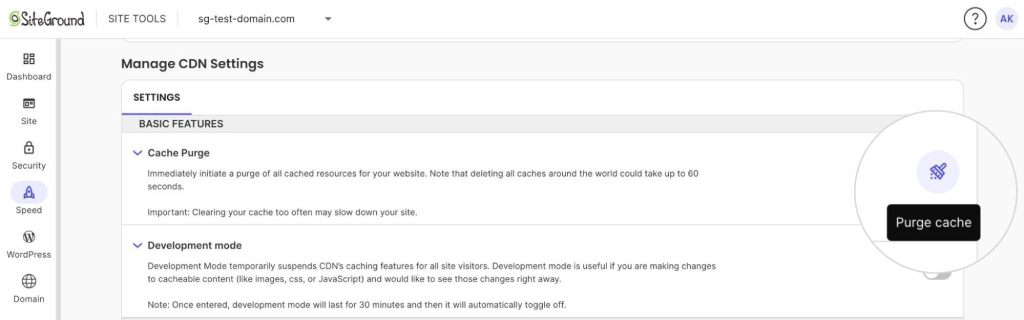
On SiteGround, you flush the CDN cache from Site Tools under Speed > CDN, where the Cache Purge button clears every cached resource (it can take up to 60 seconds to propagate globally).

Manage CDN Settings page in SiteGround Site Tools with the Basic Features section open, showing a magnified view of the Purge cache button next to the Cache Purge option.

“How to clear CDN cache in WordPress” trips people up, because a WordPress plugin usually isn’t what clears the CDN edge. On SiteGround you still purge the CDN from Site Tools > Speed > CDN, exactly as above. The Speed Optimizer plugin, which also manages browser caching in WordPress, has a Purge SG Cache button, but that clears the server-side Dynamic Cache, a different layer. So if visitors still see the old version after a plugin purge, the CDN edge is what still needs clearing.

The faster fix: preview changes live without a full purge

Purging works, but it’s a blunt instrument. Every full purge sends all your traffic back to the origin at once, which is the opposite of what a CDN is for. The better move while you’re still editing is to preview changes without clearing the cache for everyone.

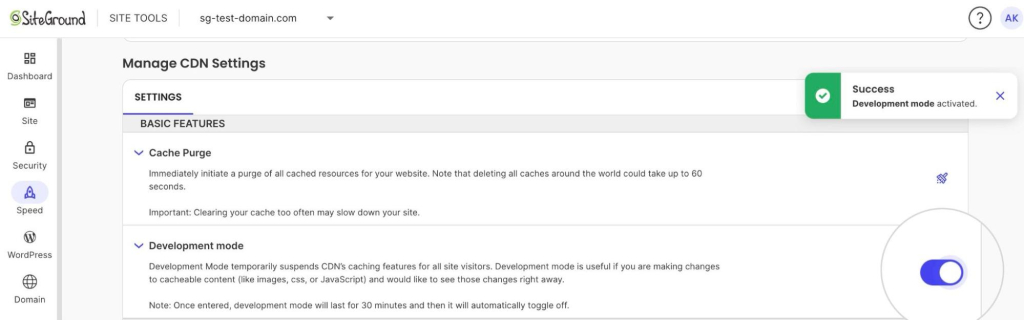
SiteGround CDN includes a development mode that temporarily suspends caching for 30 minutes, then toggles itself back off automatically. While it’s on, requests skip the cache so you see your changes immediately. The advantage over a full purge is that your cached copies are never wiped, so the moment development mode ends your hit ratio is right back where it was instead of rebuilding from zero. It’s a single toggle in Site Tools, which makes it one of the more practical additions to a WordPress performance workflow rather than a feature you’ll read about and never touch.

Manage CDN Settings page in SiteGround Site Tools with the Development mode toggle switched on and a green "Development mode activated" success message.

Use the preview to confirm the change looks right, then purge once, deliberately, instead of purging repeatedly while you guess.

How to cache safely so this doesn’t happen again

Safe caching isn’t about caching less. It’s about caching the right things for the right length of time. The habits below prevent almost every case above, and they keep the speed benefits that improve your Core Web Vitals.

DoDon’t
Cache static assets (images, fonts, compiled CSS/JS) with long TTLsCache HTML for logged-in, cart, or checkout pages
Version filenames (app.9f2c.js) so a change is a new URLReuse the same filename across releases
Set Cache-Control: no-store on private or personalized pagesRely on a single TTL for every asset type
Purge automatically on every deployPurge manually and hope you remembered

The single highest-value habit is cache-busting through versioned filenames. When a changed file gets a new URL, every cache treats it as new content automatically, and the asset-version mismatch that breaks pages simply can’t happen. Caching compiled CSS and JavaScript at the edge also helps you eliminate render-blocking resources, since returning visitors load them instantly instead of downloading them again. Pair that with purge-on-deploy and most stale-content tickets disappear before anyone files them.

Cache invalidation vs. purging: why flushing everything is overkill

CDN cache invalidation means telling the cache that specific content is no longer valid, so the edge refetches only what actually changed. A full purge wipes everything. Invalidation surgically removes the three files you touched. The difference shows up immediately in your website performance metrics: a full flush drops your cache hit ratio to 0% and hammers your origin until the cache refills, while targeted invalidation barely moves it.

For a small brochure site, flushing everything is fine. For a busy store or a high-traffic blog, it’s the difference between a smooth deploy and a few minutes of slow, origin-bound page loads for every visitor. The rule of thumb: invalidate by URL or tag when you can, and reserve the full purge for the rare case where you genuinely don’t know what changed.

This is also where your host earns its keep. A platform that invalidates intelligently on publish protects your hit ratio for you, so you get fresh content without the performance dip.

[86]

Put your caching on autopilot

Most of the trouble in this article comes from doing CDN cache management by hand: remembering to purge, guessing which layer is stale, and hoping a full flush doesn’t slow everyone down. A managed platform removes those decisions. SiteGround CDN caches your static content on a global edge network, clears on demand with a one-click purge from Site Tools, and includes a development mode for previewing changes without wiping your cache.

That means you can ship changes without babysitting the cache, and your visitors keep getting the fast, current version of your site. Fast by default, current when it matters, and no 2 a.m. “why is the old homepage still up” panic.

Frequently asked questions

Is a CDN a cache?

Not exactly. A CDN is a delivery network of edge servers, and caching is the main mechanism it uses to serve content quickly. So a CDN contains and relies on a cache, but it also handles routing, security, and delivery that a plain cache does not.

What is the difference between a CDN and a cache?

A cache is any stored copy of data, which can live in your browser, on your server, or on a CDN. A CDN is the geographically distributed network that stores those copies close to visitors and delivers them. Put simply: the cache is the copy, the CDN is the delivery system.

How do I clear my CDN cache?

Open your CDN or hosting dashboard, find the caching section, and trigger a purge, either for everything or for specific URLs. Then reload the affected page in a private window to confirm the fresh version is being served.

How do I clear the CDN cache in WordPress?

In WordPress, clear the CDN cache from your CDN’s own tool, not a general caching plugin. On SiteGround that is Site Tools > Speed > CDN > Purge Cache. The Speed Optimizer plugin’s purge clears the server-side Dynamic Cache, a different layer, so purge the CDN separately if the old version persists.

How long does it take for a CDN to cache a page?

A CDN caches a page on the first request after a cache MISS, which is effectively instant. It then holds that copy for the length of the TTL, so your changes can take anywhere from minutes to 24 hours to appear unless you purge.

What is CDN cache invalidation?

CDN cache invalidation is the process of marking specific cached content as outdated so the edge refetches only what changed. It’s the targeted alternative to a full purge, and it refreshes your content while keeping your cache hit ratio high.

Is vibe coding safe? 5 checks before you trust AI-generated code

Vibe coding is safe with guardrails, not automatically. Vibe coding means describing what you want in plain language and letting an AI model write the code for you.

In fact, a 2026 Carnegie Mellon benchmark called SusVibes found that only about 10.5% of AI-generated solutions were actually secure, even when they worked exactly as intended. That gap between “it works” and “it’s safe” is what this article walks you through, five concrete checks before you trust what the AI built.

Key takeaways:

  • Vibe coding is safe when the five checks get run before launch: project scope, prompt history, high-risk features, exposed secrets, and developer escalation; not by default.
  • The two failure points research keeps finding: prompt leakage and missing access controls
  • Static sites carry little risk; logins, payments, and shared customer data carry a lot
  • Coderick AI handles authentication, hosting security, and version control by default, but a human still needs to check the rest

What “safe” actually means for vibe coding

Whether vibe coding is safe depends on one thing: whether the output gets reviewed before it goes live.

Research from Invicti, which generated and analyzed more than 20,000 vibe-coded web applications, found that AI models have gotten noticeably better at avoiding classic vulnerabilities like SQL injection and cross-site scripting. That’s genuinely good news. But other flaws remain stubbornly common: hardcoded secrets, reused credentials, and predictable endpoints, the kind of issues that don’t require a sophisticated attack, just someone who knows where to look.

That’s the plain-English version of what the CMU study found too. Two well-designed studies, testing different things, landing on the same point: this is why the rest of this article is a review process, not a verdict on the technology.

Why “it works” isn’t the same as “it’s secure”

Here’s the reason this gap exists: coding agents are optimized to eliminate errors, not to understand what caused them. The model is graded on “does this run without crashing,” not “does this correctly decide who’s allowed to see what.”

Here’s what that looks like in practice. In May 2025, a security researcher found that more than 170 apps built on a popular vibe coding platform had a shared flaw: their databases were wide open. Anyone, with no login required, could read, edit, or delete any customer’s data in any of those apps. Each one had already been tested and shipped by its builder, because on the surface, everything looked fine.

That’s the gap between two kinds of testing:

  • Happy path: using the app the normal, intended way. Logging in as yourself, checking out with a real card, uploading a real file.
  • Unhappy path: someone deliberately trying to do something they shouldn’t. Logging in as one person, then pulling up someone else’s data.

Passing your own testing only proves the happy path works. It says nothing about the unhappy path, and that’s exactly what a review step catches and a demo doesn’t. The admin panels and customer data check later in this article walks through a simple way to test for this yourself.

See our vibe coding glossary for any other unfamiliar terms.

The 5 vibe coding security checks before you launch

The 5 checks below turn that review process into something concrete you can actually run yourself, or know when to hand off.

1. Size up your project’s security needs before you build

Not every build carries the same risk. First, figure out what you’re actually working with.

Ask yourself three questions:

  • Does it touch payments, personal data, or logins?
  • Is it public-facing, or just for your own internal use?
  • Will more than one customer or organization use it, each expecting their own data kept separate?

A quick example: say you’re building a booking system for a small physio clinic. Clients log in, pick a time slot, and pay a deposit online.

Run it through the three questions: it touches payments (yes), it’s public-facing (yes), and there’s no need for row-level isolation since only one clinic uses it (no). Two out of three high-risk answers puts this build solidly in the high-risk category below. Compare that to a simple portfolio site with a contact form: none of the three questions apply, so it sits at the low-risk end.

Low-risk builds

These sit at the low end of the risk scale:

  • Static or brochure sites: worst case is defacement or a spammy contact form. There’s nothing sensitive stored to begin with.
  • Internal tools used only by your own team: often treated as safe by default because they’re not public. But they still touch business data, client names, numbers, internal documents, worth protecting even behind closed doors.

What to do: run through all 5 checks below once before launch. Most will take a minute or two to confirm, since there’s little exposure to begin with.

High-risk builds

  • Customer-facing apps with accounts and logins
  • Anything handling payments or checkout
  • Multi-tenant apps, where several customers share one system but should only see their own data

Logins and payments introduce authentication, sessions, and financial data, exactly where research shows AI-generated code concentrates its access-control failures. Multi-tenant apps are the easiest to underestimate: they look like a normal single-user app in testing, then silently expose one customer’s data to another if row-level isolation isn’t enforced.

What to do: run every check below, no skipping. Treat Check 3 (feature review) and Check 5 (developer escalation) as non-negotiable. If payments or shared customer data are involved, get a developer to confirm Check 3’s access-control questions instead of answering them yourself.

If this sounds like your project, read what vibe coding actually is before going further. The model’s limits matter more as the stakes go up.

2. Review your prompt history for leaked credentials

This check is about what you typed to build your app, and what happened to it afterward.

What you’re sending the AI (and who can see it)

A prompt isn’t just text. It can include uploaded files and connected accounts too, and each one is a different way real data ends up in scope.

Prompt leakage is the common failure here: credentials or real customer data end up sitting in chat history simply because they were typed in while describing what to build.

Where your prompt history actually lives

What happens after you hit send matters just as much as what you sent. Does the tool log conversations? For how long? Is that history used for anything beyond your own session, debugging, support access, model training?

Check the retention practice of whatever tool you’re using before you paste anything sensitive into it. Look for three things specifically: how long conversations are stored, whether that data is used to train models, and whether anyone besides you (support staff, other systems) can access it. 

To make this a bit easier for you: most privacy policies cover this in a section titled something like “data retention” or “how we use your information.” 

3. Code-review your high-risk features, one by one

Remember the low-risk and high-risk categories from check 1? This is where that distinction gets applied at the feature level. Even inside a single build, some individual features need a closer look than others.

The actual definition of “high-risk” here: anything that authenticates a user, gates access to something, or handles money.

In plain terms on payments specifically: the payment usually works fine. The problem is who’s allowed to trigger it isn’t properly checked.

FeatureRisk levelWhat to check
Contact formLow-stakesSubmit the form 5–10 times in a row quickly. If it lets every submission through with no delay or block, ask for a limit to be added
Login systemHigh-stakesLog out, then hit the back button. If you’re still logged in and can see account data, the session isn’t ending properly
Payments and checkout flowsHigh-stakesStart a checkout and confirm who’s allowed to trigger it. If you’re using Coderick AI’s built-in Stripe integration, card details are handled by Stripe’s own checkout page and never touch your code, so this risk is mostly about anything you built around the payment, like a custom pricing page, not the payment itself.
Admin panels, user accounts, customer dataHigh-stakesLog in as yourself, open any page showing your own data (like an account or order page), and note the number in the address bar. Change that number by one and reload. If someone else’s data loads, that’s a real problem

4. Check for exposed secrets and public-by-default settings

Some red flags don’t need code-reading skills to spot:

  • A setting shipped public instead of private
  • A secret sitting in plain view in a file that shouldn’t have it
  • A permission check that’s simply missing

How common is this, really? A scan of 5,600 publicly available vibe-coded apps found:

  • More than 2,000 vulnerabilities
  • 400 exposed secrets
  • 175 instances of leaked personal data, including medical records and bank account numbers

That’s not a fringe case. It’s the typical outcome across thousands of real, live apps.

What this looks like in the wild: researchers hacked an AI-agent social network’s database in under three minutes, exposing 35,000 email addresses, thousands of private messages, and 1.5 million API tokens. The cause wasn’t a sophisticated attack. It was a red flag like the ones above, left unchecked.

5. Check whether payments or customer data mean you need a developer

Some situations call for a developer, not a checklist:

  • Handles payments with custom logic beyond a standard checkout (splitting funds between multiple parties, a custom pricing engine, anything that isn’t just “charge a fixed amount”)
  • Stores personal data
  • Serves multiple customers who shouldn’t see each other’s records

💡If you’re building with Coderick AI specifically, a standard Stripe checkout, subscription, or one-time payment doesn’t need this level of developer review, that part’s already handled. Custom payment logic beyond that still does.

If your app has multiple users who shouldn’t see each other’s data, or it touches a database directly, that’s a developer-level check, not something to verify yourself. Row-level data isolation and access-control logic are the kind of thing that looks fine in a demo and fails the moment two customers use it at once. Our guide on getting started with vibe coding covers where to draw this line before you’re deep into a build.

So, is vibe coding safe? For a landing page, almost certainly. For a login system handling customer payments, only once someone’s actually checked it.

How Coderick AI reduces these vibe coding vulnerabilities

A few of the checks above are already handled by default, no need to ask for them:

  • User authentication built in from the start. No need to specify it or catch it missing, removing one of the checklist’s highest-risk gaps as a manual to-do.
  • SiteGround’s hosting and security stack, inherited automatically. No unconfigured server to start from, which handles the server-level security (firewalls, malware scanning, DDoS protection) that a standalone AI code generator would otherwise leave entirely up to you.
  • Version control included by default. Every generated change is tracked, giving you a history to check instead of a live app with no paper trail.
  • Stripe checkout built in for payments. Card details go straight to Stripe’s secure page and never touch your project’s code, closing the exact “who’s allowed to trigger this payment” gap Check 3 describes, for anything using this integration specifically.

What it doesn’t do: catch business-logic or access-control bugs elsewhere in the generated code automatically. Even with Stripe connected, it’s worth a quick confirmation on two things: that subscription cancellation is built into your customer’s experience (just ask Coderick to add it), and that your refund permissions are set the way you want them, which is usually the default.

Your Digital Alchemist, for instance, is a solo web design agency that built 15 client websites in five months with Coderick AI and won a regional design award doing it.

That’s exactly why the checks in this article matter: the tool is production-ready enough that people are already putting client work on it, which makes review habits a live concern, not a someday one.

[96]

Frequently asked questions about vibe coding security

Is vibe coding riskier than hiring a freelance developer?

Whether vibe coding is riskier than hiring a freelance developer depends entirely on whether either one gets reviewed. An unreviewed AI build and an unreviewed freelance build carry similar risk; the difference is that a freelancer typically brings security judgment baked into the process, while an AI tool needs you to supply that judgment yourself.

Can AI fix the security problems it created?

Sometimes, if you point it at the specific issue. AI models are better at fixing a named vulnerability than at spotting one on their own, so a manual review step to find the problem first is still necessary.

Is an AI website builder like Coderick AI safer than a general-purpose AI chatbot for coding?

Generally, yes, for the infrastructure layer. A purpose-built platform bundles hosting security and authentication by default, where a general chatbot leaves you to configure, or forget to configure, all of that yourself.

What does it cost to fix a security issue after you’ve already launched?

It’s almost always more expensive than catching it before launch, both in developer time and in the damage a breach can do to customer trust. Fixing an issue in a live app also means auditing what data may already have been exposed, which a pre-launch check avoids entirely.

Is vibe coding safe for a simple site, even if it’s risky for a full app?

Yes. A static site with no logins, payments, or stored customer data carries very little of the risk this article covers. The checklist above still applies, but the stakes, and the effort needed, scale down a lot.

How to choose AI plugins for WordPress without overloading your site

A digital graphic illustrating WordPress AI plugin selection against a purple gradient background. On the right, a browser mockup displays a website hero section featuring a woman in a purple beanie alongside the tag "+ NEW COLLECTION", the headline "Where Comfort Meets Confidence", and a dark call-to-action button. On the left, floating plugin selection cards display active choices marked with blue checkmarks—including circular icons for support, email, and content editing—positioned underneath a black AI sparkle icon button.

As we found in our 2026 report on AI in WordPress for small businesses, the AI plugins market has been exploding. There is now an AI plugin for almost every WordPress task imaginable, and it’s tempting to install each shiny new tool that promises to make your life easier with a bit of AI magic. But that is how your site ends up overloaded, so the real question is: how do you choose AI plugins for WordPress well, and end up with only the ones you actually need?

Fortunately, you don’t need to test every option. Choosing AI plugins for WordPress means starting with the task you need to complete, narrowing your options to the right plugin category, and evaluating each candidate for compatibility, total cost, API requirements, security, overlap, and ongoing maintenance before installing it. That kind of WordPress AI plugin selection is what keeps your site fast and easy to manage rather than cluttered.

This article will walk you through the whole process and show you how a site-connected assistant like the AI Agent for WordPress can help you search for and install the AI plugins you actually need.

Key takeaways:

  • Choosing AI plugins for WordPress is a process, not a shopping trip: start from the task, narrow to the category, then run one candidate through nine checks before you install anything.
  • Judge every plugin on the same nine points, from whether it fits the job to how it handles your data and whether it overlaps something you already run.
  • The real cost is rarely the sticker price, because separate subscriptions, AI provider accounts, and API keys can add up across a stack of AI tools.
  • Overlap is the check most people skip, yet removing a plugin you no longer need is often a bigger speed and security win than adding a new one.
  • A site-connected assistant like the AI Agent for WordPress can run these checks against your live site, recommend or install a plugin, and in many cases handle the task so you need no new plugin at all.

How do you choose an AI plugin for WordPress?

The best way to choose an AI plugin for WordPress is to define the task first, then check a single candidate against the same short list of questions every time, so the decision is consistent instead of swayed by whichever tool has the best marketing that week.

AI has become the headline feature nearly every plugin leads with, from established names bolting an AI panel onto tools you already know to brand-new plugins built entirely around a single model. On the surface, many can look almost identical, which makes it genuinely hard to tell a tool that will still be maintained next year from one that was rushed out to catch the wave.

For a detailed analysis of the AI plugins market, download our 2026 report on AI in WordPress for small businesses.

The nine checks below cover the things that actually decide whether a plugin helps your site or slowly weighs it down.

1. Does it fit the specific task?

Among WordPress AI tools, task fit matters more than feature count. The question is not whether a plugin does a little or a lot, it’s whether what it does matches what you actually need. If you have one narrow job, a plugin built for exactly that will serve you better than a broad suite where your task is buried among features you will never open. If your need is genuinely bigger, like WordPress management as a whole, then a tool scoped to that makes sense. What you are avoiding is the mismatch: paying for and loading capabilities that have nothing to do with the job in front of you.

2. Is the AI plugin compatible with your WordPress setup?

AI plugin compatibility is whether the plugin works cleanly alongside the rest of your site: your WordPress version, your theme (the design template that controls how your site looks), and the plugins you already run. Plugin conflicts are one of the most common reasons a WordPress site suddenly looks broken or slows to a crawl, because two tools try to do overlapping things at the same time.

Check that the plugin lists support for a current WordPress version and was tested recently. AI plugin compatibility problems are far cheaper to avoid than to diagnose after the fact.

3. What does the subscription actually cost?

Note the plugin’s own price, monthly or yearly, and be honest about which tier you will really need. The free version is often a preview, and the feature you actually came for (bulk actions, higher limits, the model you want) tends to sit on a paid plan. AI plugin pricing is worth writing down rather than eyeballing, because a “cheap” plugin at the tier that does nothing useful is not cheap. And this is only half the cost picture, which brings us to the next check.

4. Does it need its own API keys or provider account?

This is the cost that catches people out. Many WordPress AI plugins don’t include the AI itself. Instead, they connect to AI models like ChatGPT, Claude or Gemini, and to do that you have to create your own account there and generate an API key, a long password that lets the plugin use that service and bills you for what it uses.

When this is the case, you’re paying twice: once for the plugin and again for the AI usage on a separate bill you have to set up and watch. Always check whether the AI is included or billed separately before you decide a plugin is affordable.

If you are on WordPress 7.0 or later, this check gets easier. WordPress 7 added a built-in way to connect an AI provider like OpenAI or Anthropic once, from a single Connectors screen, and plugins built for it share that connection instead of each asking for its own API key. You still set up one provider account and still pay for what the AI uses, but it is one connection and one bill to watch rather than a separate key buried in every plugin. Our guide to AI in WordPress 7.0 for business explains this in detail.

5. How does it handle your data and permissions?

An AI plugin often needs real access to your site to read your content, change your pages, or send your data to an outside service to process it. That is quite common, but it’s worth a moment’s thought. Look at what the plugin asks to do, and where your content goes when it uses AI. A well-made plugin is clear about both.

WordPress AI plugin security comes down to two simple questions: does it ask for more access than the job requires, where does it send site data, and is it still being looked after? An abandoned plugin with deep access is one of the riskier things you can leave installed, which leads us to the next check.

6. Is it actively maintained?

WordPress, PHP (the programming language WordPress runs on), and the AI services behind these plugins all change regularly. An AI plugin that is not kept up to date will eventually break against them, or stop being safe. Before installing, look at when it was last updated and how often new versions appear. A plugin updated last week is a good sign; one untouched for a year is a warning, however good it looked at launch.

7. Is there real support if something goes wrong?

It’s possible at some point an AI plugin will do something you didn’t expect, and what matters then is whether you can reach a human who can help. Check what support looks like before you commit: documentation only, a community forum, or actual responsive help from the people who built it. On a free plugin, the answer is often “you are on your own,” which can be fine for something minor and painful for something your business depends on.

8. Does it overlap with something you already have?

This is the check almost everyone skips, and it is the core of a simple WordPress plugin audit. Before adding a plugin, look at what is already installed, because there is a fair chance something on your site already does part of the job. Running two WordPress AI plugins that overlap is worse than wasteful: they compete, they both load code on every page, and they widen the surface where things can break. That overlap can add cost, maintenance work, and conflict risk even when both plugins are technically compatible. This is how sites end up slow and fragile without anyone deciding they should be.

9. How much work is it to set up and keep running?

Finally, be realistic about effort, both to get started and to live with. Some plugins are active in a click; others want accounts, keys, and a page of configuration before they do anything. And setup is only day onе: every plugin you keep is another interface to learn, another thing to update, another candidate when something goes wrong. A slightly less powerful tool that you will actually keep current often beats a stronger one that becomes a chore. Low ongoing effort is a feature, not an afterthought.

CheckWhat to verify
Task fitIt does the job you need, without sprawling into features you will never use.
Compatibility and performanceWorks with your WordPress version, theme, and existing plugins without causing conflicts or unnecessary load.
Subscription priceThe plugin’s own cost, at the tier that actually does the job.
API keys and accountsWhether the AI is included or billed separately through your own account.
Data and permissionsHow it handles your content and how much access it asks for.
Active maintenanceUpdated regularly and keeping pace with WordPress and PHP.
SupportReal help available when something goes wrong.
OverlapNothing you already run does the same job.
Setup, testing and upkeepCan be tested safely, reversed if needed, and maintained without excessive effort.

How an AI Agent for WordPress can run these checks for you

Running all these checks can be a fair amount of work. But here’s some good news: you don’t actually have to do this by yourself. It’s exactly the kind of job a specialized AI agent for WordPress can do for you, from choosing the AI plugin against these criteria to even installing it.

For example, you can ask SiteGround’s AI Agent for WordPress to act as your research assistant. And because it connects directly to your site, it doesn’t just give generic advice, but actually looks at what you have installed right now. In one exchange, it can handle the hardest check—overlap—by cross-referencing your actual setup, potentially saving you from adding a plugin you don’t even need.

If a new tool genuinely is the answer, the agent will search and generate a comparison table with pros, cons, and a suggested starting point. Once you’re satisfied, just give the agent the word, and it will install your chosen plugin for you.

Here’s an example prompt you can copy and adapt:

“Find me the best WordPress AI plugin for a [task] on my WordPress site. Compare options based on task fit, compatibility, performance impact, pricing, API key/provider costs, security, update history, support quality, overlap with my existing plugins, and setup/testing effort. Check my existing plugins first, then give me a shortlist and one final recommendation.”

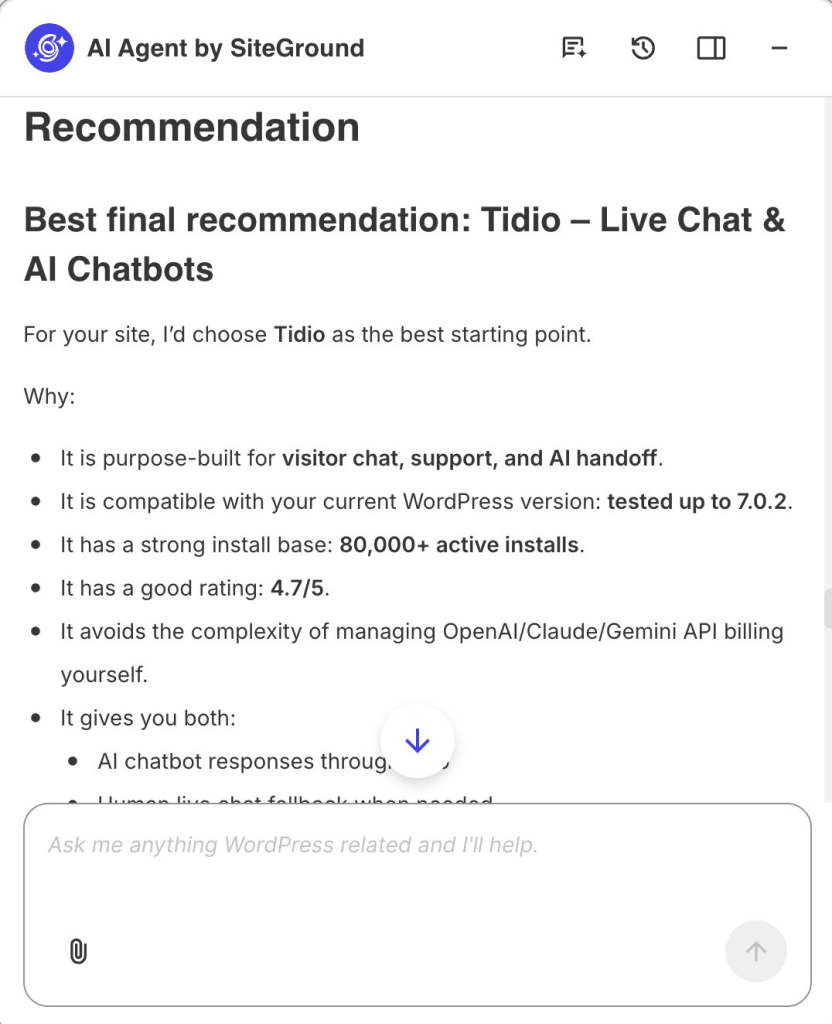
Say you are about to add another AI tool for a visitor chatbot. Rather than reaching for a generic “best chatbots” list, the agent checks your WordPress version, your theme, and your active plugins, and tells you what it finds. It works through the same nine checks for you, weighing a handful of candidates on task fit, compatibility with your exact setup, pricing, whether each needs its own API keys, how it handles your visitors’ data, update history, support, and setup effort.

A screenshot of the AI Agent by SiteGround chat interface presenting a plugin suggestion titled "Recommendation." The panel highlights "Best final recommendation: Tidio – Live Chat & AI Chatbots" followed by key reasoning, including its design for visitor chat and AI handoff, compatibility tested up to WordPress version 7.0.2, over 80,000 active installs, a 4.7/5 rating, and direct support for both AI responses and human live chat. A floating blue down-arrow scroll button sits above a bottom prompt input bar reading "Ask me anything WordPress related and I'll help."

You can then just tell the AI Agent “install it.” And because the AI Agent is securely linked to your site, you don’t need to log into the dashboard, navigate through the Plugins menu, or search the repository yourself. It instantly downloads, installs, and activates the plugin directly on your live site.

When your site does not need another AI plugin at all

Knowing you can choose the right AI plugins so easily doesn’t change the big problem: stack up too many of them, and your dashboard fills with separate settings screens, each with its own login, its own way of working, and its own updates to keep track of. Your monthly costs can climb, because most of these tools are subscriptions, and several small ones add up to a bill you never sat down and agreed to. And your site gets heavier, because each plugin loads its own code, so the more you stack, the slower and more fragile the whole thing becomes.

This is once again where a site-connected WordPress assistant changes the math, because it doesn’t do one job. A specialized AI agent can often replace a whole shelf of single-purpose plugins at once and become the most useful WordPress AI tool for your business.

With the SiteGround AI Agent for WordPress, for example, the same tool can draft and publish a post, generate and apply SEO metadata, upload images to your media library, create products and discount coupons in your store, and moderate comments—all from one place, on your instruction. It can even clear your site’s cache, install and update themes, or run your core updates.

So instead of adding another tool to the pile, you are removing the reason the pile exists. And there are no separate logins to remember, no API keys to configure, and no subscriptions to keep track of. In fact, the AI Agent for WordPress is completely free for SiteGround customers, giving you 20,000 AI tokens a month as part of the free AI Studio Essential plan. You can also use it on sites hosted elsewhere (if you have a SiteGround account): it’s one lightweight plugin and about a minute to connect.

FAQs

How do you choose an AI plugin for WordPress?

You choose an AI plugin for WordPress by starting from the specific task you need done, narrowing to the right type of plugin, and then checking one candidate against a consistent set of questions, about task fit, compatibility, real cost, API keys, data and permissions, maintenance, support, overlap, and setup effort, before installing anything.

What should you check before installing an AI plugin for WordPress?

Before installing an AI plugin for WordPress, check that it fits your exact task, works with your WordPress version and existing plugins, and is priced clearly, including whether the AI is billed separately through your own account. Then look at how it handles your data, whether it is actively maintained and supported, and whether anything you already run does the same job.

Should I install multiple AI plugins on WordPress?

Not by default — each one adds its own settings, login, and code to every page load, and overlapping plugins compete rather than add value. Check for overlap with what you already run before adding another, and consider whether a site-connected assistant like the AI Agent for WordPress can cover several of those jobs at once instead of adding another single-purpose tool.

Which type of WordPress AI plugin does my business site need?

The type of WordPress AI plugin your business needs depends on the job you are trying to finish, such as writing content, generating SEO metadata, editing images, translating a store, or moderating comments. Define that task first, then look only at plugins in that category, rather than at broad tools that promise to do everything.

How much do WordPress AI plugins cost?

To compare the true cost of WordPress AI plugins, add the subscription price at the tier you actually need to any separate AI usage billed through your own provider account. Many plugins connect to an outside AI service, so the real cost is the plugin plus that usage, not just the advertised plan.

Do WordPress AI plugins require API keys?

Many WordPress AI plugins do require API keys, because they connect to an outside AI service rather than including the AI themselves, though WordPress 7.0 lets you connect a provider once for the whole site rather than per plugin. An API key is a private credential that lets the plugin use that service on your account, which usually means a second bill for AI usage on top of the plugin’s own price. Always check whether the AI is included or billed separately.

How can I tell whether two WordPress AI plugins overlap?

Two WordPress AI plugins overlap when they can perform the same job, such as two tools that both generate SEO metadata. Review what each installed plugin actually does, not just its name, and remove duplicates, since overlapping plugins compete, add weight to every page, and increase the chance of conflicts.

How do I audit the AI plugins on my WordPress site?

To audit the AI plugins on your WordPress site, list everything installed, note the single job each one does, and flag any that overlap, sit unused, or have not been updated in a long time. Removing those is often a faster performance and security win than adding a new plugin. A site-connected assistant can run this audit for you.

Can an AI Agent for WordPress recommend and install plugins?

Yes. An AI Agent for WordPress can recommend a plugin for a task, check it against what you already have installed to avoid overlap, and install it on your instruction. Because it is connected to your live site, its recommendations reflect your actual setup, and it can also remove plugins you no longer need, with your confirmation.

Thank-you emails: Examples and templates that actually get opened

Woman relaxing in an armchair with a laptop, viewing a thank-you email with a photo of candles after an online purchase If you want a shorter version for file naming or CMS fields, "customer-reading-thank-you-email.jpg" works well as the filename, with the alt text staying descriptive for accessibility and search context.

Somewhere between the welcome email and the win-back campaign, most businesses forget to send a thank-you email. These eight templates fix that, one for every moment worth acknowledging: a purchase, a referral, a review, a milestone, a holiday, or a new signup.

Key takeaways:

  • Thank-you emails cover six triggers: purchases, referrals, reviews, milestones, holidays, and new signups.
  • A thank-you email needs three things: a reference to what triggered it, one line of genuine acknowledgment, and a sign-off. Everything else is optional.
  • The subject line decides whether thank-you emails get opened.
  • If you’re asking for something (a review, a referral), say thanks first and keep the ask optional.

What is a thank-you email (and why it outperforms most of your other sends)

A thank-you email is a triggered, single-purpose message. It acknowledges one action, a purchase, a referral, a review, a milestone, a new signup, and stays anchored to that one thing even when it carries a small ask alongside it. The ask, if there is one, comes second.

That’s also why it performs well. Triggered sends like welcome and cart-abandonment emails get around 42% open rates, versus 25% for standard bulk campaigns. A thank-you email is triggered the same way: it responds to something the reader just did, so it isn’t competing with a broadcast for attention.

It’s one of several distinct types of emails worth keeping separate in your sending calendar. The confusion shows up mainly around purchases: a transactional email, an order confirmation, a shipping update, a receipt, can blur into a post-purchase thank-you if you’re not deliberate about the difference.

Mixing a thank-you into a promotional blast has the same problem in reverse: the moment it carries an offer, it stops being the single-purpose, triggered message that earns the performance above.

What should a customer thank-you email include?

At minimum, three things:

  • A direct reference to the specific action that triggered it (the referrer’s name, the review itself, the milestone reached, whatever applies)
  • One line of genuine acknowledgment
  • A clear sign-off

Anything beyond that, a reward, a related offer, a request, is optional and belongs after the thank-you, not instead of it.

Manual or automated thank-you emails

It’s not always obvious what should send itself and what needs a real person behind it. Here’s the question worth asking: does the trigger only need someone joining a list, or does it depend on something happening outside your email tool entirely, a purchase, a referral, a review?

If it’s the first kind, most email platforms can fire it automatically the moment it happens. If it’s the second kind, someone has to notice the event and get that contact into your email tool’s system before anything can send, that’s true almost everywhere, not just here.

TriggerWhat has to happen before it can send
Lead magnet or webinar signupNothing, the signup itself is the trigger
Post-purchaseAdd the buyer to your list after the sale
ReferralTrack the referral, then add the contact
Review or feedbackNotice the review, then add the contact
Loyalty or milestoneCheck tenure or order count, then add the contact
HolidayNothing, it’s a scheduled send, no trigger needed

Post-purchase thank-you email template: transactional vs. marketing

Two different emails, two different jobs. The transactional one, order confirmation, shipping notice, receipt, exists to deliver information the customer expects. No promotional content allowed, no unsubscribe link needed, it’s fulfillment, not marketing.

The thank-you version is the marketing one: pure gratitude for the decision to buy from you. That’s what makes it relationship-building rather than logistics, and it strengthens the case for a related product suggestion or a review invitation, both of which belong here rather than in the transactional email. Because it’s a marketing send, it needs an unsubscribe link and proper consent like any other campaign.

Subject line: Thanks for choosing us, [Customer name]
Hi [Customer name],
We wanted to reach out separately from the order confirmation, because a receipt isn’t really a thank-you, it’s paperwork.
[Optional: one related product suggestion or a review invitation]
[Business name]

Quick tip: Don’t default to a discount as the “something extra.” A genuine ask, “how’s it working out?”, or a light nudge toward a review, reads as more sincere than a coupon, and it doesn’t put you in the position of training customers to wait for a discount every time they buy.

Name the product, not just the person. Personalized subject lines are something customers actually notice, Mailjet found over 80% of people value emails tailored to their interests. Naming the specific product is a simple way to do that; worth testing against your own open rates.

When to send it

A few days after delivery, once the transactional confirmation has already handled the logistics, works best. This one’s manual rather than automatic: since the trigger is a purchase happening outside your email tool, there’s no built-in way to fire it the moment someone buys, someone has to add the contact to your list first, then send.

Thank-you email for completing a service

Once a project or service wraps up, the service-completion thank-you email should go out within a day, before the details fade from memory.

Subject line: Thanks for trusting us with [project or service name]
Hi [Client name],
[Specific deliverable] wrapped up on [date]. [One real detail: a call you had, a decision they made that paid off, a constraint you worked around]. That kind of project is the reason we do this.
If anything needs adjusting, or you think of a question later, just reply.
[Business name]

Another tip: Show them you were paying attention, not just billing hours. Name one decision the client made during the project and tell them it worked out. It signals you were actually paying attention to their choices, not just executing a checklist.

This one’s worth building into your workflow even if you don’t run an online store. If email marketing is still new to your business, the email marketing guide for small business covers where this fits alongside everything else.

This applies whether the ‘service’ was a haircut, a repair, or a six-month contract, the trigger is the same: work finished, gratitude follows.

Referral thank-you email template

A referral thank-you email is worth sending by hand for your biggest referrers; the template below covers everyone else.

Subject line: [Referrer name], you just made our week
Hi [Customer name],
[Referred contact name] told us you sent them our way. We don’t take that lightly, people don’t usually put their own name behind a recommendation unless they mean it.
[Optional: a specific thank-you, a code, a gift, or an offer to return the favor]
[Business name]

Tip: If you’re going to offer something in return, make it proportional to what the referral actually turned into. A small discount for a lead that didn’t convert reads as generous; the same discount for a referral that became your biggest account reads as an insult. Match the gesture to the outcome.

Give the referrer the main character treatment. Put their name in the subject line, not just the body. Referral thank-yous get treated as generic when the subject line could apply to any customer; naming them upfront breaks that pattern immediately.

Group your referral sources so you can track who’s doing this repeatedly. A referral is effectively a lead generation channel, worth tracking with the same attention you’d give any other lead source.

If a referral converts into a paying customer, that’s worth a second, separate note beyond the initial thank-you, most businesses only send one and stop there.

Review or feedback thank-you email template

Standout reviews deserve a warmer, personal reply; the review or feedback thank-you email below works fine for the routine ones.

Subject line: About what you wrote, thank you
Hi [Customer name],
[Quote or paraphrase one specific line from their review]. That’s exactly the kind of detail that helps someone else decide, and it tells us what we’re actually doing right, not just that something worked.
[Business name]

Quote them like they’re worth quoting. Pull one specific phrase or detail from their actual review. A templated “thanks for the review!” reads as automated even when it’s sent by hand; quoting their own words back proves someone read it.

A public review deserves a warmer, less templated reply than a private survey response. If the review is glowing, this is also a natural point in the email customer journey to ask, gently, if they’d consider a referral too.

If the review is negative rather than glowing, skip this template entirely, that’s a service recovery conversation, not a thank-you.

Loyalty and milestone thank-you email template

Segment by tenure or order count, then send once the milestone is confirmed.


Subject line: You’ve been with us since [specific date]. Thank you.
Hi [Customer name],
[Specific date] to today, that’s [X years / X orders] with us. We don’t send this to everyone, most customers don’t stick around long enough to earn it.
[Optional: loyalty reward or early access]
[Business name]

Tip: Pull the receipts. Literally. Use the actual first-order or signup date from your contact records. “You’ve been with us since [specific date]” feels more personal than “you’ve been with us a while”, it’s a fact only your own records could know, and that specificity is the whole point of a milestone email.

Small milestones count too, a first anniversary or a tenth order deserves the same treatment as a hundredth. Consistency matters more than the size of the number.

Holiday thank-you email template

Holiday thank-you emails are the easiest of the eight to actually ship, since they need no trigger at all.

Subject line: Thank you for a great year
Hi [Customer name],
[Something specific to the year: a launch, a change, a milestone your business hit] happened because customers like you kept showing up. That’s worth saying out loud once a year, without an offer attached.
[Business name]

And the tip: Matching the specific holiday gives you more to work with: a pun for Halloween, a nod to the season for Thanksgiving, a wink at resolutions for New Year’s. The subject line is the easiest place to do this, “Thank you for a boo-tiful year” reads as effort. Just match it to your brand voice, a pun that doesn’t fit reads worse than no pun at all. This is really just seasonal marketing applied to a thank-you note.

Schedule it like any other campaign, no automation trigger required. Your holiday email marketing guide covers the rest of your seasonal calendar.

Thank-you email for a lead magnet or webinar signup

The lead magnet or webinar signup thank-you email is easy to automate: set it up once, and it runs itself from day one.

Subject line: Here’s [resource name], thanks for grabbing it
Hi [Contact name],
[Resource name or webinar] is attached / linked below. One thing worth knowing before you dig in: [a one-line context note, who it’s really for, what to skip, what to expect].
[One related resource or next step, matched to what they actually downloaded]
[Business name]

Tip: Match the follow-up to what they actually wanted. Send a next step specific to the resource they grabbed, not a catch-all link. Someone who downloaded a pricing guide and someone who downloaded a style guide are in different places, give them different second steps.

This one sits closest to a welcome email, just narrower in scope, it’s triggered by one specific action rather than a general subscribe.

Thank-you email subject lines: quick reference

The subject line decides whether any of the templates above get opened at all. Group your options by trigger rather than reusing one line everywhere.

  • Post-purchase: “Thanks for choosing us, [Name]” (safe default) or “We’re glad you’re here, [Name]” (stronger, use when leaning on the relationship rather than the transaction)
  • Referral: “Thank you for the referral” (safe default, works sent through automation or in bulk) or “You’re basically our marketing team now, [Referrer name]” (stronger, hand-sent only, skip for B2B or formal relationships)
  • Review: “Thank you for taking the time to write that” (safe default) or “About that line you wrote, thank you” (stronger, use when you can reference something specific)
  • Milestone: “[X] years with us. Thank you.” (safe default) or “You’ve been with us since [specific date]. Thank you.” (stronger, use when you have the exact date)
  • Holiday: “Thank you for a great year” (safe, works across tones and audiences) or “No offer, just thanks” (only if your brand voice is casual, skip for B2B or formal client relationships)

How to know if your thank-you emails are working

Click rate and reply rate are good signals, they show whether the gratitude actually landed. Track both against your other email marketing metrics to see if thank-you emails are pulling their weight.

Open rate isn’t the most useful metric here. A newsletter that reached 42% opens once generated only three sales, while a promotional email capped at 28% opens produced fifteen times more. High opens don’t guarantee results, and thank-you emails are no exception.

What SiteGround Email Marketing automates for you

The short version: get a contact onto the right list, and the automation takes it from there.

Fully hands-off today: lead magnets and webinar signups. Connect your signup form, assign it to a dedicated list, build an automation with that list as the trigger, and it runs itself from day one, no further input needed.

One quick step, then hands-off: post-purchase, referral, review, and milestone thank-yous. Add the contact to a list, whichever way fits your workflow, and the automation and AI writer take over the actual sending from there.

Setting it up:

  • Client Area > Services > Email Marketing > Automations > New Automation
  • Choose the list (or lists) that trigger it
  • Multiple lists can share one automation, a contact in several still only gets the email once, so it’s easy to combine triggers instead of building duplicates

One thing worth knowing: pausing an automation doesn’t pause the clock for contacts mid-sequence. Say there’s a 15-day wait between two emails. Pause on day 10, come back 7 days later, and the contact gets the next email right away, the 15 days already passed while you were away. Pause on day 5 and come back 5 days later, though, and they’ve still got 5 days left. Time keeps moving, only new sends stop.

The easiest email you’ll ever write is a thank-you

Thank-you emails are the easiest email you’ll ever write: one clear moment, one clear message. Pick the trigger that matches what just happened, copy the template, swap the brackets, and send.

If you’re ready to stop doing this by hand for the templates that can run themselves, SiteGround Email Marketing handles the group-based automation, the no-code builder, and the AI writer that make the rest of these quick, all in one place.

[58]

Frequently asked questions about thank-you emails

Should a thank-you email include a discount or offer, or just say thanks?

Keep any offer optional and secondary. A thank-you email that leads with gratitude and only mentions a discount as an aside reads as sincere; one that leads with the discount reads as a promotion wearing a thank-you subject line.

Can you automate thank-you emails without them sounding robotic?

Yes, as long as the template includes at least one specific detail, an order number, a referred contact’s name, a milestone count, rather than generic filler. The automation handles timing; the specificity handles the tone.

How often should you send thank-you emails to the same customer?

As often as they trigger a genuine moment, a purchase, a referral, a milestone, and no more. Sending a thank-you for every minor interaction dilutes the ones that matter.

Do B2B thank-you emails need a different tone than B2C?

Slightly. B2B thank-you emails tend to run a notch more formal and reference the relationship or contract rather than a single transaction, but the core rule, lead with gratitude, stay specific, holds for both.

Is it okay to ask for a review or referral in a thank-you email?

Yes, as long as the ask comes after the thanks and stays optional. A thank-you email that opens with an ask isn’t a thank-you email, it’s a request wearing a polite subject line.

What’s the difference between a thank you email and a welcome email?

A welcome email greets a new subscriber and introduces your brand; a thank-you email responds to a specific action someone already took. They can overlap, a lead-magnet thank-you often doubles as a welcome, but the trigger is different.

Best platforms to create an online store: How to pick the right one for your business

A ceramics artisan holding a handmade mug in front of a laptop, surrounded by graphic overlays representing an online store: a product card for a handmade vase with color options, a payment methods panel (Visa, Mastercard, Apple Pay, Google Pay, Stripe, PayPal), a shopping cart icon, and a storefront preview showing "Artisanal Ceramics & Vases" with a row of bestselling vases.

Six tabs open, six platforms, and every one of them looks like the right answer for about thirty seconds. Here’s a shortcut: there’s no single best platform to create an online store. There’s only the best platform for your budget, your technical comfort, and how many products you’re selling this year versus next year. This guide walks through how your needs point you to a platform, and which one is truly best for you.

Key takeaways

  • There’s no single best platform. The right one depends on a variety of factors, from your budget to your tech know-how, and functionality needs.
  • Total cost of ownership matters more than the number on the pricing page. Hosting, transaction fees, apps, and themes rarely show up next to the subscription price, so they need to get added up separately.
  • All-in-one platforms like SiteGround Ecommerce bundle hosting, design, and a full online store so that everything lives under one roof.
  • Speed and uptime come from infrastructure built for hosting, not features bolted onto a page builder after the fact.
  • 24/7 support, on every plan, is rare. Many platforms limit phone support to premium tiers or skip it for lower ones, so it’s worth checking before you need it, not after.

What is an ecommerce platform?

An ecommerce platform is software that lets you build a website, list products, and accept payments in one system, instead of stitching together separate tools for hosting, design, and checkout. That’s different from a marketplace like Amazon or Etsy, where you list on someone else’s site instead of running your own store.

How to choose the right platform for your store

Work through six questions about your own store before you compare a single brand name. They decide which category of platform even makes sense, long before any brand name enters the conversation. Most “best of” lists skip straight to ranking platforms one through ten without asking any of this, which is how a solo candle-maker and a nine-figure retailer end up reading the exact same advice.

1. Do you already have a website, or are you starting from scratch?

Already running an ecommerce website? Adding a store to an existing website is a different job than building one from zero. If that site runs on WordPress, WooCommerce usually makes sense, since it plugs straight into a structure you’ve already built. We’ll get into this more in a moment.

Starting from scratch is simpler in a different way. An all-in-one platform handles your whole site and your ecommerce store in one plan: no separate CMS, theme, and ecommerce plugin to keep updated and speaking to each other. Building an ecommerce website from the ground up follows a straighter path than retrofitting one, since you’re choosing a platform, a design, and a payment setup in sequence, rather than working around page templates that were never built with a store in mind.

Action: If you’re building on an existing WordPress site, that’s a strong signal toward WooCommerce. Starting fresh points you toward an all-in-one platform instead.

2. How many products will you sell, and how fast do you expect to grow?

  • Catalog size can matter a lot when it comes to choosing an ecommerce platform. Five candles and a jar of wax melts don’t need bulk inventory tools, multi-warehouse shipping rules, or a dedicated staff account system. Five hundred SKUs usually do, and a platform that doesn’t support those tools can turn that catalog into a spreadsheet-and-duct-tape operation fast.
products added to an online store
  • Growth speed matters as much as current size. A platform that’s comfortable at 20 products can get expensive or clunky at 200. If you’re expecting to double or triple your catalog within a year, weight your decision toward a platform with room to grow, even if that means starting one tier above the bare minimum.
  • Scalability is one of the few factors here that’s genuinely hard to retrofit. As you grow your business, a scalable platform lets you add new sales channels, like a marketplace or a social storefront, without rebuilding the store from scratch, while a platform that’s outgrown its architecture usually means a costly migration instead of a simple upgrade.

Action: A small, stable catalog gives you more platforms to choose from. A large or fast-growing one means checking that your platform can grow with you, whether that’s through deeper app ecosystems, higher-tier plans, or built-in headroom, something worth confirming before price or design enters the picture.

3. What’s your budget for platform fees, transaction fees, and design?

Most first-time sellers budget for the monthly subscription and call it done. That’s usually the smallest number in the equation. Transaction fees, payment processing, apps for anything the platform doesn’t do natively, and premium themes all pile on faster than the plan price lets on.

A platform advertised at $29 a month can easily become $90 or $120 once real online sales start flowing, a couple of paid apps get added, and transaction fees start applying to actual revenue instead of a hypothetical one.

Action: Once you know your real number, not just the subscription price, you’ll know whether you’re picking from platforms with fees baked in or platforms where the fees show up later.

4. How comfortable are you with code, plugins, and maintenance?

Some people want to open a file and change something. Others want to never see the words “PHP version” in their life. Neither is wrong, but the honest answer to which one you are should decide this section, not the other way around.

Some platforms hand you full control and expect you to maintain it yourself. Others handle updates and security in the background so you never have to think about them. Which one fits you shapes a lot of what comes next, and we’ll break that down platform by platform further down.

Action: Which one fits you shapes a lot of what comes next, and we’ll break that down platform by platform further down.

5. What are you actually selling: physical goods, digital downloads, or services?

Physical products, digital downloads, and services each want something different from a platform:

  • Physical products need different shipping method options, tax rules, and inventory counts working in sync, since a gap between any two of those turns into a fulfillment error that costs real money.
  • Digital products (such as downloads) care about secure file delivery, licensing, and instant access right after checkout.
  • Services care about booking calendars, deposits, and appointment reminders.
choosing different product types in an online store such as physical, digital and service

Choosing a website builder without the overwhelm starts with being honest about which of these categories describes most of what you sell online. 

Action: Physical goods point you toward platforms with strong shipping and inventory tools. Digital downloads and services point toward platforms built around delivery and booking instead. Which one you land on shapes the shortlist you’ll see below.

6. What features do you need?

Some things that feel like obvious inclusions are actually paid add-ons, and this is where advertised prices and real costs drift apart the most:

  • Payment gateways: some platforms ship with ready integrations and zero extra setup; others hand you a separate provider to configure, rates and payout schedule included. Accepting payments online is mandatory no matter the platform, but the friction and per-transaction cost vary more than most comparison articles mention.
  • Tax calculation: ecommerce sales tax comes standard on some mid-tier plans, a paid extension on others.
  • Abandoned cart recovery: often free, sometimes a $15-a-month app.
  • Customer accounts: included by default on some platforms, gated behind a higher tier on others.
  • Inventory management: online store platforms should enable easy inventory and order management.
  • Analytics and reporting dashboards: essential for tracking e-commerce performance.
setting up taxes in an online store

Action: Before signing up for any platform, check its feature comparison page. More rows marked “included” than “available as an app” means fewer surprise costs later.

What is the best ecommerce platform?

There’s no single winner among the best ecommerce website builders to create an online store. Your answers to the six questions above point toward one of the five situations below, sorted by use case rather than by brand, including one we sell (SiteGround Ecommerce). Enterprise platforms aren’t part of this comparison: BigCommerce is designed for large-volume sellers running complex, multi-channel catalogs, and Adobe Commerce is built for technical teams managing custom enterprise storefronts, both well beyond what a first-time seller needs.

Quick answer, if you’re skimming:

If you’re mainly…Best fit
A total beginner with no interest in codeWix, SiteGround Ecommerce, or Squarespace
Selling hundreds of SKUs at real volumeShopify
Working with the tightest possible budgetWooCommerce, real costs added up
Set on full design and code controlSelf-hosted WordPress Site + WooCommerce
Wanting a full store with speed and supportSiteGround Ecommerce

Best for beginners with no technical experience

Pick: Wix, SiteGround Ecommerce, or Squarespace

Why: All-in-one ecommerce website builders are the easiest way for first-time sellers. A website builder handles hosting, design, and store setup as one system, so there’s no database to configure and no shopping cart plugin to bolt onto a CMS you’re also learning for the first time. Pick a template, add products, connect a payment processor, and you’re selling, often within a few hours. What that typically includes:

  • Templates built around product grids and checkout flows, not blank canvases you have to design from scratch
  • A connected payment processor, usually Stripe or PayPal, set up in a few clicks
  • Website builders should offer mobile-responsive themes and drag-and-drop editors.
different template options for an online store

Why not: You’ll trade some deep customization for that speed. Most first-time sellers don’t miss it. Between choosing what to sell online and figuring out how to photograph it well, custom CSS access rarely makes anyone’s top-five list of problems.

Best for growing product catalogs and high sales volume

Pick: Shopify

Why: Shopify is built for ecommerce stores expecting real volume: hundreds of SKUs, multiple staff accounts, and integrations with fulfillment services and third-party logistics. Its app ecosystem is the largest in ecommerce, so almost any feature you can dream up already exists as a plug-in rather than a custom build.

Why not: That same ecosystem is also the bill. Apps for reviews, upselling, or advanced shipping rules each carry their own monthly fee, and a store running eight or ten of them can add $100 to $300 a month before the base subscription even shows up on the invoice. A high-volume seller gets real value from that. A five-product store is paying for a gym membership it’s not using.

Best for lowest starting cost

Pick: WooCommerce

Why: WooCommerce has the lowest true floor: the plugin is free, and if you already have WordPress hosting, adding an ecommerce store costs nothing but your time.

Why not: The catch is that “cheapest to start” and “cheapest to run” are two different numbers, once hosting, an SSL certificate, a checkout-ready theme, and tax/shipping extensions get added up (roughly $50–$100/mo before a single transaction fee).

Best for full design and code control

Pick: WooCommerce

WooCommerce shows up twice on this list, once for cost and once for control, because both come from the same source: a free, open-source plugin with no built-in ceiling.

Why: If you want pixel-level control over layout, a custom checkout flow, or a design a developer builds from scratch, self-hosted WordPress with WooCommerce is the option here built for that. Every other platform on this list trades some code access for simplicity, a trade that suits most first-time sellers fine.

Why not: That gap is closing, though. All-in-one builders now offer more code injection, layout flexibility, and template-level customization than they used to, so full design control now sits on a spectrum instead of a hard line. A website builder versus a custom site deserves an actual decision, rather than a default one: WooCommerce still wins for a genuinely custom checkout flow or an unusual integration, but a builder now gets close enough for most brand-specific styling, without hiring a developer. 

Best for a complete online store, with the speed and support to back it up

Pick: SiteGround Ecommerce

Why: SiteGround is a hosting company first, with an ecommerce website builder layered on top, not a design tool with hosting attached as an afterthought. That heritage is built into the infrastructure itself, speed and uptime that come from two decades specializing in hosting, not features bolted onto a page builder. It also shows up directly in the numbers: SiteGround Ecommerce is one of only two platforms compared in this guide with 24/7 phone support on every plan, and it’s the less expensive of the two.

Why not: The trade-off here is breadth, not speed. The third-party app ecosystem is smaller than Shopify’s, so sellers who already know they’ll need a lot of specialized integrations, or a very large, multi-warehouse catalog, will find fewer plug-and-play options.

PlatformPhone supportLive chatNotes
SiteGround Ecommerce24/7, all plans24/7, all plansHelp desk tickets are answered in about 15 minutes on average
Wix24/7 callback, all plans24/7, all plansNo charge beyond standard phone rates
ShopifyPlus and Retail plans only24/7, all plansBasic, Grow, and Advanced plans don’t include phone support
SquarespaceNot offered, on any planHuman chat on weekdays only; 24/7 emailSquarespace states directly that it doesn’t offer phone support
WooCommerceNoneNoneSupport comes from your hosting provider or a developer, not the plugin itself

Common mistakes when choosing an ecommerce platform

First-time sellers tend to trip on the same handful of things, usually because they’re comparing platforms on price and reputation instead of fit.

  • Picking based on brand recognition alone. Shopify is the platform everyone’s heard of, which makes it the default pick even for a 5-product store with zero plans to scale past 20. Recognition earns trust, but it doesn’t guarantee fit, and a platform built for high-volume sellers usually charges for features a beginner will never touch.
  • Ignoring transaction fees until the first invoice. A platform with a low monthly price and a 3% or 4% transaction fee on top can end up costing more than a pricier plan with no fee at all, once online sales pass a few hundred dollars a month. This is the single most common surprise sellers report after their first real month of sales.
  • Underestimating total cost of ownership. Hosting, apps, themes, and payment processing rarely appear on the same page as the subscription price, which makes side-by-side comparisons misleading unless the numbers get added up independently before committing to a plan.
  • Choosing a platform built for a catalog size you don’t have. Enterprise-grade inventory systems are wasted on a 10-product store, and they usually charge for the privilege while adding a learning curve nobody asked for.
  • Assuming the platform locks you in forever. This fear talks some first-time sellers out of launching at all, which is a worse outcome than picking a platform that turns out to be an imperfect long-term fit. Product data, customer records, and order history can all be exported and migrated later if a store outgrows its platform.
  • Skipping the “what happens if I outgrow this” question. Every platform has a ceiling, whether that’s a storage limit, a product count where management turns clumsy, or a feature locked behind a much pricier tier. Better to know where that ceiling is before launch than to find it after the catalog has already tripled.

Your next steps: narrowing down your shortlist

Go back to what you truly need, and what each platform actually offers you: chances are you’ve now been able to narrow down your list substantially from those six tabs to just one or two.

If what you actually want is an easy-to-build online store without stitching separate tools into one, SiteGround Ecommerce is built for that. Hosting, design, and a store live in one plan, with no plugin stack to babysit. Speed and uptime come from infrastructure built for hosting, not features bolted onto a page builder, and 24/7 phone and chat support are there on every plan, not locked behind the priciest tier. For a first-time seller who wants a complete store without all the coding and confusion, it clears a lot of setup decisions before they ever come up.

[103]

Frequently asked questions

What is the best platform to create an online store?

There’s no single best platform. The right one depends on a variety of factors. All-in-one platforms like SiteGround Ecommerce and Wix suit beginners who want hosting, design, and a store in one plan. Shopify suits high-volume sellers who need a large app ecosystem, and WooCommerce suits sellers who want full code control and already have WordPress hosting.

Which ecommerce platform is best for small business?

For most small businesses selling under 100 products, an all-in-one platform that bundles hosting, design, and ecommerce, such as SiteGround Ecommerce, keeps setup and maintenance simple. Online businesses running a service page and a blog alongside their store get the most value from a platform that treats all three as one system.

Which ecommerce platform is best for SEO?

Built-in SEO tools and marketing features are important for driving traffic to online stores. Most major ecommerce platforms cover the core ecommerce SEO fundamentals: custom URLs, meta titles and descriptions, and mobile-friendly templates. WooCommerce offers the most flexibility for advanced SEO plugins since it runs on WordPress, though ecommerce site speed, content quality, and internal linking move the needle more than platform choice does.

Is Shopify the best ecommerce platform?

Shopify is a strong option for high-volume sellers who need a large app ecosystem and multi-channel selling tools. A 5-product store with no plans to scale quickly often ends up paying for app subscriptions it never uses, while a seller who wants an integrated marketing website alongside checkout may find an alternative all-in-one platform a better fit for less money.

How much does it cost to build an online store?

Total cost depends heavily on platform and catalog size. On platforms that charge extra for apps and add-ons, a small store typically runs $50 to $100 a month once hosting, plan fees, payment processing, and a couple of necessary apps get added together. On all-in-one platforms like SiteGround Ecommerce, more of that comes bundled into the plan itself, so the same store can cost less without needing separate apps to fill the gaps. Larger stores with more products and higher sales volume can run several hundred to over a thousand dollars a month on app-dependent platforms, driven mostly by transaction fees and app subscriptions that tend to outgrow the base plan price fast.

Can I switch platforms later if I outgrow my store?

Yes. Switching ecommerce platforms later takes more work than switching within one system, since it usually means migrating product data, customer records, and order history, but plenty of sellers have done it and lived to tell about it.

Clothing website builder: What to look for before you pick one

Browser mockup of a clothing store called MÍRA built with a website builder, showing a "New Season Arrivals" hero image of a model in a white linen dress, alongside a product page for a Linen Utility Trench with color and size options, an "Add to Bag" button, and related items: Classic Tee and Linen Pant.

You’ve got a rack of samples shot and ready, a size chart scribbled on a notepad, and no patience left for tutorials. The builder you pick from here decides whether that turns into a store people can actually buy from, or a pretty homepage that quietly blocks your first sale until you upgrade. Here’s what actually matters before you commit to one.

Key takeaways:

  • A clothing website builder needs native size and color variant support, or a single design in three sizes and four colors turns into 12 separate products to manage by hand.
  • Checkout is where most sales are actually won or lost, so a clunky payment flow undoes good product photography and merchandising in seconds.
  • Nearly every well-known builder lets you build a store for free but requires a paid plan before you can process a single sale. Truly free-and-selling platforms exist, but they cap your product count in exchange.
  • The clearest way to choose between a simple builder and a full ecommerce platform is your actual SKU count today and a year from now.
  • A missing size guide and an unclear returns policy are two of the most common, and most avoidable, mistakes first-time apparel sellers make before launch.

What to look for in a website builder for a clothing brand

Apparel has needs that most website builders weren’t originally designed around, mostly because they were built with someone selling one kind of thing in one size in mind. Before comparing platforms by price or template count, check that each one covers the four things that actually determine whether you can run a clothing store on it day to day, not just launch a pretty homepage and call it done.

1. Product variants (size, color, material)

A single T-shirt design in three sizes and four colors is 12 separate combinations, called SKUs. A builder without native variant support forces you to create 12 separate product listings, then manually track stock for each one, which is less “running an online store” and more “running a spreadsheet with a storefront attached.” 

Look for a platform where you set a product once, add size, color, and material color as variant attributes, and get one product page with a size or color selector for shoppers. This single feature separates real fashion ecommerce builders from generic site builders with a “shop” add-on bolted on.

clothing website product variation selection on ecommerce platform

2. Collections, drops, and seasonal merchandising

Clothing brands sell in cycles: a spring lineup, a limited drop, a holiday capsule. Your builder should let you group products into categories, so a new drop can go live as its own dedicated section without rebuilding your site structure each season. If adding a new drop means recreating your navigation from scratch, the platform is working against your merchandising calendar, not with it.

Selecting categories for products on ecommerce website admin panel

3. Product photography and lookbook-style visuals

Clothing sells on how it looks worn, styled, and photographed, not just specs. Look for:

  • Storytelling layouts. Big photos that stretch edge to edge instead of sitting in a small boxed-in frame, and galleries with more than one or two shots per product.
  • At least four to six images per variant. Shoppers buying clothing online rely on multiple angles to judge fit in place of trying it on.
product imagery on a clothing ecommerce website

4. Payment processing and checkout experience

Checkout is where most of the sale is actually won or lost. The global average cart abandonment rate sits at 70.22%, and apparel is widely cited across industry benchmarks as one of the highest-abandoning retail categories

Look for a builder with built-in support for major processors such as Stripe and PayPal, a mobile-friendly checkout with few form fields, and clear shipping costs shown before the final step. 

Don’t forget the technical essentials: speed, mobile, and SEO
None of the above matters if the site is slow, breaks for mobile shoppers, or never shows up in search. Look for a builder that loads product pages in a couple of seconds, adapts automatically to phone screens, and easily handles the SEO basics, meta titles, clean URLs, alt text, without a separate plugin.

Free vs. paid clothing website builders: what you actually get

“Free clothing website builder” is one of the most searched phrases in this category, and it hides a real gap between what free means on different platforms. In practice, there are really only two tiers, no matter how many different names builders give them.

TierWhat you actually getThe tradeoff
Free to build, not to sellA live storefront with your branding and products, sometimes with the full feature set unlocked for previewCheckout stays off until you pay, whether that’s a standing free plan with no time limit or a trial that expires in a matter of days
Free to sell, but cappedReal checkout and payment processing at no costUsually a hard cap on product count, like 5 products

Most well-known builders fall into the first tier. Some offer a permanent free plan, others a time-boxed trial, but the result is the same either way: you build for free, and you pay to actually sell. Free-and-selling platforms exist, but they’re the exception, usually in return for a hard product cap, not something you can expect to find by default. If your goal is to launch and start selling in the next few weeks, it’s worth reading through the specific tradeoffs of starting an online store on a budget before you commit to any single plan.

SiteGround Ecommerce lets you build the real thing, not a demo. Set up your storefront, add every variant, and see exactly what your first collection will look like, all in 14 days, no credit card required. It’s a no-code builder from the first click, runs on the same fast, secure infrastructure SiteGround’s known for, and email marketing tools are ready to plug in whenever you want to start building a list.

Start building your online store now>>

How to choose the right builder for your apparel business

Once you know what to look for, the real question is which platform fits your specific business, not apparel sellers in general. A hobbyist launching eight T-shirt designs has different needs than a brand moving 150 SKUs online for the first time, and treating them the same leads to the wrong builder for one of them. If you’d rather answer a few quick questions than work through a framework, a short builder-matching quiz can point you toward a shortlist in a couple of minutes.

Consider your catalog size and product complexity

Ten T-shirt designs in three sizes each is a manageable catalog for almost any builder. Two hundred SKUs across multiple product types, each with size, color, and material variants, needs a platform built to handle bulk product management, inventory tracking, and variant combinations without manual workarounds. Count your current SKUs and your planned SKUs a year out. If that number is already in the hundreds, rule out any builder with a hard product cap on its paid plans, not just its free tier. Discovering the cap the hard way, mid-upload, is a real momentum killer.

Consider your budget and growth stage

A pre-launch seller testing demand with a small collection has different math than a brand already doing five figures a month in sales. Weigh the monthly platform fee against any per-transaction fee, since transaction fees scale with your revenue in a way a flat monthly cost doesn’t. A 14-day free trial period is long enough to build your full catalog and see exactly what your online store will look like before you decide whether the ongoing cost fits your margins.

Consider your design and branding needs

Some builders offer flexible layout control; others lock you into a fixed template structure. If your brand depends on a distinct visual identity, custom fonts, and a specific homepage layout matter more than they would for a generic product catalog. Check whether the builder lets you edit layouts directly or only swap between preset themes. A brand built on strong visual identity deserves more than “here’s our template, please enjoy the stock photo of a laptop.”

Step-by-step: what building your clothing website actually involves

Regardless of which platform you pick, launching a clothing store follows roughly the same sequence, and skipping ahead tends to cost you time later, not save it:

  1. Choose your platform and plan. Confirm it supports variants, your preferred ways to accept payments, and your expected catalog size before you build anything.
  2. Set up your domain and branding. Connect your domain, upload your logo, and set your brand colors and fonts.
  3. Create your first product with variants. Build one product completely, including size, color, and material options, before duplicating the structure for the rest of your catalog.
  4. Add product photography. Upload consistent, well-lit images for every variant. Inconsistent photo quality across products is one of the fastest ways to look unfinished.
  5. Configure payment processing and shipping. Connect Stripe or PayPal, set your shipping rates or flat rates, and confirm tax settings for your region.
  6. Set up tax settings for your region. Confirm whether you need to collect ecommerce sales tax based on where you and your customers are located, and configure your platform’s tax rules before your first sale.
  7. Test the full checkout flow yourself. Place a real test order and walk through every step a customer would, on both desktop and mobile.
  8. Publish and launch. Go live once the test order confirms your checkout, shipping, and confirmation emails all work correctly.

This sequence covers the apparel-specific setup. For the broader mechanics of setting up product pages, tax settings, and store policies, the eight-step ecommerce website process walks through each stage in more depth.

Common mistakes first-time clothing sellers make

A few mistakes show up repeatedly among first-time apparel sellers, and every single one of them is more fun to read about now than to discover after launch.

  • Skipping the size guide. Apparel has one of the highest return rates in ecommerce, and a missing or vague size chart is a common cause. Add a size guide to every product page before launch, not after the first round of “runs small” emails.
  • Uploading inconsistent product photos. Mixing phone photos with professional shots, or shooting products against different backgrounds, makes a product gallery and catalog look unfinished even when the products themselves are solid. 
  • Choosing a custom-built site before validating demand. Committing to a fully custom, developer-built site before your first sale adds cost and delay you don’t need yet. Comparing a builder against a custom-built site is worth doing, but most first-time sellers are better served by a builder until sales volume justifies custom development, not personal ambition.
  • Not testing checkout on mobile. Mobile cart abandonment consistently runs higher than desktop across most industry benchmarks. If you only tested checkout on a laptop, you’ve only tested half your traffic and hoped for the best on the rest.
  • Underpricing shipping. Absorbing shipping costs without checking your margins first is one of the fastest ways to sell at a loss without noticing, right up until the numbers catch up with you.
  • Launching without a returns policy. Apparel has one of the highest return rates of any retail category, driven mostly by sizing and fit. A clear, visible returns policy on your product pages and checkout reduces pre-purchase hesitation and gives you a documented process to point customers to when a return request comes in, instead of writing the policy on the spot in a support chat.
Example of a return policy in the footer of a clothing ecommerce website

Getting your clothing website ready to launch

In the final stretch before launch, a short checklist separates an online store that looks intentional from one that looks unfinished.

  • Size guide on every page. Confirm it’s visible on every product page, not just a handful of them.
  • Consistent and high quality product images. Check that lighting, backgrounds, and angles match across your full catalog, not just your bestsellers.
  • A homepage that earns the click. Review it against a few ecommerce design ideas to spot obvious gaps, such as a missing call-to-action above the fold or a navigation menu that buries your best-selling collection.
  • Product page SEO. Give every product a unique title and description instead of the manufacturer’s boilerplate copy, and add descriptive alt text to your images so search engines (and screen readers) know what’s actually in the photo. A quick pass through SEO basics for ecommerce product pages before launch beats rewriting 40 product descriptions after the fact.
  • An audience to actually launch to. A finished store with nobody to tell about it just sits there. Set up accounts on social platforms accounts and start building an email list before launch day, even a small one, so your first collection has somewhere to go the moment it’s live instead of a quiet opening with zero visitors.
  • A real test order. Place one yourself, start to finish, on both desktop and mobile. Confirm the payment goes through, the confirmation email arrives, and the order shows up correctly in your dashboard. A five-minute test now is faster, and considerably less awkward, than fielding a support email from your first real customer.

Once your storefront, variants, and checkout all pass that test, you’re not pre-launch anymore. You’re open for business.

Ready to build your store

Most of the decision comes down to matching your catalog size, budget, and design needs to a platform that treats variants, drops, and checkout as essential features rather than afterthoughts. Once you’ve settled on that, the setup itself takes a weekend, not a quarter, no matter how many browser tabs it currently feels like.

SiteGround Ecommerce covers the essentials this guide walks through: product variants for size and color, Stripe and PayPal support, and store design tools that don’t require code. Start your free 14-day trial with no credit card required, and see whether your first collection is ready to go live sooner than you expected.

[103]

Frequently asked questions

What is the best website builder for a clothing brand?

The best clothing store website builder is the one that natively handles size and color variants, supports your expected catalog size, and includes a mobile-friendly checkout with your preferred payment processors. There’s no single universal answer. A brand with 15 products has different needs than one with 300, so match the platform to your catalog first, then compare pricing and design flexibility second.

How do I create my own online clothing store?

Creating an online clothing store starts with choosing a builder that supports product variants, then setting up your domain, branding, and first product listing with size, color, and material options before adding the rest of your catalog. From there, connect a payment processor, set shipping methods, and test the full checkout flow before you publish.

Do I need an LLC to sell clothing online?

You don’t need an LLC to start selling clothing online in most places, since many first-time sellers begin as a sole proprietor. An LLC can offer liability protection and tax advantages as your sales grow, so it’s worth a conversation with an accountant or attorney once you’re past initial testing, rather than a requirement to launch.

Is it free to build a clothing website?

Building a fashion website is often free, but selling on it usually isn’t. Many builders let you design a full storefront at no cost, then require a paid plan the moment you actually try to accept an order. Check whether a platform’s free tier includes real checkout, or only site design, before assuming “free” covers your launch.

How long does it take to create a clothing website?

Building a clothing website typically takes a few days to two weeks for a first-time seller with a small catalog, most of which goes toward product photography and writing descriptions rather than the technical setup. Platforms with built-in variant support and templates cut the setup time itself down to a few hours.

Skincare website builder: Choosing a platform your brand won’t outgrow

Homepage mockup for skincare brand ByMermary, showing a hero section with the headline "Nourishment for the modern skin. Honest. Raw. Pure," a product photo of an amber dropper bottle on stone, a circular portrait of a woman with a skin-care quote, and a horizontal carousel of four bestselling products: Santal Rose Oil, Golden Nectar, Sage Recovery Mask, and Lucent Mist.

Choosing a skincare website builder is a bigger decision than it seems: get it wrong, and the cost shows up months later, not on launch day. Skincare has needs most generic “how to sell online” advice skips: ingredient transparency and allergen disclosure aren’t optional, and the photography this category relies on can quietly slow a site down if the platform isn’t built for it. Here’s how to choose one that actually keeps up.

Key takeaways:

  • Ecommerce now accounts for 37% of global skincare sales in 2026, the highest share of any beauty category.
  • A skincare website builder needs to do more than take payments. Ingredient lists, allergen disclosures, and credibility signals aren’t optional extras for this category.
  • MoCRA registration and product listing aren’t optional for most skincare brands selling in the U.S.; confirm your status (or your small-business exemption) before you launch, not after.
  • High-resolution product photography, the kind skincare shoppers expect for texture and ingredient close-ups, can quietly slow your site down if your platform wasn’t built to handle it.
  • A side hustle, a growing brand, and an established line need genuinely different things from a skincare website builder, not just different budget levels.

Why the platform you pick now matters later

Skincare is the fastest-growing beauty category online: ecommerce made up 37% of global skincare sales in 2026, the highest of any beauty category, and Euromonitor projects that reaching 40% by 2030. Ingredient transparency and high search intent are driving that shift. Ingredient transparency and high search intent are driving that shift. Launch a skincare brand today, and most of your future customers already expect to find you online.

“Outgrowing” a website builder rarely looks dramatic. It’s page speed quietly slipping under new product photography, or a catalog and cost structure that no longer fits, not a crash: most platforms handle traffic spikes fine now. Those problems rarely show up on day one. They show up six months to a year in, right when you can least afford to rebuild.

Scale matters more here than raw power on day one. The right platform lets you grow without forcing a migration, a replatform, or three bolted-on tools just to keep functioning. That’s a different question than which platform looks best in a demo, and it’s the one this guide actually answers.

What a skincare website actually needs to sell

A skincare site has to do everything a general ecommerce site does, plus a handful of things that are specific to this category and that most generic “how to sell online” guides skip entirely.

1. Ecommerce features you actually need

At minimum, your platform needs:

  • Real product pages, not just a photo and a price
  • Inventory tracking across SKUs and variants
  • Checkout that handles tax and accepts multiple payment methods
  • Customer accounts with order history
  • Room for ecommerce design that supports before/after comparisons and ingredient callouts, not a two-line description
  • Appointment booking, if you offer skin consultations or other in-person services alongside your products

And ideally all of this without unnecessary complexity that makes handling your store a pain.

appointment booking feature in an ecommerce platform

2. Speed and image handling for product photography

Skincare product photography runs heavier than almost any other ecommerce niche. Texture close-ups, ingredient macro shots, and before/after pairs are often shot at full resolution, and a single unoptimized image can run 4 to 8 MB. Put six of those on one product page without automatic compression, and that page is slow before a single customer even scrolls. Look for a platform that handles image compression and delivery automatically, rather than one that expects you to manually resize every photo before uploading it.

3. Ingredient and allergen transparency

Skincare shoppers read ingredient lists before they read marketing copy, especially anyone managing sensitive skin, a fragrance allergy, or a specific skin condition. The real gap isn’t whether your platform has room for this: every product page has a description field. It’s whether that field gives you enough space and formatting control to keep a full ingredient list scannable instead of crammed at the bottom, and whether you have writing help to keep that wording consistent across every SKU instead of rewriting it from scratch each time.

easy to edit product descriptions for a skincare online store

4. MoCRA requirements met on your labels and product pages

The Modernization of Cosmetics Regulation Act of 2022 (MoCRA) is the biggest expansion of FDA authority over cosmetics since 1938, and most of its core requirements were already in effect by the end of 2024. Here’s what applies:

  • Facility registration and product listing: Required annually with the FDA if you manufacture or process cosmetics sold in the U.S.
  • Adverse-event reporting: Serious adverse events must be reported to the FDA within 15 business days.
  • Small-business exemption: Brands averaging under $1 million in U.S. cosmetic sales over the prior three years can skip facility registration, product listing, and Good Manufacturing Practice requirements.
  • Exceptions to the exemption: It doesn’t apply if your products touch the eye area’s mucous membrane, are injected, are intended for internal use, or alter appearance for more than 24 hours without the consumer removing them.
  • Fragrance allergen disclosure: Still being finalized federally as of 2026 and not yet enforced, though California already requires disclosure of specific allergens, which is why many brands label consistently across every state.

None of this is legal advice, and the thresholds and deadlines above have already shifted more than once since MoCRA passed. Confirm your current obligations directly with the FDA or a cosmetics-focused attorney or regulatory consultant before you launch or make label claims, since your specific product type and sales volume can change what applies to you.

5. Trust signals that make shoppers comfortable buying skincare online

Skincare is a higher-trust purchase than most consumer goods, since customers are putting the product on their skin. Genuine social proof, such as customer reviews, dermatologist or esthetician input on formulations, and any relevant certifications all help close that trust gap. A short “why we formulated this” note from a real person on your team does more work than a polished mission statement.

a customer review feature in a skincare online store

How to choose the right setup for your stage and budget

Most comparisons start with a features list. Start with a decision framework tied to your stage instead.

You’re running a side hustle

You’re selling a handful of SKUs and still testing demand, probably alongside a full-time job or another business. At this stage, speed and low overhead beat any feature you’re not using yet. That cost shows up as apps: platforms like Shopify don’t include reviews, email, or SEO tools out of the box, and those add-ons commonly run $50 to $150 a month on top of the subscription. If you’re already paying for two or three of those, that’s your signal to consolidate into one platform now instead of waiting until you feel like you need to.

Your brand is growing

You’ve got repeat clients, a widening product line, and enough traffic that a rebuild would actually hurt. What matters most here is room to add SKUs and content without starting over. If a plugin conflict or a payment gateway issue has already eaten an afternoon this year, your current setup is already costing you more time than it’s saving.

You’re running an established line

You’re juggling wholesale accounts, multiple SKUs, and steady traffic that a smaller setup was never built to handle. At this point, the platform needs to manage real catalog complexity, even if that costs more than a simpler builder. If your catalog is already outpacing what your current platform can do, that’s not a future problem, it’s a current one.

Here’s the same breakdown at a glance:

StageWatch forPrioritize
Side hustleYou’re already paying for two or three separate apps, like reviews, email, or SEO, on top of your platform subscriptionFast, all-in-one setup over more features
Growing a businessA plugin conflict or payment gateway issue has already eaten an afternoon this yearManaged, built-in tools over DIY flexibility
Established lineYour catalog is outpacing what your current platform can handleA platform built for that complexity, even at a higher cost

Whichever stage you’re in, match the platform to where your business actually is today, not where you hope it’ll be in a year.

How to build your skincare website step by step

Once you’ve picked a platform for your stage and budget, the build itself follows a fairly consistent order.

  1. Choose and connect your domain. Pick a domain that matches your brand name and point it at your platform. On an all-in-one platform, hosting comes bundled in, so there’s no separate server or hosting decision to make here.
  2. Pick a template and customize your skincare website design. Start from a template built for product-heavy layouts rather than a generic blog theme, then adjust colors, fonts, and layout to match your brand.
  3. Set up products, payments, shipping, and ecommerce sales taxes. Load your product catalog with full ingredient lists, connect a payment processor, and configure shipping rates and tax settings for the regions you actually sell into.
setting up products in a skincare online store
  1. Set your basic ecommerce SEO. Write a real title and description for each product page, add alt text to your images, and submit your sitemap so search engines can find your catalog before you start driving traffic to it.
  2. Test, launch, and promote. Check every product page on mobile, run a test order end-to-end, and confirm your checkout, tax, and shipping settings all work before you send traffic to the site.

Skincare website launch checklist

Run through this before you flip your site live:

  • Domain connected and SSL certificate active
  • Product pages include full ingredient lists and allergen notes
  • MoCRA registration or exemption status confirmed for your business
  • Product photography compressed and loading quickly on mobile
  • Payment processor connected and tested with a real transaction
  • Shipping rates and tax settings configured for every region you sell into
  • At least one trust signal live: reviews, expert input, or certifications
  • Legal pages published: returns policy, privacy policy, and terms of service

Getting this list right the first time is cheaper than fixing it after launch, and it’s a big part of starting an online store without blowing your budget on avoidable rework.

The bottom line: choose a platform that grows with your brand

Skincare’s real requirements, ingredient transparency, heavy photography, ongoing compliance, make the “which platform” decision matter. The brands that avoid a mid-growth scramble picked infrastructure built for where they’re headed, not just where they’re starting.

SiteGround Ecommerce bundles hosting, security, and store tools into one platform, so you’re not managing a host, a page builder, and a stack of apps separately as you grow. It’s quick to set up without a developer, it handles image-heavy product pages without a separate speed fix, and it skips the app-by-app cost creep of covering gaps the base platform left out, including booking appointments (via Calendly) for brands offering consultations or other in-person services. Add 24/7 expert support when something needs a real answer, and that combination, speed, simplicity, and help when you need it, matters more to a side hustle or growing skincare line than any single feature.

[103]

Frequently asked questions

How to create a skincare website?

Choose a platform that supports full ecommerce, ingredient and allergen disclosure, and fast image loading, then set up your domain, product pages, payments, and shipping methods before testing and launching. The full step-by-step process is covered above, and most platforms with built-in store tools compress this into a single setup flow rather than several separate purchases.

Is selling beauty products online profitable?

It can be, and skincare specifically is outperforming most beauty industry categories online: ecommerce made up 37% of global skincare sales in 2026, according to Euromonitor International. Profitability still depends on your margins, customer acquisition costs, and how efficiently your site converts visitors, not just the size of the online market.

Do you need FDA approval to sell skincare?

Cosmetics don’t require FDA pre-market approval the way drugs do, but under MoCRA you likely need to register your facility and list your products with the FDA unless you qualify for the small-business exemption. Verify your specific obligations with the FDA or a regulatory consultant, since exemption thresholds and product-type exclusions can affect whether that applies to you.

How much does it cost to build a skincare website?

Costs vary widely based on whether you’re stacking separate tools or using an all-in-one platform, with hosting, a page builder, ecommerce plugins, and security add-ons each carrying their own price tag if purchased separately. Bundled platforms that combine hosting, security, and store tools typically cost less in total than assembling the same stack piece by piece.

What happens if I outgrow my website builder later?

Outgrowing a platform usually means slow load times under traffic spikes, inventory tools that can’t keep up with a growing SKU count, or a plugin stack that starts conflicting with itself. Choosing a platform built to scale with your business stage from the start is generally cheaper and less disruptive than migrating everything mid-growth.

Vibe coding prompts: Build business websites, web apps, and MVPs

Illustration for a vibe coding prompts article showing a five-part prompt framework (Context, Goal, Constraints, Output, Success criteria) next to a hand typing on a laptop, a chat input box, and a code snippet panel, with icons for security, web access, and AI. Coderick AI themed graphic.

Vibe coding prompts are structured plain-language instructions that tell an AI builder what website, app, or MVP to create inside any vibe coding tool. An MVP, or minimum viable product, is the smallest version that tests one idea with real users. The prompt only works if it’s structured though; a vague ask like “build me a website” produces a generic result. 

The difference is structure. “Build me a website” gives you a generic result; a prompt that names the pages, the content, and the rules gives you something you can use. The five-part formula below is how you get that structure every time. Reuse it in a vibe coding tool like Coderick AI at every stage of a build, from the first draft to the version you launch.

Key takeaways:

  • A working vibe coding prompt needs five parts: context, goal, constraints, output format, and success criteria.
  • Website prompt templates focus on pages and content; web app prompt templates need to specify data, logic, and user roles.
  • MVP prompts work best when they scope one feature and name what you’re testing with real users.
  • Testing prompts before launch catch broken forms, missing states, and mobile layout issues that the first build usually misses.
  • Coderick AI uses the same prompt structure across every build stage, from a first draft to a pre-launch check.

What a vibe coding prompt needs to include

A vibe coding prompt works best for you when it answers five questions: who it’s for, what it should do, what rules it follows, what the output should look like, and how you’ll know it worked. Skip any of the five and the AI builder fills the gap with a generic version, not yours.

The five-part prompt formula: context, goal, constraints, output, and acceptance criteria

  1. Context: who the site or app is for, and where it fits. Example: an internal tool for a five-person team.
  2. Goal: the single outcome the build needs to achieve, stated as a specific action, not a vague theme.Example: let customers book a table without calling.
  3. Constraints: the pages, data fields, or rules the AI can’t improvise around. Example: three service tiers, a contact form with four fields, no login.
  4. Output format: what you expect back. Example: a dashboard with a table and a chart.
  5. Acceptance criteria: what “done” looks like in concrete terms, so you can tell a usable build from a half-finished one. Example: a visitor can submit the form and see a confirmation.

This is the same context-goal-constraints logic behind writing effective ChatGPT prompts: specificity replaces guesswork, whether the AI is writing a paragraph or generating a page.

A vague prompt vs. a structured prompt

Vague: “Build me a website for my bakery.”

Structured: “Build a four-page website for a neighborhood bakery: home, menu, ordering info, and contact. The goal is for a visitor to find the menu and place a pickup order within two clicks. The home page needs a hero image spot, a short intro, and a call-to-action button linking to the menu. The menu page lists eight items with a name, description, and price for each. Use a warm, handwritten-style font for headings and a cream-and-brown color palette. No online payment; the contact page just needs a form with name, email, and message fields. Done means every price is visible without scrolling and the contact form submits without errors.”

The second version names the pages, the content on each, the visual direction, and what’s explicitly out of scope. That’s the difference between a build you can use and one you’ll spend an afternoon fixing.

Got one page or feature that turned out exactly right? Use reverse meta prompting: paste that result back into the AI and ask it to generate the exact prompt that would produce it. A request like “Analyze this [page/component]. Break down its structure, tone, and formatting, then write a reusable prompt that would produce a response like this in one try” turns a lucky result into a template for the rest of the site or app.

Vibe coding prompts for a business website

Vibe coding prompts for websites are the easiest starting point because the output is mostly pages, content, and layout rather than data or logic. The prompt still needs to name every page and what belongs on it, or the AI builder will invent a generic template.

First-build prompt template

“Build a [number]-page website for a [type of business]. Pages: [list each page and its purpose]. The homepage should include [hero section, intro copy, call-to-action]. Use a [style descriptor] visual style with a [color palette] color scheme. Target audience: [who visits this site and what they’re looking for]. No [explicitly excluded features, like ecommerce or a blog].” 

This website prompt covers the same five parts from the formula above: business type and audience as context, the page list as goal, the style and color rules as constraints, the page format as output, and the excluded feature as a scope boundary.

Here’s what Coderick AI did with this prompt template, adjusting it for a yoga studio for local residents in their 20s and 30s:

Homepage hero section for Willowmere, a neighborhood yoga studio, showing the headline "Room to breathe, right down the street," a silhouette of a woman in a yoga pose at sunset, a "View the Class Schedule" button, and a "first class free" callout. Sample site generated with Coderick AI.

Page-by-page refinement prompt template

“On the [page name] page, change [specific element] to [specific change]. Keep [element that should stay the same] as it is. The [section name] section should now include [new requirement].”

And our Coderick AI-built result:

Pricing table for Willowmere yoga studio comparing three plans: Drop-In at $18 per class, Monthly Unlimited at $95 per month (marked "Most Loved"), and a Ten-Class Pack at $150. Feature rows include first class free, mats and props included, and cancel anytime. Coderick AI demo site.

Refinement prompts work best one page and one change at a time. Asking for five changes across three pages in one prompt tends to produce a build that fixes two things and breaks a third.

For small tweaks like a text swap or a button’s color change, Coderick AI’s Visual Edit skips the prompt entirely: click the element directly in the preview and edit it on the spot, at zero credit cost. Save the templates above for changes that touch layout or logic; use Visual Edit for the one-line fixes.

Vibe coding prompts for a web app

Vibe coding prompts for building web apps carry more weight than website prompts because they need to define data, user roles, and behavior, not just content and layout. A web app prompt that skips the data model will get you a UI shell with no logic behind it.

Core functionality prompt template

Core functionality is the one thing your web app actually needs to do to be useful, not every feature you can imagine adding later. A task app’s core functionality is adding and completing tasks; everything else (tags, reminders, sharing) is an addition, not the job itself.

“Build a [type of app] for [specific use case]. The core action is: [the one thing a user does most, e.g. adding and completing tasks]. Track [specific data fields, e.g. name, email, due date] for each [record type]. Include a [table/dashboard/form] view showing [specific columns or metrics]. [User role, if any] can [permission, e.g. submit], while [other role] can only [more limited permission, e.g. approve].”

Here’s a Coderick AI output after the initial prompt. 

Patient intake form for Cedar Lane Dental Clinic with fields for patient name, date of birth, preferred appointment date, insurance provider, and reason for visit, next to reassurance text about privacy and short completion time. Built with Coderick AI.

Naming the exact fields and permissions up front is what separates a working internal tool from one that needs three rounds of follow-up prompts to fix. Reviewing your current setup with our guide to building a website without Claude Code is a useful gut check if you’re not sure how much technical detail your builder actually needs from you.

Data and workflow prompt template

“When a customer submits the [form], the app should [what happens next] and save it as a record with [the details you want to keep].”

Here’s how Coderick AI handled this in our scenario:

Staff-facing intake register for Cedar Lane Dental Clinic showing one pending intake for patient Jordan Rivera, with insurance, reason for visit, appointment date, and a "Review" button, alongside tabs for Pending, Reviewed, and All. Coderick AI admin panel demo.

Want an at-a-glance number or a follow-up flag? Add them one prompt at a time, the same way you’d refine anything else:

“Show a count of this week’s bookings on the dashboard.”

“Flag any booking for more than six people so I can confirm it by phone.”

This template handles the workflow logic that a static form-and-table app usually lacks: what happens after a submission, not just what the submission form looks like.

Vibe coding MVP prompts

A vibe coding MVP prompt asks for less than a website or web app prompt does. Instead of a finished product, it asks for the smallest version that tests one specific assumption with real users, nothing more. Padding that prompt with features meant for later versions is a common way founders slow down their own launch.

Scope-definition prompt template

“Build an MVP for [product idea] that does exactly one thing: [core action]. Skip [authentication/payments/admin panel/anything not required to test the core action] for now. The goal is to test whether [target user] will [specific behavior you’re validating], not to build every feature.”

And here’s what Coderick AI created from one prompt, following this template. 

Homepage hero for Harvest Table, a meal delivery service, with the headline "A week of good dinners, handled," a "Choose your plan" button, and a photo of a fresh harvest bowl labeled "This week's table." Page created with Coderick AI.

Naming what to skip is as important as naming what to build. If terms like “scope” or “hypothesis” feel unfamiliar once you start writing prompts around them, vibe coding’s glossary of terms is worth a quick check.

Feature-prioritization prompt template

“I have these [number] possible features for [product]: [list them]. Given that the MVP needs to test [core hypothesis], which one feature is essential and which can wait? Rebuild the app with only the essential feature included.”

The result:

Three meal plan cards for Harvest Table: The Solo Reset at $69 per week, The Household Table at $189 per week (marked "Most Popular"), and The Athlete's Fuel at $99 per week, each listing meal count and key features. Coderick AI generated page.

Asking the AI builder to prioritize, rather than just build everything you listed, forces a decision you’d otherwise put off until the build is already bloated.

Prompts to refine an AI-built site or app

The first version from any AI builder or AI app builder is a starting point, not a finished product. Refinement prompts work best when they change one thing at a time and reference what already exists, rather than restating the entire original request.

“In the [component/section] you just built, change [specific element] to [specific change]. Keep everything else as it is.”

“The [page/feature] feels [specific problem: cluttered, slow, confusing]. Simplify it by [specific direction: removing X, combining Y and Z, reducing the number of steps].”

“Add [missing state] for when [specific condition]: an empty state for no results, a loading indicator while data fetches, an error message if the submission fails.”

Testing Harvest Table with these prompts caught a form that silently failed on bad emails, let people type a 200-character name it couldn’t actually save, three buttons too small to tap comfortably, and a selected plan that seemed to vanish once you scrolled down, all fixed.

Three meal plan cards for Harvest Table with The Household Table plan chosen, marked "Selected" and stamped "Chosen": The Solo Reset at $69 per week, The Household Table at $189 per week (marked "Most Popular"), and The Athlete's Fuel at $99 per week, each listing meal count and key features. Coderick AI generated page.
Screenshot

Missing states, the loading spinner, the empty list, the failed-submission message, are the most common reasons a first build feels unfinished even when the core feature works. If you started from a design file rather than a blank prompt, our guide on how to turn a Claude Artifact into a real website covers the extra refinement pass that step usually needs.

Prompts to test a build before launch

Testing prompts are the stage every vibe coding prompt library in this space skips, and it’s the one that catches the problems a reader actually ships with if they skip review. Before launch, a build needs to survive a form submitted with bad data, a screen narrower than a laptop, and a user who clicks the back button mid-flow.

“Test the [form/signup/checkout] flow: what happens if I submit it empty, with an invalid email, or with a name that’s 200 characters long? Fix any case that breaks or fails silently.”

“Check the site or app on a mobile screen width of 375 pixels. Fix any text that’s cut off, any button smaller than 44×44 pixels, and any table that doesn’t scroll.”

“Walk through the full user flow for [core action] as a first-time visitor with no prior context. Note anywhere the next step isn’t obvious.”

A website, web app, or MVP that passes these three prompts before launch has already caught issues that might otherwise show up as a support email or a confused first user. It’s a smaller set of checks than a full QA pass, but it covers the failure modes that matter most for a small business site or app, not a developer’s edge-case list.

How to use these vibe coding prompts in Coderick AI

These templates work in Coderick AI the same way they work anywhere else: fill in the brackets with your specifics, paste the result in, and treat the output as a first draft rather than a final answer. Coderick AI reads plain-language prompts and generates the website, app, or MVP draft, so the five-part formula, context, goal, constraints, output, and success criteria, maps naturally onto its build flow without any translation needed.

One detail worth knowing before your initial prompt: Coderick AI keeps a running history of your build, so a refinement prompt can just say “on the page you just built” without repeating the original request. That’s useful for the page-by-page and one-change-at-a-time templates above, since each prompt builds on the last one directly.

If you’re comparing Coderick AI against other options first, our roundup of the best AI tools for business covers where AI website and app builders fit next to broader categories like AI writing and research tools.

Write better vibe coding prompts by starting with the result

Every vibe coding prompt template above works the same way: state the result you want before you describe how to get there. That’s what separates vibe coding prompts that ship a usable website, web app, or MVP on the first try from ones that need three rounds of guesswork to fix.

Ready to put these templates to work? Try Coderick AI and paste in a prompt from any section above, adjusted for your business.

[96]

Frequently asked questions about vibe coding prompts

What should a vibe coding prompt include?

A vibe coding prompt should include five things: context, goal, constraints, output format, and success criteria. Context explains who it is for, the goal defines what the build should do, constraints set limits, output format names what the AI should create, and success criteria define “done.”

What are the best vibe coding prompts for building a business website?

The best vibe coding prompts for building a business website name the page structure, the goal of each section, and the tone or style upfront, rather than asking for “a website” in general terms.

How do I write a prompt for an AI website builder?

To write a prompt for an AI website builder, describe the pages you need, what each page should do, your target visitor, and any brand or style references, then refine section by section.

How do I write a prompt for an AI app builder?

To write a prompt for an AI app builder, define the core user action, the data it reads or writes, user roles if any, and the exact UI format (form, dashboard, list) you expect back.

How do I prompt an AI builder to create an MVP?

To prompt an AI builder to create an MVP, scope one core feature only, state what you’re testing with real users, and explicitly exclude anything not needed to validate that.

What is the difference between website prompts and web app prompts?

The difference between website prompts and web app prompts is that website prompts focus on pages, content, and layout, while web app prompts need to specify data, logic, and user interactions.

How do I improve the first version from an AI builder?

To improve the first version from an AI builder, give small, targeted follow-up prompts, one change at a time, instead of re-writing the entire original prompt.

Can I use these prompts in Coderick AI?

Yes, these vibe coding prompts can be used in Coderick AI. Adapt the bracketed details to your business, website, web app, or MVP requirements, and paste the prompt into Coderick AI; the structure works the same across build stages.