
You pushed an update an hour ago. You can see the new version. Some of your visitors can’t. That’s your CDN cache doing exactly what you told it to: serving a saved copy instead of asking your server for a fresh one. It’s rarely a real bug, and it’s usually fixable in a few minutes once you know which copy is stale and how to clear it.
Key takeaways:
- A CDN cache serves saved copies of your site from edge servers for a set TTL, so an update can take minutes to 24 hours to appear.
- Most “my CDN broke my site” cases are stale content, not true breakage; the exception is an asset-version mismatch that renders pages broken.
- A full CDN cache purge shows fresh content but drops your cache hit ratio to 0% and sends every request back to your origin.
- To clear the CDN cache, purge it from the CDN tool (on SiteGround, Site Tools > Speed > CDN); in WordPress a caching plugin clears the server cache, a separate layer.
- Safe caching is five habits: cache static files long, never cache logged-in or checkout pages, version filenames, set sane TTLs, and purge on deploy.
- CDN cache invalidation clears only what changed, keeping your hit ratio high while still updating what visitors see.
What is a CDN cache, and why it’s not the villain here
A CDN cache is a set of temporary copies of your site stored on a network of edge servers around the world, so visitors download your pages from a server near them instead of from your origin every time. It exists to make your site faster and to take load off your origin server, and for static content it does that job well. When it “misbehaves,” it’s almost always following the rules you (or your platform) gave it.
That framing matters, because the fix is rarely “turn off the CDN.” The fix is usually “tell the cache the content changed.” If you want the full definition of the delivery layer itself, SiteGround’s explainer on what a content delivery network is covers the network side in detail. Here, the important part is narrower: the cache is a copy, copies go out of date, and out-of-date copies are the entire problem you’re troubleshooting.
So when your CDN keeps showing an old version, it hasn’t failed. It’s holding a copy that was correct when it was stored and is now behind your latest change.
Cache HIT, MISS, and TTL: how long your CDN actually holds a page
Every request to your CDN ends in one of two outcomes:
| Outcome | What the edge server does |
| Cache HIT | It already has a copy and serves it instantly. |
| Cache MISS | It has no copy, so it fetches from your origin, serves that, and stores a copy for next time. |
A high ratio of HITs is what keeps your time to first byte low and your origin quiet.
How long the edge keeps that copy is the TTL, set by response headers like Cache-Control: max-age (for browsers) and s-maxage (for shared caches such as a CDN). A max-age=3600 says “this is good for 3,600 seconds,” so the edge will keep serving it for an hour before checking back.
This is the direct answer to “how long does it take for a CDN to cache a page” and “how long until my change shows up.” The cache stores a page on the first request after a MISS, and it holds that copy until the TTL expires or you purge it. Many CDNs default to a TTL of several hours.
📌 Why the default TTL is measured in hours, not minutes
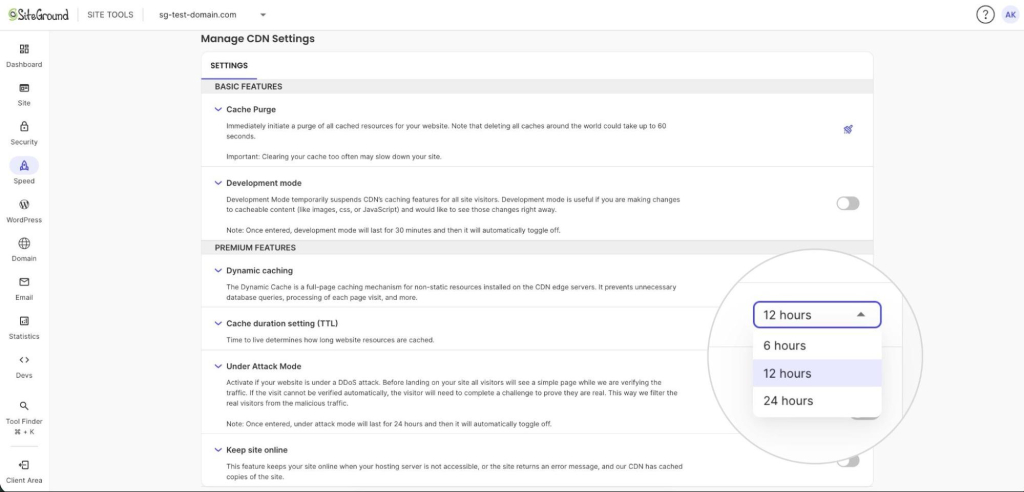
It’s tempting to read this as “shorter TTL, fewer stale-content problems.” It’s the opposite. Every time a cached copy expires, the next visitor triggers a cache MISS that travels all the way back to your origin, so a very short TTL means more MISSes, a lower hit ratio, and a slower average response.
SiteGround CDN defaults to 12 hours, and most CDNs sit in the same range, because a longer TTL keeps the majority of requests as instant HITs. Handle freshness by purging (or changing a versioned filename) the moment something actually changes, not by starving the cache with a low TTL.
CDN vs. cache vs. browser cache: which one is actually serving you old content?
Before you purge anything, figure out which layer is stale, because purging the wrong one wastes time. A cache is just a stored copy of data, and on a typical site there are at least three of them stacked between your server and your visitor’s screen:
| Layer | Where it lives | Can you purge it? |
| Origin/server cache | On your host (page cache, object cache) | Yes, from your hosting tools. A CDN purge won’t touch it. |
| CDN cache | On the edge network worldwide | Yes, with a CDN purge. This is the layer serving most visitors. |
| Browser cache | On each visitor’s own device | Not remotely. You influence it with headers and cache-busting. |
Then run a quick diagnostic:
- Only you see the old version? Probably your browser. Hard-refresh or test from incognito to confirm.
- Everyone sees it, including you in a private window? It’s the CDN or origin.
A CDN is not the same thing as a cache. It’s a delivery network that happens to use caching as its main mechanism, which is why “is a CDN a cache” gets a “sort of, but not only.”
Why your CDN broke your site: 6 causes (and the one everyone misses)
Almost every stale-or-broken-after-deploy case traces back to one of these causes. Getting this wrong doesn’t just annoy visitors. Broken assets hurt conversions and the site speed signals search engines watch.
- Stale asset after a deploy. You changed a file but its URL stayed the same, so the edge keeps serving the copy it has until the TTL runs out.
- TTL set too long. A generous max-age is great for images that never change and painful for files you edit weekly. One TTL rarely fits every asset type.
- Dynamic pages got cached. Cart, checkout, account, and logged-in views should never be cached at the edge. When they are, visitors see each other’s stale state, which is where “cdn cache not updating” turns into an actual bug.
- No cache-busting on updated files. If style.css is always style.css, caches can’t tell v1 from v2, and the old copy wins.
- Misconfigured Cache-Control headers. A missing no-store on a private page, or an s-maxage that contradicts your intent, quietly tells the CDN to do the wrong thing.
The one everyone misses: asset-version mismatch
This is the true breakage case, and the sixth cause on the list. Cached old HTML references files that changed, or fresh HTML loads a cached old stylesheet or script. The result is a page that renders broken, not merely out of date: unstyled layouts, missing images, JavaScript errors. It looks like your site collapsed. It’s really two cache layers that fell out of sync.
How to clear your CDN cache right now (and what WordPress plugins actually clear)
The fastest fix for “how to clear CDN cache” is a manual purge, and it forces the edge to fetch fresh copies from your origin on the next request. Here’s the general path, then what actually changes for WordPress.
- Open your CDN or hosting dashboard.
- Find the caching section for your site.
- Look for a purge or flush/clear cache button and click it.
- Reload the affected page in a private window to confirm the new version.
On SiteGround, you flush the CDN cache from Site Tools under Speed > CDN, where the Cache Purge button clears every cached resource (it can take up to 60 seconds to propagate globally).
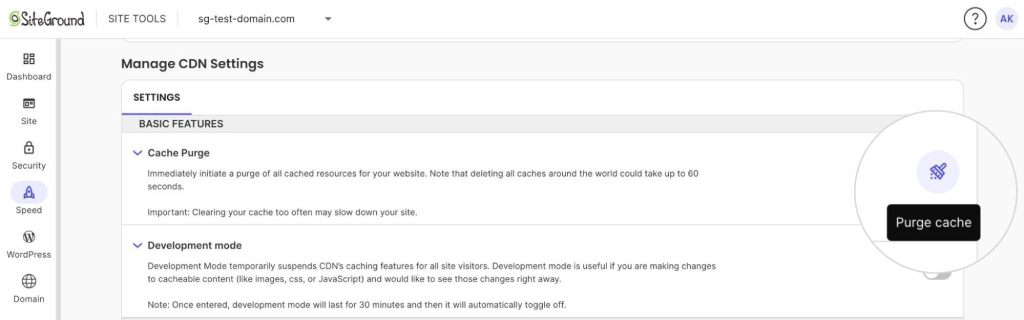
“How to clear CDN cache in WordPress” trips people up, because a WordPress plugin usually isn’t what clears the CDN edge. On SiteGround you still purge the CDN from Site Tools > Speed > CDN, exactly as above. The Speed Optimizer plugin, which also manages browser caching in WordPress, has a Purge SG Cache button, but that clears the server-side Dynamic Cache, a different layer. So if visitors still see the old version after a plugin purge, the CDN edge is what still needs clearing.
The faster fix: preview changes live without a full purge
Purging works, but it’s a blunt instrument. Every full purge sends all your traffic back to the origin at once, which is the opposite of what a CDN is for. The better move while you’re still editing is to preview changes without clearing the cache for everyone.
SiteGround CDN includes a development mode that temporarily suspends caching for 30 minutes, then toggles itself back off automatically. While it’s on, requests skip the cache so you see your changes immediately. The advantage over a full purge is that your cached copies are never wiped, so the moment development mode ends your hit ratio is right back where it was instead of rebuilding from zero. It’s a single toggle in Site Tools, which makes it one of the more practical additions to a WordPress performance workflow rather than a feature you’ll read about and never touch.
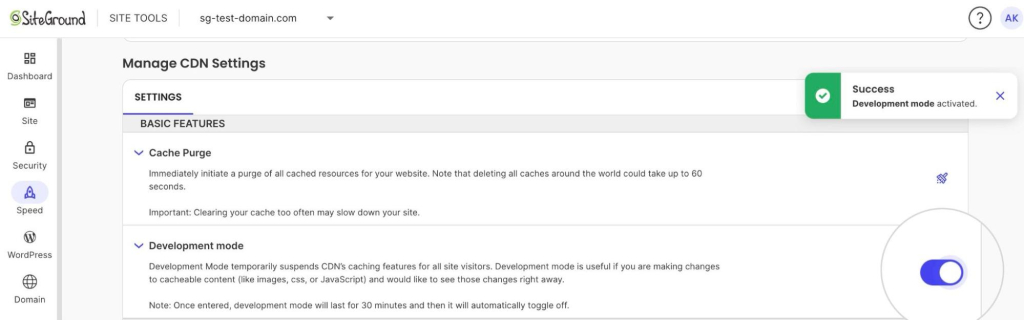
Use the preview to confirm the change looks right, then purge once, deliberately, instead of purging repeatedly while you guess.
How to cache safely so this doesn’t happen again
Safe caching isn’t about caching less. It’s about caching the right things for the right length of time. The habits below prevent almost every case above, and they keep the speed benefits that improve your Core Web Vitals.
| Do | Don’t |
| Cache static assets (images, fonts, compiled CSS/JS) with long TTLs | Cache HTML for logged-in, cart, or checkout pages |
| Version filenames (app.9f2c.js) so a change is a new URL | Reuse the same filename across releases |
| Set Cache-Control: no-store on private or personalized pages | Rely on a single TTL for every asset type |
| Purge automatically on every deploy | Purge manually and hope you remembered |
The single highest-value habit is cache-busting through versioned filenames. When a changed file gets a new URL, every cache treats it as new content automatically, and the asset-version mismatch that breaks pages simply can’t happen. Caching compiled CSS and JavaScript at the edge also helps you eliminate render-blocking resources, since returning visitors load them instantly instead of downloading them again. Pair that with purge-on-deploy and most stale-content tickets disappear before anyone files them.
Cache invalidation vs. purging: why flushing everything is overkill
CDN cache invalidation means telling the cache that specific content is no longer valid, so the edge refetches only what actually changed. A full purge wipes everything. Invalidation surgically removes the three files you touched. The difference shows up immediately in your website performance metrics: a full flush drops your cache hit ratio to 0% and hammers your origin until the cache refills, while targeted invalidation barely moves it.
For a small brochure site, flushing everything is fine. For a busy store or a high-traffic blog, it’s the difference between a smooth deploy and a few minutes of slow, origin-bound page loads for every visitor. The rule of thumb: invalidate by URL or tag when you can, and reserve the full purge for the rare case where you genuinely don’t know what changed.
This is also where your host earns its keep. A platform that invalidates intelligently on publish protects your hit ratio for you, so you get fresh content without the performance dip.
[86]
Put your caching on autopilot
Most of the trouble in this article comes from doing CDN cache management by hand: remembering to purge, guessing which layer is stale, and hoping a full flush doesn’t slow everyone down. A managed platform removes those decisions. SiteGround CDN caches your static content on a global edge network, clears on demand with a one-click purge from Site Tools, and includes a development mode for previewing changes without wiping your cache.
That means you can ship changes without babysitting the cache, and your visitors keep getting the fast, current version of your site. Fast by default, current when it matters, and no 2 a.m. “why is the old homepage still up” panic.
Frequently asked questions
Not exactly. A CDN is a delivery network of edge servers, and caching is the main mechanism it uses to serve content quickly. So a CDN contains and relies on a cache, but it also handles routing, security, and delivery that a plain cache does not.
A cache is any stored copy of data, which can live in your browser, on your server, or on a CDN. A CDN is the geographically distributed network that stores those copies close to visitors and delivers them. Put simply: the cache is the copy, the CDN is the delivery system.
Open your CDN or hosting dashboard, find the caching section, and trigger a purge, either for everything or for specific URLs. Then reload the affected page in a private window to confirm the fresh version is being served.
In WordPress, clear the CDN cache from your CDN’s own tool, not a general caching plugin. On SiteGround that is Site Tools > Speed > CDN > Purge Cache. The Speed Optimizer plugin’s purge clears the server-side Dynamic Cache, a different layer, so purge the CDN separately if the old version persists.
A CDN caches a page on the first request after a cache MISS, which is effectively instant. It then holds that copy for the length of the TTL, so your changes can take anywhere from minutes to 24 hours to appear unless you purge.
CDN cache invalidation is the process of marking specific cached content as outdated so the edge refetches only what changed. It’s the targeted alternative to a full purge, and it refreshes your content while keeping your cache hit ratio high.