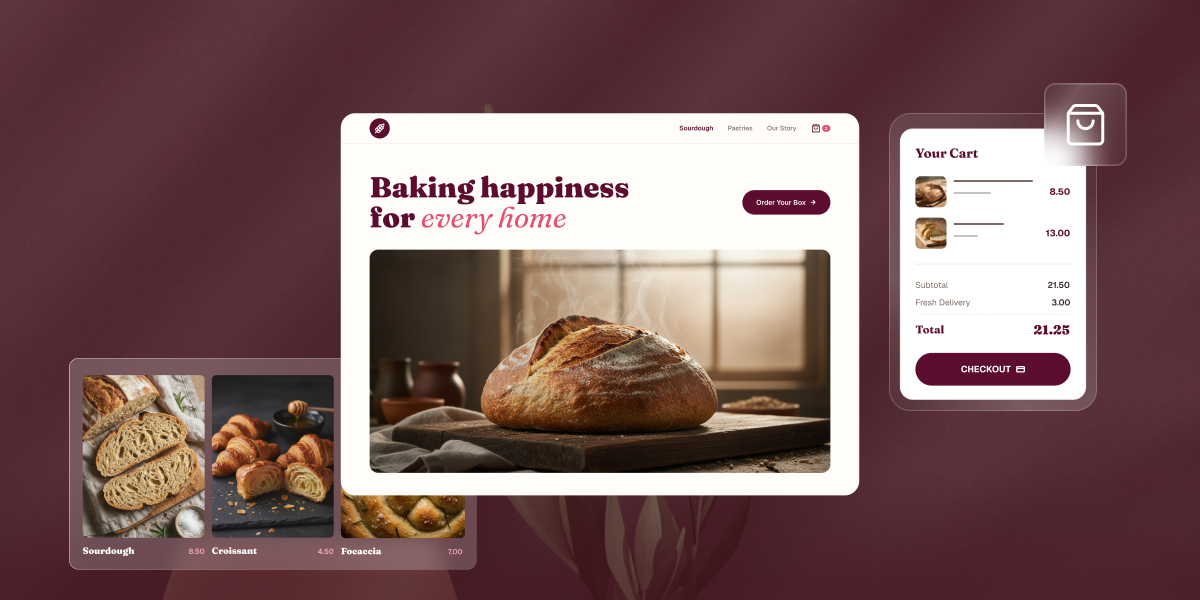
Choosing a bakery website builder that’s easy now and ready to grow

Abstract of bakery website builder

Pick a bakery website builder the way you’d pick a mixer: focus on the batches you’re actually making, and less so on the wedding-cake empire you might run someday. That means an easy-to-use platform that can actually take a payment, priced in a way that matches how much you’re really selling. What does that mean? Let’s unpack.

Key takeaways:

  • A bakery website builder needs things a generic site builder doesn’t: real online ordering, pickup as its own checkout option, and space for cottage food or allergen disclosures.
  • Entry-level builders get you online in a day, but cap out fast: no real ordering system, no inventory tracking, no order notifications.
  • Some platforms give you built-in ordering without a steep learning curve or a pile of add-on costs.
  • Plan price isn’t the full story: some platforms charge a per-order fee on top of a lower monthly price, others charge more upfront with none. Run the math against your own volume before assuming the cheaper plan is cheaper.
  • A slow-loading order page costs real sales during pickup rushes and pre-order windows, not just search rankings.

What actually matters in a bakery website builder

Two things matter most when you’re narrowing down a bakery website builder: how easy it is to run day to day, and whether the pricing still makes sense once real orders start coming in. Everything else on the list that follows still matters, but these two are the foundation the rest builds on.

A home baker testing recipes on weekends mostly needs the first: something live this weekend, with nothing to configure or maintain. A bakery already taking orders every week needs both, a platform that doesn’t get in the way, at a price that doesn’t quietly cost more than it looks like once volume climbs.

Start there, then use the list that follows to cover what’s specific to selling food, like allergen disclosures and cottage food rules, on top of that foundation.

What to look for in a bakery website builder

Here are the eight checkpoints to run any platform through, covering the foundation above and what’s specific to selling food, allergen disclosures, cottage food rules, and everything else that comes with running a bakery online.

1. Ease of setup

Setup time is the first filter, since most bakery owners are running the kitchen and the website at the same time. But the real test isn’t how few features a platform has, it’s whether a platform that does a lot still feels simple to run.

  • Look for a guided setup that walks you through adding products, connecting payments, and publishing.
  • The best platforms hide the complexity: real infrastructure and a real payment processor running underneath, with a dashboard that reads like a checklist, not a settings menu.
  • Test this before you commit. Try going from creating an account to actually taking a payment, and notice whether the platform explains each step as you go, or leaves you guessing.
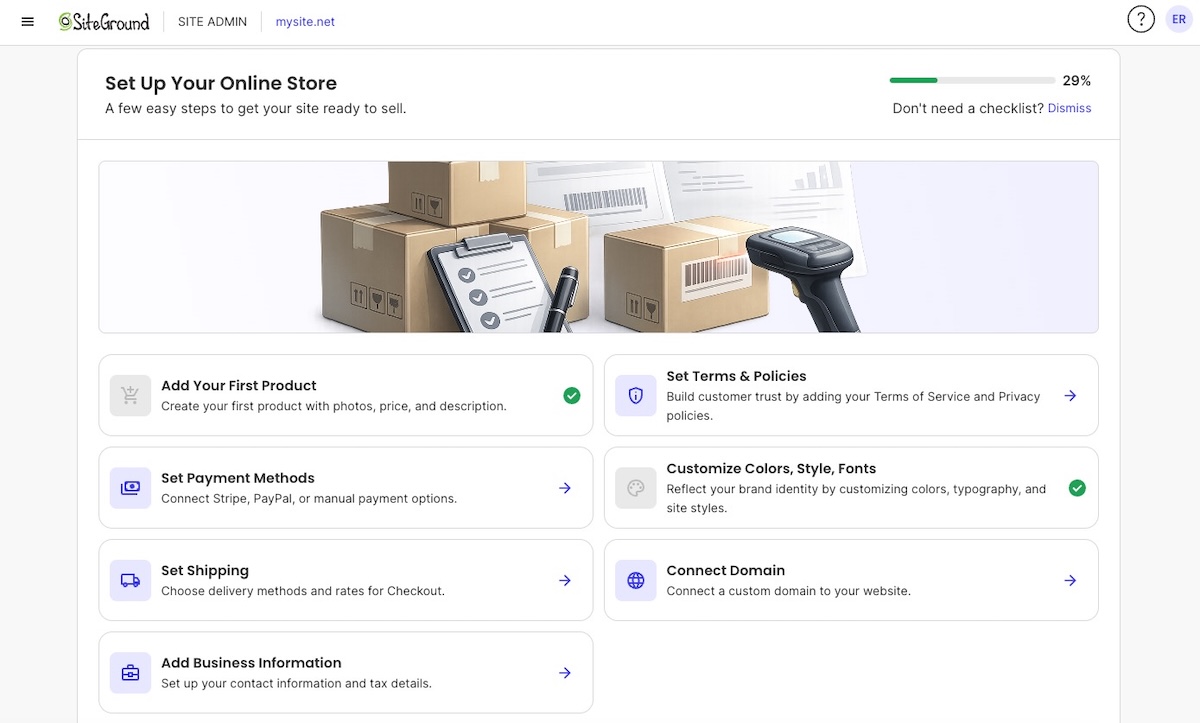
SiteGround Ecommerce checklist to get started step by step

2. Bakery website templates

Templates matter more for food than almost any other product category, because photos do the selling. You won’t always find a template labeled specifically for bakeries, and that’s fine. What matters is whether any given template handles design and high quality images well. Before you commit to one, check for:

  • Large image grids that can showcase a cake gallery, not just generic text blocks.
  • A clean, scannable layout that works for a daily-changing menu.
  • A homepage hero built to show one great photo, not a stock banner that could belong to any business.

Large image grid on a bakery website builder

3. Online ordering or order forms

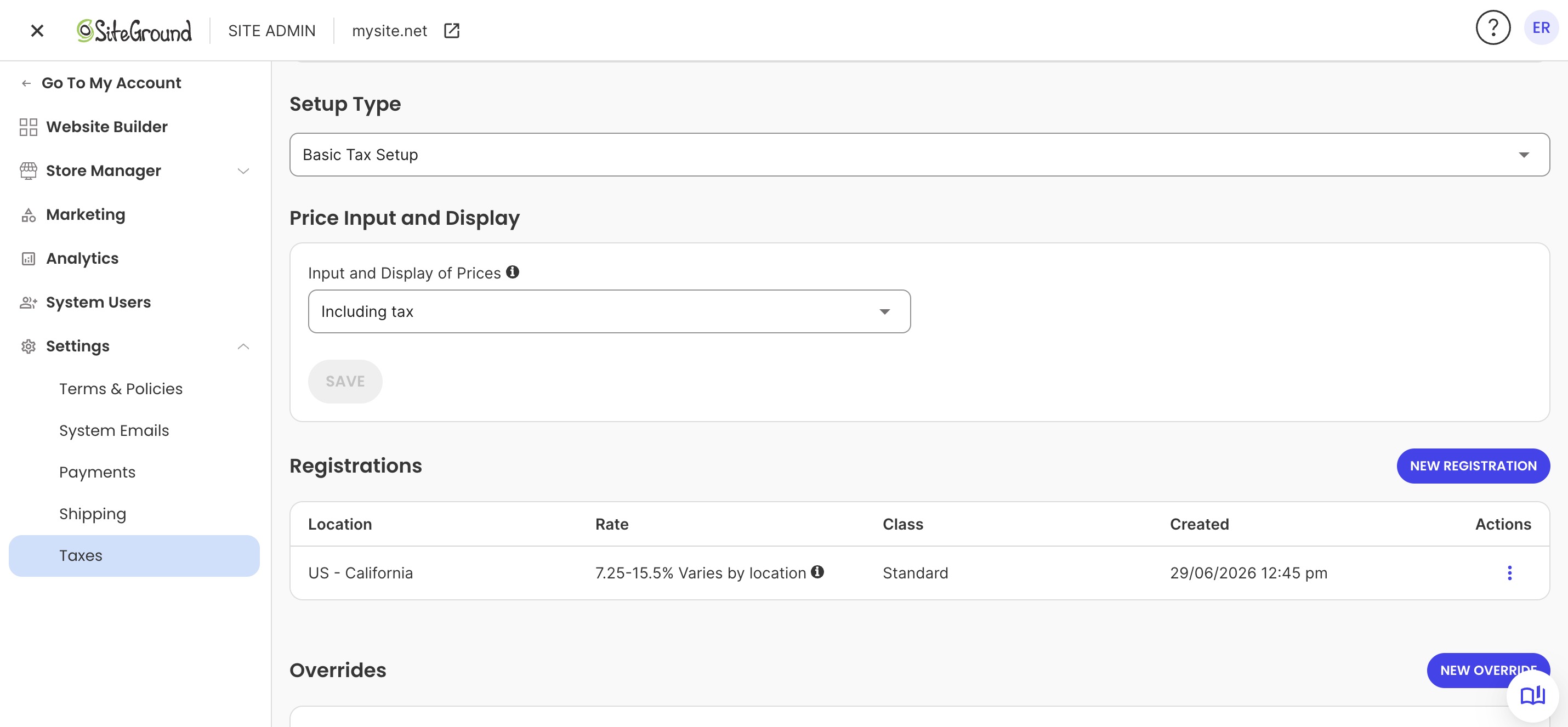
A real ecommerce cart lets a customer pick a product variation, like size or flavor, and pay online, all without a phone call. Building an ecommerce website the right way means checking, before you commit, what a platform actually handles out of the box:

  • Product variations for size, flavor, or filling, selectable right on the product page.
  • A dedicated field for allergy or dietary notes, so customers can flag what to avoid.
  • The ability to add notes during checkout, whether that relates to customization, allergies, or otherwise.

4. Local pickup

For many bakeries, pickup is essential, so there are few features you’ll want to look for when picking a website builder that is right for you.

  • Pickup listed as its own option at checkout, separate from shipping, so customers aren’t charged a shipping fee they’ll never use.
  • A clear description of the pickup process.
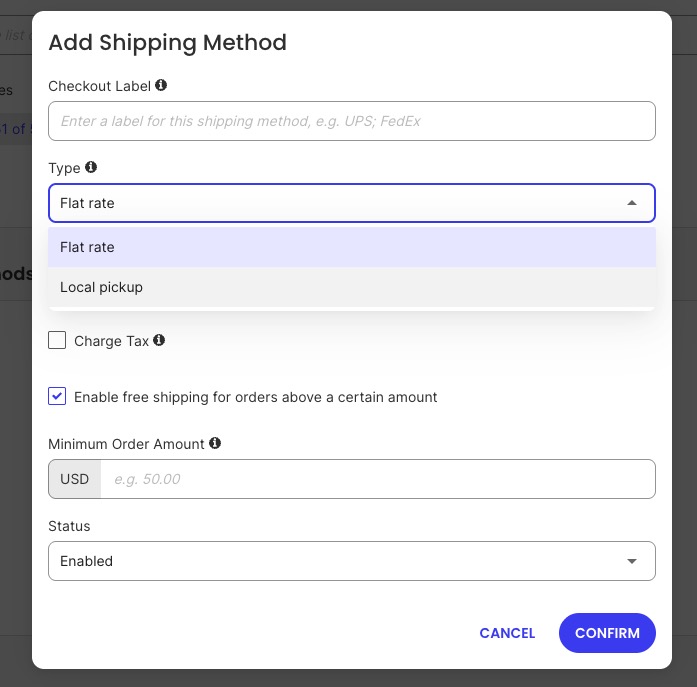
Adding local pickup as a shipping option in a bakery website builder

5. Mobile-friendly menu and photo display

More than half of local searches happen on mobile devices, according to Semrush’s local search data, often while someone is deciding what to order in the next five minutes. Here’s what to keep in mind when it comes to mobile:

  • Test the mobile website design with your own bakery photos, not the demo content.
  • Remember that mobile speed is a web hosting question, not just a design one. A perfectly responsive template can still be painfully slow if the hosting behind it can’t handle a spike, and spikes hit exactly when you need the site most. SiteGround’s infrastructure, for example, is built to absorb exactly those moments, so a good week doesn’t accidentally take the site down.

A mobile version of a bakery website

6. Local SEO basics

Most bakeries’ customers are almost entirely local, so local SEO matters more than broad keyword rankings. Check whether the builder:

  • Links out to and reinforces your Google Business Profile, since that’s often the first thing a local searcher sees, before they ever click through to your site.
  • Makes it easy to optimize your product page SEO with elements like the page name and meta description
  • Generates and automatically updates an XML sitemap as you add products or pages, so search engines can find new content without you doing anything by hand
  • Has solid hosting and performance, which translates to faster pages, something search favors

One easy win either way: make sure your city or neighborhood name shows up naturally in your homepage title and “about” section, not just your address. Someone searching “bakery near me” is looking for that context before they click. As your menu grows past a handful of items, the same logic applies to product page SEO: each one needs to be structured to be found, not just listed.

7. Compliance: cottage food laws, allergen labeling, health permits

Cottage food laws let bakers sell certain low-risk foods, like selling baked goods, out of a home kitchen without a commercial license or routine health inspection, in exchange for limits on what and how much you can sell. Most states require a specific disclosure statement on any product sold under cottage food law, something like “this product was produced in a home kitchen not subject to state food safety inspection.” The exact wording, and whether it belongs on your website or just the packaging, is set by each state’s health department, so check the current requirement before publishing. 

Beyond the legal disclosure, make sure your platform lets you cover:

  • Allergen labeling for the nine major allergens under U.S. law, including milk, eggs, wheat, soy, peanuts, and tree nuts
  • A custom text field on every product page, not a description box shoppers scroll past
  • A visible health permit number, if you have a storefront and your jurisdiction requires it posted online

A bakery website builder product vpage where you can add descriptions

8. Pricing and transaction fees vs. your order volume

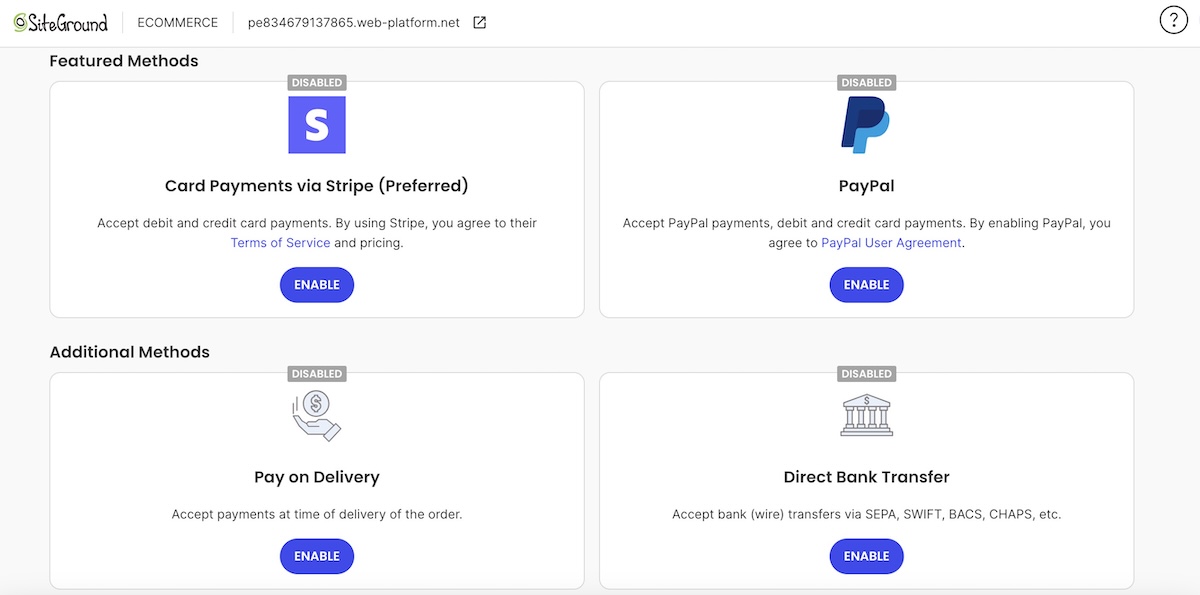
The plan price is rarely the whole story, and “free” isn’t realistic. What actually varies across platforms is whether the price you pay comes as a flat monthly fee, a percentage cut of every order, or some mix of both. This shapes which platform makes sense at your order volume. Before ruling a platform in or out on price alone:

  • Check whether its ordering plan charges a percentage-based fee per order, a flat monthly cost with no added fee, or both.
  • Estimate your average monthly order revenue, then calculate what a percentage fee would actually cost you at that volume.
  • Compare that dollar figure to the flat monthly cost of a platform or plan that skips the percentage fee entirely.

Say you’re doing 15 orders a week at $35 average, that’s about $2,100 a month. A 3% per-order fee costs roughly $63 a month. SiteGround Ecommerce’s Sell plan charges that 3% fee at $18/month, while its Grow plan removes the fee entirely for $24/month, just $6 more. At this volume, the fee alone ($63) is already ten times the $6 price gap, so the plan without the fee is the clear win. Run this same math against your own numbers, and not just a platform’s advertised starting price: starting an online store on a budget means doing it before you pick a platform, not after a busy holiday season does it for you.

Bakery website builders compared

Not every option here deserves equal weight. Most of the market splits into a few predictable buckets, so here’s the general breakdown.

OptionStarting priceReal online orderingBest for
Carrd, SITE123Free, paid from about $19/yearNo (contact form only)Testing an idea before investing more time
Wix, SquarespacePaid plans from about $16 to $29/month, real ecommerce needs a higher tierYes, on a higher-tier planDesign flexibility, if that matters more than selling costs
Square OnlineFree, but at a higher processing rate than paid tiersYes, built for food and pickupBakeries already using Square in person
ShopifyPaid plans from about $39/monthYes, full ecommerce suiteHigh volume, multi-channel, or shipping nationally
SiteGround Ecommerce$18/month (Sell plan)Yes, from the Sell plan upA real store today, with room to grow and no fee surprises later

Not every option here escapes a growth ceiling or a pricing catch. The difference is where the catch shows up and how much it costs to clear it.

Best for getting online fast with minimal setup (Carrd, SITE123)

Carrd and SITE123 solve one problem: getting something live today. No real ecommerce, so orders travel through a contact form, email, or a linked Instagram DM. Fine for testing an idea, a dead end once daily orders start.

Best for built-in ordering without a big learning curve (Square Online, SiteGround Ecommerce)

Square Online gives you a real cart and food-friendly ordering, tied to Square’s point-of-sale ecosystem. Strong if your in-person payments already run through Square, less useful if they don’t.

SiteGround Ecommerce follows the same pattern: the entry-level Build plan is a general website with no selling built in, and moving up to Sell is what turns on a real cart. What’s different is what that climb actually costs. The Sell plan ($18/month) turns on a real cart and payments, at a 3% fee per order. The Grow plan ($24/month), just $6 more, drops that fee to 0% and adds customer accounts, promo scheduling, and a wishlist. Every tier is backed by SiteGround’s hosting infrastructure and 24/7 expert support.

Best for design-forward storefronts (Wix, Squarespace)

Wix and Squarespace are general-purpose website builders with an online store added on. Real ecommerce usually means a separate, pricier commerce-tier plan on top of the advertised entry price, and what that extra cost buys is design range, not more ability to sell.

Best for scaling and high order volume (Shopify)

Shopify is built for volume across sales channels and shipping. Real setup overhead and ongoing app costs that outweigh what most bakeries need before they’re shipping nationally or running a subscription box.

A quick decision framework

Match your current stage to the row that fits, not the one you hope to be in next year.

Your stageOrder volumeWhat to prioritizeFits best
Testing an idea, home-basedUnder 10 orders/weekGetting live fast, minimal costCarrd, SITE123
Established home bakery10 to 50 orders/weekReal ordering, pickup scheduling, local SEOSquare Online, SiteGround Ecommerce
First storefront, growing50+ orders/week, some wholesaleOrdering plus room to add features, product page SEO as your catalog growsSiteGround Ecommerce, Wix, Squarespace
Shipping nationally or multi-locationHigh volume across channelsInventory, shipping, app ecosystemShopify

The middle two rows cover most bakery owners reading this. If you’re already taking real orders every week, the deciding factor usually isn’t design, but rather whether the ordering system was actually built to sell effectively.

Choosing the right bakery website builder for where you are now

Keep two things in mind as you compare platforms: how easy one actually is to run day to day, and whether its pricing still makes sense at your real order volume, not the volume you’re hoping for. Get those right first. Everything else mentioned above still matters, but these two are where the wrong choice costs you the most.

For most bakeries past the testing phase, that means a builder with real ecommerce built in from the start. SiteGround Ecommerce bundles a full online ordering system with hosting built for the traffic spikes that come with holiday pre-orders and weekend rushes, so the setup you do today doesn’t need a rebuild the day your order volume doubles.

[103]

Frequently asked questions

What’s the best website builder for a bakery?

There’s no single best bakery website builder; it depends on order volume and stage. Home bakery businesses testing an idea do fine with Carrd or SITE123. Bakeries taking regular orders need real ecommerce, which is where SiteGround Ecommerce fits in.

How much does a bakery website cost?

A basic bakery website can cost nothing beyond a domain name if you use a free plan, but free ecommerce plans usually charge a per-transaction fee that adds up with volume. Paid ecommerce plans typically run from around $15 to $40 a month, plus standard card-processing fees on every order.

What pages should a bakery website have?

A bakery website needs a home page with a clear hero photo and call to action, a menu or product pages with prices and allergen information, an ordering or contact page, a pickup or delivery details page, and an about page that builds trust in a home-based or small operation. Cottage food or health permit disclosures belong on the ordering page, not buried in a footer link. A short FAQ page covering lead times, custom order minimums, and payment methods also cuts down on repetitive customer questions sent by email or DM, which frees up time better spent decorating cakes.

Can I build a bakery website without any coding experience?

Yes. Every builder covered here, including SiteGround Ecommerce, is designed for setup without writing code. The difference between them is how much time the drag-and-drop setup takes and how deep the customization options go once you’re past the basics.

Do I need a website if I already sell through social media?

Social media marketing reaches new customers, but a website is what lets you take an order without depending on a platform you don’t control. Instagram and Facebook can disable accounts, change algorithms, or bury your posts, and neither is built for real order management the way a proper bakery website is. Think of social media as the storefront window and your website as the actual cash register.
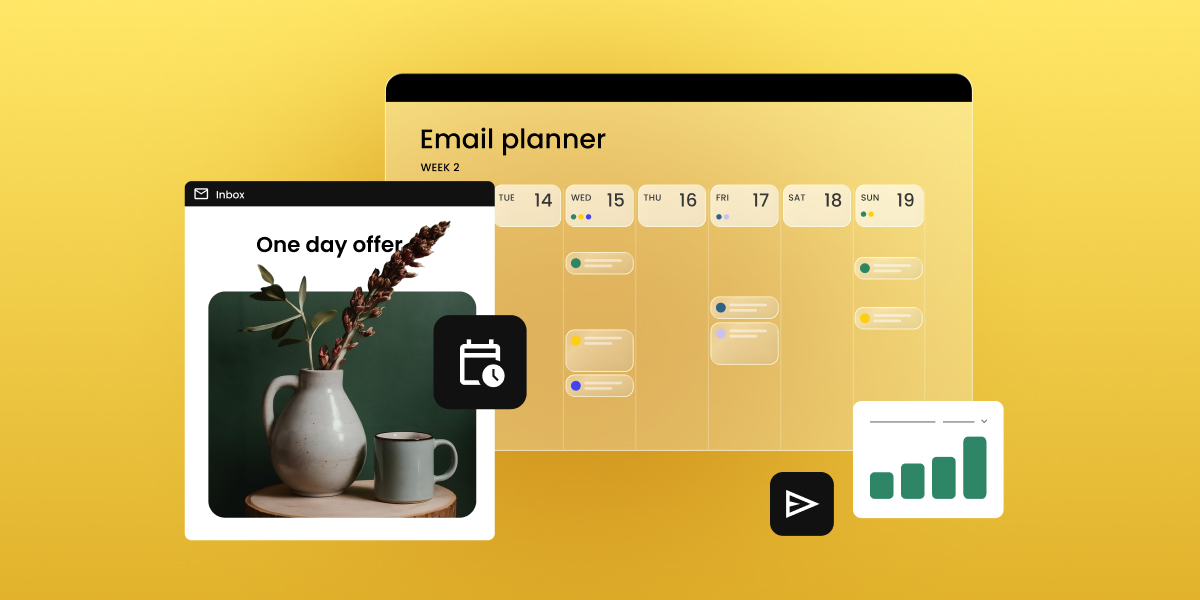
How to build a 12-month email marketing calendar (with free template)

An email planner calendar showing scheduled campaigns next to a "one day offer" email preview and a bar chart tracking results

Your email marketing calendar is tied to real send dates, your list, and your own cadence, and not just vibes. By the end of this guide, you’ll have one built for your business, plus a free template to run it from.

Key takeaways:

  • An email marketing calendar tracks send dates, campaign type, ownership, and subject lines, not just topics.
  • Most small businesses send 2 to 4 marketing emails a month; ecommerce brands often go weekly or more.
  • Cadence should follow your list’s tolerance and your content supply, not a fixed rule applied to every month equally.
  • Mapping seasonal moments before regular content prevents your busiest sales periods from being an afterthought.
  • A free email marketing calendar template, ready for you to copy and paste, is included further down this page.

What is an email marketing calendar?

An email marketing calendar is a schedule of your planned sends: the date, campaign type, owner, and status, all in one place. Unlike a general content calendar, it exists for one job: keeping each send tied to a clear email marketing goal.

The tool doesn’t matter, a spreadsheet, a project board, or your email platform’s own scheduling view all work. What matters is whether the four fields covered below (send date, campaign type, owner, subject line) are filled in before the month starts, not backfilled the day of the send.

Why you need an email marketing calendar (even with a small list)

An email marketing calendar matters at any list size. Without one, most small lists run into the same handful of problems, all preventable once you can see the whole month at once.

  • Going quiet, then bursting. Weeks with no send, then three emails in five days because someone remembered a launch was coming up.
  • Clustered, unrelated sends. A promotion, a newsletter, and a product update all land in the same week, competing for the same inbox slot.
  • Slipping deliverability. Clustered, low-engagement sends read as unwanted to mailbox providers, chipping away at your sender reputation. A rising unsubscribe rate is the visible symptom; shrinking deliverability is the real cost.
  • Uneven segment coverage. One group gets three campaigns in a week, another hears nothing, simply because there’s no full-month view to catch the imbalance.

Each of these is a sequencing problem, not a volume one, and a calendar is what puts the whole month in view so you catch them before they ship.

What to include in your calendar

Four fields turn a list of dates into a working calendar. Skip any one of them and the calendar stops doing its job.

Send dates and cadence

Cadence means how often you send, logged as a specific field, not a vague plan. Weekly, biweekly, and event-triggered are the three practical options: weekly and biweekly are fixed slots on the calendar, while event-triggered sends (cart abandonment, post-purchase follow-up) run on their own schedule, driven by email automation rather than a calendar date.

Match cadence to what your list will tolerate and what you actually have to say. Not confident you have enough to say every week? Biweekly with more substance beats weekly with filler.

WeekTypeCadenceSend time
Week 2, MarchNewsletterBiweeklyTuesday, 10 a.m.
Week 3, MarchPromotionalMonthlyThursday, 9 a.m.
N/ACart abandonmentEvent-triggered2 hours after cart is left

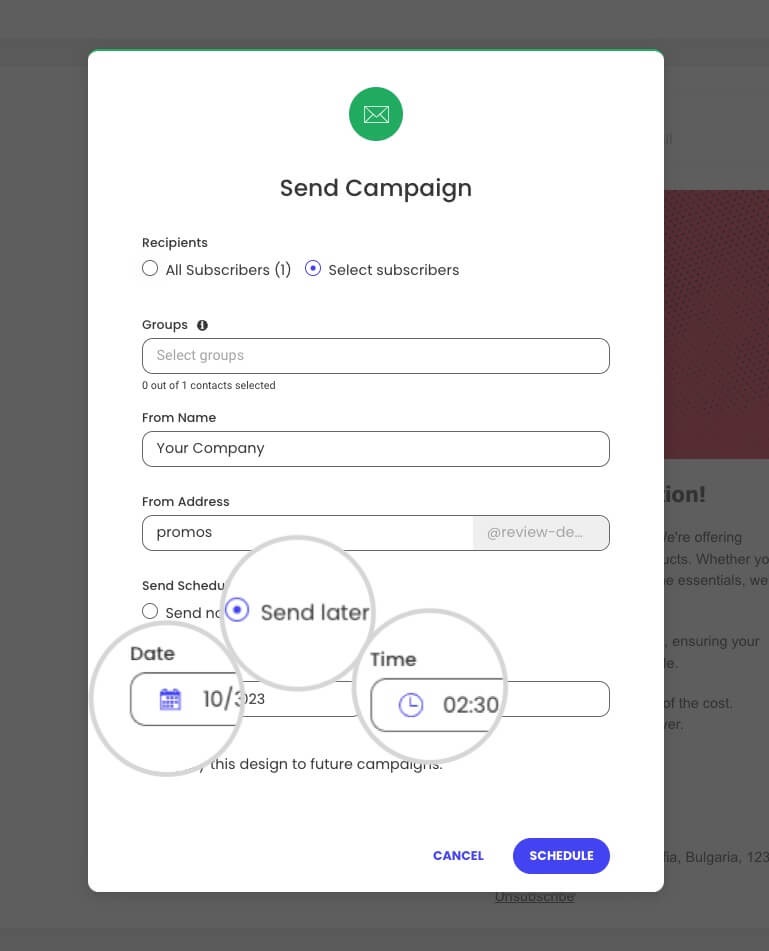
If your platform supports scheduling, like SiteGround Email Marketing does, this field doubles as your real send schedule. Set the date once, and the send is queued.

Email campaign type and goal

Four core types cover most calendars: newsletter, promotional, transactional, and seasonal, each mapped to a specific goal.

TypeGoal
NewsletterRetention, keep the list warm
PromotionalConversion, drive a specific sale or offer
TransactionalOrder confirmation, delivery updates
SeasonalTimely relevance around a key date

The right mix isn’t universal. It shifts by industry: 

  • Ecommerce: promotional and transactional-heavy.
  • Service businesses: newsletter and seasonal-heavy.
  • Restaurants and fitness studios: seasonal-heavy with occasional promotional pushes.
  • Real estate and education: newsletter and nurture-heavy.

Weight your calendar toward whichever two or three types actually match how your business makes money.

Owner and status

Two fields, both simple: who’s responsible for drafting and reviewing each send, and a status marker.

SendOwnerStatus
Week 2, March newsletterAnaDrafted
Week 3, March promotionMarcoReviewed
Spring sale seasonal sendAnaNot started

Without an owner attached, “send a spring newsletter” is an idea. With one, it’s a task with a deadline.

Subject line/preheader notes

A field to draft subject lines ahead of time, so send day isn’t also writing day.

SendSubject linePreheader
Week 2, March newsletter“What’s new this March”A quick roundup before the month gets busy
Week 3, March promotion“Spring sale starts today”20% off through Sunday

You’ve seen the individual pieces, cadence, campaign type, ownership, subject lines. Now it’s time to put them together into an actual calendar.

How to build your yearly email marketing campaign calendar

Four steps, done once and then repeated each quarter.

Step 1: Audit your current sends

Look back at your last 3 to 6 months of sends: what went out, what got skipped, and what actually performed.

  • Pull three numbers for each send: open rate, click rate, and unsubscribe rate.
  • Look for a pattern, not a single winning email, like a day of the week that consistently underperforms, or a campaign type that quietly drives more unsubscribes than the rest.
  • If you skipped sends, note why. No content is a supply issue Step 3 should account for. No owner is a gap Step 4 exists to close.

Step 2: Map key dates and seasonal moments

Plot major seasonal moments before you fill in regular content: Black Friday, back-to-school, and whatever else is relevant to your business.

  • Not every date is worth a campaign. A seasonal marketing framework helps you filter which moments earn a full send versus a single line in your regular newsletter.
  • Once you know which moments matter, this step is about scheduling around them: lead time needed, and how many emails to build around each one.

Step 3: Set your cadence by month

Decide send frequency per month based on your audit and seasonal load, not a flat rule for the whole year.

Heavier months (seasonal peaks, launches) earn more sends. Quieter months pull back.

How SiteGround Email Marketing’s scheduling makes this easier

Sends can be scheduled in advance, so the monthly cadence you just planned becomes a real, locked-in schedule instead of a to-do list someone has to remember to act on each week.

Step 4: Assign ownership and review steps

Lock in who drafts, who reviews, and when.

A calendar with dates but no named owner tends to slip the first time someone gets busy.

Free email marketing calendar template

The template below covers all four fields: date and cadence, campaign type and goal, owner and status, and subject line notes, as a month-by-month grid you can duplicate each month. Copy it straight into Google Sheets or an email marketing calendar template for Excel, whichever you already have open ten times a day.

DateCampaign typeGoalOwnerStatusSubject line
[DateNewsletter/ Promotional/ Seasonal[Goal][Name]Not started/ Drafted. Reviewed[Subject line]

Fill in seasonal moments from Step 2 first, then work backward with your regular cadence. Once you’re sending consistently, tracking your email open rate tells you whether the plan is working.

What can vary in each field

  • Campaign type: Newsletter, promotional, transactional, seasonal, or event-triggered (cart abandonment, post-purchase).
  • Goal: Retention, conversion, order confirmation, timely relevance, whatever matches the campaign type in that row.
  • Owner: Whoever is drafting that specific send, can rotate by month or stay fixed depending on your team size.
  • Status: Not started, drafted, reviewed, or sent, a simple four-stage progression rather than a custom workflow.
  • Subject line: Draft version is fine here. It just needs to exist before send day, not be final.

Keep your calendar sustainable long-term

Review it monthly, quarterly at a deeper level. Adjust cadence and campaign mix based on what performed, not what you guessed would.

That review is where the calendar earns its keep. Line performance up against your email marketing ROI to see whether the planning time is actually paying off, or just making your spreadsheets look tidier.

A calendar is only as good as whatever’s executing it. SiteGround Email Marketing handles the scheduling and contact management, so your carefully planned Tuesday send doesn’t depend on someone’s memory. Set it up alongside the calendar from day one, and the plan and the actual sends live in the same place instead of you syncing two systems by hand like it’s 2010.

[58]

Frequently asked questions about email marketing calendar

How far in advance should I plan my email marketing calendar?

Plan a full quarter at a time, with seasonal moments locked in about a month ahead of when they need lead time. Trying to plan too many subject lines up front usually means the details go stale before you get there.

What’s the difference between an email marketing calendar and a content calendar?

An email marketing calendar tracks scheduled sends specifically: dates, cadence, and ownership tied to your email platform. A content calendar is broader and often includes blog posts or social captions that don’t carry the same fixed-date pressure an email send does.

How many emails is too many in one month?

There’s no fixed number, but clustering multiple unrelated campaigns into the same week is the more common problem than raw volume. If a promotion, a newsletter, and a product update all land within days of each other, that’s a clustering problem worth fixing before it shows up as a rising unsubscribe rate.

Should seasonal campaigns replace my regular newsletter, or run alongside it?

Run them alongside it for most businesses. A seasonal campaign is a spike on top of your baseline cadence, not a replacement for it. Pausing your regular newsletter to make room for a seasonal push usually costs you more consistency than it gains you in relevance.

Can I schedule a full month of emails in advance?

Yes, if your platform supports advance scheduling. Set each send’s date and time once, and they go out automatically, which is what turns a calendar from a planning document into an actual production schedule.

What’s a realistic cadence for a service business vs. an ecommerce store?

A service business (an agency or consultancy, for example) can often sustain a solid calendar on 2 to 4 sends a month. An ecommerce store, with more to promote and a shorter buying cycle, often sends weekly or more without overwhelming subscribers, provided each send has a distinct purpose.

7 AI mistakes small businesses make with WordPress AI tools and how to avoid them

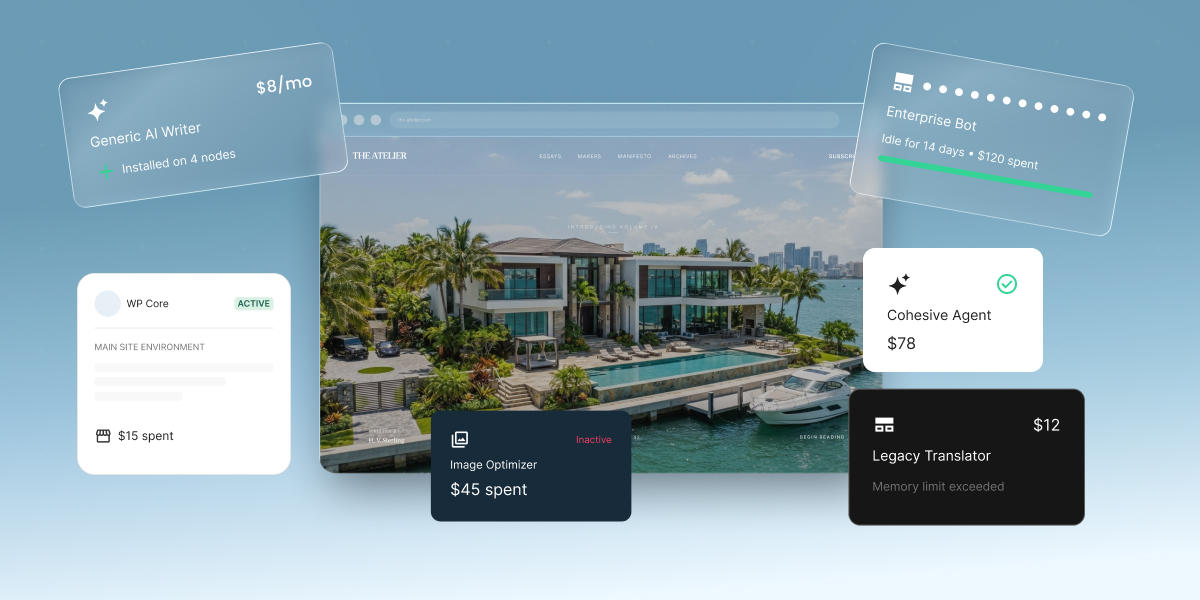
A digital graphic depicting AI tool management and cost tracking around a website, set against a light blue gradient background. In the center, a browser mockup displays a waterfront luxury real estate website titled "THE ATELIER." Floating UI cards surround the website, detailing various software costs and system statuses: a "Generic AI Writer" card at "$8/mo," an "Enterprise Bot" card noting "Idle for 14 days • $120 spent," an active "WP Core" card showing "$15 spent," an inactive "Image Optimizer" card showing "$45 spent," a "Cohesive Agent" card at "$78," and a "Legacy Translator" card at "$12" displaying a "Memory limit exceeded" error.

Small business owners managing their WordPress sites are increasingly relying on AI, as our 2026 report on AI in WordPress for small businesses found by surveying more than 7,000 of them. However, we also saw the same handful of issues come up again and again.

The most common AI mistakes small businesses make on WordPress usually happen around the tools they choose and how they’re set up: generic chatbots that can’t reach their site, AI plugins that reach too far into it, API keys left exposed, token bills nobody capped, and changes published without review. Luckily, each one is easily avoidable, and the fix is usually smaller than the problem.

Key takeaways:

  • The AI mistakes small businesses make on WordPress start with the tool, not the task. Two-thirds use ChatGPT as their main AI tool, but that usage clusters in research (66.5%) and content (65.7%), not the site admin that eats the most time.
  • Plugin sprawl is the fastest-growing risk. WordPress AI plugins are growing about three times faster than the wider plugin economy, and most reported WordPress vulnerabilities come from plugins.
  • Your AI API key is a billing credential. Keys saved through the WordPress Connectors screen sit in your database as readable text, and WordPress sets no spending limit by default.
  • Unreviewed output costs more than it saves. 41% of small business owners say usable results take multiple attempts, and 22% don’t trust AI accuracy.
  • Some AI setups create more admin than they remove. Getting AI running in WordPress by hand means a provider account, an API key, two plugins, and a separate billing dashboard to watch.

Mistake 1. Relying on a generic chatbot for WordPress work

Two-thirds of small business owners use ChatGPT as their primary AI tool for WordPress work, but our 2026 report on AI in WordPress also found that usage concentrated in research and content creation. Site management, which is where most of the hours actually go, barely registers.

There’s a simple reason for that gap. A chatbot in a browser tab has no connection to your WordPress installation. It can write you a product description for your WooCommerce store, explain where a setting lives, and draft a policy page. But you’re still the one who publishes the page, updates 40 product descriptions, and clicks through to the setting three menus deep. The time you saved with the chatbot comes back as implementation time, which is why you’re still spending hours in the WordPress admin.

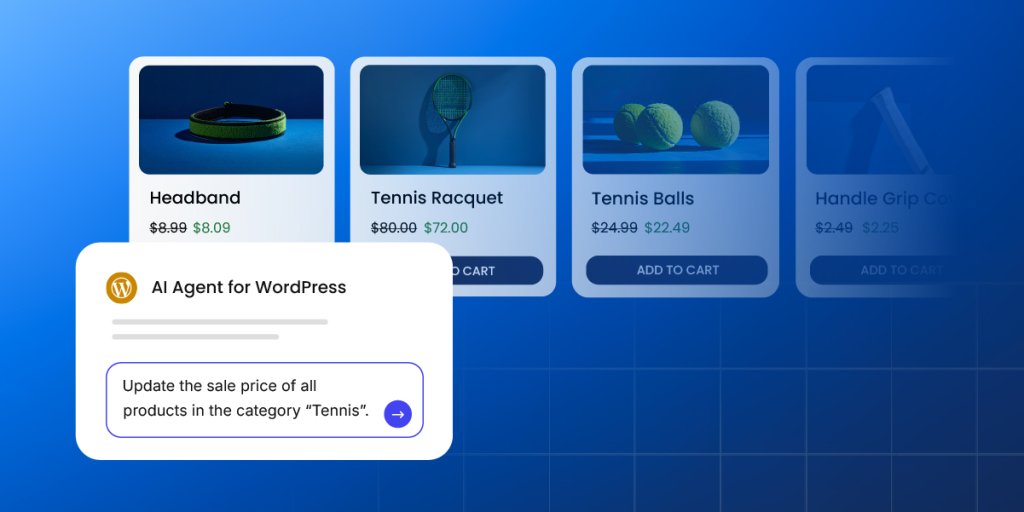
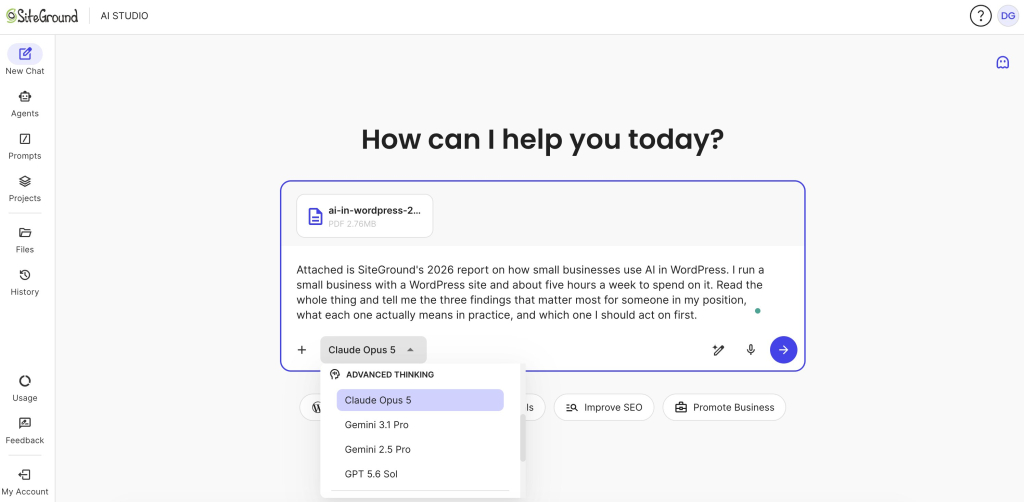
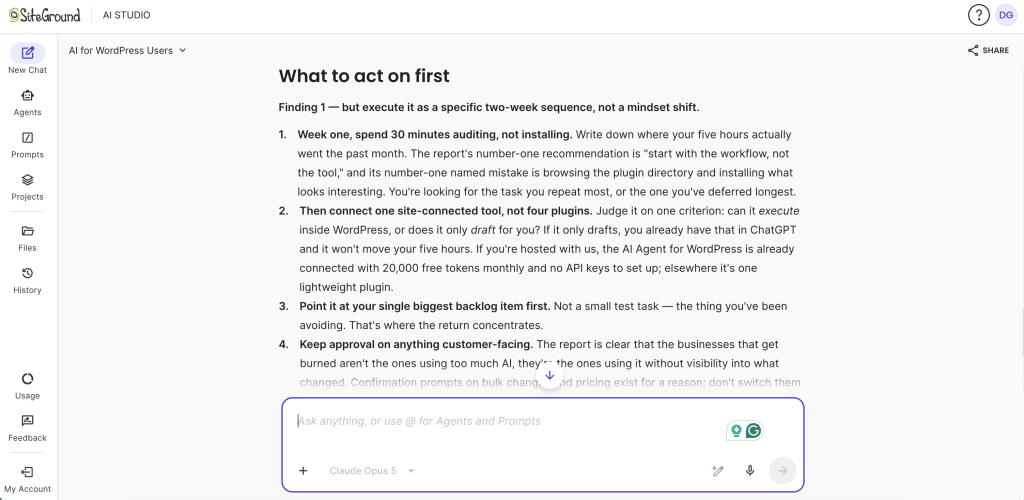
The fix: Go beyond generic chatbots to an AI agent that can reach your site. For example, a site-connected AI assistant like SiteGround’s AI Agent for WordPress can not only draft your product descriptions, but it can update them in bulk, use your store data to create and update the products themselves, adjust pricing, generate discount coupons, manage customer orders, and even pull a sales report for you. Our guide to using AI in WordPress beyond content creation covers what that looks like.

SiteGround AI Agent for WordPress chat interface with a prompt to update sale prices for all products in the Tennis category, with a WooCommerce product grid showing discounted tennis equipment in the background

Mistake 2. Installing AI plugins reactively, one problem at a time

WordPress AI plugins are growing roughly three times faster than the wider plugin economy, and installing them on impulse is one of the most common WordPress AI mistakes. It happens because of how these plugins are built: most do one job. For example, a translation plugin turns your pages into other languages, and an SEO plugin writes your page titles and meta descriptions.

Each is good at its own job, so when you need three of those things, you install three plugins, each with its own settings screen, its own subscription, and often its own AI account to create. Also, many AI plugins don’t include the AI itself: they connect to a service like ChatGPT or Gemini through an account you set up and pay for separately. Each install makes sense on the day you make it. Six months later, you’re paying for four tools and maintaining four interfaces, when one chosen with all four tasks in mind might have done.

The fix: Start from the job, not the plugin. Write down the two or three tasks that actually take up your week, then look at what you already have installed, because something on your site may already do part of it. Overlap is the check most people skip, and two plugins doing the same job compete rather than add up. If your list spans several different jobs, one tool that covers all of them costs you less time than four that each cover one. Our comparison of AI plugins and AI agents covers that choice.

Mistake 3. Stacking narrow plugins until the site is a patchwork

While we’re on the plugins topic, most WordPress security problems actually come from them. That isn’t because plugin developers are careless. It’s arithmetic: every plugin is code written by someone else, running inside your site, with permission to read and change what’s there. The more you install, the more chances one of them has a flaw.

WordPress AI plugins raise the stakes because of what they hold. Many store a key that lets them use an outside AI service and bills you for the usage, which makes them worth stealing in a way an ordinary plugin isn’t. Once a flaw becomes public, attackers typically start using it within five hours. And if you’re using WordPress 7.0 or above, your AI plugins share one set of AI credentials, which means a single compromised plugin can reach all of them, not just its own.

The fix: Fewer plugins is the fix for AI plugin fragmentation, and an audit is the fastest way there. Hand it to an AI assistant like SiteGround’s AI Agent for WordPress: it can list what’s installed, say what each one actually does rather than what its name suggests, flag anything that overlaps or hasn’t been updated in a long time, and remove the ones you agree to drop. Deleting a plugin you no longer use does more for your security than installing another that promises to protect you. Our guide to choosing AI plugins for WordPress covers what to look at.

Mistake 4. Leaving your AI API keys unprotected in WordPress

An API key is how one piece of software proves to another that it’s allowed to be there. Think of it as a password with your credit card attached: it identifies you to the AI service, and everything done with it gets billed to your account.

WordPress 7.0 added a Connectors screen where you paste that key in once, so any AI plugin on your site can use it. What isn’t obvious is where it goes: into your site’s database, as ordinary readable text. The screen hides it behind dots so nobody reads it over your shoulder, but that’s a curtain rather than a lock: the stored value is unchanged, and anything that can read your database can read the key. WordPress documented this when the feature shipped. It has since tightened how the key is displayed, but the encryption work is still open, so what’s in the database hasn’t changed.

Your database gets copied more often than you’d think: every backup, every staging copy, every time someone pulls the site down to work on it. The key travels with all of them. And unlike a stolen password, a stolen AI key locks nobody out and changes nothing you can see. Someone else simply starts spending on your account until the bill tells you.

The fix: Choose a setup where your host makes the connection for you, because a key you never paste in is a key nobody can copy out. If you do paste one in, treat it like a house key you’ve lent out: replace it whenever a copy of your site goes somewhere new, and delete any connection you’ve stopped using. And if you have someone technical to hand, ask them to keep the key in your site’s configuration file rather than the database, which is the route WordPress itself recommends. Our explainer on how AI works in WordPress 7.0 shows where these settings live.

Mistake 5. Not setting a limit on what AI can spend

AI billing costs in WordPress aren’t always a flat monthly fee. They bill by the amount of text going in and out, counted in units called tokens, where one token is roughly three-quarters of a word. So the cost moves with how much you ask for, and there’s no fixed number you can put in a budget.

If you’ve connected to an AI provider on WordPress 7.0 or above, WordPress itself doesn’t cap that for you. There’s no spending limit built in and no usage tracking either, so unless you set a limit yourself in your AI account, nothing stops the meter and nothing shows you it running. Two things push it up: a busy month of content can double or triple the bill, and some plugins send AI requests in the background while you work, checking your text or generating suggestions you never asked for.

The fix: Set the limit before you paste the key, and check it’s a limit that actually stops something. Providers differ here: OpenAI and Anthropic let you set a hard monthly cap that refuses requests once you reach it, while Google’s billing runs through Google Cloud, where the default budget is an alert that emails you and lets the spending carry on. Our comparison of ChatGPT, Claude, and Gemini covers how else the three differ.

Mistake 6. Publishing AI output on WordPress without review

Most people already know AI output on WordPress needs human review. In our 2026 report on AI in WordPress for small businesses, 41% of small business owners said they need several attempts before AI gives them something usable, and 22% said they don’t trust its accuracy. So the mistake isn’t that anyone believes AI is always right. It’s that knowing output is unreliable and actually checking it are two different things, and a page that looks finished tends to get published.

That’s what makes AI output hard to check: it rarely looks wrong. A made-up statistic reads exactly like a real one, and a product description can be fluent while describing a feature your product doesn’t have. There’s no equivalent of a spelling mistake to catch your eye, so anything published without a proper read has gone out on trust.

The fix: Make the AI check its own work. Paste the text back into the chat and ask it to separate what it knows from what it filled in, with a prompt like this one: “List every factual claim in the text above: numbers, dates, prices, product features, and names. For each one, tell me whether you are certain, unsure, or made it up. Do not rewrite anything.” What comes back is a short list to verify rather than a whole page to reread, and invented details tend to surface in the unsure column. It isn’t a guarantee, since a model can be wrong about its own confidence, so use it to narrow what you check rather than to replace checking. Our guide to writing ChatGPT prompts covers more habits that cut rework.

Mistake 7. Adding AI that creates more admin, not less

Some AI tools for WordPress take more admin to run than they save, and the setup is usually where that happens. For example, here’s what it currently takes to get AI working if you’re on WordPress 7.0 or above: open the Connectors screen, pick an AI provider, install that provider’s plugin, create an account on the provider’s website, find your way into its developer dashboard, generate an API key, come back to WordPress and paste it into the right field, then install a second plugin before you see any AI features you can actually use.

After that, you track spending in the provider’s billing dashboard, a third place to keep an eye on. That’s one job spread across WordPress, an AI company’s developer platform, and a separate billing system, creating more admin instead of removing it. And what many people get at the end of that setup is AI that writes text inside the editor, which is the part they were already doing in a chatbot.

The fix: Before setting anything up, count the accounts, screens, and bills involved. If a tool needs three systems to do one job, that’s admin you’ve taken on, not admin you’ve removed. The alternative is a tool that arrives already connected. For example, SiteGround’s AI Agent for WordPress is active on SiteGround-hosted sites from the start, with no provider account to create, no key to generate, and no separate bill to follow.

MistakeThe fix
Relying on a generic chatbot for WordPress workUse AI that connects to your site, so it makes the change instead of describing it
Installing AI plugins reactively, one problem at a timeWrite down the two or three tasks that eat your week, check what you already have, then pick one tool against the whole list
Stacking narrow plugins until the site is a patchworkAudit what’s installed and delete what you don’t use. A site-connected agent can list, flag overlaps, and remove
Leaving your AI API keys unprotectedAvoid handling a key at all where you can. Otherwise replace it whenever your site gets copied, and keep it in the config file rather than the database
Not setting a limit on what AI can spendSet a hard cap, or prepay credit so it can’t be exceeded. Use one key per plugin to see what each is spending
Publishing AI output without reviewHave the AI list its own factual claims, then check that short list instead of rereading the page
Adding AI that creates more admin, not lessCount the accounts, screens, and bills before you set anything up. Prefer tools that arrive connected

What these mistakes have in common

The AI mistakes small businesses make on WordPress look like seven unrelated problems, but they share a shape. In each one, the AI does exactly what it was built to do, and what’s missing sits around it: a tool that can reach the thing you want changed, a plan before the first plugin goes in, an audit before the fourth, a limit on the key, a ceiling on the bill, and a second look before anything reaches a customer. None of that arrives with the tools, so it lands on whoever adopted them, which on most small business sites is one person who already has a business to run.

That’s also why none of it takes technical skill to fix. Work out what you want AI to do before you go looking at WordPress AI tools, keep the stack small enough to hold in your head, and put a limit and a check on anything that can spend your money or change what your customers see. How much of that you’re left doing depends on what you choose. For instance, a tool that connects to your site on its own, with no key to guard and no separate bill to watch, means most of this list never becomes your problem.

FAQs

What are the most common AI mistakes small businesses make on WordPress?

The most common AI mistakes small businesses make on WordPress are treating a generic chatbot as a site management tool, installing AI plugins reactively, stacking too many, leaving API keys unprotected, skipping spend limits, publishing without review, and adding AI that creates more admin than it removes.

Why is relying on a generic chatbot a WordPress AI mistake?

Relying on a generic chatbot is a WordPress AI mistake when the tool isn’t connected to your site. It can draft and advise, but it can’t publish, update products, or change settings, so you still do the implementation by hand.

What are the risks of stacking WordPress AI plugins?

The risks of stacking WordPress AI plugins are a larger security surface, conflicting code, and multiple subscriptions and keys to manage. Most reported WordPress vulnerabilities come from plugins rather than from WordPress itself, and every AI plugin you add increases the exposure.

Why can AI billing surprise WordPress site owners?

AI billing costs in WordPress can surprise site owners because providers charge by the amount of text processed and WordPress sets no spending limit by default. A plugin making frequent background requests, or a busy content month, can double or triple the bill before anyone notices.

Why should you review AI output before publishing on WordPress?

You should review AI output before publishing on WordPress because AI rarely looks wrong when it is wrong. In our survey, 41% said usable results take multiple attempts and 22% don’t trust AI accuracy, so anything published without a proper read has gone out on trust.

How can a small business use AI safely on a WordPress site?

A small business can improve WordPress AI safely by mapping its real workflow before installing anything, keeping the plugin stack small, avoiding or protecting API keys, setting spend limits, checking output before it goes live, and preferring site-connected tools that ask for confirmation.

How agencies can add payments to client websites without custom code

Abstract of adding payment functionality to a client website

You quote a website build. Partway through, the client asks if people can actually pay through it: a checkout, a deposit, a subscription, whatever the case. Treat that like a custom-dev request, and your fixed-scope build turns into open-ended work.

That’s not where the real cost is, though. It’s custom payment code, unclear scope, a broken checkout handoff, and the post-launch fixes that eat your margin after delivery. Doing it right means delivering a payment-ready client site before launch: the checkout works, the confirmation fires, the record gets kept. This piece walks through how to add payments to client websites the right way: matching the setup to each client, building it with Coderick AI and Stripe instead of custom code, and handing it off clean.

Key takeaways:

  • You can add payments to client websites without custom payment code. Stripe handles the transaction layer; you handle the configuration.
  • The agency margin risk isn’t the website build. It’s custom payment code, unclear scope, and the post-launch fixes that follow a broken checkout handoff.
  • Payment-ready client sites need an end-to-end payment flow that runs itself: an automatic confirmation, a business notification, a status update, and a record you can actually search. Miss one, and you’re the tech support line now.
  • Client payment flows differ by project. A booking deposit, a one-time invoice, and a recurring membership charge each need a different setup, not a different codebase.
  • Standardizing agency payment workflows is what actually lets you ship client websites faster. Skipping the testing step just moves the slowdown to launch week.

What it means to add payments to client websites

Adding payments to a client website means connecting two separate things, and most of the confusion comes from treating them as one:

  • Payment access: having a Stripe account and API keys. Takes about five minutes. 
  • Payment integration: the working path from “client clicks pay” to “client’s business records the sale.”
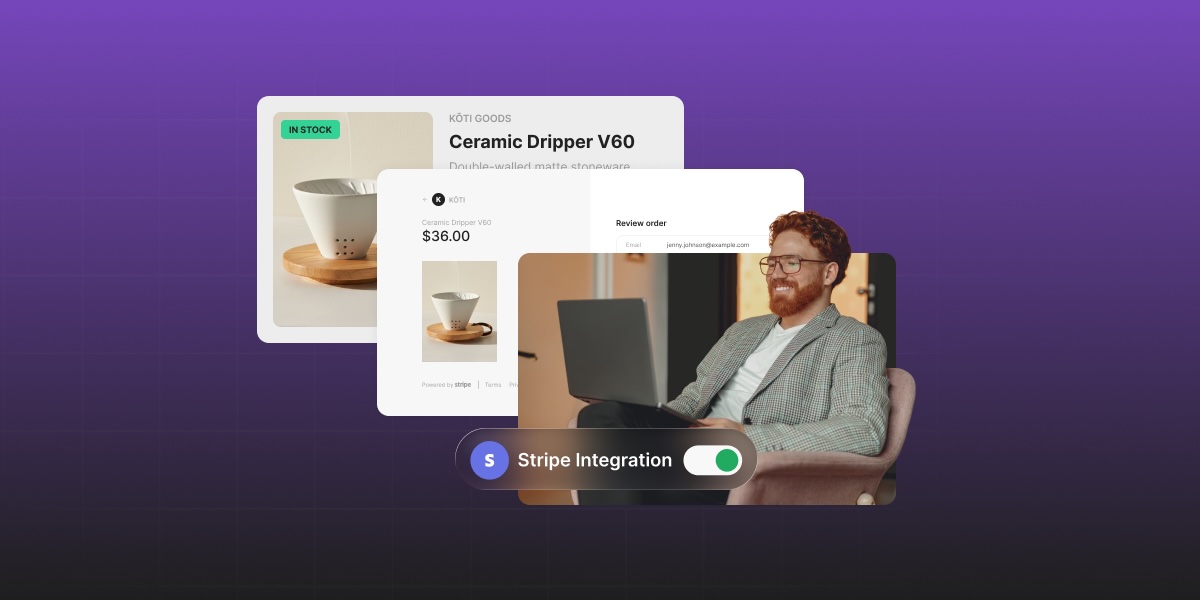
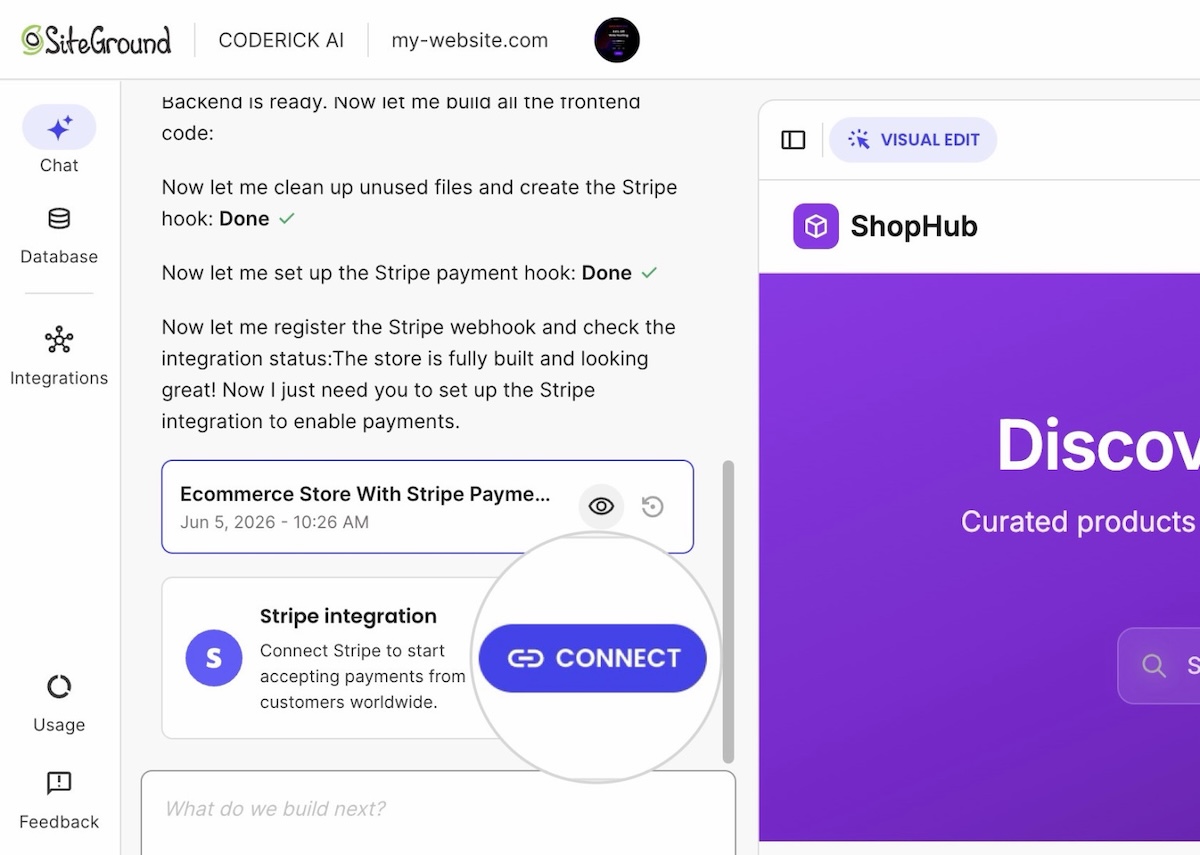
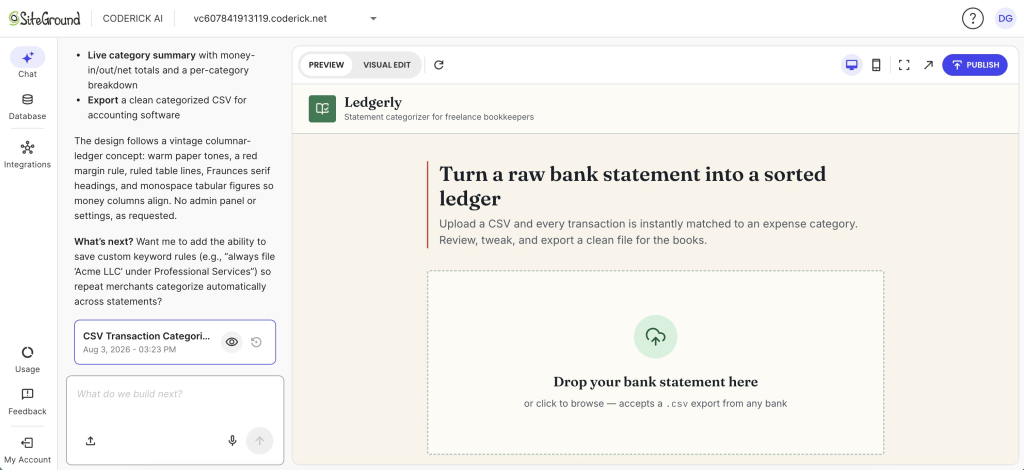
Example of connecting Stripe payments to a client's AI built website

When agencies stop at access, they end up shipping a checkout button that looks finished and does about half the job.

To be clear on the scope here: this isn’t about an agency invoicing its own clients, and it isn’t about a business owner setting up payments on their own site themselves. It’s about building that payment flow into a site for someone else’s customers to use.

The gap between access and integration shows up in what a client actually means when they ask to “add payments to my website.” Usually it’s “let people pay me and tell me when it happens,” and that second half, the notification and the record, is the part nobody truly scopes and everybody just assumes is included. Closing that gap once, by matching the client’s situation to the right setup, means you’re not re-solving it on the next project. That match-up is exactly what the next three flow types cover.

Types of payment-ready client sites: bookings, stores, and memberships

Alas, “client website” covers a wide range of projects, and each one maps to a different Stripe object (Stripe’s term for a pre-built checkout, billing, or customer resource that already handles the logic for you) as part of the client payment setup. Match a format to a setup once, and that pairing holds for every future project of the same type. Here’s what each looks like.

What you can sell online with Stripe integration

Booking and service pages

A salon, a consultant, or an event venue usually needs a deposit or a full payment collected at the time of booking, tied to a specific date and service. But this payment has to be linked to the booking record, not just logged as a generic transaction, or the client ends up cross-referencing two systems…by hand…every week. No thanks.

So nail down the deposit amount, the cancellation policy, and the calendar sync before setting up client booking pages, because those decisions decide the Stripe setup, not the other way around.

Simple stores

A small catalog (say, ten to 20 products) doesn’t need a full ecommerce platform to take payments. Indeed, a Checkout Session with a short product list can handle it just fine. The right store setup depends on catalog size and how often it changes, not on defaulting to the heaviest tool on the shelf.

Membership and subscription sites

Recurring billing is a different beast entirely from a one-time charge. Stripe’s Billing product already handles proration, failed payments, and cancellations, so none of that needs custom code. What it doesn’t handle is whether the site checks a member’s status before letting them in, and that’s the part client membership sites actually break on.

Where agency payment workflows break down

Matching a flow to the right object solves the technical half. It doesn’t solve the payment setup cost side. The website build isn’t what blows the budget on a payment project. That said, four finicky things reliably do:

  • Custom payment code. Writing a bespoke checkout form and backend handler for a single client site takes days and creates a one-off system nobody else on the team can maintain.
  • Unclear scope. “Add payments” without a defined flow (one-time, deposit, subscription) invites scope creep the moment the client sees what’s possible.
  • Broken checkout handoff. The payment succeeds, but the confirmation email, the CRM entry, or the fulfillment step downstream doesn’t fire.
  • Post-launch fixes. Refund requests, failed webhook deliveries, and currency mismatches surface after launch, right when the project’s margin has already left the building.

None of these actually require more code. What they do require is a workflow that treats payments as configuration with a testing step, and not as a feature to be built from scratch every time. That’s the difference between agency payment workflows that scale and ones that end up eating their own margin. It’s the same repeatable pairing from the last section, just applied to the whole process instead of one flow: build it once, and it holds for the next client project instead of getting rebuilt from scratch.

How to build client websites with payments without custom code

Stripe already provides the hosted objects agencies need:

  • Payment Links
  • Checkout Sessions
  • Customer Portal
  • Billing for subscriptions

Each one handles the card form, the fraud checks, and the receipt. Building a payment-ready flow without custom code comes down to five steps:

  1. Connect the client’s Stripe account. This is the payment access piece from earlier: a real account, live API keys, nothing generated yet.
  2. Pick the Stripe object for this client’s flow. This is the same matching from the last section, just applied to an actual client instead of a category: a booking gets a Checkout Session, a subscription gets Billing, and so on.
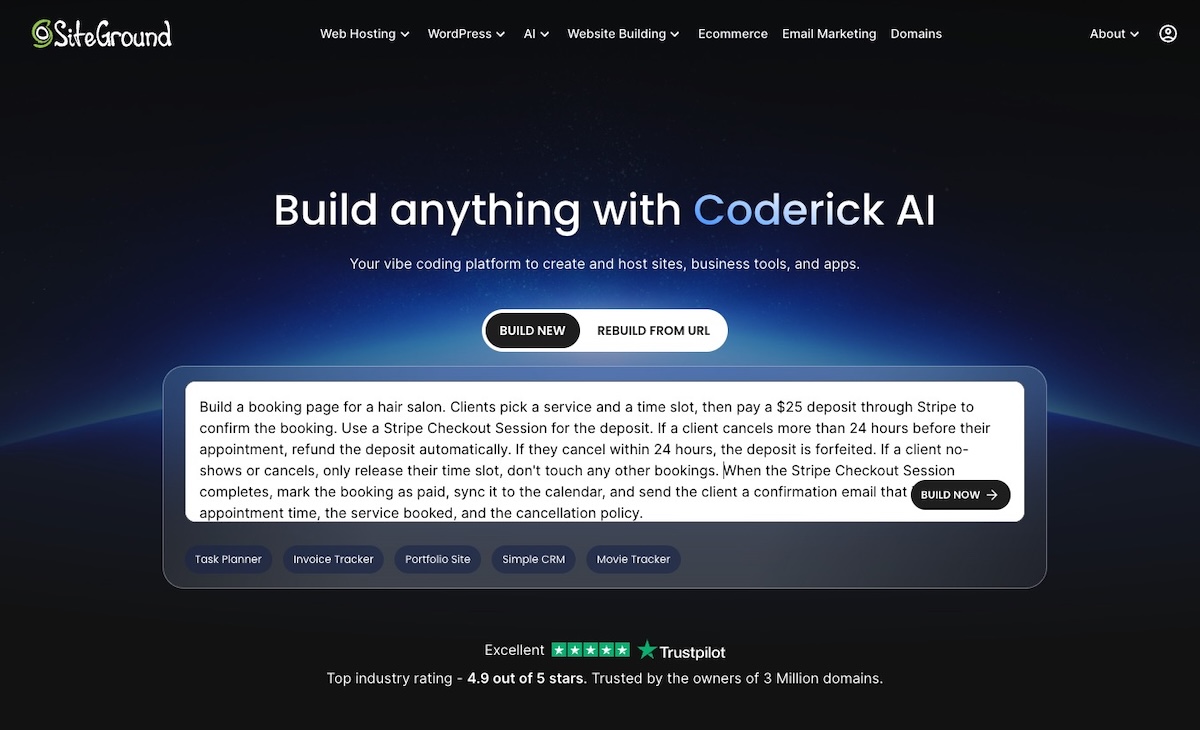
  3. Describe the flow in plain language. Something like “when this Stripe Checkout Session completes, mark this booking as paid and send this confirmation” is enough for an AI-built app to skip payment code entirely.
  4. Let the app generate the plumbing. The success page, the webhook listener (the bit of code that catches Stripe’s automatic “this just happened” notification and reacts to it), and the record that ties a payment to a specific client all get built from that one description. The agency still makes every decision; it just isn’t hand-coding the webhook handler and the database write for every client separately.
  5. Review the result before it goes live. This step doesn’t get to skip a turn. A generated webhook handler can fail on a declined card the same way a hand-coded one can, and the failure stays invisible until a customer emails asking where their confirmation went.

Steps 3 and 4 are the ones that repeat: describe the flow once, and the same description applies to every future client who needs that same setup.

How Coderick AI builds client payment flows

Coderick AI payment flows turn a described payment flow into working code, connected to a real Stripe account, without a developer starting from a blank file each time. So you, as a noncoder, describe the flow (deposit, one-time charge, or subscription), and it generates the checkout, the webhook listener, and the confirmation logic to match. Note, of course, that the output still needs testing in Stripe’s test mode before it touches a live client account.

AI website prompt example for creating a booking page

Think of it as generating the plumbing, not the plumbing decisions (and, oh, you don’t need to be a proper “plumber”). The agency still decides:

  • Which Stripe object fits this client’s flow
  • Whether a client needs a deposit or a full charge
  • Whether a booking cancels the payment or just the slot
  • The deposit amount, cancellation policy, or calendar sync, if it’s a booking flow
  • What the confirmation should actually say

Coderick AI turns those decisions into working code connected to the client’s own Stripe account, so the same webhook-and-confirmation pattern doesn’t get rebuilt by hand on every new client site. 

This is also where agencies protect project margins: once a booking flow, a simple checkout, and a subscription flow each have a known pattern, quoting a new client project takes minutes instead of a scoping call about what’s technically possible. Working this way with an AI builder for client projects means the variable becomes the client’s business rules, not the underlying plumbing.

Pre-launch checks that prevent post-launch fixes

Before handing a payment-ready site to a client, run through a short list:

  1. Complete a test transaction with a Stripe test card and confirm the webhook fires.
  2. Confirm the confirmation email or notification reaches the right inbox, not a developer’s testing address.
  3. Test the refund path once, even if the client hasn’t asked for it yet (they will).
  4. Check the mobile checkout flow specifically; card entry on mobile is where most abandoned payments happen.
  5. Confirm the site’s currency and language match the client’s actual market.

These client launch checks take under an hour and remove most of the support tickets that would otherwise show up in the first week after launch. Most agencies that run this checklist once end up reusing it as a fixed step in every project. That’s the actual efficiency gain: not skipping verification, but never having to reinvent it per client.

What a clean payment-ready client handoff looks like at launch

Before calling a site ready to hand off, confirm it clears all of this:

  • These three things happen automatically after a payment. A confirmation to the customer, a notification to the client’s business, and an update to whatever system tracks status (booking calendar, membership list, order queue).
  • The checkout is tested, not just connected. A checkout button only proves Stripe is connected. A payment-ready app handoff proves the business can operate on the payments it receives without a person in the loop, which is exactly what the pre-launch checks above were for.
  • Every payment lands somewhere searchable. Who paid, how much, what for, one-time or recurring, stored as paid client records, not left as receipts buried in Gmail.

If any of these depend on someone checking an inbox, or the client manually checking Stripe’s dashboard, the site isn’t ready to hand off yet, no matter how finished it looks.

Once all three actually hold, the handoff itself comes down to three things: who owns the account, what gets documented, and what access changes hands.

Who should own the payment account and payout details?

The client should normally own the live payment account, payout details, tax settings, and customer payment records. The agency should keep only the access needed for agreed maintenance or support, and should document all retained permissions during handoff.

What the agency should document and hand off

Handoff documentation should cover:

  • Which Stripe object handles which flow
  • How to check whether a payment’s confirmation fired, using the Events log in the Stripe dashboard
  • What confirmation each flow sends, and to whom

Skip this, and the client ends up calling the agency for things they could’ve handled themselves, which defeats the point of handing it off in the first place.

What access the agency should remove or retain after launch

Once launch is confirmed, remove any development or test-mode API keys from production and transfer account ownership to the client’s own Stripe login. If there’s an ongoing maintenance contract, keep only the specific access that contract requires, spelled out by name, not a blanket admin role left over from the build.

Making payments part of the build, not a detour

Every format in this piece, from bookings to stores and memberships, comes down to the same three questions: which Stripe object fits, what has to happen after the charge, and where the record lives. Answer those once, reuse the answer, and you can add payments to client websites the same way you handle fonts or hosting: as a standard part of the build and not a separate quote with its own risks attached. That’s what keeps client website delivery predictable, project after project.

Build client sites with Coderick AI, and connecting Stripe is simple. The site runs on SiteGround’s own hosting the moment it’s published, so there’s no server to configure or database to set up on the side, and every version along the way gets saved automatically, so testing a payment flow doesn’t put a live project at risk. The booking, store, and membership setups from this piece already exist as a starting point. The only real variable left is the client’s own business rules, not whether the checkout works.

[96]

Frequently asked questions

How do you add payments to client websites without custom code?

You can add payments to client websites without custom code by using a payment processor’s hosted objects, such as Stripe Checkout or Payment Links, and generating the surrounding confirmation logic instead of hand-coding a payment form and backend.

What is the difference between payment access and payment integration?

Payment access is having a processor account and API keys connected to a site. Payment integration is the complete working path from checkout to confirmation to a recorded transaction, which is what actually makes a site payment-ready.

Can Coderick AI build client websites that accept Stripe payments?

Yes, Coderick AI can generate a client website and payment flow connected to a Stripe account, including the checkout flow and the confirmation logic, though the resulting flow still needs testing in Stripe’s test mode before it goes anywhere near a live client.

What should agencies test before handing off a payment-enabled client website?

Before handing off a payment-enabled client website, test a full transaction in the processor’s test mode, confirm the webhook and confirmation notifications fire correctly, and check the refund path once, even before a client requests one.

Is a checkout button enough for a payment-ready client site?

No, a checkout button alone isn’t enough for a payment-ready client website. It proves the payment processor is connected, but the app also needs a confirmation step and a way to record the payment against the right customer or booking.

Announcement emails: How to write news your subscribers open and read

Woman working on a laptop next to an inbox preview showing a "New collaboration" email with subject line and preheader text highlighted

Announcement emails deliver one piece of news. A launch, a price change, a store opening, a rebrand. You send them on their own, either as a single email or a short sequence, separate from your regular newsletter. They get opened and read when you do three things: name the news in the subject line instead of teasing it, match the number of emails to whether there’s a deadline, judge each one by the metric that fits its goal, not just the open rate.

Key takeaways:

  • Announcement emails cover seven situations: launches, store openings, seasonal sales, rebrands, pricing or hours changes, events, and milestones.
  • Name the news in the subject line, don’t tease it. “New hours starting March 1” beats “Big changes are coming.”
  • Match sequence length to the deadline. A sale needs two to four emails with reminders; a rebrand needs one.
  • Match the metric to the type. Judge a sale on click-to-open rate; judge a rebrand on unsubscribes, not clicks.
  • If there’s no CTA, don’t grade the email on clicks.

What is an announcement email? (and when to send one)

An announcement email delivers one specific piece of news, either as a single send or a short sequence, rather than nurturing a relationship the way a recurring newsletter does. It earns a dedicated send when the news changes how, when, or why someone buys from you or deals with your business:

  • A product or feature launch
  • A store opening or new location
  • A seasonal sale or promotion
  • A rebrand or name change
  • A pricing, hours, or business policy change
  • An event or webinar
  • A company milestone or business update

If the news is small enough to mention in your next scheduled newsletter without anyone needing to act on it right away, it probably doesn’t need its own send. Announcement emails are one of the core types of marketing emails worth keeping a template ready for, precisely because the situations above show up on a schedule you don’t control.

Announcement emails by type, with templates

Each type below gets its own subject-line logic in the next section. Here’s the template and the one thing to get right for each. Treat these as structural skeletons, not scripts: the bracketed placeholders carry the logic (what changed, why, what it means for the reader), and your own brand voice, formal, playful, terse, warm, is what goes into the sentences you write to fill them in.

If your brand leans playful, each type below also gets a few optional lines to steal, more personality, same structure, drop them in wherever the brackets say so.

Product or feature launch

Use this when you’re introducing something genuinely new, not running a sale on something you already sell.

  • Open with the product name and what it does, in one sentence.
  • Add one sentence on who it’s for.
  • Include a single link or button to see it, sized as the one action you want.
  • Note availability: today, this week, or waitlist.

Your ready-to-copy template (just adapt it to your needs):

Subject: [Product name] is here 

Hi [First Name], [Product name] is live today. 
[What it does, one sentence]. 
We built it because [the actual reason: a problem customers raised, or a gap you saw]. 

[See it now] → [link]

Want more personality? Try:

  • P.S. with an early-access wink: “P.S. First 50 people to try it get [perk]. Yes, we’re bribing you. It’s working, isn’t it?”
  • An origin story with attitude: “Built this after the 47th person asked why we didn’t already have it.”
  • A confidence flex: “We’ve been sitting on this for weeks and it was physically hard not to tell you.”

What metric to watch: click-to-open rate. Healthy is around 6.4%. Below that, the subject line oversold the news, so fix that before the body.

A single launch email rarely carries the whole job. For a full sequence spanning the teaser, launch day, and follow-up, see SiteGround’s product launch email guide.

Store opening or new location

Use this for a physical opening, a new service area, or a reopening after closure.

  • Lead with the location and date, not company excitement.
  • Add one line on what’s different about this location.
  • Include a directions or map link, since that’s the real action you want.
  • Mention an opening-week detail if you have one, such as extended hours or a launch offer.
  • Update your Google Business Profile the same week you send this. If your email says “open Mon–Sat, 9–6” but Google still shows the old address or hours, that’s the first thing a curious reader checks, and now you look like you don’t know your own hours.

Subject: We’re open in [Location]

Hi [First Name],

Our [Location] location opens [Date]. [One sentence on what’s different about this spot].

Find us here: [Address]
[Get directions] → [map link]

[Opening-week detail, if there is one]

Want more personality? Try:

  • Overly specific and proud of it: “The corner unit. The one with the good light. We’ve wanted it since 2022.”
  • Opening-week bribery, said out loud: “Free coffee opening week, no strings, we just want you to see the place.”
  • A cheeky nudge: “Bring a friend. Bring the dog. Bring nothing, we don’t check.”

What to watch: click-to-open rate again. If it’s below the healthy benchmark (6.4%), the location or date wasn’t clear, put both higher in the email.

Seasonal sale or promotion

Use this for time-bound discounts or campaigns tied to a calendar date rather than company news.

  • Lead with the offer and the deadline in the first line.
  • Add one sentence on what qualifies.
  • Include a single call to action to shop or redeem.
  • Send a reminder 24 to 48 hours before the deadline, since urgency is the entire mechanism here.

Subject: [Discount]% off through [Date]

Hi [First Name],

[Discount]% off [category or product] through [Date]. [What qualifies, one sentence].

[Shop now] → [link]

And if you want to take it a step further, you can also send a reminder a day or two before the deadline, along the lines of:

Subject: [Discount]% off ends [Date] at [Time]

Hi [First Name],

Your [Discount]% off on [category or product] ends [Date] at [Time]. After that, prices go back to normal.

[Shop now] → [link]

Want more personality? Try:

  • Say the quiet part: “[Discount]% off. No riddles, no ‘mystery deal.’ Just the number.”
  • Deadline with teeth: “Ends tonight. Not ‘soon.’ Not ‘this week-ish.’ Tonight, at [time].”
  • A wink at the reader’s inbox habits: “We know you’ll open this at 11:58pm. We respect the hustle.”

A seasonal marketing calendar helps you plan these dates months ahead instead of scrambling the week before.

What to watch: click-to-open rate. Healthy is around 6.4%. Below that, the offer or deadline isn’t clear in the body, so lead with the discount and cutoff time instead of burying them.

Rebrand or name change

Use this for a new company name, logo, or positioning that changes how customers should refer to or find you.

  • State the change and the effective date in the first sentence.
  • Add one sentence explaining what doesn’t change, such as the product, the support team, or the pricing.
  • Note what the reader needs to update on their end, if anything, such as bookmarks, saved logins, or invoices.
  • Skip the CTA. Informing calmly is the goal here, not driving a click.

Subject: We’re now [New name]

Hi [First Name],

Starting [Date], [Old name] is now [New name]. [Why, one honest sentence].

What doesn’t change: [product/support/pricing — name what’s actually true].
What to update on your end: [bookmarks, saved logins, invoices — if anything].

Questions? Reply to this email.

Want more personality? Try:

  • Own the awkwardness: “Yes, we know, everyone’s going to call us the old name for six months. We’ll survive.”
  • A light self-aware close: “New name, same chaos behind the scenes, don’t worry, that part’s staying consistent.”
  • Reply bait: “Reply if it’s weird. We’ll agree with you.”

What to watch: unsubscribe rate. Healthy is under 0.5%. Above that, the change felt sudden, give more lead time next time.

Pricing, hours, or business policy change

Use this for anything that changes the terms someone signed up under, a price, your hours, a cancellation or return window.

Updating a privacy policy or terms of service instead? Those often carry specific legal notice requirements. This template isn’t a substitute for legal review, see our guide on legal requirements for email marketing for what applies to your situation.

  • State exactly what’s changing and the effective date in the first sentence.
  • Add one sentence on why, if you can share it honestly.
  • Note what the reader needs to do, if anything, before the effective date.
  • Include a support contact. This type generates more replies than any other announcement email.

Subject: Your [service] pricing changes on [Date]

Hi [First Name],

Starting [Date], [the exact change — e.g., your plan moves from $X to $Y per month]. [Why, one sentence, stated directly].

What this means for you: [the specific impact — nothing to do, or a specific action needed].

Questions? [Support email or link].

What to watch: unsubscribe rate. If it’s above 0.5%., it might be that too little notice was given, so try moving the effective date higher in the email.

Event or webinar

Use this for a scheduled, attendance-based event with a registration step.

  • Lead with the date, format (in person or online), and the single benefit of attending.
  • Include a registration link as the one CTA.
  • Add a short agenda or speaker line if it strengthens the case to attend.
  • Send a follow-up reminder 48 hours before, matching the timing table below.

Subject: [Event name]: [Date]

Hi [First Name],

Join us for [Event name] on [Date] ([format]). [The one thing you’ll walk away able to do].

[Register now] → [link]

And again, you can send a reminder:

Subject: [Event name] is in 2 days

Hi [First Name],

[Event name] starts [Date] at [Time] ([format]). [One-line reminder of the benefit, restated briefly].

[Register now] → [link], if you haven’t already.

What to watch: click-to-open rate. Below 6.4%, it’s a weak case for attending, sharpen the one-sentence benefit.

Company milestone or business update

Use this company announcement email template for a growth number, an anniversary, or a general update with no specific action attached.

  • Lead with the number or fact itself, not the buildup to it.
  • Add one sentence of context on what it means for the customer, not just the company.
  • Thank the list if that’s genuine to the news.
  • Skip the CTA. This type exists to build trust, not drive a click.

Subject: [The number or fact]

Hi [First Name],

[Lead with the fact itself — e.g., “We shipped our 10,000th order this week.”] [What this means for you specifically, not just for us].

Thanks for being part of it.

What to watch: open rate, directionally only. Healthy is around 36%. This type usually has no CTA, so there’s no click to measure, treat it as a trust signal, not a conversion metric.

How to write an announcement email subject line that people will open

The biggest subject line mistake in announcement emails is treating them like a promotional email that needs a hook. A promotional subject line teases because there’s often nothing to say until the reader opens it. An announcement usually has the actual news right there, so hiding it defeats the point.

  • Name the news, don’t tease it. “New hours starting March 1” beats “Big changes are coming.” “We’re now Meridian Studio” beats “Exciting news!”
  • Let it filter. A specific subject line lets someone who doesn’t care skip it without missing anything urgent.
  • Set accurate expectations. The reader should know what’s inside before opening, not just that something happened.
  • Exception: events can lean on urgency. “Save your seat” still names the exact action, so it doesn’t lose specificity the way a vague teaser does.

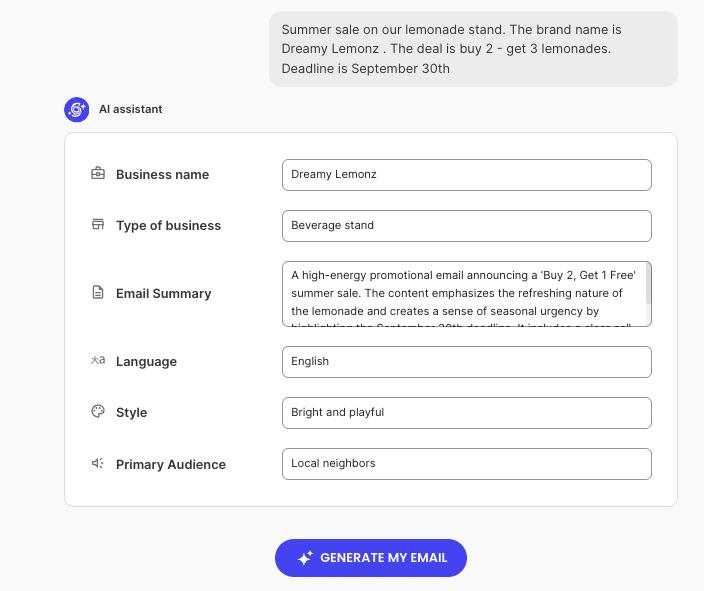
Getting this right doesn’t have to start from a blank page, either. SiteGround Email Marketing now offers AI-generated emails right inside the New Campaign flow: pick “Announcement” as your starting point, answer a few quick questions about your business and this specific update, and you land in the Campaign Builder with a subject line, preheader, and body already drafted.

Build with AI" screen showing selectable email types (Promotional, Newsletter, Announcement, Welcome, Event invitation) and a text field to describe a campaign

When and how often to send it

Two questions decide the send plan for any announcement: 

  1. How much of a deadline is attached
  2. How personally the news affects each subscriber. 

The first drives sequence length. The second drives who hears about it first.

For single-send announcements, there’s no deadline to build toward, so one email says everything that needs saying: a rebrand, a policy change, a milestone. For multi-email sequences, there’s a date the reader could miss, so the send builds toward it with a heads-up and a reminder: a launch, an opening, a sale, an event.

Single-send announcements

TypeWho hears it firstTiming
Rebrand or name changeFull list at once (partners get an early heads-up)Day the change goes live
Policy, pricing, or hours changeOnly the customers affected~30 days before it takes effect
Company milestone or updateFull listStandalone, low frequency

Multi-email sequences

TypeSequence lengthFirst sendLast reminder
Product or feature launch2–3 emailsActive users or beta listNon-openers, 3–5 days later
Store opening or new location2–3 emailsLocal or geo segment3–5 days before opening
Seasonal sale or promotion2–4 emailsVIP or loyalty segment (early access)Urgency reminder as deadline nears
Event or webinar3–4 emailsFull list or interest segment48 hours before

Once you’ve mapped out a sequence like the ones above, most of it comes down to scheduling, not automating. SiteGround Email Marketing’s segments let you group your VIP or loyalty list, your local or geo audience, or your active users, then schedule one campaign to that group now and a second campaign to the full list a few days later, covering the staggered releases in the table above. 

True automation in the product is trigger-based: it fires when someone joins a group, so it’s the better fit for an ongoing case, like a rebrand explainer that should reach every new subscriber from now on, rather than a one-time push to a list you already have. 

For a targeted reminder to people who didn’t open the first send, check the campaign’s Recipient Activity report, manually group the openers, and send the follow-up to everyone else.

What metrics to watch for each type of announcement emails

Which metric to check depends on what the email was for. A sale and a rebrand don’t succeed the same way, so grading both by open rate or click-through rate misses what actually happened in each case.

TypeWatch this metricWhyRed flag
Product or feature launchClick-through rate to the launch pageThe goal is driving traffic to a specific actionHigh opens, low clicks: the subject line oversold the news
Store opening or new locationClick-through rate to the directions or map linkThe goal is getting people to show upHigh opens, low clicks: unclear location or date
Seasonal sale or promotionClick-to-open rateYou already earned the open through urgency; the question is whether the offer converts once readBelow-average click-to-open rate: the offer or deadline isn’t clear in the body
Rebrand or name changeUnsubscribe and reply volume, not clicksThere’s often no CTA. Success means the change landed calmlyA spike in unsubscribes or replies: a timing or framing issue
Policy, pricing, or hours changeUnsubscribe rate and support inquiriesSame logic. The goal is informing without alarmingA spike in either: not enough lead time given
Event or webinarClick-through rate to the registration linkOne clear action, easy to isolateHigh opens, low registration clicks: a weak case for attending
Company milestone or business updateOpen rate or click-to-open rate, directionally onlyThere’s nothing to click. This is a trust signal, not a conversion metricNot applicable

If there’s no CTA, don’t grade the email on clicks.

Match the format, the deadline, and the metric: that’s your announcement email

Seven types, seven templates, one rule underneath all of them: match the format to the news, the sequence to the deadline, and the metric to the goal. Skip that last part and you’ll spend a week refreshing your open rate for an email that was never supposed to get clicks in the first place.

None of that requires a second tool bolted onto your inbox. SiteGround Email Marketing helps you draft the first version with or without AI, lets you group your list into segments, and lets you schedule each send in advance, so the only thing left to decide is what your news actually is.

[58]

Frequently asked questions about announcement emails

What’s the difference between an announcement email and a newsletter?

An announcement email covers one specific piece of news and often stands alone or in a short sequence, while a newsletter is a recurring update covering several smaller items at once. If the news needs its own subject line and its own send timing, it’s an announcement, not something to fold into your next scheduled newsletter.

Should you combine a product launch and a sale in the same email?

Combining them usually weakens both messages, since a launch email needs to build credibility for something new while a sale email needs to create urgency around price. If you want to launch with a discount, say so directly in the launch subject line, such as “[Product] launches today, 20% off through Friday,” rather than sending two competing calls to action in one email.

Does a store opening email need a special offer attached?

No, though it helps. If you’re building excitement without discounting, lead with the location, date, and what makes this opening different, and let the map link drive the first visit instead of a coupon.

How long should an announcement email be?

Short enough to read on one screen without scrolling, typically 50 to 150 words in the body. Announcement emails work because they deliver one piece of news clearly, not because they explain it exhaustively.

AI for email marketing campaigns: 6 steps from idea to launch

Marketer holding a laptop next to icons for content, ads, automation, and A/B testing, with a growth chart and progress ring representing AI-driven marketing results.

Using AI for email marketing comes down to six moves: pick a goal, research the message, generate the content, send it, test it, and read the results back into the next one. Follow them, and AI does real work at each stage instead of just window dressing the send.

Key takeaways:

  • Run AI for email marketing as six steps, in order: goal, research, content, execution, testing, measurement.
  • Set one measurable goal before you generate any content, not after.
  • Generate 10 to 15 subject line variants, then pick and edit rather than send the first draft.
  • Never send an AI copy without a human edit pass first.
  • Test two or three variants on a small segment before a full send.
  • Feed each campaign’s results into the next one’s goal and research step.

What is AI for email marketing?

AI for email marketing means AI tools handle specific tasks inside a campaign: research, drafts, send times, or performance data. 

A person still sets the goal, picks the audience, and checks that the copy sounds like the brand. AI handles what sits around those decisions: faster research, more draft variants than one person could write alone, and patterns in the past send data that would otherwise take hours to spot.

That distinction matters because AI works best as an assistant at each stage of a campaign, not a replacement for it. 

The 6 steps to run AI for email marketing

Here’s the order that actually works, start to finish.

Step 1. Set your goal and audience

Every campaign starts with one measurable email marketing goal, not “increase awareness,” but something like “get 50 newsletter sign-ups from a landing page by month’s end.” Vague goals produce vague AI output, since the model has nothing specific to write toward.

Use a structured prompt to lock in the goal and audience before you generate a single line of copy:

PromptWhat it’s for
“List the top 3 pain points for [audience description], specific to [product or offer].”Surfaces the pain point your content should lead with
“Write a one to two sentence positioning statement for [offer], aimed at [audience].”Gives every later prompt a consistent angle
“Based on [audience] and [pain point], what funnel stage is this campaign for: awareness, consideration, or decision?”Sets the tone and CTA strength for content generation

Run all three prompts before moving to Step 2. Skipping this step is the single most common reason later drafts read generically: the AI never learned who it was writing for.

Step 2. Research your audience and message with AI

With a goal in hand, use AI to widen the research, not start it. Ask for objections a skeptical reader would raise, competing messages they’ve already seen, and language patterns from your own past campaigns that worked. This produces raw material, not final copy.

Don’t skip the old-fashioned part either: picture an actual person on your list, how they talk, what they’d roll their eyes at, what would actually get them to click. AI can widen your research, but it still doesn’t know your audience the way you do.

Match the research to the funnel stage from Step 1. Awareness-stage needs objection handling and category education; decision-stage needs pricing objections and comparisons. 

For instance, a welcome email to a brand-new subscriber needs research on “why should I care about this brand at all,” while a follow-up email to someone who already asked about pricing needs research on “why buy now instead of waiting.” One generic prompt for every campaign is how AI output ends up sounding the same across all of them.

Step 3. Create content and creative assets with AI

This is where AI drafts the actual assets: subject lines, body copy, and first-pass visuals. Ask for more options than you need so you actually have a range to pick from, say 10 to 15 subject lines, rather than accepting the first one AI hands you. 

Not every part of an email needs AI, or editing, the same way. Working through a campaign in the order you’d actually build it:

Email partAI’s roleHuman’s role
Subject lineGenerate 10 to 15 variantsPick the best one, tighten the wording
PreheaderDraft a version that matches the chosen subject lineConfirm it doesn’t just repeat the subject
Body copyWrite the first full draftPass for brand voice and factual accuracy
VisualsGenerate or suggest a first optionCheck it fits the brand and the message
CTASkipWrite directly; this is where conversion nuance lives

Treating this table as a fixed rule, not a suggestion, is what keeps an AI-assisted campaign from reading like it wasn’t edited at all.

SiteGround Email Marketing’s new “Generate with AI” option makes working through this table even easier. An interviewer agent asks for a business name, industry, audience, a summary of the email, look and feel, and tone. It reflects those answers back to you in a short summary, and once you hit Generate, it hands you a draft with the subject line, preheader, and body already filled in, ready for the edit pass each row above calls for.

AI assistant email generator form filled out for a lemonade stand promotion, showing fields for business name, business type, email summary, language, style, and audience, with a Generate My Email button.

Step 4. Send the campaign

By this point you have your edited copy ready to send. Whether it came from the AI generation flow in Step 3 or a template you built by hand, the send itself works the same way: review the final draft, confirm it against your goal and audience, and send once a person has signed off. 

Most email platforms let you schedule that release for a specific date and time instead of sending immediately (including SiteGround Email Marketing with the Send later option in Campaign Builder), separate from anything an AI generation flow does. 

Send Campaign modal in SiteGround Email Marketing showing recipient selection, sender name and address fields, and a highlighted Send Later scheduling option with date and time pickers.

That review moment in Campaign Builder is the right point to catch what’s easy to miss under a deadline:

  • Every link in the email has been clicked and tested, not just visually checked
  • Sender name and reply-to address are set correctly
  • A test send to yourself looks right on both desktop and mobile
  • Unsubscribe link and compliance basics are in place

SiteGround Email Marketing handles unsubscribe links and email authentication automatically, so this checklist is about what’s still on you.

Step 5. Test before you launch

If you want to be even more data-driven about it, ask AI to generate two or three variants of your subject line or opening line, then send each to a small segment of your list before you commit to a full send. 

Take a summer sale email, for example. 

  • Variant A, “20% off everything this weekend,” leads with the discount. 
  • Variant B, “Only 6 hours left,” leads with urgency. 
  • Variant C, “Our summer picks are here,” leads with no framing at all. 

A small segment split, say 500 people out of a 10,000-person list, shows which one actually gets opened before the rest of the list gets whichever one wins.

AI’s job here stops at generating the options; which one wins gets decided by actual opens and clicks, not a prediction.

Step 6. Measure and optimize

Match the metric to the goal you set in Step 1:

  • Sign-up or download goal → track conversions on the landing page itself, not just clicks to it
  • Sales goal → track click-through to the product or checkout page, then check your store’s own sales data for that window, since email tools don’t always tie revenue directly to a specific send
  • Engagement or re-activation goal → track open rate and click rate, since that’s what re-activation actually looks like

Open rate and click rate are useful as diagnostics either way: a low open rate points back to the subject line from Step 3, a low click rate with a decent open rate points back to the body copy or the offer itself. But neither should be the goal unless the goal in Step 1 actually was engagement.

Feed the results back into the next campaign’s Step 1 and Step 2 prompts: which subject line pattern won, which pain point got the most clicks. This is what makes six steps a repeatable process instead of a one-off and it’s exactly what turns individual campaigns into an actual email marketing strategy rather than a series of unconnected sends.

Types of AI email marketing tools to know before you pick one

Most “best AI email marketing tools” lists are vendor roundups. The categories underneath them matter more than any single name, since tools inside each category are largely interchangeable for the job:

CategoryWhat it doesWhen you’d use it
Generative content toolsDrafts subject lines, body copy, and visualsStep 3, content creation
Predictive and analytics toolsScores likely engagement or churn, flags send-time patternsStep 2 research and Step 6 measurement
List segmentation toolsGroups subscribers by behavior or attributes for targeted sendsStep 1 audience definition and Step 5 testing
Email-specific automation toolsSubject-line testing, scheduling, send-time logic built into the sending platformStep 4 and Step 5, email specifically

What to consider before you start

AI output is only as good as the data behind it. If your past campaign data is incomplete or your audience research is stale, AI will confidently generate content based on the wrong assumptions rather than flag the gap itself.

Keep a person in the loop at these points specifically:

  • Does the draft actually reflect your brand voice, or just a generic version of it? (Step 3)
  • Would you send this exact subject line to your own inbox? (Step 5)
  • Does the pattern you’re feeding back into the next campaign hold up, or is it one good result being read as a rule? (Step 6)

AI ethics in marketing covers where automated decision-making needs a person in the loop in more depth, particularly around targeting and personalization choices.

Common mistakes to avoid

Three mistakes account for most underperforming AI email campaigns:

  • Publishing AI drafts unedited. The table in Step 3 exists specifically to prevent this: some tasks need a human finishing pass every time.
  • Skipping goal-setting and jumping straight to content generation. Without Step 1’s specific goal, AI has nothing concrete to write toward, and the output reads generically as a result.
  • Ignoring data quality. Feeding AI incomplete or outdated audience data produces confident, wrong output rather than a flagged gap.

Put these 6 AI marketing campaign steps to work

Whether you’re creating a single email or a full campaign, the process is the same: start with your goal, let AI do the heavy lifting, and keep a human reviewing the parts that matter. SiteGround Email Marketing hands you the segments and scheduling for Steps 4 and 5, so you’re not duct-taping three different tools together to send one campaign.

Now go write down that one measurable goal, before you let any AI near a subject line.

[58]

Frequently asked questions about AI for email marketing 

How do you use generative AI for email marketing campaigns?

Generative AI for email marketing campaigns works best for drafting, not deciding: subject line options, first-pass body copy, and creative variants that a person then edits and approves before anything goes out.

What are the best AI email marketing tools?

The best AI email marketing tools fall into four categories: generative content tools, predictive and analytics tools, list segmentation tools, and email-specific automation tools, with the right choice depending on which stage of the campaign you’re working on.

Will AI-generated emails hurt my deliverability?

AI-generated emails don’t hurt deliverability on their own; spammy patterns do, generic subject lines, no personalization, and unedited copy that reads like a template. The human edit pass in Step 3 and the checklist in Step 4 exist to catch exactly that before you send.

Is AI email marketing worth it for a small business?

AI email marketing is worth it for a small business specifically because it removes the time cost of research and first drafts, not because it replaces strategy or judgment, both of which still need a person setting the goal and reviewing the output.

Vibe coding MVPs for startups: Build faster with a small team

A digital graphic depicting AI-driven website development against a purple-to-blue gradient grid background. On the right, a man works on a laptop while a floating glassmorphism UI panel displays a real estate website mockup titled "NEW HOME" with navigation links for "PROPERTIES", "ABOUT", and "BOOK". On the left, a white prompt box displays the user command "An MVP to test my booking idea..." accompanied by floating AI status badges reading "Thinking...", "Generating code...", and "Version 1 created".

If you’re part of a startup, there has never been a better time to get a first version of your product in front of real people. You no longer need a technical co-founder or a budget for developers. You can build a vibe coding MVP instead: a first working version of your product, created by describing it to an AI tool in plain language rather than writing the code by hand. It exists to test one business assumption with real customers, so you find out whether the idea works before you spend more time on it.

All-in-one tools like Coderick AI have made it fast enough to go from an idea to working software in days, so building is no longer the part that holds you up. This frees you up to focus on everything around it: deciding what your MVP should test, keeping the first version small, reading what early users actually do, and knowing when to bring in a developer.

Key takeaways:

  • A vibe coding MVP is a working first version of your product, built by describing it to AI, and it exists to answer one business question rather than to launch your company.
  • Name the assumption that would sink your idea if it turned out to be wrong, then build only what puts that assumption in front of real customers.
  • Building the MVP is one job out of several, and deciding what to test, onboarding your first users, and reading the results all matter just as much.
  • Unlike AI builders that hand you a finished project and leave hosting, databases, and deployment for you to work out, Coderick AI includes all three, so your MVP can go live and reach real users the same day you build it.

What a vibe coding MVP is, and what it’s not

A vibe coding minimum viable product (MVP) is the smallest working version of your product that real customers can actually use, built by describing it to an AI tool instead of writing code or hiring a developer. What you get is a web app you can preview privately and publish at its own address, which is why you need an AI web app builder that takes you from idea to something testable in days.

Say you had a cool idea to build a SaaS MVP with AI that solved a real problem for a specific industry. Until a couple of years ago, this meant finding a budget for software development, a technical co-founder, or a year of learning to code, all of which required committing before you had any evidence that people wanted it. Vibe coding removed that step: you can now build the first version yourself, in days, and let real customers tell you whether the idea holds before you spend anything you would miss.

Prototype, MVP, and production product are three different things

These three get used interchangeably, and the confusion can be expensive, because each one answers a different question and takes a different amount of work to build.

  • A prototype is something you show your team or a few friends. It can be screens with nothing behind them. It tells you whether the idea makes sense on paper, and nothing more. It’s usually disposable.
  • A production product has to work for real clients, keep running when something breaks, handle many people arriving at once, and protect other people’s data. It is built to last, and it costs accordingly.
  • An MVP sits between the two. It’s more than a prototype, because a stranger has to be able to use it without you there: someone works through it on their own, with their own data, to do something they genuinely needed to do, and that is how you test your idea. But unlike a prototype, it’s not disposable: if your idea holds up, this is what you keep building on to get to the production product.
What it isWho uses itWhat it gives you
PrototypeYou and your teamA sense of whether the idea hangs together. It can be clickable screens with nothing behind them.
MVPReal customers, doing real workEvidence. This is the only one of the three that can tell you whether people want the thing.
Production productEveryone, at scaleA business you can run, built to handle load, failure, and other people’s data.

What the MVP is for: answering one question, not launching a company

An MVP is a research instrument that happens to look like a product. The question it answers is about user behavior: will people switch from the way they do this now, will they trust software to do the job instead of doing it themselves, will they come back a second time without being reminded, will they pay anything at all.

What makes a question worth building for is that a “no” would change your plans. If you would carry on the same way whatever the answer, you are not really asking anything. And once you have the question, it settles the build: only the features a user has to touch on the way to answering it earn a place. Everything else, however obvious it seems, is a decision you are making before you have the information to make it.

Start with the risky assumption, not the feature list

Before you decide what to build, decide what has to be true for the business to work. Every startup rests on a handful of assumptions, and one of them is load-bearing: if it turns out to be false, nothing else you build matters. That is the one the MVP exists to test.

Naming the one assumption the MVP has to test

Write down everything that has to be true for your idea to work, then look for the one that is both unproven and fatal. Say you want to build a tool that automatically sorts bank transactions into expense categories for freelance bookkeepers. Your idea depends on at least three things:

  1. Bookkeepers find manual sorting tedious. Almost certainly true, and you can confirm it in a few conversations without building anything.
  2. They would pay a monthly fee for software that helps. Worth testing, but it only matters if the next one is true.
  3. They would trust automatic sorting enough to work from it, instead of redoing it by hand. This is the risky one. If bookkeepers check every line anyway, your tool saves nobody any time and the business does not work.

The third assumption decides whether you have a product, and you cannot settle it by asking people. Everyone says they would trust it, right up until they see their own client’s messy data come back with mistakes in it. Assumptions like that can only be tested by letting people use something real, which is exactly what an MVP is for.

Deciding in advance what user behavior counts as evidence

Once you know what you are testing, write down what result would convince you, and do it before anyone touches the product. For the bookkeeping example, that might be: “I will believe bookkeepers trust this if at least half of the people who try it upload a second bank statement within a week, without me asking them to.”

Early results are almost always mixed, and after two weeks of building you will be strongly inclined to read them as good news. A number you committed to in advance is much harder to argue with than a feeling you form afterwards.

How to scope a vibe coding MVP

Scope your MVP to the shortest path a user can take to reach the moment that tests your assumption. Anything sitting off that path can wait. The easiest way to hold that line is to keep two separate lists instead of one.

Build scope and launch scope are two different lists

Build scope is what tests your assumption. Launch scope is the minimum that has to exist before you can responsibly let real people in. They serve different purposes, and merging them into a single to-do list is one of the most common reasons a small MVP can turn into a three-month project. Here’s how to tell the difference between the two:

Build scope: the path to your answerLaunch scope: what every real user needs
The first step a user takes toward the thing they came forA way to sign in
The one thing your product promises to doA privacy notice saying what you do with their data
Whatever lets them judge whether it workedA way to reach a human when something breaks
The point where they get the result and use itA way to delete their data on request

The launch scope is short, but it is not optional. If you are handling other people’s financial records, a privacy notice and a way to delete data are not polish you add later. In most countries, they are a legal requirement the moment a real customer uses your product.

What to leave out on purpose

The list of things to skip is longer than the list of things to build, and every item on it is something a reasonable person would argue for:

  • Accounts for a second type of user. Team access, client logins, admin roles. Build for one person doing one job, and add the rest when you know the job is worth doing.
  • Settings and customization. Every option you offer is a guess about what people will want to change, made before you have watched anyone use the product.
  • Integrations with other software. Connecting to the accounting tool everyone uses sounds essential and typically takes weeks. It also tests nothing, because nobody refuses a product they like over a missing integration at this stage.
  • Billing systems. You can take payment with an invoice or a payment link long before you build subscriptions, and doing it by hand teaches you more about how people buy.

How small startup teams divide the vibe coding work

Building an MVP for non-technical founders roughly splits into six tasks that can be completed by a startup team of two or three people, and only one of these tasks involves the actual vibe coding. Someone has to stay close to customers, someone has to decide what the MVP is testing and what result would count, someone runs the build, the whole team has to try the thing, someone onboards the first users by hand, and someone brings in technical help when the risk calls for it.

ResponsibilityWho owns it in a small team
Problem and customer evidenceFounder or whoever talks to customers most
MVP scope and success signalFounder or product owner
The vibe coding buildFounder, operator, or the most product-minded generalist
Workflow and usability testingThe whole team, on the real product
Early-user onboardingFounder or growth lead, by hand
Technical escalationAn experienced reviewer or developer, when risk requires it

If you are on your own, you still own all six. The value of the split is that it stops the build from swallowing the rest, which is the standard failure: the founder disappears into the tool for two weeks, comes back with something impressive, and has not spoken to a customer since. Do the six jobs in sequence, not as one blur, and note that only one of them requires the AI at all.

How to build an MVP with AI using Coderick AI

The build is the most straightforward part of the vibe coding MVP process. You describe the product in plain language, look at what the AI produces, and refine it over a few rounds until it does what you need. (Our guide to the vibe coding workflow walks through that loop in more detail.)

What varies between one AI MVP builder and another is mostly what happens after the MVP gets built. Many tools generate a project and then leave you to work out hosting, databases, and deployment on your own (see our vibe coding glossary to learn all about these), which is where founders building an MVP without coding usually get stuck. With Coderick AI, those pieces are handled inside the platform:

  • Hosting is included and optimized: You build safely on a private preview domain, and there is no separate hosting account to set up or pay for.
  • The database and user accounts come with it: If your MVP needs to store information or let people sign in, it works without you configuring anything, though you also get full access to a database admin dashboard to manage your data directly if needed
  • Publishing is one step: When the product is ready on your private staging environment, you simply click Publish. This automatically copies the current state of your app to your live, public web address (and paid plans fully support custom domains).

Start with one prompt

Your first AI MVP prompt should describe your build scope and say explicitly what to leave out. That second part matters more than people expect: asked simply for “a tool for bookkeepers,” an AI builder will helpfully add an admin dashboard and a settings page you never wanted and now have to maintain. It’s highly recommended to provide clear business requirements and add functionalities step-by-step, rather than dumping 5-6 features into a single prompt. You can even upload an image of a layout you like and ask the AI to use it as design inspiration.

A simple prompt you can start with:

“Build a web app for [Target Audience] that allows them to [Core Functionality]. Do not build [Features to Exclude].”

Using this prompt for the bookkeeping example, here’s how it looks:

“Build a web app for freelance bookkeepers that allows them to upload a CSV bank statement and automatically sort transactions into expense categories. Do not build an admin panel or user settings.”

After submitting this prompt, Coderick AI will generate a functional web application tailored for freelance bookkeepers to upload and categorize CSV bank statements, excluding an admin dashboard or user settings as instructed. To support these file uploads and data sorting features, the platform will automatically provision a database under the hood. You will immediately see the results in a split-screen interface, which features a text summary of the AI’s implementation plan on the left and a live, interactive preview of your new application hosted on a private staging domain on the right:

A screenshot of the SiteGround Coderick AI web development interface showing a split view with an AI assistant on the left and a live app preview on the right. The left panel details design notes and features for a financial app, alongside a prompt history tab and a text input asking "What do we build next?" The right panel displays the preview of a web application titled "Ledgerly — Statement categorizer for freelance bookkeepers," featuring the main headline "Turn a raw bank statement into a sorted ledger" and a dashed upload box reading "Drop your bank statement here."

Then iterate

It’s possible that the first AI-built MVP version will get something wrong, and your job is to describe the difference between what you see and what you meant, then run it again. Two or three rounds are normal for a narrowly scoped MVP. For quick visual tweaks, you can use Coderick AI’s “Visual Edit” mode to click directly on an element and apply AI-powered changes in place, saving you from writing lengthy chat prompts.

Remember to treat the AI like a real developer: back-and-forth testing and debugging are natural parts of the software lifecycle. If you find yourself on the twelfth round, it usually means the scope grew while you were working, not that the tool is failing you.

For more prompts you can copy and adapt, see our guide to vibe coding prompts.

How to test an AI-built MVP with early users

Testing an MVP means picking a small group of people who have the problem, getting them to do a real task with it, and watching what happens. Before you start, decide what the finish line is. Every MVP has one moment where the user gets the thing they came for. In the case of the bookkeeping tool, it is not signing up or uploading a file, it is exporting a corrected list they then actually use with a client. Everything before that moment is setup, and everything you measure is measured against it.

Ten or 15 people is enough, as long as they are the right ten or 15. People who respond because they know you will be kind, and kindness is not data. Go to wherever your users already are and recruit individually.

With that group, three things are worth measuring, and each one answers a different question.

  • Do they get there at all? Count how many reach that finish line the first time. If eight of 15 sign up and only three export a file, the problem is in the middle, and you can go and find out exactly where they stopped.
  • Do they come back and do it again? For an MVP, coming back means repeating the core action, not logging in. A second bank statement uploaded a week later means the first one was worth their trouble. One to two weeks is a long enough window to tell, and this is usually the strongest signal you can get this early.
  • Will they hand over money? This is where most founders fool themselves. Asking “would you pay for this?” tests nothing, because saying yes is free. Testing it means asking for the payment itself, before the product is really ready: an early-access price for the next three months, a paid pilot, a deposit, or, for business customers, a written commitment to buy. The honest version of this bar is a handful of paying customers who are not friends of yours.

Which of the three matters most depends on what you decided to test. If your risky assumption is that people will trust the output, repeat use is your answer and payment can wait. If the assumption is that anyone will pay for this at all, then you need to ask for money in week one, even if the product is held together with tape.

What early behavior tells you, and what it does not

Some signals are worth acting on. Others feel good but mean nothing.

This is evidenceThis is not
They come back and use it again without a nudgeThey signed up
They pay, even a small amountThey said they would definitely pay
They complete the task without asking you for helpThey said it looks great
They ask you for the next thingTraffic, impressions, and waitlist numbers
They complain about something specificNobody complained

The most useful thing to watch is where people stop. If four of your first ten users upload a file and never look at the results, you have learned something precise and slightly painful, which is exactly the sort of thing an MVP exists to produce. An MVP that produces a clear “no” has done its job as well as one that produces a “yes,” and it has done it for a fraction of what finding out later would have cost.

When you spot these drop-offs or receive specific complaints, you don’t need to start over. You can simply jump back into the Coderick AI chat, describe the necessary workflow changes to the AI, and iterate on your existing app to quickly deploy a better version.

A realistic timeline. Deciding what you are testing and what would count as evidence takes an afternoon, not a week, and it is the step most worth not rushing. The build is usually two to five days, including the rounds where you fix what the AI got wrong. Recruiting your first 15 users often takes longer than building, so start on it while you build. Then give the test one to two weeks, which is long enough to see whether anyone comes back. From decision to answer, three to four weeks is normal.

When to bring in a developer for a vibe-coded MVP

Most of the advice you will find on this question is published by companies that sell development services. Their answer to “when do you need a developer” is structurally likely to be “now.” However, a vibe-coded MVP can carry real users for longer than most people admit. What it should not do is carry them past a specific set of lines:

  • Complex business and application logic: AI builders are excellent at standard features, but if your app needs to follow highly specific, multi-step rules or complicated math, the AI can get confused. If you find the AI constantly breaking one feature while trying to fix another, a developer can step in to write those specific rules.
  • Connecting to outside services (integrations): While many AI tools have built-in connections for popular services (for example, Coderick AI can automatically connect to Stripe to take payments), asking the AI to connect to something like a custom stock market feed is often restricted. A developer is needed to securely set up those custom bridges.
  • Outgrowing the built-in database: Some vibe coding tools automatically set up a simple storage system in the background to hold your MVP’s information, like user passwords or a list of items for sale. Coderick AI, for example, gives you a beginner-friendly database that requires zero manual setup. However, if your MVP evolves into a massively popular product and requires a highly customized, heavy-duty data system to handle millions of records, you will eventually need a developer to upgrade it.
  • Highly custom designs and animations: AI MVP builders are fantastic for generating clean, modern, and standard website layouts. But if your brand requires deeply interactive visual effects, complex 3D animations, or highly specific custom designs that break standard grid layouts, the AI will likely struggle to get it exactly right. Human developers and designers are still needed for intricate visual work.

Build the smallest vibe coding MVP that can teach you something

Vibe coding has not removed the discipline that startups have always needed. It has removed enough of the build friction that a small team can get to a real answer sooner, which is a different and better thing than shipping sooner. The founders who get value out of vibe coding are the ones who decided what they were testing before they decided what they were building.

So start from the question. Name the assumption that would sink you if it were wrong, work out what behavior would settle it, build only the path that gets someone to that moment, and put it in front of 15 real people. Whether the answer is yes or no, you will have it in weeks and will have spent almost nothing to get it. That is the case for a vibe coding MVP, and it holds whether you build a SaaS MVP with AI, an internal tool, or something nobody has a name for yet.

[96]

FAQs

What is a vibe coding MVP?

A vibe coding MVP is a first working version of a product built by describing it to an AI tool in natural language rather than writing the code by hand. Its job is to test one business assumption with real users, not to be the finished product.

What is the difference between a prototype and an MVP?

The difference between a prototype and an MVP is who it is for. A prototype demonstrates an idea to you and your team, and can be screens with nothing behind them. An MVP is used by real customers doing real tasks, which is the only way it can produce evidence.

Can a non-technical founder build an MVP with AI?

Yes. A non-technical founder can build an MVP with AI by describing the product in plain language and refining the result over several rounds. The hard parts stay human: choosing what to test, deciding what counts as evidence, and reading what the result means.

What should a startup MVP include?

A startup MVP should include only the path a user takes to reach the moment that tests your assumption, plus whatever is legally or practically required before real people use it, such as sign-in, a privacy notice, and a way to reach you. Features that do not affect the test belong in later versions, not launch scope.

How should I test an AI-built MVP?

You should test an AI-built MVP by deciding what user behavior would count as evidence before anyone touches it, then watching whether that behavior happens. Sign-ups are not evidence. Repeat use and payment usually are, and where people stop tells you more than where they finish.

When should a startup bring in a developer?

A startup should bring in a developer when specific triggers appear: you are handling payments or personal data, a second paying cohort has arrived, a compliance obligation applies, the data model would be expensive to change, or something breaks that you cannot diagnose.

Can Coderick AI help a startup build an MVP?

Yes. Coderick AI can help a startup build an MVP by turning a written description of the product into a working first version that the team can refine, test with early users, and host without setting up infrastructure separately, since hosting is included in every paid plan.

Ecommerce sales tax: How to know if you owe it, register, and collect correctly

Abstract of ecommerce sales tax

Too often, online sellers discover their US sales tax obligations the same way: a notice from a state revenue department, or a tax season conversation that turns uncomfortable fast. It doesn’t help that the rules changed significantly in 2018. Now you can owe in states where you’ve never set foot, based purely on how much you sell there. Here’s how to figure out where you owe, what to do about it, and how to get your store set up before it becomes a problem.

Key takeaways:

  • Sales tax obligation is triggered by nexus — either a physical presence or sufficient sales volume in a state. You don’t have to be physically located there to owe it.
  • The rate you charge depends on what you sell and where your customer is — except in origin-based nexus states, where it depends on where your store is instead. It’s not a flat number — rates vary by state, county, and city, and some product categories are exempt entirely.
  • Whether you sell through a marketplace or your own store changes who’s responsible for collecting. Marketplaces typically handle tax collection for their platform under marketplace facilitator laws, but at the cost of margin, customer ownership, and control (though exceptions exist). Your own store puts the responsibility on you, but keeps everything else in your hands.
  • Filing and remittance is ongoing — but most of it can be automated or handed off. Stripe Tax handles calculation and nexus monitoring. An accountant can take care of the rest. The upfront setup is the part that needs your attention.

A note before we start
We’re about to unpack a lot of tax info, and it can easily feel like a lot. But before the overwhelm, keep in mind that SO much of this can easily be managed by your ecommerce platform, payment gateway, and a reliable accountant. Jump ahead to the “How to configure sales tax in your ecommerce store” section if you want quick answers on how to make this all a lot easier.

Do you need to collect online sales tax for your store?

The answer depends on whether your store has “nexus” in a given state. If you do, you’re required to register there, collect the correct rate on every applicable sale, and file periodic returns. Stay below the threshold and you have no obligation.

Before 2018, nexus almost always meant a physical presence. Since then, selling enough to customers in a state is enough, regardless of physical presence. If you run an online business that ships across the US, you may very well have obligations in more than one state.

Based outside the US, or selling to international customers?
This article covers US sales tax specifically. If you’re doing ecommerce in the EU, UK, Canada, or Australia, those markets operate under VAT and GST — different systems with their own rules, registration thresholds and filing requirements. SiteGround Ecommerce, for example, handles VAT and GST through the same tax management tools, but the rules themselves are outside the scope of this guide.

What is sales tax nexus?

Nexus is the legal connection between your business and a state. It’s the threshold that determines whether a state can require you to collect sales tax. Once you have it, you must register, collect the correct rate, and remit what you’ve collected on a regular schedule. There are two types:

Physical nexus

Physical nexus has existed as long as sales tax has. If your business has a warehouse, office, store, or employees in a state, you generally have nexus there, though the exact rules vary, so verify with the relevant state’s tax authority. This can include remote employees and third-party fulfillment centers, so check where your inventory is physically stored, especially if you use fulfillment services. Nexus often follows the inventory, not just the address on your business registration. For example, if you use Amazon FBA and your stock sits in an Amazon warehouse in Texas — surprise! — you may have physical nexus in Texas.

Economic nexus — what changed after South Dakota v. Wayfair

In 2018, the US Supreme Court ruled in South Dakota v. Wayfair that states could require out-of-state sellers to collect sales tax based on sales volume alone, without physical presence. Within two years, every US state with a sales tax had enacted economic nexus laws.

Before Wayfair, an online seller based in California could ship to customers in New York, Texas, and Florida and owe nothing in any of those states unless they had a physical footprint there. That’s no longer the case. Cross a state’s threshold and you’re obligated, even if your entire operation runs out of a spare bedroom in a different state.

Economic nexus thresholds by state

The most common threshold is $100,000 in sales or 200 transactions to customers in a state during the current/previous calendar year or a 12-month period. In most states, hitting either trigger creates nexus — you don’t have to hit both. A handful of states require both thresholds to be met, so check the specific rules for each state you sell into.

Some states have moved away from the transaction count and now use sales-only thresholds, and a few set significantly higher bars. For current figures, the Sales Tax Institute’s state-by-state guide is updated regularly. States vary in how they measure the threshold period — some use a rolling 12 months, others look at the current or previous calendar year. Check your specific state’s rules to know when your obligation kicks in.

States with no sales tax

Currently five states have no statewide sales tax: Alaska, Delaware, Montana, New Hampshire, and Oregon. Sellers who only ship to customers in those states have no state-level sales tax obligation, though tax laws change — confirm current rules before drawing conclusions. Worth noting: some Alaskan localities do charge local taxes even without a state-level one, so Alaska isn’t entirely off the hook for every transaction. Also highly probable you aren’t selling extensively to a random locality in Alaska.

How to check if you have nexus in a state right now

Export order data from the last 12 months (or current/prior calendar year, depending on the state’s rules) and group it by the state the order shipped to. For each state, calculate your total sales and transaction count, then compare to that state’s threshold — keeping in mind that states differ on whether gross sales, taxable sales, or exempt sales count toward nexus. Check the state’s Department of Revenue for the exact definition before drawing conclusions.

example list of exported orders for ecommerce sales tax

If either number exceeds the threshold, you likely have economic nexus there and should consult your tax advisor about next steps. If you’re close to the threshold in a few states, monitor those going forward, as you can cross mid-year without realizing it until later.

States to pay particular attention to: any state where you’ve recently started selling more aggressively. New ecommerce marketing campaigns, wholesale accounts, or marketplace listings can push your sales into nexus territory in a state faster than you’d expect.

How to register for a sales tax permit

Once you’ve confirmed nexus in a state, you need to register for a sales tax permit in that state (the name varies by state — seller’s permit, vendor’s license, and others). Indeed, collecting without a permit is generally considered a compliance violation. 

Where and how to register

Every state lets you register online through its Department of Revenue or Department of Taxation. The process varies, but you’ll typically need:

  • Your business’s legal name and address
  • Federal Employer Identification Number (EIN), or Social Security Number for sole proprietors
  • Business structure (LLC, corporation, sole proprietor)
  • A description of what you sell
  • Your projected monthly or annual sales volume to that state

Even better, the Streamlined Sales Tax Registration System (SSTRS) lets you register in multiple states simultaneously, which is particularly useful if you’ve crossed thresholds in several states at once. Not every state participates, but many do, making it considerably less of a pain than doing each state individually.

Also good news: registration is usually free (although a few states charge a small fee).

What happens after you register

Once you’re registered, you’ll receive a sales tax permit number and a start date for collection. From that date forward, you’ll generally be required to collect sales tax on applicable sales in that state, so check your permit documentation for the exact terms.

Most states also assign a filing frequency at registration (monthly, quarterly, or annually) based on your projected sales volume. Higher volume means more frequent filings. You can usually request a change if your volume shifts significantly after registration. Make note of your assigned frequency: missing a filing deadline triggers penalties and interest in most states, even if the tax was already collected.

Pro tip: If this is starting to feel like a part-time job, that’s because for multi-state sellers it can be. Most small business accountants are comfortable handling sales tax registration, filing, and remittance — and handing it off is often worth it so you can focus on actually running your business rather than avoiding possible tax nightmares. 

What determines how much tax you owe

Sales tax isn’t a flat percentage (if only it were so easy!). The rate that applies to a given sale depends on which state’s rules govern the transaction and what you’re selling: some products are fully taxable, some are exempt, and some qualify for reduced rates.

Origin-based vs. destination-based states

Nexus tells you whether you’re required to collect in a state. Origin vs. destination tells you which rate to charge once you are.

Origin-based states apply the rate from where the seller is located. If your business is in Arizona and you sell to a buyer anywhere in Arizona, you charge your business address’s rate.

Destination-based states apply the rate based on where the buyer is. This is most US states. A sale to a customer in a given city might be subject to the state rate plus a county rate plus a local rate, all stacked together. The rate changes with every order based on the buyer’s exact address.

For out-of-state sales, destination-based sales tax rules almost always apply. That means the effective rate is different for every order, which is one of the main reasons automated tax tools exist.

Product taxability — what is and isn’t taxable

Even once you have nexus in a state and know the rate, not every product you sell is taxable. Taxability rules vary significantly by state and product category, so what’s exempt in one state may be fully taxable in another, and rules change over time. Common categories that often have exemptions or special treatment include groceries, medications, clothing, and resale goods, but the specifics differ by jurisdiction and can shift with new legislation.

Check the current taxability rules in each state where you have nexus, no matter what you sell. This is especially important for the categories above, since taxability differs the most there.  Getting this wrong in either direction is a problem: under-collecting leaves you liable, over-collecting creates refund obligations you may not even know you have.

How your platform affects tax collection

Whether your ecommerce store lives on a marketplace or your own domain changes who’s responsible for collecting tax, and by how much.

Selling through a marketplace

If you sell through Amazon, Etsy, eBay, or similar marketplaces, those platforms are required by law to collect and remit sales tax on your behalf. Every US state with a sales tax has enacted marketplace facilitator laws since 2019. That said, the specifics of marketplace facilitator laws vary by state and evolve over time, so verify the current rules in each state where you have nexus.

Sounds like an easy solve, but a few caveats exist:

  • Sales through your own website are not covered. Marketplace facilitator laws apply to sales made through the marketplace, and not if you’ve created your own ecommerce website. Those are always your responsibility.
  • Marketplace sales can still count toward your nexus threshold. In many states, your Amazon or Etsy sales count toward the economic nexus calculation even though the marketplace handled the tax. Marketplace sales pushing you over a state’s threshold means you need to register and collect for your direct store there too.
  • You may still need to report marketplace sales on your state returns. Some states require marketplace-facilitated sales as a line item on your return, even as zero-tax transactions. Check the specific state’s requirements when you register.
  • The convenience comes with tradeoffs. The tax handling is one of several things a marketplace manages for you, alongside fees that cut into your margin, a customer relationship that belongs to the platform, and policies you don’t control. For some sellers that’s the right trade. For others, a direct store is worth the added responsibility because it means keeping the margin and owning the customer.

Running your own store

If you run your own store, there’s no platform absorbing the tax obligation. You need to configure collection yourself. Thankfully, though, this is a whole lot more straightforward than it sounds.

There are three main approaches:

Manual rate configuration is the baseline. You add each state where you’re registered, enter the applicable rates, and the platform applies them at checkout. It works, but requires you to stay current as rates change. Fine for a small number of states; increasingly fragile as you scale.

Stripe Tax is a paid service from Stripe — one of the most widely used payment processors for online businesses, alongside PayPal. While both handle accepting payments, Stripe Tax calculates the correct rate in real time, monitors your sales volume by state, and alerts you when you’re approaching a nexus threshold.

Dedicated compliance services go further. In addition to calculation, they handle filing and remittance on your behalf. Worth evaluating if you want to fully hand off the periodic returns.

How to configure sales tax in your ecommerce store

How you set this up depends on how your store is built.

If you’re on an ecommerce platform, you’ll typically have two built-in options.

1. With SiteGround, for example, the Basic Tax Setup uses predefined rates (that may also be customized) for the US, Canada, the EU, the UK, and Australia, with tax applied at checkout. For any other countries, you set rates manually. Functionality varies by platform, though, so be sure to check what your platform includes and whether the rates can be customized.

Choosing configuration of the Basic Tax Setup with SiteGround Ecommerce

2. The Advanced Tax Setup with Stripe, on the other hand, connects directly to your store and handles real-time rate calculation, nexus threshold monitoring, and automatic alerts when you’re approaching a new state obligation.

Backend of SiteGround Ecommerce where you can connect different payment methods for your customers including Stripe which offers Advanced Tax Setup

If your store is custom-built, Stripe Tax is the most common path. It integrates directly and doesn’t require an ecommerce platform.

Either way, product tax codes are where most configuration errors happen. A miscategorized product gets taxed incorrectly on every order in every state: assign the correct tax code to each product before you go live, and manage any overrides for category exemptions.

Want tax configuration handled out of the box?
SiteGround Ecommerce includes Basic Tax Setup free on all plans, with predefined rates for the US, Canada, the EU, the UK, and Australia, with no per-transaction fees or monthly caps. For more complex needs, the Advanced Tax Setup with Stripe is a few clicks away. Trusted by 3 million domain owners, rated 4.9/5 on Trustpilot. Try it free for 14 days — no credit card required.

Online business sales tax compliance: how to file and remit

Registering and collecting is only part of the picture: there’s that finicky part of actually paying sales tax. Sigh. That translates to filing returns and remitting the tax you’ve collected to each state on a regular schedule. If you’re selling online in multiple states, this is where compliance can get administratively intense.

Filing frequency by state

Your filing frequency is assigned at registration based on your sales volume in that state. Most small sellers file sales tax quarterly or annually. Higher-volume sellers may be required to file monthly. The frequency can be found in your registration confirmation, online tax portal, or seller tax account information.

Missing a deadline carries penalties in most states, plus interest that accrues over time. Note that missing the filing is penalized separately from missing the payment, so don’t assume that paying sales tax without filing satisfies the requirement.

Keep a filing calendar…or hand this piece off to your accountant. List every state where you’re registered, your assigned frequency, and each state’s deadline. The deadlines are not uniform: some states require returns by the 20th of the month following the period, others by the last day, and some by the first. One missed deadline in a state with a monthly filing schedule can turn into a multi-penalty situation quickly. If you’re already working with a bookkeeper or accountant, this is exactly the kind of ongoing administrative work worth delegating.

How to avoid common filing mistakes

The most common errors in online business sales tax compliance:

  • Reporting the wrong period. Make sure you’re reporting the taxes collected in the current return period, not the current calendar month.
  • Using outdated rates. States and localities update sales tax rates regularly. If your store’s configured rates are stale, you’re collecting the wrong amount. Check rates against current state publications at each filing period.
  • Missing a nexus state. If you crossed a threshold mid-year and didn’t register, you may owe back taxes for that period, so consult a tax professional to understand your specific exposure. A nexus review at the start of each year catches most of these before they become delinquencies, but ongoing monitoring throughout the year is the best practice to identify new obligations as they arise rather than waiting until year-end.
  • Skipping marketplace sales on your return. Some states require marketplace-facilitated sales to appear on your return as a separate, non-taxable line item. Filing without them can trigger discrepancies.

For stores registered in more than three or four states, sales tax software that integrates with your store and pre-populates returns is worth evaluating. The cost is almost always less than the time (and the mistakes) you’d otherwise spend on it.

Note: Where an accountant is less likely to help proactively is nexus monitoring. They’ll catch new threshold crossings at year end, not necessarily mid-year when you’ve already crossed them. That’s the piece that benefits most from automation.

What to do if you’ve already been selling without collecting

Oops: you’ve been selling for a year or more, crossed nexus thresholds in a few states, and never registered or collected. Deep breath: here’s what to do.

Start by not ignoring it. States can and do audit online sellers, and the longer the gap, the larger the exposure. Coming forward voluntarily almost always produces a better outcome than being discovered, but voluntary disclosure procedures have their own specifics by state, so consult a tax professional before deciding on next steps.

Ecommerce sales tax checklist: what to do first

Use this as your starting point if you’re setting up sales tax from scratch, or getting compliant after a gap.

  1. Pull your order data by shipping state (covering whatever period your states require, whether that’s a rolling 12 months, the previous calendar year, or the current one) and compare against each state’s nexus threshold. Identify every state where you’ve crossed, or are close to, the limit. Using Stripe Tax? It monitors your sales volume by state and flags threshold crossings automatically — skip the manual review once it’s set up.
  2. Register for a sales tax permit in each nexus state before you start collecting. This step is always manual — there’s no way around it. The Streamlined Sales Tax Registration System (SSTRS) lets you register in multiple states at once if you’ve crossed several thresholds simultaneously.
  3. Check product taxability rules in each registered state for every category you sell. Categories like clothing, groceries, and digital products often have state-specific exemptions or special treatment, though the rules vary. If you’re using Stripe Tax, assign the correct tax code to each product and Stripe handles the rest.
  4. Configure your store to collect the correct rate. Use a basic tax setup for straightforward setups, or Stripe Tax for automated calculation and nexus monitoring. On SiteGround Ecommerce, both the Basic Tax Setup and Advanced Tax Setup with Stripe are built in.
  5. Build a filing calendar with each state’s assigned frequency and deadline — or hand this off to your accountant. Either way, don’t skip it: missing a filing deadline triggers penalties even if the tax was already collected.
  6. If you’ve been selling without collecting: consult a tax professional about options before you file anything.

For first-time sellers planning to start an online store, the best time to handle this is before your first sale (or at least before you cross any thresholds). Do it now.

Get your store collecting correctly from day one

This is a lot of information, and you do want to get it right. But it’s more manageable than it looks. Run your nexus check, get registered in the states where you owe, and configure your store to collect automatically. For the ongoing filing and remittance, lean on capable partners: an accountant who knows multi-state compliance, Stripe Tax for automated calculation and monitoring, and a platform that makes setup straightforward from day one.

SiteGround Ecommerce gets you compliant quickly and easily, with a Basic Tax Setup or Advanced Setup with Stripe, no plugins required. But tax is just one piece of what the platform handles out of the box. You also get a conversion-optimized checkout, built-in SEO tools, AI-powered product management, email marketing, and enterprise-grade hosting — all from one dashboard, without stitching together third-party tools.

[103]

Frequently asked questions

Do I need to collect ecommerce sales tax for online sales?

Yes, if you have nexus in a state and the product that you sell is taxable. Nexus can be physical (a warehouse, employees, or inventory stored there) or economic, meaning you’ve crossed that state’s sales or transaction threshold. You’re not required to collect in states where you have no nexus, or in states that have no sales tax — though note that even in some of those states, local jurisdictions may still impose their own taxes.

What is economic nexus and how does it affect my online store?

Economic nexus is the standard that lets states require out-of-state online sellers to collect sales tax once they cross a sales threshold, even without physical presence. It was established by the 2018 Supreme Court ruling in South Dakota v. Wayfair. The most common threshold is $100,000 in annual sales or 200 transactions to customers in that state, but thresholds and measurement periods vary by state, so check each state’s specific rules. Cross either, and you’re required to register and collect.

How do I know which states I owe sales tax in?

Run a sales report covering whatever period the states require (a rolling 12 months, the previous calendar year, or the current one) grouped by the state each order shipped to. Total up your sales and transaction count for each state, then compare against that state’s current nexus threshold. Any state where you’ve exceeded either figure is a state where you likely have an obligation. Note that some states only count taxable sales toward the threshold, so check the state’s specific rule before totaling.

What happens if I don’t collect sales tax?

You’re still liable for the uncollected tax, and it will come out of your pocket rather than your customers’. Consult a tax professional to understand your specific situation and options. A state audit can result in the full back tax amount, plus interest and penalties. Most states also penalize late or missing registrations separately.

Do marketplaces like Amazon or Etsy collect sales tax for me?

Yes, for sales made through those platforms. Under marketplace facilitator laws, Amazon, Etsy, eBay, and similar platforms are generally required to collect and remit sales tax on sales they facilitate, though specifics vary by state, so verify the rules where you have nexus.. But those sales can still count toward your economic nexus threshold in many states, meaning you may still need to register and collect for sales made through your own store, even if the marketplace has your third-party sales covered.

Email marketing and SEO: How to turn two channels into one growth loop

Woman using a laptop next to an email inbox showing a summer product promotion with sneakers

Email marketing and SEO reinforce each other in one direction the top-ranking guides on this exact topic skip entirely: email doesn’t touch your rankings directly, but it drives the traffic, return visits, and links that do. The two channels usually sit with different owners and different dashboards, which is an organizational habit, not a technical limit. Treat them as one system instead of two calendars, and each channel starts pulling weight for the other.

Key takeaways:

  • Google’s crawler never sees your inbox, so email’s effect on SEO is always indirect: it runs through what happens on your site after someone clicks.
  • The email-SEO loop is a feedback cycle: content earns organic traffic, traffic builds your list, email re-engages that list, and engagement feeds signals back into rankings.
  • A high-traffic page converts into a mailing list at a measurably different rate depending on where the signup sits and what it offers, not just how much traffic it gets.
  • Repurposing a newsletter into a blog post without changes can trigger duplicate content problems if the email is also archived publicly.
  • AI Overviews and other answer engines pull from sources with consistent engagement, which gives an integrated email and SEO strategy a bigger payoff in 2026 than it had a few years ago.

Converting organic traffic into email subscribers

Organic traffic is the cheapest source of qualified email signups you already have. As a BDOW! report shows, a single page getting 3,000 monthly visits, at the roughly 2% average opt-in rate for on-page signup forms, could add around 60 new subscribers a month, since someone who found you through a search already converted once, they decided your content was worth clicking on.

Turning high-traffic content into subscribers

Not every page should carry the same signup offer:

  • Comparison articles convert better with a checklist or template tied to the decision the reader is making.
  • How-to guides convert better with a next-step resource, the follow-up piece they’ll need once they finish.

Match the offer to the reader’s stage, and conversion rates on that page typically move more than adding a second or third pop-up ever would.

Start with your top five organic-traffic pages by sessions in Google Search Console, not your top five by publish date or internal opinion. Traffic tells you where the attention already is; that’s where a signup form earns its placement. A page getting 10,000 monthly visits with no capture mechanism is leaving list growth on the table every single day it stays that way.

Matching signup offers to search intent

Someone searching “email marketing and seo” is comparing strategies, not ready to buy software. A generic “subscribe to our newsletter” box undersells that moment. A resource that matches the search intent (a checklist, a template, a short framework) converts at a meaningfully higher rate because it answers the same question the reader typed into Google.

This is also where building an email list from organic content differs from list-building through ads or social: the reader already trusts the source enough to have clicked through search results. That trust converts into signups faster when the offer matches why they came.

How email engagement sends signals that support rankings

Engaged subscribers behave differently on your site than cold traffic: a subscriber who clicks in from an email and returns three times in a month generates three sessions’ worth of engagement data tied to your domain, not one, and that difference shows up in exactly the metrics search engines already track.

Return visits, dwell time, and engagement as indirect ranking signals

Email-driven visitors stick around longer. When someone clicks from an email into your site, they tend to stay longer and view more pages than a first-time visitor from an unfamiliar search result, because they already recognize the brand and trust the content. Google can’t read your open rate, but it can see the resulting session: longer time on page, lower bounce rates, more internal clicks. Those are the kind of user-behavior signals that factor into how search engines evaluate a page’s usefulness over time.

Repeat visits compound over time, not just within a single month. A subscriber who opens and clicks through five consecutive sends builds a longer engagement history with your domain than someone who found one page once and never came back. That’s a pattern search engines associate with sites people actually use, as opposed to sites people land on once and leave.

Branded search and direct traffic as trust signals

A send does more than drive clicks on its own link. It also prompts people to open a new tab and search your brand name directly, or type your URL from memory, instead of clicking through the email. That behavior shows up as branded search volume and direct traffic, both of which search engines read as evidence that people recognize and trust your site independent of any single ranking.

Your email list is also a distribution channel for the content you want ranked. Sending a well-performing piece to an audience of writers, bloggers, or industry contacts through a targeted outreach send is one of the more reliable ways to earn the kind of off-page SEO signals link builders spend hours trying to manufacture cold.

Warm audiences convert at a noticeably higher rate. A cold outreach email to a stranger converts to a link a small fraction of the time. The same pitch sent to someone already on your list, who already opened three of your last five emails, performs much better. Warm audiences give better replies, and better replies turn into more backlinks and shares.

Why owning both channels matters more as AI changes discovery

Search results aren’t the only place people find content anymore, and that shift changes what SEO work is actually protecting.

Ranking position matters less than it used to

Being first in a normal Google search result used to be most of the game. That’s no longer as true for AI-generated answers. The share of AI Overview citations coming from top-10 ranking pages fell from 76% to 38% between mid-2025 and early 2026, according to Ahrefs data, meaning a growing share of citations now comes from pages ranking well outside the top 10, or even the top 100. A page with a smaller, engaged audience behind it has a real shot at getting cited even without a top-3 ranking, which wasn’t true a couple of years ago.

AI systems reward the credibility signals email already builds

Google draws AI Overview citations from the same index used for traditional search. It evaluates pages against Search Essentials, helpful-content standards, and E-E-A-T signals, while running hidden sub-queries across related subtopics to build a fuller answer. E-E-A-T stands for experience, expertise, authority, and trust, and an actively engaged email list is one of the more direct ways to demonstrate the trust part.

This is part of what falls under generative engine optimization: people who open, click, and return to your content repeatedly are a human signal that the content holds up, which is exactly what these credibility checks are trying to detect indirectly.

You can already see this happening in your own data

Check Search Console’s Performance report. Google Search Console now reports AI Overview impressions and clicks inside the standard Performance report, under the “Web” search type. You don’t need a separate AI-visibility tool to start noticing this: check whether pages you’ve been actively promoting by email are picking up AI Overview impressions, and compare that against pages with similar rankings but no email support behind them

Your step-by-step guide: turn email marketing and SEO into one system

The loop runs in both directions: search data feeds email, and email sends feed search pages back. Here’s the full workflow for combining SEO and email marketing, not just half of it.

1. Feed keyword research into your email topics

Pull the long-tail questions your keyword research already surfaced, and shape your next send around one instead of brainstorming from scratch.

  • Before sending: create a group in SiteGround Email Marketing named after the topic (e.g., “email deliverability”), and add anyone you already know cares about it from past replies or on-site behavior.
  • After sending: check the campaign’s analytics filtered to that group, to see how it performed with the exact audience it was built for.
  • Ongoing: keep adding engaged contacts to the group as you learn who responds to the topic.

That group is what you’ll pull from in Step 4, so nobody in the workflow gets rebuilt from scratch, and you’ll already have a list of subscribers who care about this exact topic when the finished post is ready to promote.

2. Convert your best-performing send into a ranking page

  • Filter by click rate within a single topic segment, not your whole list. A high click rate from a broad send just means it was popular; a high click rate within a specific topic segment means that exact idea has proven demand.
  • Convert the subject line into a working H1. “3 things killing your open rates” becomes “3 things that are killing your email open rates.”
  • Turn the preview text into your meta description. Both are written to earn a click in a crowded space, an inbox or a results page.
  • Expand each point past what the email format allowed, adding the example or number that didn’t fit.
  • Add a canonical tag (a small HTML tag that tells search engines which version of a page is the original) if the email was archived publicly, so search engines don’t flag the two versions as duplicate content.

3. Send email traffic to the specific page you want to rank

Pick the exact page you’re trying to strengthen in search, a guide, a case study, a landing page, instead of defaulting to your homepage or “check out our latest post.” A homepage link doesn’t tell Google much; it’s already your most-visited page and doesn’t need the help. A link to one specific page drives a return visit to that exact page and adds engagement data to the page you actually want ranking higher. As part of an email marketing strategy built around this, close the loop. Resend to the same topic segment the original idea came from, plus anyone who’s joined since — that’s the audience most likely to click through and add the return-visit signal this page needs. 

4. Close the loop with your own data.

Test high-performing subject lines as title tags, and treat unusual reply or click patterns as content ideas rather than just numbers to log. 

This step runs best on a platform that lets you segment subscribers by topic and quickly send a new post to the right group the moment it’s live, a setup SiteGround Email Marketing supports through its group-based automations. Keep your content and email calendars in one shared planner so none of this depends on someone remembering to do it.

A worked example: one page through the entire loop

Say your top organic page is a guide called Email deliverability: why your emails land in spam. It ranks on page one for a few long-tail terms, but the newsletter and the blog have never talked to each other about it.

  • Search interest picks the topic. Keyword research already surfaced “why do my emails go to spam” and “how to fix email deliverability” as real questions, so a send gets built around one of them directly: “3 reasons your emails are landing in spam (and the 10-minute fix),” segmented to subscribers who’ve opened deliverability content before.
  • The send performs, and becomes a post. A high click rate on the “10-minute fix” section marks it as source material. The subject line becomes the H1, the preview text becomes the meta description, and each point gets expanded with an example. No canonical tag is needed since the send was never publicly archived.
  • The new post gets promoted, not the homepage. The next broadcast links directly to “the 10-minute deliverability fix” by name, sent to the same segment plus anyone newly subscribed.
  • The data feeds the next round. The subject line phrasing that got the high open rate tests well as a title tag on the post itself, and unusual reply volume around “how do I check my sender reputation” flags the next topic, feeding straight back into step one.

That’s one page moving through the full system: search interest picked the email topic, the email’s performance shaped the post, the post’s promotion sent traffic back to a specific ranking page, and the resulting data picked the next topic. Email marketing and SEO working as one system, not two separate calendars.

How to tell the loop is actually working

The proof isn’t in your open rate or your keyword rankings alone. It’s in the overlap between the two, and each check below has a specific way to run it.

Branded search lift after a send

In Search Console’s Performance report, filter queries containing your brand name and compare the three to five days after a send against the three to five days before it. A spike that lines up with your send calendar, even from people who never clicked the email itself, is a direct sign the send moved people to search for you rather than click through.

Referral traffic quality

In GA4, segment sessions by source and medium for email specifically, then compare average engagement time and pages per session against your site-wide average for the same period. Engaged referral traffic should consistently beat cold organic traffic on both metrics; if it doesn’t, the list isn’t as engaged as the open rate suggests.

Ranking movement on promoted pages

In Search Console or a rank tracker, track email marketing metrics like send-level clicks alongside position for the exact URL you promoted, for the four to six weeks after the send. Compare it against a similar page you didn’t promote during that window, so you’re isolating the effect of the push instead of normal ranking noise.

Backlinks traced to outreach

In your CRM, tag outreach sends with a note or a unique campaign identifier, then check new referring domains against the list of contacts who received that specific send. Without that tagging step, a new backlink showing up two weeks later is just a coincidence you can’t actually credit to the campaign.

If none of these move after a few months of coordinated sends, the issue usually isn’t the channel. It’s that the content being promoted wasn’t strong enough to earn the return visit or the link in the first place.

Put the loop to work with SiteGround Email Marketing

None of this requires a separate tech stack. SiteGround Email Marketing includes list segmentation by engagement and topic, the layer that makes steps 1 and 4 above possible without a second tool bolted on. If you’re already hosting your site with SiteGround, connecting your content calendar to your email sends is a configuration decision, not a new subscription.

Start by segmenting your existing list around the topics your top organic pages already cover, so the next send you build already has an audience matched to it.

[58]

Frequently asked questions about email marketing and SEO

Does email marketing affect SEO rankings directly?

No. Search engines don’t crawl inboxes or count opens and clicks as a ranking factor. The effect is always indirect: email drives the traffic, return visits, branded searches, and links that search engines do measure and reward.

Should you align your email and content calendars?

Yes. Planning both in one calendar means every piece of content already has an email promotion built in before it publishes, and every send already has a matching topic segment to draw from, instead of the two running on separate schedules that only connect by accident.

Do you need a big list before email marketing and SEO start working together?

No. It’s the quality of engagement, not the size of the list, that search engines and AI systems pick up on, a small, active list can send meaningful return-visit and engagement signals that a much larger, disengaged one never will. A list you can’t yet call “big” by any definition can still generate real traction if the people on it consistently open, click, and return.

How often should you email your list to support your SEO efforts?

Match your sending cadence to how often you publish new content worth promoting, typically once a week to twice a month for most small businesses. Sending more often than you have genuinely new content to share increases unsubscribes, which shrinks the audience driving your engagement signals in the first place.

Should a small business prioritize SEO or email marketing first?

Start with whichever one already has some traction. If you have organic traffic but no list, prioritize building an email list from that traffic. If you have an engaged list but no content ranking anywhere, prioritize content and SEO first, then use the list to promote it once it exists.

Can email marketing replace traditional link building?

No, but it can make link building easier. Emailing your best content to an already warm audience of writers and industry contacts converts to backlinks and shares at a higher rate than cold outreach, though it works alongside traditional link building rather than instead of it.

Does making your emails too promotional hurt the SEO benefit?

Yes. Heavily promotional emails drive up unsubscribes and drop click rates, which shrinks the engaged audience that generates the return visits and shares this loop depends on. Emails that lead with useful content and include a promotion secondarily tend to protect both the list and the SEO benefit.

Claude Opus 5 for small businesses: Costs, use cases, and whether it’s worth it for you

A digital graphic in warm terracotta tones featuring a smiling man working on a laptop at a desk. Floating translucent glassmorphism UI elements highlight AI model updates, including a mouse cursor selecting "Opus 5.0" from a dropdown list and a bar chart widget displaying performance progression across model versions labeled 4.0, 4.6, 4.8, and 5.0 next to an asterisk logo icon.

Claude Opus 5 is Anthropic’s most recent Opus-tier model for complex work: long documents, detailed research, multi-step projects, and coding. It costs $5 per million input tokens and $25 per million output tokens, exactly what Opus 4.8 cost. It can hold 1 million tokens in a single conversation, and it sits below Claude Fable 5, Anthropic’s most powerful model, at half of its price.

Anthropic released Claude Opus 5 on July 24, 2026, and most of the coverage since has been benchmark scores and per-token rates. But if you run a small business rather than an engineering team, is it worth it for your daily workflow, and is it going to cost you more? This guide will tackle these questions, including how you can compare Claude Opus 5 to other leading models like Google’s Gemini 3.1 Pro and OpenAI’s ChatGPT 5.6 in SiteGround AI Studio, all under a single subscription.

Key takeaways:

  • Claude Opus 5 costs exactly what the model it replaces did, $5 per million input tokens and $25 per million output, but it now thinks before it answers by default, and that thinking is billed as output, so the same job can still come out more expensive.
  • Opus 5 earns its place on long, layered work: reading a full report and telling you what matters, cleaning up messy source material, or running a project through several stages without you restating the goal.
  • Sonnet 5 still handles routine writing to the same standard for less, so the skill worth having is reaching for Opus 5 only on the long, layered jobs where you can see the difference.
  • You can compare Opus 5 with Google’s Gemini 3.1 Pro, OpenAI’s GPT 5.6, and other leading models directly within SiteGround AI Studio on a single subscription, which is the best way to find out which model actually suits your work.

Claude Opus 5 vs Opus 4.8: what actually changed

Three things changed in Claude Opus 5 vs Opus 4.8, and the price was not one of them.

  1. It thinks before it answers. Opus 5 now works through a problem before responding, instead of doing that only when you ask it to.
  2. It holds far more at once. In paid Claude chat, Opus 5 expands the context window from Opus 4.8’s 500,000 to 1 million tokens (the small chunks of text that AI use is measured and billed in, each one roughly three-quarters of a word), so it can work across a large set of documents without you breaking them up.
  3. It knows more recent things. Its knowledge runs to May 2026, the most recent of any Claude model. That date is the knowledge cutoff, the point where the information it was trained on stops.

The rates stayed exactly where Opus 4.8 left them, which is the actual story of this release. Anthropic held the price of its mid-tier model steady while closing most of the gap to its flagship, so work that was only worth running on a cheaper model last month may be worth running on this one now.

Claude Opus 5 pricing: the same rates, but different real-world costs

Before the numbers, it helps to know which of them apply to you, because there are three quite different ways to pay for Claude.

  • If you use the Claude chat app, you pay a flat monthly fee. Free gives you Sonnet 5 with daily limits. Pro is $20 a month (about $17 if you pay yearly) and gives you the full model menu including Opus 5, though Sonnet 5 stays the default until you change it. Max is $100 or $200 a month and makes Opus 5 the default. Choosing Opus 5 instead of Sonnet 5 on any of these plans costs you nothing extra. What it costs is headroom: usage limits run on rolling five-hour sessions with weekly caps on top, and a heavier model works through that allowance faster. Run out, and you can switch on usage credits, which bill at the per-token rates below.
  • If you use a bundled AI workspace, you pay a flat plan fee and your usage is measured as an allowance. For example, SiteGround AI Studio works this way, with a monthly token allowance rather than a per-message limit. Here your model choice does show up, because heavier work draws down the allowance faster.
  • If you use the API, you pay per token, the way you pay for electricity. You would only be here if you or someone you hired built something that talks to Claude directly, like a chatbot answering questions on your website or a tool that reads your emails. At the end of the month, you get a bill based on how much text went in and out.

The table below is that third route, the API rate card. You pay one rate for what you send the model, called the input, and a higher rate for what it sends back, the output, and as a rough guide 1,000 tokens is about 750 words. Even if you never touch the API, these rates are the way to see what different kinds of work weigh.

ModelInput (per million tokens)Output (per million tokens)
Claude Haiku 4.5$1$5
Claude Sonnet 5$2 (rising to $3 in September)$10 (rising to $15 in September)
Claude Opus 4.8$5$25
Claude Opus 5$5$25
Claude Fable 5$10$50

Opus 5 matches Opus 4.8 to the cent and undercuts Fable 5 by half. That is a real saving on paper, but it’s not a guarantee that your next invoice will look the same, for a reason most launch coverage files under specifications rather than costs.

Thinking is on by default now, and that is what moves your Claude Opus 5 bill

Opus 5 reasons through a request before it responds, and it now does this by default rather than only when you switch it on. That working out happens in the background, but it’s made of text like everything else, so it’s counted in tokens (these are usually called thinking tokens) and billed at the higher output rate. The same request that cost you a certain amount on Opus 4.8 can therefore cost more on Opus 5 at identical published prices, because the model is doing more work before it speaks.

This is not a hidden fee, it’s the reason the answers are better. It’s also the one thing to understand before you switch, because it explains an outcome that otherwise makes no sense: a model priced identically to its predecessor producing a larger bill.

What the Claude Opus 5 context window means in practice

A context window is how much text a model can hold in mind at one time, counting everything you have sent it and everything it has said back. The Claude Opus 5 context window is 1 million tokens, roughly 750,000 words, or a stack of documents a couple of thousand pages deep. It is both the default and the maximum, with no smaller version to choose from. You can hand it a whole contract set, a year of customer emails, or every page on your website and ask questions across all of it without breaking the material up.

The catch is that a big window is an option, not an instruction. Everything you put into it is input you pay for, so pasting your entire document library into every request is how a task that should cost pennies starts costing real money.

How much does Claude Opus 5 cost a small business?

Less than you would expect for ordinary writing work, and more than you would expect once you start feeding it long documents. The useful way to think about Claude Opus 5 cost is per month of real work, not per million tokens. The examples below are estimates at published API rates, worked out using the rule that 1,000 tokens is about 750 words, and assuming the model’s thinking roughly doubles the output you pay for.

Read them two ways. If you pay per token, this is roughly your bill. If you use Claude through a flat subscription, this is not your bill, since you already paid your $20, but it’s a fair picture of how much of your monthly allowance a given workload eats. Either way, the point is the same: it shows you which of your work is light and which is heavy.

Claude Opus 5 cost examples for content, products, and email

A month of…What that involvesEstimated cost
Blog contentFour posts of about 1,200 words, each written from a brief plus some reference material, with a few rounds of editsAbout $1
A product catalog rewriteTwo hundred product descriptions of about 150 words each, generated from your existing specificationsAbout $2.50
Social and email copyTwenty social posts and four email campaignsUnder $1

Run all three in the same month, and you are still under $5. But if you ask Opus 5 to read a 300-page report (about 200,000 tokens), that single request will cost a dollar in input before it writes a word. Do that twenty times in a month while you dig through a document set, and you have spent $20, which is more than everything in the table above combined, several times over.

So writing is cheap, and reading is what costs you. On a per-token bill, that’s money. On a subscription, it’s the reason you can spend all morning writing and hit no limits, then upload three long PDFs after lunch and find yourself capped. Either way, the number to watch is how much you are putting in, not how much comes back.

What changes the real cost of Claude Opus 5: caching, batching, and thinking tokens

Three things sit between the published rate and what you actually pay.

  • Thinking tokens push it up. As mentioned above, the model’s working out is billed at the output rate, so a request costs more than the visible answer suggests.
  • Prompt caching pulls it down, by up to 90%. This is a discount on material you send again and again, such as a style guide or a product list. On Opus 5, anything over 512 tokens qualifies, so even a short brief counts.
  • Batch processing halves both rates. The trade is speed: you send work off to be answered within about a day rather than straight away.

If you reach Claude through a subscription or a bundled workspace rather than the API, you will never touch these settings. They are still worth knowing about, because they are why a monthly token allowance stretches further than the raw arithmetic suggests.

Pro tip: The simplest way to keep your costs down has nothing to do with which model you pick. It is to stop re-sending the same background. If you paste your brand guidelines, product list, or tone-of-voice rules into every new chat, you are paying for those words every single time, in money if you are billed per token and in usage allowance if you are not. Keep them somewhere the model can refer back to, in a saved project or a document you attach once, and you stop buying the same context over and over.

What is Claude Opus 5 best for?

Claude Opus 5 is best for work that is long, layered, or expensive to get wrong. The Claude Opus 5 benchmarks worth paying attention to are the ones about sustained, multi-step tasks, because that is where the gap over Opus 4.8 is widest.

Benchmarks are standardized tests that model makers run to compare one model against another. On one of them, FrontierBench v0.1, which measures how well a model handles long jobs made of many steps, Opus 5 scored 43.3% against 18.7% for Opus 4.8. Those are Anthropic’s own evaluations on tasks it chose, so treat them as a direction rather than a promise, but the direction is this: the further a job runs, the more the difference shows.

Long documents and multi-step work

Translated into work you actually have, that means jobs like these:

  • Reading something long and telling you what matters. A research report, a set of contracts, a competitor’s whole website: hand over the lot and ask what you should take from it, and it can work across every page rather than the first few.
  • Making sense of a pile of feedback. Hand it a year of reviews, survey responses, or support emails and ask what customers keep complaining about, and it works across the whole set rather than a sample.
  • Cleaning up messy source material. Turning three inconsistent supplier spreadsheets into one usable catalog is the kind of long, fiddly job where cheaper models start well and drift.
  • Projects with several stages. Auditing your existing content, deciding what to keep, and building a plan from it, without you restating the goal at every step.
  • Anything involving code. Building, reviewing, or debugging something on your site or in a small internal tool. Debugging means finding and fixing the errors that stop code working, and it is a job where the model has to hold the whole picture to be any use.

We tested it with a long document: we uploaded SiteGround’s 2026 report on AI in WordPress for small businesses in SiteGround AI Studio (where you can pick the leading models from providers such as Anthropic, OpenAI and Google under one subscription), we picked Opus 5 from the model list, and asked this:

“This is SiteGround’s 2026 report on how small businesses use AI in WordPress. I run a small business with a WordPress site and about five hours a week to spend on it. Read the whole thing and tell me the three findings that matter most for someone in my position, what each one actually means in practice, and which one I should act on first.”

A screenshot of the SiteGround AI Studio interface centered around the prompt "How can I help you today?" Inside a main query box, an attached PDF document titled "ai-in-wordpress-2..." is accompanied by a prompt asking for an analysis of SiteGround's 2026 report on how small businesses use AI in WordPress. An open model selection dropdown highlights "Claude Opus 5" under an "ADVANCED THINKING" section, alongside additional options including "Gemini 3.1 Pro," "Gemini 2.5 Pro," and "GPT 5.6 Sol." The left sidebar displays navigation links for New Chat, Agents, Prompts, Projects, Files, and History.

Opus 5 pulled figures from across the whole document rather than the opening pages, and built them into a single argument, at one point quoting a line from one of SiteGround’s product managers buried in section four and calling it the most useful sentence in the report. Asked which finding to act on first, it picked one, laid out a two-week sequence, and explained why it had not chosen the more obvious alternative.

A screenshot of the SiteGround AI Studio web interface displaying an AI-generated advice response titled "What to act on first." The response details a four-step implementation plan based on a report finding: auditing workflows for 30 minutes in week one, connecting a single site-integrated AI tool rather than multiple plugins, targeting the largest backlog item first, and keeping approval oversight on customer-facing content. At the bottom sits a text input box with the placeholder "Ask anything, or use @ for Agents and Prompts" and a model selector set to "Claude Opus 5," framed by the left-hand navigation sidebar.

Where a cheaper model does the same job

Plenty of the work you do every day does not require Claude Opus 5. Short marketing copy, routine customer replies, summarizing a meeting note, tagging and sorting, first drafts of the kind of thing you write every week: Sonnet 5 finishes all of that to a standard you will not be able to fault. If you cannot tell which model wrote it, you spent more than you needed to, whether that was money on a per-token bill or the session allowance you have left for the rest of the day. Reserve Opus 5 for the jobs where you can tell.

Claude Opus 5 vs Sonnet 5 vs Fable 5: which one fits your business?

Claude is a family rather than a single product, and the practical skill is matching the tier to the task. Here is where each one earns its place.

If you need to…Use this model
Sort, tag, or classify things in bulkHaiku 4.5
Draft blog posts, emails, and social copySonnet 5
Write straightforward product descriptionsSonnet 5
Analyze long documents or a year of customer feedbackOpus 5
Run a project with several stages, or work with codeOpus 5
Hand over a large job and let it run start to finishFable 5

On Claude Opus 5 vs Sonnet 5, the answer for most small businesses is that Sonnet 5 stays your daily driver and Opus 5 is what you switch to when the work gets hard. Sonnet 5 costs $2 and $10 per million tokens right now, rising to $3 and $15 in September, against Opus 5’s $5 and $25. If you are on the chat app, that gap is not money, since both models are included in the same subscription, and it shows up instead as how quickly you burn through your usage limits. Either way, across everyday writing, you will not see a difference in the output that justifies reaching for the heavier model.

On Claude Opus 5 vs Fable 5, the picture is more interesting than the positioning suggests. Anthropic places Fable 5 above Opus 5 in maximum capability and charges twice as much for it, $10 and $50, yet on several of its own published tests, including FrontierBench, Opus 5 scored higher. For small business work, the price gap is easier to feel than the capability gap. Fable 5 makes sense when you want to hand over a genuinely large job and leave it running unsupervised; short of that, Opus 5 is the sensible ceiling.

And if the question you are really asking is which company’s AI to use rather than which Claude tier, our guide to ChatGPT vs Claude vs Gemini covers that comparison.

Should you upgrade to Claude Opus 5?

  • If you mostly write short marketing copy: Sonnet 5 handles this, and paying Opus rates for a social caption is spending with nothing to show for it.
  • If you work with long documents, research, or analysis: Yes, and this is the release that makes it affordable. Work you were breaking into chunks to keep costs down can now run in one pass.
  • If you build or look after a website or an app: Yes. Coding and debugging are where the gains over Opus 4.8 are clearest, and holding a whole project in context is the difference between help and noise.
  • If you are paying for several AI subscriptions: Then Opus 5 is not really your question. Consolidating what you already pay for is, and it will save you more than any model choice.

The bottom line: is Claude Opus 5 worth it for your business?

For most small businesses, the sensible setup after this release is the same shape as before, with better economics: a cheaper model for the daily grind, and Claude Opus 5 for work that is long, messy, or consequential. What changed is that reaching for the better model no longer costs a premium, so whether Claude Opus 5 is worth it depends less on the model than on what you point it at.

And don’t take anyone’s word for it, including ours. The most useful Claude Opus 5 review is the one you run yourself. Take one real job you already do, run it on the model you use now and on Opus 5, and compare the finished result and what each run cost. Two tasks in, you will know which of your work belongs on which model, which beats any benchmark chart.

Claude Opus 5 is available in SiteGround AI Studio, where you can compare it to other leading models like Google’s Gemini and OpenAI’s ChatGPT, all under a single subscription. Instead of juggling multiple paid accounts for different providers, AI Studio gives you access to all these major models in one intuitive workspace. When you open a new chat, you can easily switch to Claude Opus 5—or any other available model—using a simple dropdown menu right in the interface. This makes it incredibly easy to run your own real-world comparison: just type your prompt, test it on your usual model, and then select Opus 5 from the dropdown to instantly compare the results.

[97]

FAQs

How much does Claude Opus 5 cost?

What Claude Opus 5 costs depends on how you reach it. Through the Claude chat app it costs nothing beyond your subscription, which is $20 a month on Pro or $100 to $200 on Max, and Opus 5 is included on both. Through the API you pay per token, at $5 per million input tokens and $25 per million output, the same rates as Opus 4.8, which works out to a few dollars a month for typical small-business content work.

Is Claude Opus 5 better than Claude Fable 5?

Claude Opus 5 is the better-value choice for most small-business work, while Anthropic positions Claude Fable 5 as the higher-capability model for the largest autonomous jobs. Claude Opus 5 scored higher than Claude Fable 5 on several of Anthropic’s published tests, including FrontierBench, and costs half as much. Claude Fable 5 remains the stronger choice for very large projects that need to run unsupervised from start to finish.

What changed between Claude Opus 5 and Opus 4.8?

Pricing did not change between Claude Opus 5 and Opus 4.8. What changed is that Opus 5 thinks through a request before answering by default, it can hold 1 million tokens of text at once as both the default and the maximum, it can write up to 128,000 tokens in one reply (around 96,000 words), and its knowledge now runs to May 2026.

Do I need a paid Anthropic plan to use Claude Opus 5?

You do need a paid plan to reach Claude Opus 5 through Anthropic’s own app, since the free tier runs Sonnet 5, but a paid Anthropic subscription is not the only route. Opus 5 is included on Claude Pro and Max, and you can also reach Claude models through a bundled workspace such as SiteGround AI Studio, which carries Claude alongside ChatGPT and Gemini on one subscription.

What is the Claude Opus 5 context window?

The Claude Opus 5 context window is 1 million tokens, roughly 750,000 words, and it is both the default and the maximum with no smaller version available. Long requests are billed at the same per-token rate as short ones, so there is no surcharge for using it, but everything you put in it is input you pay for.

Is Claude Opus 5 worth it for a small business?

Claude Opus 5 is worth it for a small business doing long documents, research, analysis, or anything involving code, where it now costs no more than the model it replaced. For short marketing copy and routine replies, a cheaper model such as Sonnet 5 usually produces the same result for less.

Which Claude model should a small business use?

Most small businesses should use Claude Sonnet 5 as their everyday model and switch to Claude Opus 5 for long, complex, or multi-step work. Claude Haiku 4.5 is the better fit for high-volume sorting and tagging, while Claude Fable 5 is best reserved for large jobs that need to run on their own.