
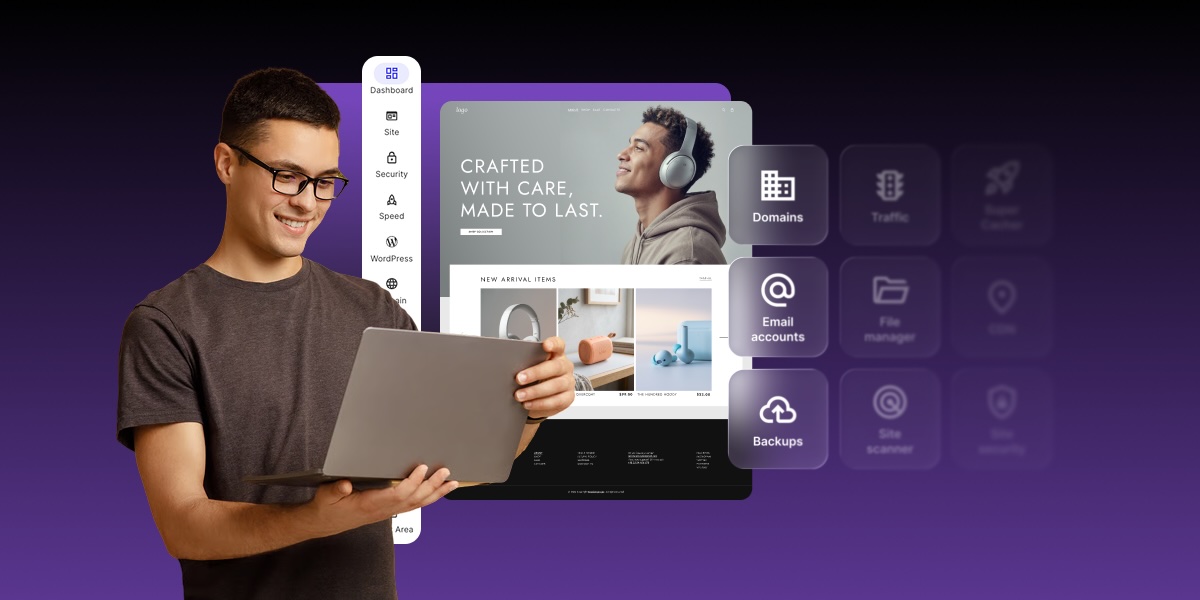
Once you buy hosting, your web hosting control panel is where you’ll run your site day to day, from setting up email and connecting your domain to restoring backups. Not every panel works the same way, though. Some are built for people who manage servers, and others are designed to keep everyday jobs simple. Here’s how control panels work, the main types, and what a good one looks like.
Key takeaways:
- A web hosting control panel is the dashboard where you manage domains, email, files, backups, and security.
- Every click in the panel runs a server task for you, so you never have to touch the command line.
- Panels come in three types: third-party, open-source, and host-built, which can be designed around the host’s own users.
- Your hosting account, control panel, and WordPress site admin are separate logins with separate jobs.
- The panel usually comes with your hosting plan, so choosing a panel really means choosing a host.
- A good panel makes jobs easy to find, runs backups automatically, and includes free SSL, like SiteGround’s Site Tools.
What is a web hosting control panel?
A web hosting control panel is a web-based dashboard for managing your hosting account and the websites on it. So instead of typing commands on a server, you use menus and buttons to handle domains, email accounts, files, databases, backups, and security settings from one place.
Think of it as the settings app for your hosting. For example, your phone runs thousands of processes you’ll never see, and the settings app gives you the handful of switches you actually need. A hosting control panel does the same for the server your site lives on.
Almost every type of web hosting comes with some kind of control panel, from entry-level shared plans to managed cloud servers. The basics look similar, but how much comes included varies from host to host and plan to plan:
- Everyday site jobs, such as email, domains, and one-click WordPress installs, are standard almost everywhere.
- Safety features, such as automatic backups and free SSL, vary a lot. Some hosts include them, and others sell them as add-ons.
- Developer tools, such as SSH access, PHP version control, and staging, are often reserved for higher-tier plans.
The main exception to all of this is an unmanaged server you set up yourself, which is a much more technical endeavor. There, you either install a panel or manage everything from the command line.
How a hosting control panel works
A hosting control panel sits between you and the software that runs your server. When you click a button, the panel translates that click into the commands the server needs, runs them, and shows you the result.
By way of example, here’s what happens when you create a new email address:
- You fill in a short form in the panel with the address (hello@yourbusiness.com) and a password.
- The panel tells the mail server to create the mailbox and sets up the settings it needs to send and receive messages.
- The panel confirms the account is ready and shows you the login details for your email app.
Without a panel, the same job means connecting to the server with developer tools and editing configuration files by hand — and if you don’t know what that means, that’s exactly why you benefit from a control panel).
The same pattern repeats for everything else in the panel. Restoring a backup, installing an SSL certificate, or adding a subdomain are all server tasks with a friendly form on top. If you’re still getting your head around how to host a website, the control panel is, thankfully, the piece that makes the whole setup manageable day to day.
What you can do in a hosting control panel
Nearly all the routine admin for your site happens in the control panel. Here’s what you’ll use it for, roughly in order of how often you’ll need it.
Manage your domains and DNS
Your control panel is where your domain and your site get connected. From there, you can:
- Point a domain at your website
- Add subdomains like shop.yourbusiness.com
- Edit DNS records, the instructions that tell the internet where your website and email live
If you’ve just registered a name, the next steps after buying a domain usually start here.
Create email accounts
The control panel is where you create email addresses on your own domain, such as hello@yourbusiness.com. You can also set up forwarders, so messages sent to that address land in an inbox you already check.
Install and manage websites
Getting a site into your hosting account starts in the control panel. You can set up WordPress or another app with an installer, or kick off a website migration if your site already lives with another host. Once it’s live, many panels also offer staging: a private copy of your site where you test changes before visitors see them.
Work with files and databases
The control panel gives you direct access to the behind-the-scenes parts of your site, the ones you never see while editing pages:
- File manager: browse, upload, and edit your site’s files in the browser
- FTP accounts: connect a desktop app like FileZilla to move files in bulk
- Database tools: view, export, or repair the data behind your site
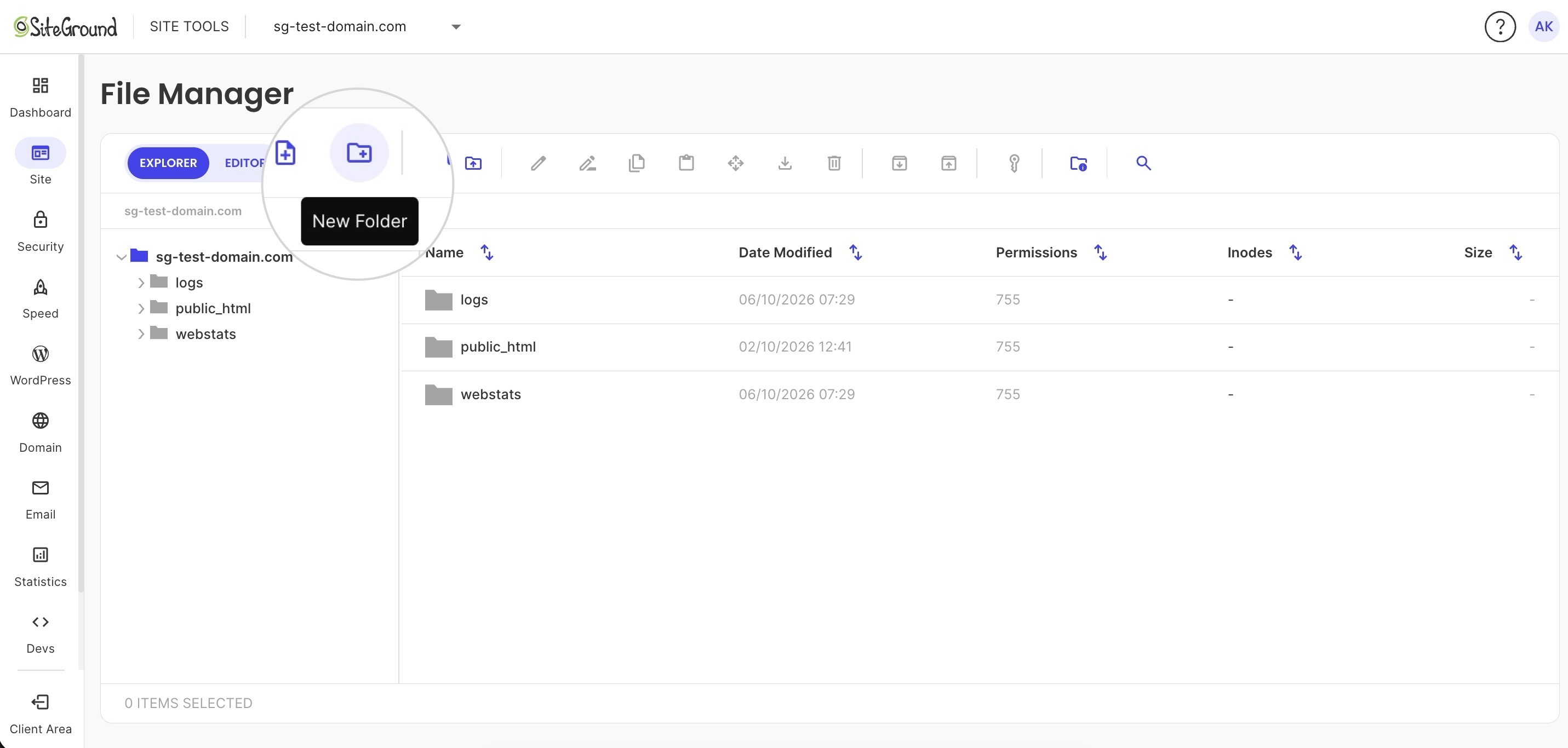
If you manage your site through an app like WordPress, you’ll rarely need any of these. They’re there for the day something breaks and support asks you to rename a folder or check a file.
Back up and restore your site
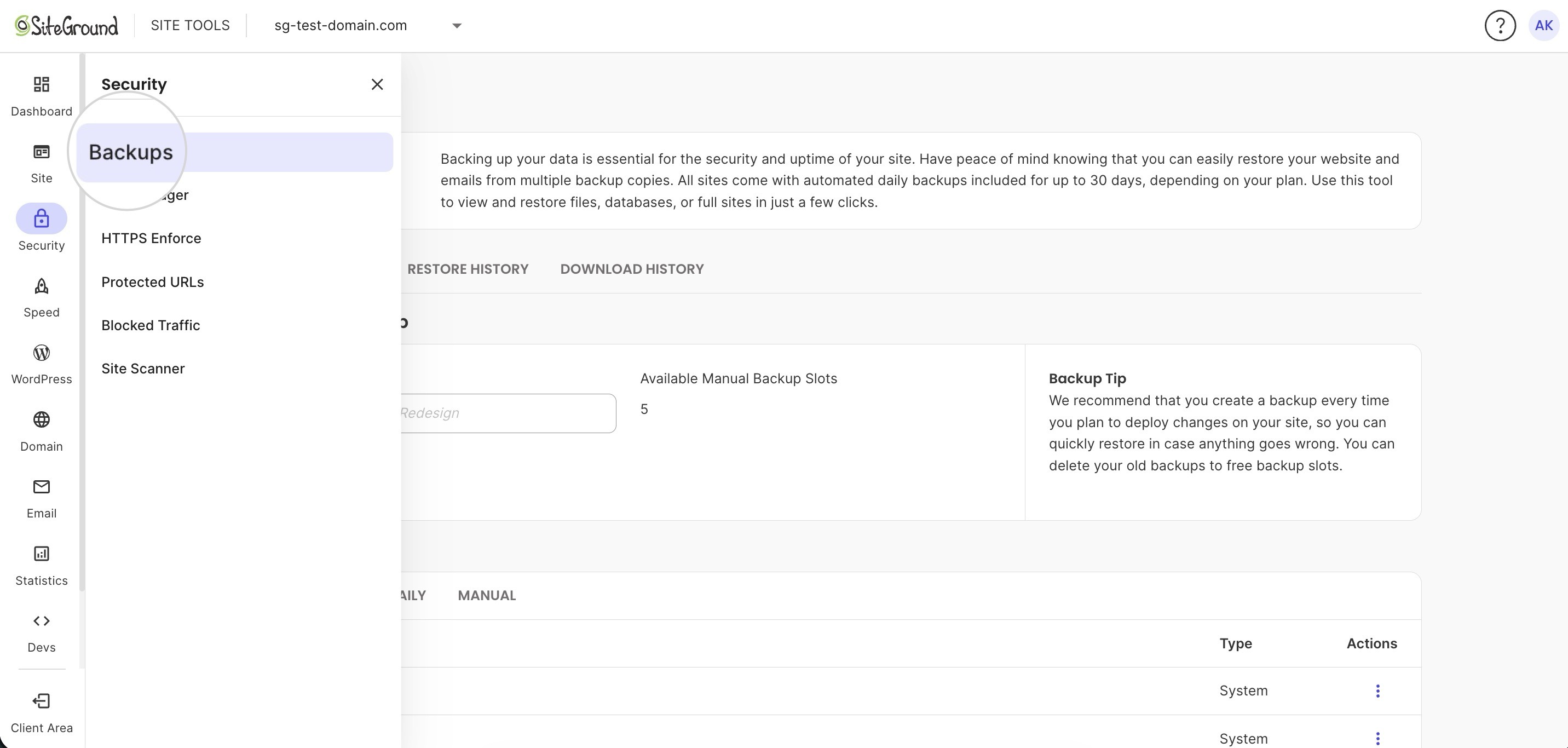
Backups are your undo button, and the hosting provider control panel is where you find them. Look for automatic daily backups, a way to create your own copy before big changes, and a restore option that doesn’t require a support ticket.
Keep your site secure
The control panel holds the security settings that sit at the server level:
- SSL certificates: install and renew the SSL certificate that puts the padlock in the browser bar
- Blocked IP addresses: stop specific visitors or bots from reaching your site
- Password-protected folders: lock off parts of your site that shouldn’t be public
Server-side protection only goes so far, so pair it with a few basic website security tips like strong passwords and regular software updates.
Give other people access
If a developer, designer, or teammate works on your site, many hosts let you add them as a collaborator, either from the control panel or your hosting account. They get their own login with access to that site only, so you never share your password, and they can’t see your billing, invoices, or the rest of your account.
Your hosting account vs. control panel vs. WordPress admin
Your hosting account, your control panel, and your WordPress admin are three different areas with three different jobs. Beginners mix them up constantly, which is why “how do I log in?” shows up in search so often.
Here’s what each area handles:
| Hosting account | Control panel | WordPress admin | |
| What it’s for | Billing, plans, and account details | Running the hosting behind your site | Building and editing the site itself |
| Typical tasks | Pay invoices, upgrade your plan, contact support | Create email, restore backups, manage DNS | Write posts, install plugins, change your theme |
| Example | Renewing your plan before it expires | Setting up hello@yourbusiness.com | Publishing a new blog post |
A quick rule of thumb:
- If the task is about money or your plan, it’s the hosting account.
- If it’s about what visitors see on your pages, it’s WordPress.
- Everything in between lives in the control panel.
Some WordPress hosting plans blur the lines by adding WordPress tools to the panel, such as automatic updates or staging. The three areas still do separate jobs. At SiteGround, for example, the Client Area is your hosting account and Site Tools is your control panel. Your WordPress admin is the dashboard you reach by adding /wp-admin to the end of your site’s address, and it’s where you edit your pages and posts.
The main types of web hosting control panels
Back to the control panel itself. Not every host gives you the same one, and the panel you end up with depends on who hosts your site and how much of the server you manage. Almost every panel falls into one of these categories.
1. Third-party panels
A third-party panel is a ready-made control panel that a host licenses from a software company instead of building its own. It looks and works the same no matter which host you’re with, with the same menus for email, domains, files, and backups. cPanel and Plesk are the best-known examples, and you’ll find them on many shared and reseller hosting plans.
That consistency cuts both ways. What you learn in one account carries over to the next, but if a menu confuses you or a routine task takes too many clicks, it’ll be the same at every host that uses that panel. The host can’t redesign it either, because the software company decides what changes and when.
2. Free and open-source panels
Free, open-source panels such as CyberPanel and aaPanel are ones you install yourself, usually on a VPS or dedicated server. They cost nothing to license, but you’re responsible for setup, updates, and security. They suit developers who are comfortable with unmanaged hosting better than someone launching a first site.
3. Panels built by the hosting company
Some hosts build their own panel for their own platform. Because the host owns the design, it can shape the panel around what its customers actually do, such as keeping backups and SSL a click away, and fix what users find frustrating without waiting on an outside vendor. The tools are also built for the exact servers the host runs, so features like caching and WordPress management fit the platform instead of being generic.
SiteGround’s Site Tools is one example. SiteGround built it for its own hosting platform and organized it around individual websites instead of the hosting account, so each site gets its own panel with its own settings. If you manage more than one site, you can switch between them from a dropdown in the header, including sites in different SiteGround hosting accounts.
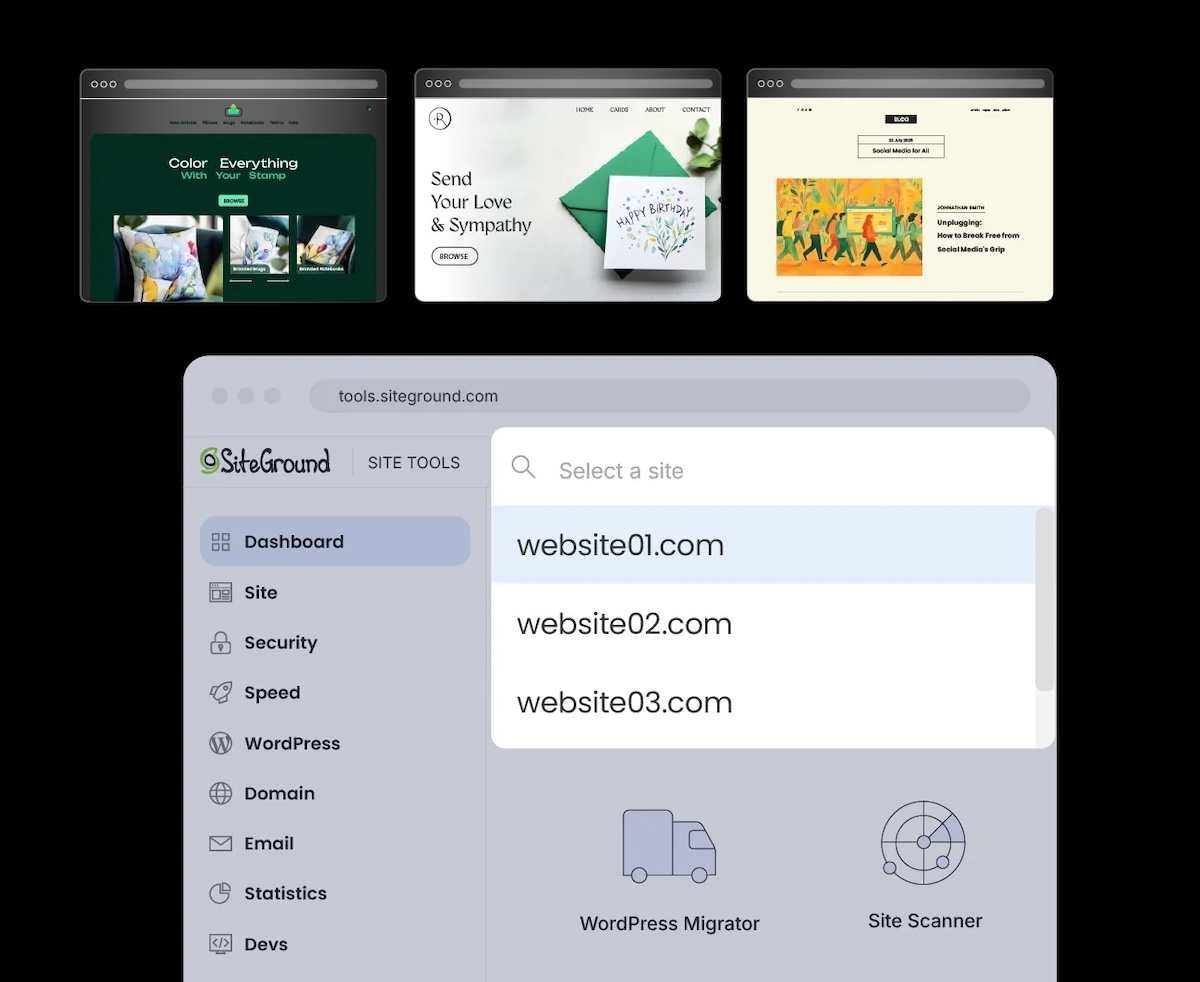
In Site Tools, you’ll find:
- More than 35 tools in one panel, from email and domains to caching, CDN, and site statistics
- One-click WordPress installs, automatic updates, and migrations from other hosts, with staging on the GrowBig plan and higher
- 30 days of automatic daily backups on shared hosting plans, with free restores
- A free Let’s Encrypt SSL certificate for new sites that renews automatically
If you’d like to see how it’s laid out, the free Site Tools demo lets you try it before signing up.
Using the SiteGround Website Builder or SiteGround Ecommerce? Your site runs from Site Admin instead of Site Tools. That’s because it’s an all-in-one platform that handles the technical setup, so Site Admin focuses on editing and running your site rather than server tools like FTP and databases. You can access your Site Admin by going to Client Area > Websites.
What to look for in a control panel
Your control panel usually comes with your hosting plan, so judging a panel is part of choosing a web hosting partner. It’s also a quick health check if you already have hosting and something feels harder than it should. A good panel passes these checks:
- You can find things. Common jobs like creating an email account or restoring a backup take a few clicks, and a search bar covers the rest.
- Help is a click away. You can reach support from inside the panel, and tools link to guides that explain what they do, so you’re not stuck searching forums when something breaks.
- Backups run on their own. Daily backups happen without you, and restoring one doesn’t need a ticket or a fee.
- Security basics are included. Free SSL with automatic renewal comes with the plan, and anything paid is clearly labeled as paid.
- It’s fast. Pages in the panel load quickly, even when you’re managing several sites.
- It works on your phone. You can check a backup or fix a DNS record from a mobile browser when you’re away from your desk.
- It grows with you. Adding a second site, or a tenth, doesn’t turn the panel into a maze.
If your current panel fails two or three of these, that’s a fair question to raise before your plan renews. A panel you dread opening is a panel you’ll avoid, and avoided panels are where expired SSL certificates and missing backups tend to hide.
A good control panel makes the rest of hosting feel easier
A web hosting control panel is where the practical side of running a site happens: email, domains, backups, security, and the occasional emergency restore. It can look intimidating at first, but a well-designed panel keeps those jobs simple enough to handle on your own.
When you’re comparing hosts, take a close look at the panel you’ll be working in every day. SiteGround Web Hosting comes with Site Tools, so daily backups, free SSL, and one-click WordPress installs are ready from your first login.
[86]
Frequently asked questions about website hosting control panels
Yes, free control panels for web hosting exist. Open-source options such as CyberPanel and aaPanel cost nothing to license, but you install and maintain them yourself on a VPS or server. On a regular hosting plan, the panel is typically included in the price.
You usually log in to your web hosting control panel through your host’s account dashboard, which links to the panel for each site. With SiteGround, for example, you can access your hosting control panel by going to Client Area > Websites.
The best web hosting panel is the one that makes your everyday jobs easy. Since the panel usually comes with your hosting plan, the practical question is whether your host’s panel includes automatic backups, free SSL, and simple site management. The checklist in the section on what a good control panel looks like is a quick way to judge it.