

The right width for every image in a marketing email is 600 to 640 pixels, whether it’s sitting in the header, the hero banner, or the footer. Height and file size change by section, but that width holds the whole layout together. Get it wrong and your image renders stretched, cropped, or oddly scaled, depending on which email client opens it.
Key takeaways:
- Email image size starts at 600 to 640 pixels wide across header, hero, body, and footer images. Height and file size are what change by section, not width.
- Keep each image under 1 MB. That’s the ceiling most email platforms enforce before flagging an upload.
- Use JPG for photos and PNG for logos, text, or anything with transparency.
- SiteGround Email Marketing’s templates already have these dimensions built into each image block, so there’s no math to do yourself.
Where each image sits in a marketing email
Before we get into the numbers, here’s how a typical marketing email looks and where the images usually go: a header image at the top, a hero banner right under it, one or more body images through the middle, and, where the platform allows it, a footer image near the bottom.
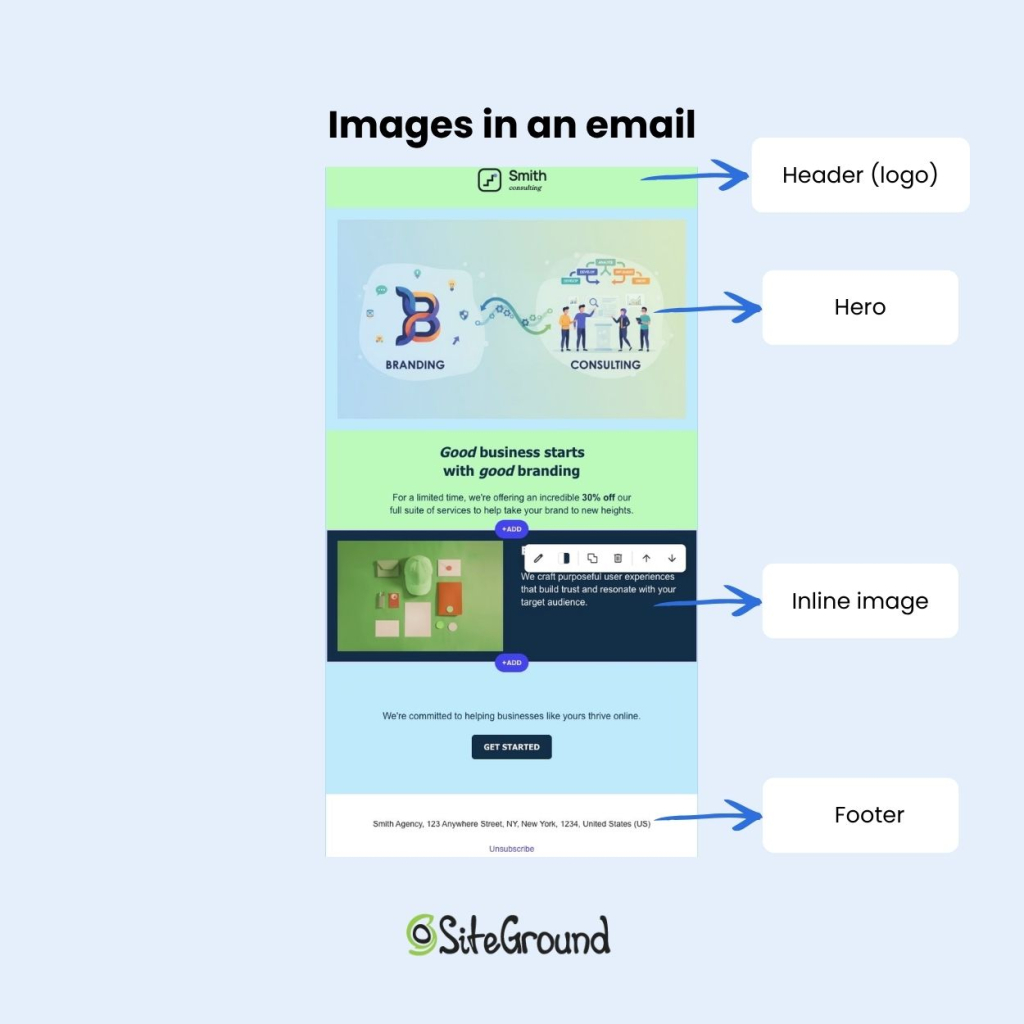
Building in SiteGround Email Marketing skips most of this math for you. Its pre-made templates come with these dimensions already built into each image block. The built-in AI Image Generator creates a replacement image that matches the aspect ratio of whatever’s already sitting in that block, so swapping a placeholder photo doesn’t mean recalculating anything.
The one spec table you need
Bookmark this table instead of piecing the numbers together from five different guides.
| Image type | Width | Height | Max file size | Format |
| Header / logo | 600–660px | 150–200px | Under 200 KB | PNG (logo) or JPG (photo header) |
| Hero / banner | 600–660px | 300–400px | Under 1 MB | JPG (photo) or PNG (graphic) |
| Body / inline | 600–660px | Varies with content | Under 1 MB | JPG (photo) or PNG (icon/graphic) |
| Footer | 600–660px | 100–150px | Under 100 KB | PNG (logo/icons) |
These numbers are industry convention, not an enforced standard: there’s no W3C spec for email images, and no client checks for compliance.
The 600px width is the closest thing to a hard rule, since it’s what fits Outlook’s reading pane without a horizontal scrollbar, the same logic behind our email marketing design recommendations for the rest of the template.
Heights and file-size caps vary somewhat by platform and are shown above as the range most guides converge on.
Header and banner image size
The email header is the first thing a subscriber sees, so it carries the most weight for making a good first impression without slowing anything down.
Recommended width and height
A header image should be 600 to 640px wide and 150 to 200px tall. That height is enough to fit a logo and, sometimes, a short menu bar, without pushing your actual message below the first screen a subscriber sees. Getting this right early in your email format sets a predictable frame for every section below it.
File size cap for header images
Header images should stay under 200 KB, and ideally closer to 100 KB. They’re rarely photographic, so there’s no reason for a logo-and-background header to weigh anywhere near what a hero photo does.
Hero and body image size
This is where most of the email’s visual weight sits, so getting these two right matters more than the header or footer.
Full-width hero images
The hero is the image directly under the header that introduces the campaign’s main idea. It runs 600 to 660px wide and 300 to 400px tall. That range keeps it visible above the fold on both desktop preview panes and mobile screens without forcing a scroll before the offer even registers.
Inline / body images (product shots, inline graphics)
Email body images can go as narrow as 564px, but 600px matches the rest of the template and avoids upscaling on wider screens. An email newsletter that stacks two or three product shots down the body should keep every image at that same width so the layout reads as one column instead of a set of mismatched crops.
File size cap for hero and body images
Cap each hero or body image at 1 MB. That’s the ceiling most email platforms enforce before flagging an upload, and it’s more than enough headroom for a well-compressed photo at 600 to 680px wide.
Pro tip: for extra sharpness on newer phones and laptops, export the image at twice its display size (a file at 1,200px for one that will show at 600px wide), then compress it before uploading. It’s an optional polish step, not something every image needs.
Footer image size
Most email footers skip images entirely, a logo, social icons, and a background color usually say everything a footer needs to. This section is for the platforms and templates that do add one.
Logo and social icon dimensions
Where a footer image shows up, it’s usually just a small logo (150 to 200px wide) or a row of social icons (24 to 32px each) sitting above the unsubscribe link. SiteGround Email Marketing keeps its footer to links and background color, which covers the same job without needing an image at all.
Keeping footer images lightweight
If a template does include a footer image, keep it light: PNG for logos and icons, under 100 KB total. It’s a small, low-priority element, so it doesn’t need much of the email’s file-size budget. Icons without alt text lose their meaning the moment a client blocks images by default, which is the same reason accessible design treats alt text as mandatory, not optional.
File size limits: How big is too big?
Keep any single image under 1 MB. Most platforms will accept larger files, but a 1 MB image inside an otherwise lightweight email is usually a sign it wasn’t compressed before upload.
There’s one edge case worth knowing about: Gmail cuts off very long emails behind a “View entire message” link once the code behind the email crosses roughly 102 KB. This only matters if you’re writing custom HTML and embedding images directly into the code itself.
If you’re using an email marketing platform like SiteGround Email Marketing, uploaded images are stored on a server and the email’s code just links to them, so this practically never comes up.
Staying under the 1 MB per-image cap is what actually matters for a typical hosted-image build.
JPG vs. PNG: Which to use where
JPG compresses photographs by discarding detail a viewer won’t notice, trading a little quality for a much smaller file. PNG keeps every pixel intact and supports transparency, which is why it should decide the format, not personal preference.
| Format | Compression | Transparency | Best for |
| JPG | Lossy, smaller file | No | Product shots, hero images, lifestyle photography |
| PNG | Lossless, larger file | Yes | Logos, icons, text overlays, graphics |
Rule of thumb for using JPG and PNG:
Logo on a colored background: PNG
Icon or graphic with text: PNG
Screenshot: PNG
Product photo or hero image: JPG
Photo-heavy banner: JPG
A one-off email blast built around a single product photo is a JPG situation every time. A PNG version of the same photo would run two to three times heavier for no visible gain, while a logo saved as JPG loses the transparent background it needs to sit cleanly on a colored section.
Getting email image size right, one time
Once the numbers above are set, header at 600–640px, hero at 200–400px tall, footer under 100 KB, JPG for photos and PNG for everything else, there’s nothing left to guess on the next campaign. Email image size isn’t a creative decision made fresh each send; it’s a spec sheet you set once and reuse.
None of this requires manual calculation if you build the campaign in SiteGround Email Marketing. Its templates arrive with these dimensions already built into each image block, and the AI Image Generator produces a new image that matches the aspect ratio of whatever’s already there, so replacing a placeholder photo doesn’t mean redoing the math above.
[58]
Frequently asked questions about email image size
Most email clients block images automatically to protect recipients from tracking pixels and to speed up load times on a first open. That’s exactly why alt text and a lightweight file size matter more in email than on a web page: the image might never load at all.
Use screen resolution, 72 DPI, not print DPI. Print files run at 300 DPI or higher, which produces a file many times heavier than an email needs for the same visual quality on a screen.
Most email platforms compress images automatically on upload or send to keep file sizes manageable, and that compression is usually the cause. Starting with a properly sized, already-compressed file gives the platform less room to degrade it further.
The same 72 DPI screen resolution applies to a one-off blast as it does to a regular newsletter. What changes for a blast is usually the file weight budget, since a single hero-driven send can afford a slightly larger hero image than a newsletter running six or seven images down the body.
This usually comes down to missing width and height attributes or a fixed pixel width in the image’s HTML instead of a percentage-based or fluid width. Without those, some clients render the image at its native size regardless of the screen it’s on.
Set the image’s width to 100% in the HTML or CSS and cap it with a max-width matching the template’s full width, typically 600px. That combination lets the image shrink on narrow screens while never exceeding the intended size on desktop.