WordPress AI without API keys: AI Agent for WordPress vs BYO-key plugins

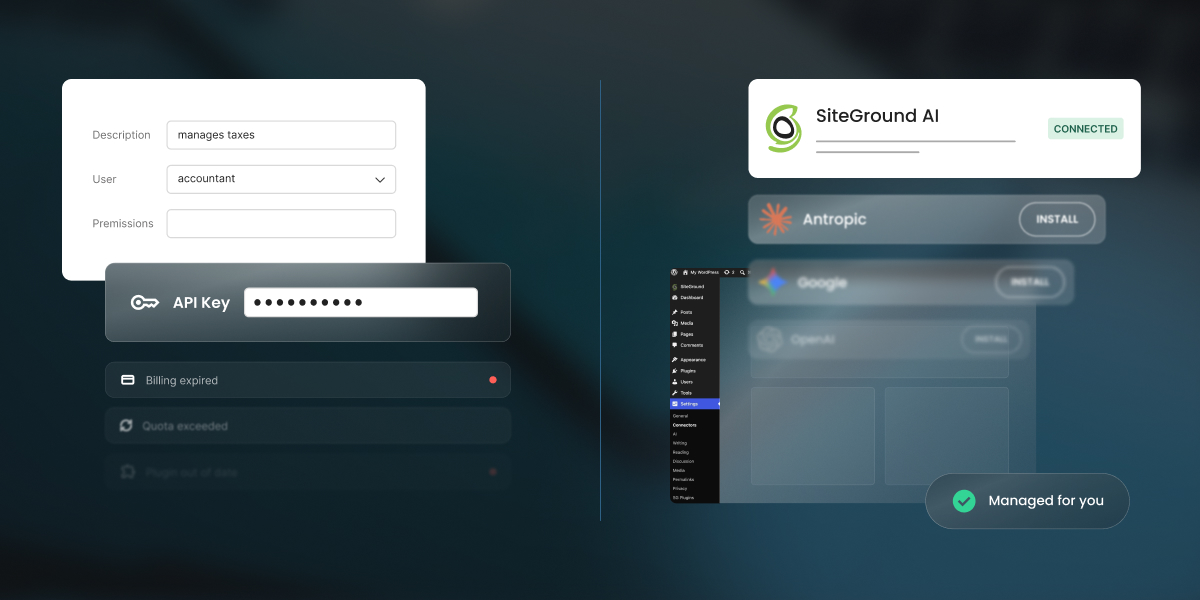
A comparison graphic split down the center against a dark background, contrasting manual API configuration on the left with automated AI integration on the right. The left side shows complex setup forms with fields for user permissions and an API Key, alongside error alerts for "Billing expired" and "Quota exceeded." The right side shows a simplified setup featuring a SiteGround AI card marked "CONNECTED" next to a green checkmark badge reading "Managed for you."

Most WordPress AI plugins arrive with the same hidden requirement: bring your own key. You’re sent off to open a developer account with an AI provider, add a payment method, and generate an API key, which is a long password that lets your site talk to that company’s AI. But did you know you can skip that entire errand?

Running WordPress AI without API keys means a managed service handles the connection to the AI models, so nothing on your site stores a credential and you never open a provider account at all. This is in contrast to the dominant bring-your-own-key (BYO-key) described above, where the plugin supplies the features, and you supply the account, the key, the billing, the limits, and the maintenance that follows.

Key takeaways:

  • Running WordPress AI without API keys means you do not need separate model-provider credentials from OpenAI, Anthropic, Google, or similar services.
  • A managed connector can let a WordPress AI plugin work without an API key, so nothing on your site stores a credential and no developer account is needed.
  • BYO-key WordPress AI plugins can give you more direct control over models, pricing, provider accounts, and portability.
  • One provider is rarely enough. Text and images often need different providers, so a BYO-key setup usually means several accounts, several keys, and several bills.

What BYO-key WordPress AI and managed access actually mean

Every AI feature on a WordPress site needs a route to an AI model. A writing assistant, chatbot, image generator, SEO tool, or WooCommerce helper cannot work on its own. It has to send a request to a model provider, identify who is allowed to use it, and decide who pays for the request. That route can be supplied in several ways.

Access modelHow it worksWho it suits
Direct BYO-key pluginYou create provider accounts yourself and paste the credentials into the plugin or the Connectors screen. For example, the official WordPress AI plugin works this waySite owners who want to choose their own models and hold the provider relationship deliberately
Managed AI accessThe service holds the provider relationships, and no key is stored on your site. For example, SiteGround’s AI Agent for WordPress works this waySite owners who want to use AI in WordPress without the administration

The most common model today is BYO-key. Many AI plugins for WordPress are built around it because it’s straightforward for the plugin developer: the plugin provides the interface, and the user pays the AI provider. For more technical users, this option gives direct control over the model provider, the selected model, the billing account, and usage policies. 

But it also means someone has to manage every provider account, key, quota, billing dashboard, and model retirement notice. With managed WordPress AI access, more of that work is handled for you. You still use AI in WordPress, but you don’t need to open separate accounts with multiple AI providers or keep track of several keys and billing dashboards. That is where comparing managed AI vs BYO-key becomes a business decision, not just a setup preference. 

How AI connects to your WordPress site

There are two main WordPress AI provider setup models, and both take about the same time.

Connecting WordPress AI with your own API key

In a BYO-key setup, you create an account with a provider such as OpenAI, Anthropic, or Google. Then you install the relevant provider connector or plugin, generate a key in the provider dashboard, and paste that key into the plugin settings or, if you’re on WordPress 7.0 or above, into WordPress’s Settings > Connectors screen.
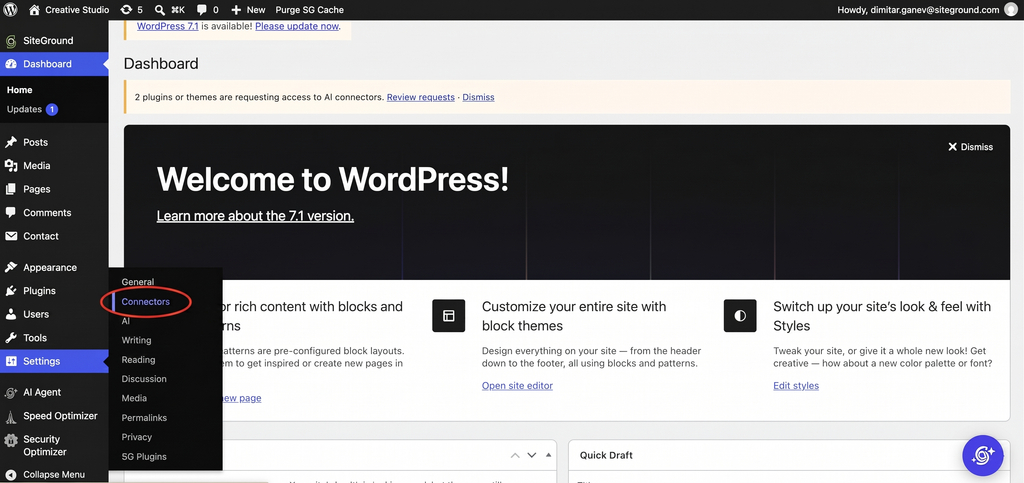
A screenshot of the WordPress admin dashboard with a red oval highlighting the Connectors option in the expanded Settings navigation menu on the left sidebar. A top notification banner reads "2 plugins or themes are requesting access to AI connectors," situated above a central welcome panel featuring the headline "Welcome to WordPress!" and a link to learn more about version 7.1.

If you want to use ChatGPT, Claude, and Gemini in WordPress, you usually repeat that process for each provider. One key doesn’t normally cover every model family.
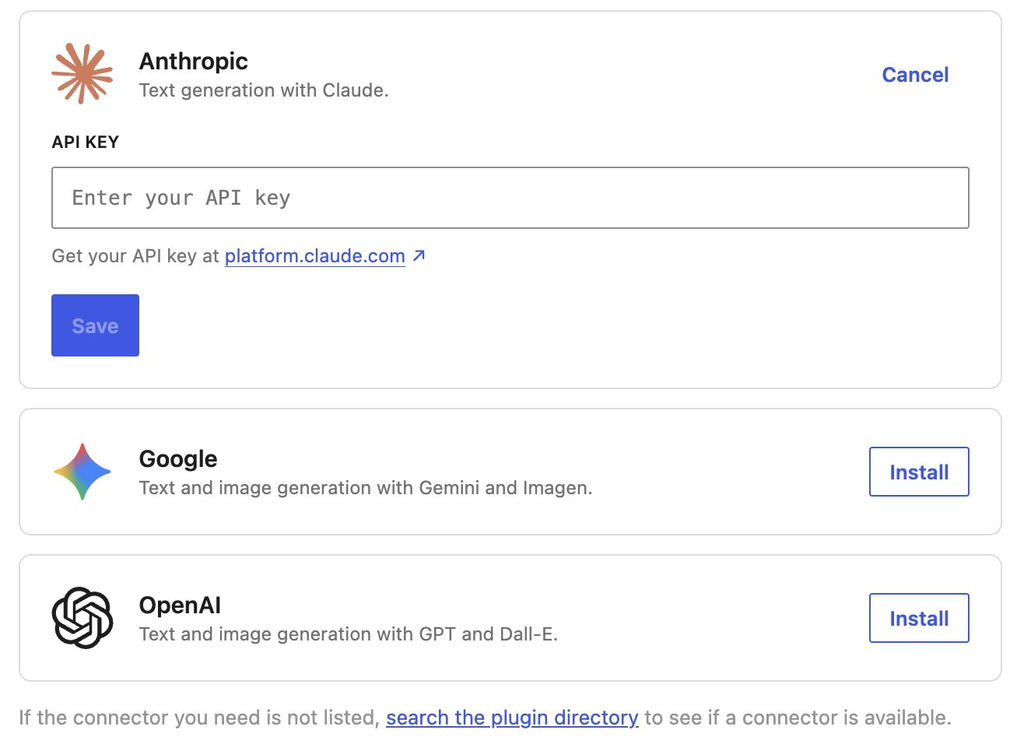
A screenshot of an AI connector configuration page featuring cards for Anthropic, Google, and OpenAI. The Anthropic section is expanded, showing an API KEY input field with the placeholder "Enter your API key," a link reading "Get your API key at platform.claude.com," a blue "Save" button, and a "Cancel" link. Below, cards for Google ("Text and image generation with Gemini and Imagen.") and OpenAI ("Text and image generation with GPT and Dall-E.") display outline "Install" buttons. A footer message at the bottom reads, "If the connector you need is not listed, search the plugin directory to see if a connector is available."

Pro tip: Set a spending cap the same day you create the key. Every provider lets you set one, and it takes about a minute, but almost nobody does it at setup because nothing prompts you to. Do it before you paste the key into WordPress, while you’re still in the provider’s dashboard. Without a cap, a plugin making background calls or one busy month of content can multiply the bill before anything appears on a statement. Worth knowing: OpenAI and Anthropic both offer a hard monthly limit that stops requests, while Google’s billing runs through Google Cloud where the default is an alert that emails you and lets spending continue.

WordPress 7 improved this with the Connectors screen by giving WordPress a centralized place for AI provider connections, including OpenAI, Anthropic, and Google, so compatible plugins can reuse configured connections. However, the standard connector model still uses provider credentials, so WordPress Connectors API keys don’t eliminate provider administration, but rather reduce repeated setup. 

Using AI Agent for WordPress without API keys

With an AI Agent for WordPress without API keys, the access model changes. For instance, in the case of SiteGround’s AI Agent for WordPress, you install the AI Agent by SiteGround plugin, create a free SiteGround AI Studio account, and the SiteGround AI connector activates without requiring a separate model-provider API key on the site.

That means no OpenAI key to paste, no Anthropic key to rotate, and no separate Google Gemini billing account just to start using WordPress AI features. Moreover, SiteGround AI is a multi-model connector that can route tasks across models such as Gemini, ChatGPT, GPT-Image, and Claude, with no API key needed to activate the connector.

This means that rather than requiring you to know which model to use, SiteGround AI automatically routes each request to the most appropriate one for the job. For example: 

  • General inquiries about your WordPress setup are routed to fast, efficient models like Gemini Flash for near-instant responses.
  • Complex WordPress site management tasks are automatically escalated to advanced reasoning models like Gemini Pro or GPT 5.6.
  • Visual assets are handled by dedicated image-generation models such as GPT-Image.

If your website is hosted on SiteGround, the process is even more seamless: SiteGround AI is already connected as a provider, and the SiteGround AI Studio plugin comes pre-installed and automatically authenticated for all new and migrated sites, meaning the agent arrives connected and ready to work right out of the box with zero setup. 
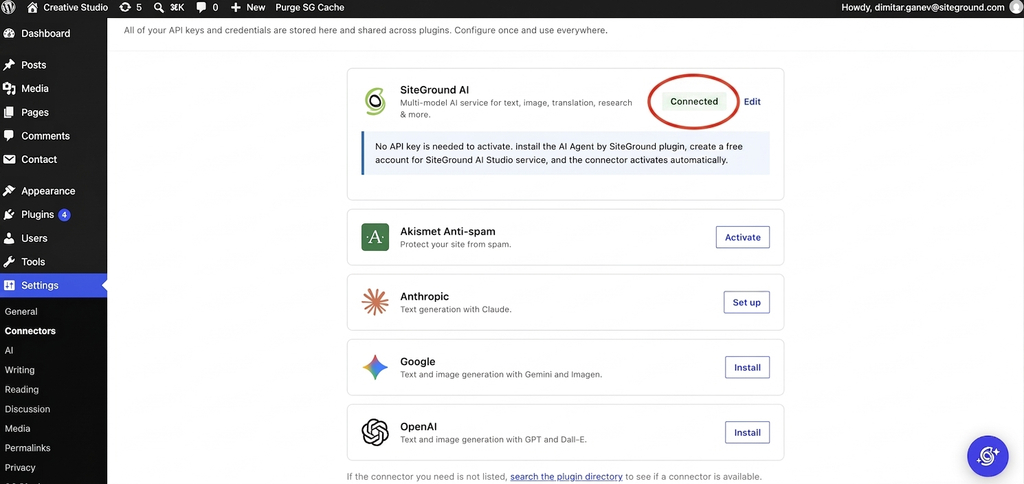
A screenshot of the WordPress Connectors settings page showing a list of AI integration connectors. At the top, the SiteGround AI card features a red circle highlighting its green Connected status badge, alongside a note explaining that no API key is required when using the AI Agent by SiteGround plugin. Below, additional service cards are listed for Akismet Anti-spam with an Activate button, Anthropic with a Set up button, and Google and OpenAI both displaying Install buttons. The left admin menu shows Connectors selected under the Settings menu.

What happens after you connect

The easiest WordPress AI setup for beginners is not only about the setup. A beginner-friendly setup should stay manageable after the first week, when a few of these might happen:

What happensWith your own API keysWith managed access
You need a second providerAnother account, another key, another billing relationship, another dashboard. Common, since one provider rarely covers both text and imagesNothing. Model routing happens behind the connection
A new administrator joinsDecide whether to share a key, issue a second one, or hold credentials centrally. Every option has a downsideThey use the site. No credential decision at all
You want to know what you’re spendingOne provider dashboard per account, each in its own format and billing cycleOne balance, in one place
A card failsAI features stop, often without an obvious reason, and it looks like a plugin bug until you check the providerHandled through your existing SiteGround relationship
A key is exposedRotate it at the provider, update everywhere it’s stored, and absorb whatever was spent in the meantimeNo key on the site to expose
A model is retiredTrack notices across every provider you use and migrate before the cutoffThe service moves to the replacement
Provider pricing changesYours to absorb, on their scheduleAbsorbed by the service, which is also the trade-off: you didn’t choose
Something breaksWork out whether the plugin, the connector, the key, the quota, or the provider failed. Four support surfaces, none of which owns the whole pathOne place to ask

Let’s look at perhaps the most common issue: the failed-card example. If your Gemini account uses a prepaid balance and that balance hits zero, Google says all API keys in all linked projects under that billing account stop working. To the person inside WordPress, that can look like the WordPress AI plugin API key suddenly broke, even though the real issue is billing.

Retired models are another common lifecycle issue. OpenAI states that it regularly retires older models and that software relying on those models may need updates to keep working. Its notice periods vary by model type, with generally available models receiving longer notice than preview models. Anthropic uses a similar lifecycle language: active, legacy, deprecated, and retired, and says requests to retired models fail. It also tells customers to audit usage by API key and model before retirement dates.

That is the operational work hidden behind BYO-key WordPress AI plugins. Someone has to notice the email, understand whether the WordPress site is affected, test the replacement model, and update the configuration before the feature fails.

What each model costs you

Whichever route you take, something goes. One costs you control over the AI, the other costs you time you’ll spend maintaining it, so the question is which cost you’d rather pay.

What you give up with managed access

You give up model choice. The service decides which model handles each request, and you don’t get a say in it. You give up the direct provider relationship too, so you can’t negotiate, can’t watch provider-level pricing, and can’t move the same setup into tools outside WordPress. And you can’t switch providers on your own schedule, because that decision belongs to the service.

For a business with specific model requirements, or one already using the same provider across other systems, those can be more than technicalities. For example, you may need a specific OpenAI model for a workflow, a direct Anthropic account for procurement reasons, or a Google Cloud billing relationship for compliance.

What you give up with your own keys

Time, mostly, and it recurs. Every row in the table above is work that lands on whoever manages the site, and on a small business that’s usually the person also handling marketing, customers, and everything else.

A BYO-key setup with a single OpenAI account is more exposed to one company’s decisions, not less. If that provider changes its pricing, retires the model you use, or has an outage, you have no alternative route and no way to move quickly. The fair managed AI vs BYO-key comparison isn’t managed access against one key, but rather managed access against a genuinely multi-provider setup, and that’s where the administrative burden actually lives.

WordPress AI without API keys: which model fits your business

The right BYO-key vs managed WordPress AI choice depends on who owns the work after setup.

When to choose your own API keys

Choose your own API keys if you want specific models for specific jobs. That might include using one model for long-form content, another for code, another for image generation, and another for embeddings or search. It also makes sense if you already have provider accounts, already monitor AI spend, or already use the same provider relationship in tools outside WordPress.

BYO-key is also a good fit when:

  • You have someone who will actually do monthly maintenance.
  • You need direct provider invoices for procurement.
  • You need provider-level logs or controls.
  • You are comfortable diagnosing quota, billing, authentication, and model errors.

When to choose managed access

Choose managed WordPress AI when nobody on the team wants to own provider administration. That is quite normal for small business owners. The same person managing WordPress may also be managing content, customer emails, products, bookings, social media, invoices, and support. Adding OpenAI, Anthropic, Google, and image-model billing dashboards to that workload is not a small ask.

Managed access is usually the better fit when:

  • You would rather have one AI relationship than several provider accounts.
  • You want one usage view instead of multiple dashboards.
  • You care more about completing WordPress tasks than choosing exact models.
  • You want a simpler WordPress AI provider setup.

The bottom line

WordPress AI without API keys reduces the number of accounts, keys, dashboards, billing relationships,and provider lifecycle issues. That makes it a better fit for owners and teams that want AI as a business tool, not another technical system to administer. 

In contrast, BYO-key plugins are the right choice when direct model control, provider ownership, and technical configuration matter more than simplicity. 

So the real question is not whether your setup takes five minutes or fifteen, but who handles the administration for the next two years.

FAQs

Can I use WordPress AI without an API key?

Yes. You can use WordPress AI without an API key through a managed connector that holds the provider relationship for you. The AI Agent by SiteGround plugin activates the SiteGround AI connector automatically once you create an AI Studio account, so no credential is stored on your site.

What does BYO-key mean for a WordPress plugin?

BYO-key means bring your own key. The plugin provides the AI features, and you provide the provider account, the API key, the billing setup, the usage limits, and the ongoing maintenance. WordPress’ AI plugin and AI Engine both work this way.

Do I need separate keys for ChatGPT, Claude, and Gemini?

Yes, if you connect each provider yourself. Every provider needs its own account, its own API key, and its own billing relationship. This comes up more often than people expect, because one provider rarely covers both text and image generation.

Can WordPress 7 reuse one provider connection across plugins?

Yes. WordPress 7’s Connectors screen stores provider credentials centrally so compatible plugins can share one connection instead of each asking for its own key. It centralizes where the key lives, but it doesn’t remove the need for a provider account or a key.

Is managed WordPress AI better for small businesses?

Managed WordPress AI, such as AI Agent for WordPress, is usually better for small businesses, because the administration it removes is work that a small team rarely has anyone to do. If your business has a developer or agency already managing provider accounts, your own keys give you more control and that control becomes usable.

What happens when an AI model is retired?

When an AI model is retired, requests to it start failing. With your own keys, you track notices across every provider and migrate before the cutoff. OpenAI gives at least six months for generally available models and around two weeks for previews, while Anthropic gives at least 60 days. With managed access, the service handles the move.

Is AI Agent for WordPress easier to set up than AI Engine?

Yes. AI Agent for WordPress is easier to set up than AI Engine because it needs no provider account and no API key. AI Engine is a BYO-key plugin, so you create an account with a provider, generate a key, and paste it in before any feature works.

What happens if my card fails at the AI provider?

If your card fails at the AI provider, your WordPress AI features stop working, and nothing in WordPress explains why. It usually looks like a plugin problem until you check the provider’s billing dashboard. With managed access, billing runs through your existing account instead.
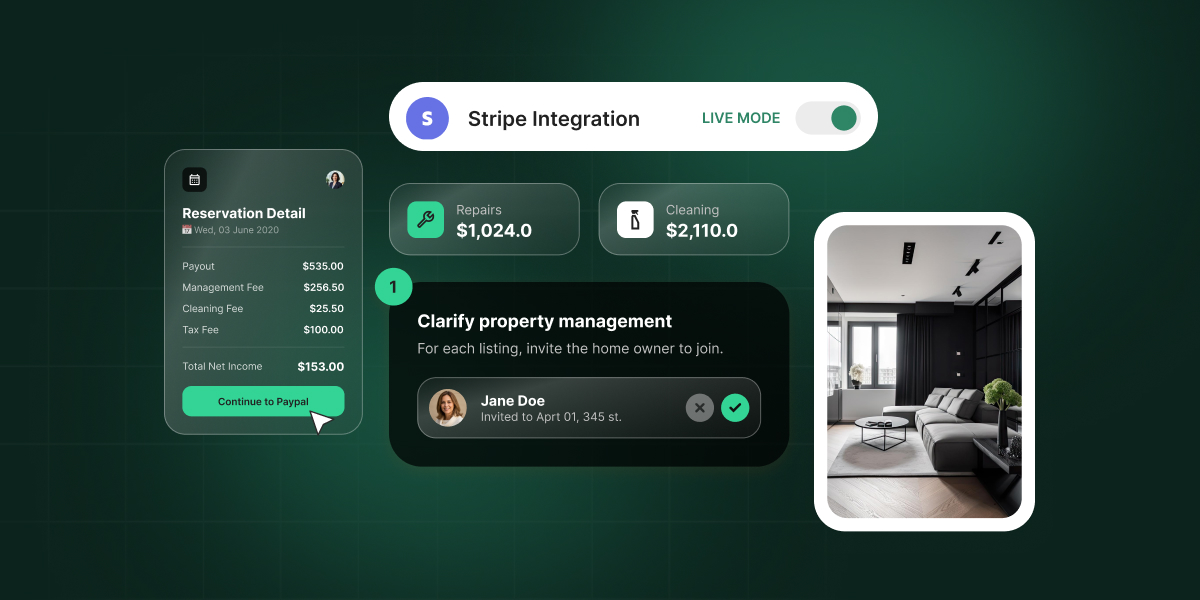
How to add payments to an AI-built app: What it takes to get paid

Abstract of adding payment options to an AI built app

Yes, you can add payments to an AI-built app without hiring a developer. What you can’t do is stop at a checkout button that just sits there looking pretty. Real payment readiness means your app also knows whether the charge succeeded, and what to do next: confirm an order, unlock access, update a subscription, or something else. Here’s what that actually takes, step by step.

Key takeaways:

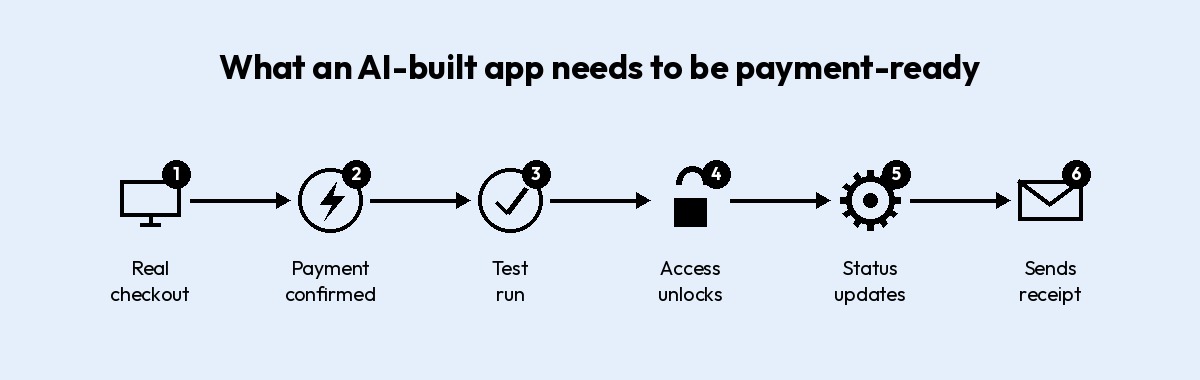
  • To add payments to an AI-built app, you need six things working together, in this order: a real checkout connection, a working webhook (the signal that tells your app a payment actually went through), a test run through failure cases, controlled access, accurate payment status, and a confirmation step.
  • A checkout button that isn’t wired to a real payment integration, Stripe or otherwise, is a shape with a border-radius, not a payment flow.
  • Many AI app builders connect to Stripe using a restricted API key rather than your account’s main secret key, so you control exactly what gets accessed.
  • The webhook, not the redirect back to your site, is what actually tells your app a payment succeeded, but only if that webhook checks Stripe’s signature first.
  • Testing an AI-built app’s payment flow means running a decline, a cancellation, a refund, and a duplicate order, not just one successful purchase.
  • One-time payments and subscriptions need different logic for what happens when access should turn off.

Why a checkout button isn’t the same as payment-ready

Is a checkout button enough for an AI-built app? Nope. A button just opens the door. Whether real payments actually work depends on six pieces working together behind it, and a good-looking checkout is only one of them.

Here’s what those six pieces are:

  1. A checkout connection to a real payment processor, not a mockup.
  2. A way for the app to hear back when a payment actually succeeds.
  3. Testing against real failure cases before a real customer hits them.
  4. Access that unlocks only after the webhook confirms payment, not before.
  5. Accurate payment status tracking: paid, unpaid, refunded, failed.
  6. A confirmation step that tells the customer what happens next.
diagram of what an ai-built app needs to be payment ready

How to add payments to an AI-built app, step by step

This section covers three of the six pieces from above: connect a real checkout, wire up a way for your app to hear back when payment succeeds, then test the whole thing before real money moves. Testing comes right after the connection here, not at the end of all the steps, since there’s no point building access, status, and confirmation logic on top of a checkout you haven’t verified. 

Note: We’ll use Stripe as the running example below, since it’s what most AI app builders connect to first.

Step 1: Connect a real checkout

Get a Stripe account

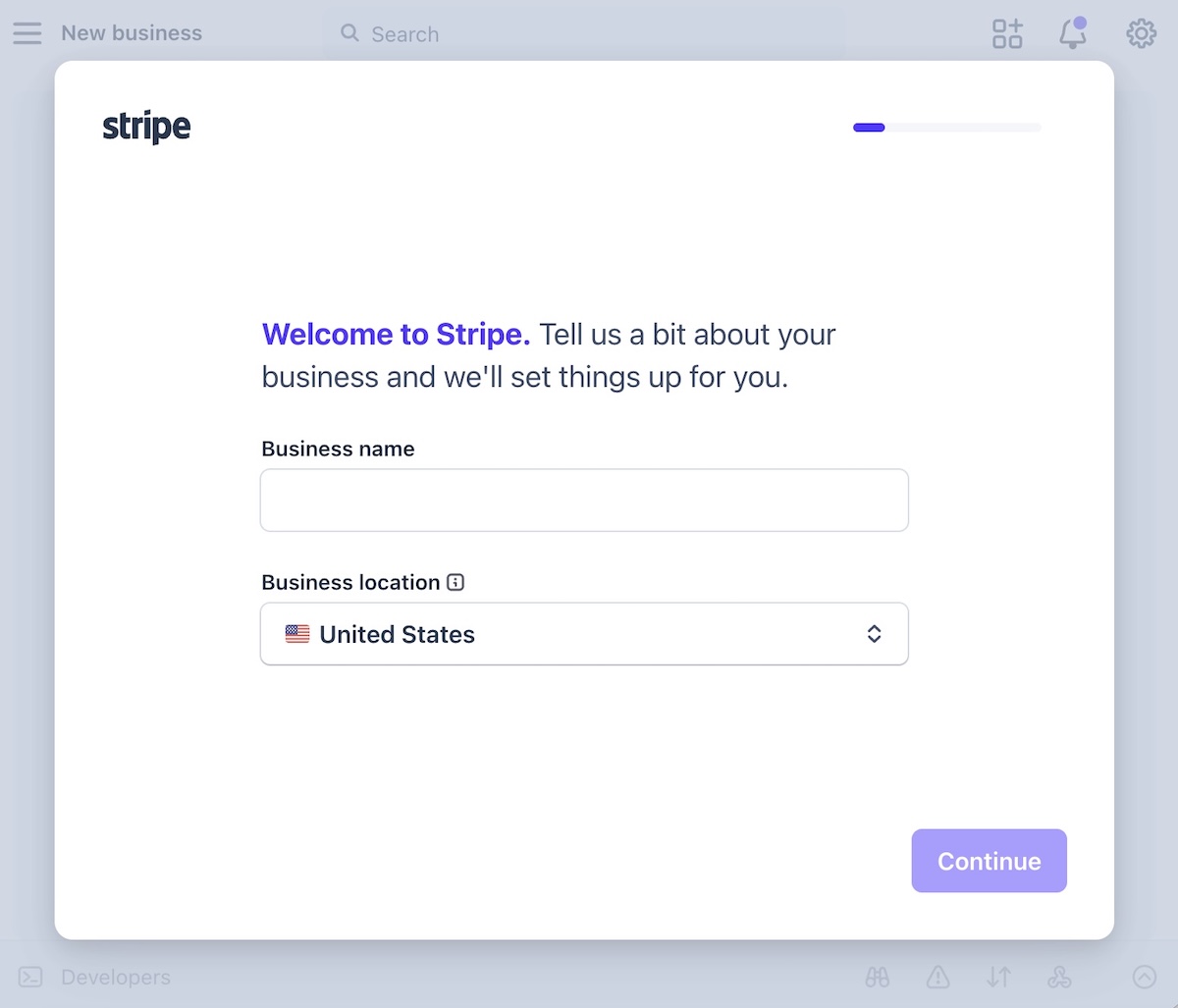
Getting a Stripe account takes minutes: just a name, an email, and a password, no code involved. Once you’re in, Stripe walks you through a short onboarding step before it’ll let you take real payments, where it asks for:

  • Your business name, or your own name if you’re a sole proprietor
  • A bank account for payouts
  • Basic details about what you’re selling
Welcome page form during stripe account set up

A Stripe integration for an AI-built app starts here, with an account, and, thankfully, not a line of code in sight. Stripe’s payments overview covers everything an account can do, but for a single app, one account and one connected key is enough to get started. You can save tax handling, multiple currencies, and marketplace splits for later.

Add a real checkout instead of a static button

A checkout button design is indeed just a shape. It looks functional, but it doesn’t necessarily process anything. Swapping it for a real payment flow means connecting to a processor’s hosted checkout page, where the processor collects the card details directly, so they never touch your app’s own code or servers.

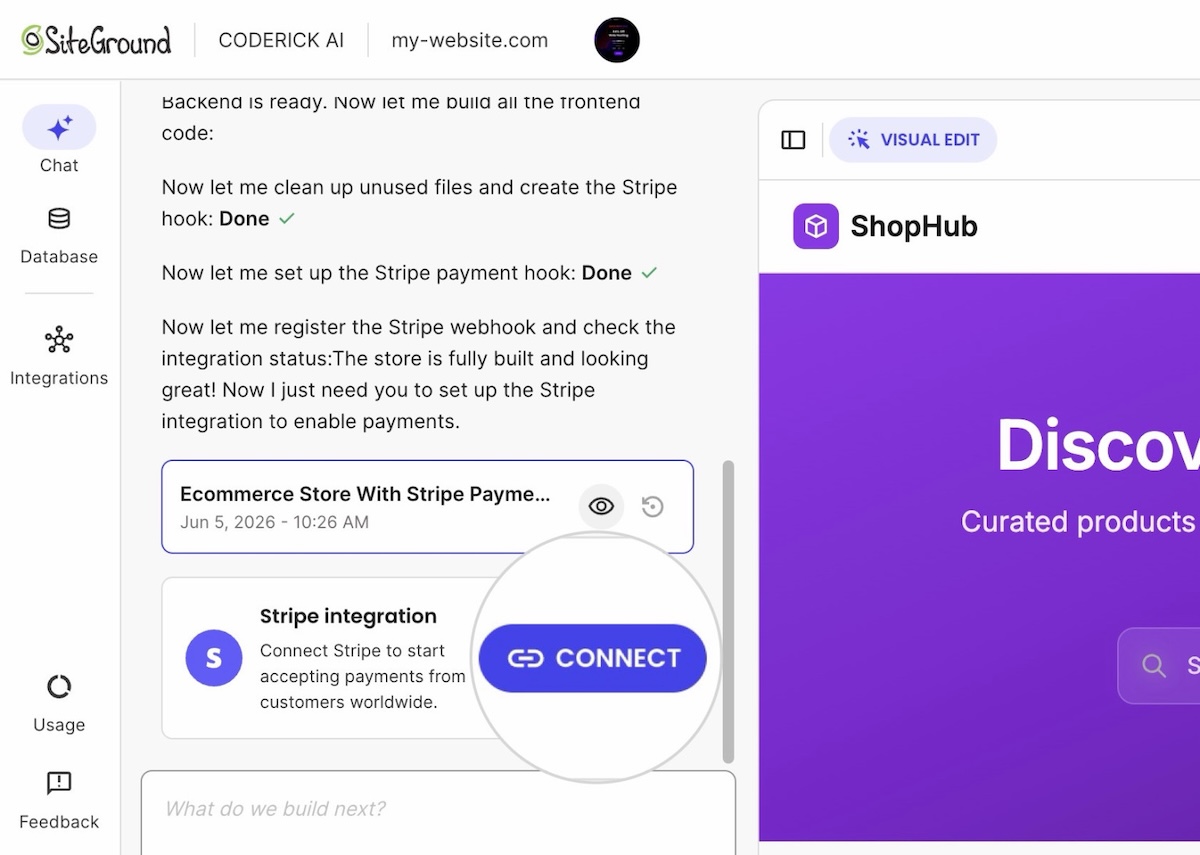
Some AI app builders, such as Coderick AI, let you add Stripe payments to your app without custom code. You simply describe what you’re selling and the price, and the builder wires a Stripe Checkout session behind the button. What’s still on you is confirming that the right product, price, and currency actually get passed into that session.

Stripe’s own checkout page covers the technical detail behind the scenes. Stripe go-live basics, like switching from test keys to live keys, come later, after testing, not before.

What’s Coderick AI? SiteGround’s own AI app builder: describe what you’re building in plain language, and it generates a working app, not a prototype, that publishes straight to SiteGround’s hosting. More on how it handles the rest of this checklist further down.

Step 2. Connect it so your app hears back when someone pays

Your app needs to hear back from Stripe the moment a payment actually completes. That message is called a webhook: a notification Stripe sends directly to your app, separate from the redirect that sends the customer back to your site after paying. 

This is exactly where AI-built apps tend to trip up, because the two signals look like twins but they very much aren’t:

  • The redirect back to your site after checkout is just a page load. It tells your app that someone landed there, not that Stripe actually processed a charge. Someone could open that page directly, or the redirect could fire before payment finishes confirming.
  • The webhook is the trustworthy message, since it comes from Stripe’s own servers reporting what actually happened, and not from a browser passing through a page.

The takeaway here: a payment should never get recorded as successful based on the redirect alone. Status, access, and confirmation should all wait for the webhook, in that order.

Most AI app builders wire up webhook handling automatically once you connect a Stripe account (an internal signal from Stripe confirming the payment, not a connection out to an external tool like a CRM or accounting platform). What’s worth checking is whether that handler verifies the webhook’s signature, the check that proves a request actually came from Stripe and not from someone who found your webhook URL and faked a payment. Ask this directly in the same chat you used to build the app: “Does my webhook handler verify Stripe’s signature using the signing secret?” If you don’t get a clear yes, don’t launch until you do.

Step 3: Test before you charge real users

What should you test before charging users in an AI-built app? Run the following five scenarios before a single real customer does:

  1. Place a real test transaction using your processor’s test card numbers.
  2. Decline a test card on purpose, and confirm your app shows the right status.
  3. Cancel mid-checkout, and confirm access stays off.
  4. Request a test refund, and confirm access turns off the same way.
  5. Place the same order twice, and check your records show one order, not two.

Congratulations, you just faked five transactions and nobody’s card got charged for real. This mirrors the same edge-case checklist SiteGround already covers for how to test before taking payments on an AI-built store, since an app and a store fail in exactly the same places. If a developer is handling setup, Stripe’s own go-live checklist covers the account-level items, like registering live webhook endpoints, worth checking once the list above is clean.

What happens after someone pays: access, status, and confirmation

Once a payment goes through, three things need to happen on your side of the app, not Stripe’s: access turns on, the order’s status updates, and the customer gets told what’s next. Let’s unpack one by one.

Step 4: Unlock access after payment

“Access” refers to whatever the payment unlocks: a feature, a download, a membership area, or a product page. Access should switch on only when a payment actually succeeds, never when someone simply opens the checkout page. Because a checkout page loading doesn’t mean money changed hands — the customer could have closed the tab, or abandoned the flow halfway through, or the card could have been declined.

The safest pattern ties access to the webhook’s payment status, and not to any action on the checkout page. This is what that looks like:

  • Access turns on after the webhook confirms success, not after a redirect back to your site.
  • A canceled or failed payment leaves access off, with no separate step needed to undo anything.
  • A refund reverses access the same way a failed payment would.

Long story short: if you tie access to the redirect instead, you’ll eventually grant it to someone whose payment never actually went through. Not good.

In practice: Payments inside Coderick AI apps can have that access logic wired in, tying the unlock to the webhook rather than the redirect, but it’s worth prompting for explicitly rather than assuming it comes bundled in once Stripe’s connected. You’ll also need to specify what “access” actually means for your app, which feature, page, or download it’s gating, since that’s specific to what you’re selling.

Step 5: Track payment status and customer records

Customer payment status in an AI-built app needs more than a single paid or unpaid flag, and it needs to live somewhere your app can actually check it, not just in Stripe’s own dashboard. A real customer record inside your app tracks four separate states, since each one triggers a different action:

  • Paid. Access stays on, and fulfillment continues as normal.
  • Unpaid. No access and no fulfillment, until payment clears.
  • Refunded. Access and fulfillment both reverse, on the same trigger as a failed payment.
  • Failed. The same as unpaid: nothing unlocks until a successful charge comes through.

Many AI app builders connect to Stripe using a restricted API key rather than your main secret key, limiting exactly what the connection can touch on your account. This is the kind of connection mentioned earlier: a customer payment status that updates automatically as Stripe reports each event, instead of a static list you have to update by hand.

Note: Collect only the customer information you actually need to fulfill the order. An email address and a name cover most cases; a shipping address only matters if you’re shipping something.

Step 6: Send payment confirmation

A payment confirmation has two separate jobs from two different places. Stripe sends the receipt: it’s a single toggle in your dashboard, and it doubles as proof the charge went through. Your app sends the actual next step: what the customer gets, when, and how to reach you if something’s wrong.

On Coderick AI specifically, that next step happens on the screen the customer lands on right after paying, since there’s no follow-up email to fall back on yet.

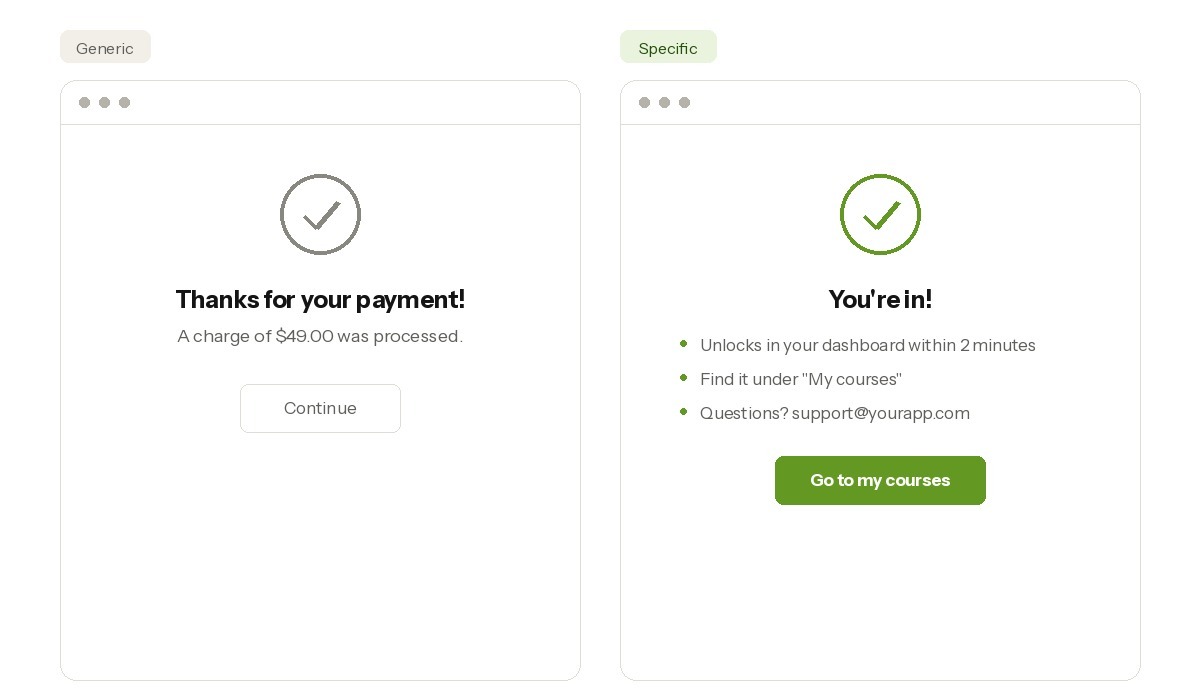
Whatever builder you’re using, a generic thank-you message does about as much as saying nothing at all. Instead, state what happens next in specific terms:

  • When access unlocks, if it isn’t immediate.
  • Where to find what the customer just bought.
  • How to reach support if the confirmation doesn’t match what they expected.
example of a generic versus specific payment confirmation notification

One-time payments vs. subscriptions in an AI-built app

One-time payments and subscriptions need different logic, even on the same Stripe connection. AI-built app monetization usually starts as a one-time payment flow: a single purchase, a single confirmation, access granted once and left alone. A paid subscription flow adds recurring billing, plus a decision about what happens when a charge fails or a customer cancels.

FactorOne-time payment flowPaid subscription flow
Access logicGranted once, stays onRe-checked on every billing cycle
Failure handlingA failed payment simply means no accessA failed renewal must revoke access already granted
CancellationNot applicable after purchaseNeeds a clear cutoff date, not an immediate one
Testing focusOne successful transaction, one declineA full billing cycle, including a forced renewal failure

Most AI-built apps handle the first charge just fine. The real test shows up on renewal three, when a card has expired or a payment failed somewhere in the background, and nobody notices until the customer does. Unclear refund or cancellation terms don’t just create a support headache: they lead directly to chargebacks and disputes. Decide those terms before the pricing page copy gets written, not after.

Why AI-built apps fail at payments

Most AI-built apps that fail at payments don’t fail because the AI did something wrong. They fail because a step got skipped after the AI finished building.

The same four gaps show up again and again:

  • A checkout button with nothing behind it. It looks finished in a demo, since nobody clicked pay with a real card.
  • No confirmation step. The payment succeeds, but the message doesn’t say what happens next, so support tickets fill in the gap.
  • No access logic tied to payment status. A feature unlocks when checkout opens instead of when payment clears, so a canceled payment can still grant access.
  • Skipping test mode entirely. The first real transaction becomes the first test, and the customer becomes the test case.

Each traces back to the same root cause: treating a working checkout button as the finish line instead of the starting point for testing.

What to look for in an AI app builder with Stripe

Before committing to an AI app builder for a paid product, run it against four checks: built-in checkout, real access logic, zero required code, and basic security handled by default.

  • Built-in checkout. The builder should connect to Stripe without a separate integration built from scratch. Coderick AI, for example, is an AI app builder for paid products: describe what you’re charging for, and it wires the Stripe connection behind a real checkout session.
Example of connecting Stripe payments to a client's AI built website
  • Access logic, not just design. A builder that only generates a visual mockup of member access, like a “Members Only” page that still opens for anyone who clicks it, without gating content by payment status, leaves that logic for you to build later.
  • No code required. If a feature needs a developer to wedge payments in after the fact, you’ve basically hired the developer you were trying to skip. AI-built store setup works the same way: the builder should handle products, checkout, and orders without a separate development project.
  • Basic security by default. Card numbers should route to the processor directly, never sit on the builder’s own servers. 


Coderick AI is SiteGround’s own AI app builder. Describe what you’re building in plain language, and it generates a working app, not a prototype, meant to run in production from day one, then publishes straight to SiteGround’s own hosting infrastructure, so there’s no separate step to figure out where it actually lives once it’s built. The Stripe connection and basic security come set up as part of that build. Access logic is worth prompting for explicitly, what should unlock and when, rather than assuming it’s already covered.

Agencies managing client app payment flows face the same four checks, just multiplied: each client app needs its own Stripe connection, not a shared setup that links every client’s account to the same one behind the scenes. The payment setup costs are also worth comparing across processors before committing to one for every client.

Ready to launch a payment-ready AI-built app?

Great news: none of this requires a developer. It does, however, require the six pieces above working together: a wired checkout, a working webhook, controlled access, accurate status, a clear confirmation, and a test run through every failure case. Add payments to your AI-built app, run a real test transaction through that list, and once it comes back clean, the app has graduated from launched to payment-ready.

If you’re still building the app itself, Coderick AI is built to check off checkout, access, and confirmation from day one, so setup time goes toward testing instead of wiring. Describe what you’re charging for, connect your own Stripe account, and launch a paid app with Coderick AI once the checklist above comes back clean.

[96]

Frequently asked questions

How do I add payments to an AI-built app?

To add payments to an AI-built app, connect a real checkout to a processor like Stripe, set up a webhook so the app knows when a payment succeeds, and gate access to that status rather than to the checkout page loading. Most AI app builders handle the checkout connection; testing and access logic are still on you.

Can an AI-built app actually take payments?

Yes. An AI-built app can take real payments once it’s connected to a processor like Stripe and tested against a live transaction, not just a design preview. The build method doesn’t limit whether payments work. What was verified before launch does.

What makes an AI-built app payment-ready?

An AI-built app is payment-ready once it has a real checkout connection, a way to hear when payment succeeds, access tied to that status, accurate status tracking, a confirmation step, and a completed test run through failures. Skipping any one leaves a gap that only shows up once real money moves.

Can Coderick AI build an app that accepts Stripe payments?

Yes. Coderick AI connects to your own Stripe account and builds the checkout, webhook handling, and confirmation page around it, so you describe the payment behavior instead of coding it. What happens after a refund or a canceled subscription is still your decision.

What is the difference between payment access and payment integration?

Payment integration is the technical connection to a processor like Stripe: the checkout, the webhook, the keys. Payment access is what the app does with that connection, like unlocking a feature or product only once payment status confirms as paid.

How do Coderick AI and Stripe help make AI-built apps ready to sell?

Coderick AI builds the app and connects to Stripe’s hosted checkout without custom code, while Stripe handles payment processing, card security, and compliance behind it. Together, they cover the checkout connection and the underlying infrastructure automatically. Wiring access to the webhook instead of the redirect, deciding what gets unlocked, and testing every failure case are all worth prompting for explicitly, not assumed to come free.

Is a checkout button enough for an AI-built app?

No. A checkout button alone isn’t enough for an AI-built app to take real payments. It also needs a working processor connection, a webhook that confirms payment succeeded, access tied to that confirmation, and a tested failure path.

What should I test before charging users in an AI-built app?

Before charging users in an AI-built app, test a successful payment, a declined card, a canceled checkout, a refund, and the same order placed twice in a row. If any of those five produces a confusing result, fix it before a real customer hits it first.

Why do AI-built apps fail at payments?

AI-built apps fail at payments when a checkout button isn’t wired to a real processor, when there’s no webhook to confirm success, when access doesn’t check payment status, or when nobody tests declines, cancellations, and refunds before launch. Each failure traces back to skipping one of the same six requirements.