List bombing: How to spot the attack and protect your email list

Man sitting on a bean bag chair looking concerned at his laptop, with an inbox showing a flagged email and a notification reading "5,498+ New subscribers."

A sudden overnight jump in subscribers isn’t always the good news it looks like. It could be list bombing: bots or bad actors flooding your signup form with fake or non-consenting emails until your bounce rate, spam complaints, and sender reputation take the hit. Before you get excited about the growth chart, check where those signups actually came from. The fix starts with catching the spike.

Key takeaways:

  • A sudden spike in subscribers with no matching signup campaign is the clearest sign of list bombing.
  • List bombing floods your own list with fake signups; email bombing floods someone else’s inbox by subscribing their address to hundreds of unrelated lists.
  • Mailbox providers treat a 0.1% spam complaint rate and a 2% bounce rate as red lines for sender reputation, and list bombing pushes both fast.
  • Fake profiles created during an attack can inflate your billed contact count
  • Double opt-in is the single most effective form-level defense: it turns a bot’s submission into an unconfirmed profile instead of an active subscriber.
  • Pause sending before you clean the list. Cleaning first just means you’re still sending to fake addresses while you work.

What list bombing actually is (and how it differs from email bombing)

List bombing is when someone, or something, submits a large volume of fake, invalid, or non-consenting email addresses through your own signup form or checkout page, usually within minutes. The goal is to pollute your list with contacts who never opted in, so your next send trips spam filters and damages your sender reputation.
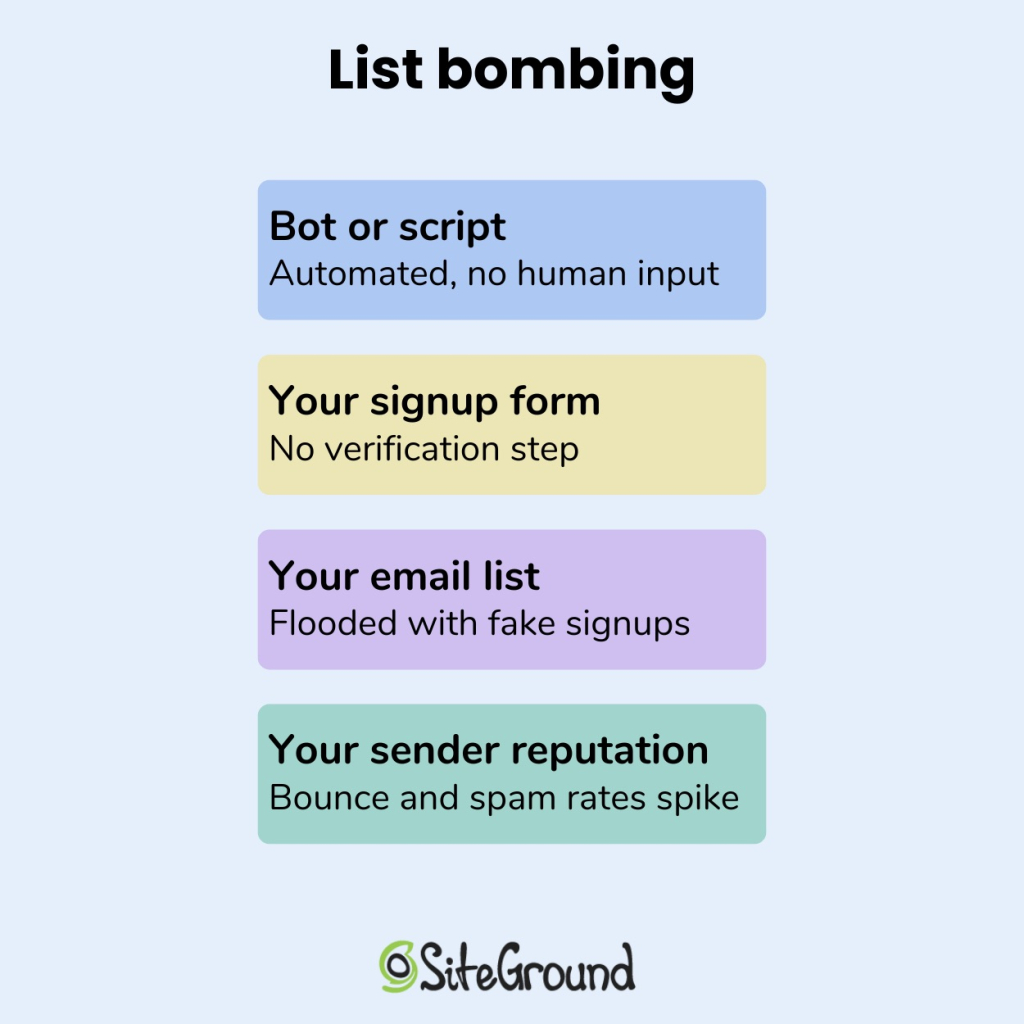
Diagram showing list bombing steps: a bot or script exploits a signup form with no verification, flooding an email list with fake signups and spiking bounce and spam rates.

Email bombing runs in the opposite direction. It takes one real person’s address and subscribes it to hundreds or thousands of unrelated mailing lists at once, burying their inbox in confirmation emails until it’s unusable. If list bombing turns your list into the crime scene, email bombing turns someone else’s inbox into one.
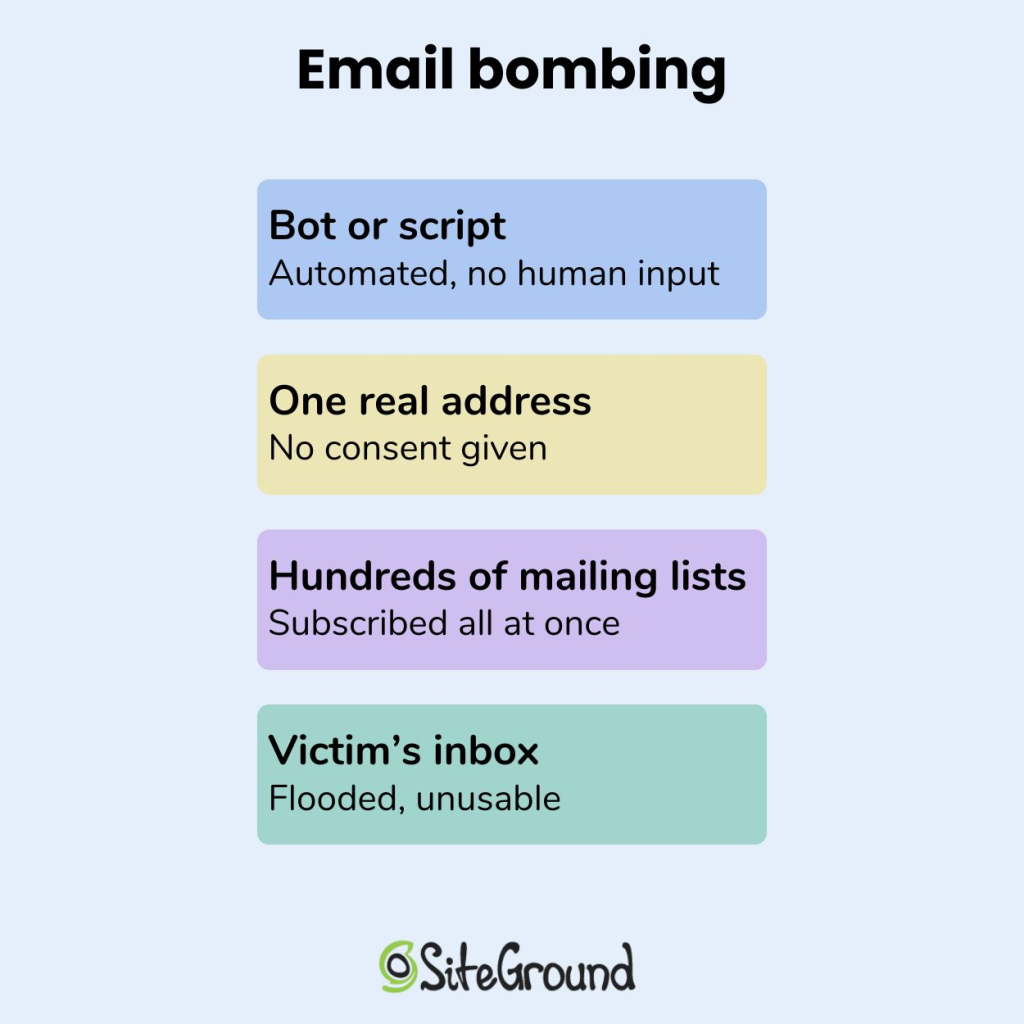
Diagram showing email bombing steps: a bot or script subscribes one real email address to hundreds of mailing lists without consent, flooding the victim's inbox.
List bombingEmail bombing
TargetYour email listSomeone else’s inbox
MethodBots submit fake or invalid addresses to your signup formBots subscribe one real address to hundreds of unrelated lists and services
Who gets hurtYou: your sender reputation, deliverability, and contact countThe victim: their inbox becomes unusable
What lands in the inboxNothing (the addresses are usually fake)A flood of confirmation and welcome emails from services the victim never signed up for
Your roleTargetUnwitting accomplice, since your confirmation emails are part of the flood

Subscription bombing is another name for this same email bombing technique. The U.S. Department of Health and Human Services flagged it as a denial-of-service threat in a 2024 sector alert aimed at healthcare organizations, where the goal is usually to bury a legitimate message, like a fraud alert or account sign-in notice, under the noise.

The warning signs you’re being list bombed

Three signals show up together when you’re being list bombed, and none of them show up in isolation during normal list growth.

A subscriber spike with no matching campaign

A normal spike in subscribers can usually be traced to something: a promotion, a piece of content that took off, a signup form placed somewhere new. A list bombing spike has no source. You’ll see 50, 200, or 2,000 new contacts appear within an hour with nothing on your side to explain it: no campaign launch, no partnership, no post that suddenly went viral. Check the timestamps first. Legitimate signups cluster around whatever drove them, like a send time or a social post. Bombed signups cluster around nothing except each other.

A same-second wave of signups from one form

Look at the entry point next. Real subscribers trickle in from different pages, campaigns, and referral sources. A list bombing attack usually funnels through a single unprotected form, often a checkout page or newsletter box, with dozens of submissions landing within the same second or two: the telltale sign of a script rather than a person typing. Names repeat in odd patterns too, the same first and last name over and over, or obvious placeholder text where a real name would go. If your signup form doesn’t already ask for more than an email address, that single field is the door the attack is using.

What list bombing actually looks like: a real case

It didn’t arrive with a label. It happened to SiteGround’s website builder and ecommerce expert Erin Ridley:

“I can’t remember if the warning came from Google or my ESP. All I know is that my emails were all going to spam.”

That’s usually how list bombing shows up first. Not as an alert that names the attack, but as a deliverability problem with no obvious cause. A sender score drops. A domain lands in spam. Nothing on the sending side has changed to explain it.

The cleanup turned out to be the harder part. Without a reliable way to tell the fake signups from the real ones, Erin ended up cutting subscribers who’d done nothing wrong: 

“Cleaning up my list was a total disaster. I had no great way to filter out the fakes and ended up having to delete probably loads of valid emails.”

Over 15,000 bogus signups had been added straight to the list, and in Ridley’s words, that’s “partly why they all bounced too.” The fake addresses didn’t just sit there. They pushed the bounce rate up right alongside the spam complaints, the same two metrics that decide whether a mailbox provider trusts you next time.

Cases like this aren’t rare, and they follow the same shape: fake signups overwhelm the list before anyone’s confirmed the cause, and a routine dashboard check turns into a multi-day cleanup. Nobody sets out looking for this. They notice the number first, which is why monitoring your sender metrics routinely matters more than reacting after the fact.

What list bombing costs you

A list bombing attack hits your sender reputation and sending eligibility on one side, and your bill on the other. Here’s how each one breaks down.

The spam-complaint and bounce-rate thresholds mailbox providers watch

Mailbox providers judge your sender reputation against two numbers, and list bombing pushes both in the wrong direction fast.

  • Spam complaint rate: 0.1% (one complaint per 1,000 emails sent). Treated as high across the email marketing industry, and SiteGround Email Marketing uses that same line as the point where a campaign gets suspended.
  • Bounce rate: 2%. Fake or invalid addresses created during an attack bounce at a much higher rate than real subscribers, since a chunk of them were never valid inboxes to begin with.

Cross either line and Gmail, Yahoo, and Outlook start routing your legitimate sends to spam right alongside the fake ones.

The real risk: a suspended sending account

The real risk is a stopped campaign.

  • Campaign-level suspension. If you’re using SiteGround Email Marketing, a campaign that breaches its bounce or spam-complaint limit gets suspended on the spot.
  • Account-level suspension. Repeated or excessive breaches can get your whole Email Marketing service suspended.

A list bombing attack you haven’t caught yet can turn into a paused email program on launch day, with nothing to signal it beforehand except the campaign status changing. Getting reinstated means proving the list is clean first, a slower process than catching the spike before you ever hit send.

What list bombing does to your bill

This part isn’t gated by thresholds at all. Every fake profile that gets even a single confirmation email counts as an active contact for that billing cycle. Some platforms, like SiteGround Email Marketing, price plans by active contact limits rather than total list size, but a flood of bogus signups can still burn through that allowance fast if each one triggers an initial send. SiteGround won’t upgrade your plan automatically, you’ll get a warning and have to raise the limit yourself, and deleting the fake contacts afterward won’t lower that count until the next billing cycle.

How to respond the same day you spot list bombing

Once you’ve confirmed the spike is list bombing and not organic growth, the order of operations matters.

  1. Pause sending before you clean anything

Stop any scheduled or automated sends the moment you confirm the spike, even routine ones like welcome emails or order confirmations. Every email sent to a fake or unconfirmed address before the list is clean adds another bounce or complaint to metrics that are already climbing. 

If you’re using SiteGround Email Marketing, check Client Area > Services > Email Marketing > Analytics first: it breaks bounce rate and spam rate down per campaign, so you can see exactly which send the fake signups are hitting before you decide what to pause. 

Say your weekly newsletter always bounces under 1%, and this week it’s at 6%. That jump tells you which campaign to trace back to which list, and from there, which signup form on your site fed that list. A short pause, a day at most, costs you almost nothing. Continuing to send into a bombed list can cost you the sending privileges you’re trying to protect.

  1. Segment and suppress the fake profiles

Build a segment around what the fake profiles have in common rather than deleting them one at a time. Where engagement-based filtering is available, signed up in the same 10-minute window, zero opens, zero clicks, no purchase history in 30 days catches most fakes without touching real subscribers.

SiteGround Email Marketing doesn’t support that directly, but tagging the batch with a Custom Field the moment you spot it works as a substitute, then mark that batch as Unsubscribed rather than deleting it outright. Suppressed is a status SiteGround assigns automatically for delivery problems, not one you can apply yourself, so Unsubscribed is the manual equivalent, and it keeps a record of who was excluded and why, which matters if you need to explain an inflated contact count later.

  1. Re-enable or tighten double opt-in

Double opt-in is the single change that stops most of this at the form, not after the fact. Instead of adding a submission straight to your active list, it sends a confirmation email first and only activates the contact once a real person clicks it, something a bot filling out a form has no way to do. In SiteGround Email Marketing, the toggle lives at the group level, not the account level: go to Contacts > Groups, open the group tied to the form that got hit, and turn on double opt-in there. Any group you haven’t switched on is still exposed. 

If your form runs through a separate builder like WPForms or Elementor, add it there instead. If you’re on SiteGround’s own form and don’t want to switch builders, an Expert Care request can get CAPTCHA added manually. Either way, treat double opt-in as the default for every group going forward, not just the one that got hit.

Don’t let list bombing catch you off guard again

List bombing isn’t a one-time event for most of the brands it hits. Once a signup form has been targeted, it tends to get targeted again. Bot networks reuse target lists, so the form that got hit once is likely still on one. The forms differ, the volume differs, but the pattern (a spike with no source, clustered timestamps, repeated name patterns) stays the same every time.

SiteGround Email Marketing builds in the two defenses that actually work here. Double opt-in blocks fake signups at the form, and campaign performance monitoring catches a rising bounce or complaint rate before it becomes a suspended campaign. Both are already part of the account, nothing to configure from scratch.

[58]

Frequently asked questions about list bombing

Is list bombing illegal?

List bombing sits at the edge of a few laws rather than squarely inside one. The CAN-SPAM Act’s false-header provisions and the Computer Fraud and Abuse Act’s unauthorized-access rules have both been used against bulk-signup abuse in general, but most enforcement targets attacks on a person’s inbox, not a business’s list. Whether it gets prosecuted is a separate question from whether it’s illegal: most cases go unreported because the damage (a bad sender reputation and a cleanup project) doesn’t look like the kind of harm law enforcement typically pursues. Treating it as a security incident to contain is usually the more useful response than waiting on legal action.

How do you know if you’re being list bombed?

The two clearest signs are a subscriber spike with no matching campaign, promotion, or referral source, and a cluster of signups landing within the same second or two from a single form. If your bounce rate or spam complaint rate jumps at the same time, that’s a third confirming signal.

How do you protect against list bombing?

Double opt-in is the strongest single defense, since it requires a real person to confirm a signup before it becomes an active contact. That alone handles the vast majority of cases. In the rare case where a bot clears the confirmation step too, a CAPTCHA or honeypot field on the form is the next layer, though the SiteGround Email Marketing plugin doesn’t support this natively; you’d need to add it through a separate form builder like WPForms or Elementor.

Does list bombing hurt deliverability?

Yes, directly. The fake and invalid addresses a list bombing attack adds to your list bounce and generate spam complaints at a much higher rate than real subscribers, and both metrics feed straight into how mailbox providers score your sender reputation.

What is the difference between list bombing and email bombing?

List bombing floods your own email list with fake signups through your own forms. Email bombing, or mail bombing, does the opposite: it takes someone else’s real address and subscribes it to hundreds of unrelated lists and services, flooding their inbox instead of yours.


How to choose a website template that works for your business

Abstract of how to choose a website template

Choosing the right website template comes down to seven criteria: scalability, customization ease, mobile performance, page speed, SEO structure, built-in features, and AI assistance. Get these right and everything you build on top of them compounds. Get them wrong and every growth milestone comes with a tax.

But most first-time sellers don’t think about it that way. They pick a template the same way they choose a phone case: they find one that looks good and move on. The problem is that looks don’t load fast, rank in search engines, or scale with your business. The template you choose today shapes how easy it is to add products, reach mobile shoppers, and grow without starting over. This guide gives you a practical framework for evaluating templates on the criteria that actually matter.

Key takeaways:

  • Looks aren’t enough. A template that wins on aesthetics but loses on speed, SEO, and scalability will cost you more to fix than it saved upfront.
  • Your template choice is also a platform choice. The platform behind your template shapes everything from SEO controls to support. You’re choosing both.
  • Choose for fit, not flexibility. Pick a template for your business that’s already close to what you need, make a few targeted changes, and launch.
  • Mobile and speed aren’t nice-to-haves. Google ranks your mobile site first and penalizes slow ones. Underperforming on either hurts your visibility.
  • Built-in beats add-ons. Native features mean fewer subscriptions, fewer failure points, and less time maintaining a stack.
  • Think past launch day. The right template handles more products, more traffic, and more complexity a year from now, without a rebuild.

Why your template choice is a long-term business decision

A website template is a pre-designed starting point — a ready-made layout with structure, styling, and content placeholders that you adapt to fit your brand identity and business. The template you choose shapes everything that follows: how individual pages are organized, how search engines read your content, how quickly everything loads, and how well it works on a phone. Think of it as setting the foundation. The stronger it is at launch, the less you’ll find yourself rebuilding instead of growing.

Website template options from SiteGround Website Builder

Start with your setup, not your aesthetic

What kind of website do you actually need?

Before you open a single template preview, answer this: what does your website need to do? A portfolio website needs strong image presentation and a clean contact path. An ecommerce store needs a product grid, cart functionality, and checkout. A service business needs trust signals, a booking form, and a clear call to action.

Your template choice flows from your website’s job. A visually striking portfolio template is a poor foundation for a growing product catalog, and vice versa.

Template or all-in-one builder: what are you actually choosing?

Not all templates are created equal, and that’s partly because not all platforms are. A template for WordPress, for example, gives you web design and structure, but you’re responsible for assembling everything else: hosting, plugins, security, updates, and integrations. 

An all-in-one website builder, on the other hand, bundles the template with the platform, which often means that hosting, ecommerce tools, email marketing, security (like SSL), and support are all part of the same package.

Neither is universally better, but the distinction matters as you work through this guide. Many of the criteria below (speed, built-in features, scalability, support) depend as much on the platform as on the template itself. Keeping in mind which kind of setup might be best for you will help you assess each point more clearly. If you’re still deciding between the two, our guide to choosing a website builder is a good place to start.

[79]

What features will you need in 6 to 12 months, not just today?

New sellers consistently underestimate how quickly their needs expand. You launch with five products and no email list. Six months later, you have thirty products, a newsletter, and customers asking for a size guide. A template that can’t accommodate that growth without a rebuild doesn’t end up being quite so cheap.

How to choose a website template

1. Customization: what you actually need

Customization is one of the first things people get excited about when choosing the right website template, but it’s also easy to pick the wrong one. A template that advertises a thousand different ways to customize every last feature sounds appealing. In practice, though, most of those options go unused, and having too many of them makes the editor infinitely harder to navigate, never mind launching harder to justify.

Here’s a more useful way to think about it:

  • Choose for fit, not flexibility. The goal isn’t a template you can turn into anything; it’s one that’s already close to what you need. A template that fits your business type well out of the box will serve you better than one that technically allows infinite customization but requires hours of work to hopefully get there.
  • Prioritize the few things that actually matter. Most businesses only need to change a handful of things to make a template their own: branding basics, the homepage hero, and navigation structure. Get those right and launch. Everything else can follow once you have real customers telling you what actually needs improving.
  • Get your website structure right early. Navigation and URL structure are harder to change later without affecting your search rankings. These are worth deciding deliberately at the start, and not something to revisit once you’re live.
  • Test how easy it actually is. Beyond what you can customize, pay attention to how easy it is to do. On WordPress, customization often means navigating a theme options panel, a page builder plugin, and the block editor simultaneously. It’s powerful, but it comes with a real learning curve. On an all-in-one builder, the same changes should be achievable in one place without extra tools. Look for a platform that offers a free trial, and then be sure to use it. Get into the builder and try making a few changes yourself before committing.

Scenario: Jake picks a template partly because it advertises over 200 layout options and granular control over every design element. Two weeks in, he’s still navigating a settings panel with more options than he knows what to do with and hasn’t launched. A competitor who picked a simpler template that was already close to what she needed made four targeted changes and went live on day three. More customization options didn’t make her website better. They just made Jake’s harder to finish.

2. Mobile performance

Nearly two thirds of all web traffic comes from mobile devices, and Google uses your mobile website, not your desktop website, to determine your search rankings. So a template that looks great on a large monitor but not on a phone can actually be a much bigger problem. 

  • What to watch for: Text that’s too small to read without zooming, buttons placed too close together for a thumb tap, images that crop or overflow on smaller screens, and navigation that collapses into an unusable menu are all signs a template wasn’t built with mobile in mind.
  • How to check: Always preview a template’s mobile web design on a real device before committing. If you’re already in a free trial, pull up your work-in-progress on your actual phone, and not just the browser’s mobile view, to ensure that the responsive design works as it should. 
Mobile optimization showing desktop and phone version of a website

Scenario: A customer finds your store through an Instagram post, taps the link, and lands on a page where the text is tiny, the buy button is half off-screen, and pinching to zoom is the only way to read the product description. They close the tab. So the product might be great, the marketing might even be great, but if the template isn’t mobile friendly? None of it matters.

3. Page speed and template bloat

A slow website costs you in two ways: search rankings and sales. Indeed, users abandon pages that take more than three seconds to load, and Google factors speed into where your website appears in results. The good news is that speed problems are often predictable (and avoidable) before you commit to a template.

  • Know what causes bloat: The most common culprits are parallax scrolling effects, auto-playing video backgrounds, heavy animation libraries, and built-in sliders. These features add weight to every page load, and templates built around them are rarely fast. Whether you’re browsing a template gallery or tinkering with a free trial, treat elaborate visual effects as a warning sign rather than a selling point.
  • Check the platform’s reputation for speed: The template is only part of the speed equation. The platform or host your site runs on determines how quickly files are delivered to visitors, and some are significantly faster than others. Before committing, look beyond the template itself: read independent reviews, and check benchmark comparisons. If you’re on a CMS like WordPress, your hosting for WordPress plan matters as much as the template itself. A lean template on slow hosting is still a slow website.

Scenario: A shopper sees your product via your Instagram marketing, taps the link, and waits. The page half-loads. The header appears, then nothing for two seconds, then the images pop in one by one. Tick tock. She’s already losing interest. By the time the buy button is visible, she’s gone back to scrolling. She didn’t bounce because the product was wrong, but because the template was too heavy and the hosting too slow to keep up.

4. SEO basics: what to look for

Search engine optimization (SEO) isn’t something a template does for you automatically; it’s something you build in. But how easy that is depends on both the template and the platform behind it. That is, the controls that matter most to your SEO strategy should be accessible without jumping through hoops. 

Here’s what to look for when it comes to easy-to-implement SEO:

  • Heading hierarchy: Every page should have exactly one H1, followed by H2 and H3 subheadings in logical order. This tells search engines what each page is about and how the content is organized. The risk with many templates, though, isn’t that the headings are wrong by default; it’s that the editor makes them easy to misuse, applying heading tags for visual styling rather than content structure. Look for a builder that keeps heading controls intuitive and clearly labeled.
SiteGround Website Builder with easy to edit headers

Crawlable navigation and clean URLs: Search engines follow your navigation to discover pages. A good platform gives you URLs that are readable and descriptive by default (something like /products/ceramic-mug rather than a string of random characters) and lets you edit them easily.

SiteGround Website Builder with easy to edit page URLs
  • Meta titles and descriptions: Every page needs a unique meta title and meta description (these are what appear in search results and directly affect whether someone clicks through to your website). A good all-in-one builder will make these easily editable directly in the page editor. On WordPress, however, you’ll typically need an SEO plugin to access these fields, which is a common setup but an extra step to get right (and another plugin to wrangle).
  • Schema markup: For SEO, product schema should be a priority on your SEO checklist. It can tell search engines your product’s name, price, availability, and reviews, and can generate rich results in search listings. On a good all-in-one builder, this is handled automatically without any manual setup. On WordPress, it requires an SEO plugin, which means one more thing to configure correctly.
Example of product schema markup in Google search

Scenario: Two entrepreneurs launch competing handmade jewelry shops on the same day with nearly identical products and prices. One is on a platform that auto-generates product schema and offers heading controls that are easy to use and understand. The other picked a visually stunning template where schema requires a plugin nobody told her about and not-so-straight-forward heading tags. Three months in, the first shop appears in search results. The second is on page three — not because the products are worse, but because search engines can barely make sense of the website.

SiteGround’s Website Builder takes care of all of this out of the box. Templates are easy to adapt without getting lost in options, fully optimized for mobile, and fast by default. On the SEO side, heading structure is easy to set correctly in the editor, URLs are fully editable from the start, and product schema is generated automatically. The groundwork is already laid, and you just have to build on it.

Start building your website for free>>

5. Built-in features vs. plugins and integrations

When you’re evaluating a template, it’s easy to focus on how it looks and forget to ask what it actually comes with. The answer depends a lot on your setup. On a CMS like WordPress, plugins are simply how things work — ecommerce, email marketing, and SEO controls all require them, and that’s a known tradeoff. On an all-in-one builder, these features should be native. Before committing to either, it’s worth knowing exactly what’s included and what isn’t.

  • What to look for natively: The features that matter most for small businesses should be available without installing anything extra. Look for product and inventory management, checkout and payment processing, email marketing, contact forms for lead generation, and basic SEO controls. A free trial will tell you more than any feature spec, though. Open the settings, poke around the dashboard, and try to set up a product listing or a contact form. If you hit a wall that points you to the app store, that’s your answer. If you hit a wall that points you to the app store, that’s your answer.
  • What to watch out for: Some platforms are built around a marketplace of third-party apps, which means features that feel basic can carry an extra cost. Read the pricing page carefully, not just the monthly plan fee. Look for transaction fees, per-app charges, and anything described as an “integration” rather than a built-in feature.

Scenario: One seller builds on a free template using a popular open-source CMS. She spends her first month configuring five plugins: an ecommerce tool, an email marketing integration, an SEO plugin, a forms plugin, and a cookie consent tool. Two conflict with each other and take the website offline for two days. Another seller goes with a well-known hosted ecommerce platform, only to find that customer reviews require a separate paid app, and that using her preferred payment processor means getting charged an additional fee on every sale. A third seller, on a platform with these features built in, spends that same month selling.

6. Scalability

A template that serves you well at launch needs to keep serving you as your business grows. This sounds obvious, but many templates that look super pretty at launch are built for small, static websites. They weren’t designed for a scaling business or a growing product catalog. Here’s what to look for:

  • Content and structure: The real question isn’t whether a template can accommodate growth; most can, technically. It’s whether it makes growth easy. Can the website navigation adapt as you add categories, or does restructuring it become a chore? Can you add pages easily and intuitively? Does the layout hold up at 200 products as well as it does at 20? If you’ve already tested the builder, you’ll have a head start here — add a page, restructure a menu, duplicate a product section, and see how it holds up.
  • Traffic: Content and structure is only half the picture. Your site also needs to handle sudden spikes in visitors without slowing down or going offline. A promotion that goes viral or a product picked up by a major publication can send a flood of traffic your way fast. How well your website handles that depends less on the template and more on your hosting or platform. If you’re on a CMS like WordPress, that’s a conversation with your web hosting provider; if you’re on an all-in-one builder, it’s worth checking that the platform is built for traffic surges, not just the quiet steady state of a new website.

Scenario: A seller expands his shop from eight products to forty, spread across four new categories. The products are ready, but updating the template to reflect that means digging through a clunky admin panel, hunting for where navigation menus are controlled, making the same change in three different places, and testing it on mobile to find it’s broken. Two hours later, he’s still not done. Meanwhile, a press mention sends a wave of traffic to his site, and because he’s on budget hosting, pages slow to a crawl. On a template with an intuitive editor and a platform built for traffic spikes, the same week looks very different.

7. AI assistance

The newest and most underrated criterion for first-time sellers is whether the template (and the platform behind it) uses AI to reduce the work of launching and maintaining a website. On an all-in-one builder, this can be built directly into the editor. On WordPress, AI tools are available but come through plugins and third-party integrations, which means more setup and more subscriptions to manage.

  • At launch: Some templates now come with AI copywriting tools and assistants built into the editor, which means you don’t start with a blank page. Service page descriptions, homepage headlines, and sales pages can be drafted from a few inputs, giving you a working starting point rather than a blank screen. AI image generation takes this even further. Instead of sourcing stock photos or hiring a designer, you can create visuals for your site directly inside the builder.
  • After launch: Running a small business means wearing a lot of hats, and most owners don’t have an analyst or a store manager on staff to fall back on. This is where the platform behind your template matters beyond just hosting. Some platforms now include a built-in AI agent that can answer questions about your store’s performance and, when you’re ready to hand off more, manage the day-to-day work itself: creating products, updating orders, managing coupons. No extra tools, no additional subscriptions. You ask or delegate, and the work gets done.

Scenario: An outdoor gear shop owner is gearing up for his busiest week of the year: a Black Friday sale. He needs to know which tents and packs to feature, which sizes are almost sold out, and he needs a site-wide discount live before customers start showing up. Normally that means digging through spreadsheets and updating each product one by one late into the night. Instead, he asks his AI store agent which products are trending and lets it apply the sale across his catalog in a few minutes. Same launch, same pressure, a fraction of the scramble.

For SiteGround Ecommerce store owners, this now comes standard through the AI Store Agent. Ask it something the way you’d ask an analyst, like which product is your top performer or what your average order value looks like this month, and it pulls from your orders, products, and customer data to answer in seconds. Switch on Power Mode and it goes further, creating and managing products, coupons, and customer accounts on its own.
Start building your online store now>>

8. Support

AI assistance is great, but sometimes you just need a human. So it’s important to keep in mind that when you choose a template, you’re also choosing a support ecosystem. And how complicated that ecosystem is depends largely on your setup.

  • One platform, one team: On an all-in-one builder, there’s a single support team who understands your entire setup — your domain, your template, your store configuration, your email marketing, and everything in between. On a CMS like WordPress, support is fragmented by design: your host handles server issues, your theme developer handles template problems, and each plugin has its own support channel. Figuring out who’s responsible when something breaks (and it will because that’s the nature of plugins) can take longer than fixing the problem itself.
  • What good support looks like: A single point of contact only helps if that contact is responsive, knowledgeable, and available when you need them. Before you commit to any template, check what support looks like for the platform it runs on. Look at independent reviews, not just what the platform says about itself.

Scenario: A product page goes down the night before a sale. One seller opens a chat with their platform’s support team (the same team that handles their domain, their template, their store, and their email marketing) and has the issue diagnosed in ten minutes. Another spends two hours filing tickets with three different vendors: the theme developer, the plugin maker, and the hosting company, each pointing the finger at someone else. The site stays down. The sale doesn’t happen.

Choose a website template that grows with your business

By now you have a different framework for this decision than most first-time sellers do. You’re not picking a template because it looks impressive; you’re picking one because it loads fast, reads cleanly on mobile, scales without rebuilding, ranks in search, and doesn’t require five plugins to run basic features.

The template that works best at launch is the one that’s still working a year later, when you have more products, more web pages, and more to lose from a rebuild. That’s the standard worth holding.

SiteGround’s Website Builder is designed around exactly that standard. It’s fast, flexible templates with native ecommerce and email marketing tools, AI assistance built in, and 24/7 support from a single team. Make your checklist, test the demos, and choose the foundation, not just the facade.

Frequently asked questions

How do I choose the right business website template?

Start with your business goals, not aesthetics. Identify what your site needs to do (sell products, book services, build a portfolio) and look for a template that handles that use case natively. Then evaluate it against the practical criteria in this guide: scalability, mobile performance, page speed, SEO structure, and built-in features.

What factors should I consider when selecting a template?

The seven most important factors are scalability, customization ease, mobile performance, page speed, SEO-friendly structure, built-in vs. plugin-dependent features, and AI assistance. Aesthetics matter, but they should be the last thing you evaluate, not the first.

What’s the difference between a website template and a theme?

The terms are often used interchangeably, but there’s a practical distinction. A template typically refers to a pre-designed layout for a specific page or site type, while a theme is a broader design system applied across an entire site (common in WordPress). In most modern website builders, you choose a template that includes a full design system, effectively functioning as both.

What built-in features should a website template include?

For small businesses and first-time sellers, the most important native features are ecommerce (product listings, cart, checkout), email marketing, contact forms, and SEO controls. If these require third-party plugins, you’re adding cost, complexity, and points of failure from day one.

How do I choose a fast-loading website template?

Look for templates that keep visual effects to a minimum — parallax scrolling, auto-playing video backgrounds, animation libraries, and built-in sliders all add weight to every page load. Beyond the template itself, check the reputation of the platform or host for speed through independent reviews. A lean template on fast infrastructure will always outperform an elaborate template on a slow one.

GPT-6 Astra for small businesses: What it does, what it costs, and whether you need it

Promotional graphic featuring an open laptop displaying "GPT-6 Astra" and the OpenAI logo resting on a rock, set against a dark cosmic background with a spiral galaxy and a constellation line.

GPT-6 Astra is OpenAI’s newest frontier model, built less like a chatbot and more like a computer operator that uses software, browses the web, and carries long multi-step jobs through to a finished document, spreadsheet or presentation. OpenAI released it on September 3, 2026, priced at 2.5 times its predecessor GPT-5.6 Sol on the published per-token rates, and a single conversation can carry a little over a million tokens.

The coverage since launch has been benchmark scores, a debate about whether this counts as artificial general intelligence, and a cybersecurity story that mostly concerns security researchers. For anyone running a small business rather than a research lab, there are two questions: what work can you actually hand this thing, and what does the higher price actually mean once you’re using it? 

Key takeaways:

  • GPT-6 Astra costs 2.5 times what GPT-5.6 Sol did, which makes this the first frontier launch in a while where price is the decision rather than a footnote.
  • It’s built to operate software rather than only produce text. It can do things like using applications, browsing, inspecting what’s on screen, building sites, running quality checks and finishing work that runs through several stages, which changes the question from which model writes better to what work you’d hand over entirely.
  • OpenAI’s president has said he personally believes the company has reached artificial general intelligence, while independent researchers are not so convinced. Still, this doesn’t change what your business should do this month.
  • The way to find out whether it earns the extra cost is to run one job you already do on Astra and on the cheaper model you use now, then compare the finished result.

What is GPT-6 Astra, and what makes it different?

Every model release comes with a claim about being smarter than the last one, and that claim is hard to act on. What’s different about GPT-6 Astra is the kind of thing OpenAI says it’s for. 

It’s built to operate software, not just write text

OpenAI positions Astra as state-of-the-art on computer use, which in plain terms means it can work the way a person works at a screen: look at what’s on the display, decide what to do next, click or type, check what happened, and carry on. One thing to be clear about before you get excited: the model decides the actions, and the application around it supplies the access and carries them out. 

Picking Astra from a dropdown doesn’t hand it your desktop. OpenAI’s own examples are filling out online forms, updating customer records in a CRM, organizing your calendar, researching something online and drafting the summary straight into your email or document editor, analyzing data and generating the plots, building a website and then running quality checks to confirm its features work, and installing and testing software while troubleshooting what it sees on screen.

For a small business actively using AI, that’s a different proposition from a better writer. A writing model gives you a draft you then do something with. A model that operates software can take a job that has several stages, do each stage, and hand you the finished thing at the end. GPT-5.6 Sol could already do this sort of thing, and OpenAI scores it on the same computer-use tests, so the claim for Astra is that it does the work better rather than that it does work Sol couldn’t. OpenAI reports it finishing computer-use tasks in roughly 47% less time, at around 40 minutes per task against 75.

What the benchmarks say, and what they don’t

A benchmark is a fixed set of problems, run identically across different models so their scores can be lined up. OpenAI published three headline results for Astra: 98% on FrontierMath Tier 4, which tests advanced mathematical reasoning and which OpenAI’s own results table puts more precisely at 97.6%, 99.9% on ARC-AGI-3, which tests abstract problem-solving, and 100% on ExploitBench, which tests finding software vulnerabilities and is the reason OpenAI classifies this model at its highest cyber-risk tier. Reporting at launch placed it ahead of both GPT-5.6 Sol and Anthropic’s Claude Fable 5.

Those are OpenAI’s own evaluations on tests it selected, so read them as an indication of where the model is strong rather than a guarantee of what you’ll get, the same caution we applied to Anthropic’s figures when Claude Opus 5 arrived with its own benchmark claims. A score near 100% also tells you less than it appears to, because it usually means the test has run out of room rather than that the problem is solved.

Good to know: File creation, browsing and desktop control are three different capabilities. Producing a file is one: you ask for a comparison and get a spreadsheet to download, with nothing opening on your machine. Browsing is another: the model works through a website, picks options and fills in a form. It uses a browser of its own with a separate profile rather than the one you have open, so you choose what it can reach. Desktop control is the third and the one people picture: it opens an application on your computer and works the interface. They need different things switched on, so the one you want decides what you have to set up.

How to use GPT-6 Astra right now

There are three ways in, and almost everyone reading this wants the first.

  • Through the ChatGPT app, which is what most people mean by using it. Astra is built into the standard ChatGPT website and the iPhone and Android apps, and you need a paid plan to reach it, since free accounts don’t have it. Plus, Pro, Business and Enterprise subscribers all do, and Pro, Business and Enterprise also get a heavier version called GPT-6 Astra Pro alongside it. Start a new chat, open the model dropdown, and you’ll find GPT-6 Astra listed under the Work or Codex modes alongside the GPT-5.6 models it replaces. 
  • To control applications on your own computer, there’s one more step. It runs through the ChatGPT desktop app rather than the browser version, has to be switched on before it does anything, and asks your operating system for permission to see and control the screen. On Windows it works on the active desktop, so you can’t carry on using that screen while it runs. Availability varies by region. 
  • Through the API, which is for software rather than people. An API is the connection that lets one piece of software talk to another, so this route is how a tool you own would send text to Astra and get an answer back without a person typing anything. This route applies only if custom software has been built for you, or by you, that sends requests to OpenAI directly, such as a chatbot serving your website visitors. The model name to use is gpt-6-astra, and it’s available from OpenAI directly as well as through Amazon’s AWS Bedrock and Microsoft Azure. A developer can also connect Astra to a browser or a desktop environment of their own, which is how computer use reaches software outside ChatGPT.

Keep in mind: Safety checks can pause a job part-way through. OpenAI says the extra monitoring around Astra can slow, pause or stop legitimate work. In ChatGPT or Codex a paused task asks you to review the action before it carries on, and through the API the task stops outright. On a long job that runs unattended, that means checking on it rather than assuming it finished.

How much does GPT-6 Astra cost?

The answer depends on how you reach it, and there are two quite different ways to pay. The 2.5x figure everyone is quoting applies to the per-token rates, not to your ChatGPT subscription (tokens are how AI usage gets counted, with one token working out at roughly three-quarters of a word).

If you use the ChatGPT app

You pay a flat monthly fee and Astra is included on the paid tiers, so choosing it instead of a cheaper model costs you nothing extra per message. What it costs you is headroom. Every plan has usage limits, and a heavier model works through that allowance faster, so the practical effect of switching to Astra for everything is that you hit your ceiling sooner in the day. Free accounts don’t reach it at all.

If you build on the developer side

The API route described above is where the 2.5x multiple bites, because you’re billed per token rather than by subscription. Two rates apply: a lower one on everything you send in, which providers call input, and a higher one on everything that comes back, called output. Roughly 750 words works out at 1,000 tokens.

ModelInput (per million tokens)Output (per million tokens)
GPT-5.6 Sol$4$20
GPT-6 Astra$10$50

Sol’s $4 and $20 are promotional rates, running at least into late November 2026, so the 2.5x gap is measured against a discount with an end date. And requests above 272,000 input tokens move onto a second, higher rate card, which matters for the long-document work this model is built for.

Repeated material is where you can cut the bill. Anything the model has seen before can be cached, which costs $1 per million rather than $10, a 90% saving on background you send again and again.

What 2.5x means for a month of real work

A multiple is hard to act on, so here’s what it looks like against work a small business actually does. The figures below are illustrative calculations for text work, not measured computer-use sessions, converting text at roughly 750 words per 1,000 tokens.

If your billing is per token, these give you the rough shape of a bill rather than the bill itself. If you pay a flat monthly fee, they show you something else: which kinds of work draw hardest on the allowance you have already bought.

A month of…What that involvesOn GPT-5.6 SolOn GPT-6 Astra
Blog contentFour 1,200-word posts, each drafted from a brief plus background material, then revised twiceAbout $0.55About $1.40
A product catalog rewriteDescriptions for 200 products, around 150 words apiece, worked up from the specs you already holdAbout $1.75About $4.35
Social and email copyA month of posting: twenty short social captions plus four campaign emailsUnder $0.20About $0.40
One long research jobReading a 300-page report and producing a formatted summaryAbout $1About $2.40

Run all four in the same month and you spend around $3.40 on Sol against around $8.60 on Astra. The multiple is 2.5 and the difference is five dollars. For a business already paying a monthly subscription, the headline sounds alarming and the actual number is not.

Repetition on the long job is where it adds up. One 300-page report runs to $2.40, so working through twenty of them in a month comes to $48, several times the cost of everything else in that table combined. The volume you send in is what moves these numbers, more than the volume that comes back. One qualification, and it cuts against the headline. A rate is charged per token, and Astra uses fewer tokens than Sol on the same work, so the gap in what a finished job costs is smaller than 2.5x. On several of OpenAI’s own published comparisons Astra completed tasks at a lower estimated cost than Sol despite the higher rates, including around 43% lower on a CAD reconstruction test and around 27% lower on a scientific research one. So 2.5x describes the rate card rather than your bill, and what a job actually costs is something only your own work will tell you.

Pro tip: Before you agonize over model choice, look at what you’re sending. Brand guidelines, product lists and tone-of-voice notes pasted fresh into every conversation get charged again on each one, either against your bill or against your allowance. Load that material once into a saved project or an attached file the model can consult, rather than pasting it fresh each time. On the API side, repeated material may also qualify for cached pricing at a tenth of the standard input rate, though caching has its own eligibility rules and expiry, so treat it as a reduction rather than a free pass.

What is GPT-6 Astra best for?

Astra earns its price on long jobs that end in a finished thing. On short, routine work, try the cheaper model first and see whether the difference shows.

Long multi-step jobs that end in a deliverable

Put in terms of jobs sitting on your own list, that looks like:

  • Research that ends in a document. Ask it to look into a topic, gather what’s published, and hand you a formatted brief rather than a wall of notes you then have to organize yourself.
  • Building a spreadsheet from scattered sources. Three suppliers’ public pricing pulled into one comparison table, with the columns you asked for and the arithmetic already done.
  • Work that runs through stages. Going through your published pages, working out which ones still earn their place, and turning that into a plan, with the model holding the brief across all three steps rather than losing it between them.
  • Following your templates. OpenAI says it matches your existing templates and your writing and visual style, and pulls in only the context a job needs rather than repeating everything it was given. For recurring reports that’s the difference between a draft and something you can send.

We ran our own test and gave GPT-6 Astra and the model it replaces, GPT-5.6 Sol, the same prompt:

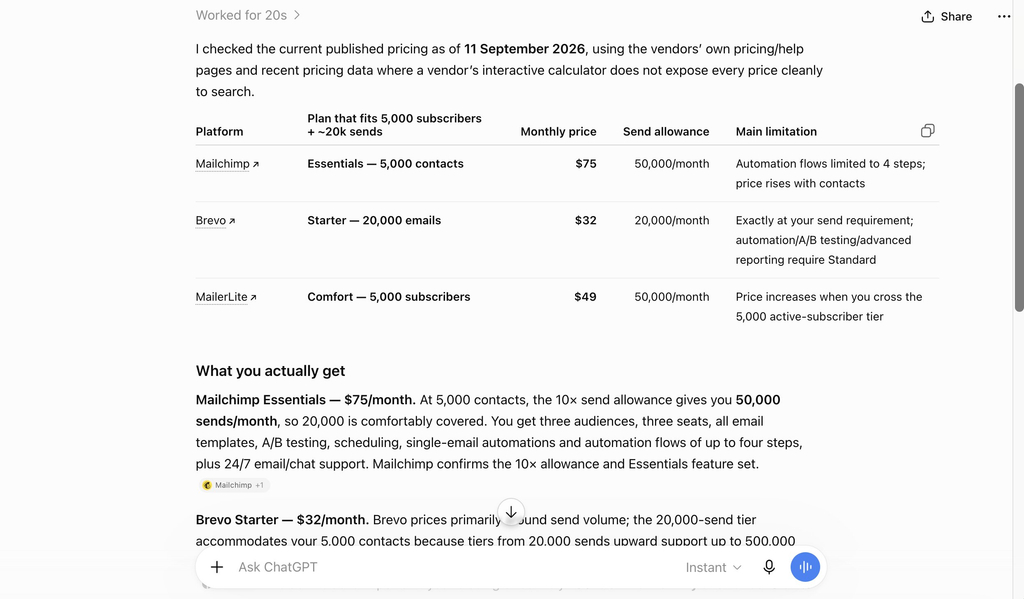
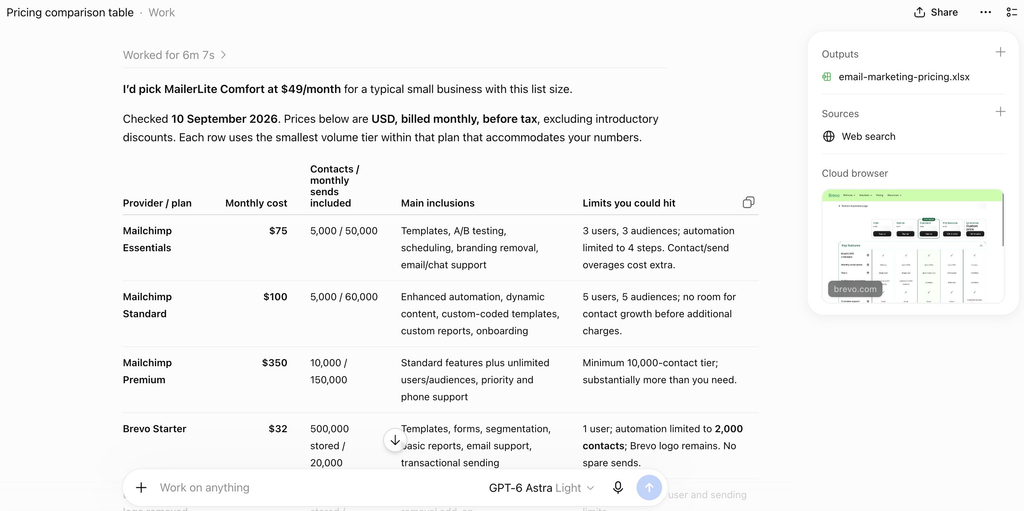
“Research the current published pricing for Mailchimp, Brevo and MailerLite for a business with 5,000 email subscribers sending around 20,000 emails a month. Build me a comparison table showing the monthly cost on each plan that fits those numbers, what’s included at that tier, and any limits I’d hit. Then tell me which one you’d pick for a small business at that size and why. Give me the table as something I can download.“

Both returned a working spreadsheet and both landed on the same recommendation for the same reason. Where they parted was how much of the picture came back. 

Sol gave one plan per provider and explained the logic underneath.

Screenshot of an AI response displaying a pricing comparison table for Mailchimp, Brevo, and MailerLite email marketing plans.
GPT-5.6 Sol

Meanwhile, Astra laid out every tier from all three, stated the assumptions it had priced against, and flagged two catches in the fine print that Sol passed over. Both were usable. Only one showed the full ladder of plans, which matters if your list grows. 

Screenshot of an AI interface displaying a detailed pricing comparison table for Mailchimp and Brevo email marketing plans alongside source citations and downloadable output files.
GPT-6 Astra

When the cheaper model is the right call

A frontier model is overkill for a good share of the week. Captions, a reply to a customer question, notes from a meeting turned into something readable, sorting and labeling, the first pass at something you write regularly: hand any of that to the cheaper model and you’ll be hard pressed to find fault with what comes back. That’s a large share of the marketing work AI has taken over, and none of it needs a frontier model. Save Astra for the work where the difference is visible. 

Is GPT-6 Astra AGI?

OpenAI president Greg Brockman called Astra a generational leap, said he personally believes OpenAI has reached artificial general intelligence, and closed his launch briefing with “Welcome to the AGI era,” while leaving users to decide whether Astra meets the definition. Artificial general intelligence, usually shortened to AGI, is the idea of a system that can handle any intellectual task a person can, rather than being strong in particular areas.

Independent researchers are more cautious. Toby Walsh, professor of AI at the University of New South Wales, said OpenAI is clearly neck and neck in the race, and that the intelligence in artificial intelligence is still today very jagged, meaning it can be superhuman at one task and fail at something a child manages.

Something interesting: Astra is the first OpenAI model where other AI models helped supervise its training. OpenAI built it on its largest training run to date, using more than 100,000 GPUs at its Stargate site in Texas, and says other models played a significant part in overseeing that process. It doesn’t change what the model does for you, and it’s a shift in how frontier models get made: the systems are now involved in building their successors.

For your business, this changes nothing about what you should do this month. Whether Astra clears a definition researchers have argued over for decades makes no difference to whether it writes your product descriptions better than the model you’re paying for now. That question has an answer, and you can get it in an afternoon by running both.

The bottom line: Is GPT-6 Astra worth it for your business?

Nothing about this launch overturns the arrangement most small businesses already have: something cheap running the daily work, and something stronger held back for jobs that are long, layered, or end in a finished artifact. The difference this time is that the stronger option carries a premium, which turns the question from whether Astra performs better into whether the work you’d give it justifies paying 2.5 times as much.

No write-up settles this, ours included. Pick something from your actual workload, put it through whichever model you’re paying for today and then through Astra, and set the two finished outputs against each other along with what each one consumed. A couple of jobs is usually enough to sort your work into two piles, and that sorting is worth more than any published score.

Running that kind of comparison is easier when the models sit together rather than behind separate logins and separate invoices. SiteGround AI Studio carries leading models from OpenAI, Anthropic and Google on one subscription, chosen from a dropdown at the start of each chat. That makes running the same question on two models a matter of changing one setting.

[97]

FAQs

What is GPT-6 Astra?

GPT-6 Astra is OpenAI’s frontier AI model, released on September 3, 2026. OpenAI describes it as its most intelligent and aligned model, built less like a chatbot and more like a computer operator that can use software, browse the web, produce documents and carry out long multi-step tasks.

How much does GPT-6 Astra cost?

GPT-6 Astra is priced at 2.5 times its predecessor, GPT-5.6 Sol, on the per-token developer rates. Through the ChatGPT app it’s included in the paid subscription tiers rather than charged separately, so the cost shows up as usage limits rather than as a bill.

Is GPT-6 Astra AGI?

Not settled, and the people best placed to know disagree. OpenAI president Greg Brockman said he personally believes OpenAI has reached artificial general intelligence and that it might be this model, while leaving users to decide. Independent researchers are more cautious, describing current AI capability as still very jagged.

What can GPT-6 Astra do that GPT-5.6 Sol could not?

Mostly it does the same kinds of things better and faster. GPT-5.6 Sol already handled computer use, and OpenAI scores both models on the same tests. Astra is reported as state-of-the-art on computer use, browsing, software engineering and professional work, finishing computer-use tasks in roughly 47% less time, and scoring 98% on FrontierMath Tier 4 and 99.9% on ARC-AGI-3.

Is GPT-6 Astra worth it for a small business?

It depends on the work. A model priced at 2.5 times its predecessor earns that on long multi-step tasks that end in a real deliverable, such as a researched document or a built spreadsheet. For short marketing copy and quick questions, a cheaper model produces the same result.

Do I need a paid plan to use GPT-6 Astra?

Yes, in some form. GPT-6 Astra rolled out to paid ChatGPT tiers and through the OpenAI API, so free accounts don’t reach it. You can also reach current leading models through a bundled workspace such as SiteGround AI Studio, which includes several models on one subscription.

What does it mean that GPT-6 Astra can use a computer?

It means the model can work the way a person works at a screen rather than only writing text. OpenAI describes it using applications, browsing the web, inspecting what’s displayed, building websites, producing documents and spreadsheets, and running quality checks on its own output.

Can GPT-6 Astra be used for hacking?

Not for attacking anything, though security work isn’t off the table. OpenAI classifies GPT-6 Astra as reaching its Critical cybersecurity threshold, and says defenders can use the public version for work such as secure code review and patching. What it refuses is the advanced end, including writing proof-of-concept exploits. Less restricted access is limited to vetted organizations through an application-based program.

AI Agent for WordPress vs GoDaddy Airo: Which fits ongoing WordPress management better?

Graphic showing an e-commerce website preview alongside an AI assistant prompt window reading "Find and fix the broken links on my site..."

If you are looking for AI to help you with the cumbersome job of running your WordPress site, you have likely come across two of the most popular options available today: SiteGround’s AI Agent for WordPress and GoDaddy’s Airo for WordPress (GoDaddy’s AI-powered WordPress service). 

AI Agent for WordPress vs GoDaddy Airo comes down to where each one sits in the life of a site. Airo for WordPress creates sites and keeps improving them on GoDaddy’s managed hosting, while the AI Agent for WordPress attaches to sites that already exist, no matter where it’s hosted, and runs deeper into the most time-consuming WordPress tasks.

Key takeaways:

  • AI Agent for WordPress vs GoDaddy Airo is mainly a lifecycle decision: Airo for WordPress is site creation-first and extends forward into post-launch work, while the AI Agent for WordPress is operations-first and attaches to existing sites.
  • Airo for WordPress requires GoDaddy hosting. It comes with GoDaddy’s managed WordPress plans rather than as a plugin, so a site hosted with another company can’t use it.
  • The AI Agent for WordPress can work on any host. It’s already connected to SiteGround-hosted sites, and reaches sites on other providers through a lightweight plugin and a connection key.
  • On WooCommerce, the split is between setting a store up and keeping it going. Airo can build a complete storefront from a single conversation, while the AI Agent for WordPress can handle bulk product updates, price changes, categories, and orders on a whole catalog.

Where each product sits in the life of a site

A WordPress site has a life: it gets built, it gets designed, then it settles into years of being updated, added to, corrected, and occasionally rescued. The most useful way to compare Airo for WordPress and the AI Agent for WordPress is not by counting their features (both can make changes on your site through WordPress’ own Abilities API, the system that lets an AI assistant call WordPress functions directly rather than clicking through the dashboard like a person would), but by asking where each one enters the life of your site. 

StageGoDaddy Airo for WordPressThe AI Agent for WordPress
Creating a new siteCore strength. A full site from a conversation, including a complete WooCommerce storefront. Enters after the site exists. The AI Agent for WordPress is designed for the work that starts once there is already a WordPress site to improve, organize, and maintain.
Designing and redesigningStrong. Editing happens in the native WordPress dashboard, with design styles, section patterns, and a point-and-click selector. More useful where redesign overlaps with site structure and content. The AI Agent for WordPress helps refine pages, reorganize content, update site information, and keep existing WordPress material intact rather than replacing the design workflow.
Attaching to a site you already haveRequires GoDaddy managed WordPress hosting.Connects to any WordPress site on any host through a plugin and a connection key.
Routine content workSingle-prompt blog posts, product updates and page refreshes, plus post scheduling and deleting pages from the chat.Covers the full content lifecycle: posts, pages, categories, tags, media, comment moderation, and metadata work such as updating meta descriptions across a batch of pages at once.
Store operationsGenerates the storefront. Running the shop, from adding products to handling orders, is listed on GoDaddy’s roadmapBulk WooCommerce store management including spreadsheet import, category restructuring, price changes across many items, orders, reports and catalog translation.
Plugin and theme managementRecommends, installs and configures plugins based on what your business needs, and works with them through WordPress’ own standards.Extends into ongoing WordPress security maintenance. It can help search, install, activate, update, deactivate, and delete plugins individually or in bulk, with additional controls around consequential changes.
Several sites at onceAgency workflows are part of the offer, and each managed plan hosts one website.Better aligned with portfolio work. AI Agent for WordPress can work across separately connected WordPress sites on different hosts.

For example, Airo’s interface opens from the question of creation: what kind of site should AI build for you, and how quickly can it turn a prompt into a working WordPress starting point? 

Interface of Airo for WordPress featuring a prompt box reading "Build me a photography portfolio..." under the headline "Create a WordPress site in minutes."

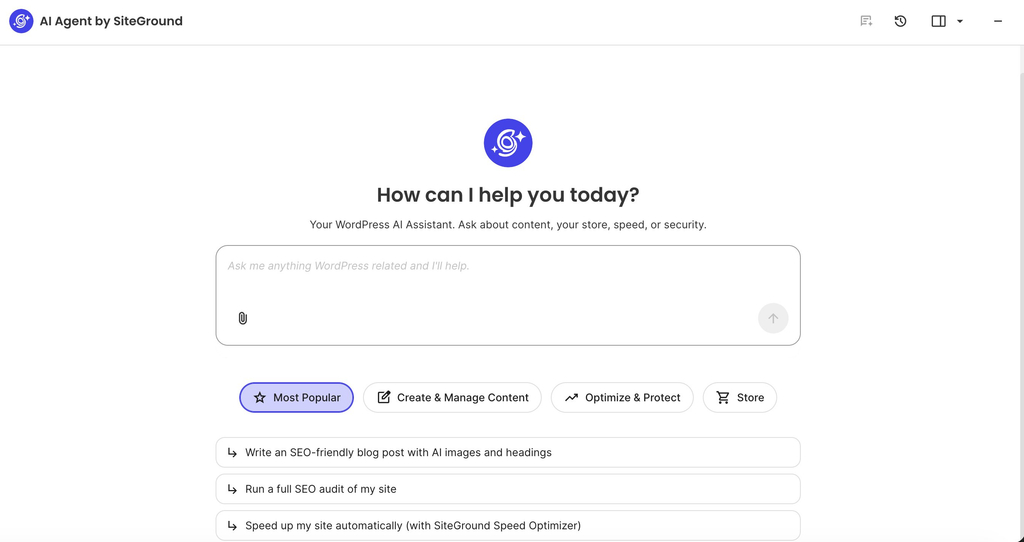
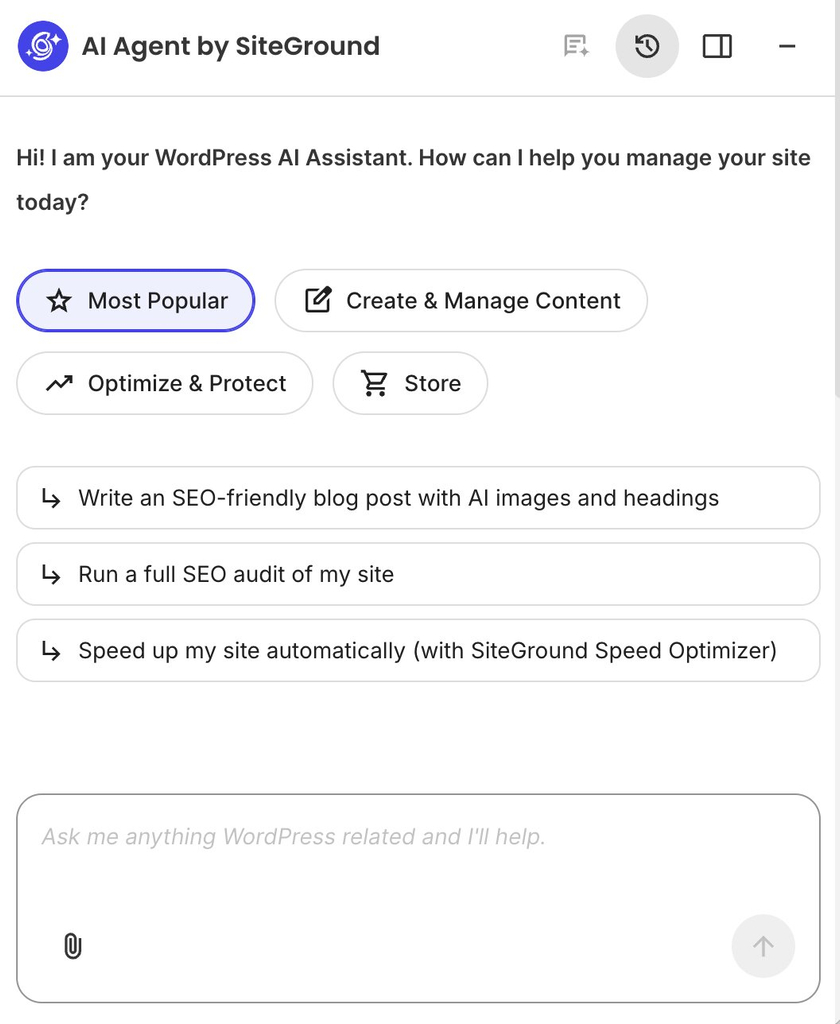
The AI Agent for WordPress starts from a different assumption. The site is already there, and the next question is what needs to be managed today. Its interface surfaces the recurring work of an active WordPress site: creating and improving content, optimizing performance, protecting the site, or supporting store operations. 

Interface of the AI Agent by SiteGround displaying the prompt "How can I help you today?" above a chat input box and quick action categories.

AI Agent for WordPress vs GoDaddy Airo: how they compare

These are the things you’d only find out after committing to one of the AI assistants: where the site has to be hosted, what happens if you leave, and what either one can change without asking you first.

DimensionGoDaddy Airo for WordPressThe AI Agent for WordPress
Host requirementGoDaddy managed WordPress only. It comes with those plans and isn’t a plugin you can install elsewhere.Any host. Pre-connected on SiteGround, and connects elsewhere through a plugin and a connection key.
Where you use itA sidebar inside the native WordPress dashboard.Available from the place that fits the task: inside WordPress admin for site-level work, or from SiteGround’s AI Studio when managing connected sites and broader workflows.
Ownership and portabilityGoDaddy emphasizes WordPress ownership, access to more than 60,000 plugins, and control over site and data inside its Managed WordPress environment.Keeps the site in standard WordPress. The connection layer can be removed without changing the underlying site, so the site remains portable and operational outside the AI assistant.
Controls on consequential changesAiro explains larger changes in plain language, waits for approval, works on drafts for bigger edits, and lets users undo changes with one click.Uses Power Mode as an explicit opt-in layer for higher-impact work, including deletions, bulk operations, user changes, and WooCommerce order edits. Deactivating a plugin across every connected site is the kind of request that triggers it. It is off by default, so routine assistance and elevated actions stay clearly separated.
What it comes withIncluded with GoDaddy’s managed WordPress plans, with a free trial at launch.Included for SiteGround clients and available to external WordPress sites through AI Studio and the AI Agent by SiteGround plugin, making the same assistant usable beyond one hosting plan.

So Airo for WordPress belongs to GoDaddy’s managed WordPress, and it isn’t offered as a portable AI assistant you can add to any installation on any host. That makes sense for someone who’s creating a new site there and wants the hosting, AI assistant, dashboard experience, and launch workflow to come together from the start.

The AI Agent for WordPress starts from the assumption that your site already exists. It may already have content, plugins, customers, rankings, products, and a hosting setup the owner does not want to change. Instead of asking the site to begin inside a specific platform flow, the AI assistant connects to the WordPress installation as it is.

This portability factor decides who each product is naturally for. A new site can start wherever the owner chooses. A site that is already live, already indexed, already earning, or already serving customers carries a cost to move. In that situation, the more useful assistant is often the one that can join the existing workflow without turning adoption into a rebuild or migration decision.

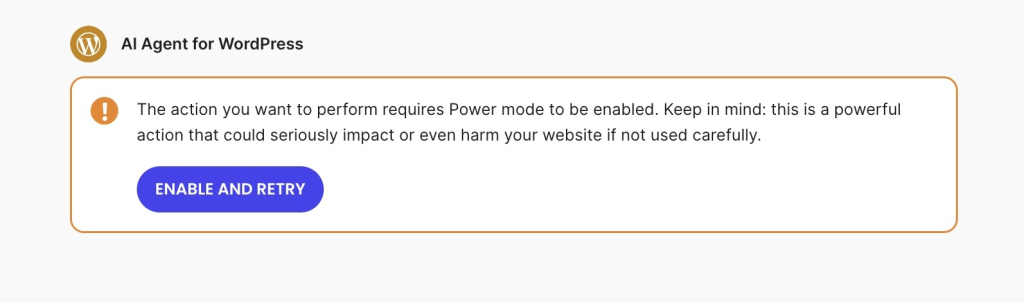
The safety row follows the same logic. Airo’s approach centers on explaining larger changes, working in drafts, asking for approval, and offering undo. The AI Agent separates everyday help from higher-impact work through Power Mode, an opt-in layer that’s off by default, because an assistant working across live content, bulk changes, users, plugins, and WooCommerce orders needs permission boundaries built into the workflow rather than added to it.

AI Agent for WordPress warning message stating that the requested action requires Power mode to be enabled, cautioning it could harm the website, with an "Enable and Retry" button.

Good to know: Neither assistant is the right tool if your main goal is drag-and-drop design inside a page builder. Elementor, Divi, and similar tools store and control layouts in their own systems, so neither product should be treated as a replacement for editing those layouts directly. Airo for WordPress checks for page builders and stops before taking on that kind of layout work. The AI Agent for WordPress also avoids page-builder layouts, but can still help with the surrounding WordPress operations: plugins, users, products, store tasks, posts, media, and supported content work. 

The three differences that actually decide it

In practice, three questions can settle the decision almost immediately: whether the assistant can work with the WordPress site you already have, whether your WooCommerce need is store creation or store operations, and whether you manage one site or several.

Whether it works with your existing WordPress site

The AI Agent for WordPress is the best fit for an existing WordPress site no matter where it’s hosted, while Airo for WordPress is tied to GoDaddy Managed WordPress and works best when your site is already inside that environment.

This detail is the most important decision factor for people who aren’t starting from a blank install and already have pages, posts, plugins, rankings, customers, products and years of content history. Their first question should be whether an AI tool can help you with the site if you already depend on.

Generating a store versus running one

WooCommerce is also where the difference is easiest to see. Airo can generate a complete WooCommerce storefront from a single conversation with no manual configuration, which removes the hardest part of opening a shop: getting from an idea to something customers can actually buy from.

Running that shop afterward is different work. Once a store is live, the requests change to updating prices across a product group, reorganizing categories, changing stock status, improving descriptions without breaking the formatting, translating a catalog while keeping technical specifications intact, creating coupons for a campaign, checking recent orders, or applying bulk changes from a spreadsheet you’ve been handed.

The AI Agent for WordPress is built for that side of it, and it can work across a catalog that already has products, orders, and categories. Its value is less about producing the first version of the store and more about reducing the recurring work required to keep the store organized. 

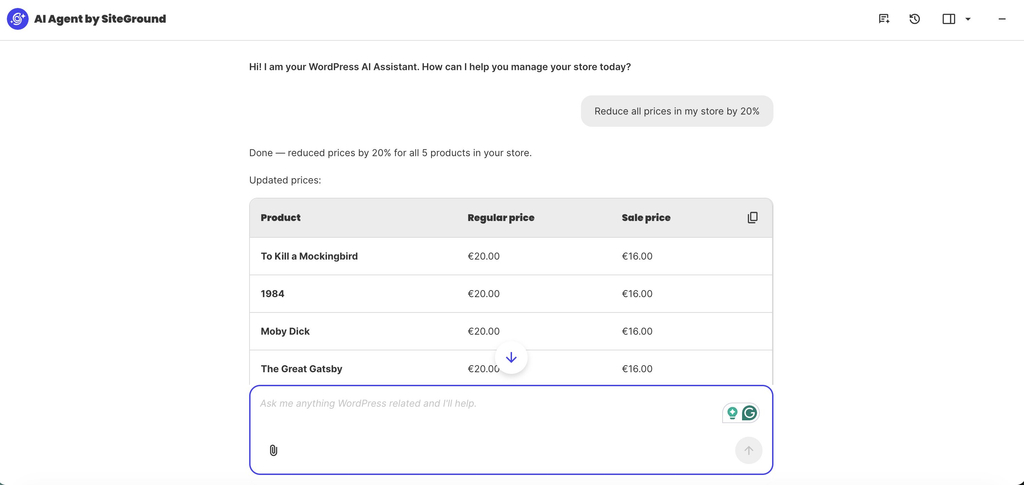
Instead of opening every WooCommerce product one by one, you can ask AI Agent for WordPress to update the whole catalog in a single prompt, for example, by reducing all prices by 20% or applying a campaign discount to a specific product group. The result is the kind of store maintenance task that normally takes an afternoon of repetitive admin work.

Interface of AI Agent by SiteGround confirming a 20% price reduction across store products alongside a table displaying updated prices.

Managing several sites at once

Freelancers, agencies and anyone with several WordPress installations maintain sites at different stages of maturity, often on different hosts, with different plugin stacks, different content needs and different update schedules. GoDaddy has agency-friendly workflows for Airo, and its managed WordPress plans each host a single website, so it doesn’t set out a way of operating across sites in bulk.

The AI Agent for WordPress connects separately to WordPress sites on different hosts, which matches how client work actually looks. Tasks like updating WooCommerce on eleven client sites or auditing who holds admin access across a portfolio happens once rather than site by site. 

Which should you choose?

The easiest way to choose a WordPress AI management assistant is to ask whether you need AI to help create the WordPress site you are about to launch, or to help manage the WordPress site your business already depends on.

When to choose GoDaddy Airo

Airo for WordPress makes sense when you’re bringing a site into existence on GoDaddy. Choose it if:

  • You’re starting a new site or store. Generating a working WordPress site, including a WooCommerce storefront, from one conversation is the fastest route from idea to something live.
  • You’re already on GoDaddy, or moving there anyway. It comes with the managed WordPress plans, so there’s nothing separate to buy or connect.
  • You want creation and upkeep in the same place. Everything happens in the native WordPress dashboard rather than in a separate builder you’d have to learn.
  • Your existing GoDaddy site needs a redesign. Airo’s Site Refresh option rebuilds it around the content you already have, which is a real answer for a site that works but looks dated.

When to choose AI Agent for WordPress

The AI Agent for WordPress makes the most sense when the site already exists, and the real work is keeping it current, secure, organized, and commercially useful. Choose it if:

  • Your site is hosted somewhere you intend to stay. It connects to WordPress wherever it lives, so the assistant fits around your hosting rather than the other way round.
  • Your store needs running rather than building. Bulk catalog work, price changes across many items, orders and reports are the daily reality of a shop that already has customers.
  • You look after more than one site. The same request runs across every connected site, which is where the hours go when you manage a portfolio.
  • The work that eats your week is maintenance. Plugins, users, settings, SEO metadata and content updates are recurring jobs rather than one-off decisions.

The bottom line 

AI Agent for WordPress vs GoDaddy Airo is a question of where you are in the life of your site. Airo for WordPress makes the strongest case when WordPress starts inside GoDaddy. It’s built for the creation path: launching a new site or store, shaping it through conversation, editing in the native dashboard, and continuing to improve it after launch. 

The AI Agent for WordPress becomes the better fit when the site already exists. It connects to WordPress as it is, whether the site is hosted on SiteGround, GoDaddy, or elsewhere, and focuses on the recurring work that defines ongoing management: content updates, WooCommerce operations, plugins, users, media, settings, and multi-site workflows.

FAQs

AI Agent for WordPress vs GoDaddy Airo: which fits ongoing WordPress management better?

AI Agent for WordPress vs GoDaddy Airo comes down to where your site is in its life. The AI Agent for WordPress fits better for ongoing management of a site that already exists, especially on another host or with a store to run. Airo fits better when you’re creating a site on GoDaddy and want creation and upkeep in one place.

Can Airo for WordPress manage an existing site?

Yes, with two conditions. The site has to be on GoDaddy’s managed WordPress hosting, and Airo’s strength with an existing site is redesign rather than daily operations. GoDaddy’s Site Refresh reads an existing site’s content and rebuilds it with a new design, and Airo can also edit content, configure plugins and change settings.

Which is better for ongoing WordPress management?

The AI Agent for WordPress is better for ongoing WordPress management, because it’s built for sites that already exist and covers recurring work such as plugins, users, settings, SEO metadata and bulk content changes across one site or several.

Does SiteGround’s AI Agent work on GoDaddy-hosted WordPress?

Yes. The AI Agent for WordPress works on WordPress sites hosted anywhere, including GoDaddy. You add the site in AI Studio, install the plugin, and paste in a connection key to link the two.

Does GoDaddy Airo work on WordPress sites hosted elsewhere?

No. Airo for WordPress comes with GoDaddy’s managed WordPress hosting, so a site hosted with another company can’t use it. Moving hosts is the only route to it.

Which tool is better for WooCommerce management?

The AI Agent for WordPress is better for WooCommerce management, covering bulk product updates including spreadsheet imports, category restructuring, price changes across many items, orders and reports. Airo generates a complete WooCommerce storefront from a conversation, while GoDaddy lists ongoing shop management on its roadmap.

Which can manage several WordPress sites?

The AI Agent for WordPress can manage several WordPress sites, applying the same request across every connected site regardless of host. GoDaddy’s managed WordPress plans host one website each.

The trust premium: What it costs a small store to earn a sale

Abstract of trust signals in an online store

Trust has a price, and it’s usually the store paying it, not the shopper. A recognized retailer collects that premium without trying. A store nobody’s heard of has to earn it, sale by sale, and most conversion advice was written for the store that doesn’t have to. Here’s where that happens, and the five specific moves that close the gap faster.

Key takeaways:

  • Shoppers spend 51% more with retailers they trust than with ones they don’t
  • Nearly one in five cart abandoners (19%) say they left because they didn’t trust the site with their card information
  • Well-known brands earn trust with minimal visual security cues; smaller, less familiar stores need stronger, more deliberate types of trust signals to get the same effect.
  • A PayPal badge beats dedicated security seals at inspiring shopper confidence, because familiarity matters more than the technical claim behind a badge.
  • Unpaid customer reviews and peer recommendations carry more weight in building trust than paid advertising.
  • Five specific, evidence-backed moves make up a small store’s trust stack: recognized payment badges, visible shipping and return terms, a well-styled card field, prominent reviews, and reliable hosting.

Shoppers spend 51% more with sellers they trust

Consumers spend 51% more with retailers they trust than with ones they don’t, according to Forter’s 2024 Trust Premium Report. That premium isn’t distributed evenly: brands people already recognize get it by default. Stores nobody’s heard of have to earn it, one nervous checkout at a time.

The rest of this piece breaks down exactly where that premium gets tested in your checkout, and the five specific moves that help an unfamiliar store close the gap faster.

Why most trust advice doesn’t apply to a store nobody’s heard of

The trust stats everyone quotes come from the whole market at once. That means a shopper’s tenth order from a brand they’ve used for years gets averaged in with their first order from your store, which they found an hour ago.

To break it down: Baymard says 19% of cart abandoners didn’t trust the site with their card details. Forter says 78% abandon a checkout that feels too slow or difficult. Both numbers are averages of that mixed group.

Edelman’s 2026 Trust Barometer found that 88% of shoppers call trusting a brand an important or critical purchase factor, right up there with quality (89%) and value (88%). That puts trust on equal footing with quality and price, not as an afterthought.

And yet none of these reports split “a retailer I already know” from “a store I’ve never heard of.” That’s the split that actually matters if you’re the second one.

Averaged data hides the real number for unknown sellers

Cart abandonment surveys count every kind of store at once: department chains, marketplaces, and one-person shops nobody’s ever linked to before.

A shopper checking out at a store they already trust barely glances at the card field. A shopper landing on a business they found through an AI search result or a social ad has no history to lean on.

That’s the exact moment Baymard’s 19% distrust figure is measuring. It’s just diluted by everyone else who wasn’t hesitating in the first place.

No report isolates the real number for first-time, unfamiliar sellers. But it’s almost certainly higher than the pooled average lets on.

Recognized brands get a security pass that new stores don’t

Baymard’s research on perceived checkout security found something almost unfair: shoppers trust Apple and Walmart with barely any visual security cues at all. The name is doing the work a padlock icon would otherwise have to do.

Newer or less familiar sites don’t get that shortcut. That’s part of why website security fundamentals matter more for a store that’s still building a reputation than for one that already has it.

Baymard’s fix is simple: add visual reinforcement, like a border or shading, around the card entry field. It’s a small design change that borrows some of the confidence a big name gets for free. Baymard’s own explanation for why is refreshingly blunt: shoppers aren’t evaluating checkout security on any technical basis, they’re going on gut feeling, and anything that looks visually set apart or reinforced reads as safer, whether or not it actually is.

Online store checkout with visual reinforcement of checkout area

Most sites still skip it. 66% of major ecommerce sites have no visual emphasis on the card field at all, per Baymard’s latest count. Better than the 89% that skipped it in 2012, but still most stores.

Where trust actually gets tested in an unknown seller’s checkout

Consumer trust gets tested at three specific moments: the homepage, the product page, and the payment step. Get any of them wrong and you’re making one of the common ecommerce design mistakes that cost stores sales before checkout even starts.

When customers decide you’re safe to pay

As customers peruse your pages, a first-time visitor will check the following the same way they’d check a stranger’s references, because that’s exactly what they are:

  • Shipping: 95% of shoppers say policy matters, and 53% have abandoned a purchase over a restrictive one, per Forter.
  • Returns: 89% say policy matters, and 22% have abandoned a purchase over a restrictive one, per Forter.
  • Payment: 9% abandon when a store doesn’t offer enough payment methods, and 10% leave after a card gets declined, per Baymard.

The payment step carries an extra test we already touched on: visual reinforcement around the card field is what makes that moment feel secure. A payment step that looks unfamiliar and offers only one way to pay is asking a first-time buyer to take two leaps of faith instead of one.

Which badge actually reassures a buyer at the payment step

Some trust signals don’t work the way people assume. CXL surveyed more than 2,100 shoppers and asked which badge gave them the most sense of security when paying online. PayPal won: 25% picked it as the top choice, ahead of Norton, Google Trusted Store, Visa-Mastercard, the Better Business Bureau, and McAfee.

That’s a payment logo doing more work than those five badges whose entire job is signaling security, and it comes down to recognition rather than accuracy: shoppers pick what looks familiar, whether or not it makes a security claim at all.

Online checkout with recognizable payment options and logos

For a small store, a familiar payment logo can do more trust-building work than a generic secure-site seal from a vendor nobody’s heard of.

The small-store trust stack: five moves backed by data

Five specific moves make up a small store’s trust stack, each backed by its own data point instead of a guess. Here’s what to prioritize, and why each one earns its spot.

1. Choose recognized payment badges over generic security seals

We already saw that a recognized payment badge beats a dedicated security seal at inspiring confidence. Put that to use at your own checkout: skip the generic secure-site seal, and show whichever payment badges you actually accept instead.

If you already accept payments from PayPal, Apple Pay, or a major card network, display those logos during checkout. They’re doing double duty: processing the payment and reassuring a shopper who’s never bought from you before.

2. Make shipping and return terms specific and visible

We already saw that a restrictive shipping policy drives away over half of otherwise interested shoppers. The real fix is often visibility, not a better policy: show exact shipping costs and delivery windows before checkout, not three clicks into a policy page.

The same goes for returns. A “see our returns policy” link buried in the footer does nothing at the moment a shopper is deciding whether to buy. State the return window and who pays for return shipping right on the product page.

Online store with product explaining shipping and return details

3. Add visual reinforcement around the card field

We’ve already covered why this matters: a bordered or shaded card field measurably increases how secure a checkout feels, and most stores still skip it. Implementing it takes minutes in most ecommerce platforms and instantly separates you from every competitor who didn’t bother.

4. Lead with third-party reviews over brand messaging

Your own product description will never be as convincing as someone else’s experience. Edelman’s 2026 Trust Barometer found that unpaid advocates, satisfied customers, and peers carry more weight in building brand trust than paid or owned channels, brand websites included.

Make sure real, verifiable customer testimonials and positive reviews are actually visible on product pages, not buried in a tab shoppers have to click to find. If you’re light on testimonials so far, social proof doesn’t have to mean five star reviews: user photos, client logos, video testimonials, and a specific customer feedback quote all work.

5. Don’t let a slow or broken checkout undo the other four

None of the four moves above matter if the checkout page doesn’t load, or doesn’t load quickly. Baymard’s research found that 17% of cart abandoners left because of website errors or crashes, and Forter found that 78% abandon a checkout that feels too slow or difficult in general.

The gains for fixing this are larger than most store owners expect. The hardest data on it happens to be mobile-specific: Deloitte’s “Milliseconds Make Millions” study found that shaving just 0.1 seconds off mobile page load time raised mobile retail conversion rates by 8.4%, and checkout-to-order completion specifically by 4.7%.

A recognized payment badge, a clear return policy, and glowing reviews don’t help a shopper staring at a spinning loading icon. Reliable, secure hosting is the layer everything else in this stack sits on top of, which is exactly why speeding up your website has to be part of the trust conversation, not a separate one.

You don’t need a bigger name, you need a better stack

A recognized brand inherited that 51% premium we opened with. A store nobody’s heard of has to build it, one evidenced move at a time: visible policies, a well-designed card field, real reviews, and a checkout that actually works.

Some of that stack is on you: writing the return policy, collecting reviews. The rest, like reliable uptime, checkout security, and payment options that don’t buckle during a sale, comes down to what your store runs on. SiteGround Ecommerce is built to cover that half of the list, so the trust you’re building shows up as revenue instead of an abandoned cart.

[103]

Frequently asked questions

What is a trust signal?

A trust signal is any specific, verifiable detail on a store, like a recognized payment badge, a clear return policy, or social proof like a genuine customer review, that helps a shopper decide the business is safe to buy from. Recognition and specificity matter more than the signal simply existing.

What are some examples of trust signals?

The strongest examples, based on the data in this piece, are a payment badge shoppers already recognize, a visible and specific shipping and return policy, a clearly styled card field at checkout, and verifiable third-party reviews.

Do trust badges actually increase conversions for small stores?

Some do and some don’t. Research from CXL found that a recognized payment badge like PayPal inspires more shopper confidence than dedicated security seals from vendors like Norton or McAfee, so a badge’s familiarity matters more than what it technically certifies.

How long does it take a new store to build customer trust?

There’s no fixed timeline. Trust accrues one verifiable proof point at a time, a policy a shopper can actually read, a review from a real customer, a checkout that works, rather than building up the way brand awareness does.

Business coach website: How to build one that works as hard as you do

abstract of a business coach website

Your business coach website has one job: turn those strangers into booked calls, buyers, or subscribers before they close the tab. Not just by looking professional, though that helps, but by moving those potential clients through a sequence: build credibility, make booking painless, sell to the ones who are ready, and capture the rest.

Key takeaways:

  • A business coach website works best in a specific order: trust first, then booking, then selling, then email capture.
  • Credibility comes from four things working together: a clear homepage headline, a credentials-first about page, testimonials spread across several pages, and mobile-friendly design.
  • A Calendly-style booking widget embedded on your services page cuts out the email back-and-forth that kills momentum right after a visitor decides to trust you.
  • Setting up a coaching package as a service lets a visitor pay a deposit or buy outright instead of just inquiring.
  • Selling digital downloads, worksheets, templates, planning guides, adds a second revenue stream on top of your existing ecommerce setup.
  • On most coaching business website funnels, the majority of traffic doesn’t book or buy on the first visit. That’s what the email capture step is for.

What your business coach website needs to do

A business coach website needs to do four things, in order: build credibility so visitors trust you, make it easy to book a call, sell packages and digital products to visitors who are ready now, and capture the email of everyone who isn’t.

That order is the whole strategy. Skip credibility and a visitor who lands on your booking page has no reason to trust you enough to grab a slot. Skip an easy booking flow and a visitor who does trust you gets stuck in an email thread instead of on your calendar. And skip email capture entirely, and every visitor who wasn’t ready to book or buy today, which is most of them, leaves with no way for you to reach them again. A lot of business coaching website advice never gets past the first step: it covers design inspiration, screenshots of pretty homepages, and stops there. Not this time!

You’re a small business owner, and not running a software company, so none of this needs custom development. A website builder built for non-technical users gets pages live in an afternoon. Whether you specialize in life coaching, executive coaching, health coaching, or otherwise, the sequence below is something you can build yourself, in order, over a weekend.

Step 1: Build credibility so visitors trust you before they act

This is the foundation step for any coach website design. Because everything else on your site depends on a visitor believing you’re legitimate before they book a call or hand over a card number.

A homepage that states who you help and what outcome you deliver

Your homepage has about three seconds to answer one question: who do you help, and what result do you get them? Answer it with a headline that follows a simple formula, who you help + the outcome you deliver, placed above the fold next to one primary call-to-action button such as “Book a free consult” or “See if we’re a fit.”

For a health coach, that might read: “I help remote workers build sustainable movement habits without adding to their to-do list.” For an executive coach: “I help mid-level managers get promoted to director in under a year.” Swap in your own specialty and outcome, but keep both halves, a headline that names only the audience (“Coaching for busy professionals”) or only the outcome (“Reach your full potential”) does neither job well.

That single CTA matters more than it sounds like it should. A homepage with five buttons competing for attention, or a hero video and scrolling logo carousel sitting above the offer, buries the one thing (your call to action!) you actually want a visitor to do before they even reach your credentials. Get the homepage essentials right and the rest of the page has room to do its job. 

An about page that establishes your credentials fast

A stranger is deciding whether to pay you to change how they run their business. That’s a bigger trust ask than most sites face. Lead with your credentials, certifications, years coaching, client results, in the first two sentences. Save the personal story for explaining why you coach, and not for padding the page.

Include a professional photo, or an unposed photo of you actually coaching, on a call, at a whiteboard. These transmit authenticity, and, you guessed it, trust.

Example of a business coach website homepage with hero section, headline and CTA

Testimonials placed where visitors decide, not stuck on one isolated page

A dedicated testimonials page is where testimonials sadly go to die. That’s because visitors decide whether to trust you on the homepage, the services page, and the booking page, and not on a separate tab nobody clicks. So pull three to five of your strongest client results and place a version of them on each of those three pages instead of building one long quote wall elsewhere.

Keep in mind that specifics carry more weight than praise. So “Raised my coaching rates 40% in two months” says more than “amazing to work with.” And if you don’t have results yet, one detailed before-and-after case study will get the job done better than a collection of lackluster quotes.

Professional photography, clear layout, and mobile-friendly design

Stock photos work against the one thing a coaching website needs to build: the sense that a real, specific person is on the other end. To avoid this conundrum, plan to:

  • Budget for one photography session, or lean entirely on unposed working photos instead of generic “business handshake” stock imagery.
  • Keep one primary action per page, with clear visual hierarchy and no competing offers.
  • Pay attention to mobile web design. Most coaching website traffic now arrives from a phone, and a booking widget that needs pinch-zooming to tap loses the visitor before they book.

Step 2: Make it easy to book a call once they trust you

Once a visitor trusts you, booking is the next friction point. A Calendly-style scheduling widget embedded directly on your services or contact page lets a visitor pick a time and confirm a consult in under a minute, no email thread required.

Embed the widget, don’t link out to it

A scheduling widget that opens on the same page keeps the visitor inside your site’s design and momentum. A link that sends them to an external scheduling site is one more place they can get distracted, close the tab, or simply forget to come back. You’ll need a Calendly account with at least one event set up first, then it’s a matter of dropping the event link into a Calendly section on the page.

A Calendly consultation widget on a business coach website

Match the tool to how many booking types you actually need

When it comes to Calendly, as of August 2026, its free plan caps you at one active event type. That’s enough for most solo or professional coaches who offer one kind of consult call. If you run multiple call types, discovery calls, strategy sessions, VIP days, you’ll need Calendly’s paid plan.

Keep the booking page down to one job

A booking page can include more than just the widget, but it needs to stay focused. Testimonials, pricing tables, and a newsletter signup competing for attention on the same page all pull a visitor away from the one thing you want them to do: book the call. The same landing page principles that keep a page focused on one conversion goal apply here.

Step 3: Sell coaching packages and digital products to visitors who are ready now

Not every visitor needs a call first. A referral who’s already read your case studies, or a returning client who worked with you last year and wants a shorter follow-up package, both know what they want. Neither should have to book a consult just to hand you money.

Mapping out where these visitors are in the customer journey (like a potential buyer building awareness, or a long-time client who keeps coming back for more) makes the case for why you might want to offer different types of products, both service and digital.

Customer journey stages including awareness, consideration, decision, retention and advocacy

Selling coaching packages as a virtual product

Set up each coaching package (say, a three-session intensive, a six-month program, a single strategy session) as a service with real pricing attached.

  • Get payment processing set up correctly first. Packages, deposits, and split payments all need to route through one checkout instead of three different tools.
  • A published price lets a ready visitor buy directly. New or returning, they can purchase outright or pay a deposit right on the page instead of starting an email thread.
  • “Contact for pricing” isn’t always the wrong call. It can make sense for fully custom or highly bespoke engagements where the price genuinely varies by client. For a standard package, though, it mostly just adds friction between a ready buyer and their card.
Backend of SiteGround Ecommerce where you can connect different payment methods for your customers

Selling templates, guides, and other digital downloads

Not every ready visitor wants a full coaching package right away. The good news is that the same ecommerce setup that sells the coaching itself can also sell downloadable products such as worksheets, planning templates, or a self-paced mini course, with no extra plugins and no second platform.

  • It’s a genuine second revenue stream, not busywork: a $27 planning template gives a visitor who isn’t ready for a $2,000 coaching package something to buy today instead. Plus it builds trust and loyalty toward that future, larger purchase.
  • List digital downloads next to your packages, not on a separate page. A visitor weighing a $1,500 program against a $27 template is far more likely to buy the template now, and consider the program later, than to leave the site having bought neither.
Selecting product type on the backend of an ecommerce platform

SiteGround Ecommerce covers all of this from one dashboard. Calendly integration handles the booking step, and Stripe, PayPal, and other options cover payment processing. It also supports physical, service, and downloadable product types, so packages and templates live on the same platform without extra plugins. Setup takes an afternoon, the hosting holds up under real traffic, and expert support is there any time you need it.

Start building your business coach website now>>

Step 4: Capture emails from visitors who aren’t ready yet

Most visitors won’t book or buy on the first visit. And without a way to capture their email, that traffic is gone for good.

Give visitors a reason to hand over an email address

A generic “join my newsletter” box rarely converts. Offer a lead magnet instead — a free resource specific enough to be worth an email address, such as a free chapter, a coaching-readiness quiz, or a five-day email challenge. Building an email list that converts starts with getting that offer narrow and specific: “10 questions to ask before hiring a coach” pulls in far more signups than an open-ended newsletter box.

Place the form where visitors actually drop off

  • At the bottom of the homepage, for visitors who scrolled the whole page without booking or buying.
  • Inside blog or resource content, where visitors are already reading and engaged.
  • At the bottom of the services page, right before a visitor who was close to booking decides to leave.

Let the follow-up sequence do the selling

Once you have the email, an automated sequence does the work a single page visit can’t: moving someone from “not ready” to “ready” over several weeks instead of trying to close them in one visit. A short series covers the basics:

  • Deliver the lead magnet right away.
  • Share a client result or quick win.
  • End with a soft nudge toward booking.
Lead magnet email automation sequence example with different emails and send times

Email automation handles the sending on a schedule once it’s set up, so the nurturing keeps happening without you writing a fresh email every week.

Step 5: Set it up in the right order

If you were hoping for a quick-and-dirty checklist, then here it is. Building things out of order costs you real conversions, not just tidiness.

OrderTaskWhat skipping ahead costs you
1Core pages (homepage, about, services, testimonials)Nothing else works until the site looks credible
2Booking toolAdd it before credibility is built and you’re booking calls with visitors who haven’t decided to trust you yet, which shows up later as no-shows and mismatched-expectation calls
3Ecommerce for packages and productsTurn it on before your core pages are live and you’ve built a store with no credible site sending it traffic
4Email capture formSafety net for everyone who wasn’t ready yet

Turning on ecommerce means building out your online store: choosing a platform, connecting payment and tax settings, and picking a theme, before you list a single package.

A business coach website that works as hard as you do

Build in that order, credibility, booking, selling, capturing, and your business coach website does what most coach sites never quite pull off: turning a visitor into a client without you handling every email, payment, and follow-up by hand.

SiteGround Ecommerce bundles the site, the booking functionality, virtual product listings, and email marketing tools all in one plan, backed by fast, high-performing hosting and around-the-clock live expert support. Start a free trial and have your first package listed before the coffee gets cold.

[103]

Frequently asked questions

Can I sell coaching packages directly from my website?

Yes. Set the package up as a virtual or service product, not a physical one, so clients can pay by card or your other configured methods without you invoicing manually for every sale.

Do I really need a website for my coaching business?

Yes, even if most clients come through referrals. A website is where a referred prospect verifies you before booking, and the only place you show up in search for people who don’t already know your name.

Can I build a business coach website without a developer?

Yes. A website builder made for non-technical users, plus ecommerce tools for packages and digital products, covers the full sequence above. No code, no agency.

How much does it cost to build a business coach website?

SiteGround Ecommerce plans run $18 to $36 a month, covering hosting, the website builder, and the virtual product listings for packages and digital downloads. Hiring a freelancer or agency instead runs much higher, often several thousand dollars for a custom build. See the full website cost breakdown for specifics.

AI Agent for WordPress vs Hostinger Agent: Which is better for WordPress management?

Comparison graphic showing AI agent prompts for updating e-commerce prices across multiple sites on the left and updating the PHP version on the right.

Updating your plugins, changing prices on a batch of products, writing meta descriptions: the work of keeping a WordPress site running can be a never-ending chore. Two AI assistants now promise to collapse that into just one chat, but which one should you choose?

AI Agent for WordPress vs Hostinger Agent comes down to where each draws its boundary. The SiteGround AI Agent for WordPress can work inside WordPress and WooCommerce on a site hosted with any company, while the Hostinger Agent (which now includes the former Kodee experience) can work only across your Hostinger account, reaching the domains, servers and support around your site.

Key takeaways:

  • AI Agent for WordPress vs Hostinger Agent is a question of scope. The Hostinger Agent covers more of the Hostinger ecosystem, while the AI Agent for WordPress goes deeper into WordPress and WooCommerce.
  • The Hostinger Agent requires Hostinger hosting. Its WordPress actions run on Hostinger’s Business Web and Cloud plans, and a site hosted with another company can’t use it at all.
  • The AI Agent for WordPress can work on any host. It’s already connected on SiteGround-hosted sites, and reaches sites on other providers through one plugin and a simple one-time setup.
  • Don’t choose a host only because of an AI assistant. Use the assistant as a tiebreaker after you compare hosting performance, support, pricing, backups, and the tools your business needs.

What Hostinger Agent and AI Agent for WordPress are each built for

These two WordPress AI management assistants look similar in a feature list and behave differently in practice, because each was designed around a different center of gravity.

Hostinger Agent is a Hostinger ecosystem assistant that reaches into WordPress. Its home is hPanel, Hostinger’s control panel, and its scope is your whole account there: domains, DNS (the system that points your domain name at the server your site lives on), servers, billing and support tickets, alongside the website itself. It can both advise and take direct action on the account, which is what separates it from a support chat. Its reach widened in August 2026, when Hostinger merged Kodee, its technical support assistant, with a set of specialists into the single product it now calls Hostinger Agent.

Interface of Hostinger Agent featuring the prompt "What are you looking to create?" with options for website building, web hosting, domain search, and business email.

The AI Agent for WordPress takes a more WordPress-focused management approach. Its home is your WordPress admin, and its scope is the site rather than the hosting account around it. The full AI Agent for WordPress capabilities include content, plugins, themes, users, settings, media and WooCommerce store operations. What it won’t do is touch your hosting account, your domains, or your DNS records, since none of those are WordPress.

Interface of the AI Agent by SiteGround displaying category options and quick prompt suggestions for managing a WordPress site.
Screenshot

AI Agent for WordPress vs Hostinger Agent: how they compare across eight dimensions

Here is where the two assistants stand on the eight questions that come up most often when people choose between them.

DimensionHostinger Agent (formerly Kodee)AI Agent for WordPress
Host requirementHostinger hosting only. WordPress actions run on Business Web and Cloud plansWorks on any WordPress host. It is pre-connected for SiteGround-hosted sites and can also connect external WordPress sites through the AI Agent by SiteGround plugin and AI Studio setup.
Scope beyond WordPressThe hosting account: domains, DNS, VPS, payments, billing and support ticketsThe website itself, in more depth. No access to your hosting account
Where you use itThe hPanel sidebar or the Ask AI button, and as a right-hand panel inside WordPress. Also on mobile and through WhatsAppIn a chat inside WordPress admin and from the SiteGround AI Studio dashboard. This lets you manage one site from WordPress or manage connected sites from AI Studio.
WordPress operationsContent edits, plugin and theme management, user roles, migrations, backups and server health checks. Hostinger states its agent performs over 500 admin-level actionsCovers day-to-day WordPress management in more depth: creating, editing, publishing, and organizing posts and pages; managing categories, tags, menus, media, comments, plugins, themes, users, roles, site settings, SEO metadata, and full workflows such as site architecture or taxonomy restructuring.
WooCommerceProduct creation, inventory updates, price changes and order managementProducts individually or in bulk including from spreadsheets, category hierarchies, orders, price changes across many items, sales reports and catalog translation
Several sites at onceNo cross-site bulk operation. Hostinger’s own multi-site tutorial points readers to third-party tools such as WP Umbrella, MainWP and InfiniteWPBuilt for bulk work across separately connected WordPress installations, even when they are hosted with different providers
Controls on consequential changesDrafts the change and asks you to confirm before publishingPower Mode, an opt-in permission layer switched off by default, covering deletions, bulk operations, user changes and WooCommerce order edits
What it comes withIncluded with qualifying Hostinger plansIncluded for SiteGround clients and also available for external WordPress sites through AI Studio and the AI Agent by SiteGround plugin

Pro tip: Before comparing feature lists, write down the last ten things you actually did in your admin. Most small business owners find the list splits cleanly down the middle. Either it’s mostly posts, products, plugins and user accounts, which is WordPress work, or it’s mostly domains, email, DNS records and support tickets, which is hosting work. Whichever column has more entries tells you which assistant would have saved you more time last month, and that’s a better answer than any comparison table, including the one above.

The three differences that actually decide it

Three of those dimensions can rule an assistant out for you completely, while the rest only make one slightly better than the other.

Which hosts each one works on

Hostinger Agent runs on Hostinger, and its WordPress actions are available on Hostinger’s Business Web and Cloud hosting plans, where the assistant opens as a panel on the right side of your WordPress screen. If your site lives with another company, there’s no plan you can buy that gives you access, because the assistant is part of the hosting rather than a plugin you install on top of it.

The AI Agent for WordPress goes in the opposite direction. On SiteGround-hosted sites, it’s already connected and waiting. You can use it on sites hosted anywhere else, including Hostinger, and the connection takes about a minute.

Managing several sites at once

The AI Agent for WordPress runs the same WordPress workflows across every site you’ve connected to it, from one chat. 

Updating a plugin everywhere, adding an editor to all of them, checking who still holds admin access across the lot, or pushing the same content change through a batch of sites are all single requests, and it makes no difference which company hosts each one. Anyone looking after client sites or scaling client site management without hiring more people knows how much of the week disappears into logging in and out of installations to make the same small change.  

Hostinger Agent works one Hostinger site at a time, and Hostinger’s own tutorial on managing multiple WordPress sites points readers toward third-party tools including WP Umbrella, MainWP and InfiniteWP.

Using either as an AI agent for WooCommerce: how they compare

Both assistants cover the everyday work of running a WooCommerce store. The Hostinger Agent creates products, updates inventory, changes prices and manages orders, which is most of what a shop owner does in a normal week.

They separate on volume, because alongside that everyday work the AI Agent for WordPress also handles:

  • Bulk product creation and updates, including from a spreadsheet you upload rather than one product at a time.
  • Category restructuring across a catalog that already exists, without rebuilding it by hand.
  • Price changes across hundreds of items from a single request, which is where seasonal sales and supplier changes usually go wrong.
  • Sales reports and top sellers on request, so you don’t have to build a report to answer a simple question.
  • Catalog translation that keeps technical specifications and formatting intact, rather than flattening your product data.

A shop with a few dozen products may never run into that difference, while a catalog in the hundreds turns it into the difference between a morning’s work and one sentence.

Pro tip: Check your WooCommerce work against your busiest week. Whichever assistant you’re weighing, the best test is what you’ll need it for when a sale is running or a supplier changes prices, since that’s when the difference between doing something once and doing it four hundred times actually costs you a day. On an ordinary week, both handle a store perfectly well, and you’d struggle to tell them apart. Look at what your last busy period actually involved and you’ll know quickly whether bulk work is a feature you’d use.

Should your AI assistant decide where you host?

The answer depends entirely on whether you already have a site somewhere.

If you do, an assistant is probably not a good reason to move it. Migrating a WordPress site means DNS changes, email considerations, some risk of downtime, and a stretch of weeks where everything behaves slightly differently while you learn a new control panel. Weigh that against a tool that manages plugins by chat and the arithmetic rarely works out, particularly when a host-independent assistant can reach the site you already have without moving anything.

If you’re picking a host anyway, for a new site or because your current one has been frustrating you, then the assistant is a fair thing to weigh alongside everything else. It belongs in the tiebreaker column rather than the decision column, though, since hosting still turns on uptime, speed, backups and what happens when you need help at two in the morning, and no AI assistant changes any of those.

Which WordPress AI management assistant should you choose?

Both assistants are good at the job they were built for, and the two situations are easy to tell apart once you know what to look for.

When to choose Hostinger Agent

Hostinger Agent makes sense when Hostinger already runs your hosting and you’d rather not keep two things open. The same conversation that edits a post can also sort out a DNS record, check a domain renewal, look into a billing question or raise a support ticket, which is work that lives outside WordPress and outside the reach of any WordPress-only assistant. Choose it if:

  • Your sites are on Hostinger and likely to stay there. The assistant comes with the hosting, so there’s nothing separate to set up or connect.
  • Your admin time goes on hosting as much as WordPress. Domains, DNS, email and support tickets are all inside its reach, and outside a WordPress-only assistant’s.
  • Support is part of how you work. Raising and following up a ticket happens in the same place as everything else, rather than in a separate system.
  • Your store work is the everyday kind. Adding products, updating stock and handling orders one at a time is well covered.

When to choose AI Agent for WordPress

The AI Agent for WordPress makes sense when WordPress and WooCommerce management is the job itself rather than one part of a wider hosting relationship. Choose it if:

  • WordPress management is where your time goes. Content, plugins, users, media and settings are its whole focus, so it reaches further into each of them than an assistant splitting attention across a hosting account.
  • You look after several sites across different hosting companies. Bulk work runs across all of them from one chat, which is the position agencies and busy freelancers find themselves in.
  • Your store is big enough that bulk work matters. Spreadsheet imports, catalog-wide price changes and category restructuring save hours rather than minutes once you’re past a few dozen products.
  • You’d rather your tools didn’t tie you to one host. An assistant that moves with you removes one reason to stay somewhere that stops suiting you.

Pick the assistant that matches what you manage

The AI Agent for WordPress vs Hostinger Agent turns on what you’re responsible for rather than which product lists more capabilities. If what you manage is a Hostinger account, with hosting, domains and a website sitting inside it, Hostinger Agent reaches more of that account than anything else can. If what you manage is WordPress itself, on one site or twenty, with one hosting company or five, then an assistant that works wherever your sites are is the one that fits.

FAQs

AI Agent for WordPress vs Hostinger Agent: which is better for WordPress management?

AI Agent for WordPress vs Hostinger Agent comes down to what you manage. The AI Agent for WordPress is better when WordPress and WooCommerce operations are the job, or when your sites sit with several different hosting companies. Hostinger Agent is better when Hostinger already runs your hosting and you want the hosting account and the website handled in one conversation.

Is Kodee now Hostinger Agent?

Yes. Kodee is now part of Hostinger Agent. Hostinger merged Kodee, its technical support assistant, with its specialized AI agents into a single Hostinger Agent experience in August 2026, reachable in hPanel from the sidebar or the Ask AI button.

What is the difference between Hostinger Agent and AI Agent for WordPress?

The difference between Hostinger Agent and AI Agent for WordPress is scope and reach. Hostinger Agent covers the hosting account for Hostinger customers, including domains, DNS, servers, billing and support. The AI Agent for WordPress focuses on WordPress and WooCommerce management and works on sites hosted anywhere.

Can Hostinger Agent manage WordPress sites hosted outside Hostinger?

No. Hostinger Agent works only on Hostinger-hosted sites, and its WordPress actions require Business Web or Cloud hosting plans, so a site hosted with another company can’t use it.

Can AI Agent for WordPress work on a Hostinger-hosted site?

Yes. The AI Agent for WordPress works on sites hosted with any provider, including Hostinger. It’s already connected on SiteGround-hosted sites, and elsewhere you add the site in AI Studio, install the plugin, and paste in a connection key.

Can Hostinger Agent manage WordPress plugins, users, and WooCommerce?

Yes. Hostinger Agent handles plugin and theme management, user roles, and WooCommerce work including products, inventory, price changes and orders. Hostinger states its agent performs over 500 admin-level actions.

Can Hostinger Agent manage several WordPress sites at once?

Not as a bulk operation. Hostinger’s own tutorial on managing multiple WordPress sites points readers to third-party tools such as WP Umbrella, MainWP and InfiniteWP rather than its own assistant, so cross-site work isn’t currently its strength.

Which is better for WooCommerce: Hostinger Agent or AI Agent for WordPress?

The AI Agent for WordPress is better for WooCommerce depth. Both create and edit products and handle orders, but it also does bulk work from spreadsheets, category restructuring, price changes across many items and catalog translation.

What safety controls do Hostinger Agent and AI Agent for WordPress use?

Hostinger Agent drafts changes and asks you to confirm before publishing. The AI Agent for WordPress uses Power Mode, an opt-in permission layer switched off by default that covers deletions, bulk operations, user changes and WooCommerce order edits.

Should Hostinger Agent influence which WordPress host I choose?

Hostinger Agent shouldn’t influence which WordPress host you choose if you already have a site elsewhere, since migrating for an assistant rarely pays off and a host-independent agent can reach your existing site. If you’re picking a host anyway, it belongs in the tiebreaker column alongside uptime, speed and support.

PayPal for small business: What it really costs (and when you need backup)

Abstract of implementing PayPal for small business

You’ve heard both sides: PayPal is the easiest way to get paid, and PayPal is one bad week away from freezing your money. Both are true. The fees are manageable, more manageable than most sellers assume once you know which button to use at checkout. The real risk is a hold with zero warning and no promised release date. Here’s what the fees really add up to, why holds happen, and whether PayPal, Stripe, or both deserve a spot in your checkout.

Key takeaways:

  • Standard PayPal Checkout costs 3.49% + $0.49 per domestic sale when a customer pays from their PayPal balance, bank, or Venmo. Card payments through the same checkout button run lower, 2.99% + $0.49, automatically.
  • International sales add a 1.50% surcharge on top of the domestic rate, and currency conversion typically adds another 3% to 4% on top of that.
  • No LLC is required to open a PayPal Business account. A sole proprietor can sign up with an SSN.
  • Refunding a sale returns the customer’s money, but PayPal keeps the original transaction fee, anywhere from $3.48 to $3.98 on a $100 sale.
  • PayPal issues a 1099-K once you cross $20,000 in payments and 200 transactions in a year, but every dollar of business income is taxable whether or not a form ever shows up.
  • Frozen funds, not fraud, are the most common small-business complaint about PayPal. They’re usually triggered by a sudden sales spike or an unresolved dispute, not wrongdoing

What is PayPal for small business?

A PayPal Business account is the version of PayPal built for accepting customer payments, sending invoices, and keeping business money separate from personal funds. It’s free to open, has no monthly fee, and works for anyone from a solo Etsy seller to a multi-employee retailer.

If you’re an early-stage seller trying to keep startup costs down, a payment processor with no monthly fee is one line item you can cross off your online store budget before you’ve made a single sale.

What features come with a PayPal Business account

  • Invoicing: send professional invoices with built-in payment links, no separate tool needed
  • Checkout buttons: embeddable PayPal Checkout for your website or online store
  • In-person card reader: a physical Zettle reader for markets, pop-ups, or a storefront counter
  • Multi-user access: add employees or bookkeepers with permission-based logins
  • Brand recognition: customers already trust the PayPal button, which can reduce checkout drop-off

PayPal business vs. personal account

The two accounts aren’t interchangeable once you’re actually running a business:

Personal accountBusiness account
Intended usePaying friends, occasional purchasesAccepting payments for goods or services
Selling limitsRestricted, can trigger holds if exceededBuilt for ongoing commercial volume
InvoicingNot availableIncluded
Multiple usersNoYes
Transaction feesSame fee structure applies to commercial paymentsSame fee structure, with business tools included

Using a personal account to run a business violates PayPal’s terms and is one of the fastest ways to trigger a hold, since PayPal’s fraud systems flag business-pattern activity on personal accounts.

How much does PayPal really cost small businesses?

A standard PayPal Business account has no monthly fee. What it charges instead is a percentage plus a fixed amount on every transaction, and that rate changes depending on how the customer pays.

Standard transaction fees

Payment typeDomestic rate
PayPal Checkout (pay with PayPal balance, bank, or Venmo)3.49% + $0.49
Standard credit or debit card payment2.99% + $0.49
QR code or in-person card (Zettle)2.29% + $0.09
Invoicing, paid by PayPal or Venmo3.49% + $0.49
Invoicing, paid by card2.99% + $0.49
International transactionsadd 1.50% to the domestic rate

Source: PayPal’s official merchant fee schedule, last updated July 2026.

Take a $100 sale. Run it through standard PayPal Checkout and PayPal walks away with $3.98. Run the same sale through standard card processing, and PayPal settles for $3.48. Not a huge gap on one sale, but multiply it by every transaction you process and it stops feeling like pocket change.

For more on comparing PayPal against other options, see our guide on payment processing providers for online sellers.

Other fees to keep in mind

Beyond the headline rate, a few charges only show up once you’re already using the account:

  • Currency conversion: a 3% to 4% spread on top of the exchange rate for cross-border sales
  • Chargeback fee: $20 when a buyer disputes a charge through their card issuer
  • Dispute fee: $15 for a standard dispute filed through PayPal, rising to $30 if your account is flagged for a high dispute rate
  • Instant transfer: 1.50% of the amount (minimum $0.50) to move your balance to your bank in minutes
  • Refunds: issuing a refund returns the customer’s money, but PayPal keeps whatever fee you paid to receive it in the first place, anywhere from $3.48 to $3.98 on a $100 sale, depending on how the customer paid.

That last one catches a lot of new sellers off guard. PayPal doesn’t deposit money to your bank account by default. It sits in your PayPal balance until you either withdraw it manually (free, 1 to 3 business days) or pay for an instant transfer. If you’d rather not remember to move money every week, PayPal’s Auto Transfer setting handles it automatically. 

One more cost worth factoring in: most ecommerce platforms charge their own platform fee on top of whatever your payment processor charges. SiteGround Ecommerce only applies one on its Sell plan; other plans skip that fee entirely, so it’s one variable worth checking regardless of which platform you land on.

How to reduce or avoid PayPal’s 3% fee

A few practical moves lower your effective rate without switching processors:

  1. Skip instant transfers unless you genuinely need the cash same-day. Standard transfers are free.
  2. Contact PayPal directly once your monthly volume is consistent and ask about negotiated rates. PayPal offers reduced pricing to higher-volume sellers, though the terms aren’t published and are set case by case.
  3. Pass processing costs to the buyer through PayPal’s invoicing settings, where allowed by your state and card network rules.

Pros and cons of PayPal for small business

Where PayPal has a genuine edge

Most of what people credit to PayPal (fast setup, no monthly fee, buyer trust) isn’t unique. Stripe matches or beats PayPal on all three: its standard rate is 2.9% + $0.30 (cheaper than PayPal’s own card rate), setup takes minutes, and it natively supports Apple Pay, Google Pay, and other wallets buyers already trust. What PayPal actually offers that a lot of alternatives don’t:

  • Existing balance checkout: a huge number of shoppers already have money sitting in a PayPal account, and paying from that balance skips re-entering card details entirely
  • No business website required: PayPal accounts can activate for sellers running purely through social media or marketplaces, where some other processors expect a live storefront to verify against
  • Crossover from personal use: customers who use PayPal to split rent or pay a friend are one click from checking out with the same account, which lowers the barrier for occasional or one-off buyers

The real risk: frozen funds and account holds

Ask around in any seller forum and this is the complaint that comes up first, the one most PayPal roundups mention in a single throwaway line and move on. Here’s the real version: PayPal can hold your balance for up to 21 days if its risk systems flag your account, according to PayPal’s own funds availability policy, and it doesn’t ask permission first. What tends to set it off:

  • A sudden spike in sales volume compared to your account’s history
  • A new seller account processing large transactions early on
  • A wave of disputes or refund requests in a short window
  • Selling in a category PayPal classifies as higher risk

Deep breath, though: none of these require actual fraud to have taken place on your part. A viral product launch can trigger the same hold as a genuine problem. To lower the odds of this kind of thing happening:

  • Notify PayPal before a known spike, such as a planned launch or seasonal sale
  • Keep tracking numbers and delivery confirmation on file for every order
  • Respond to disputes immediately rather than letting them escalate to a chargeback
  • Avoid relying on PayPal as your only source of operating cash, since a hold can freeze funds you were counting on

How to set up a PayPal business account

What you need before you start

You don’t need an LLC to open a PayPal Business account. A sole proprietor can sign up with a Social Security Number; an LLC or corporation will need an EIN instead. Either way, have ready:

  • Your legal business name and address
  • SSN or EIN, depending on your business structure
  • A linked bank account
  • A description of what you sell

One more thing worth knowing before you start selling: PayPal issues a 1099-K once your account crosses $20,000 in payments and more than 200 transactions in a year. That threshold has moved around in recent tax law (a lower $600 threshold was passed, delayed several times, then repealed in 2025), so treat this as a reporting rule, not a taxability rule: business income is taxable on your return regardless of whether a 1099-K ever arrives, and it’s worth understanding how ecommerce sales tax works alongside it if you’re selling to customers in multiple states. Thresholds and requirements can change, and this isn’t tax advice, so confirm your specific obligations with a tax professional or the IRS directly.

Step-by-step setup walkthrough

  1. Go to PayPal’s business signup page and select Business account
  2. Enter your business name, category, and website or social profile
  3. Add your SSN or EIN and confirm your business address
  4. Link a bank account for withdrawals
  5. Verify your email and confirm your identity if PayPal requests it

Most accounts are approved instantly; some are held for manual review, which can take a few business days.

Connecting PayPal to your online store

Once your account is active, PayPal plugs into most store platforms through a checkout button or a plugin, no custom code required for the standard integration. If you’re building your ecommerce website from scratch, PayPal is typically one of two or three payment methods you’ll want live before launch, alongside a card processor.

Backend of SiteGround Ecommerce where you can connect different payment methods for your customers

If you’re building on SiteGround Ecommerce specifically, PayPal is one of the payment options ready to switch on from your store settings, alongside Stripe, with no plugin hunting or custom code involved. That comes with high-performance hosting and around-the-clock support already built in, so the payments part of your launch isn’t the piece you’re left troubleshooting alone.

Start building your online store now >>

Choosing the best payment processor for your small business

This isn’t really a question of picking one processor and sticking with it. It’s a question of which processor, or combination of processors, actually matches how you sell. PayPal alone covers plenty of small businesses. Others need to add a second option next to it.

Signs PayPal alone could be enough

PayPal by itself is a solid fit if most of these describe your business:

  • You sell simple, one-time purchases rather than subscriptions or recurring billing
  • Your monthly volume is modest enough that a flat rate doesn’t eat into margins
  • Most of your sales are domestic, so you’re not stacking international and conversion fees
  • You want a working checkout today, not a week spent on a custom integration
  • Your customers already expect to see the PayPal button and trust it

Signs you need more than PayPal alone

PayPal alone starts to show its limits once you hit any of these:

  • High transaction volume, where flat-rate fees add up faster than a negotiated processor rate
  • A preference to accept card payments directly rather than routing everyone through PayPal’s interface

None of these are reasons to drop PayPal. They’re reasons to add a second processor alongside it.

Running Stripe and PayPal together

Stripe and PayPal aren’t an either-or choice for most small businesses. Running both means covering more of your customers’ preferred payment methods than either processor covers alone, card payments, digital wallets, and checkout flexibility that neither one fully replaces on its own. If Stripe is new to your setup, what to check on Stripe before going live walks through the parts that trip people up first: test mode, checkout, and receipts.

Is PayPal the right fit for your small business?

For low-volume sellers, freelancers invoicing a handful of clients, or anyone who wants to start accepting payments today, PayPal is a reasonable default. The fees are predictable, the setup takes minutes, and buyers already trust the button. Where it falls short is at scale: higher volume, international sales, or a dispute-heavy niche all make the hidden costs and hold risk more likely to bite.

Most small businesses land on running PayPal and Stripe together rather than choosing one exclusively. SiteGround Ecommerce supports both natively, so you can offer customers the payment options they already expect without a pile of extra plugins to manage. You also get high-performance infrastructure and around-the-clock expert support built in, so payments aren’t the only thing running smoothly.

[103]

Frequently asked questions

Is PayPal good for small businesses?

Yes, for low-volume or straightforward selling. It’s less suited to high-volume, international, or dispute-heavy businesses without a second processor to back it up.

How much does PayPal charge for small business?

Standard PayPal Checkout costs 3.49% + $0.49 per domestic sale; standard card payments run 2.99% + $0.49. See the full fee table above for invoicing, international, and in-person rates.

What’s the best payment processor for small business?

There isn’t one universal answer. PayPal works well for straightforward, lower-volume selling. Stripe adds deeper checkout customization and subscription support. Most small businesses end up running both rather than picking one exclusively.

Do I need an LLC for a PayPal Business account?

No. A sole proprietor can open a PayPal Business account with an SSN. An LLC or corporation uses an EIN instead, but the business structure itself isn’t a requirement.

How do I avoid a 3% fee on PayPal?

Skip instant transfers in favor of free standard ones, ask PayPal about negotiated rates once your volume is consistent, and pass processing costs to the buyer through invoicing where your state and card network rules allow it.

Is your hosting security real or just assumed?

Man using a laptop in front of a server dashboard with website security, database, performance, and configuration icons

Almost every hosting provider describes its hosting as secure. Far fewer readers can say what that actually means, and that gap is the real problem. Most compromises don’t start where people expect them to, and the fix usually isn’t on the server at all.

Web hosting security is the combined set of protections across two layers: the server layer, where your host handles patching, service configuration, network filtering, and account isolation, and the account layer, where you handle credentials, user roles, software versions, and backups. Server security covers the first layer only.

Key takeaways:

  • Web hosting security has two owners, not one. The server layer belongs to your host, and the account and website layer belongs to you.
  • Almost every real compromise starts on the account layer, through a reused admin password, an un-updated plugin, or credentials nobody revoked.
  • “Nothing has happened yet” isn’t evidence of strong security. Three common signals all describe activity rather than verified protection.
  • Six questions separate real hosting security from marketing language, and each one has a weak answer you can learn to recognize.
  • The responsibility line moves with hosting type. On shared and managed plans your host owns more of the stack; on unmanaged VPS and dedicated servers you own most of it.

Why your hosting can look secure and not be

The reason hosting can look secure without being secure is that most of the visible signals measure activity, not outcomes. A host publishing a security page is doing marketing. A plugin sitting in your admin is doing detection. Neither tells you whether the specific door an attacker would use is locked.

This matters because security work is invisible when it succeeds. Patching, isolation, and monitoring produce no user-facing evidence at all, so the reader is left inferring protection from proxies. Those proxies are weak, and they’re weak in a predictable direction: they all overstate coverage.

The usual website security tips are sound as far as they go, but they don’t tell you which of the two layers your gap sits on. That’s the question that decides whether the next hour of your time should go to your host’s support team or to your own admin panel, and almost no discussion of website hosting security answers it before handing you a checklist.

The three signals people mistake for evidence

These three signals show up in almost every conversation about hosting security, and none of them is evidence of protection. Each one is true and each one is answering a different question than the one you asked.

  1. The padlock in the address bar

An SSL certificate encrypts traffic between the visitor’s browser and your server. That’s it. It says nothing about who can log in to your admin panel, whether your plugins are current, or whether the server was patched this month. A phishing site with a valid certificate gets the same padlock as any other website working through HTTPS.

Chrome showing a secure connection and valid SSL certificate for SiteGround.com
  1. Nothing has happened yet

An uneventful year is the weakest signal of the three, because most automated attacks are indiscriminate and most successful ones stay quiet. A site can host a backdoor for months while serving normal traffic. Absence of a visible incident measures your luck and your monitoring, in unknown proportions.

  1. A security plugin is installed

Installing a plugin is not the same as configuring one, and a plugin’s reach stops at the application. Solid WordPress security work happens here, but it happens on your layer, above the operating system and the web server. A plugin can’t patch the software it runs on.

SiteGround Security plugin dashboard with security hardening, login security, and WordPress update options

The two layers of hosting security, and which one is yours

Every control in hosting security sits on one of two layers, and each layer has exactly one owner. Get the boundary wrong and you either try to harden things you don’t control or ignore the things you do.

What sits on the server layer (your host’s job)

The server layer is everything below your account, such as: 

  • physical hardware, 
  • the network edge, 
  • the operating system, 
  • the services running on it. 

Your host owns operating system patching, web server and database configuration, network filtering and brute-force protection at the edge, account isolation between neighbors on the same machine, and intrusion detection and log monitoring. 

You don’t have root access on shared, managed, or most cloud plans, so you can’t do this work even if you want to.

What sits on your account and website layer

Your layer is everything you can reach after logging in: hosting account and admin passwords, two-factor authentication, user roles and permissions, application and plugin versions, API keys and tokens, old test installs and staging copies you forgot about, FTP and SSH credentials, and your backups. 

ControlServer layer (host)Account layer (you)
Operating system and service patchingYesNo
Web server, database, and PHP-FPM configurationYesNo
Network firewall and brute-force filteringYesNo
Account isolation between neighborsYesNo
Intrusion detection and log monitoringYesNo
Passwords and two-factor authenticationNoYes
User roles and permissionsNoYes
Plugin, theme, and core versionsNoYes
API keys, FTP users, and SSH keysNoYes
Backup coverage and restore testingSharedYes

Where server-layer security usually fails

Server-layer failures are rarely exotic. They cluster in three places: software left unpatched past a published vulnerability, services exposed to the network that didn’t need to be, and configuration that was never tightened from its installation defaults. The third is the most common, and it’s the one with a name.

On shared hosting the additional failure mode is isolation. Multiple accounts run on one machine, so the question that matters is whether a compromise inside one account can read or write anything in another. That boundary is the host’s to build and the host’s to prove.

What a server security misconfiguration actually looks like

A server security misconfiguration is a setting that was left at a permissive default rather than being deliberately set. Two examples cover most of what goes wrong.

The first is a file-permission default. Directories on a correctly configured account sit at 755 and files at 644, which lets the web server read them and stops other processes writing to them. A directory left at 777 is writable by any process on the machine, so an attacker who gains a foothold anywhere gets a place to drop a file that then executes as your site.

The second is an exposed admin panel. Database managers, monitoring dashboards, and server control panels frequently install with a default port, a default path, and sometimes a default credential pair. Nothing is broken, and nothing is patched incorrectly. The panel is simply answering requests from the entire internet when it should answer requests from one IP address. OWASP tracks this whole category as security misconfiguration in its Top 10.

Where your own layer usually fails

Account-layer failures are boring, repetitive, and responsible for most of the incidents that actually happen. These four are most common:

  • A reused admin password. The password on your WordPress admin or hosting account also exists in a breach dump from an unrelated service. No exploit is required, because credential-stuffing tools simply try it. This is the single most common way small sites are taken over.
  • Un-updated plugins and themes on a set-and-forget site. A site built two years ago and left alone runs code with publicly documented vulnerabilities and published proof-of-concept exploits. The gap between disclosure and mass automated scanning is measured in days, not months.
  • An old developer’s FTP or SSH credentials, never revoked. The freelancer who built the site in 2023 still has access, and so does anyone who has since compromised their laptop. Here’s the part that catches people out: deleting an FTP account in Site Tools does not revoke an SSH key. Keys are managed separately under Site Tools > Devs > SSH Keys Manager, and they can outlive the FTP user created alongside them. 
  • A backup that’s never been test-restored. Backups run nightly and nobody checks them, so the first restore attempt happens during an incident, under time pressure, with no fallback. Untested backups fail in mundane ways: a database export that excluded a table, a job that broke six weeks ago, retention shorter than the time it took to notice the problem.

Two of those four are access problems, which is why the principle of least privilege does more for a small site than any plugin: every account, key, and role that exists is a way in, so the ones nobody needs should stop existing.

What good hosting security looks like, and what SiteGround does

Real server-layer security is describable. A host should be able to name its patching cadence, its isolation method, the type of firewall at the edge, what it monitors, and what it does when something is found. Here is our side of the line, in those terms.

  • Account isolation on shared servers, so a compromise in one account can’t reach the files or database of another.
  • A web application firewall with rules written and deployed by our own security team, including virtual patches for newly disclosed WordPress and plugin vulnerabilities, often before the vendor’s own fix is available.
  • AI-driven anti-bot protection at the network edge, which blocks brute-force login attempts before they reach your site.
  • Managed operating system and service patching, applied across the fleet rather than left to individual accounts.
  • Daily automated backups, restorable from Site Tools > Security > Backups, with files and databases restorable separately so you can roll back a database without losing files uploaded since. 
  • Site Scanner, which checks for malware daily and alerts you rather than waiting for a visitor to find it.

None of that is a substitute for the work on your layer, and any host claiming otherwise is describing half a system. What it does mean is that the questions in the next section have concrete answers here.

What you should have in place on your side

Your layer comes down to eight items. Each one closes a door that automated attacks actually use.

  • Two-factor authentication on your hosting account and your site admin, enabled from the Client Area under Login & Profile.
  • A unique password on every account, generated rather than chosen, and never reused across services.
  • Core, plugin, and theme updates applied on a schedule you can name, with automatic updates on for anything you don’t review manually.
  • Admin accounts audited quarterly, with unused users, contributors, and old developer logins deleted rather than deactivated.
  • FTP users and SSH keys reviewed at the same time, and revoked separately, since removing one does not remove the other.
  • A restore you have actually performed, on staging, within the last six months.
  • Malware scanning running on a schedule, with alerts going to an address someone reads.

The longer list of website security tactics extends this, but these eight are the ones with the worst consequences when they’re missing. If you do nothing else after reading this, run a malware scan and open your list of admin users. Both take under five minutes and are the surest way to prevent bigger issues in the future.

Six questions to ask, and what a real answer sounds like

Ask before you buy, and ask again if you’re already hosted somewhere. Two patterns tell you most of what you need. A real answer names a mechanism, a frequency, or a boundary. A weak answer restates the question as a value.

Choosing a web hosting partner on this basis is more predictive than any feature grid. The six questions below are ordered by how much a wrong answer costs you, so if you only get through the first two before the chat window closes, you’ve asked the two that matter most.

Each question below targets one server-layer control. The answers you want are boring and specific.

  1. How quickly do you patch a disclosed vulnerability?

A real answer names a timeframe and distinguishes severity levels: critical patches within hours, routine updates on a weekly cycle. It may also mention virtual patching at the firewall for cases where no vendor fix exists yet. A weak answer says the provider keeps everything up to date.

  1. How are accounts isolated from each other on a shared server?

A real answer names the mechanism, whether that’s containerization, per-account users with enforced permission boundaries, or dedicated resource allocation, and states plainly that one account can’t read another’s files. A weak answer says accounts are separate, which is a restatement of the question.

  1. What kind of firewall do you run, and who writes the rules?

A real answer distinguishes a network firewall from a web application firewall, says who authors the rules, and says how often they’re updated. In-house rules updated continuously are stronger than a vendor rule set applied at defaults. A weak answer says the provider has enterprise-grade firewalls.

  1. What do you monitor, and what happens when you find something?

A real answer describes both detection and response: what’s watched, what triggers an alert, whether a human reviews it, and whether you’re contacted or the account is suspended first. Recognized references such as NIST SP 800-123 treat logging and monitoring as a baseline server-security control, not an add-on. A weak answer mentions 24/7 monitoring with no object.

  1. How often do you back up, and have you tested a restore?

A real answer gives a frequency, a retention period, where copies are stored, and who can trigger a restore. Ask specifically whether you can restore without opening a ticket. If you’re running a store or anything transactional, daily backups may not be frequent enough for your data loss tolerance, and that’s worth establishing before you need it.

  1. Which parts of security are mine on this plan?

A real answer draws the line clearly and doesn’t claim the whole stack. A host that says it handles all of your security is either wrong or describing a managed service far above the price you’re paying. The best answer is the honest one, because it tells you exactly what’s left on your desk.

Where the line moves: shared, managed, VPS, and dedicated

The boundary between the two layers isn’t fixed. It moves with hosting type, and this is the single most common source of confusion when people read security checklists written for someone else’s setup.

Hosting typeServer layer ownerWhat you own
Shared hostingHost, entirelyAccount and website layer only
Managed WordPress hostingHost, plus application-level patchingCredentials, roles, content, and often plugin choices
Managed VPSHost for the base stack, you for what you installEverything above the managed baseline
Unmanaged VPS or dedicatedYouOperating system, services, firewall, patching, and the account layer

The practical consequence is that the same checklist item can be someone else’s job or yours depending on the plan you’re on. “Configure your firewall” is impossible advice on shared hosting and mandatory advice on an unmanaged VPS, yet most best-practice lists print it without saying which reader it’s for. That’s the single biggest reason security checklists feel simultaneously overwhelming and useless.

This is why the distinction between managed and unmanaged hosting is a security decision and not only a convenience one. An unmanaged server gives you root access and the full responsibility that comes with it, which is a good trade only if someone is going to do the work. If nobody on your side is going to patch an operating system on a Tuesday, moving up the stack for control moves you down in actual security.

When something gets through anyway

No configuration on either layer reduces risk to zero, and any provider implying otherwise is selling. Attacks succeed against patched servers and audited accounts, usually through a vulnerability disclosed and exploited on the same day, or through a credential that was valid and stolen.

What separates a bad afternoon from a bad quarter is preparation, and it comes down to three things you can settle now: 

  • a backup you’ve restored before, so recovery is a procedure rather than an experiment; 
  • a written record of who has access to what, so you can revoke quickly instead of guessing; 
  • knowing who to contact and what they’ll need from you 

Knowing the recovery steps for a hacked site in advance also removes the worst decisions from the worst moment, because the order of operations matters. Clean before restoring and you may reinfect from a compromised backup. Restore before finding the entry point and you’ll be doing it again next week.

Assumed or verified security: the difference that matters

Assumed security and verified security look identical right up until they don’t. The difference is that verified security has answers attached: a patching cadence you were told, an isolation mechanism you can name, a restore you performed yourself, and a list of accounts you’ve actually read. Web hosting security stops being a feeling at the point where every claim on both layers has something concrete behind it.

If you take one thing from this, take the boundary. Work out which layer your gap is on, then do the work that’s yours and ask the questions that aren’t. If the answers from your current provider come back vague, SiteGround web hosting plans are built so that every item in the six questions above has a specific answer.

[86]


Frequently asked questions

What do you mean by server security?

Server security is the protection of the server layer specifically: operating system patching, service configuration, network filtering, account isolation, and monitoring. On shared, managed, or cloud hosting, all of this belongs to your host, because you don’t have root access.

How do you check server security?

You can’t audit a server you don’t have root access to, so you verify it by questioning instead. Ask for patching cadence, the isolation mechanism, firewall type and rule authorship, what’s monitored, and the incident response process. Specific, falsifiable answers are the check. On your own layer, run a malware scan and audit your admin users, FTP accounts, and SSH keys.

How do web hosting companies keep their servers secure?

Hosts patch the operating system and services across the fleet, run network and web application firewalls at the edge, isolate accounts from each other on shared machines, filter brute-force login attempts, monitor logs and file changes for intrusion, and maintain backups. Providers differ mainly in how fast they patch and whether their firewall rules are written in-house.

Is shared hosting secure enough for a small business site?

Yes, for most small business sites, provided the host enforces account isolation and you do your own layer’s work. Shared hosting security depends on a boundary you can’t inspect, which makes the isolation question worth asking directly. The more common risk on a shared plan isn’t your neighbor, it’s your own reused password.

Whitelist vs. blocklist vs. blacklist: What’s the difference for email senders?

Illustration comparing whitelist, blacklist, and blocklist concepts with allowed and denied rule examples for email security

A whitelist gets your domain explicitly trusted. A blacklist and a blocklist do the opposite: they flag you as untrustworthy, and they’re the same mechanism wearing two different names. Which one applies to you right now depends on one question: are you trying to get in, or trying to get delisted?

Key takeaways:

  • Whitelisting earns trust proactively. Blacklisting and blocklisting flag you reactively, after something’s already gone wrong.
  • “Blacklist” and “blocklist” describe the same mechanism. The industry has shifted toward “blocklist,” not introduced a new concept.
  • Getting whitelisted by one client’s IT team fixes inbox placement for that one client only. It does nothing for your domain reputation with Gmail, Yahoo, or anyone else.
  • An IT admin adding an unauthenticated domain to a mail gateway’s allowlist is asking to get spoofed, which is why SPF and DKIM come before any whitelist request, not after.
  • SiteGround authenticates every domain pointed to its DNS automatically, which is the reason most senders never need to make a manual whitelist request in the first place.

What’s the actual difference between whitelist, blocklist, and blacklist

A whitelist is a list of senders a mail system trusts by default, so their mail skips normal spam filtering.

A blacklist is a list of senders a mail system flags as untrustworthy, so their mail gets rejected or sent to spam regardless of content.

A blocklist is the same thing as a blacklist, just the newer, more common term for it.

Whitelist and blacklist work on opposite defaults, and that difference is what makes them scale so differently. A whitelist entry only helps the sender it names, for the one recipient system holding it. A blacklist or blocklist affects everyone who checks that list, which is why one listing event on a major list like Spamhaus can hurt delivery across thousands of inboxes at once, while one whitelist entry fixes delivery for exactly one person.

“Blacklist” and “blocklist” are essentially the same list, described with the industry’s older term and its newer one. If a bounce message or a checker tool uses one label instead of the other, that’s not a sign you’re looking at something new, it’s the same problem under a different name. These dynamics all sit inside the bigger picture covered in SiteGround’s email deliverability guide.

Whitelist: What it does and when you need one

Getting whitelisted means one specific mail system has decided to trust you, and that trust doesn’t travel anywhere else.

How email whitelisting actually works

A whitelist runs on allow-by-default logic reversed: nothing gets through unless it’s named. That’s the opposite of how blacklists and blocklists work, where everything gets through unless it’s named. A whitelist entry doesn’t improve your reputation anywhere else; it just tells one specific system to skip its usual filtering for one specific sender.

This is why whitelisting matters most in narrow situations: a client whose finance team needs every invoice email to land, a personal email address that keeps missing a newsletter, an internal system sending automated alerts that can’t afford to be delayed by spam filtering.

How to get your sending domain whitelisted

Four mechanisms actually apply here, and they’re not interchangeable:

  • Gmail Postmaster Tools: not a whitelist request tool, but the reputation dashboard Gmail uses to decide whether to trust your domain going forward. Registering your domain and keeping your spam rate below Gmail’s visible threshold is the closest thing to a self-service path toward better placement, since Gmail doesn’t accept manual whitelist requests from senders.
  • Microsoft SNDS (Smart Network Data Services): register your sending IP to see Microsoft’s own complaint and filtering data for it. Same “check your standing” logic as Postmaster Tools, for Outlook and Hotmail.
  • Microsoft JMRP (Junk Mail Reporting Program): an actual feedback loop, not just a dashboard. Enrolling gets you copies of recipient complaints as they happen, so you can catch a bad segment before it turns into a full listing.
  • Asking a specific IT admin directly: the one truly manual request, and it only works after your domain is already authenticated with SPF and DKIM. An admin adding an unauthenticated domain to a mail gateway’s allowlist is asking to get spoofed, so most won’t do it, and shouldn’t.

Where whitelisting falls short

Picture a marketer who asks a key client to add their sending address to Outlook’s Safe Senders list. It works. That one client now always sees the campaign in their inbox. But the next newsletter still lands in spam for the other four thousand subscribers on Gmail and Yahoo, because that whitelist entry only ever applied to one person’s inbox rules. It did nothing for domain or IP reputation anywhere else. Whitelisting is a patch for one relationship, not a fix for your sending reputation.

Blacklist and blocklist: What they do and when they apply to you

“Blacklist” is the older term. “Blocklist” and “denylist” describe the same mechanism. The shift toward the newer terms has been underway across the industry for a few years now, not a change in what actually happens to your mail. If you land on one, your campaigns are either rejected outright or routed straight to spam, and the label used to describe it doesn’t change the outcome.

What actually gets you listed

A short set of triggers accounts for most listings:

  • High spam complaint rates
  • Hard bounces from a stale list
  • Hitting a spam trap
  • A sudden, unexplained jump in sending volume

As of 2026, a hard bounce rate over 2% or a spam complaint rate over 0.1% (one complaint per 1,000 emails) puts a domain or IP at risk. Cross 0.3% and you’re looking at serious reputation damage. 

Here’s how that plays out: a small business imports a list of 3,000 contacts they haven’t emailed in two years. Some of those addresses no longer exist. The first campaign alone pushes hard bounces past 2%, and within a day, their IP shows up on Spamhaus. From that point, every email from that IP gets rejected or spam-foldered, including ones going to the addresses that were still perfectly valid. The full breakdown of causes, checking tools, and delisting steps for each major list lives in SiteGround’s guide to email blacklists.

Where blacklisting and blocklisting fall short

Blacklisting and blocklisting have the flip-side problem of whitelisting: these lists permit everything not explicitly named, which means a brand-new spammer with a clean IP sails through until they’ve done enough damage to get flagged. The mechanism is reactive by design. It catches bad behavior after the fact, not before it.

Picture a brand-new sender who buys a “verified” list and sends their first campaign to 10,000 addresses. Nothing’s blocked yet. No spam filter has a reason to distrust an IP with zero sending history. It takes that first bad campaign actually landing, generating complaints and hitting spam traps, before any list catches up to what happened. The mechanism is reactive by design. It catches bad behavior after the fact, not before it.

Which one applies to your situation right now

TermDefault behaviorWho controls itWhere you’ll see it in emailWhat to do about it
WhitelistDeny by default, allow named sendersThe recipient’s mail system or inbox settingsA client’s Safe Senders list, an internal mail ruleAsk the specific recipient or admin; authenticate first
Blacklist / blocklistAllow by default, block named sendersThird-party list operators (Spamhaus, Barracuda)Bounce messages, checker tools like MXToolboxConfirm the listing, fix the cause, request delisting

If your campaigns are landing in spam or bouncing outright, that’s blacklist and blocklist territory. Start with the checks and removal steps in the email blacklist guide, not with whitelist requests, since asking to be whitelisted while you’re actively flagged treats the symptom, not the cause.

If you’re setting up a new sending domain, or a specific client keeps missing your emails despite otherwise normal deliverability, that’s whitelist territory. If the underlying problem traces back to how your list was built (purchased addresses, no double opt-in, stale subscribers) that’s neither a whitelist nor a blacklist fix. It’s a list hygiene problem wearing a deliverability symptom.

How SiteGround keeps you off these lists in the first place

The whitelist section made SPF and DKIM authentication a prerequisite for any manual allowlist request. SiteGround handles that prerequisite automatically: every domain with SiteGround-managed DNS gets SPF and DKIM set up on signup, no manual records, no support ticket. Domains outside SiteGround DNS get sending blocked until those records exist, so a sender can’t damage their own reputation by skipping authentication.

On the infrastructure side, SiteGround monitors its shared IP pool 24/7 and rotates out any IP that gets flagged, with no visible delivery gap. Every campaign also runs through AI scanning pre-send for spam triggers and phishing patterns, a different layer aimed at the same goal: never end up on a list at all. Paired with clean list-building habits on the sender’s side, that combination is why campaigns sent through SiteGround Email Marketing see a 98.80% delivery rate.

The vocabulary lesson is over. Now let the setup do the work.

SiteGround Email Marketing automatically authenticates any domain pointed to its DNS, and blocks unauthenticated sending from any domain that isn’t, so no sender accidentally torches their own reputation.

Whether you’re launching your first campaign or troubleshooting your five-hundredth, the setup matters more than the vocabulary.

[58]

Frequently asked questions about whitelist vs blacklist vs blocklist

What is the difference between whitelist and blacklist?

A whitelist blocks everyone by default and only allows the senders it names; a blacklist allows everyone by default and only blocks the senders it names. They run on opposite logic, which is why fixing one never fixes the other.

Is it blocklisted or blacklisted?

Both terms describe the same listing. “Blocklist” is the newer, increasingly preferred term across the industry, but a checker tool or bounce message using either one means the same thing happened to your domain or IP.

What does it mean if you’re whitelisted?

It means one specific mail system, a client’s inbox rules or an organization’s mail gateway, has been told to trust mail from your domain without running its usual spam filtering. It doesn’t affect how any other mail system treats you.

How do I remove my domain from a blocklist?

Confirm the listing first, then fix whatever caused it before requesting delisting, since most lists deny removal requests if the root cause is still active. The full process, list by list, is covered in the section above.