Build a website with AI: The non-technical 60-minute setup

A digital graphic illustrating an AI website builder tool for a bakery business against a softly blurred, warm-toned background. On the right, a floating image panel depicts a female baker wearing an apron and working on a laptop inside a bakery, flanked by a vertical row of black icon buttons representing AI generation, media, and e-commerce shopping carts. On the left, a translucent glassmorphism preview panel displays a live website mockup for "Golden Crust" featuring a rustic hero banner of fresh bread, the bold headline "ARTISAN BREAD, BAKED DAILY.", a gold "SHOP SOURDOUGH" button, and a lower grid titled "Artisanal Online Bakery Shop." In the bottom right foreground, a white chat container captures the user prompt, "Create a website for my bakery to take online orders..." alongside a blue AI icon and an active "Updating..." status message.

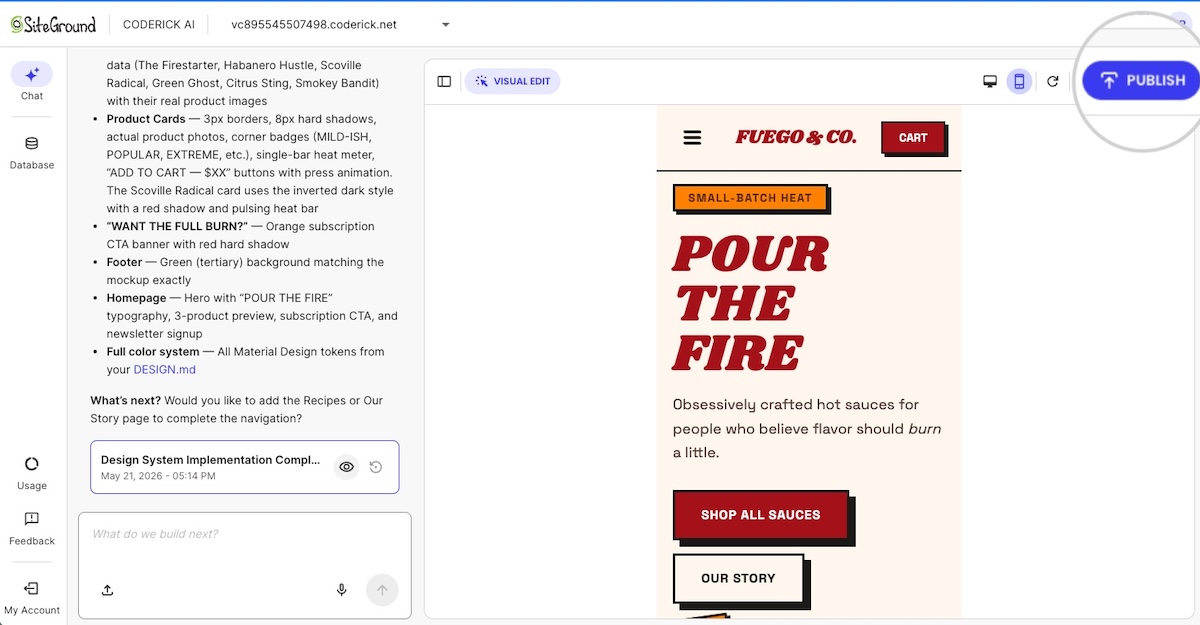
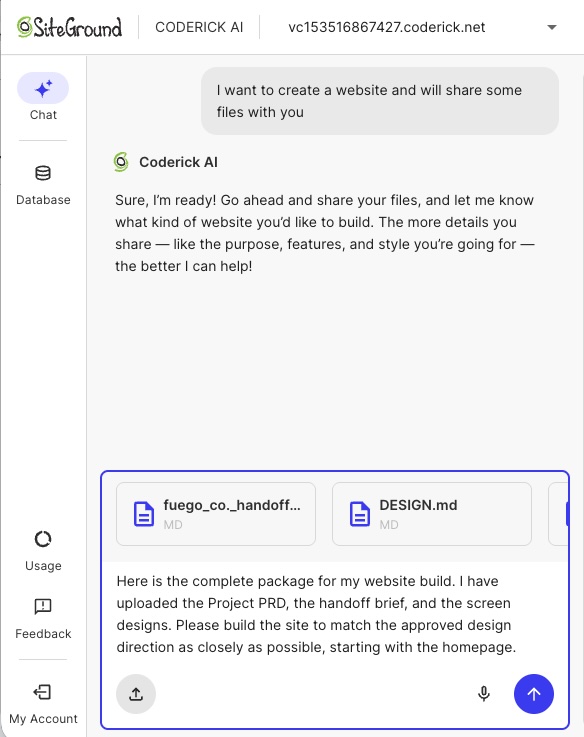
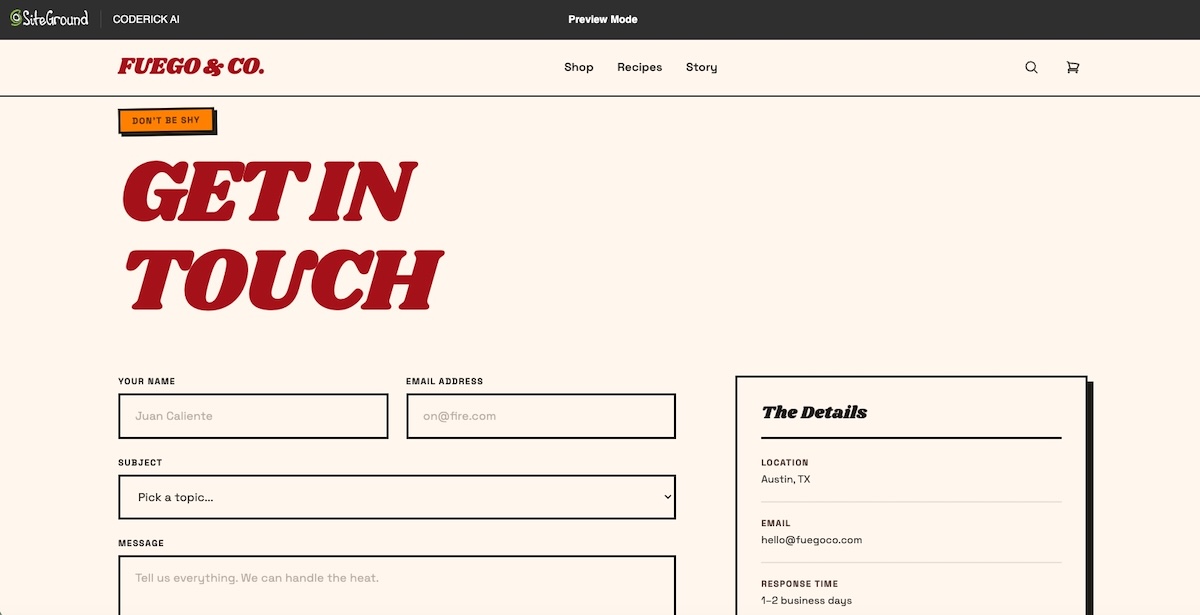
What if we told you you only need 60 minutes of setup to build a website with AI? You just have to start with one clear business goal, describe your offer, audience, pages, and the action you want visitors to take, and let the AI create a first draft. Then you review the structure, edit the copy, add your real details, test the forms and mobile layout, and publish once everything is accurate.

This guide walks you through the whole process, from picking your goal to running a final pre-launch check, and shows how all-in-one tools like Coderick AI take you all the way from a prompt to a good-looking, working business website in an hour.

Key takeaways:

  • Pick one goal first. The fastest way to build a website with AI is to decide what it should do: get leads, take bookings, or sell.
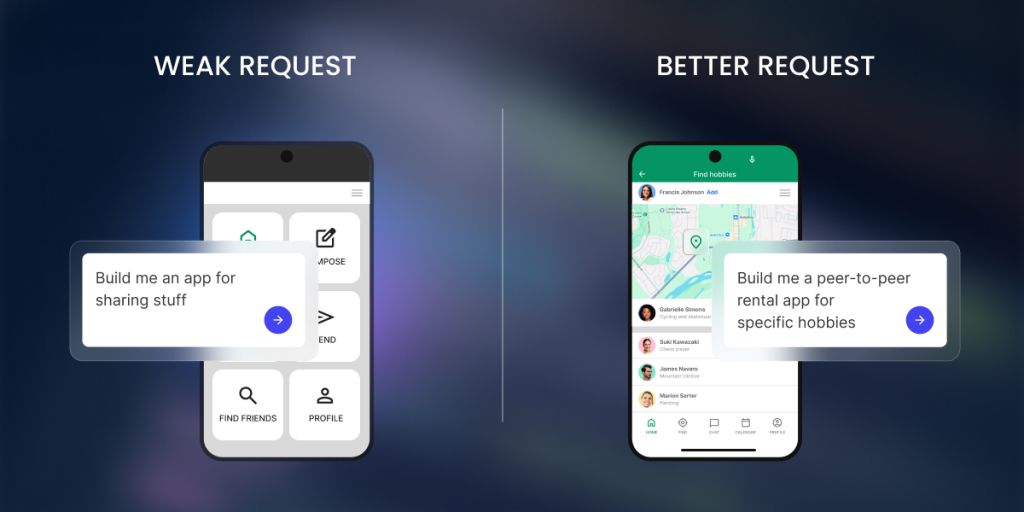
  • A strong first AI website prompt does the heavy lifting. Give the AI your business type, audience, offer, pages, tone, and main call to action (CTA), the main thing you want visitors to do.
  • A useful first version is simple. It needs a clear homepage, easy navigation, accurate details, and one working next step, not every section imaginable.
  • All-in-one solutions like Coderick AI take you from words to a working website. Describe the site, refine the draft in plain language, and publish it on SiteGround hosting when it is ready.
  • Review before you publish. Check the forms, mobile layout, contact details, page titles, policies, and the main CTA first.

What should your website do first: lead, book, or sell?

Before you write your first prompt, decide the one job your website has to do. It sounds almost too basic to matter, but this single choice shapes everything that follows: your layout, your wording, which pages you build, and where the buttons go.

Most small business websites exist to do one of three things: get leads, take bookings, or sell products. Picking one now shapes every choice that follows, and gives the AI a clear target to build toward.

Lead: get quote requests or contact form submissions

If you want your customers to get in touch so you can quote, advise, or close the deal, the site’s job is make the visitors message you. Everything should nudge the people toward a short contact or quote form: a clear headline, a visible button on every screen, and customer testimonials to make reaching out feel safe. This is the right goal for service businesses (like plumbers, consultants, lawyers, or agencies), where the sale happens in a conversation rather than on the page.

Book: let visitors schedule an appointment

If your income depends on a full calendar, the site’s job is to remove every excuse not to book. That means scheduling is the star of the show: easy to find and quick to complete. Businesses like salons, clinics, trainers, and studios live and die by this.

Sell: show products or take orders

If you sell products, the site has to make each product look worth buying and make buying feel easy. Good photos and engaging product descriptions are as important as a simple, obvious path to order.

Why one goal makes the AI output better

AI builds toward the goal you give it. Ask it for “a website” and it has no choice but to guess, so it hands you something generic that could belong to anyone. Ask it for “a site that gets quote requests from local homeowners” and suddenly every decision has a north star: the homepage leads with your service, the buttons say “Request a quote,” and the layout puts the form where people will see it. Your goal isn’t just a planning step for you, it’s the most useful single instruction you can give the AI.

What should you prepare before you build a website with AI?

The gap between an AI-built website draft that’s almost right and one that’s frustratingly generic usually comes down to a few minutes of prep. The AI can invent a plausible business out of thin air, but it can’t invent yours, so the more real detail you give it, the less placeholder filler you’ll have to undo later. You don’t need polished sentences, just the honest facts about your business gathered in one place. Here are the seven worth having ready.

Your business description

That’s literally one or two plain sentences on what you do and who you do it for. Resist the urge to dress it up: “I’m a mobile dog groomer serving north Austin” gives the AI far more to work with than “premium pet care solutions,” because concrete words produce concrete pages, while vague words produce vague ones.

Your audience

Name the people the site is for, because the same business speaks very differently to different customers. A bakery selling wedding cakes to couples planning a wedding reads nothing like one selling after-school treats to busy parents. Tell the AI who’s on the other end and it can aim the tone, the examples, and even the imagery at them.

Your offer or services

List the three to six things you actually sell or do, in the words your customers would use. This usually becomes your services or products section, and keeping it short is a feature, not a limit: a focused list is easier for a visitor to scan and easier for you to keep accurate as your business changes.

Your location or service area

State where you operate: a city, a travel radius, or “online only.” This shapes your contact details, tells local customers you actually serve them, and for a lot of small businesses, it’s sometimes the reason someone picks you over a big multinational corporation.

Your main CTA

Decide the single action you most want a visitor to take, like “Request a quote,” “Book now,” “Shop the collection,” and let everything else defer to it. A common early mistake is offering five things to do at once, which leads to none of them getting done. One clear next step almost always beats a menu of options.

Your brand details

Gather the bits that make the site unmistakably yours: your business name, a logo if you have one, and a rough sense of style: is your vibe clean and modern, warm and friendly, or bold and colorful? You don’t need a brand guide. Even three plain adjectives are enough to stop the AI defaulting to a generic look.

Your photos, reviews, and proof

Try to round up real photos, genuine customer reviews, and anything that proves you deliver. This is the single biggest upgrade you can make to an AI draft, because the placeholder images and invented quotes it ships with are exactly what make a site feel fake. Swapping in the real thing is what turns an AI-generated template into your business website.

How do you write AI website prompts that work?

Writing the first AI website prompt is where your prep pays off. You’re not after clever phrasing, you’re handing the AI the same facts you’d give a freelancer on a first call, in a sensible order. Cover these six things and it has nearly everything it needs to get close on the first try, which means less to fix afterward.

Start with the website type

Open with what you’re building and for which business, because the first thing you say frames everything after it. For example, a prompt like “Build a website for a family-run bakery” already tells the AI the industry, the likely pages, and the tone, before you’ve specified any of them.

Name the audience

Add who it’s for: “for local customers looking for custom cakes and everyday bread.” This points the AI at the right register (in this case, friendly and local rather than corporate) and helps it choose examples and images that actually fit your customers.

List the pages you need

Spell out the pages so the AI builds the structure you want instead of the one it assumes: “Include a homepage, menu, about, and contact page.” Naming them keeps things lean, since leaving it open often gets you extra pages you then have to delete.

State the main action

Name the one thing you want visitors to do, and the AI will design toward it: “Make the main action placing a custom cake order through a form.” This tells it where to put the emphasis and what every button is ultimately for.

Add tone and style notes

The AI can build almost any look, but it can’t read your mind, so a few words on feel go a long way, for example: “Use a warm, friendly design with soft colors and large photos.” It’s far easier to steer the first draft than to redecorate later, so spend the words up front.

Include must-have details

Finish with the specifics that simply have to be right: your location, hours, phone number, and any real selling point. “We’re in Portland, open Tuesday to Sunday, and everything is baked fresh daily.” Handing these over now means fewer placeholders to hunt down before launch.


A reusable prompt template

Build a website for [business type] that helps [audience] [main goal].
Include [pages], Use a [tone/style] design, and make the main call to action [CTA].
The site should highlight [services/products/proof] and make it easy to [contact/book/buy].

Filled in for that bakery, it might read: 

“Build a website for an artisanal, family-run bakery that helps local neighbors and event hosts order custom cakes for special occasions. Include a high-converting Homepage, Menu, About page, and a Contact page. Use appetizing images of cakes, and make the main call to action “Order a Custom Cake”. The site should highlight our custom cakes and make it easy to place an order.” 

Notice how little of that is clever writing. It’s almost entirely your prep, arranged in order. Here’s what SiteGround’s Coderick AI makes with this basic first prompt:

A website hero section for "Hearth & Crumb," featuring a top navigation bar with links for Home, Menu, About, Contact, and a prominent orange button reading "Order a Custom Cake." The background displays a rich close-up photo of a chocolate layer cake with chocolate drip icing, frosting swirls, and sprinkles. Overlaid on the left side is the tag "FAMILY-RUN ARTISANAL BAKERY," the main headline "Cakes Baked with Heart & Heritage," and descriptive text reading "Every celebration deserves a centerpiece crafted by hand, with the finest ingredients and generations of baking tradition." Two call-to-action buttons sit at the bottom: a solid orange button reading "Order a Custom Cake →" and an outlined button reading "Browse Our Menu."

What pages should your AI-generated business website include?

Most AI-generated business websites need far fewer pages than you’d think. Building a sprawling site is a common early mistake, and a focused handful of strong pages almost always beats it, because visitors don’t explore, they skim for the one thing they came for.
Start with the essentials below, and add more only when there’s a real reason to.

Homepage

The homepage is the one page nearly everyone sees, so it has to answer three questions in seconds: what you offer, who it’s for, and what to do next. Put your main call to action near the top, above the fold (the part visitors see before they scroll), because plenty of people decide whether to stay or leave without scrolling at all.

Services or products page

This is where interest turns into intent, so make it concrete. Lay out what you sell or do in plain terms, with either clear prices or an obvious way to ask for them. Vagueness here is expensive: a visitor who can’t tell what you offer, or roughly what it costs, usually leaves rather than emailing to find out.

About page

People are wary of buying from a business that could be anyone, and the About page is where you stop being anonymous. A real story, a face, and a genuine reason you do this work build more confidence than any list of features. It’s often the most-visited page after the homepage, precisely because trust is what people are really shopping for.

Contact page

Make getting in touch easy: a simple form, your phone number, email, and where you’re based. If your goal is leads, this is arguably your most important page, so don’t hide behind a form alone. Some people want to call, and every barrier you remove between a curious visitor and you is a customer you keep.

Reviews, portfolio, or proof page

As mentioned, testimonials, past work, and before-and-afters let other people vouch for you, which lands far harder than praising yourself. Even a small number of specific, named reviews can tip a hesitant visitor into acting.

Policies, if needed

If you take money or bookings, a few plain policies (for example, returns, privacy, and cancellations) reassure people at the exact moment they’re deciding to trust you with their details. Only add what applies to you; a page of boilerplate nobody needs just adds clutter.

Website goalCore pagesMain CTA
Get leadsHome, services, about, contactRequest a quote
Book appointmentsHome, services, booking, contactBook now
Sell productsHome, products, cart/checkout, policiesBuy now

How do you generate and edit the first version fast?

The moment the AI hands you a draft, there’s a strong pull to start fixing words. Resist it. The fastest route to a publishable site is to work from the outside in, structure before sentences, because there’s no point polishing copy on a page you might delete. Here’s the order that wastes the least effort.

Review the homepage first

It carries the most weight and sets the tone for everything else, so judge it before anything else. Does the headline say what you do? Is the offer clear? Does the main button point where you want people to go? If the homepage works, the rest of the site gets much easier to fix.

Check navigation before copy

Look at the menu before you read a single paragraph. Are the right pages there, in a sensible order, with nothing missing or doubled up? Getting the skeleton right first means you’re never rewriting text on a page that shouldn’t have existed in the first place.

Fix the headline and CTA

Your headline and main button do more work than everything else on the site combined, so give them the most attention. A headline should say plainly what you do and for whom; a button should say exactly what happens when it’s clicked. “Get your free quote” beats “Submit” every time, because it tells the visitor what they’re getting.

Remove sections you do not need

AI tends to pad, adding generic “Our mission” or “Why choose us” blocks to fill space. Delete anything that doesn’t serve your one goal. A short page that carries people toward the next step beats a long one that makes them scroll past filler to find it.

Rename pages and buttons

Swap clever or vague labels for plain ones. “Services” is clearer than “What we offer,” and “Book now” beats “Learn more” when booking is the point. Clarity almost always converts better than cleverness, because a visitor who has to pause and decode a label often just doesn’t click.

Ask for one change at a time

When you refine, give one instruction, check the result, then give the next. It feels slower but it’s faster overall: you can always see exactly what a change did, and it’s easy to undo a single step when something goes sideways, rather than untangling 10 changes at once.

Check what the AI made up: AI writes confident, professional-sounding text, and to fill the gaps you left, it will happily invent details: a phone number, an opening time, a glowing five-star review, a price. It’s just guessing, but a guessed phone number is just as wrong as a made-up one. Before you publish, treat every specific fact on the site as a placeholder until you’ve checked it against reality. The most damaging website mistakes aren’t broken layouts, they’re wrong contact details and claims you can’t stand behind.

What trust blocks should you add before launch?

A website can look polished and still fail, because looking professional and feeling trustworthy aren’t the same thing. A stranger deciding whether to hand you money, or even just their phone number, is scanning for reasons to believe you’re real and reliable. Trust blocks are those reasons made visible. Add the ones that fit your business, and place them where hesitation happens: near your prices and your buttons.

Reviews and testimonials

We’re mentioning this again because nothing you say about yourself carries the weight of what a customer says about you. A few specific reviews, ideally with real names and details (“booked me in same-day when my boiler died”), beat a page of adjectives, because specifics ring true while generic praise reads as invented.

Before-and-after examples or portfolio

For any business where the result is something you can see (like cleaners, landscapers, designers, or stylists), showing the work is more persuasive than describing it. A before-and-after does in a single glance what a paragraph can’t: it proves you can actually deliver the outcome the visitor is hoping for.

Credentials, licenses, or guarantees

Licenses, certifications, insurance, or a simple guarantee all do the same job: they lower the risk of choosing you. A short line like “fully insured” or “satisfaction guaranteed or your money back” can be the small reassurance that turns a maybe into a yes.

Address, phone number, and service area

A real address, a working phone number, and a service area tell a visitor there’s an actual business behind the site. It sounds basic, but missing or vague contact details are one of the fastest ways to make a site feel like a scam, even when it plainly isn’t.

Privacy, returns, or booking policies

Clear, plain-language policies reassure people at the precise moment they’re deciding to trust you, right before they pay or book. They don’t need to be long or lawyerly, they need to be easy to find and easy to understand, so no one hesitates over what happens if something goes wrong.

Clear pricing or “request a quote” language

Price is the question on nearly every visitor’s mind, so don’t dodge it. Either show your prices or make it obvious and easy to get them. Hiding pricing entirely is one of the most common reasons people leave a small business site: they assume the worst and move on to a competitor who was upfront.

What is the 12-point launch checklist for an AI-built website?

Before you launch an AI-built website, run one final check. This final check can catch the small, easily avoidable things: a typo’d phone number, a form that goes nowhere, that quietly cost real customers. It takes only a few minutes, and it’s the difference between a site that works and one that merely looks like it does.

  1. Main CTA is visible above the fold (before scrolling).
  2. Contact form sends to the right inbox.
  3. Booking or checkout flow works from start to finish.
  4. Phone number and email are correct.
  5. Address or service area is accurate.
  6. Mobile layout is readable on a real phone.
  7. Buttons are big enough to tap easily.
  8. Images load and have alt text (short descriptions that aid accessibility and image search).
  9. Page titles are unique for each page.
  10. Each page has one clear main heading (H1).
  11. Policies and any claims are accurate.
  12. Domain, SSL (the padlock that secures your site), and publishing settings are ready.

How does Coderick AI take you from prompt to published website?

Building with AI is the fun bit. You describe your site, watch the pages appear, tweak the words, and you can be ready in 60 minutes. Then the questions start: Where does this thing actually live? How do people find it? Is it secure? What happens when it’s time to swap the temporary address for your real one?

That’s hosting, a database, security, and a domain, and it’s exactly where most AI website tools hand you the keys and walk off, leaving you to wire it all together with extra logins, extra bills, and a weekend you weren’t planning to spend.

Coderick AI was built to answer all those questions. It’s a full build-and-publish platform rather than just a page generator, so describing, refining, hosting, and publishing all happen in one place. Coderick AI includes premium built-in hosting, database support when your site needs it, the same infrastructure that runs millions of SiteGround sites, and a custom domain on paid plans. You build the site, and it’s already home.
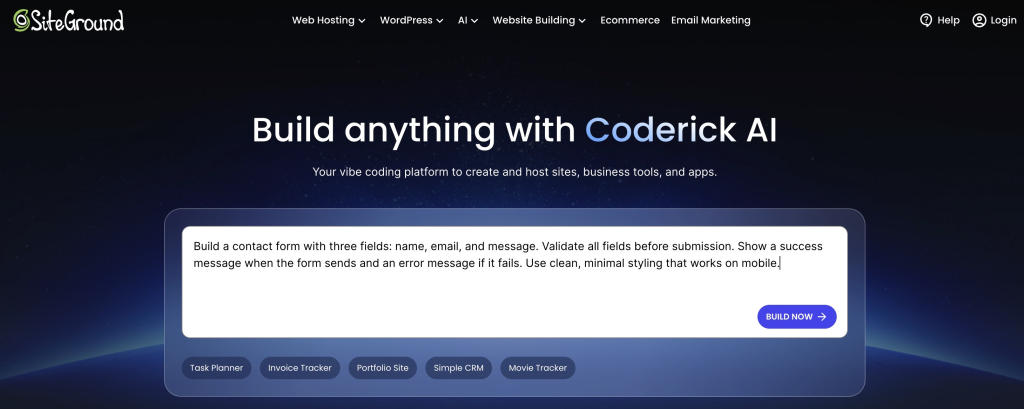
SiteGround Coderick AI homepage with a prompt input field and quick-start options for building sites, tools, and apps

It runs real features, not just static pages

Plenty of AI tools generate good-looking pages that only display information. If your site needs to do something, (take a booking, capture sign-ups, store enquiries), it needs a database behind it, and Coderick AI sets that up for you automatically when your project calls for one. You get a site that works, not just one that looks the part.

Hosting, security, and speed are part of the deal

There’s no separate host to find or configure. Coderick AI includes premium hosting, your pages run on SiteGround’s infrastructure, and the security that protects them is handled from the moment you go live. The tool that builds your site is the one that keeps it running, so nothing gets bolted on afterward.

You publish in one click, then point your domain at it

When the site ready, publishing happens inside Coderick AI with a single click: no export step, no separate deployment workflow. You can launch on a temporary web address while you polish, then connect your own custom domain (your yourbusiness.com) on a paid plan when it’s time for customers to find you.

Ready to build?

[96]

FAQs

Can I build a website with AI without coding?

Yes. You can build a website with AI withno coding required. You describe your business, audience, pages, and goal in plain language, and the AI builds the first version. Tools like Coderick AI generate the draft, then you review it, edit the details, test the forms and mobile layout, and publish when it’s ready.

What should I include in my first AI website prompt?

Include the business type, target audience, site goal, pages, services or products, brand tone, location, and main call to action. For example, tell Coderick AI whether the site should generate leads, take bookings, or sell products.

How long does it take to build a website with AI?

A simple business site can reach a useful first draft in minutes, but a publishable version still needs review. Plan time to edit the copy, replace placeholders, check the mobile layout, test the forms, add trust details, and verify your contact information before going live.

What pages should an AI-built business website include?

Most small business sites need a homepage, a services or products page, an about page, a contact page, and some trust elements such as reviews, portfolio examples, or policies. The exact page map depends on your goal: leads, bookings, or sales.

Can Coderick AI build a website from a short description?

Yes. Coderick AI can create a website from a plain-language description of what you need. Better results come from giving clear context: what your business does, who the site is for, what pages you need, and what action visitors should take.

What should I check before publishing an AI-built website?

Check the main CTA, forms, booking or checkout flow, mobile layout, contact details, images, page titles, policies, and any claims the AI generated. Treat the first version as a strong draft that needs your real business facts before it goes live.

Are AI-built websites mobile-friendly?

Most modern AI website tools generate layouts that adapt to phones, but you should still test on a real device. Check spacing, readable text, tap targets, images, and forms. Mobile review is a key step before publishing.

Can I launch a business website fast with Coderick AI?

Yes. Coderick AI helps you describe a site, generate a draft, refine it, and publish on SiteGround hosting when the website is ready. The fastest path is to start with one goal, use a clear prompt, edit only what matters first, then run a short launch checklist.

What is the biggest mistake when building a website with AI?

Publishing the first draft without review. AI creates structure, copy, and design quickly, but you need to check pricing, contact information, policies, guarantees, testimonials, forms, mobile layout, and the main CTA before sending visitors to the site.
Choose the right WordPress AI tool for your business: AI agents for WordPress vs. AI plugins

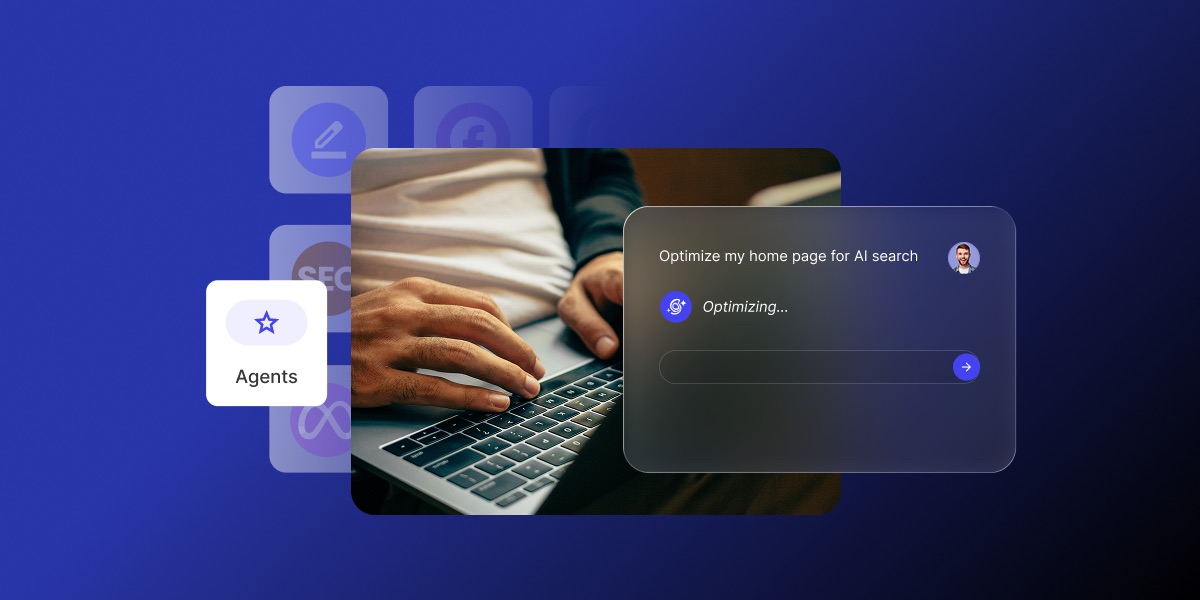
AI agent interface optimizing a website page, shown over a laptop image with plugin-style icons in the background.

The best way to pick a WordPress AI tool is to stop sorting by category and start sorting by job. A content plugin helps write. An SEO plugin helps optimize titles and metadata. A chatbot answers visitors. An AI agent helps manage site operations through natural language prompts. Match the tool to the task, and the rest of the decision falls into place.

WordPress AI tools fall into two broad groups: AI plugins that add one focused capability to your site, and AI agents that carry out WordPress management tasks through natural language prompts. Plugins suggest and generate. Agents act on the site. Knowing which group fits your goal is most of the decision. For a closer look at the second model, see how SiteGround’s AI Agent manages WordPress beyond content generation.

Key takeaways:

  • WordPress AI tools split into two groups: single-purpose AI plugins, and AI agents that run site-management tasks from a prompt.
  • Many WordPress AI plugins are built around one primary problem, with the five most common being content writing, SEO metadata, visitor chat, image generation, and page design.
  • An AI Agent for WordPress is built around tasks across content, SEO, WooCommerce products, plugins, themes, users, maintenance, and settings, not around generating text alone.
  • Many generic AI plugins ask you to bring your own API key from an AI provider; on SiteGround-hosted sites, the AI Agent for WordPress runs through AI Studio with no separate key or subscription.
  • The right pick depends on the business job: content plugins help you create, SEO plugins help you optimize, chatbots help you support, and AI agents help you operate the site.

The business decision: do you need an AI plugin or an AI agent for WordPress?

Start with the problem, not the product label. Most small businesses do not care whether a WordPress AI tool is technically a “plugin” or an “agent.” They care whether it saves time, cuts manual work, publishes faster, improves rankings, supports customers, or keeps the site running. The split that decides all of that is simple: a plugin hands you a suggestion to apply yourself, while an agent carries out the change on the site. If you are still mapping the wider field, a roundup of the AI tools for business worth shortlisting is a useful starting point.

Choose an AI plugin when you need one focused feature

Pick a WordPress AI plugin when the job is narrow and repeatable: draft blog posts, write product descriptions, generate SEO titles and meta descriptions, or add a support chatbot. A single-feature AI plugin does that one thing well and stays out of the rest of your site. You install it, point it at the task, and move on.

Choose an AI Agent for WordPress when you need site-management help

Pick an agent when the job spans the whole WordPress admin, not one box. Reorganizing content, updating WooCommerce products, managing users, adjusting settings, or handling routine maintenance are operational tasks, and an AI Agent for WordPress is designed to carry them out from a prompt rather than hand you text to paste somewhere yourself. The difference is execution: over dozens of small WordPress admin tasks a week, the saved copy-paste step is where the time adds up.

How the two compare across common business needs:

Business needTypical AI pluginAI Agent for WordPress
Write a blog draftGenerates textCan help create and organize content
Create SEO metadataSuggests a title or descriptionCan help apply site-level content changes, depending on capability
Answer visitor questionsAdds a frontend chatbotUsually focuses on admin or site-owner tasks
Update plugins or themesUsually outside scopeCan help manage plugins and themes where supported
Manage WooCommerceOften limited to contentCan help with products, orders, reports, and store tasks where supported
Change settingsUsually outside scopeCan help adjust settings where supported
Safety controlsVaries by pluginMay include confirmations, permissions, and restricted actions

What are WordPress AI plugins?

WordPress AI plugins are add-ons that bring focused AI features into a WordPress site. They usually focus on one use case: generating content, writing SEO titles and meta descriptions, answering visitor questions, creating designs, or connecting WordPress to AI models through an API. They behave like any other plugin you would find among the thousands of WordPress plugins in the directory, except the feature they add is powered by a language or image model.

AI content generator plugins

These AI content plugins write and rewrite text inside the editor: blog drafts, summaries, product descriptions, and outlines. Jetpack AI and AI Engine are common examples. The output is a draft you review and publish, so a human still owns the final copy.

AI SEO assistant plugins

These focus on optimization: suggested titles, meta descriptions, content scoring, and schema support. Rank Math and Yoast AI sit here. They tell you how to improve a page; they do not run wider site operations.

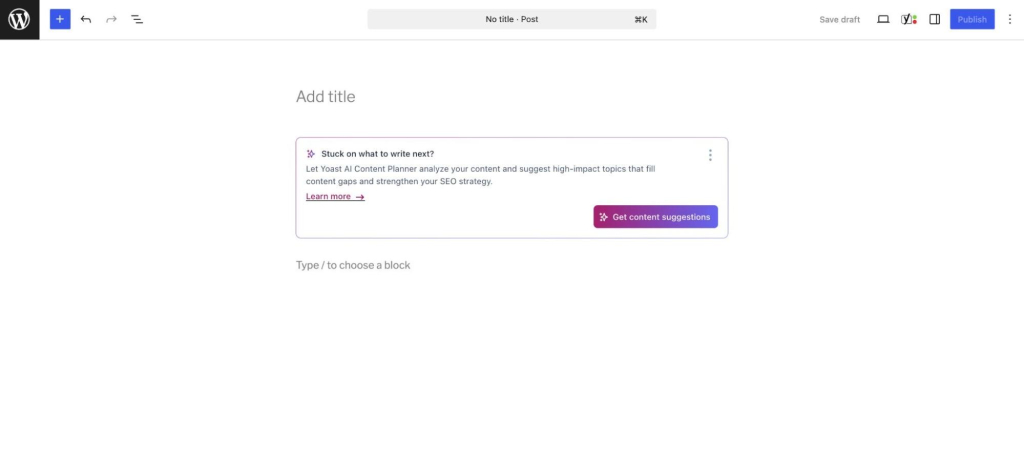
WordPress block editor with an untitled new post, showing a Yoast AI Content Planner prompt ("Stuck on what to write next?") offering a "Get content suggestions" button above the empty content area.

AI chatbot plugins

These add a frontend assistant that answers visitor questions and captures leads. Tidio is a well-known example. The work happens on the public side of your site, talking to customers, rather than in the admin.

AI page builder and design tools

These generate layouts, sections, and visual content. Elementor’s Angie assistant is one example. They speed up design work but stay inside the builder rather than managing plugins, users settings, or WooCommerce products, store data.

AI framework and toolkit plugins

AI Engine and similar toolkits give developers a way to connect WordPress to AI models, build custom workflows, and call APIs directly. They trade ease of setup for flexibility, which makes them an advanced choice rather than a first pick for non-technical owners.

What is an AI Agent for WordPress?

An AI Agent for WordPress is an AI assistant that understands site context and helps carry out WordPress management tasks through natural language prompts. Instead of only generating text, a WordPress AI agent can help manage content, plugins, users, settings, WooCommerce data, and maintenance workflows, depending on its permissions and how deeply it integrates with the site. This is the same shift toward AI that does the work that runs through making AI useful for your business inside WordPress itself.

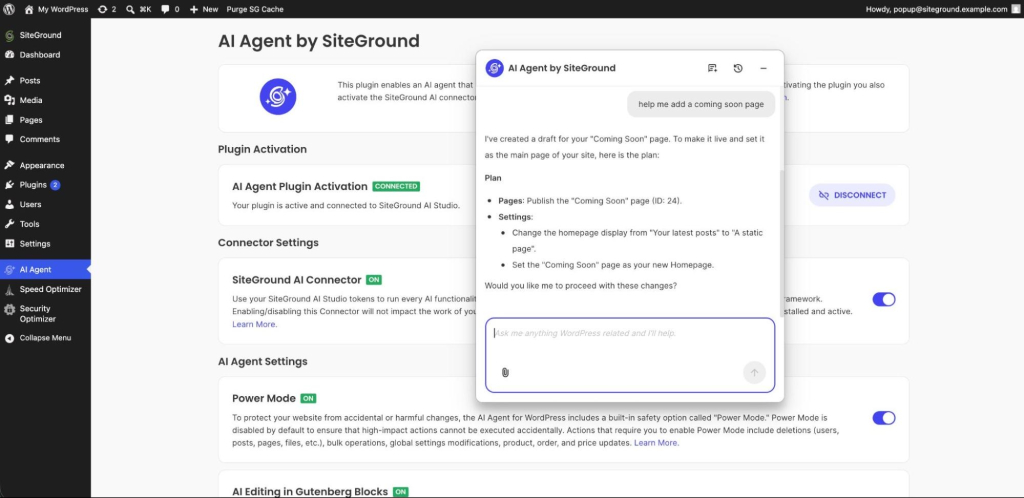
WordPress admin AI Agent settings page with the SiteGround chat assistant open, presenting a step-by-step plan to publish a "Coming Soon" page and set it as the site homepage, asking for confirmation to proceed.

AI agents are built around tasks, not just text

The defining trait of an AI Agent for WordPress is that it completes tasks. Ask it to update a set of WooCommerce product prices or tidy a category structure, and it works through the steps rather than handing you a paragraph about how to do it. Text generation is one thing it can do, not the whole job.

How an AI Agent for WordPress uses site context

Site context is the current state of your installation: posts and pages, active plugins and themes, registered users and their roles, configured settings, and WooCommerce products and orders. An agent reads that state, which is what lets it act precisely. A generic chatbot answering from a blank slate cannot tell you which of your plugins is out of date; an agent with site access can read your posts to find the ten without a meta description, then write to all ten in a pass. Depth of access sets the ceiling on how much manual work a tool can remove, which makes it useful for audits, bulk changes, and site-wide cleanups.

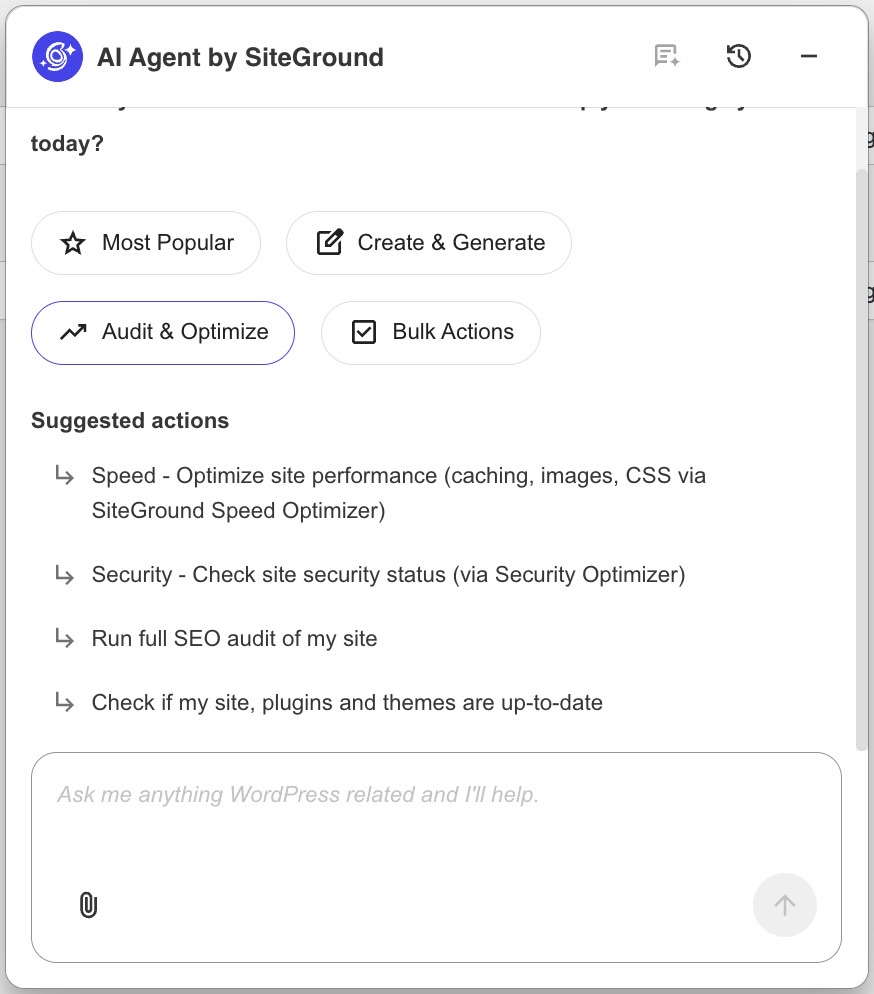
AI Agent by SiteGround chat panel with category buttons (Most Popular, Create & Generate, Audit & Optimize, Bulk Actions) and a list of suggested actions for site speed, security, SEO audit, and update checks.

Why natural language prompts change the workflow

With an agent, the interface is a sentence. “Find posts published last year with no featured image” replaces a manual sweep through the admin. The prompt describes the outcome, and the agent maps it to the WordPress actions needed. For a non-technical owner, that removes the step of knowing exactly where each setting lives.

Setup differences: API keys, hosted services, and configuration

Setup is where many small businesses stall. The split is between tools that ask you to supply your own AI provider key and tools that handle the AI service for you. That choice decides how much technical work happens before you can do anything useful, and it is often the difference between a tool you adopt and one you abandon during onboarding.

Why API keys create friction for non-technical users

A bring-your-own-key WordPress AI plugin asks you to open an account with an AI provider such as OpenAI, generate an API key, paste it into a settings field, and manage billing and usage limits separately. Each of those is a small hurdle, and together they stop non-technical owners before the first prompt. Getting a feature running without touching code or external accounts removes that wall entirely.

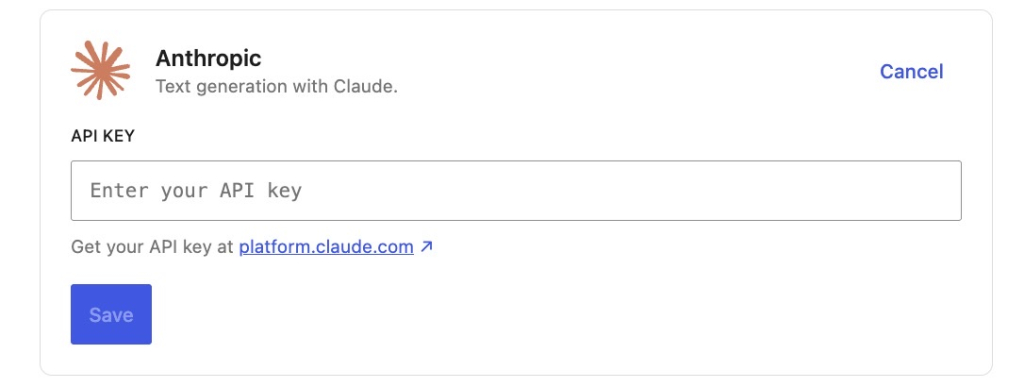
Anthropic connector setup panel titled "Text generation with Claude," with an empty API key input field, a link to get an API key at platform.claude.com, and a Save button.

When plugin configuration gives developers more flexibility

For developers and agencies, the API-key route is a feature, not a cost. It lets you pick the exact model, control spending at the provider level, and wire AI into custom workflows. The friction that blocks a non-technical owner is the same control a developer may need. The audience decides whether configuration is a burden or a benefit.

Why hosted AI services can be easier for small businesses

A hosted approach folds the AI service into the product. On SiteGround-hosted WordPress sites, the AI Agent for WordPress runs through SiteGround AI Studio without requiring separate AI provider API keys or subscriptions, so there is nothing to wire up before you start. For a small business, fewer setup steps usually means the tool actually gets used.

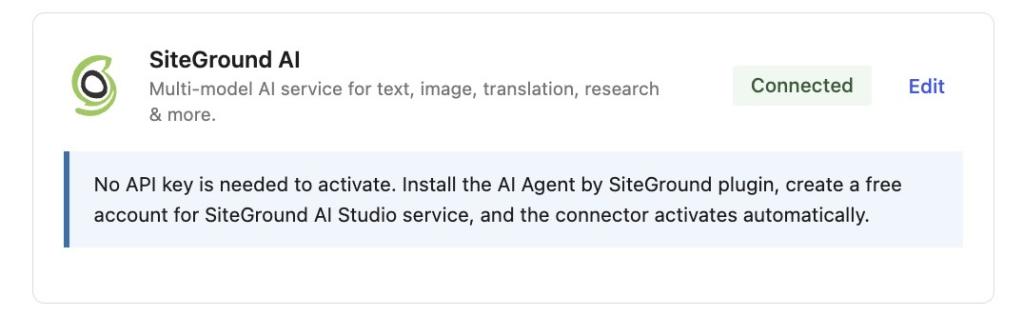
SiteGround AI connector card showing a "Connected" status badge and Edit link, with a note that no API key is needed — install the AI Agent by SiteGround plugin and create a free SiteGround AI Studio account to activate automatically.

Safety and control: why permissions matter for WordPress AI

Safety matters because a tool that can change your site needs clear limits. For low-risk tasks, AI can speed up drafting and editing with little downside. For higher-impact actions such as deleting plugins, changing settings, or editing live store data, the workflow should include permissions, confirmations, backups, and human review. The same principle of least privilege that governs WordPress user roles should govern what an AI tool is allowed to do.

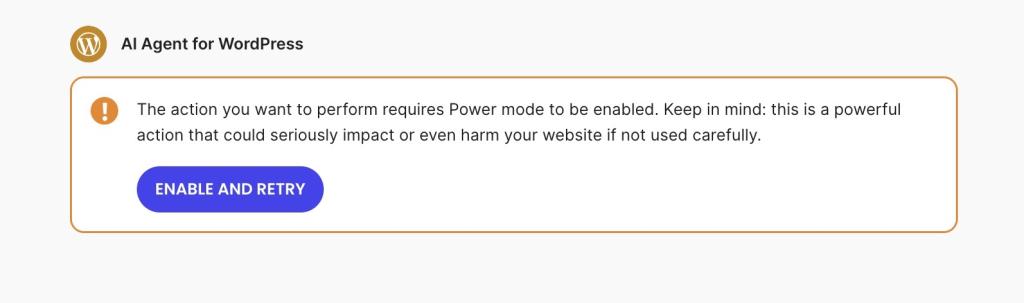
AI Agent for WordPress warning message stating the requested action requires Power Mode to be enabled, cautioning it could harm the website, with an "Enable and Retry" button.

Some AI tasks are low risk

Drafting a post, rewriting a paragraph, or suggesting a meta title changes nothing live until you approve it. These tasks are reversible and contained, so they need little more than a quick read before you accept the result. Speed is the main benefit and the risk is close to zero.

Some WordPress actions need confirmation

Deleting a plugin, editing a published product price, or changing a core setting can break a live site or affect real orders. Actions like these should require explicit confirmation before they run. SiteGround’s AI Agent for WordPress includes Power Mode, a safeguard for actions that could cause unintended or harmful changes to the site. 

Human review should stay part of the workflow

AI-assisted WordPress management should not mean walking away. Publishing, deleting, updating, and editing live data all deserve a human check, no matter how capable the tool. Keep a recent backup, use role-based access so only the right people can trigger high-impact actions, and treat AI output as a strong draft rather than a final decision.

Which WordPress AI tool should a small business choose?

Choose by the job in front of you. There is rarely a single “best” WordPress AI tool, only the right fit for a specific task, and on a WordPress site that often means running a few specialized tools alongside a sound WordPress SEO setup rather than expecting one tool to do everything. The table below maps common goals to the tool that handles them.

Choose an AI content plugin for writing assistance

If your bottleneck is producing copy, a content plugin is the answer. Blog drafts, rewrites, summaries, and product descriptions are exactly what these tools do, and they keep you in the editor where that work belongs.

Choose an AI SEO plugin for metadata and optimization guidance

If you need help with titles, meta descriptions, content scoring, and schema, an SEO plugin is built for it. Rank Math and Yoast give structured, page-by-page guidance that a general content tool will not.

Choose an AI chatbot for visitor support

If visitors ask the same questions and you are losing leads after hours, a chatbot covers the frontend. It answers around the clock and captures details you would otherwise miss.

Choose an AI Agent for WordPress for site operations

If the work is operational, reorganizing content, managing WooCommerce, updating plugins, handling users, or changing settings, an AI Agent for WordPress is the fit. It acts across the admin instead of one screen. See which businesses benefit most from an AI Agent for WordPress across blogs, stores, agencies, and service sites.

Use plugins and an agent together when they solve different problems

These categories are not mutually exclusive, and for most growing sites the right setup combines them. Let SEO plugins own technical checks, schema, and content scoring; let a chatbot handle frontend conversations; and let an AI Agent for WordPress run the operational admin work between them. A hybrid WordPress AI stack makes sense when each one removes a different kind of work.

Choose thisWhen you need
AI content pluginBlog drafts, rewrites, summaries, product descriptions
AI SEO pluginSEO titles, meta descriptions, content scoring, schema support
AI chatbotFrontend customer support and lead capture
AI page builderLayouts, designs, sections, visual content
AI framework/toolkitDeveloper control, custom workflows, API flexibility
AI Agent for WordPressSite management, WordPress operations, admin workflows, WooCommerce tasks

Final recommendation: match the WordPress AI tool to the business job

The decision comes down to one question: do you need a WordPress AI tool that produces output, or an AI Agent for WordPress that helps operate your site? Pick a plugin for a single repeatable job, pick an AI agent for site management, run both when they cover different work, and keep human review on anything that touches live data. Decide by the outcome you need and by what each tool can actually change on your site.

If you are choosing between an AI Agent, plugins, manual WordPress admin, a virtual assistant, or a developer, use the broader guide to choosing the right WordPress management approach.

If the work you keep putting off is operational, the kind that lives in the WordPress admin rather than the editor, a hosted WordPress AI assistant is the lowest-friction place to start. SiteGround AI Studio brings an AI Agent for WordPress to SiteGround-hosted sites with no separate AI provider API key to manage, so you can move from deciding to doing in the same afternoon. 

[97]


Frequently asked questions

What is the difference between a WordPress AI plugin and a WordPress AI agent?

A WordPress AI plugin usually adds one AI feature to WordPress, such as content writing, SEO metadata, chatbot support, or image generation. A WordPress AI agent is built to help manage WordPress tasks through natural language prompts, including site operations across content, users, plugins, settings, and WooCommerce where supported.

Is SiteGround AI Agent for WordPress a plugin or an AI agent?

SiteGround AI Agent for WordPress uses the AI Agent by SiteGround plugin to connect WordPress with SiteGround AI Studio, but the agent itself is better understood as a site-management assistant. The plugin creates the connection, while the AI Agent for WordPress handles management tasks through chat.

Do I need an API key to use SiteGround AI Agent for WordPress?

For SiteGround-hosted WordPress sites, the AI Agent for WordPress handles AI services through AI Studio without separate API keys or subscriptions. Many generic AI plugins, by contrast, require you to bring your own API key for an AI provider.

Can AI plugins manage my WordPress site like an AI Agent for WordPress?

Some AI plugins can help with specific WordPress tasks, but most are focused on content, SEO, chat, design, or API integrations. An AI Agent for WordPress is designed for broader site-management workflows when it has the right site access, permissions, and safeguards.

Should small businesses choose AI plugins or a WordPress AI agent?

Small businesses should choose based on the job. Among WordPress AI tools, use an AI content plugin for writing, an AI SEO plugin for optimization guidance, an AI chatbot for customer support, and an AI Agent for WordPress for site-management tasks such as content organization, WooCommerce updates, plugin management, user tasks, and settings changes.

Can I use an AI Agent for WordPress with SEO plugins like Yoast or Rank Math?

Yes. An AI Agent for WordPress works alongside SEO plugins. SEO plugins are useful for technical SEO checks, titles, meta descriptions, schema, and content scoring, while an AI Agent for WordPress helps with broader WordPress management tasks.

Is an AI Agent for WordPress safer than a regular AI plugin?

Safety depends on the tool, its permissions, and how it handles high-impact actions. SiteGround’s AI Agent for WordPress includes Power Mode — see how SiteGround built Power Mode for safe AI site management — a safeguard for actions that could cause unintended or harmful website changes. Human review still matters for publishing, deleting, updating, or changing live site data.

What can SiteGround AI Agent for WordPress do that ChatGPT cannot do by itself?

ChatGPT can generate advice, drafts, and instructions, but it does not directly manage your WordPress site unless it is connected through a tool or integration. SiteGround AI Agent for WordPress connects to WordPress through SiteGround AI Studio and can help manage real site tasks from the AI Studio interface or inside WordPress admin.

Can a WordPress AI agent replace all AI plugins?

No. A WordPress AI agent can reduce the need for some single-purpose tools, but it does not replace every AI plugin. A business may still use AI SEO plugins, frontend chatbots, AI design tools, or developer frameworks when those tools solve a specific need.

Turn WordPress admin work into simple conversations: 25 WordPress AI Agent prompts

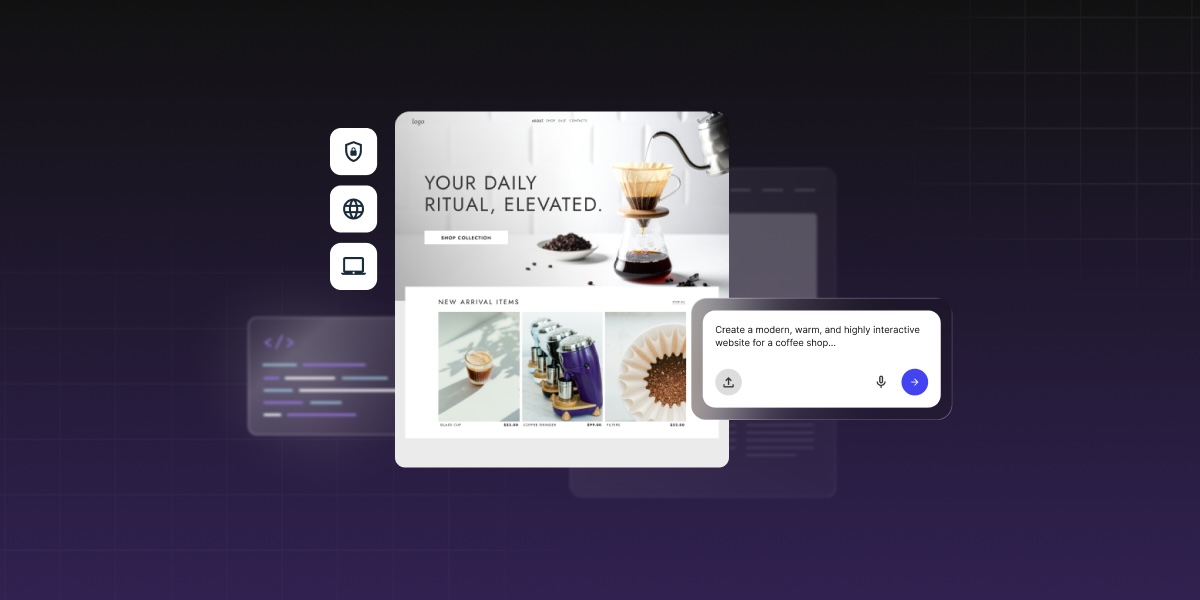
Man working on a laptop next to a WordPress homepage editor, with a prompt asking AI Agent to generate variants for the header

The SiteGround AI Agent for WordPress is not a chatbot: it’s connected to your WordPress site so prompts can become site-management actions. With the right AI Agent for WordPress prompts, you can instruct it to create post drafts, manage WooCommerce products and reports, review plugin update risks, and prepare SEO metadata, all through a conversation, instead of clicking through multiple wp-admin screens.

This is a library of 25 ready-to-copy prompts, organized by admin task type, plus a simple framework for writing your own WordPress AI prompts.

Key takeaways:

  • SiteGround AI Agent prompts turn WordPress admin tasks into natural-language instructions that can create, edit, update, organize, or review site content and settings — the agent works with your connected site, not just with text.
  • The strongest WordPress AI Agent prompts follow one repeatable pattern: area → item → action → constraint → review.
  • Prompting the AI Agent for WordPress differs from prompting ChatGPT because the agent can act inside a connected WordPress site, not just generate text for you to copy elsewhere.
  • Safer AI agent prompts include review-first language like “show me before applying,” “save as draft,” “back up first,” or “ask before deleting” — these protect you from changes you didn’t intend.
  • Vague prompts produce vague results. The fix is almost always adding the specific item name, an action verb, and a constraint.

How are AI agents for WordPress prompts different from ChatGPT prompts?

ChatGPT returns text you copy into WordPress yourself. The SiteGround AI Agent for WordPress is connected to your site, so a prompt can create a post draft, update a product, or check plugin risks directly, without you opening wp-admin.

ChatGPTSiteGround AI Agent
What it doesGenerates textActs on your connected WordPress site
Where the output goesYou copy it into WordPress manuallyDirectly into posts, products, settings
Risk of a vague promptImperfect text you editA change applied in the wrong place
Review step neededOptionalRecommended for most tasks

ChatGPT prompts usually generate text

When you ask ChatGPT to write a blog post, it returns text. You copy it, open wp-admin, create a new post, paste the content, add a category, write an excerpt, and hit publish yourself. 

The same goes for meta descriptions, product copy, alt text, or plugin recommendations: the AI generates; you do the WordPress work.

AI Agent prompts can trigger WordPress actions

The SiteGround AI Agent for WordPress is connected to your site. A prompt like “Create a draft blog post titled ‘How to speed up your WooCommerce store’ in the Performance category” doesn’t just return a copy; it can create the actual WordPress post draft, with the right category attached, ready for your review.

That gap between generating and doing is where the AI Agent for WordPress earns its place. You’re not managing two windows. You’re having one conversation that reaches into your site. For a broader look at its capabilities, use cases, and safety features, see how the SiteGround AI Agent for WordPress works.

The same logic applies to WooCommerce: asking the agent to “summarize recent orders from the last 7 days by status” is a data retrieval task, not a writing task. Or asking it to “check which plugins need updates and summarize the risk before touching anything” is a maintenance task that would otherwise mean logging into wp-admin, opening the Updates screen, and researching each one manually. The WordPress Agent runs inside SiteGround AI Studio and connects directly to your site from there.

Why action prompts need clearer instructions and review steps

Because the AI Agent can act, not just suggest, your prompts carry more weight. A vague ChatGPT prompt returns imperfect text you can edit. A vague action prompt might create a post with the wrong category, update content you didn’t intend to change, or skip a step you expected it to include.

This is why every strong WordPress AI Agent prompt includes three things ChatGPT prompts often skip: the exact item name, a constraint on how far the agent should go, and a review step before anything gets applied. “Show me before publishing” isn’t optional courtesy, it’s how you stay in control.

What makes a good WordPress AI Agent prompt?

A good WordPress AI Agent prompt tells the agent exactly where to work, what to work on, what to do, how far to go, and whether to check with you before applying changes. Five parts, in that order.

The framework is: Area → Item → Action → Constraint → Review

Prompt partWhat it doesExample
AreaThe part of WordPress the agent should work in“blog posts,” “WooCommerce products,” “plugins”
ItemThe specific item or group to work on“the About page,” “all products in Shoes,” “outdated plugins”
ActionWhat the agent should do“create,” “update,” “summarize,” “save as draft”
ConstraintLimits or requirements“under 155 characters,” “do not publish,” “ask before deleting”
ReviewHuman checkpoint before suggestions become site changes“save for review,” “show me the list first,” “summarize before applying”

The formula + example: 
“Review the post titled ‘Email marketing tips’ [area + item], suggest a meta description [action] under 155 characters [constraint], and show it to me before applying [review].”

Name the area of WordPress

Start by telling the agent where to work: blog posts, pages, WooCommerce products, WooCommerce orders, plugins, installed themes, pending comments. The AI Agent for WordPress works across your entire connected site, so naming the area narrows the scope and reduces the chance of unintended changes.

Identify the item or group of items

After naming the area, name the specific item. “The post titled [post title]” is specific. “My posts” is not. For groups, be just as precise: “all products in the Shoes category,” “plugins that haven’t been updated in 90 days,” “posts published before 2023 in the Marketing category.”

If you don’t name the item, the agent either asks you for it (adding a round trip to the conversation) or makes a reasonable guess (which may not be what you wanted).

State the action clearly

Use a plain verb: create, update, review, summarize, suggest, save, schedule, publish, delete. Avoid abstract requests like “do something about my plugins” or “help with my products.” The more specific the verb, the more predictable the result.

Some actions are reversible (creating a draft, suggesting changes). Others are harder to undo (deleting content, publishing a post). Use higher-stakes verbs with explicit confirmation requests: “delete spam comments — ask me before removing anything.”

Add constraints, safety language, or review instructions

Constraints tell the agent where to stop. For content: “under 155 characters,” “match the current brand voice,” “don’t change the heading structure.” For maintenance: “do not update major plugins without asking,” “back up first.” For data tasks: “summarize only, make no changes.”

Review instructions are the safety net. Adding “show me before applying” or “save as draft for review” to any content or settings prompt turns a potentially irreversible action into a two-step process where you stay in control. Use natural language prompts with clear review steps as your default pattern — then remove the review step only for tasks you’re comfortable running automatically.

Use follow-up prompts instead of overloading one request

One prompt, one task. If you ask the agent to write a blog post, find internal links, add a meta description, and schedule it all in one message, each step gets less attention and you have no clean point to review before changes apply.

A better approach: run the content creation first, confirm the output, then follow up with the meta description request, then the internal links. Each step stays reviewable, and if something looks off, you haven’t already applied five changes at once.

25 WordPress AI Agent prompts you can copy and adapt

These 25 AI Agent for WordPress prompts are organized by task type. Each includes what it does, what to customize, and what to check before confirming the result. Copy them directly or adjust the bracketed fields for your site.

Content prompts

Content prompts are among the most common use cases for SiteGround AI Agent for WordPress — and the ones where review steps matter most, because the agent is creating or editing material that will appear on your site under your name.

1. Create a draft blog post

Create a draft blog post titled “[title]” for the “[category]” category. Use H2s and H3s, add a short excerpt, and save it as a draft for review.

What it does: Creates a structured post draft in WordPress, assigned to the right category, with a heading hierarchy and excerpt already in place.

Customize: [title], [category].

Review note: Check accuracy, tone, links, and formatting before publishing. The draft won’t go live until you publish it manually.

2. Rewrite an existing page

Review the “[page name]” page and rewrite the introduction so it is clearer, more benefit-focused, and easier to read. Show me the new version before applying it.

What it does: Rewrites the intro copy of a specific page without touching the rest of the layout or content.

Customize: [page name].

Review note: Confirm the rewritten copy matches your offer and brand voice. The “show me before applying” instruction keeps this non-destructive until you approve.

3. Add categories and tags to a post

Review the draft post titled “[post title]” and suggest the best category and 5 relevant tags based on the content. Show me the suggestions before applying them.

What it does: Reads the post content and recommends taxonomy assignments based on what’s already there — rather than guessing from the title alone.

Customize: [post title].

Review note: Check for duplicate or near-duplicate tags before confirming. A site with 200 posts can accumulate 400 tags quickly if this step goes unreviewed.

4. Create a short excerpt

Write a short excerpt for the post titled “[post title]” in under 160 characters. Keep it clear, specific, and useful for readers.

What it does: Generates a concise excerpt within the character limit WordPress typically displays in archive pages and search results.

Customize: [post title].

Review note: Make sure the excerpt reflects the actual article. A generic excerpt that could apply to any post hurts click-through rates from your blog archive pages.

5. Refresh an old post

Review the post titled “[post title]” and identify sections that feel outdated. Suggest updates, but do not apply changes until I approve them.

What it does: Scans existing post content for outdated references and returns a list of suggested improvements.

Customize: [post title].

Review note: Manually check any facts, dates, prices, screenshots, or product references before accepting suggestions. The agent flags staleness — you confirm accuracy. For WordPress SEO, refreshing old posts is one of the most reliable ways to recover lost rankings without writing something new.

6. Moderate comments

Review pending comments and group them into three lists: approve, reply, and spam. Do not delete anything until I confirm.

What it does: Sorts your comment queue into three actionable groups without permanently removing anything until you say so.

Review note: Useful for high-volume comment sections where scanning manually is slow. Never let the agent delete comments in bulk without reviewing the spam list first — legitimate comments occasionally get caught.

7. Draft a post for manual scheduling

Create a draft blog post titled “[title]” for the “[category]” category. Use H2s and H3s, add a short excerpt, and save it as a draft for review.

What it does: Creates a structured post draft, ready for review, with a heading hierarchy, excerpt, and category already in place.

Customize: [title], [category].

Review note: Check accuracy, tone, links, and formatting. The agent can prepare the draft, but it doesn’t currently manage the future publish date and time, so set the schedule yourself in the Publish box once you’re ready.

WooCommerce prompts

WooCommerce admin work is some of the most repetitive WordPress tasks: writing product descriptions, checking stock, reviewing orders, setting up coupons, generating reports, and finding incomplete product data. These prompts hand the routine parts to the agent while keeping financial and inventory changes behind a review step.

8. Create a product draft

Create a WooCommerce product draft named “[product name]” with the price “[price],” category “[category],” and this short description: “[description].” Save it as a draft for review.

What it does: Creates a product listing in WooCommerce with the basic fields populated, saved as a draft so you can add images and review before publishing.

Customize: Product name, price, category, description.

Review note: Check pricing, tax class, shipping settings, inventory configuration, and product images before publishing. A product that goes live with a missing price or wrong tax setting causes real customer friction.

9. Improve product descriptions

Find products in the “[category]” category with short or weak descriptions. Suggest improved descriptions in a consistent format before applying them.

What it does: Reviews a category of products and returns improved copy suggestions, formatted consistently across all items in the group.

Customize: [category].

Review note: Confirm all specs, sizes, ingredients, and claims before accepting. For product descriptions, accuracy beats creativity — a suggested description that overstates a spec creates returns and complaints.

10. Check incomplete product data

Review WooCommerce products and list any items missing images, categories, prices, descriptions, or stock information. Do not change anything yet.

What it does: Produces a catalog health report showing which products have data gaps — without touching anything.

Review note: Run this before a sale or promotion. Missing data on a product page during high-traffic periods can suppress conversions without any obvious error to debug.

11. Update product stock notes

For products in “[category],” review stock status and prepare a summary of items that may need attention. Do not change stock quantities without confirmation.

What it does: Creates an inventory review summary without making any changes to stock levels.

Customize: [category].

Review note: Inventory changes should always be confirmed manually. The agent summarizes — you decide what to adjust and when.

12. Review recent orders

Summarize recent WooCommerce orders from the last “[time period]” by order status, total revenue, and any orders that may need follow-up.

What it does: Creates a structured order summary report with status breakdown and flags anything that might need attention — failed payments, pending fulfillment, abandoned carts.

Customize: [time period] — for example, “last 7 days” or “this month.”

Review note: Don’t share agent-generated order summaries in public notes or accessible channels. Keep order details in private admin contexts.

13. Prepare a coupon for manual launch

Prepare the settings for a coupon called “[coupon code]” for “[discount]” with an expiry date of “[date].” Include recommended usage limits, minimum order value, and product or category restrictions. Show me the settings so I can review them before creating the coupon.

What it does: Prepares a coupon configuration for review, including the discount, expiry date, and recommended safeguards, so you can confirm the details before the coupon is created.

Customize: Coupon code, discount amount or percentage, expiry date, usage limits, minimum order value, applicable products or categories.

Review note: Review the discount amount, usage limits, minimum order value, and product or category restrictions carefully before creating the coupon. The agent can help prepare or create the coupon after confirmation, but it should not be presented as able to schedule a future activation date or save a coupon draft for later publishing.

Maintenance prompts

Maintenance is where the review-first approach matters most. Plugin updates, theme changes, and security settings can all have site-wide consequences. These prompts are designed to give you information before the agent makes any changes — treating every maintenance task as a two-step process.

14. Check plugin updates

Check which plugins need updates and summarize the update risk for each one before making changes.

What it does: Reviews the plugin update queue and categorizes each by risk level — so you know whether you’re looking at a minor patch or a major version change before you commit.

Review note: Major version updates (e.g., from version 3.x to 4.x) are higher risk than patch updates. Review release notes for major updates before applying them, especially for plugins that handle payments, security, or page layout.

15. Low-risk plugin updates only

Check which plugins have updates available. Update only the plugins I have defined as low-risk, and pause before any major update, business-critical plugin update, deletion, or anything that may require Power Mode.

What it does: Reviews available plugin updates and applies only the updates that match your low-risk criteria. Anything major, sensitive, unclear, or potentially destructive is held for manual review.

Customize: Which plugins count as “low-risk” for your site; whether patch-only updates are allowed; whether to include theme updates in the same pass; which plugins are business-critical.

Review note: Back up the site manually in Site Tools before starting this session. The AI Agent doesn’t have a backup action of its own, so this step happens on your side first, not inside the prompt. Define “low-risk” clearly — for example, patch updates to non-critical plugins only. Deleting plugins requires Power Mode, and the agent should pause before any action that triggers it.

16. Check outdated themes

Check whether the active theme or installed themes need updates. Summarize what needs attention before making changes.

What it does: Reviews theme version status and returns a summary of what needs attention — without applying any updates.

Review note: Theme updates can affect visual layout, custom CSS, and child theme behavior. Review the update changelog and check your site’s front end after any theme update.

17. Clean spam comments

Review spam comments and summarize how many can be safely removed. Ask for confirmation before deleting anything.

What it does: Reviews the spam comment queue and returns a count and summary before removing anything permanently.

Review note: Review note: Bulk deletion of comments also requires Power Mode. Check the summary before confirming. The agent should give you a number and a breakdown, not just a deletion count after the fact.

18. Performance check

Review the site for common performance issues, including heavy plugins, caching concerns, and large media files. Give me a prioritized list of fixes.

What it does: Produces a prioritized list of performance issues — ordered by impact, not by how easy they are to fix.

Review note: Apply fixes one at a time and check site behavior after each one. Performance changes that interact with your caching layer can have unexpected effects if applied in bulk.

19. Security review

Review the site for basic security concerns, including outdated plugins, inactive users, and risky settings. Summarize findings before making changes.

What it does: Creates a security review summary covering the most common WordPress vulnerability sources.

Review note: Any user role changes or settings changes flagged by this review should be evaluated carefully before applying. Add “do not change anything yet” to the prompt if you want a pure audit with zero actions.

SEO prompts

SEO prompts are a natural fit for SiteGround WordPress AI Agent because most SEO tasks are repetitive and formulaic: write a meta description under 155 characters, suggest an SEO title under 60, add alt text that describes the image, and recommend internal links. These prompts hand the repetitive parts to the agent while keeping your review in the loop before anything gets published.

20. Write meta descriptions

Review the posts in the “[category]” category and suggest meta descriptions under 155 characters. Show them to me before applying changes.

What it does: Generates a batch of meta description suggestions for all posts in a category, sized correctly for standard search result display.

Customize: [category].

Review note: Check that each description is unique and accurately reflects the post. Duplicate meta descriptions across a category are worse than none — they create confusion in the SERP and signal thin content to crawlers.

21. Improve SEO title

Suggest a stronger SEO title for the post titled “[post title].” Keep it clear, under 60 characters, and aligned with the main topic.

What it does: Returns an improved title tag suggestion within the character limit that avoids truncation in search results.

Customize: [post title].

Review note: Make sure the suggested title still matches what the page actually covers. An optimized title that overpromises what’s in the article increases bounce rate and hurts dwell time, which feeds back into rankings.

Review the post titled “[post title]” and suggest 3 internal links from related existing pages or posts. Include natural anchor text for each link.

What it does: Identifies three relevant internal linking opportunities within the post, with suggested anchor text that reads naturally in context.

Customize: [post title].

Review note: Check that each suggested link is genuinely relevant — not just topically adjacent. An internal link earns its place only when the linked destination is the most useful next step for the reader at that exact point. A good SEO checklist treats internal links as a navigation decision, not a keyword-matching exercise.

23. Add image alt text

Find images on the “[page or post title]” page that are missing alt text. Suggest descriptive alt text for each image before applying it.

What it does: Reviews image fields on a specific page and returns alt text suggestions for any that are blank.

Customize: [page or post title].

Review note: Alt text should describe the image as it exists — not stuff the keyword from the page into every field. A photo of a laptop on a desk should be described as a photo of a laptop on a desk. Google’s image search benefits from accurate alt text; keyword-stuffed alt text is a flag, not an advantage.

24. Refresh SEO on an old post

Review the post titled “[post title]” for SEO refresh opportunities. Suggest updated H2s, a better meta description, and internal links before making changes.

What it does: Combines content freshness and SEO metadata review into one audit, returning suggestions across headings, metadata, and linking — without applying anything until you confirm.

Customize: [post title].

Review note: This is a starting point for a fuller refresh, not a complete rewrite. After reviewing the suggestions, run prompt 5 (content refresh) as a follow-up if the body copy also needs work.

Safety and troubleshooting prompts

Troubleshooting prompts work differently from the others: you’re not giving the AI Agent for WordPress a task, you’re asking it to diagnose a situation before anything gets changed. This is the most important category to use correctly, because WordPress problems can compound quickly if you start changing settings without knowing what caused the issue first.

25. Troubleshoot before changing anything

I’m seeing “[problem]” on my WordPress site. Review likely causes and give me safe next steps before changing anything.

What it does: Runs a diagnostic pass on the likely causes of the problem and returns a prioritized list of next steps — without making any changes to the site.

Customize: [problem] — be as specific as possible: “a white screen on the checkout page,” “the homepage loading slowly on mobile,” “a 403 error after updating a plugin.”

Review note: Use this prompt before plugin changes, settings changes, or support escalation. The more detail you include in the problem description, the more useful the diagnostic. “My site is broken” gives the agent very little to work with. “I’m seeing a 500 error on all pages after updating WooCommerce from 8.3 to 8.4” gives it a much clearer picture.

What to do when a prompt doesn’t work

Most AI Agent prompt failures have the same root cause: the instruction was too vague for the agent to act on confidently. Before changing tools or assuming the AI Agent can’t do something, try these fixes in order.

Add missing context

A prompt that fails is usually a prompt missing one of the five components. Go through the area → item → action → constraint → review checklist and identify which part is absent.

“Update my posts” is missing the item, the action specifics, and the constraint. “Review the last 5 posts published in the Marketing category and suggest updated meta descriptions under 155 characters — show me before applying” has all five. The second prompt will work; the first won’t.

Break a large prompt into smaller steps

If a prompt asks for too many actions at once, the agent may handle some parts well and skip others, or it may stop to ask for clarification mid-task. Split the work: one prompt per task, in the order you want them done.

A common mistake is asking the agent to “clean up my product catalog” in a single message. That’s too broad. Start with prompt 10 (check incomplete product data), review the results, then use prompt 9 (improve descriptions) on specific items the first prompt flagged.

Ask the agent to summarize before applying changes

If you’re not sure whether the agent understood your intent correctly, add “summarize what you’re about to do before starting” to the beginning of any complex prompt. This surfaces the agent’s interpretation of your request before any action is taken — and gives you a chance to correct it with a follow-up message.

Check whether the task needs Power Mode

You’ll have noticed Power Mode mentioned in a couple of the prompts above. It’s a safeguard that the agent requires before executing higher-impact actions: deleting posts, pages, media, plugins, or themes, making bulk content changes, creating or updating users, changing core settings like the site URL or timezone, and managing WooCommerce products and orders. It’s off by default, so when the agent asks you to enable it, that’s your cue to read carefully before confirming. For the full picture of what triggers it and why, see how SiteGround built Power Mode into the AI Agent for WordPress.

Rewrite vague prompts using area → item → action → constraint → review

If none of the above fixes it, go back to the framework: area → item → action → constraint → review. Write the prompt from scratch with all five parts, and the agent will almost always have enough to work with.

How to turn good AI Agent prompts into repeatable WordPress workflows

Running a good prompt once is useful. Running the same prompt every week without thinking about it is a system. The prompts in this library are starting points — once you’ve tested them and adjusted them for your site, the next step is building them into a routine.

Save prompts you use often

Keep a running document of the prompts that work well for your specific site. Customize the bracketed fields for your most common post types, product categories, and recurring tasks, then save the final versions somewhere you can copy from quickly — a plain text file, a note, or a pinned message in your workflow tool.

A prompt document doesn’t need to be elaborate. A filename and the prompt text, organized by task type, is enough. The goal is to remove the “what should I type?” decision from routine tasks.

Group prompts by task type

Organize your saved prompts the same way this library is organized: content, WooCommerce, maintenance, SEO, troubleshooting. When you sit down to do a specific type of work, open the relevant group and run through the prompts that apply. This is faster than building a prompt from scratch each time, and it creates consistency across similar tasks.

Add review checkpoints

Build the review step into every saved prompt by default, then remove it only for tasks where you’ve run the prompt enough times to trust the output. Starting with “show me before applying” in every prompt and progressively removing it for low-risk tasks is safer than the reverse.

For plugin updates, backups, and security changes, keep the review step permanently: these are areas where the cost of a wrong action is high enough that the extra confirmation step is always worth the few seconds it adds.

These 25 prompts cover the most common WordPress admin tasks. For complete step-by-step AI Agent workflows for WordPress — including recurring maintenance schedules, WooCommerce store health checks, and AI-assisted content planning — use the dedicated workflow guide.

Start with one prompt

The fastest way to get comfortable with AI Agent for WordPress prompts is to run one task right now. Pick a prompt from the maintenance or SEO section, customize the bracketed fields, and see how the agent handles it. Most people who try the framework once stop writing vague prompts forever. Use the complete AI Agent for WordPress tutorial when you need the broader setup and execution process.

The SiteGround AI Agent for WordPress is available inside SiteGround AI Studio. SiteGround-hosted WordPress sites can connect in fewer steps, while the AI Agent by SiteGround plugin also supports WordPress sites hosted elsewhere. If you’re not using it yet, it’s included with your hosting plan and takes about two minutes to connect to your site.

[97]

Frequently asked questions about AI Agent for WordPress prompts

What prompts work best with SiteGround AI Agent for WordPress?

The best prompts for SiteGround AI Agent for WordPress are specific, action-oriented, and include a review step. A strong prompt names the WordPress area (posts, products, plugins), the specific item, the action to take, a constraint on how far the agent should go, and an instruction to show the result before applying. The area → item → action → constraint → review framework covers all five parts.

How do I write effective WordPress AI agent prompts?

Use the pattern: area → item → action → constraint → review. For example: “Review the post titled [post title], suggest a meta description under 155 characters, and show it to me before applying it.” This gives the AI Agent for WordPress enough context to complete the task accurately without guessing what you want.

How is prompting the AI Agent for WordPress different from using ChatGPT?

ChatGPT generates text, code, or ideas that you copy into WordPress yourself. The AI Agent for WordPress works with a connected site and can help perform actions such as creating post drafts, editing content, managing WooCommerce products, checking plugins, or preparing SEO updates — without you opening wp-admin for each task.

Can I use the AI Agent for WordPress to create blog posts?

Yes. You can prompt the AI Agent for WordPress to create a blog post draft with headings, suggest categories and tags, write an excerpt, and save the post as a draft for review before publishing. The post won’t go live until you manually publish it.

What can I ask the AI Agent for WordPress to do for WooCommerce?

You can ask the AI Agent for WordPress to create product drafts, improve product descriptions for a specific category, check incomplete product data, summarize recent orders, prepare coupon settings, or review inventory status. Any action that changes stock quantities or publishes a product should include a confirmation step before the agent applies it.

How should I prompt the AI Agent to update plugins safely?

Use a backup-first, review-first prompt: “Back up the site first, then check which plugins need updates. Summarize risks before updating anything.” For high-impact plugins that handle payments, security, or page layout, confirm each major update individually rather than running them in a batch. Some actions may require Power Mode and an explicit confirmation step.

What prompts can I use for WordPress SEO?

Useful SEO prompts include requests for meta descriptions, SEO title suggestions, internal link recommendations, missing alt text, heading improvements, and content refresh suggestions. Include the post or page title, a character limit where relevant, and a review step in every SEO prompt. The agent writes the suggestions — you check accuracy and relevance before they go live.

Can the AI Agent understand multi-step prompts?

Yes, but single-task prompts produce cleaner results. The AI Agent for WordPress handles multi-step instructions better when each step is ordered clearly — but for complex or high-stakes work, splitting into separate follow-up prompts with a review between each step gives you more control and makes it easier to catch and correct any issues before they compound.

What happens if I give the AI Agent a bad prompt?

If the prompt is too vague, the agent may ask for clarification or return a less useful result. Rewrite the prompt using the area → item → action → constraint → review framework, and it will almost always produce a better output. “My site is slow” is a vague prompt. “Review the site for performance issues and give me a prioritized list of fixes, starting with the homepage” is specific enough to act on.

Can I undo changes made by the AI Agent for WordPress?

Some changes are reversible through WordPress revision history — post content edits, for example, can be rolled back through the Revisions panel. Larger or higher-impact changes, like bulk content updates or settings modifications, are harder to undo. The safest approach is to include “back up first” in any maintenance prompt and “show me before applying” in any content or settings prompt, so you review the output before it becomes a change to undo.

AI design tools aren’t enough: How to go from prototype to published website

Abstract of turning an ai prototype into a real website

If you’ve used an AI design tool and ended up with something that looks like a finished website, only to realize you have no idea how to actually put it online, you’re not alone. The gap between a solid AI prototype and an actual published website is where most AI-assisted projects come to a grinding halt. And while tools like Claude Artifacts, Google Stitch, and Claude Design have made the design stage faster than ever, they haven’t made the often-tedious production stage disappear.

An AI prototype becomes a published website only after that production layer is handled: we’re talking hosting, custom domains, SSL, responsive QA, metadata, backend needs, updates, and maintenance. So while AI design tools help validate the idea, a tool like Coderick AI can help move the validated concept into a managed publishing environment.

Key takeaways:

  • AI design tools help validate ideas, not finish the production layer. The two jobs are genuinely different.
  • The missing step is almost always the prototype-to-website handoff: hosting, SSL, domain, and maintenance all need to be solved before anything goes live.
  • Coderick AI fits as the practical publishing path after the AI prototype, handling hosting, SSL, custom domains, version control, and updates in one managed environment.
  • The source of the prototype determines the production path: a Claude Artifact, a Google Stitch export, and a Claude Design project each hand off differently.
  • A prototype-to-website handoff should include the page list, copy, user flow, form requirements, backend needs, domain details, and maintenance expectations. Screenshots alone aren’t enough for production.

Why aren’t AI design tools enough to publish a website?

A prototype shows the idea without handling production

AI design tools are built for speed. You describe what you want, the tool generates it, and, like magic, you have something that truly looks like a complete website — layouts, copy, navigation, interactive states. That’s the point. It lets you test the idea before committing to the beasty infrastructure behind it.

But the output is just a visual representation, and, alas, not the finished product. There’s simply no server behind it. No domain attached. No SSL certificate. None of it. That’s because the prototype lives inside the tool’s environment. So if you close that tab and nothing is publicly accessible, then nobody can find it, navigate to it, or use it the way a real visitor would. 

A visual design is different from a hosted website

A visual design is a set of decisions: what the pages look like, how they’re laid out, what the typography and color are, where the buttons go. A hosted website is infrastructure: a server, a domain, an SSL certificate, a deployment process, a database if anything dynamic is involved. One answers “what should this look like?” The other answers “how does this actually run?” They’re different problems, solved by different tools, and finishing the first one doesn’t start the second.

Publishing adds hosting, domains, SSL, QA, and maintenance

Getting from AI prototype to published website means handling at least six things the design tool didn’t: choosing a host, connecting a domain, provisioning SSL, testing responsive behavior across devices, setting up metadata and analytics, and deciding how updates will be handled going forward. That’s a laundry list of possibly dizzying extras, each adding another round of decisions. 

What’s the difference between an AI prototype and a published website?

An AI prototype validates layout, flow, and functionality

An AI prototype is a working representation of an idea. It shows what the pages look like, how navigation connects them, and (if the tool supports it) how interactive elements behave. A Claude Artifact can be a fully interactive React component. A Google Stitch output is high-fidelity UI screens and front-end code. A Claude Design project offers a structured handoff package with layout, copy, and requirements.

All super valuable outputs. But, disclaimer: all built to answer design and validation questions, not production ones.

A published website needs infrastructure and ownership

A published website has an address anyone can type into a browser. It loads over a secure connection. It stays up when you’re not logged into the tool that made it. It has an owner (you) who controls the domain, the hosting account, and what happens when something needs to change. There’s a massive infrastructure gap between the prototype and a published website.

A production website must be tested, secured, and maintained

Going live opens a whole different kind of work. A proper production website needs responsive QA across real devices, accessibility checks, page speed testing, form submission testing, SSL verification, and analytics setup before the first real visitor arrives. 

Then, after launch, it needs updates, security monitoring, and a process for making changes without breaking anything. The website checklist for launch day is indeed longer than most prototyping workflows account for.

StageWhat it provesWhat it still needs
AI prototypeIdea, layout, interaction, visual direction, user flowHosting, domain, SSL, QA, maintenance
Design handoffScreens, copy, user flow, requirements, source filesBuild path, backend decisions, publishing
Published websiteLive public experience on a controlled domainMonitoring, updates, SEO, security, maintenance ownership

Which AI design tools help before publishing?

Claude Artifacts help test interactive ideas

A Claude Artifact is a standalone output that Claude generates in a side panel: a web page, React component, form, calculator, chart, or interactive prototype. Artifacts run in the browser and can be shared via a claude.ai URL, embedded in another page, or downloaded as source files. They’re great for testing a specific interaction, validating a layout, or building a component that can be handed off to production.

Claude artifact in a side panel

Google Stitch helps create UI direction

Google Stitch is a free AI-powered UI design tool from Google Labs that turns text prompts, uploaded images, sketches, and wireframes into high-fidelity interface designs and front-end code. Stitch generates several complete UI directions from a single prompt, then lets you refine and export.

Example of a Google Stitch capabilities with  web page designs

Claude Design helps create design projects and handoff bundles

Claude Design is Anthropic’s design tool, still in early access. Describe what you want, refine it through chat, tweak layouts with sliders, and leave inline comments. It’s a pretty great way to nail down a visual direction. When you’re ready to hand it off, you can export to a zip folder, standalone HTML, Canva, PDF, or PPTX.

website visual design created by Claude Design

Other AI design tools may still need a production path

These processes often apply to other AI design tools. Screens, code, interactive mockups — they usually stop at the design layer. The production path is often a separate decision, and the source of the prototype determines which handoff workflow fits.

What does a prototype need before it becomes a published website?

Clear page structure and navigation

Before any prototype goes into production, you’ll want to tackle work though an AI website builder checklist, which includes outlining your page structure. That means a defined list of pages, a navigation model that covers how users move between them, and a clear decision about which pages are static, which pull from a database, and which require authentication. A prototype often implies this structure visually without making it explicit. But production needs it in writing.

Final copy, calls to action, and content blocks

A prototype almost always contains placeholder copy. Production calls for final text: headlines, body copy, calls to action, button labels, form field labels, and error messages. Copy decisions that seem trivial when you’re spitballing the prototype, like the exact text on a call-to-action button, ultimately affect conversion rates on a live site. So that final copy really belongs in the handoff brief, not in the production sprint.

Responsive layouts for mobile, tablet, and desktop

Most AI design tools generate desktop layouts by default, which is great, but a published website needs to also work correctly on mobiles and tablets. So, sure, you can review these elements after the production build, but the prototype should at least include mobile-specific decisions. That is, navigation behavior at small screen widths, form layout on touch devices, and any components that need to restructure below a certain viewport size.

Forms, backend, database, or login requirements

Let’s say you want to include a contact form, booking system, user account, CRM, dashboard, or really any feature that stores or retrieves data on your website. All of these requirements need to be specified before production starts. That’s because while the prototype can show that a form exists, it doesn’t automatically articulate where the submissions go, how they’re stored, or who can access them. And when those kinds of backend decisions get made during production rather than before, during prototyping, they tend to get sloppy, adding both time and cost.

SEO metadata, analytics, and indexability

A prototype has no SEO metadata, no proper page titles, no meta descriptions, no sitemap configuration, no robots.txt rules, no canonical URLs, and no analytics. And hey, that’s fine, because it’s a prototype. The production build is where all of this gets set up for the first time, and it’s worth doing before the first visitor arrives rather than cleaning it up afterward. Run through an SEO checklist, and get those analytics set up before launch to make sure the basics are covered.

How do you move from AI prototype to published website?

The path from AI prototype to published website follows these same five steps regardless of which AI design tool produced the prototype. 

  • Step 1: Validate the prototype
    Confirm that the prototype solves the problem it was designed to solve. This means reviewing the layout, user flow, and key interactions against the original goal. Get sign-off from any stakeholders who need to approve the design before production starts. Changes made after production starts cost more time and credits.
  • Step 2: Create a production handoff brief
    Document everything the production build needs that isn’t visible in the prototype: the page list, final copy, user flow, form behavior, backend requirements, domain details, launch requirements, and maintenance expectations. The handoff brief is what prevents the production tool or developer getting lost in making decisions that should have been made during the design stage. A clear brief means the first production build is close to the approved design.
  • Step 3: Choose a publishing path
    The right path depends on how much you want to manage. If you want hosting, SSL, publishing, and updates handled in one place without touching code, Coderick AI is the direct route. If you need source-code ownership, a custom deployment pipeline, or a developer-controlled environment, you’ll be looking at a separate build process using something like Claude Code (not your jam? Consider Claude Code alternatives). The decision table later in this article maps the most common starting points to the right next step.
  • Step 4: Build or recreate the production version
    In a managed publishing environment, the supported prototype files, screenshots, and the handoff brief go in together as production inputs. The production tool reads the source files, applies the design intent, and builds on top of it: adding pages, wiring up functionality, and extending the layout. In a developer-controlled path, the prototype becomes a specification that the developer builds from. Either way, the prototype is the brief, not the deliverable.
  • Step 5: Test, publish, and maintain the live website
    Before publishing, confirm that the live build matches the approved prototype, forms work correctly, responsive behavior holds across devices, SSL is active, metadata is set, and analytics are tracking. After publishing, the live website then needs a maintenance workflow: a process for content updates, a monitoring setup that catches errors, and a path for adding new features without taking the site down.

Where does Coderick AI fit after an AI prototype?

Coderick AI acts as the managed publishing path

Coderick AI is SiteGround’s AI website and web app builder. Describe what you want to build, and Coderick AI generates it. Hosting, SSL, custom domain, database, version control, and deployment are all included. Hit Publish and the site is live, backed by SiteGround’s infrastructure across more than 3 million domains. There’s no separate server setup, no hosting account to manage on the side , which is also why users who want a managed website outcome can build a website without OpenAI Codex.

The prototype becomes the production brief

Coderick AI accepts both text prompts and file uploads, which means the prototype output can go directly into the build. That means a Claude Artifact’s exported source files, a Google Stitch HTML export, or a set of screenshots from a Claude Design project can all serve as starting points. 

Coderick AI simply reads the uploaded files and builds on top of them rather than starting from scratch so that the design decisions made during prototyping are preserved in the production build.

Hosting, SSL, publishing, and updates move into one environment

After the initial build, all updates happen through the same Coderick AI chat interface. Describe the change (a new content block, a revised form, a layout adjustment, a new page) and Coderick AI applies it and deploys automatically. Plus, there’s no separate hosting control panel, no FTP client, no deployment pipeline to manage. 

For those of you who don’t want to own or manage infrastructure, this is the difference between creating a pretty prototype that goes nowhere fast, and one that becomes a fully maintained, production website.

Publishing a website created by Coderick AI

Version control is built in so if an update breaks something you can roll back without a crisis. Projects that need user authentication support that too. Plus everything runs on the same infrastructure behind managed hosting at SiteGround, so it’s convenient, fast, and reliable.

Coderick AI is useful when users don’t want to manage the production stack

The decision between Coderick AI and a developer-controlled path comes down to one question: does the project need source-code ownership? If it does, because of any number of reasons (custom architecture, complex integrations, Git workflows, or a development team that will maintain the codebase) the project belongs in a developer environment. 

If none of that sounds remotely of interest to you, and all you need is a finished business site, landing page, booking system, membership area, CRM, or dashboard, then you can build a website without Claude Code and use Coderick AI as the faster publishing path.

And, worth considering: for those of you who might already be paying for Claude Code and then separately solving hosting, SSL, deployment, and maintenance, Coderick AI may also be the more predictable budget.

What should a prototype-to-website handoff include?

The handoff starts with the design output itself:

  • The prototype URL or shareable link
  • Screenshots of key states: default, hover, error, empty, and mobile views
  • Exported source files the design tool supports

For Coderick AI, exported source files are more useful than screenshots alone. The tool reads .html, .css, .scss, .js, .jsx, .ts, .tsx, and .md files directly, so the website structure built in the prototype can carry over to the production build without being re-described from scratch.

Giving Coderick the full handoff package to create a website

Page list, navigation, and user flow

Don’t just hand over the prototype and assume the page structure is obvious. Document every page the production site needs, how website navigation connects them, and the two or three user journeys that matter most. Those decisions are easy to lose between the design tool and the build.

Copy, CTA placement, and content requirements

Final copy for every page means:

  • Headlines, body text, and button labels
  • Form field labels, confirmation messages, and error states
  • CTA placement confirmed before production starts, not defaulted by the build tool
  • Any content that needs regular updates — testimonials, pricing tables, event listings — so the production build can account for how it’ll be managed

Forms, backend, database, and login needs

Backend decisions are the hardest to change once the build is done. Before production starts, document every form the site needs, where submissions go, how data is stored, and what authentication looks like if the site has user accounts. Getting this wrong mid-build costs more than getting it right in the brief.

Domain, hosting, SSL, and maintenance requirements

If you have a domain, note it in the brief. If you don’t, add “buy domain” to the launch checklist. Then, in Coderick AI, SSL can be handled automatically once the domain points to SiteGround nameservers. Also define the maintenance workflow before you launch: who’s keeping the site updated, how new pages get added, and whether you want a staging environment to check changes before they go live.

Handoff checklist

Before you move into production, use this checklist to confirm everything the build needs is documented and ready. Anything left blank is a decision that will get made during the build instead of before it.

  • Prototype source: link, supported exported files, screenshots, or visual references
  • Website goal: what the site needs to achieve
  • Target audience: who it’s for
  • Pages needed: full production page list, including pages not shown in the prototype
  • Navigation: how pages connect and what’s in the main menu
  • Final copy: headlines, body text, button labels, error messages
  • Calls to action: exact wording and destination for each
  • User flow: the two or three journeys that matter most
  • Forms: fields, validation rules, success/error states, and where submissions go
  • Backend/database needs: any dynamic content, data storage, or integrations
  • Authentication needs: user accounts, login requirements, access levels
  • SEO title, meta description, canonical URL, and indexability notes: for every page
  • Custom domain: registered or still to buy
  • Launch requirements: anything that needs to be true before go-live
  • Maintenance expectations: who updates the site, how often, and through which workflow

Which publishing path should you choose after an AI prototype?

The production path is broadly the same regardless of which tool you used, but the source asset determines where you start. The table below maps the most common starting points to the right next step.

Starting pointWhat you’re working withWhere to go next
Claude ArtifactAn interactive artifact with exportable source filesTurn a Claude Artifact into a real website
Google Stitch designUI screens with exportable front-end codeTurn a Google Stitch design into a real website
Claude Design projectA structured design handoff with export optionsTurn a Claude Design project into a real website
No existing prototypeJust the idea, no design output yetStart directly in Coderick AI

If you have a prototype, the handoff brief from the previous section is what you’ll use to turn a validated prototype into a live website in Coderick AI. If you’re starting from scratch, you can skip straight to Coderick AI and vibe code from the idea directly.

What should you test before the website goes live?

Visual match to the approved prototype

Before anything else, compare the production build to the approved prototype screen by screen. Typography, spacing, color, and layout should match. So should the states that are easy to miss — empty, loading, error, hover. The earlier a visual mismatch is caught, the cheaper it is to fix.

Responsive behavior on mobile and desktop

Though it’s tempting, don’t just resize the browser window. Open the live site on an actual phone and check that navigation works, forms are usable, images scale correctly, and text is readable without zooming. Better yet, watch someone else do it to see how they interact with your site.

Forms, buttons, navigation, and interactive states

Submit every form with both valid and invalid data. Check that validation messages appear, confirmations show after a successful submission, and nothing silently fails. Click every button, every link, every dropdown. If it’s interactive, test it.

Creating and checking forms on a website created with Coderick AI

Accessibility, contrast, and readable typography

Accessible web design is a legal requirement in many jurisdictions, so it’s worth having on your radar. Before launch, check that text color contrast meets WCAG 2.1 AA standards (4.5:1 minimum for body text at 16px or above), that images have descriptive alt text, that keyboard navigation works without a mouse, and that form fields have proper labels.

Page speed, metadata, indexability, and analytics

Before launch, run a Core Web Vitals check, keeping in mind that unoptimized images and layout shifts during load are the two most common failures on AI-generated sites. Also confirm every page has a unique title tag and meta description, the sitemap is accessible, and analytics are firing. These checks take less than an hour and prevent weeks of SEO cleanup after launch.

Custom domain, SSL, and maintenance workflow

Check that the domain loads the right site and the connection is secure (the URL should show HTTPS, not HTTP). Then, before you call it live, confirm who updates the site after launch, how new pages get added, and what happens if something breaks. 

The AI prototype is done. Now let’s publish.

It’s clear by now that moving from an AI prototype to a published website requires a lot more than a design tool. But it doesn’t have to be a complicated process. Validating the idea is the first step. The production layer (hosting, domain, SSL, backend, and ongoing maintenance) is what turns that idea into something people can actually visit. 

For people like you who want to turn a validated prototype into a live website without managing all the tedious extras, Coderick AI handles the production layer in one managed environment, from first build to ongoing updates.

[96]

Frequently asked questions

Are AI design tools enough to publish a website?

No. AI design tools help create prototypes, screens, mockups, or interactive concepts, but a published website still needs hosting, a custom domain, SSL, responsive QA, metadata, backend planning, updates, and maintenance. The prototype proves the idea; production makes it live and maintainable.

What is the difference between an AI prototype and a published website?

An AI prototype validates the concept, layout, user flow, or interface. A published website is a live public experience with hosting, domain setup, SSL, responsive behavior, SEO metadata, analytics, and maintenance. A prototype may look finished before the production layer is ready.

Which AI design tools help before publishing?

Claude Artifacts, Google Stitch, and Claude Design are examples of tools that help before publishing. Claude Artifacts can be viewed, downloaded, published, or embedded; Google Stitch creates UI for mobile and web apps; Claude Design supports design projects and handoff to production tools including Coderick AI.

Where does Coderick AI fit after an AI prototype?

Coderick AI fits after the prototype has validated the idea and you need a practical publishing path. The prototype, screenshots, copy, page structure, user flow, and functionality notes become the production brief. Coderick AI can then move the project into a managed website or web app environment with hosting, SSL, custom domain support, version control, and updates all included.

Is Coderick AI a replacement for AI design tools?

No. AI design tools help shape the visual idea, while Coderick AI helps turn that idea into something usable online. Coderick AI can create websites and web apps from prompts, but in this workflow its role is production: taking a validated prototype and turning it into a published site with hosting, SSL, domains, backend needs, and updates handled.

Can Coderick AI publish a website after a prototype?

Yes, Coderick AI can be used as the managed publishing path after a prototype. It accepts file uploads of .html, .css, .scss, .js, .jsx, .ts, .tsx, and .md files directly, so exported prototype files can become the starting point for the production build. Publishing from Coderick AI puts the site live on SiteGround’s infrastructure immediately, with SSL and automatic deployment included.

What should I prepare before turning a prototype into a website?

Prepare the prototype link or screenshots, page list, navigation, final copy, calls to action, user flow, form requirements, backend or database needs, SEO metadata, custom domain, launch requirements, and maintenance expectations. This gives the production path a clear brief and reduces the number of decisions made during the build.

Do I need a developer after using an AI design tool?

No. A developer is useful when the project needs custom architecture, source-code ownership, complex integrations, or advanced backend work. If the project is a business site, landing page, booking page, dashboard, or simple web app, a managed publishing path such as Coderick AI may be enough without a development team.

Why do prototypes fail at launch?

Prototypes often fail at launch because they look complete but lack the production layer: hosting, domain setup, SSL, responsive QA, accessibility checks, forms, backend logic, SEO metadata, analytics, maintenance, and update workflows. The failure happens when the path from AI prototype to production website doesn’t get planned.

What is the easiest path from an AI prototype to a published website?

The easiest path depends on the prototype source. Claude Artifacts, Google Stitch, and Claude Design each have their own handoff workflow. For users without a technical team, Coderick AI can act as the managed publishing path after the prototype is validated, handling hosting, SSL, domain, updates, and version control in a single environment.

OpenAI Codex alternatives for beginners: What to use if Codex feels too technical

AI coding tool interface showing a prompt to build a dark-themed portfolio website next to the generated site with a project gallery and contact form

OpenAI Codex is a capable coding agent, but capable and beginner-friendly are not the same thing.

The best OpenAI Codex alternatives for beginners are tools that handle the technical side for you (code, agents, diffs, repositories, hosting, and deployment) without expecting you to know what any of that means. Codex is built for people who want to write, review, and ship code inside a software-engineering workflow. If you just want a live website or web app without any of that, a managed AI website and web app builder like Coderick AI is a better starting point.

Key takeaways:

  • OpenAI Codex is powerful, but it’s still built around a coding-agent workflow
  • As a beginner, you probably don’t need a coding-agent environment
  • Coderick AI is the managed path for people who want a live website, not a folder full of code
  • Codex is still the right call if you want developer control over how something gets built

What is OpenAI Codex?

OpenAI Codex is a cloud-based software engineering agent from OpenAI. It can read, write, and run code across your entire codebase. It’s not a website builder, not drag-and-drop, but a tool built for real software development work.

You can access it through the ChatGPT sidebar.

ChatGPT interface showing the Images tab with sample AI-generated photos and a Codex link in the left sidebar

What Codex can do with code

Codex can generate code from a plain-language description, explain what existing code does, spot bugs and suggest fixes, and run programming tasks in an isolated cloud environment (a secure sandbox that keeps your code separate from everything else). It works across programming languages and can handle anything from writing a single function (a small, self-contained block of code) to working through complex multi-file changes.

How Codex works in the cloud, app, CLI, and editor

Codex works across several surfaces:

Codex setup page showing three options to begin: install the CLI, download the desktop app, or add the IDE extension Codex setup page showing three options to begin: install the CLI, download the desktop app, or add the IDE extension
  • ChatGPT sidebar: access it at chatgpt.com/codex, create tasks, and assign them to the agent
  • CLI (a text-based interface you run from your computer’s terminal): connects to repositories (the folders where your project’s code lives) and cloud environments
  • Code editors: works inside tools like VS Code so you can use Codex without leaving your editor
  • GitHub: integrates with pull requests (proposed code changes ready for review) and diffs (a side-by-side view of what changed between one version of a file and another)

Since launch, OpenAI has also added internet access during task execution, which means Codex can pull in external context while it works; not just the code you have already given it.

Why Codex is different from a no-code AI website builder

Codex produces or modifies code. What you do with that code is a completely separate problem: where it runs, how it gets deployed, which domain points to it, whether SSL (the security layer that gives you “https”) is configured. A no-code AI website builder handles all of that inside the same platform. Codex hands you the code and leaves the rest to you.

How does Codex work for beginners?

Codex can work for beginners, but it comes with homework. The workflow is built around coding concepts that, if you’re just starting out, you may never have had to think about before and some of them will show up before you even get started.

Codex can run coding tasks in separate project threads

With Codex, you assign tasks by creating project threads: separate workspaces where the agent tackles one job at a time, each running in its own isolated environment. You can do this through the Codex app, the CLI, or the API. 

That structure makes sense if you are a developer managing multiple software tasks at once. If you are a beginner trying to launch your first website, it’s one more concept to get your head around before you can even get started.

Codex can review changes, diffs, and code outputs

Codex can review code changes and surface diffs. Useful if you are a developer reviewing a pull request. Less useful if you are a beginner who just wants a homepage and doesn’t yet know what a diff is.

Codex still expects you to understand the project context

Codex works best when you can describe your project clearly in developer terms: what the codebase does, what the goal is, what the expected output looks like. Without that context, the outputs can be technically fine but practically useless for what you were actually trying to do.

Who is OpenAI Codex actually for?

If you’re reading this as a beginner, there’s a good chance Codex wasn’t built with you in mind. Here’s who it’s actually for.

Developers working with codebases

If you have an existing project, Codex can read it, edit it, run tasks against it, and review changes in context. That’s where it genuinely shines.

Technical founders and product teams

If you can read and review code, Codex can help you move faster: prototyping features, reviewing changes, running parallel coding tasks without expanding the engineering team.

Teams that review diffs, pull requests, and coding tasks

If your team already uses GitHub to track changes and review pull requests, Codex slots naturally into that workflow.

Users who want control over implementation and shipping

If you want to decide exactly how your project is built, what stack it runs on, and how it gets deployed, Codex gives you that control. Just know that every one of those decisions is yours to make.

If none of that sounds like your situation, you’re probably in the right place looking for an alternative.

Why can Codex feel difficult for beginners?

Codex feels difficult for beginners because it assumes you already speak the language and know the workflows. It expects you to understand what a codebase is, how to review code changes, and what to do once the code is ready, before you’ve even started building anything.

It’s still a coding-agent workflow

Even through the friendliest Codex interface, the workflow involves project threads, developer-style task descriptions, and reviewing agent outputs. If you don’t yet know how to evaluate whether the code is correct, you’re trusting output you can’t read.

It can involve projects, diffs, editors, and repositories

Start digging into Codex and you’ll likely run into repositories, diffs, cloud environments, CLI access, and editor integration — not always, but sooner than you expect. None of these are beginner concepts, and none of them are optional when they come up.

It may help you create code before you know how to launch it

Codex can help create working code for a website or app. But that code still needs to run somewhere. A lot of beginners end up with code that works locally, but no idea how to get it online and figuring that out can take longer than the build itself.

It doesn’t handle hosting, SSL, domains, or updates

Even when Codex produces solid code, you still need to choose a hosting provider, configure SSL, connect a domain, and work out how to push updates when something changes. All of that sits outside Codex and adds up to a second project on top of the first one. The same production-stack problem is why many non-technical users choose to skip Claude Code for website projects too.

What should beginners look for in an OpenAI Codex alternative?

If your goal is a published website or app rather than a codebase, there are five things worth looking for in an OpenAI Codex alternative for beginners. Coderick AI is a good example of a tool that checks all of them.

1. You describe it, it builds it
No coding knowledge needed. You type what you want, like “a portfolio site with a contact form” or “a booking page for my freelance business,” and the builder works from that. With Coderick AI, that happens in a chat interface and the result is a working site, not a file you still need to figure out what to do with.

2. The code stays out of your way
You never see a diff, a repository, or a file structure. Coderick AI handles all of that in the background, which means you spend your time making decisions about your website, not about how the code that powers it is organized.

3. Publishing is part of the build, not a separate project
Going live should not be a whole second problem. Coderick AI builds and publishes in the same managed environment, so when you’re ready, your site deploys to SiteGround’s hosting without a separate account or configuration to figure out.

4. The production stuff is already handled
SSL, custom domains, version control, user authentication, automatic deployment: it’s all included from the start. You don’t need to research providers, compare plans, or make decisions you’re not yet qualified to make.

5. You can bring existing files with you
If you’re starting from a design export or picking up a partial build from another tool, Coderick AI lets you import .js, .jsx, .ts, .tsx, .html, .css, .scss, and .md files directly, so you’re not locked into starting from scratch every time.

Moving from an AI idea or prototype to a published website is where most beginners hit unexpected friction. The broader AI prototype to published website workflow explains why keeping the build, hosting, and updates in one place removes most of it.

When is OpenAI Codex still the better option?

Codex is the right tool when you’re doing actual software work, not just trying to get a website online. If any of the following sounds like you, OpenAI Codex is probably the better call.

You need to work with an existing codebase

If your project already has existing code, Codex can read it, edit it, and run tasks against it. Managed AI website builders start from scratch and can’t work with what you already have.

You want to review code changes

Codex is built for the code review loop. If tracking changes and reviewing pull requests is a regular part of your work, Codex fits right into that process.

You need custom engineering or complex integrations

If you’re building something with complex backend logic, specific API integrations, or technical requirements that go beyond a standard website, you need a tool that can work at the code level. Managed builders are not designed for that kind of depth.

You want a coding agent that can work in parallel on software tasks

Codex can handle several coding tasks in parallel across separate project threads. If you have a backlog of software work and want an agent that can chip away at multiple things at once, that is a real advantage.

If you are comparing options because the cost or technical complexity of coding agents feels like too much, it’s also worth looking at Claude Code alternatives for beginners. The same questions apply across that whole category.

Which path should beginners choose?

Your situationBetter pathWhy
You want to work with codebases, projects, diffs, and editorsOpenAI CodexCodex is built for coding-agent workflows
You already have a codebase or software projectOpenAI CodexCodex can read, edit, and run code in a project context
You want to build a website without OpenAI Codex, without managing codeCoderick AIIt focuses on building and publishing in a managed environment
You need hosting, SSL, domains, backend support, and updates handled togetherCoderick AIIt’s an AI website and web app builder with managed production included

So, which tool should you actually go with?

If you opened this article because Codex felt like too much, that feeling was probably right. The right tool is not the most powerful one. It is the one that gets you from idea to live project without making you learn a whole second skill set to get there.

Coderick AI has a 14-day free trial. Worth a try before you spend anything.

[96]

Frequently asked questions about Codex alternatives for beginners

Is OpenAI Codex good for beginners?

OpenAI Codex can work for beginners who are motivated to learn how code works. But it’s still a coding agent — the Codex app involves project threads, diffs, and handing off code to an editor to review and run it.

What’s the best OpenAI Codex alternative for beginners?

The best OpenAI Codex alternative for beginners depends on what you’re trying to do. If you want to learn coding or work with a codebase, Codex is still worth exploring. If you want to build a website without OpenAI Codex and launch a website or web app without dealing with code, hosting, SSL, or deployment, Coderick AI is a strong option.

Why does Codex feel technical?

Codex feels technical because it is. Codex is designed around coding-agent workflows — running tasks in cloud environments, reviewing code changes, working with project-based development. Those capabilities are useful for software work, but they’re a lot to navigate when all you want is a published website.

Can non-technical users use Codex?

Yes, non-technical users can try Codex especially through ChatGPT plan access. But you’ll still need to make sense of code outputs, understand the project context, figure out diffs, and sort out deployment. 

Where does Coderick AI fit as a Codex alternative?

Coderick AI is the right fit when you want the finished product, not the coding environment. You describe what you want to build, and it handles the rest — including the bits that Codex leaves to you.

Is Coderick AI a replacement for Codex?

Not exactly. They’re built for different goals. Codex is for people who want to write, review, and ship code. Coderick AI is for people who want to build and publish a website or simple web app without a coding-agent workflow in the middle. Which one is right depends on whether you want code control or a managed build-and-publish path.

Can Coderick AI build a website without coding?

Yes. You describe what you want in plain language, and Coderick AI builds it. It’s made for small businesses, freelancers, creators, and founders who want to get something online without touching code or setting up complicated tools.

Does Coderick AI include hosting and SSL?

Yes. Hosting, SSL, version control, user authentication, and automatic deployment are all included as part of the build experience.

When should I choose Codex instead of Coderick AI?

Choose Codex if you want to work with a codebase, review diffs, run coding tasks, or use a coding agent to help ship software. Choose Coderick AI if you want to build and publish a website or web app without managing any of the code environment yourself.

How much does OpenAI Codex cost?

Codex is included with ChatGPT Plus, Pro, Business, Edu, and Enterprise plans. Pricing starts at $20/month for Plus and goes up to $200/month for Pro, with Business and Enterprise plans priced separately. Usage is subject to rate limits depending on your plan. Pricing and plan availability can change, so check openai.com/pricing for the latest.

How much does Coderick AI cost?

Coderick AI has three plans. Essential starts at €10/month and includes one project with a 14-day free trial. Plus is €20/month and covers up to five projects. Pro is €40/month for up to ten projects. Annual billing is available at a discounted rate. All plans include hosting, SSL, and deployment. So unlike Codex, there is no separate infrastructure cost on top. Check the latest pricing.

What should beginners avoid when choosing a Codex alternative?

Don’t pick an OpenAI Codex alternative just because it can generate code. That’s only the first step. Ask whether it also handles publishing, hosting, custom domains, SSL, backend support, content updates, and ongoing maintenance. A tool that generates code but leaves everything else to you is still Codex by another name.

Email marketing audit: A step-by-step checklist to find what’s hurting your results

Woman reviewing email marketing performance charts on a laptop, with an "Email opened" automation trigger and analytics icons overlaid.

Campaigns go out, metrics look okay-ish, nothing improves. Sound familiar? Whether you’ve been sending for two months or two years, the cause is usually a handful of small issues across your list, deliverability, content, and automation, not one big problem. An email marketing audit finds them in one sitting. Pull your last few months of campaign data first, so you’re not hunting for numbers mid-audit.

Key takeaways:

  • An email marketing audit covers five areas: list health, deliverability, performance metrics, content and design, and automation flows.
  • Most email campaign audits take 30–60 minutes when your data is pulled together in advance.
  • Deliverability and authentication issues need to be fixed before anything else — they affect every email you send.
  • Benchmarks give you context. Open rates between 20–30%, CTR of 2–5%, bounce rate under 2%, and spam complaint rate under 0.1% are reasonable targets for most senders.
  • Run the audit quarterly, or after any major list event.

What is an email marketing audit, and why bother?

An email marketing audit is a check-up for your entire email marketing setup. You go through your list, your numbers, and your automations to see what’s working and what’s dragging your results down.

Done right, it tells you exactly which fix will move your numbers the most, instead of you guessing where to spend your time next.

The email marketing audit checklist

This checklist covers the five areas that affect email performance most: list health, deliverability, performance metrics, content and design, and automation flows. Work through each area in order. Every section ends with a pass signal, a flag signal, and a clear next action if something is off.

1. List health

Your list quality affects every metric downstream. A list full of inactive or invalid addresses drags down your open and click rates, increases bounces, and signals to inbox providers that your emails aren’t worth delivering. So before you look at your metrics, check that the right people are on your list in the first place.

  • How did your subscribers join? Opt-in form, imported contacts, or something else? Any purchased or scraped contacts need to be removed now; sending to people who didn’t ask to hear from you is the fastest way to damage your sender reputation.
  • Is your list growing net-positive? Compare new subscribers against unsubscribes each month. A shrinking list isn’t automatically a crisis, but a consistent downward trend is worth investigating.
  • What percentage hasn’t opened in 90+ days? Above 30% inactive is a deliverability risk, not just a content problem. Inbox providers use engagement signals to judge whether your emails belong in the inbox — a large pool of non-openers pulls those signals down for everyone on your list.
  • Any hard bounce spikes recently? A sudden increase in hard bounces signals a bad signup source or stale data that’s been sitting on your list.
  • Are all subscribers confirmed via double opt-in? Double opt-in filters out mistyped addresses and disengaged signups before they become list quality problems.
  • Do you have consent records, and does your unsubscribe link actually work? Open one of your own recent email campaigns and click the unsubscribe link in the footer. Confirm it loads, processes the request without asking for a login or extra information, and actually removes you from future sends. Under GDPR, you also need a documented record of how each subscriber consented to join your list. Under CAN-SPAM, every commercial email needs a working opt-out, your sender identity has to be accurate, and opt-out requests need to be honored within 10 business days. 

SiteGround Email Marketing includes double opt-in and easy opt-out by default, covering the GDPR side, but CAN-SPAM compliance (accurate sender info, honoring opt-outs on time) is still on you to maintain. The audit is a good moment to confirm both are in place.

✅ Pass: list growing, under 20% inactive, hard bounces under 2%, all contacts opted in.
⚠️ Flag: list shrinking, over 30% inactive, recent bounce spike, non-opt-in contacts present.
→ If flagged: run a re-engagement campaign before your next send to give inactive subscribers one last chance to confirm interest. Remove hard bounces immediately. Never send to purchased or scraped lists.

2. Email deliverability

Email deliverability is the layer everything else sits on. If your emails don’t land in the inbox, nothing else in this audit matters. This section checks the technical signals inbox providers use to decide whether to trust your sends.

  • Bounce rate per campaign. A hard bounce means the email address doesn’t exist or is permanently invalid. A soft bounce is a temporary issue: the mailbox is full, the server is down. Hard bounces need to be removed; soft bounces can be retried, but a pattern of soft bounces from the same address is worth investigating.
  • Spam complaint rate. Above 0.1% is a live risk. Gmail’s bulk sender guidelines (updated in 2024) set 0.10% as the threshold at which deliverability starts to degrade, and 0.30% as the point where sending can be blocked outright.
  • SPF, DKIM, and DMARC — are all three configured? SPF tells inbox providers your domain is authorized to send. DKIM adds a digital signature that proves the email really came from you and wasn’t altered along the way. DMARC tells inbox providers what to do if SPF or DKIM fail. If your DNS is managed through SiteGround, all three are set up automatically. If it’s hosted elsewhere, you might need to add SPF and DKIM manually and check that DMARC is in place too. Worth confirming either way if it’s been a while since setup.
  • Any blocklist hits? A blocklist is a list of domains and IP addresses flagged as spam sources. If yours ends up on one, your emails may get rejected or sent to spam no matter how clean your list is. Check via MXToolbox or Google Postmaster Tools, both free. A hit doesn’t always mean something serious; it can happen after a single high-complaint send. To resolve it, pause sending for a few days, remove the contacts who triggered the complaints, and request delisting from the blocklist’s site once the issue is fixed.
  • Suppression lists synced across all sending tools? If you use more than one platform to send email, unsubscribes and complaints need to be reflected everywhere. A subscriber who opted out via one tool and then receives a message through another is a complaint waiting to happen.

✅ Pass: bounce rate under 2%, spam complaints under 0.1%, SPF/DKIM/DMARC confirmed, no blocklist hits.
⚠️ Flag: bounce rate climbing, spam complaints above 0.1%, authentication gaps, blocklist hit.
→ If flagged: fix authentication first. See the full email deliverability guide for step-by-step setup instructions. Everything else in this audit depends on your emails actually reaching the inbox.

3. Performance metrics

Once you know your emails are being delivered, the next question is whether they’re working. Compare your last 10 campaigns against the email marketing benchmarks below. Look for trends across your sends, not one-off results. A single bad campaign doesn’t tell you much on its own.

MetricHealthy rangeNeeds attention
Open rate20–30%Below 15%
Click-through rate2–5%Below 1%
Unsubscribe rateBelow 2% (1–2% is typical)Above 2%
Bounce rateBelow 2%Above 2%
Spam complaint rateBelow 0.1%Above 0.1%

Benchmarks shift depending on your industry and list size. For example, B2B accounts usually see higher open rates, while ecommerce and high-volume senders tend to run lower. Worth knowing too: open rates are getting less reliable these days, since Apple’s Mail Privacy Protection and email security bots can inflate the numbers without anyone actually opening your email. Treat these benchmarks as a general guide, not a number you need to hit exactly.

Now, back to those patterns we mentioned: which subject lines pulled your highest open rates? Which CTAs or content types got the most clicks? Is there a send day or time that consistently does better than the rest? This is more useful than any benchmark, since it tells you what your specific audience actually responds to.

✅ Pass: most campaigns within benchmark ranges, stable or improving trend.
⚠️ Flag: open rate below 15%, CTR stuck below 1%, unsubscribe rate climbing.
→ If flagged: open rate issues usually point to subject lines or list quality. CTR issues usually point to content relevance or CTA clarity. Audit those areas next.

4. Content and design

Deliverability gets your email to the inbox, but content and design decide whether anyone actually opens it, reads it, or clicks anything once they do.

  • Read your last five subject lines out loud. Would you open them? Subject lines that over-promise, underdeliver, or say nothing specific are the most common reason open rates stay flat. 
  • Is your email preheader doing any work? Preview text is the line of copy that appears next to your subject line in most inboxes. If it’s auto-populated from the first line of your email body (“View this email in your browser”), you’re wasting the second line of inbox attention you have.
  • Open one of your emails on a mobile screen. Is the call-to-action button tappable without zooming? Does the layout hold, or does it collapse into a wall of text? The majority of messages are now opened on mobile, so a broken email marketing design is a reliable way to lose clicks regardless of how good the content is.
  • One clear call to action per email. Multiple competing CTAs dilute clicks. If you’re asking subscribers to visit your blog, reply to a question, and check out a product offer in the same email, they’ll often do none of them.
  • Consistent brand voice across campaigns? If each email sounds like it was written by a different person, subscribers lose the sense of who they’re hearing from, which makes them less likely to open the next one.
  • Are image alt texts filled in? This matters for accessibility and, in some inbox configurations, for whether your email renders legibly when images are blocked.
  • Are you segmenting, or does everyone get the same email? A single welcome offer sent to brand-new leads and three-year customers alike is a missed opportunity, not a strategy. Even basic segmentation like new vs. existing customers usually lifts both open and click rates because the content is more relevant to whoever’s reading it. In SiteGround Email Marketing, you can segment contacts based on their campaign interactions directly from the platform.

✅ Pass: clean mobile render, single clear CTA, subject lines that accurately reflect content, consistent voice.
⚠️ Flag: broken mobile layout, multiple competing CTAs, subject lines that over-promise.
→ If flagged: start with mobile rendering and CTA consolidation: both have a direct impact on CTR.

5. Automation flows

Automated flows often get set up once and then forgotten. That’s fine for the first few months, but a welcome sequence with stale copy, a broken trigger, or an outdated offer is quietly working against you every time a new subscriber joins.

  • List every active flow. In SiteGround Email Marketing, your flows live under Automations > Manage Automations — open it and write down every one that’s active. Welcome series, lead nurture, re-engagement, freebie delivery. Flows you can’t name are flows you haven’t checked.
  • Test each one with a fresh email address. Does the flow actually trigger and send? Join the group that triggers it and confirm the emails arrive. A broken automation doesn’t send you an error notification — it just stops working.
  • Check open and click rates per flow vs. your campaign average. In the Automations section of your dashboard, find the Completed column and click through to see per-flow stats. Below-average performance usually means broken logic, stale content, or a mismatch between the trigger group and the audience in it.
  • When did you last review the copy inside each flow? If the answer is “when I set it up,” that’s the flag. Copy that made sense six months ago may no longer reflect your current offer, pricing, or tone.
  • Are trigger conditions still accurate? Automations in SiteGround Email Marketing trigger when a contact joins a specific group. Check that the right subscribers are being added to the right groups — a contact landing in the wrong group gets the wrong sequence.
  • Are flows suppressed correctly? A subscriber shouldn’t be in a welcome group and a re-engagement group at the same time. Overlapping flows send mixed signals and push complaint rates up.

✅ Pass: all flows tested and triggering, performing at or above campaign average, content reviewed in the last six months.
⚠️ Flag: untested flows, below-average performance, any flow not reviewed in six or more months, suppression gaps.
→ If flagged: test before anything else. A broken flow damages your sender reputation with every non-delivery. The welcome email guide is worth a read if your welcome sequence hasn’t been touched since launch.

What to fix first

Working through the checklist is one thing. Here’s what to actually do with what you found, and in what order.

Fix now: deliverability and authentication.

These sit underneath every other metric. A clean list with well-written emails still fails if your messages aren’t reaching the inbox. If you flagged anything in the deliverability section, start here today, before your next send.

Fix this week: list hygiene.
Remove hard bounces, suppress non-opt-in contacts, and launch a re-engagement campaign for inactive subscribers. 

A smaller, cleaner list consistently outperforms a large, stale one. Fewer engaged subscribers will generate better results than a bloated list full of people who stopped paying attention months ago.

Fix this month: content and flows.
Subject line testing, CTA consolidation, a fresh review of your welcome sequence copy. A/B test one variable at a time so you know what actually moved the needle.

Ongoing: set a 90-day reminder.
One audit won’t fix everything. The value compounds when you run it quarterly and compare results over time. If you’re fixing the same things every quarter without improvement, that’s usually a sign the issue is structural: an outdated platform, a list that’s never been properly segmented, or an email strategy that needs rebuilding rather than patching.

SiteGround Email Marketing gives you the campaign data, automation builder, and sending infrastructure to run this entire process from one place, no separate analytics tools, no patchwork of platforms.

Make your audit process a habit

An email marketing audit isn’t about chasing perfect numbers. It’s about knowing where your time pays off most, whether that’s a deliverability fix, a cleaner list, or a flow that’s underperformed for months. Work through the five areas, fix what’s flagged in order, and set a reminder to do it again in 90 days.

Ready to see your email campaign data in one place? SiteGround Email Marketing gives you the metrics, the tools, and the automation builder to put your findings to work.

[58]

Frequently asked questions about email marketing audit

How often should you run an email marketing audit?

Run an email marketing audit at least once per quarter. Also run one after any major list event — a new signup source, an ESP migration, a campaign that significantly underperforms your average, or a gap of more than 60 days without sending. Regular audits catch small issues before they compound into bigger ones.

What metrics should I check in an email audit?

The five key metrics that matter most are open rate, click-through rate, unsubscribe rate, bounce rate, and spam complaint rate. Healthy ranges for most senders: open rate 20–30%, CTR 2–5%, unsubscribe rate below 2%, bounce rate below 2%, spam complaint rate below 0.1%. Track trends across your last 10 campaigns rather than judging individual sends in isolation.

What is a good open rate for email marketing?

A good open rate for email marketing is generally between 20% and 30%, though it varies significantly by industry, list size, and send frequency. B2B senders tend to see higher open rates; high-volume ecommerce senders tend to run lower. Worth noting: open rates have become less reliable as a standalone metric since Apple’s Mail Privacy Protection and inbox security bots can inflate them — use CTR and conversion rate as your primary engagement signals.

Why are my emails going to spam?

The most common causes are missing or misconfigured email authentication (SPF, DKIM, or DMARC), a high spam complaint rate, a large volume of hard bounces, or sending to unengaged subscribers who haven’t opened your emails in months. Start by checking your authentication setup and running a blocklist check via MXToolbox. If authentication is confirmed and complaints are low, the issue is most likely list quality — a re-engagement campaign or list cleanup is the next step.

What is the difference between a hard bounce and a soft bounce?

A hard bounce means an email permanently couldn’t be delivered, typically because the address doesn’t exist, has been closed, or the domain is invalid. A soft bounce is a temporary delivery failure. The recipient’s mailbox is full, the receiving server is temporarily down, or the message was too large. Hard bounces should be removed from your list immediately. Soft bounces from the same address that persist across multiple sends should also be removed, as they can start to affect your sender reputation.

The biggest AI app builder mistakes (and how to avoid them)

A digital illustration featuring a central man with dark hair and glasses, wearing a beige shirt over a white t-shirt, holding a silver laptop. He has a confused and puzzled expression, gesturing with an open hand. Surrounding him are translucent cards with specific text and green checkmark icons. On the left, a card reads "Weak permissinos". In the center, a prompt input box contains the text "Build me an app" with a blue submit arrow. Above this, a card reads "Vague prompt". To the right, a card reads "Publish too early". Blurred abstract technology wireframes, including a terminal with code on the left and an app layout on the right, are visible in the background against a dark gradient.

If you’re wondering whether an app you built with an AI app builder will hold up once people start using it, rest assured: most AI app builder mistakes are easily avoidable. In fact, nearly all of them happen before the app is ever generated: a vague idea or goal, unclear data or prompt, too many features at once, or no plan for testing. An AI app builder can produce a fast first version, but it only becomes useful once you define the goal, review what it built, test the key workflows, and refine in small steps.

This guide walks you through the nine most common AI app builder mistakes that trip people up most, and how to avoid each one, including how advanced AI tools like Coderick AI make those good habits easier to follow.

Key takeaways:

  • Most AI app builder mistakes happen before you build. Unclear goals, vague prompts, missing data rules, weak testing, and overbuilding cause most of the trouble.
  • Treat the first version as a draft. The first AI-generated app is a starting point to react to, not a finished product to ship.
  • Solve one problem for one user first. A useful first version does one clear job for one main group of people.
  • Check the boring stuff before real data. Users, permissions, workflows, and edge cases decide whether the app holds up.
  • Strong prompts spell out five things. The app’s goal, its users, its data, the main actions, and what “working” actually means.
  • All-in-one AI app builders like Coderick AI get you to a working first version fast. They handle the database, hosting, and publishing, so several common mistakes are easier to steer clear of.

Why do AI app builder projects fail?

AI app builders rarely fail because the AI isn’t good enough. They fail because of what happens around the building: fuzzy goals, a first draft mistaken for a finished product, and no testing before real users show up.

The tool builds from the context you give

An AI web app builder works best when you give it a good description of your project. Give it a vague request and it guesses the rest, filling the gaps with generic assumptions that may have nothing to do with your business. The first output is mostly a reflection of the context you provided.

A demo is not the same as a usable app

The first result from a demo usually looks impressive, which is exactly the trap. Looking right and working right are two different things. A demo works when everything goes to plan, but a really usable app keeps working even when someone skips a field, enters the wrong thing, or does steps out of order.

The first version is a draft, not a finished system

Think of the first AI-built app version like the first draft of a document written by ChatGPT. It gives you something to improve, not something ready to publish. Nobody sends a first draft to a client, and the same caution applies here.

User focus changes the outcome

An app built for “everyone” ends up serving no one well. Decide who the main user is, if there’s an admin, a team member, or a customer, and the AI app builder will keep this in mind: which screen comes first, what each person sees, and what the app actually needs to do.

Mistake 1: Starting with a vague app idea

The most common AI app builder mistake is asking for an app before you can describe it. If you want a tool for tracking customers and leads, and your prompt is just “Build me a CRM”, this gives the AI almost nothing to work with. It fills in the details for you, and rarely in the way you had in mind.

What vague looks like

Vague prompts often name the type of app but none of the specifics. For example, saying “I want a booking app” doesn’t say who books, what they book, or what you need to see afterward. As mentioned, every missing detail is one the AI has to invent.

A digital graphic comparing two AI prompting techniques side-by-side against a dark, blurry gradient background.

The left side is labeled "WEAK REQUEST" and features a smartphone mockup displaying a generic wireframe layout with basic placeholder buttons like "COMPOSE" and "FIND FRIENDS." A translucent glassmorphism text box overlays the phone with the vague prompt, "Build me an app for sharing stuff."

The right side is labeled "BETTER REQUEST" and features a smartphone mockup showing a high-fidelity, polished application interface titled "Find hobbies," complete with an interactive map, user profile listings, and a bottom navigation bar. A translucent text box overlays this phone with the specific, descriptive prompt, "Build me a peer-to-peer rental app for specific hobbies."

Why AI fills in the blanks

An AI app builder is designed to be helpful, so it won’t stop and say “that’s too vague.” It makes reasonable-sounding choices to keep you moving. This can seem helpful, but it can also be exactly where your app drifts away from what you needed, and you’ll waste much more time.

How to fix it

Try to pin down five things before you build: the goal, who uses it, the data it stores, the main actions, and what “working” looks like (how you’ll know the app actually did its job). You don’t need perfect wording, just enough that someone else could picture the same app you do.

Weak prompt Better prompt
“Build me a CRM”“Build a CRM for a 3-person agency to track leads with status, owner, next follow-up date, and notes. The main thing I need is one screen that shows whose follow-ups are due today, so nothing slips through.”
“Make a booking app”“Build a booking app for a physiotherapy clinic where clients pick an appointment type and an open slot, and staff review the day’s schedule. The goal is for clients to book without calling us.”

Mistake 2: Building too much in version one

Your first prompt should capture the app idea as a whole: the goal, the main user, the data, and the one core action, as covered above. What it shouldn’t do is pile on every feature you want. It’s tempting to bolt on things like payments, reports, email, and a mobile version in a single go, and that’s exactly how a clean app idea turns into a tangled first version you can’t fix.

Why big first prompts create messy apps

The more you cram into one request, the more places something can go wrong, and the harder it is to tell which part broke. A huge first prompt also forces the AI to make more guesses, so more of your app ends up being its assumptions instead of your decisions.

What belongs in version one

Version one should do one job for one group of people: one main screen, the data behind it, and the single most important action. If your app is a booking tool, version one takes a booking and shows you the schedule. That’s it.

What to save for later

Everything that isn’t the core job waits: payments, fancy reports, notifications, extra user types, a polished design. Add them one at a time, after the main flow works, so each addition is easy to test and easy to undo if it causes trouble.

Mistake 3: Not defining users, roles, and permissions

Most apps are used by more than one kind of person, and they should not all see the same things. Skip defining this, and you risk the worst kind of bug: one customer seeing another customer’s information.

Admin, team, and customer roles

Three roles cover most small apps. An admin (you) can manage everything. A team member works in the app day to day but can’t change the settings. A customer only ever sees their own corner of it. Decide which roles your app needs before you build, not after.

Who can view what

Viewing is about what each role can see, and the rule of thumb is that people see only what belongs to them. A customer sees their own orders, a team member sees the day’s orders, an admin sees everything. Tell the AI this directly, because it won’t assume it for you (and if it does, it may be the wrong assumption).

Who can edit or delete

Seeing something and changing it are different powers. A team member might update an order’s status but not delete the order. A customer might edit their own contact details and nothing else. Spell out who can edit and who can delete, since “delete” is the one that really hurts when it’s wrong.

Permission checks before launch

Before anyone logs in, test the roles. Sign in as a customer in a separate browser and try to reach something you shouldn’t. If you can’t, the permissions work. If you can, you just found a problem while it was still cheap to fix.

Mistake 4: Treating the data model as an afterthought

The data model, which means the way your app’s information is organized, is the foundation under everything else. Get it wrong and your screens, searches, and reports all wobble. You don’t need to design a database, but you do need to think about a few basics first.

What information the app stores

Start by listing the things your app keeps track of: customers, orders, bookings, products. Each of these becomes a table, a list of one kind of thing, like a tab in a spreadsheet. If you can’t list them, the app doesn’t yet know what it’s about.

Which fields matter

For each thing, decide the details worth storing. For a booking, that might be the name, date, service, and status. Those details are called fields. Capture what you’ll actually use, and resist storing information “just in case,” since every extra field is one more thing to maintain.

How records connect

A record is a single entry: one customer, one order, one booking. Records should connect to each other instead of sitting in separate piles, so a customer connects to their orders and an order connects to its items. Without those links you retype the same details over and over, and they drift out of sync.

What happens when data changes

Think about updates and deletions early. If a customer changes their email, does it update everywhere? If you delete a customer, what happens to their past orders? Apps can break at the moment data changes, not when it’s first created, so tell the AI how you want changes handled.

Mistake 5: Skipping workflow rules

A workflow rule is the app doing something automatically, the “when this happens, do that” logic that turns a set of screens into a real tool. Leaving it out means you’ve built a tidy filing cabinet, not an app that works for you.

Statuses

A status shows the stage something is in, like “new,” “in progress,” or “done.” Statuses let you and your team see what needs attention at a glance, and they’re the backbone of almost every workflow. Decide the stages your main item moves through.

Notifications

Notifications tell the right person when something needs them, like an email when a booking comes in. Be specific about who gets told and when, so the app cuts down the messages you send by hand instead of adding noise.

Approvals

Some workflows need approval before they continue, such as a manager approving a request or a refund. If your process has a gatekeeper, build that approval step in rather than relying on someone to remember it.

Follow-ups

Follow-ups are the nudges that keep things from slipping through the cracks, like a reminder when an invoice is overdue or a lead has gone quiet. They’re easy to skip and surprisingly valuable to keep.

Calculations

If your app needs numbers worked out, like a total, a tax amount, or days remaining, let the app do the math. Manual calculations are where small errors creep in, so describe the formula you expect to see.

Mistake 6: Trusting the first version too quickly

The first AI-built app version looks finished, so it’s tempting to call it done. Spend 20 minutes trying to break it first. That’s far cheaper than letting a customer find the cracks for you.

A digital graphic featuring a floating glassmorphism workflow checklist panel titled "Checking" against a dark, blurry background with subtle blue and purple lighting.

The main panel outlines a vertical sequence of automated backend steps connected by a thin timeline:

"Comlete main action" and "Does the record save" are both accompanied by a translucent "Checked" badge.

"Flow control" is flagged with a red-bordered "Skipped" badge.

This is followed by a loading ellipsis step ("...") and a final step marked with a green checkmark labeled "Done."

A smaller, simplified translucent wireframe card with placeholder lines is partially visible in the background beneath the main panel.

Test the main user path

Walk through the single most important workflow your app does, start to finish, the way a normal user would. Book the appointment, save the order, submit the form. If the main path stumbles, nothing else matters yet.

Test bad inputs

Now misbehave on purpose. Enter letters where a number goes, leave the email blank, paste a phone number into the wrong box. Good apps catch this; weak ones save broken data or fall over.

Test each user role

Log in as each kind of user, not just as yourself, the admin. What a customer can see and do is usually very different from what you can, and the only way to know it’s right is to look through their eyes.

Test the data output

Check that what you entered actually saved and shows up where it should. Add a record, then find it again in the list, on the dashboard (the at-a-glance summary screen), and in any report. Data that looks saved but isn’t is a common and nasty surprise.

Test what happens when something is missing

Real people leave things out. See what the app does with a half-finished booking or a missing required field. It should guide the person to fix it, not fail or store a confusing half-record.

A quick five-point AI-built app testing checklist:

  • Can a user complete the main action?
  • Does the record save correctly?
  • Does the right person see the right data?
  • What happens if a required field is empty?
  • What happens if a user does something out of order?

Try to break it: Test like your worst user, not your best one: the person who double-clicks every button, hits “back” halfway through, types in all caps, and tries to book the same slot twice. Your calm, careful run-through will always pass. The messy user is the one who finds the bug, so be that user for 10 minutes before anyone else has to.

Mistake 7: Ignoring edge cases

Edge cases are the unusual situations that never come up in a smooth demo but absolutely come up in real life. They’re the difference between an app that works on stage and one that works at 5 p.m. on a busy Friday.

Empty fields

What happens when someone submits a form with missing information, or skips a field you assumed they’d fill? The app should ask for what’s missing, not save a blank record or break.

Duplicate records

People submit twice, and two customers can share a name. Decide how the app should handle duplicates, or you’ll end up with two half-right versions of the same thing and no idea which one is correct.

Wrong user access

Test what happens when someone tries to open a page they shouldn’t, by guessing a link or reusing an old one. They should be turned away cleanly, never shown someone else’s data.

Cancelled requests

Bookings get cancelled and orders get withdrawn. Make sure cancelling actually frees things up, like reopening the time slot, instead of leaving a ghost record that blocks everyone else.

Failed payments

If you take money, some payments will fail. The app should handle a declined card gracefully, not leave a customer charged-but-not-confirmed, or confirmed-but-not-paid.

Overdue statuses

Things slip past their due date: an invoice goes unpaid, a task runs late. The app should be able to show what’s overdue, so problems surface on their own instead of waiting for you to notice them.

Mistake 8: Refining everything at once

When an AI-built app isn’t quite right, the instinct is to fire off one giant prompt fixing 10 things. That usually makes it worse, because the AI can rewrite parts that were already fine.

Fix one issue per prompt

Refine one issue at a time and check it before moving on. It’s slower for about five minutes and faster overall, because you always know exactly what caused a change.

Keep what works

Tell the AI what to leave alone, not just what to change. “Keep the booking form exactly as it is, but add a confirmation email” protects the parts you’re happy with from being rewritten.

Use before-and-after feedback

After each change, compare it against the version before. Did the fix work? Did it break anything else? Catching a slip right away is far easier than untangling it 10 prompts later.

Stop when the core workflow works

Know when to stop. Once the main job runs from start to finish, resist polishing forever. Publish or share the useful version, then improve it with real feedback instead of guesses.

The reset move when prompting drifts: If every prompt seems to make the app worse, stop editing and reset. Open a fresh, short brief and restate the basics in a few lines: the goal, who uses it, the data it holds, the one workflow you care about most, and the single problem you want fixed. Starting clean from a clear summary often beats digging a tangled conversation back out of a hole.

Mistake 9: Publishing before the app is ready for real users

Going live feels like the finish line, but publishing to real customers before the app is ready is how a small bug becomes a public one. A few checks first will save you a lot of apologies later.

What to check before users see it

Run the main workflow one last time, confirm each role sees only what it should, and make sure forms save and confirmations send. If you can’t explain in one sentence what each user can see, you’re not ready yet.

What not to connect too early

Hold off on the risky parts until the basics are solid: real payment processing, your live customer list, and anything that sends messages to actual people. Try these with safe stand-ins first.

When to use test data

Until you trust the app, use test data: fake customers, sample bookings, a test card. It lets you try everything, including the failures, without touching a real person’s information or money.

When to ask for help

If something involves payments, legal terms, or sensitive personal data and you’re unsure, that’s the moment to get a second opinion from someone technical. Knowing the edge of your comfort zone is a skill, not a weakness.

A few basic rules for going live:

  • Don’t use real customer data until permissions are checked.
  • Don’t accept payments until the flow is tested.
  • Don’t invite customers until the admin path works.
  • Don’t launch if you can’t explain what each role can see.

A simple checklist to avoid AI app builder mistakes

Before you build with an AI app builder, run through these seven questions. If you can answer each one in a sentence, you’ve already avoided many of the most common AI app builder mistakes.

Before you buildQuestion
GoalWhat specific problem does the app solve?
UserWho is the first user group?
DataWhat records and fields does it store?
WorkflowWhat happens after each action?
PermissionsWho can view, edit, or delete each record?
TestWhat proves the core workflow works?
ScopeWhat is intentionally not included in version one?

How Coderick AI helps you avoid common app-builder mistakes

Look at where most of AI app builder mistakes happen: in the data, the permissions, the workflow, and the messy business of getting an app safely in front of real people. Many AI tools happily generate screens and leave you to handle the rest, which is exactly why those traps are so easy to fall into.

Because all-in-one solutions like Coderick AI keep the building, the data, the hosting, and the publishing in one platform, those parts are handled together rather than left for you to bolt on at the end, and the good habits from this guide become the path of least resistance.

A digital graphic depicting a four-step sequential workflow diagram ascending from bottom-left to top-right against a dark, blurry background with subtle neon lighting. The steps are presented as translucent glassmorphism panels connected by colorful curved arrows. The process begins at the bottom left with "Describe" featuring a pencil icon, which connects via a green line to "Review" featuring an eye icon. A purple line then leads to "Refine" featuring a circular refresh icon, and a final blue line points to the top-right step labeled "Publish" featuring a globe icon.

It builds the data and logic

Many builders hand you good-looking screens and leave the foundation to you, which is exactly how the data-model and workflow mistakes happen. When you describe your app to Coderick AI, it generates the database, the way records connect, and the “when this happens, do that” rules along with the screens. The structure that usually gets treated as an afterthought is there from the first version, so you’re reviewing a foundation instead of scrambling to build one later.

A working draft makes the gaps obvious

The fastest cure for a vague idea is something real to react to. Coderick AI gives you a clickable, working first draft rather than a wall of settings, so the moment you open it you can see what you forgot to mention and what you don’t actually need. It turns “I think I want a CRM” into “this is close, but customers shouldn’t see each other’s notes”, which is a far easier problem to solve.

Version restore makes testing and refinement low-risk

Two of the biggest mistakes, trusting the first version and changing everything at once, come from a fear of breaking things. Coderick AI takes that fear away. You can refine one instruction at a time, make a quick visual edit, or throw a deliberately awkward edge case at it, and if a change goes wrong, version restore rolls the whole app back to an earlier point, like an undo button for the entire project. That makes it safe to test like your worst user and to fix things one at a time.

Everything lives in one place, so you publish on your terms

Publishing before you’re ready gets worse when going live means stitching together a host, a database, and security at the last minute. With Coderick AI, all of that is already part of the platform, so there are fewer seams where things break and nothing rushes you. You can work with sample data for as long as you like, and when the core workflow actually holds up, you publish to SiteGround’s battle-tested infrastructure in a click, with a custom domain on paid plans.

[96]

FAQs

What are the biggest AI app builder mistakes?

The biggest AI app builder mistakes are starting with a vague idea, building too much at once, skipping user roles, ignoring the data model, trusting the first version too quickly, and publishing before testing. Most problems come from unclear inputs, not from the AI alone.

Why do AI app builder projects fail?

AI app builder projects often fail because the user asks for an app before defining the goal, users, data, workflow, and success checks. The builder can generate a first version, but it needs clear context and review to become useful.

How do I avoid vague prompts in an AI app builder?

Avoid vague prompts by describing the app type, user roles, main actions, data fields, business rules, and what counts as success. In Coderick AI, a request like “build a client portal for agencies with client-only project views and admin controls” gives far better context than “build me a portal.”

Should I build all features in the first version?

No. The first version should solve one problem well before you add advanced features. Start with one user group, one workflow, and the data needed to support it. Extra features can be added after the core flow works.

What should I test in an AI-built app?

Test the main workflow, required fields, saved data, user roles, permissions, and edge cases. Use test data first. Check what happens when a user submits incomplete information, tries the wrong action, or logs in with a different role.

Can Coderick AI help non-technical users avoid mistakes?

Yes. Coderick AI can help non-technical users create a first version from a plain-language description and refine it through follow-up instructions. The best results still come when the user explains the goal, users, data, and workflow clearly before building.

Is an AI-built app ready to publish immediately?

Usually not. An AI-built app may be useful quickly, but it should be reviewed before real users or real data are involved. Check the main workflow, permissions, forms, data storage, and edge cases before publishing or inviting customers.

What should I do if the app starts getting worse after several prompts?

Stop changing everything at once. Save what works, identify one issue, and use a focused follow-up prompt. If the conversation has drifted, restart with a shorter brief that includes the goal, users, data, and the exact problem you want fixed.