Stop sending boring emails: A guide to email marketing content

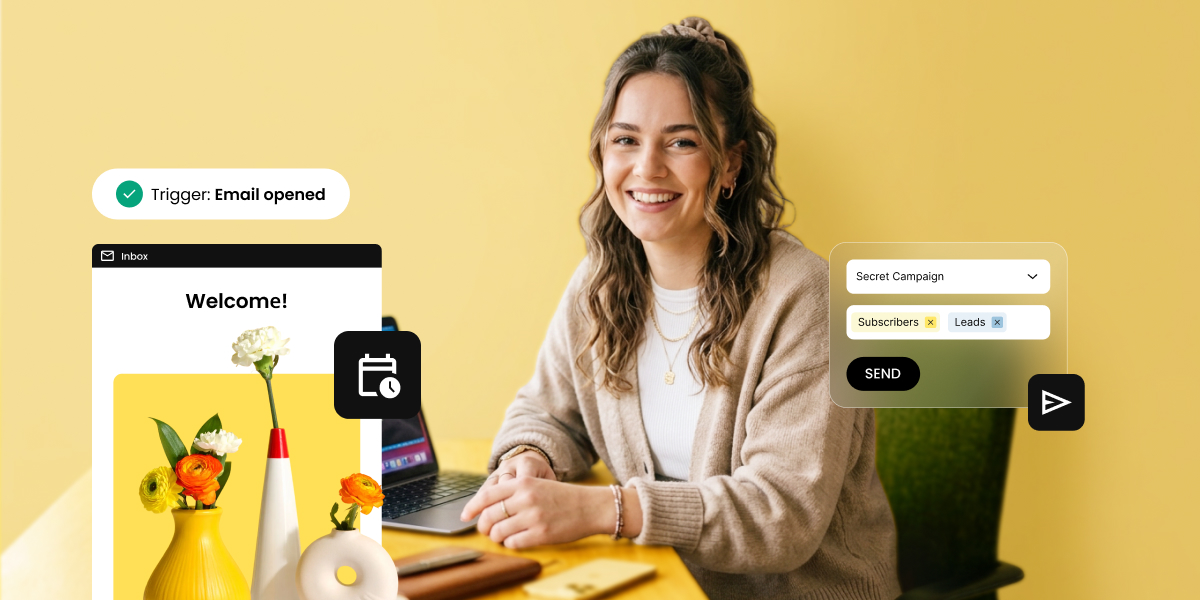
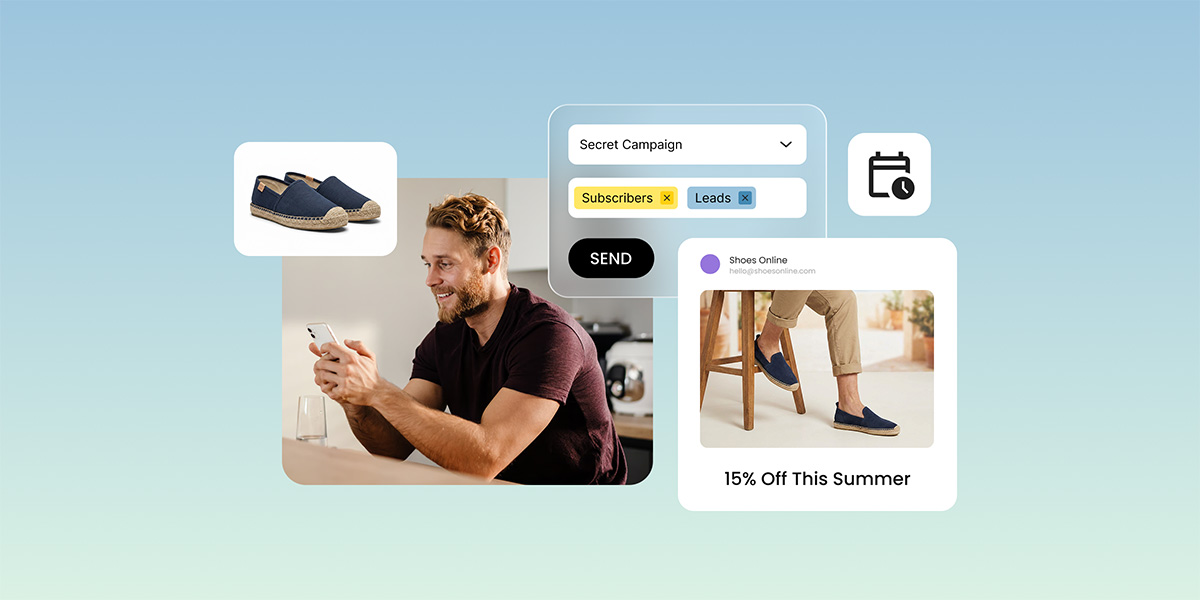
SiteGround Email Marketing dashboard showing a campaign being sent to subscribers and leads, with a promotional email preview displaying a 15% summer discount for a shoe store.

If your open rates are dropping and you’re not sure why, the answer is usually in your sent folder. One content type, sent on repeat, trains subscribers to stop paying attention. This guide covers the six types of email marketing content that fix that, and a simple framework for putting them together so your email marketing actually gets somewhere.

Key takeaways:

  • A varied content mix keeps subscribers engaged between promotions and protects your sender reputation
  • Welcome emails have the highest open rates of any email type — most businesses underuse them
  • Sending only promotions trains your list to ignore you
  • 1–2 emails a week works well for most small businesses, but content type matters more than send frequency
  • Different subscribers need different emails — where they are in the relationship should drive what you send

What is email marketing content? 

Email marketing content is the message inside your email: what you actually say to your subscribers and why. It can serve different purposes: introducing your brand, teaching something useful, sharing a story, promoting an offer, or bringing inactive subscribers back. Together, these different content types cover the full customer journey, from the moment someone joins your list to the point they become a loyal buyer.

Why your content mix matters more than your send frequency 

Sending frequency gets a lot of attention in email marketing, but what you send matters more than how often you send it. When every message is a promotion, subscribers learn to treat your emails as noise. They stop opening, stop clicking, and eventually stop caring.

A varied content mix changes that dynamic. When subscribers get something useful or interesting between offers (a tip, a story, a resource) they stay engaged. And email engagement matters beyond the relationship: inbox providers evaluate senders based on spam complaint rates and overall subscriber behavior. 

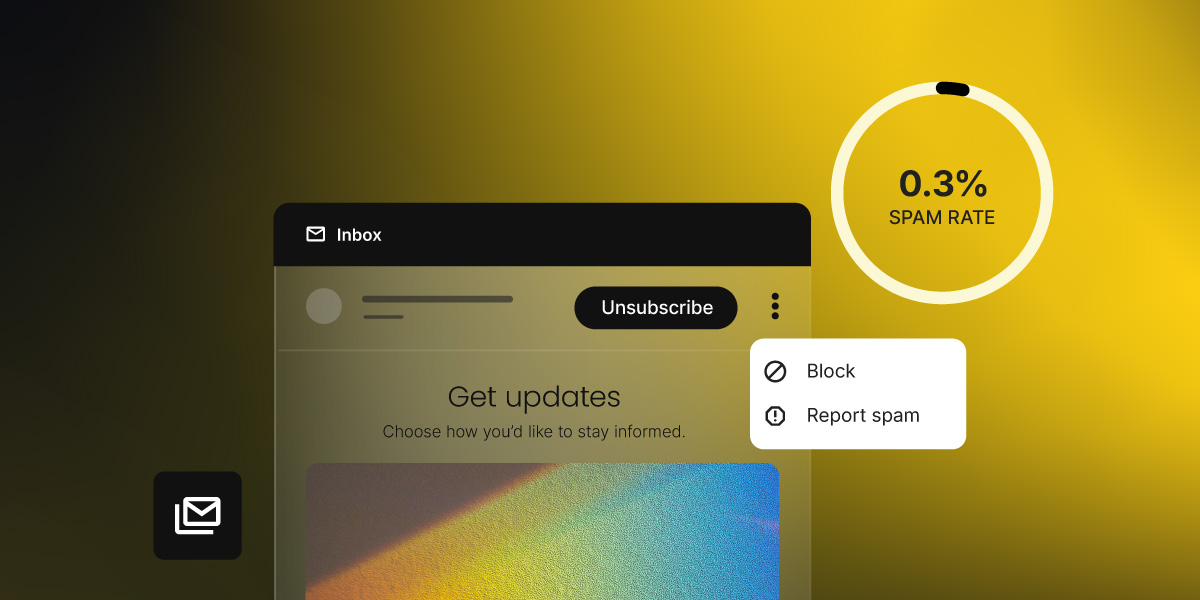
According to Validity’s 2026 Email Deliverability Benchmark Report, keeping spam complaint rates below 0.1% is now the desired threshold. A list that only hears from you when you’re selling is more likely to generate spam complaints and a damaged sender reputation takes dedicated effort to recover, not just time.

Give different emails different jobs and keep reading to see what those jobs look like.

6 types of email marketing content and what each one does

Before reading about the six content types, do this one thing: pull up your last 10 sent emails and sort them into two piles: 

  1. Emails that asked for something 
  2. Emails that gave something

Count each pile. If you have seven promotional emails and three of everything else, that ratio is your problem, not your open rates, not your subject lines, not your send time. Write the numbers down. Then keep reading, because the rest of this guide is about fixing them.

Here are the six content types that make up a balanced email mix: what each one does, and when to reach for it.

Welcome emails

A welcome email is the first message a subscriber receives after joining your list, and statistically, the one they’re most likely to open. Its role in the mix is to set the tone before any ask is made: who you are, what they can expect, and why staying subscribed is worth their while. Send it immediately after signup, every time, without exception. Everything else you send builds on the foundation this email either creates or fails to create.Not sure where to start with your welcome email? SiteGround Email Marketing comes with a gallery of ready-made templates (including welcome emails) so you’re not staring at a blank canvas wondering how to introduce yourself.
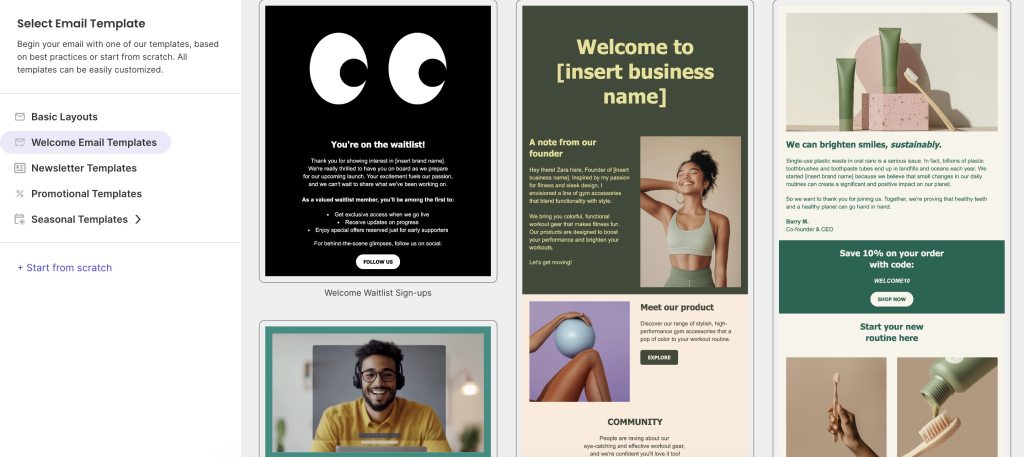
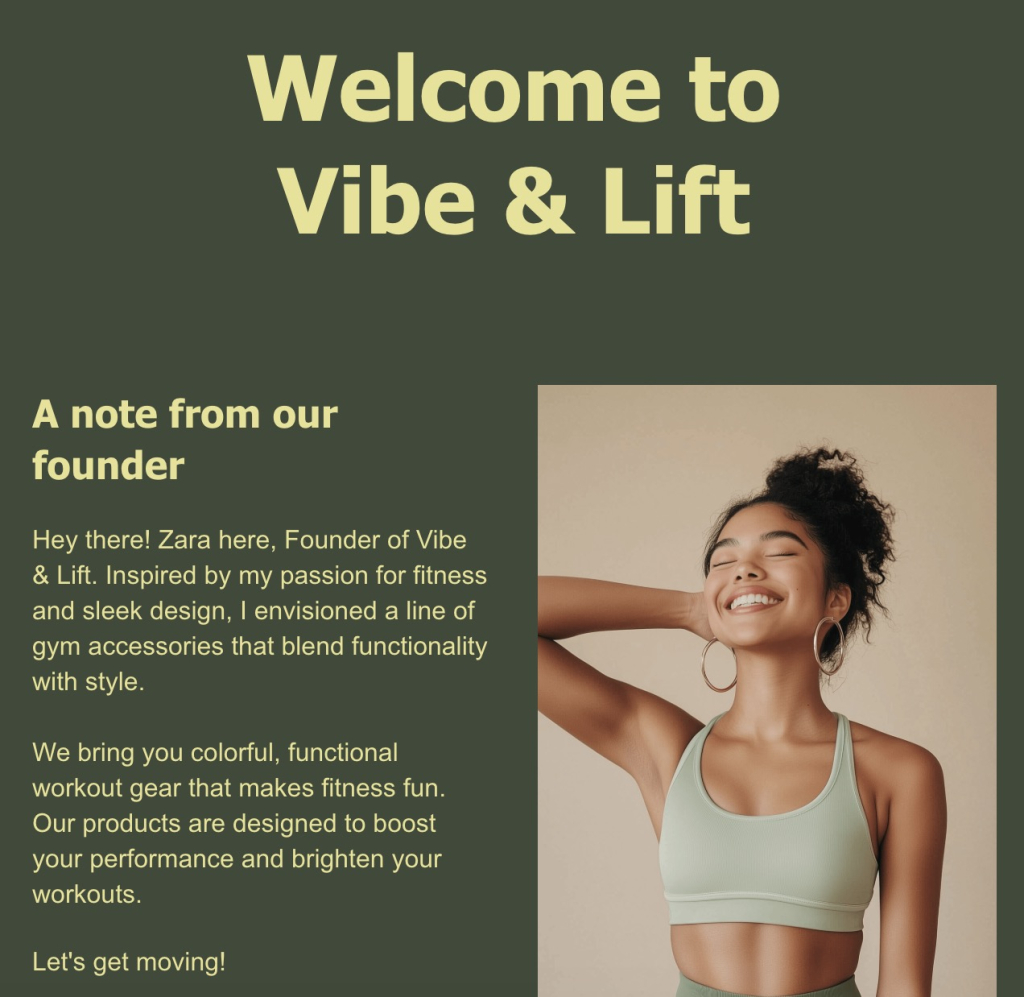
SiteGround Email Marketing template selector showing Welcome Email Templates, including a waitlist sign-up, a founder introduction, and a sustainability-focused welcome email with a discount code.

Educational content and how-to emails

Educational emails are the workhorses of a healthy content mix. Their job is to build the kind of authority that makes your promotional emails land better when you do send them. Think of every educational email as a deposit: you’re building a track record of usefulness that subscribers will draw on when deciding whether to trust your recommendations. They work best when they’re specific: one concrete problem, one clear answer rather than broad topic overviews that could have been written by anyone.

Мake educational emails more interesting: before you write, finish this sentence — “After reading this email, my subscriber will know how to ___.” If you can’t complete it in one line, the topic is too broad. 
Then write the email like you’re explaining it to a friend over coffee, not presenting to a boardroom.

Newsletters

A newsletter job isn’t to teach or to sell — it’s to show up. Consistently, on a predictable schedule, with enough personality that subscribers recognize your voice the moment they open it. Think of it like that friend who checks in every few weeks. Not always with big news, but reliably there. That consistency is what keeps you familiar between purchase moments, and familiar is what makes people buy from you when you do have an offer.

The newsletters people actually look forward to: a recognizable voice. Read your newsletter back and ask yourself if it sounds like you or like a brand. If you’d never say any of it out loud, rewrite it until you would.

Promotional emails

Promotional emails are the ones you’ve probably already been sending — a discount, a launch, a limited-time offer. They’re the most direct content type in the mix and the most effective at driving immediate action, but only when the relationship behind them is already warm. A list that hears from you exclusively through promotions stops treating them as offers and starts treating them as noise. The other five content types on this list exist, in part, to make this one work.

Another quick tip: Read your promo back and count how many sentences start with “we,” “our,” or your business name. Then rewrite them to start with “you” instead. The offer doesn’t change. The way it feels to the reader does.

For example: “We’re launching our new skincare range this Friday” becomes “Your skin’s about to get an upgrade — our new range drops Friday.” Same information, completely different feeling.

Stories and behind-the-scenes

Behind-the-scenes emails are the easiest to skip when you’re busy; they don’t have an obvious ask, a clear conversion goal, or a deadline driving them. But they’re consistently the ones subscribers remember and respond to the most.

They don’t lead with a lesson or a pitch. They show the person behind the business through a real moment, a decision, a mistake. The teaching happens on the way, not as the point. For small businesses, this is a structural advantage: your story, your voice, your mistakes are yours alone. One honest email about a decision that nearly went wrong will do more for subscriber loyalty than ten polished newsletters.

A trick for writing these when you’re stuck: if you’re staring at a blank screen, start with the moment you almost got something wrong. A decision that nearly went sideways, a launch that nearly didn’t happen, a lesson that cost you something. That’s where the interesting email lives — not in the win, but in what happened just before it.

Re-engagement emails

Every list has subscribers who’ve gone quiet: they signed up at some point, stopped engaging, and have been silently inflating your list size ever since. A re-engagement email’s job is simple: find out who can be won back and let go of the ones who can’t. Do it intentionally, every 90 days or so, before deliverability quietly suffers.

Skip “we’ve missed you.” It’s the subject line equivalent of a form letter. “Still interested?” or “Should we break up?” gets opened. And often gets a reply.

Cheat sheet: nail every email element to your content type

Now that you know what each type does, here’s how they should actually feel when you’re writing them, from subject line to closing line:

Subject lineBodyCTAClosing
WelcomeDelivers on the signup promiseWho you are, what you offer + one immediate piece of valueOne soft next step (a link to a resource)What’s coming next and when
EducationalProblem-first, no hypeOne problem, one answer, one exampleOptional link to go deeper“Try this today”
NewsletterConversational, like a text from a friendA few updates or resources tied to one theme or momentLight, contextualConsistent personal sign-off
PromotionalOutcome-focused, reason to act nowOffer in the first two sentences, outcome before priceOne button, nothing competing with itRestate the deadline or key benefit
Story / BTSHonest, slightly unfinished-feelingOne specific moment + the tension behind itReply invitation or a soft link; not a hard sellLeave it open — invite a response
Re-engagementDirect and self-awareAcknowledge the silence + one reason to stayStay or unsubscribe: both equally easy to find“Either way, no hard feelings”

How to plan your email content mix

Knowing what each content type does is the easy part. The harder part is sitting down on a Monday morning and actually deciding what to send this week. These six steps take that decision off your plate, covering everything from where your subscribers are in the customer journey to what your metrics are telling you about your mix.

The steps below follow the customer journey: from the moment someone joins your list to the point they become a loyal, engaged buyer.
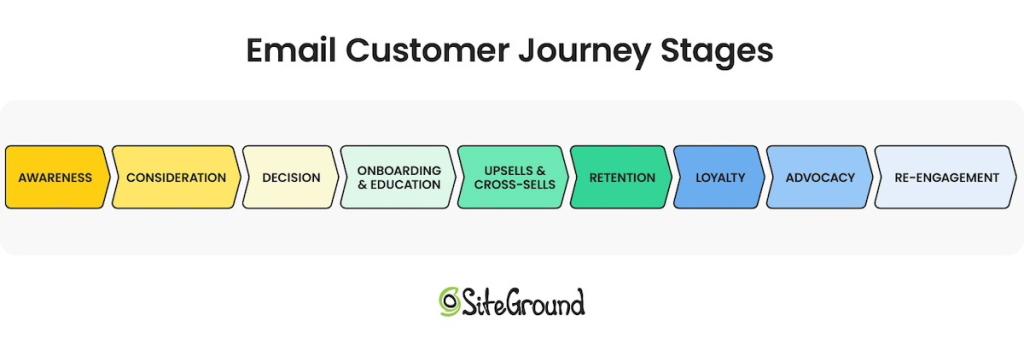
email customer journey stages diagram

1. Start with one goal per email

Before you pick a content type or open your email editor, decide on your email marketing goal: what do you want this email to do? Inform? Build trust? Drive a purchase? One email, one job.

This single habit is what separates a content strategy from a random send schedule. 

2. Match the content type to the relationship stage

Not everyone on your list needs the same email right now. Someone who signed up yesterday needs something different from someone who’s been opening every email for six months — and something very different from someone who hasn’t clicked anything in three.

Here’s how to match what you send to where they are.

Where they areWhat to sendWhy
Just joined your listWelcome email, educational contentBuild familiarity before making any ask
Opening emails but not buying yetNewsletters, how-to emails, storiesDeliver consistent value, establish personality
Clicking, engaging, buying occasionallyMix of value content and occasional offersKeep trust high while converting it into revenue
Bought from you beforeBehind-the-scenes, early access, rewardsDeepen the relationship with the people already sold on you
Haven’t opened in 90+ daysRe-engagement emailFind out who’s still interested before your deliverability suffers

3. Send the right email to the right part of your list

You don’t need complex segments to send more relevant emails. For a small business sending 2–4 emails a month, one split does most of the work. For instance, you can differentiate customers vs. non-customers using Groups in SiteGround Email Marketing.

  • Existing customers: lead with loyalty, exclusivity, and product depth; they already trust you
  • Non-customers: lead with education and value; they’re still deciding whether you’re worth their attention

That single split immediately makes every email feel more relevant to the person receiving it.

In SiteGround Email Marketing, you can organise your contacts into Groups and send separate campaigns to each one. If you’re running a WooCommerce store, the easiest way to build your customer segment is through the subscribe checkbox at checkout — anyone who buys and opts in can be assigned to a Customers Group from there. If you’re not on WooCommerce, a one-time CSV import of your existing customer list gets you set up. It’s not fully automated, but you only need to do it once.

Once you have your Groups set up, you’ll occasionally run into this: sometimes a subscriber will sit in more than one Group — a loyal customer who’s also gone quiet lately, or someone who bought once but never really engaged. Don’t overthink it. Educational emails and newsletters go to everyone regardless. 

For promotions, use your best judgement. Send to your most engaged Group first, then broaden if the offer is relevant to everyone. When in doubt, ask yourself what this person most needs to hear from you right now. That usually settles it.

4. Repurpose the content you already have

The most common reason small business owners fall off their content calendar isn’t lack of time — it’s running out of things to say. The fix is already sitting in your existing content.

Your blog posts, social media tips, podcast episodes, and videos are all email content waiting to happen:

  • Pick one piece of existing content: a blog post, a tip you shared on Instagram, a question a customer asked last week
  • Pull out one takeaway; not a summary, one specific immediately useful point
  • Write 200–300 words around it: enough for subscribers to get value without clicking anywhere, then link to the original for anyone who wants more

A 1,500-word blog post yields one solid educational email. A five-tip Instagram carousel yields five. You don’t need a new idea every week — just a different format for one you already have.

5. Decide on your content ratio, not just your frequency

For most small businesses, 2–4 emails a month is a sustainable starting point. But how often you send matters less than what you send across those emails.

A simple rule of thumb (and one that’s been around long enough to have earned its place): the 80/20 rule. Roughly 80% of your emails should give subscribers something genuinely useful: education, a story, a newsletter, a resource. The remaining 20% can ask for something in return. In practice, for every promotional email you send, aim for two or three that aren’t selling anything.

A concrete monthly mix might look like this:

WeekContent typeSelling anything?Example
Week 1Educational emailNo“3 things that are hurting your skin barrier (and what to use instead)”
Week 2NewsletterNoA roundup of what you’ve been testing, a customer tip you loved, one thing coming up next month
Week 3Promotional emailYes20% off your bestsellers, this week only
Week 4Story / BTSNo“We almost scrapped our bestselling moisturizer before launch”

📅 Planning around seasonal moments
Your subscribers think in seasons before they think in weeks. Black Friday, the January reset, spring launches, back-to-school — these moments are already on their radar, which makes them the perfect anchors for your content calendar.
The way to use them without blowing your 80/20 ratio: map one promotional email to each seasonal peak, then plan the two or three value emails that lead into it. The content type you lean on in the build-up depends on the moment:
Back-to-school: lead with educational emails — your audience is in problem-solving mode and receptive to practical advice
Black Friday: lead with stories and BTS — people want to know who they’re buying from before they spend
January: lead with newsletters — everyone’s in reset mode and looking for useful, low-pressure content
Spring launches: lead with educational or how-to content — new season, new goals, high motivation to learn something
The promotion lands at the end of that sequence, on a list that’s been warming up for weeks rather than one that hasn’t heard from you since October. Think of the seasons as your content calendar skeleton — fill in the value content around the promotions and the planning part largely takes care of itself.

6. Track what’s working and adjust

Good news: your subscribers tell you exactly what they want to read. You just have to know where to look. Every open, click, and unsubscribe is a vote. Аnd read across a month or two of sends, those votes add up to a pretty clear picture of what’s working in your content mix and what isn’t.

After each send, check three email metrics: 

  • Open rate is your relationship health check. A gradual drop over time isn’t a subject line problem. It’s your list telling you they’ve stopped expecting something worth opening.

→ If the open rate is trending down, check your ratio: more than 25% promotional sends is usually the culprit.

  • Click-through rate (CTR) is your content quality check. If people open but don’t click, the email didn’t deliver on what the subject line promised. For educational emails especially, a healthy CTR means the content was genuinely useful — not just opened and forgotten.

→ If your CTR is dropping, narrow your next educational email to one specific problem and make sure the subject line matches what’s actually inside.

  • Unsubscribes are your most honest feedback. A spike after a promo means the value content around it wasn’t doing enough work. A spike after an educational email means the topic missed.

→ If unsubscribes spiked after a promo, count how many value emails went out in the four weeks before it. If the answer is one or fewer, that’s your answer.

These three numbers won’t tell you everything, but they’ll tell you enough to know what to adjust in your mix. For a full breakdown of what those numbers mean and what to do about them, see our email marketing ROI guide.

Now go send some email marketing content worth reading

If you’ve made it this far, you already know more about email content strategy than the majority of small business owners sending emails right now. The ones who treat their list like a billboard — show up when there’s something to sell, go dark the rest of the time — are leaving a lot on the table. Not just revenue, but the kind of subscriber relationships that make email actually enjoyable to do.

Pick one content type you’re not sending yet and write that email this week. Don’t wait for a full content calendar or a slower month — that month isn’t coming. Start with one email and build from there.

Your list is already there. They signed up because they thought you’d be worth hearing from. Go prove them right.

SiteGround Email Marketing gives you the templates, AI writing tools, and send infrastructure to put everything in this guide into practice, without needing a marketing team behind you.

[58]

Frequently asked questions about email marketing content 

What types of content should I include in email marketing?

The six core types are welcome emails, educational content, newsletters, promotional emails, behind-the-scenes stories, and re-engagement emails. Each serves a different point in the subscriber relationship — welcome and educational emails build trust early, newsletters maintain presence, promotions convert that trust into revenue, stories build brand personality, and re-engagement emails clean your list of inactive subscribers.

How do I repurpose blog content for email marketing?

The most practical approach is to treat your blog post as the source and write a shorter version for email that delivers one key takeaway — not a summary of the whole post. Give subscribers enough to get value from the email itself, then link to the full article for readers who want to go deeper. A 1,500-word blog post typically yields one solid educational email.

How often should I send marketing emails?

For most small businesses, 2–4 emails per month is a sustainable starting point. Frequency matters less than consistency and content ratio — four emails of mixed types (educational, newsletter, promotional, story) will outperform four promotional emails at the same cadence.

What makes a good marketing email?

A clear purpose before you write it, content matched to where the subscriber is in the relationship, one call to action, and a subject line that earns the open without overpromising. The emails that perform best are the ones that give subscribers something worth their time before asking for anything in return.

Why is email marketing content valuable?

Because it’s the difference between a list that buys and a list that ignores you. A subscriber who only hears from you when you’re selling something learns to tune you out. One who regularly gets useful, interesting emails stays engaged — and when you do have an offer, they’re already paying attention.
How to turn a Claude Artifact into a real website

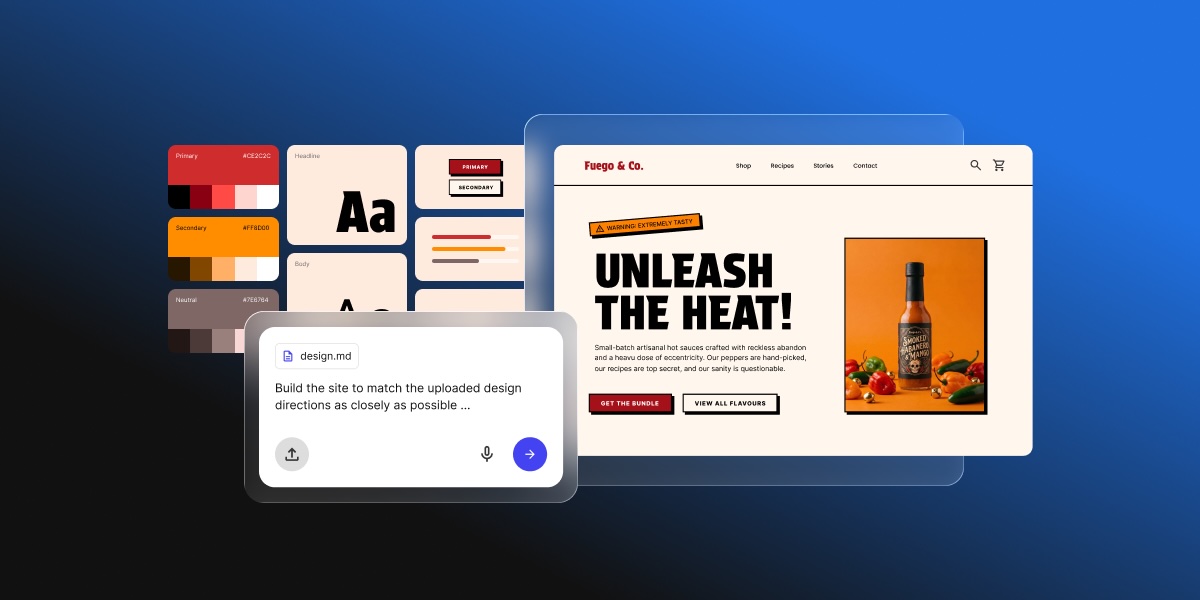
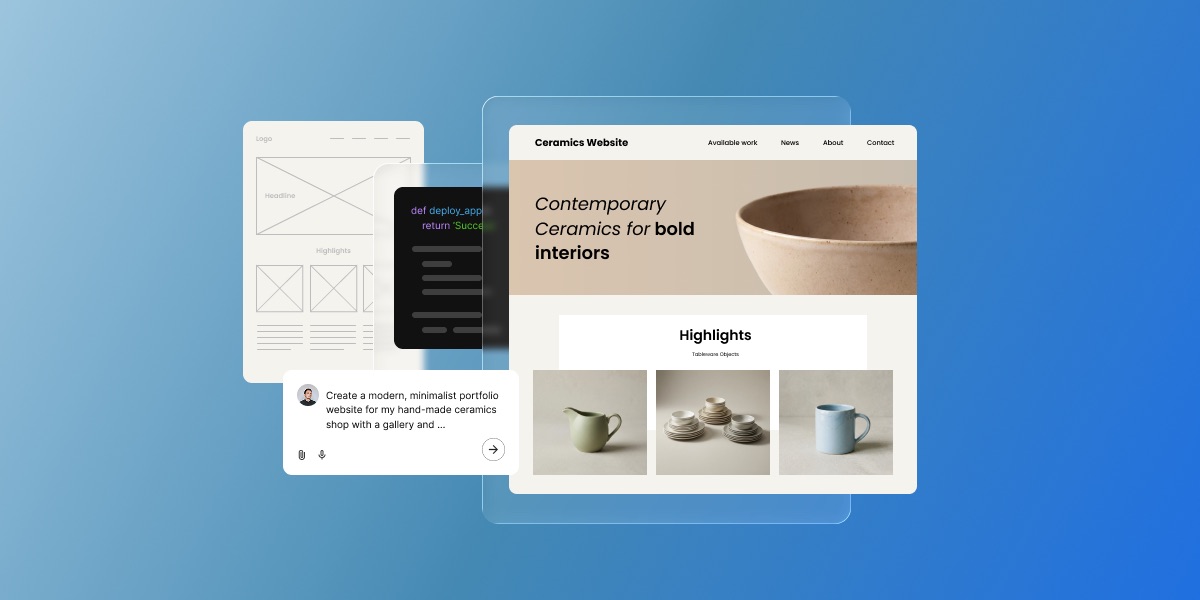
Blue gradient background showcasing website design process with mockups, wireframes, code editor, and finished website examples

Claude Artifacts live on claude.ai by default. To put one on your own domain, pick a production path: Coderick AI for managed hosting, Claude Code for developer control, or manual deployment.

A Claude Artifact runs on a claude.ai URL with no way to add a custom domain, no control of SEO metadata, no place to store form submissions, and no path for ongoing edits outside Claude. Adding those things is what makes a site production-grade. 

You have three practical paths for going live: publish the artifact from Claude for demos and sharing, use Claude Code and a developer deployment workflow, or hand the artifact files and production brief to Coderick AI, which can accept the artifact’s source files directly and rebuild them as a hosted site on SiteGround’s infrastructure.

Key takeaways:

  • A Claude Artifact becomes a real website only after you add the production layer: a custom domain, SSL, SEO control, forms or database handling, analytics, and ongoing maintenance.
  • Claude’s built-in publishing generates a public link on Free, Pro, and Max plans and supports embedding, which is enough for demos, internal sharing, and feedback but not for a production site.
  • Coderick AI accepts file uploads of up to 30 text-based files (.html, .css, .scss, .js, .jsx, .ts, .tsx, .md) totaling 500 KB, plus up to 10 images, so the artifact’s exported code becomes the literal starting point for a live project.
  • Coderick AI projects go live on SiteGround’s hosting the moment you publish, and SSL installs automatically once a custom domain points to SiteGround nameservers.
  • Claude Code is the developer-control path: it turns artifact logic into an owned, versioned codebase you deploy through platforms such as Vercel, Netlify, or Cloudflare Pages.
  • The single most important handoff asset is the artifact’s saved code plus a short brief describing what should happen after the site goes live.

What is a Claude Artifact?

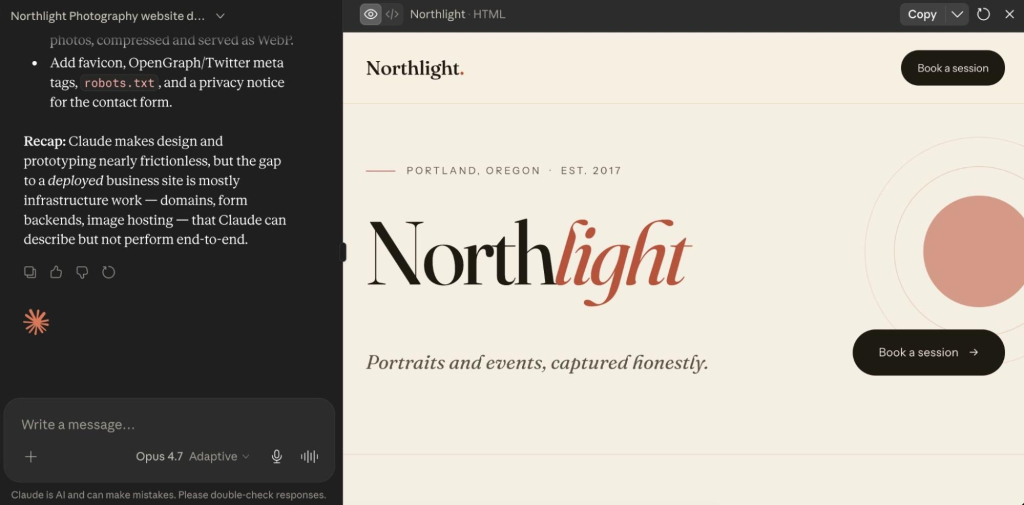
A Claude Artifact is a standalone output that Claude creates in a side panel during a conversation. It can be a small web page, React component, SVG, chart, dashboard, calculator, form, game, or interactive prototype. Artifacts are useful because you build and refine the result visually while you chat, so instead of receiving only code in the conversation, you see how the artifact looks and behaves.

Claude interface showing an artifact in the side panel: a photography portfolio website (Northlight Photography) with hero section and booking buttons

Many artifacts use the same building blocks as websites: HTML, CSS, and JavaScript which live inside Claude’s environment. When you publish an artifact, it is served from Claude’s infrastructure, usually on a claude.ai URL. That is enough for a prototype, but not always enough for a public website.

That distinction is the core of the workflow: Claude helps you validate the idea, while the production path turns that idea into a website people can actually use. This is one version of the broader AI prototype to published website workflow.

Can you publish a Claude Artifact directly?

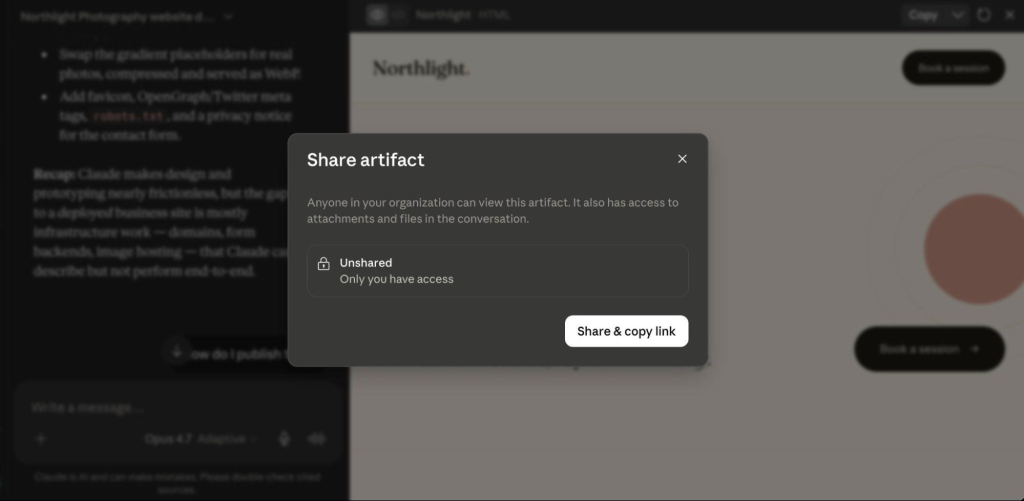
Yes. Claude includes built-in artifact publishing for sharing and demos. On Free, Pro, and Max plans, you can publish an artifact and share it via a public link. Anyone with the link can open it in a browser. On Team and Enterprise plans, artifact sharing may be limited to your organization, depending on the workspace settings.

Share artifact modal dialog showing sharing options with "Unshared" status and "Share & copy link" button

Claude also supports embedding published artifacts into another website. When embedding, you define which domains are allowed to load the artifact. You can also unpublish the artifact later to revoke access.

Claude publishing vs. a real website

Publishing the artifact directly works well when the goal is to share, test, or demo a prototype, not launch a production website. In such cases, the artifact works like a live mockup. It proves the interaction and helps people understand the idea faster than a static screenshot.

A published artifact stops being enough when the project needs to operate as a public business asset. At that point, you are no longer asking how to share a Claude Artifact. You are asking how to turn it into a real website.

When Claude publishing is enoughWhen you need a real website
Sharing or demoing a prototypeRunning a public business asset
A claude.ai URL worksBranded custom domain + SSL
Stakeholders or a small teamPublic visitors and search traffic
Form flow just needs to look realForms must store or route data
You’ll re-edit it in ClaudeSomeone owns and maintains it long-term

How to turn a Claude Artifact into a real website

Turning a Claude Artifact into a real website is a five-step process: finalize the artifact, save its code, write a short handoff brief, choose a production path, then build, publish, and test the live site.

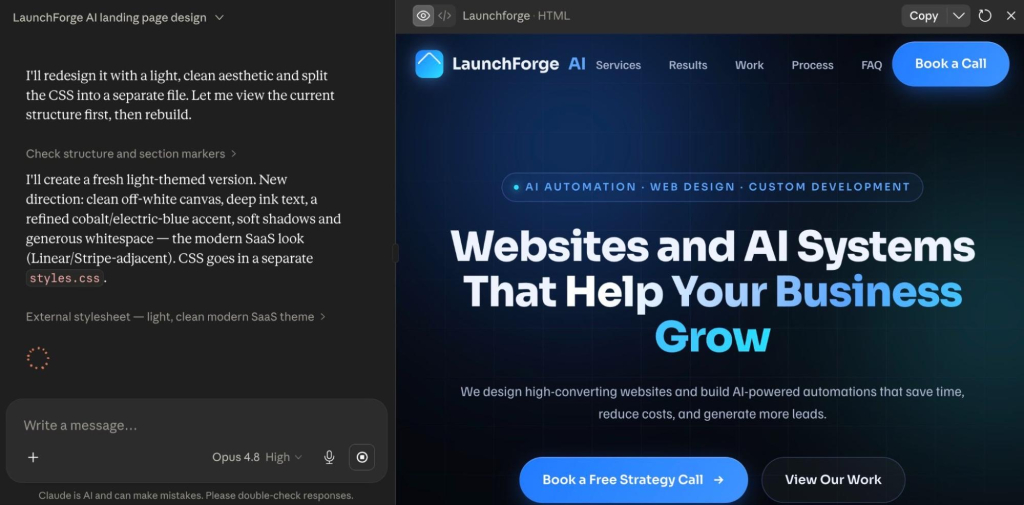
1. Finalize the artifact in Claude

Keep iterating until the artifact reflects the site you want to launch. Review the design, functionality, copy, and user flow, and treat the final artifact as the visual and functional source of truth for the production version.

Claude chat interface with conversation about redesigning a LaunchForge AI landing page, showing design refinement discussion

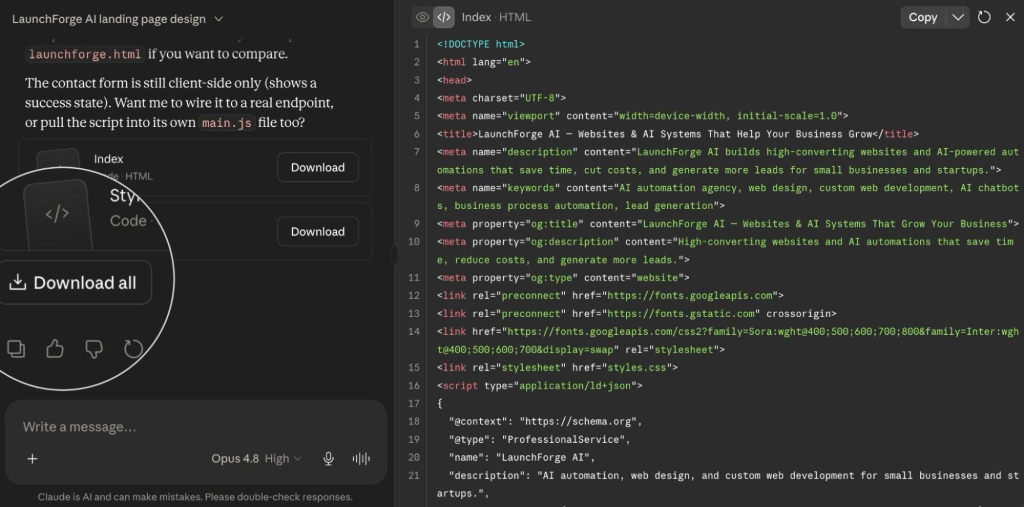
2. Save the code and document the behavior

Open the artifact’s code view and download and save the relevant source files before starting the production handoff. Depending on the artifact, this is typically an .html file plus separate .css and .js files, or .jsx and .tsx files for React components. 

Code view of an artifact showing HTML file structure and Download all button to export source files

These are exactly the file types the production path can read directly, so save them individually rather than as a single screenshot or PDF.

Also take screenshots of important states, such as:

  • Default view
  • Mobile view
  • Empty state
  • Error state
  • Success state
  • Form validation state
  • Any modal, dropdown, or multi-step interaction

Screenshots and short notes help the production tool or developer understand intended behavior that static code does not make obvious.

3. Create a production handoff brief

Write a short brief that explains what the live website needs beyond the Claude Artifact.

Include:

  • Artifact purpose and target audience
  • Published artifact link
  • Screenshots of key screens and states
  • Saved artifact code
  • Page structure and navigation
  • Final copy and calls to action
  • Form fields and data-routing requirements
  • Domain and SSL requirements
  • Analytics or marketing integrations
  • Launch deadline
  • Ongoing maintenance owner

This step is easy to skip, but it’s what prevents the production build from making decisions that aren’t explained in the artifact. A clear handoff brief keeps production focused on building the site, not rediscovering decisions already made during prototyping.

Tip: You can ask Claude to help you generate the handoff brief, using the above as a prompt base.

4. Choose the right production path

Choose the production path based on who will own, update, and maintain the site after launch. 

  • Use Coderick AI for a managed production handoff where the site is built, hosted, published, and edited inside one SiteGround workflow, especially if you want to build without a Claude Code workflow. 
  • Use Claude Code if a developer needs to turn the artifact into a real codebase, manage it in Git, and deploy it through a technical pipeline. 
  • Keep the published Claude Artifact if the goal is only to share a working prototype.

Our pick: Coderick AI

The hard part isn’t launching. It’s editing the site six months later when the artifact is forgotten and the deployment setup is somebody else’s problem. Coderick AI keeps the build, the domain, and the edits in one place.

5. Build, publish, test, and maintain the live site

Once you choose a path, rebuild or import the artifact into the production environment, connect the domain, enable SSL, test the site, and define how future edits will happen. A website is not finished when it launches: it needs a clear owner, an update process, and a maintenance plan. The specific publishing and domain steps for the managed path are below.

How to hand off a Claude Artifact to Coderick AI

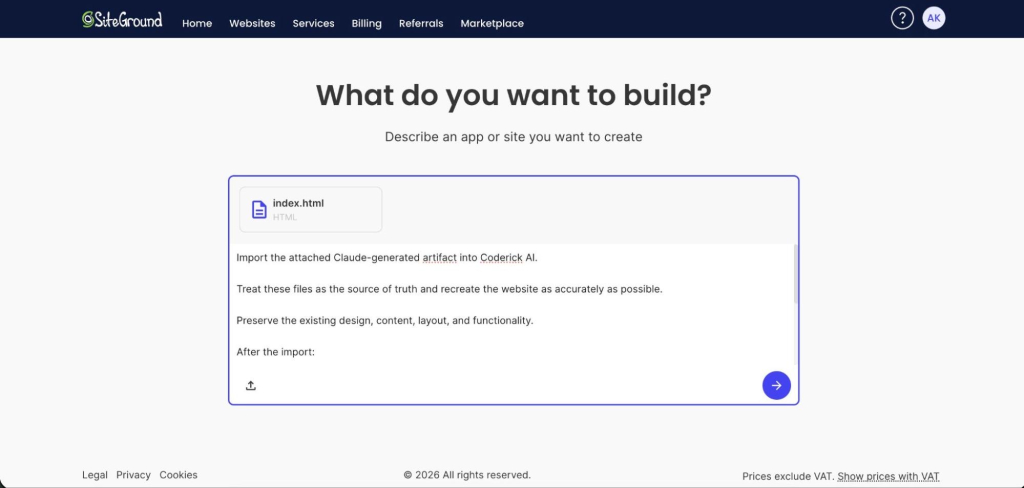
Instead of re-explaining your design in three paragraphs of prose, you give Coderick AI the supported artifact files, screenshots, and a short prompt and tell it where each file belongs. The sequence is:

  1. In your finalized Claude Artifact, open the code view and save the source files (for example, an .html file and its .css file, or the .jsx and .tsx files for a React component).
  2. In Coderick AI, drop those files directly into the chat. 
  3. Prompt Coderick AI with the role each file plays: “Apply this HTML as the homepage” works far better than “use this file,” because Coderick AI needs to know where the file goes and what it does.
SiteGround Coderick AI interface with file upload area, showing index.html and instructions to import Claude-generated artifact
  1. Coderick AI reads the source and rebuilds it inside your project, keeping your structure, your styles, and the specific elements you uploaded, then builds on top to add pages, wire up functionality, or extend the layout.
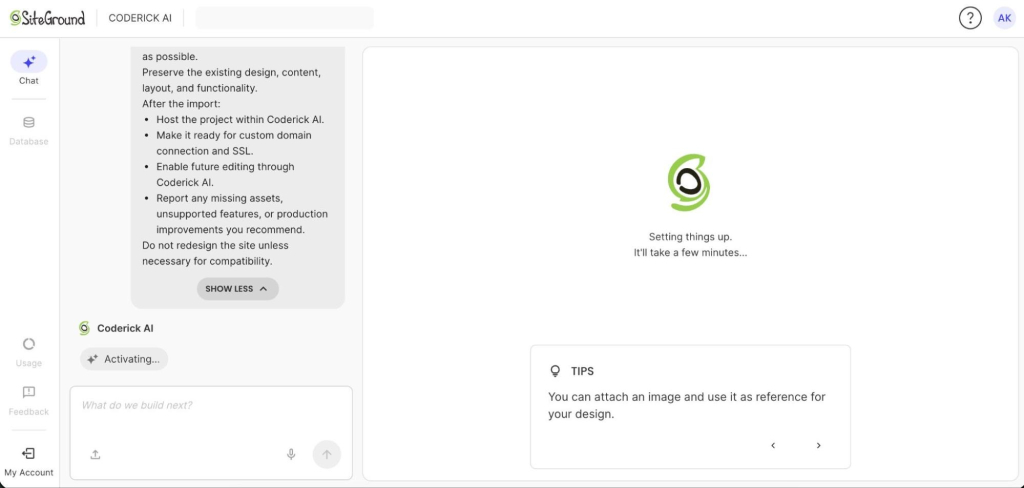
Coderick AI project initialization screen with loading spinner and "Setting things up..." message

What Coderick AI handles after the handoff

After the handoff, Coderick AI covers the managed production layer: building the website or web app from your files and prompts, applying edits through chat, publishing and hosting on SiteGround’s infrastructure, applying SSL, creating responsive layouts, and supporting backend needs such as databases and user authentication. 

It also includes built-in version control, so you can experiment and roll back to an earlier version at any time, and the backend is auto-generated, so you never touch server-side logic unless you want to. For the user, this turns the artifact-to-website process into one guided managed workflow instead of a chain of disconnected tools.

How to publish and connect a custom domain

Publishing in Coderick AI puts your project live on SiteGround’’s hosting immediately; there is no separate hosting setup to arrange. 

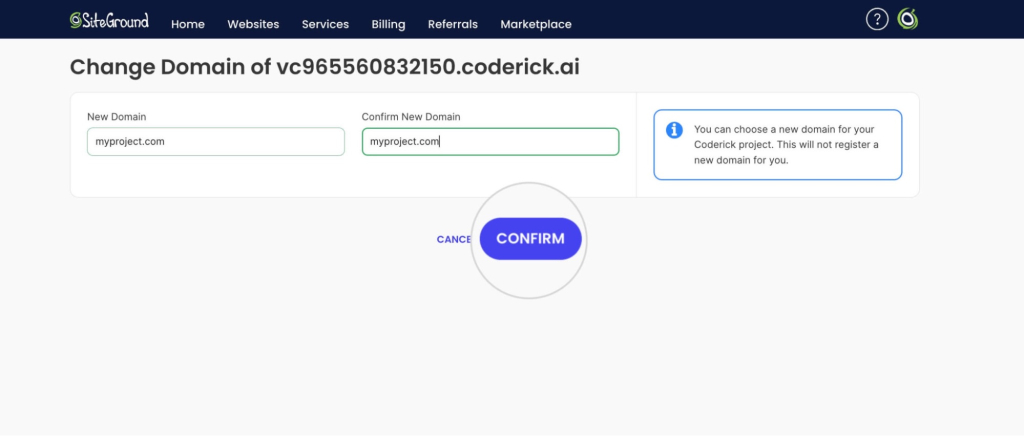
To put it on a custom domain, go to Client Area > Websites > Coderick Projects, open the chosen project’s Actions menu, and select Change Primary Domain. 

SiteGround domain change form with input fields for new domain and confirmation button

Enter the new domain and confirm. 

Please note that using a custom domain for a Coderick project requires a paid Coderick plan. 

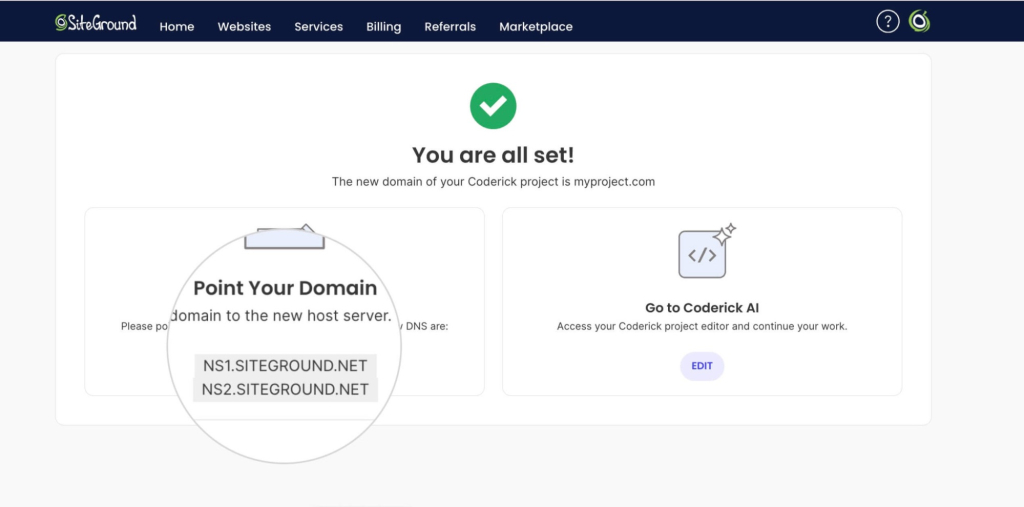
If the domain is registered with SiteGround, it is pointed automatically. If it is registered elsewhere, point it to the SiteGround DNS records shown on that screen. 

Success confirmation screen showing "You are all set!" with SiteGround DNS records (NS1.SITEGROUND.NET, NS2.SITEGROUND.NET) and instructions to point domain

SSL installs automatically once the domain points to SiteGround’s DNS. 

When Coderick AI is not the right path

Coderick AI is not the best fit when the project needs full source-code ownership, external infrastructure, Git branches and pull requests, or a custom CI/CD pipeline; in those cases Claude Code with a developer deployment workflow is more appropriate. Before choosing that route, factor in Claude Code pricing and deployment costs.

It may also be the wrong fit for projects that require bespoke API integrations, background jobs, or direct server-level configuration. Coderick AI is strongest when the priority is managed publishing: moving from a validated prototype to a hosted site without handling infrastructure separately. 

What to test after the artifact becomes a live website

Once the site is live, run a focused pre-launch check before sending visitors to it.

  • Custom domain and SSL – Confirm the site loads on the custom domain over HTTPS, check for mixed-content warnings in the browser console, and make sure redirects are in place if the site replaces an older URL.
  • Mobile layout – Open the site on a phone and tablet and check the header, navigation, hero section, forms, buttons, embedded media, and interactive elements. Mobile is where prototype-to-production issues show up first.
  • Forms and database actions – Submit every form, confirm the data reaches the correct destination, and confirm the visitor sees a clear success message. If the site includes accounts, test sign-up, login, logout, and password reset.
  • Page speed and accessibility – Run a basic performance check and look at Largest Contentful Paint and Cumulative Layout Shift, not only the overall score. Check that images have alt text, headings follow a logical order, links are descriptive, and the site works with a keyboard.
  • Ongoing edits and maintenance – Decide who owns the site and how future edits happen. On Coderick AI, updates happen through chat; in a developer workflow, updates happen in the codebase and redeploy through the pipeline. Without an owner and update process, even a successful launch can become outdated quickly.
.post-page__colored-blocks.post-page__colored-blocks–update p { margin: 15px 0px; }

Related workflows: Google Stitch and Claude Design

This article focuses on Claude Artifacts. If your starting point is a visual UI prototype from Google Stitch, or an Anthropic design project rather than an artifact, the production logic is similar but the handoff details differ. For exact workflow steps, see:

How to turn a Claude Design project into a real website
How to turn a Google Stitch design into a real website

Take the validated artifact into production with Coderick AI

The hardest part of taking an artifact live is not the artifact. It is everything that happens after you close the Claude tab. Coderick AI is the answer to “I’d rather not deal with the rest.”

[96]


FAQs

1. Can you turn a Claude Artifact into a real website?

Yes. A Claude Artifact can become a real website once you move beyond the prototype stage and set up production needs such as hosting, a custom domain, SSL, responsive testing, SEO metadata, and ongoing maintenance. You can publish or embed artifacts from Claude, use Claude Code for a code-based build, or use a managed path such as Coderick AI.

2. Is Coderick AI a replacement for Claude?

No. Coderick AI is not a replacement for Claude. Claude is useful for creating, testing, and refining the artifact, while Coderick AI can serve as the managed production path to turn a validated idea into a live website. You can also create a website or a web app from scratch in Coderick AI by describing what you want, then refining and publishing it through its managed website-building environment.

3. Can Coderick AI directly import Claude Artifact code?

Coderick AI is a managed production path rather than a direct Claude Artifact code importer. You can use the finished artifact, screenshots, copy, layout, and functionality notes as a clear blueprint, then recreate and publish the website inside Coderick AI’s managed building environment.

4. When should I use Claude Code instead of Coderick AI?

Use Claude Code when you need developer control, repository ownership, raw source-code editing, custom integrations, tests, or a GitHub-based deployment workflow. 

5. Can a Claude Artifact have a custom domain?

Claude’s artifact publishing is mainly for sharing and embedding artifacts. If the goal is a branded production website with a custom domain, users should move the artifact into a website deployment path. Coderick AI supports custom domains.

6. What is the best workflow for non-technical users?

For non-technical users, the best workflow is: build and refine the artifact in Claude, document the final version, then use Coderick AI as the managed production path. This avoids manual hosting, deployment, domain, SSL, backend, and maintenance tasks while keeping Claude as the creative and validation layer.

Build a website without Claude Code: The Coderick AI path for non-technical users

Abstract of using Claude Code versus a managed AI site builder like Coderick AI

Building a website with Claude Code no longer means opening a terminal. What you still need is everything that happens after the code: a host, a domain, SSL, a deploy step, and someone to keep it all running. If that list made you tired, Coderick AI skips it: describe the site you want, and it goes live on SiteGround hosting.

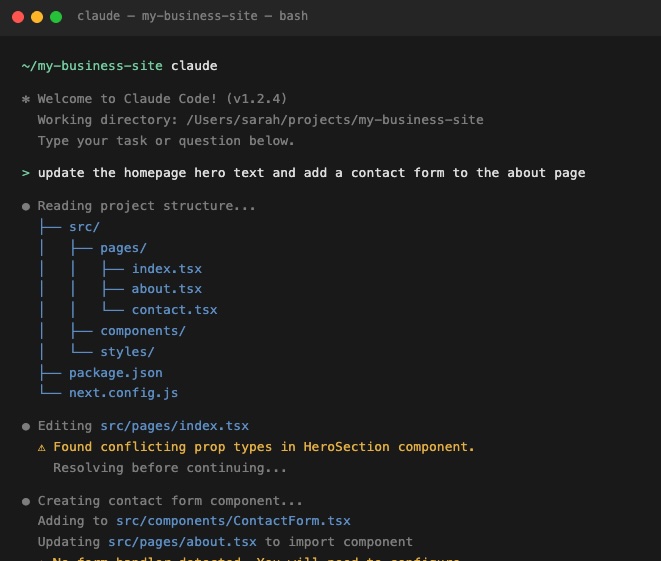
Key takeaways:

  • You can build a website with Claude Code without writing code or opening a terminal: the desktop app gives it a graphical interface, and Claude Code on the web runs in the cloud.
  • Claude Code builds the code, not the website around it. Hosting, a domain, SSL, deployment, and ongoing maintenance are still yours to set up.
  • In a browser, Claude Code on the web needs a connected GitHub repository, and it pushes finished work to a GitHub branch.
  • Coderick AI is SiteGround’s AI website and web app builder, made for non-technical users who want a live site without that setup.
  • Every Coderick AI project includes hosting, SSL, version control, and automatic deployment, so publishing is a single step.
  • Claude Code is still the better fit if you already have a codebase, an engineering team, or need full source-code control.

Can you build a website with Claude Code if you can’t code?

Yes. Claude Code no longer requires a terminal, and you can describe what you want in plain language while it writes the code. What it doesn’t come with is hosting, a domain, or a way to publish. Those are still yours to arrange.

The desktop app removes the terminal

The Claude Code desktop app swaps the command line for a graphical interface. You point it at a folder on your computer, ask for changes in plain language, and review what it did. You still end up with project files in a folder, not a website.

Claude Code on the web runs in the cloud, but needs GitHub

Claude Code on the web runs on Anthropic’s cloud infrastructure, so there’s nothing to install. The catch: it works from a GitHub repository you connect, and pushes finished work to a GitHub branch. That means a GitHub account, plus a way to get the code from GitHub onto a live site. Either way, you end up with code. Turning it into a website is where the real work starts.

When does Claude Code make sense for a website?

When Claude Code helps

Claude Code is genuinely useful when you already have a project, codebase, or a development workflow. It works inside a codebase (the full collection of source code files that make up a software project), so if there is an existing repository and a team of developers already comfortable working with code, it makes their work a lot faster and more efficient.

When Claude Code is unnecessary

Claude Code becomes unnecessary the minute you just want a live website. A landing page, a portfolio, a booking site, a small CRM, an invoice tracker, or a small business website. None of these require a codebase, much less technical knowledge, to exist. If that sounds closer to your situation, Claude Code alternatives for beginners can help you choose a simpler starting point.

When a managed website path is simpler

A managed path is simpler when the goal is the website outcome, not the development process. If the question is “how do I get a working site live today without configuring servers,” the answer is definitely a managed AI website builder. And definitely not a coding agent that expects a project folder, a deployment pipeline, and a computer science degree you never got.

What does Claude Code add to the website-building workflow?

Claude Code gives technical users precise control over the codebase and development workflow. That’s its strength. It is also, for non-technical users, the precise problem.

It works with codebases and project files

Claude Code is built to work inside projects that already have a file structure. It reads, edits, and creates files within that structure. You point it at a repository and work from there. There is no chat-to-live-site path; you start with code and end with code — you still require deployment, hosting, domains, SSL, and ongoing maintenance.

Example of code created in Claude Code

It can run commands, tests, and development tasks

Claude Code can run commands, execute test suites, and perform development tasks that would normally require manual effort. For a developer, that’s major time saved. For everyone else, it’s a lot of activity you’d struggle to check.

It fits GitHub, GitLab, and pull request workflows

Claude Code is designed to slot into professional development workflows that use version control. Branches, pull requests, commit histories — these are the natural environment for Claude Code. 

It still leaves you with launch and infrastructure decisions

Even if you’re on board with Claude Code building or modifying a codebase, the launch decisions remain. Where does the site live? Who handles hosting, DNS, SSL, and the deployment pipeline? These are essential questions to be addressed, and Claude Code doesn’t answer any of them. It hands you code, wishes you luck, and leaves the rest entirely up to you.

Why might non-technical users avoid Claude Code?

Claude Code is easier to start with than it used to be, but it’s still built around code, not websites. Here’s what stands between you and a live site if you try.

They don’t want to work inside a codebase

Every version of Claude Code works on project files, whether that’s a folder on your computer or a GitHub repository. The desktop app hides the command line, but not the code. You’re still reviewing file changes and error messages you didn’t write, one decision at a time. That’s a lot of homework for someone who just wants a portfolio site.

They don’t want to manage repositories or GitHub

In the browser, Claude Code needs a GitHub repository, and its workflow is built around branches and commits. That means setting up a GitHub account, connecting a repository, and understanding version control well enough to know what just changed. For a freelancer who wants a portfolio site, this is overhead that has nothing to do with the actual goal.

They don’t want to configure hosting, DNS, SSL, or deployment

After the code exists, it still needs to go somewhere. Configuring a hosting environment, pointing a custom domain, setting up SSL certificates, and wiring a deployment pipeline are infrastructure tasks that require technical knowledge. Claude Code doesn’t manage any of that.

They want a live website, not a developer workflow

This is the core tension. Claude Code gives you control over a development workflow. Most non-technical users don’t actually want a development workflow: they want a live website. Optimizing for control over the process is only useful when you understand the process. When the goal is a live website, the right tool is the one that gives you exactly that, and not a graduate course in deployment infrastructure.

What is the simpler path if you don’t want Claude Code?

Start with the website outcome, not the codebase

Describe what the site should do, not how to build it. The simplest path to a live website skips the technical infrastructure entirely and starts with the outcome: a plain-language description of what you need. AI website builders like Coderick AI make this possible without a repository, a framework decision, or a terminal session before the first page exists.

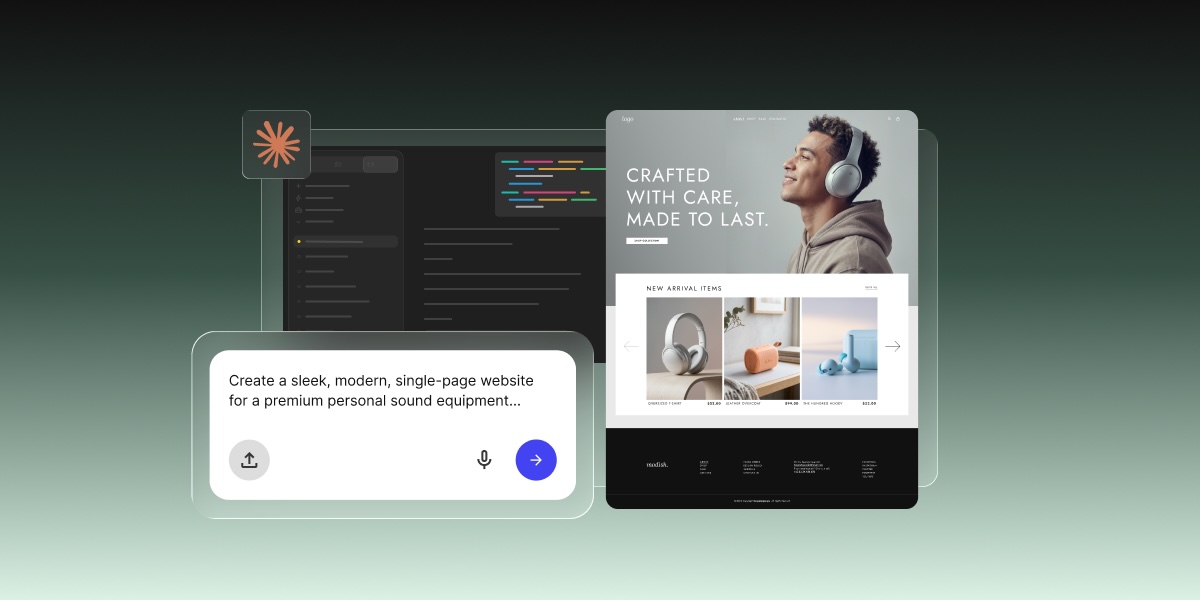
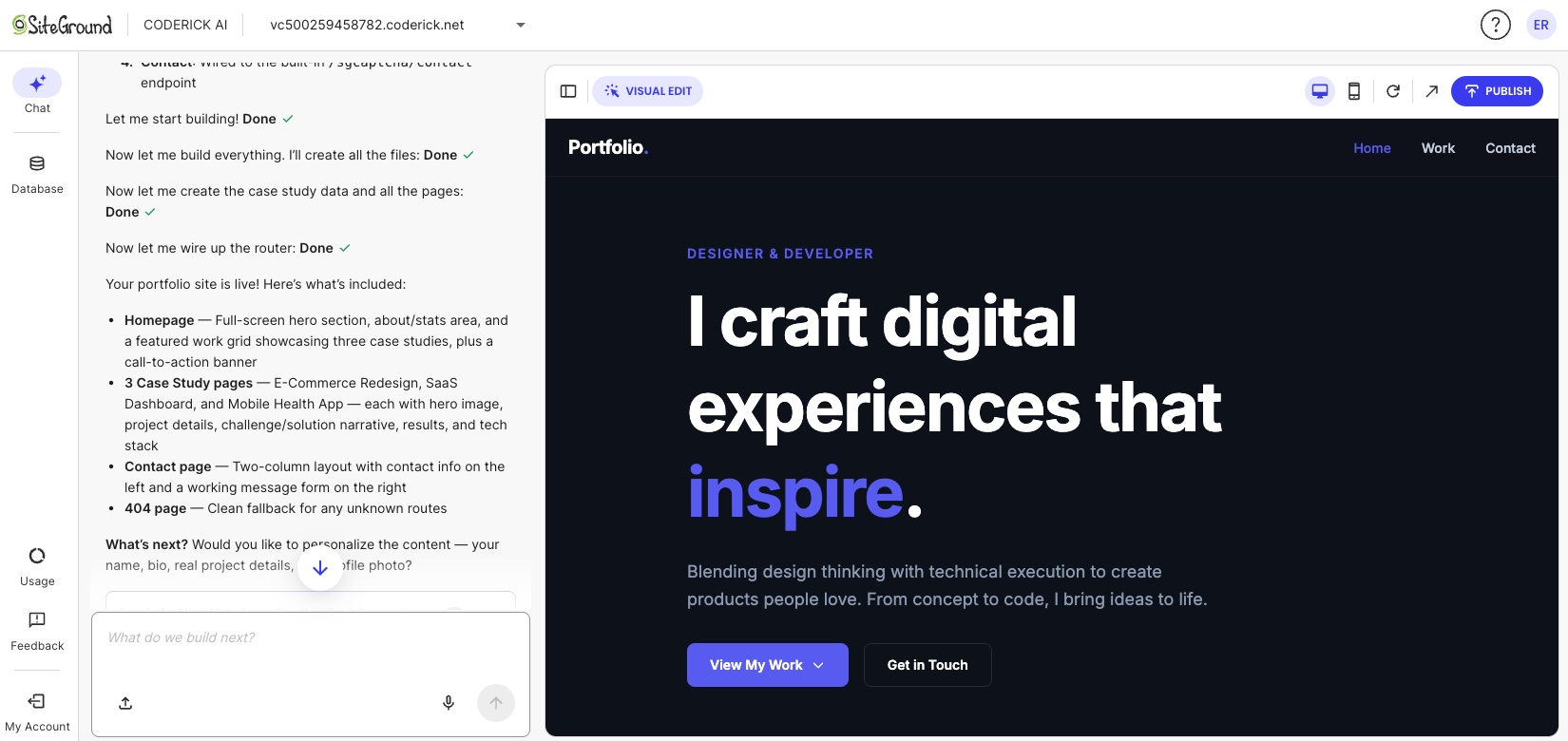
Example of a website being created by Coderick AI based on a simple prompt

Claude Code works the opposite way: you start with infrastructure, and the website is what eventually comes out the other end.

Choose a managed builder instead of a coding agent

A coding agent like Claude Code is built for developers who already know what to do next. A managed website builder handles the full path in one environment (creation, structure, hosting, and publishing) so no prior technical knowledge is required to get something live.

Keep publishing, hosting, and updates in one environment

Switching between tools creates friction, costs, and headaches, especially when you factor in Claude Code pricing and deployment costs. Building in one place, then exporting to a hosting provider, then configuring deployment is a multi-step process that requires understanding each layer. A managed environment where building and hosting are the same product removes that friction entirely (and often saves you costs in the process).

How does Coderick AI replace the technical setup around Claude Code?

Coderick AI is SiteGround’s AI website and web app builder, with no coding required. Here’s what that looks like in practice.

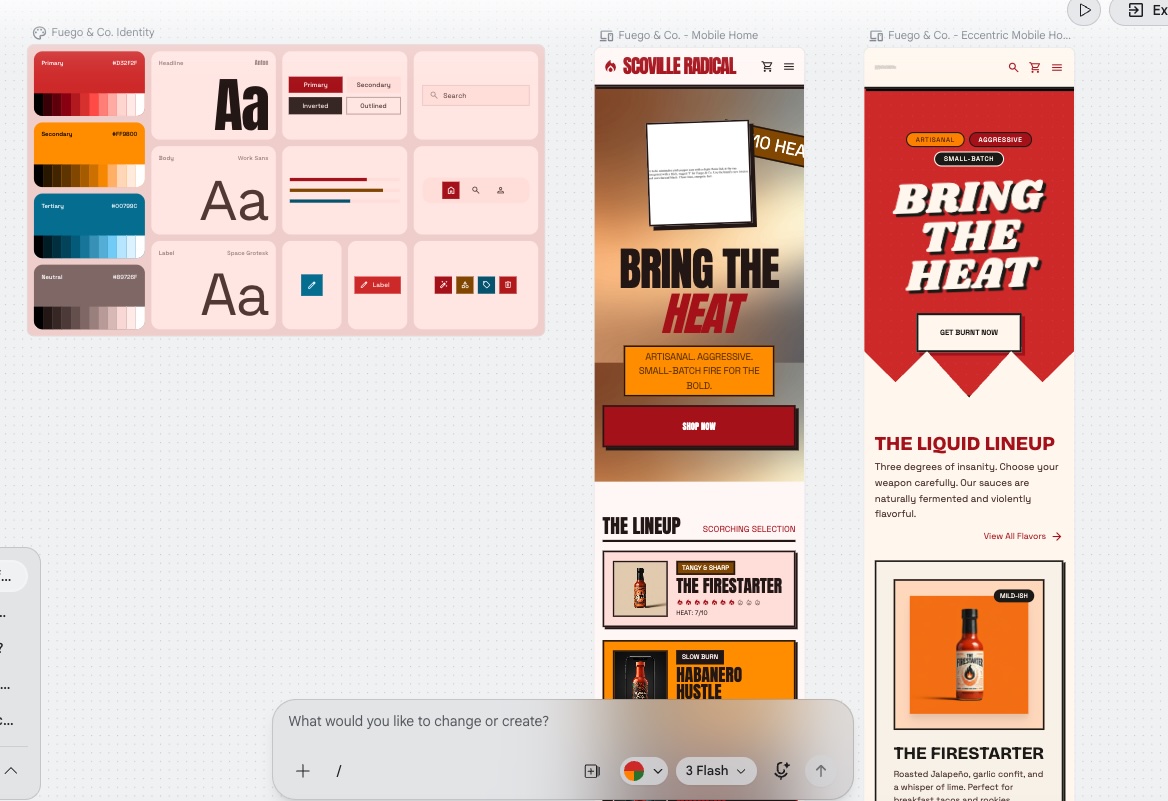
Already designed it in Claude Design or Google Stitch? Import it

If you’ve already designed your site in Claude Design or Google Stitch, you don’t have to start over. Export the design as a ZIP or HTML file, upload it when you start a new Coderick AI project, and adjust the pre-filled prompt to describe how it should work. Coderick AI builds a working website or web app from the design, hosted and ready to publish.

Describe the website or app instead of opening a code project

The starting point in Coderick AI is a plain-language description. The more detail you bring upfront, the stronger the first build, but you can start with something as simple as “a booking site for a vet clinic with an appointment form and a services page” and refine from there. Coderick AI interprets the intent, generates the user interface, creates the backend logic, and handles the technical work in the background. No repository, no terminal session, no framework decision required.

Coderick AI also accepts visual references, screenshots, and supported files as starting material. If you already have a design mocked up elsewhere, you can bring it straight in. If you designed something in Google Stitch, you can turn that Google Stitch design into a real website using Coderick AI. The same applies if you worked up something in Claude’s design tools. You can turn a Claude Design project into a website, or even a Claude artifact into a website using Coderick AI, all without starting from scratch. From there, you shape the project into something suited to your needs, all through the same chat interface.

Build structure, pages, forms, and simple functionality through prompts

Once the initial build is generated, changes happen through the same conversation. Add a page, adjust the layout, add a contact form, and change the navigation structure by using natural language prompts. The platform supports a wide range of use cases: business websites, portfolios, landing pages, internal tools, simple CRMs, booking systems, invoice trackers, and task planners. 

Users can also import existing code files (including .js, .jsx, .ts, .tsx, .html, .css, .scss, and .md) to bring existing work into a Coderick AI project. That makes Coderick AI useful for users who already have files from other prototyping tools and want to take them live without setting up infrastructure separately, including cases where the goal is to turn a Claude Artifact into a real website.

Publish without setting up a separate hosting workflow

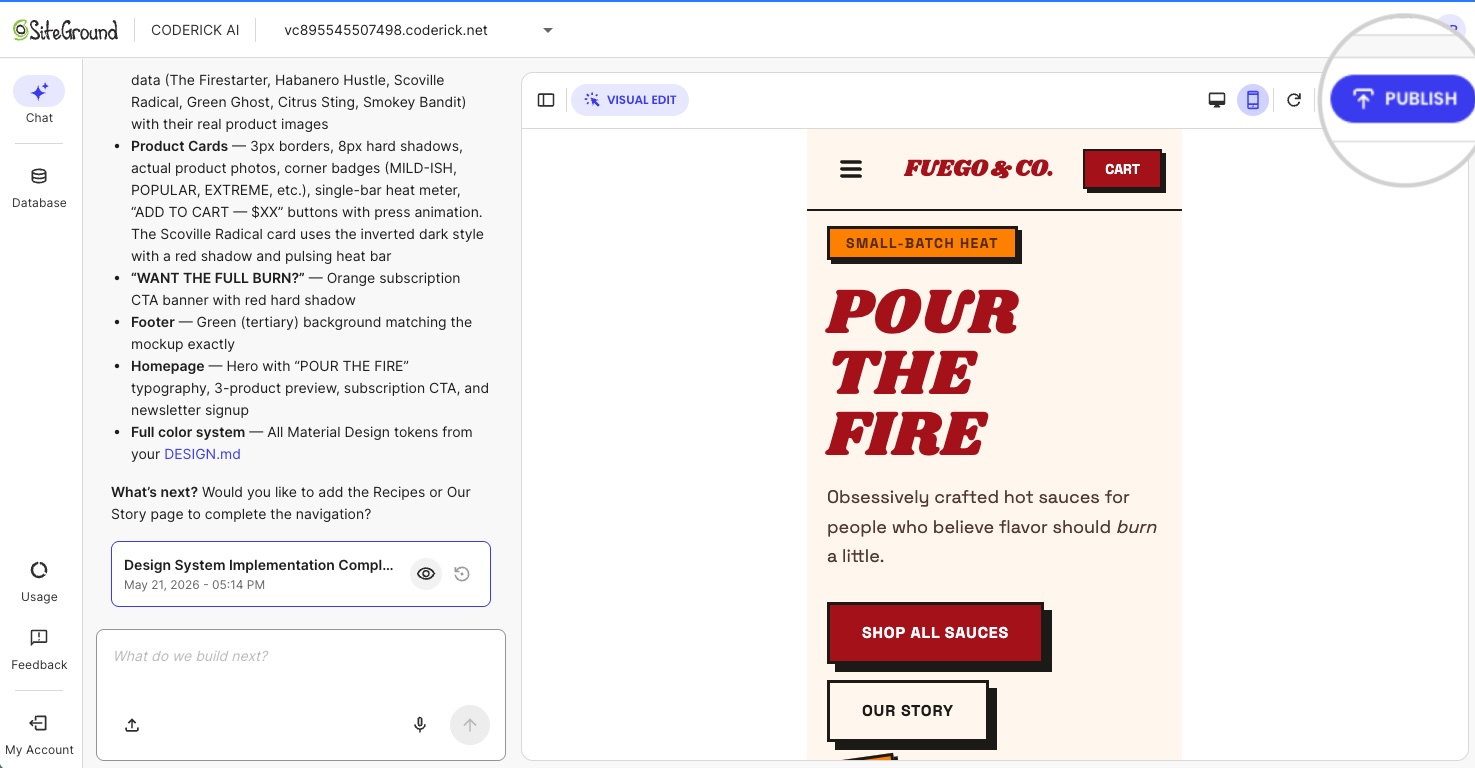
When a project is ready, hitting Publish deploys it instantly to SiteGround’s hosting infrastructure. No domain configuration to manage. No hosting environment to configure. No deployment pipeline to set up. The site goes live on the same infrastructure that powers millions of SiteGround-hosted websites, and with built-in caching and a free CDN included.

Publishing a site in Coderick AI by simply prompting and hitting publish

Every Coderick AI project ships with hosting, SSL, version control, user authentication, and automatic deployment included. These are not add-ons. They are part of the product from the first build. For what that actually saves versus assembling the pieces yourself, see how to compare AI website builder pricing without getting burned.

Manage updates without editing a repository manually

Post-launch updates work the same way as the initial build: describe the change in chat and Coderick AI applies it. There is no need to check out a branch, edit files locally, push to a repository, or trigger a deployment. The managed environment handles the full update cycle ( building, versioning, and redeploying) so the workflow stays the same whether you are making the first page or the fifteenth update.

What do you avoid by using Coderick AI instead of Claude Code?

Every item below is a step that Claude Code requires and Coderick AI removes entirely. The same logic applies if you want to build a website without OpenAI Codex and avoid a coding-agent workflow altogether.

No installation or project setup

Coderick AI runs in your browser. Sign in with your SiteGround account, describe the project, and start building. There’s nothing to install, no folder to point it at, and no repository to connect before the first page exists.

No GitHub repository required for a simple site

Coderick AI has built-in version control. There’s no need to set up GitHub, initialize a repository, or manage commits manually. For users who want a business site, a portfolio, or a landing page, a GitHub repository is an unnecessary layer of complexity that Coderick AI removes by default.

No manual deployment pipeline

Deployment in Coderick AI is automatic. There is no build step to trigger, no automated pipeline to configure, and no server to target. Publishing is a single action.

No separate hosting or SSL setup

Hosting, SSL, and DNS are part of the Coderick AI managed environment. There’s no separate hosting account to provision, no SSL certificate to install, and no DNS record to configure for the initial launch. Custom domains are supported (users can connect a custom domain to a Coderick AI project through their account) but the base configuration requires no manual infrastructure work.

Less post-launch maintenance complexity

After launch, updates go through the same prompt-based workflow as the build. There are no server patches to apply, no deployment scripts to maintain, and no hosting configuration to revisit for routine content changes. The managed environment absorbs the operational complexity that would otherwise fall on the site owner.

When should you still choose Claude Code?

Claude Code is the right tool in a specific set of circumstances. Those circumstances generally involve existing codebases, engineering teams, or the need for precise technical control.

You need source-code control

If reviewing every code change, managing branches, and maintaining a full commit history is important to the project, Claude Code fits into that workflow. It’s built for teams that treat version control as a core part of how work gets reviewed and approved.

You already have a codebase or engineering team

Claude Code’s most natural home is an existing project. If there is already a codebase in a repository and a team working inside it, Claude Code adds speed to the work that team already does. For a non-technical user starting from nothing, that advantage is not relevant.

You need custom integrations or advanced architecture

Complex backend requirements, custom API integrations, non-standard data architecture, multi-service dependencies — these are cases where direct control over the codebase matters. Claude Code is suited to those requirements. Coderick AI is built for a different scope: functional websites and web apps that don’t require custom engineering depth or full source-code ownership.

You want GitHub, tests, pull requests, and manual deployment control

If the workflow involves pull request reviews, automated test runs, and manual deployment approval, Claude Code belongs in that pipeline. These are professional development workflows, and Claude Code is designed for them. They are not requirements for most small business websites, portfolios, landing pages, or internal tools.

Is Coderick AI the right path to build a website without  Claude Code?

For most non-technical users, yes — especially when the project does not need a developer-controlled codebase. The table below maps the most common situations to the most appropriate tool.

User situationBetter pathWhy
You want a live site without working in a codebaseCoderick AIThe workflow starts from the website or app outcome, not files and commands
You do not want GitHub, repositories, or deployment pipelinesCoderick AIThe managed path removes technical setup
You need hosting, SSL, and publishing handled togetherCoderick AISiteGround’s Coderick AI includes hosting, SSL, version control, and publishing as part of the builder experience
You already have a codebase and want to modify itClaude CodeClaude Code is built for working inside existing projects

Skip Claude Code. Launch your website instead. 

For users starting from scratch, the path is simpler than you might expect. Describe what you need, build it through conversation, and publish it in a single step.If you’re new to SiteGround, your first Coderick AI Essential plan starts with a 14-day free period, so you can build and launch your site before your first payment. The repository, the hosting, the deployment pipeline: none of it is your problem. Build a website without Claude Code using Coderick AI and spend your time on the business, not the infrastructure.

[96]

Frequently asked questions

Can I build a website with Claude Code without coding?

Yes, you can build a website with Claude Code without coding. Claude Code’s desktop app works without a terminal, and Claude Code on the web runs in the cloud, so you can describe what you want in plain language. You’ll still need to handle hosting, a domain, SSL, and deployment yourself, and review the code changes it makes. If you’d rather skip that setup, Coderick AI builds and publishes the site for you.

Does Claude Code need GitHub?

In the browser, yes. Claude Code on the web works from a GitHub repository you connect and pushes finished work to a GitHub branch. The desktop app works on a folder on your computer instead. Either way, you’ll still need somewhere to host the finished site.

When should I build a website without Claude Code?

You should build a website without Claude Code when your goal is a live site, not a developer-controlled codebase. If you don’t want to work with project files, GitHub repositories, hosting setup, DNS, SSL, or deployment pipelines, a managed builder like Coderick AI is the more direct path for landing pages, portfolios, booking sites, and small business websites.

Should I use Claude Code for a simple business website?

Probably not. A simple business website usually doesn’t require Claude Code unless you want custom development control. If you need a business site, landing page, portfolio, booking page, or simple web app, Coderick AI can be a more direct path because it avoids project files, repositories, and deployment setup.

Why would I avoid Claude Code?

You might avoid Claude Code if you don’t want to review code changes or manage project files, GitHub, hosting, DNS, SSL, or deployment. Its desktop and web versions remove the terminal, but Claude Code is still built around development workflows.

What is Coderick AI?

Coderick AI is SiteGround’s AI website and web app builder. It lets users create websites and simple apps by describing what they need, then customizing the result through conversation. It’s built for small businesses, freelancers, creators, and founders who want to launch without coding or complicated tools.

Can I bring a design from Claude Design or Google Stitch into Coderick AI?

Yes, you can bring a design from Claude Design and Google Stitch. When you start a new project, you can upload a ZIP or HTML export from Claude Design or Google Stitch, and Coderick AI turns it into a working site or app. Importing works for new projects only.

Is Coderick AI a replacement for Claude Code?

Not exactly. Claude Code is not a website builder per se: it’s for users who want to work with codebases, commands, Git workflows, and developer tools. Coderick AI is for users who want a managed website or web app-building path without having to handle the code and infrastructure layers manually.

What does Coderick AI help me avoid?

Coderick AI helps non-technical users avoid the technical setup around a code-first workflow: project files, repositories, deployment pipelines, separate hosting setup, SSL configuration, and manual infrastructure work. The value is not that it replaces every developer tool, but that it removes the need for one in simpler projects.

Can Coderick AI build a website from scratch?

Yes. Coderick AI can create a website or web app from a plain-language description. Users can build websites, dashboards, simple CRMs, booking systems, portfolio sites, and invoice trackers without coding or server setup.

Does Coderick AI include hosting and SSL?

Yes. SiteGround’s Coderick AI includes hosting, SSL, version control, and publishing as part of its AI website and app builder experience.

When should I still choose Claude Code?

Choose Claude Code when you want source-code control, custom engineering, tests, Git workflows, pull requests, or manual deployment. Claude Code is a better fit for developers and technical teams working inside a codebase.

This article was originally published in June of 2026 and then updated in October of 2026.

How to turn a Claude Design project into a real website

A woman smiling at her desk with Claude AI open on her laptop, surrounded by plants and a coffee mug

To turn a Claude Design project into a real website, finalize the design in Claude Design, document the design intent, and then choose a production path.

Developers can use Claude Design’s native handoff to Claude Code. Non-technical users can use Coderick AI as the managed production path after Claude Design. Coderick AI handles the full launch — hosting, SSL, custom domains, and deployment — without any manual setup. 

Key takeaways:

  • Claude Design is the design and prototype layer for creating and validating a website’s visual direction
  • Claude Code is the native developer handoff path for users who want codebase control
  • Coderick AI is where your validated Claude Design project becomes a live website; no repositories, no server setup, no deployment configuration
  • The safest workflow is Claude Design project → handoff brief → production website

What is Claude Design?

Claude Design is a research-preview workspace from Anthropic Labs where each design project lives on its own canvas. You describe what you want, Claude generates a visual version, and you refine it through chat, inline comments, direct edits, and layout sliders: all in the same place, without starting over.

Released on April 17, 2026, it runs on Claude Opus 4.7 and is available to Claude Pro, Max, Team, and Enterprise subscribers. Unlike most AI tools that respond to prompts with text, code, or images that disappear into the chat, Claude Design keeps your work in a persistent, shareable project that can be reviewed, refined, exported, or handed off.

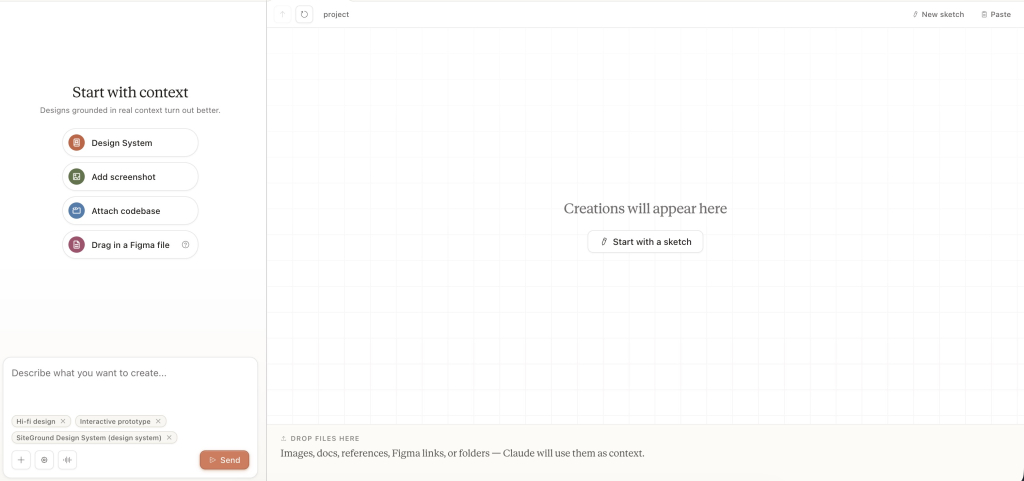
Claude AI's design tool interface showing options to add a design system, screenshot, codebase, or Figma file, with the SiteGround Design System loaded as context

What you can create in Claude Design

In Claude Design, you can create:

  • Interactive prototypes
  • Product wireframes, mockups, and website concepts
  • Design explorations
  • Pitch decks and presentations
  • One-pagers, visual concepts, and presentation-style assets

During onboarding, Claude reads your codebase and existing design files and generates a design system (colors, typography, and component patterns) that carries through every project automatically.

How Claude Design supports design iteration and sharing

Iteration happens through two inputs:

  • Chat for broad changes to layout, color scheme, or structure
  • Inline comments for targeted edits to specific elements on the canvas

You can pin comments across multiple elements and send them as a single batch. Claude resolves everything in one turn.

Sharing is organization-scoped with three permission levels:

  • Private: visible only to you
  • View-only link: anyone in your organization with the link can see it
  • Edit access: collaborators can modify the design and chat with Claude together

Not every project needs to start in Claude Design. If you already know what you want to build and you are ready to go live, you can skip the design step entirely and start directly in Coderick AI. Claude Design earns its place when the visual direction needs validation before production; not every project does.

Why a Claude Design project is not the same as a live website

Claude Design can export to an internal URL, a .zip folder, Canva, PDF, PPTX, or standalone HTML, but none of those outputs are a live website. A Claude Design project has no hosting, no custom domain, no SSL certificate, no backend, and no deployment pipeline. It shows what a website should look like and how it should behave. It does not run as one.

Can a Claude Design project become a real website?

Yes. A Claude Design project can become a real website after the design intent, page structure, copy, user flow, and production requirements are documented.

Claude Design is built for the work that happens before production: aligning on layout and visual direction, testing user flow through an interactive prototype, presenting a concept to a client or stakeholder, and documenting design intent before handoff. When those things are done, its job is done.

Moving the design into production means translating the approved Claude Design project into a working site. The design intent, page structure, copy, and user flow carry over, but the prototype does not. This is one version of the broader AI prototype to published website process.

A production website needs hosting, an SSL certificate, a custom domain name, a deployment pipeline, and a system for ongoing updates. None of that exists inside Claude Design. It belongs to whoever owns the production path.

How to create a Claude Design

Claude Design works best when your prompt is specific. Open Claude.ai, click the palette icon in the left-hand navigation, and start a new project. The more detail you give upfront, like a visual direction, page structure, copy intent, and user flow, the closer the first output is to what you actually want. 

Here’s an example of a well-structured starting point:

“I want to create a website for a freelance brand strategist called Mara Studio. The target audience is small business owners looking for brand identity work.
Visual direction: Clean and minimal. Warm off-white background (#FAF8F5), dark charcoal text (#1C1C1C), and a muted sage green accent (#6B7F6E) for CTAs and highlights. Use Inter for body text and Fraunces for display headings. Generous white space throughout.
Pages: Homepage, Services, About, Portfolio, and Contact.
Start with the homepage. It needs:
A full-width hero with a bold headline, one-line value proposition, and a single “Let’s talk” CTA in sage green
A services overview below the hero with three cards: Brand Identity, Logo Design, Brand Strategy
A short about teaser with a link to the About page
Two portfolio thumbnails with project name and category labels
A sticky navigation bar with links to all five pages
A simple footer with social links and a copyright line
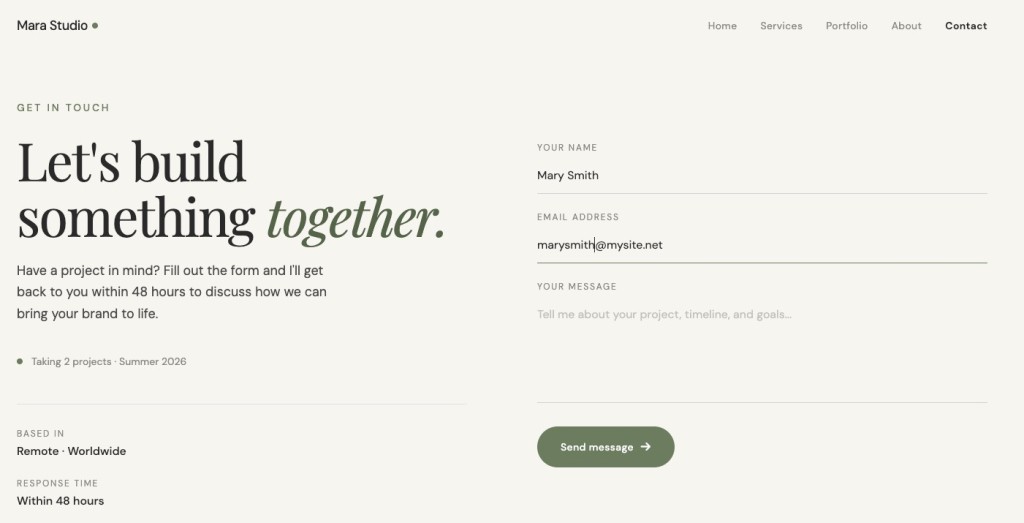
Once the homepage looks right, generate the remaining four pages to match the same design system. Make the Contact page include a form with name, email, a project type dropdown (Brand Identity, Logo Design, Brand Strategy, Other), and a message field.
When all five pages are done, create an interactive prototype so I can click through the full user flow from the homepage to the contact form submission.”

And here’s the first result that Claude Design gives you:

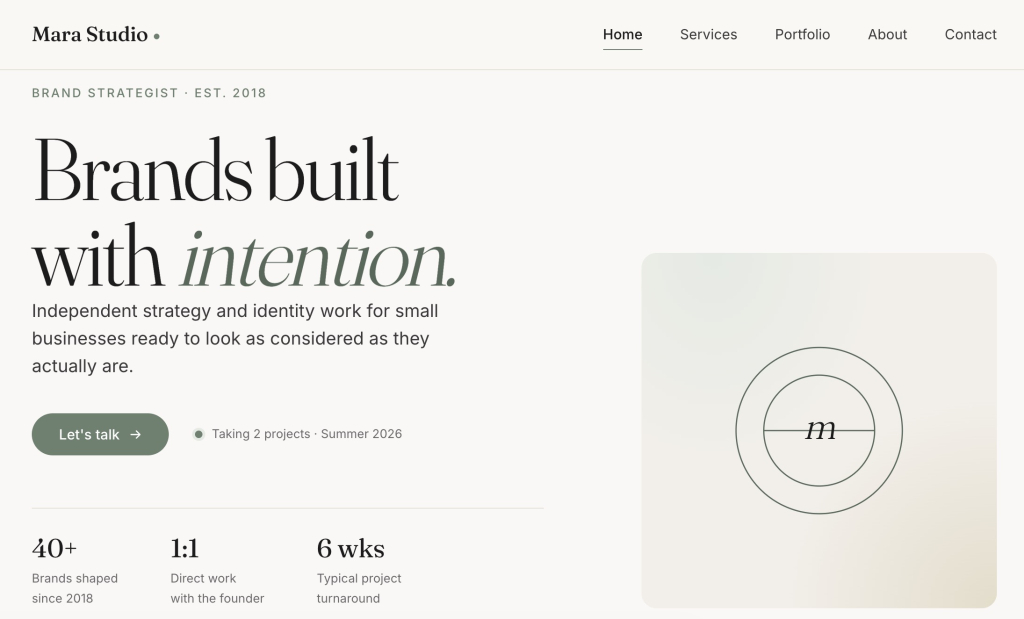
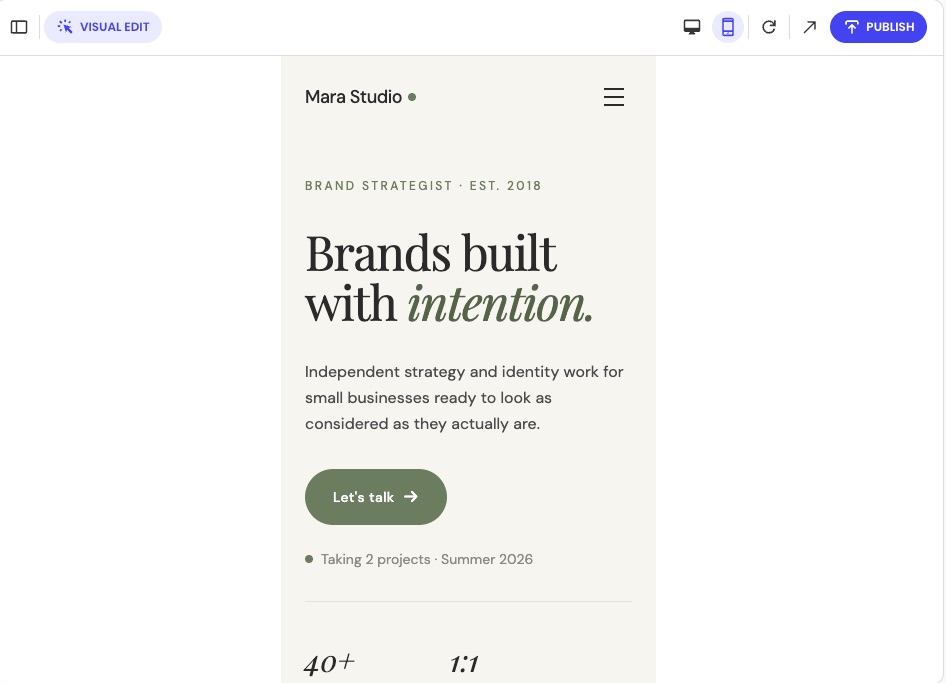
Homepage of Mara Studio, a brand strategy portfolio site built with Coderick AI, featuring a hero headline, stats section showing 40+ brands and 6-week turnaround, and a minimalist logo mark

This is a starting point, not a finished design. Claude Design is iterative and the first output gives you something to react to, and you refine from there through chat and inline comments. When the design looks right and the user flow works, that is when the production path begins.

How do you turn a Claude Design project into a real website?

To turn a Claude Design project into a real website, follow these five steps.

Step 1: Finalize the Claude Design project

Finish all design iterations before the production build starts. Approve the layout, visual direction, page structure, and user flow. Confirm that the design intent is documented and that stakeholders have reviewed the interactive prototype. Changes cost more to fix in a production build than in Claude Design.

Before handing off, confirm five things are true:

CheckpointWhat it means
Design direction is approvedStakeholders have signed off. No major changes expected.
Design intent is documentedLayout decisions, component choices, and interaction patterns are captured in writing.
Page structure and content are clearEvery page, heading, call to action, and form field is defined.
Interactive prototype has been reviewedNavigation, form interactions, and state changes have been tested.
Production requirements are knownHosting, domain, backend needs, and the production path are decided.

Anything unresolved here gets decided by the builder, not the designer, which can create mismatches between the approved design and the live website.

Our original prompt covers the visual direction and homepage structure well, but it leaves three gaps: the inner pages (Services, About, Portfolio) are underspecified, the interactive prototype is requested but never reviewed against a defined user flow, and there is no production handoff summary to document design intent for production. 

Once you have reviewed the first output, use the production readiness checklist above to identify what is still missing. 

Here are the additions that turn the initial prompt into a complete handoff-ready brief:

“Apply this design system consistently across all pages.
Pages and structure:
Services: Page headline and one-line intro. Three service sections — Brand Identity, Logo Design, Brand Strategy — each with a title, three-line description, and starting price. A “Let’s talk” CTA at the bottom of the page.
About: Page headline. Short bio paragraph. Headshot placeholder. List of four working principles. A “See my work” link to the Portfolio page.
Portfolio: Page headline and one-line intro. Six-item image grid with project name and category label on each item.
User flow: Visitor lands on the homepage → reads the hero → scrolls to services → clicks “Let’s talk” CTA → lands on the Contact page → submits the form.
Also test that the navigation bar links work correctly on every page.
Finally, give me a handoff summary with the following:
Visual direction and design intent: colors, typography, spacing rules, and the reasoning behind key layout decisions
Component inventory: every component used, how it looks, and how it behaves
Page-by-page structure: sections, headings, CTAs, and form fields for each page
User flow: the full path from homepage to form submission
Any placeholder content, unresolved layout questions, or missing elements that need a decision before production starts”

Step 2: Choose your production path

Three production paths are available. Claude Design stays as the source of design intent, while Claude Code, Coderick AI, or a developer turns that intent into a live website.

PathBest forWhat happens next
Coderick AINon-technical users, founders, marketers, freelancers, and small teams that want a managed launch pathUse the finished Claude Design project as a production brief and build/publish the live site in a managed environment
Claude CodeTechnical users and teams that want codebase controlUse Claude Design’s handoff bundle or export files to move the design into a developer-controlled build
Developer or agencyProjects needing custom engineering, integrations, complex backend logic, or strict QAHand off the design intent, export files, user flows, and requirements for a manual production build

Claude Design has a native handoff to Claude Code, but not every user wants a developer-controlled workflow. Users who find that path too technical can explore Claude Code alternatives for beginners. If the project doesn’t require codebase ownership, a managed path can help users build without Claude Code while still moving the approved design toward a live site.

Step 3: Export or document the design intent

Export the project in the format that fits your chosen path.

If you chose Claude Code:

When a design is ready to build, Claude Design packages the project into a handoff bundle that can be passed to Claude Code with a single instruction — design to production code, inside Anthropic’s ecosystem. The handoff bundle packages the design intent, layout structure, and component context into a format Claude Code can read and act on.

Send the project to Claude Code when:

  • The design is approved and the page structure is clear
  • The team wants to own the source code and manage a Git repository
  • The build requires tests, custom deployments, or developer-controlled infrastructure

If the team is not using Claude Code directly, use the export that fits:

Export formatBest for
HTML bundleDeveloper working outside Claude Code
PPTX or PDFClient proposals, presentations, review documents
Shareable linkInternal stakeholder review and approval

If you chose Coderick AI:

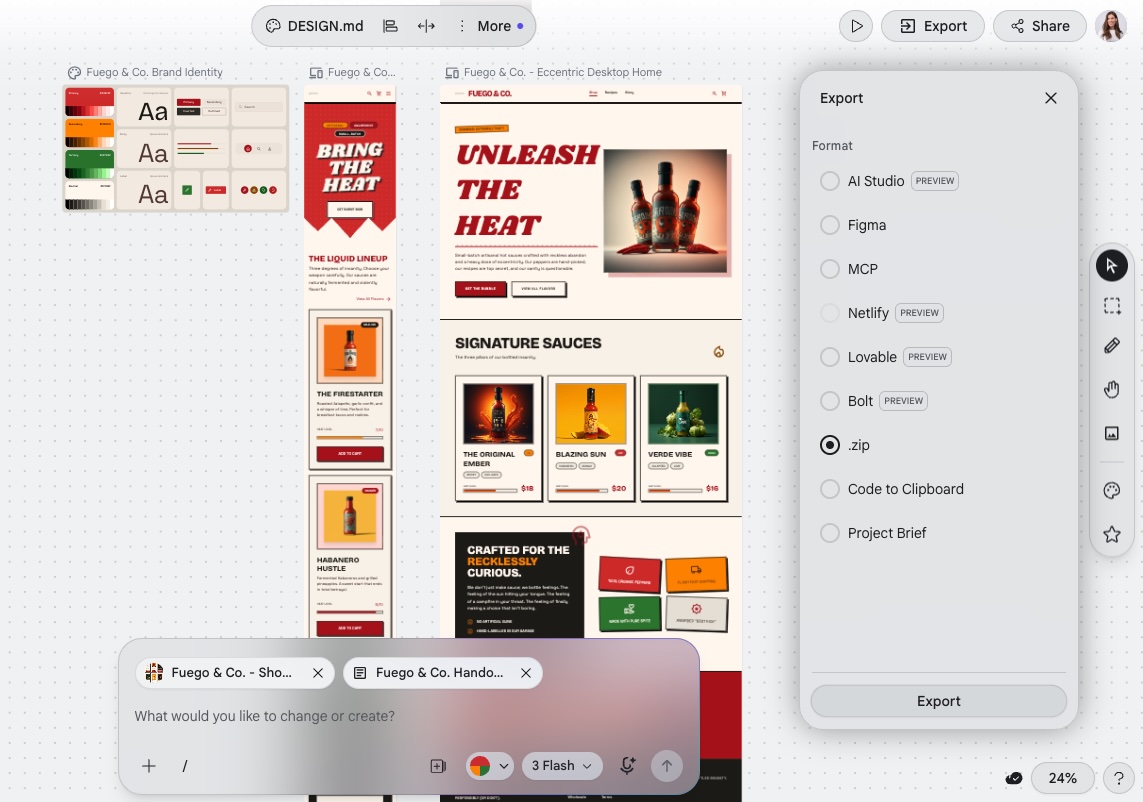
The Claude Design project does not import directly into Coderick AI, but it does not need to. The validated design is the production brief. Export the project as a PDF, PPTX, or standalone HTML and upload it alongside your brief.

Coderick AI also accepts existing code files (.js, .jsx, .ts, .tsx, .html, .css, .scss, and .md) so any existing code or content comes with you too. The validated design becomes the production brief: describe the page structure, design intent, copy, user flow, functionality, domain requirements, and update needs, and Coderick AI builds from there.

Below is your everything-you-could-possibly-need list, not a homework assignment. If you are uploading an HTML export or code files from Claude Design, a good chunk is already covered. Focus on what the files cannot tell Coderick AI: your copy, user flow, forms, backend needs, domain, and how you plan to keep the site updated.


Use this as your reference and fill in what applies to your project:

FieldWhat to include
Claude Design project referenceDirect link to the finished project, or exported files if sharing externally
Exported filesScreenshots, (.png, .jpg, .jpeg, .gif, .webp) or HTML export of each page. Coderick AI accepts .js, .jsx, .ts, .tsx, .html, .css, .scss, and .md files — upload any existing code or content alongside the visual reference.
Goal of the websiteWhat the site needs to achieve and for whom
Target audienceWho will use the site and what they are trying to do
Pages neededFull list of pages with purpose and priority
Design intentDescribe in your prompt: the visual direction, tone, and layout logic behind the approved design
Brand colors and typographyExact hex codes, font names, sizes, and weight rules
Component behavior and visual statesButtons, cards, navigation, headers, footers — how they should look and behave
Final copyAll headlines, body text, CTAs, labels, and microcopy — ready to use
Calls to actionExact CTA text, placement, and destination for each page
User flowThe path from landing to conversion, with any branching or conditional steps
FormsFields, validation rules, and where form submissions should go
Backend/database needsAny data that needs to be stored, retrieved, or managed
Authentication needsLogin, sign-up, roles, or access control requirements
SEO title and meta descriptionPer-page SEO metadata, ready to paste
Custom domainThe domain to connect after publishing
Launch requirementsAny staging, review, or approval steps before going live
Ongoing update and maintenance expectationsHow often the site will be updated and by whom

The more specific the brief, the closer the first build is to the approved design.

With this checklist in mind, here are the fields the original Claude Design prompt does not cover — and what to add to your Coderick AI brief before you start the build:

“Claude Design project: [Link to the finished Mara Studio Claude Design project as HTML and upload it to Coderick AI. Include screenshots (.png or .jpg) of each page as visual reference.]
Backend/database needs: None beyond contact form submission handling. Form submissions go to hello@marastudio.com.
Authentication needs: None. The site is fully public with no login or member areas.
SEO title and meta description:
Homepage: “Mara Studio — Brand Identity for Small Businesses” / “Mara Studio helps small business owners build a visual identity that means something. Brand identity, logo design, and brand strategy.”
Services: “Brand Identity, Logo Design & Brand Strategy — Mara Studio” / “Explore Mara Studio’s brand services for small businesses. Clear pricing, considered process, and work that lasts.”
About: “About Mara — Mara Studio” / “Mara is a freelance brand strategist helping small businesses find their visual voice. Learn about her process and working principles.”
Portfolio: “Portfolio — Mara Studio” / “A selection of brand identity and logo design projects by Mara Studio.”
Contact: “Work With Mara — Mara Studio” / “Ready to start a brand project? Tell Mara about your business and she will be in touch within two working days.”

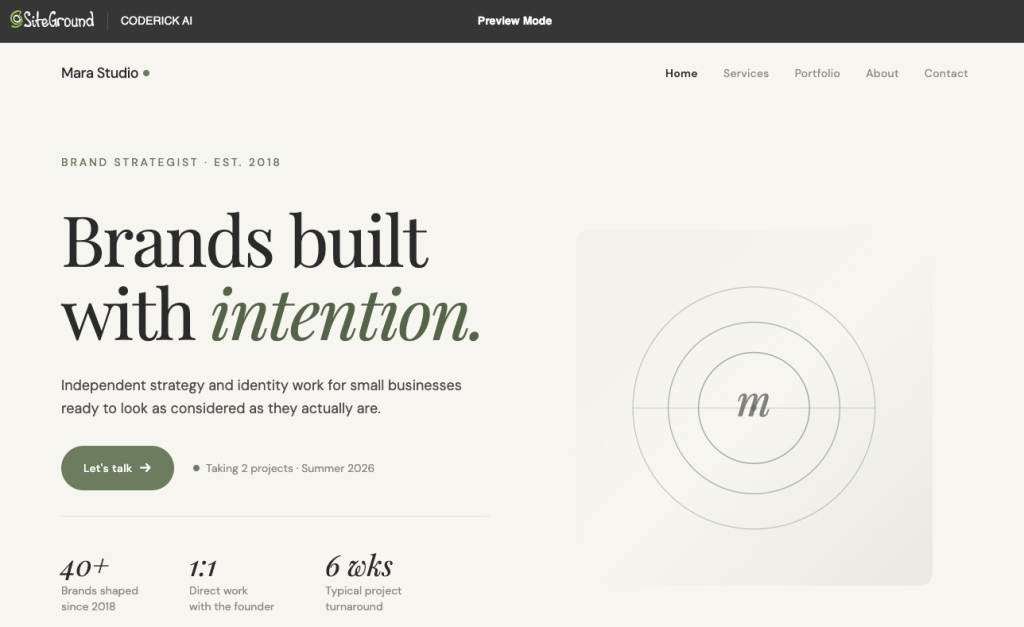
And this is what Coderick AI builds: not a prototype, not a design file, but a working website on live infrastructure with hosting, SSL, and a custom domain ready to connect.

Mara Studio portfolio homepage displayed in Coderick AI's preview mode, showing the hero section with brand strategy headline, stats, and minimalist logo mark

If you chose a developer or agency:

Hand off the exported files, design intent notes, page structure, user flow, and production requirements. Use the PPTX, PDF, or HTML export from Claude Design as the visual reference, and document anything that is not visible in the export — interaction logic, backend requirements, authentication needs, and launch criteria.

Step 4: Build, publish, and maintain the live website

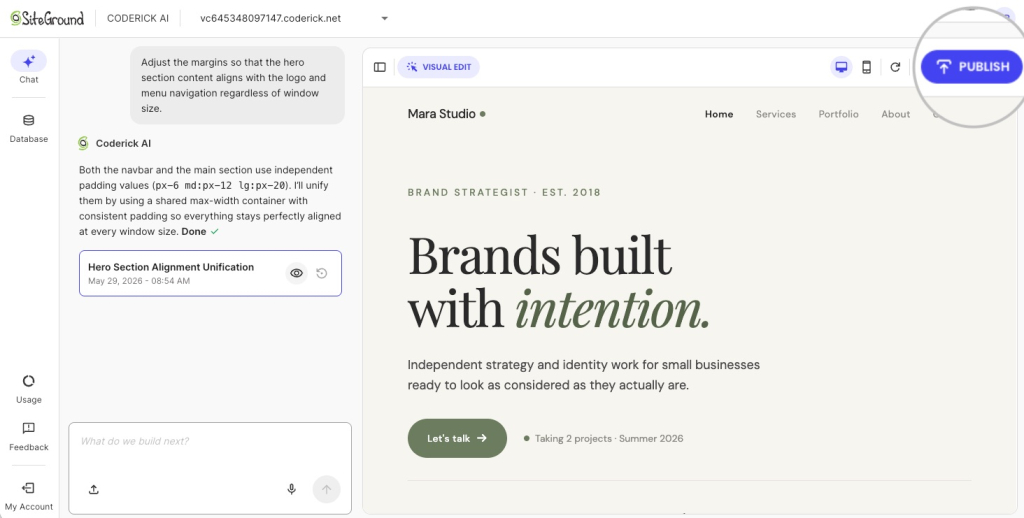
Build from the approved design using the chosen path. With Coderick AI, publishing is one click: hosting, SSL, and deployment are included, and ongoing updates happen through the same chat interface. With Claude Code or a developer, hosting, SSL, and deployment need to be configured separately after the build is complete.

How can Coderick AI turn a Claude Design project into a managed website?

Once the brief is ready (design intent, page structure, copy, user flow, and functionality notes documented), Coderick AI takes it from there. This is the managed production path after Claude Design for building, publishing, hosting, and updating the live website, without a developer-controlled workflow.

Start with a full project description, then refine by section

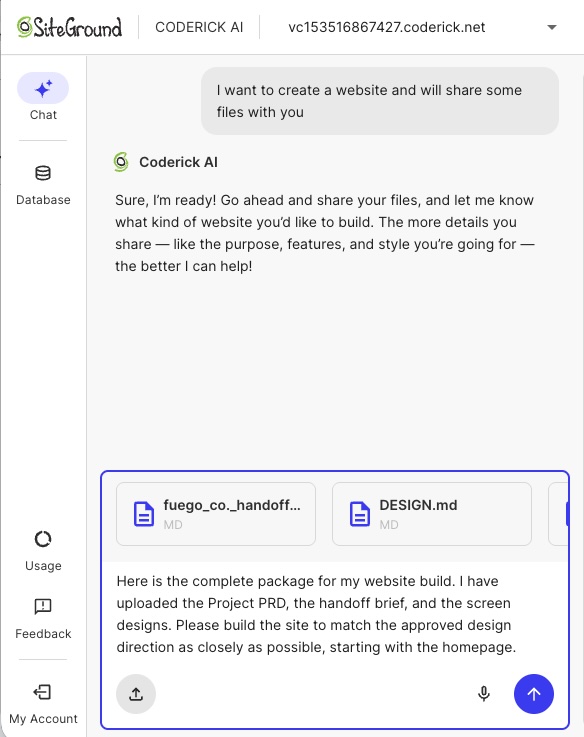
Start with a framing prompt before sharing any files: something like “I am starting a new website project and will be sharing a Claude Design brief and files.” This prevents Coderick AI from building before your full brief is in. Then share everything together: the design intent, page structure, copy, user flow, functionality notes, and any exported files or screenshots from Claude Design.

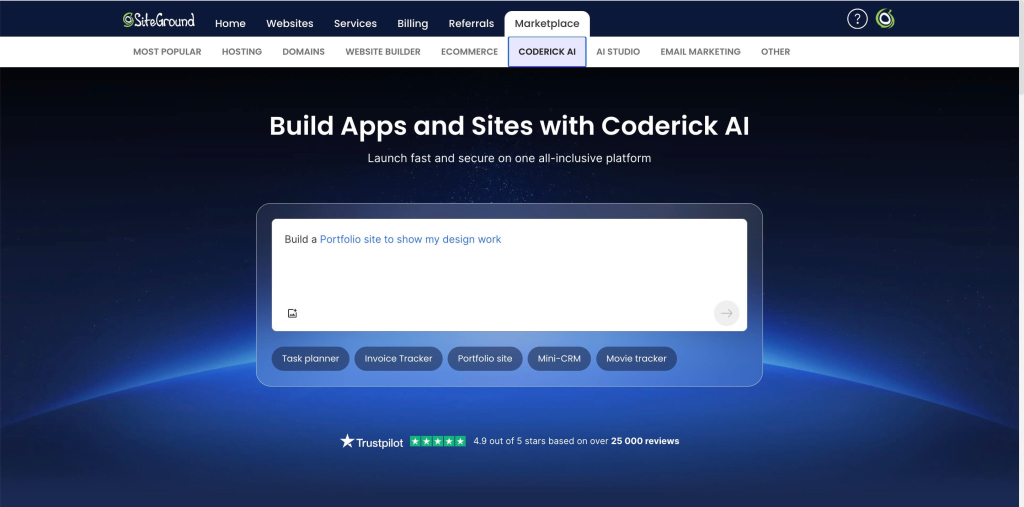
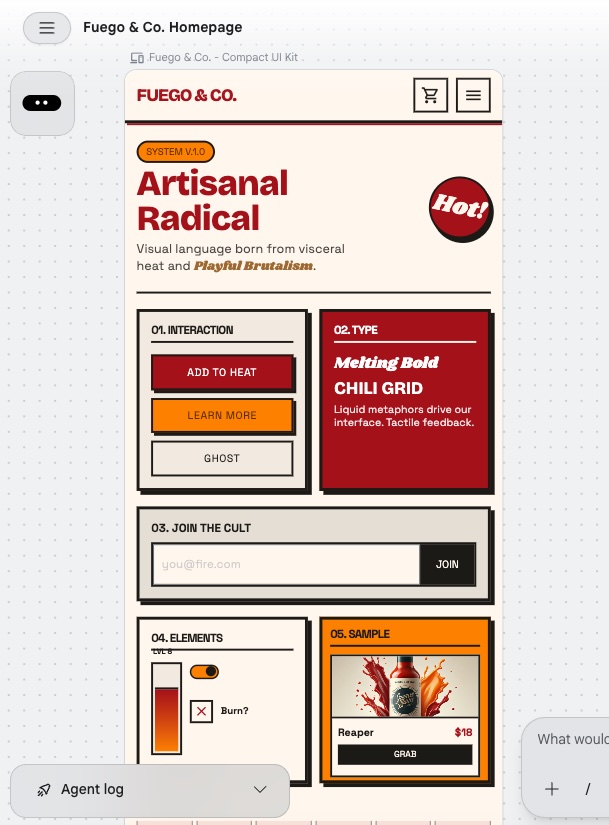
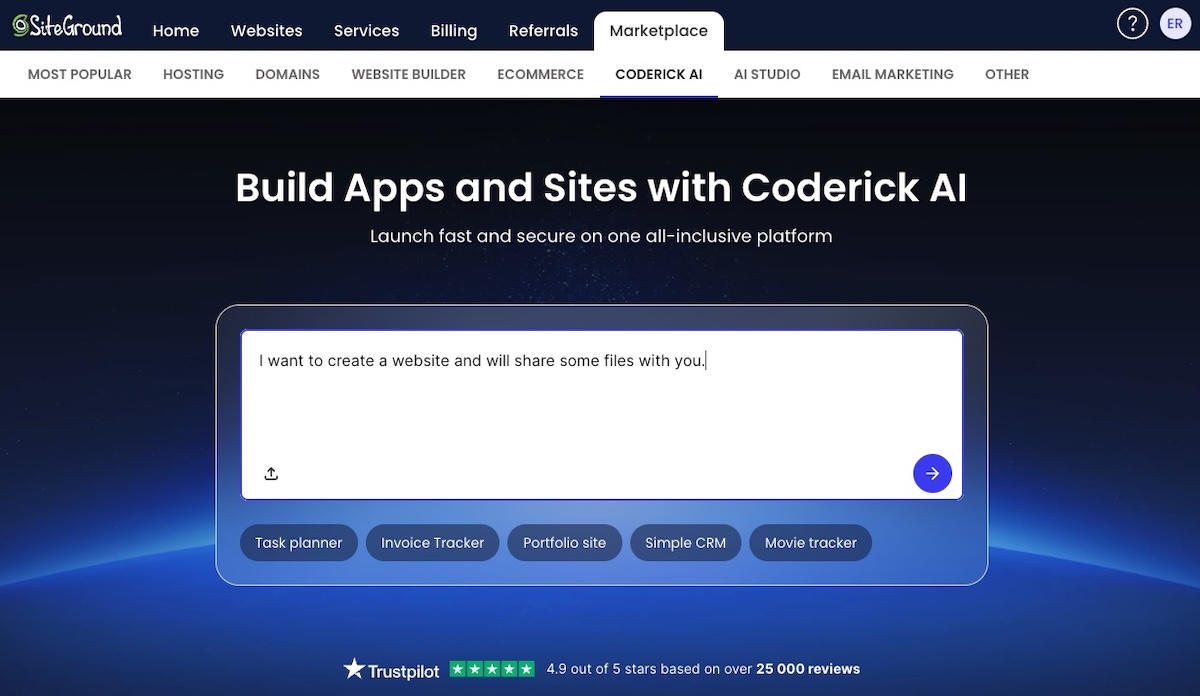
SiteGround Marketplace page for Coderick AI, showing a prompt-based interface to build apps and websites, with example use cases like task planner, invoice tracker, and portfolio site

Build and refine the website inside Coderick AI

Building with Coderick AI works the same way as the Claude Design iteration process: describe what you want, review the output, and refine through chat. You can adjust layout, update copy, add pages, and change functionality without leaving the platform. 

Coderick AI is suitable for business websites, landing pages, portfolios, booking systems, membership areas, CRMs, dashboards, and internal tools. It also accepts existing files like .js, .jsx, .ts, .tsx, .html, .css, .scss, and .md, so you can bring in any existing code or content alongside the Claude Design brief.

Publish and update the site in a managed environment

When the build is ready, Coderick AI publishes it to SiteGround’s infrastructure with hosting, SSL, and automatic deployment included. That makes it a managed path without Claude Code for users who want the approved design to become a live site without handling infrastructure separately. Connect a custom domain, and the site is live. Ongoing updates, such as new pages, content edits, or feature additions, all happen through the same chat interface, without touching a codebase or logging into a separate hosting control panel.

Coderick AI builder interface showing a chat panel on the left and a desktop preview of Mara Studio's portfolio site on the right, with a Publish button highlighted

What should you test after the Claude Design project becomes a live website?

Testing after a Claude Design to production build is not a generic hosting checklist; it is a design-to-production QA pass. The goal is to confirm the live site matches the approved design and functions correctly for real users.

Visual match to the approved Claude Design project

Compare the live site against the approved Claude Design project page by page. Check that layout, spacing, typography, colors, and component styles match the design intent. Visual drift is common during production builds — catch it before users do.

Responsive behavior on mobile, tablet, and desktop

Test every page at three breakpoints: mobile, tablet, and desktop. Check that layouts reflow correctly, touch targets are large enough, navigation works on small screens, and no content is clipped or hidden unintentionally.

Mobile preview of a portfolio website for Mara Studio built with Coderick AI, showing responsive layout with hero text, a call-to-action button, and navigation menu

Navigation, forms, and interactive states

Test every navigation path in the site. Submit every form and confirm it reaches its destination. Check hover states, focus states, error states, and empty states. Interactive elements that work in the Claude Design prototype need to work the same way in the live build.

A contact page for Mara Studio generated with Coderick AI, featuring a headline, contact form with name, email, and message fields, and a Send message button

Accessibility, contrast, and readable typography

Check color contrast ratios against WCAG AA minimums. Confirm all images have alt text. Test the site with keyboard navigation. Verify that font sizes are readable at every breakpoint and that line lengths do not make body text hard to scan.

Page speed, image optimization, and layout stability

Run a Lighthouse or PageSpeed Insights audit on key pages. Check that images are compressed and served in modern formats (which is done automatically with Coderick AI). Confirm there is no layout shift on load — elements jumping as the page renders hurt both user experience and Core Web Vitals scores.

Custom domain, SSL, metadata, and indexability

Confirm the custom domain resolves correctly, and SSL is active. Check that every page has a unique title tag and meta description. Verify the site is not accidentally set to noindex.

Test that canonical URLs are correct and the sitemap is accessible. Before launch, also confirm the update workflow: in Coderick AI, test that chat-based edits apply correctly; for Claude Code or developer builds, confirm the staging environment is in place and the deployment process is documented.

This article covers the Claude Design workflow: from a finished Claude Design project to a live website via Claude Code or Coderick AI. Two other starting points lead to similar production questions but follow different paths.

Use the Claude Artifact workflow for interactive Claude prototypes

If the starting point is a Claude Artifact — an interactive component, tool, or prototype built inside Claude — the production path is different. See the Claude Artifact production workflow for how to move from an artifact to a live build.

Use the Google Stitch workflow for UI design screens

If the starting point is Google Stitch (Figma-style UI screens and components), as opposed to Claude Design, the design handoff and production requirements are a bit different. See the Google Stitch design workflow for that path.

Ready to take your Claude Design project live?

A Claude Design project gets the hardest part done — the visual direction, the page structure, the user flow, and the stakeholder sign-off. What comes next is a production decision, not a design one.

Most founders, freelancers, and small teams do not need a codebase. They need a live website. If that sounds like you, take the Claude Design project you just validated and bring it straight into Coderick AI.

Your design work is done. The infrastructure is handled. All that is left is the build. If you do need codebase control, the Claude Code handoff is there for you. But chances are, it’s not your next step; Coderick AI is.

[96]

FAQs about turning Claude Design projects into real websites

Can you turn a Claude Design project into a real website?

Yes. A Claude Design project can become a real website once the design direction, page structure, copy, user flow, and production requirements are clear. The next step is choosing a production path: Claude Code for developer control, Coderick AI for managed publishing, or a developer/agency for custom engineering.

Is Claude Design a website builder?

Claude Design is better understood as a design and prototype tool inside Anthropic’s ecosystem. It helps users create polished visual work such as designs, prototypes, slides, and one-pagers. A real website still needs production work such as hosting, custom domains, SSL, publishing, testing, and maintenance.

What is the Claude Design to Claude Code handoff?

The Claude Design to Claude Code handoff is Anthropic’s native developer workflow. When a design is ready to build, Claude can package it into a handoff bundle that can be passed to Claude Code with a single instruction. This path is best for users or teams that want codebase control.

Can Claude Design export files?

Yes. Claude Design supports export to HTML bundles, PPTX, PDF, and handoff to Claude Code. The right export depends on whether the next step is developer implementation, presentation, documentation, or production planning.

Where does Coderick AI fit after Claude Design?

Coderick AI fits after the Claude Design project has been validated, and the user wants a managed production path rather than the Claude Design-to-Claude Code developer workflow. The Claude Design project becomes the production brief: design intent, layout, copy, user flow, and functionality notes guide the live site build.

Can Coderick AI directly import a Claude Design project?

Coderick AI works best as a managed production path after the Claude Design project is ready. You can use the design project, exported files, screenshots, copy, page structure, user flow, and functionality notes as the blueprint for building and publishing the live website inside Coderick AI.

When should I use Claude Code instead of Coderick AI?

Use Claude Code when you want developer control, source-code ownership, Git workflows, custom integrations, tests, and manual deployment. Use Coderick AI when you want to move from a validated Claude Design project to a managed website or app without handling repositories, hosting, SSL, backend setup, or deployment manually.

What does Coderick AI handle after the handoff?

After the handoff, Coderick AI helps turn the validated Claude Design direction into a live website or web app. It supports building, editing, publishing, hosting, custom domains, responsive design, backend generation, security, version control, staging, and ongoing updates through a managed website-building environment.

What should a Claude Design to Coderick AI handoff include?

Include the Claude Design project link, exported files if available, design intent, page structure, screenshots, final copy, CTAs, user flows, brand rules, form fields, backend needs, SEO metadata, custom domain requirements, and maintenance expectations. The goal is to give Coderick AI a clear production brief.

What is the simplest workflow for non-technical users?

The simplest workflow is: create and validate the project in Claude Design, document the design intent and production requirements, then use Coderick AI as the managed production path. This avoids manual setup for repositories, hosting, deployment pipelines, SSL, domains, backend configuration, and ongoing maintenance.

Can I start directly with Coderick AI?

Yes. You do not need a Claude Design project to use Coderick AI. If you already know what you want to build (the pages, the layout, the copy, and the user flow) bring that brief straight into Coderick AI and start the build. Claude Design is useful when you need to validate the visual direction first. If that work is already done, skip it. 

How to turn a Google Stitch design into a real website

abstract of the creation of a website using Google Stitch and Coderick AI

Google Stitch can produce stunning UI designs for web and mobile apps in minutes. It has the pages, the layouts, the buttons, the copy. But Google Stitch design is not the same as a published website. Getting to a live website requires a proper production path: hosting, a domain, backend logic, and a way to turn your approved web design into something people can actually visit. 

Now, that path looks different depending on your project, your technical comfort, and who will manage the site after launch. So here is everything you need to know to choose the right way and make it happen.

Key Takeaways

  • The complete Google Stitch workflow runs in a rough sequence: project brief, UI design, handoff brief, then website build. Skipping steps creates gaps that cost more to fix than to get right upfront.
  • Google Stitch produces high-fidelity UI designs, interactive prototypes, and front-end code. It does not handle hosting, backend logic, authentication, or domain setup.
  • Before handing off to any builder, three things make the build accurate: a clear vision and goals, a technical handoff brief from Stitch, and the exported designs.
  • Coderick AI can use the approved Google Stitch design, screenshots, copy, and functionality notes as a production brief to build and publish a managed website or web app.
  • The right production path depends on technical comfort and project complexity: Coderick AI for most teams; Claude Code for developers; a custom build for complex engineering needs.

What is Google Stitch, and how does it help create website designs?

Google Stitch is a free AI-powered UI design tool from Google Labs that turns text prompts, sketches, uploaded images, and wireframes into high-fidelity interface designs and front-end code. It launched at Google I/O in May 2025 and got a serious upgrade in March 2026, adding multi-screen generation, an infinite design canvas, and voice input.

Built on Google’s Gemini models and available through Google Labs, its party trick is speed. Describe what you need and Stitch gets to work immediately, generating several complete UI directions from a single prompt in minutes. The kind of output that used to take a designer days now takes seconds.

Its speed and skill makes it a very handy tool for founders, product managers, small businesses, and designers who need to move from a rough concept to a usable visual reference without spending days (or heaps of money) on manual design work. 

But getting from a Stitch design to a live website requires more than a magic wand, and that’s what we’re tackling here.

What can you create with Google Stitch?

Stitch generates designs and user interfaces for web and mobile apps. Typical outputs include:

  • Landing pages
  • Dashboards
  • Onboarding screens
  • Product detail layouts
  • Multi-step forms

As of March 2026, Stitch also supports multi-screen projects, so you can map out a full user flow across several connected screens in a single canvas.

Example of Google Stitch capabilities with brand colors and web page designs

Notice that what we are talking about here are designs, not finished production websites. Stitch is also specifically a UI design tool. It is built for digital interfaces, not broader design work, so it does not produce:

  • Marketing materials
  • Presentations
  • Social graphics
  • Print assets

At the end of the day, its focus is UI design for digital products, and not a full production layer. Rest assured, we’ll get to the final deliverable part in a moment. 

How Google Stitch turns prompts into high-fidelity UI concepts

Stitch interprets natural language, uploaded sketches, images, and voice input as UI instructions, generating one or more visual variants with underlying HTML, CSS, and Tailwind code. The output is not a static mockup. It is a refinable, exportable design that can be connected across screens and previewed as an interactive flow.

Why a Google Stitch design still needs a production website workflow

Google Stitch generates the visual UI and front-end design, not a complete production website. The front-end code output covers layout and styling, but Stitch doesn’t handle hosting, SSL, custom domain setup, backend logic, authentication, database connections, or ongoing maintenance. All things that are absolutely essential for taking the Google Stitch output from idea to actual functioning product.

A Google Stitch design is the blueprint, not the keys to the house. Getting from one to the other requires a separate production path.

Can a Google Stitch design become a real website?

A Google Stitch design can become a real website once the UI direction, page structure, copy, and functionality requirements are documented and handed off to a production path. Before the design is ready for that, it may be useful for stakeholder sign-off, user testing, or internal alignment. But once the screens are approved, the work shifts from design validation to website production. This is one version of the broader AI prototype to published website process.

What changes when a design becomes a production website

A production website is not just a rendered version of the Google Stitch design. To actually work, it needs routing and navigation logic, server-side or client-side rendering, image optimization, form handling, SEO metadata, accessibility compliance, performance configuration, and connection to any backend services the product needs.

Each of these elements requires decisions and setup that go beyond what any UI design tool provides. That is why they are outside Google Stitch’s scope.

Why hosting, SSL, domains, and updates are still needed

A live website has to be served from somewhere, encrypted in transit, and reachable at a domain name people can type or click. It also needs to be updated when content changes, security patches are released, or new features are added. It is an ongoing process, not a one-off deliverable.

These are infrastructure requirements, not design requirements. Google Stitch does not address them. But your production path does.

How do you start a Google Stitch project?

You can jump straight into prompting in Google Stitch and get impressive results. But if you are planning to hand the project off to a developer or an AI builder, starting with a Project PRD will make the design and production handoff more accurate.

PRD stands for Product Requirements Document. It is the strategic foundation of the project: the “what” and the “why” before any screen design begins. To generate one, describe your project to Stitch and explicitly ask: “Create a project PRD for this site.” You do not need a polished brief ready. A brain dump of the key points is enough for Stitch to organize into a structured document.

What to give Stitch to generate a strong PRD

To produce a useful PRD, Stitch looks for four things:

  • The “Why” — vision and goals: What is the primary purpose of the site? Who is it for? A sentence or two on the goal and the target audience gives Stitch the context to make smart design decisions throughout the project.
  • The “What” — pages and features: Which pages does the site need? Are there specific interactive elements like filters, subscription signups, or a cart drawer? A rough list is enough.
  • The “Vibe” — brand and visual style: A few keywords go a long way. “Artisanal Radical,” “Clean and Corporate,” “Gritty and Brutalist.” Include how the brand should speak as well as how it should look.
  • Constraints and success metrics: Are there things you absolutely do not want? Assets that must be used? And how will you know the project is successful?

The PRD comes before the design

The sequence in a Google Stitch project runs in a specific order: PRD first, design second, handoff brief last. The PRD sets the vision. The design executes it visually. The handoff brief translates that visual execution into technical specifications a builder can follow precisely. Together, the three things give a production build everything it needs: the soul of the project, the look of it, and the exact specs to recreate it accurately.

When is a Google Stitch design ready for a website build?

The PRD is in place and the design work is done. Now comes the gate check: confirming the visual layer is complete and the operational requirements are documented before anything moves to production. If you’re new to this process, an AI website builder checklist can help frame what to expect.

Confirm in Google Stitch before handing off:

  • Final screen designs approved
  • Desktop and mobile layout direction confirmed
  • Full page list defined
  • Navigation bar structure and user flow mapped
  • Typography, colors, and spacing locked
  • Component states and interactions visible in the design

Add before the build starts:

  • Copy and calls to action with confirmed destinations
  • Form fields, types, and validation requirements
  • Button actions and link destinations
  • Login or authentication needs
  • Backend or database needs
  • SEO title and meta description for each page
  • Custom domain requirements confirmed

The final screens and layout direction are approved

Approved means signed off, not just finished. Review every Stitch screen against the original brief and confirm that the layout direction, visual hierarchy, and component arrangement are intentional decisions, not defaults the AI picked. If anything looks off, refine it in Stitch now. Changes requested after the build starts cost significantly more time than ones caught here.

The page structure and navigation are clear

Use Google Stitch to map every page that will exist on the live site, not just the ones with fully designed screens. Secondary pages, 404 error pages, and utility pages are easy to overlook in a design canvas but create gaps in the build if they are not listed. Confirm the website navigation structure reflects the full page list before the handoff, including any pages that exist in the user flow but were not explicitly designed in Stitch.

The mobile and desktop layouts are documented

Stitch supports both viewport sizes, so use it to confirm responsive behavior before the handoff. If a screen was only designed at desktop, generate the mobile version in Stitch and review it. Check that column stacking, navigation behavior, and image scaling are all visible in the mobile web design before it leaves Stitch. Responsive decisions made at the design stage are faster and cheaper to implement than ones made mid-build.

Example of mobile web designs in Google Stitch

Define typography, colors, and spacing in Google Stitch

Before moving on, confirm that your branding basics are defined, documented, and consistent across every screen. Use Stitch to lock the type scale, color palette, and design system, and check that these decisions are applied consistently across every page. The goal is not just visual consistency inside Stitch but a clear enough record that the next step can apply them accurately without guessing. 

The copy, calls to action, and content blocks are placed

Use Stitch to place final copy directly in the design before the handoff. Placeholder text creates layout assumptions that break when real content is added. If the copy is not ready, use realistic placeholder text that matches the intended length and tone rather than generic lorem ipsum. Calls to action need confirmed destinations before the build starts.

The buttons, forms, menus, and interaction states are defined

Use Stitch to confirm what each interactive element looks like before the handoff, and it will create a UI Kit for you with all the necessary details. A primary button needs a default state, a hover state, and a disabled state. A form needs visible field labels and an error state. A navigation menu needs both its open and closed positions designed. Note any states Stitch did not render as items the builder will need to define.

Example of UI kit from Google Stitch

How do you turn Google Stitch screens into a website build brief?

With the design confirmed, the next step is packaging everything into a brief a builder can act on. The Stitch handoff gives you the visual and structural layer. Your job now is to add the operational layer on top of it.

Generate the handoff brief from Google Stitch

Ask Stitch to produce a handoff brief directly from the design. The brief captures the visual and structural layer: colors, typography, spacing, page list, layout notes, component states, and responsive behavior.

Think of it as the bookend to the PRD. The PRD defined the vision at the start. The handoff brief captures the technical execution at the end. Together they form the complete production package.

What the handoff brief does not cover are the operational requirements: form behavior, button destinations, backend needs, SEO metadata, and domain setup. Those get added in the steps that follow.

Save the final Google Stitch project screens and visual references

With the handoff brief generated, export and organize everything from the Stitch canvas. Stitch allows you to download the full project as a zip file, or export to a specific format such as Figma, HTML/CSS, or DESIGN.md depending on your production path. To export, just select all the files on your canvas, click Export, and choose your export delivery preference.

The goal is a single organized package containing three things: the Project PRD, the handoff brief, and all visual references. Together these give a production build the vision, the technical specs, and the visual reference it needs to execute accurately.

Exporting final designs and files from Google Stitch

List form fields, button actions, menus, and interaction notes

While designing in Stitch, these elements are already shaping the layout. This step is about making them explicit. Go through every interactive element and define its behavior: field labels, validation rules, and submission destinations for forms; confirmed destinations for buttons and calls to action; dropdown and mobile behavior for menus. Keep this as a simple written list, specific enough that the builder does not have to make assumptions.

Define backend, database, and login requirements

Some websites are purely informational and need no backend. Others need functionality that runs behind the scenes: user accounts, a database, or a connection to an external service like a payment processor, email marketing, or CRM. Google Stitch can design the screens for all of these, but designing a screen and building what happens behind it are two different things. Before the build starts, identify whether your site needs any of this and be specific. The builder will use that requirement to configure the right functionality.

Add SEO metadata and launch requirements

SEO and domain requirements should already be taking shape during the design process. This step makes them explicit. Write an SEO title tag and meta description for each page, and make sure to follow an SEO checklist. Note any redirect rules or canonical tags, and include any staging needs or launch date constraints the builder needs to plan around.

Now you have everything needed to hand the project to whichever production path you have chosen.

How can Coderick AI turn a Google Stitch design direction into a live website?

Coderick AI is a managed website and web app builder from SiteGround that fits naturally after the Google Stitch design is approved. Stitch defines the interface. Coderick AI turns that direction into a live website or web app that can be built, edited, published, hosted, and updated within a single managed environment, with version control, user authentication, and automatic deployment included in every project.

The workflow for taking a Google Stitch design into Coderick AI follows five steps — a process that fits squarely within what the industry now calls vibe coding.

1. Use the Google Stitch design as the visual blueprint

Coderick AI accepts both text prompts and image uploads, so the exported Stitch files can go directly into the build prompt alongside the additional details you have defined above.

Prompting Coderick AI with a simple command to get a website started

Start with a framing prompt before uploading anything: something like “I am starting a new website project and will be sharing some design files.” This prevents Coderick AI from starting to build before your full package is in. After it takes you to the next screen, upload everything together: the Project PRD, the handoff brief, the operational requirements, and the exported screen images.

Giving Coderick AI the full handoff package from Google Stitch to create a website

The more complete this package is, the more accurately the build will reflect the approved design direction.

2. Recreate the page structure and layout inside Coderick AI

From there, review and refine one page at a time. For simpler sites, the full brief in a single, plain-language prompt is likely enough. For larger builds, focusing the prompt on one page at a time may produce more accurate results. Either way, use the approved Stitch screens as the benchmark for each page before moving to the next.

Recreating a Google Stitch design and website structure in Coderick AI

3. Refine copy, forms, backend needs, and functionality notes

With the visual structure in place, work through the Coderick AI chat to confirm the operational layer matches the brief. Check that form fields, validation rules, and submission destinations are implemented correctly. Verify that copy reads as intended in context, button actions work as specified, and any backend requirements like user authentication or database connections are configured correctly. 

Creating and checking forms on a website created by Coderick AI

4. Publish the website through Coderick AI’s managed environment

Publishing from Coderick AI means the site is live on SiteGround infrastructure immediately, without manual deployment steps. SSL is included. A custom domain can be connected from within the platform. The published site is production-ready from the moment it goes live.

Publishing a website created with Coderick AI

5. Update the site without managing deployment manually

After launch, all changes go through the Coderick AI chat interface. Describe the update: a new content block, a revised form, a layout change, a new page. Coderick AI applies it and deploys automatically.

What should a handoff from a Google Stitch project to Coderick AI include?

The five-step workflow above is only as good as the material you bring into it. The brief-building section covers the universal layer: screens, layout notes, typography, colors, page structure, navigation, forms, backend needs, and SEO metadata. What follows are the additional details specific to handing off to Coderick AI.

Custom domain and publishing requirements

Confirm the domain name that will be connected to the live site and note any redirect requirements. If you don’t have a domain yet, don’t worry: you can register one through SiteGround as part of the process. Once your domain is ready, connecting it to your live site is straightforward, as hosting and SSL are included automatically with Coderick AI, with no extra cost or manual setup needed.

Imagery, icons, and visual assets

Stitch generates placeholder imagery and reference images to support the layout. When writing your Coderick AI prompt, include any brand guidelines, visual style references, photography direction, or icon and illustration preferences. 

For the images themselves, the most practical approach is to let Coderick AI generate a first version, then refine from there using Visual Edit, where you can swap in your own images or generate new ones directly in the preview in seconds. Worth noting: uploading your own images via Visual Edit is free, while generating new AI images uses credits.

Maintenance and update expectations

Coderick AI handles deployment and hosting automatically, so updates after launch are straightforward. Changes go through the interactive chat interface and deploy without manual steps. Before launch, decide internally who will be responsible for requesting changes and how frequently the site will need to be updated. Having that process in place avoids ad hoc edits that create inconsistencies over time.

Should you use Coderick AI, Claude Code, or a developer after Google Stitch?

The right production path depends on the level of technical control needed, the complexity of the build, and who will manage the site after launch. All three paths can produce a live website from a Google Stitch design. But they differ in how much manual setup, code access, and ongoing maintenance responsibility each one requires.

Path after Google StitchBest forWhat happens after Google Stitch
Coderick AINon-technical users, founders, marketers, freelancers, and small teams who want a managed launch pathUse the approved Stitch design, screenshots, copy, page and layout structure, and functionality notes as the blueprint for building and publishing the live website in a managed environment
Claude CodeTechnical users who want to turn the Stitch design direction into a working codebaseUse the Stitch design as a visual reference, then use Claude Code to help build, edit, debug, and prepare the project for deployment
Developer or agencyProjects that need custom engineering, complex integrations, advanced backend logic, or strict design QAHand off the Stitch design, layout notes, user flows, and technical requirements so the developer can build, deploy, and maintain the production version
Stay in Google StitchEarly-stage ideas where the UI direction is not yet approvedKeep refining screens, layout, visual hierarchy, and user flow before moving into production

Let’s break this down.

Use Coderick AI when you want managed website publishing

Coderick AI is the right choice when you want a managed publishing path from an approved Google Stitch design to a live website without handling hosting, SSL, domain configuration, backend setup, deployment pipelines, or maintenance tasks manually. It fits founders, marketers, and small teams building everything from simple landing pages to web apps for small businesses, internal tools, and dashboards.

A note on SiteGround’s infrastructure 
Every Coderick AI project runs on SiteGround’s hosting infrastructure, which is built for speed, performance, and security. SiteGround powers millions of websites worldwide with enterprise-grade infrastructure, fast load times, and automatic security updates included in every plan.

Use Claude Code when you want to turn the design into a codebase

Claude Code is a command-line coding assistant that helps you write, edit, and debug code. Use the Stitch design as a visual reference and describe the screens, components, and interactions to Claude Code to generate the underlying codebase.

The end result is a codebase you own and can edit freely. It is not a live website. Deployment, hosting, SSL, and domain setup are handled separately through whichever hosting provider you choose.

This path suits technical users who want full code control, custom integrations, or a specific deployment setup. By contrast, Coderick AI supports a website build without Claude Code for users who want the design published through a managed platform.

Use a developer when the build needs custom engineering

Some projects need capabilities that go beyond what any AI builder provides: proprietary APIs, complex data models, enterprise authentication systems, or performance requirements that need hand-tuned infrastructure. For those projects, hand the Stitch design, layout notes, user flows, and technical spec to a developer or agency.

This path gives you the most control. It also gives you the longest timeline and the largest invoice. Development costs are significantly higher upfront, and ongoing changes (even small ones like updating copy or adding a new section) typically require going back to the developer. For projects that need frequent updates or evolving content, factor that dependency into the decision before committing to a custom build.

The Stitch design still serves as the visual brief. The developer translates it into a custom production build.

Keep Google Stitch as the source of visual direction

Regardless of which production path you choose, the approved Google Stitch design remains the visual reference throughout the build. Use it to check layout accuracy, review responsive behavior, and validate that the production site reflects the intended design direction.

What should you check when the Google Stitch design becomes a live website?

Once the production build is live, check it against the approved Stitch design and the functional requirements defined in the handoff brief. A thorough review before you point traffic at a new site catches problems that are much cheaper to fix at this stage than after launch.

Visual match to the approved Google Stitch design

Compare each live page to the corresponding approved Stitch screen. Check layout, spacing, color, typography, and component arrangement. Flag any sections where the production build drifts from the design direction.

Reviewing the final website design in Coderick AI and the final image of the homepage

Responsive behavior on mobile, tablet, and desktop

Resize each page across the three main breakpoints and verify that the layout adapts correctly across screen sizes. Check text size, image scaling, navigation behavior, and touch target sizes on mobile.

Navigation, buttons, forms, and interactive states

Click every link, button, and menu item. Submit every form with valid data and with intentionally invalid data to test validation. Verify that every interactive element behaves as specified in the handoff brief.

Accessibility, contrast, and readable typography

Check text contrast ratios against WCAG 2.1 AA requirements as part of good accessible web design practice. Verify that all images have descriptive alt text. Test keyboard navigation for users who do not use a mouse.

Page speed, image optimization, and layout stability

Run a Lighthouse or PageSpeed Insights audit on the homepage and the highest-traffic page. Check that images are compressed, served in a modern format, and use lazy loading so they only load when needed. Look for cumulative layout shift caused by images loading without defined dimensions, and confirm that browser caching is enabled.

If you built with Coderick AI, most of this is handled automatically. Images are optimized out of the box, and SiteGround’s infrastructure takes care of caching, CDN, and server response time without any manual configuration needed.

Custom domain, SSL, metadata, and indexability

Confirm the custom domain resolves correctly. Verify the SSL certificate is active and that all pages serve over HTTPS. Check that each page has a unique title tag and meta description matching the approved metadata. Confirm the site is not blocked from indexing by a robots.txt directive left over from staging.

This article focuses on Google Stitch designs. If your starting point is an interactive prototype inside Claude, use the Claude Artifact workflow. If your starting point is Anthropic’s design workflow, use the Claude Design workflow to turn it into a website. The production logic is similar, but the source asset and handoff details are different.

Start building from your Google Stitch design today

A finished Google Stitch design is the production blueprint, not the finished website. Once the vision is defined, the screens are approved, and the handoff brief is ready, the only thing left is to turn that Google Stitch design into a real website.

Coderick AI provides the managed path from an approved Google Stitch design direction to a live, hosted, maintainable website or web app. Bring your complete Stitch package into Coderick AI, build on SiteGround’s infrastructure, and publish without manual deployment steps.

[96]

FAQs about turning Google Stitch designs into a website

Can you turn a Google Stitch design into a real website?

Yes. A Google Stitch design can become a real website once the UI direction, page structure, copy, and functionality requirements are documented. The next step is production: hosting, SSL, custom domain setup, responsive testing, SEO metadata, and ongoing maintenance. Coderick AI can support this stage as a managed handoff and publishing path.

What is a Google Stitch project PRD and do I need one?

A Project PRD, or Product Requirements Document, defines the vision, goals, audience, pages, and brand direction of your project. You generate it in Stitch by describing your project and explicitly asking for one before design work begins.
You do not need it to use Stitch, but if you are handing the project to a builder, it gives them the strategic context the handoff brief alone cannot provide.

Is Google Stitch a website builder?

Google Stitch is an AI UI design and prototyping tool, not a website hosting platform. According to Google, Stitch generates UIs for mobile and web applications. The production website still requires publishing, hosting, domain setup, SSL, and maintenance through a separate workflow.

Where does Coderick AI fit after Google Stitch?

Coderick AI fits after the Google Stitch design is approved and the full package is ready: the project brief, the handoff brief, and the exported screen files. Bring that package into Coderick AI and build and publish the live website or web app in a managed environment on SiteGround’s hosting infrastructure.

Can Coderick AI directly import a Google Stitch design?

Coderick AI does not import external design files or project folders directly, but it does accept both text prompts and image uploads. The optimal path is to bring the complete package into your initial prompt: the project brief, the handoff brief, the exported screen images, and the operational requirements. Together these give Coderick AI everything it needs to build accurately from the approved design direction.

What should I include in a Google Stitch project to Coderick AI handoff?

The full package has three layers: the project brief covering vision, goals, and audience; the handoff brief covering colors, typography, spacing, and component specs; and the exported screen files. On top of that, add the operational requirements: form fields, button actions, backend needs, SEO metadata, and domain requirements.

When should I use Claude Code instead of Coderick AI?

Use Claude Code when you need developer-level control: repository ownership, raw code access, custom integrations, test suites, or a GitHub-based deployment workflow. Use Coderick AI when you want to go from an approved Google Stitch design to a managed, hosted website without handling server setup, deployment, or infrastructure tasks manually. If Claude Code feels too technical for the site you want to launch, Claude Code alternatives for beginners can help you choose a simpler starting point.

What does Coderick AI handle after the handoff?

After the handoff, Coderick AI helps turn the approved Google Stitch design direction into a live website or web app. It supports building, editing, publishing, hosting, custom domains, responsive design, backend features, security, version control, and ongoing updates within a single managed environment on SiteGround’s infrastructure.

Can a Google Stitch design have a custom domain?

A Google Stitch design is a visual prototype, not a hosted website with a domain. To use a branded domain, the design needs to move into a production path. Coderick AI supports custom domain connections with hosting and SSL provided through SiteGround.

What is the best workflow for non-technical users?

Start in Google Stitch with a project brief, design the UI, then generate the handoff brief before exporting everything as a complete package. Hand that package to Coderick AI as the managed production path. The entire process avoids manual server setup, DNS configuration, SSL management, deployment pipelines, backend setup, and ongoing maintenance tasks.

How to use an AI web app builder: create web apps for your small business without coding

abstract of vibe coding a web app

You don’t need a developer to build a working business web app anymore. If you can describe what your business needs in plain language, an AI web app builder can turn that description into a real app, with pages, data, users, forms, and the workflows that connect them. 

This guide walks you through what AI web app builders create, what to think about before you start, and how to choose a first project you can ship in a week.

Key takeaways

  • An AI web app builder helps you create web applications where users (your clients or coworkers, for example) can submit, view, update, or manage data.
  • Strong web apps start with four basics: users, data, actions, and workflows. Define those before you ask AI to build.
  • The best first app is narrow, testable, and useful: a CRM, a booking tool, a customer portal, or an internal dashboard.
  • A good prompt for building your web app explains in plain language who uses it, what they do, what information it stores, and what counts as success.
  • Before you publish, test the app on a private version first, and have a simple plan for undoing changes if something breaks.
  • Advanced AI web app builders like SiteGround’s Coderick AI work best when you describe the business problem clearly, then refine the generated app until the main workflow is ready.

What is an AI web app builder?

An AI web app builder is a tool that turns your plain-language description of a business app into a working first version, without requiring you to write code, design screens, configure databases, or set up hosting manually. You describe what the app should do (for example, “a client portal where my customers can log in, see their invoices, and download tax documents”), and the AI builder generates the pages, forms, data tables, and basic logic for you.

This builds on the same shift behind AI website builders and the broader idea of vibe coding: instead of writing code, you write what you want, and the AI handles the technical execution. The result is a working draft you can review, refine, test, and publish when the core workflow is ready.

How a web app is different from a website

To put it simply: a website is mostly something people read, while a web app is something people use.

On a website, visitors look at pages: a homepage, a services page, an about page. They may fill in a contact form, but the experience is largely one-directional: you publish, they read. On a web app, users do things with data. They log in, submit information, see results that update for them, change records, and trigger actions. 

Think of it like this: a small business that needs to share what it does needs a website (and it can easily create one with an AI website builder). A small business that needs to manage what it does often needs an app.

A few examples:

  • A restaurant’s website shows the menu. A restaurant’s web app takes online reservations and stores them in a database (basically a smart, searchable list) the staff can manage.
  • A consultancy’s website explains its services. A consultancy’s web app gives each client a personal portal with documents, invoices, and project status.
  • A small store’s website lists products. A small store’s internal app helps the team track inventory, fulfil orders, and update stock levels.

What an AI web application builder does

An AI web application builder handles the parts that used to require a developer: creating the pages, generating the forms, setting up the database that stores the information, building the logic that ties everything together, and putting it all online at a real web address. You provide the business context, the AI provides the structure and code.

The best builders also include the things you’d otherwise have to set up separately: hosting, a database, security, and a way to publish to a real URL. Coderick AI was built around this all-in-one principle: when you click “publish,” the app goes live on SiteGround’s infrastructure with hosting and security already in place.

When a web app is the right choice

A web app is the right choice when you need users to do something with information, not just read it. If your project involves any of the following, you’re probably building a web app, not a website:

  • People logging in to see their own data
  • Tracking and updating information like leads, bookings, tickets, invoices, or tasks
  • Tracking the status of something over time
  • An internal team coordinating around a shared list or workflow
  • A small set of users who need different levels of access

But if your project is mostly content, marketing pages, and a contact form, a website is usually the right call. SiteGround’s AI website builder guide covers that case in detail.

What makes a web app work?

Every web app comes down to four basics: users, data, actions, and workflows. Define those four right in your head before you start building, and the rest of the work becomes a series of small, specific decisions.

Users: who needs access

Start with the people who will use the app. Some users may be your team. Some may be your customers. Some may be the general public. Each group has a different reason to be there and a different set of things they’re allowed to do. A booking tool, for instance, has two user groups: customers (who book appointments) and staff (who manage the calendar). A client portal has clients (who see their own data) and an admin (who sees everyone’s).

You don’t need a long list to start. Two or three user groups is plenty for a first version.

Data: what the app stores

Next, the information your app keeps track of. For a CRM, that’s leads with names, emails, phone numbers, and statuses. For a booking app, it’s appointments with dates, times, customers, and services. For a client portal, it’s invoices, files, and project updates. The data is the heart of the app. Without it, there’s nothing to display, manage, or act on.

Actions: what users can do

Actions are what each user group can do with that data. A customer might submit a booking request. A staff member might mark it as confirmed. An admin might cancel it and notify the customer. Actions are usually verbs: submit, approve, edit, delete, send, schedule.

Outcomes: what changes after each action

Every action on your web app should produce a clear outcome. A submitted booking creates a new record. An approval changes a status and sends a confirmation email. A cancellation frees up the time slot. If you can’t say what changes after an action, the action probably isn’t useful enough for version one.

Web app partPlain-English meaningExample
UserPerson using the appCustomer, admin, employee
DataInformation storedLeads, invoices, bookings
ActionWhat users doSubmit, approve, update
WorkflowWhat happens nextSend alert, change status

What can an AI web app builder create?

A good AI web app builder can create almost anything, but most small business apps fall into a handful of common categories. The pattern of users, data, actions, and outcomes often repeats; what changes is the specific business problem. For example, here are the web app types small businesses create most often with Coderick AI:

Forms and data collection

The simplest type. A form on a page, a database behind it, a place to review submissions. Useful for lead capture, event registrations, internal feedback, service requests, or for when someone needs to give you structured information and you need to keep track of it. A landscaping company can replace a generic contact form with a quote-request form that asks for property size, type of work, and preferred timing, then collects the answers in one place.

Example prompt you can start with:

“Build a quote-request form for a small landscaping company. Visitors submit their name, email, phone, property address, property size, type of work (lawn care, design, tree work, irrigation, hardscaping, cleanup), preferred timing, and optional notes – no login required. Admin logs in to a dashboard that lists all submissions with searchable, filterable rows, an editable status column (new, contacted, quoted, won, lost), per-submission notes, and CSV export. Clean, mobile-friendly design.“

Here’s what Coderick AI generates from that prompt – and you can keep refining from there.

Simple web app created by Coderick AI from a single prompt

Dashboards and reporting

Dashboards turn lists of numbers and records into something you can read at a glance. They take the information you already have (in a spreadsheet, a CRM, a database) and present it as charts, tables, and key numbers. Freelancers juggle multiple clients, invoices in different states (draft, sent, paid, overdue), and projects at various stages. Most track this in a messy spreadsheet or across three different tools. A dashboard could pull it all together: month-to-date earnings, outstanding invoices, which clients owe what, average days-to-payment, a pipeline of pitches sent versus accepted, and upcoming deadlines. The numbers were always there; the dashboard makes them readable.

Example prompt you can start with:

“Build a single-page dashboard for a freelance writer. Top row: four key-number cards — this month’s earnings, outstanding invoices, overdue amount, pitches awaiting reply. Middle: bar chart of last 6 months’ earnings, and a donut of revenue by client. Bottom: two tables — outstanding invoices (client, amount, days overdue, color-coded status) and active pipeline (prospect, pitch date, stage). Clean minimal styling, deep teal accent, responsive.”

Dashboard web app example vibe coded with Coderick AI

Customer portals

A customer portal is a private area where each customer logs in and sees their own information. An accountant might give every client a portal to upload documents, download statements, and message the firm. A coaching business might give clients a portal to track session notes, exercises, and progress. The portal removes back-and-forth emails and gives each customer a single place to go.

Example prompt you can start with:

“Build a client portal for a small accounting firm. Clients log in and see their own documents, invoices, and a message box to contact me. I (admin) can upload documents to any client’s account and reply to messages. Each client should see only their own files – never another client’s. Keep the design clean and professional.”

Client portal web app created by Coderick AI

Booking and scheduling tools

A small but powerful category. Customers see availability, choose a time, and book. The app stores the booking, sends a confirmation, and updates the calendar so the slot is no longer offered. A yoga studio might use one for class signups. A consultant might use one for discovery calls. A dog groomer might use one for full-service appointments with extras attached.

Example prompt you can start with:

“Build a class-booking app for a small yoga studio. Customers see the week’s classes (date, time, instructor, available spots) and book a spot. Bookings are stored and an email confirmation is sent. I (admin) can add classes, see all bookings, and cancel a class if needed. No payments in version one; bookings are free or paid in person. Mobile-friendly.”

Booking and schedule web app schedule vibe coded with Coderick AI

CRM and sales tracking

A CRM (customer relationship management tool) is where you track leads and customers through their journey with your business. New lead, qualified lead, proposal sent, won, lost. A custom CRM built with an AI web app builder lets you track the exact stages your business uses, not the generic ones a generic SaaS tool gives you. A real estate agent might track stages like “viewed property,” “offer made,” and “in escrow.” An agency might track “discovery call,” “proposal,” “signed,” and “onboarding.”

Example prompt you can start with:

“Build a CRM for a small marketing agency. Each lead has a name, company, source, estimated deal value, and a status (new → discovery call → proposal → signed → onboarded). I want to add leads manually, move them between stages with one click, and filter the list by stage. Show a small dashboard at the top with the count and total deal value per stage. Only my team can log in.”

CRM web app example vibe code created by Coderick AI

Admin panels and internal tools

Admin panels are private apps for your team. They give you a way to view, search, edit, and manage your business records in one place: orders, customers, content, inventory, anything you currently juggle across spreadsheets and inboxes. An AI internal tool builder is useful when a team needs a private dashboard, CRM, approval tool, or operations tracker without waiting for a custom development project. The team often gets a working version faster than the procurement process for a new SaaS subscription.

Example prompt you can start with:

“Build an internal admin panel for a small online shop. It should list all orders (date, customer, items, total, status) and let me search by customer name or order number. I want to update the order status (pending → packed → shipped → delivered) from a dropdown. Two roles: admin (full access, can delete orders) and team (can view and update status, but cannot delete).”

Admin panel web app example created by Coderick AI

What an AI web application builder can’t do

AI web app builders are useful, but builder choice matters because projects still need technical review or specialist help. Here are some things to be cautious about:

  • Very specialized integrations with industry software (medical records systems, legal practice management, real estate MLS feeds) often need a developer to handle the technical bridges (called APIs) between systems.
  • High-volume, mission-critical systems with strict performance, scaling, or compliance requirements (healthcare, payment processing at scale, regulated finance) generally need professional review.
  • Complex algorithms for things like advanced search ranking, real-time matching, or specialized scientific computing tend to sit outside what an AI builder produces well.
  • Pixel-perfect, brand-led design with unusual interactions may need a designer’s hand even if the underlying app is AI-generated.

For everything else (and that covers most small business apps), an AI web app builder gets you a working version faster than any other option.

How do permissions and roles work in a web app?

Roles and permissions are how a web app decides who can see, create, edit, delete, or manage each type of data. The thinking is intuitive once you connect it back to the people in your business.

Public users vs logged-in users

The first divide. Public users are anyone visiting the app without logging in. They can usually see whatever you’ve made public (a booking page, a contact form, a public dashboard). Logged-in users have an account and can see and do more. The login is the gate that separates “anyone on the internet” from “people you’ve given access to private data or actions.”

For a customer portal, the public side might be a small login page; everything else lives behind the login. For a booking tool, the public side might include the entire booking flow, with the admin side reserved for staff.

Admin roles vs customer roles

Among logged-in users, the next divide is usually admin versus customer. Admins manage the app. They see everyone’s data, change settings, and handle exceptions. Customers (or clients, or members, or whatever you call them) use the app. They see only their own data and the actions you’ve allowed.

A simple example: in a fitness studio’s booking app, admins see all bookings across all classes and can cancel, reschedule, or refund. Customers see only their own bookings and can cancel or reschedule their own.

What each role should be allowed to do

The clearest way to think about this: list each role, then list what they should be able to see and do. Two or three short rules per role is usually enough for a first version.

A short example for a small client portal:

  • Admin (you): Can see all clients, all files, all invoices. Can add and remove clients. Can upload documents to any client account.
  • Client: Can see only their own files, invoices, and project status. Can upload documents to their own account. Can message you through the portal.

That’s it. You can layer in more nuance later, but starting simple is the safer way.

Common permission mistakes to avoid

A few patterns that go wrong often:

  • One role for everyone. Everyone is an admin, which means anyone with a login can see and edit anything. Easy to set up, dangerous in practice.
  • Customers seeing each other’s data. Caused by missing the rule that says “show only records belonging to the logged-in user.” If a client portal accidentally shows another client’s invoice, trust is gone.
  • Public pages that should be private. A dashboard with internal metrics left accessible to anyone with the URL. Always check what’s visible when you’re not logged in.
  • Admins with no audit trail. When several team members can change records, you want to know who changed what. For sensitive workflows, ask the builder to log changes.

When you describe a web app to Coderick AI, mention the role rules explicitly. “Only logged-in clients can see their own invoices. Admins can see all invoices.” That single instruction shapes how the web app’s permissions are set up.

Pro tip: Run the “logged-out test”Open the app in a private browser window where you’re not signed in. Then log in as a customer, not as yourself. What you can see in each state is what real users will see. If anything looks wrong, fix it before you publish.

How should non-technical owners think about app data?

The word “database” may sound intimidating, but a database is really a more organized version of the spreadsheets you already use. Where a spreadsheet stores one list, a database stores several lists at once and connects them to each other. You won’t design one yourself; the AI handles that. But you do need to understand what your app stores and how the pieces fit together, because that picture is what you’ll describe in plain English when the AI builds the app. 

Three concepts cover most of what you need to know: tables, fields, and relationships.

Tables are lists of business records

A table is a list: for example, a list of customers, a list of bookings, or a list of products. Each row is one record (one customer, one booking, one product). If you’ve ever kept a spreadsheet of clients or stock, you’ve used a table.

Fields are the details inside each record

A field is one detail on each record. A customer record might have fields for first name, last name, email, phone, and status. Each row in the customers table has the same fields; the values are different from row to row. Sticking with the spreadsheet picture: tables are sheets, fields are columns.

Relationships connect one record to another

Sometimes one record relates to another. An invoice belongs to a customer. A booking relates to a service and a staff member. A relationship is the link between two tables, and it’s how a CRM knows which deals belong to which contact, or how a booking app knows which appointments belong to which client.

You don’t need to design relationships yourself. When you describe the app in plain English (“each invoice belongs to one customer”), the AI handles the technical setup.

Start with the smallest useful data model

The temptation is to plan for everything. Resist it. Start with the smallest set of tables and fields that lets the main workflow actually work. A first-version client portal might have just two tables: clients and files. A first-version CRM might have just one: leads. You can always add more once the basics are running and you know what’s actually missing.

Pro tip: Add fields when you miss them, not beforeResist the urge to plan for every field you might one day need. Start with the bare minimum, use the app for a week, and add fields when gaps become obvious. Apps grow well when they grow from real use, not from imagined needs.

Prompt-to-app: how to describe a web app in plain English

The way you describe your app shapes what the AI builds. A short, vague prompt gives you a generic starting point; a specific one gives you something much closer to what you actually need.

What “prompt to app” means

Prompt to app is the idea that a plain-language description (a prompt) is enough to produce a working app. You don’t write technical documents, you don’t draw screen layouts, you don’t sketch databases. You explain what the app does, who uses it, and what should happen, and the AI handles the construction.

Web app requirements explained in plain English

For your first app, requirements in plain English boil down to five sentences:

  1. Who uses the app. “This app is for me (admin) and my clients.”
  2. What it does. “It lets clients see their invoices and download files.”
  3. What data it stores. “Each invoice has a date, amount, status, and the client it belongs to.”
  4. What actions exist. “I can upload invoices and mark them as paid. Clients can view their own invoices and download them.”
  5. What success looks like. “Clients can log in, see their invoices, and download them without emailing me.”

Five sentences is enough to produce a useful first version.

The simple web app prompt pattern

A reliable pattern for web app prompts:

“Build a [type of app] for [business and audience]. Users are [user groups]. The app should let [user 1] do [action] and [user 2] do [action]. It stores [main data]. The main workflow is: [step 1] → [step 2] → [step 3]. Make the design simple and mobile-friendly.”

Filling that in with a real example:

“Build a booking app for a small massage therapy practice. Users are clients (who book) and the therapist (who manages the calendar). Clients should be able to choose a service, pick an available time, and confirm a booking. The therapist should be able to view all bookings, mark them as completed, and cancel if needed. It stores services, time slots, and bookings. The main workflow is: client picks a service → client picks a time → client confirms → therapist sees the booking. Make the design calm and mobile-friendly.”

That’s a sharper prompt than “build me a booking app.” It still leaves plenty for you to refine afterwards, but the first version will be a lot closer to what you actually need.

Pro tip: Change one thing at a timeWhen refining the app, ask for one change per prompt instead of bundling five edits together. The AI handles a single clear instruction far better than a long list, and you’ll catch problems the moment they happen, not after five things changed at once.

What to include before the AI builds

A short list to add to your prompt if you have strong opinions about any of them:

  • Business details: your name, your service, your city if it matters
  • User groups and what each can do: the role rules from earlier
  • Required fields on the main records: “each lead has a name, email, source, and status”
  • The main workflow you care about: the path through the app that matters most
  • Anything you don’t want: “no payments yet,” “no calendar integration in version one”

How to check the first version

Open the first version and try the main workflow as the user. Submit a record. Approve a record. Log in as a customer.

The first version may look simpler than you imagined; that’s normal. It’s a starting point, not a finished product. From there, you can refine: ask Coderick AI to change the layout, add a field, add a page, or even add a new feature you didn’t include in the first prompt. Visual edits let you adjust labels, copy, and styling directly without going back to chat each time. If something is off, describe what you want changed in plain language, and the app updates. The loop of test → describe → adjust is where the app actually becomes yours.

What workflow rules should your first web app include?

Workflows are the rules that say “when this happens, that follows.” A first web app doesn’t need many workflow rules. The five below cover most small business apps.

Status changes

A status field is the simplest workflow tool. A lead is new, then contacted, then qualified, then won or lost. A booking is requested, then confirmed, then completed. A status change is often the action itself: clicking “approve” changes the status from pending to approved.

Notifications

A notification is a message sent when something happens. A new booking sends an email to you. An approved request sends a confirmation to the customer. Keep notifications few and meaningful. A notification for every small change quickly turns into noise people start to ignore.

Pro tip: One notification rule of thumbIf a notification doesn’t change what someone does next, it shouldn’t exist. A booking confirmation tells the client to show up. A “your status was viewed” alert tells them nothing they can act on. Cut the second kind ruthlessly.

Approvals

An approval is a workflow that requires someone with the right role to confirm an action before it proceeds. A discount request might need owner approval. A new client account might need admin review. Approvals are useful when an action has real consequences and you want a second pair of eyes.

Reminders

Reminders are time-based notifications. An appointment reminder sent 24 hours before the slot. A follow-up reminder a week after a quote is sent. Useful when a workflow has a gap between steps and people forget to come back.

Simple calculations

The web app does math so you don’t have to. An invoice app calculates the total from line items, tax, and discount. A booking app calculates the end time of an appointment from the start time and the service length. A CRM might calculate days since last contact. Small calculations like this turn an app from a list-keeper into something that actually saves time.

When you describe these rules to Coderick AI, keep them short. “When a booking is confirmed, send a confirmation email to the client and a notification to the therapist.” That single sentence gives the AI a clear workflow rule to build from.

What is the best first app to build with AI?

The best first app is small, useful, and easy to test. The most common mistake is starting too big. The second most common is starting in the wrong place. Both are avoidable.

Start with a narrow business problem

Pick one problem in your business that is repetitive, structured, and currently lives in spreadsheets, inboxes, or notebooks. For example, lead tracking, booking, invoice tracking, or client onboarding. Anything that’s currently a tangle of files and messages is a strong candidate.

Resist the impulse to build “the app for everything.” The all-in-one app for your whole business can take a year of work even with AI. A focused app for one thing can be an afternoon.

Choose one user group first

Build for one user group in the first version. Either the customer-facing side (booking, client portal) or the internal side (lead tracker, admin panel). Adding the second side later is easier than getting two sides right at once.

Avoid complex integrations in version one

Save integrations with email tools, payment processors, accounting software, and calendar systems for version two. They add real value, but they also add complexity, and complexity is the enemy of finishing version one.

Pick an app you can test in a week

The right scope for a first app is one you can describe, generate, refine, and test within a week of focused work. If the scope is bigger than that, narrow it. A booking app for one type of service. A CRM for one stage of your pipeline. A portal for one type of document. Short scope wins.

Pro tip: Time-box version oneSet a deadline before you start, even an artificial one: “I’ll publish v1 by next Friday.” A deadline forces decisions. Without one, the urge to keep adding features eats whatever momentum you started with.
Business needFirst app to buildWhy it works
Track leadsCRM dashboardClear data, simple workflow
Manage bookingsScheduling appEasy user actions
Share updatesCustomer portalSimple access model
Track operationsInternal dashboardHigh business value

How to deploy an AI web app: staging vs production and rollback plan

Deployment is the moment the app moves from draft to something real users can access. Most of the time it’s a single click; the planning around it is what matters.

What it means to deploy an AI web app

To deploy an AI web app means to make it live for real users at a real web address. Until you publish, the app exists only in the builder. Once it’s live, anyone with the URL (or the login, depending on how it’s set up) can use it. In Coderick AI, for example, publishing is built into the platform: when you click “publish,” the app goes live on SiteGround’s infrastructure with hosting, security, and a database already handled inside the build-and-publish flow.

Staging vs production basics

A web app usually has two versions:

  • Staging is the place where you make and test changes. Real users don’t see it.
  • Production is the live version that real users actually use.

The point of the split is to try risky changes in staging first, confirm they work, and only then push them to production. For a non-technical owner, the simple rule is: never make a big change directly on the live version. Make it where it can be reviewed.

Pre-publish checks

Before you publish version one, run through a short checklist:

  • Try the main workflow end to end as each user role.
  • Test every form: submit, receive, confirm.
  • Check the mobile experience on an actual phone.
  • Confirm that permissions work (log in as a customer, make sure you can’t see other customers’ data).
  • Read the user-facing copy as if you were a first-time visitor.

Five minutes of pre-publish testing prevents most launch-day problems.

Rollback plan: what to do if something breaks

A rollback plan is a simple recovery plan for going back to the last working version if something breaks after publishing. It doesn’t have to be elaborate. For a first app, it boils down to four questions:

  • What counts as a problem? (“Users can’t log in.” “Forms aren’t submitting.” “Payments aren’t going through.”)
  • Who checks for problems? (Usually you, in the first 24 hours after publishing.)
  • How do I restore the previous version? (Most platforms keep a history; in Coderick AI, you can revert to an earlier project version through the dashboard.)
  • How do I confirm the app is working again? (Run the main workflow yourself.)

How Coderick AI helps create prompt-built web apps

For non-technical users, the hardest part of building an app usually isn’t the app. It’s the four other things you have to figure out separately: where it lives (hosting), where the data goes (database), how it’s protected (security and a secure connection), and how people reach it (a web address of your own). Most AI builders leave all four to you. Coderick AI keeps them in one place, so the build, the hosting, the database, and the publishing all happen in the same platform.

Here’s a how to build your first web app in Coderick AI:

Describe the app in plain English

Open Coderick AI and describe the app in your own words: who uses it, what data it stores, what should happen at each step. As mentioned, you don’t need to be technical, and you don’t need to know what to call things. Coderick AI is built for plain-language instructions, so you don’t need to know technical terms before you start.

Review the first working version

Within a few minutes, Coderick AI builds a working first version of the app. Pages, forms, database, basic logic, the lot. Open it and try the main workflow yourself as if you were the user. The goal of the first version isn’t to be perfect; it’s to be a starting point you can react to.

Edit screens, content, and logic

From there, you refine. Ask Coderick to change a label, add a field, rearrange a section, or add a new feature. For copy and styling tweaks, you can also use visual edit mode and click directly on the element you want to change. Most apps go through several rounds of this before they feel right.

Publish when the core flow works

Once the main workflow runs cleanly, click “publish.” Coderick AI handles the parts that used to be a separate project:

  • The app goes live on SiteGround’s premium hosting infrastructure.
  • The database is already set up and connected.
  • Security is active by default, including SSL (the secure-connection standard your browser shows as a small lock icon) and SiteGround’s enterprise-grade protections.
  • The app is responsive on phones, tablets, and desktops by default.
  • You can connect a custom domain through the dashboard.

The build-and-publish loop is one continuous workflow rather than five separate vendors. Ready to start? 

Try Coderick AI and build your first web app

FAQs

What is an AI web app builder?

An AI web app builder helps you create a browser-based app from a plain-language description. Instead of coding screens, forms, data tables, and workflows manually, you describe what the app should do, review the first version, and refine it until the main business flow works.

What is the difference between a website and a web app?

A website mostly presents information, while a web app lets users do something with data. A website might explain your services. A web app might let customers log in, book appointments, upload files, check status, or manage records.

What can I build with an AI web app builder?

You can build small business web apps such as CRM dashboards, booking tools, customer portals, internal dashboards, task trackers, admin panels, and reporting tools. The best first projects have clear users, simple data, and one main workflow.

What does prompt to app mean?

Prompt to app means describing a web app in plain English so AI can create a working first version. A useful prompt explains the users, actions, data, screens, rules, and what counts as success. In Coderick AI, that description becomes the starting point for your app.

What does it mean to deploy an AI web app?

To deploy an AI web app means to make it live for real users. Before publishing, test the main workflow, forms, permissions, and data. In Coderick AI, publishing is simpler because projects run on SiteGround hosting, but the app should still be reviewed first.

What are the staging vs production basics?

Staging is a test version where you check changes before real users see them. Production is the live version people actually use. For non-technical teams, the simple rule is to test risky changes first, then publish only when the main workflow works.

What is a rollback plan?

A rollback plan is a simple recovery plan for returning to the last working version if something breaks after publishing. It should say what counts as a problem, who checks it, how to restore the previous version, and how to confirm the app works again.

Do I need coding skills to use an AI web application builder?

No. An AI web application builder lets you describe the app in plain language rather than write code. You still need to clearly explain the goal, users, data, and business rules, because the AI builds on the context you provide.

What is the best first web app for a small business?

The best first web app is usually a small internal tool with clear value, such as a lead tracker, booking manager, customer portal, or operations dashboard. These apps are easier to test because the users, data, and workflow are easy to define.

The first automated email flows to set up when you’re short on time

Smiling woman at a desk with a laptop, surrounded by UI elements showing an email automation flow trigger, a welcome email, and a campaign send interface

Automated email flows are sequences that send themselves. The three worth building first are a welcome flow, a lead nurture flow, and a re-engagement flow, covering the moments that matter most: someone joins your list, shows interest in something specific, or stops opening your emails.

This article covers the flow types worth building first, what triggers each one, how to time them, and how to set up your first automated email marketing campaigns.

Key takeaways:

  • Automated email flows send the right message at the right moment without manual effort. Once built, they run on their own.
  • Three flows cover the vast majority of subscriber interactions: welcome, lead nurture, and re-engagement. Start there.
  • What separates a flow that performs from one that doesn’t comes down to four variables: trigger, segmentation, timing, and exit conditions.
  • SiteGround Email Marketing lets you build and launch automated flows without any technical experience.

What are automated email flows?

An automated email flow is a sequence of emails that fires automatically based on a trigger event. Every flow has three components: 

  1. A trigger (what starts it)
  2. A sequence (the emails that go out, in order), 
  3. A goal (the action or outcome you want at the end). 

Once a flow is live, it runs in the background. A subscriber meets the trigger condition, enters the flow, and moves through the sequence without any manual input on your end.

That’s what makes flows fundamentally different from one-time email campaigns. Campaigns go out to a list at a set time: you write, schedule, and send. Flows run continuously, triggered by individual subscriber behavior. The table below shows the key differences:

FeatureEmail campaignAutomated email flow
When it sendsOn a date you chooseWhen a subscriber meets the trigger
Who it goes toA list or segment, all at onceSubscribers who meet the trigger, one at a time as it happens
How often you build itEvery time you want to sendOnce, then it runs on its own
Best forAnnouncements, promotions, newslettersOnboarding, nurturing, re-engagement, retention

Good to know: Timing and relevance are the two variables that determine whether an email gets read or ignored. In fact, 74% of people expect a welcome email immediately after subscribing, as reported by Invesp. And a welcome email sent in that window gets opened far more often than the same message sent three days later.

Immediacy drives engagement: that first email lands when the subscriber is at peak attention. 
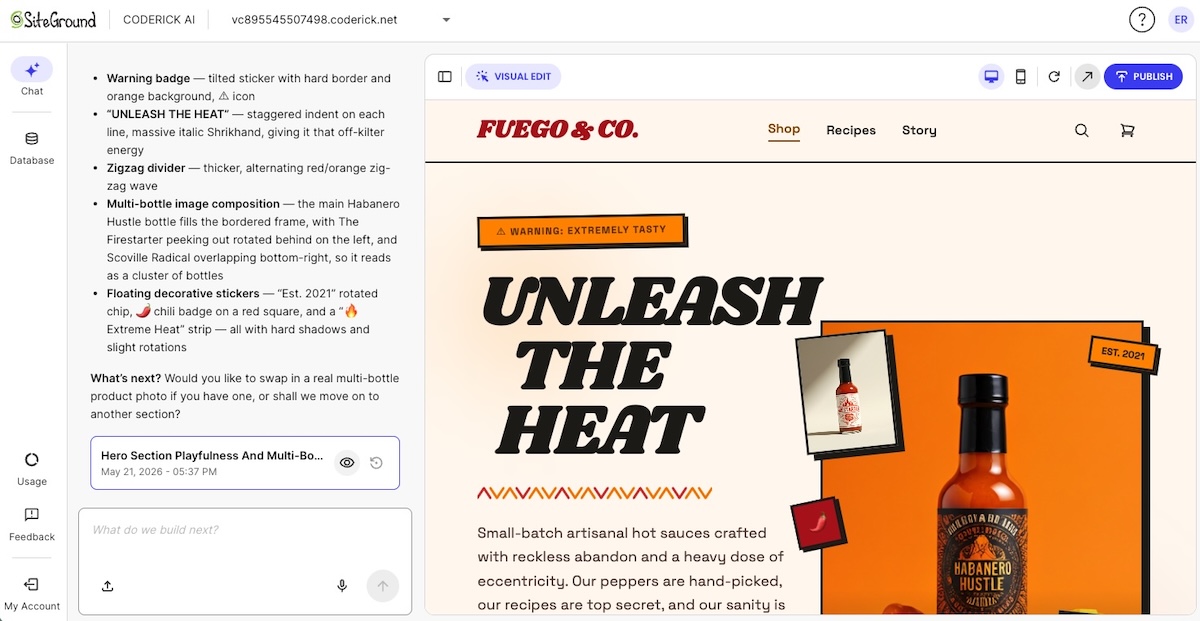
The flows to set up first

Start with the flows that run on actions every subscriber takes. The three flows below trigger on the most common things subscribers do: join your list, lose interest, or signal they want something specific. Every business has those moments. These flows handle them automatically.

Welcome email flow

The welcome email flow is the single highest-impact sequence in email marketing for one reason: open rates. Welcome emails average an open rate of around 50%,according to Invesp which is two to three times the average for standard campaigns.

The reason is simple: the subscriber just signed up. They took a deliberate action, they’re expecting a response, and your name is fresh in their mind. That window closes fast and a well-built welcome flow is how you make use of it.

Trigger: A new subscriber joins your email list (via sign-up form, website opt-in, or lead magnet download).

What it should do: Confirm the sign-up, deliver whatever you promised (a discount, a resource, access to something), introduce who you are, and set clear expectations for what comes next. The welcome flow is not the place to sell hard; it’s the place to prove the subscription was worth it.

How to structure a welcome email flow 

EmailWhen it sendsJob
Email 1: Confirmation and deliveryImmediatelyConfirm the sign-up and deliver what you promised. One sentence about what to expect next. Subject line example: “Here’s what you signed up for.”
Email 2: Brand introduction2 days after email 1Who you are, what problem you solve, why it matters. Human and specific — not a company bio. One soft call to action: read a post, visit a page, reply with a question.
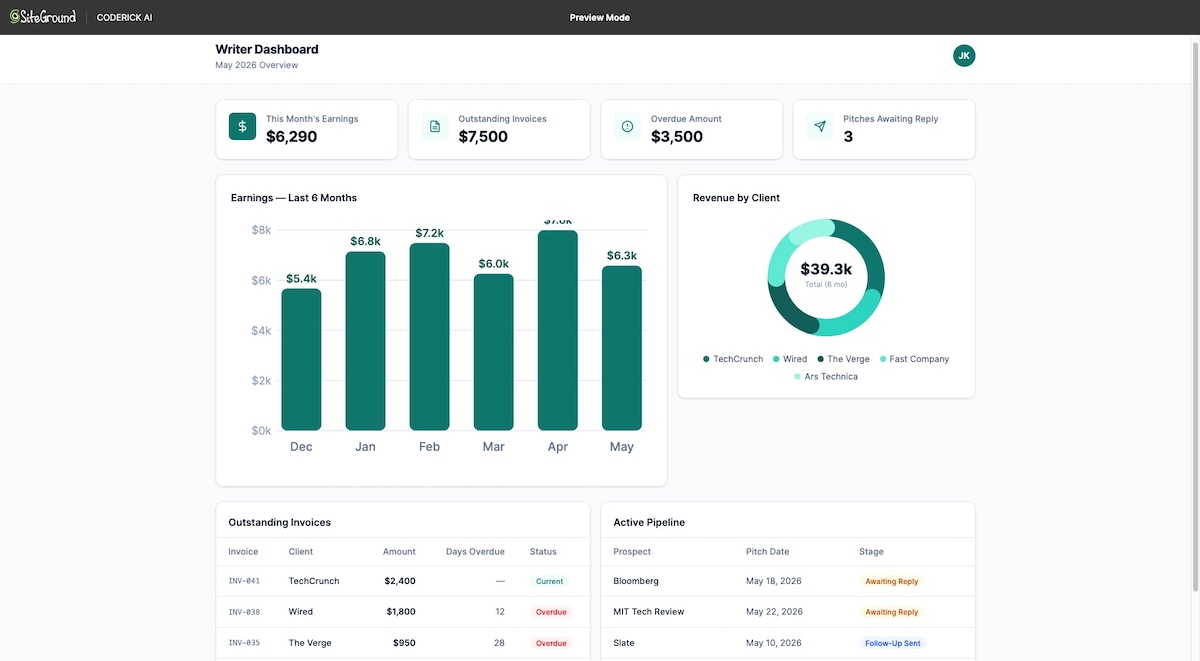
Email 3: First real ask4 days after email 2One clear ask: book a call, browse your services, try your product. By now it’s earned.

With SiteGround Email Marketing, the email automation setup is straightforward: create a group for new subscribers, set it as the trigger in the automation builder, and add your email steps. You can set a delay before each email based on your goals and audience — more on that in the following sections.

What a good welcome email flow looks like in practice

A good welcome email is personal, on-brand, and delivers exactly what the subscriber signed up for. Here’s an example built using a SiteGround Email Marketing template:

Welcome email from Vibe & Lift featuring a founder's note and a photo of a smiling woman in a sage green sports clothes

Clear welcome, a founder note that puts a human face on the brand, and a visual that matches the tone. That’s it.

Lead nurture flow

A lead nurture flow is a sequence triggered by a specific sign-up — a guide download, a quote request, a contact form submission — that follows up on that interest with relevant content before making an ask. The goal is to move the subscriber from “I gave you my email” to “I trust this business enough to take the next step.”

Unlike the welcome flow, which is about building the relationship, a nurture flow is about the decision. The emails look different: less brand introduction, more proof, education, and value tied to the specific thing that brought them in.
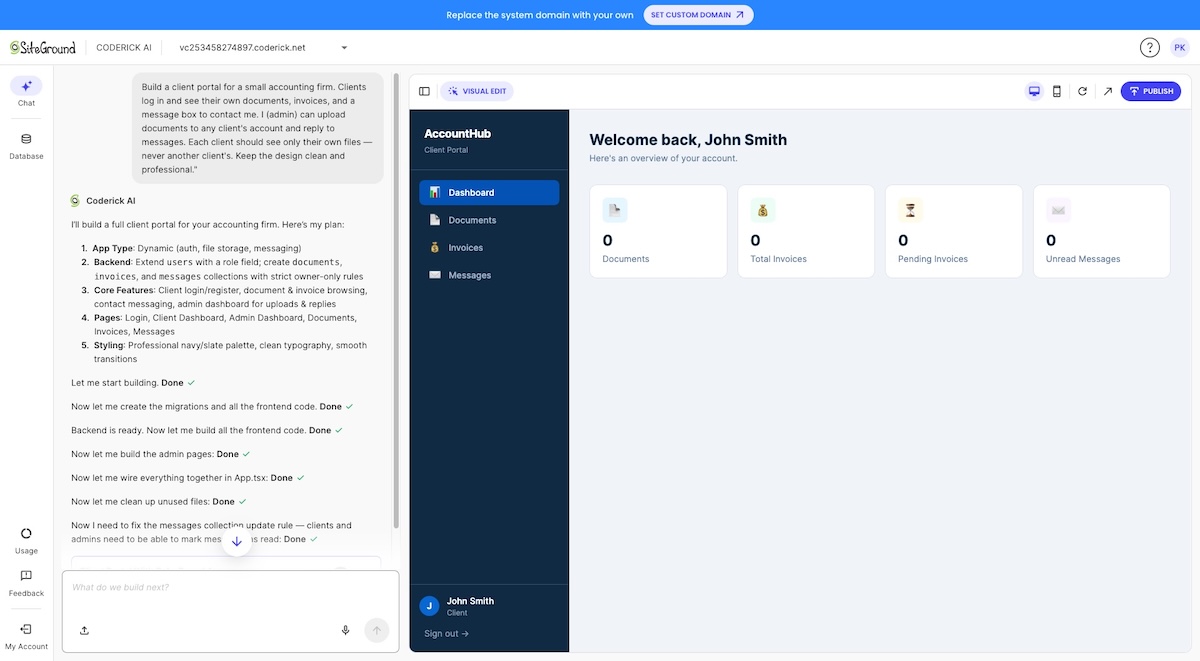
Trigger: A subscriber joins via a specific sign-up source — a lead magnet, a landing page, a demo request, or a contact form tied to a particular service or topic.

What it should do: Address the specific interest that brought the subscriber in, build credibility through useful content and social proof, and move them toward a decision — whether that’s booking a call, starting a free trial, or making a purchase.

How to structure a lead nurture flow:

EmailWhen it sendsJob
Email 1: Deliver and orientImmediatelyDeliver what they signed up for. Confirm what this sequence covers.
Email 2: EducateDay 3One specific, useful piece of content related to their interest. No ask yet.
Email 3: Build proofDay 6A customer story, a case study, or a concrete result that answers: “Does this work for someone like me?”
Email 4: Address hesitationDay 9Handle the most common objection — price, time, complexity, or fit. Keep it honest.
Email 5: Direct askDay 12–14One call to action, one link, no ambiguity.

In SiteGround Email Marketing, create a separate group for each sign-up source and set each one as the trigger for its own automation, so every subscriber gets a sequence built around what brought them in.

What a nurture email flow looks like in practice

A specific, high-value offer, like this free meal plan from 100 Days of Real Food, is exactly the kind of sign-up that should trigger a nurture flow, not just a welcome email. The subscriber came for something specific. The sequence that follows should speak directly to that.

Homepage of 100 Days of Real Food with a hero image of fresh produce and a free weekly dinner plans opt-in offer

Re-engagement campaigns

A re-engagement email flow is an automated sequence that targets subscribers who’ve gone quiet and either wins them back or removes them from your active list.

Inactive subscribers hurt your sender reputation. Low open rates signal to email providers that your content isn’t worth delivering, which affects how reliably your emails reach everyone else. A re-engagement flow fixes that proactively.
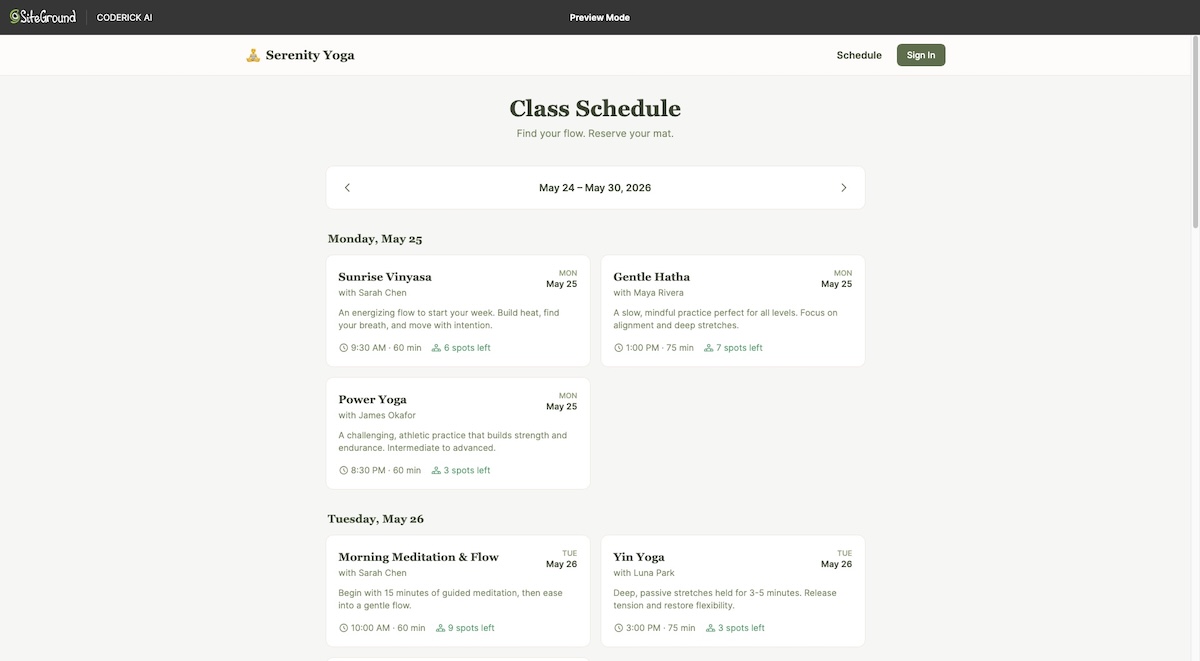
Trigger: A subscriber hasn’t opened or clicked any email in the past 60–90 days. The exact threshold depends on your typical send frequency. If you email weekly, 60 days is reasonable. If you send monthly, 90–120 days may make more sense.

What it should do: Remind the subscriber why they signed up, give them a reason to re-engage (a specific offer, a piece of content, a direct question), and, for those who still don’t respond, cleanly remove them from your active list.

How to structure a re-engagement email flow:

EmailWhen it sendsJob
Email 1: “We miss you”Day 1Acknowledge the gap, remind them of the value they signed up for, include something useful. Subject line example: “Still want [what they signed up for]?”
Email 2: Final nudge5–7 days after email 1Make the ask clearer. Add a small incentive if appropriate — a discount, a free resource, early access. Subject line example: “One click to stay in the loop.”
Email 3: Sunset email5–7 days after email 2Tell them honestly you’re about to remove them and give one last chance to stay. Subject line example: “Should we say goodbye?”

Exit conditions: If a subscriber opens or clicks any email in the flow, pull them out immediately and return them to your regular list. The goal of the flow is re-engagement — the moment that happens, the flow has done its job.

Subscribers who complete all three emails without engaging should be unsubscribed or moved to a suppression list. Keeping them on your active list costs you in deliverability and distorts your reporting.

What a re-engagement email looks in practice

A good re-engagement email acknowledges the gap without making it awkward. Google’s Local Guides example does this well — a disarming visual, a subject line that’s hard to ignore, and a single, low-friction ask.

Re-engagement email from Google Local Guides with a photo of a sad-looking pug lying on the floor and the headline "It's been a while..."

Flows to add once the basics are running

Once your welcome, lead nurture, and re-engagement flows are live, these are the logical next builds. They’re valuable, but they’re not urgent until your foundational flows are in place. Think of this as your second round of automation: each flow below targets a more specific trigger or a more defined group of subscribers.

Onboarding flow

An onboarding email flow is a sequence that guides new customers through their first steps with your product or service. If someone just bought your course but never logs in, or signed up for your tool but never completes setup, they’re already on their way out — and you may not even know it.

A well-built onboarding flow catches them at that moment: here’s what to do first, here’s what to do next, here’s how to get value fast. The result is fewer support requests, less early churn, and customers who actually get what they paid for.

Event or webinar follow-up flow

An event follow-up flow is a sequence triggered by registration or attendance at a webinar, live event, or workshop.

Someone who carved out time for your webinar is already more interested than the average subscriber; don’t let that momentum go cold with a single replay link. A well-timed follow-up sequence delivers the replay, surfaces related resources, and moves them toward a clear next step while the topic is still fresh. If you can, split attendees from no-shows: they showed up for different reasons and should get different emails.

Birthday or anniversary flow

A birthday or anniversary flow is a single email or short sequence, triggered by a date field in the subscriber profile: a birthday, a sign-up anniversary, or a customer anniversary.

In an inbox full of promotions and newsletters, an email that acknowledges a personal milestone stands out. It’s low effort to build, but it lands as something thoughtful — and a genuine targeted message with an optional offer on the right date can quietly outperform campaigns you spent hours on. The only requirement: collect the date field at sign-up.
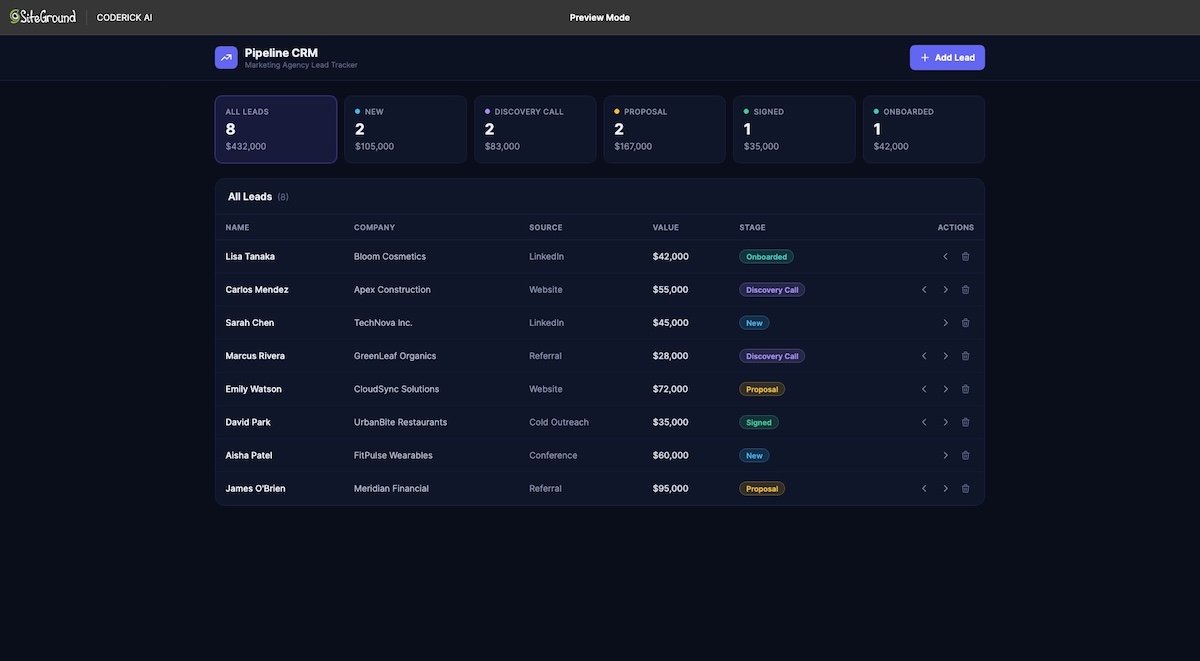
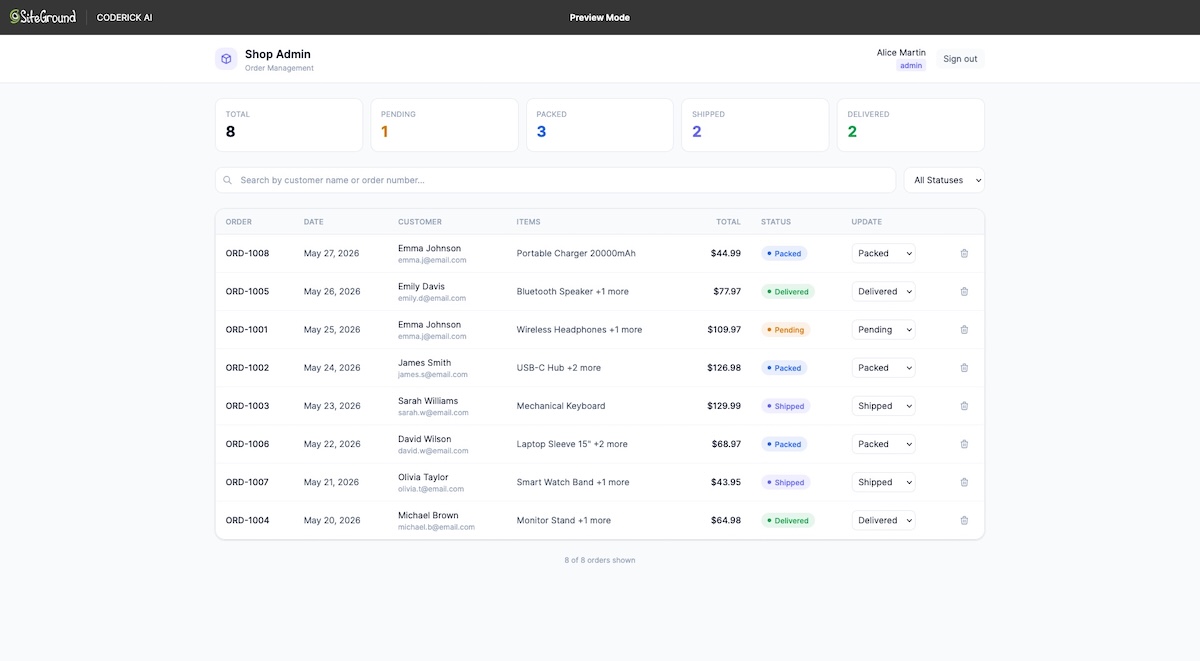
Content engagement flow

A content engagement flow is a short sequence triggered when a subscriber clicks a specific link in one of your emails — a pricing page, a product, a resource. That click is a signal: they’re interested in something specific, right now.

Unlike the nurture flow, this one fires mid-relationship, when an existing subscriber shows renewed intent. Two or three focused emails on exactly what they clicked on can turn a casual browse into a real conversation.

What makes an email flow actually work

The difference between a flow that performs and one that sits in your platform collecting dust usually comes down to four variables. Competitors cover these briefly or not at all, but they’re worth understanding in detail, because getting even one of them wrong can undermine an otherwise solid sequence.

The trigger

The trigger is the most important decision you make when building a flow. It defines who enters, when, and with what context. A vague or broad trigger like “anyone who joined my list” produces a flow that goes to people who may have very different expectations and needs.

A precise trigger such as “anyone who signed up via the free SEO checklist download on my homepage” produces a flow that can be highly specific, because you know exactly what brought that person in.

When setting up a trigger, ask two questions: 

  1. What did this subscriber just do? 
  2. And what do they likely want next? 

The more directly your flow answers the second question based on the first, the better it will perform.

In SiteGround Email Marketing, segmentation happens at the group level. You define who belongs in a flow by deciding which group triggers it. A group for inactive subscribers triggers the re-engagement flow. A group for guide downloads triggers the nurture flow. The group is both the segment and the trigger.

Segmentation

Segmentation is the process of defining who qualifies to enter an automation flow and just as importantly, who doesn’t. In practice, this means being deliberate about which group triggers a flow: a re-engagement flow should only be linked to a group of inactive subscribers; a lead nurture flow for a specific service should only go to subscribers who expressed interest in that service.

Poor segmentation is one of the most common reasons email flows underperform. When irrelevant subscribers enter a flow, they’re more likely to ignore or unsubscribe, which drags down the engagement metrics for the entire sequence. Before you build a flow, define the audience clearly: which list, which segment, and what behavior or attribute qualifies someone for entry.

Timing and frequency

Spacing between emails in a flow is not a set-and-forget decision. Too close together, and subscribers feel pressured or overwhelmed, which leads to unsubscribes. Too far apart, and the context of what triggered the flow gets lost, which leads to irrelevance. The right cadence depends on the flow type and your audience’s expectations.

As a general starting point: welcome flows work well with emails 2–3 days apart. Lead nurture flows typically run on a three-day cadence over two weeks. Re-engagement flows need more space: 5–7 days between emails gives subscribers time to notice the gap.

The best way to calibrate is to monitor open rates across the sequence and look for where customer engagement drops. A sharp drop between email two and three often signals the timing is too tight or the content isn’t holding relevance.

Exit conditions

Exit conditions define when a subscriber should leave a flow before completing it. Without them, flows keep sending to people who’ve already converted, already unsubscribed, or are now in a different flow with conflicting messaging.

A subscriber who purchases during a nurture flow shouldn’t keep receiving “still thinking about it?” emails. A subscriber who re-engages in your win-back flow shouldn’t receive the sunset email telling them they’re about to be removed.

Every flow you build should have at least one exit condition defined: the action that signals the goal has been achieved. 

How to set up automated email flows with SiteGround Email Marketing

Setting up your first flow doesn’t have to feel like a project. Here’s what the process looks like in practice — from prep to going live.

What to have ready before you build

Before you start, get three things clear: what action triggers the flow, who should receive it, and what each email needs to say. A rough outline per email is enough. And if the writing part feels like the biggest hurdle, SiteGround Email Marketing has a built-in AI text generator to help you get the copy done faster.

Build your first flow

  1. Create your account and access the Email Marketing dashboard.
  2. Set up a group for the subscribers who will trigger the flow — new sign-ups, contacts from a specific form, or any segment that makes sense for your sequence.
  3. Build your email sequence in the automation builder — add emails, write your content using the email editor, and set delays between each step.
  4. Activate the flow and it runs automatically from that point forward — every new contact who joins the trigger group moves through the sequence on their own.

Pick one automated email flow and press send

Still deciding where to start? Build the welcome flow. It has the clearest trigger, the highest open rates, and the most immediate impact — and once it’s live, every new subscriber gets a real introduction to your business without you lifting a finger.

That’s the compounding value of automated email flows. Build them once, and they handle the most common subscriber interactions on their own — freeing your time for the work that actually needs you.

SiteGround Email Marketing gives you everything you need to get your first flow live today.

[58]

Frequently asked questions about automated email flows

What is an automated email flow?

An automated email flow is a sequence of emails that sends automatically based on a subscriber’s action or behavior. When a subscriber meets a trigger condition — signing up for a list, going inactive, clicking a specific link — the flow starts and delivers emails at pre-set intervals without any manual input. The flow runs continuously, so every subscriber who meets the trigger gets the same sequence, timed to their individual entry point.

What’s the difference between an email flow and a campaign?

An email campaign is a one-time send that goes to a list or segment on a date you choose. An automated email flow runs continuously and sends to individual subscribers when they meet a trigger condition. Campaigns are best for announcements, promotions, and newsletters. Flows are best for onboarding, nurturing, re-engagement, and any situation where timing relative to a subscriber’s action (or inaction) matters more than timing relative to a calendar date.

What’s the first email flow I should set up?

Set up the welcome flow first. It triggers on the most common subscriber action (joining your list), has the highest average open rates of any email type, and delivers value immediately. A three-email welcome sequence — confirmation and delivery, brand introduction, and a clear next step — covers the essentials and can be built in a few hours.

How many emails should a flow have?

It depends on the flow’s goal and the subscriber’s stage in their relationship with your business. Welcome flows typically run three emails over six days. Lead nurture flows work well at four to five emails over two weeks. Re-engagement flows rarely need more than three. The right number is the minimum needed to achieve the flow’s goal — adding emails for the sake of volume tends to hurt performance rather than help it.

Can I use email flows with a small list?

Yes. Automated email flows are effective at any list size because they’re triggered by individual subscriber behavior, not list volume. A welcome flow with 50 subscribers delivers the same value as one with 50,000 — every new subscriber gets a relevant, timely introduction to your business. Small lists are actually a good time to set flows up, because you’ll have the sequence running before your list grows, rather than trying to retroactively add automation later.

How do I know if an email flow is working?

Track four metrics: open rate (are subscribers reading the emails?), click rate (are they taking action?), conversion rate (are they completing the flow’s goal?), and unsubscribe rate (are the emails relevant enough to keep them subscribed?). Compare each email in the sequence individually — a sharp drop in open rate at email three, for example, often signals a timing or relevance problem at that step, not a problem with the flow as a whole.

How do I build a profitable email automation?

Profitability in email automation comes from relevance and timing, not volume. Start by defining a clear goal for each flow — what action do you want the subscriber to take by the end? Then build the trigger, sequence, and exit conditions around that goal. Flows that underperform typically have one of three problems: a trigger that’s too broad (the wrong people are entering), timing that’s too aggressive (emails are going out too fast), or an unclear call to action in the final email. Fix those three variables and most flows will improve measurably.

Top small business web apps and how to build them yourself (with Coderick AI)

A person smiling while working on a laptop, with a Coderick AI prompt interface open showing the text "Build a web app..."

If you’ve ever thought “I wish this tool just worked the way my business works”, that’s the problem this guide solves. Knowing how to build a web app used to require a developer, a budget, and a long wait. Now you can describe what you need and build it yourself with AI.

This guide covers the four types of web apps small businesses build, what each one does, real examples of each, and a practical walkthrough of how to build your own with Coderick AI on SiteGround.

Key takeaways:

  • Small business web apps fall into four categories: run the business, sell and grow, deliver the service, or enable and automate.
  • The most common starting points are CRMs, invoicing tools, booking systems, client portals, inventory trackers, and quote generators and are all buildable without a developer.
  • Custom software is no longer out of reach. A clear description of what you need is enough to generate a working first version with an AI app builder.
  • The prompt is the app brief. The clearer you describe what you need, the better the first version your AI app builder generates.
  • A useful first version should solve one business problem well before you add extra features, integrations, or advanced workflows.

What is a web app and why does it matter for your business? 

A web app is any software you access through a browser to complete an action: logging in, creating records, updating information, getting things done. You’ve used one when you logged into your accounting tool, checked a shipping dashboard, or filled out an online form that updated a database somewhere.

That’s what separates a web app from a regular website: a website is primarily something you read; a web app is something you use.

And anything you’re currently doing in a spreadsheet, an inbox, or a copy-pasted update? That’s a web app waiting to be built.

What kinds of web apps do small businesses use most? 

Most web apps for small businesses fall into one of four categories, and knowing which one you need is half the battle. The simplest way to choose a small-business web app is to ask what job it does: run the business, sell and grow, deliver the service, or enable and automate work.

  1. The run the business web apps cover your operational backbone: CRM, invoicing, inventory, time tracking, and HR. The tools you’re probably managing in spreadsheets right now.
  2. The sell and grow web app group covers everything that turns interest into revenue: ecommerce stores, lead generation tools, quote generators, or a simple campaign tool.
  3. The service delivery web apps improve the customer-facing part of your operation: booking systems, client portals, and industry-specific tools built around how your business actually works.
  4. The enable and automate web app layer covers the lighter-weight tools: KPI dashboards, workflow systems, AI-powered generators, and internal calculators that cut friction from tasks you repeat every day.

Whatever’s eating most of your time right now, there’s almost certainly a web application for it. And now you can build it yourself.

Web apps that run the business

These are the small business internal tools holding your operation together: the ones you currently have open in four browser tabs, two spreadsheets, and a group chat you’ve stopped responding to.Here’s what that looks like: a full CRM dashboard, generated by Coderick AI from a single prompt.

A CRM web app called ServiceCRM showing a dashboard with metrics for Active Leads, Clients, Open Deals, and Pipeline Value, plus sections for Upcoming Reminders and Recent Deals — built with Coderick AI

Get the prompt: “Build me a CRM for a small service business. I need to track leads and clients, log notes from calls and emails, set follow-up reminders, and see each deal’s stage in a pipeline view. I have around 50 active clients at any time.”

CRM and sales pipeline tracker

A CRM is the system that tracks every client and lead. Without one, that information lives across inboxes, notebooks, and someone’s memory, which works fine until it doesn’t.

Say you’re a freelance consultant with 15 active clients and 30 prospects at various stages. Describe a CRM with three pipeline stages, a follow-up reminder field, and a notes log — that’s exactly what Coderick AI builds. Need ten stages and a team view instead? Describe that. You get what you ask for, nothing more, nothing less.

💡 Tip: start with the pipeline, not the contact record. Get the deal stages working first — add, move, close.

Invoicing and billing tracker

An invoicing app handles the full billing cycle. No more PDF templates, saved-as copies, and calendar reminders to chase payments that may or may not have landed.

Take a web designer billing ten clients across different models; some per project, some on retainer. One custom invoicing app handles both, flags anything unpaid after 30 days, and auto-generates recurring invoices on the first of the month.

💡Тip: Don’t try to describe the whole app in the first prompt. Get the core flow working: create an invoice, send it, mark it paid. Anything else is a refinement, not a foundation.

Inventory control system

An inventory app tracks what you have, where it is, how fast it’s moving, and when you need to reorder. For product-based businesses, getting this wrong is expensive. Too much stock ties up cash, too little loses you sales.

If you’re running a homeware brand across two warehouses, a custom stock tracker shows live levels per location, fires a low-stock alert before you run out, and logs the supplier contact for each product. Restocking stops being something you remember at the worst possible moment.

💡 Tip: Build for one location first, even if you have several. Get the stock tracking and reorder alerts working cleanly, then add locations in a later iteration.

Time tracking and shift management

A time tracking and shift management app answers one question: who worked on what, and for how long. A shift management app answers another: who’s working when, and is every shift covered. Together, they replace the scheduling spreadsheet and the “can anyone cover Tuesday?” group chat.

Eight part-time café staff, a whiteboard, a group chat, and two spreadsheets that are never quite in sync — sound familiar? A custom shift scheduling app replaces all of it: the team sees their schedule, uncovered shifts get flagged, and hours are tracked without anyone having to chase anyone.

💡 Tip: Describe time tracking and shift scheduling as separate things in your prompt, even if you want them in one app. It gives Coderick AI a clearer structure to work from.

Compliance and document management 

A document management app gives your business a single, structured place to store, version, and retrieve the files that matter: contracts, certifications, policies, audit records. The right document, findable by the right person, without digging through a shared drive that hasn’t been organized since 2021.

For a construction firm with subcontractors, a compliance tracker built in Coderick AI logs certification expiry dates for everyone on the roster, sends reminders 30 days before anything lapses, and keeps a full audit trail, replacing a folder system that only one person knew how to navigate.

💡 Tip: start with the document storage and access control. Get the right people seeing the right files before adding expiry dates, reminders, or audit trails.

Web apps that sell and grow

If the previous category keeps your business running, this one keeps it growing. These are the tools that sit between you and your next sale — and the ones where a poor fit costs you revenue, not just time.

Here’s the output: a quote and estimate dashboard for a construction business, generated by Coderick AI from the prompt above.

A construction business web app called BuildQuote showing a dashboard with Total Quotes, Accepted, Pending, and Win Rate metrics alongside a Recent Quotes section — built with Coderick AI

Get the prompt: “Build me a quote and estimate generator for a small construction business. I need to select from a list of standard services and materials, enter quantities, and have the app calculate a total automatically. It should generate a branded PDF quote I can send to clients, and log all quotes so I can track which ones were accepted.”

Ecommerce store and product catalog

An ecommerce app gives you a custom storefront: your catalog, your order flow, your rules without the transaction fees or the feature compromises of a standard platform.

If you need a standard storefront up and running fast, SiteGround Ecommerce is built for exactly that. For more custom flows, like specific pricing rules, a B2B catalog, a multi-vendor setup, Coderick AI lets you build for your exact model.

💡 Tip: Describe your catalog and order flow first. Don’t try to build the full store in one go — get the product listing and order management working, then refine from there.

Lead generation and campaign tools

A lead generation app captures prospect information: from forms, landing pages, or direct outreach, and gives you a structured place to manage what happens next. You can segment contacts by source or status, flag leads that have gone cold, and keep your pipeline organized without it living in a spreadsheet or an inbox.

For a small agency with enquiries coming in across multiple service pages, a custom lead capture app lands every enquiry in a pipeline, tags it by service type, and triggers a follow-up sequence. No more checking three inboxes to figure out who asked about what and when.

💡 Tip: Start with the capture form and the pipeline view. Know where leads land and what their statuses are before adding segmentation or follow-up logic.

Quote and estimate generator

If your business runs on custom pricing, the next one is probably your biggest time sink.

A quote generator lets you build and send professional estimates without starting from a word processor template every time. For businesses with variable pricing (construction, trades, consulting) quoting manually is usually the most time-consuming part of winning work, and the most error-prone.

Think of a landscaping company quoting jobs with variable materials, labor, and square footage. A quote web app built in Coderick AI pulls in standard services, calculates the total, and outputs a branded PDF estimate.

💡 Tip: List your most common line items before you write the prompt. The more specific you are about what goes into a quote, the more useful the first version will be.

Web apps that deliver the service 

Running the business is internal. Delivering the service is what your clients actually see and the tools in this category shape that experience directly.

Here’s another example built in just a few clicks: this time a client portal with a personalized dashboard, project tracking, shared files, and meeting scheduling, all scoped to the logged-in client.

A client portal web app called ClientHub showing a dashboard with counters for Active Projects, Recent Reports, Upcoming Meetings, and Shared Files — an example of how to build a web app for agencies using Coderick AI

Get the prompt: “Build me a client portal for a small marketing agency. Each client should log in and see their own dashboard with campaign performance reports, a list of deliverables and their status, and a file upload section. Clients should only see their own data.”

Appointment booking and scheduling system 

A booking app lets customers schedule time with you without a back-and-forth email thread. On your end, it manages availability, prevents double-bookings, and sends reminders.

A physiotherapy clinic with four practitioners and six appointment types is exactly where generic scheduling tools start showing their limits. Practitioner-specific availability, treatment length variations, cancellation rules: a custom booking system handles all of it without manual intervention every time something doesn’t fit the template.

💡 Tip: Describe your availability rules clearly — days, hours, appointment types, and whether different team members have different schedules. Booking logic gets complicated fast if the prompt is vague.

Client portal

A client portal gives each client a private space to log in and see what’s theirs: project status, reports, invoices, uploaded files. It replaces the “just checking in on progress” message and the twenty minutes it takes to respond to it.

If you’re managing 20 active clients across different projects, keeping each client’s view scoped to their own data is exactly the kind of thing that usually requires a development process. With Coderick AI, you can build and refine that logic yourself. It’ll take some iteration, but you won’t need anyone else to figure it out.

💡 Tip: Define who sees what before anything else. Write out the difference between what a client sees and what an admin sees — that access logic is the hardest part to retrofit later.

Industry-specific tools

Industry-specific apps are purpose-built for one type of business, shaped around how your industry actually operates. A clinic management system, a construction project tracker, a hospitality reservation system: each one is shaped around a workflow that a generic tool will never quite fit.

The more niche your workflow, the bigger the gap a generic tool leaves. A custom app fills it.

Web apps that enable and automate

Not every useful app needs to be a full system. Some of the best small business web apps do one thing well and save you an hour every time they do it.

This booking app is a good example: service tiers, scheduling, and a price estimator, built in Coderick AI and ready to use.

An interior design pricing calculator web app with fields for client name, project name, room dimensions, and materials and finishes, with a Project Estimate panel on the right — built with Coderick AI

Get the prompt: “Build me a pricing calculator for a small interior design business. I need to enter room dimensions, select finish types and materials from a dropdown, and have the app calculate a project estimate automatically. The output should be a summary I can copy and send to a client.”

KPI dashboard and business metrics tracker 

A KPI dashboard puts your most important business numbers into one view: revenue, orders, invoices, performance. You manage the data yourself, but the view is always there when you need it, without opening five different tools to piece it together.

If you’re opening four different tools every Monday just to know where revenue stands, how many orders came in, and what’s still unpaid, a custom dashboard built with Coderick AI pulls all of that into one screen.

💡 Tip: List the exact five to ten numbers you want on the screen before you open Coderick AI. A dashboard is only useful if it tracks the right things — and that decision is yours to make, not the app’s.

Workflow and task management system

A workflow and task management app gives your team a structured way to move work through a process: a kanban board for tasks, an approval flow for requests, a ticket tracker for support issues, or an SLA (service level agreement) tracker — a way to make sure time-sensitive requests are handled within an agreed timeframe.

A small team where everyone does a bit of everything tends to run on informal updates and group chats until something slips. A custom workflow app built in Coderick AI replaces the “what’s the status on this?” thread with a board that actually reflects how your team works: your stages, your rules, your escalation paths.

💡 Tip: Map your stages on paper first — what does a task move through from start to done? The clearer your workflow is before you prompt, the less you’ll need to rework later.

AI micro-tools and internal calculators

AI micro-tools and internal calculators are the smallest apps with some of the highest perceived value: a pricing calculator that applies your exact logic, an ROI estimator you can share with prospects, an FAQ chatbot trained on your own content, or an internal generator that produces something your team creates manually every week.

Think of a copywriter who prices every project differently. A custom calculator that factors in word count, research time, and revision rounds means a consistent, defensible quote in seconds instead of a back-of-the-envelope guess.

💡 Tip: Write out the calculation or logic manually before describing it to Coderick AI. If you can’t explain how the output is reached, the app won’t be able to replicate it accurately.

How to build a web app for your small business with Coderick AI 

You don’t need a technical background to learn how to build a web app with Coderick AI. You need to know what problem the app solves, who uses it, what data it tracks, and what should happen when someone takes an action.

Step 1: Start with a brief 

Before you open Coderick AI, spend five minutes writing a short app brief with three answers:

  1. What does the app need to do? 
  2. Who uses it — just you, your team, your clients, or all three? 
  3. And what information does it need to track? 

You don’t need to know anything about databases or code. You just need to be specific about your problem. The clearer your picture, the more useful your first output will be.

For a small agency, that might look like this:

  • App: client project management portal
  • Users: team members, clients, and an admin
  • Team members need to update task statuses, log hours, and upload files
  • Clients need to see their own project progress, shared files, and invoices — nothing else
  • Admin needs a full overview of all clients and projects
  • Data to track: tasks, statuses, hours, uploaded files, invoices, client access rules

Step 2: Describe the app and Coderick AI builds the first version 

Open Coderick AI and turn the app brief you wrote in step one into a plain-language prompt. The structure is simple:

  • Start with the app type: what kind of tool it is, so Coderick AI has a clear frame to work from.
  • Describe the main actions: what users can actually do inside the app: create, view, update, send, track.
  • Specify who sees what: if admins, team members, and clients need different access, say so explicitly.
  • Add the details that matter: specific fields, data points, or outputs your workflow depends on.

Using the agency example from step one, the prompt would look something like this:

“Build me a project management portal for a small marketing agency. Team members log in to update task statuses, log hours, and upload deliverables. Clients log in to see their project progress, shared files, and invoices — they should only see their own data. I need an admin dashboard to manage all clients and projects in one view, with the ability to add new clients and assign team members to projects.”

That’s a complete first prompt. It tells Coderick AI what the app does, who uses it, what each person sees, and what the admin needs to manage. Hand it over and you’ll have a working first version to look at in minutes. Below is the first version you’d get.

A team portal web app called AgencyHub displaying a My Tasks dashboard with task status counters for Todo, In Progress, Review, and Done, with filter tabs — built with Coderick AI to show how to build a web app for team task tracking

Step 3: Refine, test, and make it yours 

The first version is a draft, not the final app, and that is normal. Work through it the way a new user would, and check for four things:

  • Does it complete the core workflow? The main actions you described in your prompt — can you actually complete them? Create a record, send something, update a status. Start here before anything else.
  • Does the data go where you expect? Fill in a few test entries and check that information shows up in the right place, in the right view, for the right user.
  • Does it match how you actually work? Generic field names, missing steps, or logic that almost-but-not-quite reflects your process — note everything that feels off.
  • Does each user see the right things? If you have multiple user types, log in as each one and check that access is scoped correctly.

Then go back and refine. Adjust layouts, rename fields, add what’s missing, remove what isn’t useful. This back-and-forth is normal. Мost small business web apps get to a usable state in a few focused iterations. The goal at this stage isn’t perfection; it’s an app that fits well enough to start using, so real-world use can tell you what still needs adjusting.

In our case, such a prompt would be:

“Make a few changes to the task board. Add a priority field to each task with three options: High, Medium, and Low. Restrict the Review stage so only team leads can move tasks into it. Add a time logging option directly on each task so team members don’t have to navigate to a separate section. Highlight overdue tasks in red. Also update the color scheme — change the purple sidebar and buttons to a deep navy blue, and use a light grey-white for the background to match our brand colors.”

And here’s what happens:

A team portal web app called AgencyHub displaying a My Tasks dashboard with task status counters for Todo, In Progress, Review, and Done, with filter tabs — built with Coderick AI to show how to build a web app for team task tracking

Why does hosting matter for a web app?

Unlike a static website, a web app is doing things constantly: processing requests, storing data, managing user access. That means the hosting infrastructure it runs on directly affects how fast it loads, how reliably it works, and how securely it handles your data.

Coderick AI web apps are hosted on SiteGround’s own infrastructure by default, so performance, security, and uptime come with the build, not as an afterthought. Hosting setup, server configuration, and the separate hosting bill are all handled. You publish, and it’s live.

Start building the web app your business has been missing

Every web app in this guide started as a problem someone got tired of working around. A spreadsheet that got too complicated. A SaaS subscription that almost did the job. A process that worked fine until the business grew and suddenly didn’t.

Start with the thing that’s costing you the most time right now. Not a full spec, not a feature list, just that one problem. Describe it, build it with Coderick AI, and refine from there. The first version is ready in minutes. The friction point you’ve been working around is exactly where to start.

[96]

Frequently asked questions: How to build a web app

What’s the difference between a web app and a website?

A website mainly presents information, while a web app lets users take action with data.  Websites deliver information: blog posts, landing pages, company details. Web applications let you create, update, and act on data: booking appointments, tracking inventory, managing clients. The line between the two is blurring, but the distinction still holds: if you log in and do things, it’s a web app.

Can I build a web app with no coding experience?

Yes. Tools like Coderick AI let you describe the web app you want in plain language and generate a working version without writing a single line of code. You’ll still need to know what you want to create and be able to test and refine the output — but none of that requires a technical background.

How long does it take to build a web app with AI?

A simple app like an invoicing tool, a booking system, a client portal can go from prompt to working first version in minutes with Coderick AI. Getting it to a fully refined, launch-ready state typically takes a few hours of testing and iteration, depending on how complex your requirements are. A custom app that would have taken a developer weeks can now be built and refined in an afternoon.

Can I make a web app for free?

Yes. If you’re new to SiteGround, Coderick AI offers a 14-day free trial of the Essential plan: full access, including publishing, with 100,000 credits included. You’ll need to enter a card to get started, but nothing is charged during the trial. If you don’t cancel before the 14 days are up, the plan renews automatically. Existing SiteGround or Coderick AI users can also start a free trial project directly, with up to five trial slots available at a time.

What web apps do small businesses use most?

The most common small business web apps are CRMs, invoicing tools, booking and scheduling systems, inventory trackers, and client portals. These are the tools that replace the most spreadsheets and cover the most repeated daily friction. Dashboards, workflow managers, and quote generators are close behind — especially for service businesses and trades.

What are the 4 types of small-business web apps?

Small business web apps fall into four categories: apps that run the business (CRM, invoicing, inventory, HR), apps that sell and grow (ecommerce, lead generation, quote tools), apps that deliver the service (booking systems, client portals, industry-specific tools), and apps that enable and automate (dashboards, workflow managers, AI micro-tools). 

Is it difficult to create a web app for a complete beginner?

Not anymore. Building a web app from scratch used to mean writing code, structuring a database, and figuring out hosting and deployment — a steep learning curve even for people with some technical background.

With Coderick AI, that layer is handled for you. You describe what you want in plain language, refine the output until it fits, and publish. The hard part now is being clear about what you need, not knowing how to build it.

What should I prepare before building a web app with AI?

Three things: what the app needs to do, who uses it, and what data it needs to track. You don’t need a technical spec or a wireframe — just a clear picture of the problem you’re solving and the main features that would solve it. The more specific you are in your description, the more useful your first output will be.

How to use an AI website builder to create your small business website (no code)

A digital graphic featuring a minimalist "Ceramics" website interface against a dark blue grid background. The website displays the headline "EXPRESS YOUR SOUL" in elegant serif typography, partially overlapping a circular ceramic plate and dried flowers. To the right, a floating glassmorphism UI panel shows a user prompt "Build me a website..." and a progress state labeled "Creating..." with three toggle buttons for "Version 1," "Version 2" (selected), and "Version 3."

Not long ago, creating a small business website meant either hiring a developer or losing a few weekends to tutorials, templates, and trial and error. Today, an AI website builder can turn a plain-language description into a draft website with pages, layout, design, and starter copy, without you writing any code.

This guide walks you through the full process: how AI website builders work, what a small business should check before choosing one, and how to review your site before publishing. If you’ve been putting off building a website because the process felt too technical, too expensive, or too time-consuming, this is for you.

Key takeaways:

  • AI website builders generate your pages, site structure, features, and copy. You just have to describe what you need and give them the details that make your business yours: your services, prices, hours, policies, or even the vision and brand voice that sets you apart.
  • Not all sites are built the same. Service businesses, local businesses, single-offer landing pages, and small stores each have a different structure and page elements to convert. Advanced AI website builders like SiteGround’s Coderick AI know how to pick the right structure for you.
  • Before committing to a no-code website builder, check that it gives you editing control, works well on mobile, supports the features your business needs (contact forms, booking, ecommerce, and so on), and includes hosting, a custom domain, and SSL so your site is ready to go live the moment you are.
  • Before publishing, test forms, review the mobile version, check page titles, and confirm that pricing, policies, claims, and contact details are accurate. A five-minute check can save you from problems that cost you customers later on.

What is an AI website builder?

An AI website builder is a tool that turns a plain-language description of your business into a working website, without requiring you to design, code, or build anything yourself. You type something like “I run a dog grooming salon in Austin, I offer bathing, haircuts, and nail trims, and I want clients to book online,” and the AI generates a homepage, a services page, an about page, a contact page, and draft copy for each.

It’s all part of a broader shift in how sites and web apps are created, known as vibe coding. This is an AI-driven software development method that replaces writing code with writing in plain language (prompting). To learn more about it, take a look at the detailed vibe coding glossary we recently prepared.

What AI handles vs. what you decide

The best results come when you treat AI as the site-structure expert and yourself as the business expert.

An AI website maker can handle the first draft: page structure, navigation, responsive design (meaning the site adapts to phones, tablets, and desktops), visual styling, and draft copy for each section. Give it your business details, and it can turn them into structured pages and editable copy.

What it can’t do is know your business the way you do. Service descriptions, pricing, customer testimonials, opening hours, return policies, legal disclaimers: anything that involves a specific fact about your business or a commitment to your customers needs to come from you. The same goes for your unique selling proposition (USP) and what makes you stand out from competitors. If you don’t provide these details, the AI will fill in the gaps with plausible-sounding content that may not be accurate, and inaccurate information on your site can cost you trust and customers.

The AI gets you 80% of the way there. Your input is the 20% that isn’t technical and that you already know. These are the details that actually convert visitors into customers, so be as specific as possible. When someone lands on your site, details are what build trust and drive action. “Haircuts starting at $45, book online” tells a visitor exactly what to expect and what to do next. “Affordable grooming services” might also be true, but it tells them nothing.

AI website builder vs. templates vs. drag-and-drop builders

  • A template builder gives you a pre-designed layout as a starting point. You browse a gallery, pick the one that looks closest to what you need, and replace the placeholders with your own content. Since templates are built for everyone, they’re built for no one in particular. You’ll likely find sections you don’t need and miss ones you do, and adjusting that takes more time than most people expect.
  • A drag-and-drop builder gives you a blank canvas and a toolkit of blocks (text, images, buttons, forms, galleries) that you arrange however you like. You’re making every layout decision yourself, which requires either a good eye for design or a lot of trial and error.
  • An AI website builder does something different: it generates a complete first version: the structure, the layout, and the initial content based on what you described. Instead of choosing from a gallery or dragging blocks around, you get a complete first version of a site that already reflects your type of business.

The advantage is more than just speed. You get the right structure for your type of business, you start from a nearly complete site rather than a blank page or a generic template, and the AI handles the decisions you’d otherwise have to make yourself: what sections to include, how to organize the navigation, what kind of copy fits your industry. Instead of figuring out what your site needs, you’re reviewing a version that already has it.

What does an AI website maker create after you describe your business?

Once you submit your first prompt, the AI website maker interprets it and builds a complete draft. Here’s what that typically looks like, and what to focus on first when reviewing.

The “site brief” output (what it includes)

Before generation, the AI decides on a structure: how many pages your site needs, what order they appear in the navigation, which sections belong on each page, and what visual style fits your business type. Most builders let you review or refine the structure before you start editing the details. It’s worth spending a minute here to make sure the overall shape is right before you get into the copy.

Typical pages (home, services, about, contact, policy)

Most AI-generated small business sites include five core pages, though the specifics shift depending on your site type:

  • Homepage: A headline, a short description of what you do, and a primary call to action. A plumber’s might lead with “Licensed plumbing repairs in Portland” and a “Request a quote” button. A restaurant’s might feature the cuisine type and “View menu.”
  • Services or menu page: What you offer, organized by category. A salon lists haircuts, coloring, and treatments. A restaurant lists starters, mains, desserts, and drinks with prices.
  • About page: Your story, credentials, and why customers should trust you.
  • Contact page: Phone, email, address, a contact form, and (for local businesses) an embedded map.
  • Policy pages: Privacy policy, terms of service, and (for stores) return and shipping policies. The AI generates plausible versions if you don’t give it information in your first prompt, but these need to reflect your actual terms before you publish.

Whatever the structure, it’s usually your starting point. Every page can be adjusted, reordered, or expanded through chatting with the AI builder. For guidance on organizing these pages well, SiteGround’s website structure guide covers the principles behind effective site architecture.

Copy you should check first

The AI writes with confidence, even when details are incomplete, which is exactly the problem with certain sections. A few areas need your attention before anything else:

  • Pricing and rates: If you haven’t included them in your initial prompt, the AI may invent plausible numbers. Swap in your actual rates.
  • Guarantees and timelines: The AI might have added generic statements like “Satisfaction guaranteed” and “delivered in 48 hours.” But those are actual commitments. If you didn’t make them, they shouldn’t be on your site.
  • Legal claims: Anything involving licensing, insurance, certifications, or regulatory compliance needs to come from you, not from generated text.
  • Testimonials: If the AI produced sample reviews, replace them with genuine ones. Fabricated testimonials damage trust quickly and may violate advertising regulations.

The 10-minute review that matters most: Open the draft and read it as if you were a customer visiting for the first time. Every time you see a number, a promise, or a claim, ask: “Is this actually true for my business?” That single pass catches the most important issues before they go live.

Which types of business websites can an AI site builder create?

An AI website builder can create almost any type of business site. However, four site types come up most often for small business owners, and knowing which one fits yours helps you write a sharper first prompt and get a better first draft.

Service business site

If you’re a plumber, consultant, photographer, personal trainer, or any professional who sells expertise or hands-on work, your site needs to do three things: explain what you offer, build trust, and give visitors a clear way to get in touch or book.

Visitors want to quickly understand what services you provide, see evidence that you’re good at what you do (testimonials, portfolio, credentials), and take action without hunting for a phone number or contact form. That usually means a homepage, a services page, an about page, a contact page, and a testimonials or portfolio section.

Example prompt you can start with:

“Build a website for a [your profession, e.g., interior designer] based in [your city]. The business offers [list your main services, e.g., residential consultations, full-room redesigns, and color/material sourcing]. The site should clearly explain what I do, who I work with, and make it easy for potential clients to get in touch. Include a homepage with a strong headline and a ‘Request a consultation’ button, a services page with a section for each service, an about page with my background, and a contact page with a form. Use a clean, modern style with a professional feel.”

Here’s what Coderick AI builds from that prompt (and you can keep refining it from there).

A screenshot of the SiteGround Coderick AI website builder interface. On the left is a chat sidebar where a user has requested a professional, modern website for a Seattle-based interior designer. The AI, Coderick AI, responds with a plan to build a four-page site.

The right side of the screen shows a live preview of the generated website for "Ellery Atwood." The design features a high-end hero section with a moody photo of a contemporary living room, the bold headline "Spaces That Feel Like Home," and an olive green "REQUEST A CONSULTATION" call-to-action button. The top navigation bar includes tools for visual editing, device responsiveness toggles, and a primary "PUBLISH" button.

Local business site

If you run a bakery, a barbershop, a dental clinic, or a repair shop, your visitors usually have one question first: where are you and when are you open? Local business sites are similar to service sites but put much more emphasis on physical presence: embedded maps, directions, local phone numbers, and neighborhood-specific language that helps you show up in local search results.

A restaurant, for instance, needs a menu page with items and prices organized by category (starters, mains, desserts, drinks), an hours-and-location section with a map, and a reservation or ordering option. A salon needs a list of treatments with pricing, photos of the space, and a way to book an appointment.

Example prompt you can start with:

“Create a website for [business name], a [business type, e.g., family-run Italian restaurant] in [your city]. The site should make it easy for local customers to see the menu, check opening hours, and book a table. Include a homepage with a hero image and a ‘Book a table’ button, a menu page with sections for starters, mains, desserts, and drinks (each item with name, description, and price), an hours-and-location page with our address and an embedded map, and a contact page. Design it to feel warm and inviting, with a good mobile experience.”

Single-offer landing page

If you’re launching one product, running a seasonal promotion, or collecting sign-ups for a workshop, you need a single focused page with one clear call to action. (A “call to action” is the button or link that tells visitors what to do next, like “Book now” or “Sign up.”) Landing pages strip away navigation distractions and focus the visitor on a single decision. They work well for product launches, event registrations, limited-time offers, and lead-generation campaigns where you want every visitor’s attention on one thing.

Example prompt you can start with:

“Build a landing page for [your offer, e.g., ‘a weekend pottery workshop on June 14 in Austin, $120 per person’]. The page should open with a strong headline, explain what attendees will learn and take away, show the date, location, and price clearly, and include a ‘Sign up now’ button as the main call to action. Add a section for 2-3 testimonials from past attendees and a short bio of the instructor. Keep the design focused, with no navigation menu. Make it mobile-friendly.”

Small store

If you sell a handful of products (handmade candles, custom T-shirts, specialty coffee beans), you need product listings, a cart, and a checkout flow. Customers need to see what you sell with clear photos and descriptions, understand pricing and shipping, and complete a purchase without leaving your site. An AI website maker can generate a small online store with product pages, pricing, and basic ecommerce structure. Some AI builders even support integrations with trusted payment systems: for example, you can add a Stripe checkout to anything you build with Coderick AI right in the chat.

This works well for stores with modest catalogs and straightforward shipping. For larger catalogs, complex inventory management, or advanced shipping rules, a dedicated ecommerce platform like SiteGround Ecommerce is a better fit.

Example prompt you can start with:

“Build an online store for [your brand name]. I sell [your product types, e.g., ‘handmade soy candles in three sizes: travel, classic, and large’]. Create a homepage that showcases featured products, a product catalog page with categories, individual product pages with photos, descriptions, and prices, and a cart and checkout flow. Include a shipping and returns policy page. Use a clean, minimal design that puts the products front and center.”

Here’s how SiteGround’s Coderick AI uses this prompt to generate a draft website you can then perfect:

Screenshot of the Coderick AI interface showing a prompt chat on the left and a live web preview of an online candle store on the right.

You’ll notice the example prompts above include some guidance on structure and page elements. AI builders like SiteGround’s Coderick AI would figure most of this out on their own, but spelling it out upfront tends to produce a stronger first version and saves you follow-up iterations. If you’re not sure what elements your site needs yet, don’t worry. You can always add, remove, or rearrange pages after you see the first result with short follow-up prompts to refine: “add a pricing section,” “change the headline to something more specific,” “make the contact form include a phone number field.” Building iteratively, one change at a time, consistently produces better results than trying to describe everything in a single prompt. For more on this approach, SiteGround’s guide to key principles for building with AI covers the fundamentals.

Quick reference

Site typeBest forMust-have sections
Service business siteConsultants, photographers, trainers, contractorsHome, services, about, contact, testimonials
Local business siteRestaurants, salons, clinics, repair shopsHome, menu or services, hours and location, contact, reviews
Single-offer landing pageProduct launches, workshops, seasonal promosHero section, offer details, one call to action, social proof
Small storeHandmade goods, specialty food, small product linesHome, product listings, cart, checkout, shipping and returns policy

When an AI website builder is not the right choice

AI website builders are the right tool for most small business sites and among the fastest ways to create a publishable first version. But not every project fits that mold, and it’s worth knowing where the boundaries are before you start.

  • If you need a large ecommerce catalog with hundreds of products, complex inventory rules, or advanced shipping logic, a dedicated ecommerce platform will give you more control. SiteGround Ecommerce is built for exactly that.
  • If you need custom integrations with niche software (medical records systems, real estate MLS feeds, enterprise resource planning), a developer is still the way to go.
  • If you need pixel-level control over every design element, a drag-and-drop builder or a fully custom design gives you more precision.

The honest question to ask yourself: does my site need to do something that a typical small business site doesn’t? If the answer is yes, check whether the builder supports it before committing your time.

No-code website builder checklist: features that matter for small businesses

For small businesses, the best no-code website builder is not the one with the longest feature list. It is the one that lets you create, edit, publish, and maintain the site without needing technical help every time something changes.

Not every no-code website builder gives you the same level of control, publishing support, or business features. Before you invest your time in any platform, check for these five things. They’re the difference between a tool that produces a publishable business site and one that produces a demo you can’t actually use.

Editing control (layout, sections, styles)

Once the AI generates your site, the editing experience is what separates a useful tool from a frustrating one. It should be easy for you to rearrange sections, edit text, swap images, adjust colors and fonts, add or remove pages. Some builders like Coderick AI give you a combination of chat and easy-to-use visual editors for this. Others let you make changes only through the chat interface, where you describe what you want (“make the header darker,” “add a page for the team”) and the AI updates accordingly.

Whatever the method, the test is simple: can you make changes freely after the AI generates your site?

Business blocks (forms, booking, store)

A business site without a way for customers to reach you is just a brochure. Make sure the builder supports contact forms, appointment booking or scheduling (if your business takes appointments), and product listings with cart and checkout (if you sell goods). In many AI builders, you can describe the functionality you need (“add a booking form for consultations” or “add a product page with an add-to-cart button”) and the tool generates it.

Some of these features need a database behind them to store submissions, bookings, or orders. In some builders, like Coderick AI, the database is set up automatically. In others, you’ll need to configure it yourself, which would require some additional technical steps.

SEO controls (titles, descriptions, alt text)

SEO stands for search engine optimization. It’s the set of things you do so that when someone searches Google for what you offer, your site shows up. Here are the basics:

  • Page titles (also called “title tags”): The clickable headline that appears in search results. Each page needs a unique, descriptive one.
  • Meta descriptions: The short summary below the title in search results. A good meta description tells the searcher why they should click.
  • Image alt text: A short written description of each image. Search engines can’t see images the way we do; alt text tells them what’s in the picture. It also helps make your website more accessible for visitors who use screen readers (software that reads web content aloud for people with visual impairments).

Most AI website builders generate these automatically, but the defaults tend to be generic. Take a few minutes to rewrite any that don’t match how your customers actually search. “Best bakery in Savannah” is more useful for Google searches than “Welcome to our homepage.” For ecommerce-specific SEO, SiteGround’s ecommerce SEO guide covers the fundamentals.

Mobile and speed basics

Over half of all website visits now come from mobile. A “responsive” site adjusts its layout automatically to fit whatever screen it’s viewed on. Most modern builders generate responsive layouts by default, but that doesn’t mean the result is perfect on every device. You still need to check font sizes, button spacing, and form usability on an actual phone before you publish.

Speed matters just as much. If your site takes more than three seconds to load, a significant share of visitors will leave before they see anything. Builders like Coderick AI include hosting, which removes separate server setup and gives your site a managed publishing environment. Builders that only export code leave you to figure out hosting, server configuration, and optimization on your own.

Domain, hosting, SSL

Three terms that sound technical but are simpler than they seem:

  • Domain: Your web address, like “yourbakery.com.” You register it through a domain registrar and point it at your site.
  • Hosting: The server where your website files live. When someone types your domain into a browser, the hosting server delivers your site to their screen. Think of the domain as your street address and hosting as the building at that address.
  • SSL certificate: A security layer that encrypts (scrambles) data between your site and your visitors so nobody else can read it. Sites with SSL show “https” instead of “http” in the address bar. SSL protects sensitive information like form submissions and payment details, and search engines rank sites with it more favorably.

Some builders require you to set these up separately, while others (like Coderick AI) bundle everything together. This all-in-one approach is usually the best fit for non-technical owners, because there’s nothing to configure and nothing to forget.

Quality checks before you publish a business website

If you’re one click away from publishing, hold your horses and spend five more minutes on these checks. They prevent the most common post-launch headaches and make sure your first visitors see a polished, working site.

Forms and booking tests (send, receive, reply)

Submit every form on your site yourself. Send a test message through the contact form and confirm it arrives in your inbox. If you have a booking widget, complete a test booking. If you accept payments, run a test transaction. “I didn’t know my contact form wasn’t working” is the single most common complaint after launch, and it’s completely avoidable.

Mobile check (spacing, tap targets)

Open your site on your actual phone, not the browser’s mobile preview. Tap every button. Scroll through every page. Check that text is readable without zooming, that buttons have enough spacing so you don’t accidentally tap the wrong one, and that images load without breaking the layout.

Trust signals (reviews, address, policies)

Trust signals are the elements that tell a visitor they’re dealing with a legitimate business:

  • A physical address or service area
  • A phone number
  • Genuine customer reviews or social proof
  • Business licenses or certifications, if applicable
  • A privacy policy and terms of service

The AI may have generated placeholder text for some of these. Tell it to replace every placeholder with your actual information before you go live.

Basic SEO pass (titles, one H1, indexable pages)

Before launch, run through these four checks. Most AI builders let you review and edit SEO settings for each page through a settings panel, or you can simply ask the AI to review them for you.

  • Each page has a unique title tag that describes what the page is about. The title tag is what appears as the clickable headline in Google results. “Plumbing repair in Portland, OR” works. “Page 1” doesn’t. You can usually find and edit title tags in your builder’s page settings or SEO section, or ask the AI: “Show me the title tags for all pages.”
  • Each page has exactly one H1 heading. The H1 is the main title of the page, like the headline of a newspaper article. Having more than one confuses search engines about what the page is actually about. To check, ask the AI: “Does any page have more than one H1 heading? If so, fix it.”
  • All pages are set to indexable. This means search engines are allowed to find and show them in results. Most builders enable this by default, but you can confirm by looking for an “indexing” or “search engine visibility” toggle in your page or site settings. If you’re not sure where to find it, ask the builder: “Are all my pages set to indexable?”
  • Your images have descriptive alt text. Alt text is a short written description of what the image shows. Instead of “IMG_4392.jpg,” something like “freshly baked sourdough loaves on a wooden counter” helps search engines understand the image and makes your site more accessible. You can usually edit alt text by clicking on an image in your builder’s editor, or ask the AI: “Add descriptive alt text to all images on the site.”

Ten minutes here gives your site a baseline for search visibility. For the full planning process, SiteGround’s website planning guide walks through everything from goals to launch.

A digital graphic showcasing five technical features in a bento-style grid against a solid blue background. The cards use a mix of solid blue gradients and translucent glassmorphism effects. An "Integrated database" card features a 3D icon of purple and blue cylinders, while "Enterprise security" is marked by a white circular shield and lock icon. "Premium Hosting" is displayed within a minimalist browser window wireframe, and "Custom domains" is accompanied by a white globe icon. Finally, "Ultrafast performance" is highlighted on a large, dark-gradient card featuring a white speedometer icon.

From prompt to live: how it all comes together in Coderick AI

Generating a website and publishing it are two very different problems. Most AI builders solve the first one and leave you to figure out the second: finding hosting, configuring SSL, setting up a database, connecting a domain. By the time you’re done, you could have paid for three separate services and spent an afternoon on setup.

That’s exactly why SiteGround built Coderick AI as a complete platform that takes you from prompt to live, not just a builder. With Coderick AI, you build, edit (by chatting and by making visual edits), and publish in a single environment. Every plan includes premium hosting built directly into the platform, automatic database setup and configuration, ultrafast performance backed by SiteGround’s infrastructure (the same systems that serve millions of websites), and custom domain support on all paid plans.

Connect domain and go live (what “publish” means)

When you click “Publish” in Coderick AI, your site goes live instantly. It’s hosted on SiteGround’s infrastructure with SSL already active, the database already configured, performance already optimized, and responsive by default (meaning your site will look right on phones, tablets, and desktops without any extra configuration).

You connect your custom domain through the dashboard, and the site becomes publicly accessible. There’s no separate hosting account to set up, no server to configure, no certificate to install. If you don’t have a domain yet, you can register one through SiteGround and connect it in the same workflow.

If you’ve been putting off building a website because the process felt too technical, too expensive, or too time-consuming, an AI website builder removes those barriers. Describe what your business does, review what the AI builds, adjust the details that matter, and go live.

FAQs

What is an AI website builder?

An AI website builder uses AI to generate a draft website from your inputs. You describe what your business does, who it serves, and what the site should achieve, and the AI creates pages, layout, navigation, starter copy, and design. Then you review, edit, and publish when it’s ready.

Do I need coding skills to use a no-code website builder?

A no-code website builder does not require coding or technical skills. You describe your business, audience, and site goal, then review the generated version and refine the layout, copy, and business details before publishing.

How do AI website builders compare to traditional builders?

AI website builders create a working first version from a short business description. Instead of starting from a blank page or a template you fill in piece by piece, you get pages, layout, and starter copy in minutes, then edit the details that matter.

Can I connect my own domain and publish right away?

Yes. With Coderick AI, you can connect a custom domain and publish on SiteGround hosting. Hosting and SSL are included, so you do not need to configure a separate server or install a certificate.

Are AI-built websites mobile-friendly?

Most modern AI website builders generate responsive layouts, meaning designs that automatically adjust to different screen sizes. That said, “responsive by default” doesn’t mean flawless on every device. Check spacing, font sizes, tap targets, and form usability on your phone before you publish.

Are AI website builders SEO-friendly?

Most AI website builders create basic SEO elements such as page titles, meta descriptions, headings, and site structure. Review them before publishing because the AI can draft useful defaults, but only you know how your customers describe your services.

Can I add bookings, payments, or an online store?

Yes. Most AI website builders let you add appointment booking, payments, or a small online store by describing what you need. In Coderick AI, payments run through Stripe on paid plans, so you can sell products, services, bookings, subscriptions, or digital downloads through Stripe’s secure checkout. Start with the one feature that matters most today, test it, publish, and add more as you grow.

Is the AI-generated website copy safe to publish?

AI-generated website copy is a strong first draft, not a final approval. Review pricing, guarantees, timelines, legal claims, policies, and testimonials before publishing. If the AI added a promise or fact you did not provide, replace it with your real business information.

Can an AI website builder replace a developer for a simple business site?

For a simple business site, yes. An AI website builder can handle a homepage, services page, contact page, forms, booking, and a small store. You may still need a developer for unusual integrations, advanced custom features, or complex security and performance needs.

Spam rate explained: why good emails still end up in spam

Email inbox interface showing an unsubscribe option, block and report spam menu, and a 0.3% spam rate indicator

Key takeaways:

  • Spam rate is the percentage of delivered emails that recipients report as spam.
  • Keep it below 0.1%. At 0.3%, Google and Yahoo begin blocking your messages, not just filtering them.
  • Most complaints come from human decisions, not technical failures: forgotten sign-ups, too-frequent sending, irrelevant content.
  • You can check your spam rate through Google Postmaster Tools, Yahoo Complaint Feedback Loop (CFL), and SiteGround Email Marketing’s reporting dashboard.
  • Double opt-in, list cleaning, and a visible unsubscribe link are the three highest-impact fixes.

Your emails look fine. Your list is clean. And yet, someone still hits the spam button, and you may not know it until your metrics start taking a turn.

The metric we’re talking about here is your spam rate, which tells you how often that’s happening and why. Here’s what spam rate is, what counts as too high, and what’s actually causing people to hit that button.

What is the spam rate in email marketing?

Spam rate is the percentage of delivered emails that recipients report as spam by clicking “Report spam” (or “Mark as junk”) in their email client. It’s calculated like this:

Spam rate = (number of spam reports ÷ number of emails delivered) × 100

So if you send 1,000 emails, 990 land in inboxes, and three people report them as spam, your spam rate is approximately 0.3%.

A few things spam rate is not:

  • It’s not a spam score. Spam score (sometimes called a spam filter score) is a pre-send content analysis that predicts whether your email will be flagged. Spam rate is a post-send measurement of what actually happened.
  • It’s not a bounce rate. Bounces happen when an email can’t be delivered at all — the address doesn’t exist, the inbox is full, or the server rejected it. Spam reports come from real people who received the email and chose to flag it.
  • It’s not an unsubscribe rate. An unsubscribe is a clean exit. A spam report is a complaint that damages your sender reputation. Both mean someone doesn’t want your emails anymore, but they carry very different consequences.

Mailbox providers like Gmail and Yahoo track spam reports at the domain level and use them to build a picture of your sender reputation. This is a trust score that determines whether your messages reach the inbox, land in spam, or get blocked.

Flag enough messages and those providers start treating everything from your domain with suspicion, not just the campaign that caused the problem. For small senders with low volumes, even a handful of complaints can tip you over a threshold.

And if you’ve come across the terms complaint rate or abuse rate, they mean exactly the same thing. Different providers just use different names for it.

One thing worth knowing: For privacy reasons, Gmail doesn’t share complaint data with email platforms, so it won’t show up in your campaign reports. To see how your emails are performing in Gmail specifically, you need to check Google Postmaster Tools separately. 

  • Gmail doesn’t share spam data with email platforms. To see your Gmail complaint rate, you need Google Postmaster Tools, a free dashboard that shows how your domain looks from Gmail’s side. 
  • Other providers, including Yahoo, do share complaint data with Email Service Providers (ESPs) through a feedback loop (FBL), which is a system that automatically forwards complaint reports back to your ESP every time someone hits “Report spam.” Those numbers show up directly in your campaign reports. 

More on where to find all of this in the steps below. But first, what rate are you actually aiming for?

What’s a good spam rate?

The short answer: below 0.1%. That’s the rate the industry has treated as a healthy benchmark for years, and it’s the number Google explicitly recommends staying under for reliable inbox placement.

The longer answer involves two distinct thresholds that every email sender should know.

Google and Yahoo spam rate thresholds

In February 2024, Google and Yahoo formally codified spam rate requirements as part of their updated bulk sender requirements (rules that apply to anyone sending more than 5,000 emails per day to Gmail or Yahoo addresses). 

The complaint threshold they set has two distinct levels that every sender should treat as separate targets. Microsoft followed with equivalent rules for Outlook, Hotmail, and Live.com addresses in May 2025.

Spam rateWhat it meansWhat to do
Below 0.1%Healthy. Google’s recommended target for reliable inbox placement.Maintain current practices. Keep monitoring.
0.1% – 0.29%Caution zone. Complaints are above ideal; deliverability may start to slip.Investigate the cause. Don’t wait for it to climb.
0.3% or aboveAction threshold. Google and Yahoo begin blocking or filtering your messages.Act immediately. At 0.3%, you’re ineligible for mitigation at Gmail.

To put 0.3% in concrete terms: if you send 10,000 emails, just 30 spam reports push you to that threshold. Aim for below 0.1% and treat anything above it as a warning sign, not a passing grade.

How to check your spam rate

You have two dedicated tools for the biggest providers: Google Postmaster Tools for Gmail data, Yahoo’s Complaint Feedback Loop for Yahoo data, and your SiteGround Email Marketing campaign analytics, which surface complaint data from providers that share it. Between those three, you have a complete picture of how your emails are landing.

The goal is to spot a trend before it becomes a problem.

SiteGround Email Marketing analytics dashboard showing campaign metrics including delivery rate, open rate, click rate, bounced, reported as spam, and unsubscribed rates

Complaints compound quietly. By the time you notice a drop in open rates, you may already have a reputation problem.

5 reasons why people mark your emails as spam

Spam complaints are usually a human decision, not a technical failure. The most common triggers: they forgot they signed up, the emails stopped feeling relevant, unsubscribing was too hard, you were sending too often, or the email just looked suspicious. 

Here’s what’s behind each one.

#1. They forgot they signed up

Someone gets an email, doesn’t recognize the sender, and hits “Report spam” before even reading the subject line. They’re not angry; their inbox is just full and that’s the fastest way to clear it.

This happens more than you’d think. Someone signs up for a discount or a free download, your newsletter lands two weeks later, and they genuinely have no idea who you are. A pre-checked checkout box, no confirmation email, a list that’s been cold for months: none of these count as real consent. The person never made a deliberate choice to hear from you, and when your email lands, it feels like it came out of nowhere.

#2. The emails stopped feeling relevant

Relevance is a moving target. Someone who signed up for your newsletter when you were writing about freelancing tips may not want your new content about enterprise software. A customer who bought a specific product may have no interest in emails about a completely different category.

When your content consistently misses what a subscriber actually cares about, they don’t see a reason to unsubscribe when “Report spam” achieves the same result in one click.

#3. They couldn’t find the unsubscribe button

When people want out and can’t find an obvious way to leave, they find another one. A link buried in a dense footer, a confirmation page that requires logging in. Any friction pushes someone toward the spam button instead. It’s not that they’re frustrated with you specifically. Spam is just faster.

What makes this worse: Gmail and Yahoo now show an “Unsubscribe” link right next to your sender name in the inbox, before the email is even opened. When people still choose “Report spam” over that, it’s usually because the unsubscribe process has burned them before. Тhey clicked it somewhere else and the emails kept coming.

Gmail inbox interface showing an open email with an unsubscribe link visible in the header

#4. You’re sending too often

Frequency fatigue is one of the most consistent drivers of spam complaints. A subscriber who liked your weekly newsletter may not want to hear from you daily. A promotional email a day during a sale can push even engaged contacts over the edge.

Frequency fatigue is real. When someone’s inbox starts filling up with your emails, the spam button is the quickest way out.

There’s no universal “right” frequency that applies to every list. It depends on your audience, your industry, and what you’ve set expectations about. The email marketing benchmarks guide covers typical cadence ranges by list size and industry as a starting point.

#5. The email looked suspicious

Even if your content is legitimate, an email that looks like spam will get reported like spam. This includes:

  • A sender name that doesn’t match the brand the subscriber signed up for (for example, a personal name with no company context)
  • Subject lines with excessive punctuation, all-caps words, or vague urgency (“YOU WON!!! Open now!!!!”)
  • Broken images, misaligned layouts, or fonts that render oddly on mobile
  • Links that don’t match where they appear to go
  • No physical mailing address (required under CAN-SPAM)

According to Zero Bounce, around 80% of people will report an email as spam simply because it looks like spam. That’s before they’ve read a single word. Make sure your emails look like they come from a sender worth trusting: a recognizable name, a clean email layout, a subject line that doesn’t scream “promotional.” People should associate your address with something they actually want to open.

Knowing what drives complaints is half the battle. Let’s see what you can do about it.

6 steps to lower your spam rate

Most spam rate problems aren’t technical, they’re behavioral. The way you grow your list, how often you send, and how easy you make it to leave all have a direct impact on how often people reach for that button. These six steps address the most common causes.

#1. Keep an eye on your campaign reports

Your SiteGround Email Marketing reports are your first line of defense. Check them regularly for complaint data from providers that share it. If you want the full picture for Gmail specifically, Google Postmaster Tools fills that gap. It’s free, takes about 10 minutes to set up, and shows you data your campaign reports can’t.

For Yahoo and other providers, complaint data reaches you through a feedback loop (FBL).

If you’re using SiteGround Email Marketing, complaint data surfaces in your campaign reports automatically as a dedicated “Reported as spam” metric. If you’re sending frequently, check after every campaign. If you send once a week or less, a quick check every two weeks is enough. What you’re looking for is a trend, not a one-off spike.

A spam rate climbing from 0.05% to 0.12% over a few campaigns is a signal worth investigating. Spotted six weeks later, after your inbox placement has already dropped, it’s a much harder situation to recover from.

#2. Use double opt-in

Double opt-in means that after someone signs up, they receive a confirmation email with a link they have to click before they’re added to your list. This filters out typos, bots, and people who signed up impulsively and won’t remember doing so: the exact people most likely to hit the spam button later.

Yes, it reduces raw list growth numbers. But a smaller list of people who genuinely want to hear from you means higher open rates, fewer complaints, and better inbox placement over time: all of which matter more than a big number in your contacts dashboard.

SiteGround Email Marketing has double opt-in built in. You can enable it per group directly from your Contacts settings: either when creating a new group or by switching it on for an existing one.

#3. Clean your list

Inactive subscribers (people who haven’t opened or clicked in six to 12 months) aren’t just dead weight. They actively pull your metrics in the wrong direction. Low engagement signals to mailbox providers that your content isn’t wanted. And inactive email addresses sometimes get recycled into spam traps, which can damage your sender reputation even further.

A regular list cleaning process removes contacts who no longer interact with your emails before they become a problem. This means setting a window for inactivity (six months is a common standard) and either running a re-engagement campaign to see who responds, or removing non-responders from your main sending list.

#4. Make unsubscribing easy

As covered in the reasons above, a hidden or broken unsubscribe process pushes people toward the spam button. The fix is simple: make it visible, make it work in one click, and honor it immediately.

SiteGround Email Marketing handles one-click unsubscribe by default, so if you’re sending through the platform, you’re already covered. If you’re using a different tool, check that RFC 8058 compliance is enabled. Most modern email platforms support it, but it’s worth confirming.

#5. Segment before you send

Relevance is the strongest complaint deterrent you have. Sending a promotional email about enterprise software to a list that signed up for freelancing tips is a fast way to accumulate spam reports from people who just don’t care.

Segmentation doesn’t have to be complex. With SiteGround Email Marketing, you can organize subscribers into groups: by sign-up source or custom fields, and send campaigns to specific segments rather than your whole list. Even sending different content to different audience groups is enough to reduce the chance someone marks you as spam out of irrelevance.

#6. Watch your sending frequency

Too many emails is one of the most consistent reasons people reach for the spam button. There’s no one-size-fits-all answer to how often you should send. It depends on your audience’s expectations, your content type, and what you established when they signed up.

What matters is that frequency feels predictable and proportional. A subscriber who signed up for a weekly roundup and starts getting daily emails from you didn’t agree to that. When volume increases without warning, spam reports tend to follow.

The lower your spam rate, the better your chances in the inbox

Most spam rate problems trace back to the same handful of situations: a list that wasn’t cleaned before a reactivation campaign, emails sent too soon after a growth spike, or frequency creeping up around a sale period. None of those are random — and none require a technical fix. They just require catching the pattern before it compounds.

Keep your spam rate below 0.1%, watch your numbers consistently, and treat anything climbing toward 0.3% as a warning sign, not a passing grade. Your sender reputation and inbox placement depend on it.

One thing worth remembering: your deliverability also depends on the platform you send from. A poorly managed infrastructure, shared with spammers, can get your sending IP flagged regardless of how clean your own list is.

SiteGround Email Marketing gives you campaign-level reporting to monitor complaint data, built-in audience management to keep your list healthy, and the sending infrastructure to back it up.

[58]

Check your email marketing metrics regularly, not just when something feels off. The senders who maintain healthy spam rates aren’t doing anything extraordinary — they’re just watching the right numbers consistently.

Frequently asked questions about spam rate

How do you track spam rate over time?

The most reliable way to track Gmail complaints is Google Postmaster Tools, which shows your domain’s spam rate, sender reputation, and delivery errors as Gmail measures them. Register your sending domain at postmaster.google.com and check the “Spam Rate” tab for a historical view. For Yahoo and other providers that use a feedback loop (FBL), complaint reports are shared back to your ESP automatically — if you’re using SiteGround Email Marketing, Yahoo complaint data shows up in your campaign reports. Build a habit of checking both sources regularly.

Does spam rate affect email deliverability?

Yes, directly. Spam rate is one of the primary signals mailbox providers use to evaluate your sender reputation and decide whether your emails deserve inbox placement. A high spam rate — especially one that crosses the 0.3% complaint threshold — tells Gmail, Yahoo, and Outlook that your recipients don’t want your messages, and those providers will start filtering or blocking them accordingly. Beyond the immediate delivery hit, sustained high complaint rates erode your domain’s sender reputation, which affects how all your future mail is treated — even after you’ve fixed the underlying problem. See the email deliverability guide for a fuller picture of how reputation is built and recovered.

What are some email marketing best practices for a low spam rate in 2026?

The fundamentals haven’t changed, but enforcement has tightened. For 2026, the practices that matter most are: using double opt-in for new sign-ups, cleaning your list every three to six months, making one-click unsubscribe the default (part of Google and Yahoo’s bulk sender requirements since February 2024), segmenting your list so each send goes to people who actually want that content, and monitoring your complaint threshold consistently through Google Postmaster Tools and your email platform’s FBL reports. Authentication (SPF, DKIM, DMARC) is also now mandatory for bulk senders across Gmail, Yahoo, and Outlook.

What percentage of emails marked as spam will get you in trouble?

The official complaint threshold is 0.3% — that’s when Gmail and Yahoo begin enforcement, blocking messages or routing them to spam folders. But the practical warning line is lower. Google recommends keeping your spam rate below 0.1% for consistent inbox placement. The gap between 0.1% and 0.3% is a caution zone where your sender reputation may already be slipping even if you haven’t hit the hard ceiling yet. In concrete terms: 0.1% means one spam report per 1,000 delivered emails. 0.3% means three reports per 1,000. That’s a narrow margin, especially for smaller lists where individual complaints carry more weight.

What is the difference between email spam rate, complaint rate, and unsubscribe rate?

Spam rate and complaint rate are effectively the same metric — different providers use different terminology, but both measure how often recipients report your emails as unwanted. The distinction is that “spam rate” is more commonly used in Google’s tooling, while “complaint rate” or “abuse rate” is more common in industry reporting. Both damage your sender reputation when elevated.
The unsubscribe rate is different. An unsubscribe is a voluntary opt-out that removes someone from your list. It affects your list size and is a useful signal about content relevance or frequency issues, but it does not damage your sender reputation the way spam reports do. In fact, a higher unsubscribe rate is often preferable to a high spam rate — it’s a cleaner exit for both parties.

What percentage of all emails are spam?

Estimates vary by source and year, but industry figures consistently put total email spam at around 45–48% of all email traffic globally. Some sources cite numbers as high as 160+ billion spam messages sent daily. Gmail alone blocks over 15 billion spam emails per day. These figures explain why mailbox providers take spam rates seriously. The scale of the problem means even small changes in sender behavior have a meaningful impact on what their users see.