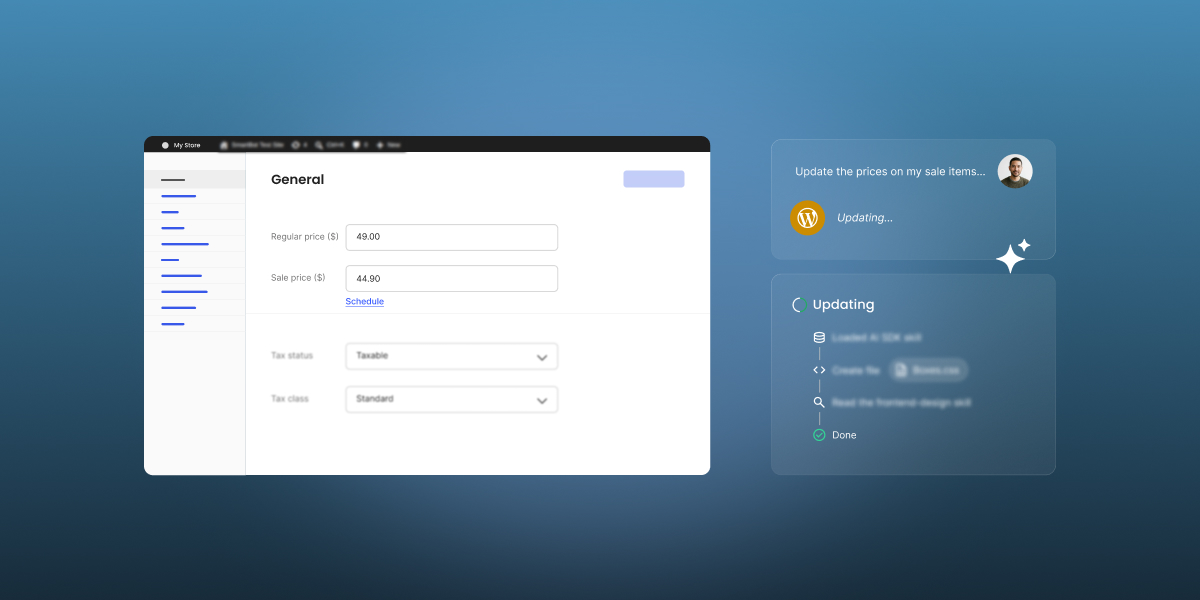
If you open Settings > Connectors on a WordPress 7 site, a banner at the top invites you to install the AI plugin by WordPress, which uses AI to write titles and excerpts from your draft, generate alt text for your images, or suggest meta descriptions. But did you know you can go much further than this with an AI Agent for WordPress, which goes beyond content creation into using AI for actual WordPress management?
AI Agent for WordPress vs the WordPress AI plugin is a comparison between two tools built for different halves of running a site. WordPress’ AI plugin adds AI features to your editor and admin screens, while an AI Agent for WordPress carries out site management through a chat. Both can run at the same time, on one connection.
Key takeaways:
- AI Agent for WordPress vs WordPress AI plugin comes down to editing versus operating. One helps you produce content in the editor, while the other also helps you with WordPress admin tasks: WooCommerce store management, technical maintenance, and bulk operations across multiple sites.
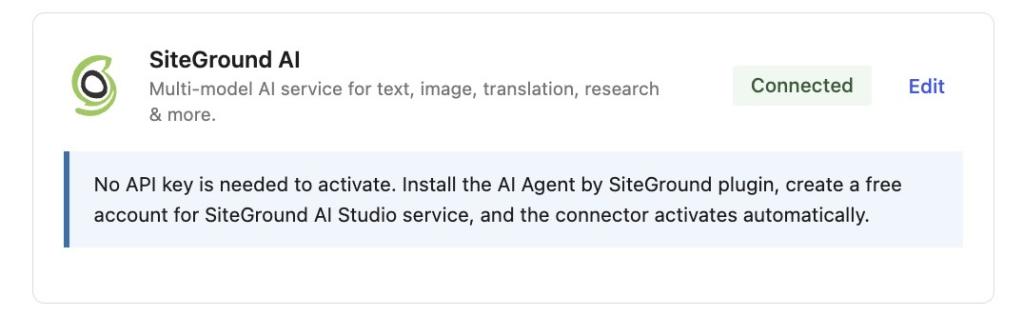
- The AI plugin needs its own provider account: install a connector for an AI provider, generate an API key, paste it in, and manage the usage bill. The agent’s connector activates without a key, so there’s nothing to create or maintain.
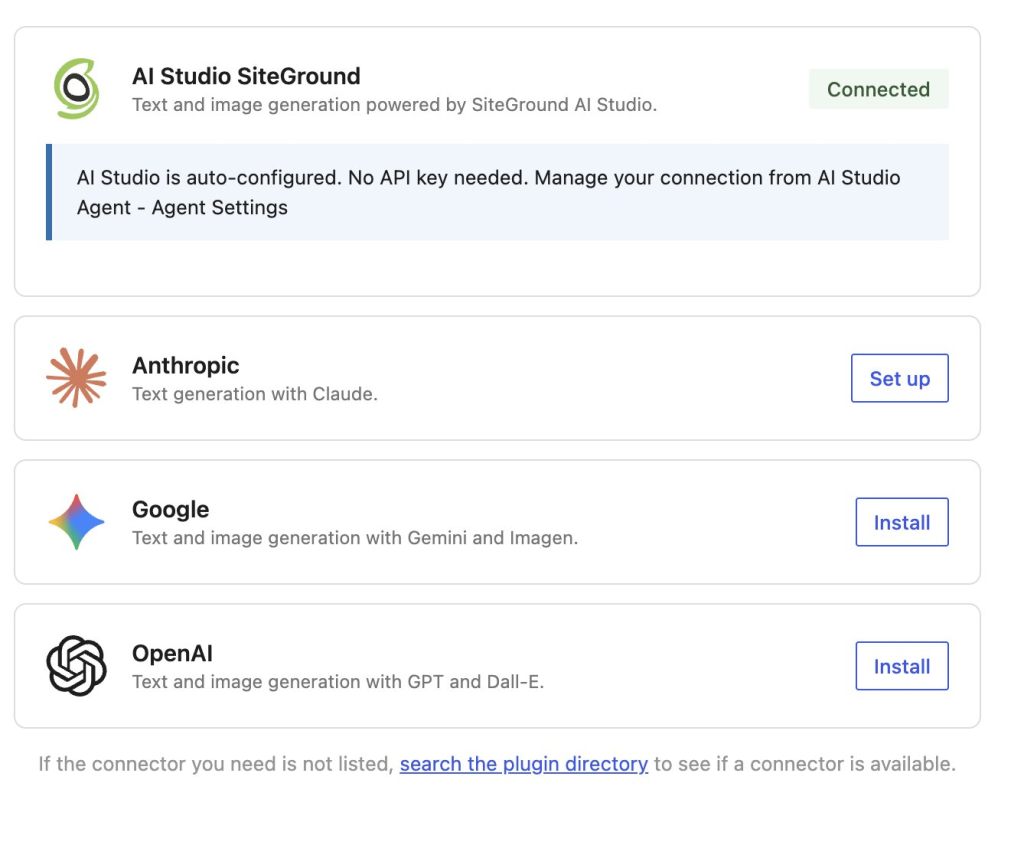
- Both can run on one connection. Connect SiteGround AI once, and WordPress’ AI plugin uses it for editor features while the agent handles management, with no provider account or API key of your own.
- You don’t have to choose. The two sit in different layers with separate settings and separate interfaces, so running both is the setup that matches how many small business owners work.
What each one does today
As with AI plugins and AI Agents as a whole, the shortest way to hold the difference here is this: the official WordPress AI plugin puts AI features inside WordPress screens, and an AI Agent like SiteGround’s AI Agent for WordPress is an admin assistant you talk to.
WordPress’ AI plugin
The official WordPress AI plugin (called AI Experiments until version 0.6.0, which is why older articles use that name) is published by WordPress.org and installed from the plugin directory like any other. Version 1.3.0 arrived in August 2026, and the plugin now has more than 40,000 active installations.
Its features cluster in three places:
- In the editor, it generates titles, excerpts, slugs, and meta descriptions that pass through to your SEO plugin, translates selected paragraphs and headings, summarizes long posts, suggests categories and tags, offers type-ahead suggestions as you write, and can shorten, expand, or rephrase a passage you’ve selected.
- In the Media Library, it writes alt text one image at a time or in bulk, and generates images from your post content.
- On the Comments screen, it scores comments for toxicity and sentiment, helps you moderate them, and drafts replies.
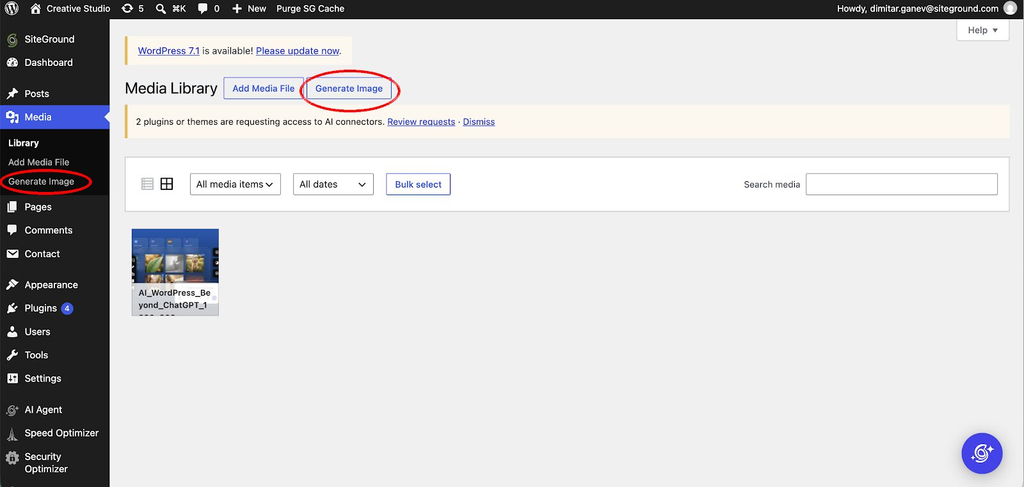
For example, a Generate Image button appears next to Add Media File in your Media Library, and Generate Image is added to the Media menu in the sidebar, so creating an image from a description happens in the same place you’d normally upload one.
The plugin holds no AI account of its own, so you install a separate AI Connector plugin for whichever provider you want (OpenAI, Google Gemini, Anthropic Claude, or Ollama if you’d rather run a local, free option), add that provider’s API key under Settings > Connectors, then go to Settings > AI to switch AI on globally, and only then turn on the individual features you want. Everything’s opt-in, and nothing runs unless you trigger it.
Editorial Notes is the feature that changes a working day. It reviews your post block by block and leaves suggestions on grammar, readability, accessibility, and SEO, and a companion feature applies those suggestions back into the content for you.
Pro tip: Check which editor you use before installing WordPress’ AI plugin. It works in the Block Editor only, and WordPress has said Classic Editor support isn’t planned. If your pages are built with Elementor, Divi, or another builder that relies on the Classic Editor plugin, you can install it, switch every feature on, open a post, and find nothing there. Reviewers on the plugin page have hit exactly this. Open any post and look at how you edit it before you spend time on setup.
AI Agent for WordPress
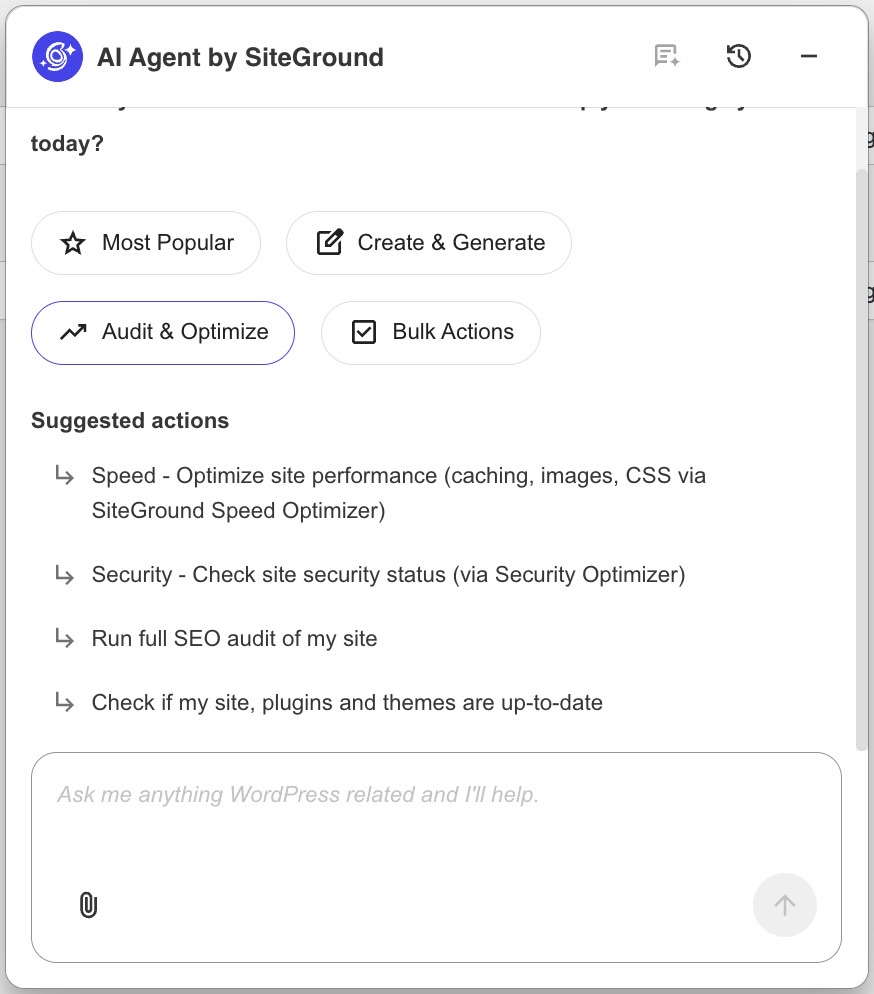
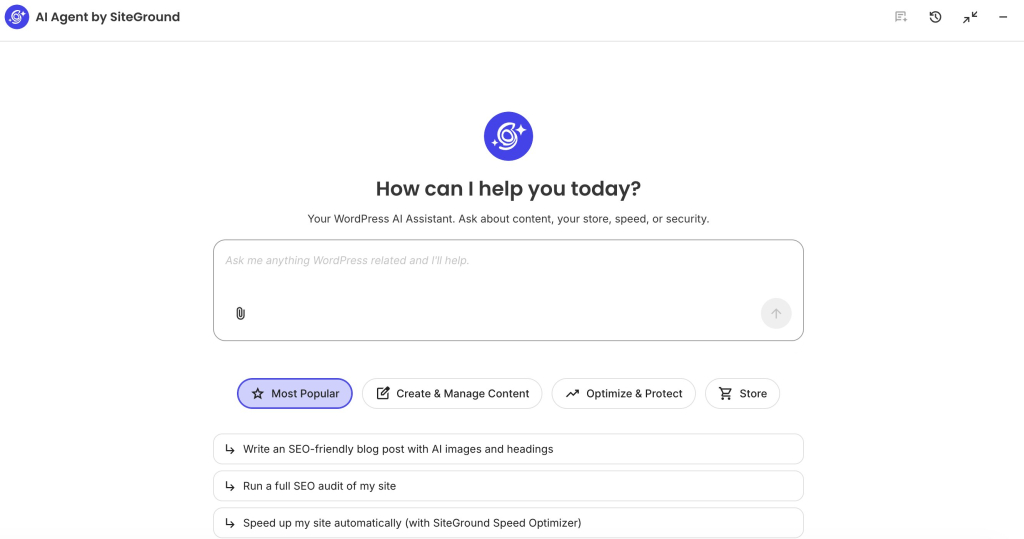
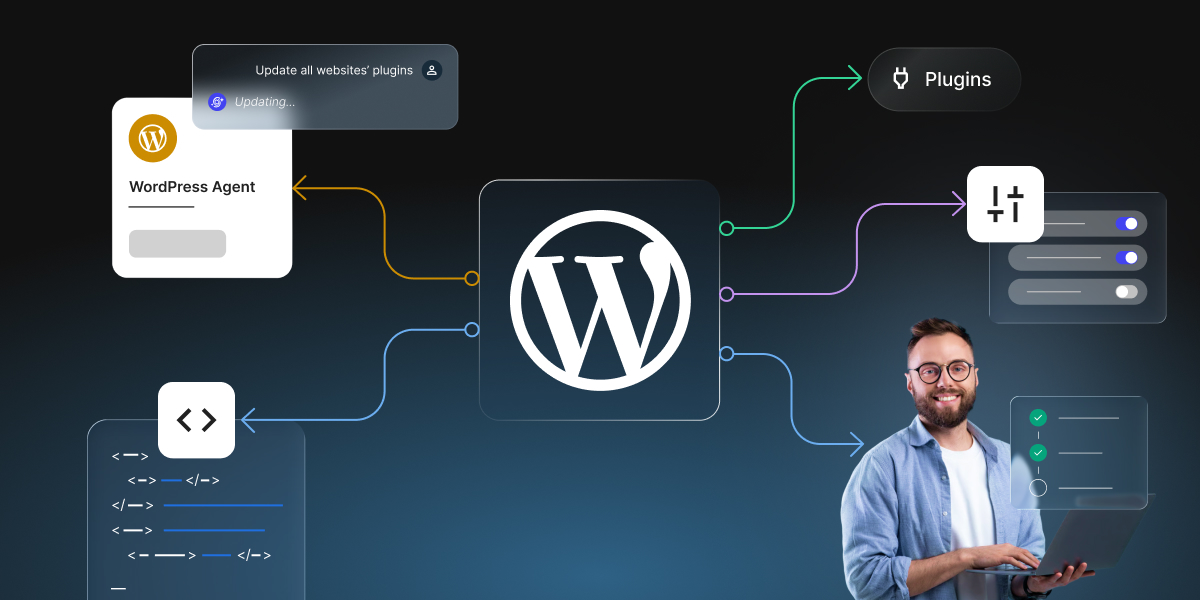
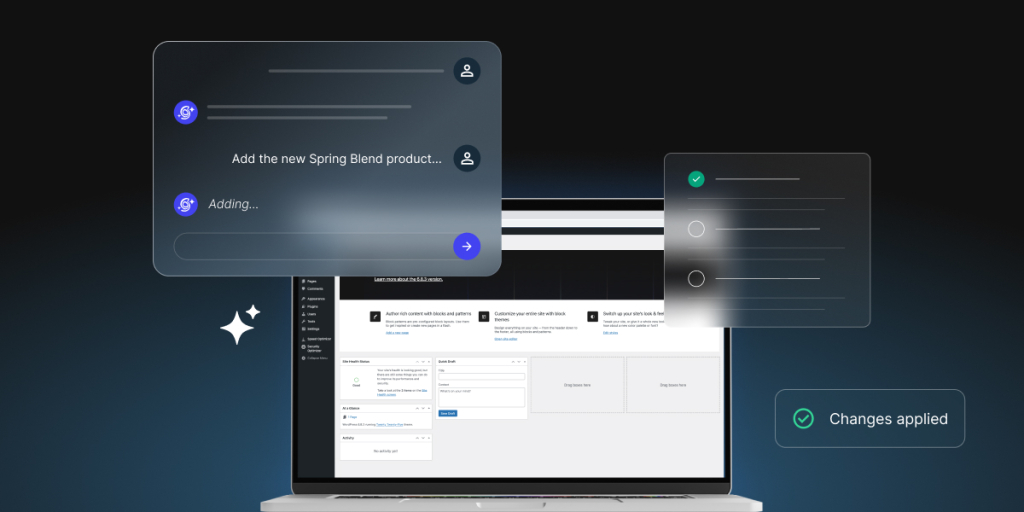
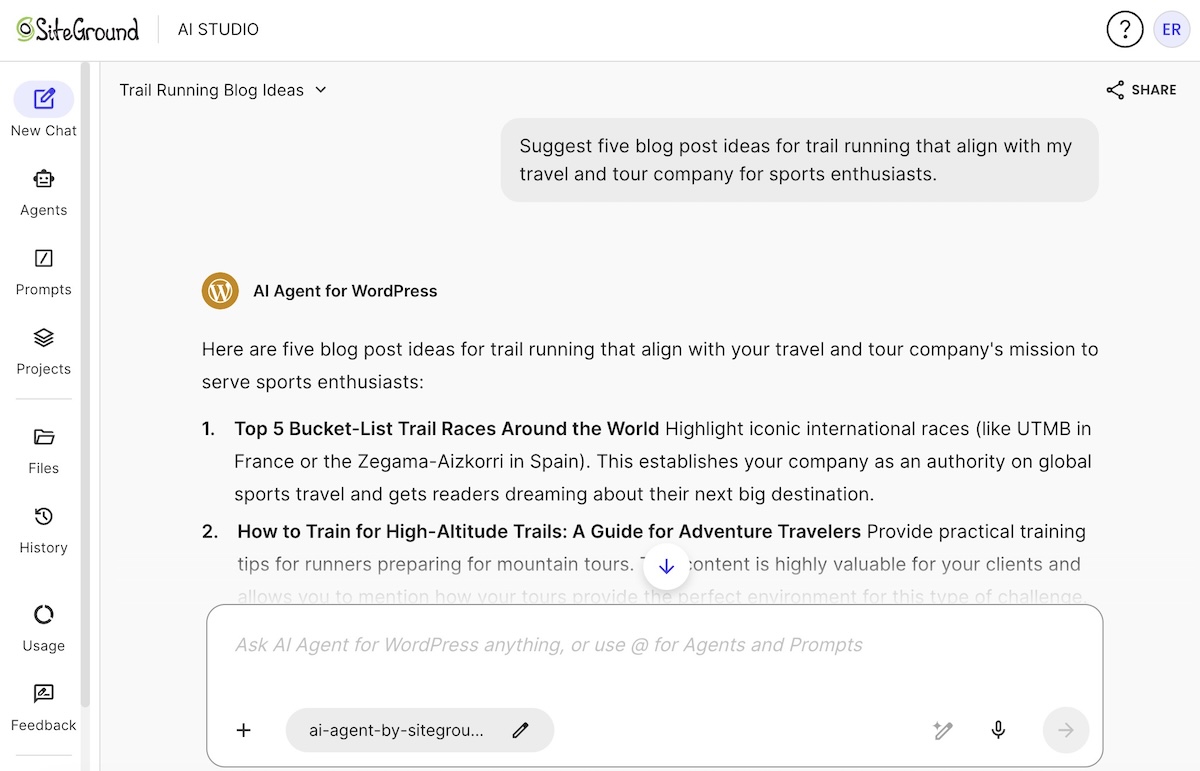
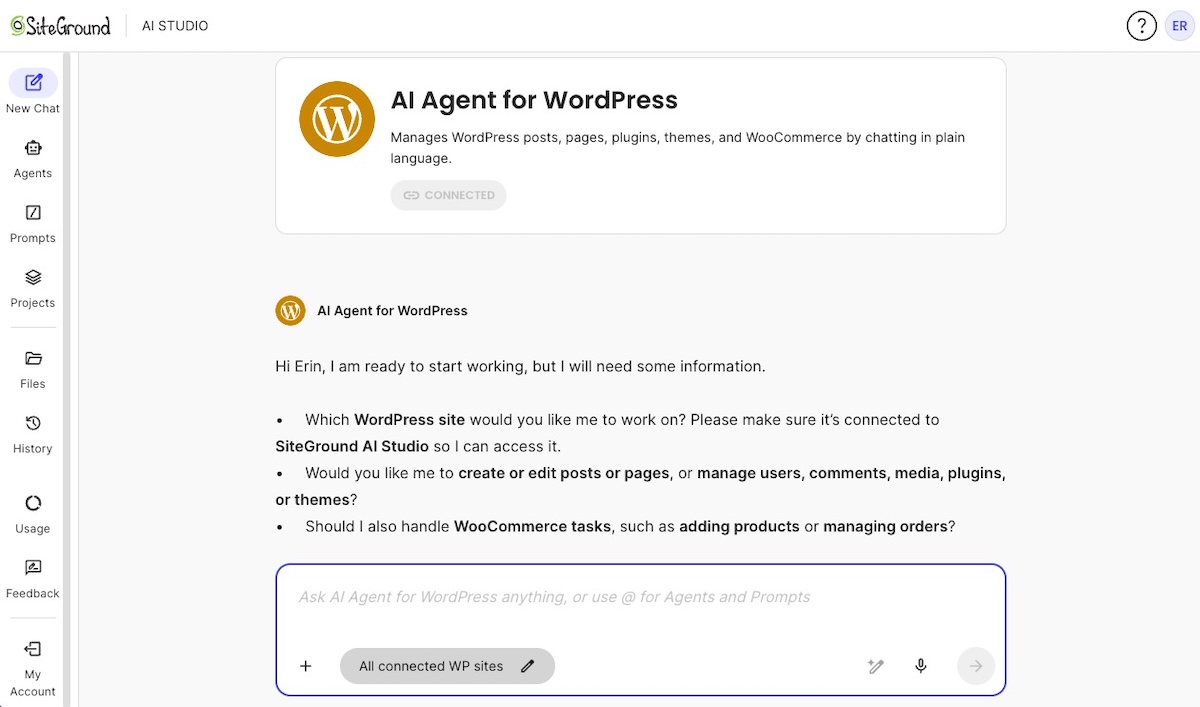
The AI Agent for WordPress is a conversational AI assistant for WordPress management: rather than clicking through admin screens, you ask for what you need, and it carries out the task. It reaches your site through a plugin called AI Agent by SiteGround, which is what gives it access to your content, plugins, users, and settings.
Here’s what you can do with the AI Agent for WordPress:
- Complete content management. You can ask for a post and get the whole thing, written, illustrated, categorized, tagged, and published, from one prompt. Content updates work the same way, and because the agent makes only the change you asked for, your Gutenberg blocks and shortcodes come out the other side intact.
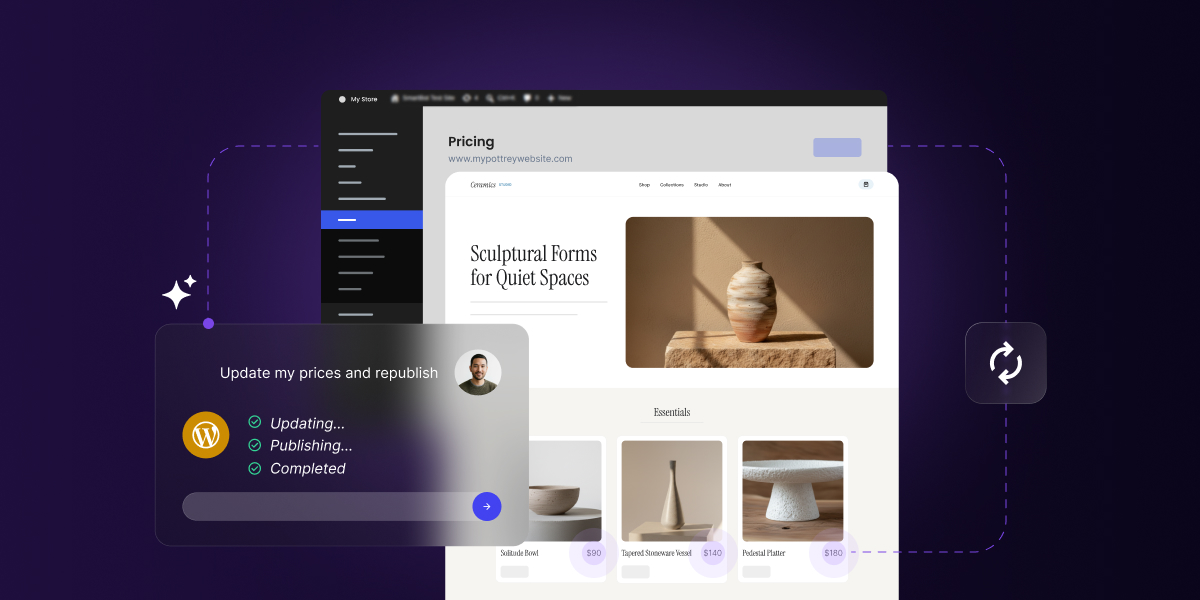
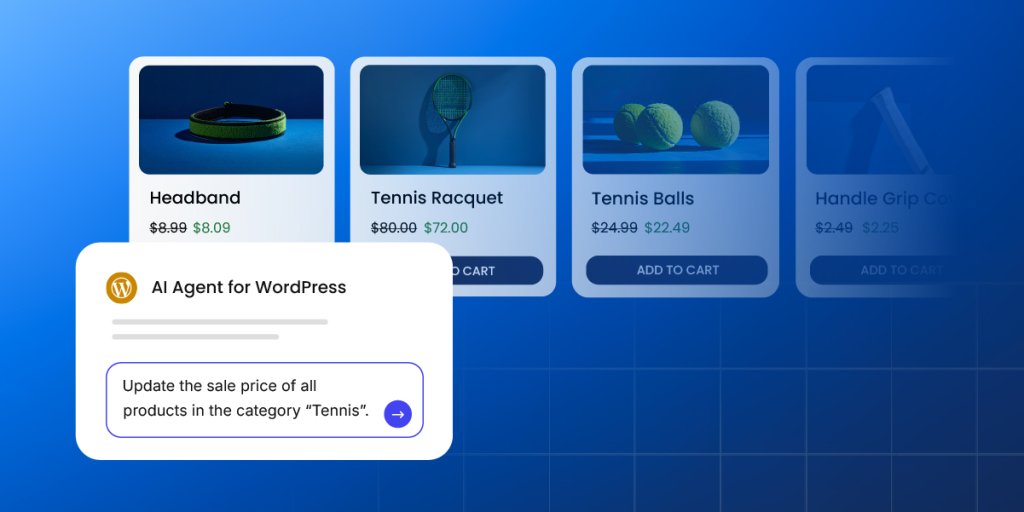
- WooCommerce store management. Ask it to reduce every price in a category by 20%, and it ripples through the catalog in minutes rather than an afternoon of copying and double-checking. It also finds orders and pulls the customer details, changes order statuses, creates coupons, and answers questions about your sales when you’d rather not build a report.
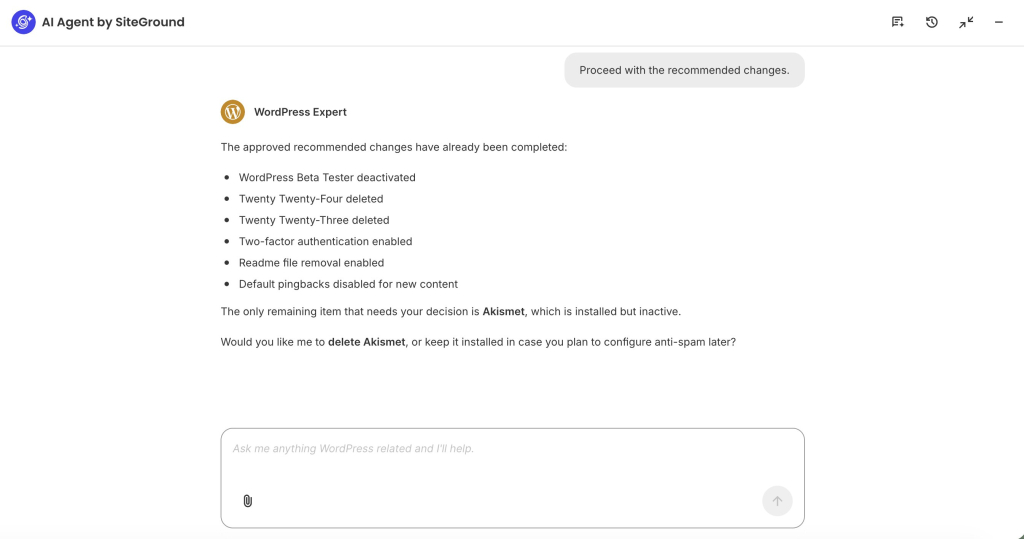
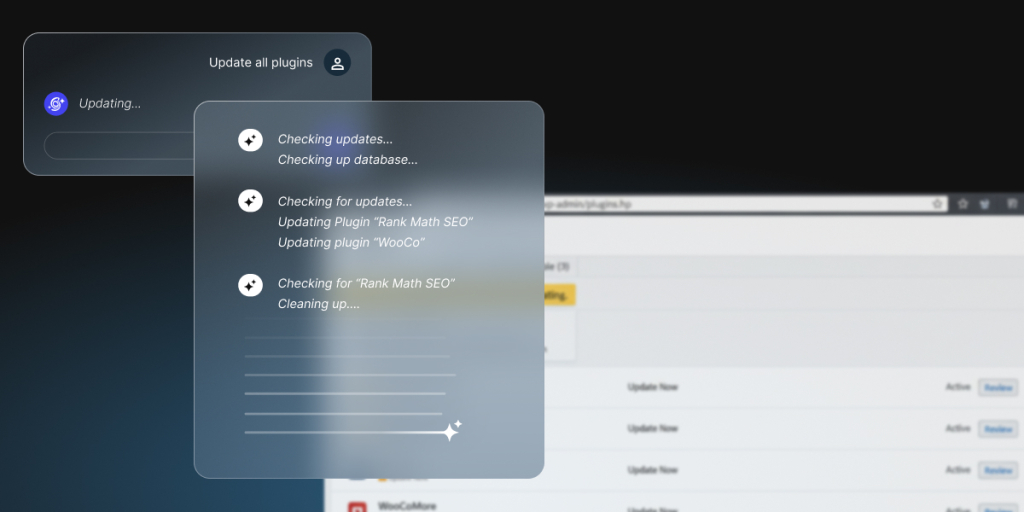
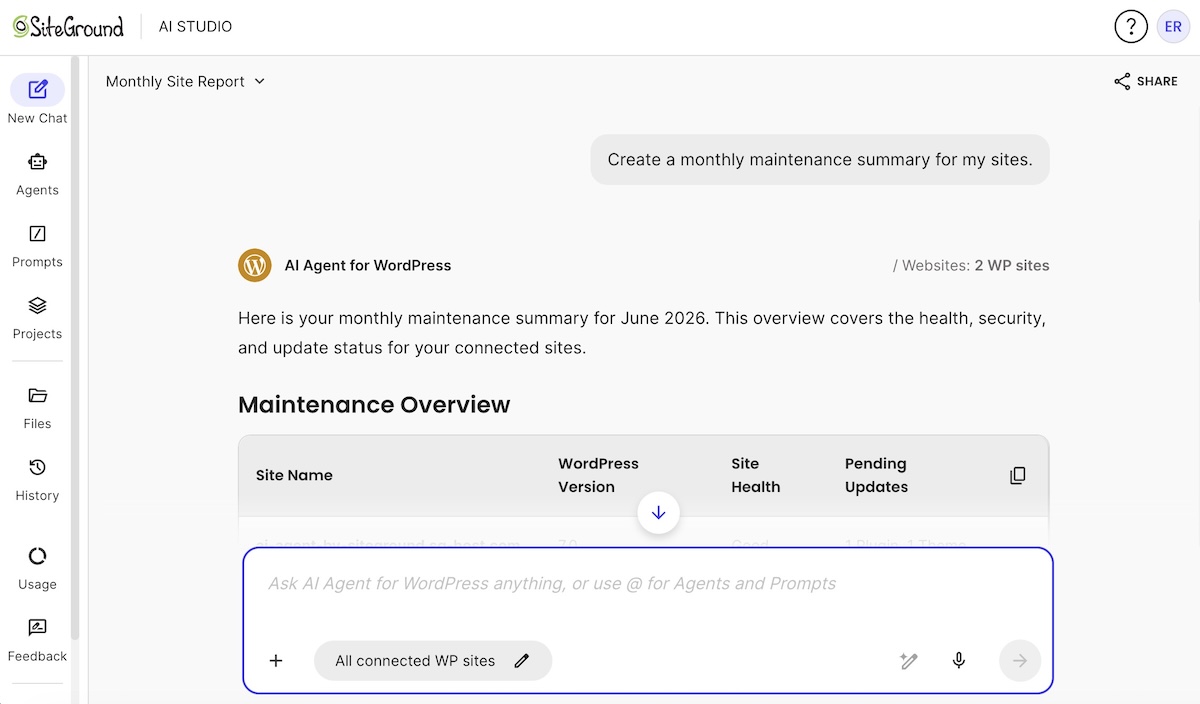
- Technical website maintenance. This is the work that keeps a site secure without ever feeling like a good use of your day, and you can hand most of it over. Ask what’s installed and you get a clean audit, ask it to update your plugins and it does, and you can tell it to back the site up first.
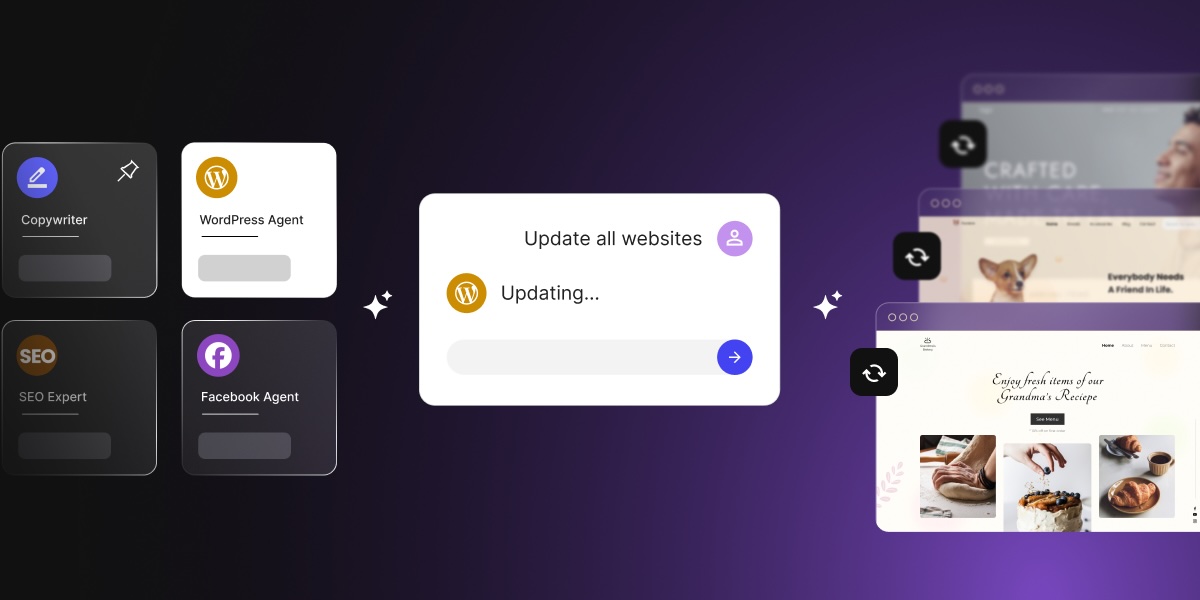
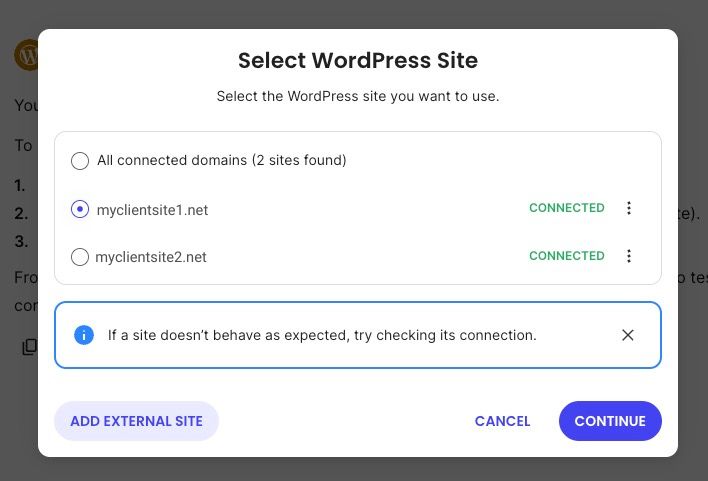
- Managing multiple WordPress sites at once. If you look after more than one site, everything above runs across all of them from a single instruction. Update a plugin everywhere, add an editor to every site, or check who has admin access across a whole portfolio, without logging into each one in turn.
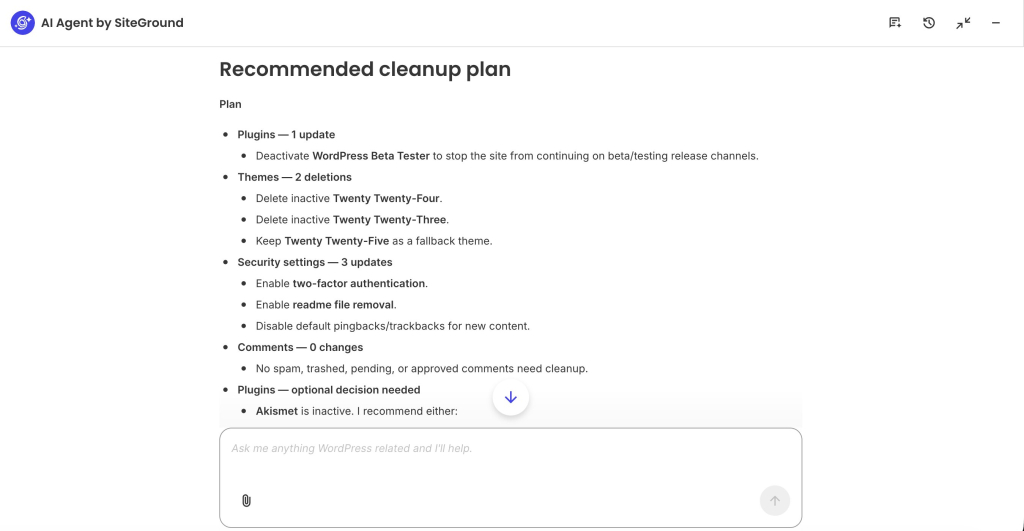
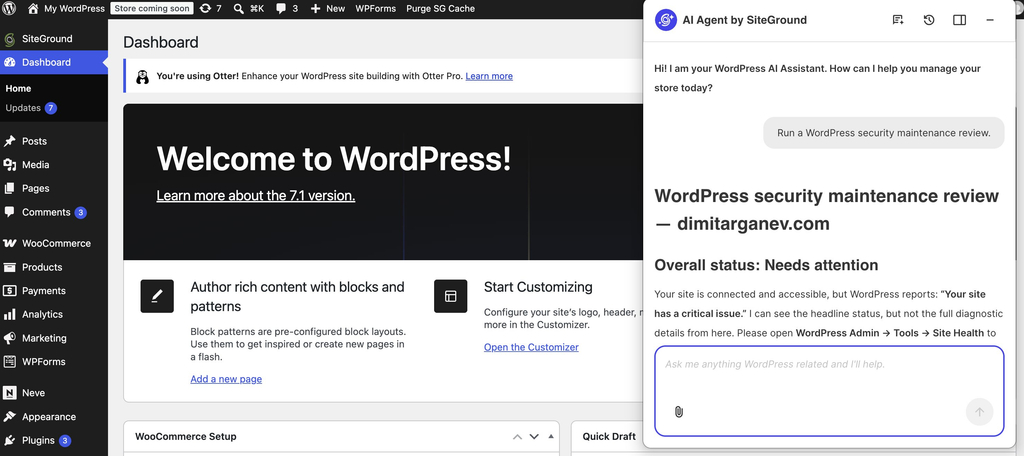
For example, you can ask it to run a full WordPress security maintenance review with one simple prompt, and it produces the lot: what needs updating, which protections are already on and which aren’t, an account setting that’s giving away more than it should, and comments waiting to be checked. It then offers to apply the safe changes for you.
The same nine tasks, run through both
We set up a test site with WordPress’ AI plugin and AI Agent for WordPress installed together, and asked both for the same nine things:
| Task | WordPress’ AI plugin | AI Agent for WordPress |
|---|---|---|
| Generate a post title | Yes, from the Block Editor | Yes, from one prompt |
| Create an excerpt | Yes, from the Block Editor | Yes, from one prompt |
| Generate image alt text | Yes, per image or as a bulk action from the Media Library | Yes, from one prompt |
| Suggest a meta description | Yes, in the editor or SEO panel when the feature is enabled | Yes, from one prompt |
| Summarize several posts | Yes, as a bulk action from the Posts list | Yes, from one prompt |
| Update a plugin | Not possible. No plugin-management write ability | Yes, from one prompt |
| Change a user role | Not possible. No user-management write ability | Yes, from one prompt |
| Update WooCommerce prices | Not possible. No WooCommerce write ability | Yes, from one prompt |
| Apply a change to multiple sites | Not possible. No multi-site operation ability | Yes, from one prompt |
So WordPress’ AI plugin is single-screen assistance: you’re already editing something, you click a button Generate, and it helps with what’s in front of you.
The AI Agent for WordPress is task execution by instruction, where one prompt can trigger a whole workflow, including operational changes, bulk work, WooCommerce tasks, and actions across several sites when those exist.
Governance: credentials, approvals, and what gets logged
For WordPress AI site management, what each tool is allowed to do matters as much as how good the output is. WordPress’ AI plugin is governed like a feature layer inside your admin, so the controls are about connectors, approvals, logging, key handling, and which experiments you’ve switched on.
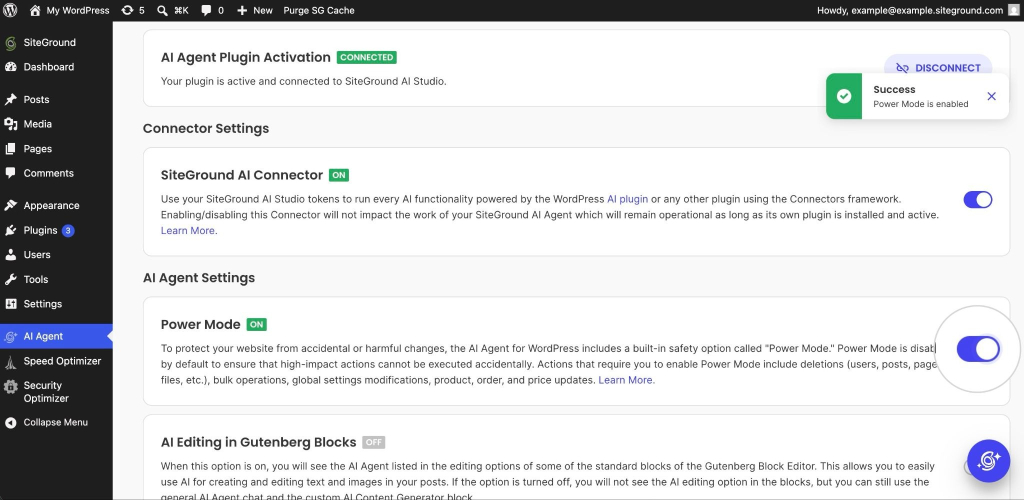
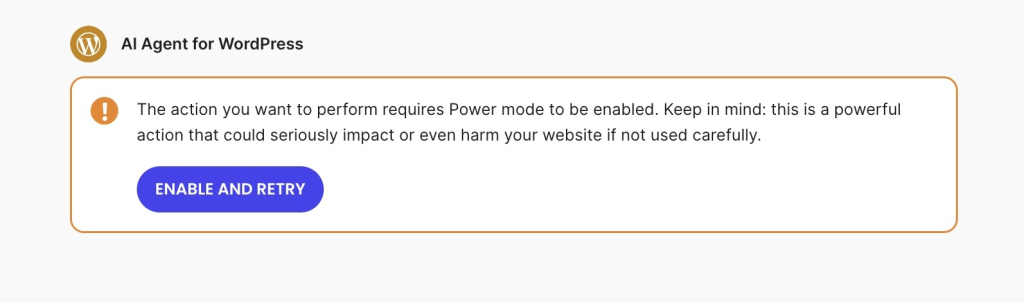
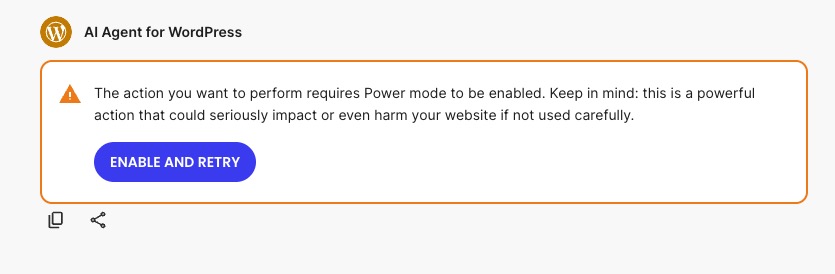
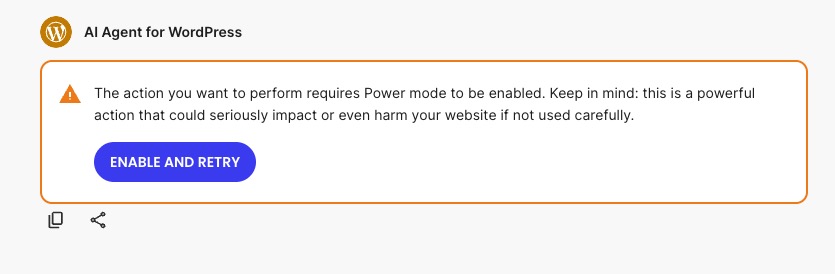
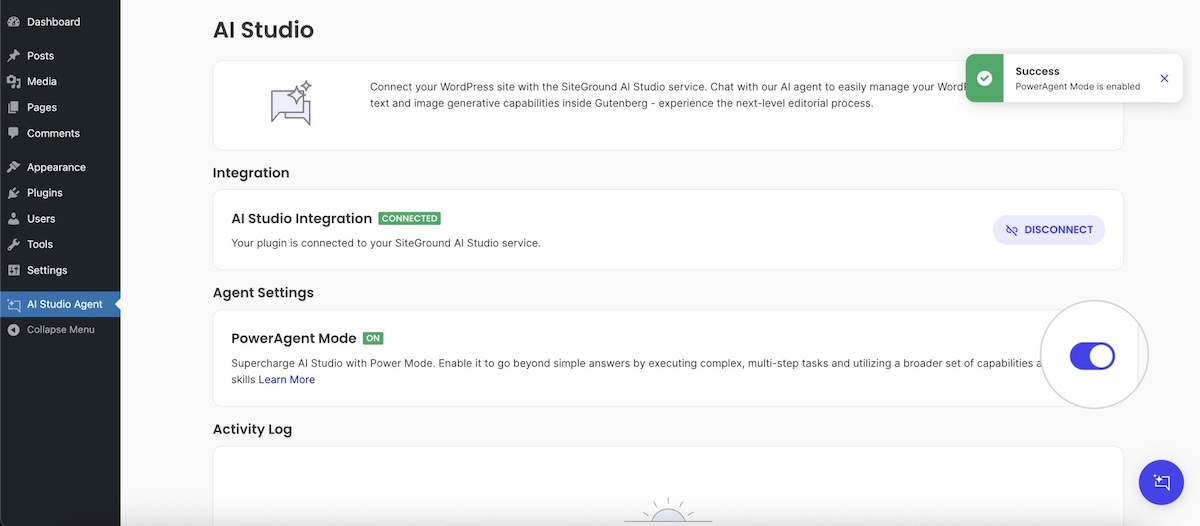
The AI Agent for WordPress is governed like an operator, because it performs real actions on your site, so control shifts to your WordPress roles, the connection you authorized, an activity log, and human confirmation through a feature called Power Mode before anything high-impact runs.
| Governance question | WordPress’ AI plugin | AI Agent for WordPress |
|---|---|---|
| Who can use the connection | A Connector Approvals experiment requires explicit administrator approval before any plugin or theme can use the AI connectors set up on your site | Access follows your WordPress roles and capabilities through the connection to your AI Studio workspace, and impactful operations are gated by both permission and confirmation |
| How credentials are protected | A Key Encryption experiment encrypts provider API keys at rest using bundled libsodium. Without it, keys sit in the standard WordPress connector storage | No provider API key is stored on your WordPress site at all. Authentication runs through the AI Studio connection instead |
| What gets logged | An AI Request Logging experiment records AI requests, with logs under Tools and a public logging API | Activity and usage records, an activity log you can filter by category, token usage and balance, chat history, and a live view of what the agent is doing |
| What requires confirmation | Every feature is opt-in and manually triggered, so nothing runs without you asking for it | Power Mode is required for high-impact work: deletions, bulk changes, user changes, settings changes, and WooCommerce actions |
| What happens on a live site | Adds AI features inside the admin and Block Editor. It is not a site-operations tool for plugins, users, prices, or settings | Executes real changes on the connected site, including creating, editing, publishing, updating, and deleting, which is why the confirmation step exists |
| Editorial control | Guidelines lets AI features respect site-wide editorial standards you define once | Constraints are set per request, such as brand voice, length, or summarize only and change nothing. There is no site-wide equivalent |
| Scope of what it can touch | Its editor, media, and comment features generate and apply content changes. The five abilities it exposes to outside tools are read-only | Write operations across content, media, plugins, themes, users, roles, and settings, plus WooCommerce products, orders, prices, stock, and coupons |
Can you use WordPress AI plugin and AI Agent for WordPress together?
Yes, and there’s nothing to configure to make it work. The two sit in different places, so they don’t compete for anything.
WordPress’ AI plugin lives inside your admin, adding buttons to the editor, the Media Library, and the Comments screen. The agent reaches your site through its own connection to AI Studio and works from a chat. They have separate settings, separate interfaces, and separate provider setups, so switching one off leaves the other running. And if you connect SiteGround AI as your WordPress AI provider, the same connection can support both.
Pro tip: Try the agent first, since its connector lets the plugin work without a provider key of your own, and you can connect SiteGround AI to WordPress in about a minute.
AI Agent for WordPress vs WordPress AI plugin: which should you choose?
The right choice depends on where your WordPress work usually happens.
When to choose WordPress’ AI plugin
Choose the official WordPress AI plugin when you want AI built into the WordPress editing experience. It’s best for people who spend a lot of time writing, editing, publishing, and refining content directly in the Block Editor.
Its value is strongest at the moment of content creation. You’re looking at a post, page, image, or comment, and the AI tools are available in that same context. That makes it useful for generating or improving alt text, writing titles and excerpts, creating meta descriptions, summarizing long content, translating blocks, rephrasing selected passages, and getting editorial suggestions for readability, accessibility, grammar, and SEO.
The tradeoff is setup and ownership. You need to be comfortable configuring an AI provider, connecting it to WordPress, managing credentials, and understanding the usage costs that come from that provider. You should also be comfortable testing features before relying on them, since the official plugin is still experimental.
When to choose AI Agent for WordPress for site management
Choose AI Agent for WordPress when the work you need help with is broader than writing or editing a single piece of content. The difference becomes clear with WordPress admin tasks, and they usually involve searching, navigating, checking, changing, and repeating.
The value grows with the size of the job. Updating one plugin manually is quick. Updating eleven plugins, repricing thirty products, finding all draft posts missing excerpts, checking stock across a category, or creating a group of pages is where a conversational instruction becomes genuinely useful. The agent is especially helpful when the task crosses multiple areas of WordPress, such as content, media, settings, plugins, menus, and WooCommerce.
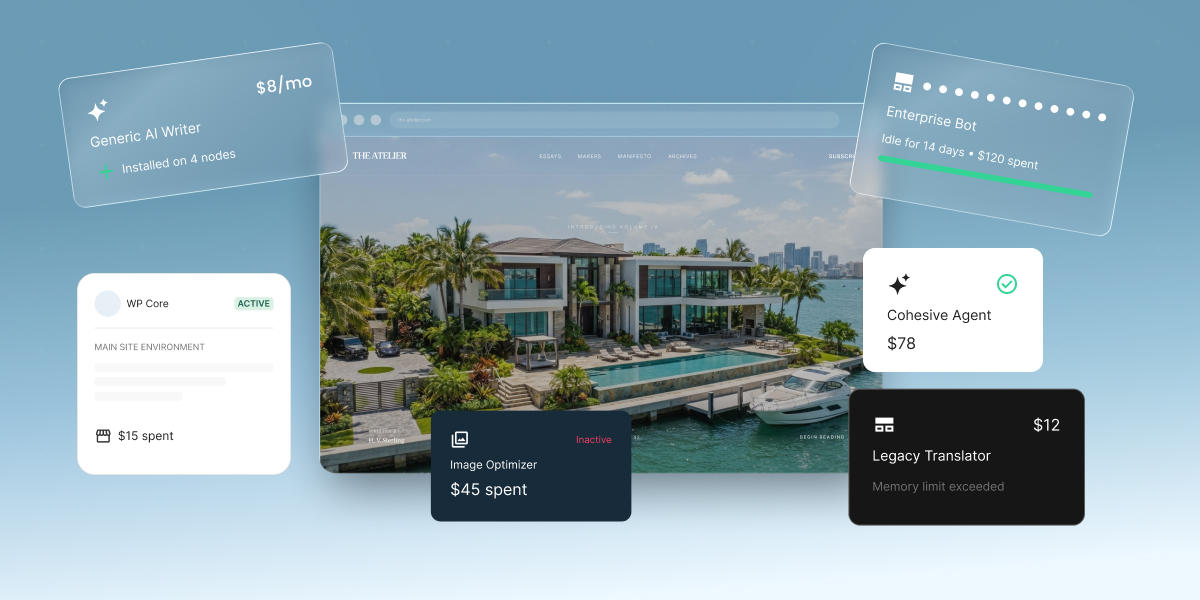
It’s also a better fit for users who don’t want to manage their own AI provider account for every workflow. With the AI Agent for WordPress, the assistant works through AI Studio and the connected WordPress site, so the setup is simpler from the user’s point of view. On SiteGround-hosted sites, hosting-level backups add another layer of reassurance for operational work, especially when updating plugins or making larger site changes.
When to use both
Use both when your WordPress work moves back and forth between content creation and site administration often enough. This usually applies to small business owners, agencies, publishers, and WooCommerce store managers who are not only writing content, but also maintaining the site around that content. If you publish articles, update product pages, manage media, adjust menus, check plugins, create offers, review orders, and improve existing pages, the two tools solve different parts of the same week.
You can use the agent to prepare or organize the work, then use the plugin to refine the content in the editor, then return to the agent for follow-up actions across the site. That creates a workflow where AI is not limited to a single screen or a single type of task.
Match the tool to the work, and consider running both
Comparing AI Agent for WordPress with the WordPress AI plugin comes down to how much of your WordPress work you want AI to help with, and where that work happens. If the work is mainly writing, editing, translating, summarizing, or improving content inside the editor, the plugin can be all you need. If the work extends across the rest of the site, including plugins, settings, products, menus, media, reports, and repeated admin tasks, the agent is the better fit.
For many people running a small business site, the answer may be both. The plugin gives you AI where you create and refine content, while the agent gives you AI where you manage and maintain the site around that content. Because they operate in different parts of the workflow, they can run alongside each other rather than instead of each other.
FAQs
The difference between AI Agent for WordPress and the WordPress’ AI plugin is what each one can do to your site. The plugin adds AI features to your editor and admin screens, while the abilities it exposes to outside tools are read-only. AI Agent for WordPress performs operations, including updating plugins, editing products, changing user roles, and adjusting settings.
AI Agent for WordPress is better for managing a WordPress site, because management means changing things and the plugin cannot manage plugins, users, settings, or WooCommerce operations. WordPress’ AI plugin is better for producing content inside the editor.
No. The WordPress’ AI plugin is not an AI agent. It generates and applies content inside the editor, the Media Library, and the Comments screen, but it cannot manage plugins, users, settings, or WooCommerce. WordPress does list a Site Agent on the plugin’s roadmap, but it has not shipped.
No. The WordPress’ AI plugin cannot update plugins, products, or users. It can change content through its editor, media, and comment features, but site management sits outside what it does.
The WordPress AI plugin needs separate provider API keys for ChatGPT, Claude, and Gemini if you connect each provider yourself, since every provider requires its own account, key, and bill. Connecting SiteGround AI instead registers a provider with no API key, and WordPress’ AI plugin can use that same connection.
Yes. You can use WordPress’ AI plugin and AI Agent for WordPress together on the same site. The plugin uses the SiteGround AI connector as its AI provider for editor features, while the agent handles site management, so one connection covers both.
AI Agent for WordPress is better for WooCommerce, because store work means creating and editing products, managing orders, and changing prices, which are write operations. WordPress’ AI plugin can help write product descriptions in the editor but cannot update the products themselves.
AI Agent for WordPress is easier for a beginner, because there is no provider account to open and no API key to generate, and you describe what you want in ordinary language. WordPress’ AI plugin is simple to use once connected, but connecting a provider yourself is the step that stops most non-technical owners.