
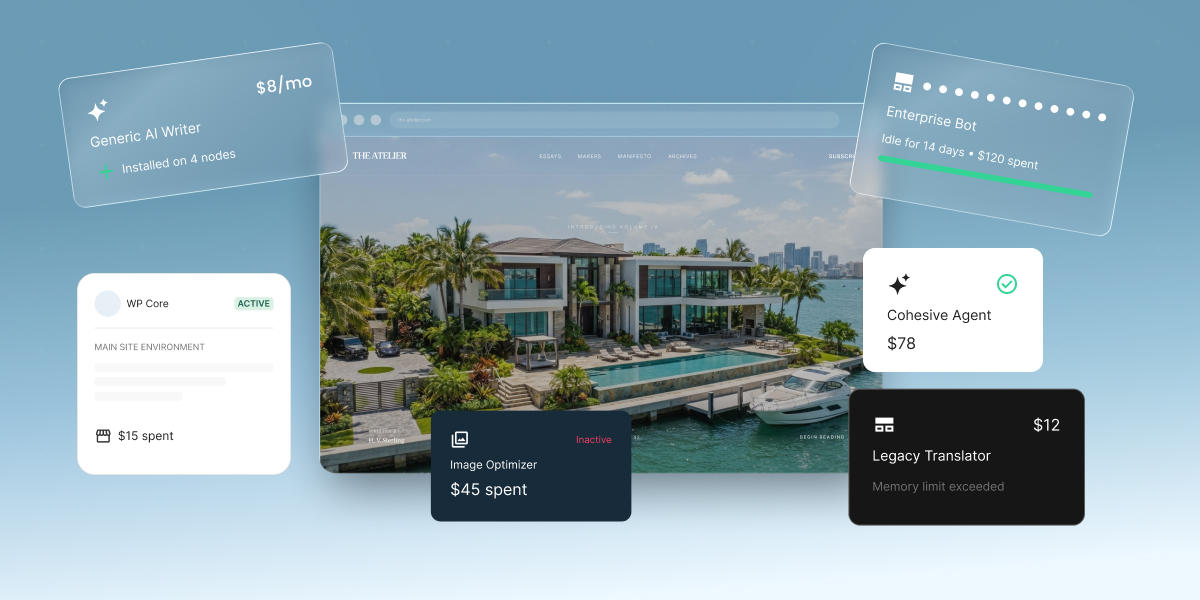
Small business owners managing their WordPress sites are increasingly relying on AI, as our 2026 report on AI in WordPress for small businesses found by surveying more than 7,000 of them. However, we also saw the same handful of issues come up again and again.
The most common AI mistakes small businesses make on WordPress usually happen around the tools they choose and how they’re set up: generic chatbots that can’t reach their site, AI plugins that reach too far into it, API keys left exposed, token bills nobody capped, and changes published without review. Luckily, each one is easily avoidable, and the fix is usually smaller than the problem.
Key takeaways:
- The AI mistakes small businesses make on WordPress start with the tool, not the task. Two-thirds use ChatGPT as their main AI tool, but that usage clusters in research (66.5%) and content (65.7%), not the site admin that eats the most time.
- Plugin sprawl is the fastest-growing risk. WordPress AI plugins are growing about three times faster than the wider plugin economy, and most reported WordPress vulnerabilities come from plugins.
- Your AI API key is a billing credential. Keys saved through the WordPress Connectors screen sit in your database as readable text, and WordPress sets no spending limit by default.
- Unreviewed output costs more than it saves. 41% of small business owners say usable results take multiple attempts, and 22% don’t trust AI accuracy.
- Some AI setups create more admin than they remove. Getting AI running in WordPress by hand means a provider account, an API key, two plugins, and a separate billing dashboard to watch.
Mistake 1. Relying on a generic chatbot for WordPress work
Two-thirds of small business owners use ChatGPT as their primary AI tool for WordPress work, but our 2026 report on AI in WordPress also found that usage concentrated in research and content creation. Site management, which is where most of the hours actually go, barely registers.
There’s a simple reason for that gap. A chatbot in a browser tab has no connection to your WordPress installation. It can write you a product description for your WooCommerce store, explain where a setting lives, and draft a policy page. But you’re still the one who publishes the page, updates 40 product descriptions, and clicks through to the setting three menus deep. The time you saved with the chatbot comes back as implementation time, which is why you’re still spending hours in the WordPress admin.
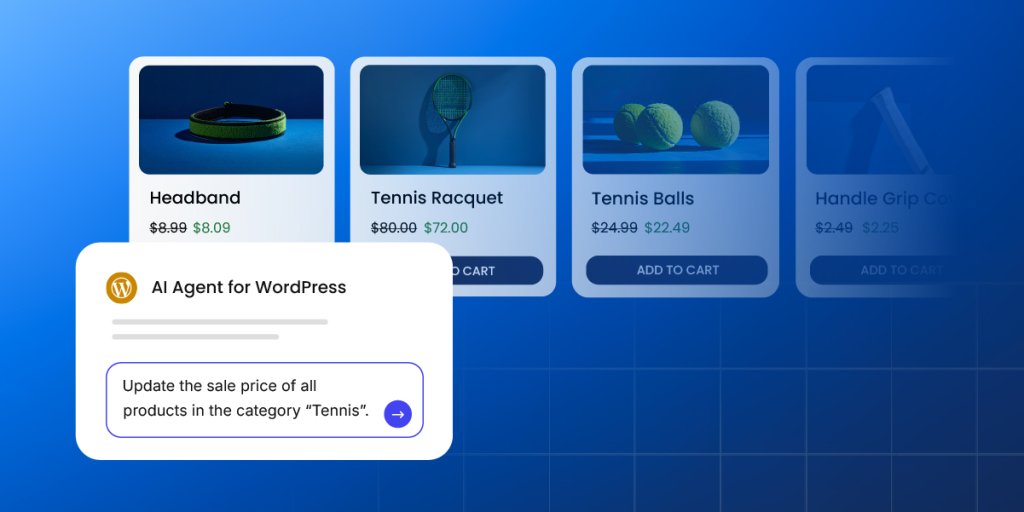
The fix: Go beyond generic chatbots to an AI agent that can reach your site. For example, a site-connected AI assistant like SiteGround’s AI Agent for WordPress can not only draft your product descriptions, but it can update them in bulk, use your store data to create and update the products themselves, adjust pricing, generate discount coupons, manage customer orders, and even pull a sales report for you. Our guide to using AI in WordPress beyond content creation covers what that looks like.
Mistake 2. Installing AI plugins reactively, one problem at a time
WordPress AI plugins are growing roughly three times faster than the wider plugin economy, and installing them on impulse is one of the most common WordPress AI mistakes. It happens because of how these plugins are built: most do one job. For example, a translation plugin turns your pages into other languages, and an SEO plugin writes your page titles and meta descriptions.
Each is good at its own job, so when you need three of those things, you install three plugins, each with its own settings screen, its own subscription, and often its own AI account to create. Also, many AI plugins don’t include the AI itself: they connect to a service like ChatGPT or Gemini through an account you set up and pay for separately. Each install makes sense on the day you make it. Six months later, you’re paying for four tools and maintaining four interfaces, when one chosen with all four tasks in mind might have done.
The fix: Start from the job, not the plugin. Write down the two or three tasks that actually take up your week, then look at what you already have installed, because something on your site may already do part of it. Overlap is the check most people skip, and two plugins doing the same job compete rather than add up. If your list spans several different jobs, one tool that covers all of them costs you less time than four that each cover one. Our comparison of AI plugins and AI agents covers that choice.
Mistake 3. Stacking narrow plugins until the site is a patchwork
While we’re on the plugins topic, most WordPress security problems actually come from them. That isn’t because plugin developers are careless. It’s arithmetic: every plugin is code written by someone else, running inside your site, with permission to read and change what’s there. The more you install, the more chances one of them has a flaw.
WordPress AI plugins raise the stakes because of what they hold. Many store a key that lets them use an outside AI service and bills you for the usage, which makes them worth stealing in a way an ordinary plugin isn’t. Once a flaw becomes public, attackers typically start using it within five hours. And if you’re using WordPress 7.0 or above, your AI plugins share one set of AI credentials, which means a single compromised plugin can reach all of them, not just its own.
The fix: Fewer plugins is the fix for AI plugin fragmentation, and an audit is the fastest way there. Hand it to an AI assistant like SiteGround’s AI Agent for WordPress: it can list what’s installed, say what each one actually does rather than what its name suggests, flag anything that overlaps or hasn’t been updated in a long time, and remove the ones you agree to drop. Deleting a plugin you no longer use does more for your security than installing another that promises to protect you. Our guide to choosing AI plugins for WordPress covers what to look at.
Mistake 4. Leaving your AI API keys unprotected in WordPress
An API key is how one piece of software proves to another that it’s allowed to be there. Think of it as a password with your credit card attached: it identifies you to the AI service, and everything done with it gets billed to your account.
WordPress 7.0 added a Connectors screen where you paste that key in once, so any AI plugin on your site can use it. What isn’t obvious is where it goes: into your site’s database, as ordinary readable text. The screen hides it behind dots so nobody reads it over your shoulder, but that’s a curtain rather than a lock: the stored value is unchanged, and anything that can read your database can read the key. WordPress documented this when the feature shipped. It has since tightened how the key is displayed, but the encryption work is still open, so what’s in the database hasn’t changed.
Your database gets copied more often than you’d think: every backup, every staging copy, every time someone pulls the site down to work on it. The key travels with all of them. And unlike a stolen password, a stolen AI key locks nobody out and changes nothing you can see. Someone else simply starts spending on your account until the bill tells you.
The fix: Choose a setup where your host makes the connection for you, because a key you never paste in is a key nobody can copy out. If you do paste one in, treat it like a house key you’ve lent out: replace it whenever a copy of your site goes somewhere new, and delete any connection you’ve stopped using. And if you have someone technical to hand, ask them to keep the key in your site’s configuration file rather than the database, which is the route WordPress itself recommends. Our explainer on how AI works in WordPress 7.0 shows where these settings live.
Mistake 5. Not setting a limit on what AI can spend
AI billing costs in WordPress aren’t always a flat monthly fee. They bill by the amount of text going in and out, counted in units called tokens, where one token is roughly three-quarters of a word. So the cost moves with how much you ask for, and there’s no fixed number you can put in a budget.
If you’ve connected to an AI provider on WordPress 7.0 or above, WordPress itself doesn’t cap that for you. There’s no spending limit built in and no usage tracking either, so unless you set a limit yourself in your AI account, nothing stops the meter and nothing shows you it running. Two things push it up: a busy month of content can double or triple the bill, and some plugins send AI requests in the background while you work, checking your text or generating suggestions you never asked for.
The fix: Set the limit before you paste the key, and check it’s a limit that actually stops something. Providers differ here: OpenAI and Anthropic let you set a hard monthly cap that refuses requests once you reach it, while Google’s billing runs through Google Cloud, where the default budget is an alert that emails you and lets the spending carry on. Our comparison of ChatGPT, Claude, and Gemini covers how else the three differ.
Mistake 6. Publishing AI output on WordPress without review
Most people already know AI output on WordPress needs human review. In our 2026 report on AI in WordPress for small businesses, 41% of small business owners said they need several attempts before AI gives them something usable, and 22% said they don’t trust its accuracy. So the mistake isn’t that anyone believes AI is always right. It’s that knowing output is unreliable and actually checking it are two different things, and a page that looks finished tends to get published.
That’s what makes AI output hard to check: it rarely looks wrong. A made-up statistic reads exactly like a real one, and a product description can be fluent while describing a feature your product doesn’t have. There’s no equivalent of a spelling mistake to catch your eye, so anything published without a proper read has gone out on trust.
The fix: Make the AI check its own work. Paste the text back into the chat and ask it to separate what it knows from what it filled in, with a prompt like this one: “List every factual claim in the text above: numbers, dates, prices, product features, and names. For each one, tell me whether you are certain, unsure, or made it up. Do not rewrite anything.” What comes back is a short list to verify rather than a whole page to reread, and invented details tend to surface in the unsure column. It isn’t a guarantee, since a model can be wrong about its own confidence, so use it to narrow what you check rather than to replace checking. Our guide to writing ChatGPT prompts covers more habits that cut rework.
Mistake 7. Adding AI that creates more admin, not less
Some AI tools for WordPress take more admin to run than they save, and the setup is usually where that happens. For example, here’s what it currently takes to get AI working if you’re on WordPress 7.0 or above: open the Connectors screen, pick an AI provider, install that provider’s plugin, create an account on the provider’s website, find your way into its developer dashboard, generate an API key, come back to WordPress and paste it into the right field, then install a second plugin before you see any AI features you can actually use.
After that, you track spending in the provider’s billing dashboard, a third place to keep an eye on. That’s one job spread across WordPress, an AI company’s developer platform, and a separate billing system, creating more admin instead of removing it. And what many people get at the end of that setup is AI that writes text inside the editor, which is the part they were already doing in a chatbot.
The fix: Before setting anything up, count the accounts, screens, and bills involved. If a tool needs three systems to do one job, that’s admin you’ve taken on, not admin you’ve removed. The alternative is a tool that arrives already connected. For example, SiteGround’s AI Agent for WordPress is active on SiteGround-hosted sites from the start, with no provider account to create, no key to generate, and no separate bill to follow.
| Mistake | The fix |
| Relying on a generic chatbot for WordPress work | Use AI that connects to your site, so it makes the change instead of describing it |
| Installing AI plugins reactively, one problem at a time | Write down the two or three tasks that eat your week, check what you already have, then pick one tool against the whole list |
| Stacking narrow plugins until the site is a patchwork | Audit what’s installed and delete what you don’t use. A site-connected agent can list, flag overlaps, and remove |
| Leaving your AI API keys unprotected | Avoid handling a key at all where you can. Otherwise replace it whenever your site gets copied, and keep it in the config file rather than the database |
| Not setting a limit on what AI can spend | Set a hard cap, or prepay credit so it can’t be exceeded. Use one key per plugin to see what each is spending |
| Publishing AI output without review | Have the AI list its own factual claims, then check that short list instead of rereading the page |
| Adding AI that creates more admin, not less | Count the accounts, screens, and bills before you set anything up. Prefer tools that arrive connected |
What these mistakes have in common
The AI mistakes small businesses make on WordPress look like seven unrelated problems, but they share a shape. In each one, the AI does exactly what it was built to do, and what’s missing sits around it: a tool that can reach the thing you want changed, a plan before the first plugin goes in, an audit before the fourth, a limit on the key, a ceiling on the bill, and a second look before anything reaches a customer. None of that arrives with the tools, so it lands on whoever adopted them, which on most small business sites is one person who already has a business to run.
That’s also why none of it takes technical skill to fix. Work out what you want AI to do before you go looking at WordPress AI tools, keep the stack small enough to hold in your head, and put a limit and a check on anything that can spend your money or change what your customers see. How much of that you’re left doing depends on what you choose. For instance, a tool that connects to your site on its own, with no key to guard and no separate bill to watch, means most of this list never becomes your problem.
FAQs
The most common AI mistakes small businesses make on WordPress are treating a generic chatbot as a site management tool, installing AI plugins reactively, stacking too many, leaving API keys unprotected, skipping spend limits, publishing without review, and adding AI that creates more admin than it removes.
Relying on a generic chatbot is a WordPress AI mistake when the tool isn’t connected to your site. It can draft and advise, but it can’t publish, update products, or change settings, so you still do the implementation by hand.
The risks of stacking WordPress AI plugins are a larger security surface, conflicting code, and multiple subscriptions and keys to manage. Most reported WordPress vulnerabilities come from plugins rather than from WordPress itself, and every AI plugin you add increases the exposure.
AI billing costs in WordPress can surprise site owners because providers charge by the amount of text processed and WordPress sets no spending limit by default. A plugin making frequent background requests, or a busy content month, can double or triple the bill before anyone notices.
You should review AI output before publishing on WordPress because AI rarely looks wrong when it is wrong. In our survey, 41% said usable results take multiple attempts and 22% don’t trust AI accuracy, so anything published without a proper read has gone out on trust.
A small business can improve WordPress AI safely by mapping its real workflow before installing anything, keeping the plugin stack small, avoiding or protecting API keys, setting spend limits, checking output before it goes live, and preferring site-connected tools that ask for confirmation.