
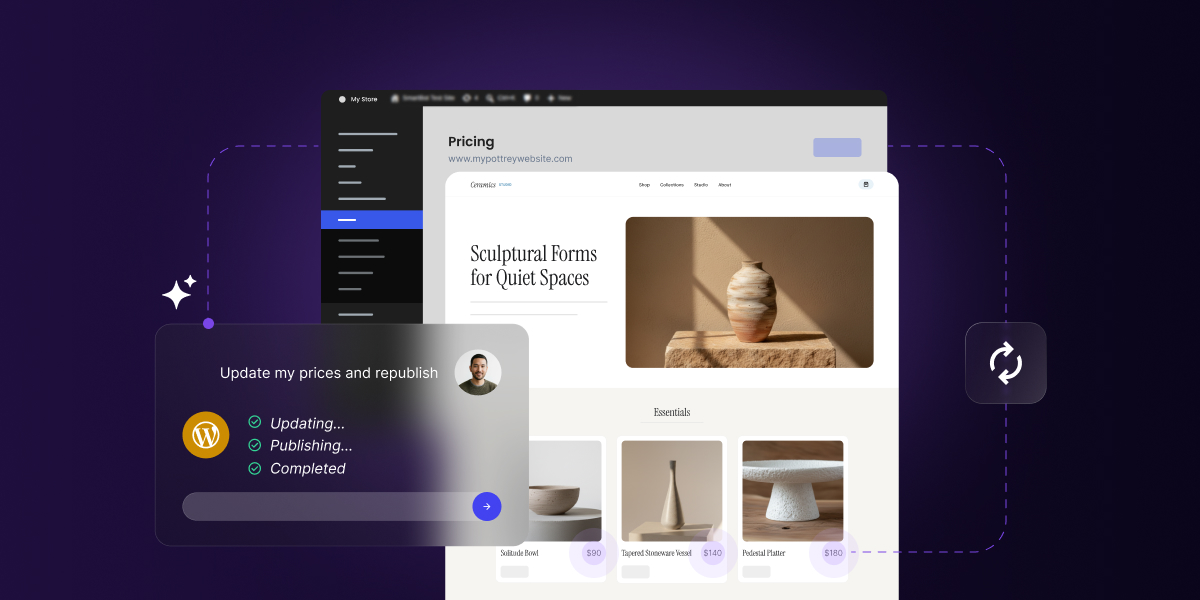
You’ve probably heard that WordPress 7 brings AI into WordPress itself. But if you upgrade to WordPress 7.0 or later and go looking for AI features, you won’t find any waiting for you. What arrived is a shared infrastructure for connecting AI to your site rather than features, so on its own it changes nothing you can see in your dashboard.
Something has to sit on top of that infrastructure, and the most capable option available today is a specialized AI Agent for WordPress: a tool that connects to your site, understands what’s on it, and carries out work across your dashboard when you ask in plain language. Comparing WordPress 7 AI features vs an AI Agent for WordPress is a question of what the platform now gives you and how much further an AI Agent takes it.
Key takeaways:
- WordPress 7 introduced shared AI infrastructure, but no user-facing AI features out of the box. Your dashboard looks the same after the update. What arrived is a connection system that other tools build on.
- You connect an AI provider once, in Settings > Connectors. Compatible plugins then share that connection, instead of you pasting the same API key into every plugin’s settings.
- Most providers charge you directly for what you use. You create an account with OpenAI, Google, or Anthropic, generate an API key, and the usage is billed to you.
- WordPress 7 AI features vs AI Agent for WordPress is a question of reach. The infrastructure connects AI to your site, while an agent like SiteGround’s AI Agent for WordPress is what actually carries out work across it through a simple chat that follows you between screens.
What WordPress 7 actually added
Until WordPress 7, there was no common system for how AI worked inside WordPress. If you wanted AI features, every plugin handled it differently. An AI writing tool connected to one service with its own API key (a unique credential that lets a plugin communicate with an AI provider). An AI SEO plugin connected to a different service with a different key, while an image generator needed a third setup. Run all three, and you were managing three sets of credentials in three settings panels, often paying for overlapping subscriptions, and none of those tools could share anything with each other.
WordPress 7.0 (the first version of WordPress 7, which was recently followed by WordPress 7.1) solved that by building a shared AI layer directly into core (the base software that powers every WordPress site).
The new WordPress 7.0 AI Client is the part that standardizes how plugins request AI work, so a plugin now asks WordPress, and WordPress routes the request to whichever provider you’ve connected. The WordPress Connectors API powers the Connectors screen, where you manage those provider credentials in one place. And the WordPress Abilities API keeps a structured register of what your site itself can do, such as publishing a post or updating a product, so AI tools can discover what’s possible.
To get the full picture, read our guide to how AI works in WordPress 7.0.
What happens the moment you upgrade
The only visible change for you is the new WordPress Connectors screen under Settings, where WordPress AI provider setup now happens. Open it, and you’ll find cards for the three providers WordPress features by default: OpenAI, Google Gemini, and Anthropic Claude. Each one needs an API key (a unique credential that lets your site communicate with that provider). To get one, you create an account on the provider’s website, go to their API or developer section, generate a key, and paste it into the card. From that point, whatever AI work happens on your site is billed to that account.
Beyond OpenAI, Google Gemini, and Anthropic Claude, the system is open, and community-built providers can be added from the same page, each requiring you to install its provider plugin and enter your own key. You may also see Akismet listed there, which isn’t an AI provider at all. The Connectors screen stores credentials for external services generally, and anti-spam was the first non-AI example WordPress added.
Pro tip: set a spending limit. AI providers charge per token, and WordPress has no spending cap of its own, so nothing on your site stops the meter once a connection is live. A plugin making frequent background calls, or one busy month of content, can multiply a bill before it shows up on a statement. OpenAI and Anthropic both let you set a hard monthly cap in your account settings, which takes about a minute. Google’s billing runs through Google Cloud, where the default is a budget alert that emails you rather than a limit that stops anything, so check what you’ve actually set there.
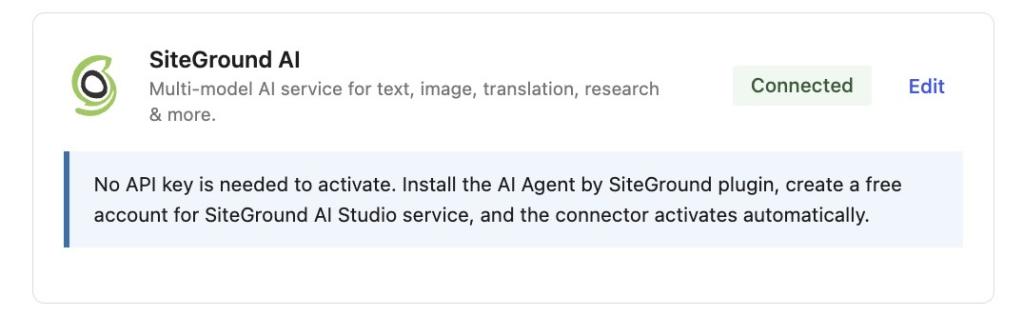
If your WordPress site is hosted on SiteGround, there’s a fourth option on that page. SiteGround AI is already installed and connected as an AI provider, with authentication handled automatically through your SiteGround account, so it appears in Connectors as already active with no API key to paste.
The six layers between an AI model and a finished task
Let’s illustrate how you can use AI in WordPress 7 and above with an example of a simple task. Say you want to add alt text to an image you have in your WordPress Media Library, and you want to use AI to generate it right into the editor. Six things have to be in place:
| What’s needed | What it means | Where it comes from |
|---|---|---|
| An AI model | The thing that looks at a photo and writes the description | An outside provider such as OpenAI, Google, or Anthropic |
| A connection to it | Permission for your site to send requests to that provider | You, through Settings > Connectors, with your own account and API key |
| A standard way to ask | Plugins requesting AI work without writing code for each provider | WordPress core, since 7.0. This is the AI Client, and it works invisibly |
| Permission to act | Writing the result into the Alt text field, rather than only showing you words | The Abilities API in core, plus whatever your plugins have registered |
| Somewhere to ask from | A button, a screen, or a chat where you make the request | Nothing in core. WordPress 7 ships no user-facing AI features at all |
| The finished job | Your image with alt text saved on it | Only if all five above are in place for this particular task |
Everything on that list apart from the finished job is either supplied by WordPress core or connected by you in a few minutes. What core deliberately doesn’t include is anywhere to make the request, because the platform’s job is to provide the connection and leave the tools to everyone else.
Pro tip: check what your provider can’t do before you pick it. Not every provider handles every kind of request. For example, Anthropic Claude generates text but not images, so if you connect Claude alone and a plugin asks for an image, WordPress will look for another provider that can handle it and find nothing. The routing between providers is automatic, but only if you’ve connected a second one that covers the gap. If you want both text and images, that means two accounts, two API keys, and two bills to watch.
WordPress 7 AI features vs AI Agent for WordPress, layer by layer
So WordPress 7 AI features become usable once you install AI plugins that have adapted to the new infrastructure. As we found in our 2026 report on AI in WordPress for small businesses, most of those plugins focus on generating content inside the editor: titles, excerpts, alt text, images, summaries.
What extends WordPress 7’s AI features much further, and makes fuller use of them, is a specialized AI agent like SiteGround’s AI Agent for WordPress that can generate content and also handle actual WordPress management. Instead of clicking through admin screens, you describe what you need in a chat that sits in your dashboard, and it transforms tasks that typically take hours of manual admin work into minutes of conversation. Here’s how the two compare:
| WordPress 7 on its own | AI Agent for WordPress | |
|---|---|---|
| What it is | Infrastructure: a shared way for plugins to reach AI providers | A WordPress AI management assistant that reads and acts on your site, delivered as a chat in your WordPress admin |
| What you get after setup | A connected provider, and plugins that can use it | A chat you can ask for work, available on every admin screen |
| What it can do for you | Nothing directly. It enables other tools | Content, plugins, themes, products, orders, users, site structure, and bulk changes |
| How you use it | You configure the connection. Compatible plugins use it on your behalf | You describe what you want in plain language |
| Setup | A provider account, an API key, and that provider’s plugin activated | Up and running for SiteGround-hosted sites. For sites hosted elsewhere, it’s a lightweight plugin |
| Who pays for AI usage | You, directly to the provider you connected | Covered by your AI Studio workspace, with usage visible in one place |
| Works on | WordPress 7.0 and later | Any WordPress site, with the Connectors entry appearing on 7.0 and later |
Do you need an AI Agent for WordPress after WordPress 7?
It depends on what you want the AI to do. The useful way to decide is by the job rather than the product label.
When WordPress 7 and AI plugins are enough
If your goals are highly focused and repeatable, standard AI plugins are often all you need. In-editor tools like Jetpack AI are excellent for drafting and rewriting copy right where you type, while established SEO tools like Yoast and Rank Math are perfect for page-by-page metadata, schema suggestions, and content scoring.
Stick with AI plugins working with WordPress 7’s infrastructure if:
- You’re comfortable running an AI provider account. For developers and agencies, choosing the model and controlling spending at the provider level is a feature rather than a cost.
- You only need depth in a single, isolated area. If your primary AI need is a dedicated customer support chatbot to capture leads on your homepage, or a tool to optimize an individual post’s SEO, a purpose-built single-function plugin is the right tool for the job.
- You already have tools that work. Our guide to choosing between AI plugins and AI agents makes the case that these categories aren’t exclusive, and many growing sites end up running both.
When you need a WordPress AI management assistant instead
Content creation is only a fraction of running a website. For small businesses, the real time-sink is the endless operational overhead: managing product catalogs, processing store orders, auditing user permissions, and keeping multiple domains synchronized. Because these tasks happen entirely outside the post editor, standard in-editor AI content generators cannot help you.
A site-connected management agent like SiteGround’s AI Agent for WordPress is built specifically for operations, making it the perfect fit if:
- You want to bypass the complexity of API keys and provider billing. Juggling developer dashboards for multiple AI models is an administrative headache. With the AI Agent for WordPress, there are no raw API keys to generate, copy, or maintain. All usage of leading models is consolidated under a single subscription
- You need system-wide operations, not just text generation. Standard AI plugins are isolated to the block editor or SEO fields. By contrast, an AI Agent for WordPress connects directly to your site and can manage posts, media, pages, users, themes, plugins, and WooCommerce products and orders. It is an operations manager, not just a writer.
- You need to execute the same change across hundreds of items. Manually updating prices on 300 WooCommerce products or adding missing alt text to your entire media library takes hours of clicking. An AI Agent for WordPress can make these sweeping database modifications instantly in response to a single prompt, saving you from clicking 300 times.
- You manage multiple websites. Instead of logging into five different dashboards to perform routine updates, you can activate the AI Agent plugin on multiple WordPress installs and orchestrate actions across all of your selected domains simultaneously from a single, unified chat.
What changes when you connect SiteGround AI as your WordPress AI provider
Setting up an AI provider the standard way means a developer dashboard, a key you generate and paste in, and a bill you keep an eye on. Connecting SiteGround AI removes all three at once. There are no API keys to generate, copy, or maintain, and no separate bills from different AI providers to track. All your usage consolidates into a single AI Studio subscription, so you get one predictable monthly bill and a clear view of what you’ve used.
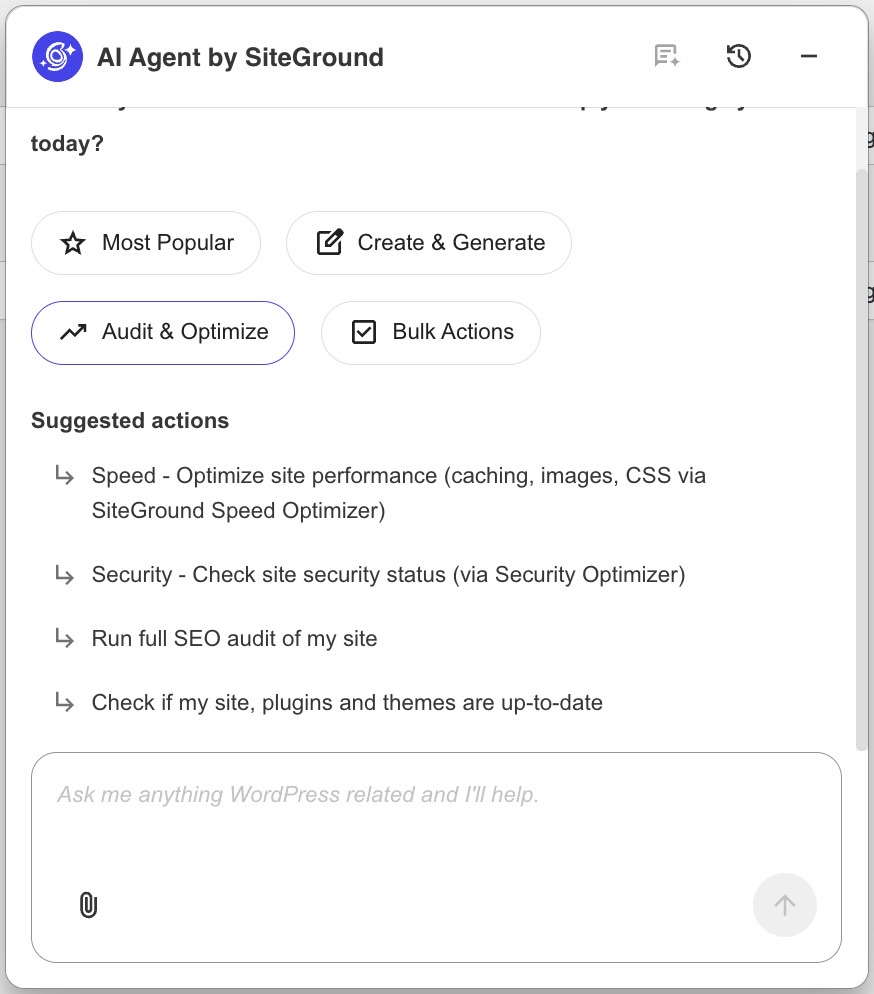
As your WordPress 7 AI provider, SiteGround AI powers the standard editor capabilities that any connected provider can handle. It also activates the AI Agent for WordPress, which appears as a chat box in the bottom corner of your admin dashboard. The chat is persistent, so it stays with you as you move between screens rather than being something you open, use, and close.
Behind both of those, it removes a decision most small business owners don’t have the time to make. With a provider connected directly, you’re choosing which AI model runs each request: the fast ones are cheap and shallow, the powerful ones are slower and better at hard problems.
SiteGround AI routes each request to the model that suits it. For instance, if you ask the AI Agent for WordPress for quick advice about a plugin, it goes to something light like Gemini Flash for an instant answer. Ask for something heavier, like analyzing your site database or generating secure code to update your settings, and it routes to a more powerful model such as Gemini Pro or Claude Opus. You get the right level of intelligence for each task without learning the differences between models.
WordPress 7 made your site AI-ready, not AI-managed
What all this means for you is that WordPress 7 AI features vs AI Agent for WordPress isn’t really a choice between two products. The infrastructure connects AI to your site, while an agent is what turns that connection into work getting done. One is the wiring, the other is what you plug into it.
So the real question isn’t which one to pick, but how much of your WordPress work you want AI to help you with.
No. WordPress 7.0 ships AI infrastructure rather than AI features: the AI Client, which standardizes how WordPress communicates with AI services, and the Connectors screen, where you manage provider credentials. To get anything you can click, you install an AI plugin on top.
No. WordPress 7.0 cannot manage plugins or WooCommerce by itself. It provides the connection layer and a register of actions your site can perform, but core includes no screen or chat where you can request that work.
The difference between WordPress 7.0 AI and an AI agent is what each one does. WordPress 7.0 connects your site to an AI provider so compatible plugins can use it. An AI agent for WordPress reads your site and acts on it, handling plugins, products, orders, and users through a chat in your admin.
You still need a WordPress AI management assistant such as AI Agent for WordPress after upgrading to WordPress 7.0 if you want help with site management rather than writing. The infrastructure connects AI to your site but does not provide a conversational management interface by itself, and WordPress’s own AI plugin covers the post editor only.
The AI Client standardizes how plugins request AI work. The Connectors screen is where you connect provider accounts so plugins can share one connection. The Abilities API keeps a structured register of what your site can do, so AI tools can discover which actions are available.
Yes, you need separate API keys for OpenAI, Claude, and Gemini if you connect them individually. Each provider needs its own account, its own API key entered in Settings > Connectors, and its own provider plugin activated. Connecting SiteGround AI instead registers a provider automatically, with no API key at any stage.
Both roles come from the same plugin. SiteGround AI acts as your AI provider in Settings > Connectors, and the AI Agent for WordPress is the chat that reads and acts on your site. The AI Agent by SiteGround plugin is what connects your site to both.
When AI Studio is connected to WordPress, SiteGround AI is registered automatically in Settings > Connectors and marked as connected, with no API key required. The AI Agent for WordPress becomes available as a chat across your admin, and you can switch either layer off independently.