
WordPress security maintenance is the recurring work of keeping your site’s exposure small: updating WordPress itself along with your plugins and themes, checking what’s installed, reviewing who has access to the dashboard, removing what you no longer use, and confirming your backups ran. It’s basic housekeeping, and it’s separate from the tools that guard your site, but it’s just as important.
And for small business owners who manage their own WordPress websites, it’s another nuisance to think about. Our 2026 report on AI in WordPress for small businesses found that 67% of small business owners run their site entirely themselves, with no agency or freelancer behind them, and 28.9% named security and updates among the things they find hardest. What many don’t know is that an AI assistant can now help with WordPress security maintenance by connecting to their site and carrying out recurring tasks through a simple chat.
Key takeaways:
- Protection and WordPress security maintenance are two different jobs. Protection is your firewall, malware scanner, and host, running around the clock. Maintenance is updates, audits, and access reviews, and it basically depends on you.
- Most small business owners handle WordPress security maintenance alone. 67% of small business owners manage their site entirely themselves, and 28.9% find security and updates among the hardest parts, as per SiteGround’s report.
- A specialized AI assistant like SiteGround’s AI Agent for WordPress can help you complete WordPress security maintenance faster and more consistently. It can do things like update plugins and themes, check what’s installed, and review users and roles.
- You shouldn’t postpone your WordPress security maintenance work for too long. It takes five hours between a flaw being made public and the first attack on it.
What WordPress security maintenance actually covers
Most writing on this subject blurs two things that need to stay apart: the tools that watch your site continuously, and the housekeeping that keeps its exposure minimal. They work at different levels (and can fail in different ways):
| Layer | What it covers | Who or what does it |
| Security protection | Firewall, malware scanning, watching for newly announced weaknesses, login protection, server hardening, cleanup after a break-in, and the backup system itself | Dedicated security plugins, your host, or a managed service. |
| Security maintenance | Updates to WordPress, plugins, and themes; checking what is installed; reviewing who has access; removing what you do not use; checking settings; and doing it again next month | You. An AI Agent can help you complete much of this faster and more consistently. |
| The overlap | Backups. The system that takes them is protection, but confirming they ran and knowing how to restore is maintenance | Your host or backup tool provides it. You confirm it, with or without AI help. |
Security protection: what your tools and host do
Protection runs whether or not you are paying attention:
- A firewall sits in front of your site and checks incoming visitors before they reach it, turning away requests that match known attack patterns. You may see it called a WAF, short for web application firewall.
- A malware scanner reads through your site’s files looking for malicious code, which is code an attacker has added to make your site do something you did not intend, such as redirecting your visitors to another site.
- Vulnerability monitoring watches for public announcements that something you have installed has a newly discovered weakness. A vulnerability is a flaw in a piece of software that someone can misuse to get in.
- Login protection blocks repeated password guessing, known as a brute-force attack, where software tries thousands of passwords until one works.
- Server hardening is your hosting company tightening the settings on the machine your site runs on, so that even a successful attack has less room to move.
None of this is a daily task for you. It runs continuously and automatically, which is why it belongs to dedicated security plugins and your hosting provider.
Security maintenance: what stays your job
While security protection runs automatically, security maintenance is something that gets done, over and over, and it involves judgments about your particular site: which plugins you actually still need, who should be able to log in, what is safe to remove. That is why it stays with you even when you have good security tools running.
Four things can help explain why these tasks matter more than they look:
- An update is a fix you have to install. When a plugin developer finds a security flaw, they fix it and release a new version. Until you install that version, your site is still running the flawed code, and by then the flaw is public knowledge. The fix existing does nothing for you. Installing it does.
- Access only ever accumulates. Everyone who has ever needed to log in still can, unless somebody removes them. Most people get given the administrator role, the highest level of access in WordPress, because it is the fastest way to unblock someone. A WordPress user access audit is going through that list and asking who still needs to be on it.
- An abandoned plugin looks exactly like a maintained one. Nothing in your dashboard turns red when a developer stops working on a plugin. It stops receiving updates and carries on running as before. The only way to find out is to look.
- A backup you have never restored is unproven. Backups fail without announcing it. A setting changes, a disk fills up, a plugin interrupts the process, and the report still says the job completed. You find out whether the backup is any good at the moment you need it most.
None of these tasks is difficult, which is what makes them easy to put off. There’s no deadline, nothing visibly breaks, and skipping them appears to cost nothing. Except when it does.
Why postponing WordPress security maintenance is riskier than it used to be
Two things changed recently, and neither is about WordPress itself getting worse. The first is volume: Patchstack’s annual security report recorded 11,334 new weaknesses across WordPress plugins, themes, and WordPress itself in 2025, 42% more than the year before and roughly 200 a week. The second matters more: the dangerous share grew faster than the total. Highly exploitable flaws rose 113% in a single year, and more high-severity ones were found in 2025 than in the previous two years combined. The same monthly check now covers more ground, and more of what it covers is worth attacking.
Where those weaknesses live has not changed. 91% were in plugins, and siix were in WordPress itself, all low priority. This basically means WordPress plugin security is a big part of the problem.
About half of high-impact weaknesses are attacked within 24 hours of becoming public, and weighted by how heavily each one was targeted, the median gap between a flaw being announced and the first attack on it was five hours.
No maintenance routine closes a five-hour gap. Nobody checks their site every five hours, and 46% of flaws had no fix available from the developer when they were disclosed, so updating sooner would not have helped in almost half of cases either. That’s the argument for dedicated protection running underneath your routine.
What a routine does fix is the backlog. Every skipped week adds unpatched plugins, unreviewed accounts, and code you have forgotten is still there. Plugins are sometimes pulled from the WordPress directory over security problems that never get fixed, and if one of yours has been pulled, updating will never help.
The recurring WordPress security maintenance checklist
Six tasks make up a WordPress security checklist within any broader WordPress maintenance checklist. None is complicated on its own. The value comes from doing them regularly instead of when something goes wrong.
| Task | What it prevents | How often |
| Update WordPress, plugins, and themes | Published weaknesses being used against you when a fix already exists | Weekly, and straight away for anything under active attack |
| Check what is installed | Abandoned or withdrawn plugins sitting on your site unnoticed | Monthly |
| Run a WordPress user access audit | Old accounts and contractors who still have full administrator access | Monthly |
| Delete plugins and themes you don’t use | Inactive code that can still be attacked and still needs patching | Quarterly |
| Confirm backups ran | Finding out during an emergency that the backup you counted on was never being taken | Weekly |
| Check your settings | Options that were changed for a one-off reason and never changed back | Quarterly |
Deleting unused WordPress plugins and themes is the task many people skip, because switching a plugin off feels like enough. However, deactivated code still sits on your server, can still be reachable, and still needs patches that nobody is applying because you stopped thinking about it. Switching off is a pause, while deleting is the fix.
Where an AI Agent helps with WordPress security maintenance
A specialized AI assistant like SiteGround’s AI Agent for WordPress is connected directly to your site, so that instead of only answering questions, it can make actual changes in your dashboard when you ask. For instance, if you ask a chatbot like ChatGPT in another browser tab how to update your plugins, it will explain the steps. But if you ask an AI connected agent, it can actually update them for you.
What an AI Agent can help you complete
Every task in the checklist above is something you would otherwise do by clicking through the dashboard, which means it is something the AI Agent for WordPress can do on request:
- Updating WordPress core, plugins, and themes, individually or in bulk, with approval for higher-risk changes.
- Managing plugins and themes across their lifecycle: listing what is installed, explaining what each item appears to do, activating, deactivating, updating, or removing unwanted items after approval.
- Pointing out plugins or themes that look inactive, redundant, outdated, abandoned, or suspicious, so the quarterly clear-out becomes a short list to review rather than a full investigation.
- Reviewing and managing users and roles, from listing administrator accounts to creating users, updating profiles, changing roles, downgrading access, or removing accounts after approval and content reassignment.
- Helping configure WordPress-level or compatible plugin-level security settings, such as login protection or hardening options, when those controls are available inside the site.
- Repeating the same routine across multiple connected sites, instead of opening one dashboard after another.
Here’s an example prompt you can give to the AI Agent for WordPress:
“Run a WordPress security maintenance review: core, plugins, themes, users, roles, comments, and supported security settings; identify updates, risky or inactive items, admin accounts, and cleanup tasks; group everything by risk; then ask for approval before making changes.”
The AI Agent sorts what it finds into high, medium, and low risk, lists the plugins, themes, users, and settings it checked, then proposes a specific plan: deactivate this, delete those two, switch on these three settings, leave the rest alone.
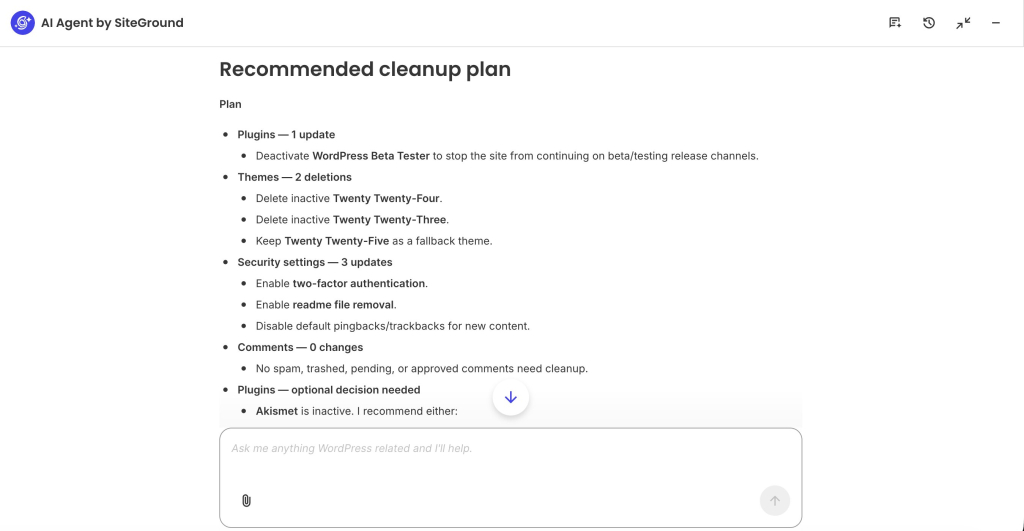
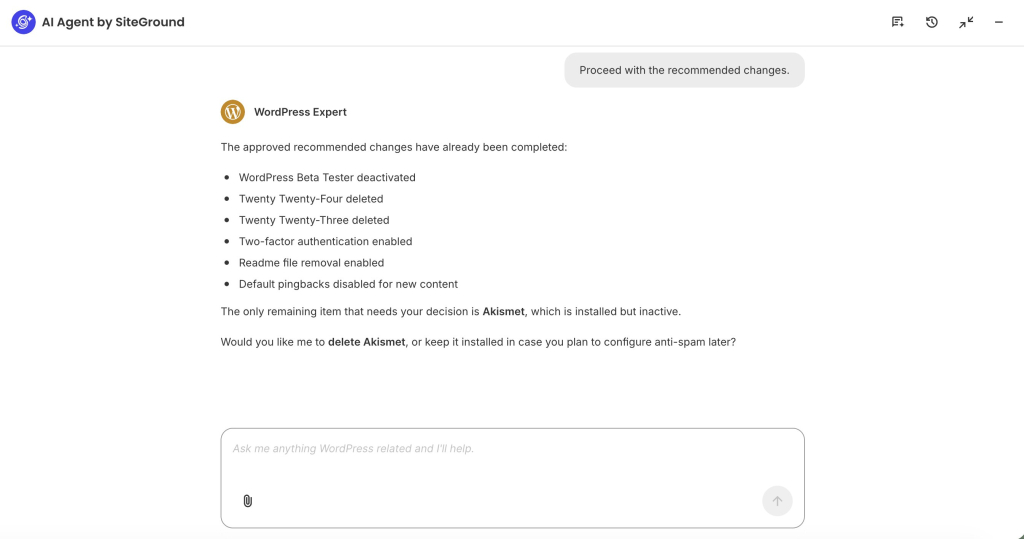
Approve the plan and it works through it, then reports back on what it changed. Anything it was not sure about it leaves alone and asks about separately, so any genuine judgment calls come back to you.
For more prompts you can reuse and adapt, read our guide on how to turn WordPress admin work into simple conversations.
What an AI Agent cannot do for WordPress security
An AI Agent doesn’t run a firewall, and it doesn’t scan your files for malware. It doesn’t watch vulnerability announcements overnight and wake up when something you have installed comes under attack. It doesn’t itself block password-guessing attempts in real time, although it may help configure a security tool that does. It doesn’t harden the server itself, although it may help adjust WordPress-level hardening settings.
The reason is structural rather than a gap somebody will close in the next version. An agent acts when you ask it to, working through the same WordPress controls you would use yourself.
A firewall works somewhere else entirely: it inspects every request arriving at your site, thousands of times a day, before WordPress even starts loading. A malware scanner reads every file on a fixed schedule. Vulnerability monitoring watches disclosure feeds around the clock and does not wait to be asked. Those jobs are continuous, automatic, and positioned underneath or in front of the layer an assistant works in.
How to run AI-assisted WordPress security updates without breaking your site
Applying WordPress security updates quickly matters, especially when an update fixes a security issue. But updating carelessly creates its own problems. An AI Agent can reduce the manual work, organize the process, and add approval steps before high-impact changes, but it cannot make live updates risk-free. A plugin, theme, or WordPress core update can still introduce a bug, conflict with another extension, break checkout, alter layouts, or trigger a compatibility issue.
The safest way to use AI is not to let it push every update blindly. It’s to use it as an operator with guardrails: inventory first, plan the work, update in controlled batches, and keep a rollback path ready.
- Back up before you update, and know how to restore. A backup you have never tested is a hope rather than a plan. The AI Agent can help coordinate the update routine, but it is not the backup or restore system, so the restore point needs to exist before changes begin.
- Test complicated or business-critical updates on a staging copy first. WooCommerce, payment plugins, page builders, membership plugins, booking systems, multilingual plugins, caching tools, and major theme updates can break important parts of a site. The AI Agent can help identify which updates belong in the staging-first group before anything touches the live site.
- Use AI to plan and batch the work, not to remove judgment. Instead of updating everything at once, ask the agent to list available updates, group them by risk, and run smaller batches. If something breaks after one giant update batch, it is much harder to know what caused it.
- Keep approval over anything with a large blast radius. Deleting plugins, removing themes, changing user roles, modifying security settings, and running bulk operations should pause for confirmation. A good AI-assisted workflow keeps the agent as an operator, not an unchecked autopilot.
- Check the site after meaningful update batches. Visit key pages, test forms, confirm the dashboard is not showing new errors, and run through checkout if you sell online. The AI Agent can report which updates completed successfully, but it cannot replace checking the real user journeys your site depends on.
- Know how to undo an update before you need to. For posts and pages, WordPress revisions may help. For plugin, theme, core, or database-impacting changes, your real rollback plan is usually a backup, restore point, staging copy, or dedicated rollback tool.
A recurring WordPress security routine you can actually keep
For a busy small business owner, the difference is not just how long each WordPress security maintenance task takes, but how much of the security maintenance routine can be organized, explained, and safely prepared before you have to make a decision.
| Cadence | What you do | Roughly how long manually | Roughly how long with AI |
| Weekly | Review WordPress core, plugin, and theme updates. Apply low-risk updates, test complicated or business-critical plugins on staging first, confirm your latest backup exists, and check key pages or flows after updating. | 30 to 60 minutes | 5 to 15 minutes, plus any staging or manual checks |
| Monthly | Check installed plugins and themes against what you actually use. Review users and roles, especially administrator accounts, and remove or downgrade access that is no longer needed. | 45 to 90 minutes | 10 to 20 minutes, depending on how many items need approval |
| Quarterly | Identify inactive, redundant, abandoned, or confirmed-unused plugins and themes, then delete what you no longer need. Review WordPress security settings, backup settings, and connected services. Restore a backup somewhere safe to prove it works. | 2 to 4 hours | 30 to 60 minutes, plus the time needed to test the backup restore |
| Continuously, not by you | Firewall, malware scanning, vulnerability monitoring, login protection, and automated backups run underneath all of the above. | Handled by your tools and host | Still handled by your tools and host |
These estimates assume someone who doesn’t already know every plugin, setting, and maintenance screen by heart. The AI Agent shortens the dashboard work by inventorying, explaining, grouping, and carrying out approved changes, but it doesn’t remove the time needed for staging, backup restores, or checking the parts of the site your visitors actually use.
Close the follow-through gap
WordPress security maintenance rarely fails because someone decides it doesn’t matter. It fails because it’s never the most urgent thing on any given day, and because a neglected site can look perfectly fine for months. That is the follow-through gap: the space between knowing what should be done and actually doing it regularly.
AI does not replace the security layers that run all the time. Your firewall, malware scanner, vulnerability monitoring, backups, and host still handle the continuous work. But an AI Agent can make the recurring WordPress-side work much easier to keep: checking updates, reviewing plugins and themes, auditing users, spotting old admin accounts, cleaning up clutter, and preparing changes for approval.
FAQs
No. AI cannot keep a WordPress site secure on its own. It can help with WordPress security maintenance that reduces risk, such as updates, audits, and access reviews, but firewall, malware scanning, vulnerability monitoring, and login protection still require dedicated security tools and your host.
WordPress security maintenance includes updating WordPress, plugins, and themes, checking which extensions are installed, completing a WordPress user access audit, deleting unused plugins and themes, confirming backups ran, and checking your settings on a recurring schedule.
No. An AI Agent does not replace a firewall or security plugin. They do different jobs. A firewall and scanner watch your site continuously, while an AI Agent helps you complete the maintenance work that would otherwise be postponed.
Unused WordPress plugins and themes should be removed because inactive code can still be attacked and still needs patching. Plugins accounted for 91% of WordPress vulnerabilities recorded in 2025, and switching a plugin off does not remove its code from your server.
WordPress plugins and themes should be updated at least weekly, and WordPress security updates for anything under active attack should be applied as soon as you can safely test them. Patchstack measured a weighted median of five hours between a flaw becoming public and the first attack on it.
Yes, with conditions. An AI Agent can update WordPress plugins safely when you back up first, test complicated plugins such as WooCommerce or page builders on a staging copy, and keep approval over high-impact changes rather than letting anything run unattended.
A safe recurring WordPress security routine follows a WordPress security checklist: check updates and backups weekly, review users and installed extensions monthly, and check settings and remove unused plugins and themes quarterly, with dedicated security tools running continuously underneath.