WordPress backups: Why daily backups may not be enough for your live site

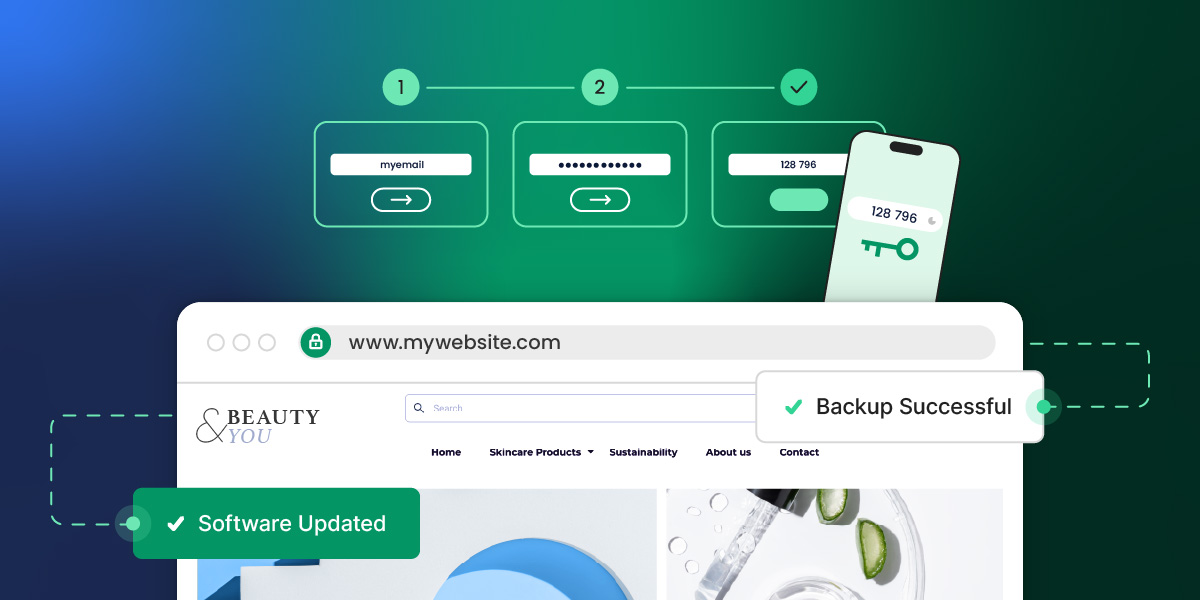
Hero image of a laptop displaying a website dashboard with performance and security metrics, surrounded by floating icons representing cloud backups, data protection, alerts, bug detection, and password security.
.post-page__post-content figure figcaption { color: #666 !important; font-size: 0.875rem !important; line-height: 1.5 !important; text-align: left !important; background: none !important; position: static !important; padding: 8px 0 0 !important; } .post-page__post-content figure figcaption a { color: #4343F0 !important; }

Most websites have some form of backup system in place. A hosting provider runs daily snapshots, or a backup plugin handles scheduled exports. The box is checked, and the assumption is that if something breaks, there’s a recent copy to fall back on.

But “having backups” and “being protected” aren’t the same thing. 

Key takeaways:

  • Having backups doesn’t equal protection. What matters is how recent and complete your last backup is, and how easily you can restore it.
  • Daily backups can still mean hours of lost data (orders, forms, content) on active sites.
  • A full backup must include both files and the database, captured at the same time.
  • The data loss window (time since the last backup) determines how much you lose during a restore.
  • Backup reliability also depends on off-site storage, retention, and ease of use—not just frequency.
  • Sites with frequent changes (ecommerce, user data, active content) often need hourly backups.

This article breaks down:

  • what a WordPress backup actually covers,
  • how the gap between your most recent backup timestamp and the present creates real exposure,
  • and how to evaluate whether your current setup matches the risk your site carries.
.post-page__colored-blocks.post-page__colored-blocks–important p { margin: 15px 0px; }

The backup principles covered here apply to any database-driven site or CMS, not just WordPress. 

We’re using WordPress as the framework because it powers over 40% of the web and is the most common context where these decisions come up.

What happens when your backup isn’t recent enough

Let’s imagine the following scenario:

.post-page__colored-blocks.post-page__colored-blocks–update p { margin: 15px 0px; }

It’s 4 PM on a Tuesday. A plugin update on your WooCommerce store goes wrong and the checkout flow breaks. You catch it within the hour and decide to restore from backup.

Your last backup was created at 6 AM. That’s 10 hours ago.

The restore works and the site is back online. But everything that happened between 6 AM and 4 PM is gone. 

Every order, every form submission, every customer account created, every content edit your team made. All of it rolled back to the state your site was in before the workday started.

The backup didn’t fail. It restored your site to the most recent snapshot available. The problem is that the snapshot was 10 hours old, and your site didn’t stand still during those 10 hours.

This is the gap most site owners don’t think about. Daily backups are standard with good hosting providers, and they work well as a safety net for a wide range of situations. 

But for sites that process transactions, collect user data, or publish content throughout the day, the distance between the last backup and the moment something breaks is the difference between a clean recovery and hours of data loss. These can be orders that exist only in a customer’s email confirmation, form submissions with no other record, or any other content that has to be recreated from memory.

The question worth asking isn’t whether you have backups. It’s whether your backup frequency matches the pace at which your site actually changes.

What a WordPress backup actually includes

A WordPress site is made up of two distinct layers, and both are required for a working restore.

  • Site files: everything stored in the website root directory on your web server. This includes WordPress core files (wp-admin, wp-includes), themes and plugins inside the wp-content folder, uploaded media files, and configuration files like wp-config.php and .htaccess.
  • The database: where your actual content lives. Posts, pages, comments, WooCommerce orders, user accounts, plugin settings, and site configuration. Every piece of dynamic data your site generates is stored here.

These two layers are separate. Your WordPress files sit on the hosting server’s filesystem; your database runs on a database server. Backing up one without the other leaves you with an incomplete recovery path:

– Files without the database give you a shell: your theme, plugins, and uploads, but no content, no settings, no user data.
– The database without files gives you all your content and data, but no theme to render it, no plugins to extend functionality, and no media to display.

A complete backup requires both your website files and the database, captured at the same point in time. A file backup from Monday paired with a database backup from Wednesday creates inconsistencies that can break a site just as effectively as the problem you’re trying to recover from.

How automatic backups work on a live site

Most hosting providers run automatic backups on a schedule, typically once per day during off-peak hours. The backup process creates a snapshot of your entire site at that moment: every file and the full database, captured as a single restore point.
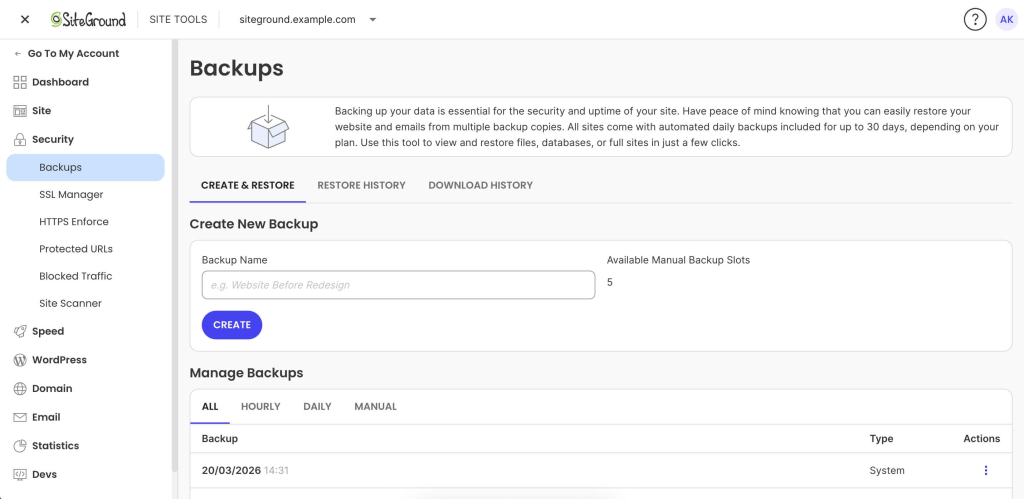
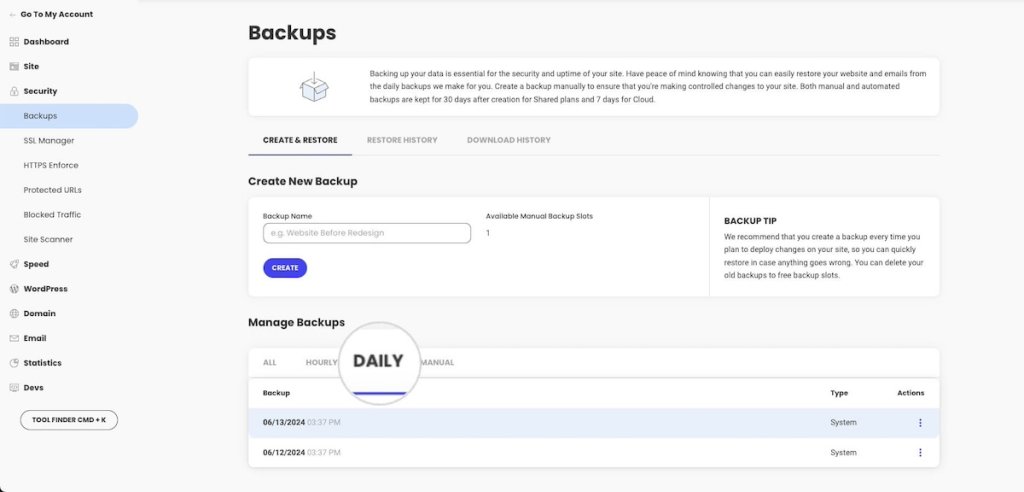
SiteGround Site Tools Backups page showing options to create a new backup and manage existing backups with restore actions.
Screenshot of SiteGround’s backups page in Site Tools.

If you are running a simple brochure-site that does not get updated often, and has no dynamic elements, this may be sufficient. 

However, if you are running a high-traffic, dynamic site, it most likely keeps changing between snapshots. New orders, published content, plugin updates, form submissions, account registrations are not going to be saved in your last backup. It only gets captured when the next scheduled run completes.

This creates what’s sometimes called a data loss window. This is the gap between your most recent backup and the present moment. If you restore right now, everything that changed since the last snapshot is gone. On a quiet site, that gap might not matter. On a site with active traffic and transactions, it can represent hours of irrecoverable data. 

Keep reading to understand how to evaluate your current backup system for such risks.

What changes between backups on a live site

The size of your data loss window depends entirely on how active your site is. On a live WordPress site, here’s what can accumulate between one backup and the next:

– Blog posts published, edited, or scheduled
– WooCommerce orders processed and inventory levels updated
– Form submissions: contact forms, quote requests, lead generation
– Plugin or theme updates applied (manually or via auto-updates)
– New customer account registrations and profile changes
– Comment activity across the site

A portfolio site updated once a week has a narrow gap. A WooCommerce store processing dozens of orders per day has a wide one. The more active the site, the more the question shifts from “do I have backups?” to “how recent is my last backup?”

The data loss window: real restore scenarios

The following scenarios aren’t hypothetical edge cases. They’re common failure patterns on live websites.

A broken plugin update on an ecommerce site

Similar to the example we gave above and very common: a WooCommerce plugin pushes an update at 2 PM. It introduces a conflict that crashes the checkout flow. You catch the issue by 3 PM and decide to restore.

With a daily backup from 6 AM, you roll back 8–9 hours. Every order placed that day is gone. Inventory levels revert. Customer accounts created during that window vanish. You’re left reconciling lost transactions from payment gateway records and accepting that some data no longer exists.

Malware injected and discovered late

Your site gets infected through a vulnerability in an outdated plugin. The malware is subtle: redirecting a small percentage of visitors to a phishing page, injecting spam links only search engines see, or adding a backdoor. You were on vacation and did not notice it for a week. 

This is where retention depth matters as much as frequency.

Let’s assume you are on a hosting plan where you have seven restore points, going seven days back. If the infection is older than a week, every available backup is compromised and you’re facing a manual cleanup with no clean baseline.

With 30 days of retention (standard on SiteGround shared hosting), you can step back through the last month to find a clean snapshot from before the infection, even if you didn’t catch the problem quickly. 

Accidental content deletion on a high-traffic site

This happens more often than you’d think. For example, a team member reorganizes pages in the dashboard mid-morning and accidentally deletes a high-performing landing page. Nobody notices until end-of-day traffic reports show an unexplained drop.

With a daily backup from the previous night, the page is recoverable. But restoring a full site backup to get one page back means rolling back everything else: new content, updated products, orders, form submissions. You recover the page but lose a day’s worth of work across the rest of the site.

This is where the ability to restore specific components matters. 

SiteGround’s restore process allows restoring specific files, databases, or both independently, so you can do a partial restore without forcing a full-site rollback.
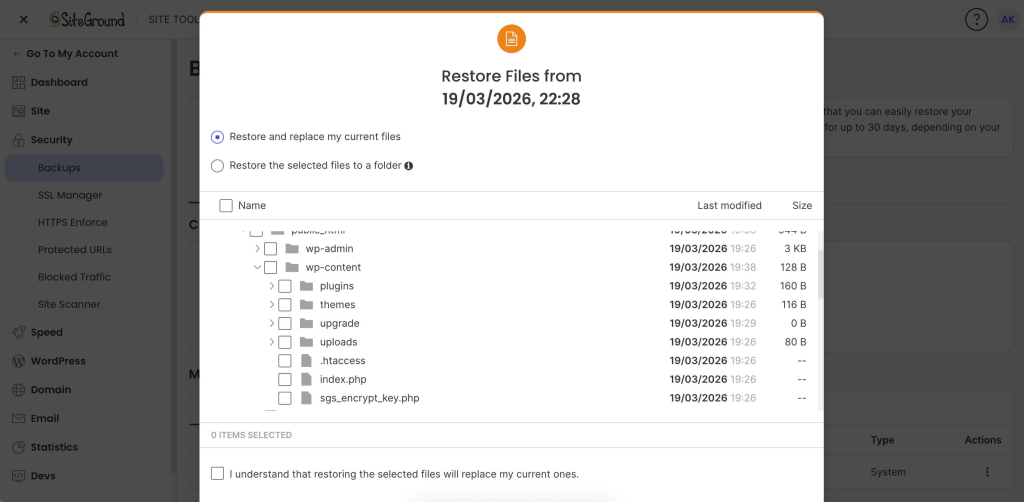
Restore interface showing file selection options, including replacing current files or restoring selected files to a folder.
The partial restore dialog window in Site Tools where SiteGround users can choose which files they wish to restore.

Daily vs. hourly WordPress backups: which do you need?

There’s no universal backup frequency that works for every site. The right answer depends on how your website is used, how often it changes, and how much data you can afford to lose.

When daily backups are enough

For relatively static sites like portfolios, brochure sites, blogs that publish once or twice a week, daily backups provide solid coverage. The data between scheduled backups is small and easy to recreate.

Daily backups are generally sufficient when:

– There are no ecommerce transactions or user-generated content to protect
– Content changes are infrequent and can be manually recreated if needed
– The acceptable data loss window is a full 24 hours

If this is your site, the priority shifts to making sure backups are stored off-site and that retention depth is sufficient for issues that aren’t caught immediately.

When you may need more frequent backups 

This changes quickly when your site generates data that can’t be recreated:

– The site processes transactions: orders, membership signups, bookings, or payments
– Multiple contributors are making content changes throughout the day
– The site collects form submissions, user registrations, or comments at volume
– Any amount of downtime or data loss has a direct revenue impact

In these cases, the acceptable window shrinks from 24 hours to a few hours or less. Hourly backups become a practical necessity.

.post-page__colored-blocks.post-page__colored-blocks–tip p { margin: 15px 0px; }

Questions to ask yourself

– If my site broke right now, when was my last backup?
– How much data would I lose between that backup and this moment?
– Could I manually recreate what’s lost, or is it gone forever?
– How long can my site be down before it costs me money or erodes trust?

The answers don’t require a technical background. They require an honest look at how your site is used and what is at stake.

What SiteGround covers by default, and when to upgrade

SiteGround shared hosting includes 30 daily automatic backups, stored in a geographically separate location, with easy partial restores and one-click full rollback through Site Tools. For many websites, this provides strong baseline coverage with enough retention to handle most recovery scenarios.

For active ecommerce stores, agencies managing client sites, or high-traffic content operations, Premium Backups adds hourly snapshots retained for 48 hours alongside the existing daily retention, plus downloadable backup copies for an independent recovery path.
A promotional banner for the SiteGround Premium Backups service.

The upgrade decision maps directly to the framework above: 

If your acceptable data loss window is measured in hours rather than days → hourly backups are a straightforward, risk-based investment.

What makes a backup strategy actually reliable

How often you back up your site gets most of the attention, but it’s only one dimension. 

Storage location

If your backup files sit on the same server as your live site, a single server failure destroys both. Backups hosted in the same datacenter, while better than same-server backups, also involve risk: a datacenter-level incident can still take out everything.

Off-site storage is the baseline. Storing backups on geo-distributed infrastructure, in a physically separate location from your hosting server, is the gold standard. 

SiteGround’s backup system is entirely geo-distributed and included without any additional charges for all sites, on all hosting plans. 

Retention depth 

Frequency decides how recent your latest restore point is. Retention decides how far back you can go.

This distinction matters most when problems aren’t immediately obvious: malware that sits undetected for days, a configuration change that causes subtle issues over time, or content deleted and only noticed later. In each case, you need to step back through multiple restore points. Shallow retention eliminates that option.

SiteGround shared hosting retains 30 daily copies. Premium Backups adds hourly snapshots retained for 48 hours on top of that. The combination gives you granularity for recent issues and depth for problems that surface later.

Restore speed and simplicity

A backup is only as useful as your ability to restore from it under pressure. When your site is down and customers can’t complete purchases, the restore process needs to be fast, not a multi-step manual operation involving FTP clients, database imports, and file permission fixes.

Trying to manually restore a WordPress site can take hours, requires technical confidence, and introduces the risk of human error at exactly the moment you can least afford it. 

A hosting-level restore that takes a few clicks and runs in minutes changes the recovery experience entirely. For example, SiteGround’s restore in Site Tools lets you select a restore point, choose files, database, or both, and the system handles the rest.
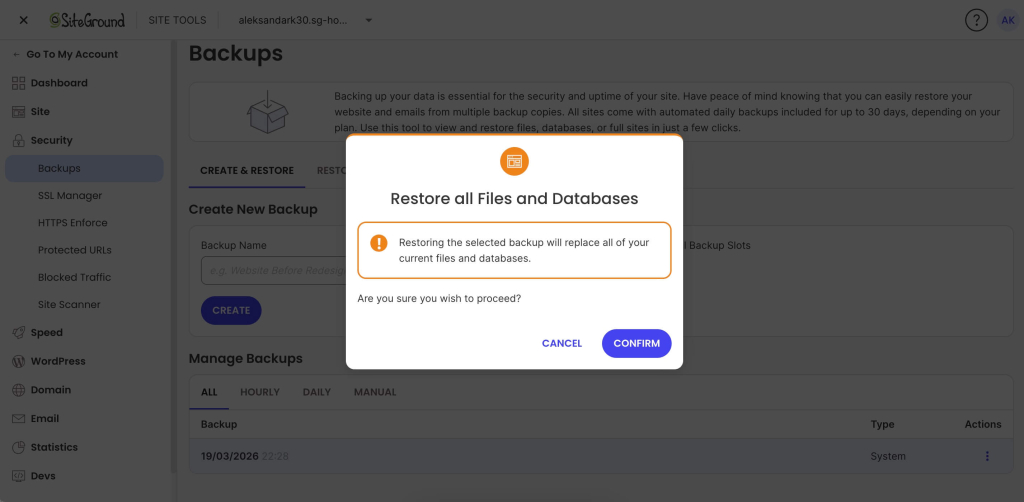
Confirmation dialog warning that restoring a backup will replace all current files and databases, with Cancel and Confirm options.
One-click confirm in Site Tools for restoring a full backup, which replaces all current website files and databases.

Downloadable backups

Hosting-level site backups cover the vast majority of recovery scenarios. But a downloadable copy gives you independence: a backup file that exists entirely outside your hosting environment. This is useful for:

– Migration to a new hosting provider
– Local development and testing with a production copy
– Redundancy for users who want a copy they fully control

SiteGround’s Premium Backup service includes full backups as a single-click download inside Site Tools. You can get a full copy of your website on your device at any time, without paid third-party WordPress plugins or manual export processes.
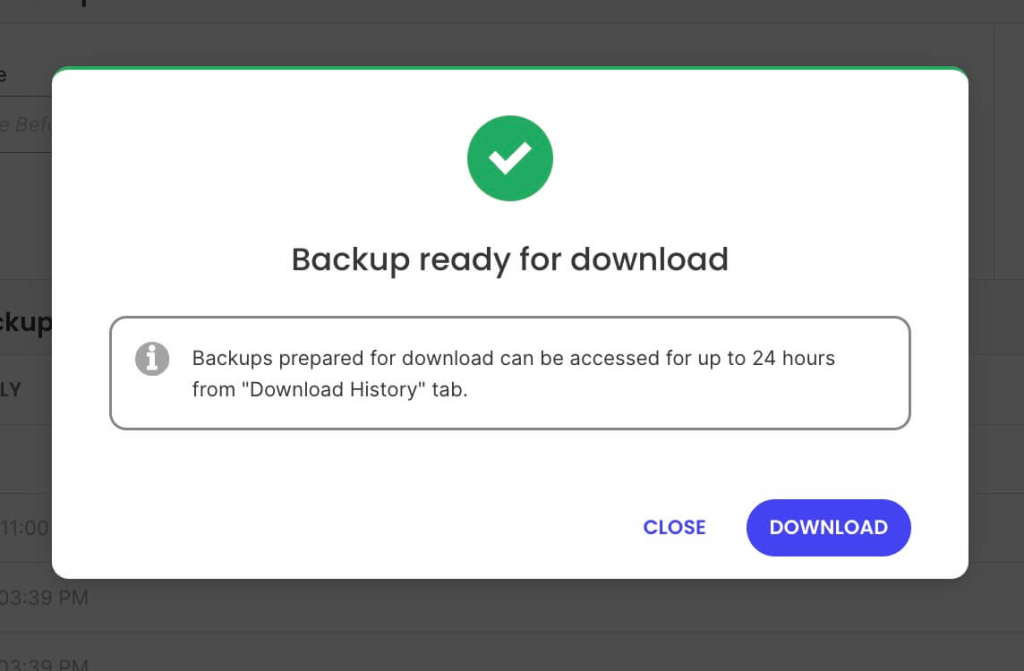
Popup confirmation showing “Backup ready for download” with a notice about 24-hour availability and a Download button.
Site Tools notification confirming a backup is ready for download.

How to evaluate your current backup setup

Everything above is practical only if you know where your own site stands. This is a self-assessment you can run in a few minutes, no technical expertise required.

Do a quick backup audit

Go to your hosting account and find the backup section. (If there isn’t one or you can’t find it easily, switch to another provider NOW.)

The main things you should check are: 

  • How many hours of data sit between your last backup and now?
  • If you restored that backup right now, what would you lose — and can any of it be recreated?
  • Are your backups stored on the same server as your live site, or in a separate location?
  • How many restore points do you have access to? (One recent backup isn’t the same as 30 days of daily snapshots.)
  • Have you ever tested a restore?

That last point is the most overlooked step in any backup strategy. Backups can fail silently: corrupted snapshots, incomplete captures, storage issues that go unnoticed until the moment you need to restore. 

Consider restoring to a staging site to verify the backup process works before you need it under real pressure. A backup you’ve never tested is a backup you’re trusting on faith.

What to do based on what you find

If your daily backup coverage matches your site’s risk profile (low activity, no transactions, easy-to-recreate content), you’re in a solid position. Make sure to verify your host is using off-site storage and also offers sufficient retention depth.

If the gap between your last backup and right now represents hours of data you can’t afford to lose, it’s worth considering hourly backups.

Either way, the single most valuable step is testing a restore at least once. Know the process before it’s urgent. Understand how long it takes, what options you have, and what the result looks like. That knowledge turns a backup from a line item on a features list into an actual recovery plan.

The bottom line

Having backups is not the same as being protected. The distance between your last backup and the present moment is where data disappears, and for active dynamic sites, that distance is measured in hours, not days. 

Evaluate your site based on what you’d actually lose if you had to restore right now, not on whether backups exist somewhere in the background. 

Test your restores, understand your retention, and make sure your backup frequency matches the real pace of change on your site. That’s the difference between a checkbox and a recovery plan. 

If that audit reveals gaps your current host can’t close (shallow retention, no off-site storage, no granular restore options), it may be worth evaluating a hosting provider where backups are built into the infrastructure from the start.


FAQ

Does WordPress have a built-in backup?

WordPress does not include a built-in backup system. Its autosave feature periodically saves post and page drafts while you’re editing, but that only covers individual content items. It doesn’t capture your WordPress database, plugins, themes, uploaded media files, or site configuration.

For site-level backups, you need either a hosting provider that includes automatic backups, a dedicated backup plugin or manual exports. 

Where do I find my WordPress backups?

It depends on how your backups are created.

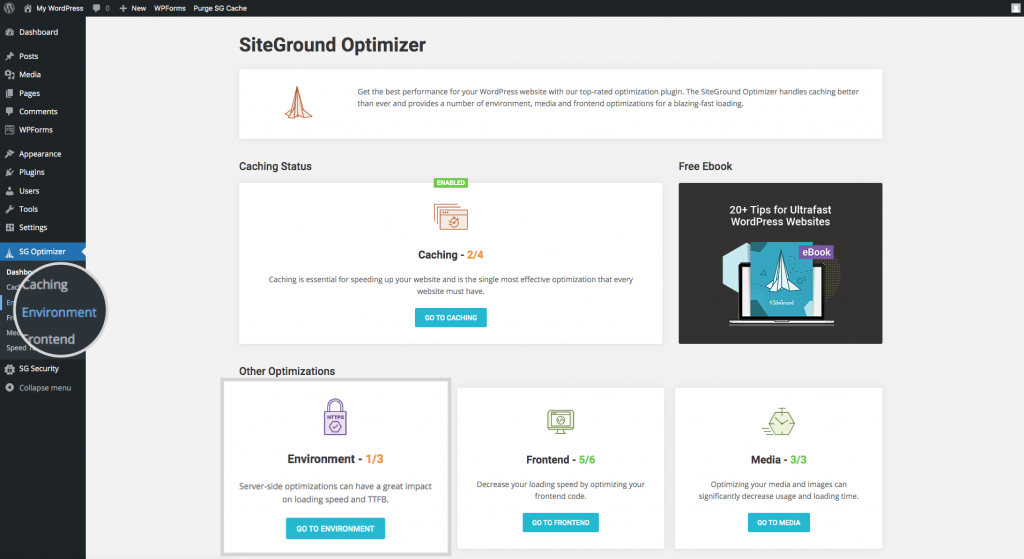
If your hosting provider handles backups, you’ll find them in your hosting control panel. On SiteGround, that’s Site Tools → Security → Backups, where you can manage all backup features.

If you use a backup plugin like UpdraftPlus or Duplicator, backups are managed from the plugin settings inside your WordPress dashboard. If you’ve configured remote storage, such as Google Drive, Dropbox, or a cloud storage service like Amazon S3, your backup files will also be stored in whichever service you connected during setup.

How do I back up my entire WordPress site?

A full backup requires both your site files and your database. The file layer includes WordPress core files, themes, plugins, and everything inside the wp-content folder, including all uploaded media. The WordPress database contains posts, pages, comments, orders, user accounts, plugin settings, and site configuration.

Good hosting providers handle this automatically. SiteGround creates full site backups daily, capturing both files and database in a single snapshot. Paid third-party plugins can also create a complete backup and store it in a remote storage location of your choice.


WordPress SEO for Beginners: From Zero Traffic to First Page

Illustration featuring a search bar with a magnifying glass, a checklist, and icons representing AI tools like brainstorming, time management, and data analysis, set against a colorful background.

Did you know that the right SEO strategy can transform your WordPress site into a magnet for visitors and potential customers? Whether you’re a small business owner or just starting out, understanding SEO is like having a secret weapon for sending traffic to your website. 

And don’t worry if tech isn’t your thing—this guide is made for SEO beginners like you.

From building a solid foundation to fine-tuning the technical details, we’ve got you covered. Ready to make your WordPress site stand out in search results? Let’s get your business noticed!

Your Ultimate WordPress SEO Guide for Beginners

In this guide, we’ll cover everything from building a strong SEO foundation to crafting content that meets search intent, optimizing on-page elements, and fine-tuning technical SEO aspects. 

Simply put, search engine optimization is all about making your WordPress website more visible in search engine results. But how do you do it right? Well, here are the only seven steps you actually need to care about.

#1. Build Your WordPress Site’s SEO Strategy Foundation

Before diving into keywords and content, you need to get the technical basics right. These foundational elements directly impact how search engines crawl, index, and rank your site.

Choose Fast & Reliable Hosting

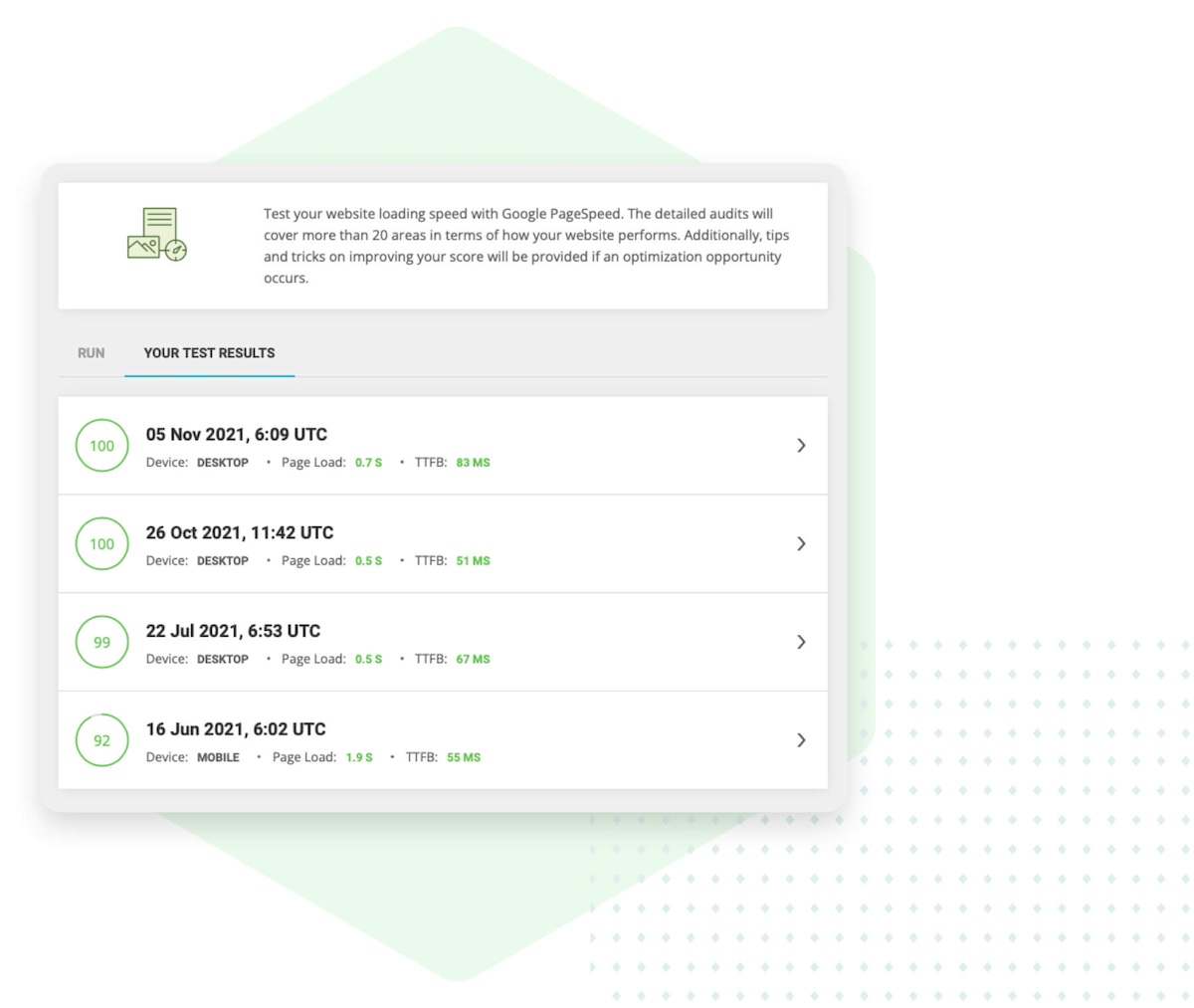
Your hosting provider is one of the main factors affecting whether your pages load quickly or slowly. Your hosting controls three critical things: 

  1. Server response time—that’s the split second between when someone clicks your link and when your server starts sending them content.
  2. Server resources—the computing power and memory your site has to work with, like the difference between a budget laptop and a high-performance computer. 
  3. Uptime—whether your site actually stays online or goes down at critical moments.

Good hosting means your pages load in under 2 seconds—Google’s threshold for good performance. It also keeps your site online when search engines come to crawl it. Both site speed and uptime directly impact your search rankings.

If your server is slow or goes down frequently, search engines may struggle to crawl your site effectively, which means your content won’t get indexed properly or rank as well as it should.

But site speed impacts SEO in multiple ways: slow-loading sites have higher bounce rates (users leave before the page loads), lower time-on-site, and fewer pages per session. All of these user behavior signals tell Google your site provides a poor experience, which directly hurts your rankings.


Choose a hosting provider that offers:

Fast server response times (under 200ms is ideal)
High uptime guarantees (in SiteGround’s case it’s 99.9%)
Content Delivery Network (CDN) integration
Automatic WordPress updates and security patches
Regular automated backups

Secure Your Site with HTTPS

Google officially stated that HTTPS has been a ranking signal since 2014. HTTPS (where the “S” stands for “secure”) means your site has an SSL certificate installed, which encrypts data between your server and visitors, protecting sensitive information. 

Browser address bar displaying the URL "https://www.siteground.com" with a refresh icon.

Apart from the SEO point of view, an SSL certificate encrypts data between your server and visitors, protecting sensitive information. Browsers now flag HTTP sites as “not secure,” which damages trust and increases bounce rates.

Since SSL certificates need to be renewed regularly (typically every three months with providers like SiteGround using Let’s Encrypt), manual management can become a hassle—and a lapsed certificate means your site suddenly shows security warnings to visitors.

That’s why it’s essential to choose hosting that includes free SSL certificates with automatic installation and renewal, ensuring your site stays secure without any ongoing effort on your part.

For WordPress users looking for hosting that handles these technical details automatically, SiteGround offers WordPress-optimized hosting with built-in speed optimization, free SSL, automated updates, and daily backups.

Check Search Engine Visibility

Even though it is obvious, it’s surprisingly common for sites to accidentally block search engines. 

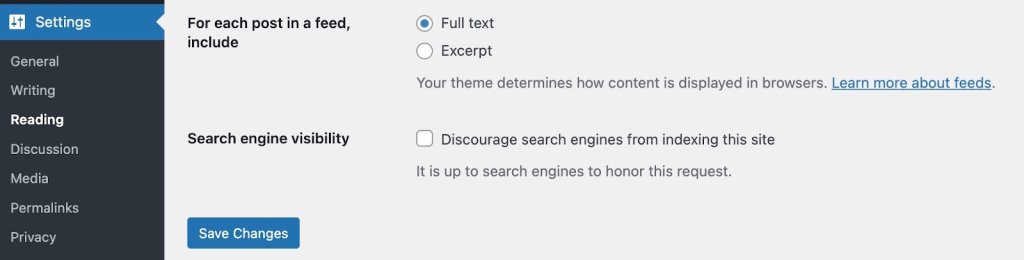
To check your search engine visibility in WordPress, go to Settings > Reading and verify that “Discourage search engines from indexing this site” is unchecked. If this box is checked, search engines won’t index your content, no matter how well-optimized it is.

WordPress settings page for Reading with options to include full text or excerpt for feeds, and a checkbox to discourage search engines from indexing the site, along with a Save Changes button.

Use SEO Plugins & Tools

WordPress doesn’t include built-in SEO features like meta descriptions, XML sitemaps, or schema markup. SEO plugins add these essential features directly to your dashboard.

All in One SEO (AIOSEO) is a popular WordPress plugin that handles automatic XML sitemap generation, meta tag optimization, schema markup, and local SEO tools—everything your WordPress site needs for technical SEO.

For advanced analysis beyond WordPress plugins, SEO PowerSuite is a desktop toolkit offering in-depth technical audits, backlink analysis, keyword research, and rank tracking. It works alongside your site to provide professional-level SEO insights.

Together, these give search engines what they need to properly crawl and index your site.

#2. Write Content That Demonstrates Expertise and Authority

Google now prioritizes content that demonstrates real expertise and experience over generic answers—if your WordPress content doesn’t show you actually understand your topic deeply, you’ll lose rankings to competitors who do, even if your technical SEO is perfect.

There’s an art to giving search engines (and, of course, your readers!) what they’re looking for. Let’s break down exactly what that looks like and how to do it effectively.

Understand and Match Search Intent

Before writing anything, ask yourself: “What do readers actually want to get out of the content they’re searching for?”

Understanding search intent is critical because Google prioritizes results that match what users are truly looking for, not just pages that contain the right keywords.

Search intent falls into four categories:

  • Informational: Users want to learn something (“how to optimize images for SEO”)
  • Navigational: Users are looking for a specific site or page (“WordPress login”)
  • Commercial: Users are researching before buying (“best SEO plugins for WordPress”)
  • Transactional: Users are ready to take action (“buy WordPress hosting”)

To understand the intent, simply perform a Google search with your target keyword and analyze the top results. What format dominates—guides, lists, comparisons, or product pages? What questions do they answer? What depth do they go into? Your content needs to match both the intent and the depth that’s already ranking.

Demonstrate Real Expertise and Experience

With AI-generated content flooding search results, Google has doubled down on rewarding content that demonstrates genuine notability, expertise, experience, authoritativeness, and trustworthiness (known as NE-E-A-T). This is where you separate yourself from generic content.

Google’s algorithms now actively look for signals of firsthand experience:

  • Share specific personal examples from your own work, not generic advice anyone could write
  • Include original data or statistics, case studies, or results you’ve personally achieved
  • Add screenshots, photos, or videos showing your actual process
  • Cite your credentials relevant to the topic—certifications, years of experience, client results
  • Show your work: Explain the “why” behind your recommendations, not just the “what”

If you’re running a food blog, don’t just list ingredients—explain why you adjusted the recipe after testing it five times, what went wrong initially, and how you fixed it. That personal experience is impossible for AI to replicate and exactly what Google wants to surface.

Provide Depth That AI Overview Can’t Match

Google’s AI Overviews now answer simple questions directly in search results, which means surface-level content gets zero clicks. Your content needs to go deeper:

  • Answer not just the main question, but the follow-up questions users have
  • Explain nuances, exceptions, and common mistakes
  • Provide context that requires real-world understanding
  • Offer strategic thinking, not just tactical steps

For example, instead of just listing “10 SEO tips,” explain when each tip matters, why it works, what happens if you skip it, and how it fits into a broader strategy.

Structure Content for Both Humans and AI

Clear structure helps search engines understand your content and helps you optimize for AI Overviews and featured snippets:

  • Use descriptive H2 and H3 headings that clearly indicate what each section covers
  • Include question-based headings that match how people actually search (“Why Does Site Speed Matter for SEO?”)
  • Use short paragraphs (2-3 sentences max) for better readability
  • Add bullet points and numbered lists for scannable key takeaways
  • Bold important concepts to help readers quickly identify crucial information
  • Create a table of contents for longer content so users can jump to what they need
Article section titled "How to Integrate an AI First Mindset into Your Business" with a subsection "1. Start with Strategy: Make AI Part of the Plan" discussing the use of AI in business strategy.

Organize Content with Categories for Topical Authority

Internal organization isn’t just for user experience—it’s a ranking factor. Proper categorization creates topical authority by showing search engines you have comprehensive coverage of a subject:

  • Categories represent your main content pillars (e.g., “WordPress SEO,” “Content Marketing,” “Technical SEO”)
  • Limit yourself to 5-10 main categories—too many dilutes your authority
  • Each category should have at least 5-10 pieces of content to demonstrate depth
  • Interlink related content within categories to show the relationships between topics
SiteGround website navigation bar with options like Web Hosting, WordPress, Website Builder, Domains, Email Marketing, and additional sections like Academy, Web Hosting, Email Marketing, WordPress, Website Building, Ecommerce, AI Trends, and Marketing.

While WordPress also offers tags, these are primarily useful for internal site organization and filtering rather than SEO. Focus your energy on building strong category structures instead.

Build Topical Authority Over Time

Rather than writing randomly about whatever keyword you find, build authority in specific niches:

  1. Choose 3-5 core topics aligned with your expertise
  2. Create comprehensive pillar content covering each topic broadly
  3. Write supporting content that goes deep on subtopics, linking back to pillars
  4. Regularly update existing content as information changes or you gain new insights
  5. Interlink related content to show the relationships between topics

Search engines reward sites that demonstrate sustained expertise in specific areas rather than surface-level coverage of everything. 

#3. Write Solid Meta Descriptions & URLs

Now that you’ve got your content in place, it’s time to give your on-page SEO a bit of polish. These elements help ensure that your pages are as appealing to search engines as they are to visitors.

Craft Compelling Title Tags

Your title tag is the clickable headline that appears in search results. It’s one of the most important on-page SEO elements because it tells both users and search engines what your page is about.

Keep them under 60 characters—longer titles get cut off in search results. Include your primary keyword near the beginning, and make them compelling enough to earn clicks. Add your brand name at the end, and make sure each title is unique across your site.

Example:

Bad: “Blog Post About Pizza”

Good: “Easy Homemade Pizza Recipe (Ready in 30 Minutes!)”

Most WordPress SEO plugins let you customize title tags separately from your page heading, giving you flexibility to optimize for search.

Write Meta Descriptions That Drive Clicks

Meta descriptions are the short snippets that appear under your page title in search results. They are your elevator pitch—you have just a moment to convince someone to click your result instead of scrolling past.

Aim for 150-160 characters—again, anything longer gets cut off in search results. Summarize the page content, include a call to action, use active voice, and slip in your primary keyword to keep things relevant and catch extra attention.

A good example of a meta description is: “Master homemade pizza in 30 minutes! Get easy tips for perfect dough, sauce, and toppings. Start now and wow your friends with your pizza skills!”

Interface showing a meta description generator with the text "Master homemade pizza in 30 minutes! Get easy tips for perfect dough, sauce, and toppings. Start now and wow your friends with your pizza skills!" and buttons for generating and inserting variables.

To make this easy, install an SEO plugin like AIOSEO. When editing a post, scroll to the SEO plugin’s section, fill in the “Meta Description” field, and preview how it looks in search results.

Create SEO-Friendly URLs

Clean, descriptive URLs help everyone understand what a page is about before clicking. They’re also easier to share and remember, and they help search engines understand your content—which is good for SEO.

Keep URLs short (under 60 characters when possible), include your primary keyword, use hyphens to separate words, and remove unnecessary stop words like “a,” “the,” “and,” or “of.”. For example: “yoursite.com/homemade-pizza-recipe/”.

When creating a post, click “Edit” next to the permalink below the title, simplify the URL slug, and click “OK.”

Input field labeled "Slug" with the value "homemade-pizza-recipe" for a post URL slug.

Note: Don’t change URLs on published pages without setting up redirects—you’ll break existing links and lose SEO value.

Optimize Your Images

Images make content engaging, but they need optimization to avoid slowing your site. Here’s how to make that happen:

Add descriptive alt text to every image—beyond SEO benefits, it’s essential for accessible web design and increasingly required by law under ADA and WCAG standards. Alt text helps visually impaired users understand your content through screen readers while also helping search engines index your images. 

Use descriptive filenames before uploading, compress images to reduce file size, and enable lazy loading to keep your site accessible, compliant, and fast.

A bad example of an alt text is “image1,” while a good one is “homemade pizza with fresh mozzarella and basil on a wooden cutting board.”

To update an image’s alt text, simply click on an image in your post, find the “Alt text” field in the block settings sidebar, write your description, and save.

Speed Up Image Optimization
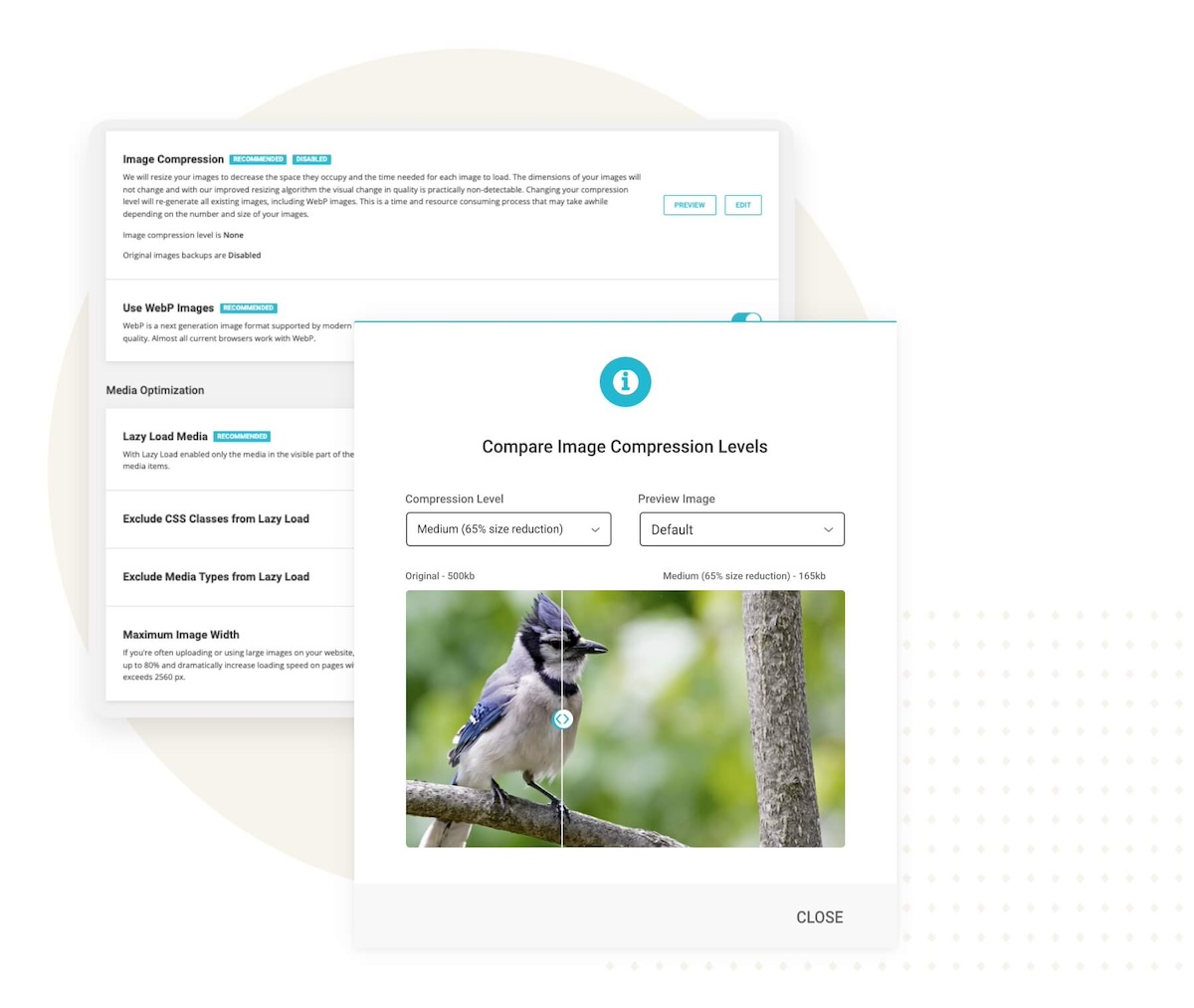
The SiteGround Speed Optimizer plugin handles image optimization automatically—compressing images, enabling lazy loading, and optimizing delivery without any manual work. You set it up once and forget about it—no manual compression or configuration needed.

#4. Link Like a Prо

Internal linking is one of the most underutilized WordPress SEO tactics. Strategic internal links distribute page authority throughout your site, help search engines discover content, and guide visitors to related information that keeps them engaged.

Why Internal Linking Matters for SEO

Internal links serve several critical functions: they distribute authority from high-ranking pages to others, help search bots discover and crawl new pages, establish which pages are most important, keep visitors engaged longer, and show search engines you have comprehensive coverage of topics.

Create Pillar Content and Topic Clusters

The most effective internal linking strategy revolves around pillar content and topic clusters.

Pillar content is a comprehensive guide on a broad topic—like this complete WordPress SEO guide. Cluster content consists of detailed posts on specific subtopics that link back to the pillar and to each other.

Example structure:

  • Pillar: “The Complete WordPress SEO Guide” (this article)
  • Clusters: “How to Submit Your Sitemap to Google Search Console,” “WordPress Page Speed Optimization,” “Local SEO for WordPress,” “Keyword Research for Blogs”

Each cluster article links back to the pillar, and the pillar links out to all relevant clusters. This creates a tight web of topically related content that search engines love.

How to implement:

  1. Identify 3-5 main topics your site will cover
  2. Create comprehensive pillar content for each (2,000-5,000 words)
  3. Write detailed cluster articles on subtopics (1,000-2,000 words each)
  4. Link cluster articles back to their pillar using descriptive anchor text (more on this below)
  5. Link from the pillar to all relevant cluster articles
  6. Interlink related cluster articles within the same topic

Use Descriptive Anchor Text

Anchor text—the clickable words in a link—tells search engines what the linked page is about. Use descriptive phrases that indicate what the linked page covers, include keywords naturally, vary your anchor text, and avoid generic phrases like “click here” or “read more.”

Bad examples: Bad: “For more information about pizza dough, click here.” 

Good example: “Learn how to make perfect pizza dough from scratch.”

Find and Fix Orphaned Content

Orphaned content refers to pages with no internal links pointing to them. Search engines struggle to find these pages, and they miss out on authority benefits.

How to find orphaned content:

  • Google Search Console: Go to Coverage or Pages, look for indexed pages with zero internal links
  • SEO PowerSuite WebSite Auditor: Run a site audit, go to Site Structure > Pages, sort by “# of Incoming Internal Links”—pages with 0-1 links need attention
  • Screaming Frog (free for up to 500 pages): Crawl your site, go to Internal > Unique Inlinks, filter for pages with 0-1 inlinks

Link to Important Pages More Often

Your most valuable pages—those that drive conversions or target important keywords—should receive more internal links. Identify your 10-15 most important pages and look for natural opportunities to link to them from blog posts and other content. Don’t force it—links should feel natural and valuable to readers.

Add Internal Links When Publishing New Content

Every time you publish new content, handle two tasks:

  • Add links FROM the new post: Include 3-5 internal links to relevant existing content, especially pillar content if applicable
  • Add links TO the new post: Identify 3-5 existing posts where the new content would be relevant and edit them to add contextual links back

This helps search engines discover new pages faster. Use your site’s search function to find posts mentioning related topics, review your categories for topically related content, or use plugins like Link Whisper that suggest relevant linking opportunities as you write.

Regularly check for:

  • Pages with few or no internal links
  • Broken internal links (404 errors)
  • Orphaned content

Use Google Search Console to check for internal 404s, or install the Broken Link Checker WordPress plugin to automatically scan for broken links.

Internal Linking Checklist for Every Post:

Before publishing, make sure you’ve:

  • Added 3-5 contextual internal links to related content
  • Linked to your pillar content if relevant
  • Used descriptive anchor text (no “click here”)
  • Identified 3-5 existing posts to update with links to this new content
  • Checked that all internal links work (no 404s)
  • Varied your anchor text naturally

Strategic internal linking compounds over time. As you build more content and strengthen connections between pages, your entire site becomes more authoritative and easier for search engines to understand.

#5. Fine-Tune Technical SEO

Technical issues like broken links, slow load times, or missing sitemaps directly prevent Google from crawling and indexing your pages—fixing these backend problems can unlock rankings for content that’s already on your site but currently invisible to search engines.

Technical SEO might sound intimidating, but it’s really about making sure search engines can easily find, understand, and properly display your content. Running a technical SEO audit helps you identify these issues so you can fix them systematically. Think of it as organizing your site in a way that makes sense to both visitors and search engines.

Here are the essential technical elements every WordPress site needs.

Optimize Your Permalink (URL) Structure

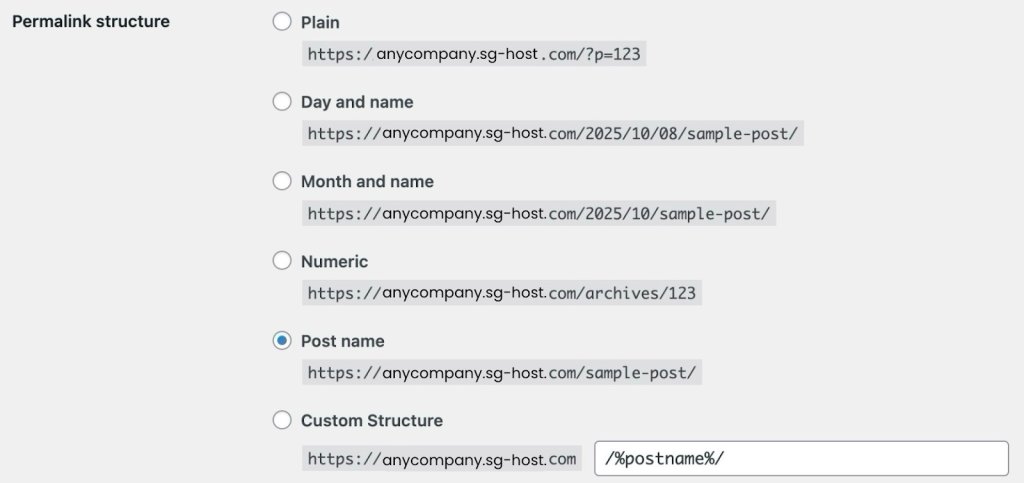
Permalinks are simply the web addresses (URLs) for your posts and pages. The structure you choose affects every URL on your site. For example, a post titled “Best SEO Tips” could look like:

  • yoursite.com/?p=123 (WordPress default—avoid this)
  • * yoursite.com/best-seo-tips/ (recommended—clean and descriptive)
  • * yoursite.com/2025/10/best-seo-tips/ (includes date—not ideal for evergreen content)
  • * yoursite.com/seo/best-seo-tips/ (includes category—good but longer)

You should aim for clean and descriptive URLs, to help everyone understand what a page is about before clicking. They’re also easier to share and remember.

To set the permalinks (URL) structure up:

  • Go to Settings > Permalinks in your WordPress dashboard
  • Select Post name (this creates the cleanest URLs)
  • Click Save Changes
WordPress permalink structure settings with options including Plain, Day and name, Month and name, Numeric, Post name, and Custom Structure, with the Post name option selected.

Important warning: Only change this setting on brand new sites. If your site is already published and ranking, changing permalinks will break all your existing links and damage your search rankings unless you’re prepared to set up technical redirects.

Set Up Your XML Sitemap

An XML sitemap is a file that helps search engines understand your website’s structure by listing its most important pages, making it easier for them to crawl and index your content. It’s like giving Google a map so it doesn’t miss anything. 

The good news? Most WordPress SEO plugins create this automatically. Here’s what you need to do:

  • Check your SEO plugin settings—your XML sitemap is usually created automatically at a URL like yoursite.com/sitemap.xml or yoursite.com/sitemap_index.xml (which organizes different content types into separate sitemaps)
  • Look for options to exclude pages you don’t want indexed (like tags, author pages, or old archives)
  • In Google Search Console, go to Sitemaps and submit your sitemap URL

Your sitemap should include your actual content—blog posts, important pages, and main category pages—while excluding administrative pages and thin content that doesn’t help visitors.

Add Schema Markup for Better Search Results

Schema markup is code that gives search engines extra context about your content. When implemented, it can make your search results stand out with star ratings, images, prices, FAQs, and other eye-catching elements that get more clicks.

Don’t worry—you don’t need to write code. Here’s the easiest way:

Using a Schema Plugin:

  1. Go to Plugins > Add New in your dashboard
  2. Search for a schema plugin like Schema Pro or Schema & Structured Data for WP
  3. Click Install Now, then Activate
  4. The plugin adds a new menu in your dashboard—click on it
  5. Choose what type of content you have (blog articles, products, local business info, recipes, etc.)
  6. Fill out simple forms with information like your business hours, author name, product prices, or recipe ingredients
  7. The plugin handles all the technical code automatically

Using Your Existing SEO Plugin:

Many WordPress SEO plugins already include schema features:

  1. When editing a post or page, scroll down to find your SEO plugin’s section
  2. Look for a tab labeled Schema or Structured Data
  3. Pick the type that matches your content from the dropdown menu
  4. Fill in the form fields
  5. Save your changes

How to Check If Structured Data is Working:

  1. Visit Google’s Rich Results Test tool or Schema Validator
  2. Enter your page URL in the search box
  3. Click “Test URL”
  4. Review the results—Google will show you what enhanced features you’re eligible for in search results and flag any errors that need fixing

Start simple: use the Article schema for blog posts and the LocalBusiness schema if you have a physical store or office. You can always add more types later.

Keep Your Database Clean

Your WordPress database is where everything gets stored—every edit you make, every comment, every setting. Over time, it collects unnecessary data that slows down your site. So think of this step like cleaning out a cluttered closet.

Here’s how to clean your WordPress database:

  1. Install a plugin called WP-Optimize or Advanced Database Cleaner (these do the work for you)
  2. The plugin will show you what’s safe to clean: old post drafts, spam comments, and expired temporary data
  3. Click to clean these items (the plugin won’t delete anything important)
  4. Set it to clean automatically once a week

Important: Before cleaning, make sure you have a recent backup of your site (most hosting providers do this automatically, but it’s worth checking).

Configure Your Robots.txt File

The robots.txt file is like a “do not enter” sign for search engines. It tells them which parts of your site to ignore so they can focus on your actual content instead of wasting time on crawling unnecessary files.

You can easily check your robots.txt file by adding “/robots.txt” at the end of your domain. Example – www.yourdomain.com/robots.txt

Most SEO plugins let you edit this easily:

  • Find the robots.txt editor in your WordPress SEO plugin settings
  • Copy and paste this basic setup (or your plugin might offer a template):

User-agent: *
Disallow: /wp-admin/
Disallow: /wp-includes/
Disallow: /wp-content/plugins/
Disallow: /wp-content/themes/
Allow: /wp-content/uploads/

Sitemap: https://yoursite.com/sitemap.xml

Here’s what each line does:

  • Disallow lines tell search engines to ignore and not crawl specific paths—in this case, your WordPress admin area (/wp-admin/), core system files (/wp-includes/), plugins (/wp-content/plugins/), and theme files (/wp-content/themes/)
  • Allow lines tell search engines these paths are okay to crawl—here, your images and media uploads (/wp-content/uploads/)
  • Sitemap points search engines directly to your sitemap

This tells search engines: “Skip my WordPress system files since they’re not useful for search results, but definitely crawl my images and check my sitemap to find all my actual content.”

Prevent Duplicate Content Issues

WordPress automatically creates multiple versions of the same content—the same post might appear in your blog feed, in category pages, in tag pages, and in date archives. For example, a single blog post titled “10 SEO Tips” might be accessible at:

  • Your main blog page: yoursite.com/blog/
  • Its individual post URL: yoursite.com/10-seo-tips/
  • A category page: yoursite.com/category/seo/
  • A tag page: yoursite.com/tag/tips/
  • A date archive: yoursite.com/2025/10/
  • Author archive: yoursite.com/author/yourname/

Each of these URLs displays the same content, either in full or as an excerpt. When search engines find identical or very similar content at multiple URLs, they don’t know which version is the “real” one to show in Google search results. 

This dilutes your ranking power—instead of all your SEO value going to one strong URL, it’s split across multiple weaker ones. Worse, search engines might choose the wrong version to rank, sending traffic to an archive page instead of your actual post.

A canonical tag is a piece of code in your page’s HTML that identifies the original version of your content. Canonical tags solve the duplicate content problem by pointing to the “main” version. Fortunately, most SEO plugins handle this automatically. To make sure it’s working:

  1. Check your SEO plugin settings to confirm canonical tags are turned on
  2. View any page on your site, right-click, and select “View Page Source”
  3. Look for a line that says <link rel=”canonical” near the top—if you see it, you’re all set

Manage Comments Without Slowing Down Your Site

Comments are great for engagement, but if you have hundreds on a single post, they can seriously slow down your page load time (which hurts SEO), and other users may try to promote their WordPress websites via the comment section on your website.

To optimize comments:

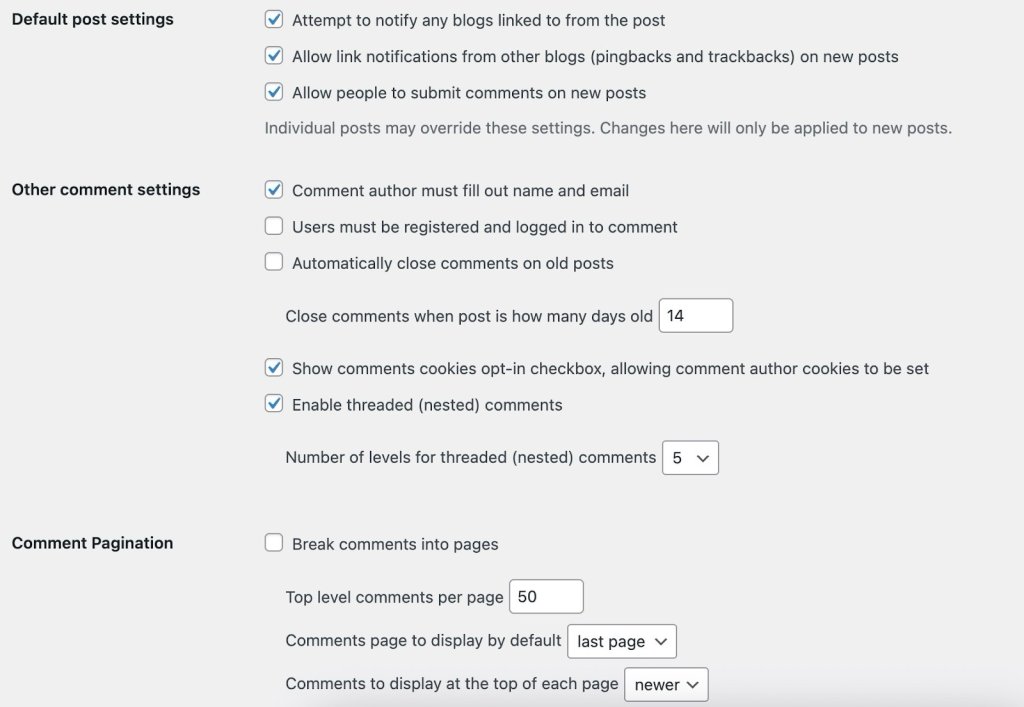
  1. Go to Settings > Discussion in your WordPress dashboard
  2. Check the box for “Break comments into pages” and set it to show 20-50 comments per page
  3. Enable “Comment must be manually approved” so you can filter out spam before it appears
  4. Require commenters to enter a name and email (reduces spam bots)
  5. Install Akismet or Antispam Bee—these plugins automatically protect your website from spam 
WordPress settings page for comment options including default post settings, other comment settings like requiring name and email, enabling threaded comments, and comment pagination settings.

If you have pages (like your About Us page or a Contact Us page) that don’t need comments, turn them off:

  1. Edit the page
  2. Look for Discussion settings in the right sidebar
  3. Uncheck “Allow comments”

Use NoFollow Links Appropriately

When you link to another website, you’re essentially giving them a small vote of confidence in Google’s eyes. The “nofollow” attribute tells Google, “I’m linking to this, but I’m not vouching for it.”

You should use nofollow for:

  • Links in comments (WordPress does this automatically)
  • Any links you’re paid to include (sponsored content or ads)
  • Affiliate links where you earn commission
  • Links to sites you don’t fully trust or haven’t verified

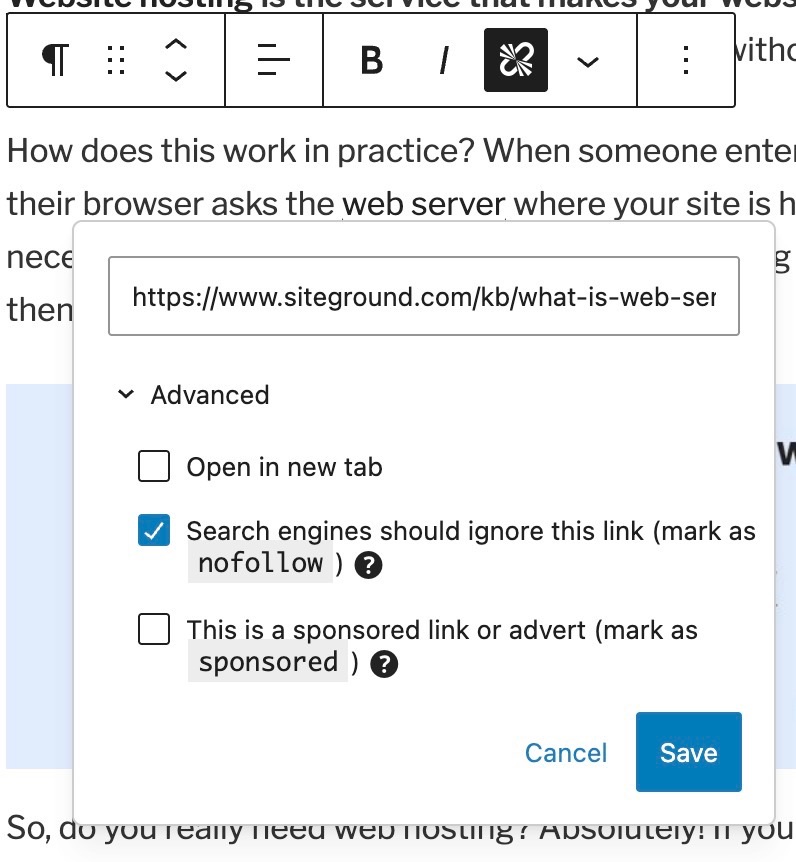
To add nofollow to a link:

  1. Highlight the text and create your link as usual
  2. Click the arrow next to the link to see more options
  3. Toggle on “Add nofollow”
Popup window with advanced link settings including options to open in a new tab, mark as nofollow for search engines, or mark as a sponsored link, with Cancel and Save buttons.

Most of your regular, editorial links to quality sources shouldn’t be nofollow—that’s normal, helpful linking that makes the web work.

Keep WordPress Updated

Running outdated WordPress software is like leaving your front door unlocked. Security vulnerabilities can get your site hacked or penalized by Google. One of the most important steps in securing your website is keeping WordPress, plugins, and themes updated.

Here’s your update checklist:

  • WordPress automatically handles small security updates—make sure this is enabled in Dashboard > Updates
  • Every few months, you’ll see a notification for bigger WordPress updates—click to update (most hosting providers make this one-click safe)
  • Keep your plugins updated—go to Plugins and click Update for any that need it
  • Delete plugins and themes you’re not using (don’t just deactivate them—actually delete them)

If you’re nervous about updates breaking something, ask your hosting provider if they offer a staging site where you can test updates before applying them to your live site.

SiteGround WordPress hosting includes staging environments, automatic updates, and one-click tools that make keeping your site secure simple.

Add Breadcrumbs for Easy Navigation

Breadcrumbs are the little navigation trails you see like: Home > Blog > SEO Tips > This Article. They help visitors understand where they are on your site and give them an easy way to navigate back.

Most SEO plugins include breadcrumbs:

  1. Go to your SEO plugin settings
  2. Find the Breadcrumbs section and enable them
  3. The plugin will provide simple instructions for adding them to your theme (usually just copying and pasting a small piece of code)

Breadcrumbs also show up in search results, making your listings more informative and clickable.

Fix Broken Links and Errors

Over time, links break—you delete old posts, external sites go down, or URLs change. These broken links frustrate visitors and waste the time search engines spend crawling your site.

To find and fix them:

  1. Sign up for Google Search Console (it’s free) and connect your site
  2. Check the Pages section regularly for “Not found” errors (404s)
  3. Install the Broken Link Checker plugin—it scans your site and alerts you to broken links
  4. For deleted posts that still get traffic, install the Redirection plugin to set up 301/302 redirects for visitors to relevant replacement content

Think of this as regular maintenance, like checking your car’s oil. A quick monthly review keeps everything running smoothly.

#6. Speed Up and Secure Your WordPress Site

Two factors can make or break your WordPress SEO: speed and security.

Sites that load in under 2.5 seconds rank significantly higher—Google measures this through Core Web Vitals scores that track loading performance, interactivity, and visual stability. 

On the flip side, security vulnerabilities like malware or missing SSL certificates can get your site flagged, penalized, or completely removed from search results.

Let’s optimize both to keep your site ranking well and your visitors safe.

Optimize Your Site Speed

Page speed is a confirmed Google ranking factor, but it also impacts user behavior. Slow sites have higher bounce rates, lower engagement, and fewer conversions—all signals that tell Google your site provides a poor experience.

Compress and Optimize Images

Images are often the biggest factor slowing down WordPress sites. Large, uncompressed images can add seconds to your load time, directly hurting your rankings.

Start by compressing images without losing quality before you upload them. You can use free tools like TinyPNG, or better yet, automate the entire process with a plugin.

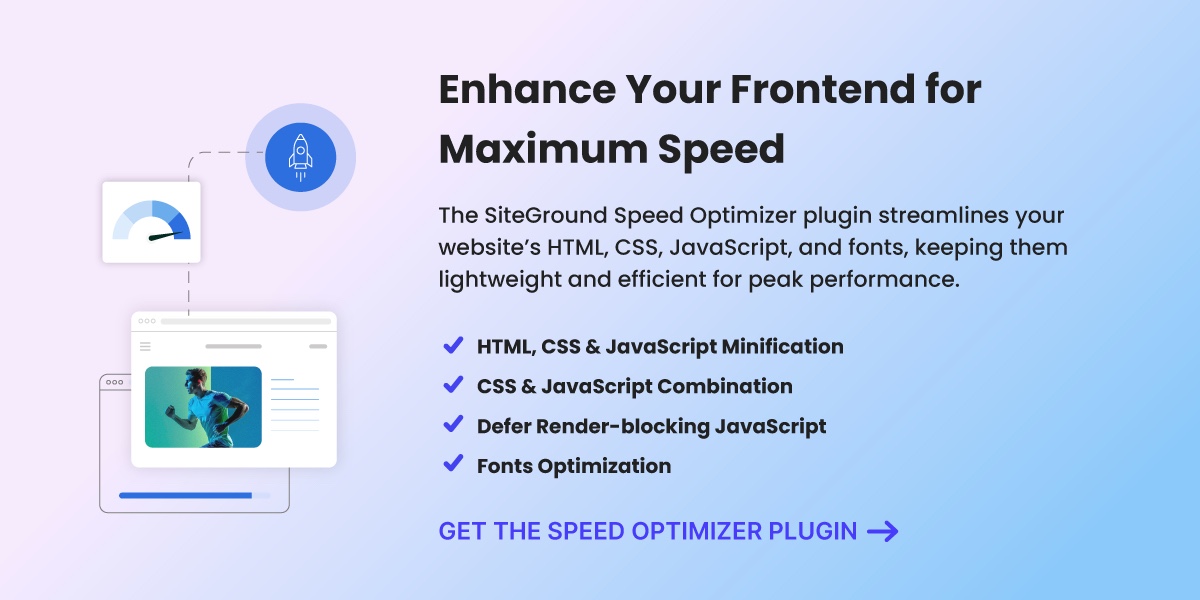
The SiteGround Speed Optimizer plugin handles this automatically—compressing images, enabling lazy loading, and optimizing delivery without any manual work. You set it up once and forget about it—no manual compression or configuration needed. It also optimizes CSS, JavaScript, and other elements that affect load times.

Use Caching

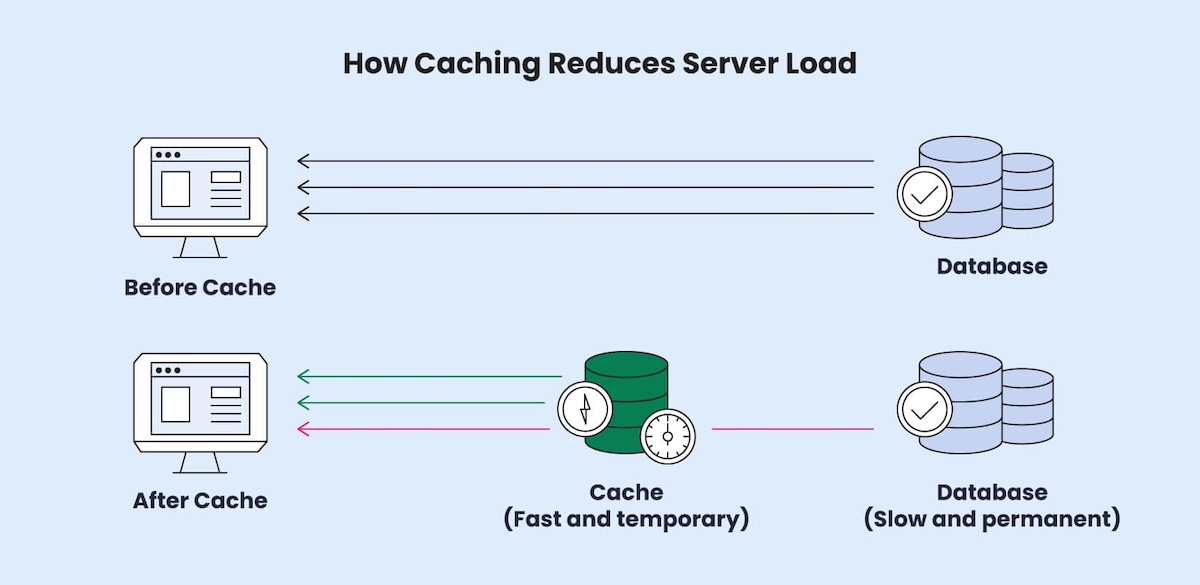
Caching stores a static version of your pages so WordPress doesn’t have to rebuild them from scratch for every visitor. This dramatically reduces server load and speeds up page delivery. The SiteGround SuperCacher automatically handles this, along with additional performance optimizations.

Every second you shave off your load time improves your Core Web Vitals scores and can move you up in rankings. Even small speed improvements make a measurable difference in both user experience and SEO performance.

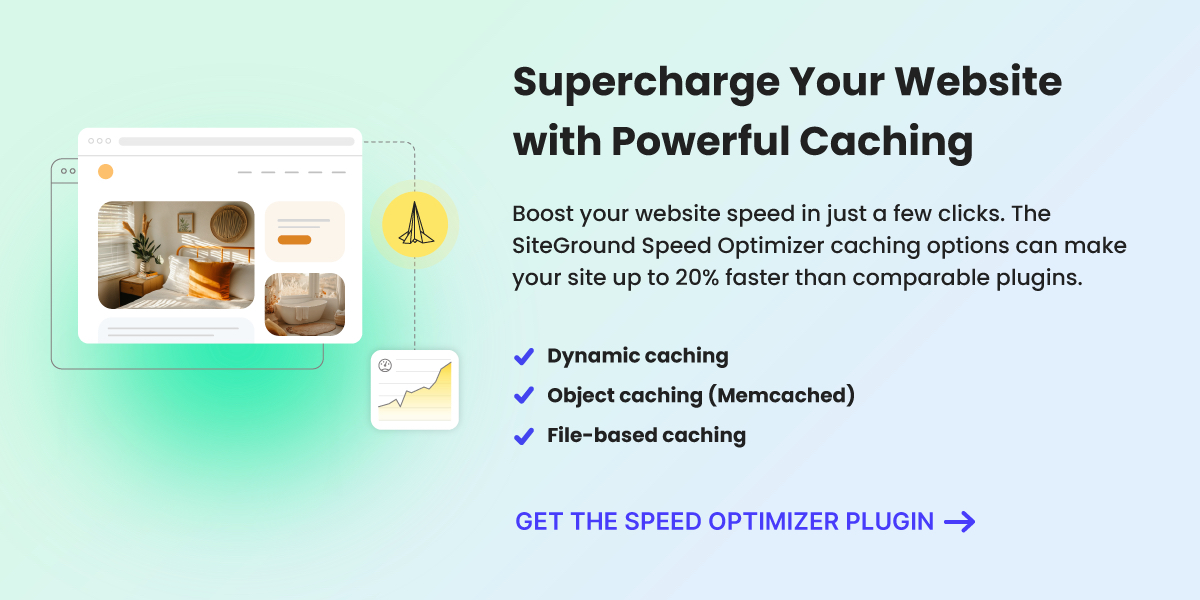
A promotional image for the SiteGround Speed Optimizer plugin, featuring a mockup of a website with a bedroom interior. The text highlights how the plugin can boost website speed by up to 20% with dynamic caching, object caching (Memcached), and file-based caching. A call-to-action button reads "GET THE SPEED OPTIMIZER PLUGIN" with a yellow rocket icon and a graph icon emphasizing performance improvement.

Protect Your Site with Security Best Practices

WordPress security isn’t just about protecting your data—it’s a ranking factor. Google actively penalizes or removes sites with security issues because they don’t want to send users to potentially harmful pages. A hacked site can lose all its rankings overnight.

Why Security Matters for SEO

When your site is compromised, several things can happen that destroy your SEO:

  • Google flags your site with security warnings, causing traffic to plummet
  • Hackers inject spam links or malicious code that gets you penalized
  • Your site could be completely removed from search results
  • Even after cleaning up, it can take months to recover your rankings

Essential Security Practices

Protect your site with these fundamental security measures:

  • Use strong, unique passwords for your WordPress admin, hosting account, and database
  • Keep everything updated: WordPress core, plugins, and themes should always run the latest versions—outdated software is the #1 security vulnerability
  • Delete unused plugins and themes entirely (don’t just deactivate them)
  • Enable two-factor authentication for an extra layer of login protection
  • Use security plugins to monitor for threats and vulnerabilities

The SiteGround Security Optimizer Plugin provides comprehensive protection specifically designed for WordPress sites. It monitors for threats, prevents common attacks, and alerts you to potential vulnerabilities before they become problems. A secure site maintains your search rankings, builds visitor trust, and protects the SEO work you’ve invested in.

#7. Keep an Eye on Progress

Now that your site is up and running, it’s important to track how it’s doing and make adjustments as needed.

SEO takes time, so set realistic expectations. It might take a few months to see results, but don’t get discouraged. Consistency and patience are key.

Use tools like Google Analytics and Google Search Console to monitor your site’s performance. Keep an eye on digital marketing metrics like traffic, bounce rates, and user behavior. For example, if you notice a high bounce rate on a particular page, it might indicate that the content isn’t engaging enough, prompting you to make improvements.

[37]

This data can help you understand what’s working and where you can improve. Keeping an eye on things regularly helps you stay on track and make smart choices.

WordPress SEO for Beginners: Next Steps

You’ve laid the groundwork for optimizing your WordPress site for SEO. From choosing the right hosting and securing SSL certificates to crafting content that aligns with what your audience is searching for, each step is crucial for enhancing your site’s visibility and performance in search engines.

Now it’s time to bring these strategies to life. Implement them one step at a time, and watch your WordPress site climb the search engine rankings.

Your journey to mastering WordPress SEO success is just beginning. Keep experimenting, learning, and adapting, and you’ll reap the rewards over time.

Happy optimizing!

A promotional banner of SiteGround's Managed WordPress Hosting services.

How to Secure a Website in 2026: 15 Critical Tactics

how to secure a website

The question “how to secure a website” might seem daunting at first. With terms like HTTPS, SSL, and firewalls flying around, it’s easy to feel overwhelmed. But the truth is that securing your website doesn’t have to be complicated if you know the right steps to take. 

In this article, we’ll walk you through the 15 most critical tactics to protect your site, your visitors, and your peace of mind.

Why Is Securing Your Website More Important Than Ever in 2025?

Securing a website isn’t just a technical best practice—it’s a necessity. As a website owner, staying ahead of evolving cyber threats is crucial.

Hacking attempts have become more advanced, and attackers now use AI-driven tools to target websites of all sizes. 

Whether you run a personal blog or manage an online store, failing to secure your site can lead to data breaches, downtime, search engine penalties, and a loss of customer trust.

Here’s why web security matters more than ever:

  • AI-powered attacks are on the rise – Hackers can now automate complex cyber attacks at scale, probing for weak spots 24/7.
  • Regulations are tightening – Laws like the GDPR, CCPA, and new regional frameworks demand stronger protections for user data.
  • Trust is everything – Visitors quickly leave insecure sites. HTTPS, a clean UX, and visible security features all boost credibility.
  • Business continuity depends on it – Downtime due to hacks or malware can cost you leads, customers, and revenue.

Securing your website today means safeguarding your brand’s reputation, your users, and your future.

Essential Tactics to Secure Your Website

Let’s dive into the most effective, up-to-date strategies for protecting your website in 2025. These tactics are actionable, proven, and scalable—no matter your website size or platform.

1. Use HTTPS with a Valid SSL/TLS Certificate

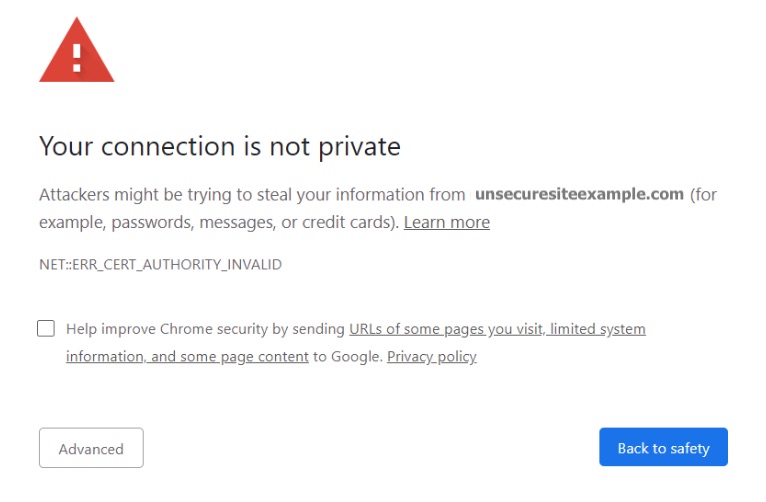
Let’s start here because the “Connection Is Not Private” error is still common in 2025—but thankfully, it’s also easy to fix.

This warning shows up when a site doesn’t use encryption to protect data. Modern browsers flag these sites to alert users that their information could be at risk. If you’re running a website—especially one that handles logins, forms, or payments—encrypting that data is essential.

The most reliable way to do this is by using an SSL (Secure Sockets Layer) certificate, which enables HTTPS. It encrypts the communication between your site and its visitors, preventing data like passwords and credit card details from being intercepted by attackers.

Good news: installing an SSL certificate is simple.

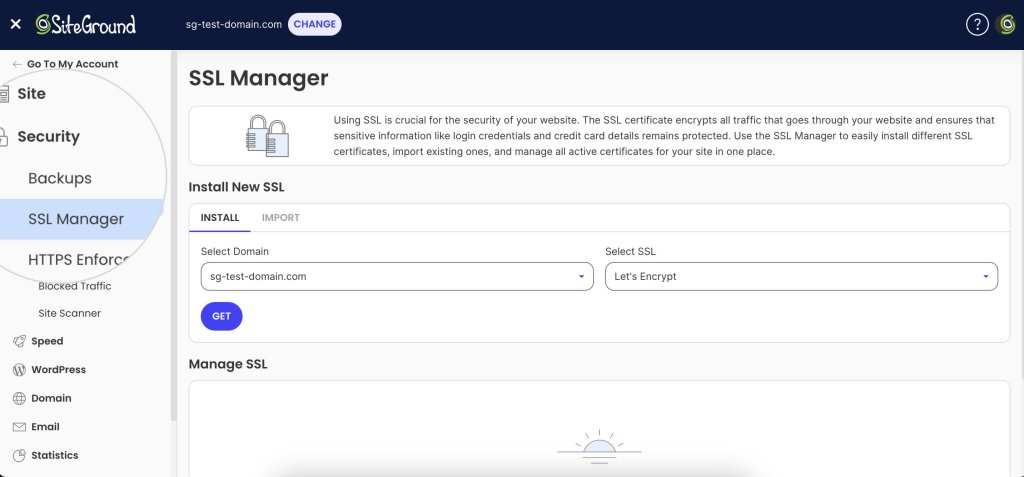
  • SiteGround includes free standard and wildcard SSL certificates in all hosting plans. To install one, go to Websites > Site Tools > Security > SSL Manager.
A screenshot of SiteGround's Site Tools dashboard, showing the SSL manager page where a user can install an SSL certificate.
  • If your host doesn’t provide one, services like Let’s Encrypt offer free SSL certificates that are widely trusted.
  • After installation, make sure your site redirects all traffic to HTTPS to enforce secure connections through all URLs.

A valid SSL certificate not only keeps your users safe—it also helps your SEO and builds trust with your audience.

2. Set Up Regular, Automated Website Backups (With a Clear Schedule)

Even with top-tier security, no site is completely immune to threats. That’s why automated backups are your best safety net—they let you restore your site quickly after hacks, server failures, or human error.

Backups should be:

  • Automatic – Manual backups are easy to forget. Automating the process means your data is protected 24/7.
  • Frequent – How often your site is updated should guide your backup frequency. Daily backups are a must, but hourly backups are ideal for high-traffic or ecommerce sites.
  • Securely stored – Your backups should be kept off-site or in a secure cloud environment, separate from your live site.

📅 Scheduling matters. Choose a backup schedule based on how often your content or data changes. For example:

  • Blogs or portfolio sites: Daily
  • Online stores or client portals: Hourly + on-demand

Many hosting providers include automated backup tools. At SiteGround, we back up sites daily and store them securely for 30 days. For advanced needs, our Premium Backup adds:

  • Hourly automatic backups
  • Up to five on-demand backups
  • Extra daily copies for added redundancy
A promotional banner for the SiteGround Premium Backups service.

Having a reliable, up-to-date backup means you’re always just a few clicks away from recovery—no panic, no downtime.

3. Create Strong Passwords and Use Two-Factor Authentication (2FA)

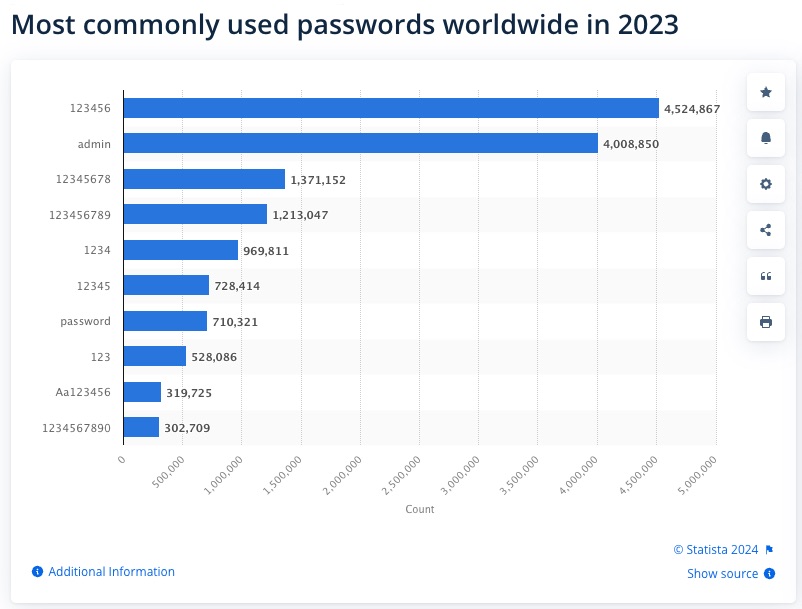
Weak or reused passwords are one of the easiest ways for hackers to gain access to your website. Brute-force attacks can crack simple passwords in seconds—so using a strong, unique username and a secure password is a must.

Here’s how to tighten your login security:

  • Use complex passwords that mix uppercase and lowercase letters, numbers, and special characters.
  • Avoid using the same password across multiple accounts.
  • Change passwords regularly, especially for administrative access users.

Even better? Add two-factor authentication (2FA).

2FA requires both your password and a secondary code (usually from your phone) to log in. That way, even if your password is stolen, your account stays protected.

If you’re using WordPress, you can enable 2FA in seconds with the SiteGround Security Optimizer plugin. If you have a different CMS (content management system) or a custom-built site, services like Google Authenticator or Authy can help you enable it easily.

This one-two combo of strong passwords plus 2FA can block most unauthorized login attempts.

4. Keep All Software, Plugins, and Themes Up-to-Date

Outdated software is a hacker’s playground. When security patches or bug fixes are released, it’s crucial to update as soon as possible. Each unpatched vulnerability is a potential entry point for attackers, which can compromise your entire site.

Here’s how to stay protected:

  • Update your core software regularly. For WordPress sites, make sure that both the core application and plugins are up to date. Ignoring updates can leave your site vulnerable to known exploits.
  • Remove unused plugins and themes. These can create unnecessary security risks, even if they aren’t active on your site.
  • Enable automatic updates wherever possible, especially for security patches.

At SiteGround, automatic updates are on by default for the WordPress core and can be enabled for plugins as well.

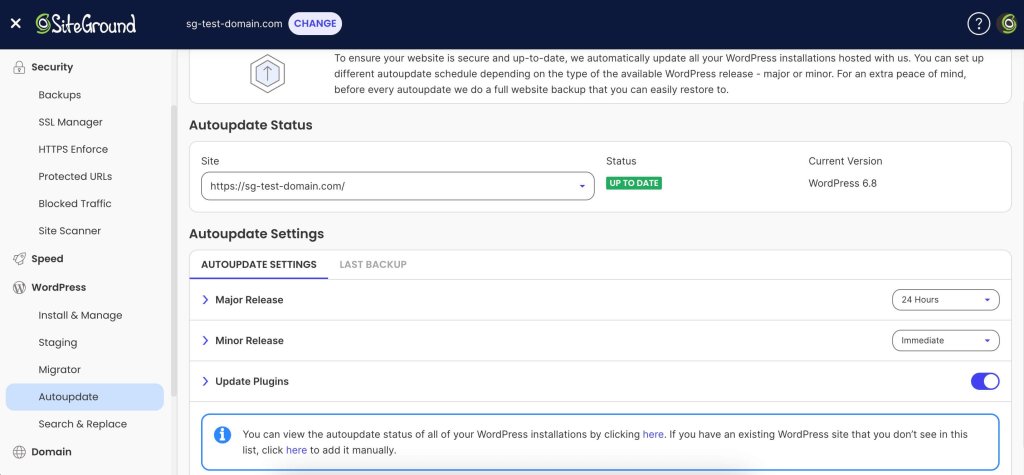
A screenshot of SiteGround's Site Tools dashboard, showing the Autoupdate page where users can manage the autoupdate settings of their WordPress core and plugins.

By keeping software up to date, you close off known security vulnerabilities and maintain the integrity of your website. 

5. Choose a Secure, Reputable Hosting Provider

Your hosting provider plays a crucial role in your website’s security. A reliable, secure hosting environment is the foundation of a safe website, and choosing the wrong host can leave you exposed to threats.

When selecting a hosting provider, consider these factors:

  • Security measures in place: Look for features like firewalls, DDoS protection, and malware scanning. A strong server security stack can prevent a range of attacks from even reaching your site.
  • Regular backups: Does your hosting provider back up your site regularly? Automated backups are essential to recover quickly in case of a hack.
  • SSL certificates: Check if they offer free SSL certificates (like SiteGround does). HTTPS is crucial for security and SEO.
  • Support availability: A good host offers 24/7 support with knowledgeable security experts who can assist if something goes wrong.
  • Reputation: Research reviews and testimonials to check if the provider has a history of secure service and good customer support.

Your hosting provider’s security should be your first line of defense—so choose wisely!

A promotional banner for SiteGround's web hosting plans, highlighting the reliability and security of SiteGround's platform.

6. Use a Secure DNS

Your Domain Name System (DNS) is responsible for translating human-friendly domain names (like yourwebsite.com) into IP addresses that computers use to identify each other on the network. 

If your DNS is compromised, attackers can redirect visitors to malicious sites, steal sensitive data, or perform phishing attacks.

To protect your site and visitors, consider the following:

  • Opt for a secure DNS provider: Good DNS providers offer advanced security features, such as DDoS protection and DNS filtering, to block malicious traffic before it reaches your site.
  • Use an anycast DNS network: A global DNS network, like SiteGround’s, increases redundancy and reduces the chances of DNS attacks or downtime.

By securing your DNS, you can protect your site from a variety of DNS-related attacks and improve its overall availability.

7. Use a Web Application Firewall (WAF)

A Web Application Firewall (WAF) acts as a shield between your website and potential threats from the internet. It filters and monitors incoming traffic, blocking malicious requests that could exploit vulnerabilities in your site’s software or code.

Here’s why you need one:

  • Protection from common attacks: WAFs block attacks like database SQL injection, cross-site scripting (XSS), and cross-site request forgery (CSRF)—all of which are commonly used by hackers to exploit site weaknesses.
  • Real-time traffic analysis: A WAF can detect and respond to suspicious activity in real-time, preventing damage before it occurs.
  • Customizable rules: Many WAFs allow you to set up custom rules tailored to your website’s needs, giving you more control over the security strategy.
  • Layered defense: A WAF complements other security measures, like SSL/TLS encryption and firewalls, adding an extra layer of defense.

At SiteGround, we offer a managed WAF as part of our hosting service, designed to protect your site against the latest threats with minimal configuration.

8. Firewall Layering

A strong website security setup doesn’t rely on a single firewall. Instead, it uses multiple layers that work together to stop threats at different points—before they can do harm.

Here are the three main layers you should look into:

  • Hosting-Level Firewall – This server-side firewall blocks common web attacks like SQL injections, XSS, and known malicious IPs before requests reach your website.
  • Application-Level Firewall – Running inside your site (e.g., via the SiteGround Security Optimizer plugin), this firewall protects against things like brute-force login attempts, suspicious behavior, or region-based access.
  • CDN-Level Firewall – Located at the network edge, this layer filters traffic even earlier — helping block bots, reduce DDoS impact, and enforce rules before requests hit your server.

When used together, these layers provide broad, overlapping protection. 

At SiteGround, this approach is built into our platform—from our AI Web Application Firewall and security plugin, to CDN-level filtering and DDoS protection. 

You don’t need to set up complex configurations—we handle it for you.

9. Do Regular Malware Scanning

Malware can silently infect your website, compromise sensitive data, damage your reputation, and ultimately—lead to downtime. That’s why regular malware scanning is essential for detecting and removing harmful files before they cause damage.

There are two primary types of scanning you should implement:

Server-Side Scanning

Server-side scans analyze the website files stored on your server to detect malicious code, hidden backdoors, or suspicious scripts. These scans can identify threats that could potentially take over your site or steal sensitive data.

  • Automate the scanning process to ensure it’s done regularly without relying on manual checks.
  • Use a reputable security tool to scan your entire website server for malware. 
A promotional banner for the SiteGround Site Scanner.

Client-Side Scanning

Client-side scanning targets vulnerabilities in the code and scripts running in your visitors’ browsers. For example, some malware attempts to exploit weaknesses in third-party JavaScript or plugins loaded on your site. Scanning for client-side issues can help detect harmful activity on the visitor’s end and block it before it spreads.

  • Monitor for suspicious requests or abnormal traffic patterns that may indicate an attack.
  • Use a WAF and security tools to keep client-side scripts safe from exploits.

Regular scanning is a critical step in identifying threats, and keeping your website clean and operational.

10. Implement CAPTCHA and Bot Mitigation

Bots are one of the biggest threats to websites, often used for activities like brute-force attacks, data scraping, and spamming. 

CAPTCHA (Completely Automated Public Turing test to tell Computers and Humans Apart) and bot mitigation strategies are effective tools to keep these malicious bots at bay.

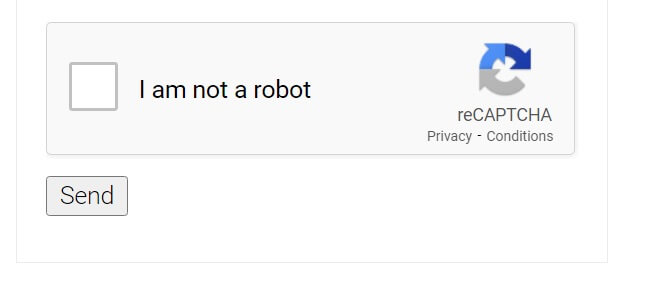
Screenshot of the "I am not a robot" captcha by Google reCAPTCHA.

Why Use CAPTCHA?

CAPTCHA challenges users to prove they are human by completing tasks that are easy for people but difficult for automated bots, such as identifying images or solving puzzles. This helps prevent bots from:

  • Brute-forcing login credentials (especially if you’ve enabled rate-limiting).
  • Submitting fake comments or spam through forms.
  • Stealing data by scraping your content or product listings.

Bot Mitigation Techniques

While CAPTCHA is a powerful tool, it’s just one part of a broader bot defense strategy. Here are additional ways to mitigate bot traffic:

  • Rate Limiting: Limit the number of requests a user or bot can make in a set time frame, preventing abuse.
  • IP Blocking: Identify and block suspicious IP addresses or those with a history of malicious behavior.
  • Behavioral Analytics: Use advanced analytics to identify unusual patterns of behavior, such as rapid form submissions or login attempts, that suggest bot activity.
  • Browser Fingerprinting: This technique tracks characteristics of browsers to differentiate between real users and bots, blocking the latter.

Modern WAFs (including SiteGround’s managed solution) have built-in bot mitigation features.

By combining CAPTCHA with additional bot mitigation measures, you can greatly reduce the impact of automated attacks on your website.

11. Enforce Content Security Policies (CSP)

A Content Security Policy (CSP) is becoming an essential security measure that helps prevent a variety of attacks, such as Cross-Site Scripting (XSS) and data injection attacks. 

It acts as a whitelist for your site’s resources, so that only trusted content is executed.

How to Set Up a CSP

Setting up a CSP is relatively straightforward. Here’s how you can implement it:

  1. Define your trusted content sources. Specify domains that can load content on your site (e.g., https://trusted-cdn.com for external JavaScript files).
  2. Configure your policy header. You’ll need to modify your .htaccess file (or use a plugin if you’re on a platform like WordPress) to add a Content-Security-Policy header to your HTTP responses.
  3. Test your policy. Before enforcing the policy, test it in staging mode to make sure legitimate content isn’t blocked.
  4. Monitor and update your policy. As your website evolves, update your CSP to reflect new trusted resources and adjust for any changes.

Here’s an example of a basic CSP header:

Content-Security-Policy: default-src 'self'; script-src 'self' https://trusted-cdn.com; object-src 'none';

This policy allows only resources from the same domain (‘self’) and from https://trusted-cdn.com, while blocking the use of plugins or embedded objects.

Key Benefits of CSP

  • Prevents XSS attacks by blocking unauthorized script execution.
  • Minimizes data injection risks by controlling where resources can be loaded from.
  • Increases user trust by enhancing the overall security of your site.

Enforcing a CSP is a step that strengthens your site’s defenses against a range of web-based attacks.

12. Adopt Zero Trust Principles: Limit Access Intelligently

The Zero Trust model assumes that no user or system should be trusted by default—even if they’re inside your network. It’s a proactive approach to security that limits the potential damage from compromised accounts or insider threats.

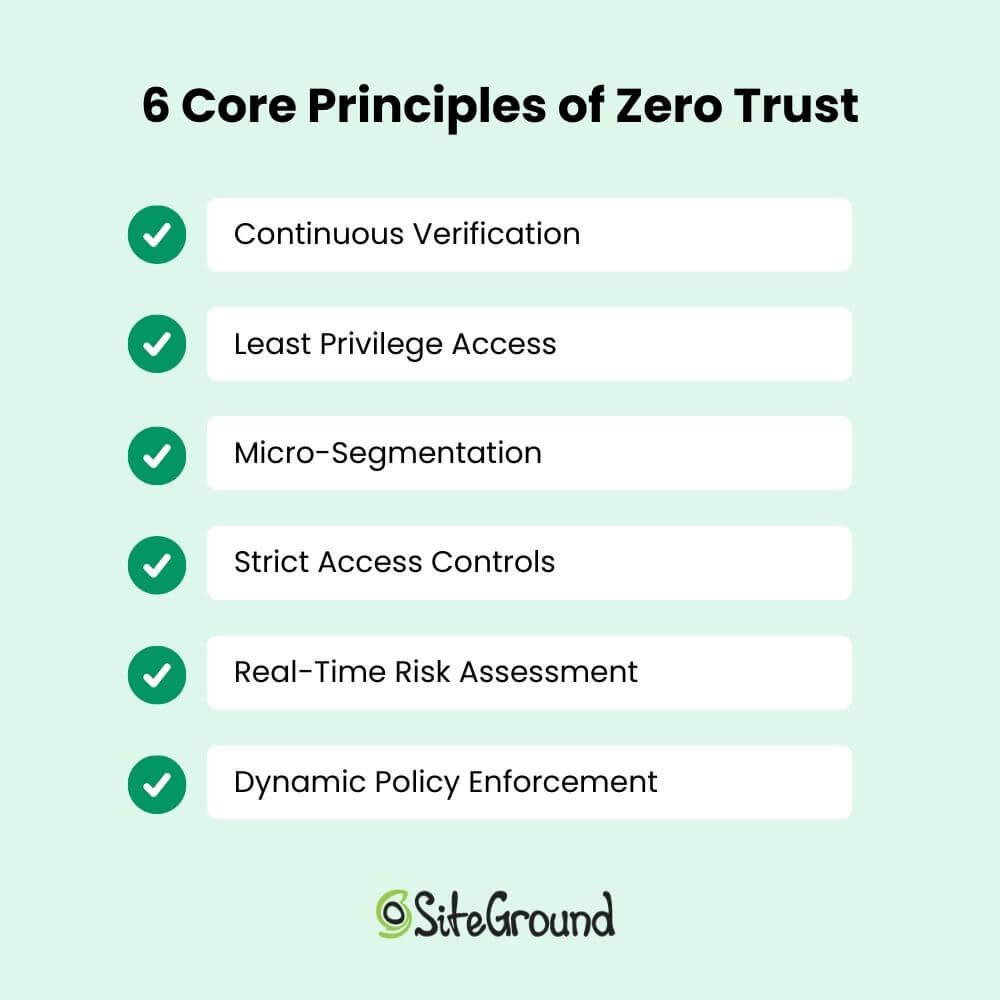
A visual list of the 6 core principles of zero trust - continuous verification, least privilege access, micro-segmentation, strict access controls, real-time risk assessment and dynamic policy enforcement.

The key idea is “least privilege access.” A practical way to apply this is with role-based access control (RBAC). This means not everyone has full control—you assign specific roles like Editor, Contributor, or Developer, each with the appropriate permissions.

For example, a content writer doesn’t need access to your site’s plugin settings, and a developer doesn’t need to edit blog posts. Keeping access tightly scoped reduces your risk surface and limits what an attacker can do if an account is compromised.

Many platforms, including WordPress, support RBAC out of the box. Hosting dashboards and FTP tools often let you create separate users with limited access as well. If you implement multi-factor authentication on top of that, you will prevent most security issues. 

13. Apply Rate Limiting and Throttling to Prevent Abuse

Rate limiting and throttling are essential techniques to control the amount of traffic or requests made to your website. These methods help protect your site from various types of attacks, including brute-force attacks, DDoS attacks, and scraping.

How Rate Limiting Works

Rate limiting involves setting a limit on the number of requests a user or IP address can make to your site within a certain time period. Once the limit is exceeded, the system will either block further requests or return an error message.

For example:

  • A user can only attempt to log in 5 times within 10 minutes.
  • An API can only be called 100 times per hour from a single IP address.

How Throttling Works

Throttling is a more flexible approach that slows down the rate of requests after a user exceeds a certain threshold. Rather than blocking further requests entirely, throttling will delay or slow down subsequent requests to prevent overload.

For example:

  • A user might be allowed to continue making requests, but their actions are slowed down to prevent abuse.
  • Slowing down the rate of requests can mitigate attacks like DDoS while allowing genuine users to continue interacting with the site.

Rate limiting and throttling are effective ways to prevent bots and attackers from overwhelming your website, ensuring that resources are available for genuine users.

14. Use a CDN for High Availability and DDoS Protection

A Content Delivery Network (CDN) is a network of geographically distributed servers that work together to deliver content to users more efficiently. By caching copies of your website’s static content (like images, videos, and stylesheets) at various locations around the world, a CDN can improve both the speed and security of your site.

Why Use a CDN for High Availability?

A CDN improves your website’s availability by distributing traffic across multiple servers.

If one server becomes unavailable or experiences high traffic, the CDN can automatically redirect visitors to another nearby server. This way your site remains accessible without downtime.

DDoS Protection with a CDN

Distributed Denial of Service (DDoS) attacks involve overwhelming your website with an excessive amount of traffic, and may cause downtime. 

A CDN can help protect your site from DDoS attacks by absorbing and distributing the malicious traffic, so it does not reach your origin web server.

  • Traffic filtering: A CDN can offer built-in DDoS protection features that analyze incoming traffic in real-time, and filter out suspicious requests before they reach your site.
  • Traffic load balancing: CDNs can evenly distribute the load from both legitimate and malicious traffic, reducing the impact of a DDoS attack.

SiteGround’s CDN takes this a step further with an “Always Online” feature. It keeps your website available even if the origin server experiences an issue. 

If your site goes offline, the CDN continues to serve cached versions of your pages to visitors.

By using a CDN, you’ll not only speed up your website’s load times but also enhance its resilience against traffic spikes and malicious attacks.

15. Secure Your Email Against Phishing and Spoofing Attacks

Email is one of the most common ways that cybercriminals target individuals and organizations. Phishing and spoofing attacks are designed to deceive users into revealing sensitive information such as login credentials, financial data, or personal details. 

Securing your email system against these common threats is critical for both protecting your website and maintaining your users’ trust.

What Are Phishing and Spoofing?

  • Phishing involves sending fraudulent emails that appear to come from legitimate sources (such as banks, online stores, or even your own company) in an attempt to trick website users into clicking malicious links or downloading harmful attachments.
  • Spoofing occurs when an attacker impersonates a trusted sender by forging the sender’s email address, often making it appear like the email is coming from someone within your organization or from a well-known service.

How to Protect Your Email

  1. Enable SPF (Sender Policy Framework) – SPF is an email authentication technique that helps to verify whether an email message comes from an authorized mail server.
  2. Implement DKIM (DomainKeys Identified Mail) – DKIM adds a digital signature to your email headers, allowing recipients to verify that the email was sent by the owner of the domain.
  3. Use DMARC (Domain-based Message Authentication, Reporting, and Conformance) – DMARC builds on SPF and DKIM, providing a mechanism for email senders to specify how email providers should handle messages that fail authentication checks.
  4. Educate Users on Phishing and Security Best Practices – The best technical protections are still not enough if your users aren’t aware of the risks. Regularly educate your team or users about phishing tactics, how to recognize suspicious emails, and the importance of verifying unfamiliar requests for sensitive information.
  5. Use Email Filtering and Spam Protection – Reputable email providers offer advanced email filtering services that help to identify and block spam and potential phishing attempts.

Securing your email system is a vital step in your overall strategy, safeguarding not only your communications but also your customers’ sensitive data.

Summary – Make Your Website Secure in 2025 and Beyond

This easy-to-follow recap summarizes all the critical tactics we’ve discussed in this article. It will give you a clear roadmap for improving your site’s security.

  • SSL/TLS Certificate: Make sure your website uses HTTPS and has a valid SSL certificate.
  • Automated Backups: Set up regular automated backups with a clear schedule.
  • Strong Passwords & 2FA: Use strong, unique passwords and enable two-factor authentication (2FA) for all users.
  • Software, Plugins, & Themes Updates: Keep your website’s software and extensions up-to-date.
  • Reputable Hosting Provider: Choose a hosting provider that prioritizes security.
  • Secure DNS: Implement a secure DNS service to prevent DNS hijacking.
  • WAF: Use a web application firewall (WAF).
  • Malware Scanning: Set up regular malware scanning.
  • CAPTCHA & Bot Mitigation: Implement CAPTCHA and bot protection to block malicious bots.
  • CSP: Enforce a content security policy (CSP) to prevent cross-site scripting (XSS) attacks.
  • Zero Trust & Role-Based Access Control: Apply Zero Trust principles and limit access by user roles.
  • Rate Limiting & Throttling: Implement rate limiting and throttling to prevent abuse.
  • CDN & DDoS Protection: Use a CDN for high availability and DDoS protection.
  • Email Security: Protect your email system with SPF, DKIM, and DMARC to prevent phishing and spoofing.

We’ll keep this list updated as security technologies evolve!

By following these best practices and staying vigilant, you can have the peace of mind that your website remains secure in 2025 and beyond.

Note: This article was originally published on January 7, 2025. It was updated on May 8, 2025, to improve clarity, include up-to-date security best practices, and reflect changes in the tools and technologies mentioned.

The Only 7 Things You Must Know to Improve WordPress Performance

A slow website is a sure way to lose visitors—and fast. When pages drag, users get frustrated and move on. But when your site loads in a flash, visitors stick around, engage more, and are more likely to take action. 

In this article, we’re sharing the 7 essential strategies you absolutely must know to optimize your WordPress site’s performance. These are the key steps to keeping your WordPress site fast, efficient, and user-friendly.

Why WordPress Speed Matters

WordPress performance matters more than you might first realize. A slow-loading site not only frustrates visitors, but it also increases bounce rates and reduces engagement. Conversely, a fast-loading site has far-reaching effects beyond just a trivial flicker of user frustration. Indeed, a high-performing WordPress website leads to:

  • Better User Engagement—User attention span these days is dreadfully short, so, not surprisingly, a fast-loading website keeps visitors from leaving before they even interact with your content. When pages load quickly, users are more likely to explore multiple pages, read articles, and, well, make a purchase, leading to lower bounce rates and higher retention.
  • Higher SEO Rankings—Did you know that Google considers page speed a ranking factor? That means the faster your WordPress speed, the more likely it is that your site appears in search results—and, of course, this enables increased website traffic. On the flip side, a slow site can lead to poor user experience, which translates to higher bounce rates, therefore negatively impacting rankings, and making it harder for potential visitors to find your site.
  • Improved Conversions—Website speed directly affects conversion rates, whether that means making a purchase, signing up for a newsletter, or submitting a contact form. Studies show that even a one-second delay in page load time can significantly reduce conversions. As such, making sure your WordPress speed is optimal means your site will run smoothly, enabling more sales, leads, and user interactions.

The 7 Best Ways to Improve WordPress Performance

Optimizing WordPress performance involves several key strategies. Below are the seven best ways to ensure your website runs efficiently and loads quickly.

1. Enable Caching

Let’s say you’ve just moved to a new city, and you need to find a good coffee shop. The first time, you check maps, read reviews, and navigate unfamiliar streets—it takes a while. But once you’ve found the best spot, you remember the fastest route and go straight there every morning. This is essentially how caching works. Instead of making the server “search for directions” (fetching data and building pages from scratch every time), it remembers the most efficient route and serves a pre-prepared version instantly, making your website load much faster. As you can imagine, this significantly reduces server load and speeds up page loading times.

Image of how caching reduces server load

Caching can work in different ways, though. There are different types of caching to consider:

  • File-Based Caching: Stores static HTML versions of pages to serve visitors more quickly. Enable file-based caching through a caching plugin or server-level configuration to generate and serve static HTML pages, reducing load times.
  • Dynamic Caching: Speeds up content-heavy, dynamic pages by reducing the need for repeated database queries. Use a web hosting provider that offers built-in dynamic caching or install a WordPress performance plugin to optimize database-heavy pages and reduce repeated queries.
  • Object Caching: Keeps database query results stored in memory, reducing the time needed to fetch data from the database. Activate object caching with a plugin or configure server-side caching solutions to store and retrieve database query results more efficiently.
Supercharge your website with powerful caching from SiteGround

2. Optimize Media

Have you ever gone to a website and had to wait patiently as fancy images and videos load ever so slowly? Surely, on at least several of these occasions, you closed the page and took your business elsewhere. You don’t want your site to be that site. 

Indeed, not surprisingly, large image files like these can drastically slow down your website—and, conversely, optimizing these images should be on your WordPress speed improvement to-do list, as it can mean faster-loading media and a faster-loading site. 

But how can you do this without compromising on quality? Here’s how:

  • Compress Images: Quite simply, make those image file sizes smaller by compressing them. You can do this by using a plugin or online tool to automatically reduce image file sizes while maintaining visual quality.
  • Enable Lazy Loading: Load images only when they appear on a visitor’s screen rather than all at once. This means that when the user, like in our example above, first lands on your page, they aren’t stuck waiting for every single image to load, but rather only those that they actually see. Enable lazy loading through your theme settings or use a WordPress performance plugin.
Media optimization with SiteGround Speed Optimizer plugin
  • Set Maximum Image Width: Resizing images every time you want to add one to your site can be a real pain, to the point that you might not resize at all (enter the slow-loading problem). The good news is that you can either configure your WordPress media settings to have a maximum width or use a plugin that allows you to specify that uploaded images do not exceed the necessary display size.  
  • Use WebP Format: WebP images offer superior compression and quality compared to traditional JPEG and PNG formats. Convert images to WebP using an optimization plugin or a manual conversion tool.

Bonus tip: With the image compression options available via the SiteGround Speed Optimizer plugin, you can reduce image size by as much as 85% without compromising quality. The plugin also allows you to set maximum image width, convert images to WebP, and enable lazy loading.

3. Streamline Frontend WordPress Performance

Images aren’t the only element slowing down your site; the visible part of your WordPress website—how it looks and functions—is built using code for design (CSS), interactive features (JavaScript), and fonts, all of which can contribute to site-load time. Optimizing these elements helps your site load more quickly and run more smoothly. Here are a few ways to do so:

  • Minify CSS and JavaScript: Reduce unnecessary whitespace, comments, and code optimizations to help files load faster.
  • Combine CSS & JavaScript Files: Reduce the number of separate file requests minimizes HTTP requests and improves loading speed; a plugin or manual file bundling can achieve this. 
  • Optimize Fonts: Limit the number of font styles and weights used, and host fonts locally if possible to decrease load times. Google Fonts, for example, can be self-hosted to prevent extra HTTP requests. Meanwhile, the SiteGround Speed Optimizer plugin, for example, lets you preload fonts that are required immediately so that you can speed up your WordPress performance.
  • Use a Theme Optimized for WordPress Performance: A well-coded, lightweight theme reduces unnecessary CSS, JavaScript, and bloat, leading to faster page speeds.
  • Updated WordPress and Plugins: Even if you have an optimized theme, it’s worth noting that regular updates of your theme and plugins can optimize WordPress performance. That’s because these updates can speed up WordPress and improve functionality, reducing the chances of slowdowns due to outdated code or plugins. To address this, enable automatic updates, manually update regularly, or opt for managed WordPress hosting with built-in caching so that your plugins and WordPress Core will always be up to date. 
  • Split Posts, Products, and Comments into Pages: Breaking up long articles and large comment or product sections prevents excessive content from loading all at once. You can enable pagination in your website settings to break up long posts, pages, and comment sections, preventing excessive content from loading all at once. Meanwhile, for products, many eCommerce platforms, including WooCommerce, allow you to enable pagination or infinite scrolling to manage large product catalogs efficiently.
Example of splitting products onto pages
Enhance your frontend speed with SiteGround

4. Manage Resource Usage

Think of your WordPress website like a closet—over time, it fills up with things you don’t need, like old files, spam comments, and outdated settings. If it gets too cluttered, it takes longer to find what you’re looking for. Cleaning up and organizing your website’s database regularly helps it run faster and more efficiently. 

There are many ways you can help optimize your resource usage—and here are some great ways to do some website spring cleaning:

  • Clean Up Your Database: Over time, your website stores unnecessary data, such as post revisions, spam comments, and expired plugin settings. Consider using a plugin to regularly clean up and optimize your database.
  • Enable GZIP Compression: GZIP shrinks website files before they’re sent to visitors’ browsers, reducing load times. Most caching plugins have an option to enable GZIP compression, or you can manually add a compression rule to your .htaccess file.
  • Avoid Uploading Media Directly to WordPress: Uploading large media files (like videos, PDFs, or backups) directly to WordPress can bloat your database and slow down your site. Instead, use external services like YouTube for videos or cloud storage for large files to keep your website lean and fast.
  • Limit Post Revisions: WordPress automatically saves multiple versions of your posts, which can be nice, but ultimately, it clutters your database over time. To prevent this, set a reasonable limit on stored revisions, such as five, using your wp-config.php file, or simply by using a speed-optimizer plugin.
Managing resource usage with SiteGround Speed Optimizer plugin

5. Monitor WordPress Performance

WordPress performance is not a static feature—it can fluctuate due to various factors such as changes in traffic, updates to content, or technical issues. That’s why regular monitoring is essential for staying ahead of potential WordPress performance problems and ensuring your site continues to load quickly and efficiently.

  • Test Web Speed Regularly: To keep your site running at its best, it’s important to test its speed periodically. Tools like Google PageSpeed Insights or Pingdom offer valuable insights into your website’s performance, highlighting any bottlenecks or areas for improvement. These tools measure overall load times and provide specific recommendations, making it easy to take actionable steps toward faster performance.
  • Monitor Core Web Vitals: While testing website speed is essential, Google’s Core Web Vitals focus more on user experience—how fast and smooth your website feels for visitors. Core Web Vitals measure metrics like loading speed (Largest Contentful Paint), interactivity (First Input Delay), and visual stability (Cumulative Layout Shift). Tools like Google PageSpeed Insights or Lighthouse help you track these metrics, ensuring that your site not only loads quickly but also provides a seamless experience for users, which is crucial for SEO rankings.
Website speed tests with SiteGround Speed Optimizer plugin

The SiteGround Speed Optimizer integrates Google PageSpeed Insights into its dashboard for easy performance monitoring. The Speed Test feature checks optimization across 20+ areas and provides actionable tips. Plus, it saves test results, so you can track progress and pinpoint recurring issues.

Install the Speed Optimizer Plugin now>>

6. Use a CDN

A content delivery network (CDN) speeds up WordPress website performance by distributing copies of your content across multiple servers worldwide. So when a visitor accesses your site, the content is delivered from the nearest server, reducing loading times and providing a smoother experience.

Many managed hosting providers, such as SiteGround, include built-in CDN options as part of their services. This offers several advantages, including easy setup, seamless management, optimized performance, enhanced security, and integrated support—all without needing a separate service. Alternatively, you can implement a CDN independently, allowing you to use any provider regardless of your hosting platform.

Graphic of how a CDN works

7. Pick Your Web Host Carefully

This list wouldn’t be complete without mentioning web hosting, as a good hosting provider directly impacts your website’s performance. You could enthusiastically tackle all the above steps, and then a slow or unreliable host could simply negate all your optimization efforts. When selecting a hosting provider for WordPress performance, consider the following:

  • Speed and Reliability: Choose a host with fast server response times and high uptime guarantees to enable consistent performance.
  • Optimized Hosting for WordPress: Managed WordPress hosting offers performance-focused optimizations, such as caching and server configurations, that speed up WordPress and improve security.
  • Scalability: Select a host that can seamlessly handle traffic spikes without causing slowdowns, ensuring smooth performance during peak times.
  • Latest PHP Version: The latest PHP version improves processing speed & security, and supports better performance for dynamic WordPress websites.
  • DNS-Level Website Firewall: A DNS-level firewall reduces server load and mitigates potential threats before they reach your site, leading to a faster, safer user experience.
  • Content Delivery Network: As we discussed above, a CDN improves load times by caching and distributing your content across multiple servers worldwide, ensuring that visitors receive it from the nearest server for faster delivery.
7 things you must know to improve wordpress performance

Take Action Today to Speed Up WordPress Performance

Improving WordPress performance isn’t just simply about speed—it’s about enhancing user experience, improving SEO, and increasing conversions. By implementing the seven must-knows above, you can rest easy knowing that your site is running at peak efficiency.

Here at SiteGround, we work hard to make sure that your WordPress site performs at its best, and with as little effort on your side as possible. Our high-performance hosting and free Speed Optimizer plugin make this possible, working together to ensure your site runs smoothly and efficiently.

[106]

The Complete WordPress Security Guide + the Best Fixes

WordPress powers over a whopping 40% of the web. That’s an awful lot of websites—and also a lot of prime targets for hackers. And it doesn’t matter whether you run a personal blog or a booming business website, your site is ripe for attack. That means strong WordPress security is absolutely nonnegotiable. 

A compromised website is no laughing matter. It can lead to stolen data, lost revenue, and damage to your brand’s reputation. Fortunately, with the right WordPress security measures—often super easy to implement, but with a big security impact—you can significantly reduce the risk of attacks and keep your site running smoothly. In this guide, we’ll explore all the best ways to keep your WordPress security in tip top shape.

Why Is WordPress Security Important?

WordPress website security isn’t just about preventing cyberattacks—it’s about having a plan to protect your visitors, business, and online credibility. A vulnerable WordPress site can suffer from malware infections, data breaches, and unauthorized access, leading to serious consequences. Let’s break down the key reasons why WordPress security should be front of mind.

Prevent Reputation Damage

Your website is a reflection of your brand. If it gets hacked, infected with malware, or defaced, visitors will lose trust in your business, and once your reputation is damaged, it’s challenging to regain customer confidence. Implementing strong WordPress security best practices protects your brand image and makes sure visitors feel safe when using your site.

Improve SEO Rankings

Search engines like Google prioritize secure websites in their SEO rankings. Conversely, if your site is hacked and flagged for malware, it can be removed from search results or display security warnings to visitors. For example, Google’s Safe Browsing feature alerts users when they try to access an unsafe website, drastically reducing traffic. By maintaining a secure WordPress site, you can protect your rankings so that your content reaches your audience.

Avoid Traffic & Sales Loss

A hacked website can lead to downtime, slow performance, and broken pages—all of which can be a major turn off for potential customers. Indeed, if they can’t access your site or feel unsafe making a purchase, you risk losing valuable sales both now and down the road. Cyberattacks can also lead to stolen payment information, further deterring users from doing business with you. Prioritizing WordPress security addresses this by helping maintain site uptime, fast loading speeds, and a seamless user experience—all so that you don’t lose traffic or revenue.

How to Secure a WordPress Site

Now that we’re all on the same page about the importance of WordPress security, it’s time to get serious and take action. Securing your WordPress site involves a combination of best practices, tools, and proactive measures to prevent cyber threats. From keeping your software updated to implementing strong authentication protocols, there are quite a few steps you can take to protect your website. So in the following sections, we’ll walk you through the best WordPress website security tips to safeguard your site and ensure its long-term security.

1. Keep Themes and Plugins Updated 

Outdated themes and plugins are one of the most common entry points for hackers, and that’s why developers regularly release updates that fix website security vulnerabilities and improve performance. As such, by keeping your themes and plugins up to date, you substantially reduce the risk of WordPress security breaches.

It’s not just your active plugins that can cause a problem though; inactive or unused themes and plugins can still pose a security risk, even if they’re not being used. Because hackers can exploit vulnerabilities in outdated code, it’s best to delete any unused themes and plugins to minimize these potential threats. 

One rather obvious (but tedious) way to do this is to regularly audit your site and remove anything that is no longer necessary to keep your WordPress installation lean and secure.

Or, you can simply automate these updates so that you don’t have to do it manually. These options can be enabled via your WordPress dashboard, or you can lean on your hosting provider to take care of it for you. 

Why bother with managed WordPress hosting when you can enable auto-updates yourself? Because, notably, managed WordPress hosting with tested updates ensures updates are tested and monitored, and that your site is backed up—all reducing the risk of site crashes or WordPress security vulnerabilities. Sprinkle in expert customer support for added peace of mind, and you have some very solid reasons for using a managed WordPress hosting option.

[106]

2. Make Sure You Have the Latest WordPress Version

Similar to themes and plugins, WordPress regularly releases updates to improve security, fix bugs, and enhance performance. And, also like themes and plugins, running an outdated version of WordPress leaves your site vulnerable to known exploits and cyber threats. That’s why it’s super important to make sure your WordPress Core is up to date by enabling automatic updates or checking for new releases manually.

Again, you can easily do this via your WordPress dashboard, or, if you have managed hosting, you can let your provider handle it for you. The benefits here are the same in that with managed hosting, you can count on testing, backups, and monitoring, all which address compatibility issues and minimize the risk of site downtime or conflicts.

3. Add Login Security

Not surprisingly, your WordPress login page is a primary target for hackers attempting brute-force attacks. So strengthening login security is one of the easiest ways to prevent unauthorized access and protect your site from malicious activity—here’s how:

  • Use Strong Passwords: A weak password makes it easier for hackers to gain access to your site. Use a long, complex password with a mix of letters, numbers, and symbols. 
  • Limit Login Access & Login Attempts: Restricting login attempts helps prevent brute-force attacks. You can set a limit on failed login attempts by using a security plugin.
  • Auto Logout Inactive Users: If users remain logged in but inactive for long periods, they could become an easy target for session hijacking. This can be addressed by implementing auto logout functionality using a security plugin.
  • Change Default Login Username: Avoid using “admin” or other common usernames, as they are easier for hackers to guess. Instead, create your own unique, unguessable administrator username.
  • Enable Two-Factor Authentication (2FA): 2FA adds an extra layer of WordPress security by requiring a second verification step, such as a mobile authentication code. Again, a security plugin is your best bet for accomplishing this.
Two-factor authentication QR code example
  • Create a Custom Login URL: Use a security plugin to change the default WordPress login URL (such as, yoursite.com/wp-admin), which can reduce automated attacks.
  • Disable Common Usernames: Hackers often target common usernames like “admin” or “editor.” Disable these and enforce strong, unique usernames for all users.
SiteGround free Security Optimizer Plugin

4. Manage User Permissions

So you can have everything controlled in terms of who can enter your WordPress backend, but if you don’t have user roles and permissions properly dialed, then your login efforts are a waste. 

Indeed, one of the most overlooked aspects of WordPress security is managing user permissions properly. Every user on your website should have only the access they need—and nothing more. This minimizes the risk of accidental changes, unauthorized access, or security breaches. Here are some WordPress security best practices when it comes to user permissions:

  • Use the Principle of Least Privilege: Assign roles based on necessity, following the principle of least privilege.
    • Administrator – Full control over the site. Limit this role to trusted users only.
    • Editor – Can publish and manage all content but cannot change site settings.
    • Author – Can publish and manage their own posts only.
    • Contributor – Can write and edit their own posts but cannot publish them.
    • Subscriber – Can only manage their own profile and leave comments.
  • Remove Unused or Inactive Users: Maybe once upon a time you granted editor access to a freelance developer, but they no longer work with you. This becomes a WordPress security vulnerability. As such, it’s important to regularly audit your user list and remove inactive accounts, especially former employees, contributors, or developers who no longer need access.

5. Monitor Activity

Now, let’s say, for some reason, your measures above just weren’t enough—something or someone managed to slip through the cracks. That’s why a super smart tip is to always monitor your WordPress site activity. This helps detect suspicious behavior early and prevent security breaches. By keeping an eye on user activity, login attempts, and changes to critical files, you can respond quickly to potential threats. Here’s what to keep an eye on: 

  • Activity Log: An activity log records all significant actions taken on your site, monitoring login attempts, changes to posts, plugin installations, and user role modifications. Tracking this information helps you identify unauthorized access, suspicious changes, or potential WordPress security risks. 
Image of a WordPress security activity log
  • Weekly Security Reports: Regular security reports provide an overview of your site’s security status, highlighting vulnerabilities, malware detection, and login attempts. Certain WordPress security plugins, such as the SiteGround Security Optimizer, offer automated reports to help you stay informed about potential threats. Reviewing these reports regularly allows you to take preventive action before issues escalate.

6. Back Up Your Site Regularly

If something happens to your site, you’ll thank yourself later for having ensured regular site backups. That’s because if your site is hacked, experiences a critical failure, or is affected by an update gone wrong, having a recent backup means you can restore your website quickly. Without backups, you risk losing valuable data and time trying to recover your site manually.

Use a reliable backup solution that allows you to schedule automatic backups and store them securely offsite. In fact, many hosting providers offer built-in and automated backup options, but the use of certain plugins is also an option.

Image of daily website backups

Make sure to back up your database, files, themes, and plugins, and periodically test your backups to ensure they work correctly. A well-planned backup strategy can save you from unexpected disasters and loads of stress by keeping your WordPress site protected.

At SiteGround, we provide daily automatic backups of your website, securely stored for 30 days in our data centers. For even greater protection, our Premium Backup Service includes automatic hourly backups, five extra on-demand backups, and seven additional daily backups beyond those already included in your plan.

7. Install SSL

Securing your WordPress site with SSL (Secure Sockets Layer) is simply not optional. That’s because it encrypts data transmitted between your site and its visitors, protecting sensitive information such as login credentials, payment details, and personal data from being intercepted by malicious actors.

The good news is that many hosting providers offer free SSL certificates. At SiteGround, for example, we provide free standard and wildcard SSL certificates with all of our hosting plans—and the standard SSL certificate even comes preinstalled for extra peace of mind. 

Once your SSL certificate is installed, you’ll also want to be sure your site is fully configured to use HTTPS by updating your WordPress settings and implementing a redirect from HTTP to HTTPS. 

HTTPS browser bar

It’s also worth noting that having SSL not only enhances WordPress security but also boosts SEO rankings, as search engines like Google prioritize secure websites. Additionally, visitors can see a padlock icon via their browser, reinforcing trust in your website and improving user confidence. 

8. Protect Against Malware

Malware can compromise your site’s security, steal sensitive data, and even redirect visitors to harmful websites. Regular security checks—whether automated or manual—help identify threats early, minimizing potential damage.

On one hand, certain WordPress security plugins provide malware protection. On the other hand, a reputable hosting provider should offer built-in security features like real-time threat monitoring and automatic malware removal. SiteGround, for example, offers Site Scanner, which runs daily essential security checks and malware scans, detecting and removing threats. This allows you to take action before such threats cause serious harm to your website. 

Protect your site from Malware with SiteGround Site Scanner

9. Disable File Editing

WordPress allows administrators to edit theme and plugin files directly from the dashboard, but this feature can actually end up being a security risk. That is, if a hacker gains access to your admin panel, they could inject malicious code into your site and cause all sorts of problems. 

Disabling file editing of themes and plugins addresses this by preventing unauthorized changes. This can be done by modifying your site’s configuration file or, more simply, by using a WordPress security plugin. For further security, consider restricting file access with proper permissions (as we’ve previously discussed) and implementing a Web Application Firewall (WAF).

10. Set Up a Firewall

“Wait, what is a firewall?” you ask. A Web Application Firewall is one of the most important tips when it comes to protecting your WordPress site from malicious attacks. That’s because it monitors incoming traffic and filters out harmful requests, such as those used in brute-force attacks, cross-site scripting (XSS), and SQL injection attempts.

You can implement a firewall at two levels: application-side and server-side. Application-side firewalls focus specifically on your WordPress application, filtering out malicious requests that target vulnerabilities in WordPress themes, plugins, and core files. A security plugin is a good solution for protecting your site at the application level. 

Server-side firewalls, on the other hand, are ideal, as they protect your entire server and can block traffic from known malicious IP addresses. Many WordPress hosting providers include firewall protection as part of their services, adding an additional layer of security. 

At SiteGround, our hosting services come with a built-in Web Application Firewall (WAF) for strong, proactive security. We continuously update it with the latest threat rules to protect your site from emerging cyberattacks. Best of all, since it’s managed at the server level, you don’t need to configure anything—it’s protection that works seamlessly in the background.

11. Take Post-Hack Actions

Let’s say the worst case happens. Your efforts above just weren’t enough and your WordPress site has been hacked. Now it’s time to take post-hack actions in order to minimize damage and restore security. Here are a few key tips to keep in mind after a WordPress security breach:

  • Reinstall All Plugins: Hackers often inject malicious code into plugins. To ensure your site is clean, reinstall all plugins from trusted sources. Delete any suspicious or outdated plugins and replace them with fresh installations from the WordPress repository or their official developers.
  • Force Password Reset: After a hack, assume that all passwords have been compromised. Require all users to reset their passwords immediately. Use a WordPress security plugin to enforce strong password policies and prevent weak credentials from being reused.
  • Log Out All Users: To prevent further unauthorized access, log out all users and force reauthentication. This step ensures that any malicious users or sessions are terminated. Again, many security plugins offer an option to force logouts site-wide.
Best WordPress Security Fixes

Putting your WordPress Security Plan in Place

Keeping your WordPress site secure might seem like something for a super smart tech team, but the reality is that many of the most effective best practices and security tips are actually quite easy to implement. And while you can tackle each issue individually—like keeping software updated, using strong login credentials, and installing an SSL certificate— the best approach is a comprehensive one.

By choosing a reliable web hosting provider, opting for managed WordPress hosting, and using a strong WordPress security plugin, you can cover most of the key security concerns in one go. That’s because a solid host will handle essential security measures like automatic updates, backups, and server protection, while a security plugin can help with everything from login protection to activity monitoring.

At the end of the day, WordPress security isn’t about a single fix—it’s about layering your defenses to protect your site from all angles. Start with the essentials, stay proactive, and your website will remain safe, fast, and resilient against potential threats.

Choose a reliable web hosting provide - SiteGround

This article was originally published in January 2022 and updated in February 2025.

11 Must-Have WordPress Plugins For Your Website

Featured image for the blog post about must-have WordPress plugins

WordPress isn’t just a content management system – it’s a powerhouse with over 60,000 plugins ready to up your site’s performance and functionality. But let’s be honest: with so many options, it can feel like searching for a needle in a haystack. How do you know which plugins are worth your time?

To help you out, we’ve put together a list of 11 must-have WordPress plugins that will equip your site with the features it needs to succeed. Whether you’re optimizing the backend, enhancing the design, or improving SEO rankings, these plugins have you covered.

11 Must-Have WordPress Plugins

Discover the most essential plugins for WordPress, handpicked by our expert developers, that can enhance all types of websites, from online stores to personal blogs.

1. Build Custom Pages with Elementor

Banner for the Elementor plugin within the WordPress repository

While WordPress allows you to create websites without coding and simplifies much of the backend work, it does have limitations in terms of building blocks, theme templates, and overall design flexibility. To address this, Elementor, a popular website and page builder, integrates with WordPress to offer powerful drag-and-drop visual editing and enhanced web-building capabilities.

With Elementor, your webpage transforms into a canvas where you can add, move, and style elements in real-time. It provides a wide array of widgets and templates for crafting professional-looking pages. Additionally, you can apply custom CSS to entire pages or individual elements, which is particularly useful for integrating tracking codes from tools like Facebook Pixel or Google Analytics into headers or footers.

Unlike many plugins that offer limited features in their free versions, Elementor’s free version is generous with functionality, allowing you to create a simple, yet functional website. If you need additional features beyond what the plugin offers, its extensive ecosystem of third-party extensions allows you to further enhance your website’s appearance and capabilities.

Pricing (freemium): 

  • The basic version of Elementor is available in the WordPress plugin repository for free.
  • Elementor also provides premium features in tiered subscriptions, starting at $59 per year.

Key features include:

  • Dedicated landing page tool
  • Popup builder
  • Floating buttons
  • Revision history
  • Zapier and WooCommerce integration

2. Create Contact Forms with WPForms

Banner for the WPForms plugin within the WordPress repository

Contact forms are an essential addition to any WordPress site because they allow your visitors to easily get in touch with you. Beyond facilitating communication, they help you build relationships and foster trust with your visitors, making your site feel more personal and approachable. While WordPress doesn’t include built-in form functionality, WPForms fills this gap effectively.

WPForms is a popular drag-and-drop form builder that lets you add any type of form to your website – feedback forms, payment forms, you name it. The plugin includes over 2,000 professionally designed templates that are fully optimized for all devices and comply with GDPR regulations. You can also convert any form into a landing page to increase conversions, and it offers customizable permalinks for easy promotion across social media, email, and other marketing channels.

Additionally, WPForms comes with various addons that allow you to track the customer journey of your website visitors, enable user registration, and much more. 

Pricing (freemium): 

  • The basic version, WPForms Lite, is available in the WordPress plugin repository for free.
  • WPForms also offers premium features in tiered subscriptions, starting at $99 per year.

Key features: 

  • Built-in spam protection
  • Collection of visitors’ geolocation data
  • Auto-save of partially completed forms 
  • Offline forms for submission collection without internet
  • Custom form confirmations with success messages or thank you pages

3. Restrict Content with Ultimate Member 

Banner for the Ultimate Member plugin within the WordPress repository

Now that you’ve built your website – whether it’s a blog, an online store, or a community forum – and you’re happy with the results, you might want to restrict access to certain areas in exchange for a fee. Ultimate Member provides everything you need to manage memberships, subscriptions, and member-exclusive content seamlessly.

With Ultimate Membership, you can establish multiple membership levels, each featuring its own pricing, rules, and benefits. This flexibility enables you to tailor your offerings to suit the unique needs of your audience, whether you’re providing a single product subscription, a tiered content access system, or a combination of both.

Moreover, the plugin is fully integrated with WooCommerce, making it an ideal solution for online business owners who want to provide special pricing, discounts, or exclusive products to their members.

Pricing (freemium):

  • The basic version of Ultimate Member is available in the WordPress plugin repository for free.
  • Ultimate Member also provides premium features in tiered subscriptions, starting at $249 per year.

Key features:

  • Flexible membership plans
  • Hassle-free subscription management
  • Content restriction
  • Automated recurring payments
  • Insightful membership reports

4. Fortify Your Site with SiteGround’s Security Optimizer 

Banner for the SiteGround Security Optimizer plugin within the WordPress repository

A website owner’s worst fears – such as a damaged reputation, loss of traffic, and poor SEO rankings – can become a reality if security measures are lacking. To prevent this from happening, consider safeguarding your WordPress site with the Security Optimizer plugin, developed by the experts at SiteGround and trusted by over 1,000,000 users worldwide.

The plugin brings together all essential security features for your WordPress site into one user-friendly package, eliminating the need for multiple plugins. It covers advanced login protection, firewall configuration, and activity monitoring. Additionally, It secures your site by safeguarding critical system folders, blocking unauthorized access, and tracking all activity for suspicious behavior. If a breach occurs, the detailed activity logs help you quickly understand what happened and take action to fix it.

The Security Optimizer plugin is compatible with every hosting provider, and it comes preinstalled with all new WordPress installations hosted at SiteGround. 

Pricing: free 

Key features:

  • Disabling of XML-RPC, RSS, and ATOM feeds
  • Enabling of advanced XSS protection
  • Limitation of login access and attempts
  • Creation of custom login URL
  • Enabling of two-factor authentication (2FA) for admins and editors
  • Monitoring of visits, bots, and login attempts
  • Blocking of suspicious IPs

🛡️Safeguard your website against malicious attacks by following our security tips!

5. Combat Spam Effectively with Akismet

Banner for the Akismet plugin within the WordPress repository

All websites are targets for bots that scour the internet, attempting to send spam through comments and form submissions. The Akismet plugin, a cloud-based application, filters spam on your WordPress site without using your server resources. Developed by Automattic, the company behind WordPress, the plugin has been downloaded over six million times.

Akismet tackles spam through two primary methods. First, it analyzes comments and form submissions by comparing them to its extensive database of known spam entries. Second, it assesses user behavior on your web pages to distinguish between humans and spambots.  

When spam is detected, Akismet either automatically blocks it or moves it to the WordPress spam folder for you to review, ensuring that your forms do not store any spam entries.

Pricing (freemium): 

  • The basic version of Akismet is available in the WordPress plugin repository for free, but only for small non-commercial websites.
  • For commercial websites, Akismet offers premium features in tiered subscriptions, starting at $8.33 per month when billed annually.

Key features: 

  • Automatic comment spam filtering
  • Comment status history tracking
  • URL visibility in comment body
  • Moderator view of approved comment counts
  • Discard feature for blocking severe spam

6. Maximize Performance with SiteGround’s Speed Optimizer

Banner for the SiteGround Speed Optimizer plugin within the WordPress repository

You’ve likely experienced the frustration of a slow-loading website as a user. But as a website owner, it’s important to know that every extra second a page takes to load can lower your conversion rates by an average of 7%. Additionally, Google factors site speed into its ranking algorithm, so a slow-loading website can negatively affect your SEO score.

But no need to worry, with SiteGround’s award-winning Speed Optimizer plugin, you can instantly boost your WordPress site’s speed and performance without installing multiple plugins. It optimizes all aspects of your site, from streamlining code and files for HTML, CSS, JavaScript, and fonts to reducing image sizes by up to 85% without compromising quality.

Moreover, it executes WordPress Heartbeat control and scheduled database maintenance, ensuring that no unnecessary backend queries consume resources needed for more critical tasks. The plugin also includes built-in caching, enabling the server to deliver pre-generated pages to visitors instead of generating them dynamically each time, eliminating the need for additional caching addons.

The Speed Optimizer plugin is compatible with any hosting provider, but SiteGround users benefit from additional features like dynamic and object caching, and image compression.

Pricing: free

Key features:

  • File-based caching
  • Minification of HTML, CSS, and JavaScript
  • Defer render-blocking JavaScript
  • Font optimization
  • Advanced lazy loading for media
  • Enforce HTTPS
  • GZIP compression

⚡Don’t gamble with your site’s performance – unlock its full potential with our speed improvement tips!

7. Stay Compliant with iubenda

Banner for the iubenda plugin within the WordPress repository

Websites nowadays have to adhere to a broad range of legal and data protection requirements. While there are many plugins available to help websites meet these compliance standards, choosing a trustworthy one can be challenging. The iubenda plugin offers a comprehensive, user-friendly compliance solution developed with input from legal experts.

The plugin supports GDPR, UK-GDPR, ePrivacy, LGPD, CPRA/CCPA, CalOPPA, PECR, and other regulatory documents. Additionally, its built-in site scanner regularly checks your site and notifies you if any compliance updates are necessary. It also detects and blocks third-party scripts like Google Analytics, Facebook, and PayPal, ensuring these services don’t operate without user consent.

Furthermore, iubenda integrates with Google Consent Mode and IAB’s TCF, providing a standardized approach to managing consent across different platforms. It also enables users to manage their preferences by category giving them greater control over their data.

Pricing (freemium): 

  • The basic version of iubenda is available in the WordPress plugin repository for free.
  • Iubenda also provides premium features through tiered subscriptions starting at $5.99 a month per site or application when billed annually.

Key features:

  • Fully customizable privacy and cookie policy
  • CCPA notice with functional DNSMPI link
  • Auto-detection of user location 
  • Generation of professional Terms and Conditions
  • One-click translation of all documents (in 10 languages only)

8. Improve Your Organic Reach with All in One SEO (AIOSEO)

Banner for the All in One SEO plugin within the WordPress repository

Writing meaningful and relevant content is only half the battle; the next challenge is getting people to see it. If you’re on a budget, relying on pay-per-click ads might not be ideal. Fortunately, search engine optimization (SEO) offers an effective alternative to help your website rank higher in search engine results.

While WordPress offers mobile-responsive themes, customizable URLs (permalinks), and RSS feeds, these features alone don’t cover all your SEO needs. Plugins like All in One SEO offer valuable features such as on-page analysis with checklists to improve post titles, meta descriptions, and focus keyphrases. You can also assess the readability of your content by examining paragraph and sentence length, passive voice usage, and subheading distribution.

If you have a WooCommerce site, you can further optimize your storefront by refining product titles, descriptions, and images. Additionally, All in One SEO generates XML, RSS, and HTML sitemaps and integrates with analysis tools like Google Search Console and Bing Webmaster Tools to enhance your site’s visibility across various search engines.

Pricing (freemium): 

  • The basic version of All in One SEO is available in the WordPress plugin repository for free.
  • All is One SEO also provides premium features through tiered subscriptions, starting at $124.00 per year.

Key features:

  • Frontend SEO inspector
  • XML, RSS, and HTML sitemaps creation
  • Site audit
  • Local SEO
  • Competitor analysis

9. Transform Visitors into Leads with SiteGround’s Lead Generation 

Banner for the SiteGround Lead Generation plugin within the WordPress repository

A WordPress site without a lead generation plugin is like a store without a front door – visitors may pass by, but they won’t easily become customers. Such a tool helps you transform casual visitors into email subscribers and, eventually, into devoted customers

With SiteGround’s Lead Generation plugin the process of setting up and managing email marketing forms is a breeze. It allows you to create professional, highly customizable forms that align with your branding. The plugin also adds a subscription checkbox to contact forms, sign-up forms, and comment sections. When selected, this option adds the user to your email marketing leads. 

And when it comes to retaining these leads, SiteGround Email Marketing allows you to  easily create and send email campaigns, targeting different segments of your audience. The platform also offers customizable and mobile-friendly pre-built templates, an AI image and copywriting assistant, unlimited sign-up forms, built-in DKIM and SPF authentication to keep your emails out of spam folders, and more cool features.

❗Keep in mind that although you don’t need to host your website with SiteGround to use the Lead Generation plugin, you will need to purchase SiteGround’s Email Marketing service.

Pricing: 

  • While the Lead Generation plugin is available in the WordPress plugin repository for free, the SiteGround email marketing service is a paid offering, currently available at an 80% discount.

Key features:

  • Customizable forms
  • Responsive design
  • Integration with WPForms, Ninja Forms, Gravity Forms and many more

10. Track Analytics with MonsterInsights

Banner for the MonsterInsights plugin within the WordPress repository

Understanding how visitors perceive and interact with your website can help you address areas for improvement, ultimately increasing your traffic and sales. With over three million active installations, MonsterInsights is the one of the most recognizable Google Analytics plugins for WordPress. 

MonsterInsights enables you to link your WordPress site with your Google Analytics account, offering insights into your visitors’ behavior. Additionally, it presents all the essential statistics directly in your WordPress dashboard through intuitive, easy-to-read reports.

While the lite version of MonsterInsights lets you track basic analytics, such as audience demographics, file downloads, and outbound link clicks, the premium version unlocks detailed reports, additional ecommerce tracking features and ad performance monitoring. Recently, the developers added a Conversations AI feature, allowing you to ask questions about your analytics and receive instant answers, facilitating quicker data analysis.

Pricing (freemium): 

  • The basic version of MonsterInsights is available in the WordPress plugin repository for free.
  • MonsterInsights also offers premium features in tiered subscriptions, starting at $99.60 per year.

Key features:

  • Headline analyzer
  • Customer funnel report 
  • Affiliate link tracking
  • Content report for visit statistics
  • Landing page report for optimization needs

11. Build An Ecommerce Store with WooCommerce 

Banner for the WooCommerce plugin within the WordPress repository

Whether you’re selling e-books or handmade jewelry, WooCommerce is an excellent choice. It is one of the most popular ecommerce platforms, managed by the developers behind WordPress. This means that you can manage all elements of your store from within your WordPress dashboard, plus benefit from regular updates that ensure optimized performance.
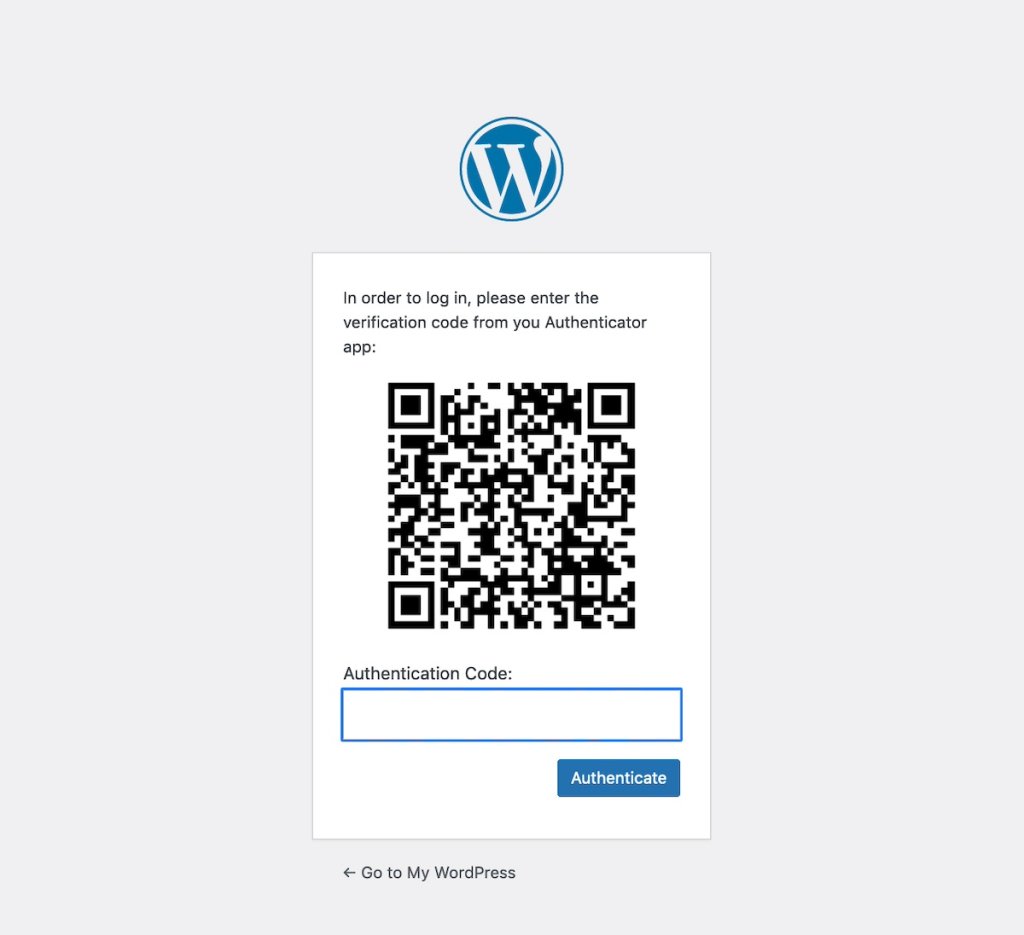
WooCommerce has many options for customization – from showing reviews and ratings, setting up tiered pricing, and allowing visitors to sort and filter products to find exactly what they need. It integrates seamlessly with various payment and shipping providers, as well as email and social media marketing tools, to streamline your operations. Additionally, WooCommerce is SEO-friendly and supports multiple languages and currencies, making it perfect for global businesses.

You can further enhance your store’s functionality with thousands of free and paid extensions from the official WooCommerce Marketplace. Moreover, a WooCommerce App is available for free for both iOS and Android.

Pricing: free

Key features: 

  • 24 languages and various currencies
  • Custom shipping solutions
  • Extensive payment options with common payment providers
  • Geo-location for tailored services
  • Email templates tailored for customers at various stages
  • Google Analytics and Yoast SEO integration

Final Thoughts on Must-Have WordPress Plugins

While some plugins are tailored to your site’s specific needs, many essential ones can benefit nearly any WordPress site. In this article, we’ve introduced the best plugins for WordPress – whether you’re aiming to improve your website loading time, enhance security, add more engaging features or streamline your workflow. 

You can always add more plugins to your WordPress site to expand its functionalities. However, make sure to download them from reliable sources such as the official WordPress repository, the developer’s website, or reputable third-party marketplaces. Prioritize plugins that are well-reviewed and frequently updated to ensure better security and minimize compatibility issues.

Also, don’t overlook your hosting platform, as it plays a crucial role in ensuring smooth operation. SiteGround offers Managed WordPress hosting plans for up to 400,000 monthly visits. These plans feature easy setup, ultrafast PHP, custom MySQL, SSL certificates, and three-layer caching, all enhancing performance, capacity, and security.

Call-to-action button regarding SiteGround managed WordPress hosting service

WordPress Plugins FAQs

What Should Be Considered When Choosing a WordPress Plugin?

Ideally, you want to choose a plugin that meets your specific needs, comes from a reputable developer, offers responsive support, fits within your budget, and is compatible with recent WordPress versions.

How Do I Install a WordPress Plugin?

There are three ways you can install a WordPress plugin: automatically, from a file or manually. The WordPress dashboard contains a dedicated Plugins section where you can add, remove and manage the plugins. We’ve prepared a tutorial for you to guide you through the process of installing plugins on your WordPress site.

Which Is Better: Paid vs. Free WordPress Plugins?

We can’t definitively say one is better than the other, as the choice between paid and free plugins largely depends on your budget and needs. Free plugins can be useful but often focus on basic functionality that can be limiting. In contrast, premium plugins, which require payment, offer more advanced features that may be needed by your website in order to be more secure, load faster, offer better user experience, among other benefits. 

How Many WordPress Plugins Are Too Many?

On average, a medium-sized WordPress website has around 20-25 plugins. If your hosting server is powerful and you use stable and reliable plugins, your website should be able to handle more. However, avoid bloating your site with redundant or useless features, as this can have a negative effect on your speed and performance. 

Do I Need a Backup Plugin?

You may not need to install a WordPress backup plugin if your web host meets all your backup needs. Many hosting providers, including SiteGround, offer built-in backup features accessible directly from your control panel.

12 Essential Website Security Tips to Protect Your Site Now

how to secure your website

When it comes to your website, security should be one of your biggest priorities. Cyberattacks are on the rise, and hackers are constantly finding new ways to infiltrate vulnerable websites.

Protecting your online presence is critical for safeguarding your data, your customers’ information, and your business’s reputation, and in this article, we will show you how to make your site bulletproof.

What Is Website Security?

Website security involves the practices and tools used to protect a site from cyber threats and unauthorized access. This includes measures like encryption, firewalls, backups, and adding secure sockets layer (SSL) certificates, aimed at keeping your data safe. It’s important for maintaining a trustworthy online presence and ensuring that users’ information remains secure.

Note that website security is not a one-time task, it’s an ongoing process that requires regular updates and monitoring. As cyber threats constantly evolve, website owners must continually improve their security practices and address potential vulnerabilities to keep their site safe.

Why Website Security Matters for Your Business

Website security is not just a technical concern. While websites can be targeted for various reasons, one of the most alarming facts is that 43% of all hacked websites are owned by small businesses. Hackers exploit their vulnerabilities to steal data, inject malware, or use the website as a launching point for other attacks.

Unfortunately, the consequences of a breach can be severe for your business or project:

  • Revenue loss: Downtime and compromised functionality can affect your sales and services.
  • Reputation damage: Customers can lose trust in a business that fails to protect their information.
  • Cleanup costs: Hiring cybersecurity experts, implementing damage control measures, and paying for security tools to restore functionality can be expensive.
  • Legal issues: In some cases, breaches may also result in legal penalties for failing to comply with data protection regulations like GDPR, for example. 

Given these risks, investing in proactive website security measures is not just about avoiding loss; it’s about ensuring your business can operate with confidence and integrity, and so that you can enjoy peace of mind.

How to Protect Your Website from Hackers: Understanding Their Tactics and Attacks

Web applications are constantly being improved, and security is something all developers pay special attention to. But hackers are not slacking off either. When a known security vulnerability is fixed, they either find another way to exploit it or discover a new one very quickly (or in the worst case, both).

And yet, despite the precautions and improvements, a lot of websites are still getting hacked. Why? 

The main reason is that many, if not most, users seriously underestimate security as a whole – not only the security of their websites but the security of their hosting accounts and even the security of their computers.

And this is an ideal opportunity for hackers to “show off their skills.” That’s because hackers keep their “software” up to date – indeed, new viruses are developed all the time. And while they keep their applications current, many users don’t. Once users install an application and start using it, they often forget about upgrades and security fixes.

Another misconception is that hackers only target large, well-known websites or those with sensitive data. In reality, smaller, less visible sites are often the primary targets. These smaller sites are typically seen as easier to breach and, as we’ve said, once compromised, they can serve as a starting point for broader attacks.

Hackers might use these sites to launch attacks on other more valuable targets or to hijack server resources for things like launching Distributed Denial-of-Service (DDoS) attacks or sending spam. Plus, many smaller websites host outdated applications, which often contain vulnerabilities that hackers can exploit.

The most common security threats for websites are:

  • Malware: This is malicious code injected into websites or web applications. The goal could be to steal sensitive data, display unwanted content, redirect users to malicious sites, or take control of the site for illicit purposes.
  • Brute Force Attacks: Hackers use them to gain unauthorized access to accounts by systematically trying many different password combinations. Once successful, they can take control of the account and compromise the entire site.
  • DDoS (Distributed Denial of Service): This type of attack floods a website or server with massive amounts of traffic, overwhelming it and causing it to go offline. Attackers often use botnets, which are networks of infected computers, to carry out these large-scale attacks.

12 Crucial Website Security Tips

Let’s see what you can do to make your website safer. Below, we’ll explain the most important, effective, and must-know safety measures you can take. 

1. Start with Secure Hosting

Start by considering where your site lives – your hosting platform. It’s the backbone of your site’s security. Choose a renowned web host that prioritizes protection with features like secure server infrastructure, advanced firewalls, daily malware scans, DDoS protection, and automated backups. 

A reputable hosting provider does more than just keep your site online. It can actively shield it from threats with various tools and solutions, creating a solid barrier right from the start. 

Take the time to research providers, checking their websites, security measures and features, and customer reviews. This will guarantee your website has a strong base to build upon, protecting it from the get-go.

2. Install an SSL Certificate

Having an SSL certificate is a must-have for any website, regardless of its purpose or size. This industry-standard encryption technology secures the data exchanged between your site and your visitors’ browsers, safeguarding sensitive information like logins and payment details from being accessed by hackers. 

Without it, your website is exposed to risks like data theft, which can also lead to hurting user trust in your brand. Moreover, browsers mark websites that don’t have an SSL with a red warning sign and Google even penalizes such sites, making it a crucial SEO factor.

Though it might sound complex, installing an SSL certificate on your website is pretty straightforward. Usually, hosting providers that take security seriously offer it as part of your hosting plan and provide an easy way to get it configured without tech knowledge. 

At SiteGround, for example, we provide free Standard and Wildcard SSL certificates with all our hosting plans, and to make it even more convenient for clients, the Standard SSL certificate comes preinstalled. 

If your hosting provider doesn’t offer an SSL certificate for some reason, you can get one for free from Let’s Encrypt.

3. Use Strong Passwords & Change them Often

Weak or reused passwords are a gateway for cybercriminals, making brute-force attacks and unauthorized access far easier. Basically, if a hacker can break your password and get access to your website, they can do whatever they want with it. 

Although it seems like a no-brainer, many website owners still use weak, easy-to-guess passwords like “123456” or follow predictable patterns, leaving their sites vulnerable. An easy, free, and effective way to secure your website is by simply changing your passwords often and using complex ones that are hard to guess.

A good approach is to create one that is a whole sentence, and including special characters or numbers will make it even stronger. Also, avoid using the same password across multiple platforms, and encourage users of your website to update their passwords regularly too.

4. Backup Your Site Regularly

Cybersecurity disasters can happen anytime, whether due to human error, security breach, or server failure. In such situations, having a backup of your website is your safety net. 

With it, you can easily restore your website to its previous state, minimize the downtime for your clients and visitors, and protect your overall business operations. There are three main ways to back up your website: manually using FTP (if you’re experienced), with a third-party solution, or by using a tool integrated into your web hosting service. The last two options are more convenient as they automate the process and save you time.

At SiteGround, we automatically back up your website daily and store it for 30 days in a secure data center. We also have a Premium Backup Service that offers automatic hourly backups, five extra on-demand backups, seven additional daily backups on top of the ones you have included in your plan, and more.

5. Monitor Traffic and User Activity

Unusual activity patterns can be early warning signs of potential security threats, such as brute-force attacks or vulnerability exploits. Pay attention to red flags like unexpected traffic spikes, unusual geographic origins, or suspicious user behaviors. 

These anomalies could indicate potential cyber risks that require immediate action, like blocking suspicious IP addresses or regions. For instance, a sudden surge of traffic from a country you don’t typically serve or target might signal a coordinated attack attempt.

You can monitor your website traffic easily using a network security tool. Many hosting providers also offer built-in security monitoring services that can help you track your traffic.

6. Regular Scans and Malware Detection

Proactively scanning your website for vulnerabilities and malware is another security measure that will help you identify and respond quickly to vulnerabilities before they’re exploited, ensuring your site remains safe. Automated tools can simplify this process, conducting thorough checks for malware and suspicious activity across your site’s files.

⭐ SiteGround users can benefit from the Site Scanner solution, which performs daily scans for potential threats and promptly notifies you of any issues.

7. Block Brute-Force Attempts

Brute-force attacks represent one of the most common and persistent threats to website security and website owners. As we mentioned earlier, these automated attacks use tools to systematically guess login credentials, targeting your website’s vulnerabilities with rapid login attempts. 

These attacks can be relentless and, if successful, lead to severe security breaches and consequences – stolen personal information, financial loss, and more. To protect your site from such threats, it’s crucial to implement diverse measures. 

Start with strong, unique passwords, and restrict the number of login attempts allowed on your admin panel. Regularly monitor IP addresses for unusual activity and use CAPTCHA challenges to block automated bots. These proactive steps can greatly reduce the risk of unauthorized access.

8. Implement a Web Application Firewall (WAF)

A Web Application Firewall (WAF) filters and blocks malicious traffic to your site. A WAF basically acts as a protective layer between your website and the internet, filtering incoming traffic and blocking potential threats like SQL injections and cross-site scripting (XSS) attacks. 

This additional layer of security can be a game-changer so make sure your website takes advantage of such solutions. There are different third-party services and WordPress plugins you can use for this purpose. An even better option is to rely on a server-level WAF via your host, as it usually provides advanced protection using big data and real-time analysis.

Now that you know some of the fundamental website security tips, let’s see some specific measures you should take if you’re a WordPress website owner. Although WordPress is a secure platform, its popularity makes it a prime target for hackers. 

Powering over 40% of all websites globally, WordPress naturally attracts attention from cybercriminals, so it’s important to keep your WordPress site in top shape.

9. Update WordPress Core, Themes, and Plugins Regularly

It’s highly recommended to update your WordPress core, themes, and plugins whenever there’s a new version. Along with new features and functionality, software updates often include security patches that address vulnerabilities, helping to protect your website from exploitation. 

To check for available updates, simply go to your WordPress dashboard > Settings (or Plugins). You can either manually manage updates for your WordPress site or opt for a managed WordPress hosting provider that handles the updates for you.

[80]

10. Strengthen Login Security

You can further improve your WordPress website security by strengthening its login. This can be done in several layers – enforcing strong password policies, limiting login attempts, and considering two-factor authentication (2FA) for an extra layer of protection.

Making your WordPress login URL custom and unpredictable is an important security step, as WordPress uses standard login URLs like /wp-admin or /wp-login.php, which hackers and bots can easily target. For instance, instead of the default, you could use a unique URL that only you would know and remember, like /my-unique-login. Tools like the Security Optimizer plugin make it simple to configure this directly from your WordPress Admin Panel. Additionally, it’s wise to create a unique login name, as ‘admin’ is the default username, making it a common target for attackers too.

Another step you can take to secure your login is to prevent brute-force attacks by limiting the number of failed login attempts. As we mentioned, these automated hacking attempts work by systematically trying multiple password combinations until they succeed. With the Optimizer plugin, you can address this as well, as it allows you to cap the number of times users can try to log in with incorrect credentials and thus stop these automated attacks before they gain access.

Lastly, consider adding two-factor authentication (2FA) as it adds one more layer of protection, and the more layers you have, the harder it will be for hackers to break your login. Even if a hacker somehow gains access to your password, 2FA requires a secondary form of verification, such as a temporary code sent to your phone or email.

11. Monitor and Manage User Access

If multiple collaborators have access to your website, make sure they have only the necessary permissions to interact with your site. Review their roles and permissions in your WordPress backend. 

Assign roles carefully based on each collaborator’s responsibilities. For instance, blog writers or editors should only be granted editor or contributor access, restricting their ability to make critical changes to the site’s structure or security settings.

Also, remove inactive users, as they can enable potential vulnerabilities if their accounts are compromised. These “inactive” accounts are often overlooked but they can be entry points for hackers.

12. Add a Reputable Security Plugin

The WordPress ecosystem is rich with plugins that can enhance your site’s functionality and security. A good security plugin can automate many of the measures we’ve discussed, saving you time. 

A reputable provider should offer active support, regular updates, and clear documentation.

We recommend SiteGround’s Security Optimizer plugin, as it brings together all the core features you need to secure your WordPress site without requiring multiple plugins. It covers advanced login protection, firewall configuration, and activity monitoring in one user-friendly package. It strengthens your site by protecting critical system folders, blocking unauthorized access, and keeping track of all activity for any signs of suspicious behavior. If someone does manage to break in, the detailed activity logs help you quickly understand what happened and take action to fix it!

How to Stay Safe Online – Be Proactive and Regularly Review Your Security

Maintaining a safe and fully functional website is an ongoing process, not a one-time task. Don’t wait for a security incident to react. Regularly review and perform your security measures, stay informed about the latest threats and best practices, and be prepared to adapt your strategy.

8 Steps to Lower Your Website Bounce Rate and Keep Visitors Engaged

slow loading and fast loading websites

According to Kissmetric research, 40% of website users will abandon your site if it takes over three seconds to load. With just 3 seconds delay, and you can lose almost half of your website visitors, increasing your bounce rate, lowering website conversions, and profit. Here are our tips on how to speed up your website to keep your bounce rates low, and user engagement high.

Why is it important for your website

Bounce rate is the percentage of visitors who leave your web page without taking any action – clicking a link on it, or making any purchase. What’s even worse is that this experience sticks, and they are unlikely to ever return to this web page. So keeping your bounce rates low is crucial for all of the following reasons:

  • Increase conversion rates – when you lower your bounce rate, you’ll have more returning customers, which can increase your conversion rates. 
  • Improve brand awareness – if your bounce rates are lower, this means that your visitors are engaged with your content, which leads to better brand recognition.
  • Achieve better SEO rankings – having lower bounce rates can improve your SEO rankings in Google and other search engines.

What factors influence your website bounce rate

A high bounce rate usually means that your website’s content and/or design is not relevant or appealing to your users, which will ultimately hurt your online business goals. Here are some of the main things that can lead to higher bounce rates on your website:

  • Slow page loading times;
  • Not a mobile-friendly page;
  • Poor web page UX;
  • Messy navigation structure;
  • Low quality and/or irrelevant content;
  • Bad internal linking and/or lack of clear CTAs.

What is a good bounce rate and how to figure out yours

The average bounce rate depends on the industry and type of website that you have. According to Custom Media Labs, here are the benchmarks for high-low bounce rates:

  • 20-45% for ecommerce websites;
  • 25-55% for B2B websites;
  • 30-55% lead generation websites;
  • 35-60% non-ecommerce content websites;
  • 60-90% for landing pages;
  • 65-90% for blogs, dictionaries, portals.

You can monitor and analyze your bounce rates and other important statistics by using tools like Google Analytics. You can even migrate to Google Analytics 4 in order to be in line with the latest version.

Bounce rate vs. Exit rate

There’s an important distinction between bounce rate and exit rate. Exit rate is the percentage of people who leave your website from a certain web page, after they have visited a number of pages on your website. For instance, a visitor may land on a blog post article on your site, in which case they click an internal link in that blog post that leads them to another blog post. Then, they exit that second blog post, which will increase this blog page’s exit rate. On the contrary, bounce rate will mean that a visitor closed that same page they’ve initially landed on.

A high exit rate isn’t necessarily a bad thing. There are two main factors to consider when making conclusions about your exit rate – the type of web page and the average time on the web page. For instance, if you have an online store and your “Thank you” page (the one appearing to your visitors, after they’ve made a purchase) has a high exit rate – that’s good, because it means that many people have completed a purchase. If it’s another type of page, e.g. a landing page with your products and visitors still spend lots of time on it, but the exit rate is high – this could mean that you have some UX design issues on this particular page. If a blog post page exit rate is high, but average time on page is high too – this means visitors are engaged with your content and it’s still a good sign.

How to reduce your website bounce rate

A high bounce rate, however, is something you need to worry about, and take action to keep as low as possible. Let’s explore what you, as a website owner, can do to reduce your bounce rates:

1. Improve your web page load speed

If your website takes more than 3 seconds to start loading, chances are that your visitors won’t wait for it – they’ll leave and move on to another website. To avoid that, you should make sure your website loads as fast as possible. Here are some basic, plus advanced tips on how you can optimize your website performance:

Use a CDN

Enabling a Content Delivery Network (CDN) is an important factor that can speed up your website. A CDN keeps copies of your website on servers in different locations around the world. Then, when a user requests to view your website, the CDN makes sure that the content is served to your visitors from a server that’s close to them. This makes it possible for your website to load faster upon user’s request, especially for your international visitors.
SiteGround has its own, in-house developed SiteGround CDN which comes with free and premium plans, it’s easy-to-use and navigate, and ensures blazingly-fast page loading times.

Enable Website Caching

Caching is a powerful technology that can speed up your website. It stores copies of your data in the server memory which then serves this content to your users faster. In this way, your users can access your website and files much faster, as it won’t be necessary to fetch them anew, but rather take them from this cached memory. 

SiteGround clients leverage our powerful caching technology, built in-house on three levels – NGINX Direct Delivery for caching static content, Dynamic Cache for caching dynamic content and Memcached for object caching (caching database queries). All three in power can speed up websites up to 5 times!

Optimize your website code and media

To further speed up your website, you can consider a few other techniques as well. First, compress large images and videos (without compromising their quality). This will make your web pages load faster and improve your overall website performance. Next, make sure to combine (combine multiple files into one to reduce number of requests) and minify (remove all unnecessary characters) CSS and JavaScript files. Thirdly, remove all unnecessary plugins on your website, as they slow it down. Even if they’re just deactivated, they can still cause slow loading times, so make sure to delete them completely.

Use fast MySQL setup

If you have a growing database on your website, your website will need to handle a number of requests to fetch data from this database upon users’ requests. This could cause heavy MySQL queries which significantly slow down your TTFB (Time to First Byte) and affect your overall website performance. 
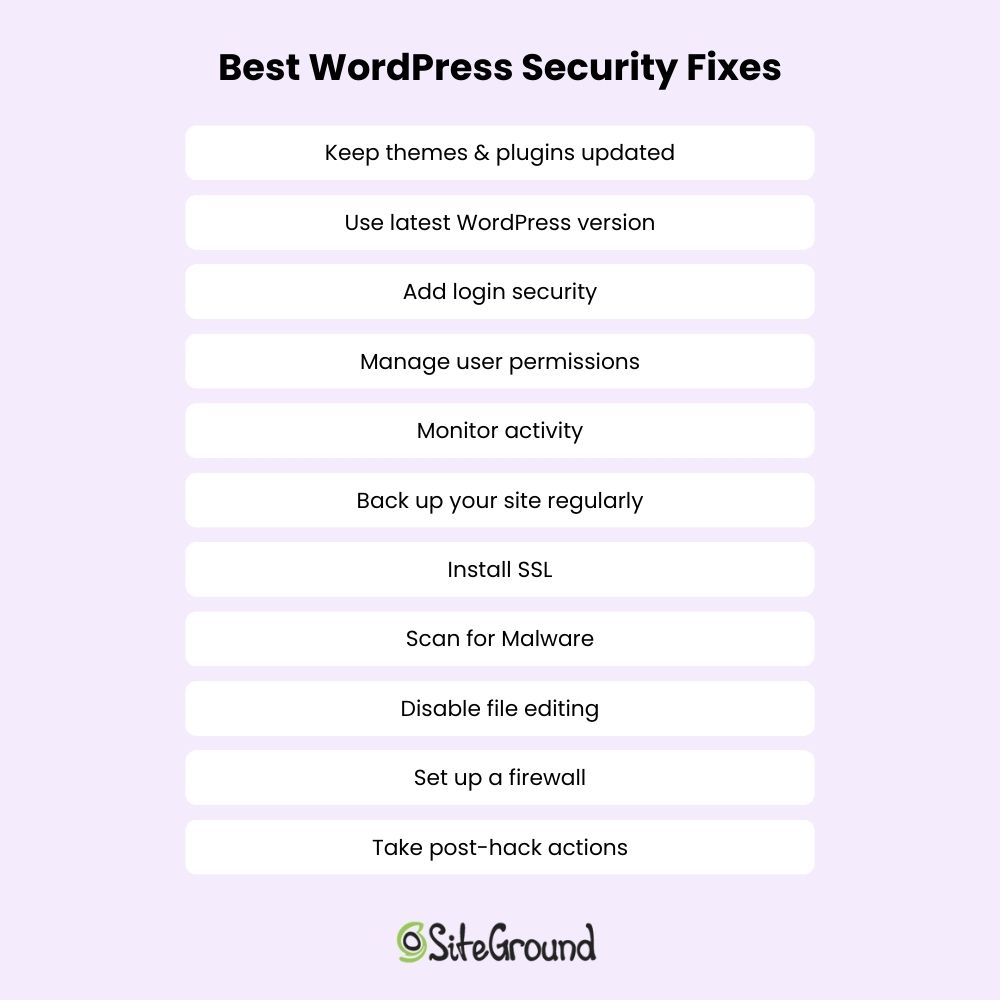
All SiteGround clients benefit from our custom MySQL setup, enabled by default, which allows for the simultaneous processing of a large number of requests which in turn brings down the number of slow queries between 10 and 20 times.

Make sure your PHP is fast

It’s crucial that your website runs on the latest and fastest PHP version. Not only that, but you also need to make sure that your web server is handling that PHP version in the most efficient way in order to improve your overall website performance.  

SiteGround clients have the advantage of our custom ultrafast PHP setup (available on GrowBig and GoGeek plans) that uses less server memory, which in turn allows the server to process a bigger number of queries faster. In this way, our ultrafast PHP setup cuts TTFB and makes web pages load 30% faster on average, compared to a standard PHP setup. 

Keep tabs on your website speed 

Last but not least, it’s important to keep an eye on your website speed on a regular basis. Run regular speed tests on your websites with online tools at least once a month. When you see some worrying results, take immediate action to improve the relevant areas. However, given the fact that this is yet another thing you need to take care of, keep in mind that it might take you much time, effort and money.

SiteGround clients have the unique opportunity to receive free monthly performance reports, straight into their inboxes. Our monthly performance reports provide our clients with useful information about their website speed status in different categories (e.g. cache ratio, CDN usage, WordPress optimization, etc.) in an easy-to-read format, including actionable tips for areas that might need improvement.

Speed up your WordPress website

In case your website is WordPress-based, there are some extra steps that you can take to ensure your WordPress application runs as fast as possible. We’ve summarized the best WordPress Website Speed Optimization Tips and Tricks, and added some more expert tips on optimizing your WordPress website on our blog. 

You can check off most of the tips and tricks outlined in both of these articles with a single plugin – the SiteGround Speed Optimizer plugin, free and available for all WordPress users, regardless of your hosting platform. The plugin provides you with multiple features, divided into the most important categories for your website – powerful caching (to reduce your site TTFB), frontend optimizations (to keep your website HTML, CSS, and JavaScript files and fonts optimized), media optimizations (to optimize your site media without compromising on quality), and environment optimizations (to manage your site resource usage and save bandwidth).

2. Optimize your website for mobile

Another important step you need to take is making your website mobile-friendly. A lot of the traffic to your site will come from mobile devices, so you need to make sure that your site is responsive. Check whether fonts, large images and videos, and other important elements work well on mobile. Your website’s mobile version should be easy to navigate from your users, giving them the content or information they need quickly and concisely.

3. Design appealing landing pages

Landing pages are the first thing users see when they land on your website. Make them catchy, appealing and engaging. Keep your landing pages straight to the point, with focused content, and clear CTAs. They should be navigable and readable. Include appealing and appropriate visuals, such as images and short videos. Make your landing pages correspond with the needs of your audience. If your audience is diverse, make sure to create multiple landing pages for different groups of users.

4. Have a clear website navigation structure

When your audience visits your website, they need to have a pleasant user experience in order not to leave your website and even come back to it. To achieve this, make sure that you remove things that might annoy your visitors, but are not absolutely necessary for your website’s success, such as bots, too many popups and ads, and other distracting elements. 

Another crucial step is to analyze your users’ intent in order to design the page in a way that will answer their needs. Keep in mind how your content and visual elements are organized on the website and whether it’s easy for users to navigate through the different parts of your site.

To do all that, you can use GA4 to analyze which of your pages have high bounce rates, then optimize their navigation structure and rearrange content order.

5. Improve your content

The quality of your website’s content might be another factor that makes your visitors bounce. Focus on improving your content by making it more relevant to your audience, in the first place. The three main things you should focus on are the following:

  • Quality – provide valuable and quality content that brings something extra to your readers;
  • Relevance – write content with relevant keywords that not only make users land on your site, but also help them find the content they’ve been looking for;
  • Readability – keep your content clear, concise and in an easy-to-read format with subheadings, short paragraphs and proper fonts.

6. Have clear CTAs

To reduce your bounce rates, you can also include clear calls to action on your website. These will not only lower bounce rates, but help in converting your visitors. Encourage your audience to take the action you want them to take, such as clicking a link, making a purchase, downloading a resource, by including clear CTAs on the relevant places in your site. Here are some quick tips for your CTAs:

  • Make your CTAs be visible on the web page – use appropriate colors and designs, e.g. buttons.
  • Write short, concise and actionable texts on your CTAs that encourage your visitors to take action, e.g. READ NOW.
  • Place your CTAs on key locations on the web page, such as towards the top of the page, or another highly-visible place.

7. Use internal linking

Another proven strategy for keeping your visitors engaged and thus reducing bounce rates is to place internal links on your web pages. These links should lead to other relevant content on your own website. For example, while your visitors are reading a blog post, you provide them with a link to another blog post they might find useful. You could also provide them with links to relevant blog posts, pages at the end of the article they’re reading. This way, you will keep your visitors longer on your website.

8. Implement exit surveys

Last but not least, you can implement exit surveys or exit-intent popups. They are windows that popup to your visitors when they move the cursor of their mouse on closing the window, i.e. when they are about to leave your website.

These “Before you go” popups could ask your visitors to either give feedback on what you could improve on your website (e.g. add shipping options, offer more products, etc.), or give them an incentive to stay on the website (e.g. discount, free shipping, newsletter subscriptions, eBooks, and others in exchange for their email address).

Now, before you “bounce” to another one of our blog posts, leave us a comment below to share some other strategies that have proven successful for you.

[subscribe_cta]

Help! My site has been hacked!

It is every website owner’s nightmare. You wake up from a blissful night of sleep, pour yourself a cup of coffee, and sit down at your computer expecting to check your overnight order sales and the latest sports scores. Then you find out that your site has been hacked. Needless to say you don’t have any overnight orders and all of a sudden your favorite team is now the last thing on your mind.

How to tell if your site has actually been hacked

There are a couple of ways to figure this out:

  • You open your site and see something else instead. If the hack is that obvious, your site will be defaced with other content – e.g. a message, saying for example “Your site has been hacked by [XYZ]”.
  • You open your site and it redirects you to another website that has nothing to do with your business (a scam/phishing site about something different).
  • You get a report from your web host. If you host your site at SiteGround, you’ll be able to see this report in your Client Area. In that report’s interface, there’ll be a tool that allows you to freely scan your website for malicious code and leftover backdoors. Even better, if you have SiteGround Site Scanner enabled, you will get an instant notification when it detects malicious content or activity on your site. 
  • You find out Google has dropped your website from search results. If you haven’t noticed anything obviously wrong with your site, but it has indeed been hacked, then eventually Google Safebrowsing will display a warning or the site will be removed from Google search results. That’s usually the last resort and it’s way better to detect hacks earlier, which is why we recommend always using Site Scanner or other site checker tools for early detection. 
  • If you have a Google Webmaster account, you get an official report from Google that your site has been hacked. In this case, you can check the Webmasters sections for more info. If you still haven’t added your website to Google Webmaster tools, it’s a good idea to do so.

Next Steps: How to repair your hacked website yourself

Ok, so you have confirmed that your site has been hacked. Pour yourself a cup of calming tea and let’s get to work.

Make a backup

The first thing you need to do is create a backup of your site. Yes, I realize your site has been compromised and we are going to try and fix that. But right now you need to preserve the evidence. So use your normal backup tool to create a backup of your site and store it somewhere safe and out of the way. Make sure you label it properly so that you don’t accidentally restore it at some point in the future.


If your site is hosted with SiteGround, you can use the website Backup tool to easily create backups and restore your site. For detailed information on how to do all that, follow the link.

Restore from the last working backup

At this point you do not know what caused your site to be compromised. You don’t know if someone bruteforced your password, or used a vulnerability in one of your plugins. So go back to the last known working and malware free backup and restore from it. 

Your last working backup may not be your last backup. If you aren’t absolutely positive about when your site was hacked, go back as far as you can. Hopefully you have a minimum of 30 days backup available to you. This will give you the best chance of getting to a clean backup.

Scan your website

Your next step would be to scan your website for malware or other malicious code. There are many site scanning tools to choose from that can help you diagnose your site for malicious code, files, or other hacks. Pick one to do a quick scan of your website and to also check if your site comes up in one of the main blacklists online.


If you’re a SiteGround customer, you can go for the Site Scanner service. Follow the link to learn how Site Scanner protects websites.

Put your site into maintenance mode

Once you have your backup restored, put your site in maintenance mode. This will let you get to the admin side of your site but you won’t be endangering any of your site visitors with potential malware.

The easiest way to do this is by using the WP Maintenance Mode plugin. It allows you to activate maintenance mode from the admin interface.

First, download and install the WP Maintenance Mode plugin. Once activated, select Settings -> WP Maintenance Mode from the WordPress dashboard.

Install SiteGround Security and clean things up

Even at this stage the SiteGround Security plugin has one cool trick up its sleeve. Once you have it installed, click on its menu and go to “Post-Hack Actions”. All of these are important, but let’s take them in a little different order than they are shown.

  1. Log out all users
  2. Reinstall All Free Plugins
  3. Force Password Reset

That second one is the magic. If your site was compromised and the attacker uploaded their own copy of one of your plugins, this will clear that out.

Reset WordPress itself

You can log in to your WordPress admin and use example.com/wp-admin/update-core.php to re-install WordPress itself. Even if it says you are on the most recent version of WordPress, go ahead and re-install WordPress. This will overwrite any core files that may have been compromised in the attack.

It should be noted that even though we have now cleaned all of the code that runs your site, the attack may have altered your database. Even though we restored from an old backup, you need to check each post and comment to make sure that nothing has been inserted. This is a daunting task for some sites and the reason we hire professionals who have the proper tools to get the job done.

Next, go to your plugins menu and update everything that might be out of date. If you have paid plugins (and who doesn’t these days?) go pay the fee on each one of them and upgrade to the latest version or disable and delete them. Do not just disable them and do not leave unpatched plugins or themes on your site.

Review your passwords and policies

Earlier we logged out all users and forced a password reset for all users. This will help if the attacker compromised a user’s account. To make it harder next time, make sure that all of your admin and editor accounts have Two-Factor Authentication turned on. There are several good plugins out there both free and paid that will give you 2FA. If you’ve been following my instructions so far, you already have one of the best of them installed, SiteGround Security. 

Go to the SG Security menu and select “Login Security”. From there, click the slider next to “Two-factor Authentication for Admin & Editors Users”. This will force all Admin and Editor accounts to turn on 2FA the next time they log in…including you. Yes, it adds one more step to logging into your site each morning and yes, some days you’ll play “Where’s my phone?!?” before you can get logged in, but the peace of mind is worth it.

Also, it’s a must to make all users use strong passwords. WordPress itself does not give you the option to enforce strong passwords but there are plugins you can get that will. I strongly encourage you to install one and make strong passwords a site policy.

Review Access

A lot of attackers will install their own user accounts hoping that you won’t notice. Now is the time to notice. Review the list of users at every level and see if you see anything out of place. On most sites, you should only have one or at the most two admin accounts. Look at those to make sure you recognize all of them. The same goes for any role that has elevated permissions like editing content.

Rescan your site

We’ve done what we can to clean things up. Now let’s see how things look. Go back to the scanning tool you originally used and rescan your site. You will probably still be in blacklists, but the malware should be gone.

If your site scanner gives you a clean bill of health, then the first part of your journey is done. 

If on the other hand, the scanner is still detecting malware then at this point you are going to have to contact SiteGround support or a professional. You’ve done all of the things that most non-technical or semi-technical people can do. Honestly, at this point I would be contacting a professional site cleaner to deal with it. My site is too important to me to risk it.

Scan your devices

Scanning your website is important as mentioned above, but it’s equally important to scan your devices as well. Scan your PC or other devices you use to make sure that if the respective device is infected with malware, you clean that up to prevent your site from being hacked again due to this same malware.

How to secure your WordPress website? (video tutorial)

Post-Cleanup Steps

First and foremost, take a break. You’ve probably been at this for hours now. It only takes a few minutes to read about the steps I’ve described above. In reality, it takes hours to accomplish all of them properly. You’ve probably read about 100 other pages just like this one that gives you similar advice but may have other steps as well. 

Stop. Breath. Relax.

Ok, now let’s take steps to try and make sure this doesn’t happen again.

Lock things down

There are a couple of things you need to lock or disable to prevent this from happening again:

  • Lock and protect your system folders to prevent unauthorized or malicious scripts to be executed in your system folders.
  • Hide your WordPress version from hackers that exploit vulnerabilities in WordPress versions.
  • Disable themes and plugins edit option from the WordPress admin to prevent unauthorized access via the WordPress editor.
  • Delete the default Readme.html file that is often used by hackers to compile lists of potentially vulnerable sites to be hacked or attacked.

You can do all of the above for WordPress websites with a few clicks in the SiteGround Security plugin, in the ‘Site Security’ section. If you go to the ‘Login Security’ section, it will also allow you to easily enable 2FA for admin and editor users, disable common usernames, limit login attempts, etc.

If you’re a SiteGround customer and have Site Scanner enabled for your website, you can also take advantage of its ‘Site Protect’ feature. It allows you to manage four different on/off options from its interface:

  • Disable FTP file transfers to your website
  • Disable SSH file transfers
  • Disable file upload to your website via PHP
  • Prevent the execution of malicious scripts on the server

All these give you time to review the website’s status and react accordingly, if needed.

Set up regular scanning

Another useful tip is to scan your site regularly to prevent malicious attacks at an early stage. This could save you time, money, and reputation the next time you have to deal with hackers.  SiteGround customers have the option to purchase the Site Scanner service that detects and prevents upload of malware, warns you about potential threats at an early stage and in a timely manner, and gives you tools for reaction in case your site is under attack.

To get this service, go to Site Tools in your SiteGround dashboard. Click on “Security” and then on “Site Scanner”. Sign up to have your site scanned daily. Yes, it costs extra but you’ve just spent hours cleaning and repairing your site exactly because you didn’t have someone monitoring it for you.

Install a software firewall

If you want to take it a step further, there are some great “Software Firewall” plugins for WordPress that will lock things down even more. You may want to consider installing one of these and subscribing to their service.

One more step you can take to clean and further protect your site: Hire a professional

If your site is responsible for a non-trivial amount of your income stream, hire a professional security expert who knows how to clean WordPress sites.

A professional will cost you but, if you are uncertain about doing it yourself, they stand a much better chance of actually fixing the problem than you by yourself.

Wrap Up

Getting hacked sucks. The best strategy is to build layers of security on top of your site. 

Layer 1: Have sets of backups

If you don’t have backups, you can’t even begin to fix your site. Make sure you have 30 days of backups stored somewhere other than your web hosts backup system. SiteGround backs up my site every day and stores it in a place that is easy to get to and restore. That having been said, I also have a backup plugin that makes a separate backup and stores it on a server disconnected from everything else. These are my “secure” backups. Storing them on your own computer is fine. Storing them on a USB drive plugged into your computer is a good option. Storing them on something like Amazon S3 is an even better solution.

However you do it, make sure you have 2 sets of backups. Those that your hosting company makes for you daily, and those that you make yourself…daily. 

Layer 2:  Download SiteGround Security plugin:

This does the basics for you: 

  • 2FA
  • Turning off unneeded headers and features
  • Making it harder to guess passwords by limiting login attempts

All of these things make for a good base layer of security. If your site is your personal blog and you won’t lose any money if it gets hacked, this is probably good enough. However, if you derive income from your site, add a few more layers.

Layer 3: Activate SiteGround Site Scanner: 

Scanning your site daily for bad content is an important layer. Make sure you have a trusted service like SiteGround scanning your site to make sure it is clean.

Layer 4: Maintain Good policies:

Review your policies like strong passwords and make sure you have good solid security policies. Additionally, limit the number of Admin accounts to the absolute bare minimum. If you have to grant someone admin access to get something fixed, make sure you disable and delete the account as soon as you can.

Layer 5: Get a Software Firewall Plugin

Finally, if you’ve done all the rest and still want another layer, invest in a Software Firewall Plugin. There are several of them out there, do your homework and find the right one for you.

No website is secure. However, you can make it so difficult to access your site that it’s not worth the effort and the attacker moves on to the next site on their list.

[subscribe_cta]

How to Leverage Browser Caching in WordPress to Optimize Page Load Time

How to Leverage Browser Caching in WordPress

Optimizing a website for speed is a never ending quest. There is always something you can tweak to shame milliseconds off each load. While that might not sound like a lot, each tweak ads up.

I’ve talked about caching before, but that was all server-side caching. That’s the low-hanging fruit because you can control it a lot more and it will make a bigger overall difference. 

Once you’ve plucked the low-hanging fruit though, there are still things you can do to speed things up. One of those things is taking advantage of browser caching. 

Differences Between Browser Caching And Server Caching

Previously we discussed server-side caching. That is, saving off the results of expensive operations so that we don’t execute them on every page load. API calls and complex database queries are good examples of things that should be cached server side. Our video on object caching can help you figure out this better:

On the contrary, browser caching has nothing to do with “expensive operations” and is all about reducing the actual number of bytes that are pulled across the wire each time someone loads a page from your website. 

What Is Browser Caching?

All modern browsers set aside a portion of your file system to temporarily store things. This is called its cache. Modern websites are made of a lot of different pieces of content:

  • HTML
  • Images
  • CSS
  • JavaScript
  • Other media

Some of these pieces of content are static, in that they never or rarely change. For example, your company’s logo probably won’t change often. Storing the graphic of your company’s logo in the browser’s cache means that’s one less thing that has to actually be fetched from your server for your image to paint.

How Browser Caching Works In WordPress

When a user types a URL into a browser, it starts a conversation between the browser and the server.

Browser: Hey, do you host this page?

Server: Yes, here’s the HTML

Browser: [Reads HTML and builds a list of the things it needs to request to display the page]

Browser: Ok, here’s the list of other things I need to display the page

Server: Here ya go…

Server: Here ya go…

Server: Here ya go…

The server keeps going until it has given the browser all the things it has requested. Sometimes these are small graphics, other times these are large JavaScript files or CSS files. Regardless of what they are, without browser caching, the browser has to ask for each and every one of these items, every time.

What if a user is visiting your shop and browsing? They may click 5,10,15 pages. Most of the pieces of these pages are the same thing over and over again. Your base CSS, your JavaScript, your company’s logo… never change between pages. But the browser has to ask for it each time and the server has to send it.

Browser caching lets the browser decide to temporarily store some of these pieces and reuse them. This shortens the conversation between the browser and the server. After the server hands the browser the HTML of the page, the browser builds its list of things it needs to display the page. With browser caching, it then looks at the list of things it already has and strikes them from the list before continuing the discussion with the server.

How browser caching works

Controlling The Browser Cache

The problem is that browsers aren’t that bright. Left to their own devices, they would simply cache everything and never request anything. While this would make the user experience very fast, eventually the browser would be showing the user old data. 

Can you imagine your browser storing the current score of your favorite sports-ball match? No matter how much time passed or how many times you hit refresh, the score would never change because the browser has cached the score already. 

So obviously we need some way to tell the browser what can and cannot be cached. Even for the things that can be cached, we want to tell the browser when it’s no longer any good so it knows to ask for a new copy. For that, we use “Headers”.

In the conversation between the browser and the server, there is data that is passed both ways on each request, these are called “headers”. Users never see headers but they can affect the content that the user sees.

Servers send different headers to the browser to help it figure out what it can cache and where. There are several different headers and values that the server and browser can exchange to control caching- For the most part, it boils down to these 2:

1. Cache-Control

The Cache-Control header is the first one looked at by the browser. It tells the browser what it can do with the entity it just received. The most important possible values are:

  • no-cache
    This tells the browser it’s ok to cache this resource but it has to check with the server to make sure it has the most recent version.
  • public
    This tells the browser – or an intermediary like a CDN – that it’s ok to cache this resource.
  • private
    This means that this is a cacheable resource but only by the browser. CDNs canc’e cache this resource. 
  • no-store
    This tells the browser that this resource should never be cached.

2. Expires

This header tells the browser when this resource should be considered “stale”. This means that after this date and time, the browser needs to request a new copy of the resource.

With these 2 headers, a browser can now make an intelligent decision about caching any given resource.

So really, the only thing we need to know now is how to set the headers that our server sends to a browser.

How To Leverage Browser Caching In WordPress?

As with everything in WordPress, there’s the hard way and the easy way to do it. The hard way is usually the way we used to do it before someone figured out the easy way. The hard way almost always involves editing a file manually and usually involves hiring a developer to help you. The easy way almost always involves installing and configuring a plugin. 

The Hard Way: Leveraging Browser Caching By Setting Caching Headers Manually

If you are dead-set on doing things the hard way, this involves modifying a file in the root of your website named “.htaccess”.  (The leading dot is important)

If you open this file in an editor, you can add “ExpiresByType” lines to define how long a specific type of resource should be cached.

For instance:

ExpiresByType text/css “access 1 month”

This tells the server to tell the browser that any given CSS resource can be cached in the browser’s cache for 1 month before requesting a new copy.

You need to make this decision for every type of resource that you serve and add a record into the file for it. This is a time-consuming process and you have to remember you did it this way in case you want to manually adjust the times.

Here is a common set of headings you can use in your .htaccess file.

<IfModule mod_expires.c>

  ExpiresActive On

  ExpiresByType image/jpg “access 1 year”

  ExpiresByType image/jpg “access 1 year”

  ExpiresByType image/gif “access 1 year”

  ExpiresByType image/png “access 1 year”

  ExpiresByType text/css “access 1 month”

  ExpiresByType application/pdf “access 1 month”

  ExpiresByType application/javascript “access 1 month”

  ExpiresByType application/x-javascript “access 1 month”

  ExpiresByType application/x-shockwave-flash “access 1 month”

  ExpiresByType image/x-icon “access 1 year”

  ExpiresDefault “access 2 days”

</IfModule>

That covers most types of resources that your server will serve. 

The upside to the hard way is that it gives you absolute control over the caching on the browser. 

Personally, this is my preferred way to set caching headers. That having been said, I am a programmer and enjoy doing things the hard way. You may want to look at a plugin to leverage browser caching easily.

The Easy Way: Leveraging Browser Caching Using A WordPress Plugin

As with everything in WordPress, “there’s a plugin for that”. Leveraging the browser cache is no exception. Many of the most popular caching plugins have options that you can use to fine-tune the browser cache headers. By default, WordPress will add “Cache-Control” headers to all static resources (CSS, JS, etc) The plugins will add them to more than just that as well as give you more granular control.

If SiteGround is your hosting partner, you don’t need to worry about this. These headers are already configured for you. Nevertheless, If you are not yet hosting your WordPress site with SiteGround, you can use the SiteGround Optimizer plugin to insert the caching headers into your .htaccess file for you.

If you already have the SiteGround Optimizer plugin installed – and you should – Select the “Environment” menu option from the main menu or click on “Go To Environment” on the dashboard page.

Leverage Browser Caching with SiteGround Optimizer Plugin

There, you will find “Browser Caching” in the middle of the page. Click the slider to green and you are good to go. This option won’t be visible in the SiteGround Optimizer plugin installed on websites, hosted with us, because we manage this for our clients.

Leverage browser caching functionality in SiteGround Optimizer plugin

Cache Busting

Regardless of how you set your cache headers, sometimes you want to tell the browser “Hey, I know I said hold on to this resource for a month, but I’ve got a new copy and you need to ask for it.” This is called “Cache Busting”.

In WordPress, the way we bust caches is to append a version number to the name of the file.

For example:

<script src=”/js/jquery.js” />

Regardless of how many times we update jquery.js, the browser isn’t going to request a new copy until this one expires based on the rules we set. That is why most resources that are loaded in WordPress include a version number as part of the query string.

<script src=”/js/jquery.min.js?ver=3.6.0” />

The browser stores the complete file name jquery.min.js?ver=3.6.0 as the key for this resource. So if we change the ver= part, it thinks it’s a new resource and requests it regardless of the status of the caching headers.

<script src=”/js/jquery.min.js?ver=3.6.1” />

That’s how we bust caches and request fresh resources even if the ones we have haven’t expired.

Speed Results After Leveraging Browser Caching

So does all of this make any difference? A lot of that depends on your other optimizations already implemented. For one of my production sites, I had implemented all the SG Optimizer plugin recommendations. This took me to a Google Page Score of 87.

Google score of 87 without using SiteGround Optimizer

Then, I added the caching headers described above to my .htaccess file. This was the only change I made to the site. Now when I run SG Optimizer Speed Test, I get a score of 92!

Google Score of 92 after using SiteGround Optimizer to leverage browser caching in WordPress

So yes, five points on Google Page Speed score was worth the 2 minutes it took me to leverage browser caching. 

I hope your results are even better!

🚀 Get SiteGround Optimizer for FREE

–> Click here to learn more and download the plugin

[subscribe_cta]