Partners Page Guide: Attract the Right Partners + Examples

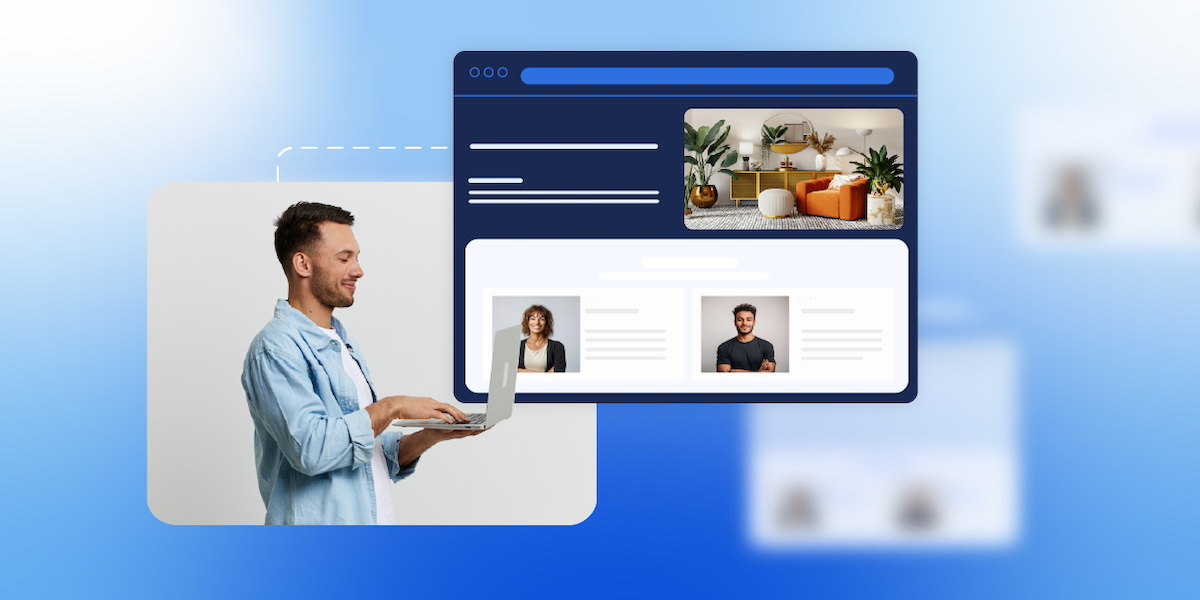
Abstract of a partners page

Do you already have a partner program, but not a dedicated page to showcase it? That’s a major missed opportunity. A cleverly designed partners page does more than just list logos: it reinforces trust with your customers, helps existing partners feel valued and supported, and invites the right new partners to join your network.

In this guide, we’ll break down what makes an effective partners page, why it’s such a powerful asset for growth, and the essential elements you need to include. Plus, we’ll share partners page best practices and examples to inspire your own.

Key takeaways:

  • A well-designed partners page builds credibility and attracts partners who align with your goals.
  • The best partners pages balance trust signals, clear benefits, and easy next steps.
  • Strong structure—from hero messaging to CTAs—guides potential partners through a clear decision path.
  • Case studies, resources, and FAQs turn interest into confidence and action.
  • A thoughtful partners page supports long-term growth by strengthening both partnerships and brand trust.

What Is a Partners Page?

A partners page is a dedicated page on your website that displays your company’s partnerships, but also acts as a gateway for new ones. Usually the partners page will feature noteworthy brands or people you work with, what your partner program looks like, and how interested parties can get involved.

Think of a partners page as accomplishing multiple small business marketing jobs all at once: it’s a credibility booster plus a business development tool. That’s because it shows the outside world that you have trusted collaborations while also inviting new partners to learn about opportunities with your company.

Why Have a Partners Page?

Not every company needs a partners page, but for scaling businesses or those that rely on partnerships—such as SaaS companies, agencies, nonprofits, or ecommerce brands—it can be a really important growth asset that helps you reach your business goals.

Here are the main reasons to have a partners page:

  • Build credibility – Feature your partners, customer success, and case stories that demonstrates reliability and trustworthiness to both customers and future collaborators.
  • Attract the right partners – A smartly crafted partners page makes it clear who you want to work with and what you offer, drawing in organizations that align with your business goals.
  • Clarify your program – Outlining the benefits, requirements, and process saves time for both you and future partners.
  • Support brand storytelling – Your partners reflect your values and expertise, so highlighting them strengthens your overall brand positioning.

But, importantly, you’ve got to get all of this right on your partners page! So that’s what we’re here to do today.

[24]

What to Include on a Partners Page

A strong partners page balances clear messaging with a smart website layout, guiding visitors through the story in a way that feels natural and persuasive. It’s essentially a marketing funnel in a page: you start with high-level credibility (logos, hero section), build interest with benefits and case studies, and end with action-driven elements like forms and calls to action. 

A successful partners page should include these elements: 

1. Hero Section

You might recall having heard about the hero section as an important—if not the most important—part of your homepage website design. And in fact it’s also a great tool for your partners page design. 

As a little refresher, the hero section is the above-the-fold graphic section that gets your strongest message across both visually and verbally. It typically communicates instant value—in this case, of your partnership program. An especially strong hero will combine that clear messaging with visual web design to make an impactful first impression.

Key elements to include in the hero section:

  • Headline: A benefit-driven statement that speaks to potential partners (such as “Grow with Us: Join Our Partner Network”).
  • Subheadline or short description: A concise explanation of what your program is about.
  • Visuals: Branded imagery, an illustration of collaboration, or even a short video.
  • Call-to-action (CTA) button: A clear action such as “Become a Partner” or “Explore Benefits.”
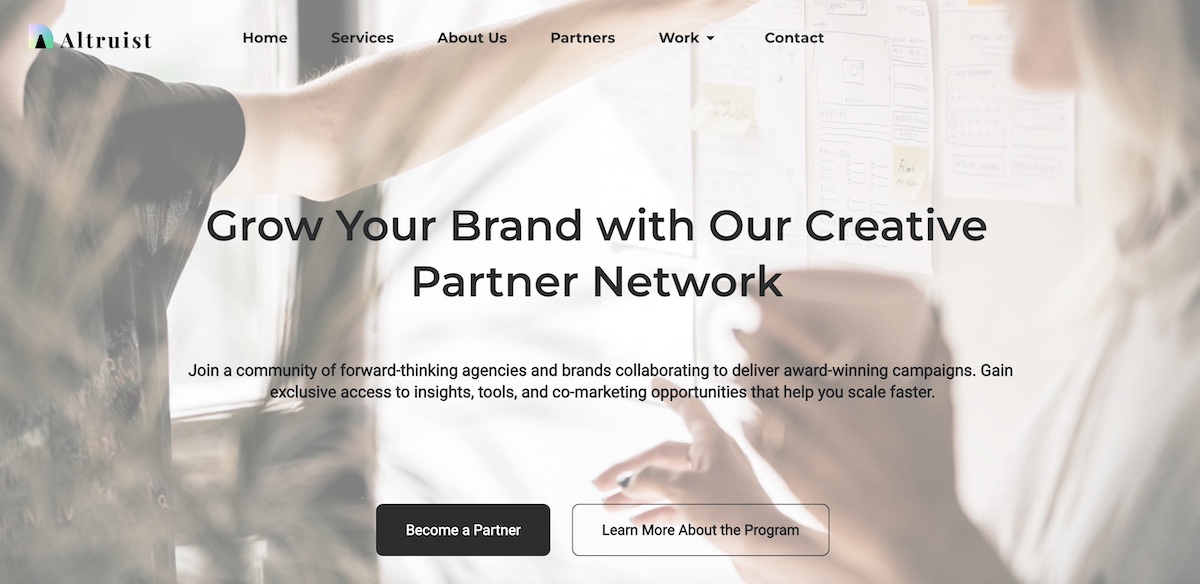
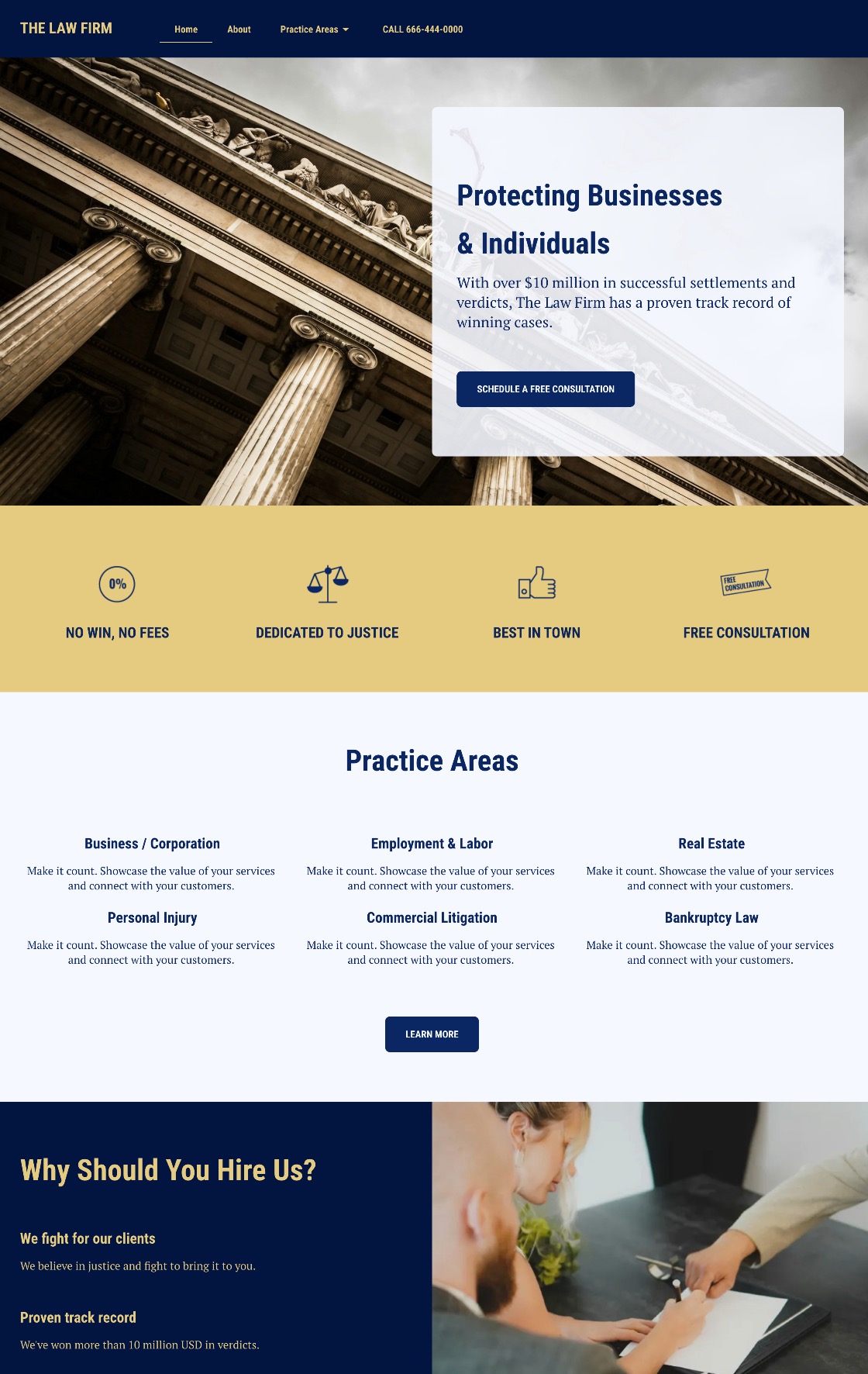
Example of a partners page hero section

Think of your hero section as a pitch in miniature. It sets the tone for the rest of the page and should quickly answer the question: “Why should I care about this partnership?”

2. Partner Logos

Featuring partner logos is one of the most straightforward ways to build instant credibility for your program and for your brand in general. It shows that respected organizations and businesses already trust you, and by extension others can too.
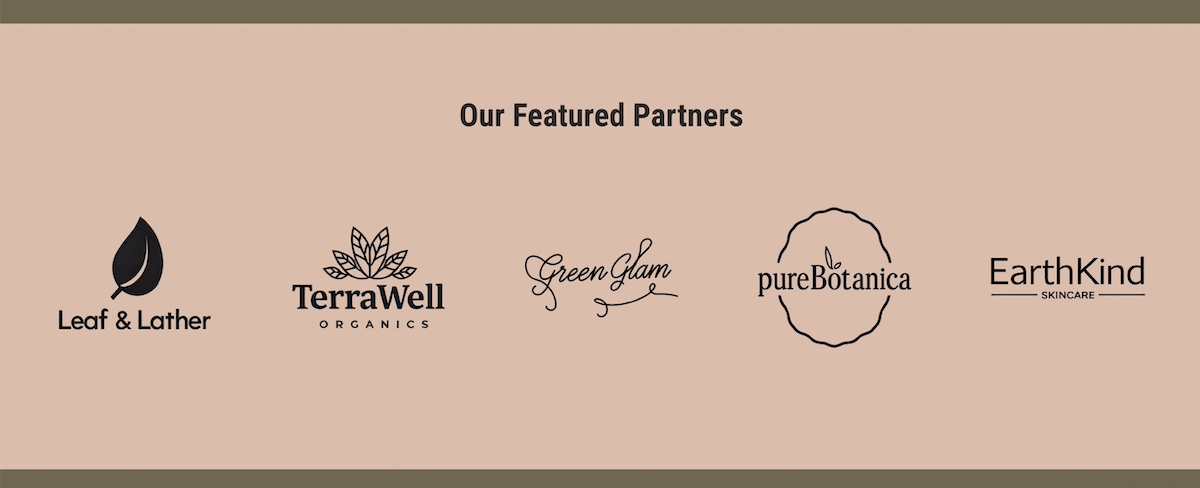
Example of a partners page with partner logos

Best practices for displaying logos:

  • Visibility: Place logos high enough on your partners page design so that they reinforce credibility early, often just below the hero.
  • Consistency: Use uniform sizing and layout to keep the section visually clean—but avoid altering partner logos in ways that conflict with their brand guidelines (for example, changing colors or proportions).
  • Grouping: If you have many partners, consider organizing logos by category or using a carousel/grid layout.
  • Linking (optional): You can link logos to case studies, testimonials, or the partner’s website for added depth. If you link to another site, however, be sure to have it open in a new webpage so that you still keep visitors on your site. That said, you may want to avoid the distraction altogether and avoid sending users off to another site.

Your partners page deserves a design that’s as professional as your program. With SiteGround Website Builder, you can easily create clean, modern layouts using drag-and-drop, add partner logos, case studies, and CTAs, customize colors, fonts, and imagery to match your brand, and ensure your page is optimized for both mobile and desktop automatically.

Start building a partners page that looks great and converts>>

3. Benefits 

This is the section of your partners page design where you make the case for your partnership program. Instead of just describing what the program is, highlight the tangible benefits a partner will gain from joining.

Ways to structure a Benefits section:

  • Headlines or bullet points: Make the benefits scannable (think: “Grow revenue together,” “Access exclusive resources,” “Expand your reach”).
  • Partner-focused language: Speak to what’s in it for them, not just what your company gains.
  • Visual support: Use icons, graphics, or short testimonials to reinforce each benefit.
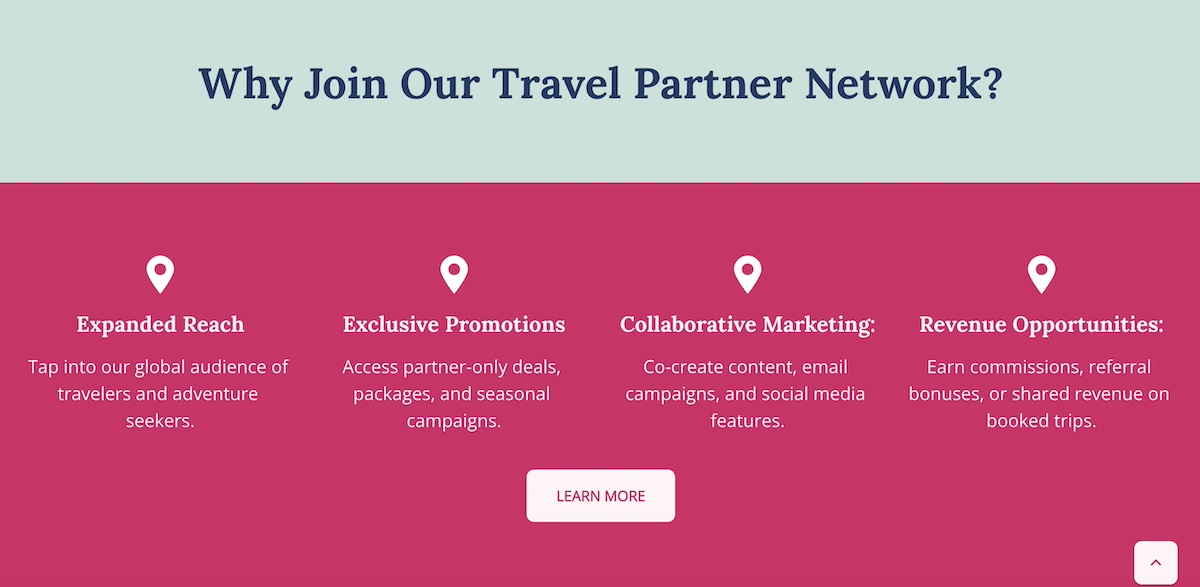
Example of a partners page listing benefits

Think of this partners page section as answering the question: “Why should I work with you instead of someone else?” The clearer and more compelling your benefits, the more likely the right partners will self-identify and take the next step.

4. Program Overview

After laying out the benefits, it’s time to get specific. An About the Program section on your partners page explains how your partnership model works, giving prospective partners the clarity and transparency they need to make a decision to move forward.

What to include in the program overview:

  • Types of partnerships: For example, reseller, affiliate, integration, or strategic alliances.
  • How the program is structured: Tiers, revenue sharing, training, or co-marketing opportunities.
  • Expectations: What you provide to partners and what you expect in return.
  • Visual aids: A simple diagram or infographic can make a complex program easier to understand at a glance.

Example of a partners program overview

Clarity is the goal here. Think of it like a customer journey: Give the reader enough information to evaluate fit quickly, while keeping the details succinct enough to encourage them to take the next step and learn more.

5. Partner Application Process

Once a possible partner is interested, make it abundantly clear via your partners page design how they can move forward. A How to Become a Partner section does just that, removing friction by outlining the process in a simple, transparent way. Quite simply: set expectations.

Best practices for displaying the partner application process:

  • Step-by-step overview: Break the process into 3–4 clear steps (such as apply, review, onboarding, and launch).
  • Set expectations: Mention timelines, required qualifications, or additional resources applicants will need.
  • Consider providing multiple touchpoints: You can include both a primary CTA (like “Apply Now”) and a secondary one (like “Contact Us”) for those who may need more information first.
  • Highlight support: Reassure applying partners that they’ll have guidance through the process, whether from a dedicated partner manager or a resource hub.
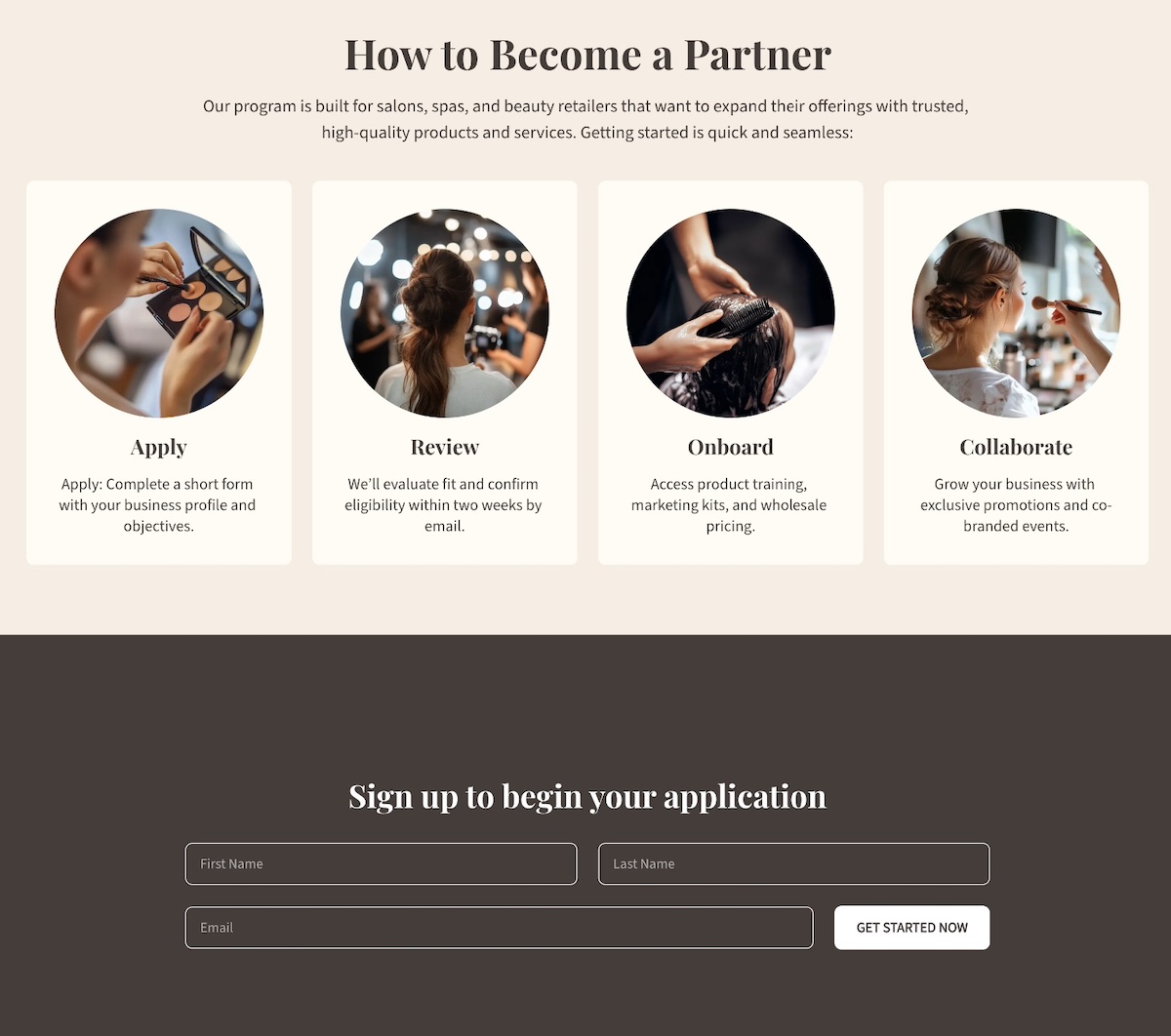
Example of a partners page partner application process

This kind of expectation setting via your partners page helps avoid drop-offs, because when potential partners know exactly what to expect, they’re more likely to follow through.

6. Case Studies

Case studies are one of the most persuasive elements of your partners page design. They turn abstract benefits into real-world proof by showing how your program has helped existing partners succeed.

Ways to showcase case studies:

  • Spotlight format: Dedicate a short section to a single partner success story with measurable results.
  • Carousel or grid: Feature multiple partner case studies with visuals, quotes, and outcomes.
  • Mix of formats: Include written stories, video testimonials, or data-driven snapshots featuring existing partners.

When writing case studies, focus on:

  • The partner’s challenge before working with you.
  • The solution provided through your partnership.
  • The results they achieved (revenue growth, increased reach, new opportunities, etc.).

Example of a partners page case study

Well-crafted case studies show potential partners that others like them have achieved success with your program. 

7. CTAs and Forms

A strong partners page goes beyond informing, and really guides visitors toward action. That’s where calls to action and forms come in. While they work together, each has a different role.

CTAs are about engagement. They should appear throughout the partners page design to capture interest at the right moment and direct visitors to learn more, apply, or contact you.

Forms are about conversion. They turn interest into a commitment by collecting essential details so you can qualify and follow up.

When to use CTAs:

  • Early in the partners page design (like in the hero section) to capture top-level interest.
  • After benefits or case studies, when the value has been clearly shown.
  • For “softer” actions, like “Download our program guide” or “Contact us to learn more.”
  • Remember to keep CTAs action-oriented and descriptive, which is also important for website accessibility, as it allows all users to understand the next step.

When to use forms:

  • At the point of highest intent, often after explaining the program and its benefits, or how to apply.
  • When you want to qualify prospects by segmenting (affiliate, reseller, etc.).
  • As the final action step, placed toward the bottom of the partners page design.
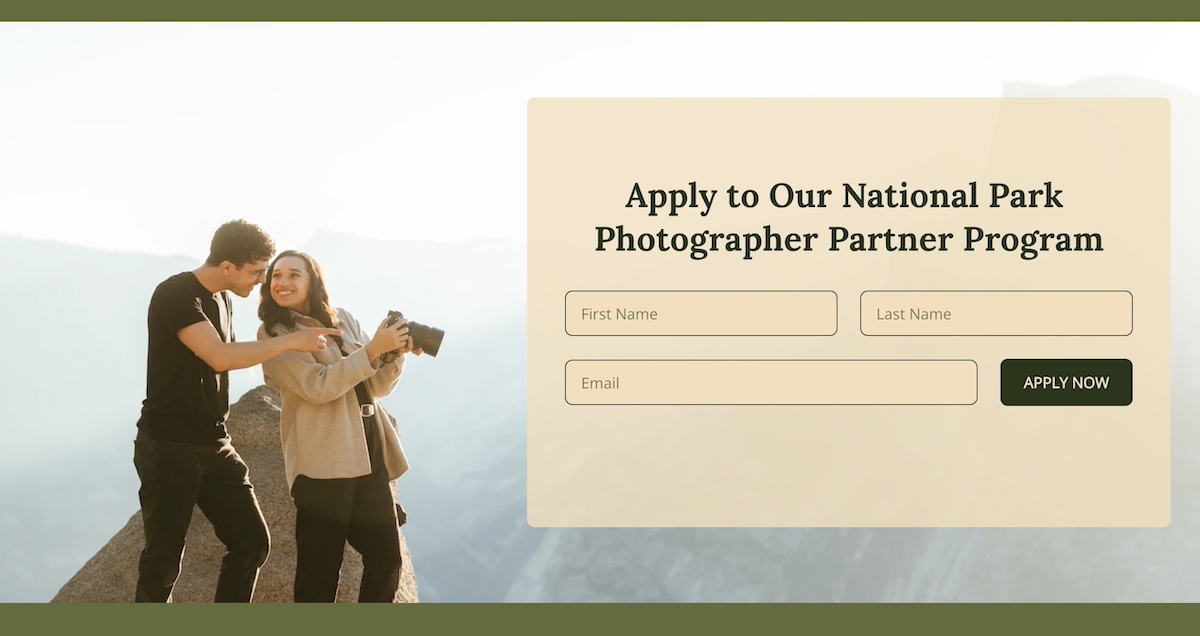
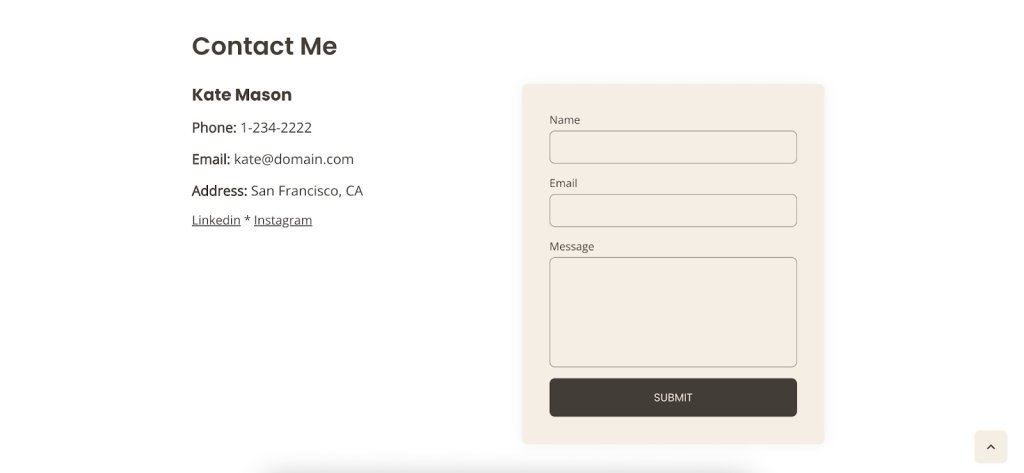
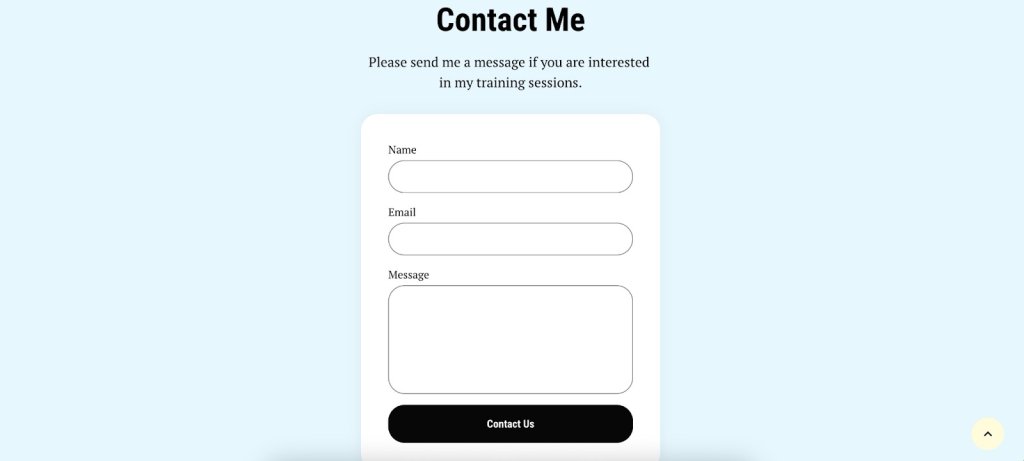
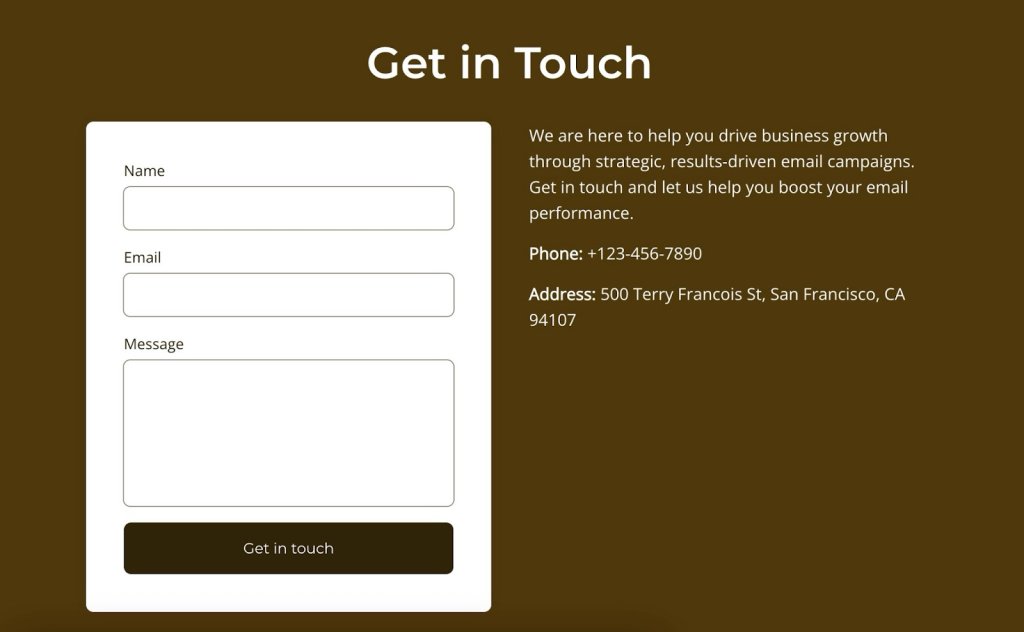
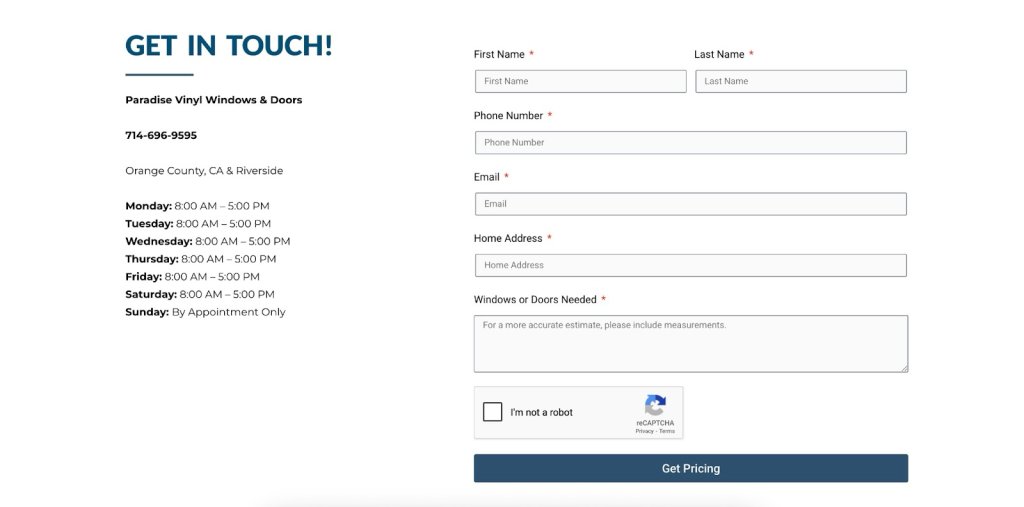
Example of a form on a partners page

Together, CTAs and forms act as the conversion engine of your partners page. CTAs build that curiosity and momentum, while forms capture the momentum and turn it into qualified leads.

For all the necessary follow-up, you will need a solid email marketing platform in your court. One that’s easy to get going, allows you to segment your lists, send automated sequences, and track performance over time. With SiteGround Email Marketing, you can nurture new partner leads from the moment they sign up—sending welcome sequences, program updates, and tailored campaigns that keep them engaged and moving toward long-term collaboration.

8. Resources

Providing resources helps both potential and existing partners feel supported, while also demonstrating that your partnership program is structured, professional, and built for success. A well-organized resource section works in two important ways: it can help attract the right partners, and also help current partners thrive.

Examples of resources to include:

Guides and playbooks:

  • Materials that explain how partners can get started or maximize the partnership.
  • Ideal for prospects who are still evaluating the program and want to understand the process.

Marketing materials:

  • Logos, co-branding guidelines, banners, or templates.
  • Helps partners promote your products/services effectively while maintaining brand consistency.

Training and onboarding content:

  • Videos, webinars, or step-by-step documentation.
  • Best for new partners to quickly get up to speed and start contributing value.
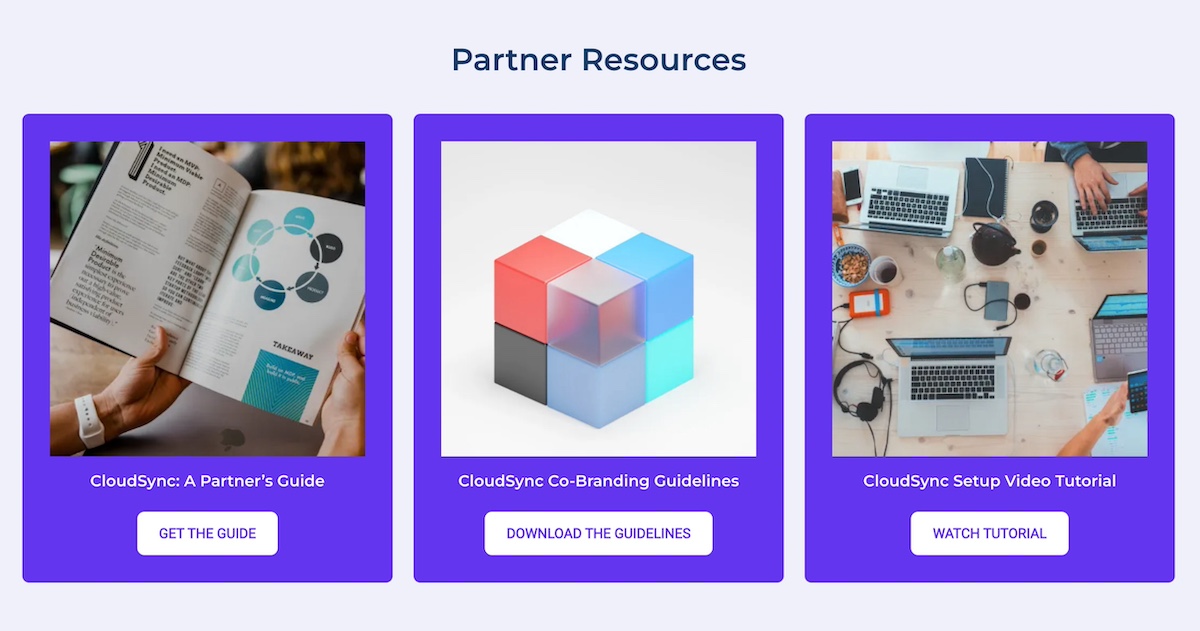
Example of a partners page with partner resources

9. FAQs

An FAQ section is a helpful way to address common questions, reduce friction for prospective partners, and prevent unnecessary back-and-forth before someone decides to apply or reach out.

Consider including questions that cover:

  • Program details: Eligibility, partner types, or expected benefits.
  • Process questions: How to apply, timelines, or onboarding steps.
  • Support and contact information: How to get help if needed.
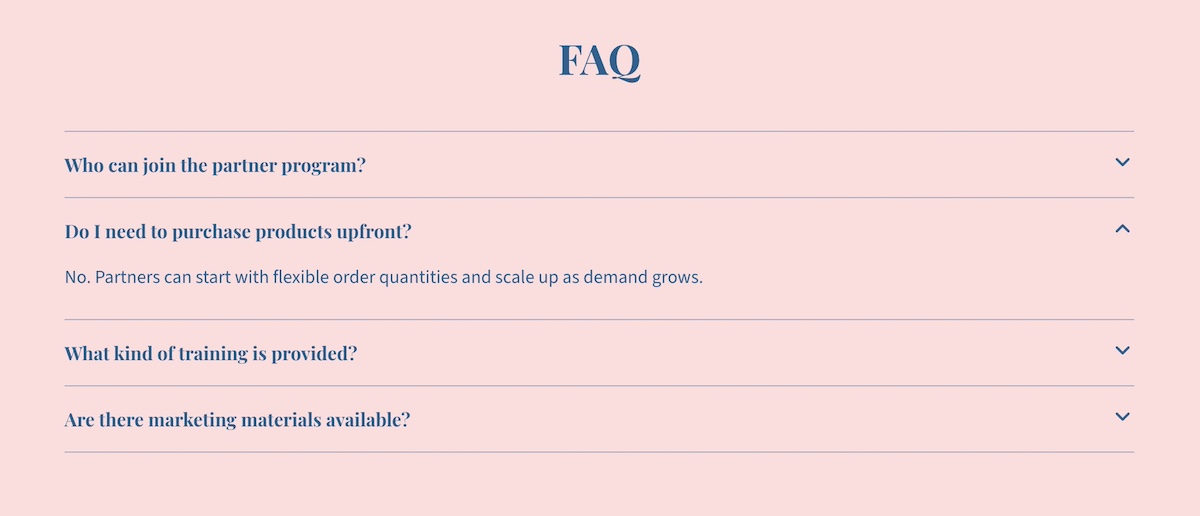
Example of a partners page FAQ

Keep answers brief and scannable, using bullet points or short paragraphs. You can also include links to guides or resources for more detailed explanations.

Best Practices for Partners Pages

Creating a truly successful and well-designed partners page goes beyond just checking the above boxes. It requires a bit more nuance involving structure, web design, and how you communicate your partner program. Following these best practices will help your page attract the right partners and support meaningful collaboration.

Define Your Ideal Partner

Before writing copy or going down the rabbit hole of partners page design, be clear about who you want to attract. Consider factors like industry, company size, business goals, and values. Defining your ideal partner is the starting point for everything else you produce. 

Create Messaging that Resonates

Your messaging should speak directly to this potential ideal partner. Focus on the benefits for them, not just what your company gains. Use clear, concise language, highlight success stories, and avoid jargon. If you can nail this messaging, it will enable the right partners to quickly understand the value of joining your partner program.

Keep the Partners Page Aligned with Your Site

Your partners page design shouldn’t feel disconnected from the rest of your site. Make sure it reflects your company’s branding by using consistent colors, fonts, and imagery. At the same time, consider how it fits into your broader website planning—whether through main navigation, as part of your About section, or linked from resources. This alignment helps the page feel like a cohesive part of your site and reinforces the value of your brand and working with you.

Leverage Existing Partnerships

We touched on this before, but we can’t emphasize it enough: leverage your existing partners, as it adds valuable credibility for both customers and for developing new partnerships. Use those logos (with permission), create case studies, and don’t be shy about asking for testimonials. Highlighting successful collaborations demonstrates the credibility of your program and encourages new partners to envision similar results.

Segment and Follow Up

Not all partners are the same, so segment prospects by using forms. That is, if you have, let’s say, a newsletter form on your homepage, you’ll want to be sure to create a unique, segmented form for your partners page. This kind of segmentation allows you to automate your emails and follow up with customized communications with relevant resources. 

Build a Partners Page That Works

Surely you are convinced by now that a well-structured and well-designed partners page does more than just rattle off a few points about your program. It’s actually a strategic tool that strengthens relationships, attracts new partners, and builds trust with your customers. And if you get it just right, you won’t just attract partners, but you’ll attract the right partners, making your whole partner program more successful.

And if you want to make building that page effortless, turn to SiteGround’s Website Builder. With drag-and-drop web design, customizable templates, and built-in marketing tools for forms and CTAs, you can create a partners page that looks polished, functions seamlessly, and fits perfectly within your overall website. That way, you can showcase your program and grow your partner network with confidence.
A promotional image for SiteGround's Easy-to-Use Website Builder featuring a mockup of a website with a living room photo. The text highlights creating a professional site without coding, offering customizable templates, AI-powered content generation, built-in SEO tools, access to over 6 million free high-quality images, an easy drag-and-drop editor, and mobile-friendly designs. Includes a "Get Started Now" button and the SiteGround logo.

Best Homepage Examples: 9 Designs by Business Type and Goal

abstract of a homepage example

The best homepages share a common formula: a clear message, a compelling visual hierarchy, and a focused call to action—and studying examples is the fastest way to learn it. In this article, we break down top homepage examples by business type and purpose, highlighting exactly what makes each one work.

Whether you’re building a lead generation page, an ecommerce storefront, or a personal brand site, you’ll find concrete design tricks, messaging strategies, and CTAs you can apply right away. Because while crafting the perfect homepage can feel like catching lightning in a bottle, the truth is there’s a proven playbook—and the best sites are already using it.

Key takeaways

  • The most effective homepages have a clear goal and make the next step obvious within seconds.
  • Strong above-the-fold messaging sets expectations and draws visitors in right away.
  • Clear navigation, focused layouts, and strategic CTAs guide users toward action.
  • Trust signals like testimonials, reviews, and social proof build credibility fast.
  • Speed, mobile optimization, and consistent branding are essential for performance and conversions.

What are the Best Website Homepage Examples?

The best homepage examples are organized by business type and primary goal—because what works for an ecommerce store looks very different from what works for a portfolio or a service business.

As you plan your website, these examples can help you better understand the purpose of your own homepage and how to shape your design, messaging, and calls to action accordingly.

Homepage Examples for Lead Generation

A great lead generation homepage has one job: turn interested visitors into contactable leads. The best ones pair a compelling offer — a free guide, a trial, a consultation — with clear CTAs and just enough social proof to make saying yes feel like a no-brainer.

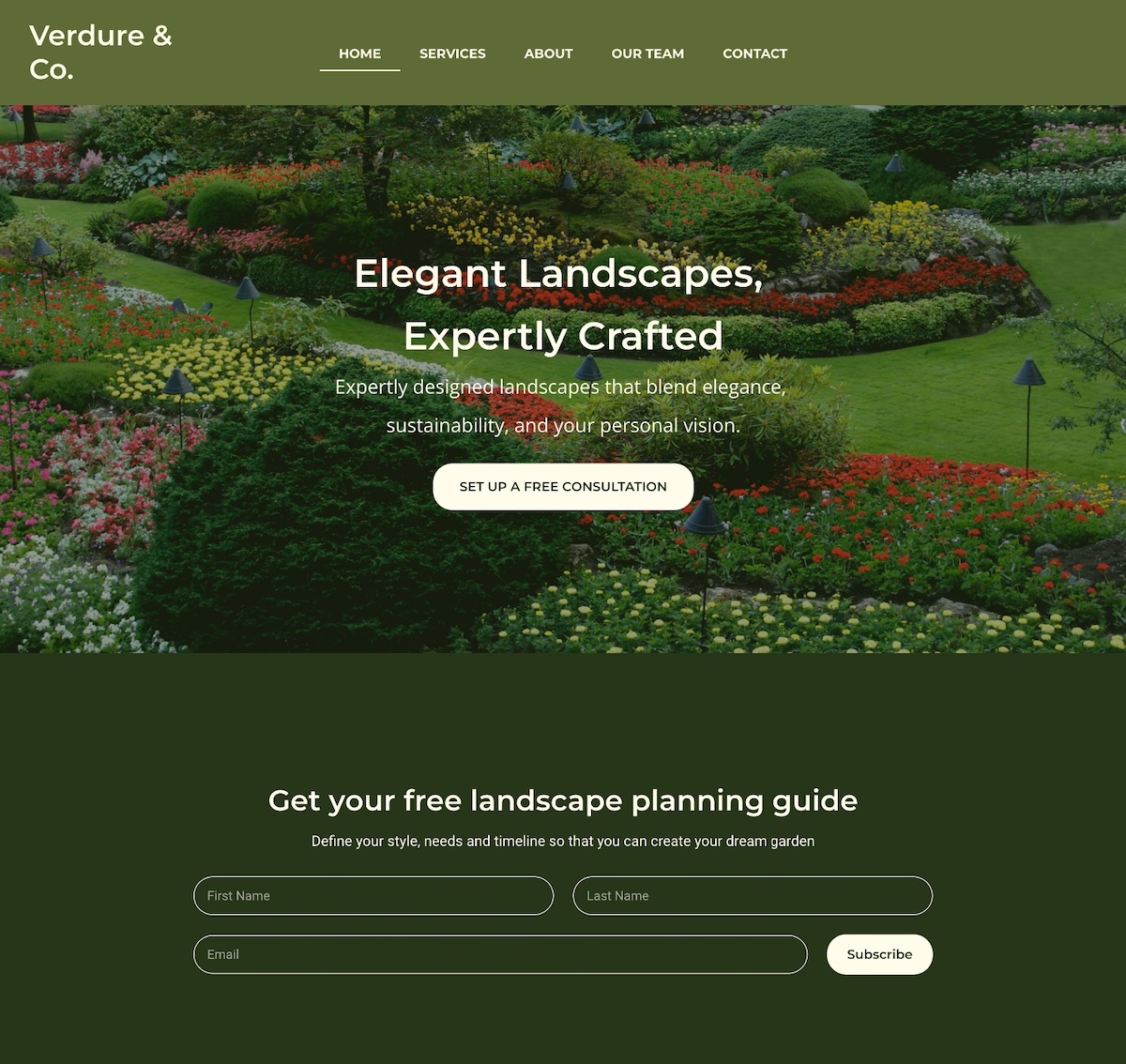
1. Notice that the homepage example below captures attention with an eye-catching photo that highlights their core message: expertly crafted landscapes. Worth noting, they prioritize email lead generation by offering a free planning guide right upfront. Offering a lead magnet allows them to attract interested leads and nurture them through strategic email marketing. 

homepage example with lead generation and lead magnet

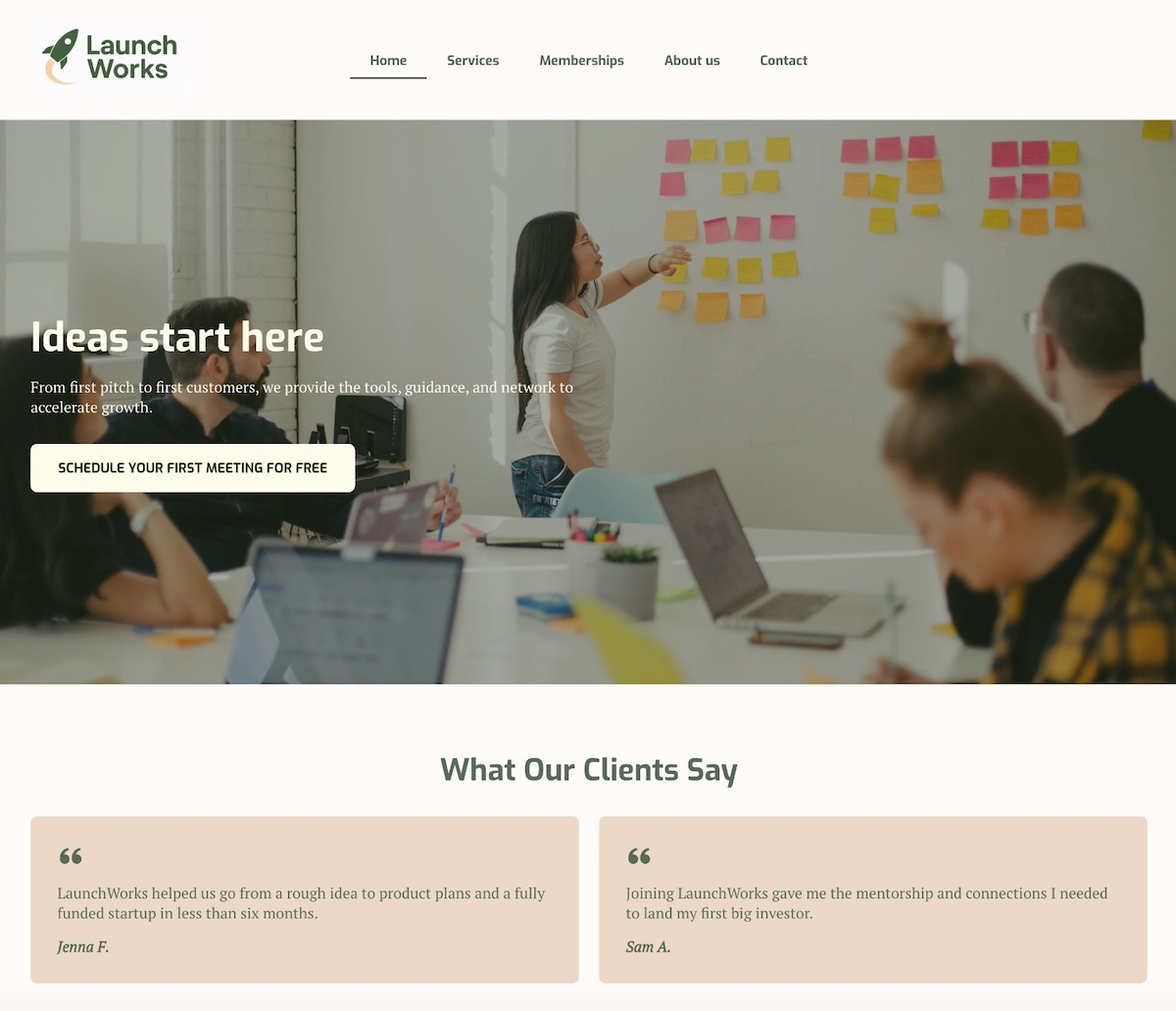
2. The below homepage stands out with a bold headline and subtitle that prominently highlight the business’s value and benefits. A clear call to action—which is action-based but also spotlights value (it’s free!)—is to the point and super effective. Then they follow their hero section with strong social proof via unmissable testimonials, adding credibility to their offerings.

homepage example of lead generation with testimonials

3. The homepage below uses clear, compelling calls to action (CTAs) targeted at different stages of the marketing funnel. Visitors who are ready to make a decision can request a consultation, while those just beginning to explore can get started for free. By including these CTAs, they implement an effective lead generation tactic: to collect emails so the conversation can continue.

example of lead generation homepage with two calls to action

Pro tip: For all of these lead-generating homepage examples, it’s smart to segment leads based on which CTA they click. For instance, leads who choose “Schedule a consultation” can go into one list, while those who click “Start for free” go into another. This way, you can tailor your messaging more precisely based on where each lead is in the customer journey.

Want to make segmentation simple? SiteGround Email Marketing makes it easy to create targeted lists, send personalized emails, and track performance—all from your SiteGround dashboard. It’s a powerful way to nurture leads with the right message at the right time.

Get started with SiteGround Email Marketing >>

Homepage Examples for Ecommerce Stores

Ecommerce homepages need to do three things fast: show what you sell, make it easy to find, and give visitors a reason to stick around. The strongest examples balance eye-catching visuals with intuitive navigation and CTAs that move browsers toward buyers.

4. This site offers clear pathways to help customers find exactly what they’re looking for—whether it’s men’s or women’s items, new arrivals, or best sellers. The website navigation menu, header, and just below the hero section offer many ways for site visitors to find just the right next step. 

homepage example of ecommerce business with calls to action for different types of customers

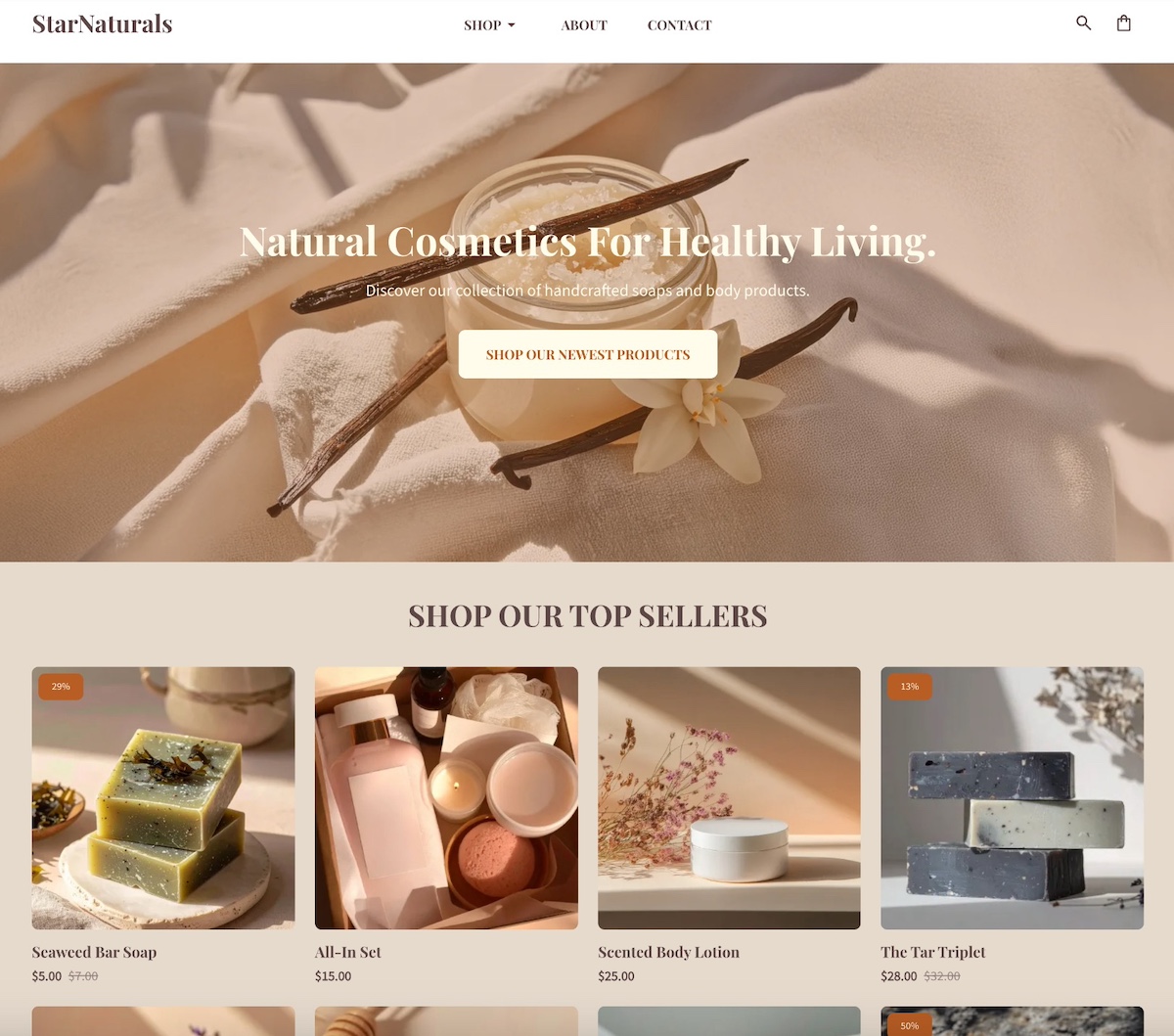
5. This site keeps it simple and effective with a single clean image and a clear and prominent call to action. More specific product links are neatly organized in the navigation menu under “shop” for easy browsing. Plus, in the post-hero section, they include a gallery of top products for instant ideas and shopping.

homepage example of ecommerce business with product links

If you’re inspired by these ecommerce homepage examples and want to create something similar, SiteGround Ecommerce makes it easy to put these ideas into action. You can highlight featured products, added email marketing forms, and add conversion-focused calls to action—all while benefiting from fast performance, mobile optimization, and built-in security. The result is an ecommerce homepage that looks great, feels intuitive, and is designed to convert from the start.

Start building your ecommerce store now>>

Homepage Examples for Personal Websites & Portfolios

Personal homepages work best when they lead with personality before credentials. The most memorable ones use a strong photo, an authentic voice, and a clear invitation — whether that’s to explore your work, join your community, or get in touch.

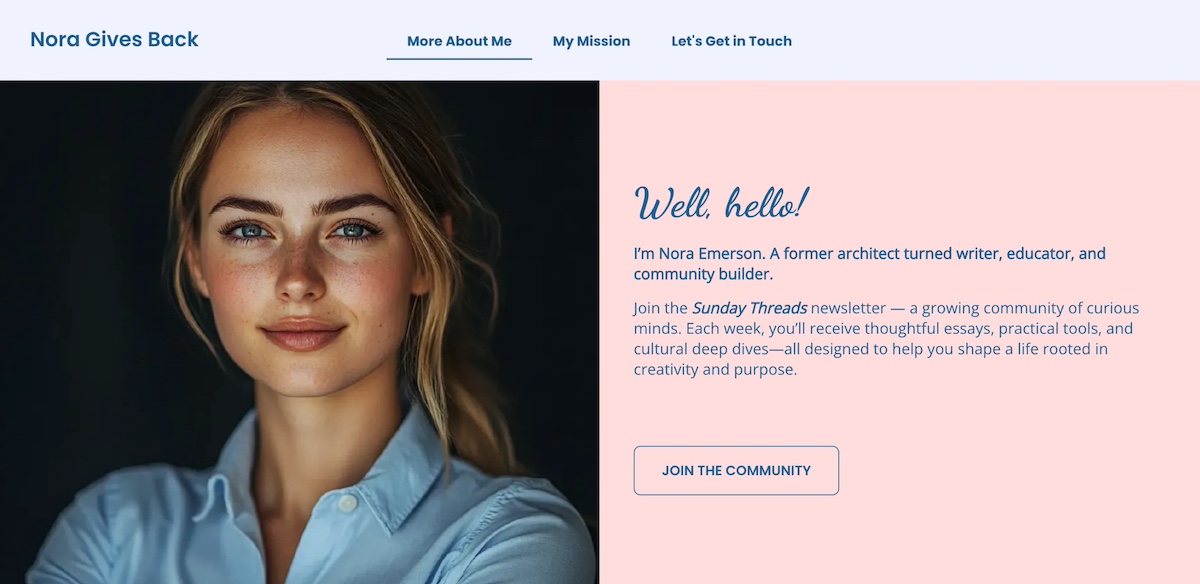
6. You’ll notice that personal webpages often take a slightly different approach. Impressive above-the-fold messaging and imagery is still important, but they’re focused more on personal photos and bios. This is evident on the homepage below, which features a friendly photo and heartfelt introduction that invites you to join her community and newsletter. The story and personal appeal make it hard not to want to “join the community.”

Example of personal website homepage with friendly photo and message

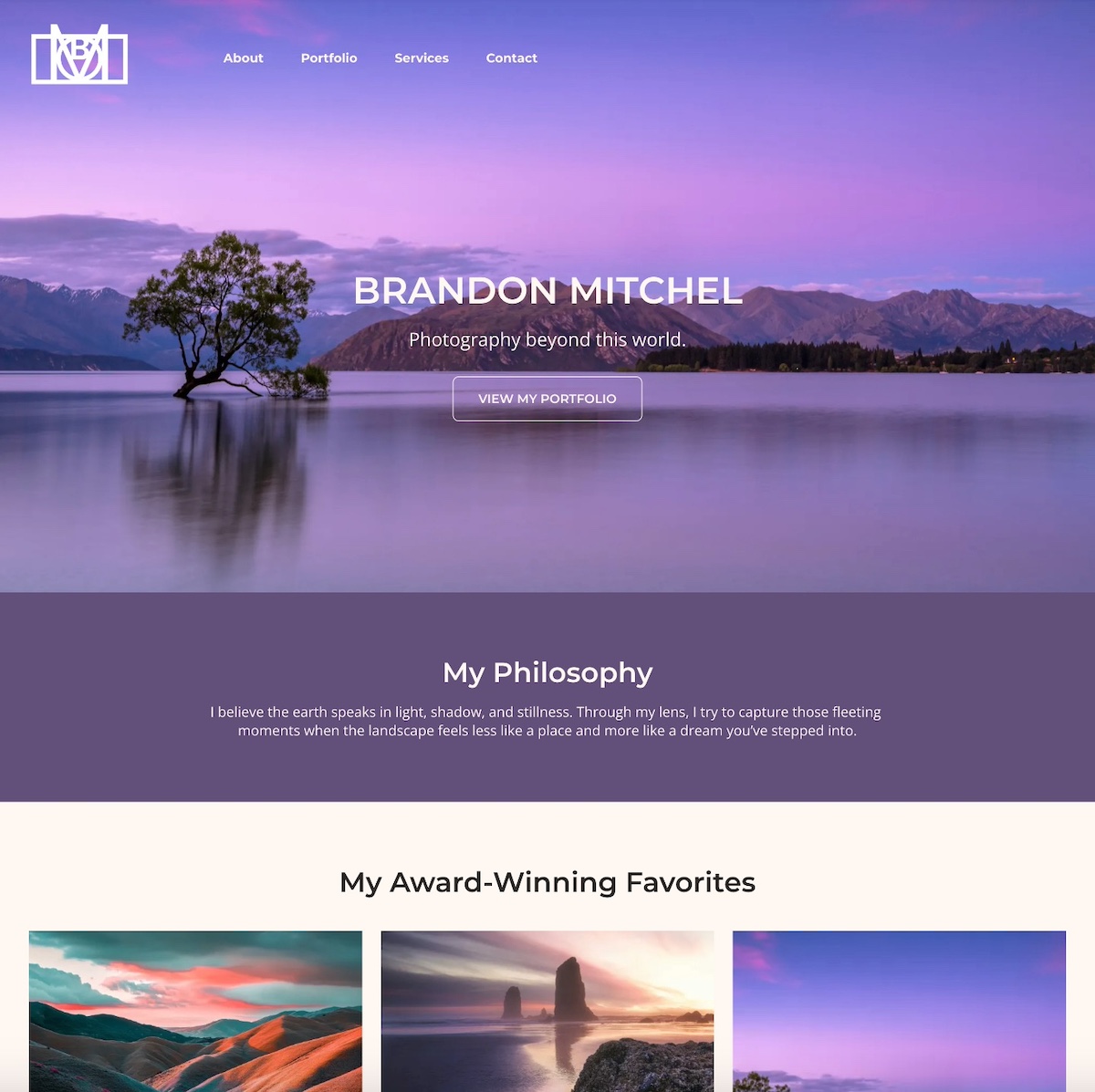
7. The below homepage example instantly pulls you in with its evocative hero image. It’s simple, captivating, and in just a few brief words captures what this site is all about: the ethereal photography. Below that, the photographer strengthens the message by sharing their personal philosophy, followed by a portfolio of imagery. The overall result is a quick and intriguing sense of what drives this person’s work, and what they have to offer.

homepage example of a portfolio website

Homepage Examples for Service-Based Businesses

Service business homepages need to answer two questions immediately: what do you do, and why should I trust you? The strongest examples combine a clear headline, an easy next step, and trust signals—like client logos or testimonials—that do the convincing before a visitor even scrolls.

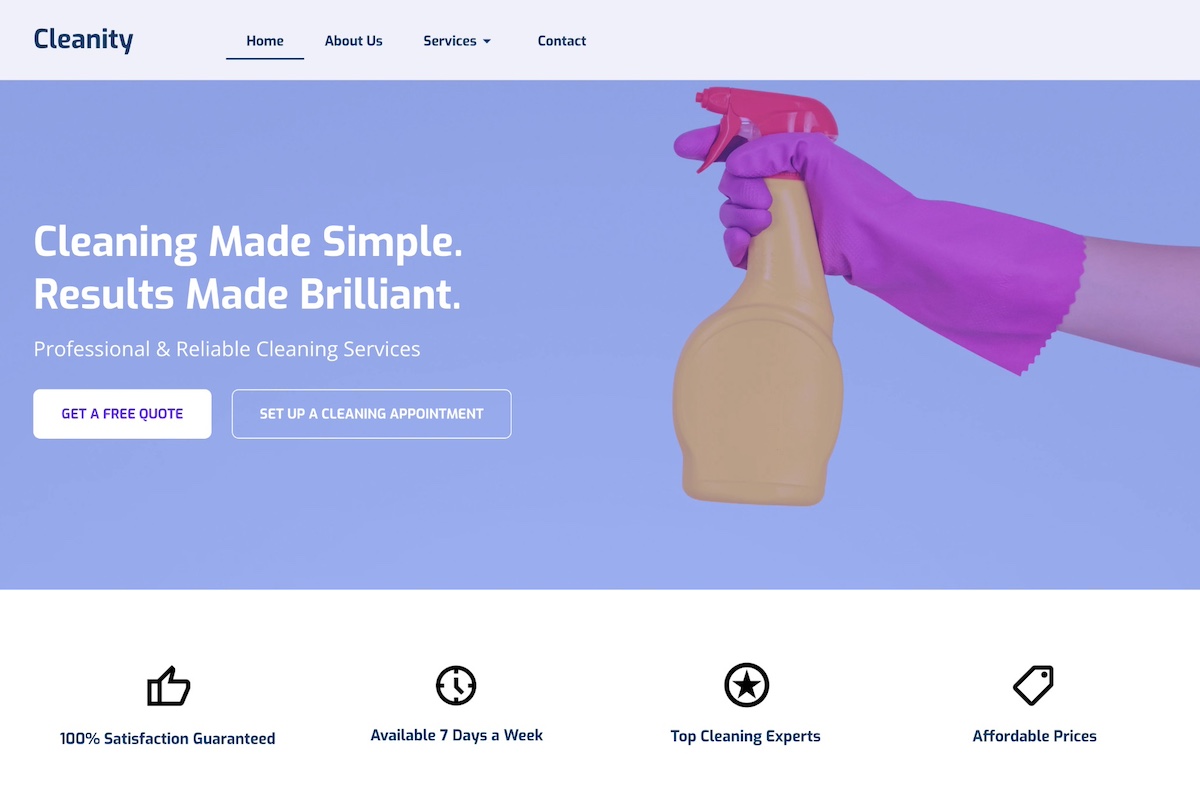
8. This homepage example stands out with a color-popping hero image and short-but-sweet headline that clearly communicate what the company does. And taking the next step is simple no matter where you are in the customer journey—you can either get a free quote, or jump right in and schedule. Below the hero section, they highlight key features that make their business worth using, helping visitors understand the brand’s true value. 

homepage example of service based business with multiple calls to action

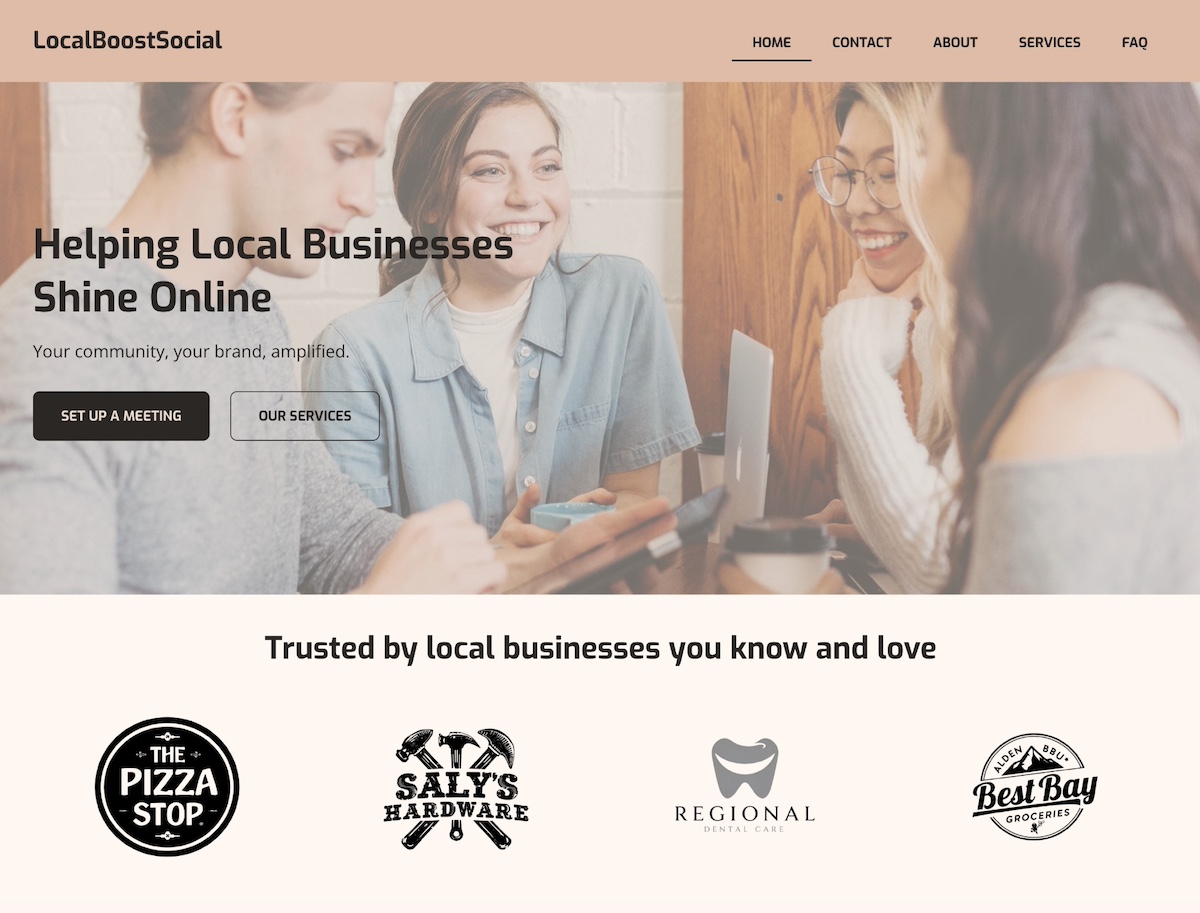
9. This homepage example opens with a friendly photo, intentional brand colors, a clear headline, and strong calls to action. Notably, because they focus on serving local businesses, the section below the header features client logos. This leverages the credibility and recognition of those businesses while strengthening their own brand—a form of social proof that’s especially powerful in a local community.

homepage example of service based business with social proof

What Makes a Homepage Effective?

Effective homepage design comes down to a handful of core principles — no matter the business type or goal. Here’s what the best examples in this article have in common, and what you should keep in mind as you build your own.

Clear Purpose and Goal

Every great homepage starts with a clear objective. Whether it’s selling a product, collecting leads, or building credibility, your homepage should make its purpose obvious within seconds. Visitors should instantly understand what your business does and what action they’re expected to take.

Strong Above-the-Fold Content

The content users see before they scroll is crucial. Use this space to grab attention with a concise headline, value proposition, and a clear CTA. The data backs this up: Nielsen Norman Group eyetracking research found that content above the fold receives 57% of users’ total viewing time, with attention dropping off sharply below it.

When it comes to effective above-the-fold design, the website below wins. It’s extremely basic and totally gets to the point with a straight forward value proposition, and a specific and enticing call to action. 

homepage example of strong above the fold content

Pro tip: many of these same techniques also form part of landing page best practices. It’s all about really nailing your hero section, value proposition, and CTAs. 

Intuitive Design and Navigation

An important way to lower your bounce rate and keep users engaged is by creating a well-structured homepage that uses visual hierarchy to guide the eye and make content easy to scan. Keep navigation simple and predictable. Use clear headings, consistent spacing, and logical flow to help visitors find what they need quickly.

Clear and Compelling CTAs

Calls to action should stand out visually and align with your page’s goal. Use action-oriented language (“Get Started,” “Book a Demo,” “Shop Now”) and place CTAs strategically throughout the page to guide users toward conversion.

Trust Signals

Build credibility with testimonials, reviews, partner logos, certifications, or guarantees. Even a simple “As seen in” bar or customer quote can go a long way in making new visitors feel confident in your brand.

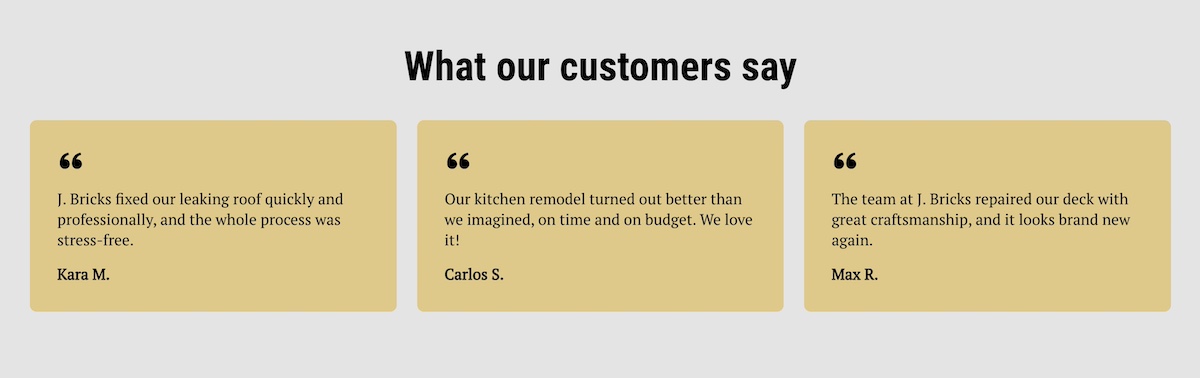
example of testimonials used on a homepage

Fast Loading

Page speed directly affects user experience and conversion rates. Optimize images, use clean code, and choose a reliable hosting provider to ensure your homepage loads quickly across all devices.

One of the easiest ways to improve page speed? Start with high-performance hosting. SiteGround’s infrastructure is built for speed, security, and reliability—plus, if you’re starting from scratch, the built-in SiteGround Website Builder along with SiteGround Ecommerce make it simple to design a sleek, homepage without sacrificing performance.

Get started with SiteGround now>>

Consistent Branding

Your homepage should reflect your brand basics—visually and verbally. Use consistent colors, fonts, tone of voice, and imagery to create a cohesive experience that feels trustworthy and professional.

Optimized for Mobile

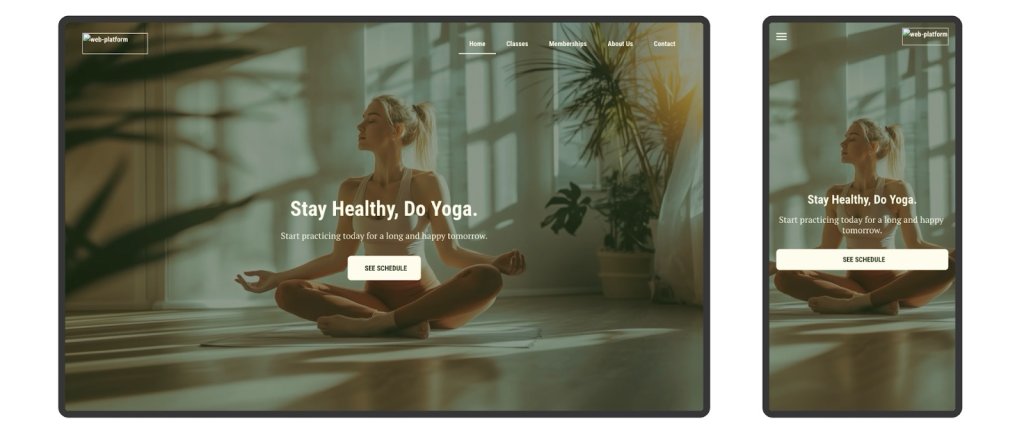
With more users browsing on mobile devices, a responsive, mobile-friendly web design isn’t optional. Make sure buttons are easy to tap, text is readable, and content stacks well on smaller screens without losing functionality. 

With the SiteGround Website Builder, for example, we do this for you automatically. All websites are automatically optimized for mobile so that they not only look good, but work well. 

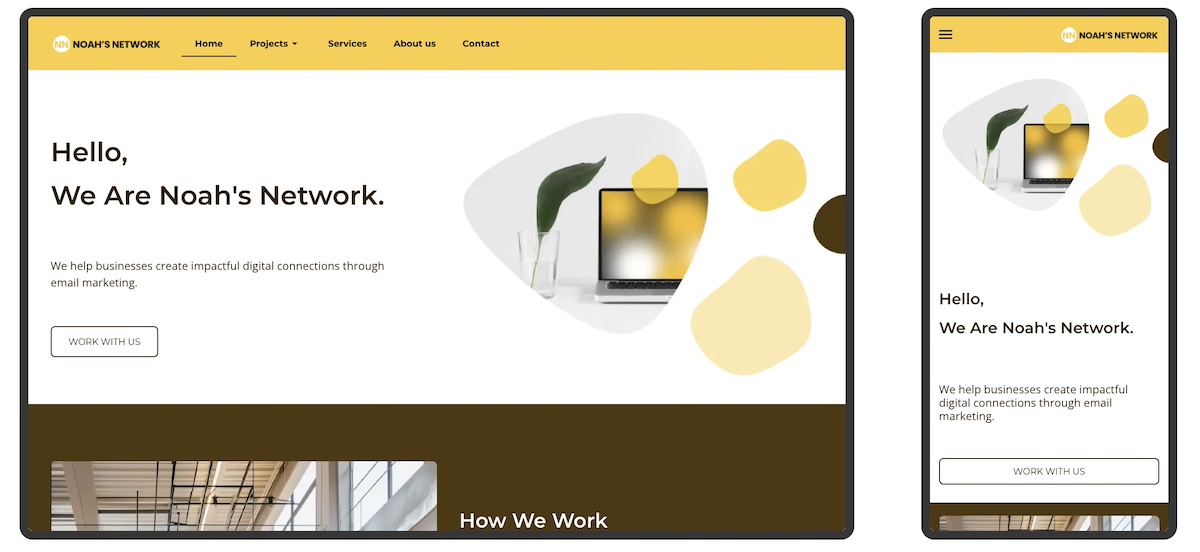
example of a homepage optimized for mobile

[18]

Why Draw Inspiration from Homepage Examples?

Drawing inspiration from homepage examples is one of the fastest ways to improve your own. Real designs show you what works in practice—not just in theory—and help you make smarter decisions about layout, messaging, and calls to action before you start building. Here’s what to look for and what to keep in mind as you take notes for your own site:

  • Clarify Your Page’s Purpose: Seeing how other websites define their goals—whether it’s driving sales, capturing leads, or sharing information—can help you pinpoint the main objective of your own homepage.
  • Understand Best Practices: Homepage examples reveal how successful sites organize content, guide visitors, and encourage action—giving you a clearer sense of what works.
  • Inspire Creative Ideas: A range of visual styles, messaging tones, and layouts can inspire you to find a look and feel that matches your brand identity.
  • Save Time: Examples give you a starting point, helping you avoid design paralysis and focus your efforts more efficiently.
  • Enhance User Experience: Learning from great design helps you create a homepage that’s intuitive, welcoming, and conversion-friendly.
  • Define Your Website Layout: Different businesses require different website layouts. Understanding all of the above will help you determine what works best for your own webpage and to achieve your specific goals.

Before You Launch: Your Homepage Checklist

Building a homepage is one thing—making sure it’s ready to perform is another. Before you hit publish, run through these essentials:

  • A clear headline that explains what you do and who you do it for, in plain language
  • A value proposition that tells visitors why you and not someone else
  • At least one strong CTA above the fold, with action-oriented language
  • Intuitive navigation that makes it easy to find the next step
  • A compelling hero image or visual that reinforces your message
  • Social proof: at least one testimonial, client logo, or trust signal
  • A mobile-friendly layout that looks and works just as well on a small screen
  • Fast load time: test it before you launch, not after
  • Consistent branding: fonts, colors, and tone that match the rest of your site
  • A secondary CTA lower on the page for visitors who need more convincing before they act

If you can check every box, you’re not just ready to launch, you’re ready to convert.

From Homepage Examples to Action: Start Designing with Purpose

By now, you’ve seen just how much a great homepage can do—build trust, guide visitors, and drive real results. The best homepages aren’t the flashiest; they’re the clearest, most purposeful, and easiest to navigate. Whether your goal is to generate leads, make sales, or simply show off your work, let these examples be your creative fuel. Take what works, leave what doesn’t, and start shaping a homepage that feels like you—and gets the job done.

Not sure where to start? The SiteGround Website Builder makes it surprisingly easy to bring your homepage vision to life. With beautiful templates, design simplicity, and built-in speed and mobile optimization, it’s the shortcut to a professional-looking site—without the usual headaches. Plus, SiteGround Ecommerce makes it exceptionally easy to start selling online whenever you’re ready, so your site can grow alongside your ideas, goals, or business from day one.

FAQs About Homepage Examples

What is an example of a home page?

A homepage is the main page of a website—the first thing most visitors land on. A lead generation homepage, for example, might open with a bold headline, a free offer like a planning guide, and an email signup form. An ecommerce homepage might lead with a hero image, featured products, and a Shop Now button. The best homepage examples all share the same basics: a clear message, an obvious next step, and a design that reflects the brand.

What should my homepage look like?

Your homepage should have a strong hero section with a headline that explains what you do, a visual that reinforces it, and a clear call to action. Below that, include supporting content like key benefits, social proof, and easy navigation to help visitors find what they need. The exact look depends on your goal—a portfolio site feels different from an ecommerce store—but clarity and simplicity should drive every design decision.

What is a good homepage to use?

A good homepage is one that matches your specific goal—whether that’s generating leads, selling products, or building credibility. Rather than chasing a single “best” design, focus on your business type and what your visitors need to see first: a compelling headline, a clear next step, and trust signals that make them feel confident. Start there, and build outward.

How does a homepage look?

Most homepages follow a similar structure: a hero section at the top with a headline and CTA, followed by sections that build the case—benefits, featured products or services, testimonials, and a final call to action. The visual style varies widely by brand, but the underlying layout is usually consistent: important information up top, supporting detail below, and a clear path forward throughout.

What should a homepage include?

At minimum, a homepage should include a clear headline, a unique selling proposition, at least one call to action, and basic website navigation. Most effective homepages also add social proof—like testimonials or client logos—along with a brief explanation of what the business does and who it’s for. Everything else depends on your goal and audience.

What is the most important element of a homepage?

The headline. It’s the first thing visitors read and the deciding factor in whether they stay or leave. A strong homepage headline clearly communicates what you do and who you do it for—in as few words as possible. Everything else on the page supports and expands on that single message.

What is the difference between a homepage and a landing page?

A homepage serves your entire audience—it introduces your brand, offers navigation, and points visitors toward different parts of your site. A landing page has one specific goal, like signing up for a free trial or downloading a guide, and deliberately removes navigation to keep visitors focused on a single action. Both need strong headlines and CTAs, but a landing page is narrower and more conversion-focused by design.

This article was originally published in September 2025, and then updated in April 2026.

Accessible Web Design: Basics and Best Practices

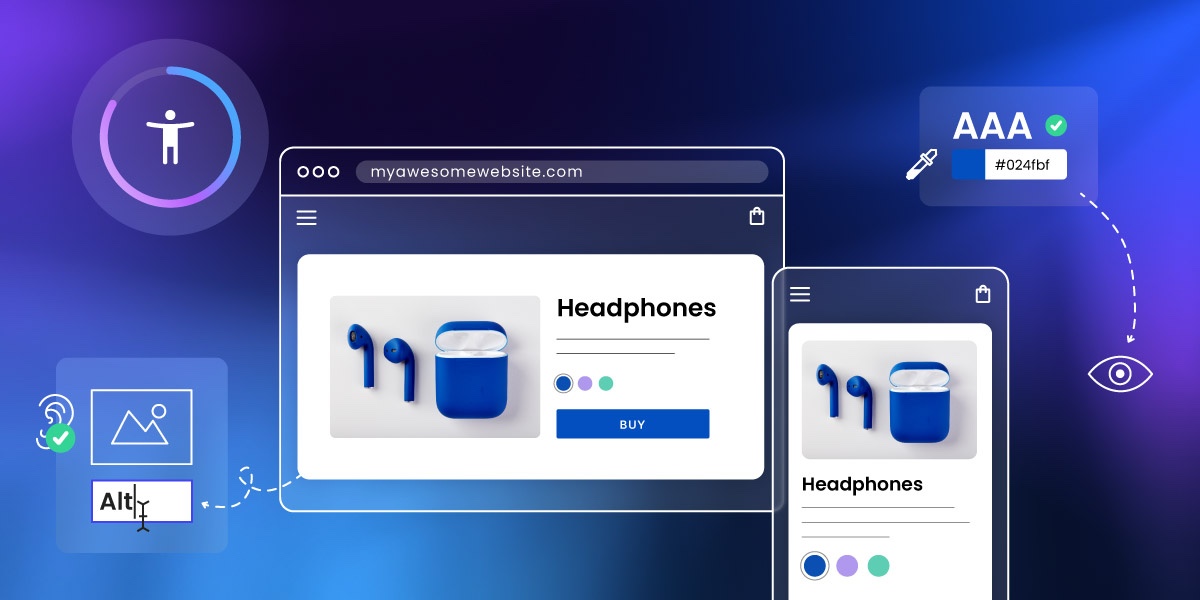
Abstract of accessible web design

Accessible web design means building websites that anyone can use, regardless of ability, including people who are blind or have low vision, deaf or hard of hearing, or living with motor or cognitive disabilities. Getting it right removes barriers for real users, improves experience for everyone, and keeps your site on the right side of digital accessibility laws. Here’s what it means in practice, and how to implement it.

Key takeaways:

  • Accessible web design removes barriers so people of all abilities can use and enjoy your website.
  • Accessibility improves usability for everyone, while also supporting SEO and legal compliance.
  • Small design choices—like headings, fonts, contrast, and alt text—have a big accessibility impact.
  • Following WCAG guidelines provides a practical framework for inclusive, future-proof design.
  • Testing and maintaining accessibility over time is essential for creating truly inclusive websites.

What is Web Accessibility? 

Web accessibility and accessible web design means designing and developing websites, tools, and technologies that can be used by people of all abilities, including those with temporary, situational, or permanent disabilities. That includes users who are blind or have low vision, those who are deaf or hard of hearing, people with motor difficulties, cognitive or learning disabilities, and many others.

Chances are that many people you know (if not you yourself) are in this situation. According to the World Health Organization, over 1.3 billion people—or roughly 16% of the global population—live with some form of disability. That’s a massive audience we don’t and shouldn’t want to leave out—partly because it’s just the right thing to do, and also because it’s surely an audience that you want to reach.

Accessibility is about removing barriers so all users can perceive, understand, navigate, and interact with your website. These are the four pillars of the POUR framework, which underpins the Web Content Accessibility Guidelines (WCAG):

  • Perceivable: Information and interface components must be presented in ways users can perceive (such as using alt text for images, sufficient color contrast).
  • Operable: Navigation and interface elements must be usable via multiple methods (keyboard, screen reader, etc.).
  • Understandable: Content and interfaces must be clear and predictable (readable text, consistent design).
  • Robust: Content must work reliably across current and future devices, browsers, and assistive technologies.

If you’re not sure what to make of all these concepts, don’t worry—we’re going to break it down into understandable and actionable terms.

Why Does Web Accessibility Matter?

According to the World Health Organization, an estimated 1.3 billion people — 16% of the global population — live with a significant disability. Yet according to the WebAIM Million report, the top one million homepages averaged 56 detectable accessibility errors per page in 2026, meaning most websites are still falling short, often without realizing it. That gap is exactly what accessible web design is designed to close.

There are other reasons to get on board as well:

  • Legal compliance: Many countries enforce digital accessibility laws, and failing to meet them can result in costly lawsuits or penalties.
  • Inclusive values: More broadly, building with web accessibility in mind shows respect for all users and reflects a commitment to inclusivity and equal access.
  • SEO benefits: Accessible sites tend to perform better in search engines thanks to clearer structure, alt text, semantic HTML, and better page speed.

What Are Accessible Web Design Best Practices?

Now that we’re all clear on its importance, let’s look at accessible web design best practices you can start putting into action today.

1. Add Clear, Helpful Headings

While seemingly trivial, headings play a surprisingly important role making your content more accessible, readable, and searchable. And when we say “headings,” we don’t just mean a title in big bold lettering for each page or section; we meanactually using proper HTML tags so that screen readers and search engines alike understand the website structure of your pages. 

A screen reader is software that reads aloud the content on a screen, allowing people who are blind or have low vision to navigate and interact with accessible websites using speech or braille.

For screen reader users, headings act as signposts. They allow users to navigate through content quickly, skipping to the section they’re interested in without having to read everything in order. This is especially helpful on longer web pages, where a well-structured outline can save time and reduce frustration.

And of course, accessible headings aren’t just good for users—they’re also a key part of SEO basics. Search engines rely on heading structure to understand the hierarchy and relevance of your content. Using proper HTML heading tags (<h1> through <h6>) signals to search engines what your page is about and how it’s organized, making it easier to index and rank.

From a visual design perspective, clear headings also improve readability and scannability. Most people don’t read web pages word-for-word; they scan. Well-designed headings break up long blocks of text, highlight key points, and guide the reader’s eye through the page. When styled consistently, they help create a visual rhythm that enhances the user experience.

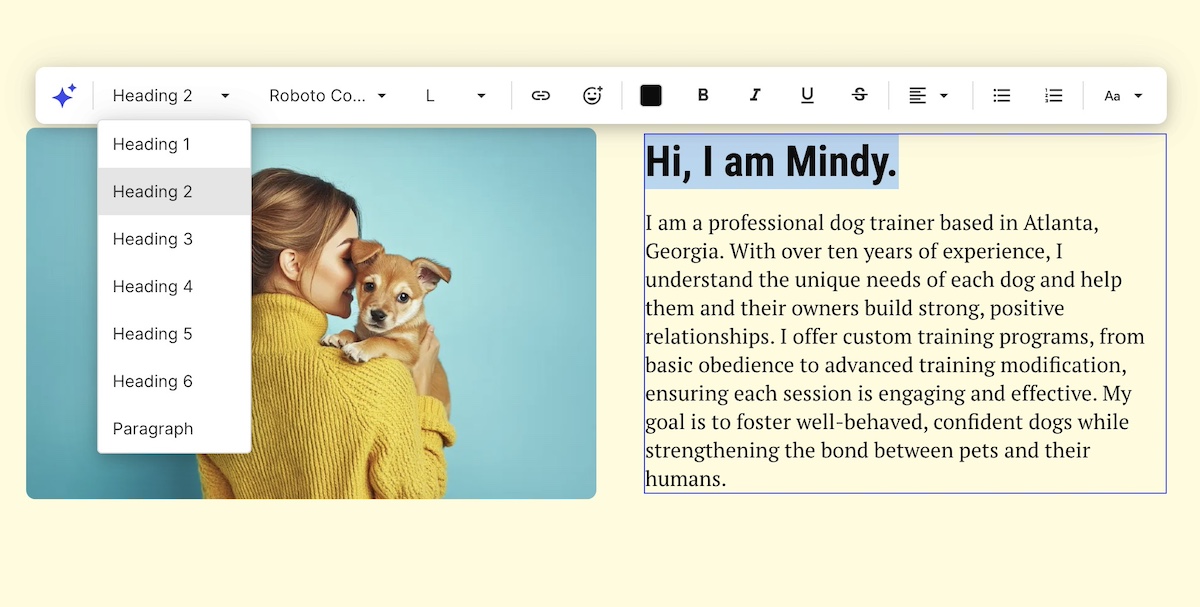
Now, if you’re not familiar with using header tags, no problem—they can be easy to implement. In the SiteGround Website Builder, for example, you can just highlight your text, and modify the type of text as you go.

Adding a heading tag to website via the SiteGround Website Builder

To make the most of your headings:

  • Use only one <h1> per web page (usually the page title)
  • Follow a logical nesting order (<h2> for main sections, <h3> for subsections, etc.)
  • Keep them short, descriptive, and relevant to the content that follows
  • Avoid using headings purely for visual effect—use CSS to style regular text if it’s not meant to function as a heading

2. Choose Accessible, Easy-to-Read Fonts

Typography is one of the most overlooked aspects of web accessibility, but it has a huge impact on how easily users can read and engage with your content.

For accessibility, the goal is to choose fonts that are legible, clear, and consistent across devices and screen sizes (this is just as important, by the way, when it comes to choosing the best fonts for email). This helps people with low vision, dyslexia, or cognitive disabilities process text more easily. It also improves readability for everyone, especially on mobile screens.

When it comes to choosing font, here are best practices to consider and follow:

Use Simple, Sans-Serif Fonts

Sans-serif fonts like Roboto or Open Sans are generally easier to read on screens of all sizes than serif fonts, which have small decorative strokes at the ends of their letters. Avoid overly decorative, script, or novelty fonts especially in body copy—they might look fun, but they can be hard to decipher for many users.

Keep Font Size Legible

Be mindful of body text size making sure it’s reading without forcing users to zoom in. Also make sure your text scales well when a user adjusts their browser’s zoom settings or increases text size in their operating system preferences.

Pay Attention to Spacing

Use ample line height, letter spacing, and paragraph spacing to give your text breathing room. Dense, cramped text can be overwhelming and hard to follow, particularly for users with reading difficulties or cognitive disabilities.

Limit the Number of Fonts

Stick to one or two fonts across your site to maintain visual consistency and reduce cognitive load. Many competing typefaces can make your design feel chaotic and harder to process.

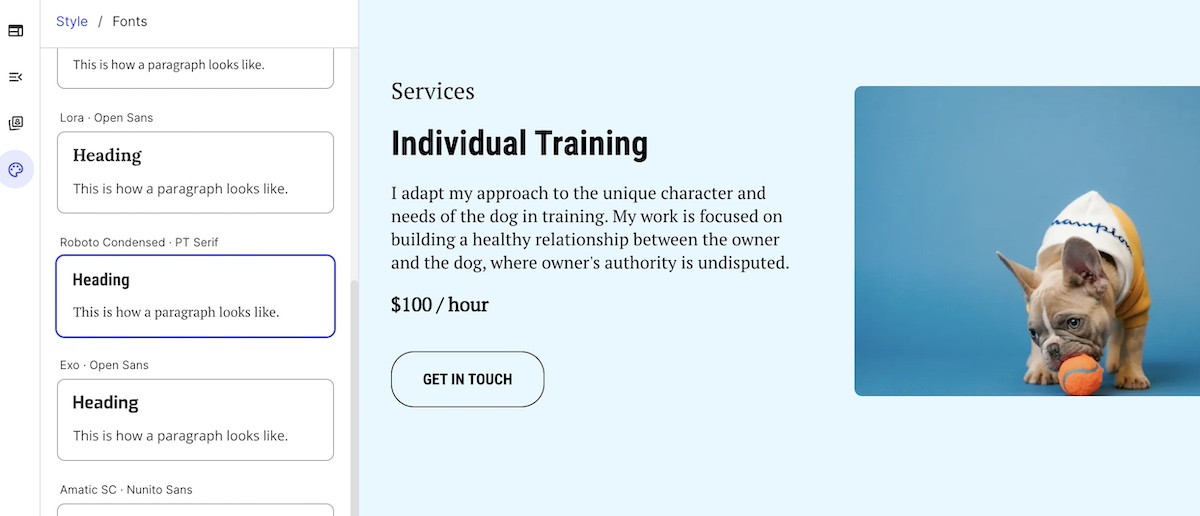
Choosing font pairings in the SiteGround Website Builder

Avoid Using Text in Images

Text embedded in images can’t be read by assistive technologies, like screen readers, and doesn’t scale well for different screen sizes. If you must use it, make sure the same information is available as live text elsewhere on the page.

When it comes to implementing these font best practices, SiteGround makes it extra simple. Our website builder offers carefully curated font pairings that are optimized for readability, professionalism, and performance. And everything automatically adjusts for all screen sizes so that you can be sure your text is always readable. 

3. Write Descriptive Alt Text for Images

Alt text, or alternative text, is a short description of an image added via the alt attribute in HTML. It’s essential for web accessibility, allowing users who rely on screen readers to understand the content and context of images. It also improves both SEO and AI by making it easier for machines to interpret images on your site.

What Makes for Good Alt Text?

Effective alt text is:

  • Concise – typically a brief sentence that captures the essential message or purpose of the image.
  • Contextual – tailored to how the image relates to surrounding content.
  • Descriptive – clearly communicates what the image shows or represents.

Examples:

  • “Rock climber scaling a granite cliff at sunrise” — descriptive and relevant
  • “SiteGround logo” — short but provides necessary context
  • “Red backpack on a forest trail” — gives meaning to a product or lifestyle photo
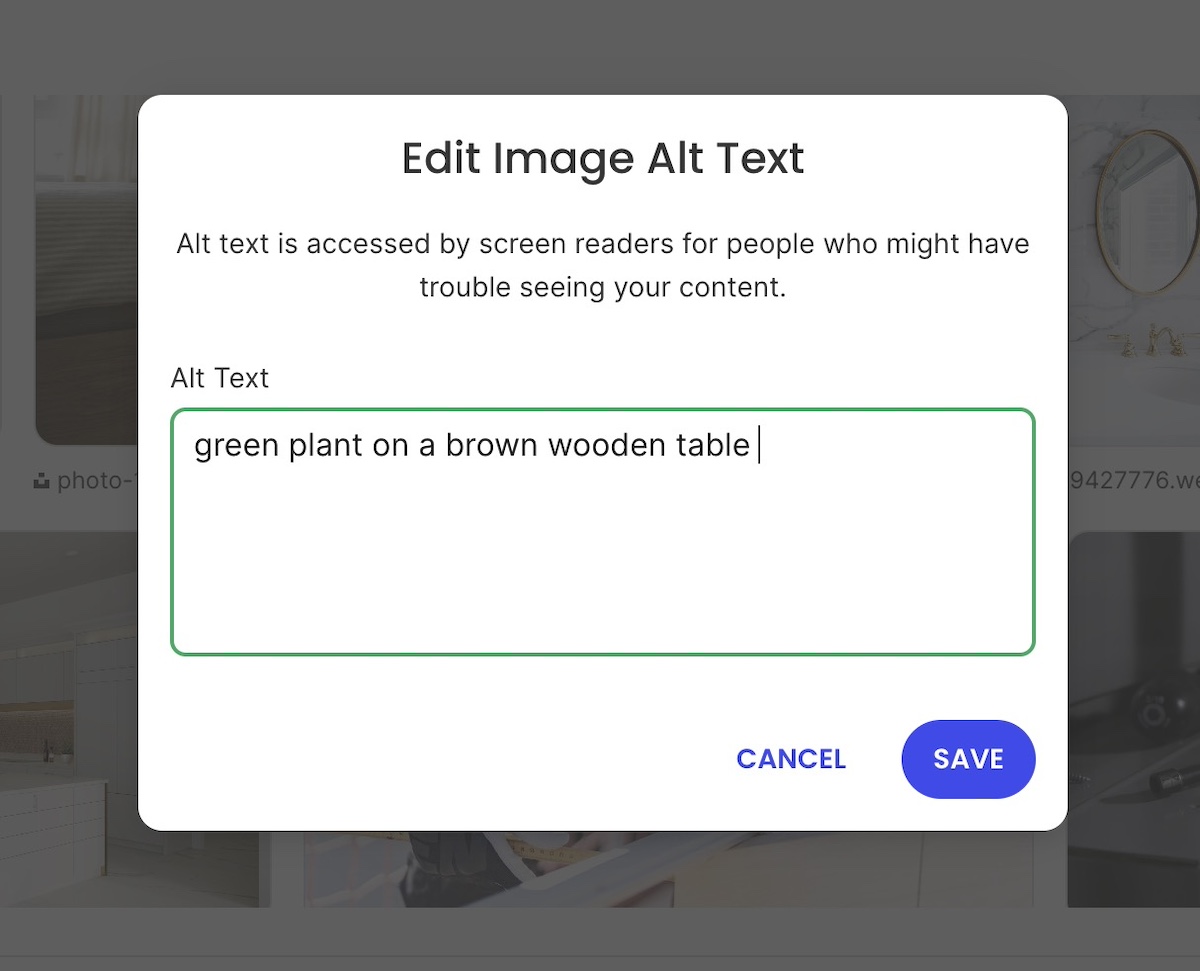
Adding alt text to an image in the SiteGround Website Builder

On the other hand, avoid vague or unhelpful descriptions like:

  • “Image” or “Picture” — these provide no useful information
  • “Click here” — if used as a linked image, this lacks clarity
  • “Logo” — unless you specify whose logo it is

When to use alt text—and when to leave it out

  • Use alt text for images that convey information, illustrate content, or provide important context.
  • Use alt=”” (an empty alt attribute) for decorative images that don’t add meaning—such as borders, icons used only for style, or background flourishes. This prevents screen readers from announcing unnecessary content.

What about complex images?

For graphs, charts, and infographics, alt text alone may not be enough. Provide a longer description elsewhere on the page (such as a text summary below the image) to convey the data or insights in an accessible way.

Feeling a little confused about all this talk of using the alt attribute in HTML? It doesn’t have to be complicated. SiteGround makes adding alt text to your images super easy. Just click on an image in your photo library, give it a description in the alt text field, and you’re good to go.

Clear, descriptive links and calls to action (CTAs) are one of those small but impactful details that improve both web accessibility and usability. They help all users—including those people with disabilities—understand exactly what will happen when they interact with a link or button.

Why Clarity Matters

Screen reader users often navigate a page by scanning through a list of links. Vague link text like “Click here,” “Read more,” or “Learn more” doesn’t provide meaningful context, making it difficult to understand the purpose of the link without hearing surrounding content.

Descriptive links improve website navigation by clearly communicating the destination or action. This benefits everyone, including users with cognitive disabilities or anyone scanning the page quickly.

With that in mind, here are a handful of best practices for links and CTAs: 

  • Be specific: Use link text that clearly describes what the user will get or where they will go, such as “Download the 2025 Accessibility Guide” or “View pricing plans.”
  • Keep it concise: While descriptive, links should be short enough to be easily understood at a glance.
  • Use consistent styling: Links and buttons should stand out visually, typically using color and underlining or distinct button shapes, so users recognize them easily.
  • Avoid using URLs as link text: Long URLs are hard to read and understand; instead, use meaningful text.
  • Use buttons for actions: When the interaction triggers an action (like submitting a form or starting a download), use buttons instead of links to convey this difference.
Example of a call to action button with clear description text
  • Accessible focus states and keyboard navigation: Make sure that links and buttons have visible focus indicators (such as outlines or underlines) when selected via keyboard navigation. This helps users who rely on keyboard input track where they are on the page.

These same principles apply beyond accessibility, as clear, descriptive CTAs are a cornerstone of good ecommerce website design too.

5. Ensure Sufficient Color Contrast

Color contrast is a classic example of where things can really go sideways with accessible web design. Achieving adequate color contrast means that the text and important visual elements stand out clearly against their backgrounds. This makes content readable for users with visual impairments, color blindness, and even those viewing screens in bright or low-light conditions.

What the guidelines say

The Web Content Accessibility Guidelines (WCAG) recommend the following minimum contrast ratios:

  • Normal text: At least a 4.5:1 contrast ratio between text and background
  • Large text: At least a 3:1 contrast ratio (large text is generally 18pt/24px or larger, or 14pt/18.66px bold or larger)
  • UI components and graphical objects: At least a 3:1 contrast ratio to distinguish interactive elements

How to check and improve contrast

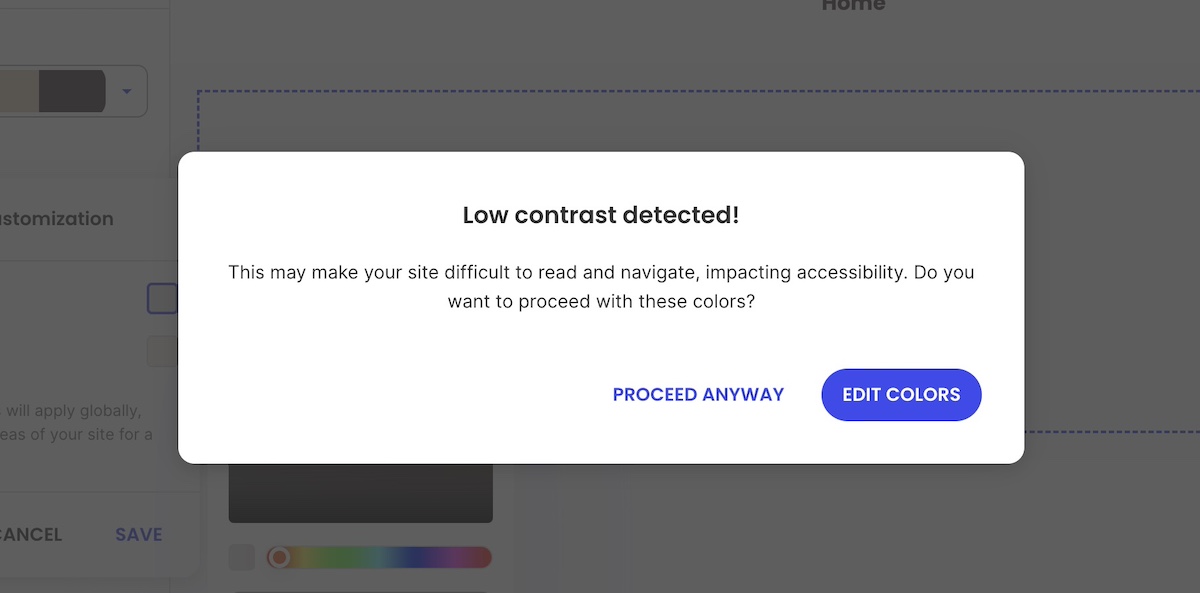
  • Use online tools to test your color combinations. Alternatively, the SiteGround Website Builder automatically notifies you if your color contrast isn’t optimal.
  • If your contrast ratio is too low, consider adjusting either the text color or the background color to increase the difference.
  • Avoid using color as the only means of conveying information—for example, don’t rely solely on red text to indicate errors. Use additional visual cues like icons or text labels.
  • Be mindful of background images or gradients that can interfere with text clarity—consider adding overlays or solid backgrounds behind text.
  • Consistency is key. Use a defined color palette with accessible contrast ratios for your primary, secondary, and accent colors.
Low contrast warning about color in SiteGround Website Builder

6. Design for Easy Layout and Scannability

Most people don’t read web content word-for-word; they scan. This is especially true for users with cognitive disabilities, limited attention spans, or those who are simply short on time (so, most of us!). A clean, well-organized website layout improves both accessibility and user experience by making it easier for everyone to find and understand information.

Here are some best practices for scannable, accessible design:

  • Use headings and subheadings: Break content into logical sections using clear, hierarchical headings. This creates a visual hierarchy and structural roadmap for the page.
  • Write in short paragraphs: Long blocks of text can be difficult to follow. Aim for no more than 3–4 sentences per paragraph. This improves readability and allows users to scan quickly.
  • Use bullet points or numbered lists: This helps organize information, making it easier to process. Lists also work well with screen readers, which announce how many items are in the list and read them one by one.
  • Maintain consistent spacing: Leave enough white space between sections, paragraphs, and elements to avoid visual clutter. This gives users time to process one element before moving on to the next.
  • Group related content: Keep related information close together—visually and structurally—so users can quickly understand the relationship between different elements.
  • Keep navigation simple: Use predictable menus and page layouts across your site. Consistent navigation helps users orient themselves and move through your site confidently.
  • Avoid distractions: Limit unnecessary animations, auto-playing content, or flashing visuals. These can distract or even trigger seizures for sensitive users. If you do use motion or video, allow users to pause, stop, or control it.
A homepage with scannable headers and text

Good layout design is as much about what you leave out as what you include. When in doubt, simplify. A clear, uncluttered layout improves usability for everyone, and supports accessibility without sacrificing visual appeal.

7. Follow Accessibility Standards & Guidelines

Web accessibility isn’t just a design preference; it’s guided by internationally recognized standards that help make sure digital content is usable by as many people as possible. Following these guidelines gives you a framework for making informed, inclusive design decisions, helping your site stay compliant with website accessibility laws.

The Gold Standard: WCAG

The Web Content Accessibility Guidelines (WCAG) are the most widely accepted benchmarks for accessible design. Created by the World Wide Web Consortium (W3C), the WCAG is now in version 2.2, with most organizations targeting Level AA compliance as it offers a strong balance between broad accessibility and practical implementation.

Why Following WCAG Matters

  • Legal protection: In many regions—including the EU, U.S., and parts of Canada and Latin America—failing to meet web accessibility standards can result in legal action. 
  • Clear benchmarks: Rather than guessing what “accessible” means, WCAG gives you specific, testable goals.
  • Future-proofing: Designing to recognized standards makes your site more adaptable as new devices, platforms, and user needs emerge.

Thankfully, by applying the best practices we’ve described above, you are well on your way to complying with these guidelines and making your website accessible for all. 

8. Test Your Site

Even if you’ve followed every website accessibility best practice, you can’t assume your site is fully accessible until you test it. Testing helps you catch issues you might not see during design and development. It also ensures that your site works for real users with a variety of needs.

The best way to make sure your site is accessible is to combine automated testing with manual checks. Here’s the best approach: 

  • Automated tools can quickly catch common issues like missing alt text, low contrast, or improper heading structure. They’re a great first step, but they typically detect only a portion of potential problems.
  • Manual testing helps fill the gaps. Try navigating your site using only a keyboard, zooming in to 200%, and using a screen reader to experience your content from a different perspective. Make sure focus indicators (the visible outlines and underlines that show where you are on the page) are present and interactive elements are easy to reach and understand. Whenever possible, include people with disabilities in your testing to uncover issues that tools and developers might miss.
Website navigation with focus indicators

Build testing into your process

Website accessibility testing shouldn’t be a one-time task or something saved for the end. Integrate it into your website planning, especially during redesigns, new content rollouts, or feature updates. Catching issues early is faster, cheaper, and more effective than fixing them after launch. 

[18]

Make Web Accessibility Part of Your Site Today

An accessible website goes beyond meeting legal requirements—it means equal access for everyone to enjoy your content. So when you apply accessible web design best practices, it not only removes barriers, but it improves overall usability, and extends your reach to a broader audience. This is good news for everyone.

And if you’re ready to put these principles into action without getting lost in technical details, the SiteGround Website Builder has you covered. It’s designed with accessibility in mind, offering easy-to-use tools for headings, font pairings, color contrast checks, alt text, and more—so you can focus on your content while knowing your site is both beautiful and inclusive from the start.

Create Your Dream Website with SiteGround’s Easy-to-Use Builder

FAQs about Accessible Web Design

What is accessible web design?

Accessible web design is the practice of building websites that can be used by people of all abilities, including those with visual, auditory, motor, or cognitive disabilities. It involves design and development choices like clear headings, sufficient color contrast, and descriptive alt text that remove barriers and make content available to everyone.

What is WCAG vs ADA?

WCAG (Web Content Accessibility Guidelines) is an internationally recognized set of technical standards for web accessibility, created by the World Wide Web Consortium (W3C). The ADA (Americans with Disabilities Act) is a U.S. civil rights law that prohibits discrimination against people with disabilities, and courts have increasingly applied it to websites. In short, WCAG is the technical benchmark and the ADA is the legal framework. Meeting WCAG AA compliance is generally the strongest defense against ADA-related legal action.

What are the 4 principles of WCAG?

The four principles of WCAG are Perceivable, Operable, Understandable, and Robust, known collectively as the POUR framework. Perceivable means content can be seen or heard by all users. Operable means the interface works via keyboard and assistive technology. Understandable means content is clear and predictable. Robust means it works reliably across devices and assistive tools.

Тhe Smarter FAQ Guide: 8 Mistakes to Avoid

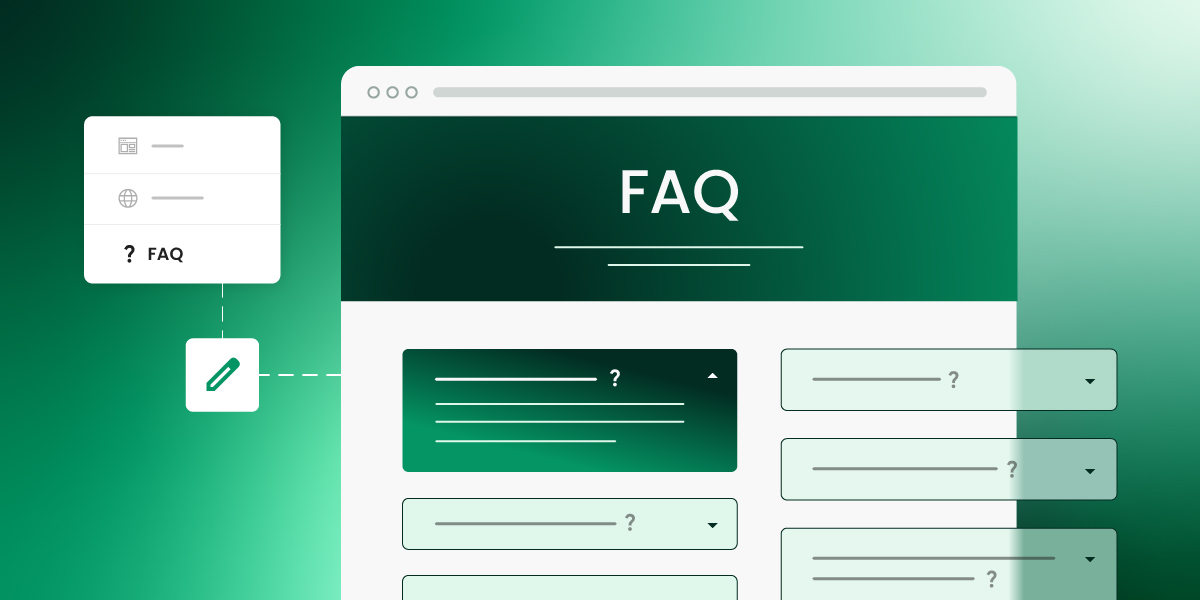
Illustration of an FAQ page layout with question and answer sections, featuring a green color scheme and design elements for a clean, organized look.

As a small business owner, you’re always looking for ways to make things run smoothly, and if we’re being really honest, answering the same questions over and over can be a real drag. That’s where an FAQ page saves the day. In this guide, we’ll dive into the common mistakes to avoid and the best practices to follow, making sure your FAQ page is as lively and effective as your business itself.

What is an FAQ Page?

An FAQ page (or Frequently Asked Questions page) is a dedicated section on your website where you address the most common queries customers might have about a product, service or your company. It’s all about delivering quick, clear answers so your customers can find what they need without the extra hassle.

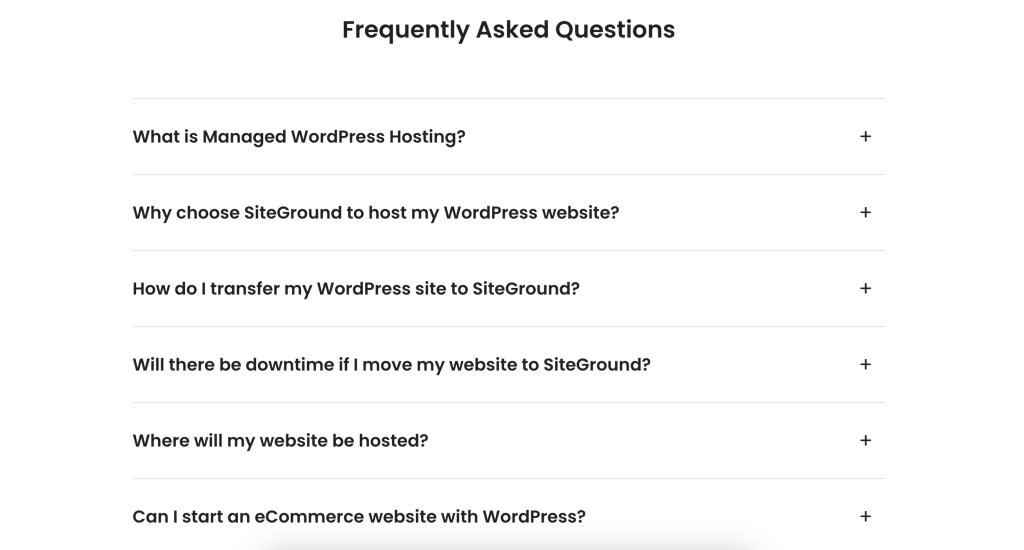
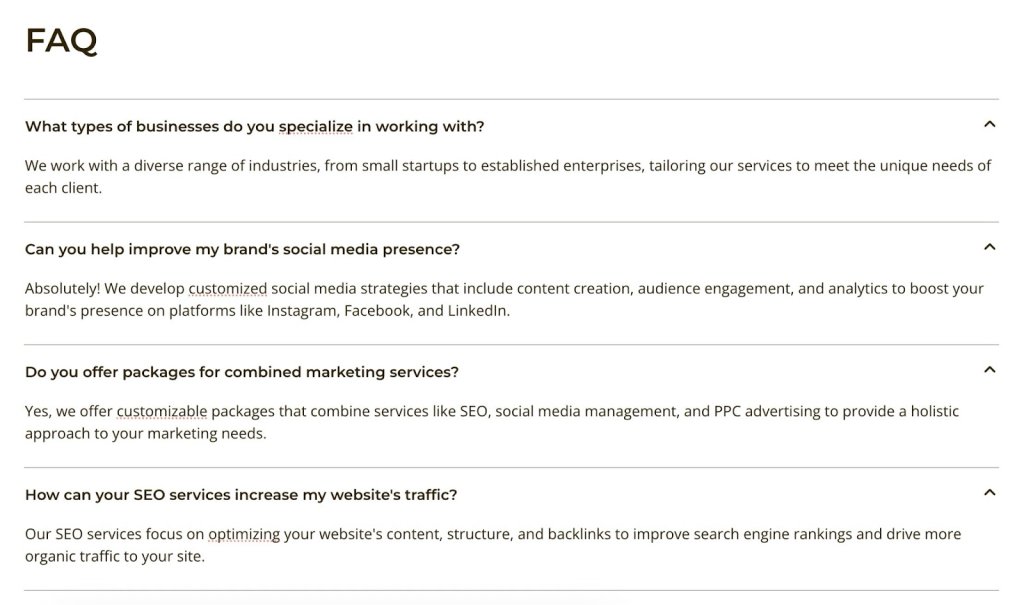
FAQ page detailing business services, including industry specialization, social media strategy, combined marketing packages, and SEO services.

With everyone’s time being precious and attention spans getting shorter, an FAQ page is a great time-saver. It’s a way to make life easier for your users, show off your expertise, and prove you’ve got everything running smoothly.

Why You Need an FAQ Page

With the creation of all these other must-have pages, like designing your homepage and contact us page, you might wonder—do I really need an FAQ page? And here’s why the answer is yes. First, it addresses the questions your customers ask most often, giving them quick solutions without the back-and-forth. This means happier users and more time for your team to focus on bigger tasks. 

Second, it’s fantastic for SEO and even for AI now that it plays such an important part in search. Search engines are getting smarter at figuring out and processing content, so when you add those relevant keywords and questions, your site can climb higher in search results. 

Indeed, an FAQ page isn’t just about answering questions—it’s your ticket to making your site more visible and drawing in more visitors. With AI-driven algorithms, having clear, concise, and keyword-rich content can really help your site stand out and rise above other content online.

[41]

8 FAQ Page Mistakes & How to Fix Them

Creating an FAQ page might seem simple, but there are some common pitfalls that can catch you off guard. Let’s take a look at the top mistakes you’ll want to avoid, so your FAQ page can be at its best.

#1: No Research Behind the Questions

Have you ever visited a FAQ page and thought, “Has anyone ever actually asked these questions?” That’s what happens when there’s no research. It’s easy to assume you know what your audience is curious about, but gathering real customer questions makes all the difference. 

Explore your support emails and scroll through social media comments to uncover what your customers are truly asking. This way, your FAQ page will be relevant and genuinely helpful.

#2: Information Overload

Now, let’s talk about information overload. You don’t want to have one of those pages that feels more like a novel than a quick Q&A, leaving your visitors feeling overwhelmed. Instead, keep it simple. 

By now, you’ve done your homework and know what your visitors are really curious about. So, zero in on those common curiosities and keep your questions and answers clear and to the point. Use bullet points or short paragraphs to make it easy for folks to skim through. The aim here is to make finding information super easy, not a chore.

💡 Insider’s tip: Aim for around 8 to 12 questions—this is usually a sweet spot that provides enough information without overwhelming. As for the answers, keep them concise, ideally around 1 to 3 sentences.

#3: Poor Organization

So you’ve nailed down the right questions and kept things concise, but if your FAQ page is scattered, visitors might still feel lost. Here, the focus is on structure.

Group similar questions together and use clear categories or headings to help guide your visitors. A well-organized page makes it easy for people to find what they’re looking for without any hassle, keeping them happy and coming back for more. Plus, organizing your content with thoughtful headers helps your SEO and contributes to accessible web design. After all, the smoother the experience, the better it is for everyone.

#4: Vague Answers

Even with well-organized questions, vague answers can leave visitors in the dark. In this case, the focus is on the content. Your visitors are looking for straightforward answers, not a guessing game. 

Make sure your responses are clear and to the point, leaving no room for confusion. Keep your language clear and straightforward, ditching any confusing jargon. Keep it simple, and your visitors will totally appreciate it.

💡 Here’s another handy hint: Ask a friend who’s not in your industry to review your FAQs. If they find your responses clear and easy to understand, you’re on the right track. It’s a great way to make sure your info is easy for everyone to understand, not just the experts in your field.

#5: Neglecting SEO

Coming back to SEO again, you know how squeezing in all those essential keywords can sometimes feel a bit awkward and forced? Well, your FAQ page is the perfect place to naturally weave in those keywords and boost your online discoverability. It’s a golden chance to make sure you’re showing up in search results for exactly what your target audience is looking for.

Incorporate relevant keywords into your questions and answers to align with current SEO trends. This can help search engines better understand what your page is about and rank it higher in search results.

#6: Ignoring Mobile Optimization

If your FAQ page isn’t mobile-friendly, you’re missing out. Many visitors are checking out your site on their phones, so it’s super important for your page to look good and work well on those smaller screens.

Make sure your text is readable without zooming in, and that buttons and links are easy to tap. A mobile-friendly and accessible design ensures a smooth experience, keeping your visitors happy and engaged, and encouraging them to stick around.

#7: Not Updating Regularly

Don’t stop at mobile optimization—keeping your page up-to-date is just as important. Information can change, and your customers’ questions might evolve over time. 

Make it a habit to review and update your FAQs regularly. This way, you’re always providing the most up-to-date and relevant info. Plus, fresh content keeps your audience engaged and returning, while also enhancing your site’s SEO by improving search engine rankings.

Wondering how often to update? It really depends on your business and industry, but start with quick reviews every couple of months to keep things fresh. If things change rapidly, you might need to update more often. Staying on top of updates shows your visitors that you’re on it and ready to help.

#8: Lack of Visual Appeal

Once you’ve got your FAQ page updated and mobile-friendly, don’t forget about the visual side of things. A page that’s easy on the eyes can make a big difference in how people engage with it. 

Spice up your FAQ page with some design elements like icons, images, or color highlights to make it more inviting and visually appealing. Instead of changing the text color, try using background color highlights to make important sections pop while keeping everything easy to read. If you add images, don’t forget to include alt text so everyone can enjoy your page and it’s accessible to all users.

A well-crafted website layout that matches your branding helps guide your visitors’ eyes and makes browsing more enjoyable. When your FAQ page looks awesome and fits in with your overall design vibe, it encourages people to stick around and find the answers they need.

The best part? SiteGround Website Builder has got your back on all these fronts. With mobile optimization, pre-built sections like FAQs, and built-in SEO features, you can easily whip up a visually appealing and super functional FAQ page that keeps your visitors engaged.

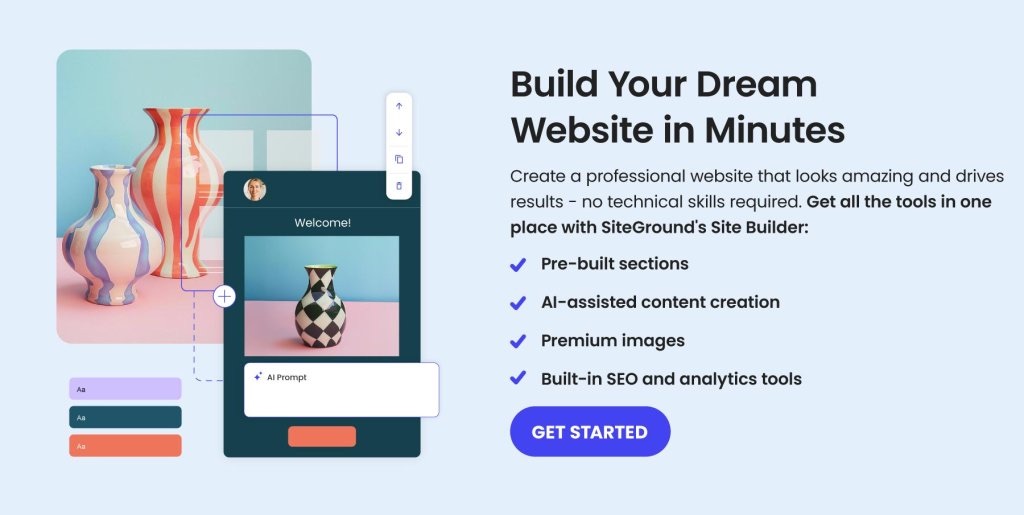
SiteGround Site Builder offers pre-built sections, AI-assisted content creation, premium images, and built-in SEO tools for easy website creation.

How to Create a FAQ Page + Examples

With these mistakes in mind, let’s shift gears and focus on what to do to make your FAQ page stand out and engage your audience.

Here’s a step-by-step guide to help you craft a comprehensive FAQ page that not only answers questions but also improves user experience and strengthens your online presence. Follow these tips to ensure your FAQ page is both functional and engaging:

1. Select Meaningful FAQs

We’ve already talked about how important it is to know what your audience is curious about, so now let’s dig into how you can actually put this into practice to create an FAQ page that really hits the mark. Here are some great starting points for your research:

📱 Social Media
🔍 Google
🏆 Competitors’ Websites
💬 User-Generated Content Like Reddit and Quora

Kick things off by checking out what folks are Googling about your industry or product. Тools like Google Analyticс can show you what queries are bringing people to your site. Exploring all this information will give you a solid understanding of the questions people are asking.

Additionally, peek into social media comments and customer support emails to spot any recurring questions. With Instagram and Facebook posts now showing up in Google searches, keeping an eye on what people are chatting about on these platforms is super important. 

And don’t forget about survey emails—they’re a great way to engage directly with your audience. By asking them what they want to know, you show that you truly care and value their input, making them more invested in your brand.

Finally, checking out competitors’ websites and places like Reddit and Quora can give you the scoop on relevant questions.

If you’re a marketing agency, for example, answering client curiosities in your FAQ can really show off your expertise and how you tailor solutions just for them. This way, your FAQ page is spot-on for what your visitors want to know.

FAQ section detailing marketing services, including social media strategies, combined marketing packages, and SEO optimization for increased website traffic.

2. Utilize SiteGround Tools

Once you’ve got a handle on the questions your visitors are asking, it’s time to focus on the FAQ page design to make it look as good as it is helpful. That’s where SiteGround comes in handy. With the SiteGround Website Builder, you can easily create a sleek and professional FAQ section, even if you’re not a tech wizard. 

You can create and customize your FAQ page by logging into the SiteGround Client Area and selecting the Website Builder. From there, add a section by choosing the FAQ template from the Carousel category.

After you’ve selected your website template, SiteGround will automatically suggest an FAQ section that fits this original style. You can change the colors, background, and text fonts as you wish to customize it even more. If it makes sense for your business, you can also add emojis for a fun touch. 

Interface for adding sections to a website, featuring options like carousel, accordion, and FAQ for enhanced content organization.

SiteGround is here to help you out when it comes to organizing your content. Our tools make it easy to set up clear categories and headings, so everything’s nice and tidy. You can also jazz things up with icons and color highlights for some visual flair. And we’ve got built-in SEO features to boost your visibility. 

Plus, everything’s mobile-friendly, so your FAQ page looks great on any device. With SiteGround, you’ve got all you need to create a fun, well-organized, and SEO-friendly FAQ page that’ll keep your visitors happy.

3. Stay True to Your Brand

The FAQ page or section is already distinctive enough with its own separate structure, so it’s crucial to make sure the rest of the elements—like colors, fonts, and overall style—match your branding. When someone visits your website and scrolls to the FAQ, you don’t want them to feel confused about whether they’re still on the same site. You want everything to work together and fit seamlessly, so your FAQ feels like a natural part of your brand, showing off your unique identity.

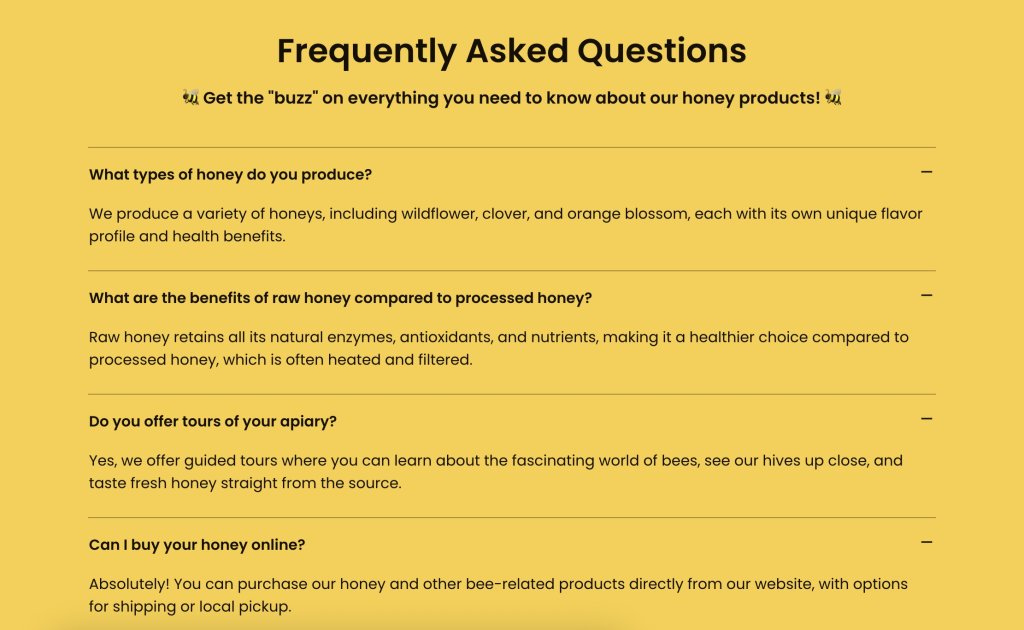
For instance, if you’re a beekeeper, you could liven up your FAQ with some branding like your signature color, some fun emojis, and even a cheeky pun—it’s a sweet way to make your site more personal and entertaining for your visitors.

Frequently Asked Questions about Honey Products, including types of honey, benefits of raw honey, apiary tours, and online purchasing options.

4. Add Social Buttons

Let’s add a little social touch to your FAQ page. Including social buttons opens up more ways for visitors to connect with you and engage with your content. It’s a great way to give them easy access to your social media channels, where they can find more info, ask questions, or just keep up with your latest updates. Plus, it adds a dynamic touch to your page, making it even more interactive and inviting.

FAQ section addressing return policy, shipping times, and 24/7 customer support availability for assistance via email, phone, or live chat.

5. Simplify Navigation

First thing’s first, make sure your FAQ is easy to find on your website. You can pop a link to it right in your main menu or tuck it into another page where it makes sense. The key is to make sure visitors can find it without any fuss.

And remember when we talked about avoiding poor organization? Now’s the time to put that into action. Organize your questions into clear categories. This makes it super easy for visitors to browse through and find exactly what they’re looking for without getting lost. A well-structured FAQ page is like a friendly guide, helping users quickly zero in on the info they need.

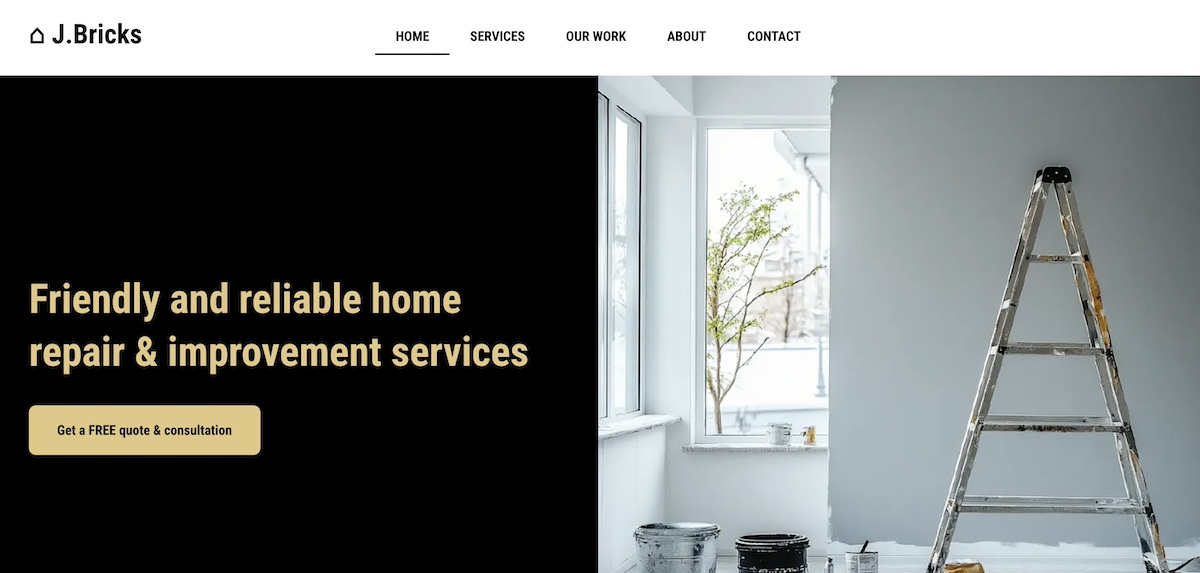
A website header for J.Bricks, showcasing home repair and improvement services. The image features a partially painted wall with a ladder and a window with a view of a tree outside. The navigation panel includes links to Home, Services, Our Work, About, Contact, and FAQ.

6. Write from Your Customer’s Point of View

When crafting your FAQ, think like your customers. Use their language and address their specific concerns directly. This approach makes your questions and answers more relatable and ensures you’re genuinely meeting their needs. By stepping into their shoes, you’ll create an FAQ page that feels personal and truly helpful.

For example, instead of saying:

❌ “Does the product have multiple features?”

❌ “Yes, our product offers numerous functionalities.” 

Try saying:

✅ “What can this product do for me?” and then answer with:

✅ “Our product automates scheduling and sends you reminders, freeing up your time so you can focus on growing your business.” 

This way, you’re speaking directly to the customer’s needs and showing how your product benefits them.

Your Go-To FAQ Template

While it’s important to tailor your FAQs to what your audience is really curious about, we’ve got you covered with some common and generic questions you can copy-paste and tweak to your heart’s content. And if you’re using SiteGround, just drop your text into our template.

Frequently Asked Questions (FAQ)
What is your return or cancellation policy?
Answer: Our policy allows [returns/cancellations] within [insert time frame]. Please contact us at [insert contact information] for assistance.
How can I contact customer support?
Answer: You can reach our customer support team via [list contact methods, such as email, phone, or live chat].
How do I track my order or service status?
Answer: You can track your [order/service] status by [explain process, such as logging into your account or using a tracking link].
What payment methods do you accept?
Answer: We accept [list payment methods, such as credit cards, PayPal, etc.].

Create an Effective FAQ Template

A well-crafted FAQ page is a key player in keeping your customers happy and making your site more visible. To achieve this perfect combo of questions, answers, and design, you’ll need thoughtful research, clear organization, and regular updates. By taking these tips to heart, you can transform your FAQ section into a valuable asset for your business.

And here’s the best part: with SiteGround Website Builder, creating your FAQ page is not only quick but also a bit fun! You can easily add it to your website using a ready-made template—just plug in your questions and answers, and you’re good to go. 

Plus, updating your FAQ is super simple, so your content stays fresh and relevant with minimal effort. This way, you can focus on crafting content that truly resonates with your audience. 

How to Secure a Domain Name: 9 Best Security Tips

Abstract image of how to secure a domain name

There’s something exciting about buying a domain—it’s your own slice of digital real estate, and it’s usually quick and affordable to acquire. But more often than not, we forget that it’s not just about buying a domain, but also protecting it. 

If you skip important security steps, you’re leaving your site—and your brand—vulnerable to hijacking, impersonation, or even accidental loss. So knowing how to secure a name is just as important as choosing the right domain name in the first place. 

In this guide, we’ll walk you through nine essential best practices to help you safeguard your domain and keep it firmly under your control, now and in the future.

Why Domain Security Matters

Your domain name is the entry point for your business, blog, or personal brand. So if someone gains unauthorized access to it, the consequences aren’t trivial. They could redirect your site, intercept emails, or impersonate your brand online. The reality is that domain theft, spoofing, and accidental expiration are all very real threats, which can be costly to recover from, if recovery is even possible.

As such, it might come as no surprise that having a secure domain really matters. It helps to ensure: 

  • Your website and email stay under your control
  • Your visitors aren’t redirected to malicious sites
  • Your brand reputation remains intact
  • You avoid unexpected downtime or data loss
  • You avoid short and even long term financial loss due to the fall out

While securing a domain name might seem like a minor technical detail, it’s in fact a core part of managing and maintaining your online presence—so kind of a big deal! The very good news is that there are super simple steps you can take that will save you loads of headaches down the road. And that’s what we’ll be tackling today.

How to Protect Your Domain: 9 Best Practices

1. Enable Domain Privacy

When you register a domain name, your personal information—such as your name, address, phone number, and email—ends up listed in the public WHOIS database by default. This database is accessible to anyone online and is often used by marketers, scammers, and cybercriminals alike. Not good. 

What does this mean?

Exposing your contact details publicly can lead to a flood of unwanted spam emails, phishing attempts, and even social engineering attacks aimed at tricking you or your registrar into handing over control of your website domain. If it sounds like a nightmare, it’s because it is: this kind of information leakage can put both your domain and your online security at serious risk.

How can you fix this? 

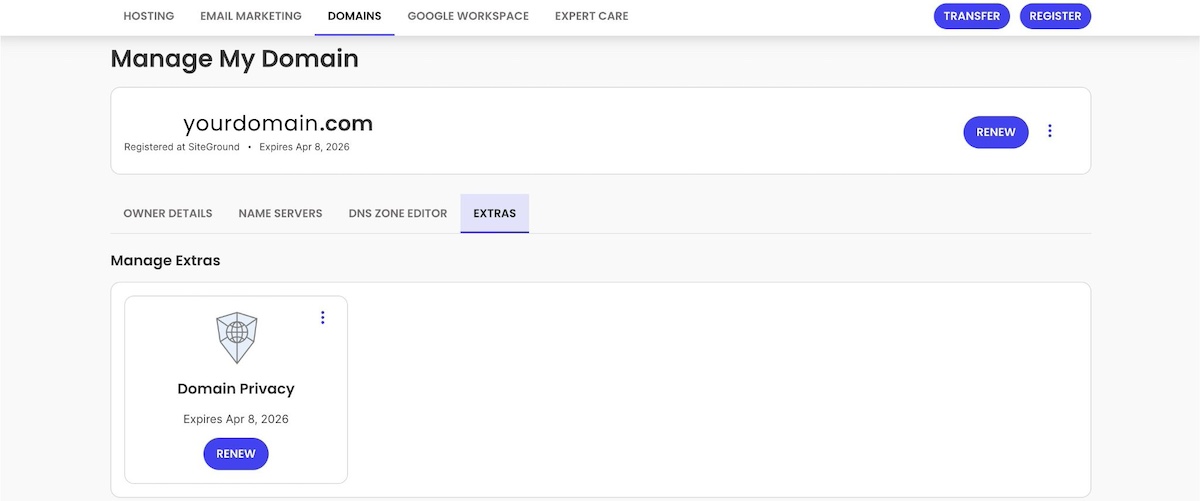
Domain privacy protection, sometimes called WHOIS privacy or WHOIS guard, masks your personal details by substituting them with the registrar’s contact information. This way, your private information is hidden from public view, greatly reducing your exposure to unwanted contacts and potential attacks.

Most reputable registrars offer domain privacy as an optional service, and in some cases, it may even be included for free (like at SiteGround, where you get domain privacy for free during the first year after acquiring a domain). Enabling this feature is an easy but extra impactful step in protecting your identity and reducing risks linked to domain ownership.

Image of domain privacy management in SiteGround client area

So be sure to enable domain privacy as soon as you register your domain in order to keep your contact information hidden. Just keep in mind that privacy protection only conceals your details—it doesn’t prevent domain theft.

2. Set Up Auto Renewal

One of the most common (and quite preventable!) ways people lose their website domain names is by simply forgetting to renew them. That’s because domain names are typically registered on an annual basis, and if you miss the renewal window, your registrar can release the domain back to the public. That means anyone—yes, even a competitor—could swoop in and register it.

The fix? Quite simply: enable auto-renewal.

Most domain registrars give you the option to automatically renew your domain name each year. So as long as your payment method is valid, your domain will remain yours—no manual steps or last-minute reminders needed.

To be extra safe:

  • Double-check that auto-renewal is enabled in your account settings
  • Use a primary email address that you regularly check, so you’ll receive renewal notices or failed payment alerts
  • Set a calendar reminder a few weeks before your domain’s expiration date, just in case there’s an issue with your payment method
  • If you register your domain at SiteGround, then your domain is set up for automatic renewal by default (one less box to check off!). But to be extra safe, always make sure your payment methods are up to date, and keep an eye out for any email notifications 

Losing a domain—even briefly—can cause website downtime, email disruption, and serious damage to your brand. Setting up auto-renewal is a quick and easy way to avoid that risk.

4. Use Strong, Unique Passwords and 2FA

Your domain is only as secure as the account that controls it. If someone gains access to your domain registrar login, they could transfer your domain, change DNS settings, or take your website offline altogether. That’s why it’s super important to protect your account with strong credentials and an extra layer of security.

By now, you probably know the drill when it comes to creating a good password: Start with a strong, unique password—something long, complex, and not reused across other accounts. Avoid using easy-to-guess information like birthdays, pet names, or words related to your brand.

Then, enable two-factor authentication (2FA) if your registrar offers it (as SiteGround does). 2FA adds an additional step to the login process—typically a one-time code sent to your phone or generated through an authenticator app—making it much harder for unauthorized users to break in, even if they somehow get your password.

Image of setting up 2 step verification in SiteGround client area

5. Protect Your DNS Settings

Once your domain is registered, your Domain Name System (DNS) settings determine where it points—whether that’s to your website, your email provider, or other services. If someone gains access to your DNS, they can redirect your traffic, hijack your email, or take your entire site offline. That’s why DNS protection is such a critical part of domain security.

Here’s how to lock it down:

  • Use a trusted DNS provider. Whether you manage DNS through your registrar or a third party, choose a provider with strong security practices and a reliable track record.
  • Restrict access. Make sure only authorized users can modify your DNS records, and monitor for any unexpected changes. As we’ve already covered, this means securing your account with a strong password and two-factor authentication, limiting who has login access, and avoiding shared credentials whenever possible.
  • Regularly review your records. Periodically check your DNS settings to remove outdated entries, unused subdomains, or third-party access you no longer need. This helps keep your domain secure and prevents potential misconfigurations or vulnerabilities.

Even if your domain is locked and private, weak DNS security can still leave your site vulnerable. Taking a few extra steps to secure it can protect your traffic, your customers, and your reputation.

At SiteGround, DNS management is built into our platform, giving you full control over your domain’s DNS settings with an easy-to-use interface—and the added security of a trusted provider. 

Search domains now >>

6. Implement Registrar Locking

One of the simplest ways to prevent threats like the unauthorized transfer of your domain is by enabling registrar locking—sometimes called “domain lock” or “transfer lock.” This setting prevents anyone from moving your domain to another registrar without your explicit approval.

Without this lock in place, a digital troublemaker who gains access to your registrar account—or successfully targets you with a phishing attack—could initiate a website domain transfer. Once your domain is moved, you could be dealing with an avalanche of problems. Not only could getting it back can be extremely difficult, but your website, email, and online identity could all be compromised.

Registrar locking acts as a safeguard by blocking unauthorized or accidental domain transfers and giving you time to respond if any suspicious activity occurs. Most reputable registrars include this feature at no extra cost, and it’s typically just a toggle in your domain settings.

Image of domain locking in SiteGround client area

With SiteGround, domains are locked by default for your protection. You can easily view and manage this setting through your account dashboard, giving you peace of mind that your domain is staying put.

8. Monitor Your Domain Name for Domain Squatters and Spoofing

Even if you’ve locked down your website domain, someone up to no good can still try to take advantage of your brand by registering lookalike domains. This is known as domain squatting (or cybersquatting) and can be used for phishing scams, impersonation, or simply to confuse your visitors.

For example, someone might register a domain like yourbrand-support.com or a misspelled version like yorubrand.com to trick users into thinking it’s you.

This tactic is often part of a broader threat called spoofing—a form of digital impersonation where attackers pretend to be a legitimate business or individual to mislead users and gain their trust. In the context of domains, spoofing can be used to steal login credentials, spread malware, or damage your reputation.

To stay ahead of these threats:

  • Set up Google Alerts for your brand name and domain
  • Periodically search for domain variations that could be mistaken for yours
  • Use domain monitoring tools that track new registrations of similar names
  • Report malicious use (like phishing or impersonation) to the registrar or authorities
Image of setting up alerts to avoid domain squatting

If you’re serious about brand protection, this kind of ongoing monitoring is just as important as setting up strong passwords or enabling auto-renewal.

7. Buy Multiple Variations

Another important way to ward off domain squatters is by purchasing multiple variations of your domain name. Doing this reduces the risk of someone else registering similar names and using them to impersonate you, divert your traffic, or just plain confuse your audience.

Consider registering:

  • Common misspellings of your domain
  • Other top-level domains (TLDs) (also called domain extensions) like .net, .org, .co, or country codes if relevant to your audience
  • Hyphenated or non-hyphenated versions
  • Singular/plural or brand-related terms that could be mistaken for your own
Image of multiple domain extension options

When you acquire these additional variations, simply redirect the domain names to your main site for better visibility. Even if you don’t actively use them, having control over these domains strengthens your overall domain security and brand presence.

8. Keep Your Registrar Account Email Up to Date

This is yet another seemingly tiny detail that can make a big difference. Your registrar account email address is your main point of contact for not-to-be-missed domain updates—including renewal notices, transfer requests, and security alerts. If that email is outdated or inactive, you could miss something important and risk losing control of your domain.

Simply make sure you use an email address you check regularly, and avoid using one tied to the relevant domain (because if your domain goes down, so does access to that inbox!). This one simple habit will mean you always stay in the loop—and in control—if something unexpected happens.

9. Use a Reputable Registrar with Strong Support and Security

When all is said and done, it’s important to keep in mind that the registrar you choose plays a major role in keeping your domain name safe—because working with the right registrar makes implementing the above recommendations a whole lot easier. 

With all the domain security tips we’ve covered, here’s a streamlined summary and some final points to guide your registrar choice:

  • Built-in security features like domain locking and two-factor authentication (2FA)
  • Reliable customer support that’s available when you need it
  • Easy domain management tools for DNS updates, transfers, and auto-renewals
  • Optional extras like domain privacy, subdomain creation, and email forwarding
  • Transparent pricing with no surprise renewal fees

At SiteGround, we make domain security a priority. With features like domain locking, WHOIS privacy, easy DNS management, and expert support, it’s easy to register and manage your domain name with confidence.
Image of choosing a domain name with SiteGround AI suggestion tool

How to Secure a Domain Name: A Quick Security Recap

Securing your domain name goes far beyond the initial purchase. From locking your domain and enabling privacy protection to monitoring for spoofing and keeping your registrar info up to date, each step adds a noteworthy layer of protection. These best practices help ensure your domain—and everything connected to it—remains safe, stable, and under your control.

At SiteGround, we make domain security simple. When registering a new domain or managing multiple ones, you’ll have the tools and support you need—from domain locking and WHOIS privacy to intuitive DNS controls and expert help around the clock when you need it. Your domain deserves more than just a name—it deserves protection you can trust.

How to Create a Website with ChatGPT in 6 Simple Steps

abstract of how to create a website with chatgpt

ChatGPT has quietly made one of the hardest parts of starting a business dramatically easier. The naming, the messaging, the page structure, the copy — things that once required agencies, freelancers, and weeks of back-and-forth can now be worked out in a single conversation. And with AI website builders now able to take those ideas and turn them into a real, live site without a line of code, the whole process from blank page to published website has been compressed into something anyone can do. This step-by-step guide shows you how.

Key Takeaways:

  • ChatGPT handles naming, structure, and copy — but it can’t host a site or deploy anything. You need a separate tool for that.
  • There are four build paths to choose from. The right one depends on your timeline, design needs, and technical comfort.
  • The fastest path pairs ChatGPT with an AI website builder: one for the thinking, one for the execution.
  • Vague prompts produce generic copy. The more specific context you give ChatGPT, the more usable the output.
  • Launching is only beginning. Sites that get updated regularly outperform ones that go live and stay static.

Can ChatGPT really build an entire website on its own?

No. Not entirely on its own. But that’s not really the right question. The better one is: what can ChatGPT do to help build a basic website, and what do you need alongside it?

What ChatGPT can do

ChatGPT is excellent at the thinking and writing work that most people find hardest when building a website. For example, give it some context about your business, and it can:

  • Brainstorm domain names and taglines
  • Suggest your website structure and what should go on each page
  • Help you define your brand voice and messaging
  • Write headlines, calls to action, and full page copy
  • Generate color palette and font pairing ideas
  • Troubleshoot errors if you’re working with an code editor or WordPress

In short, ChatGPT is a capable thinking partner and content engine for your web development project. It removes the blank-page paralysis that slows most people down, and it’s genuinely good at turning vague business ideas into structured, usable language. This is huge. That said, the quality of what you get back depends heavily on the quality of your ChatGPT prompts. Vague prompts produce vague output. The more specific context you give ChatGPT (your target customer, your differentiator, the tone you’re after) the more useful its responses will be. Throughout this guide, we’ll give you prompt templates for exactly this.

[108]

What ChatGPT can’t do (and how to fill the gap)

Where ChatGPT falls short is the execution side. It can write HTML code until the cows come home, but you’d still have to host it somewhere, style it properly, make it mobile-friendly, set up forms, connect a domain, and handle all the technical configuration that comes with running a site. For most small business owners and first-time builders, that’s where things can totally unravel.

That’s also where AI site builders come in. Purpose-built tools in this category are designed to take your ideas and produce a functioning website. No code required, no server configuration, no hunting for tutorials. So think of it as ChatGPT for planning, and AI tools and AI builders for doing. Together, they cover the full picture, virtual soup to nuts.

What this can look like in practice
SiteGround offers two options that fit this workflow particularly well: Coderick AI for a fully AI-driven build, and the SiteGround Website Builder for a more hands-on, design-controlled approach. We’ll get into the specifics shortly.

Step 1 — Choose a domain name

Before you have launch a site, you need to choose a domain name, the web address people will type to find you. If you’ve already got one, skip ahead. If not, ChatGPT can help you brainstorm one in just a few minutes.

How to brainstorm domain names with ChatGPT

Describe your business to ChatGPT (what you do, who you serve, what makes you different) and ask it to suggest domain name options. You’ll get back a working list much faster than staring at a blank search bar.

ChatGPT prompt template:

I’m starting a [type of business] in [location or market], focused on [key value or angle]. Can you suggest [number] creative domain name ideas that are memorable, easy to spell, and on-brand? I’d prefer .com where possible.

A few things worth knowing about domain names before you commit:

  • .com is still the default expectation. People type .com by habit. If you go with another extension, make sure it reads cleanly and doesn’t create confusion with an existing .com in the same space.
  • Shorter is better. Aim for under 15 characters if you can. Long domain names get mistyped, truncated, and are harder to say out loud.
  • Avoid hyphens and numbers. They’re easy to forget and make word-of-mouth much harder.
  • Check social availability too. Before locking in a name, search for it across major social platforms. A consistent handle across your website and social media marketing platforms looks more professional.

If your dream name is already taken, ask ChatGPT to riff on it — adding location-specific keywords, tweaking the extension, or finding a variation that’s equally strong. Domain generators (SiteGround’s AI Domain Name Generator is a solid option) can also surface available alternatives in real time once you’ve got a shortlist. Once you find one you like, register it swiftly to make it yours!

image of the AI domain suggestion tool at SiteGround

Step 2 — Choose how you’ll build your site

The build path you choose will determine how fast you launch, how much control you have, and how much technical knowledge you need. It’ll also determine how and when to lean on ChatGPT and other AI tools. There’s no single right answer — how you go about it will depend on your goals, your timeline, and how comfortable you are with technology. Let’s break it down.

The fastest path: ChatGPT + an AI website builder

If your goal is to get a real, professional website live as quickly as possible (without touching HTML code or wrestling with finicky design tools) this is the path for you.

AI site builders in this category let you describe what you want, then generate a fully functioning site from that input alone. You can use ChatGPT to do the upstream planning work (your positioning, your copy, your structure — all the things we’ll get into), then bring that into the builder to make it reality. 

And the AI doesn’t just drop you into a blank template — it generates real pages, real structure, and design based on the context of what you’re building. This is essentially what is coined as vibe coding: building through conversation rather than configuration. 

For example, SiteGround’s Coderick AI is built exactly for this workflow. You describe your site in plain language — a business site, a portfolio, a restaurant page — and Coderick AI builds it with responsive design and a modern layout already in place. The moment you’re happy with it, you hit publish and it’s live. No servers to set up, no plugins to install. You can keep refining after the fact too, just by chatting with Coderick AI to update colors, restructure pages, or swap out content. Every version is saved, so you can iterate freely without fear of breaking anything.

Best for: First-time builders, small businesses that need a site fast, anyone who comes in with a clear vision of what they want and just needs the fastest possible way to bring it to life.

Example of different types of websites that an AI website builder might create

More control with AI assistance: drag-and-drop builders with built-in AI

This is a step up in involvement from an AI builder, but that’s not a bad thing. Rather than handing the reins entirely to AI, you’re making many of the design decisions yourself, with AI there to assist. 

You’re also not starting from scratch: templates give you a solid, professionally designed foundation with best practices already baked in. From there, you customize layouts visually, adjust to fit your brand, and use AI tools to generate copy and images as you go. You get real design flexibility without needing to generate code, or how to vibe code.

If you have a specific look in mind, want to tweak every section until it feels right, or, importantly, need seamless ecommerce functionality, this level of control is worth the extra effort.

The SiteGround Website Builder falls into this category — modern templates, full ecommerce support, and AI content tools built in. Plus it’s extra easy to use.

Best for: Businesses that want design flexibility, online stores, anyone who wants to build hands-on with AI assistance.

Maximum flexibility: WordPress + ChatGPT

WordPress is a CMS (content management system) which means it gives you a dashboard to build and manage your site without touching code directly. It offers thousands of WordPress themes and plugins, total customization, and a massive community of developers and documentation behind it. The tradeoff is a steeper learning curve, especially if you’re new to it.

With a managed WordPress hosting plan (SiteGround’s Hosting for WordPress, for example, you don’t need to install WordPress or configure it), you skip many of that standard WordPress setup and maintenance headaches. ChatGPT can be genuinely useful throughout this WordPress workflow — for writing content, troubleshooting plugin issues, customizing themes, understanding PHP errors, and more.

Best for: Those who want full control, plan to scale significantly, or have some technical confidence. 
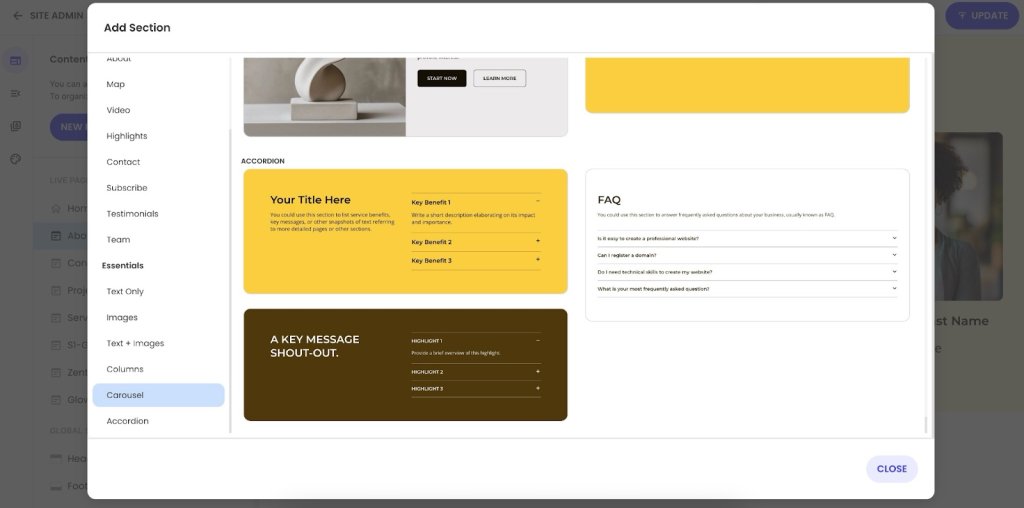
Pro tip: If you want AI assistance that lives directly inside your WordPress dashboard, SiteGround AI Studio includes a specialized WordPress Agent that can make real changes to your site based on simple chat prompts, handling setup, content, and configuration tasks without you ever leaving your dashboard. Instead of just pointing you in the right direction, it actually does the work for you, saving you significant time and effort. This agent is available for free to all SiteGround customers.

For developers: build a static site with ChatGPT

ChatGPT can generate clean HTML, CSS, and JavaScript for simple, lightweight websites. This approach is fast to produce and lean to host. But it’s not beginner-friendly, and updating it later requires going back into the code every time. There’s no CMS, no visual editor, and no built-in way to add a contact form or blog.

Best for: Developers or technically confident builders who want a minimal, no-CMS site — a portfolio, a landing page, or a simple product page.

A note on web hosting: Whichever path you choose, your hosting provider is what keeps your site fast, secure, and online 24/7. It affects how quickly pages load, how well you’re protected from threats, and who’s in your corner when something goes wrong. A Google-commissioned Deloitte study found that a 0.1 second improvement in site speed led to an 8.4% increase in retail conversions — the kind of thing that compounds over time in ways a cheaper provider will cost you later. 

SiteGround Web Hosting covers all four paths with the same fast, secure, well-supported infrastructure underneath. And if you go the Coderick AI or SiteGround Website Builder route, your site goes live instantly with exceptional hosting already built in, no setup required.

The steps that follow are written for the first three paths — an AI builder, a drag-and-drop builder, or WordPress. If you’re going the custom code route, you likely don’t need the hand-holding.

Step 3 — Develop your branding

Your branding (colors, fonts, overall visual feel) shapes how visitors perceive your business before they’ve read a single word of copy. So getting the basics right early makes every design decision downstream easier. Plus it helps ChatGPT give you more on-target suggestions during the content creation process later.

Before diving in, a note on workflow: the next three steps are written assuming you’re using ChatGPT to do the thinking before you build. If you’re using an AI builder, the line between planning and building is blurrier, as much of this work happens inside the builder itself, woven into the prompts you use to describe and shape your site. Either way, the thinking still needs to happen. Use these steps as a checklist of what to work through, regardless of which tool you’re in when you do it.

Choose a color scheme

Colors set the emotional tone of your site before a visitor reads a single word. Blues signal trust and reliability, greens suggest growth or wellness, warm oranges feel energetic and approachable, and dark neutrals project premium credibility. That said, color psychology is a starting point, not a rulebook — what matters most is that your palette feels consistent and intentional.

A practical approach: start with three colors. One primary color that carries your brand (used on headers, key UI elements, and accents), one secondary color that complements it without competing, and one accent color reserved for buttons and calls to action. This keeps your design from feeling cluttered while giving you enough range to create visual hierarchy across pages.

ChatGPT prompt template:

Suggest three different color palette options for a [type of business] that appeals to [target audience]. Give me three colors for each palette: a primary brand color, a secondary color that complements it without competing, and an accent color for buttons and calls to action. The overall feel should be [tone or vibe]. Create a horizontal color strip image with three blocks and hex labels for each palette option.

Color palette recommendations from chatgpt when creating a website

When reviewing suggestions, keep a few practical constraints in mind. Your primary color should work on both light and dark backgrounds. Text needs a contrast ratio of at least 4.5:1 for body copy. And your accent color — used for buttons and calls to action — should stand out clearly without clashing with the rest of the palette. All of this not only makes your site look good, but also aligns with accessible web design best practices.

The example below was fully created by ChatGPT, simply by telling it a bit about a business idea and offerings. ChatGPT came back with a color palette-infused mood board that can easily be used as branding inspiration.

Mood board with brand colors and fonts created by chatgpt

Get font pairing inspiration

Typography matters more than most people realize. The right font pairing makes a site feel intentional and polished. The wrong one can make the whole thing feel a bit amateur.

A reliable pairing approach is to combine one display font (for headlines) with one highly readable font (for body copy). These two fonts should complement each other without competing. A bold serif headline, for example, with a clean sans-serif body is a classic starting point that works across most business types.

ChatGPT prompt template:

Suggest font pairings for a [type of website] that feels [vibe — for example, modern but approachable / editorial and premium / friendly and casual]. Ideally Google Fonts, so they’re free and easy to implement.

Shape your site’s visual foundation

This is where you shift from ChatGPT to your builder. The planning and branding work is done — now it’s time to make your site look like yours. How you do that depends on the path you chose in Step 2:

  • AI builder: Describe what you want — including your branding direction — and the AI generates a site already shaped around your type of business. Coderick AI also offers ready-made prompts for common site types if you want a useful starting point to react to.
Output of an AI website builder after explaining what you're trying to build

Drag-and-drop builder: Browse the template library and pick one that’s structurally close to what you need, then apply your colors, fonts, and logo to make it feel on-brand.

image of SiteGround website builder templates collection

WordPress: Choose a theme that fits your type of site and visual direction. Depending on the theme, you may also have access to a drag-and-drop editor to customize further from there.

Examples of wordpress themes you can use for your website

In all cases, you’re not starting from a blank page, and you don’t need everything to be perfect before moving on. Getting the visual foundation close enough and continuing keeps you moving forward with your eye on the prize.

Step 4 — Map out your site structure and page layouts

A clear website structure makes your site easier to navigate, better for search engines and AI-powered discovery tools, and more likely to convert visitors into customers. ChatGPT can help you map out a solid structure in minutes once you give it the right context.

Build a smart site structure

Most business websites need fewer pages than their owners think — at least at the start. A well-executed five-page site will outperform a sprawling 20-page site with thin content on every page. Focus on having fewer, more substantive pages rather than more pages that barely say anything. And make sure your important conversion pages are no more than three clicks deep.

Example of building a smart website structure when creating a website

ChatGPT prompt template:

I’m building a website for a [type of business] that offers [brief description of products or services]. My target audience is [describe them]. Can you suggest a logical site structure, including which pages I need and a short description of what should go on each one?

A standard starting structure for most small business websites looks something like this:

  • Homepage: Who you are, what you do, and why someone should care — with a clear call to action
  • About: Your story, your team, and what makes you credible
  • Services or Product pages: What you offer, with enough detail to answer the most common questions
  • Contact: How to get in touch, with a working form and your key contact details

Plan your page layouts

Once you know your pages, zoom in on each one individually. The homepage has a different objective than that of a Services page, both of which have different jobs than an About page. Mapping out the visual hierarchy within each of these pages before you start writing helps you produce more focused, purposeful content.

ChatGPT prompt template:

I’m working on the [page name] for a [type of business]. The goal of this page is to [main goal — for example, introduce the brand / generate leads / build trust / explain pricing]. What sections should I include, and how should I structure the layout for clarity and conversion?

For the homepage design specifically, a typical layout covers: a hero section with your headline and primary call to action, a social proof element (testimonials, client logos, or a key stat), a brief overview of your services or offerings, a secondary call to action, and a footer with navigation and contact information. 

Set up your navigation

Your website navigation menu should reflect how your customers think about your business, not how you organize it internally. Keep the menu items to five or six at most and put your most important pages first. 

Example of an optimized website navigation menu

With your structure mapped, head into your builder, create your pages, and set up navigation in an order that makes sense for a first-time visitor. The bones of your site are now ready to go.

Step 5 — Fill your pages with content

This is where ChatGPT does its best work. Give it the right context and it can draft everything from your homepage headline to your About page — ready for you to refine and personalize. Worth noting: if you’re using an AI builder or a drag-and-drop builder with built-in AI writing tools, you may not need to switch back to ChatGPT at all. Many builders let you generate and refine content ideas without ever leaving the platform. Coderick AI and the SiteGround Website Builder both work this way.

Define your unique selling proposition

Before you write a word of copy, get clear on your positioning. What do you do, who do you do it for, and what makes you different from the alternatives? Sharp answers to these three questions makes every other piece of writing easier — and it’s the foundation that ChatGPT needs to produce copy that actually sounds like you rather than a generic business template.

ChatGPT prompt template:

Help me develop a short, punchy value proposition for my [type of business]. I serve [target audience], my main offering is [product or service], and what makes me different is [key differentiator]. My brand voice is [tone — for example, direct and confident / warm and approachable / expert but plain-spoken]. Give me a few options to choose from.

Once you’ve settled on a unique selling proposition, use it as an anchor for everything else — your homepage headline, your About page opening, your social profiles, and your elevator pitch. Consistency in how you describe your business is also part of an AI-first mindset: that is the more consistently you use the same language across your site, the more likely AI search tools are to surface you accurately when someone’s looking for what you do.

Example of including a unique selling proposition in a homepage hero section

Write your homepage copy

Your homepage has one main job: clearly communicate what you do and who it’s for, fast enough to convince someone to stay and keep reading. Most visitors decide within seconds whether to stay or move on — your headline and the first sentence of your body copy carry a disproportionate amount of that weight.

ChatGPT prompt template:

Write a homepage hero section for my [type of business]. My value proposition is [your value prop]. Target audience: [describe them]. Brand voice: [tone]. Include a headline, a two-to-three sentence subheadline, and a call-to-action button label.

After the hero, your homepage should answer the question every visitor is silently asking: “Is this for me?” A brief, specific description of who you work with does this job well and filters out poor-fit inquiries before they reach you.

Craft headlines and calls to action

ChatGPT prompt template:

Can you write [number] headline and call-to-action combinations for the [page name] of my [type of business]? The goal of this page is to [goal]. My brand voice is [tone].

When reviewing ChatGPT’s headline suggestions, look for specificity over cleverness. “Custom wedding photography in Austin, TX — booked out six months in advance” is more compelling than “Capturing your most important moments.” The first tells you exactly who this is for, where they are, and implies high demand. The second could describe any photographer on earth.

Write the copy for each page

ChatGPT prompt template:

Write copy for the [page name] of my [type of business]. The purpose of the page is to [goal]. Tone: [tone]. Please cover [key points or sections to include]. Aim for around [word count].

One tip worth repeating: treat ChatGPT’s output as a strong first draft, not a finished product. Read it back in your own voice, rewrite what doesn’t sound like you, and fill in the specific details that only you can provide. Your clients’ real results, your actual process, the stories from your own experience. That’s what turns generic AI copy into something that actually works for your business.

Don’t forget supporting content

Beyond your main essential pages, consider the content that helps visitors make a decision: testimonials, case studies, an FAQ section, and a clear description of your process or what working with you actually looks like. ChatGPT can draft all of this from your input — you just need to supply the raw material.

ChatGPT prompt template for an FAQ section:

Generate a FAQ section for the [page name or topic] of my [type of business]. Based on what you know about this industry and audience, what are the five to eight questions potential customers most commonly have? Write both the questions and answers. Tone: [tone].

Example of an FAQ section on a website

Step 6 — Launch and what to do next

Do a pre-launch check

Before you hit publish, spend 30 minutes going through a basic pre-launch website checklist. It’s far easier to fix issues now than after your site is live and people are visiting.

  • Click through every page and every link — broken links lose trust fast
  • Test every contact form or booking widget end-to-end (submit a test entry and confirm it arrives)
  • Check every page on your phone — mobile visitors typically make up more than half of web traffic, so how your mobile web design looks and works matters
  • Confirm your desired domain is connected and pointing to the right place
  • Read your homepage copy out loud — you’ll catch awkward phrasing faster than reading silently
  • Make sure images are loading correctly and aren’t broken or missing

Troubleshoot before you go live

If you’ve gone the WordPress website route without an AI assistant living inside your dashboard, ChatGPT is a solid debugging partner. Describe the problem — layout issues, error messages, plugin conflicts — paste the error directly into the chat, and it’ll walk you through solutions. For common WordPress issues especially, this is often faster than searching forums. The same goes if you’ve gone the custom coding route.

If you’re using an AI builder or a drag-and-drop builder, you’ll likely run into far fewer issues to begin with. Performance, mobile optimization, and design consistency are handled behind the scenes. If something looks off, most fixes are a click or drag away in the visual interface. Plus you can usually lean on helpful customer support.

Set up basic SEO before launch

You don’t need to become an SEO expert before you launch. But a few basics (done before you go live!) make a real difference in how your site shows up in search over time.

  • Meta titles and descriptions: Write one for each page. ChatGPT can help — just describe the page and ask for SEO-friendly versions. Keep titles under 60 characters and descriptions under 155 characters.
  • H1 headings: Every page should have exactly one H1 heading, and it should clearly describe what the page is about.
  • Image alt text: Every image should have a short, descriptive alt text. This helps both search engines and accessibility tools understand your content.
  • Clean URLs: Make sure your page URLs are readable and descriptive — mysite.net/services is better than mysite.net/page?id=42.
  • Google Search Console: Submit your site to Google Search Console so Google knows it exists and you can monitor how it’s indexed over time.

ChatGPT prompt template for meta content:

Write an SEO meta title (under 60 characters) and meta description (under 155 characters) for the [page name] of my [type of business]. The page covers [brief description]. Primary keyword: [keyword].

Keep your content fresh after launch

Most people treat launch as the finish line. It isn’t. Search engines favor sites that get updated regularly, and so do visitors who come back more than once. A new blog post every month, a refreshed services page when your offerings change, a testimonial added after a good client engagement. None of it is a heavy lift, but it adds up.

Use ChatGPT for marketing to make this easier: ask it to help you brainstorm blog topics based on questions your customers ask, repurpose page content into social posts, or update your copy when your offerings change. Even small, regular updates (a new case study every quarter, a blog post every month) beat one big overhaul once a year. Bake it all into your workflow.

ChatGPT prompt template for blog ideas:

Generate 10 blog post ideas for a [type of business] targeting [audience]. Focus on topics that answer real questions potential customers have before they decide to hire someone or buy. Include a suggested headline for each.

Final thoughts on ChatGPT and website building

ChatGPT has made the hardest parts of building a website — the thinking, the writing, the decision-making — genuinely accessible to people who aren’t writers, designers, or developers. That’s a meaningful shift from even a few years ago, when getting a professional site live required significant budget, significant time, or significant technical skill.

But the full picture now includes more than just ChatGPT. Paired with the right AI builder, you’ve got a workflow that covers everything from the first spark of an idea to a live, polished site: ChatGPT for the planning and content, an AI builder for the build and deployment. 

If you’re starting from scratch and want the fastest route to a real website, Coderick AI is worth a look. It’s purpose-built to take your ideas and turn them into a hosted site without the technical overhead. If you want more hands-on control over design or need full ecommerce capabilities, the SiteGround Website Builder gives you that flexibility, with AI tools built in to keep the content work moving. Either way, you don’t have to do this the hard way anymore.

FAQs about how to build a website with ChatGPT

Can I build a website with ChatGPT for free?

ChatGPT itself is free to use for planning and content, but you don’t actually build your site in ChatGPT. You’ll use a separate tool for that, whether that’s an AI website builder, a drag-and-drop builder, or WordPress. Those platforms have their own costs: domain registration, a hosting account, and the platform itself. Some offer trials or limited free tiers, but a live, functioning business website will typically require a paid plan. The total cost is lower than most people expect, but it’s worth budgeting for from the start.

How long does it take to build a website with ChatGPT?

It depends heavily on the path you choose. With an AI builder like Coderick AI or a drag-and-drop builder, you can realistically have a site live in a single day — the tools are designed to get you there fast. WordPress is in a different category altogether — between choosing a theme, configuring plugins, and learning the platform, expect at least a week, often more, especially if you’re new to it.

Content is usually the biggest time variable across all paths, but this is where leaning on ChatGPT or an AI assistant throughout the process pays off. If you’re using it to draft copy, generate FAQs, and write page-by-page as you build, the content work stops being a bottleneck and becomes part of the flow.

Do I need coding skills to use ChatGPT to build a website?

No. If you use an AI builder or a visual drag-and-drop site builder, no coding is required at any stage. If you go the WordPress route, some technical familiarity helps, but ChatGPT can walk you through most issues — including interpreting error messages — as they come up. The only path that genuinely requires coding is the static HTML route, which we’d steer most people away from unless you’re already comfortable in code.

What’s the difference between ChatGPT and an AI website builder?

ChatGPT is a general-purpose AI assistant. That is, it’s excellent at thinking, writing, and problem-solving, but it doesn’t connect to hosting platforms, manage your files, or build pages. An AI website builder is purpose-built for construction: it takes your input and produces a hosted website with pages, styles, forms, and a connected domain. They work best together — one for planning, one for building. Treating ChatGPT as a replacement for an actual builder is the most common misunderstanding people make with this workflow.

Can ChatGPT write all my website content?

It can write a strong first draft of almost everything: headlines, page copy, calls to action, FAQ answers, About page narratives, and more. What it can’t do is replace your specific knowledge of your own business — the details, the stories, the nuances that make your brand feel real and trustworthy. Use ChatGPT to get 80% of the way there, then go through with your own voice and fill in what only you can provide.

How do I make sure my website shows up in search results?

Start with the basics from Step 6: a clear H1 on every page, descriptive meta titles and descriptions, image alt text, and clean URLs. Submit your site to Google Search Console so Google indexes it. Then focus on adding genuinely useful content over time (blog posts, service pages, FAQs) that answers real questions your potential customers are searching for. ChatGPT can help you identify those questions and draft the content. Consistent, relevant updates signal to search engines that your site is active and worth ranking.

This article was originally published in July 2025 and then updated in May 2026.

9 Contact Us Page Mistakes – Fixed with Real Examples

Contact us page header image

So, you want to make sure your Contact Us page isn’t just another forgotten link on your website? You’re in the right place.

In this article, we’ll explore 9 mistakes you’re probably making with your Contact Us pages and how you can fix them using real-life examples. Let’s transform your page into a functional, inviting, and engaging space.

Ready to get started? Let’s do this!

A Contact Us page with warm, conversational language, reflecting a friendly brand tone.

Why Is a Contact Us Page Important?

Think of your Contact Us page as your website’s conversation starter—it’s the inviting nudge that encourages visitors to reach out and engage with you. Whether they’re asking questions, sharing feedback, or just saying hello, this page is your chance to show that you’re approachable and eager to connect. 

But why exactly is it so important? Unlike other pages like the About Us or Homepage, which primarily provide information, the Contact Us page is all about interaction. It’s a direct line between you and your audience, offering them a personalized space to engage with your brand. A well-designed Contact Us page isn’t just about getting messages—it can turn passive browsing into a lively chat, helping you build relationships and earn some trust along the way. 

Ready to turn those casual browsers into enthusiastic customers? With SiteGround’s super user-friendly Website Builder, you can craft a killer Contact Us page in a flash! Dive in and watch the magic happen!

9 Mistakes on Contact Us Pages and How to Avoid Them

Alright, so you’ve got the basics down for your Contact Us page, but are you sure it’s hitting all the right notes? Even with the best intentions, some pages can slip up and send your visitors running instead of sticking around.

But don’t worry—we’ve got your back. Let’s check out some of the most common slip-ups businesses make on their Contact Us pages and, more importantly, how you can dodge them. With these tips, you’ll be on your way to crafting a page that’s not just working, but also gets your website visitors excited to reach out.

Mistake 1: Making the Contact Us Page Hard to Find

Let’s face it—if people have to go on a digital scavenger hunt just to get in touch, they’re likely to throw in the towel. That’s why this first mistake tops our list; making your Contact Us page hard to find is like hiding the key to your front door, leaving visitors feeling frustrated and ready to give up.

💡To avoid this, make sure your Contact Us page is easy to spot. Pop a link in your main menu, stick it in the footer, or even throw in a call-to-action button on important pages. The idea is to make it super simple to find and use, so people feel welcome and ready to connect whenever they need to chat.

If you’re going for a simple and minimalist website, make sure that the ‘contact’ option is right there in your menu. That way, as soon as someone lands on your homepage, they’ll know exactly how to get in touch with you.

A website navigation menu with a clearly visible Contact Us link, demonstrating easy accessibility.

Mistake 2: Overcomplicating the Design

Once visitors find your Contact Us page, you don’t want to lose them with a complicated design. So, keeping it simple is the way to go. Don’t cram it with too many bells and whistles, flashy graphics, or info that nobody really needs. This can totally overwhelm visitors and make it a real hassle for them to find what they’re looking for.

💡Instead, go for a clean and straightforward design that’s super easy to navigate. For example, if you offer services, focus on the info your potential customers really need, like your email, phone number, and address. Everything else might just end up being a distraction rather than a help.

A Contact Us page with a minimalist and clean design, featuring simple navigation and essential contact information without unnecessary clutter.

Mistake 3: Offering Limited Contact Options

Imagine this: a visitor finally lands on your Contact Us page, ready to reach out—only to find a phone number and nothing else. What if they’re not into phone calls? They might just bail and never come back. That’s why mistake number three is not offering a mix of contact options. 

💡Make sure everyone can get in touch in a way that suits them. The usual go-tos are phone, email, and address, but depending on your business type and location, different platforms might be more popular. For example, Instagram is a hit in the US, while WhatsApp is the go-to in Spain. 

Just make sure those links make sense and serve a purpose—nothing’s more frustrating than being sent in circles, only to end up back at an email that keeps bouncing you around. Keep it straightforward and functional.

Pro tip: Keep your contact links in tip-top shape by clicking on them regularly to make sure they go where they’re supposed to. Check them out on different devices and browsers, and verify that emails actually land in the inbox.

And hey, let them know your average response time—it’s a nice touch that sets clear expectations.

A Contact Us page displaying various contact options, including phone, email, and social media links.

Mistake 4: Ignoring Mobile Optimization

Skipping mobile optimization for your Contact Us page? That’s a big no, especially with everyone glued to their phones these days. If your page isn’t looking sharp or working smoothly on mobile, visitors might just throw their hands up in frustration and peace out. Let’s make sure your page is ready to impress, no matter the screen size.

💡Give it a spin on different devices to make sure everything, from text to buttons, is easy to read and use. When your page is mobile-friendly, it means everyone, no matter what gadget they’re on, can easily reach out and connect with you.

Quick tip: Make sure your buttons are easy to tap, no matter what device folks are using. Whether they’re on their phone during a crowded train ride, sitting at their desk with a huge screen, or relaxing on the couch with a tablet, your page should be a breeze to navigate.

A Contact Us page displayed on a smartphone, showing a mobile-friendly design.

Mistake 5: Using the Wrong Tone or Language

Once you’ve got your Contact Us page working smoothly on mobile, it’s time to think about the words you’re using. If your tone doesn’t match your brand or feels too stiff, it might make your business seem a bit distant or off-putting.

💡Try using a tone that fits your brand and makes visitors feel like they’re chatting with a friendly guide. This makes your brand more relatable and keeps the experience enjoyable.

Here are some tips to nail your copy:

  • Reflect Your Brand’s Vibe: Whether you’re all about being chill, professional, or a little quirky, let that personality shine in your language. It helps create a consistent and welcoming experience.
  • Keep It Warm and Friendly: Use conversational language to make visitors feel at home. Phrases like “We’d love to hear from you” or “Drop us a line” can make things more inviting. Even small tweaks, like changing “Contact” to “Contact Me,” can work wonders by adding that personal touch and turning a generic page into a friendly invitation.
  • Look for Creative Inspiration: Check out brands that have nailed their Contact Us pages. Some use humor or storytelling to make their pages stand out and be more memorable.

Need a little help crafting that perfect message? The right ChatGPT prompts can give you a hand, but remember, nothing beats your own judgment and unique flair. After all, you’re the best at knowing what makes your brand shine.

A Contact Us page with warm, conversational language, reflecting a friendly brand tone. The button is named "Contact Us".

Mistake 6: Using Weak or Unclear CTAs

Now that you’ve got the tone and language perfectly aligned with your brand, let’s make sure visitors know exactly how to take the next step. If your calls to action are unclear or not very inviting, visitors might not know what to do next and could just leave without reaching out. So, ditch those snooze-fest CTAs like “Submit,” “Click Here,” “Learn More,” or “Fill Out the Form.” They’re vague, lack context, and sound about as exciting as watching paint dry, leaving visitors scratching their heads instead of engaging.

💡Make sure your CTAs are clear and catchy so they stand out. Use simple, action-driven words like “Get in Touch,” “Send Us a Message,” or “Chat Now” to guide people on what to do. When your CTAs are easy to find and clear, it makes connecting with you super simple, giving visitors a smooth path from browsing to reaching out.

A Contact Us page featuring clear and inviting calls to action, such as 'Get in Touch' and 'Send Us a Message'.

Mistake 7: Providing Incomplete Business Information

Leaving out key details is like giving someone a map with missing pieces—totally confusing and frustrating. 

💡Make sure your business info is thorough and crystal clear so visitors can connect with you without any guesswork.

Here’s a quick checklist to keep things simple:

✅ Business address
✅ Operating hours
✅ Contact numbers
✅ Email address
✅ Social media links

And depending on your business, think about adding those extra details that save people from feeling lost. A few smart fields, such as dropdown menus for selecting the department or type of inquiry (like sales, support, or feedback), can be super handy. You don’t want to overload visitors, but these options can easily point them to the right team or service.

For example, if you offer yoga classes, maybe ask if they’re curious about classes types or pricing. It’s those little touches that make reaching out smooth and hassle-free. Take this studio, for example. They’ve nailed it by not only having a contact form and phone number but also giving folks a heads-up on how early they need to call to book a class.

Check out this windows and doors shop. They’ve got it all sorted with a super handy form that asks if you’re after windows or doors and even nudges you to add measurements for a spot-on estimate. It’s those little touches that make reaching out hassle-free, so customers get exactly what they need.

A Contact Us page with comprehensive business information, including address, phone number, service needed, and operating hours.

Mistake 8: Lacking a Follow-Up Process

Next up, it’s important to think about what happens after someone reaches out. Even if you’ve perfected all the other steps, it’s all for nothing if you don’t have a proper follow-up process to manage your inquiries. Make sure you have a system in place to respond promptly and keep the conversation going.

💡Instead, get a system in place to give inquiries a friendly nod and a speedy reply. Whether it’s a quick automated email that says, “Hey there, we got your message—you’re on our radar” or a friendly team member ready to dive in with a response, having a clear follow-up process shows you genuinely appreciate them reaching out.

SiteGround Email Marketing can really make things easier with its email automation feature. You can set up a series of automated emails that kick in as soon as someone subscribes or reaches out. This way, every inquiry gets a quick acknowledgment and follow-up without you having to do a thing. With triggers and automated responses, you can keep the conversation going smoothly and let your customers know how long they’ll be waiting for a reply—whether it’s 24, 48, or 72 hours.

This not only builds trust but also makes the experience feel more natural and approachable, encouraging visitors to reach out again in the future. Keep the tone aligned with your brand, and watch those connections grow.

The SiteGround Website Builder banner: Create Successful Email Campaigns with SiteGround Email Marketing. We've got everything you need to grow your subscriber list, design beautiful campaigns effortlessly, and quickly craft the perfect messages (thanks to our AI Assistant).

Mistake 9: Failing to Test and Optimize

After establishing a solid follow-up process, it’s essential to keep your Contact Us page in top shape by regularly testing and optimizing it. Neglecting to monitor your page’s performance means you might miss valuable opportunities to enhance user experience. 

💡Instead, use analytics to see how visitors interact with the page and spot areas that could use a little tweaking. Check metrics like time on page, bounce rates, or how often visitors reach out. Whether it’s adjusting the layout, refining the language, or simplifying the form fields, regular testing and optimization help keep your Contact Us page effective and user-friendly. This ongoing effort not only keeps your users satisfied but also makes it easier for them to engage with your brand, opening the door to better communication.

How to Add a Contact Us Page to Your Website

Creating a Contact Us page for your website is a straightforward process. Here’s a step-by-step guide to help you add it:

1. Navigate to Content Creation
Go to Content > Add Content > Basic Page to begin setting up your new page.

2. Enter Page Details
Fill in the necessary information for your Contact Us page, such as your contact details, a contact form, or any other relevant information you want to include.

3. Set the URL Alias
Before saving, expand the URL alias settings tab and specify a simple URL, like contact-us. This will make it easy to remember and access.

4. Add to Menu
Head over to the Menu Settings tab and check the box for Provide a menu link. This ensures your Contact Us page is easily accessible from the main navigation menu.

5. Save Your Changes
Once everything is set up, save your changes to create the page.

Start Building Trust with the Perfect Contact Us Page

You can transform your Contact Us page into a warm, inviting space that truly welcomes people in. Easy to find, simple to use, and full of personality—these are your secret ingredients.
Ready to give your page a little TLC? Try the SiteGround Website Builder, where you can easily craft your perfect Contact Us page and more. Here’s to building trust, sparking conversations, and creating lasting relationships with everyone who stops by!

The SiteGround Website Builder banner: Create Your Dream Website with SiteGround's Easy-to-Use Builder.

What Is a Favicon—and Why Does Your Website Need One?

What Is a Favicon: Benefits, Best Practices and Usage 

A favicon is the small icon you see in browser tabs, bookmarks, and search results—it’s your website’s visual calling card, and it does more for your brand than you might think. A well-designed one makes your site look polished and helps users find their way back to you easily. This guide covers everything you need to know: what favicons are, where they show up, how to create one, and how to add it to your site.

Key takeaways:

  • Favicons are small but mighty — that tiny icon in your browser tab plays a big role in brand recognition and user experience.
  • They show up everywhere — browser tabs, bookmarks, search results, mobile home screens, and even desktop shortcuts.
  • Size and format matter — offering multiple sizes (16×16 up to 72×72) and formats (ICO, PNG, SVG) ensures your favicon looks sharp on every device.
  • Keep the design simple — small icons don’t have room for detail, so stick to clean visuals, brand colors, and no text.
  • Adding one is easier than you think — whether you’re on WordPress, a website builder, or a custom site, implementation is just a few steps.
  • Favicons can indirectly boost SEO — a recognizable icon can improve click-through rates and signal professionalism to both users and search engines.

What Is a Favicon Image?

A favicon, short for “favorite icon,” is a small (usually 16×16 pixel) image that serves as a visual representation of a brand’s website. It’s a subtle but important element of web design, reinforcing brand identity and improving user experience. You’ll typically find them displayed in:  

  • Browser tabs 
  • Browser history tabs 
  • Browser bookmarks 
  • Mobile home screens 
  • Search engine results pages 
  • Google search bars 
  • Desktops 

They’ve become so common that you see them everywhere all the time, yet you might not even notice them. The most typical use in practice is as small icons next to the web page titles in browser tabs. 

screenshot showing what is a favicon and its location in the browser tabs

First introduced by Microsoft with the release of Internet Explorer 5 in 1999, favicons originally appeared as small icons in the bookmarks (Favorites) and address bar when a user bookmarked a webpage. The original implementation required the favicon to be named favicon.ico and placed in the root directory of a website. This simple yet effective feature quickly gained popularity, leading to widespread adoption across various web browsers.

Over time, the role of the favicon expanded beyond a bookmark icon. It started appearing in browser tabs, bookmarks, and even search engine results pages. As web design evolved, so did the formats and sizes of favicons, accommodating the needs of modern devices and high-resolution displays. Today, favicons are a standard element of web design, playing a crucial role in site identity and user experience. 

Where Are Favicons Used?

Favicons have a broad range of usage in modern devices and applications. Below, we’ll examine the most common places where you’ll encounter them. 

Browser Tabs

In browser tabs, favicons appear next to the page title, enabling users to identify and differentiate between multiple tabs quickly. This is particularly useful when visitors have numerous tabs open, as the favicon provides a visual cue that helps them locate the desired tab without having to read the full title. 

Favicons in browser tabs

Favicons become even more important when the tabs are stacked next to each other, reducing their area and making the page titles unreadable. The favicon tab icon remains the last distinguishable part of the tab.   

Multiple tabs displaying only favicons

Browser History Tab

Favicons are also displayed in the browser history tab, which helps users more easily identify previously visited websites. This visual element makes finding and revisiting websites simple, improving the overall website navigation experience and improving websites’ client retention. 

Favicons in browser history

Bookmarks

When a user bookmarks a website page, the favicon is saved alongside the page title in their bookmarks list. This not only helps users quickly recognize and access their saved sites but also improves the organization of bookmarks by providing a visual element that stands out.

A favicon in bookmarks

Mobile Home Screens

On mobile devices, users have the option to add websites directly to their home screens. In the context of mobile web design, favicons function like app icons, providing a convenient and recognizable shortcut for users to access their favorite sites quickly. 

A favicon on a mobile device

SERP (Search Engine Results Pages)

Search engines display favicons alongside search results on the SERPs (Search Engine Result Pages). This visual element can capture users’ attention, potentially increasing click-through rates by making the website more appealing and trustworthy in SERPs.

A favicon for a result on a SERP (Search Engine Results Page)

Within the Google search bar, favicons appear next to search suggestions and results. As a result, they reinforce brand identity and help users quickly identify the websites they’re interested in visiting.  

A favicon on a Google search bar

Desktops

Favicons can be used as desktop shortcuts as well, allowing users to create direct links to websites from their computer desktops. This provides a convenient way for users to access their preferred sites without opening a browser first.

A favicon on a desktop

What Are the Favicon Sizes?

Favicons are available in multiple sizes to ensure compatibility across different devices and platforms, including:

  • 16×16 – standard size for browser tabs, bookmarks, browser history, and search engine results.
  • 32×32 – suitable for desktop shortcut icons and taskbar shortcut icons.     
  • 48×48 pixels – common for Windows desktop icons and larger displays. 
  • 72×72 and above – ideal for larger screens like smart TVs, tablets, etc. 

Providing multiple sizes is crucial for displaying the favicon correctly on all screen types. Additionally, larger sizes may be used for high-resolution displays, ensuring that the favicon remains sharp and clear.  

Favicon File Types

Favicons support several file formats. The common favicon file formats include: 

  • ICO Format – The ICO format is the most widely supported and is ideal for ensuring compatibility with older browsers. It can contain multiple image sizes within a single file, allowing for flexibility in display across different contexts.
  • PNG Format – The PNG file extension offers high-quality images with support for transparency, making it suitable for modern browsers. PNG favicons are often used for their clarity and ability to maintain image quality.
  • SVG Format – SVG (Scalable Vector Graphics) is a format that provides scalability without loss of quality. This makes it perfect for high-resolution displays and responsive designs, as the favicon can be resized without becoming pixelated.  

Favicons in JPG are not quite common, since their lack of detail makes them unsuitable for smaller images. 

How Do You Create Favicons?

Even if you’re not a seasoned designer, there are plenty of graphical software and online favicon generator applications to help you craft your own custom favicon. Adobe Photoshop, Figma, and RealFaviconGenerator are just a few from the long list of powerful design tools you can choose from.       

Once you have the design ready, you can upload your file to the RealFaviconGenerator. The tool will convert it into multiple formats, ensuring broad browser compatibility. You can also preview how the favicon appears on different devices and color modes, and generate the HTML code to insert into your index file.   

If You’re a SiteGround Client, Check Out AI Studio
If you host your website with SiteGround, you also have access to SiteGround AI Studio — an all-in-one AI platform designed for small businesses. Among its many tools, the Image Designer agent lets you generate and edit images using natural language, making it a great option for creating favicon concepts without needing a separate design tool. It’s worth exploring what’s available to you as a SiteGround client.
Learn more>>

A favicon generated by RealFaviconGenerator

How Do You Add a Favicon to Your Website? 

You’ve designed the perfect favicon and are looking to implement it on your website. So, how do you go about it? 

Adding a favicon is straightforward, regardless of what application your website is built upon. For some applications, it’s as simple as a few mouse clicks, while others require a few extra steps. 

Below, we’ll go through some of the more common cases.

How to Add A Favicon to a Custom Website

Generally, you must upload the favicon file to your website and configure the index file to display it. This method is valid for all kinds of websites, but with some applications, it’s a matter of a few clicks. However, if you have a custom PHP/HTML website, you’ll have to do it the old-fashioned way. 

First, access your website files through FTP or File Manager and upload the favicon file to the root folder (typically public_html). The file can be named anything you want and in any of the supported formats. The typical naming convention, however, is favicon.ico (or another extension).

A favicon in a website's root folder (public_html)

Then, open your index file (index.php or index.html), and add the following code in the <head> section to specify the favicon file. 

<head>

  <link rel="icon" href="/favicon.ico" type="image/x-icon">

</head>

Here is how this piece of code would look inside the index file.

A favicon element in an index file

Note that the favicon path /favicon.ico corresponds to the public_html directory. If the file is located in a subfolder, you must specify it in the file path. 

For example, if your favicon is named favicon.ico and located in the subfolder public_html/images, the file path should be /images/favicon.ico.

To ensure that your favicon is rendered correctly on various screen sizes, you can upload several favicon files of different sizes. Then, add multiple <link> elements to your HTML file, each assigning the proper file to a different screen size. The code would look similar to this. 

<link rel="icon" type="image/png" href="/favicon-96x96.png" sizes="96x96" />

<link rel="icon" type="image/svg+xml" href="/favicon.svg" />

<link rel="shortcut icon" href="/favicon.ico" />

<link rel="apple-touch-icon" sizes="180x180" href="/apple-touch-icon.png" />

<link rel="manifest" href="/site.webmanifest" />

How to Add a Favicon in SiteGround Website Builder 

SiteGround Website Builder is our own proprietary page builder making crafting web pages a fun and rewarding experience. With its intuitive interface, you can instantly build eye-catching and professional-looking websites without writing a single line of code. 

Adding a favicon to your website using our Website Builder is easy and only takes a few clicks, just like many other features.

While in the page editor, go to the Content tab, and click the Header section at the top of any page.

Adding a favicon to the SiteGround Website Builder

From the Edit Header menu, navigate to the Favicon section and click on Add image. Select or upload the image you want to use as your favicon. The favicon will then appear in browser tabs once the changes are saved and the site is updated.

How to Add a Favicon in WordPress

WordPress uses the term “site icon” instead of “favicon,” but both are practically the same. Adding a favicon to a WordPress site has always been easy, but it’s become even easier since the release of WordPress 6.5 in April 2025. 

Previously, you had to use the theme customizer, theme editor, or a plugin. But after the changes introduced in version 6.5, you can simply add the favicon from the general settings section.

To add a favicon, log in to your WordPress dashboard. Navigate to the Settings > General section, and click the Choose a Site Icon button next to Site Icon. 

Uploading a site icon to a WordPress website

In the pop-up window, choose an image file from your computer or your website’s media gallery. The recommended site icon size is 512×512 pixels at a ratio of 1:1. Once you’re ready, hit the Save Changes button. 

Saving a favicon in a WordPress website

What Are the Benefits of Using Favicons?

Better User Experience

Favicons enhance user experience by providing a visual identifier for websites, making navigation more intuitive and efficient. Web users can quickly locate and switch between tabs, bookmarks, and history entries, improving overall satisfaction and ease of use.

Improved User Retention

By helping users easily locate and return to websites, favicons contribute to improved user retention and engagement. A recognizable favicon can encourage users to spend more time on a site and return more frequently, fostering a loyal user base.

Establishing Brand Identity and Visibility

Favicons play a crucial role in reinforcing branding basics. They serve as a constant reminder of the brand, ensuring that a website stands out in users’ minds. A well-designed favicon can enhance brand recognition and make a lasting impression on users.

What Are the Best Practices for Favicons?

The best favicon is simple, on-brand, and legible at tiny sizes—think clean shapes, brand colors, and no text. Here are the key design and implementation practices to keep in mind.

Keep It Simple

Simplicity is key when designing a favicon. Given the small size, it’s important to create a design that is clear and easily recognizable. Avoid intricate details that may become lost or unclear when scaled down.

Use the Logo as a Foundation, But Don’t Duplicate It

While it’s effective to use the logo as a foundation for the favicon, avoid exact duplication. Instead, create a simplified version that captures the essence of the brand while remaining distinct and recognizable.

Convey the Brand Identity

Ensure the favicon reflects the brand’s identity and values, serving as a visual representation of the company. It should align with the overall branding strategy and communicate the brand’s message effectively.

Use Minimum Text

Text can become unreadable at small sizes, so it’s best to avoid using text in favicons altogether. Focus on strong visual elements that convey the brand identity without relying on words.

Consider the Colors

Choose colors that align with the brand’s color scheme. Make sure they contrast well to remain visible against various backgrounds. A well-chosen color palette can enhance the favicon’s impact and recognition.

Provide Multiple Favicon Sizes      

Visitors nowadays access websites from various devices with different screen sizes, so a single default favicon size might not look good on all of them. Add several files of varying dimensions to ensure your favicon appears clearly on all devices.      

Do Favicons Affect SEO? 

Favicons can indirectly impact SEO (Search Engine Optimization) by improving user experience and engagement. A recognizable favicon can increase click-through rates in search results and encourage users to spend more time on a site, both of which can contribute to better search performance. Additionally, favicons contribute to a cohesive and professional online presence, which can enhance a website’s credibility and trustworthiness.

Additionally, favicons contribute to a cohesive and professional online presence, which can enhance a website’s credibility and trustworthiness.  

Final Thoughts on Favicons

Every detail of your website matters, and favicons are no exception. Though small, these icons play an important role in establishing credibility and reinforcing brand identity. By optimizing user experience and improving audience engagement, favicons help your website remain memorable and easily recognizable. Don’t overlook this essential element—capitalize on its potential to effectively draw and retain visitors’ attention.

Ready to put it all together? With the SiteGround Website Builder, adding your favicon is just a few clicks—no code, no hassle. And the same goes for building your entire site. Its intuitive drag-and-drop interface makes it easy to create a professional, polished website without any technical know-how. Give it a try and see how simple it can be.

[24]

Favicon FAQs

What is a favicon used for?

A favicon is used to visually represent your website across browsers and devices—appearing in browser tabs, bookmarks, search results, and mobile home screens. It helps users quickly identify and return to your site, especially when they have multiple tabs open.

Is a favicon the same as a logo?

Not exactly. A favicon is often inspired by your logo, but it’s a simplified version designed to work at very small sizes. Where a logo can include text, detail, and multiple elements, a favicon needs to be instantly readable at 16×16 pixels, so it’s usually just the most recognizable part of your brand mark.

How do I generate a favicon?

There are several easy ways to create a favicon. Free online tools like RealFaviconGenerator let you upload a logo or image and automatically convert it into all the necessary sizes and formats. Design tools like Figma and Adobe Photoshop give you more creative control if you want to build one from scratch. If you’re a SiteGround client, AI Studio‘s Image Designer is another great option for generating custom icon concepts using AI.

What is an example of a favicon?

Some of the most recognizable favicons are Google’s multicolored “G,” Facebook’s white “f” on a blue background, and Amazon’s smiling arrow. They all share the same quality: a simple, bold visual that’s instantly identifiable even at tiny sizes.

This article was originally published in June of 2025, and then updated in April of 2026.

.com and Beyond: A Guide to Domain Extensions in 2026

Abstract of domain extensions

When it comes to domain names, everyone knows .com—it’s the internet’s classic go-to and still the best choice for most websites. But with over 1,500 domain extensions available today, from .tech to .shop to .bio, the domain landscape sure has a lot more to offer than just what remains of .com. What’s more, choosing the right extension goes beyond just getting you online—it can shape how your brand is perceived, who finds you, and even how memorable your site is.

In this guide, we’ll break down what domain extensions are, why .com still reigns supreme, and how savvy businesses and creators are using newer, niche extensions to stand out in 2025. Because startups, online stores, personal brands: there’s a perfect domain extension out there waiting for you.

What is a Domain Extension? 

A domain extension is the part of a website’s address that comes after the final dot—like .com, .org, or .net. A slightly more techy audience might also hear it referred to as a top-level domain (TLD), which refers to the highest level in the domain name system hierarchy. These terms are used interchangeably, though, with domain extension being the more user-friendly version.

Domain extensions have become a routine part of our digital day as we browse the web, but they do in fact serve an actual and important purpose behind the scenes. That is, they help organize the internet by categorizing websites based on their purpose, location, or sponsoring organization. And that’s where different types of domains come in.

Types of Domain Extensions

Indeed, domain extensions come in several varieties, each serving different roles and audiences. Understanding these types can not only help you in your website planning, but also get those creative juices flowing, and maybe even inspire some of your branding.

Generic (gTLDs)

Generic top-level domains (gTLDs) are the most common and recognizable domain extensions. They were originally created for general use without any geographic or organizational restriction. Examples include:

  • .com (commercial businesses)
  • .org (nonprofit organizations)
  • .net (network infrastructure)

In recent years, hundreds of new gTLDs have been introduced to help websites stand out and signal their industry or purpose, such as .app, .blog, .shop, and .tech. 

Country-code (ccTLDs)

Country-code top-level domains (ccTLDs) are two-letter extensions assigned to specific countries or territories. They help indicate the geographic focus of a website, such as:

  • .us for the United States
  • .es for Spain
  • .jp for Japan
example website with a ccTLD

Sponsored/Restricted TLDs

Sponsored and restricted TLDs are specialized domain extensions that are regulated or managed by designated organizations. These often require applicants to meet certain criteria or verification processes to assure that the domain’s use fits specific industries or communities. Examples include:

  • .gov (government entities)
  • .edu (accredited educational institutions)
  • .bank (verified financial institutions)
  • .health (trusted health organizations)

These domains add credibility and trustworthiness, but they aren’t open for general registration.

Examples of domain extension types

How to Choose the Right Domain Extension

Alright, now we’ve got the basics covered, but what does this mean for you as you contemplate the perfect domain name? 

1. When in Doubt, Go with .com

Despite the explosion of new domain extensions, .com remains a top choice for businesses and personal websites alike. If you’re able to find a great domain name with a .com extension, it’s usually the safest and most effective choice. Here’s why:

  • Universal Recognition: .com is the most familiar and trusted domain extension worldwide. People automatically type “.com” when entering web addresses, making it easier for your audience to find you.
  • Credibility and Professionalism: Because it’s so well-established, .com domains often convey authority and legitimacy. Visitors may trust a .com site more than less familiar extensions.
  • SEO Stability: While Google states that domain extensions don’t directly affect search rankings, users’ trust and click behavior often favor .com sites, which can indirectly benefit SEO.
  • Better Resale Value: If you ever decide to sell your domain, .com names tend to have higher market value and demand.
  • Widespread Availability: Many services, platforms, and email providers default to .com, making integration easier.

Those are some pretty compelling reasons, but securing a short, catchy .com domain can be like panning for gold: just plain hard to find. So if your ideal .com isn’t available, don’t worry—newer domain extensions can offer creative and even more ideal alternatives, which we’ll be covering in the sections to come.

2. Know Your Audience

We’ve established that .com is the default choice—and for good reason. But, apart from the limited availability, it’s important to keep in mind that not every audience responds to domain extensions in the same way. 

That is, if you’re building a brand, and want to get more adventurous with your domain extension, then it’s worth considering how your domain extension will land with your audience. In fact, in some cases, going beyond .com might actually make your brand feel more relevant, more modern, or more trustworthy. 

So what does this look like?

If your audience is tech-savvy, you can more confidently use newer, less conventional extensions, like .io or .ai (which we discuss more about in a bit).

example website with a .ai domain extension

If your audience is more mainstream, it’s best to stick with traditional, widely recognized extensions like .com (still the most familiar and trusted), .org (well-established for nonprofits and mission-driven brands), and .net (occasionally used for networking or infrastructure services). Mainstream users may be confused or skeptical of unfamiliar extensions, which can hurt trust and click-through rates.

Bottom line: Choose an extension your audience will recognize and trust—especially if you’re targeting users who aren’t in the habit of exploring the internet’s cutting edge.

3. Build Trust with the Right Extension

Beyond audience preferences, your domain extension also sends a subtle signal about your site’s trustworthiness and professionalism. Some extensions instantly convey authority, while others can feel unfamiliar—or even spammy—to certain users.

Here’s how different extensions shape perception:

  • Trusted and stable: Extensions like .com, .org, and .edu are long-established and widely respected. They’re safe bets when you want to signal legitimacy and reliability.
  • Potentially risky: Some extensions—such as .biz, .info, or obscure gTLDs—may raise eyebrows. Even if they’re valid, they’ve historically been linked with spammy or low-quality content.
  • Contextually strong: Industry-specific or verified extensions (like .health, .law, or .bank) can build credibility if they clearly match your offering and audience expectations.
example website with a .org domain extension

While having a familiar domain extension like .com might not necessarily improve your Google ranking, choosing an extension that feels untrustworthy or unfamiliar can negatively impact your SEO—primarily by reducing user trust and click-through rates. Since Google values user engagement, a domain that inspires confidence encourages people to click, explore, and interact with your site, indirectly supporting better search performance.

4. Consider Your Geographic Reach 

If your business or website primarily serves a specific country or region, using a country-code top-level domain (ccTLD)—like .es for Spain or .ca for Canada—can help signal your local presence. Beyond that, local TLDs can:

  • Improve relevance for local search results
  • Increase visitor confidence that your site is tailored to their region
  • Help comply with country-specific regulations

All this said, if your brand or business operates globally, it’s usually better to stick with a single domain—preferably a generic TLD like .com—and organize your content using subdirectories (that is, yourbrand.com/es/ for Spain) rather than multiple country-specific domains. Here’s why:

  • SEO Benefits: Domain authority does not transfer between multiple ccTLDs, so managing several domains splits your SEO power. A single domain consolidates your site’s authority, making it easier to rank.
  • Simplified Tracking: Managing analytics and marketing campaigns is easier when all traffic funnels through one domain. Multiple domains complicate performance tracking and increase costs.
  • Consistent Branding: A single domain ensures a unified brand identity across regions without confusing visitors.

In short, reserve local ccTLDs if your audience is narrowly focused on that region. Otherwise, use a single global domain and organize content by language or country within it for better SEO, tracking, and brand consistency.

5. Think About Branding 

Your domain extension is part of your brand—it shows up in every link, every email, and often in spoken conversation. That means it should be easy to remember, simple to say, and visually clean.

Sometimes, the right domain extension can even enhance your brand identity or make a clever name possible when the .com version is already taken. For example:

  • Creative use of the TLD: A site like calm.app or notion.so feels modern and on-brand without needing .com.
  • Shorter, cleaner names: If yourbrand.com is taken, but yourbrand.tech or yourbrand.store is available, you can keep the name you want without adding awkward dashes or extra words.
  • Memorability over convention: A domain like join.us or studio.design might stand out more and be easier to remember than a longer or compromised .com.

Pro tip: Before choosing an extension, say the full domain name out loud. If it sounds awkward or hard to explain to someone, it may not be the right fit, regardless of how clever it looks on paper.

6. Align with Your Industry 

Choosing a domain extension that reflects your industry can help you stand out, clarify your offering, and create a more intuitive experience for your audience. It shows visitors what you do before they even land on your site.

Some examples of industry-specific extensions include:

  • .tech – For startups, engineers, and tech-focused brands
  • .design – Popular with creatives, agencies, and portfolio sites
  • .health – For healthcare providers, wellness brands, and medical tech
  • .law – Used by law firms and legal professionals
  • .photography, .finance, .marketing, and many more

These extensions aren’t just creative, they can also help to:

  • Establish relevance: Visitors instantly associate your site with your field
  • Improve memorability: A descriptive extension can be easier to recall than a generic one
  • Enhance branding: You get a cleaner, more brand-aligned domain when .com versions are taken

Pro tip: Make sure the extension is widely understood within your industry and won’t confuse your audience. As we discussed above, some niche TLDs still feel unfamiliar to the general public.

7. Check Availability

Before you fall in love with a name, make sure it’s actually available, and be sure to buy the domain. But don’t just make sure the domain isn’t in use: these days, consistency across platforms is essential, so you’ll want to make sure your name is available across the board. 

searching for a domain extension with a domain search tool

Domain availability

Use a domain search tool to see if your desired name is available for domain registration. If the .com is taken, consider alternatives like .co, .io, or an industry-specific TLD—but always double-check that the alternative domain extension (or extensions) isn’t already in use by an active brand or competitor (because, if so, and you proceed with using the domain, this could equate to domain squatting). 

Even if the domain is used by a non-competitor, think carefully about potential confusion. Do you want your brand mistaken for another? Could it impact your visibility, credibility, or future expansion plans? Before settling on a name and extension, make sure to evaluate the broader implications for your brand.

A Quick Note on Pricing

Domain pricing varies depending on the extension. Standard domains like .com, .org, or .net usually cost around $10–$20/year. Newer or niche extensions—like .ai, .tech, or .design—can range from $30 to $100+ annually, while short or keyword-rich names may be considered premium and priced higher.

SiteGround makes it easy to check domain availability and compare prices during registration. And if you’re starting a new website, your first year of domain registration is free for select extensions when you sign up for hosting.

Social handle availability

Social media marketing is an inevitably important part of growing a business, so you’ll want to make sure your domain’s name (or a close variation) is available on key social platforms like Instagram, Twitter/X, TikTok, LinkedIn, and YouTube. At the end of day, a unified identity across web and social helps build brand recognition and makes it easier for people to find you.

How to choose the right domain extension

Modern Domain Trends in 2025

At this point, we’ve got the general domain extension landscape pretty well mapped out. So, what fresh trends are shaping the way we choose domains in 2025?

Trend #1: Startups Are Steering Away From .com

As we’ve covered, .com usually remains the go-to, but many startups today are opting for modern extensions like .io, .ai, and .dev to signal innovation and stand out. These newer TLDs are often shorter, more brandable, and directly reflect the tech focus of many startups.

  • .io is popular with SaaS and developer tools.
  • .ai highlights artificial intelligence products.
  • .dev targets developer-focused platforms.

These extensions aren’t just practical—they’re strategic branding choices that speak to a tech-savvy audience and help startups differentiate themselves. In fact, in some spaces, a .com might even feel outdated or overly corporate.

Trend #2: Brands Are Rethinking ccTLDs

Country-code top-level domains (ccTLDs) were originally tied to specific countries—but today, brands are using them creatively to signal what they do rather than where they are.

For example, the aforementioned .io was originally meant for the British Indian Ocean Territory, .ai was tied to Anguilla, and .tv represents Tuvalu but has become popular with media and streaming sites.

One caveat: while these ccTLDs act like generic TLDs in practice, they’re still technically country-specific. That means some policies or restrictions could apply, and their long-term status depends on agreements with the respective country’s domain authority.

Example website with a .io domain extension

Trend #3: Online Stores Are Getting Creative

Ecommerce websites are also moving beyond traditional .com domains and embracing extensions like .store, .shop, and .fashion to clearly communicate what they sell. These extensions make URLs more descriptive and oftentimes memorable, helping brands stand out.

Using a niche TLD gives retailers more flexibility to claim their ideal brand name without awkward add-ons, numbers, or hyphens. It can also reinforce brand identity at a glance, making it easier for customers to find, remember, and trust the site.

Trend #4: Creators Are Branding with Personal TLDs

Freelancers, influencers, and content creators are using extensions like .me, .bio, and .name to build personal brands that feel approachable and authentic.

These extensions are perfect for personal websites, landing pages, and social link hubs—and they make domains feel more custom and human.

  • .me domains are great for showcasing personal work
  • .bio works well as a link-in-bio or intro page
  • .name is a niche but fitting choice for personal sites

Trend #5: Big Brands Are Launching Their Own TLDs

Major companies are going a step further by securing custom, brand-owned TLDs like .apple and .barclays. These exclusive domains offer full control over the namespace and reinforce brand identity at every level.

example of a website with a custom domain extension

While this strategy is still limited to large enterprises with the resources to manage their own TLD, it points to where the web is headed—more personalized, brand-specific domains.

The Perfect Domain Extension Is Waiting for You

Whether you stick with a tried-and-true .com or venture into trendy new territory with a creative or industry-specific TLD, your domain extension plays a meaningful role in shaping how people find, perceive, and remember your brand. Just be sure to balance recognition and trust with creativity and clarity—that way you can stand out without confusing your audience. With more options than ever before, 2025 is the year to really get smart about your domain.

Ready to launch your next great idea? Buy your domain with SiteGround and get free domain privacy for the first year—plus access to expert support whenever you need it. Want to take things further? Explore powerful tools for web hosting, site building, and email marketing to bring your vision to life.

FAQs for Domain Extensions

What are the Most Common Domain Extensions?

The most common domain extensions include .com, .org, and .net, which have been around since the early days of the internet. .com is by far the most widely used and trusted, while .org is often associated with nonprofits and communities, and .net serves as a solid alternative when a .com isn’t available. Other frequently seen extensions include .edu (for educational institutions), .gov (for U.S. government entities), and newer favorites like .co, .io, and .ai, especially among startups and tech companies.

How Many Domain Extensions Are There?

There are currently over 1,500 domain extensions available, with new ones being introduced regularly. This includes classic options like .com, .org, and .net, as well as hundreds of newer generic extensions (like .app, .design, .xyz), country-code TLDs (like .de or .jp), and specialized or restricted domains (like .bank or .gov). While not all are widely used, the variety gives website owners more flexibility than ever before.

How Much Does a Domain Extension Cost?

The cost of a domain extension varies depending on the type and popularity of the TLD. Common extensions like .com or .net typically cost between $10 and $20 per year, while newer or niche extensions like .tech, .ai, or .design can range from $30 to $100+ annually. Premium domains or restricted TLDs may cost even more. If you’re starting a new website with SiteGround, you can register a domain for free for the first year when you sign up for hosting—making it even easier to get started.

How to Search for a Domain Extension?

You can search for a domain extension using any domain registrar or web hosting provider with a domain search tool. Simply enter the name you want, and the tool will show you which extensions are available—like .com, .net, .shop, or .tech—along with their prices. If you’re using SiteGround, you can easily check domain availability and register your preferred extension directly during the hosting signup process.

Do Domain Extensions Affect SEO?

When it comes to whether domain extensions affect your SEO rankings, Google, in theory, treats all domain extensions equally when it comes to search algorithms. However, indirect factors—like user trust, click-through rates, and memorability—can influence performance. So a .com may not necessarily improve your SEO, but it might get more clicks than a less familiar extension simply because users recognize and trust it. Alternatively, a less trustworthy domain extension could have the opposite affect.

Product Detail Pages: Your Key to Maximizing Conversions

PDP

A product detail page (PDP) is the single most important page on your ecommerce site. It presents everything a shopper needs to decide—images, descriptions, pricing, reviews, and a clear call to action—and does the job of a physical sales floor: answering questions, building trust, and removing doubt before checkout. A strong PDP converts browsers into buyers; a weak one sends them elsewhere. In this article, we share eight proven best practices to help you build one that sells.

Key takeaways

  • A product detail page is a dedicated ecommerce page that combines images, descriptions, pricing, and reviews to help shoppers decide to buy.
  • High-quality images from multiple angles (including close-ups and 360° views) are one of the biggest drivers of purchase confidence.
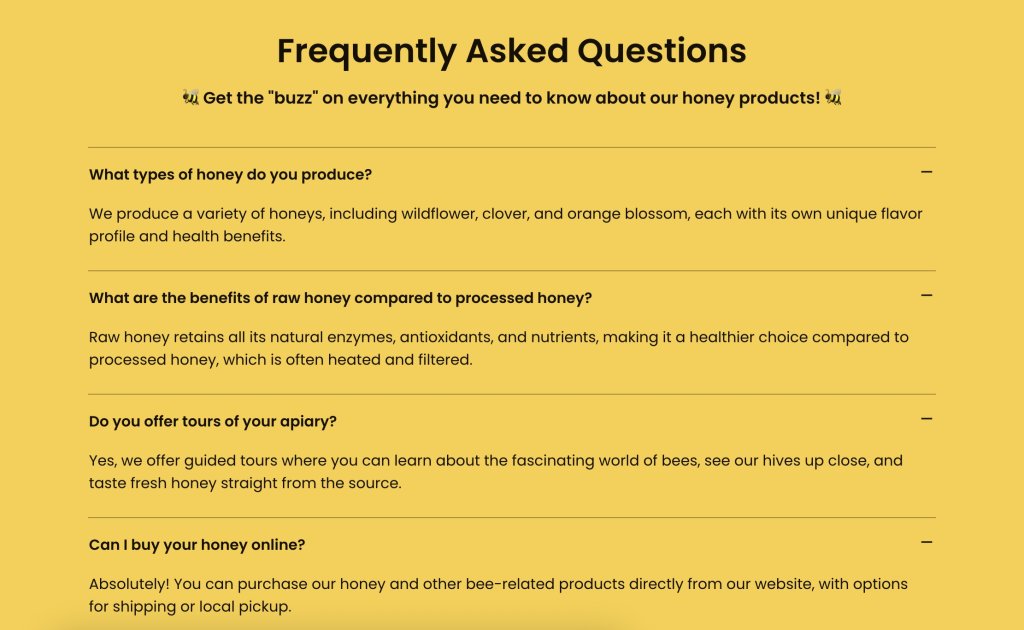
  • Clear, audience-matched product descriptions work better than generic ones. Tech buyers want specs, lifestyle buyers want emotional benefits.
  • Transparent pricing, including visible discounts and free shipping, reduces checkout drop-off and builds trust.
  • Prominent, action-oriented CTAs like “Buy now” or “Add to cart”—placed where shoppers can’t miss them—directly increase conversions.
  • Customer reviews and ratings add social proof that often provides the final nudge a hesitant buyer needs.

What Is a Product Detail Page and Why Is It Important?

A PDP typically includes product images, a description, pricing, available variants, and customer reviews. They all work together to answer every question a shopper might have before buying. For ecommerce businesses, it’s the web page where the customer journey moves from consideration to decision, making it one of the highest-leverage pages on your site.

What’s the Difference Between a PDP and a PLP?

A product listing page (PLP) shows multiple products side by side for browsing and comparison, while a product detail page goes deep on a single product to help the shopper decide to buy. The PLP attracts and filters, the PDP converts. Slam dunk.

Think of shopping online as a two-step buying process. First, you have the PLP, which is like scrolling through a digital catalog. It shows your site visitors a variety of products with brief descriptions and images, making it easy for them to compare and spot something they like.

Example of a product listing page with multiple product options and CTAs

Once something catches your customer’s eye, they click through to the product detail page. This is where they get all the nitty-gritty details about that specific item—detailed product descriptions, high-quality photos, reviews, and pricing. The PDP is designed to answer any questions an online shopper might have and help them decide if they want to buy.

Example of a product page with an image title description and CTA

Together, these web pages work like a team: the PLP draws people in, and the PDP assists customers in selecting the right products. Knowing how each product page plays its part can really help you create a smoother customer experience and strengthen your business.

How Do You Create a Product Detail Page That Converts?

An effective PDP combines high-quality visuals, clear descriptions, transparent pricing, and strong calls to action, each optimized for the specific audience you’re selling to. The eight elements below cover everything you need to know to get this right, building a PDP that turns browsers into buyers.

Pro tip: If you’re using an ecommerce platform like SiteGround Ecommerce, many of these best practices are already built into your product detail pages. PDP layouts are pre-designed according to conversion and usability best practices so you can focus on adding great content rather than worrying about structure or technical setup.

Alright, ready to get attention and encourage those all-important conversions? Let’s start selling!

1. Capture High-Quality Product Images 

High-quality images from multiple angles are one of the most direct drivers of purchase confidence. They replace the in-store experience of picking up and examining a product.
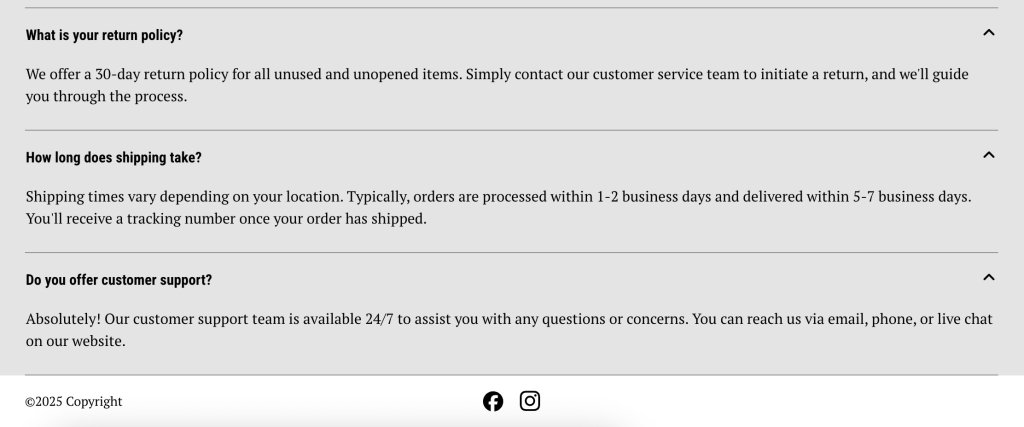
Including real customer photos or letting buyers upload their own images in reviews adds a layer of authenticity that studio shots alone can’t provide. Shoppers get a better sense of how the product looks and performs in real life, which leads to more confident purchases and fewer returns.

Consider a bike retailer that shows the full bike from multiple angles, includes close-ups of key components like the gears, brakes, and frame joints, and features customer photos of the bike out on the road or trail. That combination gives a prospective buyer far more confidence than a single studio shot ever could.

Example of a product page with multiple product images from different angles

✅ Do: Use clear, high-resolution images to highlight product features. 

❌ Don’t: Overlook the importance of showing multiple angles and important details.

2. Craft Clear Key Feature Descriptions

A good product description highlights the features and benefits that matter most to your specific buyer, and not necessarily every last detail about the product.

An electronics store, for instance, might need to list specific specs, technical features, and performance comparisons, because that’s the kind of product data tech-savvy shoppers are looking for. 

On the other hand, a toy aimed at parents should focus more on the emotional experience—how their kids will feel using it, the fun they’ll have, and the kind of memories it might create. It’s really about adapting the message to what matters most to each type of buyer.

Example of product page with feature copy catered to the audience

With platforms like SiteGround Ecommerce, product detail pages already include clearly structured sections, making it easier to present information in a way that’s scannable and conversion-friendly.

✅ Do: Use bullet points for clarity and quick reading.

❌ Don’t: Overload descriptions with unnecessary details and long paragraphs.

3. Display Transparent Pricing

Transparent pricing is one of the simplest ways to reduce checkout drop-off. This means showing the full cost upfront, including any discounts and shipping. Everything is clear from the get.

An important thing worth considering: Try to offer free shipping, even if you’re technically including it in the total price. It’s a small shift, but it can make a big difference. People are much more likely to complete their purchase when they don’t see an extra shipping charge added at checkout. It helps reduce drop-offs right at the final step.

Imagine a shopper finds a coffee table listed at $150. They’re happy with the price, add it to their cart, and head to checkout—only to be hit with shipping costs they weren’t expecting. That surprise is often all it takes for someone to pause, close the tab, and never come back. Now imagine the same table listed at $169 with free shipping. The shopper weighs it up, decides they’re into it, and completes the purchase. Same cost to them, very different outcome.

✅ Do: Ensure all pricing information, including discounts and shipping costs, is prominently displayed and easy to understand. Try to offer free shipping even if it means you have to bump up the price.

❌ Don’t: Hide or obscure extra costs such as shipping information, as this can lead to customer frustration and loss of trust.

Example of a product page with clear pricing including free shipping

4. Feature Prominent Call-to-Action Buttons

Your call-to-action (CTA) button is the single most important conversion element on the page. It needs to be impossible to miss and unambiguous about what happens next. Labels like “Add to cart” or “Buy now” work best—they’re direct, action-oriented, and leave no room for confusion.

A few things make a CTA button work harder: placement, color, and size. It should sit above the fold so shoppers never have to scroll to find it, use a color that contrasts with the rest of the product detail page, and be large enough to tap comfortably on mobile devices (also important for accessible web design). On smaller screens especially, a CTA that’s hard to tap is a conversion you’ve already lost.

Imagine a shopper who’s already convinced. They’ve looked at the images, read the reviews, and decided they want it. But then they can’t immediately find the button to buy it. That moment of friction, however small, is often enough to break the spell.

Example of a product page with a clear and noticeable CTA button

Many modern ecommerce builders, including SiteGround Ecommerce, place CTAs like “Add to cart” and “Buy now” front and center by default, so your product pages naturally guide users toward purchase without extra customization.

✅ Do: Use bold colors and clear text for call-to-action buttons to make them stand out.

❌ Don’t: Bury call-to-action buttons in cluttered or hard-to-find areas of the web page.

5. Design for a Clear Page Layout

A well-structured PDP guides the shopper’s eye naturally from product images to key details to the call to action—without them having to think about where to look next. Getting your website layout right is one of the most impactful things you can do for conversions—when it’s unclear, shoppers lose their place, miss important information, and are less likely to buy.

Visual hierarchy is what makes this work. Most successful PDPs use a two-column layout—product images on the left, key details on the right. The shopper’s eye moves naturally from the images across to the product name, price, variant selectors, and CTA. Use size and weight to signal importance: a large, bold product title and a clearly styled CTA button should stand out immediately, while secondary information like shipping details or specifications sits further down the product detail page.

Breadcrumb navigation is a small but valuable addition. It creates a simple trail like Home > Living Room > Coffee Tables, which tells shoppers exactly where they are on your ecommerce site and makes it easy to jump back to the PLP without hitting the back button.

Visual example of breadcrumb navigation on a webpage

On mobile devices, layout becomes even more critical. A sticky add-to-cart bar (that is, a fixed strip at the bottom of the screen that stays visible as the user scrolls) ensures the CTA is always one tap away, no matter how far down the product detail page a shopper has read. Without it, mobile shoppers often have to scroll all the way back to the top to buy, and many won’t bother.

✅ Do: Use visual hierarchy to lead shoppers naturally toward the CTA, and keep it accessible on mobile with a sticky add-to-cart bar. 

❌ Don’t: Bury key information like price or CTA below the fold or treat desktop and mobile web design as the same thing.

6. Incorporate Customer Reviews and Ratings

Most shoppers don’t fully trust a brand talking about its own product. They trust other shoppers. A review from someone who actually bought the product, used it, and came back to share their experience carries a weight that even the best product description can’t match.

A quick idea to collect customer reviews: some online stores offer a small discount or a reward (like points or free shipping on the next order) in exchange for leaving a review. It’s a simple incentive that can help increase the number of reviews and add more social proof to your product detail pages.

One more thing worth keeping in mind: don’t filter out negative reviews. A page of exclusively five-star ratings feels curated and raises suspicion. A mix of positive and constructive feedback actually builds more trust, shows the reviews are real, and gives you valuable insight into customer satisfaction that can help you improve.

✅ Do: Highlight both positive and constructive reviews to provide a balanced perspective. 

❌ Don’t: Filter out all negative reviews, as this can appear inauthentic and reduce trust.

Example of product detail page with testimonials from happy customers

7. Offer Additional Information

Anticipating and answering common shopper questions directly on the PDP removes the friction that causes people to leave and search elsewhere. The goal is to make sure no buyer has an unanswered question by the time they reach the CTA.

Think beyond the product description itself: a size guide, compatibility notes, care instructions, shipping costs and shipping options (standard, express, free over a certain threshold), returns information, related product suggestions, and customer FAQs all serve a purpose. Each one removes a reason to hesitate.

Consider a shopper buying a winter jacket. They love it but they’re between sizes—and there’s no size guide. They guess, order it, it doesn’t fit, and they return it. Now imagine the same page includes a size guide and a note saying “this style runs slim, size up if in doubt.” The shopper sizes up confidently, the jacket fits, no return needed. A small addition that saves everyone time and money.

✅ Do: Provide clear and accessible resources to enhance customer understanding and confidence. 
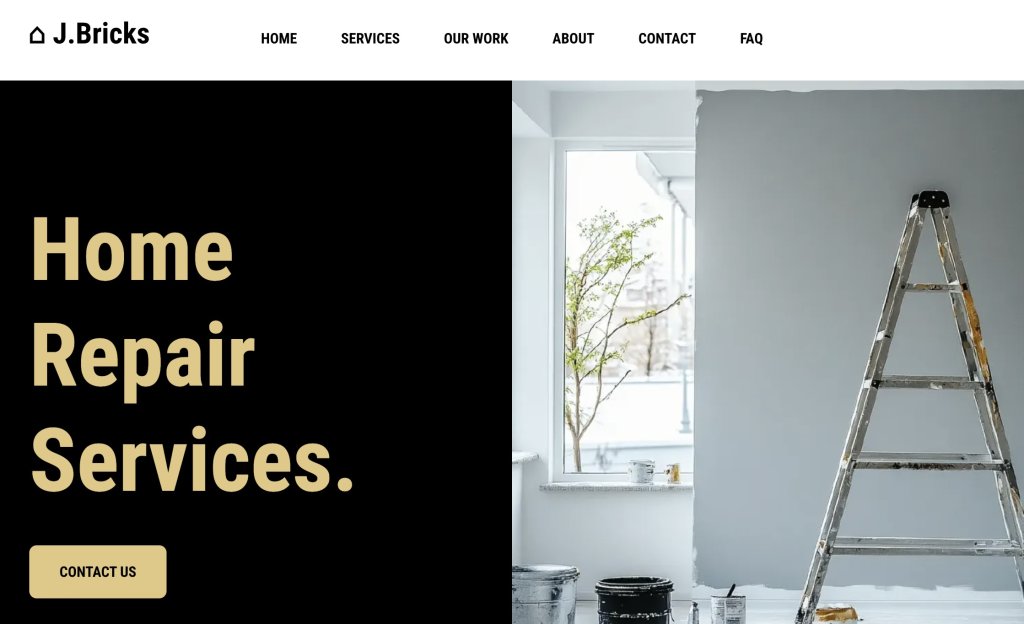
❌ Don’t: Overwhelm new customers with excessive or irrelevant information that can lead to confusion.

Example of FAQs on a product detail page

8. Optimize for Performance

Page speed is a direct conversion factor. Yep. A slow-loading PDP loses shoppers before they even see the product. According to Google research, 53% of mobile visitors will abandon a page that takes longer than 3 seconds to load—and that’s a threshold most unoptimized sites fail to meet.

The good news is that most performance gains come from a handful of practical steps: compressing images without sacrificing quality, choosing a reliable hosting provider, and keeping your code lean.

If your ecommerce platform handles performance optimization at the infrastructure level (like SiteGround Ecommerce does) features such as image optimization, fast loading, and reliable hosting are already baked into your product detail pages.

✅ Do: Focus on fast loading times to keep shoppers engaged and reduce bounce rate.

❌ Don’t: Ignore performance issues—a slow PDP costs you sales regardless of how good the product is.

Wrapping It Up: How to Make the Most of Your Product Detail Page

The best product detail pages are built around customer expectations. When shoppers find everything they need, presented clearly and without friction, the decision to buy becomes easy. 

With these best practices at your fingertips, you’re ready to create an effective product detail page that improves both conversions and customer satisfaction. Try out these tips, and you might just see your conversion rates climb.

And if you want to put these ideas into action without building everything from scratch, SiteGround Ecommerce makes it easier. Product pages are already designed according to ecommerce best practices, so layouts, calls to action, and key elements are in place from the start. That means you can focus on your products and content, while the platform takes care of the structure behind the scenes.

FAQs About Product Detail Pages

What should a product detail page include?

A great product detail page should include high-quality images, a clear product description, transparent pricing, available variants (such as size or color), customer reviews, and a prominent call-to-action button like “Add to cart” or “Buy now.”

What’s the difference between a PDP and a PLP?

A product listing page (PLP) displays multiple products for browsing and comparison, while a product detail page (PDP) focuses on a single product and provides all the information a shopper needs to make a purchase decision.

How do product detail pages affect conversion rates?

A well-optimized PDP directly improves conversion rates by removing doubt and answering every question a shopper might have before buying. Poor PDPs (with low-quality images, hidden fees, or unclear CTAs) push buyers toward competitors.

How long should a product description be?

There’s no fixed length, as it depends on the product and audience. Complex products like electronics benefit from detailed specs, while simpler or lifestyle products need only a few sentences focused on benefits and emotional appeal. The key is to include exactly what your buyer needs, nothing more.
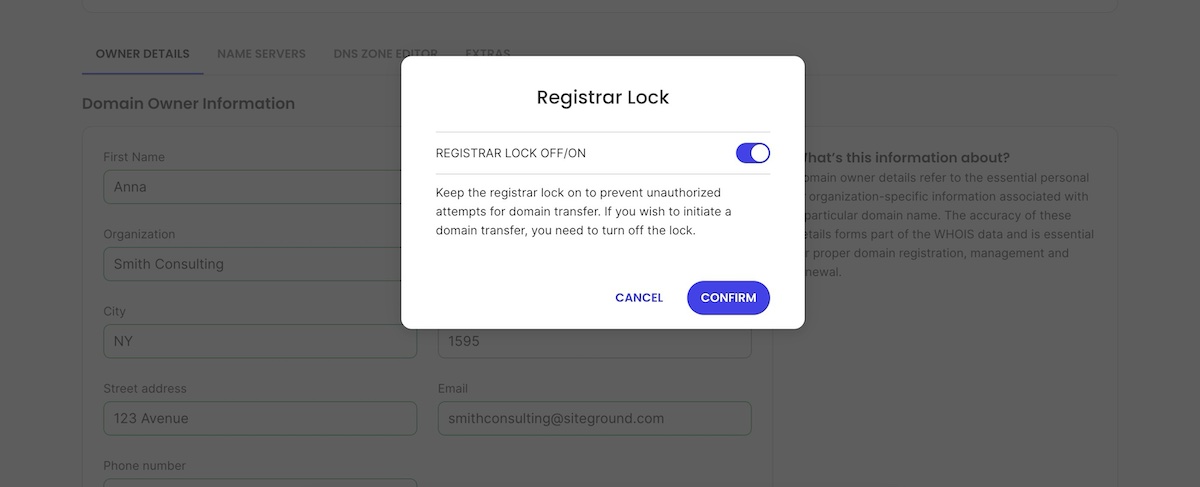
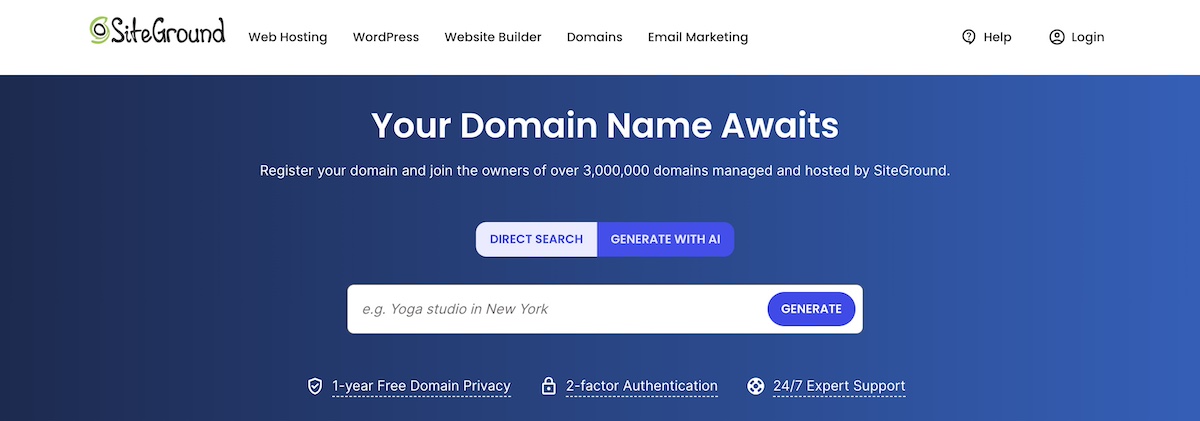
How do I do SEO for ecommerce product pages?

Use your primary keyword naturally in the product title, H1, description, and image alt text. Add structured data markup, encourage customer reviews for fresh content, and ensure the product detail page loads fast, especially on mobile.
Do customer reviews really make a difference on a PDP?

Yes! Reviews are one of the strongest trust signals on a product detail page. They provide social proof that reassures hesitant buyers, and a mix of positive and constructive reviews tends to build more credibility than a page of exclusively five-star ratings.

This article was originally published in June 2025 and then updated in May 2026