
A favicon is the small icon you see in browser tabs, bookmarks, and search results—it’s your website’s visual calling card, and it does more for your brand than you might think. A well-designed one makes your site look polished and helps users find their way back to you easily. This guide covers everything you need to know: what favicons are, where they show up, how to create one, and how to add it to your site.
Key takeaways:
- Favicons are small but mighty — that tiny icon in your browser tab plays a big role in brand recognition and user experience.
- They show up everywhere — browser tabs, bookmarks, search results, mobile home screens, and even desktop shortcuts.
- Size and format matter — offering multiple sizes (16×16 up to 72×72) and formats (ICO, PNG, SVG) ensures your favicon looks sharp on every device.
- Keep the design simple — small icons don’t have room for detail, so stick to clean visuals, brand colors, and no text.
- Adding one is easier than you think — whether you’re on WordPress, a website builder, or a custom site, implementation is just a few steps.
- Favicons can indirectly boost SEO — a recognizable icon can improve click-through rates and signal professionalism to both users and search engines.
What Is a Favicon Image?
A favicon, short for “favorite icon,” is a small (usually 16×16 pixel) image that serves as a visual representation of a brand’s website. It’s a subtle but important element of web design, reinforcing brand identity and improving user experience. You’ll typically find them displayed in:
- Browser tabs
- Browser history tabs
- Browser bookmarks
- Mobile home screens
- Search engine results pages
- Google search bars
- Desktops
They’ve become so common that you see them everywhere all the time, yet you might not even notice them. The most typical use in practice is as small icons next to the web page titles in browser tabs.

First introduced by Microsoft with the release of Internet Explorer 5 in 1999, favicons originally appeared as small icons in the bookmarks (Favorites) and address bar when a user bookmarked a webpage. The original implementation required the favicon to be named favicon.ico and placed in the root directory of a website. This simple yet effective feature quickly gained popularity, leading to widespread adoption across various web browsers.
Over time, the role of the favicon expanded beyond a bookmark icon. It started appearing in browser tabs, bookmarks, and even search engine results pages. As web design evolved, so did the formats and sizes of favicons, accommodating the needs of modern devices and high-resolution displays. Today, favicons are a standard element of web design, playing a crucial role in site identity and user experience.
Where Are Favicons Used?
Favicons have a broad range of usage in modern devices and applications. Below, we’ll examine the most common places where you’ll encounter them.
Browser Tabs
In browser tabs, favicons appear next to the page title, enabling users to identify and differentiate between multiple tabs quickly. This is particularly useful when visitors have numerous tabs open, as the favicon provides a visual cue that helps them locate the desired tab without having to read the full title.
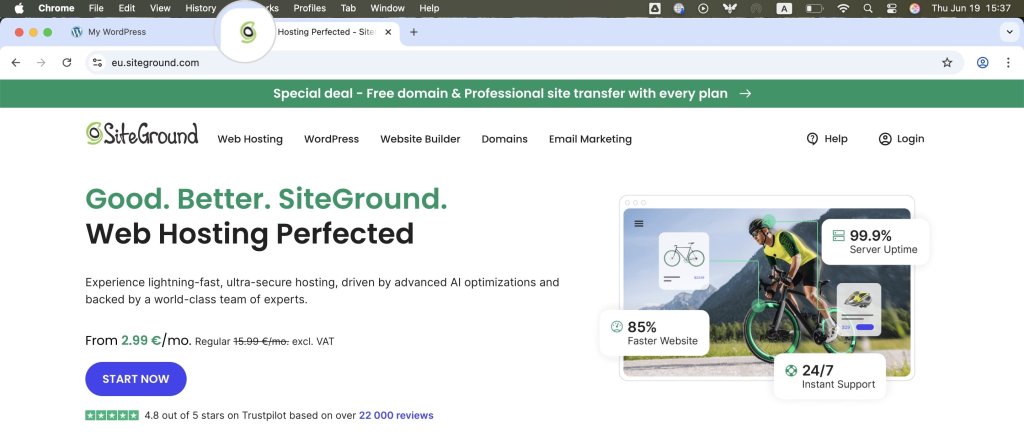
Favicons become even more important when the tabs are stacked next to each other, reducing their area and making the page titles unreadable. The favicon tab icon remains the last distinguishable part of the tab.
Browser History Tab
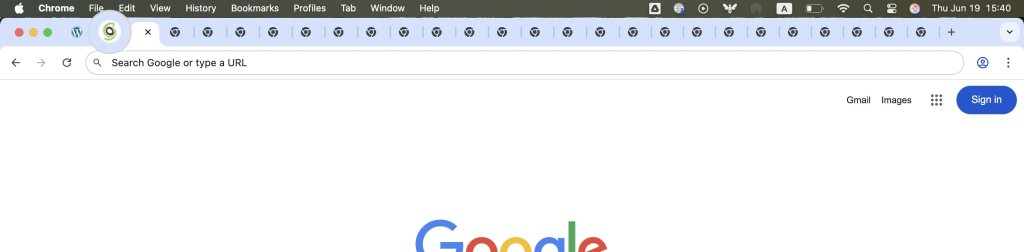
Favicons are also displayed in the browser history tab, which helps users more easily identify previously visited websites. This visual element makes finding and revisiting websites simple, improving the overall website navigation experience and improving websites’ client retention.
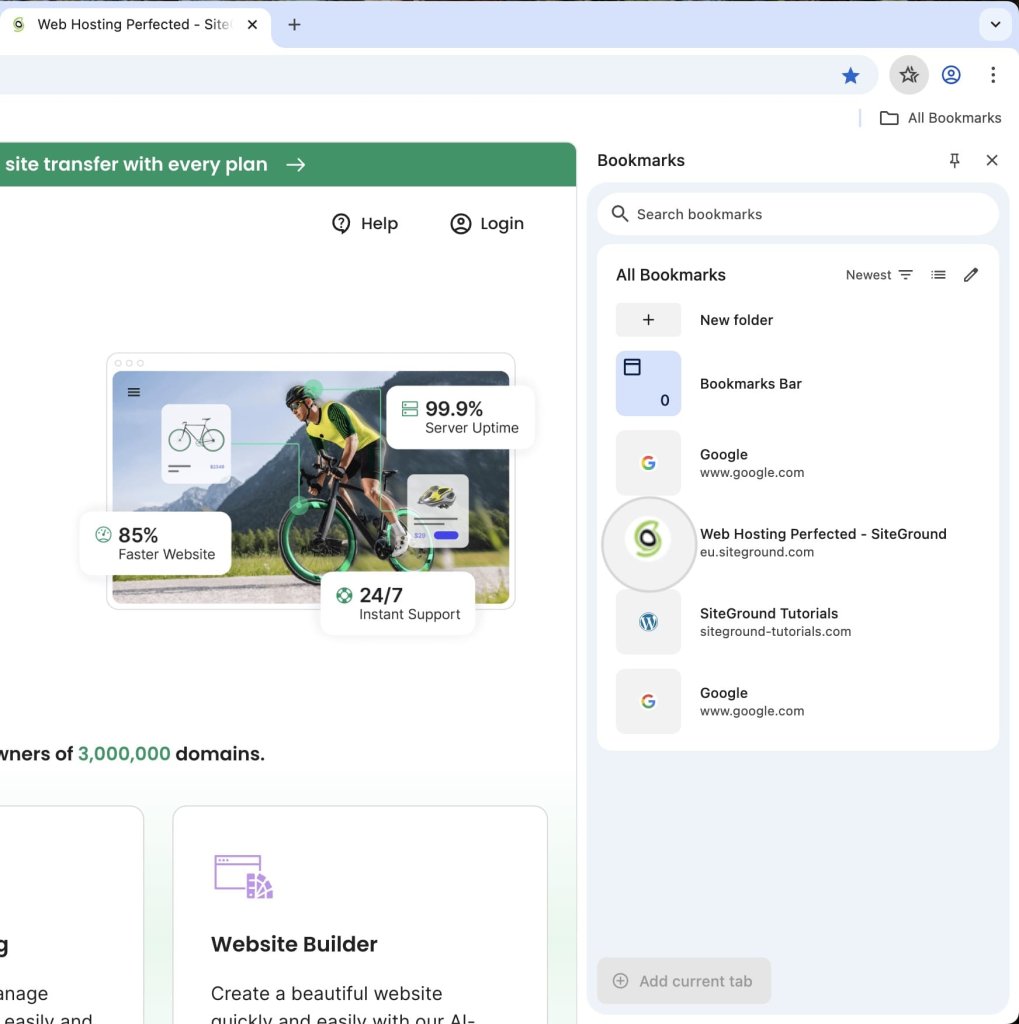
Bookmarks
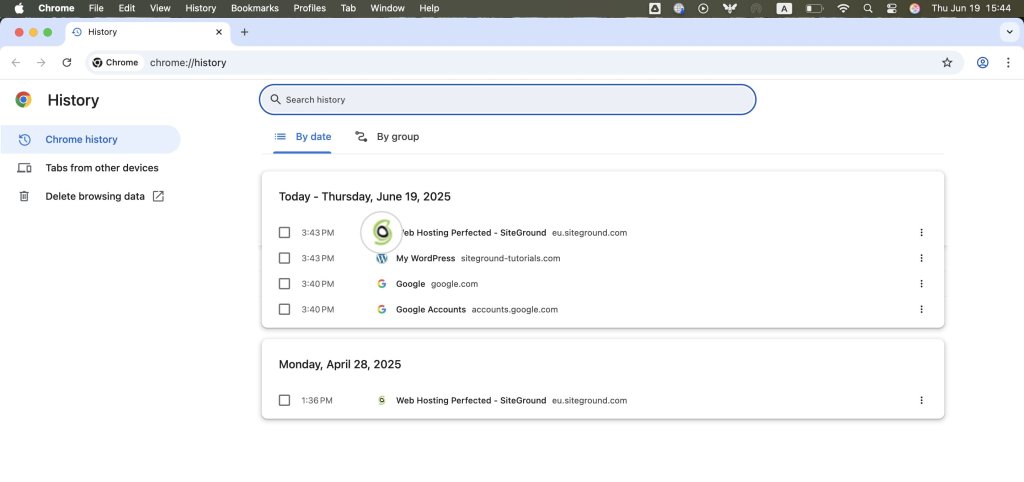
When a user bookmarks a website page, the favicon is saved alongside the page title in their bookmarks list. This not only helps users quickly recognize and access their saved sites but also improves the organization of bookmarks by providing a visual element that stands out.
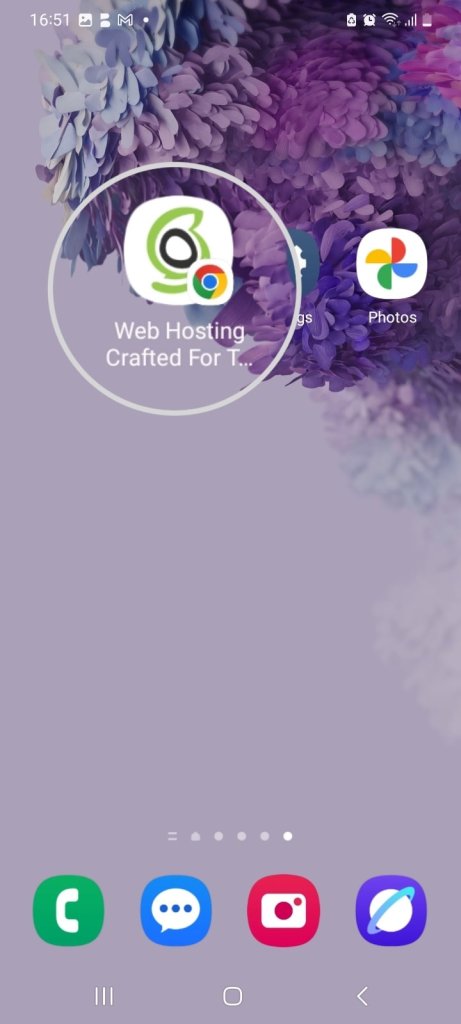
Mobile Home Screens
On mobile devices, users have the option to add websites directly to their home screens. In the context of mobile web design, favicons function like app icons, providing a convenient and recognizable shortcut for users to access their favorite sites quickly.
SERP (Search Engine Results Pages)
Search engines display favicons alongside search results on the SERPs (Search Engine Result Pages). This visual element can capture users’ attention, potentially increasing click-through rates by making the website more appealing and trustworthy in SERPs.

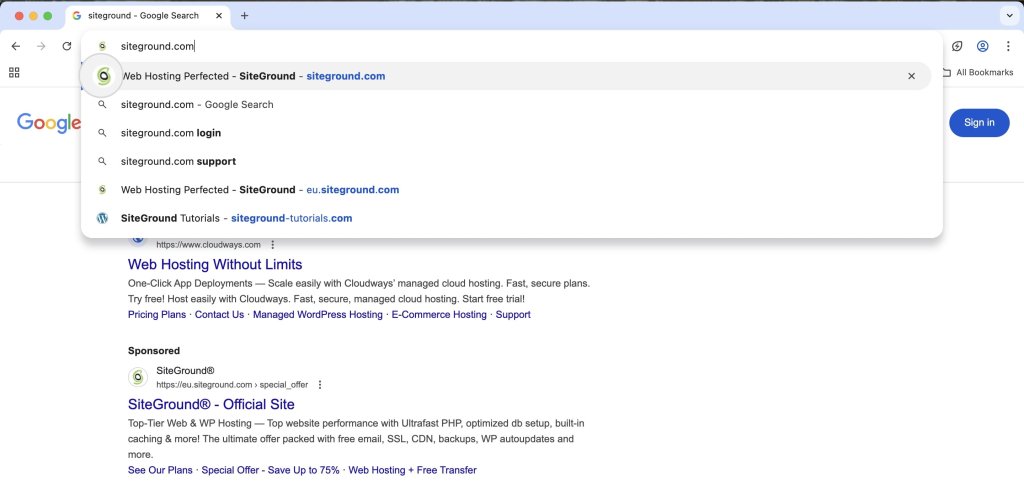
Google Search Bar
Within the Google search bar, favicons appear next to search suggestions and results. As a result, they reinforce brand identity and help users quickly identify the websites they’re interested in visiting.
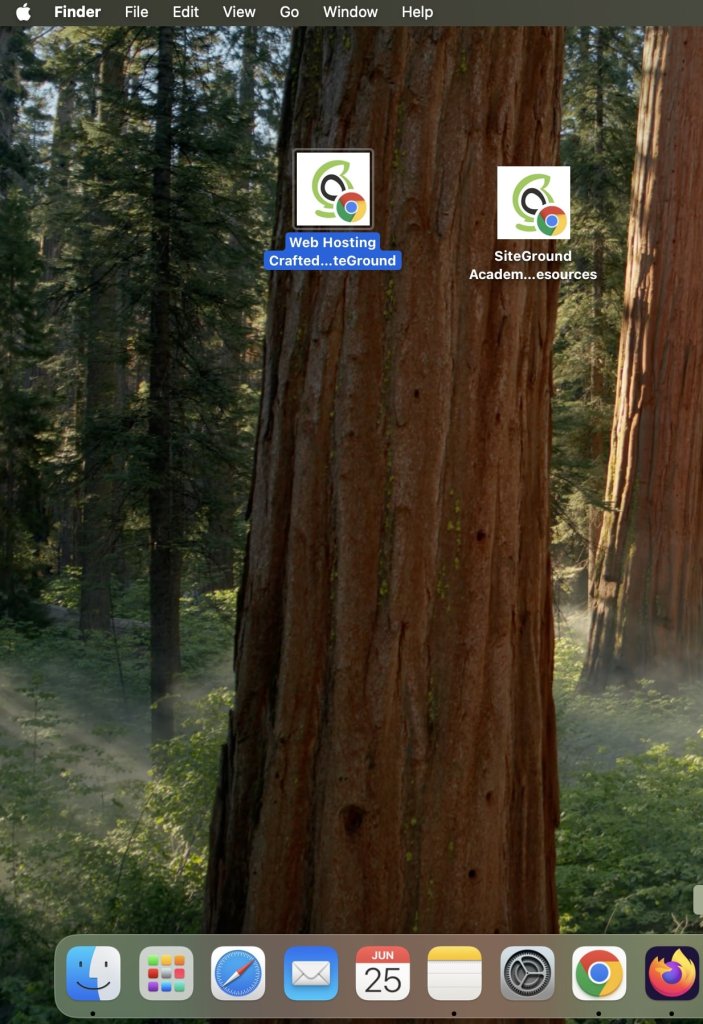
Desktops
Favicons can be used as desktop shortcuts as well, allowing users to create direct links to websites from their computer desktops. This provides a convenient way for users to access their preferred sites without opening a browser first.
What Are the Favicon Sizes?
Favicons are available in multiple sizes to ensure compatibility across different devices and platforms, including:
- 16×16 – standard size for browser tabs, bookmarks, browser history, and search engine results.
- 32×32 – suitable for desktop shortcut icons and taskbar shortcut icons.
- 48×48 pixels – common for Windows desktop icons and larger displays.
- 72×72 and above – ideal for larger screens like smart TVs, tablets, etc.
Providing multiple sizes is crucial for displaying the favicon correctly on all screen types. Additionally, larger sizes may be used for high-resolution displays, ensuring that the favicon remains sharp and clear.
Favicon File Types
Favicons support several file formats. The common favicon file formats include:
- ICO Format – The ICO format is the most widely supported and is ideal for ensuring compatibility with older browsers. It can contain multiple image sizes within a single file, allowing for flexibility in display across different contexts.
- PNG Format – The PNG file extension offers high-quality images with support for transparency, making it suitable for modern browsers. PNG favicons are often used for their clarity and ability to maintain image quality.
- SVG Format – SVG (Scalable Vector Graphics) is a format that provides scalability without loss of quality. This makes it perfect for high-resolution displays and responsive designs, as the favicon can be resized without becoming pixelated.
Favicons in JPG are not quite common, since their lack of detail makes them unsuitable for smaller images.
How Do You Create Favicons?
Even if you’re not a seasoned designer, there are plenty of graphical software and online favicon generator applications to help you craft your own custom favicon. Adobe Photoshop, Figma, and RealFaviconGenerator are just a few from the long list of powerful design tools you can choose from.
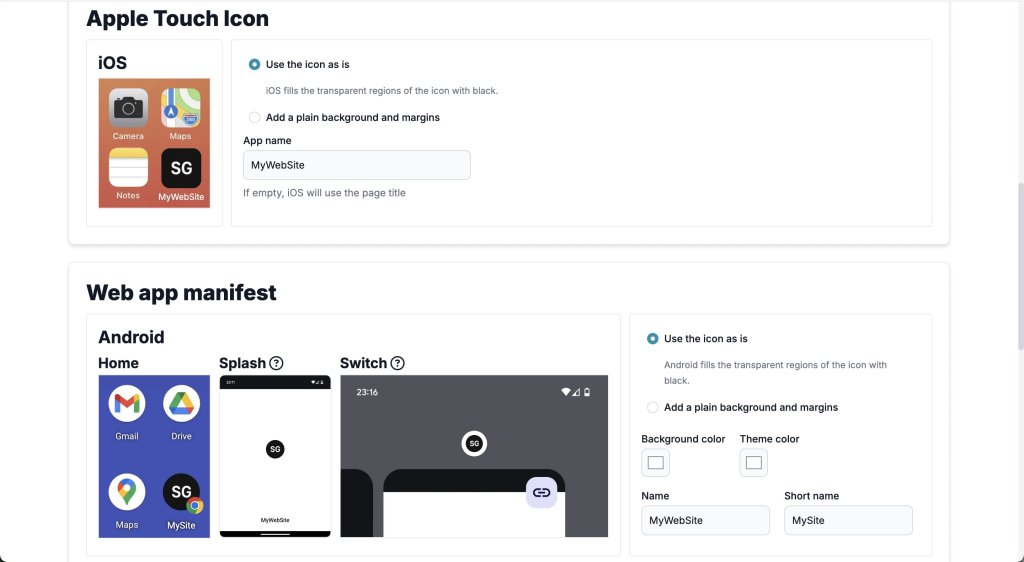
Once you have the design ready, you can upload your file to the RealFaviconGenerator. The tool will convert it into multiple formats, ensuring broad browser compatibility. You can also preview how the favicon appears on different devices and color modes, and generate the HTML code to insert into your index file.
If You’re a SiteGround Client, Check Out AI Studio
If you host your website with SiteGround, you also have access to SiteGround AI Studio — an all-in-one AI platform designed for small businesses. Among its many tools, the Image Designer agent lets you generate and edit images using natural language, making it a great option for creating favicon concepts without needing a separate design tool. It’s worth exploring what’s available to you as a SiteGround client.
Learn more>>
How Do You Add a Favicon to Your Website?
You’ve designed the perfect favicon and are looking to implement it on your website. So, how do you go about it?
Adding a favicon is straightforward, regardless of what application your website is built upon. For some applications, it’s as simple as a few mouse clicks, while others require a few extra steps.
Below, we’ll go through some of the more common cases.
How to Add A Favicon to a Custom Website
Generally, you must upload the favicon file to your website and configure the index file to display it. This method is valid for all kinds of websites, but with some applications, it’s a matter of a few clicks. However, if you have a custom PHP/HTML website, you’ll have to do it the old-fashioned way.
First, access your website files through FTP or File Manager and upload the favicon file to the root folder (typically public_html). The file can be named anything you want and in any of the supported formats. The typical naming convention, however, is favicon.ico (or another extension).
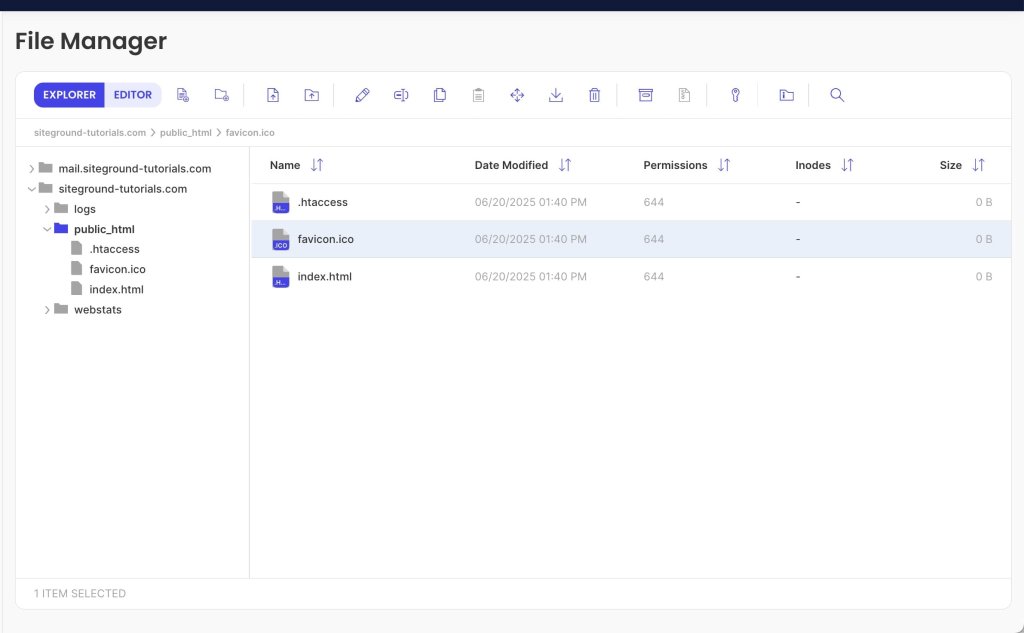
Then, open your index file (index.php or index.html), and add the following code in the <head> section to specify the favicon file.
<head>

  <link rel="icon" href="/favicon.ico" type="image/x-icon">

</head>
Here is how this piece of code would look inside the index file.
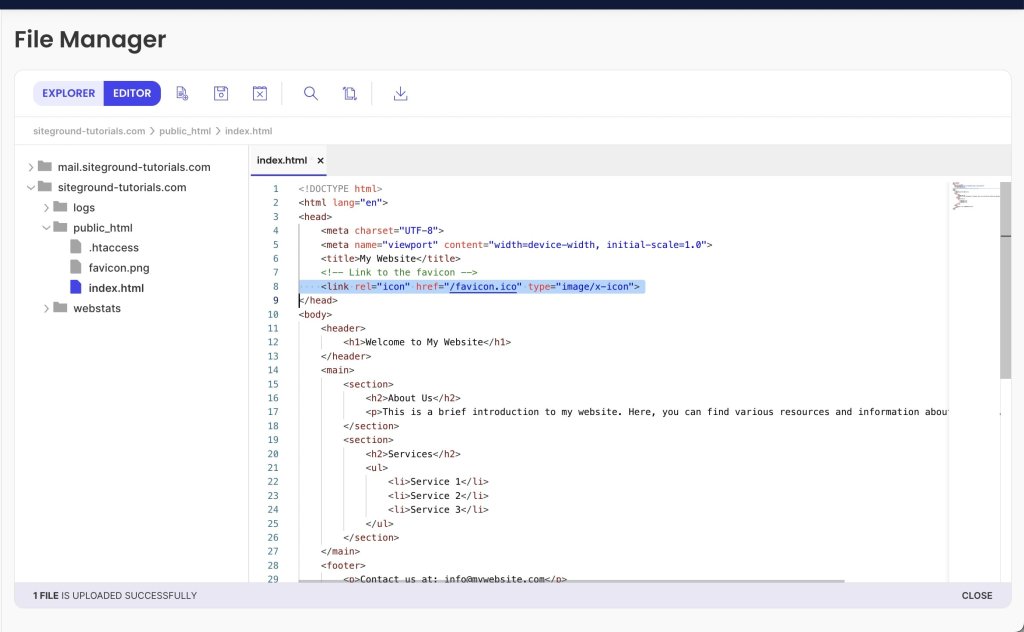
Note that the favicon path /favicon.ico corresponds to the public_html directory. If the file is located in a subfolder, you must specify it in the file path.
For example, if your favicon is named favicon.ico and located in the subfolder public_html/images, the file path should be /images/favicon.ico.
To ensure that your favicon is rendered correctly on various screen sizes, you can upload several favicon files of different sizes. Then, add multiple <link> elements to your HTML file, each assigning the proper file to a different screen size. The code would look similar to this.
<link rel="icon" type="image/png" href="/favicon-96x96.png" sizes="96x96" />

<link rel="icon" type="image/svg+xml" href="/favicon.svg" />

<link rel="shortcut icon" href="/favicon.ico" />

<link rel="apple-touch-icon" sizes="180x180" href="/apple-touch-icon.png" />

<link rel="manifest" href="/site.webmanifest" />
How to Add a Favicon in SiteGround Website Builder
SiteGround Website Builder is our own proprietary page builder making crafting web pages a fun and rewarding experience. With its intuitive interface, you can instantly build eye-catching and professional-looking websites without writing a single line of code.
Adding a favicon to your website using our Website Builder is easy and only takes a few clicks, just like many other features.
While in the page editor, go to the Content tab, and click the Header section at the top of any page.
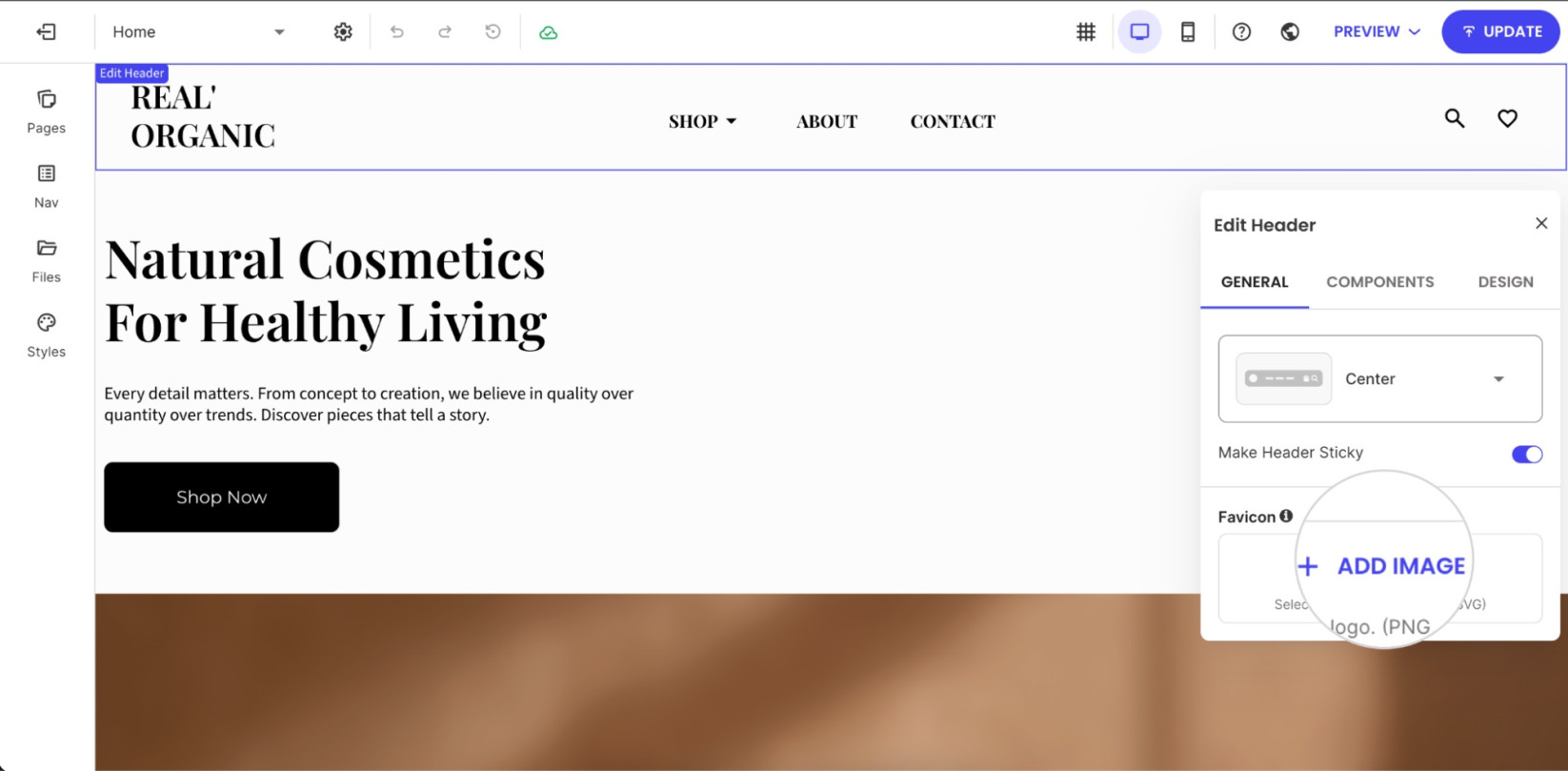
From the Edit Header menu, navigate to the Favicon section and click on Add image. Select or upload the image you want to use as your favicon. The favicon will then appear in browser tabs once the changes are saved and the site is updated.
How to Add a Favicon in WordPress
WordPress uses the term “site icon” instead of “favicon,” but both are practically the same. Adding a favicon to a WordPress site has always been easy, but it’s become even easier since the release of WordPress 6.5 in April 2025.
Previously, you had to use the theme customizer, theme editor, or a plugin. But after the changes introduced in version 6.5, you can simply add the favicon from the general settings section.
To add a favicon, log in to your WordPress dashboard. Navigate to the Settings > General section, and click the Choose a Site Icon button next to Site Icon.
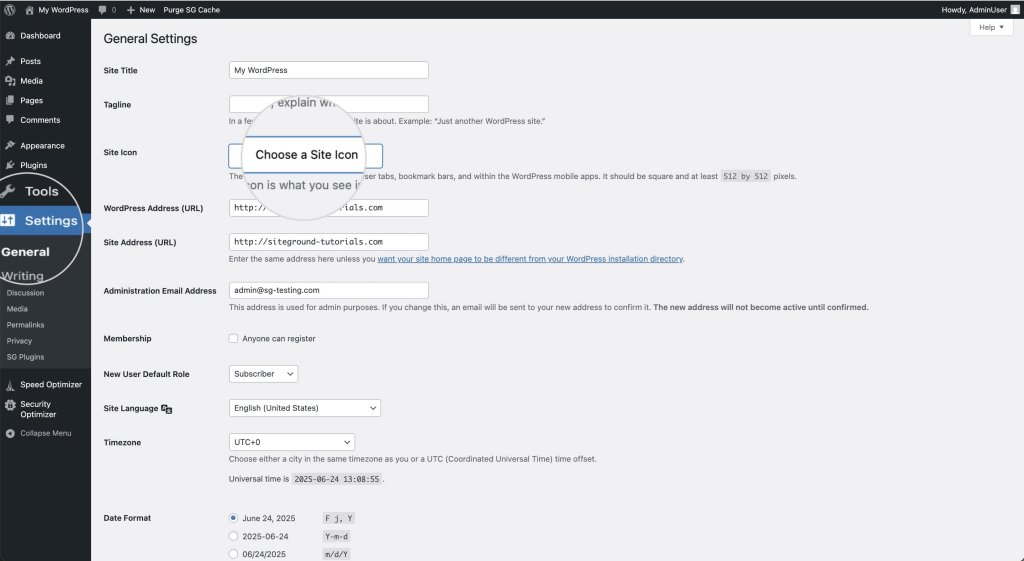
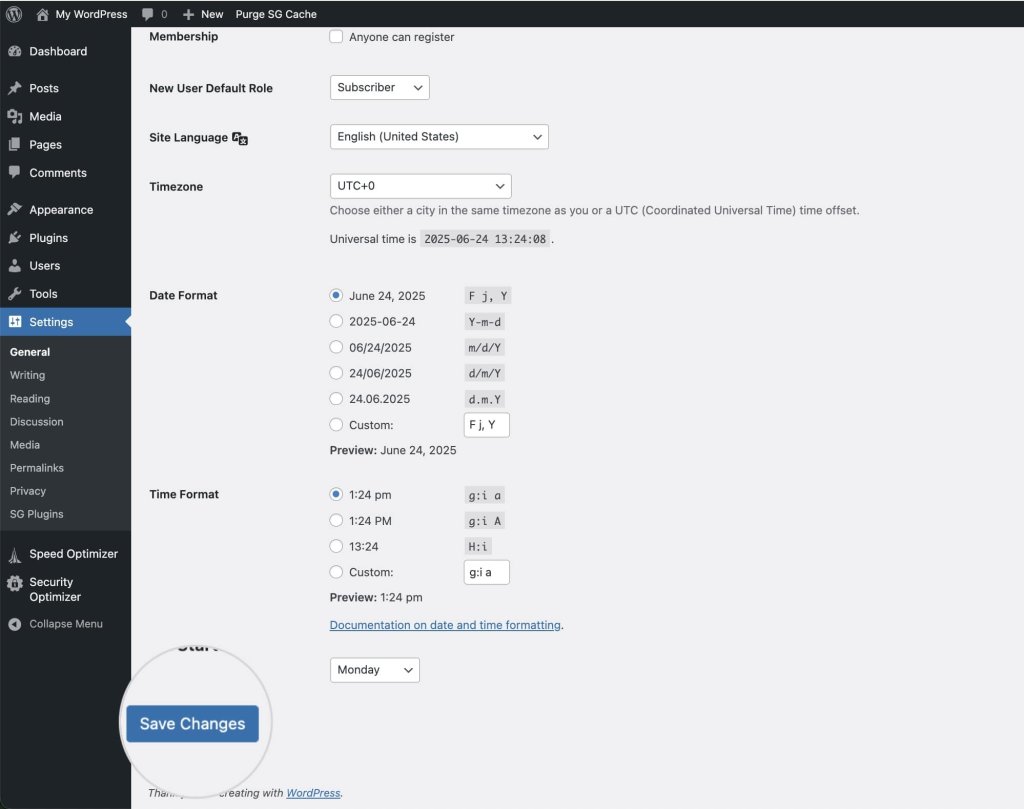
In the pop-up window, choose an image file from your computer or your website’s media gallery. The recommended site icon size is 512×512 pixels at a ratio of 1:1. Once you’re ready, hit the Save Changes button.
What Are the Benefits of Using Favicons?
Better User Experience
Favicons enhance user experience by providing a visual identifier for websites, making navigation more intuitive and efficient. Web users can quickly locate and switch between tabs, bookmarks, and history entries, improving overall satisfaction and ease of use.
Improved User Retention
By helping users easily locate and return to websites, favicons contribute to improved user retention and engagement. A recognizable favicon can encourage users to spend more time on a site and return more frequently, fostering a loyal user base.
Establishing Brand Identity and Visibility
Favicons play a crucial role in reinforcing branding basics. They serve as a constant reminder of the brand, ensuring that a website stands out in users’ minds. A well-designed favicon can enhance brand recognition and make a lasting impression on users.
What Are the Best Practices for Favicons?
The best favicon is simple, on-brand, and legible at tiny sizes—think clean shapes, brand colors, and no text. Here are the key design and implementation practices to keep in mind.
Keep It Simple
Simplicity is key when designing a favicon. Given the small size, it’s important to create a design that is clear and easily recognizable. Avoid intricate details that may become lost or unclear when scaled down.
Use the Logo as a Foundation, But Don’t Duplicate It
While it’s effective to use the logo as a foundation for the favicon, avoid exact duplication. Instead, create a simplified version that captures the essence of the brand while remaining distinct and recognizable.
Convey the Brand Identity
Ensure the favicon reflects the brand’s identity and values, serving as a visual representation of the company. It should align with the overall branding strategy and communicate the brand’s message effectively.
Use Minimum Text
Text can become unreadable at small sizes, so it’s best to avoid using text in favicons altogether. Focus on strong visual elements that convey the brand identity without relying on words.
Consider the Colors
Choose colors that align with the brand’s color scheme. Make sure they contrast well to remain visible against various backgrounds. A well-chosen color palette can enhance the favicon’s impact and recognition.
Provide Multiple Favicon Sizes
Visitors nowadays access websites from various devices with different screen sizes, so a single default favicon size might not look good on all of them. Add several files of varying dimensions to ensure your favicon appears clearly on all devices.
Do Favicons Affect SEO?
Favicons can indirectly impact SEO (Search Engine Optimization) by improving user experience and engagement. A recognizable favicon can increase click-through rates in search results and encourage users to spend more time on a site, both of which can contribute to better search performance. Additionally, favicons contribute to a cohesive and professional online presence, which can enhance a website’s credibility and trustworthiness.
Additionally, favicons contribute to a cohesive and professional online presence, which can enhance a website’s credibility and trustworthiness.
Final Thoughts on Favicons
Every detail of your website matters, and favicons are no exception. Though small, these icons play an important role in establishing credibility and reinforcing brand identity. By optimizing user experience and improving audience engagement, favicons help your website remain memorable and easily recognizable. Don’t overlook this essential element—capitalize on its potential to effectively draw and retain visitors’ attention.
Ready to put it all together? With the SiteGround Website Builder, adding your favicon is just a few clicks—no code, no hassle. And the same goes for building your entire site. Its intuitive drag-and-drop interface makes it easy to create a professional, polished website without any technical know-how. Give it a try and see how simple it can be.
[24]
Favicon FAQs
A favicon is used to visually represent your website across browsers and devices—appearing in browser tabs, bookmarks, search results, and mobile home screens. It helps users quickly identify and return to your site, especially when they have multiple tabs open.
Not exactly. A favicon is often inspired by your logo, but it’s a simplified version designed to work at very small sizes. Where a logo can include text, detail, and multiple elements, a favicon needs to be instantly readable at 16×16 pixels, so it’s usually just the most recognizable part of your brand mark.
There are several easy ways to create a favicon. Free online tools like RealFaviconGenerator let you upload a logo or image and automatically convert it into all the necessary sizes and formats. Design tools like Figma and Adobe Photoshop give you more creative control if you want to build one from scratch. If you’re a SiteGround client, AI Studio‘s Image Designer is another great option for generating custom icon concepts using AI.
Some of the most recognizable favicons are Google’s multicolored “G,” Facebook’s white “f” on a blue background, and Amazon’s smiling arrow. They all share the same quality: a simple, bold visual that’s instantly identifiable even at tiny sizes.
This article was originally published in June of 2025, and then updated in April of 2026.