Mobile Web Design Guide: Insider Tips + Examples

abstract of mobile web design

Mobile web design is the practice of designing and building websites so they load fast and feel intuitive on phones and tablets, not just desktop screens. Most of your visitors are arriving on mobile, and how your site performs on those devices shapes whether they stay, find what they need, and come back.

This guide covers the principles, practical tips, and real-world considerations that go into building a mobile experience that feels effortless on any screen size. No shrinking, no retrofitting, just good design from the start.

Key takeaways:

  • Mobile isn’t a “version” of your site—it’s the primary experience. Design for phones first, or risk losing users, conversions, and search visibility.
  • Effective mobile website design is about context, not just screen size. Mobile users are distracted, on the go, and impatient—your site needs to adapt to that reality.
  • Navigation and touch interactions make or break mobile UX. Clear menus, thumb-friendly buttons, and intuitive flows keep users moving instead of bouncing.
  • Speed, accessibility, and performance are non-negotiable on mobile. Fast load times and inclusive design directly impact SEO, engagement, and retention.
  • The best mobile-friendly websites are tested in the real world, not just in theory. Real devices, real networks, and real users reveal issues no simulator can catch.

Why Does Mobile Web Design Matter? 

These days, more than 62% of global web traffic comes from mobile devices. Users expect a fast, seamless experience wherever they land, and if your mobile site feels slow, cluttered, or hard to tap on, they won’t wait around. After all, you wouldn’t either.

Here’s why investing in mobile design is essential:

  • First impressions happen fast. A confusing layout, tiny buttons, or slow load time can turn potential customers away in seconds—long before they explore your content or make a decision.
  • User expectations are evolving. People interact differently on mobile and desktop sites. Mobile websites that don’t feel intuitive, responsive, or enjoyable risk losing trust and credibility.
  • Performance affects business outcomes. Beyond engagement, mobile experience impacts conversions, repeat visits, and even search visibility. Google now evaluates mobile first, so a clunky mobile site can directly hit your traffic and rankings. 

[24]

What Are the Best Practices for Mobile Web Design?

Good mobile web design comes down to seven things: treating mobile as a priority from the start, designing for how people actually use their phones, making navigation effortless, building for touch, ensuring accessibility, prioritizing speed, and testing on real devices. Let’s break it down.

1. Design With Mobile as a Priority

First and foremost: start by making mobile design an absolute top priority. 

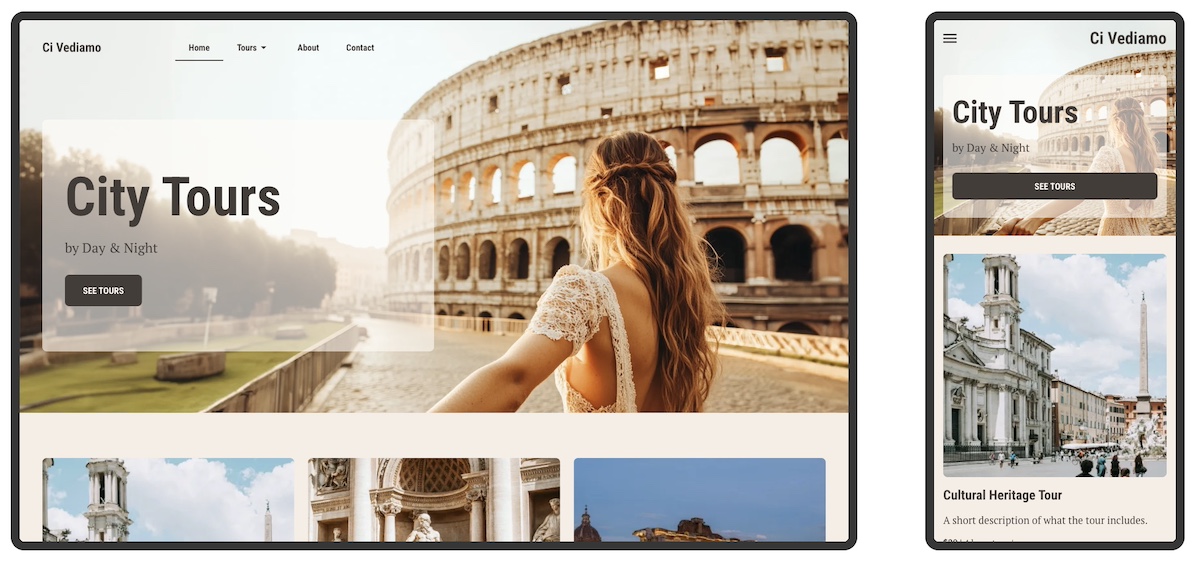
And no, we don’t just mean shrinking your desktop site. No, no. It means you should create your website with mobile top of mind so that the experience feels natural and effortless on mobile screens. Even if you’re designing for multiple devices, when you keep mobile as a priority from the start, it helps ensure your website layout, content, and visuals adapt beautifully for all mobile devices.
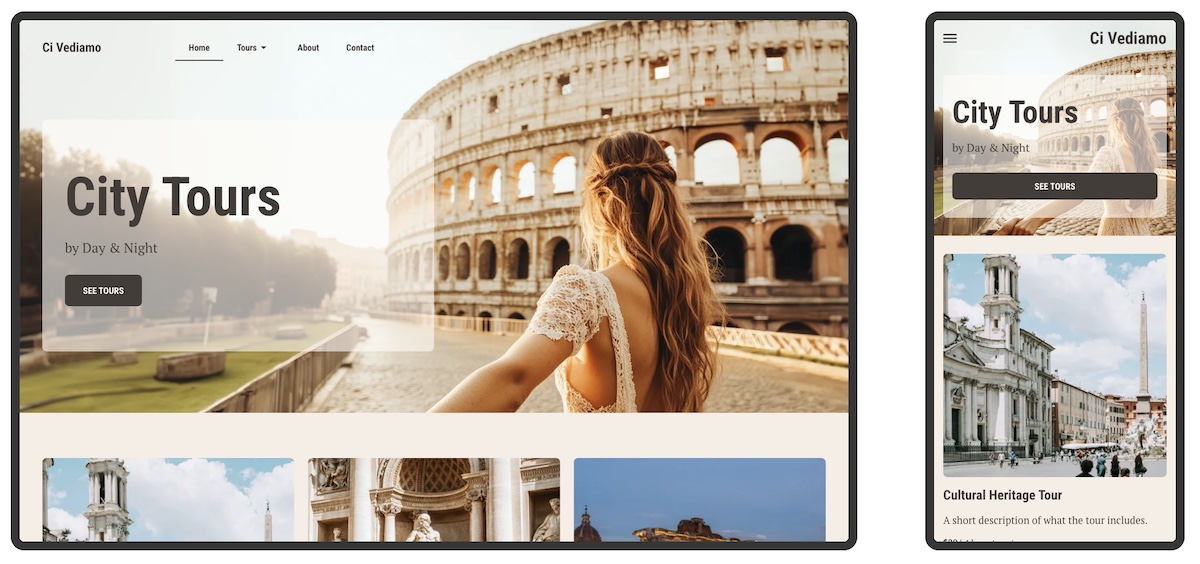
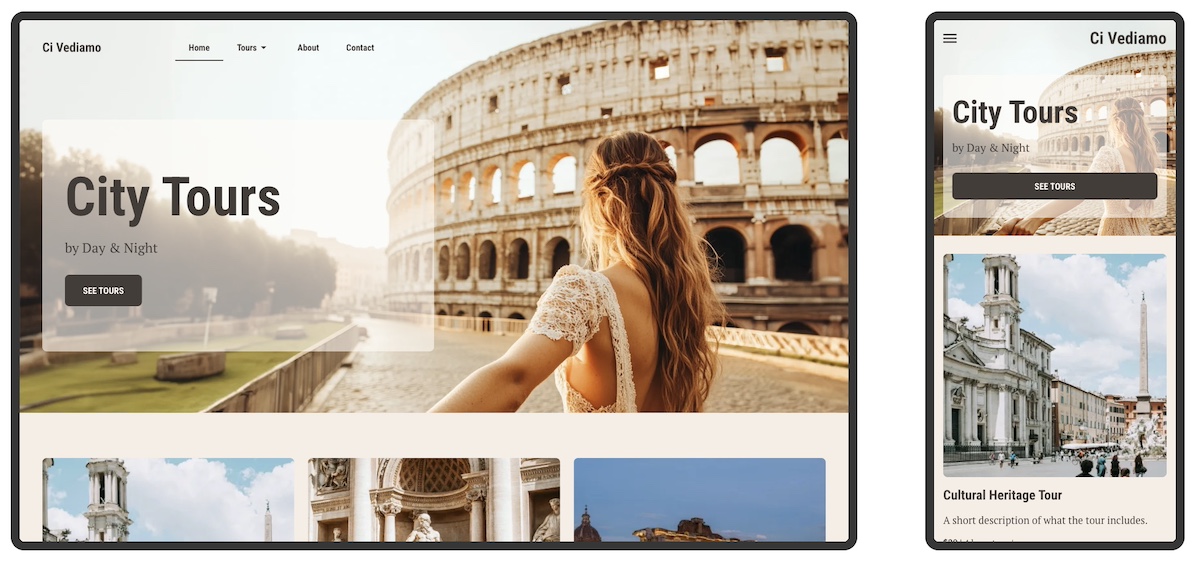
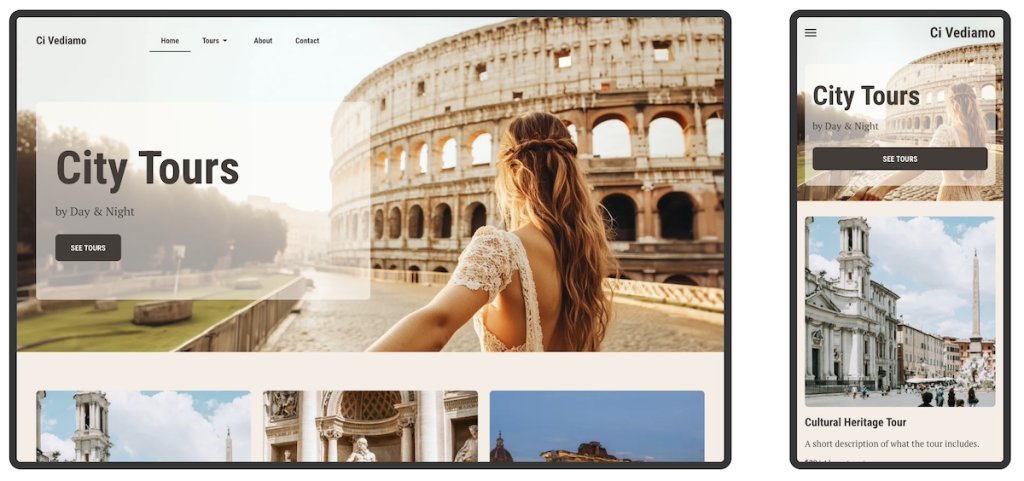
Mobile optimization showing desktop and phone version

This mobile mindset helps you focus on what truly matters: speed, clarity, and usability…all things we’ll get to in a moment. Instead of retrofitting a desktop design later (which, let’s be honest, can be a real pain) you’re building a foundation that works everywhere from the start.

Best practices for creating your website with mobile top of mind:

  • Start with your essentials. Identify the content and actions users need most on mobile—like navigation, CTAs, or quick access to products or services.
  • Design for simplicity. Clean layouts, readable text, and concise messaging perform best on mobile screens—and, honestly, on all screens!
  • Test your visual hierarchy early. Make sure users can find what they need quickly without scrolling endlessly or guessing where to tap.
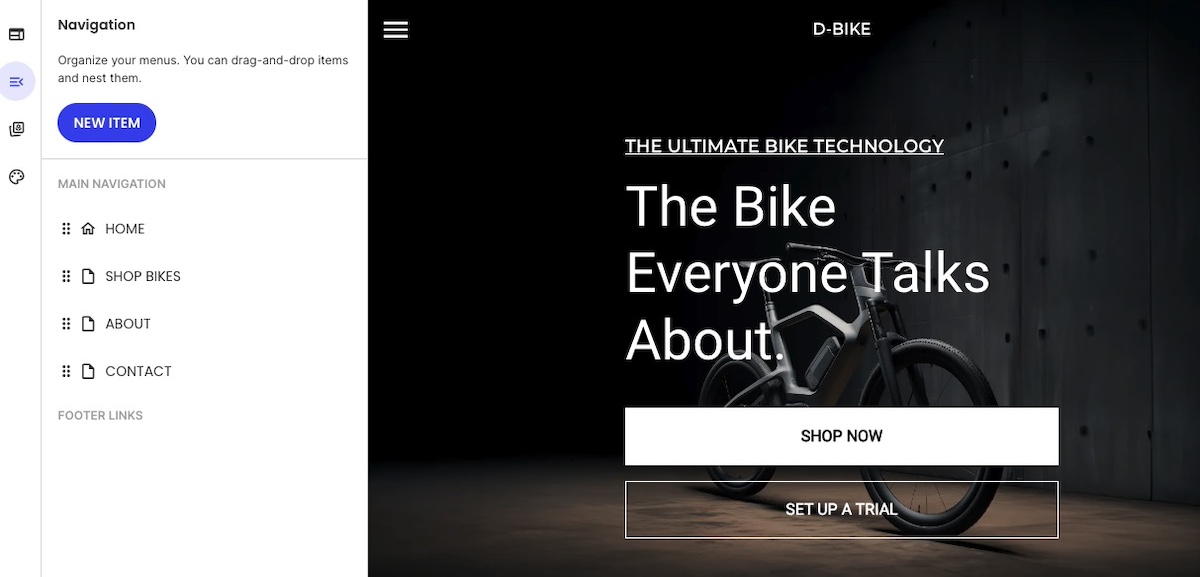
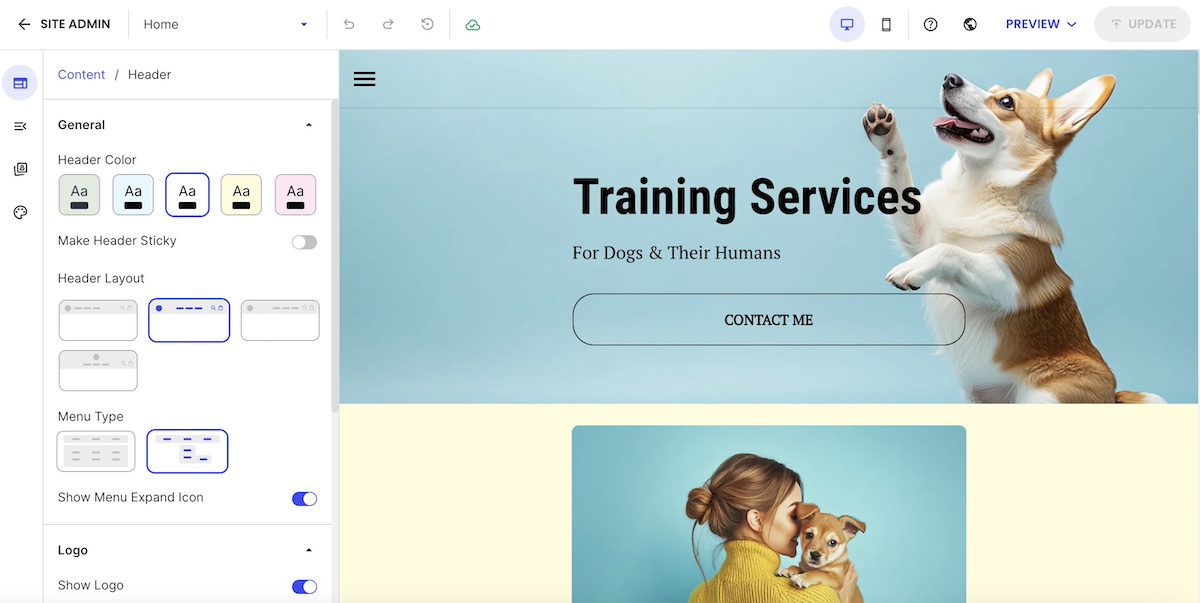
Backend admin of a website main navigation including home shop about and contact pages

Pro insight: Google’s mobile-first indexing means search engines primarily crawl the mobile version of your site. So your mobile site should include the same core content as your desktop version; not a stripped-down or limited version. If your mobile website is missing important text, images, or links, it can hurt your visibility, traffic, and ultimately your bottom line. There’s a lot at stake.

Make Mobile Design Effortless
All of this becomes a whole lot easier with the SiteGround Website Builder. It’s designed with mobile responsiveness baked in from the start — so your layouts, images, and content automatically adapt to every screen size. No extra plugins, no endless tweaking — just a professional, mobile-ready site built right from the first click.

Start building your mobile-friendly website now >>

2. Design for Context, Not Just Screen Size

Part of what contributes to the mobile user experience is context. That is, when we’re on our computers, we’re mostly at a desk, indoors, and seated. But of course this is not the case for cell phones. Mobile visitors are often multitasking, scrolling on the go, or working with limited bandwidth. Your design should adapt to their reality, not just their screen.

Best practices for adapting to mobile context:

  • Simplify user flows. Reduce unnecessary steps so users can complete their customer journey quickly, even with one hand or limited attention. At the end of the day, this isn’t just good for mobile, but also for overall user experience.
  • Make key actions effortless. Include mobile-friendly features like click-to-call buttons, or scroll-to-top options (like seen in the example below).
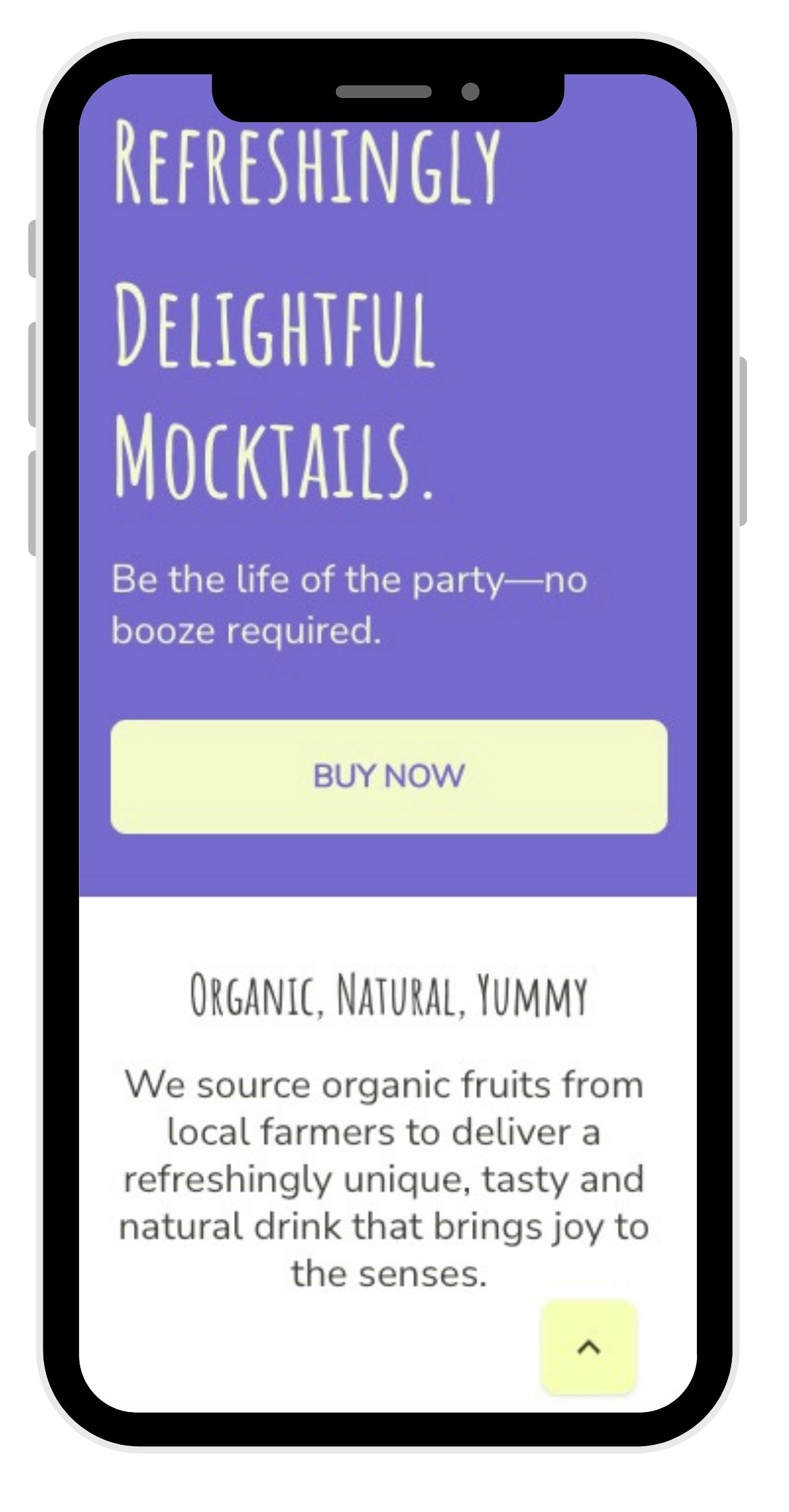
Example of a mobile website with a back to top button
  • Design for varying environments. Assume not everyone has perfect Wi-Fi—use progressive loading and compressed media to keep performance smooth.
  • Prioritize legibility. Larger fonts, generous spacing, and contrast-friendly colors make reading easy in different lighting conditions.
  • Adapt to intent. Mobile users might browse differently than desktop website users. For example, have you ever googled a site to confirm store hours and ended up lost somewhere in a messy mobile drop-down menu? No one wants that. So make sure local info, store hours, or fast access to services are all super easy to find.

UX Note: Mobile users are often multitasking. Anticipate their context—like quick access to store hours—and you’ll reduce friction and increase engagement.

3. Make Mobile Navigation Effortless

Website navigation can make or break the mobile experience. On small screens, users don’t have the patience (or space really) for deep menus or hidden links. Every tap should move them closer to their goal—and easily.

Keep in mind that well-structured mobile navigation feels almost invisible. It’s intuitive enough that users don’t have to stop and think about how to use it.
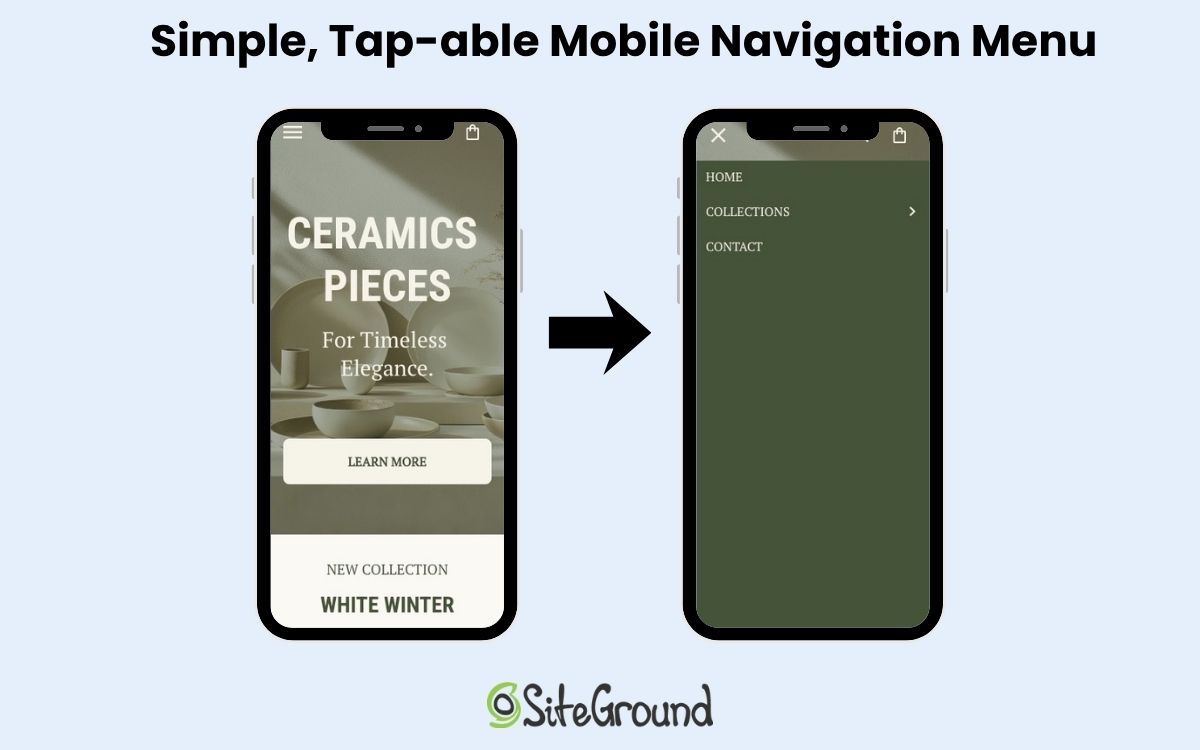
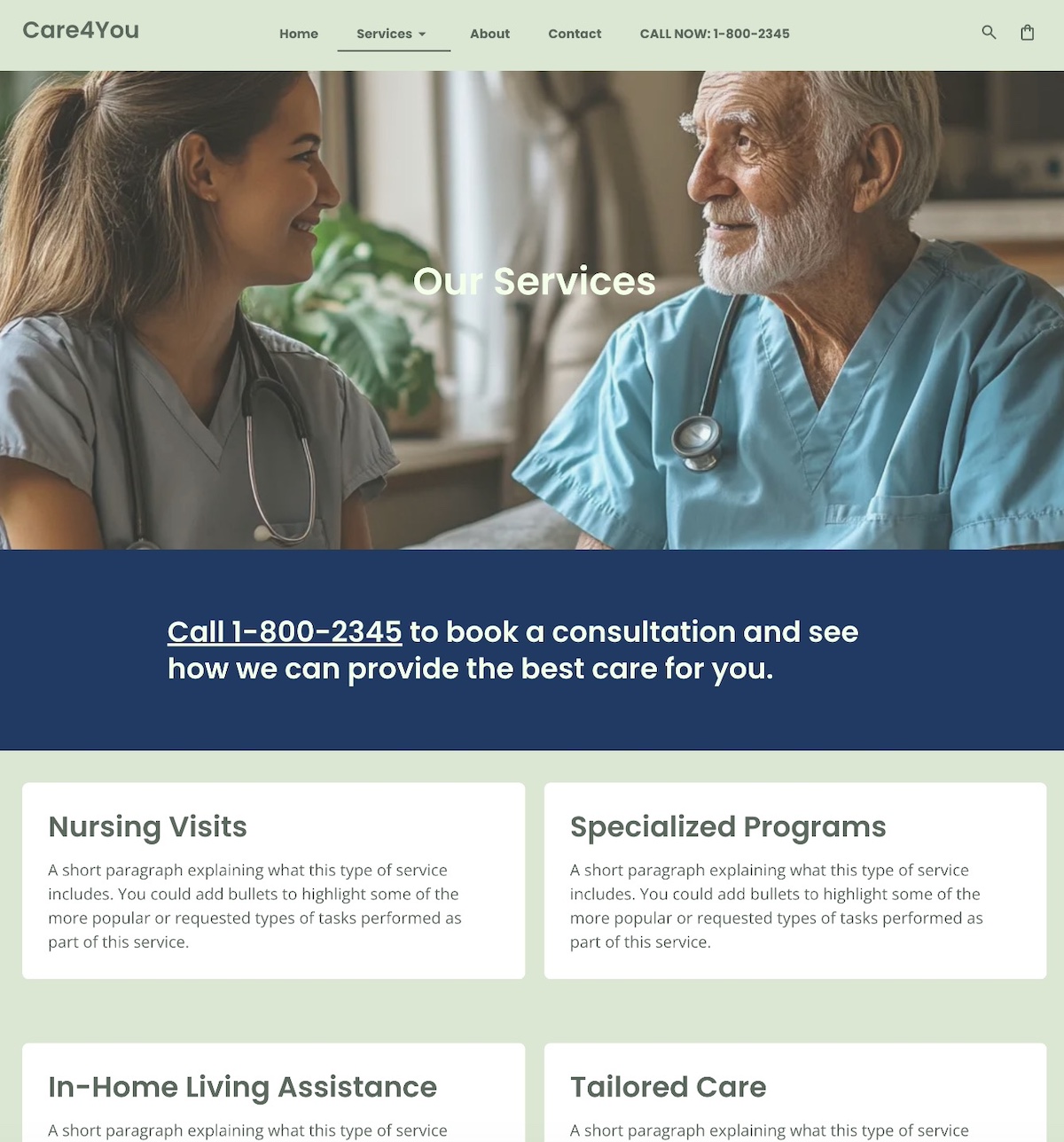
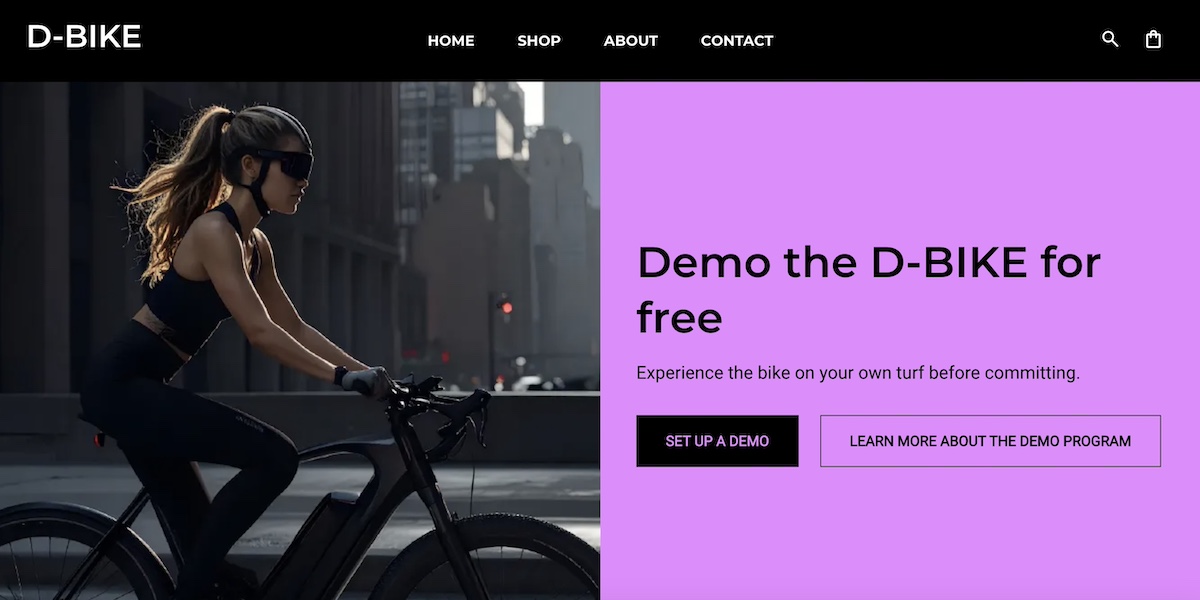
Example of a mobile web design with a simple and tap-abel navigation menu

Best practices for mobile navigation:

  • Keep key actions visible. Place the most important options—like “Shop,” “Contact,” or “Book Now”—where users can see and reach them immediately.
  • Limit layers. Avoid burying key pages three or four levels deep. Two layers are usually the maximum before users give up.
  • Use familiar icons & functionality. Hamburger menus for main navigation and other standard icons for actions help users instantly understand what to do.

Example of mobile web design that uses familar icons, hamburger menu, and a clear CTA button

Designer’s Tip: Stick to familiar navigation patterns—hamburger menus, top-level CTAs, predictable labels. Users complete tasks faster when they don’t have to guess where to tap. This is made easy with the SiteGround Website Builder, which automatically integrates a user-friendly hamburger menu to the mobile website design.

4. Design for Touch, Not Clicks

Mobile users interact differently than those on desktop. There’s no cursor, no hover, but instead just clumsy thumbs and fingers poking around on small screens. So website design for touch means rethinking space, positioning, and how users physically interact with your site.

Here’s how to make touch interactions smooth, intuitive, and frustration-free on mobile devices:

  • Increase tap targets. Buttons, links, and icons should be large enough to tap without zooming—ideally 44x44px or larger.
  • Mind the spacing. Leave enough space between clickable elements so users don’t accidentally tap the wrong one, especially in lists or forms.
  • Keep key actions within thumb reach. Most users hold their phones one-handed. Sometimes those phones are tiny; sometimes they’re massive. So that means you’ve got to design so essential buttons sit comfortably in the lower half of the screen.
  • Avoid edge clutter. Keep important elements away from the screen edges, where gestures like swiping can accidentally interfere.
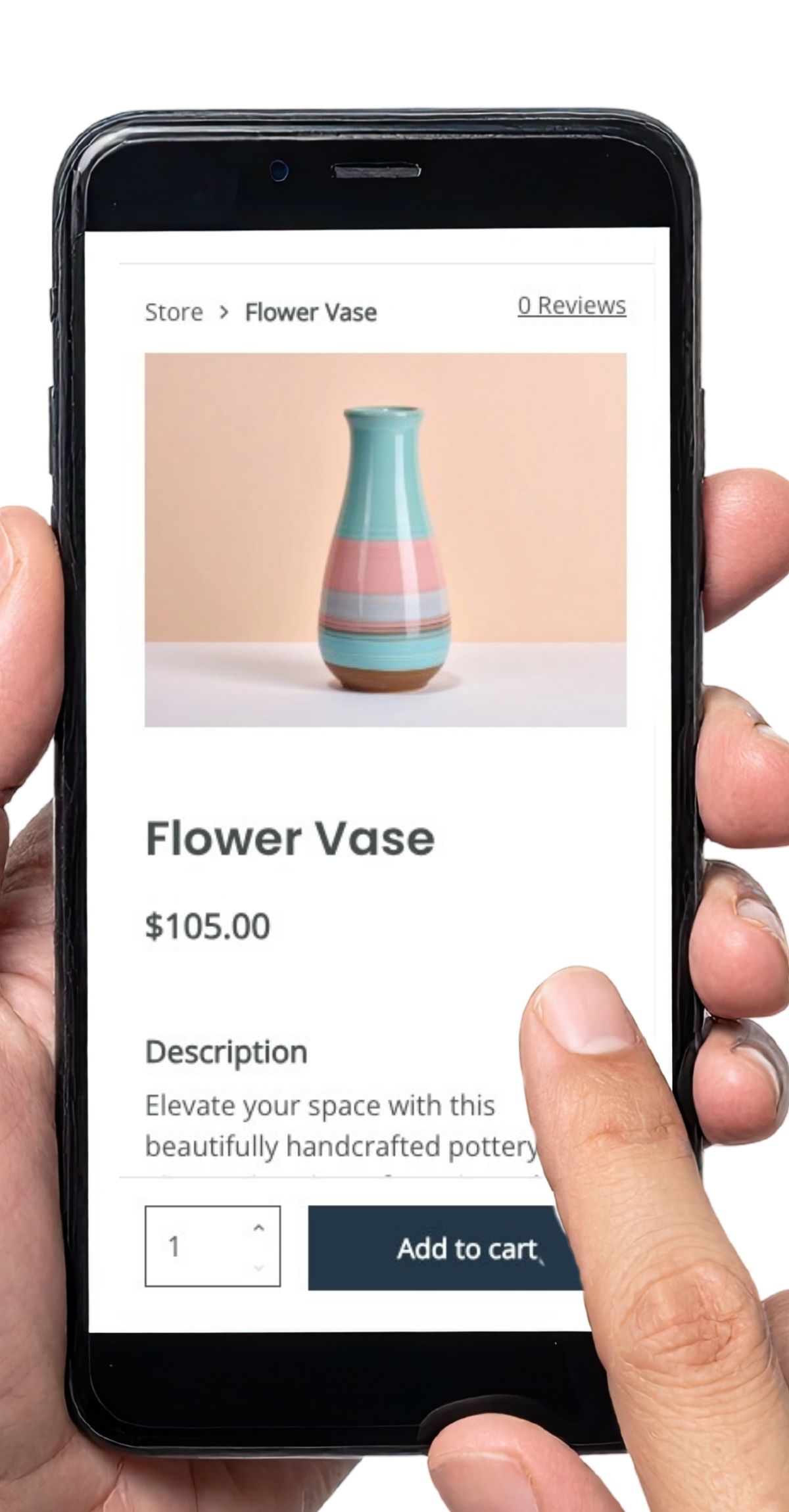
Example of designing for touch with a finger tapping the webpage

Quick Win: Add subtle tap feedback—like color changes or animations—so users instantly know their action registered. It reduces frustration and speeds up task completion.

5. Ensure Accessibility from the Start

How much have you thought about accessible web design? It means making your website—whether desktop or mobile—is accessible to everyone. It not only supports inclusivity, but also improves overall usability and even SEO. So it’s worth paying attention to.

Also important to keep in mind, when accessibility is built into your design process early, you avoid costly retrofits later. Your mobile website naturally becomes clearer, faster, and easier for all users.

Best practices for implementing accessible mobile web design:

  • Use sufficient color contrast. Ensure text is readable against backgrounds—especially outdoors or in bright light.
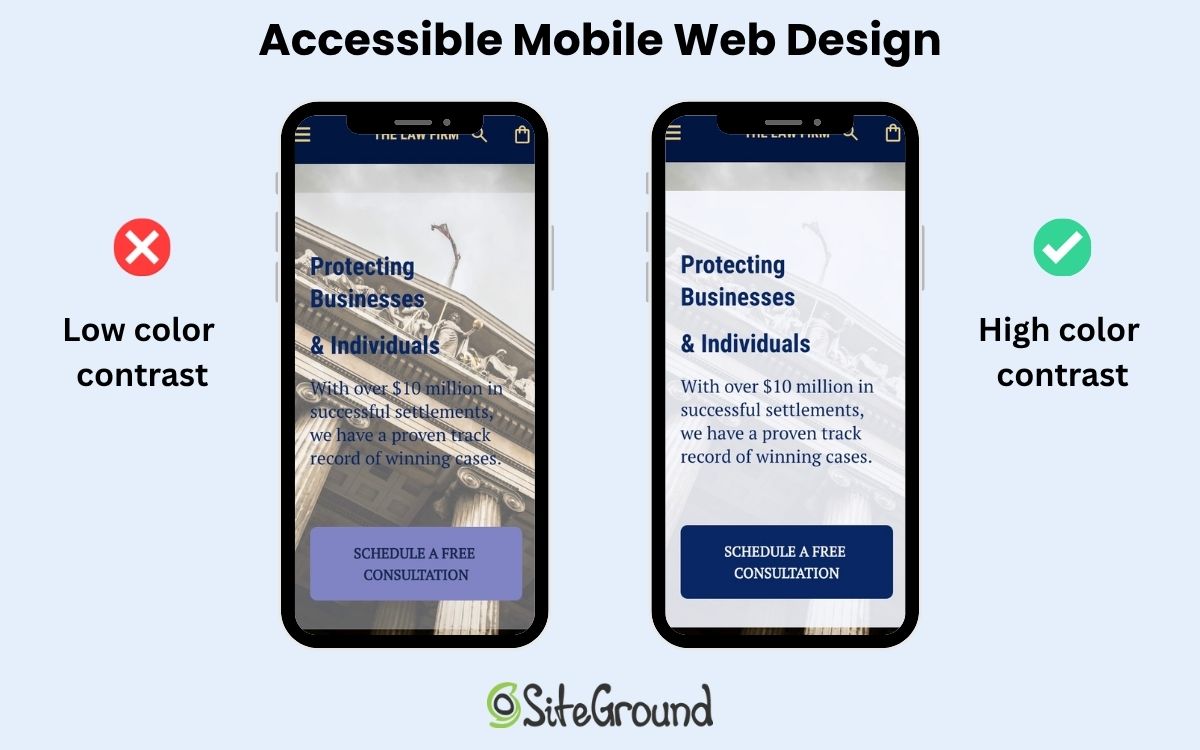
Example of low contrast coloring on mobile web design vs a mobile website with good color contrast
  • Design with scalable text. Allow users to zoom and resize text without breaking your layout.
  • Add alt text. These help screen readers interpret images and navigation accurately.
  • Don’t rely on color alone. Use icons, shapes, or labels to convey meaning for users with color blindness.
  • Ensure keyboard and voice navigation compatibility. Not everyone uses touch; accessibility means multiple ways to interact.
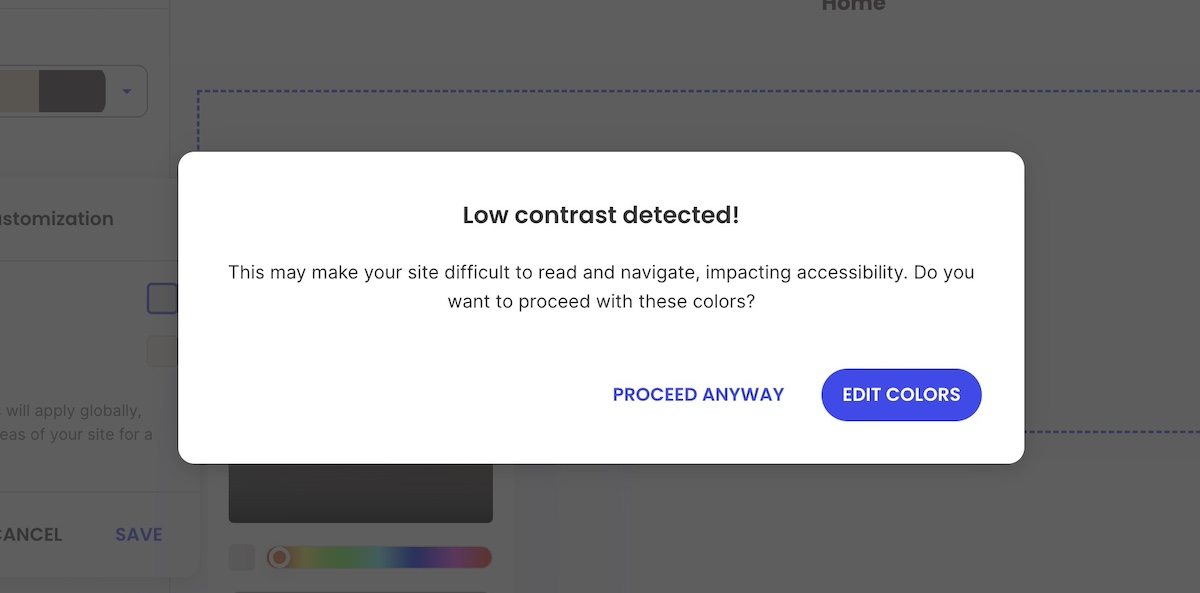
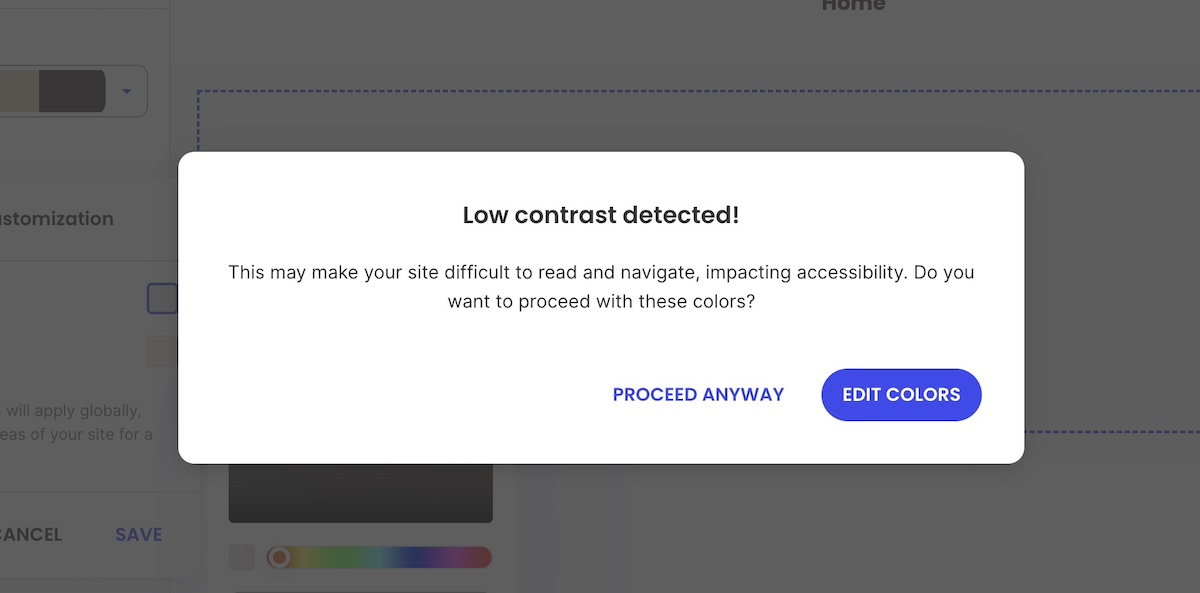
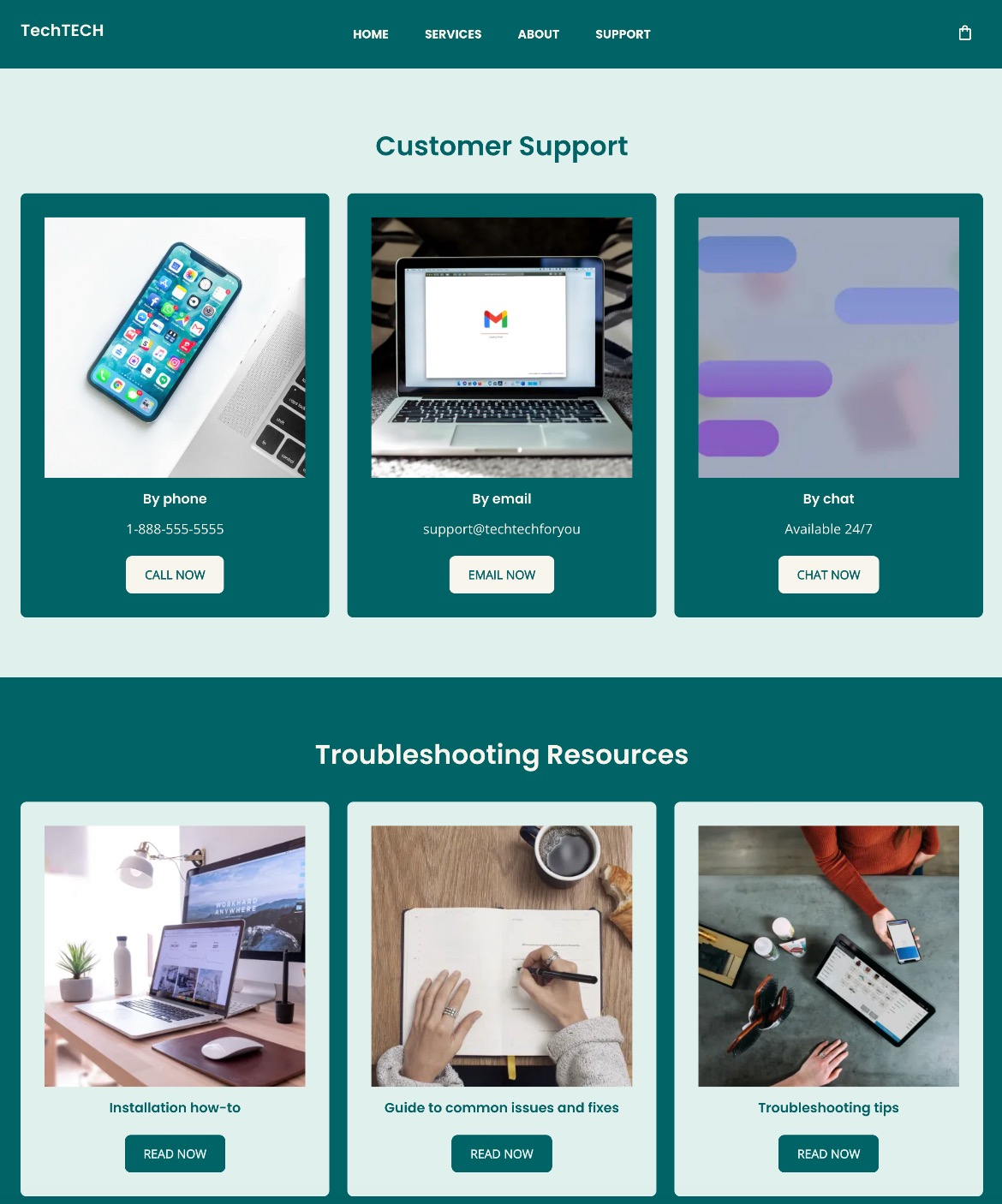
Low contrast warning about color in siteground website builder

UX Note: Building accessibility from the start improves usability for everyone—and boosts SEO. Alt text, scalable text, and clear contrasts aren’t just nice—they impact rankings and engagement.
Ad to build your site in minutes with the SiteGround Website builder

6. Prioritize Speed and Performance

Speed is the backbone of great web design—whether that’s for desktop or mobile. A crafty and creative interface won’t land well if your mobile website takes too long to load. And mobile users, who are already probably multitasking, will up and leave in seconds.

So it’s important to keep in mind that every image, animation, and line of code impacts performance. The goal is to keep things light, fast, and responsive no matter the connection.

Best practices for improving website speed and performance on mobile:

  • Optimize images. Use next-gen formats like WebP and compress files without losing quality.
  • Minimize code and scripts. Remove unnecessary JavaScript and CSS that slow down rendering.
  • Implement lazy loading. Defer loading of off-screen images and videos until they’re needed.
  • Use caching and a content delivery network (CDN). Store and deliver assets closer to the user to reduce latency.
  • Avoid heavy pop-ups or animations. They might look nice on desktop but can stall or lag on mobile (and even on desktop, they can impact performance).
  • Test with real mobile devices and connections. Don’t just rely on lab results—test on 4G or even 3G networks to see true performance.
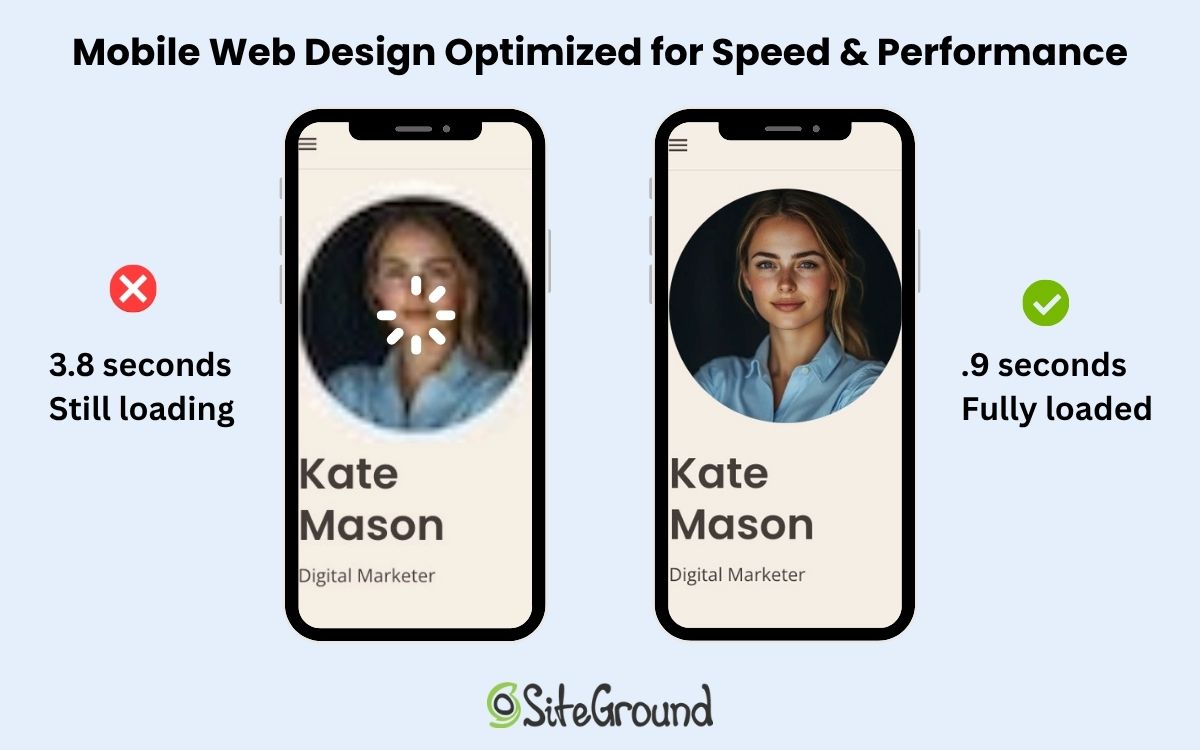
Example of mobile web design optimized for speed with one image blurry and unloaded and the other web pages crisp

Data Point: Google’s data shows that as page load times rise—especially above 1–3 seconds on mobile—the risk of a visitor leaving increases sharply. Plus, fast-loading mobile websites don’t just keep users happy—they also benefit SEO. Google favors pages that load quickly, meaning your mobile website’s speed can directly impact how high it ranks in search results.

Not quite sure how to make this happen in practice? Much of this is already handled if you’re using the SiteGround Website Builder—from image optimization to caching and fast-loading templates. And if you’re sticking with WordPress, the SiteGround Speed Optimizer plugin can help with many of the same tasks, including image compression, lazy loading, and script optimization, so your mobile site stays fast without extra manual work.

7. Test in Real-World Conditions

Even the most polished design can fall apart once it leaves the ideal lab environment. Real-world testing shows how your mobile site actually performs—in sunlight, on older mobile devices, with spotty Wi-Fi, or one-handed while juggling a coffee.

Best practices:

  • Test on multiple mobile devices. Try different screen sizes, operating systems, and browsers—not just your own phone.
  • Simulate weak connections. Use throttling tools or real 3G/4G networks to test load times and reliability.
  • Check usability outdoors. Bright light, glare, and motion all affect readability and interaction.
  • Observe real users. Watch people navigate key tasks. Where do they hesitate, zoom, or scroll too much?
  • Test touch and gesture accuracy. Make sure interactive elements respond instantly and as expected.
  • Review digital marketing metrics after launch. Track bounce rates, time on page, and conversion drop-offs to spot friction points.

Quick Win: Watch real users interact with your mobile website on actual devices and connections. You’ll uncover issues no lab test or emulation could predict.

Mobile Web Design That Works—Everywhere

It’s surely clear by now: a mobile-friendly website should be a top priority. But it’s not just about shrinking a perfectly tweaked desktop site—you need to treat mobile design as equally important from the start, with easy-to-use navigation, touch-friendly buttons and links, fast loading, and more.

Now, this could be a large and even costly task, but the good news is that it doesn’t have to be. The SiteGround Website Builder handles much of the heavy lifting for you. From mobile-adaptive layouts that adjust seamlessly to any screen, to automatically optimized images and fast-loading templates, it takes care of the technical details so you can focus on creating content and connecting with your audience. Responsive layout, spacing, and tap-friendly buttons are built in by default. And if selling online is part of your plan, SiteGround Ecommerce lets you turn that same mobile-optimized experience into a fully functional store—no extra setup, plugins, or coding required.

Mobile Web Design FAQs

What is the difference between mobile-first website design and responsive design?

Mobile-first website design and responsive design are related but not the same thing. Responsive web design is a technical approach that builds a single site to adapt automatically to any screen size. Mobile-first is a design philosophy that starts with the smallest screen and scales up, prioritizing what matters most on mobile before adding complexity for larger screens. The two work best together: responsive web design handles how your site is built, mobile-first thinking shapes the decisions behind it.

Does mobile design affect SEO?

Yes, significantly. Google now uses mobile-first indexing, which means it primarily crawls and evaluates the mobile version of your site when determining search rankings. If your mobile site is slow, hard to navigate, or missing content that appears on your desktop version, it can directly hurt your visibility in search results. Good mobile design and good SEO are increasingly the same thing.

Does page speed matter on mobile?

Yes, and more than most people realize. Mobile users are often on the go, on slower connections, and far less patient than desktop visitors. Google’s data shows that the risk of a visitor leaving increases sharply as load times rise above a few seconds. Beyond user experience, speed is also a ranking factor, so a slow mobile site can cost you both traffic and conversions. A lot of the technical side of this—image optimization, caching, fast-loading templates—is handled automatically if you’re building with the SiteGround Website Builder, or manageable with the SiteGround Speed Optimizer plugin if you’re on WordPress.

This article was originally published in November 2025 and then updated in May 2026.

How to Choose a Website Builder Without the Overwhelm + Quiz

Abstract of how to choose a website builder

Choosing the right website builder comes down to one question: what do you actually need your site to do? Once that’s clear, the best-fit platform is obvious, even with dozens of options that all promise the same reliability and great design until you dig into pricing, templates, integrations, and trade-offs.

This guide walks you step-by-step through the questions that actually matter, so you can choose a builder confidently and avoid the dreaded analysis paralysis. Plus, we’ve put together a super handy quiz so that you can quickly assess your needs and confidently take the next step.

Key takeaways

  • The best website builder isn’t the one with the most features—it’s the one that matches what your site actually needs to do.
  • Clarifying your goals, timeline, and tech comfort upfront makes choosing a builder far less overwhelming.
  • Most people don’t need advanced customization; a simple, all-in-one builder is often faster and more effective.
  • Speed, maintenance, and long-term cost matter just as much as design and flexibility.
  • A quick self-assessment (or quiz) can save you hours of comparison and help you choose with confidence.

[79]

What is a Website Builder?

A website builder is a tool that allows you to create a professional site without needing to write code or fork over the big bucks to hire a developer. Instead of building everything from scratch, you start with a visual editor and customizable templates, which makes the whole process faster, more beginner-friendly, and easier on your budget.

Not all builders, however, are designed for the same type of user. Some prioritize simplicity and speed; others offer deeper customization. And that’s where your own goals come in—because the builder that feels “easy” for one business might feel limiting or overkill for another. 

So let’s find the best website builder for you.

Key Questions to Identify the Best Website Builder

Before you choose a platform—or even start comparing features—it helps to step back and get clear on what your website actually needs to do for you. The questions below act like a filter: the clearer your answers, the easier it becomes to narrow your choices. Treat this as a quick self-assessment to help you match your goals, skills, and timeline with the right type of platform.

1. What Job Does My Website Actually Need to Do?

The job your website needs to do determines everything that follows (the builder you choose, the features worth paying for, and how much flexibility you’ll need) which is why it’s the first step in website planning, before you even look at templates or pricing pages.

Determine your main goal

Some sites simply act like digital business cards. Others are full storefronts, booking engines, or content hubs. If you name the primary “job” your site needs to do, you’ll immediately filter out platforms that aren’t built for it.

Typical goals include:

  • Building credibility and having a “home base” online
  • Showcasing creative work or a portfolio
  • Selling products or services (with or without shipping)
  • Educating through content
  • Generating leads or building your email list
  • Running events, bookings, or memberships

If your site has more than one goal, great—but try to rank them. The builder that’s perfect for selling digital products isn’t always the one that makes email marketing effortless, and vice versa.

To really nail your top priority, ask yourself: If I could only achieve one outcome with my site, what would it be? That’s your anchor.

Identify features you actually need 

Once you know the main job of your website, the next step is figuring out which features truly support that goal. To make this easier (and avoid feature overwhelm), think of features in three buckets:

Must-have features 

These are the core tools most small businesses, freelancers, and personal brands actually need to launch and operate effectively.

  • Mobile-responsive templates
  • Basic SEO (page titles, meta descriptions, alt text)
  • Contact forms or lead capture
  • Easy content editing (visual builder)
  • Built-in hosting + SSL

Nice-to-haves (useful if they fit your goals)

These only matter depending on your priorities and business model.

  • Appointment booking or scheduling
  • Integrated email marketing / newsletters
  • Ecommerce or payment processing
  • AI writing or image tools
  • Blogging / content management features
  • Membership or gated content
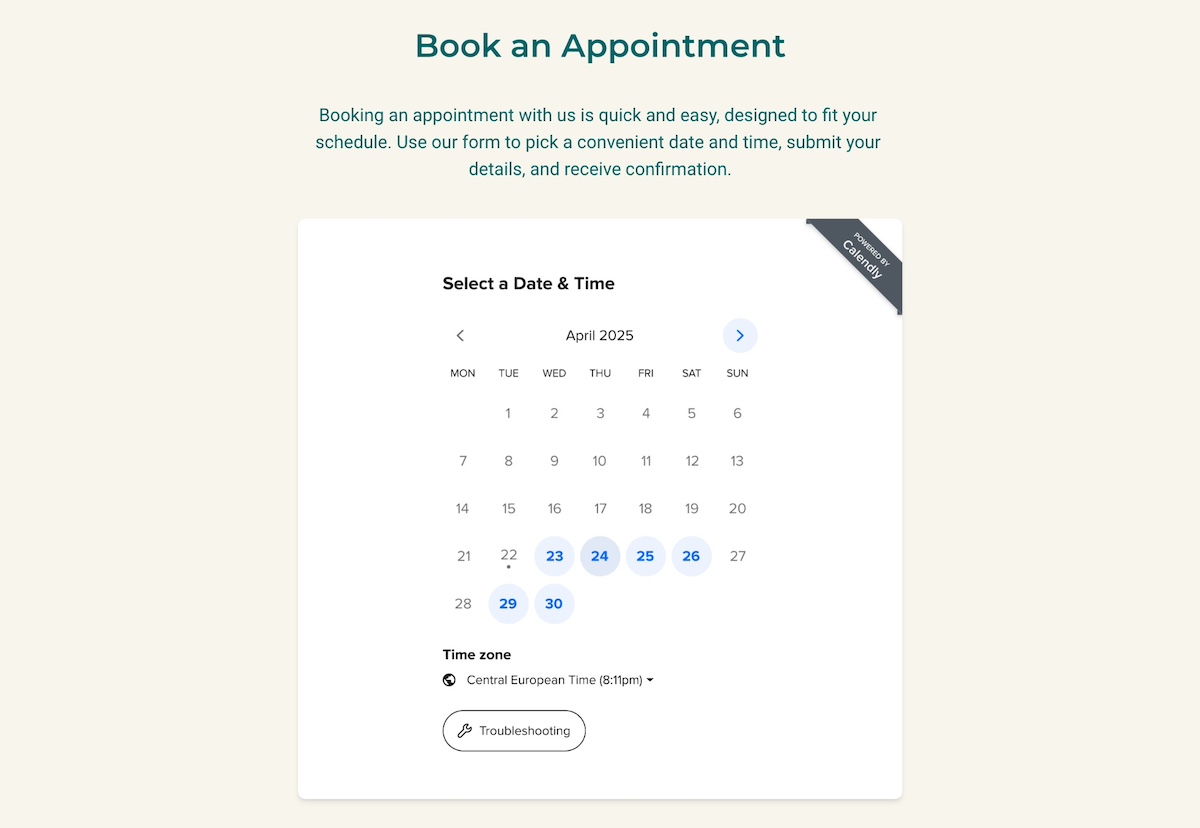
Example of an appointment booking feature in a website builder

Advanced or edge-case features (skip unless you know you need them)

These are helpful for highly customized sites or complex workflows, but unnecessary for most people—and often come with a steeper learning curve.

  • Custom databases or dynamic content
  • Deep workflow automation
  • Advanced SEO schema controls
  • Multi-language or multi-site architecture
  • Developer-level customization or code injection
  • Third-party integrations that require configuration

If you’re unsure whether you need something today or later, ask: “Will this feature meaningfully help me reach my main goal?” If the answer is no, it’s optional, and not essential.

Tools That Make Your Website Work Harder
Every SiteGround web hosting plan includes the Website Builder, which makes it easy to launch a site that does more than just look good:

-AI Wizard: Describe your business and get a ready-made first draft of your site to edit.
-AI-powered content creation: A built-in AI writer and image generator help you produce copy and visuals quickly.
-Built-in blog: Publish posts and feature products from your store right inside them, no plugins needed.
-SEO tools included: Optimize pages for search engines without extra plugins or guesswork.
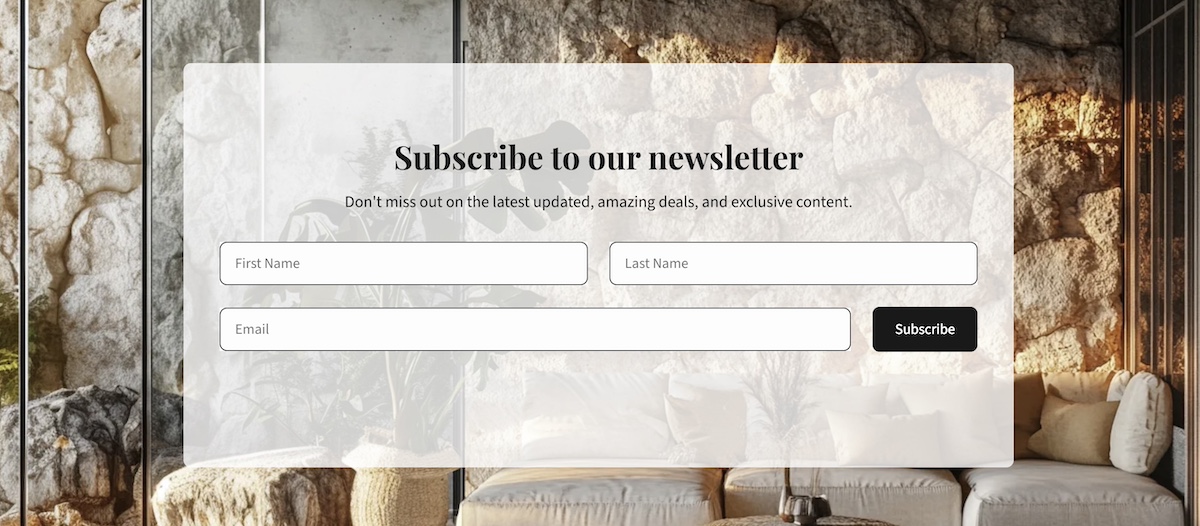
-Email list building: Connect SiteGround Email Marketing to add signup forms and grow your list.
-Appointment booking: Add a Calendly section so visitors can book time without leaving your site.

Whether you’re selling products, showcasing your work, or taking bookings, you can manage it all from one platform.


Start building your website now>>

Consider Your Business or Project Type

After clarifying goals and features, it can help to think about what type of website creator or business you are. This is less about strict rules and more about shortcutting your decision based on your typical needs and challenges.

  • Portfolio Creator / Hobbyist: You want a clean, simple site to showcase work, a portfolio, or a personal project. Low maintenance, fast setup, and visually polished templates are most important. A basic visual builder is ideal.
  • Small Business Owner / Online Store: You need tools for selling products, managing email, and tracking analytics—but you don’t want to spend weeks learning the platform. An easy-to-use website builder with growth tools hits the sweet spot.
  • Scaling Business Planning for Big Growth : You’re handling a lot of content, memberships, or community features. You need moderate customization and workflow control. A CMS platform (like WordPress) is likely the best fit.
  • Businesses or Users Requiring Custom or High-Budget Builds: You require unique layouts, advanced integrations, or complex workflows. You enjoy tinkering and can handle technical setup. Developer-friendly platforms (like WordPress) or fully custom solutions are appropriate. Before taking the leap, really evaluate whether a website builder or custom site is the best choice for you.

The bottom line: For most users—freelancers, hobbyists, small business owners, or anyone who just wants a clean, functional online presence—a simple site builder is all you need. It’s easy to use, requires minimal setup, and gets you online quickly.

If your needs are more complex—running a large online store with hundreds of products, managing thousands of blog posts, or building membership-based sites with advanced workflows—you’ll likely benefit from more specialized or developer-friendly solutions that can handle those requirements.

For the vast majority, sticking with a simple, all-in-one website builder is the smartest, fastest path forward.

If you’re still unsure exactly where you fall, take our “Find Your Perfect Website Builder” quiz. Your answers will highlight the builder type that best matches your goals and priorities—helping you skip the guesswork and get online faster, with less frustration.

2: How Quickly Do I Need My Site Live?

The tighter your timeline, the more you should favor a simple, template-driven builder over one built for deep customization. Speed and flexibility are a trade-off, and not a package deal.

Templates and layout constraints

Templates are a huge time-saver, especially when you’re starting from a clean slate. Some builders give you highly structured templates that guide you toward a polished web design quickly. Others give you almost endless layout freedom—which can be powerful, but also slow you down because every decision is on you. 

More freedom also means more decisions, more tinkering, and more time spent polishing instead of publishing. Customization feels like an upgrade, but in practice it creates extra work unless you have a specific design reason for needing it.

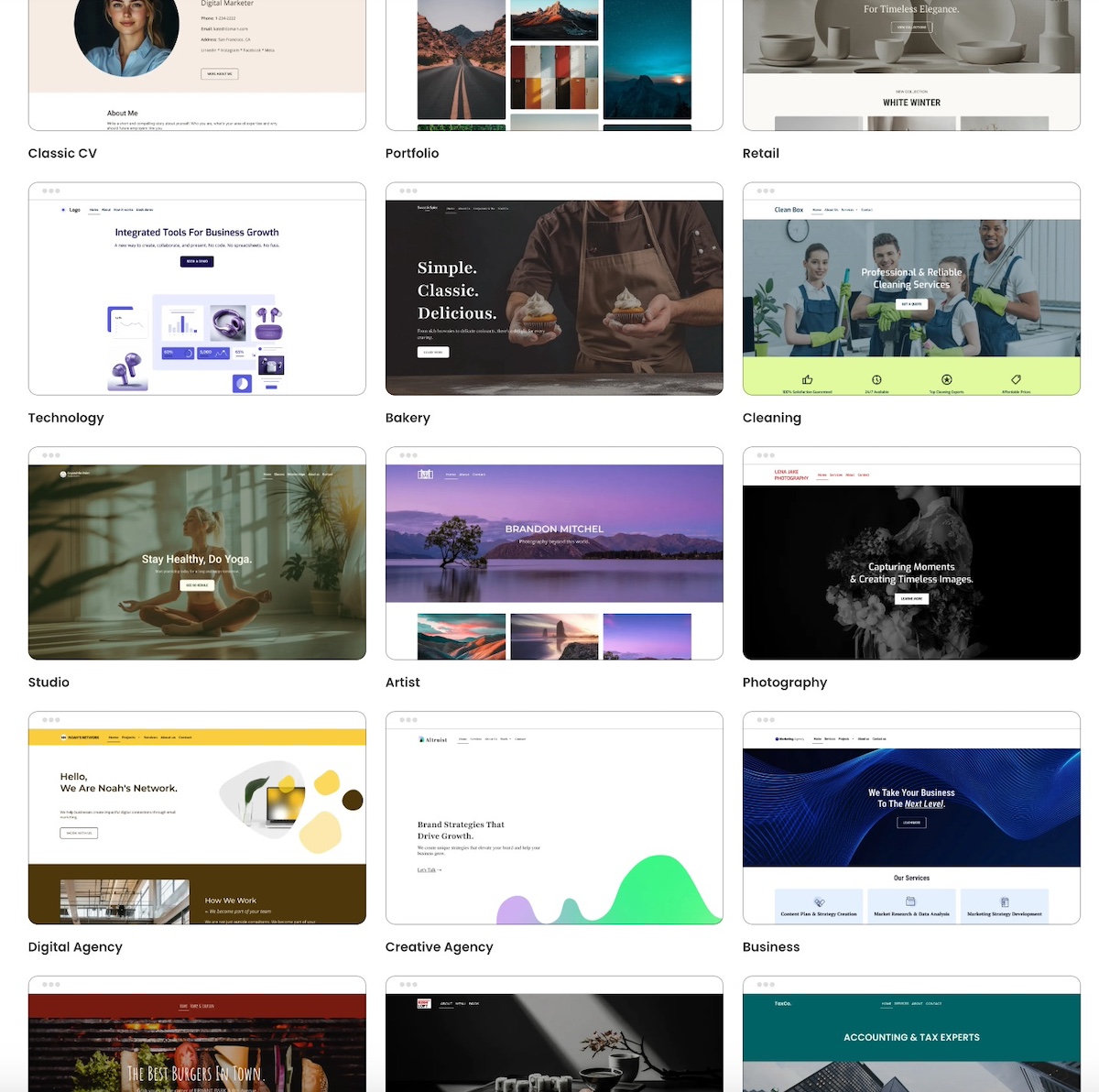
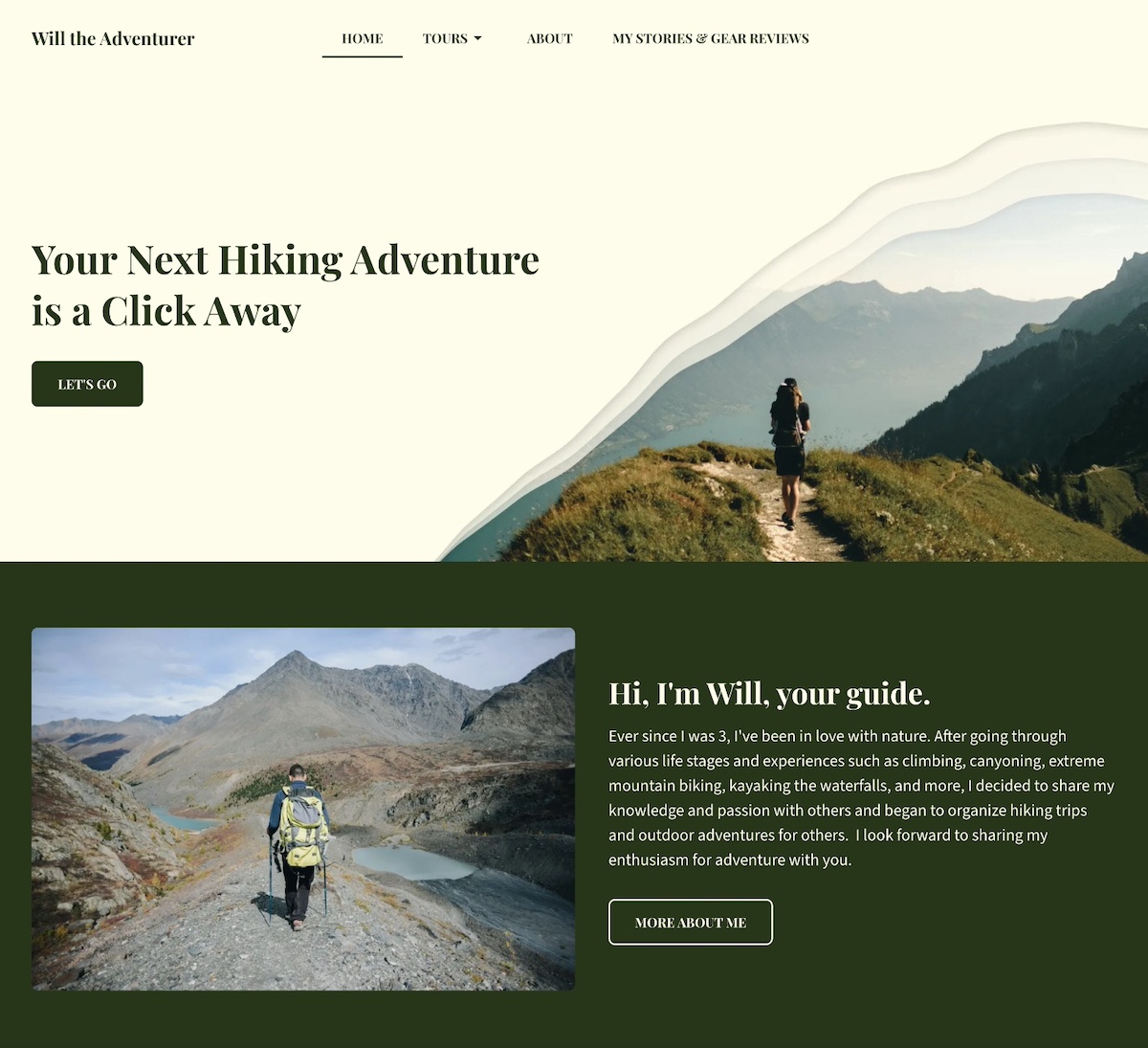
Example of template options from the SiteGround website builder

If you need to launch fast, a more straightforward builder is your friend, because it limits design rabbit holes. So really it comes down to: do you want faster, easier decisions or more design freedom?

Accessible web design is worth keeping in mind too. High-contrast text, a clear website structure, proper heading hierarchies, and keyboard-friendly layouts not only broaden your audience but also improve SEO and usability. Many modern builders, including the SiteGround Website Builder, offer templates with accessibility features like this built in. Alternatively, highly customizable options may not automatically implement such best practices.

Mobile responsiveness

Most visitors will see your site on a phone first, so a builder that handles mobile layouts professionally—without you tweaking every section manually—is a major time win. Some platforms auto-adjust beautifully. Others require additional layout editing for small screens.

If you need to launch quickly (or simply want to avoid headaches), prioritize a builder that offers:

  • Templates featuring mobile web design: Templates that are optimized for phones from the start.
  • Automatic stacking and spacing: Page elements adjust automatically for smaller screens.
  • Minimal-to-no manual resizing: You shouldn’t have to tweak every margin or padding to make the site look right.
Mobile optimization showing desktop and phone version

Ease-of-use versus learning curve

Every builder comes with a trade-off: the easier it is to use, the less technical freedom it usually gives you. Platforms built for speed often have fewer knobs to turn—the point is to remove complexity so you can go live sooner.

If you only have a weekend to build a site, a short learning curve matters more than customization. But if this website will be a long-term growth engine, a slightly steeper learning curve can pay off over time. 

The bottom line: If you need to get online fast—whether it’s for a product launch, a campaign, or a new business—a straightforward, easy-to-use site builder is your best friend. It handles mobile layouts, accessibility, and design basics automatically, so you can focus on publishing instead of tweaking.

If your timeline is more flexible and long-term growth or unique design is a priority, you can afford a platform with more customization and control—but be ready for a longer setup and more hands-on work.

3: How Comfortable Am I With Tech and Setup?

The right builder should match your tech comfort level, not stretch past it. Visual, drag-and-drop platforms suit most users, while advanced customization tools like WordPress reward (and require) more comfort with configuration.

Visual builders vs. advanced customization

Some website builders are designed to be fully visual: you drag and drop blocks, swap images, and change text—all without touching a single line of code. They make it easy to launch a beautiful and functional site quickly, and with minimal technical knowledge.

Other builders offer advanced customization. These platforms (like WordPress, for example) give you more flexibility to tweak layouts, design interactions, and fine-tune functionality. You’re not usually writing heavy code, but you do need a higher comfort level with configuration, themes, and settings. Now, this flexibility is great if you want a unique design or plan to scale features over time, but it can slow down your launch if you’re not used to tinkering.

And it’s worth calling out: customization is not automatically a benefit. It gives you more control, but it also adds more decisions, more upkeep, and more complexity. Unless you have a clear reason you need that control, it tends to create friction, not freedom.

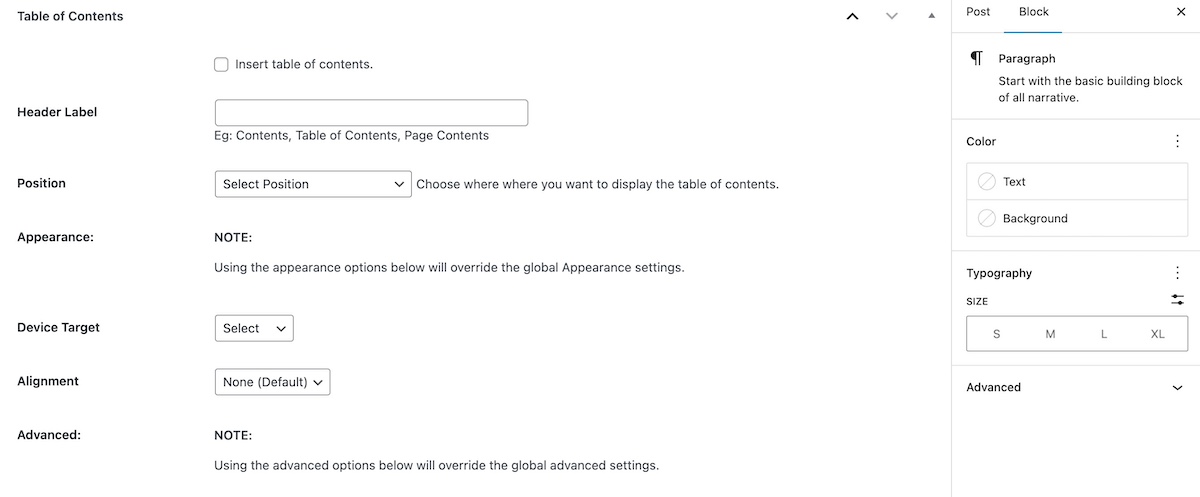
For example, as you can see in the WordPress image below: you have lots of customization options, but oftentimes this can be overwhelming if you don’t know how to use them.

Example of customization options in WordPress

This said, a platform like WordPress can also occupy a middle ground. With the right plugins, you can work visually for most of your site while still having access to deeper customization if needed. This makes WordPress a versatile option for users who want both simplicity and long-term control. That said, it’s very worth noting that it still comes with a pretty steep learning curve.

Quick takeaway:

  • Visual builders: Fast, intuitive, low technical load. Great for quick launches and low-maintenance sites.
  • Advanced customization: More flexible, more options, can be more complex. Better if you need unique layouts or plan to scale.

Reality check: If you don’t already know why you need deep customization, you probably don’t—and a simpler builder will serve you better.

Layout constraints

This is one of the hidden pain points for beginners. Some platforms limit where you can place elements on the page in order to keep the website layout tidy and responsive. Others let you put anything anywhere—and while that’s powerful, it can also create alignment issues and extra time tweaking margins.

If you hate fussy design work, constraints are a plus; if you want total control, constraints can feel like a cage. Be realistic about where you are on the spectrum and choose accordingly.

SEO tools

A pretty website won’t help your business if no traffic ever gets sent to it, and that’s where SEO comes in. But your comfort with tech will affect how much SEO control you can realistically handle.

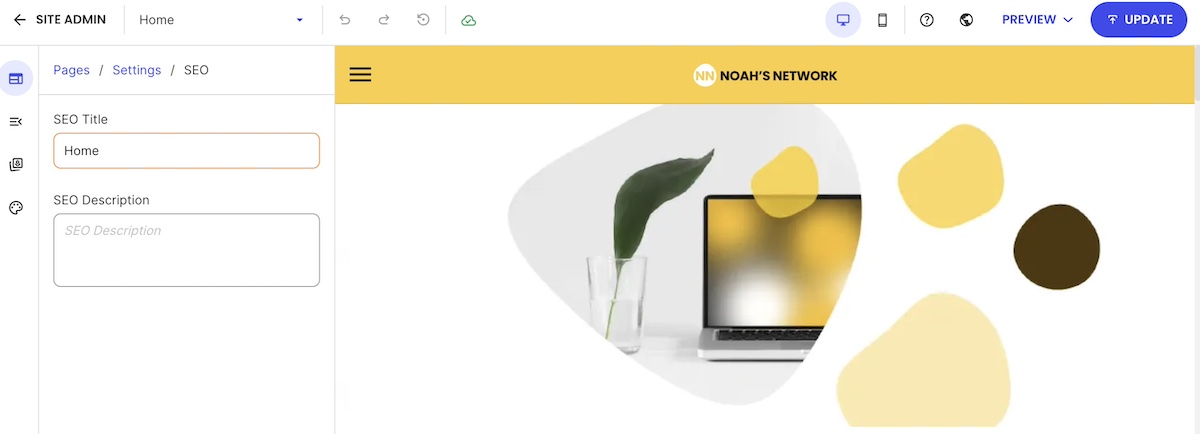
Visual builders usually cover the SEO essentials: page titles, meta descriptions, alt text for images, and basic analytics. These are enough for most small businesses or freelancers.

Example of SEO basics included in a website builder

Advanced or hybrid builders (like WordPress) give you deeper SEO capabilities: custom URLs, redirects, structured data, advanced meta control, and site speed optimization. That said, to get the most out of these, you’ll need some familiarity with site settings and, occasionally, how to make technical tweaks. 

General rule of thumb: If SEO is central to your strategy, choose a builder that matches your technical comfort. Otherwise, keep it simple.

The bottom line: For most users—freelancers, hobbyists, or small business owners—a visual, drag-and-drop builder is more than enough. It’s fast, intuitive, handles essential SEO, and keeps technical headaches to a minimum.

If you’re comfortable with configuration, themes, plugins, and more detailed SEO or design tweaks—or you need unique layouts and long-term scalability—a more specialized or developer-friendly platform (like WordPress) can give you that control. Just be aware it comes with a steeper learning curve and more ongoing maintenance.

4: Will I Realistically Maintain the Site Myself?

How much ongoing maintenance you’re actually willing to take on, from updates to security to troubleshooting, should decide whether you pick a fully managed builder or a more hands-on platform.

Let’s break down what maintenance looks like realistically, so your site doesn’t become a chore.

Technical updates

Most builders handle updates automatically, but if you’re using a hybrid platform like WordPress, you may need to manually update plugins, themes, or even the core system. Falling behind can cause errors, slow performance, or even security risks.

So a good question to yourself: Am I willing to regularly check for updates and apply them, or do I want the platform to do it for me? The answer can guide whether a fully managed builder or a more flexible, self-managed one is the right choice.

Speed, security, and performance optimization

Depending on the website builder, performance and security can either be handled automatically—or left for you to manage manually.

Some platforms (especially fully hosted website builders) optimize things like caching, image compression, and threat protection in the background, so your site stays fast and secure without extra maintenance. 

Others—particularly open platforms or those relying heavily on plugins—may require you to stay on top of updates, install security tools, and manage performance settings yourself.

So if site speed, uptime, and security are mission-critical—especially for ecommerce or sites with high traffic —choosing a platform with built-in optimization and active protection can prevent slowdowns and reduce risk over time.

Support and troubleshooting

Problems will happen. The difference is how much support you have when they do. Some platforms offer 24/7 support or live chat. Others rely on community forums or documentation.

Consider your tolerance for figuring things out on your own. If you want a hands-off experience, prioritize a builder with robust, well-reviewed support and quick response times. If you enjoy troubleshooting or have developer resources, you can opt for a platform that offers more flexibility but less hand-holding.

The bottom line: For most users who prefer a hands-off experience, a fully managed website builder is the easiest path. It handles updates, performance optimization, and security automatically—so you can focus on content and growth, not tech headaches.

If you’re comfortable with ongoing updates, troubleshooting, and technical setup—or if your site requires advanced customizations or unique workflows—a self-managed or hybrid platform can offer more flexibility. Just be prepared to invest time in maintenance to keep your site running smoothly.

5: What is the Real Cost Over Time?

The real cost of a website extends well past the signup price, once you factor in hosting, domains, SSL, and add-ons, so total cost of ownership matters more than comparing sticker prices.

Hosting

Some builders include hosting in their monthly fee, while others, like WordPress, require you to buy hosting separately. Managed WordPress hosting can save time and worry, but comes at a slightly higher cost. Consider:

  • Bandwidth or storage limits
  • Automatic backups
  • Performance optimization included

Domain name

Your domain is your web address: the “.com” people type in. Some builders throw in a free domain for the first year, usually with an annual plan, while others charge for it separately. Either way, check the renewal price, since that’s what you’ll pay from year two on. With SiteGround, the first year of a new domain is free with any web hosting plan, and you can also connect one you already own, all from the same account.

SSL

SSL certificates keep your site secure and are essential for SEO and visitor trust. Many builders include SSL automatically, but some require a separate purchase. Make sure your plan covers it without extra fees.

The ability to test-drive your builder

Before you commit to paying long term, it helps to see what you’re actually getting for your money. Many platforms allow you to build and explore the interface before checkout—use that opportunity to see whether essential features are included in the plan you’ll ultimately need, or if key tools are locked behind higher tiers. A quick test-drive can prevent surprises later, like realizing you have to upgrade just to access ecommerce, analytics, or email marketing.

All-in-one vs. multiple subscriptions

Some platforms bundle everything—hosting, email marketing, SEO, and ecommerce—into one plan. Others require separate subscriptions for tools like email providers, analytics, or booking systems. 

When choosing an all-in-one solution with ecommerce, also check whether the platform charges its own transaction fees on every sale, and on which plans. Some charge a fee on entry-level plans and drop it on higher tiers, which matters more as your sales grow. With SiteGround Ecommerce, for example, the Sell plan has a 3% platform fee, while Grow and Scale have none, so only the standard payment processor fee applies.

Ultimately, think about how much you want to manage yourself versus paying for built-in convenience.

The bottom line: The true cost of a website goes beyond the signup price. For most small businesses, freelancers, or personal projects, an all-in-one builder that includes hosting, a domain, SSL, and essential features is the most cost-effective and low-maintenance choice.

If you’re building a larger or more complex site—like an ecommerce store with many products, or a content-heavy site with memberships and integrations—you may need separate hosting, plugins, or add-ons, which increases costs and maintenance. In those cases, plan for ongoing subscriptions and potential transaction fees to understand the full long-term investment.

SiteGround Website Builder: Your All-in-One Solution

Looking for a website builder that does it all? Every SiteGround web hosting plan includes the Website Builder, which combines ease of use with powerful features so you can focus on growing your site, not managing it.
-All-in-one platform: Hosting, AI tools, a built-in blog, and more, all in one place.
Beautiful templates & mobile-ready design: Launch a professional-looking site that looks great on any device.
-Start with AI: Describe your business to the AI Wizard and get a first draft of your site to customize.
–SiteGround Ecommerce ready: Add it when you’re ready to sell products, accept payments, and manage orders, with no extra plugins or platforms required.
-Fast, high-performance websites: Optimized for speed and reliability.
-Built-in security & daily backups: Keep your site safe without extra effort.
-No updates required: The platform handles maintenance so you can focus on content.
-A free new domain: Your first year is free with any hosting plan, or connect one you already have.
-Top-rated 24/7 support: Expert help whenever you need it.

Whether you’re building a portfolio, a small business site, or an online store, SiteGround’s hosting plans with the Website Builder get you online without the technical headaches.

Start building with SiteGround hosting >>

The Best Website Builder Is the One That Matches Your Goals

At the end of the day, there is no universally “best” website builder—there’s only the one that best fits what you are trying to achieve. Once you’re clear on your goals, the right choice becomes far easier to see. The more aligned your platform is with your real needs (not your hypothetical ones), the smoother your build and growth experience will be.

And if you want a solution that checks the major boxes most people care about—built-in tools, easy ecommerce, strong performance, security, and room to grow—SiteGround’s web hosting plans include the Website Builder and give you all of that in one place. You can start designing immediately, try it risk-free with a 30-day money-back guarantee, and launch on a foundation that is fast, secure, mobile-ready, and supported by a world-class team whenever you need help.

Frequently asked questions

What is the average cost to have someone build a website?

Hiring a professional to build a small business website typically runs $500 to $10,000 or more, with $1,500 being a common starting point, depending on the designer’s experience and how customized the site needs to be. A website builder sidesteps most of that cost, since you’re doing the building yourself with a visual editor instead of paying by the hour.

How do I choose a website builder that won’t limit my growth?

Look for a platform that already includes room to grow, like ecommerce, email marketing, bookings, and SEO tools, so you’re not stuck migrating to a whole new system the moment your needs change. SiteGround, for example, includes SEO tools in the builder that comes with every hosting plan, and SiteGround Ecommerce adds a store later without switching platforms. If you’re already unsure whether you’ll outgrow a simple builder, revisit the business-or-project-type breakdown above, it’s built specifically to flag that.

Is Wix really the best website builder?

No single builder is universally “best,” only the one that fits what your site actually needs to do. Wix is one of the best-known names out there, but that doesn’t make it the right pick for every use case. Whether you need deeper customization, specific ecommerce features, or a simpler editor, there are plenty of Wix alternatives.

This article was originally published in December 2025 and last updated in October 2026.

Visual Hierarchy That Drives Action (+ Examples)

Abstract example of visual hierarchy

Ever land on a homepage where everything competes for attention? The text blocks, images, and buttons are all shouting at once and it’s hard to know where to focus. That’s what happens when a design lacks visual hierarchy—the principle that organizes what people see first, next, and last. When this necessary visual hierarchy is missing, even truly great content can become completely irrelevant.

And that’s what we’re tackling today. Not just what visual hierarchy is, but how to implement it so that it gets the job done. That is, how strategically laying out and designing your content can actually guide users on a journey, and eventually take action. 

What Is Visual Hierarchy?

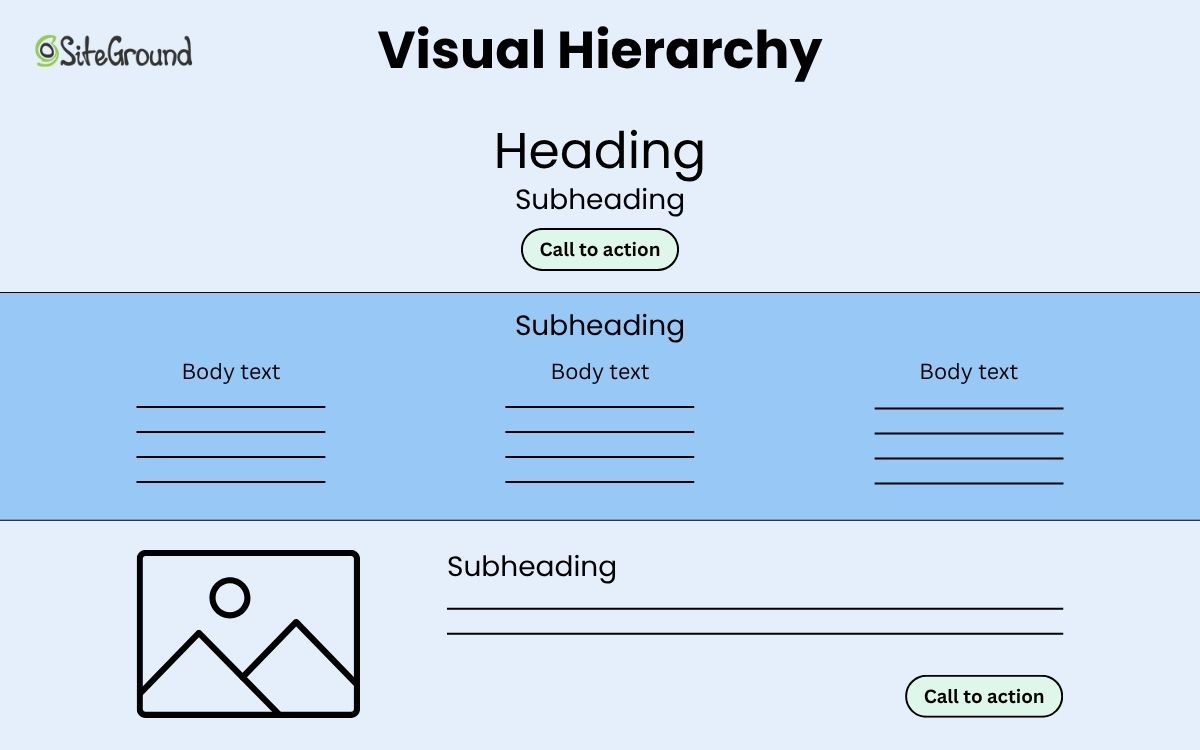
Visual hierarchy is the strategy behind organizing important elements so people notice—and act on—what matters most. It’s the design principle that determines what users see first, what they notice next, and how they move through a page. Even this very page demonstrates the idea by using headings, buttons, and images in order to make the content more digestible, and to guide the viewer. 

Diagram representing visual hierarchy with headings, subheadings, ctas, and body copy

At its core, visual hierarchy is about control—not of people, of course, but rather of attention. Every color choice, font size, and block of white space influences how your audience experiences your content. So today we’re going to tease out each of these elements so that you too can apply the same visual hierarchy principles, guiding interested eyes smoothly from headline to call to action, and turning curiosity into clicks, and clicks into those coveted conversions. 

Why Visual Hierarchy Matters

Attention spans are short. Users don’t read; they scan. (Chances are, you’re scanning this right now!) In those first few seconds, layout has to communicate what’s important and why a viewer should care. That’s where visual hierarchy becomes a conversion tool, and goes beyond basic design theory.

In simple terms, a strong visual hierarchy helps you:

  • Capture attention: Draw users to your most important elements, such as headlines, offers, or calls to action (CTAs).
  • Reduce friction: Make it effortless for people to find what they need and act fast.
  • Build trust: Consistent visual order signals professionalism and clarity, which boosts credibility.
  • Increase conversions: By guiding users along a clear and intuitive customer journey, you make it easier for them to take key actions and complete desired goals.

In other words, clear visual hierarchy isn’t just about making a page look good; it’s how you actually design it to work better.

It’s worth noting that these visual hierarchy principles apply not only to websites but also to email marketing, landing pages, and other digital content—anywhere you need to guide attention and drive action.

How to Design Visual Hierarchy That Converts

Designing a visual hierarchy that drives action—like a sign up or a sale or simply moving through your site—starts with understanding how people actually see. That is, users instinctively follow cues like size, color, spacing, and flow to decide what’s worth their attention. So your job is to make those cues intentional by directing their eyes, not distracting them.

Here’s how to create visual hierarchy—step by step.

1. Size and Scale: Signal What Matters Most

In visual hierarchy, size matters. Larger design elements naturally draw the eye first, which is why headlines, hero images, and primary buttons often dominate the page. This scale helps users instantly identify what’s most important without needing to think. 

When everything is the same size, nothing stands out, and users lose direction. Use contrast in scale to create focus: make your primary call to action noticeably larger than secondary ones, or increase the headline size enough to establish a clear visual anchor.

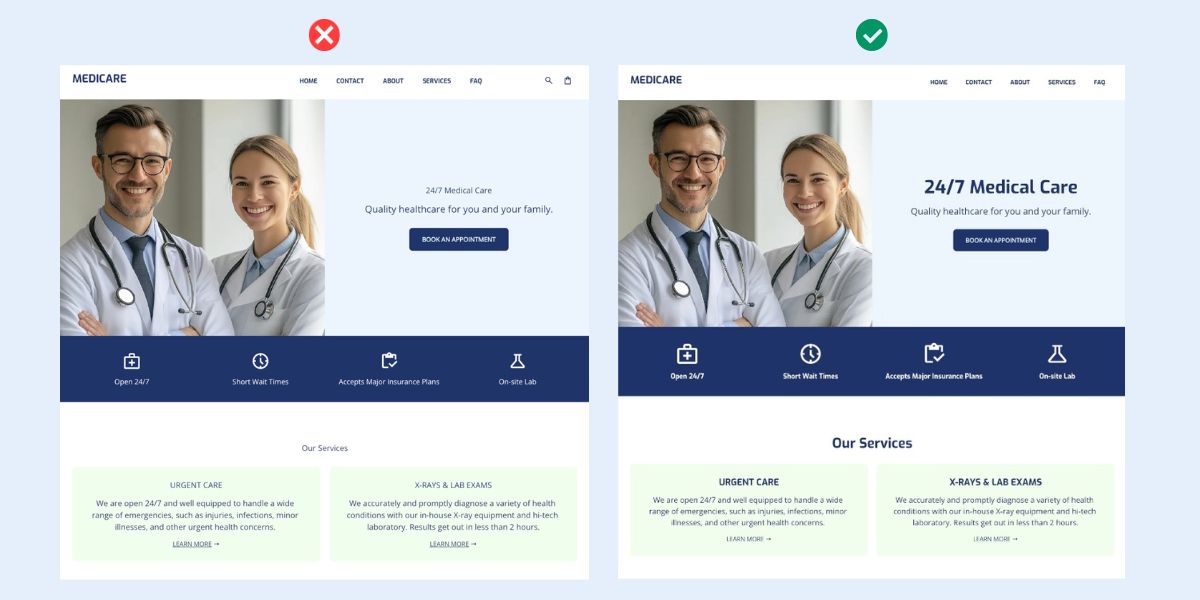
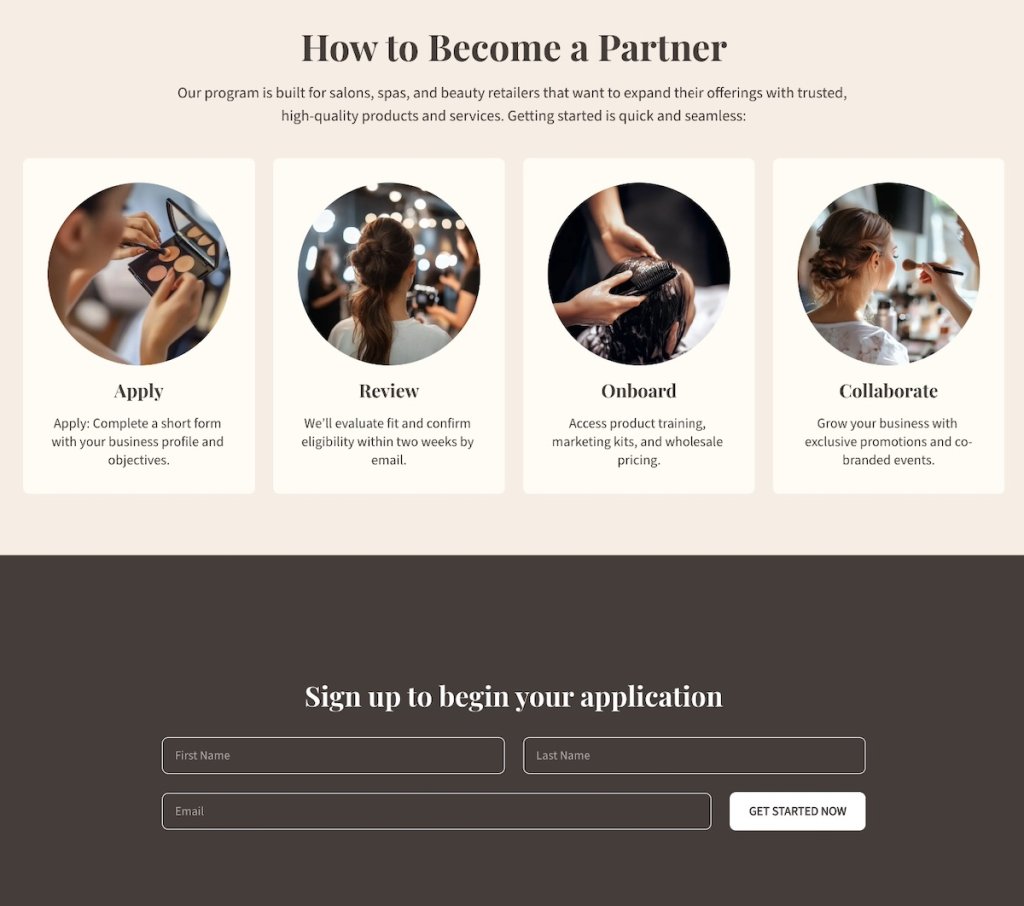
Check out the two homepage design examples below: same content, but one uses a clear visual hierarchy and different sized fonts and icons to take your attention on a journey (you know what to do without even reading the content); the other makes you want to quit before you’ve even started. 

Size and scale visual hierarchy example comparing two websites

2. Color and Contrast: Draw Attention Where It Counts

Color is emotion, brand, and direction all rolled into one. It tells users where to look, what to feel, and what to click. High-contrast design elements naturally command attention, while low-contrast ones recede into the background. This makes color and contrast among the most powerful tools for guiding action.

To accomplish this, choose one dominant color to define your key interaction points (like buttons or links) and use it consistently. Lean on your branding basics to choose the right color, though: that is, don’t just choose a random color, but rather one that aligns with your brand’s color palette.

Surround your dominant color with tones that contrast appropriately—whether neutral, muted, or complementary—so it immediately draws the eye. Likewise, ensure text and backgrounds have enough contrast for easy readability: on one hand, if users have to squint, they’ll scroll away; on the other, it’s an important part of accessible web design.

Website with good color and contrast for visual hierarchy

Tip: Speaking of squinting, try the “squint test,” by blurring or stepping back from your design (go ahead and give it a go with the example above). The design elements that remain visible are what your users will notice first. If your CTA doesn’t stand out, your visual hierarchy isn’t working hard enough. Back to the drawing board.

3. Typography: Prioritize Messaging and Readability

Typography isn’t as simple as just choosing random fonts; the right selection (or selections) create structure and even express your brand’s voice. That’s because a thoughtful typographic hierarchy makes your visuals and message scannable, readable, and persuasive, with the bonus of also reinforcing who you are as a brand.

Use size, weight, and spacing to establish clear levels of importance: headlines should command attention, subheads should support them, and body text should stay quietly legible. 

Example of typography in visual hierarchy

But please don’t stop at structure: choose fonts that reflect your brand personality and complement each other. For example, pairing a bold, modern sans-serif for headlines with a clean serif for body copy can strike the perfect balance between authority and approachability.

And consistency really matters here. Limit yourself to two or three fonts and vary visual hierarchy through weight and size, rather than going bananas with different styles. When your typography looks unified and is implemented strategically via your visual hierarchy, your message will land a lot more successfully.

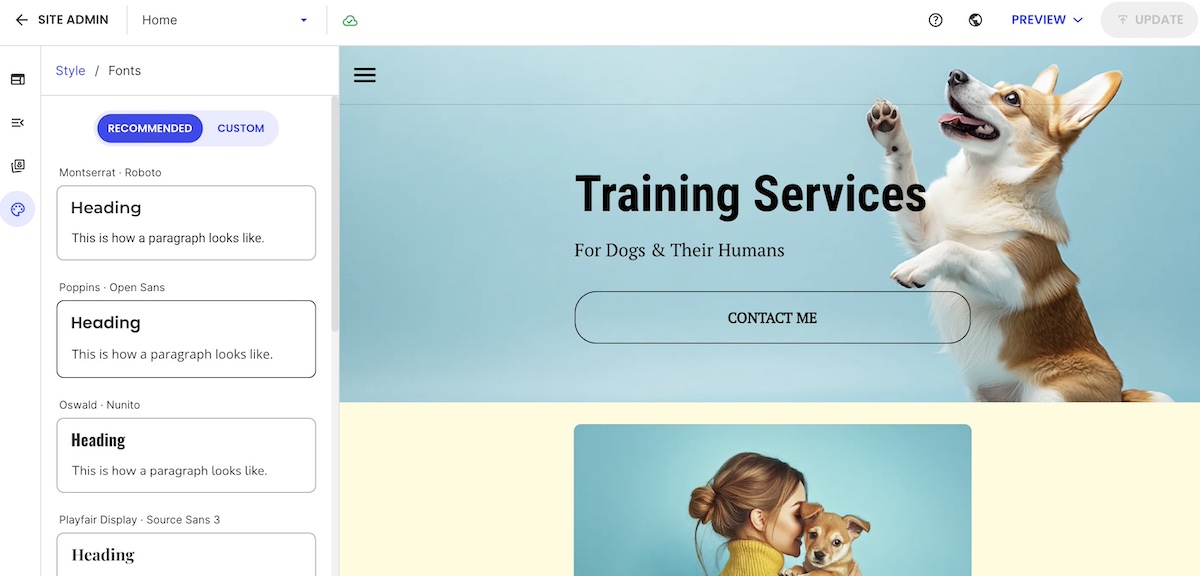
With the SiteGround Website Builder, your visual hierarchy is built right in.

With SiteGround’s Website Builder, getting this balance right is effortless. It comes with pre-selected font pairings that complement each other and color palettes designed to work harmoniously across your site. Together, they ensure that your visual hierarchy—through both typography and color—is consistent, cohesive, and aligned with your brand from the start.

Start building your website now>>

4. Spacing and White Space: Let That Content Breathe

Have you ever noticed how a crowded website design makes website navigation feel a bit exhausting? It’s hard to scan or know what to do next; there’s just too much stimuli. White space, on the other hand, creates a sense of calm and clarity—dare we say, it’s the unsung hero of good design. But, importantly—it’s particularly effective in visual hierarchy when it’s done intentionally. 

That’s because thoughtful positive and negative space gives your layout balance, helps users process information faster, and directs focus to what matters most. This clarity in visual hierarchy doesn’t just make your content more digestible—it also improves website retention, keeping visitors engaged longer as they move through the page. So use padding around headlines, margins between sections, and breathing room around CTAs to make each element feel purposeful.

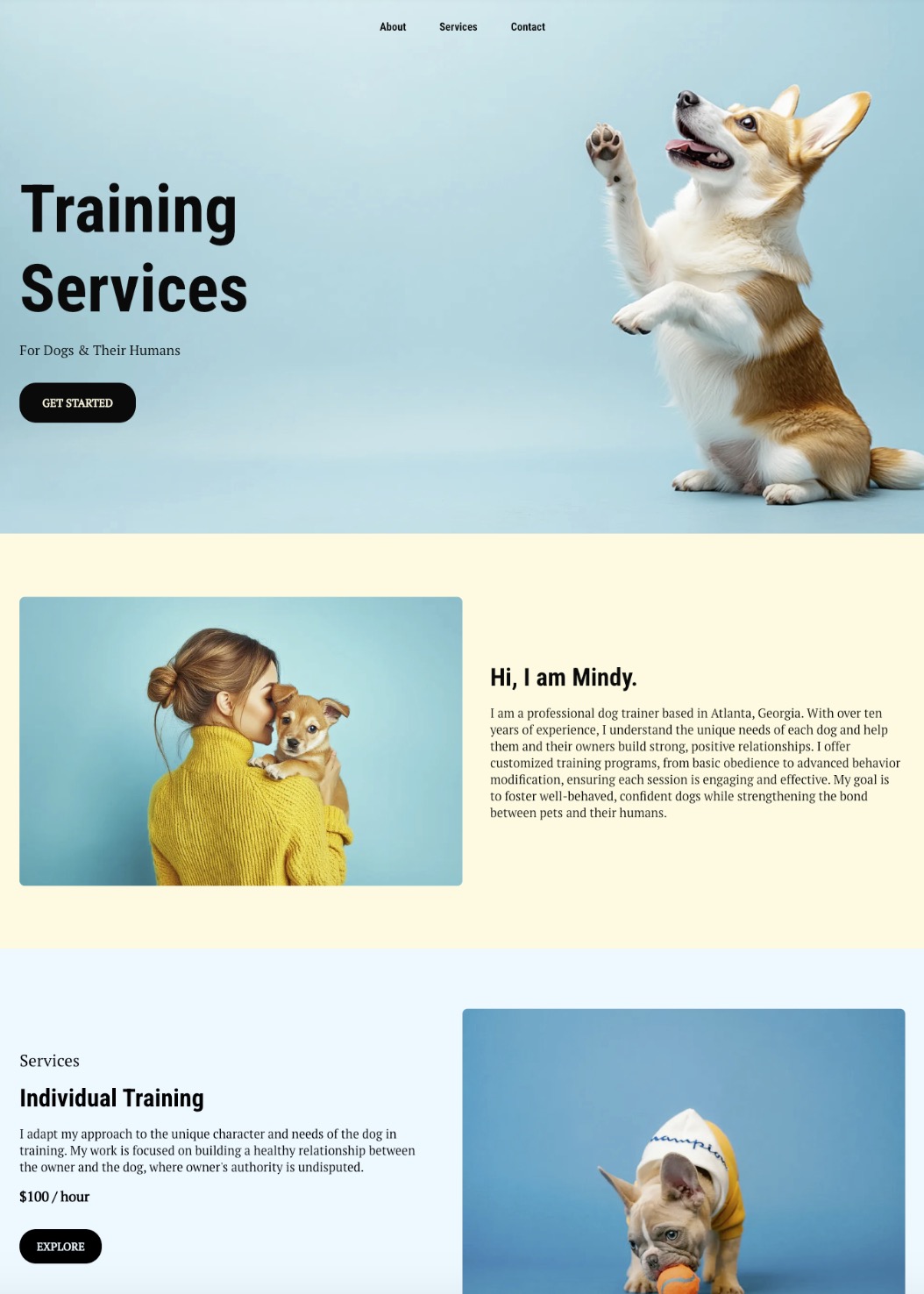
Notice how in the below example the white, negative space effectively becomes part of the design. It’s not empty, forgotten-about white space, but rather intentionally used to give the design, images, and colors space to be taken in.

Use of white space on homepage visual hierarchy

5. Visual Hierarchy Patterns: Follow (or Break) Natural Eye Movement

Eye-tracking studies reveal that people rarely look at a page randomly; instead, their eyes follow predictable paths. These scanning patterns determine where attention lands first, next, and last. By creating with these habits in mind, you can position your most important design elements—like headlines, visuals, and calls to action—exactly where they’re most likely to be seen.

Two of the most common visual hierarchy patterns are:

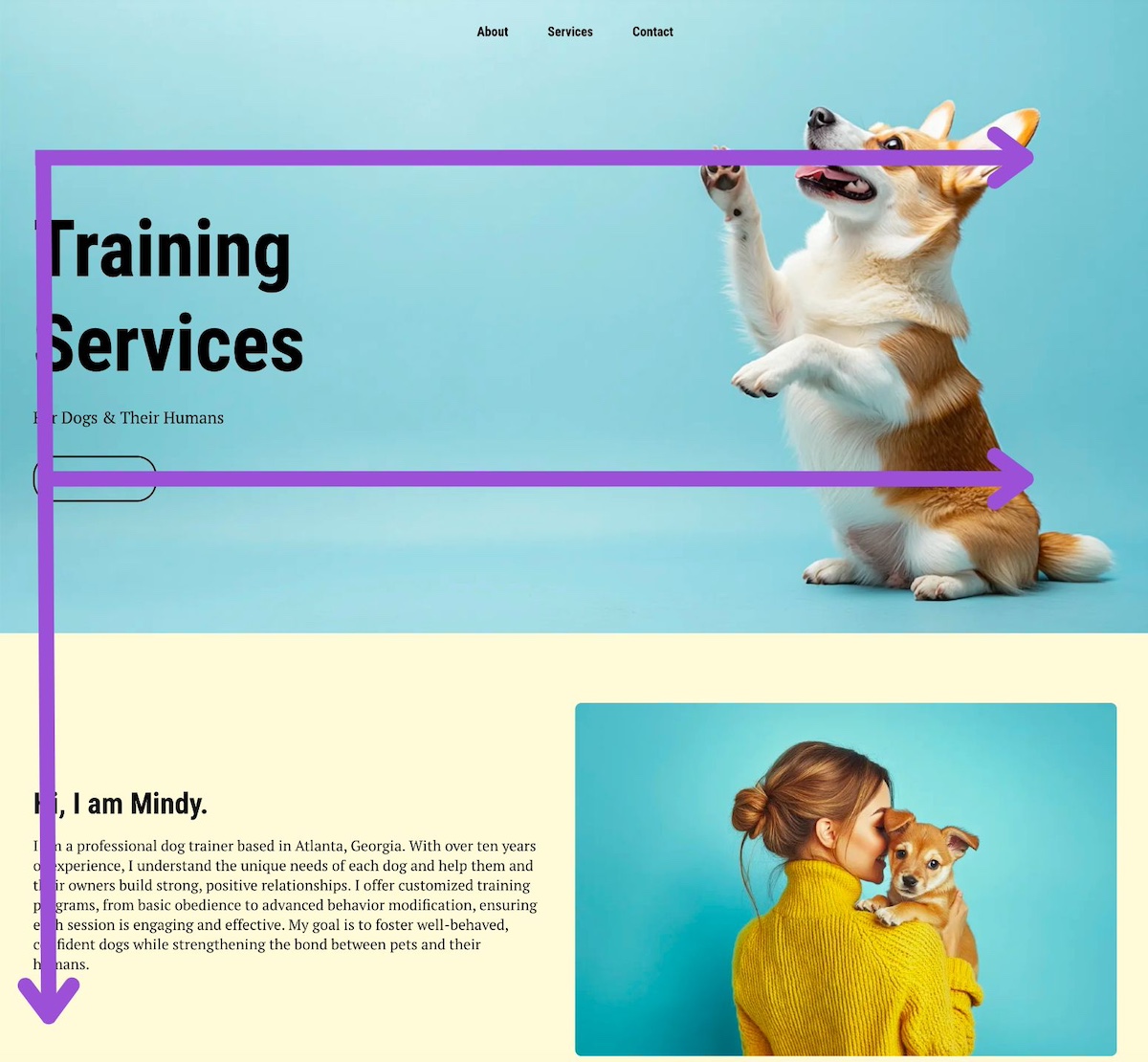
The F-Pattern

This is most common on text-heavy website layouts such as blogs, articles, or content-rich websites. Users typically start by scanning across the top of the page, move down the left-hand side, and occasionally glance across horizontally again. 

To take advantage of this pattern, place critical information like headlines, keywords, and calls to action along the top and left-hand areas. Using bold subheadings can also guide the eye horizontally where needed, ensuring that essential content doesn’t get overlooked.

F-pattern website layout in visual hierarchy

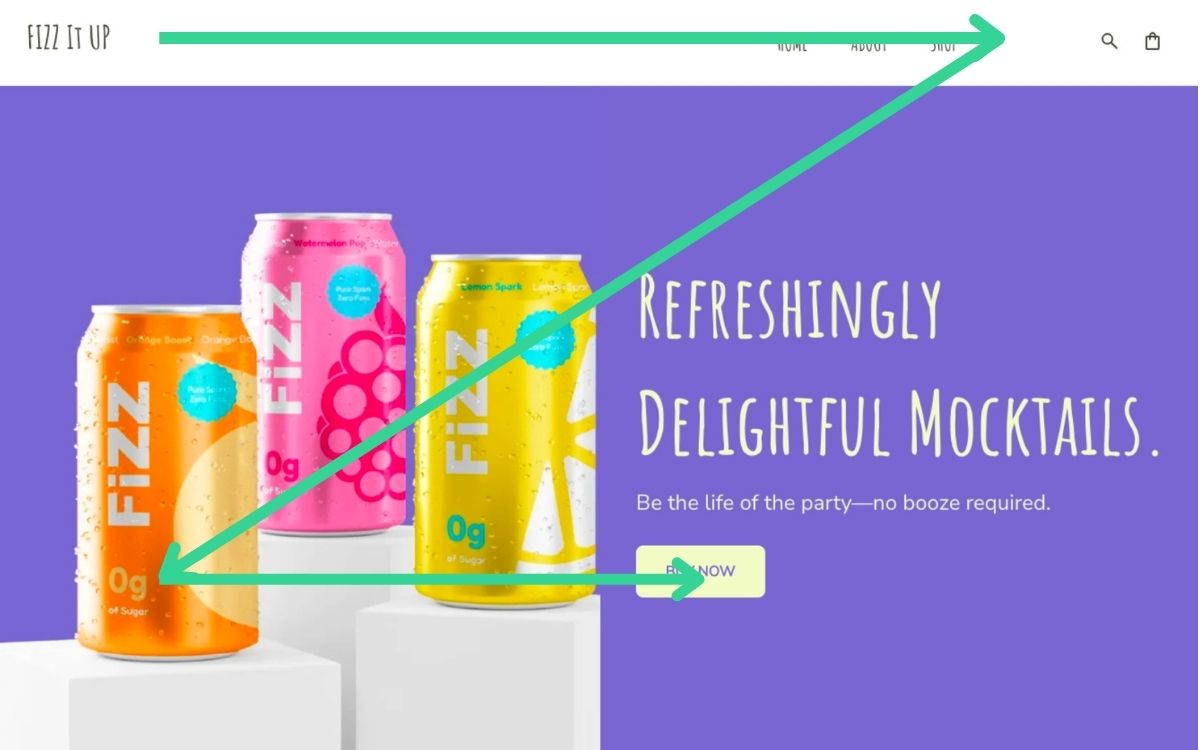
The Z-Pattern

This pattern often appears on simpler pages, such as landing pages or hero sections with a single clear goal. In this pattern, users’ eyes move in a Z-shaped path: from the top left to the top right, diagonally down to the bottom left, and then horizontally across to the bottom right. 

Designers can leverage this pattern by positioning the logo and navigation along the top line, placing the main image or value proposition along the central diagonal, and ending with a call to action at the bottom right. This layout naturally guides the user’s attention toward the page’s primary objective.

Example of Z-pattern layout in visual hierarchy

Once you understand these default paths, you can break them intentionally by using color and contrast, or asymmetry to redirect attention and emphasize what matters most.

Tip: Test your layouts. Heat maps and scroll maps reveal where users actually look and click, helping you fine-tune for real behavior.

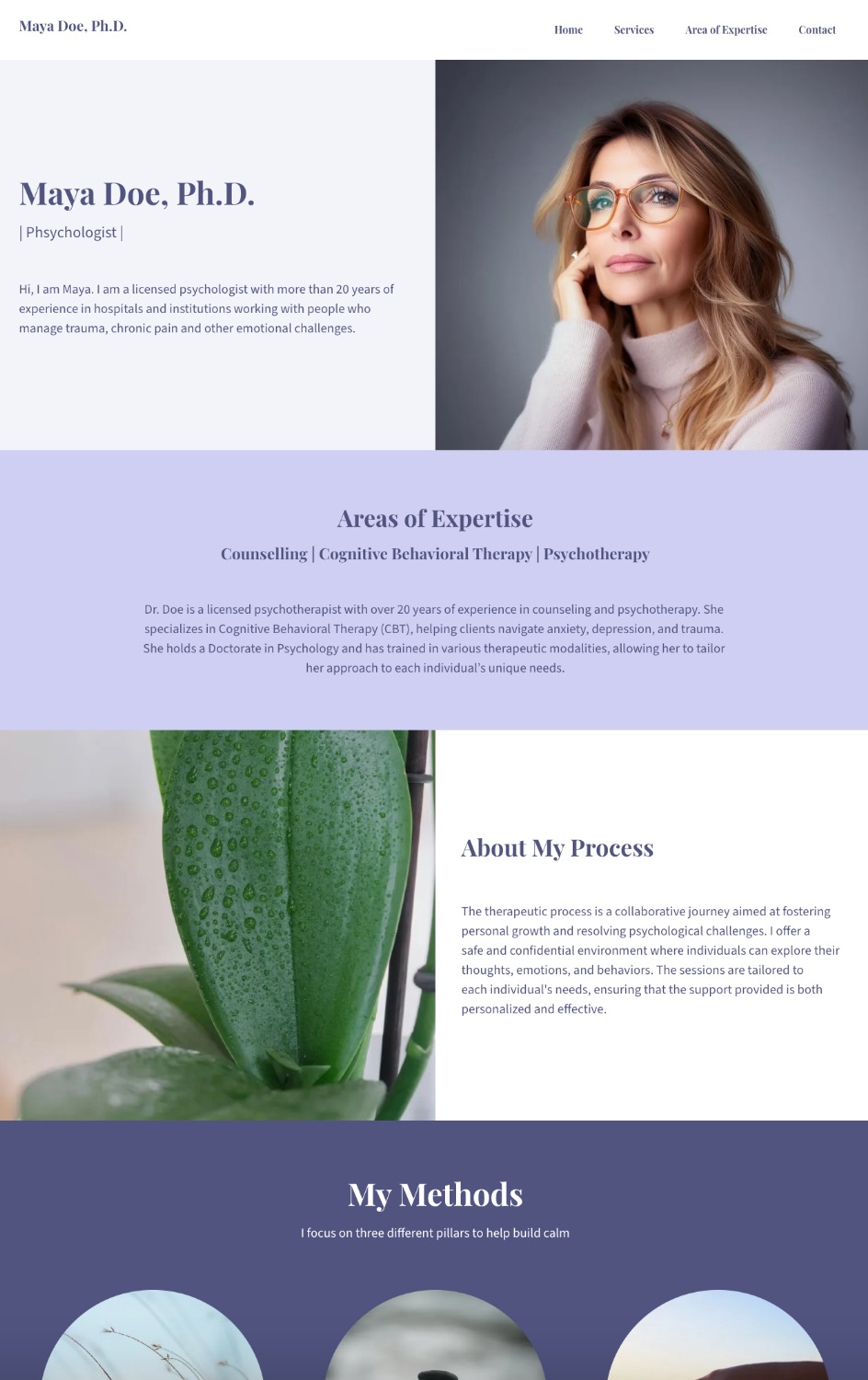
6. Position and Alignment: Create Order and Flow

Good alignment creates structure, balance, and a sense of professionalism that help users take your business more seriously. Misaligned design elements, on the other hand, create visual noise that makes a page feel disorganized, the content seem less strong (even if it’s stellar), and it can impact your overall credibility.

So, for example, take advantage of grids and alignment to create that necessary order. Design elements that line up cleanly guide the eye effortlessly from one area to the next, while deliberate asymmetry can add energy and interest when used with purpose. The goal isn’t rigid symmetry; it’s just intentional flow—that sense that everything belongs exactly where it is.

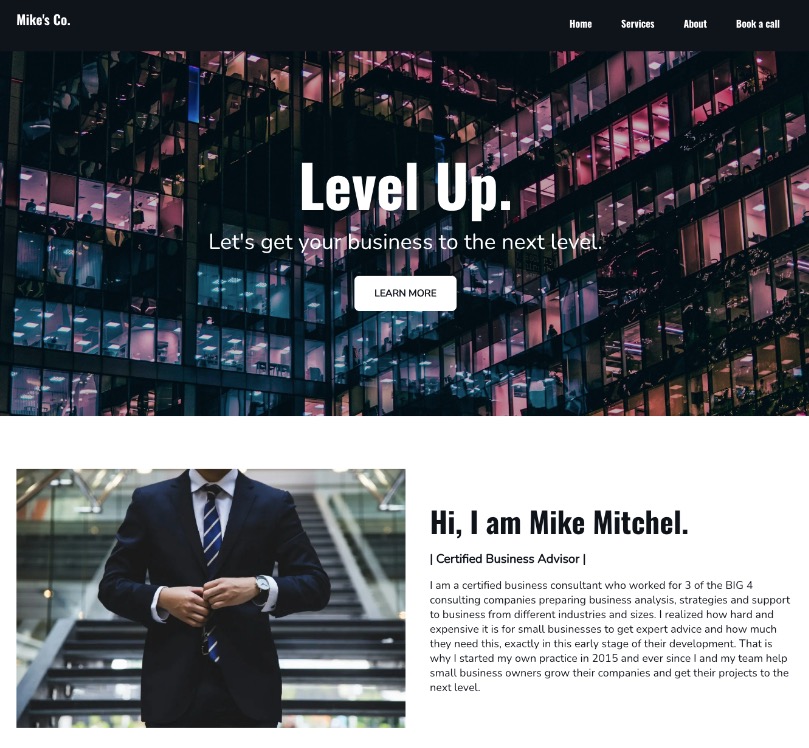
Notice how in the example below implements that deliberate asymmetry while also staying true to clean alignment. It keeps the page visually interesting without being boring or confusing.

Example of website position and alignment in visual hierarchy

Tip: Revisit your layout zoomed out. If the visual flow feels uneven or your eye gets “stuck” in one area, adjust alignment and spacing until the page feels natural to scan.

7. Grouping and Proximity: Guide Through Spacing

Proximity is one of the simplest yet most powerful visual hierarchy principles. When related items are placed close together, users instantly understand they belong to the same group. When spacing is inconsistent or unrelated design elements are too close, meaning gets lost—and confusion naturally follows.

Use spacing intentionally to signal relationships:

  • Group headlines with their corresponding body text or image.
  • Keep website navigation elements evenly spaced to reinforce structure.
  • Separate sections clearly, with either space, color, or even vertical and horizontal lines to help users scan without friction. 

Proximity also supports hierarchy by organizing visual information in layers and leading the eye from high-level sections to detailed content. 

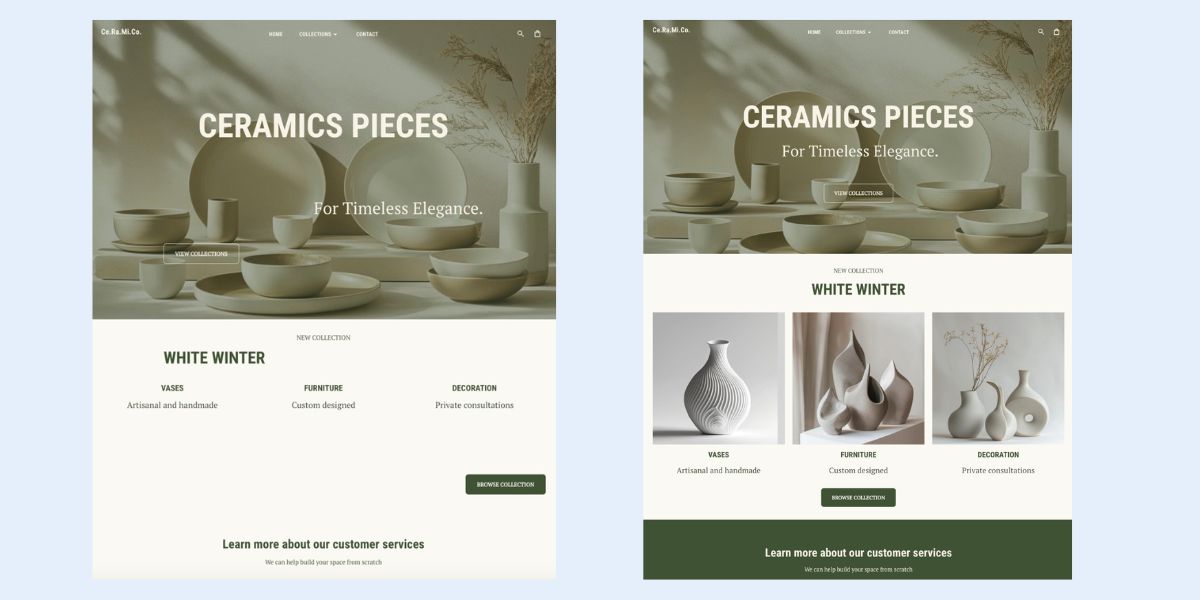
In the example below, you can see how the image on the left without clean spacing and visual grouping makes it so that all the content competes. Whereas the image on the right employs clear grouping and proximity, leading you naturally to logical next steps.

Example of grouping and proximity in visual hierarchy

Tip: The squint test works here too. If you can still identify distinct sections and relationships, your proximity is working.

8. Imagery and Icons: Use Visuals That Reinforce Your Message

Images and icons are nice for decoration, but they’re also functional design tools that reinforce your message, evoke emotion, and create instant recognition. The key—as is so often the case with creating a functional visual hierarchy—is consistency. Repeated styles, colors, and placements reinforce the hierarchy and help users quickly understand relationships between important elements.

For imagery:

  • Guide attention: Position photos or illustrations near key content or CTAs to draw the eye naturally.
  • Signal importance with scale: Larger or more prominent visuals emphasize critical information.
  • Maintain cohesion: Consistent color temperature, style, and mood across pages reinforces visual hierarchy and trust.
  • Support scanning: Break up dense content to help users process information quickly.

For icons:

  • Clarify structure: Use icons to highlight sections, reinforce headings, or show relationships between content blocks.
  • Keep scale and spacing consistent: Uniform sizing and alignment maintain visual hierarchy and prevent clutter.
  • Direct action: Place icons near interactive elements or steps in the customer journey to guide clicks.
  • Use style to create emphasis: A bold or colored icon can draw attention to an important element, supporting your overall visual hierarchy.
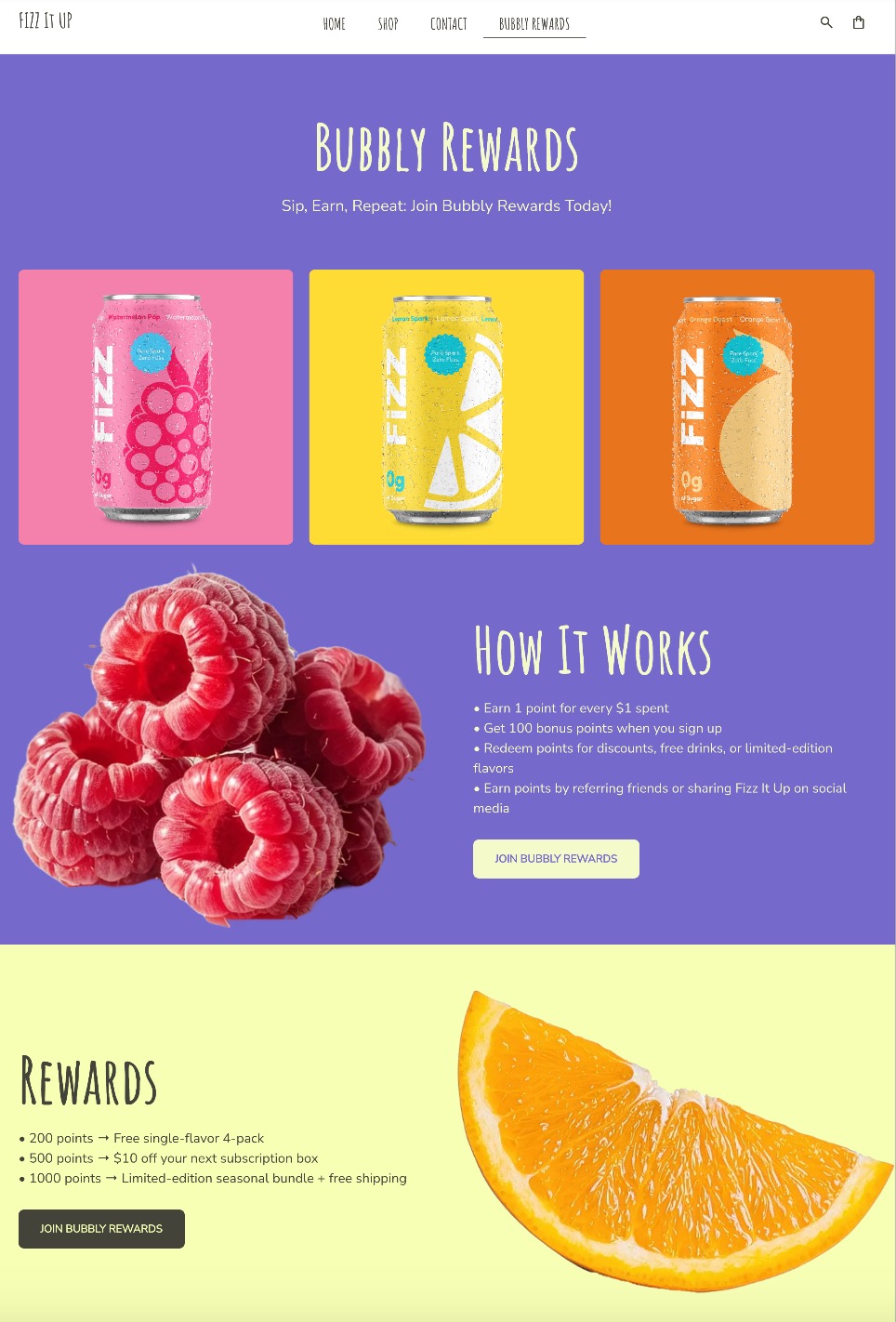
Use of imagery and icons in website visual hierarchy

In the example above, you can see how images and icons work together to reinforce the message. Their placement is intentional, and their consistent color and size strengthen the visual hierarchy, creating a natural, seamless flow.

With the SiteGround Website Builder, structure and balance come built in.

The builder automatically applies smart spacing and grouping rules so your layouts stay clean, cohesive, and easy to navigate—no design expertise required. Strategic image placement is also built into the templates, and you can tap into the built-in photo library to quickly find visuals that reinforce your message and bring your content to life.

Start building your perfect website now>>

9. Depth and Layering: Add Focus and Priority

Depth helps create visual hierarchy and guide attention, even in flat design. By layering elements—through spacing, alignment, color and contrast—you can create a sense of visual order that leads users toward what matters most.

Use layering to:

  • Highlight clickable or interactive elements through placement or by creating contrast.
  • Separate sections using background blocks, gradients, or white space.
  • Arrange overlapping text and visuals to create a clear sense of flow and priority.

You don’t need complex effects to create depth either. Subtle differences in scale, background color, or layering can make your web design feel structured and intuitive, helping users understand where to look and what to do next.

Example of depth and layering in visual hierarchy

Notice how, in the example above, the website on the right makes it much easier to absorb each section, process the information, and spot the call-to-action button—all thanks to thoughtful layering, color, and contrast.

10. Rhythm and Consistent Styles: Reinforce the Goal

Repetition is what brings harmony and structure to your design. By repeating consistent patterns—whether in typography, color, icons, or spacing—across multiple website pages, you create rhythm. That rhythm builds familiarity, helping users understand your visual hierarchy, along with what’s important and where to act. 

Elements you might repeat in your visual hierarchy include:

  • Button styles and placement for CTAs across pages.
  • Font weights and colors for headings and subheadings.
  • Icon shapes or alignment patterns to maintain visual flow.

And this consistency in visual hierarchy does more than improve usability; it reinforces your brand identity. Each repeated element becomes a visual cue that reminds users who you are and what you stand for. Over time, that consistency builds trust and recognition, making your site feel cohesive and intentional.

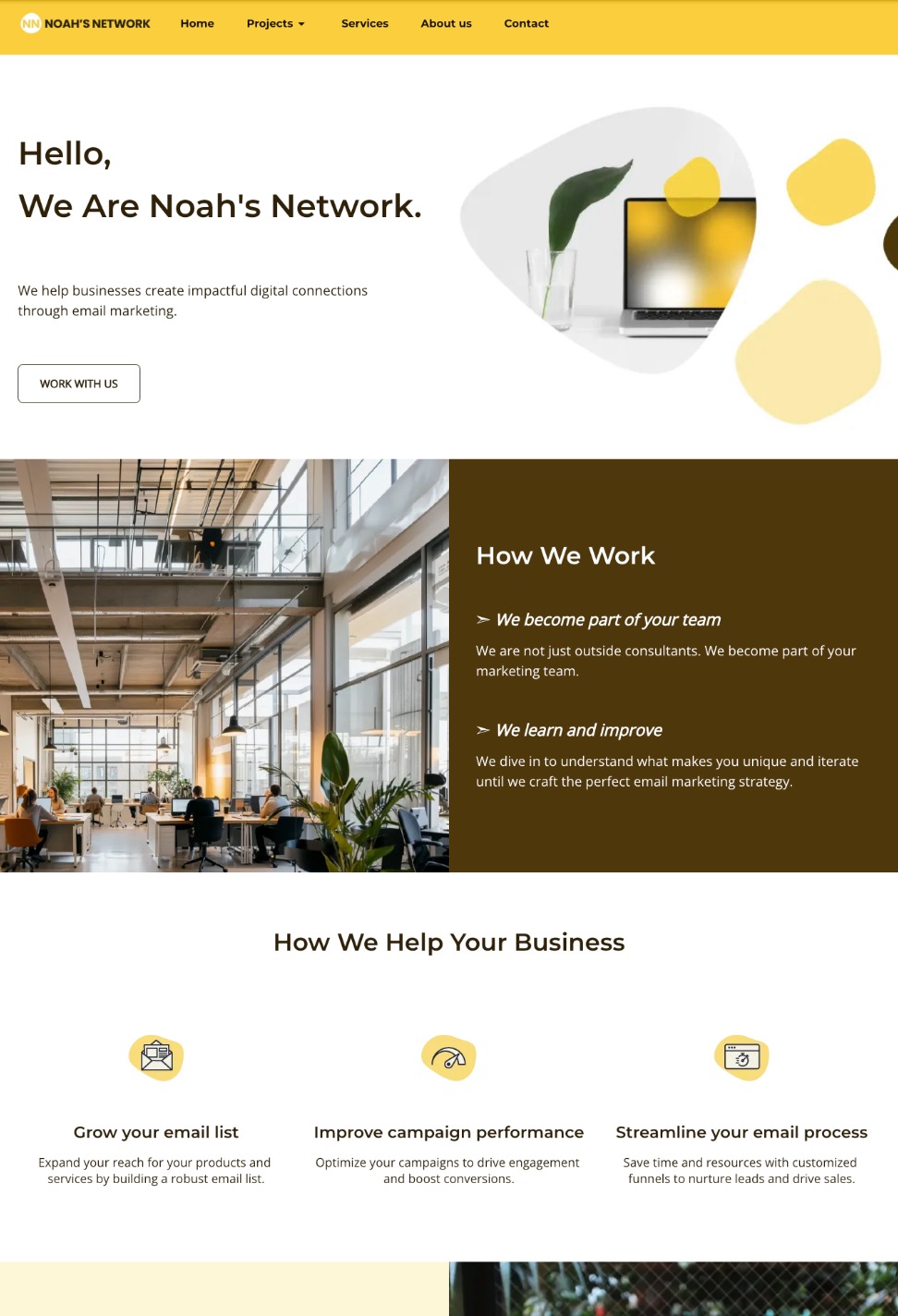
Example of consistent styles on website visual hierarchy

Tip: Establish a visual “beat.” Just like music, a good rhythm balances variety and consistency—enough to keep users engaged, but never overwhelmed. Like in the example above, there’s a creative consistency that makes the page both visually interesting, but easy to understand.

Visual Hierarchy Mistakes That Kill Conversions

Even if you follow every visual hierarchy principle, it’s easy to slip up. Small missteps can distract users, bury your main message, or make it unclear what action to take next. Here are some of the most common mistakes to watch for so your design works as hard as it looks.

1. Competing Visuals

When everything on a page screams for attention, nothing stands out. Overusing bold colors, large fonts, or busy elements creates noise instead of focus.

  • Fix it: Choose one clear focal point per screen—usually your CTA or value proposition—and let supporting elements play a quieter role.

2. Equal-Weight Text

If all headlines, subheadings, and paragraphs look the same, users can’t tell what’s important. They skim and leave before understanding your offer.

  • Fix it: Create a clear text hierarchy using consistent font sizes, weights, and spacing. Make your headings visually dominant, and let body text take a supporting role. Look at this article as an example: it consists of a title, headings, subheadings, and even CTAs, all which are different sizes (and even colors). This is intentional and has helped guide your attention.

3. Too Many CTAs

Multiple calls to action with equal prominence can overwhelm users and dilute your conversion goal.

  • Fix it: Define a single primary action per page or screen, with secondary CTAs styled more subtly. A clear visual hierarchy should make the next and most important step obvious.
Example of visual hierarchy of highlighting a primary CTA button

4. Decorative (Not Functional) Design

Using visuals purely for aesthetics—like abstract graphics or background patterns—can draw attention away from what matters.

  • Fix it: Every design element should have a job: emphasize a message, guide the eye, or support understanding. If it’s not serving a purpose, simplify or remove it.

5. Ignoring White Space

Crowded designs make users feel overwhelmed and uncertain. Without breathing room, even strong content loses impact.

  • Fix it: Embrace negative space. It helps separate sections, highlight certain elements, and create a more confident, conversion-driven layout.

Mastering Visual Hierarchy in Design for Better Conversions

Designing with hierarchy in mind is what turns a collection of visual elements into a clear, engaging experience. From the first glance to the final click, thoughtful use of color, contrast, and typography shapes how users move through your site.

If you’d rather skip the guesswork, the SiteGround Website Builder helps put these visual hierarchy principles into practice. It offers professionally paired font combinations, cohesive color palettes, templates with built-in spacing and grouping rules, and a photo library for finding supporting imagery—so typography and color work consistently across your pages and your visual hierarchy is already set up for you.

A promotional image for SiteGround's Easy-to-Use Website Builder featuring a mockup of a website with a living room photo. The text highlights creating a professional site without coding, offering customizable templates, AI-powered content generation, built-in SEO tools, access to over 6 million free high-quality images, an easy drag-and-drop editor, and mobile-friendly designs. Includes a "Get Started Now" button and the SiteGround logo.

How to Buy a Domain Name: What to Do Before & After

Abstract of buying a domain name

Buying a domain name typically costs $10–$20/year through an ICANN-accredited registrar, and takes just about five minutes. But getting the setup right takes a bit more. This guide covers what to check before you buy (pricing, security, registrar type), how to complete your purchase, and what to do immediately after to protect and activate your domain.

Key Takeaways

  • Domain costs typically run $10–$20/year, but always check the renewal price, not just the first-year promotional rate.
  • Choose a domain seller based on security features, support quality, and pricing transparency. These matter more than whether they’re a direct registrar or reseller.
  • Enable domain privacy at purchase to keep your personal contact info out of the public WHOIS database and reduce spam and phishing risk.
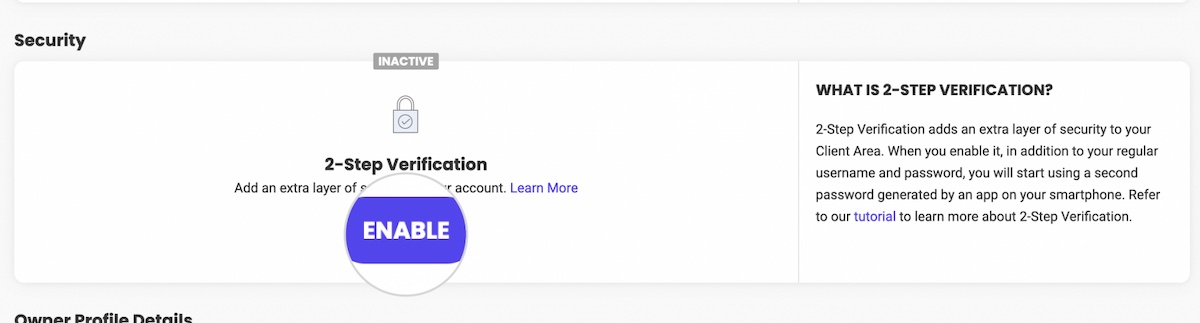
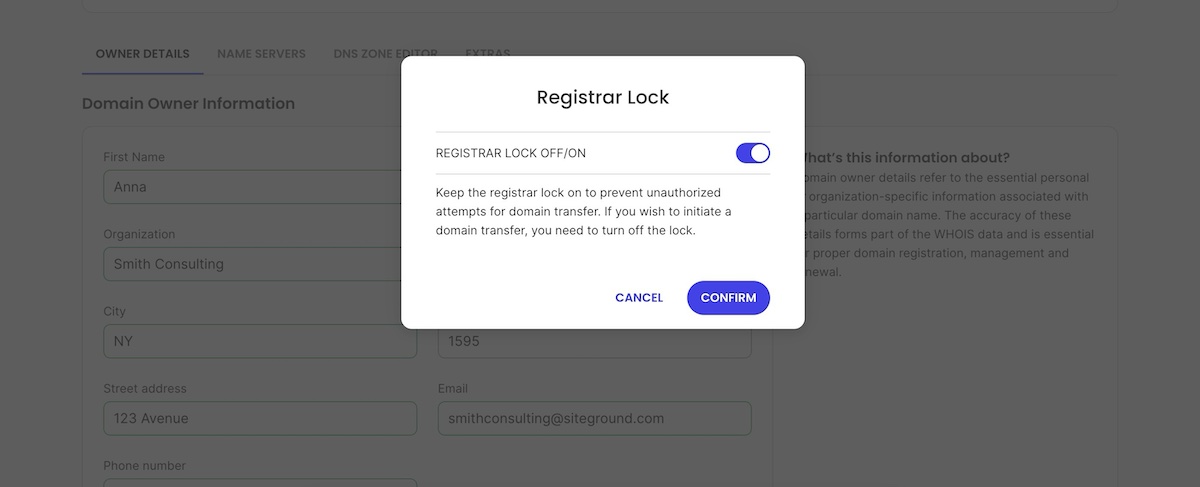
  • Lock your domain and turn on 2FA immediately after purchase. Domain lock prevents unauthorized transfers, and 2FA blocks account takeovers even if your password is compromised.
  • Verify your ownership email and configure DNS settings right away. Unverified accounts may have restricted functionality, and your domain won’t point anywhere until DNS is set up.
  • Set up auto-renew and keep payment info current. Domains are rentals, not permanent purchases, and an expired domain can be snapped up by someone else.

[24]

What is a Domain Name?

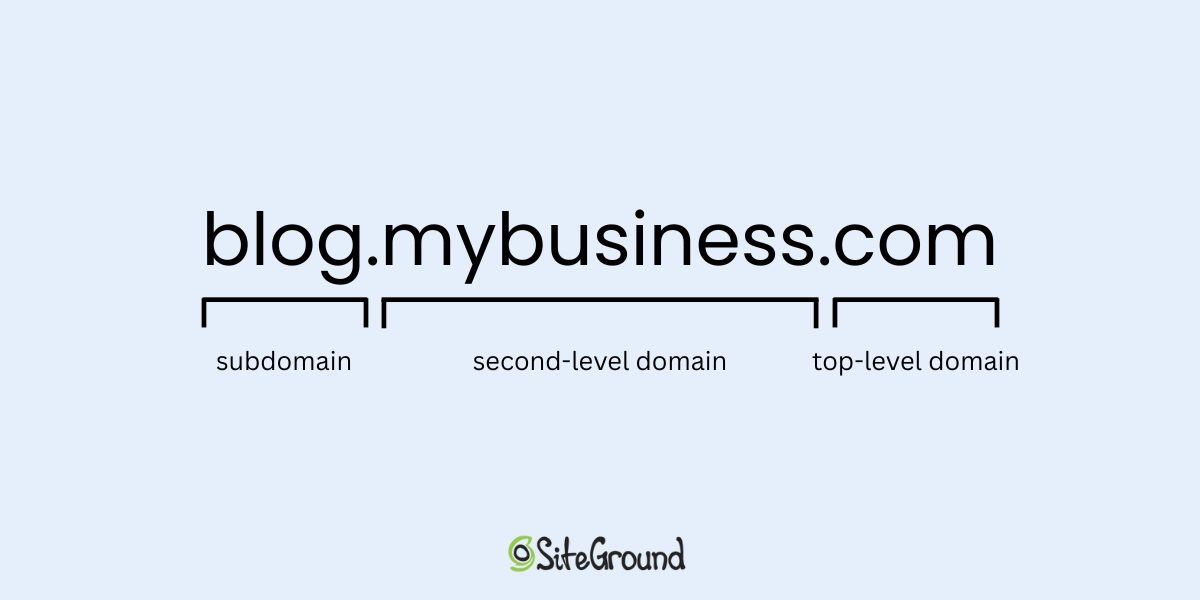
A domain name is your website’s address on the internet—it’s the URL people type into their browser to find you, like, say, www.mybusiness.com. Choosing and buying a domain name is an important step because it’s so much more than just a web address: it represents your brand, helps people find your site, and is essential for email and other online services. So the decision around buying a domain is bigger than it might initially seem. 

Technically, a domain name consists of a few parts:

  • Second-level domain (SLD): This is the main part of your domain (like “mybusiness” in mybusiness.com)
  • Top-level domain (TLD): This is the extension, such as .com, .net, .org, or country-specific ones like .es or .uk.
  • Subdomains (optional): Additional prefixes like blog.mybusiness.com that organize different parts of your site.
Diagram of the anatomy of a domain including subdomain, second-level domain and top-level domain

If you don’t quite have a handle on these terms and how to use them just yet, don’t worry. By the time we’re done here, you’ll have a full understanding of what to know before buying your domain, how to buy it, and then what to do after. 

What to Check Before You Buy a Domain

Before purchasing a domain, check five things: your name options, the seller’s credentials, pricing (first-year and renewal), security features, and how easy the domain is to manage after purchase. Think of this as a pre-flight domain checklist:

Come Up With Domain Name Ideas

Have at least three to five domain name options ready before you start searching. Your first choice is often taken, and having alternatives saves time.

Quick tips for choosing a domain name:

  • Keep it short and memorable: Shorter domains are easier to type, share, and recall.
  • Reflect your brand or business purpose: Choose a domain name that gives visitors an idea of what you do.
  • Avoid hyphens or unusual characters: They can be confusing, hard to type, and are often forgotten.
  • Consider your TLD: The domain extension you choose (.com, .shop, .org, etc.) affects credibility, audience perception, and availability. Over 62% of funded US startups still choose .com, and for good reason — it remains the most recognized and trusted domain extension globally. Stick to widely recognized TLDs unless a niche one fits your brand purpose.
  • Prepare alternatives: Have several options in mind so you can pivot quickly if your desired domain name isn’t available.

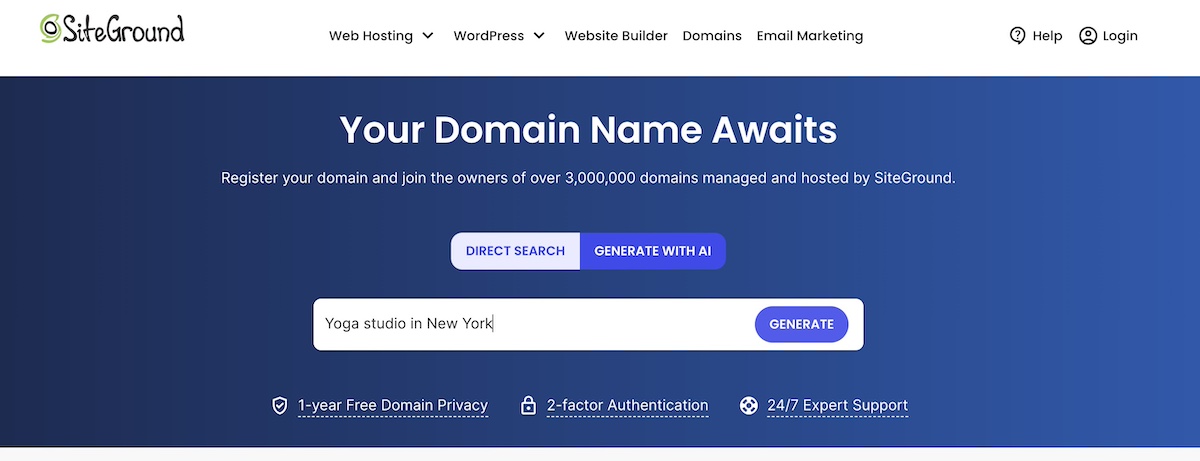
Super pro tip: If you’re stuck, tools like SiteGround’s AI domain name generator can help. Not only does it suggest domain name ideas on the fly (based on your keywords, brand concept or whatever you fancy), but it only suggests available domain names, which means you can make the buying process even easier. Idea creation and time savings all in one.

Example of AI domain generator by SiteGround showing search field

Understand Who You’re Buying From

Not all domain sellers operate the same way, and understanding the difference helps you make a smarter purchase. Some sell domains directly as ICANN-accredited registrars; others resell domains through a registrar partner. What matters more than the label is what the seller actually offers you.

When evaluating any domain seller, look for:

  • Pricing transparency: Are first-year and renewal prices clearly listed? Are there hidden fees for privacy protection or other add-ons?
  • Security features: Do they offer two-factor authentication, domain lock, and privacy protection?
  • Support quality: Is help available 24/7, and through channels that work for you?
  • Dashboard usability: Can you manage DNS, WHOIS info, and renewals without jumping through hoops?

A seller that scores well on all four counts is a reliable choice regardless of whether they’re a direct registrar or a reseller.

What is ICANN? 
ICANN stands for the Internet Corporation for Assigned Names and Numbers. It’s the nonprofit organization responsible for coordinating and managing the global domain name system (DNS).

Examine Initial Price versus Renewal Price

Domain pricing has two numbers that matter: the first-year registration fee and the annual renewal rate. These are often very different, so check both before committing. While a low first-year price can be tempting, it’s important to look at the bigger picture before making a decision.

As you compare domain pricing options, consider:

  • First-year cost versus long-term cost: Some domains are cheap to start but renew at higher rates.
  • Additional fees: Privacy protection, ICANN fees, or premium add-ons can affect the total price.
  • Value alongside other factors: Pricing is one piece of the puzzle—reliability of the domain name registrar, security features, and customer support are just as important.

Verify Security Options

Your domain is one of your most important online assets. Losing control of it puts your brand, website, and email communications at risk, so verify these security features before you buy.

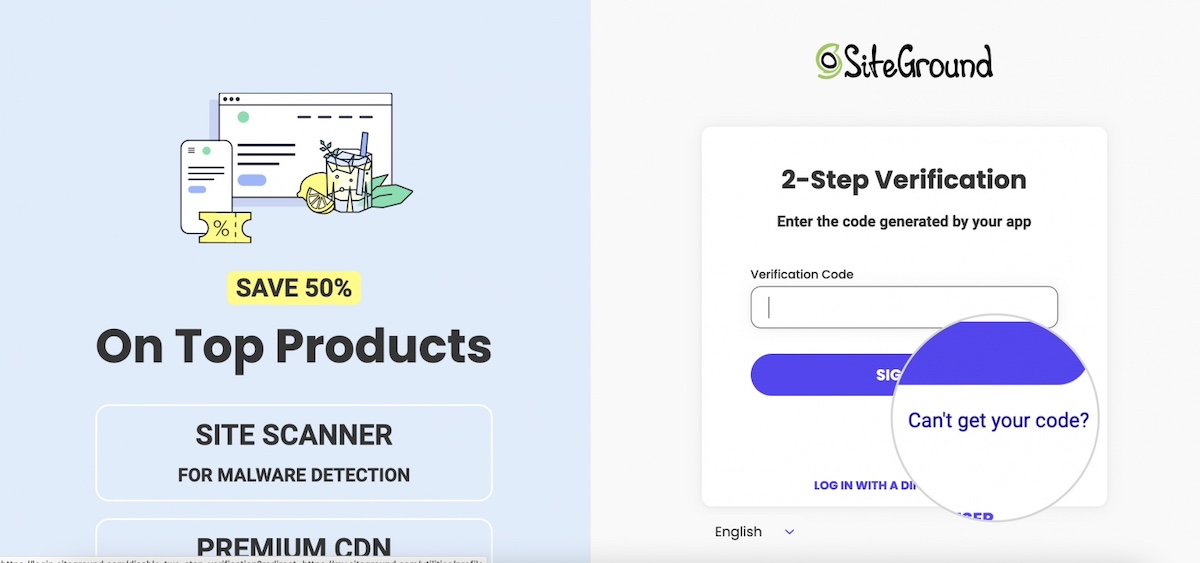
Two-factor authentication (2FA):

2FA adds an extra layer of security to your domain registrar account by requiring a second form of verification—usually a code sent to your phone or generated by an app—every time you log in. Even if someone gets hold of your password, two-factor authentication can prevent unauthorized access. Not all domain name registrars offer this, so be sure to double check before making your purchase.

Example of getting a verification code for two-factor authentication

Domain lock:

Most registrars offer a domain lock (or registrar lock) feature that prevents your domain from being transferred without your approval. Enabling this lock ensures that even if someone tries to hijack your domain, it cannot be moved to another registrar without your consent.

Privacy protection:

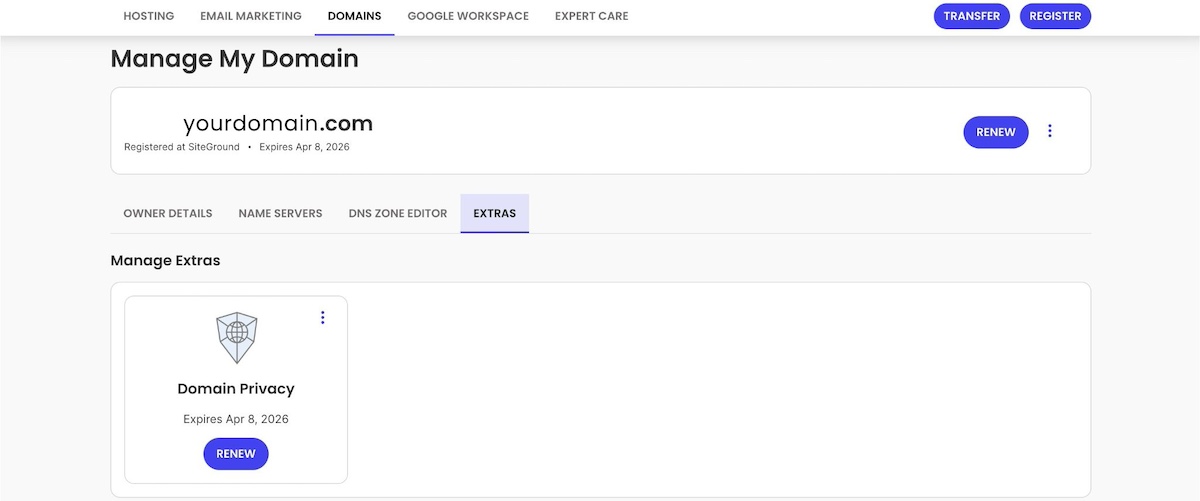
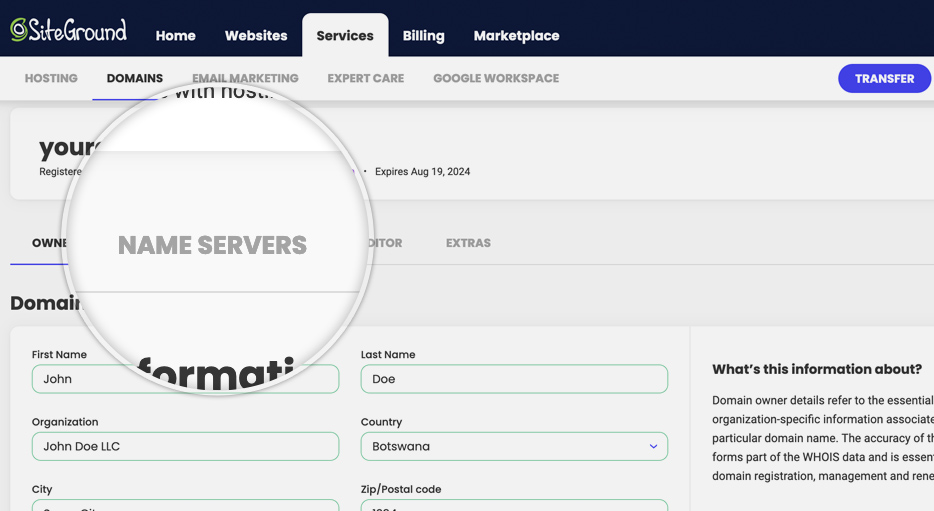
When you register a domain, your personal information—like name, email, and phone number—is recorded in the public WHOIS database. That means anyone can look up your domain name, see who owns it, and even the mailing address associated with it. Domain privacy protection hides this personal information, keeping it private and reducing spam or phishing attempts aimed at your contact info. With this said, note that not all domain extensions are eligible for domain privacy. 

What is the WHOIS? 
WHOIS is a publicly accessible database that stores information about registered domain names. When you register a domain, certain details are collected and can be looked up via a WHOIS search.

Look for Ease of Domain Management

Before you buy, think about how simple it will be to manage your domain after purchase—because you will likely want to actually use your domain, and it being easily usable is an important part of making that happen. Some registrars provide intuitive dashboards and clear workflows, while others make even basic tasks like updating contact info, renewing, or locking your domain confusing.

Here’s what to look for in a user-friendly registrar: 

  • Dashboard usability: Look for a dashboard that’s easy to use, navigate, and understand. If the registrar doesn’t clearly emphasize usability on their website, check forums and reviews for feedback from real users.
  • Domain lock and transfers: Domain locking is essential for security, and transfers may be needed in the future. Make sure these actions are easy to perform. Generally, if the dashboard is intuitive, these features will be user-friendly as well.
  • Support access: Can you quickly reach help if you encounter issues with transfers, WHOIS info, or DNS configuration? Confirm that the registrar offers reliable support to guide you through any step of domain management.
  • Check DNS capabilities beforehand: Make sure the registrar provides easy-to-use DNS management, and integrates smoothly with hosting—this will save you time and headaches after purchase.

What is DNS? 
DNS (Domain Name System) is the system that translates human-friendly domain names, like www.example.com, into the IP addresses computers use to locate websites on the internet.

How to Buy a Domain Name—Step by Step

Buying a domain takes three steps: choose a registrar, search for availability, and complete your purchase. Here are the quick steps for purchasing your domain: 

1. Choose a Registrar

You’ve already done your homework here, so you know what to look for. But before diving into the details, it’s helpful to understand the cost:

How much does it cost to buy a domain name?

A typical domain costs around $10–$20 per year, but the final price can vary depending on the extension you choose, how many years you register it for, and whether the provider offers a first-year discount. Many registrars offer lower introductory pricing for the first year (and with SiteGround, your domain is free for the first year when you purchase hosting, making getting started even more affordable).

Now, when evaluating registrars, keep these factors in mind:

  • Pricing transparency: Compare first-year costs, renewal rates, and any optional fees (privacy protection, ICANN fees, add-ons).
  • Security features: Look for two-factor authentication (2FA), domain lock, and privacy protection to safeguard your domain.
  • Reputation and reliability: Look for a seller with a proven track record, verified user reviews, and transparent policies around renewals and transfers.
  • Dashboard usability: Choose a registrar with an intuitive, easy-to-navigate dashboard. If unclear, check user reviews and forums.

Why Choose SiteGround for Your Domain?
SiteGround makes buying and managing your domain simple, secure, and worry-free. When you register a domain with SiteGround, you get a free domain and domain privacy for the first year (when paired with hosting), and robust security features like two-factor authentication and domain lock. Domains also come with free unlimited subdomains, free unlimited SSL certificates, and free professional email, so you can fully set up your site from day one. Plus, their 24/7 support and intuitive dashboard make managing DNS, WHOIS info, and domain settings effortless, giving you peace of mind and control every step of the way.

Find your perfect domain now>>

2. Search for Availability

After having done your brainstorming, you should have a list of potential domain names you want to check out. So now’s the time to verify which ones are actually available. That said, if you already used SiteGround’s AI domain name generator, you can skip this step—every domain it suggests is already available, so you can move straight to purchasing your favorite option.

Tips to search for domain name availability:

  • Go to the registrar you chose in step one to use their search tool: Enter your desired domain name to see if it’s available with your preferred TLD (.com, .net, etc.).
  • Consider alternative TLDs: If your first choice is taken, try other well-recognized domain extensions, or niche ones that fit your brand.
  • Modify your domain name slightly: Add a keyword, shorten it, or use synonyms to create a variation that’s still memorable.
  • Explore premium options cautiously: Sometimes people choose to sell their domain name, and oftentimes it can then be purchased through brokers at a higher price—decide if it’s worth the investment.
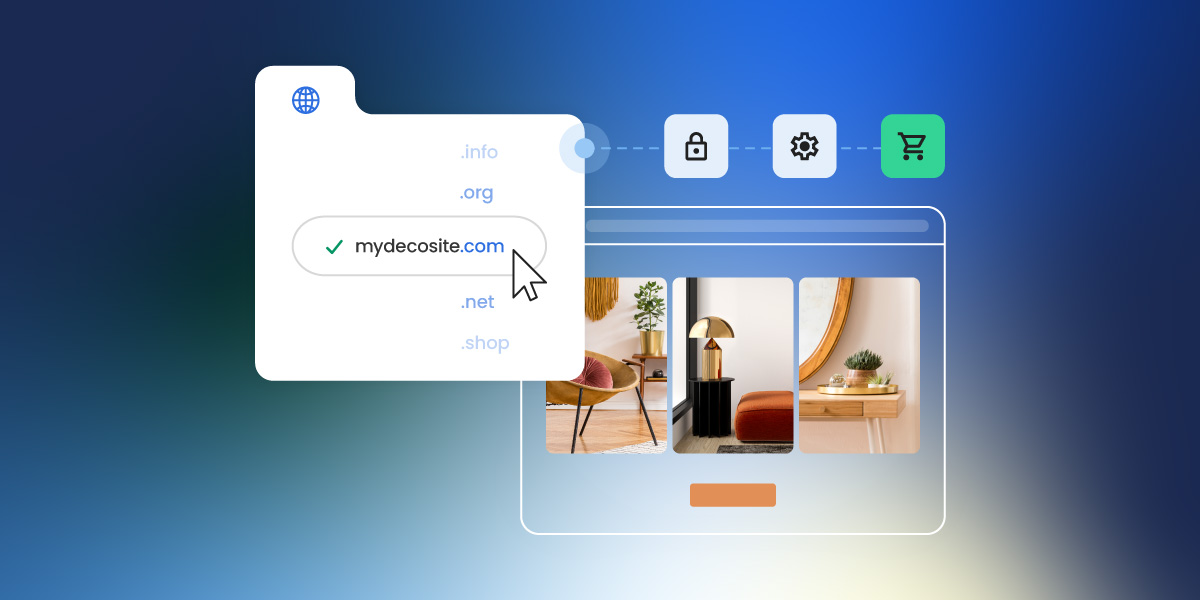
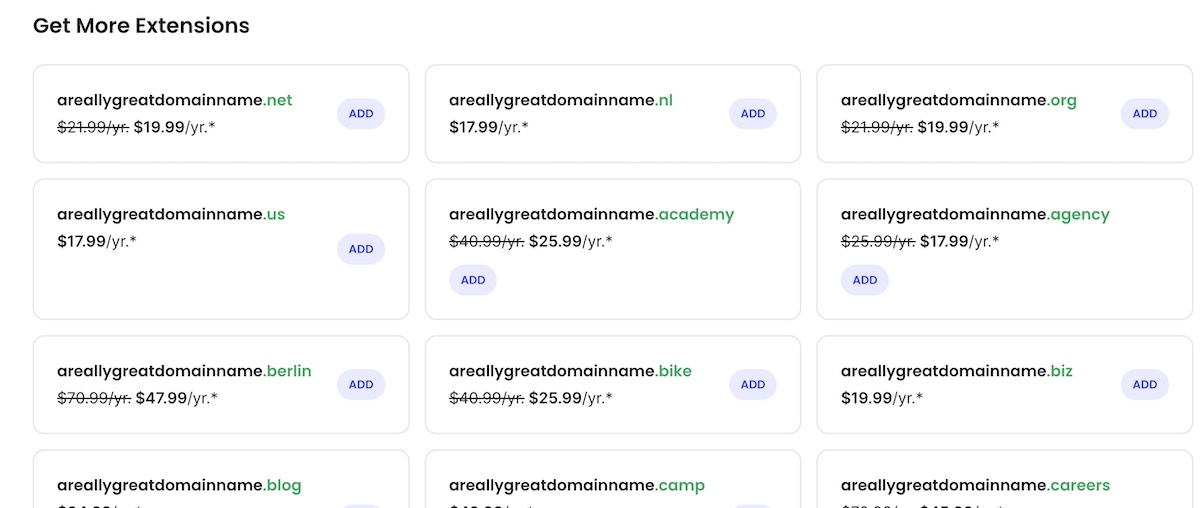
Consider multiple TLDs to avoid domain squatting

And again, if you can’t find the ideal available domain name, lean on AI like SiteGround’s domain name generator to help you find one that meets your needs.

3. Complete Your Purchase

Once you’ve found an available domain, it’s time to close the deal. Keep in mind that what you’re doing at this stage is buying your domain for a specific and finite amount of time. So here are some key points to keep in mind as you finalize your domain registration and purchase and : 

  • Add to cart and review extras: Consider optional add-ons like email forwarding, hosting bundles, and domain privacy (if it’s not included, or, if necessary, making sure to add it to your cart if it’s a free option).
  • Check the total cost: We touched on this before, but now’s the time to dot your i’s and cross your t’s. That means looking at both the first-year domain name registration fee and renewal price, as well as any additional services, to make sure you haven’t overlooked any hidden costs.
  • Provide accurate contact information: The administrative contact you enter will be listed in WHOIS records, which are public unless you enable domain privacy—more on how to do that in a minute. 

With SiteGround, finding and registering your domain is straightforward and stress-free. The AI-powered domain name generator helps you come up with available options in seconds, and the intuitive dashboard makes managing your domain simple—everything is designed to keep the process user-friendly from start to finish.

Get started finding your domain now>>

How to Set Up and Secure a Domain

You have a domain name, but now what? Registering your domain is just the start. To protect and activate it, you need to complete six steps: enable privacy, verify your ownership email, turn on 2FA, lock your domain, configure DNS, and set up auto-renew.

Let’s take a look at how to set up and secure your domain. 

1. Enable Domain Privacy

As we’ve already discussed, domain privacy is a really important step in protecting your personal information. It’s also one of the easiest and most important ways to secure your domain. By default, your information is public, but by simply making it private, you save yourself the heartache of exposure that can lead to spam, phishing attempts, and even domain hijacking. Let’s fix that.

Here’s how to enable domain privacy:

  • Make sure it’s enabled: if you purchased it (or it was offered for free), double check to make sure it’s enabled.
  • Buy it as an add on: If you missed acquiring it during purchase, it’s not too late. Usually you can simply purchase it as an add on. 
  • Review your WHOIS info periodically: Confirm that your personal info remains hidden and that only the registrar’s details appear publicly. For example, if you accidentally forget to renew your domain privacy, your information may suddenly become public. 
  • Again, keep in mind that domain privacy isn’t available for all domains, particularly certain country-specific ones.
Example of domain privacy option for a domain

2. Verify Ownership Email

When you register a domain, your registrar will typically send a confirmation email to the address you provided. This isn’t a formality like confirming an email newsletter; it’s actually essential for maintaining control of your domain. Many registrars, including SiteGround, require verification to comply with ICANN rules.

Here’s how to verify your domain ownership email:

  • Check your inbox (and spam folder) for an email from your registrar immediately after purchase
  • Click the verification link provided in the email
  • If you don’t receive it within 24 hours, request a new verification email from your registrar
  • Keep your email account secure—this is your main way to manage ownership confirmations

Important to note: Until you verify your email, some registrars may limit certain domain functions, such as transferring the domain or updating DNS settings. Verifying promptly ensures full access and avoids potential delays.

2. Turn on Two-Factor Authentication (2FA)

We talked about the importance of two-factor authentication before: if someone gains access to your domain registrar login, they could transfer your domain, change DNS settings, or take your website offline altogether. 2FA prevents this by adding an additional layer of security. So now’s when you’ll want to make sure to put this feature to good use. 

Here’s how you would typically set up 2FA via most registrars:

  • Log into your account
  • Go to Security or Account Settings
  • Find and enable Two-Factor Authentication / 2FA
  • Choose a verification method (SMS or authenticator app)
  • Enter the code sent to your phone or generated by the app
  • Confirm setup
Example of enabling two step authentication for a domain

SiteGround actually goes a few steps further with security by offering: 

-App-based 2FA (which is more secure) instead of SMS 
-Backup codes or phone recovery
-A clear setup flow in the dashboard
-Seamless integration with domain/hosting account interface

4. Lock Your Domain

Turning on 2FA protects your login, but domain lock (or registrar lock as it is often called) protects the domain itself. Without it, someone could still request a transfer and move the domain away, even if they never logged into your account.

Assuming your registrar offers it (which they should, given your “before you buy” research), it’s still possible that you may need to enable it. 

Here’s what to keep in mind when it comes to locking your domain: 

  • Some registrars offer domain lock but don’t enable it by default 
  • Some registrars hide it under “advanced” settings
  • As a best practice, leave your domain locked at all times unless you are actively transferring it.
  • Note that not all domain extensions (particularly certain country-specific ones) allow you to lock your domain. 
Example of a domain lock or registrar lock

For those of you using SiteGround: note that domain lock is enabled automatically for qualifying domains, and is located clearly under your domain settings (Client Area > Services > Domains > Settings) so that it’s easy to verify.

5. Set Up DNS and Connect Your Hosting

Once your domain is registered, it’s essentially a blank address on the internet. To actually use it, you’ll need to connect it to your website and email by configuring your DNS settings. Remember: DNS acts like a phone book for the internet, translating your domain name into the IP address of your website’s server.

Steps to set up your domain properly:

  • Point your domain to your hosting: If you purchased web hosting at the same registrar, this may be automatic. Otherwise, update the nameservers or A/CNAME records to point to your hosting provider.
  • Verify email routing (if applicable):  If you plan to use email linked to your domain, ensure MX records are correctly set so messages are delivered reliably.
  • Consult support: This step can get confusing, so if you’ve chosen a good registrar, you can lean on support to walk you through any issues you encounter.
  • Keep in mind: After updating DNS, it can take up to 48 hours for changes to propagate fully across the internet. During this time, some visitors may still reach your old server or see an error page, which is normal.
Example of pointing a domain to a server

6. Monitor Your Domain Name

Owning a domain isn’t a no-maintenance kind of thing: there are high consequences if you neglect it and something goes amiss. Your brand, your sales, your communication—it’s all at risk. So it’s important to keep tabs on your domain and react quickly if something looks off.

What to monitor for your domain name:

  • WHOIS changes: Keep an eye on your publicly listed contact details. Any unexpected changes could signal unauthorized admin updates or hijack attempts.
  • Unusual domain activity or look-alikes: Domain squatting occurs when someone registers a close variation of your brand name (for example, you own yourbrand.com, and someone registers yourbrand-online.com or yourbrandstore.net) and uses it to confuse visitors or cheat your traffic. Being alert means you can act before it becomes a problem. 
  • Domain transfer attempts or login alerts: Some registrars and providers offer alerts or logs that show when someone tries to change settings or access your domain account.
  • DNS settings / redirection changes: If your domain begins routing unexpectedly or your email stops working, it could mean someone has changed your DNS records. Regularly check where it points.

Pro tip: Set up Google Alerts or a similar service for your brand name plus common misspellings—this helps you spot potential squatter domains or phishing attempts impersonating you.

Example of setting up alerts to avoid domain squatting

7. Renew Your Domain Name

Indeed, domain ownership is not in fact permanent: it’s more like a rental that you can renew for a year or years at a time. So in order to keep using your domain, make sure do the following:

  • Enable auto-renew: A simple step that ensures your domain name registration is automatically renewed before it expires, preventing accidental loss because you somehow missed a renewal email or your credit card expired. 
  • Keep your payment information up to date: Speaking of expired credit cards, double check that your payment methods are current to avoid interruptions in service.
  • Set calendar reminders: Whether auto-renew is available or not, you may wish to set calendar reminders just to make sure you don’t miss renewal alert or issue.

You’re Ready to Buy Your Domain

Buying a domain seemed so simple, and indeed it is, but making sure your set up for success requires a little extra homework: that means choosing the right registrar, selecting the optimal domain name, and securing your domain properly. And now you know the drill. With the right preparation, you can confidently register, set up, and maintain a domain that supports your website and business goals.

For a seamless, secure, and hassle-free experience, SiteGround makes domain management simple. You get free domain privacy for the first year, two-factor authentication, domain lock, and unlimited SSL certificates. (If you also sign up for web hosting, your domain is free for the first year, making site and domain management even easier!) You also get free professional email, unlimited subdomains, 24/7 support, and an intuitive dashboard that makes managing your domain effortless—everything you need to get your website online safely and efficiently from day one.

FAQs for How to Buy a Domain Name

Can I buy a domain name without hosting?

Yes, you can register a domain without buying hosting. Many people do this to reserve the domain name before their website is ready. The domain will simply remain “parked” until you connect it to a hosting provider later. Services like SiteGround Web Hosting make it easy to link your domain to hosting when you’re ready, and you’ll just need to keep the domain registration active through yearly renewals (or multi-year renewals if you prefer).

Does the country I live in affect my domain name?

Not usually in terms of who can buy a domain, but it can affect SEO and eligibility depending on the extension you choose. Most global extensions (like .com, .net, .org) can be registered from anywhere and are treated neutrally by search engines. However, country-code domains (like .es, .fr, or .ca) are often used as a signal of geographic relevance, which can help your SEO in that specific country. Some of these ccTLDs also require you to live in—or have a business registered in—that country before you can purchase them.

How can I buy a domain name that is taken?

If the domain you want is already registered, you still have a few options. You can try variations of your domain name or a different top-level domain (TLD) like .net or .info. Some domains are available for sale through brokers or marketplaces, where you can negotiate a purchase with the current owner. Another option is to backorder the domain so you have a chance to claim it if it becomes available. Finally, you can contact the current owner directly to see if they’re willing to sell. Keep in mind that premium domains may come at a higher price, so consider the value to your brand before making an offer.

Can I buy a domain name permanently?

No, you can’t buy a domain name permanently. Domains are registered for a set period, usually between one and ten years, and must be renewed before they expire to maintain ownership. Most registrars, including SiteGround, offer auto-renewal options so you don’t accidentally lose your domain. As long as you keep renewing it, you can essentially maintain control indefinitely, but there’s no one-time “forever purchase” option.

This article was originally published in November 2025 and then updated in May 2026.
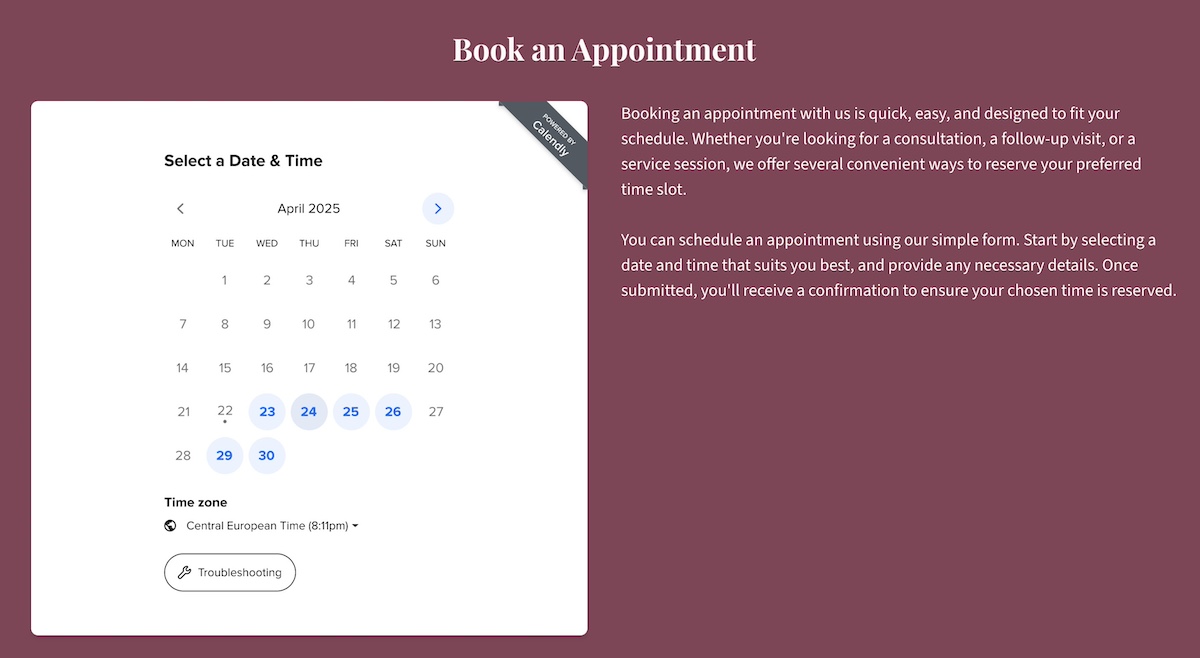
Website Structure: A Complete Guide to Organizing, Linking & Optimising Your Site

Abstract design of website structure

Your website structure is the foundation that shapes how visitors navigate your site, how search engines understand your content, and how effectively you turn browsers into customers. Getting it right matters more than ever in an era of AI-driven search, content overload, and evolving user expectations. This guide breaks down the essential dos and don’ts for building a structure that works for your visitors, modern search, and your business as it grows.

Key takeaways:

  • Website structure is the foundation that determines how easily users, search engines, and AI systems understand and navigate your site.
  • A clear hierarchy, logical page grouping, and smart internal linking guide visitors from discovery to conversion.
  • Well-structured URLs, categories, and tags improve usability, SEO, and long-term scalability.
  • Mobile-friendly structure and UX are essential for accessibility, performance, and retention across devices.
  • Planning a flexible structure upfront makes it easier to grow your content, products, and site without costly rework later.

When people think about building a website, they often focus on colors, fonts, and flashy design — and that’s the fun part. But the real magic happens behind the scenes, in how your pages are organized, linked, and presented. A well-structured site makes your content easier to find and interpret — not just for humans, but for search engines and AI systems too — while guiding visitors naturally toward key actions.

[24]

What is Website Structure?

Your website structure is the way your pages are organized and connected. Think of it like the blueprint of your site: how your homepage, categories, product pages, and blog posts fit together.

A good website structure creates a clear hierarchy—from broad, top-level pages (like your homepage or main product categories) down to more specific subpages (like individual products or articles).

Diagram of website structure with homepage then categories, subcategories and individual pages

While structure defines the underlying hierarchy, website navigation is how that structure becomes usable. Think of structure as the architectural plan—the way pages are grouped and connected behind the scenes—and navigation is the pathway users see and click through. A site can have a solid structure but still feel confusing if the navigation doesn’t clearly reflect it; likewise, great navigation can only go so far if the structure beneath it is disorganized. Both work together to help users (and search engines) understand what your site is about and how to move through it.

In practical terms, website structure includes:

  • How pages are grouped (categories, subcategories, tags)
  • How users move between them (navigation and internal links)
  • How URLs are built
  • How easily search engines can crawl and understand your site
Example of an AI overview in google search

Why is Website Structure Important?

Website structure is kind of a big deal—bigger than it might seem anyway. Indeed, it does more than organize pages—with the right website planning, it shapes how visitors and search engines understand your business while creating clear pathways that turn browsing into conversions. Here’s a clear breakdown of what a strong website structure does:

  • Signals your expertise to Google: Your site structure improves SEO by showing Google the areas you cover in depth, and by building authority as a trustworthy and organized resource in your niche.
  • Supports AI interpretation and recommendations: A well-structured website helps AI systems understand the relationships between your pages and topics—sometimes called generative engine optimization. This can improve content recommendations, AI overviews, and other AI-driven features, while also guiding users naturally through your site.
  • Improves crawlability: Search engines don’t read every single link equally—according to Google Search Central, roughly the first 200 internal links are prioritized.
  • Guides visitors: A clear hierarchy helps visitors find what they need quickly, using categories, subcategories, and descriptive labels—like “Hiking Clothing for Women” instead of just “Women.” 
  • Drives conversion paths: At the same time, a well-structured site guides users naturally toward key actions—subscribing, booking, or making a purchase. Your structure determines not just where users land, but what they discover next, creating an intuitive path from browsing to converting.
  • Supports growth and business scalability: A flexible, well-thought-out site structure makes it easier to add new products, services, or content without breaking your site’s organization. Think in clusters or “knowledge graph” style: related concepts and pages are grouped logically, so visitors and search engines always understand how your content connects.

A knowledge graph is basically a visual or data-based map of relationships between concepts, entities, or content. In the context of websites and search engine optimization, it’s about showing how different pages, topics, and keywords are connected so that both people and tech can understand the structure and meaning of your site.

What Are the Different Types of Website Structures?

Before we jump into those dos and don’ts, let’s define what different website structures look like. Each serves a different purpose depending on the size of your site, the nature of your content, and your business goals:

1. Hierarchical Structure 

A hierarchical structure organizes content in a top-down format, with broad categories at the top and more specific subcategories underneath. Sometimes it’s also called a tree structure, since it branches out from a single homepage to broader categories and then to more specific subpages, much like the branches and leaves of a tree. This type of structure is intuitive for users and search engines, making it easier to navigate and understand.

Example: A digital marketing agency might organize its site hierarchically as Homepage → Services → SEO / PPC / Social Media, making it easy for users and search engines to explore and understand the agency’s offerings.

Example of a hierarchical website structure with a main menu item and dropdown

2. Sequential Structure

A sequential structure guides users through content in a specific, predetermined order. This is useful when the information is best consumed step by step.

Example: Online courses, tutorials, onboarding flows, or single landing pages that lead users through a series of sections toward a single goal.

3. Matrix Structure

Pages interlink freely, allowing multiple paths through content. This approach is more complex but can work well for large informational sites with interconnected topics.

Example: A knowledge base (like the SiteGround Knowledge Base, seen below) or help center where articles link to related topics, FAQs, and troubleshooting guides across categories.

Example of a matrix website structure with multiple links out to various resources

4. Database Structure

Database structures are dynamic, generating pages based on user queries or filters. These sites often rely on search and sorting features to help users find relevant content quickly.

Example: Real estate or job listing sites where users filter results by location, price, or category, with pages generated automatically from the underlying database.

Which Website Structure Type is Most Common?
While many websites combine elements from different structures, the hierarchical structure remains the most common, especially for ecommerce, blogs, and corporate sites. Its clear, top-down organization makes it easier for visitors and search engines to understand your content.

We’ve covered the essentials—now it’s time to put them to work. As you tackle your website checklist, here are dos and don’ts to help you create a site structure that’s intuitive for users, performs well in search, drives conversions, and stays adaptable as AI continues to evolve how content is discovered.

The good news is that whether you’re building a site from scratch or reorganizing an existing one, we’ll outline how you can apply the same principles to make your structure clear, logical, and easy to navigate. 

How to Structure User Pathways and Hierarchy

Your site hierarchy determines how visitors and search engines move through your website. Think of it like a city map: highways, exits, and signposts guide people where to go. Menus, headers, and links surface the most important pages and shape the paths users take—whether toward information, products, or conversion.

Here are the dos and don’ts of a solid website hierarchy: 

Do: Use a Clear, Logical Menu

  • Define your site’s purpose and key goals. What problem should your site solve, and what do visitors need to accomplish?
  • Identify your pillar areas (main products, services, or content themes) based on those goals. 
  • Prioritize the most important pages so they are easy to reach (ideally within 1–2 clicks).
  • Map the sections and their order to support logical user pathways and conversion journeys. For example: product discovery → product detail → checkout.
  • Draw a simple site map or page flow diagram showing your pillars, subpages, and key pathways. This helps you visualize the structure and ensure users can reach important pages efficiently.
  • Use clear, descriptive menu labels so users always know where they are.
  • Limit top-level items to 5–7 to reduce cognitive load.

Pro Tip: Use a Sitemap
A sitemap is a master list of all your website’s pages. Submitting an XML sitemap to Google Search Console helps crawlers understand your structure, and large sites can include an HTML sitemap in the footer to support user navigation.

Don’t: Overcrowd Menus or Bury Important Pages

  • Resist cramming too many items into the main menu—it confuses users and dilutes SEO value. For example, you can see in the below image that SiteGround keeps its main menu super clean and focused on the main offerings. No extra noise. Just a clear display of the pillar products.
SiteGround homepage with pillar offerings in the main menu
  • Don’t hide important content several clicks deep; pages buried too far from the homepage may get ignored.
  • Avoid inconsistent labeling or mixing unrelated topics in one menu.
  • Don’t rely on footer menus to carry essential navigation—they should supplement, not replace, the main menu.
  • Avoid having too many sub-levels; ideally, no page should be more than 3 clicks from the homepage.

If your site is already live:

Start with an audit. Map your existing pages, menus, and user flows to see what’s working and what needs improvement. Focus first on high-traffic or high-conversion pages, and make edits gradually.

Important note: When you reorganize pages or change URLs, don’t leave old links broken—use redirects to guide visitors and search engines to the correct new page. A redirect is a way to automatically send visitors and search engines from one URL to another, and thus maintain usability and SEO when pages are moved or URLs change.

How to Organize Your Pages

Page organization focuses on how your content is structured behind the scenes—that is, how pages are grouped, connected, and linked internally. It’s like zoning inside a city: neighborhoods and blocks determine what belongs together and how areas relate. 

Thoughtful organization not only improves usability and SEO but also shapes conversion paths, guiding users toward key actions, whether they land on the homepage, a blog post, or a product page. 

Here’s how and how not to implement your page organization:

Do: Group Content Logically

  • Organize products, services, or articles under clear categories and subcategories.
  • Connect related pages through internal links (not just menus) so users can explore without starting over.
  • Use descriptive page titles that accurately reflect the content, making it easier for both users and search engines to understand the purpose of each page.
  • Consider grouping similar content into “topic clusters” so users, search engines, and AI-crawlers can easily explore related pages. For example, a sports gear site could have a cluster for running gear, which includes product pages for running shoes, apparel, and accessories.
diagram of topic clusters with pillar content and cluster content

Don’t: Scatter Important Content

  • Don’t create pages that don’t fit clearly into your existing categories.
  • Avoid duplicating content across multiple pages, which can dilute SEO value and confuse visitors—this is especially important for ecommerce sites with similar products or product variants.
  • Don’t use inconsistent or vague labels that make it difficult to move through the site. For example, labeling a category “Gear” or “Equipment” is too broad—users won’t know if it includes shoes, apparel, or accessories.
  • Avoid orphan pages, which are pages that have no internal links pointing to them, making them hard for users to find and for search engines to index.

If your site is already live: 

Consider reassigning orphan pages into logical categories, merging duplicate or thin content pages into main clusters, and adding internal links to connect related content.

How to Use Categories and Tags

Categories and tags both help organize your content, but they are implemented differently in a website’s structure:

Categories are part of the site’s core navigation and URL structure—they create the main sections of your site and typically have their own pages (such as /blog/travel/ or /resources/tutorials/).

Tags are labels attached to individual pieces of content—they help group related topics across categories and can be used by search engines (and increasingly by AI systems) to understand relationships between posts, even if users don’t see them in the main navigation.

Here are the dos and don’ts for implementing both categories and tags effectively in your website structure: 

Do: Use Categories and Tags to Group Related Content

  • Use categories for the primary themes of your site—these are visible to users and shape navigation.
  • Use tags to group closely related content across categories (for internal organization and SEO, even if not always publicly shown).
  • Keep your naming consistent and meaningful so both search engines and users can understand your topical focus.
  • Plan category growth in advance to avoid restructuring later.

Don’t: Overcomplicate or Mislabel Your Content

  • Avoid treating categories and tags as interchangeable; they serve different purposes in the content structure.
  • Don’t wait until after publishing large amounts of content to define your taxonomy, as reorganizing later becomes more complex.
  • Don’t rely on vague or overly clever labels that make users guess what the content is about.
  • Resist creating categories or tags that don’t map to real user intent or browsing behavior.
  • Don’t allow unlimited category growth without clear criteria for when something warrants its own category versus remaining a tag.

If your site is already live:

You can implement many of these dos and don’ts by consolidating overlapping categories, fixing inconsistent tag naming, and removing categories/tags that no longer match site goals.

How to Structure Your URLs

If you’ve created website pages or blog posts, you might not have given too much thought to the URL—after all, it gets generated on its own, so why stress? Well, because—as you just learned with categories—your URLs aren’t just web addresses, but rather signals for both users and search engines about what each page contains. In fact, clear, consistent URLs improve usability, SEO, and overall site clarity. So here’s how to structure your URLs effectively.

Do: Use Descriptive, Consistent URLs

  • Include keywords that reflect the page content, such as /ski-clothing-women.
  • Keep URLs short and readable—users should understand the page topic at a glance.
  • Use hyphens to separate words (instead of underscores or running words together), as they are easier for both people and search engines to read. 
  • Structure URLs to reflect hierarchy: for example, /women/shirts/cotton-shirt shows the page’s place in your site clearly.

Important note: Folders are the sections of a URL that come before the final page slug. For example, in /women/shirts/cotton-shirt, the folders are /women/ and /shirts/. They often align with categories and subcategories, but the key is that they reflect logical groupings that help both users and search engines understand your site structure. A clear, consistent folder structure signals topic clusters to Google, and helps visitors orient themselves as they browse.

Don’t: Use Messy or Inconsistent URLs

  • Skip generic IDs or numbers that give no context, like /page?id=2345.
  • Don’t change URLs frequently; redirected or broken links can confuse users and hurt SEO.
  • Avoid overly long URLs with unnecessary parameters or repeated keywords.
  • Be cautious about using unnecessary stop words (like a, the…) or characters that add length without context.
  • Don’t mix different conventions (that is, some lowercase, some uppercase, inconsistent hyphens or underscores).

If your site is already live:

Review existing URLs and apply the dos and don’ts above, but be cautious about changing too many at once. Always implement redirects for any URLs you update so users and search engines are sent to the correct new page. Prioritize top-traffic or high-conversion pages first, and avoid unnecessary URL changes to prevent SEO disruption.

How to Use Internal Linking

Internal links connect your pages, helping visitors explore related content and guiding search engines through your site. Thoughtful linking improves usability, distributes authority, and reinforces your site’s topic structure.

Depending on your business, though, users can often land on random pages rather than the homepage. This is especially common for content-heavy sites or ecommerce stores with multiple marketing touchpoints. So that’s why having a clear, logical website structure is even more critical: it ensures visitors can move through your site naturally, understand where they are, and discover relevant content, regardless of how they enter your site. 

Do: Link Important Pages Logically

  • Link related content together so visitors can easily find more information on the same topic.
  • Prioritize links to your key pages or pillar content—these are the pages you want users and search engines to see first.
  • Create internal link paths that lead users toward high-value pages such as product pages, pricing, sign-up forms, or key resources. These paths help turn discovery into action and form the backbone of your site’s conversion journey.
  • Use descriptive anchor text that clearly explains what the linked page is about, such as “guide to planning a product launch,” or “how to choose the right car.”
  • Consider linking from high-traffic pages, likely landing pages, or campaign entry points to newer or less-visited content to help users orient themselves.
  • Keep the number of links per page reasonable—focus on quality over quantity.

Don’t: Misuse Internal Links

  • Avoid generic anchor text like “click here” that doesn’t describe the linked content.
  • Don’t link to unrelated content just to increase links—it can frustrate users and harm SEO.
  • Avoid broken links or links to outdated pages, which frustrate users and reduce search engine trust.
  • Refrain from using the same anchor text repeatedly across multiple links to different pages—it can confuse search engines.
  • Don’t rely solely on top-level pages or the homepage—ensure deeper content is connected through relevant internal links, since many users will land on pages deep within your site.

If your site is already live: 

Audit your existing pages for broken or outdated links, add internal links to orphan or low-traffic pages, and adjust anchor text for clarity.

How to Structure for Mobile and UX

With more users browsing on mobile devices, your website needs to be easy to use and read on any screen. A mobile-friendly website design improves usability, reduces frustration, and helps search engines understand your site.

Do: Ensure Website Structure and Layout Work on All Devices

  • Use responsive design so that your website layout automatically adjusts to different screen sizes.
  • Make menus and buttons easy to tap on smaller screens.
  • Prioritize important content near the top, so users don’t have to scroll excessively.
  • Test your site on multiple devices and browsers to catch usability issues.
  • Simplify forms and interactive elements for mobile users.
  • Use mobile-friendly media (optimized images, scalable fonts, and touch-friendly carousels).
  • Employ accessible web design, including proper contrast, readable fonts, alt text for images, and keyboard-friendly navigation—all principles grounded in established UX and information architecture research—so all users can engage with your content effectively.
Mobile optimization showing desktop and phone version

Don’t: Assume Desktop Design Works for Mobile

  • Avoid tiny buttons, cramped text, or horizontal scrolling.
  • Don’t hide key pages or functionality on mobile versions of your site.
  • Skip layouts that break or load slowly, which frustrate users and can harm SEO.

If your site is already live:

Audit your site on multiple devices and screen sizes to identify any usability issues, and fix any navigation, buttons, forms, and media that don’t display or function well. Prioritize critical content near the top of pages, and test interactive elements for touch-friendliness. Even small adjustments—like resizing images, improving contrast, or making menus easier to tap—can dramatically improve the mobile experience and reduce frustration.

Build a Mobile-Optimized, High-Performance Site Effortlessly

With the SiteGround Website Builder, many of these mobile and UX considerations are taken care of automatically. Responsive layouts, touch-friendly menus, optimized images, scalable fonts, and built-in accessibility ensure your site looks great and works seamlessly on any device—no extra setup required. And because it’s powered by SiteGround’s fast, secure, and reliable hosting platform, your site is optimized not only for design, but also for speed, protection, and long-term performance.

Start building your website now>>

How to Build a Flexible Website Structure

Flexible website structure allows your site to grow over time without becoming cluttered or confusing. Planning for scalability ensures new content or products fit naturally and maintain a clear hierarchy. Here’s what a flexible website structure looks like—and what it doesn’t.

Do: Plan for Growth and Adaptability

  • Design your site structure so new pages, products, or sections can be added without breaking navigation.
  • Focus on logical groupings of related content to maintain a consistent hierarchy as your site grows.
  • Make sure top-level categories can accommodate subcategories as your site expands.
  • Use flexible URL and menu structures that are easy to update as your content grows.
  • Regularly review and adjust your hierarchy to prevent bottlenecks or overcrowding.
  • Consider future content types or product lines when planning categories and links.

Don’t: Create a Rigid Website Structure That Limits Future Growth

  • Avoid locking in too many categories or subpages, which makes it hard to add new content.
  • Don’t scatter new website pages randomly; each addition should fit logically into your existing hierarchy.
  • Steer clear of overly complex menus that can’t scale with your site.
  • Don’t ignore future SEO considerations—SEO trends and your business are always changing, so plan your website structure so that new pages can be easily updated, discovered, indexed, and ranked as your site grows and search evolves.
  • Refrain making major structural changes without a clear plan, which can confuse users and search engines.

If your site is already live:

You can easily apply these same dos and don’ts going forward, and—as we mentioned with regard to your site hierarchy—make changes little by little, starting with your most important pages, and being mindful of adding redirects. 

Your Next Steps for a Smarter Website Structure

By now it’s surely evident that building a great website is so much more than just a random collection of your content, products, and so on; its true strength and power comes from how everything fits together underneath. That’s because a clear, logical website structure helps users find what they need, signals your expertise to search engines, and naturally guides visitors along conversion paths—all while staying ready for AI-driven content discovery and recommendations.

If you’re ready to put all these site structure dos into action, the SiteGround Website Builder is the ideal place to start. Built-in responsive design, intuitive tools, and SEO-friendly foundations help you create a clear, well-structured site—while SiteGround Ecommerce lets you extend that structure into an online store when needed.

A promotional image for SiteGround's Easy-to-Use Website Builder featuring a mockup of a website with a living room photo. The text highlights creating a professional site without coding, offering customizable templates, AI-powered content generation, built-in SEO tools, access to over 6 million free high-quality images, an easy drag-and-drop editor, and mobile-friendly designs. Includes a "Get Started Now" button and the SiteGround logo.

Website Structure FAQs

What is the structure of a website?

Website structure is the way your pages are organized and connected—essentially the blueprint of your site. It defines the hierarchy from broad, top-level pages (like your homepage or main categories) down to more specific subpages (like individual products or articles). In practical terms, it includes how pages are grouped, how users move between them, how URLs are built, and how easily search engines can crawl and understand your content.

What is a good website structure for a website?

A good website structure is clear, logical, and easy to navigate for both users and search engines. It typically follows a hierarchical format—homepage at the top, main categories beneath it, and more specific subpages below those. Important pages should be reachable within 1–2 clicks, URLs should be descriptive and consistent, and internal links should connect related content naturally. A good structure also plans for growth, so new pages and sections can be added without disrupting the existing hierarchy.

Why is website structure important for SEO?

Website structure directly affects how search engines crawl, understand, and rank your content. A logical hierarchy signals your areas of expertise to Google, while consistent internal linking helps distribute authority across your pages and ensures your most valuable content gets indexed. A well-structured site also supports AI-driven search features, since it makes the relationships between your pages and topics easier to interpret. This improves your visibility in both traditional and AI-generated search results.

What is the difference between website structure and website navigation?

Website structure is the underlying architecture—how your pages are grouped and connected behind the scenes. Navigation is how that structure becomes visible and usable to visitors, through menus, links, and labels. Think of structure as the architectural plan and navigation as the signage that guides people through the building. A site can have a solid structure but still feel confusing if the navigation doesn’t clearly reflect it, and vice versa. Great navigation can only go so far if the underlying structure is disorganized.

This article was originally published in October 2025, and then updated in April 2026.

Branding Basics: A Step-by-Step Guide to Building Your Brand

Abstract of brand basics for businesses

A strong, memorable brand multiplies the value of your business, shaping how people perceive you, driving their decisions, and building lasting value that goes far beyond logos, colors, or slogans.

I’ve spent years working on branding from both sides of the table, helping large corporations build consistent, recognizable brands, and later launching small business and startup brands of my own. That range taught me what it takes to make a brand stand out when resources are limited and every decision matters.

This guide walks entrepreneurs and small business owners through every step, from defining your mission to creating visuals and building consistency, whether you’re launching something new or refreshing an existing identity.

Key Takeaways:

  • Branding is about shaping perception through every interaction—not just logos or visuals.
  • A strong brand starts with a clear mission and a deep understanding of its audience.
  • Consistent storytelling, voice, and visuals are what turn awareness into trust and loyalty.
  • Brand guidelines ensure your identity stays cohesive as your business grows and evolves.
  • The most successful brands are built intentionally, executed consistently, and refined over time.

What Is Branding?

Branding is the practice of actively shaping how people perceive your business through every interaction, touchpoint, and message. It’s the overall impression your company branding leaves on customers and prospects, and, very importantly, the perception that sticks with them after.That means it’s much more than just your logo or color palette. 

It goes beyond, including your visual identity, tone of voice, messaging, and even how you handle customer support. When done right, branding builds recognition, trust, and emotional connection—the foundation for long-term loyalty. 

Why Does Branding Matter?

Branding matters because it directly shapes whether customers trust you, remember you, and choose you over competitors. It’s not a “nice to have,” especially for entrepreneurs and small businesses competing against bigger names. Effective branding builds recognition, communicates brand values, and creates trust, all of which can directly influence customer decisions and revenue.

Key reasons branding matters include:

  • Builds trust and credibility with customers and partners.
  • Differentiates you from competitors in a crowded market.
  • Creates emotional connections that drive loyalty.
  • Guides strategic decisions across products, marketing, and partnerships.
  • Supports long-term growth as you scale your business while maintaining a recognizable, consistent identity.
  • Contributes to brand equity: according to IPA research, strong, well-recognized brands can command higher prices and attract loyal customers, and Harvard Business School Online notes their value can even appear on the balance sheet as goodwill when a company is acquired.

Ultimately, good branding turns a business into a memorable, trusted, and valuable asset, one that strengthens relationships, drives revenue, and positions the company for sustainable success.

I’ve seen this firsthand in my own career—both working on branding for Fortune 500 companies and later building a premium consumer brand of my own. The difference between a product that people notice and one they overlook almost always comes down to branding—not budget. When a brand is thoughtfully built and consistently executed, it opens doors: partnerships, press, distribution, loyalty, and long-term value.

How Do You Build a Brand?

As you’ve surely gathered by now, brand building isn’t as simple as creating a logo. To truly create a lasting and impactful brand, you must go through the process of defining, expressing, and refining who you are as a business. The steps below will help get you there, with a step-by-step plan for creating a brand that feels authentic, resonates with your target audience, and stands the test of time. Let’s jump on the branding bandwagon.

1. Identify Your Mission

Every strong brand needs a clear mission before you even touch colors or designs. That’s because your company’s mission defines why your business exists beyond making a profit—that is, what change you want to create, what need you meet, and what value you bring to your customers’ lives. 

This clarity becomes the beating heart of your brand strategy, serving as the foundation for everything—from how you communicate to how you design. It ensures your messaging stays consistent and your decisions remain aligned as your business grows.

When I launched my olive oil brand, this step was pivotal. My goal wasn’t simply to sell a product; it was to help people understand what makes truly great olive oil—why sourcing matters, how harvest timing affects flavor, and what quality tastes like. That mission of education and appreciation shaped every decision afterward: the storytelling, the packaging, even the language on the bottle. Because the mission was clear and genuine, the rest of the brand flowed from it naturally.

If you’re unsure where to start with your brand, ask yourself:

  • Why did I create this business in the first place?
  • What problem am I helping people solve?
  • What makes my approach different or better?

Once you’ve answered those questions, summarize your mission in one clear statement. For a kitchenware business, this could look something like: “We craft premium kitchen tools that help home chefs cook with confidence and flair.”


If you’re struggling to articulate this mission, don’t be afraid to turn to your favorite AI. For instance, with the right ChatGPT prompts, AI can help synthesize your thoughts so that you can come up with a clear and powerful mission statement.

chatgpt prompt asking chatgpt to help develop a brand's mission

At the end of the day, keep it simple and authentic. Your mission should be easy to remember and easy to believe. It’s not marketing mumbo jumbo; it’s the heart and soul of your brand.

2. Define and Understand Your Audience

Once you know why your brand exists, the next step is understanding who it’s for. Your brand should speak directly to the people who will benefit most from what you offer. To do that effectively, you need to know them inside and out.

Start by identifying your ideal customer:

  • Who are they (age, location, interests, lifestyle)?
  • What challenges or frustrations do they face?
  • What motivates their decisions—price, quality, convenience, values?
  • How do they want to feel after engaging with your brand?

The goal isn’t just to define demographics but to understand mindset and emotion. The more clearly you picture your target audience, the easier it is to create messaging, visuals, and experiences that resonate.

One of the best ways to do this is to actually get to know your audience. Real insight doesn’t come from assumptions; it comes from listening. In my experience, that process has looked very different depending on the size of the business. When I worked with large corporate brands, we relied on structured research like surveys and focus groups to test messaging and understand customer needs. But when working with early-stage startups or building brands from scratch, we got much closer to the customer by interviewing people directly to uncover their frustrations, motivations, and what they wish existed in the market.

Those conversations don’t just validate your assumptions about your product and its brand, but in fact often reshape them. And that’s where real brand clarity comes from: not guessing what people want, but hearing it in their own words.

Once your audience becomes crystal clear, you can visualize your target customer by creating a simple buyer persona—a short description of a fictional but realistic example of your ideal audience. For instance:

“Freelancer Fiona is a 35-year-old designer who works remotely and relies on digital tools to stay organized. She values brands that save her time, simplify her workflow, and speak to her in a straightforward, professional tone.”

When you define and understand your audience, your branding shifts from being about what you want to say to what they need to hear.

Pro tip: As part of this process, think also about how your customer interacts with your brand from start to finish. Building a customer journey map can help you better understand who they are, what they need, and how your brand can meet them every step of the way.

3. Build Your Brand Story

Your brand story shows how your mission meets your audience’s needs, connecting why you exist with who you’re here to serve, and how you solve their problems or make their lives better.

A strong brand story is more than a list of milestones or a marketing pitch. It’s an emotional thread that helps people feel what your brand stands for and why it matters.

What I’ve found again and again—both when building my own brand and when working with startups—is that this step becomes far more natural when you’ve really done the work in the previous two. When you’re clear on why you exist and who you serve, the story almost starts telling itself. It stops feeling like something you have to “craft” and instead becomes the way you genuinely talk about your business, because you’re rooted in purpose rather than a slogan.

To shape your story, focus on these elements:

  • Origin: How did your brand begin? What inspired you to start?
  • Purpose: What problem or need sparked your idea?
  • Transformation: How do you make your customers’ lives better or easier?

Here’s a simple example:

“After a decade in big-agency PR, a communications strategist saw how smaller companies struggled to get noticed without huge budgets. She started her own boutique agency to change that—giving startups, small businesses, and entrepreneurs the same storytelling power as global brands. Her mission: to make great PR personal, strategic, and accessible.”

A great brand story acts as a bridge between who you are and who you serve. It helps your audience see themselves in your journey, and that connection is what turns awareness into loyalty.

4. Develop Personality and Voice

Your brand’s personality is how it feels to your audience—friendly or formal, bold or reassuring, playful or sophisticated. It’s what makes your brand memorable and relatable, setting the tone for every piece of communication you create. Just like in personal branding, your brand’s voice should sound like you—consistent, distinct, and aligned with your values.

To define your personality, think of your brand as a person. How would they speak? What kind of energy would they bring to a conversation? Use these questions to guide you:

  • What three adjectives describe your brand’s character?
  • How do you want customers to feel when they interact with you?
  • What tone best fits your industry and your values?

Once you’ve defined your personality, translate it into a brand voice—the words, tone, and style that bring that personality to life. For instance, a real estate business with a confident, approachable personality might use conversational language and storytelling examples to simplify complex topics.

A consistent voice helps build trust, and by extension, your brand. Whether you’re writing a press release, social post, or email marketing, your audience should always recognize you. 

When I was creating social media content and marketing emails for my own brand, I made a point of keeping the tone playful and approachable—almost as if I were speaking to a close friend. This wasn’t random; we knew our target audience well, and that kind of voice felt authentic to them and helped build a genuine connection.

Example of an email newsletter with a playful brand voice

One of the most important ways to put your brand voice into action is through email marketing. Tools like SiteGround Email Marketing make it easy to stay consistent, no matter the audience or channel. The built-in AI writer can help you craft copy that fits your tone perfectly—whether you’re looking for something neutral, promotional, professional, or social-media specific. This ensures your content reflects your personality and strengthens your brand with every send.

5. Create Visual Identity

Your visual identity is what makes your brand instantly recognizable. It includes the colors, fonts, imagery, and other design elements that communicate who you are and what you stand for. But, importantly, it’s not just about looking good! It’s about creating a cohesive visual language that reflects your personality and brand values at a glance.

That’s right: a cohesive and consistent visual identity creates brand recognition across every touchpoint, from your website to social media to marketing materials. Thinking about your brand holistically like this ensures all elements work together to express your personality clearly and consistently. 

When your visual identity grows out of a brand you’ve taken the time to understand deeply, the design becomes more than decoration, and becomes shorthand for your values and story. In my own career, building both my brand and brands for early-stage startups, the visual process became far easier and much more authentic when we first got clear on who we were serving and why. Once that foundation was in place, the visuals weren’t guesses or random style choices, but instead became extensions of our story and purpose.

With that in mind, these are the branding elements you’ll want to focus on:

Logo: Your logo is the centerpiece of your brand, but what’s most important is designing it with your entire brand in mind. Before diving headfirst into logo creation, contemplate the full picture, including the other elements listed below. 

Also consider how and where your logo will be used—on your website, email headers, social media profiles, printed materials, merchandise, and even as a tiny favicon in a browser tab. Planning for all these applications ensures your logo works everywhere and aligns with your overall brand.

Color palette: Choose colors that reflect your brand’s mood and values. Many brands use a system of primary, secondary, and even tertiary colors: primary colors define your brand at a glance, secondary colors complement and support the primary palette across marketing materials and digital channels, and tertiary colors can be used sparingly for accents or special campaigns, adding depth without diluting your identity.

Example of branding color pallete with primary and secondary colors

Typography: Your fonts should align with your brand’s tone—for example, modern and clean for tech, classic and elegant for luxury, or bold and friendly for lifestyle brands. Many brands choose two main fonts: one for headlines to grab attention and convey personality, and another for body copy to ensure readability.

Imagery and graphics: Define your photography and illustration style. Are your visuals polished and professional, or candid and authentic? Also pay attention to color tones, lighting, and composition so that your imagery has a consistent mood and brand style.

Brand elements: Consider supporting design elements like icons, textures, or patterns that can reinforce your style.

If you’re unsure how to define these elements, tools like ChatGPT or other AI can be a helpful resource. By providing details you’ve already clarified—such as your mission, audience, and brand personality—ChatGPT can suggest ideas for color palettes, fonts, and other design elements. You can even use ChatGPT to create a website, helping you implement your brand consistently across your content.

6. Produce Brand Guidelines

Once you’ve settled on these elements, remember that the key to successful branding isn’t just creating a beautiful brand—it’s being consistent with it. When your visuals, voice, and messaging align across your web design, social media, packaging, and marketing materials, they reinforce your identity and make your brand more memorable.

Brand guidelines help make this happen. They act as a manual for your brand, allowing anyone—whether on your team or external partners—know exactly how to execute your brand, and equally important, how not to. They don’t just document the elements we’ve covered above, but they also provide concrete examples of correct and incorrect usage.

Example of SiteGround brand guidelines including logo dos and don'ts

During my years managing brand strategy for a large corporation, I learned that true brand building means letting guidelines become your watchwords. So much so that, many years later, I still remember our main pantone color code—PMS 208!—because it was ingrained in every project and interaction. That precision and consistency is what builds and maintains brand equity. 

A solid set of guidelines typically covers:

  • Color codes and typography
  • Logo usage rules, including correct and incorrect examples
  • Voice and tone guidelines

Even for small businesses, the lesson holds: treat your brand like it matters, and it will. Well-crafted guidelines make it possible to uphold that consistency, so your brand stays cohesive, professional, and memorable no matter who is communicating it.

This level of detail is oh so important. That is, to build a strong, recognizable brand (and even protect it legally), you need to be meticulous about maintaining consistency across every interaction.

7. Implement Branding 

Defining your brand is of course only the first step in brand building; the real impact comes from applying it. So now it’s time to use your newly created guidelines to really bring your brand to life. 

This is where consistency truly pays off. When I launched my own brand, I didn’t have a massive marketing budget, but every detail—from packaging and website to social media visuals and tone of voice—was carefully aligned. That consistency helped our brand stand out, getting noticed by major retailers and featured in high-profile national magazines and newspapers, and even landing coverage on the news. It proved that when your brand is cohesive and thoughtfully executed, it can generate recognition and credibility that no budget alone can buy.

Here are some ways to put your branding into action:

  • Packaging and physical materials: If you have tangible products, make sure packaging, labels, and even shipping materials reflect your brand.
  • Presentations and documents: Use consistent branding in slides, PDFs, and internal/external documents.
  • Team alignment: Make sure employees and contractors understand your brand guidelines and the value of following them. When your team knows why consistency matters, they’re better able to represent the brand accurately and maintain its impact across every interaction.
  • Advertising campaigns: Apply your brand strategy consistently in paid ads, both online and offline, so your brand messaging and visuals are instantly recognizable.
  • Create templates for social media marketing: Ensure your posts, graphics, and captions consistently reflect your colors, fonts, and tone of voice.
  • Implement branding in email marketing: Use consistent visuals, messaging, and layouts in all your campaigns so subscribers immediately recognize your brand.
  • Reflect your brand on your website: From colors and fonts to imagery and messaging, every website page should reinforce your brand identity.
Example of a website builder where you can choose the right fonts for your brand

8. Evolve With the Times

Even the strongest brands aren’t meant to stay frozen in time. As your business grows, your audience shifts, or the market evolves, your brand should adapt too—but always with intention. The goal isn’t to reinvent yourself every year, but to refine and refresh in ways that keep your brand relevant while preserving what makes it recognizable.

A few signs it might be time to evolve your brand:

  • Your business has grown or changed direction significantly
  • Your audience has shifted since you started
  • Your market or competitors have changed around you

From my experience working for a large, time-tested corporation in Silicon Valley, brand refreshes were sometimes necessary to stay current. We approached this by working closely with designers to identify the most valuable elements of the brand—the elements that audiences instantly recognized—and keeping those as a guiding thread in the refresh. The result was a brand that felt modern and upgraded, but was still just as recognizable as before.

This approach applies to any brand: evolution doesn’t mean starting from scratch. It means maintaining the essence of who you are—your mission, values, and overall feel—while updating the elements that help you stay current. Maybe your logo becomes simpler, your color palette more modern, or your messaging more attuned to your audience’s current mindset. But the throughline should always remain: your audience should feel that it’s still you, just a sharper, more confident version.

If you handle it thoughtfully, evolution strengthens brand equity and reinforces brand recognition, helping your brand feel both familiar and forward-thinking.

From Strategy to Reality: Branding Basics in Action

When all is said and done, a strong brand only works when it’s built thoughtfully and implemented consistently. Every decision—from messaging and visuals to customer interactions—should reflect the brand identity you’ve carefully defined. With that, you can project a brand that resonates with your audience and becomes a lasting, recognizable asset.

The SiteGround Website Builder makes it easy to bring your brand to life online. With customizable templates, built-in design tools, and full control over colors, typography, and layout, you can apply your visual identity seamlessly across every page. Whether you’re launching your first site or refreshing an existing one, it helps ensure your brand feels cohesive, polished, and uniquely yours from the moment visitors land on your homepage.

A promotional image for SiteGround's Easy-to-Use Website Builder featuring a mockup of a website with a living room photo. The text highlights creating a professional site without coding, offering customizable templates, AI-powered content generation, built-in SEO tools, access to over 6 million free high-quality images, an easy drag-and-drop editor, and mobile-friendly designs. Includes a "Get Started Now" button and the SiteGround logo.

Frequently Asked Questions

What are common branding mistakes to avoid?

The most common mistake is inconsistency, using different colors, tones, or messaging across platforms until people stop recognizing you. Others include skipping the mission-and-audience work before jumping straight to logos and colors, copying a competitor’s look instead of building your own identity, and refreshing your brand so often it never has a chance to build recognition.

Does branding work differently for a startup versus an established business?

The fundamentals, defining your mission, understanding your audience, building a visual identity, stay the same either way. Startups are usually building that identity from scratch with limited resources, while established businesses are more often refining or evolving a brand that already has recognition and equity worth protecting.

What’s the difference between a brand and a logo?

Your logo is one visual element, a symbol or mark that represents you. Your brand is everything people think and feel about your business: how you communicate, how you treat customers, and the overall impression you leave, of which your logo is just one part.

How long does it take to build a brand?

There’s no fixed timeline. Working through the mission, audience, story, and visual identity steps can take anywhere from a few weeks for a small business to several months for a larger company, and a brand keeps evolving well after that initial work is done.

Do I need a big budget to build a strong brand?

No. The steps in this guide, defining your mission, understanding your audience, creating a consistent visual identity, are about clarity and consistency, not spending. Some of the most recognizable brands started with limited resources and grew their recognition through consistent execution over time.

This article was originally published in October of 2025 and then updated in October of 2026.

Website Retention: What It Really Means (and Why It Matters)

abstract of website retention

Website retention rate measures how many visitors come back to your site after their first visit. It’s not time on page, it’s not bounce rate. It’s return visits, and it’s one of the most overlooked growth levers for any website.

Key takeaways

  • Website retention measures whether visitors come back—not how long they stay in one session.
  • Improving retention drives more conversions without increasing acquisition costs.
  • Retention impacts SEO, brand trust, and long-term business growth.
  • Measuring retention requires the right time frame and an understanding of returning visitors.
  • Better UX, performance, content, and engagement are the strongest levers for boosting retention.

Let’s put the power of website retention into perspective. If your retention rate is 10% and 8,000 people visit your site during the holidays, only 800 will come back. Raise that to 30%, and 2,400 people will return to explore more—without spending a cent more on ads or acquisition!

In this article, we’ll break down what website retention really means, why it matters for your business, and how to measure it effectively. You’ll also discover actionable strategies to improve retention. By the end, you’ll have a clear roadmap for turning casual visitors into repeat users and loyal customers who see ongoing value in your site.

What Is a Website Retention Rate?

Website retention rate measures how many visitors come back to your site after their first visit. Unlike engagement metrics that focus on a single session, it tells you whether your site delivers enough value to earn a return visit.

This metric depends on two key factors: the time frame you measure (weekly, monthly, etc.) and the formula you use to calculate it. We’ll walk through both in more detail below, along with practical ways to interpret and improve your results.

How Does Website Retention Compare to Other Metrics?

Website retention is often confused with metrics like bounce rate or session duration, but they measure different things. Bounce rate and session duration tell you what happens during a visit. Retention tells you whether people come back at all.

With so many look-alike digital marketing metrics—user retention, customer retention, session duration, and so on—it’s easy to get confused. So let’s quickly untangle the differences and definitions. 

Website Retention Rate

As we’ve established, this measures how effectively your site brings visitors back over time. It focuses on returning website visitors—people who come back after their initial visit—as a sign that your website delivers lasting value. 

Session Duration

Metrics like average session duration or engaged sessions show how long visitors stay on your site during a single visit. These reflect engagement quality, not long-term loyalty.

Bounce Rate

Bounce rate shows the percentage of visitors who leave your site after viewing only one page. A high bounce rate can signal that users aren’t finding what they expected—or that your page isn’t giving them a reason to explore further. While it’s not the same as retention, it can offer early clues about whether visitors are likely to return.

User Retention Rate

This comes from the world of digital products and apps. The user retention rate measures how many unique users remain active and engaged within a defined time period (such as daily, weekly, or monthly). It’s stricter and more time-based, emphasizing ongoing activity rather than simple return visits.

Customer Retention Rate

Customer retention rate looks at how many of your existing customers continue to buy or use your services over time. While website retention happens earlier in the marketing funnel—tracking visitors before they convert—the customer retention rate measures loyalty and sustained value after conversion.

The marketing funnel and website retention

Simply put:

  • Website retention rate = how many people return to your site over time
  • Session duration = how long visitors stay during a single visit
  • Bounce rate = how many visitors leave after viewing only one page
  • User retention rate = how often users remain active within a product or platform
  • Customer retention rate = how many existing customers continue buying or using your service

[37]

Why Does Website Retention Matter?

Strong website retention means more repeat visitors without spending more on ads. It also signals to search engines that your site delivers value, which can improve rankings, and it builds the kind of trust that turns visitors into loyal customers. Let’s unpack the importance of website retention for your business.  

1. Business impact

It’s far cheaper to keep visitors coming back than to attract fresh traffic, and the same logic applies to customers. According to Harvard Business Review, acquiring a new customer can cost five to 25 times more than retaining an existing one. That’s because repeat visitors are more likely to convert, spend more over time, and become loyal customers that advocate for your brand. A site with good retention builds consistent, reliable traffic that drives higher sales and long-term growth.

2. SEO performance

Did you know that search engines reward user engagement? Indeed, when people return to your site, spend time exploring, and interact with your content, it signals to Google that your website delivers good value. High retention indirectly supports SEO. When visitors return, spend time on your site, and engage with your content, it sends positive behavioral signals, and many SEO experts believe these signals influence how Google evaluates and ranks pages.

3. Brand loyalty and trust

A site that people return to regularly becomes a trusted source—whether for information, inspiration, or solutions. Over time, this builds credibility, authority, and emotional connection—the kind of brand loyalty no ad campaign can buy.

How Do You Measure Website Retention?

You measure website retention by dividing returning visitors by total visitors over a set time period, then multiplying by 100. Before you calculate, you need to define your time frame and pull the right data from your analytics tool.

Unlike session duration or pageviews, retention focuses on return visits—giving you insight into the long-term value your site provides. Here’s how to do it step by step.

1. Define the Time Frame

Retention is always measured over a specific period—daily, weekly, monthly, or annually. Choosing the right time frame depends on how frequently your visitors typically return and what actions define meaningful engagement on your site.

Consider these factors when deciding on your website retention time frame:

Site type & content frequency:

  • News or blog sites: Weekly retention often makes sense because readers return for regular updates.
  • Ecommerce sites: Monthly retention may be more relevant, reflecting purchase cycles.
  • SaaS or subscription services: Daily or weekly retention can show ongoing usage of your product.

User behavior patterns:

Start with a reasonable initial time frame based on your site type. Then, review your analytics to see how often visitors actually return. If most return sooner or later than your chosen interval, adjust the time frame to better capture repeat visits. This ensures your retention metric reflects real user behavior without being too short (which can be noisy) or too long (which can hide trends).

Business goals:

If your goal is engagement with content, shorter intervals like weekly retention may highlight trends. If the goal is repeat purchases, monthly or quarterly retention may be more useful.

Note: In Google Analytics 4 (GA4), retention is calculated automatically over fixed windows—1 day, 7 days, and 30 days. You can’t modify these default time frames, but you can interpret them based on your site’s engagement patterns. For instance, if your visitors typically return weekly, the seven-day retention window will give the most relevant insights.

2. Gather the Data

Before calculating, you need to know how many visitors are returning and how many total visitors you had within your chosen time frame.

Most analytics tools, like Google Analytics 4, make this easy. In GA4, you can check:

  • Retention report: Overview of new versus returning users.
  • Cohort Analysis: Track how specific groups of visitors (such as those who first visited in January) behave in later weeks or months.
Example of Google Search Console cohort data

Image source: Google Analytics

Note that cohort analysis gives you deeper insight than the overall website retention rate. It can show:

  • Whether visitors return more often after content updates or site changes.
  • Which marketing channels bring back the most repeat visitors.
  • Which website pages or entry points generate the most long-term engagement.

Tip: You won’t see a metric called “website retention” in GA4. Instead, look for related metrics such as Returning Users, User Retention, or Cohort Retention. These represent the same concept—how many of your visitors come back after their first visit—and can be found in the Retention or Cohort Analysis reports.

After you’ve explored these reports and spotted your returning visitor numbers, it’s time to pull the data you’ll need for your calculation. Export or note these figures—you’ll use them in your retention formula next.

3. Apply the Retention Formula

Now that you have your data, calculate your website retention rate using this formula:

Retention Rate = (Returning Visitors ÷ Total Visitors) × 100

Make sure the numbers match your chosen period. For example, if you’re measuring monthly retention:

  • 1,000 people visited your site in January.
  • 250 of them returned at least once in February.
  • Monthly retention rate = 250 ÷ 1,000 × 100 = 25%

This calculation gives you a clear, consistent measure of how well your site turns first-time visitors into repeat ones. We’ll get into industry benchmarks below to help you understand how your own numbers compare.

4. Consider Measurement Limitations

Even if you’ve implemented everything correctly, it’s worth noting that analytics data isn’t always 100% complete. Privacy settings, cookie consent banners, and ad blockers can prevent some visitors from being tracked. This means you might successfully bring users back to your site—but not see all of those return visits reflected in your analytics.

That’s normal and expected. The key is to keep implementing retention strategies consistently, knowing that your actual returning audience may be slightly larger than what the data shows.

If you want to improve the accuracy of your measurement:

  • Encourage users to create an account or sign up so returning visits can be tied to logins rather than cookies.
  • Consider using first-party data (like newsletter subscriptions or memberships) to supplement analytics reports.
  • Some websites, including many media outlets, require users to accept cookies to access content. While this can improve data accuracy, it often feels intrusive and can harm the overall user experience, so it’s worth considering carefully before implementing.

While not the same as retention, metrics like average session duration, pages per session, and bounce rate can provide important context:

  • A long session with multiple pages indicates engaging content, which can support retention.
  • A high bounce rate or short sessions may signal that your site isn’t giving visitors a reason to return.

Together, these metrics paint a more complete picture of both immediate engagement and long-term loyalty. They can act as hints for how to improve your site and up retention.

How Do You Improve Website Retention?

The biggest drivers of return visits are a fast, easy-to-use site, fresh content worth coming back for, and consistent engagement through email or loyalty incentives. Most sites can improve retention significantly by focusing on just these three areas:

1. Optimize the User Experience

Seamless, intuitive web design is the foundation of retention. Visitors stay on sites with easy website navigation and that are enjoyable to use. Here are some key tactics to optimize user experience and increase website retention:

  • Clear navigation and menus: Make it easy for visitors to find what they need. Well-labeled categories, menus, and interlinks help users explore more pages without frustration.
  • Visual hierarchy and clarity: Highlight important content and calls to action so users can quickly understand the site’s purpose.
  • Engaging media: Incorporate videos, images, and interactive elements thoughtfully—but avoid slowing the site down.
  • Logical user paths: Guide visitors naturally through your website structure with a clear flow from landing pages to deeper content, encouraging return visits for more exploration.
  • Accessibility: Ensure your site works for all users, including those with disabilities. Screen reader compatibility, readable fonts, and color contrast are accessible web design techniques that can really make a difference.
Low contrast color detection warning during website building

Not sure how to do this in practice? The SiteGround Website Builder makes it easy, with clean designs, easy-to-add buttons, and alerts, like the one shown above, that let you know when your color choices aren’t optimal. 

2. Enhance Site Performance

Have you ever landed on a website that takes forever to load? Of course you have. It’s frustrating, and quickly makes you want to leave and not look back. The content could have been fantastic, but if the site is slow or unreliable, it won’t be retaining anyone. 

That’s why website performance is so very critical—and it’s often an overlooked driver of retention. Here’s what’ll you want to pay attention to in order to improve website performance and increase retention:

  • Page load speed: We already know this: visitors expect pages to load quickly. Slow sites frustrate users and increase the likelihood of them leaving—and never coming back.
  • Mobile optimization: With more users browsing on handheld devices, mobile web design ensures a smooth experience for everyone.
Mobile optimization showing desktop and phone version of website
  • Reliability and uptime: Unexpected downtime erodes trust and discourages repeat visits. Reliable website hosting and monitoring are key to making sure your site is always up and running.
  • Technical optimization: Efficient code, caching, and content delivery networks (CDNs) help keep performance high even as traffic grows.

3. Create Fresh Content Worth Coming Back For

If you’ve been to a site before and consumed all it has to offer, then why would you go back? Probably because you expect to see something new! Indeed, visitors return to websites that consistently provide good value. And that’s why content is the heart of retention. Here’s how you can use your content to boost your website retention:

  • Evergreen and updated content: Ensure your core pages remain relevant and accurate, while adding new material to keep visitors engaged.
  • Personalized recommendations: Suggest related articles, products, or resources based on visitor behavior.
  • Quality over quantity: Focus on content that solves problems, educates, or entertains.
  • Dynamic content: Use blogs, videos, or fresh content to give users a reason to check back regularly. For example, we at SiteGround have an Academy where we regularly post new expert articles, educational videos, free ebooks, and more. 
Website page with fresh content that contributes to website retention

If the idea of constantly coming up with fresh content feels intimidating, there’s an easier way. With the SiteGround Website Builder, you can use the built-in AI Writer to quickly generate content on the go—no more stale pages or writer’s block. It also automatically optimizes your site for mobile and delivers the high performance SiteGround is known for. That means you can tackle several retention strategies at once, without the extra effort.

4. Encourage Engagement and Connection

We’ve established that you need to give visitors a reason to return, but creating fresh content isn’t enough: you also need engagement. Email marketing and loyalty programs are powerful tools to engage, connect, and get those visitors come back to your site for more. Here are a handful of ways to engage with your visitors so that you can increase your website retention:

  • Email newsletters and updates: Regularly share fresh content, updates, or promotions with your subscribers. A well-crafted email reminds them why your site is valuable and encourages them to come back.
  • Content teasers and personalized recommendations: Use email to highlight new articles, resources, or products tailored to the user’s interests, enticing them to revisit your site.
  • Loyalty and incentive programs: Reward repeat visits or interactions with points, discounts, exclusive content, or early access offers. Incentives can motivate users to re-engage and even convert.
  • Smart reminders: Send prompts to inactive users, gently reminding them of what they’re missing—whether it’s a trending article, a limited-time offer, or new tools on your site.
A re-engagement email that encourages website retention with new articles to read

5. Analyze and Iterate

Website retention is always evolving. It can fluctuate week to week or month to month, and there’s always room to improve. That’s why ongoing measurement of digital marketing metrics is essential. Here’s what to keep in mind when it comes to analyzing your metrics to improve website retention:

  • Monitor analytics: Track returning visitors, page performance, session duration, and engagement patterns.
  • Identify trends and gaps: See which content, pages, or features drive retention and which don’t.
  • Test changes: Small UX, performance, or content adjustments can have a measurable impact on return rates.
  • Combine quantitative and qualitative data: Use analytics alongside feedback to understand why users come back—or why they don’t.

What Are the Industry Benchmarks for Website Retention?

Retention rates vary widely by industry, so it’s important to compare yourself to relevant benchmarks rather than a universal number. IT and software sites tend to retain the most visitors, while hospitality and travel tend to retain the fewest. The following benchmarks provide a useful reference.

Industry30-Day Retention Rate60-Day Retention Rate90-Day Retention Rate
Media & Professional Services~30%~25%~20%
Automotive & Transportation~25%~20%~15%
Insurance~35%~30%~25%
IT & Software~40%~35%~30%
Retail~20%~15%~10%
Hospitality, Travel, Restaurants~15%~10%~5%

Note: These figures are approximate averages based on available data and may vary depending on specific business models and user engagement strategies.

What to Know About These Industry Insights

Context is everything when interpreting these industry benchmarks. Understanding why these rates look the way they do will help you apply them more effectively to your own website strategy.

  • Media & Professional Services: These industries often have higher retention rates due to compelling content and specialized services that encourage users to return regularly.
  • Automotive & Transportation: Retention is influenced by factors like service reliability and customer satisfaction, leading to moderate return rates.
  • Insurance: Users may revisit insurance websites for policy renewals or to explore additional services, contributing to higher retention.
  • IT & Software: Continuous updates, support, and product enhancements can drive users to return, resulting in higher retention rates.
  • Retail: Frequent promotions, new product launches, and personalized recommendations can help improve retention.
  • Hospitality, Travel, Restaurants: Seasonal demand and varying customer needs can lead to lower retention rates in these sectors.

Website Retention: Build a Site Worth Returning To

Every return visit tells a story: a user found value, felt engaged, and decided to come back. When you focus on retention metrics and making deliberate improvements to content, design, and engagement, you give more visitors a reason to write the next chapter.

Building a website that encourages repeat visits doesn’t have to be complicated. The SiteGround Website Builder offers an intuitive, fast, and reliable platform to design your site, launch content quickly, and ensure a smooth experience for your visitors. With features like responsive design, customizable templates, and built-in SEO tools, you can focus on creating content and engagement strategies that drive retention—while leaving the technical work to a platform you can trust.

A promotional image for SiteGround's Easy-to-Use Website Builder featuring a mockup of a website with a living room photo. The text highlights creating a professional site without coding, offering customizable templates, AI-powered content generation, built-in SEO tools, access to over 6 million free high-quality images, an easy drag-and-drop editor, and mobile-friendly designs. Includes a "Get Started Now" button and the SiteGround logo.

Website Retention FAQs

What is retention in a website?

This is a perfect fit. It’s essentially the article’s core question and would capture top-of-funnel searchers landing on the article. Worth including, pulling directly from the article’s opening definition.

What is the difference between retention rate and bounce rate?

Bounce rate measures the percentage of visitors who leave your site after viewing only one page—it’s a single-session metric. Retention rate, on the other hand, measures how many visitors come back to your site over time. Bounce rate can hint at whether users are likely to return, but retention rate is what actually confirms it.

How do I measure website retention in Google Analytics?

In GA4, navigate to the Retention report under Life cycle to see an overview of new versus returning users, or use Cohort Analysis to track how specific groups behave over time. Note that GA4 measures retention over fixed windows of 1, 7, and 30 days—you can’t customize these intervals, but they cover most common use cases.

What is a good website retention rate?

It depends on your industry. As a general reference: IT and software sites average around 40% at 30 days, insurance around 35%, media and professional services around 30%, retail around 20%, and hospitality and travel around 15%. Rather than chasing a universal benchmark, focus on improving your own rate consistently over time.

How do I get visitors to return to my website?

The biggest drivers are fresh content that gives people a reason to come back, a fast and easy-to-use site experience, and active engagement through email newsletters or loyalty incentives. Even small improvements—like a faster load time or a well-timed re-engagement email—can make a meaningful difference in return visit rates.

This article was originally published in October 2025 and then updated in May 2026

Website Builder vs. Custom Site: Best Fit for Your Business

abstract of tips for online store

A website builder and a custom website can both get your business online—but they’re built for very different situations. One prioritizes speed, affordability, and ease. The other offers deeper control and flexibility, at a cost. For most businesses, one of these is a clearly better fit than the other. This guide breaks down the key differences so you can decide with confidence.

Key takeaways

  • Website builders and custom sites serve different needs depending on your budget, timeline, and technical requirements.
  • Website builders are ideal for speed, affordability, and ease of maintenance—especially for small and growing businesses.
  • Custom websites offer maximum flexibility but require more time, budget, and ongoing technical support.
  • Many businesses can launch, grow, and even sell online successfully without custom development.
  • The best choice is the one that supports your current goals while leaving room to grow later.

[24]

What is a Website Builder?

A website builder is an online tool that allows you to create a website without needing to write code or hire a developer. Most website builders use a drag-and-drop editor, pre-designed templates, and built-in features like contact forms, image galleries, and ecommerce options. This makes it possible to design and launch a professional site quickly and with little budget, even if you have little or no technical expertise.

One of the key distinctions of a website builder is that the website builder platform typically manages the technical side for you. This includes hosting, performance optimization, security updates, and ongoing maintenance, so you don’t have to worry about keeping your site running smoothly. Many website builders also provide dedicated support, helping you troubleshoot issues and make updates easily.

Example of a website builder with color options and header layout

What is a Custom Website?

A custom website is a site that’s designed and built from the ground up, usually by a web developer or development team as well as with the help of a web designer. Instead of relying on builder templates, every element—from the website layout and design to advanced features and functionality—can be adapted to your exact needs. Generally it comes with much higher costs, both for initial creation, and ongoing maintenance.

According to GoodFirms’ Web Development Cost Survey, a custom small business website typically runs between $1,500 and $10,000+, with most projects landing in the $1,500–$4,000 range for a basic site and climbing well beyond that as complexity increases. That’s before factoring in ongoing developer costs for updates, security, and maintenance.

Website Builder or Custom Website: Which is Right for Your Business?

The best option for your website depends largely on your business type, stage of growth, and long-term goals. Below, we break down when an online website builder makes the most sense and when a custom site might be worth the investment.

Website Builder vs. Custom Website: At a Glance
Website builderCustom website
CostLow monthly subscriptionHigh upfront + ongoing
Time to launchDaysWeeks to months
Technical skill neededNoneHigh
MaintenanceHandled for youYour responsibility
Design flexibilityTemplate-basedFully custom
Best forMost small-medium businessesComplex or enterprise needs

Entrepreneurs & Freelancers

For most freelancers and solo business owners, a website builder is all you need. It offers an option that is professional, affordable, and easy to manage so you can focus on your work—not on technical details.

When a website builder works best:

  • You need a polished site live in days, not weeks
  • You’re creating a personal website with few or no other stakeholders
  • You want to keep upfront costs low while still looking professional
  • You don’t want to handle updates, hosting, or security—builders manage that for you
  • You’d like to make quick edits to your site without relying on a developer
  • You mainly need common features like a portfolio, contact form, or standard ecommerce
Example of a personal website made by a website builder

When a custom website makes sense:

  • You want a completely unique design to stand out in a crowded industry
  • You require advanced functionality, such as complex booking tools or client dashboards
  • You have the time and budget to hire a website designer and developer and maintain the site over time
  • Or, you’re a developer yourself and have the knowledge to build and manage a site from scratch

Bottom line: For most entrepreneurs and freelancers, using a website builder offers the right mix of speed, affordability, and ease of use. It gives you a professional presence online—without the hassle of ongoing tech management—so you can focus on growing your business.

Take your freelance or solo business online quickly and professionally with SiteGround Website Builder. The all-in-one platform handles hosting, security, performance, and updates for you, so you don’t have to worry about technical maintenance. With an intuitive editor and customizable templates, you can create a polished website in no time—all without relying on a developer. Plus, with 24/7 support, help is always just a click away.

Start building your website now>>

Small Businesses

For most small businesses, a website builder is the most practical choice, as it’s professional, affordable, and easy to maintain without a developer or in-house tech team. Custom development has its place, but fewer small businesses actually need it than you’d think. Your website is often the first place customers evaluate you, so here’s when each option makes sense.

When a website builder works best:

  • You want a professional, affordable online presence and web design without a big upfront investment
  • You don’t have an in-house IT team and prefer not to worry about hosting, security, or maintenance
  • You need built-in features like appointment booking, online payments, or product catalogs
  • You’d like the ability to quickly update your site—adding new products, seasonal promotions, or testimonials—without relying on outside help
  • Your growth plans are steady but don’t require highly complex or custom integrations right away
Example of an online booking created with a website builder

As you can see in the image above, with a website builder, you can easily integrate pre-built functionality such as appointment booking without any technical skills or know-how.

When a custom website makes sense:

  • You need specialized functionality, like a highly complex ecommerce setup or advanced inventory management
  • You want an extremely tailored design that goes beyond what templates can offer
  • You’re planning for rapid growth and need a scalable site that integrates tightly with other business systems
  • You have the budget and resources to hire developers and website designers for both the build and ongoing support

Bottom line: A website builder is often the most practical choice for small businesses. It provides the right balance of cost, flexibility, and ease of use, while freeing you from the technical headaches of site management. If your business requires more advanced, specialized tools, custom development might be worth the investment.

Growing Startups

In the early stages, a website builder is almost always the right call because speed and cost matter more than custom features. And it’s not just about having an online presence, but also building credibility with investors, supporting customer acquisition, and adapting to new opportunities as they come.

When a website builder works best:

  • You need to launch quickly to validate your idea or reach early customers
  • You want a professional look without dedicating large chunks of your budget to web development
  • Your team prefers to make fast edits in-house as your offerings evolve
  • You need built-in marketing features (landing pages, forms, email marketing integrations) to support growth campaigns
  • You’re focused on speed to market 
Example of an email subscription form that can be added with a website builder

Most website builders make it easy to add key features like email newsletter sign-ups (as seen in the example above). For example, with the SiteGround Website Builder, you can quickly build your site and integrate an email form that connects seamlessly with SiteGround Email Marketing, helping you generate leads and engage customers from day one.

When a custom website makes sense:

  • You’re scaling fast and need custom or advanced features and integrations that website builders can’t provide
  • You require complete control over every element of your site and its functionality and presentation in order to differentiate from competitors
  • You’ve secured funding and have resources to invest in long-term scalability and technical support

Bottom line: For startups, website builders are excellent for moving fast and keeping costs lean during the early stages. But as you scale your business, a custom-built site might be a natural next step depending on your website needs and budget.

Established Enterprises

For established enterprises, the answer often goes the other way—custom development is usually the right foundation for core business operations. That said, website builders still have a clear role: campaign sites, microsites, and product launches where speed and low maintenance matter more than deep customization. It depends on what you’re building and why.

When a website builder works best:

  • You need quick, professional microsites for campaigns, events, or product launches
  • You want to create landing pages or temporary sites without involving your development team
  • You value ease of updates, built-in maintenance, and website security handled by the website builder platform
  • You want a cost-effective solution for projects that don’t require deep custom integrations

When a custom website makes sense:

  • You need a fully custom site that integrates with multiple internal systems or third-party tools
  • Your design and functionality requirements call for complex features and exceed what templates and plug-ins can provide
  • You have the resources to build and maintain a complex site over the long term

Bottom line: For established enterprises, custom sites are often necessary for core business operations, but website builders remain a smart choice for smaller, campaign-specific projects where speed, ease of use, and low maintenance are priorities.

Website Builder or Custom Website: Final Considerations

Choosing between a website builder versus a custom site comes down to your business goals, budget, and technical needs. Website builders are especially ideal for entrepreneurs, freelancers, and small to medium businesses that need a professional online presence quickly and easily, with minimal ongoing maintenance. 

Custom websites, on the other hand, can provide unmatched flexibility and advanced functionality, making them better suited for enterprises or businesses with very specific requirements—but, of course, they typically require more time, resources, and technical skills.

Long story short: for many businesses, a website builder is the smartest choice. Platforms like the SiteGround Website Builder give you everything you need to launch a professional, fully functional website without worrying about hosting, security, or complex technical setup. With intuitive tools, customizable templates, built-in features, and around-the-clock support, it balances speed, affordability, and flexibility. This makes it a great fit for a wide range of businesses looking to grow online. And if selling online is part of your plan, SiteGround Ecommerce lets you add ecommerce functionality with ease—making it a great fit for a wide range of businesses looking to grow online

FAQs: Website Builder vs. Custom Website

What’s the cost difference between using a website builder and hiring a web developer?

Website builders typically run on a low monthly subscription and include hosting, security, maintenance, and support. Custom sites require a larger upfront investment and may involve ongoing costs for hosting, updates, and developer support. For most small businesses and freelancers, an online website builder provides a professional site at a fraction of the cost.

Is it easier to maintain a website builder or a custom-built site?

Website builders simplify maintenance by handling updates, security, and hosting for you. Custom website development requires more hands-on management and often calls for a dedicated developer for technical updates. For those who want to focus on running their business rather than managing tech, a website builder is generally easier to maintain.

Which is more secure: a website builder or a custom website?

Both options can be secure, but website builders often include built-in security features like SSL certificates, automated backups, and platform-level monitoring. Custom sites can also be secure, but you or your development team need to manage updates, patches, and security protocols.

How do website builders and custom websites compare in terms of speed and performance?

Website builders are optimized for speed right out of the box and often include performance enhancements automatically, such as caching, content delivery, and image optimization. Custom websites can also achieve high performance, but this requires careful development, testing, and ongoing optimization, as well as a reliable web host. With a platform like SiteGround Web Hosting, both website builders and custom sites can benefit from fast, secure servers, global content delivery, and built-in caching, ensuring your website loads quickly and reliably for visitors.

Can a website builder match the SEO potential of a custom website?

Yes, modern website builders include search engine optimization (SEO) tools such as customizable URLs, meta tags, alt text, and integration with analytics platforms. While a custom website may offer more granular control, many small and medium businesses can achieve strong search engine optimization performance using a website builder.

A promotional image for SiteGround's Easy-to-Use Website Builder featuring a mockup of a website with a living room photo. The text highlights creating a professional site without coding, offering customizable templates, AI-powered content generation, built-in SEO tools, access to over 6 million free high-quality images, an easy drag-and-drop editor, and mobile-friendly designs. Includes a "Get Started Now" button and the SiteGround logo.

Service Pages That Sell—Copy, Design, & Mistakes to Avoid

abstract of a website service page

A high-converting service page does one thing: turn curious visitors into paying clients. Pages that fail tend to share the same flaws, whether that’s vague headlines, feature-heavy copy that forgets to explain why it matters, or layouts that overwhelm instead of persuade. The ones that work make the value instantly clear, back it up with proof, and never leave a visitor wondering what to do next.

This article breaks down the copy, the design, and the common mistakes to avoid, so you can build a service page that actually does its job.

Key takeaways:

  • An effective service page combines clear, benefit-driven copy with intentional design.
  • Each service deserves its own web page to address specific problems and guide visitors toward action.
  • Headlines, proof points, and CTAs work together to establish trust and drive conversions.
  • Strong structure and scannability matter as much as the words themselves.
  • Avoid common mistakes—like vague messaging, weak CTAs, or poor mobile design—that cause visitors to drop off.

What Is a Service Page?

A service page is a dedicated website page that explains a specific service your business offers. It combines persuasive copy with smart service page design to clearly communicate value, address objections, and guide website visitors toward taking action—whether that’s filling out a contact form, booking a consultation with your sales team, or making a purchase.

When it comes to structure, there are two common approaches. An overview services page lists all of your different services on one single page, with short descriptions of each. This works well for smaller or newer businesses that are still defining what they offer. The second approach is individual specific pages, one per service, which allows you to offer more detail, benefits, and proof points for each offering. This is the model most established businesses use, and the one this article focuses on.

It’s also worth noting that the two aren’t mutually exclusive. Many businesses have both: a main services page that gives an at-a-glance overview, with each service linking through to its own dedicated page.

What’s the difference between a homepage and a service page?

Unlike a homepage, which gives a broad overview of your business, each service deserves a separate page. This lets you dive deeper into the details, fine-tune your message and benefits appropriately, and lead potential clients toward a carefully chosen action.

Before You Start: Get the Message Right

Before writing a single word or toiling over image placements, you need to make sure you’ve got your message dialed. During the website planning process, it’s likely that you defined your unique selling proposition (USP) and target audience, and hopefully woven it into your homepage. So your service page should carry that narrative forward, customizing the UVP specifically to each service.

To orient you in terms of what your service page should cover, ask yourself: 

  • Who is this service for, and what problem does it solve?
  • How does this service support or extend the USP we’ve already established?
  • Why is our solution better or different from competitors?

When you keep your USP and audience front of mind, your copy and service page design will work together to create a consistent, compelling experience. This kind of thoughtful and targeted messaging reassures visitors, builds trust, and sets the stage for conversion—because a confused visitor rarely converts. A clear and convinced one, on the hand, clicks and keeps going.

What Are the Key Elements of a Service Page?

Before you start creating, remember that a service page isn’t just about words on a screen. It’s a carefully constructed mix of copy and design elements that work together to inform, persuade, and convert. To make sure your service page does its job, here are the core building blocks to consider including on your service page.

  • Headline: The first line visitors see, usually at the top of the service page. It sets the tone and captures attention by stating the main benefit or promise.
  • Intro/Subhead: A short opening paragraph or statement that acknowledges the reader’s problem and introduces your solution.
  • Service Details & Benefits: The main body of the service page where you describe the service or services offered and—most importantly—how they help the potential client.
  • Proof Points: Elements like testimonials, star reviews, case studies, or customer logos that show credibility and build trust.
  • CTA (Call to Action): A clear, action-oriented invitation telling the reader what to do next, such as “Book a Call” or “Start Your Free Trial.”
  • Consistent Branding: Fonts, colors, tone, and imagery that match the rest of your site so the service page feels professional and cohesive.
  • Visual Hierarchy: The way the service page is structured and laid out, guiding readers naturally from the problem to the solution, through proof, a sales-oriented FAQ section, and finally toward action.

Think of these elements as a website checklist for your service page—covering everything from headlines to proof points to CTAs in order to make the page as effective as possible.

How Do Copy and Design Work Together on a Service Page?

You know the elements you need, but how can you make it all work together to truly convince? Indeed, a high-converting service page requires both compelling copy and thoughtful web design. Here’s a step-by-step approach for making sure your message and layout are as effective as possible with potential customers. 

Step 1: Develop a Strong Headline

The headline is the first thing a potential client sees in the website layout of your service page, and it sets the tone for the entire page. A strong headline immediately communicates why your service matters and grabs attention.

  • Content tips: Your headline should immediately communicate the main benefit of your service. It should answer the visitor’s question: “Why should I care?” Include your UVP if possible and focus on the outcome for the user. Examples: “Get More Leads with Our SEO Services” or “Secure Your Website in Minutes.”
  • Design tips: Make the headline visually prominent with bold typography, clear hierarchy, and placement above the fold. You can pair it with a hero image, video, or background that visually reinforces the benefit.
Service page example with a strong headline

Step 2: Include an Introduction or Problem Statement

After the headline on your service page, you need to quickly connect with potential customers by showing you understand their challenges. This section sets the stage for why your service is relevant.

  • Content tips: On your service page, speak directly to your audience’s pain points and show that you understand their needs. Opening with a question, statistic, or brief scenario can make the section relatable. Keep the language clear and concise to maintain engagement.
  • Design tips: Use whitespace, supporting icons, or high-quality images to visually illustrate the problem if appropriate. Ensure the section (and entire service page) is scannable and visually inviting, helping readers connect quickly.
Service page example that introduces the problem

Step 3: Outline Service Details & Benefits

Once visitors understand the problem, it’s important for your service page to explain how your service addresses it. This is where you clearly show the value you provide.

  • Content tips: Focus on the value your service provides rather than just listing features. Explain how each service component solves a problem or delivers results. Use bullet points, short paragraphs, or numbered lists on your service page to make content easy to scan.
  • Design tips: Incorporate icons, diagrams, or images to illustrate key points. Organize the content with subheadings to guide the eye and reinforce the benefit of each service detail.
Service page example with details and benefits

Step 4: Demonstrate Social Proof

Potential customers need reassurance that your service delivers on its promises. In fact, 49% of consumers say they trust online reviews as much as personal recommendations from friends and family. So including proof points on your service page is one of the most important elements you can include.

  • Content tips: Include case studies, customer logos, statistics, or social proof such as client testimonials, to establish credibility and reduce hesitation. Specific examples and measurable results can be especially persuasive.
  • Design tips: Highlight proof points using boxed quotes, shaded backgrounds, or badges. Arrange them for easy scanning and make them visually distinct without overwhelming the service page.
Service page example with testimonials

Pro Tip: Make It Effortless with SiteGround
With SiteGround, creating a service page that both looks great and converts is effortless. Pre-designed sections let you easily add testimonials, spotlight benefits, and showcase your process—no coding or design skills required.

Start building your website today>>

Step 5: Use Strategic CTAs

After showing value and credibility, guide visitors toward action. How to do that? A well-designed and clear call to action turns interest into conversions.

  • Content tips: Keep your CTAs clear, actionable, and persuasive. Use specific language like “Book a Free Consultation” or “Start Your Free Trial,” and consider adding microcopy to reduce hesitation, such as “No credit card required.” Include a button in the header, but also repeat CTAs at natural points in the flow of the service page, especially after you’ve explained benefits or shared testimonials. 
  • Design tips: Make CTAs stand out with contrasting colors, consistent branding, and enough breathing room to be noticeable. Place them strategically—above the fold, mid-page after a proof point, and again near the close—so potential clients are never far from a next step. On mobile, ensure that service page buttons are easy to tap and stay visually prominent without overwhelming the design.

Also important to keep in mind here: consider where the CTA leads. Many service page CTAs naturally direct visitors to a contact page, signup page, or contact form—so make sure the internal link destination matches the action you want users to take.

Service page example with strong and strategic CTA

Once visitors take action through your CTAs, you can keep them engaged with follow-up emails using SiteGround Email Marketing. It makes it easy to generate leads from your service page and send targeted campaigns that nurture prospects and drive conversions. With pre-built templates and simple automation, you can share offers, updates, or helpful resources—all without needing a separate platform.

Get started with email marketing now>>

What Are Common Service Page Mistakes to Avoid?

Even with a solid framework, service pages can underperform if certain—and unfortunately common—pitfalls aren’t addressed. Here are the most common mistakes and how to avoid them:

1. Focusing on Features Instead of Benefits

Many service pages list features without showing visitors why they matter. Simply stating what your service does doesn’t communicate value. Instead, highlight the benefits and outcomes that your audience cares about. 

For example, rather than saying “24/7 support,” try “24/7 support to ensure your website stays live and your business never misses a lead.”

2. Weak or Vague Headlines

If your headline is unclear or full of industry jargon, visitors may not understand why your service is relevant to them. A strong service page headline should immediately communicate a clear, benefit-driven value proposition. Keep it simple, specific, and aligned with your UVP.

For example, instead of: “Comprehensive Business Solutions for Growth,” which is vague and could mean almost anything, try: “Grow Your Revenue Faster with Our Data-Driven Marketing Strategies,” which clearly communicates the benefit and outcome.

3. Walls of Text & Poor Readability

Dense paragraphs can overwhelm readers, especially online. Break your service page content into short paragraphs, bullets, and subheadings, and use visuals or icons to illustrate key points. This improves scanning, helps visitors digest information quickly, and keeps them engaged.

Take a look at the service page examples below. They both communicate the exact same information, but one is more scannable, visually appealing, and effectively pulls you in. 

Service Page Example 1: 

Service page mistake example with a wall of text

Service Page Example 2:

Service page example with text laid out for scannability

Lest there be any doubt, the clear winner here is service page example 2!

4. Inconsistent Branding

Fonts, colors, and tone of voice that don’t match your homepage or overall branding basics can make your service page feel unprofessional. Consistency in branding reinforces trust and recognition across the site.

The good news about this is that, if you use a site builder, like the SiteGround Website Builder, it’s super easy to implement unified branding across your site in a click. From fonts to colors, everything plays nicely together, making all your individual pages, including your service page, look instantly professional.

5. Neglecting Proof Points and Social Validation

Without testimonials, case studies, or client logos on your service page, visitors may doubt your credibility. Include specific proof points and highlight them visually to build trust and make your claims more convincing.

Service page example with proof points

6. Ignoring Mobile and Responsive Design

Many pages are designed primarily for desktop and fail to consider mobile users. And yet mobile devices now account for around 60% of global web traffic, making responsive design non-negotiable for any service page. Whether it’s your service page or your homepage design, make sure your layout, text, images, and CTAs look great on all devices to maintain readability and usability.

Side by side of website optimized for desktop and mobile

Not sure how to make your site and service page mobile responsive? Not a problem. The SiteGround Website Builder automatically does this for you, plus while you’re designing, you can easily preview what your site will look like on different screens.

7. Not Considering SEO Basics

Even a perfect service page may struggle to attract visitors if it’s not optimized for search engines. Follow SEO basics by including relevant and competitive keywords naturally in headings, body copy, image ALT text, and the meta description. These simple steps will help your site get recognized by search engines so that you show up in organic search results, thus bringing more online traffic to your business.

[24]

Build Your Service Page Today

Whether you’re launching a new service or refreshing an existing one, taking the time to craft a thoughtful, conversion-focused service page pays off. When you combine clear, benefit-focused copy with thoughtful design, you can guide visitors from understanding their problem to taking action. 

With the SiteGround Website Builder, creating a service page that both looks great and converts is easier than ever. Pre-designed sections make it simple to drop in testimonials, highlight benefits, or showcase your process without the hassle of code or design skills. Every page is mobile-ready by default, and built-in tools make it simple to optimize for SEO, update content, and adjust layouts as your business grows. Plus, when paired with SiteGround Email Marketing, your service pages can seamlessly feed into your digital marketing efforts—capturing leads, nurturing prospects, and turning visitors into loyal customers.

Service Page FAQs

How long should a service page be?

There’s no universal rule on size or word count, but a service page should be long enough to answer your visitor’s key questions and short enough to keep them engaged. In practice, that usually means covering the problem, your solution, key benefits, proof points, and a CTA. A simple service might need 400–600 words; a complex or high-ticket one might need 1,000 or more.

What if I don’t have testimonials yet?

Start with what you have. Case studies, before-and-after results, or even a brief quote from a beta tester or early client can work in the meantime. You can also lean harder on credentials, certifications, or data that demonstrates your expertise until reviews start coming in.

How many CTAs should a service page have?

At minimum, three: one above the fold, one after your benefits or proof points, and one at the bottom. The goal is to make sure a visitor is never far from a next step, regardless of how far down the page they’ve scrolled.

How do I know if my service page is converting?

The most direct signal is your conversion rate (the percentage of visitors who complete your desired action). Beyond that, bounce rate, time on page, and heatmap data can tell you where visitors are dropping off or losing interest, and give you a clear starting point for improvements.

Should I include pricing on my service page?

It depends on your business model, but as a general rule, transparency wins. If your pricing is fixed or packageable, showing it upfront saves time for both you and your visitors. People who can’t afford your services self-select out, and those who can move forward with more confidence. If your pricing varies based on scope or client needs, you don’t need to list exact figures, but giving a starting price or a range sets expectations and reduces the back-and-forth. The only case for leaving pricing off entirely is when the sales conversation itself is part of how you qualify and close clients, which is common in high-ticket or highly customized services.

This article was originally published in September 2025 and updated in May 2026.
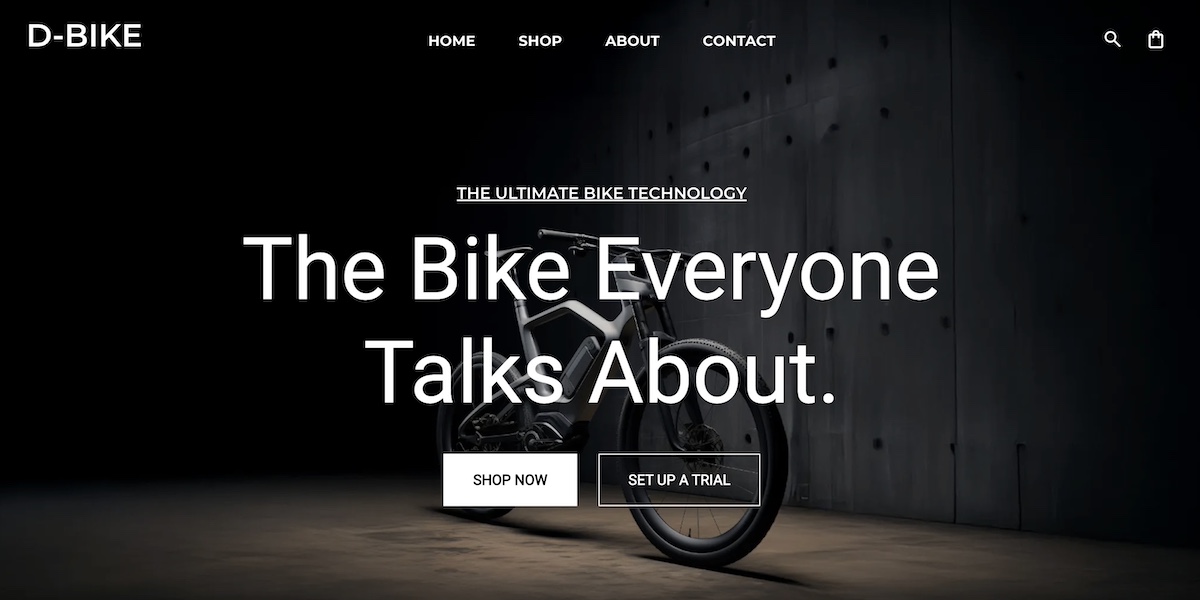
Website Pages That Take Users from First Click to Conversion

abstract of website pages

Your website has the potential to be more than just a random collection of pages—it should actually serve as a roadmap that guides visitors from first glance to becoming loyal customers. But to accomplish this, you can’t treat all website pages the same, as simply adding the usual “About” or “Contact” pages won’t guarantee results.
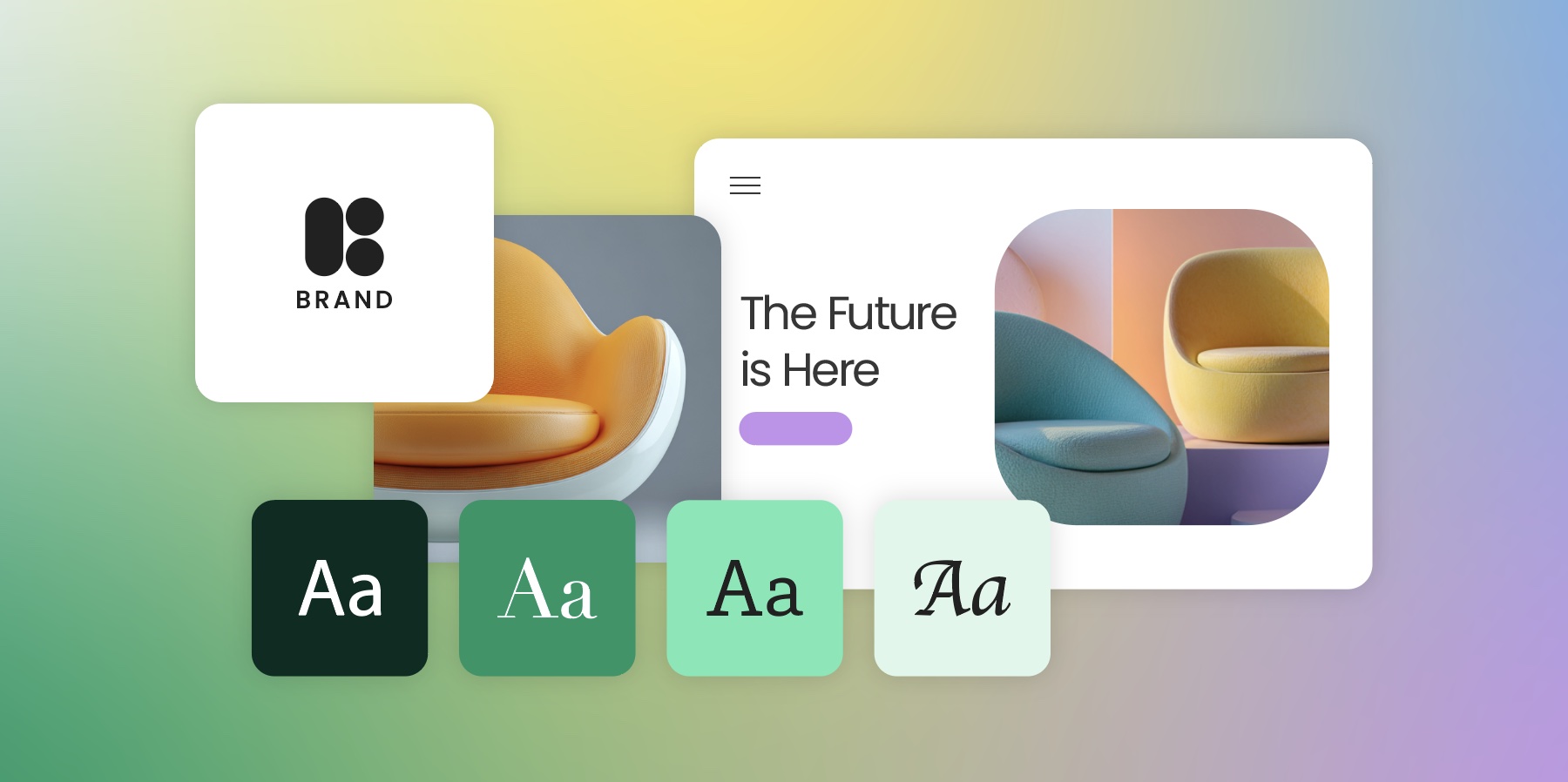
In this article, we’ll break down the key website pages your site needs, why each page matters, and what to include on them so every visitor moves smoothly toward taking action. Whether you’re building a new site or optimizing an existing one, this guide will help you create pages that not only inform but convert.

Key takeaways

  • Every website page should have a clear purpose tied to a specific stage of the customer journey.
  • The right mix of page types helps guide visitors from discovery to decision—and beyond.
  • Strong structure, clear CTAs, and trust signals are essential for moving users forward.
  • Conversion-focused pages reduce friction and make it easy for visitors to take action.
  • Retention pages like support, partners, and loyalty help turn customers into long-term advocates.


What Makes a Website Page Essential

Every page on your site has a role. Some pages introduce your brand, others build trust, and some finally drive visitors to make a decision. So as we think about the potential pages for your site, keep in mind the objective of each page, and how all of your web pages can work together as stops along the customer journey.

As you consider your pages, these are the key web page objectives to keep in mind:

  • Purpose-driven content: Each page should have a goal, whether it’s informing visitors, showcasing your work, or prompting them to take action.
  • User-focused website design: Pages should make it easy for visitors to find what they need, understand your message, and know what to do next.
  • Support for business goals: Beyond helping users, pages should align with your marketing or sales objectives, turning the casual visitors into leads or customers.
  • SEO & discoverability: A well-structured website is an important part of implementing SEO, as it helps search engines understand your site and connect the right visitors with the right content.

When you think of pages this way—each with a clear purpose along a path—you’ll be ready to organize them into stages that move visitors from awareness to conversion.

Key Components of a Webpage

Every website page is made up of a handful of essential components, which together make it possible to reach the page’s goal. Getting acquainted with these different elements will help you make sure that every page we discuss today can get its job done effectively.

So let’s take a quick look at the key components of a webpage: 

  • Header & Website Navigation – Includes your logo, main menu, and key links to help visitors find their way around your site.
  • Main Content – The core of the page: text, images, videos, and supporting information that deliver your message. Strong, relevant content builds credibility and keeps visitors engaged.
  • Interactive Elements – Forms, sliders, or other features that give visitors ways to interact, share information, or personalize their experience.
  • Footer – Typically contains contact info, legal links, social media icons, and additional navigation.
  • Behind-the-Scenes Elements – The structural and technical parts of the page, like HTML, CSS, JavaScript, metadata, and SEO features, which make the page functional, accessible, and discoverable.
  • Calls to Action (CTAs) – This is listed last here, but among the most important. These are the buttons, links, or prompts woven throughout your page that actively guide visitors forward. CTAs are the connective tissue of your site, encouraging users to explore deeper, sign up, or make a purchase. Without them, even the most compelling content risks becoming a dead end.

Together, these components enable your website pages to go beyond visual appeal. They’re structured to guide visitors, build trust, and drive conversions.

Now, if you’re feeling a little unsure about implementing the technical side of all these elements, then we’ve got good news for you. With the SiteGround Website Builder, you don’t need to worry about coding or complicated setup. It’s designed to help you build professional-looking pages quickly, with all the essential components—navigation, content areas, CTAs, and more—already built in. And if your site also supports selling online, SiteGround Ecommerce makes it easy to add ecommerce functionality without extra complexity. That way, you can focus on crafting the message (with the help of the built-in AI writer) and guiding your visitors, while the builder takes care of the structure, design, and technical foundation behind the scenes.

Web Page Types to Include for Every Stage

Now that you understand what makes a webpage essential and how its components work together to guide visitors, it’s time to look at the specific types of pages that support each stage of the customer journey. Below, we’ll break down the key page types for awareness, consideration, decision, and retention, and highlight what makes each one effective.

Stage 1: Awareness Website Pages

At the awareness stage, potential customers are just discovering your brand. They might have heard about you through a friend, seen your social media marketing, clicked on an ad, or found your site via search. They don’t yet know exactly what you offer or why they should care. 

So this is your opportunity to change that by making a killer first impression, providing clear value, and guiding visitors toward getting to know your brand further. Your website layout should support this goal by creating a clear, consistent experience that introduces your brand but also gently nudges visitors to take the next step. 

Here are a few of the pages that you can leverage to address this early discovery stage.

Homepage

Your homepage is the gateway to your brand and the first step in a longer journey. Beyond introducing your business, it should create context, show value, and make the path forward clear and inviting. Visitors should immediately understand who you are, what you offer, and what they can do next.

Components to include on your homepage:

  • A compelling headline that communicates your main value proposition
  • A hero image and visuals that capture attention and reflect your brand
  • A brief overview of your offerings and unique differentiators
  • Clear calls to action that guide visitors to explore services, resources, or products
  • Social proof elements like testimonials, press mentions, or trust badges
  • Thoughtful visual hierarchy for easy scanning and navigation
homepage example of a website page

The above homepage nails the hero section with an image of the team in action, creating those ideas that “start here.” A clear button for a free first meeting makes the next step clear, and client testimonials add credibility to the brand’s services. 

About Page

The About page deepens the connection. It explains why your business or organization exists, what you stand for, and who’s behind it. In doing so, it makes your business feel more personal and gives your brand human depth. Importantly, this page should also lead visitors to take the next step—whether that’s exploring services, reading a blog post, or signing up for a newsletter.

What components to include on your About page:

  • Brand story, history, mission, and values
  • Team bios and photos to humanize your business or organization
  • Behind-the-scenes content or milestones
  • Awards, certifications, or achievements 
  • Calls to action guiding visitors to explore products, services, resources, or signing up
Example of an about page

This About page puts the people behind the salon front and center. It’s more than a simple salon, but one with a mission, and experts behind it.

Blog & Resource Pages

Blog and Resource pages educate and provide value, positioning your brand as an authority. They answer early-stage questions, helping visitors understand your space and your expertise. 

Elements to include on your Blog or Resource pages:

  • Educational articles, guides, or tutorials addressing common problems
  • Clear headings and subheadings for easy scanning
  • Visuals like images, charts, or videos to support content
  • Links to related articles or resources to encourage exploration, which is not only good for SEO, but also for AI overview optimization.
  • Calls to action for newsletter signups, downloads, or product pages
example of a blog and resources website page

And here you have SiteGround’s Academy, the epitome of a Blog & Resource page. The idea here is precisely as we’ve already defined: to offer extra value and credibility to these areas of business about which SiteGround is an expert. 

Stage 2: Consideration Website Pages

At the consideration stage, visitors have learned a bit about your brand and are evaluating whether your products or services meet their needs. This is the middle of the marketing funnel, where they’re comparing options, looking for proof, and deciding whether to take this business-and-customer relationship a step further. Pages at this stage should show value, differentiate your business, and make it easy for visitors to move toward a decision—the next stage. Let’s break down what these website pages might look like. 

Service & Product Pages

Service and product pages are where you showcase what you offer and why it matters. These pages highlight the features, benefits, and unique value of your product or service, while guiding visitors toward the next step—whether that’s requesting a demo, signing up for a consultation, or making a purchase. While they may include pricing, many businesses also benefit from having a dedicated pricing page for deeper detail, which we’ll cover in the next stage.

Elements to include on your Service and Product pages:

  • Detailed descriptions of products or services
  • Key benefits and differentiators
  • Clear visuals or product images
  • Pricing overview (include pricing if it’s simple and builds trust. If pricing is complex or value needs to be shown first, guide users to request a quote, demo, or consultation instead.)
  • Calls to action directing visitors to demos, trials, consultations, or purchase pages
  • Optional testimonials or mini case studies to reinforce credibility
Example of a services website page

The above Services page is a classic example in that it outlines the different services, and also makes it easy and clear to take the next step by including the phone number in multiple locations on the page.

Example of a product website page

Meanwhile, here is an example of a typical product page, featuring the product name, price, and description. It’s clean, to the point, and makes purchase (regardless of quantity) easy and obvious.

Proof & Trust Pages

Visitors at this stage are evaluating credibility and results. Pages showcasing real examples of your work, happy customers, or other social proof help prospects feel good and certain about choosing your brand. 

What to include on your Proof and Trust pages:

  • Case studies the demonstrate challenges, solutions, and results
  • Client or partner logos
  • Portfolio of work or projects
  • Written or video testimonials
  • Customer reviews and ratings
  • Calls to action encouraging contact, demo requests, or product exploration
Example of a proof and trust website page

The above page exemplifies a portfolio page, featuring the award-winning work of the photographer. In that way, it not only demonstrates their work, but acts as social proof via the awards.

FAQ Page

The FAQ page addresses common questions and potential objections before they become roadblocks. Visitors at this stage are seriously considering your product or service, but have last doubts that need to get resolved, and this page fixes that. It reassures them and makes it easier to move toward the next stage of the journey.

Elements to include on your FAQ page:

  • Answers to common questions about products, services, policies, or processes
  • Clear, concise formatting for easy scanning
  • Links to related product/service pages or resources
  • Calls to action guiding visitors toward demos, consultations, or purchases
Example of an FAQ website page

The above FAQ page is quite simple and user friendly, with expandable answer sections. This kind of functionality is especially ideal for an FAQ page, as it allows you to present a substantial amount of text in a more visually pleasing way. Otherwise you risk just having a wall of text, which can be intimidating (or, minimally, boring) for visitors, and drive them away.

If you’re wondering how complicated it is to implement functionality like this, then don’t worry. It’s super easy with the SiteGround Website Builder, which includes built-in FAQ templates that require no coding skills whatsoever. Just add your text and go. 

Stage 3: Decision Website Pages

At the decision stage, visitors are ready to take action (finally!). They’ve learned about your brand, explored your offerings, and contemplated your credibility. Pages at this stage should give that final green light by removing friction, providing clarity, and making it super easy for visitors to convert, whether that’s by contacting you, signing up, or completing a purchase. 

Let’s break down which kinds of website pages can get this job done.

Pricing Page

A Pricing page deserves its own spotlight because cost is often one of the final hurdles in a customer’s decision-making process. While the aforementioned product or service pages may mention pricing, a dedicated page allows you to present options clearly, compare packages side by side, and answer common concerns. Done well, it builds trust, reduces hesitation, and gives visitors the clarity they need to confidently move forward.

Elements to include on your Pricing page:

  • Clear pricing tiers or options
  • Features or benefits included in each plan/package
  • Comparison charts if relevant
  • Calls to action directing visitors to sign up, request a demo, or contact sales
  • Optional FAQs addressing common pricing concerns
Example of a pricing website page

The above is a snapshot of one of SiteGround’s pricing pages, where the different email marketing plans are laid out. As you can see, having one page with compare-and-contrast pricing makes it easier for visitors to make a quick decision and “get now.”

Free Trial/Consultation/Demo Landing Page

These pages are essentially product pages in disguise. They let visitors experience your product or service firsthand, giving them confidence to eventually commit. They should be simple, and focused on driving action.

It’s also worth noting that not all landing pages need to sit within your site’s main navigation. Many are standalone pages, built specifically for campaigns, ads, or special offers. These pages are stripped of distractions and designed with a single goal in mind—getting the visitor to sign up, download, or buy.

Components to include on your Free Trial/Demo/Consult landing pages:

  • Clear explanation of what the trial, demo, or consultation entails
  • Benefits of participating or signing up
  • Minimal form fields to reduce friction
  • Calls to action that emphasize urgency or value
  • Social proof or testimonials to reinforce credibility
Example of a free demo landing page

The Free Demo page above gives visitors two options to make the decision easier—they can either sign up for a free demo or learn more about the demo program. This approach meets visitors wherever they are in the decision process, helping guide them more seamlessly toward the next step: making a purchase.

Checkout Page

For ecommerce sites, the checkout page should be fast, simple, and secure, ensuring visitors can complete their purchase without friction. Oftentimes, navigation menus even disappear at this stage in order to avoid distraction, and close the sale.

What to include on the Checkout page:

  • Clear summary of items, pricing, and shipping
  • Progress indicators for multi-step checkouts
  • Simple, minimal form fields
  • Calls to action like “Complete Purchase” or “Place Order”

With SiteGround Ecommerce, these best practices are easy to put into action. Checkout pages are designed to be fast, streamlined, and secure by default—so you get clean layouts, clear order summaries, and optimized flows without having to build everything from scratch. That means fewer distractions, less friction, and a smoother path from cart to purchase.

Start building your online store now>>

Stage 4: Retention & Loyalty Website Pages

Once someone becomes a customer, the journey doesn’t in fact end—it shifts to supporting, delighting, and retaining them. Pages at this stage should focus on providing help, strengthening relationships, and encouraging repeat engagement. Strong website retention not only keeps customers coming back, but also turns them into loyal advocates who recommend your brand to others.

Let’s break down the types of web pages that aid in retention and loyalty.

Support Page

A support page gives customers the comfort of knowing that help is always available. It should be easy to find, and the pathways to answers should be clear (because we all know how frustrating it is when a “support” link sends us in circles).

Components to include on a Support page:

  • A knowledge base with guides, tutorials, or FAQs
  • Contact options for direct help and even feedback (chat, email, phone)
  • Search functionality for quick solutions
  • Links to community forums or help centers (if applicable)
  • Calls to action that encourage continued use of your product or service
Example of a customer support website page

This support page gives curious customers multiple ways to get answers to their questions. They can very clearly reach out to support via various channels, or use resources to help find the answers. 

Partners Page

A partners page highlights collaborations, integrations, or affiliate opportunities that build credibility and showcase your brand’s ecosystem. It can also inspire trust by showing that others choose to work with you.

Elements to include on a Partners page:

  • Logos or names of partner companies
  • Explanations of partnerships or integrations
  • Affiliate or referral opportunities
  • Links to partner resources or joint offerings
  • Calls to action encouraging visitors to explore partnerships or integrations
Example of a partners page

The page above includes a section that clearly outlines the process for becoming a partner, and then makes signing up super easy with the form that follows. This kind of easy-to-understand process removes sign-up doubts and friction.

Loyalty Program Page

Acquiring new customers is important, but maintaining existing ones is often where the real long-term value lies. A loyalty or rewards page gives customers a reason to stay engaged, come back, and keep choosing your brand over others. It not only rewards their commitment but also reinforces that you value their business. This page should convey that value—that you appreciate your customers and want to make sure they stay happy with your brand.

Elements to include on a Loyalty Program page:

  • Explanation of loyalty or rewards program benefits
  • Easy steps for joining or participating
  • Examples of rewards, perks, or discounts
  • Calls to action prompting customers to sign up for email marketing
  • Optional testimonials from existing program members
Example of a loyalty program website page

The above Loyalty Program page extends its playful branding to their Bubbly Rewards, making it easy to understand how it works, what the benefit is, and how to join. 

When it comes to building loyalty, this is also where you’ll want to lean on a competent email marketing platform. With SiteGround Email Marketing, you can easily connect your loyalty program to automated email campaigns, send re-engagement emails, provide custom offers, and keep customers in the loop long after their first purchase. Paired with a strong loyalty page, it’s a simple but powerful way to turn one-time buyers into repeat customers and brand advocates.

[24]

Final Thoughts on What Pages a Website Needs

Your website isn’t just a flimsy digital brochure. It has the potential to guide visitors on a brand journey that goes from first click to conversion and beyond. You know by now that each page has a subtle but powerful purpose, whether it’s introducing your brand, building trust, or driving action. And when you structure your site with that in mind, the result is that no website page is a dead end, and every step inches visitors closer to becoming loyal customers.

If you’re ready to bring these website pages to life without the hassle of coding or complex design, the SiteGround Website Builder makes it simple. With professionally designed templates, built-in SEO features, and easy drag-and-drop editing tools, you can create all the essential website pages your business needs—optimized to guide, convert, and retain your visitors. And if you plan to sell online, SiteGround Ecommerce lets you add ecommerce functionality just as easily, so your site can support both content and sales from the same platform.

A promotional image for SiteGround's Easy-to-Use Website Builder featuring a mockup of a website with a living room photo. The text highlights creating a professional site without coding, offering customizable templates, AI-powered content generation, built-in SEO tools, access to over 6 million free high-quality images, an easy drag-and-drop editor, and mobile-friendly designs. Includes a "Get Started Now" button and the SiteGround logo.