Top Personal Website Examples + What to Learn from Them

abstract of a personal website

A personal website is the modern, upgraded version of a business card—but with far more impact, and of course a lot more digital bells and whistles. It’s your first impression, your introduction, and your invitation to connect. And, unlike social media, which can dilute your message or limit your control, a personal website gives you full ownership of how you present yourself online. It’s your space to clearly show who you are, what you do, and why it matters—on your terms.

In this guide, we’ll explore standout personal websites and break down the strategies that make them work. You’ll discover how to create a site that reflects your personality and professionalism—one that supports your goals and sets the foundation for future marketing, networking, or business opportunities.

Key takeaways:

  • A strong personal website starts with a clear purpose and messaging that instantly tells visitors who you are and what you offer.
  • Focused calls to action and thoughtful structure guide visitors smoothly toward the next step.
  • Social proof, experience, and real examples build trust faster than claims alone.
  • Consistent branding and storytelling make your site feel personal, credible, and memorable.
  • Performance matters: a great personal website must be fast, mobile-friendly, accessible, and easy to use.

What is a Personal Website?

A personal website is your own corner of the internet—built to reflect your work, your voice, your goals, and your offerings. It brings together your expertise, experience, and personality in one clear, professional space you control, helping you make the right impression and move your work forward.

Use this online space to showcase your skills, win new clients, and launch fresh ideas. Far beyond an online resume, it’s a living asset that powers your business, career, and creative work every day.

Best Personal Website Examples and What They Teach Us

Let’s take a look at some standout personal website examples and ideas, and break down what they do well so that you can apply the same principles to your own.

Takeaway #1: Start With a Crystal-Clear Purpose
personal website example with a crystal clear purpose

When your unique selling proposition is crystal clear and consistently reinforced, your personal website becomes more than a bio, and instead becomes a magnet for the right audience. 

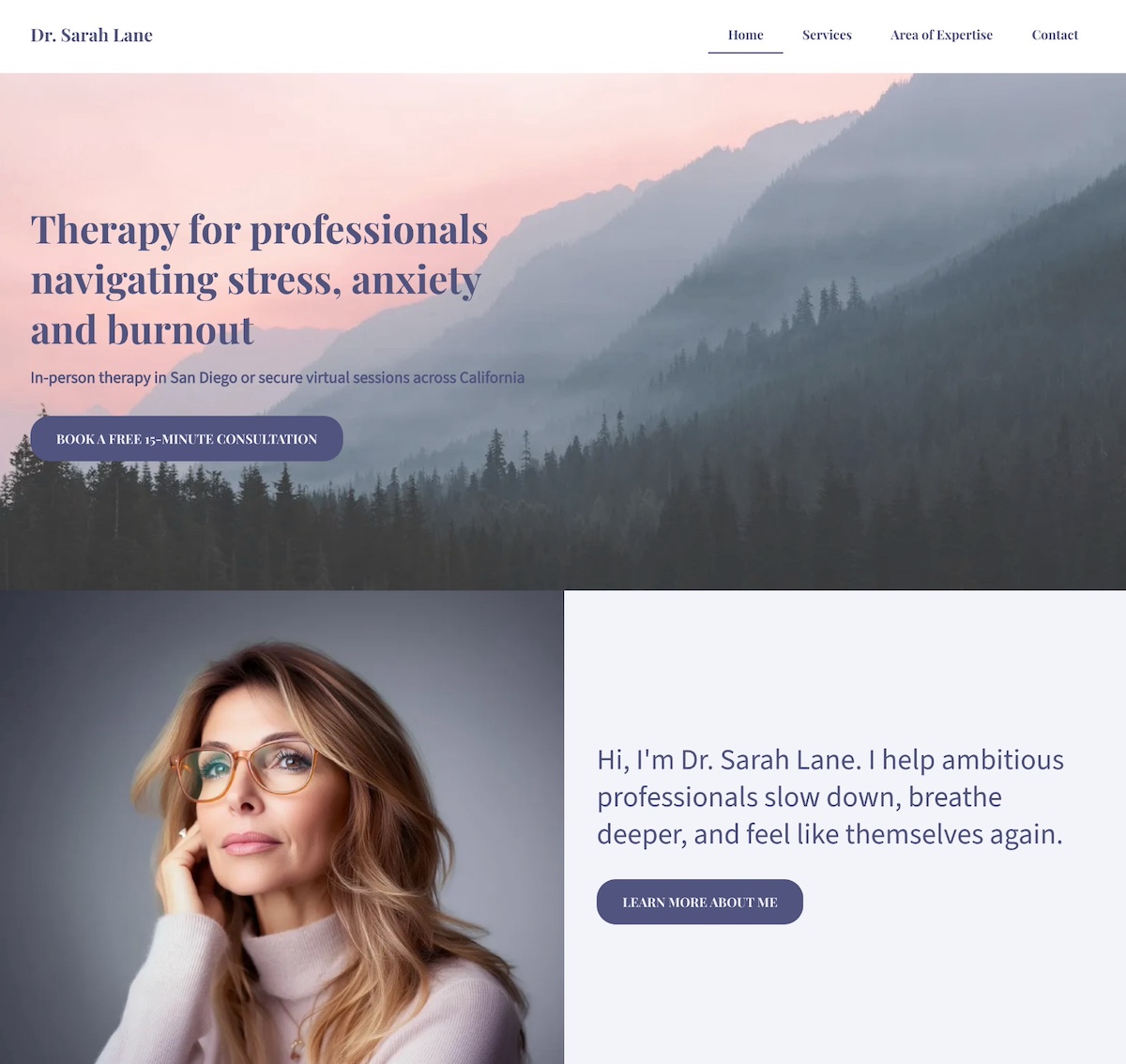
The personal website example above shows exactly what it looks like to put your unique selling proposition front and center. As you can see, it’s clear, consistent, and built to connect with the people she’s best equipped to help. Let’s examine. 

Leads With a Clear, Specific Promise

The homepage opens with confidence and clarity: “Therapy for professionals navigating stress, anxiety, and burnout.” There’s no ambiguity: the unique selling proposition is immediately obvious, letting visitors know exactly who the professional helps and how.

Defines the Audience and Approach

Within seconds, the site communicates three essentials:

  • Who she helps: Ambitious professionals
  • What she helps with: Stress, anxiety, and burnout
  • How and where: In-person in San Diego or virtually across California

This specificity builds trust fast, especially for busy people looking for someone who truly understands their reality.

Backs It Up With Consistent Visuals and Language

From the calming color palette to the warm, welcoming copy, and easy-to-scan website layout, everything reinforces the core message. Additionally, a friendly photo appears alongside this line: “I help ambitious professionals slow down, breathe deeper, and feel like themselves again.” It’s approachable, empathetic, and immediately relatable.

The Final Takeaway

This website doesn’t just say the person helps overwhelmed professionals, rather it shows it, through focused messaging, calming design, and a seamless user experience. The unique selling proposition is consistent, visible, and deeply aligned with the ideal client’s needs. Ultimately, this personal website feels reassuring, credible, and completely representative of the person behind it.

Overwhelmed by having to tackle effective copywriting that really conveys your purpose? With the SiteGround Website Builder’s AI writer, you can craft great copy as you create your site, no hassle. Plus, you get reliable hosting, excellent support, and a free domain for the first year — everything you need to launch a polished, professional website with ease.

Get started today>>

Takeaway #2: Add a Focused Call to Action

personal website example with a focused call to action

This personal chef keeps his homepage design and message simple and sharp. It keeps visitors  focused on one clear next step: booking a free, customized menu consultation. Right from the start, the site shows that his services are personal, convenient, and ideal for busy families who want to eat well without the hassle. How can you replicate this? 

A Headline That Sets Up the Next Step

The homepage headline—“Fresh, Custom Meals — Cooked in Your Kitchen”—does more than describe the service. It frames the offering clearly and compellingly, making it easy for visitors to understand what’s next and why they should take action.

A Focused, Repeated CTA

The real strength lies in the effective call to action (CTA): “Schedule a Free Menu Consultation.” It’s the only CTA above the fold and repeats throughout the page—no competing buttons, no distractions. Just one confident invitation that feels valuable and low-pressure.
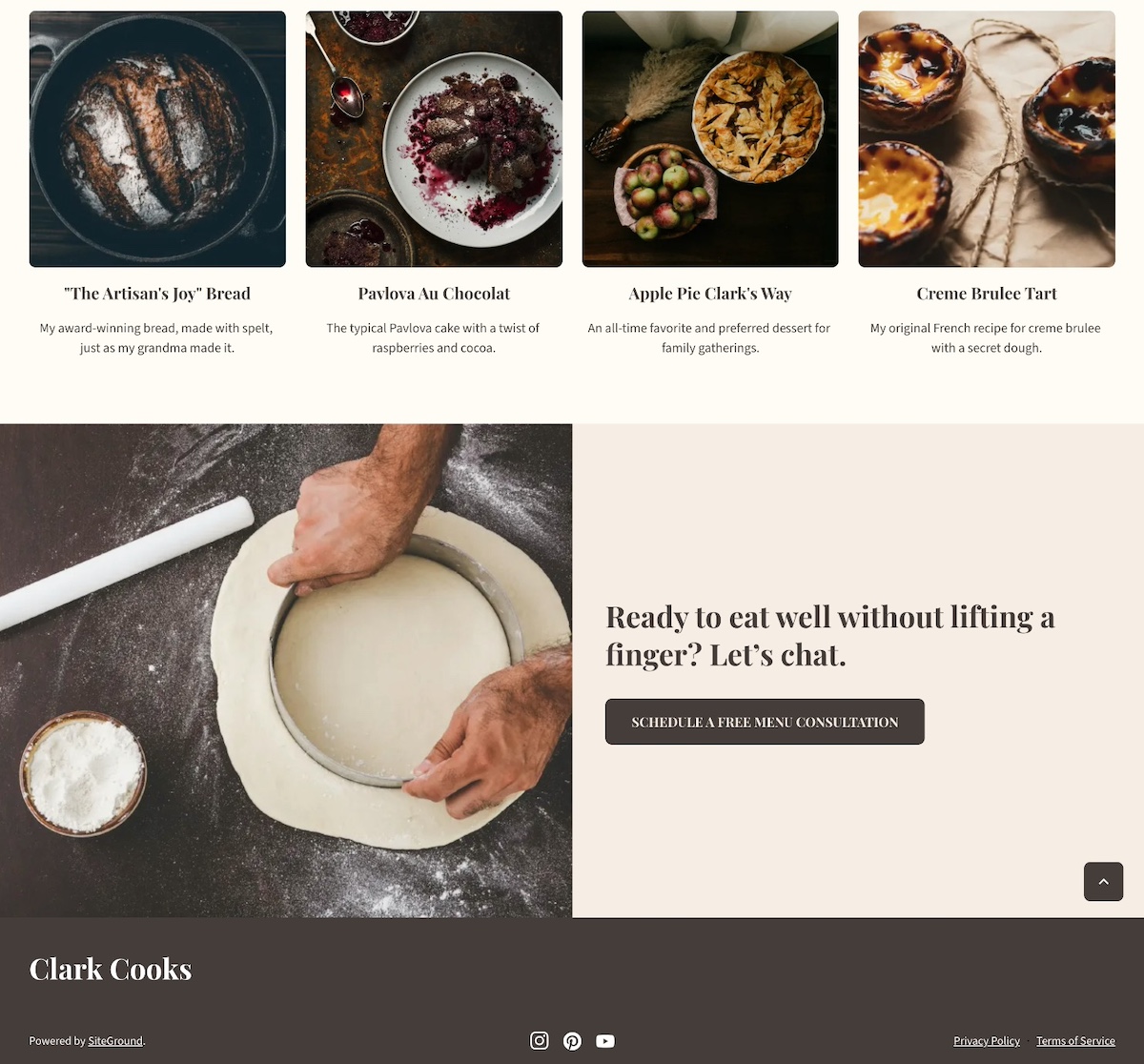
personal website example with a closing call to action


A Consistent Closing Prompt

Near the footer, a friendly line ties it all together: “Ready to eat well without lifting a finger? Let’s chat.” The same CTA button appears again, keeping the next step super clear.

The Final Takeaway

This website is a great example of how one well-placed call to action is more powerful than a dozen scattered options. The visual hierarchy leads with clarity, delivers value, and keeps visitors focused—all while making the process feel personal, simple, and stress-free.

Takeaway #3: Include Testimonials & Social Proof
example of a personal website with testimonials

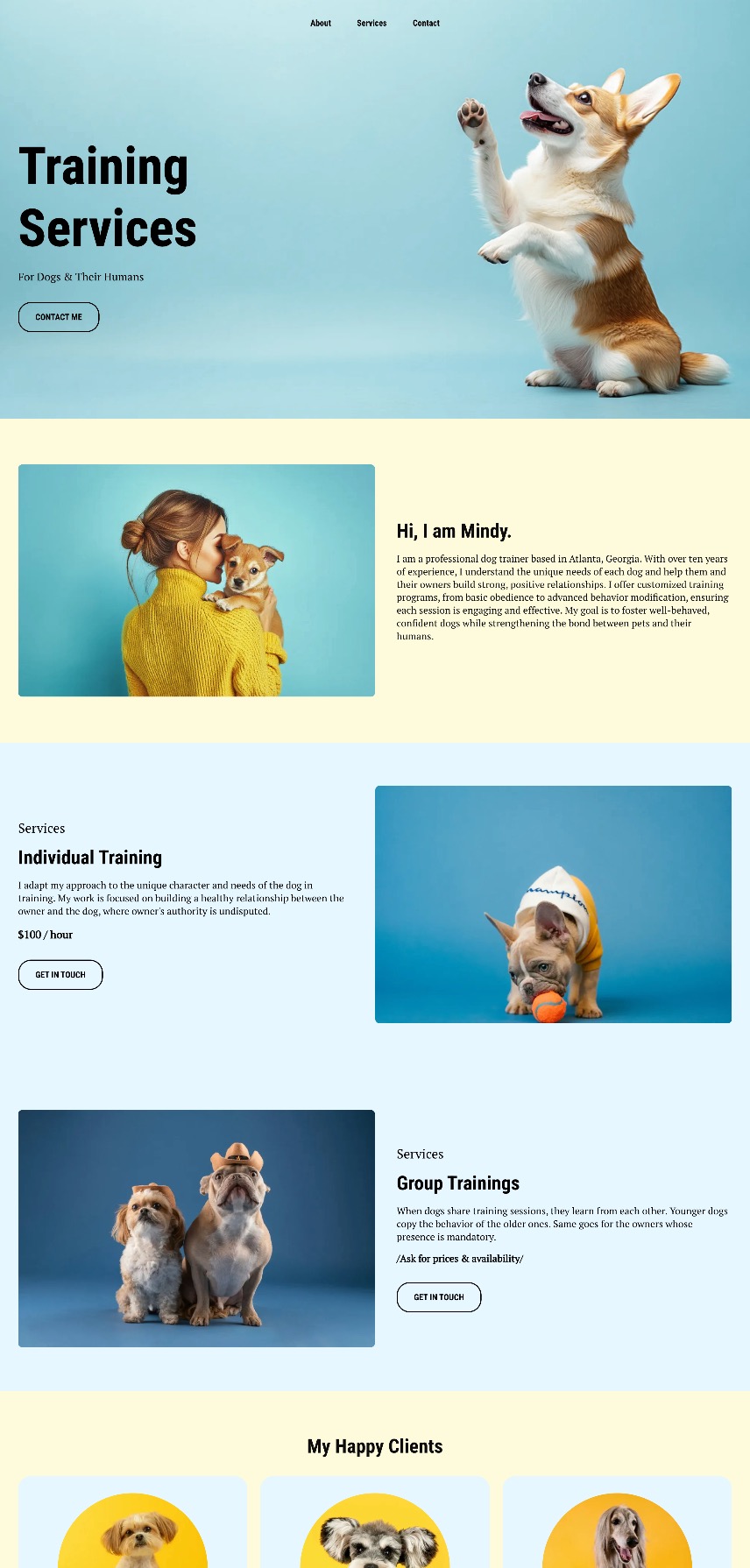
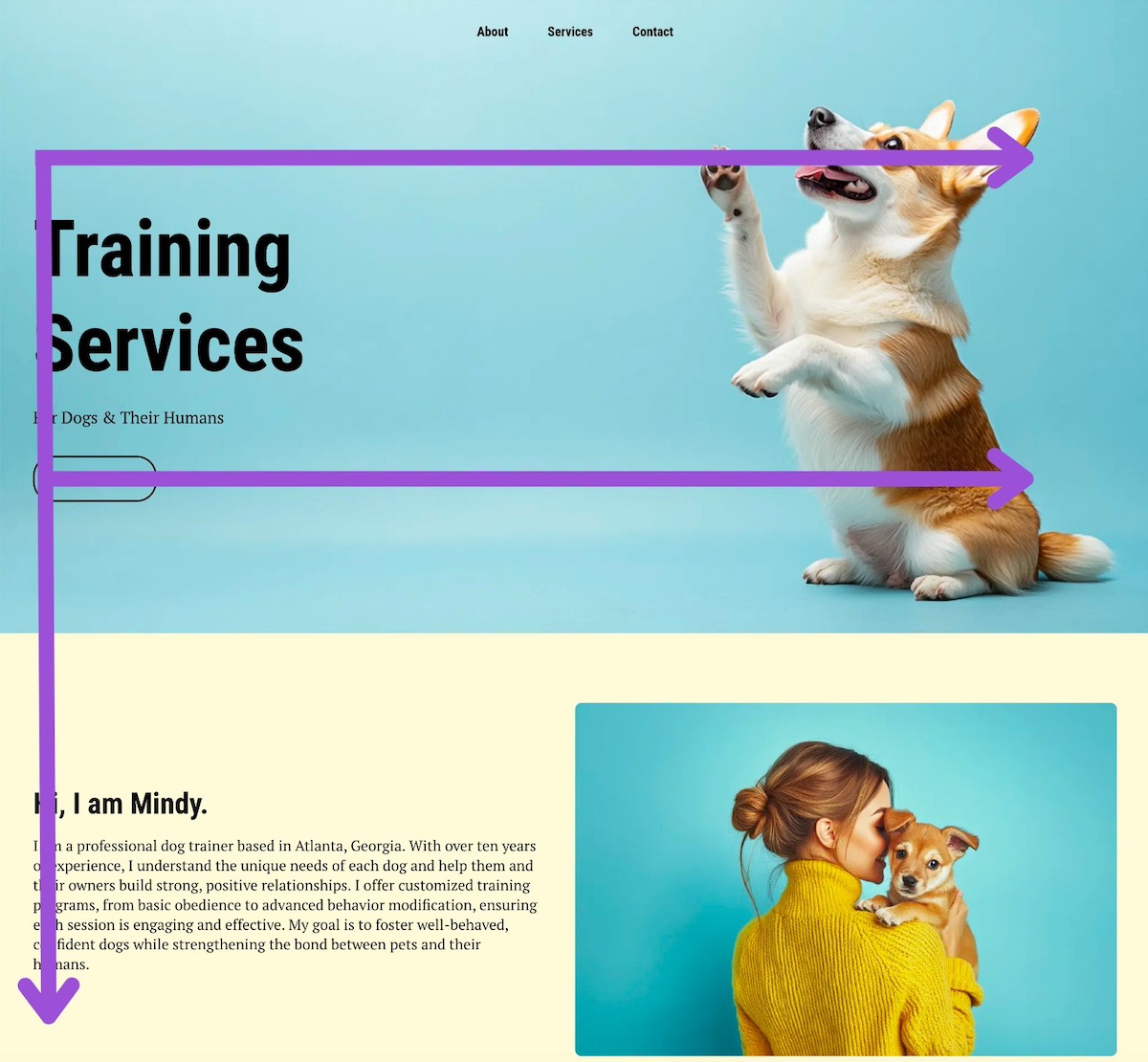
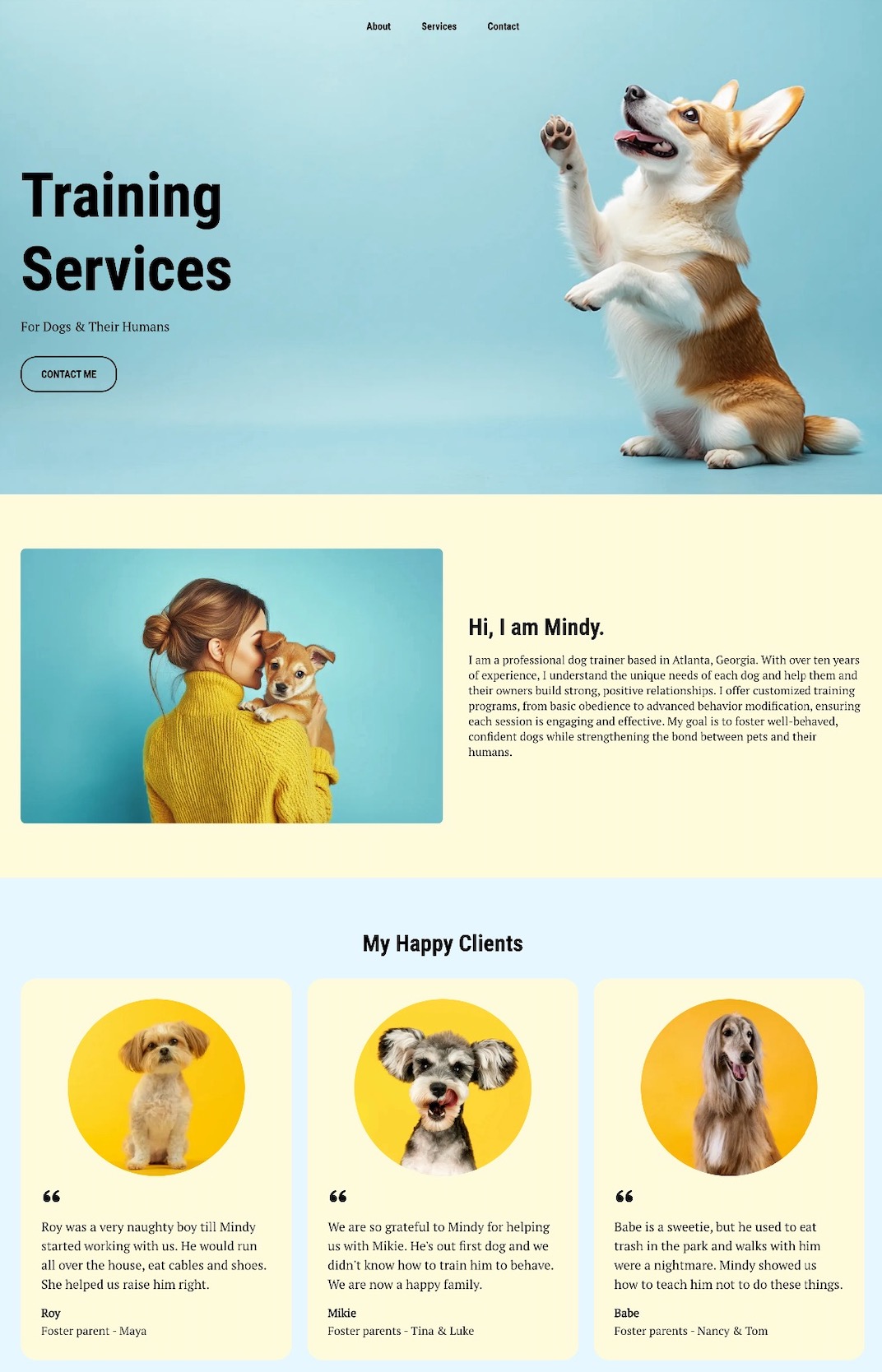
This dog walking website shows—rather than just tells—this person is great with dogs. Right below the hero section and introduction, glowing testimonials from local clients take center stage, complete with names and happy-dog photos that add authenticity. Indeed, including social proof like this is an essential website design tip.

Specific, Relatable Testimonials

These reviews go beyond generic praise. One client shares how Mindy helped their dog curb a habit of eating everything in sight. Another highlights how Mindy guided a new dog owner through training basics. The stories feel genuine and relatable.

Visual Proof That Builds Trust

Alongside the testimonials, in-brand photos of happy dogs create a warm, trustworthy vibe that visitors can connect with instantly.

Opportunities to Boost Social Proof

While this site nails testimonials and visuals, it could go a step further by adding logos from past clients like local vets or shelters, quick case studies (“Max went from leash-puller to walking pro in 3 weeks!”), or result-focused blurbs (“95% of repeat clients rebook within the first month”).

The Final Takeaway

This personal website example doesn’t rely on clever sales copy; it lets happy clients (and their even happier dogs) do the talking. Social proof is front and center, building trust without a single hard sell. The result is a site that feels friendly, credible, and totally walk-worthy.

Takeaway #4: Infuse Your Personal Brand
example of a personal website with a strong brand

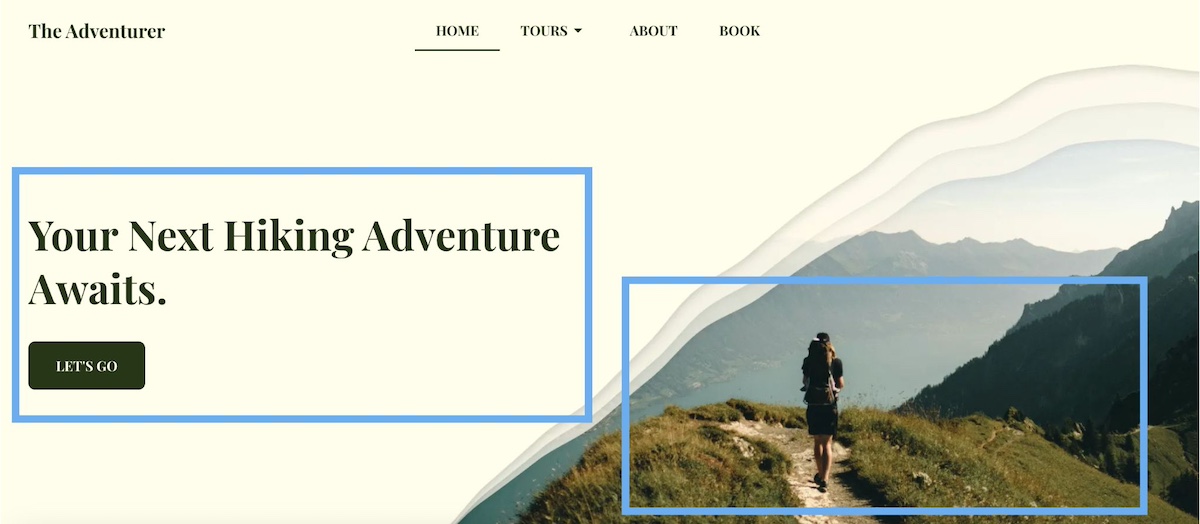
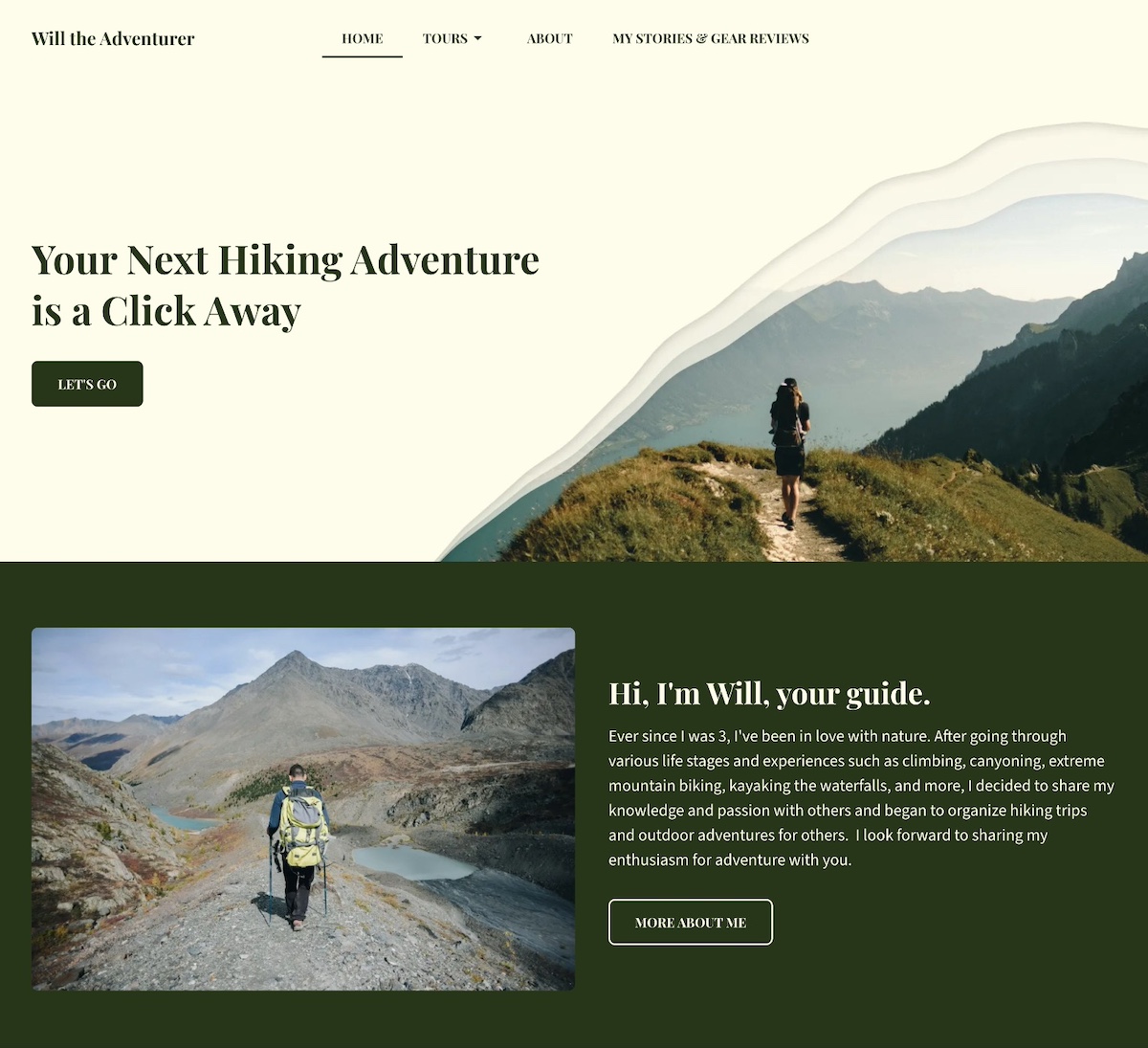
This personal website example doesn’t just talk about outdoor adventure, it feels like one. Every detail reinforces the site owner’s personal brand as a trusted, nature-loving guide who leads unforgettable experiences in the wild.

Visual Branding That Speaks to Nature

The color palette sets the tone immediately. Rich, earthy dark green paired with off-white backgrounds evokes forests, maps, and classic outdoor gear. The hero section features bold text and a design inspired more by topography than technology. It’s rugged, grounded, and distinct.

Authentic, On-Brand Photography

The site is filled with striking, on-brand photos of people hiking alpine meadows, summiting peaks, and journeying through wild terrain. These images aren’t generic stock shots but instead lived-in moments that reinforce the connection to nature and adventure.
personal website example with lead magnet

Personal Brand Elements That Elevate

The design of this site goes the extra mile with added elements to build the brand, including:

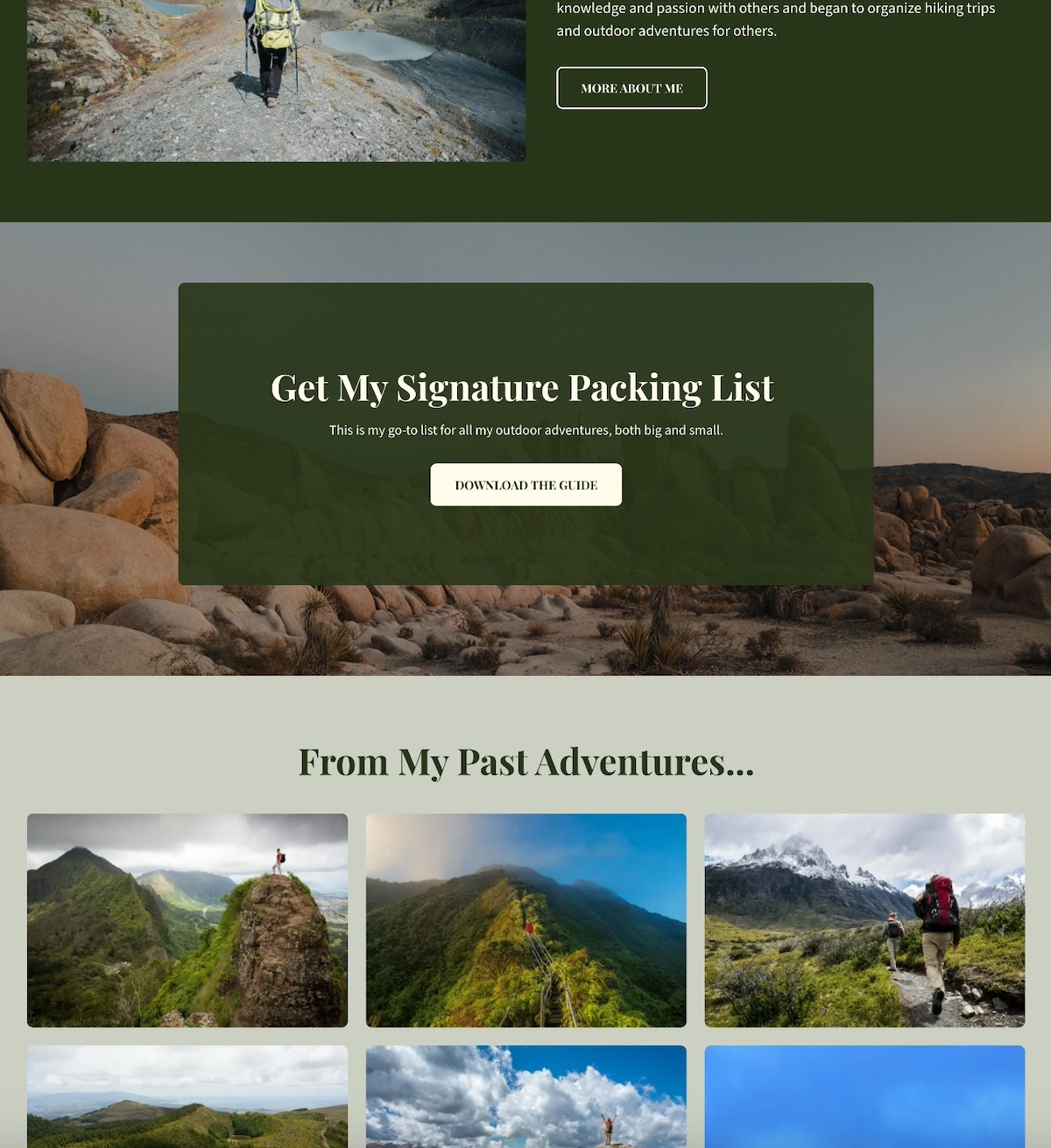
  • A signature packing list offered as a downloadable PDF (which is also great for lead generation)
  • A journal-style blog sharing gear reviews and stories from past hikes (a bonus for getting started with SEO)
  • A warm, welcoming intro that sets the right tone

These features aren’t flashy add-ons; they’re thoughtful choices that tell a clear, cohesive story about who this person is, and what kind of experience visitors can expect.

The Final Takeaway

This website example feels extra personal and professional, as every visual, word, and detail reflect the brand with clarity and consistency. Strong personal branding basics don’t need anything fancy—just a clear point of view and thoughtful execution.

Takeaway #5: Create a Memorable About Section
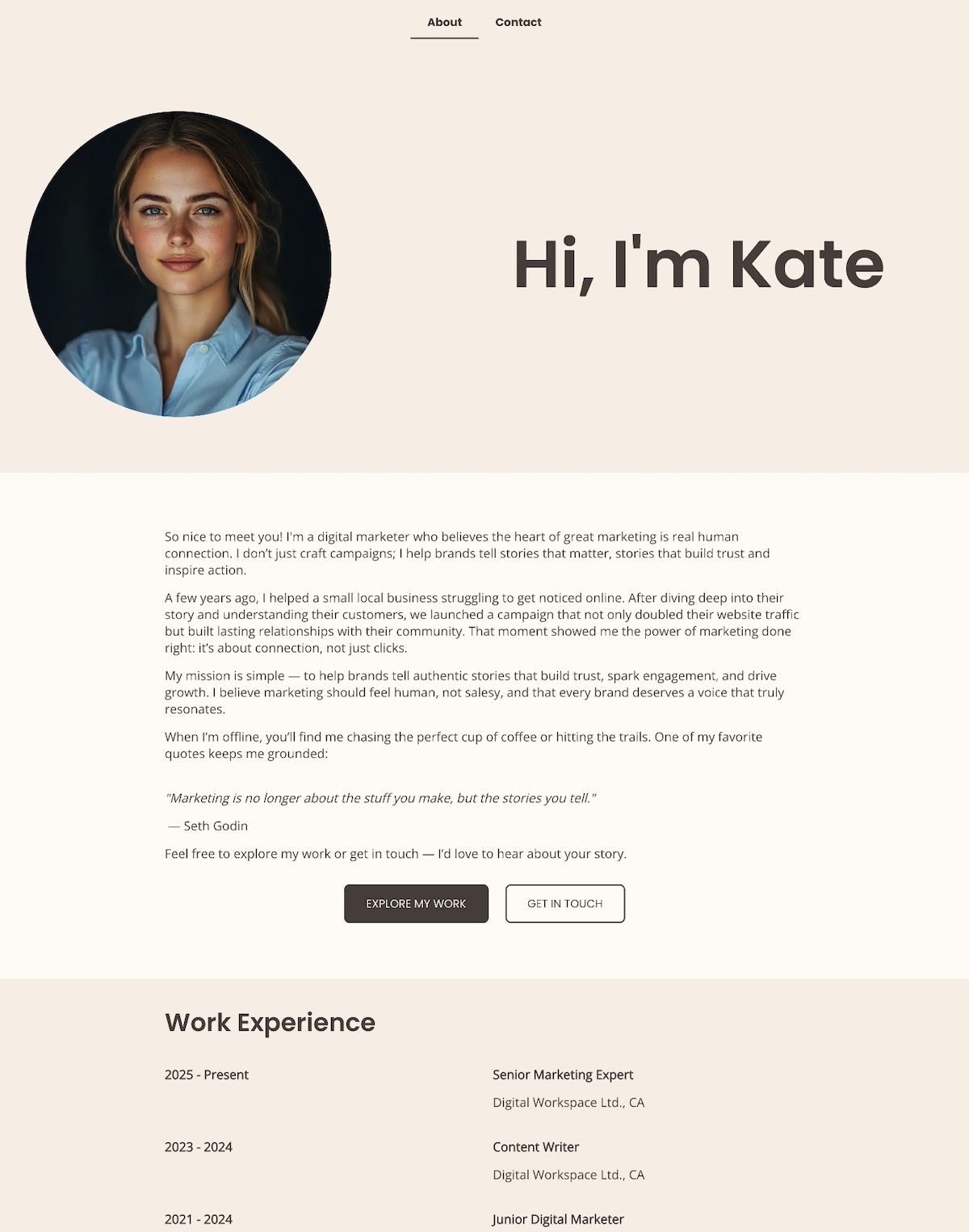
personal website example with a memorable about page

A memorable personal website About page does more than share facts—it connects with visitors on a human level and clearly communicates who you are and why you do what you do. The above About page is a great example of how to make that connection with warmth right from the start.

Opens With Heart and Clarity

This About page opens with heart: “Hi, I’m Kate Mason — a digital marketer who believes the heart of great marketing is real human connection.” That one line instantly sets the tone—warm, confident, and personal. 

Leads With a Story, Not a Résumé

Rather than listing qualifications or jargon, this example leads with a real-world story: helping a struggling local business grow by focusing on connection over clicks. It’s a powerful way to show what the person offers and why it matters—and without ever saying, “I’m results-driven.” The results speak for themselves.

States a Human-Centered Mission

The mission is clearly stated and refreshingly human: “To help brands tell authentic stories that build trust, spark engagement, and drive growth.” It’s simple, direct, and immediately tells you what they are all about.

Adds Personality With Light Touches

Light personal touches are also weaved in—a love of hiking, coffee, and a favorite quote from Seth Godin—that make the page feel approachable and real without straying from the brand voice.

Closes With a Warm Invitation

The About section closes with a low-pressure, inviting CTA: “Feel free to explore my work or get in touch — I’d love to hear about your story.”

Everything you see on this About page feels intentional, honest, and connection-focused.

The Final Takeaway

This personal website About page doesn’t try to impress with credentials alone. Instead, it invites visitors into the person’s world with a relatable story, a clear mission, and a human touch. It builds trust, creates connection, and mirrors exactly what is being offered as a marketer—genuine, people-first storytelling.

Takeaway #6: Show Your Experience
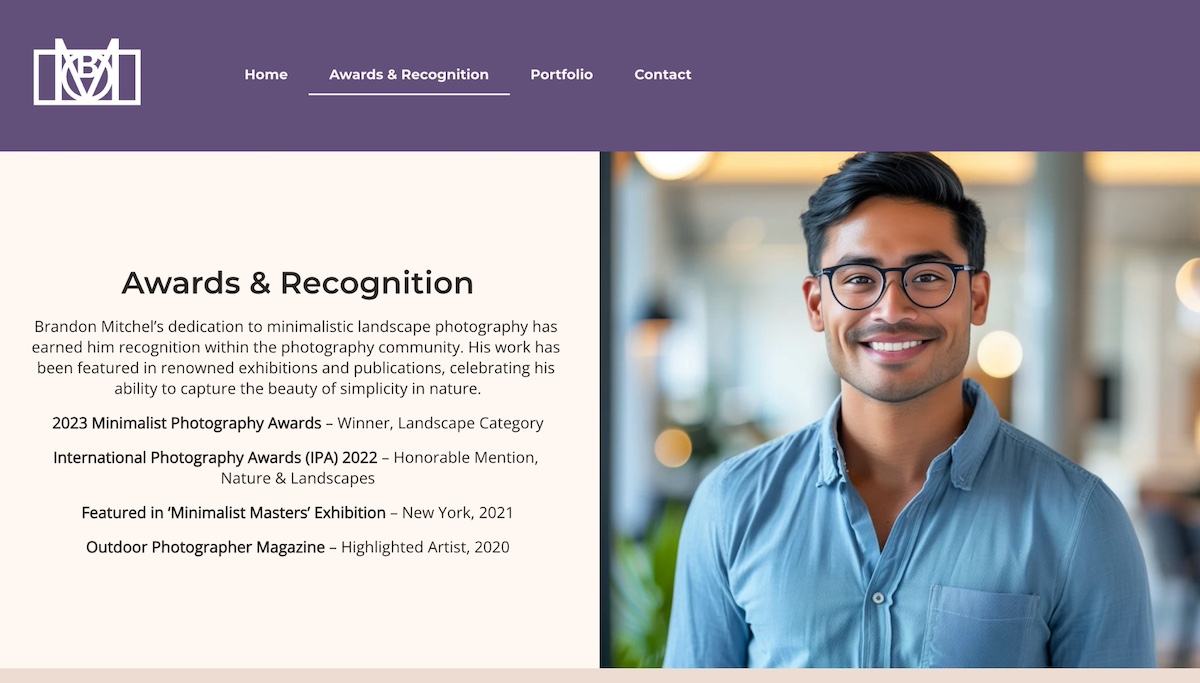
example of a personal website showing experience

This personal website example makes one thing clear: this isn’t just a photographer—it’s a seasoned creative with real credentials, published work, and a proven eye.

Credibility Highlighted With Purpose

More than just an About page, this personal website includes an Awards & Recognition page. It highlights notable awards, major exhibitions, and editorial features that immediately build trust. Each accolade signals that his work isn’t just beautiful—it’s respected and recognized in the industry.
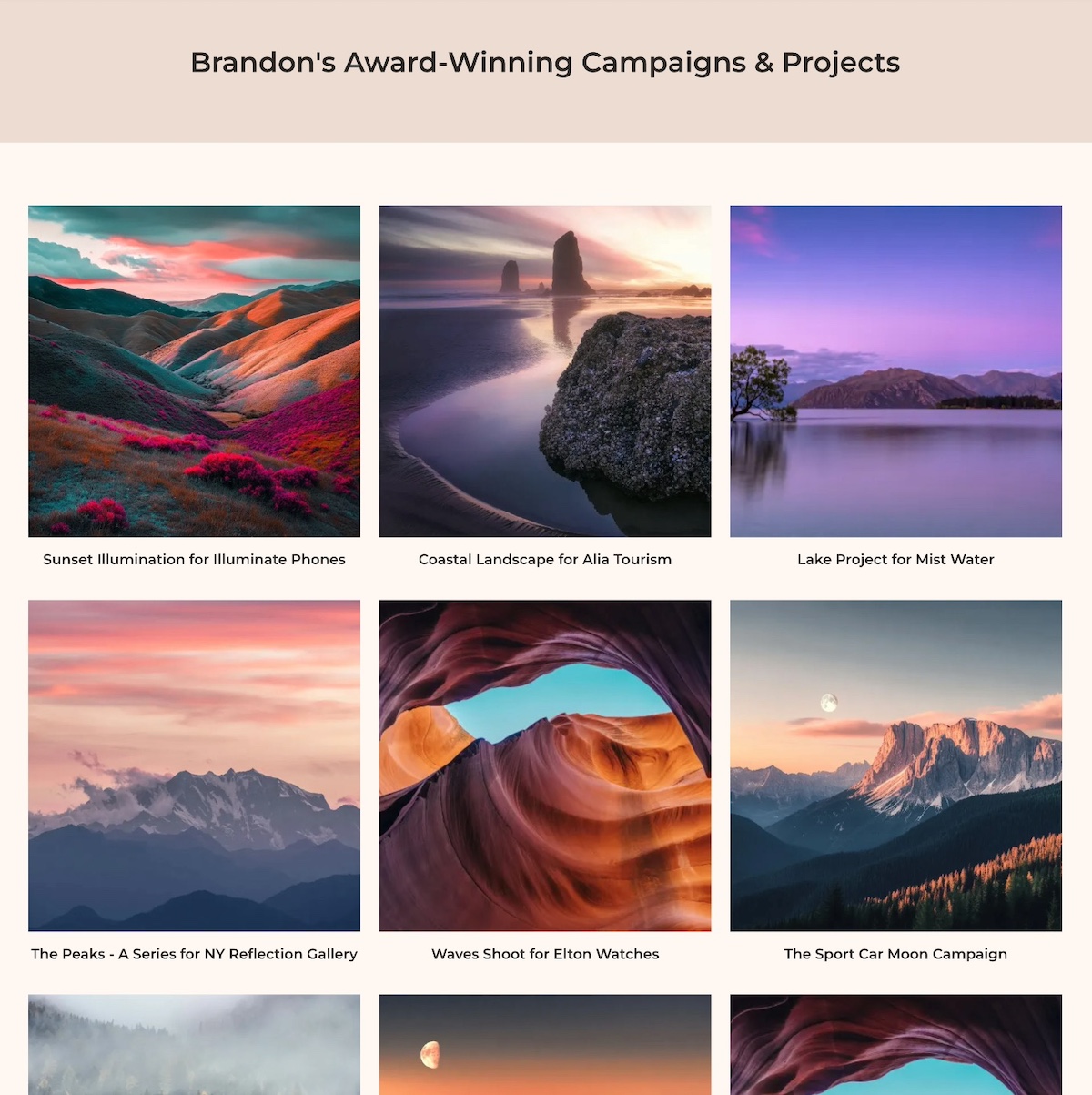
personal website example with a portfolio

Showing Experience Through Work

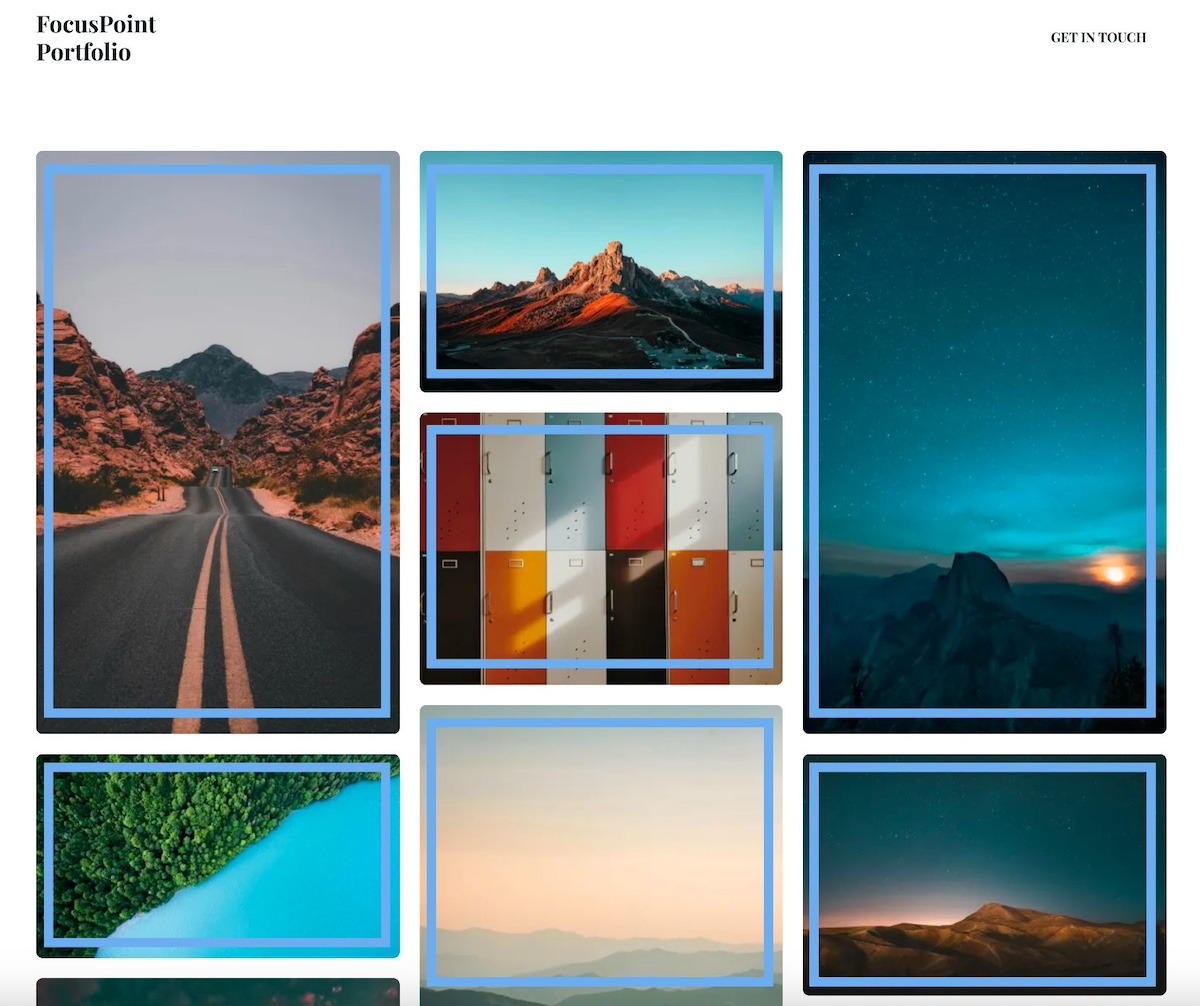
Experience isn’t just something you say—it’s something you show. Brandon’s portfolio features a curated grid of campaigns and photoshoots, presented cleanly and intentionally to let the work speak for itself.

Context That Adds Meaning

Each project links out to a brief description outlining not just the shoot, but the client, creative direction, and how the visuals supported the brand. This context helps visitors understand why his work matters, not just what it looks like.

The Final Takeaway

This example website doesn’t just claim experience—it proves it. By showcasing awards, exhibitions, and thoughtful project details, it builds credibility without any hard selling. If you’ve done great work, let it show. Evidence earns trust far faster than adjectives ever could.

Takeaway #7: Make it Mobile-Optimized & High-Performing
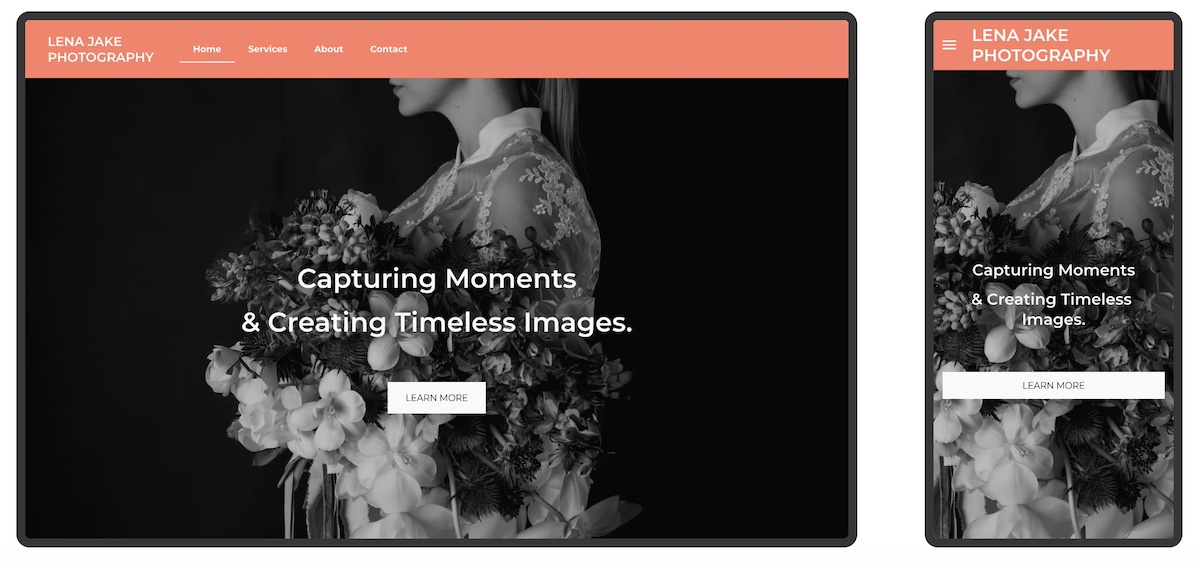
example of a personal website that is mobile optimized

This photographer’s website goes beyond looking great on desktop, and also performs beautifully on mobile. And that makes all the difference.

Seamless Mobile Experience

From the moment visitors arrive, the hero image resizes perfectly to fit smaller screens without cutting off important details. The headline stays crisp and readable, while the call to action—“Book a Session”—remains easy to find and tap. Even the navigation menu adapts, collapsing into a clean, user-friendly mobile version.

Built With Mobile in Mind

It’s obvious this site wasn’t just adapted for mobile after the fact—it was designed to shine on any device from the start. With over 60% of visitors browsing personal websites on their phones, having a mobile-optimized site is super important. Alternatively, a site that breaks, hides buttons, or loads slowly risks losing those visitors immediately.

Beyond Mobile: Fast, Secure, and Accessible

This site also loads quickly and runs securely—no delays, no warnings, no frustration. But performance goes beyond speed and security. Accessible web design choices—like clear typography, strong color contrast, and intuitive website navigation—make the site easier to use for everyone, including visitors with visual, motor, or cognitive impairments. Together, these elements build trust and ensure more people can comfortably interact with the site.

Hosting and Site Building Made Easy

A reliable hosting provider like SiteGround not only delivers blazing-fast speeds and built-in security but also offers a site builder that automatically makes your site mobile optimized. That means your website will look great and perform well on any device without extra hassle.

The Final Takeaway

A great-looking website is only part of the equation. To truly succeed, your site needs to perform flawlessly everywhere—fast, secure, and mobile-optimized. That’s the foundation of a professional, user-friendly online presence.
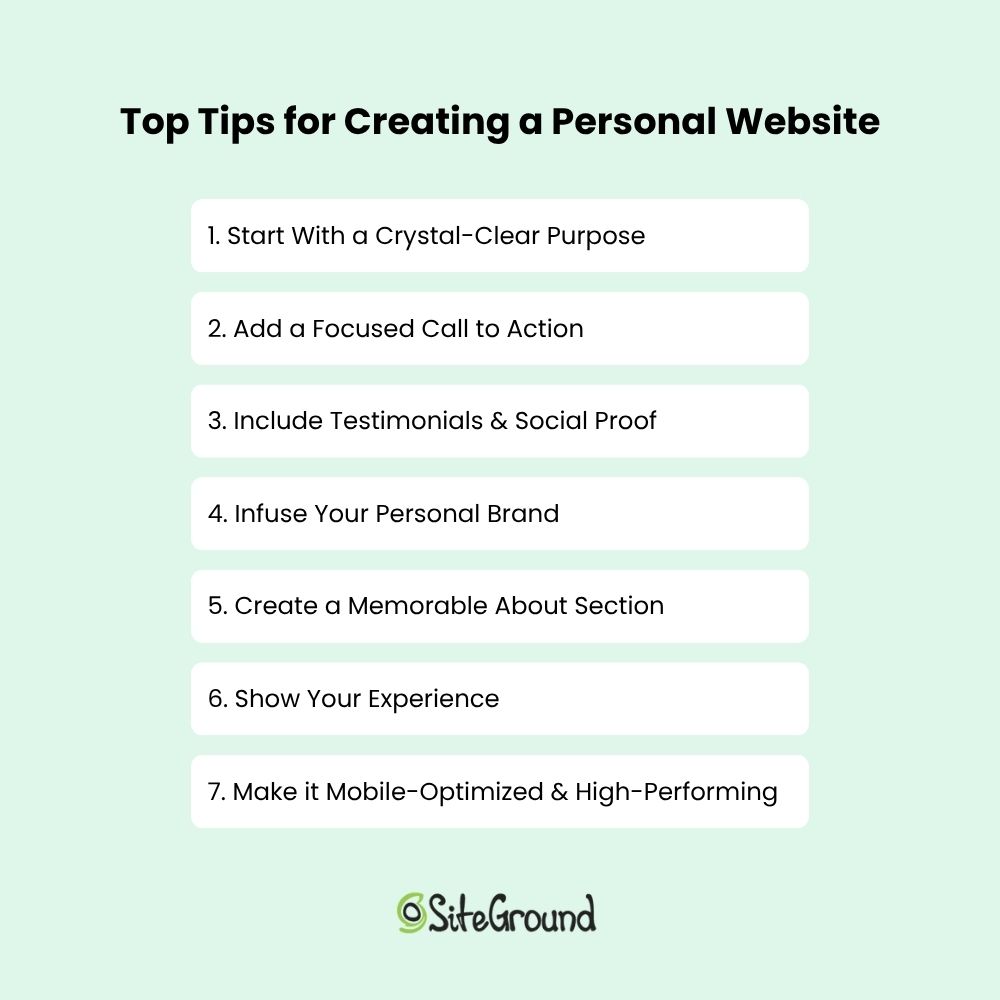
Top tips for creating a personal website

Put Your Personal Website to Work

Creating a personal website isn’t just about putting your name on a webpage. It’s about building an online experience around your story and what you offer so that you can connect and create opportunity. The most effective personal websites are purposeful, focused, and easy to navigate. Use the examples above as inspiration, and always keep your core purpose front and center as you build your own.

If you want to make the process easier from start to finish, the SiteGround Website Builder has you covered. With built-in AI to help you write your site copy, mobile-optimized design, fast and secure hosting, and expert support when you need it—plus a free domain for your first year—it’s everything you need to build a polished personal website, no stress required.
SiteGround Website Builder

FAQs About Creating a Personal Website

How Much Does it Cost to Build a Personal Website?

As you start website planning, you’ll discover that the cost of building a personal website can vary widely depending on how you approach it. If you hire a designer for a fully custom site, costs can run into the thousands. On the other hand, using a website builder is a budget-friendly option that lets you create a professional site yourself, often for little to no upfront cost.

With SiteGround, you can try the SiteGround Website Builder for free and build your website without any design experience. There’s no cost until you decide to publish your site, at which point you choose a hosting plan. SiteGround’s hosting plans are affordable and include fast performance, reliable security, and 24/7 expert support.

So, not only can you start building your personal website easily and at no initial cost, but you also get the peace of mind that comes with trusted hosting and expert help whenever you need it.

How Do I Create a Personal Website?

Creating a personal website usually means picking a domain, designing your site, and setting up web hosting—which can feel complicated if you’re new to it. But with SiteGround, the whole process becomes much easier. When you sign up for web hosting, you can get a free domain and domain privacy for the first year. You can also use the simple, no-code Website Builder to design your site and benefit from reliable hosting—all in one place. Plus, top-notch customer support helps you every step of the way, so launching your site is smooth and stress-free.

How Hard Is It to Build a Personal Website?

For someone new to websites, the idea of juggling domains, design, and hosting can feel daunting. There’s a learning curve, and technical details can slow you down. That said, SiteGround’s platform is designed to lower that barrier. With easy-to-use tools and helpful support, the process becomes manageable—even for beginners. Instead of wrestling with confusing setups, you get clear guidance and reliable infrastructure that lets you focus on creating your site, not troubleshooting it.

What You Need to Know About Domain Squatting in 2026

Domain squatting abstract

You’ve built your brand, brainstormed the perfect name, and checked if the domain is available—only to find out it’s already taken. Not by a legit business, but by someone who beat you to the punch…and now they’re asking thousands just to hand it over. Welcome to the frustrating world of domain squatting.

In 2025, domain squatters have gotten smarter and faster. But so has the know-how when it comes to fighting back. Indeed, when businesses understand how domain squatting works, it makes it a whole lot easier to avoid falling victim to the practice.

This guide breaks it all down given the state of domain squatting in 2025: what domain squatting actually is (and isn’t), the smart steps you can take right now to protect your business, and how you can take action if necessary. Let’s get into it.

What is Domain Squatting?

Domain squatting, or cybersquatting, happens when someone registers a domain name that closely resembles an existing brand, trademark, or business—not to build something real, but to cash in on someone else’s reputation. These individuals often sit on the domain, waiting to sell it back at a steep price or use it to divert web traffic. It’s frustrating for businesses trying to protect their brand, and in many cases, it’s illegal.

What is domain squatting

What Domain Squatting Isn’t

Not every domain conflict is a case of squatting. Domain squatting requires bad-faith intent—like registering a domain just to profit from someone else’s trademark or mislead users. But there are plenty of legitimate reasons someone might own a domain you want. For example, someone may have registered the domain for a personal project or business with the same name, bought it as a generic investment (also known as domaining, which we’ll touch on in a moment), or owned it long before your brand even existed.

If there’s no intent to deceive, extort, or capitalize unfairly on your trademark, it’s not domain squatting—it’s just an unfortunate overlap. Understanding this distinction is key before you take action.

Domain Squatting vs. Domaining

While they might sound similar, domain squatting and domaining are very different practices. Domain squatting involves registering domain names that match someone else’s trademark, and with the bad-faith intent to profit from it later. It’s generally illegal and can lead to lawsuits or forced domain transfers.

Domaining, on the other hand, is a legitimate business. Domainers buy and sell domain names that are generic and brandable (like bestshoes.com or glimmer.io), and without targeting specific trademarks. It’s like digital real estate investing: profitable, legal, and often helpful for startups looking to acquire a relevant, available name.

The key difference lies in the intent and trademark infringement. If a domain is registered to hijack or hold hostage someone else’s brand, it’s squatting. If it’s about spotting valuable opportunities in unused domain names, it’s domaining.

How Domain Squatting Can Impact Your Business

Domain squatting can seriously derail your brand, especially if you’re a startup or creator building your online presence.

It disrupts your ability to establish a consistent identity, confuses customers, and can hurt your credibility. Worse, squatters often demand high payouts for the domain, or force you into expensive, time-consuming legal battles, draining resources you’d rather invest in growth.

Simply put, domain squatting can stall your brand before it even has a chance to thrive. So let’s nip this one in the bud before it becomes a bigger problem. 

How to Avoid Domain Squatting

When it comes to domain squatting, starting your prevention measures early is the best way to save you from major headaches later on. So let’s begin at the earliest phases, because this is where you can make the smartest moves.

Step 1: Secure Your Brand Identity Early

Building a strong brand starts with securing your identity — and that means locking down the name you want before someone else does. Here’s how:

Choose a Distinctive Name

Great brand names are memorable, easy to pronounce, and hard to confuse with others. Steer clear of generic or overly descriptive names that competitors can easily mimic. The more unique your business and website name, the easier it is to protect.

Check Trademark Availability

Before falling in love with a name, check if it’s already trademarked. A quick search through the USPTO (United States Patent and Trade Organization) or your country’s trademark registry can save you from costly legal headaches later.

Register Your Trademark (When You’re Ready)

Trademarking offers strong legal protection but can take time and money. If you’re not ready to file yet, consider registering a DBA (“Doing Business As”) in your state or municipality. It’s a practical first step that gives you some rights while you grow.

Step 2: Lock Down Key Domains

Once you’ve got your brand name locked in, the next step is to make sure no one else can claim your digital turf. Securing the right domains isn’t just an important part of website planning—it’s about covering all your bases to keep domain squatters at bay.

Buy Your Primary Domain

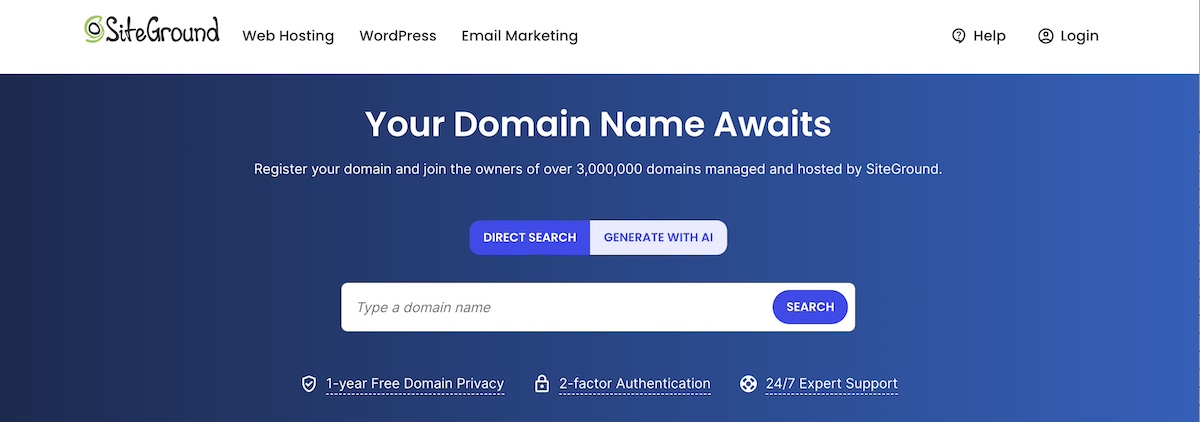
Your primary domain—the one that matches your brand name exactly—is your online home base. Once you choose a domain name, snag it as soon as possible, ideally with a .com extension, since it’s still the most recognized and trusted by customers worldwide. And don’t wait around hoping it’ll be available later; once it’s gone, it’s often gone for good. You can secure your perfect name today easily and confidently by registering your domain via SiteGround.

Lock down key domains to avoid domain squatting

Register Common Misspellings and Variations

You have a domain name, but now what? People make typos—it’s inevitable. To prevent potential visitors from landing on a squatter’s site or a competitor, register common misspellings, plural forms, and slight variations of your domain. These small investments can save you from problems and lost traffic down the road.

Consider Multiple TLDs 

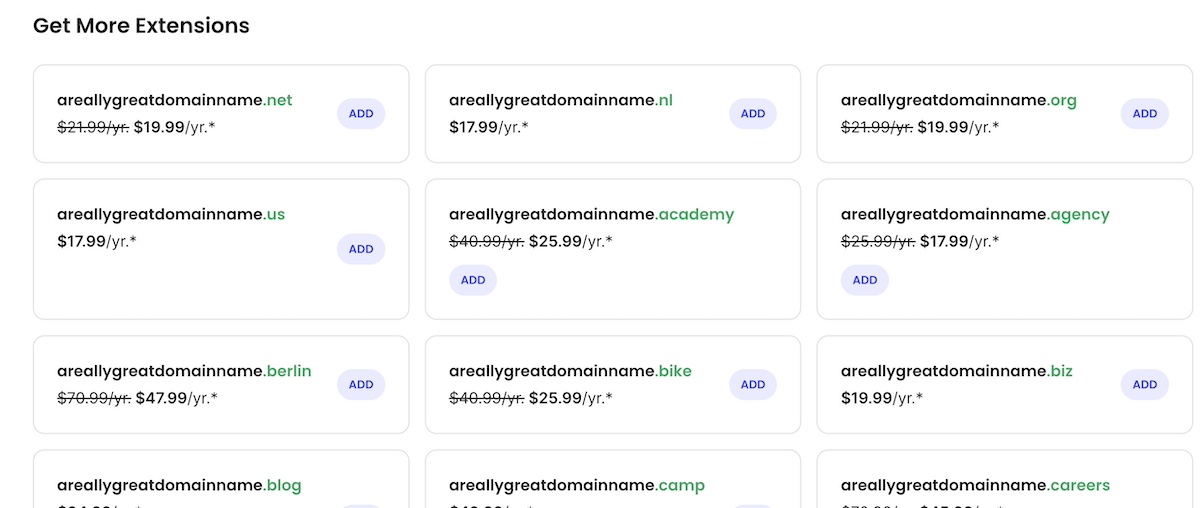
The domain world has expanded way beyond .com, with plenty of new top-level domains (TLDs, also called domain extensions) like .net, .co, .biz, or industry-specific options like .tech or .store. Depending on your budget and brand strategy, it’s wise to register your name across several relevant domain extensions. This doesn’t just block squatters, it also gives you flexibility for future growth or marketing campaigns.

Consider multiple TLDs to avoid domain squatting

Locking down these variations and top-level domains early gives you control over your brand’s online presence and makes it much harder for domain squatters to catch you off guard.

Step 3: Claim Your Name on Social Media

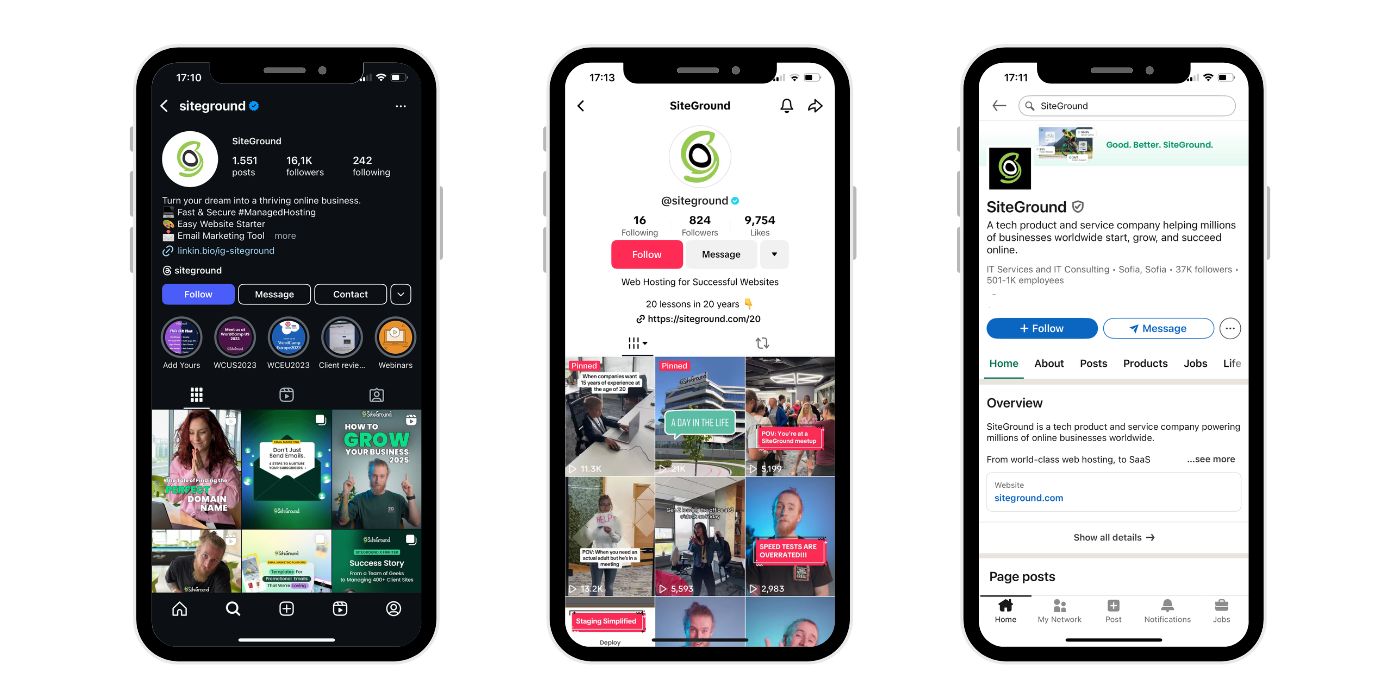
Just like domain squatting, social media handle squatting is a sneaky tactic where someone grabs your brand’s name on social platforms—not to generously build your presence, but to block you or profit off your success. As part of your social media marketing strategy, securing consistent handles across major platforms can easily be just as important as locking down your domain name. It helps you keep your brand identity tight and trusted everywhere online.

Example of avoiding domain and social media squatting

Step 4: Set Up Monitoring Alerts

Even after securing your domains and social handles, staying vigilant is still a good plan. Domain squatters and impersonators can strike anytime, so setting up monitoring alerts helps you catch problems early, before they turn into those big headaches.

Use Domain Monitoring Services

There are specialized services that keep an eye on new domain registrations that resemble your brand name. These tools alert you if someone registers a suspicious domain, giving you a chance to act quickly—whether that means reaching out to the owner or preparing to take legal steps.

Set Up Google Alerts for Your Brand Name

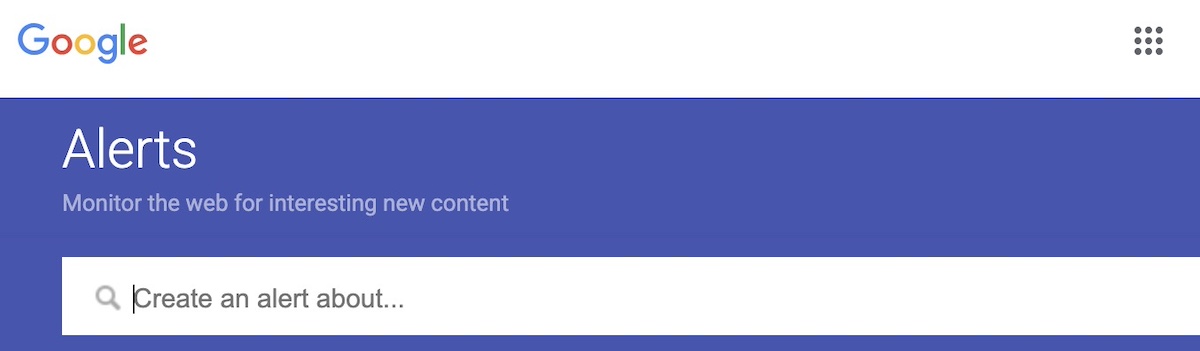
Google Alerts is a free, easy way to stay informed about mentions of your brand online. Set alerts for your brand name, common misspellings, and related keywords. This way, you’ll be notified if someone is using your name in unexpected places, helping you spot social media squatting, fake accounts, or even negative publicity fast.

Set up alerts to avoid domain squatting

Monitoring alerts are your early warning system, as it helps you defend your brand from domain squatting and online impersonation before they do any real damage.

Step 5: Work with a Reputable Domain Registrar

When it comes to domain name registration, choosing where you register is just as important as what you register. A trusted, well-established domain registrar—such as SiteGround, for example—offers tools and safeguards that can help prevent domain hijacking and squatting risks down the line. Let’s examine.

Enable Domain Privacy

When you register a domain, your personal details (like name, email, and phone number) are often listed in the public WHOIS database—unless you opt for domain privacy protection via your registrar. This feature masks your information, helping protect you from spammers, scammers, and opportunistic squatters who monitor registrations to target new businesses.

Use Domain Locking for Extra Security

Most reputable registrars also offer domain locking, which prevents unauthorized transfers of your domain name. It’s a simple but powerful way to stop someone from trying to hijack your domain without your permission.

Set Up Two-Factor Authentication

Once you’ve secured your domain, protect your account by enabling two-factor authentication. This adds an extra layer of security beyond just a password, helping prevent unauthorized access to your domain registrar account and reducing the risk of hijacking or theft.

Always-Available Customer Support

Dealing with domain issues like squatting can be tricky and stressful. Having knowledgeable support available 24/7 means you’re never alone when navigating these challenges. Whether you need help securing your domain or resolving disputes, expert assistance ensures you get the right guidance quickly, keeping your brand protected and your site running smoothly.

SiteGround offers all of the above: from two-factor authentication and domain locking to expert support and even free domain privacy for the first year. It’s a secure, reliable choice that helps protect your online identity from day one. Even better? SiteGround is an all-in-one platform for everything your business needs to grow online—domain registration, hosting, easy site-building tools, and professional email marketing—all backed by top-rated customer support.

Get your domain now and start growing with SiteGround>>

how to avoid domain squatting

What to Do If Your Desired Domain Is Squatted On

If your ideal domain is already taken, don’t panic—there are smart, practical steps you can take to understand if and how to make your next move. Whether it’s a case of domain squatting or simply a name that’s already in use, you still have options.

Step 1: Investigate the Current Owner

Find out who owns the domain

Use WHOIS lookup tools to access public registration details like the owner’s name, contact info, and registration date. This data can help you determine whether the owner is an individual, a business, or possibly a domain squatter.

Check the domain’s history

Use tools like the Wayback Machine to see how the domain was used in the past—whether it was active, abandoned, or linked to questionable content. Knowing its history can help you decide if pursuing the domain is worth it or if you should explore other options, and it can also inform your approach if you need to contact the current owner.

Step 2: Determine If It’s a Case of Squatting

Not every taken domain is a case of squatting—sometimes it’s just a coincidence (we’ll explore some examples in a moment). But if someone’s sitting on your brand name without a legitimate reason, it may cross into squatter territory. How do you know? 

Look for trademark infringement

If you’ve registered your trademark (or even if you have strong common law rights), and someone is using the domain in a way that could confuse customers or damage your brand, that’s a red flag.

Assess the owner’s intent and use 

Is the domain just parked with ads or for sale at an inflated price? Is the site mimicking your business or redirecting traffic elsewhere? If the owner has no legitimate interest in the name and seems to be holding it hostage, you might be dealing with a classic case of domain squatting.

Step 3: Consider Your Options

Once you’ve confirmed that your desired domain is taken—and possibly being squatted—you have a few paths forward. The right choice depends on your budget, timeline, and how aggressively you want to pursue the name.

Negotiate a Purchase

Sometimes the simplest solution is reaching out to the owner with a reasonable offer. Use a domain broker if you’d prefer to stay anonymous or want help navigating the negotiation. Be prepared for counteroffers—especially if the domain matches a trending term or business name.

File a Complaint (UDRP or URS)

If the domain clearly violates your trademark rights and was registered in bad faith, you may be able to file a formal dispute with ICANN under the Uniform Domain-Name Dispute-Resolution Policy (UDRP) or the faster Uniform Rapid Suspension (URS) system. These administrative procedures are typically quicker and less expensive than going to court, but they require clear evidence that: you hold trademark rights to the name, the current registrant has no legitimate interest in it, and the domain was registered and used in bad faith. For more details on how to initiate these disputes, you can visit the WIPO Domain Name Dispute Resolution Center, which administers many of these cases internationally.

Pursue Legal Action

In serious cases, especially where damages are involved, legal action might be necessary. The Anticybersquatting Consumer Protection Act (ACPA) is a law in the U.S., for example, that gives trademark holders a way to sue domain squatters in court. It’s the most involved route, but sometimes the most effective.

Noteworthy Domain Squatting Dispute Examples

Domain squatting doesn’t just impact small businesses on a budget—it hits major brands, celebrities, and startups alike. And not surprisingly: because that’s where the domain squatting jackpot is at. Here are a few entertaining and headline-worthy examples that show the nuances of domain squatting, and the outcomes.

1. Nissan.com

One of the most cited examples—though often misunderstood. In the late 1990s, Uzi Nissan, a computer repair shop owner, registered nissan.com for his legitimate business, long before Nissan Motor Corporation pursued the domain. Despite years of legal pressure from the automaker, Uzi Nissan held on to the domain because it was, quite literally, his name. This wasn’t a textbook case of domain squatting, since there was no bad-faith intent to profit off the brand. But it highlights how valuable domain names can become—and why businesses should secure theirs early.

2. Madonna.com

In the early 2000s, pop icon Madonna filed a successful complaint under the UDRP to reclaim madonna.com from an individual who had filled the site with adult content. The panel of course found clear evidence of bad faith and awarded her the domain.

3. MikeRoweSoft.com

In one of the more playful domain disputes, a Canadian high school student named Mike Rowe registered mikerowesoft.com for his part-time website design business. The name was a pun—“Mike Rowe Soft”—but it phonetically resembled Microsoft, and the tech giant took issue. While it looked like a case of cybersquatting on the surface, Mike’s intent wasn’t malicious or deceptive, just clever wordplay. After some public backlash and media attention, Microsoft softened its stance and reached a friendly resolution—complete with an Xbox for Mike.

4. Tesla.com

Before Tesla became a household name, tesla.com was registered by Silicon Valley engineer Stuart Grossman, who had held the domain since the 1990s. Unlike a typical squatter, Grossman wasn’t trying to sell the domain for profit or capitalize on the Tesla brand—he simply had a long-standing personal interest in Nikola Tesla. For years, Tesla Motors operated under teslamotors.com while reportedly trying (and failing) to negotiate a deal. Eventually, in 2016, the company acquired tesla.com—but only after what Elon Musk described as years of “painful” back-and-forth. Though not a squatting case per se, it’s a cautionary tale about how hard (and expensive) it can be to get the perfect domain after your brand takes off.

5. Airbnb.ca

When Airbnb expanded into Canada, they discovered that airbnb.ca was already registered—not by the company, but by a domain investor who had set up a generic travel-related website. While it wasn’t outright impersonation, Airbnb argued that the registrant was capitalizing on their growing brand recognition in bad faith. They filed a UDRP complaint, citing trademark infringement and lack of legitimate interest by the domain holder. Ultimately, the panel sided with Airbnb, and the company regained control of the domain.

These examples show that domain squatting affects everyone—from garage startups to global icons. Learn from their mistakes: don’t wait to secure your brand’s domain and trademarks, because once your business takes off, the stakes (and the price tags) only get higher.

Protecting Your Brand from Domain Squatting: The Bottom Line

By now, you’re surely convinced: you need to jump on that prized domain name, and you need to do it now. Because it’s at the heart of your online identity, and a key piece of your long-term success. Choosing the right name takes a mix of creativity, strategy, and a little bit of legal know-how. So the earlier you secure it, the better positioned you’ll be to grow with confidence.

When you’re ready to claim your domain, build your website, and get it online fast, SiteGround makes it easy. From domain registration to reliable hosting and intuitive website tools, we’ve got everything you need to get started and stand out.

Web Design Made Simple: The Only 10 Tips You Really Need

Abstract of web design tips

Chances are, you’ve come across those websites: the ones that look unprofessional, are confusing to use, or simply don’t address what you’re actually seeking. So, as you build your own website, you want to get it right—to create a webpage that reflects your brand’s unique personality, connects with your audience, and drives real action.

We’re going to make that happen by breaking down 10 practical principles to help you design a website that’s not only visually appealing but also strategic, user-friendly, and built to grow your business.

Key takeaways

  • A strong website starts with clear branding and a consistent visual style.
  • Templates help you follow proven design patterns without overcomplicating layout decisions.
  • Good design guides visitors clearly, with smart content structure and visible calls to action.
  • Performance, mobile optimization, and accessibility are essential for usability and conversions.
  • Security and trust signals are just as important as aesthetics for credibility and confidence.

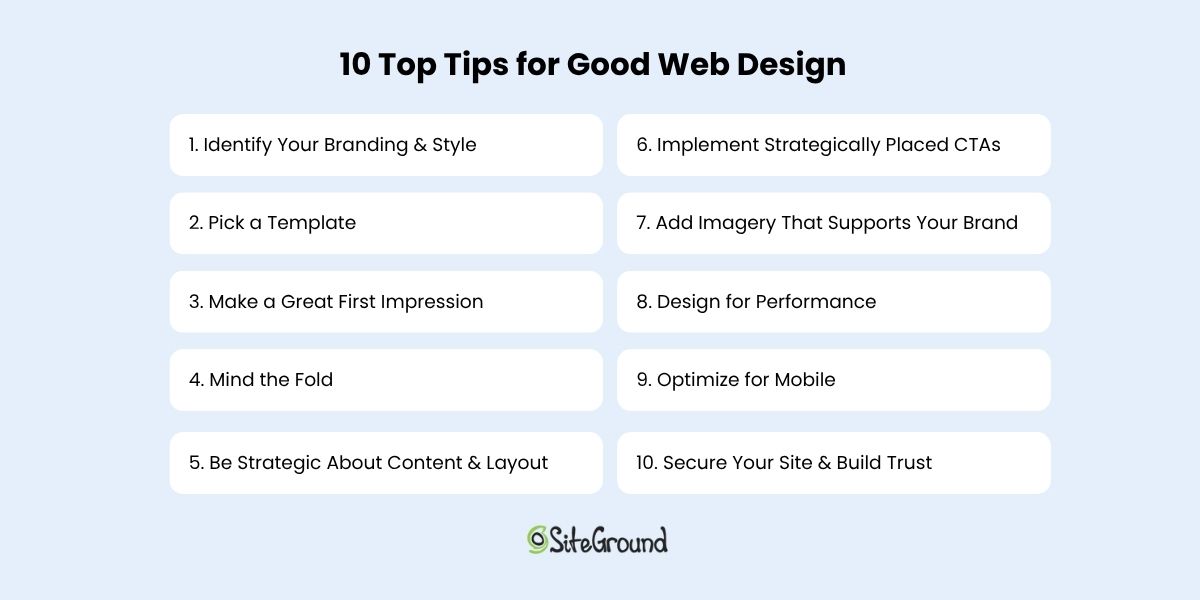
10 Top Tips for Good Web Design

If you’re focusing on just ten key tips to build a strong, effective website, these are the ones to keep top of mind. They cover everything from design basics to strategic layout, branding, and user experience. 

1. Identify Your Branding & Style

Before you go down the fun rabbit hole of choosing layouts, buttons, and fancy features, there’s one thing that sets the tone for everything on your site: your brand style. It’s the secret ingredient that makes your website feel professional, put-together, and unmistakably you.

Think of your brand basics as your website’s personality. Are you bold and creative? Calm and trustworthy? Elegant and refined? The way you answer that will shape the look and feel of your entire site—from your color choices and fonts to the way your content comes across.

Here are a few quick examples to guide your choices:

  • Trustworthy and professional: Go for classic, subdued colors like navy, charcoal, or forest green, paired with strong, traditional serif fonts.
  • Playful and approachable: Use energetic colors like orange, turquoise, or lime green, and friendly sans-serif fonts with soft curves.
  • Elegant and high-end: Consider rich hues like burgundy, gold, or black, with sleek, minimal fonts and lots of whitespace.
  • Modern and bold: Bright or unexpected colors—think electric blue or hot pink—can work well with edgy fonts and dynamic layouts.

Not sure what fits your brand yet? That’s totally normal. Start by asking yourself: What do I want people to feel when they land on my site? Then, explore sites you love and notice what pulls you in—the colors, the fonts, the vibe. You’ll start to see patterns, and from there, you can craft a style that feels true to your brand.

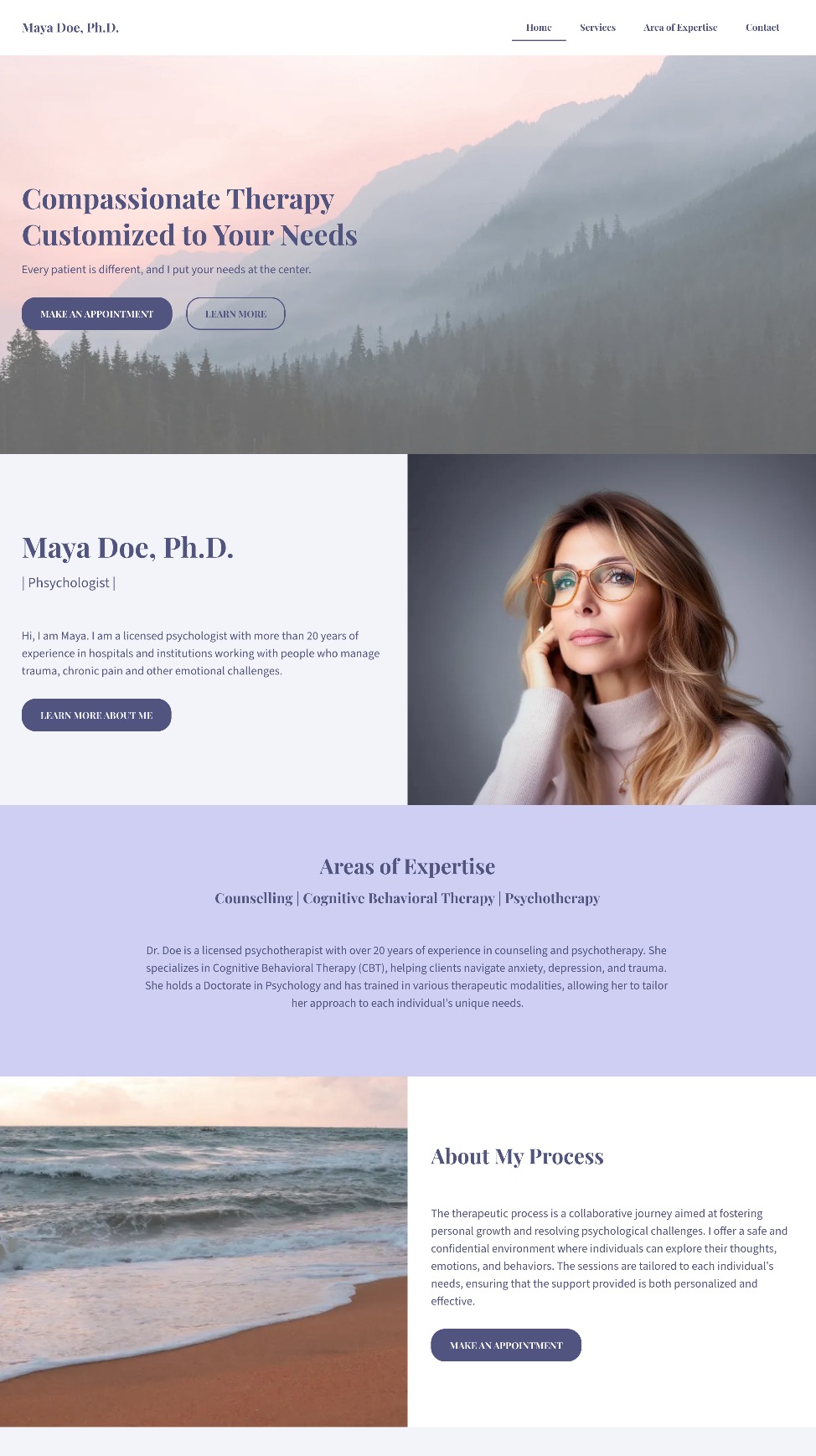
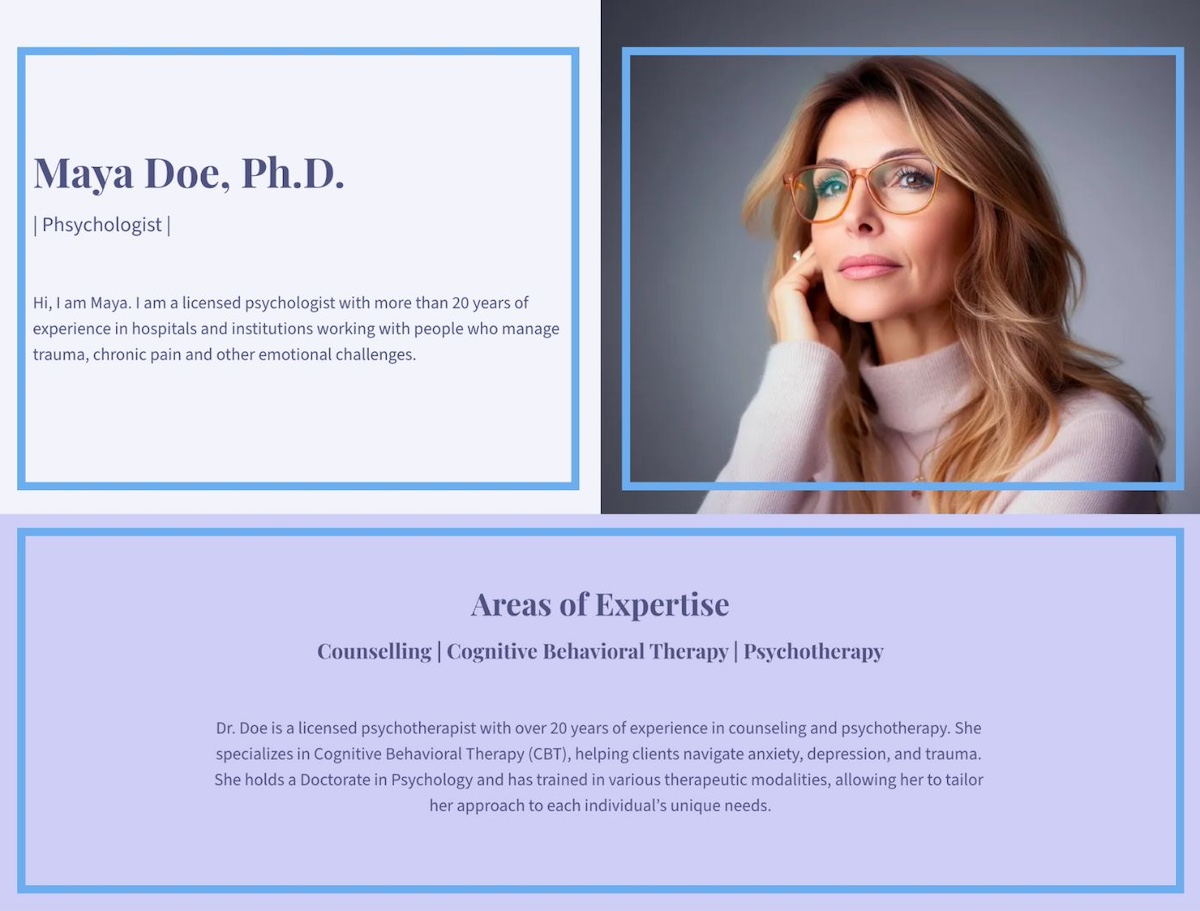
The homepage example below does an excellent job of expressing its brand through calming pastel colors, a relaxed font, and cohesive, brand-aligned imagery. The result is a polished, professional look that immediately communicates what this person and their service are all about: peaceful, inviting, and comforting.

example of branding in web design

A clear brand style doesn’t just make your site look great—it gives your visitors an instant sense of who you are and what you’re all about. And that’s the kind of first impression that sticks.

2. Pick a Template

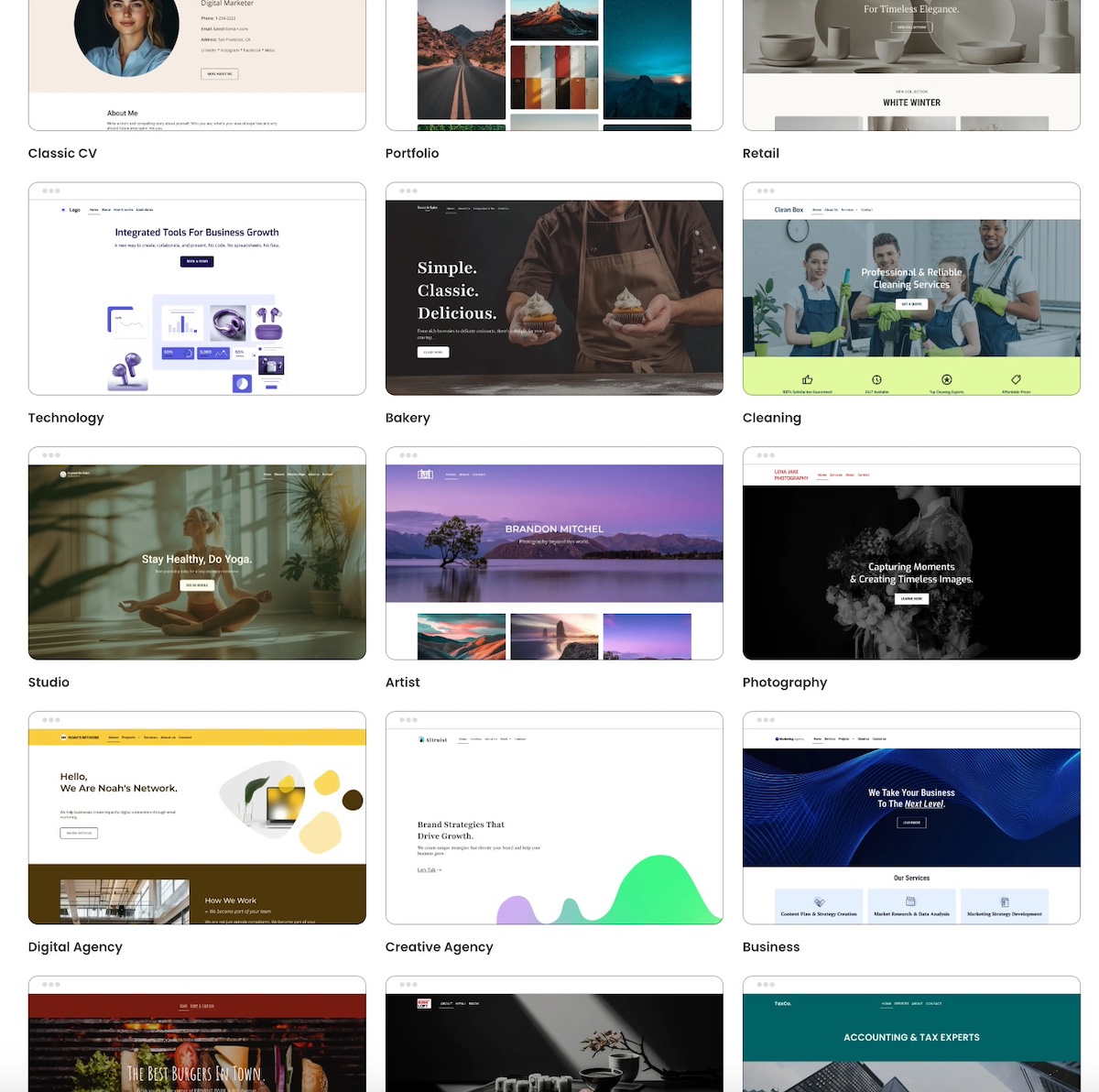
One of the fastest, easiest, and most budget-friendly ways to get your website looking polished is to start with a template. Templates are pre-designed and typically feature the best web design layouts so that you aren’t starting from scratch or guessing what looks good.

And if you’re using the SiteGround Website Builder, you’re in luck. It comes packed with beautifully designed, ready-to-use templates tailored for different types of businesses, blogs, portfolios, and more. These templates are built to look professional right out of the box, and you can easily customize them to match your brand style—colors, fonts, images, layout—you name it.

picking a template is good for web design

What’s important here is not to overthink it. Choose a template that closely matches the structure and feel you want for your site. Then, make small adjustments to align it with your branding. The more you try to overhaul the template, the more work you create—and that can sometimes lead to a clunky design.

Also, worth noting, while it can be tempting to really think outside the box with your website layout and design, this is ultimately more likely to just create user frustration. So using a template ensures that you’re sticking to tried-and-true design best practices that will keep users seamlessly moving through your site.

Keep it simple. Start with a template you love, make it yours, and let the SiteGround Website Builder do the heavy lifting.

If you’re building your site with SiteGround, you’ve already got a head start. The SiteGround Website Builder not only includes a wide range of professionally designed templates but it’s fully integrated with powerful hosting, speed optimization, and top-tier security features, so your site won’t just look great—it’ll perform beautifully, too.

Explore SiteGround’s Website Builder and bring your vision to life >>

3. Make a Great First Impression

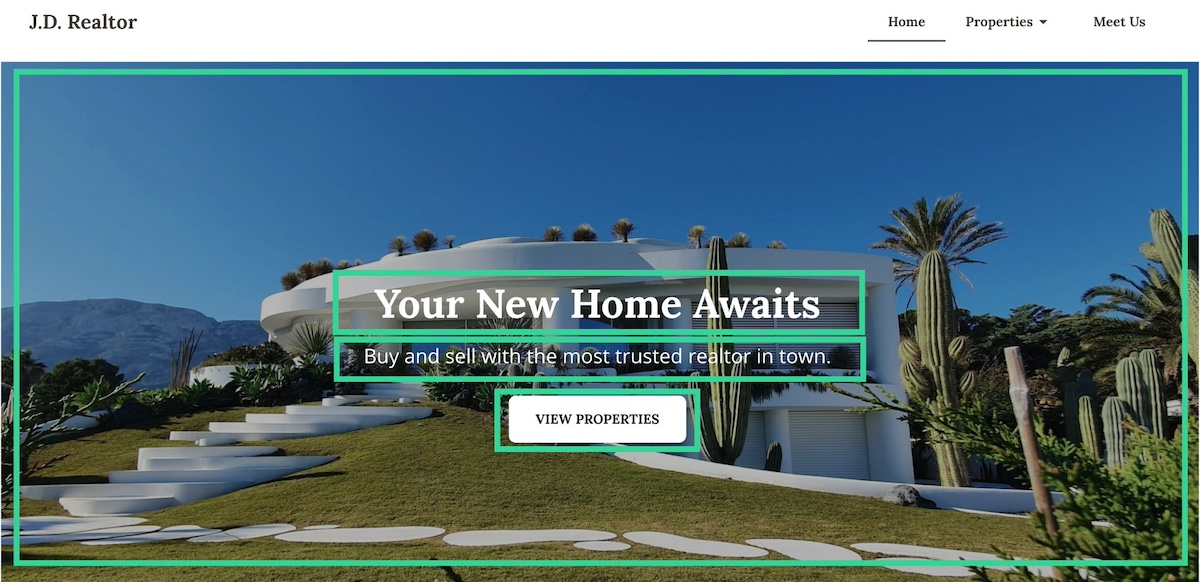
Your homepage is prime real estate—and the top section (also called the hero section) is where the magic needs to happen. So as you delve into website planning, remember that your homepage is the most important way to grab attention and make visitors feel like they’ve landed in the right place.

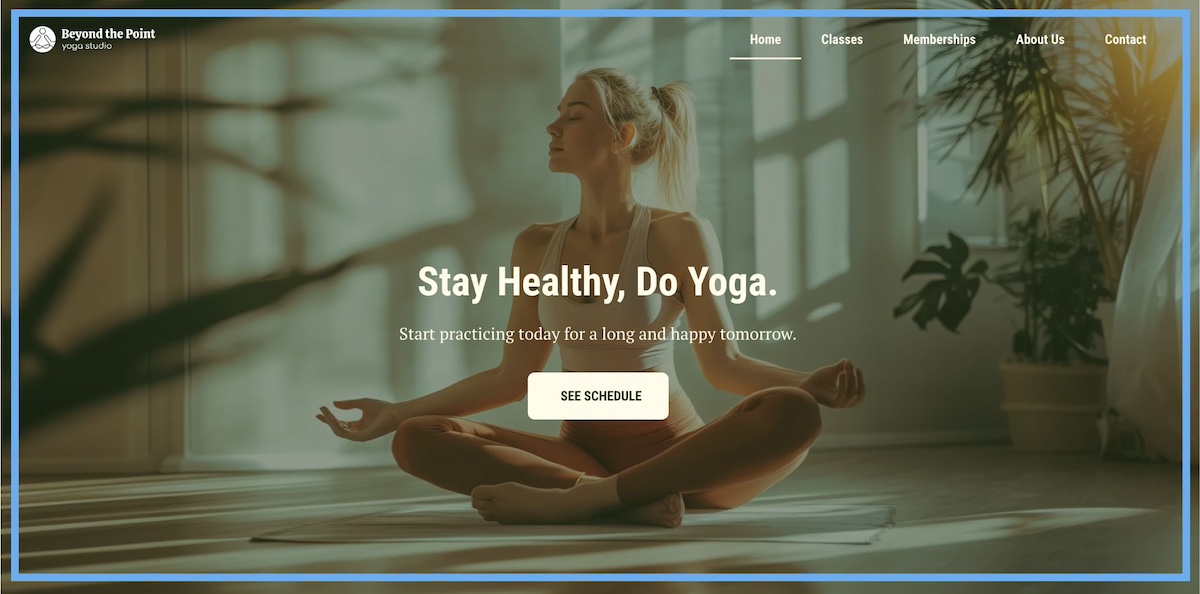
Start with a bold, benefit-focused headline. What’s in it for your visitor? Follow it up with a short, punchy subtitle that adds context or reinforces your value. Then seal the deal with a clear call to action—something that invites them to take the next step, whether that’s exploring your products, booking a call, or diving deeper into your content.

Pair your message with a high-quality, eye-catching image that supports your vibe and adds visual interest. Just make sure it doesn’t compete with your text. The image should enhance your message and not drown it out.

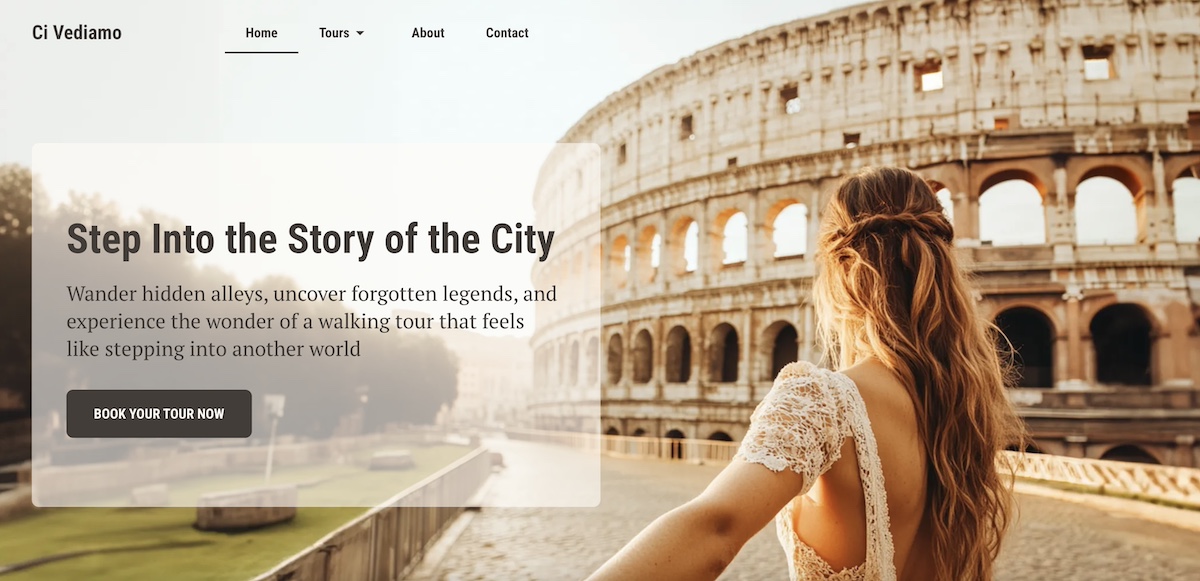
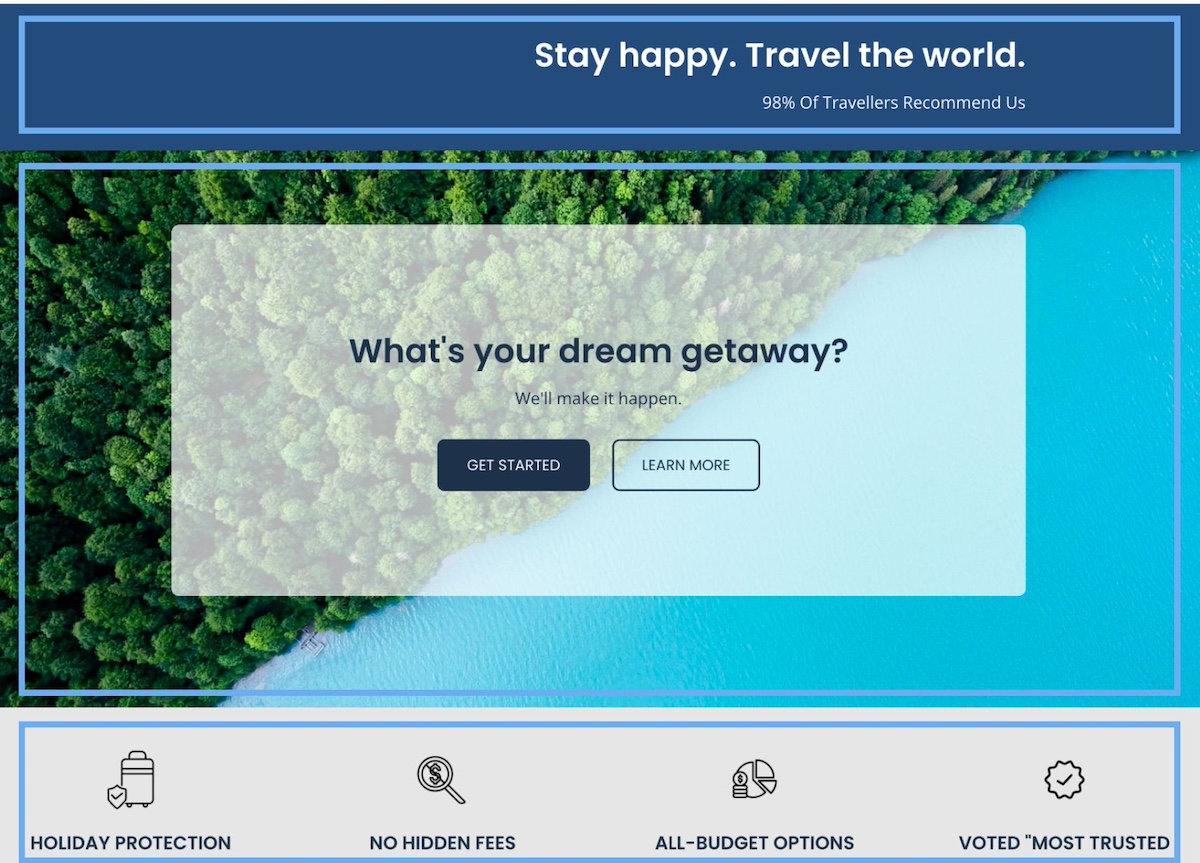
The homepage below captures the spirit of wanderlust with a mesmerizing hero image that instantly transports you. Paired with an evocative headline and a curiosity-driven subtitle, it invites visitors not just to scroll—but to explore. The overall effect is immersive, compelling, and impossible to ignore.

example of making a great first impression in web design

4. Mind the Fold

Here’s a basic rule of good web design: don’t bury the good stuff. The most important content—like your headline, key message, and call to action—should be visible above the fold, meaning it’s the first thing people see without scrolling.

This is super important because what appears at the top of your page gets the most attention. Anything “below the fold” runs the risk of being missed, especially by visitors who are just skimming. That’s why your hero section should be fully visible and thoughtfully designed to quickly communicate who you are and what you offer.

And it’s not just your homepage. Every page on your site should be built with the fold in mind. Whether it’s your About page or a product details page, make sure the most compelling, need-to-know info is front and center.

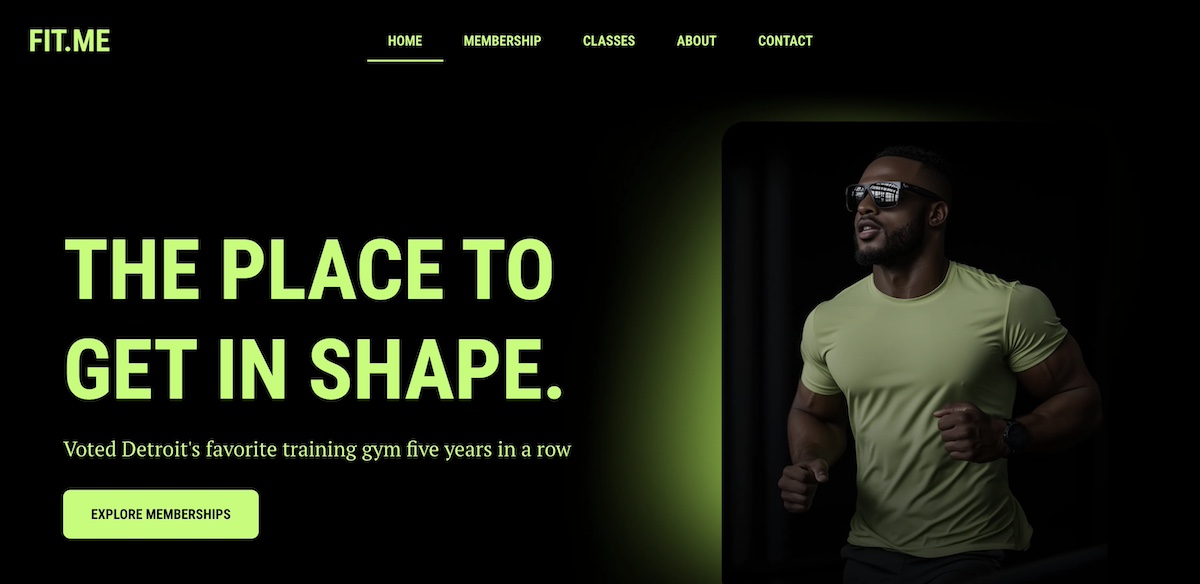
The below homepage makes the most of its above-the-fold space. A bold, eye-catching photo is paired with a strong headline, a clear call to action, and a subtitle that conveys strong social proof. The branding and message are impactful and communicated seamlessly above the fold.

Homepage web example of design above the fold

The above-the-fold principle is especially critical when creating high-converting landing pages—those focused, conversion-driven pages that guide visitors toward one specific action. The same rules apply: keep it clean, clear, and captivating above the fold to drive results.

5. Be Strategic About Content & Layout

Every page on your website should have a job to do—whether it’s welcoming visitors, showcasing products, or prompting a purchase. To help each page succeed, you need two key ingredients: clear content and thoughtful layout. This is a foundational principle that should guide how you construct your website.

Let’s take your homepage design as an example. Once you’ve grabbed attention with a strong hero section, the content that follows should back it up. Think: customer testimonials, trust signals, or a quick story that highlights your value. Each section should build on the last, guiding visitors deeper into your message in a way that feels natural—not overwhelming.

To do this well, structure your content with a clear visual hierarchy. Use headings, visuals, and whitespace to create a smooth flow from one idea to the next. Design elements like color contrast, font size, and section breaks can help your most important messages stand out.

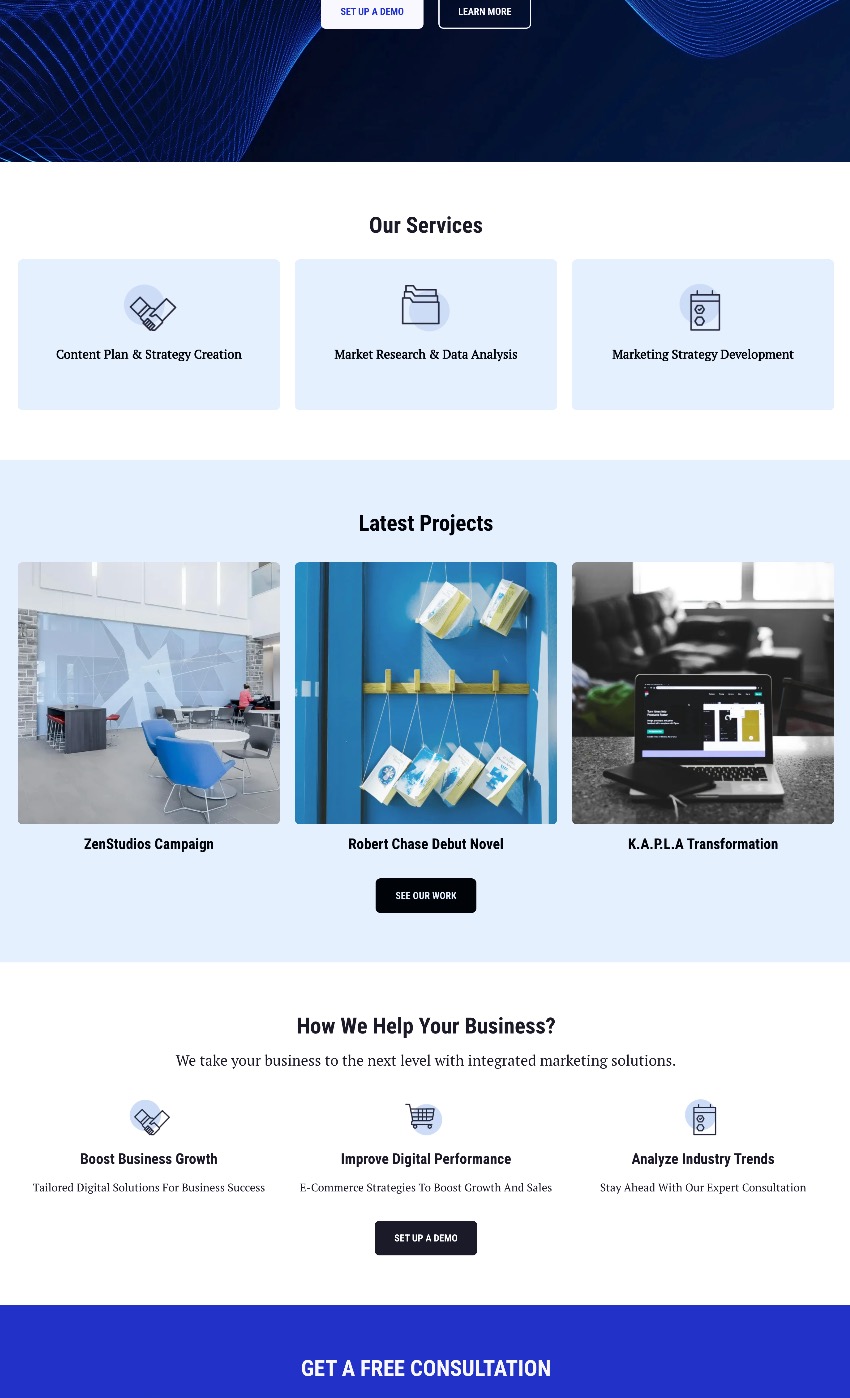
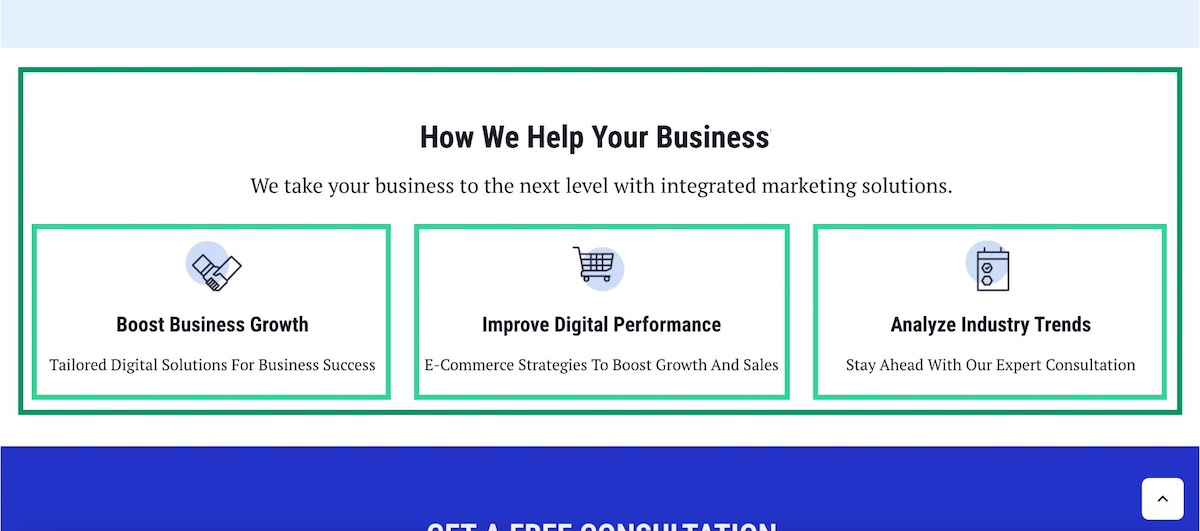
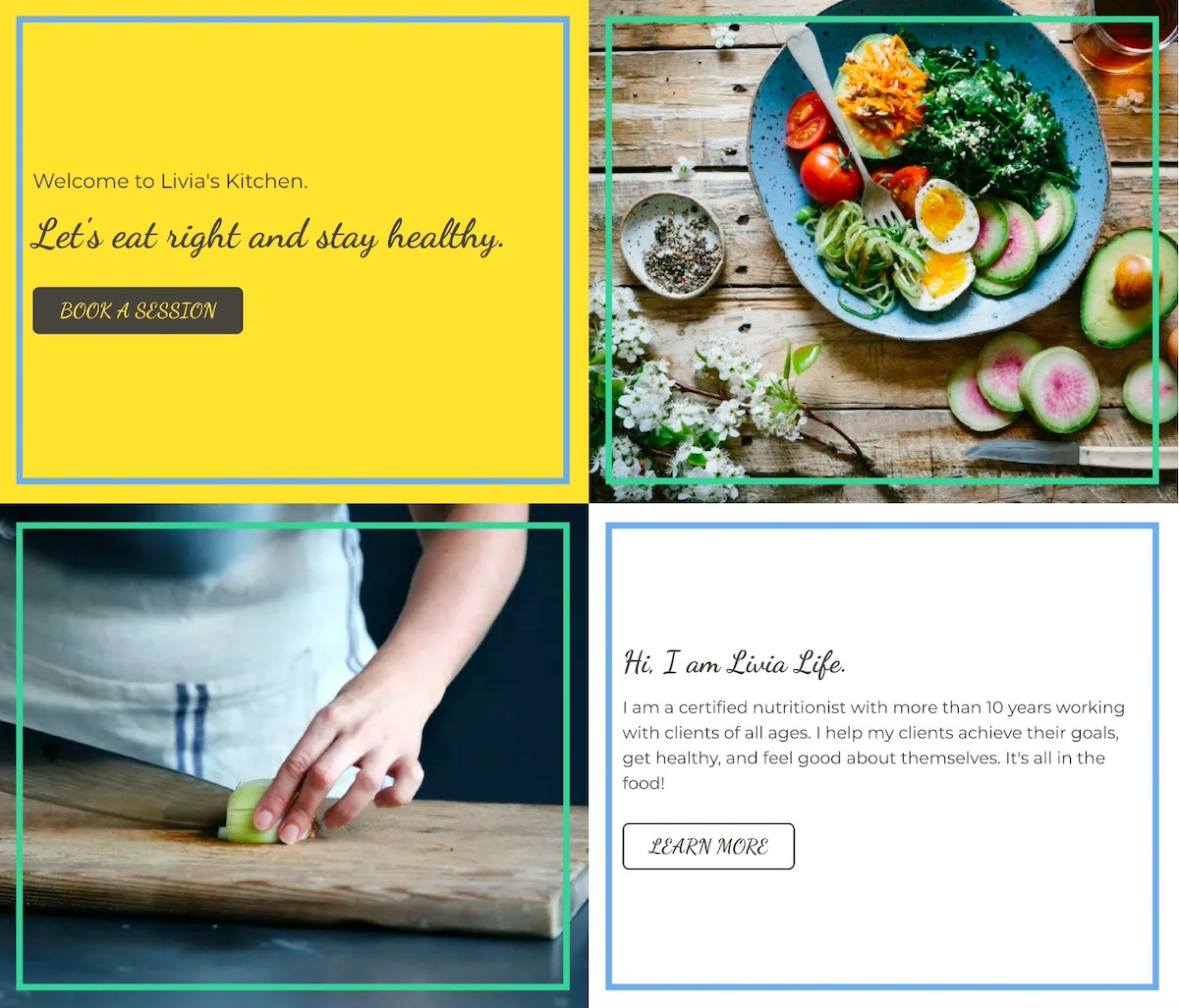
In the below snippet from a homepage, you don’t even need to read the text to see that it is thoughtfully broken out by section with headlines and noticeable calls to action. Zoom in a little more and you’ll see that the sections build on one another, offering various benefits of different services, followed by cleanly explained features.

example of content layout in web design

Again, less is more. Keep each section focused on one core idea, and make sure everything on the page works toward the page’s goal. When your layout and content work hand-in-hand, your website becomes easier to navigate and far more enjoyable to explore.

6. Implement Strategically Placed Calls to Action

Every website needs a tour guide—and that’s exactly what your calls to action (CTAs) are for. Whether it’s “Start now,” “Book a call,” or “Shop the collection,” your CTAs help move visitors smoothly from one step to the next in their customer journey.

But don’t just stick one lonely button at the bottom of the page and call it a day. Instead, sprinkle clear and compelling CTAs throughout your page. Start with the hero section and then continue alongside your content, down your page. Each one should gently nudge visitors forward, whether that’s to learn more, sign up, or make a purchase.

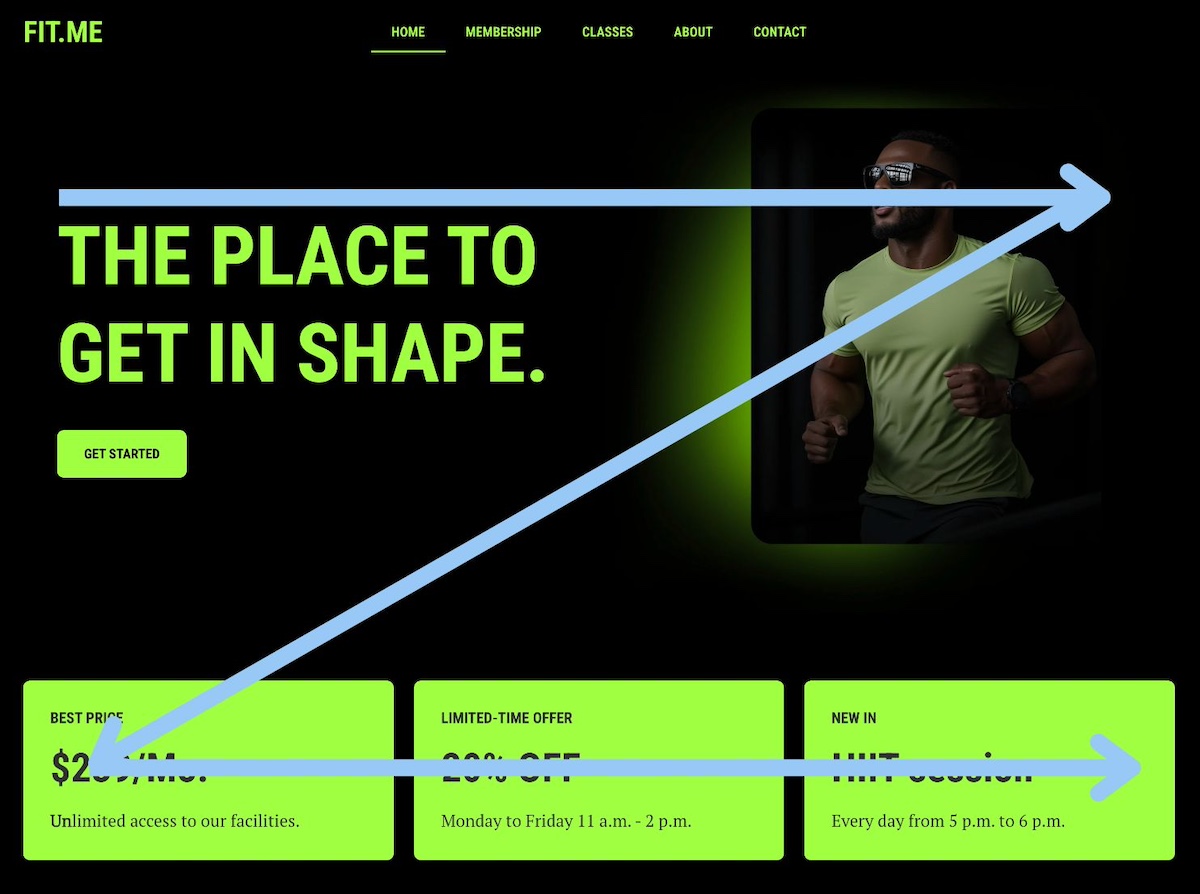
And make sure your CTAs stand out visually, too. Use bold or contrasting colors to draw attention—but stay true to your brand’s aesthetic. For example, if your site has a soft, minimalist vibe, a neon green button might feel more jarring than inviting. Choose CTA colors that complement your overall palette while still catching the eye. Again, a good template will already implement this design best practice.

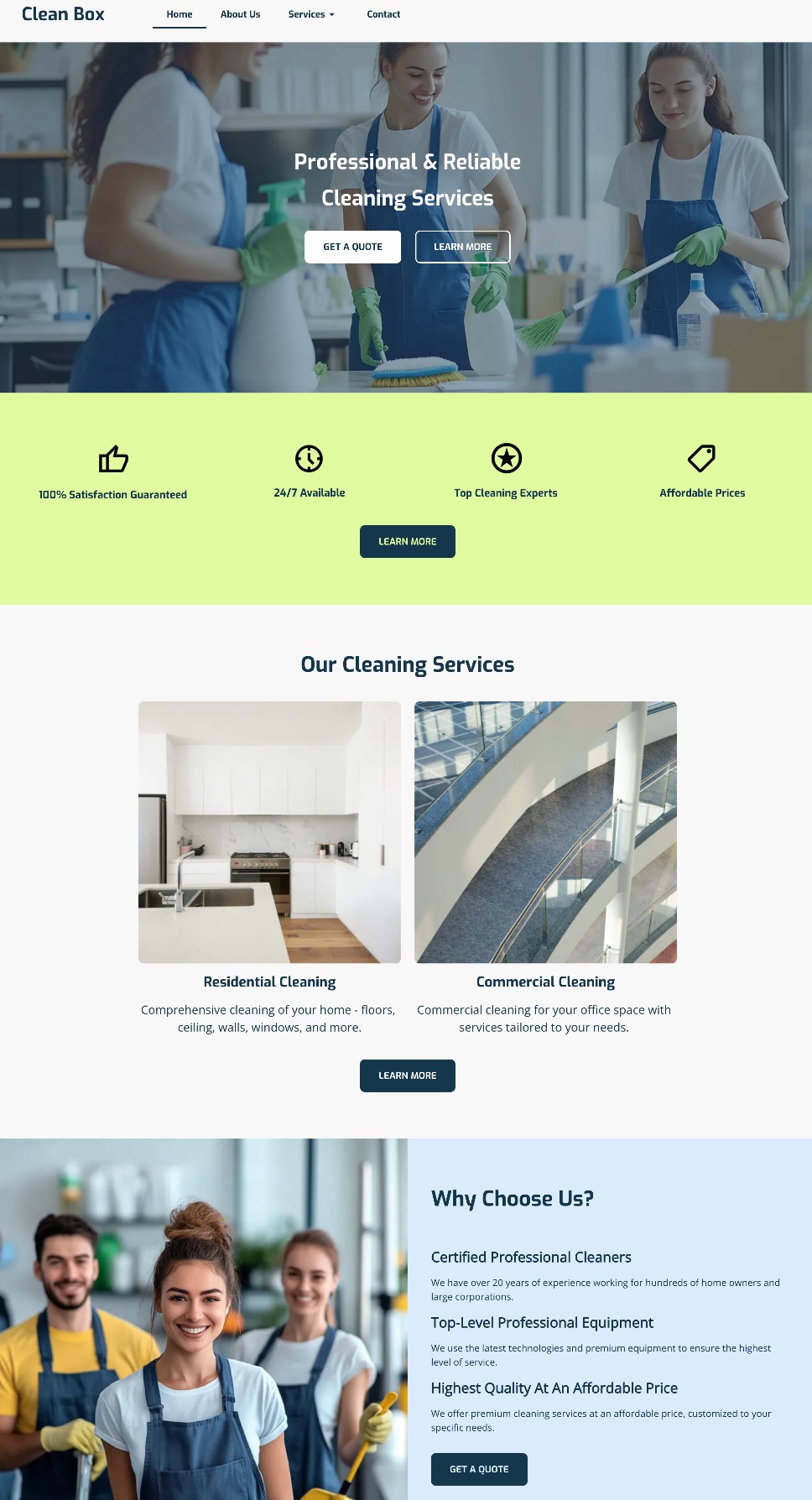
Notice how the calls to action in the below website design not only stand out, but are scattered throughout the page, and the coloring fits in with the business’s color palette. The buttons are noticeable, strategically distributed, and look good.

good web design with strategic calls to action

In short: keep your CTAs visible, actionable, and on-brand. When placed with intention, they’ll help keep your visitors engaged and your site working like a well-oiled machine.

7. Add Imagery That Supports Your Brand

Selecting imagery might seem basic and straightforward, but really images aren’t just decoration—they are a key part of your website’s storytelling. The right visuals can instantly communicate your vibe, highlight your message, and make your pages feel more engaging and less like a wall of text.

So when choosing images, be intentional. Each one should serve a purpose: to reinforce your brand identity, illustrate your products or services, or simply create visual breathing room that makes your content easier to digest.

But what’s important here is to stick to images that match your brand’s style—whether that’s bold and colorful, soft and minimalist, or sleek and modern. Be consistent. And don’t forget about layout: well-placed visuals can guide the reader’s eye and help your page flow naturally.

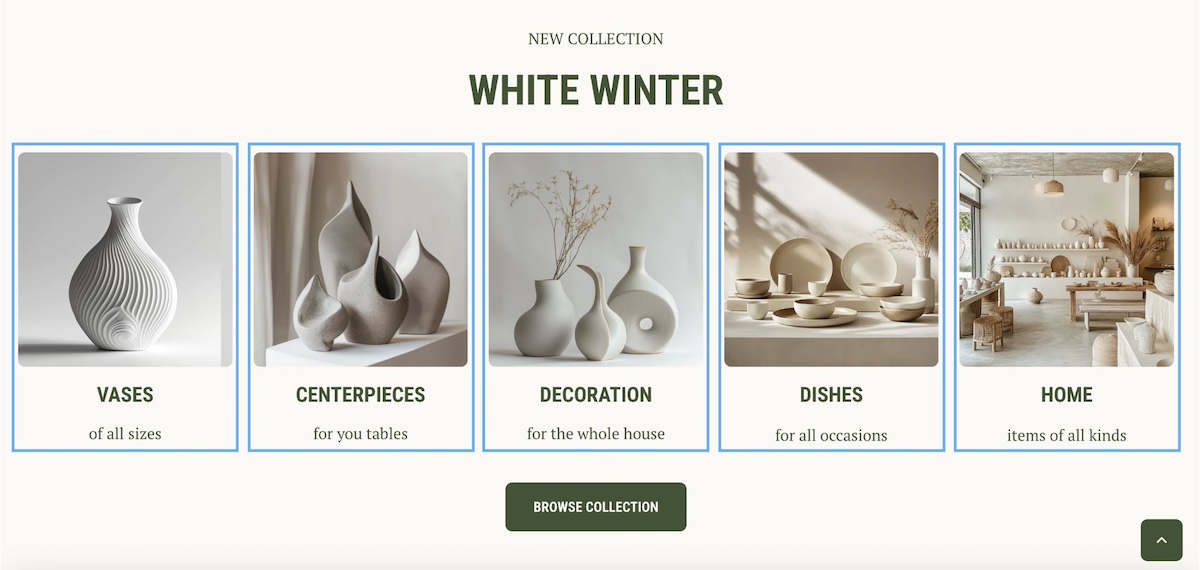
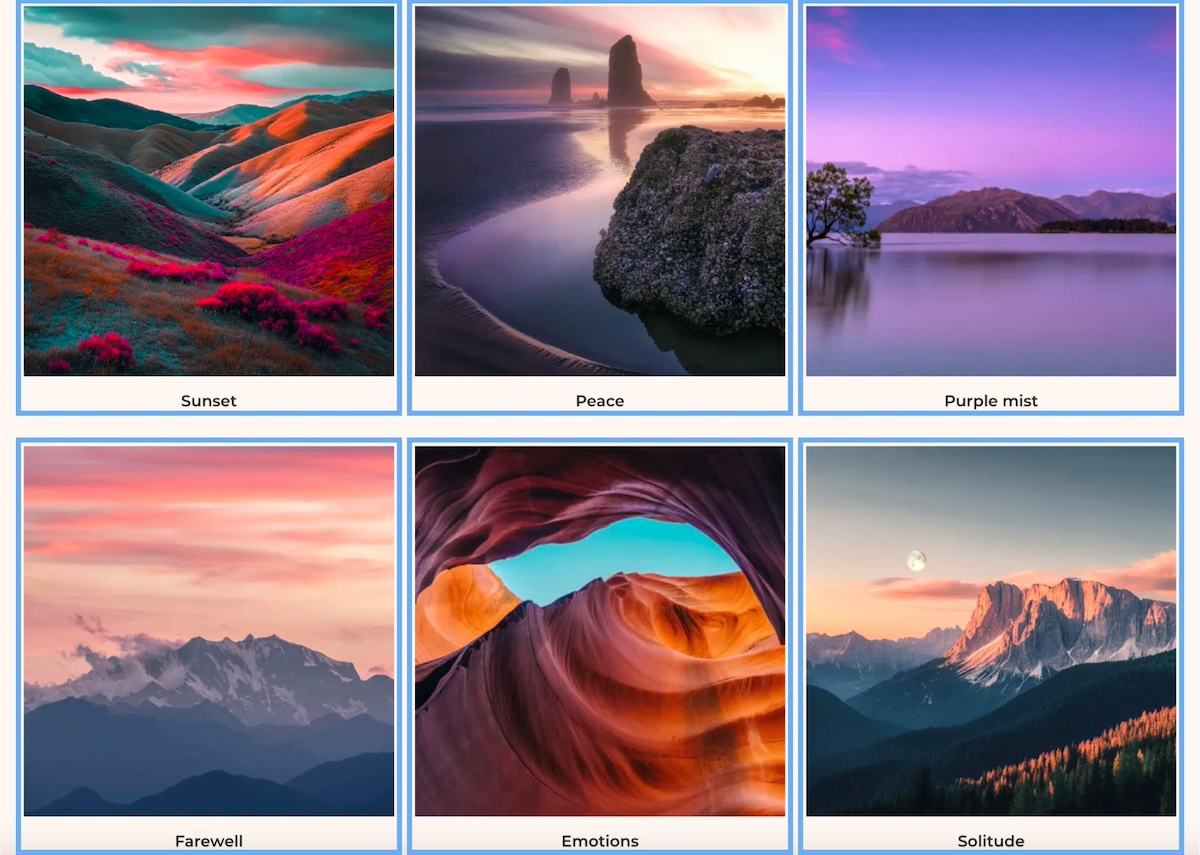
Notice how the below website wins at branding, and especially imagery. Not only are their branding colors and fonts consistent, but their imagery further reinforces that. That is, instead of using random dog shots from the park, the dog images are placed on colored backgrounds that contribute to brand consistency and the overall web design. The photos have also been strategically placed to guide the eye from section to section. 

example of web design tip to use image strategically

8. Design for Performance, Not Just Aesthetics

You can have the most beautifully designed website in the world, but if it’s slow to load, visitors will bounce before they ever see it.

That’s why page speed is a really big deal. A sluggish site can frustrate users, hurt your search rankings, make your business seem less professional, and, of course, negatively impact conversions. The most common culprits? Oversized images, auto-playing videos, clunky code, and too many unnecessary plugins.

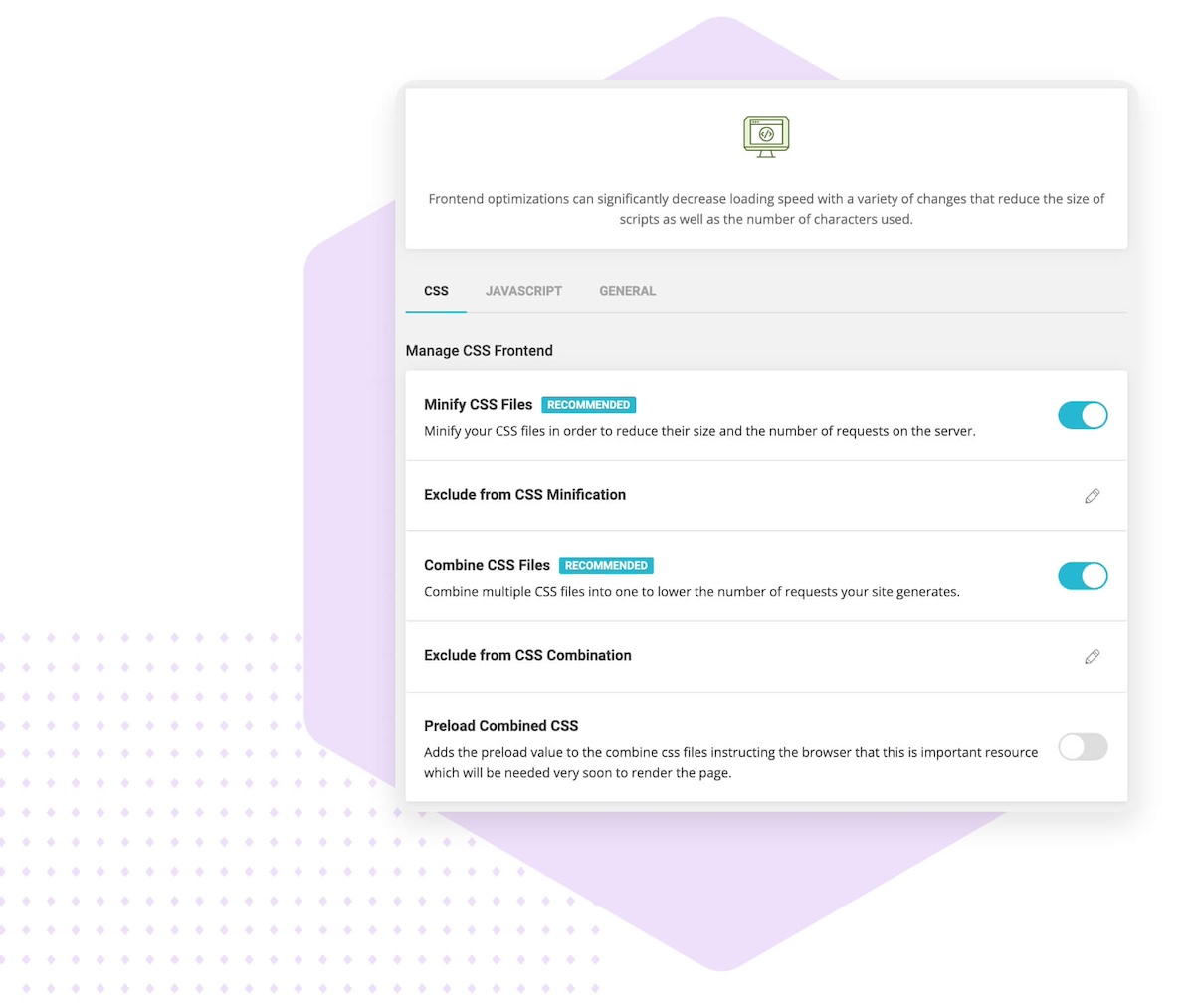
But, thankfully, there are simple ways to speed up your website. Compress your images, minimize unnecessary scripts, and choose a fast, reliable host (like SiteGround!) to keep things running smoothly.

web design tip to optimize site performance

If you’re using WordPress, you can make this extra easy by adding the free-to-use (and very necessary!) SiteGround Speed Optimizer Plugin. And if you’re using the SiteGround Website Builder, then all the top performance-enhancing features are already baked right in. 

9. Optimize for Mobile

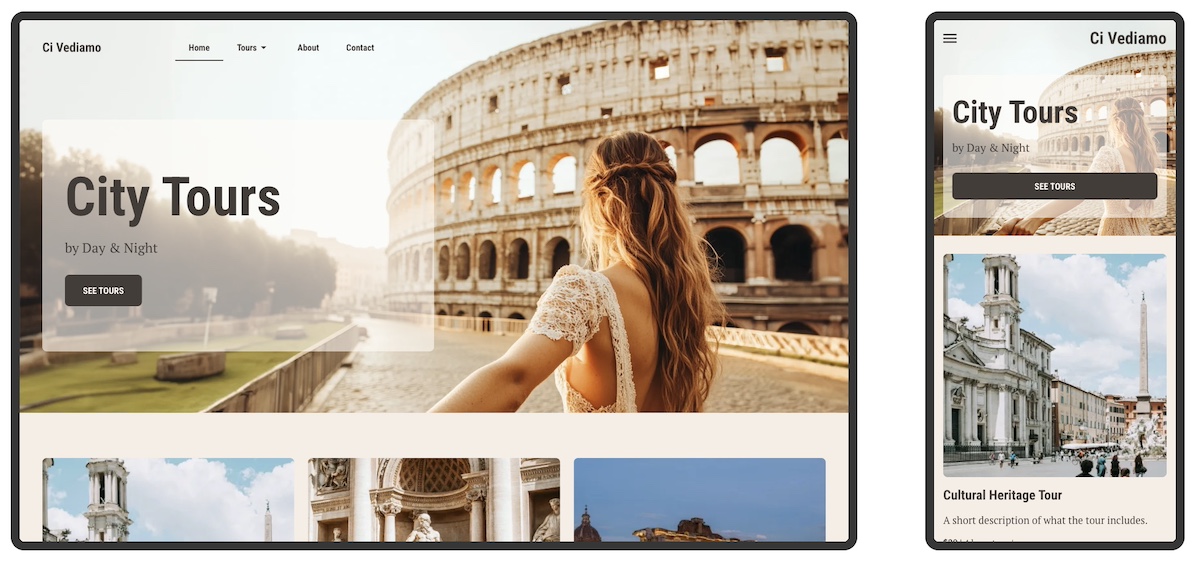
The reality is that people are browsing your site on all kinds of devices—laptops, tablets, smartphones—you name it. So if your website doesn’t adapt smoothly to different screen sizes, visitors might get frustrated and bounce.

The good news is that sites built with the SiteGround Website Builder come automatically optimized for mobile web design. That means your site will look great and work perfectly whether it’s on a giant desktop monitor or the smallest phone screen.

optimizing your site for mobile as a web design tip

Still, don’t just take it for granted—make it a habit to test your site on multiple devices. Check that fonts are readable, buttons are easy to tap, and layouts stay clean and user-friendly no matter the screen. This hands-on approach ensures your visitors get the best experience, wherever they are.

It’s not just important to make sure people on mobile devices can interact with your site—it’s important to make sure everyone can. Accessible web design helps people with visual, motor, or cognitive impairments navigate your content more easily through clear typography, strong color contrast, readable layouts, and intuitive interactions. These improvements don’t just support accessibility; they also make your site more usable overall, leading to a better experience for all visitors.

10. Secure Your Site & Build Trust from the Start

First impressions matter, especially when it comes to trust. A website that looks unprofessional or feels unsafe can quickly send visitors running. To create a welcoming and credible site, focus on website security alongside clean, cohesive design. Avoid overwhelming your visitors with too many colors or fonts—instead, use a consistent layout that guides users smoothly through your content, as we’ve already discussed.

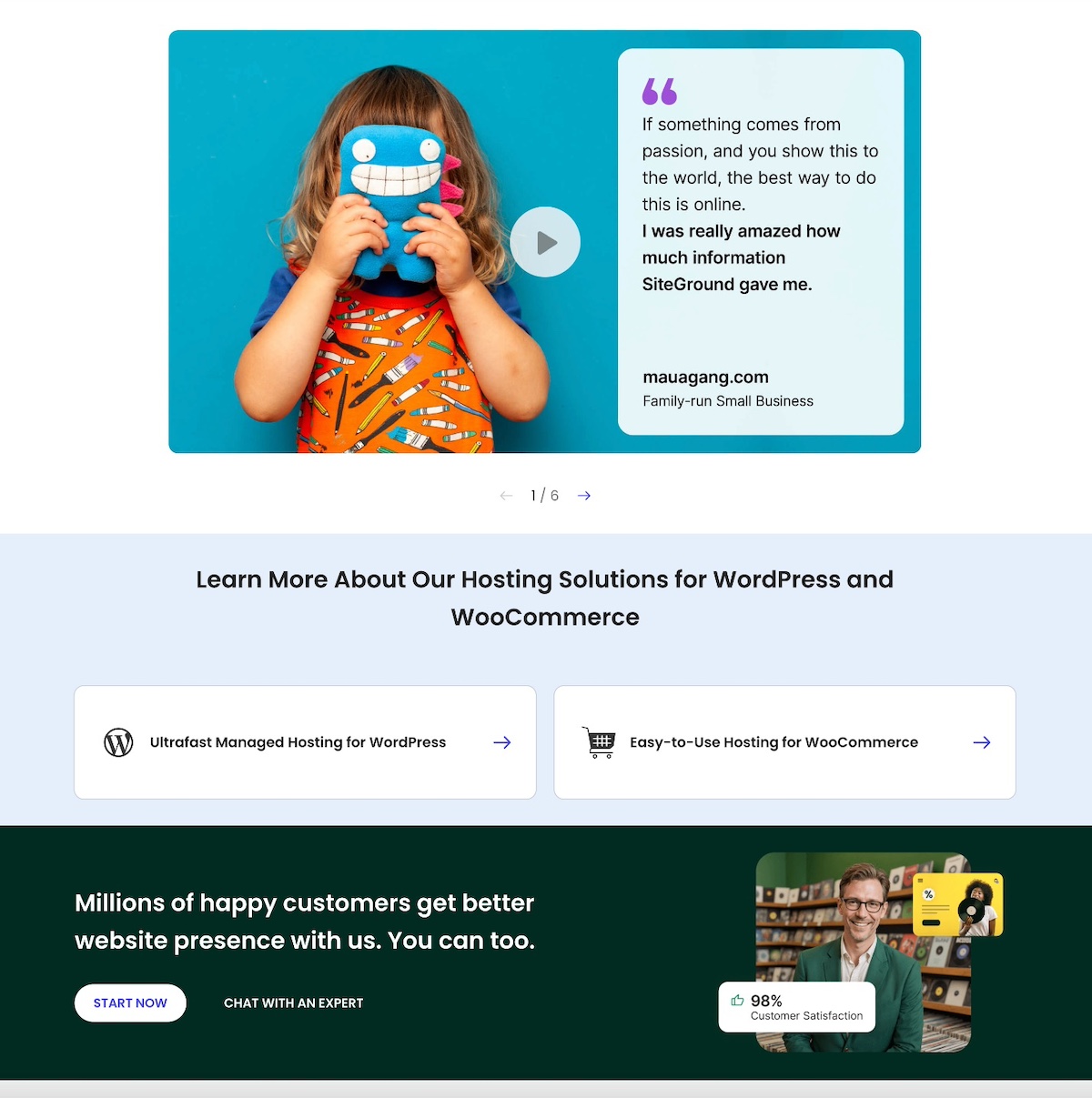
You can also add social proof like testimonials and trust badges, which can further boost your site’s credibility and reassure visitors. Like on SiteGround’s very own homepage, which features customer success stories, as well a section dedicated to sharing that 98% of customers are satisfied. These are strong trust signals that are worth including when planning your web design.

Homepage design example of social proof

Most importantly, make sure your website is protected with an SSL certificate. While some hosts charge extra for this essential security layer, SiteGround includes SSL for free, giving you peace of mind without added cost. SSL not only safeguards your visitors’ information but also signals professionalism—helping your site make a strong, trustworthy first impression.

And just like with performance, if you’re using WordPress, the no-cost SiteGround Security Optimizer plugin can help patch up front-end vulnerabilities. On the other hand, if you’re building your site with the SiteGround Website Builder, comprehensive security is built in from start to finish.

Top tips for good web design

Website Tips and Tricks: Wrapping Up Your Web Design Journey

So let’s put those less-than-stellar websites in the rearview mirror, because now you’ve got the tools to build your own—one that truly delivers. Nail the basics: define your brand, choose the right template, and optimize for speed, mobile, and security. Do that, and you won’t just end up with a good-looking site, but one that works hard, connects with your audience, and gets the job done.

If you’re looking for a simple, powerful way to bring your website vision to life, the SiteGround Website Builder is the ideal option. It offers easy-to-use templates, automatic mobile optimization, built-in security, and all the tools you need to build a professional site quickly and confidently—no coding required.

This article was originally published in November of 2022, and was updated in February of 2026.

How to Protect Your Website from Hackers

Illustration of a person in a hoodie entering a room, with a browser window overlay. Text reads "Threat Detected" and "Site Clean" with security icons

Your website can be hacked whether it gets 50 visitors a day or 50,000. That’s because hackers use automated tools that scan for vulnerabilities at scale, so size offers no protection. The good news is that most attacks exploit basic weaknesses you can fix without any technical background. Indeed, strong passwords, updated software, a security plugin, and a reliable host go a long way. This guide walks you through each step so that your site is as secure as can be.

Key Takeaways:

  • Every website is a target. Automated tools scan for vulnerabilities at scale — size offers no protection.
  • Most breaches exploit basic weaknesses. Outdated software and weak passwords are behind the majority of attacks.
  • Two-factor authentication is one of the highest-impact changes you can make. A stolen password alone won’t be enough to get in.
  • Your hosting provider is part of your security. Built-in firewalls, daily backups, and proactive monitoring do a lot of the heavy lifting.
  • A hacked site has a recovery checklist. Back up, scan for malware, and review user access before anything else.
  • Regular audits matter more than one-time fixes. Security is a moving target.

Understanding the Threat Landscape

As businesses become more reliant on the internet, their websites play an ever more important role—and so does the need to protect them from growing security threats.

Hackers are on the hunt to ruin your reputation or take your website down to hurt your business. This is why understanding the website security landscape is the first step in fortifying your website against potential attacks.

Advertisement for SiteGround Security Optimizer, featuring security icons and a "Secure Your Website Today!" message.

What Are Common Website Security Issues?

The most common threats range from automated attacks that scan for vulnerabilities to techniques that manipulate users directly. Understanding each of these is the first step to defending against them.

  • SQL injection — attackers exploit website security vulnerabilities in your site’s code to execute malicious database commands, gaining access to sensitive data like user credentials and financial information.
  • Cross-site scripting (XSS) — harmful scripts are injected into web pages viewed by other users, allowing attackers to steal cookies, session tokens, or other sensitive information without the user’s knowledge.
  • Automated tools — scanners probe thousands of sites at once looking for weaknesses in code, outdated software, or misconfigured servers. Any vulnerability they find becomes an entry point.
  • Brute force attacks — automated tools cycle through password combinations until they find the right one. Simple or reused passwords make this significantly easier.
  • Phishing — attackers trick users into handing over login credentials through deceptive emails or fake login pages designed to look legitimate.

DDoS attacks — a site is flooded with fraudulent traffic until it becomes inaccessible to real users, often used for extortion or deliberate disruption.

By staying informed and vigilant, you can proactively secure your website and protect your data. Implement strong security measures like a password manager and two-factor authentication to add an extra layer of protection against potential threats.

What Do You Do If Your Website Has Been Hacked?

Start by confirming your website has truly been hacked, then take your site offline or into maintenance mode before doing anything else. Acting quickly limits the damage, and here’s the action plan that matters.

1. Confirm the Hack: Start by verifying the hack. Look for telltale signs such as defaced pages, unexpected redirects, or notifications from your hosting provider. This confirmation is essential before taking further action.

2. Back Up Your Site: Before making any changes, back up your current site. This backup serves as a record of the incident and can be invaluable for forensic analysis. Make sure you don’t overwrite any existing backups, though.

3. Put Your Site in Maintenance Mode: Protect your visitors by putting your site in maintenance mode. This not only prevents further damage but also reassures your users that you are addressing the issue.

4. Scan for Malware: Use a reliable malware scanner, such as SiteGround’s Site Scanner, to identify any malicious code. This step is crucial in understanding the extent of the breach and what needs to be cleaned up.

5. Clean Up and Secure: Remove any malicious code and reinstall plugins to ensure they are free of vulnerabilities.

6. Review and Revise User Access: Take this opportunity to review who has access to your site. Make sure that only trusted individuals have administrative permissions, and enforce strong, unique passwords for all accounts.

7. Implement Regular Security Scans: Set up regular security scans to monitor your site for vulnerabilities and prevent future attacks. This proactive approach helps you stay one step ahead of potential threats.

8. Consult a Professional: If the hack is beyond your expertise or if issues persist, don’t hesitate to consult a cybersecurity professional. They can provide a thorough cleanup and help reinforce your site’s defenses.

By following these steps, you can effectively manage the aftermath of a hack and bolster your website’s security for the future. Remember, swift action and vigilance are your best allies in recovering from a cyberattack.

[74]

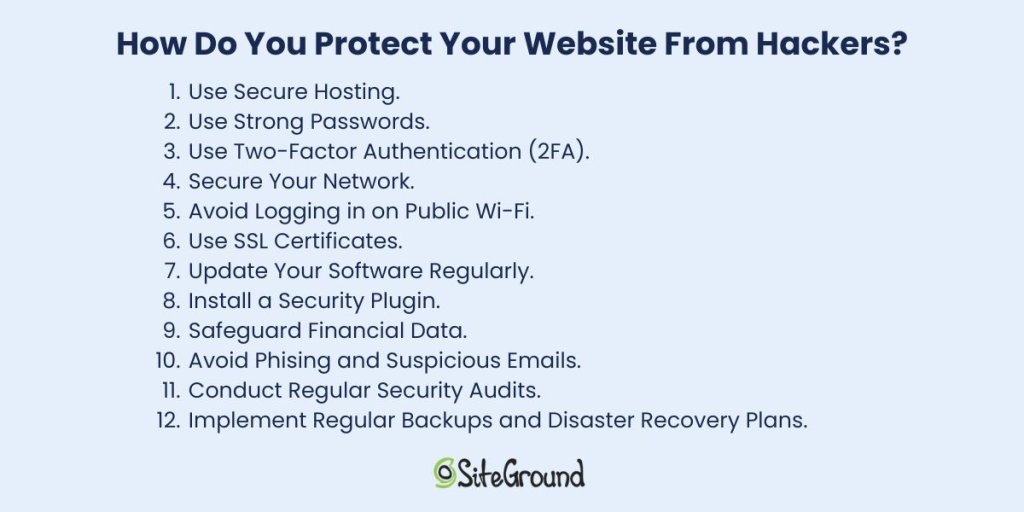
How Do You Protect Your Website from Hackers?

The most effective approach combines secure hosting, strong passwords, two-factor authentication, and up-to-date software. No single measure is enough but together, these steps close the vulnerabilities most attacks rely on.

List of 12 tips to protect websites from hackers, including secure hosting and strong passwords. SiteGround logo at the bottom.

1. Use Secure Hosting

Selecting a secure hosting provider is one of the most important choices you’ll make when it comes to defending your website against cyber threats. A reliable host not only keeps your site running smoothly but also offers strong security features to protect your data. Consider hosting services that include automatic updates, regular backups, advanced firewalls to enhance your site’s safety, and expert support.

SiteGround in practice: In spring 2026, security researchers disclosed five critical Linux kernel vulnerabilities in the space of three weeks—each one capable of giving an attacker with any foothold on a server full root access. SiteGround patched all five across its entire infrastructure within 48 hours of each disclosure, using live kernel patching so no customer site experienced downtime. Read the full story →

2. Use Strong Passwords

The foundation of any secure system is a strong password. Despite being one of the most basic security measures strong passwords are often overlooked. A robust password should be complex, unique, and difficult for hackers to guess.

With that in mind, avoid using easily guessable information like birthdays or common words. Opt for a mix of uppercase and lowercase letters, numbers, and special characters instead. Additionally, consider a password manager to generate and securely store your passwords, so you don’t have to remember each one.

3. Use Two-Factor Authentication (2FA)

Implementing two-factor authentication is one of the easiest and most effective ways to build strong website security. It requires users to verify their identity using two methods. Typically, this involves entering a password and then confirming a code sent to a mobile device or email.

What this means is that even if a password is compromised, 2FA significantly reduces the risk of unauthorized access.

4. Secure Your Network

Network security is another critical aspect of protecting your website. Start by ensuring that your network is secure and that all software is up to date. Regularly update your firewall and antivirus software to protect against malware and other threats. Furthermore, consider using a virtual private network (VPN) when accessing your website from remote locations.

What’s a VPN? It encrypts your internet connection, making it more difficult for hackers to intercept data. It also masks your IP address, adding an extra layer of privacy and security while you browse.

5. Avoid Logging in on Public Wi-Fi

Public Wi-Fi networks, such as those found in coffee shops or airports, are convenient but often lack the necessary security measures to protect your data. If you must access your website while on the go, use a secure network or a VPN to encrypt your connection and protect your website and sensitive data.

6. Use SSL Certificates

An SSL (Secure Sockets Layer) certificate is a must-have for any website that handles sensitive information. It encrypts the data transmitted between a user’s browser and your website, ensuring that sensitive data, such as login credentials and financial data, remains secure.

The encryption it offers is key to protecting your website from hackers looking to exploit vulnerabilities in data transmission. An SSL certificate not only enhances security but also boosts your website’s credibility. Plus, secure websites often rank better in search engine results, giving you an added advantage.

7. Update Your Software Regularly

Keeping your website’s software up to date is vital for security. Developers frequently release updates to fix vulnerabilities and improve performance—ignoring them can leave your site exposed to hackers who target outdated software. This is why it’s important to stay current to keep your defenses strong.

To stay protected, make sure that your content management system (CMS), plugins, and any other software components are always up to date. Also, consider enabling automatic updates where possible to minimize the risk of missing critical patches.

8. Install a Security Plugin

Security plugins and tools can not only help you get an extra layer of protection but also with performing regular security check-ups. Generally, they’re a good starting point for your website security, as they can make your website more secure automatically.

The SiteGround Security Optimizer, for example, provides a range of features, from scanning for malware to blocking malicious traffic. It also offers real-time monitoring, alerting you to potential threats and allowing you to act quickly. On top of that, you can rely on firewall protection and brute force attack prevention, further securing your website against unauthorized access.

Implementing these advanced security techniques can significantly enhance your website’s defenses and provide peace of mind. As we move forward, let’s explore how to protect sensitive information, and help your data remain secure and confidential.

9. Safeguard Financial Data

Financial data is a prime target for hackers, so it pays to be deliberate about how you handle it:

  • Use a reputable payment gateway — services like Stripe or PayPal handle card data on their own secured servers, meaning sensitive numbers never touch yours.
  • Never store card details unnecessarily — most breaches involving financial data happen because it was retained when it didn’t need to be.
  • Comply with PCI DSS — if you process payments directly, this standard sets the baseline for encrypted transmission, access controls, and regular audits. Your payment provider will usually guide you through what’s required.

Monitor transactions for anomalies — unusual purchase patterns or multiple failed payments can flag fraud early. Most payment platforms have this built in; make sure it’s enabled.

10. Avoid Phishing and Suspicious Emails

Phishing involves hackers tricking users into revealing sensitive information. To combat these threats you can:

  • Prioritize building a culture of vigilance among your users and employees.
  • Perform regular training sessions that can help them recognize unexpected requests for personal information and other red flags.
  • Encourage users to always question the legitimacy of emails and verify the sender’s identity through alternative means.
  • Foster an environment of caution and verification, so that you can protect sensitive information and maintain user trust.

As we continue, let’s delve into the importance of monitoring and maintenance to ensure your website remains resilient against evolving threats.

11. Conduct Regular Security Audits

Conducting regular security audits is essential for identifying potential weaknesses in your website’s security framework. These audits involve systematically reviewing your website’s code, configurations, and access controls to ensure they meet current security standards.

It might also help to engage with cybersecurity professionals or use automated security assessment tools to uncover vulnerabilities that may otherwise go unnoticed. By performing security audits regularly, you can stay ahead of potential threats and ensure your website remains secure.

12. Implement Regular Backups and Disaster Recovery Plans

Even with the best security measures in place, no system is entirely immune to attacks or unexpected failures. That’s why it’s a good idea to have a robust backup and disaster recovery plan. Regularly backing up your website’s data ensures a quick restore in the event of a breach or data loss.

Store backups in a secure, off-site location, and test your recovery process periodically to ensure it functions correctly. A well-executed disaster recovery plan minimizes downtime and helps maintain business continuity, even in the face of unforeseen challenges.

Protect Your Website from Hackers Today

Most attacks exploit basic weaknesses, and the steps in this guide are enough to stop the majority of them.

Strong passwords, two-factor authentication, SSL certificates, regular updates, and a security plugin all work together to close the gaps hackers rely on. And it starts with choosing a host that takes security as seriously as you do—one with built-in firewalls, proactive monitoring, and a team that patches vulnerabilities before most people have heard about them. That’s the foundation SiteGround Web Hosting is built on.

Do the basics well, stay consistent, and your site will be a much harder target than most.

SiteGround banner for reliable web hosting with server and shield icon. Includes "Get SiteGround Hosting" button.

FAQs: Protecting Your Website From Hackers

How do I know if my website has been hacked?

Look for defaced pages, unexpected redirects, unfamiliar admin accounts, or a sudden drop in search rankings. Your hosting provider may flag it before you do. When in doubt, run a malware scan. A tool like the SiteGround Security Optimizer can help here—its activity log monitors visits, login attempts, and suspicious behavior in real time, so you’re more likely to catch a breach early rather than after the damage is done.

Is it possible to get hacked through a website?

Yes, visiting a compromised website can expose you to malicious scripts that steal cookies, session data, or login credentials without you doing anything wrong. It works the other way too: if your own site is hacked, it can be used to attack your visitors.

What do hackers hate the most?

Layered security. When a site has two-factor authentication, a web application firewall, updated software, and strong passwords all in place, the effort required to break in usually isn’t worth it. Hackers rely on easy wins, thus removing the easy wins is the most effective deterrent.

This article was originally published in May 2025 and then updated in May 2026

How to Secure a Website in 2026: 15 Critical Tactics

how to secure a website

The question “how to secure a website” might seem daunting at first. With terms like HTTPS, SSL, and firewalls flying around, it’s easy to feel overwhelmed. But the truth is that securing your website doesn’t have to be complicated if you know the right steps to take. 

In this article, we’ll walk you through the 15 most critical tactics to protect your site, your visitors, and your peace of mind.

Why Is Securing Your Website More Important Than Ever in 2025?

Securing a website isn’t just a technical best practice—it’s a necessity. As a website owner, staying ahead of evolving cyber threats is crucial.

Hacking attempts have become more advanced, and attackers now use AI-driven tools to target websites of all sizes. 

Whether you run a personal blog or manage an online store, failing to secure your site can lead to data breaches, downtime, search engine penalties, and a loss of customer trust.

Here’s why web security matters more than ever:

  • AI-powered attacks are on the rise – Hackers can now automate complex cyber attacks at scale, probing for weak spots 24/7.
  • Regulations are tightening – Laws like the GDPR, CCPA, and new regional frameworks demand stronger protections for user data.
  • Trust is everything – Visitors quickly leave insecure sites. HTTPS, a clean UX, and visible security features all boost credibility.
  • Business continuity depends on it – Downtime due to hacks or malware can cost you leads, customers, and revenue.

Securing your website today means safeguarding your brand’s reputation, your users, and your future.

Essential Tactics to Secure Your Website

Let’s dive into the most effective, up-to-date strategies for protecting your website in 2025. These tactics are actionable, proven, and scalable—no matter your website size or platform.

1. Use HTTPS with a Valid SSL/TLS Certificate

Let’s start here because the “Connection Is Not Private” error is still common in 2025—but thankfully, it’s also easy to fix.

This warning shows up when a site doesn’t use encryption to protect data. Modern browsers flag these sites to alert users that their information could be at risk. If you’re running a website—especially one that handles logins, forms, or payments—encrypting that data is essential.

The most reliable way to do this is by using an SSL (Secure Sockets Layer) certificate, which enables HTTPS. It encrypts the communication between your site and its visitors, preventing data like passwords and credit card details from being intercepted by attackers.

Good news: installing an SSL certificate is simple.

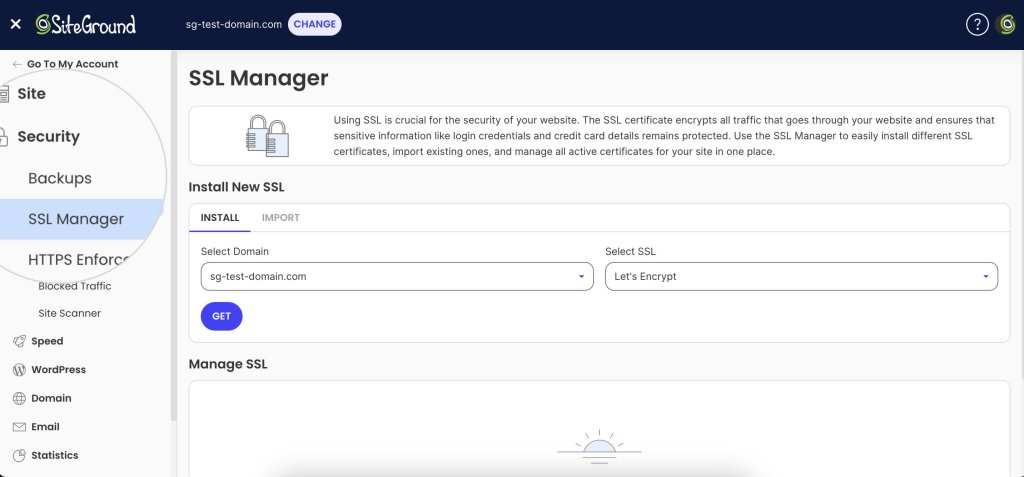
  • SiteGround includes free standard and wildcard SSL certificates in all hosting plans. To install one, go to Websites > Site Tools > Security > SSL Manager.
A screenshot of SiteGround's Site Tools dashboard, showing the SSL manager page where a user can install an SSL certificate.
  • If your host doesn’t provide one, services like Let’s Encrypt offer free SSL certificates that are widely trusted.
  • After installation, make sure your site redirects all traffic to HTTPS to enforce secure connections through all URLs.

A valid SSL certificate not only keeps your users safe—it also helps your SEO and builds trust with your audience.

2. Set Up Regular, Automated Website Backups (With a Clear Schedule)

Even with top-tier security, no site is completely immune to threats. That’s why automated backups are your best safety net—they let you restore your site quickly after hacks, server failures, or human error.

Backups should be:

  • Automatic – Manual backups are easy to forget. Automating the process means your data is protected 24/7.
  • Frequent – How often your site is updated should guide your backup frequency. Daily backups are a must, but hourly backups are ideal for high-traffic or ecommerce sites.
  • Securely stored – Your backups should be kept off-site or in a secure cloud environment, separate from your live site.

📅 Scheduling matters. Choose a backup schedule based on how often your content or data changes. For example:

  • Blogs or portfolio sites: Daily
  • Online stores or client portals: Hourly + on-demand

Many hosting providers include automated backup tools. At SiteGround, we back up sites daily and store them securely for 30 days. For advanced needs, our Premium Backup adds:

  • Hourly automatic backups
  • Up to five on-demand backups
  • Extra daily copies for added redundancy
A promotional banner for the SiteGround Premium Backups service.

Having a reliable, up-to-date backup means you’re always just a few clicks away from recovery—no panic, no downtime.

3. Create Strong Passwords and Use Two-Factor Authentication (2FA)

Weak or reused passwords are one of the easiest ways for hackers to gain access to your website. Brute-force attacks can crack simple passwords in seconds—so using a strong, unique username and a secure password is a must.

Here’s how to tighten your login security:

  • Use complex passwords that mix uppercase and lowercase letters, numbers, and special characters.
  • Avoid using the same password across multiple accounts.
  • Change passwords regularly, especially for administrative access users.

Even better? Add two-factor authentication (2FA).

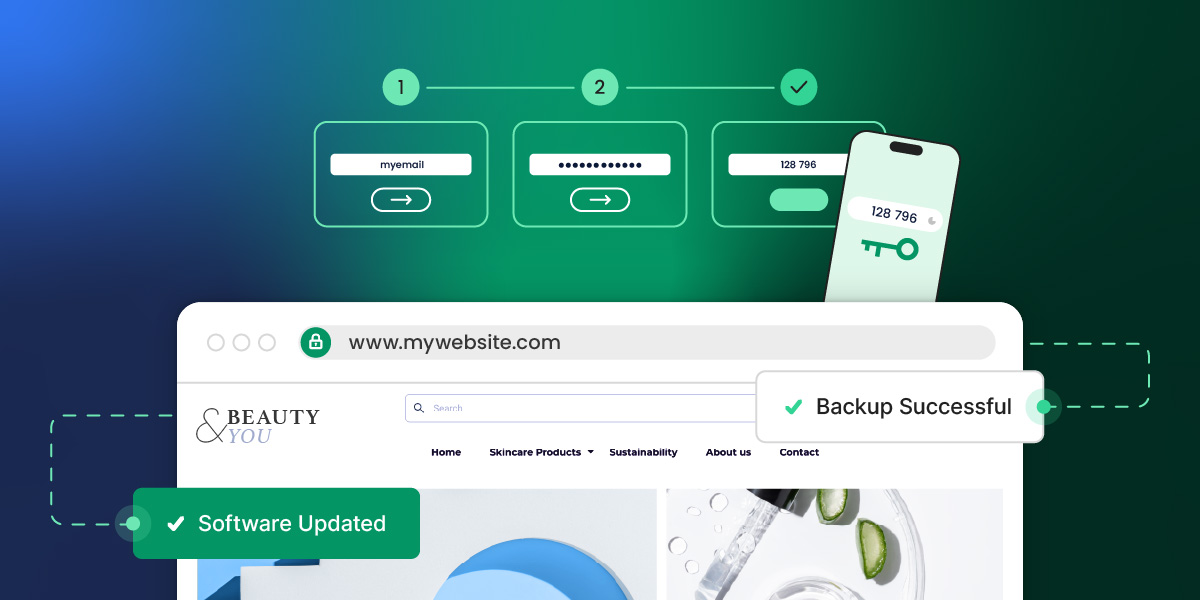
2FA requires both your password and a secondary code (usually from your phone) to log in. That way, even if your password is stolen, your account stays protected.

If you’re using WordPress, you can enable 2FA in seconds with the SiteGround Security Optimizer plugin. If you have a different CMS (content management system) or a custom-built site, services like Google Authenticator or Authy can help you enable it easily.

This one-two combo of strong passwords plus 2FA can block most unauthorized login attempts.

4. Keep All Software, Plugins, and Themes Up-to-Date

Outdated software is a hacker’s playground. When security patches or bug fixes are released, it’s crucial to update as soon as possible. Each unpatched vulnerability is a potential entry point for attackers, which can compromise your entire site.

Here’s how to stay protected:

  • Update your core software regularly. For WordPress sites, make sure that both the core application and plugins are up to date. Ignoring updates can leave your site vulnerable to known exploits.
  • Remove unused plugins and themes. These can create unnecessary security risks, even if they aren’t active on your site.
  • Enable automatic updates wherever possible, especially for security patches.

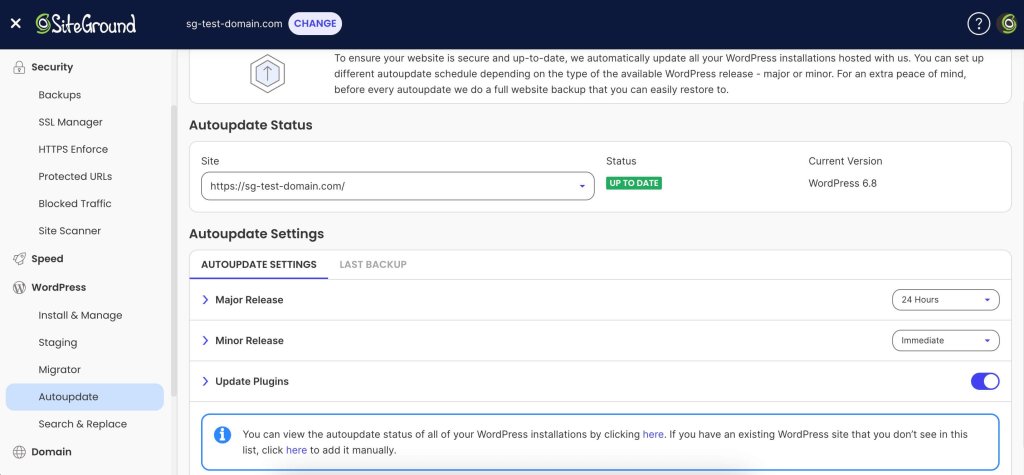
At SiteGround, automatic updates are on by default for the WordPress core and can be enabled for plugins as well.

A screenshot of SiteGround's Site Tools dashboard, showing the Autoupdate page where users can manage the autoupdate settings of their WordPress core and plugins.

By keeping software up to date, you close off known security vulnerabilities and maintain the integrity of your website. 

5. Choose a Secure, Reputable Hosting Provider

Your hosting provider plays a crucial role in your website’s security. A reliable, secure hosting environment is the foundation of a safe website, and choosing the wrong host can leave you exposed to threats.

When selecting a hosting provider, consider these factors:

  • Security measures in place: Look for features like firewalls, DDoS protection, and malware scanning. A strong server security stack can prevent a range of attacks from even reaching your site.
  • Regular backups: Does your hosting provider back up your site regularly? Automated backups are essential to recover quickly in case of a hack.
  • SSL certificates: Check if they offer free SSL certificates (like SiteGround does). HTTPS is crucial for security and SEO.
  • Support availability: A good host offers 24/7 support with knowledgeable security experts who can assist if something goes wrong.
  • Reputation: Research reviews and testimonials to check if the provider has a history of secure service and good customer support.

Your hosting provider’s security should be your first line of defense—so choose wisely!

A promotional banner for SiteGround's web hosting plans, highlighting the reliability and security of SiteGround's platform.

6. Use a Secure DNS

Your Domain Name System (DNS) is responsible for translating human-friendly domain names (like yourwebsite.com) into IP addresses that computers use to identify each other on the network. 

If your DNS is compromised, attackers can redirect visitors to malicious sites, steal sensitive data, or perform phishing attacks.

To protect your site and visitors, consider the following:

  • Opt for a secure DNS provider: Good DNS providers offer advanced security features, such as DDoS protection and DNS filtering, to block malicious traffic before it reaches your site.
  • Use an anycast DNS network: A global DNS network, like SiteGround’s, increases redundancy and reduces the chances of DNS attacks or downtime.

By securing your DNS, you can protect your site from a variety of DNS-related attacks and improve its overall availability.

7. Use a Web Application Firewall (WAF)

A Web Application Firewall (WAF) acts as a shield between your website and potential threats from the internet. It filters and monitors incoming traffic, blocking malicious requests that could exploit vulnerabilities in your site’s software or code.

Here’s why you need one:

  • Protection from common attacks: WAFs block attacks like database SQL injection, cross-site scripting (XSS), and cross-site request forgery (CSRF)—all of which are commonly used by hackers to exploit site weaknesses.
  • Real-time traffic analysis: A WAF can detect and respond to suspicious activity in real-time, preventing damage before it occurs.
  • Customizable rules: Many WAFs allow you to set up custom rules tailored to your website’s needs, giving you more control over the security strategy.
  • Layered defense: A WAF complements other security measures, like SSL/TLS encryption and firewalls, adding an extra layer of defense.

At SiteGround, we offer a managed WAF as part of our hosting service, designed to protect your site against the latest threats with minimal configuration.

8. Firewall Layering

A strong website security setup doesn’t rely on a single firewall. Instead, it uses multiple layers that work together to stop threats at different points—before they can do harm.

Here are the three main layers you should look into:

  • Hosting-Level Firewall – This server-side firewall blocks common web attacks like SQL injections, XSS, and known malicious IPs before requests reach your website.
  • Application-Level Firewall – Running inside your site (e.g., via the SiteGround Security Optimizer plugin), this firewall protects against things like brute-force login attempts, suspicious behavior, or region-based access.
  • CDN-Level Firewall – Located at the network edge, this layer filters traffic even earlier — helping block bots, reduce DDoS impact, and enforce rules before requests hit your server.

When used together, these layers provide broad, overlapping protection. 

At SiteGround, this approach is built into our platform—from our AI Web Application Firewall and security plugin, to CDN-level filtering and DDoS protection. 

You don’t need to set up complex configurations—we handle it for you.

9. Do Regular Malware Scanning

Malware can silently infect your website, compromise sensitive data, damage your reputation, and ultimately—lead to downtime. That’s why regular malware scanning is essential for detecting and removing harmful files before they cause damage.

There are two primary types of scanning you should implement:

Server-Side Scanning

Server-side scans analyze the website files stored on your server to detect malicious code, hidden backdoors, or suspicious scripts. These scans can identify threats that could potentially take over your site or steal sensitive data.

  • Automate the scanning process to ensure it’s done regularly without relying on manual checks.
  • Use a reputable security tool to scan your entire website server for malware. 
A promotional banner for the SiteGround Site Scanner.

Client-Side Scanning

Client-side scanning targets vulnerabilities in the code and scripts running in your visitors’ browsers. For example, some malware attempts to exploit weaknesses in third-party JavaScript or plugins loaded on your site. Scanning for client-side issues can help detect harmful activity on the visitor’s end and block it before it spreads.

  • Monitor for suspicious requests or abnormal traffic patterns that may indicate an attack.
  • Use a WAF and security tools to keep client-side scripts safe from exploits.

Regular scanning is a critical step in identifying threats, and keeping your website clean and operational.

10. Implement CAPTCHA and Bot Mitigation

Bots are one of the biggest threats to websites, often used for activities like brute-force attacks, data scraping, and spamming. 

CAPTCHA (Completely Automated Public Turing test to tell Computers and Humans Apart) and bot mitigation strategies are effective tools to keep these malicious bots at bay.

Screenshot of the "I am not a robot" captcha by Google reCAPTCHA.

Why Use CAPTCHA?

CAPTCHA challenges users to prove they are human by completing tasks that are easy for people but difficult for automated bots, such as identifying images or solving puzzles. This helps prevent bots from:

  • Brute-forcing login credentials (especially if you’ve enabled rate-limiting).
  • Submitting fake comments or spam through forms.
  • Stealing data by scraping your content or product listings.

Bot Mitigation Techniques

While CAPTCHA is a powerful tool, it’s just one part of a broader bot defense strategy. Here are additional ways to mitigate bot traffic:

  • Rate Limiting: Limit the number of requests a user or bot can make in a set time frame, preventing abuse.
  • IP Blocking: Identify and block suspicious IP addresses or those with a history of malicious behavior.
  • Behavioral Analytics: Use advanced analytics to identify unusual patterns of behavior, such as rapid form submissions or login attempts, that suggest bot activity.
  • Browser Fingerprinting: This technique tracks characteristics of browsers to differentiate between real users and bots, blocking the latter.

Modern WAFs (including SiteGround’s managed solution) have built-in bot mitigation features.

By combining CAPTCHA with additional bot mitigation measures, you can greatly reduce the impact of automated attacks on your website.

11. Enforce Content Security Policies (CSP)

A Content Security Policy (CSP) is becoming an essential security measure that helps prevent a variety of attacks, such as Cross-Site Scripting (XSS) and data injection attacks. 

It acts as a whitelist for your site’s resources, so that only trusted content is executed.

How to Set Up a CSP

Setting up a CSP is relatively straightforward. Here’s how you can implement it:

  1. Define your trusted content sources. Specify domains that can load content on your site (e.g., https://trusted-cdn.com for external JavaScript files).
  2. Configure your policy header. You’ll need to modify your .htaccess file (or use a plugin if you’re on a platform like WordPress) to add a Content-Security-Policy header to your HTTP responses.
  3. Test your policy. Before enforcing the policy, test it in staging mode to make sure legitimate content isn’t blocked.
  4. Monitor and update your policy. As your website evolves, update your CSP to reflect new trusted resources and adjust for any changes.

Here’s an example of a basic CSP header:

Content-Security-Policy: default-src 'self'; script-src 'self' https://trusted-cdn.com; object-src 'none';

This policy allows only resources from the same domain (‘self’) and from https://trusted-cdn.com, while blocking the use of plugins or embedded objects.

Key Benefits of CSP

  • Prevents XSS attacks by blocking unauthorized script execution.
  • Minimizes data injection risks by controlling where resources can be loaded from.
  • Increases user trust by enhancing the overall security of your site.

Enforcing a CSP is a step that strengthens your site’s defenses against a range of web-based attacks.

12. Adopt Zero Trust Principles: Limit Access Intelligently

The Zero Trust model assumes that no user or system should be trusted by default—even if they’re inside your network. It’s a proactive approach to security that limits the potential damage from compromised accounts or insider threats.

A visual list of the 6 core principles of zero trust - continuous verification, least privilege access, micro-segmentation, strict access controls, real-time risk assessment and dynamic policy enforcement.

The key idea is “least privilege access.” A practical way to apply this is with role-based access control (RBAC). This means not everyone has full control—you assign specific roles like Editor, Contributor, or Developer, each with the appropriate permissions.

For example, a content writer doesn’t need access to your site’s plugin settings, and a developer doesn’t need to edit blog posts. Keeping access tightly scoped reduces your risk surface and limits what an attacker can do if an account is compromised.

Many platforms, including WordPress, support RBAC out of the box. Hosting dashboards and FTP tools often let you create separate users with limited access as well. If you implement multi-factor authentication on top of that, you will prevent most security issues. 

13. Apply Rate Limiting and Throttling to Prevent Abuse

Rate limiting and throttling are essential techniques to control the amount of traffic or requests made to your website. These methods help protect your site from various types of attacks, including brute-force attacks, DDoS attacks, and scraping.

How Rate Limiting Works

Rate limiting involves setting a limit on the number of requests a user or IP address can make to your site within a certain time period. Once the limit is exceeded, the system will either block further requests or return an error message.

For example:

  • A user can only attempt to log in 5 times within 10 minutes.
  • An API can only be called 100 times per hour from a single IP address.

How Throttling Works

Throttling is a more flexible approach that slows down the rate of requests after a user exceeds a certain threshold. Rather than blocking further requests entirely, throttling will delay or slow down subsequent requests to prevent overload.

For example:

  • A user might be allowed to continue making requests, but their actions are slowed down to prevent abuse.
  • Slowing down the rate of requests can mitigate attacks like DDoS while allowing genuine users to continue interacting with the site.

Rate limiting and throttling are effective ways to prevent bots and attackers from overwhelming your website, ensuring that resources are available for genuine users.

14. Use a CDN for High Availability and DDoS Protection

A Content Delivery Network (CDN) is a network of geographically distributed servers that work together to deliver content to users more efficiently. By caching copies of your website’s static content (like images, videos, and stylesheets) at various locations around the world, a CDN can improve both the speed and security of your site.

Why Use a CDN for High Availability?

A CDN improves your website’s availability by distributing traffic across multiple servers.

If one server becomes unavailable or experiences high traffic, the CDN can automatically redirect visitors to another nearby server. This way your site remains accessible without downtime.

DDoS Protection with a CDN

Distributed Denial of Service (DDoS) attacks involve overwhelming your website with an excessive amount of traffic, and may cause downtime. 

A CDN can help protect your site from DDoS attacks by absorbing and distributing the malicious traffic, so it does not reach your origin web server.

  • Traffic filtering: A CDN can offer built-in DDoS protection features that analyze incoming traffic in real-time, and filter out suspicious requests before they reach your site.
  • Traffic load balancing: CDNs can evenly distribute the load from both legitimate and malicious traffic, reducing the impact of a DDoS attack.

SiteGround’s CDN takes this a step further with an “Always Online” feature. It keeps your website available even if the origin server experiences an issue. 

If your site goes offline, the CDN continues to serve cached versions of your pages to visitors.

By using a CDN, you’ll not only speed up your website’s load times but also enhance its resilience against traffic spikes and malicious attacks.

15. Secure Your Email Against Phishing and Spoofing Attacks

Email is one of the most common ways that cybercriminals target individuals and organizations. Phishing and spoofing attacks are designed to deceive users into revealing sensitive information such as login credentials, financial data, or personal details. 

Securing your email system against these common threats is critical for both protecting your website and maintaining your users’ trust.

What Are Phishing and Spoofing?

  • Phishing involves sending fraudulent emails that appear to come from legitimate sources (such as banks, online stores, or even your own company) in an attempt to trick website users into clicking malicious links or downloading harmful attachments.
  • Spoofing occurs when an attacker impersonates a trusted sender by forging the sender’s email address, often making it appear like the email is coming from someone within your organization or from a well-known service.

How to Protect Your Email

  1. Enable SPF (Sender Policy Framework) – SPF is an email authentication technique that helps to verify whether an email message comes from an authorized mail server.
  2. Implement DKIM (DomainKeys Identified Mail) – DKIM adds a digital signature to your email headers, allowing recipients to verify that the email was sent by the owner of the domain.
  3. Use DMARC (Domain-based Message Authentication, Reporting, and Conformance) – DMARC builds on SPF and DKIM, providing a mechanism for email senders to specify how email providers should handle messages that fail authentication checks.
  4. Educate Users on Phishing and Security Best Practices – The best technical protections are still not enough if your users aren’t aware of the risks. Regularly educate your team or users about phishing tactics, how to recognize suspicious emails, and the importance of verifying unfamiliar requests for sensitive information.
  5. Use Email Filtering and Spam Protection – Reputable email providers offer advanced email filtering services that help to identify and block spam and potential phishing attempts.

Securing your email system is a vital step in your overall strategy, safeguarding not only your communications but also your customers’ sensitive data.

Summary – Make Your Website Secure in 2025 and Beyond

This easy-to-follow recap summarizes all the critical tactics we’ve discussed in this article. It will give you a clear roadmap for improving your site’s security.

  • SSL/TLS Certificate: Make sure your website uses HTTPS and has a valid SSL certificate.
  • Automated Backups: Set up regular automated backups with a clear schedule.
  • Strong Passwords & 2FA: Use strong, unique passwords and enable two-factor authentication (2FA) for all users.
  • Software, Plugins, & Themes Updates: Keep your website’s software and extensions up-to-date.
  • Reputable Hosting Provider: Choose a hosting provider that prioritizes security.
  • Secure DNS: Implement a secure DNS service to prevent DNS hijacking.
  • WAF: Use a web application firewall (WAF).
  • Malware Scanning: Set up regular malware scanning.
  • CAPTCHA & Bot Mitigation: Implement CAPTCHA and bot protection to block malicious bots.
  • CSP: Enforce a content security policy (CSP) to prevent cross-site scripting (XSS) attacks.
  • Zero Trust & Role-Based Access Control: Apply Zero Trust principles and limit access by user roles.
  • Rate Limiting & Throttling: Implement rate limiting and throttling to prevent abuse.
  • CDN & DDoS Protection: Use a CDN for high availability and DDoS protection.
  • Email Security: Protect your email system with SPF, DKIM, and DMARC to prevent phishing and spoofing.

We’ll keep this list updated as security technologies evolve!

By following these best practices and staying vigilant, you can have the peace of mind that your website remains secure in 2025 and beyond.

Note: This article was originally published on January 7, 2025. It was updated on May 8, 2025, to improve clarity, include up-to-date security best practices, and reflect changes in the tools and technologies mentioned.

The Secrets to a High-Impact Coming Soon Page + Examples

abstract of a coming soon page

You’ve got something big in the works—a brand-new website, product, or business that’s almost ready for its grand debut. But just because you’re not all set to go live doesn’t mean you can’t start drumming up some excitement. That’s where a coming soon page comes in. It’s a way to roll out the welcome mat, build a bit of curiosity, and start connecting with your future fans before the big launch day arrives.

In this guide, we’ll cover what makes a coming soon page effective, what to include, and how to create one that’s buzzworthy (and all without looking like a construction zone). Plus, we’ll share the best examples as well as actionable tips to help you get inspired.

Key takeaways:

  • A coming soon page helps you build momentum and make a strong first impression before your site goes live.
  • Clear messaging, visuals, and calls to action matter just as much pre-launch as they do after launch.
  • Excitement comes from teasing value and progress, not just design or timing.
  • Email sign-ups and social links turn early interest into ongoing engagement.
  • A polished coming soon page signals credibility and gives visitors a reason to return.

What Is a Coming Soon Page?

A coming soon page is a placeholder web page that appears before your website or page is officially launched. It typically includes a short message announcing that something exciting is on the way—whether that’s a new brand, product, service, or full website. 

Coming soon page example

But if you scratch the surface, it’s more than just a basic message. Instead of showing a blank screen or a “site under construction” message, a coming soon page gives people a sneak peek and a reason to stick around. Beyond just a basic message, it could include a countdown timer, or a form for visitors to sign up to receive updates. So it’s already working hard for you, even if the big event is yet to come. 

Why Do You Need a Coming Soon Page?

A coming soon landing page helps you show up with confidence, even before your full site is live. It’s a pre-launch landing page that turns awkward in-between time into a chance to connect with your audience and start generating momentum.

Here are a handful of the best reasons why it’s worth your time to give your coming soon page some extra thought:

  • Create buzz. Tease your launch and get people curious about what’s coming. Doing so will create excitement, and prime people for your actual launch. 
  • Start building your brand. Even simple branding basics like your logo, color scheme, or tagline can make a lasting impression.
  • Get found online. While you won’t rank overnight, having a live page helps search engines begin indexing your site, which can give you a slight head start with your SEO. It’s also a chance to include a short meta description or page title that reflects your niche or keywords, giving Google something to work with from the beginning.
  • Keep things polished. A coming soon page looks a lot better than a blank screen, broken layout, or default “404 error.” Even if you’re still working behind the scenes, you can show the world that you’re professional, thoughtful, and intentional about the experience you’re creating. That extra bit of polish can make a lasting first impression—and encourage visitors to come back when the full site goes live.
  • Grow your email list early. Building an email list is an absolutely critical part of email marketing. And the beauty of a coming soon landing page is that you can include a signup form and start adding to your email list now. Just be sure to create a segment for these sign-ups so that you can send them targeted messages and email automations in the future. 

With SiteGround Email Marketing, it’s easy to start growing your list from day one. You can segment your audience, and schedule automated welcome emails. Whether you’re launching a blog, store, or portfolio, SiteGround helps you turn early interest into lasting connections.

START NOW>>

Key Elements of a Coming Soon Page + Examples

Your coming soon page doesn’t need to be complicated—but that doesn’t mean you shouldn’t give it much thought. A little strategy goes a long way when it comes to grabbing attention, collecting leads, and building excitement. So here are the best elements to include (plus a few bonus tips to help your page really hit the mark).

1. Use a Clear Headline and CTA

Let visitors know what’s coming with a headline that’s short, bold, and to the point. It could be as simple as “Something Awesome is Coming” or more specific like “Our New Online Store Launches Soon.”

Follow it up with a clear call to action (CTA)—something like “Sign up for updates,” “Get early access,” or “Be the first to know.” Whatever you choose, make it obvious what you want visitors to do next.

Coming soon page example with a strong headline

The above coming soon page example makes the message very clear with an unmissable headline, supporting headlines, and a call to action that precisely articulates how to get updates. It’s simple, captivating, and gives visitors an opportunity to follow along.

2. Include an Email Capture Form

A coming soon page is the perfect pre-launch opportunity to start building your email list. Include a simple form where visitors can leave their email address to get updates or early access. (If you’re using WordPress, you can easily add an email sign-up form.)

Pro tip: Sweeten the deal with a small incentive—early bird perks, exclusive content, or a pre-launch discount. And, as mentioned before, don’t forget to create an email segment for these sign-ups!

3. Make It Visually Impactful

Design matters, even for a one-page preview. Use strong visuals—whether it’s a bold background image, your brand colors, or an illustration that reflects your vibe. Don’t miss this first impression opportunity to really set the vibe. Make your page feel like a glimpse of what’s coming, not just a placeholder.

Coming soon page example with an impactful image

The above coming soon page exemplifies the use of an evocative image that really sets the stage. It gets the key points across, but it’s really the image that does most of the talking. 

The SiteGround Website Builder makes creating a coming soon page extra easy: just add a photo, a headline, and toggle on your coming soon page mode—and you’re all set. Website creation has never been easier. 

Start building your website now>>

4. Add Social Media Links

Give people a way to follow along while they wait. Link to your social media accounts so visitors can connect with you, see behind-the-scenes updates, and stay in the loop. It’s also another great way to grow your following before launch so that you can hit the ground running with your social media marketing.

5. Create Excitement with Anticipation

A great coming soon page makes people feel like they’re early to something worth paying attention to. That excitement can come from a smart tease, a promise, or a hint at what’s about to change—without giving everything away.

A line like “We’re building something better for small teams” or “A faster way to launch your next project is on the way” tells visitors why they should care. You can amplify that with a light sense of timing—“Launching this spring” or “Opening early access soon”—but the real hook is the value, not the date.

When done right, anticipation feels intentional, not vague. Visitors understand what’s coming, why it matters, and why it’s worth checking back for.

6. Consider Adding Social Proof

If you already have customers, press mentions, or a growing community, let people know! Just as on a landing page, you have only a brief amount of time and space to transmit value. As such, a short quote, testimonial, or mention of media coverage can build trust and show that others are already excited about what you’re doing. Something as simple as “Join 1,500+ early subscribers” can add credibility by showing there’s already interest.

Final Thoughts on Your Coming Soon Page

A coming soon page might seem unimportant, but it can make a big first impression. It’s your chance to start creating momentum, collect leads, and let your future fans know something noteworthy is on the way. You might be hyping up a product launch, introducing a new brand, or simply looking for a polished placeholder while you finish your site—no matter your goal, a coming soon page can set the tone for everything that follows.

And if you’re looking for a fast, easy way to create your own coming soon page (without wrestling with code or complicated tools), the SiteGround Website Builder has you covered. It makes it extra easy for you to get online and get your coming soon page up and running in no time.

FAQs

How Long Should a Coming Soon Page Be?

Short and sweet is the way to go. A coming soon page is meant to tease, not explain everything. Aim for a punchy headline, a one-liner about what’s coming, and a call to action (like an email sign-up). Keep it all above the fold—no scrolling required. If you’re feeling fancy, you can add a countdown timer, social proof, or visuals—but even then, keep things streamlined.

What is a Good Call to Action for a Coming Soon Page?

A strong CTA is clear, specific, and action-oriented—just like the most effective email marketing calls to action and others across your marketing channels. Here are a few examples:

  • “Notify Me When It Launches”
  • “Get Early Access”
  • “Join the Waitlist”
  • “Sign Up for Launch Updates”

Even better if you can get creative and make your CTA match your tone of voice. So if your brand is fun and cheeky, a CTA like “Don’t miss the magic” might be a perfect fit.

How Should I Track Results for a Coming Soon Page?

Good question—because what gets measured gets improved. Here are a few ways to track performance:

  • Google Analytics – Track digital marketing metrics to see how many people visit your page and where they’re coming from.
  • Email Signups – Track how many visitors convert into subscribers. Then, once you start sending emails, track your email marketing metrics to make sure you’re sending messages that land.
  • Click-through Rates – If your page includes links to social media or a preview video, monitor which ones get clicked most.
  • Heatmaps (like Hotjar or Crazy Egg) – Get insight into what people are clicking and how they interact with the page.

How Do I Create a Coming Soon Page in WordPress?

There are a few easy ways:

  • Use a plugin – This is the quickest method. Many have drag-and-drop functionality making it extra easy.  
  • Use a page builder theme – If your theme comes with a page builder, create a standalone “coming soon” page and set it as your homepage.
  • Enable maintenance mode – WordPress settings or plugins can show a coming soon page while your real site is hidden from the public.

How Do I Remove a Coming Soon Page in WordPress?

Ready to go live? Here’s how to make the switch:

  • If you’re using a plugin, go to the plugin’s settings and disable the coming soon mode.
  • If you set it manually through your homepage settings, just change your homepage back to your main site or publish your homepage content.

Creating About Us Pages in 2026: 12 Examples and Guide

About us page header

The About Us page serves as the heart of your brand’s story. No matter the size of your business, when someone wants to learn more about you, the About Us page is likely where they’ll turn—and it’s what will help earn their trust. That’s why it’s one of the top priorities for your website.

In this post, we’ll guide you step-by-step through creating an outstanding About Us page and share some of the best page design examples to inspire you.

What is an About Us Page?

what-is-an-about-us-page

An About Us page is a section on your website designed to tell your business’s story and showcase your company, brand, product, or service. It aims to give visitors a memorable first impression and create a deeper connection with them. It provides an opportunity to share your mission, vision, team members, and the context in which the business operates. The About Us page typically includes various visual elements to communicate the brand’s identity and values effectively.

Additionally, this page provides an opportunity to share the journey of your brand, including its origins, the challenges it has overcome, and the milestones it has achieved. By doing so, you create a narrative that speaks volumes to your audience, developing a stronger connection and building trust.

The About Us page is also a platform to highlight what sets your brand apart from competitors. To show what makes your brand distinct, tell a story that highlights your unique selling point, innovative approach, or commitment to sustainability. Ultimately, the goal is to provide visitors with a thorough idea of who you are as a company and why they should choose to work with you.

How to Write an About Us Page for Your Business?

To write an effective About Us page, it’s essential to focus primarily on your brand identity. In contrast to homepages, the About Us page is dedicated to telling the story behind your business. It’s where you share your journey, values, and what makes your brand unique, helping to build a personal connection with your audience.

1. Use a Compelling Headline

A compelling headline is key to grabbing visitors’ attention on your About Us page. It’s the first thing they see, so it’s important to create a headline that not only catches their eye but also reflects what your brand is all about. By effectively communicating what your brand stands for, the headline helps visitors immediately understand your business’s mission, vision, or unique selling proposition.

The tone set by the headline is equally important, as it should align with your brand’s voice and personality, whether formal, friendly, or playful. This alignment ensures that the headline resonates with your target audience, engaging their interest and encouraging them to read further.

Additionally, a well-crafted headline can support your SEO strategy by including relevant keywords, improving your page’s discoverability in search engine results. In short, a compelling headline is a strategic element that plays a vital role in engaging visitors and setting the stage for the rest of your About Us page content.

✅ Do:

Be authentic and transparent in your headline to set the tone for the page.

❌ Don’t:

Use generic or vague language that doesn’t convey your brand’s unique identity.

⭐ Example: Nike

about us page nike

Nike’s About Us page starts with the headline “WE SERVE KIDS/ PROS/ DREAMERS/ WOMEN/ TEAMS/ COACHES/ MEN/ BEGINNERS/ GIRLS/REBELS/ ATHLETES*

*If you have a body, you are an athlete.” 

This is a great example of a message that is specific, authentic, catchy, and inclusive. It perfectly sums up what the brand is all about: welcoming everyone, from experienced athletes to those who simply dream of becoming one, to join in on their exciting and inspiring journey.

2. Share Your Unique Brand Story

This is where you define your company’s story, and highlight your unique selling proposition.

Your About Us page is a powerful place to share your company’s history and core values, helping you connect with your audience and clearly express your mission. For ecommerce websites, this connection can be particularly important, as it helps build trust with potential online customers who may not interact with your brand in person.

Ultimately, your About Us page should tell a captivating story that will appeal to your site visitors. Additionally, sharing a unique story can help you connect with your audience on a personal level, showcasing your individuality and creativity.

✅ Do:

Share genuine stories and insights about your brand to build trust and credibility.

❌ Don’t:

Overload with text. Keep your story concise and engaging.

⭐ Example: Burt’s Bees

about us page burts bees

Burt’s Bees’ About Us page shares their unique story of how the brand started from humble beginnings with homemade beeswax candles sold at local craft fairs. They highlight their dedication to using natural ingredients and promoting sustainability, which appeals to environmentally conscious consumers. By sharing their authentic brand story, they create a strong connection with their audience.

3. Understand Your Audience

Who are you talking to, and how do you want them to perceive you? Answering these questions will help you position your brand effectively.

Be authentic and transparent. Add elements like the company’s origin story, an anecdote, or anything that will spark the reader’s curiosity. 

Presenting the brand owner as a real person creates a sense of transparency and down-to-earth storytelling. Sharing a personal story not only highlights the individual’s credentials but also engages the audience and potential customers by making them feel like part of the narrative. This approach helps build a connection and trust with your readers.

✅ Do:

Identify your audience. Clearly define who your target audience is and tailor your content to speak directly to their interests and needs.

Highlight personal stories. Present the brand owner and team as real people to create relatability and engage readers on a personal level.

❌ Don’t:

Assume one-size-fits-all. Avoid creating content that is too generic or broad, which may not resonate with your specific audience.

Overwhelm with details. While sharing stories, keep them concise and relevant to maintain the reader’s interest.

⭐ Example: Glossier

about us page glossier

Glossier’s About Us page speaks directly to beauty enthusiasts by emphasizing their commitment to creating products inspired by real-life consumer feedback. They share personal insights from their founder, aligning their content with the interests and needs of their target audience. The use of close-up photographs on the page adds a personal and intimate touch, making visitors feel more connected to the brand.

4. Introduce Your Team and Culture

Introduce key team members by sharing their bios and photos, highlighting their unique contributions to the team. Not only does this showcase their expertise, but it also provides insights into your company culture and work environment. By doing so, you help your audience understand what makes your team stand out. 

Including authentic images that genuinely represent your team or company culture can strengthen the sense of community and make your About Us page more relatable to viewers. This personal touch allows potential customers to connect with the people behind the brand, building a sense of trust and familiarity.

✅ Do:

Use real stories and visuals to provide insights into your work environment and what makes your team unique.

❌ Don’t:

Neglect updates. Don’t forget to update team information regularly to reflect current team members and roles, ensuring accuracy and relevance.

⭐ Example: Basecamp

about us page basecamp

Basecamp’s About Us page offers a glimpse into their team and culture by providing personal insights and stories about their team members. They share photos and anecdotes that highlight their remote work philosophy and commitment to work-life balance, which makes the team feel approachable and relatable. This openness helps build trust and a sense of connection with their audience.

5. Incorporate Engaging Visuals and Multimedia

Use images and videos on your About Us page to enhance storytelling and illustrate the brand’s evolution.

Visual elements such as images and videos are great attention-grabbing tools for the web design of your About Us page. Use them to enhance storytelling. Incorporating a hero image can engage website visitors immediately, establish a personal connection, and effectively communicate key company values and business model. Show the evolution of your business from its first creation to its current state. 

Consider using a clean and organized layout to ensure that your visuals complement the text without overwhelming it. This balance helps maintain a smooth flow and ensures that your audience can easily navigate through your brand’s story.
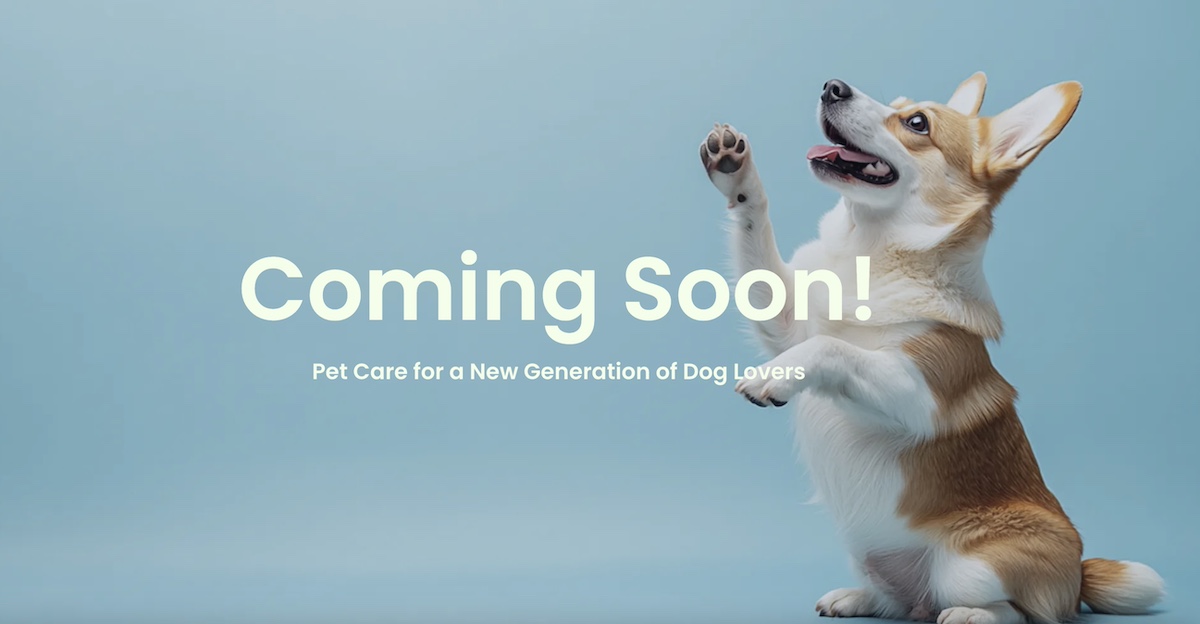
✅ Do:

Use visuals to enhance storytelling and create a more engaging experience.

❌ Don’t:

Use generic stock photos that don’t represent your brand authentically.

Let visuals overwhelm the text; maintain a balanced and organized layout.

⭐ Example: National Geographic

about us page national geographic

National Geographic’s About Us page captivates visitors by using stunning visuals and multimedia to share their brand’s dedication to exploration and education. Breathtaking photography and engaging videos highlight their commitment to documenting and preserving the world’s natural and cultural wonders. This approach draws in visitors and effectively communicates their mission and impact.

6. Add Clear Calls to Action

Clear calls to action (CTAs) direct visitors toward desired actions, such as exploring products or making contact. Create a clear and logical structure for your web page design. This will make navigation easier, increase readability, and generate more traffic. Make sure to organize your content into separate sections, and keep your paragraphs short and easy on the eye.


Include relevant links and CTA where necessary. Once they know more about you, encourage them to take the next step—whether it’s reaching out, signing up, or exploring your offerings further. This engagement helps visitors find relevant content quickly, build awareness, and move on to the next step of their customer journey.

✅ Do:

Use clear and direct language. Craft calls to action that are straightforward and clearly communicate the desired action, such as “Contact Us” or “Learn More.”

Strategically position CTAs in areas of the page where they are easily visible and logically fit within the content flow.

Incorporate relevant links that direct visitors to relevant content or actions, enhancing their journey and engagement with your brand.

❌ Don’t:

Avoid cluttering the page with too many CTAs, which can confuse visitors and dilute the focus of your message.

Ignore mobile responsiveness. Avoid designing CTAs that are not optimized for mobile devices, as this can hinder user experience for visitors accessing your site on smartphones or tablets.

⭐ Example: Slack

about us page slack

Slack’s About Us page includes clear calls to action that guide visitors to explore their platform. They use direct language like “Try Slack for Free,”, “Get a Demo” or “Get Started” and strategically position these CTAs throughout the page to encourage users to engage with their product, discover its benefit, and progress through the customer journey steps.

how to write an about us page

About Us Page Templates and Tools

Creating an About Us page that effectively communicates your brand’s story and values doesn’t have to be overwhelming. With the right templates and tools, you can streamline the design process and focus on crafting compelling content. Whether you’re looking for a starting point or seeking to customize every detail, there are resources available to help you build a professional and engaging page that reflects your brand’s unique identity.

Discover how SiteGround Website Builder can streamline the creation of your About Us page. With customizable templates, user-friendly design tools, and drag-and-drop functionality, SiteGround helps you craft a page that’s both professional and visually stunning, and reflects your brand’s unique identity and style. Start building your standout page today!

Great About Us Page Examples

Crafting an About Us page that truly connects with your audience can make a big difference. Here are some standout examples from different companies. You can find inspiration and ideas for your page. 

Canva

about us page canva

Canva’s About Us page is a vibrant and visually engaging experience that mirrors the creative essence of the brand. Through the use of colorful visuals and a clear narrative, Canva effectively communicates its mission to empower everyone to design anything, anywhere. The page resonates with its creative audience and future clients by highlighting the company’s journey, values, and the impact of its design tools, making it relatable and inspiring.

Airbnb

about us page airbnb

Airbnb’s About Us page tells a personal and heartfelt narrative that connects deeply with its audience. By sharing stories of community, belonging, and unique travel experiences, Airbnb creates an emotional bond with visitors. Authentic imagery and testimonials from hosts and guests enhance this connection, illustrating how Airbnb fosters a sense of belonging and community around the world.

Warby Parker

about us page warby parker

Warby Parker’s About Us page is straightforward yet engaging, focusing on the company’s mission to provide affordable eyewear while making a positive social impact. The page highlights Warby Parker’s values and commitment to social responsibility through a combination of engaging visuals and a concise narrative. This approach effectively communicates the brand’s dedication to both quality products and ethical practices.

Patagonia

about us page patagonia

Patagonia emphasizes the company’s commitment to environmental sustainability and ethical practices. The page shares Patagonia’s dedication to conservation efforts and its mission to use business as a force for environmental good. Through compelling storytelling and imagery, Patagonia highlights its role as a leader in sustainability, appealing to environmentally conscious consumers.

Moz

about us page moz

Combining technical expertise with a friendly, approachable tone, Moz’s About Us page effectively communicates its authority in the SEO industry while remaining accessible to their target audience. By showcasing the company’s team, mission statement, core values, and the impact of its tools, Moz creates an inviting and knowledgeable presence that resonates with both industry professionals and newcomers.

Ben & Jerry’s

about us page ben and jerrys

Ben & Jerry’s About Us page is rich with engaging narrative and visuals that convey the brand’s history, values, and commitment to social justice. Known for its social mission, Ben & Jerry provides a great page example to share stories about its dedication to environmental sustainability, fair trade practices, and community involvement. The combination of text and visuals creates an immersive experience that captures the essence of the brand and its commitment to making a positive impact.

Takeaways for Your About Us Page

Your About Us page is more than just a part of your website – it’s your chance to share your brand’s story and build trust with your audience. By learning from some great examples and following a few key tips, you can create a page that really captures what makes your brand unique and keeps visitors interested.

Think of your About Us page as a story that grows with your business. Keep it fresh and updated to reflect your latest achievements and milestones, so it always feels relevant and true to who you are.

Putting effort into a great About Us page is like investing in a lasting relationship with your audience. It’s your chance to leave a memorable impression and invite people to connect with your brand on a deeper level.


If you’re ready to tell your story, check out SiteGround Website Builder. It offers easy-to-use tools and templates to help you create an About Us page that’s both professional and personal. Give it a try and see how you can bring your brand’s unique story to life!

Website Layout: 13 Types, Examples & How to Choose the Right One

Abstract image of website layout

This article was originally published in April 2025, and then updated in April 2026

The best website layout depends on your content, your audience, and what you want visitors to do next—and the right choice can mean the difference between a site that converts and one that doesn’t. A thoughtfully designed layout builds your brand, improves user experience, and helps grow your business. In this guide, we break down 13 of the most effective layouts, why they work, and how to choose the right one for your site.

Key takeaways:

  • The best website layout depends on your content, audience, and conversion goals — not personal preference.
  • Different pages on your site can use different layouts, as long as the overall design feels cohesive.
  • Strategic placement of elements like CTAs and visuals directly impacts engagement and conversions.
  • Layouts should be responsive and perform well across all devices, not just desktop.
  • A clean, simple layout almost always outperforms a complex or overly designed one.

What is a Website Layout?

A website layout is the arrangement of visual elements on a webpage, including text, images, buttons, and navigation menus. As part of your website checklist, choosing the right layout plays a super important role in user experience, engagement, and conversion rates.

What is a website layout definition

A good layout balances both design and functionality, lending to an intuitive user experience that guides your visitors through your site (and hopefully to conversions!).

Why Does Website Layout Matter?

Of course you want a good website layout, and we know it should look nice and work properly. But how does it really impact the bigger picture? Your website layout impacts:

  • User Experience (UX): Beyond basic functionality, a clear, simple, and structured layout makes website navigation seamless and improves usability—that way, users don’t have to think about how to interact with your site; it just happens naturally.
  • Engagement: Strategic placement of elements—like, calls to action, for example—keeps visitors interested and encourages interaction.

Conversions: A well-designed layout guides users toward those aforementioned calls to action, increasing sign-ups, sales, or other desired actions. Tracking digital marketing metrics—such as bounce rate, time on page, and conversion rates—helps you determine whether your website layout is really getting the job done.

13 Best Website Layout Ideas

Now that you’re convinced of just how very important it is to put extra thought into your site layouts, let’s examine 13 of the best website layout ideas, along with examples, that can help you create an engaging and high-converting site.

1. Hero Layout

The hero layout is one of the most common and widely used website layouts because it’s typically used for homepage design. It usually features a large, visually striking section at the top of the page, including a high-quality image that really sets the vibe for your services and offerings. Overlaying this visual is usually a compelling headline, a subtitle, and a clear call to action (CTA). 

This layout is often the first thing visitors see, making it your best chance for grabbing attention and setting the tone for user experience with the rest of the site. 

Example of a hero website layout showing a full-width image with an overlaid headline and CTA button

Why the Hero Layout Works

  • Captures Immediate Attention: A well-designed hero section instantly captures visitors’ attention so that they stay on the page rather than bouncing.
  • Establishes Brand Identity: The hero area is often where businesses communicate their core message, unique selling proposition, and/or brand personality through visuals and copy.
  • Guides Users to Take Action: The CTA importantly directs users toward the next step in their journey, whether that means signing up, exploring products, or learning more.
  • Improves User Experience: By placing key information front and center, the hero layout makes navigation easier and helps users understand the purpose of the website quickly.

Because of its versatility and effectiveness, the hero layout often serves as the foundation for many of the other layouts we’ll be discussing today. For example, variations like the fullscreen image layout, split-screen layout, and even asymmetrical designs frequently incorporate hero sections at the top of the page.

Pro-tip: the hero section layout is also a go-to layout for landing pages given its ability to get the message across and drive conversions.

2. Asymmetrical Layout

Unlike traditional grid-based designs, the asymmetrical layout embraces imbalance, using uneven spacing and contrasting elements to create a bold, modern aesthetic. Instead of mirroring elements evenly on both sides, this website layout embraces imbalance to guide the user’s eye strategically across, and even down the page.

Example of an asymmetrical website layout using uneven spacing and contrasting element sizes for a bold, modern design

Why the Asymmetrical Layout Works

  • Creates a Bold, Modern Aesthetic – If a brand wants to stand out from competitors, an asymmetrical design can give a fresh, cutting-edge feel that signals creativity and innovation.
  • Enhances Visual Interest & Storytelling – The unconventional structure draws attention to specific elements, allowing brands to emphasize certain messages, products, or calls to action, and imagery in a unique way.
  • Encourages Engagement – By breaking predictable patterns, asymmetry keeps users intrigued and exploring the page more actively.
  • Works Well with Minimalist Design – Even in a minimalist website, an asymmetrical layout can introduce contrast and movement while maintaining simplicity.

When to Use the Asymmetrical Layout

While asymmetrical layouts can be highly effective, they require a good design eye to make sure they remain user-friendly, attractive, and don’t feel chaotic. Not surprisingly, designers, artists, and brands with a strong visual identity often favor asymmetrical layouts to showcase their work in a way that feels dynamic and immersive. When done right, it looks pretty and works well!

3. Z-Pattern Layout

The Z-pattern layout idea follows the natural way users scan a webpage, moving their eyes in a zigzag motion from left to right and then diagonally down the page. Scaling a business often requires clear messaging; the Z-pattern layout helps transmit this by making sure visitors follow a natural path to the most important parts of your site.

Diagram of a Z-pattern website layout showing how users scan content in a zigzag motion from left to right and diagonally down the page

Why the Z-Pattern Layout Works

  • Aligns with Natural Eye Movement – Most people scan web pages in an F or Z shape, making this layout intuitive and easy to navigate.
  • Balances Visual & Text Elements – The alternating sections allow for a mix of images and text, making content more digestible and engaging. 
  • Directs Attention to CTAs – By strategically placing headlines, visuals, and calls to action along the Z-path, businesses can guide visitors toward conversions more effectively.
  • Great for Storytelling – The natural flow of this layout makes it ideal for brands that want to lead visitors through a narrative, gradually building interest and leading to a final action.

When to Use the Z-Pattern Layout

Businesses that rely on a mix of visuals and text to convey their message—such as landing pages, service-based websites, and marketing campaigns—often benefit from this layout. It keeps users engaged while subtly directing them toward the most important sections of the page, like a sign-up form or product showcase. 

4. F-Pattern Layout

The F-pattern layout is based on how users typically scan text-heavy pages — starting at the top left, moving horizontally, then scanning down the left side. This scanning behavior resembles the shape of the letter “F,” making it an optimal layout idea for content-rich websites.

Diagram of an F-pattern website layout showing how users scan text-heavy pages from left to right and down the left side

Why the F-Pattern Layout Works

  • Matches Natural Reading Behavior – Since people tend to read from left to right, the F-pattern aligns with how visitors instinctively process information.
  • Ideal for Content-Heavy Pages – News websites, blogs, and resource hubs often use this layout to present large amounts of text in a way that remains scannable.
  • Prioritizes Key Information – The most important content (headlines, subheadings, and CTAs) is positioned where users’ eyes are most likely to land.
  • Improves Readability & Usability – The structuring content in an F-pattern helps reduce cognitive load and make it easier for visitors to find relevant information.

When to Use the F-Pattern Layout

Indeed, the F-pattern layout is best suited for text-heavy pages like blogs, news sites, product listings, and search results, where users primarily scan rather than read in depth. This website layout idea helps highlight key content while keeping information simple and easy to digest. And for small business marketing, this layout makes sure visitors follow a natural—but intentional path—to the most important parts of your site, helping to achieve those much-desired conversions.

5. Fullscreen Image Layout

The fullscreen image layout features a large, high-quality image that spans the entire background of a webpage, often with minimal text and a strong CTA. This visually immersive design is commonly used to create a striking first impression and evoke emotion.

Example of a fullscreen image website layout featuring a large background image with minimal text and a prominent CTA

Why the Fullscreen Image Layout Works

  • Captures Immediate Attention – A bold, fullscreen image instantly draws visitors in, making it a great website layout idea for high-impact storytelling.
  • Creates an Emotional Connection – Evocative visuals can convey a brand’s personality, mood, or message more effectively than text alone.
  • Encourages Focused Interaction – With minimal distractions, visitors are naturally guided toward messaging and CTAs.
  • Enhances Mobile Experience – A fullscreen design adapts well to different screen sizes, making it easier to offer a seamless browsing experience across devices.

When to Use the Fullscreen Image Layout

This layout idea is perfect for brands that rely on strong visuals, such as photographers, travel agencies, fashion brands, luxury products, and landing pages promoting a single product or campaign. It works best when the image is carefully chosen to align with the brand message.

6. Split Screen Layout

The split screen layout divides the page into two equal or asymmetrical sections, each featuring different content. This design allows two elements to have equal emphasis, also with the possibility for users to quickly compare two options without excessive scrolling.

Example of a split screen website layout dividing the page into two equal sections with contrasting content on each side

Why the Split Screen Layout Works

  • Creates a Balanced Visual Hierarchy – By giving equal weight to two key elements, this layout ensures both get attention without overwhelming the visitor.
  • Works Well with Minimalist Design – A split screen keeps the layout clean while still allowing for diverse content presentation.
  • Enhances User Engagement – Visitors are more likely to interact with the page since it invites them to explore both sections, encouraging exploration without feeling overwhelming or cluttered.
  • Offers Clear Choices – Suited for businesses with multiple offerings, such as different services, product categories, or user paths (such as, “Shop Men” vs. “Shop Women”).

When to Use the Split Screen Layout

This simple website layout is great for businesses that need to present two distinct options, such as ecommerce stores, service providers with multiple offerings, or landing pages that cater to different user types. It’s also effective for showcasing strong visuals alongside supporting text.

7. Features & Benefits Layout

The features and benefits layout is designed to highlight key product or service features while clearly explaining the benefits to the user. This layout ensures that visitors not only understand what is being offered but also why it matters to them.

Example of a features and benefits website layout presenting product features alongside icons and concise explanatory text

Why the Features & Benefits Layout Works

  • Clarifies Value Proposition – Helps visitors quickly grasp how a product or service solves their problems.
  • Balances Information & Visuals – Typically uses icons, images, or illustrations alongside concise text to keep content engaging.
  • Improves Readability & Flow – Features are presented in digestible sections, often with an alternating or grid structure.
  • Encourages Conversions – Often includes CTAs after key benefits, prompting users to take action.

When to Use the Features & Benefits Layout

This layout is ideal for product pages, SaaS websites, landing pages, and service-based businesses where communicating value succinctly is nonnegotiable. It helps visitors quickly understand why they should choose your offering over competitors.

8. Grid Layout

The grid layout arranges content into a structured, evenly spaced grid, making it easy to scan and visually appealing. It provides a clean, organized look while maintaining flexibility in how elements—such as images, text, and buttons—are displayed.

Example of a grid website layout showing evenly spaced content blocks arranged in structured rows and columns

Why the Grid Layout Works

  • Creates a Sense of Order & Balance – The structured design helps present multiple pieces of content without overwhelming the user.
  • Enhances Readability & Navigation – By neatly organizing content into sections, visitors can quickly find what interests them.
  • Highly Adaptable & Responsive – Works well for different screen sizes, ensuring a seamless experience on desktops and mobile devices.
  • Optimal for Visual & Product-Based Sites – Perfect for showcasing images, such as in portfolios, ecommerce stores, or galleries.

When to Use the Grid Layout

This layout is commonly used for portfolio websites, ecommerce stores, blogs, and galleries where multiple items need to be displayed at once. It’s especially effective for brands that rely on strong visuals to engage their audience.

9. Card Layout

The card layout presents content in self-contained, rectangular blocks (or “cards”), each typically featuring an image, a headline, a short description, and a call to action. This modular design makes it easy to organize and display various types of content in a digestible way.

Example of a card website layout displaying self-contained content blocks each with an image, headline, and call to action

Why the Card Layout Works

  • Highly Scannable & Organized – Users can quickly browse through multiple pieces of content without feeling overwhelmed.
  • Flexible & Adaptable – Works well across different screen sizes and can be arranged in grids, rows, or columns for a dynamic experience.
  • Encourages Interaction – Cards often include clickable elements, making them ideal for engaging users with blog posts, products, or portfolio items.
  • Popular Across Many Industries – Frequently used by e-commerce sites, news platforms, and social media (e.g., Pinterest, Instagram, and Trello).

When to Use the Card Layout

This website layout idea is great for ecommerce stores, blogs, portfolios, dashboards, and content-rich websites that need to display multiple items in a user-friendly way. It’s especially useful for sites with dynamic or frequently updated content.

10. Gallery Layout

The gallery layout arranges visual content—typically images—in a structured format, often using a grid, masonry, or carousel design. This layout prioritizes aesthetics and engagement, making it a good choice for visually driven websites.

Example of a gallery website layout arranging images in a structured grid format for visually driven content

Why the Gallery Layout Works

  • Showcases Visual Content Effectively – Great for photographers, artists, designers, and ecommerce brands that rely on strong visuals.
  • Creates a Clean, Organized Look – Keeps images aligned and structured, making it easy for users to browse content.
  • Enhances User Engagement – Interactive elements like hover effects, lightboxes, and sliders make the experience more dynamic.
  • Optimized for Mobile & Desktop – Gallery layouts can adapt to different screen sizes while maintaining visual appeal.

When to Use the Gallery Layout

This layout is perfect for photography portfolios, art websites, fashion brands, travel blogs, and ecommerce stores that want to display products or creative work in a visually compelling way.

11. Box Layout

The box layout refers to a design style where content is contained within boxes or distinct sections that are clearly separated from each other, often with borders, padding, or background color contrasts. This layout helps to organize information and guide the user’s eye through the page. 

Example of a box website layout with content contained in clearly separated sections using borders and background contrast

Why the Box Layout Works

  • Provides a Clean, Balanced Structure – Content remains neatly contained, making it easy to read and navigate.
  • Enhances Focus on Core Content – The boxed format naturally draws attention to the main elements, reducing distractions.
  • Works Well with Minimalist & Traditional Designs – Often used in corporate, business, and blog websites for a polished, professional look.
  • Offers a Strong Sense of Hierarchy – Helps segment content into clearly defined sections, improving readability.

When to Use the Box Layout

The box layout works well for presenting content that needs clear separation, such as product listings, blog posts, or individual services. It’s a simple website layout that can also be used for things like portfolios or case studies, where each project or example is highlighted within its own section.

12. Horizontal Strips Layout

The horizontal strips layout divides a webpage into full-width sections (or “strips”) stacked vertically. Each strip typically highlights a different type of content, such as an introduction, features, testimonials, or a call to action, creating a scroll-friendly and sequential user experience.

Example of a horizontal strips website layout with full-width content sections stacked vertically for a scroll-friendly experience

Why the Horizontal Strips Layout Works

  • Improves Readability & Flow – By breaking content into clearly defined sections, users can easily follow the page without feeling overwhelmed.
  • Works Well for Storytelling – Each strip can present a different aspect of a brand, product, or service in a logical sequence.
  • Enhances Visual Hierarchy – Alternating background colors, images, or typography help guide the user’s attention.
    Mobile-Friendly & Responsive – Adapts well to different screen sizes, making it a great choice for modern web design.

When to Use the Horizontal Strips Layout

This layout is great for landing pages, business websites, product showcases, and long-scroll designs where structured storytelling is important. It works particularly well for conversion-driven pages (like landing pages) that guide users through a step-by-step experience.

13. Alternating Layout

The alternating layout arranges content in a staggered pattern, typically switching between text on one side and an image or video on the other. This creates a visually dynamic experience that keeps users interested as they scroll.

Example of an alternating website layout switching between text and images in a staggered pattern as users scroll

Why the Alternating Layout Works

  • Enhances Engagement & Readability – Breaking up content into alternating sections prevents monotony and keeps visitors interested.
  • Creates a Natural Flow – Mimics how people scan content, leading them smoothly from one section to the next.
  • Great for Storytelling – Works well for explaining processes, showcasing features, or guiding users through key information.
  • Balances Text & Visuals – Ensures neither text nor images overwhelm the design, keeping a harmonious structure.

When to Use the Alternating Layout

This layout example is best for business websites, product pages, about pages, and service explanations where a mix of visuals and text helps convey information effectively. It’s especially useful for brands that want to create a compelling, easy-to-follow narrative.

Which Website Layout Should You Choose?

Not sure which layout is right for your site? Use this quick-reference guide to find the best fit based on your content, goals, and page type.

LayoutBest ForContent TypeIdeal PageConversion Focus
HeroHomepages, landing pagesVisual + short copyHomepageHigh
AsymmetricalCreative, lifestyle brandsVisual-ledHomepage, portfolioMedium
Z-PatternStorytelling, campaignsMixed text + visualsLanding page, service pageHigh
F-PatternContent-heavy sitesText-heavyBlog, news, search resultsMedium
Fullscreen ImageVisual brands, single campaignsImage-ledLanding page, homepageHigh
Split ScreenTwo audiences or offeringsVisual + textHomepage, landing pageHigh
Features & BenefitsSaaS, product, service sitesMixedProduct page, landing pageHigh
GridPortfolios, ecommerce, blogsMulti-item visualCategory page, shopMedium
CardBlogs, dashboards, ecommerceMulti-item mixedBlog, shop, dashboardMedium
GalleryPhotography, fashion, artImage-ledPortfolio, product pageLow
BoxCorporate, blogsText + structured contentAnyLow
Horizontal StripsStorytelling, long-scroll pagesMixedLanding page, homepageHigh
AlternatingProduct and service explanationsMixed text + visualsProduct page, about pageMedium

What Are the Best Practices for Website Layout Design?

It’s one thing to pick a layout that works for you, and it’s another to implement it the most effective way possible. So now that you know the different layout options, here are some key best practices to keep in mind:

1. Match Your Layout to Your Business Goals

Your layout should reflect what you’re offering, who your target audience is, and what actions you want users to take. For example, an ecommerce site may prioritize a grid or card layout for product browsing, while a service-based business may use a hero layout to highlight key offerings. Also keep in mind the customer journey, and which touchpoints you want to hit, where and how.

Bottom line: don’t pick a layout just because you like it; pick it because it’s best suited to meet your business’s goals.

2. Keep Your Website Layout Simple and Scannable

Overly complex layouts or unnecessarily over-the-top designs can overwhelm visitors. Sure, they’re nice to look at, but not always so nice to interact with. Stick with a clean, predictable design with clear navigation so that it’s easy for users to find information and take action. Avoid clutter, excessive text, and too many competing elements. 

And while it can be novel to have a site with lots of flashy design elements (like animations or sideways scrolling), these fancy bells and whistles create user confusion and possibly even a slow and poorly functioning site. Stick to what works. 

3. Let Your Content Dictate Your Layout

Your content should dictate your layout—not the other way around. For example, if your site is highly visual, a gallery or fullscreen image layout may be best. If it’s text-heavy, an F-pattern or or Z-pattern will improve readability.

Identifying the key messages you wish to get across can help you identify which layout, or layouts, might best tell your story. 

4. Mix Layouts Across Pages Without Losing Consistency

Not every page on your website calls for the same layout. A homepage might use a hero layout, while a blog page might follow an F-pattern for readability. The key is maintaining a cohesive design that feels unified across the site. So go ahead and mix up your layouts based on your content needs—just make sure that the brand experience and design feels consistent and not chaotic.

5. Optimize Your Website Layout for Loading Speed

Layouts with large images, animations, or complex scripts can slow down your site, leading to higher bounce rates and lower conversions. So as you build your site, be sure to optimize images, minimize unnecessary elements, and use a lightweight, efficient design to improve load times.

If you’re using WordPress you can get this done easily by using the SiteGround Speed Optimizer plugin, which automatically addresses many speed-inhibiting elements of your site. Or, you can build your site with the SiteGround Website Builder straight away, and benefit from built-in speed, security, and SEO, as well as a super easy-to-use interface along with beautiful templates. 

make your online journey successful with SiteGround

6. Design Your Layout for All Devices

Just because your website looks amazing on a desktop computer doesn’t mean it’ll look as good on other screens. And yet it’s essential that your layout be responsive and adapt seamlessly to different screen sizes—something Google reinforces with its mobile-first indexing guidelines—so make sure to design your site for all screens and test it to make sure it gets the job done.

Website layout best practices

Ready to Bring Your Website Layout to Life?

Your website’s layout is more than just a boring digital business brochure—it’s the foundation for how visitors interact, engage, and ultimately convert. Perhaps you’re drawn to the clean structure of a grid layout, or the storytelling flow of a Z-pattern, or maybe the bold impact of a fullscreen hero section—whichever you prefer, the right design can make all the difference.

Keen to put one or several of these layouts—or even designs—into action? All of these templates are available to you via the SiteGround Website Builder. Not only is it mega easy to use, but it makes site creation hassle-free, fun, and attractive. Plus, you’ll have peace of mind knowing that your site works flawlessly (on all devices), and can grow alongside you and your business.

No matter which layout you choose, one thing’s for sure: A well-structured website doesn’t just look good—it keeps your visitors interested and those conversions rolling in. 

Get online easily with SiteGround Site Builder

Website Layout FAQs

What is the layout of a website?

A website layout is the arrangement of visual elements on a website page, including text, images, buttons, and navigation menus. It determines how content is structured and presented, shaping how visitors navigate your site, engage with your content, and take action. A good layout balances design and functionality, guiding users naturally toward the information or actions that matter most.

What is the most common website layout?

The hero layout is the most widely used website layout, particularly for homepages and landing pages. It features a large, full-width image or video at the top of the page, paired with a headline and a clear call to action. Its popularity comes down to its versatility, as it works across almost every industry and gives businesses a strong, immediate way to communicate their value proposition.

What website layout is best for conversions?

There’s no single answer, but layouts that create a clear, distraction-free path toward a CTA consistently perform best. The hero layout, Z-pattern layout, and horizontal strips layout are all strong choices for conversion-driven pages since they naturally guide visitors toward a specific action. The most important factor is that your layout removes friction, making it obvious what you want visitors to do next.

How do I choose the right layout for my website?

Start with your content, your audience, and your goals. A visually driven brand might suit a fullscreen image or gallery layout, while a text-heavy site would benefit from an F-pattern or alternating layout. Think about the actions you want visitors to take and work backwards from there. Your layout should make those actions feel like the natural next step, not an afterthought.

Can I use multiple layout types on one website?

Yes — and most well-designed websites do. Different pages serve different purposes, so it makes sense that they’d use different layouts. A homepage might use a hero layout, a blog page might follow an F-pattern, and a product page might use a features and benefits or alternating layout. The key is maintaining a consistent visual identity across all of them so the overall experience feels cohesive rather than disjointed.

This article was originally published in April 2025, and then updated in April 2026

How To Eliminate Render-blocking Resources

Why and how to eliminate render-blocking resources

This article was originally written and published on March 28th, 2022, by Cal Evans. It has been updated on March 20th, 2025, to reflect the latest developments in techniques for eliminating render-blocking resources.

In the early days of the web, the first web pages were built in a simplified version of XML called HTML. White with black text. If you saw a phrase with a blue underline, you knew you could click it. If it were purple, you knew you had already clicked it.
Life was simple.

These days the HTML is usually the smallest part of any web page. When a browser requests a page, it gets the HTML but then has to parse it and download the resources.

  • CSS
  • JavaScript
  • Images
  • Fonts
  • …and other external files needed to provide the user experience

Not all resources are created equal. Some resources that have to be loaded can actually slow down the display of the web page.

These resources are called “Render Blocking Resources” and this article will show you a few tactics you can use to reduce the number of render blocking resources on your website and how to apply them manually or using the SiteGround Speed Optimizer plugin.

What are Render-Blocking Resources?

“Render” is the technical term for “display”. In this article, whenever we talk about rendering, we mean the process of displaying your website on a screen. 

Every resource that is loaded into your website has the potential to be a render-blocking resource. This includes:

  • Large images
  • JavaScript code that has to execute in the <head> of your page
  • Large CSS that your page can’t display until it is all loaded
  • Any resource from another site that is slower than yours
  • Plugins that each have their own CSS and JavaScript files

In short, anything that you have in your HTML to be loaded is potentially a render-blocking resource.

Why Should You Eliminate Render-Blocking Resources?

When a visitor lands on your website, their browser wants to show them the page as quickly as possible. But if there are too many render-blocking resources, the browser has to hit the brakes and wait for those files to download and process before showing anything useful.

This creates what we call a “slow first paint” – that awkward pause where users stare at a blank or half-loaded page. Not ideal, right?

Here’s why it matters:

  • Better User Experience – Fast-loading pages feel smooth and polished. A slow-loading page, on the other hand, can frustrate visitors and make them leave before they even see your content.
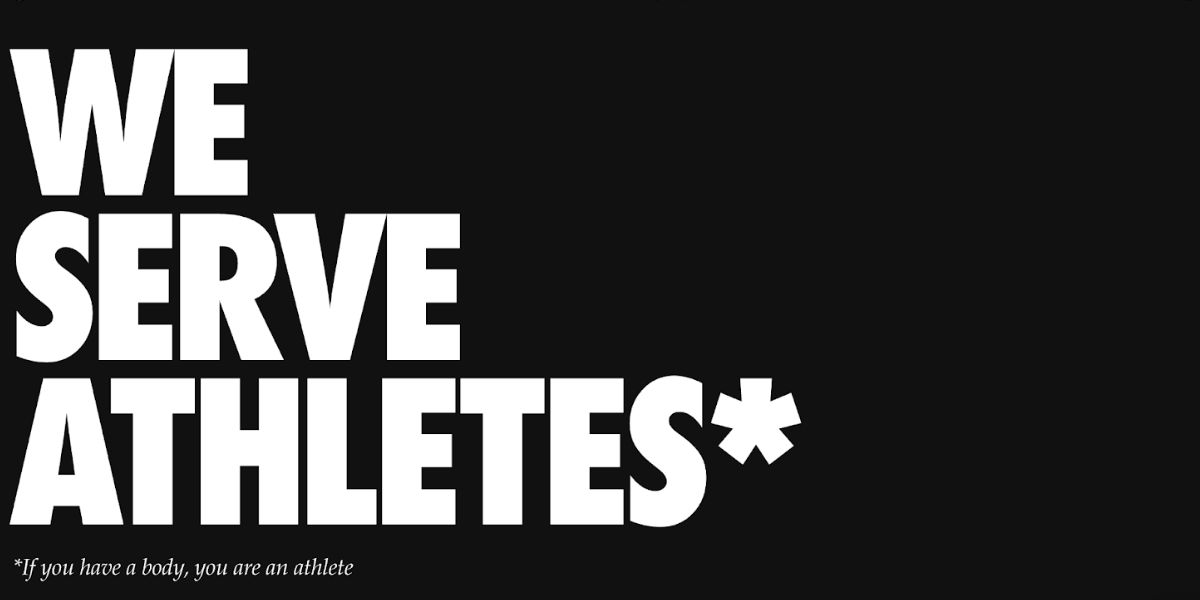
  • Improved SEO – Google and other search engines consider page speed as a primary ranking factor. If your pages are slow because of render-blocking resources, it will hurt your position in search results.
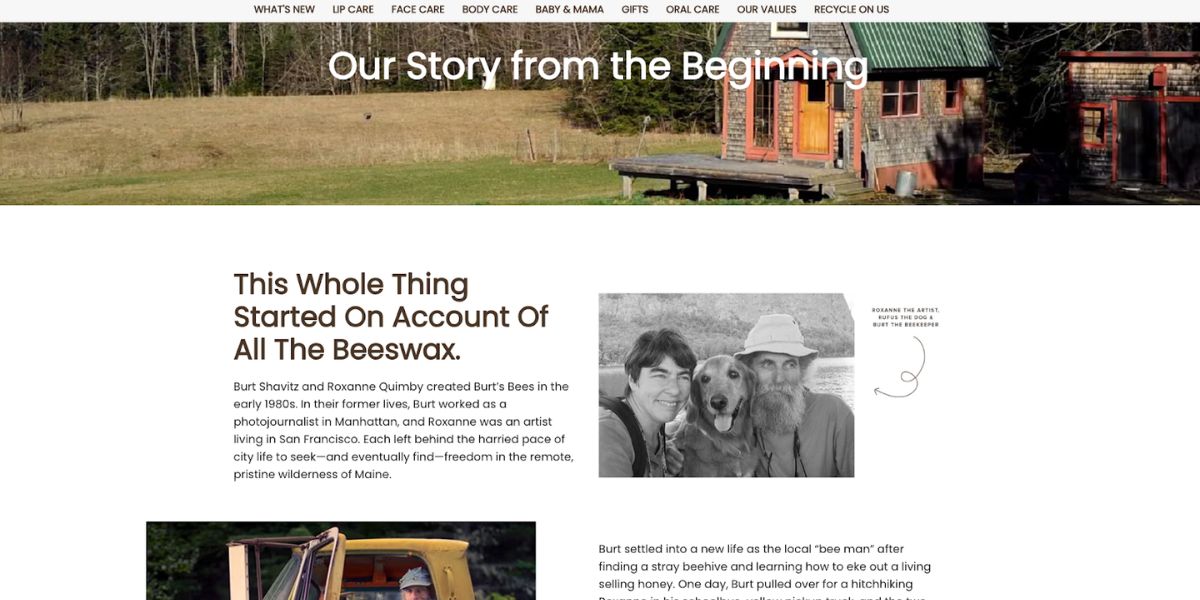
  • Higher Conversions – Whether you’re running an online store, a blog, or a portfolio site, faster-loading pages often mean higher conversion rates. A snappy page helps keep people engaged.
  • More Efficient Use of Resources – Eliminating unnecessary or poorly optimized assets reduces bandwidth usage and server load, which can save you money and reduce strain on your hosting environment.
.post-page__colored-blocks.post-page__colored-blocks–update p { margin: 15px 0px; }

With Interaction to Next Paint (INP) replacing First Input Delay (FID) as a core web vitals metric, it’s even more important to reduce render-blocking resources. 

Optimizing how quickly users can interact with your page will not only improve perceived performance but also positively impact your web vitals score.

At the end of the day, your website’s goal is to communicate something quickly and clearly. Render-blocking resources get in the way of that by delaying when visitors can actually start interacting with your content.

Now that you know the “why,” let’s dig into how to spot these slowpokes and streamline your website’s loading process.

How To Identify Render-Blocking Resources on Your Website?

There are plenty of tools to help you see how your website loads. We suggest these options for identifying render-blocking resources:

Using Browser DevTools

This is one of the tools that can show you a “waterfall” view of how a page loads. All modern browsers include this feature.

Right-click anywhere on your webpage, select “Inspect”, then head to the “Network” tab.

Reload the page, and you’ll see something like this:

Inspect element network tab to eliminate render-blocking resources

On the right side, you’ll spot the waterfall chart. The colored bars show how long each resource takes to load. The thin blue line marks when the page starts rendering.

If you notice a lot of resources loading before that line, it could mean there’s room for improvement. 

This built-in view is great for quick checks, but it only tells you how the page performs on your current setup. If you’re developing locally, results might be faster than real-world conditions.

For deeper insights, you can turn to online tools like WebPageTest.

WebPageTest & Other Performance Testing Tools

WebPageTest gives you a clearer picture of how your site performs globally. Plus, you can customize tests to match real-world conditions.

Pro tip: If you want a quicker overview, tools like PageSpeedInsights also flag render-blocking resources.

The typical method is:

  • Start with a desktop test
  • Pick a server location that’s distant from your website’s host
  • Stick with Chrome unless you have a reason to choose another browser

You can adjust these under the “Advanced Configuration” tab.

WebpageTest Tool to eliminate render-blocking resources

Hit “Start Test” and review the results.

WebPageTest results to eliminate render blocking resources

You’ll now see a more detailed waterfall chart. Clicking it opens a full-sized version where you can spot render-blocking JavaScript and CSS files.

waterfall display from WebPageTest to eliminate render blocking resources

In this example, there are 32 render-blocking resources—mostly CSS files, with a few JavaScript files mixed in.

It’s easy to see why JavaScript can block rendering, but CSS can do the same. The browser can’t fully display the page until it has all the styles it needs. If an important CSS rule loads late, your page might pause until it’s ready.

This is why streamlining CSS and JS delivery is key, and exactly what we’ll cover next.

How To Eliminate Render-Blocking Resources

Over time, web developers have experimented with various methods to reduce or eliminate render-blocking resources. Today, there are several reliable techniques you can use to speed up page rendering.

1. Optimizing JavaScript Loading

JavaScript is one of the most common culprits when it comes to render-blocking. Luckily, there are several techniques to control how and when your scripts load, so your page can display faster.

1.1. Understanding Async vs. Defer

To prevent JavaScript files from blocking page rendering, you should use the DEFER or ASYNC attributes in your script tags.

<script defer src="https://example.com/script.js"></script>
  • DEFER downloads the script while the page is rendering and executes it only after the HTML is fully parsed. It preserves the order of scripts.
  • ASYNC downloads and executes the script as soon as it’s ready, regardless of the page’s rendering state. This can cause scripts to execute out of order.

Generally, DEFER is the better choice, especially when your scripts depend on each other or on the DOM. It allows the browser to focus on painting the page before running scripts.

1.2. Handling Third-Party Scripts Efficiently

Third-party scripts, like analytics or social sharing widgets, are common render-blockers. If possible, load these scripts using DEFER or ASYNC. 

Some non-essential third-party scripts can also be moved to load after the page has finished rendering entirely, using event listeners like window.onload.

1.3. Lazy Loading Non-Critical Scripts with IntersectionObserver

For scripts that are only needed once a user interacts or scrolls to a certain section (e.g., chat widgets or embedded videos), you can lazy-load them using the IntersectionObserver API. 

const observer = new IntersectionObserver((entries) => {
  if (entries[0].isIntersecting) {
    // Dynamically load script here
  }
});
observer.observe(document.querySelector('#lazy-element'));

This tells the browser to load these scripts only when the related elements come into view, reducing the upfront workload for the browser.

2. Optimizing CSS for Faster Rendering

CSS tells your browser how to style your page, but it can also slow down how fast that page shows up. Let’s look at how to make your CSS work with you, not against you, when it comes to performance.

2.1. Inlining Critical CSS for Above-the-Fold Content

Browsers block rendering until they’ve processed CSS. To speed up the first paint, Google suggests identifying your “critical CSS” (the styles needed for the above-the-fold content) and inlining it directly into your HTML.

<style>/* Critical CSS goes here */</style>

This eliminates the need for the browser to wait for external stylesheets before displaying content above the fold. 

The easiest way to identify and inline critical CSS is by using tools like the Chrome Coverage Tool to see what styles load during initial rendering.

Chrome coverage tool to Eliminate Render-Blocking CSS

It will show you the CSS that you are loading which is non-critical (red bar) and critical (green bar).

By pulling the critical CSS out and placing it inline, you can remove the CSS as a render-blocking resource.

2.2. Deferring Non-Critical CSS

For non-essential styles, such as those affecting the footer or elements below the fold, you can defer loading by using the media attribute with a value like print and switching it back to all after the page loads:

<link rel="stylesheet" href="non-critical.css" media="print" onload="this.media='all'">

This trick allows the browser to prioritize critical resources and load the rest after the page is visually complete.

2.3. Preloading Key CSS Files

Another tactic is preloading CSS files you know are crucial but don’t want to inline. Preloading helps the browser discover these resources earlier in the rendering process:

<link rel="preload" href="important.css" as="style" onload="this.rel='stylesheet'">

It’s useful for important stylesheets that impact the look and feel of above-the-fold content but are too large or complex to be inlined.

3. Progressive Rendering Techniques

Beyond scripts and stylesheets, there are some additional strategies you can use to progressively load content and speed up your website’s first paint.

3.1. Server-Side Rendering (SSR) and Static Generation

Server-Side Rendering (SSR) and static generation can help deliver fully-formed HTML to the browser, reducing the reliance on client-side scripts for initial rendering. 

This means content becomes visible sooner because the browser doesn’t have to wait for JavaScript to build the page structure.

Frameworks like Next.js or Gatsby make SSR and static generation easier to implement.

3.2. Optimizing Fonts and Images to Improve Load Times

Fonts and images can also block rendering if not handled correctly. To optimize them:

  • Use the font-display: swap CSS property to prevent font files from blocking the first paint.
  • Lazy-load images below the fold using the loading=”lazy” attribute.
  • Preload key fonts or hero images with the <link rel=”preload”> tag to prioritize them.

Together, these strategies improve your site’s performance by letting browsers display content as early as possible while loading non-essential assets in the background.

How to Reduce Render-Blocking Resources in WordPress with SiteGround Speed Optimizer

If you’re using WordPress, the SiteGround Speed Optimizer plugin offers an easy way to reduce render-blocking resources without touching your code.

Even if you don’t host with SiteGround, this plugin can still help optimize your website’s performance.

.post-page__colored-blocks.post-page__colored-blocks–update p { margin: 15px 0px; }

Warning: 

When making these changes, it’s important to proceed carefully. We recommend adjusting one setting at a time and then checking your site in a different browser to make sure everything is still working correctly. 

This way, you can identify any potential issues and fix them immediately before moving on to the next optimization.

1. Optimizing JavaScript

First, go to the JavaScript settings in the plugin. Here are the key optimizations:

Screenshot of the Speed Optimizer Frontend JavaScript settings, listing the toggle options to minify, combine and defer JavaScript files, and additional options to exclude specific files from optimization.
  • Minify JavaScript Files: This removes unnecessary characters from your JavaScript code. This makes it smaller and faster to load.
  • Combine JavaScript Files: Combining JavaScript files reduces the number of requests the browser needs to make, speeding up the load time.
  • Defer Render-blocking JavaScript: This important option adds the DEFER attribute to your JavaScript files, allowing the page to render before executing JavaScript.

2. Optimizing CSS

Next, head to the CSS settings:

Screenshot of the Speed Optimizer Frontend CSS settings, listing the toggle options to minify, combine and preload CSS files, and additional options to exclude specific files from optimization.
  • Preload Combined CSS: This setting makes sure that your combined CSS file is loaded early in the process, so it’s available when the page starts rendering.
  • Minify CSS Files: This removes spaces, new lines, and comments from your CSS, shrinking the file size and improving load times.
  • Combine CSS Files: Combining CSS files helps reduce render-blocking by lowering the number of HTTP requests.

By applying these optimizations, you can significantly reduce render-blocking resources on your WordPress site and make it faster.

If you want to dive deeper into WordPress optimizations, check out our video on How to Speed up Your WordPress Website Like a Pro.

After going through all these steps on our test site, we are down to 24 render-blocking resources from 32. That’s a really good start.

The next step is to locate all critical CSS and inline it. Then, defer all other CSS and apply the other optimization techniques we discussed above. That will remove almost all of the remaining render-blockers. 

Now, let’s go over a final checklist of all the techniques we’ve explored.

Checklist for Eliminating Render-Blocking Resources

By now, you’ve learned that render-blocking resources don’t just slow things down—they can directly impact user experience, SEO, and conversions. 

To help you put everything into action, here’s a checklist you can follow:

  • ✅ Identify render-blocking resources using browser DevTools or tools like WebPageTest.
  • ✅ Add defer or async attributes to non-critical JavaScript files.
  • ✅ Optimize third-party scripts by loading them asynchronously or deferring them when possible.
  • ✅ Use IntersectionObserver to lazy load scripts that aren’t needed immediately.
  • ✅ Inline your critical CSS (above-the-fold styles) directly into your HTML.
  • ✅ Defer non-critical CSS or load it asynchronously, and remove unused CSS.
  • ✅ Preload important CSS files to give the browser a head start.
  • ✅ Implement progressive rendering techniques like Server-Side Rendering (SSR) or static generation where it makes sense.
  • ✅ Optimize fonts and images to remove hidden bottlenecks.
  • ✅ Use performance optimization plugins like the SiteGround Speed Optimizer to automate many of these tasks easily.

Eliminating render-blocking resources may feel like fine-tuning. Each of these steps chips away at those frustrating pauses during page loads. Apply them consistently, and you’ll create a faster, smoother experience for your visitors.

From improving user experience to boosting SEO, every optimization counts. When your pages load quickly, visitors stick around longer and search engines take notice of that. 

The best part? With а tool like the SiteGround Speed Optimizer, you can automate a lot of these steps and get faster results without much hassle and coding knowledge.

In the long run, every little improvement adds up—and that’s what keeps your website fast, reliable, and ready to perform.

Homepage Design Essentials: 5 Things You Must Include

Your homepage is your website’s (and often your brand’s!) first impression—so make it count! It’s where visitors decide whether to stay, explore….or simply bounce. But well-crafted homepage design isn’t just about looking good; it’s about guiding users effortlessly, building trust, and inspiring action. Following core website design principles ensures your homepage is both visually appealing and highly functional.

Think of it like a storefront: If it’s cluttered, confusing, or slow, people will walk away. But if it’s welcoming, easy to navigate, and engaging, visitors are more likely to stick around and convert.

So, what goes into a high-performing homepage? Whether you’re launching a new site or refining an existing one, here are the five must-have elements that make all the difference, plus bonus homepage design best practices that you’ll want to keep top of mind.

What Are the Benefits of Good Homepage Design?

Designing your homepage is perhaps the most important part of website planning, as it plays a fundamental role in user experience, conversions, and brand perception. Here’s why good website homepage design matters:

  • Better User Experience – A clean, intuitive homepage layout makes it easy for visitors to find what they need, keeping them engaged and reducing frustration.
  • Lower Bounce Rate – When users quickly find relevant content and have a seamless experience, they’re more likely to stay on your site longer.
  • Higher Conversions – Not surprisingly, if users stay longer, it’s more likely that they will click through on clear calls to action (CTAs), and take key steps like signing up, purchasing, or contacting your business.
  • Stronger Credibility – A professional, visually appealing homepage builds trust and reassures visitors that your brand is reliable and authoritative.
  • Improved SEO – A well-structured, mobile-friendly homepage with fast loading times helps improve search rankings and attract more organic traffic. 
The benefits of good homepage design

Get Online Easily
SiteGround provides an intuitive platform for building your online presence. With customizable templates, reliable hosting, and user-friendly tools, you can create a professional website quickly and effortlessly—no technical skills required.

Start today and see how a strong website can turn your small business into a thriving success.
GET STARTED>>

How to Design a Homepage

A homepage is your homebase, your front door, and your chance to make a good first impression— and it can also quickly determine whether a customer decides to stay or leave. 

A well-designed homepage should immediately communicate who you are, what you offer, and why it matters to your audience. It should be visually appealing, easy to navigate, and structured to guide users toward taking action.

To achieve this, your website homepage design needs a strategic mix of elements that enhance user experience, establish credibility, and drive conversions. Applying fundamental web design principles ensures your homepage is both visually compelling and highly functional. 

Below are the essential components of an effective homepage and how to implement them successfully.

1. Design a Strong Hero Section

The hero section is the large, prominent area at the top of your homepage. Think of it as your website’s first impression—it sets the tone, grabs attention, and quickly tells visitors what they need to know. If you don’t nail it, site visitors might not even bother checking out anything else. 

With that in mind, here are the key elements of an effective homepage hero section:

  • Use a clear, concise headline that highlights your unique value proposition (not sure how to come up with one? These ChatGPT prompts for marketing can help).
  • Include a supporting subheadline that provides additional context or key benefits.
  • Feature a strong call to action that guides users toward the next step, such as signing up, shopping, or learning more.
  • Keep it visually engaging with a high-quality image or video that complements your message.

Nike keeps it simple but powerful with their homepage hero section, which includes an evocative and animated shoe, along with a straightforward call to action to buy their “just in” product.

Homepage design example of a strong hero section

2. Use Consistent Branding

Your homepage design should build and reinforce your brand identity, creating a cohesive experience that makes your business memorable and trustworthy.

  • Use consistent colors, typography, and design elements that align with your brand.
  • Ensure your logo is clearly visible in the header.
  • When writing web content, be sure to maintain a consistent tone and voice in your messaging to reflect your brand personality.
  • Keep your design clean and uncluttered to prioritize user experience and ease of navigation.

Few do brand better than Magic Spoon. They’ve chosen unmistakable colors, a consistent font, and other playful design elements (like scattered cereal pieces) that are sprinkled throughout their homepage.

Homepage design showing consistent branding

3. Create Compelling CTAs

Calls to action (CTAs) guide visitors toward taking specific actions. Without them, users might get distracted, or just not be sure of what to do next….and then, sadly, quickly leave your site. So it’s extra important to get them right—how they look, what they say, and where they’re placed. Here are some key points to keep in mind: 

  • Use clear and action-oriented language, such as “Get Started,” “Shop Now,” or “Book a Demo.”
  • Ensure CTAs are visually distinct, using contrasting colors and bold buttons to make them stand out.
  • Place CTAs strategically, ensuring they are above the fold and repeated throughout the page where necessary.
  • Limit the number of choices to avoid overwhelming users—focus on one or two key actions.

The Dollar Shave Club does a solid job of creating a very clear and prominent call to action. It’s informative, hard to miss, and straight to the point. And instead of just a boring “buy now,” they state the exact price and product, making the CTA extra actionable. 

Homepage design showing a strong CTA

4. Add Engaging Visuals

Visual content plays a major role in how users perceive your website and brand—partly because they establish who you are, but also because they create interest and invite users to explore further. As such, high-quality images, videos, and graphics help make your website homepage design more engaging and professional.

  • Use high-resolution images that align with your brand and message.
  • Consider embedding videos that showcase your product, service, or company story to boost engagement.
  • Ensure visuals load quickly and are optimized for both desktop and mobile devices.
  • Avoid generic stock photos—authentic images that are true to your business and brand will help build more trust and connection.

Recess’s homepage below is a complete brand experience thanks to punchy images that transmit the essence of the product’s calm, cool, and collected vibe.

Homepage design showing engaging visuals

5. Include Convincing Social Proof

Social proof reassures visitors that they can trust your business, making them more likely to take action. It provides validation that your product or service delivers real value.

  • Include customer testimonials or reviews that highlight positive experiences.
  • Showcase logos of well-known clients or partners to build credibility.
  • Display user-generated content (UGC) or social media mentions to show real-life engagement.
  • If applicable, highlight awards, certifications, or media features to reinforce trust.

In the below homepage design, Bearaby includes rotating quotes and logos from respected and well known media outlets, adding an instant layer of credibility. 

Homepage design showing social proof

Pro tip: Whether it’s a strong hero section, compelling CTAs, or convincing social proof, these same strategies can help you create the perfect landing page.

Homepage Design Best Practices

Great homepage design isn’t just about looking good—it should also be easy to navigate, fast, and user-friendly. By applying proven website design principles, you can create a homepage that balances aesthetics with usability and performance. 

Here are four essential homepage design best practices to ensure your site delivers a seamless experience:

1. Implement Intuitive Homepage Design

A well-structured homepage should guide visitors naturally, making it easy for them to find what they need without confusion.

  • Follow a clear visual hierarchy—important elements like headlines, CTAs, and key information should stand out.
  • Keep navigation simple and accessible, ensuring users can easily find their way around.
  • Avoid clutter and distracting design elements that overwhelm visitors. Stick to a clean and balanced homepage layout.
  • Use consistent fonts, colors, and spacing to create a professional and cohesive look.

Check out how Warby Parker keeps it clean and simple with a crisp navigation menu, a fresh but uncluttered hero image, and calls to action that are direct and clear.

Homepage design showing intuitive design

2. Stick to What Works

When it comes to homepage design, creativity is great—but usability is essential. Users expect familiar homepage layouts and navigation patterns, and straying too far from these can create confusion and frustration.

  • Don’t reinvent the wheel—stick to design conventions that people are already comfortable with (that is, logo in the top left, navigation at the top, a clear call-to-action).
  • Prioritize usability over novelty—while unique design elements can be eye-catching, they shouldn’t come at the cost of user experience.
  • Make navigation intuitive—visitors should instantly understand where to click and how to find what they need.
  • Limit excessive animations or unconventional homepage layouts—they can slow down the site and distract from the main goal.

A simple, well-structured website that follows homepage design best practices will always outperform a confusing or overly complex design. Keep things clean, familiar, and easy to use.

We love Oatly, but a homepage design like this is a big swing that few can pull off. It’s bold and fun, but also, what are you supposed to do next? How does the sideways scroll work? This type of homepage design forces users to overcome an initial touch of confusion just to figure out how to navigate the site—and this is why, for the average Joe or JoeAnn, it’s wise to stick to what visitors are used to.

Homepage design that isn't intuitive

3. Make Sure It Loads Quickly

A slow-loading homepage can frustrate users and cause them to leave before they even see your content. So optimizing your website for speed is non-negotiable.

  • Compress images and use next-gen formats (e.g., WebP) to reduce file sizes without losing quality.
  • Minimize unnecessary scripts and plugins to improve performance.
  • Use a content delivery network (CDN) to ensure fast load times for users across different locations.
  • Choose a reliable hosting provider that offers speed-optimized infrastructure.  
  • Enable browser caching so returning visitors don’t have to reload all elements from scratch.

Powered by premium Google Cloud infrastructure, it ensures lightning-fast loading times with advanced caching that boosts website speed by up to 5 times. Its built-in, easy-to-use CDN, ultrafast PHP setup, and optimized MySQL configuration further enhance performance, reducing load times and efficiently handling multiple visits.

Get SiteGround Hosting>>

4. Keep Visitors Moving Through Your Site

Not every visitor is ready to make a purchase the moment they land on your homepage—but that doesn’t mean they should leave. A well-designed homepage encourages exploration, keeping users interested and moving them further down the funnel.

To accomplish this: 

  • Use Strategic CTAs – Offer multiple entry points beyond just “Buy Now” or “Sign Up.” Try alternatives like “Learn More,” “See How It Works,” or “Explore Our Collections” to guide visitors through your site and based on their intent.
  • Highlight Related Content – Recommend blog posts, case studies, or product comparisons to educate visitors and keep them interested.
  • Create Clear Navigation Paths – Use intuitive menus, breadcrumbs, and internal links to make it easy for visitors to explore different sections of your site.

By giving visitors a reason to explore, you increase the chances that they’ll find what they need, build trust with your brand, and eventually convert when they’re ready.

Oura’s homepage design below successfully moves people through the different pages of their site—Why Oura, How It Works, and For Business—with strategically placed calls to action that invite users to learn more.

Homepage design that moves visitors through site

Pro tip: Stay on top of your website metrics so that you know how much time users are spending on each page, what their journey through your site looks like, and where they drop off. This can help you make conversion-critical optimizations when it comes to your homepage design and beyond.

Bringing Your Website Homepage Design to Life

A well-designed homepage doesn’t just look good; it works hard, guiding users seamlessly, keeping them engaged, and nudging them toward action. The best part? Creating a homepage that’s clear, compelling, and conversion-friendly isn’t rocket science. By following smart website design principles, you set the stage for success.

And getting started is easier than you think! With SiteGround’s Site Builder, you can craft a polished, professional website without the headaches. Customizable templates, user-friendly tools, and reliable hosting mean you can launch a stunning site in no time—no coding required.