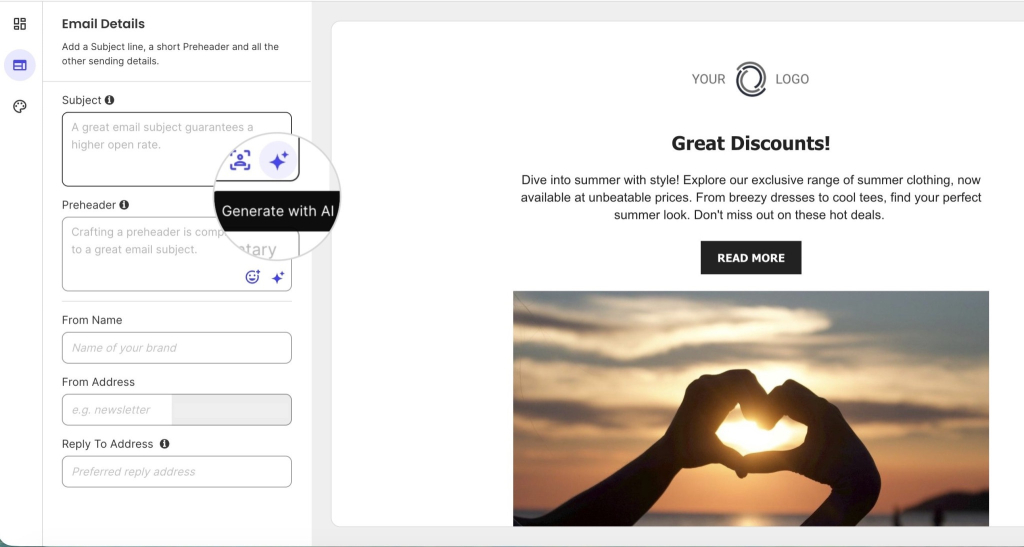
AI Agent for WordPress vs Hostinger Agent: Which is better for WordPress management?

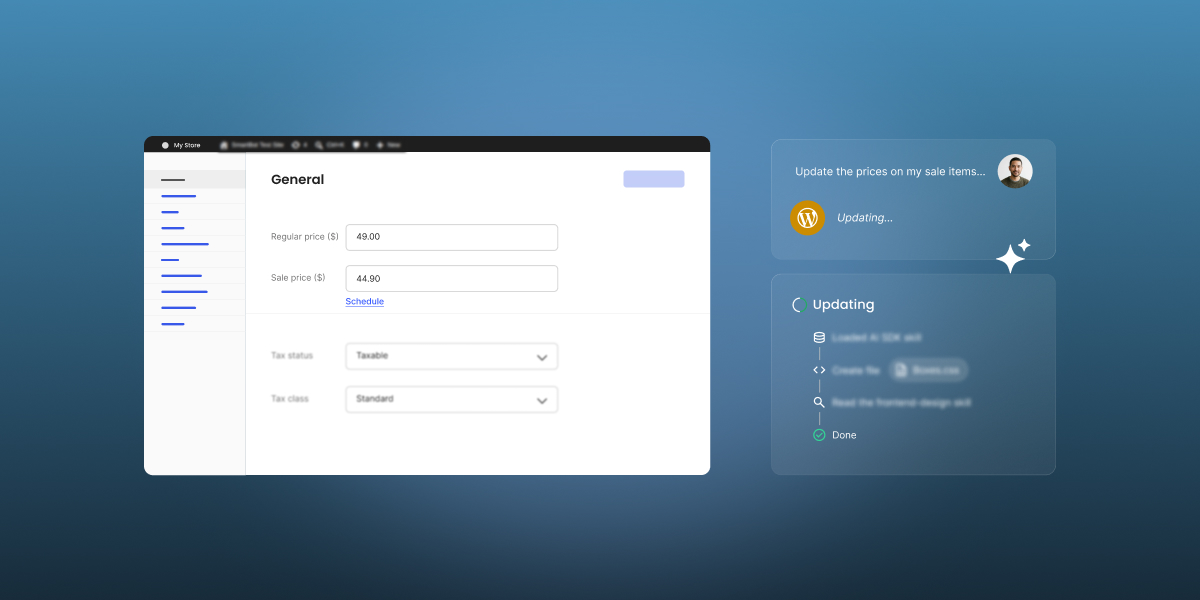
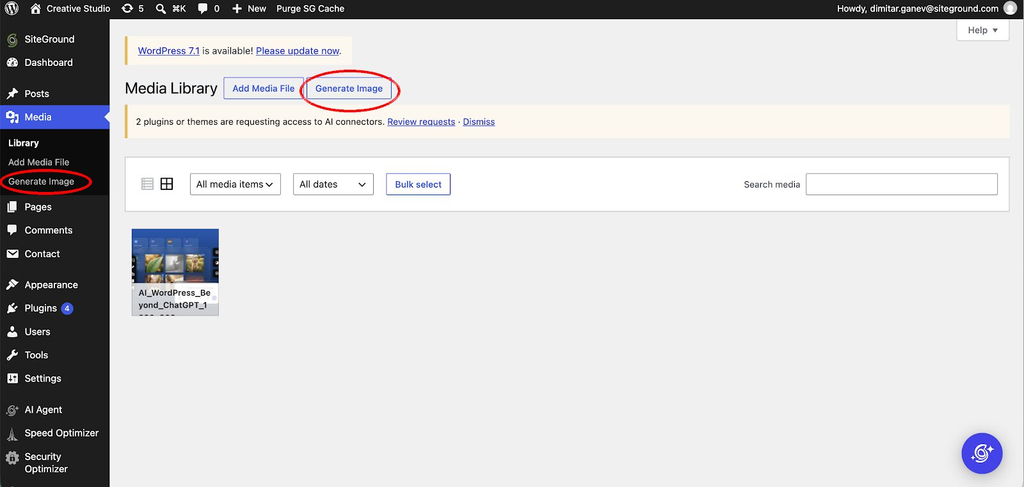
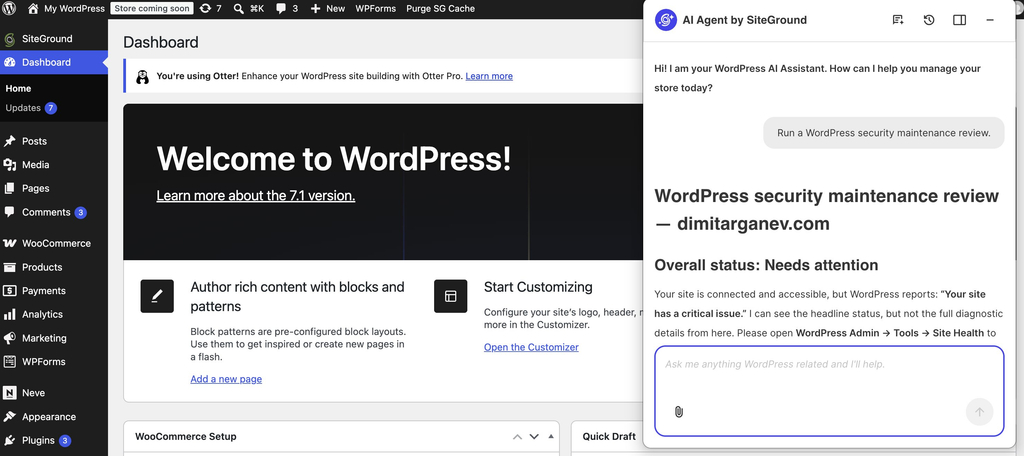
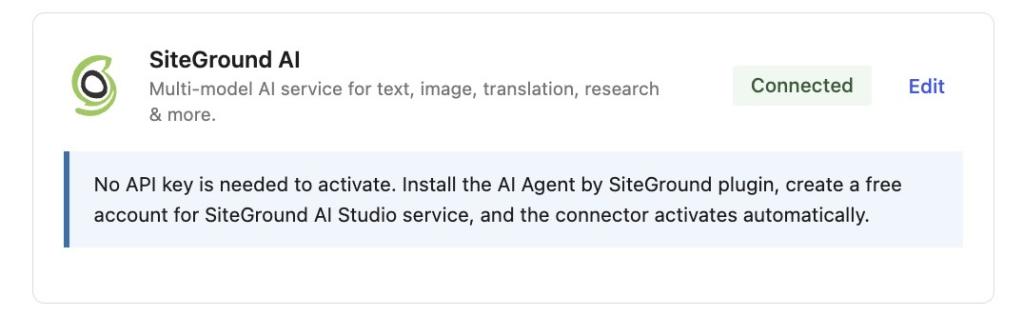
Comparison graphic showing AI agent prompts for updating e-commerce prices across multiple sites on the left and updating the PHP version on the right.

Updating your plugins, changing prices on a batch of products, writing meta descriptions: the work of keeping a WordPress site running can be a never-ending chore. Two AI assistants now promise to collapse that into just one chat, but which one should you choose?

AI Agent for WordPress vs Hostinger Agent comes down to where each draws its boundary. The SiteGround AI Agent for WordPress can work inside WordPress and WooCommerce on a site hosted with any company, while the Hostinger Agent (which now includes the former Kodee experience) can work only across your Hostinger account, reaching the domains, servers and support around your site.

Key takeaways:

  • AI Agent for WordPress vs Hostinger Agent is a question of scope. The Hostinger Agent covers more of the Hostinger ecosystem, while the AI Agent for WordPress goes deeper into WordPress and WooCommerce.
  • The Hostinger Agent requires Hostinger hosting. Its WordPress actions run on Hostinger’s Business Web and Cloud plans, and a site hosted with another company can’t use it at all.
  • The AI Agent for WordPress can work on any host. It’s already connected on SiteGround-hosted sites, and reaches sites on other providers through one plugin and a simple one-time setup.
  • Don’t choose a host only because of an AI assistant. Use the assistant as a tiebreaker after you compare hosting performance, support, pricing, backups, and the tools your business needs.

What Hostinger Agent and AI Agent for WordPress are each built for

These two WordPress AI management assistants look similar in a feature list and behave differently in practice, because each was designed around a different center of gravity.

Hostinger Agent is a Hostinger ecosystem assistant that reaches into WordPress. Its home is hPanel, Hostinger’s control panel, and its scope is your whole account there: domains, DNS (the system that points your domain name at the server your site lives on), servers, billing and support tickets, alongside the website itself. It can both advise and take direct action on the account, which is what separates it from a support chat. Its reach widened in August 2026, when Hostinger merged Kodee, its technical support assistant, with a set of specialists into the single product it now calls Hostinger Agent.
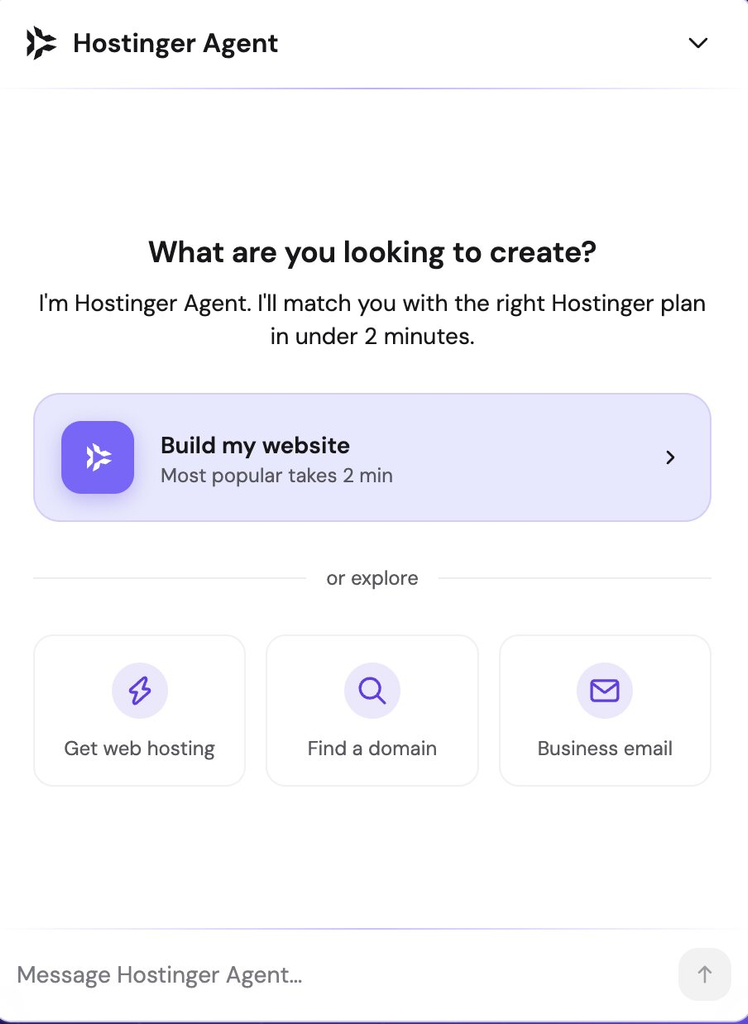
Interface of Hostinger Agent featuring the prompt "What are you looking to create?" with options for website building, web hosting, domain search, and business email.

The AI Agent for WordPress takes a more WordPress-focused management approach. Its home is your WordPress admin, and its scope is the site rather than the hosting account around it. The full AI Agent for WordPress capabilities include content, plugins, themes, users, settings, media and WooCommerce store operations. What it won’t do is touch your hosting account, your domains, or your DNS records, since none of those are WordPress.
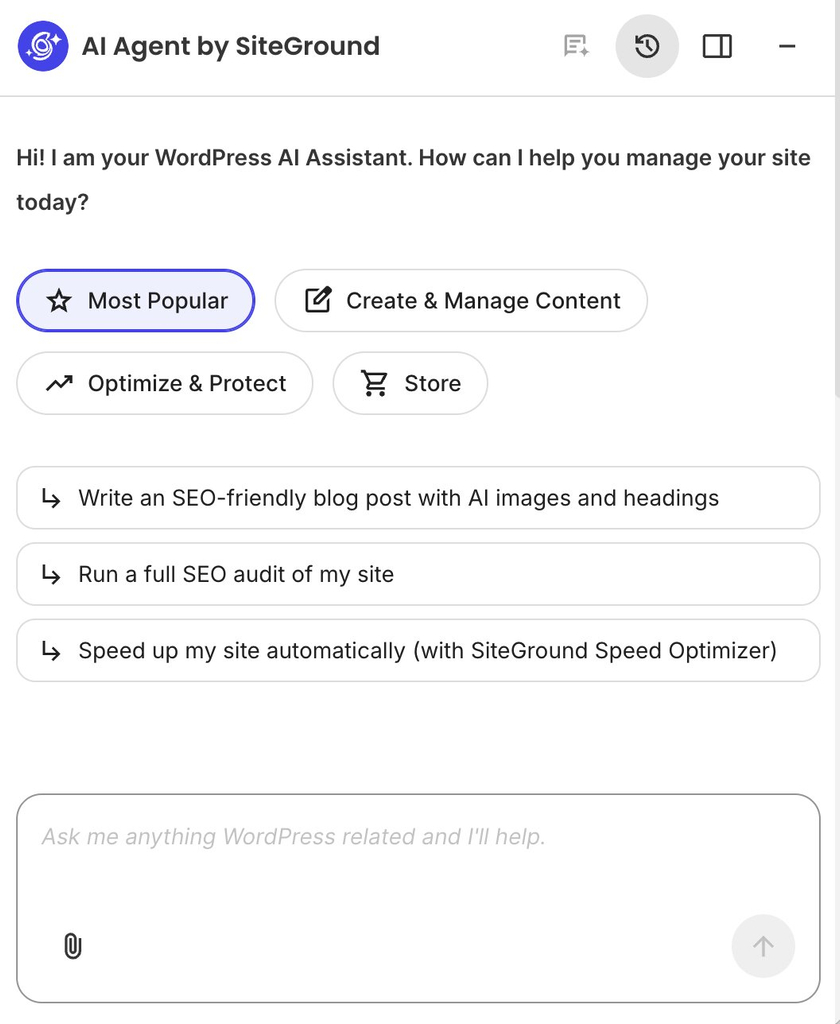
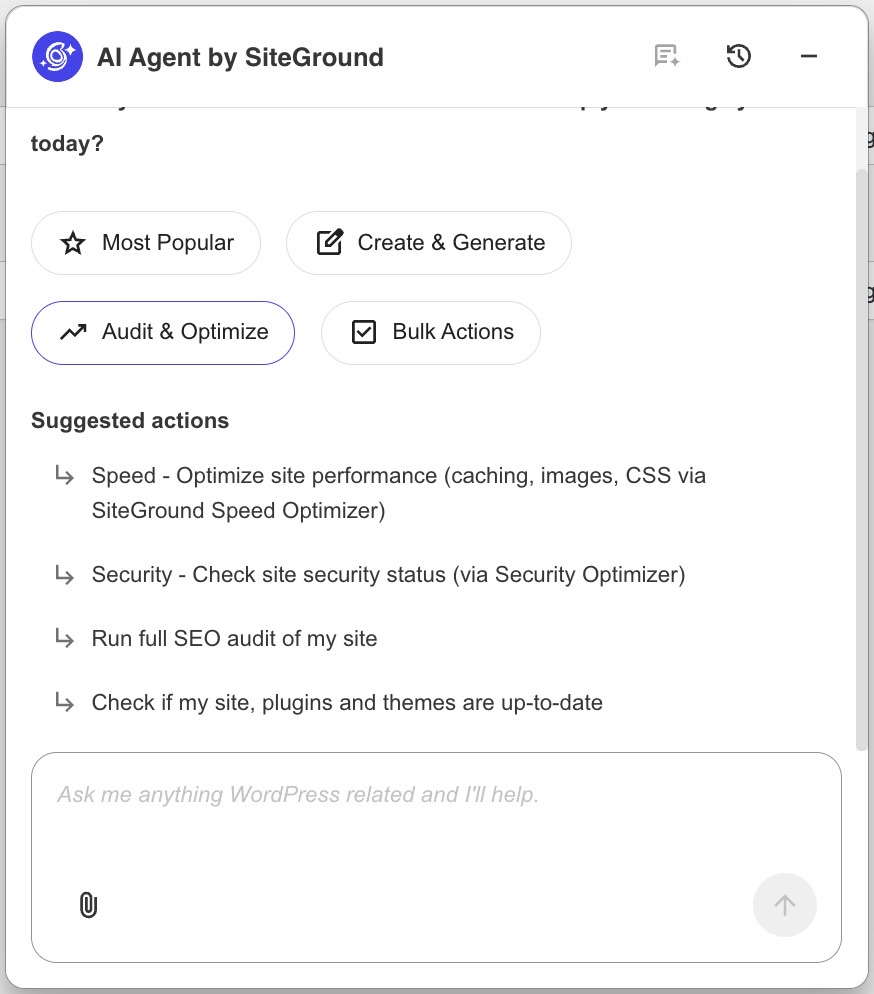
Interface of the AI Agent by SiteGround displaying category options and quick prompt suggestions for managing a WordPress site.
Screenshot

AI Agent for WordPress vs Hostinger Agent: how they compare across eight dimensions

Here is where the two assistants stand on the eight questions that come up most often when people choose between them.

DimensionHostinger Agent (formerly Kodee)AI Agent for WordPress
Host requirementHostinger hosting only. WordPress actions run on Business Web and Cloud plansWorks on any WordPress host. It is pre-connected for SiteGround-hosted sites and can also connect external WordPress sites through the AI Agent by SiteGround plugin and AI Studio setup.
Scope beyond WordPressThe hosting account: domains, DNS, VPS, payments, billing and support ticketsThe website itself, in more depth. No access to your hosting account
Where you use itThe hPanel sidebar or the Ask AI button, and as a right-hand panel inside WordPress. Also on mobile and through WhatsAppIn a chat inside WordPress admin and from the SiteGround AI Studio dashboard. This lets you manage one site from WordPress or manage connected sites from AI Studio.
WordPress operationsContent edits, plugin and theme management, user roles, migrations, backups and server health checks. Hostinger states its agent performs over 500 admin-level actionsCovers day-to-day WordPress management in more depth: creating, editing, publishing, and organizing posts and pages; managing categories, tags, menus, media, comments, plugins, themes, users, roles, site settings, SEO metadata, and full workflows such as site architecture or taxonomy restructuring.
WooCommerceProduct creation, inventory updates, price changes and order managementProducts individually or in bulk including from spreadsheets, category hierarchies, orders, price changes across many items, sales reports and catalog translation
Several sites at onceNo cross-site bulk operation. Hostinger’s own multi-site tutorial points readers to third-party tools such as WP Umbrella, MainWP and InfiniteWPBuilt for bulk work across separately connected WordPress installations, even when they are hosted with different providers
Controls on consequential changesDrafts the change and asks you to confirm before publishingPower Mode, an opt-in permission layer switched off by default, covering deletions, bulk operations, user changes and WooCommerce order edits
What it comes withIncluded with qualifying Hostinger plansIncluded for SiteGround clients and also available for external WordPress sites through AI Studio and the AI Agent by SiteGround plugin

Pro tip: Before comparing feature lists, write down the last ten things you actually did in your admin. Most small business owners find the list splits cleanly down the middle. Either it’s mostly posts, products, plugins and user accounts, which is WordPress work, or it’s mostly domains, email, DNS records and support tickets, which is hosting work. Whichever column has more entries tells you which assistant would have saved you more time last month, and that’s a better answer than any comparison table, including the one above.

The three differences that actually decide it

Three of those dimensions can rule an assistant out for you completely, while the rest only make one slightly better than the other.

Which hosts each one works on

Hostinger Agent runs on Hostinger, and its WordPress actions are available on Hostinger’s Business Web and Cloud hosting plans, where the assistant opens as a panel on the right side of your WordPress screen. If your site lives with another company, there’s no plan you can buy that gives you access, because the assistant is part of the hosting rather than a plugin you install on top of it.

The AI Agent for WordPress goes in the opposite direction. On SiteGround-hosted sites, it’s already connected and waiting. You can use it on sites hosted anywhere else, including Hostinger, and the connection takes about a minute.

Managing several sites at once

The AI Agent for WordPress runs the same WordPress workflows across every site you’ve connected to it, from one chat. 

Updating a plugin everywhere, adding an editor to all of them, checking who still holds admin access across the lot, or pushing the same content change through a batch of sites are all single requests, and it makes no difference which company hosts each one. Anyone looking after client sites or scaling client site management without hiring more people knows how much of the week disappears into logging in and out of installations to make the same small change.  

Hostinger Agent works one Hostinger site at a time, and Hostinger’s own tutorial on managing multiple WordPress sites points readers toward third-party tools including WP Umbrella, MainWP and InfiniteWP.

Using either as an AI agent for WooCommerce: how they compare

Both assistants cover the everyday work of running a WooCommerce store. The Hostinger Agent creates products, updates inventory, changes prices and manages orders, which is most of what a shop owner does in a normal week.

They separate on volume, because alongside that everyday work the AI Agent for WordPress also handles:

  • Bulk product creation and updates, including from a spreadsheet you upload rather than one product at a time.
  • Category restructuring across a catalog that already exists, without rebuilding it by hand.
  • Price changes across hundreds of items from a single request, which is where seasonal sales and supplier changes usually go wrong.
  • Sales reports and top sellers on request, so you don’t have to build a report to answer a simple question.
  • Catalog translation that keeps technical specifications and formatting intact, rather than flattening your product data.

A shop with a few dozen products may never run into that difference, while a catalog in the hundreds turns it into the difference between a morning’s work and one sentence.

Pro tip: Check your WooCommerce work against your busiest week. Whichever assistant you’re weighing, the best test is what you’ll need it for when a sale is running or a supplier changes prices, since that’s when the difference between doing something once and doing it four hundred times actually costs you a day. On an ordinary week, both handle a store perfectly well, and you’d struggle to tell them apart. Look at what your last busy period actually involved and you’ll know quickly whether bulk work is a feature you’d use.

Should your AI assistant decide where you host?

The answer depends entirely on whether you already have a site somewhere.

If you do, an assistant is probably not a good reason to move it. Migrating a WordPress site means DNS changes, email considerations, some risk of downtime, and a stretch of weeks where everything behaves slightly differently while you learn a new control panel. Weigh that against a tool that manages plugins by chat and the arithmetic rarely works out, particularly when a host-independent assistant can reach the site you already have without moving anything.

If you’re picking a host anyway, for a new site or because your current one has been frustrating you, then the assistant is a fair thing to weigh alongside everything else. It belongs in the tiebreaker column rather than the decision column, though, since hosting still turns on uptime, speed, backups and what happens when you need help at two in the morning, and no AI assistant changes any of those.

Which WordPress AI management assistant should you choose?

Both assistants are good at the job they were built for, and the two situations are easy to tell apart once you know what to look for.

When to choose Hostinger Agent

Hostinger Agent makes sense when Hostinger already runs your hosting and you’d rather not keep two things open. The same conversation that edits a post can also sort out a DNS record, check a domain renewal, look into a billing question or raise a support ticket, which is work that lives outside WordPress and outside the reach of any WordPress-only assistant. Choose it if:

  • Your sites are on Hostinger and likely to stay there. The assistant comes with the hosting, so there’s nothing separate to set up or connect.
  • Your admin time goes on hosting as much as WordPress. Domains, DNS, email and support tickets are all inside its reach, and outside a WordPress-only assistant’s.
  • Support is part of how you work. Raising and following up a ticket happens in the same place as everything else, rather than in a separate system.
  • Your store work is the everyday kind. Adding products, updating stock and handling orders one at a time is well covered.

When to choose AI Agent for WordPress

The AI Agent for WordPress makes sense when WordPress and WooCommerce management is the job itself rather than one part of a wider hosting relationship. Choose it if:

  • WordPress management is where your time goes. Content, plugins, users, media and settings are its whole focus, so it reaches further into each of them than an assistant splitting attention across a hosting account.
  • You look after several sites across different hosting companies. Bulk work runs across all of them from one chat, which is the position agencies and busy freelancers find themselves in.
  • Your store is big enough that bulk work matters. Spreadsheet imports, catalog-wide price changes and category restructuring save hours rather than minutes once you’re past a few dozen products.
  • You’d rather your tools didn’t tie you to one host. An assistant that moves with you removes one reason to stay somewhere that stops suiting you.

Pick the assistant that matches what you manage

The AI Agent for WordPress vs Hostinger Agent turns on what you’re responsible for rather than which product lists more capabilities. If what you manage is a Hostinger account, with hosting, domains and a website sitting inside it, Hostinger Agent reaches more of that account than anything else can. If what you manage is WordPress itself, on one site or twenty, with one hosting company or five, then an assistant that works wherever your sites are is the one that fits.

FAQs

AI Agent for WordPress vs Hostinger Agent: which is better for WordPress management?

AI Agent for WordPress vs Hostinger Agent comes down to what you manage. The AI Agent for WordPress is better when WordPress and WooCommerce operations are the job, or when your sites sit with several different hosting companies. Hostinger Agent is better when Hostinger already runs your hosting and you want the hosting account and the website handled in one conversation.

Is Kodee now Hostinger Agent?

Yes. Kodee is now part of Hostinger Agent. Hostinger merged Kodee, its technical support assistant, with its specialized AI agents into a single Hostinger Agent experience in August 2026, reachable in hPanel from the sidebar or the Ask AI button.

What is the difference between Hostinger Agent and AI Agent for WordPress?

The difference between Hostinger Agent and AI Agent for WordPress is scope and reach. Hostinger Agent covers the hosting account for Hostinger customers, including domains, DNS, servers, billing and support. The AI Agent for WordPress focuses on WordPress and WooCommerce management and works on sites hosted anywhere.

Can Hostinger Agent manage WordPress sites hosted outside Hostinger?

No. Hostinger Agent works only on Hostinger-hosted sites, and its WordPress actions require Business Web or Cloud hosting plans, so a site hosted with another company can’t use it.

Can AI Agent for WordPress work on a Hostinger-hosted site?

Yes. The AI Agent for WordPress works on sites hosted with any provider, including Hostinger. It’s already connected on SiteGround-hosted sites, and elsewhere you add the site in AI Studio, install the plugin, and paste in a connection key.

Can Hostinger Agent manage WordPress plugins, users, and WooCommerce?

Yes. Hostinger Agent handles plugin and theme management, user roles, and WooCommerce work including products, inventory, price changes and orders. Hostinger states its agent performs over 500 admin-level actions.

Can Hostinger Agent manage several WordPress sites at once?

Not as a bulk operation. Hostinger’s own tutorial on managing multiple WordPress sites points readers to third-party tools such as WP Umbrella, MainWP and InfiniteWP rather than its own assistant, so cross-site work isn’t currently its strength.

Which is better for WooCommerce: Hostinger Agent or AI Agent for WordPress?

The AI Agent for WordPress is better for WooCommerce depth. Both create and edit products and handle orders, but it also does bulk work from spreadsheets, category restructuring, price changes across many items and catalog translation.

What safety controls do Hostinger Agent and AI Agent for WordPress use?

Hostinger Agent drafts changes and asks you to confirm before publishing. The AI Agent for WordPress uses Power Mode, an opt-in permission layer switched off by default that covers deletions, bulk operations, user changes and WooCommerce order edits.

Should Hostinger Agent influence which WordPress host I choose?

Hostinger Agent shouldn’t influence which WordPress host you choose if you already have a site elsewhere, since migrating for an assistant rarely pays off and a host-independent agent can reach your existing site. If you’re picking a host anyway, it belongs in the tiebreaker column alongside uptime, speed and support.

PayPal for small business: What it really costs (and when you need backup)

Abstract of implementing PayPal for small business

You’ve heard both sides: PayPal is the easiest way to get paid, and PayPal is one bad week away from freezing your money. Both are true. The fees are manageable, more manageable than most sellers assume once you know which button to use at checkout. The real risk is a hold with zero warning and no promised release date. Here’s what the fees really add up to, why holds happen, and whether PayPal, Stripe, or both deserve a spot in your checkout.

Key takeaways:

  • Standard PayPal Checkout costs 3.49% + $0.49 per domestic sale when a customer pays from their PayPal balance, bank, or Venmo. Card payments through the same checkout button run lower, 2.99% + $0.49, automatically.
  • International sales add a 1.50% surcharge on top of the domestic rate, and currency conversion typically adds another 3% to 4% on top of that.
  • No LLC is required to open a PayPal Business account. A sole proprietor can sign up with an SSN.
  • Refunding a sale returns the customer’s money, but PayPal keeps the original transaction fee, anywhere from $3.48 to $3.98 on a $100 sale.
  • PayPal issues a 1099-K once you cross $20,000 in payments and 200 transactions in a year, but every dollar of business income is taxable whether or not a form ever shows up.
  • Frozen funds, not fraud, are the most common small-business complaint about PayPal. They’re usually triggered by a sudden sales spike or an unresolved dispute, not wrongdoing

What is PayPal for small business?

A PayPal Business account is the version of PayPal built for accepting customer payments, sending invoices, and keeping business money separate from personal funds. It’s free to open, has no monthly fee, and works for anyone from a solo Etsy seller to a multi-employee retailer.

If you’re an early-stage seller trying to keep startup costs down, a payment processor with no monthly fee is one line item you can cross off your online store budget before you’ve made a single sale.

What features come with a PayPal Business account

  • Invoicing: send professional invoices with built-in payment links, no separate tool needed
  • Checkout buttons: embeddable PayPal Checkout for your website or online store
  • In-person card reader: a physical Zettle reader for markets, pop-ups, or a storefront counter
  • Multi-user access: add employees or bookkeepers with permission-based logins
  • Brand recognition: customers already trust the PayPal button, which can reduce checkout drop-off

PayPal business vs. personal account

The two accounts aren’t interchangeable once you’re actually running a business:

Personal accountBusiness account
Intended usePaying friends, occasional purchasesAccepting payments for goods or services
Selling limitsRestricted, can trigger holds if exceededBuilt for ongoing commercial volume
InvoicingNot availableIncluded
Multiple usersNoYes
Transaction feesSame fee structure applies to commercial paymentsSame fee structure, with business tools included

Using a personal account to run a business violates PayPal’s terms and is one of the fastest ways to trigger a hold, since PayPal’s fraud systems flag business-pattern activity on personal accounts.

How much does PayPal really cost small businesses?

A standard PayPal Business account has no monthly fee. What it charges instead is a percentage plus a fixed amount on every transaction, and that rate changes depending on how the customer pays.

Standard transaction fees

Payment typeDomestic rate
PayPal Checkout (pay with PayPal balance, bank, or Venmo)3.49% + $0.49
Standard credit or debit card payment2.99% + $0.49
QR code or in-person card (Zettle)2.29% + $0.09
Invoicing, paid by PayPal or Venmo3.49% + $0.49
Invoicing, paid by card2.99% + $0.49
International transactionsadd 1.50% to the domestic rate

Source: PayPal’s official merchant fee schedule, last updated July 2026.

Take a $100 sale. Run it through standard PayPal Checkout and PayPal walks away with $3.98. Run the same sale through standard card processing, and PayPal settles for $3.48. Not a huge gap on one sale, but multiply it by every transaction you process and it stops feeling like pocket change.

For more on comparing PayPal against other options, see our guide on payment processing providers for online sellers.

Other fees to keep in mind

Beyond the headline rate, a few charges only show up once you’re already using the account:

  • Currency conversion: a 3% to 4% spread on top of the exchange rate for cross-border sales
  • Chargeback fee: $20 when a buyer disputes a charge through their card issuer
  • Dispute fee: $15 for a standard dispute filed through PayPal, rising to $30 if your account is flagged for a high dispute rate
  • Instant transfer: 1.50% of the amount (minimum $0.50) to move your balance to your bank in minutes
  • Refunds: issuing a refund returns the customer’s money, but PayPal keeps whatever fee you paid to receive it in the first place, anywhere from $3.48 to $3.98 on a $100 sale, depending on how the customer paid.

That last one catches a lot of new sellers off guard. PayPal doesn’t deposit money to your bank account by default. It sits in your PayPal balance until you either withdraw it manually (free, 1 to 3 business days) or pay for an instant transfer. If you’d rather not remember to move money every week, PayPal’s Auto Transfer setting handles it automatically. 

One more cost worth factoring in: most ecommerce platforms charge their own platform fee on top of whatever your payment processor charges. SiteGround Ecommerce only applies one on its Sell plan; other plans skip that fee entirely, so it’s one variable worth checking regardless of which platform you land on.

How to reduce or avoid PayPal’s 3% fee

A few practical moves lower your effective rate without switching processors:

  1. Skip instant transfers unless you genuinely need the cash same-day. Standard transfers are free.
  2. Contact PayPal directly once your monthly volume is consistent and ask about negotiated rates. PayPal offers reduced pricing to higher-volume sellers, though the terms aren’t published and are set case by case.
  3. Pass processing costs to the buyer through PayPal’s invoicing settings, where allowed by your state and card network rules.

Pros and cons of PayPal for small business

Where PayPal has a genuine edge

Most of what people credit to PayPal (fast setup, no monthly fee, buyer trust) isn’t unique. Stripe matches or beats PayPal on all three: its standard rate is 2.9% + $0.30 (cheaper than PayPal’s own card rate), setup takes minutes, and it natively supports Apple Pay, Google Pay, and other wallets buyers already trust. What PayPal actually offers that a lot of alternatives don’t:

  • Existing balance checkout: a huge number of shoppers already have money sitting in a PayPal account, and paying from that balance skips re-entering card details entirely
  • No business website required: PayPal accounts can activate for sellers running purely through social media or marketplaces, where some other processors expect a live storefront to verify against
  • Crossover from personal use: customers who use PayPal to split rent or pay a friend are one click from checking out with the same account, which lowers the barrier for occasional or one-off buyers

The real risk: frozen funds and account holds

Ask around in any seller forum and this is the complaint that comes up first, the one most PayPal roundups mention in a single throwaway line and move on. Here’s the real version: PayPal can hold your balance for up to 21 days if its risk systems flag your account, according to PayPal’s own funds availability policy, and it doesn’t ask permission first. What tends to set it off:

  • A sudden spike in sales volume compared to your account’s history
  • A new seller account processing large transactions early on
  • A wave of disputes or refund requests in a short window
  • Selling in a category PayPal classifies as higher risk

Deep breath, though: none of these require actual fraud to have taken place on your part. A viral product launch can trigger the same hold as a genuine problem. To lower the odds of this kind of thing happening:

  • Notify PayPal before a known spike, such as a planned launch or seasonal sale
  • Keep tracking numbers and delivery confirmation on file for every order
  • Respond to disputes immediately rather than letting them escalate to a chargeback
  • Avoid relying on PayPal as your only source of operating cash, since a hold can freeze funds you were counting on

How to set up a PayPal business account

What you need before you start

You don’t need an LLC to open a PayPal Business account. A sole proprietor can sign up with a Social Security Number; an LLC or corporation will need an EIN instead. Either way, have ready:

  • Your legal business name and address
  • SSN or EIN, depending on your business structure
  • A linked bank account
  • A description of what you sell

One more thing worth knowing before you start selling: PayPal issues a 1099-K once your account crosses $20,000 in payments and more than 200 transactions in a year. That threshold has moved around in recent tax law (a lower $600 threshold was passed, delayed several times, then repealed in 2025), so treat this as a reporting rule, not a taxability rule: business income is taxable on your return regardless of whether a 1099-K ever arrives, and it’s worth understanding how ecommerce sales tax works alongside it if you’re selling to customers in multiple states. Thresholds and requirements can change, and this isn’t tax advice, so confirm your specific obligations with a tax professional or the IRS directly.

Step-by-step setup walkthrough

  1. Go to PayPal’s business signup page and select Business account
  2. Enter your business name, category, and website or social profile
  3. Add your SSN or EIN and confirm your business address
  4. Link a bank account for withdrawals
  5. Verify your email and confirm your identity if PayPal requests it

Most accounts are approved instantly; some are held for manual review, which can take a few business days.

Connecting PayPal to your online store

Once your account is active, PayPal plugs into most store platforms through a checkout button or a plugin, no custom code required for the standard integration. If you’re building your ecommerce website from scratch, PayPal is typically one of two or three payment methods you’ll want live before launch, alongside a card processor.

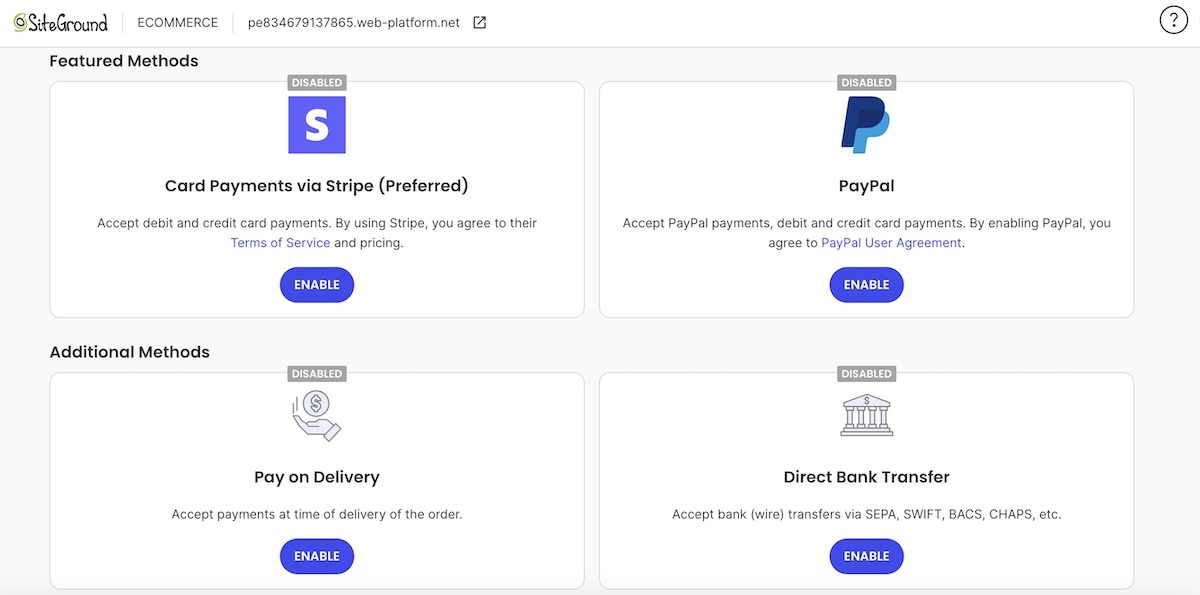
Backend of SiteGround Ecommerce where you can connect different payment methods for your customers

If you’re building on SiteGround Ecommerce specifically, PayPal is one of the payment options ready to switch on from your store settings, alongside Stripe, with no plugin hunting or custom code involved. That comes with high-performance hosting and around-the-clock support already built in, so the payments part of your launch isn’t the piece you’re left troubleshooting alone.

Start building your online store now >>

Choosing the best payment processor for your small business

This isn’t really a question of picking one processor and sticking with it. It’s a question of which processor, or combination of processors, actually matches how you sell. PayPal alone covers plenty of small businesses. Others need to add a second option next to it.

Signs PayPal alone could be enough

PayPal by itself is a solid fit if most of these describe your business:

  • You sell simple, one-time purchases rather than subscriptions or recurring billing
  • Your monthly volume is modest enough that a flat rate doesn’t eat into margins
  • Most of your sales are domestic, so you’re not stacking international and conversion fees
  • You want a working checkout today, not a week spent on a custom integration
  • Your customers already expect to see the PayPal button and trust it

Signs you need more than PayPal alone

PayPal alone starts to show its limits once you hit any of these:

  • High transaction volume, where flat-rate fees add up faster than a negotiated processor rate
  • A preference to accept card payments directly rather than routing everyone through PayPal’s interface

None of these are reasons to drop PayPal. They’re reasons to add a second processor alongside it.

Running Stripe and PayPal together

Stripe and PayPal aren’t an either-or choice for most small businesses. Running both means covering more of your customers’ preferred payment methods than either processor covers alone, card payments, digital wallets, and checkout flexibility that neither one fully replaces on its own. If Stripe is new to your setup, what to check on Stripe before going live walks through the parts that trip people up first: test mode, checkout, and receipts.

Is PayPal the right fit for your small business?

For low-volume sellers, freelancers invoicing a handful of clients, or anyone who wants to start accepting payments today, PayPal is a reasonable default. The fees are predictable, the setup takes minutes, and buyers already trust the button. Where it falls short is at scale: higher volume, international sales, or a dispute-heavy niche all make the hidden costs and hold risk more likely to bite.

Most small businesses land on running PayPal and Stripe together rather than choosing one exclusively. SiteGround Ecommerce supports both natively, so you can offer customers the payment options they already expect without a pile of extra plugins to manage. You also get high-performance infrastructure and around-the-clock expert support built in, so payments aren’t the only thing running smoothly.

[103]

Frequently asked questions

Is PayPal good for small businesses?

Yes, for low-volume or straightforward selling. It’s less suited to high-volume, international, or dispute-heavy businesses without a second processor to back it up.

How much does PayPal charge for small business?

Standard PayPal Checkout costs 3.49% + $0.49 per domestic sale; standard card payments run 2.99% + $0.49. See the full fee table above for invoicing, international, and in-person rates.

What’s the best payment processor for small business?

There isn’t one universal answer. PayPal works well for straightforward, lower-volume selling. Stripe adds deeper checkout customization and subscription support. Most small businesses end up running both rather than picking one exclusively.

Do I need an LLC for a PayPal Business account?

No. A sole proprietor can open a PayPal Business account with an SSN. An LLC or corporation uses an EIN instead, but the business structure itself isn’t a requirement.

How do I avoid a 3% fee on PayPal?

Skip instant transfers in favor of free standard ones, ask PayPal about negotiated rates once your volume is consistent, and pass processing costs to the buyer through invoicing where your state and card network rules allow it.

Is your hosting security real or just assumed?

Man using a laptop in front of a server dashboard with website security, database, performance, and configuration icons

Almost every hosting provider describes its hosting as secure. Far fewer readers can say what that actually means, and that gap is the real problem. Most compromises don’t start where people expect them to, and the fix usually isn’t on the server at all.

Web hosting security is the combined set of protections across two layers: the server layer, where your host handles patching, service configuration, network filtering, and account isolation, and the account layer, where you handle credentials, user roles, software versions, and backups. Server security covers the first layer only.

Key takeaways:

  • Web hosting security has two owners, not one. The server layer belongs to your host, and the account and website layer belongs to you.
  • Almost every real compromise starts on the account layer, through a reused admin password, an un-updated plugin, or credentials nobody revoked.
  • “Nothing has happened yet” isn’t evidence of strong security. Three common signals all describe activity rather than verified protection.
  • Six questions separate real hosting security from marketing language, and each one has a weak answer you can learn to recognize.
  • The responsibility line moves with hosting type. On shared and managed plans your host owns more of the stack; on unmanaged VPS and dedicated servers you own most of it.

Why your hosting can look secure and not be

The reason hosting can look secure without being secure is that most of the visible signals measure activity, not outcomes. A host publishing a security page is doing marketing. A plugin sitting in your admin is doing detection. Neither tells you whether the specific door an attacker would use is locked.

This matters because security work is invisible when it succeeds. Patching, isolation, and monitoring produce no user-facing evidence at all, so the reader is left inferring protection from proxies. Those proxies are weak, and they’re weak in a predictable direction: they all overstate coverage.

The usual website security tips are sound as far as they go, but they don’t tell you which of the two layers your gap sits on. That’s the question that decides whether the next hour of your time should go to your host’s support team or to your own admin panel, and almost no discussion of website hosting security answers it before handing you a checklist.

The three signals people mistake for evidence

These three signals show up in almost every conversation about hosting security, and none of them is evidence of protection. Each one is true and each one is answering a different question than the one you asked.

  1. The padlock in the address bar

An SSL certificate encrypts traffic between the visitor’s browser and your server. That’s it. It says nothing about who can log in to your admin panel, whether your plugins are current, or whether the server was patched this month. A phishing site with a valid certificate gets the same padlock as any other website working through HTTPS.

Chrome showing a secure connection and valid SSL certificate for SiteGround.com
  1. Nothing has happened yet

An uneventful year is the weakest signal of the three, because most automated attacks are indiscriminate and most successful ones stay quiet. A site can host a backdoor for months while serving normal traffic. Absence of a visible incident measures your luck and your monitoring, in unknown proportions.

  1. A security plugin is installed

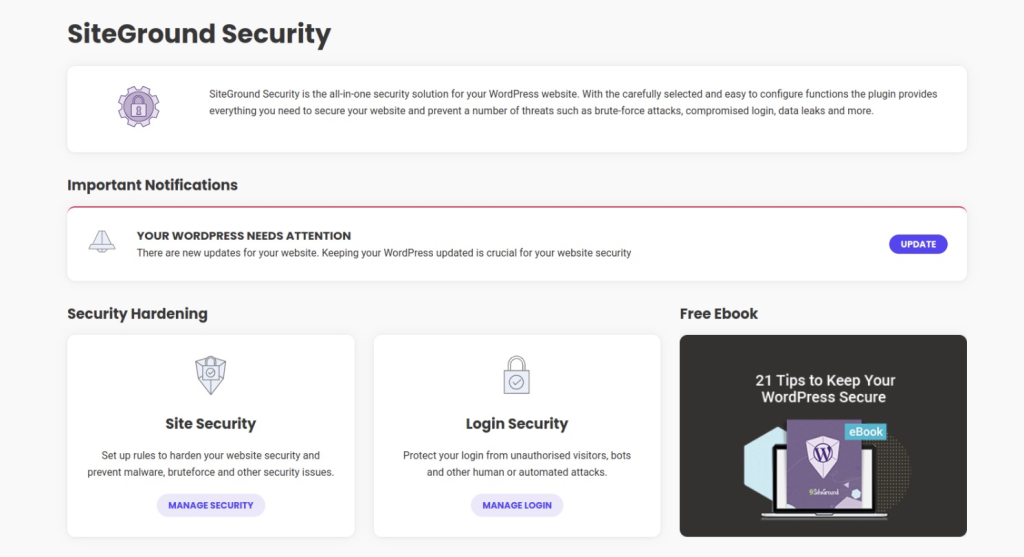
Installing a plugin is not the same as configuring one, and a plugin’s reach stops at the application. Solid WordPress security work happens here, but it happens on your layer, above the operating system and the web server. A plugin can’t patch the software it runs on.

SiteGround Security plugin dashboard with security hardening, login security, and WordPress update options

The two layers of hosting security, and which one is yours

Every control in hosting security sits on one of two layers, and each layer has exactly one owner. Get the boundary wrong and you either try to harden things you don’t control or ignore the things you do.

What sits on the server layer (your host’s job)

The server layer is everything below your account, such as: 

  • physical hardware, 
  • the network edge, 
  • the operating system, 
  • the services running on it. 

Your host owns operating system patching, web server and database configuration, network filtering and brute-force protection at the edge, account isolation between neighbors on the same machine, and intrusion detection and log monitoring. 

You don’t have root access on shared, managed, or most cloud plans, so you can’t do this work even if you want to.

What sits on your account and website layer

Your layer is everything you can reach after logging in: hosting account and admin passwords, two-factor authentication, user roles and permissions, application and plugin versions, API keys and tokens, old test installs and staging copies you forgot about, FTP and SSH credentials, and your backups. 

ControlServer layer (host)Account layer (you)
Operating system and service patchingYesNo
Web server, database, and PHP-FPM configurationYesNo
Network firewall and brute-force filteringYesNo
Account isolation between neighborsYesNo
Intrusion detection and log monitoringYesNo
Passwords and two-factor authenticationNoYes
User roles and permissionsNoYes
Plugin, theme, and core versionsNoYes
API keys, FTP users, and SSH keysNoYes
Backup coverage and restore testingSharedYes

Where server-layer security usually fails

Server-layer failures are rarely exotic. They cluster in three places: software left unpatched past a published vulnerability, services exposed to the network that didn’t need to be, and configuration that was never tightened from its installation defaults. The third is the most common, and it’s the one with a name.

On shared hosting the additional failure mode is isolation. Multiple accounts run on one machine, so the question that matters is whether a compromise inside one account can read or write anything in another. That boundary is the host’s to build and the host’s to prove.

What a server security misconfiguration actually looks like

A server security misconfiguration is a setting that was left at a permissive default rather than being deliberately set. Two examples cover most of what goes wrong.

The first is a file-permission default. Directories on a correctly configured account sit at 755 and files at 644, which lets the web server read them and stops other processes writing to them. A directory left at 777 is writable by any process on the machine, so an attacker who gains a foothold anywhere gets a place to drop a file that then executes as your site.

The second is an exposed admin panel. Database managers, monitoring dashboards, and server control panels frequently install with a default port, a default path, and sometimes a default credential pair. Nothing is broken, and nothing is patched incorrectly. The panel is simply answering requests from the entire internet when it should answer requests from one IP address. OWASP tracks this whole category as security misconfiguration in its Top 10.

Where your own layer usually fails

Account-layer failures are boring, repetitive, and responsible for most of the incidents that actually happen. These four are most common:

  • A reused admin password. The password on your WordPress admin or hosting account also exists in a breach dump from an unrelated service. No exploit is required, because credential-stuffing tools simply try it. This is the single most common way small sites are taken over.
  • Un-updated plugins and themes on a set-and-forget site. A site built two years ago and left alone runs code with publicly documented vulnerabilities and published proof-of-concept exploits. The gap between disclosure and mass automated scanning is measured in days, not months.
  • An old developer’s FTP or SSH credentials, never revoked. The freelancer who built the site in 2023 still has access, and so does anyone who has since compromised their laptop. Here’s the part that catches people out: deleting an FTP account in Site Tools does not revoke an SSH key. Keys are managed separately under Site Tools > Devs > SSH Keys Manager, and they can outlive the FTP user created alongside them. 
  • A backup that’s never been test-restored. Backups run nightly and nobody checks them, so the first restore attempt happens during an incident, under time pressure, with no fallback. Untested backups fail in mundane ways: a database export that excluded a table, a job that broke six weeks ago, retention shorter than the time it took to notice the problem.

Two of those four are access problems, which is why the principle of least privilege does more for a small site than any plugin: every account, key, and role that exists is a way in, so the ones nobody needs should stop existing.

What good hosting security looks like, and what SiteGround does

Real server-layer security is describable. A host should be able to name its patching cadence, its isolation method, the type of firewall at the edge, what it monitors, and what it does when something is found. Here is our side of the line, in those terms.

  • Account isolation on shared servers, so a compromise in one account can’t reach the files or database of another.
  • A web application firewall with rules written and deployed by our own security team, including virtual patches for newly disclosed WordPress and plugin vulnerabilities, often before the vendor’s own fix is available.
  • AI-driven anti-bot protection at the network edge, which blocks brute-force login attempts before they reach your site.
  • Managed operating system and service patching, applied across the fleet rather than left to individual accounts.
  • Daily automated backups, restorable from Site Tools > Security > Backups, with files and databases restorable separately so you can roll back a database without losing files uploaded since. 
  • Site Scanner, which checks for malware daily and alerts you rather than waiting for a visitor to find it.

None of that is a substitute for the work on your layer, and any host claiming otherwise is describing half a system. What it does mean is that the questions in the next section have concrete answers here.

What you should have in place on your side

Your layer comes down to eight items. Each one closes a door that automated attacks actually use.

  • Two-factor authentication on your hosting account and your site admin, enabled from the Client Area under Login & Profile.
  • A unique password on every account, generated rather than chosen, and never reused across services.
  • Core, plugin, and theme updates applied on a schedule you can name, with automatic updates on for anything you don’t review manually.
  • Admin accounts audited quarterly, with unused users, contributors, and old developer logins deleted rather than deactivated.
  • FTP users and SSH keys reviewed at the same time, and revoked separately, since removing one does not remove the other.
  • A restore you have actually performed, on staging, within the last six months.
  • Malware scanning running on a schedule, with alerts going to an address someone reads.

The longer list of website security tactics extends this, but these eight are the ones with the worst consequences when they’re missing. If you do nothing else after reading this, run a malware scan and open your list of admin users. Both take under five minutes and are the surest way to prevent bigger issues in the future.

Six questions to ask, and what a real answer sounds like

Ask before you buy, and ask again if you’re already hosted somewhere. Two patterns tell you most of what you need. A real answer names a mechanism, a frequency, or a boundary. A weak answer restates the question as a value.

Choosing a web hosting partner on this basis is more predictive than any feature grid. The six questions below are ordered by how much a wrong answer costs you, so if you only get through the first two before the chat window closes, you’ve asked the two that matter most.

Each question below targets one server-layer control. The answers you want are boring and specific.

  1. How quickly do you patch a disclosed vulnerability?

A real answer names a timeframe and distinguishes severity levels: critical patches within hours, routine updates on a weekly cycle. It may also mention virtual patching at the firewall for cases where no vendor fix exists yet. A weak answer says the provider keeps everything up to date.

  1. How are accounts isolated from each other on a shared server?

A real answer names the mechanism, whether that’s containerization, per-account users with enforced permission boundaries, or dedicated resource allocation, and states plainly that one account can’t read another’s files. A weak answer says accounts are separate, which is a restatement of the question.

  1. What kind of firewall do you run, and who writes the rules?

A real answer distinguishes a network firewall from a web application firewall, says who authors the rules, and says how often they’re updated. In-house rules updated continuously are stronger than a vendor rule set applied at defaults. A weak answer says the provider has enterprise-grade firewalls.

  1. What do you monitor, and what happens when you find something?

A real answer describes both detection and response: what’s watched, what triggers an alert, whether a human reviews it, and whether you’re contacted or the account is suspended first. Recognized references such as NIST SP 800-123 treat logging and monitoring as a baseline server-security control, not an add-on. A weak answer mentions 24/7 monitoring with no object.

  1. How often do you back up, and have you tested a restore?

A real answer gives a frequency, a retention period, where copies are stored, and who can trigger a restore. Ask specifically whether you can restore without opening a ticket. If you’re running a store or anything transactional, daily backups may not be frequent enough for your data loss tolerance, and that’s worth establishing before you need it.

  1. Which parts of security are mine on this plan?

A real answer draws the line clearly and doesn’t claim the whole stack. A host that says it handles all of your security is either wrong or describing a managed service far above the price you’re paying. The best answer is the honest one, because it tells you exactly what’s left on your desk.

Where the line moves: shared, managed, VPS, and dedicated

The boundary between the two layers isn’t fixed. It moves with hosting type, and this is the single most common source of confusion when people read security checklists written for someone else’s setup.

Hosting typeServer layer ownerWhat you own
Shared hostingHost, entirelyAccount and website layer only
Managed WordPress hostingHost, plus application-level patchingCredentials, roles, content, and often plugin choices
Managed VPSHost for the base stack, you for what you installEverything above the managed baseline
Unmanaged VPS or dedicatedYouOperating system, services, firewall, patching, and the account layer

The practical consequence is that the same checklist item can be someone else’s job or yours depending on the plan you’re on. “Configure your firewall” is impossible advice on shared hosting and mandatory advice on an unmanaged VPS, yet most best-practice lists print it without saying which reader it’s for. That’s the single biggest reason security checklists feel simultaneously overwhelming and useless.

This is why the distinction between managed and unmanaged hosting is a security decision and not only a convenience one. An unmanaged server gives you root access and the full responsibility that comes with it, which is a good trade only if someone is going to do the work. If nobody on your side is going to patch an operating system on a Tuesday, moving up the stack for control moves you down in actual security.

When something gets through anyway

No configuration on either layer reduces risk to zero, and any provider implying otherwise is selling. Attacks succeed against patched servers and audited accounts, usually through a vulnerability disclosed and exploited on the same day, or through a credential that was valid and stolen.

What separates a bad afternoon from a bad quarter is preparation, and it comes down to three things you can settle now: 

  • a backup you’ve restored before, so recovery is a procedure rather than an experiment; 
  • a written record of who has access to what, so you can revoke quickly instead of guessing; 
  • knowing who to contact and what they’ll need from you 

Knowing the recovery steps for a hacked site in advance also removes the worst decisions from the worst moment, because the order of operations matters. Clean before restoring and you may reinfect from a compromised backup. Restore before finding the entry point and you’ll be doing it again next week.

Assumed or verified security: the difference that matters

Assumed security and verified security look identical right up until they don’t. The difference is that verified security has answers attached: a patching cadence you were told, an isolation mechanism you can name, a restore you performed yourself, and a list of accounts you’ve actually read. Web hosting security stops being a feeling at the point where every claim on both layers has something concrete behind it.

If you take one thing from this, take the boundary. Work out which layer your gap is on, then do the work that’s yours and ask the questions that aren’t. If the answers from your current provider come back vague, SiteGround web hosting plans are built so that every item in the six questions above has a specific answer.

[86]


Frequently asked questions

What do you mean by server security?

Server security is the protection of the server layer specifically: operating system patching, service configuration, network filtering, account isolation, and monitoring. On shared, managed, or cloud hosting, all of this belongs to your host, because you don’t have root access.

How do you check server security?

You can’t audit a server you don’t have root access to, so you verify it by questioning instead. Ask for patching cadence, the isolation mechanism, firewall type and rule authorship, what’s monitored, and the incident response process. Specific, falsifiable answers are the check. On your own layer, run a malware scan and audit your admin users, FTP accounts, and SSH keys.

How do web hosting companies keep their servers secure?

Hosts patch the operating system and services across the fleet, run network and web application firewalls at the edge, isolate accounts from each other on shared machines, filter brute-force login attempts, monitor logs and file changes for intrusion, and maintain backups. Providers differ mainly in how fast they patch and whether their firewall rules are written in-house.

Is shared hosting secure enough for a small business site?

Yes, for most small business sites, provided the host enforces account isolation and you do your own layer’s work. Shared hosting security depends on a boundary you can’t inspect, which makes the isolation question worth asking directly. The more common risk on a shared plan isn’t your neighbor, it’s your own reused password.

Whitelist vs. blocklist vs. blacklist: What’s the difference for email senders?

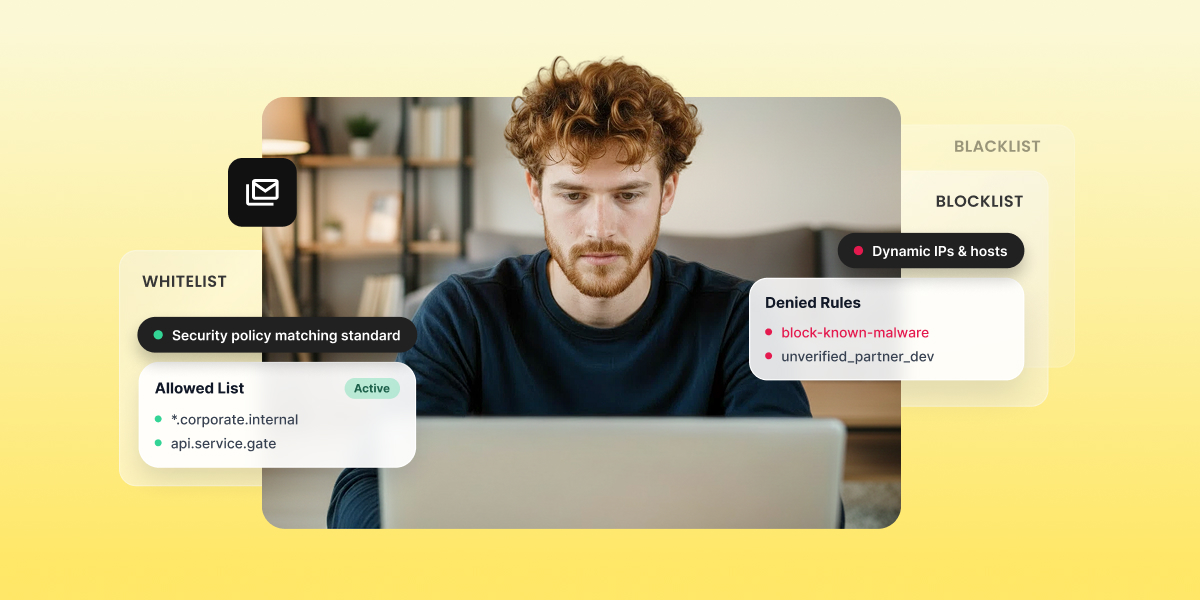
Illustration comparing whitelist, blacklist, and blocklist concepts with allowed and denied rule examples for email security

A whitelist gets your domain explicitly trusted. A blacklist and a blocklist do the opposite: they flag you as untrustworthy, and they’re the same mechanism wearing two different names. Which one applies to you right now depends on one question: are you trying to get in, or trying to get delisted?

Key takeaways:

  • Whitelisting earns trust proactively. Blacklisting and blocklisting flag you reactively, after something’s already gone wrong.
  • “Blacklist” and “blocklist” describe the same mechanism. The industry has shifted toward “blocklist,” not introduced a new concept.
  • Getting whitelisted by one client’s IT team fixes inbox placement for that one client only. It does nothing for your domain reputation with Gmail, Yahoo, or anyone else.
  • An IT admin adding an unauthenticated domain to a mail gateway’s allowlist is asking to get spoofed, which is why SPF and DKIM come before any whitelist request, not after.
  • SiteGround authenticates every domain pointed to its DNS automatically, which is the reason most senders never need to make a manual whitelist request in the first place.

What’s the actual difference between whitelist, blocklist, and blacklist

A whitelist is a list of senders a mail system trusts by default, so their mail skips normal spam filtering.

A blacklist is a list of senders a mail system flags as untrustworthy, so their mail gets rejected or sent to spam regardless of content.

A blocklist is the same thing as a blacklist, just the newer, more common term for it.

Whitelist and blacklist work on opposite defaults, and that difference is what makes them scale so differently. A whitelist entry only helps the sender it names, for the one recipient system holding it. A blacklist or blocklist affects everyone who checks that list, which is why one listing event on a major list like Spamhaus can hurt delivery across thousands of inboxes at once, while one whitelist entry fixes delivery for exactly one person.

“Blacklist” and “blocklist” are essentially the same list, described with the industry’s older term and its newer one. If a bounce message or a checker tool uses one label instead of the other, that’s not a sign you’re looking at something new, it’s the same problem under a different name. These dynamics all sit inside the bigger picture covered in SiteGround’s email deliverability guide.

Whitelist: What it does and when you need one

Getting whitelisted means one specific mail system has decided to trust you, and that trust doesn’t travel anywhere else.

How email whitelisting actually works

A whitelist runs on allow-by-default logic reversed: nothing gets through unless it’s named. That’s the opposite of how blacklists and blocklists work, where everything gets through unless it’s named. A whitelist entry doesn’t improve your reputation anywhere else; it just tells one specific system to skip its usual filtering for one specific sender.

This is why whitelisting matters most in narrow situations: a client whose finance team needs every invoice email to land, a personal email address that keeps missing a newsletter, an internal system sending automated alerts that can’t afford to be delayed by spam filtering.

How to get your sending domain whitelisted

Four mechanisms actually apply here, and they’re not interchangeable:

  • Gmail Postmaster Tools: not a whitelist request tool, but the reputation dashboard Gmail uses to decide whether to trust your domain going forward. Registering your domain and keeping your spam rate below Gmail’s visible threshold is the closest thing to a self-service path toward better placement, since Gmail doesn’t accept manual whitelist requests from senders.
  • Microsoft SNDS (Smart Network Data Services): register your sending IP to see Microsoft’s own complaint and filtering data for it. Same “check your standing” logic as Postmaster Tools, for Outlook and Hotmail.
  • Microsoft JMRP (Junk Mail Reporting Program): an actual feedback loop, not just a dashboard. Enrolling gets you copies of recipient complaints as they happen, so you can catch a bad segment before it turns into a full listing.
  • Asking a specific IT admin directly: the one truly manual request, and it only works after your domain is already authenticated with SPF and DKIM. An admin adding an unauthenticated domain to a mail gateway’s allowlist is asking to get spoofed, so most won’t do it, and shouldn’t.

Where whitelisting falls short

Picture a marketer who asks a key client to add their sending address to Outlook’s Safe Senders list. It works. That one client now always sees the campaign in their inbox. But the next newsletter still lands in spam for the other four thousand subscribers on Gmail and Yahoo, because that whitelist entry only ever applied to one person’s inbox rules. It did nothing for domain or IP reputation anywhere else. Whitelisting is a patch for one relationship, not a fix for your sending reputation.

Blacklist and blocklist: What they do and when they apply to you

“Blacklist” is the older term. “Blocklist” and “denylist” describe the same mechanism. The shift toward the newer terms has been underway across the industry for a few years now, not a change in what actually happens to your mail. If you land on one, your campaigns are either rejected outright or routed straight to spam, and the label used to describe it doesn’t change the outcome.

What actually gets you listed

A short set of triggers accounts for most listings:

  • High spam complaint rates
  • Hard bounces from a stale list
  • Hitting a spam trap
  • A sudden, unexplained jump in sending volume

As of 2026, a hard bounce rate over 2% or a spam complaint rate over 0.1% (one complaint per 1,000 emails) puts a domain or IP at risk. Cross 0.3% and you’re looking at serious reputation damage. 

Here’s how that plays out: a small business imports a list of 3,000 contacts they haven’t emailed in two years. Some of those addresses no longer exist. The first campaign alone pushes hard bounces past 2%, and within a day, their IP shows up on Spamhaus. From that point, every email from that IP gets rejected or spam-foldered, including ones going to the addresses that were still perfectly valid. The full breakdown of causes, checking tools, and delisting steps for each major list lives in SiteGround’s guide to email blacklists.

Where blacklisting and blocklisting fall short

Blacklisting and blocklisting have the flip-side problem of whitelisting: these lists permit everything not explicitly named, which means a brand-new spammer with a clean IP sails through until they’ve done enough damage to get flagged. The mechanism is reactive by design. It catches bad behavior after the fact, not before it.

Picture a brand-new sender who buys a “verified” list and sends their first campaign to 10,000 addresses. Nothing’s blocked yet. No spam filter has a reason to distrust an IP with zero sending history. It takes that first bad campaign actually landing, generating complaints and hitting spam traps, before any list catches up to what happened. The mechanism is reactive by design. It catches bad behavior after the fact, not before it.

Which one applies to your situation right now

TermDefault behaviorWho controls itWhere you’ll see it in emailWhat to do about it
WhitelistDeny by default, allow named sendersThe recipient’s mail system or inbox settingsA client’s Safe Senders list, an internal mail ruleAsk the specific recipient or admin; authenticate first
Blacklist / blocklistAllow by default, block named sendersThird-party list operators (Spamhaus, Barracuda)Bounce messages, checker tools like MXToolboxConfirm the listing, fix the cause, request delisting

If your campaigns are landing in spam or bouncing outright, that’s blacklist and blocklist territory. Start with the checks and removal steps in the email blacklist guide, not with whitelist requests, since asking to be whitelisted while you’re actively flagged treats the symptom, not the cause.

If you’re setting up a new sending domain, or a specific client keeps missing your emails despite otherwise normal deliverability, that’s whitelist territory. If the underlying problem traces back to how your list was built (purchased addresses, no double opt-in, stale subscribers) that’s neither a whitelist nor a blacklist fix. It’s a list hygiene problem wearing a deliverability symptom.

How SiteGround keeps you off these lists in the first place

The whitelist section made SPF and DKIM authentication a prerequisite for any manual allowlist request. SiteGround handles that prerequisite automatically: every domain with SiteGround-managed DNS gets SPF and DKIM set up on signup, no manual records, no support ticket. Domains outside SiteGround DNS get sending blocked until those records exist, so a sender can’t damage their own reputation by skipping authentication.

On the infrastructure side, SiteGround monitors its shared IP pool 24/7 and rotates out any IP that gets flagged, with no visible delivery gap. Every campaign also runs through AI scanning pre-send for spam triggers and phishing patterns, a different layer aimed at the same goal: never end up on a list at all. Paired with clean list-building habits on the sender’s side, that combination is why campaigns sent through SiteGround Email Marketing see a 98.80% delivery rate.

The vocabulary lesson is over. Now let the setup do the work.

SiteGround Email Marketing automatically authenticates any domain pointed to its DNS, and blocks unauthenticated sending from any domain that isn’t, so no sender accidentally torches their own reputation.

Whether you’re launching your first campaign or troubleshooting your five-hundredth, the setup matters more than the vocabulary.

[58]

Frequently asked questions about whitelist vs blacklist vs blocklist

What is the difference between whitelist and blacklist?

A whitelist blocks everyone by default and only allows the senders it names; a blacklist allows everyone by default and only blocks the senders it names. They run on opposite logic, which is why fixing one never fixes the other.

Is it blocklisted or blacklisted?

Both terms describe the same listing. “Blocklist” is the newer, increasingly preferred term across the industry, but a checker tool or bounce message using either one means the same thing happened to your domain or IP.

What does it mean if you’re whitelisted?

It means one specific mail system, a client’s inbox rules or an organization’s mail gateway, has been told to trust mail from your domain without running its usual spam filtering. It doesn’t affect how any other mail system treats you.

How do I remove my domain from a blocklist?

Confirm the listing first, then fix whatever caused it before requesting delisting, since most lists deny removal requests if the root cause is still active. The full process, list by list, is covered in the section above.

WordPress AI without API keys: AI Agent for WordPress vs BYO-key plugins

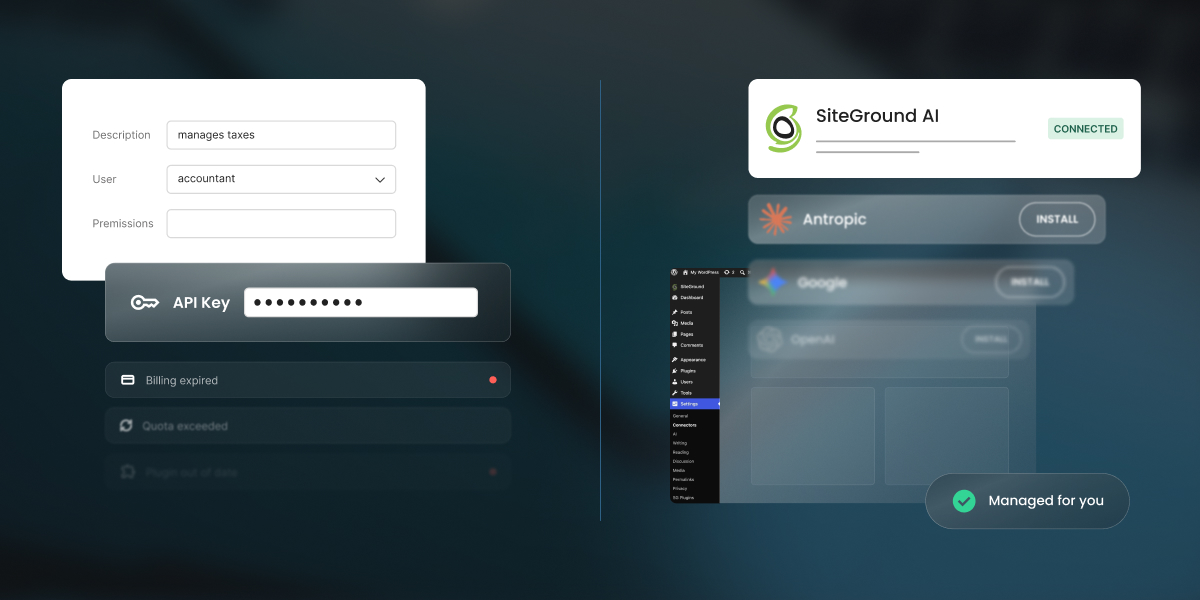
A comparison graphic split down the center against a dark background, contrasting manual API configuration on the left with automated AI integration on the right. The left side shows complex setup forms with fields for user permissions and an API Key, alongside error alerts for "Billing expired" and "Quota exceeded." The right side shows a simplified setup featuring a SiteGround AI card marked "CONNECTED" next to a green checkmark badge reading "Managed for you."

Most WordPress AI plugins arrive with the same hidden requirement: bring your own key. You’re sent off to open a developer account with an AI provider, add a payment method, and generate an API key, which is a long password that lets your site talk to that company’s AI. But did you know you can skip that entire errand?

Running WordPress AI without API keys means a managed service handles the connection to the AI models, so nothing on your site stores a credential and you never open a provider account at all. This is in contrast to the dominant bring-your-own-key (BYO-key) described above, where the plugin supplies the features, and you supply the account, the key, the billing, the limits, and the maintenance that follows.

Key takeaways:

  • Running WordPress AI without API keys means you do not need separate model-provider credentials from OpenAI, Anthropic, Google, or similar services.
  • A managed connector can let a WordPress AI plugin work without an API key, so nothing on your site stores a credential and no developer account is needed.
  • BYO-key WordPress AI plugins can give you more direct control over models, pricing, provider accounts, and portability.
  • One provider is rarely enough. Text and images often need different providers, so a BYO-key setup usually means several accounts, several keys, and several bills.

What BYO-key WordPress AI and managed access actually mean

Every AI feature on a WordPress site needs a route to an AI model. A writing assistant, chatbot, image generator, SEO tool, or WooCommerce helper cannot work on its own. It has to send a request to a model provider, identify who is allowed to use it, and decide who pays for the request. That route can be supplied in several ways.

Access modelHow it worksWho it suits
Direct BYO-key pluginYou create provider accounts yourself and paste the credentials into the plugin or the Connectors screen. For example, the official WordPress AI plugin works this waySite owners who want to choose their own models and hold the provider relationship deliberately
Managed AI accessThe service holds the provider relationships, and no key is stored on your site. For example, SiteGround’s AI Agent for WordPress works this waySite owners who want to use AI in WordPress without the administration

The most common model today is BYO-key. Many AI plugins for WordPress are built around it because it’s straightforward for the plugin developer: the plugin provides the interface, and the user pays the AI provider. For more technical users, this option gives direct control over the model provider, the selected model, the billing account, and usage policies. 

But it also means someone has to manage every provider account, key, quota, billing dashboard, and model retirement notice. With managed WordPress AI access, more of that work is handled for you. You still use AI in WordPress, but you don’t need to open separate accounts with multiple AI providers or keep track of several keys and billing dashboards. That is where comparing managed AI vs BYO-key becomes a business decision, not just a setup preference. 

How AI connects to your WordPress site

There are two main WordPress AI provider setup models, and both take about the same time.

Connecting WordPress AI with your own API key

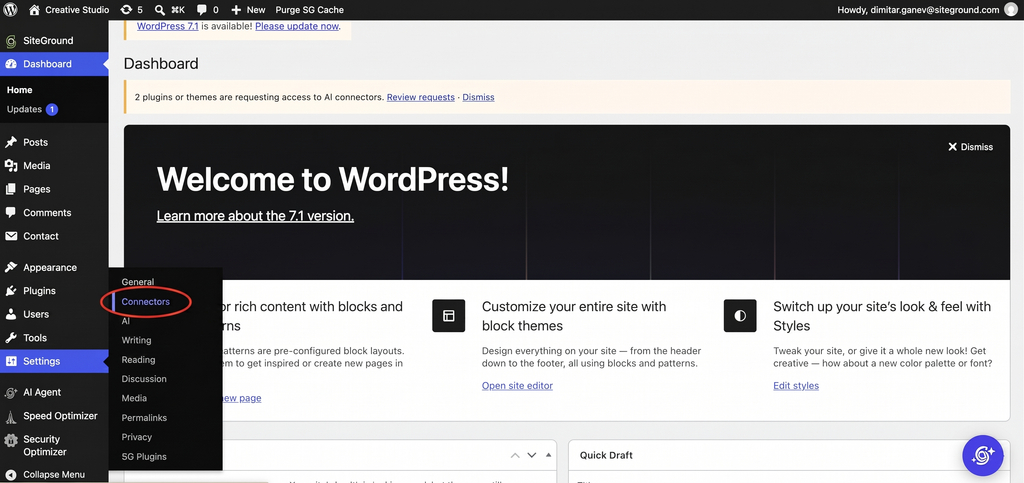
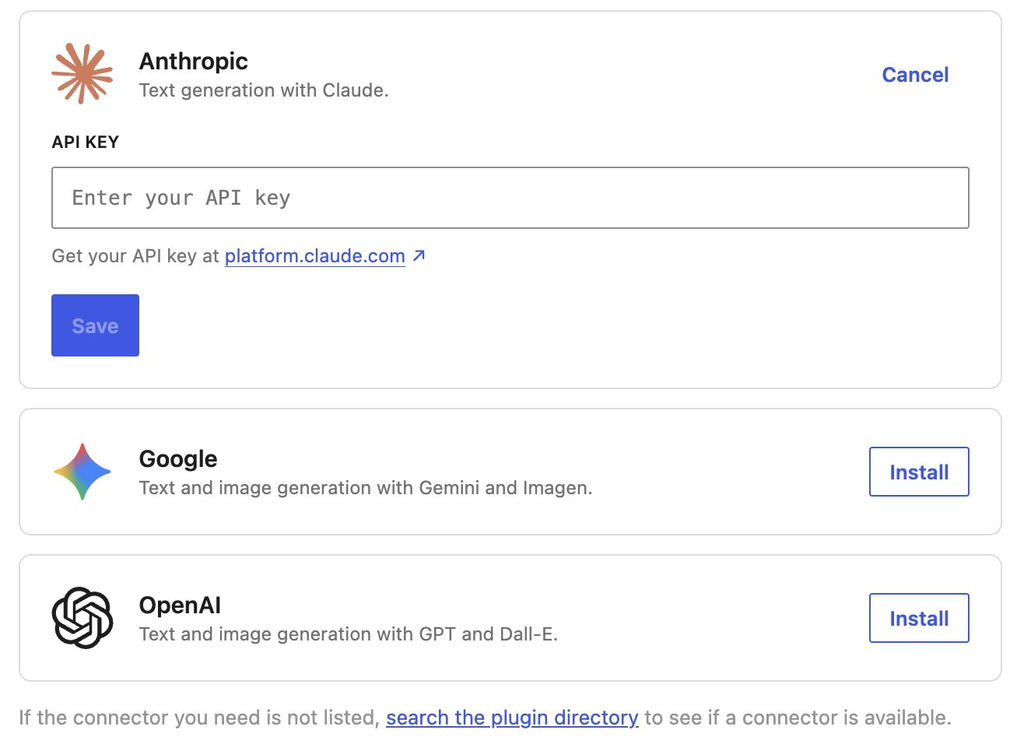
In a BYO-key setup, you create an account with a provider such as OpenAI, Anthropic, or Google. Then you install the relevant provider connector or plugin, generate a key in the provider dashboard, and paste that key into the plugin settings or, if you’re on WordPress 7.0 or above, into WordPress’s Settings > Connectors screen.

A screenshot of the WordPress admin dashboard with a red oval highlighting the Connectors option in the expanded Settings navigation menu on the left sidebar. A top notification banner reads "2 plugins or themes are requesting access to AI connectors," situated above a central welcome panel featuring the headline "Welcome to WordPress!" and a link to learn more about version 7.1.

If you want to use ChatGPT, Claude, and Gemini in WordPress, you usually repeat that process for each provider. One key doesn’t normally cover every model family.

A screenshot of an AI connector configuration page featuring cards for Anthropic, Google, and OpenAI. The Anthropic section is expanded, showing an API KEY input field with the placeholder "Enter your API key," a link reading "Get your API key at platform.claude.com," a blue "Save" button, and a "Cancel" link. Below, cards for Google ("Text and image generation with Gemini and Imagen.") and OpenAI ("Text and image generation with GPT and Dall-E.") display outline "Install" buttons. A footer message at the bottom reads, "If the connector you need is not listed, search the plugin directory to see if a connector is available."

Pro tip: Set a spending cap the same day you create the key. Every provider lets you set one, and it takes about a minute, but almost nobody does it at setup because nothing prompts you to. Do it before you paste the key into WordPress, while you’re still in the provider’s dashboard. Without a cap, a plugin making background calls or one busy month of content can multiply the bill before anything appears on a statement. Worth knowing: OpenAI and Anthropic both offer a hard monthly limit that stops requests, while Google’s billing runs through Google Cloud where the default is an alert that emails you and lets spending continue.

WordPress 7 improved this with the Connectors screen by giving WordPress a centralized place for AI provider connections, including OpenAI, Anthropic, and Google, so compatible plugins can reuse configured connections. However, the standard connector model still uses provider credentials, so WordPress Connectors API keys don’t eliminate provider administration, but rather reduce repeated setup. 

Using AI Agent for WordPress without API keys

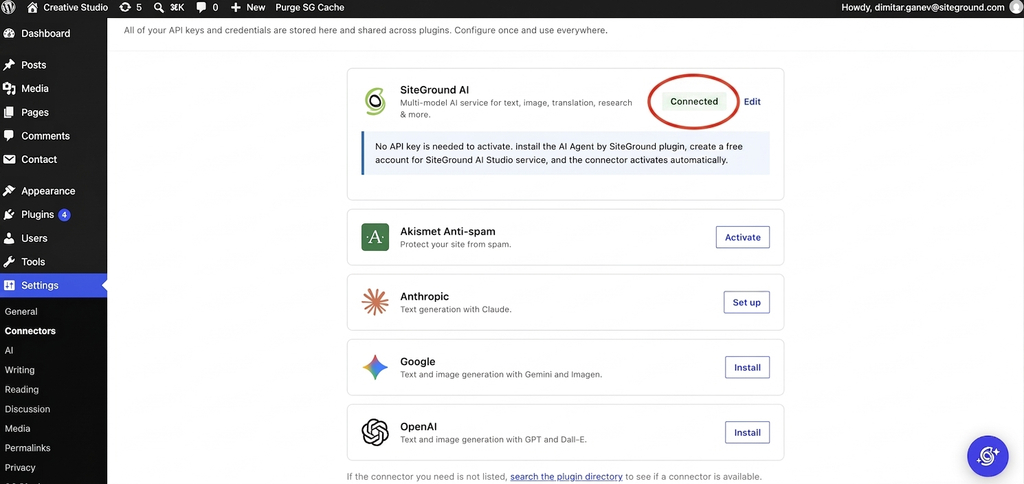
With an AI Agent for WordPress without API keys, the access model changes. For instance, in the case of SiteGround’s AI Agent for WordPress, you install the AI Agent by SiteGround plugin, create a free SiteGround AI Studio account, and the SiteGround AI connector activates without requiring a separate model-provider API key on the site.

That means no OpenAI key to paste, no Anthropic key to rotate, and no separate Google Gemini billing account just to start using WordPress AI features. Moreover, SiteGround AI is a multi-model connector that can route tasks across models such as Gemini, ChatGPT, GPT-Image, and Claude, with no API key needed to activate the connector.

This means that rather than requiring you to know which model to use, SiteGround AI automatically routes each request to the most appropriate one for the job. For example: 

  • General inquiries about your WordPress setup are routed to fast, efficient models like Gemini Flash for near-instant responses.
  • Complex WordPress site management tasks are automatically escalated to advanced reasoning models like Gemini Pro or GPT 5.6.
  • Visual assets are handled by dedicated image-generation models such as GPT-Image.

If your website is hosted on SiteGround, the process is even more seamless: SiteGround AI is already connected as a provider, and the SiteGround AI Studio plugin comes pre-installed and automatically authenticated for all new and migrated sites, meaning the agent arrives connected and ready to work right out of the box with zero setup. 

A screenshot of the WordPress Connectors settings page showing a list of AI integration connectors. At the top, the SiteGround AI card features a red circle highlighting its green Connected status badge, alongside a note explaining that no API key is required when using the AI Agent by SiteGround plugin. Below, additional service cards are listed for Akismet Anti-spam with an Activate button, Anthropic with a Set up button, and Google and OpenAI both displaying Install buttons. The left admin menu shows Connectors selected under the Settings menu.

What happens after you connect

The easiest WordPress AI setup for beginners is not only about the setup. A beginner-friendly setup should stay manageable after the first week, when a few of these might happen:

What happensWith your own API keysWith managed access
You need a second providerAnother account, another key, another billing relationship, another dashboard. Common, since one provider rarely covers both text and imagesNothing. Model routing happens behind the connection
A new administrator joinsDecide whether to share a key, issue a second one, or hold credentials centrally. Every option has a downsideThey use the site. No credential decision at all
You want to know what you’re spendingOne provider dashboard per account, each in its own format and billing cycleOne balance, in one place
A card failsAI features stop, often without an obvious reason, and it looks like a plugin bug until you check the providerHandled through your existing SiteGround relationship
A key is exposedRotate it at the provider, update everywhere it’s stored, and absorb whatever was spent in the meantimeNo key on the site to expose
A model is retiredTrack notices across every provider you use and migrate before the cutoffThe service moves to the replacement
Provider pricing changesYours to absorb, on their scheduleAbsorbed by the service, which is also the trade-off: you didn’t choose
Something breaksWork out whether the plugin, the connector, the key, the quota, or the provider failed. Four support surfaces, none of which owns the whole pathOne place to ask

Let’s look at perhaps the most common issue: the failed-card example. If your Gemini account uses a prepaid balance and that balance hits zero, Google says all API keys in all linked projects under that billing account stop working. To the person inside WordPress, that can look like the WordPress AI plugin API key suddenly broke, even though the real issue is billing.

Retired models are another common lifecycle issue. OpenAI states that it regularly retires older models and that software relying on those models may need updates to keep working. Its notice periods vary by model type, with generally available models receiving longer notice than preview models. Anthropic uses a similar lifecycle language: active, legacy, deprecated, and retired, and says requests to retired models fail. It also tells customers to audit usage by API key and model before retirement dates.

That is the operational work hidden behind BYO-key WordPress AI plugins. Someone has to notice the email, understand whether the WordPress site is affected, test the replacement model, and update the configuration before the feature fails.

What each model costs you

Whichever route you take, something goes. One costs you control over the AI, the other costs you time you’ll spend maintaining it, so the question is which cost you’d rather pay.

What you give up with managed access

You give up model choice. The service decides which model handles each request, and you don’t get a say in it. You give up the direct provider relationship too, so you can’t negotiate, can’t watch provider-level pricing, and can’t move the same setup into tools outside WordPress. And you can’t switch providers on your own schedule, because that decision belongs to the service.

For a business with specific model requirements, or one already using the same provider across other systems, those can be more than technicalities. For example, you may need a specific OpenAI model for a workflow, a direct Anthropic account for procurement reasons, or a Google Cloud billing relationship for compliance.

What you give up with your own keys

Time, mostly, and it recurs. Every row in the table above is work that lands on whoever manages the site, and on a small business that’s usually the person also handling marketing, customers, and everything else.

A BYO-key setup with a single OpenAI account is more exposed to one company’s decisions, not less. If that provider changes its pricing, retires the model you use, or has an outage, you have no alternative route and no way to move quickly. The fair managed AI vs BYO-key comparison isn’t managed access against one key, but rather managed access against a genuinely multi-provider setup, and that’s where the administrative burden actually lives.

WordPress AI without API keys: which model fits your business

The right BYO-key vs managed WordPress AI choice depends on who owns the work after setup.

When to choose your own API keys

Choose your own API keys if you want specific models for specific jobs. That might include using one model for long-form content, another for code, another for image generation, and another for embeddings or search. It also makes sense if you already have provider accounts, already monitor AI spend, or already use the same provider relationship in tools outside WordPress.

BYO-key is also a good fit when:

  • You have someone who will actually do monthly maintenance.
  • You need direct provider invoices for procurement.
  • You need provider-level logs or controls.
  • You are comfortable diagnosing quota, billing, authentication, and model errors.

When to choose managed access

Choose managed WordPress AI when nobody on the team wants to own provider administration. That is quite normal for small business owners. The same person managing WordPress may also be managing content, customer emails, products, bookings, social media, invoices, and support. Adding OpenAI, Anthropic, Google, and image-model billing dashboards to that workload is not a small ask.
Managed access is usually the better fit when:

  • You would rather have one AI relationship than several provider accounts.
  • You want one usage view instead of multiple dashboards.
  • You care more about completing WordPress tasks than choosing exact models.
  • You want a simpler WordPress AI provider setup.

The bottom line

WordPress AI without API keys reduces the number of accounts, keys, dashboards, billing relationships,and provider lifecycle issues. That makes it a better fit for owners and teams that want AI as a business tool, not another technical system to administer. 

In contrast, BYO-key plugins are the right choice when direct model control, provider ownership, and technical configuration matter more than simplicity. 

So the real question is not whether your setup takes five minutes or fifteen, but who handles the administration for the next two years.

FAQs

Can I use WordPress AI without an API key?

Yes. You can use WordPress AI without an API key through a managed connector that holds the provider relationship for you. The AI Agent by SiteGround plugin activates the SiteGround AI connector automatically once you create an AI Studio account, so no credential is stored on your site.

What does BYO-key mean for a WordPress plugin?

BYO-key means bring your own key. The plugin provides the AI features, and you provide the provider account, the API key, the billing setup, the usage limits, and the ongoing maintenance. WordPress’ AI plugin and AI Engine both work this way.

Do I need separate keys for ChatGPT, Claude, and Gemini?

Yes, if you connect each provider yourself. Every provider needs its own account, its own API key, and its own billing relationship. This comes up more often than people expect, because one provider rarely covers both text and image generation.

Can WordPress 7 reuse one provider connection across plugins?

Yes. WordPress 7’s Connectors screen stores provider credentials centrally so compatible plugins can share one connection instead of each asking for its own key. It centralizes where the key lives, but it doesn’t remove the need for a provider account or a key.

Is managed WordPress AI better for small businesses?

Managed WordPress AI, such as AI Agent for WordPress, is usually better for small businesses, because the administration it removes is work that a small team rarely has anyone to do. If your business has a developer or agency already managing provider accounts, your own keys give you more control and that control becomes usable.

What happens when an AI model is retired?

When an AI model is retired, requests to it start failing. With your own keys, you track notices across every provider and migrate before the cutoff. OpenAI gives at least six months for generally available models and around two weeks for previews, while Anthropic gives at least 60 days. With managed access, the service handles the move.

Is AI Agent for WordPress easier to set up than AI Engine?

Yes. AI Agent for WordPress is easier to set up than AI Engine because it needs no provider account and no API key. AI Engine is a BYO-key plugin, so you create an account with a provider, generate a key, and paste it in before any feature works.

What happens if my card fails at the AI provider?

If your card fails at the AI provider, your WordPress AI features stop working, and nothing in WordPress explains why. It usually looks like a plugin problem until you check the provider’s billing dashboard. With managed access, billing runs through your existing account instead.

How to add payments to an AI-built app: What it takes to get paid

Abstract of adding payment options to an AI built app

Yes, you can add payments to an AI-built app without hiring a developer. What you can’t do is stop at a checkout button that just sits there looking pretty. Real payment readiness means your app also knows whether the charge succeeded, and what to do next: confirm an order, unlock access, update a subscription, or something else. Here’s what that actually takes, step by step.

Key takeaways:

  • To add payments to an AI-built app, you need six things working together, in this order: a real checkout connection, a working webhook (the signal that tells your app a payment actually went through), a test run through failure cases, controlled access, accurate payment status, and a confirmation step.
  • A checkout button that isn’t wired to a real payment integration, Stripe or otherwise, is a shape with a border-radius, not a payment flow.
  • Many AI app builders connect to Stripe using a restricted API key rather than your account’s main secret key, so you control exactly what gets accessed.
  • The webhook, not the redirect back to your site, is what actually tells your app a payment succeeded, but only if that webhook checks Stripe’s signature first.
  • Testing an AI-built app’s payment flow means running a decline, a cancellation, a refund, and a duplicate order, not just one successful purchase.
  • One-time payments and subscriptions need different logic for what happens when access should turn off.

Why a checkout button isn’t the same as payment-ready

Is a checkout button enough for an AI-built app? Nope. A button just opens the door. Whether real payments actually work depends on six pieces working together behind it, and a good-looking checkout is only one of them.

Here’s what those six pieces are:

  1. A checkout connection to a real payment processor, not a mockup.
  2. A way for the app to hear back when a payment actually succeeds.
  3. Testing against real failure cases before a real customer hits them.
  4. Access that unlocks only after the webhook confirms payment, not before.
  5. Accurate payment status tracking: paid, unpaid, refunded, failed.
  6. A confirmation step that tells the customer what happens next.
diagram of what an ai-built app needs to be payment ready

How to add payments to an AI-built app, step by step

This section covers three of the six pieces from above: connect a real checkout, wire up a way for your app to hear back when payment succeeds, then test the whole thing before real money moves. Testing comes right after the connection here, not at the end of all the steps, since there’s no point building access, status, and confirmation logic on top of a checkout you haven’t verified. 

Note: We’ll use Stripe as the running example below, since it’s what most AI app builders connect to first.

Step 1: Connect a real checkout

Get a Stripe account

Getting a Stripe account takes minutes: just a name, an email, and a password, no code involved. Once you’re in, Stripe walks you through a short onboarding step before it’ll let you take real payments, where it asks for:

  • Your business name, or your own name if you’re a sole proprietor
  • A bank account for payouts
  • Basic details about what you’re selling
Welcome page form during stripe account set up

A Stripe integration for an AI-built app starts here, with an account, and, thankfully, not a line of code in sight. Stripe’s payments overview covers everything an account can do, but for a single app, one account and one connected key is enough to get started. You can save tax handling, multiple currencies, and marketplace splits for later.

Add a real checkout instead of a static button

A checkout button design is indeed just a shape. It looks functional, but it doesn’t necessarily process anything. Swapping it for a real payment flow means connecting to a processor’s hosted checkout page, where the processor collects the card details directly, so they never touch your app’s own code or servers.

Some AI app builders, such as Coderick AI, let you add Stripe payments to your app without custom code. You simply describe what you’re selling and the price, and the builder wires a Stripe Checkout session behind the button. What’s still on you is confirming that the right product, price, and currency actually get passed into that session.

Stripe’s own checkout page covers the technical detail behind the scenes. Stripe go-live basics, like switching from test keys to live keys, come later, after testing, not before.

What’s Coderick AI? SiteGround’s own AI app builder: describe what you’re building in plain language, and it generates a working app, not a prototype, that publishes straight to SiteGround’s hosting. More on how it handles the rest of this checklist further down.

Step 2. Connect it so your app hears back when someone pays

Your app needs to hear back from Stripe the moment a payment actually completes. That message is called a webhook: a notification Stripe sends directly to your app, separate from the redirect that sends the customer back to your site after paying. 

This is exactly where AI-built apps tend to trip up, because the two signals look like twins but they very much aren’t:

  • The redirect back to your site after checkout is just a page load. It tells your app that someone landed there, not that Stripe actually processed a charge. Someone could open that page directly, or the redirect could fire before payment finishes confirming.
  • The webhook is the trustworthy message, since it comes from Stripe’s own servers reporting what actually happened, and not from a browser passing through a page.

The takeaway here: a payment should never get recorded as successful based on the redirect alone. Status, access, and confirmation should all wait for the webhook, in that order.

Most AI app builders wire up webhook handling automatically once you connect a Stripe account (an internal signal from Stripe confirming the payment, not a connection out to an external tool like a CRM or accounting platform). What’s worth checking is whether that handler verifies the webhook’s signature, the check that proves a request actually came from Stripe and not from someone who found your webhook URL and faked a payment. Ask this directly in the same chat you used to build the app: “Does my webhook handler verify Stripe’s signature using the signing secret?” If you don’t get a clear yes, don’t launch until you do.

Step 3: Test before you charge real users

What should you test before charging users in an AI-built app? Run the following five scenarios before a single real customer does:

  1. Place a real test transaction using your processor’s test card numbers.
  2. Decline a test card on purpose, and confirm your app shows the right status.
  3. Cancel mid-checkout, and confirm access stays off.
  4. Request a test refund, and confirm access turns off the same way.
  5. Place the same order twice, and check your records show one order, not two.

Congratulations, you just faked five transactions and nobody’s card got charged for real. This mirrors the same edge-case checklist SiteGround already covers for how to test before taking payments on an AI-built store, since an app and a store fail in exactly the same places. If a developer is handling setup, Stripe’s own go-live checklist covers the account-level items, like registering live webhook endpoints, worth checking once the list above is clean.

What happens after someone pays: access, status, and confirmation

Once a payment goes through, three things need to happen on your side of the app, not Stripe’s: access turns on, the order’s status updates, and the customer gets told what’s next. Let’s unpack one by one.

Step 4: Unlock access after payment

“Access” refers to whatever the payment unlocks: a feature, a download, a membership area, or a product page. Access should switch on only when a payment actually succeeds, never when someone simply opens the checkout page. Because a checkout page loading doesn’t mean money changed hands — the customer could have closed the tab, or abandoned the flow halfway through, or the card could have been declined.

The safest pattern ties access to the webhook’s payment status, and not to any action on the checkout page. This is what that looks like:

  • Access turns on after the webhook confirms success, not after a redirect back to your site.
  • A canceled or failed payment leaves access off, with no separate step needed to undo anything.
  • A refund reverses access the same way a failed payment would.

Long story short: if you tie access to the redirect instead, you’ll eventually grant it to someone whose payment never actually went through. Not good.

In practice: Payments inside Coderick AI apps can have that access logic wired in, tying the unlock to the webhook rather than the redirect, but it’s worth prompting for explicitly rather than assuming it comes bundled in once Stripe’s connected. You’ll also need to specify what “access” actually means for your app, which feature, page, or download it’s gating, since that’s specific to what you’re selling.

Step 5: Track payment status and customer records

Customer payment status in an AI-built app needs more than a single paid or unpaid flag, and it needs to live somewhere your app can actually check it, not just in Stripe’s own dashboard. A real customer record inside your app tracks four separate states, since each one triggers a different action:

  • Paid. Access stays on, and fulfillment continues as normal.
  • Unpaid. No access and no fulfillment, until payment clears.
  • Refunded. Access and fulfillment both reverse, on the same trigger as a failed payment.
  • Failed. The same as unpaid: nothing unlocks until a successful charge comes through.

Many AI app builders connect to Stripe using a restricted API key rather than your main secret key, limiting exactly what the connection can touch on your account. This is the kind of connection mentioned earlier: a customer payment status that updates automatically as Stripe reports each event, instead of a static list you have to update by hand.

Note: Collect only the customer information you actually need to fulfill the order. An email address and a name cover most cases; a shipping address only matters if you’re shipping something.

Step 6: Send payment confirmation

A payment confirmation has two separate jobs from two different places. Stripe sends the receipt: it’s a single toggle in your dashboard, and it doubles as proof the charge went through. Your app sends the actual next step: what the customer gets, when, and how to reach you if something’s wrong.

On Coderick AI specifically, that next step happens on the screen the customer lands on right after paying, since there’s no follow-up email to fall back on yet.

Whatever builder you’re using, a generic thank-you message does about as much as saying nothing at all. Instead, state what happens next in specific terms:

  • When access unlocks, if it isn’t immediate.
  • Where to find what the customer just bought.
  • How to reach support if the confirmation doesn’t match what they expected.
example of a generic versus specific payment confirmation notification

One-time payments vs. subscriptions in an AI-built app

One-time payments and subscriptions need different logic, even on the same Stripe connection. AI-built app monetization usually starts as a one-time payment flow: a single purchase, a single confirmation, access granted once and left alone. A paid subscription flow adds recurring billing, plus a decision about what happens when a charge fails or a customer cancels.

FactorOne-time payment flowPaid subscription flow
Access logicGranted once, stays onRe-checked on every billing cycle
Failure handlingA failed payment simply means no accessA failed renewal must revoke access already granted
CancellationNot applicable after purchaseNeeds a clear cutoff date, not an immediate one
Testing focusOne successful transaction, one declineA full billing cycle, including a forced renewal failure

Most AI-built apps handle the first charge just fine. The real test shows up on renewal three, when a card has expired or a payment failed somewhere in the background, and nobody notices until the customer does. Unclear refund or cancellation terms don’t just create a support headache: they lead directly to chargebacks and disputes. Decide those terms before the pricing page copy gets written, not after.

Why AI-built apps fail at payments

Most AI-built apps that fail at payments don’t fail because the AI did something wrong. They fail because a step got skipped after the AI finished building.

The same four gaps show up again and again:

  • A checkout button with nothing behind it. It looks finished in a demo, since nobody clicked pay with a real card.
  • No confirmation step. The payment succeeds, but the message doesn’t say what happens next, so support tickets fill in the gap.
  • No access logic tied to payment status. A feature unlocks when checkout opens instead of when payment clears, so a canceled payment can still grant access.
  • Skipping test mode entirely. The first real transaction becomes the first test, and the customer becomes the test case.

Each traces back to the same root cause: treating a working checkout button as the finish line instead of the starting point for testing.

What to look for in an AI app builder with Stripe

Before committing to an AI app builder for a paid product, run it against four checks: built-in checkout, real access logic, zero required code, and basic security handled by default.

  • Built-in checkout. The builder should connect to Stripe without a separate integration built from scratch. Coderick AI, for example, is an AI app builder for paid products: describe what you’re charging for, and it wires the Stripe connection behind a real checkout session.
Example of connecting Stripe payments to a client's AI built website
  • Access logic, not just design. A builder that only generates a visual mockup of member access, like a “Members Only” page that still opens for anyone who clicks it, without gating content by payment status, leaves that logic for you to build later.
  • No code required. If a feature needs a developer to wedge payments in after the fact, you’ve basically hired the developer you were trying to skip. AI-built store setup works the same way: the builder should handle products, checkout, and orders without a separate development project.
  • Basic security by default. Card numbers should route to the processor directly, never sit on the builder’s own servers. 


Coderick AI is SiteGround’s own AI app builder. Describe what you’re building in plain language, and it generates a working app, not a prototype, meant to run in production from day one, then publishes straight to SiteGround’s own hosting infrastructure, so there’s no separate step to figure out where it actually lives once it’s built. The Stripe connection and basic security come set up as part of that build. Access logic is worth prompting for explicitly, what should unlock and when, rather than assuming it’s already covered.

Agencies managing client app payment flows face the same four checks, just multiplied: each client app needs its own Stripe connection, not a shared setup that links every client’s account to the same one behind the scenes. The payment setup costs are also worth comparing across processors before committing to one for every client.

Ready to launch a payment-ready AI-built app?

Great news: none of this requires a developer. It does, however, require the six pieces above working together: a wired checkout, a working webhook, controlled access, accurate status, a clear confirmation, and a test run through every failure case. Add payments to your AI-built app, run a real test transaction through that list, and once it comes back clean, the app has graduated from launched to payment-ready.

If you’re still building the app itself, Coderick AI is built to check off checkout, access, and confirmation from day one, so setup time goes toward testing instead of wiring. Describe what you’re charging for, connect your own Stripe account, and launch a paid app with Coderick AI once the checklist above comes back clean.

[96]

Frequently asked questions

How do I add payments to an AI-built app?

To add payments to an AI-built app, connect a real checkout to a processor like Stripe, set up a webhook so the app knows when a payment succeeds, and gate access to that status rather than to the checkout page loading. Most AI app builders handle the checkout connection; testing and access logic are still on you.

Can an AI-built app actually take payments?

Yes. An AI-built app can take real payments once it’s connected to a processor like Stripe and tested against a live transaction, not just a design preview. The build method doesn’t limit whether payments work. What was verified before launch does.

What makes an AI-built app payment-ready?

An AI-built app is payment-ready once it has a real checkout connection, a way to hear when payment succeeds, access tied to that status, accurate status tracking, a confirmation step, and a completed test run through failures. Skipping any one leaves a gap that only shows up once real money moves.

Can Coderick AI build an app that accepts Stripe payments?

Yes. Coderick AI connects to your own Stripe account and builds the checkout, webhook handling, and confirmation page around it, so you describe the payment behavior instead of coding it. What happens after a refund or a canceled subscription is still your decision.

What is the difference between payment access and payment integration?

Payment integration is the technical connection to a processor like Stripe: the checkout, the webhook, the keys. Payment access is what the app does with that connection, like unlocking a feature or product only once payment status confirms as paid.

How do Coderick AI and Stripe help make AI-built apps ready to sell?

Coderick AI builds the app and connects to Stripe’s hosted checkout without custom code, while Stripe handles payment processing, card security, and compliance behind it. Together, they cover the checkout connection and the underlying infrastructure automatically. Wiring access to the webhook instead of the redirect, deciding what gets unlocked, and testing every failure case are all worth prompting for explicitly, not assumed to come free.

Is a checkout button enough for an AI-built app?

No. A checkout button alone isn’t enough for an AI-built app to take real payments. It also needs a working processor connection, a webhook that confirms payment succeeded, access tied to that confirmation, and a tested failure path.

What should I test before charging users in an AI-built app?

Before charging users in an AI-built app, test a successful payment, a declined card, a canceled checkout, a refund, and the same order placed twice in a row. If any of those five produces a confusing result, fix it before a real customer hits it first.

Why do AI-built apps fail at payments?

AI-built apps fail at payments when a checkout button isn’t wired to a real processor, when there’s no webhook to confirm success, when access doesn’t check payment status, or when nobody tests declines, cancellations, and refunds before launch. Each failure traces back to skipping one of the same six requirements.

AI Agent for WordPress vs WordPress AI plugin: Site management or built-in AI features?

Graphic showing WooCommerce product price settings on the left and an AI assistant prompt updating sale prices on the right.

If you open Settings > Connectors on a WordPress 7 site, a banner at the top invites you to install the AI plugin by WordPress, which uses AI to write titles and excerpts from your draft, generate alt text for your images, or suggest meta descriptions. But did you know you can go much further than this with an AI Agent for WordPress, which goes beyond content creation into using AI for actual WordPress management?

AI Agent for WordPress vs the WordPress AI plugin is a comparison between two tools built for different halves of running a site. WordPress’ AI plugin adds AI features to your editor and admin screens, while an AI Agent for WordPress carries out site management through a chat. Both can run at the same time, on one connection.

Key takeaways:

  • AI Agent for WordPress vs WordPress AI plugin comes down to editing versus operating. One helps you produce content in the editor, while the other also helps you with WordPress admin tasks: WooCommerce store management, technical maintenance, and bulk operations across multiple sites.
  • The AI plugin needs its own provider account: install a connector for an AI provider, generate an API key, paste it in, and manage the usage bill. The agent’s connector activates without a key, so there’s nothing to create or maintain.
  • Both can run on one connection. Connect SiteGround AI once, and WordPress’ AI plugin uses it for editor features while the agent handles management, with no provider account or API key of your own.
  • You don’t have to choose. The two sit in different layers with separate settings and separate interfaces, so running both is the setup that matches how many small business owners work.

What each one does today

As with AI plugins and AI Agents as a whole, the shortest way to hold the difference here is this: the official WordPress AI plugin puts AI features inside WordPress screens, and an AI Agent like SiteGround’s AI Agent for WordPress is an admin assistant you talk to.

WordPress’ AI plugin

The official WordPress AI plugin (called AI Experiments until version 0.6.0, which is why older articles use that name) is published by WordPress.org and installed from the plugin directory like any other. Version 1.3.0 arrived in August 2026, and the plugin now has more than 40,000 active installations.

Its features cluster in three places:

  • In the editor, it generates titles, excerpts, slugs, and meta descriptions that pass through to your SEO plugin, translates selected paragraphs and headings, summarizes long posts, suggests categories and tags, offers type-ahead suggestions as you write, and can shorten, expand, or rephrase a passage you’ve selected. 
  • In the Media Library, it writes alt text one image at a time or in bulk, and generates images from your post content. 
  • On the Comments screen, it scores comments for toxicity and sentiment, helps you moderate them, and drafts replies.

For example, a Generate Image button appears next to Add Media File in your Media Library, and Generate Image is added to the Media menu in the sidebar, so creating an image from a description happens in the same place you’d normally upload one.

A screenshot of the WordPress Media Library dashboard with red circles highlighting two Generate Image buttons—one in the left admin sidebar navigation under the Media menu, and another at the top of the page next to the Add Media File button. A top notification banner reads "WordPress 7.1 is available! Please update now." above an alert noting that plugins are requesting access to AI connectors.

The plugin holds no AI account of its own, so you install a separate AI Connector plugin for whichever provider you want (OpenAI, Google Gemini, Anthropic Claude, or Ollama if you’d rather run a local, free option), add that provider’s API key under Settings > Connectors, then go to Settings > AI to switch AI on globally, and only then turn on the individual features you want. Everything’s opt-in, and nothing runs unless you trigger it.

Editorial Notes is the feature that changes a working day. It reviews your post block by block and leaves suggestions on grammar, readability, accessibility, and SEO, and a companion feature applies those suggestions back into the content for you.

Pro tip: Check which editor you use before installing WordPress’ AI plugin. It works in the Block Editor only, and WordPress has said Classic Editor support isn’t planned. If your pages are built with Elementor, Divi, or another builder that relies on the Classic Editor plugin, you can install it, switch every feature on, open a post, and find nothing there. Reviewers on the plugin page have hit exactly this. Open any post and look at how you edit it before you spend time on setup.

AI Agent for WordPress

The AI Agent for WordPress is a conversational AI assistant for WordPress management: rather than clicking through admin screens, you ask for what you need, and it carries out the task. It reaches your site through a plugin called AI Agent by SiteGround, which is what gives it access to your content, plugins, users, and settings. 

Here’s what you can do with the AI Agent for WordPress:

  • Complete content management. You can ask for a post and get the whole thing, written, illustrated, categorized, tagged, and published, from one prompt. Content updates work the same way, and because the agent makes only the change you asked for, your Gutenberg blocks and shortcodes come out the other side intact.
  • WooCommerce store management. Ask it to reduce every price in a category by 20%, and it ripples through the catalog in minutes rather than an afternoon of copying and double-checking. It also finds orders and pulls the customer details, changes order statuses, creates coupons, and answers questions about your sales when you’d rather not build a report.
  • Technical website maintenance. This is the work that keeps a site secure without ever feeling like a good use of your day, and you can hand most of it over. Ask what’s installed and you get a clean audit, ask it to update your plugins and it does, and you can tell it to back the site up first.
  • Managing multiple WordPress sites at once. If you look after more than one site, everything above runs across all of them from a single instruction. Update a plugin everywhere, add an editor to every site, or check who has admin access across a whole portfolio, without logging into each one in turn.

For example, you can ask it to run a full WordPress security maintenance review with one simple prompt, and it produces the lot: what needs updating, which protections are already on and which aren’t, an account setting that’s giving away more than it should, and comments waiting to be checked. It then offers to apply the safe changes for you.

Screenshot of a WordPress dashboard alongside the AI Agent by SiteGround panel displaying a security maintenance review for dimitarganev.com with the status "Overall status: Needs attention."

The same nine tasks, run through both

We set up a test site with WordPress’ AI plugin and AI Agent for WordPress installed together, and asked both for the same nine things:

TaskWordPress’ AI pluginAI Agent for WordPress
Generate a post titleYes, from the Block EditorYes, from one prompt
Create an excerptYes, from the Block EditorYes, from one prompt
Generate image alt textYes, per image or as a bulk action from the Media LibraryYes, from one prompt
Suggest a meta descriptionYes, in the editor or SEO panel when the feature is enabledYes, from one prompt
Summarize several postsYes, as a bulk action from the Posts listYes, from one prompt
Update a pluginNot possible. No plugin-management write abilityYes, from one prompt
Change a user roleNot possible. No user-management write abilityYes, from one prompt
Update WooCommerce pricesNot possible. No WooCommerce write abilityYes, from one prompt
Apply a change to multiple sitesNot possible. No multi-site operation abilityYes, from one prompt

So WordPress’ AI plugin is single-screen assistance: you’re already editing something, you click a button Generate, and it helps with what’s in front of you.

The AI Agent for WordPress is task execution by instruction, where one prompt can trigger a whole workflow, including operational changes, bulk work, WooCommerce tasks, and actions across several sites when those exist.

Governance: credentials, approvals, and what gets logged

For  WordPress AI site management, what each tool is allowed to do matters as much as how good the output is. WordPress’ AI plugin is governed like a feature layer inside your admin, so the controls are about connectors, approvals, logging, key handling, and which experiments you’ve switched on. 

The AI Agent for WordPress is governed like an operator, because it performs real actions on your site, so control shifts to your WordPress roles, the connection you authorized, an activity log, and human confirmation through a feature called Power Mode before anything high-impact runs.

Governance questionWordPress’ AI pluginAI Agent for WordPress
Who can use the connectionA Connector Approvals experiment requires explicit administrator approval before any plugin or theme can use the AI connectors set up on your siteAccess follows your WordPress roles and capabilities through the connection to your AI Studio workspace, and impactful operations are gated by both permission and confirmation
How credentials are protectedA Key Encryption experiment encrypts provider API keys at rest using bundled libsodium. Without it, keys sit in the standard WordPress connector storageNo provider API key is stored on your WordPress site at all. Authentication runs through the AI Studio connection instead
What gets loggedAn AI Request Logging experiment records AI requests, with logs under Tools and a public logging APIActivity and usage records, an activity log you can filter by category, token usage and balance, chat history, and a live view of what the agent is doing
What requires confirmationEvery feature is opt-in and manually triggered, so nothing runs without you asking for itPower Mode is required for high-impact work: deletions, bulk changes, user changes, settings changes, and WooCommerce actions
What happens on a live siteAdds AI features inside the admin and Block Editor. It is not a site-operations tool for plugins, users, prices, or settingsExecutes real changes on the connected site, including creating, editing, publishing, updating, and deleting, which is why the confirmation step exists
Editorial controlGuidelines lets AI features respect site-wide editorial standards you define onceConstraints are set per request, such as brand voice, length, or summarize only and change nothing. There is no site-wide equivalent
Scope of what it can touchIts editor, media, and comment features generate and apply content changes. The five abilities it exposes to outside tools are read-onlyWrite operations across content, media, plugins, themes, users, roles, and settings, plus WooCommerce products, orders, prices, stock, and coupons

Can you use WordPress AI plugin and AI Agent for WordPress together?

Yes, and there’s nothing to configure to make it work. The two sit in different places, so they don’t compete for anything.

WordPress’ AI plugin lives inside your admin, adding buttons to the editor, the Media Library, and the Comments screen. The agent reaches your site through its own connection to AI Studio and works from a chat. They have separate settings, separate interfaces, and separate provider setups, so switching one off leaves the other running. And if you connect SiteGround AI as your WordPress AI provider, the same connection can support both.

Pro tip: Try the agent first, since its connector lets the plugin work without a provider key of your own, and you can connect SiteGround AI to WordPress in about a minute.

AI Agent for WordPress vs WordPress AI plugin: which should you choose?

The right choice depends on where your WordPress work usually happens.

When to choose WordPress’ AI plugin

Choose the official WordPress AI plugin when you want AI built into the WordPress editing experience. It’s best for people who spend a lot of time writing, editing, publishing, and refining content directly in the Block Editor.

Its value is strongest at the moment of content creation. You’re looking at a post, page, image, or comment, and the AI tools are available in that same context. That makes it useful for generating or improving alt text, writing titles and excerpts, creating meta descriptions, summarizing long content, translating blocks, rephrasing selected passages, and getting editorial suggestions for readability, accessibility, grammar, and SEO.

The tradeoff is setup and ownership. You need to be comfortable configuring an AI provider, connecting it to WordPress, managing credentials, and understanding the usage costs that come from that provider. You should also be comfortable testing features before relying on them, since the official plugin is still experimental.

When to choose AI Agent for WordPress for site management

Choose AI Agent for WordPress when the work you need help with is broader than writing or editing a single piece of content. The difference becomes clear with WordPress admin tasks, and they usually involve searching, navigating, checking, changing, and repeating.

The value grows with the size of the job. Updating one plugin manually is quick. Updating eleven plugins, repricing thirty products, finding all draft posts missing excerpts, checking stock across a category, or creating a group of pages is where a conversational instruction becomes genuinely useful. The agent is especially helpful when the task crosses multiple areas of WordPress, such as content, media, settings, plugins, menus, and WooCommerce.

It’s also a better fit for users who don’t want to manage their own AI provider account for every workflow. With the AI Agent for WordPress, the assistant works through AI Studio and the connected WordPress site, so the setup is simpler from the user’s point of view. On SiteGround-hosted sites, hosting-level backups add another layer of reassurance for operational work, especially when updating plugins or making larger site changes.

When to use both

Use both when your WordPress work moves back and forth between content creation and site administration often enough. This usually applies to small business owners, agencies, publishers, and WooCommerce store managers who are not only writing content, but also maintaining the site around that content. If you publish articles, update product pages, manage media, adjust menus, check plugins, create offers, review orders, and improve existing pages, the two tools solve different parts of the same week.

You can use the agent to prepare or organize the work, then use the plugin to refine the content in the editor, then return to the agent for follow-up actions across the site. That creates a workflow where AI is not limited to a single screen or a single type of task.

Match the tool to the work, and consider running both

Comparing AI Agent for WordPress with the WordPress AI plugin comes down to how much of your WordPress work you want AI to help with, and where that work happens. If the work is mainly writing, editing, translating, summarizing, or improving content inside the editor, the plugin can be all you need. If the work extends across the rest of the site, including plugins, settings, products, menus, media, reports, and repeated admin tasks, the agent is the better fit.

For many people running a small business site, the answer may be both. The plugin gives you AI where you create and refine content, while the agent gives you AI where you manage and maintain the site around that content. Because they operate in different parts of the workflow, they can run alongside each other rather than instead of each other.

FAQs

AI Agent for WordPress vs WordPress AI plugin: what is the difference?

The difference between AI Agent for WordPress and the WordPress’ AI plugin is what each one can do to your site. The plugin adds AI features to your editor and admin screens, while the abilities it exposes to outside tools are read-only. AI Agent for WordPress performs operations, including updating plugins, editing products, changing user roles, and adjusting settings.

Which is better for managing a WordPress site?

AI Agent for WordPress is better for managing a WordPress site, because management means changing things and the plugin cannot manage plugins, users, settings, or WooCommerce operations. WordPress’ AI plugin is better for producing content inside the editor.

Is the WordPress’ AI plugin an AI agent?

No. The WordPress’ AI plugin is not an AI agent. It generates and applies content inside the editor, the Media Library, and the Comments screen, but it cannot manage plugins, users, settings, or WooCommerce. WordPress does list a Site Agent on the plugin’s roadmap, but it has not shipped.

Can the WordPress’ AI plugin update plugins, products or users?

No. The WordPress’ AI plugin cannot update plugins, products, or users. It can change content through its editor, media, and comment features, but site management sits outside what it does.

Does the WordPress AI plugin need separate API keys for ChatGPT, Claude and Gemini?

The WordPress AI plugin needs separate provider API keys for ChatGPT, Claude, and Gemini if you connect each provider yourself, since every provider requires its own account, key, and bill. Connecting SiteGround AI instead registers a provider with no API key, and WordPress’ AI plugin can use that same connection.

Can I use WordPress’ AI plugin and AI Agent for WordPress together?

Yes. You can use WordPress’ AI plugin and AI Agent for WordPress together on the same site. The plugin uses the SiteGround AI connector as its AI provider for editor features, while the agent handles site management, so one connection covers both.

Which tool is better for WooCommerce?

AI Agent for WordPress is better for WooCommerce, because store work means creating and editing products, managing orders, and changing prices, which are write operations. WordPress’ AI plugin can help write product descriptions in the editor but cannot update the products themselves.

Which option is easier for a beginner?

AI Agent for WordPress is easier for a beginner, because there is no provider account to open and no API key to generate, and you describe what you want in ordinary language. WordPress’ AI plugin is simple to use once connected, but connecting a provider yourself is the step that stops most non-technical owners.

Where to sell handmade items: How to turn your homemade products into a real business

Abstract of selling homemade products such as jewelry online

Your kitchen table is covered in jewelry, candles, soap, you name it, and everyone keeps asking if you sell it. Time to make that a yes. Selling homemade and handmade products means picking a channel that matches what you’re making, pricing around that channel’s fees, and building toward your own online store once the per-sale cut starts eating into your margin. Start with a low-commitment channel to test demand, then move to your own site once fees justify the switch.

Key takeaways:

  • Marketplaces and your own store solve different problems: one gets you selling online fast, the other keeps more of each sale once fees start adding up.
  • Cost-plus pricing needs to include your time and overhead, not just materials, or you’re not actually pricing a business.
  • If wholesale is ever a real possibility, price for it from day one: a direct-to-consumer price alone can lock you out of a retail deal later.
  • Owning your own store also means owning the customer relationship, since marketplaces typically restrict using buyer data for marketing beyond the platform.
  • Test demand with a small batch, a local pop-up, or a limited listing before committing to a full production run.
  • Most hobby sellers can start as a sole proprietor; forming an LLC can wait until inventory, risk, or income grows enough to justify it.

Here’s the full six-step path, starting with the one decision everything else depends on: knowing you actually have something worth selling.

Step 1: Decide what to make and validate there’s demand

If you already have a product idea, this step tells you whether it’s worth building a business around before you sink money into inventory. Every step after this one assumes you’ve settled on a specific product.

How to spot a profitable homemade product idea

A good homemade product idea hits three marks:

  1. Repeatable to make. You can produce it again and again without the process draining you.
  2. Real margin. Materials, your time, and what it sells for actually pencil out once you do the math.
  3. Existing demand. People are already searching for or buying similar items somewhere.

Jewelry, candles, and soap tend to score well on the margin test because materials cost is low relative to perceived value. That is, a product that takes four hours to make and sells for $15 fails that test even if the other two check out.

Quick ways to test demand before you invest

Testing an idea doesn’t require betting on a full production run. Four low-cost ways to validate first:

  • A local pop-up or craft fair table. A weekend at a market tells you more about real buying behavior than weeks of guessing.
  • A small social test batch. Post a handful of finished pieces on social media or in a relevant community and watch for actual purchase interest, not just likes.
  • A limited marketplace listing. List five to ten units on Etsy before committing to a full production run.
  • A quick, no-code website. Setting up a basic online store lets you test a real product page and checkout without weeks of setup or a full marketplace commitment.

If none of those produce interest, that’s useful information too. It’s cheaper to learn that from ten units than from two hundred.

None of this replaces a lawyer or accountant, but you need to know what to check before you take your first payment. Keep this practical: flag what applies to you, then confirm the specifics for your state and product category.

Do you need a business license or LLC?

Most hobby sellers don’t need an LLC to start slinging handmade items or selling crafts online. A sole proprietorship, which typically requires no separate formation, covers most first-time sellers, and you can add an LLC later once revenue and liability exposure both grow enough to justify it. It starts to matter once:

  • You’re carrying real inventory instead of making pieces to order.
  • You’re shipping fragile products that could cause injury if something goes wrong.
  • Your income changes your tax situation enough to want the legal separation.

Check your state’s requirements and the U.S. Small Business Administration’s guide to business licenses and permits before you assume either way.

Permits and rules that vary by product

Non-food handmade goods like jewelry, candles, soap, art, and home decor generally face far lighter permit requirements than food items, but they’re not permit-free. Most makers in this category need to check a few things regardless of what they’re crafting:

  • A sales tax permit, since most states require you to collect and remit sales tax once you’re selling regularly, whether through a marketplace, at a fair, or from your own site.
  • A home occupation permit or local business license, if you’re producing from home and your city or county requires one for a home-based business.
  • Product-specific safety rules, which vary by category. Candles are covered by an industry fire-safety labeling standard (ASTM F2058) that most marketplaces and retailers expect even though it’s technically voluntary, and soap marketed with moisturizing or other beyond-cleansing claims shifts from the CPSC’s lighter “true soap” category into FDA cosmetic labeling rules.

Cottage food laws, allergen labeling, and health department permits sit in a separate, stricter category that applies specifically to baked goods and other food products, and those requirements shift by state and even by county. If you’re making food items rather than handmade crafts, SiteGround’s bakery website builder guide covers that compliance in more detail.

Step 3: Where to sell handmade items: marketplaces, local, or your own store

This is the decision that shapes everything after it. Your channel determines your fee structure, and your fee structure determines your price in Step 4. There’s no universally “best” option here: it depends on how much traffic you can drive yourself versus how much you’re willing to pay a platform to bring buyers to you.

Selling on marketplaces (Etsy, Amazon Handmade, and alternatives)

Etsy stacks a listing fee, transaction fee, and payment processing to land around 10-13% combined, while Amazon Handmade charges one flat 15% referral fee, and both work better than eBay or Depop for a dedicated handmade storefront. (Fees accurate as of August 2026 — always check each platform’s current seller fee page before pricing.) Those fee percentages are only part of the picture when weighing an ecommerce platform against a marketplace, which also comes down to how much control and traffic you’re trading away.

Selling locally: markets, pop-ups, and consignment

Local selling carries its own cost structure, separate from either marketplace:

  • Craft fairs and markets typically charge a flat booth fee, often $25 to $150 for a weekend, regardless of what you sell.
  • Consignment shops take a percentage cut of each sale instead, commonly 30 to 50%, in exchange for handling the retail floor space for you.

Local selling is a natural extension of the demand testing from Step 1: real buyers, no storefront commitment yet.

Selling from your own website

Your own store has no per-sale marketplace cut. On a typical $16 item, Step 4 works through the exact numbers, but that’s roughly $1.50 to $1.80 more in your pocket per sale than a marketplace takes, before you’ve changed anything about the product itself. A few other things come with owning the storefront:

  • You own the customer relationship. Etsy’s seller policy restricts using customer data beyond Etsy-related communications unless the buyer opts in elsewhere. Your own checkout can capture an email with consent, feeding straight into the repeat-customer tactics in Step 6.
  • You’re not competing in someone else’s search results. A marketplace search for “handmade ceramic mug” returns thousands of sellers ranked by that platform’s algorithm. Your own product pages compete in Google instead, where SEO effort compounds rather than resetting with every algorithm change.
  • You control the presentation. Photography, the maker story, bundling, subscriptions: marketplaces standardize these into a fixed listing format, while your own site builds the page around what actually sells your product.
  • You skip platform-mandated fees on top of your base rate, like Etsy’s Offsite Ads program, which can add another 12-15% on sales it attributes to itself.
Product page of online store that sells homemade products such as clothes

The trade-off: you’re now responsible for driving your own traffic, which is what Step 6 covers. Apparel and accessory makers should check SiteGround’s clothing website builder guide and online boutique guide for category-specific setup; food sellers should use the bakery guide referenced in Step 2 instead.

Step 4: Price your homemade products so they’re actually profitable

Pricing comes after the channel decision on purpose. The same candle needs a different price on an Etsy shop than it does on your own store, because one of those channels is taking a cut and the other isn’t.

A simple cost-plus pricing formula

Cost-plus pricing adds up materials, your time at a real hourly rate, and overhead, then layers a margin on top. Here’s a candle priced that way:

Cost componentAmount
Materials (wax, wick, container)$4.00
Time (20 min at $20/hour)$6.67
Overhead (packaging, utilities)$1.00
Base cost$11.67
+ 40% margin~$16.35
Rounded price$16-17

Skipping the “time” line is the single most common mistake first-time sellers make. If your time isn’t in the formula, you’re not running a business. You’re subsidizing one.

Pro tip: the $16-17 price above works if you’re only selling direct to customers. It falls apart if you also want to sell through shops or boutiques, because retailers who resell your product usually want to buy it at about half of what they’ll charge their own customers, a standard called keystone pricing. That’s where the math gets tight: you can’t just raise your own retail price to make room, since customers won’t pay a wildly higher price for the same candle just because a boutique might carry it someday. In practice, most makers either accept a thinner cut on wholesale orders than textbook keystone, or price a little higher from the start so there’s some room without pricing themselves out of their own direct sales. Decide which trade-off you’re making before a shop asks for wholesale terms, not after.

Factoring in shipping and packaging for fragile items

Breakable goods like ceramics, candles, and glass jewelry need protective packaging: sturdy boxes, void fill, and “fragile” handling labels can add $1 to $4 per shipment depending on item size. Skip it to save a few cents and it comes back as breakage claims, returns, and refunds, all of which cost more than the packaging would have. Build that cost into your product price or charge it separately at checkout. Either way, price it in upfront.

Adjusting your price for marketplace fees vs. your own store’s margins

Take that same $16 candle across three channels:

ChannelFeeYou net
Etsy~10-13% combined~$14.00-14.40
Amazon Handmade15% flat$13.60
Your own store2.9% + $0.30 processing~$15.24

That’s the entire argument for eventually moving toward an owned store: the product doesn’t change, but the channel decides how much of that $16 actually reaches you.

Step 5: What you need to launch your own online store

If you’ve decided your own online store is the right path, the channel comparison and fee math earlier in this guide already told you why. What’s left is a short, concrete list: five things to actually set up before you’re taking orders.

The launch checklist

  • A domain name that matches your brand and is short enough to say out loud. Your business name is the obvious first choice; if it’s taken as a .com, a close variation usually reads better to customers than an unfamiliar extension. Beyond the name itself, buying a domain involves a few checks before and after registering it that are worth getting right the first time.
  • High-performance hosting built for stores. A store handles more simultaneous visitors and heavier pages than a blog, especially around a sale or a feature in someone’s newsletter, and slow load times cost you sales directly: shoppers abandon a cart faster than they’d tolerate a slow blog post loading.
  • A payment processor connected and tested before launch, not after your first sale comes in. Run a real test purchase with a real card before you announce the store, so a broken connection doesn’t surface for the first time on a paying customer.
  • Shipping rates and zones set up to match your actual costs. This matters most for fragile items: a flat rate that doesn’t account for the extra packaging from earlier loses money on every heavier order, so build that packaging cost into the rate itself rather than absorbing it.
  • At least one full product page built and a complete test checkout run, from browsing to confirmation email, so you catch a broken step before a customer does.

SiteGround Ecommerce covers four of these in one place: domain registration, hosting built for stores, direct payment integration so orders don’t need manual reconciling against a separate processor account, and built-in shipping zone and rate tools so you can set different rates by region without a separate plugin. Its built-in AI Store Agent even gets you a head start on the fifth, generating product titles, descriptions, and categories so the test checkout is really all that’s left to do yourself. If you’re weighing it against other options, SiteGround’s guide to the best platforms to create an online store breaks down the tool-by-tool differences.

Step 6: Market your homemade business and get repeat customers

This step matters most if you’re running your own store, since a marketplace’s built-in traffic disappears once you’re on your own site, though several of the tactics below help no matter where you sell. Getting your first sale is the hard part everyone focuses on. Getting your fifth sale from the same customer is where the actual business starts.

Social media and content that actually sells

Short-form video and photo content showing your making process performs unusually well for handmade goods specifically, because the process is the product’s story. A 30-second clip of a juice being made or a ring being soldered sells more than a polished product photo alone, which is the whole logic behind marketing a small business on Instagram: show the making, not just the finished piece.

Abstract of social media marketing of homemade products such as food

Email, local SEO, and other ways to reach new buyers

Beyond social content, a short list of channels is worth setting up early:

  • Email marketing — the highest-return marketing channel for repeat buyers.
  • Local SEO — matters if you also sell at local markets or from a studio, since “handmade jewelry near me” searches convert differently than broad marketplace traffic.
  • Cross-promotion with other makers — swapping mentions or bundling with complementary sellers, especially at shared craft fairs.

These three barely scratch the surface of a full small business marketing plan, but they’re the ones with the fastest payoff for a handmade seller specifically.

Turning first-time buyers into repeat customers

Most sellers stop marketing the moment the order ships, which is exactly when a repeat customer is won or lost. Three tactics do most of the work:

  1. A packaging insert with a discount code for the next order.
  2. A direct request for a review once the order’s arrived.
  3. A follow-up email a week or two after delivery, asking how the product held up.
Welcome email example sent by an online homemade product business

Ready to turn your homemade products into a real business?

The path is the same regardless of what you’re making: validate the idea, handle the legal basics, pick a channel, price around that channel’s fees, and market for repeat business once you’re selling consistently. 

When you’re ready to run your own storefront, SiteGround Ecommerce bundles the hosting, checkout, domain, and shipping tools into one place, backed by expert support, so you can launch without stitching together separate services or learning a new platform from scratch.

[103]

Frequently asked questions

Where’s the best place to sell handmade items?

For most first-time sellers, a marketplace like Etsy is the fastest place to start because of the built-in audience, and your own store makes sense once fees start eating a meaningful cut of margin. See the marketplace, local, and own-store breakdown above for the full decision framework.

What is the best alternative to Etsy?

Amazon Handmade, eBay, and Depop are the three most common Etsy alternatives, each suited to different product types, price points, and craft businesses. Amazon Handmade is an online marketplace that tends to work best for higher-priced items, while eBay and Depop fit resale-adjacent or fashion-leaning goods.

Do I need an LLC to sell handmade items?

Usually not to start. Most hobby sellers begin as a sole proprietor and only form an LLC once sales volume, inventory risk, or tax complexity grows enough to justify the paperwork.

What is the most profitable handmade item to sell?

It depends on the difference between material cost and perceived value rather than any single “best” product. Jewelry and candles often carry strong margins because materials are cheap relative to what buyers are willing to pay, which ties back to the validation criteria in Step 1.

WordPress 7 AI features vs AI Agent for WordPress: What’s built-in and what needs an agent

A digital graphic depicting AI-assisted e-commerce price updates and automated site publishing on a dark purple background. In the foreground, a floating translucent UI window displays a user prompt, "Update my prices and republish," alongside green checkmarks for "Updating...," "Publishing...," and "Completed" next to a WordPress logo. In the background, a ceramics website preview showcases updated item prices under an "Essentials" section, featuring the "Solitude Bowl" at "$90," "Tapered Stoneware Vessel" at "$140," and "Pedestal Platter" at "$180."

You’ve probably heard that WordPress 7 brings AI into WordPress itself. But if you upgrade to WordPress 7.0 or later and go looking for AI features, you won’t find any waiting for you. What arrived is a shared infrastructure for connecting AI to your site rather than features, so on its own it changes nothing you can see in your dashboard. 

Something has to sit on top of that infrastructure, and the most capable option available today is a specialized AI Agent for WordPress: a tool that connects to your site, understands what’s on it, and carries out work across your dashboard when you ask in plain language. Comparing WordPress 7 AI features vs an AI Agent for WordPress is a question of what the platform now gives you and how much further an AI Agent takes it.

Key takeaways:

  • WordPress 7 introduced shared AI infrastructure, but no user-facing AI features out of the box. Your dashboard looks the same after the update. What arrived is a connection system that other tools build on.
  • You connect an AI provider once, in Settings > Connectors. Compatible plugins then share that connection, instead of you pasting the same API key into every plugin’s settings.
  • Most providers charge you directly for what you use. You create an account with OpenAI, Google, or Anthropic, generate an API key, and the usage is billed to you.
  • WordPress 7 AI features vs AI Agent for WordPress is a question of reach. The infrastructure connects AI to your site, while an agent like SiteGround’s AI Agent for WordPress is what actually carries out work across it through a simple chat that follows you between screens.

What WordPress 7 actually added

Until WordPress 7, there was no common system for how AI worked inside WordPress. If you wanted AI features, every plugin handled it differently. An AI writing tool connected to one service with its own API key (a unique credential that lets a plugin communicate with an AI provider). An AI SEO plugin connected to a different service with a different key, while an image generator needed a third setup. Run all three, and you were managing three sets of credentials in three settings panels, often paying for overlapping subscriptions, and none of those tools could share anything with each other. 

WordPress 7.0 (the first version of WordPress 7, which was recently followed by WordPress 7.1) solved that by building a shared AI layer directly into core (the base software that powers every WordPress site).

The new WordPress 7.0 AI Client is the part that standardizes how plugins request AI work, so a plugin now asks WordPress, and WordPress routes the request to whichever provider you’ve connected. The WordPress Connectors API powers the Connectors screen, where you manage those provider credentials in one place. And the WordPress Abilities API keeps a structured register of what your site itself can do, such as publishing a post or updating a product, so AI tools can discover what’s possible. 

To get the full picture, read our guide to how AI works in WordPress 7.0.

What happens the moment you upgrade

The only visible change for you is the new WordPress Connectors screen under Settings, where WordPress AI provider setup now happens. Open it, and you’ll find cards for the three providers WordPress features by default: OpenAI, Google Gemini, and Anthropic Claude. Each one needs an API key (a unique credential that lets your site communicate with that provider). To get one, you create an account on the provider’s website, go to their API or developer section, generate a key, and paste it into the card. From that point, whatever AI work happens on your site is billed to that account.

Beyond OpenAI, Google Gemini, and Anthropic Claude, the system is open, and community-built providers can be added from the same page, each requiring you to install its provider plugin and enter your own key. You may also see Akismet listed there, which isn’t an AI provider at all. The Connectors screen stores credentials for external services generally, and anti-spam was the first non-AI example WordPress added.

Pro tip: set a spending limit. AI providers charge per token, and WordPress has no spending cap of its own, so nothing on your site stops the meter once a connection is live. A plugin making frequent background calls, or one busy month of content, can multiply a bill before it shows up on a statement. OpenAI and Anthropic both let you set a hard monthly cap in your account settings, which takes about a minute. Google’s billing runs through Google Cloud, where the default is a budget alert that emails you rather than a limit that stops anything, so check what you’ve actually set there.

If your WordPress site is hosted on SiteGround, there’s a fourth option on that page. SiteGround AI is already installed and connected as an AI provider, with authentication handled automatically through your SiteGround account, so it appears in Connectors as already active with no API key to paste.

SiteGround AI connector card showing a "Connected" status badge and Edit link, with a note that no API key is needed — install the AI Agent by SiteGround plugin and create a free SiteGround AI Studio account to activate automatically.

The six layers between an AI model and a finished task

Let’s illustrate how you can use AI in WordPress 7 and above with an example of a simple task. Say you want to add alt text to an image you have in your WordPress Media Library, and you want to use AI to generate it right into the editor. Six things have to be in place:

What’s neededWhat it meansWhere it comes from
An AI modelThe thing that looks at a photo and writes the descriptionAn outside provider such as OpenAI, Google, or Anthropic
A connection to itPermission for your site to send requests to that providerYou, through Settings > Connectors, with your own account and API key
A standard way to askPlugins requesting AI work without writing code for each providerWordPress core, since 7.0. This is the AI Client, and it works invisibly
Permission to actWriting the result into the Alt text field, rather than only showing you wordsThe Abilities API in core, plus whatever your plugins have registered
Somewhere to ask fromA button, a screen, or a chat where you make the requestNothing in core. WordPress 7 ships no user-facing AI features at all
The finished jobYour image with alt text saved on itOnly if all five above are in place for this particular task

Everything on that list apart from the finished job is either supplied by WordPress core or connected by you in a few minutes. What core deliberately doesn’t include is anywhere to make the request, because the platform’s job is to provide the connection and leave the tools to everyone else.

Pro tip: check what your provider can’t do before you pick it. Not every provider handles every kind of request. For example, Anthropic Claude generates text but not images, so if you connect Claude alone and a plugin asks for an image, WordPress will look for another provider that can handle it and find nothing. The routing between providers is automatic, but only if you’ve connected a second one that covers the gap. If you want both text and images, that means two accounts, two API keys, and two bills to watch.

WordPress 7 AI features vs AI Agent for WordPress, layer by layer

So WordPress 7 AI features become usable once you install AI plugins that have adapted to the new infrastructure. As we found in our 2026 report on AI in WordPress for small businesses, most of those plugins focus on generating content inside the editor: titles, excerpts, alt text, images, summaries.

What extends WordPress 7’s AI features much further, and makes fuller use of them, is a specialized AI agent like SiteGround’s AI Agent for WordPress that can generate content and also handle actual WordPress management. Instead of clicking through admin screens, you describe what you need in a chat that sits in your dashboard, and it transforms tasks that typically take hours of manual admin work into minutes of conversation. Here’s how the two compare:

WordPress 7 on its ownAI Agent for WordPress
What it isInfrastructure: a shared way for plugins to reach AI providersA WordPress AI management assistant that reads and acts on your site, delivered as a chat in your WordPress admin
What you get after setupA connected provider, and plugins that can use itA chat you can ask for work, available on every admin screen
What it can do for youNothing directly. It enables other toolsContent, plugins, themes, products, orders, users, site structure, and bulk changes
How you use itYou configure the connection. Compatible plugins use it on your behalfYou describe what you want in plain language
SetupA provider account, an API key, and that provider’s plugin activatedUp and running for SiteGround-hosted sites. For sites hosted elsewhere, it’s a lightweight plugin 
Who pays for AI usageYou, directly to the provider you connectedCovered by your AI Studio workspace, with usage visible in one place
Works onWordPress 7.0 and later Any WordPress site, with the Connectors entry appearing on 7.0 and later

Do you need an AI Agent for WordPress after WordPress 7?

It depends on what you want the AI to do. The useful way to decide is by the job rather than the product label.

When WordPress 7 and AI plugins are enough

If your goals are highly focused and repeatable, standard AI plugins are often all you need. In-editor tools like Jetpack AI are excellent for drafting and rewriting copy right where you type, while established SEO tools like Yoast and Rank Math are perfect for page-by-page metadata, schema suggestions, and content scoring.

Stick with AI plugins working with WordPress 7’s infrastructure if:

  • You’re comfortable running an AI provider account. For developers and agencies, choosing the model and controlling spending at the provider level is a feature rather than a cost.
  • You only need depth in a single, isolated area. If your primary AI need is a dedicated customer support chatbot to capture leads on your homepage, or a tool to optimize an individual post’s SEO, a purpose-built single-function plugin is the right tool for the job.
  • You already have tools that work. Our guide to choosing between AI plugins and AI agents makes the case that these categories aren’t exclusive, and many growing sites end up running both.

When you need a WordPress AI management assistant instead

Content creation is only a fraction of running a website. For small businesses, the real time-sink is the endless operational overhead: managing product catalogs, processing store orders, auditing user permissions, and keeping multiple domains synchronized. Because these tasks happen entirely outside the post editor, standard in-editor AI content generators cannot help you.

A site-connected management agent like SiteGround’s AI Agent for WordPress is built specifically for operations, making it the perfect fit if:

  • You want to bypass the complexity of API keys and provider billing. Juggling developer dashboards for multiple AI models is an administrative headache. With the AI Agent for WordPress, there are no raw API keys to generate, copy, or maintain. All usage of leading models is consolidated under a single subscription
  • You need system-wide operations, not just text generation. Standard AI plugins are isolated to the block editor or SEO fields. By contrast, an AI Agent for WordPress connects directly to your site and can manage posts, media, pages, users, themes, plugins, and WooCommerce products and orders. It is an operations manager, not just a writer.
  • You need to execute the same change across hundreds of items. Manually updating prices on 300 WooCommerce products or adding missing alt text to your entire media library takes hours of clicking. An AI Agent for WordPress can make these sweeping database modifications instantly in response to a single prompt, saving you from clicking 300 times.
  • You manage multiple websites. Instead of logging into five different dashboards to perform routine updates, you can activate the AI Agent plugin on multiple WordPress installs and orchestrate actions across all of your selected domains simultaneously from a single, unified chat.
AI Agent by SiteGround chat panel with category buttons (Most Popular, Create & Generate, Audit & Optimize, Bulk Actions) and a list of suggested actions for site speed, security, SEO audit, and update checks.

What changes when you connect SiteGround AI as your WordPress AI provider 

Setting up an AI provider the standard way means a developer dashboard, a key you generate and paste in, and a bill you keep an eye on. Connecting SiteGround AI removes all three at once. There are no API keys to generate, copy, or maintain, and no separate bills from different AI providers to track. All your usage consolidates into a single AI Studio subscription, so you get one predictable monthly bill and a clear view of what you’ve used.

As your WordPress 7 AI provider, SiteGround AI powers the standard editor capabilities that any connected provider can handle. It also activates the AI Agent for WordPress, which appears as a chat box in the bottom corner of your admin dashboard. The chat is persistent, so it stays with you as you move between screens rather than being something you open, use, and close.

Behind both of those, it removes a decision most small business owners don’t have the time to make. With a provider connected directly, you’re choosing which AI model runs each request: the fast ones are cheap and shallow, the powerful ones are slower and better at hard problems.

SiteGround AI routes each request to the model that suits it. For instance, if you ask the AI Agent for WordPress for quick advice about a plugin, it goes to something light like Gemini Flash for an instant answer. Ask for something heavier, like analyzing your site database or generating secure code to update your settings, and it routes to a more powerful model such as Gemini Pro or Claude Opus. You get the right level of intelligence for each task without learning the differences between models.

WordPress 7 made your site AI-ready, not AI-managed

What all this means for you is that WordPress 7 AI features vs AI Agent for WordPress isn’t really a choice between two products. The infrastructure connects AI to your site, while an agent is what turns that connection into work getting done. One is the wiring, the other is what you plug into it. 

So the real question isn’t which one to pick, but how much of your WordPress work you want AI to help you with. 

Do WordPress 7.0 AI features include an AI assistant?

No. WordPress 7.0 ships AI infrastructure rather than AI features: the AI Client, which standardizes how WordPress communicates with AI services, and the Connectors screen, where you manage provider credentials. To get anything you can click, you install an AI plugin on top.

Can WordPress 7.0 manage plugins and WooCommerce by itself?

No. WordPress 7.0 cannot manage plugins or WooCommerce by itself. It provides the connection layer and a register of actions your site can perform, but core includes no screen or chat where you can request that work.

What is the difference between WordPress 7.0 AI and an AI agent?

The difference between WordPress 7.0 AI and an AI agent is what each one does. WordPress 7.0 connects your site to an AI provider so compatible plugins can use it. An AI agent for WordPress reads your site and acts on it, handling plugins, products, orders, and users through a chat in your admin.

Do I still need an AI agent after upgrading to WordPress 7.0?

You still need a WordPress AI management assistant such as AI Agent for WordPress after upgrading to WordPress 7.0 if you want help with site management rather than writing. The infrastructure connects AI to your site but does not provide a conversational management interface by itself, and WordPress’s own AI plugin covers the post editor only.

What do the AI Client, Connectors screen, and Abilities API each do?

The AI Client standardizes how plugins request AI work. The Connectors screen is where you connect provider accounts so plugins can share one connection. The Abilities API keeps a structured register of what your site can do, so AI tools can discover which actions are available.

Do I need separate API keys for OpenAI, Claude, and Gemini?

Yes, you need separate API keys for OpenAI, Claude, and Gemini if you connect them individually. Each provider needs its own account, its own API key entered in Settings > Connectors, and its own provider plugin activated. Connecting SiteGround AI instead registers a provider automatically, with no API key at any stage.

Is SiteGround AI Studio an AI provider or an AI agent?

Both roles come from the same plugin. SiteGround AI acts as your AI provider in Settings > Connectors, and the AI Agent for WordPress is the chat that reads and acts on your site. The AI Agent by SiteGround plugin is what connects your site to both.

What happens when AI Studio is connected to WordPress?

When AI Studio is connected to WordPress, SiteGround AI is registered automatically in Settings > Connectors and marked as connected, with no API key required. The AI Agent for WordPress becomes available as a chat across your admin, and you can switch either layer off independently.

AI email templates vs. AI email generators: what’s the difference?

Smiling woman holding a laptop showing an eco-friendly product email, with an AI chat panel generating subject lines beside her

An AI email template generator hands you a fixed layout with placeholder text. An AI email generator writes the real thing on the spot, no placeholders standing in for finished copy. One saves you from designing a layout. The other saves you from staring at a blank subject line field at 4pm on a Friday.

Key takeaways:

  • A real email generator writes copy specific to your message; a template generator assembles a layout and fills it with generic filler text.
  • SiteGround Email Marketing’s Generate with AI feature drafts a full email for you, copy and design, and you can still edit everything it creates in the no-code builder.
  • If your layouts already look right and writing is the slow part, an AI email template generator won’t fix that; you need something that drafts copy.
  • Picking the right ai email template generator depends on which part of your workflow, design or writing, is actually the bottleneck.

How AI email generators work

An AI email generator writes and designs a complete email from a short prompt: subject line, preheader, and body, drafted specifically for what you’re sending, not filled in from a template. You describe the message, and the tool does the writing; you still decide what it says.

Create Campaign modal with 'Generate with AI' option selected, a campaign named Summer Deals, and a highlighted Continue button

What a generator actually gives you

  • You give it a prompt or brief: audience, goal, tone, sometimes a past campaign or product feed as context.
  • An LLM drafts the actual send-ready text: subject line, preview text, body copy, and CTA language, generated for that specific message, not pulled from a filler bank.
  • Some tools layer in personalization tokens or brand-voice tuning, trained on your past sends, at this stage.
  • Layout is often secondary or absent; many generator tools hand you the copy and expect you to drop it into whatever template you already have.

That’s also where SiteGround Email Marketing’s Generate with AI feature has a specific step worth knowing about: describe your business and the email you want, or start from a preset (Promotional, Newsletter, Announcement, Welcome, Event invitation). Then it plays your answers back in a short summary before writing anything, so you can catch a mismatch before you’re looking at a finished draft. Confirm it, and the draft opens straight into the builder you’re already using to edit.

Generation doesn’t have to mean starting from a blank prompt either. Inside a SiteGround Email Marketing template, sparkle icons let you generate a subject line, preheader, image, or block of text on the spot, so a pre-made layout and AI-written copy aren’t mutually exclusive.

SiteGround Email Marketing editor showing the Generate with AI button next to the subject line and preheader fields

Where the human touch still comes in

A finished draft is rarely finished. Brand voice doesn’t come built in, you usually need to feed it sample copy first, and keeping that voice active long-term is often a paid feature.

Personalization works the same way: it needs a real data source behind it, a CRM or your past sends, or the “personalized” line is just a placeholder with a nicer name. That’s exactly why the last pass is yours: a generator hands you a draft, not a finished decision about tone or structure.

None of this replaces email copywriting instinct. A generator hands you a draft, not a finished decision about tone or structure.

How AI email template generators work

Where an AI email generator writes the message, an AI email template generator builds the shell it goes into. 

Give it a prompt, an industry, or a brand asset, and it assembles pre-built blocks, header, hero image, footer, into a structure, then fills the gaps with placeholder text you’re expected to replace yourself. The layout is done. The writing isn’t.

What a template generator actually gives you

  • You give it a starting point: a prompt, an industry or use-case selection, or an existing brand asset like a logo or color palette.
  • It matches that input against a library of pre-built block layouts (header, hero image, product grid, CTA button, footer) and assembles them into a structure.
  • It fills placeholder text and image slots with generic filler copy pulled from the matched category, not copy written for your specific message.
  • You then edit that filler manually in a drag-and-drop or block-based editor before sending.

While SiteGround Email Marketing’s templates aren’t AI-assembled, they solve the same starting problem: pick a pre-built layout and skip designing from scratch, then write directly into it with the manual builder.

Email template picker showing categories like Basic Layouts, Newsletter, and Promotional, with a grid of layout options including Product Update, Showcase, and Announcement formats

Where template generators fall short

The layout arrives finished, but the words don’t. If you need five different promotional emails this month, a template generator saves you from rebuilding the structure five times, but you’re still writing five sets of subject lines and body copy from scratch.

That’s the gap an email marketing design process alone doesn’t close. It’s also why “free ai email template generator” and “ai html email template generator” searches usually lead to the same disappointment: a nice-looking shell with nothing written inside it.

AI email template generators vs. AI email generators: which one fits your workflow

What it doesWhat it doesn’tBest forExample tools
Template generatorAssembles a pre-built layout from blocksWrite your actual messageRecurring formats with a fixed lookMailmodo, Venngage, Figma plugins
Email generatorDrafts subject line, preheader, and body from a promptGuarantee a finished layoutNew copy for a specific campaignSiteGround Email Marketing (Generate with AI)

Ask yourself:

  1. Do you need the same layout with new content each time, like a weekly newsletter? A template generator is enough.
  2. Does the copy need to change per recipient or campaign? You need an email generator.
  3. Does brand voice consistency matter more than speed? Lean template generator; email generator output needs heavier editing.
  4. Are you already on a platform with templates built in, like SiteGround Email Marketing? Check what it already covers first. Some platforms, SiteGround Email Marketing included, now generate the copy too, so a separate tool may not be necessary at all.

Worth noting how AI is changing marketing more broadly here: the line between these two categories keeps blurring as more platforms build generation directly into their editors, rather than treating it as a separate product.

When to use an AI email template generator

Reach for a template generator if the layout is what’s actually slowing you down: you’re comfortable writing your own copy, but rebuilding a header, hero image, and footer from scratch every send wastes time you don’t have. This is the more common starting point for anyone new to email marketing, since a working layout is the first thing you need before copy matters at all.

When to use an AI email generator

Reach for an email generator if writing is the bottleneck, not design: you know roughly what the email needs to say, but turning that into a finished subject line and body copy is what eats the afternoon. This is also where it’s worth checking your existing platform before adding another AI tool to your stack, since more email platforms now build generation in directly.

The right AI email generator for your next campaign

Whichever bottleneck you’re solving for, layout or copy, SiteGround Email Marketing covers both without asking you to bring in a separate tool.

Use Generate with AI to build a whole campaign from scratch: describe your business, your audience, and the tone you’re going for, or start from a preset and a complete draft, subject line, preheader, and body, opens straight into the builder. 

Or start from a template and use the sparkle icons within it to generate a subject line, preheader, image, or block of text as you go, without building the whole thing from a prompt.

[58]

Frequently asked questions about AI email template generators

What’s the difference between an email template and an AI email generator?

An email template is a pre-built layout you fill in yourself; an AI email generator writes the subject line, preheader, and body for you based on a prompt.

Can AI write the whole email, not just the template?

Yes. Different tools do different jobs: some, such as the template generators covered earlier, hand you a layout and expect you to write the copy yourself. Others are built as full email generators from the start. SiteGround Email Marketing’s Generate with AI feature works this way: it drafts the whole email, subject line, preheader, and body, from a prompt or preset, not just a layout with gaps to fill.

Do I need an AI generator if my email platform already has templates?

It depends on whether writing or layout is your bottleneck; some platforms, including SiteGround Email Marketing, now include both in one tool, so check before adding a separate one.

Are AI email generators free?

Some AI email generators are free: SiteGround Email Marketing’s free plan includes access to Generate with AI, while several standalone template tools also offer free tiers with limited features.