The SiteGround academy provides a wide variety of tips, tools, and resources related to WordPress, web performance, website optimization and site security.
A new domain gets treated as suspicious by mailbox providers before a single email goes out, regardless of how good your content is. Warming up fixes that by building a sending pattern mailbox providers learn to trust over time.
Key takeaways:
Email warmup works by gradually increasing send volume while building engagement signals, typically 4 to 8 weeks for a brand-new domain to reach full sending volume.
A domain with no sending history and a domain quiet for 60+ days follow the same ramp. A migrated domain with clean history is the one that can move faster, and only if its metrics hold up.
Opens are a weaker trust signal than they used to be, since Apple Mail Privacy Protection can register a false open regardless of real engagement.
Stopping warmup the moment you hit target volume is one of the most common ways senders undo weeks of progress.
What email warmup does to your sender reputation
A domain builds its reputation through behavior: how much it sends, how consistently, and how recipients respond. A domain with no history that suddenly sends hundreds of messages looks exactly like a spam operation to Gmail, Outlook, or any other provider, even if every word of the content is legitimate. Email warmup is the process of building that pattern deliberately: sending a small, steady volume, growing it over time, and letting real engagement (opens, replies, and clicks) tell providers this domain is worth trusting.
This is why warmup sits downstream of sender reputation rather than replacing it. Reputation is the thing providers are actually scoring. Warmup is how you earn a good one before you need it, instead of finding out you don’t have one the day your first real campaign lands in spam.
How the email warmup ramp works
Warmup works by ramping: gradually increasing how much email you send from a domain while building up engagement signals like opens and replies that mailbox providers read as trust markers. Opens are a weaker signal than they used to be. Apple Mail Privacy Protection can register a false open whether or not someone actually looked at the message, so replies and clicks carry more weight than open rate alone.
Which of the three cases below applies to you comes down to one thing: whether the domain has sent email before, and if it has, whether that sending stopped recently or a long time ago.
If your domain has never sent email before
This is the slowest ramp, and it needs one thing in place before it starts: SPF, DKIM, and DMARC (the records that prove your domain isn’t being spoofed) all confirmed working. Warmup builds trust on top of authentication, not instead of it. Take a domain registered this month for a new product launch, with zero sending history. There’s nothing to lean on here, so the ramp starts at the lowest volume and climbs the most gradually of the three cases.
If you’re warming up a domain you’re migrating
Ramp speed here depends entirely on whether the sending history you’re bringing over was clean. Say a domain is moving from another host, and it was sending consistently with a low bounce rate. That domain can move through warmup faster than the brand-new case, since some trust carries over from the previous sending pattern. It’s not automatic, though. You need to verify that history is clean rather than assume it is.
If you’re reactivating a domain that’s gone quiet
Mailbox providers treat a long gap in sending as a reset, not a pause. A domain that sent regularly two years ago, then went quiet for eight months, doesn’t get to pick up where it left off.
The ramp for this case follows the same schedule as a brand-new domain, not a lighter version of it, since a gap that long is enough for providers to have stopped trusting the old pattern entirely.
How fast can you actually ramp up?
The schedule below isn’t one formula, and it isn’t always a fixed week count either. New and dormant domains follow the same calendar-based schedule. A migrated domain works differently: how fast it moves depends on its metrics, not the week number.
New domain: 4 to 8 weeks
This is the full week-by-week ramp for a new domain: one that’s never sent email before. Follow it in order, only moving to the next week once the current week’s metrics are healthy.
Week
Emails/day
Focus
1
5-10
Known contacts only, real two-way replies
2
15-25
Keep bounce rate (emails that couldn’t be delivered) at zero
3
30-50
Monitor inbox placement (whether you’re landing in the inbox or spam) closely
4
75-100
Check domain reputation health (your overall trust score with mailbox providers)
5+
+20% per week
Continue only as long as metrics stay healthy
Migrated domain: faster, but only as long as your metrics hold
A migrated domain is one that’s moving its sending to a new host or platform while keeping its existing sending history. This starts one tier higher than the new-domain schedule, since some trust can carry over from that history. It only works as long as your metrics stay within the thresholds below.
Week
Emails/day
Focus
1
20-30
Skip the lowest tier, since some trust carries over. Keep bounce under 2%
2
40-70
Continue only if bounce stays under 2% and complaints (recipients marking you as spam) under 0.1%
3
75-100+
Approaching full volume, same metric gates apply
If either threshold is crossed at any point
—
Drop back to the new-domain schedule instead
If the bounce rate or complaint history on the old domain wasn’t clean, follow the new-domain schedule instead. A migration doesn’t guarantee a faster ramp. It just makes one possible. As a working line: a bounce rate that’s stayed under 2% counts as clean; anything higher and the domain should be treated as if it’s starting from zero.
Dormant domain: same schedule as a new domain
A dormant domain is one that sent email regularly at some point, then stopped for an extended stretch (weeks or months) before picking sending back up. This is the identical schedule as the new-domain table above, not a separate one. A gap in sending is enough to erase the trust a domain had built before, so it starts from the same place.
Week
Emails/day
Focus
1
5-10
Known contacts only, real two-way replies
2
15-25
Keep bounce rate at zero
3
30-50
Monitor inbox placement
4
75-100
Check domain reputation health
5+
+20% per week
Continue only as long as metrics stay healthy
Mailbox providers treat inactivity as a reset. A domain quiet for less than 30 days can often resume closer to its old pace; past 30 days, treat it cautiously; past 60 days, run it as close to the new-domain schedule as this one, since providers no longer have recent data to trust.
Whichever table applies to you, one thing holds across all three: a clean early stretch isn’t permission to skip ahead. Mailbox providers watch the pattern over time, not a single good week, so jumping two tiers because the first few days looked fine tends to undo the progress those days bought you.
Do you need a tool for email warmup?
If you’re warming up one domain, you don’t need to pay for a warmup tool. Free email warmup just means sending to real contacts yourself and tracking replies by hand, and that’s enough for most senders.
Paid email warmup tools and software exist mainly for agencies or teams juggling several domains at once, where tracking each one manually gets tedious. Those email warmup services automate the tracking, but the underlying schedule doesn’t change. For one domain, doing it yourself is the easier starting point.
Warmup is done. Don’t flip the switch and walk away.
Reputation built during warmup doesn’t hold on its own once the ramp ends. If sending suddenly goes quiet, or jumps straight to full campaign volume the day warmup finishes, the trust you spent weeks building starts eroding immediately. The safer move is to taper into your regular sending pattern, not switch into it.
That’s exactly the kind of ongoing sending SiteGround Email Marketing is built to support once your domain has earned its reputation. Instead of managing the transition manually, you can move straight from a warmed-up domain into scheduled campaigns and automations without a hard cutover moment where your sending pattern changes overnight.
[58]
Frequently asked questions about email warmup
How long does email warmup take?
A brand-new domain typically needs 4 to 8 weeks to reach full sending volume. A migrated domain with a clean history can move faster, but the pace depends on keeping bounce and complaint rates low, not a fixed timeline. A dormant domain coming back into use follows the same schedule as a brand-new one.
What happens if you skip warmup and send at full volume anyway?
Mailbox providers see a sudden spike from a domain with no track record and treat it the same way they’d treat a spam operation. Expect a sharp jump in bounce rate, emails routing straight to spam instead of the inbox, and in worse cases, the domain landing on a blocklist. Recovering from that takes longer than warming up would have in the first place.
Can you warm up more than one domain at once?
Yes, but each domain needs its own separate ramp. Warmup builds reputation per domain, so running two schedules in parallel doesn’t speed either one up, it just means tracking two sets of numbers instead of one. This is the exact situation where manually tracking everything gets tedious, and where the paid tools mentioned earlier tend to earn their cost.
How do you know if warmup is failing?
Watch the same metrics the schedule already tracks: bounce rate climbing past 2%, complaints climbing past 0.1%, or inbox placement dropping instead of holding steady. Any one of those showing up mid-ramp means the volume increased faster than the domain’s reputation could support, and the fix is to hold at the current volume, or drop back a tier, rather than pushing forward.
Can you warm up an email address for free?
Yes. Manual warmup, sending to real contacts who open and reply, costs nothing but the time it takes. Paid tools exist to automate that tracking, but they’re not required to warm up an address.
Does email warmup work the same way with Outlook and Microsoft accounts?
The core mechanism (gradual volume, real engagement) applies across providers, but the specific signals each one weighs, and how quickly each resets trust after inactivity, aren’t identical between Gmail, Outlook, and other providers.
You’ve probably heard that Stripe is one of the best ways for a small business to take payments, and whoever told you was right. But what’s less widely known is how much of it you can set up yourself: actually, you can add Stripe without a developer for most of what small businesses actually sell.
Stripe’s no-code tools cover one-time payments, subscriptions, free trials, invoices, and donations, and they’ve absorbed a lot of what used to need custom work. What still needs building is anything that has to happen in your own system after the money arrives (and you can build it pretty easily with AI).
Key takeaways:
You can add Stripe without a developer for most of what small businesses sell. Products, services, deposits, donations, and memberships are all covered by tools Stripe built for people who don’t write code.
You can start before launching your website. A payment link is a ready-made checkout page with its own web address, which you can email, text, print as a QR code, or put on social media.
All of it happens in the Stripe Dashboard, which is the website you log into to run your Stripe account. It’s where you create payment links, see who paid, and change your settings. Nothing there involves code.
Taking the money and your own system knowing the money arrived are two separate jobs. You can use an AI builder to put the checkout inside your own site while Stripe keeps handling the transactions.
How to add Stripe without a developer: what you can do with no code
The way to add Stripe without code is to just open a Stripe account, which will give you access to the Stripe Dashboard, a website you log into the same way you’d log into your email. The account itself takes about ten minutes to open, though there are a few things to settle before you take Stripe live, including your bank details, your business information, and how your name appears on customers’ card statements.
The main tool in the Stripe Dashboard is the payment link: a checkout page that Stripe builds and hosts for you, with its own web address. You create it by naming what you’re selling and what it costs, and Stripe gives you back a URL. Anyone who opens that URL sees a proper checkout page with your logo on it, pays by card or Apple Pay or Google Pay, and gets a receipt. The money lands in your bank account, and you get an email telling you it happened.
That’s already enough to add a payment to a website without a developer, and you can even do it before officially launching your website. You can put the link in an email to a client, send it by text, turn it into a QR code for a menu or a market stall, or post it on Instagram. If you already have a website, you can paste in a small snippet Stripe provides to turn it into a buy button on your own page.
By the way, this no-code side covers more things than you’d expect:
What you want to do
How it works with no code
Worth knowing before you start
Sell a product or service
Create a payment link with a fixed price and share it, or embed it as a buy button on your site
Over 40 payment methods and 35-plus languages are handled for you, with Apple Pay and Google Pay switched on automatically
Charge monthly or yearly
Create the same kind of link with a recurring price instead of a one-off one
Stripe handles the renewals, the failed cards, and the receipts. You don’t manage any of it
Offer a free trial
Turn on a trial when you create the subscription link, and choose whether to ask for a card up front
Switch on the reminder emails as well, because Stripe pauses a trial if no card has been added by the time it ends
Bill a client for agreed work
Send a Stripe invoice, which is a hosted page they can pay and download for their records
Usually a better fit than a payment link when the amount changes from job to job
Take tips or donations
Create a link where the customer chooses the amount
There’s a default ceiling of 10,000 USD per payment, and this option doesn’t work for recurring gifts
Show your prices on your site
Build a pricing table in the Dashboard and paste the snippet onto your page
Pairs well with payment links for memberships, courses, or software
Add extras at checkout
Turn on optional add-on items, discount codes, and shipping rates when you create the link
All of it is configured with dropdowns and text fields
Limit how many people can buy
Set a cap on how many times a link can be paid, after which it stops working
Useful for event tickets, limited stock, or a launch offer
Complex operations like recurring billing (charging monthly or yearly) sound like the point where you’d need help, because someone has to charge the card every month or stop charging when people cancel, but Stripe takes care of all of that. You just set a price and a frequency, share the link, and it runs. This way, you can easily build a subscription business in an afternoon.
Free trials go one step further: you can let someone start a trial without giving you a card at all, which removes the biggest reason people abandon a signup. The catch is small and worth setting up at the same time: unless you switch on the emails that prompt them to add a card before the trial ends, Stripe pauses the subscription rather than charging them. Turn those on when you create the link, and it takes care of itself.
Pro tip: Make your first payment link before you decide anything else. It costs nothing, takes about five minutes, and it’s the fastest way to find out whether you need anything more. Create one for the thing you sell most often and send it to yourself. You’ll see exactly what your customer sees, what the receipt looks like, and what lands in your inbox when it’s paid. Plenty of people discover at that point that the job is already done, and the ones who don’t now know precisely which part is missing, which is a much better position to be in than guessing.
Where the no-code path runs out
Stripe’s no-code tools have their limitations, which might affect you depending on what you sell and how you deliver it:
The limit
What it means for you
When it becomes a problem
Your website learns nothing
Stripe emails you and shows the payment in your Dashboard. It doesn’t tell your site, your database, or your member area
When paying is supposed to grant access, confirm a booking, or start something automatically
Limited design control
You can add your logo, pick your background and button colors, and choose from a set of preset fonts. You can’t change the layout
When you’ve paid for a designed site and the checkout page looks like a different company
Customers leave your site to pay
Clicking your buy button takes them to a Stripe page, then brings them back afterward
Rarely, in practice. Most people recognize Stripe and trust it. It bothers some brands more than their customers
Everything has to be a fixed product
Payment links are built around items with set prices, so variable amounts mean creating a lot of links or asking customers to type a number
When you quote every job differently, which is most consultants, trades, and agencies
Caps on pay-what-you-want
A default maximum of 10,000 USD per payment, and no support for recurring amounts
Large deposits, retainers, and donation programs. The cap can be raised by asking Stripe
No rules of your own
Anything conditional, like different pricing for different customers or a follow-up that happens automatically
This is the genuine dividing line between configuring and building
The first limitation is probably the most significant one: Stripe has no connection to whatever you’ve built, so it can’t log a customer into a members area, mark an order as paid in your booking system, add someone to a course, or update a record in the spreadsheet you run your business on.
For a lot of small businesses, that’s completely fine. If you take a deposit and then phone the customer to arrange the work, nothing needed to happen automatically. If you sell a physical product and pack it yourself, an email telling you to pack it is all you need. The gap only becomes a problem when the payment is supposed to update a record in an app you already built.
When do you need a developer for Stripe?
Picture someone paying you, and ask what needs to happen the moment the payment goes through. If the answer is that you find out and the money reaches your bank, you’re good to go. You can build the whole thing yourself this afternoon. If the answer involves something else happening, without you doing it, keep reading.
You don’t need a developer if Stripe’s tools are enough
You can accept Stripe payments without a developer if you’re selling a set number of things at set prices, taking deposits or donations, running a subscription, or invoicing clients for work you’ve agreed to. You also need to be comfortable with customers paying on Stripe Checkout, which is the hosted page they get sent to. For most small businesses, that’s a non-issue and occasionally an advantage, since people recognize the name.
That covers a lot of real businesses. A consultant selling three service packages, a restaurant taking deposits, a gym running memberships, a charity collecting donations or even a full ecommerce platform all sit comfortably inside the no-code surface.
You might need a developer if you want more than the Stripe Dashboard
You’ve outgrown Stripe’s no-code options when paying has to give someone access to something you’ve built, when the checkout needs to sit on your own page with your own design, when the amount is worked out rather than picked from a list, or when something has to happen by itself once the money arrives.
A membership site is a good example: someone pays, and they should be able to log in and see the content immediately. Stripe can take that payment perfectly well, but it has no way to create their account or let them in.
However, custom payment builds can get expensive. That’s why you should also know that needing more than the Stripe Dashboard and needing to hire a developer aren’t the same thing. There’s a route in between.
The middle path: add Stripe to your own site or app without custom code
What if you can get the checkout on your own site, styled like the rest of it, connected to whatever should happen next, and you still don’t write any code?
An AI builder for launching without developers can do exactly this by building the connection for you. You describe the payment behavior you want, and it builds the checkout into your site and connects your own Stripe account, with the card handling still happening on Stripe’s side. Because the flow lives in your app, it can also do what payment links can’t: update a record, grant access, or mark an order paid when the payment succeeds.
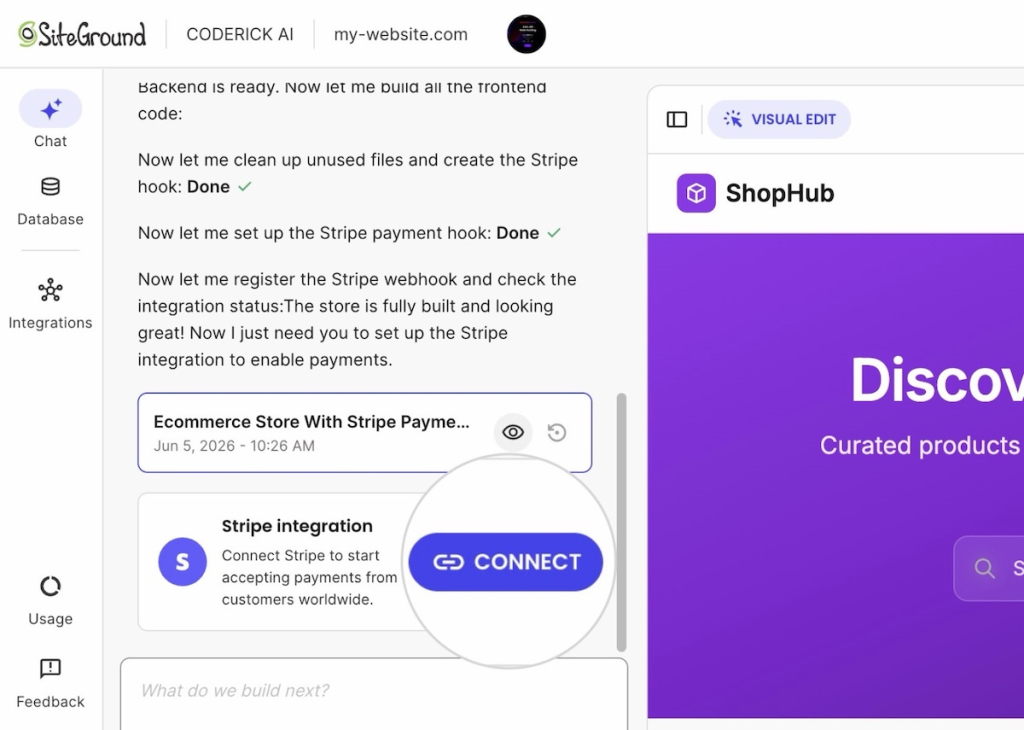
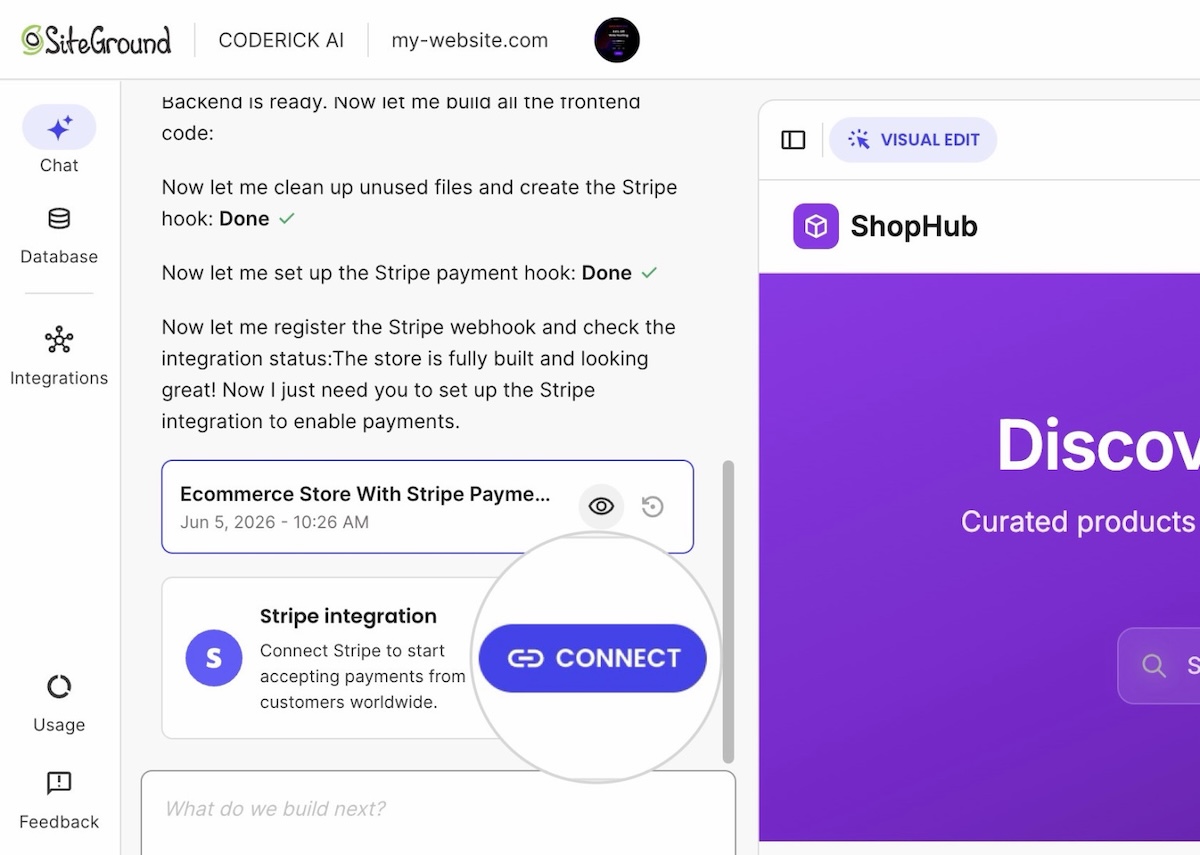
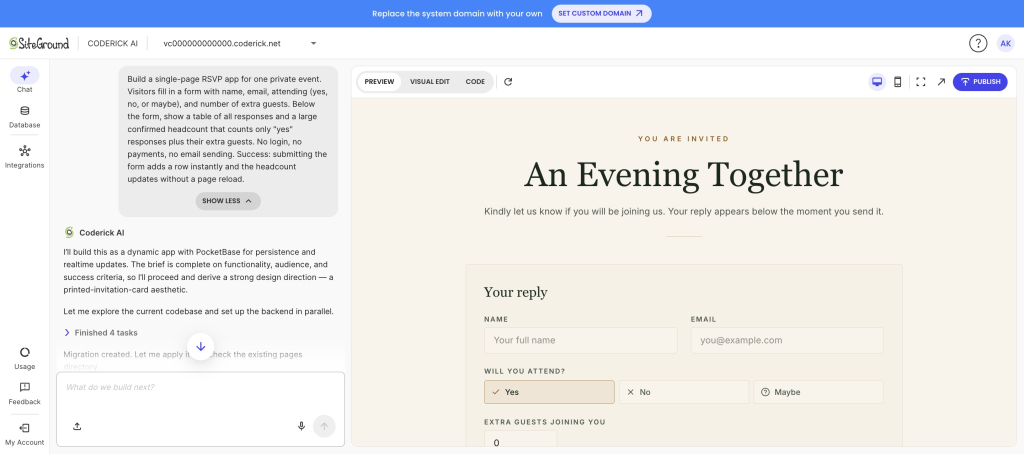
If you use an advanced AI builder like Coderick AI, it will read the payment intent in your prompts and will show a Stripe connection card inside the chat interface:
From there it’s a few clicks and one paste. You click Connect, and Coderick AI asks for a key from your Stripe account.
Stripe issues what it calls a Restricted Key, which starts with rk_, and it isn’t your account password. It can only do the specific things Coderick AI needs, and you can change its permissions or switch it off from your Stripe Dashboard whenever you want.
Once the key validates, the card flips to Connected and Coderick sets up the rest in the background: your product list, and the connection that listens for payments. When someone buys, Stripe confirms the payment back to your site and your order records update to paid without anyone touching them.
Whichever route you take with Stripe, spend twenty minutes on these four checks before a real customer pays you.
Pay yourself in test mode. Stripe gives every account a test mode, which is a complete copy of the system where nothing is real. You can put a fake card through your own checkout and watch the whole thing work without any money moving. Switch it on, buy your own product, and see what happens.
Try a card that fails. Stripe publishes test card numbers that are designed to be declined. Use one and check that nothing gets marked as paid, and that the customer sees something sensible rather than a blank page.
Find out where the notification goes. Know which inbox receives the payment email and who actually reads it. A payment nobody notices for three days is a fulfillment problem, and it’s the most common one.
Look at what the customer sees afterward. The confirmation page and the receipt are part of what they’re buying, and both can be edited. Check that they say something you’d be happy to receive.
Pro tip: Run the same test on your phone. You’ll do the four checks above on whatever you built the site on, which is almost certainly a desktop. Most of your customers won’t be. Checkout is the part of a site most likely to behave differently on a small screen, and it’s the part where a problem costs you the sale rather than a page view. Repeat your test order on a phone before you do anything else. And if you’ve built the store around that checkout with AI, there are eight things worth verifying before real money moves.
Stripe without a developer: the 10-minute test
Whether you can add Stripe without a developer has almost nothing to do with how technical you are. It comes down to one thing: whether anything has to happen after the payment. If the money arrives and an email telling you about it is the whole job, you can have this working before the end of the day, for free, using tools Stripe built for exactly this.
If something on your own site does have to change when someone pays, that’s a genuinely different piece of work. It’s still not a reason to hire a developer, because the gap between a Stripe-hosted link and a custom build is now filled by AI builders that do the connecting for you.
So answer the question before you spend anything on custom development. Open Stripe, make a payment link for the thing you sell, and send it to yourself. Ten minutes later you’ll know whether you’re finished or whether you need the middle path, and either answer saves you a quote you didn’t need.
[96]
FAQs
Do I need a developer to add Stripe to my website?
You don’t need a developer to add Stripe to your website for most common cases. Stripe’s no-code tools handle one-time payments, subscriptions, free trials, invoices, and donations. You need help when a payment has to change something in your own system, when the checkout must sit on your own branded page, or when amounts and rules are custom.
Can I add Stripe to my website without hiring a developer?
Yes. You can add Stripe to your website without hiring a developer by creating a payment link in the Stripe Dashboard and pasting Stripe’s snippet onto your page as a buy button. You can also skip the website entirely and share the link by email, text, or QR code.
Can I use Stripe without writing code?
Yes. You can use Stripe without writing code through payment links, invoices, quotes, pricing tables, and subscriptions, all created in the Stripe Dashboard. Stripe notifies you when someone pays and deposits the money in your bank account, so no code is needed for the payment itself.
What is the easiest way to add Stripe payments to a website?
The easiest way to add Stripe payments to a website is to create a payment link in the Stripe Dashboard and embed it as a buy button. It takes about five minutes, costs nothing to set up, and requires no code.
What Stripe payment flows can I launch without custom code?
Without custom code you can launch one-time product sales, monthly or yearly subscriptions, free trials that start without card details, tips, donations, pay-what-you-want payments up to a default cap, invoices, quotes, and a pricing table on your own site.
Can I accept subscriptions without a Stripe developer?
Yes. You can accept subscriptions without a Stripe developer by creating a payment link with a recurring price. Stripe handles renewals, failed cards, and receipts. You can also offer a free trial without asking for a card, as long as you switch on the reminder emails that prompt customers before the trial ends.
Can I accept one-time payments without a Stripe developer?
Yes. You can accept one-time payments without a Stripe developer using a payment link, an invoice, or a buy button on your own page. All three are created in the Stripe Dashboard and need no code.
Can I build a payment-ready website without a developer?
Yes. You can build a payment-ready website without a developer by using an AI builder to create the site and the checkout together, connected to your own Stripe account. Stripe still handles the card details, and because the checkout lives in your site, the payment can also update your own records.
Someone’s check-engine light comes on at 11 p.m., and they’re already searching for a repair shop online. What they find in the next ten seconds decides a lot: can they tell a shop won’t rip them off, get a sense of what the repair might cost, and grab a slot without waiting until morning to call? That’s what good auto shop website design actually has to do. Most repair shop sites can’t. Here’s what it takes to be the one that can, and how to build it.
Key takeaways:
A Google Business Profile listing gets a shop found, but it can’t book an appointment or explain a price. Good auto shop website design does both, which is exactly where a shop can pull ahead of competitors still relying on a listing alone.
Repair shops are a famously low-trust category. Customers expect to be oversold or overcharged, so a homepage with certifications and reviews upfront is the first thing that earns a booking, or loses one.
Selling more than labor online works: brake pads, wiper blades, prepaid oil-change bundles, and gift cards are realistic add-ons for most auto repair shop websites.
Eight build steps take a shop from a bare domain to a live site that books appointments and takes payment.
An ecommerce platform can make all of this easier to build and maintain than piecing together separate tools.
Why your repair shop needs a website
Most auto repair shop websites, when a shop has one at all, still read like a business card: name, phone number, hours. These details alone won’t book an appointment, explain a price, or show a single review. That’s the bar most competitors are clearing, barely, which leaves plenty of room for your auto repair website to do better.
Your shop can go several steps further by letting someone book a slot, see a price range, and read a few reviews before they ever pick up the phone. This pulls ahead of every other business that’s still relying on a listing alone. That’s the opportunity the rest of this guide is built around.
What makes a great auto repair shop website
A great auto repair shop website has six things: a homepage that builds trust in seconds, a services and pricing page, online booking, a way to sell parts or gift cards, a reviews and photo section, and consistent local SEO details.
That’s the short version, useful as a quick gut check before a redesign or a first build. Each item gets its own breakdown in the next section. For everything else worth checking before launch, from favicon sizing to alt text, the 17-step website checklist covers the rest.
Must-have features and pages for an auto repair shop website
These are the building blocks of solid auto repair shop website design, adapted to the realities of turning wrenches and rotating tires.
A homepage that builds trust instantly
Auto repair is a famously low-trust category. Customers assume they’ll be oversold or overcharged before they’ve even called, so a homepage that establishes credibility in the first few seconds earns bookings that a generic “welcome to our shop” page won’t. We’ve probably all been there as customers ourselves.
The credibility we and customers seek comes from a specific, short list: shop name, a hero image, one clear call to action (book now or call), and trust signals like years in business, certifications, and a testimonial snippet. That’s the whole list, and it needs to load fast, since it’s doing more work here than on most small business sites. The same homepage design essentials that work for any small business apply here, just with the trust signals turned up.
Services and pricing page
Spell out the actual services on offer, so nobody has to call and guess what’s covered. It’s good for SEO too: a page that names specific services (brake repair, oil changes, transmission work) can rank for those exact searches in a way a blanket “car repair services” page never will.
Not every service needs the same treatment:
Standardized jobs (oil changes, tire rotations, brake pads): a “starting at” price or a range
Complex or variable repairs (transmission work, engine diagnostics, anything where labor time depends on what’s actually wrong once the shop looks): a quote request instead of a guessed number
Either way, disclose the pricing structure upfront: a diagnostic fee, plus labor, plus parts. Naming that structure clearly heads off the “why wasn’t I told the real price” complaint the industry is known for.
And one detail worth stating outright, because it does real trust-building work: if the diagnostic fee gets credited toward the repair when the customer proceeds, say so on the page, not just at the counter. A services page built to convert makes that kind of disclosure part of the page itself, instead of burying it in fine print.
Online booking and appointment scheduling
An embedded booking widget lets customers grab a slot without calling, but a repair shop’s booking needs are more particular than most service businesses. Three things to keep in mind:
Bay and technician capacity. A shop can only run as many jobs at once as it has bays and techs, so slots need to reflect real capacity, not arbitrary 30-minute blocks.
Parts lead time. A job needing an ordered part can’t actually be booked until the part is in hand.
Deposits on big jobs. Brakes, transmission, and engine work require ordering parts upfront, so a deposit at booking protects the shop if the customer backs out after the part is already on order.
The setup for all three lives in the build-steps section below.
Online payments and a parts or merch store
We’re not talking about adding every sellable item and service to an online store; that’s surely overkill for any auto repair shop website design. Instead, consider offering the things a repair shop can actually sell online: things like brake pads, wiper blades, and air fresheners; prepaid oil-change or seasonal tire-changeover bundles; and gift cards for future service.
Setting this up uses the same ecommerce website approach any small store relies on, just pointed at a different set of products. Not sure it’s right for your shop? Imagine this scenario: during the holidays someone wants to give the car lover in their life a $60 gift card to get some goodies for their ride. If your car repair business offers that, it means a small side revenue stream that most competitors leave on the table entirely — plus the potential for a new loyal client.
Reviews and a before-and-after photo gallery
Most repair work is invisible once it’s done. Nobody can look at a car and see a rebuilt transmission, so this goes beyond the single testimonial already teased on the homepage. It lands either further down that same page or as its own dedicated reviews and gallery page, and might include:
A short block of customer testimonials, pulled from Google reviews or collected directly
A small before-and-after gallery for jobs that are visibly verifiable, like body work, paint, or detailing
A customer who can see the dent is gone, or reads that someone else’s transmission got fixed without a hitch, tends to believe the same will happen to theirs.
Location, hours, and contact details for local SEO
Name, address, and phone number need to be consistent everywhere the shop is listed, not just the website. Google and other platforms cross-check these citations, mentions on Yelp, Apple Maps, industry directories, and so on, to confirm a business is legitimate. Consistency like this is a big part of what small business local SEO actually comes down to.
On the site itself:
An embedded map
Posted hours
Complete contact details in one place: address, phone, email, and social links, not just a name and a form
A quick citation audit (tools like BrightLocal, Whitespark, or Moz Local) catches any leftover listing with an old address or phone number worth cleaning up. Beyond that, contact page mistakes like burying the page somewhere hard to find or leaving out half the business info are what send visitors away before they ever reach out.
SiteGround Ecommerce covers most of the above must-haves directly: the homepage, the services and pricing page, and the store, all built without writing code, on hosting designed for speed and reliability. Calendly connects in a few clicks for the booking calendar. SEO basics come built into the platform too, so there’s no separate technical setup standing between the site and actually getting found.
How to build your auto repair shop website step by step
We’ve covered the important features, now for how to build them, one step at a time.
Step 1: Choose a domain name
Register a domain before anything else. It’s the one piece needed no matter which builder or platform comes next, so lock it in first: the shop name, a close variation, or the city plus “auto repair” if the exact name is already taken.
Keep it short and literal. Customers searching for the shop by name should be able to guess the URL, and a domain name that’s easy to say over the phone saves spelling it out every time someone asks.
Step 2: Pick a website builder
Hiring a developer to hand-code a site is unnecessary for what a repair shop actually needs, and it comes with a bigger bill and longer wait. A website builder gets a working site live without writing a line of code.
Look for a platform that:
Bundles hosting with the builder, so there’s no separate hosting decision to make
Supports embedding a booking widget
Has ecommerce functionality available, now or later, if selling parts, packages, or gift cards online is part of the plan
Makes day-to-day updates, hours, the service menu, photos, simple enough to do between jobs
If updating the site takes longer than fixing a flat tire, it’s the wrong platform. A website builder built for non-developers should make an update like that a two-minute job, not a ticket to the web guy or gal.
Pro tip: New SiteGround customers get the domain free for the first year (.com, .org, .eu, or .net) when signing up for a hosting plan, so there’s no separate charge if that’s the platform of choice.
Step 3: Build your homepage and add trust signals
Place the hero image, add the primary call-to-action button, and write the one-line trust statement: years in business, certifications, or a “family-owned since [year]” line if that’s true. Add the testimonial snippet decided on earlier.
Keep the above-the-fold section to those four elements. Every extra bit of info crammed above the fold pushes the contact or booking button further down the page, and that button is the one thing this homepage exists to get clicked.
Step 4: Add your services and pricing page
Here’s what to be sure to include on your services and pricing page:
Either a service list or a pricing table block, whichever the platform supports
The diagnostic-fee-plus-labor-plus-parts structure, spelled out in plain language
Whether the diagnostic fee gets credited toward the repair, stated clearly
Each service listed by its real name, since that’s what people search for, then described by the problem it actually solves: “Brake Pad Replacement, stops that grinding noise before it wears into the rotors”
A booking or call CTA near the top of the page, and again after the pricing breakdown
Step 5: Set up online booking and accept payments
There are different ways to go about this, but an easy, common way is with Calendly:
Set a daily or weekly cap on each event type, and use round-robin scheduling to spread jobs across whichever techs are free. It’s a rough stand-in for real bay and technician capacity, and not exact tracking. (Note that round-robin scheduling across multiple techs needs Calendly’s Teams or Enterprise plan, worth confirming before counting on it.)
Connect Stripe to Calendly so a deposit gets collected right at booking for big-ticket jobs like brakes or transmission work.
For parts-pending jobs, manually unpublish that slot or mark it request-only, so nothing gets booked before the part is actually in hand.
Worth noting: Booking and deposits run through Calendly and Stripe. The parts, packages, and gift cards from the checklist earlier are a separate piece: a small store on the same site, which a platform like SiteGround Ecommerce handles without a separate plugin or a second login to manage. Connect Stripe once inside Calendly for deposits, and once inside the ecommerce dashboard for the store, both are quick, one-time setups.
Whichever tools get used, test both flows before going live: book a slot and pay a deposit through Calendly, then buy a gift card through the store, and confirm everything lands where it’s supposed to. Accepting payments online is the one step where a mistake actually costs a customer money, so it earns the extra test run.
Step 6: Add your reviews and before-and-after gallery
Add a testimonials section to the homepage or its own page, and feature a handful of the shop’s best reviews there
Upload the before-and-after photos, captioned with what was actually done (not just “brake job,” but “front brake pads and rotors replaced”). Consider linking out to the service page itself
Organize the gallery by job type if there are more than a handful of photos, so a customer looking for detailing work isn’t scrolling past ten transmission photos to find it
Step 7: Optimize for local SEO and mobile
Add the shop’s address, hours, and phone number, if they aren’t already live from an earlier step
Set up or confirm the Google Business Profile listing, since it’s the thing that actually surfaces the site in local search results
Check the site on an actual phone, not just a resized browser window
Most local searches for a repair shop happen on mobile, so a mobile-friendly design that loads fast and keeps the contact button within thumb’s reach matters more here than almost anywhere else on the page.
Step 8: Launch, test, and promote your site
Before flipping the switch, check every link and confirm the site renders correctly on both a phone and a tablet. The booking and payment flow already got tested in step 5, so this final pass is just for everything else.
Publishing the site doesn’t bring in bookings on its own, though. Nobody’s searching for a shop they’ve never heard of, so the next few channels do the actual work of getting you that first appointment.
Reviews and your Google Business Profile. Ask every satisfied customer for a review right after pickup, while the job is still fresh. A shop’s star rating is often the deciding factor between two options with similar prices, and social proof like reviews and before-and-after photos tend to tip the scale.
Paid ads. Google’s Local Services Ads are built specifically for trades like this: pay per lead instead of per click, a “Google Guaranteed” badge after a license and background check, and placement above the regular map pack. It’s an ongoing budget line, and not a one-time cost, but for a category where most searches are “near me, today,” it can outperform organic reach alone while the site is still new to search. Small business marketing covers this alongside other channels worth testing at launch.
Local directories and citations. Remember: name, address, and phone number need to stay identical everywhere the shop is listed, the same citation consistency covered earlier, now extended to Yelp, Apple Maps, and any local Chamber of Commerce directory.
Local social and community presence. Post in neighborhood Facebook groups or on Nextdoor, sponsor a local car show or little league team, and consider a referral discount for customers who send a friend. Social media marketing covers where to focus first when there’s no existing following to build from.
Collect an email at every visit, and give the website its own way to capture emails too, such as a simple signup form or a small discount for joining. Email marketing can help you build a relationship with someone beyond the one repair that brought them in, and repair shops live on this kind of repeat business.
Your website should work as hard as your shop does
Homepage, pricing, booking, payments, reviews, and local SEO: that’s the full list, and every step above tackles checking one of those six boxes. Building all of this from scratch could certainly be complicated and overwhelming, but it doesn’t have to be. SiteGround Ecommerce handles the easy build, booking-friendly functionality, the store, and the hosting in one place. Start with the checklist above, and get your auto repair shop live so that you can start reaping the benefits.
[103]
Frequently asked questions
Do I need a website for my auto repair shop?
Yes. A Google Business Profile listing gets a shop found, but it won’t let customers book a slot, see the pricing structure, or buy a gift card, all things a real website handles on its own.
What should be on an auto repair shop website?
At minimum: a trust-building homepage, a services and pricing page, online booking, a way to sell parts or gift cards, a reviews and photo gallery, and consistent local SEO details like name, address, and phone number.
Can I sell parts or accept payments online from my repair shop website?
Yes. Brake pads, wiper blades, prepaid maintenance bundles, and gift cards are all realistic products for a repair shop to sell online, with the setup covered in the online payments and store step above.
How do customers book appointments online?
They pick an open slot from an embedded booking widget or calendar, the same way they’d book a haircut or a dentist appointment, and get a confirmation without ever picking up the phone.
How much does it cost to build an auto repair shop website?
A DIY build on an all-in-one platform typically runs $10 to $30 a month, plus a domain fee of around $12 to $60 a year. Hiring an agency for a custom build costs considerably more. For the fuller breakdown, how much a website costs in 2026 walks through what drives the price up or down.
At first blush, payment gateway fees seem pretty straightforward: a processor takes a small cut of every transaction, and that’s the end of it. But when all is said and done, that also means getting checkout live, keeping it running, covering the fees that only show up when something goes sideways, and cleaning up after any mistakes that show up three months in. Knowing these costs beforehand turns a surprise bill into a number you already expected.
Key takeaways:
Payment gateway fees typically run around 2.9% plus $0.30 per online card transaction in the US, but that line is rarely the full bill.
Checkout setup cost ranges from minutes to connect payments through an existing platform to several weeks for a custom developer build.
Whether checkout, inventory, and order records stay connected automatically or need manual wiring by hand depends entirely on which setup approach is used.
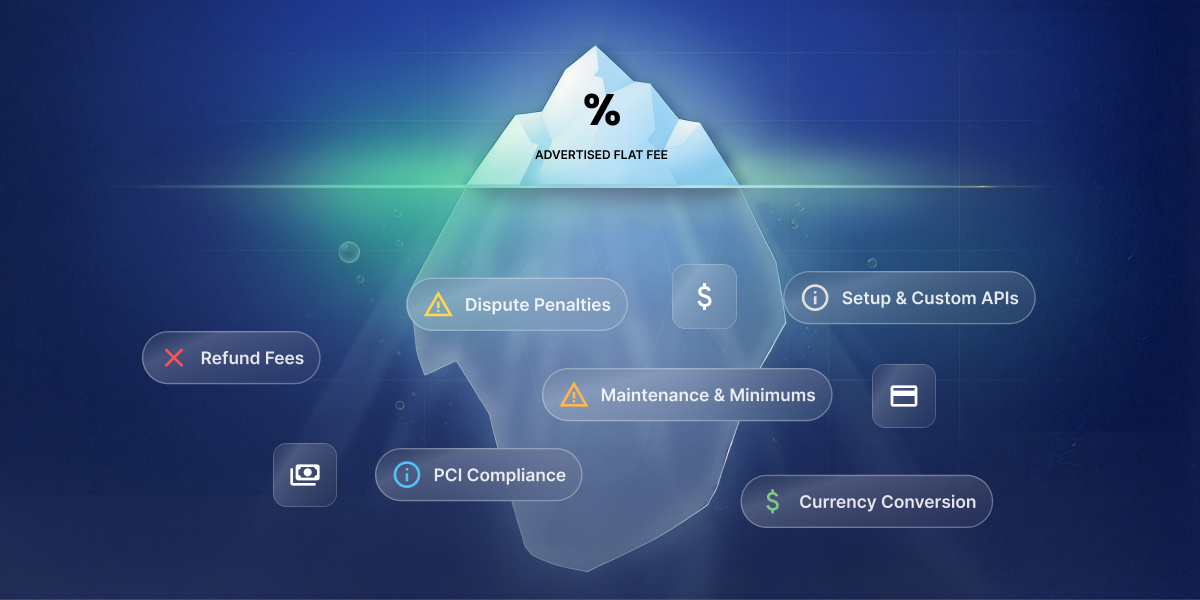
Hidden payment gateway fees, including refund fees, dispute fees, currency conversion, PCI compliance charges, and platform-level transaction fees, add up fast when nobody’s tracking them.
A payment dispute typically triggers a $15 flat fee on top of the disputed amount, refunded by some processors on a win, kept by most on a loss.
Subscription businesses carry extra payment costs beyond one-time sellers: failed-renewal churn, plus often a separate billing-tool fee on top of standard processing.
Disconnected tools, a payment processor that doesn’t talk to your accounting software or CRM, cost more in reconciliation time than in fees.
What are payment gateway fees, really?
Payment gateway fees are the cut a payment processor keeps for handling a card transaction, usually a percentage of the sale, plus a small flat fee. Here’s what that looks like on a single transaction:
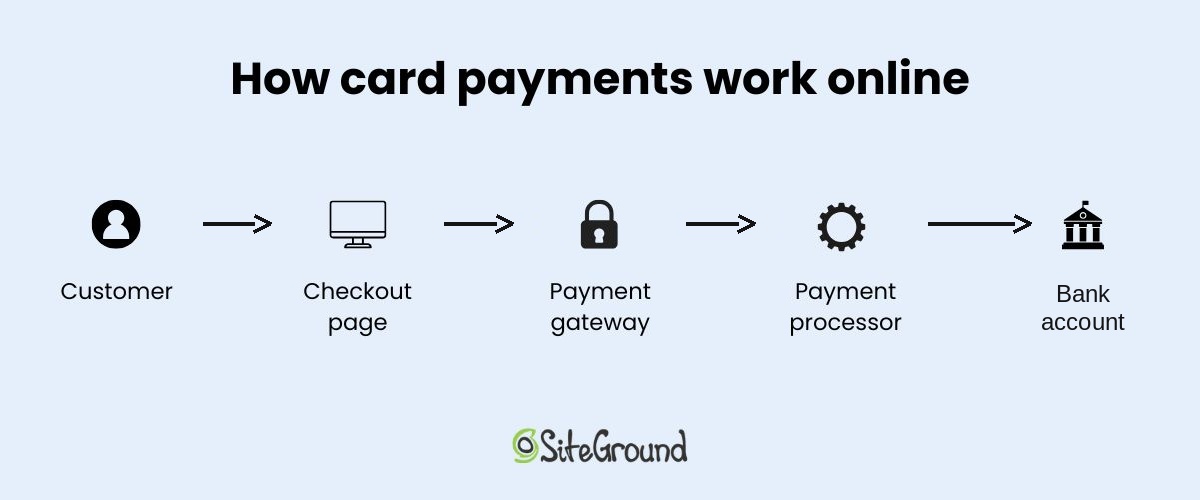
A gateway captures the customer’s card details at checkout.
A processor moves the money and takes its cut. For example, Stripe fees are 2.9% plus $0.30 per successful US card charge, with no monthly fee on its Standard plan.
The payout lands in the business’s bank account a few days later, minus that fee.
That fee, though, is the smallest number when it comes to how businesses accept payments online, and the one most comparison articles stop at. It doesn’t cover what it takes to get checkout live or keep it running, which is where the real budget lives.
Note: All fees and plan details in this article are as of August 2026. Stripe’s the running example throughout this piece because its pricing is public and it’s a common default for small businesses; PayPal, Square, and other major processors land in a similar range, just with their own rate cards, so the cost categories below apply no matter which one ends up running checkout. Getting these Stripe basics down early makes the rest of this easier to follow.
What it costs to get payments live
Indeed, most people underestimate the total cost of taking payments. They see the processor’s fee and stop there, and yet, in practice, there’s a lot more to actually getting paid. Part of that is dictated by your setup approach, which determines how much time you’ll be spending getting everything live.
What kind of setup complexity are you looking at? It comes down to who builds the payment experience and where it lives. That splits into five basic setups:
DIY with Stripe’s API (Stripe Elements): you write the code yourself, and the payment form lives directly on your own site. Best suited to a business owner comfortable coding a fairly simple checkout personally, using Stripe’s own building blocks rather than hiring anyone.
Stripe Checkout: Stripe hands over a pre-built, hosted page; customers get redirected there and back.
Coderick AI (SiteGround’s AI website and app builder): describing the store to it is the entire setup step, no custom Stripe build required. The store, products, and checkout flow live inside your site’s own design; the payment window itself, where the card gets entered, is Stripe’s. No page to design, no API to wire up. The screenshot below shows this step in action: Coderick AI registering Stripe’s own confirmation webhook, the internal signal that tells the app a payment succeeded, not a connection to any outside tool.
Custom development: a hired developer builds it, anything from a simple embedded form to a multi-step, split-payment checkout. Unlike DIY, someone else does the coding, which removes the ceiling DIY has on complexity, at the cost of paying for that work instead of spending your own time.
A full ecommerce platform, such as SiteGround Ecommerce: signing up for the platform is the setup step. Checkout lives inside the platform’s own storefront, with Stripe (or an equivalent) running underneath.
That last one is a bigger decision than the other four: it comes with a storefront and product catalog attached, not just a way to take payments. That bigger footprint earns its keep for a catalog-driven store that needs shipping, tax, and marketing tooling built in from day one. For a handful of products or a single checkout flow, it’s often more machinery than the job needs, and Coderick AI or Stripe Checkout gets there faster.
Time and cost still swing widely across all five, though. Here’s the breakdown:
Checkout setup cost
Approach
Setup time
Setup cost
Typically used for
DIY with Stripe’s API
A few hours to a few days
$0 in tool fees, unpaid time spent building it
Developers writing their own integration by hand
Stripe Checkout
A few hours
$0 setup fee, standard processing rate
A fast payment page that doesn’t touch the site’s design
Coderick AI
Same day
$10 to $40 a month, no developer invoice
Getting a store live the same day without writing or hiring for code
Custom development
Two to six-plus weeks
$5,000 to $50,000-plus upfront, then hourly for changes
A full storefront and checkout bundled into one signup
That table covers building a checkout, five ways to do it. For anyone comparing a lighter ecommerce setup against building everything from scratch, the fifth row is the one to study most closely. Turning any of these into a working checkout that can actually run a business adds to the payment integration cost, regardless of approach.
What payment integration cost actually includes
Moving the money is the easy part. A working checkout also needs:
Order confirmation emails: a basic payment receipt often comes free once that setting’s turned on, but a proper order confirmation with your own branding and order details is usually separate logic that needs building or wiring up.
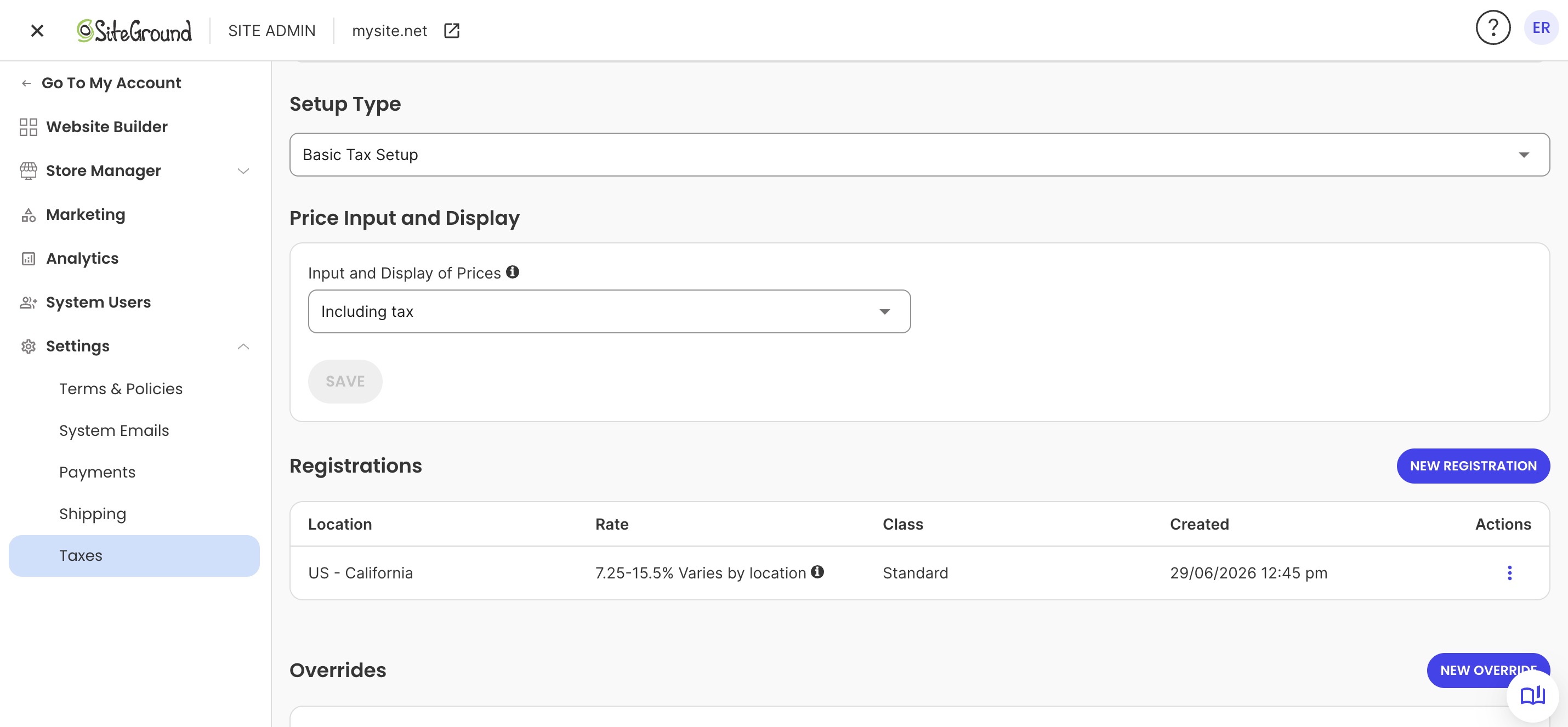
Tax calculation: applying the right ecommerce sales tax based on where the customer’s buying from. Stripe Tax is available with its own fee whether Stripe runs directly or through an ecommerce platform’s tax settings (as seen below); otherwise it’s a dedicated tax service or manual handling.
Inventory updates: no payment processor tracks what’s in stock, that’s a store feature, not a payment one.
Refund handling your team can use without needing direct access to the processor’s own dashboard: most processors already have a one-click refund button built in, so this only becomes a build item if refunds need to happen from your own admin panel or CRM instead, and even then, the processor’s own API key needs refund permissions specifically enabled for it to actually work.
Who this applies to: DIY, Stripe Checkout, and custom development mean connecting these pieces (confirmations, tax, inventory, refunds) by hand, self-taught code or a developer’s invoice. A full ecommerce platform ships with them already built in; Coderick AI can build the same pieces if specifically asked, but that takes prompting and testing, not something that comes bundled by default.
None of this applies to a single one-off payment, a portfolio deposit, a restaurant reservation hold, an event ticket, as a hosted payment link or an embedded pay button covers these simple payment flows instead. An ongoing store needs all of it.
Payment maintenance costs after launch
Payment maintenance costs don’t show up on the invoice for getting checkout live. They only start once a checkout’s actually been running for a while, and they come in two flavors: keeping tools connected to each other, and handling renewal payments that don’t go through cleanly if the plan includes subscriptions. Let’s break it down.
How disconnected tools add to your maintenance costs
Watch for this pattern: checkout runs through one tool, bookkeeping happens in a separate accounting app, and payment status in your CRM or project tool sits disconnected from both. Disconnected integrations like this turn every sale into:
Copying the transaction into the books by hand
Updating the order or client record separately
Matching any refund across all three, so nothing gets missed
For agencies invoicing multiple clients, closing this exact gap, checkout status not showing up where the client record lives, is usually the difference between faster client payments and constantly chasing down who’s actually paid.
Who this applies to: all five setups. Custom development can have an accounting or CRM connection built in, for a price. The other four handle payment confirmation internally, that’s how any checkout works at all, but none of them expose a way to connect out to a separate accounting or CRM tool.
The fix: a manual routine, though what that actually looks like depends on the setup:
Full ecommerce platform: often handled through a built-in order export.
Coderick AI: doesn’t include one by default, but it can be asked to add an export option, and refined further with more specific instructions if needed. It still can’t create a live connection to an external accounting or CRM tool.
DIY and Stripe Checkout: writing that export step yourself.
No export at all: block off ten minutes a week to copy new orders and refunds into the books and the client tracker by hand.
Recurring payment costs for subscription businesses
Anyone building a subscription business should budget for involuntary churn from the start. Imagine: a card expires or a bank declines a renewal, the subscription lapses unless something catches it, and sales go down. Two things reduce this:
Automatic retries: re-attempting a failed renewal a few times over one to two weeks, sometimes on by default, sometimes a setting to turn on
Card-expiration emails: sent before the renewal date instead of only after it fails, though this is often a setting that needs switching on rather than something that happens automatically
Who this applies to: it depends on whether a subscription layer already sits on top of the processor. A full ecommerce platform or a dedicated subscription app usually handles both without the business owner touching a setting; wiring a processor directly means checking what’s on by default and switching on the rest.
There’s a second cost to plan for on top of that: processors that offer dedicated subscription tools, automated invoicing, retries, dunning, usage tracking, often charge extra for it. For example, Stripe’s version, Stripe Billing, adds a flat 0.7% of subscription volume on top of its standard 2.9% plus $0.30 per charge. Treat both the churn risk and this extra billing fee as built-in costs of running subscriptions at all, not one-off surprises to troubleshoot later.
The hidden costs behind payment gateway fees
Maintenance costs show up on a predictable timeline, whether or not anything goes wrong. Hidden payment gateway fees are different: they only show up when something other than a clean, successful sale happens. Refunds, disputes, and a handful of smaller charges all live here.
Refund fees: most processors don’t charge extra to process a refund, but they typically don’t return the original processing fee either. Refund a $50 sale, and the $1.75 already paid to accept it (2.9% plus $0.30) is usually gone for good.
Dispute fees: a chargeback usually triggers a separate $15 flat fee on top of the disputed amount, refunded by some processors if the merchant wins, kept by most if they lose.
Currency conversion and cross-border fees: expect another percentage point or two on top of the standard rate whenever a customer pays in a different currency or from a different country.
Monthly minimums and PCI compliance fees: PCI compliance is the security standard card networks require for handling card data safely, usually confirmed through a short questionnaire. Modern processors like Stripe handle most of this through their own checkout tools, so it rarely shows up as a separate charge. Traditional merchant account providers are a different story: some still charge a monthly non-compliance fee, often $20 to $100, for skipping the paperwork.
Platform fees stacked on top of processing fees
Some ecommerce platforms and website builders add their own per-transaction cut on top of whatever the payment processor already charges. That’s a second fee stacked on every sale, not a replacement for the first, and it’s easy to miss when comparing platforms by their processing rate alone.
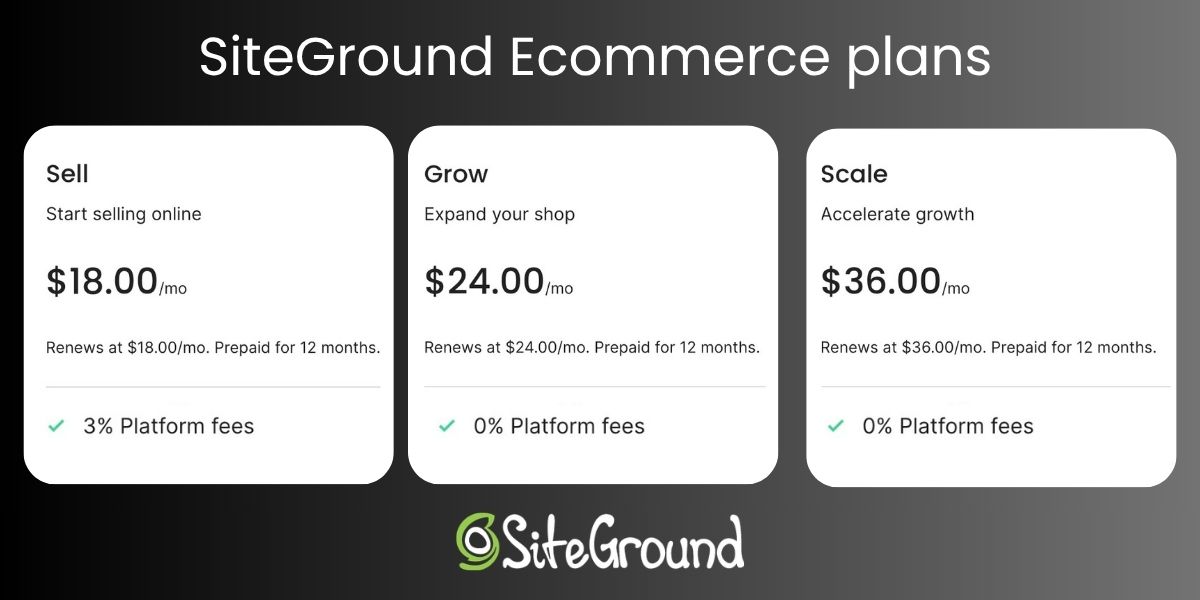
Who this applies to: the ecommerce platform route specifically. DIY, Stripe Checkout, custom development, and Coderick AI don’t have a platform layer sitting between the processor and the sale, so there’s no platform fee. SiteGround Ecommerce, for example, drops that extra fee entirely on its Grow and Scale plans, leaving just standard processing, a detail that matters when comparing platforms for selling digital or physical products. Sell runs $18 a month plus the 3% fee, Grow is $24 with none, so past roughly $200 in monthly sales, upgrading pays for itself.
Common payment setup mistakes that cost you more later
Every cost covered so far is baked into how payments work, no mistake required. What follows is different: these are payment launch risks, avoidable and rare on launch day itself. They show up the first time something other than a clean transaction happens: the first refund, the first disputed charge, the first server change.
1. Never testing a real transaction end to end
A checkout that “looks” done and a checkout that’s actually processed a real card, a refund, and a confirmation email are different things. Test all three before launch, including what a customer sees when a card gets declined.
Who this applies to: every setup, regardless of path.
2. Moving hosting without re-checking payment notifications
A site migration is a common place for this exact mistake to surface: moving a live site to new hostingcan leave the automatic message a processor sends to confirm a payment pointed at a server that no longer exists, so an order shows “confirmed” on the site while the payment never actually clears on the backend. That kind of gap can run for a couple of days before a customer emails to ask where their order is.
Who this applies to: self-managed hosting, DIY or custom development. A managed platform like Coderick AI or a full ecommerce platform includes hosting already set up for the merchant, so there’s no server to move or a payment notification to break in the first place.
3. Leaving test API keys live in production
Real charges silently fail, or a store looks like it’s taking payments when it’s actually just running in test mode, when test and live keys get mixed up.
Who this applies to: DIY and custom development, where a live key can end up hardcoded into exposed project files. Coderick AI has a dedicated popup for pasting in a Stripe restricted key, separate from typing it into the chat or the project’s code directly. It’s still worth confirming it’s the right key, test or live, each time.
4. Treating PCI compliance as optional
It isn’t a suggestion. For Stripe-based setups, skipping it usually doesn’t show up as its own line item, since Stripe absorbs most of the compliance work into its own tools, but it still raises liability if a breach happens.
Who this applies to: everyone, though the consequence differs by setup. For example, when it comes to Coderick AI, customers enter their card details directly through Stripe, so Coderick AI itself never handles the card data, and there’s no PCI compliance for Coderick AI to carry in the first place. On a traditional merchant account, it’s more direct: skipping it is how a monthly non-compliance fee ends up on a statement.
So, what do payment gateway fees really cost?
Here’s what all of this can look like in practice for a small store doing around $5,000 a month in sales, 100 orders averaging $50 each:
Cost
Amount
The math
Processing fees
$175
2.9% + $0.30 per order, across 100 orders
Platform fee (Sell tier)
$150
3% of $5,000 in monthly sales
One dispute
$15
Flat fee per chargeback
Total
$340
That’s before the one-time cost of getting checkout live in the first place, or the cost of fixing a mistake made at launch.
Payment gateway fees, and what comes next
Payment gateway fees are the smallest, most visible line in this whole picture. The real total is provider fees plus setup time plus ongoing maintenance plus whatever a rushed launch costs to fix later, and that last category is the one most small businesses pay for without ever seeing it itemized. Which of these apply, and how much, depends entirely on the path in question.
Coderick AI’s distinct advantage in this comparison is the build process itself: whatever gets described (checkout, inventory tracking, order records) comes out connected, and updates work the same way, describing a change instead of filing one with a developer. That’s what makes it the right fit for a single checkout or a lean store built around exactly what’s needed. Build with Coderick AI to get the same connected checkout without paying a developer to build it.
[96]
Frequently asked questions
What are payment gateway fees?
Payment gateway fees are what a payment processor charges to move money from a customer’s card to a business’s bank account, typically a percentage of the sale plus a small fixed amount per transaction.
What do payment gateway fees include beyond transaction fees?
Payment gateway fees themselves usually cover just the per-transaction rate. The broader payment gateway costs around them, refund handling, dispute fees, currency conversion, and monthly minimums, gets billed separately and often gets missed when comparing providers.
What hidden payment gateway fees should small businesses know about?
Hidden payment gateway fees include refund fees (the processing fee that doesn’t come back on a refund), dispute fees, cross-border and currency conversion charges, and PCI compliance fees for skipping the annual security questionnaire.
How much does it really cost a small business to take payments online?
The real cost of taking payments online is the processing rate plus setup time plus ongoing maintenance plus the cost of fixing launch mistakes, not just the percentage listed on a pricing page. The processing rate alone is usually the smallest piece of that total.
What does checkout setup cost for a website?
Checkout setup cost for a website ranges from minutes to connect payments through an existing platform to several weeks and several thousand dollars with a custom developer build.
What does payment integration cost for a small business?
Payment integration cost for a small business covers more than connecting a processor: order confirmation emails, tax calculation, inventory syncing, and refund handling all need building or configuring too.
What payment maintenance costs continue after launch?
Payment maintenance costs after launch include handling failed or expired cards, retrying subscription renewals, and keeping payment records synced with accounting or CRM tools.
What payment setup mistakes make online payments more expensive?
Payment setup mistakes that make online payments more expensive include skipping end-to-end testing, missing a payment notification update after a hosting migration, mixing up test and live API keys, and treating PCI compliance as optional.
Do refund fees and dispute fees increase payment costs?
Yes. Refund fees and dispute fees increase payment costs because most processors keep the original processing fee on a refund and charge a separate flat fee for every dispute, refunded by some processors on a win, kept by most on a loss.
Is Stripe Checkout cheaper than building a custom checkout?
Stripe Checkout is usually cheaper than building a custom checkout, since it skips developer hours entirely, though Stripe checkout in Coderick AI can be faster still because it handles the surrounding integration work, such as order records and confirmation emails, too.
Yes, you can make real money selling beauty products online, whether that’s a lip oil you’ve been mixing in your kitchen or a wholesale account with a supplier three time zones away. Getting there takes the right niche, some unglamorous legal groundwork, and an online store that ticks all the right boxes to make your business a success.
Key takeaways:
Private label, reselling, and handmade aren’t interchangeable: each comes with a different cost structure, margin, and workload.
Legal and licensing requirements run deeper for beauty than for most product categories, and skipping them is the fastest way to get a store shut down.
Compliance isn’t just federal. State-level rules can apply based on where your customer lives, not where your business is registered.
Registering a business name and legally owning that name are two different things, and conflating them is a common early mistake.
An all-in-one platform handles most of the technical setup, from product variants to payments, which is central to how to sell beauty products online without hiring a developer.
Photography and honest ingredient information do more for conversion than traffic volume, regardless of which business model you choose.
Step 1: Choose your beauty niche and business model
The beauty industry has room for another brand: U.S. shoppers are on pace to spend $30.73 billion on beauty and personal care products online in 2026, growing roughly 8.4% a year, faster than any other beauty sales channel, according to Statista.
But if you plan to jump in, first you must start with a decision that shapes everything else: are you formulating, reselling, or making the product yourself? Most sellers land in one of three lanes, and each one comes with a different cost structure and a different list of Step 2’s legal boxes to check.
Private label
Partner with a manufacturer that already has a formula, a moisturizer base, a lip gloss, a shampoo, and put your own name, packaging, and branding on it.
Choose from an existing formula menu instead of commissioning one from scratch
Minimum order quantities are manageable for a first-time seller
Margins run higher than reselling, since you’re not the tenth seller of an identical product
Reselling
Buy finished, branded beauty products at wholesale and mark them up. It’s the more straightforward way to sell cosmetic products online if you’d rather test a niche than build a formula.
Fastest route to inventory: no formulation or packaging decisions to make
Thinnest margins of the three models
Bound by the brand’s minimum advertised price rules, so pricing isn’t fully yours either
Handmade beauty products
Make the product yourself: cold-process soap, whipped body butter, small-batch lip balm, really any body products mixed in your own kitchen or a rented commercial space.
Full creative control over the formula, packaging, and branding
The model most associated with wanting to sell beauty products from home
You’re the manufacturer of record, so every compliance box in Step 2 is yours to check
Whichever lane you pick, most beginners are working with limited capital, so it’s worth pairing your niche decision with a plan for starting an online store on a budget before you spend on inventory or a logo designer.
Business model
Startup cost
Control over formula
Typical margin
Private label
Low to moderate
Choose from existing formulas
Higher
Reselling
Low
None
Lower
Handmade
Low, but time-intensive
Full
Highest, if priced right
Step 2: Handle legal, licensing, and safety requirements
A quick disclaimer before the specifics: this section is a general overview, not legal advice. Requirements, fees, and exemption thresholds shift by state, product type, and over time, so confirm current rules for your specific product and location with your state’s licensing office, the FDA, or a lawyer before you rely on any number below.
This step is an easy one to procrastinate over, but it’s also the one most likely to shut your store down if you ignore it. So let’s break it down so that you can check it off your list.
Registering your beauty business
A sole proprietorship has no state filing fee to form and works fine for testing the water, but your personal assets aren’t separated from your business liabilities, which matters in a category prone to allergic-reaction claims.
Sole proprietorship: no state formation fee, though a DBA filing (needed if you’re selling under a brand name rather than your own legal name, which most beauty sellers are) typically runs $10 to $100
LLC: $35 to $500 in one-time state filing fees, separates personal and company assets. Several states also charge an ongoing annual franchise tax on top of that filing fee. California’s is $800 a year minimum, regardless of income, so check your state’s full cost, not just the filing fee
EIN: free and instant from the IRS, needed once you open a business bank account or hire anyone
Worth noting: Most beauty sellers make the jump to an LLC once they’re taking real orders.
Getting a seller’s permit and sales tax basics
Most states require a seller’s permit before you can legally collect ecommerce sales tax, and you’ll need one in your home state at minimum, plus any state where you have nexus (a warehouse, an employee, or enough sales volume). Handmade cosmetics and private label products are generally taxed the same way as any other tangible good, though a few states carve out exceptions for specific categories, so it’s worth a quick check with your state’s department of revenue before you launch.
FDA cosmetic regulations and MoCRA compliance
The Modernization of Cosmetics Regulation Act (MoCRA), in effect since 2023, requires most facilities that manufacture or process cosmetics to register with the FDA and list every product they sell, including its ingredients.
Facility registration renews every two years, anchored to your facility’s own initial registration date rather than a single fixed deadline. Facilities that registered back in 2024 are hitting their first renewal window this year
New products must be listed within 120 days of hitting the market
A small-business exemption applies if your average annual revenue is under $1 million
The exemption doesn’t cover everyone, though. It doesn’t apply if your products:
Come into contact with the eyes, like mascara or eyeliner
Are injected
Are ingested
Are intended to alter appearance for more than 24 hours, like gel nail polish or brow tint
Cosmetic labeling requirements
Every cosmetic label needs a handful of required elements, split across the front-facing panel and the ingredient panel.
Identity statement: what the product is, like “facial moisturizer,” on the front panel
Net quantity of contents: also on the front panel
Ingredient list: standardized INCI names, short for International Nomenclature of Cosmetic Ingredients, in descending order by weight (anything under 1% can be listed in any order after the rest)
Warning statement: required wording for certain product types, such as aerosols
Name and address of whoever’s responsible for the product
Product liability insurance for beauty sellers
Allergic reactions and skin irritation complaints happen even with a well-tested formula, and a single claim can outstrip whatever you’d saved by skipping insurance. General liability policies that include product coverage for small or home-based beauty sellers typically run a few hundred dollars a year for $1 million to $2 million in coverage through insurers that specialize in handmade goods, and most don’t require a storefront or employees to qualify.
State-specific rules to watch
Federal rules aren’t the only ones that apply. California’s Proposition 65 requires a clear and reasonable warning before selling a product containing a listed chemical to a California resident, and it applies based on where your customer lives, not where your business is registered, so an online store based in Ohio can still trigger it. Businesses with fewer than 10 employees are formally exempt, but the exemption doesn’t change the fact that liability follows the sale, not the location.
Trademarking your brand name and logo
Search the USPTO’s trademark database before you commit to a name, and ideally before you order packaging with that name printed on it. This clearance check is free and worth doing no matter when, or whether, you file a formal application.
Search the USPTO database for exact and confusingly similar marks
Check your state’s business entity registry, plus your target domain and social handles, for the same name already in use
A DBA lets you legally operate under a name, but it doesn’t protect that name or stop someone else from using something similar
Formal federal registration is a bigger, later step, and plenty of small or home-based sellers reasonably wait until the business has traction before filing. If and when you do:
USPTO filing fee: $350 per class, using pre-approved goods and services descriptions to avoid extra surcharges
Attorney-assisted filing typically runs $750 to $1,750 all in for a single class; self-filing skips that cost but carries more risk of a rejected application
Budget 10 to 14 months from filing to registration in a clean case, and longer if the USPTO issues an office action, which happens to the majority of applications
Whether or not you file this year, getting your branding basics locked in early, name, logo, and visual identity together, makes that clearance search easier because you’re evaluating one direction instead of five.
Step 3: Source reliable suppliers or manufacturers
Sourcing is where your business model from Step 1 becomes a real supply chain, and vetting takes longer than most first-time sellers budget for.
Private label manufacturers
Vetting a private label manufacturer comes down to three things: their formula catalog, their minimum order, and their paperwork.
Minimum orders typically run a few hundred to a few thousand units per SKU
Many offer sample kits so you can test formulas before committing
Ask for a certificate of analysis and safety data sheet for every formula under consideration, not just the ones you like on first smell
White-label manufacturers
White-label takes private label (Step 1) one step further: you’re picking from the manufacturer’s existing packaging too, not just the formula.
Cuts development time further than private label
Leaves you with less to differentiate on besides branding and marketing
Often the fastest route to a finished, ready-to-sell product
Wholesale suppliers
Finding a legitimate wholesale account takes more digging than searching “wholesale beauty supplier” and picking the first result.
Contact the brand directly to ask about an authorized reseller or wholesale account, since going through an unauthorized middleman raises the risk of gray-market or counterfeit stock
Ask directly whether the supplier allows resale on your own branded website, since some agreements restrict sales to marketplaces only
Get the wholesale price list and minimum order requirements in writing before you commit, terms quoted verbally tend to shift
Vetting three or four manufacturers before you commit eats real hours, and building time-saving systems for running your online business early pays off long after sourcing wraps up.
Step 4: Build your store
This is where niche, licensing, and suppliers turn into an actual beauty ecommerce store a customer can buy from.
Choose how to sell
Beauty sellers face the same ecommerce platform vs. marketplace decision every seller does, and it comes down to the same three tradeoffs: cost, control, and where your buyers actually come from.
Selling on marketplaces
Marketplaces hand you built-in traffic and a checkout system you don’t have to build, which makes them a fast, cheap way to test whether a product sells before you invest in a full storefront.
Fees stack up fast: Etsy, for example, charges a $0.20 listing fee per item that renews every four months until it sells, a 6.5% transaction fee, and roughly 3% plus $0.25 in payment processing, adding up to close to 10% in combined fees before advertising even enters the picture
You don’t own the customer relationship or email list, just the individual transactions that pass through
The marketplace can change its fee structure, algorithm, or policies without asking you first, and your customer base goes with it if your account is ever suspended
Building your own branded store
A branded store trades that percentage cut on every sale for a flat cost that doesn’t change with volume, so the math tips further in your favor the more you sell.
You own the customer relationship, the email list, and every piece of data that comes through checkout
Building an ecommerce website today means picking a platform that bundles the catalog, checkout, shipping, and tax into one system, instead of stitching together a separate builder, payment processor, and tax tool the way it used to work
The tradeoff is traffic: a new store starts with zero visitors, and every one has to come from search, social, ads, or word of mouth, the same cost a marketplace charges you in fees instead
Feature strong product photography
Beauty sells on visuals more than almost any other category, so the platform you build on needs strong image zoom and gallery support built in, since a swatch that looks muddy on a phone screen costs you the sale before the description even loads. Mobile-first matters even more here: beauty discovery happens overwhelmingly on phones, through social feeds and search, not desktop browsing.
Add product variants for shades, scents, and sizes
A lipstick that comes in 12 shades doesn’t need 12 separate product pages. Managing shade, scent, and size as variants on a single listing keeps your catalog manageable and keeps your SEO from splitting across duplicate pages competing with each other.
Write product descriptions that include ingredients and compliance info
This is where Step 2’s labeling requirements actually show up on the page: the full ingredient list in INCI names, net weight, and any required warning statement belong in the description or a dedicated specs section of each product detail page, not buried in a PDF nobody opens. Customers increasingly check ingredient lists before buying, so treating that information as a selling point, not a compliance afterthought, works in your favor.
Accept secure payments
Whatever platform you choose, checkout should accept the payment methods your customers already trust: credit and debit cards, digital wallets like Apple Pay and Google Pay, PayPal, and for some categories, bank transfers or cash on delivery.
If you want the mechanics of how to accept payments online spelled out step by step, including PCI compliance basics, that’s worth a closer look before you go live.
Handle shipping, including restricted items
Configure your shipping methods (zones, rates, and carrier options) before your first sale, and keep a running list of restricted items like aerosols and alcohol-based products (perfume, some nail polishes) so you don’t overlook them, since carrier rules for these vary by transport method.
Where SiteGround Ecommerce fits in SiteGround Ecommerce brings everything in this step together in one system: storefront setup, product variants, photography-friendly templates, optimized product pages, and payments and shipping. All of it runs on SiteGround’s platform, with support available around the clock if something trips you up. That’s the assembly work most beauty sellers dread, already done. Starting building your online store now>>
Step 5: Create product pages that convert browsers into buyers
Traffic doesn’t matter if the product page doesn’t close the sale, and beauty shoppers are unusually skeptical, since they’re putting the product on their skin. Whether you’re figuring out how to sell makeup products online or building a skincare line, product pages carry the weight of proof.
Product photography
Beauty shoppers need to see more than a pretty bottle before they trust a new brand on their skin.
The product in its packaging
Swatched on skin in natural light
A close-up of texture or size
A single hero shot with perfect studio lighting looks nice but doesn’t answer the question every beauty shopper actually has: what does this look like on a real person? Good ecommerce website design ideas that convert treat photography as functional information, and not just decoration.
Descriptions
Lead with what the product does and who it’s for, then back it up with the ingredient list and texture details a skincare or makeup shopper actually reads before buying. Following basic SEO for ecommerce product pages, working the way real consumers search into your titles and descriptions naturally, helps you get found for the exact terms beauty shoppers already use.
Pro tip: Need a little copywriting inspiration? A built-in AI writer, like SiteGround’s, makes it extra easy to craft the perfect product description on the fly.
Customer reviews
“Will this work on my skin type” isn’t something a spec sheet can answer, which is why reviews and social proof matter more in beauty than in almost any other category. Displaying star ratings and written reviews directly on the product page, especially ones mentioning skin type or shade match, does more for conversion than almost any other single design decision you’ll make.
Certifications and safety claims
If a product is cruelty-free, vegan, or dermatologist-tested, say so clearly, and only if it’s actually true. Overstating a certification you don’t hold is exactly the kind of overclaiming that erodes trust fast in a category where customers already read labels closely.
Trust signals and badges
A few small additions reduce the hesitation beauty shoppers feel before trying a new brand on their face.
Secure checkout badges
Clear return policies
Visible customer service contact information
None of this replaces a good product, but it removes the friction that stops an otherwise interested buyer from finishing checkout.
Step 6: Market your launch and land your first sales
Hitting publish doesn’t summon customers (wouldn’t that be nice?). Nobody’s going to stumble onto a brand-new beauty website by accident, which means the next three things matter as much as everything you just built.
Social media marketing
Instagram and TikTok are where beauty discovery happens, which is why social media marketing is the highest-leverage channel for a new brand: short-form video (a shade swatch, a texture close-up, a quick tutorial) tends to outperform static product photos when you have no existing audience.
Paid ads
A modest budget on Instagram, TikTok, or Google ads can get your first sales moving faster than organic reach alone, especially when you’re starting with zero followers and zero reviews. Target narrow (skincare for combination skin, not “beauty” in general) and track cost per click and conversion rate before scaling spend. Small business marketing covers paid ads alongside the other channels worth testing at launch.
Influencer seeding
Sending product to micro-influencers, typically 10,000 to 100,000 followers, in exchange for honest coverage, not a guaranteed post, usually delivers a better return than paying a handful of larger creators for one sponsored post. Disclose the relationship clearly. The FTC requires it, and skipping it is the kind of shortcut that backfires publicly.
Email marketing
Capture emails from day one, even before launch, with a waitlist or early-access offer. A beginner’s guide to ecommerce email marketing is worth reading before your first campaign, since a solid welcome sequence is what turns a new subscriber into a first customer for a brand nobody’s heard of yet.
Step 7: Track performance and scale
Launching is the easy part. Knowing whether it’s working matters just as much, especially once you’re deciding what to reorder. Three numbers are worth watching from day one:
Conversion rate: Ecommerce conversion rates for beauty tend to run a bit higher than the overall ecommerce average, since it’s a repeat-purchase category, but the exact number varies a lot by source and by price point.
Average order value (AOV): Bundling complementary products (a cleanser with a moisturizer, a shade with a matching lip color) and setting a free-shipping threshold just above your current average order value are the two most reliable levers for raising AOV without discounting.
Repeat purchase rate: Skincare and haircare are consumable products, so this matters here more than in almost any other category. As your catalog and traffic grow, website speed matters just as much as it did on launch day, since a slower site quietly erodes the repeat purchases you worked hard to earn.
When and how to expand your product line
Expand once you have reliable repeat purchase data telling you what customers already buy together or ask for in reviews, not before. A second product launched too early, before the first one has proven demand, usually just splits your limited marketing budget and inventory cash two ways instead of growing the business.
Your beauty brand is ready to launch
Seven steps, one honest sequence for how to sell beauty products online: pick your niche and business model, handle the legal and licensing groundwork that’s easy to overlook, source suppliers you’ve actually vetted, build a branded storefront, write product pages that earn trust, market the launch, then track the numbers that tell you what to do next. None of it requires a developer, a warehouse, or six figures of startup capital.
SiteGround Ecommerce is built to get a beauty brand from idea to first sale without the technical detour. Product variants, secure payments, shipping, and tax all live in one place, so the time you’d spend wiring plugins together goes into your formula, your photos, and your first hundred customers instead.
[103]
Frequently asked questions
What is the best platform to sell beauty products?
It depends on whether you’re starting small by testing a niche on a marketplace or building a branded store for the long haul. For a branded store, look for an all-in-one platform, like SiteGround Ecommerce, that bundles hosting, payments, and shipping, with real human support if something goes wrong.
Do I need a license to sell beauty products online?
There’s no single “beauty license,” but you’ll typically need a business registration, a seller’s permit for sales tax, and, unless you qualify for the small-business exemption, FDA facility registration and product listing under MoCRA if you manufacture or process cosmetics.
Can I sell homemade beauty products online?
Yes, but “homemade” doesn’t mean unregulated: you’ll still need business registration, compliant labeling, and, depending on your revenue and product type, FDA facility registration under MoCRA. Product liability insurance is worth budgeting for too, since a single allergic-reaction claim can cost more than years of premiums combined.
What are the best beauty products to sell online?
Skincare is the largest beauty category by sales, accounting for roughly a third of the U.S. beauty and personal care market, according to Grand View Research, with moisturizers and cleansers as the most consistently repurchased individual products.
Is reselling beauty products profitable?
Reselling can be profitable, especially as a low-cost way to test a niche, but margins run thinner than private label, since you don’t control the wholesale price and you’re bound by the brand’s minimum advertised price policy.
The hardest part of a first web app isn’t the building. It’s picking something small enough to finish. Most web app ideas lists hand you a marketplace, call it a weekend project, and move on. These 10 web app ideas for beginnersare genuinely weekend-sized: one job each, no payments, no integrations, and a copy-ready prompt to start from.
A simple beginner web app is a single-purpose tool that collects, organizes, or calculates one kind of information for a small group of people. It has one main screen, one type of data, and no dependency on outside accounts or services. Think guest list, packing planner, or quote calculator instead of platform.
Key takeaways:
The 10 simple web app ideas below share the same shape: one screen, one data type, and zero third-party integrations, which is what keeps a first build inside two days instead of two months.
A first version should hold about 5 fields and 1 view. Anything you add beyond that roughly doubles the number of things that can break before you finish.
Payments, user accounts, notifications, and file uploads are the four features that turn a weekend project into a month-long project. Leave all four out of version 1.
Every idea here works with data you already have on your phone or in a spreadsheet, so you can test with 20 real entries the same day you build.
Each idea includes a success check that takes under 5 minutes, because an app that looks finished and an app that works are different things.
Coderick AI comes with a SiteGround hosting plan rather than a separate subscription, and every plan includes at least one project slot, which is all a first build needs.
What makes a simple web app idea small enough for a weekend
A weekend-sized app stores one kind of thing and answers one question about it. A guest-list tracker stores guests and answers “how many people are coming?” A packing planner stores items and answers “what haven’t I packed?” The moment an app has to answer two unrelated questions, it needs two data models, two screens, and roughly four times the testing.
Four properties separate an easy web app to build from a project that stalls:
One data type. Guests, items, recipes, or ideas. Not guests and vendors and invoices.
No money. As soon as a payment is involved, you inherit refunds, receipts, tax, and failure states.
No permissions. If the app doesn’t need to know who’s looking at it, you skip login screens, roles, and password resets entirely.
Data you already own. No scraping, no external feeds, no API keys.
This is where AI web app ideas for beginners differ from the classic beginner tutorial. The best apps to build with AI are the ones you can describe in a sentence, not the ones with the longest feature list. With vibe coding, you describe the tool in plain language and the builder generates the interface, the data structure, and the logic behind it. That changes what counts as beginner-sized. The limiting factor is no longer your coding ability. It’s how clearly you can describe one small job.
10 simple web app ideas to build with AI this weekend
Each idea below gives you three things: the boundary of the first version, a starter prompt you can paste into an AI builder, and a success check to run before you call it done. The prompts follow the same five-part structure used in other vibe coding prompts: context, goal, constraints, output, and success criteria. Adapt the details, keep the structure.
1. Event RSVP and guest-list tracker
An RSVP tracker collects names and responses for one event and shows a live headcount. It’s the smallest useful app most people can name, and it replaces a group chat where three people said “maybe” and nobody counted.
First version: one event, a form with name, email, attending (yes/no/maybe), and number of extra guests. One table of responses. A confirmed headcount at the top.
Build a single-page RSVP app for one private event. Visitors fill in a form with name, email, attending (yes, no, or maybe), and number of extra guests. Below the form, show a table of all responses and a large confirmed headcount that counts only “yes” responses plus their extra guests. No login, no payments, no email sending. Success: submitting the form adds a row instantly and the headcount updates without a page reload.
Success check: add 5 test guests including one “maybe” and one with 2 extra guests. The headcount should read 3 higher than the number of yes rows, and the maybe should not be counted.
2. Decision matrix for comparing options
A decision matrix scores options against weighted criteria and ranks them. It’s useful for choosing a laptop, a supplier, or an apartment, and it’s a good beginner app idea because the entire app is arithmetic on a grid.
First version: add up to 6 options as rows, up to 5 criteria as columns, a 1 to 5 weight per criterion, a 1 to 10 score per cell, and an automatic total with the winner highlighted.
Build a single-page decision matrix web app. Users add options as rows and criteria as columns. Each criterion has a weight from 1 to 5. Each cell takes a score from 1 to 10. Calculate a weighted total per option, sort options by total, and highlight the top row. Everything happens on one screen with no accounts. Success: changing any weight or score immediately reorders the ranking.
Success check: enter 3 options, then change one criterion’s weight from 1 to 5. If the ranking doesn’t move when the weight of a criterion you scored unevenly changes, the math is wrong.
3. Household inventory catalog
A household inventory catalog lists what you own, where it is, and what it cost. People build it for insurance claims, moves, or simply to stop buying a fourth pair of scissors.
First version: item name, room, purchase date, value, notes. A filter by room. A total value that reflects the current filter.
Build a household inventory web app. Each item has a name, room, purchase date, estimated value, and a notes field. Show all items in a sortable table with a dropdown filter by room and a total estimated value above the table. The total must reflect the active filter. No image uploads, no accounts. Success: filtering to one room updates both the visible rows and the total.
Success check: enter 15 items across 3 rooms, then filter to the room with the most expensive item. The total has to drop, and it has to match the sum of the visible rows.
4. Reading or watchlist tracker
A watchlist tracker holds the books, films, or courses you mean to get to and moves them through three states. It’s one of the most common beginner web app project ideas because every list app you’ve tried is either too heavy or wants an account.
First version: title, type, status (want to start, in progress, finished), a 1 to 5 rating on finished items, and one short note. Two views: “up next” and “finished”.
Build a personal watchlist web app. Each entry has a title, type (book, film, or show), status (want to start, in progress, finished), an optional rating from 1 to 5, and a one-line note. Show two tabs: “Up next” listing everything not finished, and “Finished” listing finished items sorted by rating. Status changes with one click from the row. No accounts, no external data sources. Success: marking an item finished moves it out of “Up next” and into “Finished” immediately.
Success check: mark an in-progress item as finished. It should disappear from “up next” in the same click, without a refresh.
5. Trip packing planner
A packing planner turns “did I pack the charger?” into a checklist you reuse for every trip. It’s the easiest of these apps to test, because the test is whether your checkmarks survive closing the browser.
First version: items grouped into 4 or 5 categories, a checkbox per item, a progress count, and a “clear all checks” button so the list is reusable.
Build a reusable trip packing checklist web app. Items are grouped under categories such as Clothes, Toiletries, Tech, and Documents. Each item has a checkbox. Show a packed count like “12 of 25 packed” at the top. Include a button to reset all checkboxes for the next trip, and let users add or delete items. Checked state must persist between visits. No accounts. Success: checking items, closing the browser, and returning shows the same items still checked.
Success check: check 10 of 25 items, close the tab, and open the app again. If the checks are gone, the app isn’t saving data. It’s redrawing it.
6. Recipe organizer and meal shortlist
A recipe organizer stores the meals you actually cook and builds a shopping list from the ones you pick for the week. This is where a small app beats a notes file, because a notes file can’t combine ingredients.
First version: recipe name, tags, ingredient list, and a “shortlist” toggle. One combined shopping list built from the shortlisted recipes, with duplicate ingredients merged into a single line.
Build a recipe organizer web app. Each recipe has a name, up to 3 tags, and a list of ingredients as free text lines. Users can toggle any recipe into a weekly shortlist. Generate a combined shopping list from all shortlisted recipes, merging identical ingredient names into one line with a count of how many recipes need them. No nutrition data, no accounts. Success: shortlisting two recipes that both need onions shows onions once, marked as needed by 2 recipes.
Success check: shortlist 3 recipes that share an ingredient. That ingredient must appear exactly once in the shopping list. If it appears three times, the merge logic didn’t happen.
7. Content idea organizer
A content idea organizer holds post ideas with their hook, channel, and status so they stop living in six different places. It’s one of two lightweight business tools on this list, and it stays small because it never touches a publishing API.
First version: idea title, channel, hook (one line), status (idea, drafting, scheduled, published), and target date. A board or table grouped by status with a count per group.
Leave out: publishing to social platforms, performance analytics, team assignment, approval workflows.
Build a content idea organizer web app. Each idea has a title, channel (blog, newsletter, or social), a one-line hook, a status (idea, drafting, scheduled, or published), and a target date. Group ideas by status with a count in each group heading, and let users change status from the idea itself. Sort within each group by target date, soonest first. No external publishing, no accounts. Success: changing an idea’s status moves it to the correct group and updates both counts.
Success check: move an idea from “idea” to “drafting”. Both group counts must change in the same action. One count moving is a partial update, which is a bug you’ll otherwise find weeks later.
8. Feedback and idea-voting board
A voting board collects suggestions and lets people upvote them, so the loudest request stops being the one that arrived most recently. Keep it to one board and it stays a weekend project.
First version: submit an idea with a title and one-line description, an upvote button per idea, a sort by votes, and a simple one-vote-per-browser check.
Leave out: accounts, comments, moderation queues, public roadmaps, status labels.
Build a public idea voting board web app. Anyone can submit an idea with a title and a one-line description. Each idea shows an upvote button and a vote count, and the list sorts by votes with the highest first. Prevent the same browser from voting twice on the same idea by storing votes locally. No accounts, no comments, no moderation. Success: voting twice on the same idea from the same browser increases the count only once.
Success check: vote on the same idea twice from one browser, then once from a different browser or a private window. The count should go from 0 to 1 to 1 to 2.
9. Simple quote or estimate calculator
A quote calculator turns your pricing rules into a form that produces a number. It’s the most immediately useful of these no-code app ideas for anyone who currently answers “how much?” by opening a spreadsheet.
First version: service type, quantity, up to 3 add-ons with fixed prices, and a total with a plain-text summary the visitor can copy. Prices live in the app. No payment.
Build a quote estimate calculator web app for a service business. The form has a service type dropdown with 3 options at fixed base prices, a quantity field, and 3 optional add-on checkboxes with fixed prices. Show a running total that updates as the visitor changes any field, plus a copyable plain-text summary listing every line item and the total. Do not collect payment or personal data. Success: the total always equals base price times quantity plus the checked add-ons.
Success check: run 3 jobs you’ve actually quoted in the past 6 months through the calculator. If any result is more than 10% off what you charged, your pricing rules aren’t what you thought they were, which is worth knowing before a client uses the form.
10. Plant-care or habit tracker
A recurring-task tracker records when you last did something and tells you what’s due today. Watering plants is the friendly version. It works identically for filters, medication reminders, or a workout schedule.
First version: item name, frequency in days, last-done date, and a “due today” list at the top. One button per item that sets last-done to today.
Build a recurring care tracker web app. Each item has a name, a frequency in days, and a last-done date. Calculate the next due date from the last-done date plus the frequency, and show a “Due now” section at the top listing every item whose due date has passed. Each item has a “Done today” button that sets last-done to today’s date and moves it out of the due list. No notifications, no accounts. Success: an item with a 3-day frequency last done 4 days ago appears in “Due now”.
Success check: create an item with a 3-day frequency and backdate the last-done field by 4 days. If it doesn’t appear as due, the date math is off by a day, which is the single most common bug in this app.
How to choose which web app idea to build first
Pick the idea whose data already exists somewhere you can copy from in 10 minutes. That’s the whole decision. If the guest list is in your phone, build the RSVP tracker. If your pricing rules are in a spreadsheet, build the quote calculator. An app you can fill with real data on day one gets tested honestly. An app that needs invented data gets admired and abandoned.
Three filters, in order:
Will you use it within 7 days? A packing planner before a trip gets used.
Do you already have 20 real entries? Twenty rows is enough to expose bad sorting, broken filters, and layouts that only work with three items.
What happens if it’s wrong? A miscounted headcount is an inconvenience. A wrong invoice is a problem. Start where mistakes are cheap.
If you want to
Build
Data it stores
Reusable after?
Organize a personal event
RSVP and guest-list tracker
Names, responses
Yes, per event
Make a hard choice
Decision matrix
Options, weighted scores
Yes, any decision
Prepare for insurance or a move
Household inventory catalog
Items, rooms, values
Ongoing
Stop losing track of media
Reading or watchlist tracker
Titles, statuses, ratings
Ongoing
Travel without forgetting things
Trip packing planner
Items, checked state
Yes, every trip
Plan the week’s cooking
Recipe organizer
Recipes, ingredients
Weekly
Keep creative work moving
Content idea organizer
Ideas, status, dates
Ongoing
Prioritize customer requests
Feedback and voting board
Suggestions, votes
Ongoing
Answer pricing questions faster
Quote calculator
Pricing rules
Ongoing
Remember recurring tasks
Plant-care or habit tracker
Items, frequency, dates
Ongoing
Tool choice matters less than scope, with one exception: whether the app can save data without you setting up a database. A tracker that forgets everything on refresh isn’t a tracker. An AI website builder that works without code and generates its own backend removes that step, which is the difference between a working app and a pretty mockup.
What to leave out of your first version
Cut every feature that requires a second screen. Most beginner web app projects fail on scope, not on prompting, and the same four features are responsible: user accounts, payments, notifications, and file uploads. Each one brings its own error states, and error states are where beginners run out of weekend.
What to leave out, and what to do instead:
User accounts. Instead, keep the app private by keeping the URL private. Add authentication in version 2, once you know the app is worth logging into.
Payments. Instead, output a total and a copyable summary. Take the money the way you take it now.
Notifications. Instead, show a “due now” or “waiting on you” section at the top of the screen. The app tells you when you open it.
File and photo uploads. Instead, use a text field for the detail you’d have captured in the image, such as a serial number or a link.
Multi-user editing. Instead, one person edits and everyone else reads.
There’s a practical reason to be strict here beyond time. Every refinement prompt spends some AI tokens, and simpler prompts consume fewer of them. A tight first version leaves you tokens to fix what testing reveals. A sprawling first version spends them arguing with a login screen you didn’t need. This is the most common of the AI app builder mistakes beginners make, and it happens before a single prompt is written.
How to test a small web app before anyone else sees it
Run five checks in this order. They take about 10 minutes together and they catch nearly everything that goes wrong in an app this size.
The empty state. Load the app with zero entries. It should say something useful, not show a broken table or a total of NaN.
Twenty real entries. Paste in actual data, not “test test test”. Real data has long names, missing fields, and duplicates, and it breaks layouts that three tidy rows never will.
The refresh test. Enter data, close the tab, reopen the app. Anything that disappears was never saved.
The phone test. Open it on your phone. Tables are the usual casualty. If you can’t read a row without pinching, the app needs a stacked layout on narrow screens.
The wrong-input test. Type a word in a number field. Leave a required field blank. Enter a date in the past. The app should refuse politely instead of crashing or saving nonsense.
Fix one thing per prompt. Bundling five fixes into one instruction makes it hard to tell which change caused which result, and it’s how working features get quietly overwritten. Version control and staging exist for exactly this: if a refinement makes things worse, revert to the last good version instead of prompting your way back out. Testing in small loops like this is the core of a repeatable vibe coding workflow, and it’s what separates a build that survives contact with real users from one that doesn’t.
When all five checks pass, show it to one person who wasn’t involved. Watch them use it without explaining anything. Whatever they hesitate over is your version 2 list, and it will be shorter and more accurate than the feature list you would have invented on your own.
Start with one idea this weekend
Any of these 10 simple web app ideas is small enough to go from prompt to working app in a weekend, provided you hold the line on scope. One data type, one screen, no payments, and 20 rows of real data to test against. The idea that gets finished is almost never the most ambitious one on the list. It’s the one whose data you already had.
You can build any of them with Coderick AI, which turns a plain-language description into a working app with hosting, SSL, a generated backend, and version control included from the first prompt. Access comes with a SiteGround hosting plan, the only thing left to decide this weekend is which of the 10 ideas you’ll actually use.
[96]
Frequently asked questions (FAQ)
What are some simple web app ideas I can build with AI?
Simple web app ideas that work well with AI builders include an RSVP and guest-list tracker, a weighted decision matrix, a household inventory catalog, a watchlist tracker, a trip packing planner, a recipe organizer, a content idea organizer, an idea-voting board, a quote calculator, and a recurring-task tracker. All 10 store one type of data and answer one question about it.
What web apps can beginners build without coding?
Beginners can build any simple web app without coding that collects, organizes, or calculates data without needing payments, logins, or outside services. Trackers, checklists, calculators, and simple catalogs all qualify. You describe the tool in plain language, and the builder generates the interface and the data structure for you.
Which web app ideas can be finished in a weekend?
Web app ideas for beginners that can be finished in a weekend have one data type, about 5 fields, and one or two views. A packing checklist, a decision matrix, or a quote calculator fits comfortably. Anything with user accounts, payments, or multiple connected record types does not, regardless of how simple the pitch sounds.
How do I choose a simple web app idea?
Choose the idea whose data you can copy from somewhere in 10 minutes and that you’ll use within the next 7 days. Those two conditions matter more than how interesting the idea is, because they’re what get the app tested with real information instead of placeholder rows.
What should a beginner web app include?
A beginner web app should include one input form, one list or table view, one calculated summary such as a count or total, and data that persists after a refresh. That’s the complete requirement. Everything else is version 2.
What features should I leave out of my first web app?
Leave out user accounts, payments, notifications, file uploads, and multi-user editing. Each one adds error states that take longer to handle than the core app itself. Keep the app private by keeping the URL private, and output a copyable summary instead of processing payments.
Can Coderick AI build a web app from a prompt?
Yes. Coderick AI builds a web app from a plain-language prompt, then refines it through continued chat instructions. It generates the interface and the backend together, and includes hosting, SSL, custom domains, user authentication, and version control on paid plans, so there’s no separate infrastructure to configure.
How should I test a small AI-built web app?
Test a small AI-built web app in five passes: load it empty, add 20 real entries, refresh to confirm data was saved, open it on a phone, and feed it wrong input such as text in a number field. Fix one problem per prompt so you can tell which change fixed what.
Count the WordPress AI plugins on your site. If there are more than two, you probably didn’t plan it that way. One arrived to write meta descriptions, another to answer visitor questions, a third because the first couldn’t do images. Each install solved the problem in front of you.
What comes next is AI plugin fragmentation in WordPress: the AI capabilities you need spread across several narrow tools, none of them aware of the others, and the work of holding it all together left to you. Our 2026 report on AI in WordPress for small businesses found 67% of small business owners doing that work alone, wasting time they could use to run their actual business.
Key takeaways:
AI plugin fragmentation in WordPress is a supply problem before it’s your problem. A new AI plugin joins the WordPress directory roughly every 1.8 hours.
The cost is never the sticker price. Each plugin adds a settings screen to learn, an update cycle to keep up with, and a share of your security exposure. Many also add an account, a key, and a subscription of their own.
Plugins are where the security risk sits. Most of the WordPress vulnerabilities disclosed most recently were in plugins.
WordPress 7 fixed part of this and moved the rest. Developers got one standard way to reach AI providers. Site owners still create accounts, generate keys, and watch token bills.
The goal is fewer connections, not fewer capabilities. Consolidation is about reducing the number of things you maintain, not giving up what they do.
What AI plugin fragmentation in WordPress means
Fragmentation is what happens when a job gets divided across tools that were never designed to work together. In WordPress, it means one AI plugin writes your content, a second handles SEO metadata, a third runs a chatbot, and a fourth generates images, with no shared account, no shared settings, and no shared idea of what your site is for. You’re the only thing connecting them.
This isn’t a failure of judgment on your part, but rather the shape of the supply. An independent count of the entire WordPress plugin directory, published in July 2026 by WordPress consultant Casey Burridge, found 3,163 AI plugins among 68,651 listings, with 17.4% of everything added in 2026 being AI-related. That’s roughly one in six new plugins.
The first 1,000 AI plugins took WordPress.org 18.3 years to accumulate. The second thousand took 9.4 months, and the third took 88 days. Two-thirds of every AI plugin ever listed arrived in the last twelve months. Our own 2026 report on AI in WordPress for small businesses puts the growth rate at roughly three times faster than the wider plugin economy.
More supply isn’t the same as more help. As the author of that count puts it, one in six being AI-related is a supply signal rather than a quality signal, spot checks suggest plenty are thin wrappers around somebody else’s API key, and discovery in the directory was already hard before this. Meanwhile, 44.4% of the small business owners in our report already name finding and configuring plugins as one of their biggest difficulties. The shelf got fuller for people who were already struggling to choose from it.
What stacking narrow WordPress AI plugins actually costs you
Listicles price WordPress AI tools for small business one at a time, which is exactly how the total escapes notice. Here’s what each one adds, beyond its monthly fee.
Cost
What it looks like in practice
Why it compounds
Credentials
An API key to generate, paste in, and keep track of for each AI plugin that talks to a provider
Every key is a credential to store, rotate, and eventually lose track of. Losing track is the normal outcome, not the unusual one
Subscriptions
Separate billing for each narrow tool, with token charges underneath
Four tools at typical plugin subscription prices is not a small line, and token spend moves on top of it every month
Interfaces
A different settings screen and a different mental model per plugin
Someone already finding the WordPress dashboard difficult now has five more dashboards inside it
Update cycles
Each plugin ships on its own schedule with its own breaking changes
More update surface means more weekly maintenance and more chances that a conflict takes the site down
Security surface
Each plugin is code with permissions, often handling API tokens and exposing endpoints
Plugins accounted for 91% of WordPress vulnerabilities disclosed in 2025. Every addition widens the surface
Overlap
Two plugins doing similar work, neither doing it completely
You pay twice and still have a gap, which is usually what prompts installing the sixth
The overlap described in the last row happens for a reason that has nothing to do with choosing carelessly. The plugins you already run are adding AI of their own. For example, Rank Math and Yoast added AI writing to their SEO panels, Elementor added it to the page builder, and the translation plugins added AI translation. So the AI plugin you install to write product descriptions may duplicate something the SEO plugin you’ve had for three years gained in an update you never read the notes for.
Keep in mind: The directory’s search is showing you tags, not capabilities. Plugin authors choose their own tags, and many carry several. A tool tagged for chatbots, SEO, ecommerce, and content will surface for all four searches while doing one of them well. Before installing, read the changelog rather than the description. The description is marketing; the changelog shows what has actually been built and when anyone last touched it.
Did WordPress 7 solve AI plugin fragmentation?
WordPress 7.0 partly solved AI plugin fragmentation, and this is the part most coverage gets wrong in one direction or the other. It was built to address exactly this problem, and WordPress 7.1 continued the work at the same layer. It succeeded there, but it just wasn’t the layer where you live.
What the AI Client and Connectors screen fixed
Before WordPress 7, every plugin that wanted to use AI wrote its own connection code for every service it supported. Dozens of plugins each maintained their own integrations, and credentials ended up scattered across as many settings screens as you had plugins.
WordPress 7 replaced that with a shared foundation. The AI Client gives plugins one standard way to ask for what they need, and WordPress routes the request to whichever provider you’ve connected. The Connectors screen puts provider credentials in one place instead of many. Within months, more than 70 plugins had registered with the new layer. If you want the details, our explainer on how AI works in WordPress 7.0 covers it.
One condition decides whether any of that reaches you. The sharing only applies to plugins built to use Connectors. A plugin that predates WordPress 7, or that simply keeps its own settings screen, still stores its own key exactly as before. And if you’re still on WordPress 6.x, none of it applies yet, because the Connectors screen isn’t there: every AI plugin carries its own key. Adoption is early, so on most sites today the answer is mixed: some tools share a provider connection, others carry their own.
Why the AI plugin fragmentation moved to the provider level
What WordPress 7 standardized was how plugins reach AI providers. What it didn’t change is the WordPress AI plugin setup complexity you face before any of that helps. You still open the Connectors screen, choose a provider, install that provider’s plugin, create an account on the provider’s website, find your way into its developer dashboard, generate an API key, come back and paste it in, and then install a separate features plugin before anything visible appears. After that you track spending in the provider’s own billing dashboard.
Then there’s the catch that turns one setup into two. Providers don’t all do everything. For instance, Anthropic’s models generate text but not images, so an owner who needs both connects a second provider, which means a second account, a second key, and a second billing dashboard to watch.
So WordPress 7 solved fragmentation for developers and moved it to the provider layer for everyone else. The count genuinely improved: instead of entering the same key into five plugin settings screens, you enter it once, and every plugin sharing that connector uses it. What didn’t improve is the work in front of that. You still create the account, generate the key, install two plugins, and watch a billing dashboard, and needing both text and images means doing all of it twice.
When multiple WordPress AI plugins are the right answer
Consolidation arguments can read as sales copy when they pretend there’s never a reason to run several tools. There are actually three cases when it’s worth it to choose multiple WordPress AI plugins:
If a specialized AI plugin genuinely beats a more general one. Things like industry-specific compliance are deep problems, and a tool built for one of them will do it better than a broad platform. If your business depends on that depth, pay for it.
If you already rely on the tool and it works. If your trusted SEO plugin added AI features and your whole workflow runs through it, replacing it to reduce a count isn’t a saving. There can be switching costs, and consolidation for its own sake isn’t a goal.
If the requirement is genuinely narrow. One small job, one small plugin, no ongoing cost, no credential: if this is what you use your AI plugin for, then there’s no need to replace it.
The test is whether each one of your AI plugins is there because you chose it for a job, or because it was the fastest answer to a problem you had on a random Tuesday.
Pro tip: Sort your list by last updated, not by name. In your Plugins screen, the useful question isn’t what each tool does but whether anyone is still maintaining it. A plugin that hasn’t shipped an update in a year is carrying whatever security issues it had a year ago, and abandoned AI plugins are especially common because many were built quickly during the rush described above. Anything unmaintained that also holds an API key is the first thing to remove, because it combines the two risks in this article into one line on your site.
How to reduce WordPress AI tool sprawl
To avoid AI plugin fragmentation in WordPress, consolidate by reducing connections, not capabilities: one place that reaches your site, one set of credentials, one interface to learn, one record of what changed.
A site-connected AI agent can reduce WordPress AI tool sprawl this way. For example, SiteGround’s AI Agent for WordPress connects once and then handles content, media, plugins, users, and WooCommerce through the same conversation, with no provider account to create and no key for you to store.
You don’t have to replace everything at once, and it’s usually a mistake to try. Stop the stack growing first, then replace the tools whose jobs already overlap, and keep the specialists that earn their place. Our guide to AI plugins and AI agents covers that choice in more detail.
Whichever route you take, count the things you maintain rather than the AI features you have.
The problem was never a shortage of WordPress AI plugins
AI plugin fragmentation in WordPress isn’t caused by bad plugins or by careless site owners, but rather by a directory adding a new AI plugin every 1.8 hours, aimed at people who mostly manage their sites alone, in a market where each tool solves one slice and none of them can see the others.
So before the next install, ask what it adds to the list of things you now have to keep working: another screen, another update, and often another account, key, and bill. Answer that, and the right number of WordPress AI plugins usually turns out to be smaller than the number you have. And you might also be surprised by how much of your AI needs you can consolidate with a single AI Agent.
AI plugin fragmentation in WordPress is when the AI capability a site needs ends up spread across several narrow plugins, each with its own settings screen and update cycle, and often its own account, API key, and subscription, with none of them aware of the others. The work of holding them together falls to the site owner.
Why are multiple WordPress AI plugins hard to manage?
Multiple WordPress AI plugins are hard to manage because each one adds a separate interface and update schedule, and often its own credential and billing relationship. The features add up, but so does the maintenance, and 44.4% of small business owners already report difficulty finding and configuring plugins.
What security risks come from stacking multiple WordPress AI plugins?
The risks of stacking multiple AI plugins are a wider security surface, conflicting code, duplicated spending, and credentials nobody is tracking. Plugins accounted for 91% of WordPress vulnerabilities disclosed in 2025, and AI plugins often hold API keys that can spend money.
Why do WordPress AI plugins need API keys and add subscription complexity?
WordPress AI plugins need API keys and can add subscription complexity because most do not include the AI itself. They connect to an outside provider through an account you create and pay for separately, so each plugin can mean another key to store and another bill to watch.
Did WordPress 7.0 solve AI plugin fragmentation?
WordPress 7.0 solved AI plugin fragmentation partly. It standardized how plugins reach AI providers and centralized credentials in the Connectors screen, which fixed the problem for developers. Site owners still create provider accounts, generate keys, install a features plugin, and monitor token billing, so the fragmentation moved to the provider layer rather than disappearing.
How can site-connected AI agents reduce WordPress AI tool sprawl?
Site-connected AI agents reduce WordPress AI tool sprawl by replacing several narrow plugins with one connection, one set of credentials, and one interface. Instead of maintaining separate tools for content, media, and store tasks, you work through a single agent connected to the site.
Somewhere in your business there’s a process running on a spreadsheet, three email threads, and someone’s memory. Maybe it works most of the time, but it also breaks the same way every month: two people edit the same row, a request stalls because nobody owned it, and the status column means different things to different people.
An internal tool replaces that with one place where the records live, the statuses are agreed, and each person sees the part that concerns them. You can now build internal tools with AI by describing the process instead of coding it or hiring a programmer, which moves the work from writing software to defining what your team actually does.
Key takeaways:
Start with your records, not with a platform. What you track, what states it moves through, and who can do what. Platform roundups answer a question you don’t have yet.
Eight elements make a specification build-ready. Users, records, actions, states, permissions, views, exceptions, and a success test.
You can build internal tools with AI without coding. What decides the result is the description you write, not the software you write it into.
Exceptions are the most skipped element and the one that decides whether the tool survives. Missing fields, duplicates, late items, and rejections happen in week one.
Dashboards, CRMs, and admin panels are the same system
If you search for the best internal tools, you’ll find dashboards in one roundup, CRMs in another, and admin panels in a third, as though you have to pick a category before you start. You don’t, because they aren’t different kinds of software. They’re different windows onto the same one.
Underneath each sit records, the individual things you track, and states, the stages those things move through. A CRM is a records view with a sales pipeline as its state model. A dashboard is the same records counted and summarized. An admin panel is those records again, opened for editing by people you trust with that. So when you set out to build a CRM with AI, or go looking for a dashboard builder, you are describing the same system twice.
This changes the question. You stop asking whether you need a dashboard or a CRM and start asking what your records are and what states they move through. Answer that once and the views follow. Most no-code internal tools are business process tools at heart, and a team that defines its records properly gets all three views without building three things.
Start with the process, not the platform
Nearly every guide on this subject opens with a ranked list of builders. That’s the wrong first question, and not only because most of those lists are published by the platforms on them. It’s the wrong question because the obstacle is rarely the tool. Most small businesses have never written down how their own process works.
This is also why non-technical teams that build internal tools without code are sometimes disappointed. Given a vague description, a builder produces a plausible, generic app that matches nothing in particular. But given a precise one, it produces something your team recognizes. The quality of what comes out tracks the quality of what went in, and the input is a specification you write, not a platform you choose.
If you haven’t settled on a builder yet, take a look at our guide to choosing a no code web app builder.
Eight questions that turn a process into an internal tool specification
Answered in order, the following eight elements turn an informal business process into an internal tool specification a builder can act on. Work through them against your own process rather than just reading them.
Element
The question
Why it matters, and what goes wrong without it
Users
Who uses the tool?
Decides how many views you need. Teams design for themselves and forget the person who only submits a request and never opens anything else
Records
What information does it store?
The unit of work: a job, a lead, an invoice, a request. Getting this wrong at the start makes everything after it wrong
Actions
What can each user do?
Create, edit, approve, assign, close. Actions are where permissions and workflow meet
States
How does work move through the process?
The status field is the process. Most spreadsheet workflows already have states, in a column nobody formally agreed on
Permissions
Who can view, edit, approve, or delete?
The difference between a tool a team trusts and one where somebody deletes a month of records
Views
What does each user need to see?
This is where dashboards, board layouts, and admin screens come from. They’re outputs of the model rather than choices you make up front
Exceptions
What happens when information is missing, invalid, late, duplicated, or rejected?
The most skipped element, and the one that decides whether the tool survives contact with real data
Success test
What proves version one is useful?
Defined before building. Usually: the team stopped using the spreadsheet
Take for example a team handling internal purchase requests through a shared sheet and an inbox. Here’s how the eight answers come out.
Users. Anyone who can request something, the two managers who approve, the director who signs off on anything large, and the office administrator who orders and receives.
Records. Requests, each holding an item, a cost, a reason, a requester, and a date needed.
Actions. Submit, approve, reject, mark ordered, mark received.
States. Submitted, approved, rejected, ordered, received.
Permissions. Requesters see only their own and approve nothing. Managers approve up to a limit and pass anything larger to the director. The administrator edits any request and deletes none.
Views. A requester sees a form and their own history. A manager sees a queue of pending approvals. The director sees monthly totals by team, which is the dashboard nobody had to specify separately.
Success test. The sheet stops being updated within a month.
Exceptions are where the real work is. What happens when a request arrives with no cost attached, when the same item is requested twice in a week, when an approval sits untouched for five days, and when a rejected request gets resubmitted with a different number? Each answer is a rule the builder needs. The success test is that the sheet stops being updated within a month.
Your states are already written down, in the messiest column of your spreadsheet. Before inventing a status list, sort that column and read every distinct value people have typed into it. You’ll find the official ones, and you’ll also find the informal ones: “waiting on Dave,” “chasing,” “held until budget.” Those are states your process has and nobody ever agreed on, which is exactly why work gets stuck in them. Deciding which to keep and which to merge is most of the states question, already done for you.
How to build internal tools with AI from your specification
With those eight answers written down, the build step is mostly transcription. You describe the tool to an AI internal tool builder in plain language, in the order of the model. A useful description names the records, the states, who does what, and one exception rule, rather than asking for a category of app.
So rather than just saying “build me an internal purchase request app”, which will just result in the AI builder guessing what you need, your initial vibe coding prompts can be something specific like this:
“Build a purchase request tool. Each request stores an item, cost, reason, requester, and date needed, and moves through submitted, approved, rejected, ordered, and received. Requesters see only their own requests. Managers approve up to $500 and anything higher goes to the director. Flag any request submitted without a cost instead of accepting it.”
If you give this prompt to an advanced AI builder like Coderick AI, what comes back is a working internal tool rather than a mockup:
Coderick AI generates the database behind it with the fields you named, created the three roles, and built a separate view for each: requesters see their own requests, approvers get an approval desk with a queue of what’s waiting on them specifically, and everything moves through the status pipeline you defined. The approval limits are enforced in the data rather than just in the interface, and the exception rule comes back with a recovery path, since flagged requests give the requester an “Add cost” action instead of leaving them stuck. It also makes the design decisions you left out, which at this stage is very welcome.
From there, you can refine your internal tool (see our guide to vibe coding workflows for more insights on how to do it). When the version in front of you is right, publishing takes one click. Your tool goes live with hosting included, so there’s no separate deployment step and nothing to set up before your team can log in.
How to test an AI-built internal tool before your team depends on it
Your instinct might be to check that the AI-built internal tool works. But what matters more is whether it holds up when the process misbehaves, which is what week one will do to it. Most of the AI app builder mistakes that surface later are visible in the first hour if you test for the right things.
Use real, messy data, not clean examples. Take fifty rows from the actual spreadsheet, including the incomplete ones and the ones with a note typed into a number field. A tool that only works on tidy input isn’t ready.
Run every exception you wrote down. Submit a request with a field missing. Submit the same one twice. Leave an approval untouched past its deadline. Reject something and resubmit it. You defined what should happen in each case, so check that it does.
Test each role as that person, not as yourself. Log in as a requester and try to approve your own request. Log in as a manager and try to exceed the limit. Permissions that were described correctly can still be built loosely, which is one of the checks our guide on whether vibe coding is safe covers in more depth.
Check the success test you set. Not whether the tool looks finished, but whether the team stopped updating the spreadsheet. That’s the only result that tells you it worked.
Pro tip: Test with the person who submits, not the person who built it. Whoever writes the specification tests the manager and admin views hardest, because those are the ones they thought about most. The requester view gets tested last and used most, by people who never see the rest of the tool. Hand it to someone who only submits requests, give no instructions, and watch where they hesitate. Every hesitation is a label or a missing option you’d never find from the inside.
When to buy software instead of building an internal tool
There are processes where building is the wrong call, and knowing which is worth more than any feature list. Almost all build-versus-buy guidance is published by companies with a stake in the answer: platform vendors argue for building, and software management firms argue for buying. Read both, and notice which direction each one leans.
Build when the process is genuinely yours
Building is the right call when the workflow is specific to how you operate rather than to your industry, when no vendor models it without you contorting your process to fit, and when the tool is narrow enough that maintaining it stays small. The purchase-request example qualifies. The approval limits, the roles, and the exception rules are yours, and there’s not much surface area to keep working.
Buy when the function is a commodity
Buying an internal tool wins when the category is mature with credible vendors, when your requirements are pretty standard, and when configuring an existing product already covers the workflow. Payroll, accounting, and email marketing are commodities. Building one to avoid a subscription can be a decision you’ll be servicing for years.
If a workflow hasn’t changed in two years and probably won’t, buying stays the better answer even when no product fits perfectly, because maintaining custom software for a stable process rarely pays back.
Keep in mind that AI-generated software still needs an owner, tests, and updates as the things around it change. AI changed what it costs to build, not what it costs to keep. When the tool gets adopted, small bugs accumulate, and whoever built it becomes its unofficial product owner, fielding requests they never signed up for. That’s survivable when the tool is narrow and expensive when it isn’t, which is the real argument for keeping version one small.
The hard part was never the building
For most of the time internal tools have existed, the barrier was engineering. You knew what your team needed and couldn’t get it made, so the spreadsheet stayed. That barrier has largely gone, revealing the one underneath: most teams have never written down how their own process works.
So when you build internal tools with AI, the eight questions covered here are the work. A team that can answer them has a tool worth building. A team that can’t gets a plausible app matching nothing they do, whatever they build it with.
The next step costs nothing. Open the spreadsheet your process runs on and answer the eight questions against it. Most of it is already there: the columns are your records, the status column is your states, and the people who edit the sheet are your users and permissions. What you’ll be missing is usually the exceptions and the success test, which are the two that decide whether the tool survives.
Once you have your answers, the first version of your AI-built internal tool is one prompt away.
[96]
FAQs
How do I build an internal tool with AI?
You build an internal tool with AI by describing your process precisely enough for the builder to act on it. Define your users, records, actions, states, permissions, views, exceptions, and a success test, then hand that specification to the builder rather than starting from a template.
What should I include in an internal tool prompt?
An internal tool prompt should include who uses the tool, what records it stores, what each user can do, the statuses work moves through, who can view or edit or approve, what each user needs to see, what should happen when data is missing, late, or duplicated, and what result will prove version one is useful.
Can a non-technical team build internal tools without coding?
Yes. A non-technical team can build internal tools without coding, because the hard part is describing the process rather than writing the code. The teams that struggle are usually the ones that skipped defining states, permissions, and exceptions.
How do I turn a spreadsheet workflow into an internal app?
You turn a spreadsheet workflow into an internal app by treating each row as a record, the status column as your workflow states, and the people who edit the sheet as your users and permissions. Most spreadsheets already contain the model, just informally.
How should I test an AI-built internal tool?
You should test an AI-built internal tool with real, messy data rather than clean examples, then deliberately trigger the exceptions: missing fields, duplicates, late items, and rejections. Finish by checking your success test, which is usually whether the team stopped using the spreadsheet.
When should I buy software instead of building an internal tool?
You should buy software instead of building an internal tool when the function is a commodity, the category has credible vendors, your requirements are standard, and the workflow is stable year over year. Maintenance costs several times the initial build, and AI lowers the cost of building without lowering the cost of maintaining.
Can Coderick AI build internal tools such as dashboards, CRMs, and admin panels?
Yes. Coderick AI can build AI-powered internal tools such as dashboards, CRMs, and admin panels, which are three views of the same underlying system. Once you have defined your records, states, and permissions, the views follow from that specification.
The online boutique you’ve been dreaming up is the fun part. Putting it into action might feel like a different story. Getting there means choosing a builder, sourcing an apparel line you can actually stock and ship, photographing it so shoppers trust the fit, and pricing it against real numbers instead of a vague “initial costs” line. We’ll cover all of that, plus the legal basics that usually get glossed over.
Key takeaways:
How to start a successful online boutique comes down to four real jobs: choosing the right platform, sourcing your product, photographing and listing it correctly, and pricing the whole thing honestly.
Inventory is the single biggest cost of launching a boutique if you’re holding stock upfront.
Different sourcing paths, wholesale, private label, dropshipping, and made-to-order, trade off cost and control for how much cash sits in inventory before your first sale.
You can start an online clothing boutique with little to no upfront inventory spend using made-to-order production or pre-orders instead of a bulk buy.
Sales tax gets a lot more manageable with the right platform: many ecommerce builders include built-in rate calculation and nexus tracking, so you’re not tracking rates state by state on your own.
Once you’ve chosen the right builder, connecting your domain and activating your store is the fast part, usually just pointing a domain and clicking through a few settings.
You’ve probably already got a business idea in mind. Maybe you’ve even done all the research. But if you’re starting from scratch, then pick a niche you can actually source and restock, not just one you’re excited to sell. Let’s quickly make sure you’re on the right track.
There are a few common ways to get product, each with a different tradeoff between cost, control, and how much inventory you need to hold upfront:
Wholesale or resale: stock existing brands to test a niche before committing to your own designs
Private label: put your own branding on an existing product without running full manufacturing yourself
Custom manufacturing: design and produce your own line, with the most control but the biggest upfront commitment
Dropshipping or made-to-order: sell without holding inventory upfront. Made-to-order works on most platforms; dropshipping specifically needs a builder that supports it, so confirm that before you commit to this route
Whichever route you choose, get clear on three things before you commit to a supplier: their minimum order quantity, what a sample costs and how long it takes to arrive, and whether they can back up their claims with a verifiable business history, reviews, or past client work. A sample itself is worth the cost no matter what: it’s the only way to check fabric weight, stitching quality, and true-to-size fit before you’re financially locked into a style, and a supplier who won’t produce one at any price is a red flag on its own.
How many styles should you start with? Enough to look like a real store, not so many you can’t restock evenly. A tight, focused lineup is easier to manage and sell through than a sprawling catalog, and you’ll have real sales data to guide you once you start scaling your business.
Step 2: Choose an ecommerce platform
You’re going to need a place to sell that product, and the easiest route will be to choose an ecommerce website builder. At a high level, look for a builder that can handle a variant-heavy catalog well, not just a generic product list. Run through these before you commit to one:
Think about what job your site needs to do. For a boutique, that’s selling a variant-heavy catalog, not just publishing pages.
Built-in size and color variants, so a shopper picks options from one product page instead of you creating a separate listing per combination.
Bulk photo uploads, so listing 20 products doesn’t mean 20 separate upload sessions.
Checkout that’s already optimized for conversions, not an added-on plugin you have to configure yourself.
Works well on mobile, not just desktop. Most ecommerce traffic now comes from phones, so make sure mobile web design comes baked in: size and color selection, photos, and checkout all need to hold up on a small screen before you commit to a builder.
Fast, reliable hosting with SSL bundled in. A catalog full of product photos is only as fast as the hosting underneath it, and slow pages cost you both search rankings and sales, so this shouldn’t be an afterthought or a separate purchase.
Easy-to-manage ecommerce SEO, so product pages are structured to rank without a developer or a separate plugin to configure.
Consider time to launch. A templated builder gets you live faster than one with unlimited design freedom and more decisions to make.
Be thoughtful about pricing. Check whether the plan includes hosting, SSL, and a domain, or whether those show up as separate line items later.
Most general-purpose builders can technically sell clothes, but the difference shows up once you have 20 products with three sizes and four colors each. A builder that treats each variant as a separate product turns a simple catalog into a maintenance chore, so it’s worth taking a closer look at what a clothing storefront specifically needs from a builder before you commit to one.
Why SiteGround Ecommerce makes the difference here: variants live on a single product page instead of scattered listings, bulk photo uploads and AI-assisted product details cut the busywork, checkout comes optimized for conversions out of the box, and hosting, SSL, and SEO tools are all bundled in rather than added on afterward.
Step 3: Set up your domain and activate your store
With the right builder, this step covers two things at once: your domain and the hosting underneath it.
New domain: Buy one directly through your builder and it connects automatically. No separate registrar, no DNS setup on your end.
Existing domain: If you already own one from elsewhere, you’ll need to update its DNS records, usually just changing the nameservers, to point it at your new store. This is where support matters most: redirecting a pre-purchased domain trips up a lot of first-time sellers, so a builder with a real person on chat beats one that only offers a ticket queue.
Hosting: With top-notch hosting, this is what keeps your store online, fast, and secure. It’s set up automatically with the right builder rather than something you shop for and configure on your own.
This is where an all-in-one platform actually pays off: look for one where your domain, hosting, and SSL connect automatically in a single setup, not three separate purchases you have to coordinate yourself. Hosting speed matters more than people expect, since a photo-heavy catalog is only as fast as what’s running underneath it. SiteGround Ecommerce, for example, builds speed optimization into hosting instead of treating it as an upsell. And when you’re moving a domain from elsewhere, real support on hand is the way to go.
Product photography is the one technical task that’s genuinely specific to selling clothes, and it’s what actually makes a storefront sellable. A shopper who can’t tell how a fabric drapes or what color it really is won’t buy, and if they do, they’ll return it. So let’s get this one right.
Photography basics that make a difference
Consistency over expensive equipment: a phone camera, a $30 lighting kit, and one consistent background will outperform a mix of styles shot in different rooms
Pick one format, flat-lay, mannequin, or model, and use it across your whole catalog so your store doesn’t look like three different sellers
If you’re using a model, shoot the same size and model across the full catalog so shoppers have one consistent reference point
Size and color variants
Set up size and color variants on a single product page rather than creating a separate listing for every size and color combination. This is basic product page SEO: splitting variants across multiple URLs creates near-duplicate pages that compete with each other in search results instead of stacking their ranking power, and it forces shoppers to hunt for the right size instead of selecting it from a dropdown.
Listings that reduce returns
Write sizing details as if the shopper can’t try the item on…because they can’t. Include:
Exact measurements (bust, waist, hip, length) for at least one size, not just “small, medium, large”
The model’s height and which size they’re wearing, if you’re using a model
Fabric composition and stretch, since a 95% cotton tee fits differently than a 5% spandex blend
A direct answer to “does this run small or large,” since that’s the question behind most sizing-related returns
Photos and listings that convert browsers into buyers follow the same visual and structural principles as any ecommerce store, so it’s worth digging into the layout and conversion side of things once your catalog’s live.
Step 5: Connect payments and shipping
With the right builder, this step is generally just about flipping switches and not building technical integrations (thankfully). Most all-in-one platforms come with payment processor options already available and a shipping rate calculator built in, so you’re choosing settings rather than hunting down plugins.
A few things worth getting right on the payments side:
Check for a stacked platform fee. Card processing typically runs around 2.9% plus $0.30 per transaction, but some builders add their own fee on top of that, so it’s worth understanding how online payments actually get priced before assuming the headline rate is what you’ll pay.
Run a test transaction before you go live. It takes two minutes and catches problems that are embarrassing to find out about on your first real sale.
Set your returns policy before launch, and not after your first return request. Clothing returns are common because sizing varies by brand, so decide on free returns, a restocking fee, or store credit only, and state it clearly.
For shipping, you’re really making two separate calls: how the order gets to the customer, and how you charge for it. Here’s what to keep in mind:
Pick a shipping cost rate strategy that fits your margins. A flat rate is simple but risks undercharging on heavy orders, which is why it’s worth setting shipping by weight and destination instead once your catalog has any real size range.
If you offer free shipping, build it into your numbers on purpose. A minimum-order threshold, often set around 30% above your average order value, covers your cost while still nudging people to buy more.
Get your product weights and dimensions right. Most rate calculations run on this data, and a wrong number is an easy way to lose money on every heavier order.
Write a short shipping policy covering processing time, delivery estimates, and returns, and link it in your footer so customers don’t have to ask. Better yet, add a section about it as well as payment-related issues on an FAQ page.
Step 6: Start your boutique legally
Starting an online boutique legally comes down to four concrete things, and none of them require a lawyer to get right the first time.
Business structure. A sole proprietorship needs no separate filing: you operate under your own name and Social Security number from day one. An LLC costs $150 to $800 to set up depending on your state, filed through your state’s Secretary of State website, and typically takes anywhere from same-day to a few weeks to process. The tradeoff for the extra cost: an LLC separates your personal assets from business liability, which matters more once you’re carrying real inventory.
EIN. Most sole proprietors don’t need one unless they hire employees or their bank requires one to open a business account. Apply directly through irs.gov, skip any third-party site charging a fee for this, and you’ll have your EIN the same day, for free.
Ecommerce sales tax. Cross a state’s economic nexus threshold, usually $100,000 in annual sales, and you’re required to register and collect there too, not just your home state. The right builder can automate most of this: a free basic setup applies predefined rates at checkout, and a Stripe-connected advanced setup handles real-time rates and nexus tracking automatically.
Business license. Requirements vary by city and state, and some require a general license even for a store that only sells online. A quick search of your city and state government site tells you what applies before you launch.
Step 7: Launch and get your first sale
Before you announce anything, run a pre-launch checklist:
Place a test order and confirm the checkout, confirmation email, and order notification all work
Click through every size and color variant to confirm the right photo loads for each
Test your shipping rate calculation with a real address, not just your own
Read every product listing once more for sizing details and typos
Promoting your boutique doesn’t require a big budget in the first weeks, just a plan. A few things to get right early:
Get your store ready to convert before you spend time or money on traffic. Product photos, sizing details, and a working checkout matter more than which channel you pick.
Make sure your search engine optimization is dialed in. Write product titles and descriptions around the terms people actually search, add alt text to your photos, and claim a Google Business Profile if local SEO matters for your boutique too.
Set up two automated email flows before you launch: an abandoned cart reminder and a post-purchase thank-you. Both run in the background and recover sales you’d otherwise lose.
Pick two channels that match your product and target market. Visually driven products like clothing tend to do best on Instagram, TikTok, or Pinterest.
Match your effort to your budget. With $0 to spend, lean on organic posting and your existing network; with a small business budget, you boost your best-performing posts instead of guessing where to start.
What it actually costs to start an online boutique
If you’re sourcing wholesale, private label, or custom-manufactured inventory, most first-time launches cost between $2,000 and $10,000. Inventory is the largest piece of that: StartupOwl’s guide to starting an online boutique puts your first inventory purchase at 60 to 70% of your total startup budget. Made-to-order and pre-order sellers see a much lower number here, since there’s no stock to buy upfront.
Cost item
Type
Typical range
Starting inventory and samples
One-time
$1,000 to $5,000+
Domain name
One-time, renews yearly
$10 to $20 per year
Business registration and licensing
One-time
$150 to $800, depending on your state
Store platform plan
Recurring
Roughly $15 to $50/month
Payment processing
Recurring, per transaction
Around 2.9% plus $0.30 per transaction, set by your processor
Common mistakes that stall first-time boutique sellers
Buying inventory before validating the niche. Committing to a large inventory run before you’ve sold a single item to a stranger is the single fastest way to tie up cash in stock that doesn’t move.
Starting with too large a catalog. Launching with dozens of styles spreads your budget thin, makes restocking uneven, and makes it harder to tell what’s actually working when your attention is split across everything at once. A focused offering lets you build thoughtfully, watching what sells and expanding with intention instead of guessing.
Inconsistent product photography. Mixing flat-lay, mannequin, and model shots, or shooting in different lighting across your catalog, makes a store look unfinished even when the product is good.
Treating inventory as part of “initial costs” instead of its own budget line. Since inventory is typically 60 to 70% of your launch budget, folding it into a vague total makes it easy to underestimate.
Skipping business registration and sales tax setup until after the first sale. Registering after you’ve already sold in a state creates back taxes and penalties that a same-day setup would have avoided.
Splitting size and color variants into separate product listings. This is a common mistake on generic ecommerce sites too, and it hurts both search rankings and the shopper’s experience.
Not confirming the payment processing rate before launch. That rate applies to every sale you make, so finding out what it costs after your first month of transactions is too late to factor it into your pricing.
Repeating generic ecommerce mistakes on top of boutique-specific ones. Poor navigation, slow load times, and cluttered product pages sink clothing stores the same way they sink any other store. Worth running through the ones that trip up ecommerce sites across the board, not just the clothing-specific stuff.
The setup is handled: now build your boutique
Sourcing, photography, pricing, and legal setup are the real work of starting an online boutique. Once those pieces are in place, the technical side is the fastest part of the whole process: SiteGround Ecommerce bundles hosting, SSL, a store builder, and checkout into one dashboard, so you’re not wrangling five separate tools before you’ve listed a single product.
You can test the full setup with a 14-day free trial, no credit card required, before committing to a plan. That’s enough time to upload your first products, set up size and color variants, and see what your boutique actually looks like live before you spend a dollar on the platform itself.
[103]
Frequently asked questions
How much does it cost to start an online boutique?
Most first-time sellers spend between $2,000 and $10,000, with inventory making up 60 to 70% of that total. Domain, registration, and platform costs are comparatively small next to the cost of your first batch of stock.
Can I start an online boutique with no money?
You can start with very little upfront cash by using made-to-order production, or pre-orders instead of buying bulk inventory. You’ll pay more per unit than a wholesale order, but you avoid tying up cash in stock before you know it sells.
How do I start an online boutique legally?
Register a business structure, sole proprietorship or LLC, get an EIN if you plan to hire or need a dedicated business bank account, and register for a sales tax permit in any state where you cross that state’s economic nexus threshold.
Do I need a business license to sell online?
It depends on your city and state. Many jurisdictions require a general business license even for a store that only sells online, so check your local government’s requirements before you launch rather than after.
How do I start an online boutique from home?
Every step here, sourcing, photography, listing setup, and store activation, works the same whether you’re shipping from a spare room or a warehouse. The main home-specific consideration is storage space for inventory and a consistent spot to photograph products.
What’s the easiest way to start an online clothing boutique?
Pick one niche. For example, use made-to-order sourcing to skip the upfront inventory cost, and set up your store on a single platform that handles hosting, checkout, and product management together instead of pulling together separate tools.
Email reputation decides whether your campaigns land in the inbox or the spam folder, before a recipient ever reads the subject line. It’s not a one-time setting. It’s a rolling score mailbox providers keep on your domain and IP based on how you’ve sent before. Here’s what raises it, what tanks it, and exactly where to check it.
Key takeaways:
Email reputation is the trust score mailbox providers assign to your sending domain and IP; a poor one sends emails to spam before content is ever scanned.
Authentication, the technical records (SPF, DKIM, DMARC) that prove an email really came from you, is the single fastest lever, since providers weigh it before engagement.
A Sender Score above 80 generally signals healthy standing; anything under 70 usually needs immediate attention.
Complaint rate above roughly 0.1% is enough to trigger throttling at major mailbox providers, a threshold most senders discover only after hitting it.
A sudden sending spike, not high volume on its own, is what reads as risk to mailbox providers.
Domain reputation carries over when you switch providers; IP reputation resets and has to rebuild from zero.
How email reputation is measured
Email reputation is the trust score mailbox providers assign to a sending domain and IP, built from sending history rather than any single email’s content. It decides whether a campaign reaches the inbox before a recipient ever opens it, which is why a well-written email can still underperform if the domain sending it carries a weak score.
This score has two separate components.
Domain reputation tracks trust tied to your sending domain, and it carries over if you switch providers.
Sender reputation, sometimes just called IP reputation, tracks trust tied to the specific IP address doing the sending, and it resets when that IP changes even if the domain stays the same.
Postmaster Tools reports both side by side; Sender Score measures the IP side specifically.
Three signals feed it most directly:
Authentication pass rate: whether SPF, DKIM, and DMARC checks succeed on your outgoing mail.
Engagement: opens, clicks, and how often recipients mark a message as spam.
Complaint rate: the share of recipients who report a message instead of unsubscribing.
None of these work in isolation. A domain with clean authentication but a high complaint rate still gets throttled.
Reputation is one input into email deliverability overall, alongside content and list health, but it’s the input that gets checked first. Reputation isn’t static, either. Every campaign updates the score somewhat, which is why a domain that’s behaved well for months can slip fast after one poorly targeted send.
Running an email reputation check: where to look and what it means
An email reputation check takes under a minute once you know where to look. Finding your score is the easy part. Knowing what it calls for next doesn’t come with either tool automatically, which is what the rest of this section covers.
It reflects only how you look at Gmail, which sends the largest share of most small business lists. Set it up once by adding a short verification code (a TXT record) to your domain’s DNS zone (where your domain’s technical settings live), and the dashboard fills in within a few days of consistent sending.
If your domain shares sending infrastructure with other senders through an ESP, IP reputation partly reflects them too.
Sender Score (for broader inbox providers)
Sender Score from Validity rates your sending IP from 0 to 100, calculated from spam trap hits (see below), blocklist status (whether your domain or IP has been flagged and blocked by major mailbox providers), and complaint data gathered across mailbox providers, not just Gmail. It leans more toward IP reputation than domain reputation, but it’s the closest thing to a universal number.
80and above: generally signals healthy standing, most senders in this range see normal inbox placement.
90 and above: the top tier specifically, and the gap is real: senders here tend to run complaint rates roughly a fifth of what 80-90 senders see. This band exists because complaint rate carries heavy weight in the score, and it’s the one signal that keeps climbing scores from plateauing.
Under 70: usually means one input, most often complaint rate or a blocklist listing, needs attention now.
What the numbers actually mean
Reading
What it means
What to do
“High” domain reputation, or Sender Score above 80
Healthy
Keep sending as normal
“Medium,” or score 70–80
Early warning
Tighten list hygiene before the next send
“Low” or “bad,” or score under 70
Active problem
Pause high-volume sending until the cause is fixed
Free vs. paid email reputation checkers, and when you need which
Free (Google Postmaster Tools, Sender Score, MXToolbox): covers what most small businesses need: domain status, blocklist checks, a directional score.
Paid (Validity Everest): adds continuous testing of whether your emails actually land in the inbox across dozens of providers, plus blocklist alerting. It’s priced and built for high-volume senders, generally above 500,000 emails a month, well past where most small business lists sit.
At the sending volumes most small businesses operate at, free tools cover the full picture. Paid monitoring becomes worth adding only once list size or send frequency crosses into territory where a missed problem would actually cost revenue.
What builds a strong email reputation
Three levers move this score the most, and they compound: authentication clears the baseline, engagement keeps the score climbing, and clean lists keep the other two from being undone. Each one gets its own section below, in the order that matters most first.
Authentication (SPF, DKIM, DMARC)
SPF confirms which servers may send on your domain’s behalf. DKIM signs the message so it can’t be altered in transit. DMARC tells the receiving server what to do if either check fails. Pass all three and you’ve handled the single biggest lever in the score. Authentication doesn’t just stop spoofing. It’s the fastest lever for improving email sender reputation, since mailbox providers weigh it before they even look at engagement.
Engagement signals
Opens and clicks tell mailbox providers people want your mail. For a small business list, an open rate in the 20 to 25% range signals healthy engagement, while consistently landing under 15% usually points to a list quality problem rather than a deliverability one. Tracking these alongside your other email marketing metrics keeps engagement problems visible before they turn into reputation problems.
List quality and complaint rate
Complaint rate, the share of recipients who click “report spam” instead of unsubscribing, carries more weight than almost any other single signal. Gmail and other major providers start throttling delivery once the complaint rate crosses roughly 0.1%, a threshold most senders don’t know exists until they’ve already hit it. Regular list cleaning keeps this number low by removing recipients who’ve gone inactive before their frustration turns into a spam complaint instead of a quiet unsubscribe.
What damages your email reputation
The damage side works differently from the build side. These aren’t slow erosions, they’re specific triggers, and one bad hit can undo months of clean sending. The three below cover what actually causes the drop, not just the symptoms.
Spam trap hits
Spam traps are addresses mailbox providers seed specifically to catch senders with poor list hygiene, and hitting even one counts as a strong negative signal since a real recipient would never appear on a properly maintained list. They show up two ways: pristine traps seeded onto lists that scrape or buy addresses, and recycled traps, old addresses a provider reactivates after a year or more of inactivity. Regular list cleaning is the main defense against both.
Sudden volume spikes
A sudden jump in send volume, not a large list on its own, is what reads as risk, since spikes are the pattern spam operations actually show. Doubling a list size or send frequency overnight, even with fully opted-in recipients, can trigger the same scrutiny as a genuine abuse case. Ramping volume gradually over one to two weeks after a large list import gives providers time to trust the new pattern instead of flagging it.
High bounce or complaint rates
Hard bounces above roughly 2%, and complaint rates above 0.1%, both signal a list problem to mailbox providers, and both compound: a domain already flagged for one issue gets less benefit of the doubt on the next. The fix is the same for both: clean the list before the next send, not after the numbers already show the damage.
Common misconceptions about email reputation
Each of these sends people toward the wrong fix, usually the one that feels most within their control rather than the one that’s actually broken. Recognizing which applies saves a lot of wasted effort chasing the wrong lever.
Flagged emails mean the content is the problem
Content matters for spam filters, but reputation is a separate, sender-level signal that gets checked first. Rewriting a subject line won’t fix a domain that’s already flagged. Fixing the underlying sending pattern will.
Authentication is a one-time setup
SPF, DKIM, and DMARC are prerequisites, not insurance. Reputation is a rolling signal built from ongoing sending behavior, not a box to check once and forget.
A bigger list means a stronger reputation
Mailbox providers read list growth against a sender’s normal pattern, not against list size on its own. A sudden jump reads as risk, not authority, no matter how many people actually opted in.
Reputation isn’t a score you fix once
Reputation moves with every campaign sent, not just the ones that go wrong. Watching it regularly, instead of fixing it once and moving on, is what keeps a small dip from turning into a blocklist entry.
Some of this takes no action at all. Domains whose DNS (a domain’s technical settings) is managed by SiteGround Email Marketing get SPF, DKIM, and DMARC set automatically, and the platform blocks sends from domains missing those records before a bad configuration can damage your sender reputation.
The senders who never think about their reputation again are usually the ones who automated the boring part first.
[58]
Frequently asked questions about email reputation
How do I fix my sender reputation?
Fix a damaged sender reputation by pausing high-volume sending, cleaning the list of inactive or invalid addresses, and confirming SPF, DKIM, and DMARC all pass. Then rebuild volume gradually instead of resuming at full send rate right away. If authentication turns out to be the gap, SiteGround Email Marketing sets SPF, DKIM, and DMARC automatically for managed-DNS domains, so that piece won’t need separate troubleshooting.
Is IP reputation different from domain reputation?
Yes, and mixing them up is common. Domain reputation follows your sending domain; IP reputation follows the specific server sending the mail. Shared hosting and third-party ESPs mean your IP reputation is shared with other senders, while domain reputation is yours alone.
Does switching email service providers reset your reputation?
Domain reputation carries over since it’s tied to your domain, not your provider. IP reputation resets, since you’re now sending from a new IP with no history. This is the exact confusion that causes people to blame a new tool for a problem that’s actually a fresh IP warming up.
How long does it take to rebuild a damaged email reputation?
No fixed number, but mailbox providers reward consistency over speed. A gradual return to normal sending patterns rebuilds trust faster than trying to prove yourself with a big clean campaign.
Does sending volume affect your reputation on its own?
Volume alone isn’t the trigger. A sudden spike relative to your normal pattern is. Doubling your list size overnight reads as suspicious even if every recipient opted in.
How does email reputation relate to deliverability overall?
Reputation is one input into deliverability, not the whole picture. Content, list quality, and authentication all feed into whether an email lands in the inbox; reputation is the mailbox provider’s running trust score based on your sending history specifically.