GitHub deployment explained: What happens when you push to production

Illustration of a GitHub deployment workflow, showing a git push triggering website deployment to a live hosting server, with a coastal vacation rental website preview.

GitHub deployment turns a push into a live update. You push to a chosen branch, a build runs on GitHub Actions or on your host, and the result replaces the version your visitors see. GitHub starts the process. Your host keeps the application running.

Key takeaways:

  • A GitHub deployment runs in six steps, and only the first two, commit and push, happen on your own machine.
  • The build runs either on a GitHub Actions runner that ships the result to your server, or on the host after GitHub notifies it of the push.
  • GitHub Actions can build and ship your code, but it cannot keep your application running. That always takes a host.
  • GitHub Pages serves static files only, so an app with a backend or a database needs somewhere else to run.
  • A failed build usually leaves the previous version live, while a failed deploy can take the site down.

What actually happens when you push

Pressing push feels like the last step. With auto-deploy, it is the second step of a six-step pipeline:

  1. Commit. You save a snapshot of your changes in your local Git repository.
  2. Push. The commit travels to GitHub, and the branch there now points at it.
  3. Trigger. GitHub announces that the branch changed, often through a webhook, and whatever is listening reacts.
  4. Build. A fresh copy of the code is fetched, dependencies are installed, and the build command runs.
  5. Deploy. The build output is moved to where the server runs it.
  6. Live. The application restarts on the new version.

From step 3, there are two ways this can go, depending on who runs the build: a GitHub Actions workflow on GitHub’s machines, or your host itself.
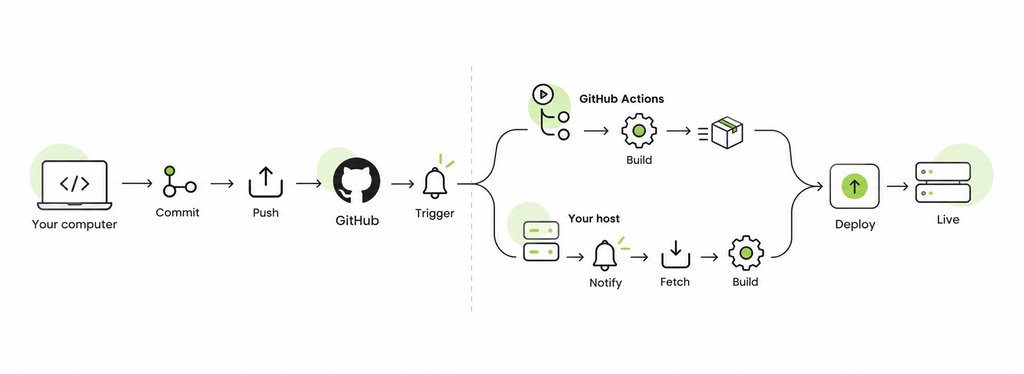
Diagram of a GitHub deployment workflow, showing code committed and pushed to GitHub, followed by two build paths—GitHub Actions or the hosting server—before deployment to the live website.

From commit to build

A build turns the code you wrote into code a server can run. Your repository holds source files, such as TypeScript, JSX, and a package.json that names dependencies without containing them. The build fetches a clean copy of the commit, installs those dependencies, and runs the build command, which compiles and bundles everything into an output folder. The build runs on either a GitHub Actions runner or your host’s own server, depending on which model you use.

Because the build starts from exactly what is in the repository, “it works on my machine” stops working as an excuse. A file you never committed, or a package you installed globally and never declared, is simply not there.

From build to live

If GitHub ran the build, a workflow step copies the output to your server. If your host ran it, the output is already where it needs to be. Deployment puts the build output, called an artifact, where the server runs it, then restarts the application on the new code. The careful method prepares the new version alongside the running one and switches over only once it is complete, so visitors never see a mix of both. The careless method overwrites live files one at a time, which is what a manual FTP upload does. On SiteGround Node.js Projects, every deploy creates a brand-new build, and older builds stay on the account until you delete them.

Environments: Why staging and production are separate

An environment is a named destination for your code, such as staging or production, with its own settings and secrets. Production is what visitors use. Staging runs the same code against test data, with a test database and a sandbox payment key, so a broken checkout charges nobody.

On GitHub, an environment is also a gate. GitHub’s documentation lists four types of deployment protection rules: required reviewers who approve the job, a wait timer that delays it, limits on which branches and tags can deploy, and custom rules checked by an outside service. Environment secrets are released only to jobs that target that environment, and only after approval when reviewers are required. GitHub also records deployments per environment, so the repository shows which commit is live where. These rules apply to GitHub Actions workflows. If your host deploys through its own GitHub App, protection rules don’t gate that deploy, and staging is something the host provides, or doesn’t.

Note! Private repositories may need a paid GitHub plan for some of these features.

CI, CD, and the words nobody defines

CI/CD is the umbrella term for automating everything between a commit and a release. It covers three practices, and “CD” means two different things depending on who is talking.

Continuous integration vs. continuous delivery vs. continuous deployment

  • Continuous integration (CI) merges changes into a shared branch often and runs an automated build and tests on every one, so a problem surfaces at the commit that caused it.
  • Continuous delivery automatically prepares every change that passes for release, but a person decides when it goes to production.
  • Continuous deployment removes that decision. Every change that passes goes live on its own.

A host that rebuilds on every push to a linked branch is doing continuous deployment, even if no tests run. Putting tests in front of it is what makes it CI/CD. For the rest of the vocabulary, from pipelines to runners, see our vibe coding glossary.

What GitHub Actions does, and what it doesn’t

GitHub Actions runs your deployment process. It does not host your application. That one distinction clears up most confusion about GitHub deployment.

You describe a workflow in a YAML file in your repository’s .github/workflows folder, name the event that starts it, such as a push to main, and list the steps. GitHub starts a runner, a temporary virtual machine, which checks out your code, installs, tests, builds, and, if you wrote a step for it, sends the result to a server. When the job finishes, GitHub discards the runner.

Nothing from the run stays running, so a GitHub Actions deployment always has two halves: the workflow GitHub runs and a destination you provide, whether a cloud platform, a virtual server, or a hosting account. If that destination can build the code itself after a push, you may not need a workflow at all. When you do, GitHub’s deployment documentation covers the syntax.

Deploying to your own server or host

Deploying from GitHub to a server means connecting a repository to the machine that runs the application, so each push becomes a new live version. The two common approaches differ in who does the build.

Connecting a repository to a web host

  • GitHub Actions pushes to the server. The workflow builds on a runner, then copies the result to your server over SSH, using credentials stored as encrypted repository secrets. You maintain the workflow, the keys, and whatever keeps the app running.
  • The host pulls from GitHub. You authorize the host’s GitHub App once, pick a repository and branch, and the host builds and deploys every push on its own machines. There is no workflow to maintain.

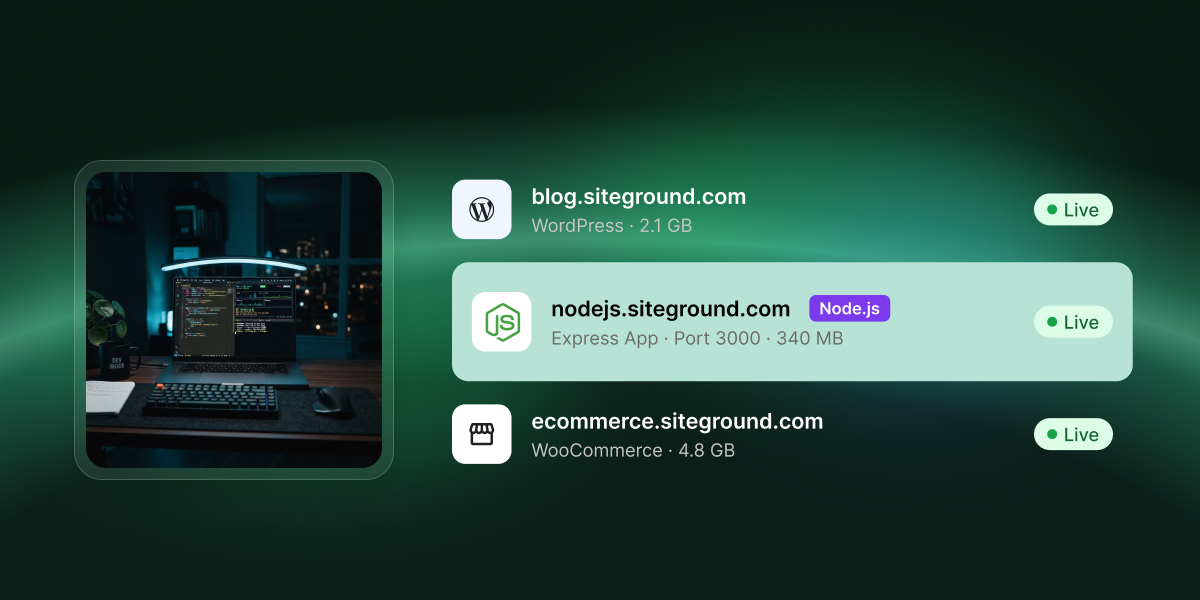
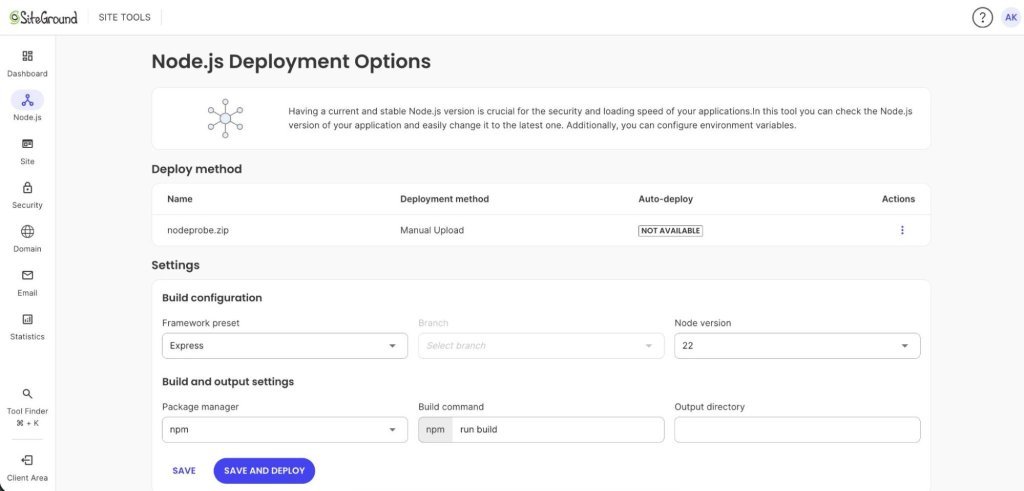
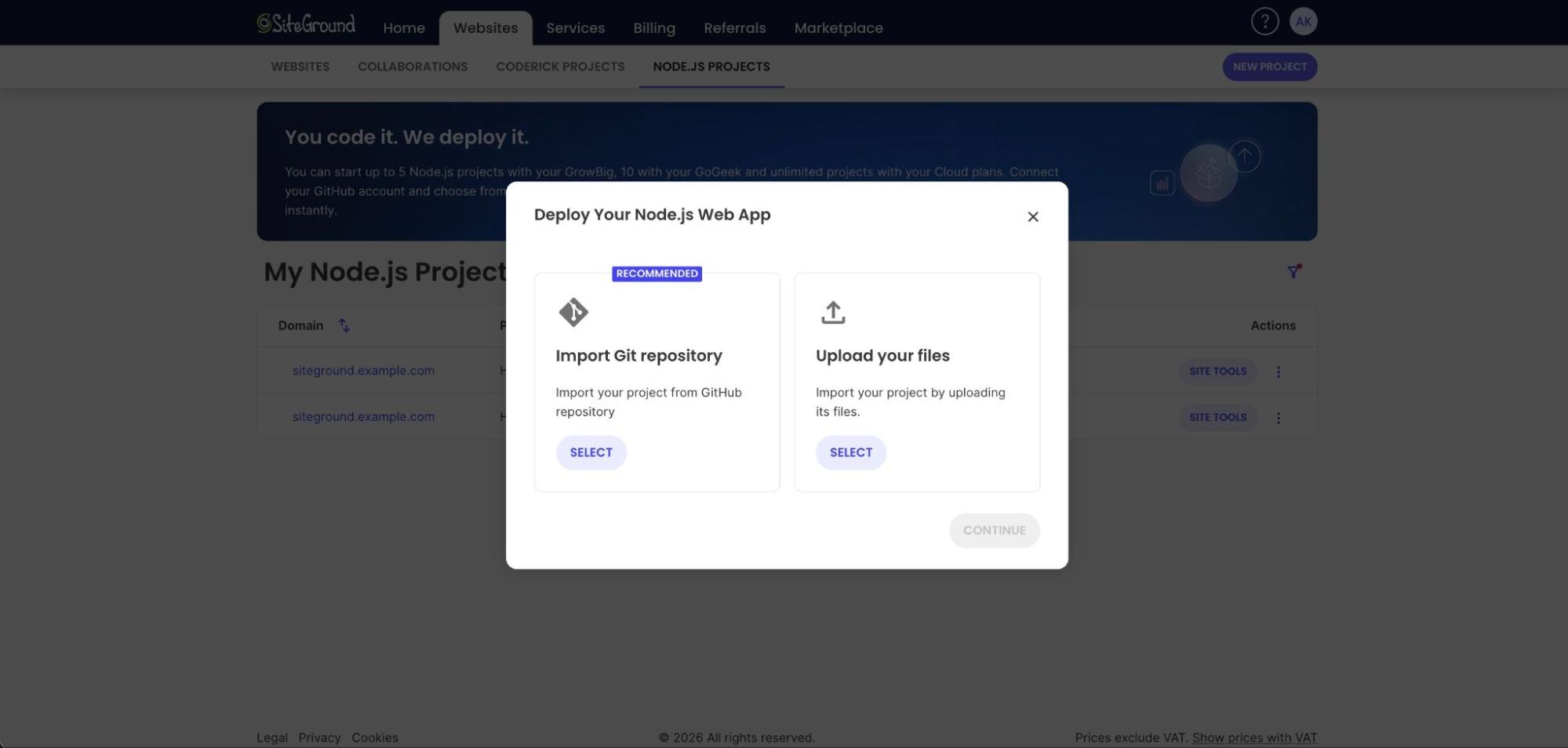
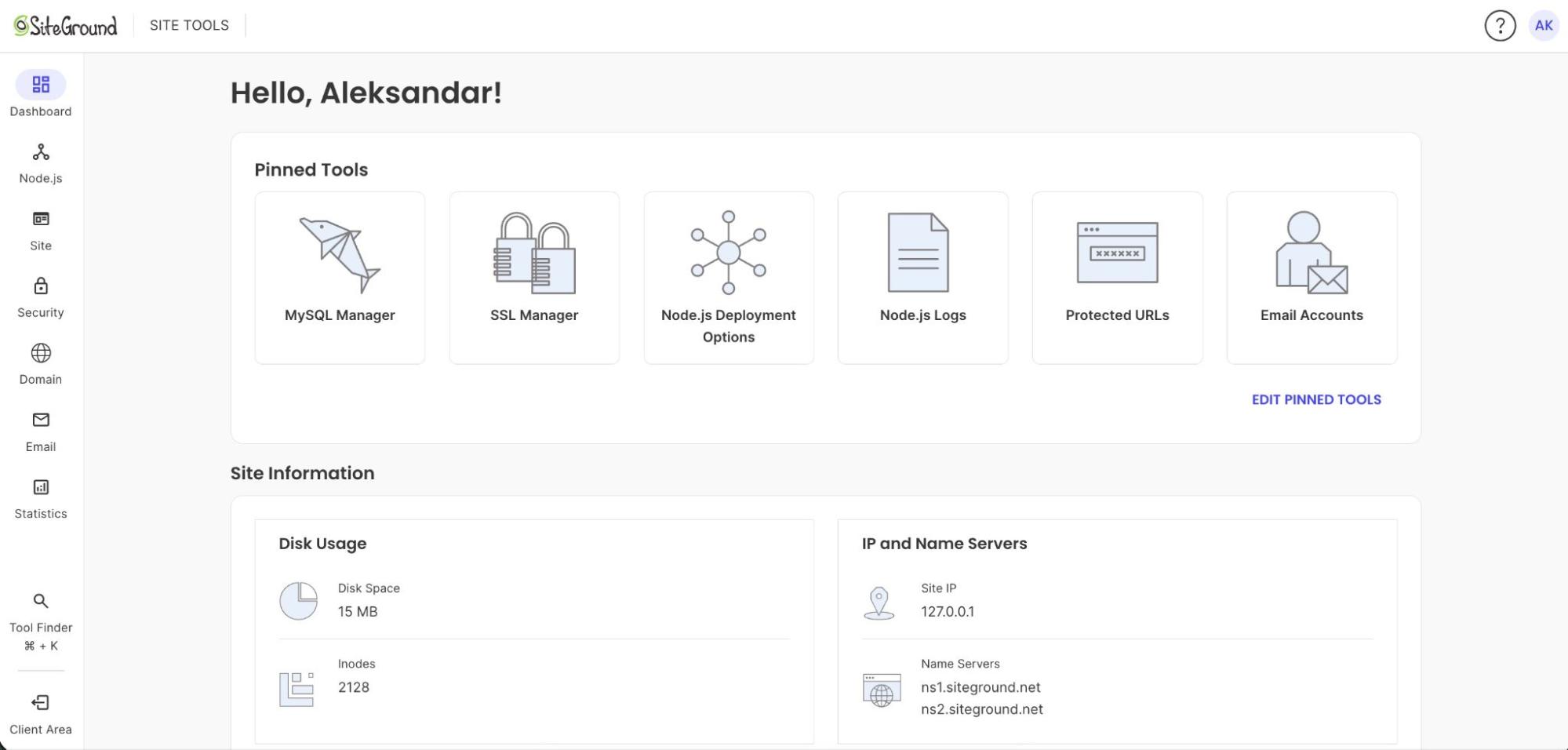
SiteGround Node.js Projects take the second route. On the GrowBig, GoGeek, and Cloud plans, you connect a repository through the SiteGround GitHub App when you create a Node.js project, and every push to the linked branch rebuilds and redeploys the app. The branch, Node.js version, build command, and environment variables are adjustable in Site Tools, and auto-deploy can be paused without disconnecting the repository. Whether a shared plan suits your app is a separate question, covered in does shared hosting support Node.js.

Why GitHub Pages isn’t the same thing

GitHub Pages is a static site hosting service. According to GitHub’s documentation, it publishes HTML, CSS, and JavaScript files from a repository and serves them as they are. There is no Node.js process, no database, and nowhere for an API route to run. A portfolio or a documentation site suits it. An Express server or anything with a user login does not.

GitHub’s usage limits also state that Pages is not intended as free hosting for an online business, an ecommerce site, or commercial SaaS, and as of October 2026 they cap published sites at 1 GB. 

When a deploy fails

Most failures fall into one of two categories, and each is fixed in a different place, so work out which one you have first.

Failed build vs. failed deploy

Failed buildFailed deploy
What stoppedThe install or build commandThe app, after a successful build
What visitors seeUsually the previous versionErrors, if the platform switched before checking
Typical causesMissing dependency, syntax error, wrong Node.js versionMissing environment variable, hardcoded port, crash on startup

A failed build is the safer failure: on a platform that switches versions only after a successful build, the old version keeps serving. A failed deploy can take the site down if the platform switches before confirming the new version starts. Hosts that copy files into the live folder add a third case, the partial deploy, where an interrupted upload leaves old and new files mixed, and the fix is a full redeploy.

Reading a deployment log

A deployment log is the transcript of every command the build ran, in order. Read it from the bottom up to find where it stopped, then look for the first error above that point, because the final lines usually report the consequence rather than the cause. Lines starting with + or > mark the command being run, and an exit status of 0 means it succeeded.

Warnings are where beginners go wrong, and a SiteGround Node.js test deployment we ran in September 2026 shows why. Midway through the install, npm printed a deprecation notice that reads like a problem. The build carried on and finished with a status of completed:

+ [...] npm install [...]

npm warn deprecated recharts@2.15.4: 1.x and 2.x branches are no longer active. [...]

+ [...] npm run build [...]

> vite build

+ exit 0

Build info: {"status":"completed"}

On SiteGround Node.js Projects, every build is listed in Site Tools > Node.js > Logs with its author, branch, status, and commit, and a Failed tab isolates the broken ones. Open a build’s Actions menu and select View build log, as described in how to manage a Node.js project in Site Tools.
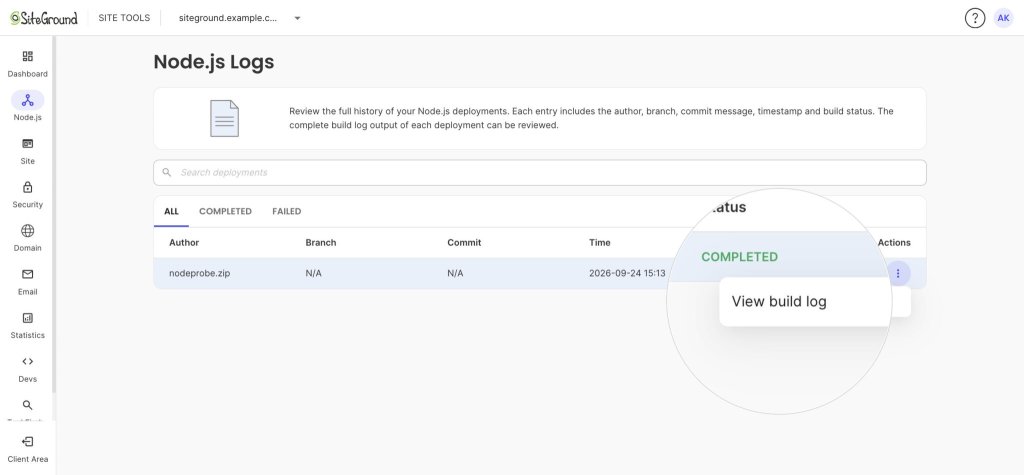
SiteGround Site Tools Node.js Logs page showing a completed deployment and the Actions menu with the “View build log” option highlighted.

Rolling back

Rolling back means returning production to the last version that worked. With push-to-deploy, the reliable method is git revert: it creates a new commit that undoes the bad one, and pushing it runs a normal build that puts the previous code live again. Avoid resetting the branch and force-pushing, which erases the record of what happened. Remember that a rollback restores code, not data, so database changes the bad release made stay in place. 

On SiteGround Node.js Projects, older builds on the Logs page can be viewed or deleted but not reactivated, so reverting and pushing is how you roll back. 

Is auto-deploy worth it for a small project?

For most projects with a build step, yes. For a static page you touch twice a year, no, and a manual upload is fine.

Auto-deploy pays off when changes are frequent, when the project must be built before it runs, or when more than one person ships code. That includes most apps built with vibe coding tools, where push-to-deploy becomes the final step of the vibe coding workflow. The cost is up front: the project has to live in Git and on GitHub, and if your host does not build for you, you also need a workflow, SSH keys, and secrets. For someone new to Git, learning it is the real price, and it is worth paying anyway.

Manual uploadPush-to-deploy
How a change goes liveBuild locally, connect, uploadPush to the linked branch
During the updateVisitors can hit half-uploaded filesThe switch happens once the build is ready
Record of releasesNone, unless you keep oneEvery deploy tied to a commit
Rolling backFind and re-upload old filesRevert the commit and push
Best forA few static files edited rarelyAnything with a build step or regular changes

Putting GitHub deployment to work

GitHub deployment comes down to one chain: push, trigger, build, deploy, live. Once you can name each link, a failed build becomes a log to read rather than a mystery. If your next project is a Node.js app, SiteGround Web Hosting runs Node.js projects from the GrowBig plan upward with GitHub auto-deploy built in, so the host handles the build. If it is an API, hosting a Node.js API backend picks up from here, and if you are still deciding where any project should live, start with how to host a website. 

[86]

Frequently asked questions about GitHub deployment

Is GitHub used for deployment?

Yes, GitHub is widely used for deployment, as the place a deploy starts rather than where the application runs. A push triggers a GitHub Actions workflow or a host integration, which builds the code and publishes it to a server. The exception is GitHub Pages, which serves static sites directly.

How do I deploy a project from GitHub?

To deploy a project from GitHub, connect the repository to whatever will run it. Either authorize your host’s GitHub App and choose a branch, so the host builds every push, or write a GitHub Actions workflow that builds the project and copies the output to your server.

How to do deployment using GitHub Actions?

To deploy using GitHub Actions, add a YAML workflow file to .github/workflows that runs on a push to your production branch. It checks out the code, installs dependencies, builds, and sends the output to your server over SSH or a provider’s API, using credentials stored as repository secrets.

Can I deploy through GitHub?

Yes, you can deploy through GitHub in three ways: publish a static site with GitHub Pages, run a GitHub Actions workflow that ships your build to a server, or connect the repository to a host that deploys every push. Which fits depends on whether your project needs a running server.

What is a GitHub deployment key?

A GitHub deployment key, or deploy key, is an SSH key that gives a server access to a single repository, read-only by default. It lets the server fetch code without anyone’s personal credentials. Deploy keys never expire, so remove the key when you retire the server.


7 Email marketing myths debunked (and what each one breaks)

Email inbox mockup tagged “Open rate,” “Big list,” “Promotions,” and “FREE,” representing common email marketing myths, with flowers in vases.

Email marketing myths rarely look dangerous. They look like good advice: skip the word “free,” send on Tuesday, grow the list at any cost. When your opens start slipping, those habits are a likely cause, because each one damages a signal inbox providers use to decide where your email lands. And some of the opens you’re worried about may never have been real in the first place.

Key takeaways:

  • Since November 2025, Gmail has been rejecting non-compliant bulk email with temporary and permanent errors, so authentication (SPF, DKIM, and DMARC) now matters more than word choice.
  • Google asks bulk senders to keep user-reported spam below 0.1% and never let it reach 0.3%, which makes a hidden unsubscribe link far more costly than an unsubscribe.
  • Email marketing isn’t dead: in the Data & Marketing Association’s Marketer Email Tracker 2026, UK marketers estimated a return of about £41 for every £1 spent on email.
  • A bigger list only helps if the contacts want your emails: a hard bounce rate above 2% is a sign of list quality problems, and every bounced, inactive, or purchased contact drags down your sender reputation.
  • Apple Mail Privacy Protection downloads email content in the background by default, so opens get recorded whether or not the reader looked at the email.
  • The fastest way to catch email marketing myths is to ask which of the four inbox signals a rule affects, then test it on your own list.

The 4 signals every email marketing myth gets wrong

Every myth on this list fails for the same reason: it works against one of the four signals inbox providers like Gmail, Yahoo, and Outlook use to decide where your email lands. Those signals are authentication, sender reputation, spam complaints, and engagement.

Placement comes first and opens come second. An email that lands in spam rarely gets opened, however good the subject line is.

SignalWhat inbox providers checkWhat to aim for
AuthenticationProof that you’re allowed to send from your domainSPF, DKIM, and DMARC records set up for your domain
Sender reputationYour track record: bounces, inactive contacts, and how consistently you sendA hard bounce rate under 2% and a steady sending schedule
Spam complaintsHow often recipients click “Report spam”A spam rate under 0.3% (ideally under 0.1%) and one-click unsubscribe, processed within 48 hours
EngagementWhether people open, click, and replyClicks holding steady or rising across campaigns

Inbox providers don’t publish limits for reputation and email engagement, but you can still track both. You build them over time with every campaign you send.

The other two are now hard rules. Google and Yahoo introduced sender requirements in 2024, and Microsoft followed for Outlook.com, Hotmail.com, and Live.com in May 2025. Since November 2025, Gmail rejects emails that don’t comply instead of just warning the sender. 

The strictest rules apply to bulk senders, meaning anyone who sends close to 5,000 or more messages to personal Gmail accounts within 24 hours. Smaller senders aren’t off the hook, though. Every sender has to meet a baseline: SPF or DKIM authentication, a spam rate under 0.3%, and valid DNS records for the sending domain and servers.

The seven myths below all sound harmless. Each one quietly works against at least one of these signals.

Myth 1: Email marketing is dead

Email marketing isn’t dead. In the Data & Marketing Association’s Marketer Email Tracker 2026, a survey of 250 UK marketers, the estimated return on email rose to about £41 for every £1 spent, up from around £38 in the previous edition.

Social media, messaging apps, and now AI assistants have all been called email’s replacement. What this myth breaks is sender reputation. Businesses that treat email as a side channel send irregularly, stop cleaning their lists, and let contacts go stale. When they finally send a campaign, bounces and complaints spike, results disappoint, and the myth seems confirmed. It’s a self-fulfilling prophecy with a very measurable paper trail.

Compare email to your other channels before you cut it

Before you move budget away from email, put it side by side with the marketing channels you’d move it to:

  • Pull revenue or leads by channel for the same period, such as the last 90 days.
  • Count how much of each audience you actually own. Your list stays yours if an algorithm changes; your followers don’t.
  • Calculate your email marketing ROI using real sales data, not open rates.

If email still loses after that comparison, look at how the program is run before you blame the channel.

Myth 2: Avoiding spam trigger words keeps you safe

Spam trigger words rarely decide whether an email reaches the inbox. Google’s sender requirements don’t list banned words at all. Instead, they cover technical basics like authentication, spam rate, and unsubscribe rules. And when Google explains how Gmail’s spam filters work, the factors it names are “IP address, domains/subdomains, sender authentication, and user input.”

Using words like “free” occasionally won’t hurt you, but stacking them makes you look like spam. All-caps urgency and phishing-style wording still look suspicious for reasons beyond any single word.

Tip: Your subscribers are a spam filter too. Google doesn’t ban any words, but your readers can still click “Report spam” on an email that reads like a scam. Every report counts toward your spam rate, which Google wants under 0.3%. So a “FREE!!! ACT NOW!!!” subject line won’t break a rule, but it can still cost you. Write like a person, not a pop-up ad.

What this myth breaks is authentication. Senders spend hours scrubbing “free” and exclamation points from their subject lines while their domain has no SPF, DKIM, or DMARC records, which is the first thing inbox filters check. The result is a flat subject line, sent from a domain filters can’t verify.

Set up SPF, DKIM, and DMARC before you rewrite a single word

Authentication is the part of email deliverability that filters check first. Confirm these three records exist for the domain in your From address:

  • SPF: lists the servers allowed to send email for your domain.
  • DKIM: adds a signature that proves the email wasn’t changed in transit.
  • DMARC: tells inbox providers what to do when SPF or DKIM fails. Google and Microsoft both accept a starting policy of p=none, as long as your From domain aligns with SPF or DKIM.

Once those pass, you can write “free” where it’s honest without worrying about the word itself.

Myth 3: A bigger list means more opens

A bigger list doesn’t bring more opens if the extra contacts don’t want your emails. Invalid addresses bounce, inactive ones ignore you, and purchased ones report you as spam. All three drag down sender reputation.

The myth usually shows up as buying lists or importing contacts who never confirmed they wanted your emails. Both fill your list with addresses that bounce, and the damage is easy to measure: SiteGround’s deliverability guidance treats a hard bounce rate above 2% as a sign of list quality problems.

The simplest prevention is a double opt-in, which asks new subscribers to confirm their address before they join. It catches typos, fake sign-ups, and spam traps before they turn into bounces.

Remove bounced and inactive contacts on a schedule

Regular list cleaning keeps your list size honest:

  • Remove hard bounces after every campaign, because those addresses won’t start working again.
  • Pick an inactivity window, such as 180 days without a click, and send those contacts one re-engagement email before removing them.
  • Never import a purchased list, no matter how targeted it claims to be.

In SiteGround Email Marketing, the first step happens automatically. Contacts that hard bounce move to the Suppressed tab and won’t receive emails unless you change their status manually, while soft bounces stay on your list because the cause may be temporary. Contacts who report your email as spam are moved to the Unsubscribed tab. You can review all four statuses (Subscribed, Unsubscribed, Unconfirmed, and Suppressed) under Client Area > Services > Email Marketing > Contacts > Contact List.

Myth 4: Unsubscribes mean your emails are failing

Unsubscribes don’t mean your emails are failing. They’re the safe exit for a reader who’s no longer interested, and the alternative exit, a spam report, costs far more.

Google says it directly: unwanted messages without one-click unsubscribe are more likely to be reported as spam, and more reports push future messages toward the spam folder. Hiding the link in tiny gray text or requiring a login doesn’t keep subscribers. It turns a quiet exit into a complaint that counts against your spam rate. Understanding why people unsubscribe is more useful than trying to stop them.

Put a one-click unsubscribe where people can find it

  • Place a clearly labeled unsubscribe link in every marketing email’s footer.
  • Make it work in one click, with no login or password required.
  • Process requests within 48 hours, which matches Google’s requirement.
  • Tell subscribers how often you’ll email them when they sign up, so nobody unsubscribes because of a surprise.
  • Track your unsubscribe rate per campaign to spot content that consistently pushes people away.

Myth 5: There’s a perfect time and frequency to send

There’s no universal best time or frequency to send email. Send-time studies name different winners, from Tuesday to Friday, because the right schedule depends on who’s reading: their time zones, their routines, and what they signed up for. 

Frequency is just as personal. The DMA’s 2026 tracker found around 14% of customers get four or more emails a week from a single brand. Whether that’s welcome or too much depends entirely on the audience.

The myth breaks engagement in two directions. A copied “best” time puts you in the same crowded window as everyone else. And treating “less” as always safer backfires too. Sending less often can help subscribers who’ve stopped engaging, but long gaps and subscribers are more likely to forget your name and report you. Sudden spikes after a quiet period look suspicious as well: Google ties eligibility for its built-in unsubscribe button partly to increasing sending volumes gradually.

Quick tip: Picture your subscribers’ day before you pick a send time. If they read your emails at work, a mid-morning send fits their routine. If your email asks them to plan something personal, like a trip or a purchase, it has a better chance outside working hours. Use that as your starting point, then let your own click data confirm or correct it.

Test send times and frequency on your own list

  • Split your list and send the same email at two different times, then compare clicks.
  • Pick a cadence you can keep, weekly or biweekly, and stick to it for at least a few months before judging it.
  • Watch unsubscribe and spam rates after you increase frequency. If they rise, your audience has answered for you.

In SiteGround Email Marketing, you can run this test by splitting contacts into two groups, scheduling the same campaign for each at different times, and filtering Analytics by group to compare clicks.

Myth 6: Landing in the Promotions tab means your email failed

Landing in Gmail’s Promotions tab doesn’t mean your email failed. The Promotions tab is part of the inbox: Gmail files marketing emails there automatically, and readers open them like any other message.

The damage comes from trying to escape it. Stripping out images, disguising campaigns as personal notes, or adding “Re:” to subject lines surprises subscribers with a sales pitch where they expected a friend. A surprised reader ignores the email or reports it, which hurts engagement and complaints at once. The tab isn’t the penalty. The workaround is.

Design for the Promotions tab instead of trying to escape it

In the Promotions tab, your email competes on three things readers see before they open it: sender name, subject line, and preheader.

  • Use a sender name subscribers recognize, such as your brand or a real person at your company, and keep it consistent.
  • Write a preheader that adds information instead of repeating the subject line.
  • Make the subject line match what’s inside, so the open doesn’t end in disappointment.
  • If your most engaged subscribers want to see you first, tell them they can drag your email into the Primary tab.

Myth 7: Open rate is the most important email metric

Open rate isn’t the most important email metric, and since 2021 it hasn’t been a reliable one. Apple Mail Privacy Protection downloads remote content, including tracking pixels, in the background for the many users who turn it on, whether or not the reader opens the email.

That means an open can register the moment your email arrives in Apple Mail, even if nobody reads it. Inbox providers still see how people actually interact with your email. Apple’s feature only changes what you see in your reports.

What this breaks:

  • Your open rate: it’s partly made up of opens that never happened, and so are the benchmarks you compare it to.
  • Your trend lines: a drop or a spike can say more about how many subscribers use Apple Mail than about your emails.
  • Your list cleaning: removing contacts based on opens alone can keep people who never read anything and delete readers who block tracking.

Base inactivity rules on clicks where you can, such as no clicks in 180 days, and use opens only as a backup signal.

Judge each email by clicks and conversions, not opens

  • Use clicks as your main engagement signal, since they require a real action from a real person.
  • Track conversions, such as purchases, bookings, or replies, as the measure of whether an email worked.
  • Treat email open rate as a rough trend line within the same audience, not a success score.
  • Understand the difference between CTR and CTOR, since CTOR uses opens as its denominator and inherits the same inflation.

How to test the next email rule you hear

Any new email rule deserves three questions before it changes how you send.

  • Which signal does it affect? If a rule can’t be tied to authentication, reputation, complaints, or engagement, it’s a style preference, not a deliverability rule.
  • Is there a primary source? Google, Yahoo, Microsoft, Apple, and your email platform publish their requirements. A rule that only appears in blog posts quoting other blog posts deserves suspicion.
  • Can you test it on your own list? Send times, frequency, and subject line styles can all be split-tested. Your list’s results beat any benchmark.

Run “never email on Mondays” through the test, for example. It doesn’t touch authentication or complaints, no inbox provider publishes it, and a two-week split send will tell you whether it holds for your audience. That’s a test, not a rule.

Build those three questions into your email marketing strategy, and the next viral tip gets a fair trial instead of automatic obedience.

Stop letting email marketing myths run your campaigns

Email marketing myths stick around because they feel responsible. Skipping “free” feels safe. Keeping every contact feels like growth. Hiding the unsubscribe link feels like damage control. Meanwhile, each habit chips away at the signals that decide inbox placement, and the bill arrives months later as a mystery drop in results. Trade the rules of thumb for what inbox providers actually publish and what your own list tells you. Your numbers will finally start telling the truth.

If you’d rather not babysit DNS records and bounce lists yourself, SiteGround Email Marketing handles a lot of it for you. If your domain is registered or hosted with SiteGround, it sets up SPF, DKIM, and DMARC for you automatically. It blocks campaigns from domains missing those records, suppresses hard bounces, and moves spam reporters to your Unsubscribed list. Bounce, spam, and unsubscribe rates are all waiting for you in Analytics.

New users also get a manual review of their first three campaigns, so mistakes get caught before your sender reputation pays for them. You can try it free for 30 days.

[58]

Frequently asked questions about email marketing myths

Do spam trigger words really send emails to spam?

Spam trigger words rarely send emails to spam on their own. Inbox providers weigh authentication, sender reputation, spam complaints, and engagement far more heavily, so a trusted, authenticated sender can use “free” without problems.

Are email open rates still accurate?

Email open rates aren’t fully accurate anymore. Apple Mail Privacy Protection loads tracking pixels in the background, recording opens that never happened, so clicks and conversions are more reliable measures of success.

How often should you send marketing emails?

A good starting point is once a week or every two weeks, and no less than once a month, so subscribers don’t forget who you are. If you want to send more often, increase gradually, and pull back if your spam rate climbs above 0.1% or unsubscribes jump after a send.

Do small senders need DMARC?

Yes, in practice. Google and Microsoft only require DMARC from senders who send around 5,000 or more emails a day, but a basic record with a p=none policy takes minutes to set up, protects your domain from spoofing, and covers you if you ever cross that threshold. Since Gmail treats bulk sender status as permanent once you reach it, it’s easier to have DMARC in place before you need it.

How to understand AI-generated code when you’re not a developer

An illustration showing a website preview's "Book a Stay" button linked to its corresponding Booking.html source code file in a code editor.

If you use vibe coding to build an app with an AI app builder such as Coderick AI, you can easily open the code behind it. Do it, though, and you’ll find dozens or hundreds of files containing AI-generated code you didn’t write. So if you want to know how your app works behind the scenes, where do you start? 

For a non-developer, to understand AI-generated code is to have codebase literacy: knowing which parts of the project produce the app’s important behavior, following one feature from the screen to the data, checking that reading against what the app does, and recognizing when a question needs a developer.

Key takeaways:

  • To understand AI-generated code, you need codebase literacy: the ability to find, follow and check the parts behind the features your business depends on.
  • Start from something you can see on screen, such as a button label, and trace one feature from there to where its information ends up.
  • Treat the AI’s explanations as a guide you confirm, with follow-up questions that tie each answer to a file and an outcome.
  • Check your reading by predicting what the app will do and watching it happen, and take questions about security, payments or performance to a developer.

What it means to understand AI-generated code

Understanding an AI-generated codebase isn’t the same as learning to program. You don’t need to know what every line does, or why the AI chose one approach over another. You need to know the parts of the project behind the features your business depends on, which answers how much AI-generated code you need to understand: often a handful of files out of hundreds.

A non-developer can understand AI-generated code by working through seven steps, one feature at a time:

  1. Map: list what the app does from a customer’s point of view, and match each feature to the part of the project behind it.
  2. Locate: find the file where one visible feature begins.
  3. Trace: follow that feature’s path through the files it uses, to where its information is stored.
  4. Explain: ask the AI to describe that path in plain language, file by file.
  5. Test: predict one thing the app will do when you use the feature.
  6. Check: use the feature and compare what happens with your prediction.
  7. Escalate: bring in a developer when your question moves from what the code does to whether it’s safe, fast or well built.

You don’t need to do this for every single file you find in the codebase of your app. Applying this process to your app’s most important features gives you the clarity and control you need without getting bogged down in the code.

Where to start when reading AI-generated code

Start with the product rather than the code. Before you open a single file (one document of code) or folder (a group of related files), write down what the app does from a user’s point of view: someone signs up, books a slot, pays, or receives a confirmation email. That list tells you which parts of the code matter to you, so you can read AI-generated code selectively and navigate an AI-generated codebase without going through it front to back.

Then match each item to the project’s main areas. Folder names vary between tools, but most projects have the same few kinds of parts:

  • The screens visitors see, such as pages, forms and buttons, usually sit together in one area of the project.
  • The logic behind them decides what happens when someone clicks or submits something, such as checking that an email address looks valid.
  • The database (where the app stores its information, such as accounts or bookings) holds the records each feature creates or reads.
  • Styling and settings control how the app looks and how it’s configured.
  • Connections to outside services, such as a payment provider or an email service, handle anything the app sends beyond itself.

You can ask the AI for a plain-language outline of the project that names these areas and the files in each. For example, if you use Coderick AI, access to your project’s source code shows the full file tree, so you can see that outline against the files themselves. 

Here’s a simple prompt you can use in Coderick AI: 

“Explain my app’s structure in plain English. Group the files by what they do.”

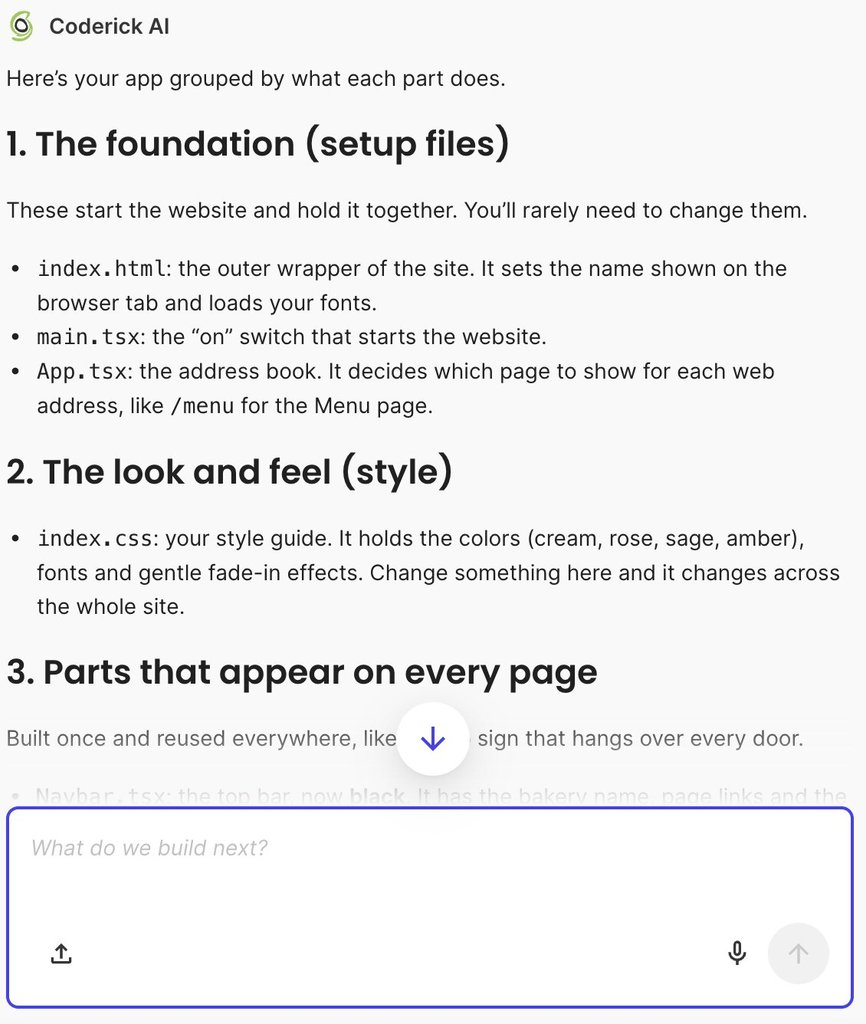
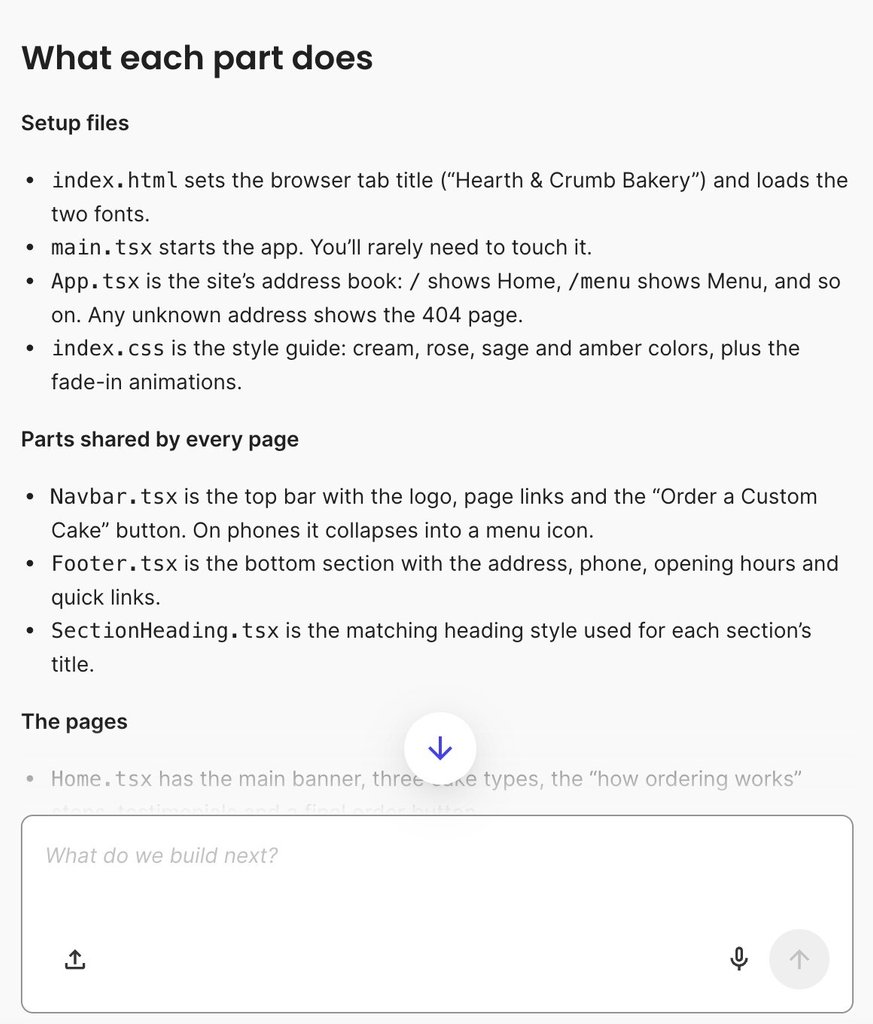
This will make Coderick AI provide a plain-language architectural map of your app. Instead of overwhelming you with technical jargon or raw code, it organizes every file in your project into clear, functional categories, such as setup files, global styling, shared layout components, individual pages, and interactive forms.

Screenshot of the Coderick AI interface explaining an app structure broken down into setup files, style, and shared components.

How to trace a feature through an AI-generated app

Tracing is how you understand the code behind an AI-built app one feature at a time, following it the whole way through, from what a visitor sees to what the app does with their input. Pick a feature you care about. A sign-up form makes a good first choice, since almost every app has one and it touches every kind of part listed above.

Start from something you can see

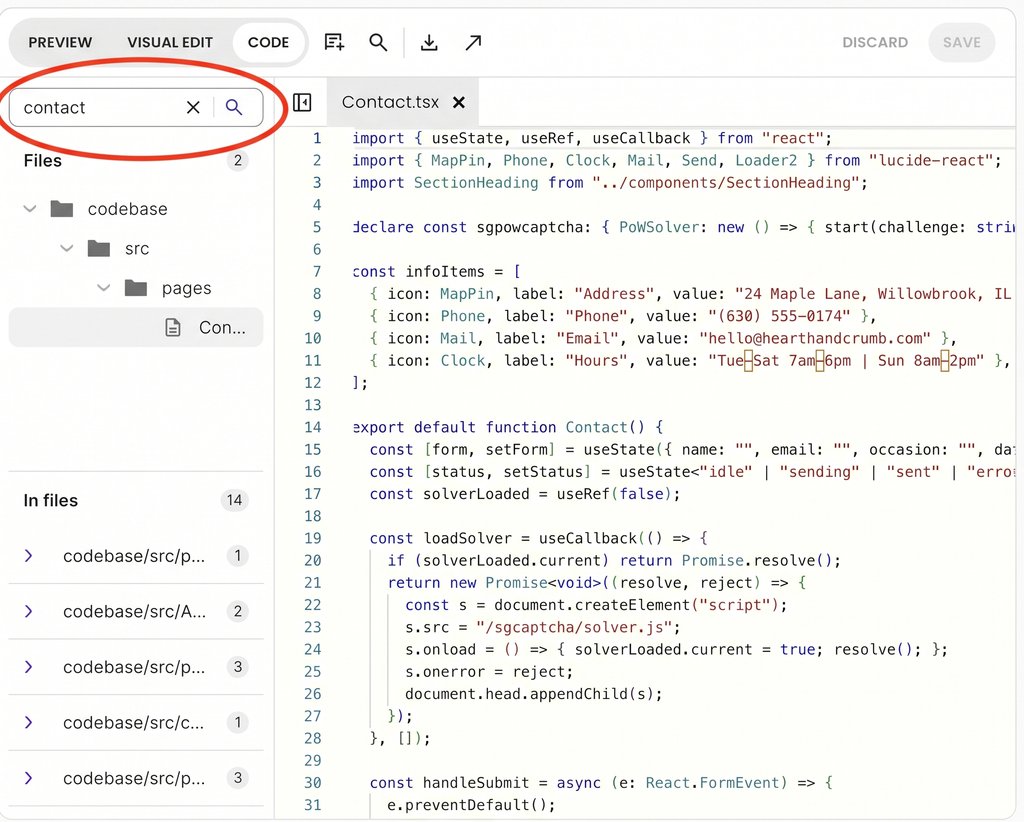
Pick a word or phrase on the screen that belongs to the feature, such as the button label “Contact us” or the heading above the form, and search the project for it. The file that contains it is where the feature begins. This is how to find which file controls a feature without knowing how the project is organized.

For example, if you vibe code in Coderick AI, the Code tab’s search covers both file names and what’s written inside each file, which takes you from a label on screen to the file behind it:

Screenshot of a code editor interface displaying the Contact.tsx file, with a red circle highlighting the search bar containing the word "contact".

Pro tip: Search for the rarest words on the screen. A label such as “Submit” can appear in dozens of files. Placeholder text inside a form field, such as “Enter your work email,” or the exact wording of an error message usually appears only once, so it leads straight to the right file.

Follow what happens when it’s used

From that file, follow what happens when someone uses the feature. When a visitor clicks on something like “Send Request,” the code usually runs a function (a named set of instructions that runs when something happens), and that function does three kinds of things: it checks the input, such as whether the email address is in the right format, it sends the information somewhere, and it calls other files to handle parts of the job.

You don’t need to read each function yourself. Ask the AI to walk through what happens, step by step, and to name the file behind each step. 

For instance, in Coderick AI, you can reference the file in the chat, which keeps the explanation on that file instead of the whole project. You can give Coderick AI a prompt like this one (you can adapt it to fit your specific case): 

“In [file name], walk me through what happens step by step when a visitor [does something]. For each step, name the file or service that handles it, and explain it in plain language.”

For example:

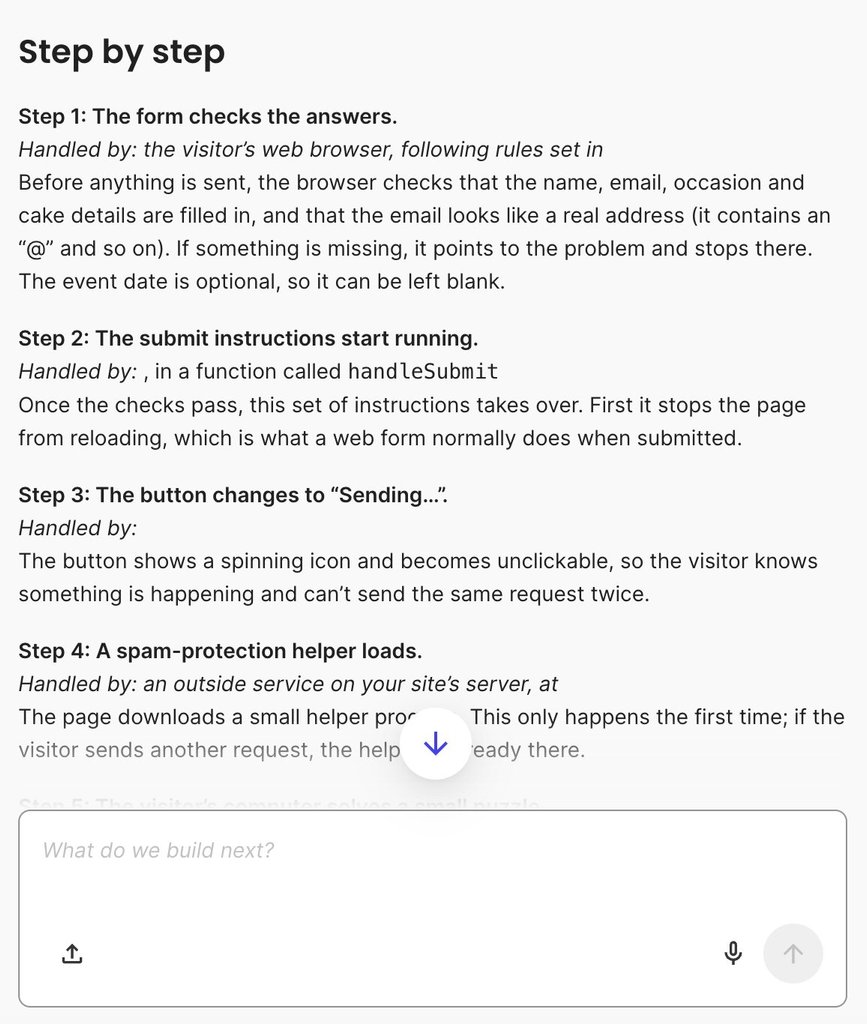
“In Contact.tsx, walk me through what happens step by step when a visitor clicks “Send Request”. For each step, name the file or service that handles it, and explain it in plain language.”

Coderick AI provides a plain-language, step-by-step trace of the entire form submission workflow, detailing which specific files and external services handle validation, spam protection, message formatting, and email delivery while highlighting any underlying bugs or missing configurations.

Screenshot of an interface outlining a step-by-step guide on how a website form handles submission, validation, and spam protection.

Find where the information ends up

Every feature leaves a result somewhere: a new record in the database, an email sent to the customer, or a request to an outside service such as a payment provider. Finding that result tells you what the feature produces, and whether the information a customer types in is stored where you expect.

Advanced AI app builders like Coderick AI create a database for each project automatically, with a dashboard that shows the records a feature saves, so after a test sign-up you can see the new account and the fields it holds.

How to use AI to understand the relevant code

The AI that built your app is the best guide a non-developer has to its code, and its explanations work best as a starting point you confirm. An explanation can describe what the code seems meant to do instead of what it does. It can also stay general where you need specifics, or describe an earlier version if the app has changed since you last asked.

When you use AI to understand code, four kinds of questions tie each answer to evidence you can check:

  • Ask which file, and which lines in it, handle a step, so you can find the place yourself.
  • Ask what triggers that step, such as a click, a submitted form or a scheduled task.
  • Ask what the step changes or saves, and where that information goes.
  • Ask what would happen in a specific case, such as a sign-up with an email address that’s already registered.

Here’s a simple prompt you can adapt and try: 

“In [file name], walk me through what happens when a visitor [does something]. For each step, tell me which lines handle it, what triggers it, and what it changes or saves and where that information goes. Then tell me what happens if the visitor [does something wrong].”

For example:

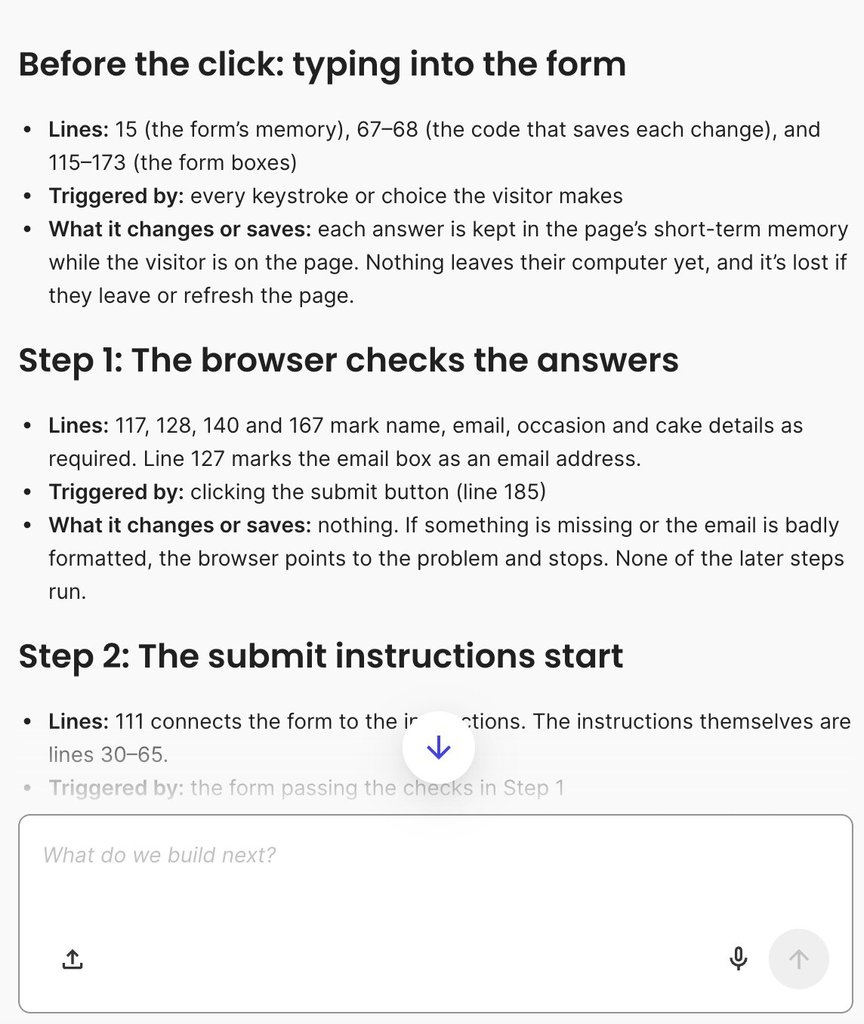
“In Contact.tsx, walk me through what happens when a visitor clicks “Send Request.” For each step, tell me which lines handle it, what triggers it, and what it changes or saves and where that information goes. Then tell me what happens if the visitor leaves the event date blank.”

From there, Coderick AI provides a granular, line-by-line walkthrough of the form submission lifecycle, mapping exact line numbers in Contact.tsx to triggers, data flows, and UI updates while calling out code-level bugs and unconfirmed email configurations:

Screenshot of an interface explaining the step-by-step code execution flow of a website form with line number references.

How to check that you understand AI-generated code correctly

Once you’ve traced a feature, explain it back in your own words, without looking at the AI’s answer. If you can say what the feature checks, where it sends the information and what the customer sees at the end, you have a reading you can test.

Then make one prediction and watch it happen. For a sign-up form, it might be: “If I sign up with a new email address, a new record appears in the database with my name and email, and I land on the welcome page.” Use the feature in the app’s preview, then check the database. If the result matches, your reading holds. A wrong prediction means the map needs another look, usually at the step where the result first differed from what you expected.

Pro tip: Test sign-ups create records like any other. A prediction you check on a live app creates an account or a booking like any other. Use an email address you control, such as one with “test” in the name, so you can tell your test records apart from customers’ and remove them afterward.

Know when a question needs a developer

Knowing what code does isn’t enough to judge it in some areas, because the risk depends on details a non-developer can’t assess from behavior alone. These are the ones to recognize:

  • Sign-in and permissions, meaning who can log in and what each person is allowed to see or change.
  • Payments, including what happens when a charge fails or a customer asks for a refund.
  • Personal data, such as customer names, addresses and contact details, and who can reach them.
  • Anything that deletes or overwrites information, since a mistake there can’t always be undone.
  • How the app behaves under heavy use, when many people use it at once or the data grows large.
  • Connections to outside services, which depend on keys, settings and rules outside your project.

Three signals also tell you you’ve reached the limit of what reading can settle: the AI’s explanation of the same file changes each time you ask, a trace that won’t connect from one file to the next, or predictions that keep failing after you’ve revised your map. 

At that point, your understanding gives a developer a head start, and working with a developer on an AI-built app goes faster when you can point to the feature and the files involved. 

Understanding your app one feature at a time

To understand AI-generated code as a non-developer, you never need to read the entire codebase line by line. Instead, you build codebase literacy one feature at a time: locate where a feature begins, trace its path to where its data is stored, ask the AI to explain the journey, and verify your prediction against live app behavior.

This practical literacy is what allows you to expand your application with genuine confidence. Once you understand how your key files work, you can even begin combining AI prompts with direct manual edits, giving you total control over your AI-built app as it grows over the long term.

[96]

FAQs

What does it mean to understand AI-generated code?

To understand AI-generated code as a non-developer means knowing which parts of the project produce your app’s important behavior, being able to follow one feature from the screen to the data, and checking that reading against what the app does.

How can a non-developer understand AI-generated code?

A non-developer can understand AI-generated code by starting with a feature they already know from the product, locating the code behind it, tracing only that feature’s path, using AI to explain unfamiliar parts, and checking the explanation against an observable result. You don’t need to understand every line or judge the code’s quality.

Do I need to understand every line of AI-generated code?

No. You don’t need to understand every line of AI-generated code. Focus on the paths behind the features that matter most to your business, such as sign-ups, payments and stored customer data, and bring in a developer when the question turns to security, performance or code quality.

How can I check whether I understand AI-generated code correctly?

You can check whether you understand AI-generated code correctly by predicting what the app will do in a specific case, then using the feature and comparing what happens, including in the stored data. If the result differs from your prediction, your understanding needs another look.

How do I find which file controls a feature?

To find which file controls a feature, start with something visible in that feature, such as a button label, a field’s placeholder text or an error message, and search the project for it. The file that contains it is your starting point, and from there you can trace which other files handle the behavior.

Where should I start when reading AI-generated code?

Start reading AI-generated code from a feature you can see and care about, rather than from the first file in the project. A short list of what the app does from a user’s point of view gives you a map before you open any files.

6 best Shopify alternatives in 2026, compared on real costs & what’s built in

Abstract of someone contemplating Shopify alternatives

Shopify’s sticker price is only part of the bill. Card processing, third-party surcharges, and even collecting product reviews can mean extra costs stacked on top of the subscription itself. Whether you’re just learning how to sell online or migrating an established store, the alternatives compared below vary just as much: on platform fees, on what ships built in versus what needs a separate app, on how their AI actually works, and on the support and infrastructure behind the storefront. Here’s how six real Shopify alternatives compare.

Key takeaways:

  • Shopify’s real cost stacks three charges (subscription, card processing, and a surcharge for skipping Shopify Payments) and reviews now require a separate third-party app, since Shopify dropped its own tool in 2024.
  • Most alternatives on this list ship native product reviews, while Shopify no longer does, a small but concrete reason plenty of sellers are already looking elsewhere.
  • AI is turning into a real differentiator between platforms, but it splits into two separate jobs: some tools only build the store, while others also help run it afterward, and the more advanced tools are often reserved for higher-tier plans.
  • Support is easy to overlook but shouldn’t be: not every platform includes real support beyond self-service help, and phone support isn’t always a direct number to call.
  • Infrastructure matters just as much, even though it’s invisible until something goes wrong: a slow host can quietly cost you sales no matter how good the storefront looks.

Why sellers are looking beyond Shopify in 2026

It’s become increasingly more clear that Shopify’s advertised sticker price is only the start of the bill. The Basic plan costs $29 a month billed annually ($39 a month if you pay monthly), but there’s a lot more to it than that:

  • There’s the subscription itself: $29/month on Basic (billed annually), rising through Grow, Advanced, and Plus as your store grows.
  • Plus card processing: 2.9% + 30¢ per transaction on Basic, with lower rates on higher tiers.
  • Plus a surcharge for skipping Shopify Payments: up to 2% extra if you use a different payment system.
  • Plus apps for ecommerce features ranging from basic to advanced.

About those apps, reviews are the clearest example. Shopify retired its native product reviews tool in 2024, so any store built since then needs a separate third-party app just to collect star ratings on new products. It’s a small line item on its own, but it’s one more subscription stacked on top of a platform fee that already scales with every sale you make.

What to look for in a Shopify alternative

This is the comparison worth running before you commit to a platform: not “which one feels cheaper,” but the actual stack of subscription, processing, and app costs at the order volume you expect to hit. If you’re mapping out how to create an ecommerce website for the first time, that math is worth doing before you pick a platform, and not after you’ve built the store and started migrating products.

Five things actually predict whether a platform will work for your store, and price is only one of them.

  • Fees. Check the platform fee at every tier, not just the entry price. The strongest ecommerce platforms lower or drop that fee entirely as your store grows, so what you pay on day one isn’t what you’re stuck paying once you’re scaling.
  • Setup time. No-code builders can go live in hours. Open-source platforms like WooCommerce take longer, because you’re also setting up hosting and security.
  • What’s actually built in. Reviews, email marketing, abandoned cart recovery, and ecommerce sales tax calculation either ship with the platform or require a separate app subscription. That list of need-to-haves adds up fast.
  • Support. Look for real human support hours and response times, and not just a chatbot buried behind a help center search box.
  • Infrastructure. Uptime and page speed affect conversion rates directly. A cheap plan on a slow host isn’t actually cheap.

The best Shopify alternatives compared

The six alternatives below get judged on that same basis: what they charge, how fast you can launch, what’s built in versus what needs a separate app, and how their AI tools actually hold up. Here’s the breakdown, followed by what each platform is actually built for.

PlatformPriceReviews built inAISupport
Shopify (for reference)$29/mo (Basic, billed annually), plus 2.9% + 30¢ card rate and up to 2% third-party surchargeNo: third-party app required since 2024Build-stage (partial) and run-stageLive chat on every plan (enhanced on Advanced); priority support on Plus
SiteGround Ecommerce$18/mo (Sell, 3% platform fee); $24/mo (Grow) or $36/mo (Scale), both 0% platform feeYesAI Wizard for building, plus run-stage AI Store Agent (store insights and tasks via Power Mode), on AI Studio’s multi-model workspace24/7 chat, phone, and tickets
WooCommerceFree, plus hosting (varies by provider) and standard card processingYes, basic No built-in assistant; early support for connecting outside AI toolsNot included: depends on your host or community forums
BigCommerce$29/mo (Core), $79/mo (Growth), or $299/mo (Scale); 0% platform fee with embedded providers like Stripe and PayPal, otherwise 2% (Core), 1% (Growth), or 0.6% (Scale)YesProduct-description AI; no store-building AI listedCore: 24/7 chat and email; Growth and up: 24/7 live phone and chat
Squarespace$16/mo (Basic) to $99/mo (Advanced); 0% online-store fee from Core ($23/mo) up, though digital content/memberships carry a separate fee scheduleYesBuild-stage and run-stage (run-stage gated to mid-tier+ plans)Email 24/7; live chat weekdays only; no phone support
WixAround $29/mo; 0% platform feeYesBuild-stage, plus run-stage analytics and product edits24/7 chat, ticket, and phone by callback only
GoDaddy$9.99/mo (Starter, billed annually); no separate platform fee, plus 2.7% + 30¢ card processingNot listedBuild-stage, plus run-stage content edits (pages, blog posts, listings), not order or catalog data24/7 phone, chat, and text, plus tickets

Pricing, plan names, and features across every platform in this comparison reflect what was publicly available as of September 2026. Prices are for each platform’s lowest-priced plan that lists selling products online, billed annually, in USD. This space moves fast, with plans renamed and prices changed with little notice, so confirm current details directly with each platform before making a decision.

SiteGround Ecommerce: easy no-code launch, with AI and reviews built in

  • Price: $18/mo on the Sell plan (3% platform fee), or $24/mo on Grow and $36/mo on Scale (0% platform fee) — all prepaid annually, on top of standard card processing. 
  • Setup: fast and no-code.
  • What’s built in: reviews on every plan (five-star scale, approval step before anything goes live), plus basic tax calculation and shipping tools included, with advanced shipping on Grow and up and optional paid Advanced Tax via Stripe Tax. There’s no large third-party app marketplace, but the native feature list covers enough ground that you’re less likely to need one.
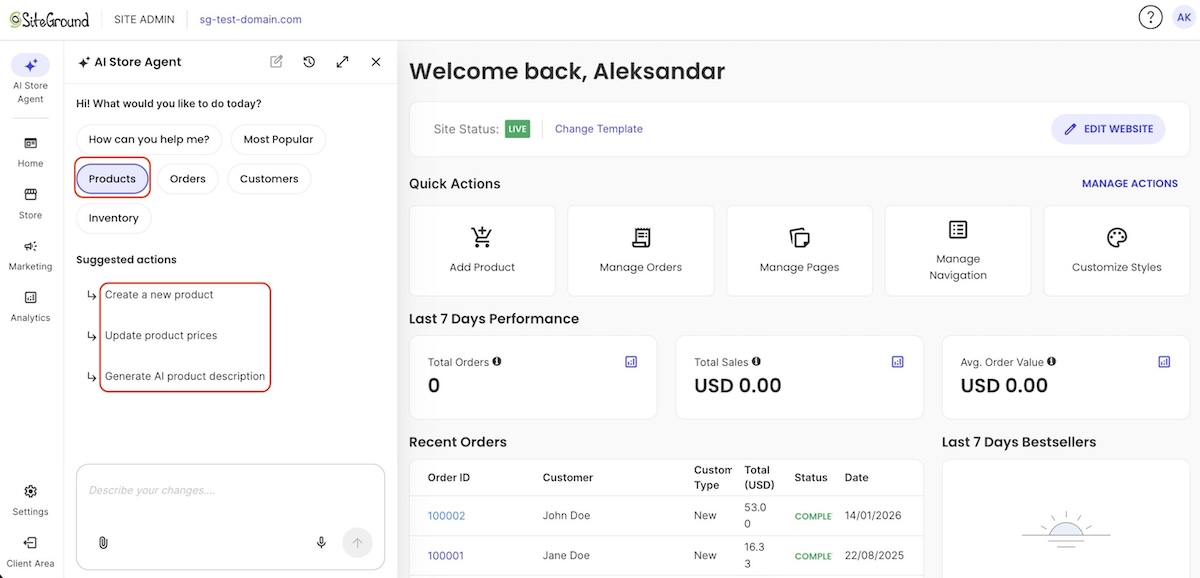
  • AI: the AI Wizard builds the store from a description; the AI Store Agent runs it afterward, answering questions about your actual order, product, and customer data, and executing bulk catalog edits. Both run on AI Studio, a broader AI workspace included free with every plan, up to 20,000 tokens a month, with multi-model chat access to Claude, ChatGPT, and Gemini plus 15+ specialized agents for marketing tasks like social posts, ad copy, and SEO.
Example of an AI store manager with a chat to manage your online store
  • Support: 24/7 via chat, phone, and ticket.
  • Infrastructure: premium hosting is included on every plan, run by a company that has been in web hosting for years rather than a design tool with ecommerce added on top.
  • Best for: sellers who want a fast, no-code launch with reviews, AI store management, and solid infrastructure all included, without stacking plugins to get there.

WooCommerce: full ownership, no platform fees

  • Price: a free plugin that turns a WordPress site into a store, not a standalone platform on its own. You need WordPress, and hosting for it, before WooCommerce does anything.
  • Setup: the most hands-on option here — you’re managing hosting, updates, and security yourself, not the platform. Full control means more technical skills are required.
  • What’s built in: basic reviews you turn on in settings. Core WooCommerce supports manual tax rates, but email marketing, abandoned cart recovery, and automated tax calculation come from extensions you add, some of them paid.
  • AI: no built-in AI assistant or store builder. WooCommerce core has early support for connecting outside AI assistants to your store (still in developer preview, and technical to set up); other AI features come from plugins.
  • Support: not included with WooCommerce itself. You’re relying on your hosting provider’s support team or community forums, not a built-in help desk.
  • Best for: sellers who want full ownership of their store’s code and data, and either have technical support in place or want to build that control themselves. For a deeper breakdown against Shopify and AI-built alternatives, see our Shopify vs. WooCommerce vs. AI-built store comparison.

BigCommerce: multi-storefront and B2B options

  • Price: $29/mo (Core), $79/mo (Growth), or $299/mo (Scale), billed annually, each with a revenue cap before the next tier is required. Platform fee is 0% on orders through BigCommerce’s embedded payment providers, including Stripe and PayPal; on other gateways, a surcharge applies that steps down from 2% on Core to 1% on Growth to 0.6% on Scale.
  • Setup: a steeper learning curve than the no-code builders on this list.
  • What’s built in: native reviews, unlimited products and users, and abandoned cart emails and customer groups from Growth up. Multi-storefront support is available as a paid add-on, and B2B capabilities sit on its custom-priced Performance plan.
  • AI: BigCommerce’s AI is about product content, not store building. BigAI Copywriter writes product descriptions now, and you start from a theme. More advanced tools are still rolling out, reserved for its Performance and B2B plans.
  • Support: 24/7 chat and email support on Core; 24/7 live phone and chat on Growth and above.
  • Best for: multi-storefront or B2B businesses that can absorb that learning curve in exchange for the extra power.

Squarespace: best for design-first, boutique catalogs

  • Price: $16/mo (Basic) to $99/mo (Advanced), billed annually. Core ($23/mo) is where most sellers land, since that’s where the online-store fee drops to 0% (Basic still carries 2%). Card processing rates step down by tier too (2.9% + 30¢ on Basic and Core, down to 2.5% + 30¢ on Advanced), and digital content/membership sales run on their own steeper schedule (7% down to 0%).
  • Setup: fast and no-code.
  • What’s built in: native product reviews. Its extension marketplace is small and curated, covering shipping, inventory, marketing, and finance.
  • AI: Blueprint AI builds the store from a few brand questions. Beacon (run-stage AI) and its composer tools for products, FAQs, and discounts are included only on mid-tier plans and up, not the entry tier.
  • Support: email support 24/7; live chat Monday to Friday, with no phone support at any tier.
  • Design: a library of designer-made templates, customizable with a block-based editor.
  • Best for: boutique or brand-first sellers where design carries the store.

Wix: large app marketplace

  • Price: around $29/month for its entry ecommerce plan, with a 0% platform fee on top of standard card processing.
  • Setup: fast and no-code.
  • What’s built in: native abandoned-cart recovery and product reviews, plus the largest app marketplace on this list if you need more. Most of those apps carry their own separate cost, so it’s a paid ecosystem, not a free one.
  • AI: Aria builds the store, then keeps working after launch, monitoring performance, generating analytics, and helping edit products. A separate AI Site Chat tool answers visitors’ questions on your storefront.
  • Support: 24/7 in English via chat, ticket, and phone, though there’s no number to call directly. Phone support works by requesting a callback instead.
  • Best for: sellers who already know they’ll need a specific app or integration, and don’t mind paying for it separately instead of getting it built in.

GoDaddy: budget-friendly entry point

  • Price: $9.99/month on annual billing (Starter, GoDaddy’s entry tier), with no separate platform fee. Standard card processing (2.7% + 30¢) applies on top.
  • Setup: fast and AI-generated. Describe your business and GoDaddy’s AI produces a starter site in minutes, similar to the other no-code builders here.
  • What’s built in: unlimited products and services and multiple payment and delivery options on every paid plan, with tax and shipping settings available in its store setup.
  • AI: generates the site and store from a description, then keeps working afterward through the same chat interface. It can update pages, blog posts, or product listings over time. It also handles AI-driven SEO and automated responses in its web chat tool.
  • Support: 24/7 phone, chat, and text, plus a ticket system for specific product issues.
  • Best for: very small or first-time sellers on a tight budget who want the a simple, chat-based setup.

Which Shopify alternative actually fits your ecommerce store

Different platforms solve different problems, and no single one is perfect for everyone. Here’s a quick way to match what matters most to you with the platform that actually covers it.

You value…Consider
A large ecosystem of paid apps and plugins to build exactly what you needWix, WooCommerce
Extensive support across phone, chat, and ticketsSiteGround Ecommerce, GoDaddy, BigCommerce (phone on Growth and up)
AI assistance for both building and running the storeSiteGround Ecommerce, Wix, Squarespace (mid-tier plans and up), GoDaddy
Reviews, AI, and store tools included standard, without adding extra appsSiteGround Ecommerce
Managing multiple storefronts, or selling B2BBigCommerce
Boutique, design-first brandingSquarespace
A lower monthly subscription priceGoDaddy

Is SiteGround Ecommerce the right Shopify alternative for you?

The right platform here depends on what you’re optimizing for: a wider marketplace over what ships built in, or a lower monthly price over deeper features. None of that makes one platform objectively best, just better suited to a specific kind of seller.

One option shows up across several rows above: support, AI, and what ships built in. SiteGround Ecommerce launches fast without code, includes reviews and store management tools standard rather than behind a paywall or a separate app, and runs on SiteGround’s own hosting infrastructure, not a design tool with ecommerce added on afterward. You can try it free for 14 days, no credit card required.

[103]

FAQs about Shopify alternatives

Is there a free alternative to Shopify?

WooCommerce is free to install, though you’ll still pay for hosting somewhere. Most other Shopify alternatives, including SiteGround Ecommerce, offer a free trial instead of a permanently free tier, typically 14 days.

What is cheaper than Shopify?

It depends on your order volume and plan tier. WooCommerce charges no platform fee, and BigCommerce charges none with embedded payment providers like Stripe and PayPal, while SiteGround Ecommerce and several others only reach 0% platform fees above their entry plan. Compare the plan-by-plan breakdown above rather than the advertised sticker price alone.

Can I switch from Shopify without losing my products?

Sometimes. Product data, images, and customer information typically export as CSV files, though import options vary, so check each platform’s tools before you commit. Expect to manually rebuild theme customizations and app integrations, since those don’t transfer between platforms.

Hosting a Node.js API backend for your mobile app or SaaS

Mobile preview of a custom PC storefront website, featuring gaming PC configurations, product listings, and a dark interface with green accents.

An API backend needs less from a host than the market implies: a process that stays up, a database, secrets storage, a deploy path, and TLS. Most managed platforms can do all five.

A Node.js API backend is a long-running process that answers HTTP requests and returns JSON. It does not need a dedicated server, a container orchestrator, or a platform priced per instance. It needs somewhere that keeps the process alive, gives it a database and a domain, and redeploys it when the code changes. Node.js server hosting on a managed shared plan covers that, provided you know where the ceiling is.

Key takeaways:

  • Five things decide whether a host can run an API backend: a supervised process, a database, environment variables, a deploy path, and TLS on your own domain.
  • “API hosting” is used for three different products. Only one of them, application hosting, actually runs your code.
  • The question that matters more than framework choice is how much your API needs you to operate it after it goes live.
  • SiteGround runs Node.js projects on GrowBig (up to 5 projects), GoGeek (up to 10), and Cloud (unlimited). The StartUp plan does not support Node.js.
  • Node.js versions 18, 20, 22, 24, and 26 are selectable per project, with npm, yarn, and pnpm all supported.
  • A request-response API fits a shared plan. Anything holding an open socket per client does not, on any shared host at any price.

What an API backend actually needs from a host

Strip away the marketing and an API backend has a short requirements list. Check your own service against it before you compare providers, because most of the differences between hosting products sit above this line, not below it.

  • A process that stays up. Your API starts once and answers every request from memory. Something has to restart it when it exits.
  • A database it can reach. Usually relational, usually on the same network, ideally not a separate subscription.
  • Somewhere to put secrets. API keys and connection strings belong in the host’s environment settings, never committed alongside your code.
  • A deploy path you will actually use. If shipping a change is tedious, you will ship fewer of them.
  • TLS on a domain you control. Mobile clients will not talk to an untrusted certificate, and most will not talk to plain HTTP at all.
  • Logs when a deploy fails. Build output you can read is the difference between a five-minute fix and an afternoon.

Notice what is missing. Horizontal autoscaling, container control, and a private network are real requirements for some services. However, for many early-stage mobile apps, those capabilities are headroom rather than baseline requirements, so paying for them before the workload demands them can add unnecessary cost and operational complexity.

What “API hosting” actually means

The phrase covers three different products, and search results mix them freely. Knowing which one you are being sold saves a lot of wasted evaluation time.

API hosting compared with API gateways and API management

API hosting is application hosting. The provider runs your code as a live process and routes traffic to it. This is what you need if you have written an Express, Fastify, NestJS, or Koa service and it has to exist somewhere.

An API gateway sits in front of an API that already exists. It handles routing, rate limiting, authentication, and request transformation. A gateway does not run your code, and buying one when you needed hosting leaves you with a very capable front door and nothing behind it.

API management is the commercial layer on top: developer portals, usage plans, billing, and analytics for APIs you expose to third parties. It matters when your API is the product. It is irrelevant when your API exists to serve your own front end.

For most teams shipping a mobile app or an internal tool, the answer is the first one, and the other two are problems for a later year.

Where an API backend can live

Four models can run a Node.js API. They differ less in capability than in how much of the operational work they hand back to you.

Application platforms

Platforms built specifically to run application code give you the most headroom: horizontal scaling, WebSocket support, container-level control, and regional deployment. They are the correct answer for a service with real concurrency demands or persistent connections. The trade is that pricing is metered, the database is usually a separate product, and a domain, mailboxes, and backups are yours to arrange. 

Managed shared hosting

A managed shared plan runs your Node.js application as a supervised process alongside the rest of your hosting account. You get a fixed monthly price, a database, a domain, and email in the same place. The control panel covers the deployment, and the familiar hosting tools sit underneath it: a file manager, scheduled jobs, and SSH access to your own account. What you do not get is a server to administer. For a request-response API that is mostly upside, because there is less to configure and less to leave misconfigured.

A VPS

A virtual private server gives you root, and with it every decision: the operating system, the process manager, the reverse proxy, the certificates, and the patching schedule. Choose it when you genuinely need that control. Choosing it by default means you have taken on a systems administration job in order to host a JSON endpoint.

Serverless functions

Functions suit spiky, short-lived work: webhook handlers, scheduled jobs, image processing. They suit a conventional REST API less well, because a persistent database connection, an ORM, and a per-invocation execution model fight each other. Many teams that start an API on functions migrate it to a long-running process within a year.

ModelYou operateBest fit for an API backend
Application platformThe app, and the services you attach to itHigh concurrency, WebSockets, regional scaling
Managed shared hostingThe app onlyRequest-response APIs alongside other sites
VPSThe app, the server, and the stackCustom system requirements, full control
Serverless functionsIndividual functionsEvent-driven and scheduled work

What it actually costs to host an API backend

The advertised price of an application platform is rarely the amount you pay. Work out the total before comparing, because the shape of the bill differs more than the headline figure.

What free tiers cost you in cold starts and sleep

Free and entry tiers on most application platforms suspend an idle process. The next request has to wait for it to start again, and that wait is measured in seconds rather than milliseconds. On a web page it reads as slow. On a mobile client with a timeout it reads as a failure, and your user sees an error rather than a spinner. This is the cost that never appears on a pricing page, and it is worth measuring on any host you are considering: deploy something, leave it alone for an hour, then time the first request yourself. 

What you pay for on a metered platform once the database is added 

Metered platforms bill the running instance, then bill separately for the parts an API needs anyway. A managed database is typically its own line item. A custom domain has to be bought elsewhere. Mailboxes on that domain are usually not offered at all. Egress and build minutes may be metered on top. None of this is hidden, but it is easy to compare an instance price against a hosting plan price and conclude the platform is cheaper. 

What a fixed-price plan covers

A shared hosting plan bundles the pieces. The database, the domain, email on that domain, TLS, daily backups, and a WAF come with the plan rather than alongside it, and the price does not move with traffic. For an API that serves a mobile app with a few thousand users, predictable beats elastic. The ceiling is real, but you reach it later than most people expect, and you reach it knowing exactly what the next tier costs.

When a shared plan is the wrong home for your API

This is the section most hosting comparisons skip. A managed shared plan is a poor choice for several kinds of API, and finding that out after migrating is expensive.

  • Your API holds open connections. WebSockets are not supported on any SiteGround plan, because opening a custom port for incoming connections is not permitted. This applies across shared hosting, and we cover what shared plans can and cannot run in more detail separately. Long polling over HTTP and HTTPS is the documented alternative and is adequate for infrequent updates, not for a live feed. 
  • You need to operate the live process. You get a build log for every deploy and an HTTP error log for traffic that reaches the app. What you do not get is a managed application log: your own console output is not surfaced in the panel. You can write it to a file and read that over SSH, but if you expect to tail a live process or attach a debugger, a VPS will suit you better.
  • Your data store is not relational. MySQL and PostgreSQL are both available. A document store such as MongoDB means connecting to an external managed service and accepting the latency that adds.
  • Your traffic is genuinely large or genuinely spiky. A shared plan is a fixed slice of a shared machine. An API under heavy sustained load wants dedicated resources, not a bigger shared allocation. 

Running a Node.js API backend on SiteGround

Which plan your API needs

The StartUp plan does not support Node.js, so availability begins on GrowBig. GrowBig runs up to 5 Node.js projects, GoGeek up to 10, and Cloud is unlimited. Count your projects before you pick a tier, and remember that a staging copy of your API counts as a project of its own. A team running one production API and one staging environment per client reaches the GrowBig limit at two or three clients, which is usually what moves an agency up rather than disk space.

Getting your API deployed

Connect a GitHub repository and every push to the linked branch rebuilds and redeploys the service, which is the path worth using for anything under active development. Uploading an archive works too but has no auto-deploy. The mechanics are the same for any Node.js application and are covered in our guide to Node.js support on shared hosting.

The part specific to an API is the environment settings. Database connection strings, third-party API keys, and signing secrets are configured against the project rather than committed to your repository, which also means a staging deployment can point at a different database without a code change.

The database, and pointing a client at it

MySQL and PostgreSQL are both created and managed from Site Tools. PostgreSQL is the one worth noting, because it is uncommon on shared plans and it means an API written against Postgres with Prisma, TypeORM, or Sequelize deploys without a rewrite or a separate database subscription. MongoDB is not available, so a document-store API connects to an external managed service.

Every project starts on a temporary domain, which is more useful for an API than it sounds. Your mobile or front-end client can point at that endpoint and exercise the real service while DNS for your own domain is still pointing somewhere else. Attach your domain when the client is ready, and the API keeps answering on a certificate you control.

Choose the hosting model your API actually needs 

If your API answers HTTP requests, you can live without WebSockets, and you would rather not be responsible for the server underneath it, SiteGround Web Hosting covers Node.js server hosting from GrowBig upward, with the database, domain, email on that domain, daily backups, and a WAF included rather than bought separately.

The right hosting choice is the simplest one that meets your API’s actual requirements without making you operate infrastructure you do not need.

Frequently asked questions

Where can I host my Node.js server?

You can host a Node.js server on a managed shared plan, an application platform, a VPS, or serverless functions. For a request-response API, a managed shared plan is the simplest option that still gives you a database and a domain in the same account. Choose an application platform if you need WebSockets or horizontal scaling, and a VPS if you need root access to the machine.

What is the cheapest way to host Node.js?

The cheapest option that stays viable is usually a fixed-price shared plan that already includes a database and a domain, because those are the costs that accumulate elsewhere. Compare total monthly cost rather than instance price: a low platform tier plus a managed database plus a domain frequently exceeds a hosting plan that bundles all three.

What is the best free hosting platform for Node.js?

Free tiers are well suited to prototypes, demos, and learning projects. They are a poor fit for an API that another application depends on, because free plans generally limit resources, and the database is usually the first thing you outgrow. Move to a paid plan before real users depend on the endpoint, not after.

Which hosting service is best for Node.js development?

For development and staging, the best service is the one that matches your production environment most closely, so that a deploy does not reveal differences. If your production API runs on a managed platform with a selectable Node.js version and a relational database, use the same combination in development. Matching the Node.js major version matters more than most teams assume.

Can I run a GraphQL API on shared hosting?

Yes. A GraphQL server is a request-response HTTP service like any REST API, and it runs as a standard Node.js application. The exception is GraphQL subscriptions, which rely on persistent connections and will not work where WebSockets are unavailable.

Can my mobile app talk to the API directly?

Yes. Once the API has TLS on a domain you control, a mobile client can call it directly. Point the app at your own domain rather than the temporary one issued at project creation, so the endpoint does not change when you attach your domain.

AI ecommerce store builders compared: What they build vs. what they run

Abstract of an AI powered ecommerce website builder

Every major ecommerce platform now says it has AI. What that AI actually does splits into two separate jobs: building the store, and running it once it’s live. This comparison breaks down which job AI ecommerce platform handles, across Shopify, SiteGround, Wix, BigCommerce, and Squarespace, so you know exactly what you’re getting before you commit.

Key takeaways:

  • An AI-powered ecommerce store builder with no code setup splits into two separate jobs: build-stage AI that generates the online store, and run-stage AI that manages it afterward.
  • Most platforms include some form of AI store generation at no extra cost, though not every platform offers build-stage AI at all.
  • The more advanced run-stage AI tools are often locked to higher-cost or business-specific plan tiers, not the standard small-business tier.
  • Some platforms consolidate their AI into a single assistant with multiple modes, while others split it across several separately branded tools.
  • Bundled AI doesn’t always mean free overall: AI access can still sit behind a premium plan, or come with separate transaction fees on top.

What does an AI-powered ecommerce store builder actually do?

It means AI handles one of two jobs, or sometimes both:

  • Build-stage AI: generates the store itself from a description, template choice, or prompt. This is what gets you from nothing to a working site.
  • Run-stage AI: manages an online store that already exists. This writes product copy, answers customer questions, analyzes sales data, or edits pricing.

A platform can be strong at one stage and weak at the other, so knowing which one you’re looking at keeps you from assuming a platform’s flashy AI demo covers everything you’ll actually need after launch. That’s what we’re examining here — what each store builder’s AI does at each stage. 

And worth noting: everything in this comparison is built in, meaning the ecommerce website builder ships with these AI features, requiring no extra signup, and not a third-party app you’d install and pay for separately. 

For a wider view beyond store-building specifically, this list of AI tools for business covers categories like accounting and scheduling that sit outside any of the five platforms above.

The quick answer: how AI store builders compare at build vs. run

Each platform gives its AI product a name. In this case, we’re talking about Sidekick, AI Wizard, Harmony, Aria, BigAI, Blueprint, and Beacon, just to name a few — all AI features of the top website building platforms. 

Here’s a quick breakdown of each one and how it stacks up at the build-stage versus run-stage; we’ll dive into the details farther down.

PlatformBuild-stage AIRun-stage AI
ShopifySidekick’s Designer persona turns a store idea into a working designSidekick’s Writer, Marketer, Photo Editor, and Tech Support personas
SiteGroundAn AI Wizard generates a site or online store from a plain-language descriptionThe AI Store Agent plus a built-in AI writer and product classifier
WixHarmony builds a full site or online store end to end, powered by AriaAria’s analytics, Smart Chat support
BigCommerceNone currently availableBigAI Copywriter (live); Product Recommendations and B2B Quote Assistant (coming soon, Enterprise/B2B only)
SquarespaceBlueprint AI Builder walks through a five-step guided setupBeacon AI assistant, plus AI Product, FAQ, and Discount Composers

This comparison reflects what was publicly available as of September 2026. AI features, pricing, and plan inclusions change often across every platform covered here, so confirm current details directly with each platform before making a decision.

Shopify: Sidekick

Sidekick is Shopify’s AI assistant, accessible from the admin dashboard with no setup or configuration required. It works through five specialized personas rather than one general chat window:

  • Designer: turns a store idea into a working design
  • Photo Editor: upgrades phone photos into product-ready shots
  • Writer: drafts product descriptions and page copy
  • Tech Support: handles domain setup and online store configuration
  • Marketer: generates social posts and campaign copy

Only Designer covers the build stage. The other four personas are run-stage tools for a store that already exists. Sidekick is included with every Shopify plan at no extra charge, though Shopify notes that usage limits vary by tier.

SiteGround Ecommerce: AI Wizard and AI Store Agent

SiteGround splits build and run into two distinct capabilities inside the Website Builder and Ecommerce product.

Build stage: AI Wizard. You describe your business in your own words: what you sell, the tone you want, and color inspiration if you have any. Before a site gets generated, the Wizard shows an editable summary (site name, goal, tone, palette) so you can correct it first. A template-based option is still available if you’d rather skip the description step entirely.

An AI website builder prompt box

Run stage: the AI Store Agent. Once an online store exists, the AI Store Agent answers direct business questions (such as which products deserve more promotion or which customers keep coming back) by analyzing orders, products, and customer accounts. This makes the usual steep learning curve of running an online store a whole lot easier.

Meanwhile, a separate toggle called Power Mode (off by default) lets it make bulk edits with a single instruction. Cut every price in a category by 10% ahead of a sale, or add the same specs across a whole collection at once. Product management becomes a breeze. 

Example of an AI store agent that can create and update products

Both the AI Wizard and AI Store Agent are standard, included key features on the SiteGround Website Builder and Ecommerce plans, not paid add-ons or a separate purchase. The AI Store Agent is available on the Sell, Grow, and Scale plans of SiteGround Ecommerce. It runs on AI Studio, SiteGround’s AI platform that gives access to models like ChatGPT, Claude, and Gemini through specialized agents. Every SiteGround customer gets 20,000 AI tokens a month at no extra cost, which is the usage allowance that powers the Agent’s requests. AI Wizard doesn’t draw from that allowance yet, so there’s no separate cost to using it either.

Wix: Harmony and Aria

Wix runs several named AI systems that split across both stages.

  • Harmony (build stage): Wix’s flagship AI website and store builder, powered by Aria.
  • Aria (build stage): the AI agent underneath Harmony. You describe what you want in plain language, and Aria executes it, everything from a simple color change to a full page redesign or adding online store functionality.
  • Smart Chat (run stage): blends automated and manual chat to answer product questions before handing off to a human.

Wix doesn’t publish separate pricing for each AI feature individually, so confirm what’s included at your specific plan tier before comparing costs directly against a platform that itemizes AI pricing.

BigCommerce: BigAI

BigCommerce is the one platform in this comparison with no build-stage AI store generator today. Everything under its BigAI umbrella addresses running an online store that already exists:

  • BigAI Copywriter (live now): writes SEO-optimized product descriptions at scale, pulling from the product attributes you’ve already entered in your catalog, so you’re not starting each listing from a blank page.
  • BigAI Product Recommendations (coming soon): shows each shopper “you might also like” suggestions on your storefront, picked automatically based on what they’re browsing, with the goal of getting them to add more to their cart. Reserved for BigCommerce’s Enterprise plan, a higher-cost tier built for larger businesses, not the standard small business owner.
  • BigAI Predictive Analytics (coming soon): forecasts customer lifetime value for new shoppers, using BigCommerce’s existing Google BigQuery integration to run the calculations.
  • BigAI B2B Quote Assistant (coming soon): drafts personalized quote proposal emails for sales teams. Reserved for BigCommerce’s B2B Edition, a separate product built for wholesale and business-to-business sellers rather than typical small storefronts.

If you’re comparing no-code AI ecommerce store builders, BigCommerce currently asks you to start from a theme rather than a generated design. This is a quickly changing space, though, so it’s worth confirming directly with BigCommerce current functionality before you commit.

Squarespace: Blueprint AI and Beacon AI

Squarespace covers both stages, with the build stage getting the most attention.

Build stage: Blueprint AI Builder. A five-step guided process that produces a personalized template based on your business type, with fonts, colors, and starter content already chosen.

Run stage: once the site exists, Beacon AI acts as a business partner offering step-by-step guidance, and three composer tools handle specific content jobs: the AI Product Composer writes listings from a description or photo, the AI FAQ Composer drafts support answers, and the AI Discount Composer builds promotional offers.

Most AI features are included starting on Squarespace’s mid-tier premium plans, not the entry-level tier. If you sell digital products (such as downloads, courses, or gated membership content) Squarespace also takes a separate transaction fee on those sales specifically, on top of your plan cost, with the percentage dropping the higher your plan tier. Physical product sales aren’t subject to this fee.

How to choose an AI ecommerce platform for your store

Five platforms, five different mixes of build-stage and run-stage AI. None of them line up feature for feature, which makes a straight side-by-side hard to act on. Instead, match the platform’s AI to what you actually need help with:

If your priority is…Look at
AI that builds the online store for you, not just runs it afterwardShopify, SiteGround, Wix, or Squarespace (BigCommerce has no build-stage AI yet)
Build and run-stage AI bundled into one subscription at no extra costSiteGround or Shopify
A structured, step-by-step setup rather than a single open promptSquarespace’s Blueprint AI Builder or SiteGround’s AI Wizard
Advanced run-stage AI and you’re on a higher-cost or business-specific plan already BigCommerce’s Enterprise-only or B2B-only BigAI tools (Product Recommendations, B2B Quote Assistant), once they’re out of “coming soon”

The best AI store builder is the one that fits your business

No platform here wins on every dimension: some are stronger at getting a full online store built, others at running one once it’s live, and a few gate their best AI behind higher-cost plans. Match the platform to the stage, and the plan tier, where you actually need the help.

If you’re looking for build- and run-stage AI in one no-code ecommerce platform, SiteGround has you covered: a genuine build-stage tool paired with a run-stage agent, inside one subscription, at no extra cost. It’s also built on the same no-code platform already trusted by millions, backed by fast, scalable hosting infrastructure and 24/7 customer support.

[103]

AI store builder FAQ

Can I build an ecommerce store with AI without coding?

Yes. Every platform in this comparison with build-stage AI, Shopify, SiteGround, Wix, and Squarespace, generates a working online store from a plain-language description or a short guided setup, with no coding required. BigCommerce is the exception here: it currently has no build-stage AI store generator, so building on BigCommerce still starts from a theme rather than an AI-generated design.

Is an AI store builder legit?

Yes. AI store builders that generate a working online store from a description, and AI that manages one afterward, are real, shipped capabilities today, not just marketing concepts. That said, this space is moving fast, and what each platform’s AI can do keeps expanding and changing, sometimes from one week to the next. Confirm a specific feature is actually available on your plan before you choose a platform based on it, and before you go live, it’s worth checking that your AI-built store is actually ready to accept real payments.

What’s the difference between SiteGround’s AI Wizard and its AI Store Agent?

The SiteGround AI Wizard builds a website or store from a plain-language description, as part of the standard SiteGround Website Builder and Ecommerce setup. The SiteGround AI Store Agent manages and analyzes an existing online store afterward. Both are part of and included in the same product.

Do AI ecommerce platforms charge extra for AI features?

Most run-stage AI features, like Shopify Sidekick and SiteGround’s AI Store Agent, are bundled into standard plan tiers at no extra charge. Some higher-tier features, such as BigCommerce’s Enterprise-only AI tools, cost more or are still rolling out, while SiteGround’s AI Wizard and AI Store Agent are included in the standard setup rather than sold separately.

GoDaddy alternatives: Hosting options beyond the big box

Comparing GoDaddy alternatives: SiteGround, Hostinger, and Bluehost logos beside pricing, performance, and backup icons

If you’re comparison-shopping after a GoDaddy renewal jump, add-on fees, or a website builder that hit its ceiling, these six alternatives cover beginners, online sellers, and agencies alike. SiteGround leads the list for combining hosting and a builder, backed by security and performance built in from day one, with the option to add ecommerce, email marketing, or AI-assisted building as your site grows.

Key takeaways:

  • SiteGround combines hosting and a website builder in one account, with permanent free SSL; add email marketing, ecommerce, or vibe coding with Coderick AI as your site grows.
  • Hostinger comes closest on platform breadth, with ecommerce included from its entry plan, though email marketing requires stepping up to Unlimited.
  • Migrating away from GoDaddy typically takes a few hours of DNS propagation, not days, and most hosts, including SiteGround, offer free migration tools.
  • Namecheap has one of the lowest starting prices of the six, though DreamHost comes within a cent.

Why people look for a GoDaddy alternative

If your renewal price jumped past what you signed up for, your store broke at checkout, or your website builder hit its ceiling, you might be looking for something else entirely.

SSL that isn’t free forever

GoDaddy’s Economy plan includes SSL (Secure Sockets Layer) free for the first year, then charges $119.99 a year after that, one of several ongoing hosting costs worth checking before you commit to a plan.

Most of the alternatives on this list, including SiteGround, include free SSL with no time limit, not just a first-year deal.

Support that’s hard to reach when something breaks

WebsitePlanet’s own testing of GoDaddy alternatives describes a slow, hard-to-reach support experience firsthand; WPBeginner built an entire piece around the same frustration. Support quality is the kind of thing you don’t notice until you need it, and by then it’s too late to shop around. SiteGround offers phone, chat, and ticket support 24/7, not every alternative on this list does, Hostinger, for instance, doesn’t offer phone support at all.

Hosting and a website builder, sold as one thing or two

Hosting and website building are often sold as separate products, adding friction when you’re trying to simplify your setup. Several of the alternatives below solve this directly, bundling a builder into the hosting plan itself rather than treating it as a second purchase.

How we picked these GoDaddy alternatives

Every option on this list met four criteria, the same ones worth applying whenever you’re choosing a web hosting partner:

  1. Price transparency: is the renewal rate visible up front, not just the intro deal
  2. What’s included by default versus sold as an add-on
  3. Migration friction: how much work it takes to actually switch
  4. Platform breadth: how much a switcher gets in one account
ProviderFree SSLWAFDDoSCaching & CDNUptimeSite creationEcommerceEmail marketing
SiteGround✓ permanent✓✓Automatic, 3-layer + in-house CDN, 170+ edge points99.9% SLA, with compensation for downtimeBuilder, WordPress (plus Coderick AI)✓ From Sell planAdd-on, free for 30 days 
Hostinger✓ permanent✓✓Page caching only; CDN on Premium plan+99.9% guaranteeBuilder, WordPress, Horizons AI✓Not in base plans; Reach, Unlimited plan and up
Bluehost✓ permanentBusiness tier +Business tier+Manual setup; CDN third-party99.99% guarantee, with a 5% credit if missedWonderSuite AI, WordPressWonderCart, higher tiers onlyX
DreamHost✓ permanent✓✓Not on shared plans100% guarantee (a stated commitment, not an independently tested result)Liftoff AI, WordPressVia builder, no dedicated suiteX
HostGator✓ permanent✓ ✓Cloudflare CDN included99.9% guaranteeBuilder, WordPressIn builderCreative Mail
Namecheap✓ first year onlyfull Imunify360 on Stellar Business only✓Supersonic CDN, free tier capped at 50GB/month100% guarantee; independent testing measured uptime at 99.2%AI Website Builder, Sitejet, and EasyWPXX

The best GoDaddy alternatives

Six options, each covered on its own merits.

SiteGround: The all-in-one platform pick

Best for: small businesses and growing websites that want more responsive support and a more integrated alternative to GoDaddy, with hosting, security, performance, and site-building included, plus ecommerce and marketing tools you can add as you grow.

Strengths:

  • All-in-one platform: hosting and a website builder included, with ecommerce, email marketing, and AI tools available on the same account as your site grows, one login instead of juggling separate providers.
  • Daily backups: 30-day history and one-click restore, included on every plan, so if something breaks or gets hacked, you’re not losing weeks of work, and you’re not paying extra for that safety net.
  • Free SSL, for good: no renewal fee, included on every plan. GoDaddy’s SSL is free for one year, then $119.99/year after, here it’s free permanently.
  • In-house WAF (Web Application Firewall), AI anti-bot protection: included by default, so your site is protected from day one, not just after you notice something’s wrong and go looking for a security add-on. Malware scanning (Site Scanner) is a separate purchase, worth adding if you’re managing client sites or a store.
  • Multi-level caching stack: free on every plan, so your site loads fast without needing to buy your way onto a higher tier for it.
  • Multiple ways to build your website: the website builder or WordPress, both free with hosting, so you’re not locked into one approach. For AI-generated sites, Coderick AI is available as a separate purchase, and ecommerce (the Sell plan) is a separate purchase too, once you’re ready to sell. Hostinger comes closest to matching this breadth, though its email marketing tool sits behind a higher plan tier.
  • Migration performance: 80% of sites moved from GoDaddy to SiteGround load faster on the new host, with an average speed increase of 79.5%; the same pattern shows up moving from Hostinger (78% faster, 95% average increase) and Bluehost (84% faster, 75% average increase).

Trade-off: This breadth costs more than picking the cheapest bare-bones plan on this list, though the gap narrows once you factor in what several of those cheaper options charge extra for instead.

Bluehost

Best for: beginners who want a straightforward first website.

Strengths:

  • WordPress.org’s long-standing recommendation: Bluehost has been an official recommended host for years, which means a well-worn path, with plenty of tutorials and community support if you get stuck.
  • WonderSuite AI builder: a guided, AI-assisted setup that means you spend less time staring at a blank page deciding where to start.
  • Included security: weekly backups, malware scanning, and automatic malware removal come standard on every plan. The web application firewall and DDoS protection, paired with AI-powered threat detection, are included from the Business tier up.

Trade-off: ecommerce (WonderCart) is gated to higher-tier plans, and there’s no dedicated email marketing tool if you outgrow a basic inbox.

Hostinger

Best for: switchers who want a similar mix of hosting, builder, ecommerce, and email marketing tools, at a lower entry price. Ecommerce is included from the entry plan; email marketing requires stepping up to the next tier. Email accounts on Hostinger’s entry plan are capped at 2 mailboxes, and its CDN isn’t included on the first tier either, both worth checking if you’re used to having more room to grow before hitting a wall.

Strengths:

  • Horizons AI app builder: generates a working site from a prompt, a genuine alternative to a traditional builder if you want something built fast without learning WordPress first.
  • Ecommerce and Hostinger Reach: built-in store tools and email marketing, the closest match to SiteGround’s all-in-one setup on this list.
  • Free SSL and WAF included: security basics covered without an add-on.
  • NVMe (Non-Volatile Memory Express) storage across plans: consistent performance regardless of tier.

Trade-off: email marketing requires stepping up a tier; the entry plan’s mailbox and CDN limits are also worth checking before committing.

DreamHost

Best for: reliability-focused switchers who want backups handled without thinking about it.

Strengths:

  • Daily backups on every plan: no tier-gating, the one thing GoDaddy charges extra for, here included by default even on the cheapest plan.
  • WAF and DDoS protection: included on every plan, confirmed directly from DreamHost’s own documentation.
  • Liftoff AI builder: covers the basics of getting a site live without a steep learning curve.
  • 25 sites on the entry plan: a real advantage for anyone managing more than one site under one account.

Trade-off: basic malware protection is included, but DreamShield, its more advanced scanning and alert system, is a paid upgrade, the same add-on pattern that pushes people away from GoDaddy in the first place.

HostGator

Best for: switchers who want a familiar, long-time GoDaddy rival with staging built in.

Strengths:

  • Staging environments on every tier: normally a higher-tier feature elsewhere, included here even on entry plans.
  • Cloudflare CDN (Content Delivery Network) with Argo Routing: included, not sold separately, for faster load times without an upgrade.
  • Free SSL and DDoS protection: included as standard, alongside complimentary malware scanning on shared plans.

Trade-off: the entry plan only includes chat support, no phone line. If your site goes down during a busy sales weekend and typing out the problem feels too slow, getting someone on the phone means stepping up a tier first.

Namecheap

Best for: switchers whose main GoDaddy frustration was domain-related upsells rather than hosting performance.

Strengths:

  • Low entry pricing: the cheapest way onto this list if budget is the deciding factor.
  • Domain-first reputation: transparent registration pricing and management tools, with fewer surprise upsells at the exact point where GoDaddy’s pricing tends to frustrate people most.
  • DDoS protection included: standard even at this price point.

Trade-off: no dedicated ecommerce product, so the cheapest plan on this list isn’t a fit if you’re planning to sell online.

How to move your site off GoDaddy

Migration breaks down into four pieces: DNS (Domain Name System), files, domain, and email, the same fundamentals as hosting a website from scratch.

  1. Set up email on your new host first. Get it running and confirmed working before touching anything else, so your inbox never goes down mid-move.
  2. Update your MX (Mail Exchange) records once the new email is verified, then keep GoDaddy’s email active in parallel until you’re sure everything’s landing correctly.
  3. Copy your files and database. Most hosts, including SiteGround, offer a free migration plugin that handles this automatically, so it’s rarely a manual, file-by-file transfer.
  4. Point your domain at the new host’s nameservers. DNS propagation is usually a matter of hours, though it can occasionally take up to 48. Your domain doesn’t need to move at the same time as your hosting, you can point it at a new host without a formal transfer, which is worth knowing if you’d rather handle buying or transferring a domain as a separate step later.

If you’re running a store, export your product catalog as a CSV (Comma-Separated Values) too, as an extra safety net alongside the file and database transfer.

Picking the right GoDaddy alternative for your site

Most of the six options above solve the same core complaints. The real question is which platform matches how your site actually gets used.

If you’re a blogger or content creator

Priority is a smooth writing and publishing workflow. SiteGround covers the basics by default, daily backups, an in-house WAF, and AI anti-bot protection, with Site Scanner’s daily malware checks available as an add-on if you want that layer too. Bluehost’s WordPress backing and DreamHost’s included daily backups both make sense here. If you pick DreamHost, remember DreamShield, its advanced malware scanning, costs extra, though basic protection is included.

If you’re selling online

This is where reliability matters as much as features, since a broken checkout costs more than a renewal fee ever could. SiteGround’s ecommerce and email marketing live in the same account as hosting, so there’s nothing extra to piece together as the store grows, no re-platforming, no new tier unlocking a tool you already needed. As sales pick up, the plans scale with the store rather than forcing a switch to a different product entirely.

If you’re an agency managing multiple client sites

Client needs vary, so consistent tooling across sites matters more than any single feature. SiteGround lets you manage every client site from a single dashboard, add team members as collaborators on any site, and, on GoGeek plans and higher, give clients white-label access to their own Site Tools with no SiteGround branding in sight. Speed and security matter more here too: a compromised site reflects on the agency, not just the client.

Storm Design, for instance, a Maltese agency, moved its full portfolio to SiteGround after a hack took 85 sites offline at once. A year later, the agency manages 200+ sites with zero hosting emergencies and zero support calls. Founder Jesmond Darmanin sums up his experience:

“Once I moved to SiteGround, I managed to retain all of the clients I have, and I also managed to get back some of the clients that had complained before.”

If budget is the deciding factor

Even the leanest setup benefits from backups, security, and speed included rather than added on later, since that’s exactly where a tight budget gets squeezed the hardest if something’s missing. SiteGround’s entry plan covers all three by default. A lower sticker price elsewhere is worth weighing only once you know what it doesn’t include.

Breaking up with GoDaddy? Here’s your next move

Whichever of these GoDaddy alternatives fits, the switch itself is rarely as disruptive as it looks once DNS, email, and files are mapped out ahead of time. 

SiteGround stands out on this list mainly because it’s the one place a switcher gets hosting and a website builder included, backed by security and caching that work automatically rather than needing manual setup, with ecommerce, email marketing, and AI tools available on the same account rather than pieced together from separate providers.

[86]

Frequently asked questions about GoDaddy alternatives

What are the best alternatives to GoDaddy?

SiteGround, Hostinger, Bluehost, DreamHost, HostGator, and Namecheap each solve a different piece of the GoDaddy frustration, from platform breadth to entry pricing to domain-first needs.

What are good alternatives to GoDaddy website builder?

SiteGround’s Website Builder, Hostinger’s Horizons, and Bluehost’s WonderSuite are the strongest AI-assisted builder alternatives, each included free on entry-tier plans. SiteGround’s Coderick AI is a separate paid tool for anyone who wants AI-generated sites or web apps specifically.

Is GoDaddy good for beginners?

GoDaddy’s dashboard is genuinely easy to start with, but beginners often hit the add-on wall quickly once they want backups, security, or CDN speed included rather than sold separately.

Is GoDaddy’s website builder reliable for online stores?

It depends on how much your store depends on uptime. GoDaddy doesn’t publish ecommerce-specific reliability data, so weigh backend stability alongside price when comparing hosts for a store, not just hosting features on paper.

Is SiteGround better than GoDaddy?

For anyone who wants hosting, a builder, ecommerce, and AI tools in one account, with email marketing available as an add-on, SiteGround is the stronger fit. See the full comparison for pricing and feature detail.

How do I migrate my website away from GoDaddy?

Set up your new host’s email service before switching DNS, use a free migration plugin to copy files and databases, and expect DNS propagation to take a few hours.

AI-built app maintenance: How to keep control as it grows

An illustration on a blue background featuring a smiling man holding a laptop, alongside UI overlays of a booking form being updated by an AI generator under different versions.

At some point, an app you built through vibe coding starts to matter. Customers sign up through it, payments run through it, or your team relies on it every day, whether you built it in a general AI tool or in an AI app builder such as Coderick AI. From then on, the next change feels risky, because something that already works could stop working.

AI-built app maintenance is keeping practical control of an app built with AI tools as it changes. It means knowing what exists, where important behavior lives, how to make a change and undo it, and what someone else would need to carry the work on if you stepped away.

Key takeaways:

  • AI-built app maintenance starts when the app starts to matter (meaning when customers, revenue or a team depend on it), rather than when something breaks.
  • Keeping control of your AI-built app has five parts: seeing what was built, mapping where key behavior lives, keeping changes small, being able to go back, and leaving context for others.
  • Source code access to your app is the first step, but you also need to understand important behavior, check changes, and retain a way back.
  • Early red flags, such as a fix breaking an unrelated feature or prompts overwriting manual edits, signal underlying issues you can resolve by refining your workflow.

When AI-built app maintenance starts to matter

Before an app matters, almost every change is safe. If a prompt breaks the layout, you simply try another one or click Restore on a previous version card. If the whole build goes off track, starting over only costs an afternoon. Nobody else is affected, so maintaining a vibe-coded app at this stage barely needs a plan.

That changes the moment people begin depending on what you built. An app crosses the line into high-stakes territory when:

From that point on, a single careless prompt or manual code edit can break a feature that was already working, and the cost of that mistake falls directly on your users. 

Long-term AI app maintenance starts right at this tipping point, while everything is still working smoothly.

Why AI-built apps get harder to control as they grow

When you ask an AI to add one simple feature, like a discount box at checkout, it does a lot of unseen work behind the scenes. 

It might update the screen, change how prices are calculated, create a new spot in your database to save discount codes, and edit the receipt page. The discount works on your screen, but you only see the surface result, not the four connected pieces the AI changed under the hood.

As you add more features over time, your app grows faster than your understanding of it. A working app makes everything look fine on the surface, hiding the fact that you no longer fully know how it works. 

The AI also makes choices about how to organize your app without explaining why it made them. Even if you save every code file, the reasons behind those decisions get lost, and the app slowly becomes a black box that you can use but cannot see inside.

Software developers call this gap between how much code exists and how much of it you actually understand comprehension debt. A 2026 study by Anthropic Fellows showed how quickly this gap opens: people who simply let the AI write code without asking questions understood less than 40% of what was created. In contrast, people who asked the AI to explain the code it wrote understood over 65%.

You can do the same when vibe coding. Every time the AI builds a new feature, ask it to explain what it just did in plain language so your understanding keeps up with your app.

What it means to keep control of an AI-built app

Control over an AI-built app rests on five things you can check without reading code line by line. Together, they’re what AI app maintainability means for someone who isn’t a developer, and they answer how to maintain an AI-built app without learning to code.

1. Seeing what was built (visibility)

Visibility means the app’s code, files and data can be seen and kept. Source code lives in files, and an app of any size has dozens or hundreds of them. If you can’t open them, search them or keep a copy, every other part of control depends on the tool that built them.

For example, if you use an advanced AI app builder like Coderick AI, project code access shows every file behind a project. When you click on Code, you can browse the complete file tree, search file names and code text simultaneously, export individual files or the whole project as a .zip archive, and make quick manual tweaks directly in the editor without spending any credits.

Screenshot of a code editor interface displaying an ESLint configuration file alongside a project file directory.

Having access to the code is the foundation of control, but seeing the files is only the first step. 

2. Knowing where important behavior lives (your working map)

Controlling an app doesn’t require reading code line by line. What you need instead is a simple working map that answers four core questions:

  • Which file handles user sign-ups?
  • Which component processes payments?
  • Which section triggers system and notification emails?
  • Where is customer information saved in your database?

With a map in hand, you immediately know where a bug is likely sitting and which parts of your app a new change will affect.

The fastest way to build this map and keep it current is to ask the AI directly. Whenever a change goes in, ask the AI where the new code lives and why it was structured that way. Keeping these explanations builds the exact habit that helps you understand AI-generated code as your app changes.

To see how this works, here’s a simple prompt you can give to Coderick AI: 

“Can you give me a simple map of my app? List the key files and explain what each part does in plain language.”

Coderick AI outlines your project’s overall structure, breaks down what each key file handles, and flags any temporary placeholder content or features that still need setup. It also highlights where common changes live, reminds you how to make edits using chat or visual tools, and suggests clear next steps so you always know where your project stands.

Screenshot of a document explaining project file structure and functions, categorized into setup files, shared components, and pages.

3. Keeping each change small enough to check

Each request should aim at one outcome. When a single prompt asks for a new feature, a redesign and a bug fix together, the result touches so many parts of the app that you can’t tell what changed, or which part caused a new problem. A change you can check is one where you can say afterward what it was meant to do, which parts it touched, and whether it did what you asked.

Check each change before you build the next one on top of it. Asking the AI what it changed, then trying the affected feature yourself, takes a few minutes and keeps problems from stacking up.

For instance, take a look at what Coderick AI does when you point a request at one file (Navbar.tsx, which, as Coderick explained, contains the top bar with the logo), so the change and the explanation of it stay focused on that part of the project:

Screenshot of an AI assistant chat detailing style updates made to a navigation bar component based on a user prompt.

Good to remember: Specifying the exact file name in your prompt gives you three major advantages over a generic request. First, it isolates the AI’s work to one file, preventing unintended modifications to unrelated parts of your application. Second, it saves both time and account credits because the AI does not have to scan your entire codebase to figure out where the code lives. Third, it generates faster and more accurate updates, allowing the AI to deliver precise edits alongside a clear explanation of its work.

4. Being able to go back (recovery)

Recovery means having a known working version of your app (a saved checkpoint) and building the habit of using it.

When a prompt goes wrong, the natural reaction is to describe the error to the AI and ask it to fix it. However, asking for a fix on top of a broken build often adds new code on top of faulty code. After a few rounds of troubleshooting prompts, your app can end up much further from working than when the problem first started.

Restoring the last working version first, and then re-trying the change in a smaller, simpler form, keeps you on safe, familiar ground.

For example, in Coderick AI, version management and recovery are built directly into your chat workflow. Every completed request creates a timestamped version card, letting you roll back your project files with a single click if an update goes wrong. Plus, your private preview panel acts as a safe sandbox, so no changes affect live visitors until you explicitly click Publish or Update.

Screenshot of the Coderick AI chat interface with a red circle highlight over the "Restore this version" tooltip in the top right, above a version history card.

5. Leaving enough context for someone else (continuity)

Continuity means that someone else can step in and take over your app without friction: a colleague, a developer you hire, or even yourself returning after three months away. Your source code shows what the app does today, but it can’t explain why it was built that way, what features you tried and dropped, or which delicate sections you prefer nobody touches.

A short written record fills this gap without needing technical language. A simple page explaining what the app is for, who uses it, key design decisions, and past fixes gives anyone an instant starting point. Having this context also makes collaborating with a professional developer much smoother when the time comes to expand your app.

To help you keep track of this, AI app builders like Coderick AI automatically preserve your full chat history, displaying saved version cards directly alongside the exact prompts that generated them.

Warning signs that control is slipping

These warning signs usually appear long before an AI-built app becomes unmanageable. Catching them early tells you exactly which habit or tool to adjust.

SignWhat it usually points toWhere to look next
You can’t say what the last change touchedRequests that are too large or complex to checkKeep your next prompt focused on a single outcome, and review the file summary.
A fix in one place breaks something elsewhereHidden dependencies across files you have not mapped.Ask the AI for a simple map of your app to see how your files connect.
You keep re-prompting the same fixThe AI is missing context, or the problem sits in a part you haven’t pointed it toRestore the last working version, then point the request at the part involved
You avoid touching part of the appThat feature has turned into an unreadable black box.Ask the AI to explain what that section does in plain language, or consult a developer if it remains unclear.
Your manual edits disappear after a promptConflicts between manual code edits and AI prompts.Reference files in chat, or make manual edits after saving your AI version checkpoint.
The app slows down as its data growsPerformance problems that grow with your data.Inspect your database collections, or consult a developer to optimize data loading.
You’re unsure what it does with customer data or loginsUnanswered security or data privacy questions.Review how your database manages authentication rules, or ask a developer for a quick security check.
Only the AI could explain why something worksArchitectural decisions made without a record.Start a written record of decisions, beginning with that part.

The first five warning signs can usually be resolved using the daily habits covered in this guide, such as restoring version checkpoints and referencing specific files in chat. Performance slowdowns and complex security questions are typically where app owners benefit from a developer’s expertise.

How to keep control of an AI-built app as it grows

You don’t need to audit the whole app to start. Apply the five steps covered here to your very next change, and the habit carries over to the one after it. This is how to keep an AI-built app maintainable without turning maintenance into a project of its own:

  • Before the change, make sure there’s a working version you can return to, and decide which part of the app the change should touch.
  • During the change, ask for one outcome, and ask the AI to explain what it did and why.
  • After the change, try the affected feature yourself, check that nothing nearby broke, and add a line to your record saying what changed and why.

This routine works for vibe coding app maintenance in any AI platform. Your map and your record grow a little with each change, which is how you can maintain a vibe-coded app long term without depending on anyone’s memory of how it was built.

Keeping your understanding in step with your app

AI-built app maintenance comes down to one primary goal: keeping your understanding in step with your app. An AI builder will continue adding new code as fast as you can prompt it, but speed without comprehension quickly leads to debt.

The five pillars of control give you a simple framework to track what was added, know where it lives, and safely undo changes whenever necessary. As long as your understanding moves at the same speed as your codebase, you will remain in complete control of your app as it grows.

[96]

FAQs

What is AI-built app maintenance?

AI-built app maintenance is keeping practical control of an app built with AI tools as it changes. It means knowing what exists, where important behavior lives, how to change it and undo changes safely, and what someone else would need to continue the work.

How do you maintain an AI-built app as it grows?

You maintain an AI-built app as it grows by keeping your understanding in step with each change. Keep changes small, keep a working version to return to, ask the AI to explain what it changed, and write down the reasons behind important decisions.

Is access to the source code enough to keep control of an AI-built app?

No. Access to the source code isn’t enough on its own to keep control of an AI-built app. It lets you see and keep what was built, while control also depends on knowing where important behavior lives, keeping changes checkable, being able to go back, and recording why things were built that way.

What makes an AI-built app maintainable?

An AI-built app is maintainable when its owner can see what was built, find where key behavior lives, make small changes and check them, restore a working version, and hand the project on with its context.

Can non-developers maintain an AI-built app?

Yes. Non-developers can maintain an AI-built app day to day by keeping changes small, keeping working versions to return to and recording decisions. Deeper problems, such as slowdowns or security questions, usually need a developer’s help.

How do you stop an AI-built app from becoming a black box?

You stop an AI-built app from becoming a black box by asking the AI to explain what it built and why, keeping a plain-language map of where important behavior lives, and writing down the decisions behind each significant change.

Does Shared Hosting Support Node.js? What’s Actually Different

A hosting account dashboard listing three live sites side by side: a WordPress blog, a Node.js Express app, and a WooCommerce store.

Some shared hosts run Node.js. Most still don’t. The difference isn’t the price of the plan, it’s the runtime model: PHP discards your application’s state at the end of every request, while Node keeps one persistent process running and waiting for requests. Supporting Node.js means supervising that process.

Almost every answer you’ll find about Node.js on shared hosting was written before that supervision existed.

Key takeaways:

  • Node.js on shared hosting is available on a minority of providers, including SiteGround, where it runs on GrowBig and above.
  • “Supports Node.js” means two different things: Node being installed and left to you, or the host running your app for you as a supervised process that stays up and restarts on its own.
  • Shared plans carry request-response workloads: Express APIs, server-rendered Next.js sites, React and Vue front ends with a build step.
  • WebSockets aren’t supported on any SiteGround plan, because custom ports can’t be opened for incoming connections. Long polling over HTTP and HTTPS is the documented workaround.
  • SiteGround allows 5 Node.js projects on GrowBig, 10 on GoGeek, and unlimited on Cloud, with MySQL and PostgreSQL both available from Site Tools.
  • A Node.js project sits in the same account as your other sites, with the domain, email, SSL, and daily backups already included rather than bought separately.

What “supports Node.js” actually means

The phrase covers two different things, and conflating them is why forum answers often contradict each other. The first is availability: Node exists on the server and you are free to use it, but starting your application, keeping it alive, and pointing a domain at it are all your problems. The second is execution: the host runs your application for you, as a supervised process that stays up, answers on your domain, and starts again by itself when something goes wrong.

Only the second one is hosting. The first is a toolbox, not a service.

That explains the pattern across the types of web hosting sold as “Node-friendly”. A host can truthfully say Node is installed while offering nothing that keeps your application running. Started by hand, it stops the moment the connection that started it closes, because nothing was ever watching it.

A host that genuinely supports Node.js provides all of the following:

  • A process supervisor that starts the app and restarts it if it exits
  • A web server in front of the app, mapping your domain to it
  • A selectable Node.js runtime version
  • A dependency step that installs what your package.json declares, using npm, pnpm, or yarn
  • A way for the platform to work out which file boots your app, whether it detects it or you set it
  • Environment variable storage outside your repository
  • Build and deployment logs you can read when something fails

If a plan description mentions no process manager and no way to deploy an application, it’s offering you a binary, not a runtime.

Why shared hosting was built for PHP, not Node.js

Shared hosting was designed around a request model Node.js doesn’t use. The standard stack puts hundreds of accounts on one machine and stays stable because no single site holds resources between visitors. That assumption is baked into how shared hosting allocates memory, which is why Node needed a separate mechanism rather than a config flag.

How PHP releases your application’s memory after every request

A PHP request has a short, bounded lifecycle. A visitor hits the page, the web server hands it to a worker process that is already running and waiting, the worker loads the script, runs it, returns HTML, and then releases everything that script allocated. The worker itself stays alive and picks up the next request. What gets discarded is your application’s state, not the process holding it. That’s why one server can host hundreds of accounts: only the sites being visited consume anything. The per-request lifecycle in PHP 8.4 is a resource isolation strategy as much as an execution one.

Node.js inverts it. Your app starts once, holds its dependencies and state in memory, and answers every request from that same resident process. It consumes its memory footprint at 3 a.m. with zero visitors exactly as it does at peak.

What happens when a long-running process crashes

An unsupervised Node process that throws an unhandled exception doesn’t return a 500 and recover. It exits, the app stops answering, and every request after that fails until someone restarts it manually.

PHP has no equivalent failure mode. A fatal error kills one worker, the next visitor gets a fresh one, and nothing needs to be watching. That’s the problem a host solves before it can sell Node.js on a shared plan: something must monitor each application, restart it on exit, cap what it consumes, and stop one account’s memory leak from taking the neighbors down with it.

What changes on a host that does support Node.js

The host adds an application layer above the web server, and it does the supervision your app would otherwise need a VPS and PM2 to get. It’s the same division of labor that separates managed from unmanaged hosting: the supervision is the product, not something you configure.

That trade runs further than it first looks. The control panel covers the whole deployment, and the familiar hosting tools sit underneath it if you want them: a file manager, scheduled jobs, SSH access to your own account. What you do not get is a server to administer. Nobody is asking you to patch an operating system, configure a process manager, or decide how your app comes back after it falls over. Whether that reads as freedom or as a missing feature is the clearest signal of whether this kind of hosting is for you.

You set a handful of things in a control panel and the platform handles the rest:

  • Runtime version. Which Node.js release the app runs on, selected per project rather than per server.
  • Framework preset. The platform recognizes what you have built and fills in the build settings that suit it. You can override them, and the file that boots the app is worked out for you.
  • Dependencies. The platform installs what your package.json declares, using the package manager you pick and produces the node_modules tree at deploy time.
  • Connecting to the web server. You don’t configure this. The platform runs a web server in front of your app, connects the two, and maps your domain to it.
  • Environment variables. Credentials and API keys live in the panel, not in your repository.
▎ The Node.js Deployment Options screen in SiteGround Site Tools, showing the framework preset, Node version, package manager, and build command fields.

Where a shared plan can (and can’t) run a Node app

Two questions decide this, and most articles only ask the first. The first is whether your app is request-response or persistently connected. Request-response workloads fit shared plans well, and anything that holds an open connection to each client doesn’t, at any price tier, on any shared host.

The second gets asked far less often and matters just as much: how much does your app need you to operate it once it is live? A managed platform runs your code, not your server. If your app assumes it can reshape the server underneath it, or that something is watching the process on your behalf, that is the constraint worth weighing, more than the framework it happens to be written in.

Your appShared plan verdict
Express or Fastify REST APIWorks
Next.js or Nuxt site with server-side renderingWorks
React, Vue, Svelte, or Astro front end with a build stepWorks
NestJS or Koa backend service serving JSONWorks
App exported from an AI builder or vibe-coding toolWorks, if it’s a standard Node project with a package.json
Chat, live dashboard, collaborative editor, anything on Socket.ioDoesn’t work. Needs a platform that allows custom ports
Multiple client projects under one accountWorks up to the plan’s project limit: 5 on GrowBig, 10 on GoGeek
App needing MySQL or PostgreSQLWorks. Both are available from Site Tools
App needing MongoDB or another non-relational databaseDoesn’t work. You’d connect to an external managed service

Two verdicts you should reach without asking support. If your app answers HTTP requests and returns data or HTML, a shared plan carries it. If it pushes data to connected clients in real time, no shared plan will.

The second one catches people deploying something built with an AI tool. Most output from vibe coding workflows is a standard Express or Next.js project and deploys without incident. The exceptions reached for Socket.io because the prompt said “live”.

Ready to deploy rather than evaluate? This article covers whether a shared plan fits your app. For the step-by-step walkthrough, follow How to create a Node.js project in the knowledge base.

How SiteGround compares to Hostinger and app platforms

Two categories of providers answer this query, but they approach Node.js from different directions. Traditional web hosts add Node.js to a broader hosting account that can also run websites, databases, email, DNS, backups, and other services. App platforms put application deployment and runtime management at the center of the product.

The right choice depends both on what your application requires and what else you want the same hosting account to handle, which is an important part of choosing a web hosting partner.

Shared hosts: SiteGround, Hostinger, Namecheap

All three provide a managed interface for running Node.js applications, but their plan limits, deployment workflows, databases, and networking restrictions differ.

  • SiteGround. Node.js is available from GrowBig upward, with up to 5 projects on GrowBig, 10 on GoGeek, and unlimited projects on Cloud. Apps can be deployed from GitHub with automatic redeployment or uploaded manually, with configurable build settings and deployment logs. MySQL and PostgreSQL are both available.
  • Hostinger. Managed Node.js applications are available on Business Web Hosting and Cloud plans. It supports GitHub deployment, file uploads, configurable builds and managed MySQL. Incoming WebSocket connections aren’t supported on Web and Cloud hosting, so applications that require them need a VPS or another platform.
  • Namecheap. Node.js is available on shared hosting through cPanel’s Setup Node.js App tool. PostgreSQL is also available on some shared plans, alongside MariaDB.

Database support is one practical difference. SiteGround provides PostgreSQL directly with its hosting, while Hostinger’s Web and Cloud plans provide MySQL and require an external service for PostgreSQL. That matters if your application is already built around Postgres and you want to keep the database inside the same hosting environment.

App platforms: DigitalOcean App Platform and Fly.io

App-focused platforms generally give you more flexibility around application runtimes, real-time connections, scaling, and deployment architecture. DigitalOcean App Platform supports WebSockets and horizontal scaling, while Fly.io lets you distribute and scale application Machines across regions.

The tradeoff isn’t simply managed versus unmanaged hosting. These platforms manage a substantial amount of infrastructure too. The difference is what they manage around your application.

A traditional hosting account is designed to bundle the other services a website commonly needs alongside the application. An app platform is designed primarily around deploying and operating the application itself, with databases, email, storage, domain registration, and other services added or connected according to the architecture you choose.

That makes the decision less about which category is universally more capable and more about what you want the hosting product to do. If Node.js is one part of a broader website setup, an integrated hosting account can reduce the number of systems you need to manage. If the application needs capabilities such as incoming WebSockets, more flexible scaling, or greater runtime control, an app-focused platform may fit the architecture better.

What you can’t do on any shared plan

WebSockets are not supported on any SiteGround plan. The documented alternative is long polling over standard HTTP and HTTPS, which is fine for a notification badge or a status check every few seconds, but not optimal for a chat app or a collaborative editor.

Three more limits apply across the whole shared hosting provider category:

  • No custom inbound ports. Anything that expects to open its own listener for incoming connections won’t start.
  • No root. You get SSH access to your own account and a file manager, so your project’s files are yours to read and change. What you can’t do is install system packages or alter how the server itself is configured.
  • A fixed resource ceiling. A shared plan is a fixed slice of a shared machine, and an app that outgrows it wants a different tier rather than tuning.

If any of these is a hard requirement, upgrade the infrastructure instead of working around it. Reading the comparison of shared hosting against a VPS beats discovering the limit in production.

Node.js hosting on SiteGround

Plan tiers and project limits

StartUp does not support Node.js. Node.js availability starts on GrowBig and continues through GoGeek and Cloud.

PlanNode.js projectsWeb space
GrowBigUp to 550 GB
GoGeekUp to 10100 GB
CloudUnlimited40 GB to 1 TB

All extra services such as email, SSL, CDN and security features are included in all tiers, at no additional cost.

Deploying via GitHub or ZIP upload

There are two deployment paths, and the choice is worth making deliberately.

  • Connect a GitHub repository. Every push to the linked branch rebuilds and redeploys automatically. This is the path for anything under active development.
  • Upload an archive. The source goes up manually as a .zip, .tar.gz or .tgz file, with no auto-deploy. Every update is another upload.
▎ The Deploy Your Node.js Web App dialog offering two options: import a Git repository, which is recommended, or upload your files.

Projects are created in Client Area > Websites > Node.js Projects, where you manage status, primary domain, and deletion. Deployment method, build settings, environment variables, and deployment logs live in Site Tools > Node.js.

▎ A SiteGround Site Tools dashboard with Node.js Deployment Options and Node.js Logs pinned alongside MySQL Manager, SSL Manager, and Email Accounts.

Databases, domains, and what’s included

Every project launches on an auto-generated temporary domain, so the app is reachable and testable before any DNS points at it. You attach your own domain whenever you’re ready, which also lets a client review a staging URL without touching their live records.

MySQL and PostgreSQL are both created and managed from Site Tools. The plan also includes a free domain, email on that domain, SSL, the SiteGround CDN, daily backups, and WAF and DDoS protection.

A Node.js project isn’t a separate product here. It sits in the same account as your WordPress sites and static pages, sharing the same domain, email, and database tooling. If your app is a request-response API or a server-rendered front end, and you would rather not be responsible for the server underneath it, a shared plan is a real home for it.

The remaining choice is mostly about scale. GrowBig supports up to 5 Node.js projects, while GoGeek supports up to 10, with the rest of the hosting stack managed alongside them. If that integrated setup fits how you want to run your apps, compare the SiteGround Web Hosting plans and choose the tier that matches what you’re building.

[86]

Frequently asked questions

How much does Node.js hosting cost?

Node.js runs on GrowBig and above, so the cost is the price of the plan rather than a separate charge. There is no add-on fee for Node.js itself, and the plan covers the database, domain, email on that domain, and daily backups the application needs alongside it. When comparing against an application platform, compare the total monthly cost rather than the instance price, because a database, a domain, and backups are usually billed separately there.

Why can’t Node.js run on shared hosting?

It can, on hosts that have built for it. The old answer was accurate when shared stacks ran only per-request PHP processes, with nothing to supervise a long-lived application. Some hosts can now supervise a long-lived process and put a web server in front of it, so Node.js runs on shared plans.

Is shared hosting good?

Shared hosting fits when traffic is moderate and your app doesn’t need root access, custom ports, or a guaranteed resource floor. For an Express API, a business site, or a Next.js front end, it’s the right tool. For a real-time app or one under heavy sustained load, it isn’t.

How does shared hosting work?

Shared hosting places multiple accounts on one server, each with an allocated slice of CPU, memory, and disk. The host manages the operating system, web server, and patching. On plans that support Node.js, an application layer runs each project as a supervised process alongside the standard PHP stack.

Can I host a React or Next.js project on shared hosting?

Yes, on a shared plan that supports Node.js. A React or Vue front end with a build step deploys as a standard Node.js project, and a server-rendered Next.js or Nuxt site runs as a persistent process the way an Express app does. A purely static export doesn’t need Node.js support at all.

Can I run a real-time or WebSocket app?

No. WebSocket servers require a custom port open for incoming connections, which isn’t permitted on any SiteGround plan. Long polling over HTTP and HTTPS is the documented workaround and is adequate for infrequent updates. For genuine real-time features, use a platform that allows custom ports.

How many Node.js projects can I host?

GrowBig supports up to 5 Node.js projects, GoGeek up to 10, and Cloud is unlimited. StartUp doesn’t support Node.js. Each project has its own deployment settings, environment variables, and build logs, so separate client applications stay independently configured inside one account.

AI Agent for WordPress vs StoreAgent: Which fits WooCommerce management better?

A comparison graphic between SiteGround AI Agent for WordPress and StoreAgent, showing interface examples for both e-commerce AI tools.

StoreAgent and SiteGround’s AI Agent for WordPress are both AI assistants for WooCommerce management, but the question is: do you need a suite of tools for your storefront or a WordPress AI assistant to manage your entire website?

AI Agent for WordPress vs StoreAgent sets a dedicated WordPress management agent against a specialized WooCommerce AI suite. StoreAgent combines a customer-facing chatbot for shoppers, content generation, store analytics, and an external connection that lets outside apps like ChatGPT or Claude edit your store remotely. SiteGround’s AI Agent for WordPress handles complete website administration and online store operations directly inside its own built-in chat window, with zero outside accounts or external connections required.

Key takeaways:

  • AI Agent for WordPress vs StoreAgent starts with who each one works for. StoreAgent’s chatbot talks to your shoppers while its content tools and insights serve you, and the AI Agent for WordPress works only for you, in the WordPress dashboard.
  • StoreAgent connects to third-party apps like Claude or ChatGPT to adjust basic prices, stock, and order statuses for simple products, while the AI Agent for WordPress handles broader WooCommerce store operations directly in chat.
  • The AI Agent for WordPress also manages the WordPress site around the store, including plugins, users and settings, in the same chat as your products and orders.
  • Many online stores can benefit from both tools: StoreAgent for assisting shoppers, and the AI Agent for WordPress in the dashboard to handle daily site maintenance and WooCommerce management.

AI Agent for WordPress vs StoreAgent at a glance

Here is how SiteGround’s AI Agent for WordPress and StoreAgent compare side by side:

DimensionStoreAgentAI Agent for WordPress
What it isA WooCommerce AI suite: a storefront chatbot, content tools, insights and an MCP connectionA unified WordPress and WooCommerce management agent
Who it servesShoppers on the storefront, and the owner in the dashboardStore owners, managers, and site administrators directly inside their workspace
Where the owner worksStoreAgent’s screens in the WordPress dashboard and the StoreAgent.ai account, or inside Claude or ChatGPT for store changesInside the WordPress admin chat pop-up or the SiteGround AI Studio workspace
AI accessIncluded in StoreAgent plans, with no API keys. Store changes use your own Claude or ChatGPT accountIncluded automatically via SiteGround’s managed AI connection with no third-party API keys or separate provider billing needed
Shopper conversationsA storefront chatbot with live prices and stock, order lookups, coupon offers, escalation to the owner, and replies in the shopper’s languageOperates exclusively inside your administration control panel for site management rather than on public visitor pages
Product contentDescriptions, short and category descriptions, tags, alt text, review summaries, Q&A and upsell suggestions, in bulkCreates product descriptions, translates entire store catalogs, and manages site content across posts and pages on demand
Changing store dataThrough a connected assistant: prices, sale prices and stock on simple products, plus order status and notes, one product per requestManages complete e-commerce operations, including bulk catalog edits from spreadsheets, storewide price changes, coupons, category restructuring, and order processing
Store analyticsA chat-to-sale funnel, revenue from chat-assisted orders and listing-quality insightsProvides store sales reports and general performance summaries directly in chat
The site around the storeOutside StoreAgent’s own abilitiesManages your broader website alongside your store, including plugins, themes, user roles, permissions, and core settings
Several storesPaid plans cover unlimited websites, and each store connects to your assistant separatelyExecutes bulk administrative and store management tasks across all connected websites on any hosting provider from a single chat
SafetyContent saved as drafts for approval. The connection starts read-only, changes stay off until you allow them, every change is confirmed, and a 30-day activity log records each onePower Mode (a setting that stays off until you allow high-impact changes) gates deletions, bulk changes, user changes and order edits, with every high-impact action confirmed
CostA free Lite plan with 200 AI tasks and 50 chat replies that don’t renew, then $19, $49 or $249 a month20,000 free AI tokens to start on any website, whoever hosts it, then top up or subscribe monthly. Included with SiteGround hosting plans, which add free monthly AI tokens

Where StoreAgent and AI Agent for WordPress differ

Choosing between StoreAgent and SiteGround’s AI Agent for WordPress comes down to who the tool interacts with and how much of your website it actually manages. It’s also a difference between a specialist plugin and site-wide AI agent.

StoreAgent for shoppers or AI Agent for WordPress for store owners

StoreAgent focuses heavily on customer service. Its chatbot sits directly on your public online storefront to assist shoppers in real time, checking live prices, verifying stock for specific sizes or colors, helping logged-in customers track orders, and offering discount coupons to hesitant buyers. Unresolved customer chats are emailed directly to your inbox. For store owners, it also provides dashboard tools to write product copy and track sales analytics from first chat to final order.

An e-commerce dashboard displaying performance metrics like revenue, conversion rate, and chats, alongside catalog health action items.

The AI Agent for WordPress works exclusively for you. Operating privately inside your WordPress control panel or AI Studio workspace, it doesn’t interact with your public website visitors. Instead, it acts as your personal store manager, executing administrative and store tasks on demand whenever you type a request.

Screenshot of the AI Agent by SiteGround welcome screen featuring a prompt input box and suggested quick actions.

WooCommerce alone, or WooCommerce and WordPress

StoreAgent is built strictly for WooCommerce, meaning its capabilities start and stop with your product catalog and store operations. 

SiteGround’s AI Agent for WordPress manages both your online store and the broader website hosting it within a single conversation. In the exact same chat window where you manage store inventory and pricing, you can also:

  • Maintain site health: update plugins before big sales to ensure your website handles peak shopping traffic.
  • Manage team access: add seasonal staff with store manager permissions to help run day-to-day fulfillment.
  • Update content & settings: revise essential policy pages, such as shipping, privacy, or returns, and adjust general site settings.

The gap widens further when managing multiple websites and online stores. While StoreAgent covers unlimited websites on paid plans, each store connects to your assistant individually. With the AI Agent for WordPress, agencies and store owners can run bulk operations across an entire portfolio at once, executing store updates, plugin checks, and settings changes across multiple connected websites on any hosting provider from a single chat prompt.

How StoreAgent MCP and AI Agent for WordPress change your store

StoreAgent and SiteGround’s AI Agent for WordPress take different routes to WooCommerce management. While StoreAgent splits tasks between its built-in modules and external AI models connected via MCP (Model Context Protocol, an open standard that lets an assistant like Claude or ChatGPT act on other software), the AI Agent for WordPress handles all requests natively within its own chat interface.

What StoreAgent can change: product content, simple-product prices and stock, and order status

StoreAgent operates through two distinct mechanics (neither of which requires pasting API keys):

  • Built-in StoreAgent tools: Its included AI powers automated background tasks such as storefront chatbot interactions, product tagging, and draft creation. You toggle each tool on in your settings, where each run consumes an AI task credit, saving descriptions as drafts for your approval.
  • External MCP connection for direct control: To direct store actions yourself (like changing prices or updating order statuses) you type instructions into your own Claude or ChatGPT session. StoreAgent MCP bridges that external assistant to your store once you approve the connection in your WordPress dashboard. (Note: Using custom MCP connections requires a paid subscription from those providers, such as Claude Pro/Team or ChatGPT Plus/Pro).

When running bulk content jobs with StoreAgent, you select a specific AI agent for the task (applying one agent per bulk run, though you can launch multiple bulk runs simultaneously). Pricing is calculated strictly per processed item, so any skipped products will not consume your AI Task credits.

For example, you can choose the Product Description AI Agent, select the specific items in your catalog that need updating, and run the batch. In the example below, the agent generated product descriptions for 20 products in a single bulk operation:

A Bulk Actions interface showing a completed Product Description AI run with 20 successful tasks.

What an external assistant can do depends on what’s called abilities, the pre-approved action triggers provided either by StoreAgent or directly by WooCommerce (version 10.9+):

  • Product content: Generates descriptions, product tags, image alt text, and captions using StoreAgent’s content abilities.
  • Simple products: Adjusts regular prices, sale prices, and inventory stock on single-option items using WooCommerce’s built-in abilities.
  • Order management: Searches orders by status, date, or customer, updates order fulfillment stages, and appends order notes.
  • Catalog edits: Creates new simple products or moves items to the trash.

Good to know: StoreAgent’s MCP settings show a warning that text an assistant reads from your store, such as product descriptions, reviews or order notes, may contain instructions written to mislead it. Connect only assistants you trust, and read what an assistant proposes before you approve it, especially for anything that changes prices or orders.

What StoreAgent can’t change yet: categories and refunds

Currently, an assistant connected through StoreAgent cannot touch:

  • Catalog metadata & settings: Categories, image galleries, attributes (such as material or brand), weight, dimensions, and shipping rules cannot be modified.
  • Refunds & financial reports: There are no abilities for processing refunds, managing customer accounts, or running built-in sales reports (though an assistant can tally orders from search results).
  • Bulk operations: Each edit targets a single product per request, meaning updating prices for forty items requires forty individual approvals.

WooCommerce considers these its initial set of abilities and plans to expand them over time. Furthermore, third-party plugins can register custom abilities of their own, which StoreAgent allows you to toggle on, so stores running compatible plugins may unlock some of these tasks sooner.

What AI Agent for WordPress can change: products in bulk, categories, prices and orders

The AI Agent for WordPress executes store changes directly within its own chat window in the WordPress dashboard or AI Studio workspace, with no external assistant accounts or third-party connection protocols required. The exact same chat window used to manage your website infrastructure also handles your WooCommerce store:

  • Product & catalog management: Creates and updates products individually or in bulk (including importing data from uploaded spreadsheets), manages product descriptions, translates catalogs, and restructures product categories.
  • Bulk pricing updates: Adjusts regular and sale prices across groups of products in a single prompt, such as discounting an entire product category or catalog.
  • Order management and sales analytics: Searches, updates, and processes WooCommerce orders, and pulls detailed sales reports—including period-based revenue (weekly, monthly, annual, or custom date ranges), top-selling items, order totals, and customer statistics.
  • Safety with Power Mode: Power Mode acts as a safeguard (disabled by default) that protects sensitive or high-impact actions (such as bulk product updates, mass deletions, user account changes, and order edits) requiring explicit confirmation before execution.

For example, running a storewide promotion takes a single natural-language prompt instead of hours of manually updating individual product pages. You simply ask the assistant to apply a discount across your catalog, and it automatically calculates the sale prices, updates your items in bulk, and confirms the exact changes right in the chat:

Screenshot of the AI Agent by SiteGround interface confirming a 20% discount applied to 50 products.

The bottom line: where is your store’s bottleneck?

AI Agent for WordPress vs StoreAgent comes down to which part of your e-commerce business demands the most time and attention.

If your daily workload centers on answering customer questions and improving product listings, StoreAgent excels as a storefront assistant. Its public-facing chatbot checks live stock in real time, assists shoppers directly, and provides insights that connect customer conversations to actual revenue. Conversely, if your primary challenge is managing the store and the website hosting it, SiteGround’s AI Agent for WordPress handles WordPress and WooCommerce administration from a single chat window, from bulk category price updates and order processing to plugin updates, security checks, and team access roles.

However, AI Agent for WordPress vs StoreAgent doesn’t have to be an either-or decision. Because their capabilities complement each other without overlapping, many online stores run StoreAgent on the storefront to engage shoppers while using the AI Agent for WordPress in the backend dashboard to manage daily site operations.

FAQs

AI Agent for WordPress vs StoreAgent: what is the difference?

The difference between AI Agent for WordPress and StoreAgent is who each one serves and how far it reaches. StoreAgent is a WooCommerce AI suite with a storefront chatbot for shoppers, product content tools, insights and a connection for your own AI assistant. AI Agent for WordPress is an owner-facing agent that runs store operations and the wider WordPress site from one chat.

Can StoreAgent manage a WooCommerce store, or is it mainly a chatbot and content tool?

StoreAgent can manage parts of a WooCommerce store. Beyond its chatbot and content tools, it connects Claude, ChatGPT or another assistant to the store, which can then change prices and stock on simple products and update order status once you allow it. Categories and refunds sit outside what that connection covers.

Can StoreAgent update prices, stock and orders through AI?

Yes. StoreAgent can update prices, stock and orders through a connected assistant, using the abilities in WooCommerce 10.9 and later. It covers prices, sale prices and stock on simple products, and order status and notes, one product at a time with each change confirmed.

What can AI Agent for WordPress do that StoreAgent cannot?

AI Agent for WordPress restructures product categories, reprices whole groups of products in one request, and manages plugins, users and settings, all from its own chat inside WordPress. StoreAgent’s own abilities stop at the store, and its store changes run through a separate assistant you connect.

Which is better for WooCommerce: StoreAgent or AI Agent for WordPress?

StoreAgent is better for shopper conversations, product content and conversion insight. AI Agent for WordPress is better for WooCommerce management and the WordPress site around the store. Stores that need both can use StoreAgent on the storefront and AI Agent for WordPress in the dashboard.

Do I need ChatGPT or Claude to manage WooCommerce with StoreAgent?

You need ChatGPT or Claude only for store changes you direct yourself with StoreAgent. Its chatbot, content tools and insights run on StoreAgent’s own AI, while owner-directed changes to prices, stock and orders go through an assistant you connect, on a plan that supports custom connectors.

How does StoreAgent MCP differ from AI Agent for WordPress?

StoreAgent MCP for WooCommerce links Claude, ChatGPT or another assistant you already use to your WooCommerce store, so you manage it from that assistant’s app. AI Agent for WordPress is its own agent with its own chat inside WordPress, covering the store and the site around it.

Can I use StoreAgent and AI Agent for WordPress together?

Yes. StoreAgent and AI Agent for WordPress can be used together, since they serve different people: StoreAgent answers shoppers and writes catalog content, while AI Agent for WordPress helps the owner run the store and the site.