
If you use vibe coding to build an app with an AI app builder such as Coderick AI, you can easily open the code behind it. Do it, though, and you’ll find dozens or hundreds of files containing AI-generated code you didn’t write. So if you want to know how your app works behind the scenes, where do you start?
For a non-developer, to understand AI-generated code is to have codebase literacy: knowing which parts of the project produce the app’s important behavior, following one feature from the screen to the data, checking that reading against what the app does, and recognizing when a question needs a developer.
Key takeaways:
- To understand AI-generated code, you need codebase literacy: the ability to find, follow and check the parts behind the features your business depends on.
- Start from something you can see on screen, such as a button label, and trace one feature from there to where its information ends up.
- Treat the AI’s explanations as a guide you confirm, with follow-up questions that tie each answer to a file and an outcome.
- Check your reading by predicting what the app will do and watching it happen, and take questions about security, payments or performance to a developer.
What it means to understand AI-generated code
Understanding an AI-generated codebase isn’t the same as learning to program. You don’t need to know what every line does, or why the AI chose one approach over another. You need to know the parts of the project behind the features your business depends on, which answers how much AI-generated code you need to understand: often a handful of files out of hundreds.
A non-developer can understand AI-generated code by working through seven steps, one feature at a time:
- Map: list what the app does from a customer’s point of view, and match each feature to the part of the project behind it.
- Locate: find the file where one visible feature begins.
- Trace: follow that feature’s path through the files it uses, to where its information is stored.
- Explain: ask the AI to describe that path in plain language, file by file.
- Test: predict one thing the app will do when you use the feature.
- Check: use the feature and compare what happens with your prediction.
- Escalate: bring in a developer when your question moves from what the code does to whether it’s safe, fast or well built.
You don’t need to do this for every single file you find in the codebase of your app. Applying this process to your app’s most important features gives you the clarity and control you need without getting bogged down in the code.
Where to start when reading AI-generated code
Start with the product rather than the code. Before you open a single file (one document of code) or folder (a group of related files), write down what the app does from a user’s point of view: someone signs up, books a slot, pays, or receives a confirmation email. That list tells you which parts of the code matter to you, so you can read AI-generated code selectively and navigate an AI-generated codebase without going through it front to back.
Then match each item to the project’s main areas. Folder names vary between tools, but most projects have the same few kinds of parts:
- The screens visitors see, such as pages, forms and buttons, usually sit together in one area of the project.
- The logic behind them decides what happens when someone clicks or submits something, such as checking that an email address looks valid.
- The database (where the app stores its information, such as accounts or bookings) holds the records each feature creates or reads.
- Styling and settings control how the app looks and how it’s configured.
- Connections to outside services, such as a payment provider or an email service, handle anything the app sends beyond itself.
You can ask the AI for a plain-language outline of the project that names these areas and the files in each. For example, if you use Coderick AI, access to your project’s source code shows the full file tree, so you can see that outline against the files themselves.
Here’s a simple prompt you can use in Coderick AI:
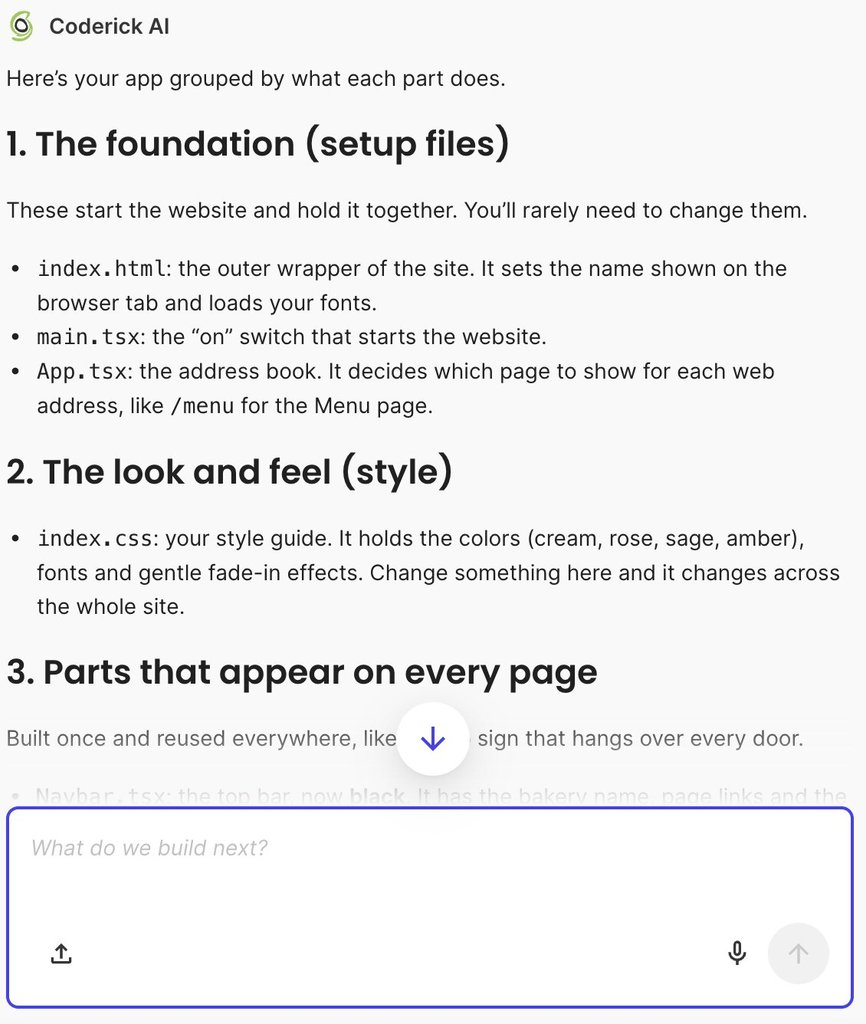
“Explain my app’s structure in plain English. Group the files by what they do.”
This will make Coderick AI provide a plain-language architectural map of your app. Instead of overwhelming you with technical jargon or raw code, it organizes every file in your project into clear, functional categories, such as setup files, global styling, shared layout components, individual pages, and interactive forms.
How to trace a feature through an AI-generated app
Tracing is how you understand the code behind an AI-built app one feature at a time, following it the whole way through, from what a visitor sees to what the app does with their input. Pick a feature you care about. A sign-up form makes a good first choice, since almost every app has one and it touches every kind of part listed above.
Start from something you can see
Pick a word or phrase on the screen that belongs to the feature, such as the button label “Contact us” or the heading above the form, and search the project for it. The file that contains it is where the feature begins. This is how to find which file controls a feature without knowing how the project is organized.
For example, if you vibe code in Coderick AI, the Code tab’s search covers both file names and what’s written inside each file, which takes you from a label on screen to the file behind it:
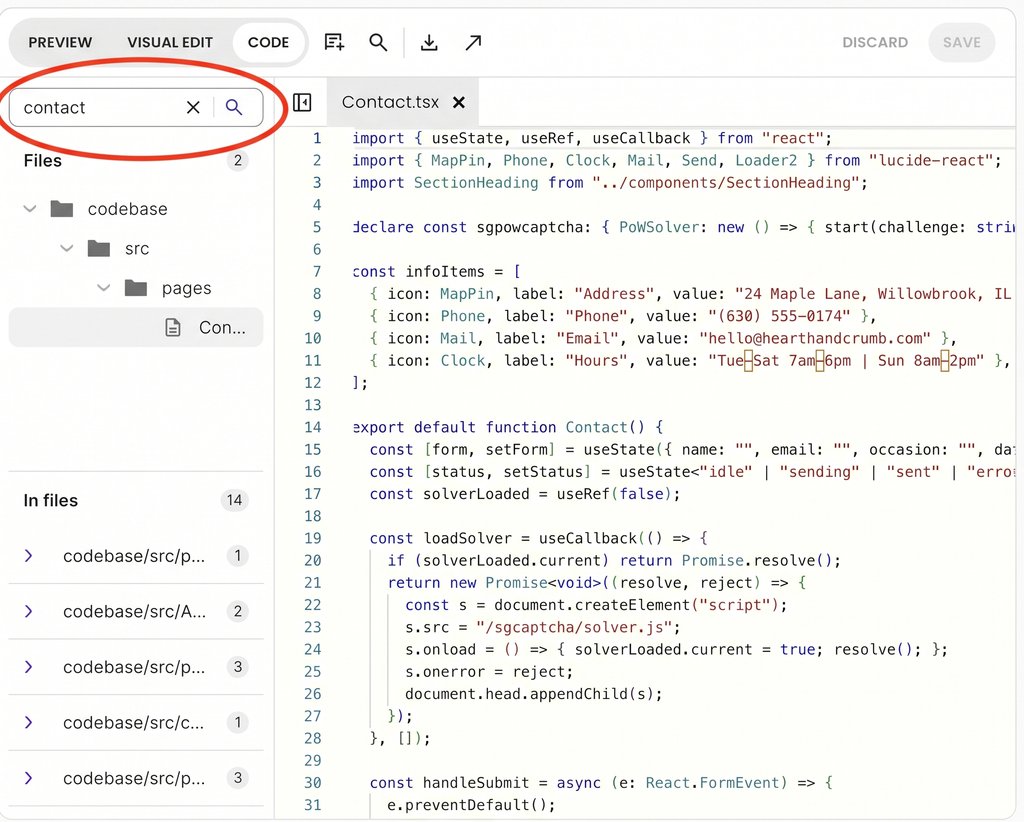
Pro tip: Search for the rarest words on the screen. A label such as “Submit” can appear in dozens of files. Placeholder text inside a form field, such as “Enter your work email,” or the exact wording of an error message usually appears only once, so it leads straight to the right file.
Follow what happens when it’s used
From that file, follow what happens when someone uses the feature. When a visitor clicks on something like “Send Request,” the code usually runs a function (a named set of instructions that runs when something happens), and that function does three kinds of things: it checks the input, such as whether the email address is in the right format, it sends the information somewhere, and it calls other files to handle parts of the job.
You don’t need to read each function yourself. Ask the AI to walk through what happens, step by step, and to name the file behind each step.
For instance, in Coderick AI, you can reference the file in the chat, which keeps the explanation on that file instead of the whole project. You can give Coderick AI a prompt like this one (you can adapt it to fit your specific case):
“In [file name], walk me through what happens step by step when a visitor [does something]. For each step, name the file or service that handles it, and explain it in plain language.”
For example:
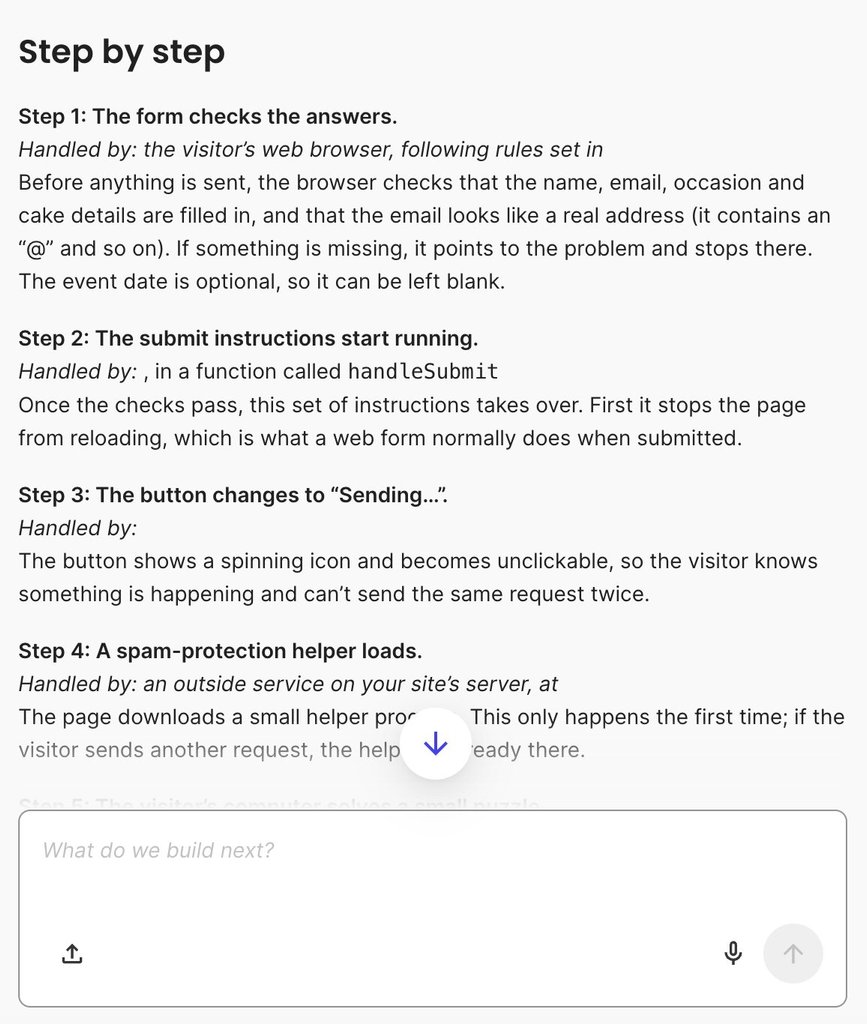
“In Contact.tsx, walk me through what happens step by step when a visitor clicks “Send Request”. For each step, name the file or service that handles it, and explain it in plain language.”
Coderick AI provides a plain-language, step-by-step trace of the entire form submission workflow, detailing which specific files and external services handle validation, spam protection, message formatting, and email delivery while highlighting any underlying bugs or missing configurations.
Find where the information ends up
Every feature leaves a result somewhere: a new record in the database, an email sent to the customer, or a request to an outside service such as a payment provider. Finding that result tells you what the feature produces, and whether the information a customer types in is stored where you expect.
Advanced AI app builders like Coderick AI create a database for each project automatically, with a dashboard that shows the records a feature saves, so after a test sign-up you can see the new account and the fields it holds.
How to use AI to understand the relevant code
The AI that built your app is the best guide a non-developer has to its code, and its explanations work best as a starting point you confirm. An explanation can describe what the code seems meant to do instead of what it does. It can also stay general where you need specifics, or describe an earlier version if the app has changed since you last asked.
When you use AI to understand code, four kinds of questions tie each answer to evidence you can check:
- Ask which file, and which lines in it, handle a step, so you can find the place yourself.
- Ask what triggers that step, such as a click, a submitted form or a scheduled task.
- Ask what the step changes or saves, and where that information goes.
- Ask what would happen in a specific case, such as a sign-up with an email address that’s already registered.
Here’s a simple prompt you can adapt and try:
“In [file name], walk me through what happens when a visitor [does something]. For each step, tell me which lines handle it, what triggers it, and what it changes or saves and where that information goes. Then tell me what happens if the visitor [does something wrong].”
For example:
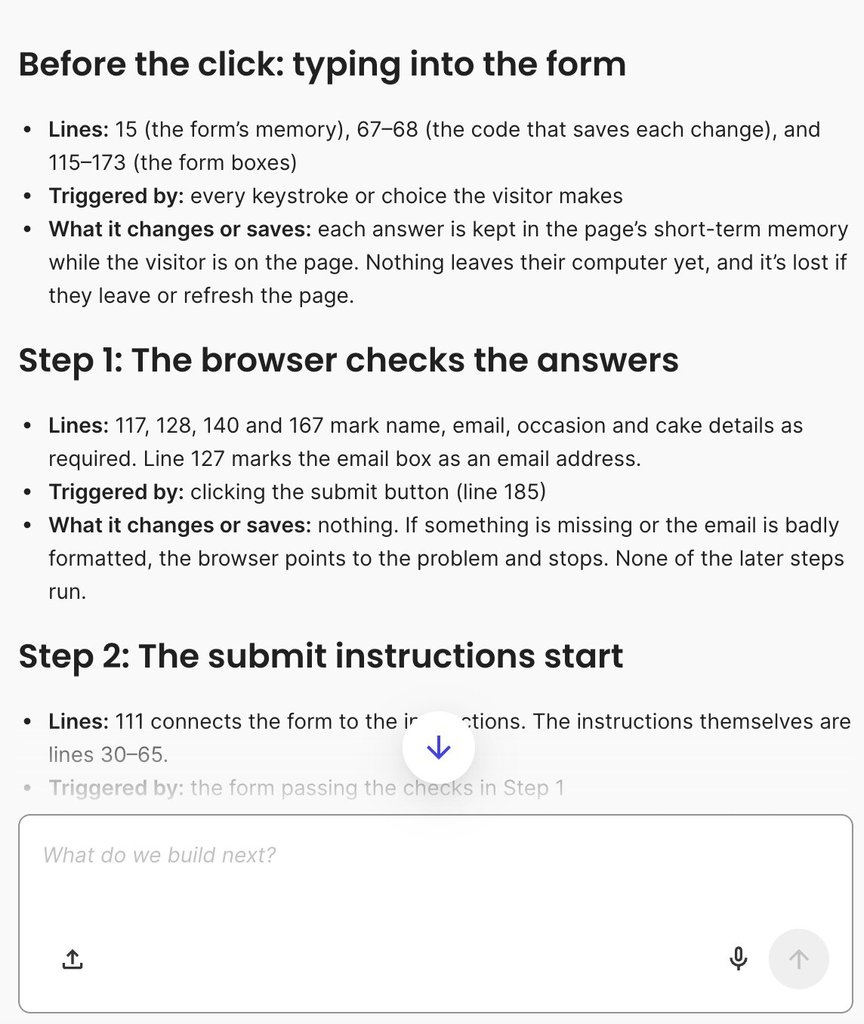
“In Contact.tsx, walk me through what happens when a visitor clicks “Send Request.” For each step, tell me which lines handle it, what triggers it, and what it changes or saves and where that information goes. Then tell me what happens if the visitor leaves the event date blank.”
From there, Coderick AI provides a granular, line-by-line walkthrough of the form submission lifecycle, mapping exact line numbers in Contact.tsx to triggers, data flows, and UI updates while calling out code-level bugs and unconfirmed email configurations:
How to check that you understand AI-generated code correctly
Once you’ve traced a feature, explain it back in your own words, without looking at the AI’s answer. If you can say what the feature checks, where it sends the information and what the customer sees at the end, you have a reading you can test.
Then make one prediction and watch it happen. For a sign-up form, it might be: “If I sign up with a new email address, a new record appears in the database with my name and email, and I land on the welcome page.” Use the feature in the app’s preview, then check the database. If the result matches, your reading holds. A wrong prediction means the map needs another look, usually at the step where the result first differed from what you expected.
Pro tip: Test sign-ups create records like any other. A prediction you check on a live app creates an account or a booking like any other. Use an email address you control, such as one with “test” in the name, so you can tell your test records apart from customers’ and remove them afterward.
Know when a question needs a developer
Knowing what code does isn’t enough to judge it in some areas, because the risk depends on details a non-developer can’t assess from behavior alone. These are the ones to recognize:
- Sign-in and permissions, meaning who can log in and what each person is allowed to see or change.
- Payments, including what happens when a charge fails or a customer asks for a refund.
- Personal data, such as customer names, addresses and contact details, and who can reach them.
- Anything that deletes or overwrites information, since a mistake there can’t always be undone.
- How the app behaves under heavy use, when many people use it at once or the data grows large.
- Connections to outside services, which depend on keys, settings and rules outside your project.
Three signals also tell you you’ve reached the limit of what reading can settle: the AI’s explanation of the same file changes each time you ask, a trace that won’t connect from one file to the next, or predictions that keep failing after you’ve revised your map.
At that point, your understanding gives a developer a head start, and working with a developer on an AI-built app goes faster when you can point to the feature and the files involved.
Understanding your app one feature at a time
To understand AI-generated code as a non-developer, you never need to read the entire codebase line by line. Instead, you build codebase literacy one feature at a time: locate where a feature begins, trace its path to where its data is stored, ask the AI to explain the journey, and verify your prediction against live app behavior.
This practical literacy is what allows you to expand your application with genuine confidence. Once you understand how your key files work, you can even begin combining AI prompts with direct manual edits, giving you total control over your AI-built app as it grows over the long term.
[96]
FAQs
To understand AI-generated code as a non-developer means knowing which parts of the project produce your app’s important behavior, being able to follow one feature from the screen to the data, and checking that reading against what the app does.
A non-developer can understand AI-generated code by starting with a feature they already know from the product, locating the code behind it, tracing only that feature’s path, using AI to explain unfamiliar parts, and checking the explanation against an observable result. You don’t need to understand every line or judge the code’s quality.
No. You don’t need to understand every line of AI-generated code. Focus on the paths behind the features that matter most to your business, such as sign-ups, payments and stored customer data, and bring in a developer when the question turns to security, performance or code quality.
You can check whether you understand AI-generated code correctly by predicting what the app will do in a specific case, then using the feature and comparing what happens, including in the stored data. If the result differs from your prediction, your understanding needs another look.
To find which file controls a feature, start with something visible in that feature, such as a button label, a field’s placeholder text or an error message, and search the project for it. The file that contains it is your starting point, and from there you can trace which other files handle the behavior.
Start reading AI-generated code from a feature you can see and care about, rather than from the first file in the project. A short list of what the app does from a user’s point of view gives you a map before you open any files.