Too many website cache layers: How to simplify without losing speed

Abstract illustration of website performance dashboards with a running athlete, representing fast website speed across cache layers

Multiple cache layers usually coexist without issues. The real problem starts when two or more systems try to control full-page (HTML) caching independently, which causes stale content, wrong data for logged-in users, and purges that seem to do nothing.

Key takeaways:

  • Browser cache, CDN, server cache, and application cache each serve a different role, and stacking them is not the problem.
  • Performance issues start when two or more systems independently control full-page (HTML) caching.
  • The most common symptoms of duplicate page caching are stale content after publishing, logged-in users seeing incorrect data, and cache purges with no visible effect.
  • You can identify which layer served a page in about a minute by checking HTTP response headers in your browser’s DevTools.
  • For most sites, one system for page caching, a CDN for delivery, and browser cache for repeat visits covers everything.
  • Integrated hosting stacks remove the most common source of conflicts because one system owns the HTML response by design.

When caching starts working against you

You publish a content update, but visitors still see the old version. A logged-in customer sees someone else’s cart data. The site loads fast on one request and slow on the next, with nothing changed on your end. You clear the cache, and nothing happens.

That last symptom is the tell. A single, well-behaved cache clears when you tell it to. When purging changes nothing, more than one system is caching the same HTML page, each with its own rules for when to store, serve, and expire it. They don’t know about each other, so clearing one leaves the others serving their own copies.

It happens more often than you’d expect:

  • A WordPress site running two caching plugins, each generating its own static HTML.
  • A CDN caching HTML responses while a plugin also generates static pages.
  • A host’s server-level cache overlapping with a plugin’s page cache.

The fix isn’t to disable caching. It’s to find where page caching is duplicated, remove the overlap, and let one system own the HTML.

What a website cache does

A website cache stores a copy of your site’s content so it can be served faster on repeat requests. Instead of rebuilding a page from scratch on every visit, the web server (or browser, or CDN) delivers a saved version. That reduces load time, lowers server resource usage, and improves the experience for visitors.
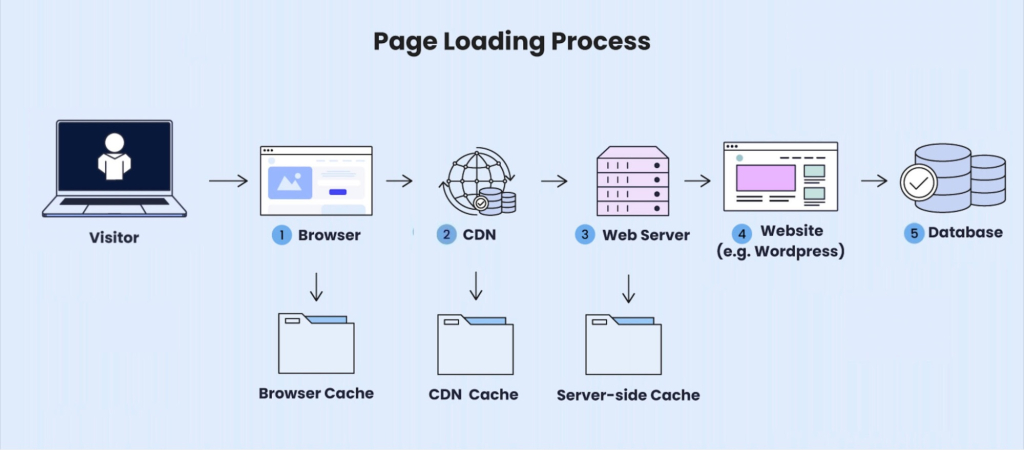
Diagram of the website page loading process showing a visitor request flowing through browser cache, CDN cache, server-side cache, WordPress, and the database

There are several distinct layers, each operating at a different point in the delivery chain.

Cache layerWhere it operatesWhat it caches
Browser cacheVisitor’s deviceStatic files (images, stylesheets, JS). Speeds up repeat visits by loading assets locally.
CDN cacheEdge servers worldwideStatic assets, and in some configurations full HTML pages. Serves content from the nearest node to reduce latency.
Server-level cacheWeb serverPrebuilt HTML pages. Skips PHP execution and database queries on every request. One of the most impactful layers for dynamic sites like WordPress.
Application cacheInside the CMSFull pages and dynamic content rules. Managed by a WordPress cache plugin. Controls what to cache, what to exclude, and when to invalidate.

In most setups, these layers handle different content types or serve different purposes and work fine together. The conflict zone is specifically full-page HTML caching, where server cache, application cache, and sometimes CDN cache overlap.

Where conflicts actually happen

Browser cache and CDN cache for static assets (images, CSS, JS) rarely cause problems. These layers store different file types, operate at different points in the chain, and don’t interfere with each other. The real issues come from duplicate page caching: two or more systems that independently generate, store, and serve cached HTML.

Common misconfigurations

MisconfigurationWhat happensWhat to do
Two page-caching plugins active at onceBoth generate their own static HTML files. Purging one doesn’t clear the other. Content updates appear inconsistently.Disable one. Keep whichever integrates better with your hosting or CDN.
CDN caching HTML while a plugin also caches pagesThe CDN serves its own stored HTML, ignoring the plugin’s cache entirely. Purging the plugin cache has no visible effect for most visitors.Either disable page caching in the plugin, or configure the CDN to pass HTML requests through to origin.
Plugin page cache overlapping with host’s server cacheTwo full-page caches with different expiration and purge rules. Stale content persists because purging one layer doesn’t affect the other.If your host’s server cache handles page caching, disable the plugin’s page cache and use the plugin only for minification or lazy loading.

Note: If you run an ecommerce site on Hosting for WooCommerce or any platform, duplicate page caching is especially risky. Stale cart data, broken checkout flows, and incorrect pricing can directly cost you sales, and these issues often go unnoticed until customers report them.

Why duplicate page caching is hard to debug

In a well-configured caching system, troubleshooting is simple: clear the cache, test the page, check the result. With two or more systems caching HTML independently, that process breaks down.

You purge the plugin cache, but the server cache still serves an old version. Then you clear the server cache, but the CDN holds its own copy. You purge the CDN, but the browser cache on the visitor’s device still shows stale content. Simple fixes turn into a cycle of clearing everything, testing blindly, and hoping the site works for everyone.

How to check which layer served a page

You can debug this from your browser, and it’s easier than you think. You can identify which caching system served a page by inspecting the HTTP response headers in your browser’s DevTools.
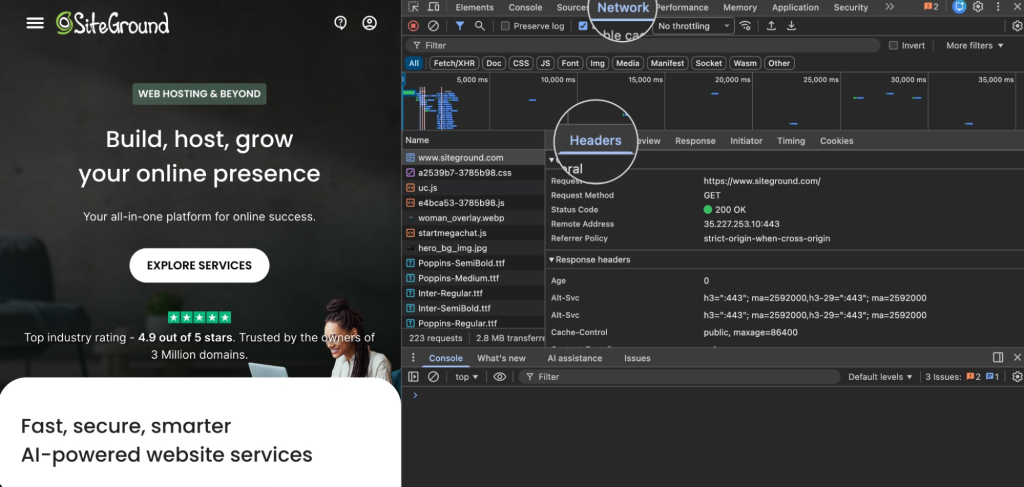
Chrome DevTools Network tab on the SiteGround homepage showing Cache-Control response headers with max-age values

Open the Network tab, reload the page, click the HTML document request, and check the response headers.

Headers to look for:

  • x-cache or x-proxy-cache: shows whether the server or reverse proxy served a cached version (typically HIT or MISS).
  • cf-cache-status: a Cloudflare-specific header. Values like HIT, MISS, DYNAMIC, or BYPASS tell you whether Cloudflare served the page from its cache.
  • age: the number of seconds the response has been stored in cache. A high value right after publishing a change means a layer is serving stale content.
  • cache-control: the caching rules the server sent to the browser and intermediaries. Look for max-age, no-cache, or private directives.

Here’s an example of response headers showing the page was cached at the server level:

x-proxy-cache: HIT
cache-control: public, max-age=86400
age: 532

If you see cache HIT headers from two different systems on the same HTML response, or if purging doesn’t change the age value, you likely have overlapping page caches:

x-proxy-cache: HIT
cf-cache-status: HIT
age: 1240
cache-control: public, max-age=86400

One system for page caching

The most reliable setups follow one principle: a single system controls how HTML pages are cached and served, and every other layer handles a different job.

  • One page-caching system: either your host’s server-level cache or a single cache plugin, not both. This is the layer that stores prebuilt HTML and skips database queries and PHP execution on every request. It owns HTML generation, expiration, and purging.
  • A CDN sits on top of that, serving static assets from the closest node to each visitor. For most setups, the CDN should pass HTML requests through to your page-caching system rather than caching HTML independently.
  • Browser cache handles the rest: static files stored locally on the visitor’s device so repeat visits don’t re-download assets.

When page caching lives in one place, purging works reliably, expiration rules are consistent, and there’s no ambiguity about which version of a page is being served. The problems described earlier almost always trace back to two systems both claiming ownership of the HTML response.

An integrated setup is one where page caching, CDN, and frontend optimization are built to work together under a single system, instead of being assembled from separate plugins and services that each manage their own cache. That design removes the coordination problem before it can start, because ownership of each job is decided in advance rather than negotiated at request time.

SiteGround’s stack is built this way, and it works precisely because each layer has one job and doesn’t reach into another’s:

  • SuperCacher runs three separate caches at the server level: NGINX Direct Delivery for static files, Dynamic Cache that serves full HTML pages from RAM, and Memcached for object and database queries. The HTML conflict this article is about lives in that Dynamic Cache layer, and only one system owns it.
  • Speed Optimizer is the connector between Dynamic Cache and WordPress. It triggers autopurge when you update content, manages cache exclusions, and handles frontend optimization like minification and lazy loading. That autopurge coordination is what makes purging reliable, rather than something you do by hand across disconnected layers.
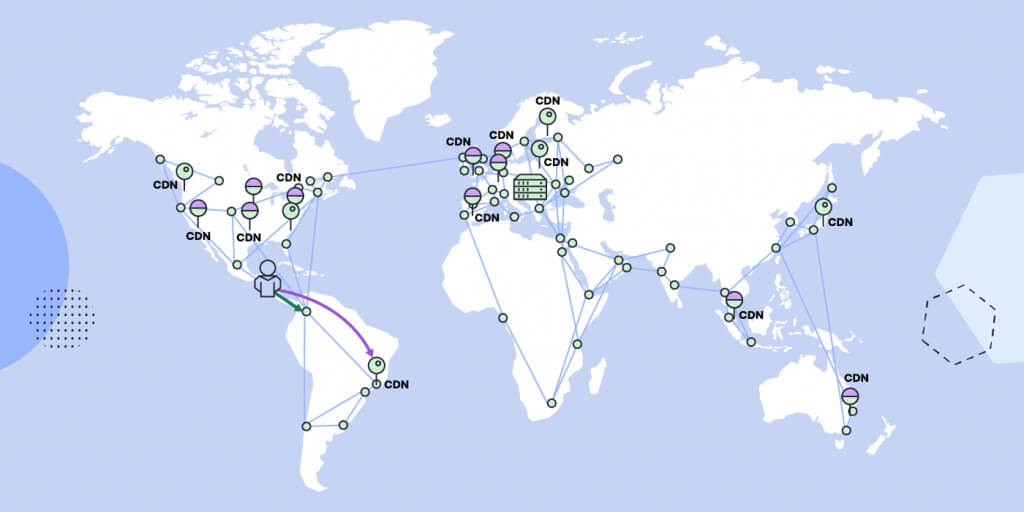
  • SiteGround CDN (CDN 2.0) sits in front, using anycast routing across Google’s network edge to serve each visitor from the nearest location instead of passing every HTML request back to origin.

[86]

For the majority of WordPress sites, an integrated stack like this solves the most common caching problem by design: multiple disconnected systems fighting over the same HTML response.

How to audit your cache setup

You don’t need specialized tools to evaluate your caching stack. A plain review of what’s active, where page caching overlaps, and what symptoms it causes is usually enough to find the problem.

Step 1: List all cache layers

Document every caching mechanism active on your site:

  • Caching plugins installed in WordPress (and whether page caching is enabled in each)
  • CDN services connected to your domain (and whether they cache HTML, not just static assets)
  • Server-level caching provided by your hosting
  • Browser cache rules set through HTTP headers or your .htaccess file

Important: Don’t overlook hidden cache sources. Some page builders, optimization plugins, and security tools include their own page-caching features, sometimes enabled by default. Check each plugin’s settings menu for anything labeled “cache,” “static files,” or “page cache.” A typical site that already shows symptoms might have server-side caching enabled, a CDN connected, and two separate caching plugins running at once. That alone signals a likely conflict.

Step 2: Find duplicate page caching

From your list, identify how many systems independently cache full HTML pages. This is the specific overlap that causes problems:

  • More than one plugin with page caching enabled
  • A plugin generating static HTML while the server cache already does the same
  • A CDN caching HTML responses while a plugin or server cache also handles page caching

Overlap in static asset caching (CSS, JS, images) is generally harmless. Your audit should focus on which systems control the HTML response.

Step 3: Test by disabling one layer at a time

Once you’ve identified duplicate page caching, use a simple testing loop:

  1. Disable page caching in one system (start with the one you suspect is redundant).
  2. Purge all remaining caches (server, CDN, browser).
  3. Test the page: check load time, verify content freshness, and inspect response headers.

If performance stays the same and content updates appear correctly, that layer was redundant. If load times increase, re-enable it and test disabling the other system instead. Repeat until only one system controls page caching, and keep the one that integrates best with your hosting and CDN.

When more complexity makes sense

Not every site runs best on a minimal setup. Additional caching layers are justified when:

  • High-traffic global sites need granular control over how and where content is cached across multiple regions, languages, or regulatory requirements.
  • Custom infrastructure, such as dedicated servers, containerized environments, or multi-server clusters, calls for purpose-built strategies like object caching with Redis or Memcached, edge-level logic, and tiered CDN configurations.
  • Advanced edge caching pushes dynamic logic closer to the visitor by processing requests at CDN nodes rather than routing them back to the origin server.

The difference between these setups and the accidental complexity described earlier isn’t the number of layers. It’s the intent behind them. Each layer exists for a documented reason, follows strict rules, and stays clearly separated from the others. Page caching is still controlled by one system; the additional layers handle different jobs.

Fewer conflicts, faster sites

Most caching-related performance issues aren’t caused by too little caching or too many cache layers. They’re caused by a specific, fixable problem: more than one system trying to control full-page caching at the same time. Fix the duplication, keep one system in charge of HTML, and let the other layers do what they’re designed to do. The result is a setup that’s faster to maintain, easier to debug, and more consistent for every visitor.

If you’d rather not assemble and police those layers yourself, an integrated stack handles the coordination for you. SiteGround Web Hosting ships server-level page caching, a built-in CDN, and frontend optimization that already know about each other, so one system owns the HTML response and purging stays predictable.

FAQ

What is website cache?

Website cache is a stored copy of your site’s content (pages, images, and scripts) that can be served to visitors without rebuilding the page on every request. It reduces load time and lowers server demand.

Do you need a cache plugin with hosting cache?

If your web host already handles page caching at the server level, enabling page caching in a plugin duplicates that function and can cause conflicts. Use the plugin for features your host doesn’t cover, such as minification or lazy loading, and let the server handle page caching. Integrated setups like SiteGround’s manage both from one system.

Can too much caching slow a site?

Not exactly. Multiple cache layers don’t inherently slow things down. The problem is specifically when two or more systems cache full HTML pages independently, creating conflicts around expiration, purging, and delivery.

How do you clear website cache?

Clear cache on every active layer, not just one: your caching plugin (if active), server-level cache, and CDN cache. If the issue persists, browser cache on the visitor’s side may also be serving an old version. Check response headers to confirm which layer is still returning stale content.

How do I know if my caching layers are conflicting?

The most common signs are content that doesn’t update after publishing, logged-in users seeing incorrect data, and cache purges that don’t seem to take effect. Check your HTTP response headers: if you see cache HIT indicators from two different systems on the same HTML request, you have duplicate page caching.

5 SEO mistakes your hosting provider can prevent 

Person working on laptop surrounded by search result, impressions graph, and monthly visitors metric showing +10.90k growth

You’ve tweaked your headlines, done your keyword research, published post after post… And Google still isn’t impressed.

But most SEO mistakes aren’t content problems: they’re often infrastructure problems. Slow load times, unreliable uptime, missing SSL, and poor crawlability all start at with your hosting setup. Fixing them at the infrastructure level removes entire categories of SEO problems before they appear in your rankings data.

Key takeaways:

  • Your server’s response time, caching setup, and physical location all affect how fast your site loads — and slow sites rank lower, full stop.
  • One wrong line in your robots.txt file can accidentally tell Google to stop crawling your site entirely.
  • In 2026, being fast and accessible isn’t just good for rankings; it’s what gets you cited by AI tools like ChatGPT and Google’s AI Overviews.

The SEO problems built into most website setups

The five mistakes below cover the full range: from technical slip-ups to content missteps. What they have in common is that a reliable hosting provider either prevents them outright or gives you the tools to catch them early.

#1. Your site speed is too slow to compete 

If your pages take more than a few seconds to load, visitors leave. And that tells Google your site isn’t worth ranking. Page speed is a confirmed ranking factor, and Google measures it through Core Web Vitals: a set of metrics that track how fast your page loads, how quickly it responds to a click, and whether the website layout jumps around while loading. Score poorly on these, and your rankings will reflect it.

Most speed problems come down to three things on the content side:

  1. Uncompressed images adding unnecessary weight to every page
  2. Too many plugins running in the background
  3. Website themes loaded with features and animations that slow everything down

But content-side fixes only go so far. 

These four factors live at the server level — and they affect your speed before a single visitor lands on your page:

  1. TTFB (Time to First Byte): the time it takes for your server to send the first piece of data back to a visitor’s browser. A high TTFB means your site feels slow even before anything has loaded, and it’s almost always a hosting problem, not a content one.
  2. No caching: when someone visits your site, the server normally builds the page from scratch each time, pulling data from the database, assembling everything, then sending it over. Caching skips that process by saving a ready-made version of the page and serving it directly. Faster for visitors, less work for your server. 
  3. No CDN: without one, every visitor loads your site from the same single server — no matter where in the world they are. A visitor in Australia hitting a server in the US waits significantly longer than someone local.
  4. Server location: if your audience is in one country and your server is in another, every page load carries extra travel time.

How do you avoid it?
Compress your images before uploading and keep your plugins to what you actually need. If you’re on WordPress, SiteGround’s free Speed Optimizer plugin handles image compression, lazy loading, and minification and connects directly to the server-level caching, so both sides of the speed problem are covered in one place.

At the hosting level, look for a provider that includes server-level caching, a built-in CDN, and data centers in multiple locations. SiteGround handles all three out of the box: SuperCacher speeds up performance by up to 5x by caching everything from static files to dynamic content. SiteGround’s CDN 2.0 runs on Google Cloud’s global network, using 200+ edge locations (PoPs) for faster routing, with an average TTFB improvement of around 20% based on SiteGround’s internal testing. You also choose your data center at signup, so your site is physically close to your audience from day one.

#2. You’re not on HTTPS or your SSL lapsed

If your site still runs on HTTP, Google flags it as not secure, and so does every major browser. That warning is enough to make a visitor click straight back to the search results. Google has treated HTTPS as a ranking signal since 2014, which means a missing or expired SSL certificate isn’t just a trust problem, but an SEO problem too.

An SSL certificate is what puts the “S” in HTTPS and turns an unencrypted HTTP connection into a secure one. It encrypts the connection between your site and your visitors, and it’s what triggers the padlock icon in the browser bar. Without it, browsers label your site as “Not Secure” — not a great first impression for anyone landing on your page for the first time.

The certificate itself isn’t a one-time fix either. SSL certificates expire, and if yours lapses without auto-renewal, your site drops back to HTTP until you manually sort it out. Most site owners don’t notice until a visitor tells them, or until they see a dip in traffic.Any reputable hosting provider should handle SSL provisioning and auto-renewal automatically. If yours doesn’t, that’s a problem. 

Where things still go wrong in 2026 is post-migration: moving a site to a new host can break your cert configuration, leave mixed content warnings, or drop the HTTP to HTTPS redirect. Check your address bar after any migration and run your site through a mixed content checker before assuming everything carried over cleanly.

How do you avoid it?

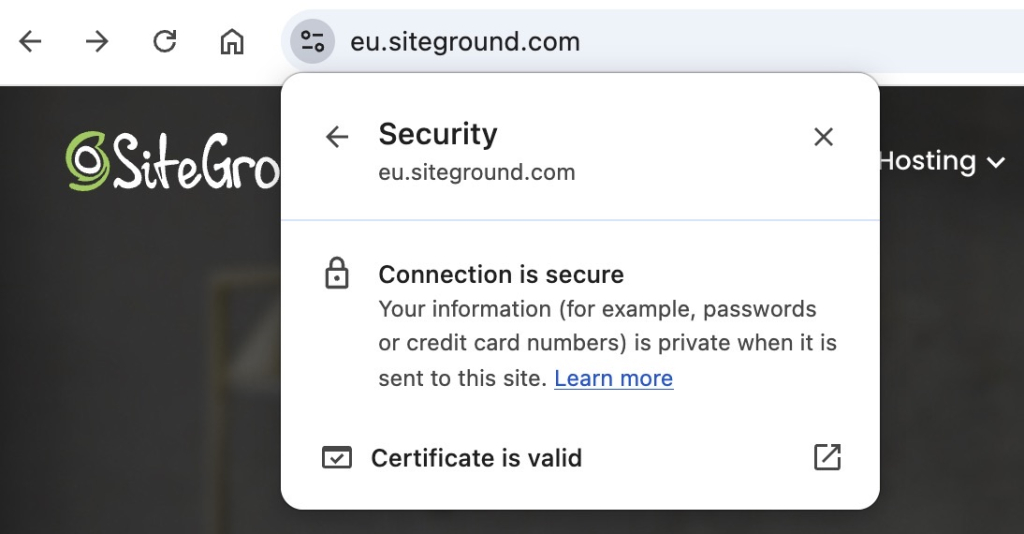
Check that your site is running on HTTPS by looking at the address bar.  You should see HTTPS at the start of your URL. In most browsers, clicking the icon to the left of the address bar will also show you the connection status and whether your certificate is valid. If you don’t, your SSL certificate either isn’t installed or has lapsed. SiteGround provides SSL automatically on all plans and handles renewal, so the baseline is covered — focus your attention on those post-migration checks.

Chrome browser security panel for eu.siteground.com showing a secure connection and valid SSL certificate

#3. Google can’t reliably access your content

You published your site, submitted it to Google, and assumed that was that. But Google regularly sends a crawler called Googlebot to revisit your site and check for new and updated content. And a few common things can get in the way of that without you ever noticing.

Where your content gets in the way

  • No sitemap: without one, Google has to discover your pages on its own. A sitemap tells Google exactly what exists on your site and when it was last updated — it’s one of the first things to set up before you start publishing.
  • Blocked crawlers via robots.txt: your robots.txt file tells search engines which pages to crawl and which to skip. A misconfigured file — often left over from a staging setup — can accidentally block Google from crawling your entire site. It’s a small file that’s easy to overlook and expensive to get wrong.
  • Keyword cannibalization: when multiple pages on your site target the same keyword, Google isn’t sure which one to rank. Instead of one strong page rising to the top, you end up with several weak ones competing against each other — and none of them winning. For ecommerce sites, this is especially common with product and category pages that end up targeting near-identical terms and it’s one of the main reasons duplicate content becomes a rankings problem at scale.

Where your hosting gets in the way

Content mistakes aside, your site also needs to be physically accessible when Google comes to visit — and that’s where your hosting setup plays a direct role. A few things worth knowing:

  • Downtime blocks Googlebot: Googlebot crawls on a schedule. If your site is down when it visits, those pages don’t get indexed, or get dropped from results they were already ranking in.
  • Unreliable servers eat into your crawl budget: crawl budget is the number of pages Google will crawl on your site in a given timeframe. A slow or unstable server means fewer pages get crawled per visit.
  • Security threats can take your site offline: bot attacks and traffic spikes can bring a site down just as effectively as a server outage. 

No backups means longer downtime: if something does go wrong and you have no recent backup, getting your site back up can take days, or you lose data entirely. Automatic daily backups stored in a separate location are the difference between a quick recovery and a serious outage.

How do you avoid it?

Check your robots.txt file to make sure you’re not accidentally blocking pages that should be crawled. Submit your sitemap through Google Search Console and audit your content for keyword cannibalization: if two pages are targeting the same term, consider merging them or clearly differentiating their focus. 

On the hosting side, look for a provider with a strong uptime guarantee, DDoS protection, and automatic daily backups. SiteGround covers all of these: the Web Application Firewall and AI anti-bot system filter malicious traffic before it reaches your server, daily backups are stored separately so recovery takes minutes rather than days, and the premium CDN keeps your site fast and available globally, reducing the chance of timeouts that interrupt Googlebot’s crawl.

#4. You’re targeting the wrong keywords and can’t tell

Keyword mistakes don’t always feel like mistakes at the time. You pick terms that seem relevant, write content around them, and wait. But if your site is slow, your SSL has lapsed, or Googlebot is hitting crawl errors, your pages may not be ranking for reasons that have nothing to do with the keywords themselves. By the time you figure that out, you’ve already published several pieces pointed in the wrong direction. This is the one mistake on this list that starts with your strategy, but your hosting setup is what determines how quickly you catch it.

Those infrastructure issues aside, some keyword mistakes are purely strategic:

  • Chasing high-competition terms: going after keywords that established sites with years of authority have locked up. A small business site going head-to-head with Wikipedia or a major brand for a broad term isn’t a fair fight.
  • Ignoring search intent: ranking for a keyword means nothing if the content doesn’t match what the searcher actually wants. Someone searching “email marketing” might want a definition, a tool comparison, or a beginner guide — and Google knows the difference even if you don’t.
  • Duplicate or missing meta tags: if multiple pages share the same title tag and meta description, Google has to guess which one to surface. It usually guesses wrong.
  • Over-optimized anchor text: using the exact same keyword phrase in every internal link pointing to a page looks unnatural and can work against you.

None of this is visible without data. If you haven’t connected Google Search Console from day one, you’ve been making these decisions blind — with no keyword data, no indexing errors, no crawl issues, and no way to tell which pages Google has even found. But GSC only shows you part of the picture. Your server keeps its own logs: a record of every time Googlebot visited, which pages it crawled, and which ones threw errors. That’s the data that tells you whether your site is actually being crawled the way you think it is. SiteGround gives you raw access to these logs directly from Site Tools, under Statistics → Access Log. So you’re not flying blind between GSC reports.

How do you avoid targeting the wrong keywords? 

Start with search intent before you pick a keyword — ask what someone searching that term actually wants to find, and make sure your page delivers it. Keep title tags and meta descriptions unique across every page. For internal links, vary your anchor text naturally rather than repeating the exact keyword every time. And connect Google Search Console before you publish your first page — the data it gives you from day one is something you can never go back and recover. 

On the hosting side, check your server access logs in SiteGround’s Site Tools to confirm Googlebot is actually reaching the pages you’re optimizing.

#5. Your site is invisible to AI search results

Everything in this list feeds into this one. Site speed, SSL, uptime, crawlability: AI Overviews and tools like ChatGPT factor all of it in when deciding which sites to cite. In 2026, your hosting setup doesn’t just affect your Google rankings. It determines whether AI search can find you at all.

Getting picked up by AI search comes down to a few things:

  • Structured content: AI systems pull from pages that directly answer specific questions. Vague, meandering content gets skipped. Clear headings, direct answers, and a logical page structure for your website all help.
  • Schema markup: this is code you add to your pages that tells search engines and AI systems exactly what your content is about. An FAQ schema, for example, makes it easier for Google’s AI Overview to surface your answer for a relevant query. It’s one of the most underused on-page tools available.
  • Thin pages: a page that exists mainly to target a keyword but doesn’t genuinely answer anything won’t get cited. AI systems are good at recognizing when content is substantial and when it isn’t.

But content structure alone isn’t enough. AI crawlers behave like Googlebot: they need your site to be fast, stable, and consistently accessible. A slow server, frequent downtime, or a poor Core Web Vitals score can all make your site harder to crawl and less likely to be cited, even if your content is well structured.

How do you avoid it? 

Structure your content around specific questions your audience is actually asking. Add FAQ schema to pages where it makes sense: most SEO plugins handle this without any coding. Keep your pages substantive and direct. And make sure the hosting fundamentals are in place: fast load times, reliable uptime, and a CDN that keeps your site accessible globally.

And if you want a full rundown of what to check, our SEO checklist covers it step by step.

Good SEO starts with where your site lives

Five mistakes, and most of them trace back to one decision: where your site is hosted. Get that right, and slow speeds, SSL lapses, downtime, and crawlability issues largely take care of themselves. With SiteGround Web Hosting, the infrastructure side of SEO is handled from day one — so the only mistakes left to make are the ones actually within your control.

[86]

Frequently asked questions about SEO mistakes

What are common SEO mistakes?

The most common SEO mistakes include slow page speed, missing or expired SSL certificates, poor site structure, targeting keywords without considering search intent, and not connecting Google Search Console before launch. Many of these stem from hosting and setup decisions rather than content ones.

Does web hosting affect SEO?

Yes. Your hosting provider directly affects page speed, uptime, server response time, and SSL management — all of which are ranking factors. A slow or unreliable host can undermine well-optimized content by making your site harder for Google to crawl and slower for visitors to load.

What hosting features should I look for to help my SEO?

Look for server-level caching, a built-in CDN, data centers close to your audience, automatic SSL with renewal, strong uptime guarantees, and daily backups. These features handle the infrastructure side of SEO before it becomes a problem.

Does site speed affect AI Overview results?

Yes. AI systems like Google’s AI Overviews crawl and evaluate sites similarly to Googlebot. A slow or frequently inaccessible site is less likely to be cited, regardless of content quality. Fast load times, reliable uptime, and a global CDN all improve your chances of being picked up by AI search results.

Is SEO dead or evolving in 2026?

SEO is evolving. The fundamentals still apply: fast sites, trustworthy domains, relevant content. But AI Overviews, ChatGPT, and Perplexity are now part of how people find information. Optimizing for AI citation is as important as optimizing for traditional rankings.

How do I know if my hosting is hurting my SEO?

A few things to check: 
1. Run your site through Google’s PageSpeed Insights and look at your Core Web Vitals scores: a high TTFB is often a server problem, not a content one. 
2. In Google Search Console, look for crawl errors and check how frequently Googlebot is visiting. 
3. If pages aren’t being indexed or keep dropping from results, uptime and server reliability are worth investigating. Your server’s raw access logs are the most direct way to see what Googlebot is actually doing on your site — SiteGround gives you access to these under Site Tools → Statistics → Access Log.

What are the 3 C’s of SEO?

The 3 C’s of SEO are content, code, and credibility. Content covers what you publish and how well it matches search intent. Code refers to the technical setup of your site — speed, structure, and crawlability. Credibility is built through backlinks, consistent information across the web, and a trustworthy domain.

WordPress backups: Why daily backups may not be enough for your live site

Hero image of a laptop displaying a website dashboard with performance and security metrics, surrounded by floating icons representing cloud backups, data protection, alerts, bug detection, and password security.
.post-page__post-content figure figcaption { color: #666 !important; font-size: 0.875rem !important; line-height: 1.5 !important; text-align: left !important; background: none !important; position: static !important; padding: 8px 0 0 !important; } .post-page__post-content figure figcaption a { color: #4343F0 !important; }

Most websites have some form of backup system in place. A hosting provider runs daily snapshots, or a backup plugin handles scheduled exports. The box is checked, and the assumption is that if something breaks, there’s a recent copy to fall back on.

But “having backups” and “being protected” aren’t the same thing. 

Key takeaways:

  • Having backups doesn’t equal protection. What matters is how recent and complete your last backup is, and how easily you can restore it.
  • Daily backups can still mean hours of lost data (orders, forms, content) on active sites.
  • A full backup must include both files and the database, captured at the same time.
  • The data loss window (time since the last backup) determines how much you lose during a restore.
  • Backup reliability also depends on off-site storage, retention, and ease of use—not just frequency.
  • Sites with frequent changes (ecommerce, user data, active content) often need hourly backups.

This article breaks down:

  • what a WordPress backup actually covers,
  • how the gap between your most recent backup timestamp and the present creates real exposure,
  • and how to evaluate whether your current setup matches the risk your site carries.
.post-page__colored-blocks.post-page__colored-blocks–important p { margin: 15px 0px; }

The backup principles covered here apply to any database-driven site or CMS, not just WordPress. 

We’re using WordPress as the framework because it powers over 40% of the web and is the most common context where these decisions come up.

What happens when your backup isn’t recent enough

Let’s imagine the following scenario:

.post-page__colored-blocks.post-page__colored-blocks–update p { margin: 15px 0px; }

It’s 4 PM on a Tuesday. A plugin update on your WooCommerce store goes wrong and the checkout flow breaks. You catch it within the hour and decide to restore from backup.

Your last backup was created at 6 AM. That’s 10 hours ago.

The restore works and the site is back online. But everything that happened between 6 AM and 4 PM is gone. 

Every order, every form submission, every customer account created, every content edit your team made. All of it rolled back to the state your site was in before the workday started.

The backup didn’t fail. It restored your site to the most recent snapshot available. The problem is that the snapshot was 10 hours old, and your site didn’t stand still during those 10 hours.

This is the gap most site owners don’t think about. Daily backups are standard with good hosting providers, and they work well as a safety net for a wide range of situations. 

But for sites that process transactions, collect user data, or publish content throughout the day, the distance between the last backup and the moment something breaks is the difference between a clean recovery and hours of data loss. These can be orders that exist only in a customer’s email confirmation, form submissions with no other record, or any other content that has to be recreated from memory.

The question worth asking isn’t whether you have backups. It’s whether your backup frequency matches the pace at which your site actually changes.

What a WordPress backup actually includes

A WordPress site is made up of two distinct layers, and both are required for a working restore.

  • Site files: everything stored in the website root directory on your web server. This includes WordPress core files (wp-admin, wp-includes), themes and plugins inside the wp-content folder, uploaded media files, and configuration files like wp-config.php and .htaccess.
  • The database: where your actual content lives. Posts, pages, comments, WooCommerce orders, user accounts, plugin settings, and site configuration. Every piece of dynamic data your site generates is stored here.

These two layers are separate. Your WordPress files sit on the hosting server’s filesystem; your database runs on a database server. Backing up one without the other leaves you with an incomplete recovery path:

– Files without the database give you a shell: your theme, plugins, and uploads, but no content, no settings, no user data.
– The database without files gives you all your content and data, but no theme to render it, no plugins to extend functionality, and no media to display.

A complete backup requires both your website files and the database, captured at the same point in time. A file backup from Monday paired with a database backup from Wednesday creates inconsistencies that can break a site just as effectively as the problem you’re trying to recover from.

How automatic backups work on a live site

Most hosting providers run automatic backups on a schedule, typically once per day during off-peak hours. The backup process creates a snapshot of your entire site at that moment: every file and the full database, captured as a single restore point.

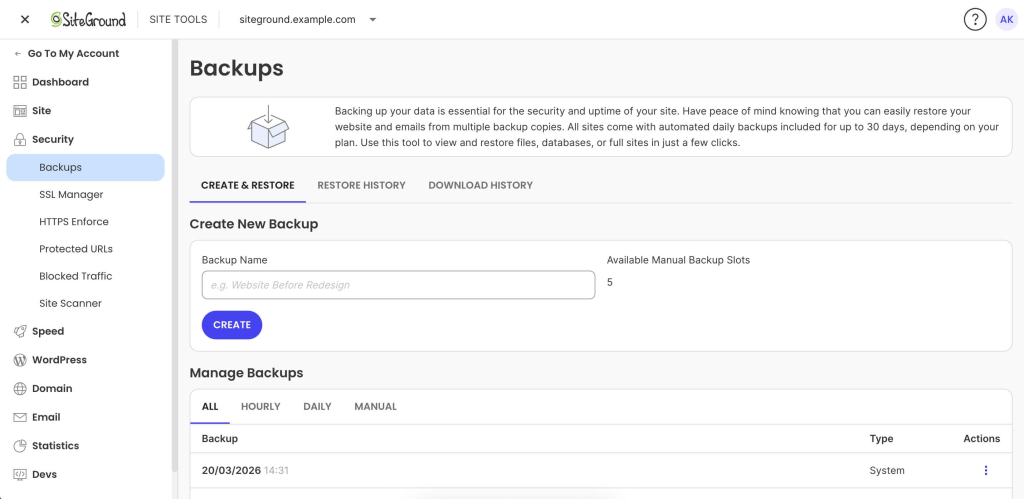
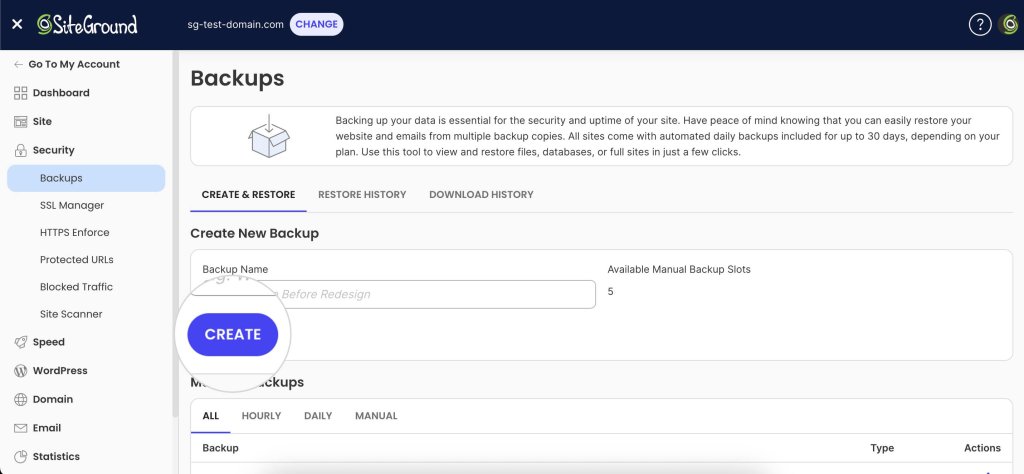
SiteGround Site Tools Backups page showing options to create a new backup and manage existing backups with restore actions.
Screenshot of SiteGround’s backups page in Site Tools.

If you are running a simple brochure-site that does not get updated often, and has no dynamic elements, this may be sufficient. 

However, if you are running a high-traffic, dynamic site, it most likely keeps changing between snapshots. New orders, published content, plugin updates, form submissions, account registrations are not going to be saved in your last backup. It only gets captured when the next scheduled run completes.

This creates what’s sometimes called a data loss window. This is the gap between your most recent backup and the present moment. If you restore right now, everything that changed since the last snapshot is gone. On a quiet site, that gap might not matter. On a site with active traffic and transactions, it can represent hours of irrecoverable data. 

Keep reading to understand how to evaluate your current backup system for such risks.

What changes between backups on a live site

The size of your data loss window depends entirely on how active your site is. On a live WordPress site, here’s what can accumulate between one backup and the next:

– Blog posts published, edited, or scheduled
– WooCommerce orders processed and inventory levels updated
– Form submissions: contact forms, quote requests, lead generation
– Plugin or theme updates applied (manually or via auto-updates)
– New customer account registrations and profile changes
– Comment activity across the site

A portfolio site updated once a week has a narrow gap. A WooCommerce store processing dozens of orders per day has a wide one. The more active the site, the more the question shifts from “do I have backups?” to “how recent is my last backup?”

The data loss window: real restore scenarios

The following scenarios aren’t hypothetical edge cases. They’re common failure patterns on live websites.

A broken plugin update on an ecommerce site

Similar to the example we gave above and very common: a WooCommerce plugin pushes an update at 2 PM. It introduces a conflict that crashes the checkout flow. You catch the issue by 3 PM and decide to restore.

With a daily backup from 6 AM, you roll back 8–9 hours. Every order placed that day is gone. Inventory levels revert. Customer accounts created during that window vanish. You’re left reconciling lost transactions from payment gateway records and accepting that some data no longer exists.

Malware injected and discovered late

Your site gets infected through a vulnerability in an outdated plugin. The malware is subtle: redirecting a small percentage of visitors to a phishing page, injecting spam links only search engines see, or adding a backdoor. You were on vacation and did not notice it for a week. 

This is where retention depth matters as much as frequency.

Let’s assume you are on a hosting plan where you have seven restore points, going seven days back. If the infection is older than a week, every available backup is compromised and you’re facing a manual cleanup with no clean baseline.

With 30 days of retention (standard on SiteGround shared hosting), you can step back through the last month to find a clean snapshot from before the infection, even if you didn’t catch the problem quickly. 

Accidental content deletion on a high-traffic site

This happens more often than you’d think. For example, a team member reorganizes pages in the dashboard mid-morning and accidentally deletes a high-performing landing page. Nobody notices until end-of-day traffic reports show an unexplained drop.

With a daily backup from the previous night, the page is recoverable. But restoring a full site backup to get one page back means rolling back everything else: new content, updated products, orders, form submissions. You recover the page but lose a day’s worth of work across the rest of the site.

This is where the ability to restore specific components matters. 

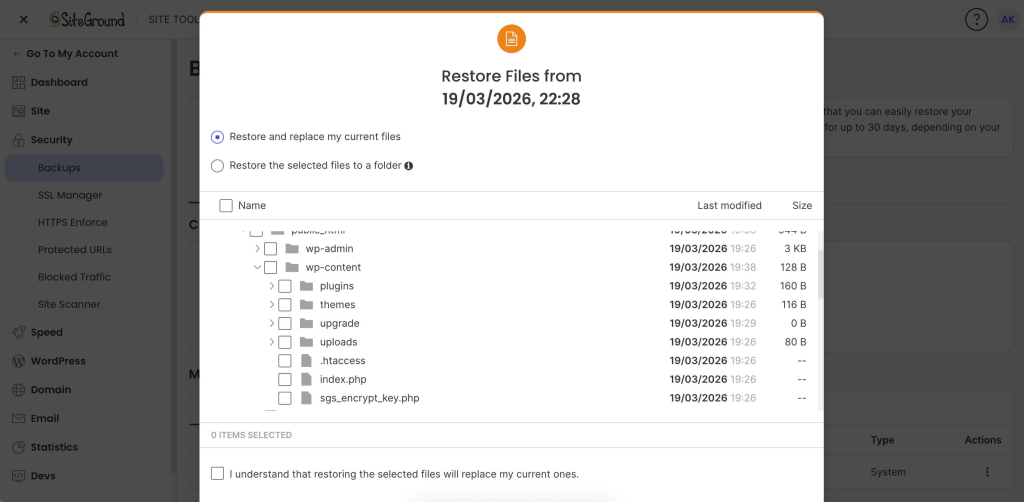
SiteGround’s restore process allows restoring specific files, databases, or both independently, so you can do a partial restore without forcing a full-site rollback.

Restore interface showing file selection options, including replacing current files or restoring selected files to a folder.
The partial restore dialog window in Site Tools where SiteGround users can choose which files they wish to restore.

Daily vs. hourly WordPress backups: which do you need?

There’s no universal backup frequency that works for every site. The right answer depends on how your website is used, how often it changes, and how much data you can afford to lose.

When daily backups are enough

For relatively static sites like portfolios, brochure sites, blogs that publish once or twice a week, daily backups provide solid coverage. The data between scheduled backups is small and easy to recreate.

Daily backups are generally sufficient when:

– There are no ecommerce transactions or user-generated content to protect
– Content changes are infrequent and can be manually recreated if needed
– The acceptable data loss window is a full 24 hours

If this is your site, the priority shifts to making sure backups are stored off-site and that retention depth is sufficient for issues that aren’t caught immediately.

When you may need more frequent backups 

This changes quickly when your site generates data that can’t be recreated:

– The site processes transactions: orders, membership signups, bookings, or payments
– Multiple contributors are making content changes throughout the day
– The site collects form submissions, user registrations, or comments at volume
– Any amount of downtime or data loss has a direct revenue impact

In these cases, the acceptable window shrinks from 24 hours to a few hours or less. Hourly backups become a practical necessity.

.post-page__colored-blocks.post-page__colored-blocks–tip p { margin: 15px 0px; }

Questions to ask yourself

– If my site broke right now, when was my last backup?
– How much data would I lose between that backup and this moment?
– Could I manually recreate what’s lost, or is it gone forever?
– How long can my site be down before it costs me money or erodes trust?

The answers don’t require a technical background. They require an honest look at how your site is used and what is at stake.

What SiteGround covers by default, and when to upgrade

SiteGround shared hosting includes 30 daily automatic backups, stored in a geographically separate location, with easy partial restores and one-click full rollback through Site Tools. For many websites, this provides strong baseline coverage with enough retention to handle most recovery scenarios.

For active ecommerce stores, agencies managing client sites, or high-traffic content operations, Premium Backups adds hourly snapshots retained for 48 hours alongside the existing daily retention, plus downloadable backup copies for an independent recovery path.

A promotional banner for the SiteGround Premium Backups service.

The upgrade decision maps directly to the framework above: 

If your acceptable data loss window is measured in hours rather than days → hourly backups are a straightforward, risk-based investment.

What makes a backup strategy actually reliable

How often you back up your site gets most of the attention, but it’s only one dimension. 

Storage location

If your backup files sit on the same server as your live site, a single server failure destroys both. Backups hosted in the same datacenter, while better than same-server backups, also involve risk: a datacenter-level incident can still take out everything.

Off-site storage is the baseline. Storing backups on geo-distributed infrastructure, in a physically separate location from your hosting server, is the gold standard. 

SiteGround’s backup system is entirely geo-distributed and included without any additional charges for all sites, on all hosting plans. 

Retention depth 

Frequency decides how recent your latest restore point is. Retention decides how far back you can go.

This distinction matters most when problems aren’t immediately obvious: malware that sits undetected for days, a configuration change that causes subtle issues over time, or content deleted and only noticed later. In each case, you need to step back through multiple restore points. Shallow retention eliminates that option.

SiteGround shared hosting retains 30 daily copies. Premium Backups adds hourly snapshots retained for 48 hours on top of that. The combination gives you granularity for recent issues and depth for problems that surface later.

Restore speed and simplicity

A backup is only as useful as your ability to restore from it under pressure. When your site is down and customers can’t complete purchases, the restore process needs to be fast, not a multi-step manual operation involving FTP clients, database imports, and file permission fixes.

Trying to manually restore a WordPress site can take hours, requires technical confidence, and introduces the risk of human error at exactly the moment you can least afford it. 

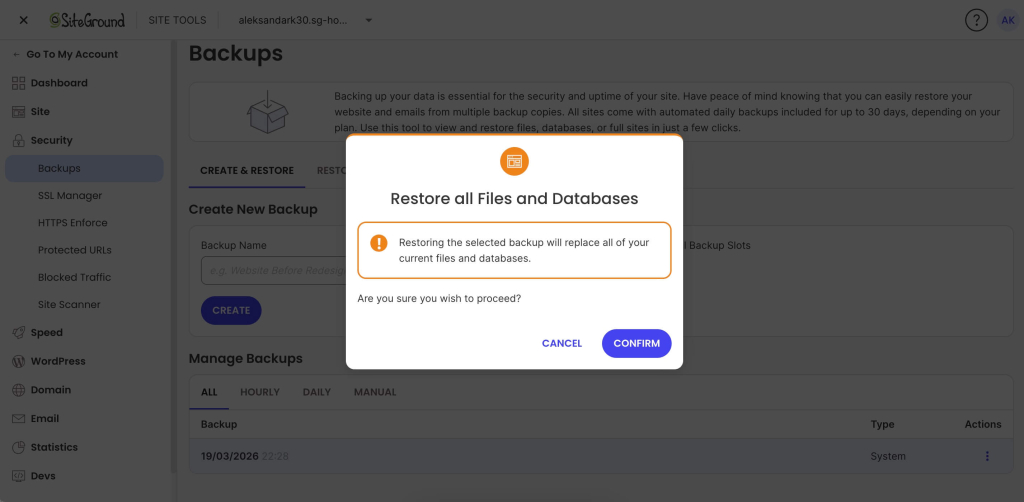
A hosting-level restore that takes a few clicks and runs in minutes changes the recovery experience entirely. For example, SiteGround’s restore in Site Tools lets you select a restore point, choose files, database, or both, and the system handles the rest.

Confirmation dialog warning that restoring a backup will replace all current files and databases, with Cancel and Confirm options.
One-click confirm in Site Tools for restoring a full backup, which replaces all current website files and databases.

Downloadable backups

Hosting-level site backups cover the vast majority of recovery scenarios. But a downloadable copy gives you independence: a backup file that exists entirely outside your hosting environment. This is useful for:

– Migration to a new hosting provider
– Local development and testing with a production copy
– Redundancy for users who want a copy they fully control

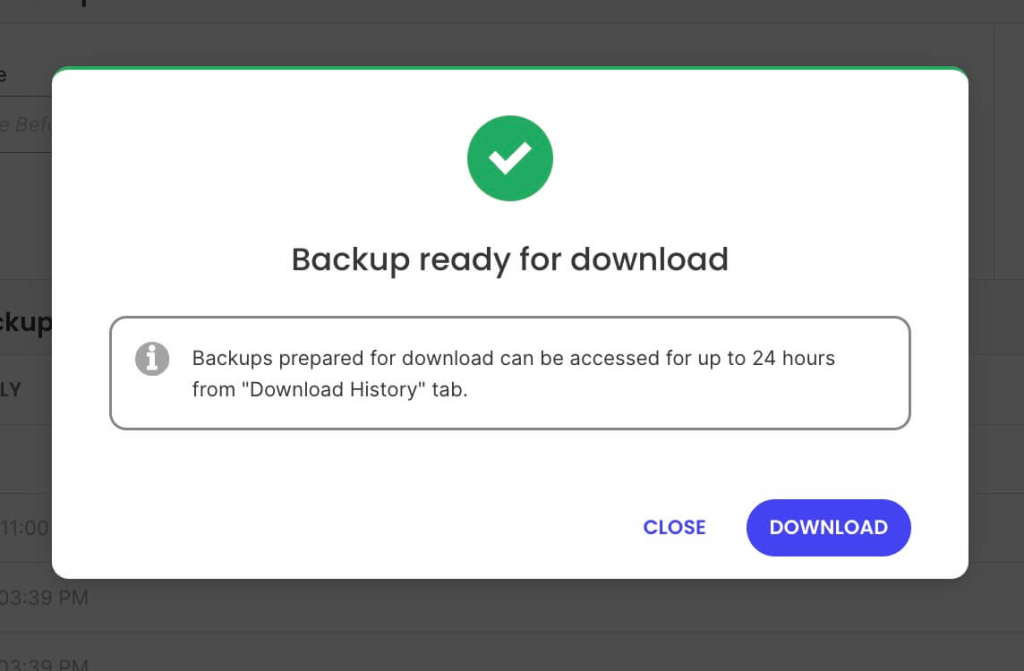
SiteGround’s Premium Backup service includes full backups as a single-click download inside Site Tools. You can get a full copy of your website on your device at any time, without paid third-party WordPress plugins or manual export processes.

Popup confirmation showing “Backup ready for download” with a notice about 24-hour availability and a Download button.
Site Tools notification confirming a backup is ready for download.

How to evaluate your current backup setup

Everything above is practical only if you know where your own site stands. This is a self-assessment you can run in a few minutes, no technical expertise required.

Do a quick backup audit

Go to your hosting account and find the backup section. (If there isn’t one or you can’t find it easily, switch to another provider NOW.)

The main things you should check are: 

  • How many hours of data sit between your last backup and now?
  • If you restored that backup right now, what would you lose — and can any of it be recreated?
  • Are your backups stored on the same server as your live site, or in a separate location?
  • How many restore points do you have access to? (One recent backup isn’t the same as 30 days of daily snapshots.)
  • Have you ever tested a restore?

That last point is the most overlooked step in any backup strategy. Backups can fail silently: corrupted snapshots, incomplete captures, storage issues that go unnoticed until the moment you need to restore. 

Consider restoring to a staging site to verify the backup process works before you need it under real pressure. A backup you’ve never tested is a backup you’re trusting on faith.

What to do based on what you find

If your daily backup coverage matches your site’s risk profile (low activity, no transactions, easy-to-recreate content), you’re in a solid position. Make sure to verify your host is using off-site storage and also offers sufficient retention depth.

If the gap between your last backup and right now represents hours of data you can’t afford to lose, it’s worth considering hourly backups.

Either way, the single most valuable step is testing a restore at least once. Know the process before it’s urgent. Understand how long it takes, what options you have, and what the result looks like. That knowledge turns a backup from a line item on a features list into an actual recovery plan.

The bottom line

Having backups is not the same as being protected. The distance between your last backup and the present moment is where data disappears, and for active dynamic sites, that distance is measured in hours, not days. 

Evaluate your site based on what you’d actually lose if you had to restore right now, not on whether backups exist somewhere in the background. 

Test your restores, understand your retention, and make sure your backup frequency matches the real pace of change on your site. That’s the difference between a checkbox and a recovery plan. 

If that audit reveals gaps your current host can’t close (shallow retention, no off-site storage, no granular restore options), it may be worth evaluating a hosting provider where backups are built into the infrastructure from the start.


FAQ

Does WordPress have a built-in backup?

WordPress does not include a built-in backup system. Its autosave feature periodically saves post and page drafts while you’re editing, but that only covers individual content items. It doesn’t capture your WordPress database, plugins, themes, uploaded media files, or site configuration.

For site-level backups, you need either a hosting provider that includes automatic backups, a dedicated backup plugin or manual exports. 

Where do I find my WordPress backups?

It depends on how your backups are created.

If your hosting provider handles backups, you’ll find them in your hosting control panel. On SiteGround, that’s Site Tools → Security → Backups, where you can manage all backup features.

If you use a backup plugin like UpdraftPlus or Duplicator, backups are managed from the plugin settings inside your WordPress dashboard. If you’ve configured remote storage, such as Google Drive, Dropbox, or a cloud storage service like Amazon S3, your backup files will also be stored in whichever service you connected during setup.

How do I back up my entire WordPress site?

A full backup requires both your site files and your database. The file layer includes WordPress core files, themes, plugins, and everything inside the wp-content folder, including all uploaded media. The WordPress database contains posts, pages, comments, orders, user accounts, plugin settings, and site configuration.

Good hosting providers handle this automatically. SiteGround creates full site backups daily, capturing both files and database in a single snapshot. Paid third-party plugins can also create a complete backup and store it in a remote storage location of your choice.

Website migration guide: how to safely move a live site

Header illustration showing a stylized website editor interface with a product image being uploaded, a hand placing a plant photo into the page layout, floating icons representing email, performance optimization, security, and database services, and an analytics chart overlay indicating website growth and performance monitoring.

Moving a live site is fundamentally different from launching a new project. A website migration carries real operational risk: DNS changes propagate unpredictably, email can break silently, and third-party integrations can fail without warning.

Even a few minutes of downtime can mean lost revenue, damaged trust, and a drop in search visibility that takes weeks to recover from.

Most website migration guides treat moving a site as a simple checklist: copy files, update DNS, done. That works for a staging site. It doesn’t work when real visitors are hitting your existing site every second.

This guide walks you through a structured site migration process designed to protect uptime, email continuity, SEO performance, and critical integrations, before, during, and after the DNS switch. Whether you’re moving to a new hosting provider, changing domains, doing a site redesign, or restructuring your infrastructure, the goal is the same: move with control, and move safely.

Key takeaways:

  • Live site migrations are risky because traffic, email, payments, and search indexing must keep working during the move.
  • Most downtime happens when DNS is switched before the new environment is fully tested.
  • Lowering DNS TTL 24–48 hours before the switch shortens propagation time and reduces split-traffic risk.
  • Email is often overlooked—MX records can be overwritten during a nameserver change, causing messages to disappear silently.
  • The safest migrations follow a staged process: audit, build and test the new environment, switch DNS, then monitor.
  • For hosting-only moves, updating the A record is usually safer than switching nameservers.

What makes live site migration risky?

A live site has active dependencies, and all of them need to keep working while everything underneath changes. Visitors are loading pages. Customers are completing transactions. Email is flowing. Search engines are crawling and indexing your website’s content. Any gap in service is immediately felt.

How downtime actually happens

Most migration-related downtime comes from the DNS cutover, the moment traffic redirects from the old site to the new site. If the new environment isn’t fully tested, visitors land on a broken or incomplete page.

The propagation window

DNS propagation adds unpredictability: when you update nameservers or A records, the change doesn’t take effect instantly. During propagation, some visitors reach the new server while others still hit the old one. This split-traffic window can last from minutes to 48 hours, depending on TTL settings and ISP caching.
Example:

A customer in New York loads your checkout page on the new server, where the product catalog is current. Meanwhile, a customer in London still hits the old server, where the database hasn’t been updated in six hours. One sees correct pricing; the other sees stale data. Neither knows they’re on different servers, and you have no control over who lands where.

The cost of even brief outages

For content-driven sites, downtime disrupts crawl schedules and affects search engine traffic. Search engines that encounter errors may temporarily drop pages from google search results or delay re-indexing. For ecommerce or SaaS sites, the stakes are more immediate: failed transactions, abandoned carts, and support tickets.

A site receiving 10,000 daily visits that goes down for two hours doesn’t just lose two hours of traffic. It risks a ripple effect, including lost conversions, damaged trust, and organic traffic dips that take days to stabilize.

Email disruption during DNS changes

MX records, the DNS entries that route email, can be overwritten or misconfigured during a DNS switch. When that happens, inbound email silently fails. Messages don’t bounce; they never arrive. If your email is hosted on the same server as your website, changing hosting providers without preserving MX records can reroute email to a server that isn’t configured to handle it.

Example: 

You switch nameservers on Tuesday morning but forget to recreate MX records at the new DNS provider. A client sends a signed proposal to your business email at 10 a.m. The message doesn’t bounce. No error is generated. The client assumes you received it. You have no idea it was sent. By the time you notice the gap on Wednesday, the proposal deadline has passed.

Broken integrations and third-party services

Many sites depend on external services tied to the domain or server IP: CDNs, payment gateways, CRM platforms, analytics software, and API endpoints. These integrations often rely on IP whitelists, domain verification, or webhook URLs. A migration that changes the server IP without updating these dependencies can silently break critical workflows.

DNS misconceptions that increase risk

DNS changes aren’t instant or binary. Since DNS is a distributed caching system, changes propagate at different speeds across networks. Pointing DNS to the new server isn’t the final step; it’s the most sensitive step, and should come only after the new environment is fully built, configured, and tested.

Pre-migration planning

The work before the DNS switch determines whether the migration process goes smoothly. This phase is about understanding exactly what you’re moving, where it’s connected, and what could break if something is missed. The goal: eliminate surprises before they become outages.

Audit your current hosting and DNS setup

Start with a thorough site audit. Document your server environment:

  • OS, PHP version, database version, and server-level modules
  • All DNS records: A, CNAME, MX, TXT (including SPF and DKIM)
  • Current IP addresses and nameservers
  • CDN configuration and caching rules
  • SSL certificate type: Let’s Encrypt auto-renewal, provider-issued, or custom

Watch for these common audit gaps:

  • PHP version mismatch (such as moving from PHP 8.1 to 7.4) → errors surface only after the switch, when real visitors are already hitting the new server
  • Missing DNS record → silent failure of the service that depends on it
  • Missing or expired SSL → browser security warnings the moment DNS resolves to the new IP

Confirm the new hosting service supports your SSL setup and plan for provisioning a new certificate before switching traffic.

Inventory email and third-party integrations

This step catches dependencies most checklists overlook:

  • Email hosting — If it runs on the same server as your website, migrating without preserving MX records will break delivery. If email is external (Google Workspace, Microsoft 365), verify MX, SPF, DKIM, and DMARC records are documented.
  • Payment gateways — Webhook URLs tied to your domain (Stripe, PayPal).
  • CRM and marketing tools — Domain-based authentication, API keys linked to endpoints.
  • Analytics tracking — Scripts like Google Analytics, tracking pixels, tag managers.
  • API connections — Services using IP-based whitelisting need updating before the switch.

Document everything in a spreadsheet: each service, its connection method, and what needs updating. This is your migration plan for dependencies.

Lower DNS TTL in advance

TTL (Time to Live) tells resolvers how long to cache a DNS record. A default TTL of 86400 means resolvers may serve the old IP for up to 24 hours after a change.

Recommended TTL: 300 seconds (five minutes), set at least 24–48 hours before the planned DNS switch.

This preparatory window lets the old TTL expire across networks, so when you make the actual change, most resolvers pick up the new IP quickly.

Example: 

You lower TTL to 300 on Monday and switch DNS on Wednesday. The old 24-hour TTL has long expired, so resolvers worldwide pick up the new IP within minutes. Compare that to lowering TTL and switching DNS on the same day: most resolvers are still caching the old value, and propagation drags on for hours with traffic splitting unpredictably between servers.

Create a full backup

Always create a complete backup, this is your rollback safety net:

  • All website files via SFTP or SSH, including hidden directories and configuration files
  • Full MySQL database dump
  • Mailboxes, if email is hosted on the same server
  • Store everything independently of both old and new hosting environments

For WordPress or any content management system, verify the export is complete by checking file size and table counts.

Technical migration steps

Nothing in this phase should affect your current site. DNS still points to the old server. Visitors, search engines, and email all continue operating normally. The goal is to build a fully functional copy of your site on the new environment and verify it works before touching DNS.

1. Transfer website files

Upload the entire site to the new host. You can do this via the File Manager, SFTP or SSH. Preserve the original site structure exactly; changing paths or renaming folders breaks internal references and hardcoded paths.

After upload, verify the transfer:

  • Compare file counts and directory sizes between source and destination
  • Confirm hidden files (like .htaccess) transferred correctly
  • Check that file permissions were preserved

A missing configuration file or an incomplete upload is easy to catch now and painful to troubleshoot after DNS has switched.

2. Export and import the database

Export using a full MySQL dump that captures all tables, views, and stored procedures. On the new server, create a fresh database and user with correct privileges, then import. For large databases, command-line import via SSH is usually more reliable than browser tools.

Verify data integrity: check that table counts match, that key content is present, and that no import errors were logged. A partial import produces a site that loads but fails silently on checkout, login, or content rendering.

3. Update configuration files

Connect files and database by updating the configuration file (wp-config.php for WordPress):

  • Database name, username, password, and host → new server’s credentials
  • File paths, temporary directories, caching configurations → new environment
  • .env file or multi-environment profile → new server’s resources
  • Secondary config files → check for hardcoded paths or server-specific variables

4. Update URLs (if needed)

If domain changes are involved, moving from an old domain to a new domain, update all URLs stored in the database. For WordPress and similar platforms, internal links, image paths, and serialized data store the full domain.

Even if the domain stays the same, check for hardcoded server IPs or CDN paths in templates and plugin settings. The new site should be entirely self-contained, with no lingering dependencies on the old host.

5. Test before the DNS switch

This is the most important step. Preview the site using a temporary URL from your hosting company, or modify your local hosts file to point the domain to the new server’s IP (more accurate, since it tests SSL validation and cookie handling).

Test everything:

  • Submit forms and confirm delivery
  • Log in to admin areas and verify access
  • Walk through checkout end to end
  • Load media-heavy pages and verify all assets render
  • Remove any password protection used during setup
  • Confirm SSL shows a valid certificate with no mixed content warnings

When you change DNS, the only thing that should change for visitors is which server responds.

How to change DNS without downtime

DNS is where most migration risk concentrates. Every step up to this point has been preparation: building and verifying the new environment while the live site continues running untouched. Now, traffic needs to move from one server to the other.

Nameserver switch vs. A record update

Nameserver switchA record update
What changesDNS authority for the entire domain. All records (A, MX, CNAME, TXT) move to the new provider.Only the IP address the domain points to. All other records stay at the current DNS provider.
Risk levelHigher: every record transitions at once. Any missing record breaks its associated service.Lower: isolates the change to the web server. Email and other services remain unaffected.
Best forFull infrastructure moves where DNS management is also migrating.Hosting-only migrations where DNS provider, email, and third-party services stay the same.
PrerequisiteEvery DNS record must be correctly recreated at the new provider before switching.Only the new server IP is needed.

If your migration only involves changing hosting providers, and DNS, email, and third-party services stay the same, an A record update is the safer choice.

Choosing the right cutover method

  • Hosting-only migration: Update the A record (and AAAA for IPv6) to the new server’s IP. Most contained change.
  • Full infrastructure move: Nameserver switch required. Recreate all records at the destination, verify MX, SPF, DKIM, CNAME, and TXT records before switching.
  • Domain change: Beyond DNS, you need 301 redirects from old URLs to corresponding new URLs, updates to Google Search Console, analytics tracking, and external links. The old domain should remain active and redirecting to preserve ranking signals and search engine trust.

Example:

An agency migrating a client’s WordPress site from one host to another, with the same domain and external email, only needs an A record update. A business moving its entire infrastructure to a new provider, including DNS management, requires a nameserver switch with every record rebuilt first. A company rebranding under a new domain needs both a DNS change and a full 301 redirect map, plus updates to Google Search Console, analytics, and directory listings.

Sequencing the change

Execute during your lowest-traffic window. If you lowered TTL in advance, most resolvers pick up the change within minutes to hours.

Keep the old server running; don’t cancel the current hosting provider or delete anything until propagation is confirmed complete. Keep the old environment available for at least 48–72 hours.

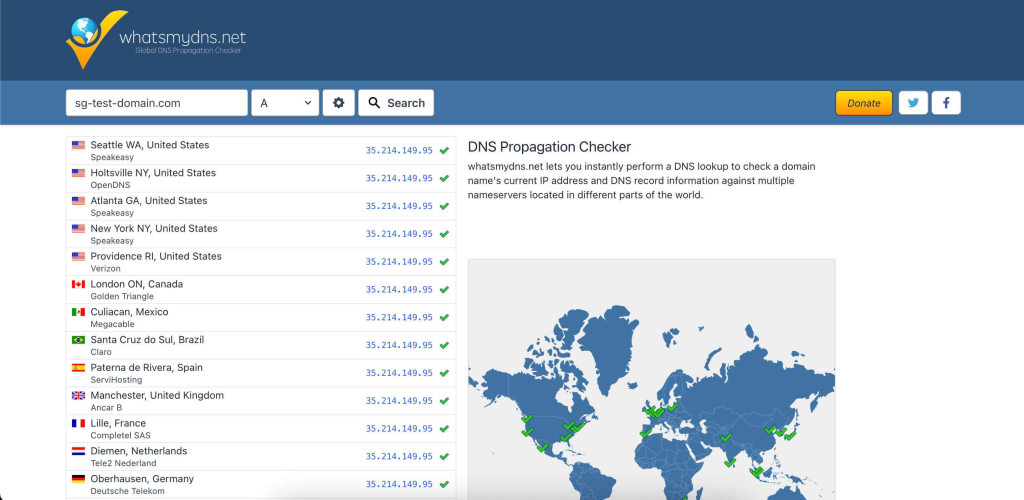
Monitor incoming traffic on the new server. If it shows zero traffic while analytics still reports visitors, something is wrong. Use a DNS propagation checker to see which regions have resolved to the new IP.

Screenshot of the whatsmydns.net DNS propagation checker showing an A record lookup for a test domain, with multiple global locations (United States, Canada, Europe, and others) resolving to the same IP address and green check marks indicating successful DNS propagation, alongside a world map highlighting the responding DNS servers.
Example of a DNS propagation check using whatsmydns.net, showing how a domain’s A record resolves across multiple DNS servers worldwide after a DNS change.

Protecting email and critical services

DNS changes don’t just affect your website. They affect every service that depends on your domain’s DNS records, and email is the most common casualty. Payment gateways, CDN configurations, and API integrations are close behind.

MX records and email continuity

When MX records are misconfigured during a nameserver switch, inbound messages disappear without a bounce or error. This can go undetected for days.

  • If you’re updating only the A record, MX records stay untouched.
  • If a nameserver change is necessary, verify MX records at the new provider before switching: same priority values, same mail server hostnames.

After the DNS change, test email in both directions:

  • Inbound: Send a message to your domain from an external address → confirm it arrives
  • Outbound: Send a message from your domain → verify delivery, check it doesn’t land in spam
  • Authentication: Inspect message headers for SPF, DKIM, and DMARC → confirm all resolve correctly

Consider separating email from web hosting entirely to eliminate this risk for future migrations.

CDN, payment gateways, and API integrations

  • CDN — Update the origin IP to the new server and purge the cache entirely.
  • Payment gateways — Verify webhooks still process. A failed webhook may let orders appear complete on the frontend while the backend never receives confirmation.
  • CRM and API services — Update IP whitelists and domain verification.

Example:

A WooCommerce store migrates to a new server. The site loads perfectly. A customer adds a product to their cart, checks out, and sees “Order confirmed.” But the Stripe webhook URL still points to the old server’s IP, which is no longer processing requests. Stripe never confirms the payment on the backend. No shipping notification is triggered. The store owner doesn’t notice until the customer emails support two days later asking where their order is.

These failures are quiet. They surface in transaction logs, missed notifications, and customer complaints, often well after the migration is considered complete. Proactive verification before and immediately after the DNS change is the only reliable way to catch them.

Post-migration monitoring

Once DNS changes are live, the migration enters its most critical observation window. The new server is now receiving real traffic, handling real transactions, and serving real visitors. Active monitoring in the first 24 to 72 hours is what separates a successful migration from one that creates problems that compound silently.

Uptime and error monitoring

Set up uptime monitoring before the DNS switch, with checks every one to five minutes. Watch server logs for:

  • 500-series errors — server-side failures, misconfigured settings, missing dependencies
  • 404s on key pages — broken links, missing files, redirect rules that didn’t transfer

Monitor the old server in parallel: declining traffic there and increasing traffic on the new one confirms propagation is progressing.

Functional testing

Walk through every critical path on the production domain, not the temporary URL or local hosts file:

  • Submit forms and confirm delivery to the correct inbox
  • Log in / log out of user accounts and admin areas
  • Complete a transaction end to end: cart, checkout, payment, order confirmation
  • Verify transactional emails fire: password resets, order confirmations, shipping notifications
  • If you use an SMTP relay (SendGrid, Mailgun), confirm the connection is intact
  • Test across devices and browsers

SEO signals to verify

  • 301 redirects — Every old URL should reach its final destination URL, not the homepage or a 404. Avoid redirect chains; collapse them into single hops.
  • XML sitemap — Resubmit through Google Search Console (add and verify the new domain property if the domain changed). Monitor Index Coverage for errors across all the pages and all the URLs.
  • Canonical tags — Confirm key pages reference the correct URLs on the migrated site.
  • Google Analytics — Verify it fires correctly. Compare real-time data with your pre-migration baseline. A drop in sessions may indicate a tracking code issue.
  • Crawler activity — Review server logs to ensure search engines access your pages and receive 200 responses. Check that meta descriptions and other on-page elements render correctly.

Post-migration monitoring isn’t a one-day task. Keep watching search console, analytics, and your site’s performance for at least 30 days. SEO recovery, even from a successful website migration, takes time as search engines recrawl, reindex, and recalculate your site’s rankings.

Don’t want to handle the migration yourself?

Get a free website migration from SiteGround and let our experts move your site for you.

A promotional banner inviting users to try SiteGround's plans, with a button to get hosting.

Common website migration mistakes

MistakeWhy it causes damage
Changing DNS before testingOnce DNS points to the new server, real visitors land there immediately. If the site is broken, every minute spent troubleshooting is a minute of downtime. Always test on the new website before touching DNS.
Overwriting MX recordsA nameserver switch replaces your entire DNS zone. If MX records weren’t recreated, email stops silently with no bounce or error notification.
Migrating during peak hoursMaximum visitors affected during propagation delays. Maximum pressure to fix issues quickly, increasing the chance of compounding one mistake with another.
Ignoring third-party integrationsA site that loads doesn’t mean every service behind it works. Payment gateways, CRM webhooks, CDN origins, and API connections can all fail silently when the server IP changes.
Skipping post-migration testingForms, checkout, transactional emails, and analytics all need active verification. A migration is complete when every service is confirmed working, not when the page loads.
Forgetting to lower TTLHigh TTL means slow, unpredictable propagation with split traffic across two environments. How many URLs resolve to which server becomes uncontrollable.
Deleting the old server too earlySome resolvers hold cached records longer than expected. Keep the old environment running 48–72 hours minimum as a fallback.

Website migration checklist

Pre-migration

  • Audit hosting and DNS: document server environment, all DNS records, IPs, SSL, CDN config. Run a site audit to baseline site speed and page speed.
  • Inventory email and integrations: confirm hosting, list services, note dependencies. Check for broken links and update links to other sites where possible.
  • Lower TTL to 300s, 24–48 hours before the switch.
  • Back up files, database, email, and store off-server. Confirm all your pages, including new pages and existing content, are captured. Verify how many URLs and website’s URLs need migrating. Review URL structure and website architecture of the existing site.

Migration

  • Transfer files. Preserve structure and permissions.
  • Import database. Verify integrity.
  • Update config files for the new server.
  • Run serialization-safe search-and-replace if changing domains. Handle old URLs mapping to new URLs.
  • Test on new server: forms, login, checkout, media, SSL. Verify the staging site matches the existing website. Check internal links, incoming links, and that the entire site functions. Confirm technical SEO elements are intact.

DNS cutover

  • Execute during low-traffic window.
  • Verify all records, especially MX and TXT.
  • Confirm the solid plan for domain changes or URL changes is in place.

Post-migration

  • Monitor uptime, server logs, traffic distribution.
  • Test all critical functions on production: forms, transactions, login, emails.
  • Verify email delivery including SPF, DKIM, DMARC.
  • Confirm SEO signals: 301 redirects (with the same page mapping correctly), XML sitemap resubmission via search console, canonical tags, analytics tracking. Verify google search indexing and that search engines access all the URLs.
  • Review site’s performance, page speed, and search engine traffic recovery.
  • Keep the old server running 48–72 hours minimum. A successful site migration, and truly successful migration, means every service confirmed working.

Final thoughts

A website migration doesn’t have to be high-risk. The downtime and broken email people associate with migrations result from skipped steps and poor sequencing, not inherent complexity.

When the website migration process is staged correctly (audit, build, test, switch, verify), each phase reduces risk. DNS isn’t a leap of faith. It’s a controlled handoff after the destination is confirmed ready.

The core principle: never send live traffic to an environment you haven’t tested. The planning phase eliminates unknowns. The migration phase builds a verified copy. The DNS switch moves traffic only when ready. And post-migration monitoring catches anything that slipped through.

Whether you’re moving to a new hosting service, changing domains, or consolidating infrastructure, the steps should always be the same: map dependencies, prepare the destination, control the cutover, and verify the result. That’s how you achieve a smooth site migration and protect uptime, search visibility, and the services your site depends on.

Migration is a process, not a moment. Treat it that way, and the risk drops to nearly zero.

How to Buy a Domain Name: What to Do Before & After

Abstract of buying a domain name

Buying a domain name typically costs $10–$20/year through an ICANN-accredited registrar, and takes just about five minutes. But getting the setup right takes a bit more. This guide covers what to check before you buy (pricing, security, registrar type), how to complete your purchase, and what to do immediately after to protect and activate your domain.

Key Takeaways

  • Domain costs typically run $10–$20/year, but always check the renewal price, not just the first-year promotional rate.
  • Choose a domain seller based on security features, support quality, and pricing transparency. These matter more than whether they’re a direct registrar or reseller.
  • Enable domain privacy at purchase to keep your personal contact info out of the public WHOIS database and reduce spam and phishing risk.
  • Lock your domain and turn on 2FA immediately after purchase. Domain lock prevents unauthorized transfers, and 2FA blocks account takeovers even if your password is compromised.
  • Verify your ownership email and configure DNS settings right away. Unverified accounts may have restricted functionality, and your domain won’t point anywhere until DNS is set up.
  • Set up auto-renew and keep payment info current. Domains are rentals, not permanent purchases, and an expired domain can be snapped up by someone else.

[24]

What is a Domain Name?

A domain name is your website’s address on the internet—it’s the URL people type into their browser to find you, like, say, www.mybusiness.com. Choosing and buying a domain name is an important step because it’s so much more than just a web address: it represents your brand, helps people find your site, and is essential for email and other online services. So the decision around buying a domain is bigger than it might initially seem. 

Technically, a domain name consists of a few parts:

  • Second-level domain (SLD): This is the main part of your domain (like “mybusiness” in mybusiness.com)
  • Top-level domain (TLD): This is the extension, such as .com, .net, .org, or country-specific ones like .es or .uk.
  • Subdomains (optional): Additional prefixes like blog.mybusiness.com that organize different parts of your site.
Diagram of the anatomy of a domain including subdomain, second-level domain and top-level domain

If you don’t quite have a handle on these terms and how to use them just yet, don’t worry. By the time we’re done here, you’ll have a full understanding of what to know before buying your domain, how to buy it, and then what to do after. 

What to Check Before You Buy a Domain

Before purchasing a domain, check five things: your name options, the seller’s credentials, pricing (first-year and renewal), security features, and how easy the domain is to manage after purchase. Think of this as a pre-flight domain checklist:

Come Up With Domain Name Ideas

Have at least three to five domain name options ready before you start searching. Your first choice is often taken, and having alternatives saves time.

Quick tips for choosing a domain name:

  • Keep it short and memorable: Shorter domains are easier to type, share, and recall.
  • Reflect your brand or business purpose: Choose a domain name that gives visitors an idea of what you do.
  • Avoid hyphens or unusual characters: They can be confusing, hard to type, and are often forgotten.
  • Consider your TLD: The domain extension you choose (.com, .shop, .org, etc.) affects credibility, audience perception, and availability. Over 62% of funded US startups still choose .com, and for good reason — it remains the most recognized and trusted domain extension globally. Stick to widely recognized TLDs unless a niche one fits your brand purpose.
  • Prepare alternatives: Have several options in mind so you can pivot quickly if your desired domain name isn’t available.

Super pro tip: If you’re stuck, tools like SiteGround’s AI domain name generator can help. Not only does it suggest domain name ideas on the fly (based on your keywords, brand concept or whatever you fancy), but it only suggests available domain names, which means you can make the buying process even easier. Idea creation and time savings all in one.

Example of AI domain generator by SiteGround showing search field

Understand Who You’re Buying From

Not all domain sellers operate the same way, and understanding the difference helps you make a smarter purchase. Some sell domains directly as ICANN-accredited registrars; others resell domains through a registrar partner. What matters more than the label is what the seller actually offers you.

When evaluating any domain seller, look for:

  • Pricing transparency: Are first-year and renewal prices clearly listed? Are there hidden fees for privacy protection or other add-ons?
  • Security features: Do they offer two-factor authentication, domain lock, and privacy protection?
  • Support quality: Is help available 24/7, and through channels that work for you?
  • Dashboard usability: Can you manage DNS, WHOIS info, and renewals without jumping through hoops?

A seller that scores well on all four counts is a reliable choice regardless of whether they’re a direct registrar or a reseller.

What is ICANN? 
ICANN stands for the Internet Corporation for Assigned Names and Numbers. It’s the nonprofit organization responsible for coordinating and managing the global domain name system (DNS).

Examine Initial Price versus Renewal Price

Domain pricing has two numbers that matter: the first-year registration fee and the annual renewal rate. These are often very different, so check both before committing. While a low first-year price can be tempting, it’s important to look at the bigger picture before making a decision.
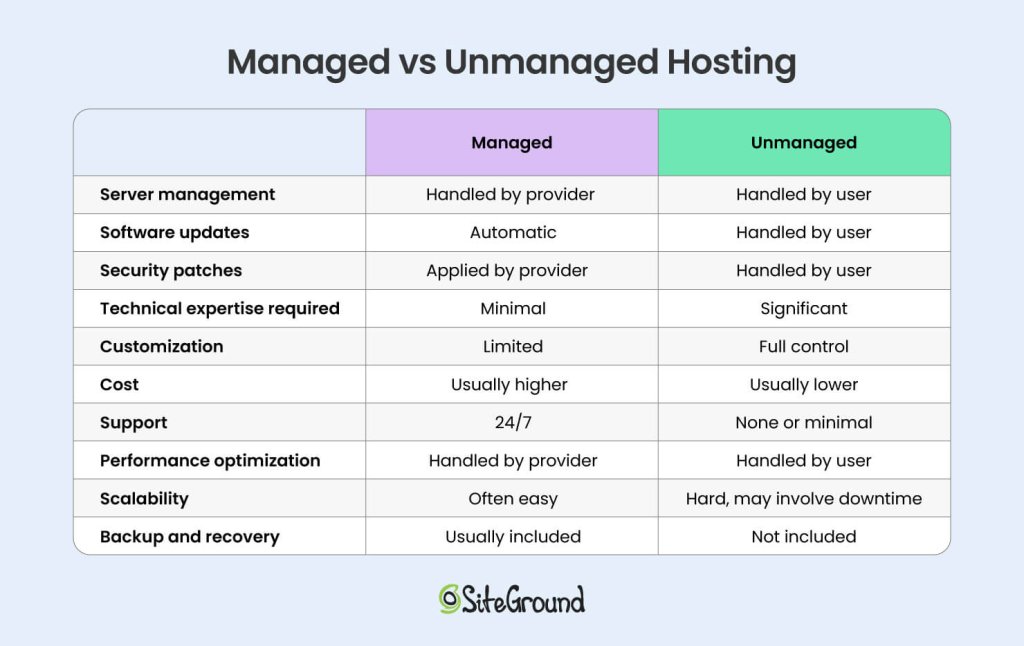
As you compare domain pricing options, consider:

  • First-year cost versus long-term cost: Some domains are cheap to start but renew at higher rates.
  • Additional fees: Privacy protection, ICANN fees, or premium add-ons can affect the total price.
  • Value alongside other factors: Pricing is one piece of the puzzle—reliability of the domain name registrar, security features, and customer support are just as important.

Verify Security Options

Your domain is one of your most important online assets. Losing control of it puts your brand, website, and email communications at risk, so verify these security features before you buy.

Two-factor authentication (2FA):

2FA adds an extra layer of security to your domain registrar account by requiring a second form of verification—usually a code sent to your phone or generated by an app—every time you log in. Even if someone gets hold of your password, two-factor authentication can prevent unauthorized access. Not all domain name registrars offer this, so be sure to double check before making your purchase.

Example of getting a verification code for two-factor authentication

Domain lock:

Most registrars offer a domain lock (or registrar lock) feature that prevents your domain from being transferred without your approval. Enabling this lock ensures that even if someone tries to hijack your domain, it cannot be moved to another registrar without your consent.

Privacy protection:

When you register a domain, your personal information—like name, email, and phone number—is recorded in the public WHOIS database. That means anyone can look up your domain name, see who owns it, and even the mailing address associated with it. Domain privacy protection hides this personal information, keeping it private and reducing spam or phishing attempts aimed at your contact info. With this said, note that not all domain extensions are eligible for domain privacy. 

What is the WHOIS? 
WHOIS is a publicly accessible database that stores information about registered domain names. When you register a domain, certain details are collected and can be looked up via a WHOIS search.

Look for Ease of Domain Management

Before you buy, think about how simple it will be to manage your domain after purchase—because you will likely want to actually use your domain, and it being easily usable is an important part of making that happen. Some registrars provide intuitive dashboards and clear workflows, while others make even basic tasks like updating contact info, renewing, or locking your domain confusing.

Here’s what to look for in a user-friendly registrar: 

  • Dashboard usability: Look for a dashboard that’s easy to use, navigate, and understand. If the registrar doesn’t clearly emphasize usability on their website, check forums and reviews for feedback from real users.
  • Domain lock and transfers: Domain locking is essential for security, and transfers may be needed in the future. Make sure these actions are easy to perform. Generally, if the dashboard is intuitive, these features will be user-friendly as well.
  • Support access: Can you quickly reach help if you encounter issues with transfers, WHOIS info, or DNS configuration? Confirm that the registrar offers reliable support to guide you through any step of domain management.
  • Check DNS capabilities beforehand: Make sure the registrar provides easy-to-use DNS management, and integrates smoothly with hosting—this will save you time and headaches after purchase.

What is DNS? 
DNS (Domain Name System) is the system that translates human-friendly domain names, like www.example.com, into the IP addresses computers use to locate websites on the internet.

How to Buy a Domain Name—Step by Step

Buying a domain takes three steps: choose a registrar, search for availability, and complete your purchase. Here are the quick steps for purchasing your domain: 

1. Choose a Registrar

You’ve already done your homework here, so you know what to look for. But before diving into the details, it’s helpful to understand the cost:

How much does it cost to buy a domain name?

A typical domain costs around $10–$20 per year, but the final price can vary depending on the extension you choose, how many years you register it for, and whether the provider offers a first-year discount. Many registrars offer lower introductory pricing for the first year (and with SiteGround, your domain is free for the first year when you purchase hosting, making getting started even more affordable).

Now, when evaluating registrars, keep these factors in mind:

  • Pricing transparency: Compare first-year costs, renewal rates, and any optional fees (privacy protection, ICANN fees, add-ons).
  • Security features: Look for two-factor authentication (2FA), domain lock, and privacy protection to safeguard your domain.
  • Reputation and reliability: Look for a seller with a proven track record, verified user reviews, and transparent policies around renewals and transfers.
  • Dashboard usability: Choose a registrar with an intuitive, easy-to-navigate dashboard. If unclear, check user reviews and forums.

Why Choose SiteGround for Your Domain?
SiteGround makes buying and managing your domain simple, secure, and worry-free. When you register a domain with SiteGround, you get a free domain and domain privacy for the first year (when paired with hosting), and robust security features like two-factor authentication and domain lock. Domains also come with free unlimited subdomains, free unlimited SSL certificates, and free professional email, so you can fully set up your site from day one. Plus, their 24/7 support and intuitive dashboard make managing DNS, WHOIS info, and domain settings effortless, giving you peace of mind and control every step of the way.

Find your perfect domain now>>

2. Search for Availability

After having done your brainstorming, you should have a list of potential domain names you want to check out. So now’s the time to verify which ones are actually available. That said, if you already used SiteGround’s AI domain name generator, you can skip this step—every domain it suggests is already available, so you can move straight to purchasing your favorite option.

Tips to search for domain name availability:

  • Go to the registrar you chose in step one to use their search tool: Enter your desired domain name to see if it’s available with your preferred TLD (.com, .net, etc.).
  • Consider alternative TLDs: If your first choice is taken, try other well-recognized domain extensions, or niche ones that fit your brand.
  • Modify your domain name slightly: Add a keyword, shorten it, or use synonyms to create a variation that’s still memorable.
  • Explore premium options cautiously: Sometimes people choose to sell their domain name, and oftentimes it can then be purchased through brokers at a higher price—decide if it’s worth the investment.
Consider multiple TLDs to avoid domain squatting

And again, if you can’t find the ideal available domain name, lean on AI like SiteGround’s domain name generator to help you find one that meets your needs.

3. Complete Your Purchase

Once you’ve found an available domain, it’s time to close the deal. Keep in mind that what you’re doing at this stage is buying your domain for a specific and finite amount of time. So here are some key points to keep in mind as you finalize your domain registration and purchase and : 

  • Add to cart and review extras: Consider optional add-ons like email forwarding, hosting bundles, and domain privacy (if it’s not included, or, if necessary, making sure to add it to your cart if it’s a free option).
  • Check the total cost: We touched on this before, but now’s the time to dot your i’s and cross your t’s. That means looking at both the first-year domain name registration fee and renewal price, as well as any additional services, to make sure you haven’t overlooked any hidden costs.
  • Provide accurate contact information: The administrative contact you enter will be listed in WHOIS records, which are public unless you enable domain privacy—more on how to do that in a minute. 

With SiteGround, finding and registering your domain is straightforward and stress-free. The AI-powered domain name generator helps you come up with available options in seconds, and the intuitive dashboard makes managing your domain simple—everything is designed to keep the process user-friendly from start to finish.

Get started finding your domain now>>

How to Set Up and Secure a Domain

You have a domain name, but now what? Registering your domain is just the start. To protect and activate it, you need to complete six steps: enable privacy, verify your ownership email, turn on 2FA, lock your domain, configure DNS, and set up auto-renew.

Let’s take a look at how to set up and secure your domain. 

1. Enable Domain Privacy

As we’ve already discussed, domain privacy is a really important step in protecting your personal information. It’s also one of the easiest and most important ways to secure your domain. By default, your information is public, but by simply making it private, you save yourself the heartache of exposure that can lead to spam, phishing attempts, and even domain hijacking. Let’s fix that.

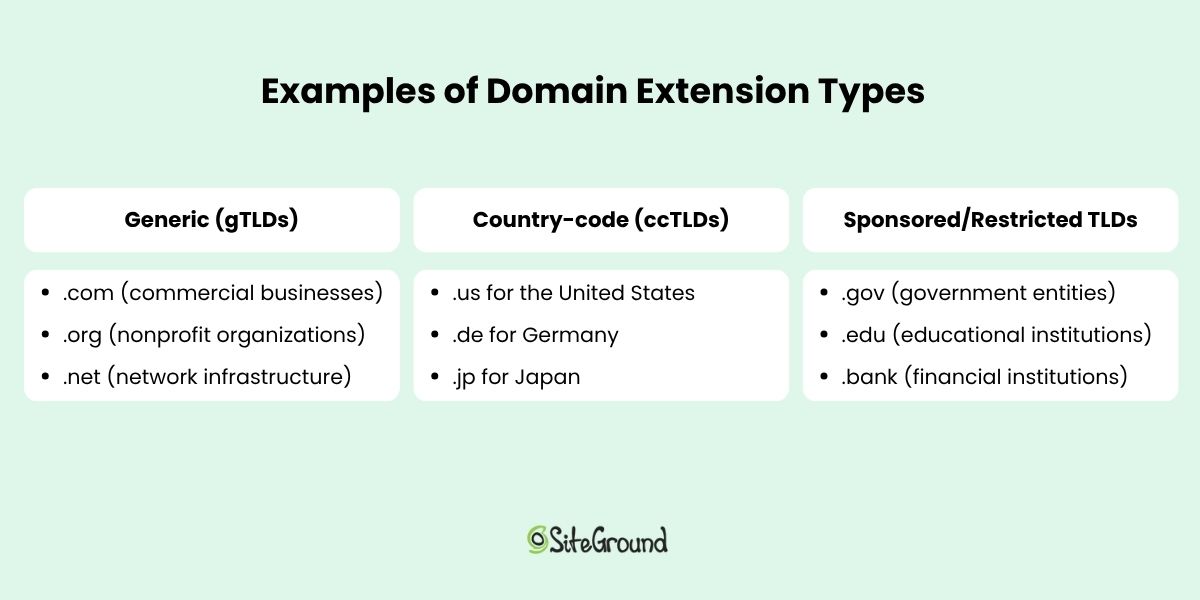
Here’s how to enable domain privacy:

  • Make sure it’s enabled: if you purchased it (or it was offered for free), double check to make sure it’s enabled.
  • Buy it as an add on: If you missed acquiring it during purchase, it’s not too late. Usually you can simply purchase it as an add on. 
  • Review your WHOIS info periodically: Confirm that your personal info remains hidden and that only the registrar’s details appear publicly. For example, if you accidentally forget to renew your domain privacy, your information may suddenly become public. 
  • Again, keep in mind that domain privacy isn’t available for all domains, particularly certain country-specific ones.
Example of domain privacy option for a domain

2. Verify Ownership Email

When you register a domain, your registrar will typically send a confirmation email to the address you provided. This isn’t a formality like confirming an email newsletter; it’s actually essential for maintaining control of your domain. Many registrars, including SiteGround, require verification to comply with ICANN rules.

Here’s how to verify your domain ownership email:

  • Check your inbox (and spam folder) for an email from your registrar immediately after purchase
  • Click the verification link provided in the email
  • If you don’t receive it within 24 hours, request a new verification email from your registrar
  • Keep your email account secure—this is your main way to manage ownership confirmations

Important to note: Until you verify your email, some registrars may limit certain domain functions, such as transferring the domain or updating DNS settings. Verifying promptly ensures full access and avoids potential delays.

2. Turn on Two-Factor Authentication (2FA)

We talked about the importance of two-factor authentication before: if someone gains access to your domain registrar login, they could transfer your domain, change DNS settings, or take your website offline altogether. 2FA prevents this by adding an additional layer of security. So now’s when you’ll want to make sure to put this feature to good use. 

Here’s how you would typically set up 2FA via most registrars:

  • Log into your account
  • Go to Security or Account Settings
  • Find and enable Two-Factor Authentication / 2FA
  • Choose a verification method (SMS or authenticator app)
  • Enter the code sent to your phone or generated by the app
  • Confirm setup
Example of enabling two step authentication for a domain

SiteGround actually goes a few steps further with security by offering: 

-App-based 2FA (which is more secure) instead of SMS 
-Backup codes or phone recovery
-A clear setup flow in the dashboard
-Seamless integration with domain/hosting account interface

4. Lock Your Domain

Turning on 2FA protects your login, but domain lock (or registrar lock as it is often called) protects the domain itself. Without it, someone could still request a transfer and move the domain away, even if they never logged into your account.

Assuming your registrar offers it (which they should, given your “before you buy” research), it’s still possible that you may need to enable it. 

Here’s what to keep in mind when it comes to locking your domain: 

  • Some registrars offer domain lock but don’t enable it by default 
  • Some registrars hide it under “advanced” settings
  • As a best practice, leave your domain locked at all times unless you are actively transferring it.
  • Note that not all domain extensions (particularly certain country-specific ones) allow you to lock your domain. 
Example of a domain lock or registrar lock

For those of you using SiteGround: note that domain lock is enabled automatically for qualifying domains, and is located clearly under your domain settings (Client Area > Services > Domains > Settings) so that it’s easy to verify.

5. Set Up DNS and Connect Your Hosting

Once your domain is registered, it’s essentially a blank address on the internet. To actually use it, you’ll need to connect it to your website and email by configuring your DNS settings. Remember: DNS acts like a phone book for the internet, translating your domain name into the IP address of your website’s server.

Steps to set up your domain properly:

  • Point your domain to your hosting: If you purchased web hosting at the same registrar, this may be automatic. Otherwise, update the nameservers or A/CNAME records to point to your hosting provider.
  • Verify email routing (if applicable):  If you plan to use email linked to your domain, ensure MX records are correctly set so messages are delivered reliably.
  • Consult support: This step can get confusing, so if you’ve chosen a good registrar, you can lean on support to walk you through any issues you encounter.
  • Keep in mind: After updating DNS, it can take up to 48 hours for changes to propagate fully across the internet. During this time, some visitors may still reach your old server or see an error page, which is normal.
Example of pointing a domain to a server

6. Monitor Your Domain Name

Owning a domain isn’t a no-maintenance kind of thing: there are high consequences if you neglect it and something goes amiss. Your brand, your sales, your communication—it’s all at risk. So it’s important to keep tabs on your domain and react quickly if something looks off.

What to monitor for your domain name:

  • WHOIS changes: Keep an eye on your publicly listed contact details. Any unexpected changes could signal unauthorized admin updates or hijack attempts.
  • Unusual domain activity or look-alikes: Domain squatting occurs when someone registers a close variation of your brand name (for example, you own yourbrand.com, and someone registers yourbrand-online.com or yourbrandstore.net) and uses it to confuse visitors or cheat your traffic. Being alert means you can act before it becomes a problem. 
  • Domain transfer attempts or login alerts: Some registrars and providers offer alerts or logs that show when someone tries to change settings or access your domain account.
  • DNS settings / redirection changes: If your domain begins routing unexpectedly or your email stops working, it could mean someone has changed your DNS records. Regularly check where it points.

Pro tip: Set up Google Alerts or a similar service for your brand name plus common misspellings—this helps you spot potential squatter domains or phishing attempts impersonating you.

Example of setting up alerts to avoid domain squatting

7. Renew Your Domain Name

Indeed, domain ownership is not in fact permanent: it’s more like a rental that you can renew for a year or years at a time. So in order to keep using your domain, make sure do the following:

  • Enable auto-renew: A simple step that ensures your domain name registration is automatically renewed before it expires, preventing accidental loss because you somehow missed a renewal email or your credit card expired. 
  • Keep your payment information up to date: Speaking of expired credit cards, double check that your payment methods are current to avoid interruptions in service.
  • Set calendar reminders: Whether auto-renew is available or not, you may wish to set calendar reminders just to make sure you don’t miss renewal alert or issue.

You’re Ready to Buy Your Domain

Buying a domain seemed so simple, and indeed it is, but making sure your set up for success requires a little extra homework: that means choosing the right registrar, selecting the optimal domain name, and securing your domain properly. And now you know the drill. With the right preparation, you can confidently register, set up, and maintain a domain that supports your website and business goals.

For a seamless, secure, and hassle-free experience, SiteGround makes domain management simple. You get free domain privacy for the first year, two-factor authentication, domain lock, and unlimited SSL certificates. (If you also sign up for web hosting, your domain is free for the first year, making site and domain management even easier!) You also get free professional email, unlimited subdomains, 24/7 support, and an intuitive dashboard that makes managing your domain effortless—everything you need to get your website online safely and efficiently from day one.

FAQs for How to Buy a Domain Name

Can I buy a domain name without hosting?

Yes, you can register a domain without buying hosting. Many people do this to reserve the domain name before their website is ready. The domain will simply remain “parked” until you connect it to a hosting provider later. Services like SiteGround Web Hosting make it easy to link your domain to hosting when you’re ready, and you’ll just need to keep the domain registration active through yearly renewals (or multi-year renewals if you prefer).

Does the country I live in affect my domain name?

Not usually in terms of who can buy a domain, but it can affect SEO and eligibility depending on the extension you choose. Most global extensions (like .com, .net, .org) can be registered from anywhere and are treated neutrally by search engines. However, country-code domains (like .es, .fr, or .ca) are often used as a signal of geographic relevance, which can help your SEO in that specific country. Some of these ccTLDs also require you to live in—or have a business registered in—that country before you can purchase them.

How can I buy a domain name that is taken?

If the domain you want is already registered, you still have a few options. You can try variations of your domain name or a different top-level domain (TLD) like .net or .info. Some domains are available for sale through brokers or marketplaces, where you can negotiate a purchase with the current owner. Another option is to backorder the domain so you have a chance to claim it if it becomes available. Finally, you can contact the current owner directly to see if they’re willing to sell. Keep in mind that premium domains may come at a higher price, so consider the value to your brand before making an offer.

Can I buy a domain name permanently?

No, you can’t buy a domain name permanently. Domains are registered for a set period, usually between one and ten years, and must be renewed before they expire to maintain ownership. Most registrars, including SiteGround, offer auto-renewal options so you don’t accidentally lose your domain. As long as you keep renewing it, you can essentially maintain control indefinitely, but there’s no one-time “forever purchase” option.

This article was originally published in November 2025 and then updated in May 2026.

How to Host a Website: The Only 6 Steps You Actually Need + Quiz

An advertisement featuring a person working on a laptop with a website interface, showcasing options for cloud hosting, shared hosting, and VPS hosting, with a graph indicating growth.

Website hosting is like the plumbing of your online business; when it works, you don’t even notice it, but when it doesn’t, it’s a major headache.

That’s why we’re here with a guide on how to host a website, breaking it down into simple, no-nonsense steps. Plus, there’s a self-assessment quiz here to help you figure out exactly what you need from your web hosting, so you can make the best choices for your business.

Whether you’re launching your first website or expanding your digital footprint, we’ve got you covered.

So get ready to unlock your business’s full potential with our easy-to-follow guide to web hosting success!

What is Website Hosting and Why Do You Need It?

Website hosting is the service that makes your website accessible on the internet. Without hosting services, your site is like a book without a shelf—no one can find it. 

How does this work in practice? When someone enters your website’s URL or clicks a link, their browser asks the web server where your site is hosted in order to send over the necessary files. The server quickly responds, sending the files back to the browser, which then turns them into the web page your visitor sees.

A flowchart illustrating how web hosting works, showing a website user accessing the internet (WWW) which connects to a web server (web hosting) that stores and serves website files (HTML, CSS, JS).

So, do you really need web hosting? Absolutely! If you want people to visit your site, hosting is a must.

But what is the cost of hosting a website? Hosting prices can vary quite a bit, depending on things like how much storage and bandwidth you need. No need to worry, though, there are hosting options for every budget, and we’ll explore the costs by type of hosting in this article, so you can find something that fits just right.

How To Host a Website in 6 Steps

You now know what web hosting is, so roll up your sleeves and let’s get started. Learning how to host a website might seem tricky, but we’ve laid it out in six simple steps to get you up and running quickly.

Each step is a building block for your online presence, helping you create a website that engages visitors and enhances your brand’s credibility.

Step 1: Decide on Your Hosting Needs

Before you kick off your web hosting adventure, it’s essential to educate and prepare yourself by understanding the goals and needs for your website. This is where website planning comes into play.

Consider how your website fits into your broader marketing funnel. Are you looking to attract new customers, engage existing ones, or perhaps show off your work? Defining your goals will help shape your hosting decisions.

Quick quiz: Self-assess your hosting needs
What type of website are you building?
A. Personal blog or hobby site
B. Small business or portfolio site
C. Ecommerce store
D. Large-scale corporate or media site
How much traffic do you expect?
A. Fewer than 1,000 visitors per month
B. Between 1,000 and 10,000 visitors per month
C. Between 10,000 and 100,000 visitors per month
D. More than 100,000 visitors per month
What’s your monthly budget for hosting services?
A. $0-10 (Looking for the most budget-friendly option)
B. $10-50 (Willing to invest for moderate features)
C. $50-100 (Prepared to pay for advanced features and performance)
D. $100+ (Seeking top-tier resources and support)
How comfortable are you with the technical setup?
A. Not comfortable at all (Prefer a fully managed service)
B. Somewhat comfortable (Can handle basic tasks with guidance)
C. Comfortable (Able to manage most tasks with some support)
D. Very comfortable (Experienced and can handle complex tasks independently)
  • If you mostly selected A’s, a basic shared hosting plan could be perfect for your needs, offering affordability and ease of use. 
  • If your responses lean towards B’s, consider a managed hosting plan or cloud hosting that provides more resources and support for growing websites. 
  • For those who chose C’s, a dedicated server or an advanced cloud hosting might be ideal, providing enhanced performance and control. 
  • Lastly, if you found yourself selecting D’s, a high-end dedicated server hosting would suit your complex needs and high web traffic demands.

[24]

Step 2: Choose a Reliable Web Hosting Provider

Once you’ve figured out what you need, it’s time to choose a hosting provider—basically, the company that will give your site a home on the internet. 

Choosing the right provider is super important for your site’s success. You’ll want to look for a few key things like uptime, support, speed, and scalability. Here’s how each one of them plays out in reality:  

  • Uptime: This is like having a reliable power supply for your own website. You want your site to be up and running all the time. SiteGround offers 99.9% uptime, so your site won’t be “down” or unavailable.
  • Customer Support: Whether you’re into tech or not, having a friendly expert on speed dial is invaluable. You’ll want a hosting provider with a broad scope of support, offering help around the clock. This way, if something goes wrong, you can get assistance anytime, day or night.
  • Site Speed: You’ve seen the stats on modern attention spans—people want things fast. A fast site means happy visitors and it can even help your site show up higher in search results. Plus, site speed directly impacts conversions; with every passing second it takes your page to load, conversions drop. So, choose a provider that keeps things zippy. So, choose a provider that keeps things zippy.
  • Scalability: As your website grows, you’ll need more resources. A good hosting provider will make it easy for your hosting to grow along with your site’s needs.

Hosting Multiple Websites

Managing multiple websites can be a great way to grow your online presence or juggle different projects all in one place. Whether you’re a web agency, a business with several brands, or just someone with a bunch of interests, having the right hosting setup is crucial to keep things running smoothly.

For example, SiteGround’s client PixWeb, a web agency, effectively uses our hosting to manage up to 40 websites on a single server, leveraging its scalability to bundle hosting with maintenance for consistent revenue. With built-in tools like daily backups and performance optimizers, SiteGround simplifies website management, underscoring its reliability and support as essential for business growth.

Hosting multiple websites can be a fantastic way to expand your online presence or manage various projects under one roof.

To make sure you make the best choice, read customer reviews on trusted tech sites, check provider websites for uptime and support details, and test their customer support responsiveness. 

Step 3: Select the Right Hosting Plan

Now that you’ve decided on your provider, your next task is to choose the right hosting plan. You need something that meets your current needs but also has the flexibility to grow with you. Start small and look for web hosting plans that offer scalability options. Many web hosting providers offer money-back guarantees, so you can try before you buy and see what feels right for you.

Next, let’s break down the different hosting types and weigh their pros and cons. This will help you quickly pinpoint which option aligns best with your website’s needs and future website hosting plans.

Shared Hosting

Pros: Shared hosting is affordable and easy to set up, making it suitable for beginners.

Cons: It has limited resources and the potential for slower website performance due to shared resources.

Cost: Typically ranges from $3 to $10 per month, making it the most budget-friendly option.

VPS Hosting

Pros: With VPS hosting, you gain greater control, scalable resources, and enhanced performance.

Cons: It demands some technical know-how and is costlier than shared hosting services.

Cost: Generally costs between $20 to $100 per month, depending on the resources and features.

Cloud Hosting

Pros: Cloud hosting excels in scalability, reliability, and performance, and it’s cost-effective with pay-as-you-go pricing.

Cons: Managing it can be complex, plus costs can vary.

Cost: Prices vary widely, often starting around $10 per month and increasing based on usage and resources.

Dedicated Hosting

Pros: This option provides a dedicated server with dedicated resources, exceptional performance, and extensive customization options.

Cons: It’s expensive and requires a high level of technical expertise to manage effectively.

Cost: Typically ranges from $80 to $300+ per month, depending on the server specifications and additional services.

Managed WordPress Hosting

Pros: Managed WordPress hosting takes care of server maintenance, updates, and security, making it perfect for those with limited technical skills.

Cons: It tends to be more expensive than unmanaged options and offers less control over server configurations. When deciding between managed and unmanaged hosting, consider whether you prefer convenience and support or greater control and customization.

Step 4: Register Your Domain Name

Your domain name is your website’s unique address on the internet, like “yourwebsite.com.” A custom domain makes your brand look professional, is easy to remember, and can help your website rank higher in search results. With free website addresses that include the hosting company’s name—like ‘yourname.siteground.com’—your site can seem less trustworthy and harder for people to find.

You can easily do this by going to SiteGround. Plus we have an AI domain name generator tool that can help you come up with a name.

A webpage section for domain name registration with a text field for input (e.g., Yoga studio in New York), buttons for direct search and AI-generated options, and details about free domain privacy and 24/7 support.

Tips for choosing a domain name:

SEO-friendly names: With or without the help of AI, secure a domain name that reflects your website’s purpose and, if possible, includes relevant keywords. This can help improve your search engine rankings. 

Consider privacy add-ons: SiteGround offers domain privacy protection to keep your personal information private from public databases, enhancing your website’s security.

With your domain registered, you’re one step closer to establishing your online presence and building a recognizable brand.

Step 5: Create Your Website

Now comes the fun part—creating your website! There are several paths you can take here, depending on your comfort level and needs.

You might consider using a standard CMS platform like WordPress. While WordPress offers a wide range of themes and plugins to customize your site, its interface can sometimes feel a bit overwhelming with a steep learning curve, especially for beginners. However, opting for managed WordPress hosting can solve this problem by handling updates and maintenance.

Alternatively, you can use tools like the SiteGround Website Builder, which makes things as easy as it gets. The difference here is that the Website Builder is designed for simplicity, offering drag-and-drop features and pre-made templates that are fully integrated, so you can get up and running quickly without any technical & coding knowledge. 

SiteGround Site Builder offers pre-built sections, AI-assisted content creation, premium images, and built-in SEO tools for easy website creation.

Step 6: Upload, Test, and Launch Your Website

If you’ve built your site locally, once your website is ready, you’ll need to upload your files to get everything set for the big launch. Put your website files in the public_html folder, which is where your main domain’s files should go. If you have additional sites, like subdomains, make sure to upload their files into their own specific folders.

Besides your website files, most modern sites also use databases to handle dynamic content. Make sure you upload your database and set it up correctly on your server.

Managing FTP (File Transfer Protocol) accounts is essential for transferring your website files to your server efficiently. FTP allows you to upload, download, and manage files on your server directly from your computer. To manage your FTP accounts, navigate to Site Tools > Site > FTP Accounts. 

A screenshot of an FTP Accounts management interface with options to create a new FTP account, including fields for account name, password, and FTP login information, along with a "CREATE" button.

Here, you can set up new FTP accounts or manage the ones you already have. For existing accounts, you can check your credentials and update the name, username, password, account quota, or directory. This control helps you easily upload and organize your website files.

Before going live, check your website for errors, mobile responsiveness, and speed. These factors are vital for a good user experience and can significantly impact your site’s success.

Launch tips:

SSL Setup: Secure your site with an SSL certificate. SiteGround automatically provides a free SSL certificate for your domains, making this step hassle-free.

SEO Basics: Submit your sitemap to search engines to enhance your site’s visibility. Crafting meta descriptions and maintaining a clear SEO hierarchy are also crucial for optimizing your site. For instance, the SiteGround Website Builder offers built-in SEO functionality that guides you through essential steps to effectively optimize your site.

If all of this sounds too techy, here’s the summary. To launch your site, upload your files using FTP, check that everything works smoothly, secure it with SSL, and make sure search engines can find it.

If you’re using SiteGround’s managed WordPress hosting, you can skip these upload steps because WordPress is automatically installed, making things a lot easier.

If you’re looking for an even easier option, give the SiteGround Website Builder a try. It simplifies the process with drag-and-drop tools and pre-designed templates. And if you run into any issues, expert support is just a click or call away to help guide you through the process.

Your Next Steps in Website Hosting

And tada! You’ve learned how to host a website, and now it’s ready for users to jump in and explore. You’ve come a long way, and it’s time to recap the journey.

Your 6 steps to host a website:

Understand your needs
Choose a web hosting provider
Select the right hosting plan
Register your domain name
Create your website
And finally, upload, test, and launch your site.

Knowing how to host a website is essential for making your website accessible on the internet, providing the infrastructure and support your site needs to thrive.

Ready to take the plunge? Give SiteGround hosting a try. We cover all the bases we’ve discussed and offer user-friendly Site Tools to make managing your website a breeze. Plus, with the SiteGround Website Builder you will get a seamless integration of SSL and SEO functionality to improve your site’s performance and security. 

Whether you’re just starting out or looking to grow, SiteGround provides the tools and reliability to support your online journey.

A promotional SiteGround banner with web hosting icons, a main heading that says "Unleash your website potential with SiteGround", text that says "Begin your online journey with a trusted web hosting partner that will provide your website with ultrafast speed, top-notch security, and dedicated support", and a button with text - "Get SiteGround Hosting"

How to Secure a Domain Name: 9 Best Security Tips

Abstract image of how to secure a domain name

There’s something exciting about buying a domain—it’s your own slice of digital real estate, and it’s usually quick and affordable to acquire. But more often than not, we forget that it’s not just about buying a domain, but also protecting it. 

If you skip important security steps, you’re leaving your site—and your brand—vulnerable to hijacking, impersonation, or even accidental loss. So knowing how to secure a name is just as important as choosing the right domain name in the first place. 

In this guide, we’ll walk you through nine essential best practices to help you safeguard your domain and keep it firmly under your control, now and in the future.

Why Domain Security Matters

Your domain name is the entry point for your business, blog, or personal brand. So if someone gains unauthorized access to it, the consequences aren’t trivial. They could redirect your site, intercept emails, or impersonate your brand online. The reality is that domain theft, spoofing, and accidental expiration are all very real threats, which can be costly to recover from, if recovery is even possible.

As such, it might come as no surprise that having a secure domain really matters. It helps to ensure: 

  • Your website and email stay under your control
  • Your visitors aren’t redirected to malicious sites
  • Your brand reputation remains intact
  • You avoid unexpected downtime or data loss
  • You avoid short and even long term financial loss due to the fall out

While securing a domain name might seem like a minor technical detail, it’s in fact a core part of managing and maintaining your online presence—so kind of a big deal! The very good news is that there are super simple steps you can take that will save you loads of headaches down the road. And that’s what we’ll be tackling today.

How to Protect Your Domain: 9 Best Practices

1. Enable Domain Privacy

When you register a domain name, your personal information—such as your name, address, phone number, and email—ends up listed in the public WHOIS database by default. This database is accessible to anyone online and is often used by marketers, scammers, and cybercriminals alike. Not good. 

What does this mean?

Exposing your contact details publicly can lead to a flood of unwanted spam emails, phishing attempts, and even social engineering attacks aimed at tricking you or your registrar into handing over control of your website domain. If it sounds like a nightmare, it’s because it is: this kind of information leakage can put both your domain and your online security at serious risk.

How can you fix this? 

Domain privacy protection, sometimes called WHOIS privacy or WHOIS guard, masks your personal details by substituting them with the registrar’s contact information. This way, your private information is hidden from public view, greatly reducing your exposure to unwanted contacts and potential attacks.

Most reputable registrars offer domain privacy as an optional service, and in some cases, it may even be included for free (like at SiteGround, where you get domain privacy for free during the first year after acquiring a domain). Enabling this feature is an easy but extra impactful step in protecting your identity and reducing risks linked to domain ownership.

Image of domain privacy management in SiteGround client area

So be sure to enable domain privacy as soon as you register your domain in order to keep your contact information hidden. Just keep in mind that privacy protection only conceals your details—it doesn’t prevent domain theft.

2. Set Up Auto Renewal

One of the most common (and quite preventable!) ways people lose their website domain names is by simply forgetting to renew them. That’s because domain names are typically registered on an annual basis, and if you miss the renewal window, your registrar can release the domain back to the public. That means anyone—yes, even a competitor—could swoop in and register it.

The fix? Quite simply: enable auto-renewal.

Most domain registrars give you the option to automatically renew your domain name each year. So as long as your payment method is valid, your domain will remain yours—no manual steps or last-minute reminders needed.

To be extra safe:

  • Double-check that auto-renewal is enabled in your account settings
  • Use a primary email address that you regularly check, so you’ll receive renewal notices or failed payment alerts
  • Set a calendar reminder a few weeks before your domain’s expiration date, just in case there’s an issue with your payment method
  • If you register your domain at SiteGround, then your domain is set up for automatic renewal by default (one less box to check off!). But to be extra safe, always make sure your payment methods are up to date, and keep an eye out for any email notifications 

Losing a domain—even briefly—can cause website downtime, email disruption, and serious damage to your brand. Setting up auto-renewal is a quick and easy way to avoid that risk.

4. Use Strong, Unique Passwords and 2FA

Your domain is only as secure as the account that controls it. If someone gains access to your domain registrar login, they could transfer your domain, change DNS settings, or take your website offline altogether. That’s why it’s super important to protect your account with strong credentials and an extra layer of security.

By now, you probably know the drill when it comes to creating a good password: Start with a strong, unique password—something long, complex, and not reused across other accounts. Avoid using easy-to-guess information like birthdays, pet names, or words related to your brand.

Then, enable two-factor authentication (2FA) if your registrar offers it (as SiteGround does). 2FA adds an additional step to the login process—typically a one-time code sent to your phone or generated through an authenticator app—making it much harder for unauthorized users to break in, even if they somehow get your password.

Image of setting up 2 step verification in SiteGround client area

5. Protect Your DNS Settings

Once your domain is registered, your Domain Name System (DNS) settings determine where it points—whether that’s to your website, your email provider, or other services. If someone gains access to your DNS, they can redirect your traffic, hijack your email, or take your entire site offline. That’s why DNS protection is such a critical part of domain security.

Here’s how to lock it down:

  • Use a trusted DNS provider. Whether you manage DNS through your registrar or a third party, choose a provider with strong security practices and a reliable track record.
  • Restrict access. Make sure only authorized users can modify your DNS records, and monitor for any unexpected changes. As we’ve already covered, this means securing your account with a strong password and two-factor authentication, limiting who has login access, and avoiding shared credentials whenever possible.
  • Regularly review your records. Periodically check your DNS settings to remove outdated entries, unused subdomains, or third-party access you no longer need. This helps keep your domain secure and prevents potential misconfigurations or vulnerabilities.

Even if your domain is locked and private, weak DNS security can still leave your site vulnerable. Taking a few extra steps to secure it can protect your traffic, your customers, and your reputation.

At SiteGround, DNS management is built into our platform, giving you full control over your domain’s DNS settings with an easy-to-use interface—and the added security of a trusted provider. 

Search domains now >>

6. Implement Registrar Locking

One of the simplest ways to prevent threats like the unauthorized transfer of your domain is by enabling registrar locking—sometimes called “domain lock” or “transfer lock.” This setting prevents anyone from moving your domain to another registrar without your explicit approval.

Without this lock in place, a digital troublemaker who gains access to your registrar account—or successfully targets you with a phishing attack—could initiate a website domain transfer. Once your domain is moved, you could be dealing with an avalanche of problems. Not only could getting it back can be extremely difficult, but your website, email, and online identity could all be compromised.

Registrar locking acts as a safeguard by blocking unauthorized or accidental domain transfers and giving you time to respond if any suspicious activity occurs. Most reputable registrars include this feature at no extra cost, and it’s typically just a toggle in your domain settings.

Image of domain locking in SiteGround client area

With SiteGround, domains are locked by default for your protection. You can easily view and manage this setting through your account dashboard, giving you peace of mind that your domain is staying put.

8. Monitor Your Domain Name for Domain Squatters and Spoofing

Even if you’ve locked down your website domain, someone up to no good can still try to take advantage of your brand by registering lookalike domains. This is known as domain squatting (or cybersquatting) and can be used for phishing scams, impersonation, or simply to confuse your visitors.

For example, someone might register a domain like yourbrand-support.com or a misspelled version like yorubrand.com to trick users into thinking it’s you.

This tactic is often part of a broader threat called spoofing—a form of digital impersonation where attackers pretend to be a legitimate business or individual to mislead users and gain their trust. In the context of domains, spoofing can be used to steal login credentials, spread malware, or damage your reputation.

To stay ahead of these threats:

  • Set up Google Alerts for your brand name and domain
  • Periodically search for domain variations that could be mistaken for yours
  • Use domain monitoring tools that track new registrations of similar names
  • Report malicious use (like phishing or impersonation) to the registrar or authorities
Image of setting up alerts to avoid domain squatting

If you’re serious about brand protection, this kind of ongoing monitoring is just as important as setting up strong passwords or enabling auto-renewal.

7. Buy Multiple Variations

Another important way to ward off domain squatters is by purchasing multiple variations of your domain name. Doing this reduces the risk of someone else registering similar names and using them to impersonate you, divert your traffic, or just plain confuse your audience.

Consider registering:

  • Common misspellings of your domain
  • Other top-level domains (TLDs) (also called domain extensions) like .net, .org, .co, or country codes if relevant to your audience
  • Hyphenated or non-hyphenated versions
  • Singular/plural or brand-related terms that could be mistaken for your own
Image of multiple domain extension options

When you acquire these additional variations, simply redirect the domain names to your main site for better visibility. Even if you don’t actively use them, having control over these domains strengthens your overall domain security and brand presence.

8. Keep Your Registrar Account Email Up to Date

This is yet another seemingly tiny detail that can make a big difference. Your registrar account email address is your main point of contact for not-to-be-missed domain updates—including renewal notices, transfer requests, and security alerts. If that email is outdated or inactive, you could miss something important and risk losing control of your domain.

Simply make sure you use an email address you check regularly, and avoid using one tied to the relevant domain (because if your domain goes down, so does access to that inbox!). This one simple habit will mean you always stay in the loop—and in control—if something unexpected happens.

9. Use a Reputable Registrar with Strong Support and Security

When all is said and done, it’s important to keep in mind that the registrar you choose plays a major role in keeping your domain name safe—because working with the right registrar makes implementing the above recommendations a whole lot easier. 

With all the domain security tips we’ve covered, here’s a streamlined summary and some final points to guide your registrar choice:

  • Built-in security features like domain locking and two-factor authentication (2FA)
  • Reliable customer support that’s available when you need it
  • Easy domain management tools for DNS updates, transfers, and auto-renewals
  • Optional extras like domain privacy, subdomain creation, and email forwarding
  • Transparent pricing with no surprise renewal fees

At SiteGround, we make domain security a priority. With features like domain locking, WHOIS privacy, easy DNS management, and expert support, it’s easy to register and manage your domain name with confidence.

Image of choosing a domain name with SiteGround AI suggestion tool

How to Secure a Domain Name: A Quick Security Recap

Securing your domain name goes far beyond the initial purchase. From locking your domain and enabling privacy protection to monitoring for spoofing and keeping your registrar info up to date, each step adds a noteworthy layer of protection. These best practices help ensure your domain—and everything connected to it—remains safe, stable, and under your control.

At SiteGround, we make domain security simple. When registering a new domain or managing multiple ones, you’ll have the tools and support you need—from domain locking and WHOIS privacy to intuitive DNS controls and expert help around the clock when you need it. Your domain deserves more than just a name—it deserves protection you can trust.

Managed vs Unmanaged Hosting: Key Differences Explained

Illustration comparing managed vs. unmanaged hosting. On the left, a server icon is connected to a network of nodes, a gear, and a performance dashboard—representing managed hosting with automation and monitoring. On the right, a plain server icon represents unmanaged hosting. The background features a gradient of green and purple tones.

Choosing the right hosting service can make a big difference in your website performance and how much effort you need to invest in server management. So one of the most important decisions you’ll face when it comes to hosting is whether to choose a managed or an unmanaged solution. Both have their advantages—but which one fits your needs best?

In this guide, we’ll break down what each option offers, compare their key differences, and help you decide which server hosting type is right for you. 

Key Takeaways

  • Managed and unmanaged hosting are two distinct approaches to server management. They mainly differ in who handles the technical tasks.
  • Managed hosting means your provider takes care of maintenance, security, updates, and expert support.
  • Unmanaged hosting gives you full control, but also the responsibility to maintain a stable, secure hosting environment.
  • Choose managed hosting if you want peace of mind and time savings; choose unmanaged if you need flexibility and have the technical skills.

What Is Managed Hosting?

Managed hosting is a type of web hosting service where the hosting company takes care of all the technical aspects for you. This includes server maintenance, security, operating system updates, backups, and more.

It’s a hands-off hosting solution ideal for users who don’t want to handle server management or lack the technical skills to do so. With managed hosting servers, your provider acts like your tech partner and ensures smooth operation and optimal performance.

This means:

  • Initial server setup and ongoing maintenance
  • Security monitoring and threat protection
  • Automated software and operating system updates
  • Regular backups and disaster recovery
  • Performance optimization with dedicated resources
  • Access to an experienced team for 24/7 customer support

It’s a great choice for business websites, blogs, and any WordPress site that needs reliable performance without technical headaches. Whether you’re launching a site solo or as part of a team, managed web hosting helps you focus on your content or business while a managed hosting team takes care of the backend.

What Is Unmanaged Hosting?

Unmanaged hosting gives you a bare-bones server with full control. You’re responsible for installing software, configuring the server, managing updates, and handling website security.

This type of hosting infrastructure is better suited for developers or experienced users who want customization and have the skills (or a team) to manage everything themselves.

It gives you full control over your server—but with that control comes responsibility.

You’ll need to handle:

  • Server setup and configuration
  • Software installation and updates
  • Security hardening and firewall setup
  • System patches and maintenance
  • Troubleshooting, logs, and performance optimization

Unmanaged hosting plans can be flexible, but require more time, effort, and technical know-how. They’re often used when hosting a custom application, or when full root access is required for advanced configuration. Unlike a fully managed server, you’ll be entirely responsible for your own server resources and security protocols.

Differences Between Managed and Unmanaged Hosting

The biggest difference between managed and unmanaged hosting comes down to who handles the technical tasks.

FeatureManaged HostingUnmanaged Hosting
Support24/7 expert customer support includedMinimal support; limited to hardware issues
Server ControlLimited; the managed hosting team handles setup and changesFull root access and complete control
Security & UpdatesManaged by the web hosting provider, including operating system updates and monitoringYour responsibility
PerformanceOptimized server performance with dedicated resourcesYou handle tuning and optimization manually
CostHigher; includes built-in services and expert managementLower upfront, but may cost more in time and third-party tools
Ease of UseBeginner-friendly, ideal for most website ownersRequires technical knowledge or a developer team

With managed hosting services, the hosting provider takes care of everything behind the scenes—like updates, backups, and security. It’s designed to give you peace of mind and save time.

A promotional SiteGround banner with web hosting icons, a main heading that says "Unleash your website potential with SiteGround", text that says "Begin your online journey with a trusted web hosting partner that will provide your website with ultrafast speed, top-notch security, and dedicated support", and a button with text - "Get SiteGround Hosting"

Unmanaged hosting, on the other hand, gives you complete freedom but also full responsibility. You’ll need to install and configure everything manually, keep the server secure, and monitor its performance.

Support is another major factor. Managed hosting clients typically benefit from having an experienced hosting IT team available 24/7. In contrast, unmanaged services usually offer limited support—mainly for physical server or network issues.

Pros and Cons

Both managed and unmanaged hosting have their strengths and weaknesses. Choosing the right one depends on your technical skills, available time, and what kind of experience you’re looking for.

Managed Hosting

The main benefit of managed hosting lies in what you don’t have to do. You won’t need to configure the server, monitor performance, or worry about backups and updates. That peace of mind is worth the higher price for many site owners, especially those focused on content, and business operations.

The trade-off? Less flexibility and a reliance on your hosting provider to make system-level changes on your behalf.

Unmanaged Hosting

Unmanaged hosting gives you complete control—ideal if your project demands a specific tech stack or setup.

You’ll need time, skills, and a solid understanding of server administration. It can be cost-efficient, but the hidden cost is the expertise it demands. 

If you’re building something custom, or have an internal team ready to manage a server environment, this route offers maximum freedom—at the price of greater complexity.

How to Choose: Managed vs. Unmanaged Hosting

The right option depends on your goals, technical ability, and how hands-on you want to be. 

A visual image of the above comparison table Managed vs Unmanaged Hosting.

1. Cost

Managed hosting plans usually cost more, but they include expert support, backups, optimizations, and peace of mind. For most website owners, the investment in fully managed hosting is worthwhile for the convenience and time savings.

Looking for a hosting provider that takes care of performance, security, and support? 

SiteGround’s managed hosting includes built-in caching, a custom CDN, daily backups, and expert support—so you can focus on growing your site.

If budget is your primary concern and you have the skills to manage a server, unmanaged hosting may work—especially if you’re setting up a custom project or testing new environments.

2. Technical Expertise

Server maintenance and performance tuning can be overwhelming if you’re not technically skilled. Keeping up with patches, configuration changes, and server resources requires knowledge and constant attention.

That’s why managed cloud hosting or a fully managed shared server is the best option for most users. With managed hosting solutions, you get a professional team that handles everything for you—so your focus stays on growing your site or business.

3. Custom Requirements

Some custom-built applications may have specific software requirements that are not available on managed setups. In such cases, unmanaged hosting offers the flexibility you need—at the cost of doing everything yourself.

However, if you’re hosting a WordPress site, an online store, or a business site, most managed hosting providers already offer optimized environments. 

Even if you have custom requirements, managed services may still be the better option. Managed dedicated hosting clients, for example, benefit from having the entire physical server managed and configured for them.

Managed or Unmanaged Hosting—Which Option Is Best for You?

To summarize, if you want a worry-free experience and prefer to focus on your business—not server configuration—managed hosting services are the way to go. It’s perfect for business owners, bloggers, and non-technical users who want their site to just work.

On the other hand, if you’re experienced, enjoy customizing your tech stack, and need total control, unmanaged hosting gives you that freedom. It’s best suited for developers, sysadmins, or those with the time and knowledge to manage a server hosting environment on their own.

At the end of the day, choosing the right hosting service is about balancing cost, control, and convenience. 

For most website owners, managed hosting is the smarter, stress-free choice. You get expert support, built-in security, and top performance—without the technical headaches. If you want a reliable solution that just works, try managed hosting with SiteGround and grow your website!

.com and Beyond: A Guide to Domain Extensions in 2026

Abstract of domain extensions

When it comes to domain names, everyone knows .com—it’s the internet’s classic go-to and still the best choice for most websites. But with over 1,500 domain extensions available today, from .tech to .shop to .bio, the domain landscape sure has a lot more to offer than just what remains of .com. What’s more, choosing the right extension goes beyond just getting you online—it can shape how your brand is perceived, who finds you, and even how memorable your site is.

In this guide, we’ll break down what domain extensions are, why .com still reigns supreme, and how savvy businesses and creators are using newer, niche extensions to stand out in 2025. Because startups, online stores, personal brands: there’s a perfect domain extension out there waiting for you.

What is a Domain Extension? 

A domain extension is the part of a website’s address that comes after the final dot—like .com, .org, or .net. A slightly more techy audience might also hear it referred to as a top-level domain (TLD), which refers to the highest level in the domain name system hierarchy. These terms are used interchangeably, though, with domain extension being the more user-friendly version.

Domain extensions have become a routine part of our digital day as we browse the web, but they do in fact serve an actual and important purpose behind the scenes. That is, they help organize the internet by categorizing websites based on their purpose, location, or sponsoring organization. And that’s where different types of domains come in.

Types of Domain Extensions

Indeed, domain extensions come in several varieties, each serving different roles and audiences. Understanding these types can not only help you in your website planning, but also get those creative juices flowing, and maybe even inspire some of your branding.

Generic (gTLDs)

Generic top-level domains (gTLDs) are the most common and recognizable domain extensions. They were originally created for general use without any geographic or organizational restriction. Examples include:

  • .com (commercial businesses)
  • .org (nonprofit organizations)
  • .net (network infrastructure)

In recent years, hundreds of new gTLDs have been introduced to help websites stand out and signal their industry or purpose, such as .app, .blog, .shop, and .tech. 

Country-code (ccTLDs)

Country-code top-level domains (ccTLDs) are two-letter extensions assigned to specific countries or territories. They help indicate the geographic focus of a website, such as:

  • .us for the United States
  • .es for Spain
  • .jp for Japan
example website with a ccTLD

Sponsored/Restricted TLDs

Sponsored and restricted TLDs are specialized domain extensions that are regulated or managed by designated organizations. These often require applicants to meet certain criteria or verification processes to assure that the domain’s use fits specific industries or communities. Examples include:

  • .gov (government entities)
  • .edu (accredited educational institutions)
  • .bank (verified financial institutions)
  • .health (trusted health organizations)

These domains add credibility and trustworthiness, but they aren’t open for general registration.

Examples of domain extension types

How to Choose the Right Domain Extension

Alright, now we’ve got the basics covered, but what does this mean for you as you contemplate the perfect domain name? 

1. When in Doubt, Go with .com

Despite the explosion of new domain extensions, .com remains a top choice for businesses and personal websites alike. If you’re able to find a great domain name with a .com extension, it’s usually the safest and most effective choice. Here’s why:

  • Universal Recognition: .com is the most familiar and trusted domain extension worldwide. People automatically type “.com” when entering web addresses, making it easier for your audience to find you.
  • Credibility and Professionalism: Because it’s so well-established, .com domains often convey authority and legitimacy. Visitors may trust a .com site more than less familiar extensions.
  • SEO Stability: While Google states that domain extensions don’t directly affect search rankings, users’ trust and click behavior often favor .com sites, which can indirectly benefit SEO.
  • Better Resale Value: If you ever decide to sell your domain, .com names tend to have higher market value and demand.
  • Widespread Availability: Many services, platforms, and email providers default to .com, making integration easier.

Those are some pretty compelling reasons, but securing a short, catchy .com domain can be like panning for gold: just plain hard to find. So if your ideal .com isn’t available, don’t worry—newer domain extensions can offer creative and even more ideal alternatives, which we’ll be covering in the sections to come.

2. Know Your Audience

We’ve established that .com is the default choice—and for good reason. But, apart from the limited availability, it’s important to keep in mind that not every audience responds to domain extensions in the same way. 

That is, if you’re building a brand, and want to get more adventurous with your domain extension, then it’s worth considering how your domain extension will land with your audience. In fact, in some cases, going beyond .com might actually make your brand feel more relevant, more modern, or more trustworthy. 

So what does this look like?

If your audience is tech-savvy, you can more confidently use newer, less conventional extensions, like .io or .ai (which we discuss more about in a bit).

example website with a .ai domain extension

If your audience is more mainstream, it’s best to stick with traditional, widely recognized extensions like .com (still the most familiar and trusted), .org (well-established for nonprofits and mission-driven brands), and .net (occasionally used for networking or infrastructure services). Mainstream users may be confused or skeptical of unfamiliar extensions, which can hurt trust and click-through rates.

Bottom line: Choose an extension your audience will recognize and trust—especially if you’re targeting users who aren’t in the habit of exploring the internet’s cutting edge.

3. Build Trust with the Right Extension

Beyond audience preferences, your domain extension also sends a subtle signal about your site’s trustworthiness and professionalism. Some extensions instantly convey authority, while others can feel unfamiliar—or even spammy—to certain users.

Here’s how different extensions shape perception:

  • Trusted and stable: Extensions like .com, .org, and .edu are long-established and widely respected. They’re safe bets when you want to signal legitimacy and reliability.
  • Potentially risky: Some extensions—such as .biz, .info, or obscure gTLDs—may raise eyebrows. Even if they’re valid, they’ve historically been linked with spammy or low-quality content.
  • Contextually strong: Industry-specific or verified extensions (like .health, .law, or .bank) can build credibility if they clearly match your offering and audience expectations.
example website with a .org domain extension

While having a familiar domain extension like .com might not necessarily improve your Google ranking, choosing an extension that feels untrustworthy or unfamiliar can negatively impact your SEO—primarily by reducing user trust and click-through rates. Since Google values user engagement, a domain that inspires confidence encourages people to click, explore, and interact with your site, indirectly supporting better search performance.

4. Consider Your Geographic Reach 

If your business or website primarily serves a specific country or region, using a country-code top-level domain (ccTLD)—like .es for Spain or .ca for Canada—can help signal your local presence. Beyond that, local TLDs can:

  • Improve relevance for local search results
  • Increase visitor confidence that your site is tailored to their region
  • Help comply with country-specific regulations

All this said, if your brand or business operates globally, it’s usually better to stick with a single domain—preferably a generic TLD like .com—and organize your content using subdirectories (that is, yourbrand.com/es/ for Spain) rather than multiple country-specific domains. Here’s why:

  • SEO Benefits: Domain authority does not transfer between multiple ccTLDs, so managing several domains splits your SEO power. A single domain consolidates your site’s authority, making it easier to rank.
  • Simplified Tracking: Managing analytics and marketing campaigns is easier when all traffic funnels through one domain. Multiple domains complicate performance tracking and increase costs.
  • Consistent Branding: A single domain ensures a unified brand identity across regions without confusing visitors.

In short, reserve local ccTLDs if your audience is narrowly focused on that region. Otherwise, use a single global domain and organize content by language or country within it for better SEO, tracking, and brand consistency.

5. Think About Branding 

Your domain extension is part of your brand—it shows up in every link, every email, and often in spoken conversation. That means it should be easy to remember, simple to say, and visually clean.

Sometimes, the right domain extension can even enhance your brand identity or make a clever name possible when the .com version is already taken. For example:

  • Creative use of the TLD: A site like calm.app or notion.so feels modern and on-brand without needing .com.
  • Shorter, cleaner names: If yourbrand.com is taken, but yourbrand.tech or yourbrand.store is available, you can keep the name you want without adding awkward dashes or extra words.
  • Memorability over convention: A domain like join.us or studio.design might stand out more and be easier to remember than a longer or compromised .com.

Pro tip: Before choosing an extension, say the full domain name out loud. If it sounds awkward or hard to explain to someone, it may not be the right fit, regardless of how clever it looks on paper.

6. Align with Your Industry 

Choosing a domain extension that reflects your industry can help you stand out, clarify your offering, and create a more intuitive experience for your audience. It shows visitors what you do before they even land on your site.

Some examples of industry-specific extensions include:

  • .tech – For startups, engineers, and tech-focused brands
  • .design – Popular with creatives, agencies, and portfolio sites
  • .health – For healthcare providers, wellness brands, and medical tech
  • .law – Used by law firms and legal professionals
  • .photography, .finance, .marketing, and many more

These extensions aren’t just creative, they can also help to:

  • Establish relevance: Visitors instantly associate your site with your field
  • Improve memorability: A descriptive extension can be easier to recall than a generic one
  • Enhance branding: You get a cleaner, more brand-aligned domain when .com versions are taken

Pro tip: Make sure the extension is widely understood within your industry and won’t confuse your audience. As we discussed above, some niche TLDs still feel unfamiliar to the general public.

7. Check Availability

Before you fall in love with a name, make sure it’s actually available, and be sure to buy the domain. But don’t just make sure the domain isn’t in use: these days, consistency across platforms is essential, so you’ll want to make sure your name is available across the board. 

searching for a domain extension with a domain search tool

Domain availability

Use a domain search tool to see if your desired name is available for domain registration. If the .com is taken, consider alternatives like .co, .io, or an industry-specific TLD—but always double-check that the alternative domain extension (or extensions) isn’t already in use by an active brand or competitor (because, if so, and you proceed with using the domain, this could equate to domain squatting). 

Even if the domain is used by a non-competitor, think carefully about potential confusion. Do you want your brand mistaken for another? Could it impact your visibility, credibility, or future expansion plans? Before settling on a name and extension, make sure to evaluate the broader implications for your brand.

A Quick Note on Pricing

Domain pricing varies depending on the extension. Standard domains like .com, .org, or .net usually cost around $10–$20/year. Newer or niche extensions—like .ai, .tech, or .design—can range from $30 to $100+ annually, while short or keyword-rich names may be considered premium and priced higher.

SiteGround makes it easy to check domain availability and compare prices during registration. And if you’re starting a new website, your first year of domain registration is free for select extensions when you sign up for hosting.

Social handle availability

Social media marketing is an inevitably important part of growing a business, so you’ll want to make sure your domain’s name (or a close variation) is available on key social platforms like Instagram, Twitter/X, TikTok, LinkedIn, and YouTube. At the end of day, a unified identity across web and social helps build brand recognition and makes it easier for people to find you.

How to choose the right domain extension

Modern Domain Trends in 2025

At this point, we’ve got the general domain extension landscape pretty well mapped out. So, what fresh trends are shaping the way we choose domains in 2025?

Trend #1: Startups Are Steering Away From .com

As we’ve covered, .com usually remains the go-to, but many startups today are opting for modern extensions like .io, .ai, and .dev to signal innovation and stand out. These newer TLDs are often shorter, more brandable, and directly reflect the tech focus of many startups.

  • .io is popular with SaaS and developer tools.
  • .ai highlights artificial intelligence products.
  • .dev targets developer-focused platforms.

These extensions aren’t just practical—they’re strategic branding choices that speak to a tech-savvy audience and help startups differentiate themselves. In fact, in some spaces, a .com might even feel outdated or overly corporate.

Trend #2: Brands Are Rethinking ccTLDs

Country-code top-level domains (ccTLDs) were originally tied to specific countries—but today, brands are using them creatively to signal what they do rather than where they are.

For example, the aforementioned .io was originally meant for the British Indian Ocean Territory, .ai was tied to Anguilla, and .tv represents Tuvalu but has become popular with media and streaming sites.

One caveat: while these ccTLDs act like generic TLDs in practice, they’re still technically country-specific. That means some policies or restrictions could apply, and their long-term status depends on agreements with the respective country’s domain authority.

Example website with a .io domain extension

Trend #3: Online Stores Are Getting Creative

Ecommerce websites are also moving beyond traditional .com domains and embracing extensions like .store, .shop, and .fashion to clearly communicate what they sell. These extensions make URLs more descriptive and oftentimes memorable, helping brands stand out.

Using a niche TLD gives retailers more flexibility to claim their ideal brand name without awkward add-ons, numbers, or hyphens. It can also reinforce brand identity at a glance, making it easier for customers to find, remember, and trust the site.

Trend #4: Creators Are Branding with Personal TLDs

Freelancers, influencers, and content creators are using extensions like .me, .bio, and .name to build personal brands that feel approachable and authentic.

These extensions are perfect for personal websites, landing pages, and social link hubs—and they make domains feel more custom and human.

  • .me domains are great for showcasing personal work
  • .bio works well as a link-in-bio or intro page
  • .name is a niche but fitting choice for personal sites

Trend #5: Big Brands Are Launching Their Own TLDs

Major companies are going a step further by securing custom, brand-owned TLDs like .apple and .barclays. These exclusive domains offer full control over the namespace and reinforce brand identity at every level.

example of a website with a custom domain extension

While this strategy is still limited to large enterprises with the resources to manage their own TLD, it points to where the web is headed—more personalized, brand-specific domains.

The Perfect Domain Extension Is Waiting for You

Whether you stick with a tried-and-true .com or venture into trendy new territory with a creative or industry-specific TLD, your domain extension plays a meaningful role in shaping how people find, perceive, and remember your brand. Just be sure to balance recognition and trust with creativity and clarity—that way you can stand out without confusing your audience. With more options than ever before, 2025 is the year to really get smart about your domain.

Ready to launch your next great idea? Buy your domain with SiteGround and get free domain privacy for the first year—plus access to expert support whenever you need it. Want to take things further? Explore powerful tools for web hosting, site building, and email marketing to bring your vision to life.

FAQs for Domain Extensions

What are the Most Common Domain Extensions?

The most common domain extensions include .com, .org, and .net, which have been around since the early days of the internet. .com is by far the most widely used and trusted, while .org is often associated with nonprofits and communities, and .net serves as a solid alternative when a .com isn’t available. Other frequently seen extensions include .edu (for educational institutions), .gov (for U.S. government entities), and newer favorites like .co, .io, and .ai, especially among startups and tech companies.

How Many Domain Extensions Are There?

There are currently over 1,500 domain extensions available, with new ones being introduced regularly. This includes classic options like .com, .org, and .net, as well as hundreds of newer generic extensions (like .app, .design, .xyz), country-code TLDs (like .de or .jp), and specialized or restricted domains (like .bank or .gov). While not all are widely used, the variety gives website owners more flexibility than ever before.

How Much Does a Domain Extension Cost?

The cost of a domain extension varies depending on the type and popularity of the TLD. Common extensions like .com or .net typically cost between $10 and $20 per year, while newer or niche extensions like .tech, .ai, or .design can range from $30 to $100+ annually. Premium domains or restricted TLDs may cost even more. If you’re starting a new website with SiteGround, you can register a domain for free for the first year when you sign up for hosting—making it even easier to get started.

How to Search for a Domain Extension?

You can search for a domain extension using any domain registrar or web hosting provider with a domain search tool. Simply enter the name you want, and the tool will show you which extensions are available—like .com, .net, .shop, or .tech—along with their prices. If you’re using SiteGround, you can easily check domain availability and register your preferred extension directly during the hosting signup process.

Do Domain Extensions Affect SEO?

When it comes to whether domain extensions affect your SEO rankings, Google, in theory, treats all domain extensions equally when it comes to search algorithms. However, indirect factors—like user trust, click-through rates, and memorability—can influence performance. So a .com may not necessarily improve your SEO, but it might get more clicks than a less familiar extension simply because users recognize and trust it. Alternatively, a less trustworthy domain extension could have the opposite affect.

How to Choose a Web Hosting Partner?

Smiling young man holding a laptop, surrounded by website interface elements and eCommerce icons, representing online business and hosting performance.

Your hosting provider is more than just a place to upload your website files — it’s the foundation your entire online presence depends on. 

Whether you’re launching a new project or looking to scale, choosing the right web hosting service largely defines your site’s speed, security, and your peace of mind. It is one of the most important decisions for any website owner. 

But with so many options out there, how do you know which one fits your business best?

In this article, we’ll walk you through how to choose web hosting—what really matters and how to find the right partner for your site. Let’s dive in!

Why Your Hosting Choice Matters

Your web hosting provider plays a crucial role in your website’s success. It affects:

  • How fast your site loads 
  • How often it’s available 
  • How well it ranks on search engines
  • How likely visitors are to convert into customers

A reliable web hosting company gives your business a strong technical backbone – one that supports your growth instead of holding it back. Fast speeds, secure infrastructure, and high uptime help keep your audience happy and your business online.

On the flip side, choosing the wrong web hosting service can lead to slow performance, frequent downtime, and security issues. That means lost traffic, missed opportunities, and hours of troubleshooting you shouldn’t have to deal with.

Key Factors to Consider When Choosing a Hosting Partner

Not all hosts are created equal. Whether you’re choosing shared hosting, Cloud hosting, or managed WordPress hosting, your needs will determine the best web hosting provider for you. 

The right choice depends on your business — but there are some essential features every reliable provider should offer. Let’s walk through the most important ones.

1. Reliability and Uptime

Your website is your digital storefront — and just like a physical store, it needs to be open when people show up. That’s where uptime comes in.

Uptime refers to the percentage of time your site is live and accessible. Most hosting providers claim to guarantee around 99.9% uptime, which roughly translates into about 40 minutes of total potential downtime per month. Don’t rely on marketing claims alone. Uptime is one of the clearest indicators of a web host’s reliability. Reputable hosts publish a Service Level Agreement (SLA) that clearly outlines their uptime commitment — and whether they offer compensation if that promise isn’t met. 

✅ Tip: Look for 99.9% or higher uptime, a transparent SLA, and a global network of data centers with built-in redundancy.

2. Speed and Performance

Website speed isn’t just a technical metric — it’s a competitive advantage. A few extra milliseconds of load time might not sound like much, but for your visitors, it is the difference between staying or bouncing, converting or abandoning.

Let’s look at why speed matters so much — and what hosting features actually move the needle.

2.1. How a Fast Website Drives Better Business Results

A faster website leads to better results across the board — from traffic and conversions to long-term customer satisfaction. Here’s how:

  • Higher Search Rankings
    Google uses speed as a ranking factor. Sites that load faster get prioritized in search results, especially on mobile.
  • Better User Experience
    Today’s users expect instant access. If your site takes more than a couple of seconds to load, many visitors will leave before they even see your content.
  • Lower Bounce Rates
    Slow pages cause visitors to leave quickly. Faster sites encourage browsing, increase time on site, and reduce bounce rates.
  • Increased Conversions
    Whether you’re selling products, generating leads, or booking consultations, speed has a direct impact on your website conversion rate. Even beyond cached pages, critical conversion actions — like adding a product to the cart or completing a checkout — rely on real-time server responses. These actions aren’t cached, so they depend entirely on the speed of your hosting platform – right when you need it most.
  • Trust and Professionalism
    Users associate speed with quality. A fast, responsive site builds trust and shows that your business is reliable and well-managed.

📊 Industry insight:

According to Google research, as page load time increases from 1 second to 3 seconds, the probability of a visitor bouncing increases by 32%. At 5 seconds, that jumps to 90%.

Other studies found that improving site speed by just 0.1 seconds can increase conversion rates by up to 8% for eCommerce websites.

2.2. What Makes a Host Fast — Features That Matter

Your hosting provider is the engine behind your site’s performance. The right setup can cut seconds off load time and offer consistent speed, even during traffic spikes. Here’s what to look for:

  • Modern server infrastructure
  • Server-Side Caching
  • Content Delivery Network (CDN)
  • Optimized Server Stack

Let’s take a closer look at what these features actually mean in practice — and why they matter so much for real-world performance.

Speed starts at the infrastructure level. At SiteGround, we host all websites on the Google Cloud Platform, known for its ultra-fast network, SSD-based persistent storage, and global data center footprint. This means your website runs on cutting-edge infrastructure — not just fast drives, but an entire ecosystem built for performance, scalability, and low latency worldwide.

Server-side caching
stores pre-built versions of your pages, so visitors get content instantly — without waiting for the server to generate it from scratch. SiteGround includes multiple layers of caching (static, dynamic, and object) that are automatically configured for most popular platforms.

Content Delivery Networks (CDNs) reduce latency for global visitors by delivering your content from the server nearest to them. SiteGround’s custom, in‑house CDN delivers content from multiple global locations seamlessly—no manual setup required.

World map displaying SiteGround’s global CDN network, showing multiple interconnected server locations across North America, Europe, Asia, and Oceania.

An optimized server stack makes sure all layers — from your web server to your PHP engine and database — are running as efficiently as possible.

For example, SiteGround doesn’t just use standard software like NGINX or PHP — we write our own custom solutions to fine-tune them. Our custom MySQL setup and proprietary Ultrafast PHP are engineered from our expert in-house team to reduce server response times and handle traffic spikes much more efficiently than the default configurations you would normally get.

✅ Pro Tip: Don’t just rely on specs — test them. Use tools like Google PageSpeed Insights or GTmetrix to measure how different hosts perform in real-world conditions.

Google PageSpeed Insights report for a SiteGround-hosted website showing strong performance scores: 94 performance, 97 accessibility, 100 best practices, and 92 SEO.

3. Security and Data Protection

Security isn’t just a technical detail — it’s the foundation of trust between your website and your visitors. Whether you run a blog, an online store, or a client portal, your hosting partner should be proactive in protecting your data and your users.

One of the first layers of protection is an SSL, which encrypts the connection between your site and its visitors. Your hosting provider should offer a free SSL certificate (like Let’s Encrypt) and make installation effortless.

At SiteGround, we automatically install an SSL certificate as soon as your domain is pointed to our servers.

But that’s just the beginning.

A robust web hosting platform also includes a Web Application Firewall (WAF). This system filters out malicious traffic, blocking common attacks like SQL injections and cross-site scripting (XSS) before they can reach your website.

Another crucial line of defense is DDoS protection. Distributed Denial of Service attacks flood a site with traffic to take it offline. A good host uses automated systems to detect and mitigate these attacks in real time — often with tiered protections based on the severity and scale. 

Some providers even offer Always Online modes to keep a cached version of your site available during disruptions.

Malware protection is also an important layer of security. Hosting providers should scan for malicious code regularly and notify you if a threat is found. It’s even better if additional tools and services are available for more advanced malware scanning and removal — especially useful for high-traffic or business-critical websites.

Another important factor, especially in shared hosting environments, is account isolation. One vulnerable site can put others at risk — unless proper safeguards are in place. 

With the right setup, each website on a shared server operates in its own secure space. This prevents malware or exploits from spreading between accounts on the same server. 

SiteGround was one of the first companies to implement technologies such as chroot isolation and suEXEC, which set the standard for secure shared hosting. 

Today, account isolation remains a best practice for reducing cross-site risk and maintaining a safe, stable environment for everyone on the server.

At SiteGround, a dedicated security team actively monitors for emerging threats and zero-day vulnerabilities. When issues arise, we apply custom security patches across our infrastructure and software — often way before official vulnerability fixes are widely available. This proactive approach helps keep your site safe, even from the latest and most dangerous exploits.

Additional safeguards like Two-Factor Authentication (2FA) for your hosting dashboard, automatic patching for system vulnerabilities, and 24/7 threat monitoring all contribute to a strong security stack.

List of essential hosting security features from SiteGround including free SSL, WAF, DDoS protection, malware scanning, account isolation, updates, and 24/7 monitoring.

4. Backups

No matter how careful you are, things can go wrong — a plugin update that breaks your site, an accidental file deletion, human error, or even a malware infection. That’s why backups are non-negotiable. Your hosting provider should make it easy to recover your site quickly, with minimal stress or downtime.

A solid backup system includes automated daily backups stored securely, preferably on a separate server. Ideally, these backups should be kept for a minimum of 7–30 days, giving you a comfortable window to roll back changes if needed.

However, even when automatic backups are provided, many hosts store them on the same account or server. This isn’t ideal, as it consumes your website’s resources and creates a single point of failure. If your account or server experiences an issue, your backup stored in the same location would also be compromised.

That’s why at SiteGround, we take a more resilient approach. Instead of utilizing the same server, or another server in the same data center, we store backups across geographically separate data centers — a method known as geo-distributed backups. 

This adds an essential layer of protection against events that affect more than just your server — including full data center outages caused by natural disasters or other large-scale failures. SiteGround is one, if not the only, provider that offers daily geo-distributed backups at no extra cost – an essential reliability feature the majority of the hosting companies simply do not have because it’s costly and technically complex to execute — but we consider it a must for keeping your data truly secure.

And then, automation isn’t everything. You should also be able to create manual backups on demand — for example, before making major updates or experimenting with new features. The process should be quick and require zero technical know-how.

Screenshot of SiteGround’s backup interface, showing options to create and restore backups, with available manual slots and daily backup history tabs.

Flexibility matters too. Whether you want to restore your entire site or just a specific file, folder, or database, your hosting partner should give you control over what gets restored and when.

One last thing: restore access. Some hosts limit how often you can restore your backups, or charge extra for it. Others include free backup restores as part of their service — no strings attached.

SiteGround checks all the boxes when it comes to dependable backups — daily automated copies, easy manual triggers, fast restores, and secure geographically-distributed storage are included in all plans. 

5. Support and Customer Service

No matter how intuitive a web hosting platform is, there will come a time when you need help — fast. Whether it’s a sudden technical issue or just a quick question about settings, reliable customer support can save you time, stress, and even lost revenue. 

Great hosting support isn’t just about being available 24/7 (though that’s important). It’s about getting help from real people who actually know what they’re doing — not just reading from a script. 

For business owners without a technical background, access to expert human support is often the difference between resolving an issue in minutes or spending hours searching forums.

Here’s what to look for in a quality support experience:

  • 24/7 Availability – Issues don’t follow business hours. Your host’s support shouldn’t either.
  • Multiple Contact Channels – Live chat is ideal for quick questions, while support tickets are better for in-depth technical problems.
  • Fast Response Times – It’s not just about getting a reply — it’s about getting a useful, timely solution.
  • Knowledgeable Staff – Real hosting expertise makes troubleshooting smoother and less frustrating.

Tip: Before you commit, check third-party review platforms like Trustpilot, G2, or Reddit for honest feedback on the host’s support quality.

Fact: SiteGround is often recognized for top-rated support — our team combines technical expertise with a personal touch across chat, ticket and phone. This makes us a favorite among SMBs and agencies.

6. Scalability

Your hosting needs today may not be the same a year from now — and a good hosting partner makes sure you don’t outgrow their platform.

Scalability means being able to upgrade your hosting as your site traffic, functionality, or business complexity grows. 

Maybe you start with a simple shared plan, but eventually need the power of cloud hosting. The transition should be smooth, fast, and — most importantly — without downtime.

A scalable host offers:

  • Clear upgrade paths, like moving from shared to cloud.
  • Flexible limits, so you can add more resources as needed.
  • Staging environments to safely test changes before deploying them live.

This flexibility is especially useful for seasonal businesses, growing agencies, or eCommerce sites preparing for big traffic spikes.

A scalable host grows with your business — without painful migrations, or need to start over. At SiteGround you can easily upgrade or downgrade your plan any time, and pay pro-rated whenever needed.

7. Ease of Use and Tools for Business Owners

Not every business owner has a web developer on call — and they shouldn’t need one just to manage hosting. That’s why ease of use is a key factor when choosing a hosting partner.

Your host should provide a clean, intuitive dashboard where you can manage your website, domains, email accounts, and backups without digging through complex menus. 

Whether you’re updating DNS records or creating a staging copy of your site, the process should be clear and guided.

Dashboard view of SiteGround’s Site Tools with pinned tools like backups, SuperCacher, staging, WordPress manager, FTP accounts, SSL, and CDN.

Beyond the basics, look for tools and services that help you run your business more efficiently, such as:

  • Email hosting so you can create branded addresses like you@yourdomain.com.
  • Free domain registration so you can easily manage your services in one place.
  • Website builders for quick and easy site creation without coding.
  • eCommerce and analytics integrations to help you sell products and track performance.
  • Email marketing tools so you can engage your target audience.

These save time and reduce the need to juggle third-party services.

8. Pricing Transparency and Value

Hosting prices can be tricky. What looks like a great deal up front may come with hidden fees, unexpected renewal rates, or missing features that cost extra later. That’s why transparent pricing matters just as much as the price itself.

Many hosting providers charge extra for essentials like site migration, backups, SSL certificates, or even support.

When comparing providers, go beyond the sticker price. Ask:

  • What features are included by default?
  • What types of hosting are available?
  • Are backups, security features, or email hosting extra?
  • How much is the renewal rate, and is it stated on the website?

A trustworthy host makes this information easy to find. They focus on delivering long-term value, not just short-term discounts. Choose based on what you’re getting — not just what you’re paying. Quality infrastructure, support, and tools pay off over time.

How to Research and Compare Hosting Providers

Choosing a hosting partner isn’t something you want to rush. Even if all providers look similar on the surface, what you get behind the scenes can vary a lot. Taking a bit of time to compare your options can save you money, downtime, and future headaches.

Here’s how to make a smart, informed decision:

1. Read Trusted Reviews

Don’t rely solely on testimonials on the host’s own site — check independent platforms like Trustpilot, G2 or Reddit. 

SiteGround’s Trustpilot profile showing a 4.8-star rating from over 22,000 reviews, with highlighted user feedback praising customer support and usability.

Look for patterns in reviews: Are there frequent complaints about speed, support, or billing? Or do users praise the provider’s reliability and customer service?

To help you compare, here’s how leading hosting providers are rated on Trustpilot based on thousands of customer reviews.

Comparison table showing Trustpilot ratings of hosting providers as of June 2025. SiteGround leads with a 4.8 rating, followed by Hostinger (4.7), GoDaddy (4.6), and Bluehost (4.4).

2. Ask Around

Talk to your network — business owners, developers, or agency partners. People with real-world experience can offer valuable insight into what a host is really like to work with day to day.

3. Try Before You Buy

Many providers offer money-back guarantees, trial periods or a demo. Take advantage of these to test the dashboard, run a speed check, or contact support with a few basic questions.

SiteGround landing page promoting Site Tools panel with a demo access CTA and visuals of the interface highlighting site management features.

4. Evaluate Transparency

Trustworthy hosts are upfront about what’s included and what’s not. Check their website for clear policies on pricing, uptime, support access, and terms of service. You should be able to understand what you’re paying for — without squinting at the fine print.

Website Hosting Speed Comparison – Real-website Performance Before and After Transferring to SiteGround

Speed isn’t just a feature — it’s a foundational part of your website’s success. At SiteGround, we continuously monitor performance metrics like Time to First Byte (TTFB) across thousands of real websites that migrate from other hosting providers to our platform.

The table below shows aggregated performance results for websites that migrated to SiteGround in 2025. In nearly every case, the majority of sites saw significantly faster load times — particularly when it comes to server responsiveness (TTFB).

Note: This data is based on SiteGround’s internal analysis of real customer migrations and reflects average performance across comparable site setups.

TTFB (Time to First Byte) comparison between SiteGround and other hosting providers in 2025. SiteGround delivers significantly lower TTFB than GoDaddy, Hostinger, and Bluehost, with improvements ranging from 34% to 68%.

While it is a key performance metric, TTFB only tells part of the story. It only captures the time until the first byte of data is received from your server. From there on, depending on your website size, setup, and configuration, there are multiple elements that need to load – so the actual loading time for your whole website to be displayed varies enormously.

That’s why it’s important to look at real-time speed results. The stats below represent real website data of websites migrated to SiteGround from other hosting providers.

Here is a comparison of real page load times of all actual websites we have confirmed are migrated from these providers to all companies part of the SiteGround group between January 1st  2025 and June 1st 2025 using the automated SiteGround WordPress Migrator plugin.

Table showing real-world speed results after migrating to SiteGround in 2025. SiteGround outperforms GoDaddy, Hostinger, Bluehost, and WP Engine, with up to 95.23% average speed increase and over 83% of sites performing faster after migration.

These results reflect what many users already report: after moving to SiteGround, their websites load faster, feel more responsive, and perform better — both for visitors and for search engines.

For a detailed side-by-side view, check out our in-depth comparisons with other hosting providers:

SiteGround vs. Hostinger
SiteGround vs. GoDaddy
SiteGround vs. Bluehost

Power Your Growth with the Right Host

Choosing the right web hosting provider is key to your online success. Focus on reliability, security, support, and scalability — not just price. 

Take your time to research, compare, and test providers to find the one that fits your business needs best.

Remember, a good host doesn’t just store your website — it helps your business grow.

Ready to find a hosting partner that checks all the boxes?