GitHub deployment explained: What happens when you push to production

Illustration of a GitHub deployment workflow, showing a git push triggering website deployment to a live hosting server, with a coastal vacation rental website preview.

GitHub deployment turns a push into a live update. You push to a chosen branch, a build runs on GitHub Actions or on your host, and the result replaces the version your visitors see. GitHub starts the process. Your host keeps the application running.

Key takeaways:

  • A GitHub deployment runs in six steps, and only the first two, commit and push, happen on your own machine.
  • The build runs either on a GitHub Actions runner that ships the result to your server, or on the host after GitHub notifies it of the push.
  • GitHub Actions can build and ship your code, but it cannot keep your application running. That always takes a host.
  • GitHub Pages serves static files only, so an app with a backend or a database needs somewhere else to run.
  • A failed build usually leaves the previous version live, while a failed deploy can take the site down.

What actually happens when you push

Pressing push feels like the last step. With auto-deploy, it is the second step of a six-step pipeline:

  1. Commit. You save a snapshot of your changes in your local Git repository.
  2. Push. The commit travels to GitHub, and the branch there now points at it.
  3. Trigger. GitHub announces that the branch changed, often through a webhook, and whatever is listening reacts.
  4. Build. A fresh copy of the code is fetched, dependencies are installed, and the build command runs.
  5. Deploy. The build output is moved to where the server runs it.
  6. Live. The application restarts on the new version.

From step 3, there are two ways this can go, depending on who runs the build: a GitHub Actions workflow on GitHub’s machines, or your host itself.
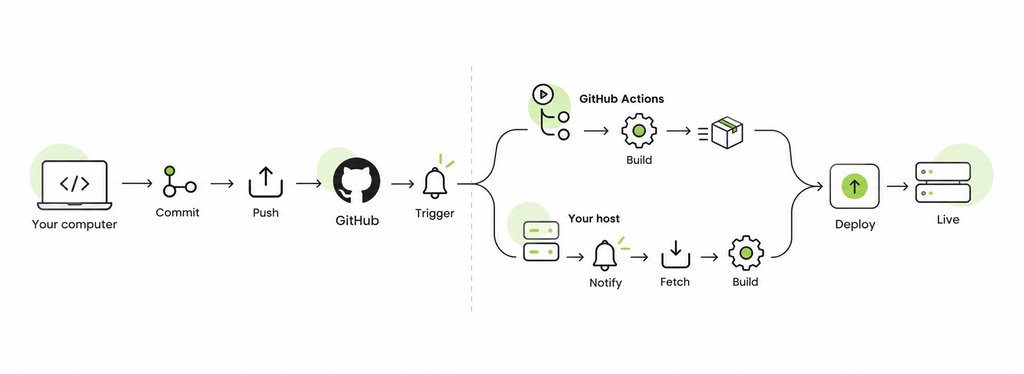
Diagram of a GitHub deployment workflow, showing code committed and pushed to GitHub, followed by two build paths—GitHub Actions or the hosting server—before deployment to the live website.

From commit to build

A build turns the code you wrote into code a server can run. Your repository holds source files, such as TypeScript, JSX, and a package.json that names dependencies without containing them. The build fetches a clean copy of the commit, installs those dependencies, and runs the build command, which compiles and bundles everything into an output folder. The build runs on either a GitHub Actions runner or your host’s own server, depending on which model you use.

Because the build starts from exactly what is in the repository, “it works on my machine” stops working as an excuse. A file you never committed, or a package you installed globally and never declared, is simply not there.

From build to live

If GitHub ran the build, a workflow step copies the output to your server. If your host ran it, the output is already where it needs to be. Deployment puts the build output, called an artifact, where the server runs it, then restarts the application on the new code. The careful method prepares the new version alongside the running one and switches over only once it is complete, so visitors never see a mix of both. The careless method overwrites live files one at a time, which is what a manual FTP upload does. On SiteGround Node.js Projects, every deploy creates a brand-new build, and older builds stay on the account until you delete them.

Environments: Why staging and production are separate

An environment is a named destination for your code, such as staging or production, with its own settings and secrets. Production is what visitors use. Staging runs the same code against test data, with a test database and a sandbox payment key, so a broken checkout charges nobody.

On GitHub, an environment is also a gate. GitHub’s documentation lists four types of deployment protection rules: required reviewers who approve the job, a wait timer that delays it, limits on which branches and tags can deploy, and custom rules checked by an outside service. Environment secrets are released only to jobs that target that environment, and only after approval when reviewers are required. GitHub also records deployments per environment, so the repository shows which commit is live where. These rules apply to GitHub Actions workflows. If your host deploys through its own GitHub App, protection rules don’t gate that deploy, and staging is something the host provides, or doesn’t.

Note! Private repositories may need a paid GitHub plan for some of these features.

CI, CD, and the words nobody defines

CI/CD is the umbrella term for automating everything between a commit and a release. It covers three practices, and “CD” means two different things depending on who is talking.

Continuous integration vs. continuous delivery vs. continuous deployment

  • Continuous integration (CI) merges changes into a shared branch often and runs an automated build and tests on every one, so a problem surfaces at the commit that caused it.
  • Continuous delivery automatically prepares every change that passes for release, but a person decides when it goes to production.
  • Continuous deployment removes that decision. Every change that passes goes live on its own.

A host that rebuilds on every push to a linked branch is doing continuous deployment, even if no tests run. Putting tests in front of it is what makes it CI/CD. For the rest of the vocabulary, from pipelines to runners, see our vibe coding glossary.

What GitHub Actions does, and what it doesn’t

GitHub Actions runs your deployment process. It does not host your application. That one distinction clears up most confusion about GitHub deployment.

You describe a workflow in a YAML file in your repository’s .github/workflows folder, name the event that starts it, such as a push to main, and list the steps. GitHub starts a runner, a temporary virtual machine, which checks out your code, installs, tests, builds, and, if you wrote a step for it, sends the result to a server. When the job finishes, GitHub discards the runner.

Nothing from the run stays running, so a GitHub Actions deployment always has two halves: the workflow GitHub runs and a destination you provide, whether a cloud platform, a virtual server, or a hosting account. If that destination can build the code itself after a push, you may not need a workflow at all. When you do, GitHub’s deployment documentation covers the syntax.

Deploying to your own server or host

Deploying from GitHub to a server means connecting a repository to the machine that runs the application, so each push becomes a new live version. The two common approaches differ in who does the build.

Connecting a repository to a web host

  • GitHub Actions pushes to the server. The workflow builds on a runner, then copies the result to your server over SSH, using credentials stored as encrypted repository secrets. You maintain the workflow, the keys, and whatever keeps the app running.
  • The host pulls from GitHub. You authorize the host’s GitHub App once, pick a repository and branch, and the host builds and deploys every push on its own machines. There is no workflow to maintain.

SiteGround Node.js Projects take the second route. On the GrowBig, GoGeek, and Cloud plans, you connect a repository through the SiteGround GitHub App when you create a Node.js project, and every push to the linked branch rebuilds and redeploys the app. The branch, Node.js version, build command, and environment variables are adjustable in Site Tools, and auto-deploy can be paused without disconnecting the repository. Whether a shared plan suits your app is a separate question, covered in does shared hosting support Node.js.

Why GitHub Pages isn’t the same thing

GitHub Pages is a static site hosting service. According to GitHub’s documentation, it publishes HTML, CSS, and JavaScript files from a repository and serves them as they are. There is no Node.js process, no database, and nowhere for an API route to run. A portfolio or a documentation site suits it. An Express server or anything with a user login does not.

GitHub’s usage limits also state that Pages is not intended as free hosting for an online business, an ecommerce site, or commercial SaaS, and as of October 2026 they cap published sites at 1 GB. 

When a deploy fails

Most failures fall into one of two categories, and each is fixed in a different place, so work out which one you have first.

Failed build vs. failed deploy

Failed buildFailed deploy
What stoppedThe install or build commandThe app, after a successful build
What visitors seeUsually the previous versionErrors, if the platform switched before checking
Typical causesMissing dependency, syntax error, wrong Node.js versionMissing environment variable, hardcoded port, crash on startup

A failed build is the safer failure: on a platform that switches versions only after a successful build, the old version keeps serving. A failed deploy can take the site down if the platform switches before confirming the new version starts. Hosts that copy files into the live folder add a third case, the partial deploy, where an interrupted upload leaves old and new files mixed, and the fix is a full redeploy.

Reading a deployment log

A deployment log is the transcript of every command the build ran, in order. Read it from the bottom up to find where it stopped, then look for the first error above that point, because the final lines usually report the consequence rather than the cause. Lines starting with + or > mark the command being run, and an exit status of 0 means it succeeded.

Warnings are where beginners go wrong, and a SiteGround Node.js test deployment we ran in September 2026 shows why. Midway through the install, npm printed a deprecation notice that reads like a problem. The build carried on and finished with a status of completed:

+ [...] npm install [...]

npm warn deprecated recharts@2.15.4: 1.x and 2.x branches are no longer active. [...]

+ [...] npm run build [...]

> vite build

+ exit 0

Build info: {"status":"completed"}

On SiteGround Node.js Projects, every build is listed in Site Tools > Node.js > Logs with its author, branch, status, and commit, and a Failed tab isolates the broken ones. Open a build’s Actions menu and select View build log, as described in how to manage a Node.js project in Site Tools.
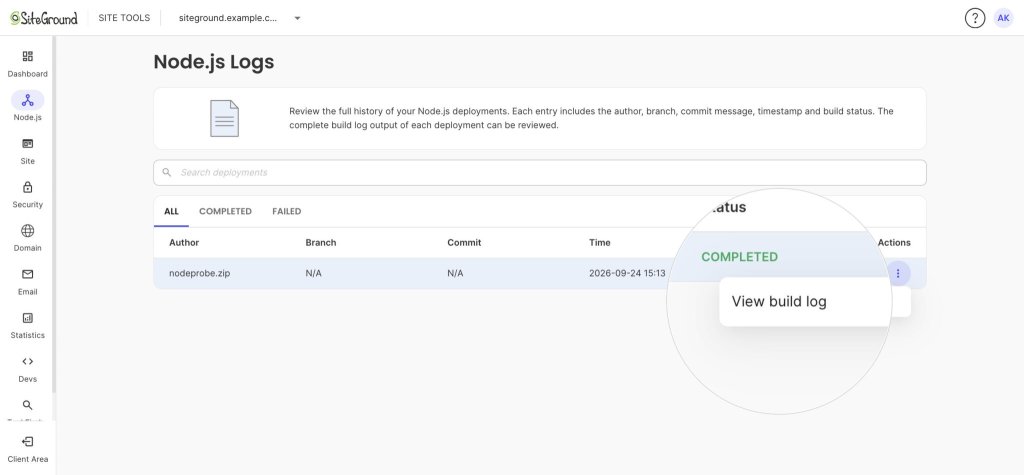
SiteGround Site Tools Node.js Logs page showing a completed deployment and the Actions menu with the “View build log” option highlighted.

Rolling back

Rolling back means returning production to the last version that worked. With push-to-deploy, the reliable method is git revert: it creates a new commit that undoes the bad one, and pushing it runs a normal build that puts the previous code live again. Avoid resetting the branch and force-pushing, which erases the record of what happened. Remember that a rollback restores code, not data, so database changes the bad release made stay in place. 

On SiteGround Node.js Projects, older builds on the Logs page can be viewed or deleted but not reactivated, so reverting and pushing is how you roll back. 

Is auto-deploy worth it for a small project?

For most projects with a build step, yes. For a static page you touch twice a year, no, and a manual upload is fine.

Auto-deploy pays off when changes are frequent, when the project must be built before it runs, or when more than one person ships code. That includes most apps built with vibe coding tools, where push-to-deploy becomes the final step of the vibe coding workflow. The cost is up front: the project has to live in Git and on GitHub, and if your host does not build for you, you also need a workflow, SSH keys, and secrets. For someone new to Git, learning it is the real price, and it is worth paying anyway.

Manual uploadPush-to-deploy
How a change goes liveBuild locally, connect, uploadPush to the linked branch
During the updateVisitors can hit half-uploaded filesThe switch happens once the build is ready
Record of releasesNone, unless you keep oneEvery deploy tied to a commit
Rolling backFind and re-upload old filesRevert the commit and push
Best forA few static files edited rarelyAnything with a build step or regular changes

Putting GitHub deployment to work

GitHub deployment comes down to one chain: push, trigger, build, deploy, live. Once you can name each link, a failed build becomes a log to read rather than a mystery. If your next project is a Node.js app, SiteGround Web Hosting runs Node.js projects from the GrowBig plan upward with GitHub auto-deploy built in, so the host handles the build. If it is an API, hosting a Node.js API backend picks up from here, and if you are still deciding where any project should live, start with how to host a website. 

[86]

Frequently asked questions about GitHub deployment

Is GitHub used for deployment?

Yes, GitHub is widely used for deployment, as the place a deploy starts rather than where the application runs. A push triggers a GitHub Actions workflow or a host integration, which builds the code and publishes it to a server. The exception is GitHub Pages, which serves static sites directly.

How do I deploy a project from GitHub?

To deploy a project from GitHub, connect the repository to whatever will run it. Either authorize your host’s GitHub App and choose a branch, so the host builds every push, or write a GitHub Actions workflow that builds the project and copies the output to your server.

How to do deployment using GitHub Actions?

To deploy using GitHub Actions, add a YAML workflow file to .github/workflows that runs on a push to your production branch. It checks out the code, installs dependencies, builds, and sends the output to your server over SSH or a provider’s API, using credentials stored as repository secrets.

Can I deploy through GitHub?

Yes, you can deploy through GitHub in three ways: publish a static site with GitHub Pages, run a GitHub Actions workflow that ships your build to a server, or connect the repository to a host that deploys every push. Which fits depends on whether your project needs a running server.

What is a GitHub deployment key?

A GitHub deployment key, or deploy key, is an SSH key that gives a server access to a single repository, read-only by default. It lets the server fetch code without anyone’s personal credentials. Deploy keys never expire, so remove the key when you retire the server.

Hosting a Node.js API backend for your mobile app or SaaS

Mobile preview of a custom PC storefront website, featuring gaming PC configurations, product listings, and a dark interface with green accents.

An API backend needs less from a host than the market implies: a process that stays up, a database, secrets storage, a deploy path, and TLS. Most managed platforms can do all five.

A Node.js API backend is a long-running process that answers HTTP requests and returns JSON. It does not need a dedicated server, a container orchestrator, or a platform priced per instance. It needs somewhere that keeps the process alive, gives it a database and a domain, and redeploys it when the code changes. Node.js server hosting on a managed shared plan covers that, provided you know where the ceiling is.

Key takeaways:

  • Five things decide whether a host can run an API backend: a supervised process, a database, environment variables, a deploy path, and TLS on your own domain.
  • “API hosting” is used for three different products. Only one of them, application hosting, actually runs your code.
  • The question that matters more than framework choice is how much your API needs you to operate it after it goes live.
  • SiteGround runs Node.js projects on GrowBig (up to 5 projects), GoGeek (up to 10), and Cloud (unlimited). The StartUp plan does not support Node.js.
  • Node.js versions 18, 20, 22, 24, and 26 are selectable per project, with npm, yarn, and pnpm all supported.
  • A request-response API fits a shared plan. Anything holding an open socket per client does not, on any shared host at any price.

What an API backend actually needs from a host

Strip away the marketing and an API backend has a short requirements list. Check your own service against it before you compare providers, because most of the differences between hosting products sit above this line, not below it.

  • A process that stays up. Your API starts once and answers every request from memory. Something has to restart it when it exits.
  • A database it can reach. Usually relational, usually on the same network, ideally not a separate subscription.
  • Somewhere to put secrets. API keys and connection strings belong in the host’s environment settings, never committed alongside your code.
  • A deploy path you will actually use. If shipping a change is tedious, you will ship fewer of them.
  • TLS on a domain you control. Mobile clients will not talk to an untrusted certificate, and most will not talk to plain HTTP at all.
  • Logs when a deploy fails. Build output you can read is the difference between a five-minute fix and an afternoon.

Notice what is missing. Horizontal autoscaling, container control, and a private network are real requirements for some services. However, for many early-stage mobile apps, those capabilities are headroom rather than baseline requirements, so paying for them before the workload demands them can add unnecessary cost and operational complexity.

What “API hosting” actually means

The phrase covers three different products, and search results mix them freely. Knowing which one you are being sold saves a lot of wasted evaluation time.

API hosting compared with API gateways and API management

API hosting is application hosting. The provider runs your code as a live process and routes traffic to it. This is what you need if you have written an Express, Fastify, NestJS, or Koa service and it has to exist somewhere.

An API gateway sits in front of an API that already exists. It handles routing, rate limiting, authentication, and request transformation. A gateway does not run your code, and buying one when you needed hosting leaves you with a very capable front door and nothing behind it.

API management is the commercial layer on top: developer portals, usage plans, billing, and analytics for APIs you expose to third parties. It matters when your API is the product. It is irrelevant when your API exists to serve your own front end.

For most teams shipping a mobile app or an internal tool, the answer is the first one, and the other two are problems for a later year.

Where an API backend can live

Four models can run a Node.js API. They differ less in capability than in how much of the operational work they hand back to you.

Application platforms

Platforms built specifically to run application code give you the most headroom: horizontal scaling, WebSocket support, container-level control, and regional deployment. They are the correct answer for a service with real concurrency demands or persistent connections. The trade is that pricing is metered, the database is usually a separate product, and a domain, mailboxes, and backups are yours to arrange. 

Managed shared hosting

A managed shared plan runs your Node.js application as a supervised process alongside the rest of your hosting account. You get a fixed monthly price, a database, a domain, and email in the same place. The control panel covers the deployment, and the familiar hosting tools sit underneath it: a file manager, scheduled jobs, and SSH access to your own account. What you do not get is a server to administer. For a request-response API that is mostly upside, because there is less to configure and less to leave misconfigured.

A VPS

A virtual private server gives you root, and with it every decision: the operating system, the process manager, the reverse proxy, the certificates, and the patching schedule. Choose it when you genuinely need that control. Choosing it by default means you have taken on a systems administration job in order to host a JSON endpoint.

Serverless functions

Functions suit spiky, short-lived work: webhook handlers, scheduled jobs, image processing. They suit a conventional REST API less well, because a persistent database connection, an ORM, and a per-invocation execution model fight each other. Many teams that start an API on functions migrate it to a long-running process within a year.

ModelYou operateBest fit for an API backend
Application platformThe app, and the services you attach to itHigh concurrency, WebSockets, regional scaling
Managed shared hostingThe app onlyRequest-response APIs alongside other sites
VPSThe app, the server, and the stackCustom system requirements, full control
Serverless functionsIndividual functionsEvent-driven and scheduled work

What it actually costs to host an API backend

The advertised price of an application platform is rarely the amount you pay. Work out the total before comparing, because the shape of the bill differs more than the headline figure.

What free tiers cost you in cold starts and sleep

Free and entry tiers on most application platforms suspend an idle process. The next request has to wait for it to start again, and that wait is measured in seconds rather than milliseconds. On a web page it reads as slow. On a mobile client with a timeout it reads as a failure, and your user sees an error rather than a spinner. This is the cost that never appears on a pricing page, and it is worth measuring on any host you are considering: deploy something, leave it alone for an hour, then time the first request yourself. 

What you pay for on a metered platform once the database is added 

Metered platforms bill the running instance, then bill separately for the parts an API needs anyway. A managed database is typically its own line item. A custom domain has to be bought elsewhere. Mailboxes on that domain are usually not offered at all. Egress and build minutes may be metered on top. None of this is hidden, but it is easy to compare an instance price against a hosting plan price and conclude the platform is cheaper. 

What a fixed-price plan covers

A shared hosting plan bundles the pieces. The database, the domain, email on that domain, TLS, daily backups, and a WAF come with the plan rather than alongside it, and the price does not move with traffic. For an API that serves a mobile app with a few thousand users, predictable beats elastic. The ceiling is real, but you reach it later than most people expect, and you reach it knowing exactly what the next tier costs.

When a shared plan is the wrong home for your API

This is the section most hosting comparisons skip. A managed shared plan is a poor choice for several kinds of API, and finding that out after migrating is expensive.

  • Your API holds open connections. WebSockets are not supported on any SiteGround plan, because opening a custom port for incoming connections is not permitted. This applies across shared hosting, and we cover what shared plans can and cannot run in more detail separately. Long polling over HTTP and HTTPS is the documented alternative and is adequate for infrequent updates, not for a live feed. 
  • You need to operate the live process. You get a build log for every deploy and an HTTP error log for traffic that reaches the app. What you do not get is a managed application log: your own console output is not surfaced in the panel. You can write it to a file and read that over SSH, but if you expect to tail a live process or attach a debugger, a VPS will suit you better.
  • Your data store is not relational. MySQL and PostgreSQL are both available. A document store such as MongoDB means connecting to an external managed service and accepting the latency that adds.
  • Your traffic is genuinely large or genuinely spiky. A shared plan is a fixed slice of a shared machine. An API under heavy sustained load wants dedicated resources, not a bigger shared allocation. 

Running a Node.js API backend on SiteGround

Which plan your API needs

The StartUp plan does not support Node.js, so availability begins on GrowBig. GrowBig runs up to 5 Node.js projects, GoGeek up to 10, and Cloud is unlimited. Count your projects before you pick a tier, and remember that a staging copy of your API counts as a project of its own. A team running one production API and one staging environment per client reaches the GrowBig limit at two or three clients, which is usually what moves an agency up rather than disk space.

Getting your API deployed

Connect a GitHub repository and every push to the linked branch rebuilds and redeploys the service, which is the path worth using for anything under active development. Uploading an archive works too but has no auto-deploy. The mechanics are the same for any Node.js application and are covered in our guide to Node.js support on shared hosting.

The part specific to an API is the environment settings. Database connection strings, third-party API keys, and signing secrets are configured against the project rather than committed to your repository, which also means a staging deployment can point at a different database without a code change.

The database, and pointing a client at it

MySQL and PostgreSQL are both created and managed from Site Tools. PostgreSQL is the one worth noting, because it is uncommon on shared plans and it means an API written against Postgres with Prisma, TypeORM, or Sequelize deploys without a rewrite or a separate database subscription. MongoDB is not available, so a document-store API connects to an external managed service.

Every project starts on a temporary domain, which is more useful for an API than it sounds. Your mobile or front-end client can point at that endpoint and exercise the real service while DNS for your own domain is still pointing somewhere else. Attach your domain when the client is ready, and the API keeps answering on a certificate you control.

Choose the hosting model your API actually needs 

If your API answers HTTP requests, you can live without WebSockets, and you would rather not be responsible for the server underneath it, SiteGround Web Hosting covers Node.js server hosting from GrowBig upward, with the database, domain, email on that domain, daily backups, and a WAF included rather than bought separately.

The right hosting choice is the simplest one that meets your API’s actual requirements without making you operate infrastructure you do not need.

Frequently asked questions

Where can I host my Node.js server?

You can host a Node.js server on a managed shared plan, an application platform, a VPS, or serverless functions. For a request-response API, a managed shared plan is the simplest option that still gives you a database and a domain in the same account. Choose an application platform if you need WebSockets or horizontal scaling, and a VPS if you need root access to the machine.

What is the cheapest way to host Node.js?

The cheapest option that stays viable is usually a fixed-price shared plan that already includes a database and a domain, because those are the costs that accumulate elsewhere. Compare total monthly cost rather than instance price: a low platform tier plus a managed database plus a domain frequently exceeds a hosting plan that bundles all three.

What is the best free hosting platform for Node.js?

Free tiers are well suited to prototypes, demos, and learning projects. They are a poor fit for an API that another application depends on, because free plans generally limit resources, and the database is usually the first thing you outgrow. Move to a paid plan before real users depend on the endpoint, not after.

Which hosting service is best for Node.js development?

For development and staging, the best service is the one that matches your production environment most closely, so that a deploy does not reveal differences. If your production API runs on a managed platform with a selectable Node.js version and a relational database, use the same combination in development. Matching the Node.js major version matters more than most teams assume.

Can I run a GraphQL API on shared hosting?

Yes. A GraphQL server is a request-response HTTP service like any REST API, and it runs as a standard Node.js application. The exception is GraphQL subscriptions, which rely on persistent connections and will not work where WebSockets are unavailable.

Can my mobile app talk to the API directly?

Yes. Once the API has TLS on a domain you control, a mobile client can call it directly. Point the app at your own domain rather than the temporary one issued at project creation, so the endpoint does not change when you attach your domain.

Does Shared Hosting Support Node.js? What’s Actually Different

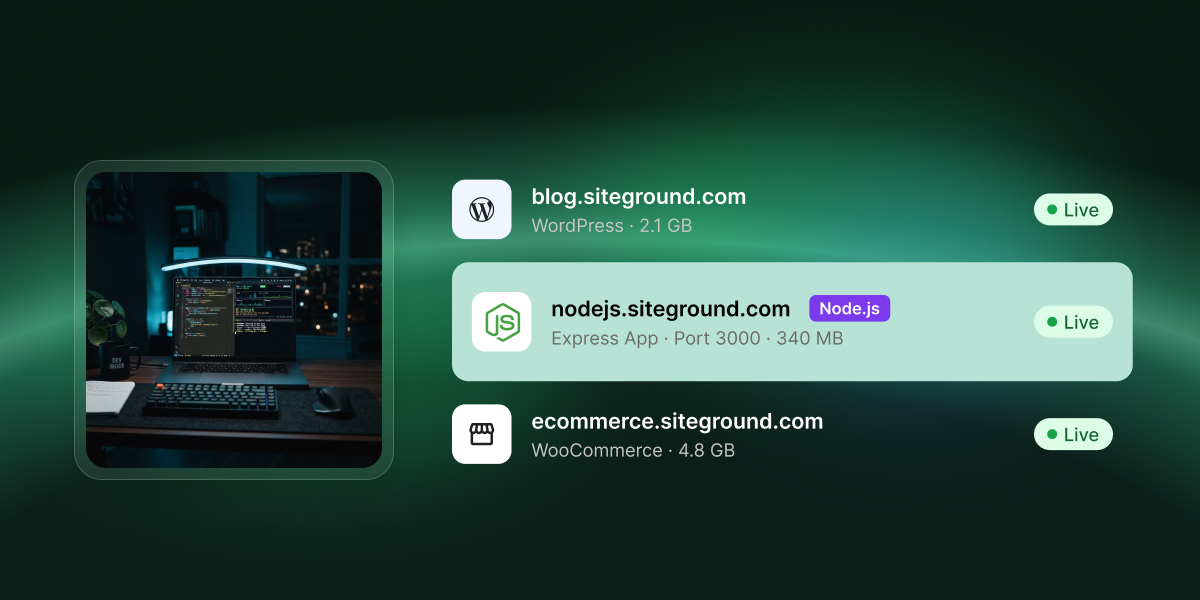
A hosting account dashboard listing three live sites side by side: a WordPress blog, a Node.js Express app, and a WooCommerce store.

Some shared hosts run Node.js. Most still don’t. The difference isn’t the price of the plan, it’s the runtime model: PHP discards your application’s state at the end of every request, while Node keeps one persistent process running and waiting for requests. Supporting Node.js means supervising that process.

Almost every answer you’ll find about Node.js on shared hosting was written before that supervision existed.

Key takeaways:

  • Node.js on shared hosting is available on a minority of providers, including SiteGround, where it runs on GrowBig and above.
  • “Supports Node.js” means two different things: Node being installed and left to you, or the host running your app for you as a supervised process that stays up and restarts on its own.
  • Shared plans carry request-response workloads: Express APIs, server-rendered Next.js sites, React and Vue front ends with a build step.
  • WebSockets aren’t supported on any SiteGround plan, because custom ports can’t be opened for incoming connections. Long polling over HTTP and HTTPS is the documented workaround.
  • SiteGround allows 5 Node.js projects on GrowBig, 10 on GoGeek, and unlimited on Cloud, with MySQL and PostgreSQL both available from Site Tools.
  • A Node.js project sits in the same account as your other sites, with the domain, email, SSL, and daily backups already included rather than bought separately.

What “supports Node.js” actually means

The phrase covers two different things, and conflating them is why forum answers often contradict each other. The first is availability: Node exists on the server and you are free to use it, but starting your application, keeping it alive, and pointing a domain at it are all your problems. The second is execution: the host runs your application for you, as a supervised process that stays up, answers on your domain, and starts again by itself when something goes wrong.

Only the second one is hosting. The first is a toolbox, not a service.

That explains the pattern across the types of web hosting sold as “Node-friendly”. A host can truthfully say Node is installed while offering nothing that keeps your application running. Started by hand, it stops the moment the connection that started it closes, because nothing was ever watching it.

A host that genuinely supports Node.js provides all of the following:

  • A process supervisor that starts the app and restarts it if it exits
  • A web server in front of the app, mapping your domain to it
  • A selectable Node.js runtime version
  • A dependency step that installs what your package.json declares, using npm, pnpm, or yarn
  • A way for the platform to work out which file boots your app, whether it detects it or you set it
  • Environment variable storage outside your repository
  • Build and deployment logs you can read when something fails

If a plan description mentions no process manager and no way to deploy an application, it’s offering you a binary, not a runtime.

Why shared hosting was built for PHP, not Node.js

Shared hosting was designed around a request model Node.js doesn’t use. The standard stack puts hundreds of accounts on one machine and stays stable because no single site holds resources between visitors. That assumption is baked into how shared hosting allocates memory, which is why Node needed a separate mechanism rather than a config flag.

How PHP releases your application’s memory after every request

A PHP request has a short, bounded lifecycle. A visitor hits the page, the web server hands it to a worker process that is already running and waiting, the worker loads the script, runs it, returns HTML, and then releases everything that script allocated. The worker itself stays alive and picks up the next request. What gets discarded is your application’s state, not the process holding it. That’s why one server can host hundreds of accounts: only the sites being visited consume anything. The per-request lifecycle in PHP 8.4 is a resource isolation strategy as much as an execution one.

Node.js inverts it. Your app starts once, holds its dependencies and state in memory, and answers every request from that same resident process. It consumes its memory footprint at 3 a.m. with zero visitors exactly as it does at peak.

What happens when a long-running process crashes

An unsupervised Node process that throws an unhandled exception doesn’t return a 500 and recover. It exits, the app stops answering, and every request after that fails until someone restarts it manually.

PHP has no equivalent failure mode. A fatal error kills one worker, the next visitor gets a fresh one, and nothing needs to be watching. That’s the problem a host solves before it can sell Node.js on a shared plan: something must monitor each application, restart it on exit, cap what it consumes, and stop one account’s memory leak from taking the neighbors down with it.

What changes on a host that does support Node.js

The host adds an application layer above the web server, and it does the supervision your app would otherwise need a VPS and PM2 to get. It’s the same division of labor that separates managed from unmanaged hosting: the supervision is the product, not something you configure.

That trade runs further than it first looks. The control panel covers the whole deployment, and the familiar hosting tools sit underneath it if you want them: a file manager, scheduled jobs, SSH access to your own account. What you do not get is a server to administer. Nobody is asking you to patch an operating system, configure a process manager, or decide how your app comes back after it falls over. Whether that reads as freedom or as a missing feature is the clearest signal of whether this kind of hosting is for you.

You set a handful of things in a control panel and the platform handles the rest:

  • Runtime version. Which Node.js release the app runs on, selected per project rather than per server.
  • Framework preset. The platform recognizes what you have built and fills in the build settings that suit it. You can override them, and the file that boots the app is worked out for you.
  • Dependencies. The platform installs what your package.json declares, using the package manager you pick and produces the node_modules tree at deploy time.
  • Connecting to the web server. You don’t configure this. The platform runs a web server in front of your app, connects the two, and maps your domain to it.
  • Environment variables. Credentials and API keys live in the panel, not in your repository.
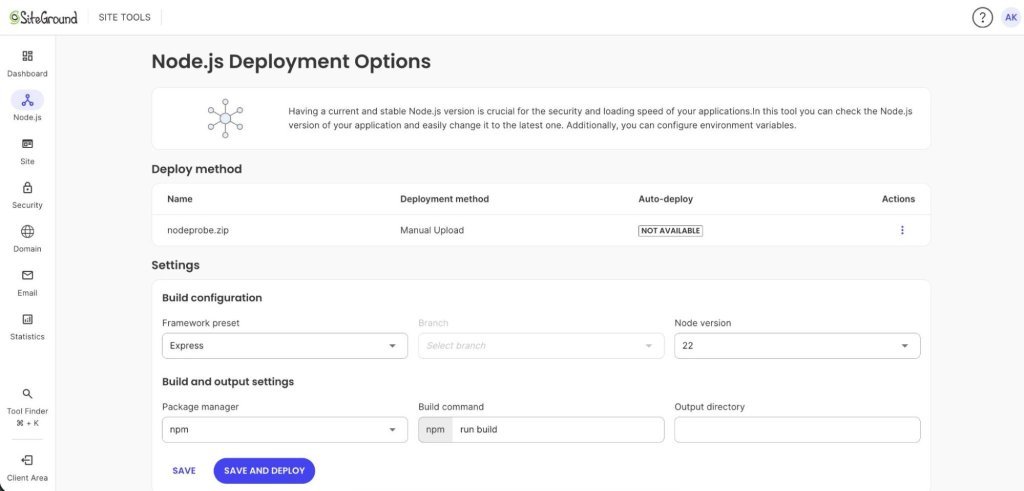
▎ The Node.js Deployment Options screen in SiteGround Site Tools, showing the framework preset, Node version, package manager, and build command fields.

Where a shared plan can (and can’t) run a Node app

Two questions decide this, and most articles only ask the first. The first is whether your app is request-response or persistently connected. Request-response workloads fit shared plans well, and anything that holds an open connection to each client doesn’t, at any price tier, on any shared host.

The second gets asked far less often and matters just as much: how much does your app need you to operate it once it is live? A managed platform runs your code, not your server. If your app assumes it can reshape the server underneath it, or that something is watching the process on your behalf, that is the constraint worth weighing, more than the framework it happens to be written in.

Your appShared plan verdict
Express or Fastify REST APIWorks
Next.js or Nuxt site with server-side renderingWorks
React, Vue, Svelte, or Astro front end with a build stepWorks
NestJS or Koa backend service serving JSONWorks
App exported from an AI builder or vibe-coding toolWorks, if it’s a standard Node project with a package.json
Chat, live dashboard, collaborative editor, anything on Socket.ioDoesn’t work. Needs a platform that allows custom ports
Multiple client projects under one accountWorks up to the plan’s project limit: 5 on GrowBig, 10 on GoGeek
App needing MySQL or PostgreSQLWorks. Both are available from Site Tools
App needing MongoDB or another non-relational databaseDoesn’t work. You’d connect to an external managed service

Two verdicts you should reach without asking support. If your app answers HTTP requests and returns data or HTML, a shared plan carries it. If it pushes data to connected clients in real time, no shared plan will.

The second one catches people deploying something built with an AI tool. Most output from vibe coding workflows is a standard Express or Next.js project and deploys without incident. The exceptions reached for Socket.io because the prompt said “live”.

Ready to deploy rather than evaluate? This article covers whether a shared plan fits your app. For the step-by-step walkthrough, follow How to create a Node.js project in the knowledge base.

How SiteGround compares to Hostinger and app platforms

Two categories of providers answer this query, but they approach Node.js from different directions. Traditional web hosts add Node.js to a broader hosting account that can also run websites, databases, email, DNS, backups, and other services. App platforms put application deployment and runtime management at the center of the product.

The right choice depends both on what your application requires and what else you want the same hosting account to handle, which is an important part of choosing a web hosting partner.

Shared hosts: SiteGround, Hostinger, Namecheap

All three provide a managed interface for running Node.js applications, but their plan limits, deployment workflows, databases, and networking restrictions differ.

  • SiteGround. Node.js is available from GrowBig upward, with up to 5 projects on GrowBig, 10 on GoGeek, and unlimited projects on Cloud. Apps can be deployed from GitHub with automatic redeployment or uploaded manually, with configurable build settings and deployment logs. MySQL and PostgreSQL are both available.
  • Hostinger. Managed Node.js applications are available on Business Web Hosting and Cloud plans. It supports GitHub deployment, file uploads, configurable builds and managed MySQL. Incoming WebSocket connections aren’t supported on Web and Cloud hosting, so applications that require them need a VPS or another platform.
  • Namecheap. Node.js is available on shared hosting through cPanel’s Setup Node.js App tool. PostgreSQL is also available on some shared plans, alongside MariaDB.

Database support is one practical difference. SiteGround provides PostgreSQL directly with its hosting, while Hostinger’s Web and Cloud plans provide MySQL and require an external service for PostgreSQL. That matters if your application is already built around Postgres and you want to keep the database inside the same hosting environment.

App platforms: DigitalOcean App Platform and Fly.io

App-focused platforms generally give you more flexibility around application runtimes, real-time connections, scaling, and deployment architecture. DigitalOcean App Platform supports WebSockets and horizontal scaling, while Fly.io lets you distribute and scale application Machines across regions.

The tradeoff isn’t simply managed versus unmanaged hosting. These platforms manage a substantial amount of infrastructure too. The difference is what they manage around your application.

A traditional hosting account is designed to bundle the other services a website commonly needs alongside the application. An app platform is designed primarily around deploying and operating the application itself, with databases, email, storage, domain registration, and other services added or connected according to the architecture you choose.

That makes the decision less about which category is universally more capable and more about what you want the hosting product to do. If Node.js is one part of a broader website setup, an integrated hosting account can reduce the number of systems you need to manage. If the application needs capabilities such as incoming WebSockets, more flexible scaling, or greater runtime control, an app-focused platform may fit the architecture better.

What you can’t do on any shared plan

WebSockets are not supported on any SiteGround plan. The documented alternative is long polling over standard HTTP and HTTPS, which is fine for a notification badge or a status check every few seconds, but not optimal for a chat app or a collaborative editor.

Three more limits apply across the whole shared hosting provider category:

  • No custom inbound ports. Anything that expects to open its own listener for incoming connections won’t start.
  • No root. You get SSH access to your own account and a file manager, so your project’s files are yours to read and change. What you can’t do is install system packages or alter how the server itself is configured.
  • A fixed resource ceiling. A shared plan is a fixed slice of a shared machine, and an app that outgrows it wants a different tier rather than tuning.

If any of these is a hard requirement, upgrade the infrastructure instead of working around it. Reading the comparison of shared hosting against a VPS beats discovering the limit in production.

Node.js hosting on SiteGround

Plan tiers and project limits

StartUp does not support Node.js. Node.js availability starts on GrowBig and continues through GoGeek and Cloud.

PlanNode.js projectsWeb space
GrowBigUp to 550 GB
GoGeekUp to 10100 GB
CloudUnlimited40 GB to 1 TB

All extra services such as email, SSL, CDN and security features are included in all tiers, at no additional cost.

Deploying via GitHub or ZIP upload

There are two deployment paths, and the choice is worth making deliberately.

  • Connect a GitHub repository. Every push to the linked branch rebuilds and redeploys automatically. This is the path for anything under active development.
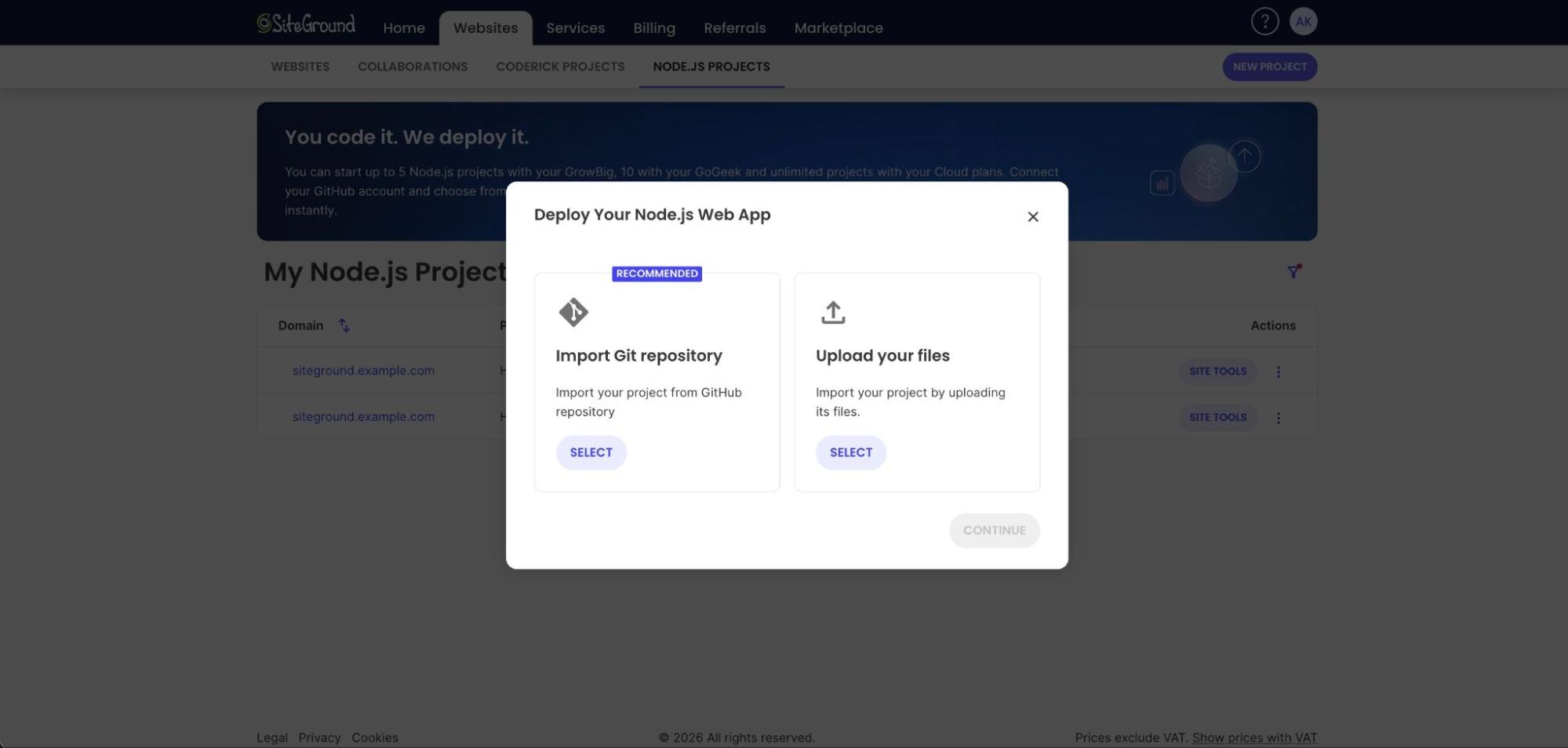
  • Upload an archive. The source goes up manually as a .zip, .tar.gz or .tgz file, with no auto-deploy. Every update is another upload.
▎ The Deploy Your Node.js Web App dialog offering two options: import a Git repository, which is recommended, or upload your files.

Projects are created in Client Area > Websites > Node.js Projects, where you manage status, primary domain, and deletion. Deployment method, build settings, environment variables, and deployment logs live in Site Tools > Node.js.

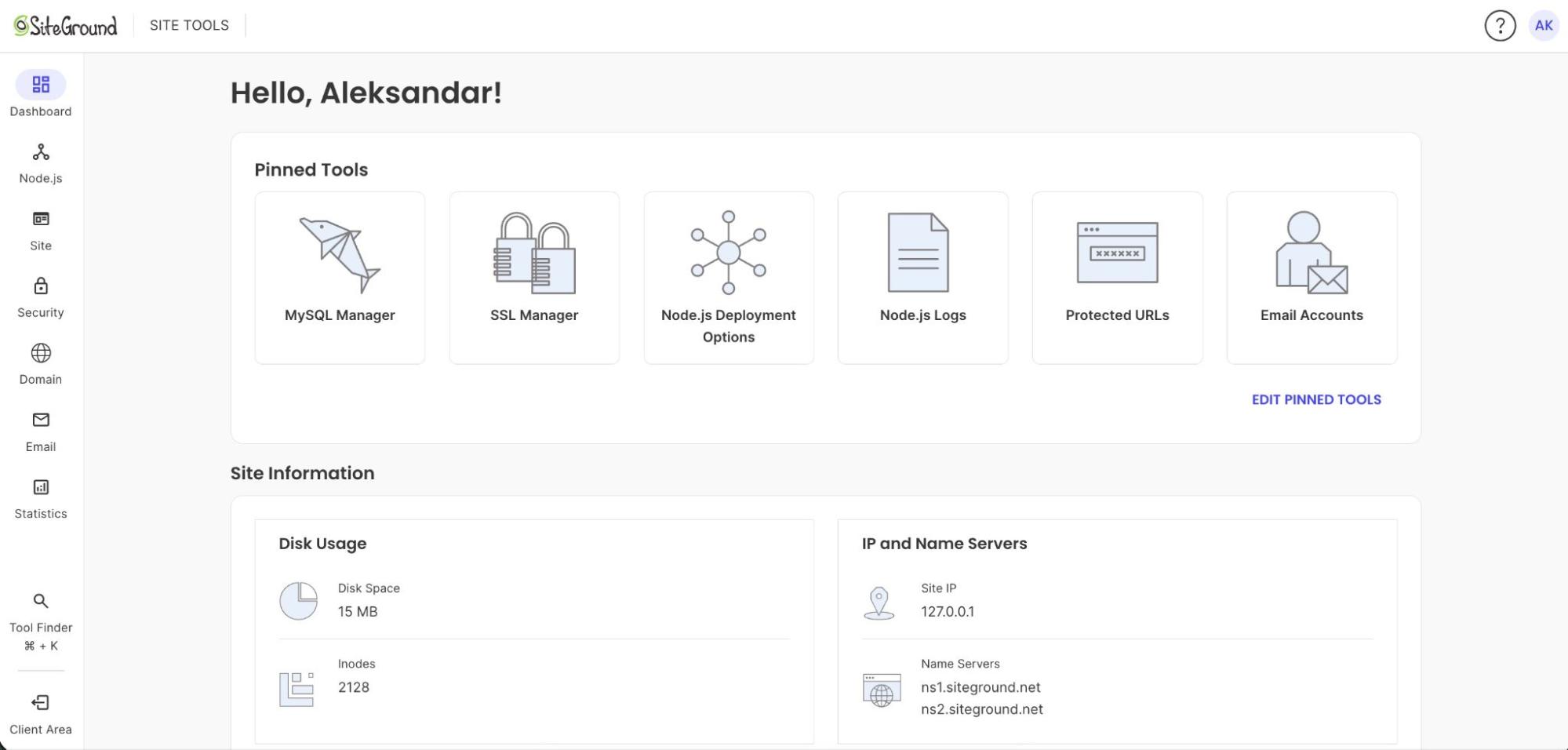
▎ A SiteGround Site Tools dashboard with Node.js Deployment Options and Node.js Logs pinned alongside MySQL Manager, SSL Manager, and Email Accounts.

Databases, domains, and what’s included

Every project launches on an auto-generated temporary domain, so the app is reachable and testable before any DNS points at it. You attach your own domain whenever you’re ready, which also lets a client review a staging URL without touching their live records.

MySQL and PostgreSQL are both created and managed from Site Tools. The plan also includes a free domain, email on that domain, SSL, the SiteGround CDN, daily backups, and WAF and DDoS protection.

A Node.js project isn’t a separate product here. It sits in the same account as your WordPress sites and static pages, sharing the same domain, email, and database tooling. If your app is a request-response API or a server-rendered front end, and you would rather not be responsible for the server underneath it, a shared plan is a real home for it.

The remaining choice is mostly about scale. GrowBig supports up to 5 Node.js projects, while GoGeek supports up to 10, with the rest of the hosting stack managed alongside them. If that integrated setup fits how you want to run your apps, compare the SiteGround Web Hosting plans and choose the tier that matches what you’re building.

[86]

Frequently asked questions

How much does Node.js hosting cost?

Node.js runs on GrowBig and above, so the cost is the price of the plan rather than a separate charge. There is no add-on fee for Node.js itself, and the plan covers the database, domain, email on that domain, and daily backups the application needs alongside it. When comparing against an application platform, compare the total monthly cost rather than the instance price, because a database, a domain, and backups are usually billed separately there.

Why can’t Node.js run on shared hosting?

It can, on hosts that have built for it. The old answer was accurate when shared stacks ran only per-request PHP processes, with nothing to supervise a long-lived application. Some hosts can now supervise a long-lived process and put a web server in front of it, so Node.js runs on shared plans.

Is shared hosting good?

Shared hosting fits when traffic is moderate and your app doesn’t need root access, custom ports, or a guaranteed resource floor. For an Express API, a business site, or a Next.js front end, it’s the right tool. For a real-time app or one under heavy sustained load, it isn’t.

How does shared hosting work?

Shared hosting places multiple accounts on one server, each with an allocated slice of CPU, memory, and disk. The host manages the operating system, web server, and patching. On plans that support Node.js, an application layer runs each project as a supervised process alongside the standard PHP stack.

Can I host a React or Next.js project on shared hosting?

Yes, on a shared plan that supports Node.js. A React or Vue front end with a build step deploys as a standard Node.js project, and a server-rendered Next.js or Nuxt site runs as a persistent process the way an Express app does. A purely static export doesn’t need Node.js support at all.

Can I run a real-time or WebSocket app?

No. WebSocket servers require a custom port open for incoming connections, which isn’t permitted on any SiteGround plan. Long polling over HTTP and HTTPS is the documented workaround and is adequate for infrequent updates. For genuine real-time features, use a platform that allows custom ports.

How many Node.js projects can I host?

GrowBig supports up to 5 Node.js projects, GoGeek up to 10, and Cloud is unlimited. StartUp doesn’t support Node.js. Each project has its own deployment settings, environment variables, and build logs, so separate client applications stay independently configured inside one account.

Is your hosting security real or just assumed?

Man using a laptop in front of a server dashboard with website security, database, performance, and configuration icons

Almost every hosting provider describes its hosting as secure. Far fewer readers can say what that actually means, and that gap is the real problem. Most compromises don’t start where people expect them to, and the fix usually isn’t on the server at all.

Web hosting security is the combined set of protections across two layers: the server layer, where your host handles patching, service configuration, network filtering, and account isolation, and the account layer, where you handle credentials, user roles, software versions, and backups. Server security covers the first layer only.

Key takeaways:

  • Web hosting security has two owners, not one. The server layer belongs to your host, and the account and website layer belongs to you.
  • Almost every real compromise starts on the account layer, through a reused admin password, an un-updated plugin, or credentials nobody revoked.
  • “Nothing has happened yet” isn’t evidence of strong security. Three common signals all describe activity rather than verified protection.
  • Six questions separate real hosting security from marketing language, and each one has a weak answer you can learn to recognize.
  • The responsibility line moves with hosting type. On shared and managed plans your host owns more of the stack; on unmanaged VPS and dedicated servers you own most of it.

Why your hosting can look secure and not be

The reason hosting can look secure without being secure is that most of the visible signals measure activity, not outcomes. A host publishing a security page is doing marketing. A plugin sitting in your admin is doing detection. Neither tells you whether the specific door an attacker would use is locked.

This matters because security work is invisible when it succeeds. Patching, isolation, and monitoring produce no user-facing evidence at all, so the reader is left inferring protection from proxies. Those proxies are weak, and they’re weak in a predictable direction: they all overstate coverage.

The usual website security tips are sound as far as they go, but they don’t tell you which of the two layers your gap sits on. That’s the question that decides whether the next hour of your time should go to your host’s support team or to your own admin panel, and almost no discussion of website hosting security answers it before handing you a checklist.

The three signals people mistake for evidence

These three signals show up in almost every conversation about hosting security, and none of them is evidence of protection. Each one is true and each one is answering a different question than the one you asked.

  1. The padlock in the address bar

An SSL certificate encrypts traffic between the visitor’s browser and your server. That’s it. It says nothing about who can log in to your admin panel, whether your plugins are current, or whether the server was patched this month. A phishing site with a valid certificate gets the same padlock as any other website working through HTTPS.

Chrome showing a secure connection and valid SSL certificate for SiteGround.com
  1. Nothing has happened yet

An uneventful year is the weakest signal of the three, because most automated attacks are indiscriminate and most successful ones stay quiet. A site can host a backdoor for months while serving normal traffic. Absence of a visible incident measures your luck and your monitoring, in unknown proportions.

  1. A security plugin is installed

Installing a plugin is not the same as configuring one, and a plugin’s reach stops at the application. Solid WordPress security work happens here, but it happens on your layer, above the operating system and the web server. A plugin can’t patch the software it runs on.

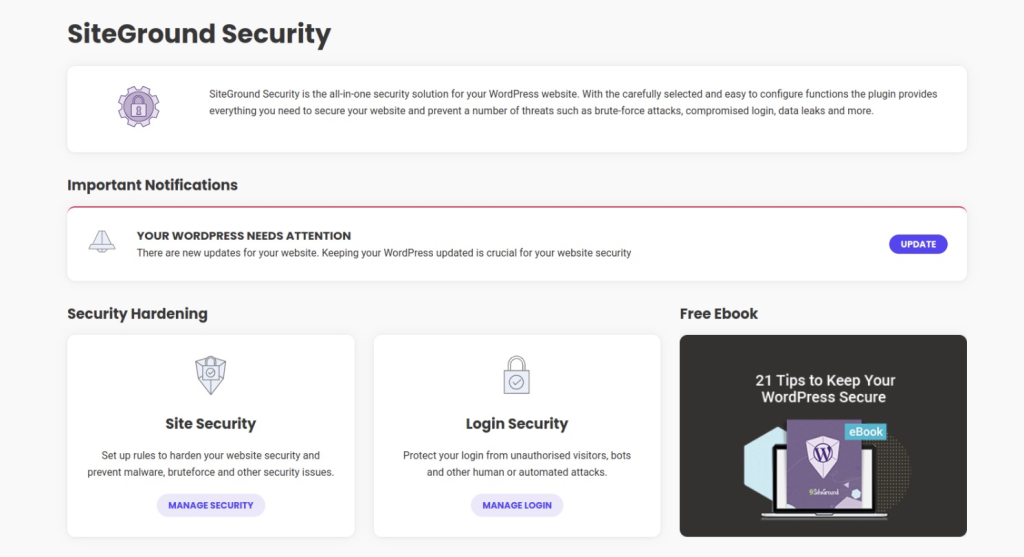
SiteGround Security plugin dashboard with security hardening, login security, and WordPress update options

The two layers of hosting security, and which one is yours

Every control in hosting security sits on one of two layers, and each layer has exactly one owner. Get the boundary wrong and you either try to harden things you don’t control or ignore the things you do.

What sits on the server layer (your host’s job)

The server layer is everything below your account, such as: 

  • physical hardware, 
  • the network edge, 
  • the operating system, 
  • the services running on it. 

Your host owns operating system patching, web server and database configuration, network filtering and brute-force protection at the edge, account isolation between neighbors on the same machine, and intrusion detection and log monitoring. 

You don’t have root access on shared, managed, or most cloud plans, so you can’t do this work even if you want to.

What sits on your account and website layer

Your layer is everything you can reach after logging in: hosting account and admin passwords, two-factor authentication, user roles and permissions, application and plugin versions, API keys and tokens, old test installs and staging copies you forgot about, FTP and SSH credentials, and your backups. 

ControlServer layer (host)Account layer (you)
Operating system and service patchingYesNo
Web server, database, and PHP-FPM configurationYesNo
Network firewall and brute-force filteringYesNo
Account isolation between neighborsYesNo
Intrusion detection and log monitoringYesNo
Passwords and two-factor authenticationNoYes
User roles and permissionsNoYes
Plugin, theme, and core versionsNoYes
API keys, FTP users, and SSH keysNoYes
Backup coverage and restore testingSharedYes

Where server-layer security usually fails

Server-layer failures are rarely exotic. They cluster in three places: software left unpatched past a published vulnerability, services exposed to the network that didn’t need to be, and configuration that was never tightened from its installation defaults. The third is the most common, and it’s the one with a name.

On shared hosting the additional failure mode is isolation. Multiple accounts run on one machine, so the question that matters is whether a compromise inside one account can read or write anything in another. That boundary is the host’s to build and the host’s to prove.

What a server security misconfiguration actually looks like

A server security misconfiguration is a setting that was left at a permissive default rather than being deliberately set. Two examples cover most of what goes wrong.

The first is a file-permission default. Directories on a correctly configured account sit at 755 and files at 644, which lets the web server read them and stops other processes writing to them. A directory left at 777 is writable by any process on the machine, so an attacker who gains a foothold anywhere gets a place to drop a file that then executes as your site.

The second is an exposed admin panel. Database managers, monitoring dashboards, and server control panels frequently install with a default port, a default path, and sometimes a default credential pair. Nothing is broken, and nothing is patched incorrectly. The panel is simply answering requests from the entire internet when it should answer requests from one IP address. OWASP tracks this whole category as security misconfiguration in its Top 10.

Where your own layer usually fails

Account-layer failures are boring, repetitive, and responsible for most of the incidents that actually happen. These four are most common:

  • A reused admin password. The password on your WordPress admin or hosting account also exists in a breach dump from an unrelated service. No exploit is required, because credential-stuffing tools simply try it. This is the single most common way small sites are taken over.
  • Un-updated plugins and themes on a set-and-forget site. A site built two years ago and left alone runs code with publicly documented vulnerabilities and published proof-of-concept exploits. The gap between disclosure and mass automated scanning is measured in days, not months.
  • An old developer’s FTP or SSH credentials, never revoked. The freelancer who built the site in 2023 still has access, and so does anyone who has since compromised their laptop. Here’s the part that catches people out: deleting an FTP account in Site Tools does not revoke an SSH key. Keys are managed separately under Site Tools > Devs > SSH Keys Manager, and they can outlive the FTP user created alongside them. 
  • A backup that’s never been test-restored. Backups run nightly and nobody checks them, so the first restore attempt happens during an incident, under time pressure, with no fallback. Untested backups fail in mundane ways: a database export that excluded a table, a job that broke six weeks ago, retention shorter than the time it took to notice the problem.

Two of those four are access problems, which is why the principle of least privilege does more for a small site than any plugin: every account, key, and role that exists is a way in, so the ones nobody needs should stop existing.

What good hosting security looks like, and what SiteGround does

Real server-layer security is describable. A host should be able to name its patching cadence, its isolation method, the type of firewall at the edge, what it monitors, and what it does when something is found. Here is our side of the line, in those terms.

  • Account isolation on shared servers, so a compromise in one account can’t reach the files or database of another.
  • A web application firewall with rules written and deployed by our own security team, including virtual patches for newly disclosed WordPress and plugin vulnerabilities, often before the vendor’s own fix is available.
  • AI-driven anti-bot protection at the network edge, which blocks brute-force login attempts before they reach your site.
  • Managed operating system and service patching, applied across the fleet rather than left to individual accounts.
  • Daily automated backups, restorable from Site Tools > Security > Backups, with files and databases restorable separately so you can roll back a database without losing files uploaded since. 
  • Site Scanner, which checks for malware daily and alerts you rather than waiting for a visitor to find it.

None of that is a substitute for the work on your layer, and any host claiming otherwise is describing half a system. What it does mean is that the questions in the next section have concrete answers here.

What you should have in place on your side

Your layer comes down to eight items. Each one closes a door that automated attacks actually use.

  • Two-factor authentication on your hosting account and your site admin, enabled from the Client Area under Login & Profile.
  • A unique password on every account, generated rather than chosen, and never reused across services.
  • Core, plugin, and theme updates applied on a schedule you can name, with automatic updates on for anything you don’t review manually.
  • Admin accounts audited quarterly, with unused users, contributors, and old developer logins deleted rather than deactivated.
  • FTP users and SSH keys reviewed at the same time, and revoked separately, since removing one does not remove the other.
  • A restore you have actually performed, on staging, within the last six months.
  • Malware scanning running on a schedule, with alerts going to an address someone reads.

The longer list of website security tactics extends this, but these eight are the ones with the worst consequences when they’re missing. If you do nothing else after reading this, run a malware scan and open your list of admin users. Both take under five minutes and are the surest way to prevent bigger issues in the future.

Six questions to ask, and what a real answer sounds like

Ask before you buy, and ask again if you’re already hosted somewhere. Two patterns tell you most of what you need. A real answer names a mechanism, a frequency, or a boundary. A weak answer restates the question as a value.

Choosing a web hosting partner on this basis is more predictive than any feature grid. The six questions below are ordered by how much a wrong answer costs you, so if you only get through the first two before the chat window closes, you’ve asked the two that matter most.

Each question below targets one server-layer control. The answers you want are boring and specific.

  1. How quickly do you patch a disclosed vulnerability?

A real answer names a timeframe and distinguishes severity levels: critical patches within hours, routine updates on a weekly cycle. It may also mention virtual patching at the firewall for cases where no vendor fix exists yet. A weak answer says the provider keeps everything up to date.

  1. How are accounts isolated from each other on a shared server?

A real answer names the mechanism, whether that’s containerization, per-account users with enforced permission boundaries, or dedicated resource allocation, and states plainly that one account can’t read another’s files. A weak answer says accounts are separate, which is a restatement of the question.

  1. What kind of firewall do you run, and who writes the rules?

A real answer distinguishes a network firewall from a web application firewall, says who authors the rules, and says how often they’re updated. In-house rules updated continuously are stronger than a vendor rule set applied at defaults. A weak answer says the provider has enterprise-grade firewalls.

  1. What do you monitor, and what happens when you find something?

A real answer describes both detection and response: what’s watched, what triggers an alert, whether a human reviews it, and whether you’re contacted or the account is suspended first. Recognized references such as NIST SP 800-123 treat logging and monitoring as a baseline server-security control, not an add-on. A weak answer mentions 24/7 monitoring with no object.

  1. How often do you back up, and have you tested a restore?

A real answer gives a frequency, a retention period, where copies are stored, and who can trigger a restore. Ask specifically whether you can restore without opening a ticket. If you’re running a store or anything transactional, daily backups may not be frequent enough for your data loss tolerance, and that’s worth establishing before you need it.

  1. Which parts of security are mine on this plan?

A real answer draws the line clearly and doesn’t claim the whole stack. A host that says it handles all of your security is either wrong or describing a managed service far above the price you’re paying. The best answer is the honest one, because it tells you exactly what’s left on your desk.

Where the line moves: shared, managed, VPS, and dedicated

The boundary between the two layers isn’t fixed. It moves with hosting type, and this is the single most common source of confusion when people read security checklists written for someone else’s setup.

Hosting typeServer layer ownerWhat you own
Shared hostingHost, entirelyAccount and website layer only
Managed WordPress hostingHost, plus application-level patchingCredentials, roles, content, and often plugin choices
Managed VPSHost for the base stack, you for what you installEverything above the managed baseline
Unmanaged VPS or dedicatedYouOperating system, services, firewall, patching, and the account layer

The practical consequence is that the same checklist item can be someone else’s job or yours depending on the plan you’re on. “Configure your firewall” is impossible advice on shared hosting and mandatory advice on an unmanaged VPS, yet most best-practice lists print it without saying which reader it’s for. That’s the single biggest reason security checklists feel simultaneously overwhelming and useless.

This is why the distinction between managed and unmanaged hosting is a security decision and not only a convenience one. An unmanaged server gives you root access and the full responsibility that comes with it, which is a good trade only if someone is going to do the work. If nobody on your side is going to patch an operating system on a Tuesday, moving up the stack for control moves you down in actual security.

When something gets through anyway

No configuration on either layer reduces risk to zero, and any provider implying otherwise is selling. Attacks succeed against patched servers and audited accounts, usually through a vulnerability disclosed and exploited on the same day, or through a credential that was valid and stolen.

What separates a bad afternoon from a bad quarter is preparation, and it comes down to three things you can settle now: 

  • a backup you’ve restored before, so recovery is a procedure rather than an experiment; 
  • a written record of who has access to what, so you can revoke quickly instead of guessing; 
  • knowing who to contact and what they’ll need from you 

Knowing the recovery steps for a hacked site in advance also removes the worst decisions from the worst moment, because the order of operations matters. Clean before restoring and you may reinfect from a compromised backup. Restore before finding the entry point and you’ll be doing it again next week.

Assumed or verified security: the difference that matters

Assumed security and verified security look identical right up until they don’t. The difference is that verified security has answers attached: a patching cadence you were told, an isolation mechanism you can name, a restore you performed yourself, and a list of accounts you’ve actually read. Web hosting security stops being a feeling at the point where every claim on both layers has something concrete behind it.

If you take one thing from this, take the boundary. Work out which layer your gap is on, then do the work that’s yours and ask the questions that aren’t. If the answers from your current provider come back vague, SiteGround web hosting plans are built so that every item in the six questions above has a specific answer.

[86]


Frequently asked questions

What do you mean by server security?

Server security is the protection of the server layer specifically: operating system patching, service configuration, network filtering, account isolation, and monitoring. On shared, managed, or cloud hosting, all of this belongs to your host, because you don’t have root access.

How do you check server security?

You can’t audit a server you don’t have root access to, so you verify it by questioning instead. Ask for patching cadence, the isolation mechanism, firewall type and rule authorship, what’s monitored, and the incident response process. Specific, falsifiable answers are the check. On your own layer, run a malware scan and audit your admin users, FTP accounts, and SSH keys.

How do web hosting companies keep their servers secure?

Hosts patch the operating system and services across the fleet, run network and web application firewalls at the edge, isolate accounts from each other on shared machines, filter brute-force login attempts, monitor logs and file changes for intrusion, and maintain backups. Providers differ mainly in how fast they patch and whether their firewall rules are written in-house.

Is shared hosting secure enough for a small business site?

Yes, for most small business sites, provided the host enforces account isolation and you do your own layer’s work. Shared hosting security depends on a boundary you can’t inspect, which makes the isolation question worth asking directly. The more common risk on a shared plan isn’t your neighbor, it’s your own reused password.

Web app ideas for beginners: 10 AI projects to start this weekend

Header image of a hand holding a smartphone with a web app dashboard and floating Planner, Quote Planner, and No Code labels.

The hardest part of a first web app isn’t the building. It’s picking something small enough to finish. Most web app ideas lists hand you a marketplace, call it a weekend project, and move on. These 10 web app ideas for beginners are genuinely weekend-sized: one job each, no payments, no integrations, and a copy-ready prompt to start from.

A simple beginner web app is a single-purpose tool that collects, organizes, or calculates one kind of information for a small group of people. It has one main screen, one type of data, and no dependency on outside accounts or services. Think guest list, packing planner, or quote calculator instead of platform.

Key takeaways:

  • The 10 simple web app ideas below share the same shape: one screen, one data type, and zero third-party integrations, which is what keeps a first build inside two days instead of two months.
  • A first version should hold about 5 fields and 1 view. Anything you add beyond that roughly doubles the number of things that can break before you finish.
  • Payments, user accounts, notifications, and file uploads are the four features that turn a weekend project into a month-long project. Leave all four out of version 1.
  • Every idea here works with data you already have on your phone or in a spreadsheet, so you can test with 20 real entries the same day you build.
  • Each idea includes a success check that takes under 5 minutes, because an app that looks finished and an app that works are different things.
  • Coderick AI comes with a SiteGround hosting plan rather than a separate subscription, and every plan includes at least one project slot, which is all a first build needs.

What makes a simple web app idea small enough for a weekend

A weekend-sized app stores one kind of thing and answers one question about it. A guest-list tracker stores guests and answers “how many people are coming?” A packing planner stores items and answers “what haven’t I packed?” The moment an app has to answer two unrelated questions, it needs two data models, two screens, and roughly four times the testing.

Four properties separate an easy web app to build from a project that stalls:

  • One data type. Guests, items, recipes, or ideas. Not guests and vendors and invoices.
  • No money. As soon as a payment is involved, you inherit refunds, receipts, tax, and failure states.
  • No permissions. If the app doesn’t need to know who’s looking at it, you skip login screens, roles, and password resets entirely.
  • Data you already own. No scraping, no external feeds, no API keys.

This is where AI web app ideas for beginners differ from the classic beginner tutorial. The best apps to build with AI are the ones you can describe in a sentence, not the ones with the longest feature list. With vibe coding, you describe the tool in plain language and the builder generates the interface, the data structure, and the logic behind it. That changes what counts as beginner-sized. The limiting factor is no longer your coding ability. It’s how clearly you can describe one small job.

10 simple web app ideas to build with AI this weekend

Each idea below gives you three things: the boundary of the first version, a starter prompt you can paste into an AI builder, and a success check to run before you call it done. The prompts follow the same five-part structure used in other vibe coding prompts: context, goal, constraints, output, and success criteria. Adapt the details, keep the structure.

1. Event RSVP and guest-list tracker

An RSVP tracker collects names and responses for one event and shows a live headcount. It’s the smallest useful app most people can name, and it replaces a group chat where three people said “maybe” and nobody counted.

First version: one event, a form with name, email, attending (yes/no/maybe), and number of extra guests. One table of responses. A confirmed headcount at the top.

Leave out: multiple events, reminder emails, seating charts, ticket sales.

Build a single-page RSVP app for one private event. Visitors fill in a form with name, email, attending (yes, no, or maybe), and number of extra guests. Below the form, show a table of all responses and a large confirmed headcount that counts only “yes” responses plus their extra guests. No login, no payments, no email sending. Success: submitting the form adds a row instantly and the headcount updates without a page reload.

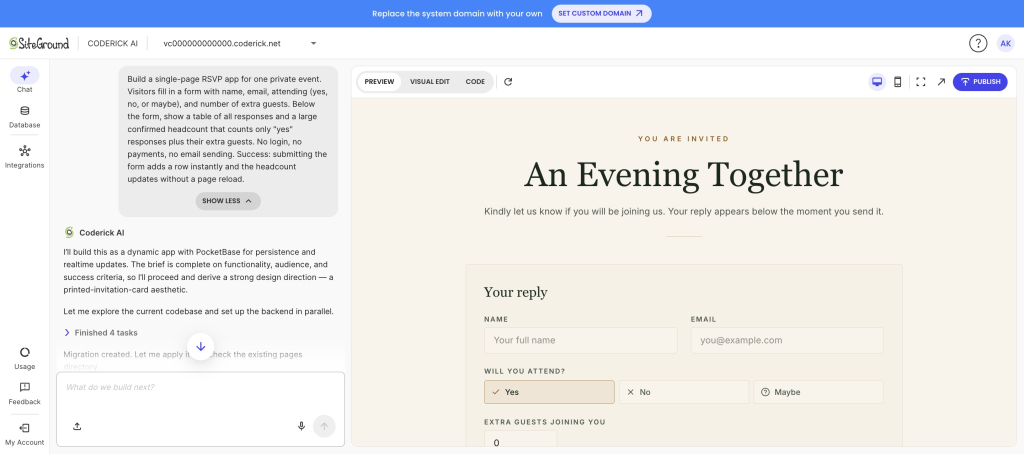
Coderick AI generating an RSVP web app from a natural language prompt with a live preview.

Success check: add 5 test guests including one “maybe” and one with 2 extra guests. The headcount should read 3 higher than the number of yes rows, and the maybe should not be counted.

2. Decision matrix for comparing options

A decision matrix scores options against weighted criteria and ranks them. It’s useful for choosing a laptop, a supplier, or an apartment, and it’s a good beginner app idea because the entire app is arithmetic on a grid.

First version: add up to 6 options as rows, up to 5 criteria as columns, a 1 to 5 weight per criterion, a 1 to 10 score per cell, and an automatic total with the winner highlighted.

Leave out: saving multiple matrices, sharing, templates, collaborative scoring.

Build a single-page decision matrix web app. Users add options as rows and criteria as columns. Each criterion has a weight from 1 to 5. Each cell takes a score from 1 to 10. Calculate a weighted total per option, sort options by total, and highlight the top row. Everything happens on one screen with no accounts. Success: changing any weight or score immediately reorders the ranking.

Success check: enter 3 options, then change one criterion’s weight from 1 to 5. If the ranking doesn’t move when the weight of a criterion you scored unevenly changes, the math is wrong.

3. Household inventory catalog

A household inventory catalog lists what you own, where it is, and what it cost. People build it for insurance claims, moves, or simply to stop buying a fourth pair of scissors.

First version: item name, room, purchase date, value, notes. A filter by room. A total value that reflects the current filter.

Leave out: photo uploads, barcode scanning, warranty reminders, insurance report exports.

Build a household inventory web app. Each item has a name, room, purchase date, estimated value, and a notes field. Show all items in a sortable table with a dropdown filter by room and a total estimated value above the table. The total must reflect the active filter. No image uploads, no accounts. Success: filtering to one room updates both the visible rows and the total.

Success check: enter 15 items across 3 rooms, then filter to the room with the most expensive item. The total has to drop, and it has to match the sum of the visible rows.

4. Reading or watchlist tracker

A watchlist tracker holds the books, films, or courses you mean to get to and moves them through three states. It’s one of the most common beginner web app project ideas because every list app you’ve tried is either too heavy or wants an account.

First version: title, type, status (want to start, in progress, finished), a 1 to 5 rating on finished items, and one short note. Two views: “up next” and “finished”.

Leave out: importing from external catalogs, cover art, friends, recommendations, reading streaks.

Build a personal watchlist web app. Each entry has a title, type (book, film, or show), status (want to start, in progress, finished), an optional rating from 1 to 5, and a one-line note. Show two tabs: “Up next” listing everything not finished, and “Finished” listing finished items sorted by rating. Status changes with one click from the row. No accounts, no external data sources. Success: marking an item finished moves it out of “Up next” and into “Finished” immediately.

Success check: mark an in-progress item as finished. It should disappear from “up next” in the same click, without a refresh.

5. Trip packing planner

A packing planner turns “did I pack the charger?” into a checklist you reuse for every trip. It’s the easiest of these apps to test, because the test is whether your checkmarks survive closing the browser.

First version: items grouped into 4 or 5 categories, a checkbox per item, a progress count, and a “clear all checks” button so the list is reusable.

Leave out: weather lookups, multiple simultaneous trips, shared lists, per-person packing.

Build a reusable trip packing checklist web app. Items are grouped under categories such as Clothes, Toiletries, Tech, and Documents. Each item has a checkbox. Show a packed count like “12 of 25 packed” at the top. Include a button to reset all checkboxes for the next trip, and let users add or delete items. Checked state must persist between visits. No accounts. Success: checking items, closing the browser, and returning shows the same items still checked.

Success check: check 10 of 25 items, close the tab, and open the app again. If the checks are gone, the app isn’t saving data. It’s redrawing it.

6. Recipe organizer and meal shortlist

A recipe organizer stores the meals you actually cook and builds a shopping list from the ones you pick for the week. This is where a small app beats a notes file, because a notes file can’t combine ingredients.

First version: recipe name, tags, ingredient list, and a “shortlist” toggle. One combined shopping list built from the shortlisted recipes, with duplicate ingredients merged into a single line.

Leave out: nutrition data, serving-size scaling, cooking instructions, grocery integrations.

Build a recipe organizer web app. Each recipe has a name, up to 3 tags, and a list of ingredients as free text lines. Users can toggle any recipe into a weekly shortlist. Generate a combined shopping list from all shortlisted recipes, merging identical ingredient names into one line with a count of how many recipes need them. No nutrition data, no accounts. Success: shortlisting two recipes that both need onions shows onions once, marked as needed by 2 recipes.

Success check: shortlist 3 recipes that share an ingredient. That ingredient must appear exactly once in the shopping list. If it appears three times, the merge logic didn’t happen.

7. Content idea organizer

A content idea organizer holds post ideas with their hook, channel, and status so they stop living in six different places. It’s one of two lightweight business tools on this list, and it stays small because it never touches a publishing API.

First version: idea title, channel, hook (one line), status (idea, drafting, scheduled, published), and target date. A board or table grouped by status with a count per group.

Leave out: publishing to social platforms, performance analytics, team assignment, approval workflows.

Build a content idea organizer web app. Each idea has a title, channel (blog, newsletter, or social), a one-line hook, a status (idea, drafting, scheduled, or published), and a target date. Group ideas by status with a count in each group heading, and let users change status from the idea itself. Sort within each group by target date, soonest first. No external publishing, no accounts. Success: changing an idea’s status moves it to the correct group and updates both counts.

Success check: move an idea from “idea” to “drafting”. Both group counts must change in the same action. One count moving is a partial update, which is a bug you’ll otherwise find weeks later.

8. Feedback and idea-voting board

A voting board collects suggestions and lets people upvote them, so the loudest request stops being the one that arrived most recently. Keep it to one board and it stays a weekend project.

First version: submit an idea with a title and one-line description, an upvote button per idea, a sort by votes, and a simple one-vote-per-browser check.

Leave out: accounts, comments, moderation queues, public roadmaps, status labels.

Build a public idea voting board web app. Anyone can submit an idea with a title and a one-line description. Each idea shows an upvote button and a vote count, and the list sorts by votes with the highest first. Prevent the same browser from voting twice on the same idea by storing votes locally. No accounts, no comments, no moderation. Success: voting twice on the same idea from the same browser increases the count only once.

Success check: vote on the same idea twice from one browser, then once from a different browser or a private window. The count should go from 0 to 1 to 1 to 2.

9. Simple quote or estimate calculator

A quote calculator turns your pricing rules into a form that produces a number. It’s the most immediately useful of these no-code app ideas for anyone who currently answers “how much?” by opening a spreadsheet.

First version: service type, quantity, up to 3 add-ons with fixed prices, and a total with a plain-text summary the visitor can copy. Prices live in the app. No payment.

Leave out: taking payment, invoices, client accounts, regional tax rules, saved quotes.

Build a quote estimate calculator web app for a service business. The form has a service type dropdown with 3 options at fixed base prices, a quantity field, and 3 optional add-on checkboxes with fixed prices. Show a running total that updates as the visitor changes any field, plus a copyable plain-text summary listing every line item and the total. Do not collect payment or personal data. Success: the total always equals base price times quantity plus the checked add-ons.

Success check: run 3 jobs you’ve actually quoted in the past 6 months through the calculator. If any result is more than 10% off what you charged, your pricing rules aren’t what you thought they were, which is worth knowing before a client uses the form.

Web app quote calculator with service selection, optional add-ons, quantity controls, and an automatically calculated total.

10. Plant-care or habit tracker

A recurring-task tracker records when you last did something and tells you what’s due today. Watering plants is the friendly version. It works identically for filters, medication reminders, or a workout schedule.

First version: item name, frequency in days, last-done date, and a “due today” list at the top. One button per item that sets last-done to today.

Leave out: push notifications, streaks and badges, multiple users, photo logs.

Build a recurring care tracker web app. Each item has a name, a frequency in days, and a last-done date. Calculate the next due date from the last-done date plus the frequency, and show a “Due now” section at the top listing every item whose due date has passed. Each item has a “Done today” button that sets last-done to today’s date and moves it out of the due list. No notifications, no accounts. Success: an item with a 3-day frequency last done 4 days ago appears in “Due now”.

Success check: create an item with a 3-day frequency and backdate the last-done field by 4 days. If it doesn’t appear as due, the date math is off by a day, which is the single most common bug in this app.

How to choose which web app idea to build first

Pick the idea whose data already exists somewhere you can copy from in 10 minutes. That’s the whole decision. If the guest list is in your phone, build the RSVP tracker. If your pricing rules are in a spreadsheet, build the quote calculator. An app you can fill with real data on day one gets tested honestly. An app that needs invented data gets admired and abandoned.

Three filters, in order:

  1. Will you use it within 7 days? A packing planner before a trip gets used.
  2. Do you already have 20 real entries? Twenty rows is enough to expose bad sorting, broken filters, and layouts that only work with three items.
  3. What happens if it’s wrong? A miscounted headcount is an inconvenience. A wrong invoice is a problem. Start where mistakes are cheap.
If you want toBuildData it storesReusable after?
Organize a personal eventRSVP and guest-list trackerNames, responsesYes, per event
Make a hard choiceDecision matrixOptions, weighted scoresYes, any decision
Prepare for insurance or a moveHousehold inventory catalogItems, rooms, valuesOngoing
Stop losing track of mediaReading or watchlist trackerTitles, statuses, ratingsOngoing
Travel without forgetting thingsTrip packing plannerItems, checked stateYes, every trip
Plan the week’s cookingRecipe organizerRecipes, ingredientsWeekly
Keep creative work movingContent idea organizerIdeas, status, datesOngoing
Prioritize customer requestsFeedback and voting boardSuggestions, votesOngoing
Answer pricing questions fasterQuote calculatorPricing rulesOngoing
Remember recurring tasksPlant-care or habit trackerItems, frequency, datesOngoing

Tool choice matters less than scope, with one exception: whether the app can save data without you setting up a database. A tracker that forgets everything on refresh isn’t a tracker. An AI website builder that works without code and generates its own backend removes that step, which is the difference between a working app and a pretty mockup.

What to leave out of your first version

Cut every feature that requires a second screen. Most beginner web app projects fail on scope, not on prompting, and the same four features are responsible: user accounts, payments, notifications, and file uploads. Each one brings its own error states, and error states are where beginners run out of weekend.

What to leave out, and what to do instead:

  • User accounts. Instead, keep the app private by keeping the URL private. Add authentication in version 2, once you know the app is worth logging into.
  • Payments. Instead, output a total and a copyable summary. Take the money the way you take it now.
  • Notifications. Instead, show a “due now” or “waiting on you” section at the top of the screen. The app tells you when you open it.
  • File and photo uploads. Instead, use a text field for the detail you’d have captured in the image, such as a serial number or a link.
  • Multi-user editing. Instead, one person edits and everyone else reads.

There’s a practical reason to be strict here beyond time. Every refinement prompt spends some AI tokens, and simpler prompts consume fewer of them. A tight first version leaves you tokens to fix what testing reveals. A sprawling first version spends them arguing with a login screen you didn’t need. This is the most common of the AI app builder mistakes beginners make, and it happens before a single prompt is written.

How to test a small web app before anyone else sees it

Run five checks in this order. They take about 10 minutes together and they catch nearly everything that goes wrong in an app this size.

  1. The empty state. Load the app with zero entries. It should say something useful, not show a broken table or a total of NaN.
  2. Twenty real entries. Paste in actual data, not “test test test”. Real data has long names, missing fields, and duplicates, and it breaks layouts that three tidy rows never will.
  3. The refresh test. Enter data, close the tab, reopen the app. Anything that disappears was never saved.
  4. The phone test. Open it on your phone. Tables are the usual casualty. If you can’t read a row without pinching, the app needs a stacked layout on narrow screens.
  5. The wrong-input test. Type a word in a number field. Leave a required field blank. Enter a date in the past. The app should refuse politely instead of crashing or saving nonsense.

Fix one thing per prompt. Bundling five fixes into one instruction makes it hard to tell which change caused which result, and it’s how working features get quietly overwritten. Version control and staging exist for exactly this: if a refinement makes things worse, revert to the last good version instead of prompting your way back out. Testing in small loops like this is the core of a repeatable vibe coding workflow, and it’s what separates a build that survives contact with real users from one that doesn’t.

When all five checks pass, show it to one person who wasn’t involved. Watch them use it without explaining anything. Whatever they hesitate over is your version 2 list, and it will be shorter and more accurate than the feature list you would have invented on your own.

Start with one idea this weekend

Any of these 10 simple web app ideas is small enough to go from prompt to working app in a weekend, provided you hold the line on scope. One data type, one screen, no payments, and 20 rows of real data to test against. The idea that gets finished is almost never the most ambitious one on the list. It’s the one whose data you already had.

You can build any of them with Coderick AI, which turns a plain-language description into a working app with hosting, SSL, a generated backend, and version control included from the first prompt. Access comes with a SiteGround hosting plan, the only thing left to decide this weekend is which of the 10 ideas you’ll actually use.

[96]


Frequently asked questions (FAQ)

What are some simple web app ideas I can build with AI?

Simple web app ideas that work well with AI builders include an RSVP and guest-list tracker, a weighted decision matrix, a household inventory catalog, a watchlist tracker, a trip packing planner, a recipe organizer, a content idea organizer, an idea-voting board, a quote calculator, and a recurring-task tracker. All 10 store one type of data and answer one question about it.

What web apps can beginners build without coding?

Beginners can build any simple web app without coding that collects, organizes, or calculates data without needing payments, logins, or outside services. Trackers, checklists, calculators, and simple catalogs all qualify. You describe the tool in plain language, and the builder generates the interface and the data structure for you.

Which web app ideas can be finished in a weekend?

Web app ideas for beginners that can be finished in a weekend have one data type, about 5 fields, and one or two views. A packing checklist, a decision matrix, or a quote calculator fits comfortably. Anything with user accounts, payments, or multiple connected record types does not, regardless of how simple the pitch sounds.

How do I choose a simple web app idea?

Choose the idea whose data you can copy from somewhere in 10 minutes and that you’ll use within the next 7 days. Those two conditions matter more than how interesting the idea is, because they’re what get the app tested with real information instead of placeholder rows.

What should a beginner web app include?

A beginner web app should include one input form, one list or table view, one calculated summary such as a count or total, and data that persists after a refresh. That’s the complete requirement. Everything else is version 2.

What features should I leave out of my first web app?

Leave out user accounts, payments, notifications, file uploads, and multi-user editing. Each one adds error states that take longer to handle than the core app itself. Keep the app private by keeping the URL private, and output a copyable summary instead of processing payments.

Can Coderick AI build a web app from a prompt?

Yes. Coderick AI builds a web app from a plain-language prompt, then refines it through continued chat instructions. It generates the interface and the backend together, and includes hosting, SSL, custom domains, user authentication, and version control on paid plans, so there’s no separate infrastructure to configure. 

How should I test a small AI-built web app?

Test a small AI-built web app in five passes: load it empty, add 20 real entries, refresh to confirm data was saved, open it on a phone, and feed it wrong input such as text in a number field. Fix one problem per prompt so you can tell which change fixed what.

Why Your CDN Keeps Showing an Old Version of Your Site and How to Cache Safely

Illustration of a website in a browser window with a blurred, unloaded image placeholder, a "Page not found" notice with a Refresh button, a stopwatch icon, and a reload icon — representing stale cache and loading issues.

You pushed an update an hour ago. You can see the new version. Some of your visitors can’t. That’s your CDN cache doing exactly what you told it to: serving a saved copy instead of asking your server for a fresh one. It’s rarely a real bug, and it’s usually fixable in a few minutes once you know which copy is stale and how to clear it.

Key takeaways:

  • A CDN cache serves saved copies of your site from edge servers for a set TTL, so an update can take minutes to 24 hours to appear.
  • Most “my CDN broke my site” cases are stale content, not true breakage; the exception is an asset-version mismatch that renders pages broken.
  • A full CDN cache purge shows fresh content but drops your cache hit ratio to 0% and sends every request back to your origin.
  • To clear the CDN cache, purge it from the CDN tool (on SiteGround, Site Tools > Speed > CDN); in WordPress a caching plugin clears the server cache, a separate layer.
  • Safe caching is five habits: cache static files long, never cache logged-in or checkout pages, version filenames, set sane TTLs, and purge on deploy.
  • CDN cache invalidation clears only what changed, keeping your hit ratio high while still updating what visitors see.

What is a CDN cache, and why it’s not the villain here

A CDN cache is a set of temporary copies of your site stored on a network of edge servers around the world, so visitors download your pages from a server near them instead of from your origin every time. It exists to make your site faster and to take load off your origin server, and for static content it does that job well. When it “misbehaves,” it’s almost always following the rules you (or your platform) gave it.

That framing matters, because the fix is rarely “turn off the CDN.” The fix is usually “tell the cache the content changed.” If you want the full definition of the delivery layer itself, SiteGround’s explainer on what a content delivery network is covers the network side in detail. Here, the important part is narrower: the cache is a copy, copies go out of date, and out-of-date copies are the entire problem you’re troubleshooting.

So when your CDN keeps showing an old version, it hasn’t failed. It’s holding a copy that was correct when it was stored and is now behind your latest change.

Cache HIT, MISS, and TTL: how long your CDN actually holds a page

Every request to your CDN ends in one of two outcomes:

OutcomeWhat the edge server does
Cache HITIt already has a copy and serves it instantly.
Cache MISSIt has no copy, so it fetches from your origin, serves that, and stores a copy for next time.

A high ratio of HITs is what keeps your time to first byte low and your origin quiet.

How long the edge keeps that copy is the TTL, set by response headers like Cache-Control: max-age (for browsers) and s-maxage (for shared caches such as a CDN). A max-age=3600 says “this is good for 3,600 seconds,” so the edge will keep serving it for an hour before checking back.

This is the direct answer to “how long does it take for a CDN to cache a page” and “how long until my change shows up.” The cache stores a page on the first request after a MISS, and it holds that copy until the TTL expires or you purge it. Many CDNs default to a TTL of several hours.

Manage CDN Settings page in SiteGround Site Tools showing Premium Features, with the Cache duration setting (TTL) dropdown expanded and options for 6 hours, 12 hours, and 24 hours.

📌 Why the default TTL is measured in hours, not minutes

It’s tempting to read this as “shorter TTL, fewer stale-content problems.” It’s the opposite. Every time a cached copy expires, the next visitor triggers a cache MISS that travels all the way back to your origin, so a very short TTL means more MISSes, a lower hit ratio, and a slower average response.

SiteGround CDN defaults to 12 hours, and most CDNs sit in the same range, because a longer TTL keeps the majority of requests as instant HITs. Handle freshness by purging (or changing a versioned filename) the moment something actually changes, not by starving the cache with a low TTL.

CDN vs. cache vs. browser cache: which one is actually serving you old content?

Before you purge anything, figure out which layer is stale, because purging the wrong one wastes time. A cache is just a stored copy of data, and on a typical site there are at least three of them stacked between your server and your visitor’s screen:

LayerWhere it livesCan you purge it?
Origin/server cacheOn your host (page cache, object cache)Yes, from your hosting tools. A CDN purge won’t touch it.
CDN cacheOn the edge network worldwideYes, with a CDN purge. This is the layer serving most visitors.
Browser cacheOn each visitor’s own deviceNot remotely. You influence it with headers and cache-busting.

Then run a quick diagnostic:

  • Only you see the old version? Probably your browser. Hard-refresh or test from incognito to confirm.
  • Everyone sees it, including you in a private window? It’s the CDN or origin.

A CDN is not the same thing as a cache. It’s a delivery network that happens to use caching as its main mechanism, which is why “is a CDN a cache” gets a “sort of, but not only.”

Why your CDN broke your site: 6 causes (and the one everyone misses)

Almost every stale-or-broken-after-deploy case traces back to one of these causes. Getting this wrong doesn’t just annoy visitors. Broken assets hurt conversions and the site speed signals search engines watch.

  1. Stale asset after a deploy. You changed a file but its URL stayed the same, so the edge keeps serving the copy it has until the TTL runs out.
  2. TTL set too long. A generous max-age is great for images that never change and painful for files you edit weekly. One TTL rarely fits every asset type.
  3. Dynamic pages got cached. Cart, checkout, account, and logged-in views should never be cached at the edge. When they are, visitors see each other’s stale state, which is where “cdn cache not updating” turns into an actual bug.
  4. No cache-busting on updated files. If style.css is always style.css, caches can’t tell v1 from v2, and the old copy wins.
  5. Misconfigured Cache-Control headers. A missing no-store on a private page, or an s-maxage that contradicts your intent, quietly tells the CDN to do the wrong thing.

The one everyone misses: asset-version mismatch

This is the true breakage case, and the sixth cause on the list. Cached old HTML references files that changed, or fresh HTML loads a cached old stylesheet or script. The result is a page that renders broken, not merely out of date: unstyled layouts, missing images, JavaScript errors. It looks like your site collapsed. It’s really two cache layers that fell out of sync.

How to clear your CDN cache right now (and what WordPress plugins actually clear)

The fastest fix for “how to clear CDN cache” is a manual purge, and it forces the edge to fetch fresh copies from your origin on the next request. Here’s the general path, then what actually changes for WordPress.

  1. Open your CDN or hosting dashboard.
  2. Find the caching section for your site.
  3. Look for a purge or flush/clear cache button and click it.
  4. Reload the affected page in a private window to confirm the new version.

On SiteGround, you flush the CDN cache from Site Tools under Speed > CDN, where the Cache Purge button clears every cached resource (it can take up to 60 seconds to propagate globally).

Manage CDN Settings page in SiteGround Site Tools with the Basic Features section open, showing a magnified view of the Purge cache button next to the Cache Purge option.

“How to clear CDN cache in WordPress” trips people up, because a WordPress plugin usually isn’t what clears the CDN edge. On SiteGround you still purge the CDN from Site Tools > Speed > CDN, exactly as above. The Speed Optimizer plugin, which also manages browser caching in WordPress, has a Purge SG Cache button, but that clears the server-side Dynamic Cache, a different layer. So if visitors still see the old version after a plugin purge, the CDN edge is what still needs clearing.

The faster fix: preview changes live without a full purge

Purging works, but it’s a blunt instrument. Every full purge sends all your traffic back to the origin at once, which is the opposite of what a CDN is for. The better move while you’re still editing is to preview changes without clearing the cache for everyone.

SiteGround CDN includes a development mode that temporarily suspends caching for 30 minutes, then toggles itself back off automatically. While it’s on, requests skip the cache so you see your changes immediately. The advantage over a full purge is that your cached copies are never wiped, so the moment development mode ends your hit ratio is right back where it was instead of rebuilding from zero. It’s a single toggle in Site Tools, which makes it one of the more practical additions to a WordPress performance workflow rather than a feature you’ll read about and never touch.

Manage CDN Settings page in SiteGround Site Tools with the Development mode toggle switched on and a green "Development mode activated" success message.

Use the preview to confirm the change looks right, then purge once, deliberately, instead of purging repeatedly while you guess.

How to cache safely so this doesn’t happen again

Safe caching isn’t about caching less. It’s about caching the right things for the right length of time. The habits below prevent almost every case above, and they keep the speed benefits that improve your Core Web Vitals.

DoDon’t
Cache static assets (images, fonts, compiled CSS/JS) with long TTLsCache HTML for logged-in, cart, or checkout pages
Version filenames (app.9f2c.js) so a change is a new URLReuse the same filename across releases
Set Cache-Control: no-store on private or personalized pagesRely on a single TTL for every asset type
Purge automatically on every deployPurge manually and hope you remembered

The single highest-value habit is cache-busting through versioned filenames. When a changed file gets a new URL, every cache treats it as new content automatically, and the asset-version mismatch that breaks pages simply can’t happen. Caching compiled CSS and JavaScript at the edge also helps you eliminate render-blocking resources, since returning visitors load them instantly instead of downloading them again. Pair that with purge-on-deploy and most stale-content tickets disappear before anyone files them.

Cache invalidation vs. purging: why flushing everything is overkill

CDN cache invalidation means telling the cache that specific content is no longer valid, so the edge refetches only what actually changed. A full purge wipes everything. Invalidation surgically removes the three files you touched. The difference shows up immediately in your website performance metrics: a full flush drops your cache hit ratio to 0% and hammers your origin until the cache refills, while targeted invalidation barely moves it.

For a small brochure site, flushing everything is fine. For a busy store or a high-traffic blog, it’s the difference between a smooth deploy and a few minutes of slow, origin-bound page loads for every visitor. The rule of thumb: invalidate by URL or tag when you can, and reserve the full purge for the rare case where you genuinely don’t know what changed.

This is also where your host earns its keep. A platform that invalidates intelligently on publish protects your hit ratio for you, so you get fresh content without the performance dip.

[86]

Put your caching on autopilot

Most of the trouble in this article comes from doing CDN cache management by hand: remembering to purge, guessing which layer is stale, and hoping a full flush doesn’t slow everyone down. A managed platform removes those decisions. SiteGround CDN caches your static content on a global edge network, clears on demand with a one-click purge from Site Tools, and includes a development mode for previewing changes without wiping your cache.

That means you can ship changes without babysitting the cache, and your visitors keep getting the fast, current version of your site. Fast by default, current when it matters, and no 2 a.m. “why is the old homepage still up” panic.

Frequently asked questions

Is a CDN a cache?

Not exactly. A CDN is a delivery network of edge servers, and caching is the main mechanism it uses to serve content quickly. So a CDN contains and relies on a cache, but it also handles routing, security, and delivery that a plain cache does not.

What is the difference between a CDN and a cache?

A cache is any stored copy of data, which can live in your browser, on your server, or on a CDN. A CDN is the geographically distributed network that stores those copies close to visitors and delivers them. Put simply: the cache is the copy, the CDN is the delivery system.

How do I clear my CDN cache?

Open your CDN or hosting dashboard, find the caching section, and trigger a purge, either for everything or for specific URLs. Then reload the affected page in a private window to confirm the fresh version is being served.

How do I clear the CDN cache in WordPress?

In WordPress, clear the CDN cache from your CDN’s own tool, not a general caching plugin. On SiteGround that is Site Tools > Speed > CDN > Purge Cache. The Speed Optimizer plugin’s purge clears the server-side Dynamic Cache, a different layer, so purge the CDN separately if the old version persists.

How long does it take for a CDN to cache a page?

A CDN caches a page on the first request after a cache MISS, which is effectively instant. It then holds that copy for the length of the TTL, so your changes can take anywhere from minutes to 24 hours to appear unless you purge.

What is CDN cache invalidation?

CDN cache invalidation is the process of marking specific cached content as outdated so the edge refetches only what changed. It’s the targeted alternative to a full purge, and it refreshes your content while keeping your cache hit ratio high.

Email not working after a DNS change? Here’s how to fix it fast

Illustration of email reconnecting to its DNS MX record after a DNS change, with an interrupted envelope being restored

Your email didn’t break. When you changed your domain’s nameservers, mail routing moved to a new DNS provider that doesn’t have your old records, so messages have nowhere to land. Email not working after a DNS change is almost always a case of missing MX and supporting records, not lost data. Recreate the right records at your new DNS host, wait for propagation, and mail comes back.

Key takeaways:

  • Changing nameservers hands DNS control to a new provider, and your MX, SPF, DKIM, and autodiscover records do not transfer automatically.
  • Your mailboxes and existing messages live on the mail server, not in DNS, so a nameserver change cannot delete email you already received.
  • Receiving problems almost always trace back to MX and A records; sending or spam problems trace back to SPF, DKIM, and DMARC.
  • DNS changes can take up to 24 to 48 hours to fully propagate, though most updates apply within a few hours.
  • You can confirm which records are actually live in about a minute using a free MX lookup tool such as MxToolbox.

Why email stops working after a DNS change

Nameservers decide which company answers questions about your domain, and DNS records are the individual answers. When you point your domain to a new host, you switch to a fresh DNS zone that starts with a default set of records. That default set rarely includes the exact MX, SPF, and mail records your email provider needs, so incoming mail has no address to route to.

This is why the question “does changing nameservers affect email” comes up so often: the change itself is harmless, but the empty zone behind it is not. If you recently pointed your domain to a new host, the previous provider’s records stayed behind on the old nameservers. Nothing was deleted. The new nameservers simply never received a copy.

The reassuring part: your account, passwords, and stored messages sit on the mail server, which the DNS change never touches. You are reconnecting the signposts, not rebuilding the mailbox.

First, confirm the problem is actually DNS

Before editing anything, rule out the faster explanations. A wrong password, a provider outage, or a change made only minutes ago can all look identical to a DNS problem, and none of them are fixed by touching records.

Run three quick checks:

  1. Timing. If you changed nameservers in the last hour, the issue may just be propagation. Note the exact time you made the switch.
  2. Login and outage. Try webmail directly. If you can log in and see old messages but no new ones, DNS is the likely culprit. If you cannot log in at all, check if your provider is experiencing server issues.
  3. Both directions. Test sending and receiving separately. Which one fails tells you which records to check, and it saves you from editing records that were never the problem.

If webmail loads your history but new mail stopped arriving right after the switch, you are looking at a records issue. Move on to the diagnosis.

Find out which records went missing

Email relies on several record types working together, and a DNS change can drop any of them. Rather than guessing, look up what is currently live on your domain. A free tool like MxToolbox returns your MX records in seconds, and most DNS hosts show the full zone inside their control panel. Compare what you see against what your email provider says you should have.

Here is what each record does and how its absence shows up:

RecordWhat it does for emailSymptom if missing or wrong
MXPoints incoming mail to your mail serverYou stop receiving email entirely
A / CNAME (mail, webmail, autodiscover)Lets clients reach the server and auto-configureOutlook or Apple Mail cannot connect or set up
SPF (TXT)Lists servers allowed to send as your domainYour outgoing mail lands in spam or is rejected
DKIM (TXT)Signs messages so receivers trust themReduced deliverability, spoofing warnings
DMARC (TXT)Tells receivers how to handle failed checksInconsistent delivery, no reporting

In SiteGround, the full zone is listed under Site Tools > Domain > DNS Zone Editor, in the Manage DNS Records table.

SiteGround Site Tools Manage DNS Records table showing the default MX records, mail-related A records, and the DKIM CNAME for a domain

Here you can see exactly what is live on your domain after pointing it to SiteGround’s nameservers. The three MX records, the mail-related A records (autodiscover, autoconfig, mail), and the DKIM CNAME are all present. Compare your own list against what your email provider expects.

When you point your domain to SiteGround, Site Tools comes with a default DNS zone that already includes SiteGround’s own MX and mail records, set up for email hosted on SiteGround. So before you edit anything, this is really a decision about where you want your email to live.

– Keep email with your current provider. Replace SiteGround’s default MX and mail records with the exact values from that provider, following the steps below. Your mailboxes stay where they are, and nothing moves.

– Move your email to SiteGround. Leave the default records in place and bring your existing mailboxes across with SiteGround email and its migration tool, so your messages and DNS records line up on their own. If your site already lives here, keeping email in the same place means one less zone to keep in sync. 

If you’re staying with your current email provider, read on and re-add its records. If consolidating sounds easier, the migration route skips the copy-paste entirely.

[86]

Check your MX records first

MX records are the first thing to verify, because without them nothing arrives. A correct set points to your provider’s mail hostnames, each with a priority number where the lowest value is tried first. Google Workspace, for example, publishes:

smtp.google.com at priority 1 (the current single-record setup), or the classic five-record set led by ASPMX.L.GOOGLE.COM at priority 1, with four ALT records at priorities 5 to 10.

Your provider’s set may differ, so use its exact hostnames and priorities. They should be available in your old DNS zone, or in their official product documentation.

If your lookup still returns SiteGround’s default MX, or any host that is not your email provider, that mismatch is your receiving problem in one line.

Check the A and CNAME records for mail access

Whether you need these at all depends on the provider:

  • Traditional, host-based email (including old cPanel-style hosts) usually uses hostnames such as mail.yourdomain.com and autodiscover.yourdomain.com so desktop clients can connect and auto-configure.
  • Google Workspace needs none of these, because Gmail is the interface.
  • Microsoft 365 wants an autodiscover CNAME pointing to autodiscover.outlook.com.

Check your provider’s documentation for the exact hostnames, and if it lists none, leave these out. When they are required but missing, mail can route fine while Outlook or Apple Mail sits there failing to connect.

Check SPF, DKIM, and DMARC for sending

These three TXT records decide whether the rest of the internet trusts mail sent from your domain. They do not affect receiving, but a missing or wrong SPF record after a DNS change is the usual reason your sent mail suddenly lands in spam. Each value is provider-specific. Using Google Workspace as an example again:

  • SPF is v=spf1 include:_spf.google.com ~all.
  • DKIM is a google._domainkey TXT record holding the key you generate in the Google Admin console.
  • DMARC is a _dmarc TXT record such as v=DMARC1; p=none; rua=mailto:you@yourdomain.com. 

Copy your provider’s exact strings, since a single wrong character in any of them breaks the check.

Restore the records at your new DNS host

Once you know which records are needed, recreate them in your new DNS zone using the values from your email provider. In SiteGround, you edit these under Site Tools > Domain > DNS Zone Editor, where a tab at the top of Create New Record lets you pick each record type — A, AAAA, CNAME, MX, SRV, or TXT — and fill in its fields.

To restore receiving, open the MX tab, choose Add your own MX records, then enter the mail hostname your provider lists in Destination and its Priority. The same panel handles A, CNAME, and TXT records via the other tabs.

Work in this order:

  1. Add the MX record with the exact mail hostname and priority your provider lists. This restores receiving.
  2. Add the mail A or CNAME records (mail, webmail, autodiscover) so email clients reconnect.
  3. Add the SPF, DKIM, and DMARC TXT records exactly as published, character for character.
  4. Save and re-run your MX lookup to confirm the new records are visible.

Important: Make sure to also delete any leftover email DNS records to avoid delivery conflicts.

Receiving vs sending: different symptoms, different fixes

Treat “I can’t receive” and “I can’t send” as two separate problems, because they live in different records. Fixing one does nothing for the other, and editing the wrong set just adds risk.

  • If mail is not arriving, the fault is in MX or the mail A records. 
  • If mail sends but bounces or lands in spam, the fault is in SPF, DKIM, or DMARC. 

That second case is really a deliverability problem, and the same authentication records that fix it also protect your email deliverability. Diagnosing the direction first turns a vague “email is down” into a specific record to repair.

How long until email works again

After you save correct records, email usually starts flowing within a few hours, but full propagation can take up to 24 to 48 hours. 

Resist the urge to keep editing DNS while you wait. Every change resets the clock and makes the delay worse, not better. Save the correct values once, verify them with a lookup tool, and give propagation time to finish. If mail still fails after 48 hours, the problem is the record values themselves, not propagation, so recheck them against your provider.

How to change nameservers without affecting email 

The clean way to change nameservers without affecting email is to prepare the new zone before you flip the switch, not after. A little sequencing removes the downtime entirely, and it is the same discipline behind any careful website migration.

Use this checklist before your next change:

  1. Record your current zone. Export or screenshot every existing record, especially MX, SPF, DKIM, and any mail hostnames.
  2. Recreate the records at the new host first, while the domain still uses the old nameservers.
  3. Switch the nameservers, then verify sending and receiving with a real test message.

Done in this order, mail keeps flowing through the switch because the new zone already knows where to send it.

When to call in help

If you have restored the records, waited out propagation, and mail still fails, it is time to involve people who can see the server side. Your email provider can confirm the exact record values, and your hosting support can verify the zone is applied correctly. 

This is also where the choice of provider matters. When email, DNS, and hosting sit with one company that offers real human support, a broken record is a five-minute chat rather than a multi-day back and forth across three providers. This is worth weighing when choosing a web hosting partner, because the cheapest plan often means you are the support team.

The bottom line

Email breaking after a DNS change is a routing problem, not data loss. A nameserver switch hands your domain to a new DNS zone, and until that zone’s MX and mail records point back at whoever hosts your mailboxes, incoming mail has nowhere to go. 

The fix is methodical rather than urgent: confirm the problem is DNS, pull the correct values from your provider or your old zone, replace the defaults, and let propagation finish before you judge the result.

The durable lesson is sequencing. Treat DNS records as part of any nameserver move, not an afterthought: stage the records at the new host before you flip, and test both sending and receiving before you call it done. Handle it that way and “email not working after a DNS change” stops being an emergency and becomes a checklist.

Frequently asked questions

Why is my email not working after a DNS change?

Because the new DNS zone is missing the MX and supporting records your mail needs. Changing nameservers moves control to a new provider that starts with default records, so incoming mail has nowhere to route until you recreate the correct MX, A, and authentication records.

Does changing nameservers affect email?

Yes, changing nameservers affects email whenever the new DNS host does not already have your mail records. The nameserver change itself is safe, but email stops until the MX, SPF, and related records are recreated in the new zone.

Will changing DNS delete my emails?

No. Your messages and mailboxes are stored on the mail server, which a DNS change never touches. You may temporarily stop receiving new mail, but existing email is not deleted and reappears once records are restored.

How long until email works again after a DNS change?

Usually within a few hours, and up to 24 to 48 hours for full propagation. The exact time depends on your TTL setting. Lowering the TTL before a planned change shortens the wait.

What DNS records does email need?

At minimum an MX record for receiving, plus A or CNAME records for mail client access, and SPF, DKIM, and DMARC TXT records for sending and deliverability. Missing MX records break receiving; missing authentication records break sending.

Protect your live WordPress site while using AI: How SiteGround built Power Mode into its AI Agent for WordPress

Man using a laptop beside a website preview, a “Website secured” badge, and a code panel.

The AI Agent for WordPress doesn’t just write content. It can manage live-site actions such as deleting plugins, changing user roles, and updating WooCommerce orders on your live site, which is exactly why it ships with a safety switch.

That switch is SiteGround AI Agent Power Mode. It is disabled by default, and until enable it, the agent can’t run high-impact AI actions such as deletions, bulk edits, user changes, WordPress settings changes, or WooCommerce order updates. Role-aware permissions and confirmation prompts back it up at every step.

Key takeaways:

  • Power Mode is disabled by default and requires explicit approval before the AI Agent for WordPress runs any high-impact action on a live WordPress site.
  • The agent works inside the WordPress permission model, so the five standard roles (Administrator, Editor, Author, Contributor, and Subscriber) still define what it can access.
  • SiteGround AI Agent Power Mode covers destructive and bulk operations: deletions, bulk content edits, user creation and updates, settings changes, and WooCommerce order actions.
  • The agent manages content, plugins, themes, users, settings, WooCommerce, and troubleshooting inside WordPress, but it can’t reach server configuration, DNS, SSL, or hosting credentials.
  • The safest workflow when using the AI Agent for WordPress is to keep Power Mode off by default, turn it on only when needed, back up before major changes, and review important actions before they go live.

Why safety matters when AI manages a live WordPress site

The risk of AI on a live site is rarely abstract. It looks like a deleted page that was still getting traffic, a changed setting that breaks checkout, or an order updated while the customer is mid-purchase.

Live-site AI needs more than a chat interface

A chatbot that suggests text is low stakes. An AI Agent for WordPress that can act on a production website needs stronger safety controls. 

Sensitive actions include:

  • publishing live content
  • deleting posts, plugins, themes, or media
  • changing users, WooCommerce orders, or WordPress settings 

This is where the cost of a misread instruction can result in a bad change to a real site. That gap is exactly what a safety model has to close, and it’s why keeping a live WordPress site secure has to account for automated actions, not just human ones.

The real risk isn’t AI writing text, it’s AI changing things

Writing is reversible. You read a draft, you don’t like it, you ignore it. Changing is not always reversible. Deleting a plugin, removing a page, or bulk-editing categories can affect layout, functionality, and revenue in seconds. 

Picture a prompt meant to tidy a blog: “delete the old posts.” Without a checkpoint, an agent could read that far more broadly than you intended, unpublish a year of content, and break every internal link pointing to it. Nothing malicious happened. The instruction was simply wider than you meant, and on a live site that gap between what you said and what you meant is the entire problem a safety model exists to catch. Clearer AI Agent for WordPress prompts reduce that ambiguity by defining the area, item, action, limit, and review step.

.post-page__colored-blocks.post-page__colored-blocks–update p { margin: 15px 0px; }

SiteGround’s safety model is built around permissions, confirmations, and Power Mode

SiteGround handles AI Agent for WordPress safety with three layers working together. 

1. WordPress roles decide the level of access. 
2. Confirmation prompts put a human in front of risky steps. 
3. Power Mode acts as the master switch that keeps high-impact actions off until you deliberately turn them on. 

Each layer covers a different failure: the wrong role, the wrong click, or the wrong bulk command.

What is SiteGround AI Agent Power Mode?

SiteGround AI Agent Power Mode is a built-in safeguard for the AI Agent for WordPress. It’s must be enabled before the agent can perform high-impact actions such as: 

  • deleting plugins 
  • removing posts 
  • changing key settings 
  • making bulk content changes 
  • managing users 
  • modifying WooCommerce orders

For a detailed list of sensitive actions, see What Does Power Mode Do in the AI Agent for WordPress?

Power Mode is disabled by default

Out of the box, the AI Agent for WordPress can’t run destructive or high-impact actions. This is a deliberate default, not a setting you have to remember to lock down. If you never enable it, the agent stays in its safer, lower-impact mode, which is a sensible baseline for anyone still learning how AI works inside WordPress.

Power Mode controls only high-impact actions

When Power Mode is off, the agent can still help with plenty of everyday work. What it can’t do is complete the actions that would be expensive to undo. 

Not every task deserves the same friction. Drafting a post and deleting 40 posts are not the same risk, so they shouldn’t require the same level of approval. By splitting low-risk work from high-impact work, SiteGround lets routine tasks stay fast while the actions that can break a site get a deliberate checkpoint.

How does the AI Agent for WordPress decide what it can access?

The AI Agent for WordPress doesn’t invent its own permissions. It works within the familiar WordPress role and capability system, so access maps to the same permissions you already assign to human users. That means the principle of least privilege applies to the agent exactly as it applies to your team: give it the lowest role that still gets the job done.

Every WordPress user has a role, and each role carries a fixed set of capabilities. The agent operates through that role rather than around it, so if a role can’t publish or delete something, neither can the agent acting under it. That makes role choice the first real safety decision you make, before Power Mode ever enters the picture.

Match the role to the work. An Administrator can manage plugins, themes, users, and settings, so an agent connected at that level can handle full site management, which is exactly why Administrator access is best reserved for workflows that genuinely need it. For content-only work, a lower role is the safer fit: an Editor handles content without plugin or settings control, a Contributor is limited to drafts, and a Subscriber has no business running site-management tasks at all.

WordPress rolePractical meaning for safe AI use
AdministratorUse only when the AI Agent needs full site-management access.
EditorBetter for content workflows that don’t require plugin or settings control.
AuthorUseful only for limited content creation or editing.
ContributorVery limited; best for draft-only workflows.
SubscriberNot suitable for site-management actions.

What can SiteGround’s AI Agent for WordPress change?

Inside WordPress, the agent’s reach is broad but bounded. It can help manage content, maintenance, users, WooCommerce, settings, and optimization tasks through chat prompts, while Power Mode gates higher-impact changes. Think of it as a capable operator across the WordPress admin, including the work that keeps WordPress performance in good shape.

Content, pages, media, and comments

The agent can create and manage posts, pages, images, categories, tags, and comments. This is the everyday WordPress content work most site owners want help with, and much of it stays in the lower-risk lane until publishing, deletion or bulk changes are involved.

Plugins, themes, users, and settings

It can also help with WordPress core, plugins, themes, and compatibility checks, along with user roles, permissions, and user details. These touch how the site runs, so several of these actions require Power Mode before they complete.

WooCommerce products, orders, and customer details

For stores, the agent can help run WooCommerce operations, including products, orders, and customer details. Order and transaction actions carry real financial weight, so the riskier ones are gated behind Power Mode.

Performance, security, troubleshooting, and maintenance guidance

The agent can advise on performance, caching, vulnerabilities, plugin conflicts, and on-page SEO. This guidance is mostly informational, which makes it a safe place to start before you hand over any high-impact work.

AreaWhat the AI Agent can help manage
ContentPosts, pages, images, categories, tags, comments
MaintenanceWordPress core, plugins, themes, compatibility checks
UsersUser roles, permissions, user details
WooCommerceProducts, orders, customer details
SettingsGeneral, reading, permalink, multilingual, staging, migration guidance
OptimizationPerformance, caching, vulnerabilities, plugin conflicts, on-page SEO

What can’t the AI Agent for WordPress access or change?

Just as important as what the AI Agent for WordPress does is what it deliberately leaves outside its WordPress management scope. It operates in the WordPress management context, not as a replacement for hosting-level administration, and that boundary is part of the safety design. For the broader product context, see how SiteGround’s AI Agent works inside WordPress.

Server-level configuration stays outside the WordPress agent scope

The AI Agent for WordPress works strictly inside the WordPress application layer. It doesn’t reconfigure the server, rewrite system-level settings, or take over the jobs that belong to your hosting environment. Those tasks stay where they’ve always lived: outside the WordPress admin.

Hosting panel, DNS, SSL, and credentials aren’t the same as WordPress content

Editing a page and changing a DNS record are different categories of action. The agent handles the first and not the second. Hosting panel settings, DNS, SSL certificates, database credentials, and user passwords sit outside its reach, the same way they sit outside a normal WordPress editor’s day-to-day work. If you want the fuller picture of where that line falls, it maps closely to what managed hosting handles for you at the server level.

Need help at the server level? The AI Agent for WordPress stays inside WordPress by design, but you’re not on your own for hosting tasks. The AI assistant in your SiteGround Help Center can help you with DNS, SSL, email, and other server-side settings, 

Third-party plugin settings and page builders work best in their own interfaces

The agent manages plugins as software: it can install, update, activate, or remove them, and check for compatibility issues. What it doesn’t do is operate inside a third-party plugin’s own settings panels. Configuring a form plugin, a membership tool, or a third-party SEO plugin still happens in that plugin’s interface, the same way it always has. The exception is SiteGround’s own plugins, such as Speed Optimizer and Security Optimizer, which the agent integrates with directly. 

The same logic applies to page builders. The agent works with standard WordPress content, so pages built with Elementor, Divi, or similar builders keep their layouts in the builder’s own structures. Content changes to those pages are best made in the builder itself. 

Why clear boundaries make the AI Agent safer to use

A tool with a defined scope is easier to trust. Because the agent can’t touch infrastructure, an over-broad prompt can’t accidentally reach your DNS or SSL setup. A request like “clean everything up” can’t take down your domain, because your domain was never within reach in the first place.

How do you enable or disable Power Mode safely?

You can turn Power Mode on in two places: from the AI Agent by SiteGround plugin page in WordPress, or directly in a chat session when the AI agent detects an impactful action and asks for it. To switch it on, follow SiteGround’s steps to enable Power Mode and confirm the change from the same interface.

The safe habit is to enable it only for the specific task at hand, then disable it again once you’re done. Power Mode stays enabled after a task completes, so turning it off deliberately keeps your default state on the cautious side rather than leaving high-impact actions available indefinitely. 

What happens when the AI Agent detects a risky action?

The safety model isn’t hidden. It shows up at the exact moment risk appears, so you see it right when it matters instead of reading about it in a settings menu later.

The agent pauses before execution

The agent stops before running a high-impact action. The task doesn’t quietly proceed in the background. It waits, which turns a potential accident into a decision you get to make on purpose.

The user sees a warning

You get a clear prompt explaining that the requested action is impactful and needs Power Mode. This is the human-in-the-loop step: the point where a person confirms that yes, this deletion or order change is intended. It’s also a natural cue to confirm you have a recent backup before anything runs.

AI Agent for WordPress warning message stating that the requested action requires Power mode to be enabled, cautioning it could harm the website, with an "Enable and Retry" button.

Power Mode must be enabled before the task continues

The high-impact action only proceeds once Power Mode is enabled. If it stays off, the risky step doesn’t happen. That single condition is what keeps a fast, chat-driven workflow from turning into an accidental one.

Best practices for using an AI Agent on a live WordPress site

Using an AI Agent for WordPress on a live site can be genuinely low-stress once you set a few habits. None of these are about fear. They’re about giving yourself an easy way back if something goes sideways.

Back up before major changes

For low-risk content tasks, a normal review workflow is usually enough. For deletions, settings changes, bulk edits, plugin updates, or WooCommerce order changes, take a backup first. The backup you never made is the one you’ll wish you had.

Use staging for unfamiliar workflows

When you’re trying something new, test it on a staging site before touching production. Staging lets the agent do its work where a mistake costs you nothing but a few minutes.

Keep Power Mode off until you need it

Leave Power Mode disabled as your default. Turn it on for the specific high-impact task, then turn it back off. This keeps the safer state as your resting position rather than the exception.

Start with low-risk prompts

Get a feel for the agent through low-risk AI Agent workflows for content edits, drafts, and guidance before you hand over destructive actions. A few low-stakes tasks tell you how it interprets instructions, so the first high-impact request isn’t also your first request.

Review important changes before publishing

Read what the agent produced before it goes live. Human review at the end catches the small misreadings that no permission model is designed to catch, and it’s the cheapest quality check you have.

The bottom line: SiteGround built AI safety around user control

SiteGround’s AI Agent for WordPress safety model comes down to one idea: you stay in control of high-impact actions on your live site. Power Mode keeps high-impact actions off by default, WordPress roles limit what the agent can reach, and confirmation prompts put a person in front of every risky step. The result is an assistant that’s fast for everyday work and deliberately slow for the actions that could break a live site.

If you want to try it on your own site, the AI Agent for WordPress lives inside SiteGround AI Studio. Use the AI Agent by SiteGround plugin to connect the agent. Start with low-risk prompts, follow the complete AI Agent for WordPress tutorial for supported tasks, and enable Power Mode only when a task genuinely calls for it. That’s how you get the speed of an AI agent with the safety net of human control.


Frequently asked questions

Is it safe to use an AI Agent for WordPress on a live site?

Yes. Using an AI Agent for WordPress on a live site can be safe when the workflow includes permissions, confirmation prompts, backups, and human review. SiteGround’s AI Agent for WordPress uses Power Mode for high-impact actions, so the agent can’t proceed with certain risky changes until you enable that mode.

What actions require Power Mode in the AI Agent for WordPress?

Power Mode is required for high-impact actions such as deleting plugins, themes, posts, pages, categories, tags, users, media, or products; making bulk content changes; creating or updating users; changing general WordPress settings; and managing WooCommerce orders or transactions.

How do I enable Power Mode for SiteGround’s AI Agent?

You can enable Power Mode from the AI Agent by SiteGround plugin page in WordPress, or from an AI chat session when the agent detects an impactful action and asks for Power Mode before continuing.

Does Power Mode stay enabled after the task is complete?

Yes. Power Mode remains enabled after the task is complete. You can manage the setting through the AI Agent by SiteGround plugin interface in WordPress.

Does the AI Agent for WordPress use WordPress user roles?

Yes. The AI Agent for WordPress works within the familiar WordPress permissions model, so its access follows the same roles and capabilities you already assign to human users.

Can the AI Agent for WordPress change WooCommerce orders?

Yes, SiteGround’s AI Agent for WordPress can help run WooCommerce store operations, including products, orders, and customer details. Some WooCommerce order actions, such as canceling pending orders, marking orders as completed, or deleting transactions, require Power Mode.

Should I back up my WordPress site before using an AI Agent?

Yes. For low-risk content tasks, a normal review workflow may be enough. For high-impact AI actions such as deletions, settings changes, bulk edits, plugin updates, or WooCommerce order changes, the safest approach is to create a backup first and review the result afterward.

Choose the right WordPress AI tool for your business: AI agents for WordPress vs. AI plugins

AI agent interface optimizing a website page, shown over a laptop image with plugin-style icons in the background.

The best way to pick a WordPress AI tool is to stop sorting by category and start sorting by job. A content plugin helps write. An SEO plugin helps optimize titles and metadata. A chatbot answers visitors. An AI agent helps manage site operations through natural language prompts. Match the tool to the task, and the rest of the decision falls into place.

WordPress AI tools fall into two broad groups: AI plugins that add one focused capability to your site, and AI agents that carry out WordPress management tasks through natural language prompts. Plugins suggest and generate. Agents act on the site. Knowing which group fits your goal is most of the decision. For a closer look at the second model, see how SiteGround’s AI Agent manages WordPress beyond content generation.

Key takeaways:

  • WordPress AI tools split into two groups: single-purpose AI plugins, and AI agents that run site-management tasks from a prompt.
  • Many WordPress AI plugins are built around one primary problem, with the five most common being content writing, SEO metadata, visitor chat, image generation, and page design.
  • An AI Agent for WordPress is built around tasks across content, SEO, WooCommerce products, plugins, themes, users, maintenance, and settings, not around generating text alone.
  • Many generic AI plugins ask you to bring your own API key from an AI provider; on SiteGround-hosted sites, the AI Agent for WordPress runs through AI Studio with no separate key or subscription.
  • The right pick depends on the business job: content plugins help you create, SEO plugins help you optimize, chatbots help you support, and AI agents help you operate the site.

The business decision: do you need an AI plugin or an AI agent for WordPress?

Start with the problem, not the product label. Most small businesses do not care whether a WordPress AI tool is technically a “plugin” or an “agent.” They care whether it saves time, cuts manual work, publishes faster, improves rankings, supports customers, or keeps the site running. The split that decides all of that is simple: a plugin hands you a suggestion to apply yourself, while an agent carries out the change on the site. If you are still mapping the wider field, a roundup of the AI tools for business worth shortlisting is a useful starting point.

Choose an AI plugin when you need one focused feature

Pick a WordPress AI plugin when the job is narrow and repeatable: draft blog posts, write product descriptions, generate SEO titles and meta descriptions, or add a support chatbot. A single-feature AI plugin does that one thing well and stays out of the rest of your site. You install it, point it at the task, and move on.

Choose an AI Agent for WordPress when you need site-management help

Pick an agent when the job spans the whole WordPress admin, not one box. Reorganizing content, updating WooCommerce products, managing users, adjusting settings, or handling routine maintenance are operational tasks, and an AI Agent for WordPress is designed to carry them out from a prompt rather than hand you text to paste somewhere yourself. The difference is execution: over dozens of small WordPress admin tasks a week, the saved copy-paste step is where the time adds up.

How the two compare across common business needs:

Business needTypical AI pluginAI Agent for WordPress
Write a blog draftGenerates textCan help create and organize content
Create SEO metadataSuggests a title or descriptionCan help apply site-level content changes, depending on capability
Answer visitor questionsAdds a frontend chatbotUsually focuses on admin or site-owner tasks
Update plugins or themesUsually outside scopeCan help manage plugins and themes where supported
Manage WooCommerceOften limited to contentCan help with products, orders, reports, and store tasks where supported
Change settingsUsually outside scopeCan help adjust settings where supported
Safety controlsVaries by pluginMay include confirmations, permissions, and restricted actions

What are WordPress AI plugins?

WordPress AI plugins are add-ons that bring focused AI features into a WordPress site. They usually focus on one use case: generating content, writing SEO titles and meta descriptions, answering visitor questions, creating designs, or connecting WordPress to AI models through an API. They behave like any other plugin you would find among the thousands of WordPress plugins in the directory, except the feature they add is powered by a language or image model.

AI content generator plugins

These AI content plugins write and rewrite text inside the editor: blog drafts, summaries, product descriptions, and outlines. Jetpack AI and AI Engine are common examples. The output is a draft you review and publish, so a human still owns the final copy.

AI SEO assistant plugins

These focus on optimization: suggested titles, meta descriptions, content scoring, and schema support. Rank Math and Yoast AI sit here. They tell you how to improve a page; they do not run wider site operations.

WordPress block editor with an untitled new post, showing a Yoast AI Content Planner prompt ("Stuck on what to write next?") offering a "Get content suggestions" button above the empty content area.

AI chatbot plugins

These add a frontend assistant that answers visitor questions and captures leads. Tidio is a well-known example. The work happens on the public side of your site, talking to customers, rather than in the admin.

AI page builder and design tools

These generate layouts, sections, and visual content. Elementor’s Angie assistant is one example. They speed up design work but stay inside the builder rather than managing plugins, users settings, or WooCommerce products, store data.

AI framework and toolkit plugins

AI Engine and similar toolkits give developers a way to connect WordPress to AI models, build custom workflows, and call APIs directly. They trade ease of setup for flexibility, which makes them an advanced choice rather than a first pick for non-technical owners.

What is an AI Agent for WordPress?

An AI Agent for WordPress is an AI assistant that understands site context and helps carry out WordPress management tasks through natural language prompts. Instead of only generating text, a WordPress AI agent can help manage content, plugins, users, settings, WooCommerce data, and maintenance workflows, depending on its permissions and how deeply it integrates with the site. This is the same shift toward AI that does the work that runs through making AI useful for your business inside WordPress itself.

WordPress admin AI Agent settings page with the SiteGround chat assistant open, presenting a step-by-step plan to publish a "Coming Soon" page and set it as the site homepage, asking for confirmation to proceed.

AI agents are built around tasks, not just text

The defining trait of an AI Agent for WordPress is that it completes tasks. Ask it to update a set of WooCommerce product prices or tidy a category structure, and it works through the steps rather than handing you a paragraph about how to do it. Text generation is one thing it can do, not the whole job.

How an AI Agent for WordPress uses site context

Site context is the current state of your installation: posts and pages, active plugins and themes, registered users and their roles, configured settings, and WooCommerce products and orders. An agent reads that state, which is what lets it act precisely. A generic chatbot answering from a blank slate cannot tell you which of your plugins is out of date; an agent with site access can read your posts to find the ten without a meta description, then write to all ten in a pass. Depth of access sets the ceiling on how much manual work a tool can remove, which makes it useful for audits, bulk changes, and site-wide cleanups.

AI Agent by SiteGround chat panel with category buttons (Most Popular, Create & Generate, Audit & Optimize, Bulk Actions) and a list of suggested actions for site speed, security, SEO audit, and update checks.

Why natural language prompts change the workflow

With an agent, the interface is a sentence. “Find posts published last year with no featured image” replaces a manual sweep through the admin. The prompt describes the outcome, and the agent maps it to the WordPress actions needed. For a non-technical owner, that removes the step of knowing exactly where each setting lives.

Setup differences: API keys, hosted services, and configuration

Setup is where many small businesses stall. The split is between tools that ask you to supply your own AI provider key and tools that handle the AI service for you. That choice decides how much technical work happens before you can do anything useful, and it is often the difference between a tool you adopt and one you abandon during onboarding.

Why API keys create friction for non-technical users

A bring-your-own-key WordPress AI plugin asks you to open an account with an AI provider such as OpenAI, generate an API key, paste it into a settings field, and manage billing and usage limits separately. Each of those is a small hurdle, and together they stop non-technical owners before the first prompt. Getting a feature running without touching code or external accounts removes that wall entirely.

Anthropic connector setup panel titled "Text generation with Claude," with an empty API key input field, a link to get an API key at platform.claude.com, and a Save button.

When plugin configuration gives developers more flexibility

For developers and agencies, the API-key route is a feature, not a cost. It lets you pick the exact model, control spending at the provider level, and wire AI into custom workflows. The friction that blocks a non-technical owner is the same control a developer may need. The audience decides whether configuration is a burden or a benefit.

Why hosted AI services can be easier for small businesses

A hosted approach folds the AI service into the product. On SiteGround-hosted WordPress sites, the AI Agent for WordPress runs through SiteGround AI Studio without requiring separate AI provider API keys or subscriptions, so there is nothing to wire up before you start. For a small business, fewer setup steps usually means the tool actually gets used.

SiteGround AI connector card showing a "Connected" status badge and Edit link, with a note that no API key is needed — install the AI Agent by SiteGround plugin and create a free SiteGround AI Studio account to activate automatically.

Safety and control: why permissions matter for WordPress AI

Safety matters because a tool that can change your site needs clear limits. For low-risk tasks, AI can speed up drafting and editing with little downside. For higher-impact actions such as deleting plugins, changing settings, or editing live store data, the workflow should include permissions, confirmations, backups, and human review. The same principle of least privilege that governs WordPress user roles should govern what an AI tool is allowed to do.

AI Agent for WordPress warning message stating the requested action requires Power Mode to be enabled, cautioning it could harm the website, with an "Enable and Retry" button.

Some AI tasks are low risk

Drafting a post, rewriting a paragraph, or suggesting a meta title changes nothing live until you approve it. These tasks are reversible and contained, so they need little more than a quick read before you accept the result. Speed is the main benefit and the risk is close to zero.

Some WordPress actions need confirmation

Deleting a plugin, editing a published product price, or changing a core setting can break a live site or affect real orders. Actions like these should require explicit confirmation before they run. SiteGround’s AI Agent for WordPress includes Power Mode, a safeguard for actions that could cause unintended or harmful changes to the site. 

Human review should stay part of the workflow

AI-assisted WordPress management should not mean walking away. Publishing, deleting, updating, and editing live data all deserve a human check, no matter how capable the tool. Keep a recent backup, use role-based access so only the right people can trigger high-impact actions, and treat AI output as a strong draft rather than a final decision.

Which WordPress AI tool should a small business choose?

Choose by the job in front of you. There is rarely a single “best” WordPress AI tool, only the right fit for a specific task, and on a WordPress site that often means running a few specialized tools alongside a sound WordPress SEO setup rather than expecting one tool to do everything. The table below maps common goals to the tool that handles them.

Choose an AI content plugin for writing assistance

If your bottleneck is producing copy, a content plugin is the answer. Blog drafts, rewrites, summaries, and product descriptions are exactly what these tools do, and they keep you in the editor where that work belongs.

Choose an AI SEO plugin for metadata and optimization guidance

If you need help with titles, meta descriptions, content scoring, and schema, an SEO plugin is built for it. Rank Math and Yoast give structured, page-by-page guidance that a general content tool will not.

Choose an AI chatbot for visitor support

If visitors ask the same questions and you are losing leads after hours, a chatbot covers the frontend. It answers around the clock and captures details you would otherwise miss.

Choose an AI Agent for WordPress for site operations

If the work is operational, reorganizing content, managing WooCommerce, updating plugins, handling users, or changing settings, an AI Agent for WordPress is the fit. It acts across the admin instead of one screen. See which businesses benefit most from an AI Agent for WordPress across blogs, stores, agencies, and service sites.

Use plugins and an agent together when they solve different problems

These categories are not mutually exclusive, and for most growing sites the right setup combines them. Let SEO plugins own technical checks, schema, and content scoring; let a chatbot handle frontend conversations; and let an AI Agent for WordPress run the operational admin work between them. A hybrid WordPress AI stack makes sense when each one removes a different kind of work.

Choose thisWhen you need
AI content pluginBlog drafts, rewrites, summaries, product descriptions
AI SEO pluginSEO titles, meta descriptions, content scoring, schema support
AI chatbotFrontend customer support and lead capture
AI page builderLayouts, designs, sections, visual content
AI framework/toolkitDeveloper control, custom workflows, API flexibility
AI Agent for WordPressSite management, WordPress operations, admin workflows, WooCommerce tasks

Final recommendation: match the WordPress AI tool to the business job

The decision comes down to one question: do you need a WordPress AI tool that produces output, or an AI Agent for WordPress that helps operate your site? Pick a plugin for a single repeatable job, pick an AI agent for site management, run both when they cover different work, and keep human review on anything that touches live data. Decide by the outcome you need and by what each tool can actually change on your site.

If you are choosing between an AI Agent, plugins, manual WordPress admin, a virtual assistant, or a developer, use the broader guide to choosing the right WordPress management approach.

If the work you keep putting off is operational, the kind that lives in the WordPress admin rather than the editor, a hosted WordPress AI assistant is the lowest-friction place to start. SiteGround AI Studio brings an AI Agent for WordPress to SiteGround-hosted sites with no separate AI provider API key to manage, so you can move from deciding to doing in the same afternoon. 

[97]


Frequently asked questions

What is the difference between a WordPress AI plugin and a WordPress AI agent?

A WordPress AI plugin usually adds one AI feature to WordPress, such as content writing, SEO metadata, chatbot support, or image generation. A WordPress AI agent is built to help manage WordPress tasks through natural language prompts, including site operations across content, users, plugins, settings, and WooCommerce where supported.

Is SiteGround AI Agent for WordPress a plugin or an AI agent?

SiteGround AI Agent for WordPress uses the AI Agent by SiteGround plugin to connect WordPress with SiteGround AI Studio, but the agent itself is better understood as a site-management assistant. The plugin creates the connection, while the AI Agent for WordPress handles management tasks through chat.

Do I need an API key to use SiteGround AI Agent for WordPress?

For SiteGround-hosted WordPress sites, the AI Agent for WordPress handles AI services through AI Studio without separate API keys or subscriptions. Many generic AI plugins, by contrast, require you to bring your own API key for an AI provider.

Can AI plugins manage my WordPress site like an AI Agent for WordPress?

Some AI plugins can help with specific WordPress tasks, but most are focused on content, SEO, chat, design, or API integrations. An AI Agent for WordPress is designed for broader site-management workflows when it has the right site access, permissions, and safeguards.

Should small businesses choose AI plugins or a WordPress AI agent?

Small businesses should choose based on the job. Among WordPress AI tools, use an AI content plugin for writing, an AI SEO plugin for optimization guidance, an AI chatbot for customer support, and an AI Agent for WordPress for site-management tasks such as content organization, WooCommerce updates, plugin management, user tasks, and settings changes.

Can I use an AI Agent for WordPress with SEO plugins like Yoast or Rank Math?

Yes. An AI Agent for WordPress works alongside SEO plugins. SEO plugins are useful for technical SEO checks, titles, meta descriptions, schema, and content scoring, while an AI Agent for WordPress helps with broader WordPress management tasks.

Is an AI Agent for WordPress safer than a regular AI plugin?

Safety depends on the tool, its permissions, and how it handles high-impact actions. SiteGround’s AI Agent for WordPress includes Power Mode — see how SiteGround built Power Mode for safe AI site management — a safeguard for actions that could cause unintended or harmful website changes. Human review still matters for publishing, deleting, updating, or changing live site data.

What can SiteGround AI Agent for WordPress do that ChatGPT cannot do by itself?

ChatGPT can generate advice, drafts, and instructions, but it does not directly manage your WordPress site unless it is connected through a tool or integration. SiteGround AI Agent for WordPress connects to WordPress through SiteGround AI Studio and can help manage real site tasks from the AI Studio interface or inside WordPress admin.

Can a WordPress AI agent replace all AI plugins?

No. A WordPress AI agent can reduce the need for some single-purpose tools, but it does not replace every AI plugin. A business may still use AI SEO plugins, frontend chatbots, AI design tools, or developer frameworks when those tools solve a specific need.

Too many website cache layers: How to simplify without losing speed

Abstract illustration of website performance dashboards with a running athlete, representing fast website speed across cache layers

Multiple cache layers usually coexist without issues. The real problem starts when two or more systems try to control full-page (HTML) caching independently, which causes stale content, wrong data for logged-in users, and purges that seem to do nothing.

Key takeaways:

  • Browser cache, CDN, server cache, and application cache each serve a different role, and stacking them is not the problem.
  • Performance issues start when two or more systems independently control full-page (HTML) caching.
  • The most common symptoms of duplicate page caching are stale content after publishing, logged-in users seeing incorrect data, and cache purges with no visible effect.
  • You can identify which layer served a page in about a minute by checking HTTP response headers in your browser’s DevTools.
  • For most sites, one system for page caching, a CDN for delivery, and browser cache for repeat visits covers everything.
  • Integrated hosting stacks remove the most common source of conflicts because one system owns the HTML response by design.

When caching starts working against you

You publish a content update, but visitors still see the old version. A logged-in customer sees someone else’s cart data. The site loads fast on one request and slow on the next, with nothing changed on your end. You clear the cache, and nothing happens.

That last symptom is the tell. A single, well-behaved cache clears when you tell it to. When purging changes nothing, more than one system is caching the same HTML page, each with its own rules for when to store, serve, and expire it. They don’t know about each other, so clearing one leaves the others serving their own copies.

It happens more often than you’d expect:

  • A WordPress site running two caching plugins, each generating its own static HTML.
  • A CDN caching HTML responses while a plugin also generates static pages.
  • A host’s server-level cache overlapping with a plugin’s page cache.

The fix isn’t to disable caching. It’s to find where page caching is duplicated, remove the overlap, and let one system own the HTML.

What a website cache does

A website cache stores a copy of your site’s content so it can be served faster on repeat requests. Instead of rebuilding a page from scratch on every visit, the web server (or browser, or CDN) delivers a saved version. That reduces load time, lowers server resource usage, and improves the experience for visitors.

Diagram of the website page loading process showing a visitor request flowing through browser cache, CDN cache, server-side cache, WordPress, and the database

There are several distinct layers, each operating at a different point in the delivery chain.

Cache layerWhere it operatesWhat it caches
Browser cacheVisitor’s deviceStatic files (images, stylesheets, JS). Speeds up repeat visits by loading assets locally.
CDN cacheEdge servers worldwideStatic assets, and in some configurations full HTML pages. Serves content from the nearest node to reduce latency.
Server-level cacheWeb serverPrebuilt HTML pages. Skips PHP execution and database queries on every request. One of the most impactful layers for dynamic sites like WordPress.
Application cacheInside the CMSFull pages and dynamic content rules. Managed by a WordPress cache plugin. Controls what to cache, what to exclude, and when to invalidate.

In most setups, these layers handle different content types or serve different purposes and work fine together. The conflict zone is specifically full-page HTML caching, where server cache, application cache, and sometimes CDN cache overlap.

Where conflicts actually happen

Browser cache and CDN cache for static assets (images, CSS, JS) rarely cause problems. These layers store different file types, operate at different points in the chain, and don’t interfere with each other. The real issues come from duplicate page caching: two or more systems that independently generate, store, and serve cached HTML.

Common misconfigurations

MisconfigurationWhat happensWhat to do
Two page-caching plugins active at onceBoth generate their own static HTML files. Purging one doesn’t clear the other. Content updates appear inconsistently.Disable one. Keep whichever integrates better with your hosting or CDN.
CDN caching HTML while a plugin also caches pagesThe CDN serves its own stored HTML, ignoring the plugin’s cache entirely. Purging the plugin cache has no visible effect for most visitors.Either disable page caching in the plugin, or configure the CDN to pass HTML requests through to origin.
Plugin page cache overlapping with host’s server cacheTwo full-page caches with different expiration and purge rules. Stale content persists because purging one layer doesn’t affect the other.If your host’s server cache handles page caching, disable the plugin’s page cache and use the plugin only for minification or lazy loading.

Note: If you run an ecommerce site on Hosting for WooCommerce or any platform, duplicate page caching is especially risky. Stale cart data, broken checkout flows, and incorrect pricing can directly cost you sales, and these issues often go unnoticed until customers report them.

Why duplicate page caching is hard to debug

In a well-configured caching system, troubleshooting is simple: clear the cache, test the page, check the result. With two or more systems caching HTML independently, that process breaks down.

You purge the plugin cache, but the server cache still serves an old version. Then you clear the server cache, but the CDN holds its own copy. You purge the CDN, but the browser cache on the visitor’s device still shows stale content. Simple fixes turn into a cycle of clearing everything, testing blindly, and hoping the site works for everyone.

How to check which layer served a page

You can debug this from your browser, and it’s easier than you think. You can identify which caching system served a page by inspecting the HTTP response headers in your browser’s DevTools.

Chrome DevTools Network tab on the SiteGround homepage showing Cache-Control response headers with max-age values

Open the Network tab, reload the page, click the HTML document request, and check the response headers.

Headers to look for:

  • x-cache or x-proxy-cache: shows whether the server or reverse proxy served a cached version (typically HIT or MISS).
  • cf-cache-status: a Cloudflare-specific header. Values like HIT, MISS, DYNAMIC, or BYPASS tell you whether Cloudflare served the page from its cache.
  • age: the number of seconds the response has been stored in cache. A high value right after publishing a change means a layer is serving stale content.
  • cache-control: the caching rules the server sent to the browser and intermediaries. Look for max-age, no-cache, or private directives.

Here’s an example of response headers showing the page was cached at the server level:

x-proxy-cache: HIT
cache-control: public, max-age=86400
age: 532

If you see cache HIT headers from two different systems on the same HTML response, or if purging doesn’t change the age value, you likely have overlapping page caches:

x-proxy-cache: HIT
cf-cache-status: HIT
age: 1240
cache-control: public, max-age=86400

One system for page caching

The most reliable setups follow one principle: a single system controls how HTML pages are cached and served, and every other layer handles a different job.

  • One page-caching system: either your host’s server-level cache or a single cache plugin, not both. This is the layer that stores prebuilt HTML and skips database queries and PHP execution on every request. It owns HTML generation, expiration, and purging.
  • A CDN sits on top of that, serving static assets from the closest node to each visitor. For most setups, the CDN should pass HTML requests through to your page-caching system rather than caching HTML independently.
  • Browser cache handles the rest: static files stored locally on the visitor’s device so repeat visits don’t re-download assets.

When page caching lives in one place, purging works reliably, expiration rules are consistent, and there’s no ambiguity about which version of a page is being served. The problems described earlier almost always trace back to two systems both claiming ownership of the HTML response.

An integrated setup is one where page caching, CDN, and frontend optimization are built to work together under a single system, instead of being assembled from separate plugins and services that each manage their own cache. That design removes the coordination problem before it can start, because ownership of each job is decided in advance rather than negotiated at request time.

SiteGround’s stack is built this way, and it works precisely because each layer has one job and doesn’t reach into another’s:

  • SuperCacher runs three separate caches at the server level: NGINX Direct Delivery for static files, Dynamic Cache that serves full HTML pages from RAM, and Memcached for object and database queries. The HTML conflict this article is about lives in that Dynamic Cache layer, and only one system owns it.
  • Speed Optimizer is the connector between Dynamic Cache and WordPress. It triggers autopurge when you update content, manages cache exclusions, and handles frontend optimization like minification and lazy loading. That autopurge coordination is what makes purging reliable, rather than something you do by hand across disconnected layers.
  • SiteGround CDN (CDN 2.0) sits in front, using anycast routing across Google’s network edge to serve each visitor from the nearest location instead of passing every HTML request back to origin.

[86]

For the majority of WordPress sites, an integrated stack like this solves the most common caching problem by design: multiple disconnected systems fighting over the same HTML response.

How to audit your cache setup

You don’t need specialized tools to evaluate your caching stack. A plain review of what’s active, where page caching overlaps, and what symptoms it causes is usually enough to find the problem.

Step 1: List all cache layers

Document every caching mechanism active on your site:

  • Caching plugins installed in WordPress (and whether page caching is enabled in each)
  • CDN services connected to your domain (and whether they cache HTML, not just static assets)
  • Server-level caching provided by your hosting
  • Browser cache rules set through HTTP headers or your .htaccess file

Important: Don’t overlook hidden cache sources. Some page builders, optimization plugins, and security tools include their own page-caching features, sometimes enabled by default. Check each plugin’s settings menu for anything labeled “cache,” “static files,” or “page cache.” A typical site that already shows symptoms might have server-side caching enabled, a CDN connected, and two separate caching plugins running at once. That alone signals a likely conflict.

Step 2: Find duplicate page caching

From your list, identify how many systems independently cache full HTML pages. This is the specific overlap that causes problems:

  • More than one plugin with page caching enabled
  • A plugin generating static HTML while the server cache already does the same
  • A CDN caching HTML responses while a plugin or server cache also handles page caching

Overlap in static asset caching (CSS, JS, images) is generally harmless. Your audit should focus on which systems control the HTML response.

Step 3: Test by disabling one layer at a time

Once you’ve identified duplicate page caching, use a simple testing loop:

  1. Disable page caching in one system (start with the one you suspect is redundant).
  2. Purge all remaining caches (server, CDN, browser).
  3. Test the page: check load time, verify content freshness, and inspect response headers.

If performance stays the same and content updates appear correctly, that layer was redundant. If load times increase, re-enable it and test disabling the other system instead. Repeat until only one system controls page caching, and keep the one that integrates best with your hosting and CDN.

When more complexity makes sense

Not every site runs best on a minimal setup. Additional caching layers are justified when:

  • High-traffic global sites need granular control over how and where content is cached across multiple regions, languages, or regulatory requirements.
  • Custom infrastructure, such as dedicated servers, containerized environments, or multi-server clusters, calls for purpose-built strategies like object caching with Redis or Memcached, edge-level logic, and tiered CDN configurations.
  • Advanced edge caching pushes dynamic logic closer to the visitor by processing requests at CDN nodes rather than routing them back to the origin server.

The difference between these setups and the accidental complexity described earlier isn’t the number of layers. It’s the intent behind them. Each layer exists for a documented reason, follows strict rules, and stays clearly separated from the others. Page caching is still controlled by one system; the additional layers handle different jobs.

Fewer conflicts, faster sites

Most caching-related performance issues aren’t caused by too little caching or too many cache layers. They’re caused by a specific, fixable problem: more than one system trying to control full-page caching at the same time. Fix the duplication, keep one system in charge of HTML, and let the other layers do what they’re designed to do. The result is a setup that’s faster to maintain, easier to debug, and more consistent for every visitor.

If you’d rather not assemble and police those layers yourself, an integrated stack handles the coordination for you. SiteGround Web Hosting ships server-level page caching, a built-in CDN, and frontend optimization that already know about each other, so one system owns the HTML response and purging stays predictable.

FAQ

What is website cache?

Website cache is a stored copy of your site’s content (pages, images, and scripts) that can be served to visitors without rebuilding the page on every request. It reduces load time and lowers server demand.

Do you need a cache plugin with hosting cache?

If your web host already handles page caching at the server level, enabling page caching in a plugin duplicates that function and can cause conflicts. Use the plugin for features your host doesn’t cover, such as minification or lazy loading, and let the server handle page caching. Integrated setups like SiteGround’s manage both from one system.

Can too much caching slow a site?

Not exactly. Multiple cache layers don’t inherently slow things down. The problem is specifically when two or more systems cache full HTML pages independently, creating conflicts around expiration, purging, and delivery.

How do you clear website cache?

Clear cache on every active layer, not just one: your caching plugin (if active), server-level cache, and CDN cache. If the issue persists, browser cache on the visitor’s side may also be serving an old version. Check response headers to confirm which layer is still returning stale content.

How do I know if my caching layers are conflicting?

The most common signs are content that doesn’t update after publishing, logged-in users seeing incorrect data, and cache purges that don’t seem to take effect. Check your HTTP response headers: if you see cache HIT indicators from two different systems on the same HTML request, you have duplicate page caching.